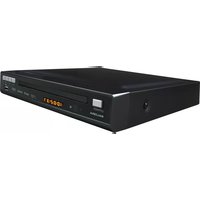
DVD227M - DVD player SALORA - Free user manual and instructions
Find the device manual for free DVD227M SALORA in PDF.


| Product Type | DVD Player |
| Brand | Salora |
| Model | DVD227M |
| Dimensions (W x D x H) | 360 x 232 x 33 mm |
| Weight | 1.24 kg |
| Power Supply | AC 110-220 V, 50/60 Hz |
| Power Consumption | 12 W |
| Video System | NTSC / PAL |
| Compatible Disc Formats | DVD, VCD, SVCD, CD, CD-R/RW, MP3, JPEG, MPEG4, KODAK Picture CD |
| Video Outputs | Composite (RCA), S-Video, Component (Y/Pb/Pr), SCART (RGB) |
| Audio Outputs | Analog stereo (RCA), Digital coaxial, Digital optical |
| Special Functions | Progressive Scan, zoom (2x/3x/4x), repeat, programming, parental control, angle view |
| Included Accessories | Remote control, audio/video cable, 2 AAA 1.5V batteries, user manual |
| Laser Type | ALGaAs semiconductor, 650 nm / 780 nm (Class 1) |
| Signal-to-Noise Ratio (Audio) | ≥ 90 dB |
| Dynamic Range (Audio) | ≥ 60 dB |
| Operating Temperature | 0°C to 40°C |
| Cleaning | Use a soft, slightly damp cloth. Do not use solvents, alcohol, or gasoline. |
| Safety | Do not open the device. Do not expose to humidity. Avoid heat sources. Do not look directly at the laser beam. |
Frequently Asked Questions - DVD227M SALORA
User questions about DVD227M SALORA
0 question about this device. Answer the ones you know or ask your own.
Ask a new question about this device
Download the instructions for your DVD player in PDF format for free! Find your manual DVD227M - SALORA and take your electronic device back in hand. On this page are published all the documents necessary for the use of your device. DVD227M by SALORA.
USER MANUAL DVD227M SALORA
Aansluitingen
Connexions
Turn on the TV, player and a
| Table of contents | 1 |
| Safety instructions | 2 |
| Package | 3 |
| Main features | 4 |
| Main unit control | 5 |
| Remote control | 6 |
| System connection | 8 |
| Basic operation | 10 |
| System setup | 16 |
| Specifications | 19 |
| Troubleshooting | 20 |
Safety Instructions

Warning: this mark is a warning sign alerting you of dangerous voltage inside the product.

Caution: this mark is a warning sign alerting you of important operation and maintenance instructions accompanying the product
The design and manufacture of the appliance have fully considered the safety of human body. However inappropriate handling of it may cause such accidents as electric shocks and fire. So, the following safety instruction should be fully observed. Notice: the appliance cannot be handled with wet hand. It should be kept at dry place with proper ventilation.
Power sources
● The power cord is connected to the jack, which means when the appliance is shut, it still connects to the power source.
●The power cord of the appliance should be unplugged from the jack when left unused for a long period of time. When unplugging the power cord, hold tight the plug contact and draw out. Please do not draw the power cord directly.
●Change the power cord in a qualified shop if necessary.
Location
● The appliance should be kept in a place with proper ventilation to prevent being overheated. For example, the appliance should not be put on a bed, sofa, rug, or similar surface that may block the ventilation openings.
● The appliance should be situated away from any heat sources, or any place subjected to direct sun radiation, dust-plagued, or mechanical percussion.
● Heavy weight goods should be removed from the top of the appliance.
Precautions
- If there is anything other than disc drop into the play, please switch off the power source, and resume using it after being checked by qualified maintenance staff.
●There is high voltage inside the player. Do not remove the cover of the set. Qualified service personnel should do all the maintenance operations.
●There is laser system inside the set. This player is classified as CASS 1LASER PRODUCT. Do not let the laser light go direct to you eyes, which may harm you eyes.

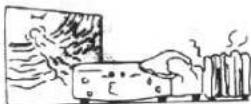
Condensation inside the player
If the player is subject to sharp temperature change, or warm air affected any components, moisture may condense on the lens inside (the so call "sweltering"). For example, if the player is brought directly from a cold to a warm location in winter. With the ensuing condensation, the player may not operation properly. Should this occur, put the player in warm room, and turn the
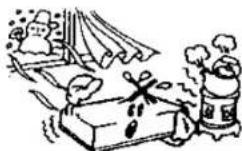
POWER button to ON and wait about an hour or two (the duration) is environment related) for the moisture to evaporate. The player will resume working after the condensation evaporates.
Cleaning
Clean the cabinet, panel and controls with a soft cloth slightly moistened with a mild detergent solution. Do not use any type of abrasive pad, scouring powder, or solvent, such as alcohol or benzene, to avoid damaging the surface or removing the prints on them.
Precaution about the disc
Do not play any cracked, broken, or deformed disc.

Cracked

Broken Deform

Because the disc should be rotated with high speed, so it is very dangerous to play any broken or deform disc. Do not apply any tape or glue on the disc. Otherwise, it may damage the player.
Notice if there is any strange noise or vibration while playing. If the picture or sound skip or the picture distorted, please stop the player immediately.
Package
| DVD player | 1 |
| Audio/Video cable | 1 |
| Remote Control | 1 |
| User Manual | 1 |
| AAA 1.5V battery | 2 |
Main Features
● Full compatibility with MPEG4, DVD, CD, Mp3, KODAK Picture CD, CD-RW (finalized)
● Component (Y, Pb, Pr), S-video and composite video output
● Progressive Scan
- Scart Output
Disc format supported by this player:

DVD video

Dolby Digital

KODAK picture CD

MP3 files on CD-R/CD-RW

MPEG4

TV Aspect Ratio modes

Parental Lock


You can help protect the environment! Please remember to respect the local regulations: hand in the non-wroking electrical equipments to an appropriate waste disposal center.
This product incorporates copyright protection technology that is protected by method claims of certain U.S. patents and other intellectual property rights owner by Macrovision Corporation and other rights owners. Use of this copyright protection technology must be authorized by Macrovision Corporation, and is intended for home and other limited viewing uses only unless otherwise authorized by Macrovision Corporation.
The product complies with KODAK Picture CD format and will display KODAK Picture CDs. The "KODAK Picture CD Compatible" logo is a trademark of Eastman Kodak Company and is used with permission.
Manufactured under license from Dolby laboratories. "Dobly" and the double-D symbol are trademarks of Dolby laboratories. Confidential Unpublished Works. ©1992-1997 Dolby laboratories, Inc. All rights reserved.
Main Unit Control
Front panel instruction

-
Power
-
Stop
-
DISC tray
-
L/R audio
-
Open/close
7.LED display
- Play/Pause
8.USB port
Back panel instruction
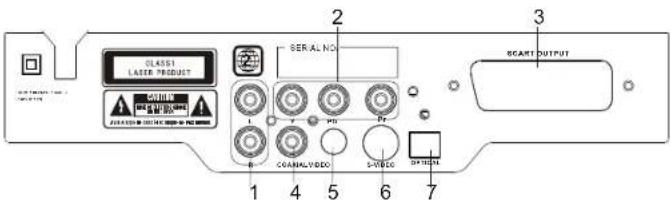
-
Audio L/R output
-
Video output
-
Y, Pb, Pr output
-
S-video output
-
Scart output
-
Optical
-
Coaxial output
Remote Control
Remote control instruction

-
Power
-
Mute
-
Number button
-
Setup
-
Direction button
-
Zoom
-
Fast backward
-
Fast forward
-
Stop
-
Play
-
Reset
-
Display
-
Subtitle
-
Audio
-
Slow
-
Program
-
Repeat
18.A-B
-
Open/close
-
Search
-
Title/PBC
-
Menu
-
Next
-
Previous
-
Pause
-
Volume+/Volume-
-
V-mode
-
Angle
-
N/P
-
Clear
-
USB
-
Return
The use of remote control
REMOTE CONTROL OPERATION:

CARE OF REMOTECONTROL
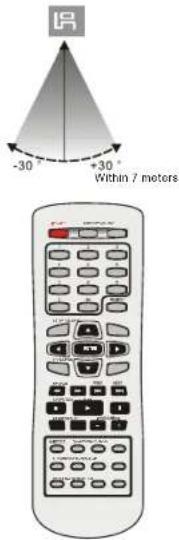
Aim remote control at remote sensor of DVD. Do not drop the unit from a high position or cause high impact.
Do not place the remote control in hot or moist environments.
Do not splash water or any other liquid on remote control.
Do not pull the remote control.
*point remote control directly to the remote sensor.
Pay attention to batteries in the remote control: if the remote control is idle too long, please take out the batteries inside.
Distance:
the remote control work best within 7 metres from the DVD player.
Do not expose the remote control sensor directly to a heat source or it will be malfunction.
System Connection
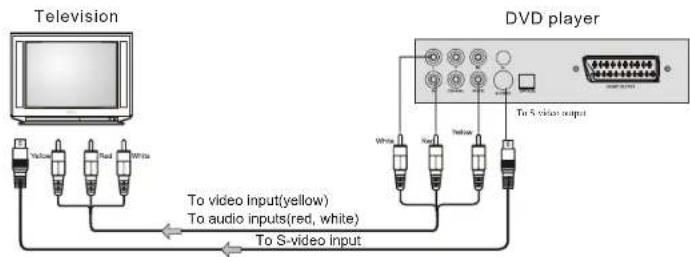
Connecting to a TV with Audio/Video cable
flowchart
graph LR
    A["Television"] --> B["To S-video input"]
    C["DVD player"] --> D["To video input(yellow)"]
    C --> E["To audio inputs(red, white)"]
    C --> F["To S-video input"]
    B --> G["Yellow"]
    B --> H["Red"]
    B --> I["White"]
    C --> J["White"]
    C --> K["Red"]
    C --> L["Yellow"]
    C --> M["Red"]
    C --> N["White"]
    C --> O["White"]
    C --> P["Red"]
    C --> Q["Yellow"]
    C --> R["Red"]
    C --> S["White"]
If the TV has an S-video input, connect the DVD player with an S-video cable. When using an S-video cable, do not connect the yellow videocab le.
Connecting to a Audio/system and TV equipped with YUV video Input

Connecting to TV and an amplifier equipped with Coaxial or Optical input

flowchart
graph TD
    A["Amplifier"] -->|To Coxial type digital audio input| B["Coastal cable"]
    A -->|To COWA/PL type digital audio input| C["DVd player"]
    C -->|To COWA/PL type digital audio input| D["Television"]
    C -->|To COWA/PL type digital audio input| E["Television"]
    C -->|To COWA/PL type digital audio input| F["Television"]
    C -->|To COWA/PL type digital audio input| G["Television"]
    C -->|To COWA/PL type digital audio input| H["Television"]
    C -->|To COWA/PL type digital audio input| I["Television"]
    C -->|To COWA/PL type digital audio input| J["Television"]
    C -->|To COWA/PL type digital audio input| K["Television"]
    C -->|To COWA/PL type digital audio input| L["Television"]
    C -->|To COWA/PL type digital audio input| M["Television"]
    C -->|To COWA/PL type digital audio input| N["Television"]
    C -->|To COWA/PL type digital audio input| O["Television"]
    C -->|To COWA/PL type digital audio input| P["Television"]
    C -->|To COWA/PL type digital audio input| Q["Television"]
    C -->|To COWA/PL type digital audio input| R["Television"]
    C -->|To COWA/PL type digital audio input| S["Television"]
    C -->|To COWA/PL type digital audio input| T["Television"]
    C -->|To COWA/PL type digital audio input| U["Television"]
    C -->|To COWA/PL type digital audio input| V["Television"]
    C -->|To COWA/PL type digital audio input| W["Television"]
    C -->|To COWA/PL type digital audio input| X["Television"]
    C -->|To COWA/PL type digital audio input| Y["Television"]
    C -->|To COWA/PL type digital audio input| Z["Television"]
    C -->|To COWA/PL type digital audio input| AA["Television"]
    C -->|To COWA/PL type digital audio input| AB["Television"]
    C -->|To COWA/PL type digital audio input| AC["Television"]
    C -->|To COWA/PL type digital audio input| AD["Television"]
    C -->|To COWA/PL type digital audio input| AE["Television"]
    C -->|To COWA/PL type digital audio input| AF["Television"]
    C -->|To COWA/PL type digital audio input| AG["Television"]
    C -->|To COWA/PL type digital audio input| AH["Television"]
    C -->|To COWA/PL type digital audio input| AI["Television"]
    C -->|To COWA/PL type digital audio input| AJ["Television"]
    C -->|To COWA/PL type digital audio input| AK["Television"]
    C -->|To COWA/PL type digital audio input| AL["Television"]
    C -->|To COWA/PL type digital audio input| AM["Television"]
    C -->|To COWA/PL type digital audio input| AN["Television"]
    C -->|To COWA/PL type digital audio input| AO["Television"]
    C -->|To COWA/PL type digital audio input| AP["Television"]
    C -->|To COWA/PL type digital audio input| AQ["Television"]
    C -->|To COWA/PL type digital audio input| AR["Television"]
    C -->|To COWA/PL type digital audio input| AS["Television"]
    C -->|To COWA/PL type digital audio input| AT["Television"]
    C -->|To COWA/PL type digital audio input| AU["Television"]
    C -->|To COWA/PL type digital audio input| AV["Television"]
    C -->|To COWA/PL type digital audio input| AW["Television"]
    C -->|To COWA/PL type digital audio input| AX["Television"]
    C -->|To COWA/PL type digital audio input| AY["Television"]
    C -->|To COWA/PL type digital audio input| AZ["Television"]
Connecting to TV with Scart cable

Basic Operation
After complete connecting the appliances, it can be used with the power switch on. Before using the player, the following work should be done:
-
Switch on the TV, and select AV state of audio input. If it is S-terminal connection, then select S audio mode.
-
If the power amplifier is connected, switch on the power of the amplifier, and select "DVD".
-
Connect the player to the power source.
Step 1: press "OPEN/CLOSE" button, the disc tray will slide out automatically.
Step 2: load the disc tray with disc, and press


"OPEN/CLOSE" key, the screen will indicate "closing", the player will identify the format of different disc, and the indicate it on the upper left of the TV screen. The display of the player will also indicate the type of the disc.
How to play this DVD player
Turn on the TV, player and amplifier.
-
press the "TV/AV" button on the TV, select video mode *if connect with S-video, choose S-video mode *if connect with Y-Cb Cr select YUV mode
-
Select the correct audio output on the amplifier
*Maybe some amplifier is different, please refer to the manual of the amplifier.

Disc play
After reading the disc, the player will go directly to play it:
●when playing DVD disc, it will go to the menu or the title menu of DVD;
●when playing VCD 2.0 disc, it will go to the PBC control display;
- when playing CD disc, it will play in the sequence specified chapter number.
Play:
When the player stop or pause, press "PLAY" button to resume normal play.
Pause
During DVD play, press the "PAUSE" button, play will be pause.
Stop:
During DVD play, the first press of the "STOP" button is memory stop, press "PLAY" button to resume memory play. Press the "STOP" button for the second time to stop it completely.
Previous chapter, next chapter:
- Press "PREV" button, the previous chapter will be played.
- Press "NEXT" button, the next chapter will be played.
Forward and backward:
- press the "FWD" button continuously to search forward at a faster speed X2,X4, X8,X16,X32, and then return to normal.
●Press the "REV" button continuously to search backward at a faster speed X2,X4, X8 X16,X32.and then return to normal.
Notice:
when the PBC function is enabled, the player will only search within a signal song.
OSD
When the following discs are played, press "OSD" button on the remote control, the screen will display the pictures.
When DVD disc is displayed: press "OSD" button, the screen will display the following picture a.
Press "OSD" button for the second time, the screen will display the following picture b.
Press "OSD" button for the third time, the screen will have the following picture c.
Press "OSD" button for forth time, the screen will have the following picture d.
abcd


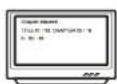

Press "OSD" button for the fifth time, the indication will be cleared.
When play VCD, SVCD,
In the state of "PBC" on:
press "OSD" for the first time, the screen display as picture a; press "OSD" for the second time, the screen display as picture b..


b
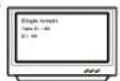
In the state of "PBC off":
press "OSD" for the first time, the screen display as picture a; press "OSD" for the second time, the screen display as picture b.
a
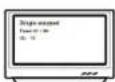
b

press "OSD" for the third time, the screen display as picture a; press "OSD" for the forth time, the screen display as picture b.
a

t
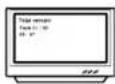
press "OSD" for the fifth time to shut the display
Subtitle
You can select a desired subtitle from available ones (this operation works only with DVD discs with this function) by pressing the "subtitle" button continuously. For example: the second one of the 8 choices is Chinese.


USB&card
1) Power-on the unit.
2) Make sure no disc has been inserted.
3) Insert a USB or memory card inside the connector.
4) Press USB&Card button the player will read the multimedia files located on the USB key or memory card.
Notice: depending on capacity of the device, the reading can take more then 1 minute before launching the video.
TIME
Press "TIME" button during playback, you can play a disc from the desired position by specifying the time from the beginning of the current title (for DVD VIDEO) or the disc (Video CD/Audio CD). Press "TIME" twice, the menu bar appears on the TV screen. Press the numeric buttons (0 to 9) to enter the desired time.
PROG
Press this button and the screen will display info window, press numeric buttons to input the program number what you want, when finished, move the cursor to select the "Start" logo, at this time the unit will start program playback and the screen will display "Program" logo.
CLEAR
You can press" CLEAR" button to clear the programmed contents.
ANGLE
When the DVD disc is played, such as sport events, music concerts or dramas, press "ANGLE" button on the remote control, you can enjoy a certain action from different angles (this operation works only with DVD discs with this function).


VIDEO
Press the "VIDEO" button, the switch between YUV / S-video can be available.
AUDIO
When playing DVD disc, press "AUDIO" button, the player will display as the figure below.


TITLE
When playing DVD disc, press "TITLE" button to go directly to the title menu, and press "MENU" button to return to the main menu. You can choose to select with direction button or numeric buttons.
(This operation works only with DVD discs with this function)
N/P
Set the format of this player according to the color format of your TV, to match the setting of your TV.
Press "N/P" button to switch within the cycle of NTSC, PAL, PAL-N, PAL-M and Auto
Direction button
When playing the disc, in the menu mode, direction button ↑ " ↓ " " can be applied to realize sections.
Numeric buttons
When playing the disc, select a program or a chapter by pressing one of the numeric button. You can select title, chapter with the left and right button. And then select desired section with numeric button, the selected will be played automatically.
MENU
Press this button and the screen will display" Root Menu", select item according to your preference. (This key is valid to DVD disc possessing multi-layer menu.)
Slow motion
Press "SLOW" button to enjoy slow motion, slow for Forward 1/2, 1/4, 1/8, 1/16.
Volume and mute
Press "volume +/-" buttons to get to the main volume menu, and adjust the main volume with the "volume +/-" buttons.
Press "MUTE" button to close the sound, at this time, the audio signal stop outputting; press "MUTE" again to resume the output of audio signal.
Zoom function
When enjoying a motion or still picture, press "ZOOM" for once, 2 times or 3 times to enlarge the picture by 2 times, 3 times or 4 times.
REPEAT
When playing DVD, press "REPEAT" button continuously, the screen will show circularly as followings:


Repeat play a title Repeat play a chapter

Cancel the repeat play function
When SVCD/VCD is played, press "REPEAT" button continuously, the screen will show circularly as followings, only when the PBC are shut.


Repeat playing one song CancerRepeatplaying the whole disc

play function
Notes: the function is valid when the PBC is OFF.
PBC
Press this button to turn the PBC on or off when playing SVCD VCD2.0 discs.
R/L
When playing VCD/CD disc, press "R/L" button to switch between Left Vocal/Right Vocal/No Local Assist.
STEP
Press "STEP" button to advance the program from frame to frame. Each operation will advance one picture. Press "PLAY" button to resume to normal play.
JPEG disc playback
When playing JPEG disc, a navigation menu will be displayed automatically if the disc is loaded in succession. In the menu, use UP or DOWN to move the cursor to select a file, then press "ENTER/PLAY", the file will be played with a slide-show. Press PREV or NEXT to select the previous or the next picture. Press PAUSE to pause the current picture for enjoying, when press ENTER/PLAY, it will return to normal playing.
MP3 operation
Basic operation
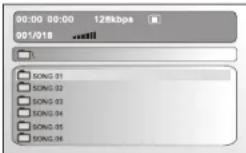
MP3 disc is display by menu selection.
Press repeat button to select repeat one ,repeat all, repeat off mode and play.
Disc play
Follow the normal basic operation steps, load the disc, and the player will start to search for disc info and enter into Mp3 menu mode
System Setup
This chapter explains a complete setup of the appliance: settings of screen display, audio setup and video setup.
The following actions have to be carried out with the remote control.
- Press the SETUP button.
- Press the arrow buttons (left and right) to select a submenu. The submenu is displayed directly.
- Press the arrow buttons (up and down) to scroll through the submenu.
- Press the ENTER button to select a setting, or the left arrow button to cancel the selection.
- Press the SETUP button to store the settings and exit.
Language setup page
- In the OSD LANG section, choose the language for the On Screen Display (OSD).
- In the SUBTITLE section, choose the subtitle language.
- In the AUDIO section, choose the audio language.
- In the DISC MENU section, choose the language for the disc menu.
Notice: If the selected language is not available on the disc, the default setting will remain enabled.
Video setup page
TV DISPLAY
- Select 4:3 PANSCAN or 4:3 LETTERBOX for a conventional TV set.
- Select 16:9 or WIDE SQUEEZE for a wide screen TV set.
TV TYPE
- Select the video output format to match the appliance to the TV system: PAL, AUTO or NTSC.
ANGLE MARK
- Switch this function ON or OFF.
CAPTIONS
- Switch this function ON or OFF. When switched ON, the appliance shows hidden text when it is available.
SCREEN SAVER
- Switch this function ON or OFF.
VIDEO OUTPUT
- OFF: Select S-Video mode of the S-Video connection.
● YUV: Set the video output in analog component video format. - RGB: Set the video output in RGB format when SCART output is used.
Notice:
● This menu can only be accessed when the disc tray is empty.
- If the video output results in a poor image, then press the V-Mode button until the image is good.
- If the screen blinks, your TV is set to the wrong system. Press the N/P button to return to normal.
● Also refer to the instructions of your TV.
Audio setup page
SPDIF OUTPUT
- Select SPDIF/OFF to switch off the digital audio signal output.
- Select RAW to set the digital audio signal output to its raw format (DTS/Dolby Digital 5.1).
- Select SPDIF/PCM to set the digital audio signal output to PCM format.
Notice: When SPDIF/PCM is set, the LPCM OUT feature sample rating for the analog audio input (48 kHz or 96 kHz).
DOWNMIX
- Select LT/RT to mix 5.1-channel audio into left channel and right channel.
- Select STEREO to mix 5.1 channel audio into signal stereo.
Notice: This function is only available for 5.1-discs with Dolby AC-3 encoding.
DUAL MONO
- Stereo: both channels as is. STEREO is the default setting.
● L-Mono: left channel only.
● R-Mono: right channel only.
● Mix-Mono: the average of both the left and right channel.
DYNAMIC
- Select the value for the dynamic range compression.
Preference setup page
Notice: The preference menu can only be accessed when the disc tray is open or empty, or when the disc in the disc tray is stopped.
PASSWORD
- Enter the current password in the first box.
- Enter the new password in the second box. Enter the new password again in the third box to confirm.
Notice: The default password (0000) is always active. Even if the password has been reset.
PARENTAL
- Set a rating for movies played by the appliance. Movies rated higher than the level set for the parental lock can not be viewed.
● The password to reset the rating is 0000.
Notice: This function is only available with discs that have parental rating encoded.
DEFAULT
- Restore all default settings of the appliance, except the settings for the menu items PARENTAL and PASSWORD.
Notice: This function can also be executed with the RESET button on the remote control.
Specifications
DVD PLAYER
| Power Supply | AC 110-240V ~ 50/60Hz |
| Power Consumption | 12w |
| Weight | 1.24kg |
| Dimension | 225X235X38 MM |
| Video System | NTSC/PAL |
| Optical read-out system | Semiconductor Al.GaAs Wcam, wave length:650nm,780nm |
| Audio Frequency Response | DVD audio:Fs 48KHz PCM4 Hz~22KHzFs 96KHz PCM4 Hz~44KHzAudio CD Fs 44.1Hz 4Hz~20KHz |
| S/N Ration | ≥90dB |
| Dynamic Range | ≥60dB |
| Rotating Ratio | Within measurable range |
| Operation Condition | Temperature 0°G40 ;öperation status:horizotion |
Output
| Video output | 1.0 v(p-p),75 Ω |
| S-video output | (Y)1.0V(P-P),75 Ω(C)0.286V (P-P),75 Ω |
| Audio output(Analog Audio) | 2.0V(rms) |
Troubleshooting
please check the following guide for the possible cause and solution for a problem before connecting the nearest service center or dealer for repairs.
SYMPTOMS AND CORRECTIONS
| SYMPTOMS CORRECTIONS | |
| No power | Check to make sure that the power connection is secure. |
| No picture | Make sure the connection between the player and the TV is secure. |
| Make sure that the TV is in good working condition. | |
| No sound | Make sure the connection between the player and other devices are secure. |
| Make sure that the TV and AMP are in good working condition and setup properly. | |
| Failed to Play | Check that the disc is properly inserted. |
| Clean the disc. | |
| Failed to respond to remote control | Remove obstacles between remote control and unit. |
| Aim remote control at the sensor on the front panel | |
| Check batteries and replace them if necessary. | |
| Picture Disturbance | Check the disc for dirt and scratches. Clean or replace disc. |
| Shut down the unit, wait ten seconds, and restart the unit. | |
| Failed to work with keys | Power surges or brown outs or other electrical phenomena.Shut down the unit, wait ten seconds, and restart the unit. |





- Aansluitingen
- Connexions
- Turn on the TV, player and a
- Safety Instructions
- Power sources
- Location
- Precautions
- Condensation inside the player
- Cleaning
- Precaution about the disc
- Main Features
- Main Unit Control
- Remote Control
- The use of remote control
- CARE OF REMOTECONTROL
- System Connection
- Basic Operation
- How to play this DVD player
- Disc play
- Notice:
- OSD
- When play VCD, SVCD,
- Subtitle
- USB&card
- TIME
- PROG
- CLEAR
- ANGLE
- VIDEO
- AUDIO
- TITLE
- N/P
- Direction button
- Numeric buttons
- MENU
- Slow motion
- Volume and mute
- Zoom function
- REPEAT
- PBC
- R/L
- STEP
- JPEG disc playback
- MP3 operation
- System Setup
- Language setup page
- Video setup page
- TV DISPLAY
- TV TYPE
- ANGLE MARK
- CAPTIONS
- SCREEN SAVER
- VIDEO OUTPUT
- Audio setup page
- SPDIF OUTPUT
- DOWNMIX
- DUAL MONO
- DYNAMIC
- Preference setup page
- PASSWORD
- PARENTAL
- DEFAULT
- Specifications
- Troubleshooting
Brand : SALORA
Model : DVD227M
Category : DVD player