
H150 - Pressure washer Eurom - Free user manual and instructions
Find the device manual for free H150 Eurom in PDF.


| Product type | High-pressure cleaner |
| Brand | Eurom |
| Model | H150 |
| Maximum pressure | 150 bar |
| Motor power | 1400 W |
| Water flow rate | 6 L/min |
| Power supply | 230 V / 50 Hz |
| Power cord length | 5 m |
| High-pressure hose length | 5 m |
| Weight | 7.5 kg |
| Dimensions (L x W x H) | 35 x 28 x 30 cm |
| Noise level | 75 dB(A) |
| Motor type | Induction electric motor |
| Main functions | High-pressure washing, rinsing, use with detergent |
| Rotating nozzle | Yes, adjustable angle |
| Detergent tank | Integrated, 0.5 L |
| Overload protection | Thermal safety device |
| Automatic shut-off | Yes, when the trigger is released |
| Maintenance and cleaning | Regular descaling, cleaning of water filters, checking seals |
| Spare parts available | Lance, nozzles, seals, high-pressure hose |
| Warranty | 2 years |
Frequently Asked Questions - H150 Eurom
User questions about H150 Eurom
0 question about this device. Answer the ones you know or ask your own.
Ask a new question about this device
Download the instructions for your Pressure washer in PDF format for free! Find your manual H150 - Eurom and take your electronic device back in hand. On this page are published all the documents necessary for the use of your device. H150 by Eurom.
USER MANUAL H150 Eurom
Getting started with
Logitech ® Stereo Headset H150

Logitech.




Contents
English .....4
Deutsch 8
Français ..... 12
Italiano ..... 16
Español ..... 20
Português ..... 24
Nederlands ..... 28
Svenska 32
Dansk 36
Norsk 40
Suomi 44
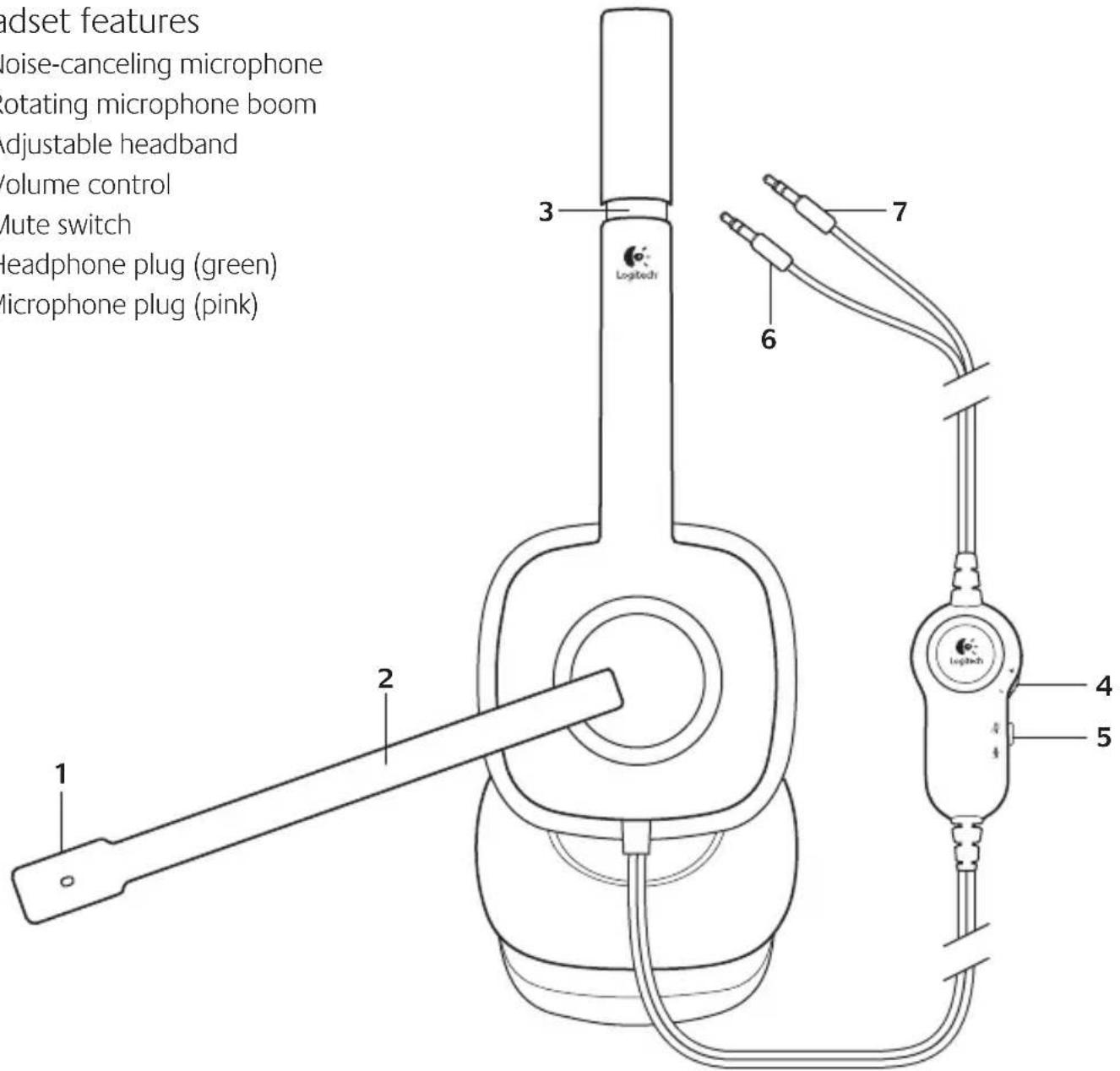
- Noise-canceling microphone
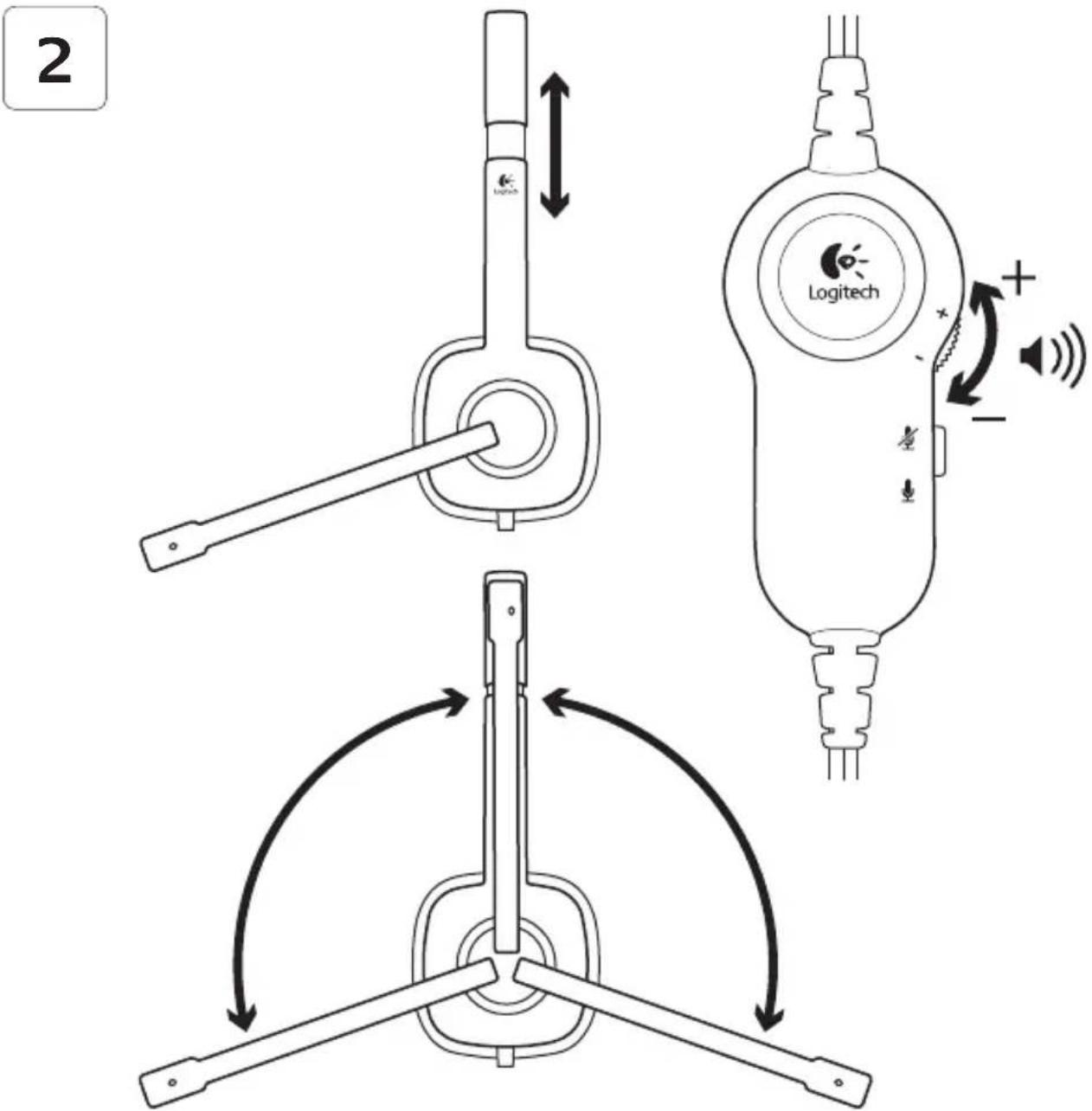
- Rotating microphone boom
- Adjustable headband
- Volume control
- Mute switch
- Headphone plug (green)
- Microphone plug (pink)
1
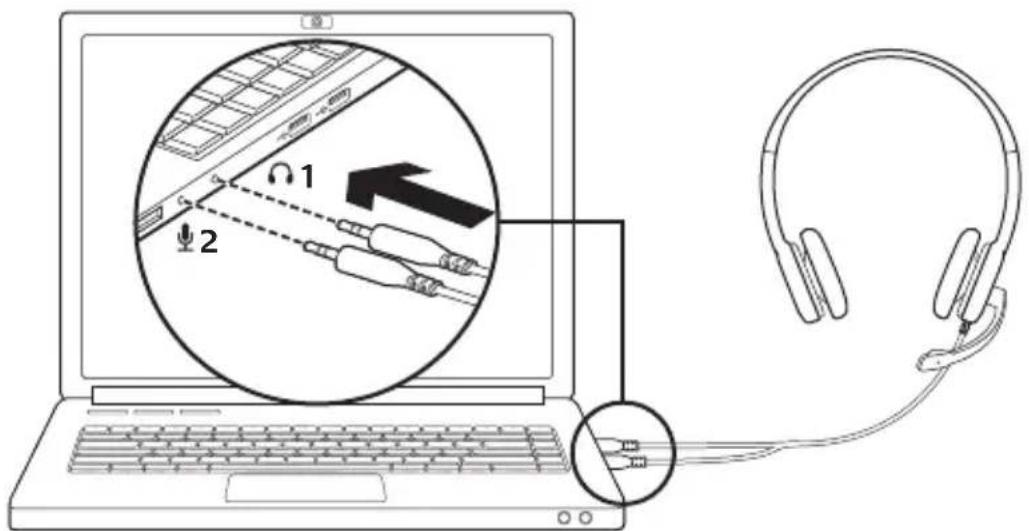
Connect the headset
-
Insert the 3.5 mm headphone plug (green) into the headphone jack on your computer.
-
Insert the 3.5 mm microphone plug (pink) into the microphone jack on your computer.
6 English
Help with setup: headset not working?
- Check both the headphone and microphone cable connections between the headset and your computer. The 3.5 mm headphone plug (green) connects to the headphone jack on your computer, and the 3.5 mm microphone plug (pink) connects to the microphone jack.
- Adjust the volume and microphone settings to an audible level in the application and operating system.
- Try restarting the media application.
- Close all media applications and check whether your computer soundcard has been selected in your Windows operating system for playback and voice.
Windows XP: Go to Start/Control Panel/Sounds and Audio Devices/Audio tab.
Choose your sound card and click OK. Go to the Voice tab, select your sound card, and click OK. Restart your media application.
Windows Vista and Windows 7:
Go to Start/Control Panel/Sounds/Playback Devices tab. Choose your sound card and click OK. Go to the Recording devices tab, choose your sound card, and click OK. Restart the media application.
For additional assistance, please visit www.logitech.com/support.
Headset-Funktionen
Headset anschließen
Connexion du casque
22 Español
Ligue os auscultadores
-
Introduza a ficha de 3,5 mm dos auscultadores (verde) na tomada dos auscultadores do seu computador.
-
Introduza a ficha de 3,5 mm do microfone (cor-de-rosa) na tomada do microfone do seu computador.

Anslut headsetet
Tilslut headsettet
Pievienojiet austinas
-
levietojiet zało 3,5 mm austiņu spraudni datora austiņu ligzdā.
-
levietojiet rozā 3,5 mm mikrofona spraudni datora mikrofona ligzdā.

Prijunkite ausines
Pripojenie slúchadiel s mikrofónom
Conectați căștile
Включете слушалките
Kulaklığı bağlama
توصيل سماعة الرأس
www.logitech.com/support

België/Belgique Dutch: +32-(0)2 200 64 44; French: +32-(0)2 200 64 40
| Česká Republika +420 239 000 335 | |
| Danmark +45-38 32 31 20 | |
| Deutschland +49-(0)69-51 709 427 | |
| España +34-91-275 45 88 | |
| France +33-(0)1-57 32 32 71 | |
| Ireland +353-(0)1 524 50 80 | |
| Italia +39-02-91 48 30 31 | |
| Magyarország | +36 (1) 777-4853 |
| Nederland | +31-(0)-20-200 84 33 |
| Norge | +47-(0)24 159 579 |
| Österreich | +43-(0)1 206 091 026 |
| Polska | 00800 441 17 19 |
| Portugal | +351-21-415 90 16 |
| Россия | +7(495) 641 34 60 |
| Schweiz/Suisse | D +41-(0)22 761 40 12 |
| Svizzera | F +41-(0)22 761 40 16 |
| I +41-(0)22 761 40 20 | |
| E +41-(0)22 761 40 25 | |
| South Africa | 0800 981 089 |
| Suomi | +358-(0)9 725 191 08 |
| Sverige | +46-(0)8-501 632 83 |
| Türkiye | 00800 44 882 5862 |
| United Arab Emirates | 8000 441-4294 |
| United Kingdom | +44-(0)203-024-81 59 |
| European, Mid. East., & African Hq. Morges, Switzerland | English: +41-(0)22 761 40 25Fax: +41-(0)21 863 54 02 |
| Eastern Europe | English: 41-(0)22 761 40 25 |
| United States | +1 646-454-3200 |
| Argentina | +0800 555 3284 |
| Brasil | +0800 891 4173 |
| Canada | +1-866-934-5644 |
| Chile | +1230 020 5484 |
| Latin America | +1 800-578-9619 |
| Mexico +001 800 578 9619 | |

www.logitech.com
© 2011 Logitech. All rights reserved. Logitech, the Logitech logo, and other Logitech marks are owned by Logitech and may be registered. Microsoft, Windows, Windows Media, and the Windows logo are trademarks of the Microsoft group of companies. All other trademarks are the property of their respective owners. Logitech assumes no responsibility for any errors that may appear in this manual. Information contained herein is subject to change without notice.
620-003280.003


- GETTING STARTED WITH
- LOGITECH ® STEREO HEADSET H150
- CONTENTS
- CONNECT THE HEADSET
- HELP WITH SETUP: HEADSET NOT WORKING
- WINDOWS XP: GO TO START/CONTROL PANEL/SOUNDS AND AUDIO DEVICES/AUDIO TAB
- WINDOWS VISTA AND WINDOWS 7
- HEADSET-FUNKTIONEN
- HEADSET ANSCHLIESSEN
- CONNEXION DU CASQUE
- LIGUE OS AUSCULTADORES
- ANSLUT HEADSETET
- TILSLUT HEADSETTET
- PIEVIENOJIET AUSTINAS
- PRIJUNKITE AUSINES
- PRIPOJENIE SLÚCHADIEL S MIKROFÓNOM
- CONECTAȚI CĂȘTILE
- ВКЛЮЧЕТЕ СЛУШАЛКИТЕ
- KULAKLIĞI BAĞLAMA
- WWW.LOGITECH.COM/SUPPORT
Brand : Eurom
Model : H150
Category : Pressure washer