
16816 Thinity Wireless Entertainment - Keyboard TRUST - Free user manual and instructions
Find the device manual for free 16816 Thinity Wireless Entertainment TRUST in PDF.


| Brand | Trust |
| Model | 16816 Thinity Wireless Entertainment |
| Product type | Wireless keyboard with touchpad |
| Connectivity | Wireless via USB receiver |
| Compatibility | PC (Windows XP/Vista/7), PlayStation 3, Xbox |
| Power supply | Built-in rechargeable battery, charging via dock |
| Charging time | Approximately 7 hours |
| Battery life | Not specified (sleep after 5 minutes of inactivity) |
| Touchpad | Gestures: two-finger vertical scrolling, 1/2/3 finger tap for clicks |
| Shortcut keys | Multimedia, volume, applications (via Fn key) |
| Indicators | Transmission (flashing), Power (green/red) |
| Package contents | Keyboard, USB receiver, charging dock, power adapter, PlayStation stickers (optional) |
| Maintenance | Clean with a soft, dry cloth. Do not use abrasive products. |
| General information | Keyboard from the Thinity range, designed for entertainment. |
Frequently Asked Questions - 16816 Thinity Wireless Entertainment TRUST
User questions about 16816 Thinity Wireless Entertainment TRUST
0 question about this device. Answer the ones you know or ask your own.
Ask a new question about this device
Download the instructions for your Keyboard in PDF format for free! Find your manual 16816 Thinity Wireless Entertainment - TRUST and take your electronic device back in hand. On this page are published all the documents necessary for the use of your device. 16816 Thinity Wireless Entertainment by TRUST.
USER MANUAL 16816 Thinity Wireless Entertainment TRUST
THINITY
Trust
6

natural_image
Illustration of a USB device with an arrow indicating data transfer or download (no text or symbols present)7

8
□

10911

□

THINITY WIRELESS ENTERTAINMENT KEYBOARD - USER'S MANUAL
Trust
Package contents
1 a Keyboard section
b Shortcut indicators
Transmission indicator (1), Power indicator (■), power switch
d Sound settings
e Touchpad section
f Keyboard's table feet
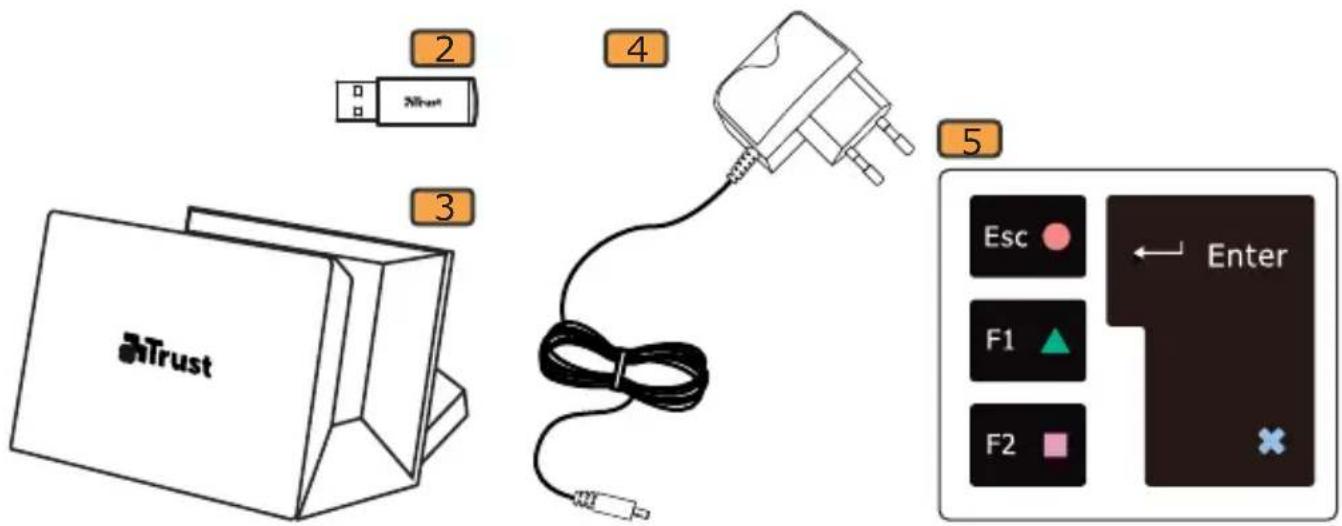
2 Wireless USB receiver
3 Charging cradle
4 Power adapter
5 PlayStation stickers (optional)
While being used, the transmission indicator will light up every time the keyboard transmits data to the receiver.
▶ A red Battery LED on the keyboard means the keyboard needs charging.
Installation
6 Connect the USB Transmitter to the computer; wait until the automatic installation has completed.
7 Switch On the keyboard → Ready to use.
Before using the keyboard for the first time, it might be required to charge the battery first.
Charging and Stand-by
Connect the power adapter to the charging cradle.
Connect the power adapter to the wall plug.
Insert the keyboard into the charging cradle.
The Battery LED on the keyboard is red while charging.
When the Battery LED turns green, the keyboard's battery is fully charged.
If no lights appear after putting the keyboard in its cradle, make sure you inserted the keyboard correctly.
▶ While being used, a red Battery LED on the keyboard means the keyboard needs charging.
The full charging time, for an entirely depleted battery, is 7 hours.
▶ After use, switch Off the keyboard to save power.
▶ After 5 minutes of inactivity, the keyboard will go into sleep mode to save battery. In sleep mode, the touchpad does not respond. To exit sleep mode, and reactivate the touchpad, press any of the keyboard's keys.
Using the keyboard
The keyboard country layout settings in Windows should match the keyboard layout of your Trust keyboard. The layout of the Trust keyboard is specified by a sticker on the Box.
To set the keyboard layout in Windows: Go to: Start → Control Panel (classic view) → Regional and Language Options → Languages (Vista & 7: "Keyboards and Languages") → Details (Vista & 7: "Change Keyboards")
The Alt Gr key gives access to special characters like the Euro sign.
Shortcuts
Your Thinity keyboard has shortcuts keys to help you launch your favourite programs and help you navigate through your operating system. The launch keys will start the default internet browser, E-mail program and media player, if such programs are available on your PC.
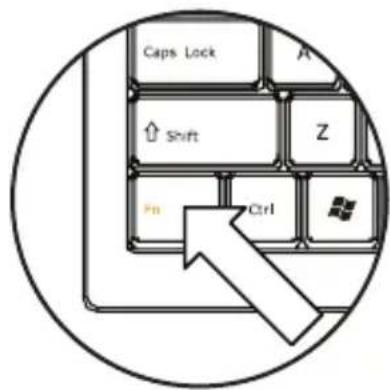
8 Activate the shortcuts by pressing the Fn key.
Use one of the shortcuts.

▶ Configure default programs:
XP: Start → Control Panel→ Add/Remove Programs → Set Program Access and Defaults. Vista: Start → Control Panel→ Default Programs→Set programs access and computer defaults→ Custom 7: Start → Default Programs→Set your default programs
▶ After 10 seconds of inactivity, the keyboard will revert to normal mode, and the Fn will need to be pressed again to use the shortcuts
Using the touchpad
9 Moving one finger on the touchpad's surface allows you to move the mouse cursor.
Tapping the touchpad's surface with one finger is a single (left button) mouse click.
10 Vertically moving two fingers on the touchpad's surface allows you to scroll up and down.
Tapping the touchpad's surface with two fingers is a middle (scroll-wheel or third button) mouse click.
11 Tapping the touchpad's surface with three fingers is a right button mouse click.
The mouse-click buttons (☐ and ☐) can also be used to perform clicks.
THINITY FOR ENTERTAINMENT KEYBOARD - USER'S MANUAL

Using Thinity with a media player
Your Thinity keyboard has multimedia shortcuts keys to help you control your favorite multimedia player.
8 Activate the shortcuts by pressing the Fn key.
Use one of the shortcuts.
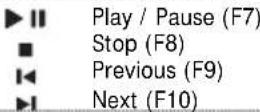
The volume settings allow you to turn the volume up or down, and to mute all sounds.

The multimedia keys are designed for Media Center and Windows Media Player. However, the keys may also work with other media player software.
Using Thinity with a Playstation 3
Connect the USB Transmitter to the Playstation.
Switch On the keyboard → Ready to use.
Use one of the shortcuts.

Esc F1 F2 Ent
Using Thinity with a XBox
Connect the USB Transmitter to the XBox.
Switch On the keyboard → Ready to use.
THINITY WIRELESS ENTERTAINMENT KEYBOARD - GEBRAUCHSANLEITUNG
Trust
Lieferumfang
The image is too blurry to recognize any text content.
a
der
[Non-Text]
[Non-Text]
[Non-Text]
2 Trádlós USB-modtager
3 Opladestation
4 Stroma
5 Playstation stickere (valgfri)
Når det er i anvendelse vil transmissionsindikatoren lyse hver gang tastaturet transmitterer data til modtageren.
m = 311
-
Using Thinity with a Playstation 3
Tilslut USB-transmitteren til Playstation.
- THINITY
- Trust
- THINITY WIRELESS ENTERTAINMENT KEYBOARD - USER'S MANUAL
- Package contents
- Installation
- Charging and Stand-by
- Using the keyboard
- Shortcuts
- Using the touchpad
- Using Thinity with a media player
- Using Thinity with a Playstation 3
- Using Thinity with a XBox
- THINITY WIRELESS ENTERTAINMENT KEYBOARD - GEBRAUCHSANLEITUNG
- Lieferumfang
Brand : TRUST
Model : 16816 Thinity Wireless Entertainment
Category : Keyboard