
Platinum 2 - Baby monitor Luvion - Free user manual and instructions
Find the device manual for free Platinum 2 Luvion in PDF.


| Product Type | Baby Monitor |
| Brand | Luvion |
| Model | Platinum 2 |
| Parent Unit Display | 3.5" LCD (estimated) |
| Video Resolution | 320 x 240 pixels (QVGA) |
| Frame Rate | 30 fps |
| Transmission Frequency | 2.4 GHz (FHSS) |
| Maximum Outdoor Range | 300 m |
| Maximum Indoor Range | 50 m |
| Night Vision | Yes, up to 5 m (8 IR LEDs) |
| Viewing Angle (Diagonal) | 45° |
| Temperature Sensor | Yes (baby unit) |
| Lullabies | Yes, pre-installed (multiple) |
| Two-Way Talk | Yes (Talk button) |
| Quad View | Yes (up to 4 cameras) |
| Recording | Micro SD card (up to 32 GB) |
| Power Supply (Parent Unit) | 5V DC adapter (included) |
| Power Supply (Baby Unit) | 5V DC adapter or 4 AA batteries (not included) |
| Battery (Parent Unit) | Rechargeable (official Luvion Platinum 2) |
| Operating Temperature (Parent Unit) | -10°C to 60°C |
| Operating Temperature (Baby Unit) | -10°C to 35°C |
| Safety | Keep cords >1 m from baby; not a toy; use original chargers |
| Maintenance | Wipe with dry cloth; do not use liquids |
| Spare Parts | Official Luvion Platinum 2 battery; power adapters |
| Package Contents | Parent unit, baby unit, docking station, 2 power adapters, wall plugs & screws |
Frequently Asked Questions - Platinum 2 Luvion
User questions about Platinum 2 Luvion
0 question about this device. Answer the ones you know or ask your own.
Ask a new question about this device
Download the instructions for your Baby monitor in PDF format for free! Find your manual Platinum 2 - Luvion and take your electronic device back in hand. On this page are published all the documents necessary for the use of your device. Platinum 2 by Luvion.
USER MANUAL Platinum 2 Luvion
Thank you for purchasing the Luvion Platinum 2. Now you can see and hear your baby or even more babies/children by using up to three additional camera's.
Please retain the original dated sales receipt for your administration. For service – and warranty issues you will always be asked for a copy of the receipt. For warranty issues you can contact your Luvion dealer or your local Luvion distributor. More information can be found on www.luvion.com.
This user manual provides you with all information for a safe and easy use of this baby monitor. Before using the Luvion Platinum 2 we ask you to thoroughly read this user manual. We ask for your special attention for the safety instructions.
LUVION
Delft, The Netherlands
www.luvion.com
SAFETY INSTRUCTIONS
- Keep small parts away from children.
- This product is not a toy. Do not allow children to play with it.
- This product is not intended as a substitute for adult supervision.
- Only use the original supplied power chargers.
- Do not use the product in humid conditions or nearby water.
- Only use the product between 10°C en 35°C.
- Always keep the cords of the power adapters at least 1 meter away from the baby.
- Do not try to open the product. This must be done by a qualified person.
Batteries
- Charge the battery of the parent unit for some hours until it's fully loaded. The battery is fully loaded when the charging light colours green.
- We advise you always to use the main power for the baby unit. Should there be no main power around, we advise you to use non-rechargeable batteries. Should you decide to use rechargeable batteries for the baby unit/camera, make sure that the power adapter is not connected to the camera. The baby unit has no charging function.
- To avoid damage to your batteries, please do not expose the baby monitor to temperatures higher than 35° C. Please remove the optional batteries from the baby unit if you do not use the product for more than 1 month.
CONTENTS OF PACKAGE
The system includes the following components:
- 1 x parent unit (monitor)
- 1 x baby unit (camera)
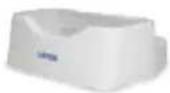
- 1 x docking station
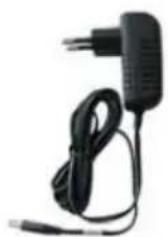
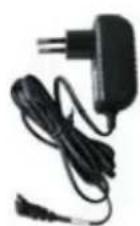
- 1 x power adapter for the parent unit
- 1 x power adapter for the baby unit
- 1 x wall plugs and screws
Check your package to confirm that you have received the complete system, including all components listed above.
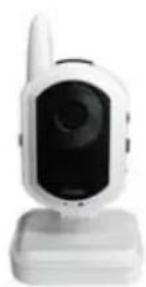
Baby unit

Parent unit
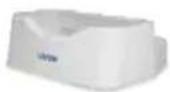
Docking station
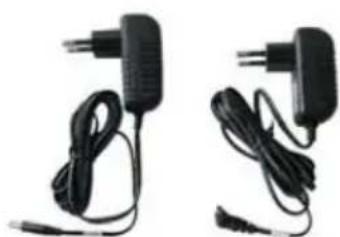
Power adapters (parent unit & baby unit)
Screws & plugs
OVERVIEW OF PARENT UNIT (MONITOR)

OVERVIEW OF BABY UNIT (CAMERA)

OVERVIEW OF PARENT UNIT
- Antenna Receives the video and sound from the baby unit.
- Antenna Locking Switch Slide the switch to the unlock position, to make the antenna pop
- up. This will improve reception.
-
On/Off button Turns the parent unit ON or OFF.
-
Talk Button Press this button to speak through the baby unit. When multiple baby units are used, you will speak through the unit currently being displayed on the screen. When you hold the talk button the talk icon will appear on screen.
-
Charging indication LED The LED is red when the built-in battery is being charged and turns green when it is fully charged.
-
DC in Connect the included DC 5V power adapter to power and/or charge the parent unit.
-
Battery compartment Screw open this compartment to replace the battery. Only replace this battery with an official Luvion Platinum 2 battery.
-
Menu button Press this button to enter the main menu.
-
Navigation buttons The navigation buttons can be used when the system is in normal use and/or when you are in the menu.
Normal use
- Press left ▶(A) to automatically switch between multiple cameras. The screen changes channel every 3 seconds.
- Press right ▶ (M) to switch manually between multiple cameras.
- Press up ▲ (+) to increase the volume.
- Press down ▼ (-) to decrease the volume.
- Press the OK button to go to the play list (when there is an SD card in the monitor). Use in the menu
Press the ◀▲▼▶ buttons to navigate in the menu. To confirm your selection press OK.
-
Coloured LEDs The first green LED indicates that the monitor is switched on. The other green/red LEDs indicate the volume level of the camera (from low to high).
-
LCD screen Displays the video from the baby unit.
-
Sound only button Press this button to switch to the sound only mode, or to return from the sound only mode to the audio and video mode.

Note: When the Automute (sound activation) function is on there will be no sound until noise activates the parent unit (see section Automute). For an “open channel” deactivate the Automute function by pressing NO.
-
Record button Press this button to start recording, press the button again to stop.
-
Quad button Press this button to display the video of all 4 cameras simultaneously.
In the Quad mode, the screen displays cam 1, cam 2, cam 3 and cam 4 for each channel.
Please note that there is no sound in this mode. When there is no signal from the baby unit or the signal is too weak the screen will display "out of range" on the corresponding channel.
-
Next button Play the next lullaby.
-
Play/Stop button Press this button to start or stop playing a lullaby.
-
Nightlight button Press this button on the parent unit to remotely turn on/off the

nightlight on the baby unit. When the nightlight is turned on the nightlight icon will appear on screen.
- Micro SD card slot Place a Micro SD card in this slot for video and audio recording. When an SD card is placed in the parent unit the SD card icon will appear on screen.
OVERVIEW OF BABY UNIT
- Temperature sensor Measures the temperature.
- Pair button The pair button is located at the back of the baby unit. It enables you to reconnect the baby and parent unit or to add additional baby units. See chapter on baby unit pairing for further information.
- Camera antenna Sends and receives signals to/from the parent unit.
- Lens / Infrared light These LEDs are automatically activated when the room gets darker and enable you to monitor the baby under no/low light conditions. The infrared LEDs do use a lot of energy and can therefore empty the batteries more quickly.
- ON/OFF button Turns the baby unit ON or OFF.
- Microphone Receives sounds from the area near the baby unit and transmits it to the parent unit.
- Night light Press this button to turn on the night light. The night light can also be turned on/off remotely with the parent unit's night light button.
- Sensitivity To adjust the sensitivity of the camera. A lower sensitivity means that sounds received by the baby unit need to be louder to be transmitted to the parent unit. A higher sensitivity means that at a low sound level the sounds will be transmitted to the parent unit.
Note: If you wish to monitor every sound. Go to Menu Automute and select NO. This will activate an "open channel".
-
ECO switch Allows you to set a lower transmitting power. This will save energy.
-
Volume To increase or decrease the volume of the lullabies.
-
DC 5V power adapter Enables you to connect the baby unit to the electricity grid.
Note: The baby unit can also be powered by 4 AA batteries (not included). The batteries are intended for short term, portable camera use. Do not leave the batteries in the baby unit when you use it with the power adapter.
- Battery compartment Open this compartment to place 4AA batteries to power the baby unit.
GETTING STARTED
Parent unit (monitor)
Determine whether you will be using the docking station, or connecting the cables directly to the parent unit before installation.
- Carefully unpack the parent unit.
- Place the parent unit in a place that has clear reception with the baby unit.
- Plug the DC 5V power adapter into the DC 5V input at the side of the parent unit. Plug the power adapter in the wall socket.
The parent unit will start to charge; the charging indication LED will now turn red.
- Leave the parent unit to charge prior to the first time use until the built-in rechargeable battery is fully charged. The charging indication LED will turn green when the battery is fully charged.

Note: Do not remove the power adapter during the initial charging process. After the initial charge, charge the parent unit as required.
Baby unit (camera)
Before installing the baby unit, carefully plan where and how it will be positioned, and where you will route the cable of the power adapter.
Before starting permanent installation, verify the reception of the baby unit video on the parent unit. Verify this when both the baby unit and the parent unit are placed in their preferred positions.
- Carefully unpack the baby unit.

Note: If you are installing baby units that do not come with the initial system (separately sold baby units), please look at the pairing baby units section of this manual for details on installation.
-
Mount the baby unit on the wall or put it on a cabinet, table or shelf. To mount the baby unit on the wall, mark the position of the 2 screw holes on the wall. Drill the holes and insert the included wall plugs and screws. Firmly attach the baby unit on the wall by placing the base over the screws and pushing it downwards.
-
Point the camera of the baby unit towards the area you want to monitor.

Note: Select a location for the camera that provides a clear view of the area you want to monitor, which is free from dust, and is not in line-of-sight to a strong light source or direct sunlight.
The baby unit can be powered by the included power adapter or by 4AA batteries (not included).
Power adapter
Connect the DC 5V power adapter to the DC 5V input at the back of the baby unit.
Plug the power adapter in the wall socket.
Batteries
Remove the battery pack cover off the base of the baby unit. Place 4AA batteries into the battery pack. Make sure to correctly line up the positive and negative poles of the batteries.
Place the battery pack cover back on.
Note: We advise you always to use the main power for the baby unit. Should there be no main power around, we advise you to use non-rechargeable batteries.
Note: Should you decide to use batteries, make sure that the power adapter is not connected to the camera!
USING THE SYSTEM
The video of the baby unit will be displayed on the screen of the parent unit when both are switched on.
-
Signal indicator The signal indicator shows the strength of the signal being recieved from the baby unit. One or no bars indicate a poor signal and 4 bars indicate a strong signal.
-
Channel indicator The channel indicator displays the current channel. Press the button to switch between the available baby units. To automatically switch between the channels press the button.
-
Temperature indicator Displays the temperature measured by the baby unit.
-
Nightlight indicator 🚙 The nightlight indicator is displayed when the nightlight on the baby unit is turned on.
-
Overwrite OW indicator When you have selected "yes" for the overwrite function. The letters OW will be displayed on the screen.

| Signal strength Indicator Warning | ||
| Perfect None |  | |
| Good None |  | |
| Fair None |  | |
| Low Out Of Range | [76SD] | |
| No Signal Out Of Rang |  | |
- Sound indicator When the volume has been decreased to mute, the mute icon will be displayed on the screen. Use the ▲ button to increase the volume.
- Talk indicator ↔ This icon appears when the talk button is pressed. You can now talk through the baby unit.
- SD card indicator SD The SD icon will appear when an SD card has been inserted in the SD slot of the parent unit.
- Unread file indicator This icon will appear when a video has been recorded but has not yet been watched.
- Lullaby indicator When the play lullaby button is pressed the name of the song is displayed on the screen. Press next to switch between songs.
OUT OF RANGE WARNING
When the baby unit is positioned too far from the parent unit, the warning message Out of Range will appear on the screen of the parent unit and the video will start to flicker. When there is no connection between the baby and the parent unit, the screen of the parent unit will be black and display the warning message Out of Range.

Out Of Range

Note: If moving the baby and parent unit closer together does not help, try pairing the baby and parent unit.
ADJUST THE VOLUME
The baby unit volume can be adjusted by using the ▲▼ buttons when viewing the video of the baby unit.
Press the ▼ button to decrease the volume, and press the ▲ arrow to increase the volume. When the volume is set to one bar (lowest setting) the volume is muted. The sound icon 🧑 will then appear on screen.
The volume indicator will be displayed when you change the volume.

Volume indicator
MENU OPTIONS
Press the menu button on the parent unit to display the menu on the screen. Use the ▶▲▼▶ buttons to navigate through the menu. Press the OK button to confirm a setting.
MAIN MENU
The main menu contains 4 submenus:
- Pairing - Use the pairing menu to add (extra) baby units to the parent unit or to reconnect the baby unit with the parent unit.
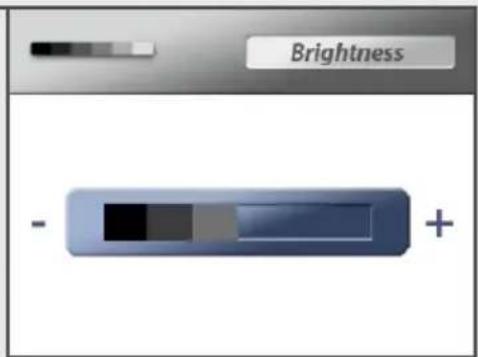
- Brightness - In this submenu you can adjust brightness of the screen.
- Auto Mute - Auto mute is a feature where you can choose between a so called "open channel", or the sound activated option. Using the sound activated mode, you will only hear you baby when there is a certain level of sound. The sensitivity for this level of sound detection can be adjusted at the side of the baby unit.
- Settings - In this submenu you can set date and time,, temperature alert parameters, temperature display unit, format the SD card and overwrite existing files. It is also possible to reset the parent unit to default factory settings.
PAIRING
The system comes with a baby unit that has already been paired with the parent unit. The pairing function gives each baby unit a separate channel on the parent unit (with a maximum of 4 baby units) this is necessary for configuring additional baby units.
Use the ▲▼ buttons to select the desired pairing channel, and press the OK button to begin the pairing process.


Note: It is highly recommended to pair the baby units to the parent unit before permanently mounting them.
BRIGHTNESS
The brightness of the screen can be adjusted with the ◀▶ buttons. The ▶ button makes the screen lighter and the ◀ button makes the screen darker.
AUTOMUTE
Auto mute is a feature where you can choose between a so called "open channel", or for the sound activated option. Using the sound activated mode, you will only hear you baby when there is a certain amount of sound. The sensitivity of for this level of sound detection can be adjusted on the side of the baby unit.
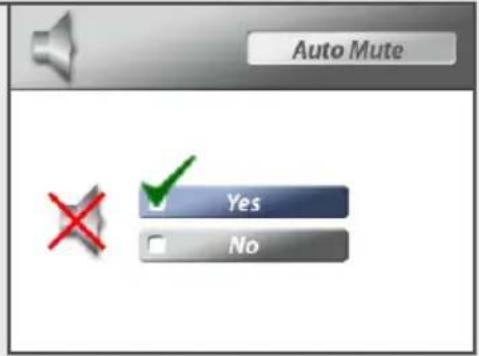
The advantage of the sound activated mode is that you will not hear any background sound and that you will only be alerted if there is a certain level of sound in the baby room. Should you prefer to hear the sound of the baby room continuously, a so called "open channel", then this option can be chosen in this menu by selecting NO.
SETTINGS
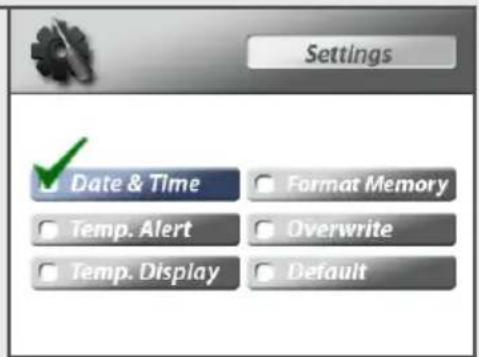
The settings menu contains 6 submenus:
- Date & Time 4. Format Memory
- Temperature Alert 5. Overwrite
- Temperature Display 6. Default
1. Date & Time
You can display the time on the screen by setting it in this submenu. The date and time have the following value YY/MM/DD HH:MM:SS.

2. Temperature Alert
You can use this menu to set the temperature range of the temperature alert. When the temperature is outside this range, a warning sound will be emitted.
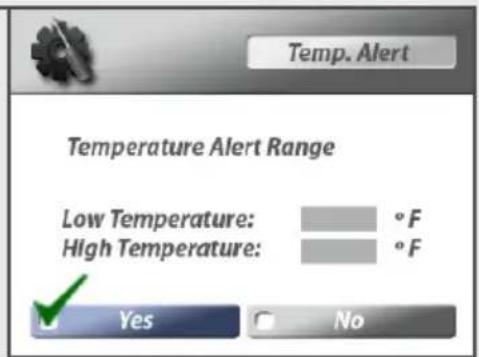
Use the ◀▶ buttons to select the minimum and maximum temperature, then use the ▲▼ buttons to set the temperature value. After successfully setting the temperature range, select On and then press OK to confirm the settings.
Select OFF to disable the temperature alert.
3. Temperature display
Select the temperature unit you want to use. You can choose between degrees Celsius or degrees Fahrenheit.

Note: Because the temperature sensor is located next to the (warm) camera, the measured temperature can deviate slightly from the room temperature. The temperature displayed on the screen is about 1-2 degrees Celsius higher than the room temperature.

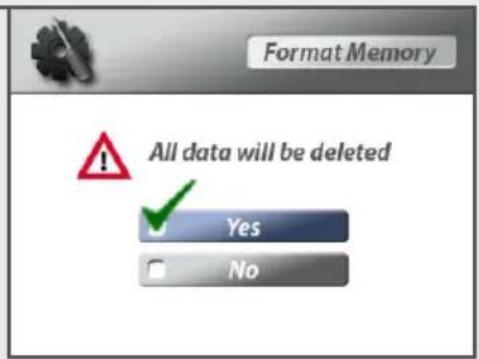
4. Format Memory
Select Yes to format the Micro SD card. Formatting will delete all the data stored on the Micro SD card.

Note: Use with caution!
5. Overwrite
Decide whether to record over earlier recorded files when the memory of the Micro SD card is full. When overwrite is activated the OW indicator will appear on screen.

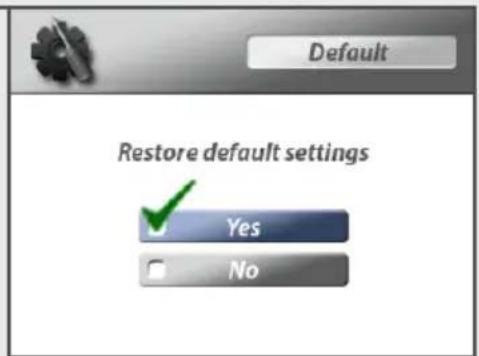
6. Default
Select Yes to reset the parent unit to factory default settings. All menu settings will then be reset.

Note: Pairing settings will not be affected by a reset. Baby unit(s) will remain paired with the parent unit.
BABY UNIT PAIRING
The system comes with a baby unit that has already been paired with the parent unit. These units will communicate with each other once they are switched on.
The pairing function gives each baby unit a separate channel on the parent unit (with a maximum of 4 baby units) this is necessary for configuring additional baby units.
Note: It is highly recommended to pair the baby units to the parent unit before permanently mounting them.
- Switch the baby unit on.
- Switch the parent unit on.
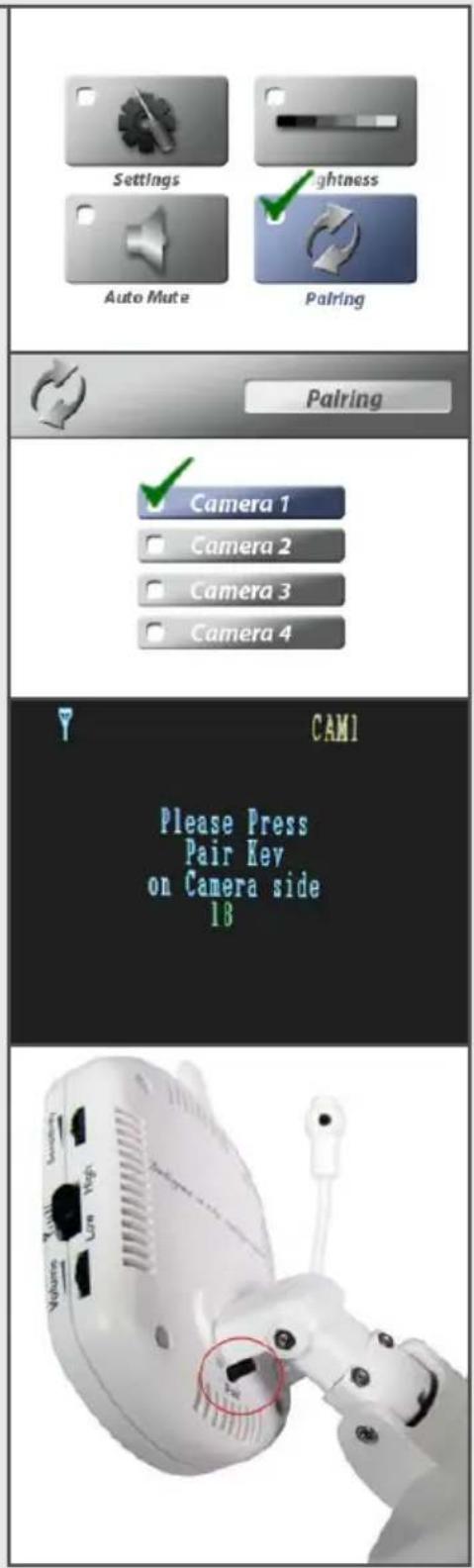
- Press the MENU button on the parent unit. Navigate to the Pairing menu using the ▲▼ buttons. Press the OK button to enter the Pairing menu.
-
Select a channel using the ▲▼ buttons. Press OK to accept the channel.
-
A message will be displayed on the parent unit screen. The parent unit will count down from 30 to 0. You have to (shortly) press the Pair button on the baby unit within this time to successfully pair it to the parent unit.
If the Pair button on the back of the baby unit is not pressed within this time, the units will not be paired.
When the baby and parent unit have been paired, the video from the baby unit will be directly displayed on the screen of the parent unit.
QUAD FUNCTION
The system comes with a quad function. This function enables you to watch the video from 4 cameras at the same time. When the quad function is used the sound is switched off. Press the quad button to switch to the quad mode.

SD CARD RECORDING
The system is designed for SD Card recording. Before recording, you need to insert an SD Card into the SD Card slot. The system supports SD Cards of up to 32 GB.

Note: To use the recording function, make sure an SD Card is inserted in the SD Card slot.
RECORDING
Press the Record button on the parent unit to start recording. Every ten minutes a file is made of the recorded video. Press the button again to stop recording. In the recording mode only the Talk button and Sound only button are available. Other functions are disabled.
PLAYBACK
When a new file is recorded, the yellow new file indication icon screen. When the SD Card is full, the red indication icon on the LCD screen will flash.
Follow the next steps to play recorded files:
- In viewing mode, press the OK button on the parent unit to enter the recording interface. In the recording mode press record, to stop recording, and press ok to enter the recording interface.
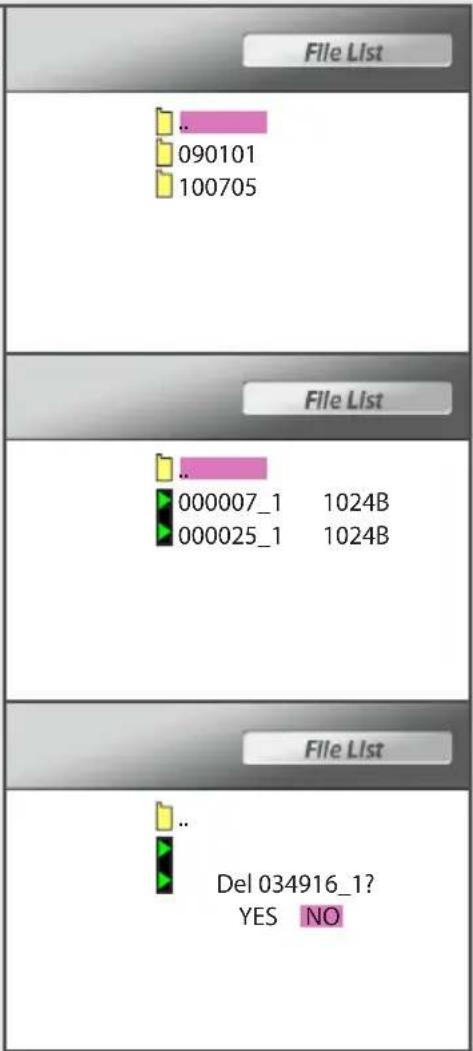
- Press the ▲▼ arrows to select the folder VIDEO and press OK. You will see some folders named after to the date on which they were recorded. For example 090101 means the videos in this folder were recorded on January 1st 2009. Press the ▶arrow to browse to the next page and press the ◀arrow to go to the previous page. Select the main file and press OK to go back to the previous menu.
- Select a folder and press OK to enter the submenu. You will see the recorded files named by time. For example 101024_1 means that video was recorded at 10:10:24 with camera 1. Press the ▶ arrow to browse to the next page or the ◀ arrow to browse to the previous page. Select the main file □ and press OK to go back to the previous menu.
In this interface, you can select a file and press the SOUND ONLY button, to delete a file. You will be asked to confirm your request before the file is deleted.
- Select the video you want to view and press the OK button. The video will then be played on the LCD screen. You can use the navigation buttons to pause (▲), stop(▼), go forward (▶ and go backward (◀). Press the MENU button to exit the video.
- Press MENU button on the parent unit to exit the playback function.
TROUBLESHOOTING
If you have any problems with the Platinum 2, there is often a quick and simple solution. Please try the following:
| Problem Solution | |
| No video from the baby unit | 1. Check all connections to the baby unit. Make sure the power adapter is plugged in.2. Make sure that both the baby and parent unit are switched on.3. Make sure that the baby unit is in range of the parent unit.4. When you are using batteries, try replacing them. |
| The video is dropping/“Out of Range” message | 1. Move the baby unit closer to the parent unit.2. Try repositioning the baby and/or parent unit to improve the reception.3. Place the antenna of the parent unit in the vertical position.4. Pair the parent unit with the baby unit (see chapter on pairing) |
| Audio problems 1. Make sure | that the volume on the TV is switched on.2. Make sure that there is sound within range of the baby unit microphone.3. If the unit emits a loud screeching noise, move the baby and parent unit further apart. |
| The video is or has become choppy | The video may become choppy when a lower frame rate is experienced (i.e. 10 frames per second instead of 20 frames per second).1. Try moving the baby unit closer to the parent unit.2. Remove obstructions between the baby and parent unit.3. Place the antenna of the parent unit in the vertical position. |
| The battery of the parent unit runs out very fast | Replace the battery with a new one. New batteries can be acquired at your local luvion dealer. |
TECHNICAL SPECIFICATIONS
| Parent unit | |
| Recieving frequency range 2.400GHz ~ 2.485GHz | |
| Data rate 2 Mbps | |
| Recieving sensitivity -81dBm | |
| Demodulation type GFSK with FHSS | |
| Resolution H: 320 V: 240 | |
| Viewing angle H: 120°V: 100° | |
| A/V Output / Resolution QVGA 320x240 / 30FPS | |
| Alarm sensitivity 80dB ±10% (1M) | |
| Power requirement 5V DC ±5% | |
| Power consumption | 400mA Max without charging800mA with charging |
| Operating temp range | -10° ~ 60°C (14°F ~ 140°F) |
| Operating humidity | 0 ~ 85% RH |
| Baby unit | |
| Transmit frequency range 2.400GHz~2.485GHz | |
| Data rate 2 Mbps | |
| Transmitting power 14dBm (TYP) | |
| Modulation type GFSK with FHSS | |
| Transmitting distance 300m (50 m in-house) | |
| Image sensor type 1/5" Color CMOS Image Sensor | |
| Effective Pixels H: 640 V: 480 | |
| Image processing Motion JPEG | |
| Image resolution / frame rate H: 320 V: 240 / 30FPS | Max |
| AES On 1/2000 ~ 1/20 sec | |
| White balance Auto | |
| AGC / Range On / 0dB~24dB | |
| Lens 4.9mm / F2.8 | |
| Viewing angle (diagonal) | 45° |
| Minimum illumination | 15 LUX (IR Off), 8 LUX (IR On) |
| IR LED / Night vision range | 8 LEDs / 850nm, 5m (with IR LEDs) |
| Power requirement | 5V DC ±5% |
| Power consumption | 300mA without (Night Light/IR/Lullaby Playing)830mA MAX (with all functions on) |
| Operating temperature | -10°C ~ 35°C (14°F ~ 95°F) |
| Operating humidity | 0% ~ 85% |
| Environmental rating | -10°C ~ 60°C (14°F ~ 140°F) |
GEBRUIKSHANDLEIDING
INHOUDSOPGAVE
VOORWOORD 18
VEILIGHEIDSINSTRUCTIES 18
PAKKET INHOUD 19
OVERZICHT VAN UW OUDERUNIT 22
OVERZICHT VAN UW BABYUNIT 23
KLAARMAKEN VOOR GEBRUIK 24
GEBRUIK 25
MENU OPTIES 26
BABY UNIT PAIRING 30
QUAD FUNCTIE 30
MICRO SD KAART OPNAME 31
PROBLEEM & OPLOSSING 32
TECHNISCHE SPECIFICATIES 32
VOORWOORD
Delft, The Netherlands
www.luvion.com
VEILIGHEIDSINSTRUCTIES
Babyunit

Ouderunit Dockingstation Voedingsadapters
(ouder unit & baby unit)

Schroeven & pluggen
OVERZICHT VAN DE OUDERUNIT (MONITOR)

OVERZICHT VAN DE BABYUNIT (CAMERA)

OVERZICHT VAN DE OUDERUNIT
OUT OF RANGE WAARSCHUWING
Volume indicator
MENU OPTIES

AUTOMUTE
5. Overwrite
QUAD FUNCTIE
SD KAART OPNAME
PROBLEEM & OPLOSSING



- LUVION
- SAFETY INSTRUCTIONS
- BATTERIES
- CONTENTS OF PACKAGE
- OVERVIEW OF BABY UNIT (CAMERA)
- OVERVIEW OF PARENT UNIT
- NORMAL USE
- OVERVIEW OF BABY UNIT
- GETTING STARTED
- PARENT UNIT (MONITOR)
- BABY UNIT (CAMERA)
- POWER ADAPTER
- USING THE SYSTEM
- OUT OF RANGE WARNING
- ADJUST THE VOLUME
- MENU OPTIONS
- MAIN MENU
- PAIRING
- BRIGHTNESS
- AUTOMUTE
- SETTINGS
- DATE & TIME
- TEMPERATURE ALERT
- TEMPERATURE DISPLAY
- FORMAT MEMORY
- OVERWRITE
- DEFAULT
- BABY UNIT PAIRING
- QUAD FUNCTION
- SD CARD RECORDING
- RECORDING
- PLAYBACK
- TROUBLESHOOTING
- TECHNICAL SPECIFICATIONS
- GEBRUIKSHANDLEIDING
- INHOUDSOPGAVE
- VOORWOORD
- VEILIGHEIDSINSTRUCTIES
- OVERZICHT VAN DE BABYUNIT (CAMERA)
- OVERZICHT VAN DE OUDERUNIT
- OUT OF RANGE WAARSCHUWING
- MENU OPTIES
- QUAD FUNCTIE
- SD KAART OPNAME
- PROBLEEM & OPLOSSING
Brand : Luvion
Model : Platinum 2
Category : Baby monitor