
Supreme Connect WiFi Bridge - Baby monitor Luvion - Free user manual and instructions
Find the device manual for free Supreme Connect WiFi Bridge Luvion in PDF.


| Product Type | Baby Monitor |
| Brand | Luvion |
| Model | Supreme Connect WiFi Bridge |
| Connectivity | Wi-Fi 2.4 GHz |
| Camera Resolution | 720p HD |
| Night Vision | Infrared LEDs (up to 5m) |
| Two-Way Audio | Yes, built-in microphone and speaker |
| Field of View | 110° horizontal |
| Power Supply | 5V DC, 1A (USB adapter included) |
| Dimensions (Camera) | 90 x 60 x 60 mm |
| Weight (Camera) | 150 g |
| Temperature Sensor | Yes, in camera |
| Motion Detection | Yes, with push notifications |
| Sound Detection | Yes, adjustable sensitivity |
| App Compatibility | iOS and Android (Luvion Connect app) |
| Multiple Cameras | Supports up to 4 cameras |
| Indoor Range | Up to 50 m (subject to obstacles) |
| Mounting | Desktop stand and wall mount (not included) |
| Maintenance | Clean with a soft, dry cloth |
| Safety Certifications | CE, RoHS |
| Spare Parts Availability | Power adapter and camera available via Luvion support |
| Repairability | Modular design; camera unit replaceable |
| General Information | Indoor use only; operating temperature 0-40°C |
Frequently Asked Questions - Supreme Connect WiFi Bridge Luvion
User questions about Supreme Connect WiFi Bridge Luvion
0 question about this device. Answer the ones you know or ask your own.
Ask a new question about this device
Download the instructions for your Baby monitor in PDF format for free! Find your manual Supreme Connect WiFi Bridge - Luvion and take your electronic device back in hand. On this page are published all the documents necessary for the use of your device. Supreme Connect WiFi Bridge by Luvion.
USER MANUAL Supreme Connect WiFi Bridge Luvion
Wifi Bridge

HANDLEIDING

INSTRUCTION MANUAL
INHOUDSOPGAVE
| INTRODUCTIE | 2 | ||||
| VEILIGHEIDSINSTRUCTIES | 3 | ||||
| INHOUD | VAN | DIT | PAKKET | 3 | |
| OVERZICHT | BRIDGE | 4 | |||
| ONDERSTEUNDE MOBILE PLATFORMEN | 4 | ||||
| BELANGRIJK | OM | TE | WETEN | 5 | |
| AAN | DE | SLAG | 5 | ||
| IPHONE/IPAD ETHERNET SETUP | 6 | ||||
| GEBRUIK VAN DE IPHONE/IPAD APP | 8 | ||||
| LIVE VIEW | |||||
| INZOOMEN LIVE VIEW | |||||
| BEKIJKEN EN DELEN VAN FOTO'S | |||||
| VERANDEREN VAN BRIDGEWACHTWOORD | |||||
| VERANDEREN VAN VIDEOKWALITEIT | |||||
| ANDROID | ETHERNET | SETUP | 12 | ||
| GEBRUIK VAN ANDROID APP | 14 | ||||
| LIVE VIEW | |||||
| INZOOMEN LIVE VIEW | |||||
| BEKIJKEN EN DELEN VAN FOTO'S | |||||
| VERANDEREN VAN BRIDGE WACHTWOORD | |||||
| VERANDEREN VAN VIDEO KWALITEIT | |||||
| TECHNISCHE | SPECIFICATIES | 18 | |||
| PROBLEEM | & OPLOSSING | 18 | |||
INTRODUCTIE
iPhone/iPad ETHERNET SETUP
Download de Luvion app op uw smartphone of tablet via uw app store (iOS App Store of Android's Google Play Store).

BEKiJKEN EN dEIEN vaN FOTO'S


vERaNdEREN vaN BRidgE WaCHTWOORd
aNdROid ETHERNET SETUP
1 Start de Luvion App



BEKiJKEN EN dEIEN vaN FOTO'S

Share image using
Decode QR
Code

Dropbox

Facebook

Gmail
HET vERaNdEREN WaCHTWOORd BRidgE


vERaNdEREN vaN vidEOKWaliTEiT
TECHNISCHE SPECIFICATIES
| Technische Specificaties | |
| Ethernet 10 / 100 M Ethernet port | |
| DHCP DHCP Client / Server | |
| Mobile Apps iOS (5.1+) / Android (2.2+) | |
| Adapter 5V DC 1.5A | |
| Gebruikstemperatuur 0 - 40 C / 32 - 104 F | |
PROBLEEM EN OPLOSSING
Thank you for purchasing the Luvion Supreme Connect Wifi Bridge. Now you can see and hear your baby or even more babies through your tablet or smartphone. Please retain your original dated sales receipt for your administration. For service and warranty issues you will always be asked for a copy of the receipt. For warranty issues you can contact your Luvion dealer or your local Luvion distributor. More information can be found on www.luvion.com.
This user manual provides you with all information necessary for a safe and easy use of this baby monitor. Before using the Luvion Supreme Connect Wifi Bridge we ask you to thoroughly read this user manual. We ask for your special attention for the safety instructions.
SaFETY iNSTRUCTIONS
- Keep small parts away from children.
- This product is not a toy. Do not allow children to play with it.
- This product is not intended as a substitute for adult supervision.
- Only use the original supplied power chargers.
- Do not use this product within humid conditions or nearby water.
- Only use the product between 10°C en 35°C.
- Always keep the cords of the power adapters at least 1 meter away from the baby.
- Do not attempt to open the product. This should be done by qualified personnel.
CONTENTS OF PaCKagE
- 1 x WiFi charging Bridge
- 1 x Ethernet cable
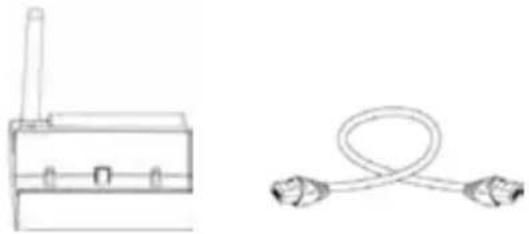
Please check whether the package is complete.
OvERviEW BRidgE
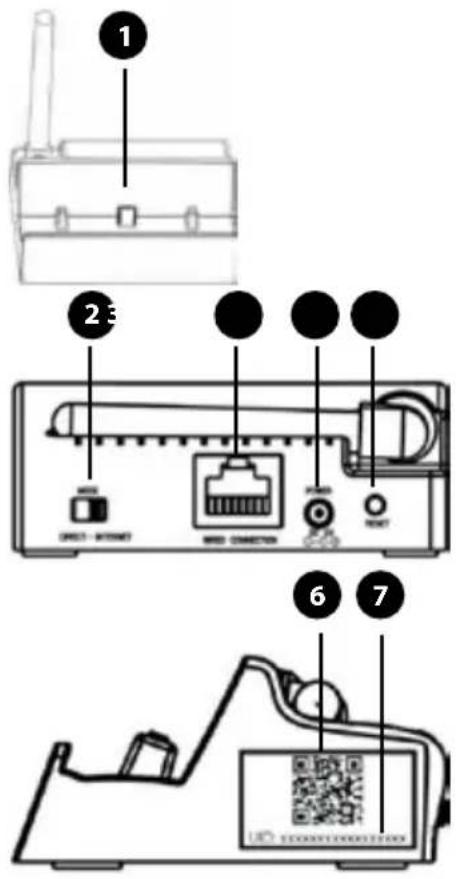
- Connector for the Supreme Connect monitor. Place your monitor on this connector to charge and connect with internet.
- Service Switch. Please make sure the switch is reading 'INTERNET'. The 'DIRECT' mode is for service purposes only.
- Ethernet port. Connector for the ethernet cable.
- Power Connector for the included Luvion adapter (5V)
- Reset button, hold this button for 5 seconds in case you've changed and lost the password of your WiFi Bridge. Please be advised that after a reset, the WiFi Bridge requires a full reinstallation to your router.
- QR Code, to be scanned during install.
- UID, in case the QR code does not work during the installation, this unique code can be entered manually.
COMPaTiBIE MOBiE PiaTFORMS
The Luvion app supports the following platforms:
iPhone/iPad iOS 5.1 and above
Android 2.2 and above

NOTE: Luvion recommends a minimum upload speed of 512Kbps
An upload speed of 1Mbps or higher is recommended for best performance.

NOTE : Up to 3 users can be connected to the bridge at the same time.
iIMPORTaNT TO KNOW
When no one is connected using a smartphone/tablet, you may use all monitor functions except:
• The handheld monitor cannot be turned off.
• AV output to a TV is disabled.
When someone is connected to the cameras using a smartphone or tablet, you will not be able to use the buttons or menus on the handheld monitor.
The icon 📞 appears on the handheld monitor when someone is connected using the Luvion app.
If Recording is in progress when someone connects remotely, the recording will be stopped and it does not resume when they disconnect.
While viewing on a smartphone or tablet, you may press to take a snapshot with the device's camera if you wish to record an event.
The smartphone/tablet app makes use from external servers.
gETTiNg STaRTEd
- Connect the bridge power adapter to the bridge. Connect the other end to a power outlet.

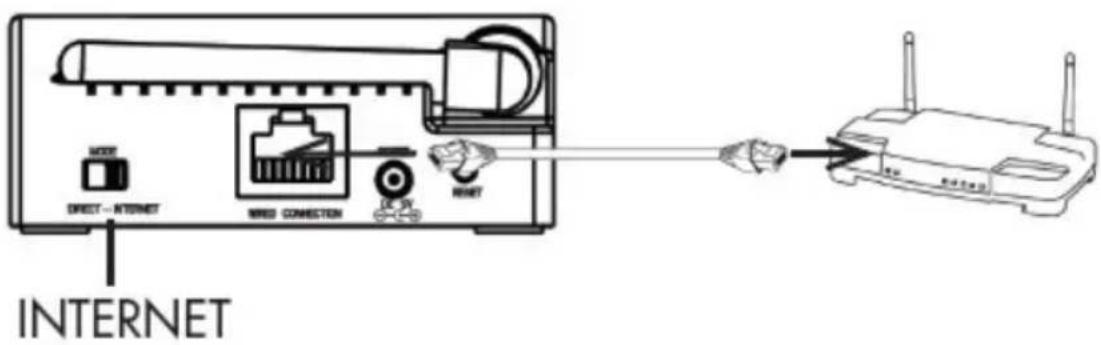
- Connect the bridge to your router using an Ethernet cable (included). Please check whether the Service Switch reads 'INTERNET'. The 'DIRECT' mode is only intended for service purposes.
- Place the monitor onto the power/network connector on the bridge. Use the stand-up guides to help place the monitor. The monitor will charge when connected to the bridge. It takes 5 hours to fully charge a battery.

On your smartphone or tablet, download our Luvion App for free from the App Store (iPhone®) or the Google Play Store (Android™).
iPhone ETHERNET SETUP
1 Complete chapter 'Getting Started' and launch the Luvion App.
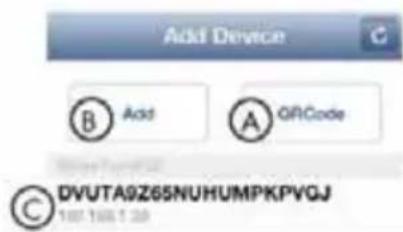
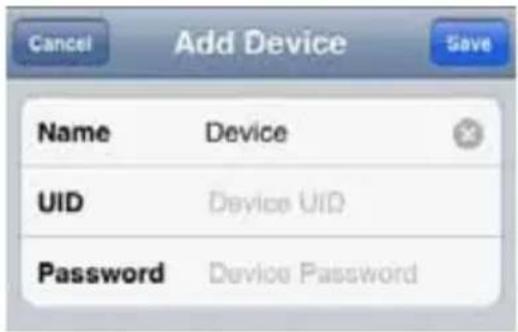
2 Go to 'Add Device' - Enter the UID code for the bridge in one of the following ways:
Option A: Tap QRCode and scan the QR code (the black and white square found on the side of the bridge).
Option B: Tap Add and manually enter the UID printed below the QR code on the side of the bridge. You may need to do this if your device does not have a camera.
Option C: If your device is on the same network as the bridge, it will automatically detect the bridge UID. Tap the UID to enter.


3 Enter a name for your Supreme Connect. Enter the default password '000000' (six times zero). Tap 'Save'.
4 Your Supreme Connect Bridge should now show up in the 'Device List' with an 'Online' indication.
5 The app will connect to your monitor and stream live video from your cameras.

NOTE: The WiFi Bridge should always be connected with the ethernet cable to the router.
USiNg livE viEW (iPhone/iPad)
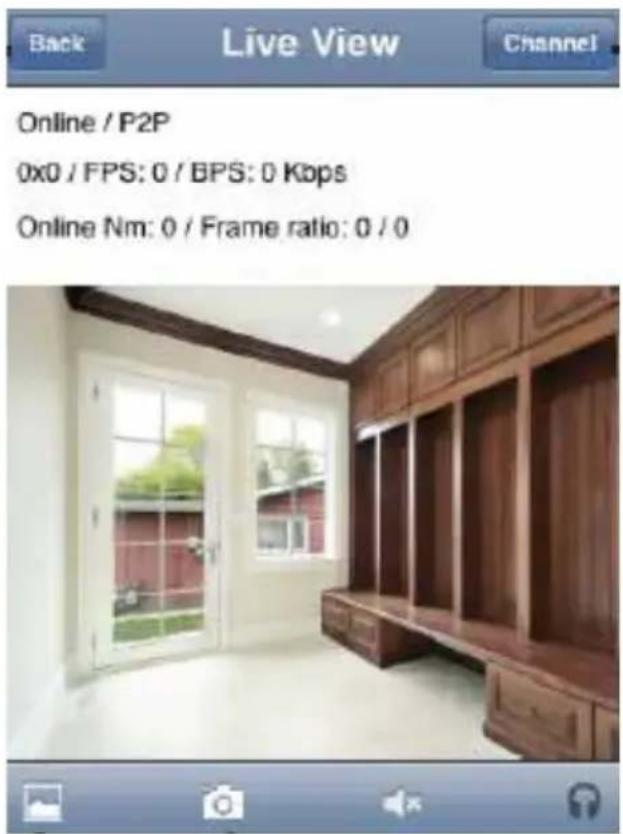
You can view your camera in either portrait or landscape mode.
NOTE: The controls above are only shown in portrait mode.
With Live View you may control the camera, allowing you to look around and zoom in/out. This is done with the standard 'gestures' of your phone Please look below for a short explanation.
Zooming in: Pinch and make an outward moving gesture with the index finger and the thumb. NOTE: You cannot move around freely with the camera when the cam view is zoomed in. Please zoom out completely to regain control over the movements of the camera.
Zooming out: Place your thumb and index finger on the screen and make an inward, pinching motion to zoom out.
Navigation: When zoomed in with Live View, press and drag to move the zoom area. When zoomed all the way out, press and drag to control the camera. Please note that there might be a slight delay in movement when controlling the camera.

viEWiNg aNd SHaRiNg SNaPSHOTS
You can take snapshots of live video from
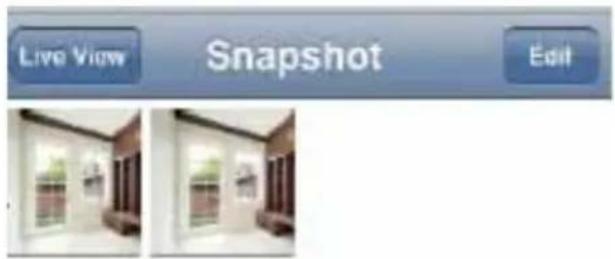
your cameras by pressing You can view or share snapshots using the app.

To view your snapshot, tap the landscape icon.

You are now viewing the photo gallery. To open and share a snapshot, tap on it. To E-mail, Delete or Save the photo in the iOS
gallery, press:

You have now the option to delete the Photo ('Delete Photo'), e-mail it ('E-mail Photo') or to save it ('Save Photo') within the iOS photo gallery.
NOTE: Your email settings must be configured to share the snapshot using email. See the User Guide for your iPhone®/iPad® for details.



CHaNgiNg THE BRidgE PaSSWORd
The default password is 000000 (Six times zero). It is recommended to create your own password to ensure that no one may access your video.
To change the password:
1 Open the Device List screen in Luvion. Press 'Back' if you are currently connected to a camera.
2 Tap the '▶' button next to the device, then select 'Advanced Setting'
4 You are now in the 'Change Password' menu.
5 Enter the old password (eg '000000'), your new password and your new password once more for confirmation.
6 Confirm these new settings by tapping 'OK'. Press 'Back' two times to return to the Device List.
7 Tap the Device to connect.
If you forget your password, press and hold the Reset button on the bridge for 5 seconds, it will reset using the default '000000' password.

CHaNgiNg THE vidEO QUaliTY
The video quality can be increased for fast Internet connections or decreased to improve the video performance. If the video is choppy or slow, it is recommended to reduce the video quality setting.
1 Open the Device List screen in the Luvion app. Press 'Back' if you are currently connected to a camera.
2 Tap the '→' button next to the device to go the device settings.
3 Tap 'Advanced Setting'
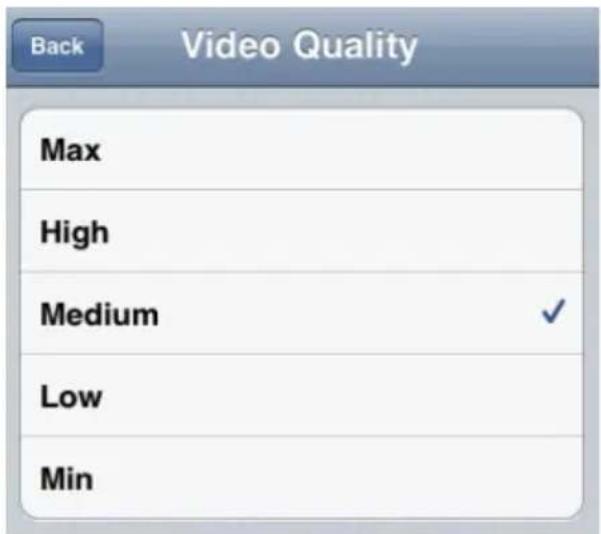
4 Select 'Video Quality'
5 You are now in the 'Video Quality' menu. Now you may select the desire video quality.
6 Tap 'Back' three times to return to the Device List.


aNdROid ETHERNET SETUP
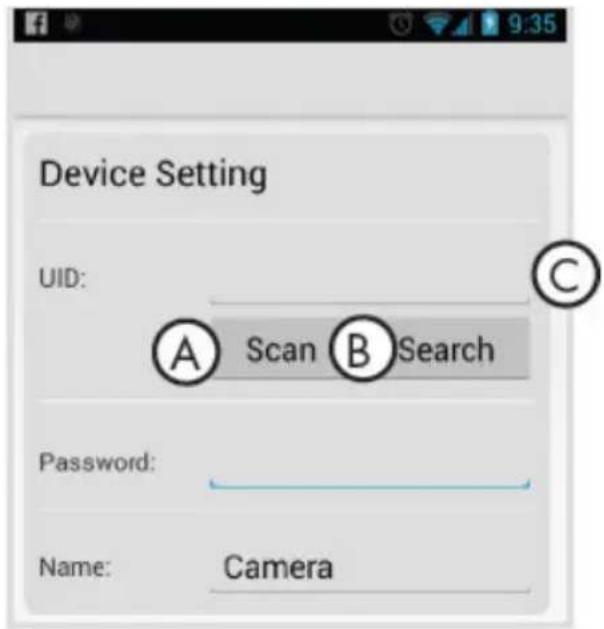
1 Start the Luvion App


2 Tap 'Click here to add device'
3 Enter the UID code for the bridge in one of the following ways:
A. Tap Scan and scan the QR code on the side of the bridge using your device's camera. You may be prompted to select the app that will be used to scan the QR code. Select 'Google' and press 'Always to continue'.
B: If your device is on the same network as the bridge, tap 'Search' to detect the bridge UID automatically. Tap the UID to enter.
C: Tap UID and manually enter the UID printed on the side of the bridge. You may need to do this if your device does not have a camera.
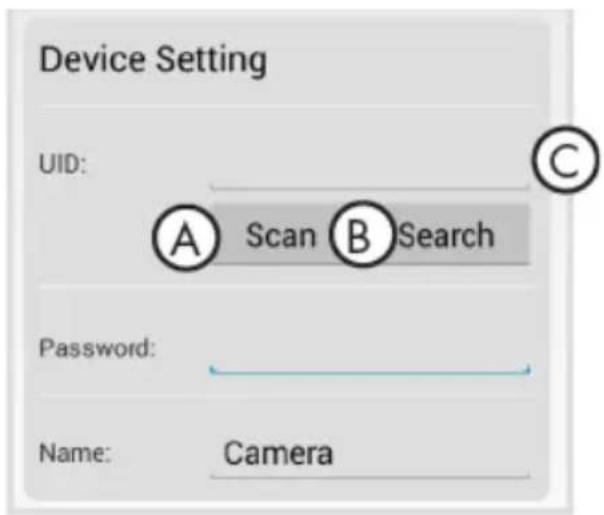

4 Enter the default password 000000 (six times zero) and enter a name for your monitor.

5 The bridge will show up in your Device List with an 'Online' status, select your device to connect. The app will now connect to your system and stream live video from your cameras.

NOTE: The WiFi Bridge should always be connected with the ethernet cable to the router.
USiNg livE viEW aNdROid
You can view your camera in either portrait or landscape mode.
With Live View you may control the camera, allowing you to look around and zoom in/out. This is done with the standard 'gestures' of your phone Please look below for a short explanation.
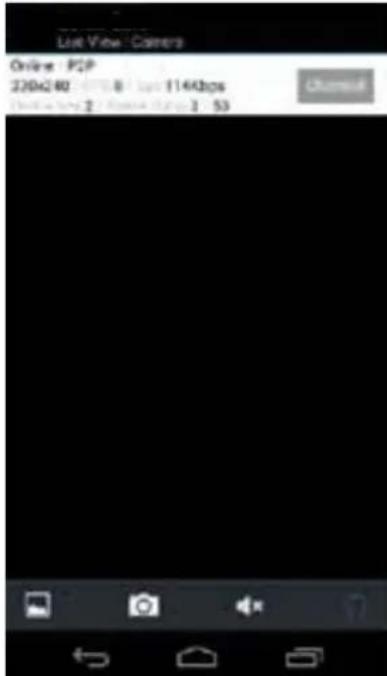
Zooming in: Pinch and make an outward moving gesture with the index finger and the thumb. NOTE: You cannot move around freely with the camera when the cam view is zoomed in. Please zoom out completely to regain control over the movements of the camera.
Zooming out: Place your thumb and index finger on the screen and make an inward, pinching motion to zoom out.
Navigation: When zoomed in with Live View, press and drag to move the zoom area. When zoomed all the way out, press and drag to control the camera. Please note that there might be a slight delay in movement when controlling the camera.

viEWiNg aNd SHaRiNg SNaPSHOTS
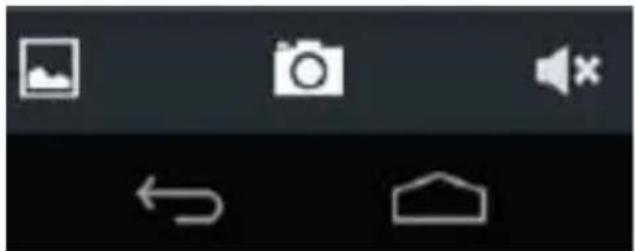
You can take snapshots of live video from your cameras by pressing the cam Icon. You can view or share snapshots.

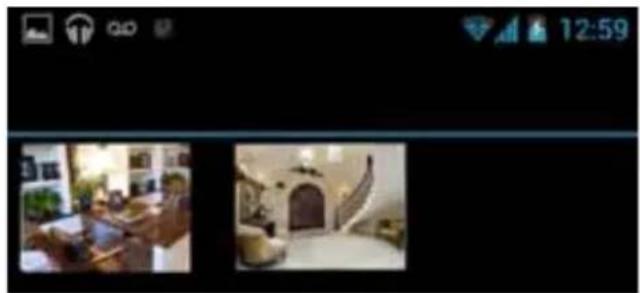
Snapshots are saved in .jpg format. They are saved to the /DCIM/Luvion folder on your device's memory.
To view snapshots:
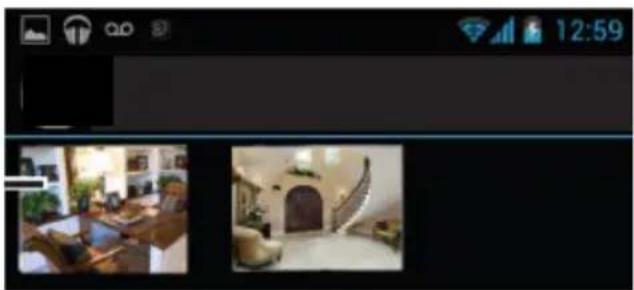
In order to view snapshots, use the
landscape icon within Live View to display the snapshot gallery.

When you have entered the snapshot gallery, you may tap a snapshot to view it full screen.
Next, you may choose the 'options' icon to select an application through which you would like to share the snapshot.

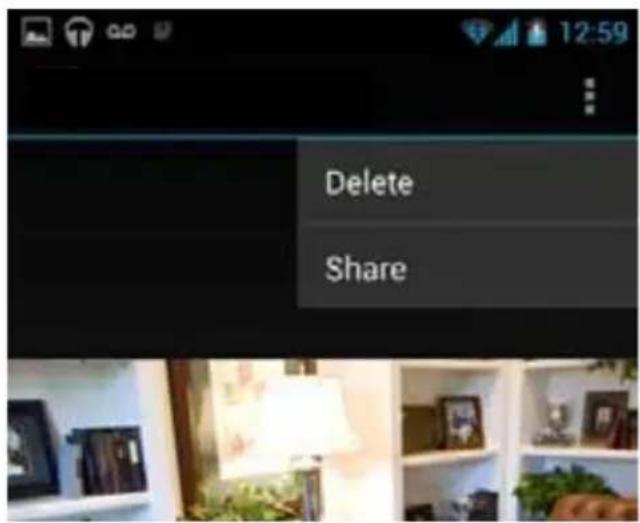
Share image using

Decode QR
Code

Dropbox

Facebook

Gmail
CHaNgiNg THE BRidgE PaSSWORd
The default password is 000000 (six times zero). It is recommended to create your own password to ensure that no one may access your video.
To change the password:
1 Open the Device List screen. Go back if you are currently connected to a camera.
2 Tap ' Next to the bridge to access the device options.
3 Tap 'Edit Device'
4 Select 'Advanced Setting'
5 Select 'Change Password'.
Enter the old password (eg '000000'), your new password and your new password once more for confirmation.
Record your password:
Tap 'OK' twice to return to the Device List.
6 Now select your device in order to connect.
7 If you forget your password, press and hold the Reset button on the bridge for 5 seconds, it will reset using the default '000000' password.


CHaNgiNg THE vidEO QUaliTY
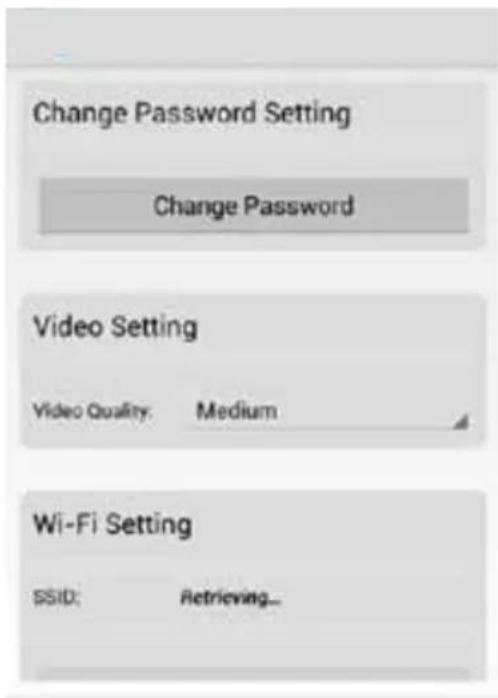
The video quality can be increased for fast Internet connections or decreased to improve the video performance. If the video is choppy or slow, it is recommended to reduce the video quality setting.
Changing the video quality:
1 Open the Device List screen in Luvion. Press back if you are currently connected to a camera.
2 Tap ' ☺' next to the bridge.
3 Select 'Edit Device'
4 Go to 'Advanced'
5 Tap the field next to 'Video Quality', then select the desired video quality
6 Tap OK to return to the Device List.


TECHNICAL SPECIFICATIONS
| Technical Specifications | |
| Ethernet 10 / 100 M Ethernet port | |
| DHCP DHCP Client / Server | |
| Mobile Apps iOS (5.1+) / Android (2.2+) | |
| Adapter 5V DC 1.5A | |
| Operation Temperature 0 - 40 C / 32 - 104 F | |
TROUBLESHOOTING
| Problem Solution | |
| Cannot connect to the monitor on my smartphone or tablet | Monitor is not placed on the bridge. The monitor must be on the bridge to enable remote connectivity.Make sure the bridge is connected to power using the bridge power adapter. The bridge cannot use the power adapter for the monitor or cameras.Ethernet cable not connected. Connect an Ethernet cable to the bridge and connect the other end to your router. For details, see “iPhone®/iPad® Ethernet Setup” or“Android Ethernet Setup”Ensure the switch on the back of the bridge is set to INTERNET mode. DIRECT mode is for service use only. Disconnect and reconnect the power adapter after switching to INTERNET mode. |
| I have forgotten the password to the bridge | Press and hold the Reset button on the bridge with a paper clip or other thin object for 5 seconds to reset the bridge to the default password, 000000. You will need to re-enter your Wi-Fi network in the bridge, as this will cause the bridge to forget any configured Wi-Fi networks. |
| I do not see Live Video controls on the screen in the iPhone®/iPad® app | Controls are only shown when the device is held in portrait mode. |
Luvion Premium Babyproducts
Delft, The Netherlands
Visit us at: www.Luvion.com
v.2014-4



- INTRODUCTIE
- IPHONE/IPAD ETHERNET SETUP
- BEKIJKEN EN DEIEN VAN FOTO'S
- VERANDEREN VAN BRIDGE WACHTWOORD
- ANDROID ETHERNET SETUP
- SHARE IMAGE USING
- HET VERANDEREN WACHTWOORD BRIDGE
- VERANDEREN VAN VIDEOKWALITEIT
- TECHNISCHE SPECIFICATIES
- PROBLEEM EN OPLOSSING
- SAFETY INSTRUCTIONS
- CONTENTS OF PACKAGE
- OVERVIEW BRIDGE
- COMPATIBIE MOBIE PIATFORMS
- IIMPORTANT TO KNOW
- GETTING STARTED
- IPHONE ETHERNET SETUP
- USING LIVE VIEW (IPHONE/IPAD)
- VIEWING AND SHARING SNAPSHOTS
- CHANGING THE BRIDGE PASSWORD
- CHANGING THE VIDEO QUALITY
- USING LIVE VIEW ANDROID
- TO VIEW SNAPSHOTS
- TECHNICAL SPECIFICATIONS
- TROUBLESHOOTING
Brand : Luvion
Model : Supreme Connect WiFi Bridge
Category : Baby monitor