
TAB 714 - Tablet INTENSO - Free user manual and instructions
Find the device manual for free TAB 714 INTENSO in PDF.


| Brand | Intenso |
| Model | TAB 714 |
| Product type | Tablet |
| Display | 7-inch LCD TFT, resolution 800 x 480 pixels |
| Processor | 1 GHz Cortex A8 |
| RAM | 512 MB DDR3 |
| Operating system | Android 4.0.4 |
| Battery | Rechargeable lithium-ion battery, autonomy not specified, full charge ~5 hours |
| Power supply | Power adapter 5V / 2A (AC 100-240V) |
| Wireless connectivity | WiFi 802.11 b/g/n |
| Ports | Micro USB, 3.5mm headphone jack, Micro SD/SDHC card reader |
| Camera | Front 0.3 MP |
| Supported audio formats | MP3, WMA, WAV, OGG, FLAC, APE |
| Supported video formats | MPEG1, MPEG4, FLV |
| Supported image formats | JPEG, BMP, GIF, PNG |
| Sensors | G-Sensor (automatic 360° rotation) |
| Dimensions (approx.) | 19.5 x 12.2 x 1.0 cm |
| Weight (approx.) | 300 g |
| Package contents | Tablet, stereo headset, USB cable, power adapter, user manual, USB dongle |
| Care | Clean with a soft, dry, lint-free cloth; do not use solvents |
| Safety | Avoid shocks, moisture, extreme heat, magnetic fields; do not open the case |
| Warranty | Limited warranty covering product replacement |
Frequently Asked Questions - TAB 714 INTENSO
User questions about TAB 714 INTENSO
0 question about this device. Answer the ones you know or ask your own.
Ask a new question about this device
Download the instructions for your Tablet in PDF format for free! Find your manual TAB 714 - INTENSO and take your electronic device back in hand. On this page are published all the documents necessary for the use of your device. TAB 714 by INTENSO.
USER MANUAL TAB 714 INTENSO

14.) Task Manager
Thank you for choosing the TAB714. Please follow these instructions in order to be informed about the key functions of the device.

1.) Contents
1.) Contents .... 1
2.) Notes 2
3.) Device overview....4
4.) Package contents 4
5.) Charging the battery 5
6.) Using a Micro SD/SDHC Card 5
7.) Transfer of Data between Device and Computer....5
8.) Touchscreen....6
9.) The Home Screen....7
View 7
Unlocking the screen 7
Status bar 7
Adjusting the main screen....8
Using several home screens....9
Pre-installed applications on the home screen 9
a) Search bar for Google™ search 10
b) Applications overview 10
c) Weather forecast....11
d) WiFi 11
Automatic connection....11
Manual connection....12
e) Gallery 12
f) Music 13
g) Video 15
h) App Center 15
i) Web browser....15
Using the virtual keyboard 15
Special character input 16
Using the web browser 16
j) Applications overview 17
Applications overview 17
k) System settings....17
Settings overview....18
10.) Sending / Receiving E-Mails....18
Setting up your e-mail box 18
Managing email accounts 19
Viewing e-mail messages 19
Writing email messages....20
11.) Managing Applications....20
Installing applications....20
Uninstalling applications 20
12.) File Manager....21
How to navigate through Data Files and Folders....21
Using the Toolbar 21
Copy, move and rename data files and folders....22
13.) Reading Office Documents....22
14.) Task Manager....23
15.) Limited Warranty Terms 23
16.) Technical Data....24
17.) Maintenance of the Device 24
18.) Cleaning the Device....24
19.) Disposal of Used Electronic Equipment 24
EC Declaraon of Conformity....25
This manual may not contain all the features of your device. For the use of third-party applications, please contact the respective manufacturer. Please note that all details can be modified without previous announcement. Current information can be found at www.intenso.de.
Trademarks
Google ™ , the Google ™ logo and Android ™ are trademarks of Google ™ . All other product or service names are the property of their respective owners.
2.) Notes
- Avoid hard impacts to the device. Do not place it on inclined surfaces to prevent the device from falling down.
- Do not use the device in extremely cold, hot, humid or dusty areas; also do not expose to direct sunlight.
- Do not use it on sandy places.
- Do not use it in hazardous environments, such as fuelling pumps at petrol stations.
- Avoid using it on cushions, sofas or other objects that foster heat generation, due to the risk of overheating.
- Perform frequent data backups to avoid potential data loss. We are not liable for any loss of data.
- Do not disconnect when data is being transferred or the device formatted. This can cause data loss.
- Images and movies can be protected by third-party rights. Playing without a license can violate copyrights.
- Avoid use in highly magnetic fields.
- Protect the unit from moisture. Should moisture enter the unit, please turn it off immediately, clean it and dry the unit.
- Please do not use chemical solvents to clean the device. Use only a dry cloth.
- Do not place open flames, such as lighted candles, near or on the device.
- We are not liable for damages caused by malfunctions, data losses, incorrect handling, own repairs to the device or changing of the batteries.
- Should the device not respond to your requests, please restart the device by pressing the reset button on the back of it.
- When not in use, please disconnect the mains adaptor from the power supply.
- The outlet must be near the equipment and easily accessible.
- Only use the AC adapter with grounded outlets with AC 100-240V, 50/60 Hz. If you are not sure about the power supply at installation site, please ask the relevant energy services.
-
Use only the included AC adapter and power cord.
-
To interrupt the power supply to your unit, unplug the AC adapter from the outlet. Always hold the adapter firmly when disconnecting the power supply. Never pull on the line.
- Do not open the housing of the power adapter. With open housing, there is danger of electrical shock. It contains no user-serviceable parts.
- When not in use, the battery of the device discharges slowly. Prior to reuse it must be recharged.
- Please observe environmentally sound disposal of the device and the battery.
- Please do not disassemble into parts or try to repair it yourself because in these cases the warranty expires.
- Do not use the device in places where the use of mobile devices is prohibited. Do not use the device in the vicinity of other electronic devices because the high-frequency signals can cause interferences.
- Do not use it near a pacemaker, in a hospital or near medical equipment, because the high-frequency signals may cause interferences. Keep a distance of at least 15 cm from a pacemaker. Please contact the manufacturer of these devices to obtain information about joint use.
- The use of earbuds or headphones at high volumes can lead to permanent hearing damage.
• For reasons of traffic safety, the device may not be operated by the driver himself while driving.
3.) Device overview
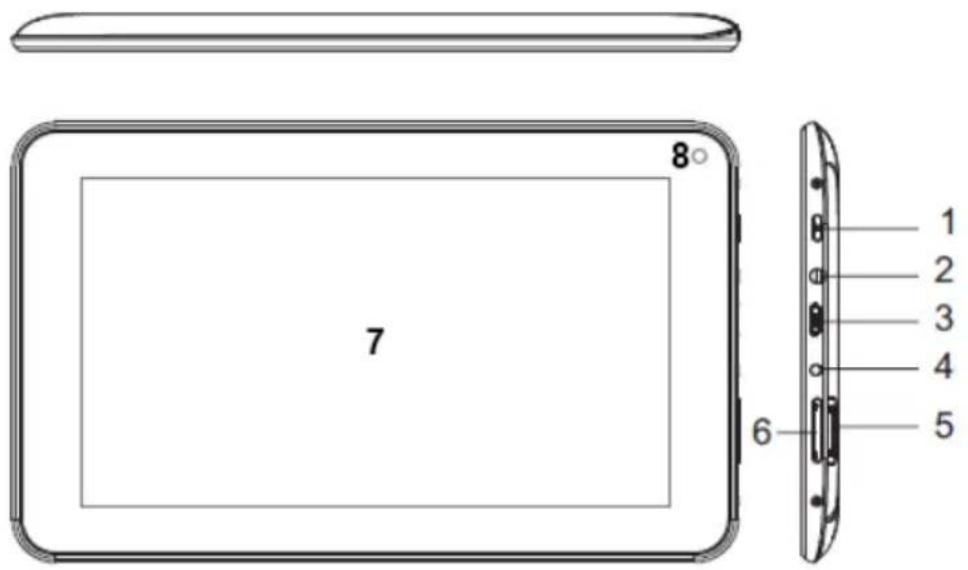
1.) On / Off button: Press and hold to turn the unit off, press briefly to switch between standby and active mode
2.) 3.5mm headphone jack
3.) Micro USB Socket
4.) DC 5V 2A input
5.) Micro SD Card slot
6.) Volume +/-
7.) Touchscreen
8.) Front Camera
4.) Package contents
Please check if the contents are complete:
- TAB 714
- Stereo headphones
- USB cable
• Power supply 5V 2.0A - User Manual
- USB Dongle
5.) Charging the battery
Please charge the battery completely before first use of the device. Connect the included power adapter to the device and a power outlet. The full charge takes approximately 5 hours.
The charge condition will be displayed you during operation. In case of an active display lock, the actual charge condition will be displayed you in percentage.
If the equipment is switched off, if you press shortly a key in any order a battery symbol will be shown on the display. During the charge process by an animation the filling of the battery will be displayed in many levels. If the battery is fully loaded, the animation will stop and the battery will be displayed completely.
Notes
a. With 15% remaining residual power of the battery you will get a warning message on the display. To recharge the battery, you should now connect the device using the AC adapter to an electrical outlet to avoid possible data loss and increase the battery life.
b. You can use the device while charging the battery. To ensure long-lasting battery life, we ask you not to use the device.
c. To ensure good performance, the built-in battery must be used frequently. If you use the device often, please charge the battery fully at least once a month.
d. Make sure you use only the included AC adapter for charging.
6.) Using a Micro SD/SDHC Card
This device is able to read data directly from a Micro SD/SDHC memory card.
In order to use a Micro SD/SDHC memory card, slide the card into the opening provided at the bottom of the device (I). Use the pre-installed Explorer (more information is to be found in the extensive operating instructions), to be able to access the data provided on the memory card. For this, please select the "SD Card" in the index of the Explorer.
7.) Transfer of Data between Device and Computer
1.) Connect the device using the included USB cable to a computer.
2.) On the device the screen for the USB connection is now displayed. Tap briefly "Turn on USB Storage". The device is recognized as a removable disk and you get the info "USB memory in use". After briefly tapping the home button you can continue to use your device normally. You have now have access to the internal memory of the device from your computer and can copy, delete or transfer files to your device.
3.) If an USB connection with the computer exists, the USB icon is displayed in the status bar. You can get additional information in the extended status bar (click on the clock in the status bar to open it) and you can activate or deactivate the USB connection.

- Select `Turn off USB storage' to deactivate the memory.
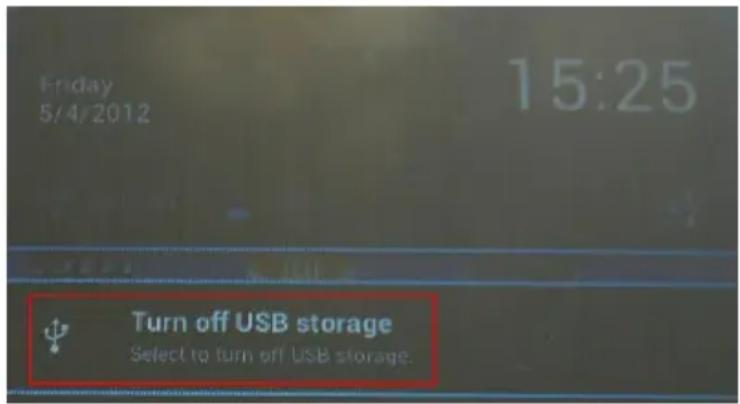
Select the function `Remove safely' on the computer to separate the device from the computer.
Note: The pre-installed applications and the Android™ operating system take up some of the existing internal memory – about 1 GB of space is occupied. For this reason, you cannot dispose of the entire internal memory.
8.) Touchscreen
This device is operated via touchscreen. You can easily start applications by tapping the touchscreen lightly with your fingers, enter texts on the virtual keyboard and switch between the individual main screens by wiping in the respective direction.
Please remove the protective film from the display before using the device.
The touchscreen detects small electrical charges, as for example emitted by human fingers, and thus determines the input point.
Use for input ideally your fingertips. Operation with a pen or other sharp objects is not possible.
The touchscreen should not be exposed to water or other electrical devices to avoid malfunctions and permanent defects.
Notes
a. If the touchscreen is not operated for two minutes, the device goes into standby mode. Briefly press the on / off button to switch to active mode.
b. To prevent unwanted input, a lock mode is activated automatically. Please unlock the keypad on the touchscreen by simply dragging the lock icon from the bottom to the top of the screen. The device will now switch to the home screen. Touch the closed lock 📄 on the display and keep it pressed. Draw the lock now to the open lock 📄 just appearing on the display and release your finger from the display. The screen is now unlocked.
You can rotate the device in all directions. It has a sensor that directs the display automatically.
9.) The Home Screen
View
Unlocking the screen
If the touchscreen is not used for two minutes, the device changes into standby mode. Press the on/off button for a short time to return to the active mode. The locked display is protecting against undesired input. Touch the closed lock 📄 on the display and keep it pressed. Draw the lock now to the open lock just appearing on the display and release your finger from the display. The screen is now unlocked.
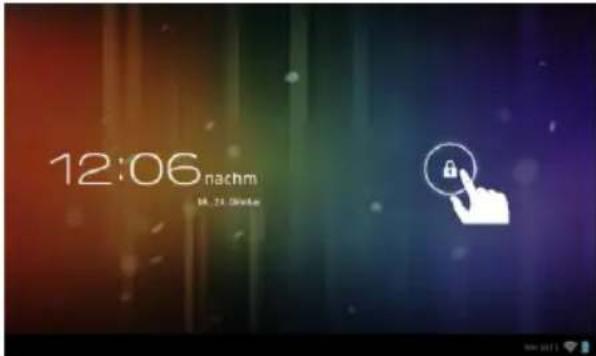
Drag the lock icon with your finger in the direction of the arrow
Advice: Draw the lock symbol to the appearing camera symbol to open the camera application directly.
Status bar
The status bar is to be found in the lower section of the starting screen. It has the following functions:
![graph TD A["back"] --> B["Home screen"] C["Recently used programs"] --> B D["Time"] --> E["WLAN Connection"] F["Battery"] --> E B --> G["← Home screen"] E --> H["15:03 Time"]](/content/2026/06/1238791/images/650bc7704d209b40f9e7a0c3d1a3073ec41d421a45cb62ec0ae820d625a8333a.jpg)
Here you will receive information on:
• the last used programmes
• the signal strength of the present WIFI connection
- the time
• the present status of the battery
You can carry out the following functions:
- Call up the starting screen
- Go back one step in the relevant called up menu
- Call up the last used programmes
You can open the extended status bar with a short tap on the clock. Here the latest status messages are displayed. Various quick accesses, for example access to the settings, are displayed, if you tap the clock in the extended status bar again.
Adjusting the main screen
You can adjust the main screen easily to your individual needs. If you want to delete an icon, tap the icon with your finger for a short while and then push it into the displayed X icon. Now take your finger from the touchscreen and the icon is deleted.
If you want to position an icon from the application overview on the main screen, tap the icon in the application overview for a short while and the main screen appears. Move the icon to the desired position and take your finger from the touchscreen. The icon is now added to the main screen. If you move an icon on another icon, a folder containing both icons is automatically created. Tap the folder to view the containing icons and then select the desired icon by tapping it briefly.
You can also add widgets to the main screen. To do that, please tap the button in the top right corner of the main screen and the application menu will be opened. Now tap the word widgets. All widgets available on the device are now presented to you. Adding a widget to the main screen works exactly like adding an icon.
If you want to change your background image, just tap a free place on the main screen and keep pressing the display until the background selection menu appears.
Using several home screens
Five main screens that can be individually set-up are provided. You can easily switch between them by wiping the screen lightly to the left or right.
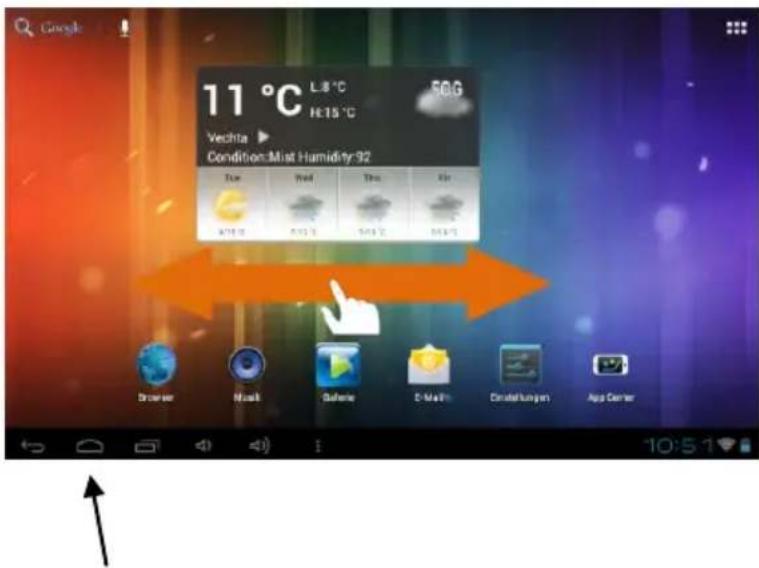
Pressing the home button will always take you automatically back to the middle home screen.
Pre-installed applications on the home screen
Various applications are pre-installed on the home screen:
- Search bar for the Google™ search
- Weather forecast
- WiFi
- Gallery
- Music
- Video
- AndroidPIT (App Center)
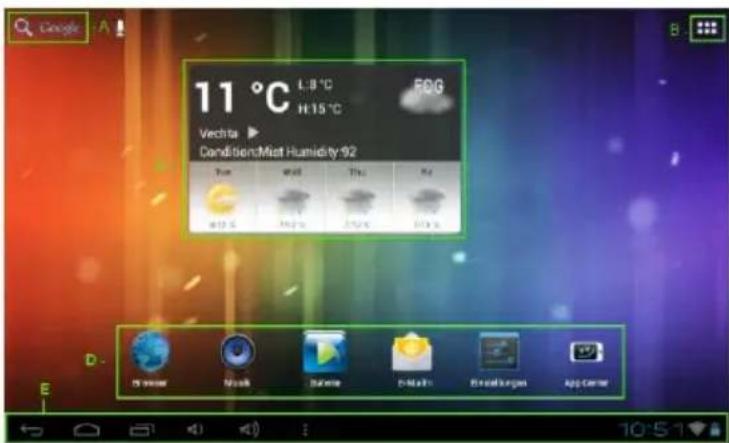
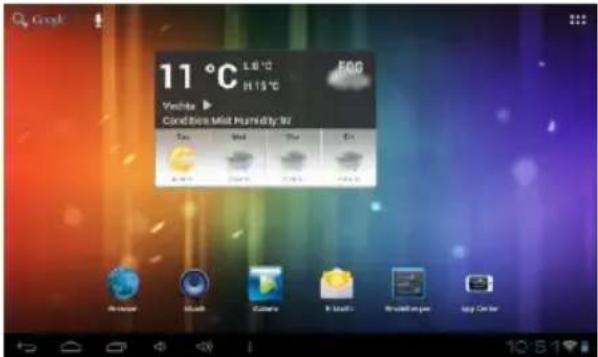
A Link to Google™ search
B Application overview
C Global weather forecast
D Apps on the main screen
E Status bar: Back, Home, recently used programmes, time, WiFi, battery status
a) Search bar for Google™ search

Tap the magnifier briefly to open the Google™ search function. Enter the desired search item using the virtual keyboard and then press go. All available search results of the Google™ search will now be displayed.
Tap the microphone to activate voice entry. You can now enter the desired search item by speaking distinctly. The speech recognition will then offer multiple possible search items. Confirm the desired item with a brief tap and the search results of the Google™ search will be presented to you.
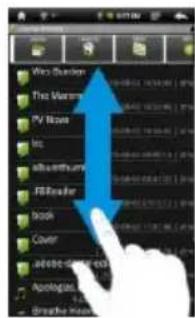
- Tip: With a rapid upward or downward movement the device quickly scrolls through a list, after releasing the finger from the touchscreen. This works for all displays that are larger than the screen.
Note: For this function, a wireless Internet connection is required.
b) Applications overview

Tap this icon to open the application overview. Here all applications installed on the device will be displayed. You can start any application by tapping the corresponding icon.
c) Weather forecast
The weather forecast widget shows you at a glance the current time, date, weather conditions and temperature at the set location.
To change the settings, please go to the applications overview and tap the Weather Forecast icon. You can now make the desired changes.

Setting menu of the weather forecast
Note: For this function, a wireless Internet connection is required.
d) WiFi
To connect your device with the internet, you require a WIFI connection. In order to establish this, touch the WIFI icon on the starting screen, or open the WIFI setting within Settings.
Note: Please note that a wireless network must be located within the range of your current location.
Automatic connection
Open the WIFI settings via the WIFI icon or via Settings. Here you can quite simply activate or deactivate the WIFI function. Simply slide the virtual key from its position "on" to the left to deactivate the WIFI function. The display changes to "off".
To activate the deactivated WIFI function again, just slide the virtual key to the right.
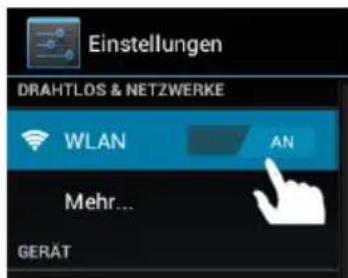
On the right hand side of the WIFI settings, all available networks as well as all already used networks are shown.
Tap on the desired network and, if required, enter the appropriate WiFi key (password) to establish a connection.
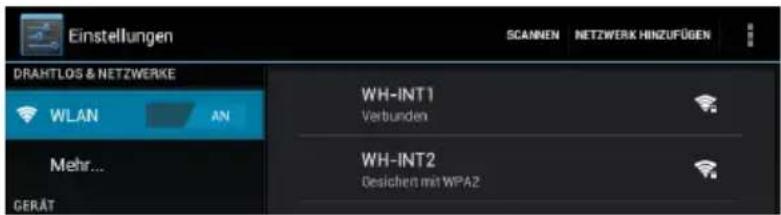
Confirm the entered password, if necessary, by touching the enter key and then select Connect. After a short while you are connected.
Notes
a) If the device goes into standby mode, WiFi is turned off automatically. This reduces power consumption and thus automatically leads to a longer battery life. When the device returns to active mode, the WiFi will automatically re-connect. This may take a few seconds.
b) The list of currently searchable WiFi networks will be updated automatically.
c) If the WiFi function is enabled, the device automatically connects to an already configured network, provided it is within range.
d) If an unknown wireless network is in range, an information box will appear.
Manual connection
In order to search for an accessible WiFi network manually, please proceed as follows:
(1) Open the settings.
(2) Now open the WiFi settings and tap 'Scan'.
(3) Should the WiFi network not appear in the list of available networks then select the item 'Add network' in order to enter the network SSID, the security protocol and the possibly related password. Tap 'Save' to confirm your entries.
e) Gallery
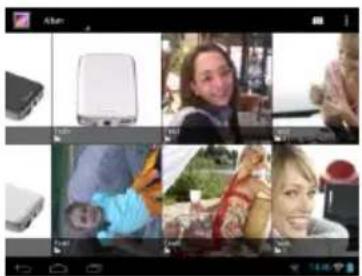
Tap briefly on the Gallery icon to get an overview of all existing albums and images.
Select the desired gallery, and then again the desired image by short tapping. The image will now be displayed full screen.

Tap the photo icon
to choose between different grouping options.
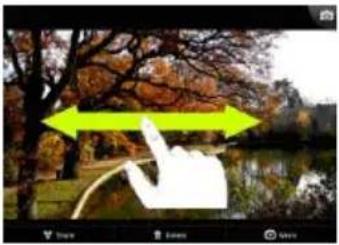
To view the next or previous image, just move the current image with your finger to the left or right of the screen.
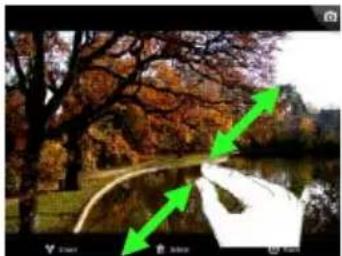
Place two fingers on the touchscreen and pull them apart to enlarge the image continuously. If you merge the fingers again, the picture is infinitely reduced. By tapping briefly twice on the touchscreen, the image is automatically enlarged and by double-tapping again displayed in its original size.
By briefly tapping the touchscreen, additional functions are available.
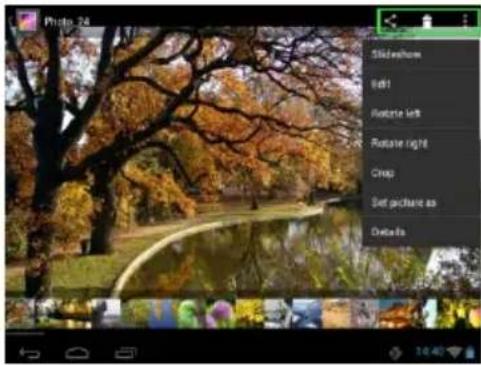
Tap the `Menu` icon to get additional options Here you can start a slide show, edit, rotate, and cut the image, set it as background image or view the image details. Tap the dustbin icon to delete the selected image. Tap the sharing icon order to send the image, for instance via email.
f) Music
Briefly tap the Music icon on the home screen or applications overview to open the music player.
In the following view you can choose to display your music sorted by Artist, Album, Songs, Playlists or Now playing. Just tap briefly on the icon.
| Artists | Shows all music files sorted according to the individual artists. |
| Albums | Shows all music files sorted according to the individual albums. |
| Songs | Shows all music files sorted by title. |
| Playlists | Displays the created playlists. |
| Now Playing | Jumps directly to the current playback. |
Select by briefly tapping the name of the file and the music playback starts.
Playback Screen

(1) Now playing
(2) Shuffle activate / deactivate
(3) Repeat options:
a) all titles will be repeated
b) current title is repeated
c) repetition is disabled
(4) Title details
(5) Next / Previous track
(6) Play / Pause
(7) Timeline
- Tap the pause icon Ⅲ to pause playback.
• To resume playback, tap the play icon ▶ - Tap the forward or backward icon 📁 / 📅 to play the previous or next title.
- Tap a spot on the timeline to continue playing it right at this point.
- Press the volume +/- keys on the side of the device to adjust the volume.
- To open the preview the current playlist, tap on the playlist icon. Tap on a title to play it directly.
• To change the repeat mode, tap the repeat mode icon - To go to the home screen, tap briefly on the home button. This will not stop the music playback. You can for instance surf the browser on the Internet while listening to your music. Just tap on the music icon again to go to back to playback.
In playback mode you can further adjust your settings. Tap briefly on the Menu button
Library – a list of all existing music files will be displayed.
Party shuffle – turns on/off Party Shuffle mode.
Add to playlist – adds currently playing title to a playlist.
Delete – deletes the current title.
Sound effects – sets a sound effect to the music playback.
g) Video
Tap briefly on the Gallery icon in the home screen or the applications overview, to open the video playback.
It will now display the video files in a list. Select the desired file by briefly tapping and the video will start.
h) App Center
The AndroidPIT App Center is already installed on the device. Here you will find various apps, reviews, a blog and a forum.
For further information or assistance on use of the App Center, please visit the homepage of the provider under www.androidpit.de.
Note: For this function, a wireless Internet connection is necessary.
i) Web browser
To launch the web browser, tap on the Browser icon 📄 on the home screen.
To open a website, tap on the upper input field for the Internet address. The virtual keyboard now opens and you can enter the address of the desired website. To open the website, tap "Go" or tap on the arrow icon next to the input field.
Note: Not all networks provide Internet access. Some networks offer access only to other related local computers but not Internet connection.
Using the virtual keyboard
Tap the box to open the virtual keyboard. You can now enter text or websites.
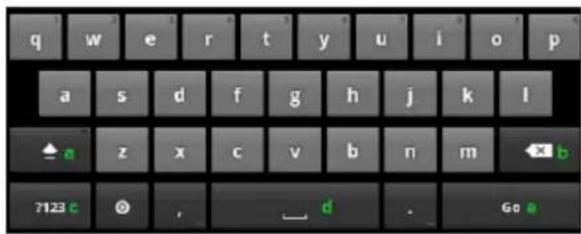
a. Caps lock (case sensitive)
b. Return button
c. Calling up the menu for numbers, characters and special character input
d. Space bar (no character input)
e. Go (confirmation of your input)
Special character input
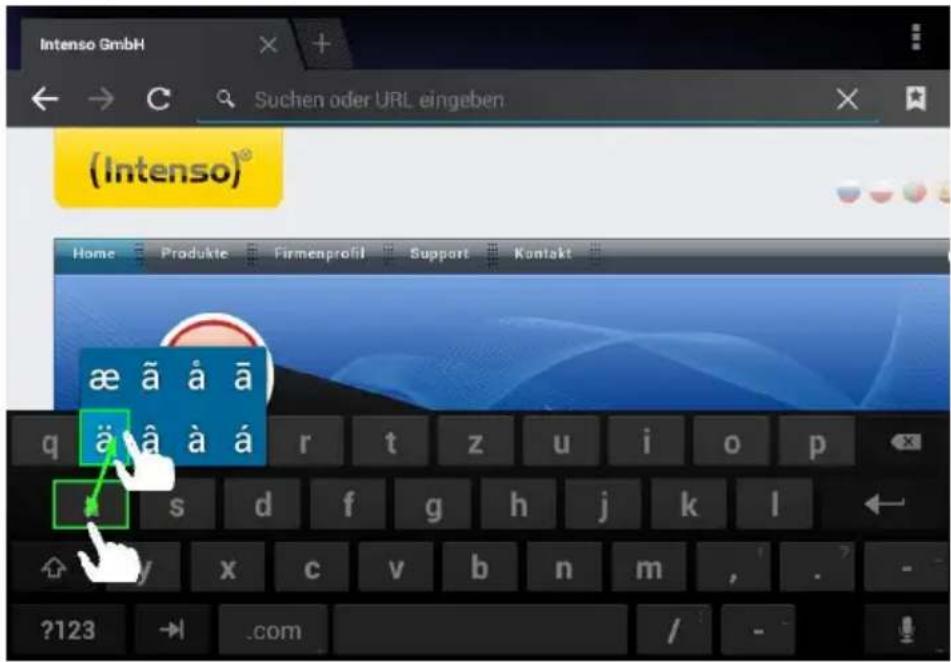
In order to enter a special character such as `ä`, tap the `a` key with your finger for a long time to call up the special character menu. Now glide with your finger to the desired special character, for example an `ä` and take your finger from the display. You now have entered an `ä`.
Using the web browser
- You can scroll through the display by performing a vertical sweeping motion with your finger. Please do not start the sweeping motion on a menu item or link because otherwise the existing link will open.
• To open an Internet link, simply tap on the link. The new page will open automatically. - Press the menu key ☐ to open the web browser menu. Here multiple functions are provided. Among other things you can refresh the opened website here, open a new tab, make offline websites readable or switch to the web browser settings.
• To return to the previous page, please press the back button
• To go directly back to home screen, press the home button
• To enter a text, tap the appropriate field and use the virtual keyboard for entering the text.
Note: For this function, a wireless Internet connection is required.
j) Applications overview
Tap briefly on the applications overview icon to open the applications overview. You will see a list of all pre-installed applications as well as those you have already installed. Open the desired application by briefly tapping the appropriate icon.
Applications overview
k) System settings
Tap the settings icon in the application menu to call up the system settings.
- You can find the individual categories on the left side of the menu. The available setting options are displayed by briefly pressing each selected menu item. Please note that possibly not all functions offered by Android™ are compatible with the device.
- When you have adjusted all settings you can return to the previous menu with the Return key , or switch to the main screen directly with the Home key . Your entries will be saved automatically.
Settings overview
| WiFi & Networks | WiFi | Here you can adjust the WiFi settings. |
| More | Here you can adjust additional network settings. | |
| Device | Sounds | Specify the desired volume and sound for messages here. Also you can activate or deactivate a confirmation sound when touching the screen and an indication sound when unlocking the display lock. |
| Display | Brightness – Adjust display brightness.Background – Selection of the background.Rotate display autom – Activation or deactivation of the automatic display alignment when rotating the device.Idle state– Adjust the delay before automatic display deactivation.Font size – set-up of the desired font size. | |
| Memory | Here you can get information about the internal memory and – if inserted – about your MicroSD card. Also you can delete the memory content. | |
| Battery | Here you can get information about the state of charge of the integrated batteries. | |
| Apps | Here you can manage installed applications and get information about them. | |
| User | Accounts & synchronisation | Here you can determine, if and how often the accounts created by you will be synchronised. |
| Location services | Here you can allow multiple AndroidTM applications to determine and use you current position via WiFi networks (e.g. Google MapsTM). You can also determine, if GoogleTM may adapt search results and other services to your location. | |
| Security | Here you can set-up a screen lock, for example, or implement other security-relevant settings. | |
| Language & input | Here you can set your preferred language, for example, or add various words to your personal dictionary or adjust. | |
| Save & reset | Here you can save your system settings and application data on GoogleTM servers. Furthermore you can reset the factory settings.CAUTION: In doing so, all data saved on the device will be deleted. | |
| System | Date & time | Here you can set the date, time, time zone, and the display format. |
| About the Tablet | Shows additional information about the device. |
10.) Sending / Receiving E-Mails
An e-mail application is pre-installed in this device. You can use your existing e-mail address to send and receive e-mails.
Note: For this function, a wireless Internet connection is required.
Open the application with the "Email" icon which is found on the application menu.
Setting up your e-mail box
(1) Start the e-mail application by tapping on the Email icon. You are now prompted to set-up your e-mail account.
(2) Enter your e-mail address and the corresponding password and then tap "Next". Then name your account and fix the name that will be displayed on outgoing messages. Tap "Done" to complete the set-up. Your e-mail mailbox is selected as the default mailbox if you select the option "Send e-mails from this account by default".
(3) You can set up your e-mail account manually as well. Enter your e-mail address and associated password and then tap on "Manual Setup" to enter the e-mail server information.
(4) Choose from the server types POP3, IMAP or Exchange for incoming e-mails.
Note: If you do not know what settings you need to make, please contact your e-mail provider, your network administrator or search terms such as "POP address" and "name of your provider" for the required information on the Internet.
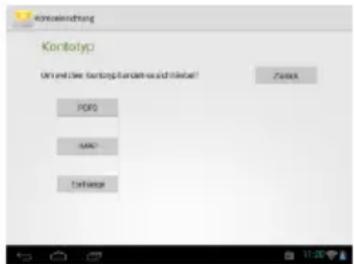
(5) Enter the required information (server, port, etc.).
(6) Select the server type for outgoing e-mails and enter the required information.
(7) Tap "Next" to continue in the menu. The e-mail application will check the server settings made. After successful set-up you will see the message: "Your account is set up, and email is on its way". Your account is now set up.
(8) Enter a name for your mailbox, then tap "Done" to complete the process.
Note: If you have more than one email account, each time you start the e-mail application, the default account is called up.
Managing email accounts
Adding a new mailbox:
(1) Open the email application and tap the menu key ☐ to display additional options. Select the menu item `Settings' and subsequently `Add account' to create a new mailbox.
(2) Follow the instructions of the Setup Wizard to create a new mailbox.
Deleting a mailbox:
(1) Open the email application and tap the menu key ☐ to display additional options. Select the menu item `Settings` and subsequently `Delete account` to delete the desired mailbox.
Checking the account properties:
(1) Open the email application and tap the menu key ☐ to display additional options and then select 'Settings'. All already created mailboxes will now be displayed on the left side of the menu.
(2) Tap the desired mailbox to display the account settings.
(3) Tap the `Account setting' you wish to change in order to make the desired entries.
Viewing e-mail messages
Open the e-mail application by briefly tapping the e-mail icon. The mailbox you already created is displayed.
- You can scroll through your e-mail with a vertical sweeping motion.
- Tap briefly on a particular e-mail to open it.
- Tap and hold your finger on a particular e-mail in order to display more options – an info box will be displayed. You can now open, reply, forward or delete the e-mail.
Writing email messages
(1) Tap the Email icon in the top menu bar of the email overview and a new window will open, where you can write a new email.
(2) Now enter the email address of the recipient, a subject line and the text into the designated fields. You can also add `Cc/Bcc` to send this email to several users.
(3) Tap `Send' to send the email. Tap `Save' to save the entered email as a draft. When you tap the `dustbin' icon, the currently entered email will be deleted.
11.) Managing Applications
Pre-installed applications
This device is delivered with pre-installed applications. You will find an overview of the applications already installed in the application overview. These include the video player, audio player, Internet browser, alarm, calculator and others. To open one of these applications, tap on the corresponding icon.
Installing applications
To install applications on the device, perform the following steps:
(1) Download the software (for example, from the Androidpit Market). Make sure that it is an APK File.
(2) If you have downloaded the files on your computer, connect the device via USB cable to your computer and copy the files to the internal memory.
(3) Unplug the unit from the computer and open the Explorer to open the copied files.
(4) To install the application, follow the installation instructions appearing on the screen.
(5) After successful installation, you will find the new application in the applications menu.
Uninstalling applications
(1) Open the system settings by briefly tapping the settings icon in the application overview.
(2) Now tap the menu item `Apps' briefly to get to the application settings.
(3) Choose the desired application overview in the menu items `Download, USB memory, active and all' by tapping it briefly.
(4) Now select the application you want to deinstall by tapping it briefly.
(5) Now tap `Deinstall' and confirm your entry with OK to deinstall the application from the device.
12.) File Manager
Open the Application overview and quickly tap the File Manager icon in order to start the File Manager.
How to navigate through Data Files and Folders
- You can select from the internal memory, memory card (if used for the Tablet), USB (if connected to the Tablet), all available image files as well as all available video files. Tap on the desired file location, in order to see the list of all therein contained data files or select the icon for images- or video folders, in order to view all folders of this type.
- Swipe the screen vertically to scroll through your data files and folders. Open a data file or a folder by a quick tap.
- You can move one step back by a quick tap on the relevant icon
Using the Toolbar

 | Go directly to the main directory. |
 | Internal memory |
 | Micro SD Card (if used for a Tablet) |
 | USB memory (if connected to the tablet) |
 | Shows all available images |
 | Shows all available videos |
 | This will show you all currently running processes. |
 | Editor: With this you can paste data files, delete, make or move a copy. Touch the desired data file and a green arrow appears in front of the file name; subsequently select the desired function. |
Copy, move and rename data files and folders
1.) Navigate to the desired data file in the data file overview.
2.) Touch and hold your finger on the file until an info-field appears.
3.) Select the desired function now. You can choose between Delete File, Rename File, Copy File and Move File.
4.) Quickly tap on the relevant icon (Copy / Move) for copying or moving and navigate to the
destination directory. Now touch the editor icon to add the file.
and select „Paste“ by a quick tap
5.) Tap on „Delete“ to delete a file and cofirm with „Delete“ to be on the safe side. A quick tap on “Cancel” cancels an action.
6.) Tap on „Rename File“ for renaming a file and then enter a new file name with the virtual keyboard. Confirm your entry with „Rename“ or cancel the process with „Cancel“.
13.) Reading Office Documents
The application "Office Suite" for reading Office documents has been pre-installed in this device. You can read Word, Excel, or PowerPoint files.
1.) Copy the desired Office files to the device.
2.) Open the application "Office Suite".
3.) Navigate using the Explorer to the desired file.
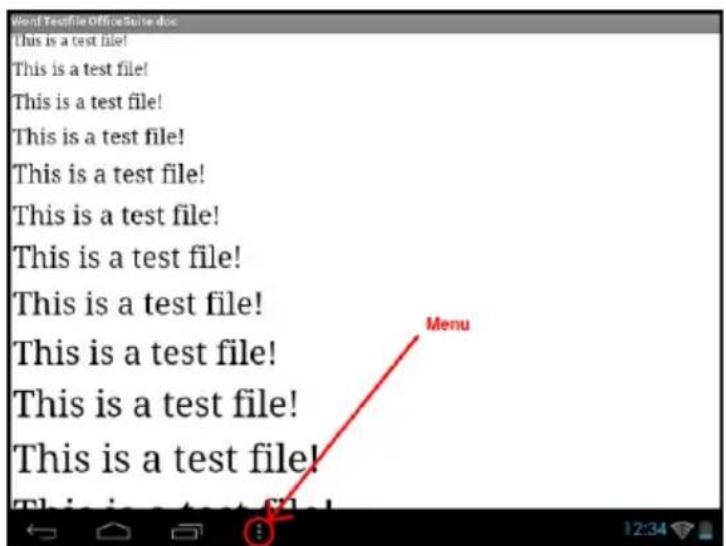
4.) Select the desired file with a short tap and swipe your finger vertically or horizontally across the screen to scroll between pages. Briefly tap the menu button to open more options. You can, for example, search for a certain text or count words.
14.) Task Manager
This device is capable of multitasking, allowing you use several applications at once. For example, you can listen to music and at the same time surf the Internet or view images.
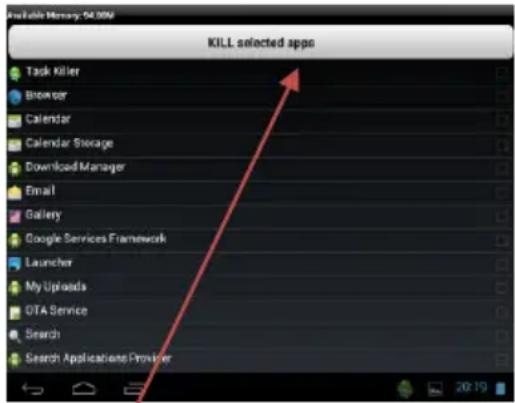
In some circumstances it may happen that too many applications are running simultaneously in the background. In this case, please open the application "Task Killer" and terminate those applications you do not need right now.
(1) Open the "Task killer" application.
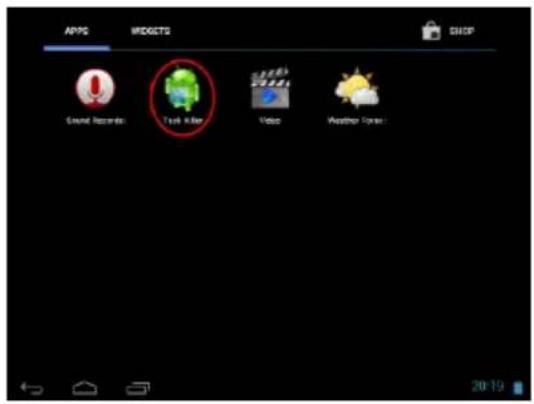
(2) Select the applications you do not currently need.

(3) To confirm your selection, please tap briefly on the "Kill selected apps" icon.

15.) Limited Warranty Terms
The warranty covers only the replacement of this Intenso product. The warranty does not cover normal wear and tear resulting from faulty, improper use, negligence, accident, incompatibility, or poor performance of specific computer hardware or computer software.
There is no warranty in the case of non-compliance with the Intenso user manual, improper installation, use, or defects caused by other equipment.
Warranty is also excluded if the product is subjected to the effects of vibration, electrostatic discharge, heat or moisture beyond the product specifications.
Intenso is not liable for data loss or any collateral damage, or consequential damages, for breach of warranty or for any other damage, whatever the underlying cause.
This product is not intended for commercial use or for medical and special applications in which the failure of the product may cause injury, death or substantial property damage.
16.) Technical Data
| CPU | 1 GHz Cortex A8 |
| Main memory | 512 MB DDR 3 |
| Operating system | Android 4.0.4 |
| Compatible operating systems | Windows XP / Vista / 7 / Linux 2.4 and higher / Mac 10.6 and higher |
| Connection options | Headphone, Micro SD (SDHC), Micro USB |
| Wireless | WiFi (802.11 b/g/n) |
| G-Sensor | 360 degree rotation |
| Photo format | JPEG, BMP, GIF, PNG |
| Audio format | MP3, WMA, WAV, OGG, FLAC, APE |
| Video format | MPEG1, MPEG 4, FLV |
| Display | TFT LCD display, 800 x 480 pixels |
| Camera | 0,3 MP front camera |
| SNR | >= 80 dB |
| Frequency range | 20 Hz – 20 KHz |
| Power Supply | (V) AC adapter (Ktec KSAPK0110500200HE): AC input 100-240V~50/60Hz, DC output 5V / 2A |
| Internal Battery | Rechargeable lithium-ion polymer battery |
17.) Maintenance of the Device
Never spray or apply a liquid directly onto the screen or casing.
18.) Cleaning the Device
Wipe the casing, frame and screen gently with a soft, lint-free cloth. Use only detergents specifically designed for displays.
19.) Disposal of Used Electronic Equipment
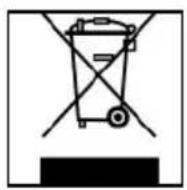
Equipment marked with this symbol is subject to the European Directive 2002/96/EC.
All electrical devices and used electrical equipment must be disposed of separately from household waste over the appropriate government agencies.
Proper disposal of old electronic equipment helps avoid environmental damage.
(Intenso)®
49377 Vechta
Germany
www.intenso.de
CE

EC Declaraon of Conformity
We, the company Intenso GmbH,
with headquarters located at:
Diepholzerstr. 15 in 49377 Vechta, Germany
Declare under our sole responsibility that the product:
Model: 7" TAB 714 (item no. 5509852)
Descripon: Tablet computer
is in conformity with the provisions of the following Council Directives:
Direcve R&TTE 1999/5/CE
• EN 301 489-1 V1.8.1
• EN 301 489-17 V2.1.1
• EN 300 328 V1.7.1
• EN 55022:2006+A1:2007 (Class B)
• EN 55024:1998+A1:2001+A2:2003
• EN 61000-3-2:2006 (Class D) + A1 : 2009 + A2 : 2009
• EN 61000-3-3:2008
Low Voltage Directive 2006/95/EC
• EN 60950-1:2006+A11:2009
Ecodesign Directive 2009/125/EC
• 1275/2008
• 278/2009
The technical documents related to the device menoned above have been deposited at:
Intenso GmbH
Diepholzerstr. 15, 49377 Vechta. Germany
Authorized Representave:

Sblocco del display
14.) Task manager
Direva Ecodesign 2009/125/EG
• 1275/2008
• 278/2009

directive R&TTE 1999/5/CE
• EN 301 489-1 V1.8.1
• EN 301 489-17 V2.1.1
• EN 300 328 V1.7.1
• EN 55022:2006+A1:2007 (Classe B)
• EN 55024:1998+A1:2001+A2:2003
• EN 61000-3-2:2006 (Classe D) + A1 : 2009 + A2 : 2009
• EN 61000-3-3:2008

14.) Administrador de tareas
Desbloquear o ecrã
Ajustando a tela principal

14.) Task Manager
(3) Para confirmar toque brevemente no símbolo / "Kill selected apps".


(1) Aktualnie odtwarzane
14.) Menadżer zadań


- 14.) TASK MANAGER
- 1.) CONTENTS
- TRADEMARKS
- 2.) NOTES
- 3.) DEVICE OVERVIEW
- 4.) PACKAGE CONTENTS
- 5.) CHARGING THE BATTERY
- NOTES
- 6.) USING A MICRO SD/SDHC CARD
- 7.) TRANSFER OF DATA BETWEEN DEVICE AND COMPUTER
- 8.) TOUCHSCREEN
- 9.) THE HOME SCREEN
- UNLOCKING THE SCREEN
- STATUS BAR
- ADJUSTING THE MAIN SCREEN
- USING SEVERAL HOME SCREENS
- PRE-INSTALLED APPLICATIONS ON THE HOME SCREEN
- WEATHER FORECAST
- WIFI
- AUTOMATIC CONNECTION
- MANUAL CONNECTION
- GALLERY
- MUSIC
- PLAYBACK SCREEN
- VIDEO
- APP CENTER
- WEB BROWSER
- USING THE VIRTUAL KEYBOARD
- SPECIAL CHARACTER INPUT
- USING THE WEB BROWSER
- APPLICATIONS OVERVIEW
- SYSTEM SETTINGS
- 10.) SENDING / RECEIVING E-MAILS
- SETTING UP YOUR E-MAIL BOX
- MANAGING EMAIL ACCOUNTS
- VIEWING E-MAIL MESSAGES
- WRITING EMAIL MESSAGES
- 11.) MANAGING APPLICATIONS
- PRE-INSTALLED APPLICATIONS
- INSTALLING APPLICATIONS
- UNINSTALLING APPLICATIONS
- 12.) FILE MANAGER
- HOW TO NAVIGATE THROUGH DATA FILES AND FOLDERS
- USING THE TOOLBAR
- COPY, MOVE AND RENAME DATA FILES AND FOLDERS
- 13.) READING OFFICE DOCUMENTS
- 15.) LIMITED WARRANTY TERMS
- 16.) TECHNICAL DATA
- 17.) MAINTENANCE OF THE DEVICE
- 18.) CLEANING THE DEVICE
- 19.) DISPOSAL OF USED ELECTRONIC EQUIPMENT
- EC DECLARAON OF CONFORMITY
- SBLOCCO DEL DISPLAY
- 14.) ADMINISTRADOR DE TAREAS
- DESBLOQUEAR O ECRÃ
- AJUSTANDO A TELA PRINCIPAL
- 14.) MENADŻER ZADAŃ
Brand : INTENSO
Model : TAB 714
Category : Tablet