
NX-BD3E - Audio System JVC - Free user manual and instructions
Find the device manual for free NX-BD3E JVC in PDF.


Pick your language and provide your email: we'll send you a specifically translated version.
| Product Type | Network audio system with media player |
| Brand and model | JVC NX-BD3E |
| Dimensions (approx.) | 280 x 120 x 250 mm |
| Weight (approx.) | 3.5 kg |
| Power supply | 220-240 V AC, 50/60 Hz |
| Power consumption | 60 W |
| Supported audio formats (network) | LPCM, MP3 |
| Supported video formats (network) | MPEG2, MPEG4 AVC (including AVCHD) |
| Supported image formats (network) | JPEG |
| Network connectivity | Ethernet (RJ45), DLNA 1.5 certified |
| Included server software | CyberLink Media Server (CD-ROM) |
| Main functions | Playback of audio, video and photo files from a computer via network, remote wake-up (Wake-on-LAN), folder navigation |
| Maintenance and cleaning | Clean with a soft, dry cloth. Do not use chemical products. |
| Safety | Do not expose to moisture, do not block ventilation openings, unplug during thunderstorms. |
| Repairability | Contact a qualified technician. No specified spare parts. |
Frequently Asked Questions - NX-BD3E JVC
How to install CyberLink Media Server?
Insert the supplied CD-ROM into your computer, close antivirus applications, then follow the on-screen instructions. After installation, the CyberLink Media Server icon appears on the desktop.
What are the compatible file formats for network playback?
For music: LPCM and MP3. For video: MPEG2, MPEG4 AVC (including AVCHD). For photos: JPEG.
How to connect the system to the router?
Use a straight Ethernet cable (not supplied). Connect one end to the router's LAN port and the other to the LAN port on the back of the main unit.
What to do if the system does not detect the CyberLink Media Server?
Check that the Ethernet cable is properly connected and is a straight cable. If the router does not have DHCP, manually configure the IP address of the main unit (see manual pages 11-15).
How to manually configure the IP address?
On the remote control, set the selector to AUDIO, select a DISC or SD source, press SET UP. In NETWORK SETTING, choose OBTAIN IP and enter the same first three numbers as the computer, with a different fourth number (1-254). Then enter the subnet mask identical to that of the computer.
How to add an additional shared folder?
Place the folder in one of the default folders (My Videos, My Pictures, My Music). Open CyberLink Media Server, check the folder in the corresponding tab, then click Apply.
Can I connect the system directly to my computer without a router?
Yes. Use a straight Ethernet cable. Configure the computer to obtain an IP address automatically, and the system in DHCP mode. Wait about a minute for the addresses to be assigned.
How to use the remote wake-up function (Wake-on-LAN)?
From the network screen, select a stopped server (indicated by an icon). Press ENTER, then choose WAKEUP from the menu. The system must be in standby for the command to work.
What to do if a file does not play correctly?
Make sure the format is compatible (see question 2). If the file is corrupted or the network is congested, playback may be choppy. Try disconnecting other network devices.
How to clean the system?
Unplug the unit. Use a soft, dry cloth to wipe the surface. Do not use chemical or abrasive products.
User questions about NX-BD3E JVC
0 question about this device. Answer the ones you know or ask your own.
Ask a new question about this device
No questions yet. Be the first to ask one.
Download the instructions for your Audio System in PDF format for free! Find your manual NX-BD3E - JVC and take your electronic device back in hand. On this page are published all the documents necessary for the use of your device. NX-BD3E by JVC.
USER MANUAL NX-BD3E JVC
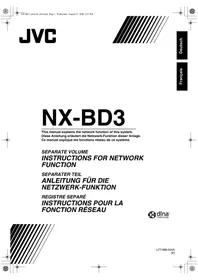
SEPARATE VOLUME INSTRUCTIONS FOR NETWORK FUNCTION
Random Access Memory (RAM)
| IP address: | . | . | . |
| Subnet mask: | . | . | . |
| IP address: | . | . | . |
| Subnet mask: | . | . | . |


Table of contents
Click a title to access it
Manual assistant
Powered by Anthropic
Waiting for your message
Product information
Brand : JVC
Model : NX-BD3E
Category : Audio System