
UX-G300 - Audio System JVC - Free user manual and instructions
Find the device manual for free UX-G300 JVC in PDF.


| Product Type | Micro Component Audio System |
| Brand | JVC |
| Model | UX-G300 |
| Output Power | 60 W (30 W + 30 W) into 4 Ω (10% THD) |
| Speakers | 1 x 10 cm speaker per speaker |
| Speaker Impedance | 4 Ω |
| FM Frequency Range | 87.50 MHz - 108.00 MHz |
| AM Frequency Range | 522 kHz - 1629 kHz |
| Supported Audio Formats | CD audio, MP3, WMA |
| USB Playback | Yes, MP3/WMA, USB 2.0 Full Speed |
| USB File System | FAT16, FAT32 |
| Power Supply | AC 220-240 V, 50 Hz |
| Power Consumption | 6.5 W (standby < 1 W) |
| Dimensions (Main Unit) | 165 mm x 251 mm x 269 mm |
| Weight (Main Unit) | 2.6 kg |
| Speaker Dimensions | 160 mm x 250 mm x 150 mm (each) |
| Speaker Weight | 1.6 kg each |
| Audio Features | Surround EALA, Sound Turbo, Active Hyper Bass Pro |
| Timer Functions | Sleep Timer, Daily Timer (3 programs) |
| Auxiliary Audio Input | AUDIO IN jack (stereo mini-jack) |
| Headphone Output | Yes |
| Remote Control | Yes (CR2025 lithium battery included) |
| Supplied Accessories | FM antenna, AM loop antenna, power adapter |
| Maintenance and Cleaning | Clean with a soft, dry cloth. Do not use solvents. |
| Safety | Do not block ventilation openings. Do not expose to moisture. |
Frequently Asked Questions - UX-G300 JVC
User questions about UX-G300 JVC
0 question about this device. Answer the ones you know or ask your own.
Ask a new question about this device
Download the instructions for your Audio System in PDF format for free! Find your manual UX-G300 - JVC and take your electronic device back in hand. On this page are published all the documents necessary for the use of your device. UX-G300 by JVC.
USER MANUAL UX-G300 JVC
Consists of CA-UXG300 and SP-UXG300

MP3/WMA Radio Data System
Thank you for purchasing a JVC product
INSTRUCTIONS
GVT0241-001A[B]
0108WMKMDWJMM
图
©2008 Victor Company of Japan. Limited
Warnings, Cautions and Others
CAUTION: / (Standby/on) button!
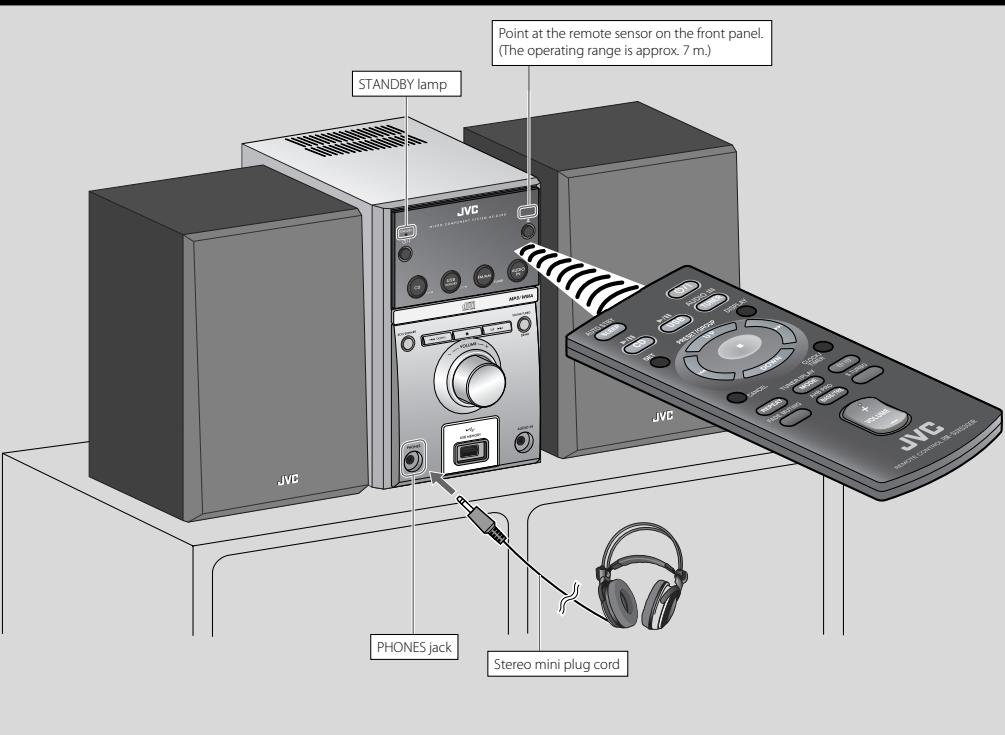
Disconnect the mains plug to shut the power off completely (the STANDBY lamp goes off). When installing the apparatus, ensure that the plug is easily accessible. The I (Standby/on) button in any position does not disconnect the mains line. When the System is on standby, the STANDBY lamp lights red.
- When the System is turned on, the STANDBY lamp goes
off.
The power can be remote controlled.
CAUTION:
To reduce the risk of electrical shocks, fire, etc.:
-
Do not remove screws, covers or cabinet
-
Do not expose this appliance to rain or moisture.
Dear Customer,
This apparatus is in conformance with the valid European directives and standards regarding electromagnetic compatibility and electrical safety.
European representative of Victor Company of Japan, Limited is:
JVC Technology Centre Europe GmbH
Company name changed in:
JVC Technical Services Europe GmbH
Postfach 10 05 52
61145 Friedberg
Germany
IMPORTANT for the U.K.
DO NOT cut off the mains plug from this equipment. If the plug fitted is not suitable for the power points in your home or the cable is too short to reach a power point, then obtain an appropriate safety approved extension lead or consult your dealer.
BE SURE to replace the fuse only with an identical approved type, as originally fitted.
If nonetheless the mains plug is cut off ensure to remove the fuse and dispose of the plug immediately, to avoid a possible shock hazard by inadvertent connection to the mains supply.
If this product is not supplied fitted with a mains plug then follow the instructions given below:
IMPORTANT:
DO NOT make any connection to the terminal which is marked with the letter E or by the safety earth symbol or
The wires in the mains lead on this product are coloured in accordance with the following code:
Blue: Neutral
Brown: Live.
As these colours may not correspond with the coloured markings identifying the terminals in your plug proceed as follows:
The wire which is coloured blue must be connected to the terminal which is marked with the letter N or coloured black.
The wire which is coloured brown must be connected to the terminal which is marked with the letter L or coloured red.
IF IN DOUBT - CONSULT A COMPETENT ELECTRICIAN.
IMPORTANT FOR LASER PRODUCTS
-
CLASS 1 LASER PRODUCT
-
CAUTION: Do not open the top cover or cabinet. There are no user serviceable parts inside the unit; leave all
servicing to qualified service personnel.
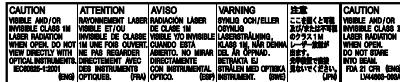
- CAUTION: Visible and/or invisible class 1M laser radiation when open. Do not view directly with optical instruments 4. REPRODUCTION OF LABEL: CAUTION LABEL, PLACED INSIDE THE UNIT.
for Users on Disposal of Old
[ion only]

indicates that the product
bol should not be disposed .
Household waste. If you want to
s equipment please do not
any dust bin! There is a separate
ttem for these products .
CAUTION: Proper Ventilation
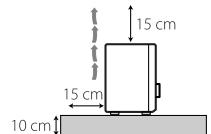
To avoid risk of electric shock and fire, and to prevent damage, locate the apparatus as follows:
-
Front: No obstructions and open spacing.
-
Sides/Top/Back: No obstructions should be placed in the areas shown by the dimensions below.
-
Bottom: Place on the level surface. Maintain an adequate air path for ventilation by placing on a stand with a height of
10cm or more
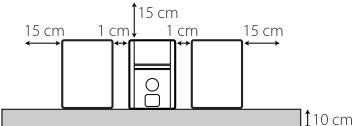
Front view
SP-UXG300 CA-UXG300 SP-UXG300
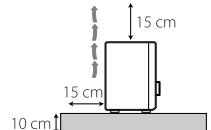
Side view
CA-UXG300
CAUTION:
- Do not block the ventilation openings or holes. (If the ventilation openings or holes are blocked by a newspaper or cloth, etc., the heat may not be able to get out.)
- Do not place any naked flame sources, such as lighted candles, on the apparatus.
- When discarding batteries, environmental problems must be considered and local rules or laws governing the disposal of
these batteries must be followed strictly. - Do not expose this apparatus to rain, moisture, dripping or splashing and that no objects filled with liquids, such as vases, shall be placed on the apparatus.
- Excessive sound pressure from earphones or headphones can cause hearing loss.
Precautions
Notes on the power cord
- When you are away on travel or otherwise for an extended period of time, remove the plug from the wall outlet.
- When unplugging the System from the wall outlet, always pull the plug, not the power cord.
- Do not handle the power cord with wet hands.
- Disconnect the power cord before cleaning the System or moving the System
- Do not alter, twist or pull the power cord, or put anything heavy on it, which may cause fire, electric shock, or other accidents.
If the cord is damaged, consult a dealer and have the power cord replaced with a new one.
Avoid moisture, water, dust, and high temperatures
- Do not place the System in moist or dusty places.
If water gets inside the System, turn off the power and remove the plug from the wall outlet, then consult your dealer. Using
the System in this state may cause a fire or e - Do not expose the System to direct sunlight or place it near a heating device.
Notes on installation
- Select a place which is level, dry and neither too hot nor too cold—between 5° C and 35° C .
- Do not install the System in a place subject to vibrations.
- Do not put heavy objects on the System.
To prevent malfunction or damage of the System
- Do not insert any metallic objects, such as wires, hairpins, coins, etc. into the System.
- Do not block the vents.
There are no user-serviceable parts inside. If anything goes wrong, unplug the power cord and consult your dealer.


Is, connecting cords and power cord. Also, keep the antenna
AC power cord. This could cause poor reception
12
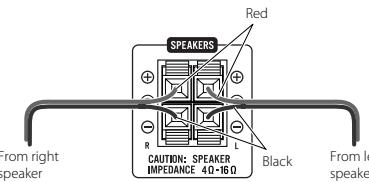
ker terminals: red color to (+) and black color to (-)
In the metallic parts of the System,
In the Metallic parts of the System:
power cord until all other connections have been made.
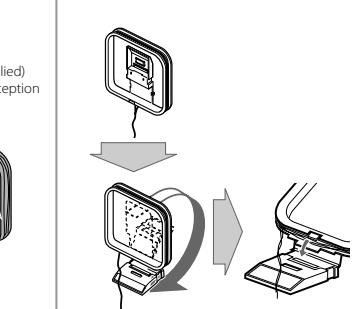
To assemble the AM loop antenna
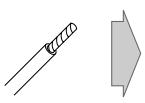
To connect the speaker cords
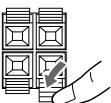
Press and hold.
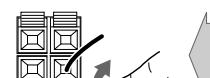
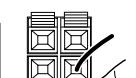
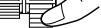
Insert
Basic and Common Operations
How to cancel the demonstration
Press and hold DEMO button while on standby. (Refer to the attached "Information about the demonstration function.")
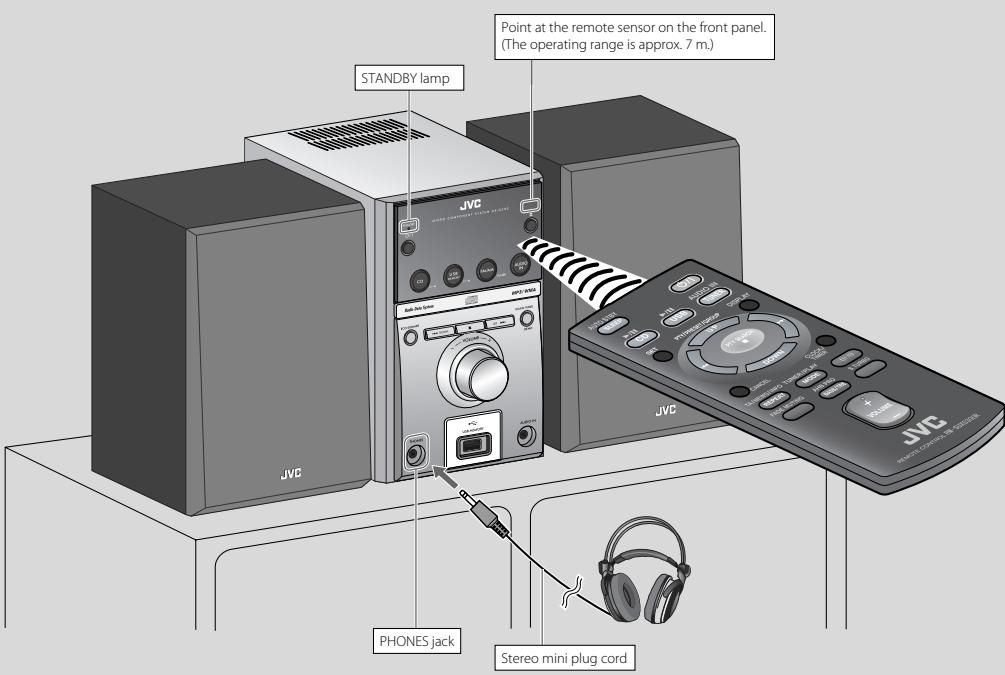
Using Headphones
Be sure to turn down the volume before connecting or putting on the headphones.
- Connecting the headphones will deactivate the speakers
Sound adjustments also affect the sound through the headphones
NOTE:
DO NOT turn off (standby) the System with the volume set to an extremely high level;
otherwise, the sudden blast of sound can damage your hearing, speakers and/or
headphones when you turn on the System or start playback.
| To | Press | Indication/Result | |
| System | Remote | ||
| Turn on or off(standby) the power | ∅/1 | ∅/1 | The STANDBY lamp on the System turns off/on. |
| Select a source | CD | →/IICD | See "Playing Back a Disc/USB Mass Storage Class Device" on page 4. |
| USB MODE | →/IIUSB | ||
| FM/AM TUNER | AUDIO-IN TUNES | Press repeatedly to select "FM" or "AM."· For "FM/AM," see "Listening to FM and AM Broadcasts" on page 5. | |
| AUDIO IN | AUDIO-IN TUNES | See "Listening to Digital Audio Player" on page 6. | |
| Adjust the volume | ←/→/→/→ | + VOLUME | Adjustable range: Level 0 ("VOL MIN") to level 40 ("VOL MAX"). |
| Drop the volume in a moment | — | FADE MUTING | To restore the volume, press again, or adjust the volume level. |
| Activate the EALA surround mode | — | (ω) | The (ω) indicator lights up. To cancel this function, press repeatedly until (ω) indicator lights off. |
| Emphasize the sound (Sound Turbo function) | SOUND TURBO DEMO | S.TURBO | The S.TURBO indicator lights up. To cancel this function, press again. |
| Reinforce the bass sound (Active Hyper Bass Pro function) | — | AHB PRO AHB PRO | Press and hold until the AHB indicator lights up. · When Sound Turbo function is activated (see above), this function cannot be activated. To cancel this function, press and hold again when Sound Turbo function is deactivated. |
| Adjust the tone (Bass/Treble) | — | AHB PRO BASSTRE BASSTRE +/− VOLUME +/− | Press once for adjusting the bass level; twice for treble level, then, press VOLUME +/-. Adjustable range: -3 to +3. |
| Change the display brightness | ECO/DMETER | — | Press when the System is turned on. To cancel this function, press again. |
| Change the display information (Clock and Source) | — | DISPLAY | For setting the clock, see "Setting the Clock and Using Timers" on page 6. · Not applicable for FM. |
| Set the Save Mode | ECO/DMETER | — | Press when the System is on standby. Setting the save mode allows you to reduce power consumption by turning the display off while on standby. To cancel this function, press again when the System is on standby. |
3
Playing Back a Disc/USB Mass Storage Class Device
The following operations are explained using the remote control, unless
mentioned otherwise. However, if the System has the same or similar button names, they can also be used for the operations.
This System can play back..
-CD
- CD-B/CD-RW recorded in audio CD format (CD-DA) or recorded MP3/WMA files
in ISO 9660 format. - USB mass storage class device containing MP3/WMA files.
- When playing back an MP3 or WMA track, MP3 or WMA indicator lights up.

Loading a Disc (on the System only)

Press to open the disc tray.

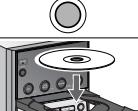
- When using an 8 cm disc, place it on the inner
circle of the disc tray

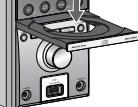
Press to close the disc tray.


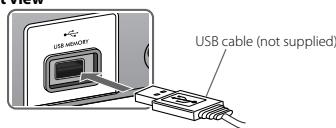
Connecting a USB Mass Storage Class Device
You can connect a USB mass storage class device such as a USB flash memory device, MP3 player, multimedia card reader, etc. to the System.
Front view
NOTES:
- When connecting with a USB cable, use the USB 2.0 cable whose length is less than 1m .
- USB mass storage class device is charged through the USB MEMORY terminal when the System is turned on and the source is "USB."
- You cannot connect a computer to the USB MEMORY terminal of the System.
- Do not disconnect the USB mass storage class device when the System is turned on. It may cause malfunction of both this System and the device.
- Noise and static electricity may stop the USB mass storage class device sound. In this case, disconnect and connect the USB mass storage class device again after turning off the System.

rohibiting Disc Ejection (on the System only)
You can lock the disc tray so that no one can eject the loaded disc.
- This is possible while the System is on standby.

To cancel the prohibition, repeat the same procedure.
Basic Disc/USB Mass Storage Class Device Operations
| To | Press | Indication/Result |
| Play back the disc | CD | • Current track number and elapsed time appear. |
| Play back the USB mass storage class device | USB | For MP3/WMA files: Before current number and elapsed playing time tag information appears if it is re• During playback, press again to play. |
| Stop playback | PPT BYPASS | • While playback is stopped, total and total playing time (for MP3/group number and track number |
| Select a track | Select the next tracks. | |
| To go back to the beginning of the previous tracks. | ||
| Select a group | PPT/PRESS/GROUP | Select the next groups. |
| DOWN | Select the previous groups. | |
| Forward search/Reverse search | Press and hold to fast-forward the playback.To stop searching, release the bu | |
| Press and hold to fast-reverse the playback.To stop searching, release the bu |
NOTES:
- If no disc is inserted or no USB mass storage class device is connected, "NO DISC" or "NO USB" appears on the main display.
- If MP3/WMA files are not recorded on the disc or in the USB mass storage class device "NO PLAY" appears on the main display.
RESUME Play (For MP3/WMA only)
When you stop the playback by one of the following operations, this System stores the beginning of the stopped track on the disc or USB mass storage class
device.
- Pressing once
- Changing the soul
When you start playback again, playback starts from the stored position. To clear the stored position, open the disc tray or disconnect the USB m storage class device.
- When you clear the stored position and start playback, playback starts from the beginning of the first track
NOTE:
This function does not work in Program Play and Random Play.
Playing Repeatedly—Repeat Play


REP TRK:Repeats the current (or specified) track. [C-1]
REP GRP: Bereeps all tracks in the current group (MP3/W/MA
12. GRP: repeats a
REP ALL: Repeats all tracks [G ALL]
REP-OFF: Normal playback


■ Programming the Playing Order—Program Play
1 TUNERPLAY During stops, press until the PRGM (program) indicator lights up before playing.
PY PRESET GROUP - For MP3/WMA files: Select a group number, then a track number.
or For CD: Select a track number
SET Press to program the selected group/track.


Operations for Program Play (while not playing
To check the programmed contents, press i or
To add tracks, repeat steps 2 and 3 above.
To erase the last programmed track, press CANCEI
To erase the entire program, press and hold CANCEL for about 2 seconds.
To exit from program play, press MODE
- The stored program is kept
Playing at Random—Random Play


Operations for Random Play
To skina track,press
To go back to the beginning of the current track, press
To exit from random play, press MODE while playback is stopped.
Listening to FM and AM Broadcasts
The following operations are explained using the remote control, unless mentioned otherwise. However, if the System has the same or similar button names, they can also be used for the operations.
Basic Tuner Operations
| To | Press | Indication/Result |
| Select FM or AM | AUDIO TUNER | Press repeatedly. • The selected frequency band appear. |
| Select a frequency | or | Press and hold for more than 2 seconds. The System starts searching for stations and stops when a station of sufficient signal strength is tuned in. • If an FM program is broadcast in stereo, the S (stereo) indicator lights up (only when the reception is good). • Press during searching to stop. • Press repeatedly to change the frequency step by step. |
| Tune in to a preset station | PTY-PRESETGROUP UP OR DOWN | Press to select its preset number. • For presetting stations, see below. |
| Change the FM reception mode (When an FM stereo broadcast is hard to receive) | TUNER/PLAY MODE | Press to improve reception. The M (mono) indicator lights up. Stereo effect will be lost. To restore the stereo effect, press again. |
■ Presetting Stations
You can preset 30 FM and 15 AM stations manually
Tune in to a station you want to preset.
You can also store the FM reception mode
2 Press to activate the preset number entry mode. Finish the following steps while the indication on the display is flashing.
3 Press to select a preset number for the station you want to store.

Press to store the station.
Receiving FM Stations with Radio Data System
Radio Data System allows FM stations to send an additional signal along with their regular program signals.
With the System, you can receive the following types of Radio Data System signal
PS (Program Service): Shows commonly known station names.
PTY (Program Type): Shows types of broadcast programs.
RT (Radio Text): Shows text messages the station sends.
Enhanced Other Networks: Provides the information about the types of the programs broadcast by the Radio Data System stations of the different networks.
NOTE:
If you want to know more about Radio Data System, visit http://www.rds.org.uk.
Changing the Radio Data System Information
Each time you press the button, the information changes as follows:

Non-Radio Data System signal
NOTE
If no Radio Data System signals are sent by a station, "NO PS," "NO PTY," or "NO RT" appears.
Searching for Programs by PTY Codes (PTY Search)
You can locate a particular kind of program from the preset stations (see the left column) by specifying the PTY codes.
Press to enter the PTY code setting mode "PTY" and "SELECT" appear alternately.
PTYPRESETGROUP Select a PTY code.
Select a PTY code.


The System searches for 30 preset FM stations, stops when it
finds the one you have selected, and tunes in to that station.
To stop searching any time during search, press PTY SEARCH
To continue searching after it stops on an unwanted station, press
PTY SEARCH while the indications on the display are flashing.
NOTE:
If no program is found, "NOTFOUND" appears.
Switching Temporarily to a Program of Your Choice
Automatically
The Enhanced Other Networks function allows the System to switch temporarily to a preset FM station broadcasting a program of your choice (TA, NEWS, or INFO).
- This function works while listening to an FM station providing the required
signals
Press repeatedly to select the program type as follows:
TA NEWS INFO OFF

TA: Traffic announcement in your area
NEWS: News
NEWS: News INFO: Data
INFO: Program the purpose of which is impart advice in the
How the Enhanced Other Networks function actually works:
When a station starts broadcasting the program of your choice, the System automatically switches to the station. The program type indicator starts flashing. After the program is over, the System goes back to the previously tuned station, but the function still remains active (the indicator stops flashing and remains lit).
Basic and Common Operations (see page 3)
Pressing one of the source buttons also turns on the System and starts playing back if the source is ready or connected.
Playing Back a Disc/USB Mass Storage Class Device
see page 4)
This System cannot play "packet write" discs.
For MP3/WMA playback.
- In this manual, "file" and "track" are interchangeably used for MP3/WMA operations.
- This System can show the Tag data (Version 1).
- MP3/WMA discs are required a longer readout time than regular CDs. (It depends on the complexity of the group/file configuration.)
- Some MP3/WMA files cannot be played back and will be skipped. This result from their recording processes and conditions.
- When making MP3/WMA discs, use ISO 9660 Level 1 or Level 2 for the disc format.
- This System can play back MP3/WMA files with the extension code
- It is recommended that you make each MP3/WMA file at a sampling rate of 44.1kHz and at bit rate of 128 kbps. This System cannot play back files made at bit rate of less than 64 kbps.
- Playback order of MP3/WMA tracks may be different from the one you have intended while recording. If a folder does not include MP3/WMA tracks, they are ignored.
- Do not use the following USB devices...
- Whose rating is other than 5 V and exceeds 500 mA.
- Equipped with special functions such as data security functions.
- Divided by 2 or more partitions
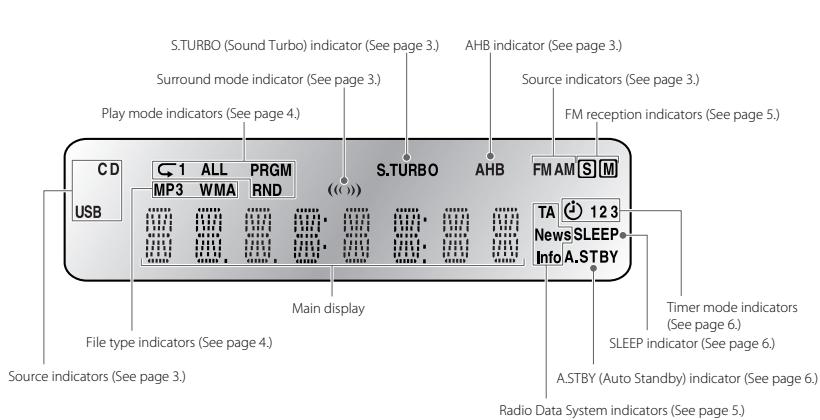
Display Information
- For the USB mass storage class device playback...
- When connecting a USB mass storage class device, also refer to its manual.
- Connect one USB mass storage class device to the System at a time. Do not use a USB hub.
- This System is compatible with USB 2.0 Full Speed.
- You can play back MP3/WMA files in a USB mass storage class device (maximum data transfer rate: 2 Mbps).
- You cannot play back a file larger than 2 Gigabyte.
- This System may not play back some USB mass storage class devices and does not support DRM (Digital Rights Management).
This System can recognize up to 99 groups in a disc. The total number of groups and tracks (in a disc) that can be recognized by the System is 512 (for MP3/WMA).
This System can recognize up to 99 groups and 9 999 tracks (with a maximum number of 255 tracks in a group) in a USB mass storage class device.
Setting the Clock and Using Timers (see page 6)
You can set the clock and Daily Timer while the Save Mode is turned on. While setting the clock or Daily Timer, the display is turning on.
The clock may gain or lose 1 to 2 minutes per month. If this happens, readjust the clock.
- When you unplug the AC power cord or if a power failure occurs, the clock and the timer will be canceled. You need to set the clock first, then the timer again.
Timer Priority:
If you set the Sleep Timer after Daily Timer starts playing the selected source, Daily Timer is canceled.
Troubleshooting
If you are having a problem with your System, check this list for a possible solution before calling for service.
General
Power does not come on.
Power plug is not inserted securely. Plug in securely.
Adjustments or settings are suddenly canceled before you finish.
There is a time limit. Repeat the procedure again.
Operations are disabled.
The built-in microprocessor may malfunction due to external electrical interference. Unplug the AC power cord and then plug it back in.
Unable to operate the System from the remote control. The path between the remote control and the remote sensor on the System is blocked. The batteries are exhausted.
No sound is heard.
Speaker connections are incorrect or loose.
Headphones are connected.
The System does not work properly
Many functions of this System are implemented by microcomputers. If the System does not work correctly, disconnect the AC power cord from the wall outlet, wait for a while, and connect the cord again.
Disc/USB Mass Storage Class Device Operations
The disc/USB mass storage class device does not play. → The disc is placed upside down. Place the disc with t label side up.
The disc is recorded with the "packet writing (UDF file system)." It cannot be played. Check the files you want to play back.
The USB mass storage class device is not connected properly.
MP3/WMA groups and tracks are not played back as you expect.
- Playing order is determined when the groups and tracks were recorded. It depends on the writing application.
The disc/USB mass storage class device sound is discontinuous.
The disc is scratched or dirty.
- MP3/WMA files have not been properly copied into the USB mass storage class device.
Sounds from USB mass storage class device are
interrupted.
- Noise and static electricity may stop the sound. In this case, disconnect and connect the USB mass storage class device again after turning off the System.
The disc tray does not open or close.
The AC power cord is not plugged in.
→ Disc ejection is prohibited (see page 4)
Radio Operations
Hard to listen to broadcasts because of noise.
Antennas connections are incorrect or loose
The AM loop antenna is too close to the System
The FM antenna is not properly extended and positioned.
Electrostatic discharge from your body may cause if this happens, turn off and on the System again.
Timer Operations
Daily Timer does not work
- The System has been turned on when the on-time comes. Timer starts working only when the System is turned off.
Attaching the Core Filter
Attach the provided core filter to the USB cable to reduce interference.
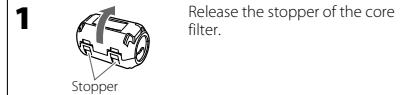
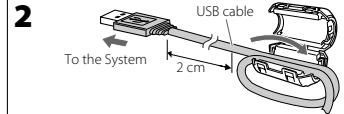
Run the USB cable through the core filter, leaving approx. 2 cm between the unit-side end of the USB cable and the core filter.
Firmly wind the USB cable once inside the cutout of the core filter.
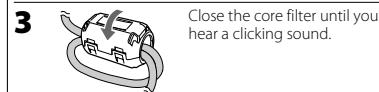
NO
Do not damage the USB cable by applying excessive power when winding.
Listening to Digital Audio Player
The following operations are explained using the remote control, unless mentioned otherwise. However, if the System has the same or similar button names, they can also be used for the operations.
■ Listening to Digital Audio Player

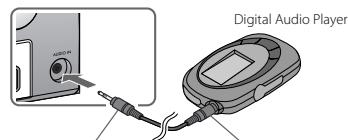
Stereo mini plug cord To audio output (or not supplied) headache out, etc.
1 Turn the volume to minimum

Turn the volume to minimum

Press repeatedly to select "AUDIO IN."
3 Start playing the Digital Audio Player connected
4 Adjust the volume
To Adjust the Audio Input Level
If the sound from the Digital Audio Player connected to the AUDIO IN jack is too loud or too quiet, you can change the audio input level through the AUDIO IN jack (without changing the volume level).
Press and hold for more than 2 seconds while "AUDIO IN" is selected as the source.
You can select one of three levels as follows:
→IN_LVL1→IN_LVL2→IN_LVL3→
As the number increases, the sound becomes louder
Setting the Clock and Using Timers
The following operations are explained using the remote control, unless mentioned otherwise. However, if the System has the same or similar button names, they can also be used for the operations.
Setting the Clock
Without setting the built-in clock, you cannot use Daily Timer and Sleep Timer.

Press to activate the clock setting mode
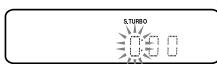
If you have already adjusted the clock before
press the button repeatedly until the clock
setting mode is selected.
Adjust the hour, then the minute.


Adjust the hour, then the minute.
- To exit from the clock setting, press CLOCK/TIMER as required.
- To go back to the previous step, press CANCEL.
Setting the Sleep Timer
When the System is on, press repeatedly to specify the time (in
minutes) as follows:
→10→20→30→60→90→120→150→180
Canceled
The SLEEP indicator lights up.
- To check the remaining time until the System shuts off, press once
Turning Off the System Automatically
AUTO STANDBY function (only for Disc/USB)
Press and hold until the A.STBY indicator lights on the display
The A.STBY indicator starts flashing after playback stops
If no operation is done for about 3 minutes, the System turns off.
Not applicable for FM/AM/AUDIO
To cancel this function, press and hold again.
Setting the Daily Timer
Using Daily Timer, you can wake up with your favorite music.
- You can store three Daily Timer settings; however, you can activate only one of the Daily Timers.

Press repeatedly to select one of the timer setting modes
you want to set—DAILY 1 ON time, DAILY 2 ON time, or
DAILY 3 ON time-as follows:
1Time 1 DAILY2 Time 1 DAILY3 Time
DAELY1ON(Time)DAILY3ON(Time)DAILY3ON(Time)
1.(1)
Cancolo
1
Cloc
setting me
① Adjust the hour then the minute for on-time
② Adjust the hour then the minute for off-time
③ Select the playback source—"TUNER-EM" "T
"DISC""AUDIOIN"or"USB

(4) For "FM/AM": Select a preset channel
For "DISC" or "USB": Select a track. (For MP3/WMA: Select
the group, then the track number.)
For "AUDIO IN": Make the connected device ready for
playback.
(5) Select the volume.
You can select the volume level ("VOLUME 0" (VOLMIN)

to "VOLUME 40" (VOL MAX) and "VOLUME - -") If you
select "VOLUME = -"the volume is set to the last level
when the System is turned off.

Turn off the System (on standby).
- When the on-time comes, the System sets the volume
gradually to the preset level.
To exit from the timer setting, press CLOGHIMER as required. To correct a misentry during the process, press CANCEL. You
previous step.
To Turn Off the Daily Timer
1) Press repeatedly to select "DAILY 1," "DAILY 2," or "DAILY 3."


To turn on the Daily Timer again, select one of the timer settings by pressing
CLOCK/TIMER, then press SET.
Maintenance
To get the best performance of the System, keep your discs and mechanism clean.
Handling discs
Remove the disc from its case by holding it at the edge
while pressing the center hole lightly.
- Do not touch the shiny surface of the disc, or bend the disc.
- Put the disc back in its case after use.
- Be careful not to scratch the surface of the disc when
placing it back in its case.
- Avoid exposure to direct sunlight, temperature extremes
and moisture.
To clean the disc:
Wipe the disc with a soft cloth in a straight line from center to edge.
Cleaning the System
Stains should be wiped off with a soft cloth. If the System is heavily stained, wipe it with a cloth soaked in water-diluted neutral detergent and wrung well, then wipe clean with a dry cloth.
Since the System may deteriorate in quality, become
damaged or get its paint peeled off, be careful about the
following:
DO NOT wipe it hard.
DO NOT wipe it with thinner or benzine
-DO NOT apply any volatile substance such as insecticides
to it.
- DO NOT allow any rubber or plastic to remain in contact for a long time.
JVC bears no responsibility for any loss of data in USB mass
storage class device while using this System.
Microsoft and Windows Media are either registered
trademarks or trademarks of Microsoft Corporation in the
United States and/or other countries.
Amplifier section
OUTPUT POWER
60 W (30 W + 30 W) at 4 Ω (10% THD)
Speakers/Impedance: 4Ω-16Ω
Audio input AUDIO IN: 500mV / 47kΩ (at "IN LVL1")
250 mV/47 kΩ (at "IN LVL2")
125mV/47kO(atINJVL3")
Digital input:
m - 1 ≠ 0 ;
Tuner section
FM tuning range: 87.50 MHz - 108.00 MHz
AM (MW) tuning range: 522 kHz - 1629 kHz
CD player section
Dynamic range:
Signal-to-noise ratio
Signal to noise level:Wow and flutter:
USB storage
USB specification: Compatible with USB 2.0 Full Speed
Compatible device: Mass storage class
Compatible file system: FAT16, FAT32
Bus power supply: Max.
Speakers
Speaker units
Impedance:
Dimensions (approx): 160 mm x 250 mm x 150 mm
Dimensions (approx.): 100 mm×200 mm. (W/H/D)
Mass
General
Power requirement
Power supply to USB mass storage class device
Power consumption
6.5W
1)W or less (Save Mode)
Dimension (W/μ)
Dimensions (W×11×D): 103 mm×251 mm×269 mm
Specifications and appearance are subject to change without
prior notice.
SAFETY INSTRUCTIONS
" SOME DOS AND DON'T ON THE SAFE USE OF EQUIPMENT "
This equipment has been designed and manufactured to meet international safety standards but, like any electrical equipment, care must be taken if you are to obtain the best results and safety is to be assured.
食食食食食食食食食食食食食食食食食食食食食食食食
Do read the operating instructions before you attempt to use the equipment
Do ensure that all electrical connections (including the mains plug, extension leads and interconnections between pieces of equipment) are properly made and in accordance with the manufacturer's instructions. Switch off and withdraw the mains plug when making or changing connections.
Do consult your dealer if you are ever in doubt about the installation, operation or safety of your equipment.
Do be careful with glass panels or doors on equipment.
食食食食食食食食食食食食食食食食食食食食食食食食食食食
DON'T continue to operate the equipment if you are in any doubt about it working normally, or if it is damaged in any way—switch off, withdraw the mains plug and consult your dealer.
DON'T remove any fixed cover as this may expose dangerous voltages.
DON'T leave equipment switched on when it is unattended unless it is specifically stated that it is designed for unattended operation or has a standby mode.
Switch off using the switch on the equipment and make sure that your family know how to do this. Special arrangements may need to be made for infirm or handicapped people.
DON'T use equipment such as personal stereos or radios so that you are distracted from the requirements of traffic safety. It is illegal to watch television whilst driving.
DON'T listen to headphones at high volume as such use can permanently damage your hearing.
DON'T obstruct the ventilation of the equipment, for example with curtains or soft furnishings.
Overheating will cause damage and shorten the life of the equipment.
DON'T use makeshift stands and NEVER fix legs with wood screws—to ensure complete safety always fit the manufacturer's approved stand or legs with the fixings provided according to the instructions.
DON'T allow electrical equipment to be exposed to rain or moisture
ABOVE ALL
- NEVER let anyone, especially children, push anything into holes, slots or any other opening in the case
this could result in a fatal electrical shock : - NEVER guess or take chances with electrical equipment of any kind—it is better to be safe than sorry
MICRO COMPONENT SYSTEM
UX-G300
Consists of CA-UXG300 and SP-UXG300

MP3/WMA
Thank you for purchasing a JVC product.
INSTRUCTIONS
GVT0241-015A[US/UN/UB/UG/A/UW]
0108WMKMDWJMM
4 °
©2008 Victor Company of Japan, Limited
IMPORTANT FOR LASER PRODUCTS
-
CLASS 1 LASER PRODUCT
-
CAUTION: Do not open the top cover or cabinet. There
are no user serviceable parts inside the unit; leave all servicing to qualified service personnel.
- CAUTION:Visible and/or invisible class 1M laser radiation
when open. Do not view directly with optical instruments
- REPRODUCTION OF LABEL: CAUTION LABEL, PLACED INSIDE THE UNIT.

Warnings, Cautions and Others
CAUTION: / (Standby/on) button
Disconnect the mains plug to shut the power off completely
(the STANDBY lamp goes off). When installing
ensure that the plug is easily accessible. The OI (Standby/
( on) button in any position does not disconnect the mains line.
When the System is on standby, the STANDBY lamp lights
red
- When the System is turned on, the STANDBY lamp goes
off.
The power can be remote controlled.
CAUTION:
To reduce the risk of electrical shocks, fire, etc.:
-
Do not remove screws, covers or cabinet.
-
Do not expose this appliance to rain or moisture
CAUTION:
- Do not block the ventilation openings or holes. (If
the ventilation openings or holes are blocked by a
newspaper or cloth, etc., the heat may not be able to get out.)
-
Do not place any naked flame sources, such as lighted candles, on the apparatus.
-
When discarding batteries, environmental problems must be considered and local rules or laws governing the disposal of these batteries must be followed strictly
- Do not expose this apparatus to rain, moisture, dripping or splashing and that no objects filled with liquids, such as vases, shall be placed on the apparatus.
- Excessive sound pressure from earphones or headphones can cause hearing loss.

[European Union only]
![JVC UX-G300 - [European Union only] - 1](/content/2025/01/123743/images/b9659e0f74a3e06ddf6522f4d30c647b423352b01d3cacfff6d59ce260cfa92e.jpg)
CAUTION: Proper Ventilation
To avoid risk of electric shock and fire, and to prevent damage, locate the apparatus as follows:
1. Front: No obstructions and open spacing.
2. Sides/Top/Back: No obstructions should be placed in the areas shown by the dimensions below.
3. Bottom: Place on the level surface. Maintain an adequate air path for ventilation by placing on a stand with a height of
10 cm or more.
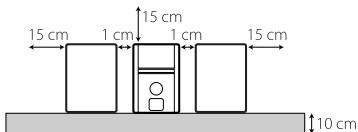
Side view
Front view
SP-UXG300 CA-UXG300 SP-UXG300
CA-UXG300
Precautions
Notes on the power cord
- When you are away on travel or otherwise for an extended period of time, remove the plug from the wall outlet.
- When unplugging the System from the wall outlet, always pull the plug, not the power cord.
- Do not handle the power cord with wet hands.
- Disconnect the power cord before cleaning the System or moving the System
- Do not alter, twist or pull the power cord, or put anything heavy on it, which may cause fire, electric shock, or other accidents.
- If the cord is damaged, consult a dealer and have the power cord replaced with a new one.
Avoid moisture, water, dust, and high temperatures
- Do not place the System in moist or dusty places.
- If water gets inside the System, turn off the power and remove the plug from the wall outlet, then consult your dealer. Using the System in this state may cause a fire or electrical shock.
- Do not expose the System to direct sunlight or place it near a heating device.
Notes on installation
- Select a place which is level, dry and neither too hot nor too cold—between 5° C and 35° C .
- Do not install the System in a place subject to vibrations.
- Do not put heavy objects on the System
To prevent malfunction or damage of the System
- Do not insert any metallic objects, such as wires, hairpins, coins, etc. into the System.
- Do not block the vents.
There are no user-serviceable parts inside. If anything goes wrong, unplug the power cord and consult your dealer.
Basic and Common Operations
How to cancel the demonstration
Press and hold DEMO button while on standby. (Refer to the attached "Information about the demonstration function.")
Using Headphones
- Be sure to turn down the volume before connecting or putting on the headphones
- Connecting the headphones will deactivate the speakers.
Sound adjustments also affect the sound through the headphones.
NOTE:
DO NOT turn off (standby) the System with the volume set to an extremely high level; otherwise, the sudden blast of sound can damage your hearing, speakers and/or headphones when you turn on the System or start playback.
| To | Press | Indication/Result | |
| System | Remote | ||
| Turn on or off(standby) the power | I | I | The STANDBY lamp on the System turns off/on. |
| Select a source | CD | CD | See "Playing Back a Disc/USB Mass Storage Class Device" on page 4. |
| USB | USB | ||
| FAM/AM TUNER | AUDIO IN TUNER | Press repeatedly to select "FM" or "AM." • For "FM/AM," see "Listening to FM and AM Broadcasts" on page 5. | |
| AUDIO IN | AUDIO IN | See "Listening to Digital Audio Player" on page 5. | |
| Adjust the volume | + VOLUME - | + VOLUME | Adjustable range: Level 0 ("VOL MIN") to level 40 ("VOL MAX"). |
| Drop the volume in a moment | - | PADE MUTING | To restore the volume, press again, or adjust the volume level. |
| Activate the EALA surround mode | - | (ω) | The (« ») indicator lights up. To cancel this function, press repeatedly until (« ») indicator lights off. |
| Emphasize the sound (Sound Turbo function) | SOUND TURBO DEMO | S.TURBO | The S.TURBO indicator lights up. To cancel this function, press again. |
| Reinforce the bass sound (Active Hyper Bass Pro function) | - | AHB PRO | Press and hold until the AHB indicator lights up. • When Sound Turbo function is activated (see above), this function cannot be activated. To cancel this function, press and hold again when Sound Turbo function is deactivated. |
| Adjust the tone (Bass/Treble) | - | AHB PRO BASS TREB + VOLUME | Press once for adjusting the bass level; twice for treble level, then, press VOLUME +/-. Adjustable range: -3 to +3. |
| Change the display brightness | ECODIMMER | - | Press when the System is turned on. To cancel this function, press again. |
| Change the display information (Clock and Source) | - | DISPLAY | For setting the clock, see "Setting the Clock and Using Timers" on page 6. |
| Set the Save Mode | ECODIMMER | - | Press when the System is on standby. Setting the save mode allows you to reduce power consumption by turning the display off while on standby. To cancel this function, press again when the System is on standby. |
1
3
Getting Started
Supplied Accessories
After unpacking, check to be sure that you have all the following items.
Remote control, RM-SUXG300U (× 1)
Lithium coin battery CR2025 (× 1)
- The battery has been installed when shipped from the
factory.
AM loop antenna (× 1)
FM antenna (× 1)
- AC plug adapter (× 1) (not applicable for Hong Kong and
Australia)
If anything is missing, consult your dealer immediately.
Prepare the Remote Control
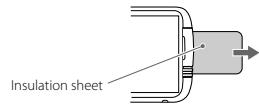
When you use the remote control for the first time, pull out the insulation sheet.
To Replace the Battery in the Remote Control
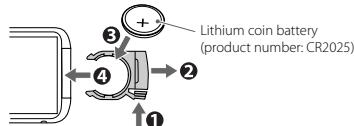
NOTES:
- Store the battery in a place where children cannot reach. If a child accidentally swallows the battery, consult a doctor immediately.
- To prevent the battery from over-heating, cracking, or starting a fire:
- Do not recharge, short, disassemble or heat the battery or dispose of it in a fire.
- Do not leave the battery with other metallic materials.
- Wrap the battery with tape and insulate when throwing away or saving it.
- Do not poke the battery with tweezers or similar tools.
- Dispose of battery in the proper manner, according to federal, state, and local regulations.
- The batteries (battery pack or batteries installed) shall not be exposed to excessive heat source such as sunshine, fire or the like.
CAUTION:
Danger of explosion if battery is incorrectly replaced Replace only with the same or equivalent type.
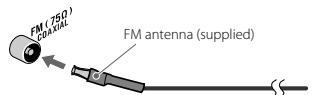
Connections
To connect the FM antenna (supplied
Extend it so that you can obtain the best reception.
For better FM reception
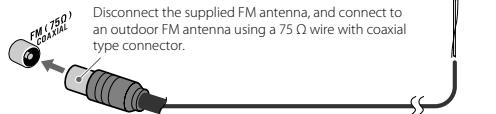
Outdoor FM antenna (not supplied)
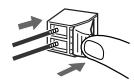
Do not connect the AC power cord until all other connections have been made.
To connect the AM loop antenna (supplied)
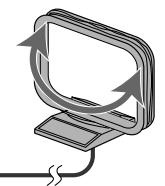
AM loop antenna (supplied). Turn it until the best reception is obtained.

To assemble the AM loop antenna

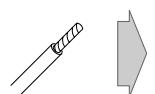
To connect the speaker cords
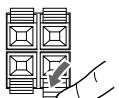
Press and hold
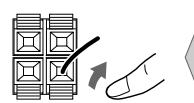

ease

Press to close the disc tray.
Playing Back a Disc/USB Mass Storage Class Device
The following operations are explained using the remote control, unless mentioned otherwise. However, if the System has the same or similar button names, they can also be used for the operations.
This System can play back...
-CD.
- CD-R/CD-RW recorded in audio CD format (CD-DA) or recorded MP3/WMA files in ISO 9660 format.
- USB mass storage class device containing MP3/WMA files.
- When playing back an MP3 or WMA track, MP3 or WMA indicator lights up.

ading a Disc


Press to open the disc tray.
- When using an 8 cm disc, place it on the inner circle of the disc tray.
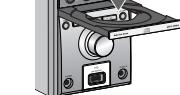
Press to close the disc tray.


Connecting a USB Mass Storage Class Device
You can connect a USB mass storage class device such as a USB flash memory device, MP3 player, multimedia card reader, etc. to the System.
Front view
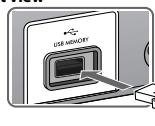
USB cable (not supplied)
NOTES:
- When connecting with a USB cable, use the USB 2.0 cable whose length is less than 1m .
- USB mass storage class device is charged through the USB MEMORY terminal when the System is turned on and the source is "USB."
- You cannot connect a computer to the USB MEMORY terminal of the System.
- Do not disconnect the USB mass storage class device when the System is turned on. It may cause malfunction of both this System and the device.
- Noise and static electricity may stop the USB mass storage class device sound. In this case, disconnect and connect the USB mass storage class device again after turning off the System.

Hobiting Disc Ejection
You can lock the disc tray so that no one can eject the loaded disc.
- This is possible while the System is on standby.

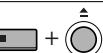
To cancel the prohibition, repeat the same procedure.
Basic Disc/USB Mass Storage Class Device Operations
| To | Press | Indication/Result |
| Play back the disc | CD | • Current track number and elapsed time appear. |
| Play back the USB mass storage class device | USB | For MP3/WMA files: Before current number and elapsed playing time tag information appears if it is re• During playback, press again to play |
| Stop playback | ■ | • While playback is stopped, total and total playing time (for MP3/group number and track number |
| Select a track | ← | Select the next tracks. |
| ← | To go back to the beginning of the previous tracks. | |
| Select a group | PRESETGROUP | Select the next groups. |
| Forward search/ Reverse search | DOWN | Select the previous groups. |
| Press and hold to fast-forward the playback. To stop searching, release the bu | ||
| Press and hold to fast-reverse the playback. To stop searching, release the bu |
NOTES:
- If no disc is inserted or no USB mass storage class device is connected, "NO DISC" or "NO USB" appears on the main display.
- If MP3/WMA files are not recorded on the disc or in the USB mass storage class device, "NO PLAY" appears on the main display.
RESUME Play (For MP3/WMA only)
When you stop the playback by one of the following operations, this System stores the beginning of the stopped track on the disc or USB mass storage class device.
- Pressing once
- Changing the source
When you start playback again, playback starts from the stored position. To clear the stored position, open the disc tray or disconnect the USB mass storage class device. - When you clear the stored position and start playback, playback starts from the beginning of the first track
NOTE:
This function does not work in Program Play and Random Play.
Playing Repeatedly—Repeat Play

→REPTRK→REPGRP→REPALL→REP OFF
REP TRK: Repeats the current (or specified) track. [G]
REP GRP: Repeats all tracks in the current group (MP3/WMA)
only).
REP ALL: Repeats all tracks. [GALL]
REP OFF: Normal playback


■ Programming the Playing Order—Program Play
TUNER-PLAY During stops, press until the PRGM (program) indicator lights up before playing.
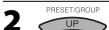


s to program the selected group/track


The tracks are played back in the programmed order.
Operations for Program Play (while not playing)
To check the programmed contents, press 1 or 2 .
To add tracks, repeat steps 2 and 3 above. To remove the last track, repeat steps 1 to 3.
To erase the last programmed track, piess CANCE
To exit from program play, press MODE.
- The stored program is kept
Playing at Random—Random Play


Playback starts in random order
USB Random Play ends when all tracks are played back
Operations for Random Play
To skip a track, press I.
- To go back to the beginning of the current track, press
To exit from random play, press MODE while playback is stopped
Listening to FM and AM Broadcasts
The following operations are explained using the remote control, unless mentioned otherwise. However, if the System has the same or similar button names, they can also be used for the operations.
Basic Tuner Operations
| To | Press | Indication/Result |
| Set the AM tuner intervals to 9 kHz spacing | ←DOWN ↓ 0/1 | On the System only: Press and hold I←DOWN, then press ∅I when the System is on standby. |
| Set the AM tuner intervals to 10 kHz spacing | UP ↑+1 0/1 | On the System only: Press and hold UP ↑+1, then press ∅I when the System is on standby. |
| Select FM or AM | AUDIO TUNER | Press repeatedly. • The selected frequency band appear. |
| Select a frequency | or | Press and hold for more than 2 seconds. The System starts searching for stations and stops when a station of sufficient signal strength is tuned in. • If an FM program is broadcast in stereo, the S (stereo) indicator lights up (only when the reception is good). • Press during searching to stop. • Press repeatedly to change the frequency step by step. |
| Tune in to a preset station | PRESET/group UP OF DOWN | Press to select its preset number. • For presetting stations, see below. |
| Change the FM reception mode (When an FM stereo broadcast is hard to receive) | TUNER/PLAY MODE | Press to improve reception. The M (mono) indicator lights up. Stereo effect will be lost. To restore the stereo effect, press again. |
Presetting Stations
You can preset 30 FM and 15 AM stations manually
1 Tune in to a station you want to preset. - You can also store the FM reception m
Press to activate the preset number entry mode.
- Finish the following steps while the indication on the display is flashing.
Press to select a preset number for the station you want to store.
Press to store the station.
Listening to Digital Audio Player
The following operations are explained using the remote control, unless mentioned otherwise. However, if the System has the same or similar button names, they can also be used for the operations.
■ Listening to Digital Audio Player

Front view
Turn the volume to minimum.
Press repeatedly to select "AUDIO IN.
Digital Audio Player connected
品。
To Adjust the Audio Input Level
If the sound from the Digital Audio Player connected to the AUDIO IN jack is too loud or too quiet, you can change the audio input level through the AUDIO IN jack (without changing the volume level).
Press and hold for more than 2 seconds while "AUDIO IN" is selected as the source.
You can select one of three levels as follows:

INLVL1→INLVL2→INLVL3
As the number increases, the sound becomes louder
Learning More about This System
Basic and Common Operations (see page 3)
- Pressing one of the source buttons also turns on the System and starts playing back if the source is ready or connected.
Playing Back a Disc/USB Mass Storage Class Device
(see page 4)
- This System cannot play "packet write" discs
- For MP3/WMA playback...
- In this manual, "file" and "track" are interchangeably used for MP3/WMA operations.
- This System can show the Tag data (Version 1).
- MP3/WMA discs are required a longer readout time than regular CDs. (It depends on the complexity of the group/file configuration.)
- Some MP3/WMA files cannot be played back and will be skipped. This result from their recording processes and conditions.
- When making MP3/WMA discs, use ISO 9660 Level 1 or Level 2 for the disc format.
- This System can play back MP3/WMA files with the extension code <.mp3> or <.wma> (regardless of the letter case—upper/lower).
- It is recommended that you make each MP3/WMA file at a sampling rate of 44.1kHz and at bit rate of 128 kbps. This System cannot play back files made at bit rate of less than 64 kbps.
- Playback order of MP3/WMA tracks may be different from the one you have intended while recording. If a folder does not include MP3/WMA tracks, they are ignored.
- Do not use the following USB devices...
- Whose rating is other than 5V and exceeds 500mA .
- Equipped with special functions such as data security functions.
- Divided by 2 or more partitions
- For the USB mass storage class device playback...
- When connecting a USB mass storage class device, also refer to its manual.
- Connect one USB mass storage class device to the System at a time. Do not use a USB hub.
- This System is compatible with USB 2.0 Full Speed.
- You can play back MP3/WMA files in a USB mass storage class device (maximum data transfer rate: 2 Mbps).
- You cannot play back a file larger than 2 Gigabyte.
- This System may not play back some USB mass storage class devices and does not support DRM (Digital Rights Management).
- This System can recognize up to 99 groups in a disc. The total number of groups and tracks (in a disc) that can be recognized by the System is 512 (for MP3/WMA).
- This System can recognize up to 99 groups and 9 999 tracks (with a maximum number of 255 tracks in a group) in a USB mass storage class device.
Setting the Clock and Using Timers (see page 6)
- You can set the clock and Daily Timer while the Save Mode is turned on. While setting the clock or Daily Timer, the
display is turning on.
- The clock may gain or lose 1 to 2 minutes per month. If this happens, readjust the clock.
- When you unplug the AC power cord or if a power failure occurs, the clock and the timer will be canceled. You need to set the clock first, then the timer again.
Timer Priority:
- If you set the Sleep Timer after Daily Timer starts playing the selected source, Daily Timer is canceled.
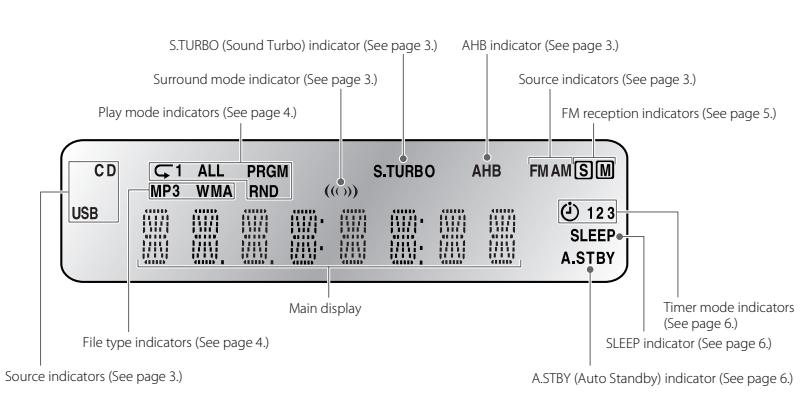
Display Information


Setting the Clock and Using Timers
The following operations are explained using the remote control, unless mentioned otherwise. However, if the System has the same or similar button names, they can also be used for the operations.
Setting the Clock
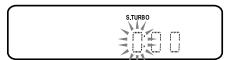
Without setting the built-in clock, you cannot use Daily Timer and Sleep Timer - "000" flashes on the main display until you set the clock.

Press to activate the clock setting mode.
- If you have already adjusted the clock before, press the button repeatedly until the clock setting mode is selected.

Adjust the hour, then the minute

- To exit from the clock setting, press CLOCK/TIMER as required.
To go back to the previous step, press CANCEL.
Setting the Sleep Timer
When the System is on, press repeatedly to specify the time (in minutes) as follows:

The S L E F P indicator lights up
- To check the remaining time until the System shuts off, press once.
Turning Off the System Automatically
—AUTO STANDBY function (only for Disc/USB)
Press and hold until the A.STBY indicator lights on the display.
• The A.STBY indicator starts flashing after playback stops.
If no operation is done for about 3 minutes, the System turns off.
• Not applicable for FM/AM/AUDIO IN.
To cancel this function, press and hold again.
Setting the Daily Timer
Using Daily Timer, you can wake up with your favorite music.
- You can store three Daily Timer settings; however, you can activate only one of the Daily Timers


Press repeatedly to select one of the timer setting modes you want to set—DAILY 1 ON time,
DAILY 2 ON time, or DAILY 3 ON time—as follows

DAILY 1 ON (Time) DAILY 2 ON (Time) DAILY 3 ON (Time)
BAIET-ON(Nime) 1DAIET-ON(Nime) 1BAIET-ON(Nime)
Canceled Clock setting mode


① Adjust the hour then the minute for on-time
② Adjust the hour then the minute for off-time
③ Select the playback source—“TUNER-FM,”“TUNER-AM,”“DISC,”“AUDIO IN,” or “USB.”
④ For "FM/AM": Select a preset channel.
For "DISC" or "USB": Select a track. (For MP3/WMA: Select the group, then the track number.)
For "AUDIO IN": Make the connected device ready for playback.
(5) Select the volume.
- You can select the volume level ("VOLUME 0" (VOL MIN) to "VOLUME 40" (VOL MAX) and
"VOLUME - -"). If you select "VOLUME - -," the volume is set to the last level when the System
is turned on.
Turn off the System (on standby)
-
When the on-time comes, the System sets the volume gradually to the preset level.
-
To exit from the timer setting, press CLOCK/TIMER as required.
To correct a misentry during the process, press CANCEL. You can return to the previous step
To Turn Off the Daily Timer
① Press repeatedly to select "DAILY 1," "DAILY 2," or "DAILY 3."


To turn on the Daily Timer again, select one of the timer settings by pressing CLOCK/TIMER, then press SET.
Troubleshooting
If you are having a problem with your System, check this list
for a possible solution before calling for service.
Genera
Power does not come on
Power plug is not inserted securely. Plug in securely.
Adjustments or settings are suddenly canceled before you finish.
There is a time limit. Repeat the procedure again.
Operations are disabled
The built-in microprocessor may malfunction due to
external electrical interference. Unplug the AC power cord and then plug it back in.
Unable to operate the System from the remote control.
The path between the remote control and the remote
sensor on the System is blocked.
The batteries are exhausted.
No sound is heard.
→ Speaker connections are incorrect or loose
→ Headphones are connected
The Sys
Many functions of this System are implemented by microcomputers. If the System does not work correctly, disconnect the AC power cord from the wall outlet, wait for a while, and connect the cord again.
Disc/USB Mass Storage Class Device Operations
The disc/USB mass storage class device does not play
The disc is placed upside down. Place the disc with the label side up.
The disc is recorded with the "packet writing (UDF file system)." It cannot be played. Check the files you want to play back.
The USB mass storage class device is not connected properly.
MP3/WMA groups and tracks are not played back as you expect.
- Playing order is determined when the groups and tracks were recorded. It depends on the writing application.
The disc/USB mass storage class device sound is
discontinuous
The disc is scratched or dirty.
- MP3/WMA files have not been properly copied into the USB mass storage class device.
Sounds from USB mass storage class device are interrupted.
- Noise and static electricity may stop the sound. In this case, disconnect and connect the USB mass storage class device again after turning off the System.
The disc tray does not open or close.
The AC power cord is not plugged in.
→ Disc ejection is prohibited (see page 4).
Radio Operations
Hard to listen to broadcasts because of noise.
→ Antennas connections are incorrect or loose.
The AM loop antenna is too close to the Syste
The FM antenna is not properly extended and positioned.
Electrostatic discharge from your body may cause noise. If
- Electrostatic discharge from your body may cause nausea. This happens, turn off and on the System again.
Timer Operations
Daily Timer does not work.
The System has been turned on when the on-time comes
Timer starts working only when the System is turned off.
Maintenance
To get the best performance of the System, keep your discs and mechanism clean.
Handling discs
- Remove the disc from its case by holding it at the edge
while pressing the center hole lightly. - Do not touch the shiny surface of the disc, or bend the disc.
- Put the disc back in its case after use
- Be careful not to scratch the surface of the disc when
placing it back in its case. - Avoid exposure to direct sunlight, temperature extremes, and moisture.
To clean the disc:
- Wipe the disc with a soft cloth in a straight line from center to edge.
Cleaning the System
Stains should be wiped off with a soft cloth. If the System is heavily stained, wipe it with a cloth soaked in water-diluted neutral detergent and wrung well, then wipe clean with a dry cloth.
- Since the System may deteriorate in quality, become damaged or get its paint peeled off, be careful about the following:
-DO NOT wipe it hard.
-DO NOT wipe it with thinner or benzine
DO NOT apply any volatile substance such as insecticides.
to it.
-DO NOT allow any rubber or plastic to remain in contact for a long time.
Specifications
Amplifier section
OUTPUT POWER:
60 W (30 W + 30 W) at 4 Ω (10% THD)
Speakers/Impedance: 4Ω -16Ω
Audio input AUDIO IN: 500 mV/4/
250 mV/47
125mV/47
Digital input
Tuner section
FM tuning range: 87.50 MHz - 108.00 MH
AM tuning range: 530 kHz - 1710 kHz
(in 10kHz spacing)
531 kHz - 1710 kHz
(in 9 kHz spaci
CD player section
Dynamic range: 88 dB
Signal-to-noise ratio: 85 dB
Wow and flutter: Immeasurable
USB storage
USB specification: Compatible with USB 2.0 Full
Speed Comptable driving
Compatible file system: FAT16, FAT22
Compiotie me system. Pro Power purny
Bus power supply: Max. 500 mHA
Speakers
Speaker units: 10 cm cone x 1
Impedance: 4Ω
Dimensions (approx.): 160 mm x
(W/H/D)
Mass (approx.): 1.6 kg each
General
Power requirements.
AC 240V ,50Hz only Australia
AC 220V ,50Hz only Hong
Kong)
Power supply to USB mass storage class device:
DC5V=500m
Power consumption
6.5 W( s-1)
1 W or less
Dimensions (W× H× D) .. 165mm× 251mm× 269mm
Mass: 2.6 kg
Specifications and appearance are subject to change without prior notice.
- MP3/WMA Radio Data System
- INSTRUCTIONS
- Warnings, Cautions and Others
- CAUTION: / (Standby/on) button!
- CAUTION:
- Dear Customer,
- IMPORTANT for the U.K.
- IMPORTANT:
- IF IN DOUBT - CONSULT A COMPETENT ELECTRICIAN.
- IMPORTANT FOR LASER PRODUCTS
- CAUTION: Proper Ventilation
- Precautions
- Notes on the power cord
- Avoid moisture, water, dust, and high temperatures
- Notes on installation
- To prevent malfunction or damage of the System
- Basic and Common Operations
- How to cancel the demonstration
- Using Headphones
- NOTE:
- Playing Back a Disc/USB Mass Storage Class Device
- Connecting a USB Mass Storage Class Device
- Front view
- NOTES:
- Basic Disc/USB Mass Storage Class Device Operations
- RESUME Play (For MP3/WMA only)
- Playing Repeatedly—Repeat Play
- ■ Programming the Playing Order—Program Play
- Operations for Program Play (while not playing
- Playing at Random—Random Play
- Operations for Random Play
- Listening to FM and AM Broadcasts
- Basic Tuner Operations
- ■ Presetting Stations
- Receiving FM Stations with Radio Data System
- Changing the Radio Data System Information
- NOTE
- Searching for Programs by PTY Codes (PTY Search)
- Switching Temporarily to a Program of Your Choice
- Automatically
- How the Enhanced Other Networks function actually works:
- Basic and Common Operations (see page 3)
- Setting the Clock and Using Timers (see page 6)
- Timer Priority:
- Troubleshooting
- General
- Operations are disabled.
- Disc/USB Mass Storage Class Device Operations
- interrupted.
- Radio Operations
- Timer Operations
- Attaching the Core Filter
- NO
- Listening to Digital Audio Player
- ■ Listening to Digital Audio Player
- To Adjust the Audio Input Level
- Setting the Clock and Using Timers
- Setting the Clock
- Setting the Sleep Timer
- Turning Off the System Automatically
- Setting the Daily Timer
- To Turn Off the Daily Timer
- Maintenance
- Handling discs
- To clean the disc:
- Cleaning the System
- Amplifier section
- m - 1 ≠ 0 ;
- Tuner section
- CD player section
- USB storage
- Speakers
- Mass
- SAFETY INSTRUCTIONS
- " SOME DOS AND DON'T ON THE SAFE USE OF EQUIPMENT "
- ABOVE ALL
- MICRO COMPONENT SYSTEM
- UX-G300
- MP3/WMA
- CAUTION: / (Standby/on) button
- [European Union only]
- Getting Started
- Supplied Accessories
- Prepare the Remote Control
- ading a Disc
- Hobiting Disc Ejection
- Operations for Program Play (while not playing)
- Presetting Stations
- Learning More about This System
- —AUTO STANDBY function (only for Disc/USB)
- Genera
- Operations are disabled
- No sound is heard.
- The Sys
- MP3/WMA groups and tracks are not played back as you expect.
- The disc/USB mass storage class device sound is
- discontinuous
- Sounds from USB mass storage class device are interrupted.
- The disc tray does not open or close.
- to it.
- Specifications
- Power requirements.
Brand : JVC
Model : UX-G300
Category : Audio System