
UX-A70MDR - Audio System JVC - Free user manual and instructions
Find the device manual for free UX-A70MDR JVC in PDF.


| Product Type | Micro component audio system with CD player and MD recorder |
| Dimensions (main unit) | 431 x 217 x 330 mm (L x H x D) |
| Dimensions (speakers) | 130 x 215 x 231.5 mm (L x H x D) per speaker |
| Weight (main unit) | 8.5 kg |
| Weight (speakers) | 2.0 kg per speaker |
| Power supply | AC 230 V, 50 Hz |
| Power consumption | 50 W operating, 3.9 W standby |
| Amplifier output power | 44 W (22 W + 22 W) at 4 Ω (IEC) |
| FM tuner frequency range | 87.50 MHz - 108.00 MHz |
| AM tuner frequency range (MW/LW) | MW: 522 kHz - 1629 kHz, LW: 144 kHz - 288 kHz |
| MD recording formats | SP, LP2, LP4 (long play stereo) |
| Main functions | CD/MD playback, FM/AM radio with RDS, synchronized MD recording, MD editing (divide, join, move, erase), programming, random play, repeat, recording timer, daily and sleep timer |
| Audio inputs | Line In (stereo RCA): 400 mV / 48 kΩ |
| Audio outputs | Line Out (stereo RCA): 260 mV / 5.8 kΩ |
| Headphone output | 3.5 mm stereo jack |
| Speakers | Woofer 10 cm, tweeter 4 cm, impedance 4 Ω |
| Maintenance and cleaning | Wipe with a soft dry cloth; do not use solvents |
| Safety | Class 1 laser product; do not open the cover; unplug if problems occur; adequate ventilation required |
| Spare parts and repairability | Repair only by qualified technician; no user-serviceable parts |
| General information | Brand JVC, model UX-A70MDR, instruction manual available in PDF |
Frequently Asked Questions - UX-A70MDR JVC
User questions about UX-A70MDR JVC
0 question about this device. Answer the ones you know or ask your own.
Ask a new question about this device
Download the instructions for your Audio System in PDF format for free! Find your manual UX-A70MDR - JVC and take your electronic device back in hand. On this page are published all the documents necessary for the use of your device. UX-A70MDR by JVC.
USER MANUAL UX-A70MDR JVC
Enter below the Model No. and Serial No. which are located either on the rear, bottom or side of the cabinet. Retain this information for future reference.
Model No.
Serial No.
IMPORTANT for the U.K.
DO NOT cut off the mains plug from this equipment. If the plug fitted is not suitable for the power points in your home or the cable is too short to reach a power point, then obtain an appropriate safety approved extension lead or consult your dealer.
BE SURE to replace the fuse only with an identical approved type, as originally fitted.
If nonetheless the mains plug is cut off ensure to remove the fuse and dispose of the plug immediately, to avoid a possible shock hazard by inadvertent connection to the mains supply.
If this product is not supplied fitted with a mains plug then follow the instructions given below:
IMPORTANT:
DO NOT make any connection to the terminal which is marked with the letter E or by the safety earth symbol or coloured green or green-and-yellow.
The wires in the mains lead on this product are coloured in accordance with the following code:
Blue: Neutral
Brown:Live
As these colours may not correspond with the coloured markings identifying the terminals in your plug proceed as follows:
The wire which is coloured blue must be connected to the terminal which is marked with the letter N or coloured black.
The wire which is coloured brown must be connected to the terminal which is marked with the letter L or coloured red.
IF IN DOUBT - CONSULT A COMPETENT ELECTRICIAN.
Caution — / switch!
Disconnect the mains plug to shut the power off completely (the STANDBY/ON lamp goes off).
The / I switch in any position does not disconnect the mains line.
- When the unit is on standby, the STANDBY/ON lamp lights red.
- When the unit is turned on, the STANDBY/ON lamp lights green.
The power can be remote controlled.
CAUTION
To reduce the risk of electrical shocks, fire, etc.:
- Do not remove screws, covers or cabinet.
- Do not expose this appliance to rain or moisture.
REPRODUCTION OF LABELS
① CLASSIFICATION LABEL, PLACED ON REAR ENCLOSURE
CLASS 1
LASER PRODUCT
② WARNING LABEL, PLACED INSIDE THE UNIT
DANGER: Invisible laser radiation when open and interlock failed or defeated. AVOID DIRECT EXPOSURE TO BEAM. (e)
- CLASS 1 LASER PRODUCT
- DANGER: Invisible laser radiation when open and interlock failed or defeated. Avoid direct exposure to beam.
- CAUTION: Do not open the top cover. There are no user serviceable parts inside the Unit; leave all servicing to qualified service personnel.
Caution: Proper Ventilation
To avoid risk of electric shock and fire, and to prevent damage, locate the apparatus as follows:
1 Front:
No obstructions and open spacing.
2 Sides/ Top/ Back:
No obstructions should be placed in the areas shown by the dimensions below.
3 Bottom:
Place on the level surface. Maintain an adequate air path for ventilation by placing on a stand with a height of 10cm or more.
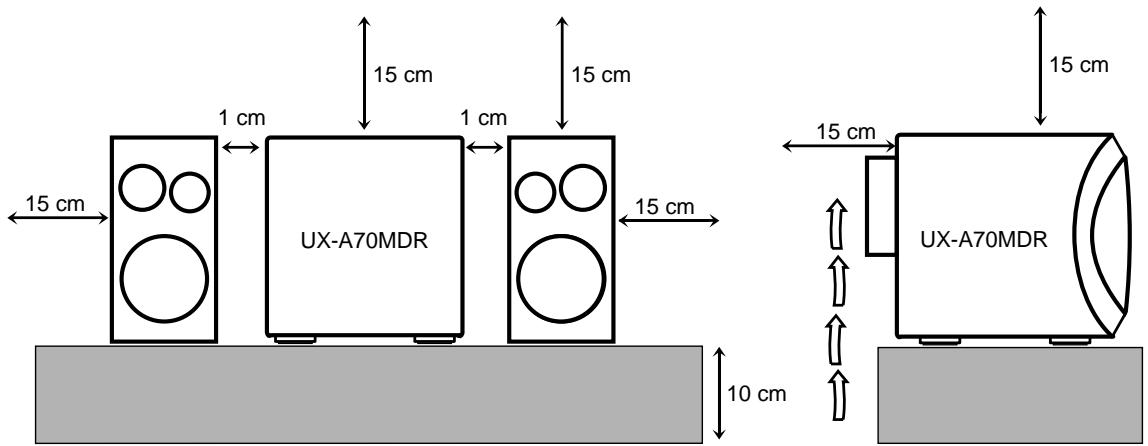
Front view
SAFETY INSTRUCTIONS "SOME DOS AND DON'TS ON THE SAFE USE OF EQUIPMENT"
This equipment has been designed and manufactured to meet international safety standards but, like any electrical equipment, care must be taken if you are to obtain the best results and safety is to be assured.
责责责责责责责责责责责责责责责责责责责责责责
Do read the operating instructions before you attempt to use the equipment.
Do ensure that all electrical connections (including the mains plug, extension leads and interconnections between pieces of equipment) are properly made and in accordance with the manufacturer's instructions. Switch off and withdraw the mains plug when making or changing connections.
Do consult your dealer if you are ever in doubt about the installation, operation or safety of your equipment.
Do be careful with glass panels or doors on equipment.
DON'T continue to operate the equipment if you are in any doubt about it working normally, or if it is damaged in any way-switch off, withdraw the mains plug and consult your dealer.
DON'T remove any fixed cover as this may expose dangerous voltages.
DON'T leave equipment switched on when it is unattended unless it is specifically stated that it is designed for unattended operation or has a standby mode.
Switch off using the switch on the equipment and make sure that your family know how to do this.
Special arrangements may need to be made for infirm or handicapped people.
DON'T use equipment such as personal stereos or radios so that you are distracted from the requirements of traffic safety. It is illegal to watch television whilst driving.
DON'T listen to headphones at high volume as such use can permanently damage your hearing.
DON'T obstruct the ventilation of the equipment, for example with curtains or soft furnishings.
Overheating will cause damage and shorten the life of the equipment.
DON'T use makeshift stands and NEVER fix legs with wood screws — to ensure complete safety always fit the manufacturer's approved stand or legs with the fixings provided according to the instructions.
DON'T allow electrical equipment to be exposed to rain or moisture.
ABOVE ALL
NEVER let anyone, especially children, push anything into holes, slots or any other opening in the case -this could result in a fatal electrical shock.
NEVER guess or take chances with electrical equipment of any kind — it is better to be safe than sorry!
We would like to thank you for purchasing one of our JVC products. Before operating this unit, read this manual carefully and thoroughly to obtain the best possible performance from your unit, and retain this manual for future reference.
About This Manual
This manual is organized as follows:
- This manual mainly explains playback and editing operations using the remote control, and the other operation such as recording operations using the buttons on the unit.
You can use the buttons both on the remote control and on the main unit for the same operations if they have the same or similar names (or marks), unless mentioned otherwise. - Basic and common information that is the same for many functions is grouped in one place, and is not repeated in each procedure. For instance, we do not repeat the information about turning on/off the unit, setting the volume, changing the sound effects, and others, which are explained in the section "Basic and Common Operations" on pages 10 - 13.
- The following marks are used in this manual:
| STOP | Gives you warning and caution to prevent from damage or risk of fire/electric shock. Furthermore, gives you information which is not good for obtaining the best possible performance from the unit. |
| NOTES | Gives you information and hints you had better know. |
Precautions
Installation
- Install in a place which is level, dry and neither too hot nor too cold — between 5^ (41^) and 35^ (95^) .
- Install the unit in a location with adequate ventilation to prevent internal heat buildup in the unit.
- Leave sufficient distance between the unit and the TV.
- Keep the speakers away from the TV to avoid interference with TV.

DO NOT install the unit in a location near heat sources, or in a place subject to direct sunlight, excessive dust or vibration.
Power sources
- When unplugging the unit from the wall outlet, always pull the plug, not the AC power cord.

DO NOT handle the AC power cord with wet hands.
Moisture condensation
Moisture may condense on the lens inside the unit in the following cases:
After starting heating in the room
- In a damp room
- If the unit is brought directly from a cold to a warm place. Should this occur, the unit may malfunction. In this case, leave the unit turned on for a few hours until the moisture evaporates, unplug the AC power cord, then plug it in again.
Others
- The electronic swing panel may malfunction when you use this unit under the strong light such as the sunlight.

DO NOT expose this unit to the strong light.
- Should any metallic object or liquid fall into the unit, unplug the AC power cord and consult your dealer before operating any further.
- If you are not going to operate the unit for an extended period of time, unplug the AC power cord from the wall outlet.

DO NOT disassemble the unit since there are no user serviceable parts inside.
If anything goes wrong, unplug the AC power cord and consult your dealer.
Location of the Buttons 3
Main Unit 4
Remote Control 5
Getting Started 6
Unpacking 6
Connecting Antennas 6
Connecting Speakers 7
Connecting Other Equipment 8
Putting the Batteries into the Remote Control .... 9
Basic and Common Operations 10
Turning On the Power 11
Selecting the Sources and Starting Play 11
Adjusting the Volume 12
Reinforcing the Bass Sound 12
Selecting the Sound Modes 12
Setting the Display Illumination 13
Listening to FM and AM (MW/LW)
Broadcasts 14
Tuning in a Station 15
Preseting Stations 15
Tuning in a Preset Station 16
Receiving FM Stations with RDS 16
Changing the RDS Information 16
Searching for Programs by PTY Codes (PTY Search) 16
Switching to a Program Type of Your Choice Temporarily 17
How the EON function actually works..... 18
Description of the PTY codes 19
Playing Back a CD 20
Playing Back the Entire CD — Normal Play ....... 21
Basic CD Operations 21
Programming the Playing Order of the Tracks — Program Play 22
Playing at Random — Random Play 23
Repeating Tracks - Repeat Play 23
Playing Back an MD 24
Playing Back the Entire MD — Normal Play..... 25
Basic MD Operations 26
Programming the Playing Order of the Tracks — Program Play 26
Playing at Random — Random Play 27
Repeating Tracks - Repeat Play 27
Recording on MD 28
Before You Start Recording 29
Recording FM/AM (MW/LW) Broadcasts 31
Recording CD — CD Synchronized Recording .... 31
Recording the External Equipment
— Sound Synchronized Recording 32
Editing MD 33
Introducing MD Editing Functions 34
DIVIDE Function 35
JOIN Function 35
MOVE Function 36
ERASE Function 37
ALL ERASE Function 37
Assigning Titles to an MD 38
Assigning the Disc Title and Track Title 39
Using the Timers 41
Setting the Clock 42
Using Recording Timer 42
Using Daily Timer 43
Using Sleep Timer 45
Timer Priority 45
Maintenance 46
Additional Information 47
MD Disc Types 47
ATRAC (Adaptive TRansform Acoustic Coding)/ ATRAC3 (MDLP) 47
UTOC (User Table Of Contents) 47
Sound Skip Guard Memory 47
SCMS (Serial Copy Management System) 48
HCMS (High-speed Copy Management System) .. 48
- MD limitations 48
MD Messages 49
Troubleshooting 50
Specifications 50
Become familiar with the buttons on your unit.
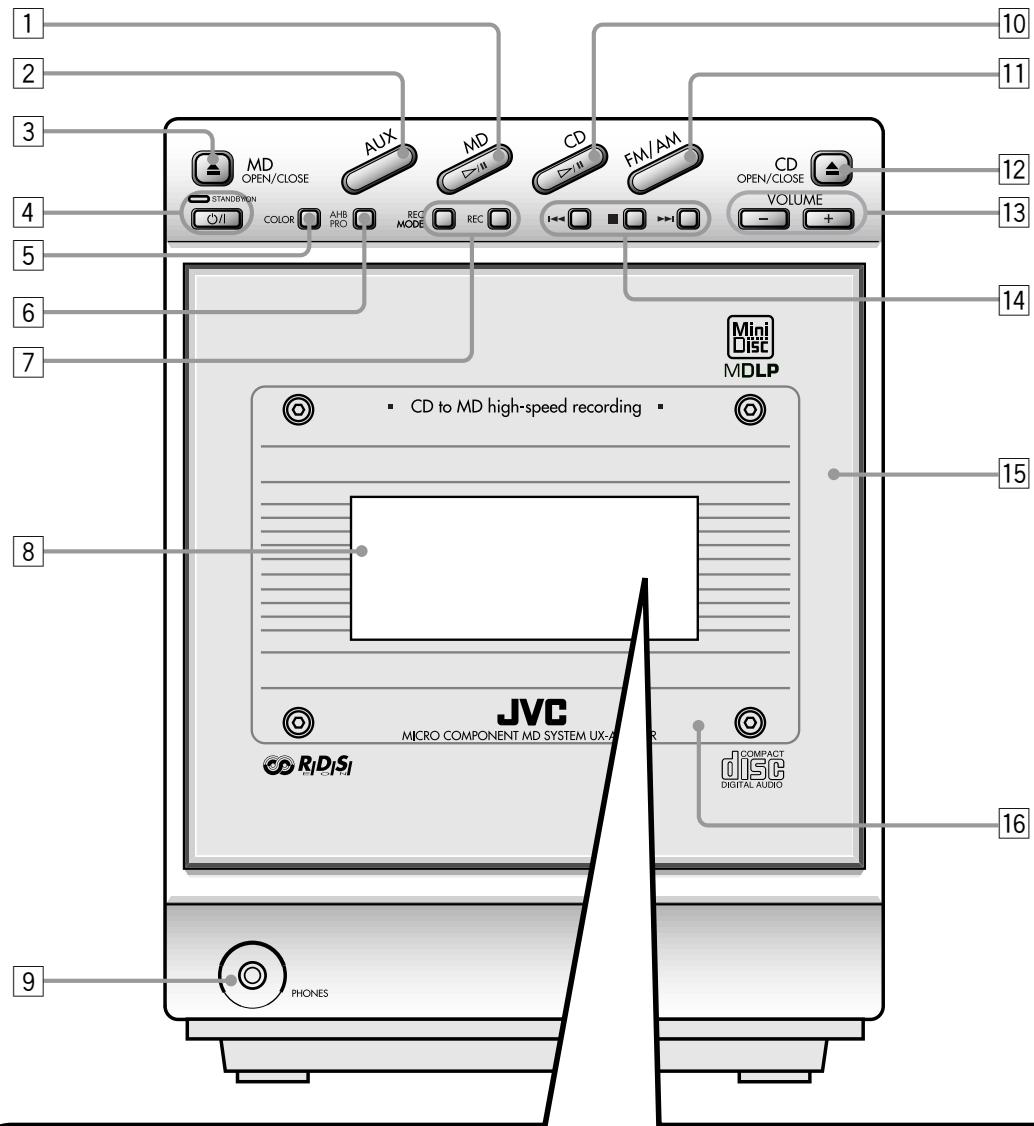
Main unit
Display window on the electronic swing panel
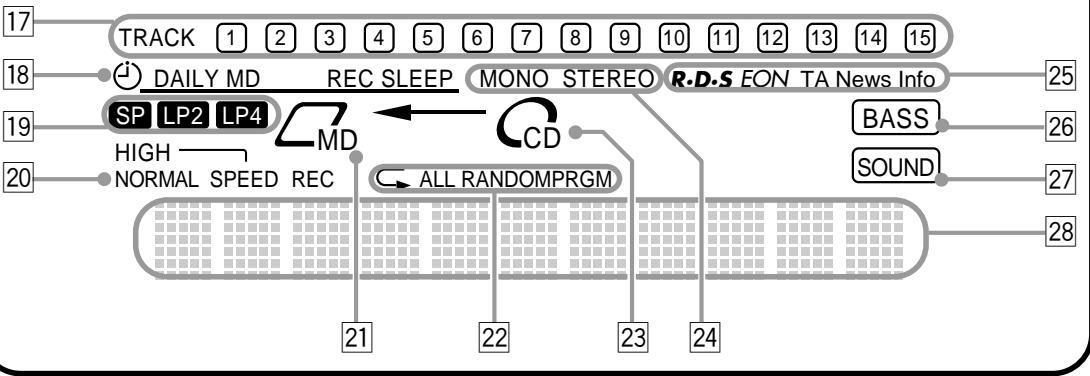
See pages in the parentheses for details.
Main Unit
MD /II (play/pause) button (11, 25)
- Pressing this button also turns on the unit.
AUX button (11, 32)
- Pressing this button also turns on the unit.
MD OPEN/CLOSE button (25, 40)
- Pressing this button also turns on the unit.
4 / I (Standby/On) button and STANDBY/ON lamp (11,13, 43)
5 COLOR button (9, 13)
AHB (Active Hyper Bass) PRO button (12)
7 REC MODE and REC buttons (31, 32)
Display window
9 PHONES jack - stereo mini type (12)
CD /II (play/pause) button (11, 21)
- Pressing this button also turns on the unit.
FM/AM button (11, 15)
- Pressing this button also turns on the unit.
CD OPEN/CLOSE button (21)
- Pressing this button also turns on the unit.
VOLUME - / + buttons (12)
14 Multi operation buttons
- | | (reverse search), (stop),and I (forward search)
Electronic swing panel
Remote sensor
Display window
17 Track number indicators
18 Timer mode indicators (42)
- (Timer), DAILY (Daily Timer), MD REC (Recording Timer), and SLEEP (Sleep Timer)
[19] Recording length mode indicators (25)
- SP, LP2, and LP4
20 HIGH/NORMAL SPEED REC indicators (32)
21 MD indicators (25)
- MD and MD insertion (C)
22 Play mode and Repeat mode indicators (22, 26)
- PRGM (Program), RANDOM, and ALL (Repeat)
23 CD indicators (21)
- CD and CD insertion (C)
24 FM MODE indicators (15)
- MONO and STEREO
25 RDS operation indicators (16, 17)
- RDS, EON, and TA/News/Info
26 BASS indicator (12)
27 SOUND indicator (12)
28 Main display
- Shows the source name and other information.
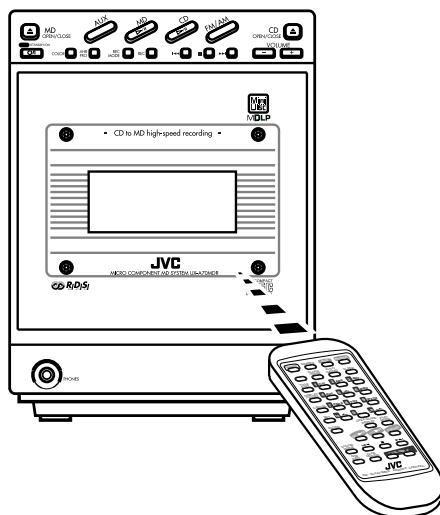
When using the remote control, point it at the remote sensor on the electronic swing panel.

Remote Control
Remote Control
DIMMER button (13)
2 CLOCK/TIMER button (42)
3 COLOR button (9, 13)
4 RDS CONTROL button (16)
5 TITLE/EDIT button (35, 39)
DISPLAY/CHARA(character) button (26, 30, 39)
7 CANCEL button (22, 27, 35, 39, 42)
SET button (13, 15, 29, 35, 39, 42)
ENTER button (35, 40)
10 REPEAT button (23, 27)
11 MD /II (play/pause) button (11, 25)
- Pressing this button also turns on the unit.
12 SOUND MODE button (12)
AHB (Active Hyper Bass) PRO button (12)
14 FADE MUTING button (12)
15 AUX button (11, 32)
- Pressing this button also turns on the unit.
FM MODE button (15)
17 O/(Standby/On) button (11, 13, 43)
SLEEP button (45)
19*Number buttons
- 1 - 10, +10 buttons
- Character entry buttons (A-Z, 0-9)
- /—buttons
- PTY, EON, DISPLAY, and SELECT -/+ buttons (16, 17)
20 PLAY MODE button (22, 26)
21 FM/AM button (11, 15)
- Pressing this button also turns on the unit.
22 CD /II (play/pause) button (11, 21)
- Pressing this button also turns on the unit.
23 Multi operation buttons
- (reverse search), (stop), and (forward search)
24 VOLUME - / + buttons (12)
- When using the remote control:
For RDS operations, press and hold RDS CONTROL on the remote control while using the buttons - PTY, EON, DISPLAY, and SELECT - / + buttons.
Unpacking
After unpacking, check to be sure that you have all the following items.
The number in the parenthesis indicates the quantity of the pieces supplied.
FM antenna (1)
- AM (MW/LW) loop antenna (1)
- AC power cord (1)
Remote control (1)
- Batteries (2)
- Spacers (2)
If any is missing, consult your dealer immediately.
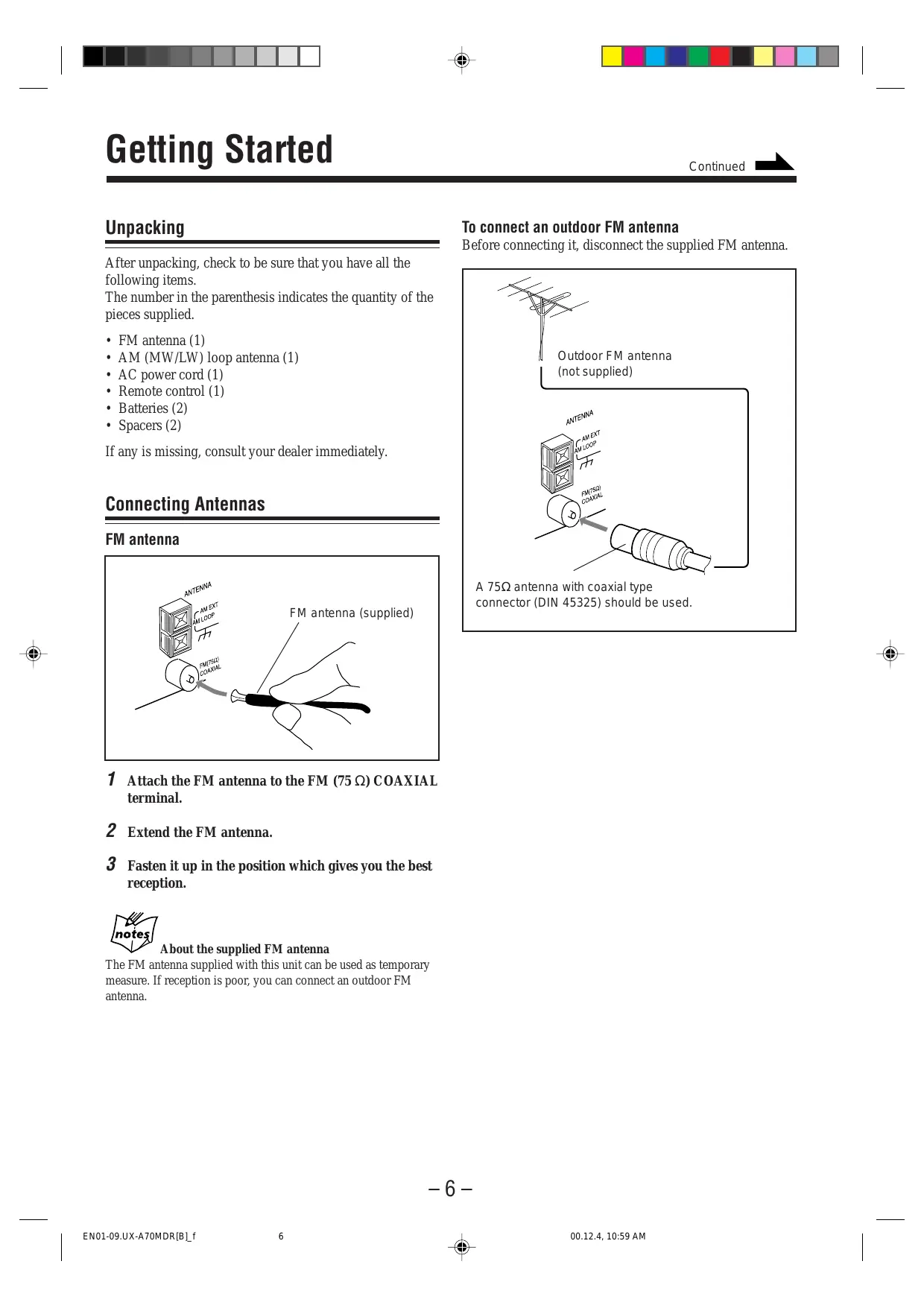
Connecting Antennas
FM antenna
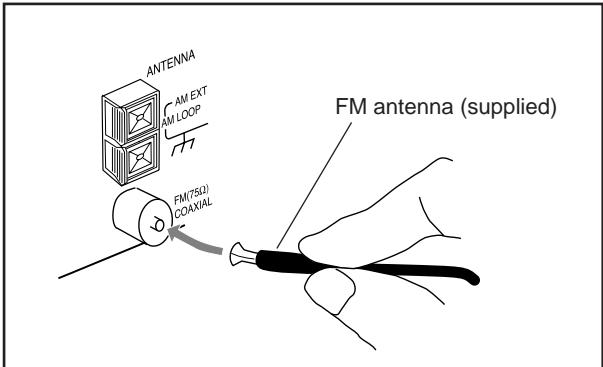
1 Attach the FM antenna to the FM (75 Ω) COAXIAL terminal.
2 Extend the FM antenna.
3 Fasten it up in the position which gives you the best reception.

About the supplied FM antenna
The FM antenna supplied with this unit can be used as temporary measure. If reception is poor, you can connect an outdoor FM antenna.
To connect an outdoor FM antenna
Before connecting it, disconnect the supplied FM antenna.
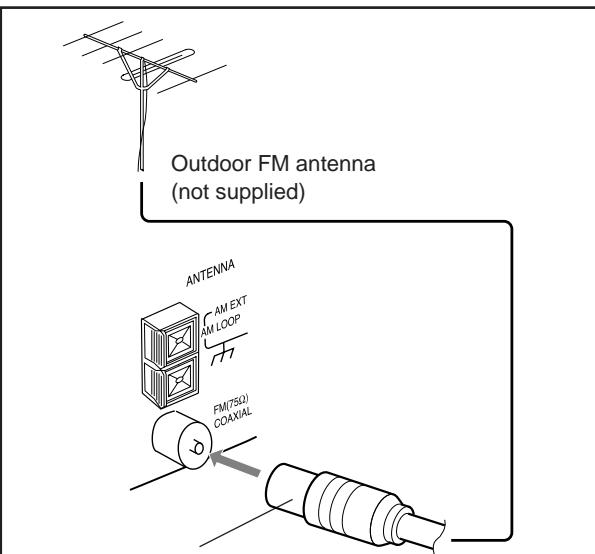
A 75 antenna with coaxial type connector (DIN 45325) should be used.
AM (MW/LW) antenna
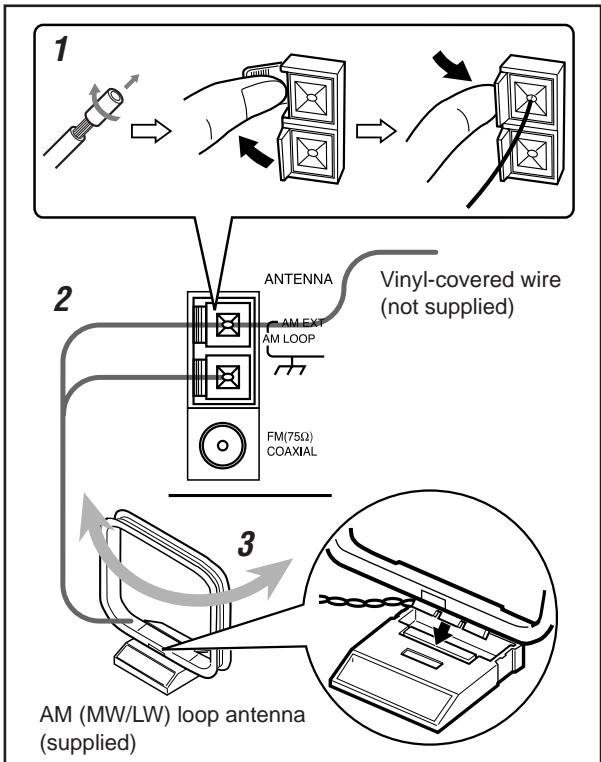
1 If cords are covered with insulation, twist the core of the cord at the end of each cord, then remove the insulation.
2 Connect the AM (MW/LW) loop antenna to the AM LOOP terminals as illustrated.
3 Turn the AM (MW/LW) loop antenna until you have the best reception.
To connect an outdoor AM (MW/LW) antenna
When reception is poor, connect a single vinyl-covered wire to the AM EXT terminal and extend it horizontally. The AM (MW/LW) loop antenna must remain connected.

For better reception of both FM and AM (MW/LW)
- Make sure the antenna conductors do not touch any other terminals and connecting cords.
- Keep the antennas away from metallic parts of the unit, connecting cords, and the AC power cord.
Connecting Speakers
To attach spacers
If you want to put the speakers on the side of the main unit, you need to make a space between the main unit and the right speaker for ventilation.
In this case, attach spacers (supplied) to the right speaker as the illustration below:

By peeling the cover seal from spacers, you can attach them to the right speaker.
To remove the speaker grilles
The speaker grilles are removable as the illustration below:
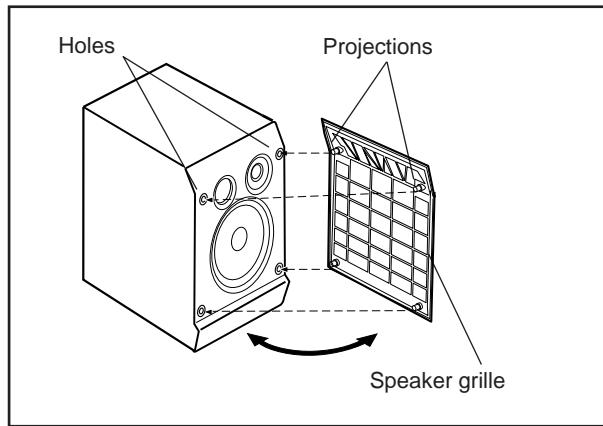
To remove the speaker grille, insert your fingers at the top of the speaker grille, then pull towards you. Also pull the bottom towards you.
To attach the speaker grille, put the projections of the speaker grille into the holes of the speaker.
To connect speakers
You can connect the speakers using the speaker cords.
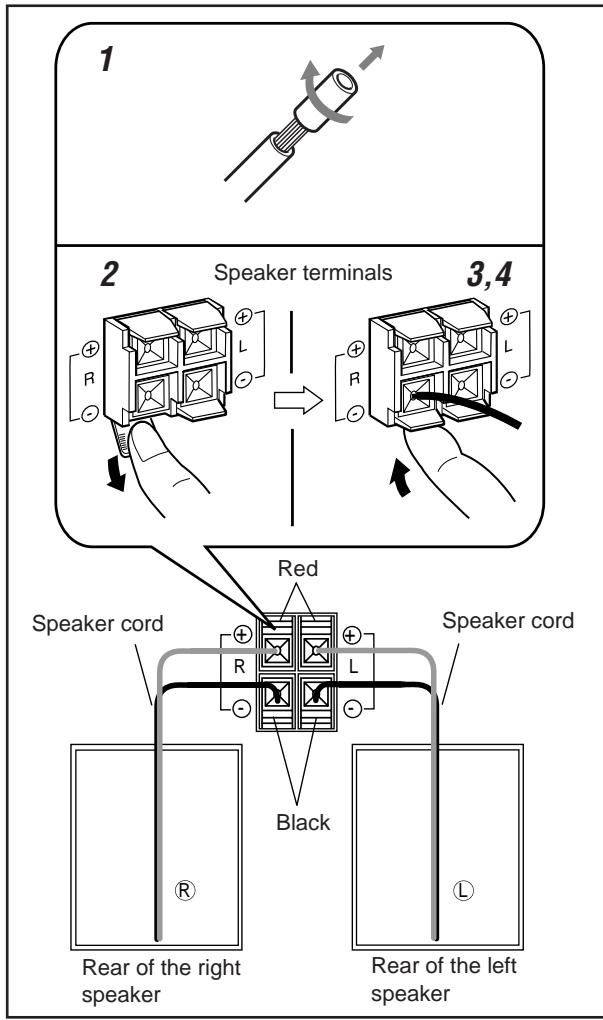
1 If cords are covered with insulation, twist the core of the cord at the end of each cord, then remove the insulation.
2 Open the speaker terminal.
3 Insert the end of the speaker cord to the terminal. Match the polarity of the speaker terminals: White (+) to red (+) and black (-) to black (-).
4 Close the speaker terminal on the rear of the unit.
Use only speakers with the same speaker impedance as indicated by the speaker terminals on the rear of the unit.
Connecting Other Equipment
You can connect the following equipment which can be used as a playback and recording device. By using the cassette deck, for example, you can record any source played back on this unit.
When you connect and use the equipment, refer also to its manual supplied.

DO NOT connect other equipment while the power is on.
- DO NOT plug in any equipment until all connections are complete.
To connect another component such as a cassette deck
Be sure that the plugs of the audio cords and the jacks on the rear of the unit are color-coded: White plugs and jacks are for left audio signals, and red ones for right audio signals.
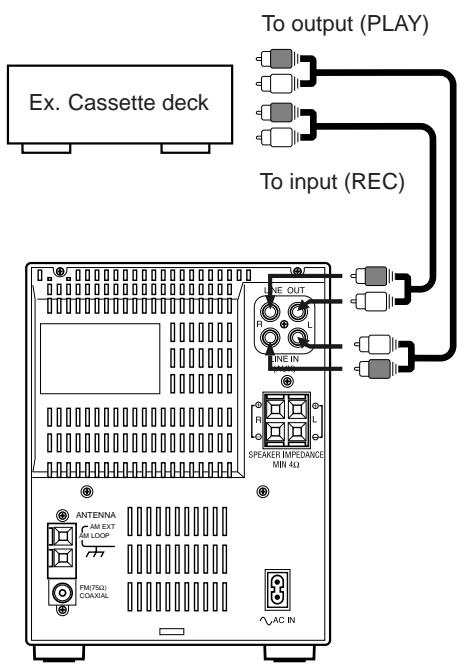
By using audio cords (not supplied), connect:
- Between the audio input jacks on the cassette deck and the LINE OUT jacks — For recording on the cassette deck.
- Between the audio output jacks on the cassette deck and the LINE IN jacks — For playing a tape.
NOW, you can plug in the unit and other connected equipment FINALLY!
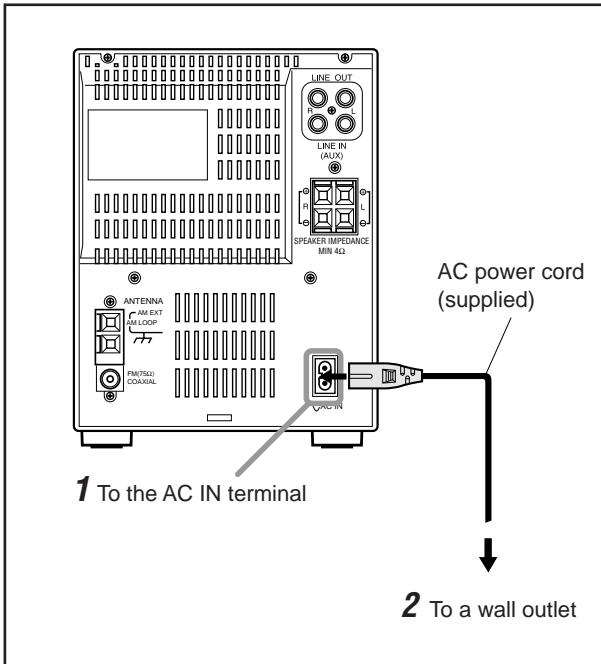
When connecting the AC power cord into a wall outlet, the unit automatically starts display demonstration.
To stop and cancel the display demonstration, press COLOR during display demonstration while the unit is turned off.
To start the display demonstration manually, press COLOR while the unit is turned off.
Each time you press the button, the display demonstration alternates between on and off.
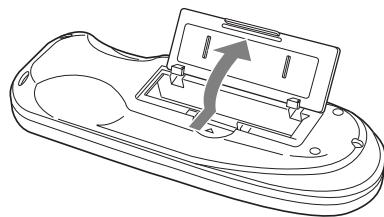
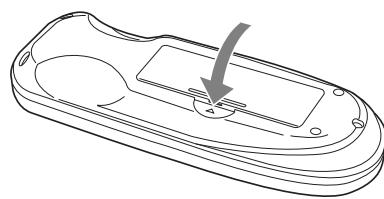
Putting the Batteries into the Remote Control
Insert the batteries — R6P(SUM-3)/AA(15F) — into the remote control, by matching the polarity (+ and -) on the batteries with the + and - marking on the battery compartment.
When the remote control can no longer operate the unit, replace both batteries at the same time.
1

2
3

DO NOT use an old battery together with a new one.
- DO NOT use different types of batteries together.
DO NOT expose batteries to heat or flame.
- DO NOT leave the batteries in the battery compartment when you are not going to use the remote control for an extended period of time. Otherwise, it will be damaged from battery leakage.
The buttons enlarged clearly in the illustration below are used and explained in this section (pages 11 to 13).
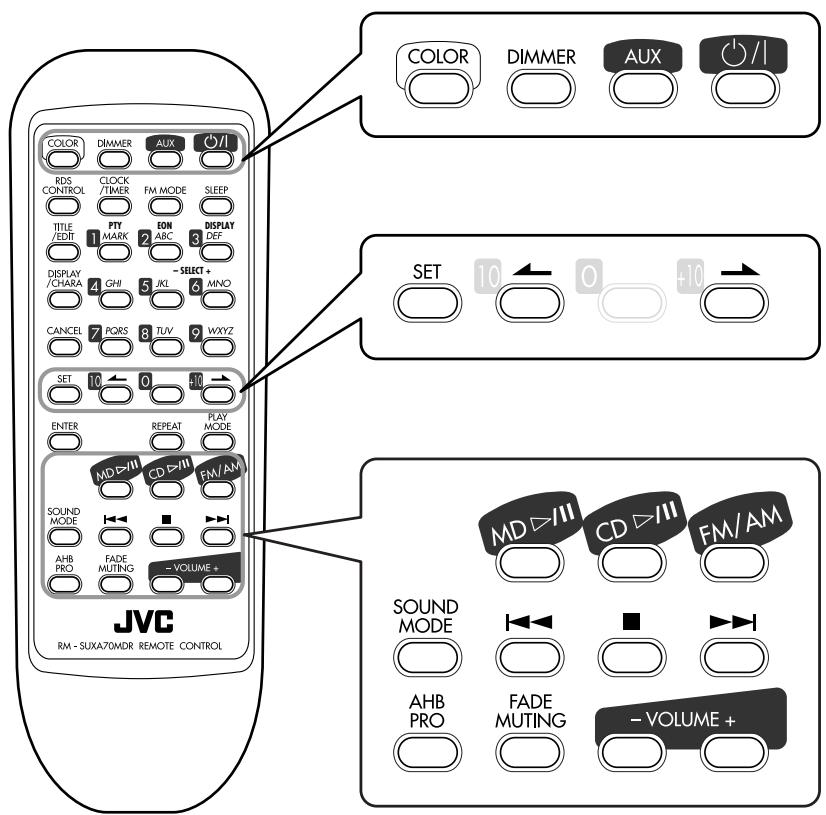
Remote control
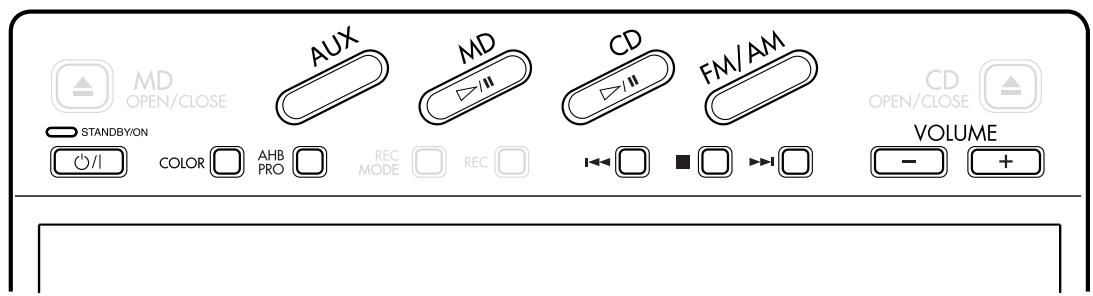
Main unit
Turning On the Power
When you press the play button (CD / II, MD / II) or the source selecting buttons such as FM/AM and AUX, the unit automatically turns on (and starts playback if the source is ready.)
To turn on the unit without playing, press / 1 The STANDBY/ON lamp on the main unit lights green. "HELLO" appears in the main display.
1110
To turn off the unit (on standby), press / again. "SEE YOU" appears in the main display. The STANDBY/ON lamp on the main unit lights red.
1 1 1 1
- "0:00" appears in the main display until you set the built-in clock. After setting the clock, the clock time will appear in the main display while the power is off.
- A little power is always consumed even while the unit is in standby mode.
To set the built-in clock, see page 42.
To switch off the power supply completely, unplug the AC power cord from the AC outlet.

When you unplug the AC power cord or if a power failure occurs
The clock setting, the tuner preset stations and other settings will be erased.
Selecting the Sources and Starting Play
To select the tuner as the source, press FM/AM.
The unit automatically turns on (when the unit is in standby), and "FM" or "AM" appears in the main display for a while.
The unit starts to tune in the last received station.
- For more detailed operations, see pages 14 to 19.
To select the CD player as the source, press CD / II.
The unit automatically turns on (when the unit is in standby), and "CD" appears in the main display for a while.
- Play will start if a CD is on the disc tray.
- "CD NO DISC" will appear in the main display if a CD is not loaded.
To stop playback, press ■.
- For more detailed operations, see pages 20 to 23.
To select the MD player as the source, press MD / II.
The unit automatically turns on (when the unit is in standby), and "MD" appears in the main display for a while.
- Play will start if an MD is in the MD loading slot.
- "MD NO DISC" will appear in the main display if an MD is not loaded.
To stop playback, press ■.
- For more detailed operations, see pages 24 to 27.
To select the external equipment as the source, press AUX.
The unit automatically turns on (when the unit is in standby), and "AUX" appears in the main display for a while.
- For operating the external equipment, see the manuals supplied with them.
Adjusting the Volume
You can adjust the volume level only while the unit is turned on.
To decrease the volume, press VOLUME - . To increase the volume, press VOLUME +.
$$ \begin{array}{l} \dots \dots \dots \dots \dots \dots \dots \dots \dots \dots \dots \dots \dots \dots \dots \dots \dots \dots \dots \dots \dots \dots \dots \dots \dots \dots \dots \dots \dots \dots \dots \tag {VOL.40} \ \dots \dots \quad 1 1 1 1. \quad 2 1 \ \text {V O L . M I N} (\text {V O L . 0}) \ \end{array} $$
- When press and hold each button, you can change the volume level continuously.

For private listening
Connect a pair of headphones to the PHONES jack. No sound comes out of the speakers. Be sure to turn down the volume before connecting or putting on the headphones.

If "CAN NOT LISTEN" appears in the main display
During high-speed recording (see page 30), you cannot listen to any source, and therefore, cannot adjust the volume level.

DO NOT turn off (on standby) the unit with the volume set to an extremely high level; otherwise, the sudden blast of sound can damage your hearing, speakers and/or headphones when you turn on the unit or start playing any source.
REMEMBER you cannot adjust the volume level while the unit is in standby mode.
To turn down the volume level temporarily
On the remote control ONLY:
Press FADE MUTING.
The unit automatically decreases the volume level to "VOL.MIN" at once.
To restore the sound, press FADE MUTING again.
Reinforcing the Bass Sound
The richness and fullness of the bass sound is clearly maintained regardless of how low you set the volume Active Hyper Bass PRO.
- You can use this effect only for playback.
To get the effect, press AHB PRO.
"BASS ON" appears in the main display and the BASS indicator lights on the display.
To cancel the effect, press AHB PRO again.
"BASS OFF" appears in the main display and the BASS indicator goes off from the display.
Selecting the Sound Modes
You can select one of the 3 preset sound modes. The sound modes can be applied only to playback sounds, and cannot be used for recording.
On the remote control ONLY:
To select the sound modes, press SOUND MODE repeatedly until the sound mode you want appears in the main display.
The SOUND indicator also lights on the display.
Each time you press the button, the sound mode changes as follows:

ROCK:
Boosts low and high frequency.
Good for acoustic music.
POP:
Good for vocal music or voice.
CLASSIC:
Good for classical music.
FLAT:
Cancels the sound mode.
To check the sound mode currently selected, press
SOUND MODE once while the SOUND indicator is lit.
The currently selected sound mode will appear in the main display.
Setting the Display Illumination
You can change the illumination color and brightness of the electronic swing panel and display window.
To set the illumination color
You can select the illumination color by your preference.
1 Press / to turn on the unit.
Press COLOR repeatedly until the color you want appears in the main display.
Each time you press the button, the illumination color changes as follows:
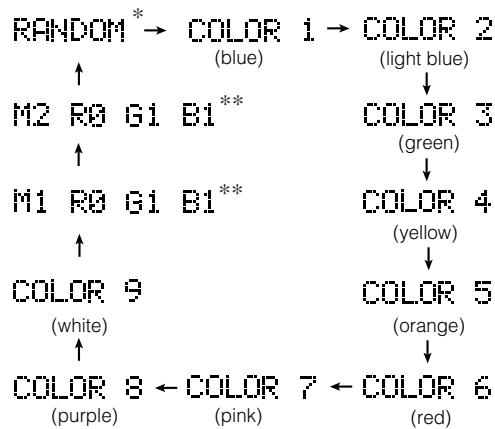
Ex. Both "M1" and "M2" are set to "R0 G1 B1" at the shipment (see also the right column.)
- If you select "RANDOM," the unit will select one from 9 preset colors at random as the illumination color every two seconds automatically.
** If you select "M1" or "M2," you can use a custom color. See "To create your favorite colors" to the right.

More on the display color
- The colors shown in the display cannot always be reproduced precisely. Due to the circumstances (room temperature, etc.) where the unit is used, colors may vary slightly.
- When you change the color of the display, the display may seem to move back and forth; this is a characteristic of this unit and is not a malfunction.
- When a strong light strikes the display, the display happens to become dark, but this is not a malfunction.
To create your favorite colors
You can create two favorite colors and store them in memory as "M1" and "M2."
On the remote control ONLY:
1 Press /| to turn on the unit.
2 Press COLOR repeatedly until "M1" or "M2" appears in the main display.
The value of "R (red)" starts flashing.
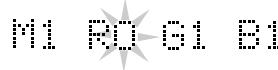
Ex."M1" is selected. "M1" is already set to "R (red) 0 G (green) 1 B (blue) 1."
3 To adjust the brightness of each color
1) Press and to select the color you want to adjust.
2) Press or | repeatedly to adjust the value of the brightness (between 0 - 6.)
- As you increase the number, the color becomes brighter.
3) Repeat steps 3-1) and 3-2) to find your favorite color.
4 Press SET while flashing.
"MEMORY" appears in the main display and the setting is finished.
- Even if you do not press SET, the unit will finish the color setting mode automatically.
To dim the display illumination
To dim the brightness, press DIMMER.
- When you press DIMMER while the illumination color is set to "M1" or "M2," the illumination color is changed to light blue.
To resume the brightness, press DIMMER again.
Listening to FM and AM (MW/LW) Broadcasts
The buttons enlarged clearly in the illustration below are used and explained in this section (pages 15 to 19).
Remote control
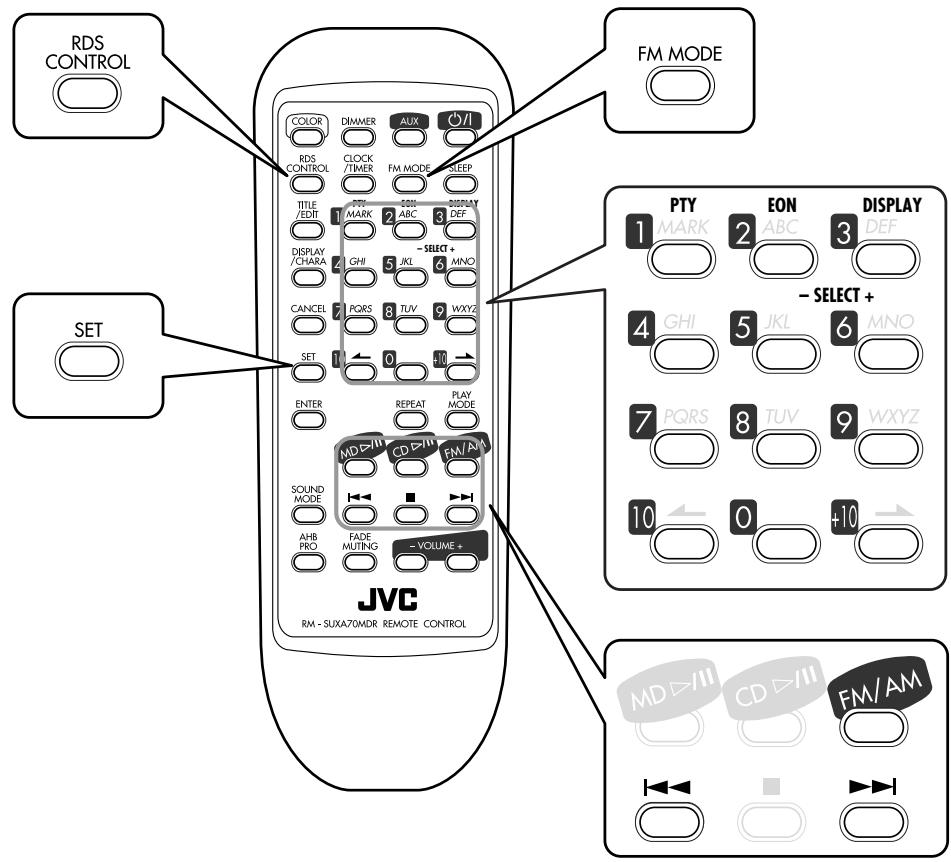
You cannot use the buttons on the main unit to operate the RDS functions. Use only buttons on the remote control.
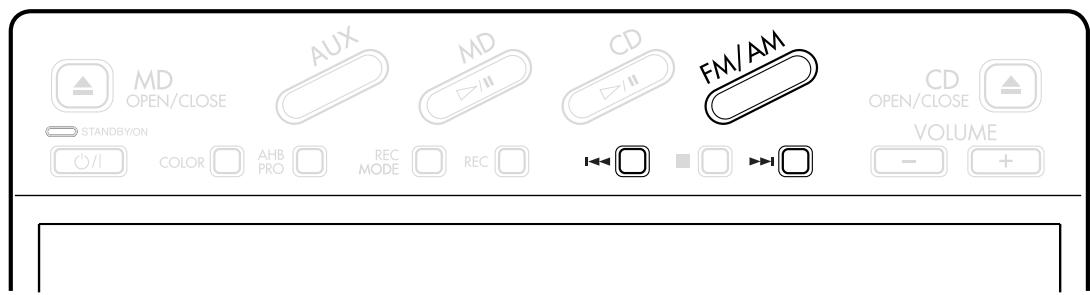
Main unit
Tuning in a Station
1 Press FM/AM.
The unit automatically turns on and tunes in the previously tuned station (either FM or AM-MW/LW.)
Each time you press the button, the band alternates between FM and AM (MW/LW.)
Press and hold or | until the station frequencies start changing continuously in the main display.
- 1 : to increase the frequencies.
- to decrease the frequencies.
The unit starts searching stations and stops when a station of sufficient signal strength is tuned in.
FM 89.00MHz
Ex. An FM station is tuned in.
- If an FM program is broadcast in stereo, the STEREO indicator lights on the display.
To stop during searching, press or 1

When you repeatedly press or
The frequency changes step by step.
To change the FM reception mode
When an FM stereo broadcast is noisy or hard to receive, you can change the FM reception mode to improve the reception.
On the remote control ONLY:
Press FM MODE.
Each time you press the button, FM reception mode alternates between "STEREO" and "MONO."
STEREO: Normally select this.
In this mode, you can hear stereo sound when a program is broadcast in stereo. In addition, static noise between stations will be erased while tuning.
MONO: Select this when an FM stereo broadcast is noisy or hard to receive. Reception improves though stereo effect is lost. The MONO indicator lights on the display.
Presetting Stations
You can preset 30 FM and 15 AM (MW/LW) stations manually.
In some cases, test frequencies have been already memorized for the tuner since the factory examined the tuner preset function before shipment. This is not a malfunction. You can preset the stations you want into memory by following the presetting method.
- There is a time limit in doing the following steps. If the setting is canceled before you finish, start from step 1 again.
On the remote control ONLY:
1 Tune in the station (either FM or AM-MW/LW) you want to preset.
See "Tuning in a Station" to the left.
2 Press SET.
The preset number starts flashing as follows:
- When you select an FM station in step 1

- When you select an AM (MW/LW) station in step 1

- The unit always starts from the preset number 1.
3 Press the number buttons to select a preset number.
Ex. For preset number 5, press 5.
For preset number 15, press +10 , then 5.
For preset number 20, press +10 , then 10.
For preset number 30, press +10 , +10 , then 10.
- You can also select the preset number by pressing
or
4 Press SET again.
"STORED" appears in the main display for a while.
STORED
The tuned station in step 1 is stored in the preset number selected in step 3.
- Storing a new station on a used number erases the previously stored one.

When you unplug the AC power cord or if a power failure occurs
The FM and AM (MW/LW) preset stations will be erased. If this happens, preset the stations again.
Tuning in a Preset Station
On the remote control ONLY:
1 Press FM/AM.
The unit automatically turns on and tunes in the previously tuned station (either FM or AM-MW/LW.)
Each time you press the button, the band alternates between FM and AM (MW/LW.)
2 Press the number buttons to select a preset number.
Ex. For preset number 5, press 5.
For preset number 15, press +10 , then 5.
For preset number 20, press +10 , then 10.
For preset number 30, press +10 , +10 , then 10.
Receiving FM Stations with RDS
RDS allows FM stations to send an additional signal along with their regular program signals. For example, the stations send their station names, as well as information about what type of program they broadcast, such as sports or music, etc.
When tuned to an FM station which provides the RDS service, the RDS indicator lights on the display.
With the unit, you can receive the following types of RDS signals.
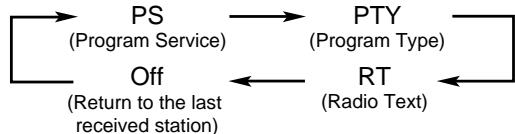
PS (Program Service):
Shows commonly known station names.
PTY (Program Type):
Shows types of broadcast programs.
RT (Radio Text):
Shows text messages the station sends.
EON (Enhanced Other Networks):
Provides the information about the types of the programs sent by other RDS stations than the one being received.
RDS operations are possible only using the remote control. You must press and hold RDS CONTROL while using the buttons printed in orange on the remote control — PTY, EON, DISPLAY, SELECT - / +

More about RDS
- Not all FM stations provide RDS signals, nor do all RDS stations provide the same services. If in doubt, check with local radio stations for details on RDS in your area.
- RDS may not work correctly if the received station is not transmitting the signals properly or if the signal strength is weak.
Changing the RDS Information
You can see RDS information on the display while listening to an FM station.
On the remote control ONLY:
1 While listening to an FM station, press and hold RDS CONTROL until you finish the following procedure.
2 Press DISPLAY.
Each time you press the button, the display changes to show the following information:
3 Release your finger from RDS CONTROL.

If no PS, PTY, or RT signals are sent by a station
"NO PS," "NO PTY" or "NO RT" appears in the main display.

If the unit takes time to show the RDS information received from a station
"WAIT PS," "WAIT PTY," or "WAIT RT" may appear in the main display.
Searching for Programs by PTY Codes (PTY Search)
One of the advantages of RDS is that you can locate a particular kind of program by specifying the PTY codes.
- The PTY Search is applicable only to the preset stations.
- There is a time limit in doing the following steps. If the setting is canceled before you finish, start from step 1 again.
On the remote control ONLY:
1 While listening to an FM station, press and hold RDS CONTROL until you finish the following procedure.
2 Press PTY. "PTY SELECT" appears in the main display.
PTY SELECT
3
Press SELECT - / + to select a PTY code.
The PTY code previously selected starts flashing in the main display.

Ex. "News" is selected.
Each time you press the button, the PTY codes change as follows (refer also to the list on page 19):
News Affairs Info Sport
Educate Drama Culture
Science Varied Pop M Rock M
Easy M Light M Classics
Other M Weather Finance Children
Social Religion Phone In Travel
Leisure Jazz Country Nation M
Oldies Folk M Document TEST
Alarm! (back to the beginning)
4 Press PTY again.
While searching, the selected PTY code and "SEARCH" appear alternately in the main display.

Ex. When "News" is selected as the PTY code.
The unit searches 30 preset FM stations, stops when it finds the one you have selected, and tunes in that station.
5 Release your finger from RDS CONTROL.
To continue searching after the first stop:
Press PTY again when the indications on the display are flashing. If no program is found, "NOT FOUND" appears in the main display and the unit returns to the last received station.
To stop searching any time during the process:
Press PTY when searching.
Switching to a Program Type of Your Choice Temporarily
The EON function allows the unit to switch temporarily to a broadcast program of your choice (TA, News, or Info) from a different station except when you are listening to a non-RDS station — some FM stations and AM (MW/LW) stations.
- The EON indicator lights while receiving a station with the EON code.
- EON function is applicable only to preset stations.
On the remote control ONLY:
1 While listening to an FM station, press and hold RDS CONTROL until you finish the following procedure.
2 Press EON.
"EON SELECT" appears in the main display.
EDH SELECT
3 Press SELECT - / + repeatedly until the EON data type you want is selected.
The name of the selected EON data type starts flashing in the main display, and the indicator appears on the display.
Each time you press SELECT - / + , the EON data types change as follows:
OFF TA News Info (back to the beginning)
TA: Traffic announcement
News: News
Info: Programs the purpose of which is to impart advice in the widest sense.
OFF: EON function is canceled.
4 Press EON again to set the EON data type.
5 Release your finger from RDS CONTROL.
To cancel the EON function, select OFF in step 3 above.
- If you cancel the EON function while receiving a program selected by the EON function, the unit goes back to the previously tuned station.
- You can also cancel the EON function by selecting another source.
How the EON function actually works:
CASE1
If there is no station broadcasting the program you have selected
The unit continues tuning in the current station.

When a station starts broadcasting the program you have selected, the unit automatically switches to the station. The indicator of received PTY code starts flashing.

When the program is over, "EON END" appears in the main display, and the unit goes back to the previously tuned station, but the EON function still remains activated.
CASE 2
If there is a station broadcasting the program you have selected
The unit tunes in the program. The indicator of received PTY code starts flashing.

When the program is over, "EON END" appears in the main display, and the unit goes back to the previously tuned station, but the EON function still remains activated.
CASE 3
If the FM station you are listening to is broadcasting the program you have selected
The unit continues to receive the station but the indicator of received PTY code starts flashing.

When the program is over, "EON END" appears in the main display, and the indicator of received PTY code stops flashing and remains lit, but the EON function still remains activated.
Alarm function
If an "Alarm!" (Emergency) signal is received from a station while listening to the radio, the unit automatically switches to the station broadcasting the "Alarm!" signal, except when you are listening to non-RDS stations (all AM - MW/LW and some FM stations.)
Test function
The TEST signal is used for testing the "Alarm!" signal. Therefore, it makes the unit work in the same way as the "Alarm!" signal does.
If a TEST signal is received from a station while listening to the radio, the unit automatically switches to the station broadcasting the TEST signal, except when you are listening to non-RDS stations (all AM - MW/LW and some FM stations.)

More about the EON function
- EON data sent from some stations may not be compatible with this unit.
- While listening to a program tuned in by the EON function, the station does not change even if another network station starts broadcasting a program of the same EON data.
- While listening to a program tuned in by the EON function, you can only use the EON and DISPLAY buttons as the tuner operation buttons. If you press any other tuner operation button, "EON LOCKED!" appears in the main display.
- If the stations alternate intermittently between the station tuned by the EON function and the currently tuned station ("WAITING" flashes in the main display), press EON to cancel the EON function.
If you do not press the button, the currently tuned station is received finally ("NOT FOUND" appears this time), and the indication of the EON data type flashing on the display disappears.
Description of the PTY codes:
| News: | News. |
| Affairs: | Topical program expanding or enlarging upon the news — debate, or analysis. |
| Info: | Programs the purpose of which is to impart advice in the widest sense. |
| Sport: | Programs concerned with any aspect of sports. |
| Educate: | Educational programs. |
| Drama: | All radio plays and serials. |
| Culture: | Programs concerning any aspect of national or regional culture, including language, theater, etc. |
| Science: | Programs about natural sciences and technology. |
| Varied: | Used for mainly speech-based programs such as quizzes, panel games and personality interviews. |
| Pop M: | Commercial music of current popular appeal. |
| Rock M: | Rock music. |
| Easy M: | Current contemporary music considered to be “easy-listening.” |
| Light M: | Instrumental music, and vocal or choral works. |
| Classics: | Performances of major orchestral works, symphonies, chamber music, etc. |
| Other M: | Music not fitting into any of the other categories. |
| Weather: | Weather reports and forecasts. |
| Finance: | Stock Market reports, commerce, trading etc. |
| Children: | Programs targeted at a young audience. |
| Social: | Programs about sociology, history, geography, psychology and society. |
| Religion: | Religious programs. |
| Phone In: | Involving members of the public expressing their views either by phone or at a public forum. |
| Travel: | Travel information. |
| Leisure: | Programs about recreational activities. |
| Jazz: | Jazz music. |
| Country: | Songs which originate from, or continue the musical tradition of the American Southern States. |
| Nation M: | Current popular music of the nation or region in that country's language. |
| Oldies: | Music from the so-called “golden age” of popular music. |
| Folk M: | Music which has its roots in the musical culture of a particular nation. |
| Document: | Programs concerning factual matters, presented in an investigative style. |
| TEST: | Broadcasts for testing emergency broadcast equipment or receiver. |
| Alarm!: | Emergency announcement. |
Classification of the PTY codes for some FM stations may be different from the above list.
The buttons enlarged clearly in the illustration below are used and explained in this section (pages 21 to 23).
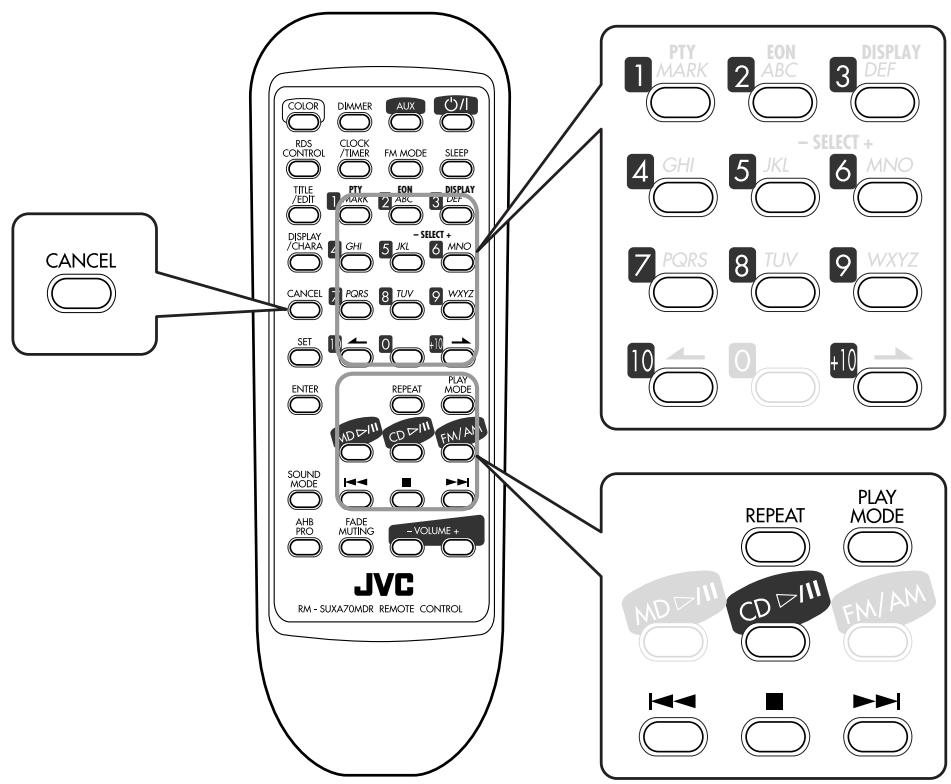
Remote control
Main unit
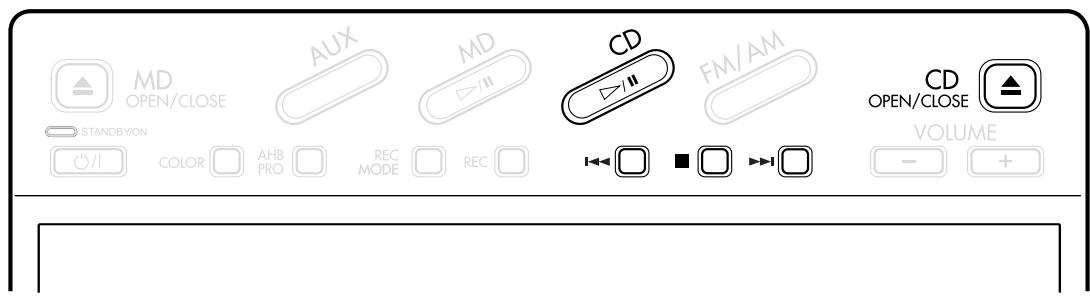
Playing Back the Entire CD — Normal Play
You can play a CD.
1 Press CD OPEN/CLOSE ▲.
The unit automatically turns on, the electronic swing panel slides upward, then the disc tray comes out.
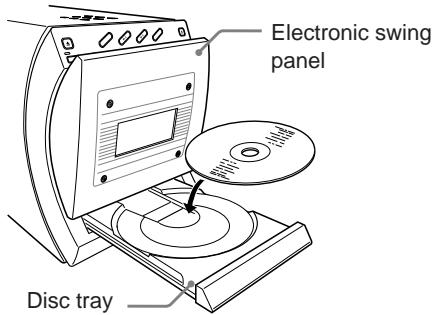
2 Place a CD correctly on the circle of the disc tray with its label side up.
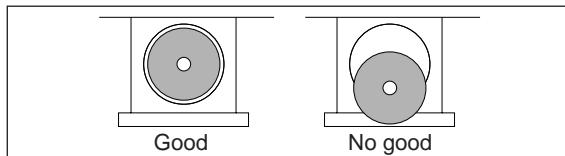
- When using a CD single (8 cm), place it on the inner circle of the disc tray.
3 Press CD / II.
The disc tray closes, then the electronic swing panel slides downward automatically.
The CD indicators start flashing on the display and CD playback starts from the first track of the CD.
- If you press CD OPEN/CLOSE again, the disc tray and electronic swing panel close, but CD playback does not start.
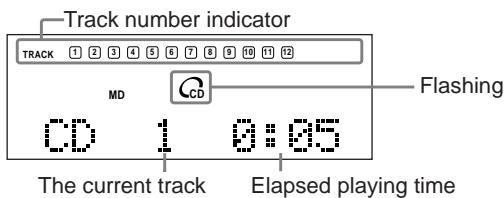
Ex. The CD has 12 tracks and the unit is playing the first track.
- All the track numbers light when the currently loaded CD has more than 15 tracks.
- When the unit finishes playing a track, its track number goes off from the track number indicator on the display.
CD playback stops after playing back all the tracks of the CD.
To stop during play, press
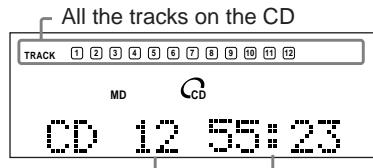
Total track number Total playing time
Ex. The CD playback stops. The CD has 12 tracks.
To remove the disc, press CD OPEN/CLOSE
Basic CD Operations
While playing a CD, you can do the following operations.
To stop playback for a moment
Press CD /II.
The CD indicators light on the display and the elapsed playing time starts flashing in the main display.
To resume playback, press CD / II again.
To locate a particular point in a track during play Press and hold or |
- 1 : Fast-forwards the tracks.
- 1: Fast-reverses the tracks.
To go to another track
Press or repeatedly.
- 1 : Skips to the beginning of the next or succeeding tracks.
- : Goes back to the beginning of the current or previous track.
To go to another track directly using the number buttons (on the remote control ONLY)
Pressing the number button(s) allows you to start playing the track number you want.
Ex.: For track number 5, press 5.
For track number 15, press +10 , then 5.
For track number 20, press +10 , then 10.
For track number 32, press +10 , +10 , +10 , then 2.
Programming the Playing Order of the Tracks — Program Play
You can arrange the order in which the tracks play before you start playing. You can program up to 32 tracks.
On the remote control ONLY:
1 Load a CD.
2 Press CD / II, then ■. The source is changed to "CD."
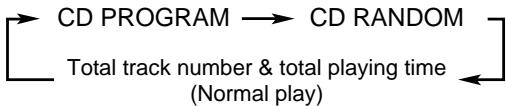
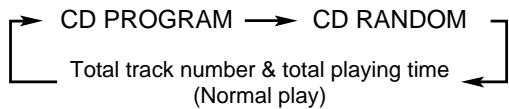
3 Press PLAY MODE so that "CD PROGRAM" appears in the main display.
The PRGM indicator lights on the display.
Each time you press the button, play mode changes as follows:
4 Press the number buttons to select the tracks.
- For how to use the number buttons, see "To go to another track directly using the number buttons (on the remote control ONLY)" on the previous page.
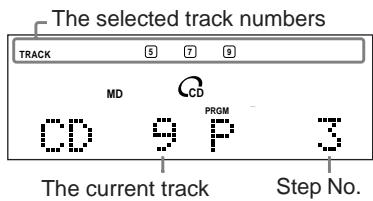
Ex Tracks 5, 7, and 9 have been programmed.
- If you stop pressing the buttons for a while, the total playing time will appear in the main display. However, you can continue selecting the tracks.
5 Press CD / II.
The tracks are played in the order you have programmed.
To stop during play, press
The last programed track number and total playing time appear in the main display.
To exit from Program play mode, press PLAY MODE once or twice so that the unit enters another playback mode (Normal play or Random play mode) before or after play.
To check the program contents
Before playing, you can check the program contents by pressing or
- : Shows the programed tracks in the reverse order.
- ▷▶1: Shows them in the programed order.
To modify the program
Before playing, you can erase the last programed track by pressing CANCEL on the remote control. Each time you press the button, the last programed track is erased from the program.
To add tracks in the program before you start play, simply select track numbers you want to add.
To erase the entire program, press CD OPEN/CLOSE to eject the CD.
- Turning off the unit will also erase the program.

If you try to program a 33rd step
"MEMORY FULL" will appear in the main display.

If your entry is ignored
You have tried to program a track number that does not exist on the CD (for example, selecting track 14 on a CD that only has 12 tracks.) Such entries are ignored.

If the total playing time is 100 minutes or more
The total playing time will not be shown. (--:-- will appear.)
Playing at Random — Random Play
The tracks of a loaded CD will play at random.
On the remote control ONLY:
1 Load a CD.
2 Press CD / II, then I.
The source is changed to "CD."
3 Press PLAY MODE so that "CD RANDOM" appears in the main display.
The RANDOM indicator also lights.
Each time you press the button, play mode changes as follows:
4 Press CD /II.
The tracks are played at random.
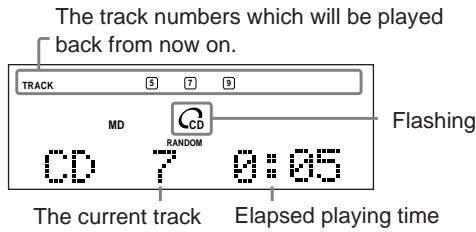
Ex. The unit plays back the last three tracks.
Random play stops when all the tracks are played once.
To skip the current track, press
- You cannot go back to the previous tracks by pressing
To stop during playback, press ■.
To exit from Random play mode, press PLAY MODE once or twice so that the unit enters another playback mode (Normal play or Program play mode) before or after play.
Repeating Tracks — Repeat Play
You can have all the tracks, the program or the individual track currently playing repeat as many times as you like.
On the remote control ONLY:
To repeat play, press REPEAT during or before play. Each time you press REPEAT, Repeat play mode changes as follows:
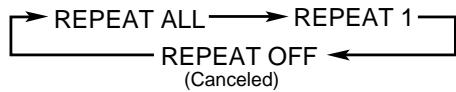
REPEAT ALL: Repeats all the tracks on the CD (in Normal play or Random play mode), or all the tracks in the program. The ALL indicator lights on the display.
REPEAT 1: Repeats one track. The indicator lights on the display.
REPEAT OFF: Cancels the repeat play.
To stop during play, press ■.
The buttons enlarged clearly in the illustration below are used and explained in this section (pages 25 to 27).
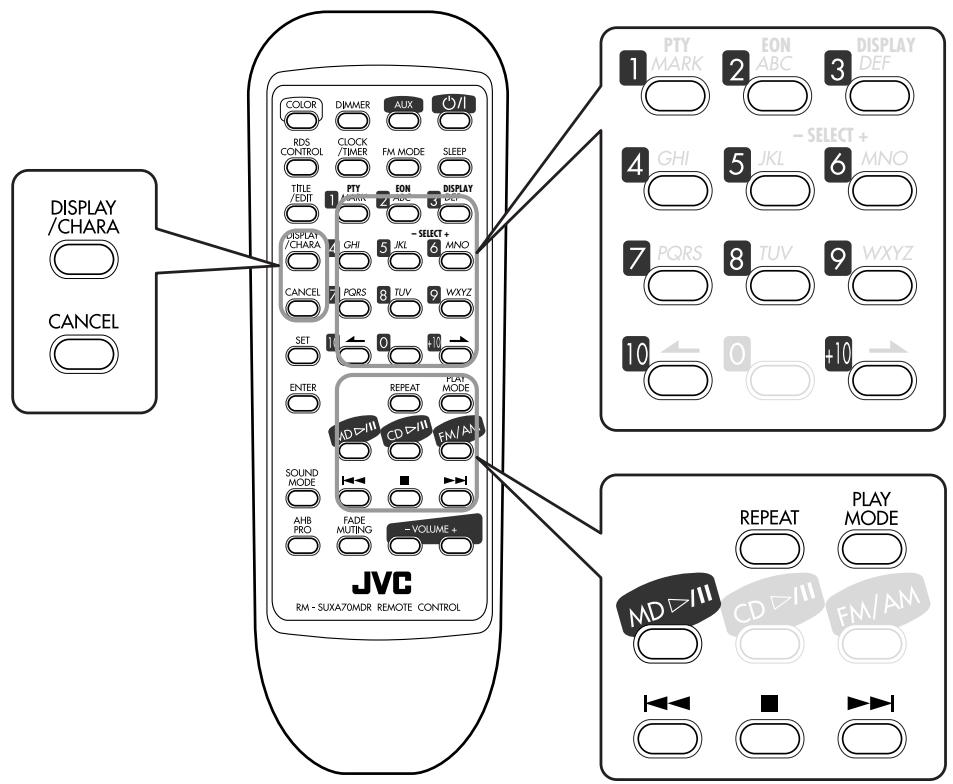
Remote control
Main unit
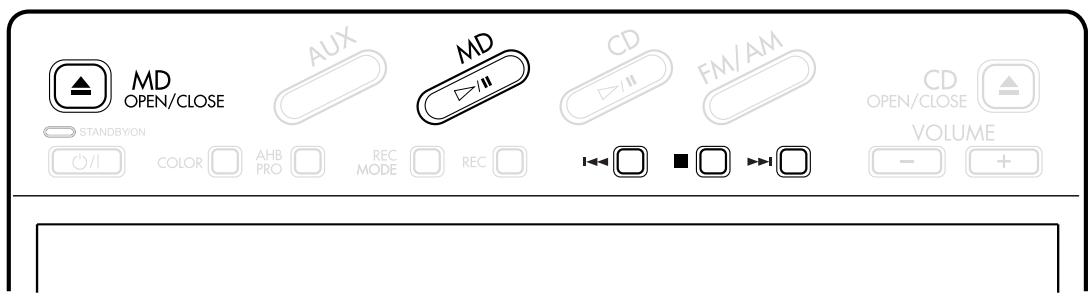
Playing Back the Entire MD — Normal Play
You can play an MD.
On the main unit ONLY:
1 Press MD OPEN/CLOSE ▲.
The unit automatically turns on, the electronic swing panel slides downward, then the MD loading slot appears.
- If an MD is already in the MD loading slot, it will eject.
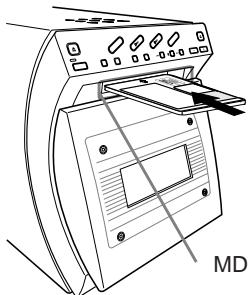
Insert an MD in the same way as indicated on the MD.
MD loading slot
2 Insert an MD into the MD loading slot.
The MD is pulled in, then the electronic swing panel slides upward automatically.
The MD insertion indicator () lights on the display.
- When the current source is MD, the information on the loaded MD appears in the main display as follows:
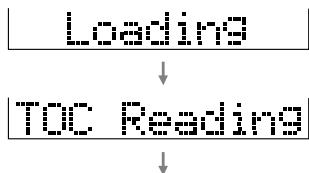
Disk title (when the MD has a disc title)
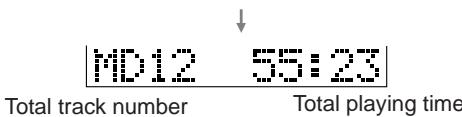
Ex. The MD has 12 recorded tracks.
3 Press MD / II.
The MD indicators flash on the display and MD playback starts from the first track.
The recording length mode indicator (SP/LP2/LP4)* lights on the display.
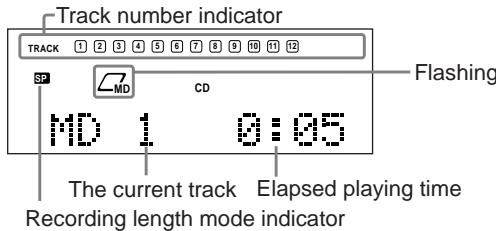
Ex. The MD has 12 recorded tracks and the unit is playing the first track in the SP mode.
- When the unit finishes playing a track, its track number goes off from the track number indicator on the display.
MD playback stops automatically after playing all the tracks on the MD.
To stop during play, press
To remove the disc, press MD OPEN/CLOSE

While the unit is pulling in the MD:
DO NOT press MD OPEN/CLOSE
- DO NOT close the electronic swing panel by force.

If the MD or track has a title
The title will appear in the main display. (If a title is long and cannot be shown at a time, the unit scrolls the title to show the entire title.)

* About recording length mode
MDs are played back in the same recording length mode as they were recorded. When an MD starts playing, the playback mode of the currently playing track lights on the display.
SP: Indicates the tracks recorded in standard stereo recording mode on this unit or those recorded on an MD recorder incompatible with MDLP*.
LP2: Indicates the tracks recorded in 2 times long-hour stereo recording mode.
LP4: Indicates the tracks recorded in 4 times long-hour stereo recording mode.
- MDLP features a new sound compression method (ATRAC3) and a 2 times (or 4 times) long-hour stereo recording and playing function. The MDLP logo is marked on the MD recorders and players compatible with MDLP. It is also marked on MDs pre-recorded in ATRAC3 (excluding recordable MDs.)
Basic MD Operations
While playing an MD, you can do the following operations.
To stop playback for a moment
Press MD II.
The MD indicators lights on the display and the elapsed playing time starts flashing in the main display.
To resume playback, press MD / II again.
To locate a particular point in a track during play
Press and hold or | .
- 1 : Fast-forwards the tracks.
- : Fast-reverses the tracks.
To go to another track
Press or repeatedly.
- 1 : Skips to the beginning of the next or succeeding tracks.
- : Goes back to the beginning of the current or previous tracks.
To go to another track directly using the number buttons (on the remote control ONLY)
Pressing the number button(s) allows you to start playing the track number you want.
Ex.: For track number 5, press 5.
For track number 15, press +10 , then 5.
For track number 20, press +10 , then 10.
For track number 32, press +10 , +10 , +10 , then 2.
To change the information in the main display
On the remote control ONLY:
Each time you press DISPLAY/CHARA, the information on the loaded MD changes as follows:
When you press DISPLAY/CHARA while playing or pausing:
The current track number and elapsed playing time Track title* Remaining recording time The clock time** (back to the beginning)
When you press DISPLAY/CHARA when the MD recorder stops:
The total track number and total playing time Disk title* Remaining recording time The clock time** (back to the beginning)
- When track or disk has a title.
** "0:00" appears in the main display, before you set the built-in clock (see page 42.)
Programming the Playing Order of the Tracks — Program Play
You can arrange the order in which the tracks play before you start playing. You can program up to 32 tracks.
On the remote control ONLY:
1 Load an MD.
2 Press MD / II, then ■. The source is changed to "MD."
Press PLAY MODE so that "MD PROGRAM" appears in the main display.
The PRGM indicator also lights.
Each time you press the button, play mode changes as follows:
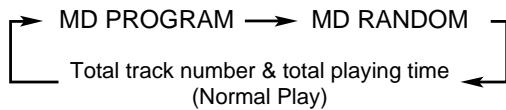
4 Press the number buttons to select the tracks.
- For how to use the number buttons, see "To go to another track directly using the number buttons (on the remote control ONLY)" to the left.
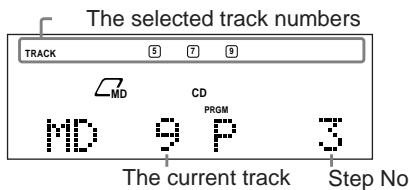
Ex Tracks 5, 7, and 9 have been programmed.
- If you stop pressing the buttons for a while, the total playing time will appear in the main display. However, you can continue selecting the tracks.
5 Press MD / II.
The tracks are played in the order you have programmed.
To stop during play, press ■.
The last programed track number and total playing time appear in the main display.
To exit from Program play mode, press PLAY MODE once or twice so that the unit enters another playback mode (Normal play or Random play mode) before or after play.
To check the program contents
Before playing, you can check the program contents by pressing or
- : Shows the programed tracks in the reverse order.
- ▷▶1: Shows them in the programed order.
To modify the program
Before playing, you can erase the last programed track by pressing CANCEL. Each time you press the button, the last programed track is erased from the program.
To add tracks in the program before you start play, simply select track numbers you want to add.
To erase the entire program, press MD OPEN/CLOSE to eject the MD.
- Turning off the unit will also erase the program.

If you try to program a 33rd step
"MEMORY FULL" will appear in the main display.

If your entry is ignored
You have tried to program a track that does not exist on the MD (for example, selecting track 14 on an MD that only has 12 tracks). Such entries are ignored.

If the total playing time is 150 minutes or more
The total playing time will not be shown. (一 - 一 : 一 - 一 ) will appear.)
Playing at Random — Random Play
The tracks of the loaded MD will play at random.
On the remote control ONLY:
1 Load an MD.
2 Press MD / II, then I.
The source is changed to "MD."
3 Press PLAY MODE so that "MD RANDOM" appears in the main display.
The RANDOM indicator lights on the display.
Each time you press the button, play mode changes as follows:
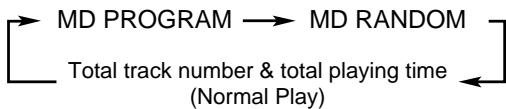
4 Press MD / II.
The tracks are played at random.
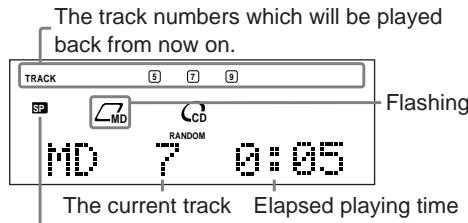
Recording length mode indicator
Ex. The unit plays back the last three tracks.
Random play ends when all the tracks are played once.
To skip the playing track, press
- You cannot go back to the previous tracks by pressing.
To stop during play, press
To exit from Random play mode, press PLAY MODE once or twice so that the unit enters another playback mode (Normal play or Program play mode) before or after play.
Repeating Tracks — Repeat Play
You can have all the tracks, the program or the individual track currently playing repeat as many times as you like.
On the remote control ONLY:
To repeat play, press REPEAT during or before play.
Each time you press REPEAT, Repeat play mode changes as follows:
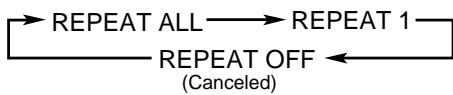
REPEAT ALL: Repeats all the tracks on the MD (in Normal play or Random play mode), or all the tracks in the program. The ALL indicator lights on the display.
REPEAT 1: Repeats one track.
The indicator lights on the display.
REPEAT OFF: Cancels the repeat play.
To stop during play, press
The buttons enlarged clearly in the illustration below are used and explained in this section (pages 29 to 32).
For recording operations, you mainly use the buttons on the main unit.
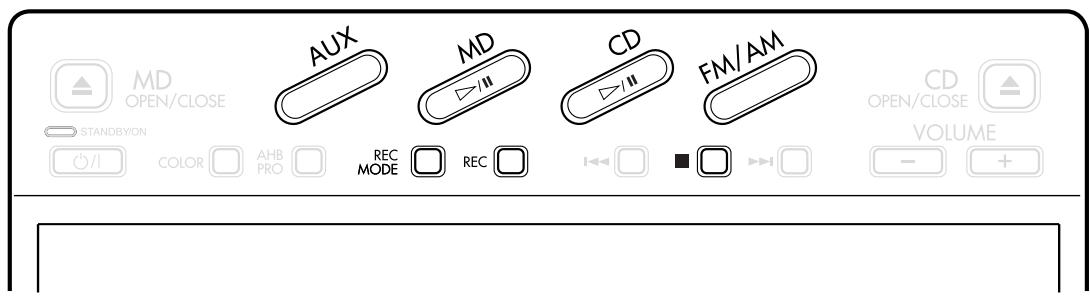
Main unit
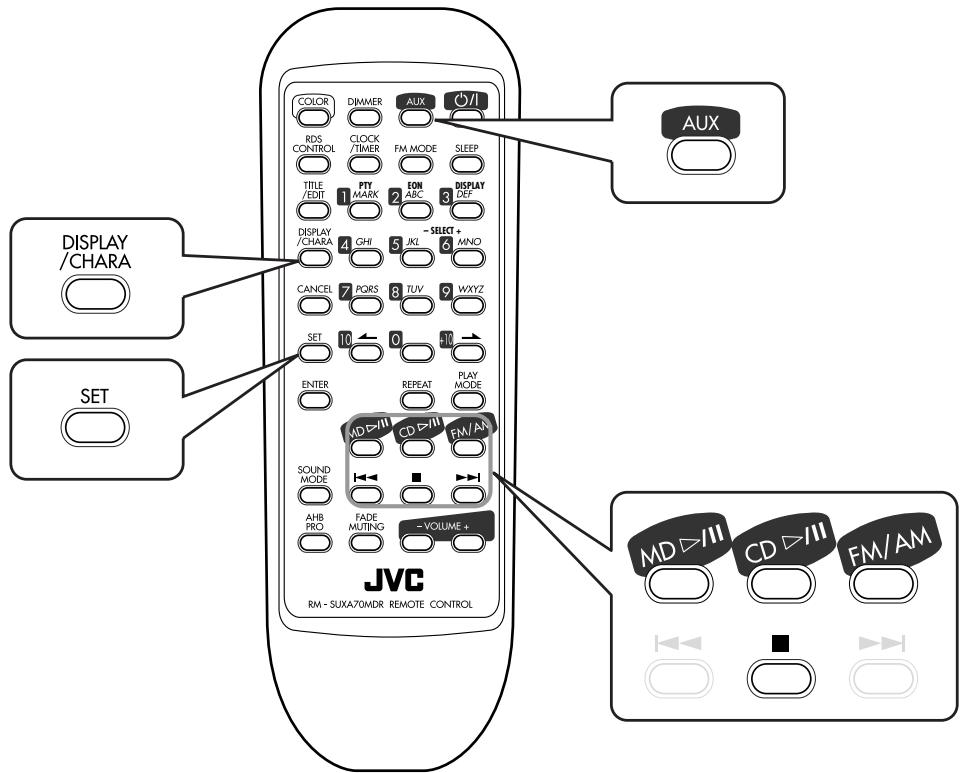
Remote control
Before You Start Recording
- It may be unlawful to record or play back copyrighted material without the consent of the copyright owner.
- When you record onto partially recorded MD, its contents are not erased or overwritten. The recording starts from the point following the last recorded track of the MD. If you want to record on such an MD from the beginning, you have to erase its contents first (see "ALL ERASE Function" on page 37).
- When an MD is fully recorded, recording will stops automatically.
- The recording level is automatically set correctly, so it is not affected by the VOLUME control. Thus, during recording you can adjust the sound you are actually listening to without affecting the recording level.
- While recording, you can hear sound mode effect and/or the AHB PRO (Active Hyper Bass PRO) effect through the speakers or headphones. However, the sound is recorded without these effects (see pages 12).
- You can make a digital recording from a CD onto an MD.
When selecting FM/AM or AUX as the source, you can make an analog recording only. - You cannot record more than 254 tracks onto an MD, though there is a still enough remaining recording time on it.
About the track marks
When playing an MD, you can move among the tracks. You can do this because there is a mark recorded at the beginning of each track enabling you to locate the track. This mark is called a "track mark" and the portion between two adjacent track marks is called a "track."
- When recording from an analog source such as FM/AM broadcasts, no track mark is recorded on the MD. This means that, when playing this MD, the MD recorder will regard the entire recording as one track (track 1). You will not be able to select directly a song or navigate through songs.
However, if there is a blank of 3 seconds or more, the MD recorder will consider it as a blank separating 2 tracks and consequently put a track mark.
To put a track mark manually while recording an analog source, press SET on the remote control at the place you want to put a track mark.
To add a track mark after recording is over, you can use the DIVIDE function (see page 35).
To avoid erasing important recordings
The recordable MD has an erasure prevention tab so that important recordings are not accidentally erased. When you finish recording or editing, slide to open the erasure prevention tab on the cartridge side surface. New recording or editing is now no longer possible. (If you try to do, "DISC PROTECTED" appears in the main display.) To do re-recording or editing, return the tab to the closed position.
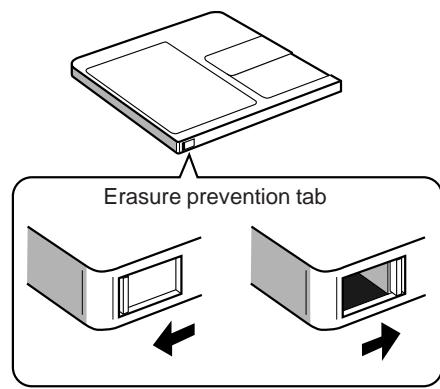
Recording/Editing possible
Disc protected: Recording/Editing not possible

If "PLAY BACK" appears in the main display when you try to record on an MD
The MD is only for playback use, not for recording.
Stereo Long-Hour Recording (MDLP)
On conventional MD recorders, 2 times long-hour recording on MDs has been possible only in monaural sound, but this unit allows for 2 times or 4 times long-hour recording without losing stereo sound.
With this feature, songs (tracks) can be recorded on a single MD using different recording length modes — SP: Standard Play, LP2: 2 Times Long Play, LP4: 4 Times Long Play.
SP: Signifies standard-hour stereo recording. The number of hours usable for recording is the same as shown on the package of the MD.
LP2: Signifies 2 times long-hour stereo recording. The number of hours usable for recording is twice as long as shown on the package of the MD.
LP4: Signifies 4 times long-hour stereo recording. The number of hours usable for recording is 4 times as long as shown on the package of the MD.
REMEMBER to check the remaining recording time of MDs before starting recording
The remaining recording time of MDs will be calculated and shown, based on the recording length mode (SP/LP2/ LP4) currently selected.
Before starting recording or using the Recording Timer, check the recording time remaining on the MD for each recording length mode (SP/LP2/LP4) and select the optimum recording length mode.
To check the remaining recording time
1 Load an MD to record on.
2 Press MD / II, then press to select MD as the source.
3 Press DISPLAY/CHARA repeatedly until "REM." and the remaining time appears in the main display.
Precautions for performing long-hour stereo recording
After having made long-hour stereo recordings on this unit, pay attention to the following:
- Songs (tracks) recorded in 2 times or 4 times long-hour recording mode can only be played back on the equipment provided with MDLP, compatible with a long-hour stereo recording function; otherwise, "LP:" is displayed before a title and playback proceeds without sounds.
- When editing songs (tracks) on an MD, you cannot join (JOIN) songs (tracks) recorded in different recording length modes (SP/LP2/LP4).

More about MDLP
- You cannot make a long-hour monaural recording using this unit.
- Sound quality will decrease as the recording length mode changes to LP2 (little) and LP4 (much). To obtain the best sound quality, it is recommended to use the SP mode when recording.
About High-Speed Recording
The time for high-speed recording is half as long as the time for normal speed recording.
There are some restrictions to observe for high-speed recording (exceeding normal speed) to protect copyrights. (HCMS: see page 48.)
This unit is so designed that a song (track) recorded from a CD using high-speed recording cannot be re-recorded until 74 minutes elapse after the previous recording started.
If you try to re-record the same song (track) within the 74 minutes, recording is canceled and "HCMS CAN NOT COPY" appears in the main display as a warning.
The remaining time required until re-recording will then appear in the main display.
If this happens, press after the remaining time appears. CD playback stops.
REMEMBER if you are trying to record a program including the same song (track) twice using high-speed recording, recording will stop at the beginning of the 2nd recording of the same song (track). ("HCMS CAN NOT COPY" will appear in the main display.)

During high-speed recording
You cannot listen to any source, and therefore, cannot adjust the volume level. ("CAN NOT LISTEN" will appear if you try to do.)
Recording FM/AM (MW/LW) Broadcasts
You have three methods (MODE 1 - 3) to record from an FM/AM (MW/LW) broadcast onto an MD.
| Recording mode | Recording length mode* | Recording Speed |
| MODE 1 | SP | NORMAL SPEED REC |
| MODE 2 | LP2 | NORMAL SPEED REC |
| MODE 3 | LP4 | NORMAL SPEED REC |
- For the recording length mode, see "Stereo Long-Hour Recording (MDLP)" on page 30.
On the main unit ONLY:
1 Insert a recordable MD in the MD loading slot.
- If the MD playback starts, press to stop it.
2 Press FM/AM, then tune into a station you want.
- For more detailed operations, see pages 15 and 16.
3 Press REC MODE to select a recording mode you want.
The MD indicators start flashing.
Each time you press the button, the recording mode changes as follows:
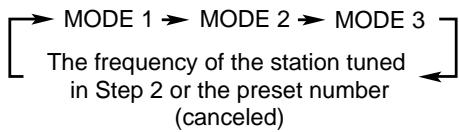
4 Press REC.
The recording starts.
To put a track mark manually while recording, press SET on the remote control at the place you want.
To stop recording, press
"UTOCwriting" flashes for a while.
Recording CD — CD Synchronized Recording
You have six methods (MODE 1 - 6) to record from a CD onto an MD.
Using these synchronized recording methods, you can start and stop CD play and MD recording at the same time.
| Recording mode | Recording length mode* | Recording Speed** |
| MODE 1 | SP | NORMAL SPEED REC |
| MODE 2 | LP2 | NORMAL SPEED REC |
| MODE 3 | LP4 | NORMAL SPEED REC |
| MODE 4 | SP | HIGH SPEED REC |
| MODE 5 | LP2 | HIGH SPEED REC |
| MODE 6 | LP4 | HIGH SPEED REC |
- For the recording length mode, see "Stereo Long-Hour Recording (MDLP)" on page 30.
** For the high-speed recording, see "About High-Speed Recording" on page 30.
On the main unit ONLY:
1 Insert a recordable MD into the MD loading slot.
- If the MD playback starts, press to stop it.
2 Prepare a CD.
After placing a CD, press CD /■, then ■ before going to the next step.
- You can make a program (see page 22) or select Random play mode (see page 23) if you want.
3 Press REC MODE to select the recording mode you want.
The MD indicators and CD indicators start flashing.
Each time you press the button, the recording modes change as follows:

4 Press REC.
The recording starts.
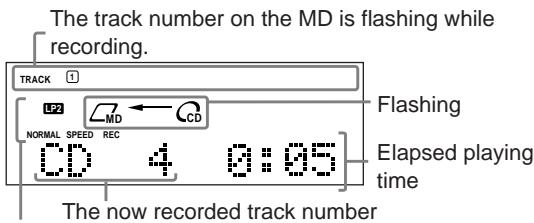
Recording length and speed
Ex. The track 4 of a CD is now recorded on the track 1 of an MD with MODE 2 (LP2, NORMAL SPEED REC) selected.
After the recording, both the CD player and the MD recorder stop automatically.
To stop recording, press
"UTOCwriting" flashes for a while.
To record a single track during play or pause
While playing back or pausing a CD track you want to record, perform steps 3 and 4.
The playback of that CD track is stopped, and the same track starts playing from the beginning again. This time, the MD recorder starts recording the CD track.
- When the track is recorded, both the CD player and the MD recorder stop.

When recording from a CD
Two track marks may be recorded at the beginning of the recording. If this occurs, join these two track marks using the JOIN function described on page 35.
Recording the External Equipment — Sound Synchronized Recording
With this recording method, you can start recording automatically when the source sound comes into this unit through the LINE IN jacks.
Sound synchronized Recording will stop automatically if no sound comes into for more than 30 seconds.
You have three methods (MODE 1 - 3) to record from the external equipment onto an MD.
| Recording mode | Recording length mode* | Recording Speed |
| MODE 1 | SP | NORMAL SPEED REC |
| MODE 2 | LP2 | NORMAL SPEED REC |
| MODE 3 | LP4 | NORMAL SPEED REC |
- For the recording length mode, see "Stereo Long-Hour Recording (MDLP)" on page 30.
On the main unit ONLY:
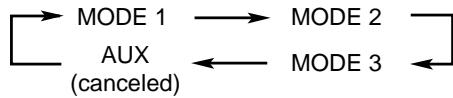
1 Insert a recordable MD into the MD loading slot. If the MD playback starts, press to stop it.
2 Press AUX. The source is changed to "AUX."
3 Press REC MODE to select the recording mode. Each time you press the button, the recording modes change as follows:
4 Press REC. "AUX Ready" appears in the main display.

5 Start playback on the external equipment. Sound synchronized recording starts automatically when the sound comes into this unit.
To put a track mark manually while recording, press SET on the remote control at the place you want.
To stop recording, press. "UTOCwriting" flashes for a while.
The buttons enlarged clearly in the illustration below are used and explained in this section (pages 34 to 37).
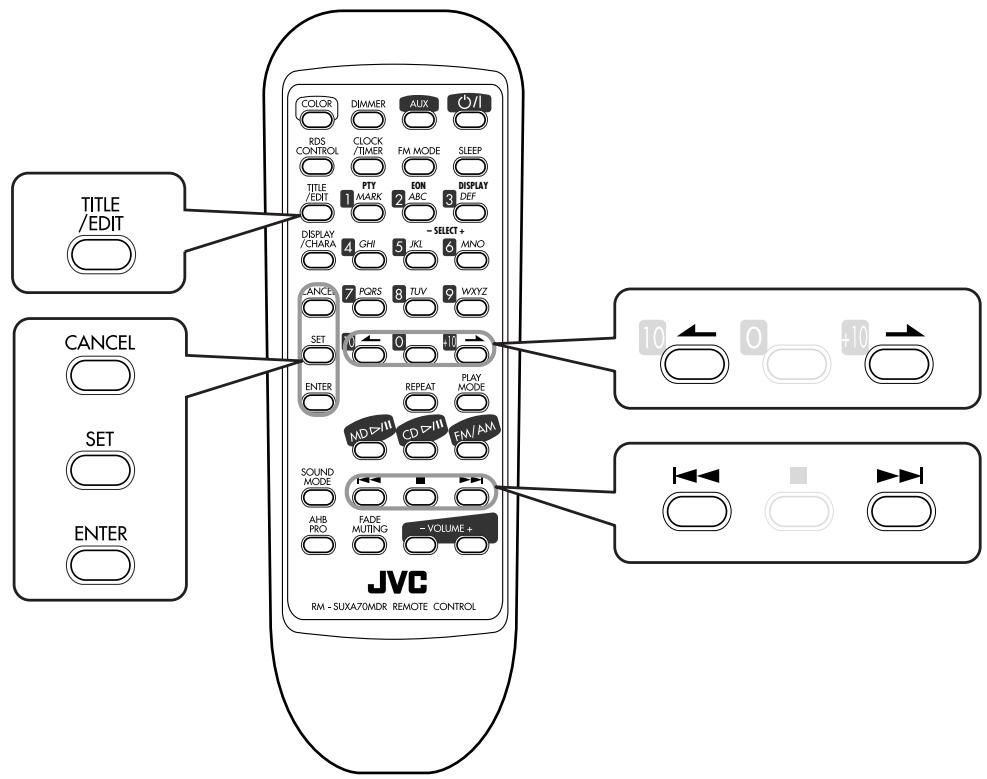
Remote control
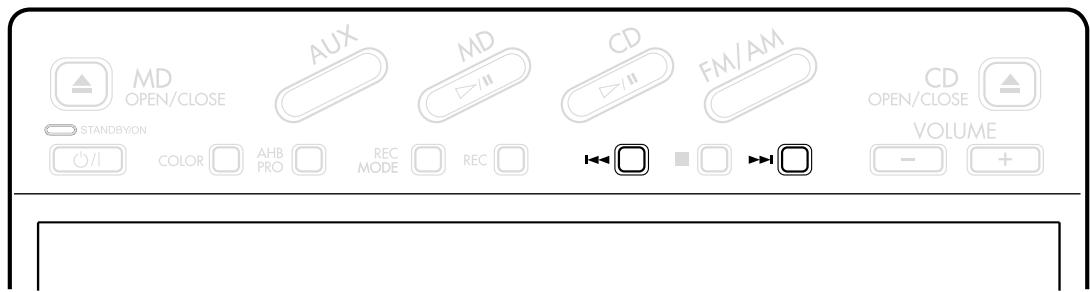
Main unit
A recorded MD can be edited in many ways. The MD editing functions include dividing, joining, moving, erasing tracks, erasing the entire disc, and more than one of them can be combined as required.
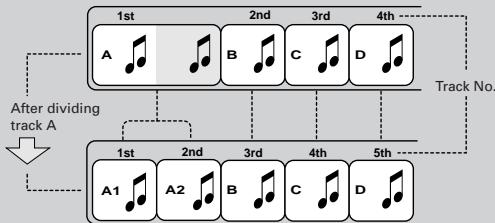
Dividing a track (DIVIDE) : Page 35
This function divides a track by adding a track marking(s) in the desired point(s) in the middle or where you want to search later.
Joining a track (JOIN) : Page 35
This function joins two adjacent tracks into a single track by deleting a track marking.
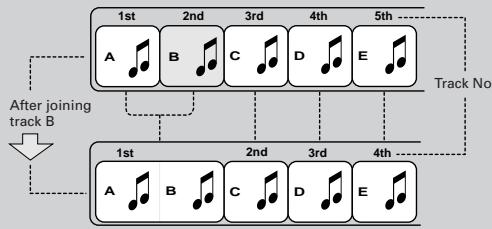
Moving a track (MOVE) : Page 36
This function moves a track by reordering the track numbers.

Erasing a track (ERASE) : Page 37
This function erases selected tracks. After the erasure, the subsequent tracks are justified and their track numbers are renumbered automatically. You can erase up to 15 tracks at a time.
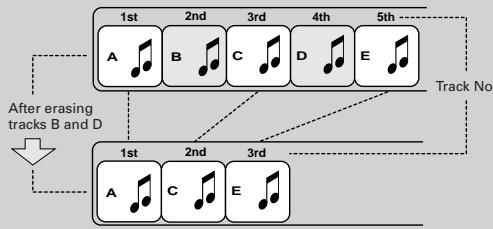
Erasing all tracks (ALL ERASE) : Page 37
This function erases data in a disc entirely.
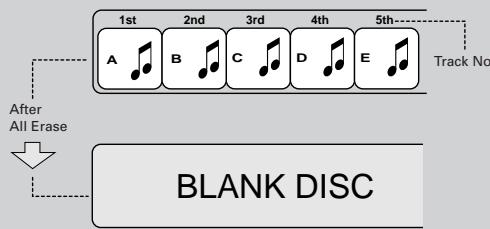
Erasing a portion of a track
By combining "DIVIDE," "ERASE" and "JOIN," for example, it is possible to erase only a part of an existing track.
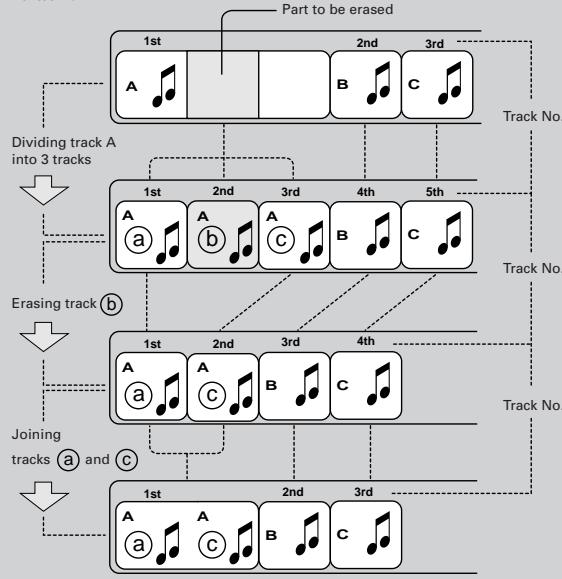
If "PLAY BACK" or "DISC PROTECTED" appears when you try to edit an MD
You cannot edit such MDs. See page 49.
You can also assign titles to MDs and/or tracks (See page 39.)
A title can be assigned to a track or disc. Once a title is assigned, it is displayed in later playback for confirmation.
Each title can be composed of up to 61 characters, and can be input using alphabetic characters (uppercase and lowercase), symbols and numerals.
DIVIDE Function
This function allows you to divide one track into two separate tracks. It is useful, for example, when you want to add track marks at a certain point within a track or if you want to separate a recording.
- To stop any time during editing process, press TITLE/EDIT.
1 Insert an MD you want to edit into the MD loading slot.
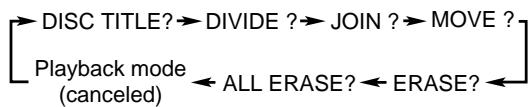
2 Press TITLE/EDIT repeatedly until "DIVIDE ?" appears in the main display.
The source is changed to "MD."
DIVIDE

Each time you press TITLE/EDIT, the edit mode changes as follows:
3 Press SET.
The unit starts playing back the first track (or the current track.)
4 Press or to select the track you want to divide.
The unit starts playing back the selected track.
- You can also press the number button(s) to directly select the track you want to divide.
- If you do not press l, || , or the number button(s), the current track is played back repeatedly.
Press SET when you find the point where you want to divide the track.
"POSIT. 0?" appears in the main display, and the unit repeats the selected point — a 3-second period following the dividing point.
POSIT.

- If the dividing point is satisfactory, go to step 7.
- If not, go to the next step.
6 Press or to adjust the dividing point precisely.
When you stop pressing the buttons, the unit repeats the newly selected dividing point.
- You can shift the dividing point up to ± 128 . This range ( ± 128 ) corresponds to approximately ± 8 seconds* from the original point (Position 0).

Ex. The dividing point is shifted to -21 .
-
When "SP" is selected for the recording length mode. For "LP2," it is approximately ±16 seconds, and for "LP4" approximately ±32 seconds.
-
When you find the right position, go to the next step.
- If you want to cancel the dividing point, press CANCEL, then select the correct dividing point.
7 Press SET.
"PUSH ENTER" appears in the main display.
Press ENTER to finish the editing procedure.
"EDITING" appears for a while, then "UTOCwriting" flashes while the editing you have made is being recorded on the MD.
To join the divided tracks again, see the JOIN Function.
JOIN Function
This function allows you to join two adjacent tracks into one track.
- To stop any time during editing process, press TITLE/EDIT.
1 Insert an MD you want to edit into the MD loading slot.
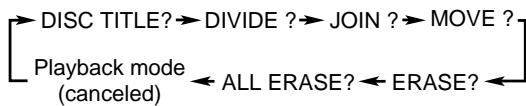
2 Press TITLE/EDIT repeatedly until "JOIN ?" appears in the main display.
The source is changed to "MD."
JOIN

Each time you press TITLE/EDIT, the edit mode changes as follows:
3 Press SET.
“--+ 1 ?” appears in the main display.
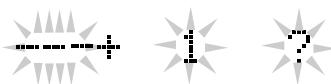
4 Press▶or to select the two adjacent tracks you want to join.
- You can also press the number button(s) to directly select the track you want to join.
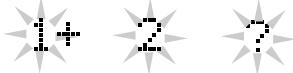
Ex. When you want to join tracks 1 and 2.
5 Press SET.
"PUSH ENTER" appears in the main display.
- If you have selected wrong tracks, press CANCEL, then select the correct tracks.
6 Press ENTER to finish the editing procedure.
"EDITING" appears for a while, then "UTOCwriting" flashes while the editing you have made is being recorded on the MD.
To divide the joined tracks, see the DIVIDE function.

If "CANNOT JOIN" appears in step 5
You cannot join the following tracks.
Tracks recorded using different recording length modes (SP, LP2, LP4). (See page 30)
- Digital-recording tracks and analog-recording tracks.
- Tracks recorded using monaural long recording method (not possible on this unit) and stereo-recording tracks.
MOVE Function
This function allows you to move a track to the position you prefer. It is useful to change the order of the tracks as you like.
- To stop any time during editing process, press TITLE/EDIT.
1 Insert an MD you want to edit into the MD loading slot.
2 Press TITLE/EDIT repeatedly until “MOVE?” appears in the main display.
The source is changed to "MD."
Move

Each time you press TITLE/EDIT, the edit mode changes as follows:

3 Press SET.
"← 1 ?" appears in the main display.

4 Select the track you want to move.
1) Press or .
- You can also press the number button(s) directly.

Ex. When you want to move track 2.
2) Press SET.
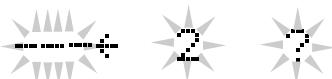
5 Select the position where you want to move the track to.
1) Press or .
- You can also press the number button(s) directly.

EX. When you want to move track 2 to the position of track 7.
2) Press SET.
"PUSH ENTER" appears in the main display.
- If you have selected wrong tracks, press CANCEL, then select the correct tracks.
6 Press ENTER to finish the editing procedure.
"EDITING" appears for a while, then "UTOCwriting" flashes while the editing you have made is being recorded on the MD.
ERASE Function
This function allows you to erase unwanted tracks.
- To stop any time during editing process, press TITLE/EDIT.
1 Insert an MD you want to edit into the MD loading slot.
2 Press TITLE/EDIT repeatedly until "ERASE?" appears in the main display.
The source is changed to "MD."

Each time you press TITLE/EDIT, the edit mode changes as follows:

3 Press SET.
"1 ERASE?" appears in the main display.
4 Select the track you want to erase.
1) Press or .
- You can also press the number button(s) directly.

Ex. Track 2 is selected.
2) Press SET.

5 Repeat step 4 to select all the tracks you want to erase.
- If you have selected a wrong track number, press CANCEL, then select the correct track number.
- You can select up to 15 tracks.
6 Press ENTER.
"PUSH ENTER" appears in the main display.
7 Press ENTER to finish the editing procedure.
"EDITING" appears for a while, then "UTOCwriting" flashes while the editing you have made is being recorded on the MD.
ALL ERASE Function
This function allows you to erase all the tracks on an MD.
- To stop any time during editing process, press TITLE/EDIT.
1 Insert an MD you want to edit into the MD loading slot.
2 Press TITLE/EDIT repeatedly until "ALL ERASE?" appears in the main display.
The source is changed to "MD."

Each time you press TITLE/EDIT, the edit mode changes as follows:

3 Press SET.
“PUSH ENTER” appears in the main display.
4 Press ENTER to finish the editing procedure.
"EDITING" appears for a while, then "UTOCwriting" flashes while the editing you have made is being recorded on the MD.
BLANK DISC
"BLANK DISC" appears in the main display.
The buttons enlarged clearly in the illustration below are used and explained in this section (pages 39 and 40).
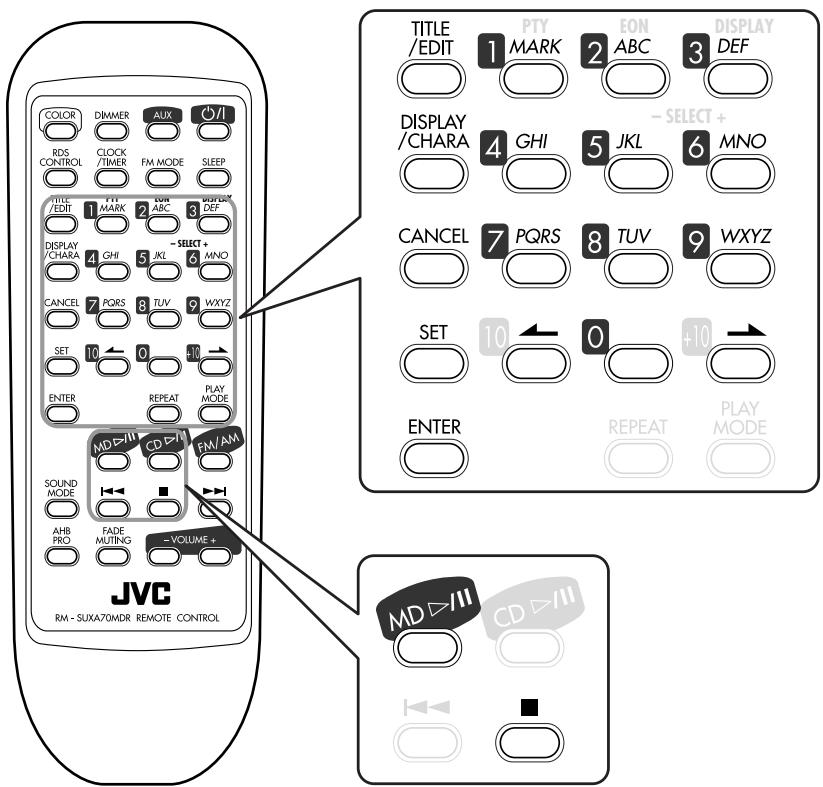
Remote control
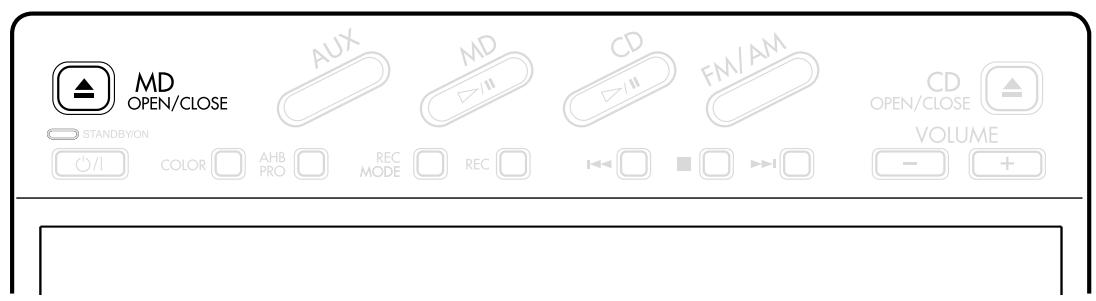
Main unit
Assigning the Disc Title and Track Title
You can assign a name to each MD and to each track using alphabetic characters (uppercase and lowercase), symbols and numerals. Once a title is assigned, it is displayed for your confirmation.
- You cannot edit titles composed of more than 64 characters.
About the number of characters inputted for an MD
The total number of characters that can be input for an MD is 1792. The maximum number that can be input for a disc title is 64, and for each track title, 61. (However, the actual number you can input may be slightly less than this maximum numbers due to the MD limitations — see page 48)
- A space can be counted as one character.
- When the stereo long-hour recording (LP2 or LP4, see page 30) method is used for recording, the maximum number you can input for a track title automatically reduced since "LP:" and a space are automatically added to the beginning of the track title. Consequently this reduces the total number of characters you can input for an MD.
Example: You can input up to 10 characters for each track if an MD is composed of 120 tracks recorded using the stereo long-hour recording method.
In the following example, the process is explained from the very first — that is, inserting a disc. If you have already started recording or playing, start from step 2.
- To exit from the title entry screen any time during the process, press TITLE/EDIT repeatedly.
1 Insert an MD you want to edit into the MD loading slot.
2 Press TITLE/EDIT once.
The source is changed to "MD."
The MD recorder enters one of the following title entry screen.
- Disc title entry screen: appears when you press TITLE/EDIT when the MD recorder stops.
DISC TITLE
- Track title entry screen: appears when you press TITLE/EDIT while playing, pausing or recording.
i TITLE
Ex. While playing track 1.
3 Press or to change the title entry mode.
8 TITLE?
Ex. Track 8 is selected.
Each time you press the button, the title entry mode changes as follows:
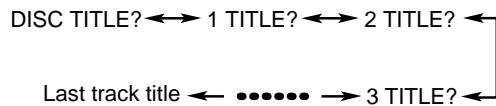
4 Press SET to enter the selected title entry mode.
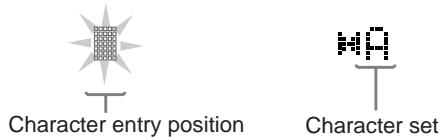
Ex. Track 8 has no title.
5 Input a character.
1) Press DISPLAY/CHARA to select the character set you want.
Each time you press the button, the character set changes as follows:
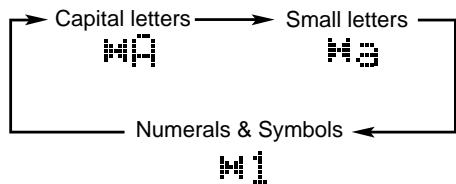
2) Press the character entry button for a character you want to input.
Examples:
- To input an "A" or "a," press ABC once.
To input a "B" or "b," press ABC twice.
To input a "C" or "c," press ABC three times.
- To input a symbol, press MARK repeatedly until the mark you want appears.
To input a numeral, press 0-9.
- To move the character entry position while entering a title, press or .
To enter a space while entering a title, press twice.
- If you have entered an incorrect character, press CANCEL to cancel the last entry.
3) Repeat steps 5-1) and 5-2) to input other characters.
- If the character you want to input next is assigned to the same button you have just pressed in step 5-2), press → first to move the character entry position to the right.
- The main display can only show 9 characters at a time. If you enter the 10th character, the first character disappears, and so on.

Press ENTER to finish the current title entry.
After "EDITING" appears in the main display for a while, the unit enters the next title entry mode.
EDITING
- You can assign another title by repeating steps 3 to 6.

Press MD OPEN/CLOSE on the main unit to eject the MD.
"UTOCwriting" flashes while the editing you have made is being recorded on the MD.

You can assign titles during play or recording
During play:
Entering a track title
The MD recorder repeats playback of the current track until you press ENTER in step 6 above. When you press ENTER, the next track will be played.
Entering a disc title
The MD recorder repeats playback of all tracks of the MD until you press ENTER in step 6 above. When you press ENTER, the MD recorder enters the track title entry mode.
During recording:
Entering a track title
The MD recorder continues recording even after you press ENTER in step 6 above. When you press ENTER, a track title is assigned to the track where you have started the title entry. If you do not press ENTER before recording ends, the track title assigned will be canceled.
- During CD Synchronized Recording (see page 31):
You can assign the disc title, and 16 track titles one after another as recording goes on. The track titles you have entered are automatically assigned to the tracks recorded on the MD in sequential order. If you enter 17th track title or more, they are ignored.
- During confirmation of a track title while recording:
The unit may show the track title incorrectly in the main display. In this case, press TITLE/EDIT to avoid changing the track title you entered.

Available Symbols are as follows:
| (Blank) | ! | " | # | $ | % | & | , | ( | ) |
| * | + | , | - | . | / | : | ; | < | = |
| > | ? | @ | _ | ` | |||||
Changing the Title
You can make a correction or change the title.

Follow steps 1 to 4 on page 39.

Select the character you want to correct, by pressing or ←.
- Make sure that the character you want to change is flashing.

Press CANCEL to delete the character you have selected in the above step.

Input the correct character, referring to step 5 on the previous page and this page.

Repeat steps 2 to 4 of the current procedure to correct more characters.

Press ENTER to finish correcting the title.
- If you want to correct another title, select another title entry mode by pressing → or ←, press SET, then repeat from step 2 above.
- If you want to finish the correction, go to the next step.

Press MD OPEN/CLOSE on the main unit to eject the MD.
"UTOCwriting" flashes while the editing you have made is being recorded on the MD.
To erase all the characters
Press CANCEL repeatedly in step 3 above to erase all the characters, then go to step 6.
The buttons enlarged clearly in the illustration below are used and explained in this section (pages 42 to 45).
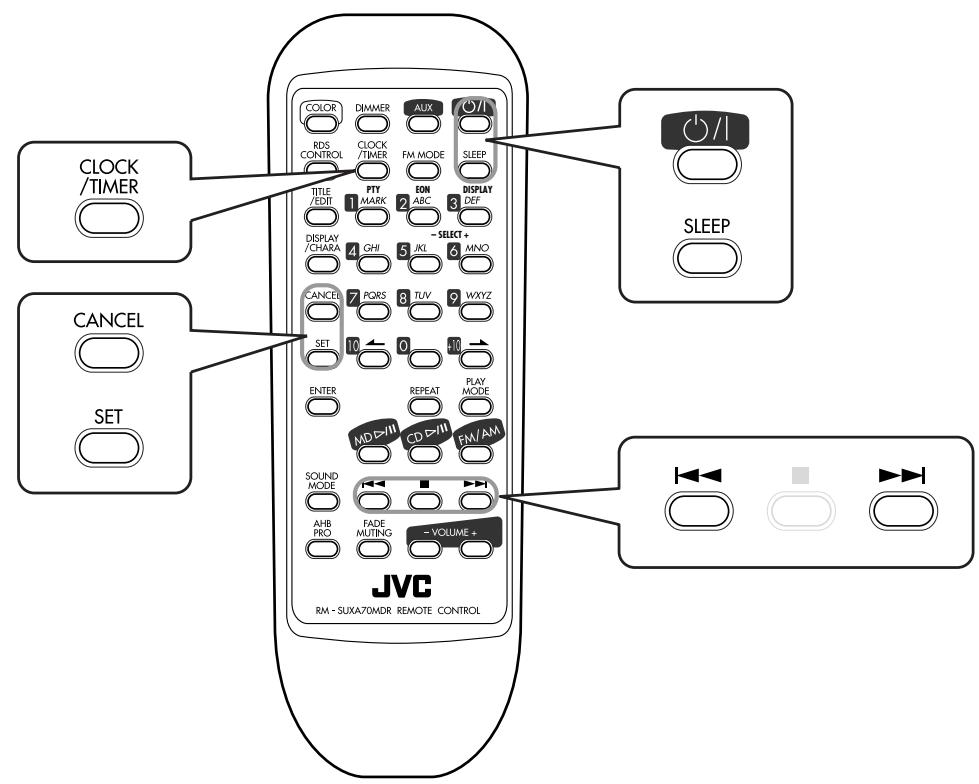
Remote control
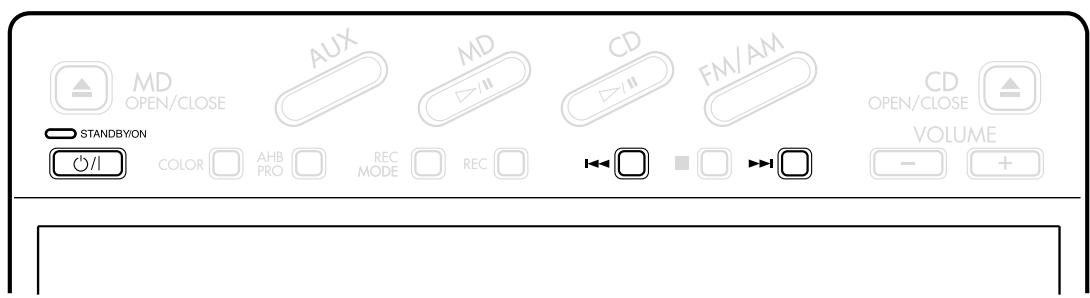
Main unit
There are three timers available — Recording Timer, Daily Timer, and Sleep Timer.
Before using these timers, you need to set the built-in clock.
Setting the Clock
You can set the clock whether the unit is turned on or in standby mode.
1 Press CLOCK/TIMER.
"0:00" appears in the main display with the hour digit flashing.

2 Press or repeatedly to adjust the hour.
- When press and hold the button, the hour digit changes continuously.
3 Press SET to set the hour.
The minute digit starts flashing.

Ex. When pressing SET after adjusting the hour to 10.
- If you want to correct the hour again, press CANCEL. The hour digit starts flashing again.
4 Press or repeatedly to adjust the minute.
- When press and hold the button, the minute digit changes continuously.
5 Press SET to finish setting the clock.
The built-in clock starts.

To adjust the clock again
Press CLOCK/TIMER repeatedly in step 1 until the clock time appears in the main display, then follow the procedure above.

If there is a power failure
The clock loses the setting and is reset to "0:00." You need to set the clock again.
Using Recording Timer
With Recording Timer, you can make an unattended recording.
- You can set Recording Timer whether the unit is turned on or in the standby mode.
- To correct a mis-entry any time during the setting process, press CANCEL.
How Recording Timer actually works
The unit automatically turns on, muting the volume, and starts recording on the MD when the timer-on time comes. Then, when the timer-off time comes, the unit automatically turns off (stands by).
Recording Timer works only once, but the timer settings remain stored in memory until you reset them or unplug the AC power cord.
1 Press CLOCK/TIMER repeatedly until Recording ON time appears in the main display.
The timer () indicator lights, and the MD REC indicator starts flashing on the display.
The hour digit of the timer-on time starts flashing.
Each time you press the button, the timer mode change as follows:
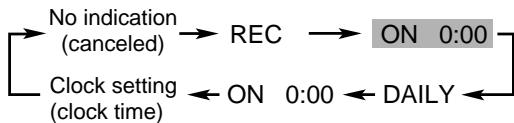
2 Set the timer-on time.
1) Press or repeatedly to adjust the hour.
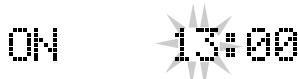
2) Press SET.
The minute digit starts flashing.
3) Press or repeatedly to adjust the minute.

4) Press SET.
The hour digit of the timer-off time starts flashing.
3 Set the timer-off time.
1) Press or repeatedly to adjust the hour.
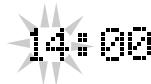
2) Press SET.
The minute digit starts flashing.
3) Press or | repeatedly to adjust the minute.
QFF
14:15
4) Press SET.
The source name flashes in the main display.
4 Select the source to record.
1) Press or | repeatedly to select the source.
Each time you press the buttons, the source changes as follows:

- When you select FM or AM as the source, press SET, then select a preset number by pressing or .
- When you select AUX and operate an external equipment with the Recording Timer, the equipment also need to have the timer function.
2) Press SET.
"MD REC" appears in the main display.
3) Press SET again.
The recording length mode appears in the main display.
5 Select the recording length mode.
1) Press or repeatedly to select the recording length mode (SP/LP2/LP4).
Each time you press the buttons, the source changes as follows:

2) Press SET.
The MD REC indicator stops flashing and remains lit on the display.
The contents of this setting appear in the main display.
6 Press / to turn off this unit.
To turn off the Recording Timer after its setting is done
1 Press CLOCK/TIMER repeatedly until "REC" appears in the main display.
2 Press CANCEL.
"REC off" appears in the main display, and the timer () and MD REC indicators go off from the display.
To turn on the Recording Timer, press SET.
The timer () and MD REC indicators light on the display. The settings you have done are shown in the main display for your confirmation.

Recording Timer will be canceled and the unit will not turn off automatically in the following.
- When you press ■ (while recording.)
- When you turn off the Recording Timer (see above.)
Using Daily Timer
With Daily Timer, you can wake up to your favorite music or radio program.
- You can set Daily Timer whether the unit is turned on or in standby mode.
- To correct a mis-entry any time during the setting process, press CANCEL.
How Daily Timer actually works
The unit automatically turns on, and starts playing the specified source when the timer-on time comes. Then, when the timer-off time comes, the unit automatically turns off (stands by).
Daily Timer works every day, and the timer settings remain stored in memory until you reset them or unplug the AC power cord.
1 Press CLOCK/TIMER repeatedly until Daily ON time appears in the main display.
The timer () indicator lights, and the DAILY indicator starts flashing on the display.
The hour digit of the timer-on time starts flashing.
Each time you press the button, the timer mode change as follows:
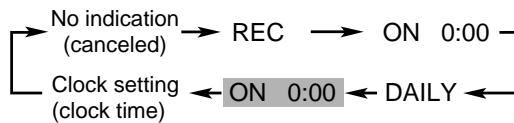
2 Set the timer-on time.
1) Press or repeatedly to adjust the hour.
ON

2) Press SET.
The minute digit starts flashing.
3) Press or repeatedly to adjust the minute.
OH
8:15
4) Press SET.
The hour digit of the timer-off time starts flashing.
3 Set the timer-off time.
1) Press or repeatedly to adjust the hour.
OFF
9:04
2) Press SET.
The minute digit starts flashing.
3) Press or repeatedly to adjust the minute.
QFF
4) Press SET.
The source name flashes in the main display.
4 Select the source to play back.
1) Press or repeatedly.
Each time you press the buttons, the source changes as follows:

- When you select CD or MD as the source, prepare it for playing back.
- When you select FM or AM as the source, press SET, then select a preset number by pressing or .
- When you select AUX and operate the external equipment with the Daily Timer, the equipment also need to have the timer function.
2) Press SET.
The volume setting appears in the main display.
5 Adjust the volume level.
1) Press or repeatedly to adjust the volume level.
- You can adjust the volume level within the range of 0 (silent) to 40 (maximum.)
- When you select "VOLUME ^- - , the volume is set to the current volume level.
2) Press SET.
The DAILY indicator stops flashing and remains lit on the display.
The contents of this setting appear in the main display.
6 Press /| to turn off the unit.
To turn off the Daily Timer after its setting is done
1 Press CLOCK/TIMER repeatedly until "DAILY" appears in the main display.
2 Press CANCEL.
"DAILY off" appears in the main display, and the timer () and DAILY indicators go off from the display.
To turn on the Daily Timer, press SET.
The timer () and DAILY indicators light on the display. The settings you have done are shown in the main display for your confirmation.

If the unit is kept turned on when the timer-on time comes
Daily Timer does not work at all.

Daily Timer will be canceled and the unit will not turn off automatically in the following.
- When you change the source.
- When you try to start recording.
- When you enter the MD editing or title entry mode.
- When you turn off the Daily Timer (see above.)
Using Sleep Timer
With Sleep Timer, you can fall asleep to your favorite music.
You can set Sleep Timer when the unit is turned on.
How Sleep Timer actually works
The unit automatically turns off after the specified time length passes.
On the remote control ONLY:
1 Press SLEEP.
The timer () indicator lights and the SLEEP indicator starts flashing on the display.
"SLEEP" and sleep time appear in the main display.

Each time you press the button, the time length changes as follows:
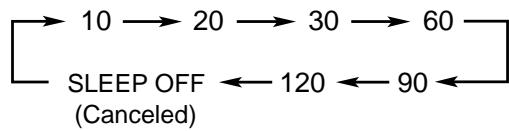
2 Press SET or wait for about 5 seconds.
The illumination of the electronic swing panel and display window dim.
The SLEEP indicator lights on the display.
To check the remaining time until the shut-off time, press SLEEP once. The remaining time until the shut-off time appears for about 5 seconds.
To change the shut-off time, press SLEEP repeatedly until the time length you want appears.
To cancel the setting, press SLEEP repeatedly until the unit returns to the play mode.

Sleep Timer will be also canceled in the following cases
- When you turn off the unit.
- When you operate other timer settings.
- When you adjust the clock.
To sleep with the Sleep Timer and wake up with the Daily Timer
The unit turns off when the shut-off time comes (set by the Sleep Timer), and turns on when the timer-on time (set by the Daily Timer) comes.
1 Set the Daily Timer as explained on pages 43 and 44.
2 Start playing back any source you want to listen to before sleep.
3 Set the Sleep Timer.
Timer Priority
Since each timer can be set separately, you may wonder what happens if the setting for these timers overlaps. Here are the priorities for each timer.
- A timer with the late timer-on time has priority. If Recording Timer is set to come on while Daily Timer is operating, Daily Timer is canceled.
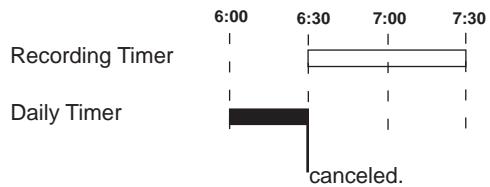
If Recording Timer is set to come on while Sleep Timer is operating, Sleep Timer will not shut off the power even if the shut-off time comes.
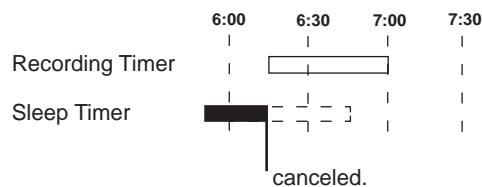
To get the best performance of the unit, keep your discs and mechanism clean.
General Notes
In general, you will have the best performance by keeping your CDs, MDs and the mechanism clean.
- Store CDs and MDs in their cases, and keep them in cabinets or on shelves.
- Keep the CD trays, and the MD loading slot cover closed when not in use.
Handling CDs
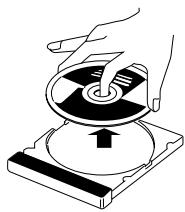
- Remove the CD from its case by holding it at the edge while pressing the center hole lightly.
- Do not touch the shiny surface of the disc, or bend the CD.
- Put the CD back in its case after use to prevent warping.
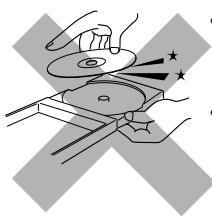
- Be careful not to scratch the surface of the CD when placing it back in its case.
- Avoid exposure to direct sunlight, temperature extremes, and moisture.
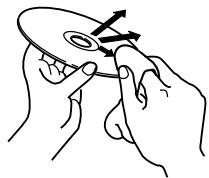
To clean the CD
Wipe the CD with a soft cloth in a straight line from center to edge.

DO NOT use any solvent - such as conventional record cleaner, spray, thinner, or benzine - to clean the CD.
Handling MDs
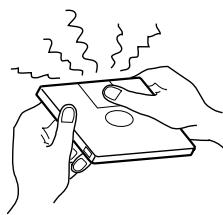
- Do not open the shutter.
- The shutter is locked so that it will not open. Trying to force it open will break the MD. If the shutter opens accidentally, close it again quickly without touching the MD inside.
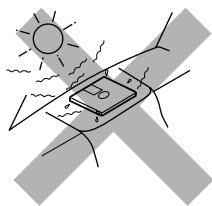
-
Do not place MDs in the following places:
-
High temperature areas such as in direct sunlight or inside a car.
- High humidity areas, e.g. in a bathroom.
- On a beach or sandy area.
Clean MDs regularly.
- If dust or dirt gets on cartridge, wipe it off with a soft dry cloth.
Cleaning the unit
Stains on the unit
Should be wiped off with a soft cloth. If the unit is heavily stained, wipe it with a cloth soaked in water-diluted neutral detergent and wrung well, then wipe clean with a dry cloth.
- Since the unit may deteriorate in quality, become damaged or get its paint peeled off, be careful about the followings.
- DO NOT wipe it with a hard cloth.
- DO NOT wipe it strong.
- DO NOT wipe it with thinner or benzine.
- DO NOT apply any volatile substance such as insecticides to it.
- DO NOT allow any rubber or plastic to remain in contact with it for a long time.
MD Disc Types
There are two types of MDs: Premastered (prerecorded) and Recordable (blank).
Premastered MDs
Premastered MDs, which have been recorded at music studio, can be played back like regular CDs. On an MD of this type, data is recorded as the presence or absence of tiny pits. A laser beam focuses on the pits on the surface of the MD and reflects the detection back to the lens in the MD recorder. The MD recorder then decodes the signals and plays them back as music. This type of MD is called an "optical disc."
Recordable MDs
Recordable MDs, which use magneto-optical technology, can be recorded and played back repeatedly. The laser inside the MD recorder applies heat to the MD, demagnetizing the magnetic layer of the MD for recording and playback. This type of MD is called an "magnetic-optical disc."
ATRAC (Adaptive TRansform Acoustic Coding)/ATRAC3 (MDLP)
The MD provides 80 minute recording and playback time, much more than an audio CD, but in a diameter of only 64~mm . This ability to store such a large amount of data is the result of ATRAC, an audio compression technique developed for MD. This technology cuts out faint sounds that would not be heard by the human beings. This technology, based on human sensitivity to sounds, reduces recorded data volume up to about one-fifth of the original data volume.
Furthermore, this unit takes advantage of the latest ATRAC3 techniques, which can reduce the amount of data to record to one-10th or one-20th of the original data volume. This allows for 2 times or 4 times long-hour stereo recording on this unit.
UTOC (User Table Of Contents)
Found only on recordable MDs, this area contains sub-data (track number, recording data, etc.) which can be rewritten by the user.
UTOC enables us to search tracks quickly and edit tracks on the MD.
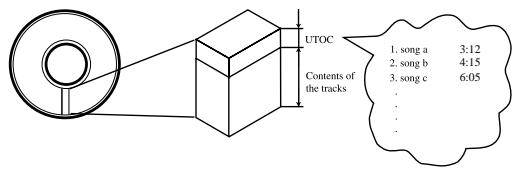
Sound Skip Guard Memory
The biggest weakness of discs is their susceptibility to vibration. The "Sound Skip Guard Memory" has been developed to cope with this weakness.
With this function, a few seconds of signals read by the optical read head from the MD are first stored in memory before being reproduced as audio signals. Thus, even when vibration or shock interrupts signals being read, these stored signals can continue to reproduce sounds for the few seconds. Thus, the user will enjoy uninterrupted music.
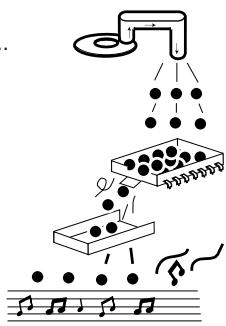
Normally....
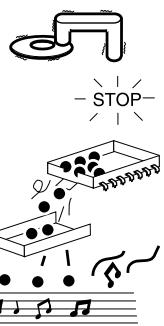
When "vibrated"...
The MD recorder integrated to this unit uses the Serial Copy Management System which allows only first-generation digital copies to be made of premastered software (like CDs or prerecorded MDs).
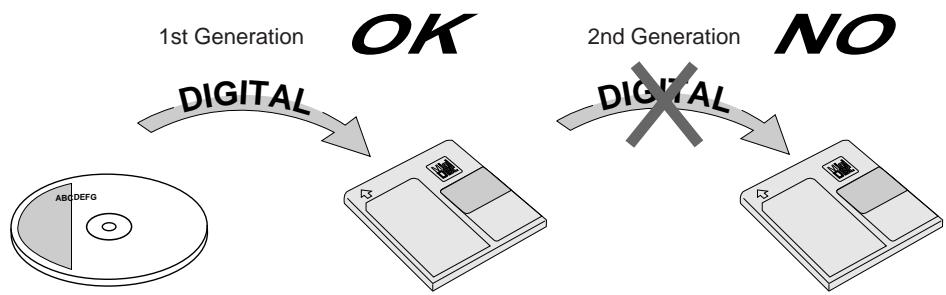
HCMS (High-speed Copy Management System)
Now onto recordable MDs (minidiscs), you can record (copy) sound at a recording speed exceeding the normal speed. This fact requires some restrictions for protecting copyrights.
On this unit, you cannot re-record, at either high speed or normal speed, a song (track) that has been recorded once from a CD at high speed, until 74 minutes elapse after the first recording of the song started.
For example, after having recorded the first song (track) of a CD at high speed, you cannot record it again, at either high speed or normal speed, until 74 minutes elapse after the first recording of that song started.
| MD limitations The MD records data in an original format that differs from that of conventional cassette tapes or DATs. Since there are some limitations with this recording format, the following types of symptoms may occur. These symptoms are not malfunctions. | |
| Symptoms | Cause |
| “DISC FULL” appears, even though there is still enough remaining time on an MD. | There is a maximum number of tracks which can be recorded, regardless of recording time. More than 254 tracks cannot be recorded on an MD. |
| “DISC FULL” appears, even though the number of tracks and recording time do not reach the limit. | • Repeating erasure and recording on the same MD creates many blank portions sparsely on the MD. When recording on such an MD, a track is recorded on these blank portions sparsely. If a track is divided and recorded into so many portions, “DISC FULL” appears. • If a divided portion of less than 8 seconds is made while a track is recorded on the MD, that track cannot be joined to another track using the JOIN function. Further- more, if that track is erased, the remaining time of the MD may not increase exactly by the erased amount. • If a track has been divided into many portions while being recorded on the MD, sounds will drop out while fast forwarding or reversing such an MD. |
| The JOIN function sometimes does not work. | |
| The remaining time on the MD does not increase even when tracks are erased. | |
| The sound drops out during fast forward or fast reverse. | |
| The amount of recorded time on the MD added to the amount of remaining time is shorter than the MD’s total possible recording time. | You cannot record on a blank portion of less than 2 seconds in the MD. For this reason, the actual recording time of discs may become shorter. |
| Message | Signification | Solution |
| BLANK DISC | The disc is blank. | Change the MD with another if you want to enjoy playback. |
| CANNOT JOIN | You are trying to join tracks which cannot be joined. | This is not a malfunction. (See “MD limitations” on page 48.) |
| CAN NOT LISTEN | You are trying to listen to the sound during high-speed recording. | This is not a malfunction. You cannot listen to the sound during high-speed recording. |
| DISC ERROR | There is a problem with the MD. | Change the MD. |
| DISC FULL | There is no more space on the MD or there are over 254 tracks. | Use another recordable MD or erase some tracks. |
| DISC PROTECTED | MD is write-protected. | Unprotect the MD or use another. (See page 29.) |
| EMERGENCY STOP | A malfunction has occurred during recording. | Stop playback, and eject the MD and re-insert it. |
| HCMS CAN NOT COPY | You are trying to re-record a song that has been recorded once at high speed, before 74 minutes have passed after its first recording. | An internal timer works to protect copyrights. Wait for 74 minutes or more, then start recording. |
| LOAD ERROR | MD is not loaded correctly. | Eject the MD and re-insert it. |
| MD NO DISC | There is no MD. | Put an MD. |
| NON AUDIO CAN NOT COPY | You are trying to copy a non-audio disc like a CD-ROM, Video CD, or DVD. | Stop recording. |
| PLAY BACK | You are trying to edit or record on a playback-only MD. | Use a recordable MD. |
| SCMS CAN NOT COPY | Digital copy of the 2nd generation is prohibited. | Use the external equipment connected to the LINE IN jacks (as the recording/playback device.) |
| TRACK PROTECTED | The track has been protected. | This unit can not unprotect it. To unprotect it, use the equipment with which it was protected. |
If you are having a problem with your unit, check this list for a possible solution before calling for service.
If you cannot solve the problem from the hints given here, or the unit has been physically damaged, call a qualified person, such as your dealer, for service.
| Symptom | Possible Cause | Action |
| No sound is heard. | Connections are incorrect or loose. | Check all connections and make corrections. (See pages 6-9.) |
| Unable to record on an MD. | You are using a prerecorded MD. The MD is write-protected. | • Change it with a recordable MD. • Unprotect the MD. (See page 29.) |
| Poor radio reception. | The antenna is not connected correctly. The AM loop antenna is too close to the unit. The FM antenna is not properly extended and positioned. | • Reconnect the antenna securely. • Change the position and direction of the AM loop antenna. • Extend FM antenna to the best reception position. |
| Unable to operate the remote control. | The path between the remote control and the remote sensor on the unit is blocked. The batteries have lost their charge. You are using the remote control far from the main unit. | • Remove the obstruction. • Replace the batteries. (See page 9.) • Signals cannot reach the remote sensor. Move close to the main unit. |
| Loaded CD and MD can not be ejected. | The main AC power cord is not plugged in. | Plug in the AC power plug. |
| The CD does not play. | The CD is upside down. | Put the CD in with the label side up. |
| The CD skips. | The CD is dirty or scratched. | Clean or replace the CD. (See page 46.) |
| Operations are disabled. | The built-in microprocessor has malfunctioned due to external electrical interference. | Unplug the unit then plug it back in. |
Specifications
US and foreign patents licensed from Dolby Laboratories Licensing Corporation.
Amplifier
Output Power (IEC 268-3/DIN): 44W (22W + 22W) at 4 MAX.) 40W (20W + 20W) at 4 (10%) THD
Audio input sensitivity/Impedance (at 1 kHz) LINE IN: 400mV / 48k
Audio output level/Impedance (at 1 kHz) LINE OUT: 260mV / 5.8k
Speaker Terminals: 4 -16
Tuner
FM tuning range: 87.50MHz — 108.00 MHz
AM (MW/LW) tuning range: MW: 522kHz - 1629kHz LW: 144kHz - 288kHz
CD player
CD Capacity: 1 CD
Dynamic range: 85 dB
Signal-to-noise ratio: 90 dB
Wow and flutter: Immeasurable
MD recorder
Audio playing system: MiniDisc digital audio system
Recording system: Magneto-optical overwrite system
Reading system: Non-contact, semiconductor laser pickup ( = 780~nm)
Error correction system: CIRC (Cross Interleave Reed-Solomon Code)
Recording/Playback time (when using a 80-minute MD)
SP: 80 minutes
LP2: 160 minutes
LP4: 320 minutes
Sampling frequency: 44.1 kHz
Audio compression system: ATRAC (Adaptive TRansform Acoustic Coding)/ATRAC3 (MDLP)
Speaker Section
Speakers: Woofer 10cm , Tweeter 4cm
Impedance: 4Ω
Dimensions (approx.): 130mm× 215mm× 231.5mm (W / H / D) (5^1 / 8 in. x8^1 / 2 in. x9^1 / 8 in.)
Mass (approx.): 2.0kg (4.5 lbs)
General
Power requirement: AC 230V ,50Hz
Power consumption: 50 W (at operation) 3.9 W (on standby)
Dimensions (approx.): 431 mm x 217 mm x 330 mm (W/H/D) (17 in. x 8^9 / 16 in. x 13 in.)
Mass (approx.): 8.5kg (18.8 lbs)
Supplied accessories
See page 6.
Design and specifications are subject to change without notice.
JVC
VICTOR COMPANY OF JAPAN, LIMITED
- IMPORTANT for the U.K.
- IMPORTANT:
- Caution — / switch!
- CAUTION
- REPRODUCTION OF LABELS
- Caution: Proper Ventilation
- SAFETY INSTRUCTIONS "SOME DOS AND DON'TS ON THE SAFE USE OF EQUIPMENT"
- ABOVE ALL
- We would like to thank you for purchasing one of our JVC products. Before operating this unit, read this manual carefully and thoroughly to obtain the best possible performance from your unit, and retain this manual for future reference.
- About This Manual
- Precautions
- Installation
- Power sources
- Moisture condensation
- Others
- Location of the Buttons 3
- Getting Started 6
- Basic and Common Operations 10
- Listening to FM and AM (MW/LW)
- Broadcasts 14
- Playing Back a CD 20
- Playing Back an MD 24
- Recording on MD 28
- Editing MD 33
- Assigning Titles to an MD 38
- Using the Timers 41
- Maintenance 46
- Additional Information 47
- MD Messages 49
- Troubleshooting 50
- Specifications 50
- Main Unit
- Display window
- Remote Control
- Unpacking
- Connecting Antennas
- FM antenna
- About the supplied FM antenna
- To connect an outdoor FM antenna
- AM (MW/LW) antenna
- To connect an outdoor AM (MW/LW) antenna
- For better reception of both FM and AM (MW/LW)
- Connecting Speakers
- To attach spacers
- To remove the speaker grilles
- To connect speakers
- Connecting Other Equipment
- To connect another component such as a cassette deck
- Putting the Batteries into the Remote Control
- Turning On the Power
- 1110
- 1 1 1
- Selecting the Sources and Starting Play
- Adjusting the Volume
- For private listening
- If "CAN NOT LISTEN" appears in the main display
- To turn down the volume level temporarily
- On the remote control ONLY:
- Press FADE MUTING.
- Reinforcing the Bass Sound
- Selecting the Sound Modes
- Setting the Display Illumination
- To set the illumination color
- More on the display color
- To create your favorite colors
- To dim the display illumination
- Listening to FM and AM (MW/LW) Broadcasts
- Tuning in a Station
- Press FM/AM.
- Press and hold or | until the station frequencies start changing continuously in the main display.
- FM 89.00MHz
- To change the FM reception mode
- Press FM MODE.
- Presetting Stations
- Tune in the station (either FM or AM-MW/LW) you want to preset.
- Press SET.
- Press the number buttons to select a preset number.
- Press SET again.
- STORED
- Tuning in a Preset Station
- Press the number buttons to select a preset number.
- Receiving FM Stations with RDS
- PS (Program Service):
- PTY (Program Type):
- RT (Radio Text):
- EON (Enhanced Other Networks):
- More about RDS
- Changing the RDS Information
- Press DISPLAY.
- Release your finger from RDS CONTROL.
- Searching for Programs by PTY Codes (PTY Search)
- 3
- Press PTY again.
- Release your finger from RDS CONTROL.
- To continue searching after the first stop:
- To stop searching any time during the process:
- Switching to a Program Type of Your Choice Temporarily
- Press EON.
- Press SELECT - / + repeatedly until the EON data type you want is selected.
- Press EON again to set the EON data type.
- How the EON function actually works:
- CASE1
- If there is no station broadcasting the program you have selected
- CASE 2
- If there is a station broadcasting the program you have selected
- CASE 3
- If the FM station you are listening to is broadcasting the program you have selected
- Alarm function
- Test function
- More about the EON function
- Playing Back the Entire CD — Normal Play
- Press CD OPEN/CLOSE ▲.
- Place a CD correctly on the circle of the disc tray with its label side up.
- Press CD / II.
- Basic CD Operations
- To stop playback for a moment
- To locate a particular point in a track during play Press and hold or |
- To go to another track
- To go to another track directly using the number buttons (on the remote control ONLY)
- Programming the Playing Order of the Tracks — Program Play
- Press PLAY MODE so that "CD PROGRAM" appears in the main display.
- Press the number buttons to select the tracks.
- Press CD / II.
- To stop during play, press
- To check the program contents
- To modify the program
- To erase the entire program, press CD OPEN/CLOSE to eject the CD.
- Playing at Random — Random Play
- Press PLAY MODE so that "CD RANDOM" appears in the main display.
- Press CD /II.
- To skip the current track, press
- To stop during playback, press ■.
- Repeating Tracks — Repeat Play
- Playing Back the Entire MD — Normal Play
- On the main unit ONLY:
- Press MD OPEN/CLOSE ▲.
- Insert an MD into the MD loading slot.
- Press MD / II.
- To remove the disc, press MD OPEN/CLOSE
- If the MD or track has a title
- * About recording length mode
- Basic MD Operations
- To locate a particular point in a track during play
- To change the information in the main display
- When you press DISPLAY/CHARA while playing or pausing:
- When you press DISPLAY/CHARA when the MD recorder stops:
- Press PLAY MODE so that "MD PROGRAM" appears in the main display.
- Press MD / II.
- To stop during play, press ■.
- Before You Start Recording
- About the track marks
- To avoid erasing important recordings
- Stereo Long-Hour Recording (MDLP)
- REMEMBER to check the remaining recording time of MDs before starting recording
- To check the remaining recording time
- Precautions for performing long-hour stereo recording
- More about MDLP
- About High-Speed Recording
- During high-speed recording
- Recording FM/AM (MW/LW) Broadcasts
- Recording CD — CD Synchronized Recording
- Press REC.
- To stop recording, press
- To record a single track during play or pause
- When recording from a CD
- Recording the External Equipment — Sound Synchronized Recording
- Dividing a track (DIVIDE) : Page 35
- Joining a track (JOIN) : Page 35
- Moving a track (MOVE) : Page 36
- Erasing a track (ERASE) : Page 37
- Erasing all tracks (ALL ERASE) : Page 37
- Erasing a portion of a track
- If "PLAY BACK" or "DISC PROTECTED" appears when you try to edit an MD
- You can also assign titles to MDs and/or tracks (See page 39.)
- DIVIDE Function
- DIVIDE
- POSIT.
- JOIN Function
- JOIN
- Press SET.
- Press▶or to select the two adjacent tracks you want to join.
- Press SET.
- Press ENTER to finish the editing procedure.
- If "CANNOT JOIN" appears in step 5
- MOVE Function
- Press TITLE/EDIT repeatedly until “MOVE?” appears in the main display.
- Select the track you want to move.
- Select the position where you want to move the track to.
- ERASE Function
- ALL ERASE Function
- Assigning the Disc Title and Track Title
- About the number of characters inputted for an MD
- DISC TITLE
- i TITLE
- TITLE?
- 3) Repeat steps 5-1) and 5-2) to input other characters.
- Press ENTER to finish the current title entry.
- EDITING
- Press MD OPEN/CLOSE on the main unit to eject the MD.
- You can assign titles during play or recording
- During play:
- Entering a track title
- Entering a disc title
- During recording:
- - During CD Synchronized Recording (see page 31):
- - During confirmation of a track title while recording:
- Changing the Title
- Follow steps 1 to 4 on page 39.
- Select the character you want to correct, by pressing or ←.
- Press CANCEL to delete the character you have selected in the above step.
- Input the correct character, referring to step 5 on the previous page and this page.
- Repeat steps 2 to 4 of the current procedure to correct more characters.
- Press ENTER to finish correcting the title.
- To erase all the characters
- Setting the Clock
- Press CLOCK/TIMER.
- Press or repeatedly to adjust the hour.
- Press SET to set the hour.
- Press or repeatedly to adjust the minute.
- Press SET to finish setting the clock.
- To adjust the clock again
- If there is a power failure
- Using Recording Timer
- How Recording Timer actually works
- Press CLOCK/TIMER repeatedly until Recording ON time appears in the main display.
- Set the timer-on time.
- Set the timer-off time.
- Select the source to record.
- Select the recording length mode.
- Press O / I to turn off this unit.
- Using Daily Timer
- How Daily Timer actually works
- Press CLOCK/TIMER repeatedly until Daily ON time appears in the main display.
- Select the source to play back.
- Adjust the volume level.
- Press /| to turn off the unit.
- Using Sleep Timer
- How Sleep Timer actually works
- Press SLEEP.
- Press SET or wait for about 5 seconds.
- To sleep with the Sleep Timer and wake up with the Daily Timer
- Timer Priority
- General Notes
- Handling CDs
- To clean the CD
- Handling MDs
- Cleaning the unit
- Stains on the unit
- - Since the unit may deteriorate in quality, become damaged or get its paint peeled off, be careful about the followings.
- MD Disc Types
- Premastered MDs
- Recordable MDs
- ATRAC (Adaptive TRansform Acoustic Coding)/ATRAC3 (MDLP)
- UTOC (User Table Of Contents)
- Sound Skip Guard Memory
- HCMS (High-speed Copy Management System)
- Specifications
- Amplifier
- Tuner
- CD player
- MD recorder
- Speaker Section
- General
- Supplied accessories
- JVC
Brand : JVC
Model : UX-A70MDR
Category : Audio System