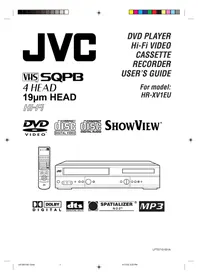
HR-S7600EU - Video recorder JVC - Free user manual and instructions

Find the device manual for free HR-S7600EU JVC in PDF.

📄 68 pages English EN Download 💬 AI Question
Notice JVC HR-S7600EU - page 2
View the manual : Français FR English EN

User questions about HR-S7600EU JVC

0 question about this device. Answer the ones you know or ask your own.

Ask a new question about this device

L'email reste privé : il sert seulement à vous prévenir si quelqu'un répond à votre question.

No questions yet. Be the first to ask one.

Download the instructions for your Video recorder in PDF format for free! Find your manual HR-S7600EU - JVC and take your electronic device back in hand. On this page are published all the documents necessary for the use of your device. HR-S7600EU by JVC.

USER MANUAL HR-S7600EU JVC

2 En Safety Precautions The rating plate and the safety caution are on the rear of the unit.

WARNING: DANGEROUS VOLTAGE INSIDE

WARNING: TO PREVENT FIRE OR SHOCK HAZARD, DO NOT EXPOSE THIS UNIT TO RAIN OR

MOISTURE. CAUTION # When you are not using the recorder for a long period of time, itis recommended that you disconnect the power cord from the mains outlet. m Dangerous voltage inside. Refer internal servicing to qualified service personnel. To prevent electric shock or fire hazard, remove the power cord from the mains outlet prior to connecting or disconnecting any signal lead or aerial. WARNING There are two different types of SECAM colour systems: SECAM-L, used in FRANCE (also called SECAM -West), and SECAM-B, used in Eastern European countries (also called SECAM -East). This recorder can also receive SECAM-B colour television signals for recording and playback. Recordings made of SECAM-B television signals produce monochrome pictures if played back on a video recorder of SECAM-L standard, or do not produce normal colour pictures if played back on a PAL video recorder with SECAM-B system incorporated (even if the TV set is SECAM -compatible).

3. SECAM-L prerecorded cassettes or recordings made with a SECAM-L video recorder produce monochrome

pictures when played back with this recorder. 4, This recorder cannot be used for the SECAM -L standard. Use a SECAM -L recorder to record SECAM-L signals.

IMPORTANT m Please read the various precautions on page 2 and 3 before installing or operating the recorder. mit should be noted that it may be unlawful to re-record pre-recorded tapes, records, or discs without the consent of the owner of copyright in the sound or video recording, broadcast or cable programme and in any literary, dramatic, musical, or artistic work embodied therein.

= Cassettes marked "S-VHS" and "VHS" can be used with this video cassette recorder. However, S-VHS recordings are possible only with cassettes marked "S-VHS". = ShowVen is a registered trademark of Gemstar Development Corporation. The SkowView system is manufactured under licence from Gemstar Development Corporation.

BE EN 3 For Italy: “tis declared that this product, brand JVC, conforms to the Ministry Decree n. 548 of 28 Aug.'95 published in the Official Gazette of the Italian Republic n. 301 of 28 Dec.'95" The STANDBY/ON «1 button does not completely shut off mains power from the unit, but switches operating current on and off. " & "shows electrical power standby and "1 "shows ON. Video tapes recorded with this video recorder in the LP (Long Play) mode cannot be played back on a single- speed video recorder. Failure to heed the following precautions may result in damage to the recorder, remote control or video cassette.

1. DO NOT place the recorder ...

… in an environment prone to extreme temperatures or humidity. … in direct sunlight. .… in à dusty environment. in an environment where strong magnetic fields are generated. … on à surface that is unstable or subject to vibration.

2. DO NOT block the recorder's ventilation openings.

3. DO NOT place heavy objects on the recorder or remote control.

4. DO NOT place anything which might spill on top of the recorder or remote control.

5. AVOID violent shocks to the recorder during transport.

MOISTURE CONDENSATION Moisture in the air will condense on the recorder when you move it from a cold place to a warm place, or under extremely humid conditions— just as water droplets form in the surface of a glass filled with cold liquid. Moisture condensation on the head drum will cause damage to the tape. In conditions where condensation may occur, keep the recorder turned on for a few hours to let the moisture dry.

Accumulation of dirt and other particles on the video heads may cause the playback picture to become blurred or interrupted. Be sure to contact your nearest JVC dealer if such troubles occur.

Its essential that your video recorder be properly connected Follow these steps carefully. THESE STEPS MU ST BE CO MPLETED BEFORE ANY VIDEO OPERATION CAN BE PERFORMED. CHECK CONTENTS Make sure the package contains all of the accessories listed in “Specifications” (7 pg. 66).

Place the recorder on a stable, horizontal surface. Aerial terminal Back of TV

CONNECT RECO RDER TO

The connection method you use depends on the type of TV you have. 21-pin SCART connector TV Aerial RF CONNECTION Cable e To Connect To A TV With NO AV Input Terminals .…… RF Cable a- Disconnect the TV aerial cable from the TV. (provided) b- Connect the TV aerial cable to the ANT. IN jack on the rear panel of the recorder. c- Connect the provided RF cable between the RF OUT jack on the rear panel of the recorder and the TV's aerial terminal AV CONNECTION e To Connect To A TV With AV Input Terminals . a- Connect the aerial, recorder and TV as per “RF CONNECTION”. b- Connect an optional SCART cable between the AV1 IN/OUT socket on the rear panel of the recorder and the TV's 21-pin SCART connector. IL \ c- Set the AV1 OUT switch to the appropriate position. [| + See "AV1 INPUT/OUTPUT SIGNAL SELECTION FOR AV CONNECTION" below.

CONNECT RECO RDER TO

MAINS Plug the end ofthe mains power cord into à mains outlet. 21-pin SCART Cable Mains Power Cord Rear view

After you plug the mains power cord into a mains outlet, the Country Set display appears on the TV screen and/or on the recorders front display panel when the (1 button on the recorder/remote control is pressed for the first time to power on the recorder; go to page 6 to perform Auto Set Up. Make AV connection if your TV has a 21-pin AV input connector (SCART] in order to reduce the possibility of interference. And if you are using a stereo TV, you will need this cable in order to enjoy stereo playback of videotapes. AVI INPUT/OUTPUT SIGNAL SELECTION FOR AV CONNECTION The AVI IN/OUT connector accepts and delivers either a composite signal (regular video signal) or a Y/C signal (a signal in which the luminance and chrominance signals are separated). For input signal selection, select "VID EO " (regular video signal) or "S-VIDEO" (Y/C signal) for "AV1 SELECT" setting (7 pg. 40). For output signal selection, use AV1 OUT switch of the rear panel. e If your TV's 21-pin AV input connector (SCART) is compatible only with the regular video signal, set this switch to CO MP. e If your TV's 21-pin AV input connector (SCART) is compatible with the Y/C signal, set this switch to Y/C. You can obtain high- quality S-VHS pictures. (For connection, be sure to use a 21-pin SCART cable that is compatible with the Y/C signal.) NOTES: e Set your TV to the VIDEO (or AV), Y/C, or RGB mode according to the type of your TV's SCART connector. e For switching the TV's mode, refer to the instruction manual of your television. e To obtain high-quality S-VHS pictures, you can also use the S-VIDEO CONNECTION described on page 5.

| Audio cable (not provided)

RF Cable (provided) + To Connect to A TV With S-VIDEO/AUDIO IN Comectors.… NOTES: CO C CO 0 «You can obtain high-quality S-VHS pictures. NNECTRECORDERT el your television is not stereo-capable, use the recorder:s TV AUDIO OUT connectors to connect to an audio amplifier for Hi-Fi stereo sound reproduction. (7 pg. 47) a- Connect the aerial, recorder and TV as per "RF + To operate the recorder with your TV using the S-VIDEO CONNECTION" (7 pg. 4). connection, set your TV to the VIDEO (or AV mode). b- Connect the recorder's S-VIDEO OUT connector to For switching the TV's mode, refer to the instruction manual the TV's S-VIDEO IN connector. of your television c- Connect the recorder's AUDIO OUT connectors to the TV's AUDIO IN connectors.

CONNECT RECO RDER TO

MAINS 2 Plug the end of the mains power cord into a mains outiet. After you plug the mains power cord into à mains outlet, the Country Set display appears on the TV screen and/or on the recorder's front display panel when the cb/1 button on the recorder/remote control is pressed for the first time to power on the recorder: go to page 6 to perform Auto Set Up.

ATTENTION Once you have performed Auto Set Up, even if the recorders memory backup has expired, all the stored stations and their Guide Program numbers remain in the recorder s memory and the recorder will not perform Auto Set Up again. You only need to setthe clock. (7 pg. 56) If you have moved to a different area, perform each setting as required! e Video Channel setting (for RF connection users) 17 pg. 55 e Tuner setting 7 pg. 48 e Clock setingz7 pg. 56 If a new station starts broadcasting in your area, perform tuner setting (-7 pg. 48) and, if necessary, video channel seing (£7 pg. 55).

When the 6/1 button on the recorder/remote control is pressed for the first üime to power on the recorder after you plug the mains power cord into a mains outlet, the Country Set display will appear on the TV screen and the recorder front display panel. By simply selecting your country*, the Auto Set Up function sets the tuner channels, clock** and Guide Program numbers automatically.

  • If you live in Belgium (BELGIUM) or Switzerland (SUISSE), you also need to select your language. # If you live in Hungary (MAGYARO RSZAG), Czech Republic (CESKA RÉPUBLIKA), Poland (PO LSKA) or other countries in Eastern Europe (OTHER EASTERN EUROPE), set the clock manually. You can refer to the front display panel and/or the on-screen display to perform this procedure. Before starting, make sure of the following: e The TV aerial cable should be connected to the recorder. < The recorder's mains power cord should be connected to à mains outlet e 1f you want to use the on-screen display, the TV should be set to its AV mode {with AV or S-VIDEO connection p9. 4 or 5) or UHF channel 36 (with RF connection pg. 4).

TURN ON THE RECO RDER

Press O1 on the recorder or remote control. The Country Set display appears on the front display panel and/or on the screen. GET 3 NOTE: If you have connected your EE eueua TV to the recorder with RF re connection and the on- screen display appearing on UHF channel 36 looks distorted, perform "Video Channel Set on page 55 Lavl- IMENU] : EXIT SELECT COUNTRY 2 If you are referring to the front display panel Press Av to select your intemational telephone country code of your country referring to the chart in the left column. (Ex) DEUTSCHLAND is selected TS, GET Ug If you are referring to the on-screen display Press Av to move the highlight bar (pointer) to EE ua your country's name. DANMARK NOTE: If you have selected BELGIUM (32) or SUISSE (41), go to step 3. If you have selected MAGYARORSZAG (36), CESKA REPU BLIKA (42), POLSKA (48) or OTHER EASTERN EUROPE (EE), press OK. The Clock Set screen will appear. Set the clock manually (+ pg. 56 - 57), then go to step 4. lf you have selected any other country name (code), go to step 4 [avi co IMENU] : EXIT

Press OK. If you are referring to the front display panel Press Av to select "Auto" and press OK or >. Buba If you are referring to the on-screen display Press AV to move the highlight bar (pointer) to "AUTO SET" and press OK or? T-V LINK

IMENU] : EXIT “Auto” blinks on the display panel; do NOT press any button on the recorder or remote control until the display panel shows either the display as illustrated on page 9 or "- -:- -". + IFyou are usingthe on- screen display, the AUTO SET screen will AUTO SET appear. As Auto Set Up JeLense war progresses, the ‘E" 7 Ÿ mark on the screen moves from left to ns right. [MENU] : EXIT Beginning End elf"- -:- -" appears on the display panel, refer to page 9. EN 7 NOTES: < Auto channel set function takes place first it assigns automati- cally all receivable stations in your area. e Auto clock set function sets the clock automatically by reading the clock setting data from a station transmitting a PDC signal while auto channel set is being performed. < During auto channel set, the recorder recognizes each station name of the detected stations and stores them in the recorder's memory, then automatically sets Stow View assigned Guide Program number for those stations according to the broadcast area «In the area where no TV station transmits a PDC signal, the recorder can perform neither auto clock set nor auto Guide Program number set. e Ifthere is a power cut, or if you press %/1 or MENU while Auto Set Up is in progress, Auto Set Up will be interupted: be sure to tum off the recorder power once and ty again from step 1. e Auto clock may not function properly depending on the reception condition.

BEN Preset Download You can use this function only with the TV offering T-V Link, etc.*

  • Compatible with TS offering T-V Link, EasyLink, Megalogic, SMARTLINK, Q-Link, DATA LOGIC or NEXTVIEWLINK via fully- wired 21-pin SCART cable. The degree of compatibility and available functions may differ by system. DOC O6 2É T5K] NOTES: ein the area where no TV station transmits a PDC signal, the recorder can perform neither auto clock set nor auto Guide Program number set. e Ifthere is a power cut, or if you press (b/1 or MENU while downloading or set up is in progress, it will be interrupted: be sure to turn off the recorder power once and ty again from the beginning, e Auto clock may not function properly depending on the reception condition. + When you perform T-V LINK function, be sure to use fully- wired 21-pin SCART cable. e On this recorder, the characters available for station's name (ID) are A-Z, 0-9, -, %, + and — (space). Some downloaded station's name may differ from those of your TV (: pg. 52). INGS (cont.) When you connect the recorder and your TV via fully-wired 21-pin SCART cable (7 pg. 4), you can set the recorder's tuner channels by downloading preset data from your TV instead of using the Auto Set Up function (7 pg. 6). After downloading is completed, the recorder sets the clock and Guide Program number automatically. For details, refer to the instruction manual for your TV. Perform steps 1 to 3 of "Auto Set Up" on page 6 and 7 before continuing, PERFO RM PRESET DO W NLO AD Press OK. If you are referring to the front display panel Press AV to select"CH - -" and press OK or ®

LH -- If you are referring to the on-screen display Press Av to move the highlight bar (pointer) to "T-V LINK" and press OK AUTO SET

y œ IMENU] : EXIT Preset position on the display panel increases from "CH1"; do NOT press any button on the recorder or remote control until the display panel shows either the display as illustrated on page 9 or “- -:- -" © if" =; " appears on the display panel, refer to page

if you are usingthe on- screen display, the T-V LINK screen will appear. QU, Then the GUIDE PRO G DPLERSE AIT SET screen will appear during Guide Program number set. e If you press any button TETE on the recorder or remote control while + downloading is in progress, it will be interrupted. GUIDE PROG SET N 2 DPLEASE AIT IMENU] : EXIT

2 Set the Video Channel to off manual y. (: pg. 55)

BE EN 9 (Resuits of Auto Set U p/Preset Download appear on the front display panel Mn ! 2 «0 DU . l a — When both auto channel set and auto When auto channel set has been When neither auto channel set nor auto clock set have been completed success- completed successfully but auto clock set clock set has been completed success- fully the correct current time will be has not, "1" (channel position) will be fully, "- "will be displayed. displayed after the OK button is pressed in displayed after the OK button is pressed in step 4 on page 7 or in step 1 on page 8. step 4 on page 7 or in step 1 on page 8 You can check if the Guide Program numbers have been set correctiy when you perform StowVieu Timer Programming € pg. 26); ifthe correct channel position number is displayed in step 3, this confirms that the Guide Program number for the SkowViw number you enter in step 2 has been set correctiy. [A] if both auto channel set and auto clock set have been performed successfully: [D Tum on the TV and select its VIDEO channel or AV mode, then make sure that all necessary stations have been stored in the recorders memory by using the TV PROG button(s). « lfstation names (ID — 17 pg. 53) have also been stored in the recorder's memory, the station name will be displayed at the top left comer of the screen for about 5 seconds when the recorder is tuned to a different station. e 1f you want to set the tuner manually such as to add or skip channels, to change channel positions, or to set or change station names, see pages 50 - 54. If auto channel set has succeeded but auto clock set has not: [D Tum on the TV and select its VIDEO channel or AV mode, then make sure that all necessary stations have been stored in the recorders memory by using the TV PROG button(s). « lfstation names (ID — 17 pg. 53) have also been stored in the recorder's memory, the station name will be displayed at the top left corner of the screen for about 5 seconds when the recorder is tuned to a different station. e 1f you want to set the tuner manually such as to add or skip channels, to change channel positions, or to set or change station names, see pages 50 - 54. [2] Perform "Clock Set’ on page 56. [Cl if both auto channel set and auto clock set have failed: [Make sure the TV aerial cable is connected properiy to the recorder and turn off the recorder power once, then turn the recorder power back on again. < The Country Set display appears on the front display panel and/or on the screen; perform steps 2 - 4 on pages 6 - 7 again or perform the procedure on page 8. L 9 ) IMPORTANT = In certain reception conditions, station names may not be stored correctiy, and auto Guide Program Number Set may not work properiy. Ifthe Guide Program numbers are not set properly, when you timer-record a TV programme using SHowVw, the recorder will record a TV programme of a different station. When programming the timer using StowVew, be sure to check whether the channel position on which your recorder receives the broadcasting station you wish to record is selected 7 pg. 26, "Show View Timer Programming"). = Your video recorder memorizes all detected stations even if reception of some of them is poor. In these cases picture quality may be poor. To delete those stations with an unacceptable picture r> "Delete À Channel” on page 51 INFORMATION Language for the on-screen display Auto Set U p also selects the language automatically for the on-screen display depending on the Country setting you have made in step 2 on page 6 (unless you have selected BELGIU M or SUISSE), as shown below.

If you want to change the language setting manually, 7 "Language" on page 10. Just Clock Your recorder is equipped with the Just Clock function which provides accurate time keeping through automatic adjustments at regular intervals, by reading data from à PDC signal. If you want to take advantage of this function, simply set it to "ON"! 17 “Just Clock" on page 56.

10 En INITIAL SETTIN GS (cont.) This recorder offers you the choice to view on-screen messages in 10 different languages. Though Auto Set U p selects the La ng ua ge language automatically (L7 pg. 9), you can change the language setting manually using this procedure as required.

TURN ON THE RECORDER

Turn on the TV and select the VIDEO channel (or AV mode). 1 Press O/1.

TE ACCESS COUNTRY SET

Press AY to move the highlight bar (pointer) to your country's name, then press OK or >

Press Av to move the highlight bar (pointer) to the language of your

On-Screen Displays ENll You can choose whether or not to have various operational indicators appear on screen, by setting this function ON or OFF. Messages appear in the selected language (17 pg. 9 or 10).

TURN ON THE RECORDER

1 Press (b/1. Tum on the TV and select the VIDEO channel (or AV mode).

ACCESS MO DE SET SCREEN

Move the highlight bar (pointer) to "MO DE SET" by pressing AY, then press OK or.

ON-SCREEN DISPLAY The default setting is "ON", so if you want on-screen displays, leave the setting asitis and go to step 5. If you don't want the displays to appear, press AV to move the highlight bar (pointer) to "O.S.D." and press OK or > to set “O.S.D." to “OFF”.

NOTES: When you use this recorder as the player for editing, be sure to set "O.S.D."to "OFF" before starting. « During playback, the operation mode indicators may be disturbed depending on the type of tape being used. The superimposed indication on the TV screen tells you what the recorder is doing.

1- Operation mode indicators

2- Tape speed SP/LP/EP (EP is for NTSC playback only)

5- Tape remaining time indicator (17 pg. 21)

6- Audio mode display (7 pg. 19)

7- Tape position indicator (17 pg. 15)

8- Type of Broadcast (L7 pg. 23)

9- Current day/month/year

11- Channel position number and station name/Aux. indicator

12eën IN You can reduce the power consumption while the recorder is tumed off. Power Save TURN ON THE RECORDER Mode 1 .

ACCESS MODE SET SCREEN

Press AV to move the MAIN MENU highlight bar (pointer) to "MODE SET", then press [EEE OKor2>. MANUAL CH SET INITIAL SET (ET) avi IMENU] : EXIT

MODE Press AY to move the highlight bar (pointer) to "PO WER SAVE", then press OK or > to set to "ON". MODE SET PREVIOUS PAGE

SCREEN Re D 5 Press MENU. NOTES: e During Power Save, the display panel will be tumed off. < The Just Clock function (7 pg. 56) does not work while the Power Save mode is engaged e While the recorder is in the Power Save mode, the picture may be distorted momentarily when you turn on/off the recorder. e Power Save does not work when … … the recorder is in the Timer mode. … the recorder's power is turned off after timer-recording (or Instant Timer Recording). … the Auto Satellite Prog Recording mode is engaged € pg. 33). … "AV2 SELECT" is set to "DECO DER" or "SAT" (7 pg. 40).

V LINK TV Link Functions When you connect the recorder and your TV via fully-wired 21-pin SCART cable (7 pg. 4), the following functions are available. You can use these functions only with the TV offering T-V Link, etc.* For details, refer to the instruction manual for your TV.

  • Compatible with TVS offering T-V Link, EasyLink, Megalogic, SMARTLINK, Q-Link, DATA LOGIC or NEXTVIEWLINK via fully- wired 21-pin SCART cable. The degree of compatibility and available functions may differ by system. NexTView Link You can download the EPG (Electronic Programme Guide) information from your TV for timer-programming on the recorder. For details, refer to the instruction manual for your TV. TV Auto Power On You can turn on the TV and set it to video mode automatically whenever you play a tape For details, refer to the instruction manual for your TV. VCR Auto Standby You can use your TV's remote control to turn off the recorder. For details, refer to the instruction manual for your TV. EN 5 Direct Rec You can start recording the programme that you are watching on your TV with simple operation. Press and hold RECO RD and press PLAY on the remote control, or press RECO RD on the recorder. Follow the procedure below to use this function.

SCREEN 5 Press MENU. NOTES: + IF'DIRECT REC"'is set to "OFF", the RECO RD button functions as described in "Basic Recording" (- pg. 20) + During the Direct Rec, "- -" appears on the display panel. + When you perform T-V LINK functions, be sure to use the fully-wired 21-pin SCART cable. + Retake function does not work during Direct Rec (= pg. 22).

14e Colour System Set O © © ,®2 NOTES: About NTSC Playback e Some TVs shrink the picture vertically and place black bars at the top and bottom of the screen. This is not a malfunction on the part of either the video recorder or the TV. e The picture may roll up and down. This can be corrected using the V-HOLD control found on some TVs. (This cannot be corrected ifthe TV does not have à V-HOLD control.) < The counter and tape remaining time readings will be incorrect. < During search, still, or frame-by-frame playback, the picture will be distorted, and there may be a loss of colour. e Depending on the type of TV, the top and bottom portions of superimposed displays may be cut off during NTSC playback.

INFORMATION ON CO LOUR SYSTEM

You can play back PAL, NTSC and MESECAM tapes, or record PAL and SECAM* signals on this recorder. Follow the procedure below to select the appropriate colour system.

  • SECAM signals will be recorded as MESECAM on this recorder; MESECAM is the designation for tapes with SECAM signals that have been recorded on a MESECAM-compatible PAL video cassette recorder.

ACCESS MODE SET SCREEN

Press AV to move the highlight bar (pointer) to "MODE SET", then press OKor>. MAIN MENU

INITIAL SET [av] Go IMENU] : EXIT

SELECT CO LO UR SYSTEM

MODE Press AY to move the highlight bar (pointer) to "COLOUR SYSTEM", then press OK or E to select the appropriate colour system. MODE SET PREVIOUS PAGE

PLAYBACK Basic Playback Tum on the TV and select the VIDEO channel (or AV mode). EI Re) The easiest, most basic operation possible with your video recorder is tape playback. Already-recorded signals on a video tape are read by your video recorder and displayed on your TV just like a TV programme.

1 Make sure the window side is up, the rear label side is facing you and the arrow on the front of the cassette is pointed toward the recorder. Don't apply too much pressure when inserting. e The recorder power comes on automatically and the counter is reset to 0:00:00. ifthe record safety tab has been removed, playback begins automatically.

FIND PROGRAMME START

POINT Ifthe tape is advanced past the start point, press REW or turn the SHUTTLE ring to the left. To go forward, press FF or turn the SHUTTLE ring to the right.

3 Press PLAY. "BEST appears blinking in the recorder's display panel during automatic tracking. (7 pg. 24)

Press STO P on the remote or STO P/EJECT on the recorder's front panel. Then press STO P/EJECT to remove the cassette. Usable cassettes Tape Position Indicator The tape position indicator appears on screen when, from the Stop mode, you press FF, REW or perform an Index Search. The position of" in relation to “0” (beginning) or "+" (end) shows you where you are on the tape. "O.S.D." (7 pg. 11) must be set to “ON”, or the indicator will not appear. NOTE: Depending on the type of tape used, there may be times when the indication is not correct. Beginning End Compact VHS camcorder recordings can be played on this video recorder. Simply place the recorded cassette into à VHS Cassette Adapter and it can be used just like any full-sized VHS cassette. < This video recorder can record on regular VHS and Super VHS cassettes. While only VHS signals can be recorded on regular VHS cassettes, both VHS and Super VHS signals can be recorded and played back using Super VHS cassettes.

16e Playback Features ATTENTION Picture may not appear during high-speed search with an LP-recorded tape. ein the high-speed search, still, slow motion or frame by frame playback mode, the picture will be distorted, and there will be a loss of colour. < When normal playback resumes from search, stll, slow motion or frame-by-frame playback, the picture may jitter vertically momentarily depending on the type of TV being used PLAYBACK (cont. NOTE: * Refer to the SHUTTLE ring illustration on the right =, as you read the ee [ne VS following procedures. 4 \ /°%

1 Press PAUSE, If there is vertical jitter, use the TV PRO G buttons to correct the picture. ACTIVATE FRAME-BY-FRAME PLAYBACK Turn the JOG dial to the right for forward frame-by- frame playback, or to the left for reverse frame-by-frame playback. Press PAUSE.

During playback or stil, turn the SHUTTLE ring all the way to the right for forward high-speed search, or to the left for reverse high-speed search. Releasing SHUTTLE resumes still picture playback e For forward high-speed search, turn the SHU TTLE ring all the way to the right and release it within 1 second. e For reverse high-speed search, tu the SHUTTLE ring all the way to the left and release it within 1 second.

During playback or still, press FF for forward high- speed search, or REW for reverse high-speed search. To resume normal playback, press PLAY. NOTE: For short searches, press and hold FF or REW for over 2 seconds during playback or still picture. When released, normal playback resumes,

PLAYBACK During playback or still, turn the SHUTTLE ring to the right for fonward slow motion, or to the left for reverse slow motion (refer to the illustration on page 16).

During still picture, press and hold PAUSE for 2 seconds, then release. Press and release again to return to still picture.

During still picture, press and hold < or D. Release to return to still picture. To resume normal playback, press PLAY. Variable-Speed Search

ACTIVATE VA RIA BLE-SPEED

SEARCH During playback or still, turn the SHUTTLE ring to the right for forward variable-speed search, or to the left for reverse variable-speed search (refer to the illustration on page 16).

During playback, press < or >. The more times you press, the faster the playback picture moves. e To decrease speed, press the button for the opposite direction. To resume normal playback, press PLAY. Manual Tracking Your video recorder is equipped with automatic tracking control. During playback, you can override this and adjustthe tracking manually by pressing the TV PRO G buttons.

O VERRIDE AUTO MATIC

1 Press 4144 on the remote to engage manual tracking.

ADJUST TRACKING MANUALLY

2 Press TV PRO G + or - to adjusttracking.

RETURN TO AUTO MATIC

Press /I4Z on the remote to re-engage automatic tracking. NOTE: When à new tape is inserted, the recorder enters the automatic tracking mode automatically. ENl7/ Index Search Your recorder automatically marks index codes at the beginning of each recording. This function gives you quick access to any one of 9 index codes in either direction. NOTE: Before starting, make sure the recorder is in the Stop mode.

ACTIVATE IN DEX SEARCH

Press < or > (Ha or Bi). “Het 1” 07 "Bet lis displayed on screen and search begins in the corre- sponding direction. + To access index codes 2 through 9, press < or > repeatedly until the correct index number is displayed. Ex: To locate the beginning of B from the current position, press < twice. To locate the beginning of D from the current position, press > once. Current position Index number e When the specified index code is located, playback begins automatically. Skip Search

SECTIONS Press 30 SEC 1 to 4 times during playback. Each press initiates a 30-second period of fast motion playback. Normal playback resumes automatically. NOTE: To return to normal playback during a Skip Search, press PLAY. Next Function Memory The Next Function Memory "tells" the recorder what to do after rewinding. Before continuing, make sure the recorder is in the Stop mode. a- For Automatic Start Of Playback After Tape Rewind . … press REW, then press PLAY within 2 seconds. b- For Automatic Power O ff After Tape Rewind . … press REW, then press ()/1 within 2 seconds. c- For Automatic Timer Standby After Tape Rewind … press REW, then press © (TIMER) within 2 seconds.

Digital TBC/NR Your video recorder is equipped with the Digital TBC (Time Base Corrector) that removes jitter from fluctuating video signals to deliver a stable picture even with old tapes and rental cassettes. The on/off of Digital 3-DNR (Noise Reduction) which cuts noise and enables clear picture reproduction is also linked to this function:

  • The default setting is "ON". We recommend that you use the Digital TBC feature when... … playing back a tape recorded on à camcorder. -.. playing back a tape repeatediy used. .. using this video recorder as the player for editing.

ACTIVATE DIGITAL TBC/NR

Press DIGITAL TBC/NR so that the button lights up. e To turn off DIGITAL TBC/NR, press DIGITAL TBC/NR again so that the light goes off. NOTES: « lfyou play back a tape recorded under poor TV reception condition, there may be cases where the picture becomes more stable with Digital TBC/NR set to off. e When Digital TBC/NR is set to on, if you play back a tape where certain types of signals are recorded (using a PC or some character generators), the playback picture may be distorted. If this is the case, turn off Digital TBC/NR. < When playing back a MESECAM tape, Digital TBC/NR does not function even though the TBC/NR button is lit. PLAYBACK (cont. Digital 3R Digital 3R picture system applies edge correction to the luminance signal to enhance detail.

SCREEN 2 Move the highlight bar TE (pointer) to "MO DE SET" by pressing AV, then press OKor>2. INITIAL SET Lav]- Go IMENU] : EXIT

SELECT DIGITAL 3R SET

MODE 3 Move the highlight bar {pointer) to DIGITAL 3R" by pressing AY, then press OK or to setto "ON". MODE SET BEST. où

PICTURE CONTROL AUTO

SCREEN 4 Press MENU. NOTES: e Normally it is recommendable to keep "DIGITAL 3R" set to ON".

« Depending on the type of tape being used, picture quality may be better with "DIGITAL 3R" set to "OFF".

Repeat Playback Your video recorder can automatically play back the whole tape 50 times repeatedly.

Press PLAY and hold for over 5 seconds, then release. + The Play indicator (.:) on the display panel blinks slowly. e The tape plays 50 times automatically, and then stops.

3 Press STO P at any time to stop playback. NOTE: Pressing PLAY, REW, FF or PAUSE also stops Repeat Playback. EN 18 9 Instant ReView Simply by pressing a single button, the recorder power comes on, rewinds, and begins playback of the last timer-recorded programme. If you have several programmes recorded, you can easily access any of them. NOTE: Before starting, make sure that the recorder is off and thatthe Timer mode is disengaged. ACTIVATE INSTANT REVIEW Press REVIEW. The recorder power comes on and the recorder searches for the index code indicating the start of the lasttimer-recorded programme. Once its found, playback begins automatically + The front display panel tells you how many programmes have been timer-recorded. If you have, for example, 3 programmes, "REVIEW" and "3" appear and blink. To watch the first of the 3 programmes, press REVIEW three times. The recorder searches and begins playback automatically. You can access à programme as far as 9 index codes away from the current tape position. NOTES: «Instant ReView is not possible while the recorder is in the Timer mode. < The number of recorded programmes will not be displayed on the front display panel after Auto Satellite Prog recording € pg. 33). Soundtrack Selection Your video recorder is capable of recording three soundtracks (HI-FI L, HI-FI R and NORM) and will play back the one you select. NOTES: 1 +" should normally be selected. In this mode, Hi-Fi stereo tapes are played back in stereo, and the normal audio track is played back automatically for tapes with only normal audio. e For instructions on recording stereo and bilingual programmes, refer to page 23. e "O.S.D." must be setto "ON" or the During Playback Pressing AUDIO on the remote control changes the soundtrack being played back as follows: TRACK USE Recorder's Front Panel | On-Screen Display B+& LE Ur For Hi-Fi stereo tapes Lol For main audio of Bilingual tapes HR For sub audio of Bilingual tapes NORM NORM For audio-dubbed tapes HI FI B+Æ+N0RrM NS For audio-dubbed tapes on-screen displays will not appear 6 pg. 11).

20 EN RECORDING TV signals being received by the recorder built-in tuner can be recorded onto a video tape. You can “capture” a TV programme Ba SIC using your video recorder.

Reco rd Ï ng 1 insert a cassette it te record safety tb intact e The counter is reset to 0:00:00 and the recorder power comes on automatically. CHOOSE À PROGRAMME Press TV PROG +/- or the NUMBER keys to select the channel you wish to record.

Press SP/LP ( 4/44 ). Check the SP/LP indicator on the recorder display panel to confirm the selected tape speed.

Press and hold RECO RD and press PLAY on the remote control, or press RECO RD on the recorder. Turn on the TV and select the VIDEO channel (or AV mode). &R & ON B.E.S.T. takes place atthe beginning of both the first SP and the first LP recording after inserting the cassette (r7 pg. 24). If"DIRECT REC"is set to "ON", the programme that appears on the TV screen will be recorded 67 pg. 13). PAUSE/ RESUME

5 Press PAUSE. Press PLAY to resume recording, NUMBER

Press STO P on the remote control or STO P/EJECT on the recorder. Then press STO P/EJECT to remove the cassette. Accidental erasure prevention e To prevent accidental recording on a recorded cassette, remove its safety tab. To record on it later, cover the hole with adhesive tape. RECO RD

Record safety tab Recording Resume Function If there is a power outage during recording (or Instant Timer Recording or timer recording), the recording will resume automatically when power is restored to the recorder unless the recorder's memory backup has expired

Recording Features NCA] (COOL as De à eee Instant Timer Recording (ITR) This easy method lets you record for from 30 minutes to 6 hours (selectable in 30-min. increments), and shuts the recorder off after recording is finished.

1 Press RECO RD on the recorder.

Press RECO RD again. ":}" blinks and 0:30 appears on the front display panel

SET RECO RDIN G DURATION

If you want to record for more than 30 minutes, press RECO RD to extend the time. Each press extends recording time by 30 minutes. NOTE: You can only perform ITR using the RECO RD button on the recorder's front panel. EN21 Record One Programme While Watching Another If your recorder is connected to the TV via AV connection, ..…. .… press TV/VCR. The recorder's VCR indicator and the TV broadcast being recorded disappear.

WATCH Once recording is in progress, all you need to do is to setthe channel controls on the TV for the station you wish to view. + The programme selected with the TV's channel controls appears on the TV screen while the one selected with the recorder's TV PROG buttons is recorded on the tape. «If a decoder is connected to the recorder (:7 pg. 46), you can select a scrambled channel as well with the TV channel controls. Elapsed Recording Time Indication You can check the exact time of a recording.

1 Press - -:. - until a counter reading appears on the display panel.

Press C. RESET (or 0000) before starting recording or playback. e The counter is reset to “0:00:00” and shows the exact elapsed time as the tape runs Tape Remaining Time

DISPLAY REMAINING TIME

Press - -:. - until the time remaining on the tape appears. + The display panel shows the tape remaining time with "Ds." displayed. e By pressing the - -:- - button, you can change the display to show the counter reading, channel position*, clock time or tape remaining time.

  • channel position is not displayed during playback. NOTE: Depending on the type of tape used, there may be times when the tape remaining time reading may not appear right away, or is not correct. "- -:- -" may sometimes appear, or the display may blink on occasion.

22E\ Retake You can cut out unnecessary parts of a TV programme while you're recording it. End of programme Beginning of programme part part j Programme | Unnecessary | Unnecessary Recorded part Go back to end of programme to cut out unnecessary part

ENGAGE RECO RD-PAUSE

MODE 1 Press PAUSE during recording.

Tum the JO G dial to the left or right (or hold down REW or FF) and release it when you reach the point where you want to resume recording.

3 Press PLAY when you wish to resume recording, NOTE: Retake function does not work during Direct Rec (+ pg. 13). RECORDING (cont.) S-VHS (Super VHS) and VHS Your recorder can record in either S-VHS or VHS. To record in S-VHS: Perform the steps 1 - 4 below to set "S-VHS" to "AUTO". Then, insert a cassette marked "S-VHS", the S-VHS indicator will light on the display panel. The S-VHS recording mode will be selected. To record in VHS: Insert a cassette marked "VHS". The VHS recording mode will be automatically selected regardless of the S-VHS mode setting. To record in VHS on an S-VHS cassette: Insert the cassette marked "S-VHS", the S-VHS indicator will light on the display panel. Then, perform the steps 1 - 4 below to set the "S-VHS" to "OFF"; the S-VHS indicator will go out. The VHS recording mode will be selected.

ACCESS MODE SET SCREEN

Move the highlight bar (pointer) to "MODE SET"

by pressing AV, then press [ER

SCREEN 4 Press MENU. NOTE: When playing back a tape that has been recorded in S-VHS, the S-VHS indicator lights on the display panel regardless of the "S-VHS" mode setting. avi IMENU] : EXIT.

BE EN 23 Receiving Stereo And Bilingual Programmes FT = Your recorder is equipped with a Sound-Multiplex decoder (A2) and a Digital stereo sound decoder (NICAM ) making reception of stereo and bilingual broadcasts possible. When the channel is changed, the type of broadcast being received will be displayed on the TV screen for a few seconds. Type of Broadcast Being Received On-screen Display Rupio RD © A2 Stereo ST A2 Bilingual BIL DO Regular M onaural (none) ® NICAM Stereo ST NICAM @ ® © 0 NICAM Bilingual BIL NICAM NICAM Monaural NICAM (@EXO)OL do ©3 To listen to a stereo programme, press AUDIO until © @' appear on the front display panel or “HIFI L [> «] R" CR] appears on the screen. = [=] To listen to a bilingual programme, press AUDIO until ‘l'or "fQ" appears on the front display panel, or "HIFI L D" or “HIFI él R' appears on the screen (as required) ‘ To listen to the Standard (regular monaural) audio while receiving a NICAM broadcast, press AUDIO until "NORM" appears on the front display panel or on the screen. NOTE: "O.S.D." must be set to "ON"'or the on-screen displays will not appear (7 pg. 11). To Record Stereo And Bilingual Programmes (A2) Stereo programmes are automatically recorded in stereo on the Hi-Fi audio track (with the normal audio track recording mixed Land R channel sound) e Bilingual programmes are automatically recorded in bilingual on the Hi-Fi audio track. The main soundtrack will be recorded on the normal audio track. To Record NICAM Stereo And Bilingual Programmes The NICAM audio programme will be recorded on the Hi-Fi audio track, and the Standard audio programme on the normal audio track. NOTES: « Ifthe quality of stereo sound being received is poor, the broadcast will be received in monaural with better quality. e Before playing back à programme recorded in stereo, or à bilingual programme, refer to "Soundtrack Selection" #7 pg. 19).

The B.E.S.T. (Biconditional Equalised Signal Tracking) system = checks the condition of the tape in use during recording and B E S I PI ctu re playback, and compensates to provide the highest-possible A LA E recording and playback pictures. The default setting for both recording and playback is “ON”. Sy stem Preparation

TURN ON THE RECORDER

Press /l. Turn on the TV and select the VIDEO channel (or AV mode). 1 Fl ACCESS MAIN MENU { SCREEN

EN 1 ul T ji ! + The recorder spends approximately 7 seconds assessing the condition of the tape, then begins recording. NOTES: e The B.E.S.T. system works for both SP and LP modes only after a tape has been inserted and the Record mode is first initiated. It does not work during recording. e The B.E.S.T. system does not work while Auto Satellite Prog recording is in progress (7 pg. 33). ein the case of timer recording, the B.E.S.T. system works before recording is initiated. « Once the cassette is ejected, the B.E.S.T. data is cancelled The next time the cassette is used for recording, B.E.S.T. is re- performed. e Pressing the recorder's RECO RD button while "BEST" is displayed does not start Instant Timer Recording (-7 pg. 21) ATTENTION Since the B.E.S.T. system works before recording actually starts, there is a delay of approximately 7 seconds after RECORD and PLAY on the remote are pressed, or RECORD on the recorder is pressed. To make sure you record the desired scene or programme in its entirety, first perform the following steps

1) Press and hold PAUSE and press RECO RD to engage the

RECORD PAUSE mode. e The recorder then automatically checks the condition of the tape and, after approximately 7 seconds, re- enters RECORD PAUSE.

2) Press PLAY to start recording.

e If you want to bypass the B.E.S.T. system and begin recording immediately, set “B.E.S.T." to “OFF" in step 4 on page 24. EN và 5 Playback The recorder assesses the quality of the tape once you initiate playback.

Press PLAY. I EC T DL 1 e The recorder adjusts the playback picture quality based on the quality of the tape in use e B.E.S.T. is active during Auto Tracking. “BEST” appears blinking on the recorder display panel NOTES: + When watching a tape recorded with “B.E.S.T." setto "ON", itis recommended that you leave B.E.S.T. on during playback as well. When watching a rental tape or one recorded on another video recorder, or when using this recorder as the player for editing, set B.E.S.T. to your preference by performing steps 1 through 5 on page 24. e "BEST" only appears at the beginning of automatic tracking. Even though it doesn't appear after that the B.E.S.T. function is operative.

26e SHowVIEw Timer Programming Before performing ShowViw Timer Programming: e Make sure that the recorder’ builtin clock is set property. e Insert a cassette with the safety tab in place. The recorder will come on automatically. < Tum on the TV and selectthe VIDEO channel (or AV mode). MER RECORDING With ShowVien, timer programming is greatly simplified because each TV programme has a corresponding code number which your recorder is able to recognize.

ACCESS SHO WVIEW SCREEN

_ SHOWVIEW 1 Press PROG. CAS [0- 9]: SHOWVIEW [He]: EXPRESS PROGRAMING IPROG] : EXIT The front display panel looks like this LCD panel LCD PROG NUMBER You can use the remote control with LCD panel to enter the ShowView number.

ACCESS SHOW VIEW DISPLAY

Press LCD PROG. 1 The LCD panel looks like this:

ENTER SHOW VIEW NUMBER

2 Date NUNEER tente (T HONUEN number of a programme 12345678 you wish to record, then press OK. e If you make a mistake, press X and input the correct number. [0-9] + IX]: DELE IPROG] : EXIT The Show Vie number you enter appears on the front display panel: The display panel can show only a 4-digit number.

ACCESS SHOW VIEW PROGRAM

SCREEN The Show Vie Program screen appears (if you're just starting out, “P1" appears) shouveu * Psassres TOP + 2:00

The display panel shows the programme start time. Pressing @ ? changes the ARD display to the programme stop time, then the date and channel position. b s TV PROG

Press the NU MBER keys to enter the ShowView number of a programme you wish to record, then press F. e fyou make a mistake, press X and input the correct number. Then go to step 3 in the right column

o'fOU PI IMPORTANT Make sure the channel position number you wish to record is displayed if not, see "Show View Setup" on page 58 and set the Guide Program number for that Show View number correctly. e lfthe number you entered is invalid, "ERRO R" appears on the screen and "Er" appears on the display panel. Press X and input a valid Sow View number. e Ifthe "GUIDE PROG SET" screen appears, see "ATTENTION - Regarding Guide Program Number Set’ on page 27.

Satellite Tuner U sers To timer-record a satellite broadcast using StowView [1] Set "AV2 SELECT" to "AV2" (17 pg. 40). [2] Perform steps 1 - 7. [3] Set the satellite tuner to the appropriate channel before the selected programme begins. [1] Leave the satellite tuner's power on. ATTENTION Regarding Guide Program Number Set "GUIDE PROG SET" appears after performing step 3 if the Guide Program number for the Sxow View number you entered has not been set. e Press the NUMBER keys or Av to input the channel position number on which your recorder receives that station, then press OK or to set the Guide Program number. The Show View program screen appears.

  • If your recorder receives ZDF on the channel position 2, press OK or > after entering "2".

Press SP/LP (4/47) to set the tape speed.

Press VPS/PDC to select "ON" or "OFF". IFVPS/PDC ON"is displayed on the screen or "VPS/ PDC"is lit on the display panel, VPS/PDC is set to ON. IF"VPS/PDC OFF" is displayed on the screen or "VPS/PDC" is not liton the display panel, VPSPDC is set to O FF. 17 "VPS/PDC Recording" on page 29.

RETURN TO NORMAL SCREEN

Press PRO G or OK. "PROGRAM CO MPLETED" appears on the screen for about 5 seconds, then normal screen appears. e Repeat steps 1 - 6 for each additional programme

ENGAGE RECO RDER'S TIMER MODE

7 Press © (TIMER). The recorder turns off automatically and © appears on the display panel. e To disengage the timer, press © (TIMER) again NOTES: e To Change The Stop Time. … press STO P +/- in step 3. You can compensate for anticipated programme schedule delays this way. e To Timer-Record Weekly Or Daily Serials … in step 3, press WEEKLY (NUMBER key “9") for weekly serials or DAILY (NUMBER key 8”) for daily serials (Monday Friday). Either "WEEKLY" or "DAILY" appears on the screen. Pressing the button again makes the corresponding indication disappear. ‘+ You can programme this recorder to timer-record as many as 8 programmes. If you ty to programme the recorder to record a ninth, PROGRAM FÜLL" appears on screen and "FULL" appears on the front display panel. To record the extra programme, you must first cancel any unnecessary programmes (7 pg. 30). e itis not possible to timer-record a TV programme with à Show View number which starts with "0". Timer Warning If you have programmed your recorder to timer-record à programme or a series of programmes, à warning = WARNING- appears on screen to tell you RES that the recording is to start in sx 5 minutes. NOTES: e_ The warning only appears if you're not in the Timer mode at that time. e Ifthis recorder is being used as the player for tape dubbing, the warning screen is recorded on the tape in the other video recorder. The waming blinks for the entire 5 minutes leading up to the start of timer recording. To clear the display, press X.

28EN MER RECORDING (cont.) If you don't know the ShowVieu number for the programme you wish to record, use the following procedure to set your recorder Express Timer

Programming Misc 1 Press PROG. Before performing Express Timer Programming: e Make sure that the recorder's builtin clock is set proper. ACCESS PROGRAMME e Insert a cassette with the safety tab in place. The recorder will come on automatically. SCREEN e Tum on the TV and selectthe VIDEO channel (or AV mode). Press START +/-. (If you're ACTE just starting out, “P1" STOP appears.)

START TIME Press START +/- to enter the time you want START STOP recording to start. LC... e Press and hold START sP VPS/PDC OFF +#/- to move in 30- DATE +vPROG minute increments, or press and release _— repeatedly to move 1 PROG] : EXIT minute at a time. The front display panel looks like this: b se o'iOD PI

ENTER PROGRAMME STO P

Jvc TIME D 4 Press STO P +/- to enter the time you want recording to stop. TV PROG #- START #- e Press and hold STOP +/- to move in 30-minute increments, or press and release repeatedly to move 1 minute at a time.

ENTER PRO GRAMME DATE

Press DATE +/-. (The current date appears on screen. The date you enter appears in its place.)

Press SP/LP (147) to set the tape speed

Press VPS/PDC to select "O N" or "OFF". IF'VPS/PDC ON "is displayed on the screen or "VPS/ PDC"is lit on the display panel, VPS/PDC is set to ON IF"VPS/PDC OFF" is displayed on the screen or "VPS/PDC" is not liton the display panel, VPS/PDC is set to OFF. 17 "VPS/PDC Recording" in the right column.

SCREEN After confirming all information is correct, press PRO G or OK. "PROGRAM CO MPLETED" appears on the screen for about 5 seconds, then normal screen appears. EN P 9 Satellite Tuner U sers To timerrecord à satellite broadcast using Express Timer Programming, Hi] Set "AV2 SELECT" to "AV2" (: 1] Perform steps 1 - 10. Enter” position in step 6. E] Set the satellite tuner to the appropriate channel before the selected programme begins. [1 Leave the satellite tuner's power on g. 40). 2" for the channel Repeat steps 1 - 9 for each additional programme.

TIMER MODE Press © (TIMER). The recorder turns off automatically and © appears on the display panel. To disengage the timer, press © (TIMER) again To Timer-Record Weekly Or Daily Serials.… anytime during steps 2 through 9, press WEEKLY (NUMBER key “9") for weekly serials or DAILY (NU MBER key “8”) for daily serials (M onday - Friday). Either "WEEKLY" or "DAILY" appears on the screen. Pressing the button again makes the corresponding indication disappear. NOTE: You can programme this recorder to tmer-record as many as 8 programmes. If you ty to programme the recorder to record à ninth, "PROGRAM FULL" appears on screen and "FULL" appears on the front display panel. To record the extra programme, you must first cancel any unnecessary programmes (7 pg. 30) VPS/ PDC Recording Now available from some TV stations, PDC (Programme Delivery Control) and VPS (Video Programme System) are service designed to assure safe, accurate timer recording. With this system, special code signals are transmitted together with the audio/video signals. These code signals control your video recorder and have precedence over the advertised times you may have preset into the timer. This means that your recorder will start and stop recording when the preset TV programmes actually start and end — even if the broadcast time of à preset TV programme is changed. NOTES: e When you use Express Timer Programming, set the start time (VPS or PDC time) exactly as advertised in the TV listing. À different time than advertised will result in no recording. e VPS/PDC recording is also possible when a satellite tuner or à cable system is connected to AV2 IN/DECO DER on your recorder. e VPS/PDC recording is also possible via the AV1 IN/OUT connector. How to check if the station being received transmits a VPS/PDC signal [1] Press - -:- - until the channel position appears on the display panel. [21 Hold down START for about 5 seconds. © ‘VPS/PDC" appears blinking on the display panel lfa VPS/PDC signal is detected from the station, "VPS/ PDC" will stop blinking. lfno VPS/PDC signal is detected from the station, "VPS/ PDC" will blink at a slower rate. [1] Press - -:- - or START+ again to return to normal display. Timer Warning If you have programmed your recorder to timer-record à programme or a series of programmes, à warning appears on screen to tell you that the recording is to start in FOSTER 5 minutes. NOTES: e_ The warning only appears if you're not in the Timer mode at that time. e Ifthis recorder is being used as the player for tape dubbing, the warning screen is recorded on the tape in the other video recorder. = WARNING- TIMER_ RECORDING The waming blinks for the entire 5 minutes leading up to the start of timer recording. To clear the display, press X.

ACCESS PROGRAM CHECK

BOÛ pi ‘ui Pi e The display panel shows the programme start time. Pressing O K changes the display to the programme stop time, then the date and the channel position. To cancel or replace a programme...

DISPLAY Press © ? as many times as necessary. If there are still some programmes remaining, go on to step 6.

RETURN TO TIMER MODE

NOTE: Press © (TIMER) You can also check the programmes on the display panel even ifthe recorder s power | of (unless te recorder & In the Power Save mode pg. 12) or the recorder is in the Timer mode; however it is not possible to cancel or replace the programmes.

__JPen Auto SP- LP Timer If, when timer-recording in SP mode, there is not enough tape to record the entire programme, the recorder automatically suitches to LP mode to allow complete recording. For Example Recording a programme of 210 minutes in length onto à 180- minute tape Approximately 150 minutes Approximately 60 minutes SP mode LP mode Total 210 minutes Make sure you set "AUTO SP LP TIMER' to "ON" at the Mode Set screen before the timer-recording starts.

ACCESS MODE SET SCREEN

4 Press MENU. NOTES: « Ifyou have programmed the recorder to timer-record 2 or more programmes, the second programme and those thereafter may not fit on the tape if you set "AUTO SP-> LP TIMER"to "ON". In this case, make sure the mode is not engaged, then set the tape speed manually during ämer programming. «In order to ensure that the recording fits on the tape, this feature may leave a slight non-recorded section at the end of the tape. < There may be some noise and sound disturbance at the point on the tape where the recorder switches from SP to LP mode. The Auto SP LP Timer feature is not available during ITR {instant Timer Recording), and the feature will not work properly with any tapes longer than E-180 or with some tapes of shorter lengths e If you perform timer recording with both VPS/PDC and the Aüto SP- LP Timer activated, and the programme goes beyond its originally scheduled length, there may be times when the programme cannot be recorded in its entirety.

32 En TIMER RECO RDING (cont.) Auto Timer When the Auto Timer is set to ON the timer is automatically engaged when the recorder power is tumed off and automati- cally disengaged when the recorder is powered back on.

ACCESS MODE SET SCREEN

4 Press MENU. NOTE: For safety, when Auto timer is set to "OFF", all other recorder functions are disabled while the Timer mode is engaged. To disengage the timer, press © (TIMER).

RE m5 3 This facility allows you record automatically a satellite programme = which is tmer-programmed on your extemal satellite tuner. A m ü Connect a satellite tuner to the recorder's AV2 IN/DECO DER U connector (:7 pg. 43, 44) and programme the timer on the satellite tuner; the recorder starts recording when the signals input = from the satellite tuner to the AV2 IN/DECO DER connector, and | when there is no input signals the recorder stops recording and the

power shuts 0! Before performing the following steps: ro ra mm e « Make sure the satellite tuner is connected to the recorder's AV2 IN/DECO DER connector. (r7 pg. 43, 44) e Programme the timer on the satellite tuner. Reco rd Ï ng Insert a cassette with the safety tab in place.

SELECT AV2 SELECT MODE

1 Set "AV2 SELECT" to "AV2" (17 pg. 40). e When you select "SAT", refer to "IMPORTANT" on page 43

2 Press SP/LP (414 ) to set the tape speed. ATTENTION < Be sure notto turn on the satellite tuner before the ENGAGE AUTO SATELLITE programme is executed: otherwise, the recorder will start recording when the satellite tuners power is turned on. PRO G REC MODE e If you have connected another appliance other than a satellite tuner to the AV2 IN/DECO DER connector, be 3 Press and hold REC LINK on the recorder for about 2 sure not to engage the Auto Satellite Prog Rec mode; seconds. The button lights up and the recorder turns off otherwise, the recorder will start recording when the automatically. connected appliance's power is turned on. e Auto Satellite Prog recording and timer-recording cannot be done at the same time. e To disengage the Auto Satellite Prog Rec mode, press REC LINK. The button's light goes off. e Ifthe recorder's power is off, itis not possible to engage the Auto Satellite Prog Rec mode. NOTES: e Auto Satellite Prog recording is possible with the AV2 IN/DECO DER connector only. 7 pg. 43, 44) « For timer programming of the satellite tuner, refer to the instruction manual of the satellite tuner. e Auto Satellite Prog recording is not possible if your satellite tuner does not have a timer. e The button's light blinks while Auto Satellite Prog recording is in progress. e Pressing the recorder's ()/| button while Auto Satellite Prog recording is in progress turns off the recorder's power and disengage the Auto Satellite Prog Rec mode. e Ifthere are more than one satellite programme you wish to record with Auto Satellite Prog Recording, it is not possible to set the different tape speed per each; the tape speed selected in step 2 will be applicable to all the programmes for Auto Satellite Prog recording. e The B.E.S.T. system (7 pg. 24) does not work while Auto Satellite Prog recording is in progress. e Just Clock (7 pa. 56) does not work when the Auto Satellite Prog Rec mode is engaged. « Depending on the type of satellite tuner, the recorder may not record a slight portion of the beginning of the programme or may record slightly longer than the actual length of the programme. « If you engage the Auto Satellite Prog Recording mode when the satellite tuner's power is on, the recorder will not start Auto Satellite Prog recording even though the button’'s light blinks. When the satellite tuner shuts off once and is tumed back on again, the recorder starts recording. < When the Auto Satellite Prog Rec mode is engaged or the recorder's power is turned off after Auto Satellite Prog recording is finished, the recorder will not enter the Timer mode even though "AUTO TIMER" is set to "ON". e After Auto Satellite Programme recording, the number of recorded programmes will not be displayed on the front display panel for the Instant ReView function (-7 pg. 19). «You can also record a programme from your cable system in the same way if the system has a timer. < When you press and hold the recorder's REC LINK button to engage the Auto Satellite Prog Rec mode, if the button does not light but instead blinks quickly even though your satellite tuners power is off, Auto Satellite Prog Recording will not work properly with that satellite tuner*. If this is the case, perform "Express Timer Programming" (7 pg. 28) to timer-record a satellite programme.

  • Some satellite tuners output signals even if the power is off. Auto Satellite Prog Recording is not possible with those satellite tuners.

34ën Remote A/B Code Switching Rem ote The remote control is capable of controlling two JVC video recorders independentiy; one set to respond to the remote control's A code control signals and another set to respond to B code control signals. The remote control is preset to send À O n code signals because your video recorder is initially set to respond to À code signals. You can easily modify your video recorder to respond to B code signals. Functions REM O VE PO W ER SUPPLY 1 Unplug the mains power cord from the mains outiet. FT) [sasvnses) SET REMOTE CONTROL — CODE DE ] Press and hold VCR on the remote control for over 2 Du 2 seconds, press the NUMBER key "2" and then press OK.

Press O1 on the remote control. The recorder will now only respond to B code signals. NOTE: To setthe recorder back to respond to A code signals, repeatthe same procedure as shown above except pressing NUMBER key "l'instead of "2" in step 2.

NUMBER 3 FVPR EN 39 TV Multi-brand Remote Control Your remote control can operate the basic functions of your TV set. In addition to JVC TV, other manufacturer's TVs can also be controlled. Before you start… Turn off the TV using its remote control.

1 Refer to the chart below. Press and hold TV on the recorder's remote control for over 2 seconds, enter your TV's brand code using the NUMBER keys, then press

Check if the TV's power goes on as it should. If it does, ty other operations (e7 step 2). e Once you have setthe remote control to operate the TV, you don't have to repeat this step until you replace your remote control's batteries. e JVC or SAMSUNG has more than one code. Ifthe TV does not function with one code, try entering another.

2 First, press TV to set the remote control to TV mode, then press the corresponding button: (b/1, TV PROG +/-, TV/VCR, TV 2 +/- (Volume), Ja (M uting), NUMBER keys. e For some brands of TV, you must press OK after having pressed the NUMBER keys. IMPORTANT Although the provided remote control unit is compatible with JVC televisions, as well as many other models, it may not work with your TV, or in some instances, may have limited function capability. Control Your TV Using Additional Buttons Use the NUMBER keys, and the 4/47 button, X button or © button to select the TV's channel. e With televisions under Code 01, 02, 07, 10, 11, 14, 20, 23, 24, 25, 27, 33 or 35, the #4 button corresponds to the 1-digit/2-digit entry switching button (often labelled - /- -) of your TV's remote control e With televisions under Code 01, 28, 29 or 34, the X button corresponds to the 10 + button, and the © button corre- sponds to the 20 + button of your TV's remote control. NOTE: The way these buttons are used is determined by your TV. Use these buttons as instructed for your TV's remote control.

36en SPECIAL FEATURES (cont.) Satellite Tuner Multi-Brand FT Remote Control = Your remote control can operate the basic functions of your CTOCTE satellite tuner set. In addition to JVC satellite tuners, other CE EUs E manufacturer's satellite tuners can also be controlled. Before you start. Turn off the satellite tuner using its remote control.

1 Refer to the chart below. Press and hold CABLE/SAT on the recorder s remote control for over 2 seconds, enter your satellite tuners brand code using the NUMBER keys, then press OK. Check if the satellite tuners power goes on as it should. Ifit does, try other operations (17 step 2). NUMBER =} e Once you have set the remote control to operate the satellite tuner, you don't have to repeat this step until you replace your remote control's batteries. e Some satellite tuner brands have more than one code. Ifthe satellite tuner does not function with one code, try entering another.

O PERATE SATELLITE TUN ER

2 First, press CABLE/SAT to set the remote control to satellite tuner mode, then press the corresponding button: O/1, TV PROG +/-, NUMBER keys. e For VIDEO WAY or some brands of satellite tuner, you must press 147 after having pressed the NUMBER keys. e The NUMBER buttons may not function with some satellite tuners. IMPORTANT Although the provided remote control unit is compatible with JVC satellite tuners, as well as many other models, it may not work with your satellite tuner, or in some instances, may have limited function capability.

EDITING Preparation For Editing Tum on the TV and select the VIDEO channel (or AV mode). Advantages Of S-VHS Video Recorders You can edit from VHS to S-VHS, S-VHS to VHS, or, from SVHS to S-VHS. e From VHS to S-VHS: Record VHS playback signals in the S-VHS mode. Although the picture quality is inherentiy limited by that of the original, the edited tape has better picture quality than those made by VHS-to-VHS editing. e From S-VHS to VHS: Because the picture quality of the source material is very high, the edited tape has better picture quality than those made by VHS-to-VHS editing. e From S-VHS to S-VHS: AI signals will be transferred with minimum degradation. EN3/ Picture Control This feature helps you to adjustthe playback picture quality according to your preference. *The default setting is "AU TO ."

SCREEN 2 Move the highlighted bar (pointer) to "MO DE SET" by pressing AY, then press OK or. SELECT PICTURE CONTROLSET MODE Move the highlighted bar pointer) to PICTURE CONTROL" by pressing A, then press OK or > to select the desired mode. AUTO: Provides optimised picture benefits of B.E.S.T. Picture System. Normally select AUTO. EDIT: Minimizes picture degradation during editing {recording and playback). SOFT: _Reduces image coarseness when viewing overplayed tapes containing a lot of noise. SHARP: Clearer, sharper-edged picture when viewing images with lots of flat, same-coloured surfaces such as cartoons. NOTES: e When you select EDIT, SOFT or SHARP. the selected mode will not change until you select again « When you select EDIT to dub tapes, be sure to select AUTO after you finish dubbing the tapes.

SCREEN 4 Press MENU. NOTES: e When B.E.S.T. is OFF "PICTURE CONTROL "switches automatically from AUTO to NORM e Select EDIT when you are dubbing tapes. Refer to page 38.

38e You can use your video recorder as the source player or as the = recording deck. Edit To Or MAKE CONNECTIONS From Another fl Video Recorder Connect the player's 21-pin SCART connector to the recorder's 21-pin SCART connector as illustrated on page 39. [A] When Using Your Video Recorder As The Source Player … … Connect its AVI IN/OUT connector to the recording deck When Using Your Video Recorder As The Recording Deck. … connect its AV2 IN/DECO DER or AVI IN/OUT connector to the source player. If Another Recorder ls Compatible With The Y/C Signal … … connect your recorder's AVI IN/OUT connector to another recorder. With C]connection … + When using your recorder as the recording deck, set "AVI SELECT" to "S-VIDEO " and "AV2 SELECT" to "AV2" (7 pg. 40). e When using your recorder as the source player, set the AVI OUT switch on the rear panel to Y/C 7 pg. 4).

SET RECO RDING DECK'S

Set to AUX. With this video recorder, press NUMBER key "0" and/or TV PROG to select “L-1” for the AV1 IN/ OUT connector, or “L-2” for the AV2 IN/DECODER connector, depending on the connector being used. + When using the AV2 IN/DECO DER connector, make sure "AV2 SELECT" is set to "AV2" (17 pg. 40).

Engage its Play mode.

START RECO RDING DECK

Engage its Record mode.

RE en 39 TV Receiver Player Your recorder Recorder Your recorder TV Receiver a =, —— üÿ = e + S a | (= rs 1] | T J a pin SCART Cable t provided: {not provided) 21-pin SCART Cable RF Cable t ded (provided) VIDEO CHE (not provided) CHANNEL rovided Or AV AV mode _(p ) = pod Another recorder Another recorder — 7 |— = Recorder Player re] TV Receiver Recorder Your recorder

S-Video Cable Ë L (not provided)? 21-pin SCART Cable {not provided) Another recorder Player NOTES: e All necessary cables can be obtained from your dealer. e For Y/C signal inputoutput, be sure to use à 21-pin SCART cable that is compatible with the Y/C signal. e When you select EDIT to dub tapes in step 3, be sure to select AUTO (or NORM when B.E.S.T. is set to OFF) after you finish dubbing the tapes. e When you use this recorder as the player for editing, be sure to set "O.S.D." to "OFF" before starting (-7 pg. 11). e If you äre using another recorder with S-Video and Audio input/output connectors, you can connect those connectors to this recorder's S-VIDEO and AUDIO inputjoutput connectors. When Using Your Video Recorder As The Source Player … … connect its rear panel S-VIDEO and AUDIO output connectors to the recording deck's S-Video and Audio input connectors. When Using Your Video Recorder As The Recording Deck … connect its front panel S-VIDEO and AUDIO input connectors to the source players S-Video and Audio output connectors. Then, set the recorder's input mode to "S-1".

AOER AV1 SELECT Setting Set"AV1 SELECT" to the appropriate mode depending on the type of unit connected to the rear panel AVI IN/OUT connector of this recorder. 1] Press MENU to access the Main Menu screen. FIODESET 2] Press AY to move the highlight bar (pointer) to "MODE SET", then press OK or >. [1] Press AV to move the highlight bar (pointer) to "AVI SELECT". [4] Press OK or > to select" VIDEO" or "S-VIDEO”. a-VIDEO :Ifa connected device's outputis compatible only with regular video signals, set "AV1 SELECT" to "VIDEO". b-SVIDEO :If a connected device’s output is compatible with Y/C signals, set "AVI SELECT" to "S-VIDEO". This setting will let you take advantage of higher- quality S-VHS pictures. [5] Press MENU to return to normal screen e If"AV2 SELECT" is set to "DECO DER", it is impossible to set "AV1 SELECT" to "S-VIDEO". PREVIOUS PAGE

AUTO SELECT VIDEO AV2 SELECT Setting Set"AV2 SELECT" to the appropriate mode depending on the type of unit connected to the rear panel AV2 IN/DECO DER connector of this recorder. [1] Press MENU to access the Main Menu screen. TEE [2] Press AY to move the highlight bar (pointer) to "MO DE SET", then press OK or. 3] Press A to move the highlight bar (pointer) to "AV2 SELECT". +] Press OK or > to select "AV2", "DECO DER" or "SAT". AUTO TIMER OFF a-AV2 : To use this recorder as the recording deck with the player connected to the ÉS où AV2 IN/DECO DER connector, or to use the satellite tuner connected to the AV2 IN/DECO DER connector. o use à decoder connected to the AV2 IN/DECO DER connector. o view a satellite programme with the TV set while the recorder is in Timer mode, in Stop mode, recording or tumed off. (7 pg. 43) [5] Press MENU to return to normal screen: e If you have a decoder connected to the AV2 IN/DECO DER connector, be sure to set "AV2 SELECT" back to "DECO DER" after editing. b-DECODER c-SAT © if you're not connecting a decoder to the AV2 IN/DECO DER connector, leave “AV2 SELECT" POSE Ce set to "A2". à AUTO e The default setting is "AV2"; if the recorder's memory backup has expired due to a power cut AU Le or because the AC was removed from the recorder, "V2" will be automatically selected when Ï 7 the power is restored to the recorder. If you are using a decoder, be sure to set "AV2 SELECT" back to "DECO DER". e Ifthe AV1 OUT switch on the rear panel is set to Y/C, itis impossible to set "AV2 SELECT" to "DECO DER".

Edit From A Camocorder (USER NOTES: e All necessary cables can be obtained from your dealer. « You can also use another video recorder as the player instead of a camcorder. e When you select EDIT to dub tapes in step 3, be sure to select AUTO (or NORM when B.E.S.T. is set to O FF) after you finish dubbing the tapes. [Alf the camcorder has no S-VIDEO output connector... Recorder EN 41 You can use a camcorder as the source player and your video recorder as the recorder. MAKE CONNECTIONS 1 [A ff the camcorder has no S-VIDEO output connector. .… connect the camcorder's AUDIO/VIDEO OUT connectors to the recorder's front panel AUDIO / VIDEO input connectors. Ifthe camcorder has an S-VIDEO output connector.. .… connect the camcorder's S-VIDEO OUT and AUDIO OUT connectors to the recorder's front panel S-VIDEO and AUDIO input connectors. + When using a monaural camcorder, connect its AUDIO OUT connector to the AUDIO L input connector on your recorder. e When a Master Edit Control-equipped JVC camcorder is used, the camcorder is capable of controlling the recorder. Refer to the camcorder's instruction manual for operating procedure.

SET RECO RDER'S IN PUT MODE

Press NUMBER key “0” and/or TV PROG to select "F-1" for the AUDIO VIDEO input connectors, or "S-1" for the AUDIO/S-VIDEO input connectors, depending on the connectors being used

Engage its Play mode.

Engage its Record mode. Où R & NN Ifthe camcorder has an S-VID EO output connector... Recorder To rear panel PAUSE AUDIO input F connector Audio Cable! {not provided)

à Mini-Plug Cable 1 (not provided) 1 (VC camcorder 1 only) Video Cable (not provided) VIDEO OUT Camcorder AUDIO OUT

Audio dubbing replaces the normal audio sound of a previously = = recorded tape with a new soundtrack. Audio Dubbing

Normal audio track JT Pre-recorded tape audio track pt 5 = Video/Hi-Fi audio i E Audio-dubbed tape MAKE CONNECTIONS Connect an audio component to the AUDIO L +R connectors on the recorder s front panel

+ When connecting monaural equipment, use only the recorder's AUDIO L connector.

Press NUMBER key "0" and/or TV PROG 50 that "F-l" or *S-1" appears in place of a channel number.

3 Press PLAY to start playback of the tape in your CD Player etc. CD Player etc. recorder, and press PAU SE when you find te point Audio mixer where you want to start dubbing.

ENGAGE AUDIO DUBBIN G

Original sound Press A. DUB. AUDIO OUT « Your recorder enters the Audio Dubbing Pause mode. CE" links, “:" and "£ light up on the front display panel.) e To perform audio dubbing with audio mixing, press AUDIO on the remote control to select "E>] + fe] (L+R)" atthis point.

  • Audio dubbing with audio mixing is not possible if = you're using à monaural audio component, or if you don't have an audio mixer.

5 Engage the audio component's Play mode, then press PLAY to start the tape in your recorder. Audio dubbing begins at this point. NOTES: When monitoring the sound during Audio Dubbing, the normal e "2" blinks and “is displayed on the front display soundtrack is automatically selected. If you wish to hear the mixed panel. sound (Hi-Fi + Normal soundtracks), press AUDIO on the remote © To stop dubbing temporarily, press PAU SE. Press control to select 1 +] (L+R}#NORM"{ pg. 19) PLAY to resume dubbing. e Audio dubbing stops automatically when the counter reaches "0:00:00" and the recorder enters the Play mode. Check the EN D AUDIO DUBBING counter reading before dubbing. e Audio dubbing is also possible using the rear panel AV1 IN/OUT Press STO P fo stop the tape in your recorder, and engage the audio component's Stop mode or AV2 IN/DECO DER connector. When using these connectors, make sure to select the correct input mode in step 2. e Audio dubbing cannot be performed on a cassette that has had its record safety tab removed. e When playing back an audio-dubbed tape, press AUDIO on the remote control to select the soundtrack you wish to hear 67 pg. 19).

SYSTEM CONNECTIONS eN43 Simple Connections

( O n n ect O n re) This is an example of simple connection if you don't have a decoder. = Connect the satellite tuner to the video recorder's AV2 IN/ A Sa tel I ite DECODER connector, then connect the recorder's AV1 IN/OUT connector to the TV's 21-pin SCART connector. Tuner nn e Set 'AV2 SELECT" to "AV2". (7 pg. 40) e You can use Automatic Satellite Program Recording function 67 pg. 33) with this connection. e To view a programme via the satellite tuner, select L-2 mode by pressing NUMBER keys and/or TV PRO G 50 that "L-2" appears on the display panel. e For details, refer to te instruction manual for the satellite tuner. Aerial Aerial connector Outdoor Unit Back of TV TV Aerial Satellite Cable cable 5 + Satellite Tuner Unit n 1 F S © ED avt DEcoDER 7 HE P O & ç [— RFOUT 21-pin AV input connector (SCART) Mains outlet dl ET Back of Recorder AVI OUT switch hr 8

IMPORTANT When you set "AV2 SELECT" to "SAT" (17 pg. 40), it is possible to view a satellite broadcast with the TV set to its AV mode even ifthe recorder is in Timer mode, in Stop mode, recording or turned off. When the recorder is in Stop mode or recording, press TV/VCR on the remote control to turn off the VCR indicator on the display panel. e in this case, be sure to set the AV1 OUT switch on the rear panel to COMP.

44 en Perfect Connections This is an example of recommended connection if you have both satellite tuner and decoder. Connect the decoder to the satellite tuners connector, AV1 IN/ OUT connector to TV's connector, and AV2 IN/DECO DER connector to the satellite tuner's connector. Then connect the satellite tuner and TV. Outdoor Unit Satellite Cable Aerial SYSTEM CO NNECTIONS (cont.) NOTES: e Set"AV2 SELECT" to "AV2". (7 pg. 40) «You can use Automatic Satellite Program Recording function &7 pg. 33) with this connection. e To view a programme via the satellite tuner, select L-2 mode by pressing NUMBER keys and/or TV PRO G so that "L-2" appears on the display panel. e To receive a scrambled broadcast, descramble the signal with the satellite tuner. e For details, refer to the instruction manual for the satellite tuner and decoder. 21-pin AV input connector (SCART) Back of TV TV Aerial cable . . Èë 8 Satellite Tuner Unit n l DecovEr ver m “ E Ep es = @ © & ft"

Aerial connector Decoder Back of Recorder

Basic Connections This is an example of basic connection if you have both satellite tuner and decoder. Connect the decoder to your recorder's AV2 IN/DECO DER connector and AV1 IN/OUT connector to the satellite tuner's connector. Then connect the satellite tuner and TV. If you have a decoder for satellite broadcast, connect it to the satellite tuner's connector. Outdoor Unit Aerial Satellite Cable TV Aerial cable en 45 NOTES: e To record a satellite programme which delivers the Y/C signal, set "AV2 SELECT" to "AV2" and ‘AVI SELECT" to "S-VIDEO". You can obtain high-quality S-VHS picture. « Ifyou connect your recorder and TV via S-Video cable VC- S211 (not provided), you can enjoy high-quality S-VHS pictures. e Set'AV2 SELECT" to "DECO DER" to view a scrambled broadcast. (7 pg. 40) e Automatic Satellite Program Recording function is not possible with this connection. e To view a programme via the satellite tuner, select L-1 mode by pressing NUMBER keys and/or TV PROG so that "L-1' appears on the display panel. e For details, refer to the instruction manual for the satellite tuner and decoder. Aerial connector Back of TV Satellite Tuner Unit L

2 Connect your recorder's AV2 IN/DECO DER connector to the decoder's Euroconnector using a 21-pin SCART cable. RF Cable (provided) SET TUN ER D—— Perform the procedure as described in "When Receiving A Scrambled Broadcast’ on page 51. TV Aerial Cable

BE EN 47 These instructions enable you to connect your video recorder to = your Hi-Fi stereo system (if you have one) and listen to the Connect ng / Soundtrack through the stereo. Using A Stereo FM Tuner = ES 0 CD Player

Stereo Amplifier E CE :: 22 © lauxin orTaPE monrToR Audio Cable {not provided) Speaker Television a p @ Qrou. [EI Rear View AUDIO OUT MAKE CONNECTIONS CAUTIONS: e This recorder has a dynamic range of more than 80 dB with Connect the AUDIO OUT Land R connectors on your regards to its Hi-Fi audio capability. It is recommended that video recorder to the AUX IN or TAPE MONITOR you check the maximum level if you are going to listen to the terminals on your stereo system's receiver or amplifier. Hi-Fi audio signals through a stereo amplifier. À sudden surge in the input level to the speakers may damage them. e Some speakers and televisions are specially shielded to , prevent television interference. If both are of the non-shielded NOTES: type, do not place the speakers adjacent to the TV set as this < When connecting your recorder's audio output connectors to can adverselÿ affect the video playback picture. a stereo amplifier, make sure you connect Land R correct. e Ifstereo or bilingual TV broadcasts are receivable in your area, this recorder can record them independent}y of the TV set and play them back through the connected stereo system. < When listening to sound through the connected stereo system, turn the TV' volume down completely.

48 en Tuner Set Turn on the TV and select the VIDEO channel (or AV mode). BORA SUBSIDIARY SETTINGS IMPORTANT Perform the following steps only if — — Auto Channel Set has not been set correctiy by Auto Set Up function or by Preset Download (:7 pg. 6, 8). — you have moved to a different area or if à new station starts broadcasting in your area. Your recorder needs to memorize all necessary stations in channel positions in order to record TV programmes. Auto Channel Set automatically assigns all receivable stations in your area to call them up by using the TV PRO G buttons without going through any vacant channel. Auto Channel Set

Press AY to move the highlight bar (pointer) to your country's name, then press OK or >

Press AY to move the highlight bar (pointer) to the language of your choice.

IMPORTANT ein certain reception conditions, station names may not be stored correctiy, and auto Guide Program Number Set may notwork properiy. Ifthe Guide Program numbers are not set properiy, when you timerrecord a TV programme using SkowView, the recorder will record a TV programme of a different station. When programming the timer using SkowView, be sure to check whether the channel position on which your recorder receives the broadcasting station you wish to record is selected (7 pg. 26, "SkowView Timer Programming") « Your video recorder memorizes all detected stations even if reception of some of them is poor. In these cases picture quality may be poor. To delete those stations with an unacceptable picture 7 "Delete À Channel" on page 51. NOTES: e Fine tuning is performed automatically during Auto Channel Set. If you want to perform it manually, refer to page 54. e If you perform Auto Channel Set when the aerial cable is not connected property, "SCAN COMPLETED -NO SIGNAL-" appears on the screen in step 7. When this happens, make sure of the aerial connection and press OK: Auto Channel Set will take place again. en 49

PERFORM AUTO CHANNEL

SET Press OK twice. e You can set up the AUTO SET ù N 4 recorder's tuner also Seusase Ma” by Preset Download Ÿ e The Auto Set screen + appears, and remains on screen while the IMENU] : EXIT recorder searches for receivable Beginning End stations. As Auto Channel Set progresses, the "I" mark on the screen moves from left to right. Wait until the screen as shown in step 7 appears. VIEW CONFIRMATION SCREEN After "SCAN CO MPLETED" is displayed on the screen for about 5 seconds, the Confirmation screen looking like the one to the right appears. The stations your recorder located E appear on a Confirmation | = PQ screen — channel DEEE positions (PR), channels C: Cable (CH) and station names {D - 17 pg. 53). The blueback screen and the programme current being broadcast by the blinking Station appear altemately for 8 seconds each. To view the next page, use the AV <> button on the remote control. + The stations located in the selected country appear at the top of the list + The Guide Program numbers will also be set automatically during Auto Channel Set.

SCREEN Press MENU. « Using the Confirmation screen, you can skip or add channel positions, enter station names and perform other operations. Refer to pages 50 - 54 for the procedures. e Depending on reception conditions, the stations may not be stored in order, and the station names may not be stored correctiy. e For information on scrambled broadcasts, refer to page 51

NUMBER 3 Storing Channels Manually Store channels that were not stored during Auto Set Up (:7 pg. 6), Preset Download (7 pg. 8) or Auto Channel Set (17 pg. 48).

1 Press MENU. ACCESS CONFIRMATION SCREEN 2 Press AV to move the highlight bar (pointer) to “MANUAL CH SET”, then press OK or. The Confir- mation screen appears.

Press Av <D until an (Ex.) To store in position 12. open position in which you want to store a channel begins blinking, then press OK. The Manual Channel Set screen appears. — [X: DELL [MENU] : EXIT The blueback screen and the programme currently being broadcast by the selected channel appear alternately for 8 seconds each SELECT BAND Press Av to change the band between CH (regular) and CC (cable), then press D. Se 1D FINE DECODER [av]: SELECT LA] : CURSOR +—— IMENU] : EXIT The blueback screen and the programme currently being broadcast by the selected channel appear alternately for 8 seconds each INPUT CHANNEL Press the NUMBER keys to input the channel number you want to store. + Input "0" before any single number entries. e To input the registered station name (ID - 17 pg. 53), press > until "-—" (ID setting) begins blinking, then press AV. e For fine tuning adjustment, press > until "+/-" begins linking, then press AV. While tuning, “+” or “-" appears. e When storing a channel that sends scrambled broadcasts, press > until "OFF" (Decoder setting) blinks, then press Av to set "DECO DER" to "ON" ('OFF" is the default setting) e When "AV2 SELECT" is set to "AV2", the "DECO DER" setting cannot be changed (:7 pg. 40).

Press OK and the Confirmation screen appears. e Repeat steps 3 through 6 as necessary. CLOSE CONFIRMATION SCREEN Press MENU. e To change positions, see "Change Station Channel Position" (7 pg. 51). e If you wish to set station names other than the ones registered in your recorder, > "Set Stations (B)" on page 52. ATTENTION Guide Program numbers are not set when channels are stored manually. If an attempt is made at timer program- ming with SkowViaw in this state, the "GUIDE PROG SET" screen appears; set the Guide Program numbers on this screen. :7 "ATTENTION - Regarding Guide Program Number Set” on pg. 27. Or perform “Guide Program Number Set” (7 pg. 58)

Delete A Channel Perform steps 1 and 2 of "Storing Channels Manually" on page 50 to access the Confirmation screen before continuing. SELECT ITEM Press Av <> until the item you want to delete begins blinking DELETE CHANNEL Press X. The item directly beneath the cancelled one moves up one line. e Repeat steps 1 and 2 as necessary.

CLOSE CONFIRMATION SCREEN

3 Press MENU. Change Station Channel Position Perform steps 1 and 2 of "Storing Channels Manually" on page 50 to access the Confirmation screen before continuing. END When Receiving A Scrambled Broadcast

SELECT DECO DER MODE

1 Set "AV2 SELECT" to "DECO DER" (17 pg. 40). ACCESS CONFIRMATION SCREEN Perform steps 1 and 2 of "Storing Channel Manually" on page 50.

Press Av <> to selectthe channel position broadcast. ing scrambled programmes, then press OK twice.

CHANGE DECO DER SETTING

Press > until "O FF" (decoder setting) begins blinking, and setit to "ON" by pressing AV.

RETURN TO CONFIRMATIO N

SCREEN Press OK. e Repeat steps 3 through 5 as necessary. SELECT ITEM Press AY <> until the item you want to move begins blinking. Then press OK and the station name (ID) and its channel (CH) number begin blinking.

Press AY <> to move the station to the new channel position, then press OK. Example: If you moved the station in position 4 to position 2, the stations originally in positions 2 and 3 each move down one space. PR CH ID PR CH ID Ÿ (PR CH ID PR CH ID

AU] : EXIT. 06 C32 BBC2 13 07 C33 3SAT 14 [Av 4]: MOVE IMENU] : EXT. Repeat steps 1 and 2 as necessary.

CLOSE CONFIRMATION SCREEN

3 Press MENU. NOTE: The characters available for the station name (ID) are A-Z, 0-9, -, *X, += (space) (maximum of 4).

CLOSE CONFIRMATION SCREEN

Press MENU. OS OR ON ATTENTION If channel positions are changed or deleted, the Guide Program numbers that have been set are reset. e Example 1:1f a channel is deleted, all the Guide Program numbers are reset. e Example 2:1f a channel is changed from position 4 to position 2, the Guide Program numbers above position 4 are reset e Example 3:1f a channel is changed from position 4 to position 6, the Guide Program numbers above position 6 are reset.

  • In Examples 2 and 3, if the channel is moved to position 10 before OK is pressed, the Guide Program numbers above position 10 are reset. If an attempt is made at timer programming with ShowView in this state, the "GUIDE PROG SET” screen appears; set the Guide Program numbers on this screen. 17 ATTENTION - Regarding Guide Program Number Set” on pg. 27. Or perform “Guide Program Number Set” (7 pg. 58).

52En Set Stations (A) Set station names that are registered in your recorder. Set Stations (B) Set station names other than the ones registered in your recorder. Perform steps 1 and 2 of "Storing Channels Manually" on page 50 to access the Confirmation screen before continuing.

Perform steps 1 and 2 of "Storing Channels Manually" on page 50 to access the Confirmation screen and then perform step 1 and 2 of"Set Stations (A)" on the left before continuing. SELECT ITEM Press AY <> until the item you want begins blinking.

CHANNELSET SCREEN Press OK twice.

Press until the station name (ID) begins blinking, then press AY until the PR_ CH S ID FINE DECODER new station's name (ID) you want to store begins TT blinking. Registered station names (7 pg. 53) appear as you press AV. [a y]: CHANGE ID LQ»]: CURSOR +—— gi : IMENU] : EXT

Press OK. e The Confirmation screen appears. e Repeat steps 1 through 4 as necessary.

CHARACTER Press > until the first letter of the station name begins blinking.

Press AY to cycle through the characters (A-Z, 0-9, -, X, + — (space) ) and stop when the desired character is indicated, then press D to enter. Enter the remaining characters the same way (maximum of 4). After entering all characters, press OK. © The Confirmation screen appears. e If you make a mistake, press < until the incorrect character begins blinking. Then enter the correct character by pressing AV. CLOSE CONFIRMATION SCREEN 3 Press MENU.

MCM MCM TVI TV INDEPENDENT

ORFI ORF1 The “ID" abbreviation is what is shown on-screen in lieu ofthe station name. The "ID" abbreviation is listed in the Confirma- ion screen and is displayed on the TV screen when the recorder is tuned to a different station

54e SUBSIDIARY SETTING S (cont.) Fine-Tuning Channels Already Stored a n Perform steps 1 and 2 of "Storing Channels M anually" on Cr] page 50 to access the Confirmation screen before continuing.

———— SELECT CHANNEL TO

ss FIN E-TUN E eee Press Av <> until the channel you want to tune begins = es ee 1 blinking.

DS®©0" ACCESS MANUAL

oO © 2 Press OK twice. The Manual Channel Set screen

Press > until "4/-" begins blinking, then press Av until the picture is its clearest. Then press OK. (ET) e The Confirmation screen appears. e Repeat steps 1 through 3 as necessary. CLOSE CONFIRMATION SCREEN 4 Press MENU.

ENDD Video Channel (RF Output Channel) is the channel on which your TV receives picture and sound signals from the video recorder through the RF cable. If you have connected the video recorder to your TV via both the provided RF cable and a 21-pin SCART cable (AV connection), or via the provided RF cable, an S-Video cable and an audio cable (S-VIDEO connection), since you do not need the video channel you have to set the video channel to off. If you have connected the video recorder to your TV via the RF cable only (RF connection), you have to set the correct video channel. Before performing the following steps, make sure the recorder's power is off and there is no cassette inserted in the recorder.

ACCESS VIDEO CHANNEL

SET MODE Hold down STOP (m/4) on the recorder until the display panel shows the following. MIT IU 0: 35

SET RF OUTPUT SYSTEM

The linking number on the display indicates the RF output system of your country. If you have selected MAGYARORSZAG (36), CESKA REPU BLIKA (42), POLSKA (48) or OTHER EASTERN EU RO PE (EE) for the country setting (pg. 6, 10), press Av to setto "2". For other countries, set to "1". Then press OK. (:8/G 2: D/K)

With AV Connection or S-VIDEO Connection Press TV PRO G - until the display panel shows “IOUT- -" (or "2OUT- -"). IMTIITS 2

Then set your TV to UHF channel 50. e Ifthe two vertical white bars appear clearly on the screen as shown to the right, go to step 4. e Ifthe two vertical white bars do not appear clearly, re-set the video recorder to another vacant channel and try again NOTES: e If you set the video recorder to a channel which is occupied by à local station or has neighbouring channels that are occupied by local stations, the picture reception quality will be affected and some interference noise will appear on the TV screen. Be sure to select toj0.21*(5statioed and some)Tj0.219 -1.165 TDL steTjOc 14 113.9 m000 61.64513 296 w0.96 w 1 Tf1.995 O TL

© Now the video channel is set to off. With RF Connection Press TV PROG + or - to setthe video recorder to a vacant channel between 22 and 69 which is not occupied by any local station in your area. {Ex.) If channel 50 is available in your area I IITS I Lit 60 With AV Connection or S-VIDEO Connection: To view picture signals from the video recorder, set your TV to its AV mode. With RF Connection: The channel on which the screen in step 3 appears clearly is your video channel. To view picture signals from the video recorder, set your TV to the Video Channel.

The default setting is “O FF”. Set as desired by pressing AY, then press OK or >. + Forthe Just clock function, r7 ‘Just Clock" on page 56. e If you set to "OFF", you can disregard the next step as you won't be able to receive regular clock adjustments.

SET CLO CK DATA SOURCE

CHANNEL POSITION 7 The recorder is preset to receive clock setting and adjustment data from channel position 1. Press AV to set the channel position to the number representing the station transmitting clock setting data, then press OK or >.

START CLO CK O PERATIO N

8 Press MENU. NOTES: Just Clock (when set to "O N") adjusts the recorder's built-in clock every hour, except for 23:00, 0:00, 1:00 and 2:00. e Just Clock is not effective when . - the recorder's power is on. - the recorder is in the Timer mode. - a difference of more than 3 minutes exists between the builtin clock's time and the actual time - the recorder is in the Auto Satellite Prog Rec mode 6 pg. 33). - the recorder is in the Power Save mode (7 pg. 12). e IfJust Clock is set to "ON", the recorder's clock is automati- cally adjusted at the startlend of Summer Time. Just Clock may not function propery depending on the reception condition.

ShowViEw Setup IMPORTANT Normally, Auto Set Up (7 pg. 6), Preset Download (7 pg. 8) or Auto Channel Set (17 pg. 48) sets the Guide Program Numbers automatically. You need to set the Guide Program Numbers manually only in the following cases. + When timer-programming with SaowView, the channel position, where the station you wish to record is received on your recorder, is not selected or when you add à channel after Auto Set Up or Auto Channel Set has taken place. Setthe Guide Program Number for that station manually. When you delete à channel or change channel positions manually after Auto Set Up or Auto Channel Set has taken place. Setthe Guide Program Numbers for all the receivable stations manually. When you wish to timer-record a satellite programme with Show View. Setthe Guide Program Numbers for all satellite broadcasts received on your satellite tuner. ere] Turn on the TV and select the VIDEO channel (or AV mode). | Guide Program Number Set

ACCESS MAIN MENU ENTER RECEIVIN G

1 Press MENU. NUM BER Press AY or NUMBER keys to input the number f th der's channel ACCESS INITIAL SET position on which the Guide P ber SCREEN broadcast is received. Press AY to move the highlight bar (pointer) to Then press OK orb. "INITIAL SET", then press OK or >.

e lfthe satellite broadcast [fr is received on your ACCESS GUIDE PROG SET recorders audi PE poeme channel "L-2", select SCREEN "L-2" for the channel position: e Repeat steps 4 and 5 as necessary. Press AY to move the highlight bar (pointer) to "GUIDE PROG SET", then press OK or >. RETU RN TO N [e] RMA L

EN TER GUIDE PRO G SCREEN

NUMBER Press A or NUMBER keys QUDE PROG SET to enter the Guide Program number for the desired station asshownintheTV |GupeproG TvPRoG listngs. Then press 2 OK orb. R UN Guide Program Number "Guide Program (GUIDE PRO G) number” refers to the assigned TV station numbers, according to broadcast area, for Show View ämer recording. The Guide Program numbers can be found in most TV listings. 2 EXT (Ex.) When inputting the Guide Program number 2 for ZDF.

en 59 Before requesting service for a problem, use this chart and see if you can repair the trouble yourself. Small problems are often easily corrected, and this can save you the trouble of sending your video recorder off for repair.

SYMPTOM POSSIBLE CAUSE CORRECTIVE ACTION

1. No power is applied to the e The mains power cord is discon- Connect the mains power cord.

2. The clock is functioning properly, e "O" is displayed on the display Press the © button to turn the "©"

butthe recorder cannot be powered. panel with Auto Timer set to "OFF". indicator off.

3. The remote control won't function. e The batteries are discharged. Replace the dead batteries with new

1. The tape does not run during e "2" is displayed on the display Press PLAY to turn the “£" indicator

recording. panel. off.

2. The tape will not rewind or fast. e The tape is already fully rewound or Check the cassette.

forward. fastfonwarded. PLAYBACK

SYMPTOM POSSIBLE CAUSE CORRECTIVE ACTION

1. The playback picture does not e If you're using the RF OUT connec- If you are using the RF OUT connec-

appear while the tape is running. tion … tion. .… the TV receiver's channel selector .… setthe TV receiver to the VIDEO is not set to the VIDEO channel. channel. .. the recorder's VIDEO channel . perform "Video Channel Set”. has not been correctiy set. € pg. 55) e If you're using the AV or S-VIDEO If you are using the AV or S-VIDEO connection, the TV receiver is not set connection, set the TV to its AV to the AV mode. mode.

2. Noise appears during visual search. M e This is normal.

3. Noise appears during normal e The automatic tracking mode is Try manual tracking. (7 pg. 17)

4. The playback picture is blurred or D + The video heads may be dirty, Consult your JVC dealer.

interrupted while TV broadcasts are clear.

5. Breaks are noticeable in Hi-Fi Automatic tracking is engaged. Engage and adjust tracking manually.

soundtrack. €7 pg. 17) RECORDING SYMPTOM

1. Recording cannot be started.

POSSIBLE CAUSE e There is no cassette loaded, or the cassette loaded has had its Record Safety tab removed SLI LA FL os. selected as the input mode. CORRECTIVE ACTION Insert a cassette, or using adhesive tape, reseal the slot where the tab was removed.

2. TV broadcasts cannot be recorded has been Set to the desired channel.

Confirm that the source is properly connected. e The source (another video recorder, camcorder) has not been properly connected « All necessary power switches have not been turned on < The input mode is not correct.

3. Tape-to-tape editing is not possible.

Confirm that all units’ power switches are tumed on. Set the input mode to "L-1", "L-2", “EL or "sl" Confirm that the camcorder is properly connected. Set the input mode to “L-1”, “L-2", ap" or “S-l"

4. Camcorder recording is not

possible The camcorder has not been properly connected. e The input mode is not correct.

1. Timer recording won't work.

e The clock and/or the timer have been set incorrectiy. e The timer is not engaged! Re-perform the clock and/or timer settings. Press © and confirm that “©" is displayed on the display panel.

2. Timer programming is not possible.

© Timer recording is in progress. Timer programming can't be performed while à timer recording is in progress. Wait untl it finishes.

3. “© and "Co" on the display

panel won't stop blinking. e The timer is engaged but there's no cassette loaded. Load a cassette with the Record Safety tab intact, or cover the hole using adhesive tape.

4. The cassette is automatically

ejected, and "©" and “{50}" on the display panel won't stop blinking. The loaded cassette has had its Record Safety tab removed. Remove the cassette and cover the hole with adhesive tape, or insert a cassette with the Record Safety tab intact.

5. “©” blinks for 10 seconds and the

Timer mode is disengaged e © has been pressed when there are no programs in memory, or the timer record information has been programmed incorrectly. Check the programmed data and re- program as necessary, then press © again:

6. The cassette is automatically

ejected, the power shuts off and “@" and “(Eo]" won't stop blinking. The end ofthe tape was reached during timer recording. The programme may not have been recorded in its entirety. Next time make sure you have enough time on the tape to record the entire programme.

7. SkowView does not timer-record

properly OTHER PROBLEMS SYMPTOM < The recorder’s channel positions have been set incorrectiy. POSSIBLE CAUSE Refer to "Guide Program Number Set' and re-perform the procedure € pg. 58) CORRECTIVE ACTION

1. Whisting or howlingis heard from

the TV during camcorder record- ing. + The camcorder's microphone is too close to the TV. e The TV's volume is too high. Position the camcorder so its microphone is away from the TV. Tum the TV's volume down.

2. When scanning channels, some of

them are skipped over. Those channels have been desig- nated to be skipped If you need the skipped channels, restore them (+7 pg. 50).

3. The channel cannot be changed

e Recordingis in progress. Press PAUSE to pause the recording, change channels, then press PLAY to resume recording.

4. Channel settings that were made

manually seem to have changed or disappeared. e After the manual settings were made, Auto Channel Set was performed. Perform manual setting again.

5. No channels are stored in the

recorder's memory. e The TV aerial cable was not connected to the recorder when Auto Set Up was performed. Connectthe TV aerial cable to the recorder properly and turn off the recorder power once, then turn the recorder power back on again. The recorder will try Auto Set Up again € pg. 6).

6. The remote control won't operate

the TV or satellite tuner. e The remote control brand setting is incorrect. Re-set the remote control to the correct brand (7 pg. 35, 36)

QUESTIONS AND ANSWERS

PLAYBACK ENOI TIMER RECORDING Q. What happens if the end of the tape is reached during playback or search? A, The tape is automatically rewound to the beginning. Q. Can the video recorder indefinitely remai still mode? A. No. It stops automatically after 5 minutes to protect the headbs. Q. During search, slow, still and frame-by-frame playback, 1 can't hear any audio. What's the problem? A. This is normal. Q. When returning from multi-speed search to normal playback, the picture is disturbed. Should 1 be concerned about this? A. No, itis normal Q. Noise bars appear during multi-speed search. What's the problem? A. This is normal. Q. Sometimes, during Index Search, the video recorder can't find the programme | want to see. Why not? A. There may be index codes too close together. RECORDING Q. When I pause and then resume a recording, the end of the recording before the pause is overlapped by the beginning of the continuation of recording. Why does this happen? A, Thisis normal. It reduces distortion at the pause and resume points. Q. Can the video recorder indefinitely remain in the Record-Pause mode? A. No. The video recorder goes to its Stop mode automatically after 5 minutes to protect the heads. Q. What happens if the tape runs out during recording? A, The video recorder automatically rewinds it to the beginning. Q."::" and "©" remain lit on the display panel. Is there a problem? A. No. Thisis a normal condition for a timer recording in progress. Q. Can | programme the timer while l’m watching a tape or a TV broadcast? A. You won't see the picture as it is replaced by the on- screen menu, but the audio from the programme or tape you're viewing can be heard. Q.Isit possible to timer-record a TV programme broadcast in 2000? A. Yes, itis possible. ATTENTION After checking the cassette, operate the unit as usual. This recorder contains microcomputers. Extemal electronic noise or interference could cause malfunctioning. In such cases, switch the recorder off and unplug the mains power cord. Then plug it in again and turn the recorder on. Take out the cassette.

G2 En FRONT VIEW Attach the provided connector cover when you do not use the front panel connectors. © STANDBY/ON 1 Button 17 pq. 6 @ DIGITAL TBC/NR Button r> pg. 18 © REVIEW Button 1 pg. 19 © Cassette Loading Slot © PLAY Button r> pg. 15 6 J0G Dial r= pg. 16 © SHUTTLE Ringrz pg. 15 - 17 © S-VIDEO/VIDEO/AUDIO Input Connectors 17 pg. 41 © TV PROG +/- Buttonsr= pg. 20 © REC LINK Button 1 pg. 33 ©® Counter Reset (C. RESET) Button > pg. 21 @ Display Panel r7 pg. 63 @ Infrared Beam Receiving Window © RECORD Button r> pg. 20 ©® PAUSE Button r> pg. 16 ©@ SP/LP Button r> pg. 20 ® Audio Dubbing [A. DUB] Button > pg. 42 © STOP/EJECT Button r> pg. 15

RE en 63 REAR VIEW © Mains Power Cord = pg. 4 @ S-VIDEO OUT Connector rz pg. 5 © AV1 OUT Switch r= pg. 4 © AVI IN/OUT Connector pg. 4, 38, 43 - 46 © ANT. IN Connectorrz pg. 4 DISPLAY PANEL © AV2 IN/DECODER Connector cz pg. 38, 43 - 46 © AUDIO OUT (L/R) Connectorsr> pg. 47 © Remote PAUSE Connector r7 pg. 41 © RF OUT Connector pg. 4 O B-EST. Picture System Display 17 pg. 24 Audio Level Indicator @ Programme Time Indicators > pg. 28 © Symbolic Mode Indicators PLAY:

SEARCH: STILL: SLOW: RECORD: RECORD PAUSE: AUDIO DUBBING: AUDIO DUBBING PAUSE: ©Q ‘Timer' Indicator r> pg. 27, 29 © S-VHS Indicator > pg. 22 © Channel/Clock Display r> pg. 9 @ Tape Speed Indicators = pg. 20

  • EP is only for NTSC playback © instant REVIEW Indicator > pg. 19 © Audio Mode Indicatorr> pg. 19 © Tape Remaining Time Indicator r> pg. 21 © "Cassette Loaded" Mark @ VPS/PDC Indicator r> pg. 27, 29 @ VCR Indicatorrz pg. 21 © Counter/Remain Display @ Mode Display (L-1, L-2, F-1 or S-1)

G4 en INDEX (cont. REMOTE CONTROL © LCD Panel rz pg. 26,65 @ TV Button r= pg. 35, 65 © VCR Button pg. 34,65 © AUDIO Button r pg. 19 /ik (TV Muting) Button > pg. 35 © LCD PROG Button > pg. 26 © NUMBER Keysr> pg. 20, 26 ©@ DAILY Button rz pg. 27, 29 © VPS/PDC Button pg. 27, 29 © X Button r> pg. 26, 30 JS 0000 Button 17 pg. 21 eu nS © © ? Button rz pg. 30 res L | ©@ PROG Button v7 pg. Dr pe @ START +. Button QD) (a) (02)

db DLLD ©@ STOP +/- Button > pg. 28 © Rewind [REW] Button > pg. 15, 17 ©@ Play Button r7 pg. 15 ® Record Button rz pg. 20 ® Av Button r> pg. 6 TV PROG +/- 17 pg. 35 © CABLE/SAT Button r= pg. 36, 65 © STANDBY/ON /1 Button > pg. 6 RE mu LE | @--:--Buttoncz pg. 21 eo) = @ TV/VCR Button r> pg. 21, 35 " @ REVIEW Button tr pg. 19

ie: @ 30 SEC Button > pg. 17 @ WEEKLY Button r= pg. 27, 29 @ + Button > pg. 26 @ AUX Button 7 pg. 38 @ © Button rz pg. 27, 29 @ "ss (Auto Tracking) Button r> pg. 17 SP/LP Button = pg. 20 @ OK Button 7 @ MENU Button r= pg. 10 @ TV PROG +/- Button = pg. 20 @ DATE +/- Button 1 pg. 28 @ Fast Forward [FF] Button r= pg. 15 © Stop Button r> pg. 15, 20 @ Pause Button g. 16 @ <D Button r= pg. 16 TV A +#/-Button = pg. 35 LP PPPPPP ÿ € Buttons with a small dot on the left side ofthe name can also be used to operate your TV. (7 pg. 35) NOTES: < When inserting the batteries, be sure to insert in the correct directions as indicated under the battery cover. « Ifte remote control doesn't work properiy, remove it batteries, wait a short time, replace the batteries and then ty again. How To Use The remote control can operate most of your video recorder's functions, as well as basic functions of TV sets and satellite tuners of JVC and other brands. (7 pg. 35, 36) Point the remote control toward the sensor window. e The maximum operating distance of the remote control is about 8 m.

TS en 65 Remote Control LCD The remote control can operate not only the video recorder but also some of your TV and satellite tuner's functions. The LCD indicates which oftthese (VIDEO, TV or CABLE/SAT) the remote control can currently operate. When you first purchase the remote control, or after you have just replaced the batteries, VIDEO À (A code) is selected. [1] To operate your video recorder, first press the VCR button to setthe remote control to the Video mode (7 pg. 34). to ITEM Ci F7 p8. 3 WINDIL H [1 To operate your TV, first press the TV button to set the remote control to the TV mode (7 pg. 35). Ti, (NA [:] To operate your satellite tuner, first press the CABLE/SAT button to setthe = 7 TI _ CUT remote control to the Satellite tuner mode (7 pg. 36). j H 1! L LH; NOTES: Even if "TV" is displayed on the LCD, the following operations can be performed without switching the mode. « Basic operations for the recorder After an operation is completed, “TV” reappears on the LCD e Express Timer Programming and S#ow View Timer Programming operations To perform a TV operation again, switch to TV mode first. e Accessing main menu To perform a TV operation again, switch to TV mode first.

UHF 470 - 862MHz : UHF channels 22 - 69 (Adjustable) : Approx. 60 min. Provided accessories : RF cable, Infrared remote control unit, "R6" battery x 2 Specifications shown are for SP mode unless otherwise specified. É& O.E. Design and specifications subject to change without notice.

Auto Set Up - referring to the display panel The Auto Set Up function sets the tuner channels, clock and Guide Program numbers automatically. BEFO RE YOU START PLEASE MAKE SURE THAT: The TV aerial cable is connected to the ANT.IN jack on the rear panel of the video recorder. M The video recorder's mains power cord is connected to a mains outlet. M The video recorder is turned off. B Load batteries into the remote control. 1 Press ()/1 (recorder/remote). GET 3e 2 Press AV (remote) to select the international telephone country code. (Ex.) DEUTSCHLAND is selected. SET di) International Telephone Country Code BELGIUM CESKÀ REPUBLIKA : DANMARK DEUTSCHLAND ESPANA GREECE ITALIA MAGYARO RSZAG NEDERLAND :39 :36

e lf you have selected a country code other than 32 (BELGIUM) or 41 (SUISSE), go to step 3. e1f you have selected 36 (MAGYARO RSZAG), 42 (CESKA REPU BLIKA), 48 (PO LSKA) or EE (OTHER EASTERN EURO PE), press OK. Clock Set screen will appear. Setthe clock manually (r pg. 56 - 57), then go to step 3.

Jo 1f you have selected 32 (BELGIUM) or 41 (SUISSE), press OK (remote) and select the language code by pressing AV (remote), then go to step 3 (Ex.) FRANCAIS is selected for BELGIUM 30-57 International Telephone Language Code Country Code

4 Press OK (remote) to start Auto Set Up. Do NOT press any button on the video recorder or remote control during "Auto" is blinking, Aubo elf".

FOR MORE INFORMATION

-:- -" appears on the display panel, see page 9 of the instructions.

+ Once you have performed Auto Set Up, even if the recorder's memory backup has expired, the recorder will not perform Auto Set Up again. Perform tuner setting ( pg. 48) and/or clock setting ( pg. 56) as required. Printed in Malaysia 06991 VXIDXP] 1

Auto Set Up - referring to the display panel The Auto Set Up function sets the tuner channels, clock and Guide Program numbers automatically. BEFO RE YOU START PLEASE MAKE SURE THAT: The TV aerial cable is connected to the ANT.IN jack on the rear panel of the video recorder. M The video recorder's mains power cord is connected to a mains outlet. M The video recorder is turned off. B Load batteries into the remote control. 1 Press ()/1 (recorder/remote). GET 3e 2 Press AV (remote) to select the international telephone country code. (Ex.) DEUTSCHLAND is selected. SET di) International Telephone Country Code BELGIUM CESKÀ REPUBLIKA : DANMARK DEUTSCHLAND ESPANA GREECE ITALIA MAGYARO RSZAG NEDERLAND :39 :36

e lf you have selected a country code other than 32 (BELGIUM) or 41 (SUISSE), go to step 3. e1f you have selected 36 (MAGYARO RSZAG), 42 (CESKA REPU BLIKA), 48 (PO LSKA) or EE (OTHER EASTERN EURO PE), press OK. Clock Set screen will appear. Setthe clock manually (r pg. 56 - 57), then go to step 3.

Jo 1f you have selected 32 (BELGIUM) or 41 (SUISSE), press OK (remote) and select the language code by pressing AV (remote), then go to step 3 (Ex.) FRANCAIS is selected for BELGIUM 30-57 International Telephone Language Code Country Code

4 Press OK (remote) to start Auto Set Up. Do NOT press any button on the video recorder or remote control during "Auto" is blinking, Aubo elf".

FOR MORE INFORMATION

-:- -" appears on the display panel, see page 9 of the instructions.

+ Once you have performed Auto Set Up, even if the recorder's memory backup has expired, the recorder will not perform Auto Set Up again. Perform tuner setting ( pg. 48) and/or clock setting ( pg. 56) as required. Printed in Malaysia 06991 VXIDXP] 1

Manual assistant
Powered by Anthropic
Waiting for your message
Product information

Brand : JVC

Model : HR-S7600EU

Category : Video recorder