
HR-XV1EU - Video recorder JVC - Free user manual and instructions
Find the device manual for free HR-XV1EU JVC in PDF.
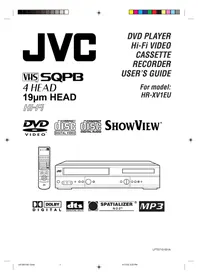


| Product Type | Combo VCR/DVD Video Recorder |
| Brand | JVC |
| Model | HR-XV1EU |
| Dimensions (W x D x H) | 430 x 280 x 85 mm |
| Weight | 4.5 kg |
| Power Supply | 230 V, 50 Hz |
| Power Consumption | 25 W during operation |
| Supported Formats | VHS, DVD-Video, CD, MP3 |
| Connections | SCART connector, composite audio/video output, S-Video, auxiliary input |
| Main Functions | VHS/DVD recording and playback, programming, auto stop |
| Maintenance and Cleaning | Wipe with a soft dry cloth; do not use abrasive products |
| Safety | Use away from humidity and heat sources |
| Spare Parts and Repairability | Replaceable VHS video head, accessible DVD tray |
| General Information | Combo device, compatible with TV, VCR, DVD |
Frequently Asked Questions - HR-XV1EU JVC
User questions about HR-XV1EU JVC
0 question about this device. Answer the ones you know or ask your own.
Ask a new question about this device
Download the instructions for your Video recorder in PDF format for free! Find your manual HR-XV1EU - JVC and take your electronic device back in hand. On this page are published all the documents necessary for the use of your device. HR-XV1EU by JVC.
USER MANUAL HR-XV1EU JVC
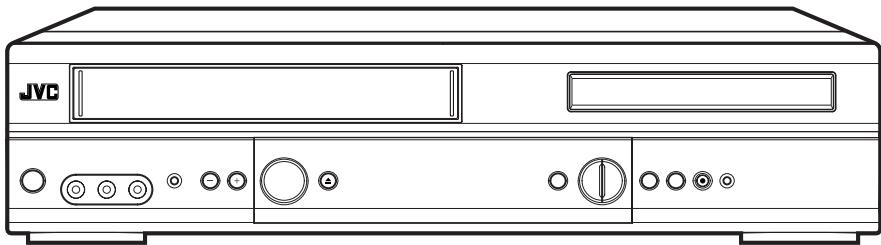

DIG

ITAL

DIGITAL OUT

SPATIALIZER®
N-2-2™

SAFETY FIRST
The rating plate and the safety caution are on the rear of the unit.
WARNING: TO PREVENT FIRE OR SHOCK HAZARD, DO NOT EXPOSE THIS UNIT TO RAIN OR MOISTURE.
CAUTION
■ When you are not using the recorder for a long period of time, it is recommended that you disconnect the power cord from the mains outlet. ■ Dangerous voltage inside. Refer internal servicing to qualified service personnel. To prevent electric shock or fire hazard, remove the power cord from the mains outlet prior to connecting or disconnecting any signal lead or aerial.
CAUTION:
A DVD/VCR IS A CLASS 1 LASER PRODUCT. HOWEVER THIS DVD/VCR USES A VISIBLE LASER BEAM WHICH COULD CAUSE HAZARDOUS RADIATION EXPOSURE IF DIRECTED. BE SURE TO OPERATE THE PLAYER CORRECTLY AS INSTRUCTED.
THE FOLLOWING CAUTION LABEL IS LOCATED ON THE REAR PANEL OF THE DVD/VCR.
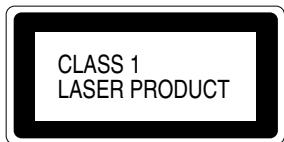
WHEN THIS DVD/VCR IS PLUGGED INTO THE WALL OUTLET, DO NOT PLACE YOUR EYES CLOSE TO THE OPENING OF THE DISC TRAY AND OTHER OPENINGS TO LOOK INTO THE INSIDE OF THIS DVD/VCR.
USE OF CONTROLS OR ADJUSTMENTS OR PERFORMANCE OF PROCEDURES OTHER THAN THOSE SPECIFIED HEREIN MAY RESULT IN HAZARDOUS RADIATION EXPOSURE.
DO NOT OPEN COVERS AND DO NOT REPAIR YOURSELF. REFER SERVICING TO QUALIFIED PERSONNEL.
IMPORTANT
■ Please read the various precautions on page 2 and 3 before installing or operating the recorder. It should be noted that it may be unlawful to re-record pre-recorded tapes, records, or discs without the consent of the owner of copyright in the sound or video recording, broadcast or cable programme and in any literary, dramatic, musical, or artistic work embodied therein.
- Use only discs marked with the following.
DVD
[8 cm disc/12 cm disc]
Video CDs/Audio CDs
[8 cm disc/12 cm disc]
VIDEO
DIGITAL VIDEO
DIGITAL AUDIO

SQPB HQ SHOWVIEW®
DELUXE
- Cassettes marked “VHS” (or “S-VHS”) can be used with this video cassette recorder. However, S-VHS recording is not possible with this model.
- This model is equipped with SQPB (S-VHS QUASI PLAYBACK) that makes it possible to play back S-VHS recordings with regular VHS resolution. • HQ VHS is compatible with existing VHS equipment.
- SHOWVIEW is a registered trademark of Gemstar Development Corporation. The SHOWVIEW system is manufactured under licence from Gemstar Development Corporation.
For Italy:
"It is declared that this product, brand JVC, conforms to the Ministry Decree n. 548 of 28 Aug.'95 published in the Official Gazette of the Italian Republic n. 301 of 28 Dec.'95"
The STANDBY/ON ⏻/I button does not completely shut off mains power from the unit, but switches operating current on and off. “☐” shows electrical power standby and “I” shows ON.
Video tapes recorded with this video recorder in the LP (Long Play) mode cannot be played back on a single-speed video recorder.
When the equipment is installed in a cabinet or a shelf, make sure that it has sufficient space on all sides to allow for ventilation (10 cm or more on both sides, on top and at the rear.)
When discarding batteries, environmental problems must be considered and the local rules or laws governing the disposal of these batteries must be followed strictly.
Failure to heed the following precautions may result in damage to the recorder, remote control or video cassette.
- DO NOT place the recorder ...
... in an environment prone to extreme temperatures or humidity.
... in direct sunlight.
... in a dusty environment.
... in an environment where strong magnetic fields are generated.
... on a surface that is unstable or subject to vibration.
- DO NOT block the recorder's ventilation openings or holes.
(If the ventilation openings or holes are blocked by a newspaper or cloth, etc., the heat may not be able to get out.)
- DO NOT place heavy objects on the recorder or remote control.
- DO NOT place anything which might spill on top of the recorder or remote control.
(If water or liquid is allowed to enter this equipment, fire or electric shock may be caused.)
- DO NOT expose the apparatus to dripping or splashing.
- DO NOT use this equipment in a bathroom or places with water. Also DO NOT place any containers filled with water or liquids (such as cosmetics or medicines, flower vases, potted plants, cups, etc.) on top of this unit.
- DO NOT place any naked flame sources, such as lighted candles, on the apparatus.
- AVOID violent shocks to the recorder during transport.
MOISTURE CONDENSATION
Moisture in the air will condense on the recorder when you move it from a cold place to a warm place, or under extremely humid conditions—just as water droplets form on the surface of a glass filled with cold liquid. Moisture condensation on the head drum will cause damage to the tape. In conditions where condensation may occur, keep the recorder turned on for a few hours to let the moisture dry.
Video Cassette Recorder
• High Quality (HQ) Images - On-Screen Displays (OSD) - Nicam Hi-Fi Stereo Audio Recording and Playback • ATS - Automatic Tuning System • CATV Tuner with Hyperband • 80 Memories for presets - Auto Time Setting • 30 Minutes Back-Up in case of Power failure - 6 rotary Heads (4 Video Heads, 2 HiFi Audio Heads) - Long play - VPS/PDC system - Timer Recording of up to 8 Programs per Month - SHOWVIEW® - rapid timer programming - Instant Timer Recording (ITR) • Video Index Search System - Slow Motion • NTSC Video Cassette Tape Playback on PAL TV • Real-Time Tape Counter with ZERO RETURN Function • Digital AUTO Tracking (ATR Function)
- Repeat/Scene Repeat
- On-Screen Display in 3 Languages
- AV-Front input jacks • 2 Scart sockets for Premiere • CE Symbol guaranteeing Compliance to Currently Effective European Standards
DVD Player
• Digital Audio Jack (Coaxial) - Multi-Language - Multi-Angle - Surround audio - Repeat Playback • Memory/Random Playback - Zoom • Video Aspect Ratio - Parental Control • 3 Scenes memory • Digital (Optical or Coaxial) output for Dolby Digital (AC-3) and DTS - Playback of DVD, Video-CD and Audio-CD • PAL & NTSC DVDs playback • A-B Repeat playback - MP3 CD playback
* This product incorporates copyright protection technology that is protected by method claims of certain U.S. patents and other intellectual property rights owned by Macrovision Corporation and other rights owners. Use of this copyright protection technology must be authorized by Macrovision Corporation or other rights owners and is intended for home and other limited viewing uses only unless otherwise authorized by Macrovision Corporation or other rights owners. Reverse engineering or disassembly is prohibited. * Manufactured under license from Dolby Laboratories. "Dolby" and the double-D symbol are trademarks of Dolby Laboratories. Confidential unpublished works. © 1992-1997 Dolby Laboratories, Inc. All rights reserved. * "DTS" and "DTS Digital Out" are trademarks of Digital Theater Systems, Inc. * Certain audio features of this product manufactured under license from Desper Products, Inc. Spatializer and the circle-in-square device are trademarks owned by Desper Products, Inc. * Unauthorized recording of copyrighted television programs, films, video cassettes and other materials may infringe the rights of copyright owners and be contrary to copyright laws.
Before using your unit
Safety Precautions ...... 2
Features 4
Contents 5
Parts and functions ...... 6
Display 7
Remote control 8
Connections and Installation 10
Playback connection .... 11
Setting up the VCR section
Setting the TV to the AV-Channel 13
Setting the On-screen language .... 14
ATS Automatic Tuning System and
Auto Time /Date Setting 15
ATS 16
Setting the Time and Date....19
Manual TV station presetting....20
Tape playback operation
Loading and Unloading a Cassette Tape ..... 22
Cassette tape playback 23
Special playback/Playback sharpness .....24
Repeat Playback 25
Counter Display 26
Video Index Search System 27
Recording
Recording a TV Program....28
Instant Timer Recording (ITR) 30
ShowView®-Recording 31
Timer-Recording 33
Advanced function of VCR section
Detailed Description of the VPS/
PDC Function 35
NICAM/German A2 Stereo Recording
and Playback....36
Audio Mixing 38
Duplicating a Video Tape 39
Disc playback operation
DISC 40
Setting setup language 41
Playback procedure....42
Special playback 43
DVD Picture Signal Selection/Zooming ..... 44
Repeat playback....45
Memory playback/Random playback 46
MP3 Playback 47
Changing soundtrack language /
Changing Subtitles language 48
Changing angles / Title selection /
DVD menu 49
Advanced function of DVD section
Parental control 50
Setting menu language 52
Setting audio soundtrack language 53
Setting subtitle language 54
Setting the aspect ratio of TV screen /
Setting on Screen display 55
Setting Audio 56
Setting Operation 57
Selecting the sound enhancement (E.A.M.)/
Setting Background/Setting Screen Saver ..... 58
Setting initial setup/output sound
conversion table 59
Status display of Disc 60
Table of languages 61
Additional information
Problems and troubleshooting 62
Video head cleaning 63
Specifications 64
Front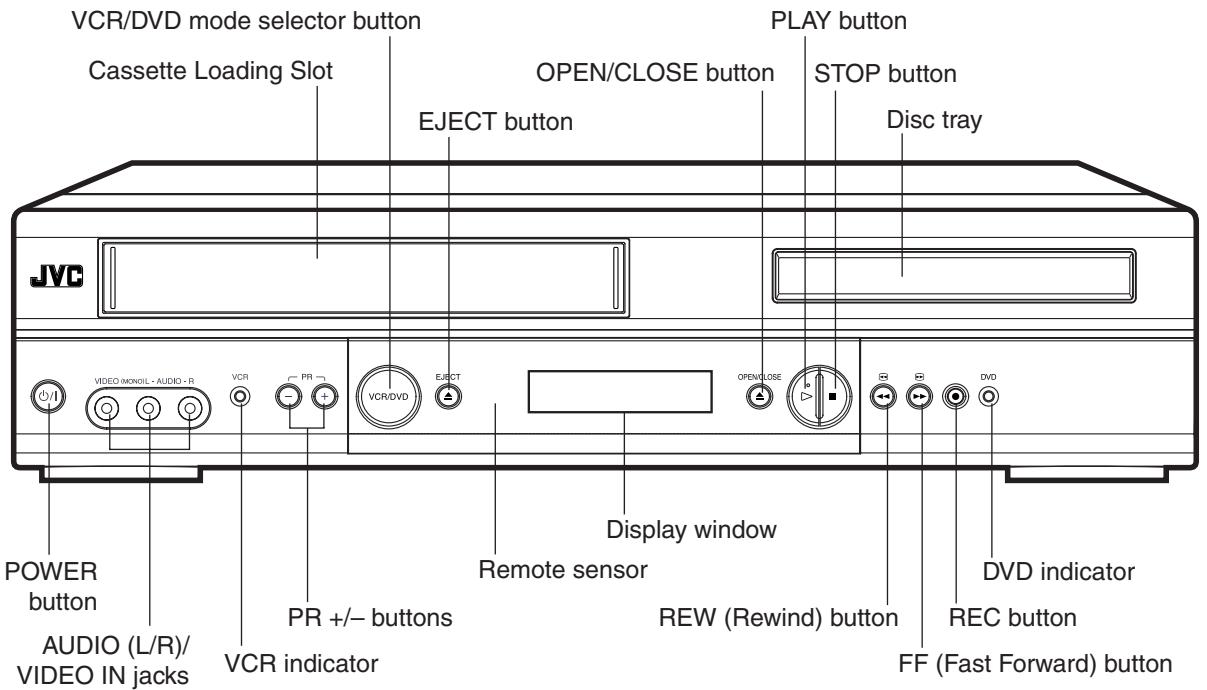
Rear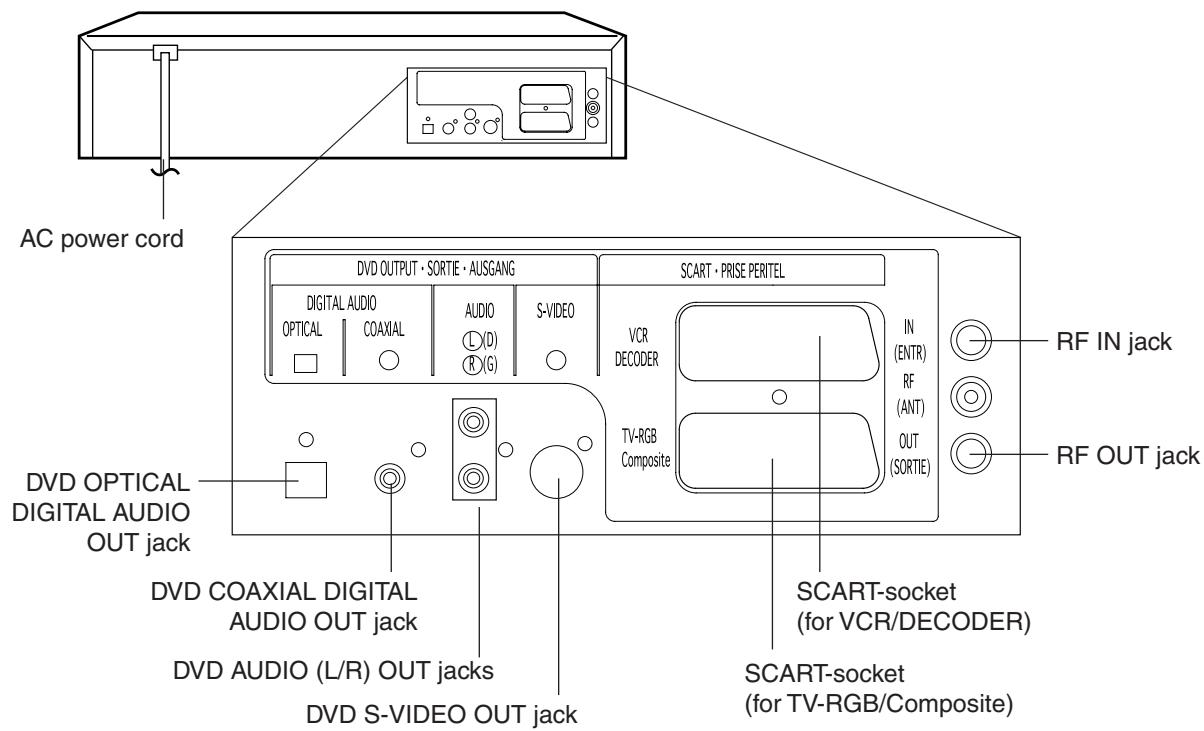
Display window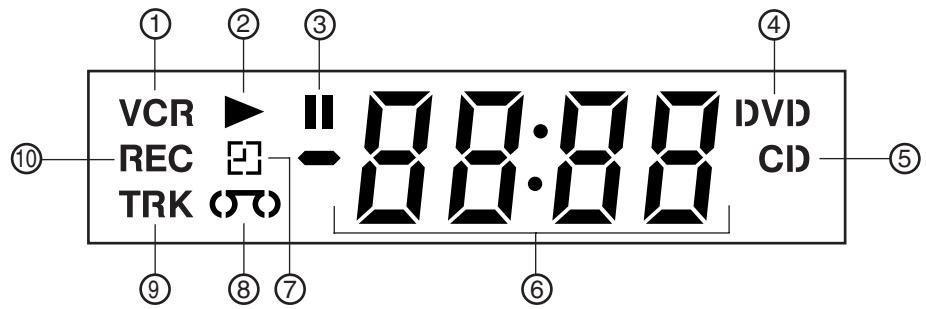
| No. | Display | Description |
| 1 | VCR | VCR mode |
| 2 | ▶ | Playback (lights) / Auto resume (flashes) |
| 3 | II | Still picture |
| 4 | DVD | DVD disc is inserted. |
| 5 | CD | CD is inserted. |
| 6 | 10 : 00 | Clock display (colon[ : ] flashes) |
| 01 : 00 | Counter display by hour/minute at VCR/DVD / by minute/second at CD | |
| 2 | Track number display for CD | |
| CH 2 | TV channel position display | |
| A1/A2/A3 | External input display | |
| 7 | ☐ | Timer recording display |
| 8 | (☐) | Video tape is in the unit |
| 9 | TRK | Track display for CD |
| 10 | REC | Normal recording display (flashes during Instant Timer Recording - ITR) |
Note:
Some discs may be displayed incorrectly, or some information such as chapter number, playback time, etc. may not be displayed.
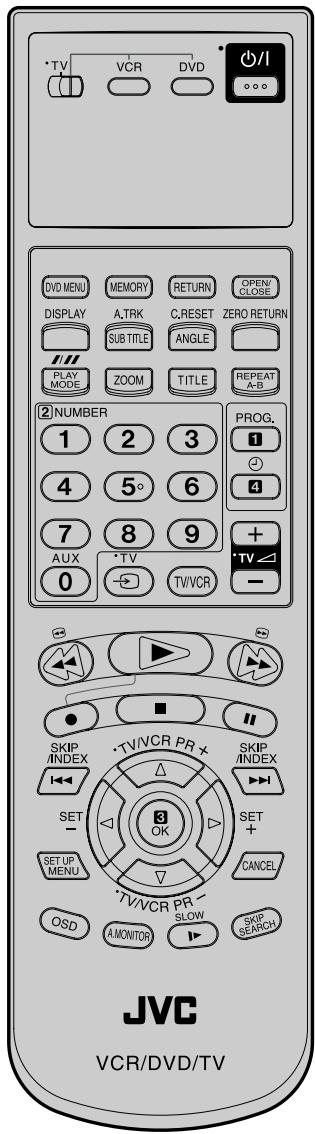
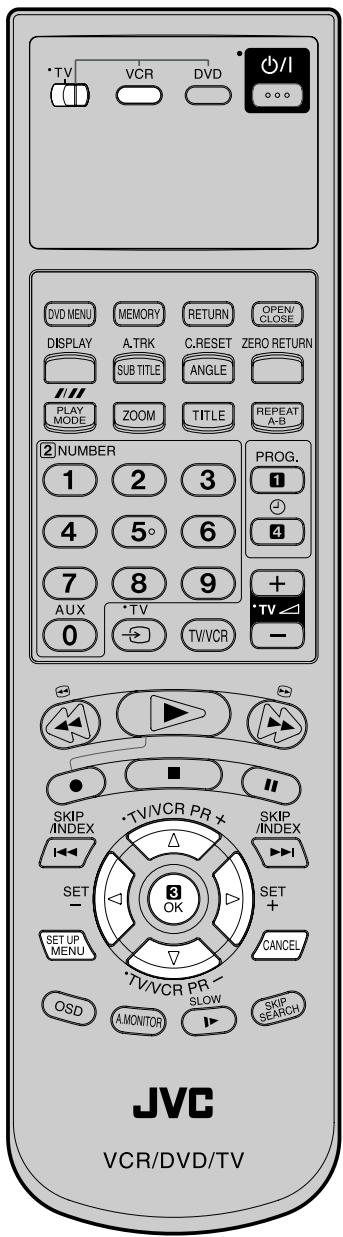
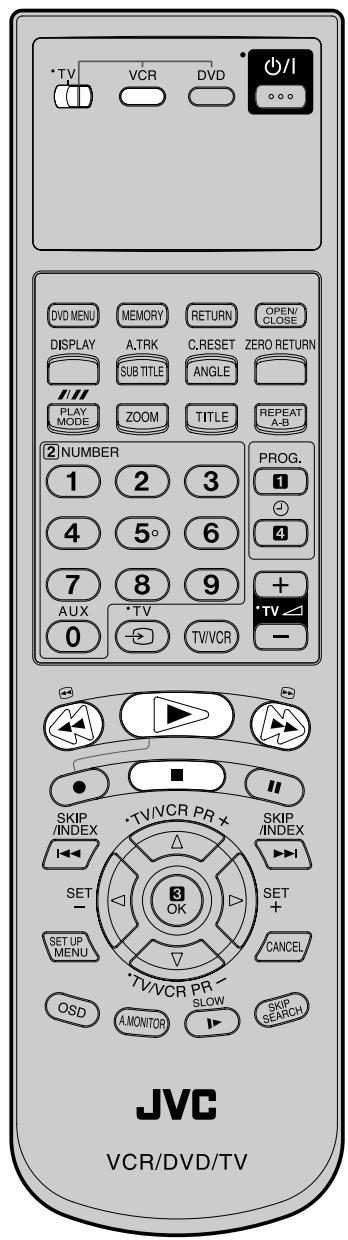
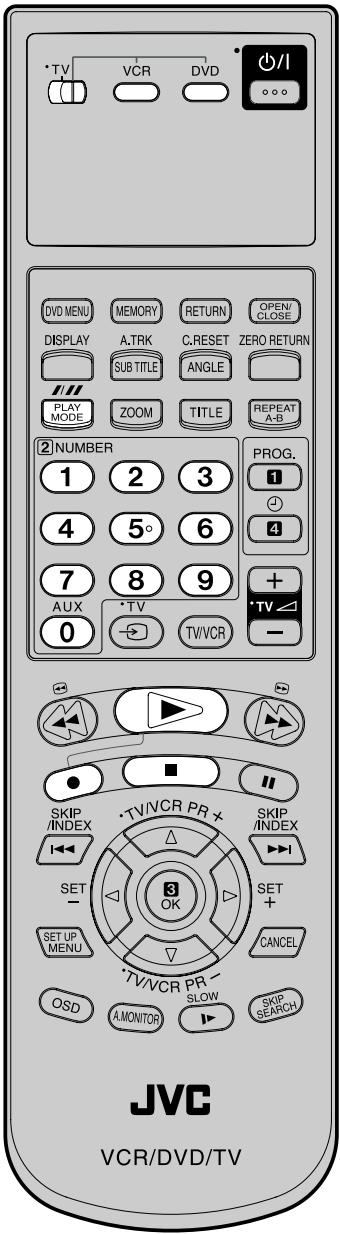
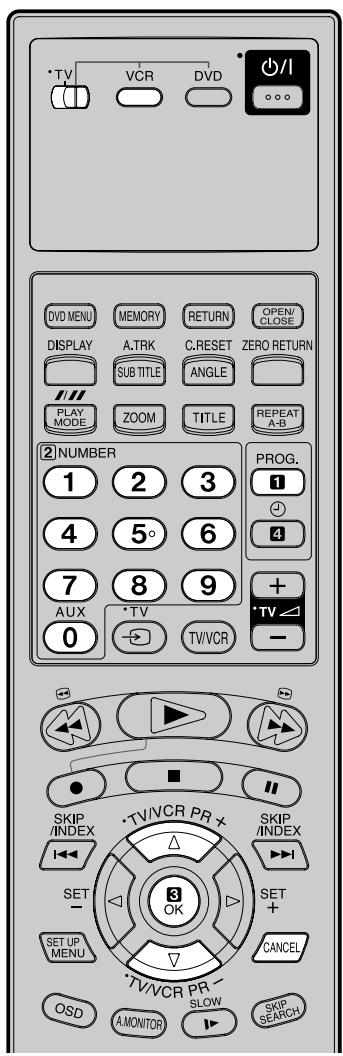
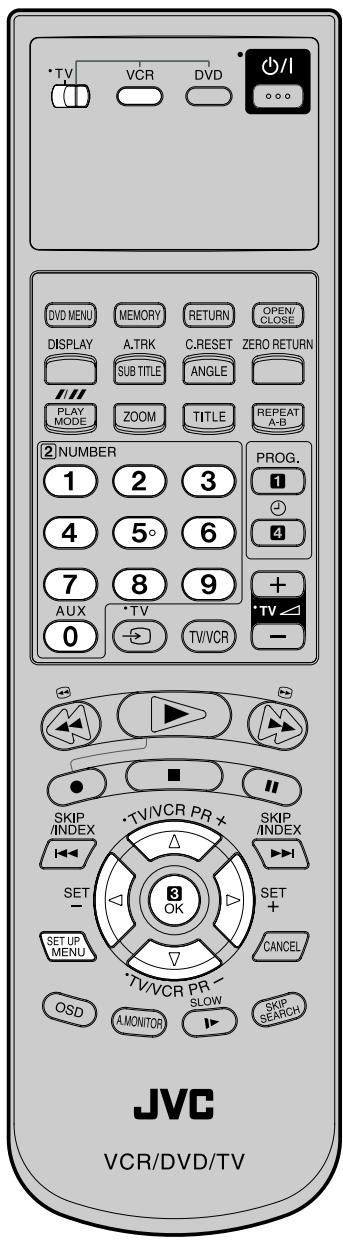
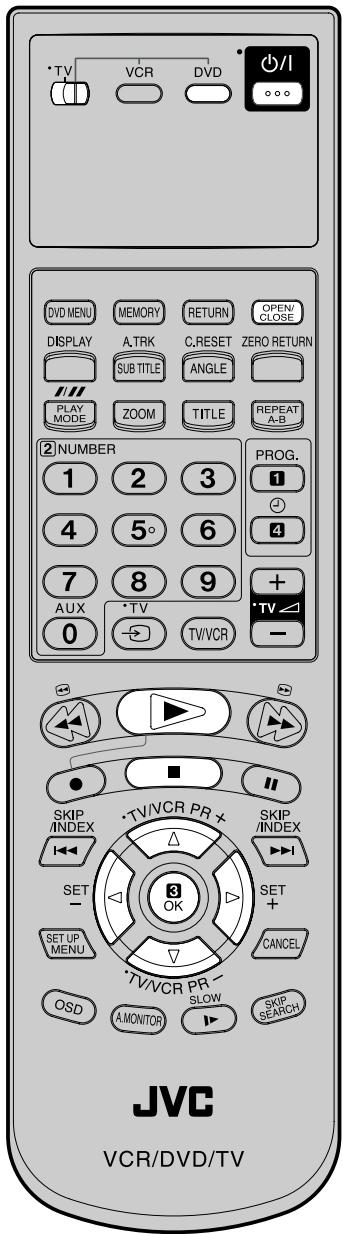
JVC TV Remote Control
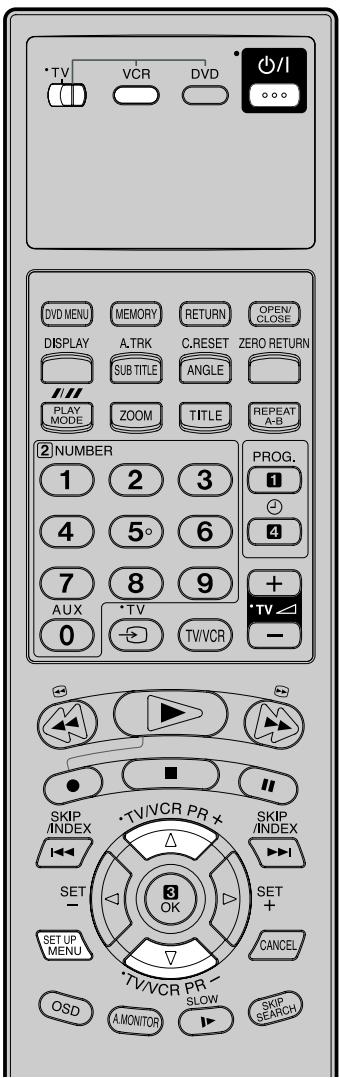
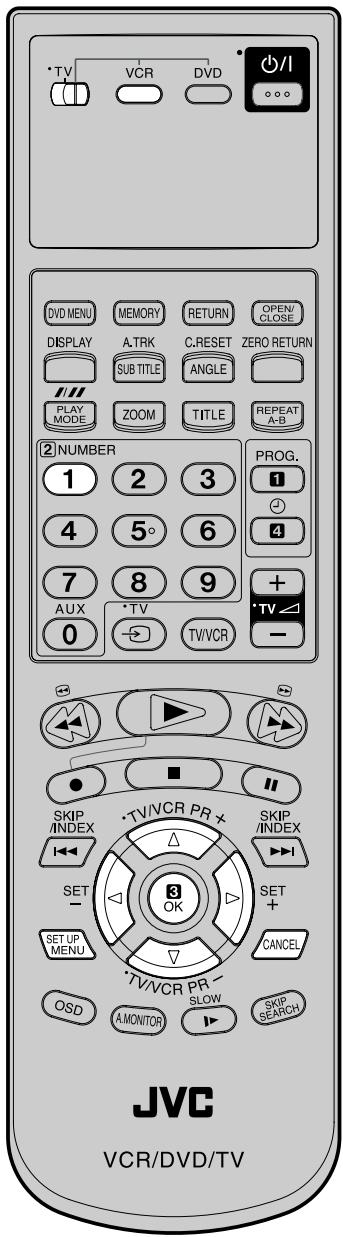
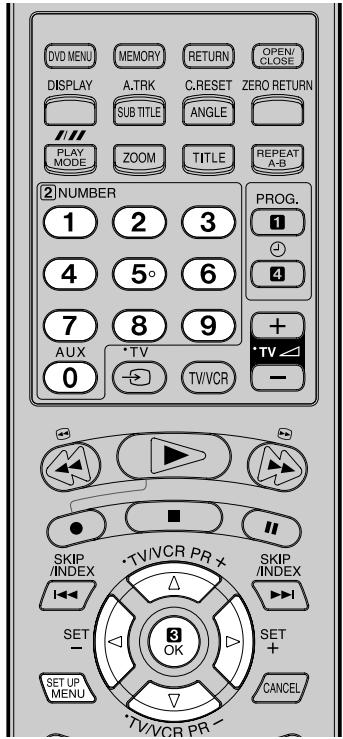
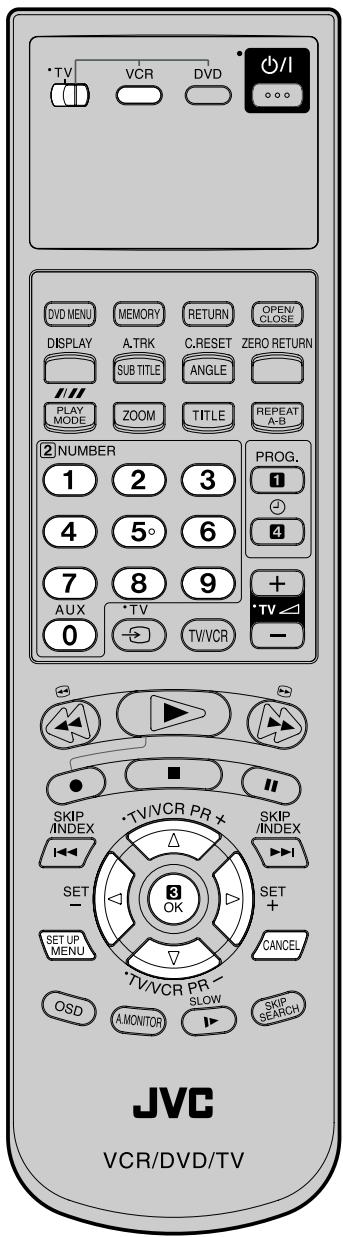
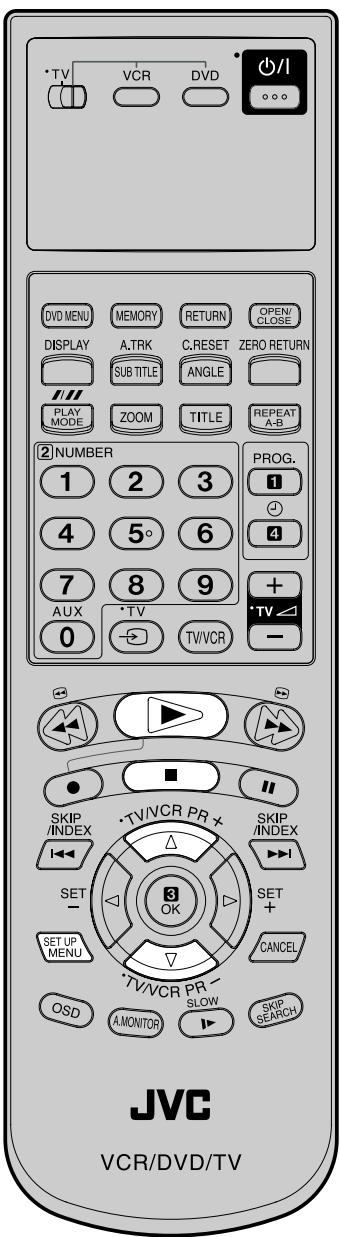
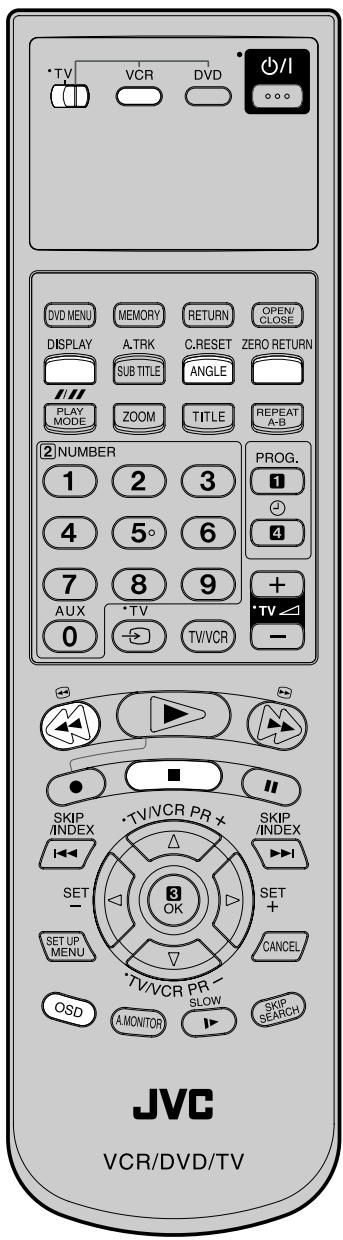
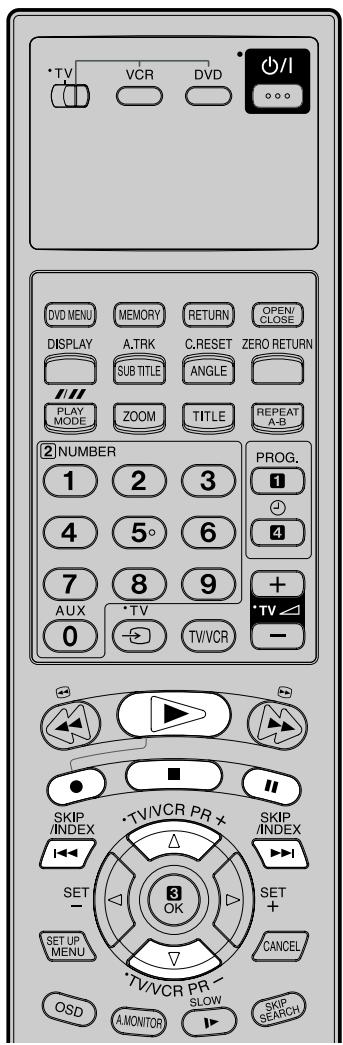
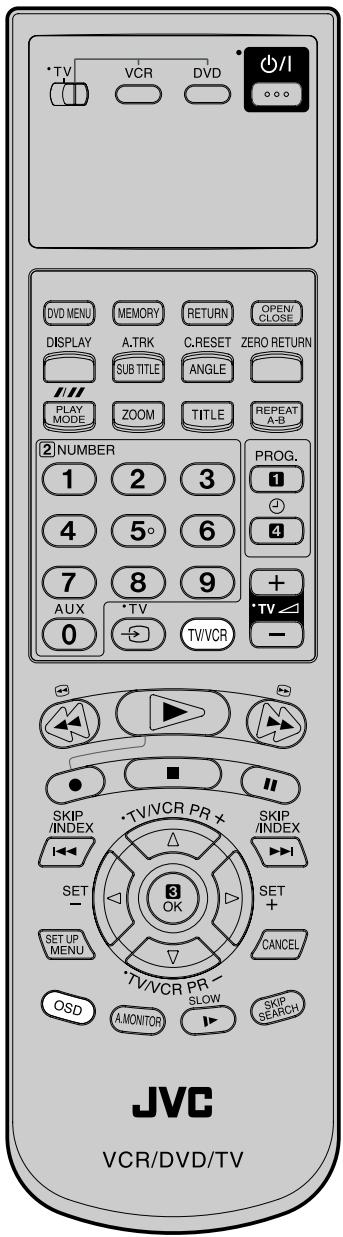
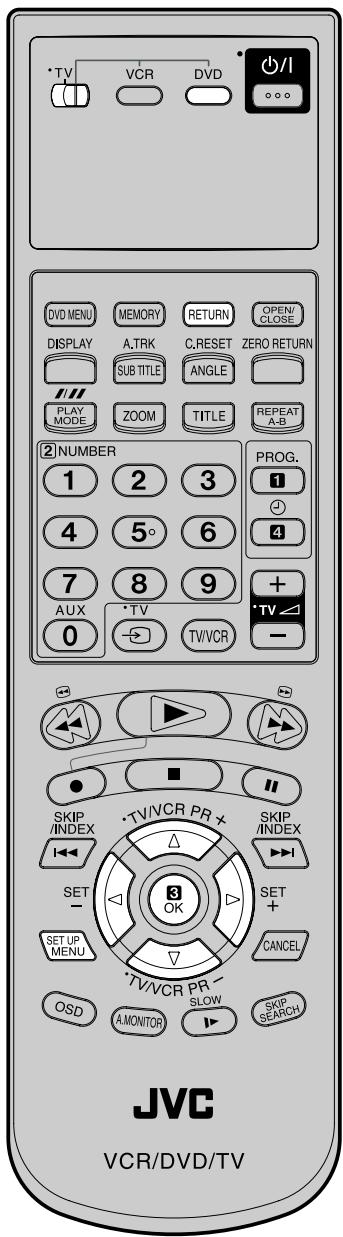
This remote can control some functions (∅/l, NUMBER (0-9), TV ➕, TV ∠ +/-, TV PR +/- and OK) of a remote controllable JVC TV by sliding the TV/VCR/DVD switch to TV.
NOTE:
- It is not possible to operate a unit not equipped with a remote sensor.
- This remote can control a JVC TV only.
- When you operate the VCR or DVD, the TV/VCR/DVD switch must be slid to VCR/DVD again. Otherwise the DVD/VCR may not operate properly.
- Since this unit is a combined type of DVD and VCR, the remote code of DVD is individual. So please note that the DVD keys on the RCU of other JVC RECEIVER/TV are not effective for this unit.
Page
| TV/VCR/DVD switch | Switch to operate TV or VCR or DVD | 14,41 |
| ⏻/I | Power on/off | 14 |
| Turn the connected TV on or off | 8 | |
| DVD MENU | Display menu of DVD software | 49 |
| MEMORY | Index for DVD | 46 |
| RETURN | Remove DVD set up menu | 50 |
| OPEN/CLOSE | Open or Close the tray | 42 |
| DISPLAY | Change the front Display mode | 26 |
| A.TRK | Digital AUTO TRACKING | 24 |
| SUB TITLE | Set Subtitle of a DVD disc | 48 |
| C. RESET | Reset the counter to 00:00 | 26 |
| ANGLE | Change playback angle of a DVD disc | 49 |
| ZERO RETURN | Stop the tape when the counter reaches 00:00 | 26 |
| #/#/# (SP/LP) | Sets the tape speed for recording | 28,30,39 |
| PLAY MODE | Select playback mode | 45,46 |
| ZOOM | Zoom (for DVD playback) | 44 |
| TITLE | Select title of a DVD disc | 49 |
| REPEAT A-B | Repeat playback between A and B (DVD/CD) | 45 |
| 0-9 | Direct channel selection of TV | 28,30 |
| Input setting | 15~18,31,33,46,47 | |
| Enter a password | 50 | |
| AUX | Scart input or AV-Front input | 34,39 |
| PROG. | SHOWVIEW-Recording | 31 |
| Confirmation of Timer-Recording | 34 | |
| ⏻ | Set the unit to start recording at a preset time. | 32,34 |
| TV ⚫ (INPUT) | Switch the connected TV to external mode | 8 |
| TV/VCR | Switches between TV and VCR | 29 |
| TV ⏱ +/- | Adjust the connected TV's volume | 10 |
| ◀◀ | Rewind/Review playback | 23,24,43 |
| ▶ | Playback | 23,42,47 |
| ▶▶ | Fast Forward/Forward search playback | 23,24,43 |
| ● | Recording | 28,30,39 |
| ■ | Stop | 23,42,47 |
| II | Still picture/Recording pause on/off | 24,28,39,43 |
| SKIP IKKIKK/IKKIKK | Skip chapter to forward or reverse direction | 43 |
| INDEX IKKIKK/IKKIKK | Search for the INDEX mark of a tape | 27 |
| TV/VCR PR +/- | Select channel of the connected TV or VCR | 8,28,30,39 |
| ▲/▼ | Cursor buttons | |
| SET -/+ | Setting buttons | 32~34 |
| Manual tracking buttons in playback mode | 24 | |
| ◀/▶ | Cursor buttons - To move Up in the VCR menu you press the ▶. To move Down in the VCR menu you press the ◀. | |
| OK | Enter information in the menu/Select option in the menu | |
| SET UP MENU | Display menu of setup | 14~21,41,50~59 |
| CANCEL | Delete Timer program | 34 |
| Cancel input data in the setting mode | 18,21,46~50 | |
| OSD | Display VCR or DVD operation status | 28~30,60 |
| A.MONITOR | Switches sound | 37,38 |
| Change sound track language of DVD | 48 | |
| SLOW | Slowmotion playback | 24,43 |
| SKIP SEARCH | Skip the unwanted short material of a tape | 24 |
How to install the batteries
Use micro batteries type R6.
1. Open the battery compartment cover in the direction of the arrow.
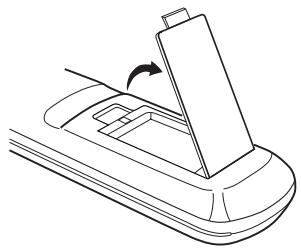
2. Install two "AA" batteries (not supplied), paying attention to the polarity diagram in the battery compartment.
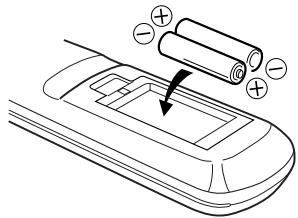
3. Replace the compartment cover.
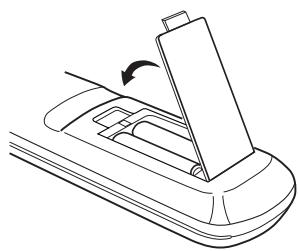
Battery precautions
The precautions below should be followed when using batteries in this device:
- Use only the size and type of batteries specified.
- Be sure to follow the correct polarity when installing the batteries as indicated in the battery compartment. Reversed batteries may cause damage to the device. To avoid a potential short circuit, insert the "-" end first.
- Do not mix different types of batteries together (e.g. Alkaline and Carbon-zinc) or old batteries with fresh ones.
- If the device is not to be used for a long period of time, remove the batteries to prevent damage or injury from possible battery leakage.
- Do not try to recharge batteries not intended to be recharged; they can overheat and rupture.
Distance of Remote Control Operation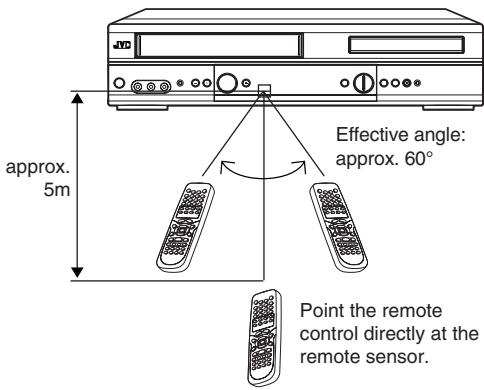
Change the custom code for remote control
If you operate this DVD/VCR with another JVC's VCR simultaneously arranging them side by side, the both recorders will react to this remote control. In this case, you can change the remote control and DVD/VCR to other frequency ("☐"). Then you can operate only this DVD/VCR with this changed remote control.
When you purchased, the DVD/VCR and remote control have been set to the frequency-“H”.
Example: Change frequency to
Remote control:
While holding VCR, press 2 (code: b) of Number keys. (in case of code: A, press 1). Then press OK.
DVD/VCR:
In the POWER off mode, press and hold PLAY for more than 5 seconds. The current code (“A” or “b”) will appear on the display. Then press ■ on the remote control. The current code of the remote control will be transmitted to the unit and the unit will be adjusted to the transmitted code. Then the code will disappear after approx. 4 seconds.
NOTE:
- If the remote control has been set to b, the DVD/VCR also must be set to b. Otherwise, the DVD/VCR can not be operated with this remote control.
- To reset to “A”, repeat above procedure. However press 1 instead of 2.
Connect your DVD/VCR to your home's antenna and to your TV-set as shown in the illustration.
When you have finished these connections you connect your DVD/VCR to the 230 V / 50 Hz mains.
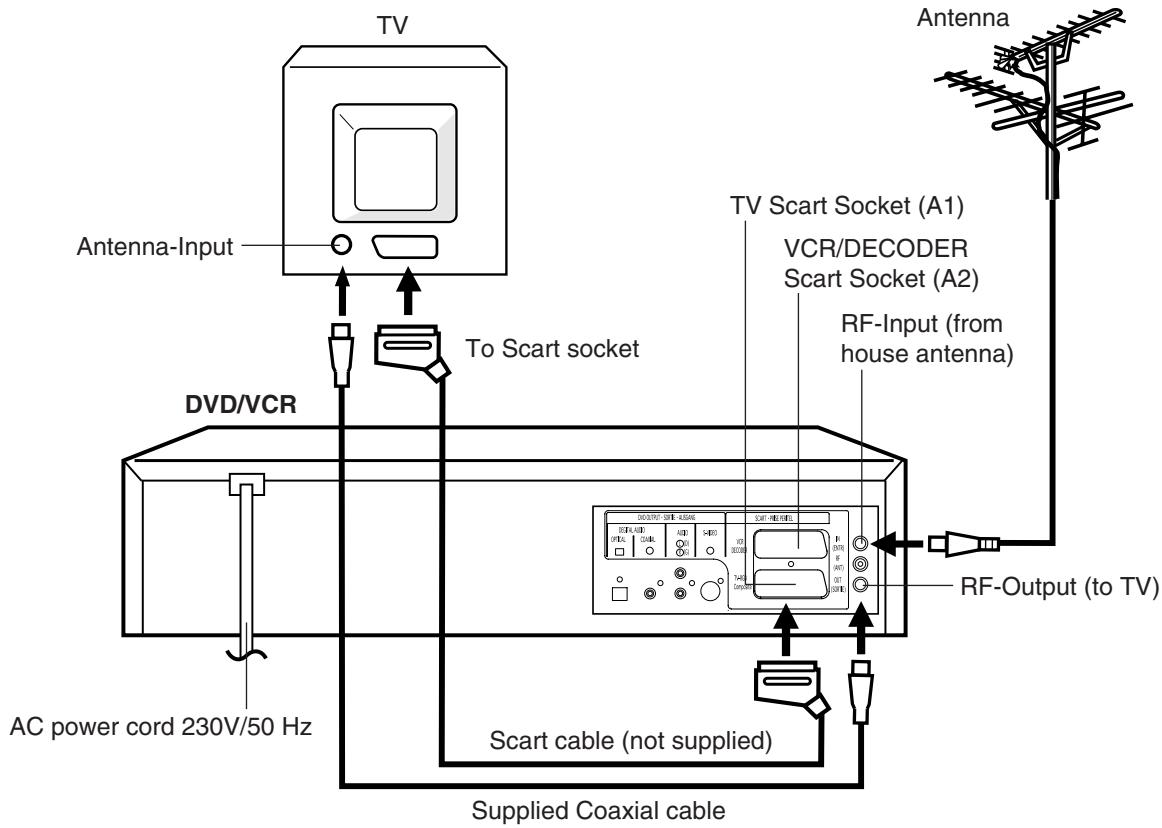
Connect a TV with the Scart socket
In addition to the coaxial cable connection, connect also with scart cable. The picture and sound will be transmitted best through the scart cable. In this case, the TV need not be tuned to the video recorder. The AV-channel also need not be tuned. The video recorder switch the television to video operation through the scart cable automatically. The stereo-playback is possible in only case through a scart cable!
If your TV-set does not switch to video-playback operation automatically, please turn your TV's video switch to VIDEO position manually.
The exact arrangement you use to interconnect various video and audio components to the DVD/VCR is dependent on the model and features of each component. Check the Owner's Manual provided with each component for the location of SCART socket.
Connection to a Satellite Receiver
If a Satellite Receiver is used, we recommend the following configuration:
![graph TD A["Satellite Antenna"] --> B["Satellite Receiver"] B --> C["SCART-cable (not supplied)"] C --> D["DVD/VCR"] D --> E["TV"] E --> F["SCART-cable (not supplied)"] F --> B](/content/2025/01/123354/images/9b6e1e104ad93436a3165af64c758696fdc694069a2f30208f056e40475388cb.jpg)
To record from Satellite Receiver press "AUX" on the remote control of DVD/VCR twice. "A2" will appear on the front display. Select the desired TV-program at Satellite Receiver.
Connect to a TV with S-Video Output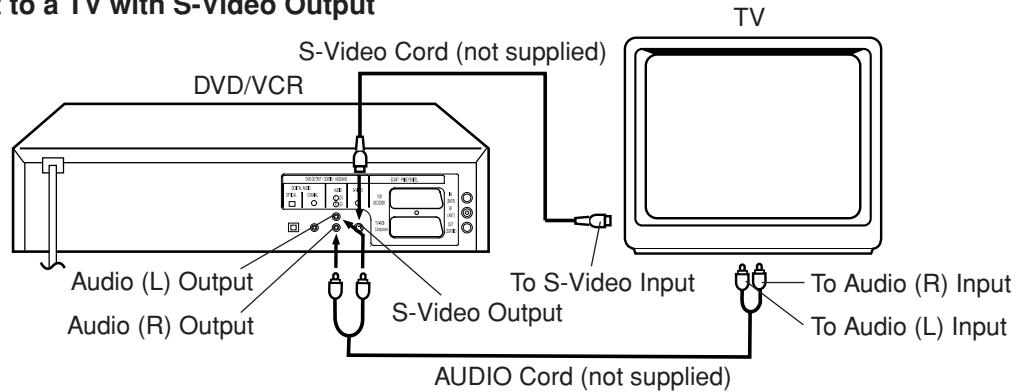
Note:
- The S-VIDEO jack is useful only for DVD section.
- If you use the connection with S-Video Cord, set the "Video Out Select" (P.44) to "Video".
Connection to a Decoder (for Premiere Programs)![graph TD A["SCART-cable (not supplied)"] --> B["DVD/VCR"] B --> C["Cable TV connection"] C --> D["RF-Output"] D --> E["TV-unit"] E --> F["Decoder"] F --> G["SYSTEM SETUP"] style A fill:#f9f,stroke:#333 style B fill:#ccf,stroke:#333 style C fill:#cfc,stroke:#333 style D fill:#fcc,stroke:#333 style E…](/content/2025/01/123354/images/b85cb7d5dfc7218b8e0931d9be8893f4afd7b8c89f5a04c4fa26a890e0a22326.jpg)
Note: Make sure that AV - mode in SYSTEM SETUP - menu has been set to DEC.
Connect to a Stereo Amplifier with Audio Output
If your DVD/VCR is connected to a stereo amplifier, the video soundtrack can output through the loudspeakers of the stereo system.
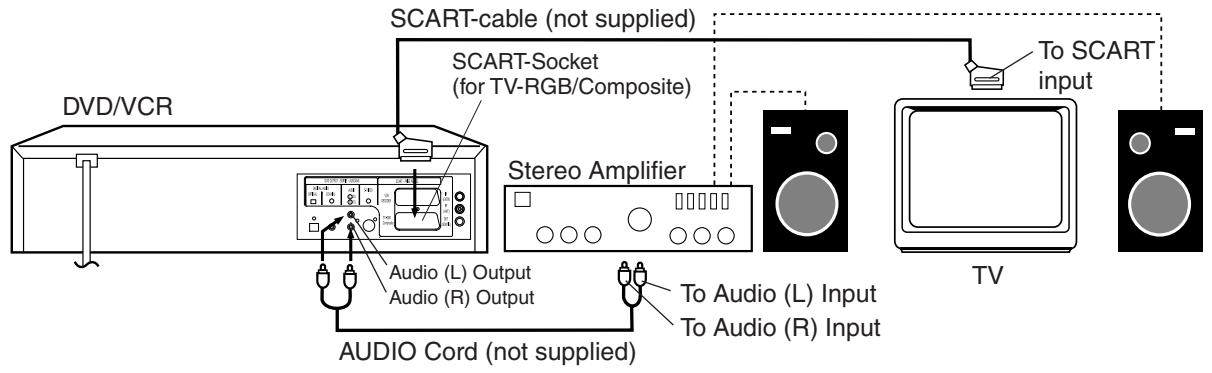
Connect to an AV Amplifier with built-in digital surround
If you are using an Amplifier with a built-in digital surround as follows, you can enjoy the various audio systems such as Dolby Digital and DTS by using the Coaxial Digital Output.
Use this connection to connect an:
- AV amplifier with built-in Dolby Digital decoder
- AV amplifier with built-in *DTS decoder
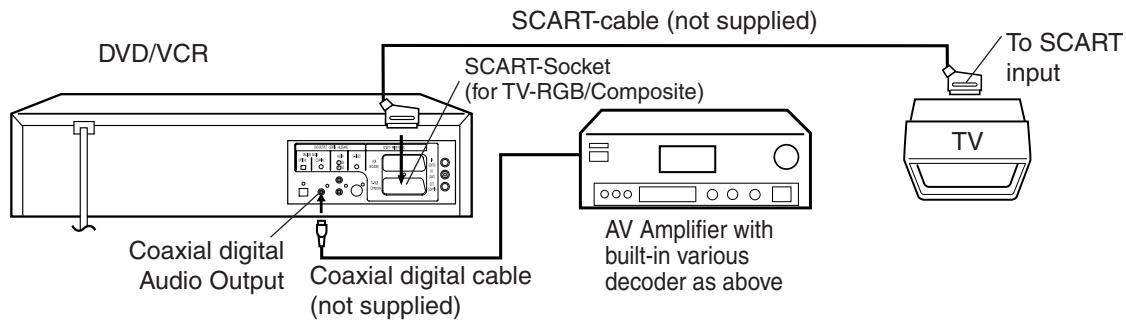
Connecting the optical digital cable
You may connect to an AV Amplifier with an Optical digital cable (not supplied) instead of a Coaxial digital cable.
When you connect the optical digital cable (not supplied), remove the dust protection cap from the rear panel. When not using the optical digital cable, attach the dust protection cap to protect against dust.
NOTES:
- The OPTICAL, COAXIAL jacks are useful only for DVD section. VHS signal is output only from the SCART-sockets, AUDIO L/R jacks and RF OUT jack.
- When you make the connections above, do not set DOLBY DIGITAL to DOLBY DIGITAL or DTS to ON on the AV Amplifier. If you do, a loud noise will suddenly come out from the speakers, affecting your ears or causing the speakers to be damaged.
- DTS audio will be output only from the COAXIAL output. To hear DTS audio, DTS-Decoder is necessary. When playing DTS-encoded CDs, only noise will be heard from the speakers or analogue stereo outputs.
- Some DTS decoders which do not support DVD-DTS interface may not work properly with the unit.
We recommend that television and DVD/VCR are being connected with a scart cable.
In this case, the setting of AV-channel is not necessary. Picture and sound of video cassette will be transmitted to television through the scart cable automatically. Please read the next page.
In case of no scart cable connection, you must set the television to the AV-channel. Pay attention to the following notice:
A built-in TV-broadcast in DVD/VCR can do the video playback through the supplied antenna cable. This broadcast is sent on UHF, channel 36. To receive this broadcast, you must tune your television to channel 36 in UHF-band.(see step 2)
In case a broadcast has already sent to channel 36 in your area or you connect a additional equipment (e.g. Satellite receiver) with a coaxial cable (without a scart cable), you must tune the sending channel in DVD/VCR (see step 3). In your television store the both equipment (the DVD/VCR and the satellite receiver) to 2 different program positions.
Example: Your satellite receiver is sent to channel 36. You tune the DVD/VCR to channel 40 (see step 3).
(If your DVD/VCR is also sent to channel 36, the interference will occur.) In your television store the channel 36 to e.g. program position 3 and store the channel 40 to e.g. program position 4. Note that the program position 4 must be suitable for video-playback especially. Please see the owner's manual for your television. If the playback picture is often distorted, you must select the other program position for DVD/VCR.
Preparation
- Turn on the TV.
- Make sure the power of DVD/VCR has been turned off.
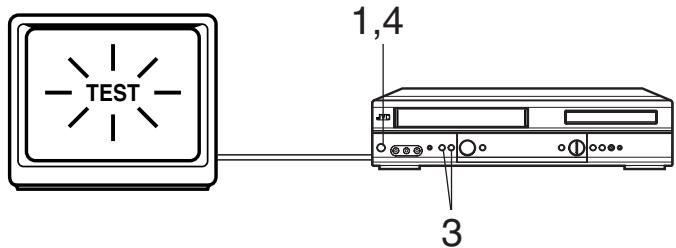
1 Press the DVD/VCR's ⏻/I (not the one on your remote control) and keep pressing it until the display shows rF:. The number next to rF: is the channel in UHF-band to which you must tune your TV-set.
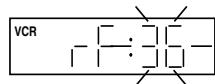
2 Switch your television to the program position on which the video playback is seen. Start the channel search of your television until "TEST" appears. Store this tuning in television like also the case of the reception for normal television-channels you would store.
If you want to use your DVD/VCR, switch your television to this program position.
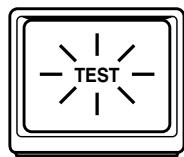
3 If there is interference in the picture (you see 2 programs simultaneously or what is called Ghosts), change the sending channel in DVD/VCR. To do this, go back to the step 1. Use PR button on the DVD/VCR to change the number next to the rF:. Then return to step 2 and tune the television newly. 4 Press ⏻/I button to turn off the DVD/VCR.
Note:
If you receive one TV-program on channel 35, 36 or 37, the interference can be occurred to the built-in TV channel in DVD/VCR. If you use a scart cable for the transmission of picture and sound, you can cut off the built-in TV-program. Then the video playback through the supplied antenna cable is not possible any more. Press PR repeatedly (at step 1) until OFF will appear.(OFF appears after 69 or before 23)
Setting the On-screen language
Turn on your TV and select the AV-Program position, on which you have already set your DVD/VCR. (it will happen automatically by Scart-cable connection). So you can follow up the all setting on TV screen.
NOTES:
- If the unit does not operate properly, or No key operation (by the unit and/or the remote control): Static electricity, etc., may affect the player's operation. Disconnect the AC power cord once, then connect it again.
- Both the VCR and the DVD have their own menu option (See page 41).
- If no buttons are pressed for more than 60 seconds, the MENU screen will return to normal TV-operation automatically.
Preparation:
- Press the ⏻/I button to turn on the DVD/VCR.
- Make sure TV/VCR/DVD switch has been slid to VCR/DVD. Then press VCR to select the VCR mode. (The VCR indicator will light)
You can choose from three different languages (English, French and German) for the on-screen displays.
1 Press SET UP MENU.
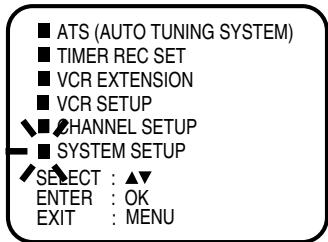
Press ▲ or ▼ to select the SYSTEM SETUP option, then press OK. If you use the unit for the first time and press SET UP MENU, instead of the main menu screen on the right the "LANGUAGE" set up menu screen in step 2 may appear.
2 Press ▲ or ▼ to select the "LANGUAGE" option, then press OK.
![SYSTEM SETUP ■ BLOCK SET ■ LANGUAGE/SPRACHE/LANGUE ■ AV2 [DEC] SELECT : ▲▼ ENTER : OK EXIT : MENU](/content/2025/01/123354/images/a4b332be5fbc825c0a1d953838c98420c4f85434751824c98c1264e625b1d0d5.jpg)
3 Press ▲ or ▼ to select the desired language: English (ENGLISH), German (DEUTSCH) or French (FRANCAIS), then press OK.
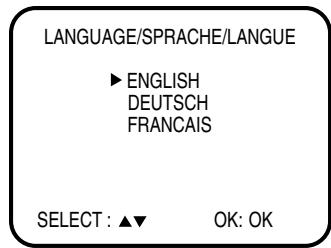
4 Press SET UP MENU repeatedly until the TV picture appears on the screen.
ATS Automatic Tuning System and Auto Time/Date Setting
This VCR has a built-in TV receiver module. Before you can record a TV program, all the available TV stations must be tuned in and preset in the memory. The ATS function (Automatic Tuning System) allows all the locally available TV stations to be automatically stored and sorted according to the currently effective national station list. To accomplish this, ATS will need about 12 minutes. During this period of time the VCR cannot be used. If you wish to change the station sequence, you can later perform a removing procedure (see page 17).
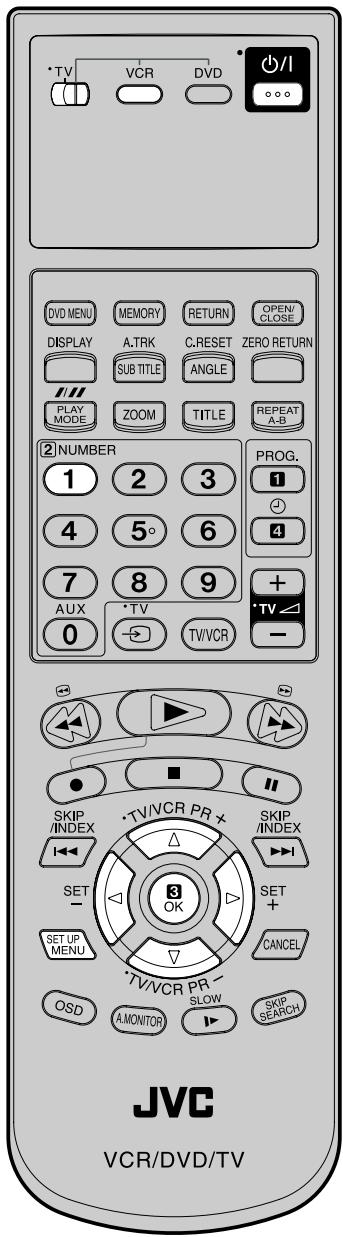
Preparation:
- Press the ⏻/I button to turn on the DVD/VCR.
- Make sure TV/VCR/DVD switch has been slid to VCR/DVD. Then press VCR to select the VCR mode. (The VCR indicator will light)
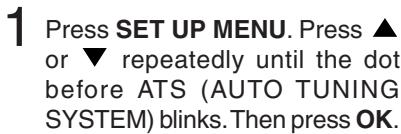
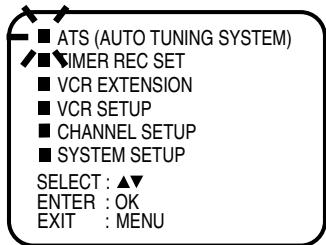
If no channel setting is done:
Press 1 of number keys at first, and then press SET UP MENU.
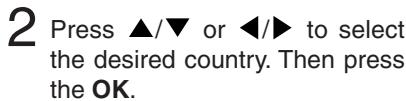
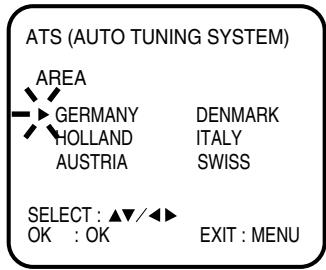

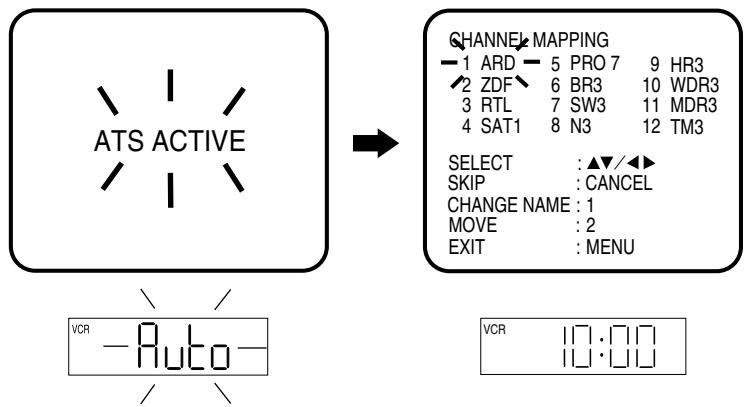
If the CLOCK SET-menu appears and 00:00 appears in the display, please set the clock manually. In this case, no station transmitting time data can be received (see page 19).
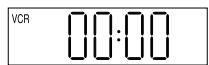
Note: If ATS is done under the bad receiving condition, one or more stations may not be found. In this case, set these stations manually.(see page 20)
Skipping unwanted TV stations (Skip those TV stations that are not wanted to be selected by pressing the PR button.)
Preparation:
- Turn ON the TV and set to the video input mode.
- Make sure TV/VCR/DVD switch has been slid to VCR/DVD. Then press VCR to select the VCR mode. (The VCR indicator will light)
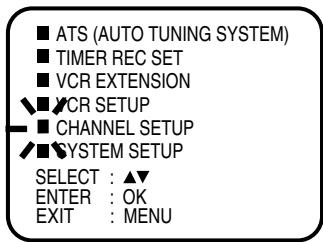
1 Press SET UP MENU.
Press ▲ or ▼ to select CHANNEL SETUP. Then press OK.
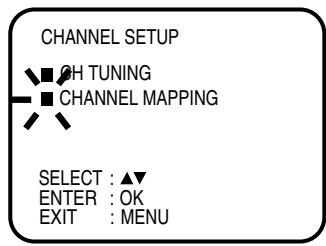
2 Press ▲ or ▼ to select CHANNEL MAPPING. Then press OK.
3 Press ▲/▼ or ◀/▶ repeatedly until the TV station to be skipped blinks.
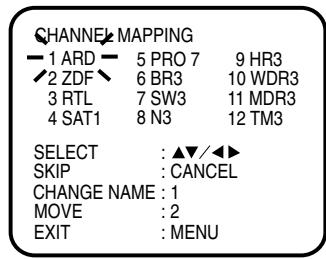
4 Then press CANCEL. The number before the canceled channel (e.g. 12) will be bracketed.
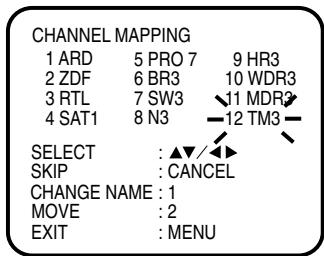
Canceling the skip function:
Press ▲/▼ or ◀/▶ repeatedly until the skipped TV station blinks, then press CANCEL.
The brackets will disappear.
5 Press SET UP MENU repeatedly until the TV picture appears on the screen.
Reassigning TV station positions
Preparation:
- Turn ON the TV and set to the video input mode.
- Make sure TV/VCR/DVD switch has been slid to VCR/DVD. Then press VCR to select the VCR mode. (The VCR indicator will light)
Example: Reassign the TV station under No. 6 to position No. 2.
1 Select the "CHANNEL MAPPING" in Menu-screen in the same way as the step 1~2 on page 16. Then press OK.
2 Press ▲/▼ or ◀/▶ repeatedly until the TV station to be reassigned blinks.
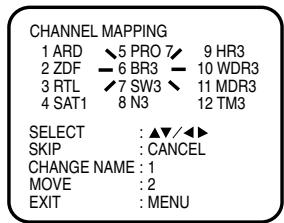
3 Press "2" of number keys. Then, the TV station will be moved to the first display line.
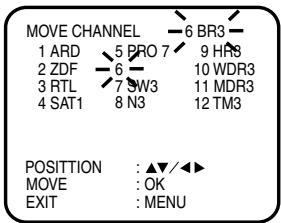
4 Press ▲/▼ or ◀/▶ repeatedly until the position number blinks to which the selected TV station is to be moved, then press OK.
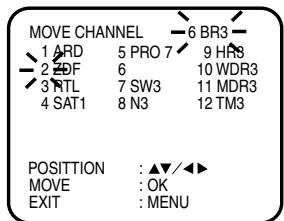
WAIT blinks.
The data will be ordered in the table newly.
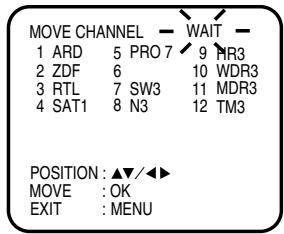
5 After approx. 12 seconds the station BR3 is set in new position 2. The ZDF will be extracted to the first line.
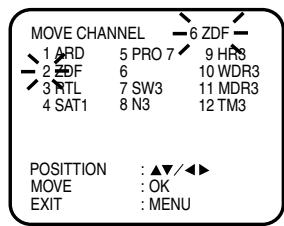
Now to finish this procedure and at the same time set the protruded station (ZDF) to the blank position 6, press SET UP MENU repeatedly until TV-station appears.
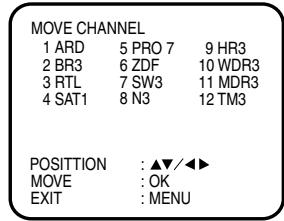
Or you can of course select another station to set in the protruded station (ZDF) in step 4.
6 Press SET UP MENU repeatedly until the TV picture appears on the screen.
- A position number (6) will indicate near the protruded station (ZDF) at the first line. If any button is not pressed for more than 60 seconds, this station (ZDF) will be set to this position number (6) automatically.
Changing TV station names For a number of TV stations (such as MTV) no name code will be displayed because these TV stations do not provide the necessary information. You can enter the respective names yourself. Moreover, unwanted station codes can be changed by the user.
Note:
When a wrong character is entered, press CANCEL and enter the correct character.
Preparation:
- Turn ON the TV and set to the video input mode.
- Make sure TV/VCR/DVD switch has been slid to VCR/DVD. Then press VCR to select the VCR mode. (The VCR indicator will light)
Example: MTV is assigned to station No. 10, but the code “MTV” will not be displayed and will also not appear in the table.
1 Select the "CHANNEL MAPPING" in Menu-screen in the same way as the step 1 \~ 2 on page 16. Then press OK.
2 Press ▲/▼ or ◀/▶ repeatedly until the station number position now to be named will blink.
- If you want to turn over the page when the blinking spot is in the left or right edge of on-screen, press ◀ or ▶ repeatedly until the next page's 12 stations appears.
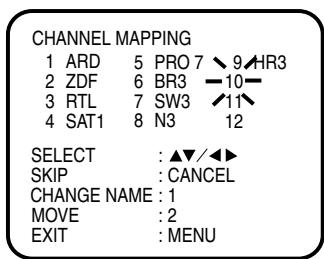
3 Press "1" of number keys. The first display line will change to "CHANGE BROADCAST NAME".
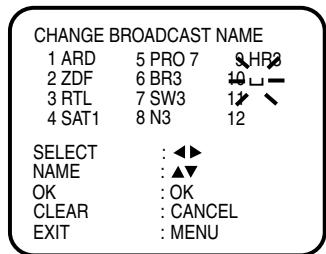
4 Press ▲ or ▼ repeatedly until the desired character appears. Then press ▶. Use ▲ or ▼ to select the next character. Then press ▶. Up to four characters can be used to create a station name. The character “☐” stands for a space.
Then press OK.
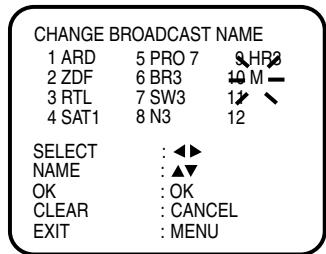
Each press of ▲ will change the screen display as follows.

5 Press SET UP MENU repeatedly until the TV picture appears on the screen.
If the time and date are not displayed for some reason after the ATS function has been completed, a manual clock adjustment will be required.
Note:
- In case of a power failure, the clock will continue to operate for another 30 minutes with quartz-controlled precision. To indicate that the power failure has lasted for an excessive period of time, “0:00” will blink on the display. In this case, readjust the time and date.
If the clock has not been adjusted yet, step 1 will appear automatically.
- The clock will only be automatically set when the VCR is connected to the Telecom CATV network. All the provided CATV stations should be stored in the VCR. This is the case when the ATS function has been completed. The antenna system must be free of any defects, e.g., there should be no picture noise. The clock will be re-adjusted every 30 minutes except between 23:00 and 1:00 o'clock. If the total difference between the indicated time and the current time is more than 5 minutes, the clock will not be corrected. The switching from winter time to summer time will be considered.
The clock will not be adjusted automatically when:
- timer activated.
- antenna not connected.
- only an outdoor antenna or a satellite receiver connected.
Preparation:
- Turn ON the TV and set to the video input mode.
- Make sure the TV/VCR/DVD switch has been slid to VCR/DVD. Then press VCR to select the VCR mode. (The VCR indicator will light)
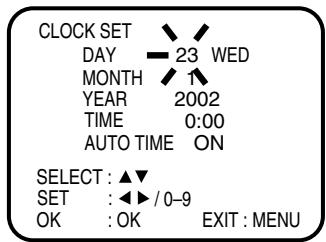
Example: Setting the clock to 11:30, 23rd October 2002.
1 Press SET UP MENU. Press ▲ or ▼ repeatedly until the dot before SYSTEM SETUP blinks. Then press OK. Then press ▲ or ▼ repeatedly until the dot before CLOCK SET blinks. Then press OK.
![SYSTEM SETUP ■ CLOCK SET ■ LANGUAGE/SPRACHE/LANGUE ■ AV2 [DEC] SELECT : ▲▼ ENTER : OK EXIT : MENU](/content/2025/01/123354/images/9ec82104e445b7de157dc858b064b0fb7f2f7a57386fcdc0f2a7b5c52354feba.jpg)
2 Press ◀/▶ repeatedly or number keys until "23" appears. Then press ▼.
3 Set the month, year, hour and minute in the same way as step 2. Then press ▼.
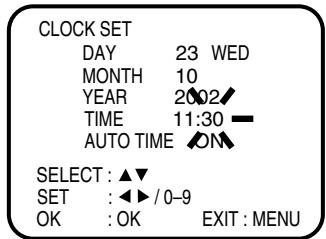
4 Press ◀ or ▶ to select "ON" or "OFF", then press OK. If "ON" is selected, any required time corrections will be performed automatically (see left). In this case, the personnel of the appropriate TV station or of Telecom will be responsible for
correcting the time setting. If any error occurs during such an adjustment (e.g., switching from summer time to winter time), your clock will show the incorrect time. To set the correct time, select "OFF" and follow the procedure described above.
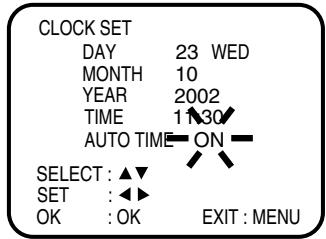
- In case of an erroneous input, press ▲ to go back to before the step and enter again.
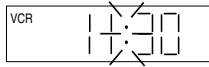
5 Press SET UP MENU repeatedly until the TV picture appears on the screen. 6 The clock will begin operation and the colon will blink on the VCR display.
Manual TV station presetting
ATS stores the broadcast automatically. However, if you do the ATS under unfavorable receiving conditions, some broadcasts may not be found by ATS. For these broadcasts, you can also store them manually.
Note:
Occasionally, the auto search might catch a weak signal and stop. If the TV station signal is weak, you shouldn't store this station.
In that case, restart the auto search using
▶ or ◀.
Preparation:
- Turn ON the TV and set it to the video input mode.
- Make sure the TV/VCR/DVD switch has been slid to VCR/DVD. Then press VCR to select the VCR mode. (The VCR indicator will light)
Example: Preset the SAT1 on program position 5.
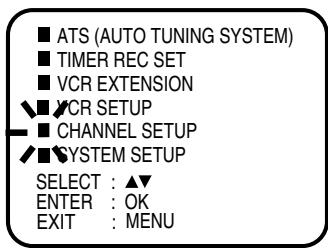
1 Press SET UP MENU.
Press ▲ or ▼ to select CHANNEL SETUP. Then press OK.
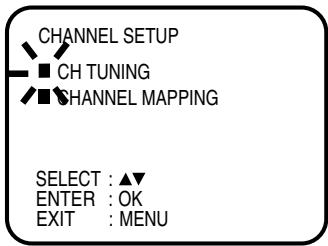
2 Press ▲ or ▼ to select CH TUNING. Then press OK.
3 DEC OFF will blink. Press OK. DEC OFF does not blink any more. SEARCH will appear.
Note:
If you wish to store the PREMIERE manually, the decoder must have been connected as on the lower of p.11.
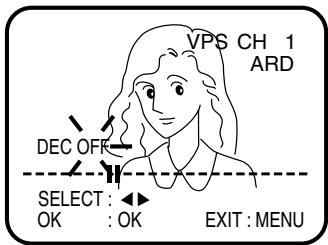
During DEC OFF is blinking, press ▶.
DEC ON will blink now.
Press OK.
4 Press ▶ (rising frequency) or ◀ (falling frequency) once. The search starts. It stops at each broadcast automatically ("▶" changes to "Ⅱ"). Press ▶ or ◀ repeatedly until the SAT1 appears. Only in case of receiving of the weak broadcast (drifting picture), search does not stop. If you want to stop, press ◀/▶ or ▲/▼.
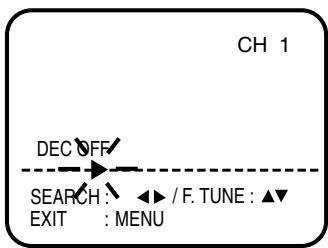
The Fine Tuning adjustment
Under a normal receiving condition, the station-search will stop automatically at the best receiving position. That picture will appear without disturbance.
This receiving position will be memorized automatically. The Fine Tuning cannot be memorized additionally.
In rare cases of bad receiving conditions, the station search might not stop at the best receiving position. That picture will appear with disturbance, e.g., waving lines.
Only in this rare case, use the Fine Tuning to tune the concerned station manually and exactly.
In step 5, press ▲ or ▼ until the station is adjusted to the best position. Then press OK.
5 Please wait until OK: ENTER appears. It may take a few seconds.
Then press OK.
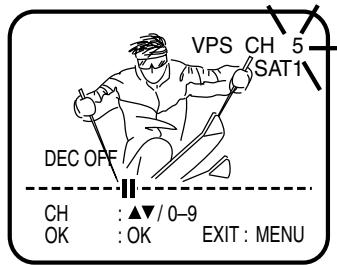
In the next step, the program position on which this station should be stored will be set.
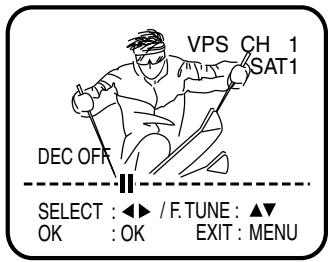
6 Press ▲ or ▼ repeatedly until "5" is displayed.
Or enter 5 with number keys. Then press OK.
7 Repeat steps 3 and 6 to preset other TV stations. 8 Press SET UP MENU repeatedly until the TV picture appears on the screen.
To skip a channel position
Unwanted channels can be skipped so that they cannot be called up by pressing PR. Select the channel to be skipped...
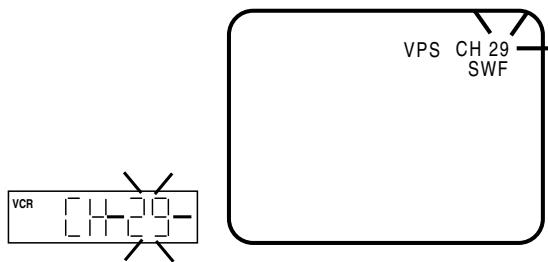
.....e.g., channel 29.
Select channel 29, then press CANCEL.
This channel's number will be flashing. That way you can cancel further channels one after the other.
To cancel the channel skipping
Note:
Even the skipped program position can be called up with number keys.
Select the skipped channel using number keys, then press CANCEL. The channel No. does not blink any longer, and the channel No. now may be selected again using PR.
Loading and Unloading a Cassette Tape
Use only video cassette tapes marked VHS and S-VHS. PAL 625
SQPB
- Cassettes marked “VHS” (or “S-VHS”) can be used with this video cassette recorder. However, S-VHS recording is not possible with this model.
- This model is equipped with SQPB (S-VHS QUASI PLAYBACK) that makes it possible to play back S-VHS recordings with regular VHS resolution. • HQ VHS is compatible with existing VHS equipment.
- SQPB playback can be seen only at PAL SP mode.
Loading
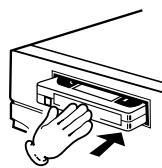
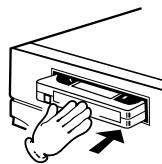
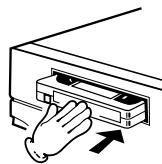
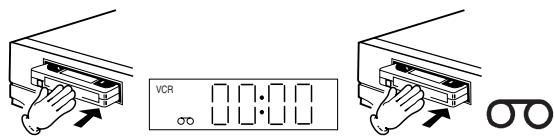
Push the center of the tape until it is automatically inserted.
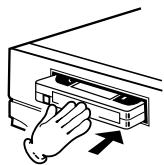
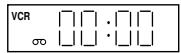
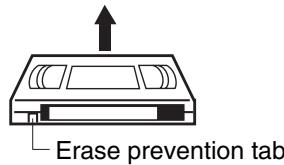
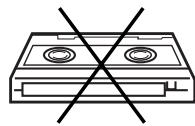
Insert the cassette tape with its labeled side facing up and the erase prevention tab positioned at your left. An inverted cassette tape cannot be inserted.
Automatic power ON
When you insert a cassette tape the DVD/VCR power will turn ON automatically.
Automatic playback
When loading a cassette tape without an erase prevention tab, playback will start automatically.
Unloading
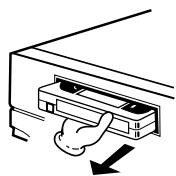
1 Press EJECT on the unit. Even if a tape is being played, press this button only once.
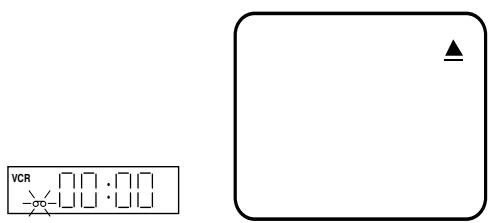
2 Remove the cassette tape.
Automatic tape eject
This VCR will automatically rewind the tape when the tape has ended. And when the tape is rewound to its beginning, the cassette tape will be ejected automatically.
To prevent accidental erasure
Remove the erase prevention tab with a screwdriver.
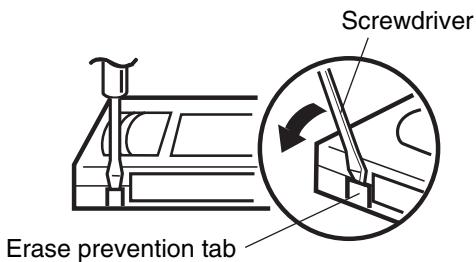
To record again
Cover the hole with a piece of adhesive tape.
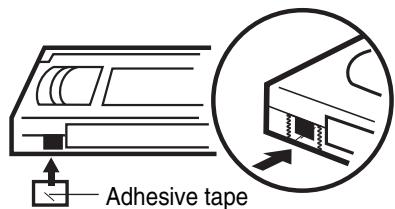
NOTES:
- This VCR selects the playback tape speed SP or LP automatically.
- The cassette tape and DVD disc can be played back simultaneously. If you press VCR or DVD, the tape playback and DVD playback alternate with each other on the screen.
Preparation:
- Turn ON the TV and set it to the video input mode.
- Make sure the TV/VCR/DVD switch has been slid to VCR/DVD. Then press VCR to select the VCR mode. (The VCR indicator will light)
1 Load a prerecorded tape (When loading a cassette tape without the erase prevention tab, playback will start automatically).
2 To start playback
Press ▶. Playback will start. If the cassette has not loaded yet, 📄 will blink for 4 seconds.
To stop playback
Press ■.


To rewind the tape or forward it rapidly
Stop the playback or recording with ■.
To rewind the tape:
Press
To forward the tape:
Press ▶.


To stop the tape-winding, press ■. To switch to playback directly (without ■), press ▶.
Forward/Reverse picture search mode
When the tape is being wound, you can switch to picture search mode (see next page). To do this, press ← or ➞ and hold it down. The unit will resume tape winding as soon as the button is released.
NTSC video cassette playback
When using a pre-recorded NTSC video cassette tape, the connected TV set must operate with a 60 Hz vertical frequency. Otherwise, the on-screen picture will be affected by vertical rolling. Even if your VCR is capable of processing NTSC video signals, the picture may be shortened vertically (appearance of black bars at the top and bottom of the TV screen). Dubbing an NTSC video cassette tape to a standard PAL VCR is not possible.
Special playback/Playback sharpness/Skip Search
Special playback
Picture Search
Reverse picture search function
Press ◀ x 1 or x 2 during playback.
Forward picture search function
Press ▶▶ x 1 or x 2 during playback.
To return to playback: Press ▶.
Still Picture
Press II during playback. To resume normal
playback: Press ▶.
Slow Motion
During playback press SLOW.
You can change the slow speed by pressing SLOW again.
To return to playback: Press ▶.
Slow tracking and vertical lock adjustment
If noise bars appear in the picture during slow motion, press SET + or - to reduce the noise bars.
If the still picture jitters excessively, press SET + or – to stabilize the still picture.
Frame by Frame picture
During playback, press II one by one: The picture advances frame by frame.
To return to playback: Press ▶.
Adjusting tracking condition
Automatic tracking adjustment
Whenever you insert a tape and start playback, automatic tracking starts working and continuously analyzes the signal to enable optimum picture quality during playback.
Manual tracking adjustment
If automatic tracking cannot eliminate noises well during playback, press SET + or SET – to eliminate the noises.
"MANUAL TR." will appear. Press it briefly for a fine adjustment, or press and hold for a coarse adjustment.
To return to automatic tracking, press A. TRK.
Notes:
- The audio output is muted during SPEED SEARCH, STILL, FRAME ADVANCE and SLOW MOTION.
- During picture search mode there will be noise bars which are caused by the system.
- The Special Playback will automatically change to playback after approx. 5 minutes to protect the video tape against excessive wear.
Playback sharpness
Adjust the sharpness of playback picture during playback. During slow motion, still picture and picture search, sharpness-adjusting is impossible.
1 Start the playback of video tape.
2 Press SET UP MENU.
Press ▲ or ▼ to select VCR SETUP. Then press OK.
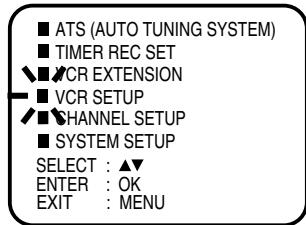
3 Press ▲ or ▼ to select SHARPNESS. Then press OK.
![VCR SETUP ■ NICAM [AUTO] ▼ ▲ AUDIO MIX [OFF] ■ SHARPNESS SELECT : ▲▼ ENTER : OK EXIT : MENU](/content/2025/01/123354/images/ff812c110f4d52dc9b563f842197da3730e89844ab08a08ec8888e5d397faaed.jpg)
4 "SHARPNESS" will appear and then disappear after 60 seconds of the last button-press. Adjust with
▶ sharper or ◀ lesser.
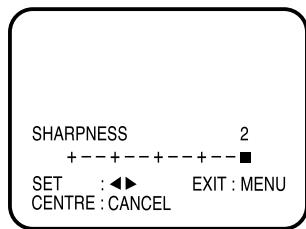
softer ← → sharper
5 Press SET UP MENU repeatedly until the TV picture appears on the screen.
Note:
To return to the initial sharpness setting, press CANCEL while the sharpness setting screen is appearing.
Skip Search
Each time you press SKIP SEARCH while a tape is playing, the unit will fast-forward ahead approx. 30 seconds on the tape. You may press the button up to six times in a row to move approx. 180 seconds (three minutes) ahead.
For example: 1 press: approx. 30 seconds of tape
2 presses: approx. 60 seconds of tape
3 presses: approx. 90 seconds of tape
NOTE:
If the unit is turned off or starts recording, the repeat mode is canceled.
Normal repeat playback
The entire video tape will be played until its end. The tape will then automatically rewind to the beginning and the playback will be repeated.
1 Press SET UP MENU. Press ▲ or ▼ to select VCR EXTENSION. Then press OK. 2 Press ▲ or ▼ to select AUTO REPEAT. 3 Then press OK to select [ON] or [OFF]. If [ON] is selected, the playback will be repeated endlessly.
![VCR EXTENSION AUTO REPEAT [ON] SCENE REPEAT SELECT : ▲▼/◄► ENTER : OK EXIT : MENU](/content/2025/01/123354/images/4009e33662d0a595165be1d06e7282a2a4fe5b6fbdd3c7dde49bfc8473183681.jpg)
4 Press SET UP MENU until the menu screen is cleared.
5 To start the playback, press ▶. The playback will be repeated endlessly.
To cancel normal repeat mode:
Follow the above step 3, then press OK to select the OFF position. Press SET UP MENU to return to the TV.
Scene repeat playback
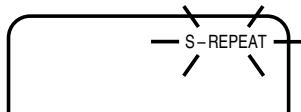
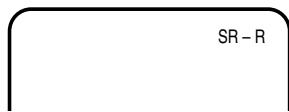
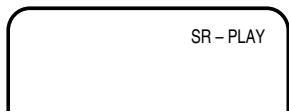
1 Press SET UP MENU. Press ▲ or ▼ to select VCR EXTENSION. Then press OK. 2 Press ▲ or ▼ to select SCENE REPEAT. Then press OK. The playback starts automatically. 3 Press OK at the point you want to start scene repeat playback. S-REPEAT will blink on the screen. 4 Press OK once again at the point you want to end scene repeat playback. SR-R will appear on the screen and the tape will be rewound automatically to go back to the starting point. 5 When the starting point is found, the scene repeat playback will start automatically. SR-PLAY will appear only once.
![VCR EXTENSION AUTO REPEAT [OFF] SCENE REPEAT SELECT : ▲▼ ENTER : OK EXIT : MENU](/content/2025/01/123354/images/bcc373d3350d06957534fa74b18a835e55153d6afcf32a3ec1200b59ae4b5248.jpg)
To stop Scene repeat playback:
Press ■.
ZERO RETURN function
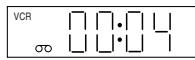
This function makes tape rewinding stop at the counter 00:00:00 position automatically.
Note:
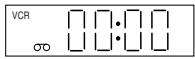
- When you load a video cassette, the display indication changes to "00:00".
- The counter display does not function on non-recorded (blank) sections of the tape. When you rewind, fast forward or play tapes through blank sections, the counter display stops.
Preparation:
- Turn ON the TV and set to the video input mode.
- Make sure TV/VCR/DVD switch has been slid to VCR/DVD. Then press VCR to select the VCR mode. (The VCR indicator will light)
1 Press OSD.
The counter display shows the tape running time during playback or recording.
The Recorder will indicate REC during recording for itself.
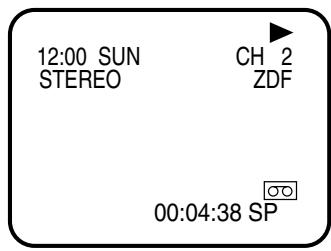
2 Press C.RESET at the desired tape position.
The counter display will be reset to the "00:00:00" position (e.g. the beginning of recording).
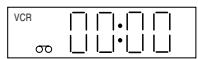
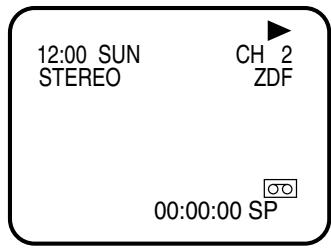
3 Press ■ when playback or recording is finished. Press ZERO RETURN.
The tape will be rewound or fast forwarded and automatically stop at the "00:00:00" position.
4 Press OSD once again to make the all indicator disappear.
The DISPLAY-button
Press DISPLAY during playback. The clock and tape counter alternate with each other in the display.
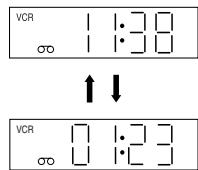
You can set the tape counter to 00:00:00 with C.RESET anytime. Therefore, the counter display can also indicate 00:00:00, even when the tape counter does not reach its beginning yet. Even if the tape counter indicates 00:00:00, it can be rewound moreover. If the tape was rewound over the point of 00:00:00, the minus mark (−) appears in the counter display. Although the tape counter seems to forward when you press ↔, in fact the tape is being rewound. When the tape reaches the beginning, the tape-rewinding stops automatically.
Whenever a recording is begun an invisible index mark is recorded on the tape. These index marks are all identical, and each mark means: "Here starts a new recording". Every DVD/VCR equipped with the Video Index Search System (VISS) can locate these marks at the beginning of any recording.
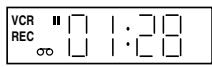
- When you record an INDEX mark at the very beginning of the tape, the mark may not be found.
- During INDEX search, the tape may stop and begin to play at a slightly different location.
- INDEX may not function properly with old or worn out video tapes.
- INDEX marks may not be found if it is extremely close to the point where the search began.
- In recording, if you stop recording temporarily, the INDEX mark is not recorded on the tape.
Example: Indexing of TV commercials.
1 Start playback and wait until the end of the TV commercial is reached, then press ■.

2 While holding ●, press ▶ once. When the "INDEX" on-screen indication goes off, ■ may be pressed. This short recording process will be sufficient to set an index mark.
This will result in about 10 seconds of the TV commercials to be overwritten by another recording. Due to the system the end of this recording will be followed by a recording gap (noise signal) of approx. 5 seconds.
Recording several Index Marks
Due to the system only one index mark will be recorded at the beginning of a recording. If you intend to set several index marks during a single recording, follow the procedure below:
1 At the point of the recording where an index mark is to be set press II. The unit will switch to the recording pause mode.

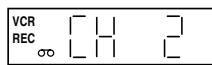
2 Press PR +/- repeatedly to switch back to the original TV program. Press II to resume recording.
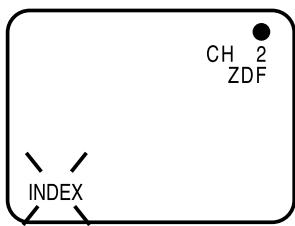
Index Search
Press INDEX + or – during stop or play mode.
For Succeeding programs:
Press INDEX +.
For Preceding programs:
Press INDEX –.
(Additional press increases the INDEX NO. up to 9.)
When the INDEX + or – is pressed, the unit starts searching the INDEX NO. selected and finds the portion, then playback starts automatically.
To stop the Index Search, press ■.
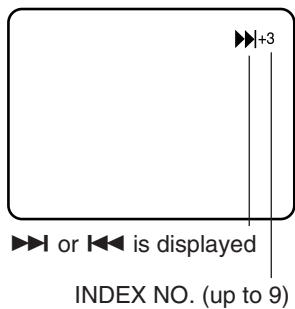
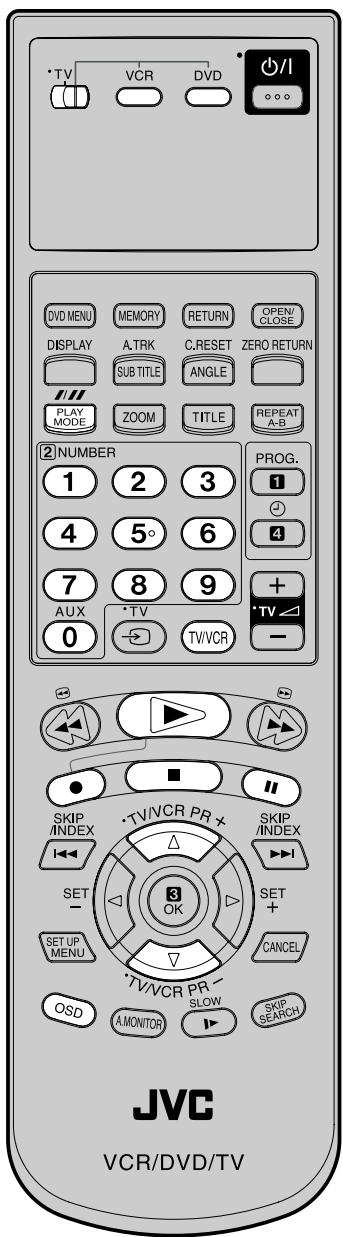
Notes:
- Since the DVD/VCR has a built-in TV tuner, the TV set may be turned off when recording. The TV set may only be used to check for accurate program adjustments or to monitor recordings.
- You can confirm on the TV screen whether you selected SP or LP. Press OSD to see the status display. (See page 29)
- If you wish to watch DVD playback during normal recording on the VCR, press DVD to change to DVD mode and perform DVD playback (see page 42).
Preparation:
- Turn ON the TV and set it to the video input mode.
- Make sure the TV/VCR/DVD switch has been slid to VCR/DVD. Then press VCR to select VCR mode. (The VCR indicator will light)
1. Load a blank cassette tape with the erase prevention tab intact. (The DVD/VCR will automatically turn on.)
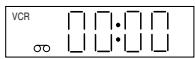
2. Select the program (e.g., 29) you want to record with PR +/- or number keys.
1~9: e.g., 5 = press "5" 10~80: e.g., 29 = press "2" and "9".
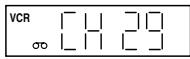
3. If recording in Long Play mode is intended, press //// (TAPE SPEED) to display "LP". (See note below)
4. On the VCR, press ●. Or on the remote, while holding ●, press ▶.
"●" will appear on the screen for about 4 seconds and "REC" will appear on the display.
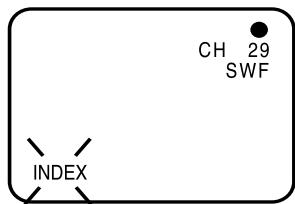
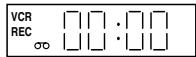
If the erase prevention tab is removed, the tape will eject when both the ● and ▶ are pressed for recording. (see p.22)
To Stop Recording
Press ■.
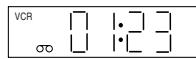

To Stop Recording Temporarily
To stop a recording for a short period of time press Ⅱ. Press this button again if you want to resume the recording.
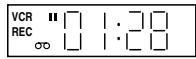

Attention:
A safety circuit turns the pause mode off automatically after 5 minutes, and the DVD/VCR will stop the recording mode.
Recording with a SCART Cable:
You can record a program using the TV receiver of the DVD/VCR and at the same time watch another program on the TV set using its receiver. As the DVD/VCR automatically switches the TV set the following points should be observed:
Auto Rewind Feature
The DVD/VCR will automatically rewind when the tape has ended (except during ITR and TIMER REC). It will also eject the cassette tape.
1 Press TV/VCR until "VCR" appears on the display. Select the program on the DVD/VCR you want to record. This program can be watched on the screen and recorded by the DVD/VCR.
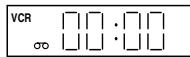
"VCR" indicator goes on.
2 While the VCR is recording press TV/VCR until the "VCR" indicator on the display goes off. The TV set now displays the program of its built-in receiving module. Select the TV channel you want to watch on the TV set. Although the TV set now shows another program the DVD/VCR will continue recording the previously selected program.
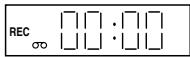
"VCR" indicator goes off.
Using TV/VCR you can switch the TV screen between the DVD/VCR picture and the TV picture. If the "VCR" indicator is lit on the display, you will watch the DVD/VCR picture. This has no effect on the recording.
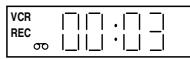
"VCR" indicator goes on.
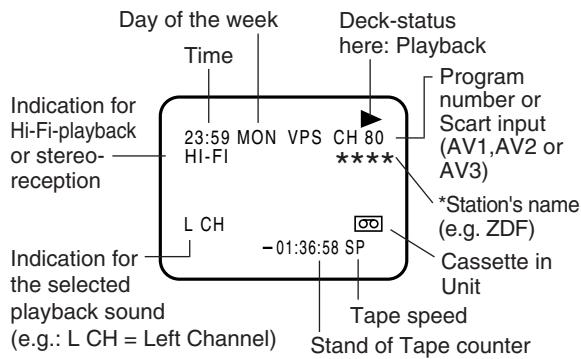
To Display VCR operation Status
Press OSD. The clock, day of the week and more information will be indicated.
To cancel the indication: Press OSD until all indicators disappear.
Instant Timer Recording (ITR)
The instant timer recording feature provides a simple and convenient way to make a timed recording.
Note:
- If you wish to watch the DVD playback during the ITR, press DVD to change to DVD mode and perform the DVD playback (see page 42).
- If the tape supply has not sufficed for ITR recording, the clock symbol (☐) will blink at the tape-end and then VCR mode will change to DVD mode. In this case, press ⏻ to cancel the 📋 blink or press EJECT to remove the cassette tape.
Preparation:
- Turn ON the TV and set to the video input mode.
- Make sure TV/VCR/DVD switch has been slid to VCR/DVD. Then press VCR to select the VCR mode. (The VCR indicator will light)
1 Load a blank cassette tape with the erase prevention tab intact. (The DVD/VCR will automatically turn on.)
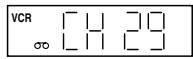
2 Select the program (e.g.29) you want to record with PR +/- or number keys.
1~9: e.g., 5 = press "5" 10~80: e.g., 29 = press "2" and "9".
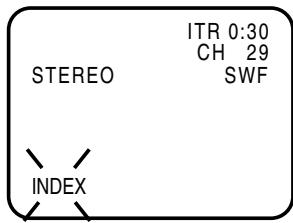
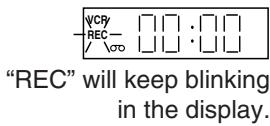
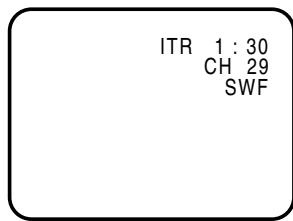
3 If a recording in Long Play mode is intended, press //// (TAPE SPEED) to display "LP". (See note on page 28.) 4 Press ● on the VCR or, while holding ●, press ▶ on the remote to begin recording. Press ● on the VCR again to stop recording after 30 minutes. Each additional press of ● will increase recording time as shown in the chart below, up to a
maximum of 5 hours. The ITR and recording time will appear on the screen for about 4 seconds. And, REC will keep blinking in the display.
Tape speed: SP![graph TD A["Recording"] --> B["0:30"] B --> C["1:00"] C --> D["1:30"] A --> E["5:00"] E --> F["4:00"] F --> G["3:00"] G --> H["2:00"]](/content/2025/01/123354/images/b2bd0e0527c854077c4edf71ecc519c1278afc3502327a9bfe9584527494474a.jpg)
Tape speed: LP![graph TD A["Recording"] --> B["0:30"] B --> C["1:00"] C --> D["1:30"] D --> E["2:00"] F["10:00"] <--_G["......"] G <--_H["5:00"] H <--_I["4:00"] I <--_J["3:00"]](/content/2025/01/123354/images/536c8515200ecd3cac9540d546be421134a8631a096d2d2346a6fe30440a2524.jpg)
To Extend the Recording Time
While holding ●, press ▶ repeatedly until the desired time appears on the display.
To stop the ITR
Press ■.

Look up the SHOWVIEW number codes in an appropriate TV program magazine. Select the desired TV program for recording and refer to the number code next to it.
Note:
- The built-in timer stores 8 memories. If the "PROGRAM FULL" indication appears, you must delete one memory (see page 34).
- If you wish to receive the suitable program with a satellite receiver, the AV-position must be given near "CH". Press AUX repeatedly until AV2 appears.
- After a power failure or disconnection of the power plug, all programmed recording settings and time display will be lost upon resumption of power. In this case, reset the clock (see pages 19) and re-program any timer recordings.
Preparation:
- Turn ON the TV and set it to the video input mode.
- Make sure the TV/VCR/DVD switch has been slid to VCR/DVD. Then press VCR to select the VCR mode. (The VCR indicator will light up.)
1 Press PROG.
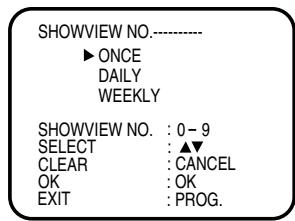
If the clock is not set, the CLOCK SET menu will appear automatically.
2 Enter the SHOWVIEW code using the number keys.
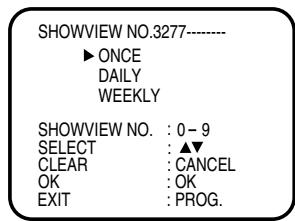
- In case of an erroneous input, press CANCEL and enter the correct number again.
3 Use ▲ or ▼ to select DAILY or WEEKLY. ONCE is already set.
ONCE = To record a program only once.
DAILY = To record TV programs aired daily.
WEEKLY = To record TV programs aired once a week.
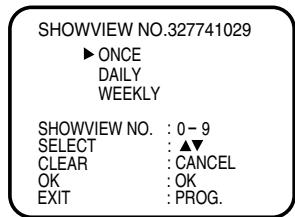
4 Press OK. The data entered via the SHOWVIEW Code will appear on the screen.
- If the entered number is not correct, the indicator “SHOWVIEW NO. ERROR” appears. Enter the number correctly again.
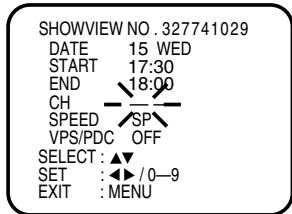
- Only in the case of a TV station that you are decoding for the first time, the – – will blink at the CH line. This means you must manually enter the corresponding channel position for the decoded TV station. See the next page.
.....to be continued on the next page
Example: You receive NBC on program position 12. In the case of the first SHOWVIEW recording for NBC, two bars will blink at the CH line. Enter 12 using the number keys. Press 1 and then 2 within 2 seconds (if the second press is too late, the display 1 will be replaced with 2). The SHOWVIEW system memorizes that storing position 12 is for NBC. From then on, for all subsequent SHOWVIEW recordings from NBC, the 12 will be entered in the "CH" line automatically. In case of an erroneous input for the channel number, press ▼ to go to the "CH" line and enter the correct number again.
Press ◀/▶ or number keys to enter the program position number. Then press ▼.
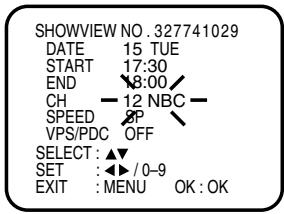
Setting a day of the week:
You have selected DAILY or WEEKLY in step 3, then you can select recording date again. The date must blink as 2 bars.
If it does not blink, then press ▲ or ▼ repeatedly until the DATE blinks. Then press ◀ or ▶ repeatedly until the desired date appears.
The following date are stand for your selection: SUN-SAT: all dates from Sunday to Saturday, or MON-SAT: only dates from Monday to Saturday, or MON-FRI: only dates from Monday to Friday. WKL-MON: each Monday, WKL-TUE: each Tuesday, ..., WKL-SUN: each Sunday.
Change the recording start-time:
The recording start-time will be set by SHOWVIEW automatically. However you can change the recording start-time manually. The time near START must blink. If it does not blink, press ▲ or ▼ repeatedly until the time blinks. Then press ▶ to change.
Recording period extension:
The recording end-time will be set by SHOWVIEW automatically. However you can extend the recording end-time manually. The time near END must blink. If it does not blink, press ▲ or ▼ repeatedly until the time blinks. Then press ▶ to extend.
Select Tape speed:
Select the recording tape speed Standard Play (SP) or Long Play (LP). Press ▲ or ▼ repeatedly until you are in SPEED-line. Then press ◀ or ▶ to select "SP" or "LP".
VPS/PDC:
Switch the VPS/PDC on or off. Be sure to pay attention to the VPS/PDC-important note on page 35.
Press ▲ or ▼ repeatedly until you reach VPS/PDC-line.
Then press ◀ or ▶ to select "ON" or "OFF".
5 Press OK after the confirmation. Then press SET UP MENU repeatedly until the TV-picture appears.
To enter the other program repeat the steps 1 - 5.
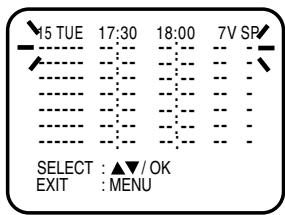
6 Press ⏻. The clock symbol (☐) will appear on the display and the VCR stands by for recording. At the same time, VCR mode will change to DVD mode automatically. You can use DVD even if the VCR is in the Timer recording mode.
If you do not use the DVD, turn the power off.
The timer recording will start at 5 seconds before the time you predetermined.
Note:
- If the clock symbol (☐) does not appear on the display in spite of the pressing of ⏻, the cassette may not have been loaded yet. (see page 22)
- If the cassette is ejected in spite of the pressing of ⏻, the erase prevention tab of the cassette may have been removed. (see page 22)
- If the clock symbol (☐) blinks when the timer recording ended, the TV program has not been completely recorded because of an insufficient tape supply. In this case, press ⏻ to cancel the timer program or press EJECT to remove the cassette tape.
- During timer recording standby mode, the VCR mode cannot be selected. To use the VCR, press ⏻ at first, then press VCR to change to VCR mode. After you use the VCR, press ⏻ again to put the VCR into timer recording standby mode.
- If you press ⏻ during timer recording, the recording operation will be interrupted. If you press ⏻ again within the programmed time, the recording operation will start again.
Timer recording can be programmed on the TV-screen with the remote control. The built-in timer allows automatic unattended recording of up to 8 programs within 1 month.
Note:
In the event of a power failure the data of the automatic recording will be maintained in the built-in memory for about 30 minutes. Also, the clock will continue to run for this period of time. Thereafter the data will be deleted. When the power resumes, the time display will change to "--:--" that the timer setting will have to be set.
Preparation:
- Turn ON the TV and set it to the video input mode.
- Make sure the TV/VCR/DVD switch has been slid to VCR/DVD. Then press VCR to select the VCR mode. (The VCR indicator will light)
- Load a video cassette with the erase prevention tab intact. Make sure with OSD that the time and date are correct. (see page 29).
Example: Timer recording for channel 1, 13:00 to 14:30 with Tape speed LP on timer program number 1.
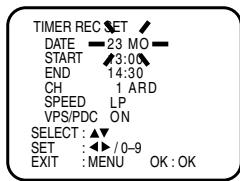
1 Press SET UP MENU. Press ▲ or ▼ to select TIMER REC SET. Then press OK.
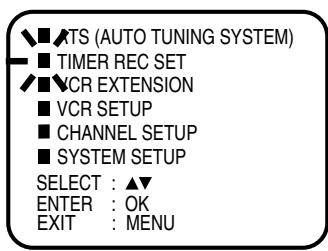
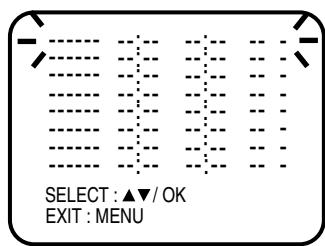
2 Each line stands for one program of the 8 memories. Select one line with ▲ or ▼. Then press OK.
3 Set the desired date with ◀ or ▶ or number keys. Then press ▼ to accept it.
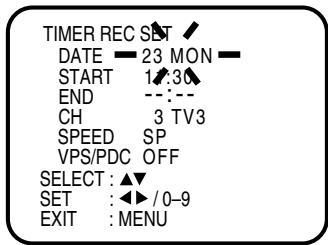
4 Set the Starting time (13:00), ending time (14:30), channel (1 ARD), Tape speed (LP) and VPS/PDC (P.35) in the same way as in step 3.
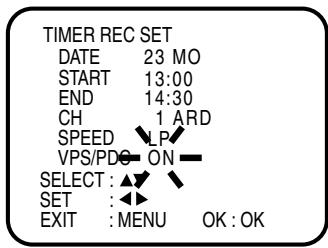
- In case of an erroneous input, press ▲ to go back to the previous step and enter again.
.....to be continued on the next page
5 Press OK to accept them.
To enter other programs, repeat steps 2 through 4.
- To return to the normal screen, press SET UP MENU twice.
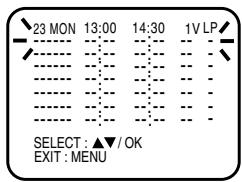
6 Press ⏻. The clock symbol (☐) will appear on the display and the DVD/VCR stands by for recording. At the same time, VCR mode will change to DVD mode automatically. You can use DVD even if the VCR is in the Timer recording mode. If you do not use the DVD, turn the power off.
- If the clock symbol (☐) blinks in the display in spite of pressing ⏻, the cassette may not have been loaded yet. (see page 22)
- If the cassette is ejected in spite of the pressing of ⏻, the erase prevention tab of the cassette may have been removed. (see page 22)
Note:
- In case of the timer recording from the scart socket, proceed as follows: In step 4 press ▲ or ▼ repeatedly until the "CH" line blinks. Then press AUX repeatedly until "AV1" or "AV2" or "AV3" appears.
- If the clock symbol (☐) blinks when the timer recording ended, the TV program has not been completely recorded because of an insufficient tape supply. Press ⏻ to cancel the timer program or press EJECT to remove the cassette tape.
- During timer recording standby mode, the VCR mode cannot be selected. To use the VCR, press ⏻ at first, then press VCR to change to VCR mode. After you use the VCR, press ⏻ again to put the VCR into timer recording standby mode.
Timer Recording Special case
Weekly (e.g. WKL-TU: each Tuesday) or daily (e.g. MON-SAT: Monday to Saturday) Timer recording
Follow the procedure for timer recording on both pages before. At picture 3 press ◀ or ▶ repeatedly until the desired setting appears. Then press ▼. When you press ◀ or ▶ repeatedly, the indicator at DATE will change as follows, in case today is Friday.
![graph TD A["SUN-SAT"] --> B["25 FRI ..... 24 SUN"] C["MON-SAT"] --> D["MON-FRI ↔ WKL-THU.....WKL-SAT"] E["One month later minus one day"] --> F["WKL-FRI"] style A fill:#f9f,stroke:#333 style C fill:#f9f,stroke:#333 style E fill:#f9f,stroke:#333](/content/2025/01/123354/images/06dbeee49eafce7b401e411d98e83fa408449294c4756ccafac36e35e04afc69.jpg)
MON-SAT = everyday from Monday to Saturday.
WKL-SAT = each Saturday
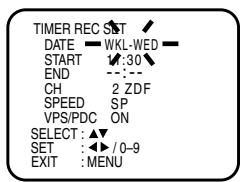
In case of Timer programs-overlapping
- Do not overlap timer programs as portions of the conflicting programs will be lost. The first recording time has priority over the next recording time as shown in the diagram below.
![graph TD A["Program 1"] --> B["Program 2"] B --> C["Program 3"] C --> D["Recording Control Settings"] D --> E["Prog.1"] E --> F["Prog.2"] F --> G["Prog.3"] style A fill:#f9f,stroke:#333 style B fill:#ccf,stroke:#333 style C fill:#cfc,stroke:#333 style D fill:#fcc,stroke:#333 style E fill:#ffc,stroke…](/content/2025/01/123354/images/1541f90c3898d0300c53f266f7eb4c70ee541ececc06571ea16a7d24deabdaf6.jpg)
Note:
- The daily/weekly recording can be made continuously until the recording is canceled or the tape reaches the end.
- During timer recording the automatic rewinding mechanism does not function.
Confirmation/Cancellation of the Timer Recording
1 If the Timer has been activated, now press ⏻ to deactivate the Timer. The clock symbol (☐) will disappear. Then press VCR to change to VCR mode.
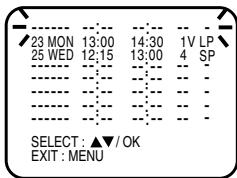
2 Press PROG. twice. All the 8 Timer memories will appear.
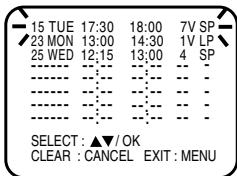
3 To correct the programmed setting:
Press ▲ or ▼ to select the program you wish to correct, then press OK to enter the program input mode. Then press ▲ or ▼ to select the item you wish to correct. Then correct the data with ◀ or ▶.
To cancel Timer program: Press ▲ or ▼ to select the written line. Then press CANCEL. This line is now canceled.
4 Press SET UP MENU (or PROG.) repeatedly until the TV-picture appears.
VPS/PDC is a service provided by the public TV station. When you select a VPS/PDC-compatible TV station and activate the VPS/PDC function, the beginning and the end of the timer recording will be controlled by the TV station. Any program air time delays will be taken care of. The private TV companies have not provided this service yet. Thus, please turn OFF the VPS/PDC function when performing timer recordings of programs aired by private TV stations.
Example: Assume you want to record a sports event that is scheduled to be aired from 21:00 to 23:00 and perform your timer programming accordingly. However, the beginning of the sports event is postponed to 21:30 so that the program will now end at 24:00. Using the VPS/PDC function, you can still make sure that the entire TV program is recorded.
The user's timer programming setting:
Actually, however, the sports event is aired from 21:30 to 24:00.
Recording without VPS/PDC function:
Recording with VPS/PDC function:
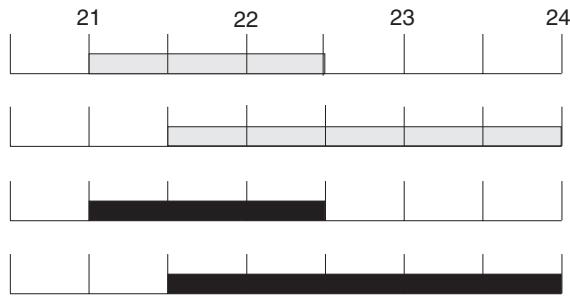
When you perform the timer programming be sure to observe the following points:
1.) Date and time should be correctly set.
The following points from 2 to 5 will be automatically taken care of by the ShowView feature. Therefore, be sure to keep them in mind when doing recordings without the ShowView feature.
2.) Set the starting time precisely to the minute according to the data in the TV program magazine (not a single minute earlier or later); otherwise an automatic recording will not be possible. 3.) If an additional 2nd time is specified in parentheses, which in most cases is explicitly stated as “VPS/PDC time”, make sure to enter only this time data. 4.) The starting time of the subsequent TV program is considered to be the end time of the recording. 5.) If you program the recording of several subsequent TV programs, enter the start and end times separately for each TV program. It is not sufficient to solely enter the start time of the first and the end time of the last program (in this case only the first program will be recorded unless the VPS/PDC function is turned off).
Please look up in your TV program magazine which TV stations transmit the VPS/PDC signal. A VPS/PDC on-screen indication (during auto search) does not mean that the respective TV station is actually VPS/PDC-compatible. Therefore, make sure to turn OFF the VPS/PDC function if you want to make timer recordings of programs aired by a station that is not VPS/PDC-compatible. Otherwise the TV program will not be recorded in its entirety.
It is preferable to deactivate the VPS/PDC function even for VPS/PDC-compatible TV stations — at least it simplifies the programming procedure — if you want to record several programs of the same TV station in direct sequence.
For instance: at 20:00, recording of the “Tagesschau” news program, subsequently, at 20:15, recording of a movie, and subsequently, from 21:45 to 22:45, recording of a sports program.
Using the VPS/PDC function, enter the start and end times of each program separately; however, if the VPS/PDC function is turned OFF, it will be sufficient to enter the start time of 20:00 and the end time of 22:45.
NICAM/German A2 Stereo Recording and Playback
This DVD/VCR is capable of recording sound in Hi-Fi system. The recording will be performed automatically. NICAM STEREO broadcasts are recorded in its original sound system regardless of the setting. If you wish to record NICAM programmes, select NICAM "AUTO" as follows.
And, this DVD/VCR can also receive and record German A2 stereo program. The tape recording is always both in HiFi and in MONO on the standard longitudinal track. In case of bilingual TV programs always the two audio channels will be recorded.
Note:
When listening to a stereo broadcast or playing back a tape Hi-Fi recorded in stereo, you have to connect the DVD/VCR with the stereo audio system or the stereo TV. The sound which is output from the RF OUT jack is monaural.
Preparation:
- Turn ON the TV and set to the video input mode.
- Make sure TV/VCR/DVD switch has been slid to VCR/DVD. Then press VCR to select the VCR mode. (The VCR indicator will light)
NICAM stereo sound reception:
1 Press SET UP MENU. Press ▲ or ▼ to select VCR SETUP. Then press OK.
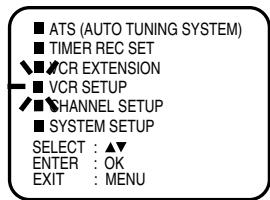
2 Press ▲ or ▼ to select NICAM. Then press ◀ / ▶ or OK to select [AUTO].
![VCR SETUP ■ NICAM [AUTO] ■ AUDIO MIX [OFF] ■ SHARPNESS SELECT: ▲/◄► ENTER: OK EXIT: MENU](/content/2025/01/123354/images/c1b3455f3d0bdc158539c35285c1e29f2810cf75a90f6dcd568c93b3624fdb18.jpg)
3 Press the SET UP MENU repeatedly until the TV picture appears.
NICAM programmes are divided into 4 types as shown below.
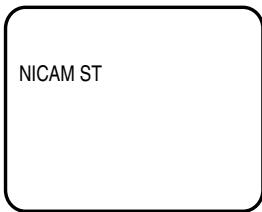
NICAM STEREO broadcast
"NICAM ST" illuminates when a NICAM STEREO broadcast signal is received.
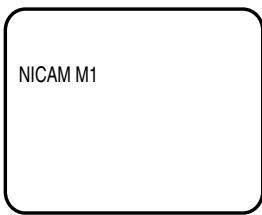
NICAM MONO A broadcast
"NICAM M1" illuminates when a NICAM MONO A broadcast signal is received.
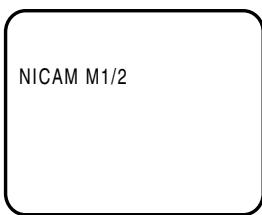
NICAM MONO A B broadcast
"NICAM M1/2" illuminates when a NICAM MONO A and MONO B broadcast signal is received.
NICAM OFF
It will be displayed for the NICAM signal when the "NICAM [OFF]" is selected in menu screen.
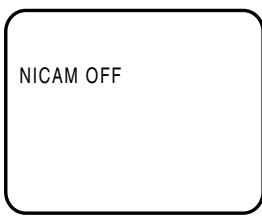
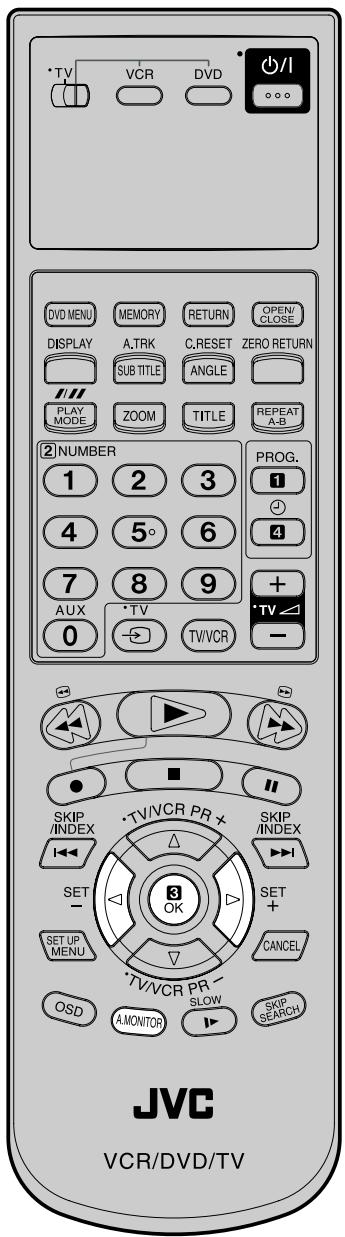
Note:
When playing HiFi cassette tapes recorded on another VCR, the sound output may be distorted. This is normal and no indication of a unit malfunction. Try to minimize sound distortions by using SET +/- or change to MONO by pressing of A.MONITOR.
German A2 stereo sound reception:
Stereo program indication
It will be displayed for approx. 4 seconds when stereo programs are being received.
STEREO
Bilingual program indication
It will be displayed for approx. 4 seconds when bilingual programs are being received.
BILINGUAL
Playback
Use A.MONITOR to select under stereo/mono or bilingual playback. See the table below for more information.
| On-screen indications (for 4 sec.) | Stereo playback performed in: | Bilingual playback performed as follows: |
| STEREO | Stereo | Simultaneously both languages from HiFi track (Mixed sounds) |
| L CH | Left channel signal output from both loudspeakers | One's mother tongue dubbing (Main sound) |
| R CH | Right channel signal output from both loudspeakers | Original sound track (Sub sound) |
| MONO | Mono | One's mother tongue dubbing (Main sound) |
HiFi signal indication
It will be displayed for approx. 4 seconds when playing HiFi video cassette tapes.
| HI-FI |
When playing audio dubbed video tapes, press A.MONITOR to select the sound you want to listen to. Press A.MONITOR repeatedly until "MONO" is displayed on the screen to listen only to the dubbed sound. In case of the other on-screen indications only the original sound will be output. It is also possible to listen to the dubbed and the original sounds simultaneously. To accomplish this, set "AUDIO MIX" to "[ON]" (see right). During playback, press A.MONITOR repeatedly until "STEREO" is displayed on the screen.
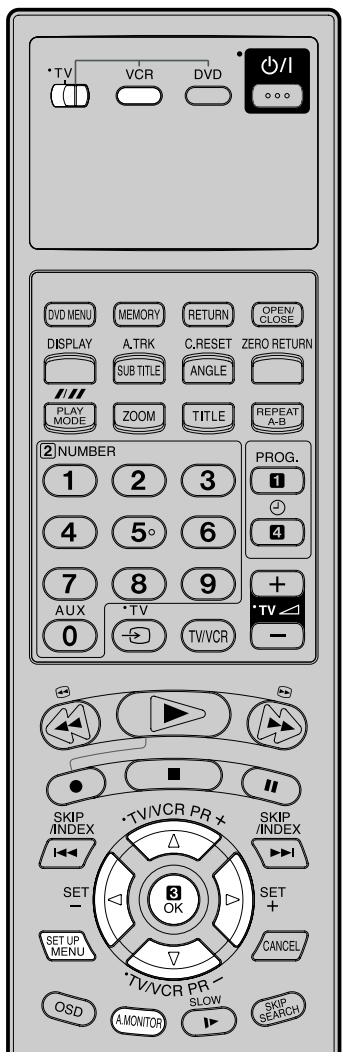
Note:
To deactivate the AUDIO MIX function follow the above procedure from step 1 to 3, select "[OFF]", and confirm the setting by pressing SET UP MENU.
Preparation:
- Turn ON the TV and set it to the video input mode.
- Make sure the TV/VCR/DVD switch has been slid to VCR/DVD. Then press VCR to select the VCR mode. (The VCR indicator will light)
1 Press SET UP MENU.
Press ▲ or ▼ to select VCR SETUP. Then press OK.
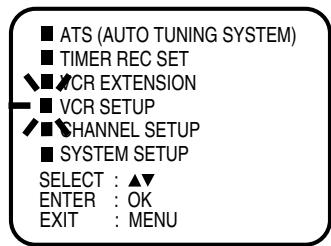
2 Press ▲ or ▼ to select AUDIO MIX.
![VCR SETUP ■ MICAM [AUTO] ■ AUDIO MIX [OFF] ■ SHARPNESS SELECT : ▲▼ / ◀◀ ENTER : OK EXIT : MENU](/content/2025/01/123354/images/91d3623dcb20a7ddf8ac75a48fb398e124ce68d1eb9e0961ffa0c613254be3cd.jpg)
3 Press ◀/▶ or OK to select [ON]. If you select "[ON]", you can listen to the dubbed and the original sounds at the same time.
![VCR SETUP ■ MICAM [AUTO] ■ AUDIO MIX [ON] ■ SHARPNESS SELECT : ▲▼ / ◀◀ ENTER : OK EXIT : MENU](/content/2025/01/123354/images/c831559f73e926bd97c0d2657388a253155d7a782552460315755845f87124b4.jpg)
4 Press SET UP MENU repeatedly until the TV picture appears.
When you try to connect with a cable, make sure the power of both units have been turned off.
Connect the recording unit with the TV. Therefore you can just watch what the recording unit is recording.
1 Load a blank cassette tape with the erase prevention tab intact into the recording DVD/VCR. Load the previously recorded cassette tape into the playback VCR or a video camera.
2 Use AUX or PR of the recording DVD/VCR to select the "A1", "A2" or "A3" instead of the preset channel.
A1 = TV - RGB / Composite Scart Socket
A2 = VCR / DECODER Scart Socket
A3 = Front AV jacks
3 While holding ●, press ▶ and then II of Recording unit. 4 Press PLAY-button and then PAUSE/STILL-button of Playback unit. Now you can see the still picture of the scene that you wish to duplicate. 5 Press II of both units simultaneously to start the Duplicating.
Note:
Before starting the duplicating process, select the proper tape speed using √(1/1). For a pre-recorded tape, the correct tape speed will be set automatically during playback.
Connection with second Video recorder or Video camera
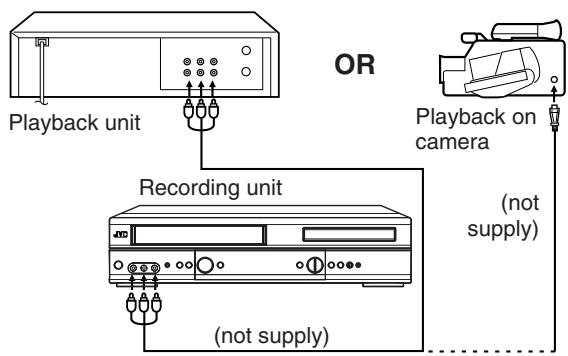
Press AUX on the recording unit repeatedly until A3 appears.
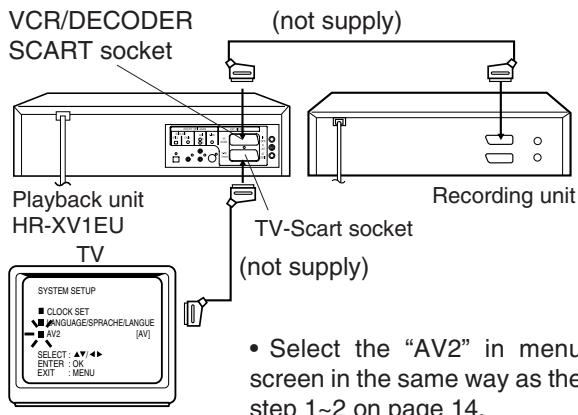
Select the “AV2” in the menu screen in the same way as steps 1~2 on page 14.
Then press OK to select AV mode.
Duplicating a disc material onto a video tape
You can record disc material in DVD, Video CD, Audio CD, etc. onto a video tape with this DVD/VCR only.
If the DVD disc has a Copy-guard feature, the duplicating is not possible. A symbol mark “→” will appear on the screen for approx. 4 seconds. See page 42 for more information about the DVD playback.
Preparation:
- Load a cassette tape with the erase prevention tab intact.
- Select the tape speed in the VCR mode. (see P.28)
- Load a disc you wish to duplicate.
1 Press DVD to select the DVD mode. (The DVD indicator will light) 2 Press ▶ to start the disc playback.
3 During disc playback, while holding ●, press ▶.
Note:
You can set the duplicating time using the ITR-function. At step 3 above press ● repeatedly until the desired duplicating time appears on the screen. (P.30)
This unit applies to DVD discs from Region 2 only.
The loaded Disc (DVD, Video-CD, Audio-CD and MP3-CD) will be recognized automatically.
The suitable Disc-formats are: DVD, CD-R and CD-RW.
Some CD-R/RW discs may be incompatible.
This DVD/VCR uses the PAL color system. The NTSC-DVDs can be played back on PAL 60Hz.
Do not play DVD-ROM, DVD-Audio, CDV, CD-G or Photo CD to prevent accidental erasure of prerecorded material.
Some DVDs are played back with a copy guard system. In case of a dubbing on video tape, strong disturbance may occur. This is not a defect of this DVD/VCR.
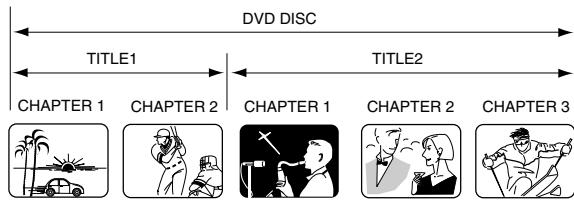
Title
When two or more movies are recorded on a disc, the disc is divided into two or more sections. Each section is called a "TITLE".
Chapter
The titles can be subdivided into many sections.
Each section is called a "CHAPTER".
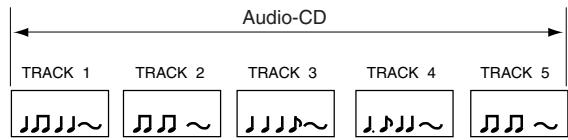
Track
An Audio CD can contain several items.
These are assigned to the tracks.
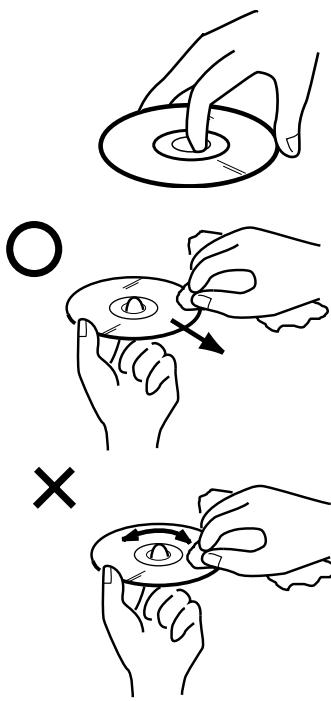
Removing Disc from Case
Be sure to hold the edge of the disc. Do not touch the surface of the disc.
Pick up the disc gently from the case.
- Do not scratch the disc.
- Do not get dirt on the surface of the disc.
- Do not stick a label or adhesive tape on the disc.
- Do not drop or bend the disc.
Storing Disc
- Store the disc in the case to avoid risk of scratches, dirt or damage.
- Do not leave the disc exposed to direct sunlight or in hot or humid places.
Cleaning Disc
Wipe the disc with a clean, dry cloth from center to edge.
- Do not wipe the disc round.
- Do not use liquid or aerosol cleaners.
The setup language can be selected.
If the DVD/VCR does not operate properly: Static electricity, etc., may affect the player's operation. Disconnect the AC power cord once, then connect it again.
Preparation:
- Turn ON the TV and set to the video input mode.
- Make sure TV/VCR/DVD switch has been slid to VCR/DVD.
- When using an amplifier, switch on the amplifier.
1 Press DVD to select the DVD mode. (The DVD indicator will light.)
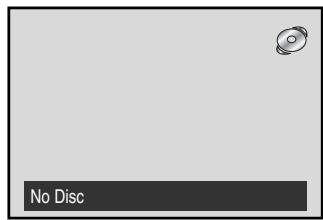
"No Disc" will appear on the screen. (If a DVD disc has already loaded, the playback will start automatically.)
2 Press SETUP MENU in the stop mode. The SETUP MENU of DVD will appear on the screen. Then press ◀ or ▶ to select "Language".
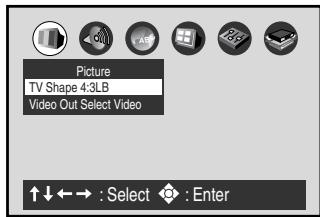
3 Press ▲/▼ to select On-Screen Language, then press OK (Enter).
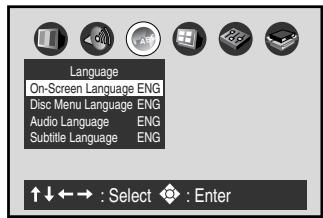
4 Press ▲/▼ to select desired language: English (English), German (Deutsch) or French (Français).
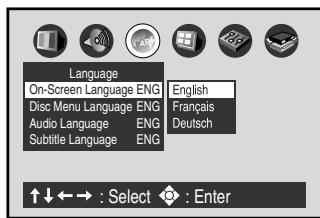
5 To make the SETUP screen disappear, press SET UP MENU (or RETURN).
Preparation:
- Turn ON the TV and set to the video input mode.
- Make sure TV/VCR/DVD switch has been slid to VCR/DVD. Then press DVD to select the DVD mode. (The DVD indicator will light)
1 Press OPEN/CLOSE. The disc tray will open.
2 Place a disc onto the tray. Hold the disc, position it with the printed label side up, align it with the guides, and place it in its proper position.
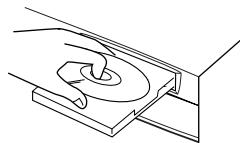
3 Press ▶ or OPEN/CLOSE. The disc tray closes automatically. On the screen, ▲ changes to "💡" and then playback will commence.

- A menu screen may appear on the TV screen, if the disc has a menu feature. In this case, press ▲, ▼, ◀, ▶ or OK to operate a menu feature.
4 Press ■ to end playback.
- The DVD/VCR memorizes the stopped point, depending on the disc. “To Return To The Last Scene Viewed, Press Play. To Disable This Operation, Press STOP Again.” appears on the screen for approx. 4 seconds. “▶” will continue blinking in the display until the playback is stopped completely. Press ▶ to resume playback (from the scene point). - If you press ■ again (“■” appears on the screen) or unload the disc, the DVD/VCR will clear the stopped point.
5 Then press OPEN/CLOSE.
The disc tray opens. Remove the disc and press ⏻/l, (POWER). The disc tray closes automatically and DVD/VCR turns off.
NOTES:
- If a non-compatible disc is loaded, "Please Check Disc", "Disc playback unauthorized Consult owners manual for further information" or "Parental Lock" will appear on the TV screen according to the type of loaded disc. In this case, check your disc again (See pages 40 and 50, 51).
- Some discs may take a minute or so to start playback.
- A “Prohibition” symbol Ⓧ may appear at the upper right of the screen. This symbol means either the feature you tried is not available on the disc, or the DVD/VCR can not access the feature at this time. This does not indicate a problem with the DVD/VCR.
- When you set a single-faced disc label downwards (ie. the wrong way up) and press ▶ or OPEN/CLOSE, "💡" will appear and remain on the screen for approx. 30 seconds and then it will change to "Please Check Disc".
- Some playback operations of DVDs may be intentionally fixed by software producers. Since this DVD/VCR plays DVDs according to the disc contents the software producers designed, some playback features may not be available. Also refer to the instructions supplied with the DVDs.
- When playing DTS-encoded Audio CDs, excessive noise will be heard from the analog stereo outputs. To avoid possible damage to the audio system, the consumer should take proper precautions when the analog stereo outputs of the DVD/VCR are connected to an amplification system.
Note: There may be a slight delay between pressing the button and the function activation.
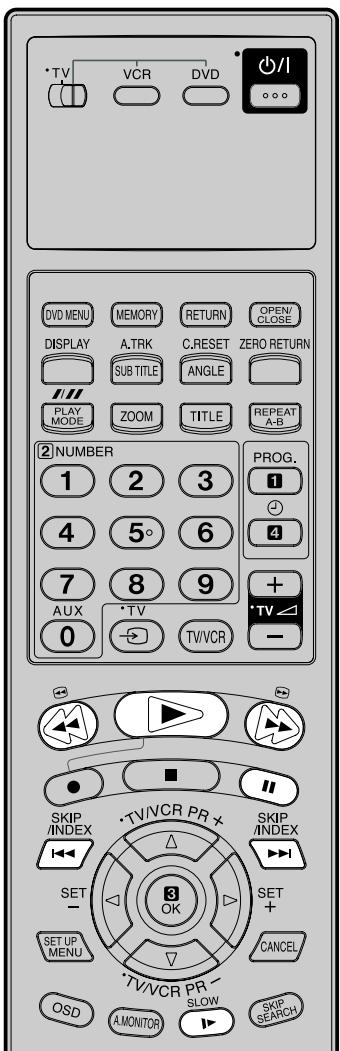
NOTES:
- The unit is capable of holding a still video image or On Screen Display image on your television screen indefinitely. If you leave the still video image or On Screen Display image displayed on your TV for an extended period of time, you risk permanent damage to your television screen. Projection televisions are very susceptible.
- Some titles may not display chapter numbers.
- When you set “Title Stop” to “Off” (See page 57), you can access chapters in another title. If you go back to the preceding title by pressing the SKIP, the DVD/VCR locates the first chapter of the title. When “Title Stop” is set to “On”, you can access chapters only within the current title.
Fast Forward Playback
Press ▶ during normal playback.
Each press of ➕ will increase the speed of the search x2 (▶), x8 (▶▶), x30 (▶▶▶), x100 (▶▶▶▶). (In case of Audio-CD: x4 (▶) and x8 (▶▶) are available)
- To resume normal playback, press ▶.
Review Playback
Press ◀ during normal playback.
Each press of ◀ will increase the speed of the search x2 (◀), x8 (◀◀), x30 (◀◀◀), x100 (◀◀◀◀). (In case of Audio-CD: x4 (◀) and x8 (◀◀) are available)
- To resume normal playback, press ▶.
Still Playback
Press II during normal playback.
To resume normal playback, press ▶.

Frame Advance
Press II during still playback.
One frame is advanced each time you press II.
To resume normal playback, press ▶.

Slow-motion Playback
Press SLOW during normal playback or still playback.
Each press of SLOW will change the speed of the slow x1/2, x1/4, x1/8.
- To resume normal playback, press ▶.
- To resume the still playback, press II.
Locating a chapter or track
Press SKIP (▶▶) Forward or SKIP (▶◀) Reverse during playback to locate a chapter or track that you want to watch.
Each time you press the button, a "C (chapter)" number or "T (track)" number is skipped.
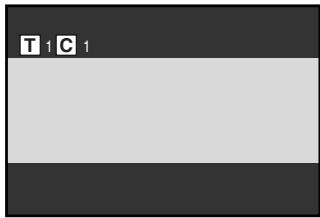
When you press SKIP (◀◀), playback starts from the beginning of the current chapter or track.
When you press SKIP (◀◀) twice, playback starts from the beginning of the preceding chapter or track.
DVD Picture Signal Selection/Zooming
You can select the output signal of DVD playback picture to the TV screen as a VIDEO signal or an RGB signal.
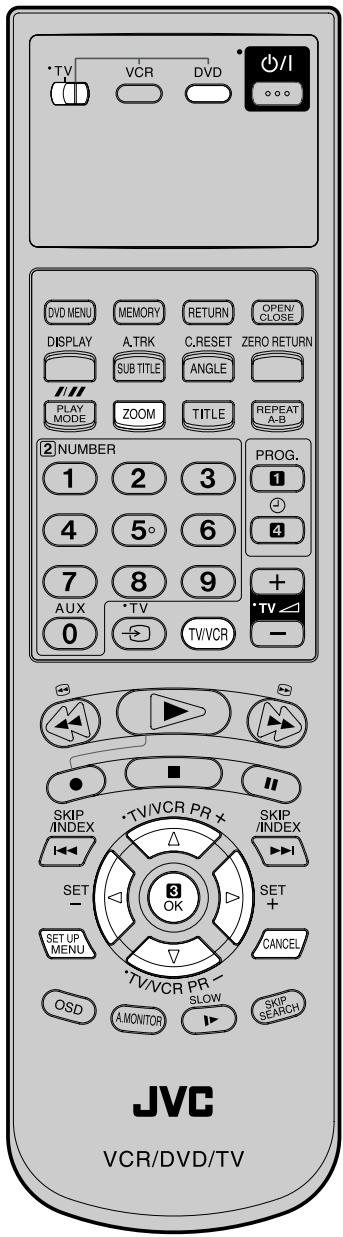
- Picture Signal Selection is only available for connecting with a 21-pin Scart Cable.
- Depending on your TV, NTSC discs may not playback correctly in colour. In this case, it is recommended to select the Picture Signal RGB on step 2.
- Only use RGB setting if your TV is RGB compatible.
Preparation:
- Turn ON the TV and set to the video input mode.
- Make sure TV/VCR/DVD switch has been slid to VCR/DVD. Then press DVD to select the DVD mode. (The DVD indicator will light)
1 Press SET UP MENU in the stop mode.
Press ◀ or ▶ to select "Picture", then press ▲ or ▼ to select "Video Out Select".
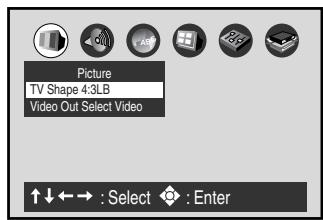
2 Press OK (Enter).
Press ▲ or ▼ to select the desired picture signal, "Video" or "RGB".
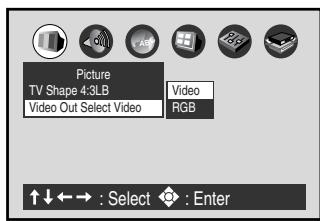
3 To make SETUP screen disappear, press SET UP MENU.
Note:
- If you use the connection with S-Video cord, be sure to set the "Video Out Select" at step 2 above to "Video". If you select "RGB", the TV screen will be disturbed.
- If you selected "RGB" at step 2 above, press TV/VCR to select VCR. (VCR indicator will appear on the display) Otherwise, the TV screen will be disturbed when you select the channel with TV's CHANNEL UP/DOWN buttons.
Zooming
This unit will allow you to zoom in on the frame image. You can then make selections by switching the position of the frame.
1 Press ZOOM during playback. The center part of the image will be zoomed in. As you repeatedly press the OK or ZOOM while "ZOOM" is selected, the magnification level changes. Variation of the levels includes image reduction.
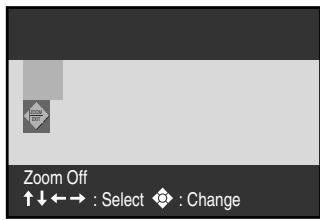
2 Press ▲/▼ or ◀/▶ to view a different part of the frame. You may move the frame from the center position to UP, DOWN, LEFT or RIGHT direction.
- If you select "EXIT" and press the OK, you can turn off the symbol mark, keeping the current magnification level.
- Press CANCEL to restore the zoom point to the center of the picture.
3 While "ZOOM" is selected, press ZOOM repeatedly to return to a 1:1 view.
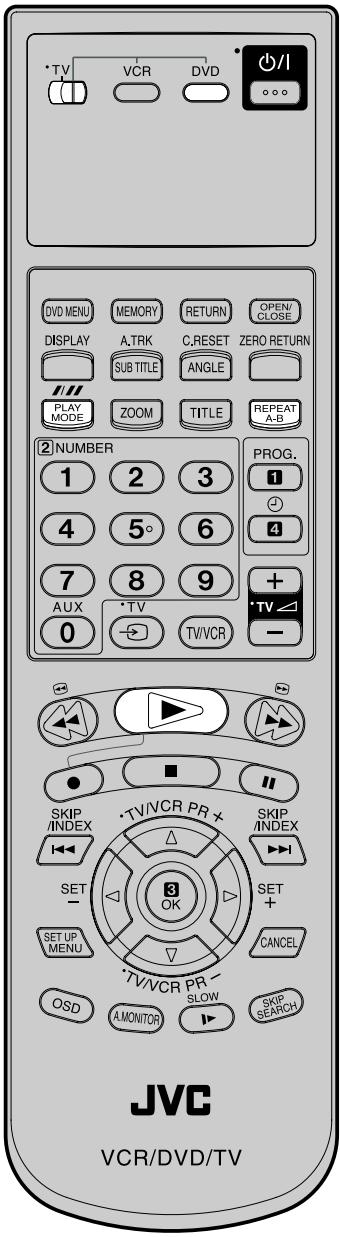
NOTES:
- Some discs may not work with the repeat operation.
- In A-B repeat mode, subtitles near point A or B may not appear.
- During the A-B Repeat Playback the ANGLE feature will not operate.
- You may not be able to set A-B Repeat, depending on the scenes of the DVD.
- A-B repeat does not work with an interactive DVD and MP3-CD.
- Random playback cannot be combined with Repeat playback.
Preparation:
- Turn ON the TV and set it to the video input mode.
- Make sure the TV/VCR/DVD switch has been slid to VCR/DVD. Then press DVD to select the DVD mode. (The DVD indicator will light)
REPEAT PLAYBACK
1. Press PLAY MODE repeatedly to select "Chapter Repeat", "Title Repeat", or "All Repeat". (In case of CD, select "Track Repeat" or "ALL Repeat")
2. During playback, repeat playback will start automatically. To start repeat playback during stop mode, press ▶ within about 5 seconds after you press PLAY MODE.
- To resume normal playback, press PLAY MODE repeatedly until "Off" appears on the TV screen.
A-B Repeat Playback
A-B repeat playback allows you to repeat material between two selected points.
1. Press REPEAT A-B during playback. The start point is selected.
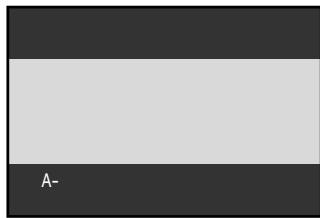
2. Press REPEAT A-B again. The end point is selected. Playback starts at the point that you selected. Playback stops at the end point, returns to Point A automatically, then starts again.
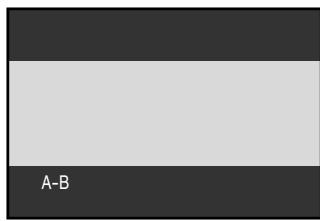
To resume normal playback, press REPEAT A-B again.
"Repeat Off" appears on the screen.
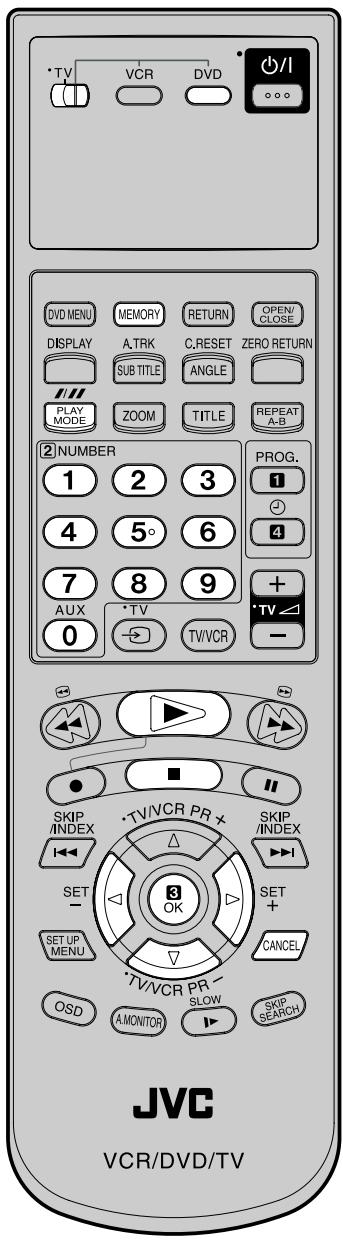
NOTES:
- The memory playback is cancelled when you press ■ during memory playback.
- Random playback cannot be combined with repeat playback.
- You can program up to 30 selections into the memory.
- Depending on the DVD, Chapter Random operation may not work during playback.
- You cannot use random playback with memory playback.
Preparation:
- Turn ON the TV and set it to the video input mode.
- Make sure the TV/VCR/DVD switch has been slid to VCR/DVD. Then press DVD to select the DVD mode. (The DVD indicator will light)
Memory playback
You can arrange the order of titles, chapters, or tracks on the disc.
1 Press MEMORY.
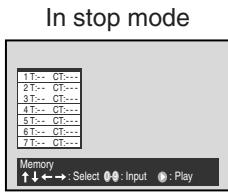
2 Press ◀/▶ to select "T" for Title number or "CT" for Chapter or Track number. Use the number keys to input the desired number.
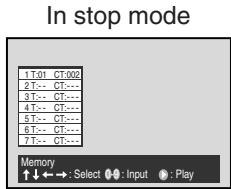
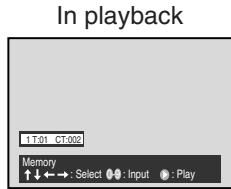
- If you input a number larger than the number recorded on the disc, the bar will be skipped.
- The input number into "T" for CD or MP3 is not effective.
3 Press ▼ or OK. Set the "T" and "CT" in the next bar as in step 2.
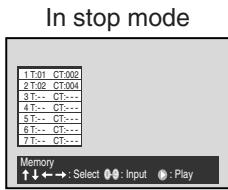
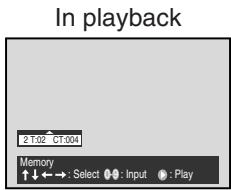
- When you select another chapter in the same title, you do not need to select the title number.
- To cancel the programmed selection, press CANCEL.
4 Press ▶ to start MEMORY playback.
- To resume normal playback, press CANCEL.
Random playback
1 Press PLAY MODE repeatedly to select “Chapter Random” or “Title Random”. (In case of CD, select Track Random)
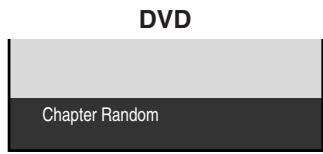
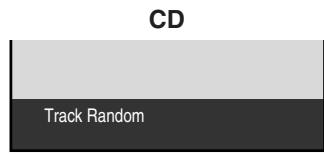
2 During playback random playback will start automatically. To start random playback during stop mode, press ▶ within about 5 seconds after you press the PLAY MODE. • To resume normal playback, press PLAY MODE repeatedly until "Off" appears on the TV-screen.
This player can play back the MP3-data which has been recorded on CD-R or CD-RW. To produce the MP3-data, you need a Windows-PC with CD-ROM drive and a MP3-encoding Software (not supplied).
The Apple-HFS-System can not be played.
MP3 CD Information
Limitations on MP3 CD playback
- MP3 CD is the disc that is standardized by ISO9660, its file name must include 3-digits extension letters, "mp3".
- The directory and file names of the MP3 CD must correspond to the ISO standardized files.
- This unit can read 200 files per disc. If one directory has more than 200 files, it reads up to 200 files, the remaining files will be omitted.
- As for multi-session disc, only the first session can be played.
- If the CD has both audio tracks and MP3 files, only audio tracks are played.
- It may take more than one minute for this unit to read MP3 files depending on its structure.
- Music recorded by “Joliet Recording Specification” can be played back, the file name is displayed (within 8 letters) on the screen. Long file names will be condensed.
- The music files recorded by “Hierarchical File System” (HFS) cannot be played.
Limitations on display
The maximum number for display is 8 letters. Available letters for display are the following: capital or small alphabets of A through Z, numbers of 0 through 9, and _ (under score).
Notes on MP3 files
To play back MP3 CD in the recorded order,
- Use MP3 software that records data alphabetically or numerically.
- Name each file including a two-digit or three-digit number (e.g. "01" "02" or "001" "002").
- Refrain from making too many sub-folders.
CAUTION:
- Some MP3 CDs can not be played back depending on the recording conditions.
- The CD-R/RW that has no music data or non-MP3 files cannot be played back.
Preparation:
- Turn ON the TV and set it to the video input mode.
- Make sure the TV/VCR/DVD switch has been slid to VCR/DVD. Then press DVD to select the DVD mode. (The DVD indicator will light)
1 Press OPEN/CLOSE. The disc tray will open. Place a disc onto the tray.
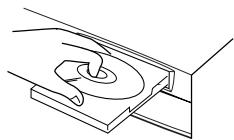
2 Press ▶ or OPEN/CLOSE. The disc tray closes automatically. On the TV screen, “💡” and then the reading file number will appear. Then playback will commence.
- Reading will take as much time as the number of files.
- Press ■ to end playback.
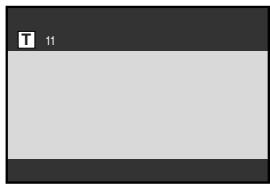
3 Press OSD.
Then press ◀ / ▶ to select MP3 and press OK (Enter).
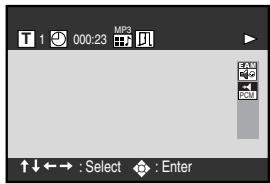
4 Press ▲/▼ or ◀/▶ to select the desired track, then press OK (Enter). The track is selected and play commences.
- If the folder includes more than 9 tracks, press ◀/▶ to display the next track list.
- To remove the track list, press CANCEL.
- Press ◀/▶ to select "T" and press number keys to input your desired track.
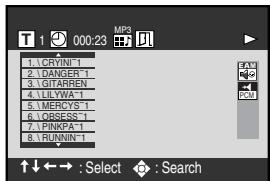
5 Press ■ to end playback.
- The unit records the stopped track. Press ▶ to resume playback (from the beginning of the track).
- If you press ■ again or unload the disc, the unit will clear the stopped track.
6 Press OPEN/CLOSE.
The disc tray opens. Remove the disc and press ⏻/l.
The disc tray closes automatically and DVD/VCR turns off.
NOTES:
- During MP3 playback, you cannot use the SEARCH or A-B Repeat functions.
- You can use the Repeat (Track or All) and Random functions for MP3 CD playback. (See pages 45 and 46.)
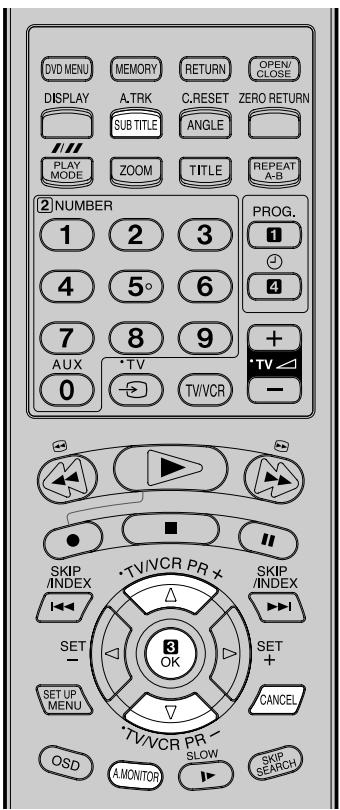
NOTES:
- If the desired language is not heard after pressing A.MONITOR several times, the language is not recorded on the disc.
- Changing the soundtrack or subtitle language is cancelled when you open the disc tray or turn the power off. The initial default language or available language will be heard and seen if the disc is played back again.
- Depending on the DVD, you may be unable to turn on, turn off, or change the subtitles, even if they are recorded on the disc. While playing the DVD, the subtitle may change while opening or closing the disc tray, or while changing the title.
- During some scenes, the subtitles may not appear immediately after you select "On".
- The abbreviation of the language appears instead of the language name. Refer to the list of languages and their abbreviations. (See page 61.)
Preparation:
- Turn ON the TV and set it to the video input mode.
- Make sure the TV/VCR/DVD switch has been slid to VCR/DVD. Then press DVD to select the DVD mode. (The DVD indicator will light)
Changing soundtrack language
You can select the language when you play a multilingual disc.
1 Press A.MONITOR during playback. The current soundtrack language is displayed.
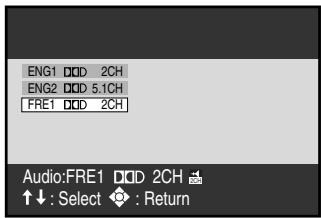
2 Press A.MONITOR repeatedly until the desired language is selected. The on-screen display will disappear after a few seconds.
- To turn off the soundtrack setting display, press the CANCEL or OK button.
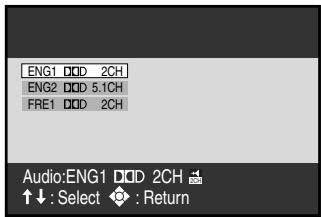
In case of VIDEO CD playback
Audio type changes as follows each time you press A.MONITOR.
![graph LR A["L.R\nL\nR"] --> B["L.R\nL\nR"] B --> C["L.R\nL\nR"]](/content/2025/01/123354/images/5dd8f32f9aba0807eff0b002ea2eac0f7724f02a7279f251bc40577fc9b85fc5.jpg)
Changing Subtitles language
You can select the language when playing back a disc recorded with multi-lingual subtitles.
1 Press SUB TITLE during playback.
Then press ▲/▼ to select the desired language.
- To turn off the subtitle setting display, press the CANCEL or OK button.
- To turn the subtitles off, select "Off".
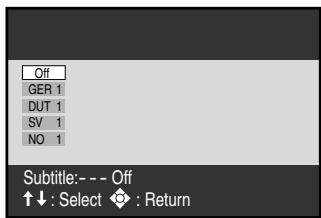
2 Press SUB TITLE repeatedly to turn Subtitles on or off.
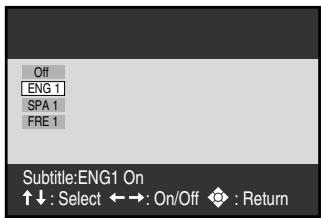
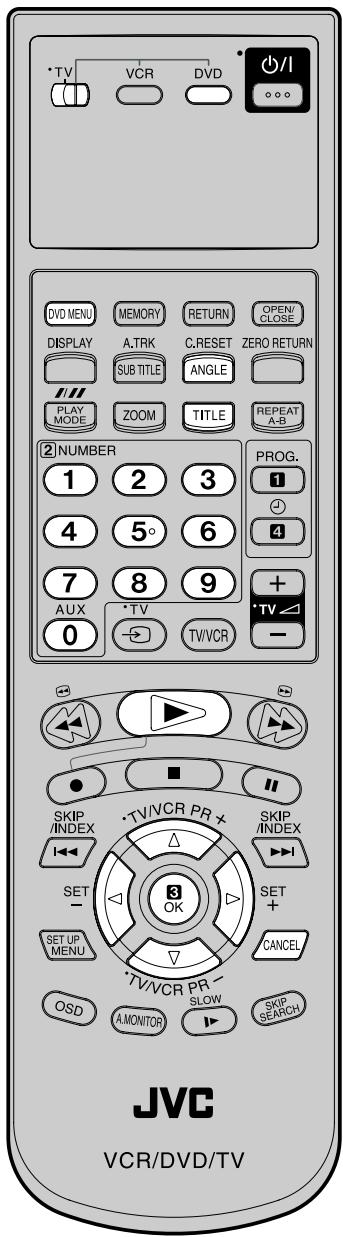
Depending on the DVD, you may not be able to change the angles even if multi-angles are recorded on the disc, or you may be unable to select the title, and a “title menu” may simply be called a “menu” or “title” in the instructions supplied with the disc.
Preparation:
- Turn ON the TV and set to the video input mode.
- Make sure TV/VCR/DVD switch has been slid to VCR/DVD. Then press DVD to select the DVD mode. (The DVD indicator will light)
Changing Angles
When playing back a disc recorded with multi-angle facility, you can change the angle that you are viewing the scene from.
1 Press ANGLE during playback. The current angle will appear.
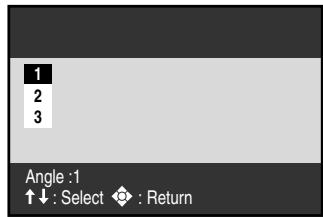
2 Press ANGLE or ▲/▼ repeatedly until the desired angle is selected.
- To turn off the angle number display, press the CANCEL.
- You can change the camera angle directly by pressing the number keys corresponding to its angle number instead of using the ▲/▼ buttons.
Title Selection
Two or more titles are recorded on some discs. If the title menu is recorded on the disc, you can select the desired title.
1 Press TITLE during playback.
Title menu appears on the screen.
- Press TITLE again to resume playback at the scene when you pressed TITLE.
2 Press ▲/▼ or ◀/▶ to select the desired title. 3 Press OK or ▶.
The playback of the selected title will start.
DVD Menu
Some DVDs allow you to select the disc contents using the menu.
When you play back these DVDs, you can select the subtitle language and sound-track language, etc. using the DVD menu.
1 Press DVD MENU during playback.
The DVD menu appears on the screen.
- Press DVD MENU again to resume playback at the scene when you pressed DVD MENU.
2 Press ▲/▼ or ◀/▶ to select the desired item. 3 Press OK.
The menu continues to another screen. Repeat steps 2 and 3 to set the item completely.
Some discs are specified not suitable for children. Such discs can be prevented from play back with the unit.
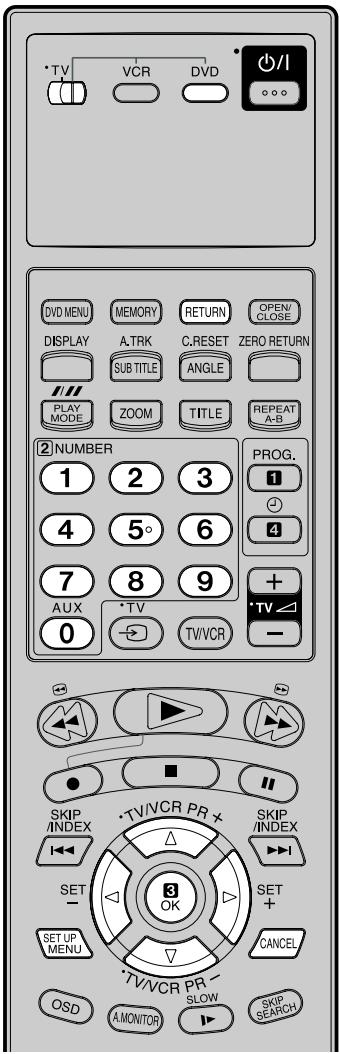
NOTES:
- If each setup (page 50~59) has been completed, the unit can always be worked under the same conditions (especially with DVD discs). Each setup will be retained in the memory if you turn the power off.
- Depending on the discs, the unit cannot limit playback.
- Some discs may not be encoded with specific rating level information though its disc jacket says "adult". For those discs, the age restriction will not work.
- Do not forget the security code. If you forget the security code, delete it. (See step 7 on next page)
Preparation:
- Turn ON the TV and set to the video input mode.
- Make sure TV/VCR/DVD switch has been slid to VCR/DVD. Then press DVD to select the DVD mode. (The DVD indicator will light)
Parental control setting
1 Press SET UP MENU in the stop mode.
Press ◀ or ▶ to select "Operation".
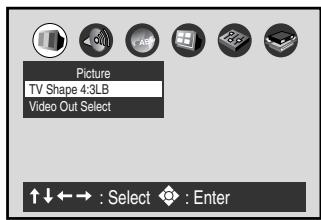
2 Press ▲ or ▼ to select "Parental Lock", then press OK.
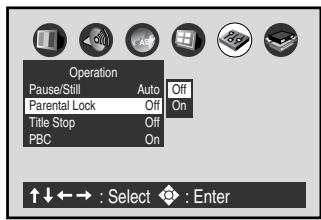
3 Press ▲ or ▼ to select Off or On.
Off: The parental lock feature does not function. After pressing OK (Enter), follow step 4 and 6 below.
On: To activate the parental lock feature or change the setting, press OK (Enter) and follow steps 4-6 below.
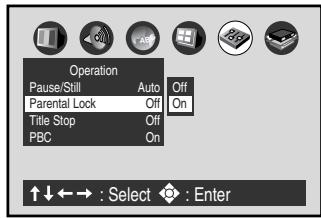
4 Press number keys to input a 4-digits security code then press OK.
- If you input a wrong number, press CANCEL.
- To return to the before step, press RETURN.
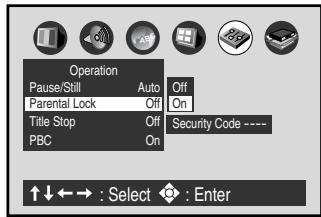
5 Enter the code of a country/area whose standards were used to rate the DVD disc. (See the list on page 51)
Example: Set to DE (GERMANY). Press ▲ or ▼ to select "D" then press ▶ to move to the right character. Then select "E" the same way. Then press OK (Enter).
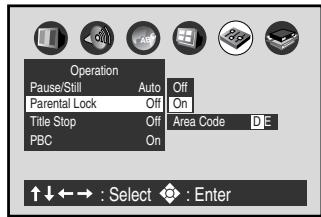
| Country/Area | Code | Country/Area | Code |
| AUSTRALIA | AU | NETHERLANDS | NL |
| BELGIUM | BE | NORWAY | NO |
| CANADA | CA | PHILIPPINES | PH |
| CHINA | CN | RUSSIAN FEDERATION | RU |
| CHINA HONG KONG | HK | SINGAPORE | SG |
| DENMARK | DK | SPAIN | ES |
| FINLAND | FI | SWEDEN | SE |
| FRANCE | FR | SWITZERLAND | CH |
| GERMANY | DE | TAIWAN | TW |
| INDONESIA | ID | THAILAND | TH |
| ITALY | IT | UNITED KINGDOM | GB |
| JAPAN | JP | UNITED STATES | US |
| MALAYSIA | MY |
6 Press ▲/▼ to select the parental lock level, then press OK (Enter).
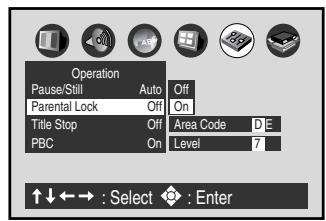
You cannot play DVD discs rated higher than the level you selected unless you cancel the parental lock function.
For example, when you select level 7, discs rated higher than level 7 are locked out and cannot be played.
- Level 1: DVD software for adults cannot be played back.
- Level 8: All DVD software can be played back.
- Select from level 1 to level 8. The limitation will be more severe as the level number is lower.
7 To make the SETUP screen disappear, press SET UP MENU.
■ To change the parental lock level
Follow steps 1-6.
■ To change your 4-digit security code
1) After selecting "On" or "Off" at step 3, press ■ four times, then press OK (Enter). The 4-digit security code is deleted.
2) Press number keys to create a new 4-digit security code at step 4.
Setting menu language
You can select the language of the disc menu messages of DVDs.
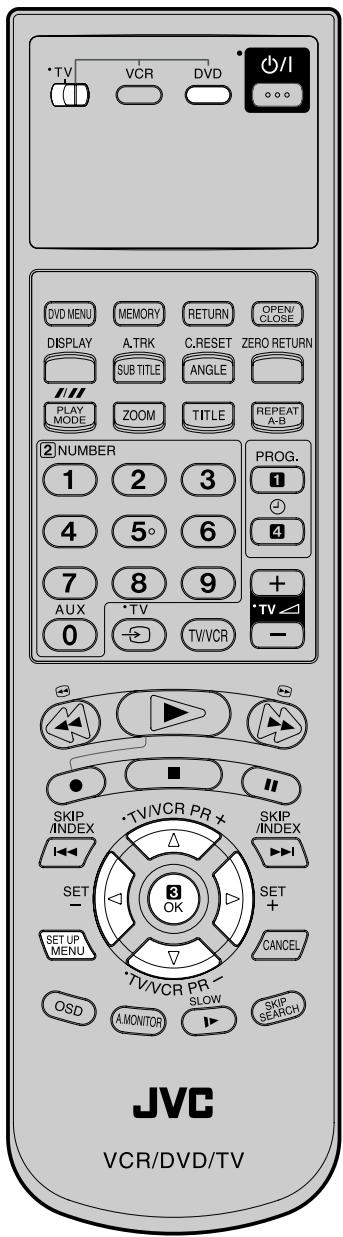
Preparation:
- Turn ON the TV and set to the video input mode.
- Make sure TV/VCR/DVD switch has been slid to VCR/DVD. Then press DVD to select the DVD mode. (The DVD indicator will light)
1 Press SET UP MENU in the stop mode.
Press ◀ or ▶ to select “Language”.
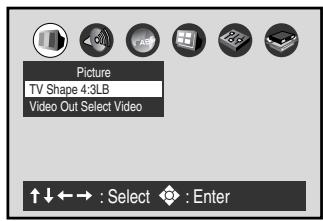
2 Press ▲ or ▼ to select “Disc Menu Language”.
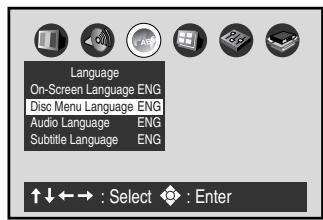
3 Press OK (ENTER).
Press ▲ or ▼ to select your desired language, then press OK (ENTER).
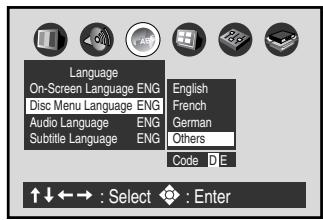
English, French, German
The selected language is the first-priority Menu language.
Others: Other languages can be selected (See the Table of languages on page 61).
Example:
Set to DE (GERMANY).
Press ▲ or ▼ to select "D" then press ▶ to move to the right character. Then select "E" same as above. Then press OK (ENTER).
4 To make the SETUP screen disappear, press SET UP MENU.
The same audio soundtrack language can always be selected by your unit even if you replace the disc or turn the power off.
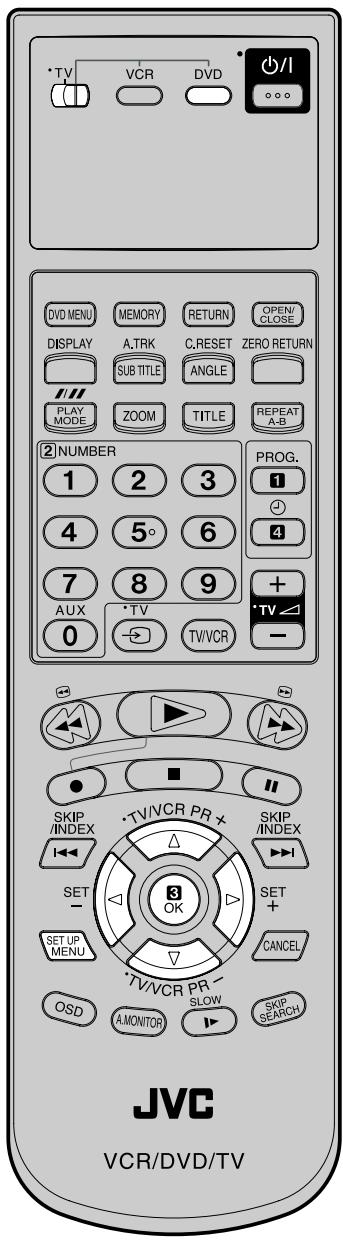
NOTES:
- If the selected language is not recorded on the disc, the original language will be heard.
- Some DVD discs may be played in a different language than you selected. A prior language may be programmed on the disc.
Preparation:
- Turn ON the TV and set to the video input mode.
- Make sure TV/VCR/DVD switch has been slid to VCR/DVD. Then press DVD to select the DVD mode. (The DVD indicator will light)
1 Press SET UP MENU in the stop mode.
Press ◀ or ▶ to select "Language".
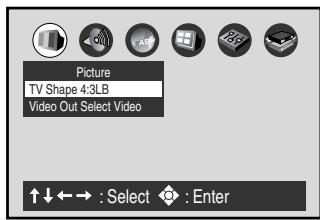
2 Press ▲ or ▼ to select "Audio Language".
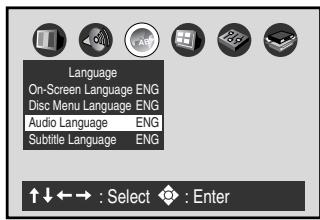
3 Press OK (Enter).
Press ▲ or ▼ to select your desired Audio Language, then press OK (Enter).
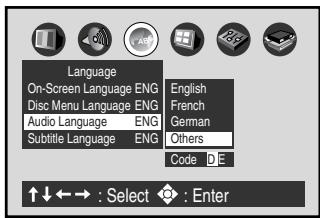
English, French, German
The language you have selected will play if it is recorded on the disc.
Others: If you want to select another language, enter the language code (See the Table of languages on page 61).
Example:
Set to DE (GERMANY).
Press ▲ or ▼ to select "D" then press ▶ to move to the right character. Then select "E" same as above. Then press OK (Enter).
4 To make the SETUP screen disappear, press SET UP MENU.
The same subtitle language can always be selected even if you replace the disc or turn the power off.
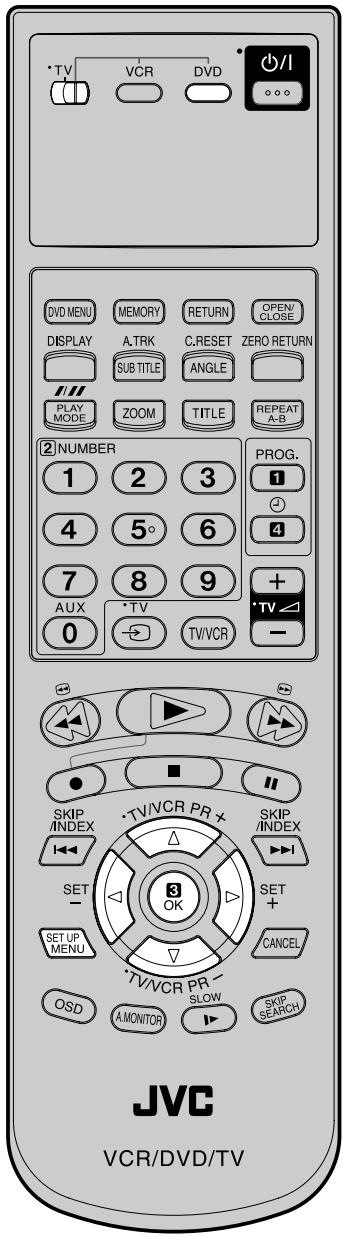
NOTES:
- If the selected language is not recorded on the disc, the first-priority language is selected.
- Some DVD discs may be set to display Subtitles in a different language than you selected. A prior subtitle language may be programmed on the disc.
Preparation:
- Turn ON the TV and set to the video input mode.
- Make sure TV/VCR/DVD switch has been slid to VCR/DVD. Then press DVD to select the DVD mode. (The DVD indicator will light)
1 Press SET UP MENU in the stop mode. Press ◀ or ▶ to select "Language".
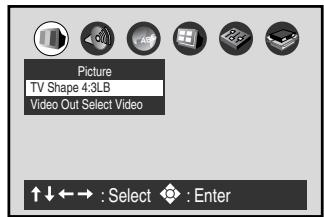
2 Press ▲ or ▼ to select "Subtitle Language".
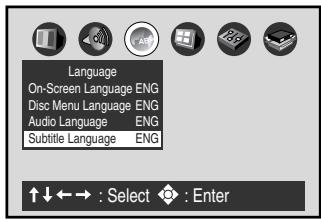
3 Press OK (Enter).
Press ▲ or ▼ to select your desired language, then press OK (Enter).
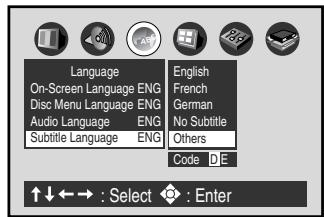
English, French, German
The subtitle is displayed with the selected language if it is recorded on the disc.
No Subtitle:
Subtitles do not appear.
Others: If you want to select another language, enter the language code (See the Table of languages on page 61).
Example: Set to DE (GERMANY).
Press ▲ or ▼ to select “D” then press ▶ to move to the right character. Then select “E” same as above. Then press OK (Enter).
4 To make the SETUP screen disappear, press SET UP MENU.
You can select the aspect ratio for your TV.
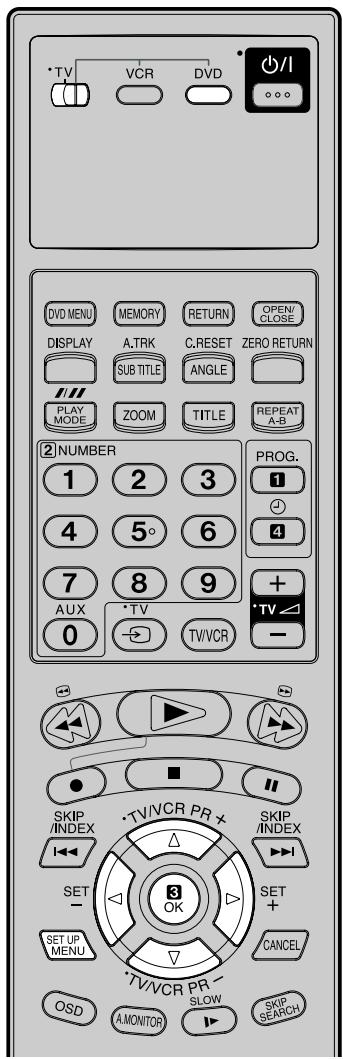
NOTES:
- The displayable picture size is preset on the DVD video disc. Therefore, the playback picture of some DVD video discs may not conform to the picture size you select.
- When you play DVD video discs recorded in the 4:3 picture size only, the playback picture always appears in the 4:3 picture size regardless of the TV shape setting.
- If you select “16:9 widescreen” and you own a 4:3 TV set, the DVD playback picture will be horizontally distorted during playback. Images will appear to be horizontally compressed. Always be sure that your TV shape conforms to the actual TV in use.
Preparation:
- Turn ON the TV and set it to the video input mode.
- Make sure the TV/VCR/DVD switch has been slid to VCR/DVD. Then press DVD to select the DVD mode. (The DVD indicator will light)
Setting the aspect ratio of the TV screen
1 Press SET UP MENU in the stop mode.
Press ◀ or ▶ to select "Picture", then press ▲ or ▼ to select "TV shape".
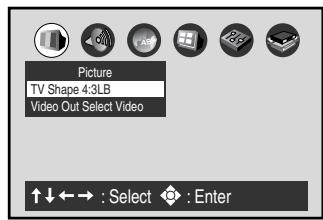
2 Press OK (Enter).
Press ▲ or ▼ to select your desired screen type.
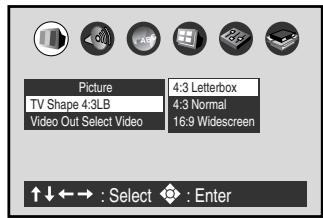
You have the following screen sizes to choose from:
4:3 Letterbox:
Select when a standard 4:3 TV is connected.
Displays theatrical images with masking bars above and below the picture.
4:3 Normal:
Select when a standard 4:3 TV is connected.
Displays pictures cropped to fill your TV screen. Either or both sides of the picture are cut off.
16:9 Widescreen:
Select this mode when connecting to a wide-screen TV. A wide screen picture is displayed full size.
3 To make the SETUP screen disappear, press SET UP MENU.
Setting on Screen display
1 Press SET UP MENU in the stop mode. Press ◀ or ▶ to select "Display".
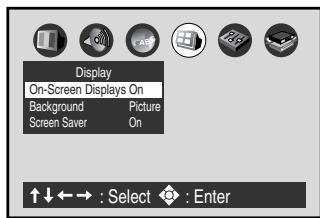
2 Press ▲ or ▼ to select "On-Screen Displays".
3 Press OK (Enter).
Press ▲ or ▼ to select "On" or "Off".
On: Operational modes (e.g. "||", "▶") appear when you press the buttons (factory setting).
Off: Operational modes (e.g. "■", "▶") do not appear when you press any buttons.
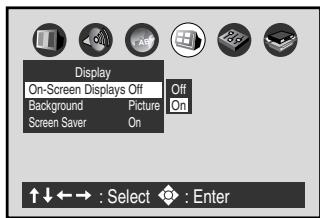
4 To make the SETUP screen disappear, press SET UP MENU.
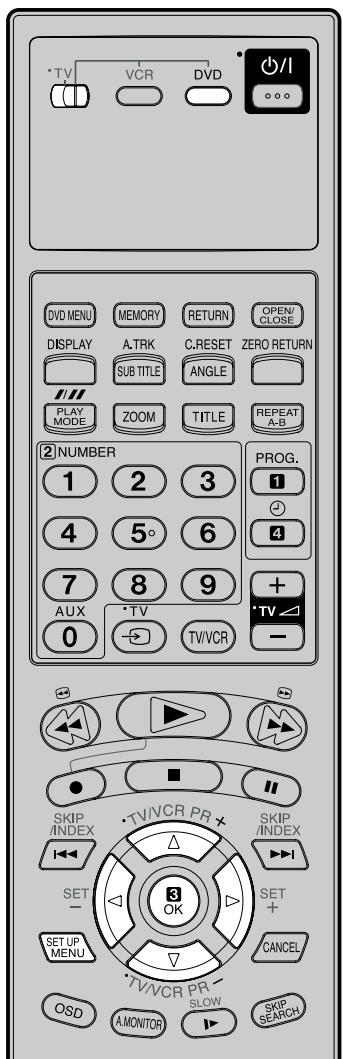
NOTES:
- The Dynamic Range Control function works only during playback of Dolby Digital recorded discs.
- The level of Dynamic Range Control may differ depending on the DVD video disc.
- The vocal output feature is used during playback of Dolby Digital (multi-channel) recorded DVD KARAOKE discs. This feature allows you to turn off vocal audio tracks, or restore them for background accompaniment.
- When playing KARAOKE, connect the appropriate audio equipment such as an amplifier to the DVD player.
Preparation:
- Turn ON the TV and set to the video input mode.
- Make sure TV/VCR/DVD switch has been slid to VCR/DVD. Then press DVD to select the DVD mode. (The DVD indicator will light)
Audio Out Select
Select the output sound format corresponding to your system connection. For details of sound recording systems, see on page 59.
1 Press SET UP MENU in the stop mode. Press ◀ or ▶ to select "Audio".
2 Press ▲ or ▼ to select "Audio Out Select", then press OK (Enter). Press ▲ or ▼ to select your desired output sound.
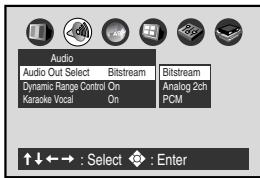
Bitstream: Select when connected to an amplifier equipped with a Dolby Digital, DTS, MPEG1 or MPEG2 decoder. The DVD/VCR outputs digital audio information in the bitstream format when you play a DVD video disc recorded on the Dolby Digital, DTS, MPEG1 or MPEG2 recording system.
Analog 2ch: Select when connected to a TV, Dolby Pro Logic or stereo system via the analog audio jacks.
PCM: Select when connected to a 2 channel digital stereo amplifier. The DVD/VCR outputs sounds in the PCM 2ch format when you play a DVD video disc recorded on the Dolby Digital. MPEG1 or MPEG2 recording system.
3 To make the SETUP screen disappear, press SET UP MENU.
Dynamic Range Control
Turn on or off a function that makes faint sounds easier to hear even if you lower the volume during late hours playback.
1 Press SET UP MENU in the stop mode. Press ◀ or ▶ to select "Audio".
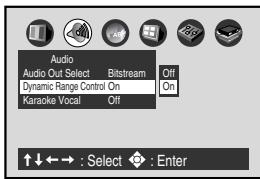
2 Press ▲ or ▼ to select "Dynamic Range Control", then press OK (Enter). Press ▲ or ▼ to select "On" or "Off".
Off: Full dynamic range is maintained. On: Dynamic range is reduced.
3 To make the SETUP screen disappear, press SET UP MENU.
Karaoke Vocal
Turn on or off the vocal output during DVD KARAOKE disc playback.
1 Press SETUP MENU in the stop mode. Press ◀ or ▶ to select "Audio".
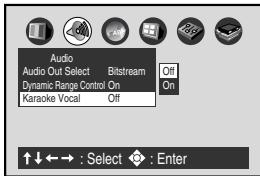
2 Press ▲ or ▼ to select "Karaoke Vocal", then press OK (Enter). Press ▲ or ▼ to select "On" or "Off".
Off: The primary vocal is not output. On: The primary vocal is output when it is recorded on the disc.
3 To make the SETUP screen disappear, press SET UP MENU.
Preparation:
- Turn ON the TV and set to the video input mode.
- Make sure TV/VCR/DVD switch has been slid to VCR/DVD. Then press DVD to select the DVD mode. (The DVD indicator will light)
Pause/Still
Select the resolution of still pictures.
1 Press SETUP MENU in the stop mode. Press ◀ or ▶ to select "Operation".
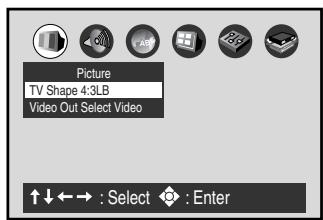
2 Press ▲ or ▼ to select "Pause/Still", then press OK (Enter). Press ▲ or ▼ to select "Auto" or "Frame", then press OK (Enter).
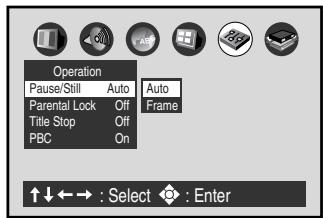
Auto: For normal use. Still and fast motion images can be paused.
Frame: The resolution of still pictures is improved, so that you can make a motionless picture clearer when you pause it.
3 To make the SETUP screen disappear, press SET UP MENU.
Title Stop
Turn on or off a feature that automatically stops playback after a title has been viewed.
1 Press SETUP MENU in the stop mode. Press ◀ or ▶ to select "Operation".
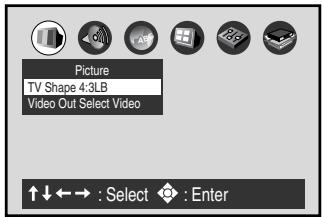
2 Press ▲ or ▼ to select "Title Stop", then press OK (Enter). Press ▲ or ▼ to select "On" or "Off", then press OK (Enter).
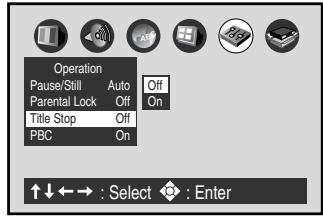
Off: The DVD/VCR continues after playback of a title is completed.
On: The DVD/VCR stops after playback of a title is completed.
3 To make the SETUP screen disappear, press SET UP MENU.
PBC
1 Press SET UP MENU in the stop mode.
Press ◀ or ▶ to select "Operation".
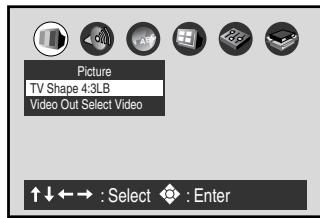
2 Press ▲ or ▼ to select "PBC", then press OK (Enter). Press ▲ or ▼ to select "On" or "Off", then press OK (Enter).
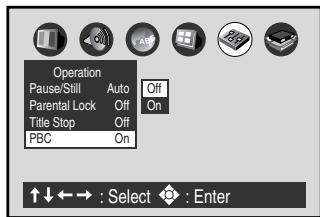
Off: When playing a VIDEO CD without using the menu.
On: To use the menu when playing a PBC-featured VIDEO CD.
3 To make the SET UP screen disappear, press SET UP MENU.
Selecting the sound enhancement (E.A.M.)/Setting Background/Setting Screen Saver
Preparation:
- Turn ON the TV and set to the video input mode.
- Make sure TV/VCR/DVD switch has been slid to VCR/DVD. Then press DVD to select the DVD mode. (The DVD indicator will light)
Selecting the sound enhancement (E.A.M.*)
You can easily switch a preferred audio enhancement.
*E.A.M.: Enhanced Audio Mode
1 Press OSD twice.
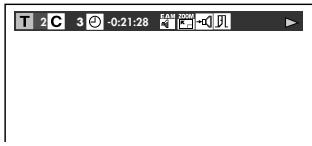
Then press ◀/▶ to select the E.A.M. icon, then press OK (Enter). The sound enhancement menu appears.

2 Select the sound enhancement by pressing ▲/▼. Each time you press the button, the sound enhancement changes.

Normal: Normal sound.

3D: To obtain expansive virtual surround sound effects from just two speakers.

Dialogue: To control critical center channel information to make dialogue more intelligible (only when playing a DVD video disc recorded on the Dolby Digital recording system).
- To use this enhancement on sounds output from the BITSTREAM/PCM jack, be sure to set “Audio Out Select” to “PCM.” (see page 56).
■ To exit the audio enhancement selection, press CANCEL.
Notes:
- Actual effects on sounds may vary depending on the speaker system. Make your selection according to your preference.
- Actual effects on sounds may vary depending on the disc.
- When the DVD/VCR is connected to an amplifier equipped with Dolby Pro Logic Surround, select “Normal”. Otherwise, Dolby Pro Logic Surround may function differently than usual.
- Selecting “Dialogue” disables the “Dynamic Range Control” function (see page 56).
- During MP3 playback, the sound enhancement is not effective.
Setting Background
Select the background color or background picture.
1 Press SETUP MENU in stop mode.
Press ◀ or ▶ to select "Display".
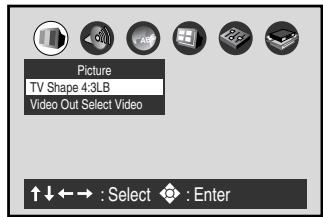
2 Press ▲ or ▼ to select "Background", then press OK (Enter). Press ▲ or ▼ to select your desired background, then press OK (Enter).
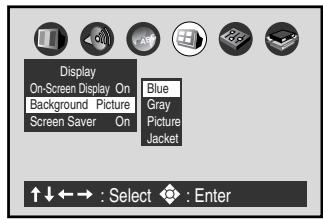
Blue: Blue background.
Gray: Gray background.
Picture: Use the picture which appears when you turn on the DVD/VCR as a background.
Jacket: Use the jacket picture included on some discs as a background. If it is not included, a gray background will be substituted.
3 To make the SETUP screen disappear, press SET UP MENU.
Setting Screen Saver (DVD only)
To turn the screen saver on or off.
1 Press SETUP MENU in the stop mode.
Press ◀ or ▶ to select "Display".
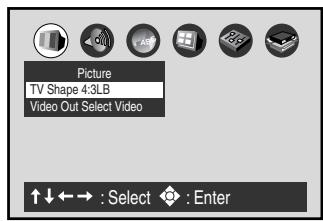
2 Press ▲ or ▼ to select "Screen Saver", then press OK (Enter).
Press ▲ or ▼ to select “On” or “Off”, then press OK (Enter).
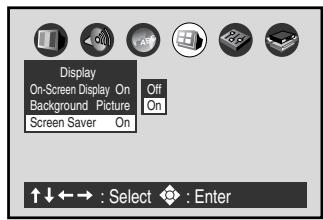
Off: The screen saver is disengaged.
On: The screen saver operates in 10 minutes after you press II.
3 To make the SETUP screen disappear, press SET UP MENU.
Setting initial setup/output sound conversion table
You can install the initial system setting.
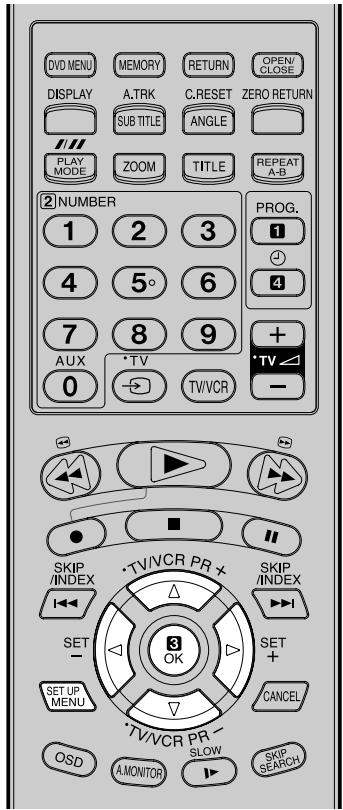
Preparation:
- Turn ON the TV and set it to the video input mode.
- Make sure the TV/VCR/DVD switch has been slid to VCR/DVD. Then press DVD to select the DVD mode. (The DVD indicator will light up.)
Setting initial setup
1. Press SET UP MENU in the stop mode.
Press ◀ or ▶ to select "Initial Setup".
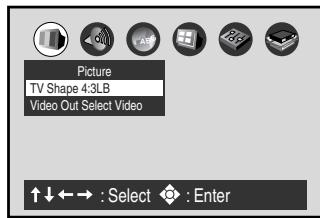
2. Press OK, then press ▲ or ▼ to select "On-Screen Language", "TV Shape", or "Audio Out Select".
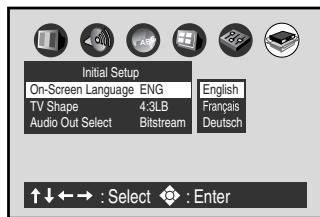
On-Screen Language: See page 41.
TV Shape: See page 55.
Audio Out Select: See page 56.
3. To make the SETUP screen disappear, press SET UP MENU.
Output sound conversion table (sampling frequency/quantization bit)
You can select the output sound format corresponding to your system connection (see page 56).
| Discs | Recording system | Bitstream | Analog 2ch | PCM | ||||
| DIGITAL AUDIO OUT jack | ANALOG AUDIO OUT jack | DIGITAL AUDIO OUT jack | ANALOG AUDIO OUT jack | DIGITAL AUDIO OUT jack | ANALOG AUDIO OUT jack | |||
| DVD video discs | Dolby Digital | Bitstream | 48 kHz/20 bit | Bitstream | 48 kHz/20 bit | 48 kHz/16 bit | 48 kHz/20 bit | |
| Linear PCM | 48 kHz/16 bit | 48 kHz/16 bit | 48 kHz/16 bit | 48 kHz/16 bit | 48 kHz/16 bit | 48 kHz/16 bit | 48 kHz/16 bit | |
| 48 kHz/20 bit | 48 kHz/16 bit | 48 kHz/20 bit | 48 kHz/16 bit | 48 kHz/20 bit | 48 kHz/16 bit | 48 kHz/20 bit | ||
| 48 kHz/24 bit | 48 kHz/16 bit | 48 kHz/24 bit | 48 kHz/16 bit | 48 kHz/24 bit | 48 kHz/16 bit | 48 kHz/24 bit | ||
| 96 kHz/16 bit | 48 kHz/16 bit | 48 kHz/16 bit | — | 96 kHz/16 bit | 48 kHz/16 bit | 48 kHz/16 bit | ||
| 96 kHz/20 bit | 48 kHz/16 bit | 48 kHz/20 bit | — | 96 kHz/20 bit | 48 kHz/16 bit | 48 kHz/20 bit | ||
| 96 kHz/24 bit | 48 kHz/16 bit | 48 kHz/24 bit | — | 96 kHz/24 bit | 48 kHz/16 bit | 48 kHz/24 bit | ||
| DTS | Bitstream | — | Bitstream | — | — | — | ||
| MPEG1, MPEG2 | Bitstream | 48 kHz/16 bit | Bitstream | 48 kHz/16 bit | 48 kHz/16 bit | 48 kHz/16 bit | ||
| CDs | Linear PCM 44.1 kHz/16 bit | 44.1 kHz/16 bit | 44.1 kHz/16 bit | 44.1 kHz/16 bit | 44.1 kHz/16 bit | 44.1 kHz/16 bit | 44.1 kHz/16 bit | |
| DTS | Bitstream | (Noise) | Bitstream | (Noise) | Bitstream | (Noise) | ||
You can view information on the operation status and access and settings.
1. With each press of OSD, the status of the disc will appear on the screen and change as follows.
![graph TD A["Symbol mark of the feature you selected is displayed."] --> B["Video CD"] B --> C["Audio/Video CD"] C --> D["(Audio CD only)"] D --> E["OFF"] E --> F["9.2Mbps"] F --> G["OFF"] G --> H["0:14"] H --> I["CD TEXT ----"] I --> J["Disc Title: No Text Track Title: No Text"]](/content/2025/01/123354/images/caf72754742fe836666c63c866e3a4a26d2f2d3c4feaf53d8aa3d35527bc081c.jpg)
2. Press ◀ or ▶ to select the desired symbol mark, then press OK (Enter).
T : Title number (Track number)
Press ▲/▼ or number keys to locate a title or track, then press OK (Enter).
☐ : Elapsed (remaining) time of the current title
Press number keys to locate a desired Location, then press OK (Enter).
: Subtitle setting
See page 48.
ZOOM : To zoom a picture
See page 44.
☐ : To stop playback
See page 42.
◀: Fast reverse playback
See Page 43.
: Fast forward playback
See page 43.
: To begin slow motion playback
See page 43.
☐: To turn off the display
CD TEXT
Displays CD text data if included on the audio CDs. (Some letters may not be displayed properly depending on the disc.)
C : Chapter number
Press ▲/▼ or number keys to locate a Chapter, then press OK (Enter).
Audio setting
See page 48.
: Angle setting
See page 49.
EAM: E.A.M. (Enhanced Audio Mode)
See page 58.
: Audio Out Select setting
BST: Bitstream 2CH:Analog 2ch PCM:PCM
See page 56.
: Playback starts from the beginning of the current chapter or track.
See page 43.
: To start playback
See page 42.
: To locate succeeding chapters or tracks.
See page 43.
☐ : To pause playback
See page 43.
Data transfer rate (Mbit/s)
Amount of picture, sound and subtitle data in the DVD video disc transferred per second.
The larger the value is, the more data processed, but this does not necessarily insure better picture quality.
Enter the appropriate code for the initial settings "Menu", "Audio" and/or "Subtitle" (see pages 52~54).
| Abbreviation | Language |
| --- | No alternate language |
| CHI (ZH) | Chinese |
| DUT (NL) | Dutch |
| ENG (EN) | English |
| FRE (FR) | French |
| GER (DE) | German |
| ITA (IT) | Italian |
| JPN (JA) | Japanese |
| KOR (KO) | Korean |
| MAY (MS) | Malay |
| SPA (ES) | Spanish |
| AA | Afar |
| AB | Abkhazian |
| AF | Afrikaans |
| AM | Amharic |
| AR | Arabic |
| AS | Assamese |
| AY | Aymara |
| AZ | Azerbaijani |
| BA | Bashkir |
| BE | Belorussian |
| BG | Bulgarian |
| BH | Bihari |
| BI | Bislama |
| BN | Bengali, Bangla |
| BO | Tibetan |
| BR | Breton |
| CA | Catalan |
| CO | Corsican |
| CS | Czech |
| CY | Welsh |
| DA | Danish |
| DZ | Bhutani |
| EL | Greek |
| EO | Esperanto |
| ET | Estonian |
| EU | Basque |
| FA | Persian |
| FI | Finnish |
| FJ | Fiji |
| FO | Faroese |
| FY | Frisian |
| GA | Irish |
| GD | Scottish Gaelic |
| GL | Galician |
| Abbreviation | Language |
| GN | Guarani |
| GU | Gujarati |
| HA | Hausa |
| HI | Hindi |
| HR | Croatian |
| HU | Hungarian |
| HY | Armenian |
| IA | Interlingua |
| IE | Interlingue |
| IK | Inupiak |
| IN | Indonesian |
| IS | Icelandic |
| IW | Hebrew |
| JI | Yiddish |
| JW | Javanese |
| KA | Georgian |
| KK | Kazakh |
| KL | Greenlandic |
| KM | Cambodian |
| KN | Kannada |
| KS | Kashmiri |
| KU | Kurdish |
| KY | Kirghiz |
| LA | Latin |
| LN | Lingala |
| LO | Laotian |
| LT | Lithuanian |
| LV | Latvian, Lettish |
| MG | Malagasy |
| MI | Maori |
| MK | Macedonian |
| ML | Malayalam |
| MN | Mongolian |
| MO | Moldavian |
| MR | Marathi |
| MT | Maltese |
| MY | Burmese |
| NA | Nauru |
| NE | Nepali |
| NO | Norwegian |
| OC | Occitan |
| OM | (Afan) Oromo |
| OR | Oriya |
| PA | Panjabi |
| PL | Polish |
| PS | Pashto, Pushto |
| Abbreviation | Language |
| PT | Portuguese |
| QU | Quechua |
| RM | Rhaeto-Romance |
| RN | Kirundi |
| RO | Rumanian |
| RU | Russian |
| RW | Kinyarwanda |
| SA | Sanskrit |
| SD | Sindhi |
| SG | Sango |
| SH | Serbo-Croatian |
| SI | Singhalese |
| SK | Slovak |
| SL | Slovenian |
| SM | Samoan |
| SN | Shona |
| SO | Somali |
| SQ | Albanian |
| SR | Serbian |
| SS | Siswati |
| ST | Sesotho |
| SU | Sundanese |
| SV | Swedish |
| SW | Swahili |
| TA | Tamil |
| TE | Telugu |
| TG | Tajik |
| TH | Thai |
| TI | Tigrinya |
| TK | Turkmen |
| TL | Tagalog |
| TN | Setswana |
| TO | Tongan |
| TR | Turkish |
| TS | Tsonga |
| TT | Tatar |
| TW | Twi |
| UK | Ukrainian |
| UR | Urdu |
| UZ | Uzbek |
| VI | Vietnamese |
| VO | Volapük |
| WO | Wolof |
| XH | Xhosa |
| YO | Yoruba |
| ZU | Zulu |
Problems and troubleshooting
Use the following check list for troubleshooting when you have problems with your unit. Consult your local dealer or service outlet if problems persist.
Be sure all connections are properly made when using with other units.
| SYMPTOMS | POSSIBLE SOLUTIONS | PAGE |
| DVD/VCR | ||
| DVD/VCR does not operate. | Make sure the power cord is plugged in.Try another AC outlet.Power is off, check fuse or circuit breaker.Unplug unit, then plug it back in.Select the DVD or VCR mode before operating. | - - - - - 14,41 |
| No picture. | Antenna connection is not correct or antenna cable is disconnected.The video channel is not in the correct position or the TV is not set to the video channel.Check the unit is connected correctly.The video input selector of the TV is not set to VIDEO. Set to VIDEO (or equivalent).Channel is set to the external mode. | 10 13 10~12 - - |
| No sound. | Check the unit is connected correctly.Check the input selector of the amplifier is set properly.The unit is in the Special playback mode. | 10~12 - 24,43 |
| The remote control does not function. | Aim at the remote control at the remote sensor.Operate within Approx. 5 Meters or reduce the light in the room.Clear the path of the beam.The batteries are weak. Replace the batteries.Check the batteries are inserted correctly.Check the frequency code is set correctly. | 9 |
| The DVD-keys on the RCU of the other JVC RECEIVER/TV is not effective. | This is not a defect. Since this unit is combined type of DVD and VCR, the remote code of DVD is individual. | 8 |
| VCR | ||
| TV recording does not work. | The erase prevention tab of the video cassette is broken off.The unit is in the external input mode. | 22,28 |
| Timer recording does not work. | The time is not set correctly.The recording start/end time is not set correctly.The has not been pressed (is not lit). | 15 33 34 |
| Noise bars on screen. | Tracking adjustment beyond range of automatic tracking circuit.Try Manual tracking adjustment.Video heads are dirty.The tape is worn or damaged. | 24 63 - |
| DVD | ||
| Display is not shown in your language. | Select proper language in the menu options. | 41 |
| Playback doesn't start. | No disc is inserted.The disc may be dirty. Clean up the disc.The unit cannot play DVD-ROMs, etc. | 42 40 40 |
| Stopping playback, slow-motion play, repeat play, or memory play, etc. cannot be performed. | Some discs may not do some of the functions. | - |
| No 4:3 (16:9) picture | The setup does not match your TV. | 55 |
| No on-screen display | Select Display On. | 55 |
| No surround sound | The setup does not match your stereo system. | 12 |
| The unit or remote operation key is not functioning. | Turn off the unit and unplug the AC power cord for several minutes, then replug it. | 14 |
| Playback does not start when the title is selected. | Check the Parental control setting. | 50 |
| Audio soundtrack and/or subtitle language is not changed when you play back a DVD. | Multilingual language is not recorded on the DVD disc. | 53,54 |
| No subtitle | Some discs have no subtitles.Subtitles are cleared. Press SUB TITLE. | 5448 |
| Angle cannot be changed. | Multi-angles are not recorded on the DVD disc. | 49 |
| appears on the screen. | The function is prohibited with the unit or the disc. | - |
Video head cleaning
Video head clogging
The video heads are the means by which the DVD/VCR reads the picture from the tape during playback. In the unlikely event that the heads become dirty enough to be clogged, no picture will be played back. This can easily be determined if, during playback of a known good tape, there is good sound, but no picture (picture is extremely snowy). If this is the case, have the DVD/VCR checked by qualified service personnel.

Good Picture

Snowy Picture
NOTES: • DO NOT ATTEMPT TO CLEAN THE VIDEO HEADS OR SERVICE THE UNIT BY REMOVING THE REAR COVER. • Video heads may eventually wear out and should be replaced when they fail to produce clear pictures. - To help prevent video head clogging, use only good quality VHS tapes. Discard worn out tapes.
GENERAL
| Power supply: | AC 230V 50Hz |
| Power consumption: | Operation: 22WStand by: 5W |
Weight: 4.5 kg
| Dimensions: | Width : 430 mm |
| Height: 99 mm | |
| Depth : 310.5 mm |
| Input Level: | SCART-socket:VIDEO: 1 Vp-p, 75 ΩAUDIO: 500 mV, 50 k Ω |
Audio IN jack: 500 mV, 50 k Ω
| Output Level: | SCART-socket:VIDEO:1 Vp-p, 75 ΩAUDIO:500 mV, 1 k ΩAudio OUT jack:500 mV, 1 k Ω |
Hi-Fi Frequency Response: 20Hz to 20,000Hz
| Hi-Fi Dynamic Range: | More than 75dB |
VCR section
| Video Head: | 4 Rotary Heads |
| Audio Track: | Hi-Fi Sound - 2 Tracks / MONO Sound - 1 Track |
| Channel coverage: | 2-12, X, Y, Z, S1-S41, 21-69 |
| RF Channel Output: | UHF channel 36 (23 to 69) |
F.FWD/REW Time at 25°C: Approx. 1 minute and 48 seconds (with E-180 Cassette Tape)
DVD section
| Signal system: | PAL |
| Applicable disc: | DVD (12cm, 8cm), CD (12cm, 8cm) |
| Audio characteristics: | DVD: 4Hz - 22KHz |
| Frequency response: | CD: 4Hz - 20KHz |
| S/N Ratio: | 90dB |
| Harmonic distortion: | 1% |
| Wow and flutter: | Below Measurable Level |
| Dynamic range: | 90dB |
Output: Audio : (RCA) 500 mV, 1Kohm
| Pickup: | Digital Audio : 0.5Vp-p/75 ohmCD : Wavelength: 775 - 805 nmMaximum output power: 0.5 mWDVD : Wavelength: 640 - 660 nmMaximum output power: 1.0 mW |
ACCESSORIES: Remote control x 1
| 75 ohm Coaxial Cable x 1Battery (UM-3) x 2 |


- SAFETY FIRST
- WARNING: TO PREVENT FIRE OR SHOCK HAZARD, DO NOT EXPOSE THIS UNIT TO RAIN OR MOISTURE
- CAUTION
- IMPORTANT
- SQPB HQ SHOWVIEW®
- FOR ITALY
- MOISTURE CONDENSATION
- VIDEO CASSETTE RECORDER
- DVD PLAYER
- BEFORE USING YOUR UNIT
- SETTING UP THE VCR SECTION
- TAPE PLAYBACK OPERATION
- RECORDING
- ADVANCED FUNCTION OF VCR SECTION
- DISC PLAYBACK OPERATION
- ADVANCED FUNCTION OF DVD SECTION
- ADDITIONAL INFORMATION
- NOTE
- JVC TV REMOTE CONTROL
- HOW TO INSTALL THE BATTERIES
- BATTERY PRECAUTIONS
- CHANGE THE CUSTOM CODE FOR REMOTE CONTROL
- REMOTE CONTROL
- DVD/VCR
- CONNECT A TV WITH THE SCART SOCKET
- CONNECTION TO A SATELLITE RECEIVER
- CONNECT TO A STEREO AMPLIFIER WITH AUDIO OUTPUT
- CONNECT TO AN AV AMPLIFIER WITH BUILT-IN DIGITAL SURROUND
- CONNECTING THE OPTICAL DIGITAL CABLE
- NOTES
- PREPARATION
- SETTING THE ON-SCREEN LANGUAGE
- PRESS SET UP MENU
- ATS AUTOMATIC TUNING SYSTEM AND AUTO TIME/DATE SETTING
- IF NO CHANNEL SETTING IS DONE
- PRESS ▲ OR ▼ TO SELECT CHANNEL MAPPING. THEN PRESS OK
- PRESS ▲/▼ OR ◀/▶ REPEATEDLY UNTIL THE TV STATION TO BE SKIPPED BLINKS
- THEN PRESS CANCEL. THE NUMBER BEFORE THE CANCELED CHANNEL (E.G. 12) WILL BE BRACKETED
- CANCELING THE SKIP FUNCTION
- PRESS SET UP MENU REPEATEDLY UNTIL THE TV PICTURE APPEARS ON THE SCREEN
- REASSIGNING TV STATION POSITIONS
- MANUAL TV STATION PRESETTING
- PRESS ▲ OR ▼ TO SELECT CH TUNING. THEN PRESS OK
- DEC OFF WILL BLINK. PRESS OK. DEC OFF DOES NOT BLINK ANY MORE. SEARCH WILL APPEAR
- PRESS ▶ (RISING FREQUENCY) OR ◀ (FALLING FREQUENCY) ONCE. THE SEARCH STARTS. IT STOPS AT EACH BROADCAST AUTOMATICALLY ("▶" CHANGES TO "Ⅱ"). PRESS ▶ OR ◀ REPEATEDLY UNTIL THE SAT1 APPEARS. ONLY IN CASE OF RECEIVING OF THE WEAK BROADCAST (DRIFTING PICTURE), SEARCH DOES NOT STOP. IF YOU WANT TO STOP, PRESS ◀/▶ OR ▲/▼
- THE FINE TUNING ADJUSTMENT
- TO SKIP A CHANNEL POSITION
- TO CANCEL THE CHANNEL SKIPPING
- LOADING AND UNLOADING A CASSETTE TAPE
- SQPB
- LOADING
- AUTOMATIC POWER ON
- AUTOMATIC PLAYBACK
- UNLOADING
- AUTOMATIC TAPE EJECT
- TO PREVENT ACCIDENTAL ERASURE
- TO RECORD AGAIN
- TO START PLAYBACK
- TO STOP PLAYBACK
- TO REWIND THE TAPE OR FORWARD IT RAPIDLY
- TO REWIND THE TAPE
- TO FORWARD THE TAPE
- FORWARD/REVERSE PICTURE SEARCH MODE
- NTSC VIDEO CASSETTE PLAYBACK
- SPECIAL PLAYBACK/PLAYBACK SHARPNESS/SKIP SEARCH
- SPECIAL PLAYBACK
- PICTURE SEARCH
- REVERSE PICTURE SEARCH FUNCTION
- FORWARD PICTURE SEARCH FUNCTION
- STILL PICTURE
- SLOW MOTION
- SLOW TRACKING AND VERTICAL LOCK ADJUSTMENT
- FRAME BY FRAME PICTURE
- ADJUSTING TRACKING CONDITION
- AUTOMATIC TRACKING ADJUSTMENT
- MANUAL TRACKING ADJUSTMENT
- PLAYBACK SHARPNESS
- SKIP SEARCH
- NORMAL REPEAT PLAYBACK
- TO CANCEL NORMAL REPEAT MODE
- SCENE REPEAT PLAYBACK
- ZERO RETURN FUNCTION
- PRESS OSD
- PRESS C.RESET AT THE DESIRED TAPE POSITION
- PRESS ■ WHEN PLAYBACK OR RECORDING IS FINISHED. PRESS ZERO RETURN
- PRESS OSD ONCE AGAIN TO MAKE THE ALL INDICATOR DISAPPEAR
- THE DISPLAY-BUTTON
- RECORDING SEVERAL INDEX MARKS
- INDEX SEARCH
- TO STOP RECORDING
- TO STOP RECORDING TEMPORARILY
- ATTENTION
- RECORDING WITH A SCART CABLE
- AUTO REWIND FEATURE
- TO DISPLAY VCR OPERATION STATUS
- INSTANT TIMER RECORDING (ITR)
- TO EXTEND THE RECORDING TIME
- TO STOP THE ITR
- PRESS PROG
- ENTER THE SHOWVIEW CODE USING THE NUMBER KEYS
- USE ▲ OR ▼ TO SELECT DAILY OR WEEKLY. ONCE IS ALREADY SET
- PRESS OK. THE DATA ENTERED VIA THE SHOWVIEW CODE WILL APPEAR ON THE SCREEN
- SETTING A DAY OF THE WEEK
- CHANGE THE RECORDING START-TIME
- RECORDING PERIOD EXTENSION
- SELECT TAPE SPEED
- VPS/PDC
- PRESS OK TO ACCEPT THEM
- TIMER RECORDING SPECIAL CASE
- WEEKLY (E.G. WKL-TU: EACH TUESDAY) OR DAILY (E.G. MON-SAT: MONDAY TO SATURDAY) TIMER RECORDING
- IN CASE OF TIMER PROGRAMS-OVERLAPPING
- CONFIRMATION/CANCELLATION OF THE TIMER RECORDING
- NICAM/GERMAN A2 STEREO RECORDING AND PLAYBACK
- NICAM STEREO SOUND RECEPTION
- NICAM PROGRAMMES ARE DIVIDED INTO 4 TYPES AS SHOWN BELOW
- NICAM STEREO BROADCAST
- NICAM MONO A BROADCAST
- NICAM MONO A B BROADCAST
- NICAM OFF
- GERMAN A2 STEREO SOUND RECEPTION
- STEREO PROGRAM INDICATION
- BILINGUAL PROGRAM INDICATION
- PLAYBACK
- HIFI SIGNAL INDICATION
- PRESS ▲ OR ▼ TO SELECT AUDIO MIX
- PRESS ◀/▶ OR OK TO SELECT [ON]. IF YOU SELECT "[ON]", YOU CAN LISTEN TO THE DUBBED AND THE ORIGINAL SOUNDS AT THE SAME TIME
- PRESS SET UP MENU REPEATEDLY UNTIL THE TV PICTURE APPEARS
- CONNECTION WITH SECOND VIDEO RECORDER OR VIDEO CAMERA
- DUPLICATING A DISC MATERIAL ONTO A VIDEO TAPE
- TITLE
- CHAPTER
- TRACK
- REMOVING DISC FROM CASE
- STORING DISC
- CLEANING DISC
- THE SETUP LANGUAGE CAN BE SELECTED
- FAST FORWARD PLAYBACK
- REVIEW PLAYBACK
- STILL PLAYBACK
- FRAME ADVANCE
- SLOW-MOTION PLAYBACK
- LOCATING A CHAPTER OR TRACK
- DVD PICTURE SIGNAL SELECTION/ZOOMING
- ZOOMING
- REPEAT PLAYBACK
- A-B REPEAT PLAYBACK
- MEMORY PLAYBACK
- PRESS MEMORY
- RANDOM PLAYBACK
- MP3 CD INFORMATION
- LIMITATIONS ON MP3 CD PLAYBACK
- LIMITATIONS ON DISPLAY
- NOTES ON MP3 FILES
- CHANGING SOUNDTRACK LANGUAGE
- IN CASE OF VIDEO CD PLAYBACK
- CHANGING SUBTITLES LANGUAGE
- CHANGING ANGLES
- TITLE SELECTION
- DVD MENU
- PARENTAL CONTROL SETTING
- SETTING MENU LANGUAGE
- PRESS SET UP MENU IN THE STOP MODE
- PRESS ▲ OR ▼ TO SELECT "AUDIO LANGUAGE
- PRESS OK (ENTER)
- ENGLISH, FRENCH, GERMAN
- EXAMPLE
- TO MAKE THE SETUP SCREEN DISAPPEAR, PRESS SET UP MENU
- NO SUBTITLE
- SETTING THE ASPECT RATIO OF THE TV SCREEN
- LETTERBOX
- NORMAL
- WIDESCREEN
- SETTING ON SCREEN DISPLAY
- AUDIO OUT SELECT
- DYNAMIC RANGE CONTROL
- KARAOKE VOCAL
- PAUSE/STILL
- TITLE STOP
- PBC
- SELECTING THE SOUND ENHANCEMENT (E.A.M.)/SETTING BACKGROUND/SETTING SCREEN SAVER
- SELECTING THE SOUND ENHANCEMENT (E.A.M.*)
- TO EXIT THE AUDIO ENHANCEMENT SELECTION, PRESS CANCEL
- SETTING BACKGROUND
- SETTING SCREEN SAVER (DVD ONLY)
- SETTING INITIAL SETUP/OUTPUT SOUND CONVERSION TABLE
- SETTING INITIAL SETUP
- OUTPUT SOUND CONVERSION TABLE (SAMPLING FREQUENCY/QUANTIZATION BIT)
- PROBLEMS AND TROUBLESHOOTING
- VIDEO HEAD CLEANING
- VIDEO HEAD CLOGGING
Brand : JVC
Model : HR-XV1EU
Category : Video recorder