
TH-A5 - Audio System JVC - Free user manual and instructions
Find the device manual for free TH-A5 JVC in PDF.


| Product Type | DVD Digital Cinema Audio System |
| Brand | JVC |
| Model | TH-A5 |
| Main Unit Dimensions (W × H × D) | 350 mm × 80 mm × 300 mm |
| Main Unit Weight | 6.3 kg |
| Subwoofer Weight | 6.2 kg |
| Satellite Speaker Weight | 420 g each |
| Center Speaker Weight | 420 g |
| Power Supply | AC 230 V, 50 Hz |
| Power Consumption | 120 W (operating), 2 W (standby) |
| Amplifier Power (Front/Center/Rear) | 35 W RMS per channel into 6 Ω at 1 kHz |
| Amplifier Power (Subwoofer) | 60 W RMS into 3 Ω at 100 Hz |
| Satellite and Center Speaker Impedance | 6 Ω |
| Subwoofer Impedance | 3 Ω |
| Playback Formats | DVD, VCD, CD, CD-R/RW, MP3 |
| Tuner | FM (87.5 - 108 MHz), AM (522 - 1629 kHz) |
| Surround Functions | Dolby Digital, DTS, Dolby Pro Logic, DSP (Hall, Theatre, Pavilion, Dance Club, Live Club) |
| Audio Inputs | AUX (RCA) |
| Video Outputs | Composite, S-Video, SCART (AV OUT) |
| Supplied Accessories | Remote control, batteries, FM/AM antennas, video cable, speaker cables |
| Care and Cleaning | Wipe with a soft cloth; do not use solvents |
| Safety | Do not expose to moisture; do not obstruct ventilation; disconnect during thunderstorms |
| Repairability Index | Not available |
| Spare Parts | Available from JVC after-sales service |
Frequently Asked Questions - TH-A5 JVC
User questions about TH-A5 JVC
0 question about this device. Answer the ones you know or ask your own.
Ask a new question about this device
Download the instructions for your Audio System in PDF format for free! Find your manual TH-A5 - JVC and take your electronic device back in hand. On this page are published all the documents necessary for the use of your device. TH-A5 by JVC.
USER MANUAL TH-A5 JVC
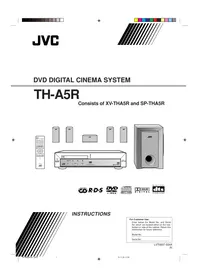
DVD DIGITAL CINEMA SYSTEM
TH-A5R
Consists of XV-THA5R and SP-THA5R
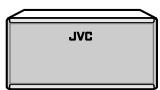
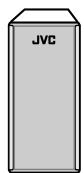
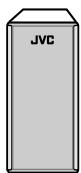
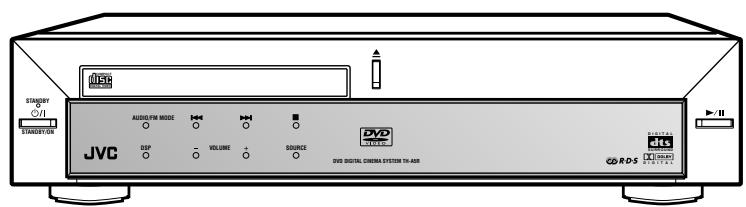

R·D·S




INSTRUCTIONS
For Customer Use:
Enter below the Model No. and Serial No. which are located either on the rear, bottom or side of the cabinet. Retain this information for future reference.
Model No.
Serial No.
IMPORTANT for the U.K.
DO NOT cut off the mains plug from this equipment. If the plug fitted is not suitable for the power points in your home or the cable is too short to reach a power point, then obtain an appropriate safety approved extension lead or consult your dealer.
BE SURE to replace the fuse only with an identical approved type, as originally fitted.
If nonetheless the mains plug is cut off ensure to remove the fuse and dispose of the plug immediately, to avoid a possible shock hazard by inadvertent connection to the mains supply.
If this product is not supplied fitted with a mains plug then follow the instructions given below:
IMPORTANT.
DO NOT make any connection to the terminal which is marked with the letter E or by the safety earth symbol or coloured green or green-and-yellow.
The wires in the mains lead on this product are coloured in accordance with the following code:
Blue: Neutral
Brown: Live
As these colours may not correspond with the coloured markings identifying the terminals in your plug proceed as follows:
The wire which is coloured blue must be connected to the terminal which is marked with the letter N or coloured black.
The wire which is coloured brown must be connected to the terminal which is marked with the letter L or coloured red.
IF IN DOUBT - CONSULT A COMPETENT ELECTRICIAN.
CAUTION
To reduce the risk of electrical shocks, fire, etc.:
- Do not remove screws, covers or cabinet.
- Do not expose this appliance to rain or moisture.
Caution—STANDBY/ON /1 switch!
Disconnect the mains plug to shut the power off completely.
The STANDBY/ON button in any position does not
disconnect the mains line.
The power can be remote controlled.
CAUTION
- Do not block the ventilation openings or holes. (If the ventilation openings or holes are blocked by a newspaper or cloth, etc., the heat may not be able to get out.)
- Do not place any naked flame sources, such as lighted candles, on the apparatus.
- When discarding batteries, environmental problems must be considered and local rules or laws governing the disposal of these batteries must be followed strictly.
- Do not use this apparatus in a bathroom or places with water. Also do not place any containers filled with water or liquids (such as cosmetics or medicines, flower vases, potted plants, cups, etc.) on top of this apparatus.
IMPORTANT FOR LASER PRODUCTS
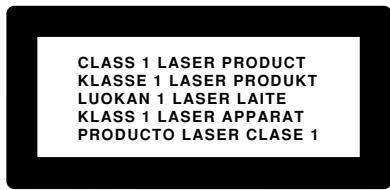
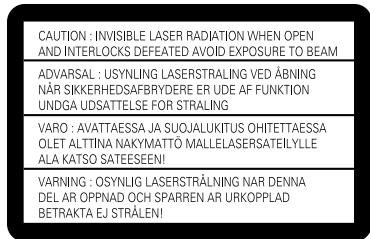
REPRODUCTION OF LABELS
① CLASSIFICATION LABEL, PLACED ON EXTERIOR SURFACE
② WARNING LABEL, PLACED INSIDE THE UNIT
- CLASS 1 LASER PRODUCT
- CAUTION: Invisible laser radiation when open and interlocks defeated. Avoid exposure to beam.
- CAUTION: Do not open the top cover. There are no user serviceable parts inside the Unit; leave all servicing to qualified service personnel.
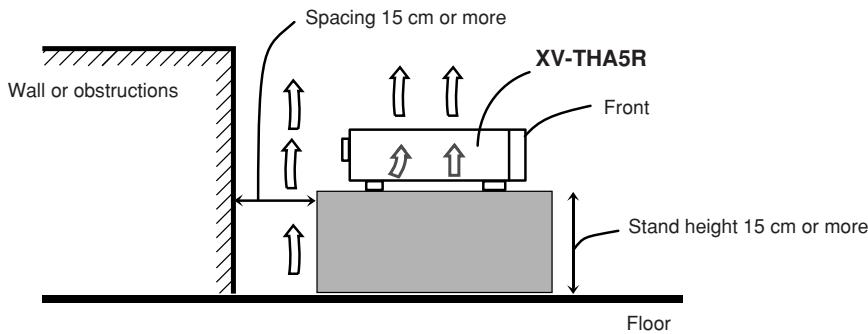
Caution: Proper Ventilation
To avoid risk of electric shock and fire and to protect from damage.
Locate the apparatus as follows:
Front: No obstructions, open spacing.
Sides: No obstructions within 10 cm from the sides.
Top: No obstructions within 10 cm from the top.
Back: No obstructions within 15 cm from the back.
Bottom: No obstructions, place on a level surface.
In addition, maintain the best possible air circulation as illustrated.
SAFETY INSTRUCTIONS "SOME DOS AND DON'TS ON THE SAFE USE OF EQUIPMENT"
This equipment has been designed and manufactured to meet international safety standards but, like any electrical equipment, care must be taken if you are to obtain the best results and safety is to be assured.
Do read the operating instructions before you attempt to use the equipment.
Do ensure that all electrical connections (including the mains plug, extension leads and interconnections between pieces of equipment) are properly made and in accordance with the manufacturer's instructions. Switch off and withdraw the mains plug when making or changing connections.
Do consult your dealer if you are ever in doubt about the installation, operation or safety of your equipment.
Do be careful with glass panels or doors on equipment.
DON'T continue to operate the equipment if you are in any doubt about it working normally, or if it is damaged in any way—switch off, withdraw the mains plug and consult your dealer.
DON'T remove any fixed cover as this may expose dangerous voltages.
DON'T leave equipment switched on when it is unattended unless it is specifically stated that it is designed for unattended operation or has a standby mode.
Switch off using the switch on the equipment and make sure that your family know how to do this.
Special arrangements may need to be made for infirm or handicapped people.
DON'T use equipment such as personal stereos or radios so that you are distracted from the requirements of traffic safety. It is illegal to watch television whilst driving.
DON'T listen to headphones at high volume as such use can permanently damage your hearing.
DON'T obstruct the ventilation of the equipment, for example with curtains or soft furnishings.
Overheating will cause damage and shorten the life of the equipment.
DON'T use makeshift stands and NEVER fix legs with wood screws—to ensure complete safety always fit the manufacturer's approved stand or legs with the fixings provided according to the instructions.
DON'T allow electrical equipment to be exposed to rain or moisture.
ABOVE ALL
NEVER let anyone, especially children, push anything into holes, slots or any other opening in the case—this could result in a fatal electrical shock. NEVER guess or take chances with electrical equipment of any kind—it is better to be safe than sorry!
Parts Identification
Center Unit 2
Remote Control 3
Getting Started 4
Before Installation 4
Checking the Supplied Accessories 4
Putting Batteries in the Remote Control 4
Connecting the FM and AM Antennas 5
Speaker Layout Diagram 6
Connecting the Speakers 7
Connecting Audio/Video Component 8
Basic DVD Operations 10
1 Turn On the Power 10 2 Load a DVD 10 3 Start Playback 10 4 Adjust the Volume 10 5 Activate Realistic Sound Field 11 6 Stop Playback 11
Basic VCD/CD Operations 12
1 Turn On the Power 12 2 Load a VCD/CD 12 3 Start Playback 12 4 Adjust the Volume 12 5 Activate Realistic Sound Field 13 6 Stop Playback 13
Basic Tuner Operations 14
1 Turn On the Power 14 2 Select the Band 14 3 Adjust the Volume 14 4 Tune into a Station 14
Other Basic Operations 15
Enjoying Sounds from the External Equipment 15 Turning Off the Power with the Timer 15
Speaker Settings 16
Setting the Speaker Information 16 Setting the Delay Time 17
Creating Realistic Sound Fields 18
■ Dolby Digital and DTS Digital Surround. 18 ■ Dolby Surround 18 DSP (Digital Signal Processor) Modes 19
Adjusting Stereo Sound 20 Adjusting Dolby Digital and DTS Digital Surround 21 Activating Dynamic Range Compression 21 Adjusting Dolby Surround 22 Adjusting DSP Modes 23 Adjusting DSP Sound Parameters 24
Disc Introduction—DVD/VCD/CD 25
Basic Disc Operations 26
DVD Playback 27
Showing the On-Screen Bar 27 Selecting the Subtitles 28 Selecting the Audio Languages 28 Selecting the Multi-Angle Views 28 Checking the Remaining Time 29 Disc Menu-Driven Playback 29
Moving to a Particular Portion Directly 29 Searching for a Particular Point 30 Repeating Playback 30 Repeat Play 30 ■ A-B Repeat. 30
Programming the Playing Order of the Chapters —Program Play 31
DVD Special Effect Playback 33
■ Still Picture/Frame-by-Frame Playback 33 ■ Slow Motion Playback 33 Zoom 33
VCD/CD Playback 34
Showing the On-Screen Bar 34 Checking the Remaining Time 34 Disc Menu-Driven Playback (Only for VCD) 35 Moving to a Particular Portion Directly 35 Searching for a Particular Point 35 Repeating Playback 36 Repeat Play 36 ■ A-B Repeat 36
Programming the Playing Order of the Tracks: Program Play 37
Selecting Playback Channel 38 VCD Special Effect Playback 39 ■ Still Picture/Frame-by-Frame Playback 39 ■ Slow Motion Playback 39 ■ Zoom 39
MP3 Introduction 40
MP3 Playback 41
Starting Playback 41 Operations Using the On-Screen Display 42 Moving to a Particular Track Directly 43 Repeating Playback 43
Tuner Operations 44
Tuning in Stations 44 Using Preset Tuning 45 Selecting the FM Reception Mode 45 Using the RDS (Radio Data System) to Receive FM Stations 46 Searching for a Program by PTY Codes 47 Switching to a Traffic Announcement Temporarily 48 ■ How the Enhanced Other Network function actually works 48 ■ Description of the PTY codes 49
Setting up the DVD Preferences 50
Setting the Initial Languages 50 Introducing the DVD Preference (System) 51 Setting the Parental (Rating) Level 53
Operating JVC's Components 54
Operating Other Manufacturers' TV 55
Maintenance 56
Troubleshooting 57
Specifications 58
Center Unit
See pages in the parentheses for details.
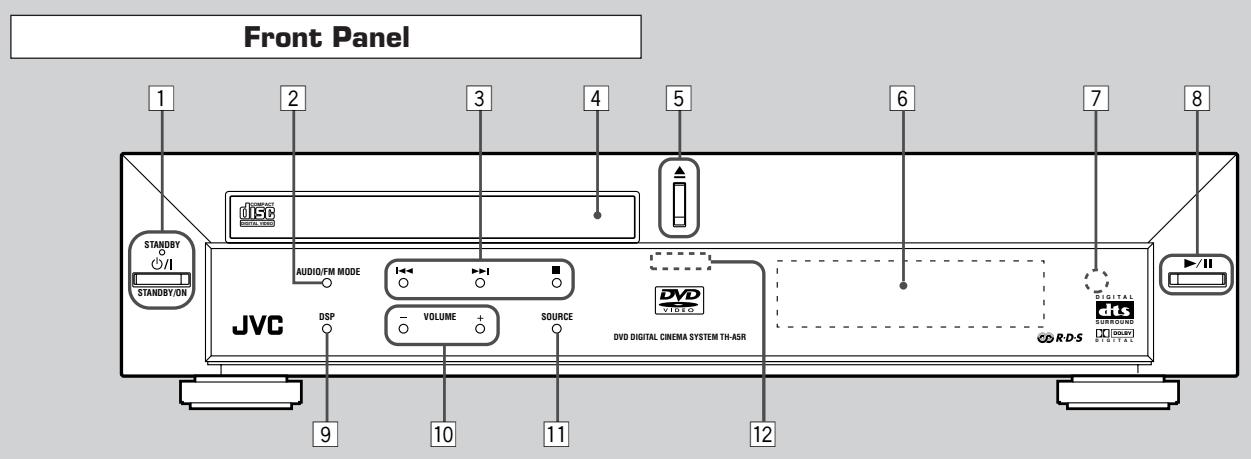
Front Panel
1 STANDBY/ON O/l button and STANDBY lamp (10-14) 2 AUDIO/FM MODE button (28, 38, 45) 3 Multi operation buttons
- ▲, ▶, and
4 Disc tray (10, 12) 5 △ (open/close) button (10-13, 32, 37, 41)
- Pressing this button also turns on the power and changes the source to the DVD player.
Display window
Remote sensor 8 ▶/II (play/pause) button (10, 12, 26, 41)
- Pressing this button also turns on the power and changes the source to the DVD player.
DSP button (11, 13, 23) 10 VOLUME + and - buttons (10, 12, 14) SOURCE button (14, 15, 44, 45) 12 Illumination lamp (10, 12, 14)
Display window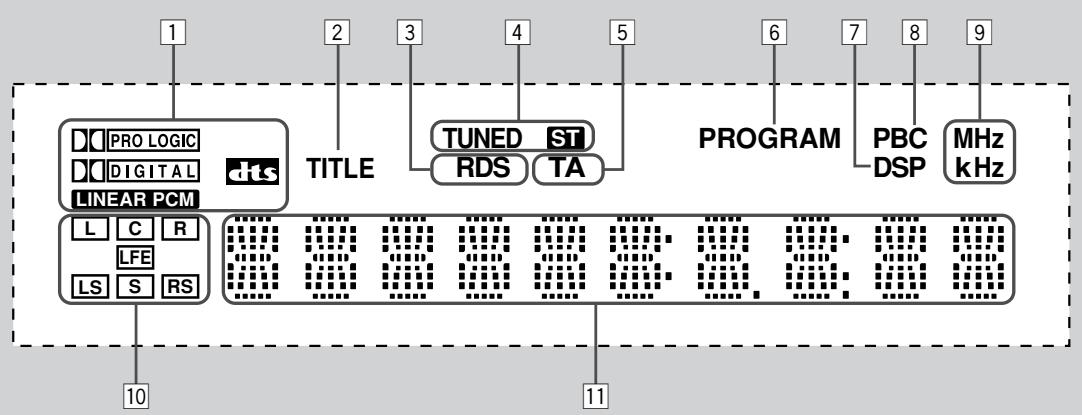
See pages in the parentheses for details.
Display
Sound signal indicators (11, 13, 18): PRO LOGIC, DOLBY DIGITAL, DTS, and LINEAR PCM. 2 TITLE indicator (26). RDS indicator (46). 4 Tuner mode indicators (14, 44, 45): TUNED and ST (stereo). TA indicator (48).
6 PROGRAM indicator (31, 37, 45). DSP indicator (23). PBC (Play Back Control) indicator (34, 35). 9 Frequency unit indicators.
- MHz (for FM station) and kHz (for AM station).
10 Audio channel indicators - Indicates audio channels currently being played back. 11 Main display.
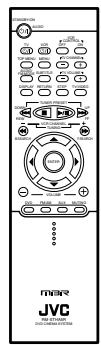
Remote Control
Remote Control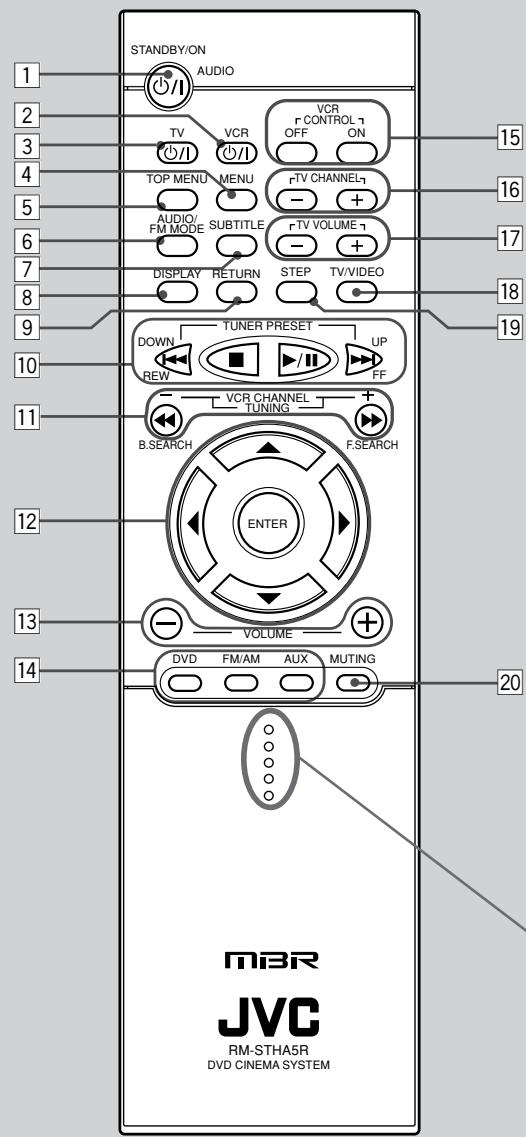
Inside of the Cover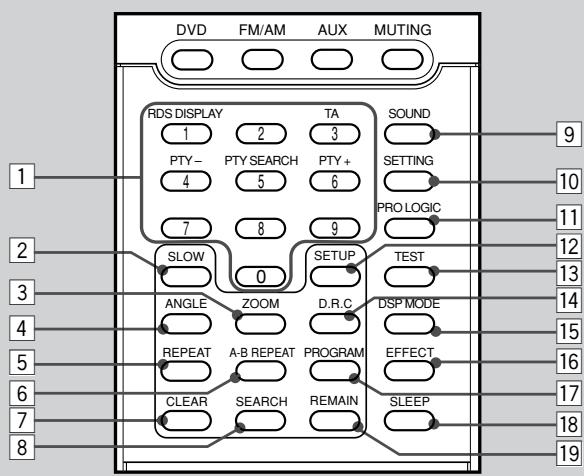
See pages in the parentheses for details.
STANDBY/ON O/I button. AUDIO button (10-14). VCR O/I button (54). 3 TV O/I button (10, 12, 54, 55). 4 MENU button (29, 35). TOP MENU button (29). 6 AUDIO/FM MODE button (28, 38, 45). 7 SUBTITLE button (28). DISPLAY button (27, 34, 41). 9 RETURN button (35, 51, 52). 10 1<, ■, >I, I, and ▶I buttons.
TUNER PRESET UP and DOWN buttons (45).
FF (Fast-forward) and REW (Rewind) buttons.
- Pressing ▶ also turns on the power.
VCR CHANNEL + and - buttons (54).
TUNING + and - buttons (14, 44).
F. (Forward) SEARCH and B. (Back) SEARCH buttons
12 Menu operation buttons
\triangleright, \triangle, and \nabla buttons - ENTER button
VOLUME + and - buttons (10, 12, 14)
14 Source selecting buttons (14, 15, 44)
DVD, FM/AM, AUX - Pressing one of these buttons also turns on the power.
VCR CONTROL ON and OFF buttons (54)
IMPORTANT:
If you press VCR CONTROL ON, this remote control will work ONLY for the JVC's VCR. When you want to operate the system again, press VCR CONTROL OFF.
16 TV CHANNEL + and - buttons (54, 55) 17 TV VOLUME + and - buttons (54, 55) TV/VIDEO button (10, 12, 54, 55) STEP button (33, 39) 20 MUTING button (10, 12)
To open the cover of the remote control, push here, then slide downward.
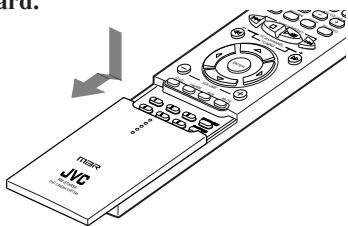
Inside of the Cover
Number buttons (29, 35, 43, 54, 55) RDS DISPLAY button (46) TA button (48) PTY + and - buttons (47) PTY SEARCH button (47) SLOW button (33, 39) 3 ZOOM button (33, 39) 4 ANGLE button (28) REPEAT button (30, 36, 43) 6 A-B REPEAT button (31, 36) 7 CLEAR button (29, 35, 38) SEARCH button (29,35,43)
9 SOUND button (20-24) 10 SETTING button (16, 17) PRO LOGIC button (15, 17, 22) 12 SETUP button (51-53) TEST button (19) D.R.C button (21) DSP MODE button (11, 13, 23, 24) 16 EFFECT button (24) 17 PROGRAM button (31, 32, 37, 45) SLEEP button (15) 19 REMAIN button (29, 34)
Before Installation
General Precautions
- DO NOT insert any metal object into the center unit.
- DO NOT disassemble the center unit or remove screws, covers, or cabinet.
- DO NOT expose the center unit to rain or moisture.
Locations
- Install the center unit in a location that is level and protected from moisture.
- The temperature around the center unit must be between 5°C and 35°C (41°F and 95°F).
- Make sure there is good ventilation around the center unit. Poor ventilation could cause overheating and damage the center unit.
Handling the center unit
- DO NOT touch the power cord with wet hands.
- DO NOT pull on the power cord to unplug the cord. When unplugging the cord, always grasp the plug so as not to damage the cord.
- Keep the power cord away from the connecting cords and the antenna. The power cord may cause noise or screen interference. It is recommended to use a coaxial cable for antenna connection, since it is well-shielded against interference.
- When a power failure occurs, or when you unplug the power cord, the preset settings such as preset FM/AM channels and sound adjustments may be erased in a few days.
Checking the Supplied Accessories
Check to be sure you have all of the following supplied accessories. The number in the parentheses indicates the quantity of the pieces supplied.
- Remote Control (1)
- Batteries (2), AM Loop Antenna (1), FM Antenna (1), Video cord (1)
- Speaker cords
5 m (4)*: For left front speaker, right front speaker, center speaker, and subwoofer
10 m (2)*: For left rear speaker and right rear speaker
- The lengths of the speaker cords above are approximate.
If anything is missing, contact your dealer immediately.
Putting Batteries in the Remote Control
Before using the remote control, insert the two supplied batteries first. When using the remote control, aim it directly at the remote sensor on the center unit.
1. On the back of the remote control, remove the battery cover.
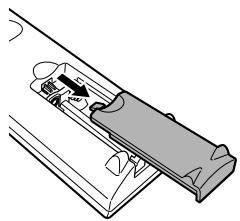
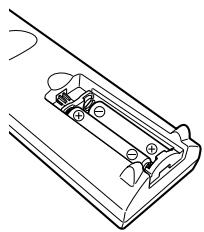
2. Insert batteries. Make sure to match the polarity: (+) to (+) and (-) to (-).
3. Replace the cover.
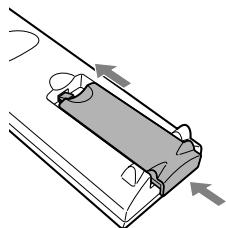
If the range or effectiveness of the remote control decreases, replace the batteries. Use two UM-4 "AAA"/IEC "R03" type dry-cell batteries.
CAUTION:
Follow these precautions to avoid leaking or cracking cells:
- Place batteries in the remote control so they match the polarity: (+) to (+) and (-) to (-).
- Use the correct type of batteries. Batteries that look similar may differ in voltage. Always replace both batteries at the same time.
- Do not expose batteries to heat or flame.
Connecting the FM and AM Antennas
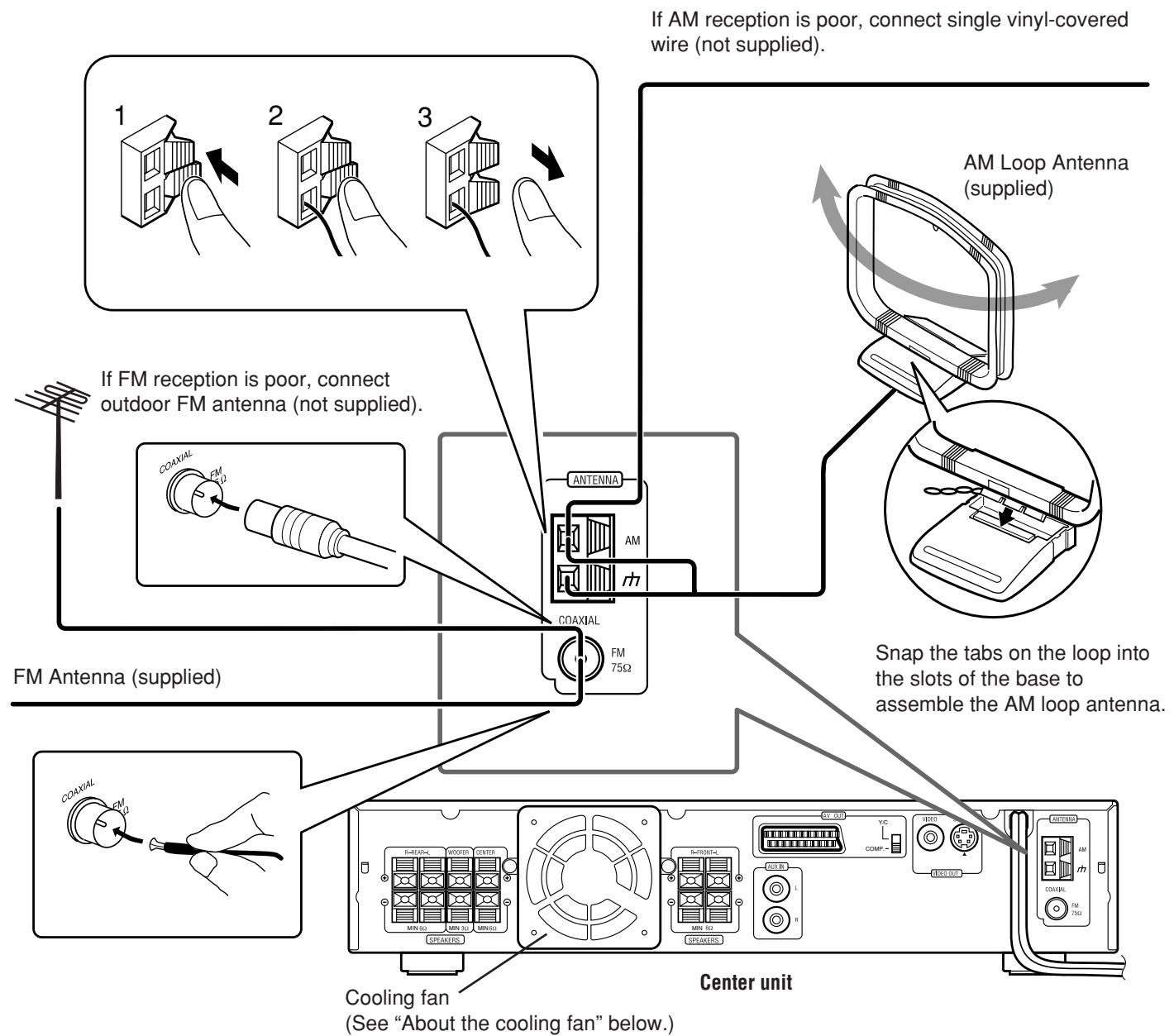
FM antenna connection
Connect the supplied FM antenna to the FM 75Ω COAXIAL terminal as a temporary measure.
Extend the supplied FM antenna horizontally.
- If reception is poor, connect an outdoor antenna. Before attaching a 75Ω coaxial cable (with a standard type connector), disconnect the supplied FM antenna.
AM antenna connection
Connect the supplied AM loop antenna to the AM and 1/77 terminals. Turn the loop until you have the best reception.
- If reception is poor, connect an outdoor single vinyl-covered wire to the AM terminal. (Keep the AM loop antenna connected.)
Note:
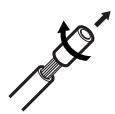
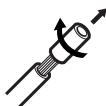
If the AM loop antenna wire is covered with vinyl, remove the vinyl by twisting it as shown in the diagram.
A cooling fan is mounted on the rear panel of the center unit to prevent abnormal temperature inside the center unit, thus assuring normal operation of the unit. The cooling fan automatically starts rotating to supply external cool air to the inside of the center unit when the internal temperature goes up.
For safety, observe the following carefully.
- Make sure there is good ventilation around the center unit. Poor ventilation could overheat and damage the center unit.
- DO NOT block the cooling fan and the ventilation openings or holes. (If they are blocked by a newspaper or cloth, etc., the heat may not be able to get out.)
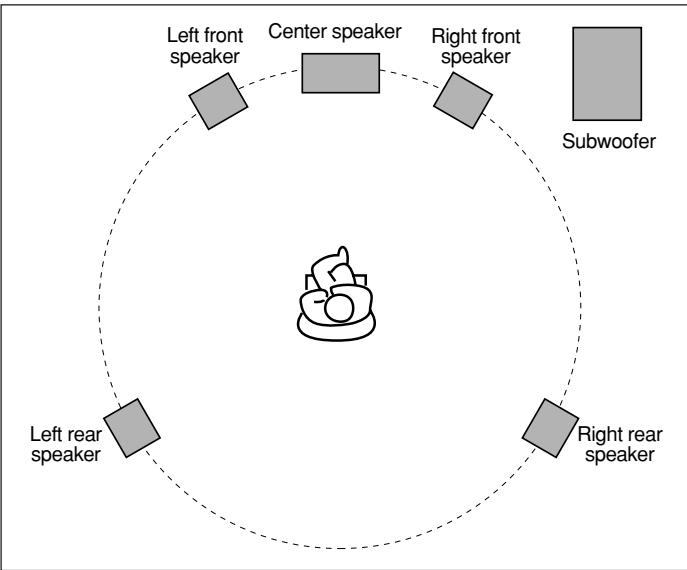
Speaker Layout Diagram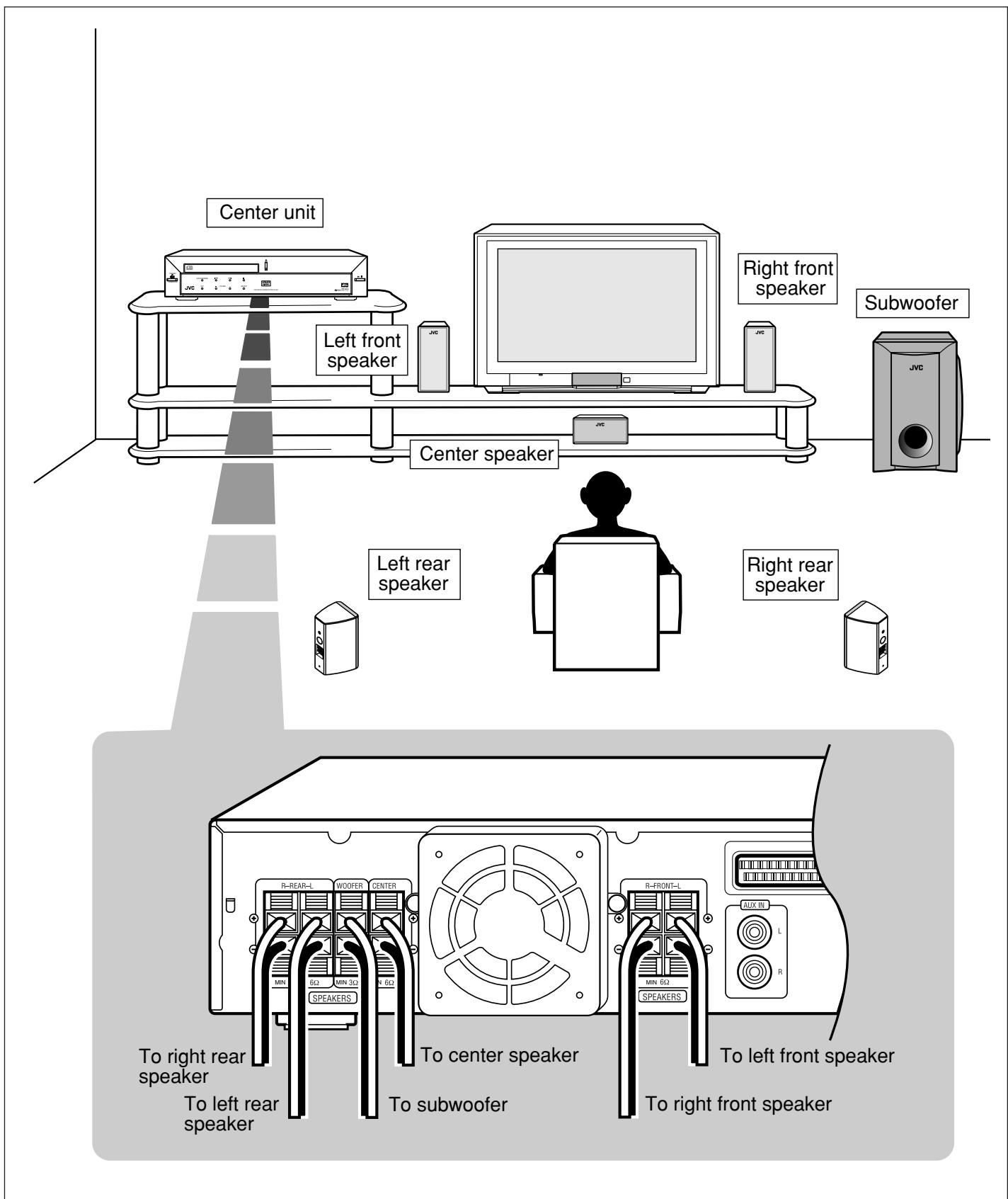
Connecting the Speakers
Connect the satellite speakers, center speaker, and subwoofer to the terminals on the rear panel using speaker cords supplied. Labels are attached to the speaker cords to indicate the speaker and the terminal to which each is to be connected.
- The four satellite speakers can be used for any positions—front left and right, and rear left and right.
- Connect the white cord to the red (+) terminal, and the black cord to the black (-) terminal respectively.
CAUTION:
Use speakers with the SPEAKER IMPEDANCE indicated by the speaker terminals.
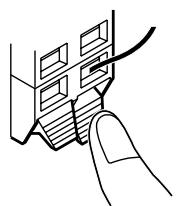
Connecting speaker cords to the terminals
1
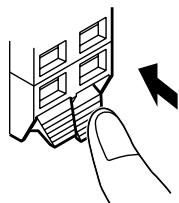
2
3
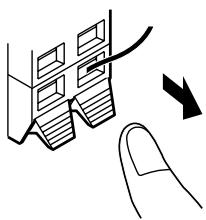
1 Press and hold the terminal clamp. 2 Insert the speaker cord. 3 Release the finger from the clamp.
Note:
If the speaker cord is covered with vinyl, remove the vinyl by twisting it as shown in the diagram.
When setting the speakers
To obtain the best possible sound from this system, you need to place all the speakers except the subwoofer at the same distance from the listening position with each front faced toward the listener. Since bass sound is non-directional, you can place a subwoofer wherever you like. Normally place it in front of you.
If your speakers cannot be placed at the same distance from the listening position
You can adjust the delay time of the center speaker and rear speakers. For in-depth information about adjusting the delay time, see "Setting the Delay Time" on page 17.
Note:
You can change the phase of subwoofer sounds by connecting the speaker cords to the terminals inversely—the white cord to the black terminal, and the black cord to the red terminal. You may get the more effective bass sounds by changing the phase.
CAUTION:
- When attaching the satellite speakers on the wall, have them attached to the wall by a qualified person. DO NOT attach the satellite speakers on the wall by yourself to avoid an unexpected damage of their falling from the wall, caused by incorrect attachment or weakness in the wall.
- Care is required in selecting a location for attaching speakers to the wall. Injury to personnel, or damage to equipment, may result if the speakers are attached in a location which interferes with daily activities.
Connecting Audio/Video Component
Turn the power off to all components before connections.
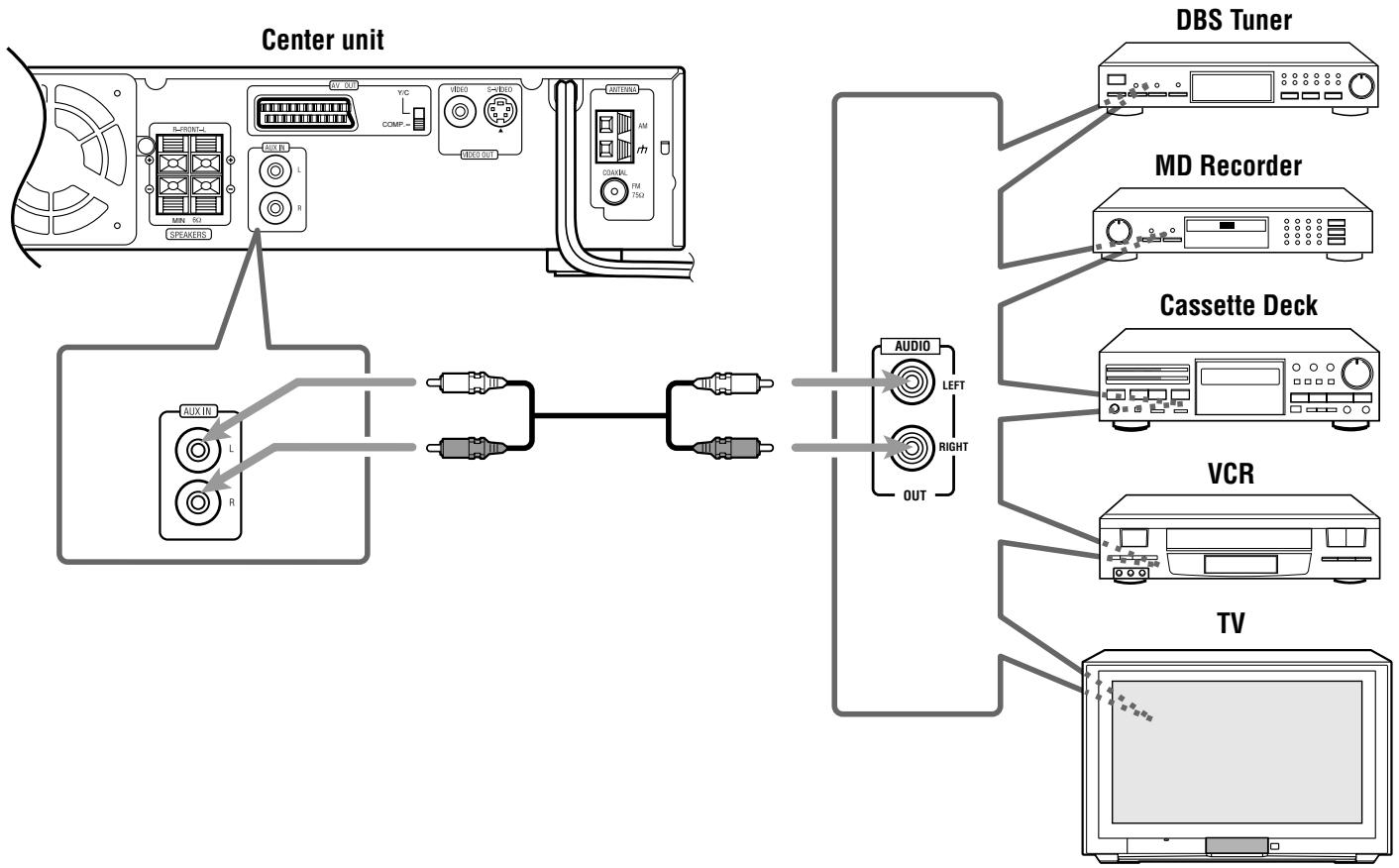
Audio component connection
Connect the other component to the center unit with the audio cord.
Use the cord supplied with the other component or purchase it at an electric appliance store.
Audio cord (not supplied)
The illustrations of the input/output terminals below are typical examples.
When you connect the other component, also refer to its manual, since the terminal names printed on the rear may vary among components.
If you connect a sound-enhancing device such as a graphic equalizer between the source component and the center unit, the sound output through this system may be distorted.
TV connection
The S-video cord and the SCART cable are not supplied with this system.
Use the cords or cables supplied with the other component, or purchase them at an electric appliance store.


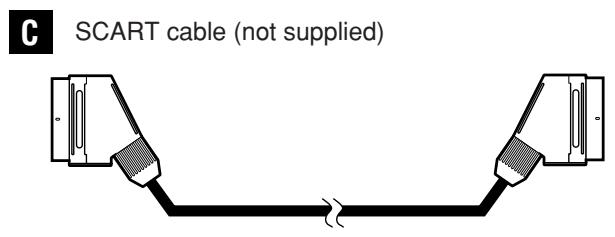
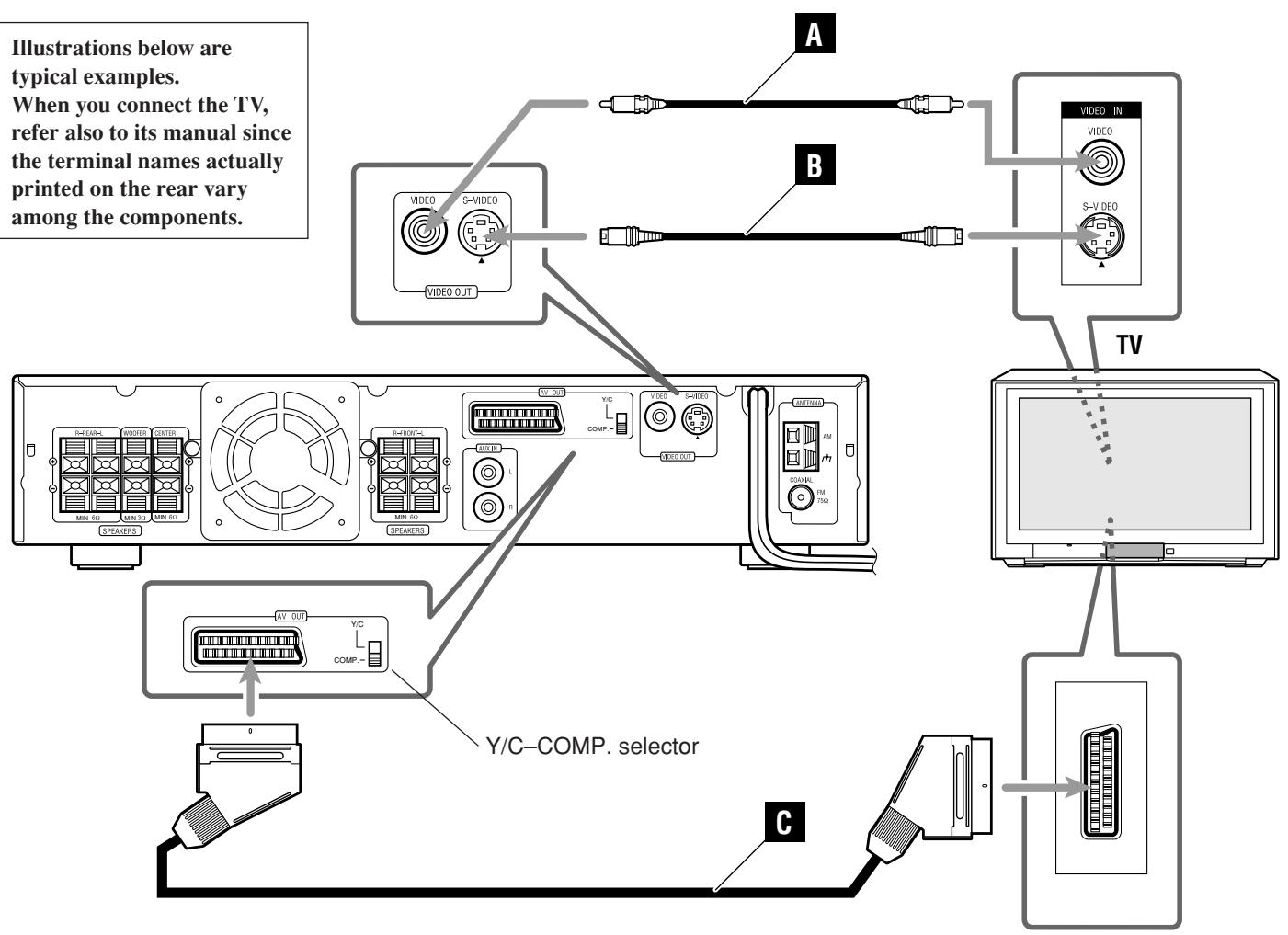
You can select one of three connection types: A, B, and C.
For using the composite video cord or S-video cord
- If your TV has an S-video (Y/C-separation) jack, connect it using an S-video cord (not supplied) B.
By using this jack, you can get a better picture quality than using composite video cord connection A.
For using the SCART cable (C)
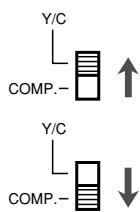
- If S-Video (Y/C-separation) is equipped for your TV, set the Y/C-COMP. selector of the center unit to Y/C. You can get a better picture quality by using the S-Video (Y/C-separation) setting.
- If S-Video (Y/C-separation) is not equipped for your TV, set the Y/C-COMP. selector to COMP.
The illustrations below are typical examples. When you connect the TV, also refer to its manual, since the terminal names printed on the rear may vary among components.
Note:
On the rear panel, the SCART cable is indicated as "AV OUT." However,
this terminal is designed for video output only. So, no sound comes out.
Now, you can plug the power cord of the center unit into the AC outlet.
Note:
Keep the power cord away from the connecting cords and the antenna
cables. The power cord may cause noise or screen interference.
This manual mainly explains operations using the buttons on the remote control. You can also use the buttons on the center unit if they have similar names (or marks) to those on the remote control.
If operations using the center unit differ from those using the remote control, they are explained separately.
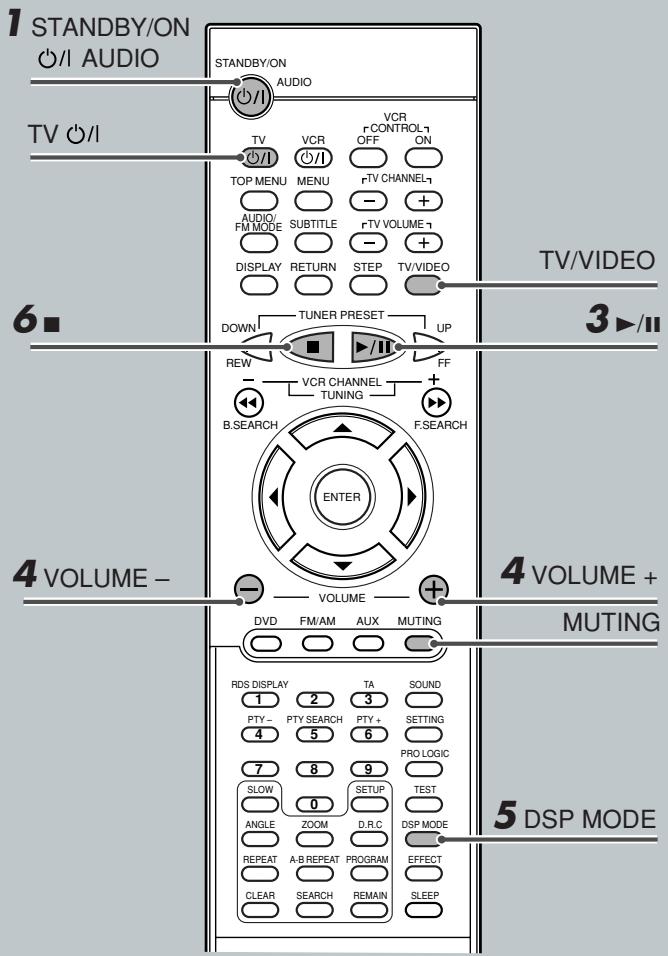
For in-depth information about DVD operations, see pages 25 to 33.

Turn On the Power
Before turning on the system, turn on your TV and select the correct video input. (See the manual supplied with your TV.)
- When using a JVC TV, you can turn it on by pressing TV \(\langle \rangle / \langle \rangle\) on the remote control, and select the video input by pressing TV/VIDEO. (If your TV is not a JVC, see "Operating Other Manufacturers' TV" on page 55.)
- To change the OSD messages (the information on the TV screen) into the desired language, see "Setting the Initial Languages" on pages 50 and 51.
Press STANDBY/ON \(\text{念}\) /l AUDIO (or
STANDBY/ON (O/I on the front panel).
The STANDBY lamp goes off and the illumination lamp on the center unit lights up. The source indication selected previously appears on the display.
STANDBY/ON

Load a DVD
On the front panel ONLY:
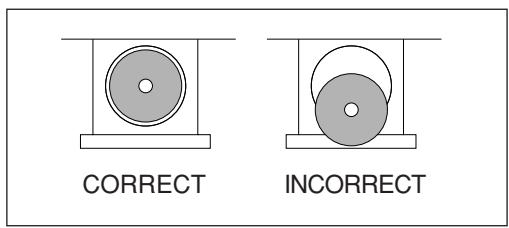
Press the button to open the disc tray, then place a DVD correctly with its label side up.


Start Playback
Press the play/pause button.
The disc tray closes. "LOADING" appears for a while.
- You can also start playback by closing the disc tray using the button on the front panel.
TUNER PRESET

Adjust the Volume
To increase the volume, press and hold VOLUME +. To decrease the volume, press and hold VOLUME -.
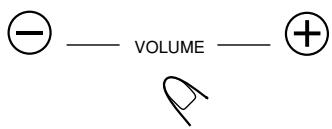
CAUTION:
Always set the volume to the minimum before starting any source. If the volume is set at its high level, the sudden blast of sound energy can permanently damage your hearing and/or ruin your speakers.
Notes:
- By pressing VOLUME + or - repeatedly, you can adjust the volume level step by step.
- The volume level can be adjusted within 71 steps—"MIN (minimum)," 01 to 69, and "MAX (maximum)."
To turn off the sounds temporarily
From the remote control ONLY:
Press MUTING.
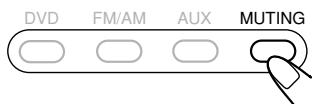
To restore the sound, press MUTING again. - Pressing VOLUME + or - also restores the sound.

Activate Realistic Sound Field
You can enjoy two kinds of surround—Digital Multichannel Surround (Dolby Digital and DTS Digital Surround) and DSP modes.
Digital Multichannel Surround—Dolby Digital and DTS Digital Surround
Dolby Digital or DTS Digital Surround takes effect only when you enjoy a disc encoded with its signals—the DOLBY DIGITAL or DTS indicator lights up on the display.
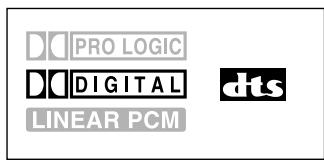
Sound signal indicators on the display
To activate Dolby Digital or DTS Digital Surround
When a disc encoded with the Dolby Digital or DTS Digital Surround is loaded, the system detects it and starts playing the disc automatically with Multichannel Surround activated.
- For in-depth information about surround modes, see "Creating Realistic Sound Fields" on pages 18 and 21.
DSP modes—HALL, THEATER, PAVILION, DANCE CLUB, LIVE CLUB
DSP modes take effect only when you enjoy a disc recorded using Linear PCM—the LINEAR PCM indicator lights up on the display.
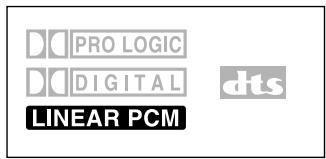
Sound signal indicators on the display
To activate DSP modes
Press DSP MODE (or DSP on the front panel). The DSP indicator lights up and the current DSP mode appears on the display for a while.
Each time you press the button, DSP mode changes as follows:
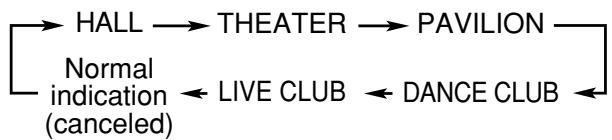
- For in-depth information about DSP modes, see "Creating Realistic Sound Fields" on pages 19, 23, and 24.
Note:
Before activating the realistic sound field, adjust the speaker setting to bring out the best performance from this system. For in-depth information about adjusting the speaker setting, see "Speaker Settings" on pages 16 and 17.

StopPlayback
Press twice.
Playback stops completely and "DVD" appears on the display. (The DVD player goes on working for 3 minutes after playback stops.)
TUNER PRESET
- This system can memorize the end point even when you press once. When you start playback again by pressing ▸ / II, playback begins from where it has been stopped—Resume play.
To remove the loaded disc
Press △.
"OPEN" appears on the display and the disc tray comes out.

To close the disc tray, press △ again.
- If you do not press the button, the disc tray closes automatically after 35 seconds.
To turn off the power (into standby)
Press STANDBY/ON /l AUDIO (or STANDBY/ON /l on the front panel).
The illumination lamp goes off and the STANDBY lamp lights up.
STANDBY/ON
- If you press STANDBY/ON /l AUDIO (or STANDBY/ON /l on the front panel) while the disc tray is kept open, the disc tray closes automatically, then the system is turned off.
- A small amount of power is consumed even in standby mode. To turn the power off completely, unplug the AC power cord.
For in-depth information about VCD/CD operations, see pages 25, 26, and 34 to 39.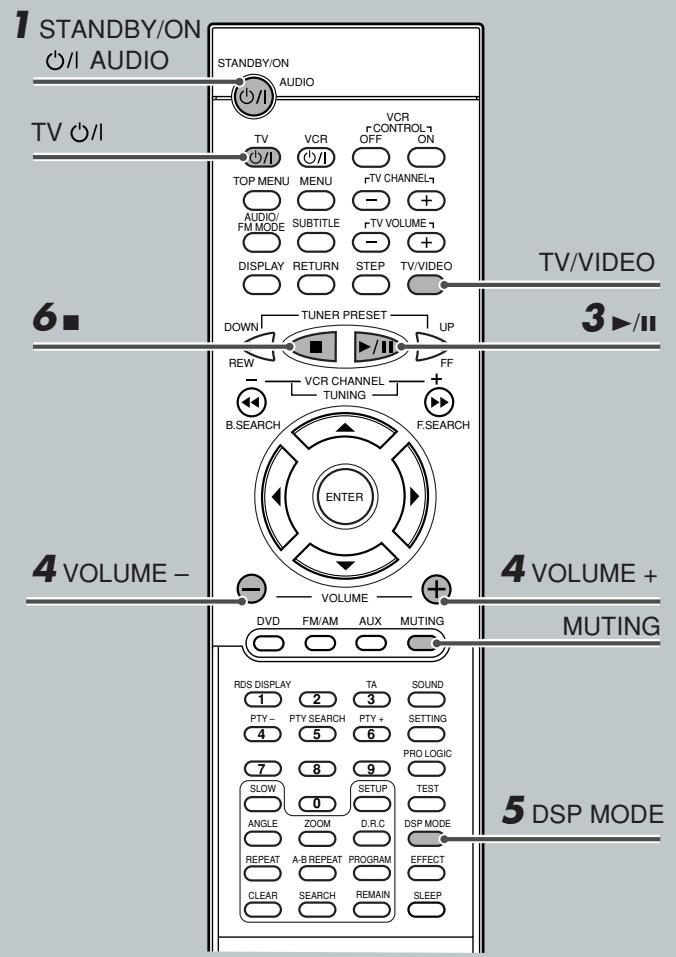

Turn On the Power
Before turning on the system, turn on your TV if necessary and select the correct video input. (See the manual supplied with your TV.)
- When you use a JVC's TV, you can turn on your TV by pressing TV < > on the remote control, and select the video input by pressing TV/VIDEO. (If your TV is not a JVC's, see "Operating Other Manufacturers' TV" on page 55.)
- For changing the OSD messages—the information on the TV screen—into the desired language, see “Setting the Initial Languages” on pages 50 and 51.
Press STANDBY/ON ⊙/▶ AUDIO (or STANDBY/ON ⊙/▶ on the front panel). The STANDBY lamp goes off and the illumination lamp on the center unit lights up. The source indication selected previously appears on the display.

Load a VCD/CD.
On the front panel ONLY:
Press △ to open the disc tray, then place a disc correctly with its label side up.
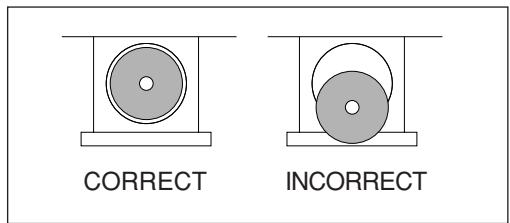

- When using a CD single (8 cm), place it on the inner circle of the disc tray.
- Continued use of irregular shape CDs (heart-shape, octagonal, etc.) can damage the center unit.

Start playback.
Press ▸/II.
The disc tray closes. "LOADING" appears for a while.
- You can also start playback by closing the disc tray using △ on the front panel.

Adjust the volume.
To increase the volume, press and hold VOLUME +. To decrease the volume, press and hold VOLUME -.
CAUTION:
Always set the volume to the minimum before starting any source. If the volume is set at its high level, the sudden blast of sound energy can permanently damage your hearing and/or ruin your speakers.
Notes:
- By pressing VOLUME + or - repeatedly, you can adjust the volume level step by step.
- The volume level can be adjusted within 71 steps—"MIN (minimum)," 01 to 69, and "MAX (maximum)."
To turn off the sounds temporarily
From the remote control ONLY:
Press MUTING.
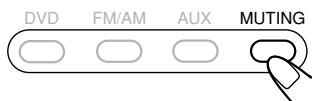
To restore the sound, press MUTING again. - Pressing VOLUME + or - also restores the sound.

Activate Realistic Sound Field
You can enjoy DSP modes.
DSP modes—HALL, THEATER, PAVILION, DANCE CLUB, LIVE CLUB
DSP modes take effect only when you enjoy a disc recorded using Linear PCM—the LINEAR PCM indicator lights up on the display.
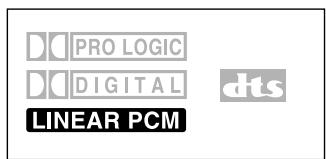
Sound signal indicators on the display
To activate DSP modes
Press DSP MODE (or DSP on the front panel).
The DSP indicator lights up and the current DSP mode appears on the display for a while.
Each time you press the button, DSP mode changes as follows:

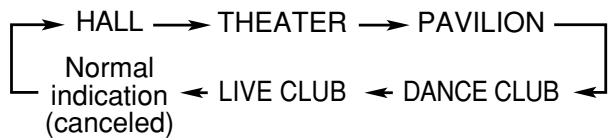
- For in-depth information about DSP modes, see "Creating Realistic Sound Fields" on pages 19, 23, and 24.
Note:
Before activating the realistic sound field, adjust the speaker setting to bring out the best performance from this system. For in-depth information about adjusting the speaker setting, see "Speaker Settings" on pages 16 and 17.

Stop Playback
Press twice.
Playback stops completely and "VCD" or "CD" appears on the display. (The DVD player goes on working for 3 minutes after playback stops.)
- This system can memorize the end point even when you press once. When you start playback again by pressing ▸ / Π, playback begins from where it has been stopped—Resume play.
To remove the loaded disc
Press △
"OPEN" appears on the display and the disc tray comes out.
To close the disc tray, press △ again.
- If you do not press the button, the disc tray closes automatically after 35 seconds.
TUNER PRESET
To turn off the power (into standby)
Press STANDBY/ON 念 /l AUDIO (or
STANDBY/ON (on the front panel).
The illumination lamp goes off and the STANDBY lamp lights up.
- If you press STANDBY/ON (or AUDIO (or
STANDBY/ON (on the front panel) while the disc tray is kept open, the disc tray closes automatically, then the system is turned off.
- A small amount of power is consumed even in standby mode. To turn the power off completely, unplug the AC power cord.
STANDBY/ON
For in-depth information about tuner operations, see "Tuner Operations" on pages 44 to 49.

Turn On the Power
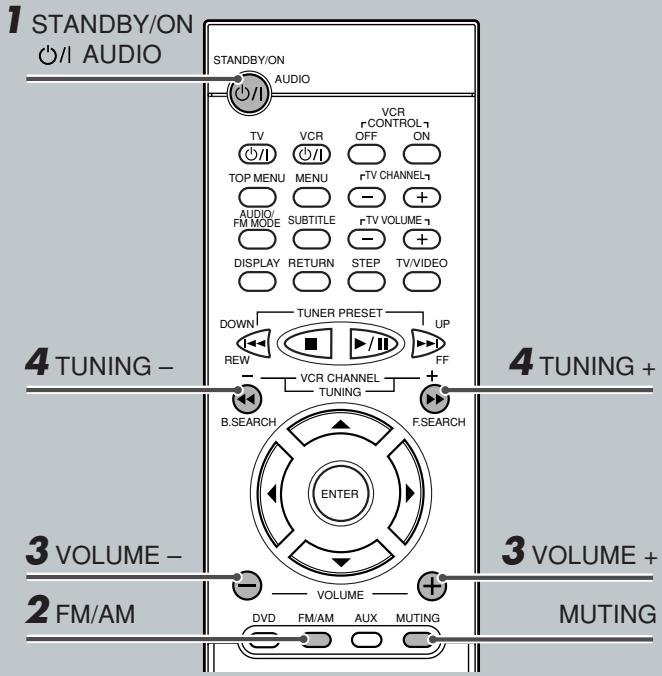
Press STANDBY/ON (or AUDIO (or STANDBY/ON (on the front panel).
The STANDBY lamp goes off and the illumination lamp lights up on the center unit. The source indication selected previously appears on the display.

Select the Band
From the remote control:
Press FM/AM.
The last received station of the selected band is tuned into.
Each time you press the button, the band alternates between FM and AM.
On the front panel:
Press SOURCE repeatedly until the desired band (FM or AM) appears on the display.
The last received station of the selected band is tuned into.
Each time you press the button, the source changes as follows:
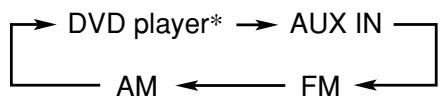
- "WAIT" appears on the display.

Adjust the Volume
To increase the volume, press and hold VOLUME +. To decrease the volume, press and hold VOLUME -.
CAUTION:
Always set the volume to the minimum before starting any source. If the volume is set at its high level, the sudden blast of sound energy can permanently damage your hearing and/or ruin your speakers.
Notes:
- By pressing VOLUME + or - repeatedly, you can adjust the volume level step by step.
- The volume level can be adjusted within 71 steps—"MIN (minimum)," 01 to 69, and "MAX (maximum)."
- You can turn off the sounds temporarily by pressing MUTING.

Tune into a Station
From the remote control:
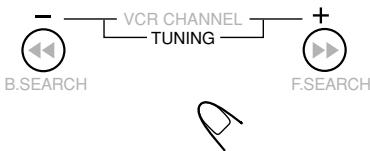
Press and hold TUNING + or - until the station frequency starts
changing continuously on the display.
The system starts searching for a station.
On the front panel:
1) Press so that "MANUAL" appears on the display. 2) Press and hold ▸ or ◂ until the station frequency starts changing continuously on the display.
The system starts searching for a station.
Notes:
- When a station of sufficient signal strength is tuned in, the system stops searching, and the TUNED indicator lights up on the display.
- When an FM stereo program is received, the ST indicator also lights up.
- When you press the button repeatedly, the frequency changes step by step.
To turn off the power (into standby)
Press STANDBY/ON ⒪/⒫ AUDIO (or STANDBY/ON ⒪/⒫ on the front panel) again.
The illumination lamp goes off and the STANDBY lamp lights up.
- A small amount of power is consumed even in standby mode. To turn the power off completely, unplug the AC power cord.
STANDBY/ON
Enjoying Sounds from the External Equipment
You can enjoy sounds from the external equipment connected to the AUX IN jacks on the rear panel of the center unit.
- When you listen to sounds encoded with Dolby Surround, you can enjoy Dolby Surround.
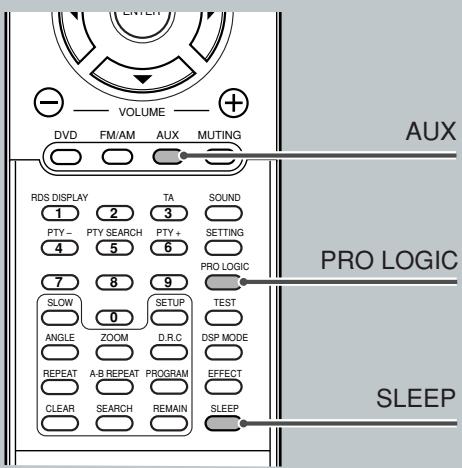
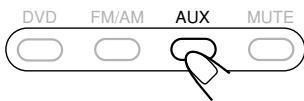
1 Select AUX as the source. From the remote control: Press AUX.
On the front panel:
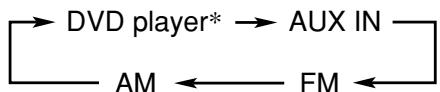
Press SOURCE repeatedly until "AUX IN" appears on the display.
Each time you press the button, the source changes as follows:

- "WAIT" appears on the display.
2 Start playback on the external equipment.
- For in-depth information about the external equipment, see the manual supplied for it.
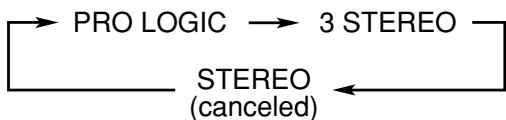
3 Press PRO LOGIC to activate Dolby Surround.
Each time you press the button, Dolby Surround mode changes as follows:

- When Dolby Surround activates, the PRO LOGIC indicator lights up on the display.
- For in-depth information about Pro Logic modes, see "Creating Realistic Sound Fields" on pages 18 and 22.
Turning Off the Power with the Timer
You can fall asleep while listening to music—Sleep Timer.
From the remote control ONLY:
Press SLEEP.
Each time you press the button, the shut-off time changes as follows:

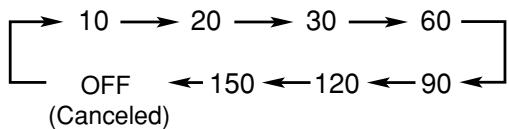
When the shut-off time comes, the system turns off automatically.
To check or change the time remaining until the shut-off time
Press SLEEP once.
The remaining time (in minutes) appears on the display. - By pressing SLEEP, you can change the shut-off time.

To cancel the Sleep Timer
Press SLEEP repeatedly until "OFF" appears on the display.
- Turning off the power also cancels the Sleep Timer.

Front speaker setting and subwoofer setting are fixed. Even if you can select these items by pressing SETTING, you cannot change their settings.
Setting the Speaker Information
To obtain the best possible surround sound, register the center speaker (C-SP) and rear speakers (R-SP) settings after completing all the connections.
Before you start, remember...
There is a time limit for the following steps. If the setting is canceled before you finish, start again from step 1.
From the remote control ONLY:
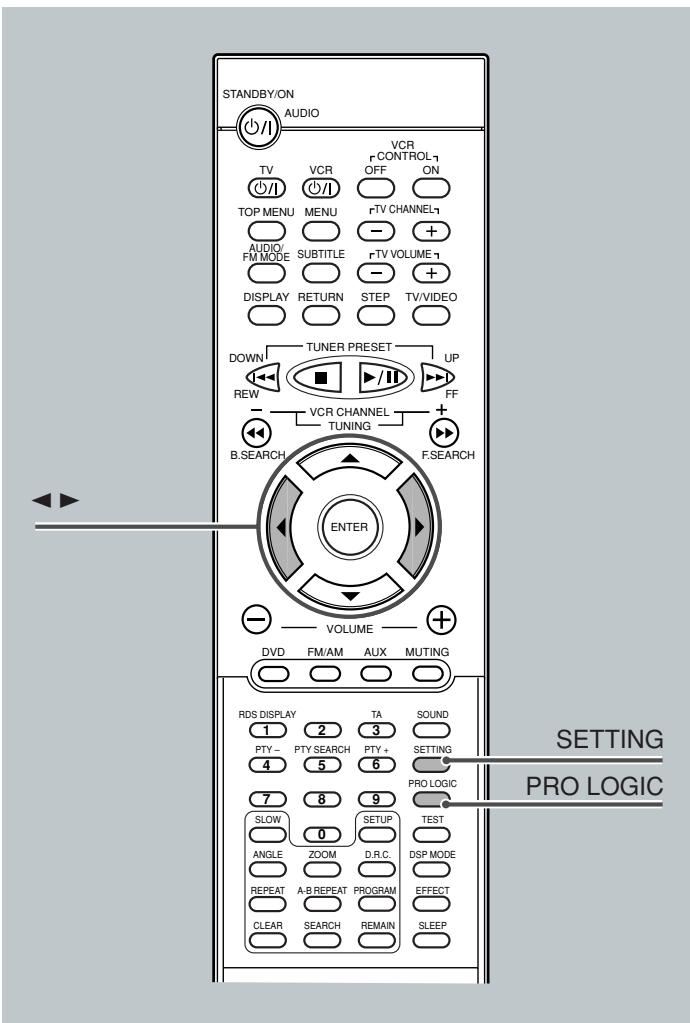
1. Press SETTING repeatedly until one of the following speakers (with the current setting*) appears on the display.

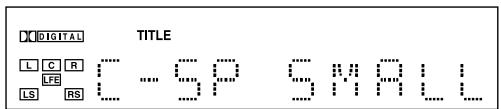
Each time you press the button, the indication in the main display changes as follows:

C-SP (Center speaker): To register the center speaker information.
R-SP (Rear speakers): To register the rear speakers information.
- "SMALL" is the initial setting. If you have already changed the setting, "NONE" will be shown.
2. Press ▶ (or ◀) repeatedly to select the appropriate speaker information.
Each time you press the button, the speaker information changes as follows:
SMALL ↔ NONE
| SMALL | : Normally select this. |
| NONE | : Select this when you do not want to use the corresponding speaker. |
3. Repeat steps 1 and 2 to select the appropriate information for the other speaker.
Setting the Delay Time
Adjust the delay time of the sounds from the center speaker and the rear speakers, compared to that of the sounds from the front speakers. If the distance to the center speaker and/or the rear speakers* from your listening point is almost the same as from the front speakers, select "00 MS (msec)."
- You can adjust the delay time only when the DOLBY DIGITAL or DTS indicator is lit on the display. ** You can adjust the delay time only when the DOLBY DIGITAL, DTS, or PRO LOGIC indicator is lit on the display.
Before you start, remember...
There is a time limit in doing the following steps. If the setting is canceled before you finish, start from step 1 again.
1 Activate Surround modes—Dolby Digital or DTS Digital Surround—or Dolby Pro Logic.
For Dolby Digital or DTS Digital Surround:
Prepare a DVD encoded with Dolby Digital or DTS Digital Surround, then start playback.
For Dolby Pro Logic:
1 Press AUX to select the external source. 2 Start playing the source. 3 Press PRO LOGIC on the remote control so that "PRO LOGIC" appears on the display.
2 Press SETTING repeatedly until one of delay time indications (with the current setting*) appears on the display.


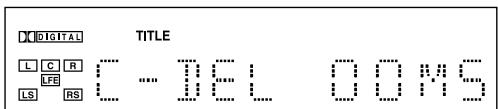
Each time you press the button, the indication in the main display changes as follows:

C-DEL (Center delay) : To register delay time for center speaker—from 0 msec to 5 msec (not selectable for Dolby Pro Logic).
R-DEL (Rear delay) : To register delay time for rear speakers—from 0 msec to 15 msec for Dolby Digital and DTS Digital Surround, and from 15 msec to 30 msec for Dolby Pro Logic.
- "00 MS" is the initial setting for the center speaker.
The initial setting for the rear speakers is "00 MS" for Dolby Digital and DTS Digital Surround, "15 MS" for Dolby Pro Logic.
If you have already changed the setting, a different value will be shown.
3 Press ▸ or ◂ to adjust delay time.
- ▸ : Increases delay time.
- ◂ : Decreases delay time.
- 1 msec increase (or decrease) in delay time corresponds to 30 cm increase (or decrease) in distance.
4 Repeat steps 2 and 3 to adjust the other delay time.
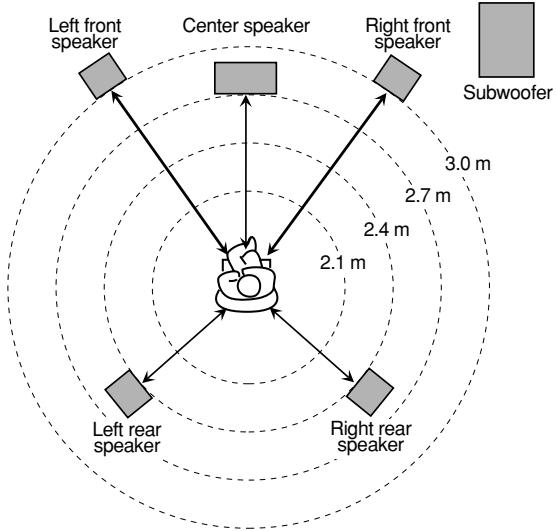
1 msec increase (or decrease) in delay time corresponds to 30 cm increase (or decrease) in distance.
Ex.: In this case, set C-DEL to "01 MS" and R-DEL to "02 MS"
You can use the following surround to reproduce a realistic sound field.
- Digital Multichannel Surround—Dolby Digital and DTS Digital Surround
- Dolby Surround DSP (Digital Signal Processor) modes
Dolby Digital and DTS Digital Surround
To enjoy surround effectively, all the speakers need to be connected and activated.
Dolby Digital*
Used to reproduce multichannel sound tracks of the software encoded with Dolby Digital (DOLBY).
Dolby Digital encoding method (so-called discrete 5.1 channel digital audio format) records and digitally compresses the left front channel, right front channel, center channel, left rear channel, right rear channel, and LFE channel signals (total 6 channels, but LFE channel is counted as 0.1 channel. Therefore, called 5.1 channel). Since each channel is completely independent from the other channel signals to avoid interference, you can obtain much better sound quality with much stereo and surround effects.
In addition, Dolby Digital enables stereo rear sounds, and sets the cutoff frequency of the rear treble at 20 kHz, compared to 7 kHz for Dolby Pro Logic. These facts enhance the sound movement and being-there feelings much more than Dolby Pro Logic.
When the system detects Dolby Digital signals, the DOLBY DIGITAL indicator lights up on the display.
DTS Digital Surround**
Used to reproduce multichannel sound tracks of the software encoded with DTS Digital Surround (TDS).
DTS Digital Surround is another discrete 5.1 channel digital audio format available on CD, LD, and DVD software.
Compared to Dolby Digital, audio compression rate is relatively low. This fact allows DTS Digital Surround format to add breadth and depth to the reproduced sounds. As a result, DTS Digital Surround features natural, solid and clear sound.
When the system detects DTS Digital Surround signals, the DTS indicator lights up on the display.
■ Dolby Surround*
Used to reproduce sound tracks of the VCR tapes encoded with Dolby Surround ( DOLBY SURROUND ).
This is only used for the sound sources coming through the AUX INJacks.
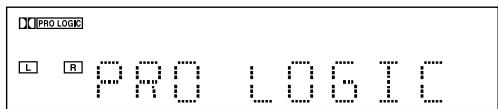
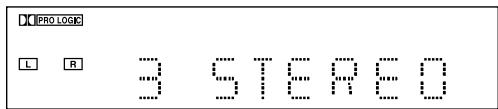
Dolby Pro Logic and Dolby 3 Stereo
Dolby Surround encoding format records the left front channel, right front channel, center channel, and rear channel signals (total 4 channels) into 2 channels.
The Dolby Pro Logic decoder built in this system decodes these 2 channel signals into original 4 channel signals—matrix-based multichannel reproduction, and allows you to enjoy a realistic stereo sound in your listening room.
When one of Dolby Surround is selected, the PRO LOGIC indicator lights up on the display.
Indications on the display for each surround
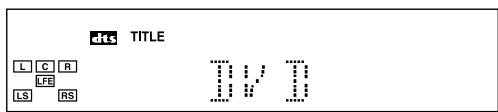
- Dolby Digital
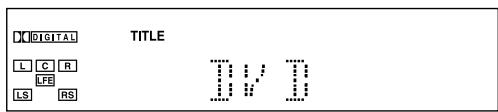
- DTS Digital Surround
- Dolby Pro Logic
- Dolby 3 Stereo
DSP*
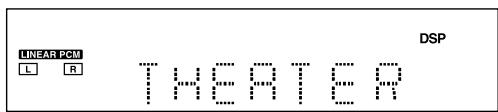
- When you select FM/AM or AUX as the source, the Linear PCM indicator (LINEAR PCM) does not light up.
- According to the speaker settings, some speaker indicators do not light up. In this case, set the speaker setting appropriately.
DSP (Digital Signal Processor) Modes
DSP modes have been designed to create important acoustic surround elements.
The sound heard in a hall, a theater, a pavilion, a dance club, or a live club consists of direct sound and indirect sound—early reflections and reflections from behind. Direct sounds reach the listener directly without any reflection. On the other hand, indirect sounds are delayed by the distances of the ceiling and walls. These indirect sounds are important elements of the acoustic surround effects.
The following DSP modes are provided with this unit.
| HALL | : Gives clear vocal and the feeling of a concert hall. |
| THEATER | : Gives the feeling of a theater. |
| PAVILION | : Gives the spacious feeling of a pavilion with a high ceiling. |
| DANCE CLUB | : Gives a throbbing bass beat. |
| LIVE CLUB | : Gives the feeling of a live music club with a low ceiling. |
These DSP modes can be used to add the acoustic surround effects while reproducing stereo analog software or Linear PCM digital software, and can give you a real "being there" feeling.
When one of the DSP modes is selected, the DSP indicator lights up on the display.
To check the speaker connections and settings using the test tone
- Select and play a DVD encoded with Dolby Digital or DTS Digital Surround.
- Press TEST on the remote control. The test tone comes out from the speakers in order.
- If there is a speaker from which no sound comes out, check the speaker's connection (see pages 6 and 7) and setting (see page 16).
- Press TEST again to stop the test tone.
Available surround according to the input signal format: ○: Possible, ×: Impossible
| Surround | Multichannel Surround | DSP | (canceled) | |||||
| HALL | THEATER | PAVILION | DANCE CLUB | LIVE CLUB | STEREO | |||
| Input Signal format | Analog | × | ○ | ○ | ○ | ○ | ○ | ○ |
| Linear PCM | × | ○ | ○ | ○ | ○ | ○ | ○ | |
| Dolby Digital | ○ | × | × | × | × | × | × | |
| DTS | ○ | × | × | × | × | × | × | |
Adjusting Stereo Sound
You can adjust the following settings.
It is recommended that you make adjustments from your actual listening point while listening to reproduced sounds.
- Output balance for the front speakers
- Output level for the subwoofer
Once you adjust these items, the adjustments take effect for all the surround modes.
Before you start, remember...
- There is a time limit in doing the following steps. If the setting is canceled before you finish, start from step 2 again. 1 Select and play any source except Dolby Digital or DTS Digital Surround. 2 Cancel Dolby Surround or DSP modes if they are activated.
For deactivating Dolby Surround:
Press PRO LOGIC on the remote control until "STEREO" appears on the display.

For deactivating DSP modes:
Press DSP MODE (or DSP on the front panel) until the DSP indicator goes off from the display.

Now, you are ready to start adjustments.
- To adjust the output balance for the front speakers, go to the next step.
- To adjust the output level for the subwoofer, go to step 4.
3 To adjust the output balance for the front speakers
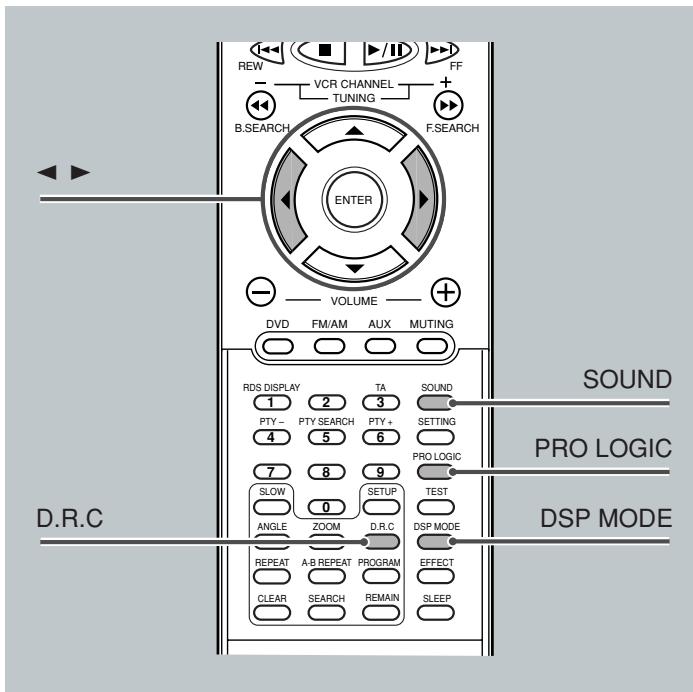
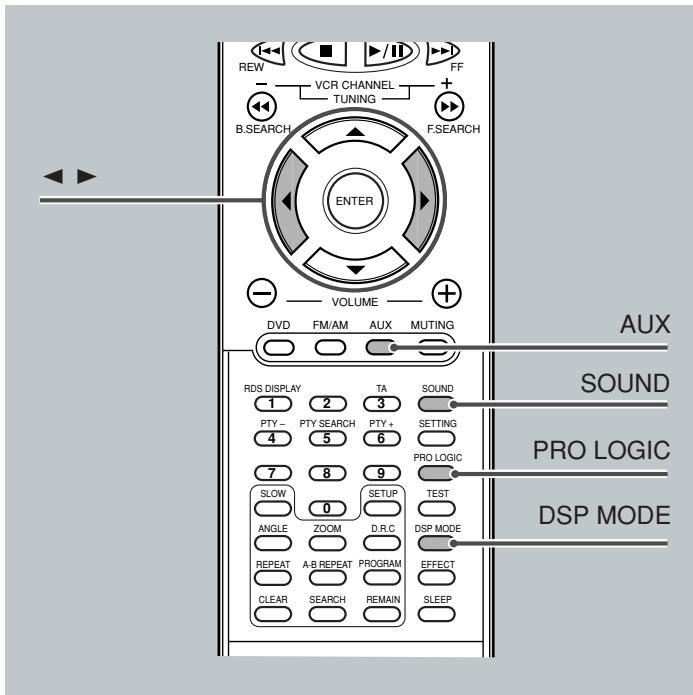
1) Press SOUND repeatedly until the adjustment indication for the front speakers appears on the display.
Each time you press the button, the adjustment indication on the display changes as follows:
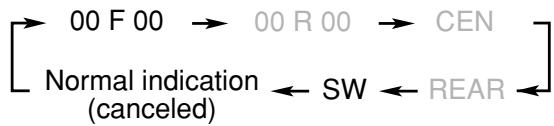
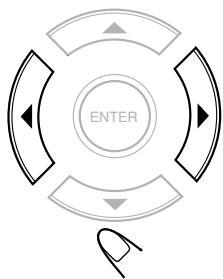
2) Press ▶ or ◀ to adjust the output balance.
: Decreases the left speaker output, or restores the right speaker output. : Decreases the right speaker output, or restores the left speaker output.
- The output balance changes from OFF (silence), -06 (most reduction) to 00 (no reduction).
- "00 F 00" is the initial setting (the output balance is at the center position). If you have already changed the setting, another value will appear.
4 To adjust the output level for the subwoofer
1) Press SOUND repeatedly to select "SW."
Each time you press the button, the indication on the display changes as follows:

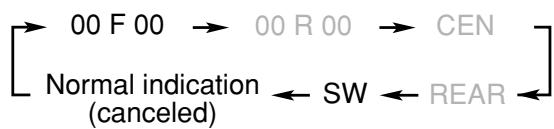
2) Press ▶ or ◀ to adjust the output level.
: Increases the output level. : Decreases the output level. The output level changes from -06 to +06. - "SW -06dB" is the initial setting. If you have already changed the settings, another value will appear.
Adjusting Dolby Digital and
DTS Digital Surround
You can adjust the following settings while activating Dolby Digital or DTS Digital Surround.
It is recommended that you make adjustments from your actual listening point while listening to reproduced sounds.
- Output balance for the front speakers
- Output balance for the rear speakers
- Output level for the center speaker
- Output level for the rear speakers*
- Output level for the subwoofer
- The adjustment is separately memorized for Digital Multichannel Surround (Dolby Digital and DTS Digital Surround), and for Dolby Pro Logic.
Before you start, remember...
- Make sure that you have set the speaker information correctly (see page 16). You cannot adjust the speaker output balance and level when you set the speaker settings to "NONE."
- There is a time limit in doing the following steps. If the setting is canceled before you finish, start from step 2 again.
1 Select and play a DVD encoded with Dolby Digital or DTS Digital Surround.
Now, you are ready to start adjustments.
- To adjust the output balance for the front speakers and the rear speakers, go to the next step.
- To adjust the output level for the center speaker, the rear speakers, and the subwoofer, go to step 3.
2 To adjust the output balance for the front speakers and the rear speakers
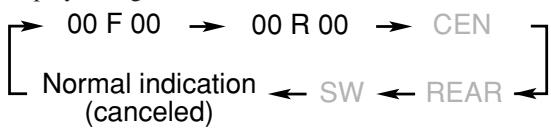
1) Press SOUND repeatedly until one of the following adjustment indications appears on the display.
Each time you press the button, the adjustment indication on the display changes as follows:
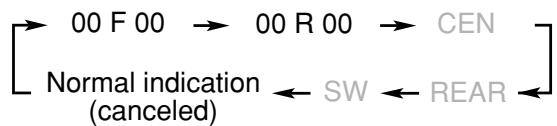
00 F (Front) 00 : To adjust the output balance for the front speakers.
00 R (Rear) 00 : To adjust the output balance for the rear speakers.
- "00 F 00" and "00 R 00" are the initial setting (the output balances are at the center position). If you have already changed the setting, another value will appear.
2) Press ▸ or ◂ to adjust the output balance.
Decreases the left speaker output, or restores the right speaker output. Decreases the right speaker output, or restores the left speaker output.
Each output balance changes from OFF (silence), -06 (most reduction) to 00 (no reduction).
3) Repeat 1) and 2) for setting the other speaker.
3 To adjust the output levels for the center speaker, the rear speakers, and the subwoofer
1) Press SOUND repeatedly to select the "CEN," "REAR," or "SW."

Each time you press the button, the indication on the display changes as follows:
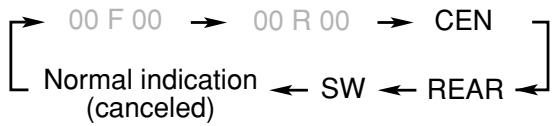
CEN (Center) : To adjust the output level for center speaker (from -06 dB to +06 dB).
REAR : To adjust the output level for rear speakers (from -06 dB to +06 dB).
SW (Subwoofer): To adjust the output level for subwoofer (from -06 dB to +06 dB).
- "CEN -06dB," "REAR -06dB," and "SW -06dB" are the initial settings. If you have already changed the settings, another value will appear.
2) Press ▸ or ◂ to adjust the output level.
: Increases the output level. : Decreases the output level.
3) Repeat 1) and 2) for setting the other speakers.
Activating Dynamic Range Compression
You can enjoy a powerful sound even at a low volume level by compressing the dynamic range (difference between the maximum and minimum sounds).
- This function takes effect only when Dolby Digital or DTS Digital Surround is activated.
From the remote control ONLY:
Press D.R.C.
Each time you press the button, the dynamic range compression mode alternates between on and off. Select "D.R.C. ON" while watching the DVD at night. (You can obtain a powerful sound at a low volume.)

Adjusting Dolby Surround
You can adjust the following settings while activating Dolby Surround.
It is recommended that you make adjustments from your actual listening point while listening to reproduced sounds.
- Output balance for the front speakers
- Output balance for the rear speakers
- Output level for the rear speakers* Output level for the subwoofer
- When Dolby 3 Stereo is activated, you cannot adjust the rear speakers and subwoofer levels.
- The adjustment is separately memorized for Digital Multichannel Surround (Dolby Digital and DTS Digital Surround), and for Dolby Pro Logic.
- Dolby Surround cannot be used with DSP modes. Once one of Dolby Surround is activated, DSP modes in use will be canceled.
Before you start, remember...
- Make sure that you have set the speaker information correctly (see page 16). You cannot adjust the speaker output balance and levels when you have set the speaker settings to "NONE."
- There is a time limit in doing the following steps. If the setting is canceled before you finish, start from step 3 again.
Press AUX to select the external component as the source.

2 Start playing a source encoded with Dolby Surround.
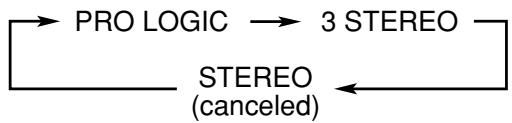
3 Press PRO LOGIC repeatedly on the remote control to select Dolby Pro Logic or Dolby 3 Stereo.

The PRO LOGIC indicator lights up on the display.
Each time you press the button, the indication changes as follows:
Now, you are ready to start adjustments.
- To adjust the output balance for the front speakers and the rear speakers, go to the next step.
- To adjust the output level for the center speaker, the rear speakers, and the subwoofer, go to step 5.
4 To adjust the output balance for the front speakers and the rear speakers
1) Press SOUND repeatedly until one of the following adjustment indications appears on the display.

Each time you press the button, the indication on the display changes as follows:
00 F (Front) 00 : To adjust the output balance for the front speakers.
00 R (Rear) 00 : To adjust the output balance for the rear speakers.
- When selecting "3 STEREO," you cannot adjust the output balance for the rear speakers.
- "00 F 00" and "00 R 00" are the initial settings (the output balances are at the center position). If you have already changed the setting, another value will appear.
2) Press ▸ or ◂ to adjust the output balance.
▸: Decreases the left speaker output, or restores the right speaker output. ◂: Decreases the right speaker output, or restores the left speaker output. Each output balance changes from OFF (silence), -06 (most reduction) to 00 (no reduction).
3) Repeat 1) and 2) for setting the other speakers.
5 To adjust the output level for the center speaker, the rear speakers, and the subwoofer
1) Press SOUND repeatedly to select the "CEN," "REAR," or "SW."
Each time you press the button, the indication on the display changes as follows:

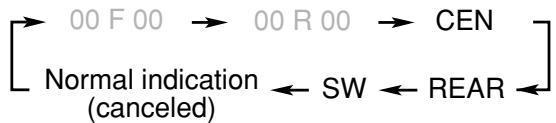
| CEN (Center) : To adjust the output level for center speaker (from -06 dB to +06 dB). | |
| REAR : To adjust the output level for rear speakers (from -06 dB to +06 dB). | |
| SW (Subwoofer) : To adjust the output level for subwoofer (from -06 dB to +06 dB). |
- When selecting "3 STEREO," you cannot adjust the output levels for the rear speakers and subwoofer.
- "CEN -06dB," "REAR -06dB," and "SW -06dB" are the initial settings. If you have already changed the settings, another value will appear.
2) Press ▸ or ◂ to adjust the output level.
▸: Increases the output level. ◂: Decreases the output level.
3) Repeat 1) and 2) for setting the other speakers.
Adjusting DSP Modes
You can adjust the following settings while activating DSP modes. It is recommended that you make adjustments from your actual listening point while listening to reproduced sounds.
- Output balance for the front speakers
- Output balance for the rear speakers
- Output level for the rear speakers
- Output level for the subwoofer
- Overall level of DSP effect
- DSP modes cannot be used with Dolby Surround. Once one of DSP modes is activated, Dolby Surround in use will be canceled.
- When you play back a DVD encoded with Dolby Digital or DTS Digital Surround, DSP MODE button (or DSP button on the center unit) does not work.
Before you start, remember...
- Make sure that you have set the speaker information correctly (see page 16). You cannot adjust the speaker output balance and levels when you have set the speaker settings to "NONE."
- There is a time limit in doing the following steps. If the setting is canceled before you finish, start from step 2 again.
1 Select and play any source except Dolby Digital or DTS Digital Surround.
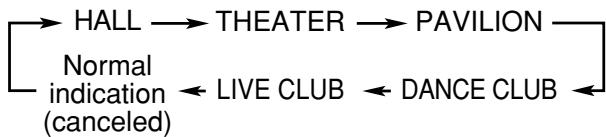
2 Press DSP MODE (or DSP on the front panel) repeatedly to select the desired DSP mode.

The DSP indicator lights up on the display while the DSP modes are activated. Each time you press the button, DSP mode changes as follows:
Now, you are ready to start the adjustment.
- To adjust the output balance for the front speakers and the rear speakers, go to the next step.
- To adjust the output level for the rear speakers, go to step 4 on the next page.
- To adjust the overall level of DSP effect, go to step 5 on the next page.
3 To adjust the output balance for the front speakers and the rear speakers
1) Press SOUND repeatedly until one of the following adjustment indications appears on the display.

Each time you press the button, the indication on the display changes as follows:
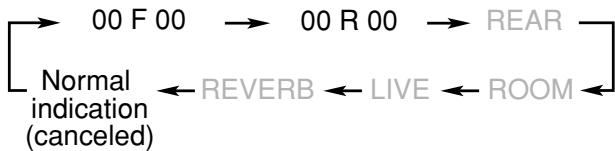
00 F (Front) 00 : To adjust the output balance for the front speakers.
00 R (Rear) 00 : To adjust the output balance for the rear speakers.
- "00 F 00" and "00 R 00" are the initial setting (the output balances are at the center position). If you have already changed the setting, another value will appear.
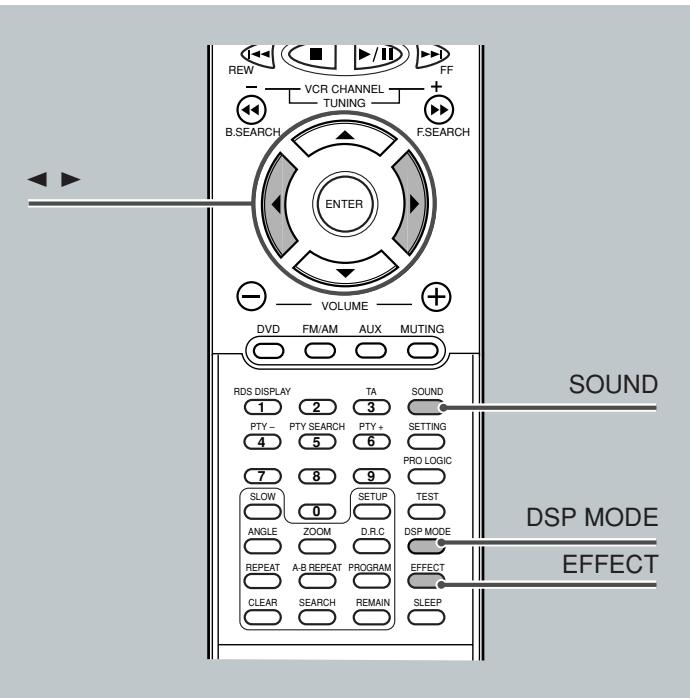
2) Press ▸ or ◂ to adjust the output balance.
: Decreases the left speaker output, or restores the right speaker output. : Decreases the right speaker output, or restores the left speaker output.
Each output balance changes from OFF (silence), -06 (most reduction) to 00 (no reduction).
3) Repeat 1) and 2) for setting the other speaker.
4 To adjust the output level for the rear speakers
1) Press SOUND repeatedly until "REAR" appears on the display.
Each time you press the button, the indication on the display changes as follows:
SOUND REAR : To adjust the output level for rear speakers (from -06 dB to +06 dB).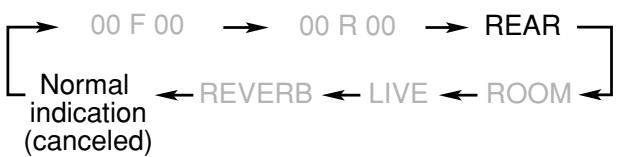
- "REAR -06dB" is the initial setting. If you have already changed the setting, another value will appear.
2) Press ▸ or ◂ to adjust the output level.
: Increases the output level. : Decreases the output level.
5 To adjust the overall level of DSP effect Press EFFECT repeatedly to adjust the overall level.

"EFECT (with the current setting)" or "DEFAULT" appears on the display.
Each time you press the button, the effect level changes as follows:

As the number increases, DSP effect becomes stronger.
- "DEFAULT" is the initial setting. For in-depth information about "DEFAULT (initial)" setting, see the table to the right.
Adjusting DSP Sound Parameters
You can fine-adjust DSP modes more minutely by changing three parameters—room, liveness, and reverberation.
Before you start, remember...
- There is a time limit in doing the following steps. If the setting is canceled before you finish, start from step 2 again.
1 Press DSP MODE (or DSP on the front panel) repeatedly to select the desired DSP mode.

2 Press SOUND repeatedly to select the desired DSP sound parameter.
Each time you press the button, the indication on the display changes as follows:

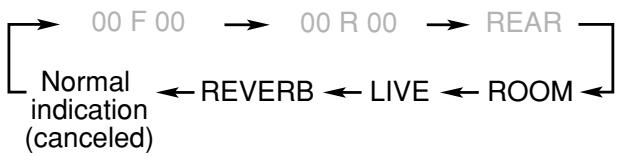
ROOM : To adjust the resonance based on the room size. The larger this value is, the more effective the resonance is (from 04 to 16 by 2 steps).
LIVE (Liveness) : To adjust the liveness. The larger this value is, the more liveness is obtained (from 04 to 16 by 2 steps).
REVERB (Reverberation) : To adjust the reverberation time of the sound (from 0.0 msec to 1.6 msec by 0.2 msec steps).
- The following diagram shows the "DEFAULT (initial)" settings of the DSP sound parameters for each DSP mode.
4 Repeat 2 and 3 for setting the other DSP sound parameters.
Note:
Pressing EFFECT to adjust overall level of DSP effect will change your fine-adjustments to the fixed level.
This system has been designed to play back the following discs: DVD, Video CD, Audio CD, CD-R, and CD-RW. - This system can also play back MP3 files recorded on CD-Rs and CD-RWs. For in-depth information about what MP3 is, see "MP3 Introduction" on page 40.
Discs you can play:
| Disc Type | Mark (Logo) | Video Format | Region Code Number* |
| DVD Video | DVDVIDEOTM | PAL | 2ALL |
| DVDVIDEO | |||
| Video CD | COMPACT DISC DIGITAL VIDEO Video CD | — | |
| Audio CD | COMPACT DISC DIGITAL AUDIO | — | — |
| CD-R | COMPACT DISC DIGITAL AUDIO Recordable | — | — |
| CD-RW | COMPACT DISC DIGITAL AUDIO ReWritable | — | — |
- On some DVD or VCD discs, their actual operations may be different from what is explained in this manual. This is due to the disc programming and disc structure, but not a malfunction of this system.
- The following discs cannot be played back:
- DVD-Audio, DVD-ROM, DVD-RAM, DVD-R, DVD-RW, CD-ROM, CD-I, (CD-I Ready), Photo CD, etc. Playing back these discs will generate noise and damage the speakers.
* Note on Region Code
DVD players and DVD Video discs have their own Region Code numbers. This system can only play back DVD discs recorded with the PAL color system whose Region Code numbers include "2."
Examples:


If a DVD with inadequate Region Code numbers is loaded, "REGION ERR" appears on the display and playback cannot start.
IMPORTANT: Before performing any operations, make sure of the following....
- Check the connection with the TV.
- Turn on the TV and select the correct input on the TV to view the pictures or on-screen indications on the TV screen.
- For DVD playback, you can change the Setup menu setting to your preference. (See pages 50 to 53.)
If "$" appears on the TV screen when pressing a button, the disc cannot accept an operation you have tried to do, or information required for that operation is not recorded in the disc.
NOTICE: In some cases, without showing "$", operations will not be accepted.
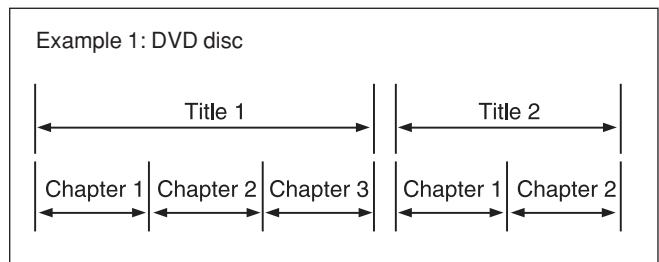
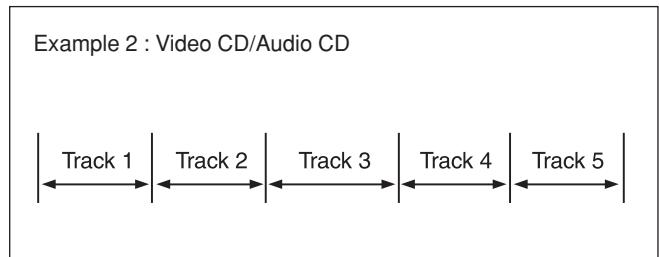
Disc structure—DVD, Video CD (VCD) and Audio CD (CD)
A DVD disc consists of Titles, and each title may be divided into some Chapters. (See Example 1.)
For example, if a DVD disc contains some movies, each movie may have its own title number, and it may be further divided into some chapters.
On the other hand, a VCD or CD consists of Tracks. (See Example 2.)
In general, each song has its own track number. (On some discs, each track may also be divided by Indexes.)
When playing back a VCD with Playback Control (PBC) function, you can select what to view using the menu shown on the TV screen. (While operating a Video CD using the menu, some of the functions such as Repeat and Track Search may not work.)
Notes on CD-R and CD-RW
User-edited CD-Rs (Recordable) and CD-RWs (Rewritable) can be played back only if they are already "finalized."
- The system can play back CD-Rs or CD-RWs recorded on a personal computer if they have been recorded in the audio CD format or recorded in MP3 format (see page 40). However, they may not be played back depending on their characteristics or recording conditions.
- Before playing back CD-Rs or CD-RWs, read their instructions or cautions carefully.
- Some CD-Rs or CD-RWs may not be played back on this unit because of their disc characteristics, damage or stain on them, or if the built-in lens is dirty.
- CD-RWs may require a longer readout time. This is caused by the fact that the reflectance of CD-RWs is lower than for regular CDs.
To start playback
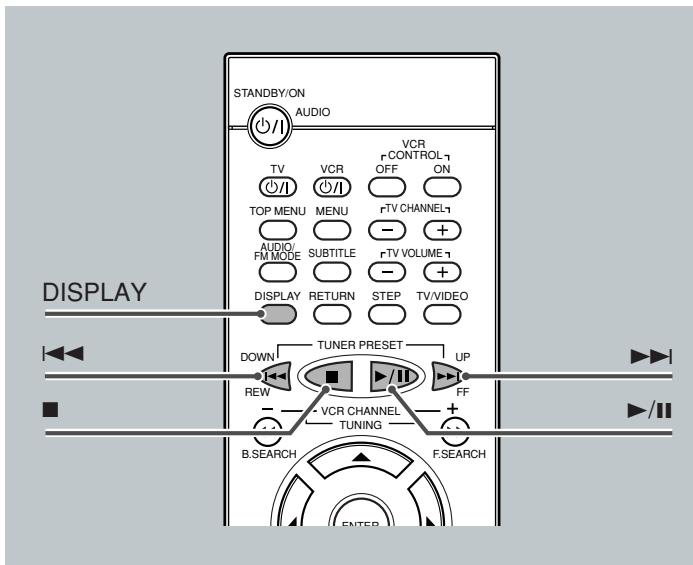
Press ▸ / II.
The source is automatically changed to the DVD player.
"WAIT" appears on the display for a while, then the detected disc type appears—DVD, VCD, CD, or MP3. (If your TV is turned on, the mark corresponding to the detected disc type appears on the TV screen.)
- When a disc is not loaded, "NO DISC" appears on the display.
Disc play starts from the first chapter or track of the selected disc. - If a menu appears while playing a DVD or VCD with PBC function, see "Disc Menu-Driven Playback" (for DVD) on page 29 or "Disc Menu-Driven Playback (Only for VCD)" on page 35.
Note:
If "WRONG PARENTAL CODE" appears on the TV screen, Parental Lock is in use. You cannot play back a DVD containing violent scenes or those not suitable for your family members. To play back such a disc, cancel the Parental Lock. (See page 53.)
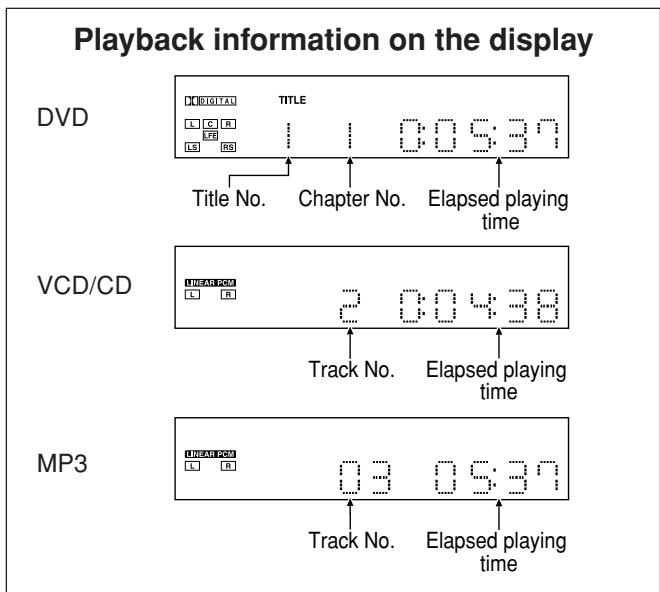
To stop playback for a moment
Press ▶ / II.
While pausing, "PAUSE" appears on the display.
To resume play, press ▶ / II.
To go to another chapter or track (except MP3)
Press ▶ or ◀ repeatedly during playback.
- ▶▶ : Skips to the beginning of the next or succeeding chapter or track.
- ▶ : While a DVD or a VCD with PBC is played back, goes back to the beginning of the previous chapter or track. While a CD or a VCD without PBC is played back, goes back to the beginning of the current or previous track.
To go to another title (only possible on a DVD) or track (only possible on a CD and VCD) directly using the number buttons
Pressing the number buttons before or during play allows you to start playing the title/track number you want. (If your TV is turned on, the on-screen bar is pulled down automatically on the TV screen.)
- To select number 1 to 9, press the corresponding number button (then press ENTER or wait for 5 seconds). To select number 15, press 1, 5. To select number 23, press 2, 3.
To stop during playback
Press ■.
(If your TV is turned on, "STOP" appears on the TV screen.)
- When an MP3 disc is played back, playback stops completely.
- This system can memorize the end point even when you press ■. When you start playback again by pressing ▶ / II, playback begins from where it has been stopped—Resume play.
- To stop completely, press twice. ("■ STOP" appears on the TV screen.) The disc type appears on the display. The DVD player continues working for 3 minutes after playback stops.
To remove the disc
Press ▲ on the front panel.
The disc tray comes out.
To close the disc tray, press ▲ again.
- If you do not press the button, the disc tray closes automatically 35 seconds later.

Some DVDs contain several audio languages, subtitles, and multi-angle views.
When you find the following marks on the DVD or its package, you can select these elements recorded on the DVD.
| 3 | Subtitles are recorded on the disc. The number inside the mark indicates the total number of the recorded subtitles. |
| 3 | Several audio languages are recorded on the disc. The number inside the mark indicates the total number of the recorded audio languages. |
| 3 | Multi-angle views are recorded on the disc. The number inside the mark indicates the total number of the recorded multi-angle views. |
If you cannot find out whether your disc contains these features listed above, you can check it by showing the on-screen bar.
For basic disc operations such as inserting a disc, starting playback, and moving to another chapter, see "Basic DVD Operations" on pages 10, 11, and "Basic Disc Operations" on page 26.
Showing the On-Screen Bar
You can show the following information on the TV screen while a disc is loaded.
From the remote control ONLY:
Press DISPLAY.
Each time you press the button, the following on-screen bar appears in sequence.

| 1: Disc type DVD VCD CD MP3 VIDEO DEF DEF 1/3 DIGITAL ON-screen bar goes off. |
| ①:Disc type DVD VCD CD MP3 VIDEO DEF 1/3 DIGITAL ON-screen bar goes off. |
| ②:Current title and total number of the titles on the disc •Ex.:1st title is playing out of 3 titles recorded. |
| ③:Current chapter and total number of the chapters recorded on the disc •Ex.:1st chapter is playing out of 5 chapters recorded. |
| ④:Elapsed playing time or remaining time You can change the play time indication by pressing REMAIN. See page 29 for more details. |
| ⑤:Subtitle language indication •Ex.:When no subtitle is recorded on the disc. See page 28 for more details. |
| ⑥:Audio language indication •Ex.:Original sound (default) is selected out of 3 audio languages recorded. See page 28 for more details. |
| ⑦:Signal format indicator •Signal format type-Linear PCM (stereo), Dolby Digital, and DTS Digital Surround-will be indicated. Ex.:When the disc is encoded with Dolby Digital. |
| ⑧:Repeat mode indicator •Ex.:When repeat mode is turned off. See page 30 for more details. |
| ⑨:Multi-angle view indicator •Ex.:When only a single angle-view is recorded on the disc. See page 28 for more details. |
Selecting the Subtitles
While playing back a DVD containing subtitles in different languages, you can select the subtitle to be displayed on the TV screen. - You can set your favorite subtitle language as the initial language shown on the screen. (See page 50.)
From the remote control ONLY:
Press SUBTITLE.
The on-screen bar appears on the TV screen for a while.
Each time you press the button, the subtitle language changes as follows:
Ex.: When the disc has 3 selections—English, French, Spanish and no subtitle (OFF)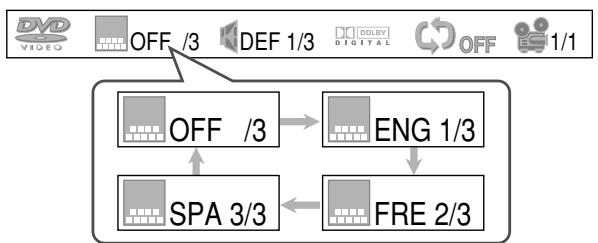
Selecting the Audio Languages
While playing back a DVD containing audio languages (sound track), you can select the language (sound track) to listen to. - You can set your favorite audio language as the initial audio language. (See page 50.)
Press AUDIO/FM MODE.
The on-screen bar appears on the TV screen for a while. Each time you press the button, the audio language changes as follows:
Ex.: When the disc has 3 selections—English, French, and Spanish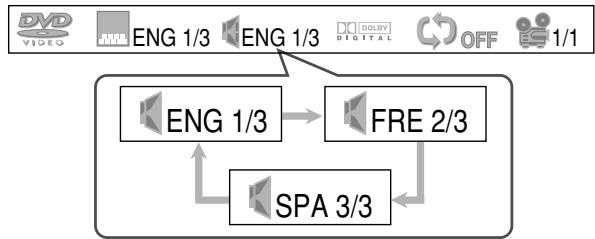
Selecting the Multi-Angle Views
While playing back a DVD containing multi-angle views, you can view the same scene at different angles. - When you play back the DVD containing multi-angle views, it appears on the TV screen.
From the remote control ONLY:
Press ANGLE.
Each time you press the button, the view angle changes.

Ex.: When the disc has 3 multi-angle views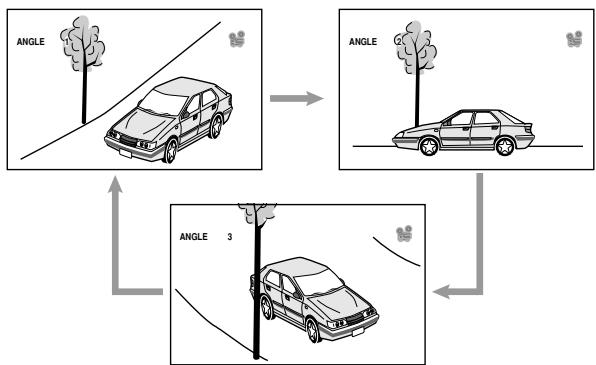
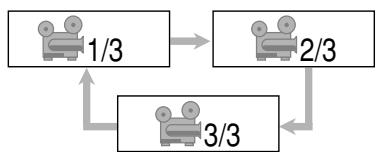
Note:
When the on-screen bar is shown on the TV screen, Repeat mode indication also changes as follows:
Checking the Remaining Time
While playing back a DVD, you can check the remaining time to be played back.
From the remote control ONLY:
Press REMAIN.
The on-screen bar and the current play time indication appear on the TV screen for a while.
Each time you press the button, the following indication appears on the screen:


REMAIN TIME:TITLE
: Select this to show the remaining time of the current title.
CHAPTER TIME
: Select this to show the elapsed playing time of the current chapter.
Select this to show the remaining time of the current chapter.
TITLE TIME
Select this to show the elapsed playing time of the current title.
Disc Menu-Driven Playback
Disc menu-driven playback is possible while playing back a DVD with a menu (the menu may be still pictures or moving pictures depending on the disc).
- When operating a disc using the disc menu, refer also to the instructions supplied for the disc.
DVD discs generally have their own menus or title lists. A menu usually contains various information about the disc and playback selections. On the other hand, a title list usually contains titles of movies and songs recorded.
From the remote control ONLY:
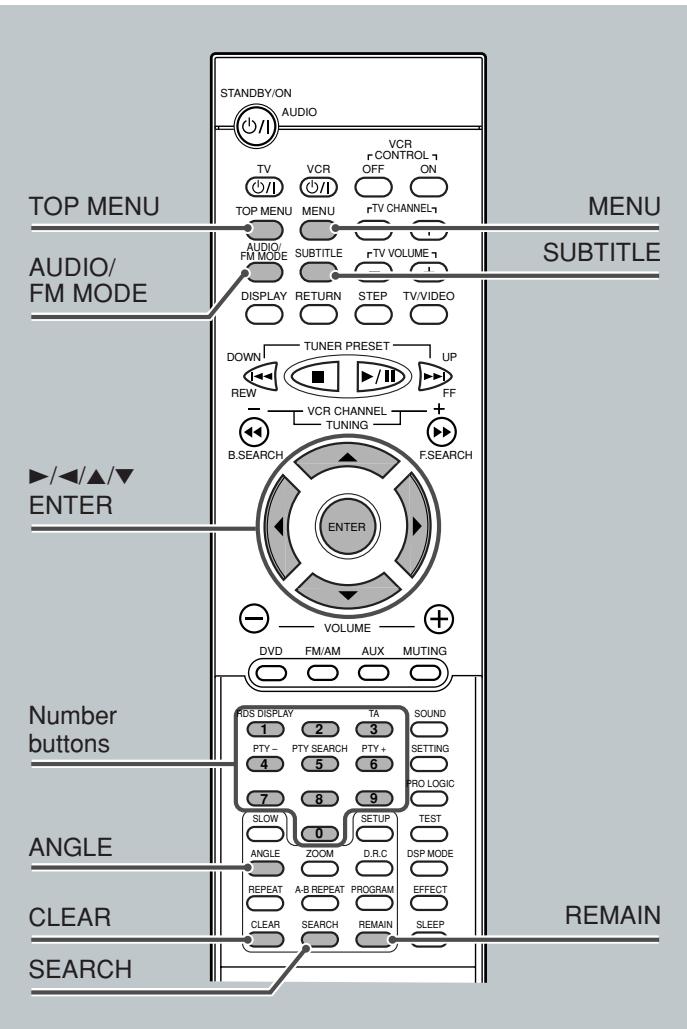
1 Press MENU or TOP MENU.
A menu or title list will appear on the screen. "MENU" appears on the display. - On some DVDs, a menu will automatically appear on the screen after playback starts.

TOP MENU
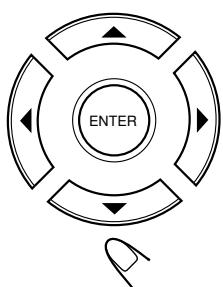
2 Select a desired item on the menu or on the title list, using ▶ / △ / ▽ and ENTER.
The unit starts playback of the selected item.
- On some discs, you can also select items by pressing the number buttons corresponding to the item numbers listed.
Moving to a Particular Portion Directly
You can move to another title, chapter, or particular scene in the chapter directly.
From the remote control ONLY:
Press SEARCH during playback or pause.
Each time you press the button, the following indication appears on the screen:


TITLE-- :Select this to move to another title.
CHAPTER- - - : Select this to move to another chapter.
TIME --: --: --: Select this to move to a particular scene.
2 Press the number buttons to select a desired title, chapter, or playing time.
The unit starts playback of the selected item. (The on-screen bar appears for a while.)
RDS DISPLAY TA/NEWS/INFO
1 2 3
PTY- PTY.SEARCH PTY+
4 5 6
7 8 9

How to input the title and chapter number
Press the number buttons corresponding to the number, then wait for about 5 seconds or press ENTER to start playback.
- To select number 5, press 5, then ENTER. To select number 12, press 1, 2, then ENTER. To select number 22, press 2, 2, then ENTER.
How to input the playing time
Press the number buttons to input the playing time, then wait for about 5 seconds or press ENTER to start playback at the selected elapsed playing time.
To input time "00:45:23," press 4, 5, 2, 3. To input time "01:23:45," press 1, 2, 3, 4, 5. - To cancel a mis-entry, press CLEAR. Each time you press the button, the last entry will be erased.
Note:
When you want to move to another title directly, you can move to it by simply pressing the corresponding number buttons (without pressing SEARCH in step 1).
Searching for a Particular Point
You can search for a particular portion while playing a disc—Variable Speed Forward/Reverse Search. - No sound comes out during Variable Speed Forward/Reverse Search.
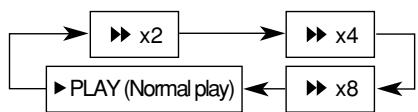
To fast-forward the chapter—Variable Speed Forward Search
From the remote control ONLY:
Press ▶ during playback or pause.
Each time you press the button, the search speed changes as follows:
To reverse the chapter—Variable Speed Reverse Search
From the remote control ONLY:
Press during playback or pause.
Each time you press the button, the search speed changes as follows:
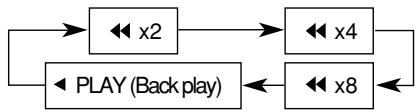
To resume normal play
Press /II.
Repeating Playback
Repeat Play
From the remote control ONLY:
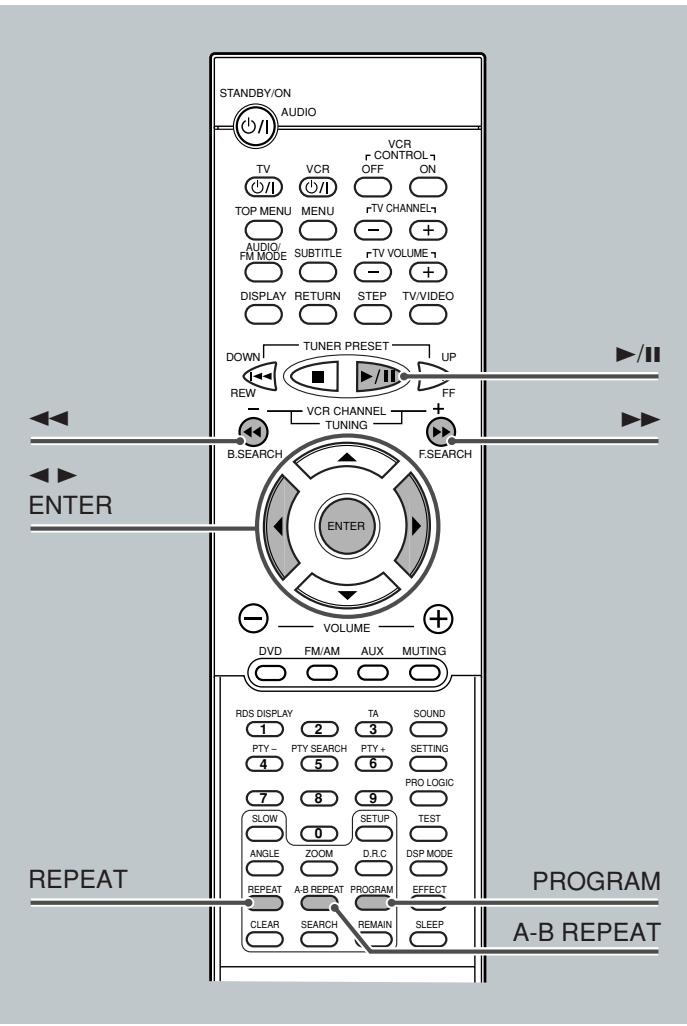
Press REPEAT repeatedly.
The indication corresponding to the selected mode appears on your TV.
Each time you press the button, Repeat mode changes as follows:

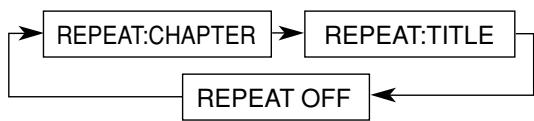
REPEAT:CHAPTER : Current chapter will be repeated.
REPEAT:TITLE*: Current title will be repeated. REPEAT OFF : Repeat play is canceled. (Normal play is resumed.)
- Cannot be selected during program play.
Note:
When the on-screen bar is shown on the TV screen, repeat mode indication also changes as follows:
REPEAT OFF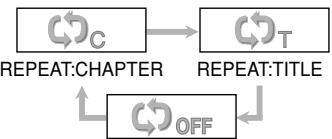
A-B Repeat
While playing, you can also select a portion you want to repeat.
- A-B repeat is not performed between different titles.
- An interval of more than 5 seconds is required between point A and point B.
Example: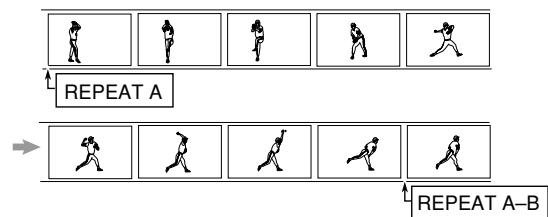
From the remote control ONLY:
1 Press A-B REPEAT to select the start point.
"REPEAT A" appears on the display.

2 Press A-B REPEAT again to select the end point.
"REPEAT A" changes to "REPEAT A-B," then A-B repeat begins.
The unit automatically locates point A and starts repeated playback between points A and B.

To cancel A-B Repeat
Press A-B REPEAT again.
"REPEAT A-B" goes off from the display.

Note:
When the on-screen bar is shown on the TV screen, Repeat mode indication also changes as follows:
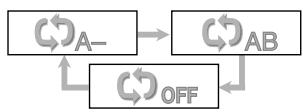
On some DVDs, A-B Repeat may not be used even within the same title. This is due to their disc structures, and not a malfunction of the unit.
Programming the Playing Order of the Chapters—Program Play
You can arrange the chapter playback order before you start playing. You can program up to 20 steps.
- Before making a program, make sure that the TV is turned on and the correct input is selected on the TV.
From the remote control ONLY:
1 Load a disc.
- If the current playing source is not the DVD player, press ▶ / ⏸, then ■ before going to the next step.
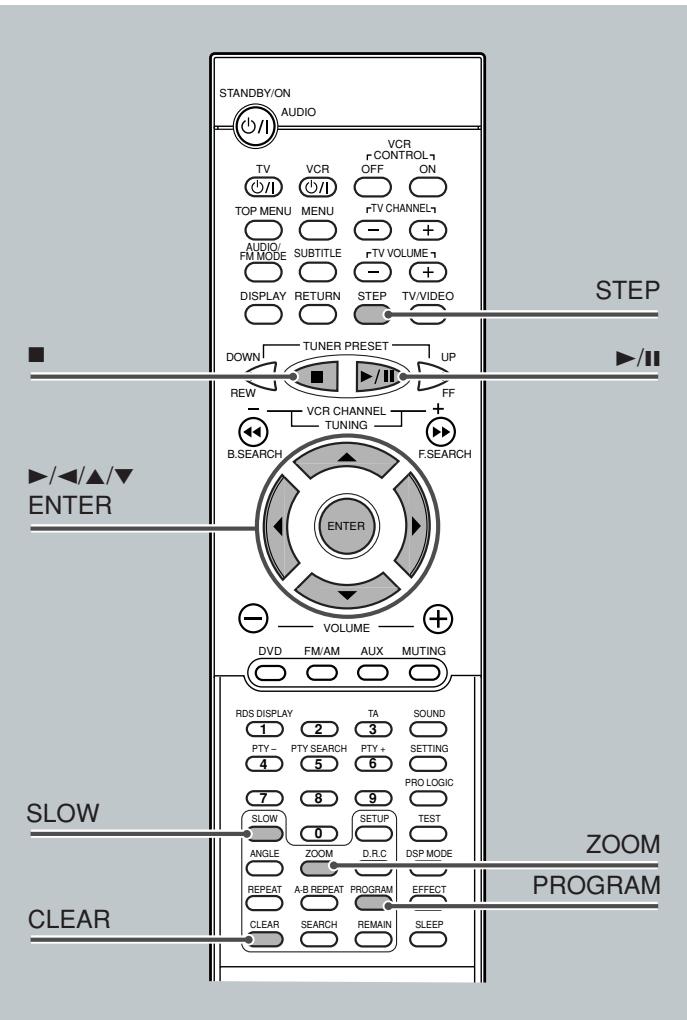
2 Press PROGRAM.
The PROGRAM MENU screen appears on the TV screen.

- "PROGRAM" appears on the display and the PROGRAM indicator also lights up.
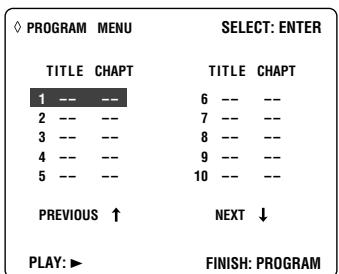
3 Press ENTER.

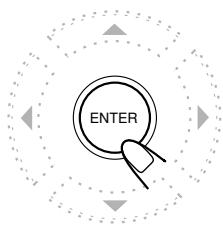
4 Press ▶ or ◀ to select a title number, then ENTER.
- ▶ : Increases the number. ◀ : Decreases the number.
- You can also select a title number using the number buttons.
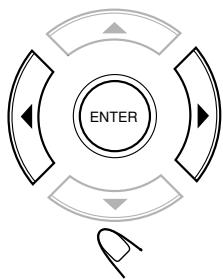
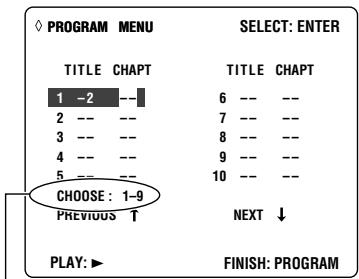
Chapter numbers you can select in the next step
5 Press ▶ or ◀ to select a chapter number, then ENTER.
- ▶ : Increases the number. ◀ : Decreases the number.
- You can also select a chapter number using the number buttons.
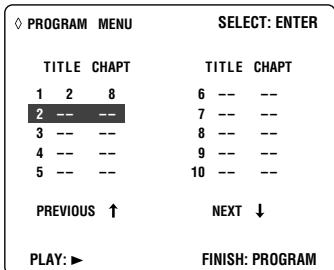
- To select all chapters in the selected title as one program step, simply press ENTER without selecting any number. "ALL" appears on the chapter number position.
6 Repeat steps 3 to 5 to program other chapters you want.
- After 10 steps are programmed, "NEXT ↓" is selected (highlighted). If you want to program more steps, press ENTER.
7 Press ▶ /II.
The chapters are played in the order you have programmed.
TUNER PRESET
After all the chapters you programmed are played back, the PROGRAM MENU screen appears on the TV screen again.
To erase the stored program
Press ▲ to eject the disc.
- If you turn off the system or change the source, the program is also erased.

To check the program contents
You can check the program contents by pressing PROGRAM. The PROGRAM MENU screen appears on the TV screen.
- If you press the button during playback, the program play will stop.
To modify the program
You can modify the program while the PROGRAM MENU screen is shown on the TV screen.
- To erase a step: Press ▼ (or ▲) to select (highlight) an unwanted program step, then press CLEAR.
- To modify a step: Press ▼ (or ▲) to select (highlight) a program step you want to modify, then perform steps 3 to 5 on page 31. (Before entering a new number, press CLEAR repeatedly until "--" appears on the number entry position.)
- To add a step: Press ▼ (or ▲) to select (highlight) an empty program step, then perform steps 3 to 5 on page 31.
- To move program step 11 to program step 10, press ▲ when program step 11 is selected (highlighted) so that "PREVIOUS ↑" is selected (highlighted). Then, press ENTER.
- To move program step 10 to program step 11, press ▼ when program step 10 is selected (highlighted) so that "NEXT ↓" is selected (highlighted). Then, press ENTER.
To stop during playback
Press or PROGRAM on the remote control.
The PROGRAM MENU screen appears on the TV screen.
- If you press while this screen is shown, the unit starts program play.
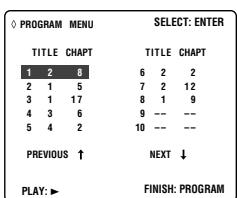
To exit from program play
From the remote control ONLY:
Press PROGRAM.
The PROGRAM MENU screen goes off, and the opening screen appears. (The program you made is still kept in memory.)
- If you press while this screen is shown, the unit starts normal playback.

DVD Special Effect Playback
■ Still Picture/Frame-by-Frame Playback
You can advance the still picture frame by frame while playing a DVD.
From the remote control ONLY:
1 Press STEP once during playback. A still picture appears on the TV screen.

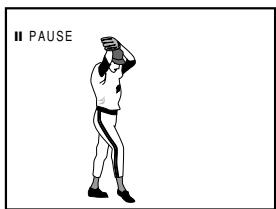
2 Press STEP repeatedly to advance the picture frame by frame.
Each time you press the button, the picture advances frame by frame.


To resume normal play
Press ▶ / II.
Note:
If you press ▶ to show the still picture, you cannot advance it frame by frame by pressing STEP.
Slow Motion Playback
You can enjoy slow motion playback while playing a DVD.
From the remote control ONLY:
Press SLOW repeatedly during playback or pause.
Each time you press the button, slow motion speed changes as follows:

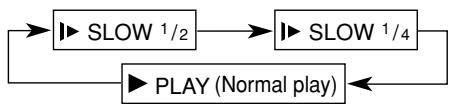
Zoom
You can zoom in on the picture while playing back a DVD.
From the remote control ONLY:
Press ZOOM to zoom in.
Each time you press the button, the picture is enlarged as follows:

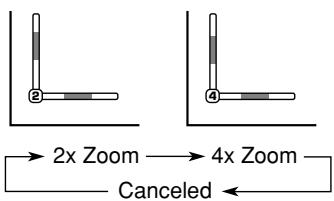
2 Press ▸ / △ / △ / ▽ to move the enlarged portion you want to watch.
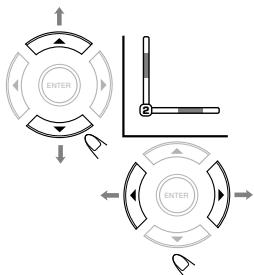
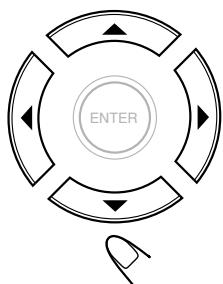
To cancel the ZOOM
Press ZOOM repeatedly until the normal size picture is resumed.

For basic disc operations such as inserting a disc, starting playback, and moving to another tracks, see "Basic VCD/CD Operations" on pages 12, 13, and "Basic Disc Operations" on page 26.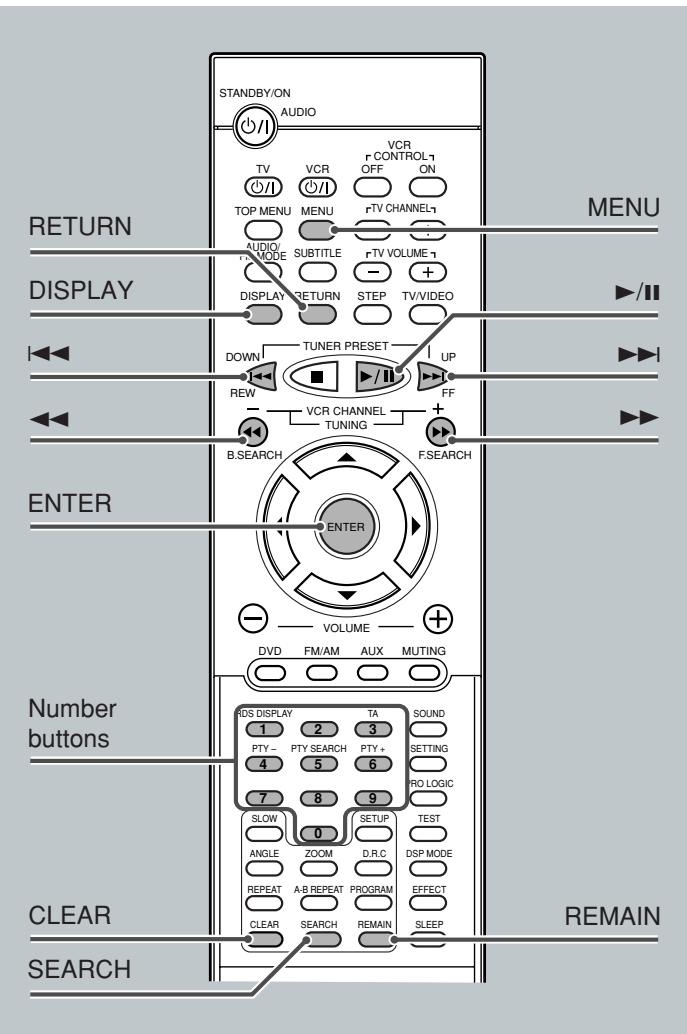
Showing the On-Screen Bar
You can show the following information on the TV screen while a disc is loaded.
From the remote control ONLY:
Press DISPLAY.
Each time you press the button, the following on-screen bar appears in sequence.

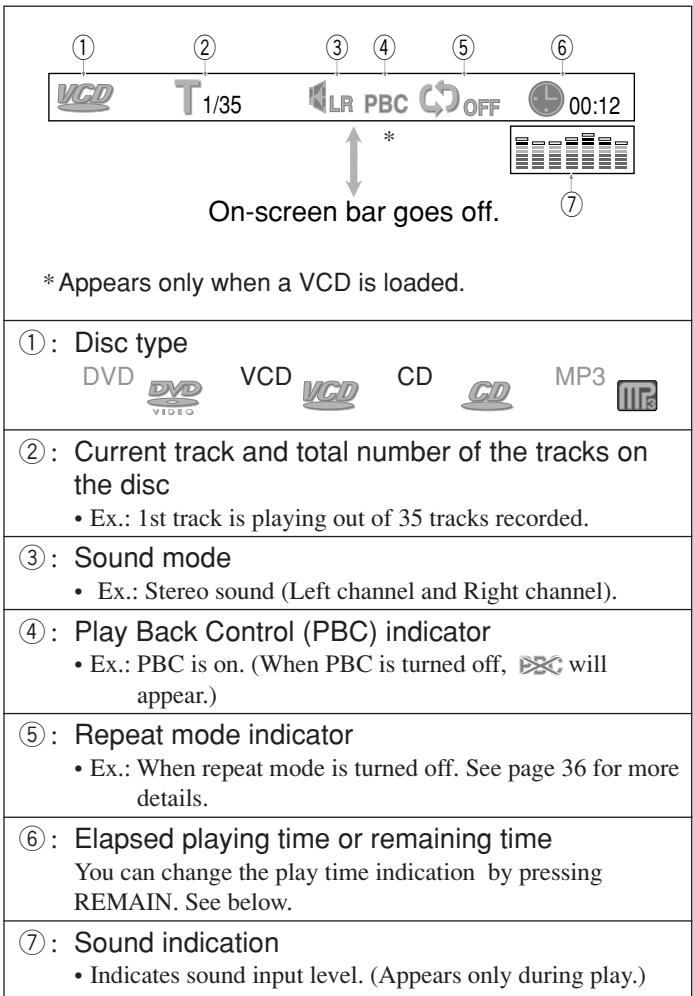
Checking the Remaining Time
While playing back a VCD or CD, you can check the remaining time.
From the remote control ONLY:
Press REMAIN.
The on-screen bar appears on the TV screen for a while.
Each time you press the button, the play time indication changes as follows:

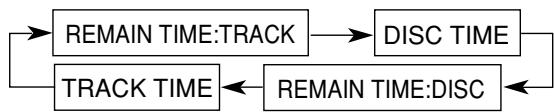
REMAIN TIME:TRACK
: Select this to show the remaining time of the current track.
DISC TIME
: Select this to show the total elapsed playing time of the disc.
REMAIN TIME:DISC
: Select this to show the total remaining time of the disc.
TRACK TIME
: Select this to show the elapsed playing time of the current track.
Disc Menu-Driven Playback (Only for VCD)
The Play Back Control function (PBC) allows you to operate the VCD using menus.
When you start playing a VCD with PBC function, a menu will automatically appear on the TV screen. ("MENU" will also appear on the display.)
- A menu may be a list of items, divided screens, or some moving pictures. (See “PBC operation concept” below.) When a menu appears, you can select a desired item on the menu.
- When a list of items is displayed on the TV screen, press the number buttons to select an item.
- When “▶” or “SELECT” is displayed on the TV screen, press / to start playback.
To go to the next submenu
Press ▶▶ 1.
To return to the previous menu
Press
To cancel the PBC playback
You can cancel the menu-driven operations (PBC function):
1 Press to stop playback. 2 Press the number buttons to select a track. Normal playback starts from the selected track.
- You can also turn on and off the PBC function by pressing MENU on the remote control. Each time you press the button, the PBC function turns on and off.

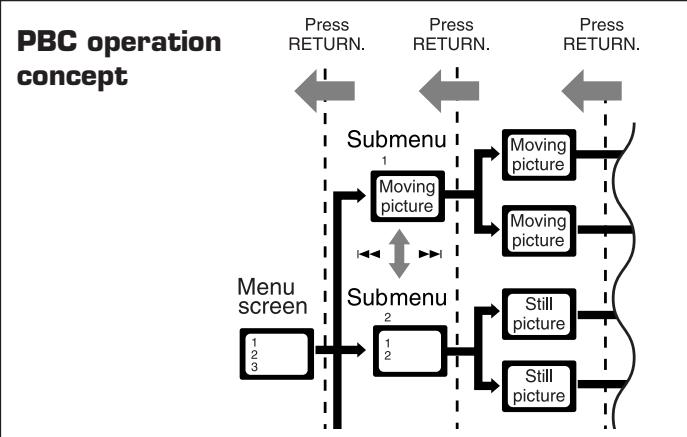
Note:
While operating a VCD using menu, some of the functions such as repeat play may not work.
Moving to a Particular Portion Directly
You can move to a particular portion (scene) on the track directly. - PBC function is canceled when you use this function.
From the remote control ONLY:
Press SEARCH during playback or pause.
Each time you press the button, the following indication appears on the TV screen.


TIME- - : - - : Select this to move to a particular portion on the current disc. TRACK TIME --:-- : Select this to move to a particular portion on the current track.
Press number buttons to select a playing time you want to search for.
The unit starts playback at the selected elapsed playing time. (The on-screen bar appears for a while.)
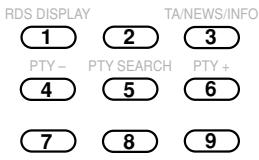
To input time "45:23," press 4, 5, 2, 3. - To input time "09:45," press 9, 4, 5, then wait for about 5 seconds (or press ENTER). - To cancel a misentry, press CLEAR. Each time you press the button, the last entry will be erased.
Searching for a Particular Point
You can search for a particular portion while playing a disc—Variable Speed Forward/Reverse Search.
- No sound comes out during Variable Speed Forward/Reverse Search on a VCD.
To fast-forward the tracks—Variable Speed Forward Search
Press ▶ during playback or pause. Each time you press the button, the search speed changes as follows:
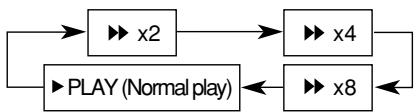
To reverse the tracks—Variable Speed Reverse Search
Press ◀ during playback or pause. Each time you press the button, the search speed changes as follows:
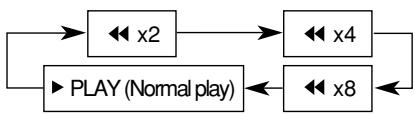
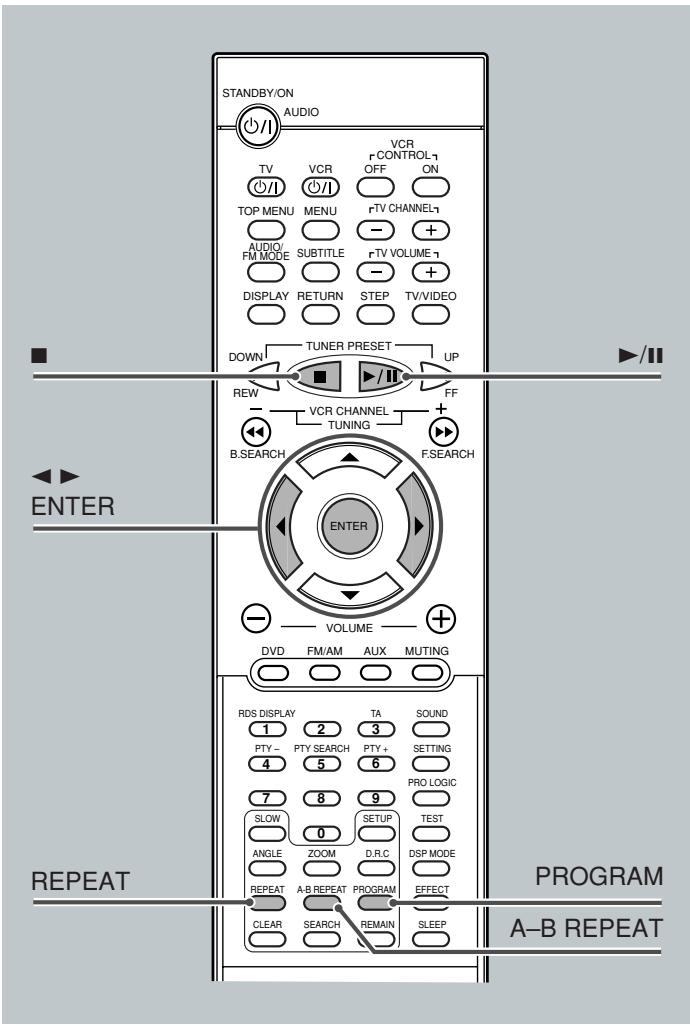
Repeating Playback
Repeat play cannot be used in the following cases: - When you play back a VCD using the PBC function - When you enjoy program play
Repeat Play
From the remote control ONLY:
Press REPEAT repeatedly.
The indication corresponding to the selected mode appears on your TV.
Each time you press the button, repeat mode changes as follows:

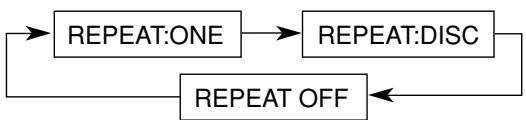
REPEAT:ONE : Current track will be repeated. REPEAT:DISC : All the tracks will be repeated. REPEAT OFF : Repeat play is canceled. (Normal play is resumed.)
Note:
When the on-screen bar is shown on the screen, Repeat mode indication also changes as follows:
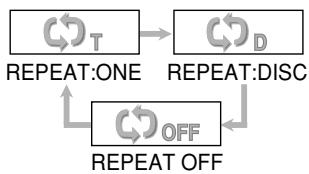
A-B Repeat
While playing, you can also select a portion you want to repeat. - An interval of more than 5 seconds is required between point A and point B.
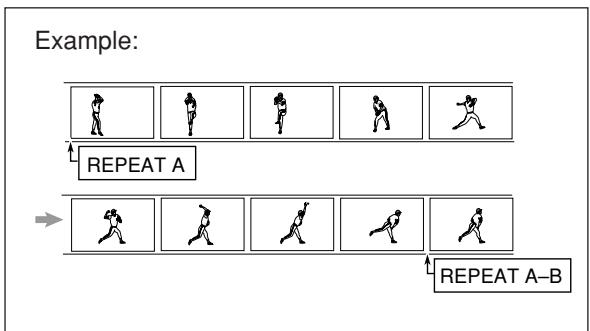
1 Press A-B REPEAT to select the start point.
"REPEAT A" appears on the display.

2 Press A-B REPEAT again to select the end point.

"REPEAT A" changes to "REPEAT A-B," then A-B Repeat begins.
The unit automatically locates point A and starts repeated playback between points A and B.
To cancel A-B Repeat
Press A-B REPEAT again.

"REPEAT A-B" goes off from the display.
Note:
When the on-screen bar is shown on the TV screen, the repeat mode indication also changes as follows:
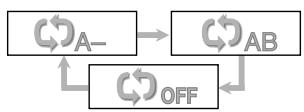
Programming the Playing Order of the Tracks—Program Play
You can arrange the track playback order before you start playing. You can program up to 20 steps. Before making a program, make sure that the TV is turned on and the correct input is selected on the TV.
From the remote control ONLY:
1. Load a disc.
- If the current playing source is not the DVD player, press ▶ / ⏸ to select the disc you want to play, then proceed to the next step.
2. Press PROGRAM.
The PROGRAM MENU screen appears on the TV screen.
- "PROGRAM" appears on the display and the PROGRAM indicator also lights up.

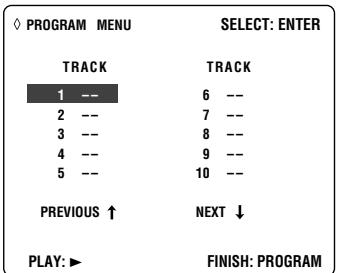
3. Press ENTER.
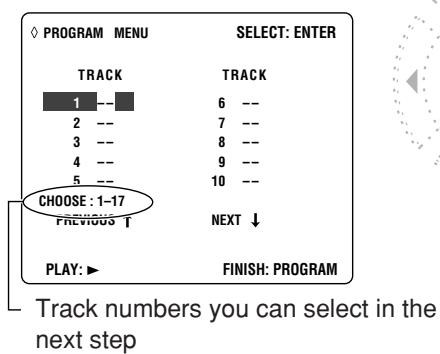
4. Press ▶ or ◀ to select a track number, then press ENTER.
- ▶: Increases the number. ◀: Decreases the number.
- You can also select a track number using the number buttons.
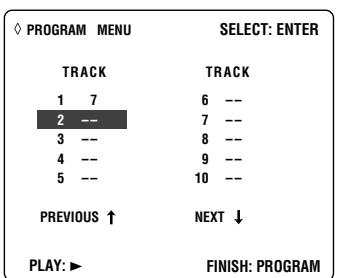
5. Repeat steps 3 and 4 to program other tracks you want.
- After 10 steps are programmed, "NEXT ↓" is selected (highlighted). If you want to program more steps, press ENTER.
6 Press ▸ /II.
The tracks are played in the order you have programmed.
After all the tracks you programmed are played back, the PROGRAM MENU screen appears on the TV screen again.
To stop during play
Press or PROGRAM on the remote control.
The PROGRAM MENU screen appears on the TV screen. - If you press ▸ /II while this screen is shown, the system starts program play.
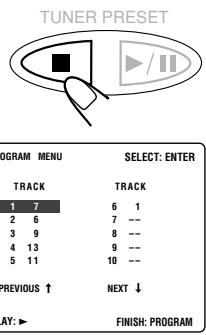
To exit from program play
From the remote control ONLY:
Press PROGRAM.
The PROGRAM MENU screen goes off, and the opening screen appears. (The program you made is still kept in memory.)
- If you press ▸ while this screen is shown, the unit starts normal playback.
JVC DVD/Video CD/CD PLAYER
To erase the stored program
Press △ to eject the disc.
- If you turn off the system or change the source, the program is also erased.

To check the program contents
You can check the program contents by pressing PROGRAM. The PROGRAM MENU screen appears on the TV screen.

- If you press the button during playback, the program play will stop.
TO BE CONTINUED ON THE NEXT PAGE
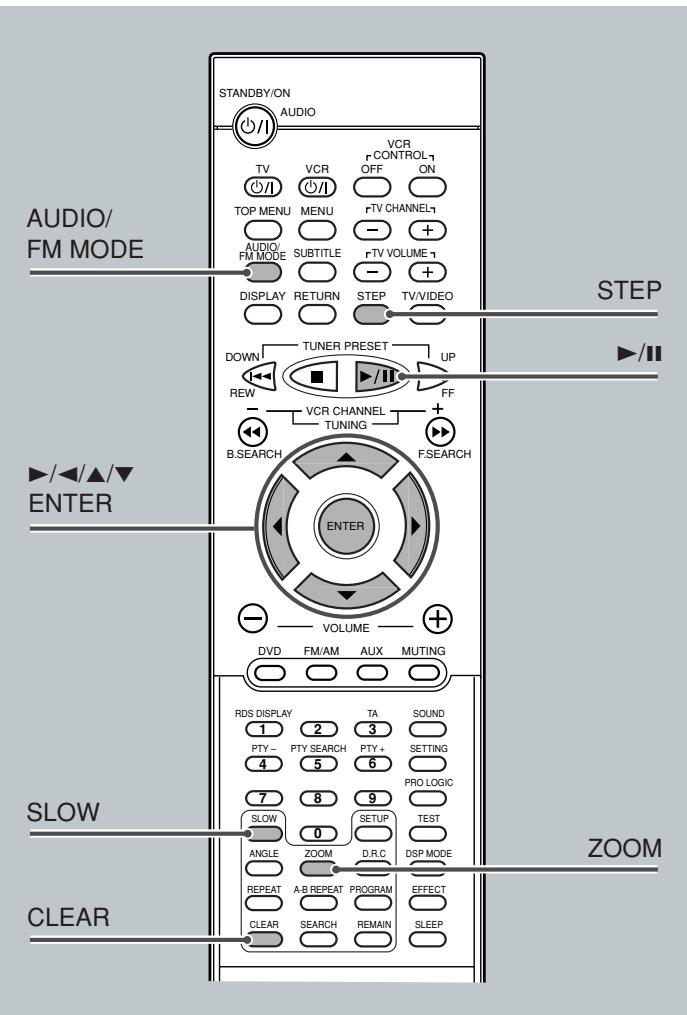
To modify the program
You can modify the program while the PROGRAM MENU screen is shown on the TV screen.
- To erase a step: press ∇ (or △) to select (highlight) an unwanted program step, then press CLEAR.
- To modify a step: press ∇ (or △) to select (highlight) a program step you want to modify, then perform steps 3 and 4. (Before entering a new number, press CLEAR repeatedly until “- -” appears on the number entry position.)
- To add a step: press ∇ (or ◁) to select (highlight) an empty program step, then perform steps 3 and 4.
- To move program step 11 to program step 10, press △ when program step 11 is selected (highlighted) so that "PREVIOUS ↑" is selected (highlighted). Then, press ENTER.
- To move program step 10 to program step 11, press ∇ when program step 10 is selected (highlighted) so that "NEXT ↓" is selected (highlighted). Then, press ENTER.
Selecting Playback Channel
When you play back a karaoke VCD or CD, you can only select either the left channel or right channel to listen to.
Press AUDIO/FM MODE repeatedly.
The on-screen bar appears on the screen for a while. Each time you press the button, the sound mode changes as follows:
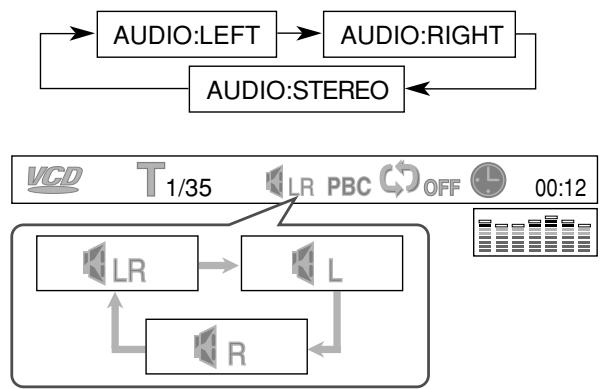
AUDIO:STEREO (LR) : Select this to listen to both channel sounds. AUDIO:LEFT (L) : Select this to listen to the left channel sounds. AUDIO:RIGHT (R) : Select this to listen to the right channel sounds.
REMEMBER that after playing back a karaoke VCD or CD using "AUDIO:LEFT" or "AUDIO:RIGHT," select "AUDIO:STEREO" to restore normal stereo playback.
VCD Special Effect Playback
■ Still Picture/Frame-by-Frame Playback
You can advance the still picture frame by frame while playing a VCD.
From the remote control ONLY:
1 Press STEP once during playback.
A still picture appears on the TV screen.
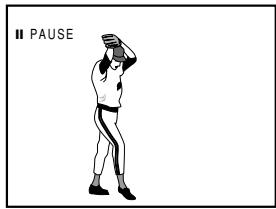
2 Press STEP repeatedly to advance the picture frame by frame.
Each time you press the button, the picture advances frame by frame.


To resume normal play
Press ►/II.
TUNER PRESET
Note:
If you press to show the still picture, you cannot advance it frame by frame by pressing STEP.
Slow Motion Playback
You can enjoy slow motion playback while playing a VCD.
From the remote control ONLY:
Press SLOW repeatedly during playback or pause.
Each time you press the button, slow motion speed changes as follows:


Zoom
You can zoom in on the picture while playing a VCD.
From the remote control ONLY:
1 Press ZOOM to zoom in.
Each time you press the button, the picture is enlarged as follows:

2x Zoom Canceled
2 Press / / / to move the enlarged portion you want to watch.
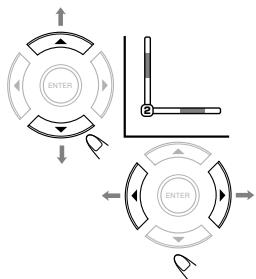
To cancel the ZOOM
Press ZOOM again.
The normal size picture is resumed.

This system is incorporated with an MP3 decoder. You can play back MP3 tracks (files) recorded on CD-Rs, CD-RWs, and CD-ROMs.
- Notice that "files" and "tracks" are used interchangeably.
What is MP3?
MP3 is an abbreviation of Motion Picture Experts Group (or MPEG) Audio Layer 3. MP3 is simply a file format with a data compression ratio of 1:10 (128 Kbps*). That means, by using MP3 format, one CD-R or CD-RW can contain 10 times as much data volume as a regular CD can.
- Bit rate is the average number of bits that one second of audio data will consume. The measuring unit used is Kbps (1000 bits per second).
To get a better audio quality, choose a higher bit rate. The most popular bit rate for encoding (recording) is 128 Kbps.
MP3 File Compatibility
- This system can only read MP3 files that are recorded in the format that is compliant with ISO 9660 Level 1 or Level 2.
- The system can read or play MP3 files only with the extension code—".mp3".
- ID3* tags cannot be shown on the display.
- An MP3 file can contain file information called "ID3 Tag" where its album name, performer, track title, etc. are recorded. There are two versions—ID3v1 (ID3 Tag version 1) and ID3v2 (ID3 Tag version 2).
Disc structure—How are MP3 files recorded and played back?
"MP3 files (tracks)" can be recorded in "directories (or folders)," in PC terminology.
During recording, the files and directories can be arranged in a way similar to arranging files and folders/directories of computer data.
"Root" is similar to the root of a tree. Every file and directory can be linked to the root.
In compliance with ISO 9660, the maximum allowable depth of nested directories—so-called "hierarchy"—is eight (inclusive of the root).
Playback order, files search order, and directory search order of the MP3 files recorded on a disc are determined by the writing (or encoding) application; therefore, playback order may be different from the one you have intended while recording the folders/directories and the files.
Note on MP3 discs
MP3 discs (either CD-R or CD-RW) require a longer readout time.
(It differs due to the complexity of the directory/file configuration.)
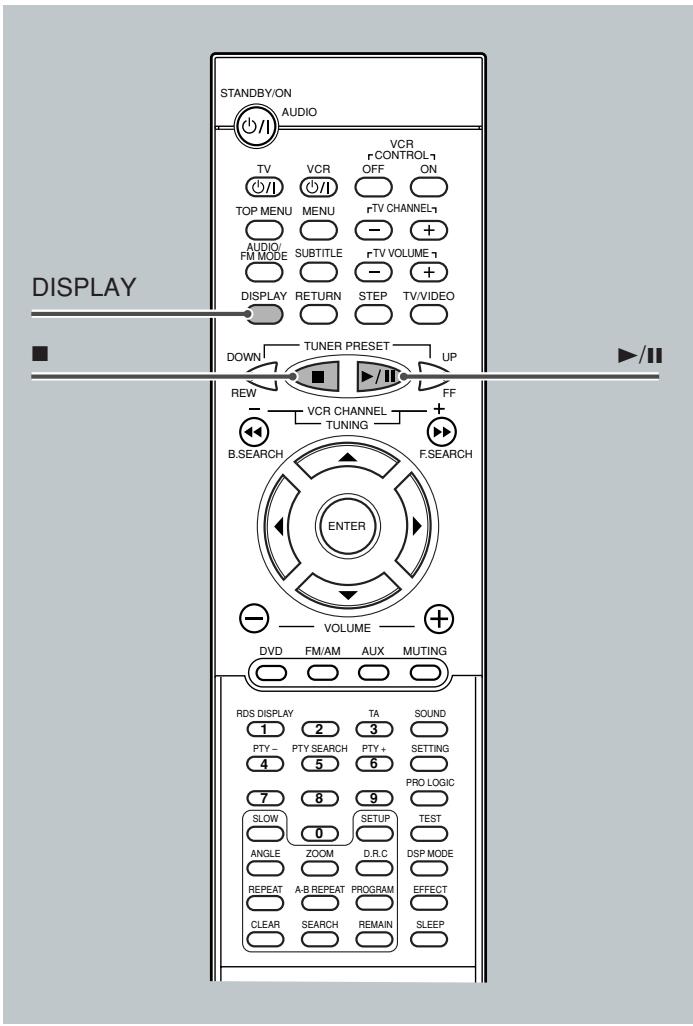
For in-depth information about a disc to be played back, see "Disc Introduction—DVD/VCD/CD" on page 25.
Starting Playback
It is recommended to turn on your TV when playing back an MP3 disc.
1 Press to load a disc.
2 Press /II.
After detecting the disc, playback starts.
- The on-screen bar and the contents recorded on the MP3 disc will be shown on the TV if it is turned on.

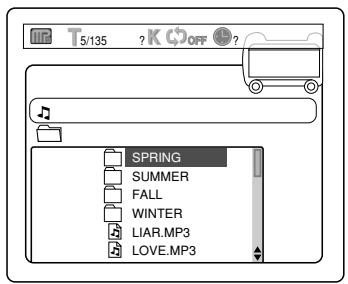

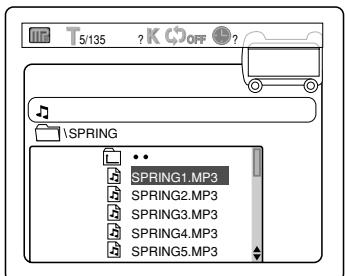
To go off the on-screen bar
From the remote control ONLY:
Press DISPLAY.
Each time you press the button, the on-screen bar appears in sequence.

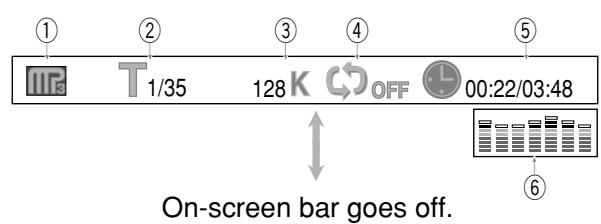
①: Disc type
DVD

VCD

CD

MP3

②: Current track (file) and total number of the tracks on the disc. Ex.: 1st track is playing out of 35 tracks recorded. ③: Bit rate - Ex.: Bit rate used for recording the loaded disc is 128 Kbps. (See the previous page.) ④: Repeat mode indicator - Ex.: When repeat mode is turned off. See page 43 for more details. ⑤: Elapsed playing time and the total playing time of the current track. ⑥: Sound indication - Indicates sound input level. (Only appears during playback.)
To stop during playback
Press ■.
To remove the disc
Press ▲ on the front panel.
The disc tray comes out.
To close the disc tray, press again.

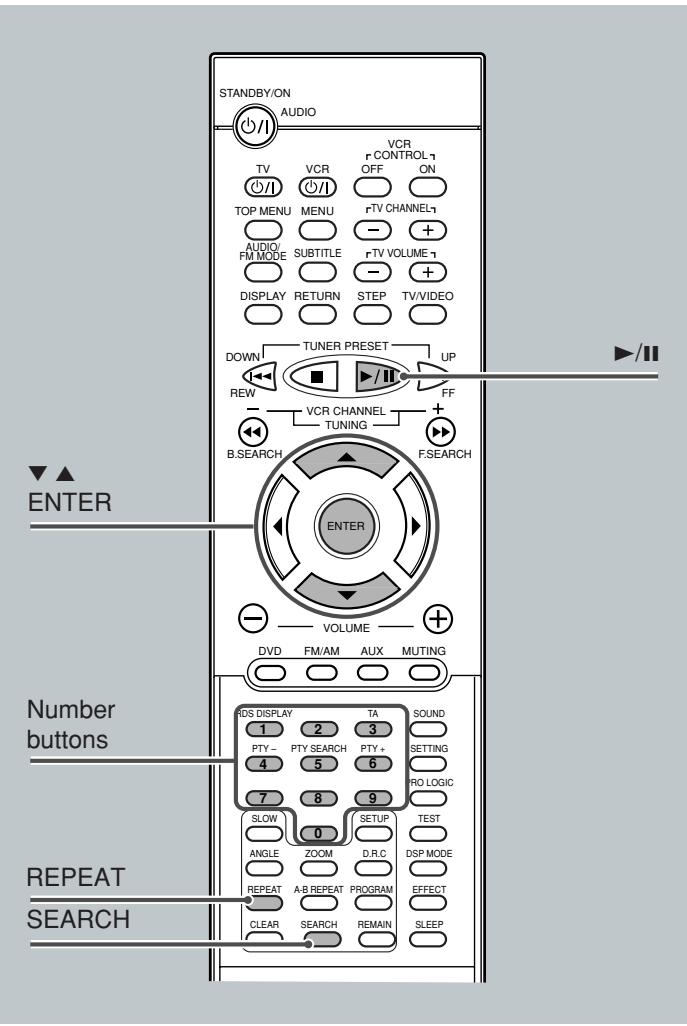
Operations Using the On-Screen Display
It is recommended to turn on your TV when playing back an MP3 disc.
When the loaded MP3 disc is recognized, the following on-screen display appears on the TV screen. (The contents of this on-screen display varies according to the disc—the way MP3 tracks were recorded on the disc.)
- Only the first 8 letters of the titles appear on the TV screen.
From the remote control ONLY:
| Button | To do |
| ENTER,▶/■ | Start playback or go into a directory. |
| ▼/▲ | Select a track or directory. |
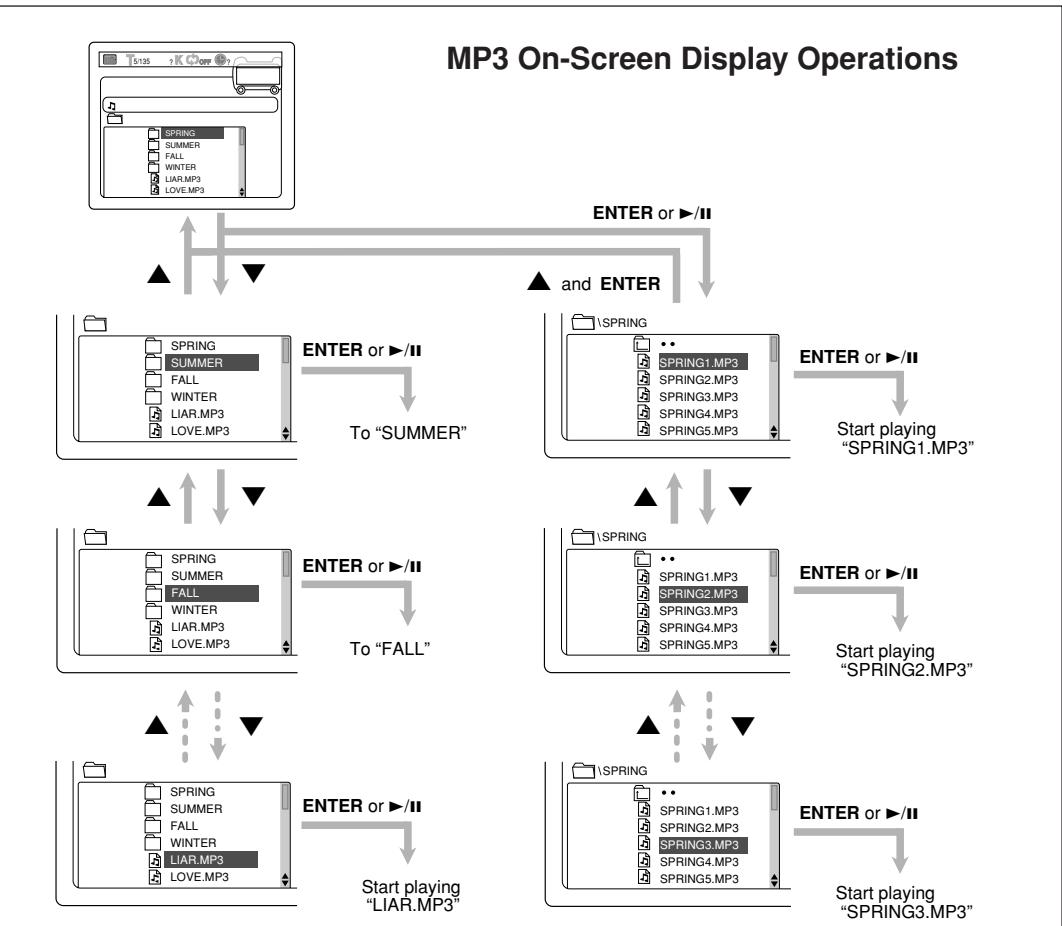
Moving to a Particular Track Directly
You can move to a particular track on the disc directly.
From the remote control ONLY:
1 Press SEARCH during playback or pause. "TRACK - - - - " appears on the TV screen.

2 Press the number buttons to select a track number you want.
RDS DISPLAY TA/NEWS/INFO
The system starts playback from the selected track.
1 2 3
PTY- PTY SEARCH PTY+

- To select number 5, press 5 (then ENTER). To select number 10, press 1, 0 (then ENTER). To select number 23, press 2, 3 (then ENTER). To select number 123, press 1, 2, 3.
Note:
When you want to move to another file (track) directly, you can move to it simply by pressing the number buttons (without pressing SEARCH in step 1).
Repeating Playback
On an MP3 disc, A-B repeat cannot be used. You can enjoy only repeat play.
To repeat playback—Repeat Play
Press REPEAT repeatedly.
The indication corresponding to the selected mode appears on the TV screen.
Each time you press the button, repeat mode changes as follows:


REPEAT:RANDOM
: All tracks recorded on the disc will be played once at random (random play), and random play will be repeated.
REPEAT:ONE
: Current track will be repeated.
REPEAT:DIR
: Tracks in the current directory will be repeated.
REPEAT:DISC
: All tracks on the disc will be repeated.
REPEAT OFF
: Repeat play is canceled. (Normal play is resumed.)
Note:
When the on-screen bar is shown on the TV screen, repeat mode indication also changes as follows:
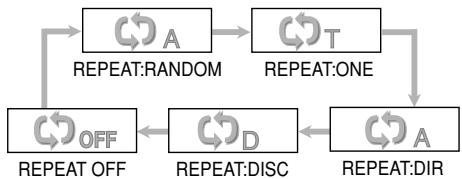
For basic tuner operations, see "Basic Tuner Operations" on page 14.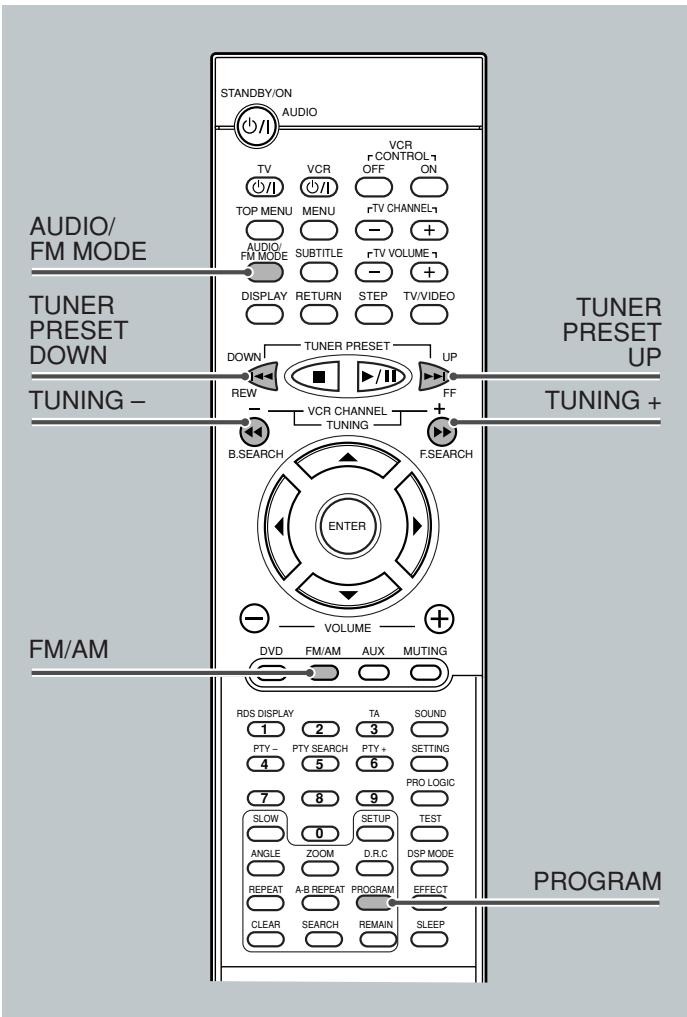
Tuning in Stations
From the remote control:
Press FM/AM repeatedly to select the band.
The last received station of the selected band is tuned in.
Each time you press the button, the band alternates between FM and AM.
2 Press and hold TUNING + or - until you find the frequency you want.
TUNING +: Increases the frequency. TUNING -: Decreases the frequency.
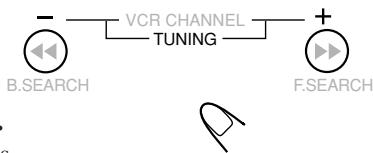
The system starts searching for stations and stops when a station of sufficient signal strength is tuned in.
On the front panel:
Press SOURCE repeatedly until the desired band appears on the display.
The last received station of the selected band is tuned in.
Each time you press the button, the source changes as follows:
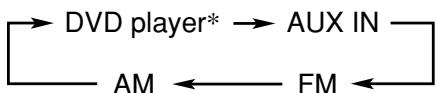
- "WAIT" appears on the display.
2 Press so that "MANUAL" appears on the display.
Each time you press the button, the operation mode of the >> and << buttons alternates between "PRESET" and "MANUAL."
PRESET: Select this for using >> and << as the buttons to select the preset station. MANUAL: Select this for using > and < as the buttons to change the frequency manually.
3 Press and hold > or < until you find the frequency you want.
- >>: Increases the frequency.
- <<: Decreases the frequency.
Notes:
- When a station of sufficient signal strength is tuned in, the TUNED indicator lights up on the display.
- When an FM stereo program is received, the S1 indicator also lights up.
- When you press the button repeatedly, the frequency changes step by step.
Using Preset Tuning
Once a station is assigned to a channel number, the station can be quickly tuned. You can preset up to 20 FM and 10 AM stations.
To store the preset stations
From the remote control ONLY:
1 Tune in the station you want to preset (see "Tuning in Stations").
| TUNED ST | |||||||||||||||||||||||||||||||||||||||||||||||||||||||||||||||||||||||||||||||||||||||||||||||||||||
| L | R | ||||||||||||||||||||||||||||||||||||||||||||||||||||||||||||||||||||||||||||||||||||||||||||||||||||
2 Press PROGRAM.
The preset number appears on the display and the PROGRAM indicator lights up.

Preset number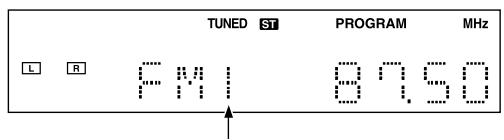
3 Press TUNER PRESET UP or DOWN to select a
preset number.
4 Press PROGRAM to store the preset station.
The PROGRAM indicator goes off, and the station is assigned to the selected preset number.
5 Repeat steps 1 to 4 until you store all the stations you want.
To erase a stored preset station
Storing a new station on a used number erases the previously stored one.
To tune in a preset station
From the remote control:
Press FM/AM repeatedly to select the band.
The last received station of the selected band is tuned in.
Each time you press the button, the band alternates between FM and AM.
2 Press TUNER PRESET UP or DOWN until the
desired preset station appears on the display.
TUNER PRESET UP: Increases the preset number. - TUNER PRESET DOWN: Decreases the preset number.
On the front panel:
Press SOURCE repeatedly until the desired band appears on the display.

2 Press so that "PRESET" appears on the display.

Each time you press the button, the operation mode of the >> and << buttons alternates between "PRESET" and "MANUAL."
PRESET: Select this to use the ▸▸ and ◂◂ buttons to select the preset station.
MANUAL: Select this to use the ▸ and ⊢ buttons to change the frequency manually.
3 Press ▸ or ◂ repeatedly until the desired preset station appears on the display.
- ▸: Increases the preset number. ◂: Decreases the preset number.
Selecting the FM Reception Mode
When a stereo FM program currently tuned is noisy, you can change the FM reception mode to improve the reception.
Press AUDIO/FM MODE.
The ST indicator goes off from the display and the program loses the stereo effect.
To resume the stereo effect, press AUDIO/FM MODE again. The stereo effect resumes.
Note:
The FM reception mode will also resume in the following cases: - When you change the frequency, the preset number, or the band - When you change the source - When you turn off the system
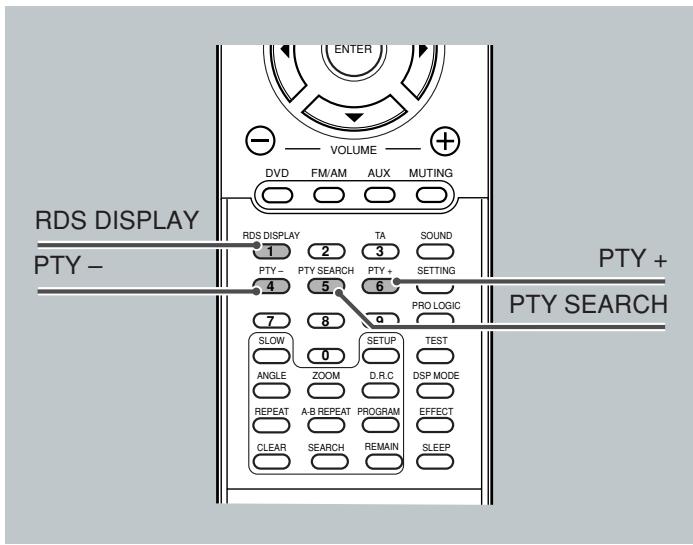
If the remote control is not for the tuner operations, the buttons for the RDS operations—RDS DISPLAY, TA, PTY + and -, and PTY SEARCH—do not work. In this case, press FM/AM on the remote control so that the remote control can be used for the tuner operation.
Using the RDS (Radio Data System) to Receive FM Stations
RDS allows FM stations to send an additional signal along with their regular program signals. For example, the stations send their station names, as well as information about what type of program they broadcast, such as sports or music, etc.
When tuned to an FM station which provides the RDS service, the RDS indicator lights up on the display.
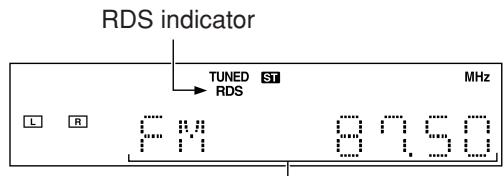
Then, the display shows its PS name.
Notes:
- RDS is not available for AM broadcasts.
- RDS may not operate correctly if the tuned station is not transmitting RDS signals properly or if the signal strength is weak.
What information can RDS signals provide?
You can see the following RDS signals the station sends on the display.
PS NAME (Program Service):
While searching, "PS NAME" appears, then the station names will be displayed. "NO PS" appears if no signal is sent.
RT (Radio Text):
While searching, "RT" appears, then text messages the station sends will be displayed. "NO RT" appears if no signal is sent.
CT (Clock Time):
While searching, "CT" appears, then clock signals the station sends will be displayed. "NO CT" appears if no signal is sent.
Frequency:
Station frequency (non-RDS service)
From the remote control ONLY:
Make sure that the remote control is set to tuner operation. If not, press FM/AM on the remote control so that it can be used for tuner operation.
Press RDS DISPLAY while listening to an FM station to show the RDS signals.
Each time you press the button, the display changes to show the following information:
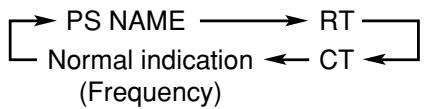
To check the PTY, press PTY SEARCH once so that the current PTY code appears.
- "NO PTY" appears if no signal is sent.
About characters shown on the display
When the display shows PS NAME, RT, or CT signals, the following characters are used.
- The display cannot differentiate upper case and lower case letters and always uses upper case letters.
- The display cannot show accented letters. For instance, "A" may stand for accented "A's" like "Å, Å, Å, Å, Å, Å, ā, ā, ā, Ā, Ā, Ā, Ā."
Note:
If searching finishes at once, "PS NAME," "RT," and "CT" will not appear on the display.
Searching for a Program by PTY Codes
One of the advantages of the RDS service is that you can locate a particular kind of program from the preset channels (see page 45) by specifying the PTY codes.
To search for a program using the PTY codes
Before you start, remember...
- The PTY Search is only applicable to preset stations.
- There is a time limit in doing the following steps. If the setting is canceled before you finish, start from step 1 again.
From the remote control ONLY:
Make sure that the remote control is for the tuner operation. If not, press FM/AM on the remote control so that the remote control can be used for the tuner operation.
Press PTY SEARCH while listening to an FM station.
The currently selected PTY code appears on the display.
2 Press PTY + or PTY - until the PTY code you want appears on the display.
- For details, see "Description of the PTY codes" on page 49.


3 Press PTY SEARCH again, while the PTY code selected in the previous step is still on the display.
The system searches FM preset stations, stops when it finds the one you have selected, and tunes in that station.
To stop during searching
Press PTY SEARCH again.
PTY codes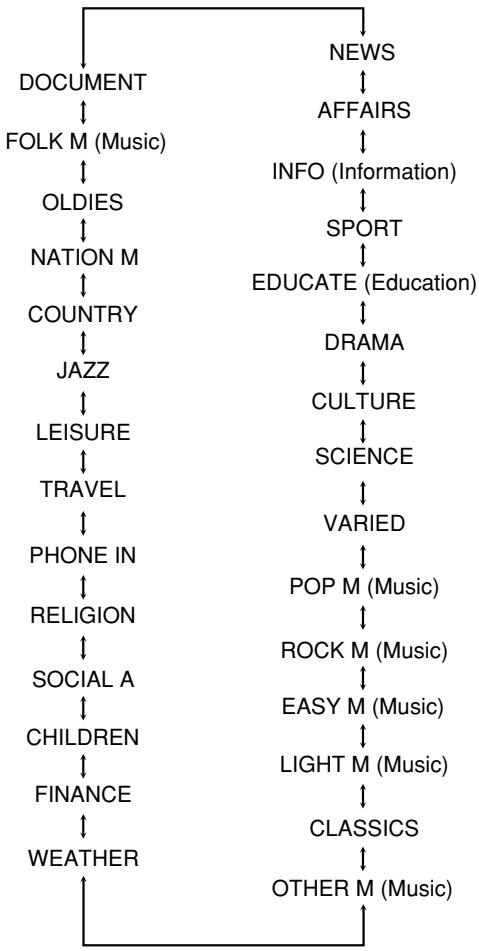
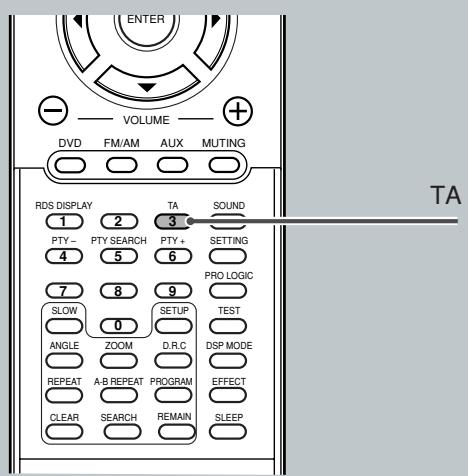
Switching to a Traffic Announcement Temporarily
Another convenient RDS service is called "Enhanced Other Network."
This allows the system to switch temporarily to a traffic announcement (TA) from a different station while listening to an FM RDS station.
Before you start, remember...
- The Enhanced Other Network function is only applicable to preset stations.
From the remote control ONLY:
Make sure that the remote control is for the tuner operation. If not, press FM/AM on the remote control so that the remote control can be used for the tuner operation.
Press TA.
Each time you press the button, "TA ON" and "TA OFF" alternately appear on the display.
When "TA ON" is selected, the Enhanced Other Network function is activated.
How the Enhanced Other Network function actually works:

How the Enhanced Other Network function actually works:
If there is no station broadcasting the traffic announcement
If there is no station broadcasting the traffic announcement
The system continues tuning in the current station.

When a station starts broadcasting the program, the system automatically switches to the station, and the TA indicator lights up or starts flashing.

When the program is over, the TA indicator goes off and the system goes back to the previously tuned station. The Enhanced Other Network function still remains activated.
CASE2
If there is a station broadcasting the traffic announcement
The TA indicator lights up or starts flashing. The system tunes in the program.

When the program is over, the TA indicator goes off and the system goes back to the previously tuned station. The Enhanced Other Network function still remains activated.
Notes:
- Enhanced Other Network data sent from some stations may not be compatible with this system.
- If the stations alternate intermittently between the station tuned by this function and the currently tuned station, press TA to cancel this function.
Description of the PTY codes:
| NEWS: | News. |
| AFFAIRS: | Topical program expanding or enlarging upon the news—debate, or analysis. |
| INFO: | Programs the purpose of which is to impart advice in the widest sense. |
| SPORT: | Programs concerned with any aspect of sports. |
| EDUCATE: | Educational programs. |
| DRAMA: | All radio plays and serials. |
| CULTURE: | Programs concerning any aspect of national or regional culture, including language, theater, etc. |
| SCIENCE: | Programs about natural sciences and technology. |
| VARIED: | Used for mainly speech-based programs such as quizzes, panel games and personality interviews. |
| POP M: | Commercial music of current popular appeal. |
| ROCK M: | Rock music. |
| EASY M: | Current contemporary music considered to be “easy-listening.” |
| LIGHT M: | Instrumental music, and vocal or choral works. |
| CLASSICS: | Performances of major orchestral works, symphonies, chamber music, etc. |
| OTHER M: | Music not fitting into any of the other categories. |
| WEATHER: | Weather reports and forecasts. |
| FINANCE: | Stock Market reports, commerce, trading etc. |
| CHILDREN: | Programs targeted at a young audience. |
| SOCIAL A: | Programs about sociology, history, geography, psychology and society. |
| RELIGION: | Religious programs. |
| PHONE IN: | Involving members of the public expressing their views either by phone or at a public forum. |
| TRAVEL: | Travel information. |
| LEISURE: | Programs about recreational activities. |
| JAZZ: | Jazz music. |
| COUNTRY: | Songs which originate from, or continue the musical tradition of the American Southern States. |
| NATION M: | Current popular music of the nation or region in that country's language. |
| OLDIES: | Music from the so-called “golden age” of popular music. |
| FOLK M: | Music which has its roots in the musical culture of a particular nation. |
| DOCUMENT: | Programs concerning factual matters, presented in an investigative style. |
Classification of the PTY codes for some FM stations may be different from the above list.
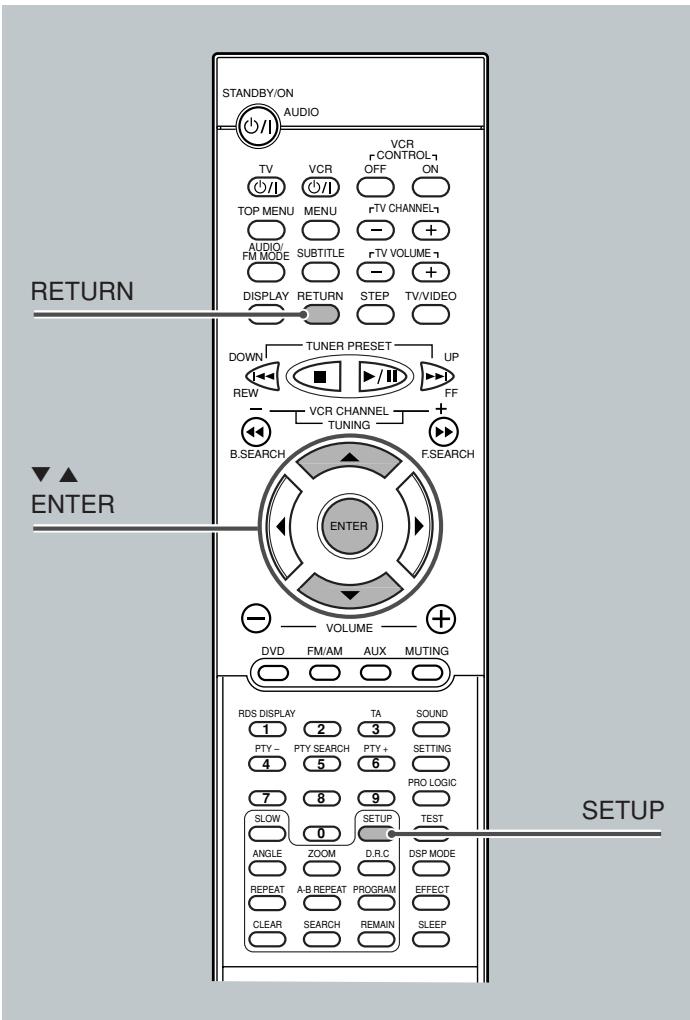
On the Setup menu, you can do the two main important settings—language selection (LANGUAGES) menu and system setting (SYSTEM) menu.
- Setup menu can only be displayed while a disc is not playing. (The DVD player must be selected as the source.)
- You can only use the remote control for Setup menu operations.
Setting the Initial Languages
You can select your favorite language to listen to or read on the TV screen.
When you operate this system or watch a DVD, you will be able to operate the system or enjoy a DVD in the language you have selected and stored.
On the language selection menu, you can select the following:
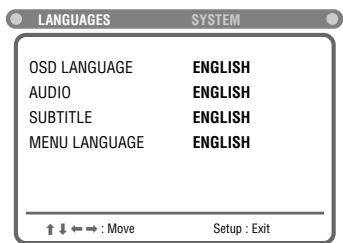
| OSD LANGUAGE : Select the indication language shown on the TV screen while operating the system. (ex. PLAY, STOP, PAUSE, etc.) | |
| AUDIO : Select the language you listen to while watching a DVD. | |
| SUBTITLE : Select the subtitle language you read while watching a DVD. | |
| MENU LANGUAGE : Select the menu language recorded on a DVD which you use while operating the DVD’s own menu. |
Languages you can select on this menu
You can select the following languages separately for each listed item on the menu.
- For "OSD LANGUAGE": English, Chinese, Spanish, French, German, Japanese, and Korean.
- For "AUDIO," "SUBTITLE," and "MENU LANGUAGE": English, Chinese, French, German, Japanese, Russian, Spanish, Portuguese, Korean, and Original*.
- Available only for "AUDIO" and "SUBTITLE."
When you want to operate the disc or enjoy its playback in the originally recorded (default) language, select "ORIGINAL."
Note:
The original language will be selected as the initial language regardless of your setting in the following cases:
- If the language you have selected is not recorded on the disc.
- If the disc is programmed to be played back in the original language.
■ Basic language selecting procedure
Ex.: To select the desired language as the initial language for "AUDIO."
From the remote control ONLY:
1 Press SETUP.
The language selection menu of the Setup menu appears on the TV screen.

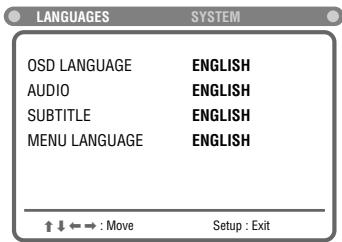
2 Press ∇ (or △) to select (highlight) one of the language items.
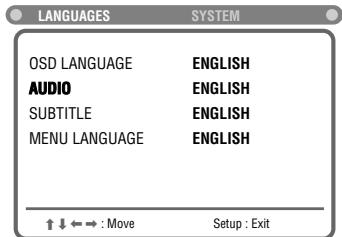
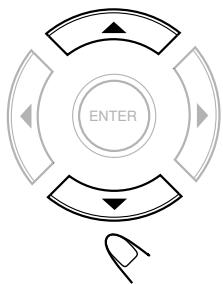
3 Press ENTER.
A pop-up window appears (where the language names are listed).
✓ indicates the current setting.
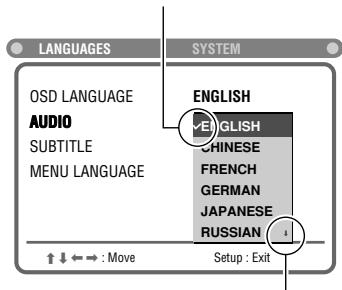
↓ indicates that more languages are listed, but not shown.
4 Press ∇ (or △) to select (highlight) the language you want, then press ENTER.
The setting is stored (and the pop-up window goes off).
- When you want to cancel the setting you have just made, press RETURN without pressing ENTER. (The pop-up menu also goes off.)
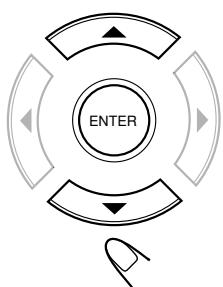
5 Repeat steps 2 to 4 to select the other language items listed.
To erase the Setup menu
Press SETUP.

Introducing the DVD Preference (System)
You can set the DVD preference to match it to your usage and operating circumstances.
On the system setting menu, you can set the following:
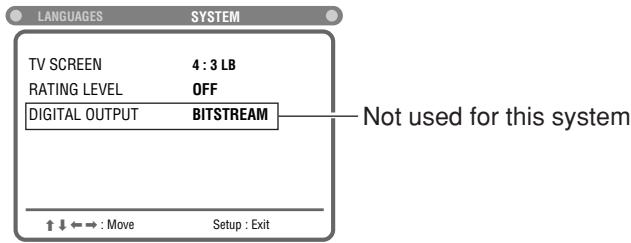
TV SCREEN: Select the TV screen size for playing back a DVD recorded with 16:9 wide screen video signal.
- 4:3 LB : Select "4:3 LB (Letter Box)" when the aspect ratio of your TV is 4:3. While viewing a wide screen picture, the black bars
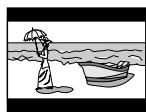
appear on the top and the bottom of the screen.
- 4:3 PS : Select "4:3 PS (Pan-Scan)" when the aspect ratio of your TV is 4:3. While viewing a wide screen picture, the black bars do not appear, however, the left and right the pictures will not be shown on
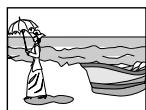
16:9 : Select "16:9" when the aspect ratio of the TV is 16:9. (Set the screen size to full on your TV.)
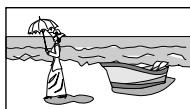
RATING LEVEL: You can select this to restrict playback of DVDs containing violent scenes and those not suitable for your family members. (See page 53 for detailed operations.)
DIGITAL OUTPUT: Not used for this system.
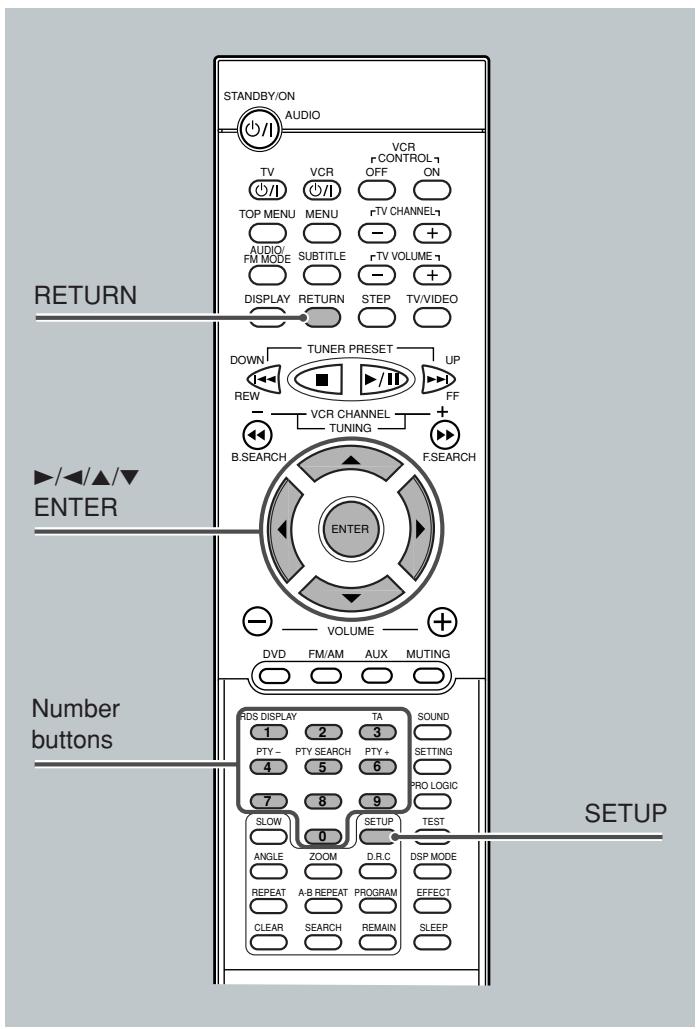
Setting the TV screen size
From the remote control ONLY:
1 Press SETUP.
Language selection menu of the setup menu appears on the TV screen.

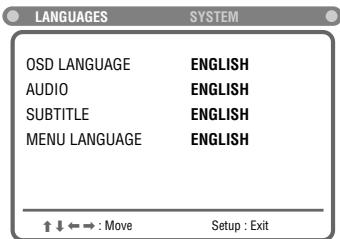
2 Press ENTER (or ▸ / ◁) to select (highlight) the system setting menu.
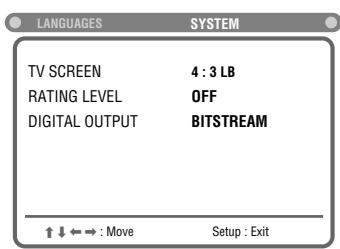
3 Press ▽ (or △) to select (highlight) one of the system setting items listed on the menu.
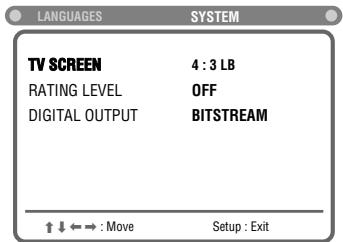
4 Press ENTER.
A pop-up window appears (where the selectable settings are listed).
A checkmark indicates the current setting.
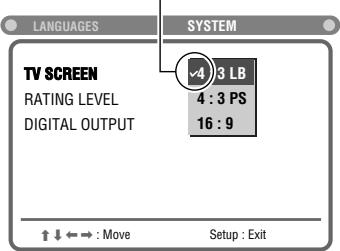
5 Press the down arrow (or up arrow) to select (highlight) the proper setting, then press ENTER.
The setting is stored (and the pop-up window goes off).
- When you want to cancel the setting you have just made, press RETURN without pressing ENTER. (The pop-up menu also goes off.)
- Even if "4:3 PS" is selected, the screen size may become "4:3 LB" while playing some DVDs. This depends on how the DVD is programmed and recorded.
- If a disc (or some portions of the disc) is recorded with video signals of 4:3 aspect ratio, this setting does not take effect. The pictures are displayed with full 4:3 aspect ratio or with 4:3 Letter Box.
To erase the Setup menu
Press SETUP.

Setting the Parental (Rating) Level
Using this function, you can restrict playback of DVDs containing violent scenes and those not suitable for your family members. Nobody can play such a disc unless this function is canceled.
("WRONG PARENTAL CODE" appears on the display if you try to play back such a disc.)
- This setting takes effect only for DVDs containing the rating level information—Level 1 (most restrictive) to Level 8 (least restrictive).
From the remote control ONLY:
1 Press SETUP.
The language selection menu of the setup menu appears on the TV screen.

2 Press ENTER (or ▶ / ◀) to select (highlight) the system setting menu.
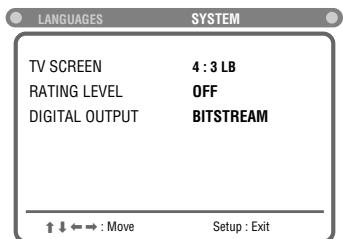
3 Press ▼ (or ▲) to select (highlight) "RATING LEVEL."
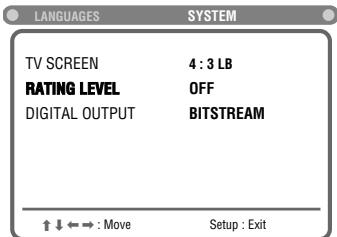
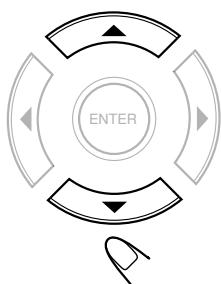
4 Press ENTER.
"RATING LEVEL" now changes to "ENTER PASSWORD" on the menu.
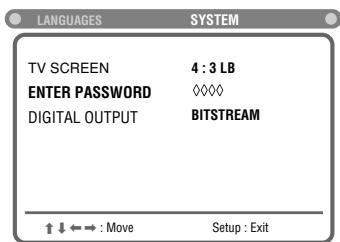
5 Press the number buttons to enter the password (4 digits).
- When shipped from the factory, the password is "7890."
- If you enter a wrong password, your setting will be canceled.
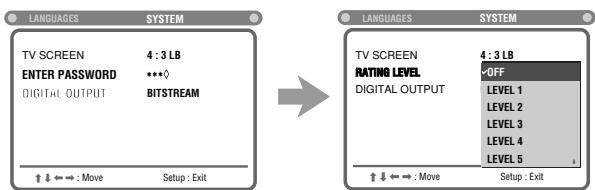
6 Press ▼ (or ▲) to select (highlight) the level you want, then press ENTER.
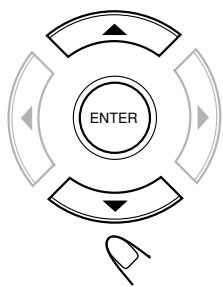

To erase the Setup menu
Press SETUP again.
To change the password
1 Repeat steps 1 to 5 of "Setting the Parental (Rating) Level" procedure. 2 Press ▼ (or ▲) to select (highlight) "NEW PASSWORD," then press ENTER.
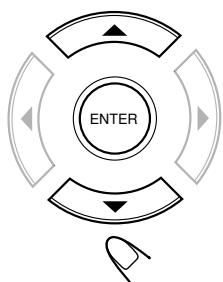
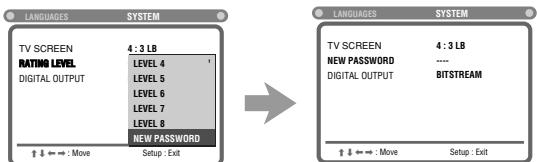
- If "NEW PASSWORD" is the last item listed on the pop-up window and is not shown, pressing ▼ repeatedly will show it in the pop-up window.
3 Press the number buttons to enter a new password, then press ENTER.
Your new password is now stored.
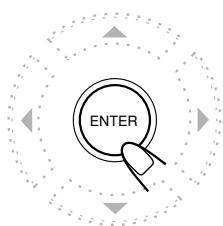
To erase the Setup menu
Press SETUP again.

To reset the password
You can reset the password to the initial setting "7890." Remember that all other preset settings, such as speaker settings, preset stations, timer settings, and DVD setup menu settings, are also reset to the factory settings.
While the source is DVD player and playback is stopped, press and hold on the front panel until "INITIAL" appears on the display.
You can use the remote control to operate not only this unit but also other JVC products.
Refer also to the manuals supplied for the other products. - This remote control can operate a VCR whose remote control code is set to A code. - To operate the other products, aim the remote control directly at the remote sensor on the target product.
To operate a JVC TV
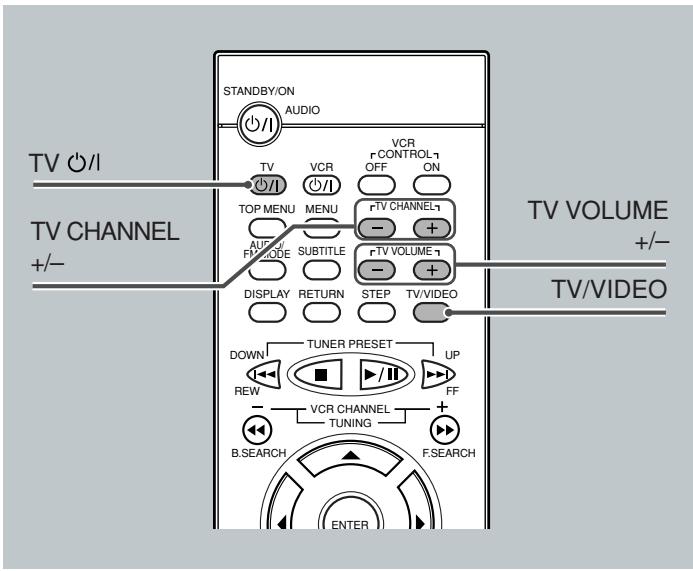
You can perform the following operations on the TV.
| TV ∅/I : Turn on or off the TV. |
| TV VOLUME +/- : Adjust the volume. |
| TV/VIDEO : Set the input mode (either TV orVIDEO). |
| TV CHANNEL +/- : Change the channels. |
To operate a JVC VCR
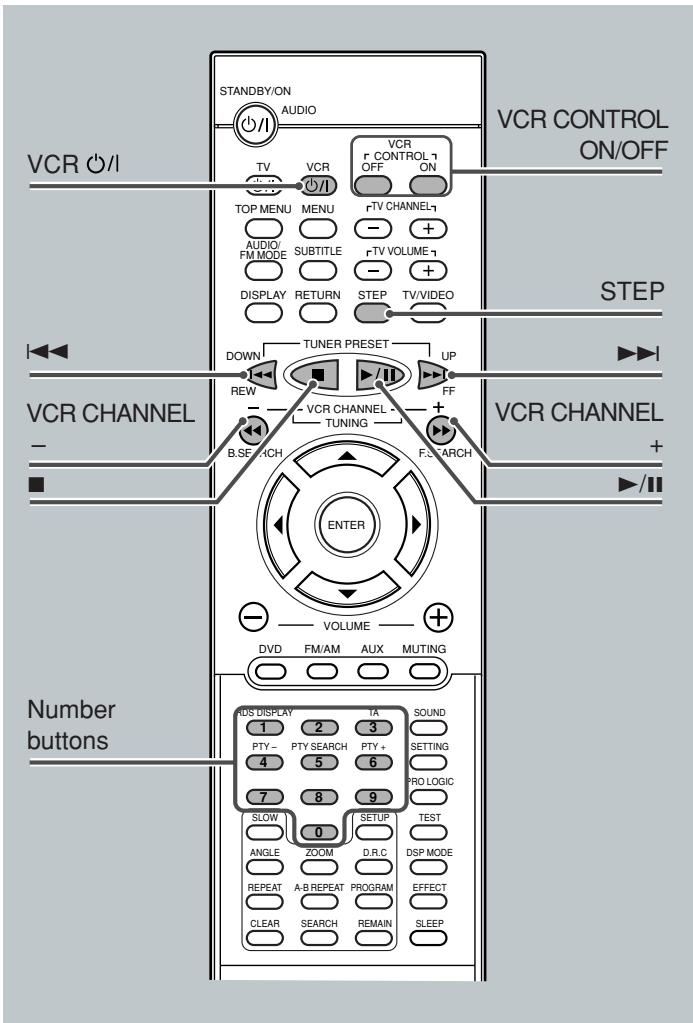
After pressing VCR CONTROL ON on the remote control, you can perform the following operations on the VCR.
| VCR Ⓞ/I | : Turn on or off the VCR. |
| VCR CHANNEL +/-: Change the channels. | |
| 1 - 9, 0 | : Select TV channel on the VCR. |
| ▷/■ | : Start playback. |
| ■ | : Stop playback. |
| STEP | : Pause playback. To release it, press ▷/■. |
| FF (▷●) | : Fast-wind a tape. |
| REW (◁◁) | : Rewind a tape. |
After operating the VCR, press VCR CONTROL OFF.
IMPORTANT:
When you press VCR CONTROL ON, some buttons on the remote control cannot work for operating the system.
To operate the system, press VCR CONTROL OFF.
You can use the remote control to operate other manufacturers' TVs.
- Refer also to the manuals supplied for the other products.
- To operate the other products, aim the remote control directly at the remote sensor on the target product.
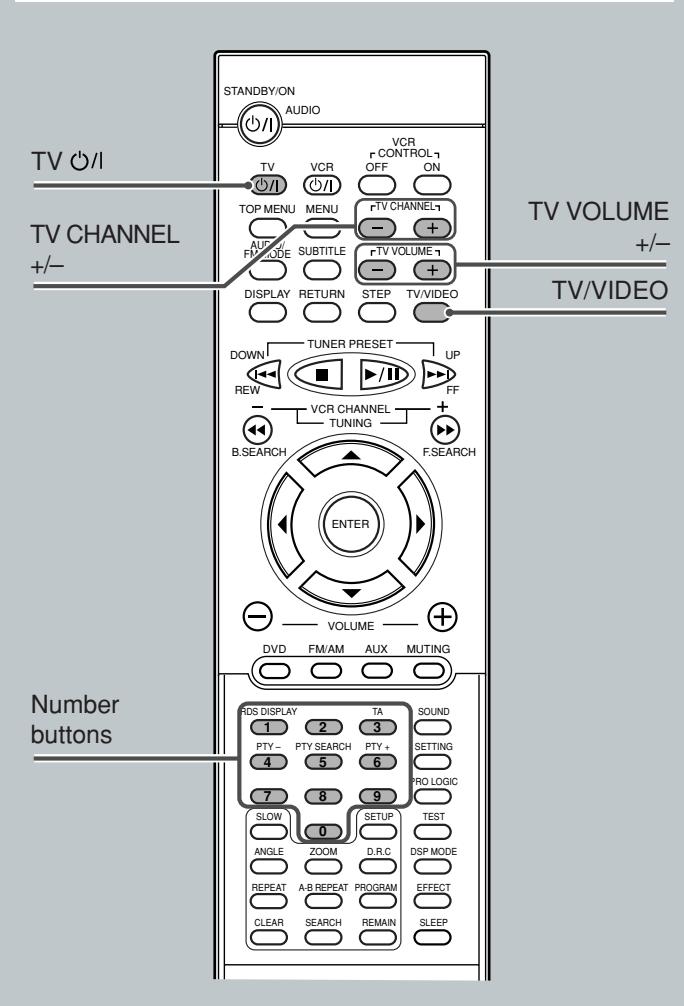
To change the transmittable signals for operating a TV
- Press and hold TV /
- Enter manufacturer's code using buttons 1-9, and 0.
- Release TV / 1
Now, you can perform the following operations on the TV.
| TV ∅/I : Turn on or off the TV. |
| TV VOLUME +/- : Adjust the volume. |
| TV/VIDEO : Set the input mode (either TV orVIDEO) |
| TV CHANNEL +/- : Change the channels. |
4. Try to operate your TV by pressing TV 念 / 山
When your TV turns on or off, you have entered the correct code.
If there are more than one code listed for your brand of TV, try each one until the correct one is entered.
Manufacturers' codes for TV
| Manufacturer | Codes |
| JVC | 01 |
| Akai | 12 |
| Fisher | 12 |
| Grundig | 09, 17, 21 |
| Hitachi | 11, 13, 14, 24 |
| Mitsubishi | 02, 16 |
| Nokia | 23 |
| Nordmende | 13, 14, 24 |
| Panasonic | 08, 23 – 27 |
| Philips | 02, 20, 22 |
| Saba | 13, 14, 22 – 24 |
| Samsung | 03 – 06, 32 |
| Sanyo | 12, 16 |
| Schneider | 12 |
| Sharp | 10, 31 |
| Sony | 15, 16 |
| Telefunken | 14, 24, 28 |
| Thomson | 13, 14, 24, 33, 34 |
| Toshiba | 07, 16 – 19, 21 |
Manufacturers' codes are subject to change without notice. If they are changed, this remote control cannot operate the equipment.
To get the best performance of the unit, keep your discs and mechanism clean.
General Notes
In general, you will have the best performance by keeping your discs and the mechanism clean.
- Store discs in their cases, and keep them in cabinets or on shelves.
- Keep the disc tray closed when not in use.
Handling Discs
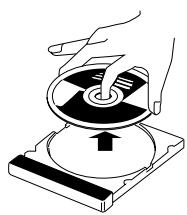
- Remove the disc from its case by holding it at the edge while pressing the center hole lightly.
- Do not touch the shiny surface of the disc, or bend the disc.
- Put the disc back in its case after use to prevent warping.
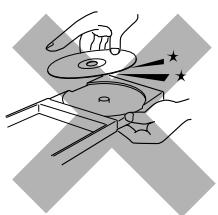
- Be careful not to scratch the surface of the disc when placing it back in its case.
- Avoid exposure to direct sunlight, temperature extremes, and moisture.
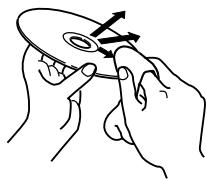
To clean the disc
Wipe the disc with a soft cloth in a straight line from center to edge.
DO NOT use any solvent—such as conventional record cleaner, spray, thinner, or benzine—to clean the disc.
Cleaning the unit
Stains on the unit
Should be wiped off with a soft cloth. If the unit is heavily stained, wipe it with a cloth soaked in water-diluted neutral detergent and wrung well, then wipe clean with a dry cloth. - Since the unit may deteriorate in quality, become damaged or get its paint peeled off, be careful about the following.
DO NOT wipe it with a hard cloth. —DO NOT wipe it strong. DO NOT wipe it with thinner or benzine. —DO NOT apply any volatile substance such as insecticides to it. - DO NOT allow any rubber or plastic to remain in contact with it for a long time.
Use this chart to help you solve daily operational problems. If there is any problem you cannot solve, contact your JVC service center.
| PROBLEM | POSSIBLE CAUSE | SOLUTION |
| Power does not come on. | The power cord. | Insert the plug into the socket. |
| The remote control does not work. | ·It is too far from the center unit, or is not facing the center unit. ·There is something obstructing the remote sensor. ·The VCR CONTROL ON button has been pressed. ·The battery is flat. ·The battery has been inserted the wrong way round (+/-). ·Sunlight is falling directly on the detector. | ·Come close to the center unit. ·Avoid any obstacles. ·Press VCR CONTROL OFF to operate the system. (See page 54.) ·Replace the battery. ·Insert the battery correctly. ·Shade the remote control from direct sunlight. |
| No sound. | ·There is a short in the speaker cord. ·The audio cord is not connected properly. ·An incorrect source has been selected. ·Muting is on. | ·Reconnect the speaker cord. ·Connect the cord properly. (See page 8.) ·Select the correct source. (See pages 10 to 15.) ·Press MUTING to cancel muting. |
| Sound is emitted from only one speaker. | ·The speaker cord is not connected correctly. ·Left-right balance is incorrect. | ·Connect the cord properly. (See page 7.) ·Adjust balance. (See pages 20 to 23.) |
| No video. | ·The video cord is not connected properly. ·TV input selection is incorrect. | ·Connect the cord properly. (See page 9.) ·Select the correct input. |
| A disc cannot be played. | ·The system and disc region code numbers are incompatible. ·The disc causes the parental (rating) error. | ·Replace the disc. (See page 25.) ·Enter password to change the parental (rating) level. (See page 53.) |
| Video and audio are distorted. | ·The disc is dirty. ·A VCR is connected between the center unit and the TV. ·The zoom function is activated when DVD playback stops. | ·Clean the disc. ·Connect the center unit and TV directly. ·Press ZOOM to deactivate the zoom function when DVD playback stops. |
| The edge is missing on the video image. | ·Initial setup (TV screen size) was incorrect. | ·Set TV screen size correctly. (See pages 51 and 52.) |
| Continuous static during FM broadcasts. | ·The received signal is too weak. ·The station is too far away. ·The antenna is not connected correctly. | ·Connect an external FM antenna (see page 5), or contact your dealer. ·Select another station. ·Check the connection. (See page 5.) |
| The system does not work correctly. | ·Lightning or electronic noise interferes with operation of the microcomputer. ·Immediately after beginning to heat the room, the unit was moved to a cold location causing condensation to form inside. | ·Switch power off, and remove and re-insert the power plug in the socket. ·Switch power off and leave the unit a few hours before switching power on again. |
| The VCR cannot be operated using this remote control. | ·The remote control is not set for VCR operations. ·The VCR is not a JVC's product. | ·Press VCR CONTROL ON to operate the VCR. (See page 54.) ·This remote control can operate a JVC's VCR whose remote control code is set to A code. |
Center unit (XV-THA5)
Amplifier section
Front/Center/Rear:
35 watts per channel, min. RMS at 6 ohms as 1kHz with no more than 10% total harmonic distortion.
Subwoofer:
60 watts per channel, min. RMS at 3 ohms as 100Hz with no more than 10% total harmonic distortion.
Audio section
Audio input sensitivity/Impedance (at 1kHz )
Analog input:
AUX ("AUX IN"): 500mV / 47kΩ
Video section
Color System: PAL
Horizontal Resolution: 480 lines
Signal-to-Noise Ratio: 68 dB
Output Level Composite: 1.0V(p - p) / 75Ω
S-video-Y: 1.0V(p - p) / 75Ω
S-video-C: 0.286V(p - p) / 75Ω
Tuner section
Tuning Range FM : 87.5 MHz - 108.0 MHz
AM : 522 kHz - 1629 kHz
Usable Sensitivity FM: 8.0 dBf (0.9 µ V/75 Ω )
AM loop antenna: 650 µV / m
General
Power Requirements: AC 230V 50Hz
Power Consumption: 120 W (at operation)
2 W (in standby mode)
Dimensions (W x H x D): 350 mm x 80 mm x 300 mm
Mass: 6.3 kg
Subwoofer (SP-WA5)
Speaker: 20 cm
Bass-reflex, Magnetically Shielded
Power Handling Capacity: 60 W
Impedance: 3 Ω
Frequency Range: 25 Hz to 200 Hz
Dimensions (W x H x D): 219 mm x 324 mm x 320 mm
Mass: 6.2 kg
Satellite Speakers (SP-XSA5)
Speakers: 7 cm x 4 cm
Bass-reflex, Magnetically Shielded
Power Handling Capacity: 35 W
Impedance: 6 Ω
Frequency Range: 90 Hz to 20 kHz
Dimensions (W x H x D): 65 mm x 144 mm x 105 mm
Mass: 420 g
Center Speaker (SP-XCA5)
Speakers: 7 cm x 4 cm
Bass-reflex, Magnetically Shielded
Power Handling Capacity: 35 W
Impedance: 6 Ω
Frequency Range: 90 Hz to 20 kHz
Dimensions (W x H x D): 143 mm x 67 mm x 106 mm
Mass: 420 g
Designs & specifications are subject to change without notice.

VICTOR COMPANY OF JAPAN, LIMITED


- DVD DIGITAL CINEMA SYSTEM
- TH-A5R
- CONSISTS OF XV-THA5R AND SP-THA5R
- FOR CUSTOMER USE
- IMPORTANT FOR THE U.K
- IMPORTANT
- CAUTION
- CAUTION—STANDBY/ON /1 SWITCH
- IMPORTANT FOR LASER PRODUCTS
- REPRODUCTION OF LABELS
- CAUTION: PROPER VENTILATION
- SAFETY INSTRUCTIONS "SOME DOS AND DON'TS ON THE SAFE USE OF EQUIPMENT
- ABOVE ALL
- PARTS IDENTIFICATION
- GETTING STARTED
- BASIC DVD OPERATIONS
- BASIC VCD/CD OPERATIONS
- BASIC TUNER OPERATIONS
- OTHER BASIC OPERATIONS
- SPEAKER SETTINGS
- CREATING REALISTIC SOUND FIELDS
- DISC INTRODUCTION—DVD/VCD/CD
- BASIC DISC OPERATIONS
- DVD PLAYBACK
- VCD/CD PLAYBACK
- MP3 INTRODUCTION
- MP3 PLAYBACK
- TUNER OPERATIONS
- SETTING UP THE DVD PREFERENCES
- OPERATING JVC'S COMPONENTS
- OPERATING OTHER MANUFACTURERS' TV
- MAINTENANCE
- TROUBLESHOOTING
- SPECIFICATIONS
- CENTER UNIT
- FRONT PANEL
- DISPLAY
- REMOTE CONTROL
- INSIDE OF THE COVER
- BEFORE INSTALLATION
- GENERAL PRECAUTIONS
- LOCATIONS
- HANDLING THE CENTER UNIT
- CHECKING THE SUPPLIED ACCESSORIES
- PUTTING BATTERIES IN THE REMOTE CONTROL
- ON THE BACK OF THE REMOTE CONTROL, REMOVE THE BATTERY COVER
- INSERT BATTERIES. MAKE SURE TO MATCH THE POLARITY: (+) TO (+) AND (-) TO (-)
- REPLACE THE COVER
- CONNECTING THE FM AND AM ANTENNAS
- FM ANTENNA CONNECTION
- AM ANTENNA CONNECTION
- NOTE
- CONNECTING THE SPEAKERS
- CONNECTING SPEAKER CORDS TO THE TERMINALS
- WHEN SETTING THE SPEAKERS
- CONNECTING AUDIO/VIDEO COMPONENT
- AUDIO COMPONENT CONNECTION
- TV CONNECTION
- FOR USING THE COMPOSITE VIDEO CORD OR S-VIDEO CORD
- FOR USING THE SCART CABLE (C)
- TURN ON THE POWER
- LOAD A DVD
- START PLAYBACK
- ADJUST THE VOLUME
- NOTES
- TO TURN OFF THE SOUNDS TEMPORARILY
- FROM THE REMOTE CONTROL ONLY
- ACTIVATE REALISTIC SOUND FIELD
- DIGITAL MULTICHANNEL SURROUND—DOLBY DIGITAL AND DTS DIGITAL SURROUND
- TO ACTIVATE DOLBY DIGITAL OR DTS DIGITAL SURROUND
- DSP MODES—HALL, THEATER, PAVILION, DANCE CLUB, LIVE CLUB
- TO ACTIVATE DSP MODES
- STOPPLAYBACK
- PRESS TWICE
- TO REMOVE THE LOADED DISC
- PRESS △
- TO TURN OFF THE POWER (INTO STANDBY)
- LOAD A VCD/CD
- STOP PLAYBACK
- SELECT THE BAND
- FROM THE REMOTE CONTROL
- ON THE FRONT PANEL
- TUNE INTO A STATION
- ENJOYING SOUNDS FROM THE EXTERNAL EQUIPMENT
- START PLAYBACK ON THE EXTERNAL EQUIPMENT
- PRESS PRO LOGIC TO ACTIVATE DOLBY SURROUND
- TURNING OFF THE POWER WITH THE TIMER
- PRESS SLEEP
- TO CHECK OR CHANGE THE TIME REMAINING UNTIL THE SHUT-OFF TIME
- PRESS SLEEP ONCE
- TO CANCEL THE SLEEP TIMER
- SETTING THE SPEAKER INFORMATION
- BEFORE YOU START, REMEMBER
- PRESS ▶ (OR ◀) REPEATEDLY TO SELECT THE APPROPRIATE SPEAKER INFORMATION
- SETTING THE DELAY TIME
- ACTIVATE SURROUND MODES—DOLBY DIGITAL OR DTS DIGITAL SURROUND—OR DOLBY PRO LOGIC
- FOR DOLBY PRO LOGIC
- PRESS SETTING REPEATEDLY UNTIL ONE OF DELAY TIME INDICATIONS (WITH THE CURRENT SETTING*) APPEARS ON THE DISPLAY
- PRESS ▸ OR ◂ TO ADJUST DELAY TIME
- REPEAT STEPS 2 AND 3 TO ADJUST THE OTHER DELAY TIME
- DOLBY DIGITAL AND DTS DIGITAL SURROUND
- DOLBY DIGITAL
- DTS DIGITAL SURROUND
- DOLBY SURROUND
- DOLBY PRO LOGIC AND DOLBY 3 STEREO
- INDICATIONS ON THE DISPLAY FOR EACH SURROUND
- DSP (DIGITAL SIGNAL PROCESSOR) MODES
- TO CHECK THE SPEAKER CONNECTIONS AND SETTINGS USING THE TEST TONE
- ADJUSTING STEREO SOUND
- ADJUSTING DOLBY DIGITAL AND
- SELECT AND PLAY A DVD ENCODED WITH DOLBY DIGITAL OR DTS DIGITAL SURROUND
- NOW, YOU ARE READY TO START ADJUSTMENTS
- TO ADJUST THE OUTPUT BALANCE FOR THE FRONT SPEAKERS AND THE REAR SPEAKERS
- PRESS SOUND REPEATEDLY UNTIL ONE OF THE FOLLOWING ADJUSTMENT INDICATIONS APPEARS ON THE DISPLAY
- PRESS ▸ OR ◂ TO ADJUST THE OUTPUT BALANCE
- REPEAT 1) AND 2) FOR SETTING THE OTHER SPEAKER
- TO ADJUST THE OUTPUT LEVELS FOR THE CENTER SPEAKER, THE REAR SPEAKERS, AND THE SUBWOOFER
- PRESS SOUND REPEATEDLY TO SELECT THE "CEN," "REAR," OR "SW
- PRESS ▸ OR ◂ TO ADJUST THE OUTPUT LEVEL
- REPEAT 1) AND 2) FOR SETTING THE OTHER SPEAKERS
- ACTIVATING DYNAMIC RANGE COMPRESSION
- PRESS D.R.C
- ADJUSTING DOLBY SURROUND
- PRESS PRO LOGIC REPEATEDLY ON THE REMOTE CONTROL TO SELECT DOLBY PRO LOGIC OR DOLBY 3 STEREO
- TO ADJUST THE OUTPUT LEVEL FOR THE CENTER SPEAKER, THE REAR SPEAKERS, AND THE SUBWOOFER
- ADJUSTING DSP MODES
- SELECT AND PLAY ANY SOURCE EXCEPT DOLBY DIGITAL OR DTS DIGITAL SURROUND
- PRESS DSP MODE (OR DSP ON THE FRONT PANEL) REPEATEDLY TO SELECT THE DESIRED DSP MODE
- NOW, YOU ARE READY TO START THE ADJUSTMENT
- TO ADJUST THE OUTPUT LEVEL FOR THE REAR SPEAKERS
- PRESS SOUND REPEATEDLY UNTIL "REAR" APPEARS ON THE DISPLAY
- TO ADJUST THE OVERALL LEVEL OF DSP EFFECT PRESS EFFECT REPEATEDLY TO ADJUST THE OVERALL LEVEL
- ADJUSTING DSP SOUND PARAMETERS
- PRESS SOUND REPEATEDLY TO SELECT THE DESIRED DSP SOUND PARAMETER
- REPEAT 2 AND 3 FOR SETTING THE OTHER DSP SOUND PARAMETERS
- NOTE ON REGION CODE
- EXAMPLES
- NOTES ON CD-R AND CD-RW
- TO START PLAYBACK
- PRESS ▸ / II
- TO STOP PLAYBACK FOR A MOMENT
- PRESS ▶ / II
- TO GO TO ANOTHER CHAPTER OR TRACK (EXCEPT MP3)
- TO GO TO ANOTHER TITLE (ONLY POSSIBLE ON A DVD) OR TRACK (ONLY POSSIBLE ON A CD AND VCD) DIRECTLY USING THE NUMBER BUTTONS
- TO STOP DURING PLAYBACK
- PRESS
- TO REMOVE THE DISC
- PRESS ▲ ON THE FRONT PANEL
- SHOWING THE ON-SCREEN BAR
- PRESS DISPLAY
- SELECTING THE SUBTITLES
- PRESS SUBTITLE
- SELECTING THE AUDIO LANGUAGES
- PRESS AUDIO/FM MODE
- SELECTING THE MULTI-ANGLE VIEWS
- PRESS ANGLE
- CHECKING THE REMAINING TIME
- PRESS REMAIN
- REMAIN TIME:TITLE
- CHAPTER TIME
- TITLE TIME
- DISC MENU-DRIVEN PLAYBACK
- PRESS MENU OR TOP MENU
- SELECT A DESIRED ITEM ON THE MENU OR ON THE TITLE LIST, USING ▶ / △ / ▽ AND ENTER
- MOVING TO A PARTICULAR PORTION DIRECTLY
- PRESS SEARCH DURING PLAYBACK OR PAUSE
- PRESS THE NUMBER BUTTONS TO SELECT A DESIRED TITLE, CHAPTER, OR PLAYING TIME
- HOW TO INPUT THE TITLE AND CHAPTER NUMBER
- HOW TO INPUT THE PLAYING TIME
- SEARCHING FOR A PARTICULAR POINT
- TO FAST-FORWARD THE CHAPTER—VARIABLE SPEED FORWARD SEARCH
- TO REVERSE THE CHAPTER—VARIABLE SPEED REVERSE SEARCH
- TO RESUME NORMAL PLAY
- REPEATING PLAYBACK
- REPEAT PLAY
- A-B REPEAT
- PRESS A-B REPEAT TO SELECT THE START POINT
- PRESS A-B REPEAT AGAIN TO SELECT THE END POINT
- TO CANCEL A-B REPEAT
- PRESS A-B REPEAT AGAIN
- PROGRAMMING THE PLAYING ORDER OF THE CHAPTERS—PROGRAM PLAY
- LOAD A DISC
- PRESS PROGRAM
- PRESS ENTER
- PRESS ▶ OR ◀ TO SELECT A TITLE NUMBER, THEN ENTER
- PRESS ▶ OR ◀ TO SELECT A CHAPTER NUMBER, THEN ENTER
- REPEAT STEPS 3 TO 5 TO PROGRAM OTHER CHAPTERS YOU WANT
- PRESS ▶ /II
- TO ERASE THE STORED PROGRAM
- TO CHECK THE PROGRAM CONTENTS
- TO MODIFY THE PROGRAM
- TO EXIT FROM PROGRAM PLAY
- DVD SPECIAL EFFECT PLAYBACK
- STILL PICTURE/FRAME-BY-FRAME PLAYBACK
- PRESS STEP REPEATEDLY TO ADVANCE THE PICTURE FRAME BY FRAME
- SLOW MOTION PLAYBACK
- ZOOM
- PRESS ZOOM TO ZOOM IN
- PRESS ▸ / △ / △ / ▽ TO MOVE THE ENLARGED PORTION YOU WANT TO WATCH
- TO CANCEL THE ZOOM
- REMAIN TIME:TRACK
- DISC TIME
- REMAIN TIME:DISC
- TRACK TIME
- DISC MENU-DRIVEN PLAYBACK (ONLY FOR VCD)
- TO GO TO THE NEXT SUBMENU
- TO RETURN TO THE PREVIOUS MENU
- TO CANCEL THE PBC PLAYBACK
- PRESS NUMBER BUTTONS TO SELECT A PLAYING TIME YOU WANT TO SEARCH FOR
- TO FAST-FORWARD THE TRACKS—VARIABLE SPEED FORWARD SEARCH
- TO REVERSE THE TRACKS—VARIABLE SPEED REVERSE SEARCH
- PRESS REPEAT REPEATEDLY
- PROGRAMMING THE PLAYING ORDER OF THE TRACKS—PROGRAM PLAY
- PRESS ▶ OR ◀ TO SELECT A TRACK NUMBER, THEN PRESS ENTER
- REPEAT STEPS 3 AND 4 TO PROGRAM OTHER TRACKS YOU WANT
- PRESS ▸ /II
- TO STOP DURING PLAY
- SELECTING PLAYBACK CHANNEL
- PRESS AUDIO/FM MODE REPEATEDLY
- VCD SPECIAL EFFECT PLAYBACK
- PRESS STEP ONCE DURING PLAYBACK
- PRESS / / / TO MOVE THE ENLARGED PORTION YOU WANT TO WATCH
- WHAT IS MP
- MP3 FILE COMPATIBILITY
- DISC STRUCTURE—HOW ARE MP3 FILES RECORDED AND PLAYED BACK
- NOTE ON MP3 DISCS
- STARTING PLAYBACK
- PRESS TO LOAD A DISC
- PRESS /II
- TO GO OFF THE ON-SCREEN BAR
- OPERATIONS USING THE ON-SCREEN DISPLAY
- MOVING TO A PARTICULAR TRACK DIRECTLY
- TO REPEAT PLAYBACK—REPEAT PLAY
- REPEAT:RANDOM
- REPEAT:ONE
- REPEAT:DIR
- REPEAT:DISC
- REPEAT OFF
- TUNING IN STATIONS
- PRESS FM/AM REPEATEDLY TO SELECT THE BAND
- PRESS AND HOLD TUNING + OR - UNTIL YOU FIND THE FREQUENCY YOU WANT
- PRESS SOURCE REPEATEDLY UNTIL THE DESIRED BAND APPEARS ON THE DISPLAY
- PRESS SO THAT "MANUAL" APPEARS ON THE DISPLAY
- PRESS AND HOLD > OR < UNTIL YOU FIND THE FREQUENCY YOU WANT
- USING PRESET TUNING
- TO STORE THE PRESET STATIONS
- PRESS TUNER PRESET UP OR DOWN TO SELECT A
- PRESS PROGRAM TO STORE THE PRESET STATION
- REPEAT STEPS 1 TO 4 UNTIL YOU STORE ALL THE STATIONS YOU WANT
- TO ERASE A STORED PRESET STATION
- TO TUNE IN A PRESET STATION
- PRESS TUNER PRESET UP OR DOWN UNTIL THE
- PRESS SO THAT "PRESET" APPEARS ON THE DISPLAY
- PRESS ▸ OR ◂ REPEATEDLY UNTIL THE DESIRED PRESET STATION APPEARS ON THE DISPLAY
- SELECTING THE FM RECEPTION MODE
- USING THE RDS (RADIO DATA SYSTEM) TO RECEIVE FM STATIONS
- WHAT INFORMATION CAN RDS SIGNALS PROVIDE
- PS NAME (PROGRAM SERVICE)
- RT (RADIO TEXT)
- CT (CLOCK TIME)
- FREQUENCY
- PRESS RDS DISPLAY WHILE LISTENING TO AN FM STATION TO SHOW THE RDS SIGNALS
- ABOUT CHARACTERS SHOWN ON THE DISPLAY
- SEARCHING FOR A PROGRAM BY PTY CODES
- TO SEARCH FOR A PROGRAM USING THE PTY CODES
- PRESS PTY SEARCH WHILE LISTENING TO AN FM STATION
- PRESS PTY + OR PTY - UNTIL THE PTY CODE YOU WANT APPEARS ON THE DISPLAY
- PRESS PTY SEARCH AGAIN, WHILE THE PTY CODE SELECTED IN THE PREVIOUS STEP IS STILL ON THE DISPLAY
- TO STOP DURING SEARCHING
- SWITCHING TO A TRAFFIC ANNOUNCEMENT TEMPORARILY
- PRESS TA
- HOW THE ENHANCED OTHER NETWORK FUNCTION ACTUALLY WORKS
- IF THERE IS NO STATION BROADCASTING THE TRAFFIC ANNOUNCEMENT
- CASE
- IF THERE IS A STATION BROADCASTING THE TRAFFIC ANNOUNCEMENT
- SETTING THE INITIAL LANGUAGES
- LANGUAGES YOU CAN SELECT ON THIS MENU
- BASIC LANGUAGE SELECTING PROCEDURE
- PRESS SETUP
- PRESS ∇ (OR △) TO SELECT (HIGHLIGHT) ONE OF THE LANGUAGE ITEMS
- PRESS ∇ (OR △) TO SELECT (HIGHLIGHT) THE LANGUAGE YOU WANT, THEN PRESS ENTER
- REPEAT STEPS 2 TO 4 TO SELECT THE OTHER LANGUAGE ITEMS LISTED
- TO ERASE THE SETUP MENU
- INTRODUCING THE DVD PREFERENCE (SYSTEM)
- TV SCREEN: SELECT THE TV SCREEN SIZE FOR PLAYING BACK A DVD RECORDED WITH 16:9 WIDE SCREEN VIDEO SIGNAL
- SETTING THE TV SCREEN SIZE
- PRESS ENTER (OR ▸ / ◁) TO SELECT (HIGHLIGHT) THE SYSTEM SETTING MENU
- PRESS THE DOWN ARROW (OR UP ARROW) TO SELECT (HIGHLIGHT) THE PROPER SETTING, THEN PRESS ENTER
- SETTING THE PARENTAL (RATING) LEVEL
- PRESS ENTER (OR ▶ / ◀) TO SELECT (HIGHLIGHT) THE SYSTEM SETTING MENU
- PRESS ▼ (OR ▲) TO SELECT (HIGHLIGHT) "RATING LEVEL
- PRESS THE NUMBER BUTTONS TO ENTER THE PASSWORD (4 DIGITS)
- TO CHANGE THE PASSWORD
- PRESS THE NUMBER BUTTONS TO ENTER A NEW PASSWORD, THEN PRESS ENTER
- TO RESET THE PASSWORD
- TO OPERATE A JVC TV
- TO OPERATE A JVC VCR
- YOU CAN USE THE REMOTE CONTROL TO OPERATE OTHER MANUFACTURERS' TVS
- TO CHANGE THE TRANSMITTABLE SIGNALS FOR OPERATING A TV
- TRY TO OPERATE YOUR TV BY PRESSING TV 念 / 山
- GENERAL NOTES
- HANDLING DISCS
- TO CLEAN THE DISC
- CLEANING THE UNIT
- STAINS ON THE UNIT
- CENTER UNIT (XV-THA5)
- AUDIO SECTION
- VIDEO SECTION
- TUNER SECTION
- GENERAL
- SUBWOOFER (SP-WA5)
- SATELLITE SPEAKERS (SP-XSA5)
- CENTER SPEAKER (SP-XCA5)
Brand : JVC
Model : TH-A5
Category : Audio System