
RX-D702B - AV receiver JVC - Free user manual and instructions
Find the device manual for free RX-D702B JVC in PDF.


| Product type | Audio-video receiver |
| Brand | JVC |
| Model | RX-D702B |
| Dimensions (W x H x D) | 435 mm x 91.5 mm x 371 mm |
| Weight | 7.8 kg |
| Power supply | 230 V ~, 50 Hz |
| Power consumption | 180 W (operating), 1.2 W (standby) |
| Amplifier | Hybrid Feedback Digital Amplifier |
| Output power | 130 W per channel (6 Ω, 0.8% THD) |
| HDMI inputs | 2 inputs (VIDEO/VCR, DVR/DVD), 1 output (MONITOR OUT) – version 1.1 |
| Digital audio inputs | 1 coaxial, 2 optical |
| Analog audio inputs | DVR/DVD, VCR, VIDEO, TV, AUX (front) |
| Video outputs | HDMI, component (Y Pb Pr), composite, S-Video, RGB (SCART) |
| Tuner | FM (87.5 – 108 MHz) and AM/MW (522 – 1629 kHz) |
| USB connectivity | Front USB port (for PC) and rear wireless USB antenna |
| Audio functions | K2 Technology, CC Converter, DCDi, DAP 7.1 channels, Surround/DSP modes |
| Included accessories | Remote control, FM antenna, AM antenna, wireless USB transmitter with extension cable |
| Cleaning | Use a soft, dry cloth. Do not use solvents. |
| Safety | Do not expose to moisture, do not block ventilation slots, unplug before cleaning |
| Spare parts | Available from authorized JVC after-sales service |
| Repairability | Entrust any repairs to a JVC authorized technician |
| Manual | 63-page user manual available in PDF |
Frequently Asked Questions - RX-D702B JVC
User questions about RX-D702B JVC
0 question about this device. Answer the ones you know or ask your own.
Ask a new question about this device
Download the instructions for your AV receiver in PDF format for free! Find your manual RX-D702B - JVC and take your electronic device back in hand. On this page are published all the documents necessary for the use of your device. RX-D702B by JVC.
USER MANUAL RX-D702B JVC
IMPORTANT for the U.K.
DO NOT cut off the mains plug from this equipment. If the plug fitted is not suitable for the power points in your home or the cable is too short to reach a power point, then obtain an appropriate safety approved extension lead or consult your dealer.
BE SURE to replace the fuse only with an identical approved type, as originally fitted.
If nonetheless the mains plug is cut off ensure to remove the fuse and dispose of the plug immediately, to avoid a possible shock hazard by inadvertent connection to the mains supply.
If this product is not supplied fitted with a mains plug then follow the instructions given below:
IMPORTANT:
DO NOT make any connection to the terminal which is marked with the letter E or by the safety earth symbol or coloured green or green-and-yellow.
The wires in the mains lead on this product are coloured in accordance with the following code:
Blue : Neutral
Brown : Live
As these colours may not correspond with the coloured markings identifying the terminals in your plug proceed as follows:
The wire which is coloured blue must be connected to the terminal which is marked with the letter N or coloured black.
The wire which is coloured brown must be connected to the terminal which is marked with the letter L or coloured red.
IF IN DOUBT - CONSULT A COMPETENT ELECTRICIAN.
Caution— ⏻/| STANDBY/ON button!
Disconnect the mains plug to shut the power off completely. The ⏻/I STANDBY/ON button in any position does not disconnect the mains line. The power can be remote controlled.
CAUTION
To reduce the risk of electrical shocks, fire, etc.:
- Do not remove screws, covers or cabinet.
- Do not expose this appliance to rain or moisture.
CAUTION
- Do not block the ventilation openings or holes. (If the ventilation openings or holes are blocked by a newspaper or cloth, etc., the heat may not be able to get out.)
- Do not place any naked flame sources, such as lighted candles, on the apparatus.
- When discarding batteries, environmental problems must be considered and local rules or laws governing the disposal of these batteries must be followed strictly.
- Do not expose this apparatus to rain, moisture, dripping or splashing and that no objects filled with liquids such as vases, shall be placed on the apparatus.
Information for Users on Disposal of Old Equipment

Attention:
This symbol is only valid in the European Union.
[European Union]
This symbol indicates that the electrical and electronic equipment should not be disposed as general household waste at its end-of-life. Instead, the product should be handed over to the applicable collection point for the recycling of electrical and electronic equipment for proper treatment, recovery and recycling in accordance with your national legislation.
By disposing of this product correctly, you will help to conserve natural resources and will help prevent potential negative effects on the environment and human health which could otherwise be caused by inappropriate waste handling of this product. For more information about collection point and recycling of this product, please contact your local municipal office, your household waste disposal service or the shop where you purchased the product.
Penalties may be applicable for incorrect disposal of this waste, in accordance with national legislation.
(Business users)
If you wish to dispose of this product, please visit our web page www.jvc-europe.com to obtain information about the take-back of the product.
[Other Countries outside the European Union]
If you wish to dispose of this product, please do so in accordance with applicable national legislation or other rules in your country for the treatment of old electrical and electronic equipment.
Regulatory information
CE Marking
C€ 0560
INCLUDE R&TTE NOTIFIED EQUIPMENT USB wireless transmitter [2.4 GHz]
Countries where this equipment is intended to be used
This equipment with USB wireless transmitter is intended to be used in countries on the right table.
| BE √ | FR √ | DE √ | LU √ | IT √ |
| NL √ | DK √ | IE √ | GR √ | PT √ |
| ES √ | AT √ | FI √ | SE √ | CH √ |
| NO √ | LI √ | GB √ | CZ √ | HU √ |
| PL √ | SI √ | SK √ | EE √ | LV √ |
| LT √ | CY √ | MT √ |
National restrictions
WARNING for country restriction of use USB wireless transmitter Italy: If used outside of own premises, general authorization is required.
General Caution
Changes or modifications not approved by JVC could void user's authority to operate the equipment.
CAUTION: for USB wireless transmitter,
To maintain compliance with R&TTE directive's RF exposure guidelines, this equipment should be installed and operated with minimum distance 20 cm between the transmitter and your body.
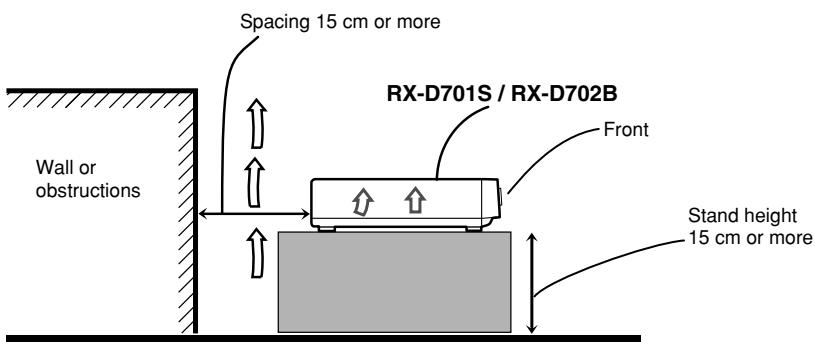
Caution: Proper Ventilation
To avoid risk of electric shock and fire and to protect from damage.
Locate the apparatus as follows:
Front: No obstructions open spacing.
Sides: No obstructions in 15 cm from the sides.
Top: No obstructions in 15 cm from the top.
Back: No obstructions in 15 cm from the back.
Bottom: No obstructions, place on the level surface.
In addition, maintain the best possible air circulation as illustrated.
Floor
SAFETY INSTRUCTIONS
"SOME DOS AND DON'TS ON THE SAFE USE OF EQUIPMENT"
This equipment has been designed and manufactured to meet international safety standards but, like any electrical equipment, care must be taken if you are to obtain the best results and safety is to be assured.
Do read the operating instructions before you attempt to use the equipment.
Do ensure that all electrical connections (including the mains plug, extension leads and interconnections between pieces of equipment) are properly made and in accordance with the manufacturer's instructions. Switch off and withdraw the mains plug when making or changing connections.
Do consult your dealer if you are ever in doubt about the installation, operation or safety of your equipment.
Do be careful with glass panels or doors on equipment.
DON'T continue to operate the equipment if you are in any doubt about it working normally, or if it is damaged in any way—switch off, withdraw the mains plug and consult your dealer.
DON'T remove any fixed cover as this may expose dangerous voltages.
DON'T leave equipment switched on when it is unattended unless it is specifically stated that it is designed for unattended operation or has a standby mode.
Switch off using the switch on the equipment and make sure that your family know how to do this.
Special arrangements may need to be made for infirm or handicapped people.
DON'T use equipment such as personal stereos or radios so that you are distracted from the requirements of traffic safety. It is illegal to watch television whilst driving.
DON'T listen to headphones at high volume as such use can permanently damage your hearing.
DON'T obstruct the ventilation of the equipment, for example with curtains or soft furnishings.
Overheating will cause damage and shorten the life of the equipment.
DON'T use makeshift stands and NEVER fix legs with wood screws—to ensure complete safety always fit the manufacturer's approved stand or legs with the fixings provided according to the instructions.
DON'T allow electrical equipment to be exposed to rain or moisture.
ABOVE ALL
— NEVER let anyone, especially children, push anything into holes, slots or any other opening in the case—this could result in a fatal electrical shock.
— NEVER guess or take chances with electrical equipment of any kind—it is better to be safe than sorry!
We would like to thank you for purchasing one of our JVC products. Before operating this unit, read this manual carefully and thoroughly to obtain the best possible performance from your unit, and retain this manual for future reference.
Features
Hybrid Feedback Digital Amplifier
RX-D701S/RX-D702B features the JVC-exclusive Hybrid Feedback Digital Amplifier. Premium-grade parts and devices, and special internal construction assure you will enjoy superior sound.
USB WIRELESS
By using the USB wireless transmitter supplied with RX-D701S/RX-D702B, sound reproduced from your PC can be transmitted to this receiver. You can choose PC as another playback source for RX-D701S/RX-D702B.
Compatible with HDMI*
The HDMI (High Definition Multimedia Interface) is the standard interface for the next-generation TV. By connecting the source components, this receiver, and TV with the HDMI cables, digital video signals and audio signals (including Dolby Digital, DTS) are transmitted through the cables. You can enjoy digital video and sound without AD/DA conversion with easy connection. As RX-D701S/RX-D702B supports up to HDMI version 1.1, this receiver can digitally transmit 5.1-channel PCM with sampling rates of 96 kHz and 2-channel PCM with sampling rates of 192 kHz. (These PCM signals are referred to as “multi channel PCM” in this instruction.) You can enjoy digital sound without deterioration. In addition, this receiver is compatible with HDCP** (High-Bandwidth Digital Content Protection), and HDCP contents can be viewed if you connect a HDCP-compatible TV to this receiver.
* HDMI, the HDMI logo and High-Definition Multimedia Interface are trademarks or registered trademarks of HDMI Licensing LLC. ** HDCP is the abbreviation of "High-Bandwidth Digital Content Protection," and is the high-reliable copy control technology licenced by Digital Content Protection, LLC.
7.1 channel DAP (Digital Acoustic Processor)
Sound field simulation technology allows precise ambience recreation of existing theatres and halls. Thanks to the high-performance DSP (Digital Signal Processor) and high-capacity memory, you can enjoy 7.1-channel surround by playing 2-channel or multi-channel software.
K2 Technology
K2 technology has been designed to enable natural audio reproduction, achieving a drastic reduction in digital distortion and creating original sound ambience with high precision.
CC (Compression Compensative) Converter
CC Converter eliminates jitter and ripples, achieving a drastic reduction in digital distortion by processing the digital music data in 24 bit–quantization and by expanding the sampling frequency to 128 kHz (for fs 32 kHz signals)/176.4 kHz (for fs 44.1 kHz signals)/192 kHz (for fs 48 kHz signals). By using the CC Converter, you can obtain a natural sound field from any source.
DCDi technology
DCDi (Directional Correlational Deinterlacing) technology, developed by Faroudja, eliminates jagged edges generated in progressive scan conversion. With DCDi, you can enjoy clear and smooth video images on your display. For RX-D701S/RX-D702B, this function is applied only when the PAL analogue video signals are transmitted to the receiver.
Precautions
Power sources
- When unplugging the receiver from the wall outlet, always pull the plug, not the AC power cord.
- Do not handle the AC power cord with wet hands.
- If you are not going to operate the receiver for an extended period of time, unplug the AC power cord from the wall outlet.
Ventilation
The seven high power amplifiers built in this receiver will generate heat inside the cabinet.
For safety, observe the following carefully:
- Make sure there is good ventilation around the receiver. Poor ventilation could overheat and damage the receiver.
- Do not block the ventilation openings or holes. (If the ventilation openings or holes are blocked by a newspaper or cloth, etc., the heat may not be able to get out.)
Others
- Should any metallic object or liquid fall onto the unit, unplug the unit and consult your dealer before operating any further.
- Do not use this receiver in a bathroom or places with water.
- Do not place any containers filled with water or liquids (such as cosmetics or medicines, flower vases, potted plants, cups, etc.) on top of this receiver.
- Do not disassemble the unit since there are no user serviceable parts inside.
If anything goes wrong, unplug the AC power cord and consult your JVC dealer.
Parts identification 3
Getting started 6
Before Installation 6
Checking the supplied accessories 6
Putting batteries in the remote control 6
Connecting the FM and AM (MW) antennas 7
Connecting the speakers 8
Connecting video components 9
Connecting the power cord 16
USB connection 17
Basic operations ...... 19
1 Turn on the power 19
2 Select the source to play 19
3 Adjust the volume 20
Selecting the digital decode mode 21
Turning off the sounds temporarily 21
Changing the display brightness.... 21
Turning off the power with the Sleep Timer 22
Making sounds natural 22
Basic settings 23
Setting the speaker information automatically —Smart Surround Setup 23
Basic setting items 25
Operation through on-screen display menus 25
Menu operation buttons 25
Setup menu configuration 26
Menu operating procedure 27
Setting the items 28
Setting the speakers 28
Activating the EX/ES/PLIIx setting—EX/ES/PLIIx ...... 30
Selecting the main or sub channel—DUAL MONO ..... 30
Setting bass sound 30
Using the Midnight mode—MIDNIGHT 31
Setting the digital input (DIGITAL IN) terminals —DIGITAL IN 1/2/3 .... 31
Setting the Audio delay level—AUDIO DELAY 32
Memorizing the volume level for each source —ONE TOUCH OP 32
Selecting the source for HDMI terminal and COMPONENT VIDEO jacks—HDMI SELECT/CMPNT SELECT ..... 32
Selecting the output video signals—VIDEO OUTPUT .... 33
Superimposing the menus—SUPERIMPOSE .... 33
Setting the Auto Function mode—AUTO MODE .... 33
Sound adjustments 34
Basic adjustment items 34
Operation through on-screen display menus 34
Menu operation buttons 34
Setup menu configuration 35
Menu operating procedure 36
Adjusting the items 37
Adjusting the speaker output levels 37
Adjusting the equalization patterns —DIGITAL EQ 63Hz/250Hz/1kHz/4kHz/16kHz ...... 38
Adjusting the bass sounds 38
Adjusting the sound parameters for the Surround/DSP modes 38
Tuner operations 40
Tuning in to stations manually 40
Using preset tuning 40
Selecting the FM reception mode 41
Using the Radio Data System (RDS) to receive FM stations 42
Searching for a program by PTY codes 43
Switching to broadcast program of your choice temporarily 45
Creating realistic sound fields 46
Reproducing theatre ambience 46
Introducing the Surround modes 46
Introducing the DSP modes 48
Using the Surround/DSP modes 49
Activating the Surround/DSP modes 50
Operating other JVC products 51
Operating other manufacturers' products ..... 53
Troubleshooting 56
Specifications 58
Parts identification
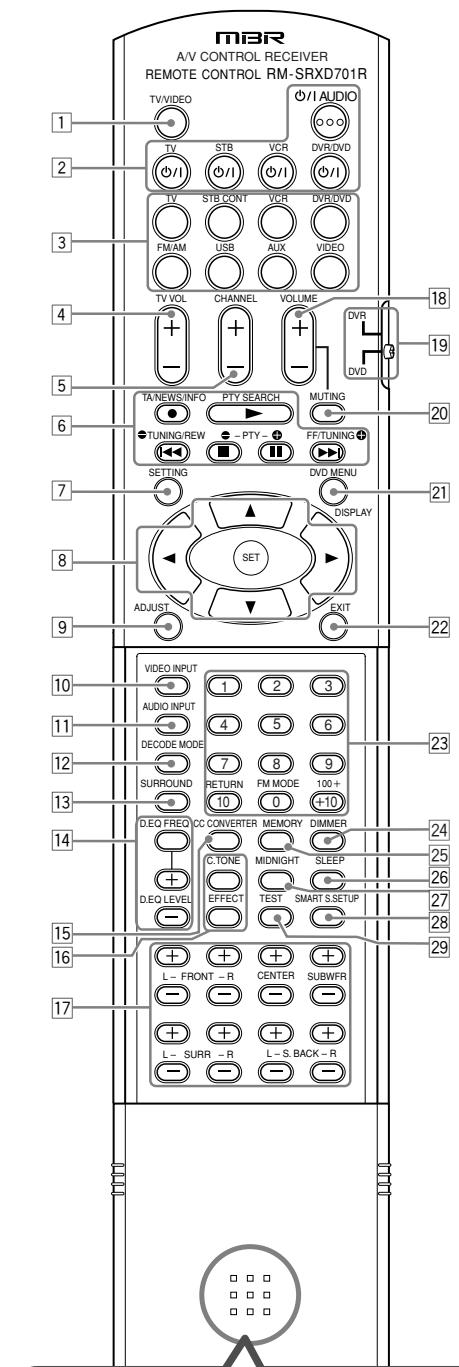
To open the cover of the remote control, push here then slide downward.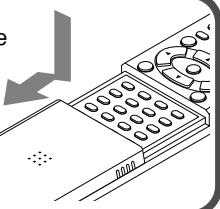
Remote control
See pages in parentheses for details.
1 TV/VIDEO button (51, 53)
2 Standby/on buttons (19, 51 – 55) ○/I AUDIO, TV ○/I, STB ○/I, VCR ○/I, DVR/DVD ○/I
3 • Source selecting buttons (19, 40, 51 – 55) TV, VCR, DVR/DVD, FM/AM, USB, AUX, VIDEO • STB CONT button (55)
4 TV VOL (volume) +/- button (51, 53)
5 CHANNEL +/- button* (51 - 55)
6 • Operating buttons for video components* (51, 52, 54, 55) ●, ▶, REW, ◀◀◀, ■, ||, FF, ▶▶
- Operating buttons for tuner (40) ● TUNING, TUNING ⊕
- Operating buttons for RDS (42, 43, 45) TA/NEWS/INFO, PTY SEARCH, ⏻ PTY, PTY ⊕
7 SETTING button (25, 27)
8 • Cursor buttons (▶, ◀, ▲, ▼) (25, 27, 28, 34, 36, 52, 55) • SET button (25, 28, 34, 36)
9 ADJUST button (34, 36)
10 VIDEO INPUT button (20)
11 AUDIO INPUT button (20)
12 DECODE MODE button (21)
13 SURROUND button (50)
14 Adjusting buttons for Digital Equalizer (38) D.EQ FREQ, D.EQ LEVEL +/-
15 CC CONVERTER button (22)
16 Adjusting buttons for Surround/DSP modes' parameters C (center). TONE, EFFECT (38, 39)
17 Adjusting buttons for speaker and subwoofer output levels (37) FRONT L +/-, FRONT R +/-, CENTER +/-, SUBWFR +/-, SURR L +/-, SURR R +/-, S.BACK L +/-, S.BACK R +/-
18 VOLUME +/- button (20)
19 DVR/DVD mode selector* (52, 55)
20 MUTING button (21)
21 • DVD MENU button* (52, 55) • DISPLAY button (42)
22 EXIT button (25, 28, 34, 36)
23 • Numeric buttons* (41, 51 – 55) 1 – 10, 0, +10, 100+ • RETURN button (51) • FM MODE button (41)
24 DIMMER button (21)
25 MEMORY button (40, 41)
26 SLEEP button (22)
27 MIDNIGHT button (31)
28 SMART S (surround). SETUP button (23)
29 TEST button (37)
* These buttons can be used for operating a JVC DVD recorder or DVD player with the mode selector set to "DVR" or "DVD" (see page 52). If these buttons do not function normally, use the remote control supplied with your DVD recorder or DVD player. Refer also to the manuals supplied with the DVD recorder or DVD player for details.
- When operating a DVD recorder (for JVC products ONLY), set the mode selector (19) to "DVR."
- When operating a DVD player, set the mode selector (19) to "DVD."
Front panel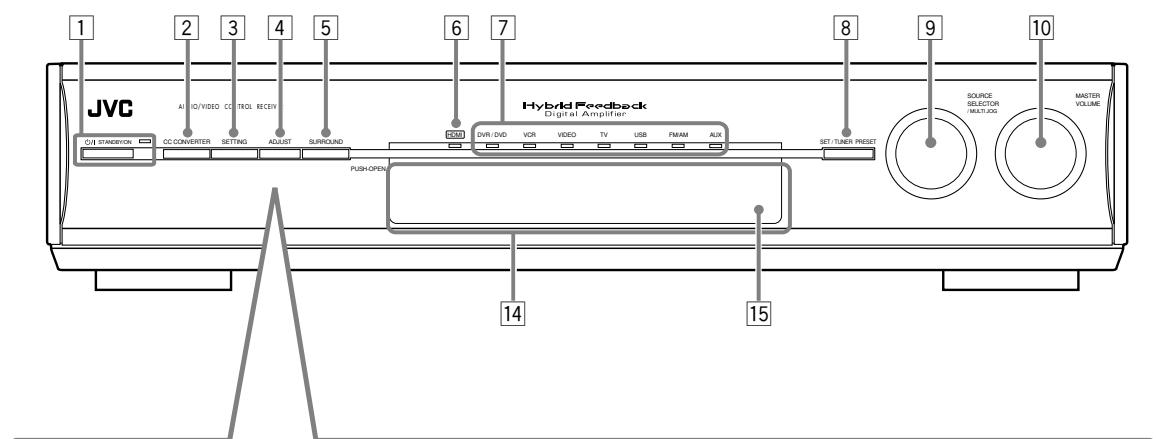
How to open the front door
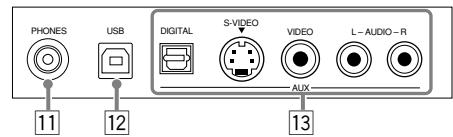
Inside the front door
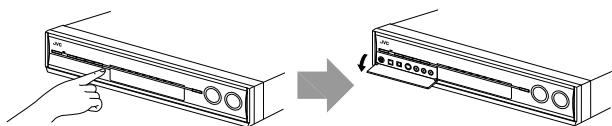
Press down on PUSH-OPEN.
1 ⏻/I STANDBY/ON button and standby lamp (19) 2 CC CONVERTER button (22) 3 SETTING button (25, 27) 4 ADJUST button (34, 36) 5 SURROUND button (50) 6 HDMI lamp (10, 11, 13, 14, 20) 7 Source lamps (19)
DVR/DVD, VCR, VIDEO, TV, USB, FM/AM, AUX
8 • SET button (25, 28, 34, 36)
• TUNER PRESET button (41)
9 • SOURCE SELECTOR (19, 41) • MULTI JOG (25, 27, 28, 34, 36, 50) 10 MASTER VOLUME control (20) 11 PHONES jack (21) 12 USB terminal (17) 13 AUX input jacks (15) Digital optical terminal, S-video jack, VIDEO jack, AUDIO jacks 14 Display window (5) 15 Remote sensor (6)
Display window![graph TD A["ANALOG DIGITAL AUTO"] --> B["DUAL MONO L C R"] B --> C["S.WFR LFE"] C --> D["LS S RS"] D --> E["SB SB SB"] F["LINEAR PCM"] --> G["L"] G --> H["C"] H --> I["R"] I --> J["S"] J --> K["NEO:6 DSP"] K --> L["3D-PHONIC VIRTUAL SB"] M["ANALOG DIGITAL AUTO"] --> N["DUAL MONO L C R"] N --> O["S.W…](/content/2025/01/123434/images/d0e8aab09ab5b63fcd15eccf5231a0d54089008be77e53a7189871b486da7ddd.jpg)
① ANALOG indicator (20) ② DIGITAL and DIGITAL AUTO indicator (20, 21) ③ DUAL MONO indicator (30) ④ AUTO SURR (surround) indicator (50) ⑤ HEADPHONE indicator (21, 48) ⑥ RDS operations indicators (42, 45) RDS, TA, NEWS, INFO ⑦ Tuner operation indicators (40) TUNED, STEREO ⑧ DIGITAL EQ indicator (38) ⑨ AUTO MUTING indicator (41) ⑩ C (center).TONE indicator (39) ⑪ ONE TOUCH OPERATION indicator (32) ⑫ INPUT ATT (attenuate) indicator (38) ⑬ SLEEP indicator (22)
⑭ Digital signal format indicators (20, 21, 46, 47) LINEAR PCM, ☐ DIGITAL, dts, 96/24 ⑮ Signal and speaker indicators (22) ⑯ NEO:6 indicator (47) ⑰ VIRTUAL SB (Surround back) indicator (49) ⑱ 3D-PHONIC indicator (47, 48) ⑲ DSP indicator (48) ⑳ PLⅡ and PLⅡx indicator (46 – 48) ②1 CC CONVERTER 1 and CC CONVERTER 2 indicator (22) ② AUTO MODE indicator (33) ②3 Main display ⑳ B (bass).BOOST indicator (38) ⑲ MIDNIGHT indicator (31) ②6 Frequency unit indicators MHz (for FM stations), kHz (for AM (MW) stations)
Rear panel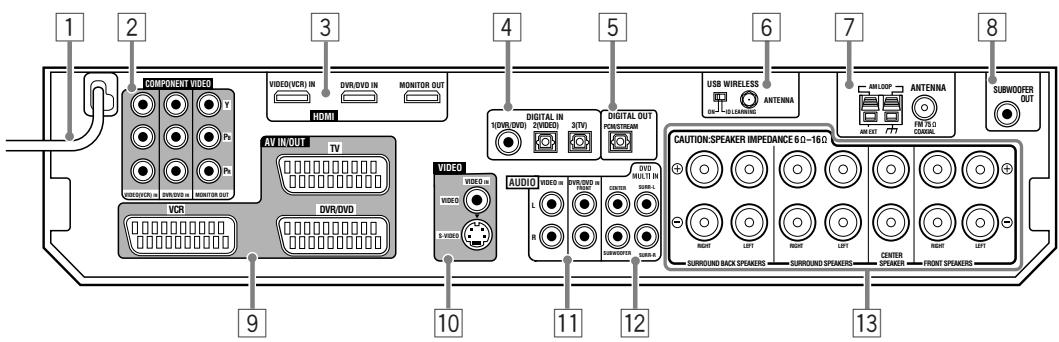
1 Power cord (16) COMPONENT VIDEO (Y, PB, PR) jacks (10, 11, 13, 14) VIDEO(VCR) IN, DVR/DVD IN, MONITOR OUT 3 HDMI terminals (10, 11, 13, 14) VIDEO(VCR) IN, DVR/DVD IN, MONITOR OUT 4 DIGITAL IN terminals (16)
- Coaxial: 1(DVR/DVD) • Optical: 2(VIDEO)
- Optical: 3(TV)
5 DIGITAL OUT terminal (16) 6 • USB WIRELESS ANTENNA terminal (17) • USB WIRELESS switch (17) • USB WIRELESS lamp (17) 7 ANTENNA terminals (7)
8 SUBWOOFER OUT jack (8) 9 AV IN/OUT terminals (10, 11, 13) TV, VCR, DVR/DVD 10 VIDEO jacks (14) VIDEO (composite video), S-VIDEO 11 AUDIO jacks (11, 14)
VIDEO IN, DVR/DVD IN
12 DVD MULTI IN jacks (12)
CENTER, SUBWOOFER, SURR – L, SURR – R
13 Speakers terminals (8)
- Be sure your hands are dry.
- Turn the power off to all components.
- Read the manuals supplied with the components you are going to connect.
Locations
- Install the receiver in a location that is level and protected from moisture and dust.
- The temperature around the receiver must be between -5°C and 35°C.
- Make sure there is good ventilation around the receiver. Poor ventilation could cause overheating and damage the receiver.
- Leave sufficient distance between the receiver and the TV.
Handling the receiver
- Do not insert any metal object into the receiver.
- Do not disassemble the receiver or remove screws, covers, or cabinet.
- Do not expose the receiver to rain or moisture.
- Do not pull on the power cord to unplug the cord. When unplugging the cord, always grasp the plug so as not to damage the cord.
- When you are away on travel or otherwise for an extended period of time, remove the plug from the wall outlet. A small amount of power is always consumed while the power cord is connected to the wall outlet.
The receiver has a built-in cooling fan which operates while the receiver is turned on. Be sure to leave enough ventilation to obtain sufficient cooling effect.
CAUTION:
Do not connect the AC power plug to the wall outlet until all connections are completed.
Checking the supplied accessories
Check to be sure you have all of the following supplied accessories. If anything is missing, contact your dealer immediately.
- Remote control (× 1)
- Batteries (× 2) • AM (MW) loop antenna (× 1)
- FM antenna (× 1) • USB wireless antenna (× 1)
- USB wireless transmitter (Model number: QAL0708-002) (× 1) • USB extension cable (60 cm) (× 1)
Putting batteries in the remote control
Before using the remote control, put two supplied batteries first.
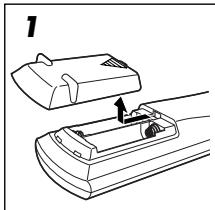
1 Press and slide the battery cover on the back of the remote control.
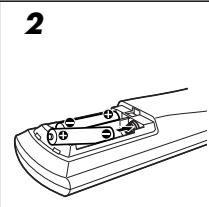
2 Insert batteries.
Make sure to match the polarity: (+) to (+) and (−) to (−).
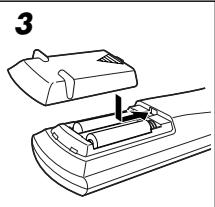
3 Replace the cover.
If the range or effectiveness of the remote control decreases, replace the batteries. Use two R6(SUM-3)/AA(15F) type dry-cell batteries.
- Supplied batteries are for initial setup. Replace for continued use.
CAUTION:
Follow these precautions to avoid leaking or cracking cells:
- Place batteries in the remote control so they match the polarity: (+) to (+) and (−) to (−).
- Use the correct type of batteries. Batteries that look similar may differ in voltage. • Always replace both batteries at the same time.
- Do not expose batteries to heat or flame.
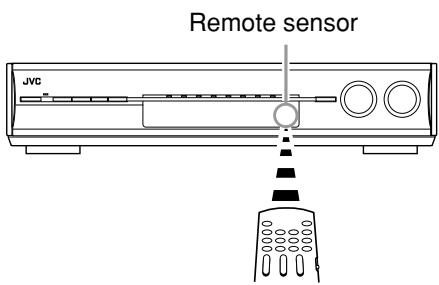
When using the remote control, aim the remote control directly at the remote sensor on the front panel.
Connecting the FM and AM (MW) antennas
Do not connect the AC power plug to the wall outlet until all connections are completed.
![graph TD A["AM (MW) loop antenna (supplied)"] --> B["Snap the tabs on the loop into the slots of the base to assemble the AM (MW) loop antenna."] B --> C["FM antenna (supplied)"] C --> D["FM 75Ω COAXIAL"] D --> E["AM LOOP"] E --> F["AM EXT"] style A fill:#f9f,stroke:#333 style B fill:#ccf,stroke:#33…](/content/2025/01/123434/images/92811d1492592ae5e43eb275164e0e510e9b9679e120878aba8bfdefcd7069f9.jpg)
AM (MW) antenna connection
Connect the AM (MW) loop antenna supplied to the AM LOOP terminals.
Connect the white cord to the AM EXT terminal, and connect the black cord to the 1/2 terminal.
Turn the loop until you have the best reception.
- If the reception is poor, connect an outdoor single vinyl-covered wire (not supplied) to the AM EXT terminal. Keep the AM (MW) loop antenna connected.
FM antenna connection
Connect the FM antenna supplied to the FM 75 Ω COAXIAL terminal as a temporary measure.
Extend the supplied FM antenna horizontally.
If the reception is poor, connect an outdoor FM antenna (not supplied). Before attaching a 75 Ω coaxial cable with a connector (IEC or DIN 45325), disconnect the supplied FM antenna.
NOTES
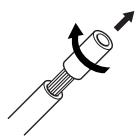
- If the AM (MW) loop antenna wire is covered with vinyl, remove the vinyl while twisting it as shown on the right.
- Make sure the antenna conductors do not touch any other terminals, connecting cords, and power cord. This could cause poor reception.
Connecting the speakers
Do not connect the AC power plug to the wall outlet until all connections are completed.
Speaker Layout Diagram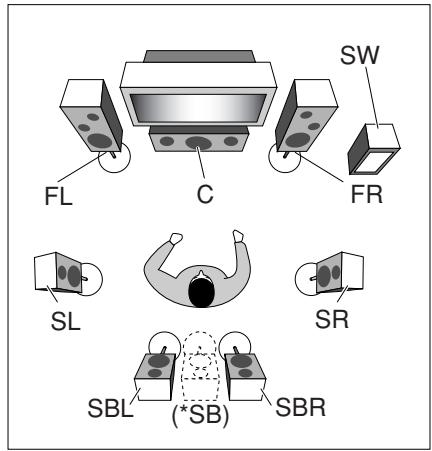
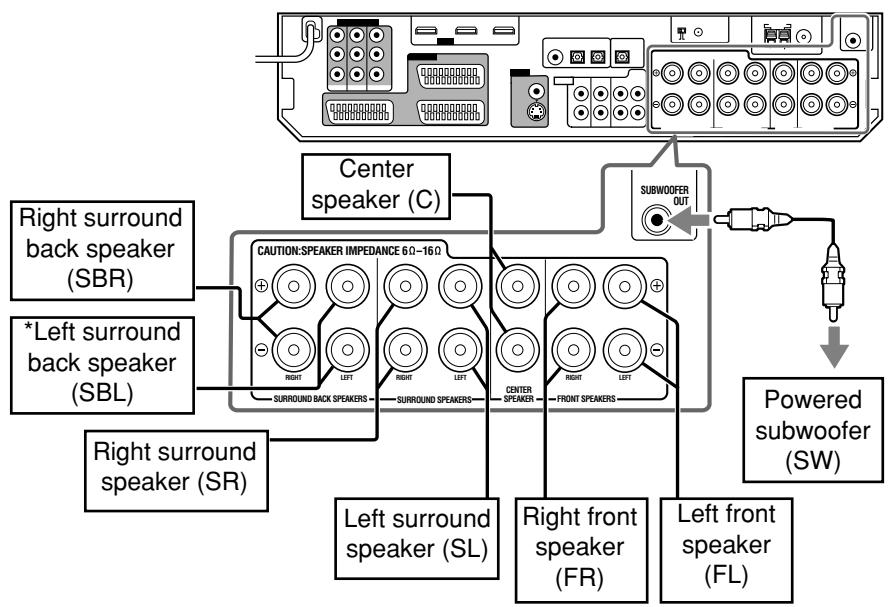
CAUTIONS:
- Use speakers with the SPEAKER IMPEDANCE indicated by the speaker terminals (6 Ω – 16 Ω).
- DO NOT connect more than one speaker to one speaker terminal.
Connecting the speakers
Turn off all components before making connections.
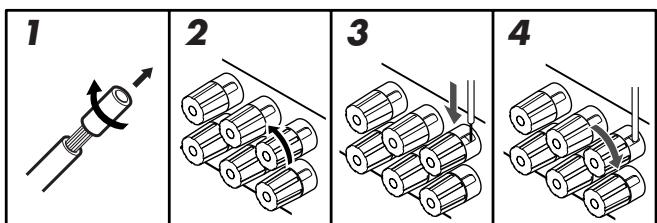
1. Twist and remove the insulation at the end of each speaker cord. 2. Turn the knob counterclockwise. 3. Insert the speaker cord.
For each speaker, connect the (+) and (−) terminals on the rear panel to the (+) and (−) terminals marked on the speakers.
4 Turn the knob clockwise.
*When using a single speaker for the surround back speaker
You can enjoy the surround sound by one surround back speaker. When using one surround back speaker, - set "S BACK OUT" to "S BACK OUT: 1SPK" (see page 29) and - connect the surround back speaker to the left surround back speaker terminal. (No sound comes from the speaker if you connect it to the right surround back speaker terminal.)
Connecting the powered subwoofer
By connecting a subwoofer, you can enhance the bass or reproduce the original LFE signals recorded in digital software.
Connect the input jack of a powered subwoofer to the SUBWOOFER OUT jack on the rear panel, using a cord with RCA pin plugs (not supplied).
- Refer also to the manual supplied with your subwoofer.
After connecting all the speakers and/or a subwoofer, set the speaker setting information properly to obtain the best possible surround effect. For details, see pages 23, 24, 28, and 29.
NOTE
You can place a subwoofer wherever you like since bass sound is non-directional. Normally place it in front of you.
Connecting video components
Do not connect the AC power plug to the wall outlet until all connections are completed.
Video conversion function
This receiver can convert the video signals output from video components. The chart below shows which video signals can be converted into which signals by video conversion.
![graph LR A["Video Input"] --> B["Converted"] B --> C["Video Output"] D["HDMI"] --> E["CMPNT (component)"] F["S (S-video)"] --> G["C (composite)"] H["RGB"] --> I["RGB"] E --> J["CMPNT (component)"] G --> K["C (composite)"] I --> L["RGB"]](/content/2025/01/123434/images/73c3be03c30bba309f0b604c1e178a1783970c82aa5080fc4127143bfa8ee759.jpg)
To use the video conversion function, you need to make the two settings below when you finish connecting your TV and video components.
VIDEO OUTPUT:
Select the settings according to the connection method for your TV. See pages 10 and 33 for details.
VIDEO INPUT:
Select the settings according to the connection method for your video components. This setting is memorized for each source. See pages 11 to 15 and 20 for details.
Converted video signals available vary depending on each source component. See also pages 10 to 15 for details.
NOTES
- HDMI and RGB signals cannot be converted into other video signals.
- With HDMI signals transmitted or input video signals converted into HDMI signals, the playback picture may be distorted when you change the playback mode (fast-forward, rewind, or pause, for example).
Before connecting video components
About HDMI
IMPORTANT:
The HDMI video signals from the HDMI terminal are transmitted only through the HDMI MONITOR OUT terminal.
Therefore, if the TV is connected to the receiver through the AV IN/OUT terminal (TV) or COMPONENT VIDEO jacks (MONITOR OUT) and a playing video component is connected to the receiver through the HDMI terminal (VIDEO (VCR) IN or DVR/DVD IN), you cannot view the playback picture on the TV.
About SCART
You can enjoy pictures and sounds from playback components simply by connecting with the SCART cable.
- For an analogue decoder
To watch through or to record a scrambled program on your VCR, connect the analogue decoder to your VCR and select the scrambled channel on your VCR.
If an appropriate terminal for the decoder connection is not equipped for your VCR, connect the decoder to your TV.
Refer also to the manuals supplied with these components.
- For T-V LINK
- You can use the T-V LINK function if you connect a T-V LINK compatible TV and VCR to this receiver with fully wired SCART cables. For details on T-V LINK, refer also to the manuals supplied with the TV and the VCR.
- Connect a SCART cable to the EXT-2 terminal on the JVC's T-V LINK compatible TV for the T-V LINK function.
- Some video components support data communication like T-V LINK. For complete details, refer also to the manuals supplied with these components.
SCART Terminal Specifications ○: Available, —: Not available
*1 The signals input from a SCART terminal cannot be output through the same SCART terminal.
*2 The signals for the T-V LINK function are always going through the receiver.
NOTES
- Composite video signals and S-video signals can be converted into all types of signals except RGB. See above for details.
- When you record a playback picture with a DVD recorder or VCR connected to this receiver, perform either one of the below.
- Set the video input setting (see page 20) to a setting other than "S" to transmit composite video or RGB signals to this receiver.
- Set "VIDEO OUTPUT" (see page 33) to "RGB/C" to transmit S-video signals from a playback component to this receiver.
CAUTION:
If you connect a sound-enhancing device such as a graphic equalizer between the source components and this receiver, the sound output through this receiver may be distorted.
■ Connecting a TV:
Turn off all components before making connections.
![graph TD A["COMPONENT VIDEO"] -->|Green| B["Component video cable (not supplied)"] A -->|Blue| C["TV"] A -->|Red| D["Monitor OUT"] E["AV IN/OUT TV"] --> F["HDMI cable (not supplied)"] G["MONITOR OUT"] --> H["SCART cable (not supplied)"] I["TV"] --> J["PC"] K["PC"] --> L["Signal Current"] M["PC"] -->…](/content/2025/01/123434/images/74314e3a55e6d32ff7d334784044978699cfdb8f5409e08a492439c6542503e6.jpg)
Select the appropriate VIDEO OUTPUT (see page 33) according to the terminal used for TV connection referring to the table below.
| Connection method | VIDEO OUTPUT |
| HDMI | HDMI |
| Component | CMPNT |
| SCART (S-video) | S |
| SCART (RGB or composite) | RGB/C |
A To component video input
- Connect Y, PB, and PR correctly.
B To HDMI input
C To SCART terminal
DO NOT use a TV through a VCR or a TV with a built-in VCR; otherwise, the picture may be distorted.
NOTES
- To enjoy TV sound through this receiver or record a TV program with a DVD recorder or VCR connected to this receiver, connect your TV with the SCART cable as well when connecting with the HDMI or component video cable. However, the input setting of the TV may change to SCART input with some TVs or sources regardless of "VIDEO OUTPUT" (see page 33).
- The on-screen display does not appear on the TV screen in the following conditions:
- When connecting your TV only with the HDMI cable and setting the video input setting (see page 20) to "HDMI." Set the video input setting to a setting other than "HDMI" to use the on-screen display.
- When connecting your TV only with the SCART cable and setting the video input setting to "RGB." Set the video input setting to a setting other than "RGB" to use the on-screen display.
- When playing back audio and video with the HDMI connection, the HDMI lamp on the front panel lights up.
- Select the audio and video input setting according to the connection method. See page 20 for details.
- Set the audio input setting to "HDMI" when you enjoy sound with the HDMI connection. See "Selecting the audio input setting" on page 20.
- By using a HDMI-DVI conversion cable, you can connect the source components or the TV with DVI output. When connecting those components or TV, change the audio input setting to a setting other than "HDMI." (See page 20.)
- This receiver is compatible with standard video formats. If non-standard video formats are coming in, the picture may not appear properly on TV.
- The picture on the TV may not be the same aspect ratio as the ratio set on the source components.
- When connecting a TV to this receiver with an HDMI cable, the sound coming into this receiver is not transmitted to the speakers of the TV. You can enjoy sound only from the speakers connected to this receiver.
- When connecting a TV to this receiver with an HDMI cable, turning a source component on or off, or changing the audio or video input setting of this receiver frequently may cause a noise or interrupt the sound and picture. In this case, turn the receiver off and turn it on again.
- When you enjoy contents protected by HDCP (High-Bandwidth Digital Content Protection, see page 1), connect a HDCP-compatible TV to this receiver, otherwise, the picture may not appear properly.
- When you enjoy HDCP contents, sound and picture may not be transmitted to the speakers and TV for a few seconds in the beginning for confirmation.
■ Connecting a DVD recorder or DVD player:
Turn off all components before making connections.
![graph TD A["Component video cable (not supplied)"] --> B["HDMI cable (not supplied)"] B --> C["DVD/ DVD IN"] C --> D["Component Video"] D --> E["Green"] D --> F["Blue"] D --> G["Red"] D --> H["VIDEO(VCR) IN"] D --> I["DVR/DVD IN"] D --> J["MONITOR OUT"] C --> K["HDMI"] K --> L["White L"] K --> M["Re…](/content/2025/01/123434/images/7cfb600c5de8cf353993e6413bae1f96a6b2db4955b0c945ec5491f1f80408ce.jpg)
Select the appropriate VIDEO INPUT (see page 20) according to the connection you have made. If you do not, you cannot view the playback picture on the TV.
Available video input setting for each video output setting:
○: Available –: Not available
- Do not connect different components to the AUDIO DVR/DVD IN jacks and AV IN/OUT (SCART) DVR/DVD terminal; otherwise, sounds from both components come out of the speakers at the same time.
- When playing back audio and video with the HDMI connection, the HDMI lamp on the front panel lights up.
- Select the audio and video input setting according to the connection method. See page 20 for details.
- Set the audio input setting to “HDMI” when you enjoy sound with the HDMI connection. See “Selecting the audio input setting” on page 20.
- By using a HDMI-DVI conversion cable, you can connect the source components or the TV with DVI output. When connecting those components or TV, change the audio input setting to the setting other than “HDMI.” (See page 20.)
- In addition to using the HDMI cable, you can enjoy digital sound as well using a digital audio cable (coaxial or optical). When shipped from the factory, the digital coaxial terminal (DIGITAL IN 1 (DVR/DVD)) on the rear of the receiver is set for a DVD recorder and DVD player. For details of digital audio connection, see page 16.
- If your DVD recorder or DVD player is equipped with the analogue multi channel output terminals, you can enjoy the sound recorded in DVD-Audio by connecting your DVD recorder or DVD player to DVD MULTI IN jacks. See page 12 for details. When you enjoy the sound recorded in DVD-Audio with HDMI connection, see “When you enjoy sound recorded in DVD-Audio...” on page 12.
- When enjoying multi channel PCM sound with the audio input setting set to “HDMI” (see page 20), some functions are not available. See page 12 for details.
When you connect a DVD recorder or DVD player with its analogue discrete output jacks (DVD MULTI IN):
If your DVD recorder or DVD player has analogue 5.1 channel output jacks, use the connection below. When a DVD Audio disc is played back, the original high-quality sounds can be reproduced by using this connection.
For video connection, see page 11.
Turn off all components before making connections.
![graph TD A["White Red"] --> B["Central Audio Cable"] C["Monaural Audio Cable (not supplied)"] --> B D["DVD recorder or DVD player"] --> B E["Signal Current"] --> F["Video Player"] B --> G["Red Signal"] style B fill:#f9f,stroke:#333 style C fill:#ccf,stroke:#333 style D fill:#cfc,stroke:#333 style E…](/content/2025/01/123434/images/bbf957b3ad1d8493b6d67919ac4be03edb0c706629732b9e62c9fb658c56f220.jpg)
NOTE
Do not connect different components to the DVD MULTI IN jacks and AV IN/OUT (SCART) DVR/DVD terminal (see page 11); otherwise, sounds from both components come out of the speakers at the same time.
A To left/right surround channel audio output B To center channel audio output C To left/right front channel audio output D To subwoofer output
When you enjoy sound recorded in DVD-Audio...
You can enjoy sound recorded in DVD-Audio both with analogue or digital methods.
- With analogue method:
- connect your DVD recorder or DVD player to this receiver according to the diagram above.
- select "A MULTI" in the audio input setting. (See page 20.)
- With digital method:
- connect your DVD recorder or DVD player and TV to this receiver with the HDMI cables. (See page 11.)
- select "HDMI" in the audio input setting. (See page 20.)
NOTES
- When selecting “A MULTI” in the audio input setting or when multi channel PCM signals (see page 47) are coming in with selecting “HDMI” in the audio input setting, you can listen to the front channel sounds (left and right) only by using the headphones. 3D HEADPHONE mode (see page 48) is not available.
- When selecting “A MULTI” in the audio input setting or when multi channel PCM signals (see page 47) are coming in with selecting “HDMI” in the audio input setting, the following items are not available:
- DECODE MODE (see page 21)
- CC Converter (see page 22)
- EX/ES/PLIIx (see page 30) – DUAL MONO (see page 30) – SUBWFR OUT (see page 30) – CROSSOVER (see page 31) – LFE ATT (see page 31)
- MIDNIGHT (see page 31) – AUDIO DELAY (see page 32) – DIGITAL EQ 63Hz/250Hz/1kHz/4kHz/16kHz (see page 38) – BASS BOOST (see page 38)
- INPUT ATT (see page 38) – Sound parameters for Surround/DSP modes (see pages 38 and 39) – Surround/DSP modes (see pages 46 to 50)
- When you enjoy sound recorded in DVD-Audio through the HDMI connection, use a DVD recorder or DVD player compatible with HDMI version 1.1.
■ Connecting a VCR:
Turn off all components before making connections.
![graph TD A["Component video cable (not supplied)"] --> B["HDMI cable (not supplied)"] B --> C["VIDEO(VCR) IN"] C --> D["SCART cable (not supplied)"] D --> E["VCR"] E --> F["VCR"] G["Green"] --> H["COMPONENT VIDEO"] I["Blue"] --> H J["Red"] --> H H --> K["VIDEO(VCR) IN"] K --> L["HDMI"] L --> M["SCAR…](/content/2025/01/123434/images/53fc361db9ac47f18796fefc0dc21194b64bdbdfe78c6ec1fafb41cce03e026f.jpg)
Select the appropriate VIDEO INPUT (see page 20) according to the connection you have made. If you do not, you cannot view the playback picture on the TV.
Available video input setting for each video output setting:
○: Available –: Not available
- When playing back audio and video with the HDMI connection, the HDMI lamp on the front panel lights up.
- Select the audio and video input setting according to the connection method. See page 20 for details.
- Set the audio input setting to “HDMI” when you enjoy sound with the HDMI connection. See “Selecting the audio input setting” on page 20.
- In addition to using the HDMI cable, you can enjoy digital sound as well using a digital audio cable (coaxial or optical). For details of digital audio connection, see page 16.
- When connecting a VCR with a HDMI cable or component video cable, set “HDMI SELECT” or “CMPNT SELECT” to “VCR.” (See page 32.)
■ Connecting another video component to the VIDEO IN jacks:
Turn off all components before making connections.
![graph TD A["Component video cable (not supplied)"] --> B["HDMI cable (not supplied)"] B --> C["VIDEO(VCR) IN"] C --> D["VIDEO VCD R/DVD IN MONITOR OUT"] D --> E["COMPONENT VIDEO"] E --> F["Green"] E --> G["Blue"] E --> H["Red"] E --> I["VIDEO VCD R/DVD IN MONITOR OUT"] I --> J["VIDEO VCD R/DVD IN MO…](/content/2025/01/123434/images/c97d020c5e2376aa86dad01d97ff3425bb41b2fff53f5e80ba9972cc5d40b2d4.jpg)
← : signal current
Select the appropriate VIDEO INPUT (see page 20) according to the connection you have made. If you do not, you cannot view the playback picture on the TV.
Available video input setting for each video output setting: ○: Available –: Not available
- When playing back audio and video with the HDMI connection, the HDMI lamp on the front panel lights up.
- Select the audio and video input setting according to the connection method. See page 20 for details.
- Set the audio input setting to “HDMI” when you enjoy sound with the HDMI connection. See “Selecting the audio input setting” on page 20.
- In addition to using the HDMI cable, you can enjoy digital sound as well using a digital audio cable (coaxial or optical). When shipped from the factory, the digital optical terminal (DIGITAL IN 2 (VIDEO)) on the rear of the receiver is set for a video component other than DVD recorder and DVD player. For details of digital audio connection, see page 16.
- When connecting another video component with a HDMI cable or component video cable, set "HDMI SELECT" or "CMPNT SELECT" to "VIDEO." (See page 32.)
■ Connecting a video component to the AUX input jacks:
The AUX input jacks on the front panel (inside the front door) are convenient when connecting and disconnecting the component frequently.
Before making connections, press PUSH-OPEN to show the jacks.
To enjoy the playback from the component connected to these jacks, select "AUX" as the source (see page 19).
How to open the front door![graph TD A["Handheld device"] --> B["JVC"] B --> C["Digital audio cable (not supplied)"] C --> D["Video camera, etc."] D --> E["Composite video cable (not supplied)"] E --> F["S-video cable (not supplied)"] F --> G["Digital optical cable (not supplied)"] G --> H["White"] H --> I["Red"] I --> J["Vide…](/content/2025/01/123434/images/3c87311508a02898a694507abcab06f40736453b2c7b17ec8cf117710c7e1da1.jpg)
: signal current
Select the appropriate VIDEO INPUT (see page 20) according to the connection you have made. If you do not, you cannot view the playback picture on the TV.
Available video input setting for each video output setting: ○: Available –: Not available
Select the audio and video input setting according to the connection method. See page 20 for details.
Digital audio connection
This receiver is equipped with three DIGITAL IN terminals—one digital coaxial terminal and two digital optical terminals—and one DIGITAL OUT terminal on the rear of the receiver.
To reproduce the digital sound, use the digital audio connection in addition to the analogue audio connection methods described on pages 10 to 15.
Digital coaxial cable (not supplied)

Digital optical cable (not supplied)

Turn off all components before making connections.
- When you connect other components, refer also to their manuals.
■ Digital input terminals
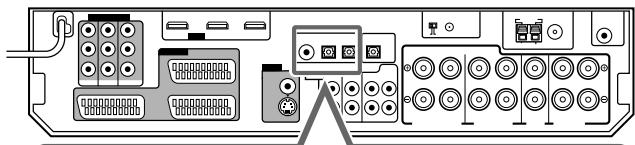
When the component has a digital coaxial output terminal, connect it to the 1(DVR/DVD) terminal, using a digital coaxial cable (not supplied).
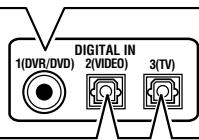
When the component has a digital optical output terminal, connect it to the 2(VIDEO) or 3(TV) terminal, using a digital optical cable (not supplied).
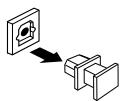
Before connecting a digital optical cable, unplug the protective plug.
NOTES
- When shipped from the factory, the DIGITAL IN terminals on the rear of the receiver have been set for use with the following components:
- 1(DVR/DVD): For DVD recorder or DVD player
- 2(VIDEO): For the component connected to the VIDEO IN jacks on the rear of the receiver
- 3(TV): For TV
If you connect other components, change the digital input (DIGITAL IN) terminal setting correctly. See “Setting the digital input (DIGITAL IN) terminals—DIGITAL IN 1/2/3” on page 31.
- Select the correct digital input mode. See “Selecting the audio input setting” on page 20.
■ Digital output terminal
You can connect any digital components which have an optical digital input terminal.
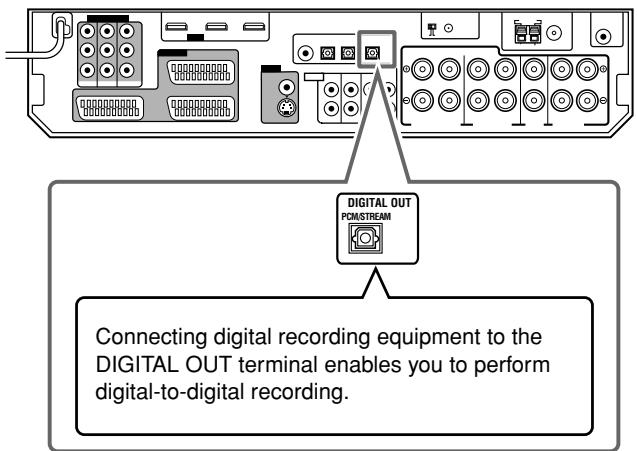
NOTES
- The digital signal format transmitted through the DIGITAL OUT terminal is the same as that of the input signal. For example, when the DTS signals are coming, the DTS signals are transmitted.
- The digital audio signals coming through the following terminals cannot be transmitted through the DIGITAL OUT terminal:
- USB WIRELESS ANTENNA terminal
- USB terminal – HDMI VIDEO (VCR) IN terminal and HDMI DVR/DVD IN terminal
Connecting the power cord
When all the audio/video connections have been made, connect the AC power plug to the wall outlet. Make sure that the plugs are inserted firmly. The standby lamp lights in red.
CAUTIONS:
- Do not touch the power cord with wet hands.
- Do not alter, twist or pull the power cord, or put anything heavy on it, which may cause fire, electric shock, or other accidents.
- If the cord is damaged, consult a dealer and have the power cord replaced with a new one.
NOTES
- Keep the power cord away from the connecting cables and the antenna. The power cord may cause noise or screen interference.
- The preset settings such as preset channels and sound adjustment may be erased in a few days in the following cases:
- When you unplug the power cord.
- When a power failure occurs.
- When you unplug the power cord with the receiver on and connect the power cord again, the receiver enters standby mode.
USB connection
This receiver is equipped with a USB terminal on the front panel and a USB WIRELESS ANTENNA terminal on the rear. You can enjoy the sound reproduced through your PC with either of the following methods:
① connecting a USB wireless antenna (supplied) to the USB WIRELESS ANTENNA terminal and a USB wireless transmitter (supplied) to your PC. (USB WIRELESS) ② connecting your PC to the USB terminal with a USB cable (not supplied). (USB TERMINAL)
When you connect your PC for the first time, follow the procedure below.
- Remember you cannot send any signal or data to your PC from this receiver.
- Use the USB extension cable (supplied) if it is difficult to connect the transmitter directly to the USB connector or if the transmitter obstructs other USB connectors.
IMPORTANT:
Check if your PC equipped with a CD-ROM drive is running on Windows® 98 SE*, Windows® Me*, Windows® 2000*, or Windows® XP*, and prepare its CD-ROM.
Preparation
① For USB WIRELESS
Be sure to establish USB WIRELESS communication before connecting and installing the receiver. During the procedure, you need to check the status of the lamp on the rear of the receiver (turning on or flashing).
1. Connect the antenna to the USB WIRELESS ANTENNA terminal on the rear panel.
- Tighten the screw with the antenna upright.
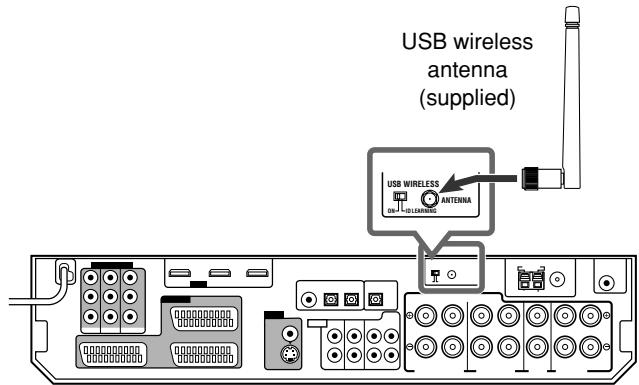
2. Turn on your PC.
- If the PC has been turned on, quit all applications currently running.
3. Connect the USB wireless transmitter to the USB connector of the PC.
Before connecting the transmitter to the PC, remove the cover of the transmitter.
When you connect the transmitter, the USB drivers are installed. The POWER and PLAYER lamps on the transmitter light up.
![graph TD A["USB wireless transmitter (supplied)"] --> B["JVC USB wireless transmitter"] B --> C["JVC USB wireless transmitter"] C --> D["PC"] D --> E["Computer"] style A fill:#f9f,stroke:#333 style B fill:#ccf,stroke:#333 style C fill:#cfc,stroke:#333 style D fill:#fcc,stroke:#333 style E fill:#cff,…](/content/2025/01/123434/images/a083dc6aff005dae5347d273982c3eac887da037bc2bdddb5c496fbf6d8bde53.jpg)
4. Turn on the receiver, then slide the USB WIRELESS switch on the rear to "ID LEARNING," and select the source as "USB WIRELESS." When you slide the switch, the lamp in the switch starts flashing.
5 Set the volume to minimum.
IMPORTANT:
Always set volume to "0" when connecting or disconnecting the other equipment.
6 Press and hold ID on the transmitter to make a wireless communication with the receiver.
When you press and hold the button, the ID lamp on the transmitter flashes.
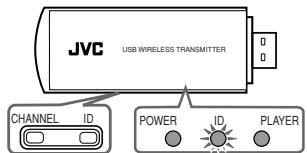
When the receiver recognizes the transmitter, the lamp on the rear of the receiver stops flashing and lights up.
7 Slide the switch on the receiver to "ON."
- If you do not, no sound signal is transmitted to the receiver.
NOTES
- The signal-reachable distance is about 30 m, but it may differ depending on the operating conditions and circumstances.
- The PLAYER lamp on the transmitter keeps flashing when starting the playback software in your PC.
- If no signals are transmitted from the transmitter for about 30 minutes, the transmitter enters “sleep” mode. The “L” and “R” indicators go off from the display.
- Though the transmitter may become hot, it is not a malfunction.
② For USB TERMINAL
1 Turn on your PC.
- If the PC has been turned on, quit all the applications now running.
2 Turn on the receiver, and select the source as "USB TERMINAL."
3 Set the volume to minimum.
IMPORTANT:
Always set volume to "0" when connecting or disconnecting the other equipment.
4 Connect the receiver to the PC using a USB cable (not supplied).
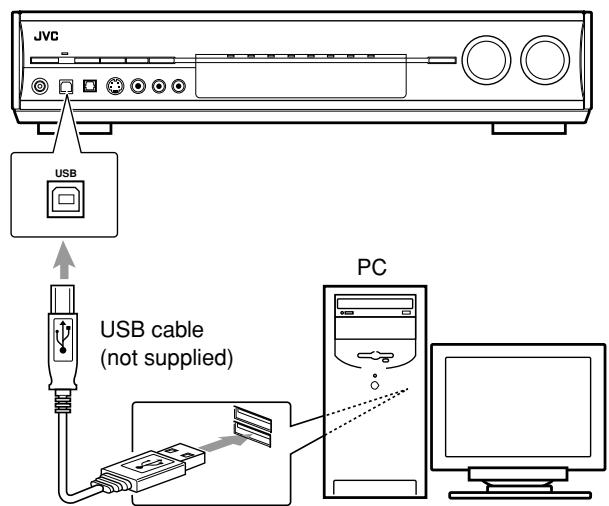
- Use "USB series A plug to B plug" cable when connecting.
How to install the USB drivers
The following procedure is described using the English version of Windows ® XP. If your PC is running on a different version of operation system in a different language, the screens shown on your PC's monitor will differ from the ones used in the following procedure.
The following procedure is applied both to USB WIRELESS and USB TERMINAL.
1 The USB drivers are installed automatically.
- If the USB drivers are not installed automatically, install the USB drivers by following the instructions on the PC's monitor.
2 Check if the drivers are correctly installed.
- Open the Control Panel on your PC: Select [Start] → [Control Panel].
- Select [System] → [Hardware] → [Device Manager] → [Sound, video and game controllers] → [Universal Serial Bus controllers].
- The following window appears, and you can check whether the drivers are installed.
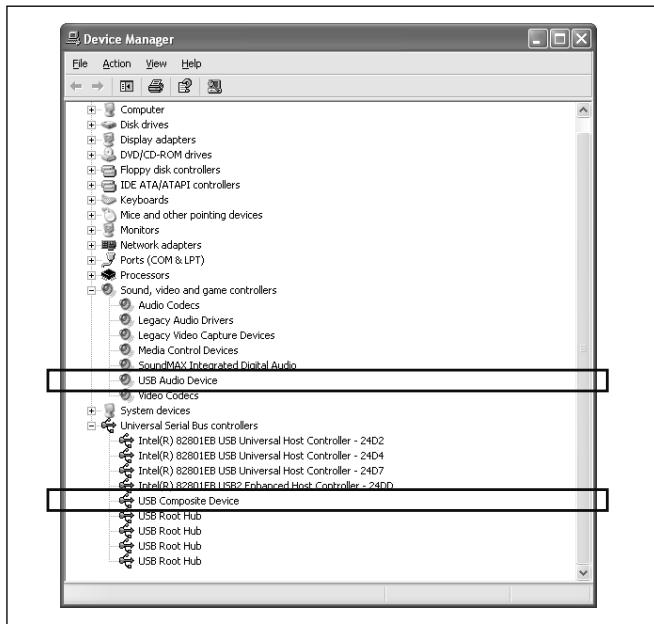
Now the PC is ready for playback through the USB connection.
After installation is completed, you can use your PC as the playback source. The PC automatically recognizes the receiver whenever the transmitter is connected to the PC or the USB cable is connected between the PC and the receiver while the receiver is turned on.
- When not using the PC as the playback source, disconnect the transmitter or the USB cable.
To play back sounds on the PC, refer to the manuals supplied with the sound reproduction application installed in the PC. Start the application after the USB device is recognized.
When playing back with USB WIRELESS, connect the transmitter and aim the transmitter at the antenna. If any obstacles are in between, playback will be interrupted or the wireless communication will be canceled.
If noise comes during playback or playback is interrupted with USB WIRELESS, try the measures below:
- Press CHANNEL on the transmitter to search for another frequency. Each time you press CHANNEL, the frequency advances one channel up from CH 1 up to CH 13.
- Press and hold CHANNEL for more than three seconds to make sure the transmitter detects the best frequency automatically.
If no sound comes from the speakers, check the following items:
For both USB WIRELESS and USB TERMINAL
– Check that the USB device is recognized properly. - Check that the playback software in your PC is compatible with the USB device. – Open the Control Panel on your PC, select [Sounds and Audio Devices] → [Audio] tab → [Sound playback] → [Default device], and check that [Default device] is set to [USB Audio device].
For USB WIRELESS
- Select "USB WIRELESS" as the source.
- Connect the USB wireless transmitter correctly with the USB WIRELESS switch on the receiver "ON."
- Keep proper distance between the receiver and your PC.
- Check that the ID lamp on the transmitter and the signal indicators "L" and "R" on the display light up.
For USB TERMINAL
– Select "USB TERMINAL" as the source. - Connect the USB cable correctly.
NOTES
- DO NOT turn off the receiver or disconnect the transmitter or the USB cable while installing the drivers and for several seconds while your PC is recognizing the receiver.
- If your PC does not recognize the receiver, disconnect the transmitter or the USB cable and connect it again. If it still does not work, restart Windows.
- The installed drivers can be recognized only when the transmitter is connected to your PC or the USB cable is connected between the receiver and your PC.
- The sound may not be played back correctly—interrupted or degraded—due to your PC settings and PC specifications.
- In case the transmitter has an influence on the wireless systems (based on IEEE 802.11b/11g, the cordless telephone, and the microwave oven), try the following measures:
- Press CHANNEL on the transmitter to search for another frequency. Each time you press CHANNEL, the frequency advances one channel up from CH 1 up to CH 13.
- Press and hold CHANNEL for more than three seconds to make sure the transmitter detects the best frequency automatically.
- To keep the distance between the transmitter and the LAN antenna, utilize the supplied extension cord.
- Use a USB cable (version 1.1 or later). Recommended cord length is 1.5 m.
* Microsoft ®, Windows ® 98 SE, Windows ® Me, Windows ® 2000, and Windows ® XP are registered trademarks of Microsoft Corporation.
Basic operations
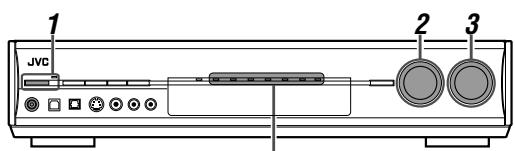
Source lamps
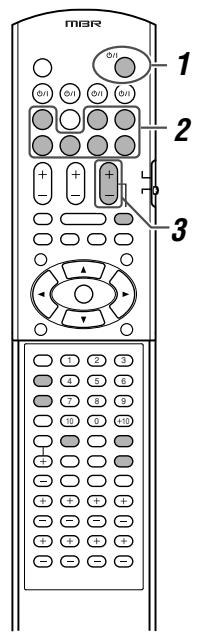
1 Turn on the power
Press ⏻/1 STANDBY/ON (or ⏻/1 AUDIO on the remote control).
The standby lamp goes off and the source lamp of the current source lights in red.
Current source name appears.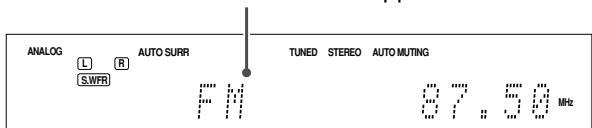
To turn off the power (into standby)
Press Ⓧ/I STANDBY/ON (or Ⓧ/I AUDIO on the remote control) again.
The standby lamp lights in red.
NOTES
- A small amount of power is consumed in standby mode. To turn the power off completely, unplug the AC power cord.
- Turning a source component on before turning the receiver on may cause a noise or interrupt the sound and picture. In this case, turn both the source component and the receiver off, then turn the receiver on before turning the source component on.
2 Select the source to play
On the front panel:
Turn SOURCE SELECTOR until the source name you want appears on the display.
The source lamp corresponding to the selected source lights in red.
- As you turn SOURCE SELECTOR, the source changes as follows:
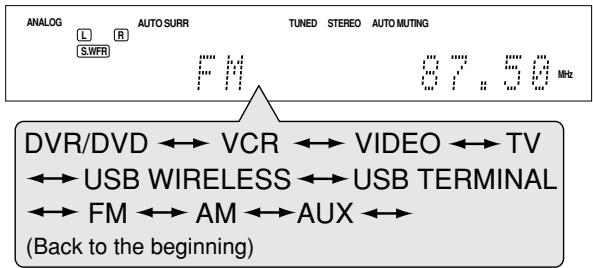
| DVR/DVD: | Select this for the DVD recorder or DVD player. |
| VCR: | Select this for the VCR. |
| VIDEO: | Select this for the component connected to the VIDEO IN jacks on the rear of the receiver. |
| TV: | Select this for the TV. |
| USB WIRELESS: | Select this for the PC component using a wireless equipment. |
| USB TERMINAL: | Select this for the PC component. |
| FM: | Select this for an FM broadcast. |
| AM: | Select this for an AM (MW) broadcast. |
| AUX: | Select this for the component connected to the AUX jacks on the front panel (inside the front door). |
From the remote control:
Press one of the source selecting buttons.
- For “USB WIRELESS” and “USB TERMINAL,” press USB. Each time you press USB, the mode alternates between “USB WIRELESS” and “USB TERMINAL.”
- For “FM” and “AM,” press FM/AM. Each time you press FM/AM, the mode alternates between “FM” and “AM.”
NOTE
When connecting a video component to HDMI VIDEO (VCR) IN terminal or COMPONENT VIDEO (VCR) IN jacks, "VCR" and "VIDEO" are assigned for the source you have selected in "HDMI SELECT" and "CMPNT SELECT" (see page 32).
Selecting the video input setting
Select the proper video input setting according to the connection method on pages 10 to 15.
From the remote control ONLY:
Press VIDEO INPUT to select the video input setting.
• Each time you press the button, the input setting changes as follows. This setting is memorized for each source.
![graph TD A["DIGITAL"] --> B["L C R"] B --> C["S.WFR LFE"] C --> D["□DIGITAL LS RS"] E["HDMI"] --> F["/HDMI"] G["HDMI"] --> H["CMPNT (component)"] H --> I["S (S-video) → C (composite)"] I --> J["(Back to the beginning)"]](/content/2025/01/123434/images/5cd8a1ee45edde909a4d13787a018ef988457cbb8312968f08261820ae1bcffc.jpg)
NOTES
- When “DVR/DVD” or “VCR” is selected as the source and “VIDEO OUTPUT” (see page 33) is set to “RGB/C,” the video input setting changes between “RGB,” “S,” and “C.”
- For "VCR" and "VIDEO," you can select "HDMI" and "CMPNT" for the source you assigned in "HDMI SELECT" and "CMPNT SELECT" (see page 32).
- When the video input setting and the audio input setting are both set to "HDMI," changing the video input setting changes the audio input setting to the appropriate setting.
Selecting the audio input setting
Select the proper audio input setting according to the connection method (analogue or digital) on pages 10 to 16.
- In case of digital connection using the terminals on the rear of the receiver, you also need to select the correct digital input terminal. (See "Setting the digital input (DIGITAL IN) terminals—DIGITAL IN 1/2/3" on page 31.)
From the remote control ONLY:
Press AUDIO INPUT to select the audio input setting.
• Each time you press the button, the audio input setting changes as follows. This setting is memorized for each source.
![graph TD A["Digital"] --> B["L C R"] B --> C["S.W.R LFE"] C --> D["DS LS RS"] E["HDMI"] --> F["Analog"] F --> G["A MULTI (Back to the beginning)"] H["HDMI"] --> I["Analog"] I --> J["A MULTI (Back to the beginning)"]](/content/2025/01/123434/images/4e045b200bd43dce0c8938f529dbd4f8efffc45a12a1a129ea8fa12af8a67597.jpg)
HDMI (for "DVR/DVD," "VIDEO" and "VCR"):
Select for the source with HDMI connection. The receiver automatically detects the incoming signal format, then the digital signal format indicator (LINEAR PCM, DODIGITAL, dts, or dts 96/24) for the detected signal lights up, and the HDMI lamp on the front panel lights up.
DIGITAL*: Select for the digital input setting. The receiver automatically detects the incoming signal format, then the digital signal format indicator (LINEAR PCM, DODIGITAL, dts, or dts 96/24) for the detected signal lights up.
ANALOG*: Select for the analogue input setting. The (ANALOGUE) ANALOG indicator lights up on the display.
A MULTI (Only for "DVR/DVD"):
Select when connecting a DVD recorder or DVD player to DVD MULTI IN jacks (see page 12). The ANALOG indicator lights up on the display.
* When "TV" is selected as the source, only "DIGITAL" or "ANALOGUE" appears on the display as the audio input setting.
NOTES
- “HDMI” is available only for the source with “HDMI” selected in the video input setting (see the left column).
- “DIGITAL” is available for the source assigned for “DIGITAL IN 1,” “DIGITAL IN 2,” or “DIGITAL IN 3.” See page 25 for details.
Initial setting of VIDEO INPUT and AUDIO INPUT for each source
| Setting Source | VIDEO INPUT | AUDIO INPUT |
| DVR/DVD | HDMI | HDMI |
| VCR | S | ANALOG |
| VIDEO | HDMI | HDMI |
| TV | —— | DIGITAL |
| USB WIRELESS | —— | DIGITAL (fixed) |
| USB TERMINAL | —— | DIGITAL (fixed) |
| FM | —— | ANALOG (fixed) |
| AM | —— | ANALOG (fixed) |
| AUX | S | DIGITAL |

Adjust the volume
To increase the volume, turn MASTER VOLUME control clockwise (or press VOLUME + on the remote control).
To decrease the volume, turn MASTER VOLUME control counterclockwise (or press VOLUME – on the remote control).
- When you adjust the volume, the volume level indication appears on the display for a while.

CAUTION:
Always set the volume to the minimum before starting any sources. If the volume is set at its high level, the sudden blast of sound energy can permanently damage your hearing and/or ruin your speakers.
NOTE
The volume level can be adjusted within the range of "0" (minimum) to "50" (maximum).
Listening with headphones
You can enjoy not only stereo software but also multi-channel software through the headphones. (Sounds are down-mixed to the front channels while playing multi-channel software.)
Connect a pair of headphones to the PHONES jack on the front panel to activate the HEADPHONE mode.
The HEADPHONE indicator lights up on the display.
- You can also enjoy the Surround/DSP mode through the headphones—3D HEADPHONE mode. For details, see page 48.
- Disconnecting a pair of headphones from the PHONES jack cancels the HEADPHONE (or 3D HEADPHONE) mode and activates the speakers.
CAUTION:
Be sure to turn down the volume:
- Before connecting or putting on headphones, as high volume can damage both the headphones and your hearing.
- Before removing headphones, as high volume may output from the speakers.
Selecting the digital decode mode
This receiver automatically detects the incoming digital signal format when “HDMI” or “DIGITAL” is selected in the audio input setting (see page 20). When “HDMI” or “DIGITAL” is selected, the digital decode mode is set to “DGTL (Digital) AUTO,” and the DIGITAL AUTO indicator lights up on the display.
If the following symptoms occur while playing Dolby Digital or DTS software with "HDMI" or "DIGITAL" selected as the audio input setting (see page 20), follow the procedure below:
• Sound does not come out at the beginning of playback. - Noise comes out while searching for or skipping chapters or tracks.
From the remote control ONLY:
Press DECODE MODE to select "DOLBY DIGITAL" or "DTS."
- Each time you press DECODE MODE, the digital decode mode changes as follows:
![graph TD A["DIGITAL"] --> B["L C R"] B --> C["S WFB LFE"] C --> D["LS RS"] E["Auto Surr"] --> F["DOLBY DIGITAL"] G["DGTL AUTO"] --> H["DOLBY DIGITAL"] I["DTS"] --> J["(Back to the beginning)"]](/content/2025/01/123434/images/56bc5cbb91f3235cf6061f088f2bce31e468d9142be2feed3262d35296b01827.jpg)
- To play back software encoded with Dolby Digital, select "DOLBY DIGITAL."
- To play back software encoded with DTS, select "DTS."
NOTE
"DOLBY DIGITAL" or "DTS" is automatically reset to "DGTL AUTO" in the following cases:
– When you turn off the receiver. - When you select another source.
The following digital signal format indicators on the display indicate what type of signal comes into the receiver.
LINEAR PCM: Lights up when Linear PCM signal comes in.
- When the multi-channel PCM signal comes in, "MULTI CH PCM" appears on the display for a while.
☐ DIGITAL: Lights up when Dolby Digital signal comes in.
- Flashes when “DOLBY DIGITAL” is selected for any software other than Dolby Digital.
dts: Lights up when conventional DTS signal comes in.
- Flashes when "DTS" is selected for any software other than DTS.
dts 96/24: Lights up when DTS 96/24 signal comes in.
NOTE
When “DGTL AUTO” cannot recognize the incoming signal, no digital signal format indicator lights up on the display.
Turning off the sounds temporarily
From the remote control ONLY:
Press MUTING to turn off the sound through all connected speakers and headphones.
"MUTING" appears on the display and the volume turns off.

To restore the sound, press MUTING again.
- Pressing VOLUME +/- (or turning MASTER VOLUME control on the front panel) also restores the sound.
Changing the display brightness
You can dim the display—Dimmer.
From the remote control ONLY:
Press DIMMER repeatedly.
• Each time you press the button, the display brightness changes as follows:
DIMMER 1: Dims the display slightly. Dims the blue illumination slightly. DIMMER 2: Dims the display more than DIMMER 1. Dims the blue illumination slightly (more than DIMMER 1). DIMMER 3: Turns off the display and blue illumination. (Temporarily canceled when you operate the receiver.)
DIMMER OFF: Cancels the Dimmer (normal display).
Turning off the power with the Sleep Timer
You can fall asleep while listening to music—Sleep Timer.
From the remote control ONLY:
Press SLEEP repeatedly.
• Each time you press the button, the shut-off time changes in 10-minute intervals. The SLEEP indicator lights up on the display.
SLEEP indicator
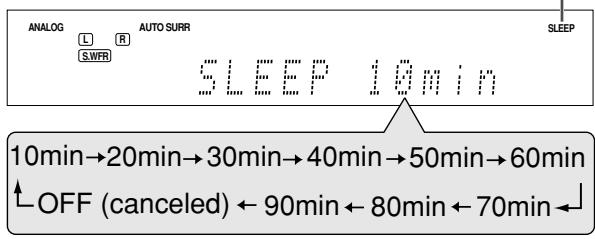
When the shut-off time comes:
The receiver turns off automatically.
To check or change the remaining time until the shut-off time:
Press SLEEP once.
The remaining time (in minutes) until the shut-off time appears.
- To change the shut-off time, press SLEEP repeatedly.
To cancel the Sleep Timer:
Press SLEEP repeatedly so that "SLEEP OFF" appears on the display. (The SLEEP indicator goes off.)
- The Sleep Timer is also canceled when you turn off the receiver.
Making sounds natural
JVC's CC (Compression Compensative) Converter eliminates jitter and ripples, achieving a drastic reduction in digital distortion by processing the digital music data in 24-bit quantization and by expanding the sampling frequency to 176.4 kHz (for fs 44.1 kHz signals)/192 kHz (for fs 48 kHz signals) on the front speakers. By using the CC Converter, you can obtain a natural sound field from both digital and analogue sources.
Press CC CONVERTER repeatedly.
• Each time you press the button, the mode changes as follows:
| CC CNVRTR 1: | Select when playing back an analogue source or a digital source with non compressed digital sound signal (Linear PCM).The CC CONVERTER 1 indicator lights up on the display. |
| CC CNVRTR 2: | Select when playing back a source with compressed digital sound signal (Dolby Digital or DTS).The CC CONVERTER 2 indicator lights up on the display. |
| CC CNVRTR OFF: | Select when not using the CC Converter. |
Basic adjustment of auto memory
This receiver memorizes sound settings for each source:
- when you turn off the power, and
- when you change the source.
When you change the source, the memorized settings for the newly selected source are automatically recalled.
The following can be stored for each source:
• Audio input setting (see page 20) • Midnight mode (see page 31) - Volume level for each source when One Touch Operation is set to "ONE TOUCH OP: ON" (see page 32) - Speaker output level (see page 37) • Digital equalization pattern (see page 38) - Bass boost (see page 38) - Input attenuator mode (see page 38) - Surround/DSP mode selection (see page 50)
NOTE
If the source is “FM” or “AM,” you can assign a different setting for each band.
Signal and speaker indicators on the display
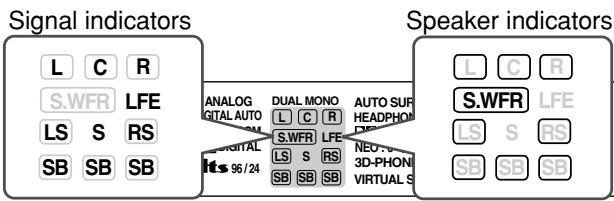
The signal indicators light up as follows:
L: • When digital input is selected: Lights up when the left channel signal comes in. - When analogue input is selected: Always lights up. R: • When digital input is selected: Lights up when the right channel signal comes in. - When analogue input is selected: Always lights up. C: Lights up when the center channel signal comes in. LS: Lights up when the left surround channel signal comes in. RS: Lights up when the right surround channel signal comes in. S: Lights up when monaural surround signal comes in. SB: Lights up when the surround back channel signal comes in. LFE: Lights up when the LFE channel signal comes in.
NOTES
- When “A MULTI” is selected in the audio input setting (see page 20), all the signal indicators except “SB,” “S,” and “LFE” light up.
- When playing back multi-channel digital sound recorded in DVD-Audio with HDMI connection (see pages 11 and 20), the signal indicators may not light up correctly.
The speaker indicators light up as follows:
- The subwoofer indicator (S.WFR) lights up when "SUBWOOFER" is set to "SUBWOOFER: YES." For details, see page 28.
- The other speaker indicators light up only when the corresponding speaker is set to "SMALL" or "LARGE," and also when required for the current playback.
Basic settings
To obtain the best possible sound effect from Surround/DSP modes (see pages 46 to 50), you need to set up the speaker and subwoofer information after all the connections are completed. From pages 23 to 33, how to set speakers and other basic items of the receiver are explained.
Setting the speaker information automatically—Smart Surround Setup
The distance from your listening point to the speakers is one of the important elements to obtain the best possible sound effect from the Surround/DSP modes.
By using Smart Surround Setup, the following are automatically calculated by one simple action—clapping hands.
- Speaker distance (compared to that of the closest speaker)
- Speaker output level (except the subwoofer)
NOTES
- Smart Surround Setup may not work properly with some speakers, or some speakers may cause a noise after Smart Surround Setup finishes. If Smart Surround Setup does not work properly, adjust the speaker distance and output level manually. See pages 29 and 37 for the manual adjustment.
- Before starting Smart Surround Setup, set the speaker information correctly (SMALL, LARGE, or NO) according to your speakers except the subwoofer (see page 28).
- When the setting is made by Smart Surround Setup, the speaker distance and output level you have set before will be inactive.
- You can see the setting process on the TV screen and the display during Smart Surround Setup. If you have turned off the display, cancel the Dimmer (see page 21); otherwise, you cannot see the information on the display.
- Smart Surround Setup will not be done correctly if you or other objects block the sound.
- When you change your speakers, do the following procedure again.
In this section, the on-screen display on the TV screen is used for explaining.
- The on-screen display does not appear on the TV screen when the video input setting (see page 20) is set to "HDMI" or "RGB."
From the remote control ONLY:
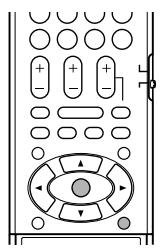
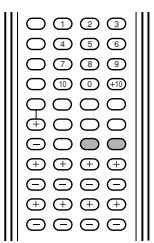
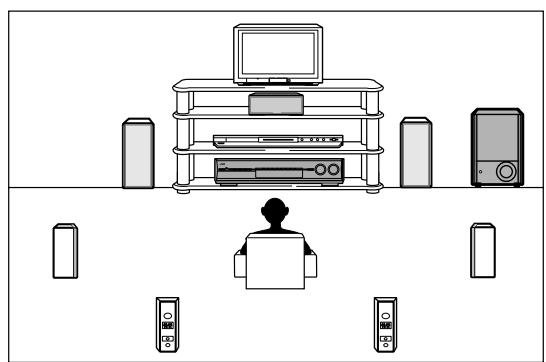
1 Take your position where you listen to the sound.
- Make sure speaker cables are connected firmly.
2 Press and hold SMART S. SETUP until "SETTING UP" flashes.
![graph TD A["SMART"] --> B["FL"] A --> C["C"] A --> D["FR"] A --> E["SL"] A --> F["SBR"] B --> G["SETTING UP"] C --> G D --> G E --> G F --> G G --> H["*4"] I["*5"] --> J["*6"] K["*7"] --> L["*1"] M["*2"] --> N["*2"] O["*3"] --> P["*3"]](/content/2025/01/123434/images/efe7af9c81d49df896b85009257ca526934bbd9f1410a4a5f9d24ce201d6661b.jpg)
*1 FL : Left front speaker *2 C : Center speaker *3 FR : Right front speaker *4 SR : Right surround speaker *5 SBR: Right surround back speaker *6 SBL: Left surround back speaker *7 SL : Left surround speaker
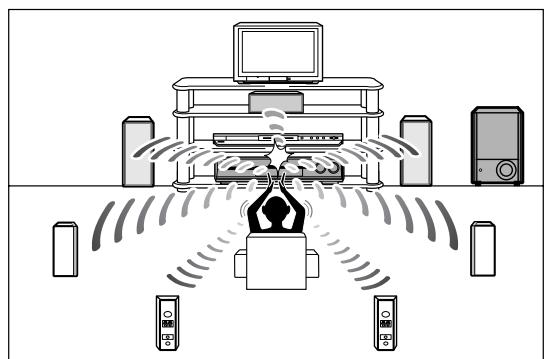
3 When "CLAP YOUR HANDS." appears, clap your hands over your head once while the indications still remain.
- On the display, "SETTING UP" stops flashing.
The receiver starts detecting the level of the sound coming through each speaker (except the subwoofer).
CONTINUED ON THE NEXT PAGE
When your clapping sound is detected successfully
- On the TV screen, "SUCCESSFUL," "RESULT," and the setting values appear. The setting values are shown for about 10 seconds.
Ex.:
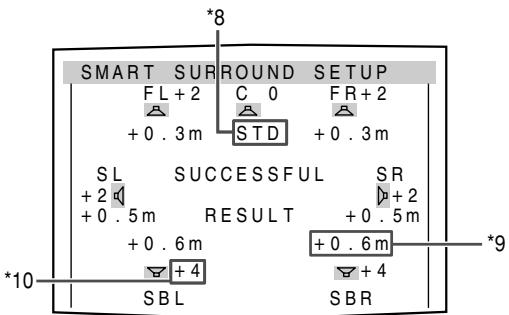
- On the display, "SUCCESSFUL" appears, then the setting values are shown as follows for about 10 seconds:
Ex.:
![graph TD A["Start"] --> B["<STD CH> C"] B --> C["FL +0.3m +2"] C --> D["FL→C→FR→SR→SBR→SBL→SL"]](/content/2025/01/123434/images/149cb6d1a4ddd58e393c89d95db47a1e63d91387e83cda61c18cae4c8a5e3cee.jpg)
*8 Standard channel (the closest speaker). This speaker position now works as the reference position (“0m/ft”) and other speakers’ distance is shown by the difference with this reference speaker position. *9 Difference of each speaker position in distance (in meters or feet). *10 Each speaker's output level (-6 to +6).
When finishing displaying the setting values
On the TV screen, "COMPLETED" appears, then "TEST TONE" and "END" appear. On the display, "TEST? END?" appears.
- To adjust the speakers' output levels manually, press TEST (see page 37).
- To erase the on-screen display, press SET or any button except TEST.
- The receiver returns to normal operation mode automatically if no operations are done for about 10 seconds.
Ex.:
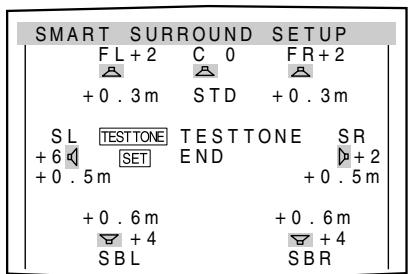
When your clapping sound is not detected correctly
"SETTING UP" appears again after one of the following messages. In this case, repeat step 3.
SILENT:
- The receiver detects sound from only the left and right front speakers.
- The receiver detects no sound from the front speakers and detects sound from at least one of the other speakers.
SILENT-ALL: The receiver cannot detect any sound from any speaker for about 10 seconds.
AGAIN:
- The receiver cannot detect sound from the left or right front speaker.
- The receiver fails to calculate the speakers' output level and difference of each speaker's position in distance.
In the following cases, set the speakers manually.
- When "SILENT" appears twice in succession
The setting is partially made. (The distance of the speakers from which sound has not been detected is set to “+9.0m (+30ft).”)
The receiver exits from Smart Surround Setup.
- When "MANUAL" appears
The receiver fails to detect the sound three times. The receiver exits from Smart Surround Setup.
To cancel Smart Surround Setup, press EXIT while "SETTING UP" flashes.
- No other operations can be accepted after "SETTING UP" stops flashing. Complete the Smart Surround Setup.
To check the current setting made by Smart Surround Setup, press SMART S. SETUP while the receiver is in normal operation mode.
The setting values appear. On the display, the setting values are shown one after another.
- The current setting is not indicated, but "MANUAL" appears if you change the following settings after using Smart Surround Setup: – If you change speaker distance manually.
- If you change one of the speaker sizes either from "NO" to "SMALL" or "LARGE," or from "SMALL" or "LARGE" to "NO." To check the current setting, see each setting item of the speaker distance (see page 29) and the speaker output level (see page 37).
- If you have not used Smart Surround Setup, "NO S.S.S." appears.
NOTES
- When Smart Surround Setup does not work properly, try the measures below:
- Set the volume to "0."
- Turn off the components (TV, DVD player, DVD recorder, or subwoofer, for example) near this receiver or the speakers.
- The speaker distance and output level manually set will be applied instead of those set by using Smart Surround Setup in the following cases:
- When you change one of the speaker distances (see page 29).
- When you change one of the speaker sizes either from "NO" to "SMALL" or "LARGE," or from "SMALL" or "LARGE" to "NO" (see page 28).
- When you want to adjust the speaker distance and output level manually, see pages 29 and 37.
- When the headphone is in use, the receiver returns to normal operation mode without showing "TEST TONE."
- The speakers which are set to "NO" in the speaker setting (see page 28) are not indicated clearly on the TV screen.
- Do not clap your hands so hard that it may hurt your hands.
Basic setting items
You can adjust the following items. See pages in parentheses for details.
- You cannot select the items which are not available with the current setting. For example, when “S BACK SPK” is set to “S BACK SPK: NO,” you cannot select the following items: S BACK OUT, SB SPK DIST., SBL SPK DIST., SBR SPK DIST.
- The name of the item shown below is the on-screen display indication and the name in parentheses is the display indication.
| Items | To do |
| SUBWOOFER*(SUBWOOFER) | Register your subwoofer. (28) |
| FRONT SPK*(FRONT SPK) | Register your front speaker size. (28) |
| CENTER SPK*(CENTER SPK) | Register your center speaker size. (28) |
| SURR SPK*(SURROUND SPK) | Register your surround speaker size. (28) |
| S BACK SPK*(S BACK SPK) | Register your surround back speaker size. (28) |
| S BACK OUT*(S BACK OUT) | Register the number of your surround back speaker(s). (29) |
| DISTANCE UNIT*(DIST UNIT) | Select the measuring unit for the speaker distance. (29) |
| FL SPK DIST.*(FRONT L DIST) | Register the distance from the left front speaker to your listening point. (29) |
| FR SPK DIST.*(FRONT R DIST) | Register the distance from the right front speaker to your listening point. (29) |
| C SPK DIST.*(CENTER DIST) | Register the distance from the center speaker to your listening point. (29) |
| SL SPK DIST.*(SURR L DIST) | Register the distance from the left surround speaker to your listening point. (29) |
| SR SPK DIST.*(SURR R DIST) | Register the distance from the right surround speaker to your listening point. (29) |
| SBL SPK DIST.*(S BACK L DIST) | Register the distance from the left surround back speaker to your listening point. (29) |
| SBR SPK DIST.*(S BACK R DIST) | Register the distance from the right surround back speaker to your listening point. (29) |
| SB SPK DIST.*(S BACK DIST) | Register the distance from the surround back speaker to your listening point. (29) |
| EX/ES/PLIIX(EX/ES/PLIIX) | Select the EX/ES/PLIIX reproduction mode. (30) |
| DUAL MONO(DUAL MONO) | Select the Dual Mono sound channel. (30) |
| SUBWFR OUT(SUBWOOFER OUT) | Select sounds emitted from the subwoofer. (30) |
| CROSSOVER(CROSSOVER) | Select the cutoff frequency to the subwoofer. (31) |
| LFE ATT(LFE ATT) | Attenuate the bass (LFE) sounds. (31) |
| MIDNIGHT(MIDNIGHT MODE) | Reproduce a powerful sound at night. (31) |
| DIGITAL IN 1(DIGITAL IN 1) | Select the component connected to the digital coaxial terminal—1(DVR/DVD). (31) |
| DIGITAL IN 2(DIGITAL IN 2) | Select the component connected to the digital optical terminal—2(VIDEO). (31) |
| DIGITAL IN 3(DIGITAL IN 3) | Select the component connected to the digital optical terminal—3(TV). (31) |
| AUDIO DELAY(AUDIO DELAY) | Set the audio delay time to correct synchronization between video and audio signals. (32) |
| ONE TOUCH OP(ONE TOUCH OP) | Memorize the volume level for each source. (32) |
| HDMI SELECT(HDMI SELECT) | Select the source for HDMI VIDEO (VCR) IN terminal. (32) |
| Items | To do |
| CMPNT SELECT (CMPNT SELECT) | Select the source for COMPONENT VIDEO (VCR) IN jacks. (32) |
| VIDEO OUTPUT (VIDEO OUTPUT) | Select the output video signal according to the connection method for a TV. (33) |
| SUPERIMPOSE (SUPERIMPOSE) | Select to superimpose the menus on the TV screen. (33) |
| AUTO MODE (AUTO MODE) | Select Auto Function mode. (33) |
* If you have used Smart Surround Setup on pages 23 and 24, these settings are not required.
NOTE
Some items are not available when multi channel PCM (see page 47) signals recorded in DVD-Audio are coming. See page 12 for details.
Operation through on-screen display menus
You can make adjustments to the basic settings easily by using the on-screen display menus.
Menu operation buttons
On the front panel:
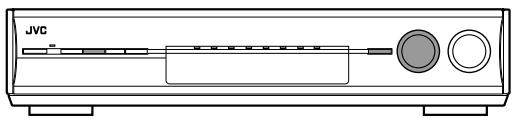
| Button / JOG | To do |
| SETTING button | show setting item previously selected. |
| SET button | move to the selected menu or return to the previous SETTING MENU. |
| MULTI JOG | • select a menu or an item.• change a setting. |
From the remote control:
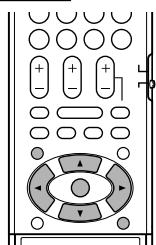
| Button | To do |
| SETTING button | show setting item previously selected. |
| ▲ / ▼ buttons | select a menu or an item. |
| SET button | move to the selected menu or return to the previous SETTING MENU. |
| EXIT button | exit from the SETTING MENU. |
| ◀ / ▶ buttons | change a setting. |
Setup menu configuration
- Items on the menus shown below are all set to the initial values when shipped from the factory.
- Some of the menus or some items on the menu cannot be shown or cannot be adjusted depending on the current settings and the connections. (For details, see the respective explanations in this section.)
![graph TD A["SETTING MENU (5)"] --> B["SETTING MENU (1)"] B --> C["PRESS SET"] C --> D["SETTING MENU (2)"] D --> E["SETTING MENU (3)"] E --> F["SETTING MENU (4)"] F --> G["SETTING MENU (5)"] subgraph SET H["SETTING MENU (1) ↑"] --> I["SETTING MENU (2) ↑"] J["SETTING MENU (3) ↑"] --> K["SETTING MENU (…](/content/2025/01/123434/images/2e388ff925b8dd217a0935b43dbead89fff86e19fd257265f054114d1732fb9c.jpg)
Menu operating procedure
When operating, the on-screen display appears on the TV screen regardless of the SUPERIMPOSE setting (see page 33).
Before you start, remember...
There is a time limit in doing the following steps. If the setting is canceled before you finish, start from step 1 again.
In this section, the operation of the remote control is used for explaining.
Ex.: When setting DIGITAL IN 1 terminal.
Operations
1 To start the setting, press SETTING.
The setting item previously selected can be shown on the TV screen by pressing SETTING on the front panel when the receiver is in normal operation mode.
On the TV screen
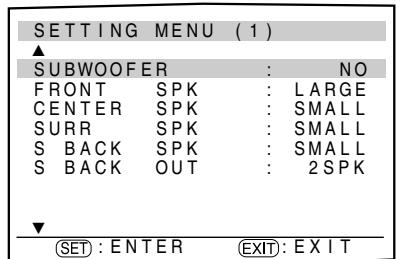
The setting item previously selected appears.
On the display
SUBWOOFER
The submenu previously selected appears.
2 To select the desired submenu, press
▲ or ▼ repeatedly.
There are five screens from “SETTING MENU (1)” to “SETTING MENU (5).” To change the screen, simply press ▲ or ▼ repeatedly. You can go to the next/previous screen.
- On the front panel, turn MULTI JOG.
Button indications on the screen
The buttons for operating the menu are shown on the TV screen. You can operate the menu with these buttons.
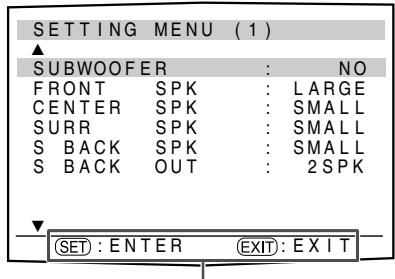
Usable buttons and their functions
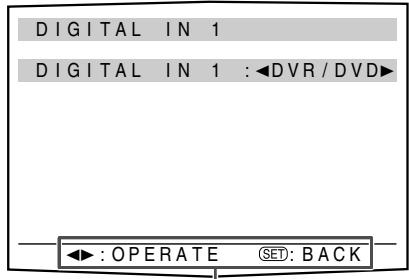
Usable buttons and their functions
3 Press SET.
D 1 (DVR/DVD)
The current setting of the selected item appears.
The selected submenu appears.
4 To select the appropriate setting, press ◀ or ▶ repeatedly, then press SET.
The on-screen display returns to the previous SETTING MENU. In this example, “SETTING MENU (4)” appears on the TV screen and “DIGITAL IN 1” appears on the display.
- On the front panel, turn MULTI JOG, then press SET.
![graph TD A["Digital IN 1"] --> B["DVR/DVD"] C["Digital IN 1 : ◀DVR/DVD"] --> D["VIDEO"] E["D 1 <DVR/DVD"] --> F["VCR"] B <--> D B <--> F B <--> G["TV"] style A fill:#f9f,stroke:#333 style C fill:#f9f,stroke:#333 style E fill:#ccf,stroke:#333](/content/2025/01/123434/images/7e171773d42f270461ae839dced86cb995568402e87565803c9984ef6e846821.jpg)
5 Repeat steps 2 to 4 to set other items if necessary.
NOTE
To exit from menu operations, press EXIT on the remote control. On the front panel, press SETTING.
Setting the items
When performing the basic settings viewing the indications on the display, the indications are slightly different from what is shown on the on-screen display.
This is because of the limited number of characters shown on the display.
Ex.: • “SUBWOOFER: YES” is shown as “SUBWFR ” on the display.
- “CROSSOVER: 100Hz” is shown as “CROSS <100Hz>” on the display.
Setting the speakers
To obtain the best possible surround effect from the Surround and DSP modes, register the setting about the speaker after all connections are completed.
■ Setting subwoofer information—SUBWOOFER
Select whether you have connected a subwoofer or not.
| SUBWOOFER: YES | Select when you have connected a subwoofer.The subwoofer indicator (S.WFR) lights up on the display. You can adjust the subwoofer output level (see page 37). |
| SUBWOOFER: NO | Select when you have disconnected a subwoofer. Selecting this changes the front speaker size to “LARGE” (see the right column). |
■ Setting the speaker size—FRONT SPK (front speakers), CENTER SPK (center speaker), SURR SPK (surround speakers), S BACK SPK (surround back speakers)
Register the sizes of all the connected speakers.
| LARGE | Select when the cone speaker size is larger than 12 cm. |
| SMALL | Select when the cone speaker size is smaller than 12 cm. |
| NO | Select when you have disconnected a speaker. (Not selectable for the front speakers.) |
Initial setting: LARGE (for the front speakers) SMALL (for other speakers)
Initial setting: SUBWOOFER: NO
■ Setting the surround back speaker(s)—S BACK OUT
Register the number of the surround back speaker(s).
| S BACK OUT: 1SPK | Select when you use 1 surround back speaker. |
| S BACK OUT: 2SPK | Select when you use 2 surround back speakers. |
Initial setting: S BACK OUT: 2SPK
NOTES
- If you have selected "SMALL" for the front speaker size, you cannot select "LARGE" for other speakers.
- When “SUBWOOFER” is set to “SUBWOOFER: NO,” the front speaker size is fixed to “LARGE” (and you cannot select “SMALL”).
- When “SURR SPK” is set to “SMALL,” you cannot select “LARGE” for the surround back speaker.
- When “SURR SPK” is set to “NO,” the surround back speaker is fixed to “NO.”
- When "S BACK SPK" is set to "NO," you cannot select "S BACK OUT."
- When “S BACK OUT” is set to “S BACK OUT: 1SPK,” connect the surround back speaker to the left surround back speaker terminal (see page 8). No sound comes from the surround back speaker if you connect it to the right surround back speaker terminal.
■ Setting the speaker distance
The distance from your listening point to the speakers is one of the important elements to obtain the best possible sound effect from the Surround/DSP modes.
By referring to the speaker distance, the receiver automatically sets the delay time of the sound through each speaker so that sounds through all the speakers can reach you at the same time.
■ Measuring unit—DISTANCE UNIT
Select which measuring unit you use.
DISTANCE UNIT: meter Select to set the distance in meters.
DISTANCE UNIT: feet Select to set the distance in feet.
Initial setting: DISTANCE UNIT: meter
■ Speaker distance—
FL SPK DIST. (for the left front speaker), FR SPK DIST. (for the right front speaker), C SPK DIST. (for the center speaker), SL SPK DIST. (for the left surround speaker), SR SPK DIST. (for the right surround speaker), SBL SPK DIST. (for the left surround back speaker), SBR SPK DIST. (for the right surround back speaker)
Adjustable range: 0.3 m to 9.0 m in 0.3 m intervals (1 ft to 30 ft in 1 ft intervals)
Initial setting: 3.0 m (10 ft) for all speakers
![graph TD FL["FL"] --> C["C"] C --> FR["FR"] FR --> SR["SR"] SR --> SBR["SBR"] SBR --> SBL["SBL"] SL["SL"] --> C SL --> SBR SL --> SBR C --> 2.1m["2.4 m (7 ft)"] C --> 2.7m["2.7 m (9 ft)"] C --> 3.0m["3.0 m (10 ft)"] C --> 3.3m["3.3 m (11 ft)"] SBR --> 2.4m SBR --> 2.7m SBR --> 3.0m](/content/2025/01/123434/images/272ede7c9062b7e7c9c83047d816d671de15f672459059babcb36fac9d26bf32.jpg)
In this case, set the distance as follows:
| Left front speaker (FL): | “FL SPK DIST.: 3.0m (10ft)” |
| Right front speaker (FR): | “FR SPK DIST.: 3.0m (10ft)” |
| Center speaker (C): | “C SPK DIST.: 3.0m (10ft)” |
| Left surround speaker (SL): | “SL SPK DIST.: 2.7m (9ft)” |
| Right surround speaker (SR): | “SR SPK DIST.: 2.7m (9ft)” |
| Left surround back speaker (SBL): | “SBL SPK DIST.: 2.4m (8ft)” |
| Right surround back speaker (SBR): | “SBR SPK DIST.: 2.4m (8ft)” |
NOTES
- You cannot set the speaker distance for the speakers you have set to "NO."
- If you have selected "S BACK OUT: 1SPK" for "S BACK OUT" (see the left column), "SB SPK DIST." appears instead of "SBL SPK DIST." and "SBR SPK DIST."
Activating the EX/ES/PLIIx setting—EX/ES/PLIIx
Depending on this setting, available Surround modes for digital multi-channel software vary—EX/ES/PLIIx reproduction or 5.1-channel reproduction. Select an appropriate setting for your enjoyment.
- For details about relation between EX/ES/PLIIx setting and available Surround mode, see page 49.
- To activate the Surround mode, see page 50.
EX/ES/PLIIx: AUTO
| According to the incoming signal, an appropriate Surround mode is applied.For Dolby Digital Surround EX and DTS-ES software, 7.1-channel reproduction is applied*.For the other multi-channel (more than 4 channel) encoded software, 5.1-channel reproduction is applied. | |
| EX/ES/PLIIx: ONSelect to apply 7.1-channel reproduction to both 5.1-channel and 6.1-channel encoded software. | |
| EX/ES/PLIIx: PLIIx MOVIESelect to apply PLIIx MOVIE reproduction to both 5.1-channel and 6.1-channel encoded software. | |
| EX/ES/PLIIx: PLIIx MUSICSelect to apply PLIIx MUSIC reproduction to both 5.1-channel and 6.1-channel encoded software. | |
| EX/ES/PLIIx: OFFSelect to cancel the EX/ES/PLIIx reproduction. | |
Initial setting: EX/ES/PLIIx: AUTO
* For some Dolby Digital Surround EX software, Dolby Digital 5.1-channel reproduction (“DOLBY DIGITAL”) may be applied even though you have selected “AUTO”. In this case, select “ON” to apply “DOLBY D EX.” (See page 49.)
NOTES
- This function is not available when “SURR SPK” is set to “NO” (see page 28).
- When “S BACK SPK” is set to “NO” (see page 28), the Virtual Surround Back (see page 49) is applied for EX/ES/PLIIx reproduction and the VIRTUAL SB indicator lights up on the display.
Selecting the main or sub channel —DUAL MONO
You can select the playback sound (channel) you want while playing digital software recorded (or broadcasted) in Dual Mono mode (see page 47), which includes two monaural channels separately. When the receiver detects Dual mono signals, the DUAL MONO indicator lights up on the display.
| DUAL MONO: MAIN | Select to play back the main channel (Ch 1).*Signal indicator “L” lights up while playing back this channel. |
| DUAL MONO: SUB | Select to play back the sub-channel (Ch 2).*Signal indicator “R” lights up while playing back this channel. |
| DUAL MONO: ALL | Select to play back both the main and sub-channels (Ch 1/Ch 2).*Signal indicators “L” and “R” light up while playing back these channels. |
Initial setting: DUAL MONO: MAIN
* Dual Mono signals can be heard from the following speakers—L (left front speaker), R (right front speaker), and C (center speaker), with respect to the current Surround setting:
| Dual Mono setting | Without Surround | With Surround Activated | |||||
| Center speaker setting | |||||||
| SML/LRG | NO | ||||||
| L | R | L | C | R | L | R | |
| MAIN | Ch 1 | Ch 1 | — | Ch 1 | — | Ch 1 | Ch1 |
| ALL | Ch 1 | Ch 2 | — | Ch 1+Ch 2 | — | Ch 1+Ch 2 | Ch 1+Ch 2 |
| SUB | Ch 2 | Ch 2 | — | Ch 2 | — | Ch 2 | Ch 2 |
NOTE
The Dual Mono format is not identical with bilingual broadcasting for TV programs. So this setting does not take effect while watching such bilingual programs.
Setting bass sound
■ Setting subwoofer output—SUBWFR OUT
The subwoofer emits the LFE signals* and the bass elements of each speaker set to "SMALL."
You can make the bass elements of the front speaker channels (MAIN) emitted through the subwoofer.
| SUBWFR OUT: LFE | Select to emit the LFE signals and the bass elements of each speaker set to “SMALL.” |
| SUBWFR OUT: LFE+MAIN | Select to emit the bass elements of the front speakers’ channels (MAIN) when no bass elements are emitted through the subwoofer in “SW: LFE.” |
Initial setting: SUBWFR OUT: LFE
NOTE
When "SUBWOOFER" is set to "SUBWOOFER: NO" (see page 28), this function is not available.
* The LFE signals are emitted only when playing the following software with the LFE signals: - Dolby Digital multi channel software - DTS multi channel software When playing analogue source or linear PCM software, no LFE signals are emitted.
■ Setting the crossover frequency—CROSSOVER
Small speakers cannot reproduce the bass sounds efficiently. If you use a small speaker in any position, this receiver automatically reallocates the bass sound elements assigned to the small speaker to the large speakers.
To use this function properly, set this crossover frequency level according to the size of the small speaker connected.
- If you have selected "LARGE" for all speakers (see page 28), this function will not take effect ("CROSS OFF" appears).
| CROSSOVER: 80Hz | Select when the cone speaker unit built in the speaker is about 12 cm. |
| CROSSOVER: 100Hz | Select when the cone speaker unit built in the speaker is about 10 cm. |
| CROSSOVER: 120Hz | Select when the cone speaker unit built in the speaker is about 8 cm. |
Initial setting: CROSSOVER: 100Hz
NOTE
Crossover frequency is not valid for the HEADPHONE and 3D HEADPHONE modes.
■ Setting the low frequency effect attenuator —LFE ATT
If the bass sound is distorted while playing back software encoded with Dolby Digital or DTS, set the LFE level to eliminate distortion.
This function takes effect only when the LFE signals come in.
| LFE ATT: 0dB | Normally select this. |
| LFE ATT: -10dB | Select when the bass sound is distorted. |
Initial setting: LFE ATT: 0dB
Using the Midnight mode—MIDNIGHT
You can enjoy powerful sound at night using the Midnight mode. When the Midnight mode is activated, the MIDNIGHT indicator lights up on the display.
| MIDNIGHT: OFF | Select when you want to enjoy surround with its full dynamic range. (No effect applied.) |
| MIDNIGHT: 1 | Select when you want to reduce the dynamic range a little. |
| MIDNIGHT: 2 | Select when you want to apply the compression effect fully (useful at night). |
Initial setting: MIDNIGHT: OFF
From the remote control:
Press MIDNIGHT repeatedly to select either one of the above.
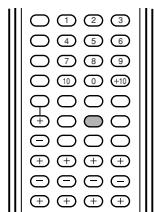
Setting the digital input (DIGITAL IN) terminals—DIGITAL IN 1/2/3
When you use the digital input terminals, register what components are connected to which terminals—DIGITAL IN 1/2/3 (see page 16) so that the correct source name will appear when you select the digital source.
Select one of the following components for each terminal:
| DVR/DVD | For the DVD player (or DVD recorder). |
| VIDEO | For the component connected to the VIDEO IN jacks on the rear of the receiver. |
| VCR | For the VCR. |
| TV | For the TV. |
Initial setting: For "DIGITAL IN 1": DVR/DVD
For "DIGITAL IN 2": VIDEO
For "DIGITAL IN 3": TV
NOTES
- You cannot assign the same component for different terminals. The priority order for assignment is as follows:
“DIGITAL IN 1” > “DIGITAL IN 2” > “DIGITAL IN 3.”
Ex.: When "DIGITAL IN 1" is set to "DVR/DVD."
DIGITAL IN 1 DVR/DVD VIDEO VCR TV

For “DIGITAL IN 2,” “VIDEO,” “VCR,” and “TV” are selectable.
- In this case, "VCR" is selected.
DIGITAL IN 2 DVR/DVD VIDEO VCR TV

For “DIGITAL IN 3,” “VIDEO” and “TV” are selectable.
DIGITAL IN 3 DVR/DVD VIDEO VCR TV

Selectable

Not selectable
- Setting “DIGITAL IN 1” affects “DIGITAL IN 2” and “DIGITAL IN 3” settings. When you have changed “DIGITAL IN 1,” confirm the components assigned to “DIGITAL IN 2” and “DIGITAL IN 3.”
Setting the Audio delay level —AUDIO DELAY
Synchronization between audio and video reproduction can be possibly disturbed because video signal decoding is time-consuming compared to the audio signal decoding. On this setting, you can correct synchronization between video and audio signals by delaying the audio signal timing.
Adjustable range: OFF and 10 ms to 100 ms (in 10 ms intervals)
Initial setting: AUDIO DELAY: OFF
Memorizing the volume level for each source—ONE TOUCH OP
This receiver memorizes some settings separately for each source. In addition, you can store the volume level for each source with the other memorized settings. (See page 22.)
• This receiver memorizes the volume level – when you turn off the power, and – when you change the source.
ONE TOUCH OP: ON
Select to store the volume level separately for each source. (The ONE TOUCH OPERATION indicator lights up on the display.)
ONE TOUCH OP: OFF
Select this not to store the volume level.
Initial setting: ONE TOUCH OP: OFF
To recall the volume level
With the ONE TOUCH OPERATION indicator lit, the volume level for the currently selected source is recalled when the source is selected.
To cancel the One Touch Operation
Set One Touch Operation to "ONE TOUCH OP: OFF" so that the ONE TOUCH OPERATION indicator goes off from the display.
Selecting the source for HDMI terminal and COMPONENT VIDEO jacks—HDMI SELECT/CMPNT SELECT
When you connect a video component other than DVD recorder or DVD player (VCR or DBS tuner, for example) to the VIDEO (VCR) IN terminal (jacks) in HDMI terminal or COMPONENT VIDEO jacks on the rear of the receiver, you need to select either "VIDEO" or "VCR" according to the component you connect. If you have not selected appropriate source, you cannot view the playback picture on the TV.
For the HDMI terminal:
HDMI SELECT: VIDEO
Select this when assigning the HDMI terminal for a video component (DBS, for example).
HDMI SELECT: VCR
Select this when assigning the HDMI terminal for a VCR.
Initial setting: HDMI SELECT: VIDEO
For the COMPONENT VIDEO jacks:
CMPNT SELECT: VIDEO
Select this when assigning the COMPONENT VIDEO jacks for a video component (DBS, for example).
CMPNT SELECT: VCR
Select this when assigning the COMPONENT VIDEO jacks for a VCR.
Initial setting: CMPNT SELECT: VIDEO
Selecting the output video signals — VIDEO OUTPUT
To use the video conversion function (see page 9), you need to select this setting according to the connection method for a TV.
VIDEO OUTPUT: HDMI
Select this when connecting a TV with the HDMI cable.
VIDEO OUTPUT: CMPNT
Select this when connecting a TV with the component video cable.
VIDEO OUTPUT: S
Select this when connecting a TV with the SCART cable which receives S-video signals.
VIDEO OUTPUT: RGB/C
Select this when connecting a TV with the SCART cable which receives RGB or composite video signals.
Initial setting: VIDEO OUTPUT: HDMI
NOTE
To transmit the video signals selected in this setting, you need to connect a TV and this receiver with the cable which can transmit the selected video signals.
Superimposing the menus —SUPERIMPOSE
You can select whether or not to superimpose the on-screen display on the TV screen.
SUPERIMPOSE: ON
Select to superimpose the on-screen display on the TV screen.
SUPERIMPOSE: OFF
Select to cancel superimposition. The on-screen display will be shown on the blue background screen.
Initial setting: SUPERIMPOSE: ON
NOTES
- Some on-screen displays appear on the TV screen regardless of this setting.
- When the video input setting (see page 20) is set to "CMPNT," the on-screen display will be shown on the blue background screen even though "SUPERIMPOSE" is set to "SUPERIMPOSE: ON."
- The on-screen display does not appear on the TV screen when the video input setting (see page 20) is set to "HDMI" or "RGB."
Setting the Auto Function mode —AUTO MODE
The source will be selected automatically simply by turning on a video component.
- This function takes effect for the video components connected to the receiver using the SCART cable—DVR/DVD and VCR.
Auto Function mode works as follows:
- When a video component is turned on, the receiver selects the video component as the source (and the TV input is changed automatically).
- When a video component currently selected as the source is turned off, the receiver changes the source to the video source previously selected—DVR/DVD, VCR, or VIDEO.
| AUTO MODE: AUTO1 | Auto Function mode works when the receiver is on. |
| AUTO MODE: AUTO2 | Auto Function mode works whether or not the receiver is on. When the receiver is off, turning on a video component turns on the receiver, then the video component is selected as the source. |
AUTO MODE: MANUAL You need to select the source manually.
Initial setting: AUTO MODE: MANUAL
When “AUTO MODE: AUTO1” or “AUTO MODE: AUTO2” is selected, the AUTO MODE indicator lights up on the display.
NOTE
When selecting VCR as the source, only turning on the VCR may not activate “AUTO MODE: AUTO1.” If this happens, you may need to start playback to activate Auto Function mode.
Sound adjustments
You can make sound adjustment to your preference after completing basic setting.
Basic adjustment items
You can adjust the following items. See pages in parentheses for details.
- You cannot select the items which is not available with the current setting.
- The name of the item shown below is the on-screen display indication and the name in parentheses is the display indication.
| Items | To do |
| SUBWOOFER LEVEL*1(SUBWFR LVL) | Adjust the subwoofer output level. (37) |
| FRONT L LEVEL*1*2(FRONT L LVL) | Adjust the left front speaker output level. (37) |
| FRONT R LEVEL*1*2(FRONT R LVL) | Adjust the right front speaker output level. (37) |
| CENTER LEVEL*1*2(CENTER LVL) | Adjust the center speaker output level. (37) |
| SURR L LEVEL*1*2(SURR L LVL) | Adjust the left surround speaker output level. (37) |
| SURR R LEVEL*1*2(SURR R LVL) | Adjust the right surround speaker output level. (37) |
| S BACK L LEVEL*1*2(S BACK L LVL) | Adjust the left surround back speaker output level. (37) |
| S BACK R LEVEL*1*2(S BACK R LVL) | Adjust the right surround back speaker output level. (37) |
| S BACK LEVEL*1*2(S BACK LVL) | Adjust the surround back speaker output level. (37) |
| DIGITAL EQ 63Hz (D EQ 63Hz)*1DIGITAL EQ 250Hz (D EQ 250Hz)*1DIGITAL EQ 1kHz (D EQ 1kHz)*1DIGITAL EQ 4kHz (D EQ 4kHz)*1DIGITAL EQ 16kHz (D EQ 16kHz)*1Adjust the equalization pattern of each band. (38) | |
| BASS BOOST(BASS BOOST) | Boost the bass level. (38) |
| INPUT ATT(INPUT ATT) | Attenuate the input level of analogue source. (38) |
| EFFECT*1(EFFECT) | Adjust the effect level. (38) |
| ROOM SIZE(ROOM SIZE) | Select the room size for your virtual listening room. (38) |
| LIVENESS(LIVENESS) | Select the liveness level for your virtual listening room. (39) |
| PANORAMA(PANORAMA) | Add “wraparound” sound effect with side-wall image. (39) |
| CENTER WIDTH(CENTER WIDTH) | Adjust the center channel localization between the center speaker and the left/right speakers. (39) |
| Items | To do |
| DIMENSION (DIMENSION) | Adjust sound localization pattern. (39) |
| CENTER GAIN (CENTER GAIN) | Adjust the sound localization of the center channel. (39) |
| CENTER TONE*1 (CENTER TONE) | Make the center tone soft or sharp. (39) |
| CNTR ALIGNMENT (CENTER ALIGN) | Align the vertical localization of the center channel signals. (39) |
*1 You can adjust these items directly from the remote control. *2 If you have used Smart Surround Setup on pages 23 and 24, these settings are not required.
NOTE
Some items are not available when multi channel PCM (see page 47) signals recorded in DVD-Audio are coming. See page 12 for details.
Operation through on-screen display menus
You can make adjustments to the basic settings easily by using the on-screen display menus.
Menu operation buttons
On the front panel:
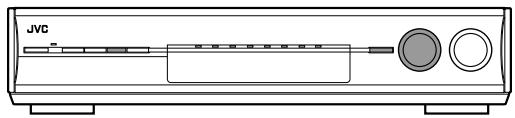
| Button / JOG | To do |
| ADJUST button | show adjustment item previously selected. |
| SET button | move to the selected menu or return to the previous ADJUST MENU. |
| MULTI JOG | • select a menu or an item.• change a setting. |
From the remote control:
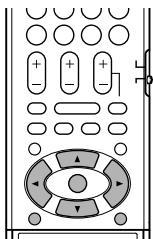
| Button | To do |
| ADJUST button | show adjustment item previously selected. |
| ▲ / ▼ buttons | select a menu or an item. |
| SET button | move to the selected menu or return to the previous ADJUST MENU. |
| EXIT button | exit from the ADJUST MENU. |
| ◀ / ▶ buttons | change a setting. |
Setup menu configuration
- Items on the menus shown below are all set to the initial values when shipped from the factory.
- Some of the menus or some items on the menu cannot be shown or cannot be adjusted depending on the current settings and the connections. (For details, see the respective explanations in this section.)
- The “ADJUST MENU (2),” “ADJUST MENU (3),” and “ADJUST MENU (4)” screen cannot be shown depending on the current settings and the connections.
![graph TD A["ADJUST MENU (4)"] --> B["ADJUST MENU (1)"] B --> C["Press SET"] C --> D["ADJUST MENU (2)"] D --> E["ADJUST MENU (3)"] E --> F["ADJUST MENU (4)"] subgraph Adjusted Modules G["ADJUST MENU (1)"] --> H["SUBWOOFER LEVEL: 0"] G --> I["FRONT L LEVEL: 0"] G --> J["FRONT R LEVEL: 0"] G --> K["CEN…](/content/2025/01/123434/images/b99152eff1099c2e348325f4fef77570e0c475579e9fa46fcf454a47fe8abe59.jpg)
Menu operating procedure
When operating, the on-screen display appears on the TV screen regardless of the SUPERIMPOSE setting (see page 33).
Before you start, remember...
There is a time limit in doing the following steps. If the setting is canceled before you finish, start from step 1 again.
In this section, the operation of the remote control is used for explaining.
Ex.: When adjusting subwoofer output level.
Operations
1 To start the adjustment, press ADJUST.
The setting item previously selected can be shown on the TV screen by pressing ADJUST on the front panel when the receiver is in normal operation mode.
On the TV screen
On the display
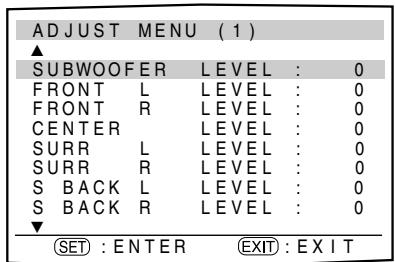

The previously selected submenu appears.
The previously selected setting item appears.
2 To select the desired submenu, press ▲ or ▼ repeatedly.
There are four screens from "ADJUST MENU (1)" to "ADJUST MENU (4)." To change the screen, simply press ▲ or ▼ repeatedly. You can go to the next/previous screen.
- On the front panel, turn MULTI JOG.
3 Press SET.
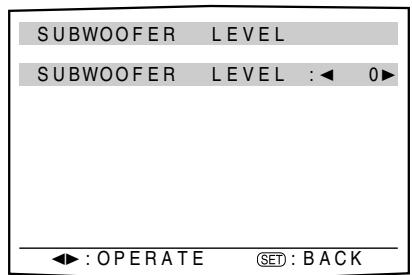

The current setting of the selected item appears.
The selected submenu appears.
4 To select the appropriate setting, press ◀ or ▶ repeatedly, then press SET.
The on-screen display returns to the previous ADJUST MENU. In this example, “ADJUST MENU (1)” appears on the TV screen and “SUBWFR LVL” appears on the display.
- On the front panel, turn MULTI JOG, then press SET.

5 Repeat steps 2 to 4 to set other items if necessary.
NOTE
To exit from menu operations, press EXIT on the remote control. On the front panel, press ADJUST.
Button indications on the screen
The buttons for operating the menu are shown on the TV screen. You can operate the menu with these buttons.
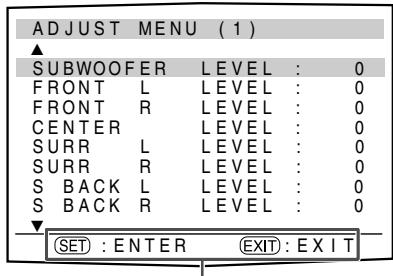
Usable buttons and their functions
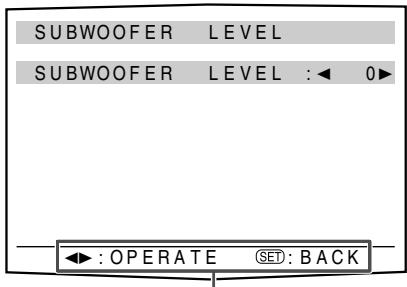
Usable buttons and their functions
Adjusting the items
When performing the basic settings viewing the indications on the display, the indications are slightly different from what is shown on the on-screen display.
This is because of the limited number of characters shown on the display.
Ex.: • “SUBWOOFER LEVEL: +10” is shown as “SUBWFR +10” on the display.
- "BASS BOOST: OFF" is shown as "B BOOST " on the display.
Adjusting the speaker output levels
- SUBWOOFER LEVEL (subwoofer output level),
- FRONT L LEVEL (left front speaker output level),
- FRONT R LEVEL (right front speaker output level),
- CENTER LEVEL (center speaker output level),
- SURR L LEVEL (left surround speaker output level),
- SURR R LEVEL (right surround speaker output level),
- S BACK L LEVEL (left surround back speaker output level),
- S BACK R LEVEL (right surround back speaker output level)
You can adjust the speaker output levels.
Adjust all the speakers' output levels so that you can listen to the sounds from all the speakers at the same level.
- Once you have made an adjustment, it is memorized for each source.
Adjustable range: -10 (dB) to +10 (dB) (in 1 step intervals)
Initial setting: 0 (dB) for all speakers
NOTES
- If you have selected "NO" for a speaker (see page 28), the output level for the corresponding speaker is not adjustable.
- If you have selected "HDMI" or "A MULTI" in the audio input setting (see page 20), "S BACK LEVEL," "S BACK L LEVEL," and "S BACK R LEVEL" are not adjustable.
- If you have selected "S BACK OUT: 1SPK" for "S BACK OUT" (see page 29), "S BACK LEVEL" appears instead of "S BACK L LEVEL" and "S BACK R LEVEL."
- While using the headphones, you can adjust only the left and right front speakers' output level.
From the remote control:
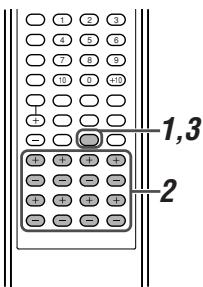
1 Press TEST to check the speakers' output balance.
- On the TV screen, "TEST TONE" appears. The indicator ») corresponding to the speaker appears while a test tone comes out of the speakers.
EX.:
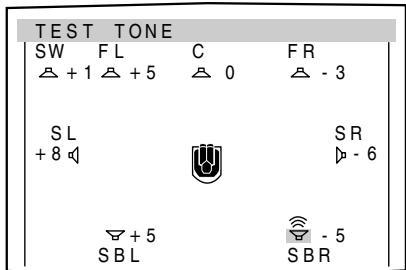
- On the display, "TEST L" starts flashing, and a test tone comes out of the speakers clockwise.
![graph TD A["TEST"] --> B["L"] B --> C["C"] C --> D["R"] D --> E["SR"] E --> F["SBR"] F --> G["SBL"] G --> H["SL"] H --> I["SW"] I --> J["(Back to the beginning)"]](/content/2025/01/123434/images/bbe1cc67300ce7148b708def84514168e9ab251cceae2ae4fa81e3b377abdb73.jpg)
- You can adjust the speaker output levels without the test tone.
2 Adjust the speaker output levels.
Press the + or – button corresponding to the speaker you want to adjust.
3 Press TEST again to stop the test tone.
NOTES
- No test tone comes out of the speakers for which the speaker setting is set to "NO" (see page 28).
- No test tone is available when the headphones are in use.
- If you have selected "S BACK OUT: 1SPK" for "S BACK OUT" (see page 29), press S. BACK L +/- to adjust the output level.
Adjusting the equalization patterns—DIGITAL EQ 63Hz/250Hz/1kHz/4kHz/16kHz
You can adjust equalization patterns in five frequency bands (center frequency: 63 Hz, 250 Hz, 1 kHz, 4 kHz, 16 kHz) for the front speakers.
- Once you have made an adjustment, it is memorized for each source.
Adjustable range: -8 (dB) to +8 (dB) (in 2 dB intervals)
Initial setting: 0 (dB) for all bands
- When adjustment is made, the DIGITAL EQ indicator lights up on the display.
If no adjustment is required, set all the frequency bands to "0 (dB)."
- The DIGITAL EQ indicator goes off from the display.
From the remote control:
Before you start, remember...
There is a time limit in doing the following steps. If the setting is canceled before you finish, start from step 1 again.
1 Press D. EQ FREQ repeatedly to select the band you want to adjust. 2 Press D. EQ LEVEL + or – to adjust the equalization pattern of the selected band. 3 Repeat steps 1 and 2 to adjust other bands.
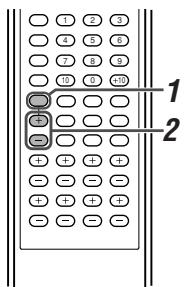
Adjusting the bass sounds
■ Reinforcing the bass—BASS BOOST
You can boost the bass level—Bass Boost.
- Once you have made an adjustment, it is memorized for each source.
- You cannot adjust this item directly from the remote control.
BASS BOOST: ON Select to boost the bass level.
| The B.BOOST indicator lights up on the display. |
BASS BOOST: OFF
| Select to deactivate the Bass Boost. |
Initial setting: BASS BOOST: OFF
NOTE
This function affects only the sound coming out through the front speakers.
■ Attenuating the input signal—INPUT ATT
When the input level of analogue source is too high, the sound will be distorted. If this happens, you need to attenuate the input signal level to prevent the sound distortion.
- Once you have made an adjustment, it is memorized for each source.
- You cannot adjust this item directly from the remote control.
| INPUT ATT: ON | Select to attenuate the input signal level. The INPUT ATT indicator lights up on the display. |
| INPUT ATT: NORMAL | Select to deactivate attenuation. |
Initial setting: INPUT ATT: NORMAL
Adjusting the sound parameters for the Surround/DSP modes
You can adjust the Surround/DSP sound parameters to your preference.
- For details about the Surround/DSP modes, see pages 46 to 48.
■ Adjusting the effect level for DSP modes —EFFECT
This setting is available only when one of the DSP modes (except ALL CH STEREO) is in use. To activate DSP mode, see page 50.
- Once you have made an adjustment, it is memorized for each DSP mode.
Adjustable range: 1 to 5 (in 1 step intervals)
Initial setting: EFFECT: 3
As the number increases, the effect becomes stronger. Normally, select "3."
From the remote control:
Press EFFECT repeatedly to select the level you want to adjust.
■ Adjusting the virtual room size for DSP modes —ROOM SIZE
This setting is available only when one of the DSP modes (except ALL CH STEREO) is in use. To activate DSP mode, see page 50.
- If "SURROUND SPK" is set to "NO" (see page 28), this item is not adjustable.
- Once you have made an adjustment, it is memorized for each DSP mode.
- You cannot adjust this item directly from the remote control.
Adjustable range: 1 to 5 (in 1 step intervals)
Initial setting: ROOM SIZE: 3
As the number increases, the interval between reflections increases so that you will feel as if you were in a larger room. Normally, select "3."
■ Adjusting the liveness effect for DSP modes —LIVENESS
This setting is available only when one of the DSP modes (except ALL CH STEREO) is in use. To activate DSP mode, see page 50.
- If "SURROUND SPK" is set to "NO" (see page 28), this item is not adjustable.
- Once you have made an adjustment, it is memorized for each DSP mode.
- You cannot adjust this item directly from the remote control.
Adjustable range: 1 to 5 (in 1 step intervals)
Initial setting: LIVENESS: 3
As the number increases, the attenuation level of reflections over time decreases so that acoustics change from “Dead” to “Live.” Normally, select “3.”
■ Adjusting the panorama control for Pro Logic IIx Music and Pro Logic II Music—PANORAMA
This setting is available when Pro Logic IIx Music or Pro Logic II Music is activated for the analogue or digital 2-channel sound signal. To activate Pro Logic IIx Music or Pro Logic II Music, see page 50.
- Once you have made an adjustment, it is memorized until you change the setting.
- You cannot adjust this item directly from the remote control.
| PANORAMA: ON | Select to add “wraparound” sound effect with side-wall image. |
| PANORAMA: OFF | Select to listen to originally recorded sound. |
Initial setting: PANORAMA: OFF
■ Adjusting the center channel localization for Pro Logic IIx Music and Pro Logic II Music—CENTER WIDTH
This setting is available when Pro Logic IIx Music or Pro Logic II Music is activated for the analogue or digital 2-channel sound signal. To activate Pro Logic IIx Music or Pro Logic II Music, see page 50.
- If "CENTER SPK" is set to "NO" (see page 28), this item is not adjustable.
- Once you have made an adjustment, it is memorized until you change the setting.
- You cannot adjust this item directly from the remote control.
Adjustable range: OFF and 1 to 7 (in 1 step intervals)
Initial setting: CENTER WIDTH: 3
As the number increases, the center channel sound moves toward the left and right speakers. Normally, select "3."
■ Adjusting the sound localization position for Pro Logic IIx Music and Pro Logic II Music —DIMENSION
This setting is available when Pro Logic IIx Music or Pro Logic II Music is activated for the analogue or digital 2-channel sound signal. To activate Pro Logic IIx Music or Pro Logic II Music, see page 50.
- Once you have made an adjustment, it is memorized until you change the setting.
- You cannot adjust this item directly from the remote control.
Adjustable range: 1 to 7 (in 1 step intervals)
Initial setting: DIMENSION: 4
As the number increases, the sound localization moves towards forward from backward.
Normally, select "4."
■ Adjusting the sound localization of the center channel—CENTER GAIN
This setting is available only when Neo:6 Music is in use.
- If "CENTER SPK" is set to "NO" (see page 28), this item is not adjustable.
- Once you have made an adjustment, it is memorized until you change the setting.
- You cannot adjust this item directly from the remote control.
Adjustable range: 0 to 1.0 (in 0.1 step intervals)
Initial setting: CENTER GAIN: 0.3
As the number increases, the center channel will be localized clearly.
Normally, select "0.3."
■ Adjusting the center tone—CENTER TONE
This setting is available when one of the Surround/DSP modes is in use. To activate Surround/DSP mode, see page 50.
- If "CENTER SPK" is set to "NO" (see page 28), this item is not adjustable.
- This setting is common to all Surround modes, and is memorized separately for DSP modes.
Adjustable range: 1 to 5 (in 1 step intervals)
Initial setting: CENTER TONE: 3
As the number increases, the dialogue becomes stronger. Normally, select "3."
- When the center tone is set to other than "CENTER TONE: 3," the C.TONE indicator lights up on the display.
From the remote control:
Press C. TONE repeatedly to select the level you want to adjust.
■ Aligning the vertical localization of the center channel for Surround/DSP modes —CNTR ALIGNMENT
This setting is available when one of the Surround/DSP modes (except PLIIx MUSIC, PLII MUSIC, NEO:6 MUSIC, and ALL CH STEREO) is in use. To activate Surround/DSP mode, see page 50.
- If "CENTER SPK" is set to "NO" (see page 28), this item is not adjustable.
- Once you have made an adjustment, it is memorized for each Surround/DSP mode.
- You cannot adjust this item directly from the remote control.
| CNTR ALIGNMENT: ON | Select this when you cannot feel as if the actors or singers are speaking or singing on the screen. |
| CNTR ALIGNMENT: OFF | Center alignment is turned off. |
Initial setting: CNTR ALIGNMENT: OFF
Tuner operations
Tuner operations are mainly done from the remote control.
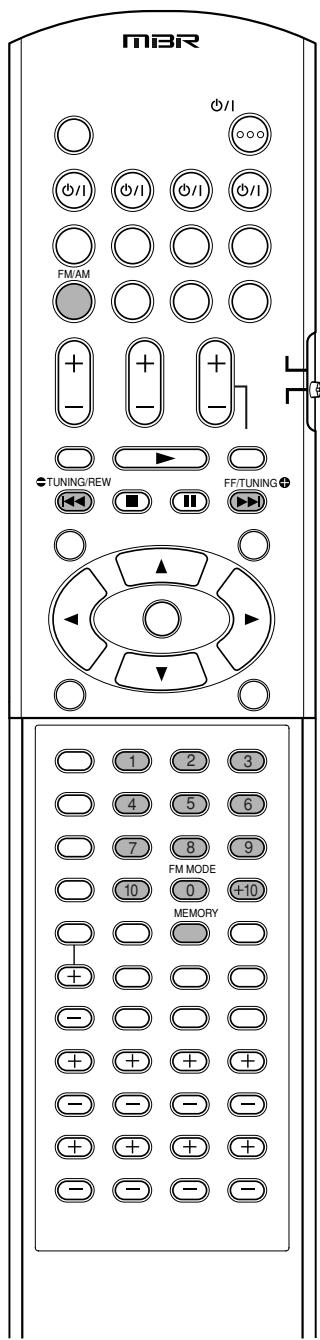
NOTE
When you have selected "FM" or "AM" by using SOURCE SELECTOR on the front panel, the remote control may not work for tuner operations. To use the remote control for tuner operations, select "FM" or "AM" by using FM/AM button on the remote control.
Tuning in to stations manually
From the remote control ONLY:
1 Press FM/AM to select the band.
The last received station of the selected band is tuned in.
- Each time you press the button, the band alternates between "FM" and "AM."

2 Press repeatedly or hold TUNING ⊕ or ⊖ TUNING until the station you want is tuned in.
- Pressing (or holding) TUNING ⊕ increases the frequency.
- Pressing (or holding) ⊖ TUNING decreases the frequency.
NOTES
- When you hold and release TUNING ⊕ or ⊖ TUNING, the frequency keeps changing until a station is tuned in.
- When a station of sufficient signal strength is tuned in, the TUNED indicator lights up on the display.
- When an FM stereo program is received, the STEREO indicator also lights up.
Using preset tuning
Once a station is assigned a channel number, the station can be quickly tuned simply by selecting the number. You can preset up to 30 FM and 15 AM (MW) stations.
To store the preset stations
Before you start, remember...
There is a time limit in doing the following steps. If the setting is canceled before you finish, start from step 2 again.
From the remote control ONLY:
1 Tune in to the station you want to preset (see “Tuning in to stations manually” above).
- If you want to store the FM reception mode for this station, select the FM reception mode you want. See "Selecting the FM reception mode" on page 41.

2 Press MEMORY.
The channel number position starts flashing on the display for about 5 seconds.

3 Press the numeric buttons (1 - 10, +10) to select a channel number while the channel number position is flashing.
- For channel number 5, press 5.
- For channel number 15, press +10, then 5.
- For channel number 30, press +10, +10, then 10.
| ANALOG | L | R | TUNED STEREO AUTO MUTING | ||
| S.WFR | |||||
| FM | →1 | 67,50 MHz | |||
4 Press MEMORY again while the selected channel number is flashing on the display.
The selected channel number stops flashing. The station is assigned to the selected channel number.
5 Repeat steps 1 to 4 until you store all the stations you want.
To erase a stored preset station
Storing a new station on a used channel number erases the previously stored one.
To tune in a preset station
From the remote control:
1 Press FM/AM to select the band.
The last received station of the selected band is tuned in and the numeric buttons now work for tuner operations.
- Each time you press the button, the band alternates between "FM" and "AM."

2 Press the numeric buttons (1 - 10, +10) to select a preset channel number.

- For channel number 5, press 5.
- For channel number 15, press +10, then 5.
- For channel number 30, press +10, +10, then 10.
On the front panel:
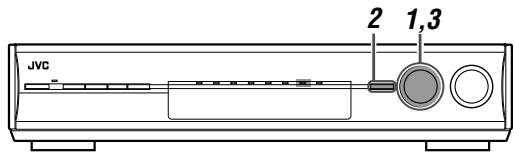
Before you start, remember...
There is a time limit in doing the following steps. If the setting is canceled before you finish, start from step 2 again.
1 Turn SOURCE SELECTOR to select "FM" or "AM."
The last received station of the selected band is tuned in.
2 Press TUNER PRESET.
“P” appears on the display, and MULTI JOG now works for selecting preset channels.
3 Turn MULTI JOG to select a preset channel number.
- To increase the preset channel numbers, turn MULTI JOG clockwise.
- To decrease the preset channel numbers, turn MULTI JOG counterclockwise.
Selecting the FM reception mode
When an FM stereo broadcast is hard to receive or noisy, you can change the FM reception mode while receiving an FM broadcast.
- You can store the FM reception mode for each preset station (see page 40).
From the remote control ONLY:
While listening to an FM station, press FM MODE.
- Each time you press the button, the FM reception mode alternates between "AUTO MUTING" and "MONO."
| AUTO MUTING | Normally select this.When a program is broadcast in stereo, you will hear stereo sound; when in monaural, you will hear monaural sound.This mode is also useful to suppress static noise between stations. The AUTO MUTING indicator lights up on the display. |
| MONO | Select this to improve the reception (but stereo effect will be lost).In this mode, you will hear noise while tuning in to the stations. The AUTO MUTING indicator goes off from the display. (The STEREO indicator also goes off.) |
Initial setting: AUTO MUTING
Using the Radio Data System (RDS) to receive FM stations
Only the buttons on the remote control are used for RDS operations.
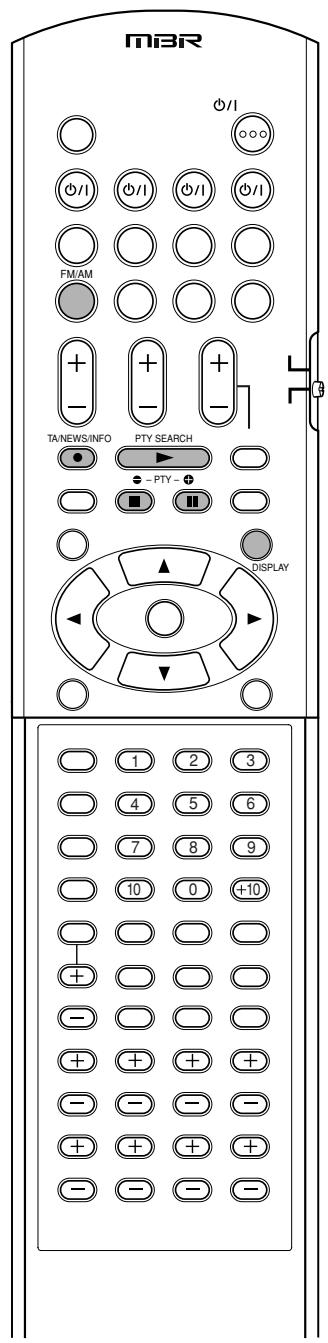
RDS allows FM stations to send an additional signal along with their regular program signals. For example, the stations send their station names, as well as information about what type of program they broadcast, such as sports or music, etc.
When an FM station which provides the RDS service is tuned in, the RDS indicator lights up on the display.
RDS indicator
With the receiver, you can receive the following types of RDS signals:
| PS (Program Service): | Shows commonly known station names. |
| PTY (Program Type): | Shows types of broadcast programs. |
| RT (Radio Text): | Shows text messages the station sends. |
| Enhanced Other Networks: | See page 45. |
NOTES
- RDS is not available for AM (MW) broadcasts.
- RDS may not operate correctly if the station tuned is not transmitting RDS signal properly or if the signal strength is weak.
What information can RDS signals provide?
You can see the RDS signals the station sends on the display.
Press DISPLAY while listening to an FM station.
• Each time you press the button, the display changes to show the following information:
![graph LR A["PS"] --> B["PTY"] B --> C["RT"] C --> D["Frequency\n(Normal indication)"] D --> A](/content/2025/01/123434/images/5f674865af2cc62aa459dd4e7edac5e448f6136e0903537cf0d337e5225d8100.jpg)
PS (Program Service):
While searching, "PS" appears and then the station names will be displayed. "NO PS" appears if no signal is sent.
PTY (Program Type):
While searching, "PTY" appears and then the type of the broadcast program will be displayed. "NO PTY" appears if no signal is sent.
RT (Radio Text):
While searching, "RT" appears and then text messages the station sends will be displayed. "NO RT" appears if no signal is sent.
Frequency:
Station frequency (non-RDS service).
About characters shown on the display
When the display shows PS, PTY, or RT signals, the following characters are used:
- The display cannot show accented letters, “A” for instance, may stand for accented “A’s” like “Â, Ä, Ä, Á, Â, Â, â, ä, ä, á, à, and â.”
NOTE
If searching finishes at once, "PS," "PTY," and "RT" will not appear on the display.
Searching for a program by PTY codes
One of the advantages of the RDS service is that you can locate a particular kind of program from the preset channels (see pages 40 and 41) by specifying the PTY codes.
To search for a program using the PTY codes
Before you start, remember...
There is a time limit in doing the following steps. If the setting is canceled before you finish, start from step 1 again.
1 Press PTY SEARCH while listening to an FM station.
"PTY SELECT" flashes on the display.
2 While "PTY SELECT" is flashing, press PTY ⊕ or ● PTY until the PTY code you want appears on the display. 3 Press PTY SEARCH again, while the PTY code selected in the previous step is still on the display.
While searching, "SEARCH" and the selected PTY code alternatively appears on the display.
The receiver searches 30 preset FM stations, stops when it finds the one you have selected, and tunes in to that station.
- To stop searching any time, press PTY SEARCH while searching.
- If no program is found, "NOT FOUND" appears on the display.
To continue searching after the first stop
Press PTY SEARCH again while the indications on the display are flashing.
PTY codes![graph TD A["Alarm !"] --> B["TEST"] B --> C["Document"] C --> D["Folk M (Music)"] D --> E["Oldies"] E --> F["Nation M (Music)"] F --> G["Country"] G --> H["Jazz"] H --> I["Leisure"] I --> J["Travel"] J --> K["Phone In"] K --> L["Religion"] L --> M["Social"] M --> N["Children"] N --> O["Finance"] O -…](/content/2025/01/123434/images/be0f82aec50a6cb6d1a508d3556d490ae9beaaa25454932dfcc69c16a31376b4.jpg)
- For details about each code, see “Description of the PTY codes” on page 44.
Description of the PTY codes:
| News: | News. |
| Affairs: | Topical program expanding or enlarging upon the news—debate or analysis. |
| Info (Information): | Programs the purpose of which is to impart advice in the widest sense. |
| Sport: | Programs concerned with any aspect of sports. |
| Educate (Education): | Educational programs. |
| Drama: | All radio plays and serials. |
| Culture: | Programs concerning any aspect of national or regional culture, including language, theatre, etc. |
| Science: | Programs about natural sciences and technology. |
| Varied: | Used for mainly speech-based programs such as quizzes, panel games and personality interviews. |
| Pop M (Music): | Commercial music of current popular appeal. |
| Rock M (Music): | Rock music. |
| Easy M (Music): | Current contemporary music considered to be “easy-listening.” |
| Light M (Music): | Instrumental music, and vocal or choral works. |
| Classics: | Performances of major orchestral works, symphonies, chamber music, etc. |
| Other M (Music): | Music not fitting into any of the other categories. |
| Weather: | Weather reports and forecasts. |
| Finance: | Stock Market reports, commerce, trading, etc. |
| Children: | Programs targeted at a young audience. |
| Social: | Programs about sociology, history, geography, psychology and society. |
| Religion: | Religious programs. |
| Phone In: | Involving members of the public expressing their views either by phone or at a public forum. |
| Travel: | Travel information. |
| Leisure: | Programs about recreational activities. |
| Jazz: | Jazz music. |
| Country: | Songs which originate from, or continue the musical tradition of the American Southern States. |
| Nation M (Music): | Current popular music of the nation or region in that country's language. |
| Oldies: | Music from the so-called “golden age” of popular music. |
| Folk M (Music): | Music which has its roots in the musical culture of a particular nation. |
| Document: | Programs concerning factual matters, presented in an investigative style. |
| TEST: | Broadcasts for testing emergency broadcast equipment or unit. |
| Alarm !: | Emergency announcement. |
| None: | No program type, unidentified program, or difficult to categorize into particular types. |
Classification of the PTY codes for some FM stations may be different from the above list.
Switching to broadcast program of your choice temporarily
Another convenient RDS service is called “Enhanced Other Networks.”
This allows the receiver to switch temporarily to a broadcast program of your choice (TA, NEWS, and/or INFO) from a different station except in the following case:
- The Enhanced Other Networks mode only works when receiving an FM station with the Enhanced Other Networks code.
Before you start, remember...
The Enhanced Other Networks function is only applicable to preset FM stations.
Press TA/NEWS/INFO repeatedly until the program type you want appears on the display.
• Each time you press the button, the program type(s) change, and the corresponding indicator(s) light up as follows:
![graph LR A["TA → NEWS → INFO → TA/NEWS → TA/INFO"] --> B["Canceled ← TA/NEWS/INFO ← NEWS/INFO"]](/content/2025/01/123434/images/6bb9f99097f66ce2464e9de5a473e8d30c475084183628598c09b3ca3d08cd26.jpg)
TA: Traffic Announcement in your area.
NEWS: News.
INFO: Program the purpose of which is to impart advice in the widest sense.
How the Enhanced Other Networks function actually works:
If another FM station starts broadcasting the program type you have selected while you are listening to an FM station,
The receiver automatically switches to the station. The indicator of the received program type starts flashing.

When the program is over, the receiver goes back to the station previously tuned in, but still remains in Enhanced Other Networks standby mode. The indicator of the received program type stops flashing and remains lit.
If the station currently tuned in starts broadcasting the program type you have selected,
The receiver continues to receive the station, but the indicator of the received program type starts flashing.

When the program is over, the indicator of the received program type stops flashing and remains lit, but the receiver remains in Enhanced Other Networks standby mode.
To stop listening to the program selected by Enhanced Other Networks,
Press TA/NEWS/INFO repeatedly again so that the program type (TA/NEWS/INFO) indicator goes off from the display. The receiver exits from Enhanced Other Networks standby mode and goes back to the previously selected station.
When an emergency broadcast (Alarm! signal) is sent from an FM station,
The receiver automatically tunes in to the station except in the following cases:
- When you are listening to non-RDS Networks—all AM (MW) stations, some FM stations and other sources.
- When the receiver is in standby mode.
While receiving an emergency broadcast, “Alarm!” appears on the display.
The TEST signal is used for equipment testing—whether it can correctly receive the Alarm! signal.
The TEST signal makes the receiver work in the same way as the Alarm! signal does. If the TEST signal is received, the receiver automatically switches to the station broadcasting the TEST signal.
While receiving the TEST signal, "TEST" appears on the display.
NOTES
- Enhanced Other Networks data sent from some stations may not be compatible with this receiver.
- Enhanced Other Networks does not function for some FM stations with RDS service.
- While listening to a program tuned in by the Enhanced Other Networks function, the station does not change even if another network station starts broadcasting a program of the same Enhanced Other Networks data.
- While listening to a program tuned in by the Enhanced Other Networks function, you can only use the TA/NEWS/INFO and DISPLAY.
CAUTION:
If the stations alternate intermittently between the station tuned by the Enhanced Other Networks function and the currently tuned station, press TA/NEWS/INFO repeatedly to cancel the Enhanced Other Networks function.
If you do not press the button, the currently tuned station is received finally, and the indication of the Enhanced Other Networks data type flashing on the display disappears.
Creating realistic sound fields
Reproducing theatre ambience
In a movie theatre, many speakers are located on the walls to reproduce impressive multi-channel sound, reaching you from all directions.
With these many speakers, sound localization and sound movement can be expressed.
Surround/DSP modes built into this receiver can create almost the same Surround sound as you can feel in a real movie theatre.
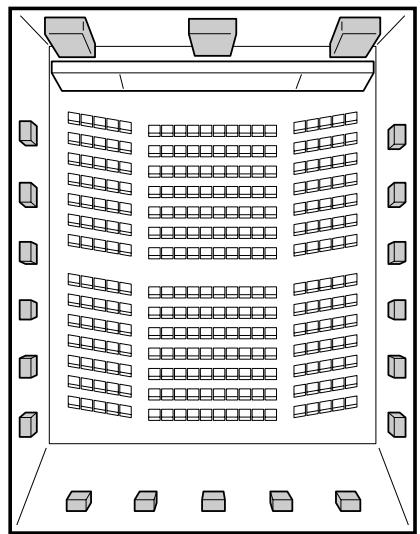
![graph TD A["Downward arrow"] --> B["L"] A --> C["C"] A --> D["R"] B --> E["SW"] C --> F["LS"] C --> G["RS"] D --> H["SBL (SB)"] D --> I["SBR"]](/content/2025/01/123434/images/a6f9fb4701dedb92a7f22b542aa364ce2c41df8fb1cbb4e966099c53efe79fb1.jpg)
Introducing the Surround modes
■ Dolby Digital*
Dolby Digital is a digital signal compression method, developed by Dolby Laboratories, and enables multi-channel encoding and decoding.
- When a Dolby Digital signal is detected through the digital input, the □□DIGITAL indicator lights up on the display.
Dolby Digital 5.1CH
The Dolby Digital 5.1CH (DOLBY DIGITAL) encoding method records and digitally compresses the left front channel, right front channel, center channel, left surround channel, right surround channel, and LFE channel signals (total 6 channels, but the LFE channel is counted as 0.1 channel. Therefore, it is called 5.1 channel).
Dolby Digital enables stereo surround sounds, and sets the cutoff frequency of the surround treble at 20 kHz, compared to 7 kHz for Dolby Pro Logic. As such, the sound movement and “being-there” feeling are enhanced much more than Dolby Pro Logic.
Dolby Digital EX
Dolby Digital EX (DOLBY D EX) is a digital surround encoding format that adds the third surround channels, called "surround back."
Compared to the conventional Dolby Digital 5.1CH, these newly added surround back channels can reproduce more detailed movements behind you while viewing the video software. In addition, surround sound localization will become more stable.
■ Dolby Surround
Dolby Pro Logic II
Dolby Pro Logic II is a multi-channel playback format to convert 2-channel software into 5-channel (plus subwoofer). The matrix-based conversion method used for Dolby Pro Logic II makes no limitation for the cutoff frequency of the surround treble and enables stereo surround sound.
- This receiver provides three types of Dolby Pro Logic II modes—Pro Logic II Movie (PLII MOVIE), Pro Logic II Music (PLII MUSIC), and Pro Logic II Game (PLII GAME). When Dolby Pro Logic II is activated, the ☐☐ PLII indicator lights up on the display.
| PLII MOVIE | Suitable for playing any Dolby Surround encoded software. You can enjoy a sound field very close to the one created with discrete 5.1-channel sounds. |
| PLII MUSIC | Suitable for playing any 2-channel stereo software. You can enjoy wide and deep sounds. |
| PLII GAME | Suitable for playing a video game. You can enjoy sounds with “being there” feeling. |
* Manufactured under license from Dolby Laboratories. "Dolby", "Pro Logic", and the double-D symbol are trademarks of Dolby Laboratories.
Dolby Pro Logic IIx
Dolby Pro Logic IIx is a newly introduced multi-channel playback format that converts not only multi-channel software but also 2-channel software into 7.1 channel (or 6.1 channel), developed from Dolby Pro Logic II. The matrix-based conversion method used for Dolby Pro Logic IIx places no limitation on the cutoff frequency of the surround treble.
- This receiver provides three types of Dolby Pro Logic IIx modes: Pro Logic IIx Movie (PLIIx MOVIE), Pro Logic IIx Music (PLIIx MUSIC), and Pro Logic IIx Game (PLIIx GAME). When Dolby Pro Logic IIx is activated, "PLIIx MOVIE," "PLIIx MUSIC," or "PLIIx GAME" appears and the PLIIx indicator lights up on the display.
| PLIIX MOVIE | Suitable for playing any Dolby Surround encoded software. You can enjoy a sound field with a natural wraparound effect. |
| PLIIX MUSIC | Suitable for playing any 2-channel stereo software. You can enjoy wide and deep 7.1-channel sounds. |
| PLIIX GAME | Suitable for playing a video game. You can enjoy 7.1-channel sounds with “being there” feeling. This mode is available for both an analogue and digital 2-channel signal. |
- To enjoy software encoded with Dolby Digital, connect the source component using the digital terminal on the rear of this receiver. (See page 16.)
■ DTS**
DTS is another digital signal compression method, developed by Digital Theater Systems, Inc., and enables multi-channel encoding and decoding (1ch up to 6.1ch).
- When a DTS signal is detected through the digital input, the dts indicator lights up on the display.
DTS Digital Surround
DTS Digital Surround (DTS) is another discrete 5.1 channel digital audio format available on CD, LD, and DVD software. Compared to Dolby Digital, the DTS Digital Surround format has a lower audio compression rate, which enables it to add breadth and depth to the sounds reproduced. As such, DTS Digital Surround features natural, solid, and clear sound.
DTS Extended Surround (DTS-ES)
DTS-ES is another multi-channel digital encoding format. It greatly improves the 360-degree surround impression and space expression by adding the third surround channel—the surround back channel.
DTS-ES includes two signal formats with different surround signal recording methods: DTS-ES Discrete 6.1ch (ES DISCRETE) and DTS-ES Matrix 6.1ch (ES MATRIX).
DTS-ES Discrete 6.1ch has been designed to encode (and decode) a 6.1-channel signal discretely to avoid interference with each channel.
DTS-ES Matrix 6.1ch has been designed to add an extra surround channel to DTS Digital Surround 5.1-channel. By using a matrix encoding/decoding method, an additional "surround back" channel signal is encoded (and decoded) in both the left and right surround channel signals.
DTS 96/24
In recent years, there has been increasing interest in higher sampling rates both for recording and for reproducing at home. Higher sampling rates allow a wider frequency range, and greater bit depths provide extended dynamic range.
DTS 96/24 is a multi-channel digital signal format (fs 96 kHz/24 bits) introduced by Digital Theater Systems, Inc. to deliver “better-than-CD sound quality” into the home.
- When a DTS 96/24 signal is detected, the dts and 96/24 indicators light up. You can enjoy its 5.1-channel sound with full quality.
DTS Neo:6
DTS Neo:6 is another conversion method to create 6-channel (plus subwoofer) from analogue/digital 2-channel software by using the high precision digital matrix decoder used for DTS-ES Matrix 6.1ch.
- This receiver provides the following DTS Neo:6 modes—Neo:6 Cinema (NEO:6 CINEMA) and Neo:6 Music (NEO:6 MUSIC). When one of them is activated, the NEO:6 indicator lights up on the display.
| NEO:6 CINEMA | Suitable for playing movies. You can get the same atmosphere with 2-channel software as with 6.1-channel software. It is also effective for playing software encoded with conventional surround formats. |
| NEO:6 MUSIC | Suitable for playing music software. The front channel signals bypass the decoder (resulting in no loss of sound quality) and the surround signals transmitted through the other speakers expand the sound field naturally. |
** "DTS", "DTS-ES", "Neo:6" and "DTS 96/24" are trademarks of Digital Theater Systems, Inc.
When using Surround mode, the sounds come out of the activated speakers which the Surround mode requires.
- If either “SURROUND SPK” or “CENTER SPK” is set to “NO” in the speaker setting (see page 28), the corresponding channel signals are allocated to and emitted through the front speakers.
- If both “SURROUND SPK” and “CENTER SPK” are set to “NO” in the speaker setting (see page 28), JVC’s original 3D-PHONIC processing (which has been developed to create the surround effect through the front speakers only) is used. The 3D-PHONIC indicator lights up on the display.
About other digital signals
Linear PCM
Uncompressed digital audio data used for DVDs, CDs, and Video CDs.
DVDs support 2 channels with sampling rates of 48/96 kHz, at quantization of 16/20/24 bits. On the other hand, CDs and Video CDs are limited to 2 channels with 44.1 kHz at 16 bits.
- When Linear PCM signal is detected, the LINEAR PCM indicator lights up.
Multi channel PCM
Uncompressed multi channel digital audio data used for DVD-Audios.
DVD-Audios support up to 5.1 channels with sampling rates of 44.1/48/88.2/96 kHz and 2 channels with sampling rates of 44.1/48/88.2/96/176/192 kHz, at quantization of 16/20/24 bits.
- When Multi channel PCM signal is detected, the LINEAR PCM indicator lights up and "MULTI CH PCM" appears on the display for a while.
Dual Mono
Dual Mono can be easily understood when you think of the bilingual broadcast for TV programs (however, the Dual Mono format is not identical with those analogue formats).
This format is now adopted in Dolby Digital, DTS, and so on. It allows two independent channels (called main channel and sub-channel) to be recorded separately.
- You can select either channel you want to listen to (see page 30).
Introducing the DSP modes
The sound heard in a concert hall, club, etc. consists of direct sound and indirect sound—early reflections and reflections from behind. Direct sounds reach the listener directly without any reflection. On the other hand, indirect sounds are delayed by the distances of the ceiling and walls. These direct sounds and indirect sounds are the most important elements of the acoustic surround effects.
The DSP modes can create these important elements, and give you a real “being there” feeling.
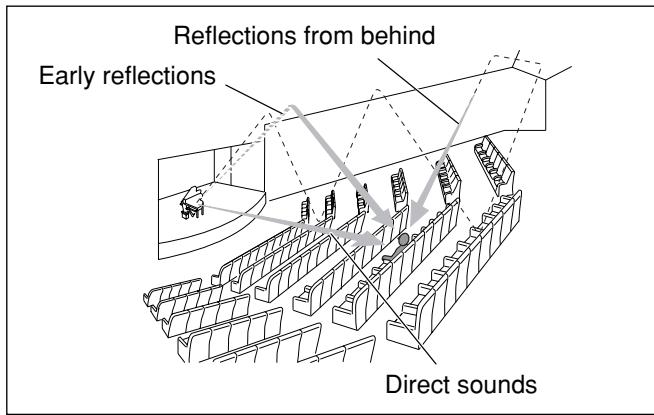
The DSP modes include the following modes:
- Digital Acoustic Processor (DAP) modes—HALL1, HALL2, LIVE CLUB, DANCE CLUB, PAVILION, THEATRE1, THEATRE2
- MONO FILM—Used for all types of 2-channel signals (including Dual Mono signal)
- All Channel Stereo mode (ALL CH STEREO)
When one of the DSP modes is activated, the DSP indicator lights up on the display.
■ Digital Acoustic Processor (DAP) modes
You can use the following DAP modes in order to reproduce a more acoustic sound field in your listening room.
| HALL1 | Reproduces the spatial feeling of a large shoebox-shaped hall designed primarily for classical concerts. (Its seating capacity is about 2000.) |
| HALL2 | Reproduces the spatial feeling of a large vineyard-shaped hall designed primarily for classical concerts. (Its seating capacity is about 2000.) |
| LIVE CLUB | Reproduces the spatial feeling of a live music club with a low ceiling. |
| DANCE CLUB | Reproduces the spatial feeling of a rocking dance club. |
| PAVILION | Reproduces the spatial feeling of an exhibition hall with a high ceiling. |
| THEATRE1 | Reproduces the spatial feeling of a large theatre where the seating capacity is about 600. |
| THEATRE2 | Reproduces the spatial feeling of a small theatre where the seating capacity is about 300. |
NOTE
When “THEATRE1” or “THEATRE2” is activated while playing back 2-channel analogue or digital source, the built-in Dolby Pro Logic II decoder is activated and the ☐☐ PLI indicator lights up.
When using the DAP mode, the sounds come out of all the connected and activated speakers.
- If “SURROUND SPK” is set to “NO” in the speaker setting (see page 28), JVC’s original 3D-PHONIC processing (which has been developed to create the surround effect through the front speakers only) is used.
The 3D-PHONIC indicator lights up on the display.
■ MONO FILM
In order to reproduce a more acoustic sound field in your listening room while viewing monaural sound video software (analogue and 2-channel digital signals including Dual Mono signal), you can use this mode.
The surround effect will be added, and the sound localization of actor's words will be improved.
This mode cannot be used for multi-channel digital signals.
When “MONO FILM” is used, sounds come out of all the connected (and activated) speakers.
- If “SURROUND SPK” is set to “NO” in the speaker setting (see page 28), JVC’s original 3D-PHONIC processing (which has been developed to create the surround effect through the front speakers only) is used. The 3D-PHONIC indicator lights up on the display.
- If incoming signals change from 2-channel digital signal to another digital signal type, "MONO FILM" is canceled and an appropriate Surround mode is activated.
■ All Channel Stereo mode (ALL CH STEREO)
This mode can reproduce a larger stereo sound field using all the connected (and activated) speakers. This mode cannot be used if “SURROUND SPK” is set to “NO” in the speaker setting (see page 28).
![graph TD A["Device 1"] --> B["Signal"] C["Device 2"] --> D["Signal"] E["Device 3"] --> F["Signal"] G["Device 4"] --> H["Signal"] I["Device 5"] --> J["Signal"] K["Device 6"] --> L["Signal"] M["Device 7"] --> N["Signal"] O["Device 8"] --> P["Signal"] Q["Device 9"] --> R["Signal"] S["Device 10"] --> T[…](/content/2025/01/123434/images/bab05d0fb9e443951e6e0688fb749654845511654c96c1e2c1f510d824e4a84a.jpg)
Sound reproduced from normal stereo Sound reproduced from All Channel Stereo mode
3D HEADPHONE mode
If you connect a pair of headphones while one of the Surround/DSP modes is in use, the 3D HEADPHONE mode is activated without respect to the type of software played back. "3D HEADPHONE" appears on the display and the DSP and HEADPHONE indicators light up.
Using the Surround/DSP modes
Available Surround/DSP modes vary depending on the speaker settings and the incoming signals. See the table below.
- The numbers inside the parentheses following the incoming signal type indicate the number of the front channels and that of the surround channels. For example, (3/2) indicates that the signals are encoded with three front signals (left/right/center) and two (stereo) surround signals.
- For EX/ES/PLIIx setting, see page 30.
- Surround/DSP modes are not available when selecting “A MULTI” in the audio input setting (see page 20) or when multi channel PCM (see page 47) signals recorded in DVD-Audio are coming in.
| Incoming Signal Type | EX/ES/PLIIx setting | |||||
| AUTO | ON | PLIIx MOVIE | PLIIx MUSIC | OFF | ||
| Dolby Digital | Dolby Digital Surround EX | DOLBY D EX*3,5 | DOLBY D EX*3 | D+PLIIx MOVIE *2,3 | D+PLIIx MUSIC *3 | DOLBY DIGITAL |
| Dolby Digital (3/2, 2/2) | DOLBY DIGITAL | DOLBY D EX*3 | D+PLIIx MOVIE *2,3 | D+PLIIx MUSIC *3 | DOLBY DIGITAL | |
| Dolby Digital (3/1, 2/1, 3/0, 1/0) | DOLBY DIGITAL | |||||
| Dolby Digital (Dual Mono) | DUAL MONO | |||||
| DTS | DTS-ES Discrete *1 | DTS-ES DSCRT *3 | DTS-ES DSCRT *3 | DTS+PLIIx MOVIE *2,3 | DTS+PLIIx MUSIC *3 | DTS SURROUND |
| DTS-ES Matrix *1 | DTS-ES MATRIX *3 | DTS-ES MATRIX *3 | DTS+PLIIx MOVIE *2,3 | DTS+PLIIx MUSIC *3 | DTS SURROUND | |
| DTS (3/2, 2/2) *1 | DTS SURROUND | DTS+NEO:6 *3 | DTS+PLIIx MOVIE *2,3 | DTS+PLIIx MUSIC *3 | DTS SURROUND | |
| DTS (3/1, 2/1, 3/0, 1/0) | DTS | |||||
| DTS (Dual Mono) | DUAL MONO | |||||
| Analogue/LINEAR PCM Dolby Digital (2/0) | PLIIx MOVIE *4 /PLIIx MUSIC *4 /PLIIx GAME *4 /NEO:6 CINEMA/NEO:6 MUSIC | PLII MOVIE/PLII MUSIC/PLII GAME/NEO:6 CINEMA/NEO:6 MUSIC | ||||
*1 DTS 96/24 processing is not applied when the EX/ES/PLIIx setting is activated. If you want to apply the processing, set the EX/ES/PLIIx setting to "OFF" (see page 30).
*2 When "S BACK OUT" is set to "SB OUT: 1SPK," D+PLIIx MOVIE is changed to DOLBY D EX and DTS+PLIIx MOVIE is changed to DTS+EX.
*3 When "S BACK SPK" is set to "NO," Virtual Surround Back is activated for the modes and the VIRTUAL SB indicator lights up on the display.
*4 When “S BACK SPK” is set to “NO,” PLIIx MOVIE, PLIIx MUSIC, and PLIIx GAME are changed to PLII MOVIE, PLII MUSIC, and PLII GAME respectively.
*5 For some Dolby Digital Surround EX software, Dolby Digital 5.1-channel reproduction (“DOLBY DIGITAL”) may be applied even though you have selected “AUTO”. In this case, select “ON” to apply “DOLBY D EX.”
About the DSP modes
- The following DSP modes are available except when selecting “A MULTI” in the audio input setting (see page 20) or when multi channel PCM (see page 47) signals recorded in DVD-Audio are coming in. HALL1, HALL2, LIVE CLUB, DANCE CLUB, PAVILION, THEATRE1, THEATRE2
- If an incoming signal is a multi-channel (more than 2 channel) digital signal, "MONO FILM" is not available.
- If "SURROUND SPK" is set to "NO," "ALL CH STEREO" is not available.
Virtual Surround Back
This function creates the great surround effect from the behind as if you have connected the surround back speaker. The VIRTUAL SB (Surround Back) indicator lights up on the display.
If you have connected (and activated) the surround speakers, you can use Virtual Surround Back without connecting the surround back speaker.
Virtual Surround Back is activated when EX/ES/PLIIx is set to other than “OFF” and when playing back the software including the following signals:
– Dolby Digital Surround EX - DTS-ES – Dolby Digital or DTS with 4-channels or more
Activating the Surround/DSP modes
Available Surround/DSP modes vary depending on the speaker settings and the incoming signals. For details, see page 49.
Activating one of the Surround/DSP modes automatically recalls the memorized settings and adjustments.
- To adjust the speaker output level, see page 37.
- When activating one of the Surround/DSP modes, you can adjust CENTER TONE. (See page 39.)
- When activating one of the Surround/DSP modes (except PLIIx MUSIC, PLII MUSIC, NEO:6 MUSIC, and ALL CH STEREO), you can adjust CNTR ALIGNMENT. (See page 39.)
- When activating "NEO:6 MUSIC," you can adjust CENTER GAIN. (See page 39.)
- When activating the DSP mode (except ALL CH STEREO), you can adjust the following settings: EFFECT (see page 38) LIVENESS (see page 39) ROOM SIZE (see page 38)
- When activating "PLIIx MUSIC" and "PLII MUSIC", you can adjust the following settings: CENTER WIDTH (see page 39) DIMENSION (see page 39) PANORAMA (see page 39)
Selecting the Surround/DSP modes
From the remote control:
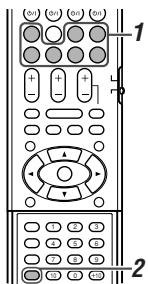
1 Select and play any source.
- Surround/DSP modes are not available when selecting "A MULTI" in the audio input setting (see page 20) or when multi channel PCM (see page 47) signals recorded in DVD-Audio are coming in.
- Make sure you have selected the input mode (analogue or digital) correctly.
2 Press SURROUND repeatedly to select the Surround/DSP mode you want.
Ex.: When "DOLBY DIGITAL" is selected for Dolby Digital multi-channel software:
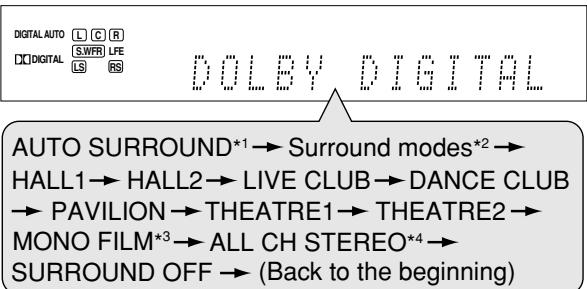
*1 "AUTO SURROUND" is the initial setting. *2 Available Surround modes vary depending on the speaker settings and the incoming signals. For details, see page 49. *3 If an incoming signal is a multi-channel (more than 2 channel) digital signal, "MONO FILM" is not available. *4 If "SURROUND SPK" is set to "NO," "ALL CH STEREO" is not available.
To cancel Surround/DSP modes
Press SURROUND repeatedly so that "SURROUND OFF" appears on the display.
On the front panel:
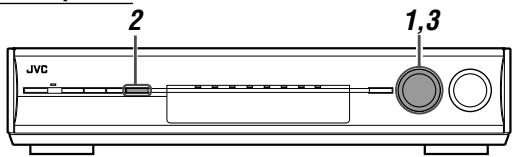
Before you start, remember...
There is a time limit in doing the following steps. If the setting is canceled before you finish, start from step 2 again.
1 Select and play any source.
- Surround/DSP modes are not available when selecting "A MULTI" in the audio input setting (see page 20) or when multi channel PCM (see page 47) signals recorded in DVD-Audio are coming in.
- Make sure you have selected the input mode (analogue or digital) correctly.
2 Press SURROUND.
MULTI JOG now works for selecting Surround/DSP modes.
3 Turn MULTI JOG to select the Surround/DSP mode you want.
Ex.: When "DOLBY DIGITAL" is selected for Dolby Digital multi-channel software:
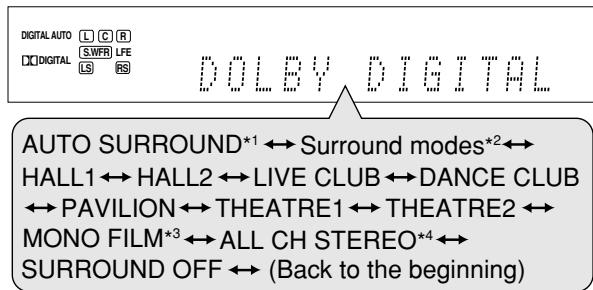
*1 "AUTO SURROUND" is the initial setting. *2 Available Surround modes vary depending on the speaker settings and the incoming signals. For details, see page 49. *3 If an incoming signal is a multi-channel (more than 2 channel) digital signal, "MONO FILM" is not available. *4 If "SURROUND SPK" is set to "NO," "ALL CH STEREO" is not available.
To cancel Surround/DSP modes
Turn MULTI JOG so that "SURROUND OFF" appears on the display.
When you select "AUTO SURROUND"
You can enjoy the Surround mode easily.
- For details about the Surround modes, see page 49.
- When "AUTO SURROUND" is activated, the AUTO SURR indicator lights up on the display.
How does "AUTO SURROUND" work?
- If a multi-channel signal comes in, an appropriate Surround mode will be selected automatically.
- If a Dolby Digital 2-channel signal with surround signal comes in, "PLIIx MOVIE" or "PLII MOVIE" will be selected.
- If a Dolby Digital 2-channel signal without surround signal comes in, "SURROUND OFF (stereo)" will be selected.
- If a Linear PCM signal comes in, "SURROUND OFF (stereo)" will be selected.
NOTE
"AUTO SURROUND" does not take effect in the following cases:
– While playing an analogue source, - While selecting one of the fixed digital decode mode—“DOLBY DIGITAL” or “DTS” (see page 21).
Operating other JVC products
You can use the supplied remote control to operate not only this receiver but also other JVC products.
- Refer also to the manuals supplied with the other products.
- Some JVC VCRs can accept two types of the control signals—remote codes “A” and “B.” This remote control can operate a VCR whose remote control code is set to “A.”
- Some JVC DVD recorders can accept four types of the control signals. This remote control can operate a DVD recorder whose remote control code is set to the initial code. For details, refer to the manual supplied with the DVD recorder.
- To operate other products, aim the remote control directly at the remote sensor on the target product.
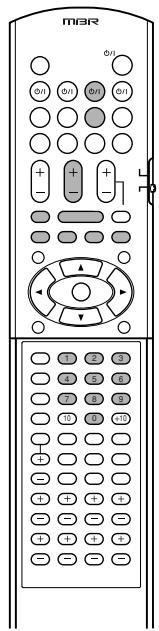
TV
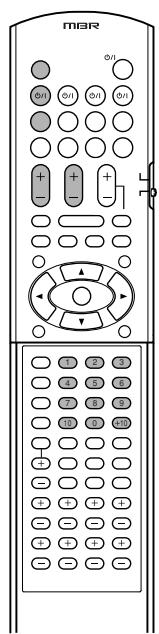
You can always perform the following operations:
| TV ⏻/l: | Turn on or off the TV. |
| TV VOL +/-: | Adjust the volume on the TV. |
| TV/VIDEO: | Change the input mode (either video input or TV tuner) on the TV. |
After pressing TV, you can perform the following operations on the TV.
| CHANNEL +/-: | Change the channel numbers. |
| 1 – 9, 0, 100+ (+10): | Select the channel numbers. |
| RETURN (10): | Switch between the previous channel and the current channel. |
VCR
You can always perform the following operation:
| VCR ⏻/I: | Turn on or off the VCR. |
| After pressing VCR, you can perform the following operations on the VCR. | |
| CHANNEL +/-: | Change the channel numbers on the VCR. |
| 1 – 9, 0: | Select the channel numbers on the VCR. |
| ▶: | Start playback. |
| ■: | Stop playback. |
| II: | Pause playback. To release it, press ▶. |
| FF: | Fast-wind a tape. |
| REW: | Rewind a tape. |
| ● + ▶: | Start recording. |
| ● + II: | Enter recording pause. To start recording, press ▶. |
■ DVD recorder or DVD player
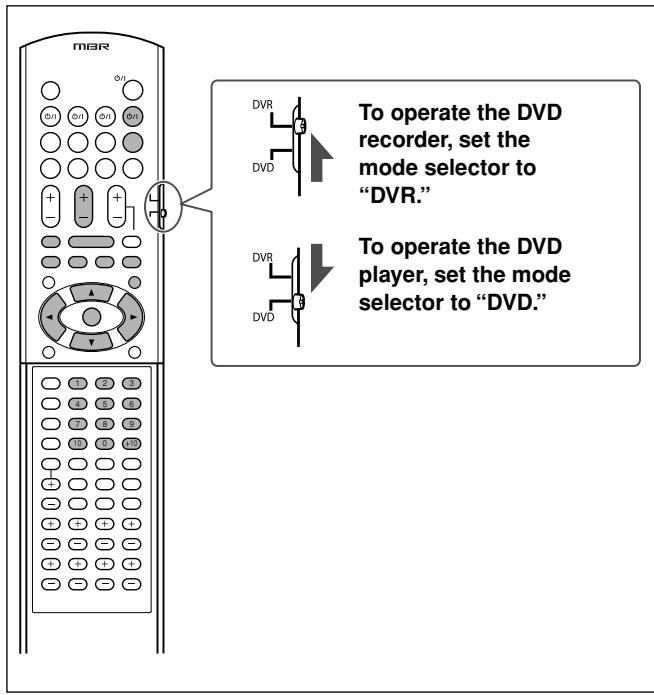
After setting the mode selector correctly, you can perform the following operations on the DVD recorder or DVD player.
See the instructions supplied with the DVD recorder or DVD player for details.
■ Changing the remote control code for DVD recorder
Some JVC DVD recorders can accept four types of the control signals. You can assign one of four codes to the remote control supplied with this receiver for operating your DVD recorder. For details, refer to the manual supplied with the DVD recorder.
Initial setting: 03
1 Set the mode selector to "DVR." 2 Press and hold DVR/DVD ⏻/I. 3 Press DVR/DVD. 4 Enter the remote control code you want using buttons 1 - 4, and 0.
EX.: To enter the code "2", press 0, then 2.
| Code for DVR | Number to enter |
| 1 | 01 |
| 2 | 02 |
| 3 | 03 |
| 4 | 04 |
5 Release DVR/DVD ⏻/I.
Now, the remote control code has been changed.
You can always perform the following operation:
DVR/DVD ⏻/I: Turn on or off the DVD recorder or DVD player.
After pressing DVR/DVD, you can perform the following operations on the DVD recorder and DVD player.
| ▶: | Start playback. |
| ■: | Stop playback. |
| II: | Pause playback. To release it, press ▶. |
| ▶▶I: | Skip to the beginning of the next chapter. |
| ◀◀: | Return to the beginning of the current (or previous) chapter. |
| DVD MENU: | Display the menu recorded on discs. |
After pressing DVR/DVD or DVD MENU, you can perform the following operations on the DVD recorder and DVD player.
| ▲/▼/►/◄: | Select an item on the menu screen. |
| SET: | Enter the selected item, channel number, chapter/title number, or track number (if required). |
Only for DVD recorder operations:
| CHANNEL +/-: | Change the channel numbers. |
| 1 – 9, 0: | Select a channel number (while stopped) or a chapter/title number, track number (while playing back). Press SET to enter the number. |
| ● + ▶: | Start recording. |
| ● + II: | Enter recording pause. To start recording, press ▶. |
Only for DVD player operations:
| 1 – 10, 0, +10: | Select a chapter/title number, track number, menu item, etc. |
If these buttons do not function normally, use the remote control supplied with your DVD recorder or DVD player. Refer also to the manuals supplied with the DVD recorder or DVD player for details.
Operating other manufacturers' products
By changing the transmittable signals, you can use the supplied remote control to operate other manufacturers' products.
• Refer also to the manuals supplied with the other products. - To operate those components with the remote control, first you need to set the manufacturers' codes each for the TV, VCR, STB, and DVD player. - After replacing batteries of the remote control, set the manufacturers' codes again. - All the functions may not be assigned to the buttons in some equipment.
☐ Changing the transmittable signals for operating a TV
1 Press and hold TV ⏻/l. 2 Press TV. 3 Enter the manufacturer's code using buttons 1 – 9, and 0.
See "Manufacturers' codes for TV" on the right.
4 Release TV ⏻/I.
Now, you can perform the following operations on the TV.
| TV ⏻/l: | Turn on or off the TV. |
| TV VOL +/-: | Adjust the volume on the TV. |
| TV/VIDEO: | Change the input mode (either TV or VIDEO). |
After pressing TV, you can perform the following operations on the TV.
| CHANNEL +/-: | Change the channel numbers. |
| 1 – 9, 0, 100+ (+10): | Select the channel numbers. |
See the instructions supplied with the TV for details.
5 Try to operate your TV by pressing TV ⏻/l.
When your TV turns on or off, you have entered the correct code.
If more than one code is listed for your brand of TV, try each one until the correct one is entered.
Manufacturers' codes for TV
| Manufacturer | Codes |
| JVC | 01 |
| Akai | 02, 05 |
| Blaupankt | 03 |
| Daewoo | 09, 30, 31 |
| Fenner | 04, 30, 31 |
| Fisher | 05 |
| Grundig | 06 |
| Hitachi | 07, 08 |
| Irradio | 02, 05 |
| Magnavox | 09 |
| Mitsubishi | 10, 32 |
| Miver | 03 |
| Nokia | 11, 33 |
| Nordmende | 12, 13, 17, 25, 26, 27 |
| Orion | 14 |
| Panasonic | 15, 16 |
| Philips | 09 |
| Saba | 12, 13, 17, 25, 26, 27 |
| Samsung | 09, 18, 31 |
| Sanyo | 05 |
| Schneider | 02, 05 |
| Sharp | 19 |
| Sony | 20, 21, 22, 23, 24 |
| Telefunken | 12, 13, 17, 25, 26, 27 |
| Thomson | 12, 13, 17, 25, 26, 27, 29 |
| Toshiba | 28 |
Initial setting: 01
Manufacturers' codes are subject to change without notice. If they are changed, this remote control cannot operate the equipment.
☐ Changing the transmittable signals for operating a VCR
1 Press and hold VCR ⏻/l. 2 Press VCR. 3 Enter the manufacturer's code using buttons 1 – 9, and 0.
See "Manufacturers' codes for VCR" on the right.
4 Release VCR ⏻/I.
Now, you can perform the following operation on the VCR.
| VCR ⏻/l: | Turn on or off the VCR. |
After pressing VCR, you can perform the following operations on the VCR.
| CHANNEL +/-: | Change the channel numbers on the VCR. |
| 1 – 10, 0, +10: | Select the channel numbers on the VCR. |
| ▶: | Start playback. |
| ■: | Stop playback. |
| II: | Pause playback. |
| FF: | Fast-wind a tape. |
| REW: | Rewind a tape. |
| ● + ▶: | Start recording. |
See the instructions supplied with the VCR for details.
5 Try to operate your VCR by pressing VCR ⏻/I.
When your VCR turns on or off, you have entered the correct code.
If more than one code is listed for your brand of VCR, try each one until the correct one is entered.
Manufacturers' codes for VCR
| Manufacturer | Codes |
| JVC | 01 |
| Akai | 02, 36 |
| Bell+Howell | 03, 16 |
| Blaupankt | 04 |
| CGM | 03, 05, 16 |
| Daewoo | 34 |
| DIGITAL | 05 |
| Fisher | 03, 16 |
| G.E. | 06 |
| Grundig | 07 |
| Hitachi | 08, 09 |
| Loewe | 05, 10, 11 |
| Magnavox | 04, 05 |
| Mitsubishi | 12, 13, 14, 15 |
| Nokia | 16 |
| Nordmende | 17, 18, 19, 31 |
| Orion | 20 |
| Panasonic | 21 |
| Philips | 05, 22 |
| Phonola | 05 |
| Saba | 17, 18, 19, 23, 31 |
| Samsung | 24, 25 |
| Sanyo | 03, 16 |
| Sharp | 26, 27 |
| Siemens | 07 |
| Sony | 28, 29, 30, 35 |
| Telefunken | 17, 18, 19, 31, 32 |
| Toshiba | 33 |
Initial setting: 01
Manufacturers' codes are subject to change without notice. If they are changed, this remote control cannot operate the equipment.
☐ Changing the transmittable signals for operating a STB
1 Press and hold STB ⏻/l. 2 Press STB CONT. 3 Enter the manufacturer's code using buttons 1 – 9, and 0.
See "Manufacturers' codes for STB" below.
4 Release STB ⏻/I.
Now, you can perform the following operation on the STB.
| STB ⏻/l: | Turn on or off the STB. |
After pressing STB CONT, you can perform the following operations on the STB.
| CHANNEL +/-: | Change the channel numbers on the STB. |
| 1 – 9, 0, +10: | Select the channel numbers on the STB. |
See the instructions supplied with the STB for details.
5 Try to operate your STB by pressing STB ⏻/I.
When your STB turns on or off, you have entered the correct code.
If more than one code is listed for your brand of STB, try each one until the correct one is entered.
Manufacturers' codes for STB
| Manufacturer | Codes |
| JVC | 01, 02 |
| Amstrad | 03, 04, 05, 06, 31 |
| BT | 01 |
| Canal Satellite | 20 |
| Canal+ | 20 |
| D-Box | 24 |
| Echostar | 17, 18, 19, 21 |
| Finlux | 11 |
| Force | 28 |
| Galaxis | 27 |
| Grundig | 07, 08 |
| Hirschmann | 07, 17, 37 |
| ITT Nokia | 11 |
| Jerrold | 16 |
| Kathrein | 13, 14, 34 |
| Luxor | 11 |
| Mascom | 32 |
| Maspro | 13 |
| Nokia | 24, 26, 33 |
| Pace | 10, 25, 31 |
| Panasonic | 15 |
| Philips | 09, 23 |
| RFT | 12 |
| Saba | 35 |
| Sagem | 22, 29 |
| Salora | 11 |
| Selector | 29 |
| Skymaster | 12, 36 |
| Thomson | 35 |
| TPS | 22 |
| Triax | 30 |
| Wisi | 07 |
Initial setting: 01
Changing the transmittable signals for operating a DVD player
1. Set the mode selector to "DVD." 2. Press and hold DVR/DVD ⏻/I. 3. Press DVR/DVD. 4. Enter the manufacturer's code using buttons 1–9 and 0.
See "Manufacturers' codes for DVD player" below.
5. Release DVR/DVD ⏻/I.
Now, you can perform the following operations on the DVD player.
| DVR/DVD ⏻/I: | Turn on or off the DVD player. |
| ▶: | Start playback. |
| ◀◀: | Return to the beginning of the current chapter (or fast-forward for some models). |
| ▶▶I: | Skip to the beginning of the next chapter (or fast-reverse for some models). |
| ■: | Stop playback. |
| II: | Pause playback. |
| DVD MENU: | Display the menu recorded on DVD VIDEO discs. |
| 1 – 9, 0, +10: | Select the chapter number. |
After pressing DVR/DVD or DVD MENU, you can perform the following operations on the DVD player.
| ▲/▼/►/◄: | Select an item on the menu screen. |
| SET: | Enter the selected item. |
See the instructions supplied with the DVD player for details.
6. Try to operate your DVD player by pressing DVR/DVD ⏻/I.
When your DVD player turns on or off, you have entered the correct code.
Manufacturers' codes for DVD player
| Manufacturer | Codes |
| JVC | 01 |
| Kenwood | 02, 03 |
| Mitsubishi | 06 |
| Panasonic | 07 |
| Philips | 05 |
| Pioneer | 08 |
| Sony | 09 |
| Toshiba | 04 |
| Yamaha | 10 |
Initial setting: 01
If more than one code is listed for your brand of DVD player, try each one until the correct one is entered.
NOTE
You cannot use this remote control to operate other manufacturers' DVD recorders.
Manufacturers' codes are subject to change without notice. If they are changed, this remote control cannot operate the equipment.
Use this chart to help you solve daily operational problems. If there are any problems you cannot solve, contact your JVC's service center.
| PROBLEM | POSSIBLE CAUSE | SOLUTION | |
| Power | The power does not come on. | The power cord is not plugged in. | Plug the power cord into an AC outlet. |
| The receiver turns off (enters standby mode). | Speakers are overloaded because of high volume. | 1. Stop the playback source.2. Turn on the receiver again, then turn the volume down. | |
| Speakers are overloaded because of a short circuit at the speaker terminals. | Check the speaker wiring. If speaker wiring is not short-circuited, contact your dealer. | ||
| The receiver is overloaded because of a high voltage. | Consult your dealer after unplugging the power cord. | ||
| “OVER HEAT” flashes on the display, then the receiver turns off. | The receiver is overloaded because of high volume or long time usage. | Turn the volume down or turn off the receiver for a while and turn it on again. If the receiver turns off soon after doing solutions above, consult your dealer after unplugging the power cord. | |
| Sound and picture | No sound from speakers. | Speaker signal cables are not connected. | Check speaker wiring, then reconnect if necessary (see page 8) after unplugging the power cord. |
| Connections are incorrect. | Check the audio connections (see pages 10 to 18) after unplugging the power cord. | ||
| An incorrect source is selected. | Select the correct source. | ||
| Muting is activated. | Press MUTING to cancel the mute (see page 21). | ||
| An incorrect audio input setting (analogue or digital) is selected. | Select the correct audio input setting (analogue or digital). | ||
| Sound from one speaker only. | Speaker signal cables are not connected properly. | Check speaker wiring and reconnect if necessary (see page 8) after unplugging the power cord. | |
| No sound from PC connected with a USB cable. | An electrical shock is applied to the receiver, PC, or USB cable. | Turn off the receiver once, then turn it on again and restart application installed in the PC. | |
| Sounds are intermittently distorted by the outside noise such as a lightning discharge. | When you use the digital coaxial connection, the sounds may be intermittently distorted by the outside noise such as a lightning discharge but the sound will be restored automatically. | This is not a malfunction. | |
| No picture on the TV screen. | Either the video input setting or video output setting is incorrect. | Select the correct setting (see page 20 or 33). | |
| No picture on the TV screen when “VCR” or “VIDEO” is selected as the source. | Either “HDMI SELECT” or “CMPNT SELECT” (see page 32) is not assigned for each source correctly. | Select the correct setting. | |
| On-screen display does not appear on the TV screen. | The video input setting is set to “HDMI” or “RGB.” | Set the video input setting to the setting other than “HDMI” or “RGB” (see page 20). | |
| HDMI signals do not come on. | A video or audio format not compatible with this receiver is played. | Check the video or audio format of the signal to see if it is compatible with this receiver and/or TV. | |
| A HDCP-compatible TV is not connected. | Connect a HDCP-compatible TV (see page 10). | ||
| The receiver failed to recognize HDMI-connected components. | Disconnect the HDMI cable and connect it again. | ||
| A HDMI cable longer than 5 m is used. | Use a HDMI cable shorter than 5 m to assure stable operation and picture quality. | ||
| Remote control | Remote control does not operate as you intend. | The remote control is not ready for your intended operation. | Set the mode selector correctly, then press the corresponding source selecting button before operation. |
| Remote control does not work. | There is an obstruction hiding the remote sensor on the receiver. | Remove the obstruction. | |
| Batteries are weak. | Replace batteries. | ||
| The mode selector is set to the incorrect position. | Set the mode selector to the proper position. | ||
| Tuner | Continuous hiss or buzzing during FM reception. | Incoming signal is too weak. | Connect an outdoor FM antenna or contact your dealer. |
| The station is too far away. | Select another station. | ||
| The wrong antenna is being used. | Check with your dealer to be sure you have the correct antenna. | ||
| Antennas are not connected properly. | Check the connections. | ||
| Occasional cracking noise during FM reception. | Ignition noise from automobiles. | Move the antenna farther from automobile traffic. |
Specifications
Designs and specifications are subject to change without notice.
Amplifier
Output Power
At stereo operation:
Front channels: 130 W per channel, min. RMS, driven into 6 Ω at 1 kHz with no more than 0.8% total harmonic distortion. (IEC268-3/DIN)
At surround operation:
Front channels: 130 W per channel, min. RMS, driven into 6 Ω at 1 kHz with no more than 0.8% total harmonic distortion.
Center channel: 130 W, min. RMS, driven into 6 Ω at 1 kHz, with no more than 0.8% total harmonic distortion.
Surround channels: 130 W per channel, min. RMS, driven into 6 Ω at 1 kHz, with no more than 0.8% total harmonic distortion.
Surround back channels:
130 W per channel, min. RMS, driven into 6 Ω at 1 kHz, with no more than 0.8% total harmonic distortion.
Audio
Audio Input Sensitivity/Impedance:
DVR/DVD, VCR, VIDEO, TV:
300 mV/47 kΩ
Audio Input (DIGITAL IN)*:
Coaxial: DIGITAL IN 1(DVR/DVD):
0.5 V(p-p)/75 Ω
Optical: DIGITAL IN 2(VIDEO), 3(TV):
-21 dBm to -15 dBm
(660 nm ±30 nm)
USB: USB WIRELESS
USB TERMINAL
* Corresponding to Linear PCM, Dolby Digital, and DTS (with sampling frequency—32 kHz, 44.1 kHz, 48 kHz).
Audio Output Level:
DVR, VCR: 300 mV
Signal-to-Noise Ratio ('66 IHF/DIN): 80 dB/56 dB
Frequency Response (6 Ω): 20 Hz to 20 kHz (±1 dB)
Bass Boost: +4 dB ±1 dB at 100 Hz
Equalization (at DSP operation):
Center frequency: 63 Hz, 250 Hz, 1 kHz, 4 kHz, 16 kHz
Control range: ±8 dB
Video
Video Input Sensitivity/Impedance:
Composite video: DVR/DVD, VCR, VIDEO:
1 V(p-p)/75 Ω
S-video: DVR/DVD, VCR, VIDEO:
Y (luminance): 1 V(p-p)/75 Ω
C (chrominance, burst): 0.3 V(p-p)/75 Ω
RGB: DVR/DVD, VCR: 0.7 V(p-p)/75 Ω
Component: DVR/DVD, VIDEO (VCR):
Y (luminance): 1 V(p-p)/75 Ω
PB, PR: 0.7 V(p-p)/75 Ω
Video Output Level/Impedance:
Composite video: DVR, VCR, TV:
1 V(p-p)/75 Ω
S-video: DVR, VCR, TV:
Y (luminance): 1 V(p-p)/75 Ω
C (chrominance, burst): 0.3 V(p-p)/75 Ω
RGB: TV: 0.7 V(p-p)/75 Ω
Component: MONITOR OUT:
Y (luminance): 1 V(p-p)/75 Ω
PB, PR: 0.7 V(p-p)/75 Ω
Synchronization: Negative
HDMI
HDMI Input (Ver. 1.1): VIDEO (VCR), DVR/DVD
HDMI Output (Ver. 1.0): MONITOR OUT
FM tuner (IHF)
Tuning Range: 87.50 MHz to 108.00 MHz
Usable Sensitivity:
Monaural: 17.0 dBf (1.9 μV/75 Ω)
50 dB Quieting Sensitivity:
Monaural: 21.3 dBf (3.2 μV/75 Ω)
Stereo: 41.3 dBf (31.8 μV/75 Ω)
Stereo Separation at REC OUT: 35 dB at 1 kHz
AM (MW) tuner
Tuning Range: 522 kHz to 1 629 kHz
General
Power Requirements: AC 230 V~, 50 Hz
Power Consumption: 180 W (at operation)
1.2 W (in standby mode)
Dimensions (W x H x D): 435 mm x 91.5 mm x 371 mm
Mass: 7.8 kg
USB WIRELESS SYSTEM
The USB wireless transmitter supplied with this receiver supports Direct Sequence Spreading Spectrum (DSSS) using 2.4 GHz frequency band.
JVC
- IMPORTANT FOR THE U.K
- IMPORTANT
- CAUTION— ⏻/| STANDBY/ON BUTTON
- CAUTION
- INFORMATION FOR USERS ON DISPOSAL OF OLD EQUIPMENT
- ATTENTION
- [EUROPEAN UNION]
- (BUSINESS USERS)
- [OTHER COUNTRIES OUTSIDE THE EUROPEAN UNION]
- REGULATORY INFORMATION
- C€
- COUNTRIES WHERE THIS EQUIPMENT IS INTENDED TO BE USED
- NATIONAL RESTRICTIONS
- GENERAL CAUTION
- CAUTION: PROPER VENTILATION
- SAFETY INSTRUCTIONS
- SOME DOS AND DON'TS ON THE SAFE USE OF EQUIPMENT
- ABOVE ALL
- FEATURES
- HYBRID FEEDBACK DIGITAL AMPLIFIER
- USB WIRELESS
- COMPATIBLE WITH HDMI
- CHANNEL DAP (DIGITAL ACOUSTIC PROCESSOR)
- K2 TECHNOLOGY
- CC (COMPRESSION COMPENSATIVE) CONVERTER
- DCDI TECHNOLOGY
- PRECAUTIONS
- POWER SOURCES
- VENTILATION
- OTHERS
- PARTS IDENTIFICATION
- GETTING STARTED
- BASIC OPERATIONS
- BASIC SETTINGS
- SOUND ADJUSTMENTS
- TUNER OPERATIONS
- CREATING REALISTIC SOUND FIELDS
- OPERATING OTHER JVC PRODUCTS
- OPERATING OTHER MANUFACTURERS' PRODUCTS
- TROUBLESHOOTING
- SPECIFICATIONS
- REMOTE CONTROL
- LOCATIONS
- HANDLING THE RECEIVER
- CHECKING THE SUPPLIED ACCESSORIES
- PUTTING BATTERIES IN THE REMOTE CONTROL
- PRESS AND SLIDE THE BATTERY COVER ON THE BACK OF THE REMOTE CONTROL
- INSERT BATTERIES
- REPLACE THE COVER
- CONNECTING THE FM AND AM (MW) ANTENNAS
- AM (MW) ANTENNA CONNECTION
- FM ANTENNA CONNECTION
- NOTES
- CONNECTING THE SPEAKERS
- CAUTIONS
- CONNECTING THE POWERED SUBWOOFER
- NOTE
- CONNECTING VIDEO COMPONENTS
- VIDEO CONVERSION FUNCTION
- VIDEO OUTPUT
- VIDEO INPUT
- BEFORE CONNECTING VIDEO COMPONENTS
- ABOUT SCART
- FOR AN ANALOGUE DECODER
- FOR T-V LINK
- CONNECTING A DVD RECORDER OR DVD PLAYER
- WHEN YOU CONNECT A DVD RECORDER OR DVD PLAYER WITH ITS ANALOGUE DISCRETE OUTPUT JACKS (DVD MULTI IN)
- WHEN YOU ENJOY SOUND RECORDED IN DVD-AUDIO
- CONNECTING A VCR
- CONNECTING ANOTHER VIDEO COMPONENT TO THE VIDEO IN JACKS
- SELECT THE APPROPRIATE VIDEO INPUT (SEE PAGE 20) ACCORDING TO THE CONNECTION YOU HAVE MADE. IF YOU DO NOT, YOU CANNOT VIEW THE PLAYBACK PICTURE ON THE TV
- CONNECTING A VIDEO COMPONENT TO THE AUX INPUT JACKS
- DIGITAL AUDIO CONNECTION
- TURN OFF ALL COMPONENTS BEFORE MAKING CONNECTIONS
- DIGITAL INPUT TERMINALS
- DIGITAL OUTPUT TERMINAL
- CONNECTING THE POWER CORD
- USB CONNECTION
- PREPARATION
- ① FOR USB WIRELESS
- CONNECT THE ANTENNA TO THE USB WIRELESS ANTENNA TERMINAL ON THE REAR PANEL
- TURN ON YOUR PC
- CONNECT THE USB WIRELESS TRANSMITTER TO THE USB CONNECTOR OF THE PC
- SET THE VOLUME TO MINIMUM
- PRESS AND HOLD ID ON THE TRANSMITTER TO MAKE A WIRELESS COMMUNICATION WITH THE RECEIVER
- SLIDE THE SWITCH ON THE RECEIVER TO "ON
- ② FOR USB TERMINAL
- TURN ON THE RECEIVER, AND SELECT THE SOURCE AS "USB TERMINAL
- CONNECT THE RECEIVER TO THE PC USING A USB CABLE (NOT SUPPLIED)
- HOW TO INSTALL THE USB DRIVERS
- THE USB DRIVERS ARE INSTALLED AUTOMATICALLY
- CHECK IF THE DRIVERS ARE CORRECTLY INSTALLED
- NOW THE PC IS READY FOR PLAYBACK THROUGH THE USB CONNECTION
- IF NOISE COMES DURING PLAYBACK OR PLAYBACK IS INTERRUPTED WITH USB WIRELESS, TRY THE MEASURES BELOW
- IF NO SOUND COMES FROM THE SPEAKERS, CHECK THE FOLLOWING ITEMS
- FOR USB WIRELESS
- FOR USB TERMINAL
- TURN ON THE POWER
- PRESS ⏻/1 STANDBY/ON (OR ⏻/1 AUDIO ON THE REMOTE CONTROL)
- TO TURN OFF THE POWER (INTO STANDBY)
- SELECT THE SOURCE TO PLAY
- ON THE FRONT PANEL
- TURN SOURCE SELECTOR UNTIL THE SOURCE NAME YOU WANT APPEARS ON THE DISPLAY
- FROM THE REMOTE CONTROL
- PRESS ONE OF THE SOURCE SELECTING BUTTONS
- SELECTING THE VIDEO INPUT SETTING
- FROM THE REMOTE CONTROL ONLY
- PRESS VIDEO INPUT TO SELECT THE VIDEO INPUT SETTING
- SELECTING THE AUDIO INPUT SETTING
- PRESS AUDIO INPUT TO SELECT THE AUDIO INPUT SETTING
- HDMI (FOR "DVR/DVD," "VIDEO" AND "VCR")
- A MULTI (ONLY FOR "DVR/DVD")
- ADJUST THE VOLUME
- TO INCREASE THE VOLUME, TURN MASTER VOLUME CONTROL CLOCKWISE (OR PRESS VOLUME + ON THE REMOTE CONTROL)
- TO DECREASE THE VOLUME, TURN MASTER VOLUME CONTROL COUNTERCLOCKWISE (OR PRESS VOLUME – ON THE REMOTE CONTROL)
- LISTENING WITH HEADPHONES
- CONNECT A PAIR OF HEADPHONES TO THE PHONES JACK ON THE FRONT PANEL TO ACTIVATE THE HEADPHONE MODE
- SELECTING THE DIGITAL DECODE MODE
- PRESS DECODE MODE TO SELECT "DOLBY DIGITAL" OR "DTS
- TURNING OFF THE SOUNDS TEMPORARILY
- PRESS MUTING TO TURN OFF THE SOUND THROUGH ALL CONNECTED SPEAKERS AND HEADPHONES
- CHANGING THE DISPLAY BRIGHTNESS
- PRESS DIMMER REPEATEDLY
- TURNING OFF THE POWER WITH THE SLEEP TIMER
- PRESS SLEEP REPEATEDLY
- MAKING SOUNDS NATURAL
- PRESS CC CONVERTER REPEATEDLY
- BASIC ADJUSTMENT OF AUTO MEMORY
- SIGNAL AND SPEAKER INDICATORS ON THE DISPLAY
- THE SIGNAL INDICATORS LIGHT UP AS FOLLOWS
- THE SPEAKER INDICATORS LIGHT UP AS FOLLOWS
- SETTING THE SPEAKER INFORMATION AUTOMATICALLY—SMART SURROUND SETUP
- TAKE YOUR POSITION WHERE YOU LISTEN TO THE SOUND
- PRESS AND HOLD SMART S. SETUP UNTIL "SETTING UP" FLASHES
- WHEN "CLAP YOUR HANDS." APPEARS, CLAP YOUR HANDS OVER YOUR HEAD ONCE WHILE THE INDICATIONS STILL REMAIN
- WHEN YOUR CLAPPING SOUND IS DETECTED SUCCESSFULLY
- WHEN FINISHING DISPLAYING THE SETTING VALUES
- WHEN YOUR CLAPPING SOUND IS NOT DETECTED CORRECTLY
- WHEN "SILENT" APPEARS TWICE IN SUCCESSION
- WHEN "MANUAL" APPEARS
- TO CANCEL SMART SURROUND SETUP, PRESS EXIT WHILE "SETTING UP" FLASHES
- TO CHECK THE CURRENT SETTING MADE BY SMART SURROUND SETUP, PRESS SMART S. SETUP WHILE THE RECEIVER IS IN NORMAL OPERATION MODE
- BASIC SETTING ITEMS
- OPERATION THROUGH ON-SCREEN DISPLAY MENUS
- MENU OPERATION BUTTONS
- SETUP MENU CONFIGURATION
- MENU OPERATING PROCEDURE
- OPERATIONS
- TO START THE SETTING, PRESS SETTING
- ON THE TV SCREEN
- ON THE DISPLAY
- SUBWOOFER
- TO SELECT THE DESIRED SUBMENU, PRESS
- ▲ OR ▼ REPEATEDLY
- BUTTON INDICATIONS ON THE SCREEN
- PRESS SET
- TO SELECT THE APPROPRIATE SETTING, PRESS ◀ OR ▶ REPEATEDLY, THEN PRESS SET
- REPEAT STEPS 2 TO 4 TO SET OTHER ITEMS IF NECESSARY
- SETTING THE ITEMS
- SETTING THE SPEAKERS
- SETTING SUBWOOFER INFORMATION—SUBWOOFER
- SETTING THE SPEAKER SIZE—FRONT SPK (FRONT SPEAKERS), CENTER SPK (CENTER SPEAKER), SURR SPK (SURROUND SPEAKERS), S BACK SPK (SURROUND BACK SPEAKERS)
- SETTING THE SURROUND BACK SPEAKER(S)—S BACK OUT
- SETTING THE SPEAKER DISTANCE
- MEASURING UNIT—DISTANCE UNIT
- SPEAKER DISTANCE
- ACTIVATING THE EX/ES/PLIIX SETTING—EX/ES/PLIIX
- SELECTING THE MAIN OR SUB CHANNEL —DUAL MONO
- SETTING BASS SOUND
- SETTING SUBWOOFER OUTPUT—SUBWFR OUT
- SETTING THE CROSSOVER FREQUENCY—CROSSOVER
- SETTING THE LOW FREQUENCY EFFECT ATTENUATOR —LFE ATT
- USING THE MIDNIGHT MODE—MIDNIGHT
- SETTING THE DIGITAL INPUT (DIGITAL IN) TERMINALS—DIGITAL IN
- SETTING THE AUDIO DELAY LEVEL —AUDIO DELAY
- MEMORIZING THE VOLUME LEVEL FOR EACH SOURCE—ONE TOUCH OP
- ONE TOUCH OP: ON
- ONE TOUCH OP: OFF
- TO RECALL THE VOLUME LEVEL
- TO CANCEL THE ONE TOUCH OPERATION
- SELECTING THE SOURCE FOR HDMI TERMINAL AND COMPONENT VIDEO JACKS—HDMI SELECT/CMPNT SELECT
- FOR THE HDMI TERMINAL
- HDMI SELECT: VIDEO
- HDMI SELECT: VCR
- FOR THE COMPONENT VIDEO JACKS
- CMPNT SELECT: VIDEO
- CMPNT SELECT: VCR
- SELECTING THE OUTPUT VIDEO SIGNALS — VIDEO OUTPUT
- VIDEO OUTPUT: HDMI
- VIDEO OUTPUT: CMPNT
- VIDEO OUTPUT: S
- VIDEO OUTPUT: RGB/C
- SUPERIMPOSING THE MENUS —SUPERIMPOSE
- SUPERIMPOSE: ON
- SUPERIMPOSE: OFF
- SETTING THE AUTO FUNCTION MODE —AUTO MODE
- AUTO FUNCTION MODE WORKS AS FOLLOWS
- BASIC ADJUSTMENT ITEMS
- TO START THE ADJUSTMENT, PRESS ADJUST
- TO SELECT THE DESIRED SUBMENU, PRESS ▲ OR ▼ REPEATEDLY
- ADJUSTING THE ITEMS
- ADJUSTING THE SPEAKER OUTPUT LEVELS
- PRESS TEST TO CHECK THE SPEAKERS' OUTPUT BALANCE
- ADJUST THE SPEAKER OUTPUT LEVELS
- PRESS TEST AGAIN TO STOP THE TEST TONE
- ADJUSTING THE EQUALIZATION PATTERNS—DIGITAL EQ 63HZ/250HZ/1KHZ/4KHZ/16KHZ
- BEFORE YOU START, REMEMBER
- ADJUSTING THE BASS SOUNDS
- REINFORCING THE BASS—BASS BOOST
- ATTENUATING THE INPUT SIGNAL—INPUT ATT
- ADJUSTING THE SOUND PARAMETERS FOR THE SURROUND/DSP MODES
- ADJUSTING THE EFFECT LEVEL FOR DSP MODES —EFFECT
- ADJUSTING THE VIRTUAL ROOM SIZE FOR DSP MODES —ROOM SIZE
- ADJUSTING THE LIVENESS EFFECT FOR DSP MODES —LIVENESS
- ADJUSTING THE PANORAMA CONTROL FOR PRO LOGIC IIX MUSIC AND PRO LOGIC II MUSIC—PANORAMA
- ADJUSTING THE CENTER CHANNEL LOCALIZATION FOR PRO LOGIC IIX MUSIC AND PRO LOGIC II MUSIC—CENTER WIDTH
- ADJUSTING THE SOUND LOCALIZATION POSITION FOR PRO LOGIC IIX MUSIC AND PRO LOGIC II MUSIC —DIMENSION
- ADJUSTING THE SOUND LOCALIZATION OF THE CENTER CHANNEL—CENTER GAIN
- ADJUSTING THE CENTER TONE—CENTER TONE
- ALIGNING THE VERTICAL LOCALIZATION OF THE CENTER CHANNEL FOR SURROUND/DSP MODES —CNTR ALIGNMENT
- TUNING IN TO STATIONS MANUALLY
- PRESS FM/AM TO SELECT THE BAND
- PRESS REPEATEDLY OR HOLD TUNING ⊕ OR ⊖ TUNING UNTIL THE STATION YOU WANT IS TUNED IN
- USING PRESET TUNING
- TO STORE THE PRESET STATIONS
- TUNE IN TO THE STATION YOU WANT TO PRESET (SEE “TUNING IN TO STATIONS MANUALLY” ABOVE)
- PRESS MEMORY
- PRESS THE NUMERIC BUTTONS (1 - 10, +10) TO SELECT A CHANNEL NUMBER WHILE THE CHANNEL NUMBER POSITION IS FLASHING
- PRESS MEMORY AGAIN WHILE THE SELECTED CHANNEL NUMBER IS FLASHING ON THE DISPLAY
- REPEAT STEPS 1 TO 4 UNTIL YOU STORE ALL THE STATIONS YOU WANT
- TO ERASE A STORED PRESET STATION
- TO TUNE IN A PRESET STATION
- PRESS THE NUMERIC BUTTONS (1 - 10, +10) TO SELECT A PRESET CHANNEL NUMBER
- TURN SOURCE SELECTOR TO SELECT "FM" OR "AM
- PRESS TUNER PRESET
- TURN MULTI JOG TO SELECT A PRESET CHANNEL NUMBER
- SELECTING THE FM RECEPTION MODE
- WHILE LISTENING TO AN FM STATION, PRESS FM MODE
- USING THE RADIO DATA SYSTEM (RDS) TO RECEIVE FM STATIONS
- WHAT INFORMATION CAN RDS SIGNALS PROVIDE
- PRESS DISPLAY WHILE LISTENING TO AN FM STATION
- PS (PROGRAM SERVICE)
- PTY (PROGRAM TYPE)
- RT (RADIO TEXT)
- FREQUENCY
- ABOUT CHARACTERS SHOWN ON THE DISPLAY
- SEARCHING FOR A PROGRAM BY PTY CODES
- TO SEARCH FOR A PROGRAM USING THE PTY CODES
- TO CONTINUE SEARCHING AFTER THE FIRST STOP
- SWITCHING TO BROADCAST PROGRAM OF YOUR CHOICE TEMPORARILY
- PRESS TA/NEWS/INFO REPEATEDLY UNTIL THE PROGRAM TYPE YOU WANT APPEARS ON THE DISPLAY
- HOW THE ENHANCED OTHER NETWORKS FUNCTION ACTUALLY WORKS
- IF ANOTHER FM STATION STARTS BROADCASTING THE PROGRAM TYPE YOU HAVE SELECTED WHILE YOU ARE LISTENING TO AN FM STATION
- IF THE STATION CURRENTLY TUNED IN STARTS BROADCASTING THE PROGRAM TYPE YOU HAVE SELECTED
- TO STOP LISTENING TO THE PROGRAM SELECTED BY ENHANCED OTHER NETWORKS
- WHEN AN EMERGENCY BROADCAST (ALARM! SIGNAL) IS SENT FROM AN FM STATION
- THE TEST SIGNAL IS USED FOR EQUIPMENT TESTING—WHETHER IT CAN CORRECTLY RECEIVE THE ALARM! SIGNAL
- REPRODUCING THEATRE AMBIENCE
- INTRODUCING THE SURROUND MODES
- DOLBY DIGITAL
- DOLBY DIGITAL 5.1CH
- DOLBY DIGITAL EX
- DOLBY SURROUND
- DOLBY PRO LOGIC II
- DOLBY PRO LOGIC IIX
- DTS
- DTS DIGITAL SURROUND
- DTS EXTENDED SURROUND (DTS-ES)
- DTS NEO
- WHEN USING SURROUND MODE, THE SOUNDS COME OUT OF THE ACTIVATED SPEAKERS WHICH THE SURROUND MODE REQUIRES
- ABOUT OTHER DIGITAL SIGNALS
- LINEAR PCM
- MULTI CHANNEL PCM
- DUAL MONO
- INTRODUCING THE DSP MODES
- DIGITAL ACOUSTIC PROCESSOR (DAP) MODES
- MONO FILM
- THIS MODE CANNOT BE USED FOR MULTI-CHANNEL DIGITAL SIGNALS
- ALL CHANNEL STEREO MODE (ALL CH STEREO)
- D HEADPHONE MODE
- USING THE SURROUND/DSP MODES
- ABOUT THE DSP MODES
- VIRTUAL SURROUND BACK
- ACTIVATING THE SURROUND/DSP MODES
- SELECTING THE SURROUND/DSP MODES
- SELECT AND PLAY ANY SOURCE
- PRESS SURROUND REPEATEDLY TO SELECT THE SURROUND/DSP MODE YOU WANT
- TO CANCEL SURROUND/DSP MODES
- PRESS SURROUND
- TURN MULTI JOG TO SELECT THE SURROUND/DSP MODE YOU WANT
- WHEN YOU SELECT "AUTO SURROUND
- HOW DOES "AUTO SURROUND" WORK
- YOU CAN USE THE SUPPLIED REMOTE CONTROL TO OPERATE NOT ONLY THIS RECEIVER BUT ALSO OTHER JVC PRODUCTS
- TV
- VCR
- DVD RECORDER OR DVD PLAYER
- CHANGING THE REMOTE CONTROL CODE FOR DVD RECORDER
- BY CHANGING THE TRANSMITTABLE SIGNALS, YOU CAN USE THE SUPPLIED REMOTE CONTROL TO OPERATE OTHER MANUFACTURERS' PRODUCTS
- ☐ CHANGING THE TRANSMITTABLE SIGNALS FOR OPERATING A TV
- RELEASE TV ⏻/I
- TRY TO OPERATE YOUR TV BY PRESSING TV ⏻/L
- AMPLIFIER
- OUTPUT POWER
- AUDIO
- VIDEO
- HDMI
- FM TUNER (IHF)
- AM (MW) TUNER
- GENERAL
- USB WIRELESS SYSTEM
- JVC
Brand : JVC
Model : RX-D702B
Category : AV receiver