HDM-AVXWALL-6X16 - Non spécifiée Avenview - Free user manual and instructions
Find the device manual for free HDM-AVXWALL-6X16 Avenview in PDF.


User questions about HDM-AVXWALL-6X16 Avenview
0 question about this device. Answer the ones you know or ask your own.
Ask a new question about this device
Download the instructions for your Non spécifiée in PDF format for free! Find your manual HDM-AVXWALL-6X16 - Avenview and take your electronic device back in hand. On this page are published all the documents necessary for the use of your device. HDM-AVXWALL-6X16 by Avenview.
USER MANUAL HDM-AVXWALL-6X16 Avenview
4K Modular Video Wall Processor

natural_image
Exterior view of a black industrial machine with white branding and multiple server racks (no visible text or symbols)




Model #: HDM-AVXWALL
Product Application & Market Sectors

Corporate House

/orship

Military Residenti


Education Industri


Medical Aviation

TABLE OF CONTENTS
I. GETTING STARTED ....
I.I IMPORTANT SAFE GUARDS....I
1.2 SAFETY INSTRUCTIONS ...... I
1.3 REGULATORY NOTICES FEDERAL COMMUNICATIONS COMMISSION ......2
2. INTRODUCTION AND FEATURES ....3
2.1 PACKAGE CONT ENTS 4
2.2 BEFORE INSTALLATION ....5
2.3 PANEL DESCRIPTION....5
2.3.1 HDM-AVXWALL Front panel....5
2.3.2 HDM-AVXWALL Rear panel 5
- INSTALLATION....6
- APPLICATIONDIAGRAM....7
- SOFTWARE 8
5.1 OPERATIONANDCONFIGURATION....8
- SPECIFICATIONS....21
- INPUT / OUTPUT CARDS ......22
7.1 INPUT CARDS 22
7.2 OUTPUT CARDS....24
- MODELS AND SCALES ......26
- GENERAL TROUBLESHOOTING ....27
NOTICE....29
NOTES 30
I.1 IMPORTANT SAFEGUARDS
Please read all of these instructions carefully before you use the device. Save this manual for future reference.
What the warranty does not cover
- Any product, on which the serial number has been defaced, modified or removed.
• Damage, deterioration or malfunction resulting from: - Accident, misuse, neglect, fire, water, lightning, or other acts of nature, unauthorized product modification, or failure to follow instructions supplied with the product.
• Repair or attempted repair by anyone not authorized by us.
• Any damage of the product due to shipment. - Removal or installation of the product.
- Causes external to the product, such as electric power fluctuation or failure.
• use of supplies or parts not meeting our specifications.
• Normal wear and tear.
• Any other causes which does not relate to a product defect. - Removal, installation, and set-up service charges.
1.2 SAFETY INSTRUCTIONS
The Avenview HDM-AVXWALL Modular Video Wall processor has been tested for conformity to safety regulations and requirements, and has been certified for international use. However, like all electronic equipment's, the HDM-AVXWALL should be used with care. Read the following safety instructions to protect yourself from possible injury and to minimize the risk of damage to the unit.
Do not dismantle the housing or modify the module.
Dismantling the housing or modifying the module may result in electrical shock or burn.
⚠️ Refer all servicing to qualified service personnel.
Do not attempt to service this product yourself as opening or removing housing may expose you to dangerous voltage or other hazards
⚠ keep the module away from liquids.
Spillage into the housing may result in fire, electrical shock, or equipment damage. If an object or liquid falls or spills on to the housing, unplug the module immediately.
Have the module checked by a qualified service engineer before using it again.
Do not use liquid or aerosol cleaners to clean this unit. Always unplug the power to the device before cleaning.
1.3
REGULATORY NOTICES FEDERAL COMMUNICATIONS COMMISSION (FCC)
This equipment has been tested and found to comply with part 15 of the FCC rules. These limits are designed to provide reasonable protection against harmful interference in a residential installation.
Any changes or modifications made to this equipment may void the user's authority to operate this equipment.
Warning symbols Description

ONLY USE THE PROVIDED POWER CABLE OR POWER ADAPTER SUPPLIED. DO NOT TAMPER WITH THE ELECTRICAL PARTS. THIS MAY RESULT IN ELECTRICAL SHOCK OR BURN.

DO NOT TAMPER WITH THE UNIT. DOING SO WILL VOID THE WARRANTY AND CONTINUED USE OF THE PRODUCT.


BEWARE
this unit
contains
static
sensitive devices
THE VIDEO BOARDS ARE VERY SENSITIVE TO STATIC. PLEASE ENSURE IF RACK MOUNTED OR INSTALLED ON A SURFACE, IT SHOULD BE IN A GROUNDED ENVIROMENT.

natural_image
Blue circular icon with a white human figure holding an open book (no text or symbols)WARNING
Read & understand user guide before using this device.
Failure to follow the proper installation instructions could result in damage to the product and preventing expected results.
2. INTRODUCTION
The Avenview AVXWALL is a modular chassis based 4K video wall Processor with first in its class FPGA and industry recognized video processors built into the design.
The AVXWALL is compatible with standard definition (SD), Full HD (1080p), WQXGA (2160x1600) and 4K.
This device can Accept 4K signal formats with modular input and output board design with video connectors such as Dual Link DVI, DisplayPort and HDM which offers impeccable quality across multiple screens. The video wall processor also can mix and match our line of I/O cards which can be installed into the appointed space. I/O cards are available in CVBS, YPbPr, VGA, DVI, HDMI, SDI, DisplayPort, HDBASET and optical fiber. These I/O cards offer extremely high video bandwidth, which ensures real-time signal processing, with no delay or frame loss. The unit is equipped with a separate DVI port for real time monitoring to an external monitor at 60fps with no frame loss.
No in-depth training is required to use our new Control Software. Creative and useful features for any client solution include drag n drop, image placement, zoom, and user preset buttons to recall favorites. Bonus feature; our software can also preview the input source directly within the Control Software which is connected through TCP/IP. Enjoy using your touch devices with our optional automation linux based controller to manage multiple video walls and layouts with fully customizable interface. It also supports a 2x2, 3x3, and 4x4 -16 grid format on a single display with a click of the mouse.
Having FPGA as its core design, this technology enables this unit to manage multiple Video Walls with one single processor. The user has the ability to control each video-wall separately within the control software. The output resolution can also be managed within each individual screen/monitor and also for different Video Walls.
FEATURES:
- Modular input and output chassis design 720x480 to 4096x2160 with a local DVI loop out for monitoring;
- Supports CVBS, YPbPr, VGA, DVI, HDMI, SDI, DisplayPort, UTP and optical fiber;
- Full screen modes Zoom, image crop and adjustable size & position through software;
- Functions perfectly as a multiviewer, video screen splitter, video converter and matrix switcher;
- Single screen grid formatting 2x2,3x3,4x4;
- Minimum single screen to 64 screens horizontally /32 screens vertically 600x800, 768x1024, 768x1024, 720x1280, 800x1280, 1024x1280, 768x1366, 768x1360, 1050x1400, 900x1440, 1200x1600, 1050x1680, 1080x1920, 1200x1920
- Image parameters and layouts are automatically saved in Preset Mode of the device creating easy buttons;
- Background Image storage;
- Management of Multiple Videowalls;
- EDID Management;
- Input Signal preview through Control Software
- Software control through TCP/IP
- 2/4/8/13/19U size
2.1 PACKAGE CONTENT
Before you start the installation of the converter, please check the package contents.
| 1 | HDM-AVXWALL × I | 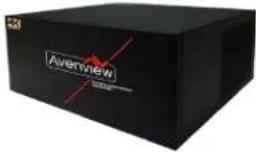 |
| 2 | POWER CORD × I |  |
| RACK-MOUNTING KIT × I | 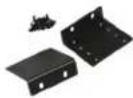 | |
| INSTALLATION SOFTWARE / CD × I |  | |
| USER MANUAL |  |
2.2 BEFORE INSTALLATION
- Put the product in an even and stable location. If the product falls down or drops, it may cause an injury or malfunction.
- Don't place the product in too high temperature (over 50^ ), too low temperature (under 0^ ) or high humidity.
- Use the DC power adapter with correct specifications. If inappropriate power supply is used then it may cause a fire.
- Do not twist or pull by force ends of the video cable. It can cause malfunction.
2.3 PANEL DESCRIPTION
2.3.1 HDM-AVXWALL Front Panel

text_image
4K WALAWAY Avenview 4K HOLLAR VIDEO WALL PROCESSOR HOLDWALL2.3.2 HDM-AVXWALL Rear Panel
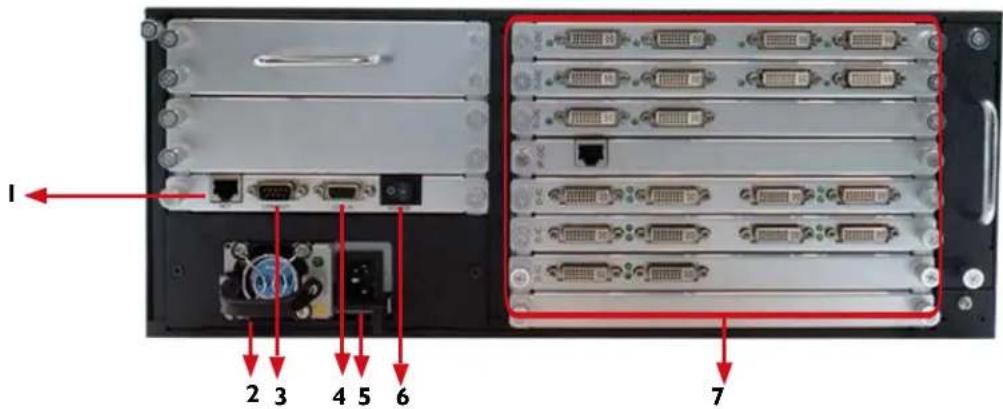
text_image
I 2 3 4 5 6 7| 1. LAN: Connect to active network for LAN serving and Telnet and Web GUI control. | 2. VENTILATION FAN: Automatically runs to keep unit cool. |
| 3. RS 232 OUT: Connect to PC or control system with D-Sub 9-pin cable for the transmission of RS-232 commands. | 4. RS 232 IN:RS-232: Connect to PC or control system with D-Sub 9-pin cable for the transmission of RS-232 commands. |
| 5. POWER OUTLET: Power cord connection interface | 6. POWER SWITCH ON/OFF: Powers the device On and OFF |
| 7. INPUT AND OUTPUT CARDS: Supports up to 128 Inputs / 72 Outputs HDBaseT, HDMI, DVI, SDI, DP (see pages 10-14) |
3.
INSTALLATION
To setup Avenview HDM-AVXWALL follow the steps outlined below for connecting to a device.
I. Use the best quality DVI, DVI-HDMI, VGA, Composite, S-Video cables.
2. Turn Off HDM-AVXWALL and all devices that are to be connected to it.
3. Connect DISPLAYS (or projectors, TV or other display devices) to OUTPUT interfaces of HDM-AVXWALL.
4. Connect the Source device (such as, pC, DVD player, or Media player etc.) to HDM-AVXWALL.
5. Connect a Windows based laptop or desktop (that will be used to configure the HDM-AVXWALL) to HDM-AVXWALL by RS-232 to uSB Adapter.
6. Power ON HDM-AVXWALL.
7. Turn ON all devices connected to HDM-AVXWALL and then setup the HDM-AVXWALL from the system through RS-232 to USB Adapter and provided Avenview software.
HDM-AVXWALL-XX
FULL HD1080P (1920X1080) = 10m (33 feet) HDMI WQXGA(2160X1600) = 10m (33 feet) DVI-DL 4K(4096X2160) = 10m (33 feet) DP
CABLE INDEX Output Input / Source
natural_image
Collage of fresh fruits including apples, grapes, oranges, and peaches in a basket, set against a blurred green outdoor background (no text or symbols)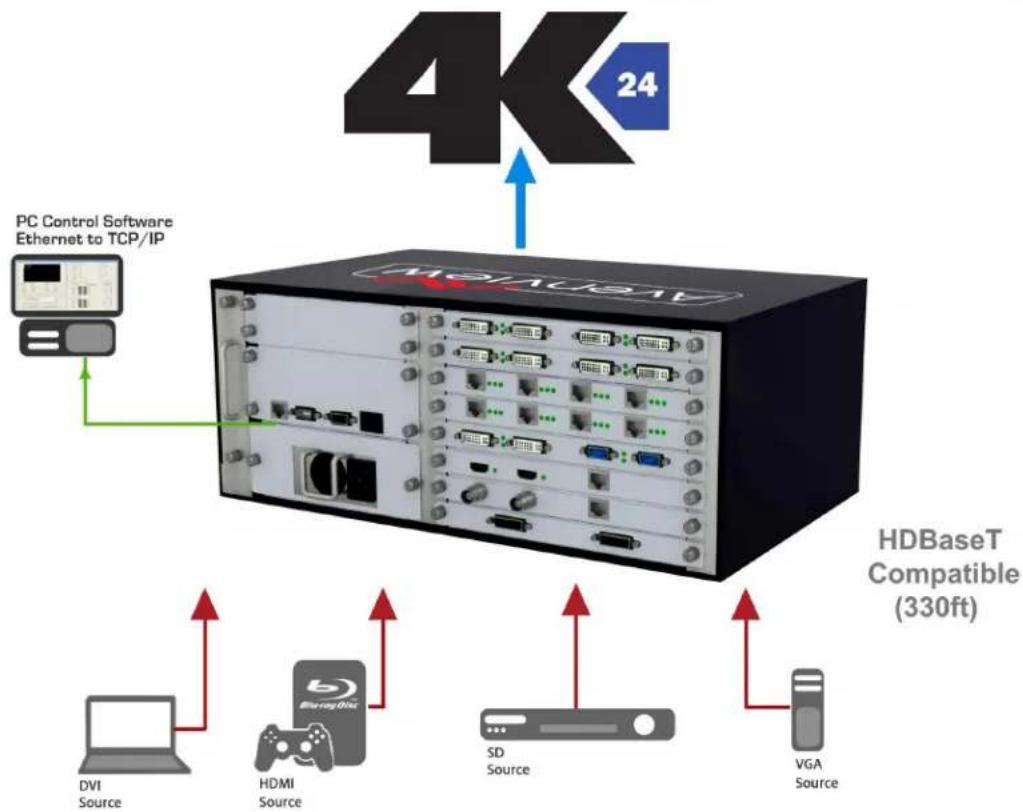
flowchart
graph TD
    A["4K 24"] --> B["HDBaseT"]
    B --> C["PC Control Software Ethernet to TCP/IP"]
    C --> D["DVI Source"]
    C --> E["HDMI Source"]
    C --> F["SD Source"]
    C --> G["VGA Source"]
    style A fill:#f9f,stroke:#333
    style B fill:#ccf,stroke:#333
    style C fill:#cfc,stroke:#333
    style D fill:#fcc,stroke:#333
    style E fill:#cff,stroke:#333
    style F fill:#ffc,stroke:#333
    style G fill:#fcc,stroke:#333
5. SOFTWARE
The Avenview HDM-AVXWALL includes Software Control program which runs under Windows XP or later.
Connect the provide RS-232 to USB adapter to HDM-AVXWALL and USB port to your Windows based system that will be used to configure the HDM-AVXWALL. Once it is connected to USB port, Windows will look for appropriate drivers. If you are using an older version of Windows, then insert the Installation CD (provided) and have Windows search for drivers.
I. Power up the HDM-AVXWALL.
2. When Avenview software is launched, let it automatically detect the device response from RS-232 port. The process takes 5 – 15 seconds. If there is no response, a warning window will show up.
The possible reasons causing above error could be:
- No Power to HDM-AVXWALL or it is in sleep state. If this is the case then check the power and restart the HDM-AVXWALL
- The serial connection is not well established. Please ensure that drivers are properly installed and all cables are securely connected. Check device manager, and ensure that RS-232 to USB Adapter is assigned COM Port # and there is no exclamation mark.
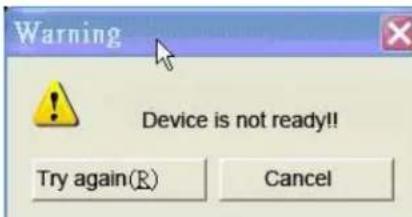
text_image
Warning Device is not ready!! Try again(R) Cancel(I) Establish Connection:
Double clicking the icon on desktop after the software has been installed.
The log in windows will pop up, using the 'ADMIN' as user name and left the password blank, then click 'OK'.

text_image
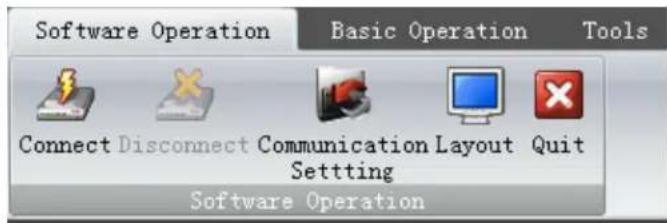
User Login User Name: ADMIN Password: Config OK CancelThe controlling software menu consists of three modules which are the 'Software Operation', 'Basic Operation', and 'Tools'.
First, click 'Communication Setting' on the 'Software Operation'.
text_image
Software Operation Basic Operation Tools Connect Disconnect Communication Layout Quit Settling Software OperationThe connection configuration window will pop up. If the 'NET Connection' has been chose, the default IP address and port number of the processor are '192.168.1.65' and '1024'. If the 'COM Connection' has been chose, select the correct COM port, and make sure the baud rate is 9600. Then clicking OK to save the settings.

text_image
Communication Setting Controller Communication Setting NET Connection COM Connection Select Media Server Equipment IP: 192.168.1.65 Port: 1024 COM: BaudRate: 9600 ✓ Alarm Service: Port: 2000 North China Institute of computing Alarm 2000 Protoco Delay(ms) 100 Network Check and Config IP Subnet Mask GateWay MAC search Select Advance>> OK CancelAfter that, clicking 'Connect' to connect the
processor. (2) User Administration
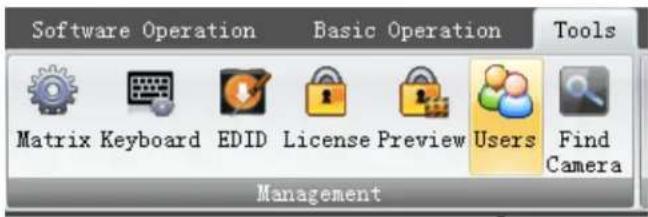
Clicking 'Users' on the 'Tools" menu
text_image
Software Operation Basic Operation Tools Matrix Keyboard EDID License Preview Users Find Camera ManagementOn the pop-up window, the username, password for users to log-in can be configured. You can also set the level of access by select one item on the 'Type' drop list.

text_image
User Management-ADMIN User List Name Type ScrWall ADMIN Admin All User Users .. User Management UserName: ADMIN password: repeat password: Type: Administrators Add Edit Delete OK Cancel(3) Video-wall settings
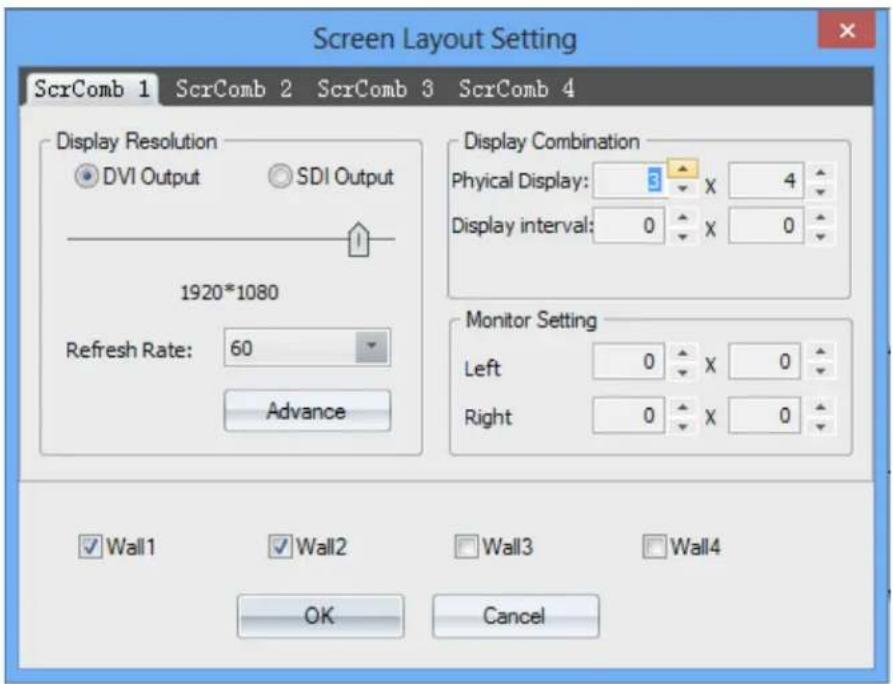
Clicking 'Layout' on the 'Software Operation' to set the video-wall. users can set the output resolution, layout, and the gap between displays for up to 4 groups of video-wall.
For example, the figure below shows the setting of video-wall I which the output resolution is 1920*1080, layout is 2*3, and gap is 0.
text_image
Screen Layout Setting ScrComb 1 ScrComb 2 ScrComb 3 ScrComb 4 Display Resolution DVI Output SDI Output 1920*1080 Refresh Rate: 60 Advance Display Combination Physical Display: 5 X 4 Display interval: 0 X 0 Monitor Setting Left 0 X 0 Right 0 X 0 ✓ Wall1 ✓ Wall2 ✓ Wall3 ✓ Wall4 OK Cancel(4) Channel Mapping
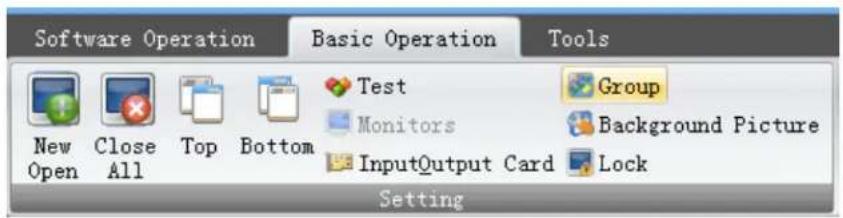
Clicking the 'group' on the 'Basic Operation' menu to set the output mapping from logical channel to physical port.
text_image
Software Operation Basic Operation Tools New Open Close All Top Bottom Test Monitors InputOutput Card Group Background Picture Lock Setting(5) Signal Source Setting
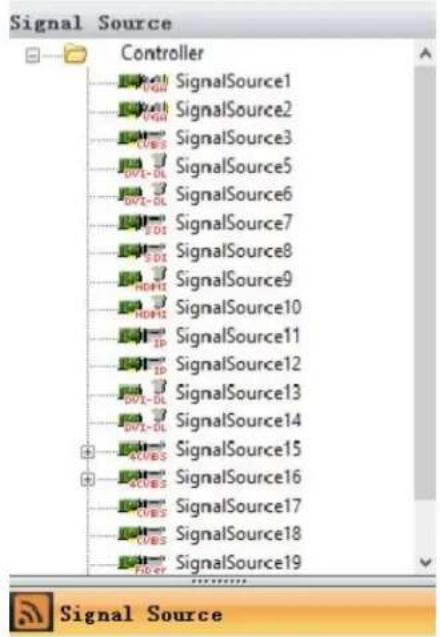
The signal source list located on the left of the software UI. The icon of each signal source will turns green if input signal has been detected on corresponding channel.
text_image
Signal Source Controller SignalSource1 SignalSource2 SignalSource3 SignalSource5 SignalSource6 SignalSource7 SignalSource8 SignalSource9 SignalSource10 SignalSource11 SignalSource12 SignalSource13 SignalSource14 SignalSource15 SignalSource16 SignalSource17 SignalSource18 SignalSource19 Signal SourceUsers can configure the settings of the signal source by right-clicking one of them.

text_image
VGA Signal Property OSD Update EDID VGA<->YPBPR Matrix Input Modify Name Add ModeOn-Screen Display (OSD):
OSD is for character superimposition, user can enter the text which need to be displayed overlaying the video on the textfield. The position of the text overlaying on the video can also be defined by setting values for 'Horizontal Pos' and 'Vertical Pos'. There are three modes of OSD can be chose:
Disable OSD Mode: No character superimposition
OSD Mode I: Character superimposition with transparent background
OSD Mode 2: Character superimposition with pure colour background

text_image
Font: This is text Font Size(30): 28 Horizontal Pos: 0 Vertical Pos: 0 OSD Mode: Disable OSD Mode Font FrontColor BackColor Apply OK CancelModify name:
The name of the signal source can be specified by ‘Modify name’, it will helps to identify and mange the signal sources.

text_image
Modify Signal Information Signal ID: 10 Signal Type: Signal Name: Alex's PC OK CancelAdd mode:
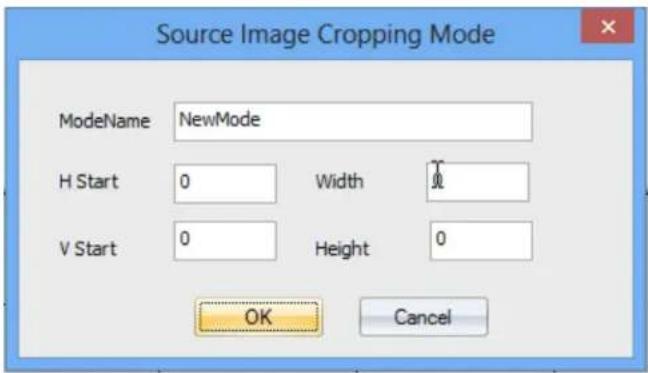
Users can cropping the input video signal by 'Add Mode'. The parameters are:
H Start: The horizontal starting pixel of the cropped signal
V Start: The vertical starting pixel of the cropped signal
Width: The width of the cropped video signal
Height: The Height of the cropped video signal
text_image
Source Image Cropping Mode ModeName NewMode H Start 0 Width V Start 0 Height 0 OK CancelVGA Signal Property
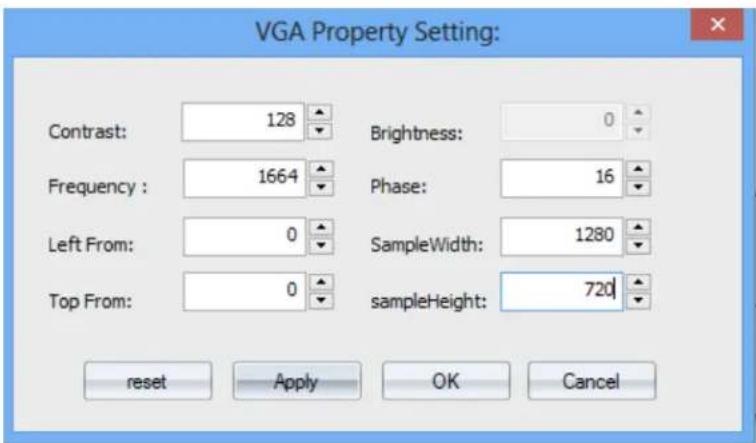
User can set the parameters for VGA signal by 'VGA Signal Property'.
text_image
VGA Property Setting: Contrast: 128 Brightness: 0 Frequency : 1664 Phase: 16 Left From: 0 SampleWidth: 1280 Top From: 0 sampleHeight: 720 reset Apply OK CancelVGA <---> YPbPr
Selecting the 'VGA <---> YPbPr' to choose the signal format of the VGA input channel.

text_image
Set VGA Type Current Channel: 2 VGA OK CancelUpdate EDID
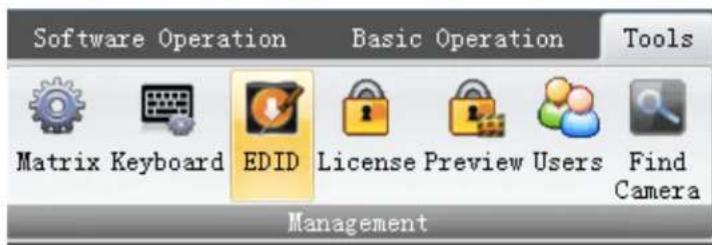
Users can configure the EDID of the input port for abnormal resolution. Clicking 'EDID' on the 'Tools' menu
text_image
Software Operation Basic Operation Tools Matrix Keyboard EDID License Preview Users Find Camera ManagementClick 'File ---> Open EDID' to open one current EDID configuration file(.dat), then modify it to create an new file.

text_image
Phoenix EDID Designer - 3072x768_3840x2400.dat - Read Only File Tools Help Color / Established Timings General Vendor / Product ID Vendor ID: DED Product 76DB Serial 7267 Mfg Week: 42 Mfg Year: 2006 Standard Timings Basic Display Parameters EDID Structure Version 'ersion: 1 Revision: 3 EDID Extensions Number of 0 EDID Checksum 8-bit 25 Current EDIIDED76DBClick

choose modify mode, choose the first block on 'Detailed Timings'
menu,
Detailed Timings
Descriptor Block
Block :
○Block:
○ Block :
○ Block

text_image
Phoenix EDID Designer - 3072x768_3840x2400.dat File Tools Help General Color / Established Timings Basic Display Parameters Standard Timings Detailed Timings Descriptor Block Block : ○ Block : ○ Block : ○ Block * Descriptor Block Type Timing ○ Monitor Block #1 Timings Pixel 195 H Active 3072 H Blank: 960 H Sync 72 H Sync 408 H Image 519 H Border: 0 Interlaced □ V Active 768 V Blank: 38 V Sync 6 V Sync 6 V Image 324 V Border: 0 Stereo Display None (Normal) ○ 2-way, R on ev. FS, R on syn. ○ 2-way, L on eve FS, L on syn. ○ Side-by-Sid 4-way Sync Scheme Analog V Polarity (+) Analog Bipolar V Polarity (+) Digital Composi H Polarity (+) Digital Separa Current EDIDDED76DBH Active: the horizontal pixels
V Active: the vertical pixels
Pixel: the refresh rate (Recommended not to modify)
When finish configuration, don't replace the previous file, save as an new file and save it one the PC. Then right clicking the signal source and click 'Update EDID', choose the created file.
(6) Window Controlling
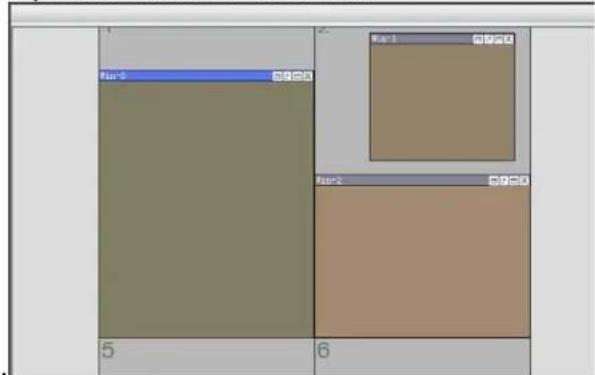
Select one signal source by clicking the icon, then customise a rectangular zone by mouse dragged with its left button to select a region on the the grey area in UI corresponding to the video-wall, after that a windows will be created for displaying on the video-wall. Windows can also be created by click 'New Open' on the 'Basic Operation' menu. Users can customise the size and the position of the windows anywhere within the video-wall
text_image
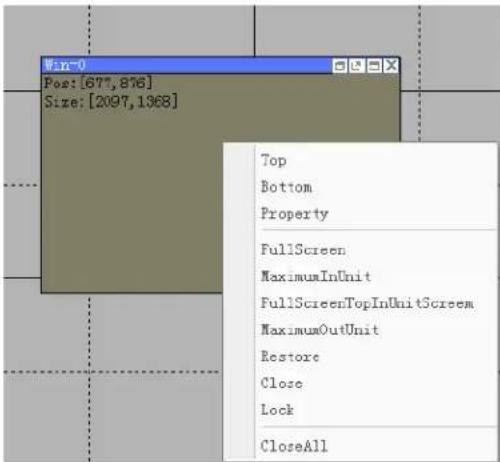
Pan-1 Pan-2 Pan-3 5 6The processor supports the maximum of 4 windows on a single display. The layer of the windows can be set by right clicking the window and select 'Top' and 'Bottom'.
text_image
Win-0 Post: [677, 876] Size: [2097, 1368] Top Bottom Property FullScreen MaximumInUnit FullScreenTopInUnitScreen MaximumOutUnit Restore Close Lock CloseAll(7) Test Signal
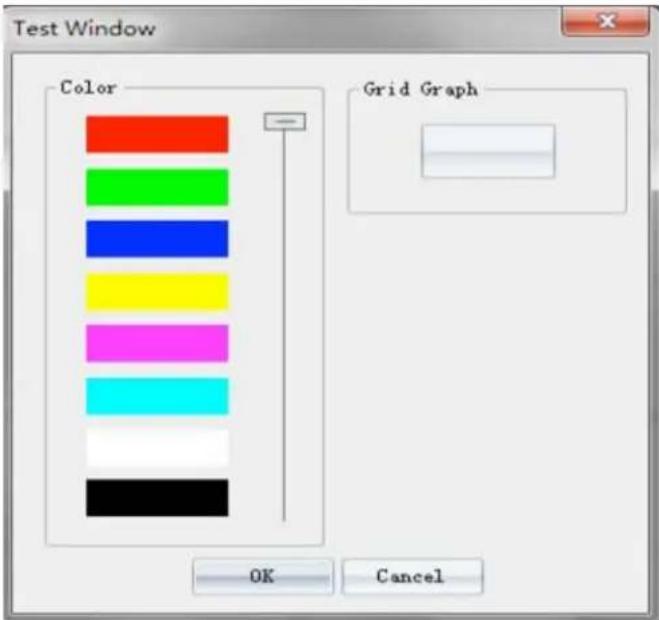
Users can test the connection between processor and displays by transmitting the signals of pure colour or grid to the displays.
text_image
Test Window Color Grid Graph OK Cancel(8) Scene
Saving and Loading
Clicking the 'Save' on the 'Basic Operation' to save the displaying status of the video-wall including the layout, size, and signal source of windows.

text_image
Open Save Loop Refresh Shortcut Scene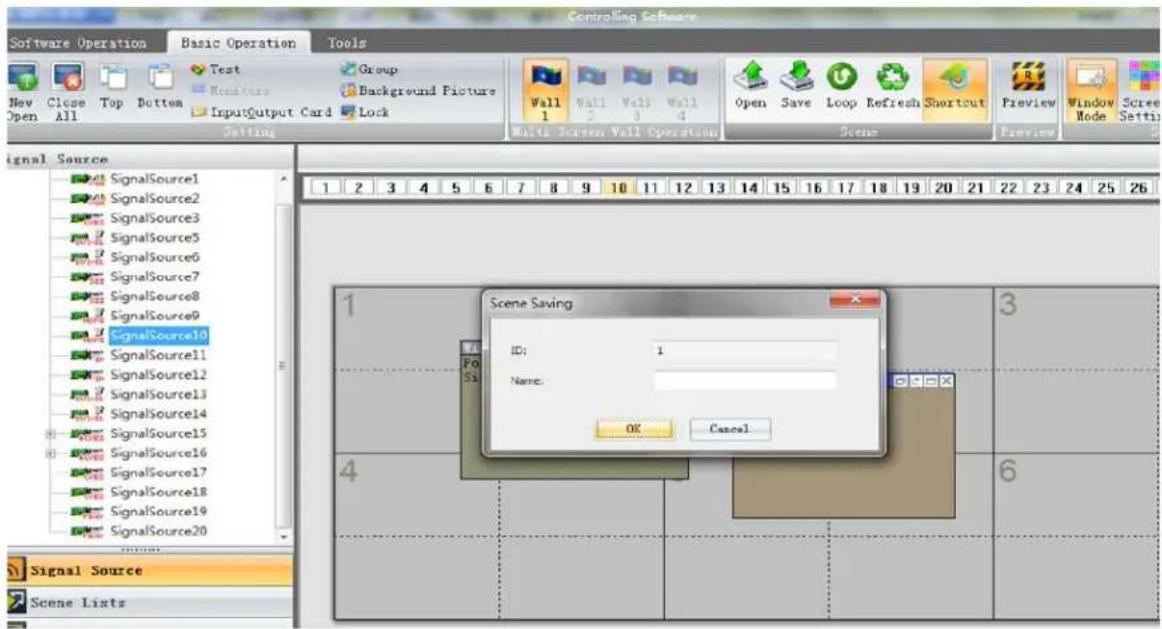
text_image
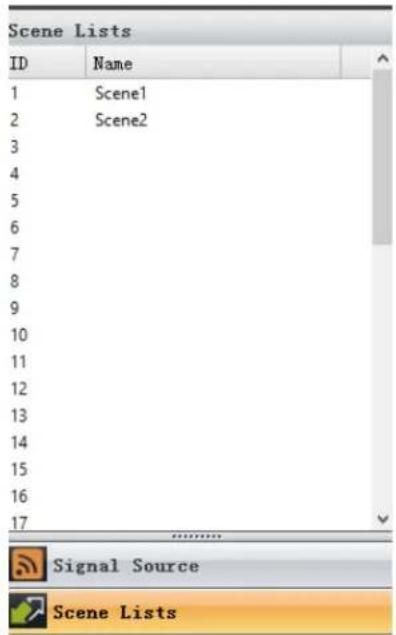
Software Operation Basic Operation Tools New Close Top Bottom Text Group Open All More Features Background Picture InputOutput Card Lock Setting Wall Wall Wall Wall 1 2 3 4 Multi Screen Wall Operation Scene Preview Window Scree Signal Source SignalSource1 SignalSource2 SignalSource3 SignalSource5 SignalSource6 SignalSource7 SignalSource8 SignalSource9 SignalSource10 SignalSource11 SignalSource12 SignalSource13 SignalSource14 SignalSource15 SignalSource16 SignalSource17 SignalSource18 SignalSource19 SignalSource20 Scene Saving ID: 1 Name: OK Cancel 3 4 6 Signal Source Scene ListsUsers can load the 'scenes' by select one scene on the 'Scene List' which located on the left side of the software UI.
text_image
Scene Lists ID Name 1 Scene1 2 Scene2 3 4 5 6 7 8 9 10 11 12 13 14 15 16 17 Signal Source Scene ListsAll the saved scenes can be loaded and displayed on loop by clicking 'Loop' on 'Basic Operation'

text_image
Open Save Loop Refresh Shortcut Scene(9) Advanced settings
Background image
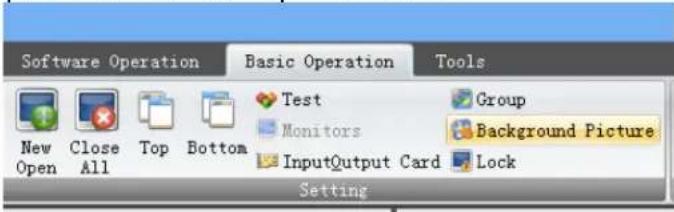
The video-wall processor supports users to upload and display high definition background image by clicking 'Background picture' on the 'Basic Operation' menu.
text_image
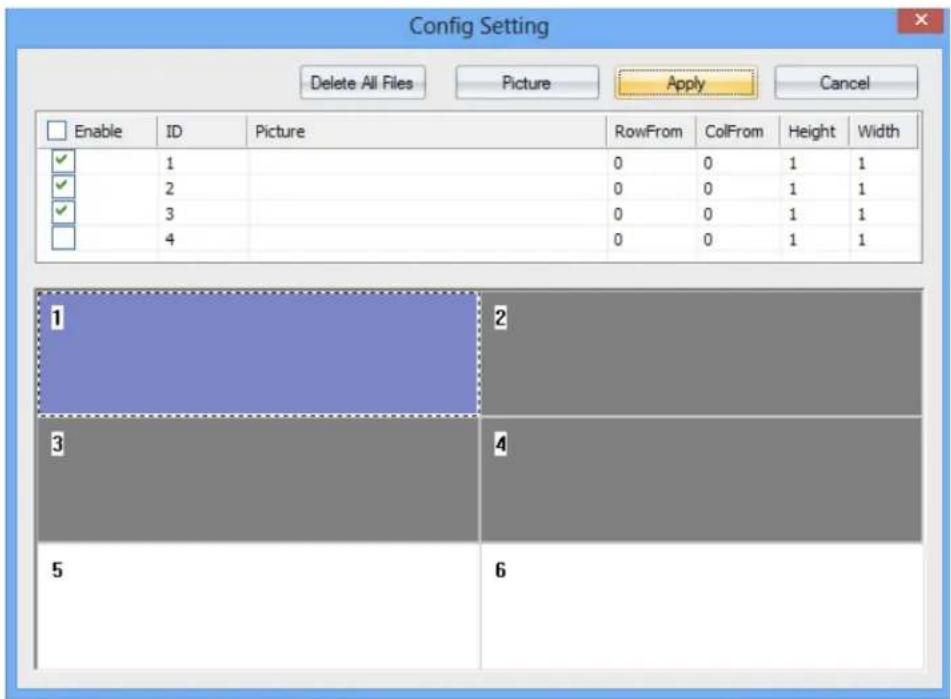
Software Operation Basic Operation Tools New Open Close All Top Bottom Test Monitors InputOutput Card Group Background Picture Lock SettingClick ‘picture’ to add background image files (.bmp) to the processor. Then choose the uploaded image and the video-wall which used to displaying this image. The image can be displayed full screen or on specified area on video-wall by select the displays.
text_image
Config Setting Delete All Files Picture Apply Cancel Enable ID Picture RowFrom ColFrom Height Width ✓ 1 0 0 1 1 ✓ 2 0 0 1 1 ✓ 3 0 0 1 1 ☐ 4 0 0 1 1 1 2 3 4 5 6Input Signal Preview
Connecting the controlling PC, the controlling ethernet port, and the ethernet port on the preview card to the same LAN.
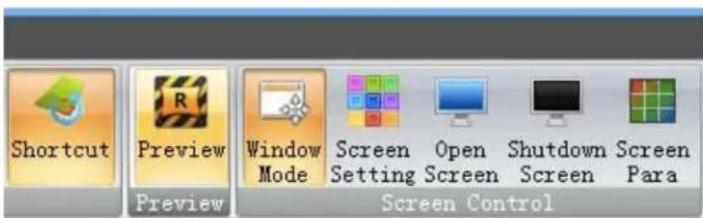
Clicking the "Preview" button in the "Basic Operation" menu.
text_image
Shortcut Preview Window Mode Screen Setting Open Screen Shutdown Screen Screen Para Preview Screen ControlThe preview region is shown on the bottom of the software UI. User can preview the input signal by clicking the "play" button. The input signal can be previewed in a larger window by double clicking it.

text_image
Screenshot of a video editing interface with multiple video thumbnails and Chinese text overlays, likely from a presentation or audio sample.6. SPECIFICATIONS
| Item Description | |
| MODEL HDM-AVXWALL | |
| UNIT DESCRIPTION Multi-Input Image Video Wall processor with 4K support | |
| VIDEO FORMAT SUPPORT | CVBS,YPbPr,VGA,DVI, HDMI, SDI, DisplayPort,UTP and optical fiber |
| LOCAL OUTPUT Yes -DM | |
| SUPPORTED RESOLUTIONS SD Up to 1080p, 4K (4096x2160@24Hz) | |
| AUDIO SUPPORT No | |
| SYSTEM CONTROL TCP/IP | |
| ESD PROTECTION | - Human body model — ±15kV (air-gap discharge) & ±8kV (contact discharge) - Core chipset — ±8kV |
| INPUT CONNECTORS | See Pages 10-14 |
| OUTPUT CONNECTORS See Pages 10-14 | |
| RCA CONNECTOR 75Ω female | |
| DVI CONNECTOR DVI-I (212-pin female, digital only) | |
| RJ45 CONNECTOR WE/SS 8p8C with 2 I ED indicators | |
| RS232 CONNECTOR | DE-12 (12-pin D-sub f emale) |
| DIMENSIONS (L X W X H) | Unit: Based on Form factor |
| DIMENSIONS (L X W X H) | Package: Based on Form Factor |
| POWER SUPPLY | AC 100-240V |
| POWER CONSUMPTION | 60 Watt (max) |
| Environmental | |
| OPERATING TEMPERATURE | 32° ~ 104°F (0° to 40°C) |
| STORAGE TEMPERATURE | -4° ~ 140°F (-20° ~ 60°C) |
| RELATIVE HUMIDITY | 20~120% RH (no condensation) |
7. INPUT / OUTPUT CARDS
7.1 Input cards
7.1.1 Input Port - VGA

| Signal Format | RGBHV |
| Maximum Resolution | 1920*1200 |
| Color Depth | 32bits/pixel |
| Horizontal Scanning Ration | 15KHz-90KHz |
| Synchronization | Separate sync |
| Customised EDID | YES |
| Impedance | 75Ω |
| Reference Level | 0.7Vp-p |
| Physical Port | RGB: 15pins D-sub(DB15/DE-15F) |
7.1.2 Input Port - YPbPr

| Signal Format | Component EIA-770.2-A |
| Maximum Resolution | 1920*1080 |
| Color Depth | 32bits/pixel |
| Horizontal Scanning Ration | 15KHz-90KHz |
| Synchronization | Separate sync |
| Customised EDID | YES |
| Impedance | 75Ω |
| Reference Level | 0.7Vp-p |
| Physical Port | RCA*3 |
7.1.3 Input Port - DVI

| Signal Format | DVI-D digital T.M.D.S. signal in DVI 1.0 |
| Maximum Resolution | 1920*1200 |
| Color Depth | 32bits/pixel |
| Signal Level | T.M.D.S 2.9V-3.3V |
| Customised EDID | YES |
| Impedance | 50Ω |
| Maximum Data Rate | 4.95Gbps |
| Physical Port | 24+5 pins/DVI-I |
7.1.4 Input Port - CVBS

| Standard | PAL/NTSC |
| Resolution | 480i/576i |
| Impedance | 75Ω |
| Reference Level | 1Vp-p |
| Physical Port | BNC |
7.1.5 Input Port - SDI

| Signal Format | HD/3G-SDI |
| Resolution | 720p/1080p |
| Impedance | 75Ω |
| Maximum Data Rate | 3Gbps |
| Physical Port | BNC |
7.1.6 Input Port - HDMI

| Standard | HDMI 1.3 |
| Maximum Resolution | 1920*1200 |
| HDCP | Yes |
| Customised EDID | YES |
| Maximum Data Rate | 4.95Gbps |
| Physical Port | HDMI Type A |
7.1.7 Input Port - Dual-link DVI

| Signal Format | Dual-link DVI |
| Maximum Resolution | 4K*4K |
| Impedance | 50Ω |
| Customised EDID | YES |
| Maximum Data Rate | 9.9Gbps |
| Physical Port | 24+5 pins/DVI-I |
7.1.8 Input Port - Optical Fibre

| Signal Format | Single mode optical signal |
| Maximum Resolution | 1920*1200 |
| Front-end Device | TriF-TISD or TriF-TISG |
| Maximum Transmission Distance | 10km |
| Physical Port | LC |
8.2 Output cards
7.2.1 Output Port - DVI/VGA

| Signal Format | DVI-I in DVI I.0 standard |
| Maximum Resolution | 1920*1200 |
| Color Depth | 32bits/pixel |
| Maximum Transmission Distance | 25m(DVI) |
| Physical Port | 24+5 pins/DVI-I( Adapter required for VGA |
| Signal Level | T.M.D.S. 2.9V-3.3V |
| Impedance | 50Ω |
7.2.2 Output Port - Twisted Pair

| Signal Format | Twisted pair differential signal |
| Maximum Resolution | 1920*1200 |
| Color Depth | 32bit/pixel |
| Maximum Transmission Distance | 100m |
| Physical Port | LC |
7.2.3 Output Port - SDI

| Signal Format | HD-SDI/3G-SDI |
| Resolution | 720p/1080p |
| Impedance | 75Ω |
| Output Backup | Yes |
| Physical Port | BNC |
7.2.4 Output Port - Optical Signal
| Signal Format | Single mode optical signal |
| Maximum Resolution | 1920*1200 |
| Rear-end Device | TriF-RISI |
| Maximum Transmission Distance | 10km |
| Physical Port | LC |
8. Models and Scales
| Models | Features |
| Video-Wall Processor I | Two windows per screen |
| Video-Wall Processor II | Four windows per screen |
| Models | Scales | Dimension (mm) | Input | Output | ||
| DVI/VGA/HDMI/SDI/YPbPr/Optical/Twisted-pair | Dual-link DVI CVBS | |||||
| Video-Wall Processor I | 2U | 438(W)*300/316(D)*89(H) | 8 | 4 | 32 | 8 |
| 4U | 438(W)*300/316(D)*178(H) | 16 | 8 | 64 | 16 | |
| 8U | 438(W)*300/316(D)*356(H) | 32 | 16 | 128 | 36 | |
| 14U | 438(W)*300/316(D)*623(H) | 64 | 32 | 256 | 72 | |
| 20U | 438(W)*300/316(D)*890(H) | 128 | N/A | 512 | 72 | |
| 28U | 438(W)*300/316(D)*1246(H) | 128 | 36* | 512 | 144 | |
| Video-Wall Processor II/IV | 4U | 438(W)*300/316(D)*178(H) | 24 | 4* | 96 | 8 |
| 8U | 438(W)*300/316(D)*356(H) | 52 | 8* | 208 | 18 | |
| 14U | 438(W)*300/316(D)*623(H) | 96 | 16* | 384 | 36 | |
| 22U | 438(W)*300/316(D)*979(H) | 128 | 36* | 512 72 | ||
| 2U | 438(W)*300/316(D)*89(H) | 8 | 4 | 32 | 4 | |
| 4U | 438(W)*300/316(D)*178(H) | 16 | 8 | 64 | 8 | |
| 8U | 438(W)*300/316(D)*356(H) | 32 | 16 | 128 | 18 | |
| Models | Scales | Dimension (mm) | Input | Output | ||
| DVI/VGA/HDMI/SDI/YPbPr/Optical/Twisted-pair | Dual-link DVI | CVBS | ||||
| Video-Wall Processor III | 14U | 438(W)*300/316(D)*623(H) | 64 32 256 | 36 | ||
| 20U | 438(W)*300/316(D)*890(H) | 128 N/A 512 | 36 | |||
| 28U | 438(W)*300/316(D)*1246(H) | 128 | 36* | 512 | 72 | |
* means dual-link dvi input cards are only effective in specified input slots
9. GENERAL TROUBLESHOOTING
| PROBLEM POSSIBLE SOLUTION | |
| Cannot install software | Missing VC++ runtime libraryFor 32 bits system, please install vcredist_x86.exeFor 64 bits system, please install vcredist_x64.exe |
| No Image | Please check the input signalMake sure the each output and input port connected to the corresponding device.Use high quality video cablesCheck output cable for any damage or exceed transmission distance |
| Color cast on image | Check if cable is connected properly.Check if cable is damaged.Check software color adjustment.Check display color adjustment.Check port screws if tightened.Use premium quality video cablesAdjust the color balance of the display.Re-adjust the color tune by controlling software |
| Shaking or noisy point on image | Check cable length, long cable causes serious signal attenuation Checksignal source if unstable or damaged cables connected |
| Dark edge on the display | Check if video signal has been cropped by the displayCheck if Inappropriate adjustment of the video is made on the controlling softwareReset settings to Default using control software, then re-adjust to desired configurations. |
Notice
I. If the DVI or HDMI device requires the EDID information, please use EDID Reader/Writer to retrieve and provide DVI/HDMI EDID information.
2. All HDMI over CAT5 transmission distances are measured using Belden 1583A CAT5e 125MHz LAN cable and ASTRODESIGN Video Signal Generator VG-8512C.3
3. The transmission length is largely affected by the type of LAN cables, the type of HDMI sources, and the type of HDMI display. The testing result shows solid LAN cables (usually in bulk cable 300m or 1000ft form) can transmit a lot longer signals than stranded LAN cables (usually in patch cord form). Shielded STP cables are better suit than unshielded UTP cables. A solid UTP CAT5e cable shows longer transmission length than stranded STP CAT6 cable. For long extension users, solid LAN cables are your only choice.
4. EIA/TIA-568-B termination (T568B) for LAN cables is recommended for better performance.
5. To reduce the interference among the unshielded twisted pairs of wires in LAN cable, you can use shielded LAN cables to improve EMI problems, which is worsen in long transmission.
6. Because the quality of the LAN cables has the major effects in how long transmission distance will be made and how good is the received display, the actual transmission length is subject to your LAN cables. For resolution greater than 1080i or 1280x1024, a CAT6 cable is recommended.
7. If your HDMI display has multiple HDMI inputs, it is found that the first HDMI input [HDMI input #1] generally can produce better transmission performance among all HDMI inputs.
Notes
Notes
Avenview Warranty Certificate
AVENVIEW CORP. ("Avenview") warrants Avenview-branded product(s) contained in the original packaging against defects in materials and workmanship when used normally in accordance with Avenview's enclosed manual guidelines for a period of THREE (3) YEARS from the date of original retail purchase - Warranty Period. Avenview's published guidelines include but are not limited to information contained in technical specifications, user manuals and service communications.
LABOR: During the Warranty Period of THREE (3) YEARS, Avenview will repair or replace the product(s) at no cost using new or used parts equivalent to novel performance and reliability if the product(s) is determined to have abide by Avenview's published guidelines. Cost of Labor applicable to product(s) after Warranty Period. For labor costs, please contact support@avenview.com.
PARTS: During the Warranty Period of THREE (3) YEARS, Avenview will supply new or rebuilt replacements in exchange for defective parts of the product(s) at no cost if the product(s) is determined to have abide by Avenview's published guidelines. Cost of Parts applicable to product(s) after Warranty Period. For part(s) costs, please contact support@avenview.com.
To obtain Warranty: (a) proof of purchase in the form of a bill of sale or receipted invoice reflecting that the registered product(s) is within warranty period must be presented to obtain warranty service; (b) product(s) must be registered at time of purchase. Failure to do so will result in applicable parts and labor charges. Returning product(s) must be shipped in Avenview's original packaging or in packaging pertaining equal degree of protection to Avenview's. Both Avenview and purchaser are responsible for freight charges and brokerages when shipping the product(s) to the receiver.
NOT COVERED BY THIS WARRANTY
This warranty does not apply to any non-Avenview branded product(s); non-registered Avenview product(s). This warranty does not apply: (a) to cosmetic damage, including but not limited to scratches, dents and broken cords; (b) to damage caused by use with another product; (c) to damage caused by accident, abuse, misuse, liquid contact, fire, earthquake or other external cause; (d) to damage caused by operating the Avenview product(s) outside Avenview's manuals or guidelines; (e) to damage caused by service performed by anyone who is not a representative of Avenview or an Avenview authorized personnel; (f) to defects caused by normal wear and tear or otherwise due to the normal aging of the Avenview product(s), or (g) if any serial number has been removed or defaced from the Avenview product(s).
AVENVIEW IS NOT LIABLE FOR DIRECT, SPECIAL, INCIDENTAL OR CONSEQUENTIAL DAMAGES RESULTING FROM ANY BREACH OF WARRANTY OR CONDITION, OR UNDER ANY OTHER LEGAL THEORY, INCLUDING BUT NOT LIMITED TO LOSS OF USE; LOSS OF REVENUE; LOSS OF ACTUAL OR ANTICIPATED PROFITS (INCLUDING LOSS OF PROFITS ON CONTRACTS); LOSS OF THE USE OF MONEY; LOSS OF ANTICIPATED SAVINGS; LOSS OF BUSINESS; LOSS OF OPPORTUNITY; LOSS OF GOODWILL; LOSS OF REPUTATION; LOSS OF, DAMAGE TO, COMPROMISE OR CORRUPTION OF DATA; OR ANY INDIRECT OR CONSEQUENTIAL LOSS OR DAMAGE REPAIR OR REPLACEMENT AS PROVIDED UNDER THIS WARRANTY IS THE EXCLUSIVE REMEDY OF THE CONSUMER.
Some states do not allow the inclusion or limitation of incidental or consequential damages, or allow limitations on duration implements of the Warranty Period; therefore the above limitations or exclusions may not be applicable to you. This warranty gives you specific legal rights, and you may have other rights which vary from state to state.

275 Woodward Avenue, Kenmore, NY 14217 1.866.508.0269

TECHNICAL SUPPORT
CONTACT US

Phone: I (866) 5080269

Email: support@avenview.com

natural_image
Illustration of a globe with headphones and a headset, symbolizing global communication (no text or symbols present)USA Head Office Avenview Corp. 275 Woodward Avenue Kenmore, NY 14217
USA Head Office
Office Avenview Corp.
275 Woodward Avenue
Kenmore, NY14217
Phone: +1.716.218.4100
Fax: +1.866.387-8764
Email: info@avenview.com
Canada Sales
Avenview
151 Esna Park Drive, Units 11 & 12
Markham, Ontario, L3R3B1
Phone: 1.905.907.0525
Fax: 1.866.387.8764
Email: info@avenview.com
Avenview Europe
Avenview Europe
Demkaweg II
3555 HW Utrecht
Netherlands
Phone: +31(0)85 2100 613
Unit 8, 6/f., Kwai Cheong Centre,
50 Kwai Cheong Road,
Kwai Chung, N.T.
Hong kong
Phone: 852.3575.9585
Email: wenxi@avenview.com
Disclaimer
While every precaution has been taken in the preparation of this document, Avenview Inc. assumes no liability with respect to the operation or use of Avenview hardware, software or other products and documentation described herein, for any act or omission of Avenview concerning such products or this documentation, for any interruption of service, loss or interruption of business, loss of anticipatory profits, or for punitive, incidental or consequential damages in connection with the furnishing, performance, or use of the Avenview hardware, software, or other products and documentation provided herein.
Avenview Inc. reserves the right to make changes without further notice to a product or system described herein to improve reliability, function or design. With respect to Avenview products which this document relates, Avenview disclaims all express or implied warranties regarding such products, including but not limited to, the implied warranties of merchantability, fitness for a particular purpose, and non-infringement.