
HDM-SPLITPRO-4A-V2 - Unspecified Avenview - Free user manual and instructions
Find the device manual for free HDM-SPLITPRO-4A-V2 Avenview in PDF.


| Product Type | HDMI Splitter |
| Brand | Avenview |
| Model | HDM-SPLITPRO-4A-V2 |
| Input Ports | 1 x HDMI (Type A, female) |
| Output Ports | 4 x HDMI (Type A, female) |
| Maximum Resolution | 4K @ 60Hz (3840x2160) |
| Supported Audio Formats | LPCM 7.1, Dolby TrueHD, DTS-HD Master Audio |
| HDCP Compliance | HDCP 2.2 |
| Bandwidth | 18 Gbps |
| Power Supply | DC 5V / 2A (included) |
| Dimensions (L x W x H) | 7.9 x 2.9 x 1.0 inches (200 x 73 x 25 mm) |
| Weight | 0.66 lbs (300 g) |
| Operating Temperature | 32°F - 104°F (0°C - 40°C) |
| EDID Management | Built-in EDID management for optimal compatibility |
| HDMI Version | HDMI 2.0a |
| Material | Aluminum housing |
| Mounting Options | Desktop or wall-mountable (brackets included) |
| Warranty | 1 year limited warranty |
| Included Accessories | Power adapter, user manual |
Frequently Asked Questions - HDM-SPLITPRO-4A-V2 Avenview
User questions about HDM-SPLITPRO-4A-V2 Avenview
0 question about this device. Answer the ones you know or ask your own.
Ask a new question about this device
Download the instructions for your Unspecified in PDF format for free! Find your manual HDM-SPLITPRO-4A-V2 - Avenview and take your electronic device back in hand. On this page are published all the documents necessary for the use of your device. HDM-SPLITPRO-4A-V2 by Avenview.
USER MANUAL HDM-SPLITPRO-4A-V2 Avenview
4xI HDMI Quad Multiviewer Scaler with Rotation and Chromakey







Model #: HDM-SPLITPRO-4A-V2
TABLE OF CONTENTS
I. GETTING STARTED .... I
I.1 IMPORTANT SAFEGUARDS....I
1.2 SAFETY INSTRUCTIONS ...... I
1.3 REGULATORY NOTICES FEDERAL COMMUNICATIONS COMMISSION (FCC) 2
2. INTRODUCTION....3
2.1 PACKAGE CONTENTS 5
2.2 BEFORE INSTALLATION....5
2.3 APPLICATION DIAGRAM....6
3. PANEL DESCRIPTION....7
INPUT PANEL (HDM-SPLITPRO-4A-V2) Front....7
INPUT PANEL (HDM-SPLITPRO-4A-V2) Rear 8
4. IR REMOTE CONTROL....9
4.1 INSTALLATION (HDM-SPLITPRO-4A-V2)....10
5. SPECIFICATIONS....11
I.1 IMPORTANT SAFEGUARDS
Please read all of these instructions carefully before you use the device. Save this manual for future reference.
What the warranty does not cover
- Any product, on which the serial number has been defaced, modified or removed.
• Damage, deterioration or malfunction resulting from: - Accident, misuse, neglect, fire, water, lightning, or other acts of nature, unauthorized product modification, or failure to follow instructions supplied with the product.
• Repair or attempted repair by anyone not authorized by us.
• Any damage of the product due to shipment. - Removal or installation of the product.
- Causes external to the product, such as electric power fluctuation or failure.
• Use of supplies or parts not meeting our specifications.
• Normal wear and tear.
• Any other causes which does not relate to a product defect. - Removal, installation, and set-up service charges.
1.2 SAFETY INSTRUCTIONS
The HDM-SPLITPRO-4A-V2 4x1 Quad Multiviewer Scaler with Rotation, Chromakey and Audio and audio has been tested for conformance to safety regulations and requirements, and has been certified for international use. However, like all electronic equipments, the HDM-SPLITPRO-4A-V2 should be used with care. Read the following safety instructions to protect yourself from possible injury and to minimize the risk of damage to the unit.
Do not dismantle the housing or modify the module.
⚠ Dismantling the housing or modifying the module may result in electrical shock or burn.
⚠️ Refer all servicing to qualified service personnel.
Do not attempt to service this product yourself as opening or removing housing may expose you to dangerous voltage or other hazards
⚠️ Keep the module away from liquids.
Spillage into the housing may result in fire, electrical shock, or equipment damage. If an object or liquid falls or spills on to the housing, unplug the module immediately.
Have the module checked by a qualified service engineer before using it again.
Do not use liquid or aerosol cleaners to clean this unit. Always unplug the power to the device before cleaning.
I.3 REGULATORY NOTICES FEDERAL COMMUNICATIONS COMMISSION (FCC)
This equipment has been tested and found to comply with Part 15 of the FCC rules. These limits are designed to provide reasonable protection against harmful interference in a residential installation.
Any changes or modifications made to this equipment may void the user's authority to operate this equipment.
Warning symbols Description

ONLY USE THE PROVIDED POWER CABLE OR POWER ADAPTER SUPPLIED. DO NOT TAMPER WITH THE ELECTRICAL PARTS. THIS MAY RESULT IN ELECTRICAL SHOCK OR BURN.

DO NOT TAMPER WITH THE UNIT. DOING SO WILL VOID THE WARRANTY AND CONTINUED USE OF THE PRODUCT.


BEWARE
this unit
contains
static
sensitive devices
THE VIDEO BOARDS ARE VERY SENSITIVE TO STATIC. PLEASE ENSURE IF RACK MOUNTED OR INSTALLED ON A SURFACE, IT SHOULD BE IN A GROUNDED ENVIROMENT.

natural_image
Blue circular icon with a white silhouette of a person holding an open book (no text or symbols)WARNING
Read & understand user guide before using this device.
Failure to follow the proper installation instructions could result in damage to the product and preventing expected results.
2. INTRODUCTION
Introduction to HDM-SPLITPRO-4A-V2
This 4 x1 Multiviewer Scaler was developed for the growing demand in the security video conference and sporting events.
This IU HDMI device can accept 4 HDMI input digital sources and then combine (4) four video signals onto a single HDMI HD Monitor. The user can easily manage each input via the Menu settings and create any layout and position of any of the 4 (four) Inputs on a single Monitor. This device supports full range of video resolutions up to WUXGA@60 (RB) or Full HD1080p and audio supported up to 8-channel LPCM with 192 kHz sampling rate for both input and output. Audio channels can be selected to playback with input or can be muted.
Seamless Switching, Fade In Out – This device can input any 4 HDMI input digital sources and then combine, (4) four video signals onto a single HDMI HD Monitor. The user will benefit with from its processing power to seamlessly switch between the 8 different Hot key function via, IR Remote, Telnet, Rs232 or Front Panel buttons.
Zoom In/out – This device can Zoom In/Out any 4 HDMI input digital sources and then combine, (4) four video signals onto a single HDMI HD Monitor. This device can be configured using the OSD, IR Remote, Telnet, RS232 or Front Panel buttons to set the desired layout configuration.
PIP, POP, Overlay – This device can input any 4 HDMI digital sources and then combine, (4) four video signals onto a single HDMI HD Monitor, which the user can select Picture In Picture (PIP), Picture on Picture (POP) or Overlay with the OSD, IR Remote, Telnet, Rs232 or Front Panel buttons to set the desired layout configuration.
Channel Size and Position – The user can easily change the individual channel size and choose different position and layout on the single monitor with the OSD, IR Remote, Telnet, Rs232 or Front Panel buttons to set the desired layout configuration.
Rotation (90° & 180°) & Mirror – The user can easily Rotate the image 90° left and right also Mirror the image. This device can be configured with the OSD, IR Remote, Telnet, Rs232 or Front Panel buttons to set the desired layout configuration.
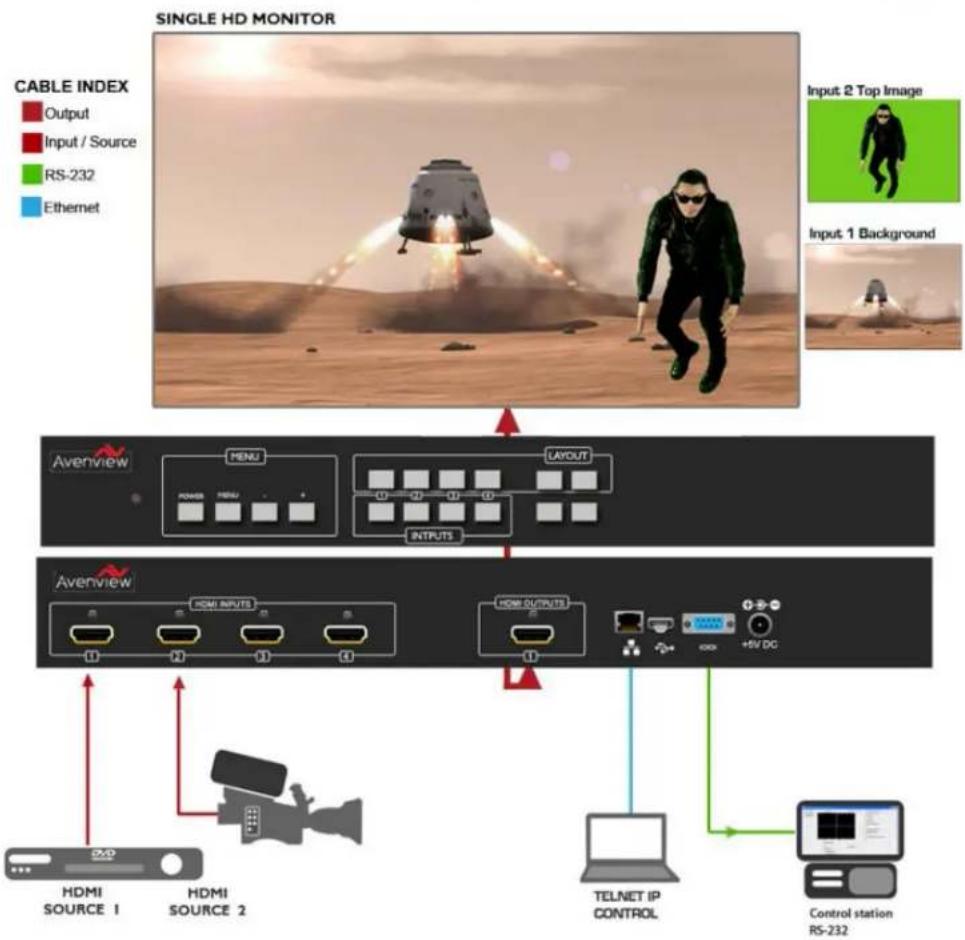
Chromakey – This device can input 4 HDMI digital sources but only utilize (2) two Inputs for this technique layering two images or video streams together based on color hues (chroma range). Where CH1 is the background and CH 2 is the top image. This device can be configured with the OSD, IR Remote, Telnet, Rs232 or Front Panel buttons to set the desired layout configuration.
It is commonly used for weather forecast broadcasts, wherein a news presenter is usually seen standing in front of a large CGI map during live television newscasts, though in actuality it is a large blue or green background. When using a blue screen, different weather maps are added on the parts of the image where the color is blue. If the news presenter wears blue clothes, his or her clothes will also be replaced with the background video. A complementary system is used for green screens. Chroma keying is also used in the entertainment industry for special effects in movies and video games. The advanced state of the technology and much commercially available computer software, such as Autodesk Smoke Final Cut Pro Pinnacle Studio Adobe After Effects, and dozens of other computer programs, makes it possible and relatively easy for the average home computer user to create videos using the "Chromakey" function with HDM-SPLITPRO-4A-V2.
Features
- Seamless switching and Fade In Out between input channels and combined images on single HD Monitor;
- Zoom IN/Out the (4) four HDMI Input Channels;
- Supports PIP, POP, PAP and Multi-windows layout configurations;
- Rotation (90° left & right and 180°) functions;
- Supports Chromakey Function;
- Mirror the (4) four HDMI Input Channels;
- 8 Preset Hot keys for easy control and design layouts;
- 4 Custom Favorite saved layout buttons via the IR Remote;
- Input /Output resolution supported supports full range of video resolutions up to WUXGA@60 (RB) or Full HD1080p;
- Audio Supports LPCM 2CH, 6CH, 8CH/AC3/DTS/Dolby Digital Plus/Dolby TruHD & DTS-HD;
- Fine tuning and adjustments of contrast, brightness, Saturation and hue;
- USB for Service Mode and Firmware upgrade;
- Supports OSD, WEB GUI, RS-232, Telnet, IR Remote and Front panel buttons;
- Factory Reset;
2.1 PACKAGE CONTENTS
Before you start the installation of the converter, please check the package contents.
| 1 | HDM-SPLITPRO-4A-V2 X I × I |  |
| 2 | POWER SUPPLY (12V 3A) × I |  |
| 3 | IR REMOTE × I |  |
| 4 | USER'S MANUAL × I |  |
2.2 BEFORE INSTALLATION
- Put the product in an even and stable location. If the product falls down or drops, it may cause an injury or malfunction.
- Don't place the product in too high temperature (over 50^ ), too low temperature (under 0^ ) or high humidity.
- Use the DC power adapter with correct specifications. If inappropriate power supply is used then it may cause a fire.
- Do not twist or pull by force ends of the video cable. It can cause malfunction.
2.3
APPLICATION DIAGRAM
HDM-SPLITPRO-4A-V2

flowchart
graph TD
    A["SINGLE HD MONITOR Preset layout 1"] --> B["Avenueview"]
    B --> C["Output: Shering One"]
    B --> D["Input / Source: Shering One"]
    B --> E["RS-232: Input / Source"]
    B --> F["Layout: Power, MENU, INPUTS"]
    F --> G["HDMI SOURCE 1"]
    F --> H["HDMI SOURCE 2"]
    F --> I["HDMI SOURCE 3"]
    F --> J["HDMI SOURCE 4"]
    F --> K["TELNET IP CONTROL"]
    K --> L["Control station RS-232"]
    M["Preset Layout 2"] --> N["1"]
    M --> O["2"]
    M --> P["3"]
    M --> Q["4"]
    R["Preset Layout 3"] --> S["1"]
    R --> T["2"]
    R --> U["3"]
    R --> V["4"]
3. PANEL DESCRIPTION
3.1 INPUT PANEL (HDM-SPLITPRO-4A-V2) Front

| 1. IR Window: Receives IR signals from the device remote control (Included in package) | 2. Power Button: Toggle ON/OFFFirst Press Power On Second Press Standby Mode.Note : Quick Factory ResetHOLD power button then connect power supply to the unit. |
| 3. Menu Button: Shows the OSD Menu on the screen | 4. -/+ Buttons : To scroll down and upin the OSD Menu to confirm the selection “Press Menu Button” |
| 5. Input CH 1- CH 4 to change the HDMI 1~4 input source output order. All channels can select the same input or each channel a different input. | 6. A-H Button:See No: 6 below. |
NO.5: A-H Buttons
Press these hot keys to select the desired Layouts pre-configured within the machine
A\~D Buttons when selected displays a full screen of each input channel.
Windows A\~D's buttons is corresponding to Channel select No. 1\~4. To change window A's input channel must press Channel select I's button. Channel select 2\~4's button will not activate under window A's selection.
E\~H Buttons are a different combination of all combined inputs on a single HD Display.
- Windows E\~H's size and position are adjustable through the OSD menu.
- Window G is PIP (Picture in Picture).
- Window E,F & H are POP (Picture on Picture).
- Window E\~H when overlapping during custom setup, the channel display sequence is CH4 Is the First Channel >CH3 >CH2 >CH1 is last channel.
* Some display/monitor brands the borderline may have interference, adjusting the display's motion setting may resolve the interference issue.
3.2 INPUT PANEL (HDM-SPLITPRO-4A-V2) Rear

| 1. HDMI IN 1-4: Connect up to 4 HDMI devices to the INPUT ports 1-4( Blu-ray /Set-Top Box or PC) | 2. HDMI OUT: Connect a single HDMI HD Monitor/ Displays to view inputs connected. |
| 3. Ethernet Control: Connect RJ45 jack to an active network for Telnet control | 4. USB Service Only: This port is reserved for factory use only. |
| 5. RS-232: D-Sub 9pin port for sending and controlling the unit by PC/Notebook via RS232 cable. | 6. DC 12V: Plug the 12V DC power supply into the unit supplied to an AC 110v Outlet. |
HDM-SPLITPRO-4A-V2
CHROMAKEY FUNCTION LAYOUT 2
flowchart
graph TD
    A["SINGLE HD MONITOR"] --> B["CABLE INDEX"]
    B --> C["Input 1 Background"]
    B --> D["Input 2 Top Image"]
    B --> E["Avenview"]
    E --> F["OUTPUT"]
    F --> G["LAYOUT"]
    G --> H["INPUTS"]
    H --> I["HDMI INPUTS"]
    I --> J["HDMI OUTPUTS"]
    J --> K["TELNET IP CONTROL"]
    K --> L["Control station RS-232"]
    style A fill:#f9f,stroke:#333
    style B fill:#ccf,stroke:#333
    style E fill:#cfc,stroke:#333
    style F fill:#fcc,stroke:#333
    style G fill:#cff,stroke:#333
    style H fill:#ffc,stroke:#333
    style I fill:#fcf,stroke:#333
    style J fill:#cff,stroke:#333
    style K fill:#cfc,stroke:#333
    style L fill:#fcc,stroke:#333
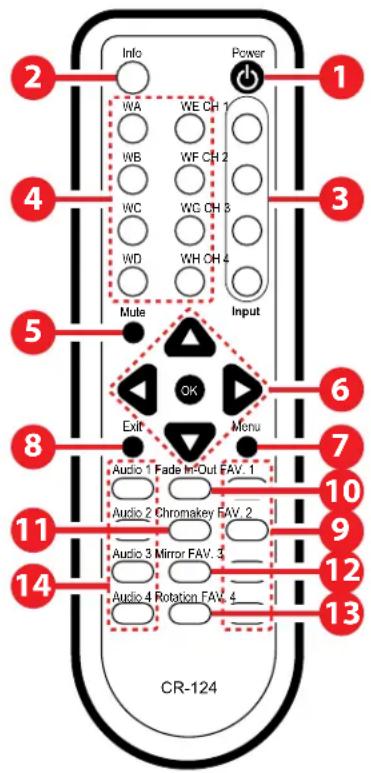
4. IR REMOTE CONTROL
I. POWER BUTTON: 1 ^st Press Power on the device / 2 ^nd Press - Standby mode.
2. INFO BUTTON: To show device firmware version
3. CH I \~ CH 4: Press to change the HDMI I \~ 4 input source output order on the HD display Example: Press CH I then Press CH I, OUTI will display Input's I image.
4. HOTKEYS A-H: Press these hot keys to select the desired 8 Layouts pre-configured within the machine
5. MUTE BUTTON: To mute the audio from the HDMI output ports.
6. NAVIGATION BUTTONS: ▲/▼/◄/►/OK to scroll through the OSD MENU. OK to Enter or confirm the settings.
7. MENU BUTTON: To access the OSD menu.
8. EXIT BUTTON: To exit the OSD menu or OSD settings.
9. FAVOURITE BUTTONS 1-4: These buttons quickly recall the user custom saved layouts.
10. FADE-IN-OUT: Press this button to TOGGLE ON/OFF the Fade-in-out function.
II. CHROMAKEY: This button TOGGLES ON/OFF the Chroma function where CH1 is the Background and CH2 is the top image.
12. MIRROR: To change the image to a reflected duplication of the source that appears identical but reversed
13. ROTATION: This button rotates the image 90° left and right or 180°
14. AUDIO I-4: These buttons select AUDIO from HDMI input source I\~4.
* Audio Function only work under A to D.
The system will force to switch to Window A when operate under Window E\~H.
4.1
INSTALLATION (HDM-SPLITPRO-4A-V2)
HARDWARE SETUP
To setup Avenview HDM-SPLITPRO-4A-V2 follow these steps
below: Mount or fix the HDM-SPLITPRO-4A-V2 on a secure shelf, AV rack or steady surface;
- Ensure the power is off on the HDM-SPLITPRO-4A-V2, all source devices and displays that will be connected;
- Connect your (4) four HDMI cables to the (4) four HDMI sources such as (Blu-ray Player, Laptop or Set-Top-Box or Gaming device);
-
Connect your HDMI cables to the single HD Displays, LCD or PC Monitors that is receiving the video signals.
-
Power on all devices.
-
Connect your computer to HDM-SPLITPRO-4A-V2 via it's Network IP address in a web browser, RS-232 to USB or Ethernet cable in order to control via Telnet or RS232.
NOTE: The IP address can be configured or viewed in the OSD Menu
Please refer to HDM-SPLITPRO-4A-V2 product page on www.avenview.com for Control Commands guide
SERIAL PORT SETTING
RS-232 Wiring (Cross Cable Connection)
| HDM-SPLITPRO-4A Remote | Roller(PC) | ||
| PIN Assignment | PIN Definition | ||
| 1 | NC | 1 | NC |
| 2 TxD | 2 RxD | ||
| 3 RxD | 3 TxD | ||
| 4 | NC | 4 | NC |
| 5 GND | 5 GND | ||
| 6 | NC | 6 | NC |
| 7 | NC | 7 | NC |
| 8 | NC | 8 | NC |
| 9 | NC | 9 | NC |


RS-232 SETTINGS
Baud Rate: 115200bps
Data Bit: 8 bits
Parity: None
Flow Control: None
Stop Bit: I
5. SPECIFICATIONS
| Item Description | ||
| UNITS | HDM-SPLITPRO-4A-V2 | |
| UNIT DESCRIPTION 4x1 HDMI Quad Multiviewer with Rotation and Chromakey | ||
| HDCP COMPLIANCE | Yes (HDCP 1.4 compliant) | |
| VIDEO BANDWIDTH 225 MHz (6.75Gbps) | ||
| HDMI INPUT CABLE DISTANCE | Up to 10M/1080p@12 bits | |
| HDMI OUTPUT CABLE DISTANCE | Up to 10M/1080p@8 bits | |
| INPUT SUPPORTED RESOLUTIONS | PC -VGA, XGA (1024 x 768), SXGA (1280 x 1024), UXGA (1600 x 1200), WUXGA (1920 x 1200) | |
| 480i/720p/1080i/1080p@60 | ||
| OUTPUT SUPPORTED RESOLUTIONS | 480P 59Hz, 576P 50Hz, 720P 50Hz, 720P 60Hz, 1080P 24Hz, 1080P 25Hz, 1080P 30Hz, 1080P 50Hz, 1080P 60Hz, 1024X768 60Hz 1280X800 60Hz, 1280X1024 60Hz, 1366X768 60Hz, 1440X900 60Hz, 1600X900RB Hz, 1600X1200 Hz, 1680X1050 Hz, 1920X1200RB Hz, Native | |
| AUDIO SUPPORT | LPCM 2CH, 6CH, 8CH/AC3/DTS/Dolby Digital Plus/Dolby TruHD & DTS-HD | |
| INPUT | 4 x HDMI 19 Pin Female type connector (HDMI 1.3 & DVI 1.0) | 1 x RJ45/RS-232 1xMini USB service only |
| OUTPUT 1 x HDMI 19 Pin Female type connector | ||
| USB CONNECTOR Type A Mini USB | ||
| RJ45 CONNECTOR WE/SS 8P8C with 2 LED indicators | ||
| SWITCHING SPEED | ±8 kV (air-gap discharge)±4 kV (contact discharge) | |
| WEIGHT 4.85 lbs | ||
| DIMENSIONS (L X W X H) 17.16" x 10" x 1.7" | ||
| POWER SUPPLY | 12V/3A DC (US/EU standards, CE/FCC/UL certified) | |
| POWER CONSUMPTION | 18W | |
Environmental
| OPERATING TEMPERATURE | 32° ~ 104°F (0° to 40°C) |
| STORAGE TEMPERATURE | -4° ~ 140°F (-20° ~ 60°C) |
| RELATIVE HUMIDITY | 20~90% RH (no condensation) |
Notes
AviewWarranty Certificate
AVENVIEW CORP. ("Avenview") warrants Avenview-branded product(s) contained in the original packaging against defects in materials and workmanship when used normally in accordance with Avenview's enclosed manual guidelines for a period of THREE (3) YEARS from the date of original retail purchase - Warranty Period. Avenview's published guidelines include but are not limited to information contained in technical specifications, user manuals and service communications.
LABOR: During the Warranty Period of THREE (3) YEARS, Avenview will repair or replace the product(s) at no cost using new or used parts equivalent to novel performance and reliability if the product(s) is determined to have abide by Avenview's published guidelines. Cost of Labor applicable to product(s) after Warranty Period. For labor costs, please contact support@avenview.com.
PARTS: During the Warranty Period of THREE (3) YEARS, Avenview will supply new or rebuilt replacements in exchange for defective parts of the product(s) at no cost if the product(s) is determined to have abide by Avenview's published guidelines. Cost of Parts applicable to product(s) after Warranty Period. For part(s) costs, please contact support@avenview.com.
To obtain Warranty: (a) proof of purchase in the form of a bill of sale or receipted invoice reflecting that the registered product(s) is within warranty period must be presented to obtain warranty service; (b) product(s) must be registered at time of purchase. Failure to do so will result in applicable parts and labor charges. Returning product(s) must be shipped in Avenview's original packaging or in packaging pertaining equal degree of protection to Avenview's. Both Avenview and purchaser are responsible for freight charges and brokerages when shipping the product(s) to the receiver.
NOT COVERED BY THIS WARRANTY
This warranty does not apply to any non-Avenview branded product(s); non-registered Avenview product(s). This warranty does not apply: (a) to cosmetic damage, including but not limited to scratches, dents and broken cords; (b) to damage caused by use with another product; (c) to damage caused by accident, abuse, misuse, liquid contact, fire, earthquake or other external cause; (d) to damage caused by operating the Avenview product(s) outside Avenview's manuals or guidelines; (e) to damage caused by service performed by anyone who is not a representative of Avenview or an Avenview authorized personnel; (f) to defects caused by normal wear and tear or otherwise due to the normal aging of the Avenview product(s), or (g) if any serial number has been removed or defaced from the Avenview product(s).
AVENVIEW IS NOT LIABLE FOR DIRECT, SPECIAL, INCIDENTAL OR CONSEQUENTIAL DAMAGES RESULTING FROM ANY BREACH OF WARRANTY OR CONDITION, OR UNDER ANY OTHER LEGAL THEORY, INCLUDING BUT NOT LIMITED TO LOSS OF USE; LOSS OF REVENUE; LOSS OF ACTUAL OR ANTICIPATED PROFITS (INCLUDING LOSS OF PROFITS ON CONTRACTS); LOSS OF THE USE OF MONEY; LOSS OF ANTICIPATED SAVINGS; LOSS OF BUSINESS; LOSS OF OPPORTUNITY; LOSS OF GOODWILL; LOSS OF REPUTATION; LOSS OF, DAMAGE TO, COMPROMISE OR CORRUPTION OF DATA; OR ANY INDIRECT OR CONSEQUENTIAL LOSS OR DAMAGE REPAIR OR REPLACEMENT AS PROVIDED UNDER THIS WARRANTY IS THE EXCLUSIVE REMEDY OF THE CONSUMER.
Some states do not allow the inclusion or limitation of incidental or consequential damages, or allow limitations on duration implements of the Warranty Period; therefore the above limitations or exclusions may not be applicable to you. This warranty gives you specific legal rights, and you may have other rights which vary from state to state.
275 Woodward Avenue, Kenmore, NY 14217 1.866.508.0269

Avenview
AV Connectivity, Distribution And Beyond...
TECHNICAL SUPPORT
CONTACT US

Phone: I (866) 5080269

Email: support@avenview.com

natural_image
Illustration of a globe with headphones and a headset, symbolizing global communication (no text or symbols present)USA Head Office Avenview Corp. 275 Woodward Avenue Kenmore, NY 14217
USA Head Office
Office Avenview
Corp. 275 Woodward Avenue
Kenmore, NY 14217
Phone: +1.716.218.4100 ext223
Fax: +1.866.387-8764
Email: info@avenview.com
Canada Sales
Avenview
151 Esna Park Drive, Unit 11 & 12
Markham, Ontario, L3R 3BI
Phone: 1.905.907.0525
Fax: 1.866.387.8764
Email: info@avenview.com
Avenview Europe
Avenview Europe
Demkaweg II
3555 HW Utrecht
Netherlands
Phone: +31 (0)85 2100-613
Unit 8, 6/F., Kwai Cheong Centre,
50 Kwai Cheong Road,
Kwai Chung, N.T.
Hong Kong
Phone: 852-3575 9585
Email: wenxi@avenview.com
Disclaimer
While every precaution has been taken in the preparation of this document, Avenview Inc. assumes no liability with respect to the operation or use of Avenview hardware, software or other products and documentation described herein, for any act or omission of Avenview concerning such products or this documentation, for any interruption of service, loss or interruption of business, loss of anticipatory profits, or for punitive, incidental or consequential damages in connection with the furnishing, performance, or use of the Avenview hardware, software, or other products and documentation provided herein.
Avenview Inc. reserves the right to make changes without further notice to a product or system described herein to improve reliability, function or design. With respect to Avenview products which this document relates, Avenview disclaims all express or implied warranties regarding such products, including but not limited to, the implied warranties of merchantability, fitness for a particular purpose, and non-infringement.


- 4xI HDMI Quad Multiviewer Scaler with Rotation and Chromakey
- TABLE OF CONTENTS
- I.1 IMPORTANT SAFEGUARDS
- What the warranty does not cover
- SAFETY INSTRUCTIONS
- I.3 REGULATORY NOTICES FEDERAL COMMUNICATIONS COMMISSION (FCC)
- Warning symbols Description
- WARNING
- INTRODUCTION
- Features
- PACKAGE CONTENTS
- BEFORE INSTALLATION
- PANEL DESCRIPTION
- INPUT PANEL (HDM-SPLITPRO-4A-V2) Front
- NO.5: A-H Buttons
- INPUT PANEL (HDM-SPLITPRO-4A-V2) Rear
- IR REMOTE CONTROL
- 4.1
- INSTALLATION (HDM-SPLITPRO-4A-V2)
- HARDWARE SETUP
- SERIAL PORT SETTING
- SPECIFICATIONS
- AviewWarranty Certificate
- NOT COVERED BY THIS WARRANTY
- Avenview
- TECHNICAL SUPPORT
- CONTACT US
- USA Head Office
- Canada Sales
- Avenview Europe
- Disclaimer
Brand : Avenview
Model : HDM-SPLITPRO-4A-V2
Category : Unspecified