108-FD5CH - Kit d'installation auto AXESS - Free user manual and instructions
Find the device manual for free 108-FD5CH AXESS in PDF.


User questions about 108-FD5CH AXESS
0 question about this device. Answer the ones you know or ask your own.
Ask a new question about this device
Download the instructions for your Kit d'installation auto in PDF format for free! Find your manual 108-FD5CH - AXESS and take your electronic device back in hand. On this page are published all the documents necessary for the use of your device. 108-FD5CH by AXESS.
USER MANUAL 108-FD5CH AXESS
natural_image
Interior view of a car dashboard with digital display and control panel (no visible text or symbols)Ford Mustang (with 4.2" screen) 2015-Up
Visit NetraOnline.com for more detailed information about the product and up-to-date vehicle specific applications
KIT FEATURES
- Designed specifically for the Pioneer DMH-C5500NEX 8-inch radio
- Included interface for climate and steering wheel functions
- Integrated passenger airbag indicator
- Touchscreen display for climate and personalization features
- Painted charcoal
KIT COMPONENTS
- A) Radio trim panel (with touchscreen display) • B) Radio brackets • C) Engine start/stop circuit board and cover • D) Engine start/stop trim
• E) (6) Phillips screws • F) (4) Panel clips • G) USB cable • H) HVAC interface and wiring harness (not shown) • I) Antenna adapter (not shown)
A

B

C


D
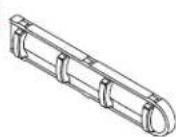
E

F
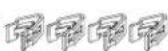
G
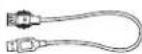
TABLE OF CONTENTS
Dash Disassembly 2-4
Kit Preparation 5-7
Kit Assembly 8
Axxess Interface installation 9-17
Final Assembly 13
WIRING & ANTENNA CONNECTIONS
Wiring Harness: Axxess interface built into touchscreen
Antenna Adapter: Included with kit
TOOLS REQUIRED
- Panel removal tool • Phillips screwdriver
- 9/32" socket wrench • Cutting tool
- Torx T-10 screwdriver
Attention! With the key out of the ignition, disconnect the negative battery terminal before installing this product. Ensure that all installation connections are secure before cycling the ignition to test this product.
DASH DISASSEMBLY
- Open the passenger door and remove the trim panel from the side of the dash. (Figure A)
- Open the glove box and remove the trim panel on the right side. (Figure B)
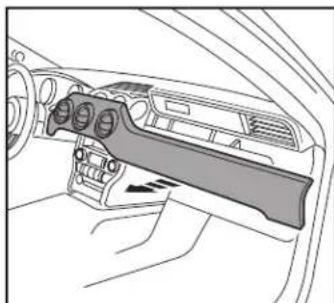
- Unclip and remove the trim/vent dash panel. (Figure C)
Continued on the next page

natural_image
Line drawing of a car's side profile showing the front and rear door (no text or symbols)
natural_image
Line drawing of a car interior showing a door, seatbelt, and directional arrow (no text or symbols)(Figure B)(Figure A) (Figure C)

natural_image
Interior view of a car dashboard and steering wheel (no text or symbols visible)DASH DISASSEMBLY (CONT.)
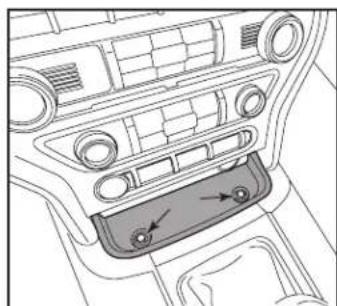
- Remove the rubber tray cover in front of the shifter, and then remove the (2) 9/32" screws exposed. (Figure D)
- Unclip and remove the front side panels from each side of the center console. (Figure E)
- Remove the (2) 9/32" screws from each side of the center console. (Figure F)
Continued on the next page
natural_image
Interior view of a car dashboard with air vent and control panel (no text or symbols)(Figure D) (Figure E)

natural_image
Interior view of a car dashboard and steering wheel (no text or symbols visible)
natural_image
Technical line drawing of a vehicle interior showing structural components and directional arrows (no text or symbols)(Figure F)
DASH DISASSEMBLY (CONT.)
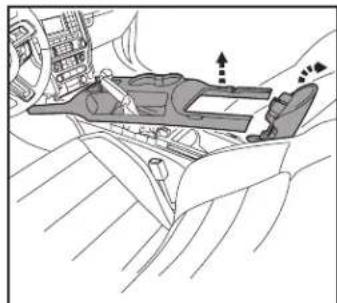
- Unclip the shifter trim bezel and slightly pull it up to clear the center console trim bezel removal.
- Open the center console storage compartment. Unclip the center console trim bezel, then slide it toward the rear of the vehicle to remove it. (Figure G)
Note: The complete center console does not need to be removed. but if it is desired to be removed, the Push-to-Start module must be connected when testing the kit.
- Remove the plastic tray in front of the shifter.
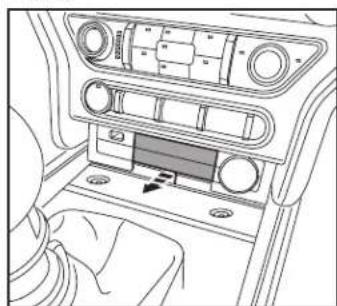
- Remove the center plastic trim (knockout) between the power outlet and USB jack. (Figure H)
natural_image
Interior view of a car dashboard and steering wheel assembly (no text or symbols visible)(Figure G)

natural_image
Line drawing of a vehicle air intake system with control panel and vent slots (no text or symbols)(Figure H) (Figure J)
Ensure that the vehicle is completely off before proceeding onto the following (4) steps:
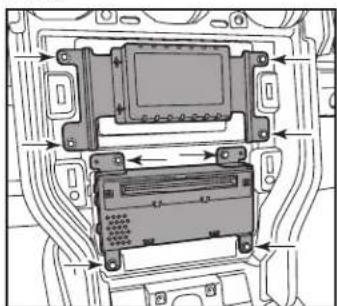
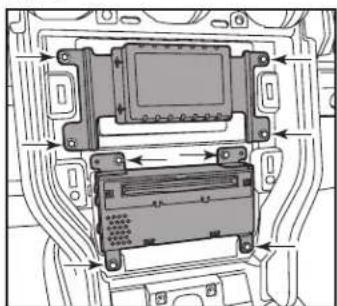
- Remove the (4) 9/32" screws securing the radio/climate control panel, and then unclip, unplug, and remove. (Figure I)
- Remove the (4) 9/32" screws securing the display screen, then unplug and remove. (Figure J)
- Remove the (4) 9/32" screws securing the radio chassis, then unplug and remove. (Figure J)
- If the vehicle is equipped with SYNC, remove the (3) 9/32" screws securing the SYNC® module, then unplug and remove.
Continue to Kit Preparation

natural_image
Interior view of a car infotainment system showing dashboard, air vent, and control panel (no text or labels visible)(Figure 1)
natural_image
Technical diagram of an electronic device showing internal components and wiring (no text or labels)KIT PREPARATION
- Cut and remove the shaded area from the sub-dash to allow clearance for the aftermarket radio. (Figure A)
Continued on the next page

text_image
00000 Remove shaded area(Figure A)
KIT PREPARATION (CONT.)
From the factory radio/climate control panel:
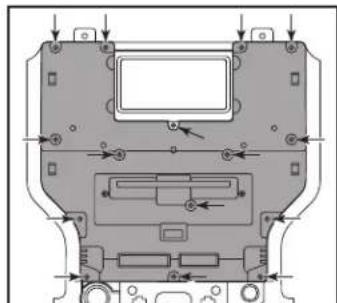
- Remove the (15) T-10 Torx screws securing the plastic panel cover to the rear of the panel, and then remove. (Figure A)
- Remove the (7) T-10 Torx screws securing the circuit board, and then remove. (Figure B)
natural_image
Technical diagram of a mechanical component with mounting holes and internal features (no text or symbols)(Figure A)

natural_image
Technical diagram of a mechanical component with directional arrows and circular features (no text or symbols)(Figure B)
- Remove the rubber button membrane from the back of the engine start/stop switch panel. (Figure C)
- Remove the engine start/stop switch panel. (Figure D)
- Press in on the (2) retaining tabs inside the power outlet to remove the inner portion, and then unsnap the outer ring and cover. (Figure E)
Continued on the next page

natural_image
Top-down schematic of a vehicle's internal components (no text or labels visible)(Figure C)

natural_image
Interior view of a vehicle engine bay with multiple compartments and control panels (no visible text or labels)(Figure D)

natural_image
Technical line drawing of a mechanical component with no visible text or symbols(Figure E)
KIT PREPARATION (CONT.)
To the 108-FD5B radio trim panel:
- Attach the engine start/stop trim, engine start/stop switch panel, and then the rubber button membrane. (Figure A)
- Secure the engine start/stop circuit board and cover to the switch/cover assembly using (6) Phillips screws provided. (Figure B)

natural_image
Technical line drawing of a vehicle chassis with mounting brackets and internal components (no text or symbols)(Figure A) (Figure C)
- Insert the USB cable into the USB slot, through the rear. (Figure C)
- Attach (4) panel clips provided. (Figure D)
Continue to Kit Assembly

natural_image
Technical line drawing of an electrical connector with a cable inserted (no text or symbols)
text_image
Technical diagram of a vehicle dashboard with labeled components and control buttons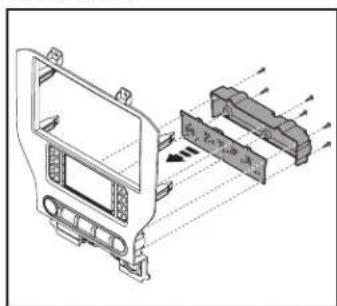
text_image
Technical diagram of a vehicle front panel with Chinese annotations indicating component placement and assembly.(Figure B) (Figure D)
KIT ASSEMBLY
Note: For the following steps, reference the installation manual provided with the radio for which hardware to use. The display screen and radio chassis use two different types of screws.
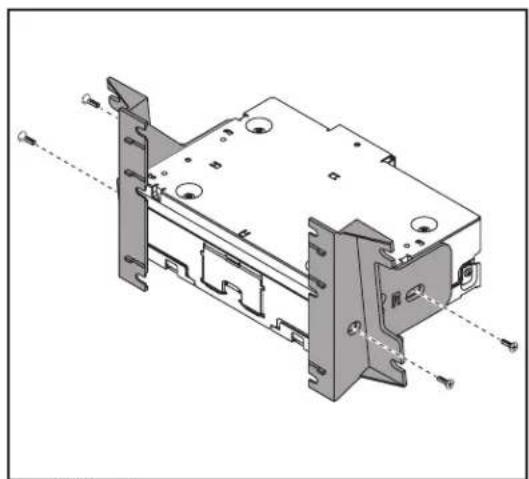
- Secure the radio brackets to the radio chassis using (4) screws supplied with the radio. (Figure A)
- Secure the radio display to the radio brackets using (4) screws supplied with the radio. (Figure B)
Continue to Axxess Interface Installation
natural_image
Technical line drawing of a mechanical assembly with mounting brackets and mounting holes (no text or symbols)(Figure A) (Figure B)

natural_image
Technical diagram of an electronic device with internal components and alignment lines (no text or symbols)AXXESS INTERFACE INSTALLATION
INTERFACE FEATURES
- Provides accessory power (12-volt 10-amp)
• Retains R.A.P. (retained accessory power) - Provides NAV outputs (parking brake, reverse, speed sense)
• Retains audio controls on the steering wheel - Retains the factory backup camera
- Retains balance and fade
- Micro-B USB updatable
INTERFACE COMPONENTS
- Axxess interface (built into the touchscreen display)
- Main harness
- HVAC interface
• HVAC interface harness
• 16-pin harness with stripped leads
• 12-pin backup camera harness
• 4-pin harness with yellow RCA jacks
TABLE OF CONTENTS
Connections....10-11
Installation 12
Programming....13
Touchscreen display operation....14-15
Steering wheel control settings 16-17
Troubleshooting....17
TOOLS REQUIRED
• Crimping tool and connectors, or solder gun, solder, and heat shrink
- Tape • Wire cutter • Zip ties
CONNECTIONS
From the 16-pin harness with stripped leads to the aftermarket radio:
- Connect the Red wire to the accessory wire.
- Connect the Orange/White wire to the illumination (lighting switch) wire
- Connect the Gray wire to the right front positive speaker output.
- Connect the Gray/Black wire to the right front negative speaker output.
- Connect the White wire to the left front positive speaker output.
- Connect the White/Black wire to the left front negative speaker output.
- Connect the Green/Purple wire to the reverse wire.
- Connect the Light Green wire to the parking brake wire.
- Tape off and disregard the following (7) wires, they will not be used in this application.
Blue/Pink, Blue/White, Brown, Green, Green/Black, Purple, Purple/Black
From the main harness to the aftermarket radio:
- Connect the Black wire to the ground wire.
- Connect the Yellow wire to the battery wire.
- Connect the Blue wire to the system control (Blue/White) wire.
- Connect the Green wire to the left rear positive speaker output.
- Connect the Green/Black wire to the left rear negative speaker output.
- Connect the Purple wire to the right rear positive speaker output.
- Connect the Purple/Black wire to the right rear negative speaker output.
- Disregard the Red and White RCA jacks labeled "RSE/SYNC/SAT", they will not be used in this application.
- Disregard the Red and White RCA jacks labeled "FROM 3.5", they will not be used in this application.
Continued on the next page
CONNECTIONS (CONT.)
3.5mm jack - steering wheel control retention:
The 3.5mm jack is to be used to retain audio controls on the steering wheel control.
- Connect the 3.5mm jack into the wired remote input from the aftermarket radio. Refer to the manual provided with the radio if in doubt as to where the 3.5mm jack goes to.
12-pin backup camera harness:
There are two different methods for connecting the factory backup camera.
If retaining the camera to the aftermarket radio is desired:
- Connect the Yellow RCA jack to the rear view camera Input from the aftermarket radio.
If retaining the camera to the touchscreen display is desired:
- Connect the Yellow RCA jack, to the Yellow RCA jack from the 4-pin harness with yellow RCA jacks labeled "Rearview camera".
Note: If this method is chosen, the backup camera option must be enabled in the Configuration Settings.
- Disregard the Yellow RCA jack from the 4-pin harness with yellow RCA Jacks labeled "AUX video", it will not be used in this application.
INSTALLATION
It is highly advisable to read the following steps beforehand, to ensure a clear understanding of what is to be expected. The following steps must be done in the order that they are numbered.
With the vehicle completely off:
Touchscreen display
- Connect the 16-pin harness with stripped leads into port "B" in the touchscreen display.
- Connect the main harness to the wiring harnesses in the vehicle. These harnesses are the ones removed in step 13 of dash disassembly. Then insert the main harness into port "A" in the touchscreen display. But do not install this harness until exactly before step 1 of the Programming section. This is a timed process.
- Connect the 4-pin harness with yellow RCA jacks into port "C" in the touchscreen display.
- Disregard ports "D" and "E", they will not be used in this application.
- Port "F" is an update port for future firmware upgrades.

text_image
A C B F D ENote: DO NOT CONNECT!
HVAC interface
- Connect the HVAC interface harness into the HVAC interface, and then to the wiring harnesses in the vehicle. These harnesses are the ones removed in step 11 of dash disassembly.
a. Then connect the 10-pin harness into the engine start/stop circuit board assembly.
Attention! There are (2) 10-pin connectors, one in the engine start/stop circuit board assembly, and one in the touchscreen display. Use only the appropriate connector and disregard the other one. If the incorrect port is accidentally used, the vehicle will need to be reset by removing the battery for a couple minutes.
Note: Disregard the 4-pin flat to 4-pin stacked harness, it will not be used in this application.
- Connect the 6-pin harness from the main harness to the HVAC Interface.
- Connect the 12-pin backup camera harness, to the wiring harness in the vehicle. This harness is the one removed in step 12 of dash disassembly.
- Locate the factory antenna connector in the dash and complete all necessary connections to the radio. Use the antenna adapter provided to adapt the factory antenna connector to the aftermarket radio.
Continued on the next page
PROGRAMMING FINAL ASSEM
- Refer to step 2 from the Installation section.
- Press the push-to-start button to start the vehicle.
Note: If the Push-to-Start module in the center console has been disconnected, reconnect it.
- Program the kit:
a. Once the touchscreen display loads up, select the vehicle type.
b. Wait until the radio comes on, and the touchscreen display shows SWC Configured*. This process may take up to 3 minutes.
Note: If the touchscreen display doesn't load up, or the radio doesn't come on within 3 minutes, and/or the touchscreen display doesn't show SWC Configured*, check all connections, then reset the interface and try again. Refer to the Troubleshooting section.
* For models with steering wheel controls.
- Cycle the key off. If the driver's door is closed, open and close the door. Cycle the key back on.
- Test all functions of the installation for proper operation, before reassembling the dash.
Y
- Connect the USB cable attached to the radio trim panel, to the USB port in the back of the radio.
- Secure the completed radio assembly into the upper dash using the factory hardware removed in step 12 of dash disassembly.
- Snap the radio trim panel over the completed radio assembly, then reassemble the dash in reverse order of disassembly.
Climate Control screen
text_image
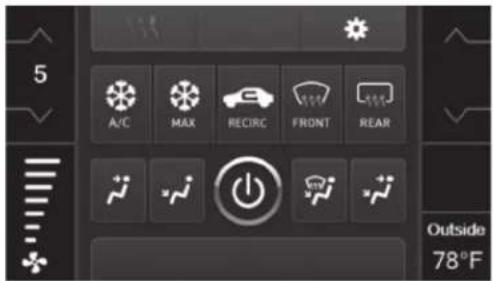
5 A/C MAX RECIRC FRONT REAR Outside 78°F- This is the climate control screen which will be displayed on the touchscreen display. This is considered the Main Menu.
- Disregard the upper left tab with (3) arrows, it will not be used in this application.
• The upper right tab with the gear icon will take you to the Configuration Settings screen. - The climate controls will function in the same manner that they did with the factory climate controls, yet via touchscreen buttons instead. The temperature control will display a numerical scale, with LO being the coldest, and HI being the hottest: LO / 1-9 / HI
Continued on the next page
Configuration Settings

text_image
Configuration Settings Backlight Backup Camera Forward Camera Ambient Lighting Color- Backlight
- For controlling the color of the buttons and back-light intensity.
- Backup Camera
- Enable/disables the backup camera image to the touchscreen display. Disabled by default
- Forward Camera (disregard for this application)
- Ambient Lighting Color
- For adjusting the ambient light color in the vehicle

text_image
Configuration Settings Steering Wheel Controls Clock System Configuration- Steering Wheel Controls
- Remap Buttons – For remapping the steering wheel control buttons
- Dual Assign – For dual assigning the steering wheel control buttons (long button press)
- Select Radio – For auto detecting the radio, or changing the radio type
- Clock
• For setting the clock and hour mode
- System Configuration
- About - Information regarding the software in the kit
- Temperature Unit - To change between Celsius and Fahrenheit
- Digital Amp Gain - For adjusting the output gain to the amplifier
- Reset Vehicle Type - To reset the kit to default settings
STEERING WHEEL CONTROL SETTINGS
Remap Buttons Dual Assign

text_image
Select Button For Remap Seek Up Seek Down Source/Mode Mute- The interface has the ability to change the button assignment for the steering wheel control audio buttons, except Volume-Up and Volume-Down. Follow the prompts on the touchscreen display to remap the steering wheel control audio button(s) to your liking.
Note: The aftermarket radio may not have all of these commands. Please refer to the manual provided with the radio, or contact the radio manufacturer, for specific commands recognized by that particular radio.
text_image
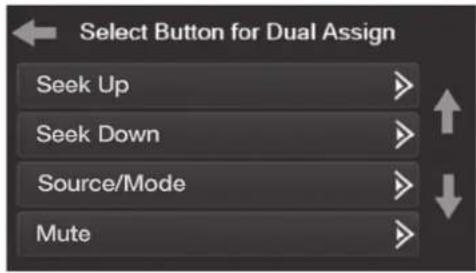
Select Button for Dual Assign Seek Up Seek Down Source/Mode Mute- The interface has the capability to assign two functions to a single button, except Volume-Up and Volume-Down. Follow the prompts on the touchscreen display to program the button(s) to your liking.
Note: Seek-Up and Seek-Down come programmed as Preset-Up and Preset-Down for a long button press.
Continued on the next page
STEERING WHEEL CONTROL SETTINGS (CONT.)
Select Radio
text_image
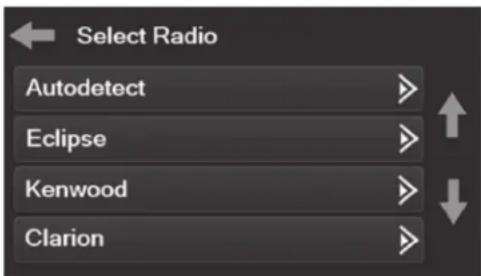
Select Radio Autodetect Eclipse Kenwood Clarion- To show which brand radio is "auto detected" to the interface, press the Autodetect button. The radio detected will have a filled in circle. If the incorrect radio is shown, select Pioneer.
* Note: If the interface shows an Alpine radio, that means the interface doesn't detect a radio connected it, i.e., an open connection. Verify that the 3.5mm jack is connected to the correct steering wheel jack in the radio.
TROUBLESHOOTING
Resetting the interface
- With the vehicle running, press the Reset Vehicle Type button mentioned in System Configuration.
- Refer to Programming, step 3, from this point.
Having difficulties? We're here to help.

our Tech Support line at:
386-257-1187

mail at:
techsupport@metra-autosound.com
Tech Support Hours (Eastern Standard Time)
Monday - Friday: 9:00 AM - 7:00 PM
Saturday: 10:00 AM - 7:00 PM
Sunday: 10:00 AM - 4:00 PM

KNOWLEDGE IS POWER
Enhance your installation and fabrication skills by
enrolling in the most recognized and respected mobile electronics school in our industry.
Mobile electronics school in our industry. Lop palm www installeringstitute.edu or call
386-672-5771 for more information and take steps
600 672 611. For more information and data scope toward a better tomorrow.

Metra recommends MECP certified technicians

natural_image
Interior view of a car dashboard with digital display and control panel (no visible text or symbols)natural_image
Line drawing of a car's side profile showing the front and rear door, with a small inset image of a vehicle (no text or symbols)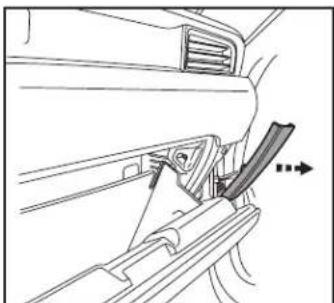
natural_image
Line drawing of a car interior showing a handle, seatbelt, and directional arrow (no text or symbols)(Figura B)(Figura A) (Figura C)
natural_image
Interior view of a car dashboard and steering wheel (no text or symbols visible)DESMONTAJE DEL TABLERO (CONT.)
natural_image
Interior view of a car dashboard with no visible text or symbols(Figura D) (Figura E)

natural_image
Interior view of a car dashboard and steering wheel (no text or symbols visible)
natural_image
Technical line drawing of a vehicle interior showing dashboard and seat components (no text or symbols)(Figura F)
DESMONTAJE DEL TABLERO (CONT.)
natural_image
Diagram of a car interior showing hand positioning and directional arrows (no text or symbols)(Figura G)
natural_image
Interior view of a vehicle dashboard with air vent and seat (no text or symbols visible)(Figura H) (Figura J)
natural_image
Interior view of a car infotainment system showing dashboard, air filters, and control panels (no text or labels visible)(Figura I)
text_image
Technical diagram showing internal components of an electronic device with labeled parts and directional arrows indicating movement or assembly.PREPARACIÓN DEL KIT
natural_image
Technical diagram of a mechanical component with mounting holes and internal features (no text or symbols)(Figura A)

natural_image
Technical diagram of a mechanical component with directional arrows and circular features (no text or symbols)(Figura B)
natural_image
Top-down technical diagram of a vehicle's internal components (no text or labels visible)(Figura C)

natural_image
Interior view of a vehicle engine bay with multiple compartments and control panels (no visible text or labels)(Figura D)

natural_image
Technical line drawing of a mechanical component with no visible text or symbols(Figura E)
natural_image
Technical line drawing of a vehicle head panel assembly (no text or symbols)(Figura A) (Figura C)
text_image
Technical diagram showing a vehicle interior with labeled components and directional arrows indicating flow or movement.(Figura B) (Figura D)

natural_image
Technical line drawing of an electrical connector with a plug inserted (no text or symbols)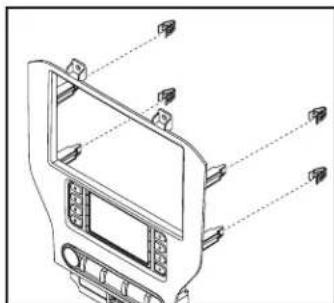
natural_image
Technical line drawing of a car front panel with control buttons and display screen (no text or symbols)ENSAMBLE DEL KIT
natural_image
Technical line drawing of a mechanical assembly with mounting brackets and mounting holes (no text or symbols)(Figura A) (Figura B)

natural_image
Technical diagram of an electronic device with internal components and alignment lines (no text or symbols)text_image
5 A/C MAX RECIRC FRONT REAR Outside 78°Ftext_image
Configuration Settings Backlight Backup Camera Forward Camera Ambient Lighting Colortext_image
Configuration Settings Steering Wheel Controls Clock System Configurationtext_image
Select Button for Dual Assign Seek Up Seek Down Source/Mode Mutenatural_image
Close-up of a computer control panel with two green circular buttons on the left side (no visible text or symbols)(Figura A)
Monday - Friday: 9:00 AM - 7:00 PM
Saturday: 10:00 AM - 7:00 PM
Sunday: 10:00 AM - 4:00 PM

KNOWLEDGE IS POWER
Enhance your installation and fabrication skills to enrolling in the most recognized and respected
mobile electronics school in our industry.
Log onto www.installerinstitute.edu or call 208,670-5771 (for more information and take place
toward a better tomorrow.
