
KH 2155 - Remote control SILVERCREST - Free user manual and instructions
Find the device manual for free KH 2155 SILVERCREST in PDF.


| Product type | Universal remote control |
| Brand | SilverCrest |
| Model | KH 2155 |
| Number of controllable devices | 8 |
| Dimensions (L x W x H) | 225 x 56 x 28 mm |
| Weight (without batteries) | 120 g |
| Power supply | 2 AAA/LR03 1.5V batteries (not included) |
| Laser class | 1 |
| Display | LCD screen with backlight |
| Programming methods | Brand search, manual code entry, automatic search, learning function |
| Macro functions | Yes, up to 6 macros of 16 commands each |
| Favorite channels | Yes, 15 groups of 6 channels |
| Child lock | Yes, per device |
| Infrared range | Approximately 10 m (depending on conditions) |
| Compatibility | TV, SAT/CBL, AUDIO, PC, VCR, DVD/CD, DVR/PVR, AUX |
| Teletext functions | Yes, with dedicated buttons |
| PIP (Picture-in-Picture) function | Yes, for compatible TVs |
| General power off (ALL OFF) | Yes, by pressing the power button twice |
| Warranty | 3 years |
| Care and cleaning | Clean with a soft, dry cloth. Do not use abrasive products. |
| Safety | Do not open, do not expose to moisture, use identical new batteries |
| Spare parts and repairability | Not user repairable. Contact customer service. |
Frequently Asked Questions - KH 2155 SILVERCREST
User questions about KH 2155 SILVERCREST
0 question about this device. Answer the ones you know or ask your own.
Ask a new question about this device
Download the instructions for your Remote control in PDF format for free! Find your manual KH 2155 - SILVERCREST and take your electronic device back in hand. On this page are published all the documents necessary for the use of your device. KH 2155 by SILVERCREST.
USER MANUAL KH 2155 SILVERCREST
natural_image
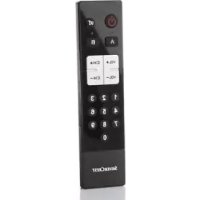
Black remote control with digital display and colorful buttons, placed on a white surface with white orchid flowers in the background (no text or symbols on main device)GB UNIVERSAL REMOTE CONTROL
IE Operating manual
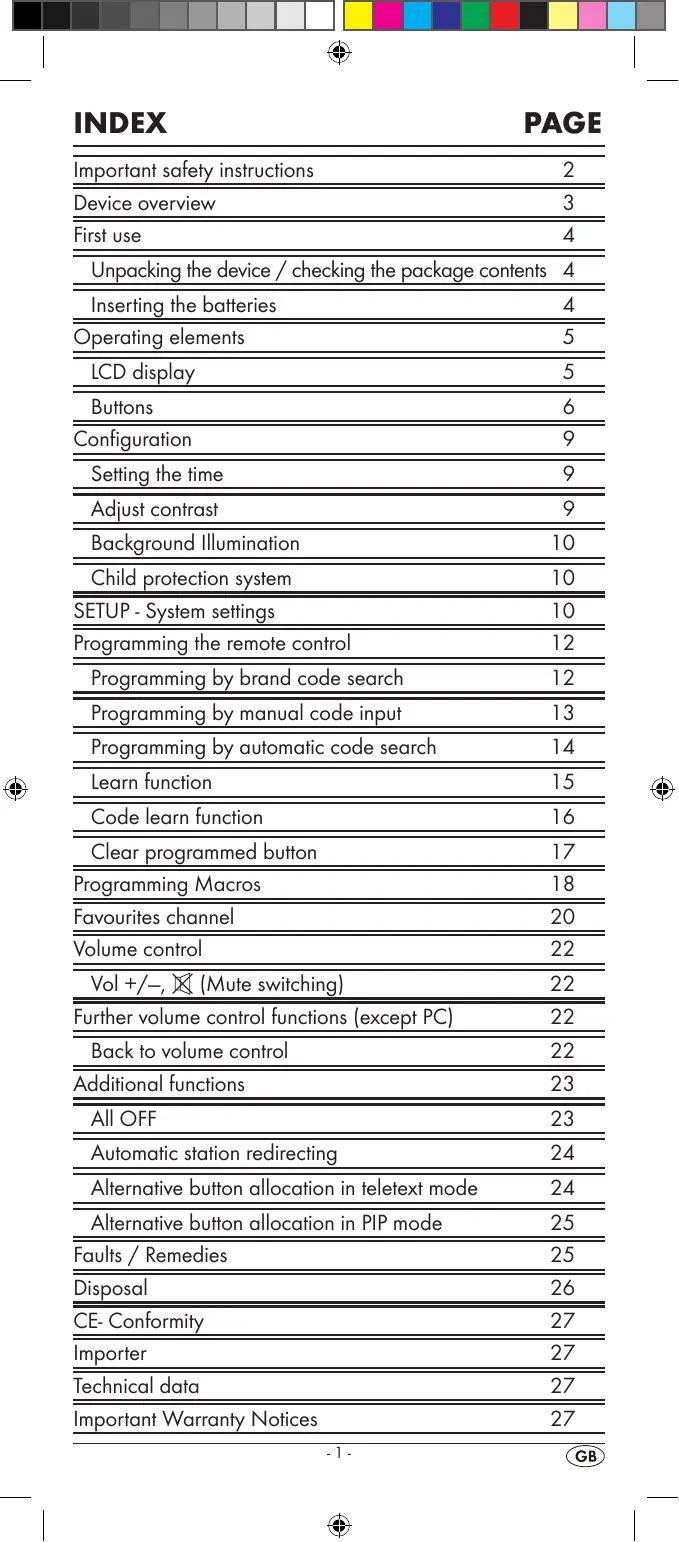
| Important safety instructions | 2 |
| Device overview | 3 |
| First use | 4 |
| Unpacking the device / checking the package contents | 4 |
| Inserting the batteries | 4 |
| Operating elements | 5 |
| LCD display | 5 |
| Buttons | 6 |
| Configuration | 9 |
| Setting the time | 9 |
| Adjust contrast | 9 |
| Background Illumination | 10 |
| Child protection system | 10 |
| SETUP - System settings | 10 |
| Programming the remote control | 12 |
| Programming by brand code search | 12 |
| Programming by manual code input | 13 |
| Programming by automatic code search | 14 |
| Learn function | 15 |
| Code learn function | 16 |
| Clear programmed button | 17 |
| Programming Macros | 18 |
| Favourites channel | 20 |
| Volume control | 22 |
| Vol +/-, (Mute switching) | 22 |
| Further volume control functions (except PC) | 22 |
| Back to volume control | 22 |
| Additional functions | 23 |
| All OFF | 23 |
| Automatic station redirecting | 24 |
| Alternative button allocation in teletext mode | 24 |
| Alternative button allocation in PIP mode | 25 |
| Faults / Remedies | 25 |
| Disposal | 26 |
| CE- Conformity | 27 |
| Importer | 27 |
| Technical data | 27 |
| Important Warranty Notices | 27 |
Read the operating instructions carefully before using the device for the first time and preserve this booklet for later reference. Hand over the instruction manual to whomsoever you might pass the device on to.
Important safety instructions
Proper use
Children may only operate the remote control under adult supervision.
The universal remote control can replace a maximum of eight remote controls. It can only be used for entertainment electronics with infrared receivers.
The functions of the universal remote correspond to those of the original remote controls. The universal remote control is intended for private use. It is not suitable for commercial use.
Any other use is considered improper use. The manufacturer declines to accept responsibility for damage(s) arising from improper use.

There is a danger of injury in the event of improper handling of batteries!
Batteries must be handled with special care. Take note of the following safety instructions:
- Take the batteries out of the battery compartment as soon as they are depleted.
- Do not throw batteries into a fire. Never subject batteries to high temperatures.
- If you will not be using the device for a long period of time, remove the batteries to prevent them from discharging.
- Explosion hazard! Non-rechargeable batteries must never be recharged.
- Do not open the batteries or short-circuit them.
- Battery acid leaking from a battery can cause inflammation of the skin. In the event of contact with the skin, rinse with large amounts of water. If the liquid comes into contact with your eyes, rinse thoroughly with water, do not rub and immediately consult a doctor.
- Always change all batteries at the same time and always use batteries of the same type.
- Keep batteries well away from children. Children can put batteries into their mouths and swallow them. If a battery is swallowed medical assistance must be sought immediately.

Laser
The universal remote control has an infrared diode of laser class 1. A safety system prevents the emission of hazardous laser radiation during use. To prevent eye injuries, do not modify or damage the safety system of the device.
Damage to the device
- If the device is defective, do not attempt to repair it yourself. In case of damage, contact the manufacturer or the manufacturer's service hotline (see Warranty card).
- If liquid escapes from the device or if the device has been otherwise damaged, it must be inspected by the manufacturer or the manufacturer's service hotline. Contact the manufacturer or the manufacturer's service hotline (see Warranty card).
Device overview
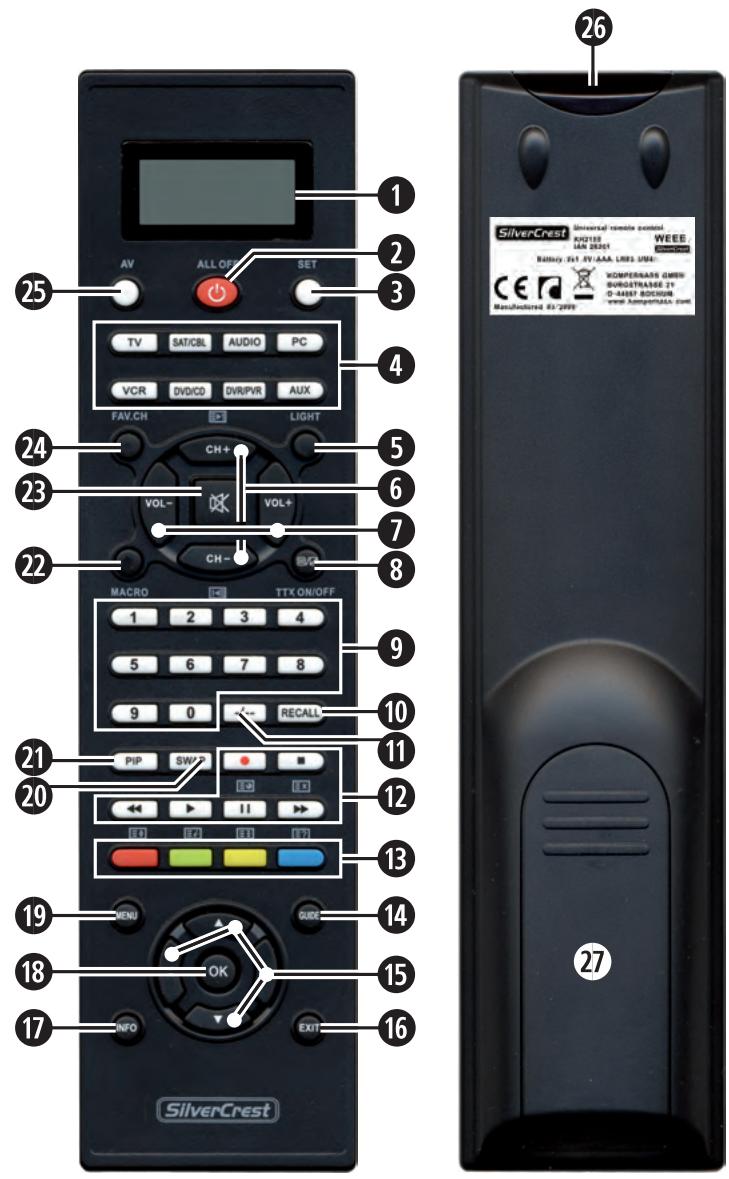
① LCD display.
② ⏻/ALL OFF button.
③ SET button.
4 Device buttons
⑤ Illumination button.
⑥ CH +/- buttons.
⑦ VOL +/- buttons.
⑧ Teletext On/Off
⑨ Number buttons.
10 RECALL button.
11 Button for one or two digit programme numbers.
12 Playback button and teletext button.
13 Fast text buttons.
14 Access the electronic programme guide.
15 Arrow buttons.
16 EXIT button.
17 INFO button.
18 OK button.
19 MENU button.
20 SWAP button.
21 PIP button.
22 MACRO button.
23 Mute switching.
24 FAV.CH button.
25 AV button.
26 Infrared Sender/Receiver.
27 Battery compartment cover.
Note:
- The functions described here pertain to the theoretically ideal circumstance that the button structure of the respective original remote control is identical to this universal remote control. This only occurs, however, in rare cases. If, therefore, not all of the original remote control's functions can be reproduced it is not due to a deficiency in the Universal remote control.
- All the brand names used in these instructions or in the accompanying code list are trademarks of the corresponding companies.
Unpacking the device / checking the package contents
Attention!
Keep the plastic packaging well away from small children.
There is a risk of suffocation.
- Unpack the device and accessories.
- Check the package contents,
- Universal remote control,
- Operating instructions,
- Manufacturer list with device code list
- Remove the protective foil from the LCD display ①.
i Note: Transport damage
If you notice any transport damage contact the manufacturer or the manufacturer's Service-Hotline (see warranty card).
Inserting the batteries
Attention!
The Universal remote control must only be operated with 1.5 Volt batteries (Type AAA, LR03).
Carry out the battery change as quickly as possible. Preset settings will remain saved for approx. 1 minute. If new batteries have not been installed within this time all of the settings will have to be carried out again. The time of day will, however, in any case be deleted.
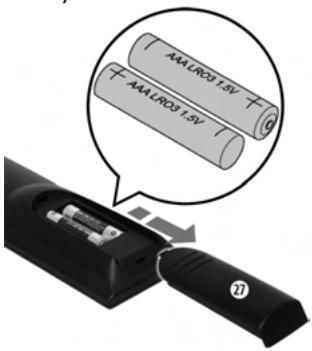
- Open battery compartment cover 27 in the direction of the arrows.
- Insert the batteries as shown in the diagram and close the battery compartment.
The LCD display ① is activated as long as batteries are installed. The following diagram shows the LCD display ① after the batteries have been installed or changed.
$$ \begin{array}{c c} \text {TV} & 2 7 0 \ 1 2: 0 0 _ {\mathrm{AM}} \end{array} $$
i Note:
If no LCD display ① is visible check the polarity of the batteries or install new ones.
Operating elements
LCD display
The LCD display ① is divided into fields.
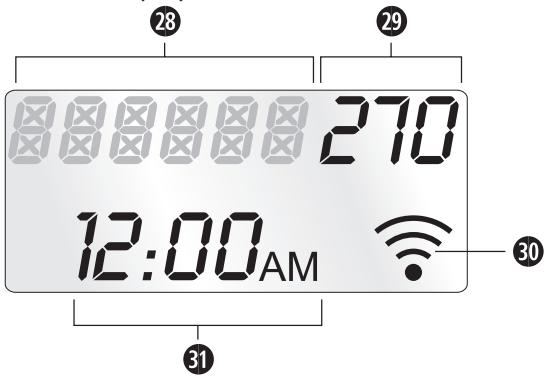
Text field 28
Here is shown the currently selected device, for example DVD, TV or VCR
Code field 29
Here is shown the device code of the currently selected device.
Infrared symbol 30
Every time a button is pressed, with which an infrared signal is to be sent the Infrared symbol illuminates.
Time field 31
Here you can read the time of day.
Standard display:
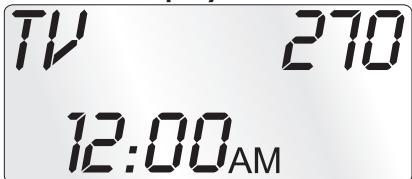
The standard display of the LCD display ① consists of details of the current device, i.e. "TV", the device code and the time of day.
Illumination
If you press the Illumination button LIGHT ⑤ with every button press the LCD display ① will stay illuminated for 8 seconds. Press the LIGHT button ⑤ again to deactivate the illumination function.
Buttons
i Note:
All the functions described here can, of course, only be used if they are supported by the device being controlled.
/ALL OFF button ②
ALL OFF

Switch device on/off; press twice within 2 seconds to switch all devices on/off.
SET button ③
SET
Hold down for 3 Seconds to access the SETUP menu.
Device buttons 4
The device buttons are used to select which device should be operated.
| TV | Television |
| SAT/CBL | Satellite receiver/cable |
| AUDIO | Audio device |
| PC | Computer |
| VCR | Video recorder |
| DVD/CD | DVD or CD player |
| DVR/PVR | Digital/Personal video recorder |
| AUX | Additional device |
Illumination button 5
LIGHT

Press the LIGHT ⑤ button to illuminate the display.
CH+/— buttons ⑥

Change the reception channel.

VOL+/— buttons ⑦
Set volume (Volume).
TTX ON/OFF button 8

Switch teletext on/off.
Number buttons ⑨
| 1 | 2 | 3 | 4 |
| 5 | 6 | 7 | 8 |
| 9 | 0 |
Enter programme and device code numbers.
RECALL button 10
RECALL Accesses the last selected programme slot
Button for one/two digit programme numbers ⑪

For two digit programme numbers first press the ⑪ button then via the number buttons ⑨ enter the programme number. When pressed again the display becomes single digit once more.
Playback buttons and teletext function buttons
The playback buttons ⑫ control devices such as DVD/CD players and video recorders:

Record.
Stop Playback/Record/Wind
Rewind
Start playback
Stop playback
Wind forward
In teletext operation the buttons have the following functions:
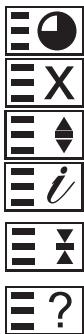
Access time
Cancel page access
Enlarge page presentation
Access Index page
Stop automatic page forwarding for multi page teletexts.
Mystery button
In addition the CH+/- buttons ⑥ control the following teletext functions:
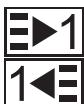
Leaf one page forward
Leaf one page backward
Coloured Fast text buttons 13
The coloured fast text buttons open categories in the teletext selection.
GUIDE button 14
GUIDE
The GUIDE button accesses the device's electronic programme guide.
Arrow buttons 15
natural_image
Abstract geometric shape with four rounded rectangles and triangular cutouts, no text or symbols present.Move up, right, left and down in menus. For control of the "Picture in Picture" function.
EXIT button 16

Move a level backward in the menu.
INFO button 17

Superimpose programme information.
OK button 18

You can confirm a menu selection with the OK button.
MENU button 19

Access the menu of the controlled device.
SWAP button 20

control the A-B repeat function in DVD/CD modes.
To switch between the main and second image in PIP operation.
PIP button 21

to access/end the TV's picture in picture mode.
With SAT/CABLE the PIP button serves as the video format selector.
MACRO button 22
MACRO

The MACRO button ② followed by a number button ⑨ 1-6, activates the previously saved chain of commands.
Mute switching 23

Switch sound on/off.
FAV.CH button 24
FAV.CH

Accesses your previously programmed favourite station.
AV button 25

Switch to the AV input.
Setting the time
The LCD display ① shows you the time of day. You set this as follows:
- Hold down the SET button ③ for a little longer than 3 seconds.
- With the ▲ or ▼ button 15 select "CONFIG" and confirm with the OK button 18.
- In the LCD display ① appears "TIME SETUP". Confirm with the OK button ⑱. The LCD display ① now shows "TIME" and the first number of the hour display blinks.
- With ◀ or ▶ ⑮ place the cursor on the position, in which you want to make an entry and press the number buttons ⑨ to set the hour and minutes. The switching between AM and PM you undertake with the ▲ or ▼ button ⑮. Thereby "AM" stands for "ante meridium" (= morning, 0:00 to 12:00 o'clock) and "PM" stands for "post meridium" (= afternoon, 12:00 to 0:00 o'clock).
- With the OK button ⑱ you save the setting. In the LCD display ① appears "SUCCESS" and the previous mode is accessed again. In the event of an error the LCD display ① shows "ERROR".
- To exit this menu press repeatedly the EXIT button 16 until the standard display appears in the LCD display 1.
Adjust contrast
You can set the display's contrast as follows:
- Hold down the SET button ③ for a little longer than 3 seconds.
- With the ▲ or ▼ button 15 select "CONFIG" and confirm with the OK button 18.
- With the ▲ or ▼ button 15 select "CONTRAST" and confirm with the OK button 18.
- With the ◀ or ▶ 15 button you set the contrast ( ▶ reduces the contrast, ◀ increases the contrast). Display readout: 0 = highest contrast 15 = lowest contrast
- With the OK button ^18 you save the desired setting. In the LCD display ^1 appears "SUCCESS" followed by "CONTRAST".
- To exit this menu press repeatedly the EXIT button 16 until the standard display appears in the LCD display 1.
Background Illumination
When the lighting circumstances are poor you can activate the display's background illumination. Bear in mind that this will reduce the lifespan of the batteries.
-
Press once the LIGHT button ⑤. From now on the LCD display ① will illuminate with each button press for approx. 8 seconds.
-
Press this button once more to switch off the LCD display's background illumination.
Child protection system
With the child protection system the channel buttons (CH+, CH-, 0-9) can be locked for individual devices.
- Hold down the SET button ③ for a little longer than 3 seconds.
- With the ▲ or ▼ button 15 select "CONFIG" and confirm with the OK button 18.
- With the ▲ or ▼ button 15 select "KIDS LOCK" and confirm with the OK button 18. The LCD display 1 shows the current device and always offers the setting "OFF" independent of the current setting.
- With the ◀ or ▶ button ⑮ select now between "ON" (child protection on) or "OFF" (child protection off).
- With the OK button ^18 you save the setting. In the LCD display ^1 appears "SUCCESS" and then "KIDS LOCK".
- To exit this menu press repeatedly the EXIT button 16 until the standard display appears in the LCD display 1.
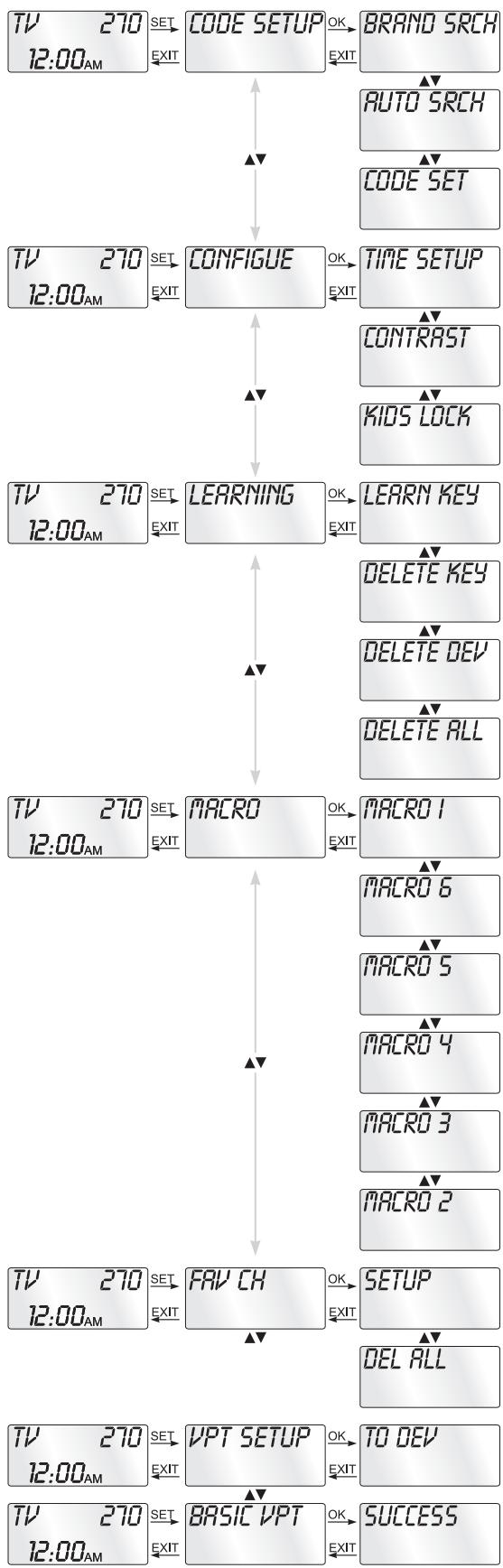
SETUP - System settings
In the system settings you undertake the following:
- Programming the remote control to the devices to be controlled
- Setting the time of day, display contrast and child protection
- The "learning" of determined button commands
- Setting up Macros
- Assigning favourites
• etc.
flowchart
graph TD
    A["TV 270 12:00 AM"] -->|SET EXIT| B["CODE SETUP"]
    B -->|OK EXIT| C["BRAND SRCH"]
    C --> D["AUTO SRCH"]
    D --> E["CODE SET"]
    E --> F["CONFIGUE"]
    F -->|OK EXIT| G["TIME SETUP"]
    G --> H["CONTRAST"]
    H --> I["KIOS LOCK"]
    I --> J["LEARNING"]
    J -->|OK EXIT| K["LEARN KEY"]
    K --> L["DELETE KEY"]
    L --> M["DELETE DEV"]
    M --> N["DELETE ALL"]
    N --> O["MACRO"]
    O --> P["MACRO 1"]
    P --> Q["MACRO 6"]
    Q --> R["MACRO 5"]
    R --> S["MACRO 4"]
    S --> T["MACRO 3"]
    T --> U["MACRO 2"]
    U --> V["FAV CHK"]
    V --> W["SET EXIT"]
    W --> X["SET EXIT"]
    X --> Y["BASIC VPT"]
    Y --> Z["SUCCESS"]
    Z --> AA["DEL ALL"]
    AA --> AB["TO DEV"]
Programming the remote control
3 Programming methods are available for the remote control: Programming by brand code search, by automatic code search and by direct code input (manual).
First you should use the brand code search since this method is the fastest way of programming if your device is itemized in the code list. As second is recommended the direct code input followed by the automatic code search.
Programming by brand code search
With this method you select the brand and code direct via the LCD display ①.
Observe the following operational references to programme the remote control
- Press the device button ④ for the device, on which you want to programme the remote control (except for PC).
- Hold down the SET button ③ for a little longer than 3 seconds.
- In the LCD display ① appears "CODE SETUP". Press the OK button ⑱. "BRAND SRCH" now appears in the LCD display ①.
- Press the OK button 18. Now appears the alphabetical first brand name from the list of preprogrammed devices.
- With the ▲▼ buttons ⑮ select the various brand names.
- To make access easier you can skip directly to specific letters of the alphabet with the number buttons ⑨:
$$ \begin{array}{l} 2 \Rightarrow A \ 3 \Rightarrow D \ 4 \Rightarrow G \ 5 \Rightarrow J \ 6 \Rightarrow M \ 7 \Rightarrow P \ 8 \Rightarrow T \ 9 \Rightarrow W \ \end{array} $$
example: With button number 5 the display skips to the letter "J". The first brand is "JVC"*. If, for example, you own a "Kenwood"* brand device, leaf with the ▼ button downwards until this brand name appears. (* All brand names used here are trademarks of the corresponding manufacturer.)
-
The majority of manufacturers use several different codes for the remote control. You must now ascertain which of the available codes is best suited to your device. The current code is displayed underneath the brand name.
-
Point the remote control to the current device and press the function buttons to test the code (except ▲▼◀▶15, OK 18, or the number buttons 9).
-
If most of the buttons function press the OK button ^18 to save the setting. In the LCD display ^1 appears "SUCCESS". Now the mode "BRAND SRCH" appears again.
-
If, however, none or only a few of the buttons function select with the ◀ or ▶ button ⑮ the next code and test again as described in step 8.
-
You can end the setting mode with any device button ④ (except after step 5). With the EXIT button ⑯ you will move one level upwards in the menu.
Repeat these operational steps for all devices that you would like to control with the remote control.
Programming by manual code input
In this mode the remote control can be programmed by direct input of a code number. Please extract the necessary code number from the accompanying code list. In the event that the new code is invalid the last valid programmed code will be restored.
- Hold down the SET button ③ for a little longer than 3 seconds.
- In the LCD display ① appears "CODE SETUP". Press the OK button ⑱. "BRAND SRCH" now appears in the LCD display ①. Press the ▲ or ▼ button ⑮ until "CODE SET" is shown in the LCD display ①. Then press the OK button ⑱.
- In the LCD display ① appears the last programmed device and the code used.
- Press the desired device button ④ (i.e. VCR). The target device now blinks and waits for your confirmation.
- With the OK button 18 confirm the selected device. Now the first digit of the code blinks and waits for your code input.
- Enter the 3 digit device code with the number buttons and confirm the entry with the OK button 18.
- If the entered code is valid for the selected device type then the code will be saved. In the LCD display ① appears "SUCCESS" and then again "CODE SET". In the event of failure the LCD display ① shows "NOT FOUND" and waits for a new code input. Then you repeat step 6.
- For many combi-devices you must enter 2 codes from the accompanying list, i.e. one for the TV section and one for the DVD section. If the code of a combi-device (i.e. TV-DVD) is shown in the list as "XXX XXX" then apply the first 3 numbers for the device named first in the device denomination (=TV), and the last 3 numbers for the device named second (=DVD).
- With the EXIT button 16 you can end the CODE SET mode.
i Tips:
- Should AUX be selected as device then in step 6 after the code you must press a fourth button to communicate the device type to the remote control:
| 0 - TV | 3 - SAT.CBL |
| 1 - VCR | 4 - DVR.PVR |
| 2 - DVD.CD | 5 - AUDIO |
- The AUX device appears in the LCD display ① as "AUX1", which is normal.
- If the AUX device has been set with another programming method please specify it first as AUX device in the direct code entry. Example The television shall be defined as an AUX device. For this in step 6 press as the fourth number the 0 so that afterwards the television can be programmed with the brand code search or the automatic code search.
Programming by automatic code search
This process can take several minutes per device since all codes for the selected device have to be gone through.
Therefore this method should only be used when the device cannot be programmed via brand code search or direct code input or if your device is not listed at all in the manufacturers directory with device code list.
A PC will not be considered a device with the automatic search.
Follow the steps listed below to carry out programming by means of the automatic code search.
- Switch the device that is to be controlled with the remote control on. With VCR/DVD/CD devices please insert a tape and/or disc.
- Hold down the SET button ③ for a little longer than 3 seconds.
- In the LCD display ① appears "CODE SETUP". Press the OK button ⑱. "BRAND SRCH" now appears in the LCD display ①. Press the ▲ or ▼ button ⑮ until "AUTO SRCH" is shown in the LCD display ①. Then press the OK button ⑱ to access the "automatic code search" mode.
- Press the device button ④ that corresponds to the device to be controlled (i.e. VCR).
- Point the remote control to the device and press the OK button 18 to start the search. The Infrared symbol 30 blinks, which shows the emission of Infrared commands.
- If the device reacts by switching off press the PAUSE II button ⑫ to stop the code search.
-
To test whether you have conducted the search fast enough press once the ▼ button 15 then again the ▲ button 15. If the device reacts again you have most probably found the correct code.
-
If the device does not react again carry on switching every 1.5 seconds with the ▼ button ⑮ to the previous code until the device reacts.
- Then press the OK button ^18 to save the code. The LCD display ^1 shows "SUCCESS" and then returns again to the "AUTO SEARCH" mode.
- Press the EXIT button ⑯ twice to exit the programming mode.
- Check to see if the majority of your device's functions can be controlled with the remote control. In the event that a few functions are not working you can start the automatic code search again beginning with step 1.
i Tips:
If the PAUSE II button 12 is pressed during the automatic code search the code search stops. Pressing on the PAUSE II button 12 again allows the device to take up the search once more.
- During an active code search all buttons except OK ^18 , PAUSE II ^12 , ▼, ▲ ^15 and EXIT ^16 will be ignored.
- If the EXIT button 16 is pressed during the code search the search will stop and the "AUTO SRCH" status is again accessed without the code being saved.
- Should the correct code be found, however the device's original remote control did not have a POWER button then it is possible that the device cannot be switched on or off remotely. Then try the buttons ▶ 15, CH + 6 or MUTE 23.
- If the automatic search has reached the end of the code list it stops there. Then press the EXIT button 16 to return to the "AUTO SRCH" mode and start again with step 4.
- If you want to programme an AUX device by automatic code search the device type must first be defined by direct code input. After which you carry out the automatic code search from step 5.
Learn function
The Universal remote control (URC) can learn and save button signals of an original remote control. If the URC does not work after applying the programming methods already described or cannot carry out all commands please attempt to teach the URC with the help of the original remote control.
- Use new batteries for the URC and the original remote control.
- Maintain a distance of at least one metre from other light sources. The light sources could disrupt the infrared transmission.
- Place the URC and the original remote control at a distance of 25 to 55 mm from each other on an even surface so that the Infrared diodes ^26 are facing each other.
i Tips:
- Do not use the following buttons for the learn function: all device buttons ④, LIGHT ⑤, MACRO ②2, FAV.CH ⑳, ⑫, EXIT ⑯.
- When teaching please do not release the button of the original remote control until "SUCCESS" or "FAILED" appears in the LCD display ①.
- If whilst teaching when the display is showing "WAITING" still no button on the original remote control is pressed after 25 seconds the LCD display ① shows "FAILED" followed by "SELECT KEY".
- If the memory is full the LCD display ① shows "MEM FULL" and the learn mode will end.
- Whilst the LCD display ① is showing "WAITING" in the learn mode the mode can only be ended with the EXIT button ⑯.
- During the learn mode or when the taught buttons are deleted the current mode can be exited with any button (except when "WAITING" is showing).
- With the EXIT button 16 you return to the previous status.
Code learn function
- Press the desired device button ④.
- Hold down the SET button ③ for a little longer than 3 seconds.
- With the ▲ or ▼ button 15 select the menu "LEARNING" and then press the OK button 18.
- In the LCD display ① appears "LEARN KEY". Then press the OK button ⑱. In the LCD display ① appears "SELECT KEY".
- First press the button on the URC that is to be taught. In the LCD display ① appears "WAITING". The URC now waits for the Infrared signal from the original remote control.
- Point the Infrared sensors 26 of both remote controls towards each other.
- Now hold down the desired button of the original remote control until "SUCCESS" or "FAILED" appears in the display ① of the URC.
- If in the LCD display ① "SUCCESS" appears (process successful), you can teach further buttons beginning with step 5. If "FAILED" appears (process unsuccessful) repeat the process in any case from step 5.
- To stop the learn process any device button ④ can be pressed. If in the LCD display ① is shown "WAITING" then stopping can only be carried out with the EXIT ⑯ button. After which the URC again returns to the "LEARN KEY" mode (see step 4).
Clear programmed button
- Press the corresponding device button.
- Hold down the SET button ③ for a little longer than 3 seconds.
- With the ▲ or ▼ button ⑮ select "LEARNING" and confirm with the OK button ⑱. In the LCD display ⑪ appears "LEARN KEY".
- With the ▲ or ▼ button ⑮ select "DELETE KEY" and confirm with the OK button ⑱. In the LCD display ① appears "SELECT KEY".
- Press the taught button that is to be deleted. In the LCD display ① appears "SURE DELET" (are you sure?).
- Confirm the delete process with the OK button 18. In the LCD display 1 appears "DELETED" and then again "SELECT KEY".
- Repeat steps 5-6 to delete further buttons.
- Press any device button ④ to end the mode.
Delete all of a device's programmed buttons
- Hold down the SET button ③ for a little longer than 3 seconds.
- With the ▲ or ▼ button ⑮ select "LEARNING" and confirm with the OK button ⑱. In the LCD display ⑪ appears "LEARN KEY".
- With the ▲ or ▼ button ⑮ select "DELETE DEV" (delete device) and confirm with the OK button ⑱. In the LCD display ① appears "SELECT DEV" (select device).
- Select the device button ④ for the device whose taught button command you want to delete.
- In the LCD display 1 appears "SURE DELET". Confirm with the OK button 18. In the LCD display 1 appears "DELETED" and then "SELECT DEV".
- Repeat steps 4-5 if you also want to delete taught button commands of other devices.
- The EXIT button 16 returns you to the previous status.
i Note:
The delete process can take several minutes depending on the number of taught commands.
Delete All programmed buttons
- Hold down the SET button ③ for a little longer than 3 seconds.
- With the ▲ or ▼ button ⑮ select "LEARNING" and confirm with the OK button ⑱. In the LCD display ⑪ appears "LEARN KEY".
- With the ▲ or ▼ button 15 select "DELETE ALL" and confirm with the OK button 18.
- In the LCD display ① appears "SURE DELET". Confirm with the OK button ⑱. In the LCD display ① appears "DELETED" and then again "DELETE ALL".
- With the EXIT button 16 you return to the previous status.
i Note:
The delete process can take a few minutes. Please be patient.
Programming Macros
With the MACRO function up to 16 button commands can be carried out with the press of a single button, that is to say, several previously saved control commands can be deleted with one MACRO button. There are 6 Macro memory slots available for you.
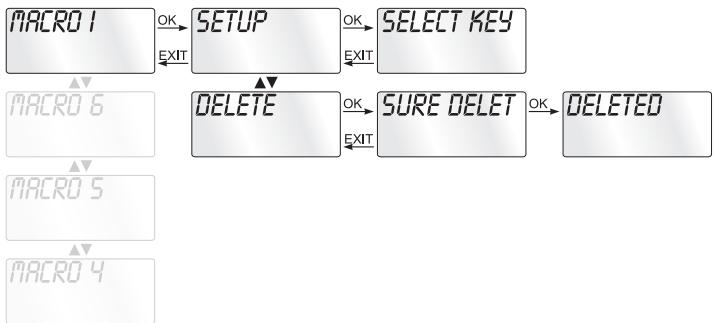
Macro programming overview:
flowchart
graph TD
    A["MACRO 1"] -->|OK| B["SETUP"]
    B -->|OK| C["SELECT KEY"]
    B -->|EXIT| D["DELETE"]
    C -->|EXIT| E["SURE DELET"]
    D -->|OK| F["DELETE"]
    E -->|OK| G["DELETE"]
Macro programming (including PC)
For Macro programming proceed as follows:
- Hold down the SET button ③ for a little longer than 3 seconds.
- With the ▲ or ▼ button 15 select "MACRO" and confirm with the OK button 18.
- With the ▲ or ▼ button ⑮ select "MACRO1 to MACRO6" and confirm with the OK button ⑱.
- In the LCD display ① appears "SET UP". Confirm with the OK button ⑱.
5 In the LCD display ① appears "SELECT KEY". Now press one after the other the desired buttons starting with a device button ④. If the sequence does not begin with a device button ④ "ERROR KEY" (wrong button) appears in the LCD display ① and then "SELECT KEY" again. - Save the entry with the OK button 18. In the LCD display 1 appears "SUCCESS" and then the Macro selection mode again.
- If you select a memory slot that is already occupied when you make the Macro programming selection (step 3) the device reacts to your setup attempt with the notice "MACRO HAS" (Macro occupied) in the LCD display ①. After which "SET UP" will be shown again. Therefore you must first delete the memory slot before you can use it again. How that is done you will discover in one of the next sections under "Macro delete".
- Repeat the process from step 3 to create further Macros.
9 With the EXIT button 16 you will move one level upwards in the menu.
i Tips:
- A maximum of 16 button commands can be saved in a Macro. After entering the 16 button commands the Macro is automatically saved and in the LCD display appears "SUCCESS".
- To exit the mode without saving press the EXIT button 16.
- You can not save any Macros on a slot that is already occupied. If you want to programme a new Macro you must first delete the old Macro.
- In the "SELECT KEY" mode you can only return to the previous status with the EXIT button 16.
Example You want to save a command chain in a Macro. We begin in the "SELECT KEY" mode.
Desired command chain: Switch on TV => switch to DVD => switch on DVD and playback
In the SELECT KEY mode, for this you enter the following button commands: TV => 🔊 => AV => DVD/CD => 🔊 => ▶
Execute a Macro
To execute a preprogrammed Macro proceed as follows:
- Press the MACRO button 22.
- With the corresponding number button ⑨ access the desired Macro (1-6). Example If Macro 3 is to be executed first press the Macro button ⑳ and then the number button 3 .
i Note:
If no Macro number button is pressed within 18 seconds or a Macro number button is pressed, for which no Macro has been programmed or another button is pressed then no Macro can be executed. In this case the background illumination blinks 4 times in rapid succession.
Macro deletion
To delete a preprogrammed Macro proceed as follows:
- Hold down the SET button ③ for a little longer than 3 seconds.
- With the ▲ or ▼ button 15 select "MACRO" and confirm with the OK button 18.
- With the ▲ or ▼ button ⑮ select the desired Macro and confirm with the OK button ⑱. In the LCD display ⑪ appears "SET UP".
-
With the ▲ or ▼ button 15 select "DELETE" and confirm with the OK button 18.
-
In the LCD display ① appears "SURE DELET" (are you sure?). Confirm the delete process with the OK button ⑱. In the LCD display ① is shown the memory slot of the Macro that has just been deleted.
-
With the ▲ or ▼ button 15 you can delete other Macros. Then continue with step 3.
-
With the EXIT button 16 you will move one level upwards in the menu.
Favourites channel
(i) Note:
This function is only available in the TV, SAT and CABLE modes and can not be used with other devices (it is also supported in AUX mode if TV, SAT or CABLE is programmed here).
With this function you can only show the stations, which you have summarized in favourite channels. Each of the 15 favourites channels can be assigned 6 stations, i.e. in one channel only sports stations, in the next all the news stations etc. When the child protection is activated the favourites of the device in question can not be retrieved.
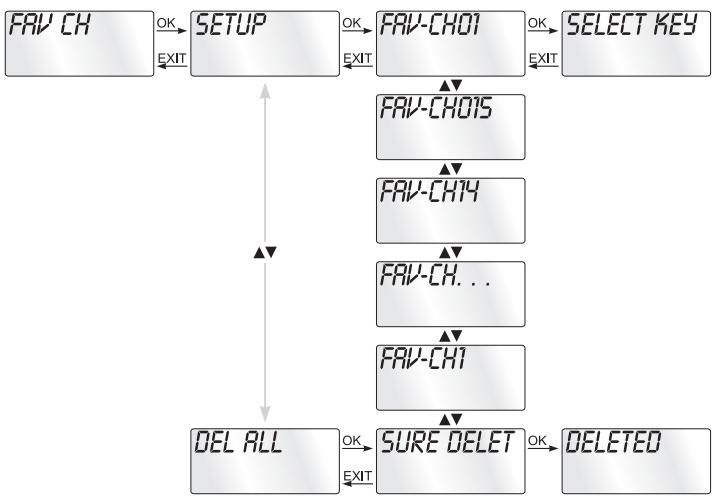
Favourites programming overview:
flowchart
graph TD
    A["FAV-CH"] -->|OK EXIT| B["SETUP"]
    B -->|OK EXIT| C["FAV-CHO1"]
    C -->|OK EXIT| D["SELECT KEY"]
    B --> E["FAV-CHO15"]
    E --> F["FAV-CH14"]
    F --> G["FAV-CH..."]
    G --> H["FAV-CH1"]
    H --> I["DEL ALL"]
    I -->|OK EXIT| J["SURE DELET"]
    J -->|OK EXIT| K["DELETED"]
Programming FAV channels
Your favourite stations are saved as follows:
- Press the desired device button ④ for the device to be programmed.
- Hold down the SET button ③ for a little longer than 3 seconds.
- With the ▲ or ▼ button ⑮ select "FAV CH" and confirm with the OK button ⑱.
- In the LCD display ① appears "SETUP". Confirm with the OK button ⑱. In the LCD display ① appears "FAV- -CH1".
- With the ▲ or ▼ button ⑮ select the desired FAV channel and confirm with the OK button ⑱. In the LCD display ⑪ appears "SELECT KEY".
- Now enter with the number buttons ⑨ the first stations that you want to save in the respective FAV-CH (for two digit numbers first press the -/-- button ⑪). After you have pressed the sixth button of the station selection in FAV channel the setting will be automatically saved. In
the LCD display ① appears "SUCCESS" followed by the next FAV-CH. All buttons will be ignored except OK ⑱, EXIT ⑲, FAV.CH ⑳, the number buttons ⑨ and -/- ⑪. Note: The URC saves the button presses. Therefore if you save two digit stations their max. count is reduced to 2 (1 x -/-- + 2 number buttons = 3 pressed buttons per station).
- Press the OK button ^18 to save the FAV-CH. In the LCD display ^1 appears "SUCCESS" followed by the next FAV-CH.
- To exit this menu press repeatedly the EXIT button 16 until the standard display appears in the LCD display 1.
Note: A new programming of the FAV channels overwrites the old settings. The input of the channel numbers can vary according to the model and brand of the selected device.
Accessing FAV channel
To access the previously programmed favourite station press the FAV-CH button 24.
The URC now accesses, one after the other, the programmed stations from the favourites channel with the lowest number. Press the FAV-CH button 24 again and the stations from the next favourite channel up is accessed.
Delete All FAV channels
To delete all the FAV channels proceed as follows:
- Hold down the SET button ③ for a little longer than 3 seconds.
- With the ▲ or ▼ button ⑮ select "FAV CH" and confirm with the OK button ⑱. In the LCD display ① appears "SETUP".
- With the ▲ or ▼ button ⑮ select "DEL ALL" and confirm with the OK button ⑱. In the LCD display ⑪ appears "SURE DELET" (are you sure?).
- With the OK button ^18 you confirm the deletion of all programmed favourites channels. After which "DELETED" appears in the LCD display ^1 followed by "SETUP".
- To exit this menu press repeatedly the EXIT button 16 until the standard display appears in the LCD display 1.
i Tips:
- When the LCD display ① shows "SURE DELET" you can stop the delete with the EXIT button ⑯.
- Press any device button ④ to exit the favourites delete mode.
- Individual FAV channels cannot be deleted they can only be overwritten.
Vol +/—, Ⓧ (Mute switching)
Press the "VOL+" button to increase the volume. With the "VOL—" button you reduce the volume. To mute the sound press the 📄-button. A further press of this button turns the sound back on.
All devices use their own volume control, if available. If a video device, such as a VCR or DVD player, does not have its own volume control, the volume control of the television is automatically used.
(i) Note:
- The volume control does not function in the audio, PC and AUX modes.
- The volume control does not function if the relevant device has its own volume and mute control functions (exceptions are possible).
Further volume control functions (except PC)
As mentioned above the volume controlling takes place automatically. If, however, you want to programme a device from another device proceed as follows:
(i) Note:
The devices audio and PC do not have this function.
- Hold down the SET button ③ for a little longer than 3 seconds.
- With the ▲ or ▼ button ⑮ select "VPT SETUP" and confirm with the OK button ⑱. In the LCD display ⑪ appears "TO DEV" (to the device).
- Now press the button for the device ④ (i.e. VCR), to which the volume command should be sent. After which appears "FROM DEV" (from device) in the LCD display ① (the device, from which the command is sent).
- Now press the button for the device ④ (i.e. TV), to which the command should be sent.
- In the LCD display ① appears "SUCCESS". The setting is saved. In the event of an error "ERROR" appears in the LCD display ①. After which "VPT SETUP" appears again.
- With the EXIT button 16 you exit this mode.
Back to volume control
If you want to return to the basic volume control proceed as follows:
- Press the desired device button (except PC).
- Hold down the SET button ⓣ for a little longer than 3 seconds.
-
With the ▲ or ▼ button 15 select "BASIC VPT" and confirm with the OK button 18.
-
In the LCD display ① appears "SUCCESS".
- With the EXIT button 16 you exit the mode.
Additional functions
To operate one of the programmed devices with the URC first press the corresponding device button ④.
→ Then point the URC to this device and press the desired button.
→ Put the number buttons ⑨ exactly as you do with the original remote control. Before you make a two digit entry press the -/- button ⑪.
→ With the RECALL button 10 you can select the respectively last selected programme memory slot.
→ Press the GUIDE button 14 to start the electronic programme guide of a device equipped with this function.
→ Press the INFO button ⑰ to show current programme information from the target device.
→ Via the MENU button 19 you access the dialogue for the setting of the respective target device.
All OFF
i Note:
With the button ⏻ ALL OFF (all off) ② all devices can be automatically switched off. For this press the ALL OFF button ② twice within 2 seconds. This will only function under the following circumstances:
- A visible connection exists between all the devices and the URC.
- Automatic code search, brand code search and MACRO function are not active.
- All target devices must be suitable for remote control switch off.
To automatically switch on all devices again press the button
② once more twice within 2 seconds.
Automatic station redirecting
i Note:
- With this function all stations can be accessed in rapid succession without the necessity of manual redirection.
- This function is only available for TV.
- The function is then also for AUX available if a TV device is defined here.
- Hold down the button CH+ or CH—⑥ for 3 seconds. After which the Infrared symbol ③0 blinks every 1.5 seconds and the next station is shown.
- The remote control now continually sends every 1.5 seconds the command CH+ and/or CH− until a button is pressed. The background illumination (if activated) goes out briefly with each Infrared transmission.
- Press any other button to end the automatic station redirecting.
Alternative button allocation in teletext mode
If the remote control is in teletext mode (by pressing the button TTX ON/OFF ⑧), the buttons CH+/CH—⑥ and the play-back buttons serve as controllers for the teletext (TTX). After deactivation of the teletext the buttons revert back to their usual functions:
| Button | Normal function | Function in TTX mode |
| Start teletext | End teletext | |
| CH+ | Shift forward1 Programme slot | 1 Page forward |
| CH- | Shift back1 Programme slot | 1 Page backwards |
| Start playback | Access index page | |
| Start record | Access last page | |
| Stop playback | Stop page search | |
| II | Stop playback | Stop automatic page change |
i Note:
The function is only available in the European TV mode and your TV must have a teletext module.
Alternative button allocation in PIP mode
(i) Note:
The PIP function (picture in picture) is only available in the TV mode. Your TV device must support this function.
You switch the PIP function on and/or off with the PIP button. If the remote control is in the PIP mode the following buttons serve as controllers for the PIP functions:
| Button | Normal function | Function in PIP mode |
 | move up in the menu | PIP + |
 | move down in the menu | PIP - |
 | switch to AV | PIP source |
 | move left in the menu | PIP size |
 | move right in the menu | PIP position |
Faults / Remedies
Your device does not react to the remote control.
→ Check the batteries. They must have enough voltage and be properly installed.
→ Firstly have you pressed the correct device button ④ for the desired target device?
→ Check to see that the correct code is programmed in for the target device (see section "Programming the remote control").
The remote control is transmitting the commands incorrectly.
⇒ Press the corresponding device button to set the remote control to the correct mode.
→ The batteries must have enough voltage and be properly installed.
→ It is possible that you are using the wrong code. Start the brand code search, the automatic code search or the direct code input (manual).
The remote control does not change the station on the device.
→ Press the corresponding device button ④ to set the remote control to the correct mode.
In the event that the original RC does not have a "-/-" button, change the programme with the CH+/— buttons ⑥ or the number buttons.
If this also does not work the child protection for this device could be activated.
Some of the remote control buttons do not function properly.
→ It is possible that your universal remote control does not have all of the functions that are on the device's original remote control.
→ It is possible that you have not programmed in the optimal code. Search for a code that supports more of the target device's functions.
The remote control stops reacting after a button is pressed.
⇒ The batteries must have enough voltage and be properly installed.
→ Point the remote control towards your device.
The LCD display shows nothing.
⇒ The batteries must have enough voltage and be properly installed.
→ The contrast could be set too low. Then increase the contrast setting.
Disposal
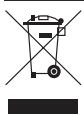
Do not dispose of the device in your normal domestic waste. This product is subject to the European directive 2002/96/EC.
Universal remote control
- Have the universal remote control or parts of it disposed of by a professional disposal company or by your communal disposal facility.
- Observe the currently applicable regulations. In case of doubt contact your disposal facility.
Batteries/rechargeable batteries
- Used batteries/rechargeable batteries may not be disposed of in household waste.
- Batteries can contain poisons which are damaging to the environment. Therefore, dispose of the batteries/rechargeable batteries in accordance with statutory regulations.
- Every consumer is legally obliged to surrender batteries/rechargeable batteries to a community collection centre in their district or to a dealer. The purpose of this obligation is to ensure that batteries are disposed of in a non-polluting manner.
- Only dispose of batteries when they are fully discharged.

Dispose of packaging materials in an environmentally responsible manner.
CE- Conformity
CE
This device has been tested and approved regarding conformance with the fundamental requirements and other relevant regulations of the EMV Directive 2004/108/EC.
Importer
KOMPERNASS GMBH
BURGSTRASSE 21
44867 BOCHUM, GERMANY
www.kompernass.com
Technical data
Controllable devices 8
Dimensions
L x W x H: 225 x 56 x 28 mm
Weight : 120 g (without batteries)
Laser: Laser class 1
Power supply
Batteries: 2 x 1.5 V, type AAA/LR03 (micro)
(Batteries not supplied)
Important Warranty Notices
You receive a 3-year warranty for this device as of the purchase date. Should you have grounds for complaint in spite of our high quality standards, please contact our Service Hotline. In the event that processing of your complaint is not possible by telephone here you will receive
- a processing number (RMA number) as well as
- an address to which you can send your device for repair under warranty.
In the case of a mail-in shipment, please enclose a copy of the purchase receipt (sales slip). The device must be securely packed and the RMA number clearly visible. Products sent in without the RMA number cannot be processed.
① Note: The warranty provisions cover only material or factory defects. The warranty is not valid;
• to parts subject to wear and tear
- for damage to breakable parts, such as switches or rechargeable batteries.
This product is for private use only and is not intended for commercial use. The warranty is void in the case of abusive and improper handling, use of force and internal tampering not carried out by our authorized service branch. Your statutory warranty claims are not restricted by this warranty.
Warranty
Sender, please write clearly:
GB DES Ltd
Tel.: 0870/787-6177
Fax: 0870/787-6168
e-mail: support.uk@kompernass.com
IE Kompernass Service Ireland
Tel: 1850 930 412 (0,082 EUR/Min.)
Standard call rates apply. Mobile operators may vary. e-mail: support.ie@kompernass.com
www.mysilvercrest.de
Last name:
First name:
Street:
Postcode/Place:
Country:
Telephone:
Date/Signature:
SilverCrest
UNIVERSAL REMOTE CONTROL KH 2155
In order to guarantee a cost free repair procedure please get in touch with the service hotline. Make sure you have your sales slip handy.
Description of fault:
Description of fault:
- Important safety instructions
- Proper use
- There is a danger of injury in the event of improper handling of batteries!
- Laser
- Damage to the device
- Device overview
- Note:
- Unpacking the device / checking the package contents
- Attention!
- i Note: Transport damage
- Inserting the batteries
- i Note:
- Operating elements
- LCD display
- Text field 28
- Code field 29
- Infrared symbol 30
- Time field 31
- Standard display:
- Illumination
- Buttons
- /ALL OFF button ②
- SET button ③
- Device buttons 4
- Illumination button 5
- CH+/— buttons ⑥
- VOL+/— buttons ⑦
- TTX ON/OFF button 8
- RECALL button 10
- Button for one/two digit programme numbers ⑪
- Playback buttons and teletext function buttons
- Coloured Fast text buttons 13
- GUIDE button 14
- Arrow buttons 15
- EXIT button 16
- INFO button 17
- OK button 18
- MENU button 19
- SWAP button 20
- PIP button 21
- MACRO button 22
- Mute switching 23
- FAV.CH button 24
- AV button 25
- Setting the time
- Adjust contrast
- Background Illumination
- Child protection system
- SETUP - System settings
- Programming the remote control
- Programming by brand code search
- Programming by manual code input
- i Tips:
- Programming by automatic code search
- Learn function
- Code learn function
- Clear programmed button
- Delete all of a device's programmed buttons
- Delete All programmed buttons
- Programming Macros
- Macro programming (including PC)
- Execute a Macro
- Macro deletion
- Favourites channel
- Note:
- Programming FAV channels
- Accessing FAV channel
- Delete All FAV channels
- Vol +/—, Ⓧ (Mute switching)
- Further volume control functions (except PC)
- Back to volume control
- Additional functions
- All OFF
- Automatic station redirecting
- Alternative button allocation in teletext mode
- Alternative button allocation in PIP mode
- Faults / Remedies
- The remote control is transmitting the commands incorrectly.
- The remote control does not change the station on the device.
- Some of the remote control buttons do not function properly.
- The remote control stops reacting after a button is pressed.
- The LCD display shows nothing.
- Disposal
- Universal remote control
- Batteries/rechargeable batteries
- CE- Conformity
- CE
- Importer
- Technical data
- Important Warranty Notices
- Warranty
- GB DES Ltd
- IE Kompernass Service Ireland
- SilverCrest
- Description of fault:
Brand : SILVERCREST
Model : KH 2155
Category : Remote control