AP1700 - NAS ASUS - Free user manual and instructions
Find the device manual for free AP1700 ASUS in PDF.


User questions about AP1700 ASUS
0 question about this device. Answer the ones you know or ask your own.
Ask a new question about this device
Download the instructions for your NAS in PDF format for free! Find your manual AP1700 - ASUS and take your electronic device back in hand. On this page are published all the documents necessary for the use of your device. AP1700 by ASUS.
USER MANUAL AP1700 ASUS
Copyright © 2003 ASUSTeK COMPUTER INC. All Rights Reserved.
No part of this manual, including the products and software described in it, may be reproduced, transmitted, transcribed, stored in a retrieval system, or translated into any language in any form or by any means, except documentation kept by the purchaser for backup purposes, without the express written permission of ASUSTeK COMPUTER INC. ("ASUS").
Product warranty or service will not be extended if: (1) the product is repaired, modified or altered, unless such repair, modification of alteration is authorized in writing by ASUS; or (2) the serial number of the product is defaced or missing.
ASUS PROVIDES THIS MANUAL "AS IS" WITHOUT WARRANTY OF ANY KIND, EITHER EXPRESS OR IMPLIED, INCLUDING BUT NOT LIMITED TO THE IMPLIED WARRANTIES OR CONDITIONS OF MERCHANTABILITY OR FITNESS FOR A PARTICULAR PURPOSE. IN NO EVENT SHALL ASUS, ITS DIRECTORS, OFFICERS, EMPLOYEES OR AGENTS BE LIABLE FOR ANY INDIRECT, SPECIAL, INCIDENTAL, OR CONSEQUENTIAL DAMAGES (INCLUDING DAMAGES FOR LOSS OF PROFITS, LOSS OF BUSINESS, LOSS OF USE OR DATA, INTERRUPTION OF BUSINESS AND THE LIKE), EVEN IF ASUS HAS BEEN ADVISED OF THE POSSIBILITY OF SUCH DAMAGES ARISING FROM ANY DEFECT OR ERROR IN THIS MANUAL OR PRODUCT.
SPECIFICATIONS AND INFORMATION CONTAINED IN THIS MANUAL ARE FURNISHED FOR INFORMATIONAL USE ONLY, AND ARE SUBJECT TO CHANGE AT ANY TIME WITHOUT NOTICE, AND SHOULD NOT BE CONSTRUED AS A COMMITMENT BY ASUS. ASUS ASSUMES NO RESPONSIBILITY OR LIABILITY FOR ANY ERRORS OR INACCURACIES THAT MAY APPEAR IN THIS MANUAL, INCLUDING THE PRODUCTS AND SOFTWARE DESCRIBED IN IT.
Products and corporate names appearing in this manual may or may not be registered trademarks or copyrights of their respective companies, and are used only for identification or explanation and to the owners' benefit, without intent to infringe.
Contents
Notices ...... vi
Safety information ...... vii
About this guide...... viii
How this guide is organized ...... viii
Conventions used in this guide ix
Where to find more information ix
ASUS contact information ....x
PR-DLS533 specifications summary ...... xi
Chapter 1: Product introduction
1.1 Welcome! 1-1
1.2 Package contents ...... 1-1
1.3 Special features.... 1-2
1.3.1 Product highlights 1-2
1.3.2 Value-added solutions.... 1-4
1.4 Motherboard overview 1-6
1.4.1 Major components 1-6
1.4.2 Core specifications 1-8
Chapter 2: Hardware information
2.1 Motherboard installation 2-1
2.1.1 Placement direction 2-1
2.1.2 Screw holes 2-1
2.2 Motherboard layout 2-2
2.3 Before you proceed 2-3
2.4 Central Processing Unit (CPU).... 2-3
2.4.1 Overview 2-3
2.4.2 Installing the CPU 2-4
2.4.3 Installing the CPU heatsink and fan.... 2-6
2.5 System memory 2-8
2.5.1 Overview 2-8
2.5.2 Memory Configurations.... 2-9
2.5.3 Installing a DIMM 2-10
2.5.4 Removing a DIMM 2-10
Contents
2.6 Expansion slots ......2-11
2.6.1 Installing an expansion card ......2-11
2.6.2 Configuring an expansion card ....2-11
2.6.3 PCI slots 2-13
2.7 Switches and jumpers 2-14
2.7.1 Switches 2-14
2.7.2 Jumpers 2-15
2.8 Connectors 2-18
Chapter 3: Powering up
3.1 Starting up for the first time 3-1
3.2 Powering off the computer 3-2
Chapter 4: BIOS setup
4.1 Managing and updating your BIOS 4-1
4.1.1 Creating a bootable disk 4-1
4.1.2 Updating the BIOS 4-3
4.2 BIOS Setup program 4-5
4.2.1 BIOS menu bar 4-6
4.2.2 Legend bar.... 4-6
4.3 Main Menu.... 4-8
4.3.1 Primary and Secondary Master/Slave 4-10
4.3.2 Keyboard Features 4-14
4.4 Advanced Menu 4-15
4.4.1 Chip Configuration 4-17
4.4.2 I/O Device Configuration.... 4-18
4.4.3 PCI Configuration 4-20
4.5 Power Menu 4-22
4.5.1 Power Up Control 4-24
4.5.2 Hardware Monitor 4-26
4.6 Boot Menu 4-27
4.6.1 Boot Configuration 4-29
4.7 Server Menu 4-30
4.7 Server Menu 4-30
4.8 Exit Menu 4-31
Contents
Chapter 5: OS Installation
5.1 Support CD contents 5-1
5.1.1 Drivers 5-1
5.1.2 Management Software.... 5-1
5.1.3 Utilities 5-2
5.1.4 Contact 5-2
5.2 Microsoft ^ Windows ^ NT Server 4.0 5-3
5.2.1 LSI ^® SCSI Driver Installation 5-3
5.2.2 Intel ^ LAN Driver Installation 5-7
5.2.3 ATI ^® Rage XL Display Driver Installation.... 5-12
5.3 Microsoft ^® Windows ^® 2000 Server .... 5-13
5.3.1 LSI ^® SCSI Driver Installation 5-13
5.3.2 Intel ^ LAN Driver Installation 5-19
5.3.3 ATI ^® Rage XL Display Driver Installation.... 5-24
5.3.4 Enabling ATA100 Feature in Windows® 2000 ..... 5-24
5.4 Microsoft ^® Windows ^® XP Professional.... 5-25
5.4.1 LSI ^ SCSI Driver Installation 5-25
5.4.2 Intel ^ LAN Driver Installation 5-29
5.5 Novell ^® NetWare ^® Server.... 5-31
5.5.1 LSI ^® SCSI Driver Installation 5-31
5.5.2 Intel ® LAN Driver Installation 5-33
5.5.3 ATI ^® Rage XL Display Driver Installation.... 5-35
5.6 SCO OpenServer 5.0.6a 5-36
5.6.1 LSI ^® SCSI Driver Installation 5-36
5.7 SCO UnixWare Server 5-44
5.7.1 LSI ^® SCSI Driver Installation 5-44
5.7.2 Intel ^ LAN Driver Installation 5-47
5.7.3 ATI ^® Rage XL Display Driver Installation.... 5-47
5.8 Linux RedHat 7.3/8.0.... 5-48
5.8.1 LSI ^® SCSI Driver Installation 5-48
5.8.2 Intel ® LAN Driver Installation 5-48
5.8.3 ATI ^® Rage XL Display Driver Installation.... 5-48
Notices
Federal Communications Commission Statement
This device complies with FCC Rules Part 15. Operation is subject to the following two conditions:
• This device may not cause harmful interference, and
- This device must accept any interference received including interference that may cause undesired operation.
This equipment has been tested and found to comply with the limits for a Class B digital device, pursuant to Part 15 of the FCC Rules. These limits are designed to provide reasonable protection against harmful interference in a residential installation. This equipment generates, uses and can radiate radio frequency energy and, if not installed and used in accordance with manufacturer's instructions, may cause harmful interference to radio communications. However, there is no guarantee that interference will not occur in a particular installation. If this equipment does cause harmful interference to radio or television reception, which can be determined by turning the equipment off and on, the user is encouraged to try to correct the interference by one or more of the following measures:
- Reorient or relocate the receiving antenna.
- Increase the separation between the equipment and receiver.
- Connect the equipment to an outlet on a circuit different from that to which the receiver is connected.
- Consult the dealer or an experienced radio/TV technician for help.

The use of shielded cables for connection of the monitor to the graphics card is required to assure compliance with FCC regulations. Changes or modifications to this unit not expressly approved by the party responsible for compliance could void the user's authority to operate this equipment.
Canadian Department of Communications Statement
This digital apparatus does not exceed the Class B limits for radio noise emissions from digital apparatus set out in the Radio Interference Regulations of the Canadian Department of Communications.
This class B digital apparatus complies with Canadian ICES-003.
Safety information
Electrical safety
- To prevent electrical shock hazard, disconnect the power cable from the electrical outlet before relocating the system.
- When adding or removing devices to or from the system, ensure that the power cables for the devices are unplugged before the signal cables are connected. If possible, disconnect all power cables from the existing system before you add a device.
- Before connecting or removing signal cables from the motherboard, ensure that all power cables are unplugged.
- Seek professional assistance before using an adapter or extension cord. These devices could interrupt the grounding circuit.
- Make sure that your power supply is set to the correct voltage in your area. If you are not sure about the voltage of the electrical outlet you are using, contact your local power company.
- If the power supply is broken, do not try to fix it by yourself. Contact a qualified service technician or your retailer.
Operation safety
- Before installing the product and adding devices on it, carefully read all the documentation that came with the package.
- Before using the product, make sure all cables are correctly connected and the power cables are not damaged. If you detect any damage, contact your dealer immediately.
- To avoid short circuits, keep paper clips, screws, and staples away from connectors, slots, sockets and circuitry.
- Avoid dust, humidity, and temperature extremes. Do not place the product in any area where it may become wet.
- Place the product on a stable surface.
- If you encounter technical problems with the product, contact a qualified service technician or your retailer.
About this guide
This user guide contains the information you need when installing the ASUS PR-DLS533 motherboard.
How this guide is organized
This manual contains the following parts:
• Chapter 1: Product introduction
This chapter describes the features of the PR-DLS533 motherboard. It includes brief descriptions of the special attributes of the motherboard and the new technology it supports.
• Chapter 2: Hardware information
This chapter lists the hardware setup procedures that you have to perform when installing system components. It includes description of the switches, jumpers, and connectors on the motherboard.
• Chapter 3: Powering up
This chapter describes the power up sequence and gives information on the BIOS beep codes.
• Chapter 4: BIOS setup
This chapter tells how to change system settings through the BIOS Setup menus. Detailed descriptions of the BIOS parameters are also provided.
• Chapter 5: Driver installation
This chapter tells how to install SCSI, LAN, and VGA drivers under various operating systems.
Conventions used in this guide
To make sure that you perform certain tasks properly, take note of the following symbols used throughout this manual.

WARNING: Information to prevent injury to yourself when trying to complete a task.

CAUTION: Information to prevent damage to the components when trying to complete a task.

IMPORTANT: Information that you MUST follow to complete a task.

NOTE: Tips and additional information to aid in completing a task.
Where to find more information
Refer to the following sources for additional information and for product and software updates.
1. ASUS Websites
The ASUS websites worldwide provide updated information on ASUS hardware and software products. The ASUS websites are listed in the ASUS Contact Information on page x.
2. Optional Documentation
Your product package may include optional documentation, such as warranty flyers, that may have been added by your dealer. These documents are not part of the standard package.
ASUS contact information
ASUSTeK COMPUTER INC. (Asia-Pacific)
Address: 150 Li-Te Road, Peitou, Taipei, Taiwan 112
General Tel: +886-2-2894-3447
General Fax: +886-2-2894-3449
Support Fax: +1-510-608-4555
General Support: +1-502-933-8713
Web Site: www.asus.com
Support Email: tsd@asus.com
ASUS COMPUTER GmbH (Germany and Austria)
Address: Harkortstr. 25, 40880 Ratingen, BRD, Germany
General Fax: +49-2102-442066
General Email: sales@asuscom.de (for marketing requests only)
Technical Support
Support Hotline: MB/Others: +49-2102-9599-0
Notebook: +49-2102-9599-10
Support Fax: +49-2102-9599-11
Support (Email): www.asuscom.de/de/support (for online support)
Web Site: www.asuscom.de
PR-DLS533 specifications summary
| CPU | Support for Intel® XeonTM processorOn-die 512KB L2 cache |
| Chipsets | RCC Grand Champion LE Server (GCLE)RCC Champion South Bridge 5.0 (CSB5)RCC Champion I/O Bridge 2.0 (CIOB-X2) |
| Front Side Bus (FSB) | 400/533 MHz |
| Memory | 6 x 184-pin DDR DIMM socketsSupports PC2100/PC1600 registered ECC DDR DIMMsSupports 128MB to 12GB system memory |
| Onboard LAN | Intel® 82544GC 64-bit PCI-X Gigabit Ethernet controllerIntel® 82540EM 32-bit PCI Gigabit Ethernet controllerIntel® 82551QM Fast Ethernet controller (optional) |
| Onboard SCSI | LSI® 53C1030 PCI-X Ultra320 SCSI controller |
| Onboard VGA | ATI® RAGE-XL PCI-based VGA controller |
| Expansion slots | 4 x PCI 64-bit/133MHz 3V (PCI-X1 to PCI-X4)1 x PCI 64-bit/100MHz 3V (PCI-X5)(PCI-X5 supports either LSI MegaRAID 320-0 or Intel SRC ZCR card when LSI® 53C1030 is onboard)1 x PCI 32-bit/33MHz 5V (PCI6) |
| Rear panel I/O | 1 x Parallel port1 x Serial port1 x VGA port1 x PS/2 keyboard port1 x PS/2 mouse port2 x USB 1.1 ports2 x RJ-45 ports (with LED) |
| Internal connectors | 2 x 68-pin Ultra320 SCSI connectors2 x ATA/100 IDE connectors1 x Floppy disk connector1 x USB 1.1 connector for two additional USB ports1 x Serial Port 2 (COM2) connectoreRMC and IPMI connectors (for ASMC card)CPU/Power/Chassis fan connectors24-pin/8-pin ATX power connectorsIDE LED/Power LED connectors20-pin Front panel connectorChassis intrusion, SMBus, WOL, and WOR connectors |
| BIOS features | 4Mb Flash ROM, Award BIOS with ACPI, DMI, Green, PnP features, and Enhanced Server BIOS features |
(Continued on the next page)
PR-DLS533 specifications summary
| Form Factor | Extended ATX form factor: 12 in x 13 in (30.5 cm x 33 cm) |
| Support CD contents | Device driversManagement softwareUtilitiesContact information |
* Specifications are subject to change without notice.
Chapter 1

text_image
This chapter describes the features of the PR-DLS533 motherboard. It includes brief explanations of the special attributes of the motherboard and the new technology it supports.This chapter describes the features of the PR-DLS533 motherboard. It includes brief explanations of the special attributes of the motherboard and the new technology it supports.
Product introduction
Chapter summary
1.1 Welcome! 1-1
1.2 Package contents 1-1
1.3 Special features 1-2
1.4 Motherboard overview.... 1-6
1.1 Welcome!
Thank you for buying the ASUS® PR-DLS533 motherboard!
The ASUS PR-DLS533 motherboard delivers a host of new features and latest technologies making it another standout in the long line of ASUS quality server motherboards!
The PR-DLS533 incorporates dual Intel® Xeon™ processors in 603/604-pin package coupled with the ServerWorks® Grand Champion Low End (GCLE) SystemSet to deliver a reliable and high performance dual-processor server platform.
Before you start installing the motherboard, and hardware devices on it, check the items in your package with the list below.
1.2 Package contents
Check your PR-DLS533 package for the following items.
√ ASUS PR-DLS533 motherboard
Extended ATX form factor: 12 in x 13 in (30.5 cm x 33 cm)
√ ASUS PR-DLS533 support CD
√ I/O shield
√ 80-conductor ribbon cable for UltraDMA100/66//33 IDE drives
√ 68-pin LVD SCSI cable for Ultra320 SCSI devices
√ Ribbon cable for a 3.5-inch floppy drive
√ Bag of extra jumper caps
√ PR-DLS533 User Guide
√ LSI SCSI Controller User's Manual

If any of the above items is damaged or missing, contact your retailer.
1.3 Special features
1.3.1 Product highlights
Latest processor technology
The PR-DLS533 motherboard supports the Intel ^® Xeon processor via dual 603/604-pin surface mount ZIF sockets. The processor features the Intel ^® NetBurst ^™ micro-architecture that includes hyper-pipelined technology, a rapid execution engine, a 533/400MHz system bus, and an execution trace cache to offer a significant increase in performance. See page 2-4 for more information.
DDR memory support
Employing the Double Data Rate (DDR) memory technology, the PR-DLS533 motherboard supports up to 12GB of system memory using PC2100/1600 registered ECC DDR DIMMs. The ultra-fast 266MHz memory bus doubles the speed of the PC133 SDRAM to deliver the required bandwidth for the latest 3D graphics, multimedia, and Internet applications. See page 2-10.
Dual-channel Ultra320 SCSI
The LSI® 53C1030 64-bit/100MHz PCI-X SCSI controller is onboard to support dual-channel Ultra320 SCSI connectors that provide high-speed data transfer interfaces.
Advanced 64-bit PCI-X slots
The 64-bit/133MHz PCI-X slots onboard maximizes I/O bandwidth for the next generation 64-bit PCI-X cards that support 133MHz bus. The PCI-X specification 1.0a allows full peer-to-peer transactions between PCI buses and provides options for intelligent I/O and server management cards.
ATA/100 IDE support
The dual-channel bus master IDE connectors comply with the ATA/100 protocol and supports ATA/100, Multi-Word DMA Mode2, PIO modes 3 & 4 IDE devices such as ATAPI IDE CD-ROM, CD-R/RW, ZIP, and LS-120 drives.
Onboard LAN
The motherboard comes with the Intel® 82540EM 32-bit PCI Gigabit Ethernet controller and the Intel® 82544GC 64-bit PCI-X Gigabit Ethernet controller to support the latest LAN technologies. The Intel® 82551QM Fast Ethernet controller is an option.
Onboard VGA
The ATI Rage-XL PCI-based VGA controller integrates an 8MB display SDRAM to provide onboard video solution.
1.3.2 Value-added solutions
Temperature, fan, and voltage monitoring
The CPU temperature is monitored by the ASUS ASIC to prevent overheating and damage. The system fan rotations per minute (RPM) is monitored for timely failure detection. The system voltage levels are monitored to ensure stable supply of current for critical components.
Dual function power switch
While the system is ON, pressing the power switch for less than 4 seconds puts the system to sleep mode or to soft-off mode, depending on the BIOS setting. Pressing the power switch for more than 4 seconds lets the system enter the soft-off mode regardless of the BIOS setting.
Remote Ring In
This feature allows the system to wake up remotely through an internal or external modem, if present.
Wake-Up support
The motherboard includes Wake-On-LAN, Wake-On-Ring, and BIOS Wake-Up features.
Server management
The motherboard comes with an ASMC connector that supports the optional ASMC-HE/ME/LE card to comply with server reliability, availability, and serviceability requirements. Remote management response via remote diagnostics and troubleshooting still works even when the operating system has stopped functioning.
ACPI ready
The Advanced Configuration power Interface (ACPI) provides more energy saving features for operating systems that support OS Direct Power Management (OSPM).
Concurrent PCI
This feature allows multiple PCI transfers from PCI master buses to the memory and processor.
Auto fan off
The system fans power off automatically when the system is in sleep mode. This feature reduces both power consumption and system noise.
Chassis intrusion detection
The motherboard supports chassis intrusion monitoring through the ASUS ASIC. A chassis intrusion event is retained in the system memory for more protection.
Smart BIOS
The 4Mbit firmware gives an easy-to-use interface that provides more control and protection to the motherboard. The BIOS has a boot block write protection and HD/SCSI/MO/ZIP/CD/Floppy boot selection, and is Year 2000 certified.
Compliance
Both the BIOS and the hardware levels of the motherboard meet the stringent requirements for SDG 2.0 certification. The new SDG 2.0 requirements for systems and components are based on the following high-level goals: support for Plug-and-Play compatibility and power management for configuring and managing all system components, 32-bit device drivers, and installation procedures for Windows NT/2000/XP. Color-coded connectors and descriptive icons make identification easy as required by the PC '99 specification.
1.4 Motherboard overview
Before you install the PR-DLS533 motherboard, familiarize yourself with its physical configuration and available features to facilitate the motherboard installation and future upgrades. A sufficient knowledge of the motherboard specifications will also help you avoid mistakes that may damage the board and its components.
1.4.1 Major components
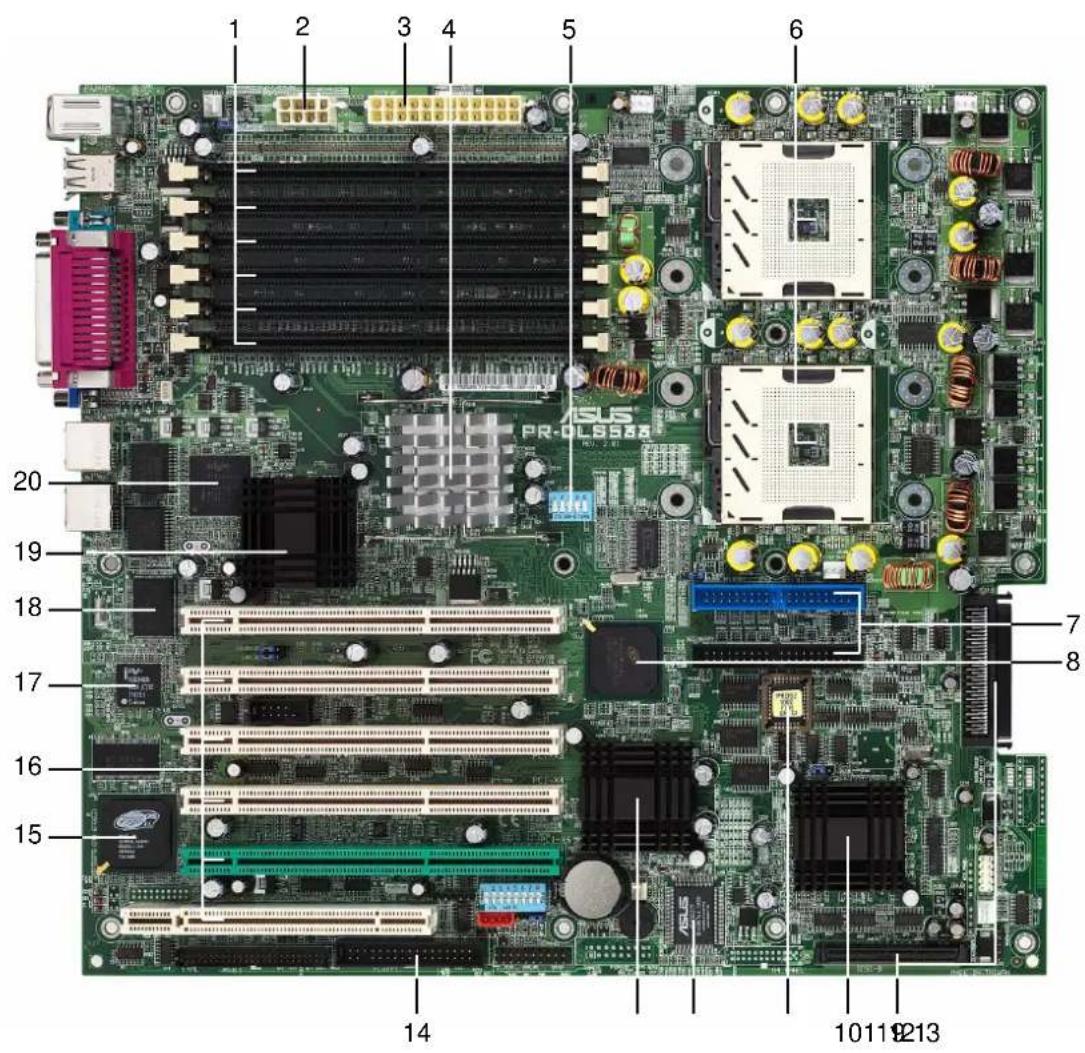
The following are the major components of the PR-DLS533 motherboard as pointed out in the picture on page 1-7.
- DDR DIMM sockets
- 8-pin 12V SSI power connector
- 24/20-pin ATX power connector
- ServerWorks ^® Grand Champion LE North Bridge (CMIC-LE)
- DIP switches
- 603/604-pin CPU sockets
- IDE connectors
- ServerWorks ^® Champion South Bridge (CSB5)
- Ultra320 SCSI connectors
- LSI ^® Ultra320 SCSI controller
- Flash ROM
- ASUS ASIC
- ServerWorks ^ 64-bit I/O Bridge (CIOB-X2)
- Floppy disk connector
-
ATI Rage-XL VGA controller
-
PCI-X slots (PCI-X1 to PCI-X5) PCI slot (PCI6)
- Intel ^ 82540EM 32-bit PCI Gigabit Ethernet controller (or Intel ^ 82551QM Fast Ethernet controller)
- LPC super I/O controller
- ServerWorks ^® 64-bit I/O Bridge (CIOB-X2)
- Intel ^® 82544GC 64-bit PCI-X Gigabit Ethernet controller
- PS/2 mouse port
- Parallel port
- RJ-45 ports
- VGA port
- Serial port
- USB ports 1 and 2
- Keyboard port

See page 1-8 for the specifications of each component. Refer to Chapter 2 for detailed information on the components.
text_image
1 2 3 4 5 6 20 19 18 17 16 15 14 1011 213 7 8
text_image
21 22 27 26 2325 241.4.2 Core specifications
1 DDR DIMM sockets. These six 184-pin DIMM sockets support up to 12GB system memory using registered ECC PC2100/1600 DDR DIMMs.
2 8-pin 12V SSI power connector. This power connector is for an ATX power supply.
3 24/20-pin ATX power connector. This power connector is for an ATX power supply.
4 ServerWorks® Grand Champion LE north bridge (CMIC-LE). The Champion Memory and I/O Controller LE (CMIC-LE) acts as the host bridge of the Grand Champion Low End (GCLE) SystemSet. The CMIC-LE device interfaces directly to the processor bus, and integrates the functions of the main memory controller and the Inter Module Bus (IMB) interface unit. The processor interface supports a 533/400MHz Front Side Bus (FSB) providing a 4.26GB/s or 3.2GB/s bandwidth, 2-way interleaved memory up to 12GB using registered ECC PC2100/1600 DDR DIMMs, and two high speed IMBs plus one thin IMB to connect to the south bridge CSB5.
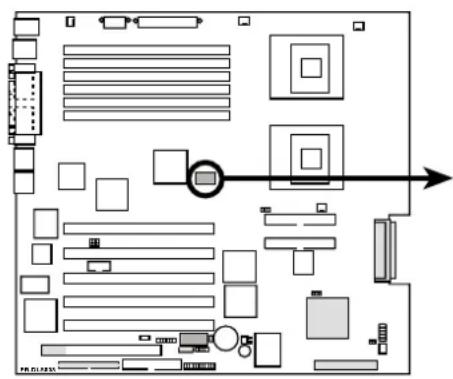
5 DIP switches. This 5-switch Dual Inline Package (DIP) allows you to set the CPU external frequency.
6 603/604-pin CPU sockets. Two 603/604-pin surface mount, Zero Insertion Force (ZIF) sockets for the Intel® Xeon™ processor with 512KB L2 cache and a 533/400 MHz system bus that allows up to 4.26GB/s or 3.2GB/s data transfer rate.
7 IDE connectors. These dual-channel bus master IDE connectors support up to four Ultra DMA/100/66, PIO Modes 3 & 4 IDE devices. Both the primary (blue) and secondary (black) connectors are slotted to prevent incorrect insertion of the IDE ribbon cable.
8 ServerWorks® Champion south bridge (CSB5). The Champion South Bridge (CSB5) primarily acts as a PCI to Low Pin Count (LPC) bridge, but also supports several integrated functions including dual-channel ATA/100 IDE controller, 4-port USB 1.1 interface, ACPI power management and detection, XIO-APIC, and legacy functions 8237DMA, 8259APIC, and 8254 timer.
9 Ultra320 SCSI connectors. These dual-channel 68-pin Ultra320 SCSI connectors support up to 30 SCSI devices, and data transfers of 320Mbps.
10 LSI® Ultra320 SCSI controller. The LSI 53C1030 SCSI controller supports up to 30 SCSI devices through the onboard dual-channel SCSI connectors.
11 Flash ROM. This 4Mb flash ROM contains the programmable BIOS program.
12 ASUS ASIC. This chip performs multiple system functions that include hardware and system voltage monitoring, among others.
13 ServerWorks® 64-bit I/O Bridge (CIOB-X2). The Champion I/O Bridge (CIOB-X2) provides a high performance data flow path between the IMB and the I/O subsystem, which supports multiple PCI-X interfaces that allows large, efficient, and flexible I/O configurations. The CIOB-X2 supports dual 64-bit PCI-X I/O buses that comply with PCI 2.2 specification. There are two CIOB-X2 on the motherboard.
14 Floppy disk connector. This connector accommodates the provided ribbon cable for the floppy disk drive. One side of the connector is slotted to prevent incorrect insertion of the floppy disk cable.
15 ATI Rage-XL VGA controller. This PCI-based VGA controller supports up to 8MB display SDRAM for 1280x1024 and true color resolutions.
16 PCI-X/PCI slots. Four 64-bit/133MHz and one 64-bit/100MHz PCI-X slots, and a 32-bit/33MHz PCI expansion slot support bus master PCI-X/PCI cards.
17 Intel® 82540EM 32-bit PCI Gigabit Ethernet controller. This LAN controller provides a 32-bit interface and supports 10/100/1000 Mbps data transfer rates.
-or-
Intel® 82551QM Fast Ethernet controller. This LAN controller fully supports 10BASE-T/100BASE-TX networking protocols. (optional)
18 LPC super I/O controller. This Low Pin Count (LPC) interface provides the commonly used Super I/O functionality. The chipset supports UART compatible serial ports, one parallel port with EPP and ECP capabilities, a floppy drive, and PS/2 keyboard and mouse.
19 ServerWorks® 64-bit I/O Bridge (CIOB-X2). (See description in item 13.)
20 Intel® 82544GC 64-bit PCI-X Gigabit Ethernet controller. This LAN controller is integrated Ethernet LAN component that supports 10/100/1000Mbps data rates. The 82544GC is optimized for LAN on Motherboard (LOM), enterprise networking, and Internet appliances that use a PCI or PCI-X bus. The controller provides a 32/64-bit 33/66MHz interface to the PCI bus that supports PCI Specification Rev. 2.2, and to the PCI-X extension to the PCI Local Bus Rev. 1.0a at clock rates of up to 133MHz.
21 PS/2 mouse port. This green 6-pin connector is for a PS/2 mouse.
22 Parallel port. This 25-pin port connects a parallel printer, a scanner, or other devices.
23 RJ-45 ports. These ports allows connection to a Local Area Network (LAN) through a network hub.
24 VGA port. This port is for a VGA-monitor or other VGA-compatible devices.
25 Serial port. This 9-pin COM1 port is for pointing devices or other serial devices.
26 USB 1.1 ports. These two 4-pin Universal Serial Bus (USB) ports are available for connecting USB devices.
27 PS/2 keyboard port. This purple 6-pin connector is for a PS/2 keyboard.
Chapter 2
text_image
This chapter describes the hardware setup procedures that you have to perform when installing system components. It includes details on the switches, jumpers, and connectors on the motherboard.This chapter describes the hardware setup procedures that you have to perform when installing system components. It includes details on the switches, jumpers, and connectors on the motherboard.
Hardware information
Chapter summary
2.1 Motherboard installation 2-1
2.2 Motherboard layout 2-2
2.3 Before you proceed 2-3
2.4 Central Processing Unit (CPU) 2-3
2.5 System memory 2-8
2.6 Expansion slots ......2-11
2.7 Switches and jumpers 2-14
2.8 Connectors 2-18
2.1 Motherboard installation
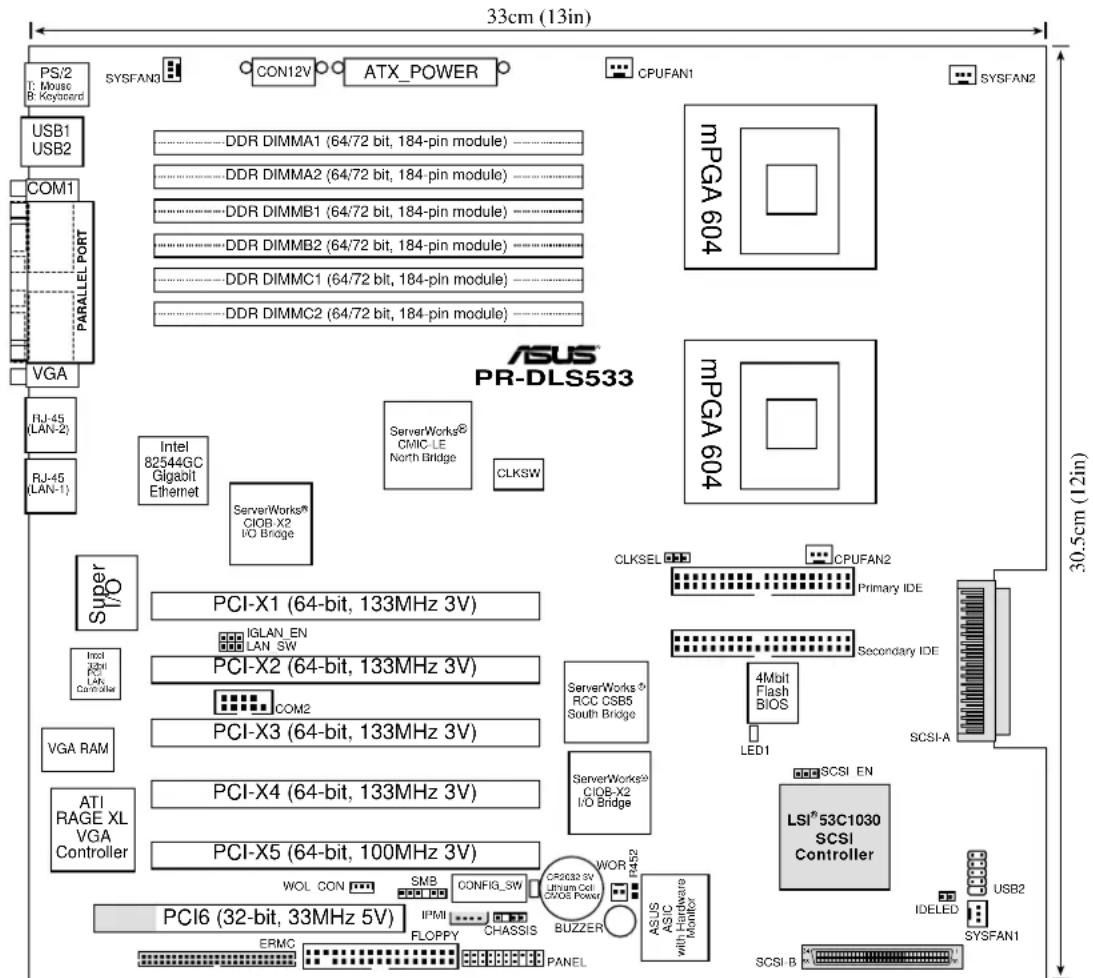
Before you install the motherboard, study the configuration of your chassis to ensure that the motherboard fits into it. The PR-DLS533 uses the extended ATX form factor that measures 12 inches x 13 inches (30.5 x 33 cm).

Make sure to unplug the power cord before installing or removing the motherboard. Failure to do so may cause you physical injury and damage motherboard components.
2.1.1 Placement direction
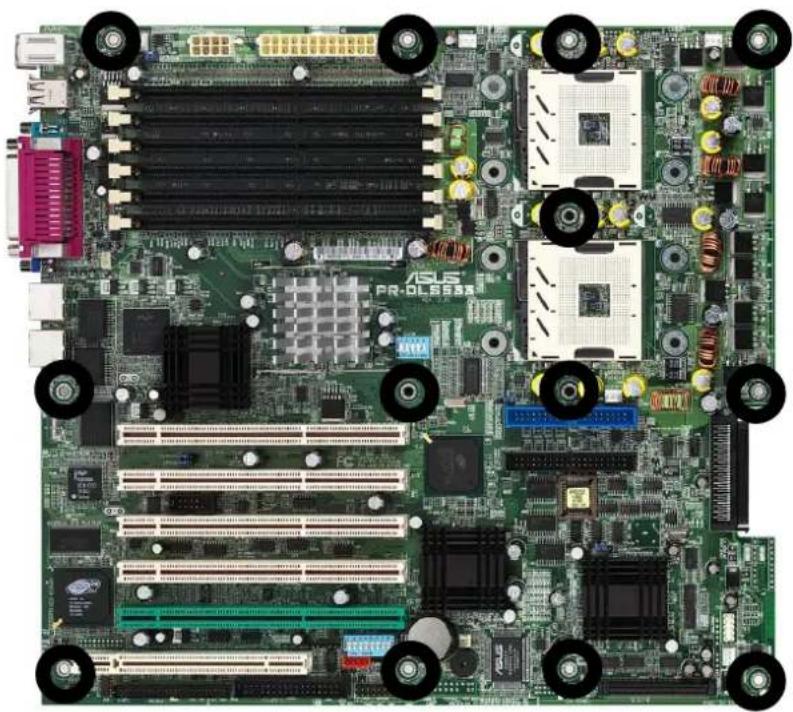
When installing the motherboard, make sure that you place it into the chassis in the correct orientation. The edge with external ports goes to the rear part of the chassis as indicated in the image below.
2.1.2 Screw holes
Place 11 screws into the holes indicated by circles to secure the motherboard to the chassis.

Do not overtighten the screws! Doing so may damage the motherboard.
Place this side towards the rear of the chassis
natural_image
Top-down view of a computer motherboard with visible CPU socket, RAM slots, and various electronic components (no readable text or symbols)2.2 Motherboard layout
text_image
33cm (13in) PS/2 T: Mouse B: Keysercd SYSFAN3 CON12V ATX_POWER CPUFAN1 SYSFAN2 USB1 USB2 COM1 PARALLEL PORT VGA RJ-45 (LAN-2) RJ-45 (LAN-1) DDR DIMMA1 (64/72 bit, 184-pin module) DDR DIMMA2 (64/72 bit, 184-pin module) DDR DIMMB1 (64/72 bit, 184-pin module) DDR DIMMB2 (64/72 bit, 184-pin module) DDR DIMMC1 (64/72 bit, 184-pin module) DDR DIMMC2 (64/72 bit, 184-pin module) ASUS PR-DLS533 mPGA 604 ServerWorks® CMIC LE North Bridge CLKSW CPUFAN2 mPGA 604 Super I/O PCI-X1 (64-bit, 133MHz 3V) IGLAN_EN LAN_SW PCI-X2 (64-bit, 133MHz 3V) COM2 PCI-X3 (64-bit, 133MHz 3V) PCI-X4 (64-bit, 133MHz 3V) PCI-X5 (64-bit, 100MHz 3V) WOL CON SMB CONFIG_SW CPG32 3V IPM/I CHASSIS BUZZER WOR R432 ASUS ASIC with Hardware Monitor RSI® 53C1030 SCSI Controller LSI® 53C1030 SCSI Controller IDELED SYSFAN1 USB22.3 Before you proceed
Take note of the following precautions before you install motherboard components or change any motherboard settings.

- Unplug the power cord from the wall socket before touching any component.
- Use a grounded wrist strap or touch a safely grounded object or to a metal object, such as the power supply case, before handling components to avoid damaging them due to static electricity.
- Hold components by the edges to avoid touching the ICs on them.
- Whenever you uninstall any component, place it on a grounded antistatic pad or in the bag that came with the component.
- Before you install or remove any component, ensure that the ATX power supply is switched off or the power cord is detached from the power supply. Failure to do so may cause severe damage to the motherboard, peripherals, and/or components.
2.4 Central Processing Unit (CPU)
2.4.1 Overview
The motherboard comes with dual surface mount 603/604-pin Zero Insertion Force (ZIF) sockets. The sockets are designed for the Intel Processor in the 603/604-pin package with 512KB L2 cache. The processor includes the Intel® NetBurst™ micro-architecture that features the hyper-pipelined technology, rapid execution engine, 533/400MHz system bus, and execution trace cache. Together, these attributes improve system performance by allowing higher core frequencies, faster execution of integer instructions, and data transfer rate of up to 4.27GB/s or 3.2GB/s.

text_image
PR-DLS533 Socket 604 Prestonia Gold Arrow →2.4.2 Installing the CPU
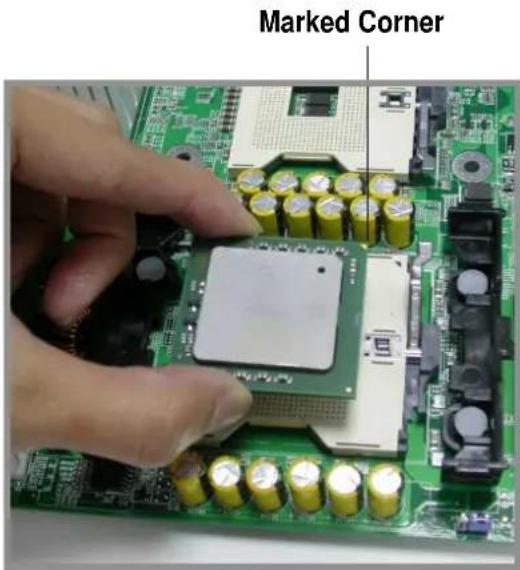
Note in the illustration that the CPU has a gold triangular mark on one corner. This mark indicates the processor Pin 1 that should match a specific corner of the CPU socket.

Incorrect installation of the CPU into the socket may bend the pins and severely damage the CPU!

text_image
CPU Socket 1 (outer socket) CPU Socket 2 (inner socket)
- The motherboard supports either one or two CPUs. If you are installing only one CPU, you MUST install it in CPU socket 1.
- If you are installing two CPUs, install in the CPU socket 2 first.
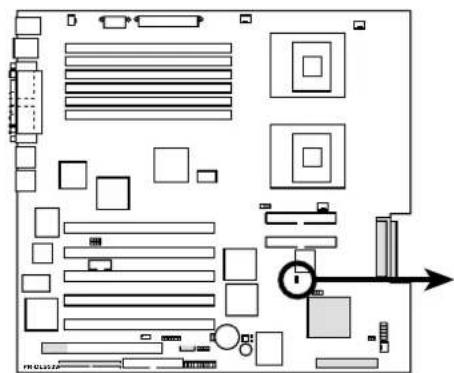
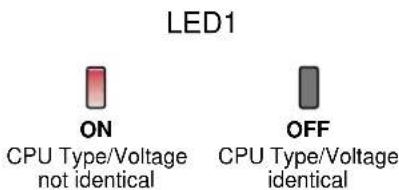
CPU onboard LED
This warning LED (LED1) lights up if you installed two CPUs of different type/voltage. You must install identical CPUs on this motherboard.
natural_image
Pure electrical circuit lines without any symbolsPR-DLS533 Onboard LED
text_image
LED1 ON CPU Type/Voltage not identical OFF CPU Type/Voltage identicalFollow these steps to install a CPU.
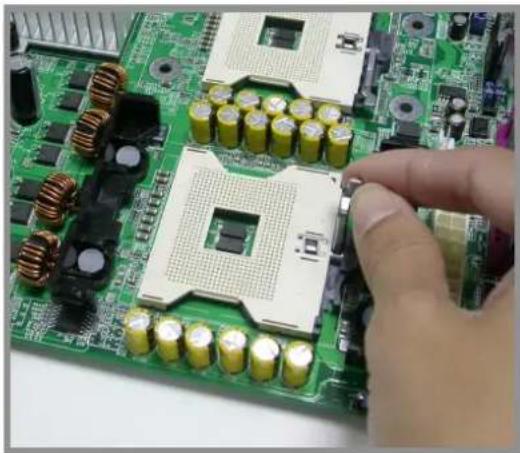
- Locate the 603/604-pin ZIF sockets on the motherboard. Unlock the socket by pressing the lever sideways, then lift it up to at least 115^ angle.

Make sure that the socket lever is lifted up to at least 115^ angle, otherwise the CPU does not fit in completely.
natural_image
Close-up of a green printed circuit board with electronic components and a finger adjusting a component (no visible text or symbols)- Position the CPU above the socket as shown.
- Carefully insert the CPU into the socket until it fits in place.

The CPU fits only in one correct orientation. DO NOT force the CPU into the socket to prevent bending the pins and damaging the CPU!
text_image
Marked Corner- When the CPU is in place, press it firmly on the socket while you push down the socket lever to secure the CPU. The lever clicks on the side tab to indicate that it is locked.
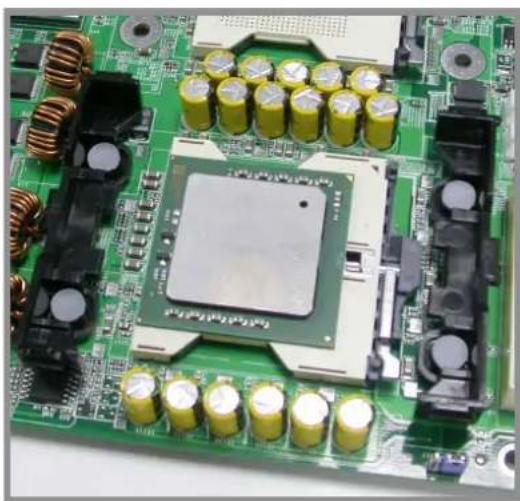
natural_image
Close-up of a green printed circuit board with integrated circuits and capacitors (no visible text or symbols)2.4.3 Installing the CPU heatsink and fan
The Intel ^® Xeon ^™ processors require specially designed heatsink and fan assembly to ensure optimum thermal condition and performance.
Follow these steps to install the CPU heatsink and fan.
- Place the heatsink and fan assembly on top of the installed CPU, making sure that it fits in place.
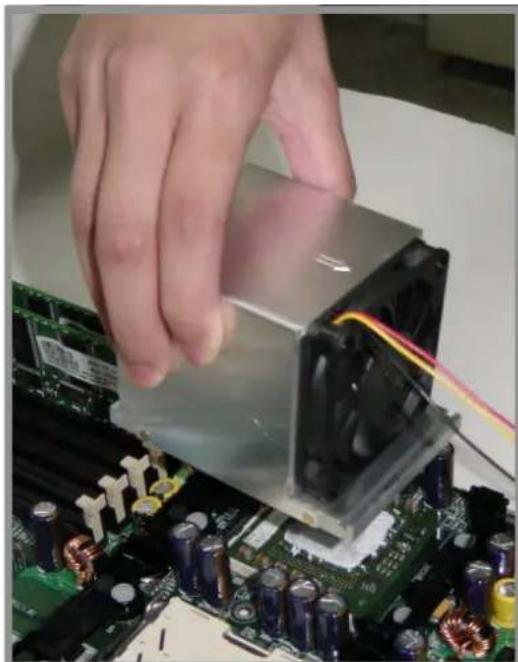
natural_image
Close-up of hands installing a computer motherboard with a cooling fan and power supply (no visible text or symbols)- Hook one end of the retention bracket into the protruding tab on the corner of the plastic retention base. (The retention base comes installed with the motherboard.)

natural_image
Close-up of an electronic circuit board with copper and gold inductors, circled for emphasis (no visible text or symbols)- Use a small flat screw driver to attach the other end of the bracket, while firmly holding down the heatsink and fan assembly. The middle hook of the bracket snaps in place if you properly attached the two ends.
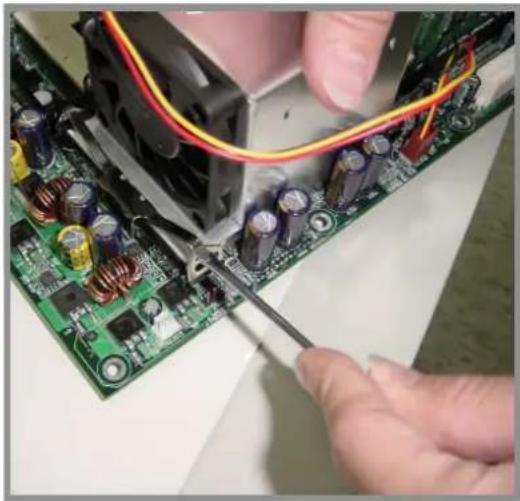
natural_image
Close-up of hands using a screwdriver to adjust or install electronic components on a green circuit board (no visible text or symbols)-
As shown, the middle hook of the bracket snaps in place if you properly attached the two ends.
-
Do steps 2 to 4 to install the other bracket.
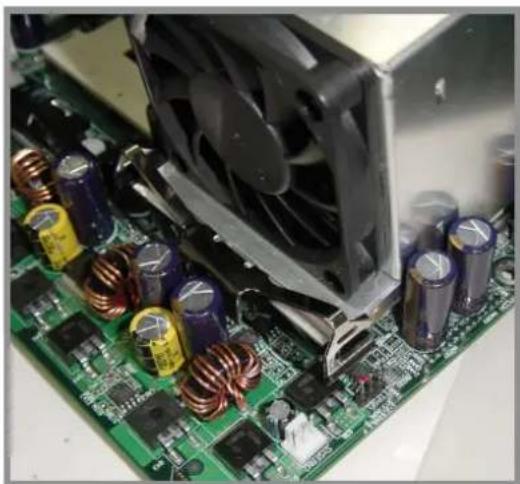
natural_image
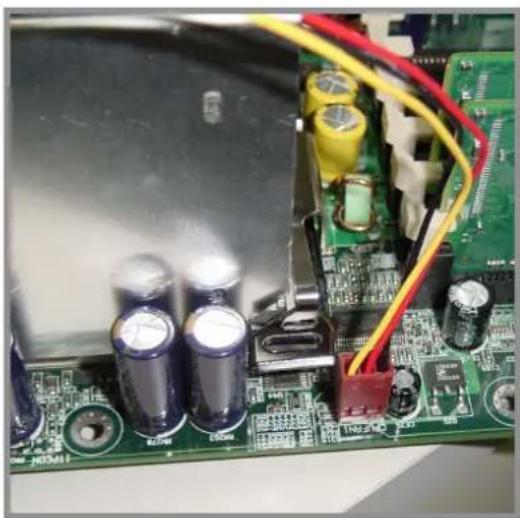
Close-up of a green printed circuit board with visible copper and gold components and a black CPU cooling unit (no text or symbols)- When the heatsink and fan assembly is in place, connect the fan cable to the fan connector on the motherboard labeled CPUFAN1 (for the CPU on socket 1) and CPUFAN2 (for the CPU on socket 2).
natural_image
Close-up of a green printed circuit board with capacitors, resistors, and electronic components (no visible text or symbols)
Don't forget to connect the CPU fan cable. Hardware monitoring problems may occur if you fail to plug the cable.
2.5 System memory
2.5.1 Overview
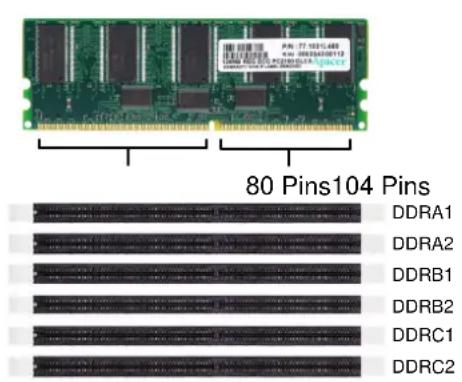
The motherboard comes with six Double Data Rate (DDR) Dual Inline Memory Module (DIMM) sockets. These sockets support up to 12GB system memory using 184-pin registered PC2100/1600 DIMMs with Serial Presence Detect (SPD) and Error Check and Correction (ECC).

flowchart
graph TD
    A["Room 1"] --> B["Room 2"]
    B --> C["Room 3"]
    C --> D["Room 4"]
    D --> E["Room 5"]
    E --> F["Room 6"]
    F --> G["Room 7"]
    G --> H["Room 8"]
    H --> I["Room 9"]
    I --> J["Room 10"]
    J --> K["Room 11"]
    K --> L["Room 12"]
    L --> M["Room 13"]
    M --> N["Room 14"]
    N --> O["Room 15"]
    O --> P["Room 16"]
    P --> Q["Room 17"]
    Q --> R["Room 18"]
    R --> S["Room 19"]
    S --> T["Room 20"]
    T --> U["Room 21"]
    U --> V["Room 22"]
    V --> W["Room 23"]
    W --> X["Room 24"]
    X --> Y["Room 25"]
    Y --> Z["Room 26"]
    Z --> AA["Room 27"]
    AA --> AB["Room 28"]
    AB --> AC["Room 29"]
    AC --> AD["Room 30"]
    AD --> AE["Room 31"]
    AE --> AF["Room 32"]
    AF --> AG["Room 33"]
    AG --> AH["Room 34"]
    AH --> AI["Room 35"]
    AI --> AJ["Room 36"]
    AJ --> AK["Room 37"]
    AK --> AL["Room 38"]
    AL --> AM["Room 39"]
    AM --> AN["Room 40"]
    AN --> AO["Room 41"]
    AO --> AP["Room 42"]
    AP --> AQ["Room 43"]
    AQ --> AR["Room 44"]
    AR --> AS["Room 45"]
    AS --> AT["Room 46"]
    AT --> AU["Room 47"]
    AU --> AV["Room 48"]
    AV --> AW["Room 49"]
    AW --> AX["Room 50"]
text_image
80 Pins104 Pins DDRA1 DDRA2 DDRB1 DDRB2 DDRC1 DDRC2PR-DLS533 184-Pin DDR DIMM Sockets

A DDR DIMM is keyed with a notch so that it fits in only one direction. DO NOT force a DIMM into a socket to avoid damaging the DIMM.
The DDR SDRAM technology evolved from the mainstream PC66, PC100, PC133 memory known as Single Data Rate (SDR) SDRAM. DDR memory however, has the ability to perform two data operations in one clock cycle, thus providing twice the throughput of SDR memory. For example, a 200MHz DDR DIMM will support a 100MHz memory bus, and a 266MHz DDR DIMM will support a 133MHz memory bus.
| DDR Data Transfer Rate DDR Base Frequency | |
| 266MHz 133MHz |  |
| 200MHz 100MHz |  |
A DDR DIMM has the same physical dimensions as an SDR DIMM, but it has a 184-pin footprint compared to the 168-pin of the SDR DIMM. Also, a DDR DIMM is single notched while an SDR DIMM is double notched. Therefore, a DDR DIMM is not backward compatible with SDR, and should be installed only in a socket specially designed for DDR DIMMs.
2.5.2 Memory Configurations
The motherboard supports system memory of up to 12GB in a two-way interleaved configuration. As a rule, this configuration requires that you install identical DDR DIMMs (exactly the same type and size) in pairs. For example, if you installed a 512MB module into DDRA1, you must install the same type of 512MB module into DDRA2. The same rule applies to pairs DDRB1/DDRB2 and DDRC1/DDRC2.
The only exception to the above rule allows you to install one DIMM into DDRA1 socket (the socket closest to the ATX power connector). Installing a single DIMM into any other socket would not work.
The following table lists the DIMM socket pairs and the memory modules that you can install.
Memory configuration table
| DIMM Socket 184-pin ECC DDR DIMM Total Memory |
| DDRA1 SDRAM 128MB, 256MB, 512MB, 1GB, 2GB x1 |
| DDRA2 SDRAM 128MB, 256MB, 512MB, 1GB, 2GB x1 |
| DDRB1 SDRAM 128MB, 256MB, 512MB, 1GB, 2GB x1 |
| DDRB2 SDRAM 128MB, 256MB, 512MB, 1GB, 2GB x1 |
| DDRC1 SDRAM 128MB, 256MB, 512MB, 1GB, 2GB x1 |
| DDRC2 SDRAM 128MB, 256MB, 512MB, 1GB, 2GB x1 |
| Total System Memory (Max. 12GB) = |

The system chipset only supports PC2100/1600 registered ECC DIMMs. Make sure to use only the specified DIMM types for stable system operation.
Memory frequency/CPU FSB synchronization
| CPU FSB DDR DIMM Type Memory Frequency |
| 533 MHz PC2100 266 MHz |
| 400 MHz PC1600 200 MHz |

Make sure that the memory frequency matches the CPU FSB (Front Side Bus).
2.5.3 Installing a DIMM

Make sure to unplug the power supply before adding or removing DIMMs or other system components. Failure to do so may cause severe damage to both the motherboard and the components.
Follow these steps to install a DIMM.
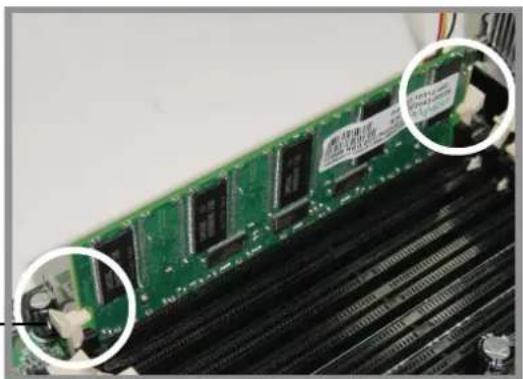
- Unlock a DIMM socket by pressing the retaining clips outward.
- Align a DIMM on the socket such that the notch on the DIMM matches the break on the socket.
Unlocked Retaining Clip

natural_image
Close-up of a green computer motherboard with visible slots and memory chips, no text or symbols present.- Firmly insert the DIMM into the socket until the retaining clips snap back in place and the DIMM is properly seated.
natural_image
Close-up of a green computer RAM module with visible slots and cooling fins, circled for inspection (no text or symbols)Locked Retaining Clip
2.5.4 Removing a DIMM
Follow these steps to remove a DIMM.
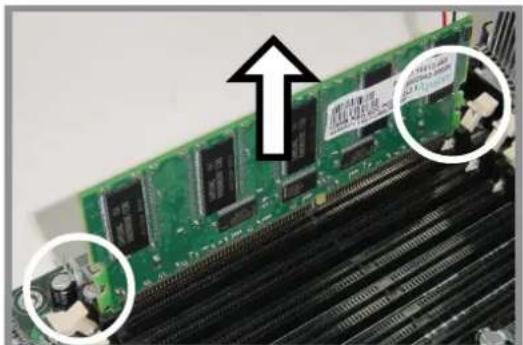
- Simultaneously press the retaining clips outward to unlock the DIMM.
- Remove the DIMM from the socket.

Support the DIMM lightly with your fingers when pressing the retaining clips. The DIMM might get damaged when it flips out with extra force.
natural_image
Close-up of a green computer motherboard with visible slots and heat sinks, no text or symbols present.2.6 Expansion slots
In the future, you may need to install expansion cards. The following subsections describe the slots and the expansion cards that they support.

Make sure to unplug the power cord before adding or removing expansion cards. Failure to do so may cause you physical injury and damage motherboard components.
2.6.1 Installing an expansion card
Follow these steps to install an expansion card.
- Before installing the expansion card, read the documentation that came with it and make the necessary hardware settings for the card.
- Remove the system unit cover (if your motherboard is already installed in a chassis).
- Remove the bracket opposite the slot that you intend to use. Keep the screw for later use.
- Align the card connector with the slot and press firmly until the card is completely seated on the slot.
- Secure the card to the chassis with the screw you removed earlier.
- Replace the system cover.
2.6.2 Configuring an expansion card
After installing the expansion card, configure the it by adjusting the software settings.
- Turn on the system and change the necessary BIOS settings, if any. See Chapter 4 for information on BIOS setup.
- Assign an IRQ to the card. Refer to the tables on the next page.
- Install the software drivers for the expansion card.
Standard Interrupt Assignments
IRQ Priority Standard Function
| 0 1 System Timer |
| 1 2 Keyboard Controller |
| 2 N/A Programmable Interrupt |
| 3* 11 Communications Port (COM2) |
| 4* 12 Communications Port (COM1) |
| 5* 13 Sound Card (sometimes LPT2) |
| 6 14 Floppy Disk Controller |
| 7* 15 Printer Port (LPT1) |
| 8 3 System CMOS/Real Time Clock |
| 9* 4 ACPI Mode when used |
| 10* 5 IRQ Holder for PCI Steering |
| 11* 6 IRQ Holder for PCI Steering |
| 12* 7 PS/2 Compatible Mouse Port |
| 13 8 Numeric Data Processor |
| 14* 9 Primary IDE Channel |
| 15* 10 Secondary IDE Channel |
* These IRQs are usually available for ISA or PCI devices.
IRQ assignments for this motherboard
| PCI INTA PCI INTB PCI INTC PCI INTD | |||||
| PCI slot 1 1 | 12 | 13 | 14 | ||
| PCI slot 2 4 | 15 | 16 | 17 | ||
| PCI slot 3 5 | 18 | 19 | 20 | ||
| PCI slot 4 8 | 21 | 22 | 23 | ||
| PCI slot 5 9 | 24 | 6 | 7 | ||
| PCI slot 6 | 10 | 27 | 28 | 29 | |
| Onboard 82551QM controller | 2 | — | — | — | |
| Onboard 82544GC controller | 3 | — | — | — | |
| Onboard SCSI controller | 6 | 7 | — | — | |
| Onboard VGA controller | 30 | — | — | — | |

When using PCI cards on shared slots, ensure that the drivers support "Share IRQ" or that the cards do not need IRQ assignments.
Otherwise, conflicts will arise between the two PCI groups, making the system unstable and the card inoperable.
2.6.3 PCI slots
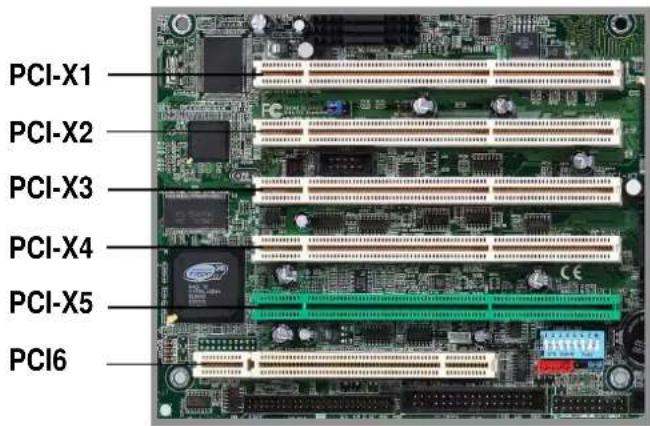
This motherboard implements the PCI-X (Peripheral Component Interconnect Extended) bus technology to support up to 133MHz data transfers, or about 1.06GB/s. This bus technology is primarily designed for servers to increase the performance of high bandwidth devices such as Gigabit Ethernet cards and Ultra320 SCSI interfaces. PCI-X is backward compatible with the earlier PCI bus technology making it possible to install PCI and PCI-X cards at the same time, but the bus speed will be that of the slowest card. The following figure shows the five PCI-X slots and one PCI slot on the motherboard.
text_image
PCI-X1 PCI-X2 PCI-X3 PCI-X4 PCI-X5 PCI6PCI-X slots (PCI X1 to X5)
The motherboard comes with the LSI® 53C1030 SCSI controller. The following table shows the varying bus speeds for the PCI-X slots according to the PCI-X specification 1.0a.
| PCI-X SlotOnboardSCSI | PCI-X1 PCI-X4 | PCI-X2 to* PCI-X5 | |
| 53C1030 64-bit/133MHz PCI-X 64-bit/66MHz PCI-X 64-bit/100MHz PCI-X64-bit/100MHz PCI-X64-bit/133MHz PCI-X | Hz PCI-X** | ||
* Plugging in a card into one of the slots allow for 133MHz bus speed. Plugging in two cards reduces the bus speeds to 100MHz for both cards. Plugging in three cards allows for 66MHz for all three cards.
** PCI-X5 supports the LSI MegaRAID 320-0 or Intel SRC ZCR (Zero Channel RAID) card.
PCI slot (PCI6)
PCI6 is a 32-bit/33MHz 5V PCI slot with a Low Pin Count (LPC) signal connector to accommodate the ASUS Server Management Card. This slot has the same specifications regardless of the onboard SCSI controller.
2.7 Switches and jumpers
2.7.1 Switches
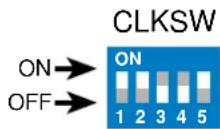
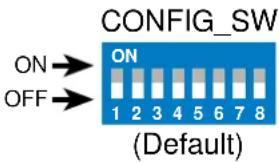
The following figure shows the location and default settings of the DIP switches on the motherboard.

Keep the default settings for stable system operation.

flowchart
graph TD
    A["CPU"] --> B["Memory"]
    B --> C["Desktop"]
    C --> D["Internal System"]
    D --> E["Computer"]
    style A fill:#f9f,stroke:#333
    style B fill:#ccf,stroke:#333
    style C fill:#cfc,stroke:#333
    style D fill:#fcc,stroke:#333
    style E fill:#ffc,stroke:#333
PR-DLS533 DIP Switches
text_image
CONFIG_SW ON → OFF → 1 2 3 4 5 6 7 8 (Default)1. CPU external frequency selection (CLKSW Switches 1-5)
This option tells the clock generator what frequency to send the CPU. This allows the selection of the CPU's external frequency (or Bus Clock). The BUS Clock multiplied by the Frequency Multiple equals the CPU's internal frequency (the advertised CPU speed).
flowchart
graph TD
    A["Room 1"] --> B["Room 2"]
    B --> C["Room 3"]
    C --> D["Room 4"]
    D --> E["Room 5"]
    E --> F["Room 6"]
    F --> G["Room 7"]
    G --> H["Room 8"]
    H --> I["Room 9"]
    I --> J["Room 10"]
    J --> K["Room 11"]
    K --> L["Room 12"]
    L --> M["Room 13"]
    M --> N["Room 14"]
    N --> O["Room 15"]
    O --> P["Room 16"]
    P --> Q["Room 17"]
    Q --> R["Room 18"]
    R --> S["Room 19"]
    S --> T["Room 20"]
    T --> U["Room 21"]
    U --> V["Room 22"]
    V --> W["Room 23"]
    W --> X["Room 24"]
    X --> Y["Room 25"]
    Y --> Z["Room 26"]
    Z --> AA["Room 27"]
    AA --> AB["Room 28"]
    AB --> AC["Room 29"]
    AC --> AD["Room 30"]
    AD --> AE["Room 31"]
    AE --> AF["Room 32"]
    AF --> AG["Room 33"]
    AG --> AH["Room 34"]
    AH --> AI["Room 35"]
    AI --> AJ["Room 36"]
    AJ --> AK["Room 37"]
    AK --> AL["Room 38"]
    AL --> AM["Room 39"]
    AM --> AN["Room 40"]
    AN --> AO["Room 41"]
    AO --> AP["Room 42"]
    AP --> AQ["Room 43"]
    AQ --> AR["Room 44"]
    AR --> AS["Room 45"]
    AS --> AT["Room 46"]
    AT --> AU["Room 47"]
    AU --> AV["Room 48"]
    AV --> AW["Room 49"]
    AW --> AX["Room 50"]
PR-DLS533 CPU External Frequency Selection
CLKSW

100MHz

101MHz

103MHz

105MHz

110MHz
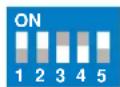
133MHz (Default)
2. CPU Core:Bus frequency multiple (CONFIG\_SW Switches 5-8)
This option sets the frequency multiple between the CPU internal and external frequencies. This must be set in conjunction with the CPU Bus Frequency.

natural_image
Pure schematic diagram of a computer monitor layout without any text, numbers, or symbolsPR-DLS533 CPU
Frequency Multiple Selection
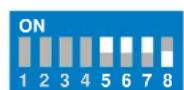
15.0x

17.0x
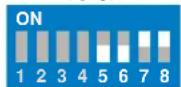
20.0x

21.0x
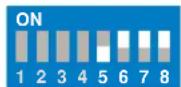
22.0x
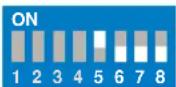
23.0x
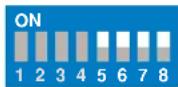
24.0x
2.7.2 Jumpers
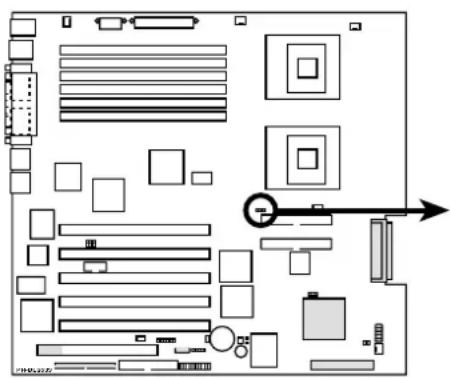
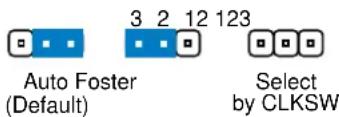
1. CPU clock setting (3-pin CLKSEL)
This jumper allows you to select the CPU frequency. Set to Auto (pins 1-2) to allow automatic frequency selection depending on the type of the installed CPU. Set to pins 2-3 if you installed a Foster 100MHz CPU. Remove the jumper cap to manually select the CPU frequency using the DIP switches.
natural_image
Floor plan layout with room layouts and a directional arrow indicating movement (no text or labels)PR-DLS533 CLK Setting
CLKSEL
text_image
Auto Foster (Default) 3 2 12 123 Select by CLKSW2. 32-bit PCI Ethernet controller setting (3-pin LAN\_SW)
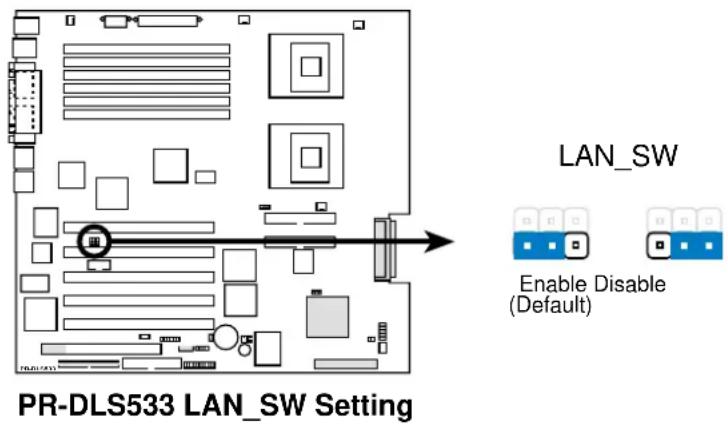
Set this jumper to pins 1-2 to enable the onboard Intel 82540EM 32-bit Gigabit Ethernet controller to support 10/100/1000 Mbps networking, or the Intel 82551QM Fast Ethernet controller to support 10BASE-T/100BASE-TX networking. Set to pins 2-3 to disable the controller.
text_image
PR-DLS533 LAN_SW Setting LAN_SW Enable Disable (Default)3. PCI-X Gigabit Ethernet setting (3-pin 1G LAN\_EN)
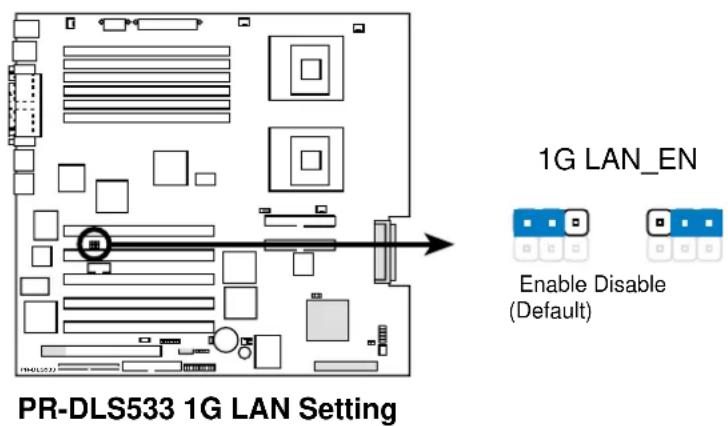
Set this jumper to pins 1-2 to enable the onboard Intel® 82544GC Gigabit Ethernet controller. This controller supports up to 1000MBps data rates, and is optimized for LAN On Motherboard (LOM) designs, enterprise networking, and devices that use PCI or PCI-X bus. Set to pins 2-3 to disable the controller.
text_image
PR-DLS533 1G LAN Setting 1G LAN_EN Enable Disable (Default)4. SCSI setting (2-pin SCSI\_EN)
This jumper allows you to enable or disable the onboard SCSI feature. Keep the jumper open if you wish to install SCSI devices. Place a cap on the jumper to disable the onboard SCSI controller.

text_image
PR-DLS533 SCSI Setting SCSI_EN Enable Disable (Default)5. Clear RTC RAM (R452)
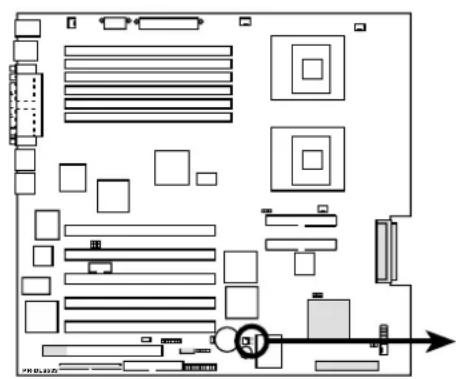
These solder pads allow you to clear the Real Time Clock (RTC) RAM in CMOS. You can clear the CMOS memory of date, time, and system setup parameters by erasing the CMOS RTC RAM data. The RAM data in CMOS, that include system setup information such as system passwords, is powered by the onboard button cell battery.
To erase the RTC RAM:
- Turn OFF the computer and unplug the power cord.
- Remove the battery.
- Short the solder pads for about 5 seconds.
- Re-install the battery.
- Plug the power cord and turn ON the computer.
- Hold down the
key during the boot process and enter BIOS setup to re-enter data.
natural_image
Floor plan layout with room layouts and directional arrows (no text or labels)PR-DLS533 Clear RTC RAM
Short solder points to Clear CMOS

text_image
CR2032 3V Lithium Cell CMOS Power R452 ASUS ASIC with Hardware Monitor2.8Connectors
This section describes and illustrates the internal connectors on the motherboard.

Always connect ribbon cables with the red stripe to Pin 1 on the connectors. Pin 1 is usually on the side closest to the power connector on hard drives and CD-ROM drives, but may be on the opposite side on floppy disk drives.
1. Floppy disk drive connector (34-1 pin FLOPPY)
This connector supports the provided floppy drive ribbon cable. After connecting one end to the motherboard, connect the other end to the floppy drive. (Pin 5 is removed to prevent incorrect insertion when using ribbon cables with pin 5 plug).

natural_image
Floor plan layout with room layouts and doorways (no text or labels)FLOPPY

PIN 1
NOTE: Orient the red markings on the floppy ribbon cable to PIN 1.
PR-DLS533 Floppy Disk Drive Connector
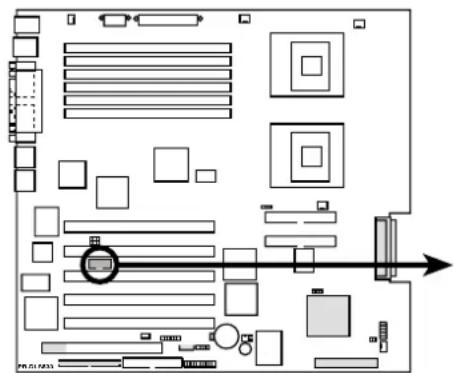
2. Serial port 2 connector (10-1 pin COM2)
This connector accommodates a second serial port using an optional serial port bracket. Connect the bracket cable to this connector then install the bracket into a slot opening at the back of the system chassis.
natural_image
Pure electrical circuit lines without any symbolsPR-DLS533 Serial COM2 Connector

text_image
PIN 13. IDE connectors (two 40-1 pin PRI\_IDE/SEC\_IDE)
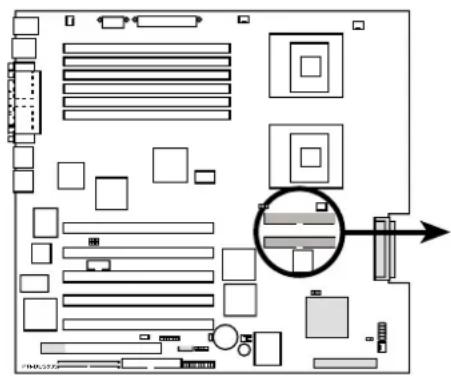
This connector supports the provided UltraDMA/100/66 IDE hard disk ribbon cable. Connect the cable's blue connector to the primary (recommended) or secondary IDE connector, then connect the gray connector to the UltraDMA/100/66 slave device (hard disk drive) and the black connector to the UltraDMA/100/66 master device. It is recommended that you connect non-UltraDMA/100/66 devices to the secondary IDE connector. If you install two hard disks, you must configure the second drive as a slave device by setting its jumper accordingly. Refer to the hard disk documentation for the jumper settings. BIOS supports specific device bootup. If you have more than two UltraDMA/100/66 devices, purchase another UltraDMA/100/66 cable. You may configure two hard disks to be both master devices with two ribbon cables – one for the primary IDE connector and another for the secondary IDE connector.

- Pin 20 on each IDE connector is removed to match the covered hole on the UltraDMA cable connector. This prevents incorrect orientation when you connect the cables.
- The hole near the blue connector on the UltraDMA/100/66 cable is intentional.
text_image
Diagram of a computer motherboard layout with labeled components and a magnified inset showing a highlighted section.PR-DLS533 IDE Connectors

text_image
Primary IDE Connector PIN 1 Secondary IDE Connector PIN 1NOTE: Orient the red markings (usually zigzag) on the IDE ribbon cable to PIN 1.

For UltraDMA/100/66 IDE devices, use an 80-conductor IDE cable. The UltraDMA/66 cable included in the motherboard package also supports UltraDMA/100.
4. Chassis alarm lead (4-1 pin CHASSIS)
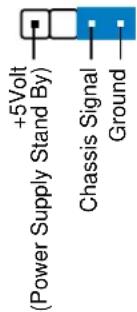
This lead is for a chassis designed with intrusion detection feature. This requires an external detection mechanism such as a chassis intrusion sensor or microswitch. When you remove any chassis component, the sensor triggers and sends a high-level signal to this lead to record a chassis intrusion event.
By default, the pins labeled “Chassis Signal” and “Ground” are shorted with a jumper cap. If you wish to use the chassis intrusion detection feature, remove the jumper cap from the pins.

natural_image
Floor plan layout with room layouts and furniture placement (no text or labels)PR-DLS533 Chassis Open Alarm Lead
CHASSIS
text_image
+5Volt (Power Supply Stand By) Chassis Signal Ground5. SMBus connector (6-1 pin SMB)
This connector allows you to connect SMBus (System Management Bus) devices. Devices communicate with an SMBus host and/or other SMBus devices using the SMBus interface. SMBus is a specific implementation of an I²C bus, a multi-device bus that allows multiple chips to connect to the same bus and enable each one to act as a master by initiating data transfer.

natural_image
Pure electrical circuit lines without any symbolsPR-DLS533 SMBus Connectors

text_image
SMB +3V SMBDATA Ground SMBCLK FLOATING 16. ATX power connectors (24/20-pin ATXPWR, 8-pin ATX12V)
These connectors connect to an ATX 12V power supply. The plugs from the power supply are designed to fit these connectors in only one orientation. Find the proper orientation and push down firmly until the connectors completely fit.
In addition to the 24/20-pin ATXPWR connector, this motherboard requires that you connect the 8-pin ATX +12V power plug to provide sufficient power to the CPU.

Make sure that your ATX 12V power supply can provide 8A on the +12V lead and at least 2A on the +5-volt standby lead (+5VSB). The minimum recommended wattage is 230W, or 300W for a fully configured system. The system may become unstable and may experience difficulty powering up if the power supply is inadequate.

text_image
24-pin Power Connector ATXPWR Ground +5 Volts +5 Volts +5 Volts -5 Volts Ground Ground Ground PSON# Ground -12 Volts +3 Volts +3 Volts +12 Volts +12 Volts Standby Power OK Ground +5 Volts Ground +5 Volts Ground +3 Volts For Power Supply with 20-pin Power Connector CON12V 4-pin GND GND GND GND 8-pin PR-DLS533 ATX Power Connector7. CPU, Chassis, and Power Fan Connectors (3-pin CPUFAN1, CPUFAN2, SYSFAN1, SYSFAN2, SYSFAN3)
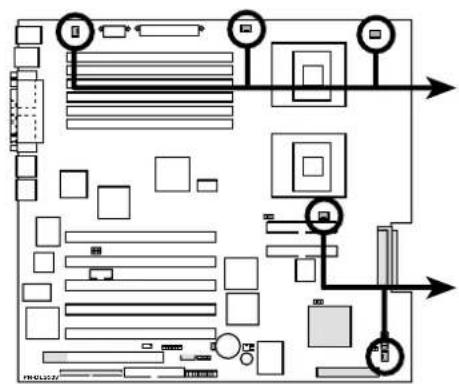
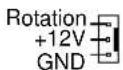
The fan connectors support cooling fans of 350mA\~740mA (8.88W max.) or a total of 1A\~2.22A (26.64W max.) at +12V. Connect the fan cables to the fan connectors on the motherboard, making sure that the black wire of each cable matches the ground pin of the connector.

Do not forget to connect the fan cables to the fan connectors. Lack of sufficient air flow within the system may damage the motherboard components. These are not jumpers! DO NOT place jumper caps on the fan connectors!
flowchart
graph TD
    A["Room 1"] --> B["Room 2"]
    B --> C["Room 3"]
    C --> D["Room 4"]
    D --> E["Room 5"]
    E --> F["Room 6"]
    F --> G["Room 7"]
    G --> H["Room 8"]
    H --> I["Room 9"]
    I --> J["Room 10"]
    J --> K["Room 11"]
    K --> L["Room 12"]
    L --> M["Room 13"]
    M --> N["Room 14"]
    N --> O["Room 15"]
    O --> P["Room 16"]
    P --> Q["Room 17"]
    Q --> R["Room 18"]
    R --> S["Room 19"]
    S --> T["Room 20"]
    T --> U["Room 21"]
    U --> V["Room 22"]
    V --> W["Room 23"]
    W --> X["Room 24"]
    X --> Y["Room 25"]
    Y --> Z["Room 26"]
SYSFAN3
CPUFAN1 SYSFAN2
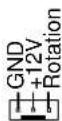
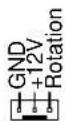
CPUFAN2

SYSFAN1

PR-DLS533 12-Volt Cooling Fan Power
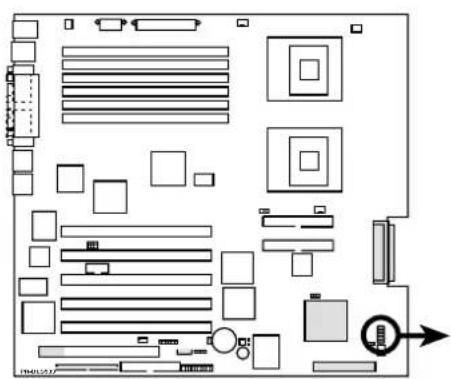
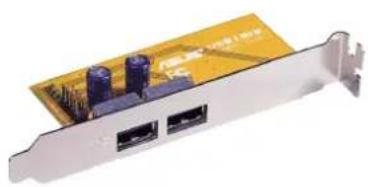
8. USB header (10-1 pin USB2)
If the USB ports on the rear panel are inadequate, a USB header is available for additional USB ports. The USB header complies with USB 1.1 specification that supports up to 12 Mbps connection speed.
natural_image
Pure electrical circuit lines without any symbolsPR-DLS533 USB Header
natural_image
Close-up of a gold-colored electronic circuit board with capacitors and ports (no visible text or symbols)USB2
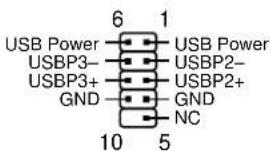
text_image
USB Power USBP3- USBP3+ GND 6 1 USB Power USBP2- USBP2+ GND NC 10 59. Zero Channel RAID slot (PCI-X5)
The 64-bit/100MHz PCI-X slot (colored green) supports the LSI MegaRAID 320-0 or the Intel SRC ZCR (Zero-Channel RAID) card to provide advanced RAID functionality. The card supports RAID levels 0, 1, 5, multilevel 0/1 and 0/5, cache memory modules with ECC, and predictive caching capability.

text_image
LSI MegaRAID 320-0 Zero Channel RAID CardPR-DLS533 Zero Channel RAID Slot
10. Server management card connector (50-pin eRMC)
This connector allows you to connect the optional ASMC-LE or ASMC-HE card using an ASMC interface cable. Install the ASMC card into the PCI6 slot and connect the cable from the card to this connector. The PCI6 slot on the motherboard has a Low Pin Count (LPC) signal connector to accommodate the ASMC card.
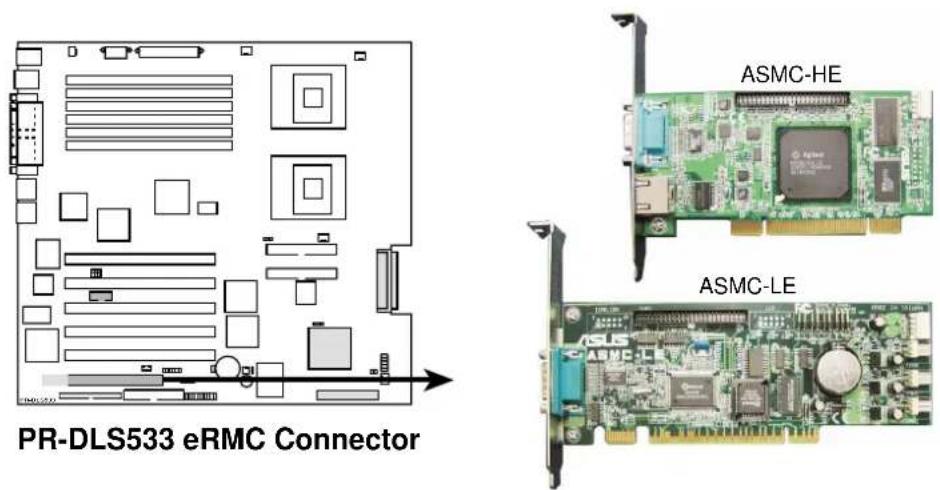
text_image
PR-DLS533 eRMC Connector ASMC-HE ASMC-LE11. IPMI connector (4-pin IPMI)
The Intelligent Platform Management Interface (IPMI) connector is for the ASMC card. Connect the 4-pin ASMC interface cable to this connector.

text_image
PR-DLS533 IPMI Connector IPMIDATA GND IPMICLK NC12. Wake-On-LAN Connector (3-pin WOL\_CON)
This connector supports a LAN card with a Wake-On-LAN output. The connector powers up the system when a wakeup packet or signal is received through the LAN card.
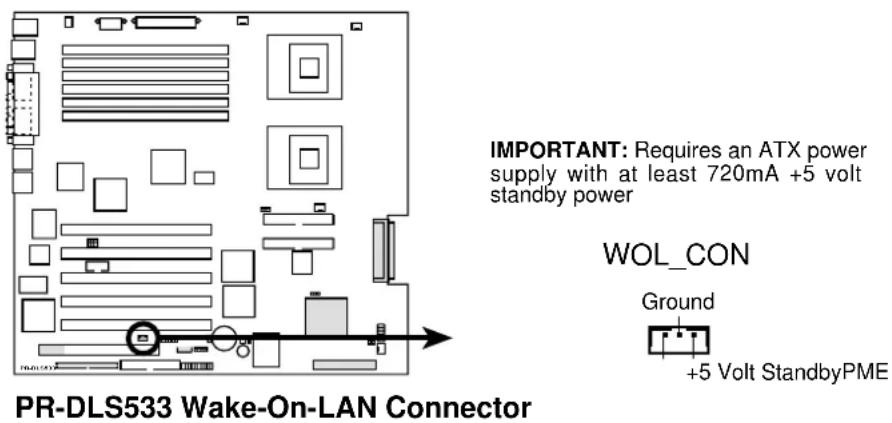
text_image
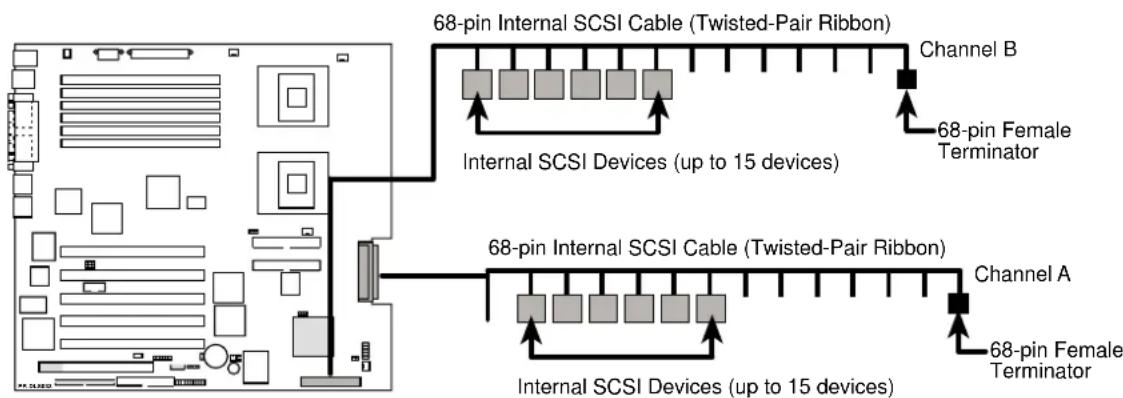
IMPORTANT: Requires an ATX power supply with at least 720mA +5 volt standby power WOL_CON Ground +5 Volt StandbyPME PR-DLS533 Wake-On-LAN Connector13. Two 68-pin Ultra320 SCSI Connectors (SCSI-A, SCSI-B)
This motherboard has two 68-Pin Ultra320 SCSI connectors; one for each of the two channels. Each channel can support a maximum of 15 devices as specified by Ultra320 standards.
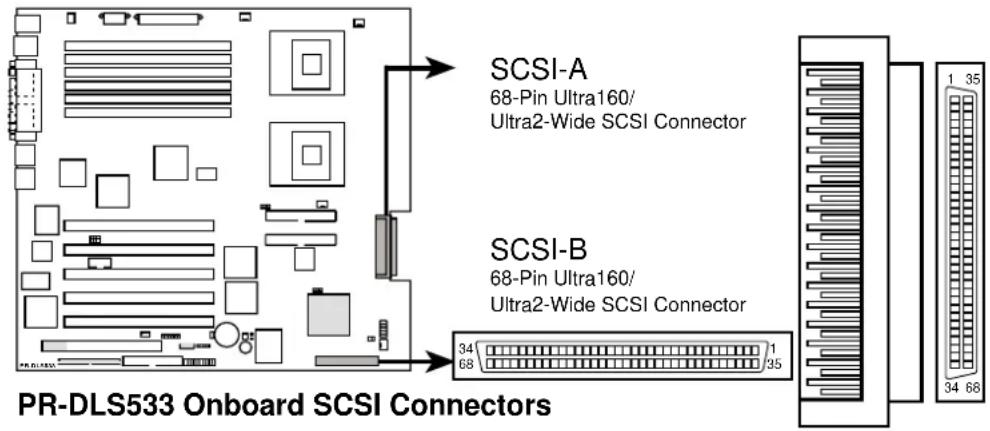
text_image
SCSI-A 68-Pin Ultra160/ Ultra2-Wide SCSI Connector SCSI-B 68-Pin Ultra160/ Ultra2-Wide SCSI Connector 34 1 68 35 PR-DLS533 Onboard SCSI ConnectorsSCSI Connection Notes
This motherboard has two 68-Pin Ultra320 SCSI connectors; one for each of the two channels.
The onboard SCSI chipset incorporates an advanced multimode I/O cell that supports both single-ended (SE), Ultra2, Ultra160, and Ultra320 devices. With Ultra320 devices, the SCSI bus platform performs at full Ultra320 speeds (up to 320MB/s) and extended cabling 12m (or 25m in a point-to-point configuration). When an SE device is attached, the bus defaults to an SE speed and 1.5m cable length.

Connect SCSI devices as shown. Each channel should have only one type of SCSI standard (e.g. Ultra320, Ultra160, Ultra2, Ultra-Wide). Mixing SCSI devices on the same channel decreases performance of the slower device.
flowchart
graph TD
    A["Internal SCSI Devices (up to 15 devices)"] --> B["68-pin Internal SCSI Cable (Twisted-Pair Ribbon)"]
    B --> C["Channel B"]
    B --> D["68-pin Female Terminator"]
    A --> E["68-pin Internal SCSI Cable (Twisted-Pair Ribbon)"]
    E --> F["Channel A"]
    E --> G["68-pin Female Terminator"]
    style A fill:#f9f,stroke:#333
    style B fill:#ccf,stroke:#333
    style C fill:#cfc,stroke:#333
    style D fill:#fcc,stroke:#333
    style E fill:#cff,stroke:#333
    style F fill:#ffc,stroke:#333
    style G fill:#fcc,stroke:#333
PR-DLS533 SCSI Connection Example
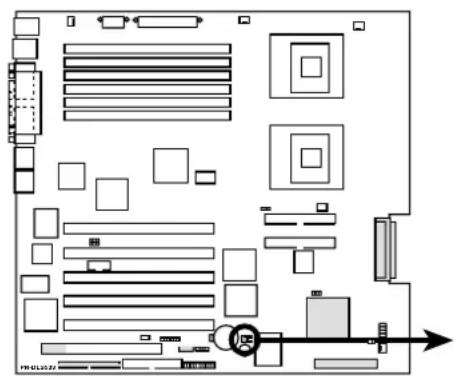
14. Wake-On-Ring Connector (2-pin WOR)
This connector connects to internal modem cards with a Wake-On-Ring output. The connector powers up the system when a ringup packet or signal is received through the internal modem card.

For external modems, Wake-On-Ring is detected through the COM port.
text_image
Floor plan diagram with room labels and directional arrow, showing layout of furniture and fixtures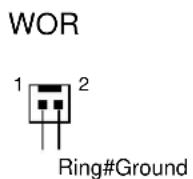
PR-DLS533 Wake-On-Ring Connector
15. Hard disk activity LED (2-pin IDELED)
This connector supplies power to the hard disk activity LED. The read or write activities of any device connected to the primary or secondary IDE connector cause this LED to light up.

natural_image
Pure electrical circuit lines without any symbolsPR-DLS533 IDE Activity LED
IDELED

TIP: If the case-mounted LED does not light, try reversing the 2-pin plug.
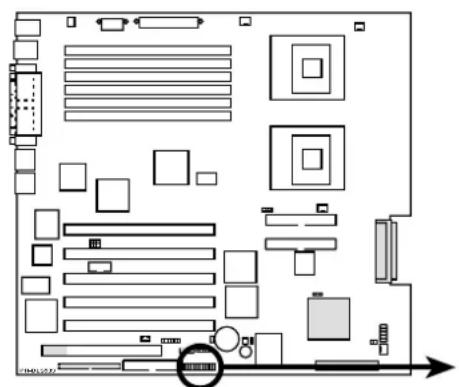
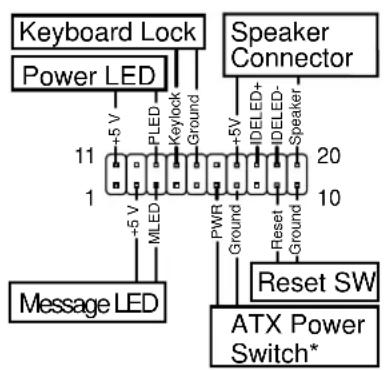
16. System panel connector (20-pin PANEL)
This connector accommodates several system front panel functions.
natural_image
Pure electrical circuit lines without any symbolsPR-DLS533 System Panel Connectors
flowchart
graph TD
    A["Keyboard Lock"] --> B["Power LED"]
    B --> C["11"]
    C --> D["+5V PLED"]
    D --> E["Keylock Ground"]
    E --> F["1"]
    F --> G["Message LED"]
    H["Speaker Connector"] --> I["20"]
    I --> J["+5V PLED"]
    J --> K["IDELED+"]
    K --> L["+5V PLED"]
    L --> M["IDELED-"]
    M --> N["+5V PLED"]
    N --> O["Ground"]
    O --> P["Reset SW"]
    P --> Q["ATX Power Switch*"]
- System Power LED Lead (3-1 pin PLED)
This 3-1 pin connector connects to the system power LED. The LED lights up when you turn on the system power, and blinks when the system is in sleep mode.
- System Message LED Lead (2-pin MLED)
This 2-pin connector is for the system message LED that indicates receipt of messages from a fax/modem. The normal status for this LED is OFF, when there is no incoming data signal. The LED blinks when data is received. The system message LED feature requires an ACPI OS and driver support.
- System Warning Speaker Lead (4-pin SPEAKER)
This 4-pin connector is for a chassis-mounted speaker.
- ATX Power Switch / Soft-Off Switch Lead (2-pin PWR)
This connector connects a switch that controls the system power. Pressing the power switch turns the system between ON and SLEEP, or ON and SOFT OFF, depending on the BIOS or OS settings. Pressing the power switch while in the ON mode for more than 4 seconds turns the system OFF.
- Reset Switch Lead (2-pin RESET)
This 2-pin connector connects to the case-mounted reset switch for rebooting the system without turning off the system power.
• Keylock Lead (2-pin KEYLOCK)
This lead connects to a chassis-mounted switch to allow use of the keyboard lock feature.
Chapter 3

text_image
This chapter describes the power up sequence and gives information on the BIOS beep codes.Powering up
Chapter summary
3.1 Starting up for the first time.... 3-1
3.2 Powering off the computer 3-2
3.1 Starting up for the first time
- After making all the connections, replace the system case cover.
- Be sure that all switches are off.
- Connect the power cord to the power connector at the back of the system chassis.
- Connect the power cord to a power outlet that is equipped with a surge protector.
- Turn on the devices in the following order:
a. Monitor
b. External SCSI devices (starting with the last device on the chain)
c. System power (if you are using an ATX power supply, you need to switch on the power supply as well as press the ATX power switch on the front of the chassis).
- After applying power, the power LED on the system front panel case lights up. For ATX power supplies, the system LED lights up when you press the ATX power switch. If your monitor complies with “green” standards or if it has a “power standby” feature, the monitor LED may light up or switch between orange and green after the system LED turns on. The system then runs the power-on tests. While the tests are running, the BIOS beeps or additional messages appear on the screen. If you do not see anything within 30 seconds from the time you turned on the power, the system may have failed a power-on test. Check the jumper settings and connections or call your retailer for assistance.
Award BIOS Beep Codes
| Beep Meaning |
| One short beep when No error during POST displaying logo |
| Long beeps in an endless loop No DRAM installed or detected |
| One long beep followed by Video card not found or video card three short beeps memory bad |
| High frequency beeps when CPU overheated; system is working System running at a lower frequency |
- At power on, hold down
to enter BIOS Setup. Follow the instructions in Chapter 4.
3.2 Powering off the computer
You must first exit the operating system and shut down the system before switching off the power. For ATX power supplies, you can press the ATX power switch after exiting or shutting down the operating system. If you use Windows 95/98/2000/XP, click the Start button, click Shut Down, then click the OK button to shut down the computer. The power supply should turn off after Windows shuts down.

The message “You can now safely turn off your computer” does not appear when shutting down with ATX power supplies.
Chapter 4
text_image
This chapter tells how to change system settings through the BIOS Setup menus. Detailed descriptions of the BIOS parameters are also provided.This chapter tells how to change system settings through the BIOS Setup menus. Detailed descriptions of the BIOS parameters are also provided.
BIOS setup
Chapter summary
4.1 Managing and updating your BIOS .... 4-1
4.2 BIOS Setup program.... 4-5
4.3 Main Menu 4-8
4.4 Advanced Menu 4-15
4.5 Power Menu 4-22
4.6 Boot Menu 4-27
4.7 Server Menu 4-30
4.8 Exit Menu 4-31
4.1 Managing and updating your BIOS
4.1.1 Creating a bootable disk
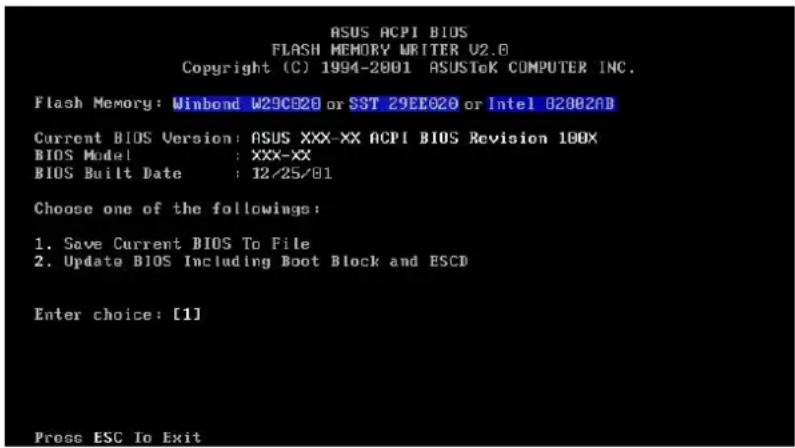
AFLASH.EXE is a Flash Memory Writer utility that updates the BIOS by uploading a new BIOS file to the programmable flash ROM on the motherboard. This file works only in DOS mode. To determine the BIOS version of your motherboard, check the last four numbers of the code displayed on the upper left-hand corner of your screen during bootup. Larger numbers represent a newer BIOS file.
- Type FORMAT A:/S at the DOS prompt to create a bootable system disk. DO NOT copy AUTOEXEC.BAT and CONFIG.SYS to the disk.
- Type COPY D:\AFLASH\AFLASH.EXE A:\ (assuming D is your CD-ROM drive) to copy AFLASH.EXE to the boot disk you created.

AFLASH works only in DOS mode. It does not work in the DOS prompt within Windows, and does not work with certain memory drivers that may be loaded when you boot from the hard drive. It is recommended that you reboot using a floppy disk.
- Reboot the computer from the floppy disk.

BIOS setup must specify "Floppy" as the first item in the boot sequence.
- In DOS mode, type A:\AFLASH
to run AFLASH.
text_image
ASUS ACPI BIOS FLASH MEMORY WRITER U2.0 Copyright (C) 1994-2001 ASUSTeK COMPUTER INC. Flash Memory: Winbond W29C020 or SST 29E020 or Intel 020020D Current BIOS Version: ASUS XXX-XX ACPI BIOS Revision 100X BIOS Model : XXX-XX BIOS Built Date : 12/25/01 Choose one of the followings: 1. Save Current BIOS To File 2. Update BIOS Including Boot Block and ESCD Enter choice: [1] Press ESC To Exit
If the word “unknown” appears after Flash Memory:, the memory chip is either not programmable or is not supported by the ACPI BIOS and therefore, cannot be programmed by the Flash Memory Writer utility.
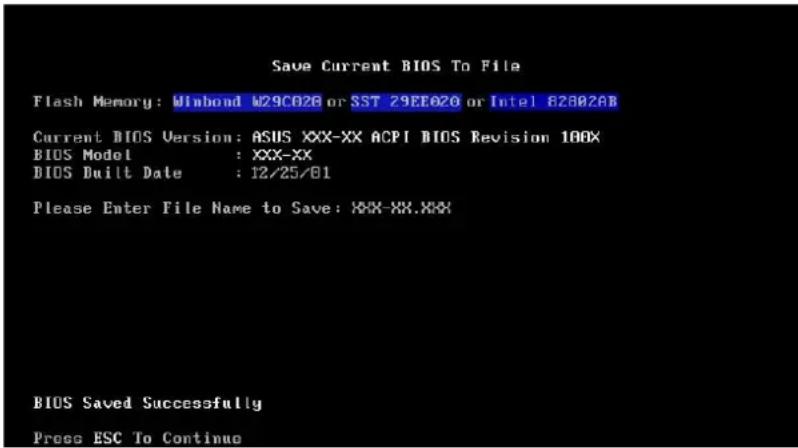
- Select 1. Save Current BIOS to File from the Main menu and press
. The Save Current BIOS To File screen appears.
text_image
Save Current BIOS To File Flash Memory: Winbond W29C026 or SST 29EE026 or Intel 82802AB Current BIOS Version: ASUS XXX-XX ACPI BIOS Revision 100X BIOS Model : XXX-XX BIOS Built Date : 12/25/01 Please Enter File Name to Save: XXX-XX.XXX BIOS Saved Successfully Press ESC To Continue- Type a filename and the path, for example, A:\XXX-XX.XXX, then press
.
4.1.2 Updating the BIOS

Update the BIOS only if you have problems with the motherboard and you are sure that the new BIOS revision will solve your problems. Careless updating may result to more problems with the motherboard!
- Download an updated ASUS BIOS file from the Internet (WWW or FTP) (see ASUS CONTACT INFORMATION on page x for details) and save to the boot floppy disk you created earlier.
- Boot from the floppy disk.
- At the "A:\" prompt, type AFLASH and then press
. - At the Main Menu, type 2 then press
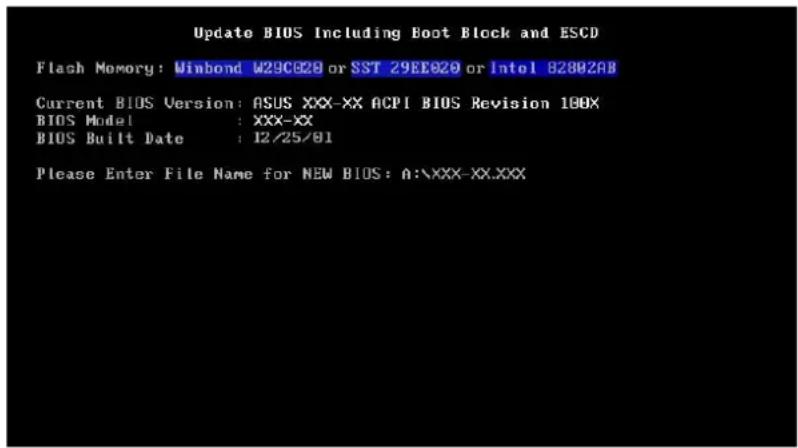
. The Update BIOS Including Boot Block and ESCD screen appears. - Type the filename of your new BIOS and the path, for example, A:\XXX-XX.XXX, then press
.
To cancel this operation, press.
text_image
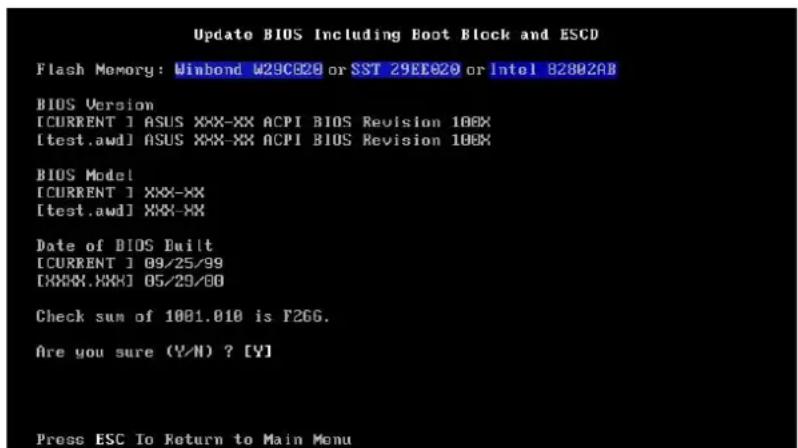
Update BIOS Including Boot Block and ESCD Flash Memory: Winbond W29C020 or SST 29E020 or Intel 82002AB Current BIOS Version: ASUS XXX-XX ACPI BIOS Revision 100X BIOS Model : XXX-XX BIOS Built Date : 12/25/01 Please Enter File Name for NEW BIOS: A:\XXX-XX.XXX- When prompted to confirm the BIOS update, press Y to start the update.
text_image
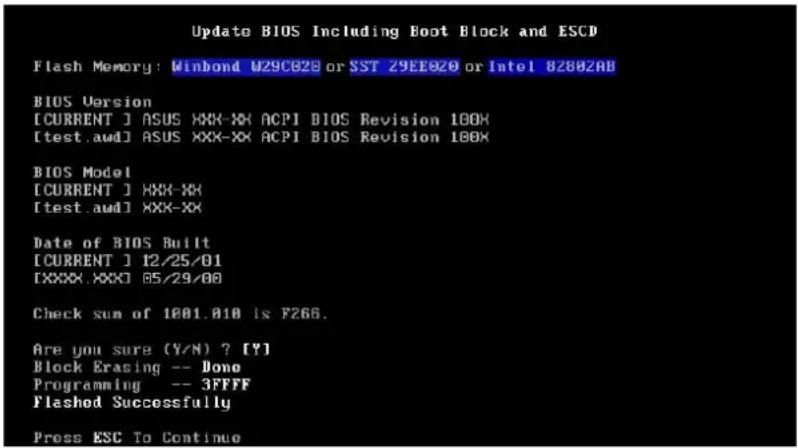
Update BIOS Including Boot Block and ESCD Flash Memory: Winbond W29C020 or SST 29E1020 or Intel 82802AB BIOS Version [CURRENT ] ASUS XXX-XX ACPI BIOS Revision 100X [test.awd] ASUS XXX-XX ACPI BIOS Revision 100X BIOS Model [CURRENT ] XXX-XX [test.awd] XXX-XX Date of BIOS Built [CURRENT ] 09/25/99 [XXXX.XXX] 05/29/00 Check sum of 1001.010 is F26G. Are you sure (Y/N) ? [Y] Press ESC To Return to Main Menu- The utility starts to program the new BIOS information into the Flash ROM. The boot block is updated automatically only when necessary. This minimizes the possibility of boot problems in case of update failures. When the programming is done, the message “Flashed Successfully” appears.
text_image
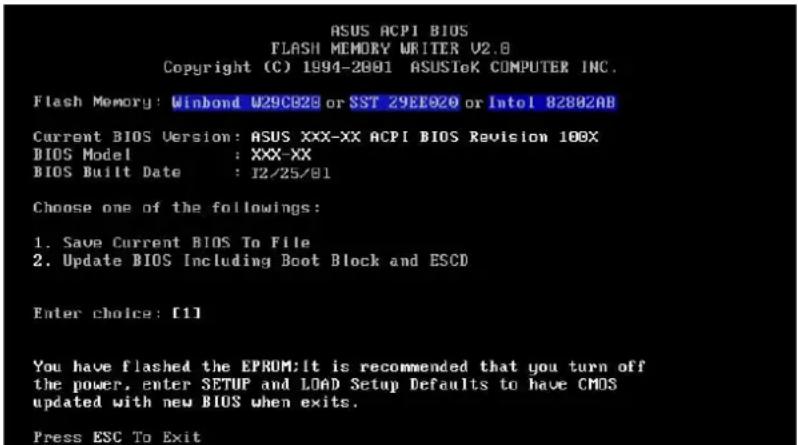
Update BIOS Including Boot Block and ESCD Flash Memory: Winbond 029C020 or SST 29EE020 or Intel 8280ZAB BIOS Version [CURRENT ] ASUS XXX-XX ACPI BIOS Revision 100X [test.awd] ASUS XXX-XX ACPI BIOS Revision 100X BIOS Model [CURRENT ] XXX-XX [test.awd] XXX-XX Date of BIOS Built [CURRENT ] 12/25/01 [XXXX.XXX] 05/29/00 Check sum of 1001.010 is F266. Are you sure (Y/N) ? [Y] Block Erasing -- Done Programming -- 3FFFF Flashed Successfully Press ESC To Continue- Follow the onscreen instructions to continue.
text_image
ASUS ACPI BIOS FLASH MEMORY WRITER V2.0 Copyright (C) 1994-2001 ASUSTeK COMPUTER INC. Flash Memory: Winbond W29C020 or SST 29EE020 or Intel 82802AB Current BIOS Version: ASUS XXX-XX ACPI BIOS Revision 100X BIOS Model : XXX-XX BIOS Built Date : I2/25/01 Choose one of the followings: 1. Save Current BIOS To File 2. Update BIOS Including Boot Block and ESCD Enter choice: [1] You have flashed the EPROM: It is recommended that you turn off the power, enter SETUP and LOAD Setup Defaults to have CMOS updated with new BIOS when exits. Press ESC To Exit
If you encounter problems while updating the new BIOS, DO NOT turn off the system because this may cause boot problems. Just repeat the process, and if the problem persists, load the original BIOS file you saved to the boot disk. If the Flash Memory Writer utility is not able to successfully update a complete BIOS file, the system may not boot. If this happens, call the ASUS service center for support.
4.2 BIOS Setup program
This motherboard supports a programmable Flash ROM that you can update using the provided utility described in section "4.1 Managing and updating your BIOS."
Use the BIOS Setup program when you are installing a motherboard, reconfiguring your system, or prompted to "Run Setup". This section explains how to configure your system using this utility.
Even if you are not prompted to use the Setup program, you may want to change the configuration of your computer in the future. For example, you may want to enable the security password feature or make changes to the power management settings. This requires you to reconfigure your system using the BIOS Setup program so that the computer can recognize these changes and record them in the CMOS RAM of the Flash ROM.
The Flash ROM on the motherboard stores the Setup utility. When you start up the computer, the system provides you with the opportunity to run this program. Press
If you wish to enter Setup after POST, restart the system by pressing
The Setup program is designed to make it as easy to use as possible. It is a menu-driven program, which means you can scroll through the various sub-menus and make your selections among the predetermined choices.

Because the BIOS software is constantly being updated, the following BIOS setup screens and descriptions are for reference purposes only, and may not exactly match what you see on your screen.
4.2.1 BIOS menu bar
The top of the screen has a menu bar with the following selections:
MAIN Use this menu to make changes to the basic system configuration.
ADVANCED Use this menu to enable and make changes to the advanced features.
POWER Use this menu to configure power management features.
BOOT Use this menu to configure the default system device used to locate and load the Operating System.
SERVER Use this menu to set server-related items
EXIT Use this menu to exit the current menu or to exit the Setup program.
To access the menu bar items, press the right or left arrow key on the keyboard until the desired item is highlighted.
4.2.2 Legend bar
At the bottom of the Setup screen is a legend bar. The keys in the legend bar allow you to navigate through the various setup menus. The following table lists the keys found in the legend bar with their corresponding functions.
Navigation Key(s) Function Description
| orDisplays the General Help screen from any-where in the BIOS Setup | |
| Jumps to the Exit menu or returns to the main menu from a sub-menu | |
| Left or Right arrow Selects the menu item to the left or right | |
| Up or Down arrow Moves the highlight up or down between fields | |
| - (minus key) Scrolls backward through the values for the highlighted field | |
| + (plus key) or spacebar Scrolls forward through the values for the high-lighted field | |
| Brings up a selection menu for the highlighted field | |
| Moves the cursor to the first field | |
| Moves the cursor to the last field | |
| Resets the current screen to its Setup Defaults | |
| Saves changes and exits Setup | |
General help
In addition to the Item Specific Help window, the BIOS setup program also provides a General Help screen. You may launch this screen from any menu by simply pressing
Saving changes and exiting the Setup program
See "4.8 Exit Menu" for detailed information on saving changes and exiting the setup program.
Scroll bar
When a scroll bar appears to the right of a help window, it indicates that there is more information to be displayed that will not fit in the window. Use
Sub-menu
text_image
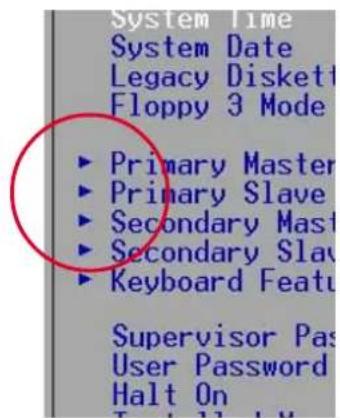
System Time System Date Legacy Disket Floppy 3 Mode ► Primary Master ► Primary Slave ► Secondary Master ► Secondary Slave ► Keyboard Featu Supervisor Pass User Password Halt OnNote that a right pointer symbol (as shown on the left) appears to the left of certain fields. This pointer indicates that you can display a sub-menu from this field. A sub-menu contains additional options for a field parameter. To display a sub-menu, move the highlight to the field and press
Take some time to familiarize yourself with the legend keys and their corresponding functions. Practice navigating through the various menus and sub-menus. If you accidentally make unwanted changes to any of the fields, use the set default hot key
4.3 Main Menu
When you enter the Setup program, the following screen appears.
| AwardBIOS Setup Utility | |||||
| Main Advanced Power Boot Server Exit | |||||
| System Time [18:16:29] System Date [12/26/2000] Legacy Diskette A [1.44M, 3.5 in.] Floppy 3 Mode Support [Disabled] | Item Specific Help | ||||
| Primary Master [Auto] Primary Slave [Auto] Secondary Master [Auto] Secondary Slave [Auto] Keyboard Features Supervisor Password [Disabled] User Password [Disabled] Halt On [No Error] Installed Memory 256MB | to select field; <+>,<-> to change value. | ||||
| F1 Help ↑↓ Select Item -/+ Change Values F5 Setup Defaults ESC Exit ↔ Select Menu Enter Select ▶ Sub-Menu F10 Save and Exit | |||||
System Time [XX:XX:XX]
Sets the system to the time that you specify (usually the current time). The format is hour, minute, second. Valid values for hour, minute and second are Hour: (00 to 23), Minute: (00 to 59), Second: (00 to 59). Use the
System Date [XX/XX/XXXX]
Sets the system to the date that you specify (usually the current date). The format is month, day, year. Valid values for month, day, and year are Month: (1 to 12), Day: (1 to 31), Year: (up to 2099). Use the
Legacy Diskette A [1.44M, 3.5 in.]
Sets the type of floppy drive installed. Configuration options: [None] [360K, 5.25 in.] [1.2M, 5.25 in.] [720K, 3.5 in.] [1.44M, 3.5 in.] [2.88M, 3.5 in.]
Floppy 3 Mode Support [Disabled]
This is required to support older Japanese floppy drives. The Floppy 3 Mode feature allows reading and writing of 1.2MB (as opposed to 1.44MB) on a 3.5-inch diskette. Configuration options: [Disabled] [Enabled]
Supervisor Password [Disabled] / User Password [Disabled]
These fields allow you to set passwords. To set a password, highlight the appropriate field and press
A note about passwords
The BIOS Setup program allows you to specify passwords in the Main menu. The passwords control access to the BIOS during system startup. Passwords are not case sensitive, meaning, passwords typed in either uppercase or lowercase letters are accepted. The BIOS Setup program allows you to specify two different passwords: a Supervisor password and a User password. If you did not set a Supervisor password, anyone can access the BIOS Setup program. If you did, the Supervisor password is required to enter the BIOS Setup program and to gain full access to the configuration fields.
Forgot the password?
If you forget your password, you can clear it by erasing the CMOS Real Time Clock (RTC) RAM. The RAM data containing the password information is powered by the onboard button cell battery. See section "2.7 Switches and jumpers" for information on how to erase the RTC RAM.
Halt On [All Errors]
This field specifies the types of errors that will cause the system to halt. Configuration options: [All Errors] [No Error] [All but Keyboard] [All but Disk] [All but Disk/Keyboard]
Installed Memory [XXX MB]
This field automatically displays the amount of conventional memory detected by the system during the boot process.
4.3.1 Primary and Secondary Master/Slave
| AwardBIOS Setup Utility | |
| Primary Master [Auto] | Item Specific Help |
| Type [Auto] | |
| Cylinders [1024] | to select the type of the IDE drive. [User Type HDD] allows you to set each entry on your own. |
| Head [255] | |
| Sector [63] | |
| CHS Capacity 8422MB | |
| Maximum LBA Capacity 25590MB | |
| Multi-Sector Transfers [Maximum] | WARNING: Ultra DMA mode 3/4/5 can be enabled only when BIOS detects shielded 80-pin cable. |
| SMART Monitoring [Disabled] | |
| PIO Mode [4] | |
| ULTRA DMA Mode [Disabled] | |
| F1 Help ↑↓ Select Item -/+ Change Values F5 Setup Defaults ESC Exit ↔ Select Menu Enter Select ▶ Sub-Menu F10 Save and Exit | |
Type [Auto]
Select [Auto] to automatically detect an IDE hard disk drive. If automatic detection is successful, Setup automatically fills in the correct values for the remaining fields on this sub-menu. If automatic detection fails, this may be because the hard disk drive is too old or too new. If the hard disk was already formatted on an older system, Setup may detect incorrect parameters. In these cases, select [User Type HDD] to manually enter the IDE hard disk drive parameters. Refer to the next section for details.
![ASUS AP1700 - Type [Auto] - 1](/content/2026/06/1220904/images/40be39652719b97b5b53ee917de942ede4a123eb6dd705aa5feb761c63e43726.jpg)
Before attempting to configure a hard disk drive, make sure you have the correct configuration information supplied by the drive manufacturer. Incorrect settings may cause the system to fail to recognize the installed hard disk.
[User Type HDD]
| AwardBIOS Setup Utility | |
| Primary Master [User Type HDD] | Item Specific Help |
| Type [User Type HDD] Translation Method [LBA] Cylinders [1024] Head [255] Sector [63] CHS Capacity 8422MB Maximum LBA Capacity 25590MB Multi-Sector Transfers [Maximum] SMART Monitoring [Disabled] PIO Mode [4] ULTRA DMA Mode [Disabled] | <Enter> to select the type of the IDE drive. [User Type HDD] allows you to set each entry on your own. WARNING: Ultra DMA mode 3/4/5 can be enabled only when BIOS detects shielded 80-pin cable. |
| F1 Help ↑↓ Select Item -/+ Change Values F5 Setup Defaults ESC Exit ↔ Select Menu Enter Select ▶ Sub-Menu F10 Save and Exit | |
Manually enter the number of cylinders, heads and sectors per track for the drive. Refer to the drive documentation or on the drive label for this information.
![ASUS AP1700 - [User Type HDD] - 1](/content/2026/06/1220904/images/203a7b21bf97cd41f669170c505c1d2c0226421ad91fa3c7a9bab376deb459be.jpg)
After entering the IDE hard disk drive information into BIOS, use a disk utility, such as FDISK, to partition and format new IDE hard disk drives. This is necessary so that you can write or read data from the hard disk. Make sure to set the partition of the Primary IDE hard disk drives to active.
If no drive is installed or if you are removing a drive and not replacing it, select [None].
Other options for the Type field are:
[CD-ROM] - for IDE CD-ROM drives
[LS-120] - for LS-120 compatible floppy disk drives
[ZIP] - for ZIP-compatible disk drives
[MO] - for IDE magneto optical disk drives
[Other ATAPI Device] - for IDE devices not listed here
After making your selections on this sub-menu, press the
Translation Method [LBA]
Select the hard disk drive type in this field. When Logical Block Addressing (LBA) is enabled, the 28-bit addressing of the hard drive is used without regard for cylinders, heads, or sectors. Note that LBA Mode is necessary for drives with more than 504MB storage capacity. Configuration options: [LBA] [LARGE] [Normal] [Match Partition Table] [Manual]
Cylinders
This field configures the number of cylinders. Refer to the drive documentation to determine the correct value. To make changes to this field, set the Type field to [User Type HDD] and the Translation Method field to [Manual].
Head
This field configures the number of read/write heads. Refer to the drive documentation to determine the correct value. To make changes to this field, set the Type field to [User Type HDD] and the Translation Method field to [Manual].
Sector
This field configures the number of sectors per track. Refer to the drive documentation to determine the correct value. To make changes to this field, set the Type field to [User Type HDD] and the Translation Method field to [Manual].
CHS Capacity
This field shows the drive's maximum CHS capacity as calculated by the BIOS based on the drive information you entered.
Maximum LBA Capacity
This field shows the drive's maximum LBA capacity as calculated by the BIOS based on the drive information you entered.
Multi-Sector Transfers [Maximum]
This option automatically sets the number of sectors per block to the highest number that the drive supports. Note that when this field is automatically configured, the set value may not always be the fastest value for the drive. You may also manually configure this field. Refer to the documentation that came with the hard drive to determine the optimum value and set it manually. To make changes to this field, set the Type field to [User Type HDD]. Configuration options: [Disabled] [2 Sectors] [4 Sectors] [8 Sectors] [16 Sectors] [32 Sectors] [Maximum]
SMART Monitoring [Disabled]
This field allows you to enable or disable the S.M.A.R.T. (Self-Monitoring, Analysis and Reporting Technology) system that utilizes internal hard disk drive monitoring technology. This parameter is normally disabled because the resources used in the SMART monitoring feature may decrease system performance. Configuration options: [Disabled] [Enabled]
PIO Mode [4]
This option lets you set a PIO (Programmed Input/Output) mode for the IDE device. Modes 0 through 4 provide successive increase in performance. Configuration options: [0] [1] [2] [3] [4]
Ultra DMA Mode [Disabled]
Ultra DMA capability allows improved transfer speeds and data integrity for compatible IDE devices. Set to [Disabled] to suppress Ultra DMA capability. To make changes to this field, set the Type field to [User Type HDD]. Configuration options: [0] [1] [2] [3] [4] [5] [Disabled]
4.3.2 Keyboard Features
| Keyboard Features | Item Specific Help | |||||
| Boot Up NumLock Status [On] Keyboard Auto-Repeat Rate [12/Sec] Keyboard Auto-Repeat Delay [1/4 Sec] | Select Power-on state for Numlock | |||||
| Hotkey to Lock Keyboard [Disabled] Keyboard Idle Timer [Disabled] | ||||||
| F1 Help ↑↓ Select Item -/+ Change Values F5 Setup Defaults ESC Exit ↔ Select Menu Enter Select ▶ Sub-Menu F10 Save and Exit | ||||||
Boot Up NumLock Status [On]
This field enables users to activate the Number Lock function upon system boot. Configuration options: [Off] [On]
Keyboard Auto-Repeat Rate [6/Sec]
This controls the speed at which the system registers repeated keystrokes. Options range from 6 to 30 characters per second. Configuration options: [6/Sec] [8/Sec] [10/Sec] [12/Sec] [15/Sec] [20/Sec] [24/Sec] [30/Sec]
Keyboard Auto-Repeat Delay [1/4 Sec]
This field sets the time interval for displaying the first and second characters. Configuration options: [1/4 Sec] [1/2 Sec] [3/4 Sec] [1 Sec]
Hotkey to Lock Keyboard [Disabled]
This field allows you to activate the OS independent keyboard lock function using the selected hot keys. You must set a user password or a supervisor password before enabling the keyboard lock function. Configuration options: [Disabled] [Ctrl-Alt A] [Ctrl-Alt Z] [Ctrl-Alt X] [Ctrl-Shift A] [Ctrl-Shift Z] [Ctrl- Shift X]
Keyboard Idle Timer [Disabled]
This field allows you to activate the OS independent keyboard lock function using the keyboard idle timer. You must set a user password or a supervisor password before enabling the keyboard lock function. Configuration options: [Disabled] [1 Min] [2 Mins] [5 Mins] [15 Mins] [30 Mins]
4.4 Advanced Menu
| AwardBIOS Setup Utility | |||||
| Main | Advanced | Power | Boot | Server | Exit |
| Item Specific Help | |||||
| CPU Speed 2000 MHz CPU Level 1 Cache [Enabled] CPU Level 2 Cache [Enabled] Hyper-Threading Technology [Enabled] BIOS Update [Enabled] PS/2 Mouse Function Control [Auto] OS/2 Onboard Memory >64M [Disabled] USB Legacy Support [Auto] | |||||
| Chip Configuration I/O Device Configuration PCI Configuration | |||||
| F1 Help ↑↓ Select Item -/+ Change Values F5 Setup Defaults ESC Exit ↔ Select Menu Enter Select ▶ Sub-Menu F10 Save and Exit | |||||
CPU Speed [Manual]
This field displays the auto-detected CPU speed.
CPU Level 1 Cache, CPU Level 2 Cache [Enabled]
These fields allow you to choose from the default [Enabled] or choose [Disabled] to turn on or off the CPU Level 1 and Level 2 built-in cache. Configuration options: [Disabled] [Enabled]
Hyper-Threading Technology [Enabled]
This item allows you to enable or disable support for Hyper-Threading Technology enabled processors which contain multiple logical processors per physical processor package. Configuration options: [Disabled] [Enabled]
BIOS Update [Enabled]
This field functions as an update loader integrated into the BIOS to supply the processor with the required data. When set to [Enabled], the BIOS loads the update on all processors during system bootup. Configuration options: [Disabled] [Enabled]
PS/2 Mouse Function Control [Auto]
The default setting [Auto] allows the system to detect a PS/2 mouse at startup. If a mouse is detected, the BIOS assigns IRQ12 to the PS/2 mouse. Otherwise, IRQ12 can be used for expansion cards. When you set this field to [Enabled], BIOS reserves IRQ12, whether or not a PS/2 mouse is detected at startup. Configuration options: [Enabled] [Auto]
OS/2 Onboard Memory > 64M [Disabled]
When using OS/2 operating systems with installed DRAM of greater than 64MB, you need to set this option to [Enabled]. Otherwise, leave to the default setting [Disabled]. Configuration options: [Disabled] [Enabled]
USB Legacy Support [Auto]
This motherboard supports Universal Serial Bus (USB) devices. The default of [Auto] allows the system to detect a USB device at startup. If detected, the USB controller legacy mode is enabled. If not detected, the USB controller legacy mode is disabled.
When you set this field to [Disabled], the USB controller legacy mode is disabled whether or not you are using a USB device. Configuration options: [Disabled] [Enabled] [Auto]
4.4.1 Chip Configuration
| AwardBIOS Setup Utility | |
| Advanced | |
| CHIP Configuration | Item Specific Help |
| Video Memory Cache Mode [UC] Enhanced Memory Mapping [Enabled] Unboard PCI IDE [Both] | Select [USWC] only when your display card supports this feature. |
| F1 Help ↑↓ Select Item -/+ Change Values F5 Setup Defaults ESC Exit ↔ Select Menu Enter Select ▶ Sub-Menu F10 Save and Exit | |
Video Memory Cache Mode [UC]
USWC (uncacheable, speculative write combining) is a new cache technology for the video memory of the processor. It can greatly improve the display speed by caching the display data. You must set this to UC (uncacheable) if your display card cannot support this feature; otherwise your system may not boot. Configuration options: [UC] [USWC]
Enhanced Memory Mapping [Enabled]
This item allows you to enable or disable the enhanced memory mapping feature. When enabled, this feature permits better memory bus utilization to increase the memory bus bandwidth and decrease the latencies.
Configuration options: [Disabled] [Enabled]
The enhanced memory mapping feature can only be used under these conditions:
• DIMM rows 2 and 4 are populated
- All the DIMMs installed are identical (the same type and size)
• DIMM sockets DDRA1 and DDRA2 are populated
Onboard PCI IDE [Both]
You can select to enable the primary IDE channel, both the primary and secondary channels, or disable both channels. Configuration options:
[Both] [Primary] [Disabled]
4.4.2 I/O Device Configuration
| AwardBIOS Setup Utility Advanced | |
| I/O Device Configuration | Item Specific Help |
| Floppy Disk Access Control [R/W] Onboard Serial Port 1 [3F8H/IRQ4] Onboard Serial Port 2 [2F8H/IRQ3] Onboard Parallel Port [378H/IRQ7] Parallel Port Mode [ECP+EPP] ECP DMA Select [3] | <Enter> to select. |
| F1 Help ↑↓ Select Item -/+ Change Values F5 Setup Defaults ESC Exit ↔ Select Menu Enter Select ▶ Sub-Menu F10 Save and Exit | |
Floppy Disk Access Control [R/W]
When set to [Read Only], this parameter protects files from being copied to floppy disks by allowing reads from, but not writes to, the floppy disk drive. The default setting [R/W] allows both reads and writes. Configuration options: [R/W] [Read Only]
Onboard Serial Port 1 [3F8H/IRQ4]
Onboard Serial Port 2 [2F8H/IRQ3]
These fields allow you to set the addresses for the onboard serial connectors. Serial Port 1 and Serial Port 2 must have different addresses. Configuration options: [3F8H/IRQ4] [2F8H/IRQ3] [3E8H/IRQ4] [2E8H/IRQ10] [Disabled]
Onboard Parallel Port [378H/IRQ7]
This field allows you to set the address of the onboard parallel port connector. If you disable this field, the Parallel Port Mode and ECP DMA Select configurations are not available. Configuration options: [Disabled] [378H/IRQ7] [278H/IRQ5]
Parallel Port Mode [ECP+EPP]
This field allows you to set the operation mode of the parallel port. [Normal] allows normal-speed operation but in one direction only; [EPP] allows bidirectional parallel port operation; [ECP] allows the parallel port to operate in bidirectional DMA mode; [ECP+EPP] allows normal speed operation in a two-way mode. Configuration options: [Normal] [EPP] [ECP] [ECP+EPP]
ECP DMA Select [3]
This field allows you to configure the parallel port DMA channel for the selected ECP mode. This selection is available only if you select [ECP] or [ECP+EPP] in Parallel Port Mode above. Configuration options: [1] [3]
4.4.3 PCI Configuration
| PCI Configuration | Item Specific Help | |
| Slot 6 IRQ | [Auto] | to select an IRQ. |
| Slot 5 IRQ | [Auto] | |
| Slot 4 IRQ | [Auto] | |
| Slot 3 IRQ | [Auto] | |
| Slot 2 IRQ | [Auto] | |
| Slot 1 IRQ | [Auto] | |
| PCI/VGA Palette Snoop | [Disabled] | |
| PCI Latency Timer | [32] | |
| Sparse PCI Host Bus | [Disabled] | |
| Onboard SCSI BIOS | [Auto] | |
| ONB SCSI BIOS First | [No] | |
| ONB Primary SCSI Term | [Enabled] | |
| ONB Secondary SCSI Term | [Enabled] | |
| Primary VGA BIOS | [PCI VGA Card] | |
| USB Function | [Enabled] | |
| Onboard LAN Boot ROM | [Disabled] | |
| Onboard 2nd LAN Boot ROM | [Disabled] | |
Slot 1, Slot 2, Slot 3, Slot 4, Slot 5, Slot 6 IRQ [Auto]
These fields set how IRQ use is determined for each PCI slot. The default setting for each field is [Auto], which utilizes auto-routing to determine IRQ use. Configuration options: [Auto] [NA] [3] [4] [5] [7] [9] [10] [11] [12] [14] [15]
PCI/VGA Palette Snoop [Disabled]
Some non-standard VGA cards, like graphics accelerators or MPEG video cards, may not show colors properly. Setting this field to [Enabled] corrects this problem. If you are using standard VGA cards, leave this field to the default setting [Disabled]. Configuration options: [Disabled] [Enabled]
PCI Latency Timer [32]
Leave on default setting for best performance vs. stability.
Sparse PCI Host Bus [Disabled]
This field allows you to reserve the bus number for the PCI slots.
Configuration options: [Disabled] [2 BUS] [3 BUS] [4 BUS]
Onboard SCSI BIOS [Auto]
[Auto] allows the motherboard BIOS to detect whether you have a Adaptec SCSI controller. If the SCSI controller is detected, the SCSI BIOS will be enabled. If no SCSI controller is detected, the onboard SCSI BIOS will be disabled.
Setting to [Disabled] deactivates the onboard SCSI BIOS so that the BIOS on an add-on SCSI card can be used. If your SCSI card does not have a BIOS, the SCSI card will not function. Configuration options: [Auto] [Disabled]
ONB SCSI BIOS First [No]
This field allows giving priority to the onboard SCSI BIOS for SCSI functions over other SCSI controllers. Configuration options: [No] [Yes]
ONB Primary SCSI Term [Enabled]
ONB Secondary SCSI Term [Enabled]
This field allows you to enable or disable the onboard termination for the primary and secondary SCSI channels. Configuration options: [Enabled] [Disabled]
Primary VGA BIOS First [PCI VGA Card]
This field allows you to select the primary graphics card. Configuration options: [PCI VGA Card] [Onboard VGA]
USB Function [Enabled]
Set this field to [Enabled] if you want to use Universal Serial Bus devices. Configuration options: [Disabled] [Enabled]
Onboard LAN Boot ROM [Disabled]
Onboard 2nd LAN Boot ROM [Disabled]
When set to [Enabled], these fields allow the system to boot from the network using the onboard LAN controller boot ROM. Configuration options: [Disabled] [Enabled]
4.5 Power Menu
The Power menu allows you to reduce power consumption. This feature turns off the video display and shuts down the hard disk after a period of inactivity.
| AwardBIOS Setup Utility | ||||||
| Main Advanced Power Boot Server Exit | ||||||
| Power Management [User Defined] Video Off Option [Suspend -> Off] Video Off Method [DPMS OFF] HDD Power Down [Disabled] Suspend Mode [Disabled] PWR Button < 4 Secs [Soft Off] ► Power Up Control ► Hardware Monitor | Item Specific Help | |||||
| <Enter> to select the power saving mode. You can select [User Defined] to go to the suspend mode entry below. | ||||||
Power Management [User Defined]
This field allows you to activate or deactivate the automatic power saving features. When set to [Disabled], the power management features do not function regardless of the other settings on this menu. The [User Defined] option allows you to set the period of inactivity before the system enters suspend mode. Refer to "Suspend Mode" item.
When set to [Max Saving], system power is conserved to its greatest amount. This setting automatically puts the system into suspend mode after a brief period of system inactivity. [Min Saving] allows the least power saving as the system enters suspend mode only after a long period of inactivity. Configuration options: [User Defined] [Disabled] [Min Saving] [Max Saving]
![ASUS AP1700 - Power Management [User Defined] - 1](/content/2026/06/1220904/images/b2a5d85ef12a2a3227c47a1e3b1f631fc5f91b9fd48bf26f6ea23bec1bb54a35.jpg)
You should install the Advanced Power Management (APM) utility to keep the system time updated even when the computer enters suspend mode. In Windows 3.x and Windows 95, you need to install Windows with the APM feature. In Windows 98 or later, APM is automatically installed as indicated by a battery and power cord icon labeled "Power Management" in the Control Panel. Select the item "Advanced" in the Power Management Properties dialog box.
Video Off Option [Suspend -> Off]
This field determines when to activate the video off feature for monitor power management. Configuration options: [Always On] [Suspend -> Off]
Video Off Method [DPMS OFF]
This field defines the video off features. The Display Power Management System (DPMS) feature allows the BIOS to control the video display card if it supports the DPMS feature. [Blank Screen] only blanks the screen. Use this for monitors without power management or “green” features.
![ASUS AP1700 - Video Off Method [DPMS OFF] - 1](/content/2026/06/1220904/images/1c8c42c2519aa22eee54d859f9abff29d0c914c393b040c36588a2d7a6bdf0ff.jpg)
Even if installed, your screen saver does not display when you select [Blank Screen] for the above field.
[V/H SYNC+Blank] blanks the screen and turns off vertical and horizontal scanning. Configuration options: [Blank Screen] [V/H SYNC+Blank] [DPMS Standby] [DPMS Suspend] [DPMS OFF] [DPMS Reduce ON]
HDD Power Down [Disabled]
Shuts down any IDE hard disk drives in the system after a period of inactivity as set in this user-configurable field. This feature does not affect SCSI hard drives. Configuration options: [Disabled] [1 Min] [2 Min] [3 Min]...[15 Min]
Suspend Mode [Disabled]
Sets the time period before the system goes into suspend mode. Configuration options: [Disabled] [1\~2 Min] [2\~3 Min] [4\~5 min] [8\~9 Min] [20 Min] [30 Min] [40 Min] [1 Hour]
PWR Button < 4 Secs [Soft Off]
When set to [Soft off], the ATX switch can be used as a normal system power-off button when pressed for less than 4 seconds. [Suspend] allows the button to have a dual function where pressing less than 4 seconds puts the system in sleep mode. Regardless of the setting, holding the ATX switch for more than 4 seconds powers off the system. Configuration options: [Soft off] [Suspend]
4.5.1 Power Up Control
| Power Up Control | Item Specific Help | ||||
| AC Power Loss Restart [Disabled] Wake/Power Up On Ext. Modem [Disabled] Onboard LAN Power Up [Disabled] Power Up On PCI Card [Disabled] Power On By PS/2 Keyboard [Disabled] Automatic Power Up [Disabled] | |||||
| F1 Help ↑↓ Select Item -/+ Change Values F5 Setup Defaults ESC Exit ↔ Select Menu Enter Select ▶ Sub-Menu F10 Save and Exit | |||||
AC PWR Loss Restart [Disabled]
This allows you to set whether or not to reboot the system after power interruptions. [Disabled] leaves your system off while [Enabled] reboots the system. [Previous State] sets the system back to the state it was before the power interruption. Configuration options: [Disabled] [Enabled] [Previous State]
Wake/Power Up On Ext. Modem [Disabled]
This allows either settings of [Enabled] or [Disabled] for powering up the computer when the external modem receives a call while the computer is in Soft-off mode. Configuration options: [Disabled] [Enabled]
![ASUS AP1700 - Wake/Power Up On Ext. Modem [Disabled] - 1](/content/2026/06/1220904/images/87c936537f89e43f17ef0b1d7ca82a95b35cc8f5f81d14f64d61cd1d2b1ede12.jpg)
The computer cannot receive or transmit data until the computer and applications are fully running. Thus, connection cannot be made on the first try. Turning an external modem off and then back on while the computer is off causes an initialization string that turns the system power on.
Onboard LAN Power Up [Disabled] Power Up on PCI Card [Disabled]
These fields allow you to boot your computer from another computer by sending a wake-up frame or signal to the LAN device, or the PCI modem card if present. Configuration options: [Disabled] [Enabled]
Power On By PS/2 Keyboard [Disabled]
This parameter allows you to use specific keys on the keyboard to turn on the system. This feature requires an ATX power supply that provides at least 1A on the +5VSB lead. Configuration options: [Disabled] [Space Bar] [Ctrl-Esc] [Power Key]
Automatic Power Up [Disabled]
This allows an unattended or automatic system power up. You may configure your system to power up at a certain time of the day by selecting [Everyday] or at a certain time and day by selecting [By Date]. Configuration options: [Disabled] [Everyday] [By Date]
4.5.2 Hardware Monitor
| Hardware Monitor | Item Specific Help | |||||
| MB Temperature 30°C/86°F CPU1 Temperature 41°C/105.5°F CPU2 Temperature 50°C/122.0°F CPU1 Fan Speed 7500RPM CPU2 Fan Speed 5273RPM VCORE Voltage 1.50V 3.3V Voltage 3.45V 5V Voltage 4.91V 12V Voltage 12.09V 3VSB Voltage 3.45V | <Enter> to switch between monitoring or ignoring. | |||||
| F1 Help ↑↓ Select Item -/+ Change Values F5 Setup Defaults ESC Exit ↔ Select Menu Enter Select ▶ Sub-Menu F10 Save and Exit | ||||||
MB Temperature [xxxC/xxxF]
CPU1 Temperature [xxxC/xxxF]
CPU2 Temperature [xxxC/xxxF]
The onboard hardware monitor is able to detect the MB (motherboard) and CPU temperatures. Set to [Ignore] only if necessary.
CPU1 Fan Speed [xxxxRPM]
CPU2 Fan Speed [xxxxRPM]
The onboard hardware monitor is able to detect the CPU fan speeds in rotations per minute (RPM). The presence of the fans is automatically detected.
![ASUS AP1700 - CPU2 Fan Speed [xxxxRPM] - 1](/content/2026/06/1220904/images/2e8039886e906c55edc6bee1778309c34be121825ddfe976341d1ca9b23502b5.jpg)
Make sure to connect the CPU fan cables to the appropriate connectors (CPU1 cable to CPUFAN1 connector, CPU2 cable to CPUFAN2 connector). Otherwise, the system may not boot.
VCORE Voltage, 3.3V Voltage, 5V Voltage, 12V Voltage, 3VSB Voltage
The onboard hardware monitor is able to detect the voltage output by the onboard voltage regulators.

If any of the monitored items is out of range, the following error message appears: "Hardware Monitor found an error. Enter Power setup menu for details". You will then be prompted to "Press F1 to continue or DEL to enter SETUP".
4.6 Boot Menu
| AwardBIOS Setup Utility | |||||
| Main Advanced Power Boot Server Exit | |||||
| 1. 1st Boot: (BAID) [<0> Floppy] 2. 2nd Boot: (BCV) [None] 3. 3rd Boot: (BEV) [<0> Intel Corporation] 4. 4th Boot: (Legacy) [Disabled] Plug & Play O/S [No] Reset Configuration Data [No] MPS 1.4 Support [Enabled] Quick Power On Self Test [Enabled] Boot Up Floppy Seek [Enabled] ► Boot Configuration | Item Specific Help | ||||
| <Enter> to select the device. To select the boot sequence, use the up or down arrow. Press <--> to move the device up the list, or <-> to move it down the list. | |||||
The motherboard BIOS supports the BIOS Boot Specification (BBS) version 1.01. BBS is an intelligent mechanism that provides flexible ways to set boot sequence for Initial Program Load (IPL) devices such as CD-ROMs, network remote boot ROM, and SCSI or RAID controllers on PnP cards.
The IPL devices are classified into three categories:
- BIOS Aware IPL Devices (BAID)
- PnP devices, includes Boot Connection Vector (BCV) and Bootstrap Entry Vector (BEV) devices
- Legacy devices
1st Boot : (BAID) [<0> Floppy]
This field allows you to select a BIOS Aware IPL Devices (BAID) to boot from. A BAID is any device that can boot on an operating system but requires a specific BIOS code for support. Bootable FDDs, ATA HDD, ATAPI CD-ROM, ATA ZIP, and ATA MO drives are classified as BAID. The drives present in the system will appear as options for this field.
2nd Boot : (BCV) [None]
This field allows you to select a Boot Connection Vector (BCV) device to boot from. BCV devices include SCSI controllers or SCSI cards, RAID cards, and other devices on add-on cards with option ROM that hooks INT 13 to BIOS.
![ASUS AP1700 - 2nd Boot : (BCV) [None] - 1](/content/2026/06/1220904/images/e60be68373417206173a5be9bd9a30a88e4ef1cbe90381d3eb55a7d71aaa0c06.jpg)
Some SCSI RAID cards hook INT19 to BIOS. If you use these cards, you should enable INT 19 after installing the card. Otherwise, you cannot enter the RAID card BIOS.
The BCV devices present in the system will appear as options for this field. The field shows [None] if no BCV device is installed.
3rd Boot : (BEV) [<0> Intel Corporation]
This field allows you to select a Bootstrap Entry Vector (BCV) device to boot from. BEV devices include network controllers or cards. The BEV devices present in the system will appear as options for this field. For this motherboard, the following options are present onboard:
[<0> Intel Corporation IBA 4.0.22 Slo (LAN A)]
[<1> Intel Corporation IBA 4.0.22 Slo (LAN B)]
4th Boot : (Legacy) [Disabled]
This field reserves the boot sequence selection only to legacy devices including FDD, HDD, CD-ROM, SCSI, and LAN. This mode does not allow booting from a boot device on an add-on card or controller. If you wish to assign a device as a 1st Boot device for a specific application, you must set that legacy device at the 1st Boot sequence.
For this motherboard, the following options are present onboard: [Disabled] [Floppy] [HDD] [CD-ROM] [LAN Option ROM] [SCSI]
Plug & Play O/S [No]
This field allows you to use a Plug-and-Play (PnP) operating system to configure the PCI bus slots instead of using the BIOS. When [Yes] is selected, interrupts may be reassigned by the OS. If you installed a non-PnP OS or if you want to prevent reassigning of interrupt settings, keep the default setting [No]. Configuration options: [No] [Yes]
Reset Configuration Data [No]
The Extended System Configuration Data (ESCD) contain information about non-PnP devices. It also holds the complete record of how the system was configured the last time it was booted. Select [Yes] if you want to clear these data during the Power-On-Self-Test (POST). Configuration options: [No] [Yes]
MPS 1.4 Support [Enabled]
This field allows you to enable or disable the MultiProcessor Specification 1.4 support. Configuration options: [Disabled] [Enabled]
Quick Power On Self Test [Enabled]
This field speeds up the Power-On-Self Test (POST) routine by skipping retesting a second, third, and fourth time. Configuration options: [Disabled] [Enabled]
Boot Up Floppy Seek [Enabled]
When enabled, the BIOS will seek the floppy disk drive to determine whether the drive has 40 or 80 tracks. Configuration options: [Disabled] [Enabled]
4.6.1 Boot Configuration
| Boot Configuration | Item Specific Help | |||||
| Init Slot1 Init Slot2 Init Slot3 Init Slot4 Init Slot5 Init Slot6 | [Normal] [Normal] [Normal] [Normal] [Normal] [Normal] [Normal] | to set priority for Add-on card initialization. | ||||
| F1 Help ↑↓ Select Item -/+ Change Values F5 Setup Defaults ESC Exit ↔ Select Menu Enter Select ▶ Sub-Menu F10 Save and Exit | ||||||
Init Slot 1, 2, 3, 4, 5, 6 IRQ [Normal]
This field allows you to set the priority level for each expansion slot in order to determine expansion card initialization order. Configuration options: [High] [Normal] [Low] [Skip]
4.7 Server Menu
| AwardBIOS Setup Utility | ||||||
| Main Advanced Power Boot Server Exit | ||||||
| DRAM Hot Spare Memory Remote Console Event Log Viewer Clear Event Log Log Memory ECC Error [Disabled] [Disabled] [Enabled] | Item Specific Help | |||||
| F1 Help ↑↓ Select Item -/+ Change Values F5 Setup Defaults ESC Exit ↔ Select Menu Enter Select ▶ Sub-Menu F10 Save and Exit | ||||||
DRAM Hot Spare Memory [Disabled]
This field allows you to allocate rows of SDRAM for hot spare.
Configuration options: [Disabled] [1 row] [2 rows] [3 rows]
Remote Console [Disabled]
This field allows the text mode VGA display to be sent out to VT100 terminal through COM1. This function is effective at BIOS POST and DOS environment. Configuration options: [Disabled] [Enabled] [POST Only]
Event Log Viewer
Pressing
Clear Event Log [Disabled]
This field clears the event log recorded on the sub-menu. Select [Enabled] to automatically clear the event log. Reset to [Disabled] to store up event log data. An IPMI device must be connected to the server for this field to function. Configuration options: [Disabled] [Enabled]
Log Memory ECC Error [Enabled]
This field allows you to set whether "Error Checking and Correcting" memory errors are logged. Configuration options: [Disabled] [Enabled]
4.8 Exit Menu
When you have made all of your selections from the various menus in the Setup program, save your changes and exit Setup. Select Exit from the menu bar to display the following menu.
| AwardBIOS Setup Utility | ||||||
| Main Advanced Power Boot Server Exit | ||||||
| Exit Saving Changes Exit Discarding Changes Load Setup Defaults Discard Changes Save Changes | Item Specific Help | |||||
| Exit setup utility and save your changes to CMOS. | ||||||
| F1 Help ↑↓ Select Item -/+ Change Values F5 Setup Defaults ESC Exit ←→ Select Menu Enter Select ▶ Sub-Menu F10 Save and Exit | ||||||

Pressing
Exit Saving Changes
Once you are finished making your selections, choose this option from the Exit menu to ensure the values you selected are saved to the CMOS RAM. The CMOS RAM is sustained by an onboard backup battery and stays on even when the PC is turned off. When you select this option, a confirmation window appears. Select [Yes] to save changes and exit.

If you attempt to exit the Setup program without saving your changes, the program prompts you with a message asking if you want to save your changes before exiting. Pressing
Exit Discarding Changes
Select this option only if you do not want to save the changes that you made to the Setup program. If you made changes to fields other than system date, system time, and password, the BIOS asks for a confirmation before exiting.
Load Setup Defaults
This option allows you to load the default values for each of the parameters on the Setup menus. When you select this option or if you press
Discard Changes
This option allows you to discard the selections you made and restore the previously saved values. After selecting this option, a confirmation appears. Select [Yes] to discard any changes and load the previously saved values.
Save Changes
This option saves your selections without exiting the Setup program. You can then return to other menus and make further changes. After you select this option, a confirmation window appears. Select [Yes] to save any changes to the non-volatile RAM.
Chapter 5
text_image
This chapter tells how to install SCSI, LAN, and VGA drivers under various operating systems.Driver installation
Chapter summary
5.1 Support CD contents 5-1
5.2 Microsoft Windows NT Server 4.0 .... 5-3
5.3 Microsoft Windows 2000 Server .... 5-13
5.4 Microsoft Windows XP Professional...... 5-25
5.5 Novell NetWare Server.... 5-31
5.6 SCO OpenServer 5.0.6a 5-36
5.7 SCO UnixWare Server.... 5-44
5.8 Linux RedHat 7.3/8.0 5-48
5.1 Support CD contents
The support CD that came with the motherboard contains useful software and several utility drivers that enhance the motherboard features.
To begin using the support CD, simply insert the CD into your CD-ROM drive. The CD automatically displays the welcome screen and the installation menus if Autorun is enabled in your computer.

If Autorun is NOT enabled in your computer, browse the contents of the support CD to locate the file ASSETUP.EXE from the BIN folder. Double-click the ASSETUP.EXE to run the CD.
5.1.1 Drivers
This screen displays the drivers available for the onboard devices. Follow the installation wizards or find additional instructions as text files in each of the driver folders.
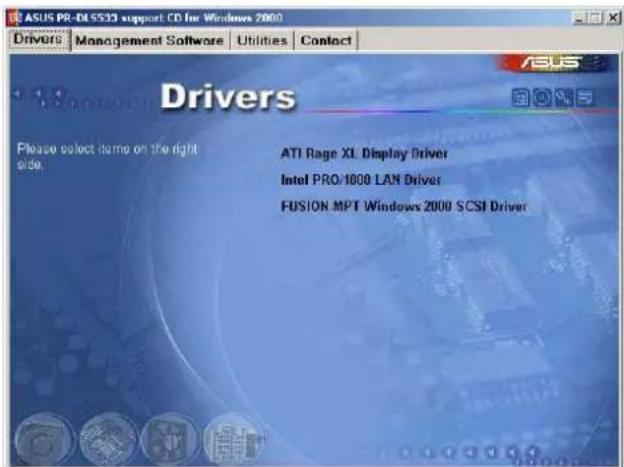
text_image
ASUS PR-DI 5523 support CD for Windows 2000 Drivers Management Software Utilities Contact 7826 Drivers Please select items on the right page. ATI Rage XL Display Driver Intel PRO-1000 LAN Driver FUSION MPT Windows 2000 SCSI Driver5.1.2 Management Software
This screen displays the ASUS proprietary server management software.
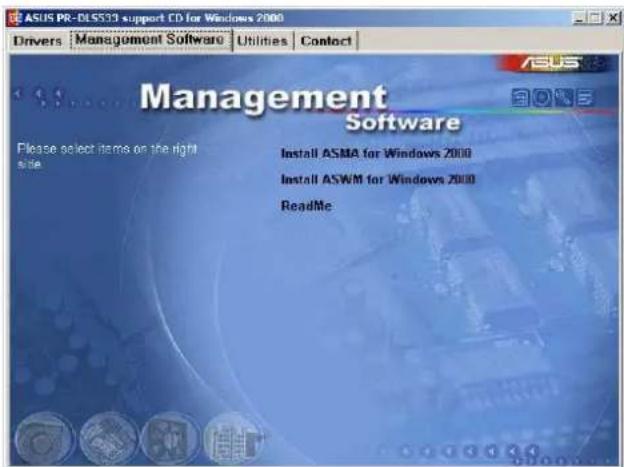
text_image
ASUS PR-DLS533 support CD for Windows 2000 Drivers Management Software Utilities Contact Management Software Please select items on the right site Install ASMA for Windows 2000 Install ASWM for Windows 2000 ReadMe5.1.3 Utilities
This screen displays the available system utilities that you can install.

text_image
ASUS PR-DLS533 support CD for Windows 2000 Drivers | Management Software | Utilities | Contact | Utilities Please select items on the right side. ADOBE Acrobat Reader V5.0 AFLASH for DOS Readme File5.1.4 Contact
This screen displays the ASUS worldwide contact information.
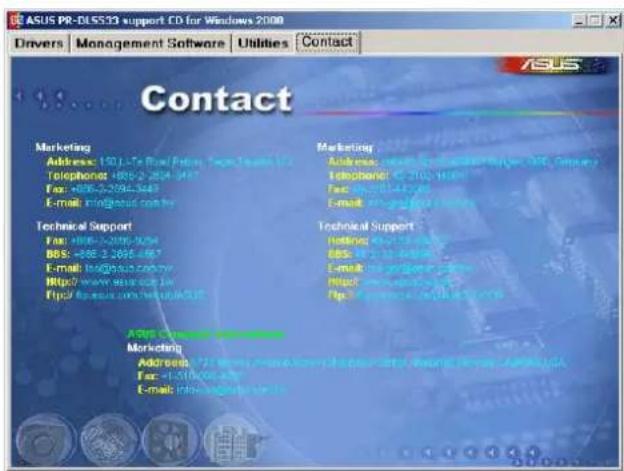
text_image
ASUS PR-DLS533 support CD for Windows 2000 Drivers | Management Software | Utilities | Contact | Contact Marketing Address: 1901-17a Road/Final, Texas/Texas/TSI Telephone: 488-2-2654-3447 Fax: +86-2-2694-3449 E-mail: mg@msu.com.br Technical Support Fax: +86-2-2694-3554 BBS: +86-2-2694-3557 E-mail: mg@msu.com.br http://www.msu.com/ Tips/MSU.com/mb@msu.com Marketing Address: 721 Mobile Phone & Tablet (e-mail: https://www.msu.com) Fax: -10100000000000000000000000000000000000000000000000000000000000000000000000 Marketing Address: www.msu.com/ Telephone: 488-2-2654-3447 Fax: +86-2-2694-3449 E-mail: mg@msu.com.br Technical Support Address: 721 Mobile Phone & Tablet (e-mail: https://www.msu.com) Fax: -1010000000000000000000000000000000000000000 E-mail: mg@msu.com.br AOSI 6.1.1.1.1.1.1.1.1.1.1.1.1.1.1.1.1.1.1.1.1.1.1.1.1.1.1.1.1.1.1.1.1.1.1.1.1.1.1.1.1.1.1.1.1.1.1.1.1.1.1.2.2.2.2.2.2.2.2.2.2.2.2.2.2.2.2.2.2.2.2.2.2.2.2.2.2.2.2.2.2.2.2.2.2.2.2.2.2.2.2.2.2.2.2.2.2.2.2.2.2.35.2 Microsoft ^® Windows ^® NT Server 4.0
5.2.1 LSI ^® SCSI Driver Installation
Windows NT 4.0 does not have drivers for the new SCSI controllers, you must load the driver manually prior to Windows NT 4.0 installation.
A. Preparing an LSI Driver Disk
From the support CD, locate the LSI drivers in the following path:
\Drivers\SCSI\FUSION-MPT\Windows\1.08.022\WINNT
This procedure installs the SYMMPI.SYS driver onto a new or existing Windows NT system. Depending upon the media used to distribute LSI Logic drivers (web or CD-ROM), you will create a driver disk.
Copy the files listed in this section to the root directory of a clean diskette as shown below. Label this diskette "Windows NT Driver Diskette."
You will use this diskette during the installation process.
\txtsetup.oem
\symmpi.sys
\symmpi.tag
\oemsetup.inf
Locate the onboard LSI U320 SCSI executable driver in the following path:
\Drivers\SCSIFUSION-MPT\Windows\1.08.022\WINNT.exe
B. New System Installation
This procedure installs the SYMMPI.SYS driver onto a Windows NT 4.0 system. Use this procedure when installing Windows NT 4.0 onto an unused drive. Windows NT 4.0 automatically adds the driver to the registry and copies the driver to the appropriate directory. Choose one of two methods to install these drivers onto a Windows NT 4.0 system.
- Boot directly from the Windows NT 4.0 CD-ROM
-or-
- Use Windows NT 4.0 Boot Floppy Diskettes.
B1. CD-ROM Installation
- Have the driver diskette available for inserting into the A: drive when prompted. Depending upon the media used to distribute the drivers (web or CDROM), you will create a driver diskette.
IMPORTANT: Read Steps 2 and 3 before performing the instructions contained within these steps. - Start the Windows NT 4.0 installation by booting from the Windows NT CD-ROM: The system BIOS must support booting from a CD-ROM. BIOS settings may need to be changed to allow CD-ROM booting.
- Press the F6 key when the screen displays "Windows NT Setup." This must be done or else the new driver will not be recognized.
NOTE: Be sure to press the F6 key as any driver loaded later in the installation process is not recognized by Windows NT Setup. If F6 is not pressed, all devices controlled by the drivers are not available during Windows NT setup. - Choose S to specify an additional device when the screen displays "Setup could not determine the type of one or more mass storage devices...."
NOTE: If this screen is not displayed as the first user input, then the F6 keypress was not seen by the setup program. Reboot the system and try again.
The system prompts for the manufacturer-supplied hardware support disk. - Insert the appropriate driver diskette containing the Windows NT driver required to support your LSI Logic adapter(s) and press Enter.
- "LSI Logic PCI SCSI/FC MPI MiniPort Driver" is shown highlighted. Press Enter to proceed.
- Windows NT 4.0 should now recognize the Miniport driver and the LSI Ultra320 SCSI or Fibre Channel hardware. Press Enter to continue.
- Follow the Microsoft Windows NT 4.0 installation procedure at this point.
B2. Boot Floppy Disk Installation
-
Have the driver diskette available for inserting into the A: drive when prompted. Depending upon the media used to distribute drivers (web or CDROM), you will create a driver diskette.
IMPORTANT: Read Step 2 before performing the instructions contained within this step. -
Start the Windows NT 4.0 installation by booting from the Microsoft Setup floppy diskette.
-
Press Enter when the Welcome to Setup screen appears. The Windows NT 4.0 Workstation Setup window appears next.
-
Press S to skip automatic detection and do manual selection. A screen displays the message "Setup has recognized the following mass storage devices in your computer..."
-
Choose S to configure additional adapters when a screen displays the adapters found.
-
Move the highlight bar to Other and press Enter. The system prompts for the manufacturer-supplied hardware support disk.
-
Insert the appropriate driver diskette containing the Windows NT driver required to support your LSI Logic adapter(s) and press Enter.
-
"LSI Logic PCI SCSI/FC MPI MiniPort Driver" is shown highlighted. Press Enter to proceed.
-
The Windows NT Workstation Setup window reappears. If using an IDE CD-ROM for installation, press S to load additional drives.
Another window appears. Scroll up and select:
"IDE CD-ROM (ATAPI 1.2)/PCI IDE Controller"
Press Enter.
-or-
If you have completed configuring additional adapters, press Enter.
- Upon exiting, a screen displays the message "Setup will load support for the following mass storage devices(s). Press Enter to continue."
This message implies that Windows NT recognizes the miniport driver and the SCSI or Fibre Channel hardware.
At this point, simply follow the Microsoft Windows NT installation procedure.
C. Existing System Installation
To install the SYMMPI.SYS miniport driver, follow these steps:
- Boot Windows NT 4.0 and log on as Administrator.
- Click on the Start button. Move to Settings-->Control Panel and click.
-
Double click on SCSI Adapters.
-
Click on the Drivers tab.
-
Click Add. A list of installed adapters is displayed.
-
Click the Have Disk button. When prompted, insert the Windows NT Driver Diskette.
-
Enter or type the path to copy manufacturer's files from A:. Select OK. The Install Driver menu should have the driver name "LSI Logic PCI SCSI/FC MPI MiniPort Driver" highlighted.
-
If it is not highlighted, select it. Choose OK. At this point, the following message may appear:
"The driver(s) for this SCSI Adapter are already on the system. Do you want to use the currently installed driver(s) or install new one(s)?"
Selecting Current uses the driver already on the system, and selecting New uses the driver on the diskette.
-
Choose New unless you want to use the older version already on the system. If you chose Current, go to step 11.
-
Verify if the path to the OEM SCSI Adapter files reads A:.
If not, enter or type it as shown above. Select Continue.
- Remove the diskette from your A: drive.
The System Settings Change message displays "You must restart your computer before the new settings take effect. Do you want to restart your computer now?"
- Click on the Yes button to restart and reboot the system. If you choose Cancel, remember that you must restart the computer to load the new driver.
NOTE: If more than one LSI Logic driver needs to be installed, additional drivers can be installed one after the other without rebooting for each one. Installation order is not important.
- Reboot your computer to load the new miniport driver(s).
5.2.2 Intel ^® LAN Driver Installation
A. Preparing the Intel LAN Driver Disk
Windows NT 4.0 does not have the drivers for the Intel 82551QM/82540EM/82544GC LAN controllers. Before installing Windows NT 4.0, copy the LAN drivers from the support CD into a floppy disk.

Prepare one blank formatted high density floppy disk before proceeding.
- Insert the support CD into the CD-ROM drive.
- Run the utility from the following path:
\Drivers\LAN\MAKEDISK\dcreate.exe
- In the following screen, click on Make Driver Disk.

text_image
Intel® PRO Network Connections Intel® PRO Network Connections Intel PRO/100 and PRO/1000 Adapters Install Software Install Base Driver Install SNMP Make Driver Disk View User Guides View Release Notes Intel® PRO NETWORK CONNECTORS Exit- The next screen allows you to select an operating system to install the driver. Select Windows NT 4.0. Refer to the next page.

text_image
Create Wired Install Disk Intel® PRO Adapters This utility creates a diskette with base drivers for Intel(R) PRO/100 and PRO/1000 adapters. Choose the type of diskette to create Windows XP/64 (Gigabit) Windows XP/64 (10/100) Windows XP (32 bit, Gigabit) Windows XP (32 bit, 10/100) Windows 2000 (Gigabit) Windows 2000 (10/100) Windows NT 4.0 Windows 9x/Me Novell NetWare DOS, OS/2 Drivers copied Base Driver (Intel(R) Pro/1000 Network Connections only) Choose a destination drive A:\ Create Disk Exit-
Insert the floppy disk into the floppy disk drive when prompted.
-
Follow the screen instructions to complete the process.
B. New System Installation
- Double-click the Network icon in the Control Panel to display the Network Setup Wizard.
- When the Installing Windows NT Networking screen appears, press Next to display the following screen.

text_image
Network Setup Wizard Windows NT needs to know how this computer should participate on a network. Wired to the network Your computer is connected to the network by an ISDN Adapter or Network Adapter. Remote access to the network: Your computer uses a Modem to remotely connect to the network. < Back Next > Cancel- Check the Wired to the Network box, then click Next.
- On the screen that appears, click the button Select from list... to display the Select Network Adapter window.

text_image
Select Network Adapter Click the Network Adapter that matches your hardware, and then click OK. If you have an installation disk for this component, click Have Disk. Network Adapter: 3Com 3C508 ISA 16-bit Ethernet Adapter 3Com Etherlink II Adapter (also II/16 and II/16 TP) 3Com Etherlink III ISA/PCMCIA Adapter 3Com EtherLink III PCI Bus-Master Adapter (3C590) 3Com Etherlink16/EtherLink16 TP Adapter 3Com Fast EtherLink PCI 10/100BASE T Adapter (2C595) Have Disk... OK Cancel- Insert the LAN driver disk that you created, then click Have Disk...
- Type A:\ in the dialog box that appears, then click OK. The following screen lists the Intel LAN adapters that you can install.

text_image
Select OEM Option Choose a software supported by this hardware manufacturer's disk. Intel(R) PRO/100 Family Adapter Intel(R) PRO/1000 Family Adapter OK Cancel Help-
Select Intel(R) PRO/100 Family Adapter, then click OK. Follow the succeeding screen instructions.
-
When done, the following screen appears showing the Intel(R) PRO/100 Family Adapter in the list.

text_image
Network Setup Wizard To have setup start searching for a Network Adapter, click Start Search button. Start Search Network Adapters: Intel(R) PRO/100 Family Adapter Select from list... < Back Next > Cancel- Click Select from list..., then click Have Disk...
- Type A:\ in the dialog box, then click OK.
- In the following screen, select Intel(R) PRO/1000 Family Adapter, then click OK. Follow the succeeding screen instructions.
- When done, the following screen appears showing the Intel(R) PRO/1000 Family Adapter in the list.
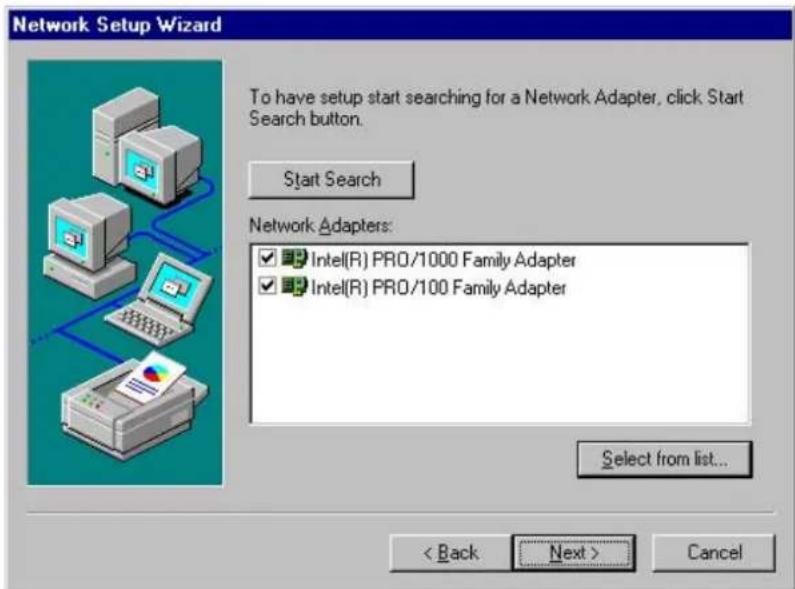
text_image
Network Setup Wizard To have setup start searching for a Network Adapter, click Start Search button. Start Search Network Adapters: Intel(R) PRO/1000 Family Adapter Intel(R) PRO/100 Family Adapter Select from list... < Back Next > Cancel- Click Next and follow any other screen instructions to complete the installation.
C. Existing System Installation
- Double-click the Network icon in the Control Panel.
- Select the Adapter tab, then click Add. A list of adapters appears.
-
Do not select an adapter from the list. Instead, insert the LAN driver disk that you created from the support CD.
Refer to the section "A. Preparing the Intel LAN Driver Disk" if you have not yet created the LAN driver disk. -
Follow steps 5 to 13 in the section "B. New System Installation" to install the required LAN drivers.
5.2.3 ATI ^® Rage XL Display Driver Installation
- Insert the support CD into your CD-ROM drive.
- If Autorun in enabled in your computer, the following screen appears. Click on ATI Rage XL Display Driver to install the driver.

text_image
ASUS PR-DLS support CD for Windows NT 4.0 Drivers | Management Software | Utilities | Contact | Drivers Install ATI Rage XL Display Driver. ATI Rage XL Display Driver Intel PRO/100 LAN DriverIf Autorun is disabled, install the display driver from the following path:
\Drivers\ATINt40\Setup.exe
- Follow the screen instructions to complete the installation.
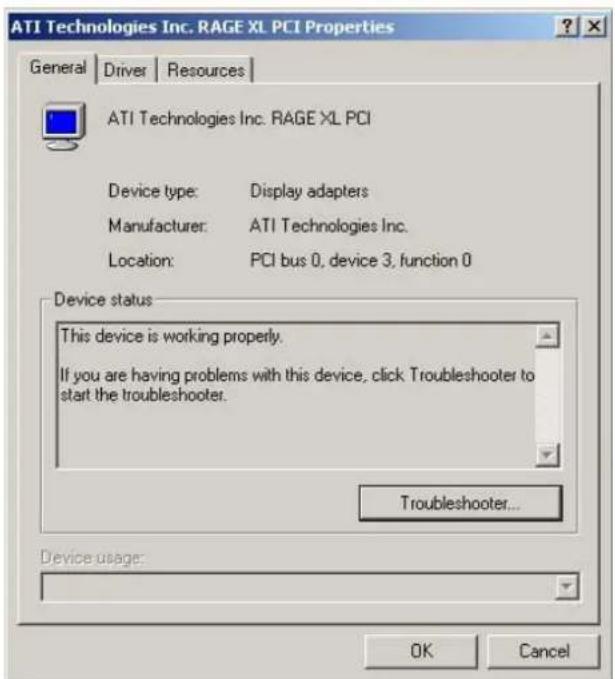
text_image
ATI Technologies Inc. RAGE XL PCI Properties General Driver Resources ATI Technologies Inc. RAGE XL PCI Device type: Display adapters Manufacturer: ATI Technologies Inc. Location: PCI bus 0, device 3, function 0 Device status This device is working properly. If you are having problems with this device, click Troubleshooter to start the troubleshooter. Troubleshooter... Device usage: OK Cancel5.3 Microsoft ^® Windows ^® 2000 Server
5.3.1 LSI ^® SCSI Driver Installation
Windows 2000 Server does not have drivers for the new SCSI controllers, you must load the driver manually prior to Windows 2000 Server installation.
A. Preparing an LSI Driver Disk
From the support CD, locate the LSI drivers in the following path:
\Drivers\SCSI\FUSION-MPT\Windows\1.08.22\Win2000
This procedure installs the SYMMPI.SYS driver onto a new or existing Windows 2000 Server system. Depending upon the media used to distribute LSI Logic drivers (web or CD-ROM), you will create a driver disk.
Copy the files listed in this section to the root directory of a clean diskette as shown below. Label this diskette "Windows 2000 Driver Diskette."
You will use this diskette during the installation process.
\txtsetup.oem
\symmpi.sys
\symmpi.tag
\oemsetup.inf
Locate the onboard LSI U320 SCSI executable driver in the following path:
\Drivers\SCSI\FUSION-MPT\Windows\1.08.22\Win2000.exe
B. New System Installation
This procedure installs the SYMMPI.SYS driver onto a Windows 2000 Server system. Use this procedure when installing Windows 2000 onto an unused drive. Windows 2000 Server automatically adds the driver to the registry and copies the driver to the appropriate directory. Choose one of two methods to install these drivers onto a Windows 2000 Server system.
- Boot directly from the Windows 2000 Server CD-ROM
-or- - Use Windows 2000 Server Boot Floppy Diskettes
B1. CD-ROM Installation
- Have the driver diskette available for inserting into the A: drive when prompted. Depending upon the media used to distribute the drivers (web or CDROM), you will create a driver diskette.
IMPORTANT: Read Steps 2 and 3 before performing the instructions contained within these steps. - Start the Windows 2000 Server installation by booting from the Windows 2000 Server CD-ROM. The system BIOS must support booting from a CD-ROM. BIOS settings may need to be changed to allow CD-ROM booting.
- Press the F6 key when the screen displays "Windows 2000 Setup." This must be done or else the new driver will not be recognized.
NOTE: Be sure to press the F6 key as any driver loaded later in the installation process is not recognized by Windows 2000 Server setup. If F6 is not pressed, all devices controlled by the drivers are not available during Windows 2000 setup. - Choose S to specify an additional device when the screen displays "Setup could not determine the type of one or more mass storage devices...."
NOTE: If this screen is not displayed as the first user input, then the F6 keypress was not seen by the setup program. Reboot the system and try again.
The system prompts for the manufacturer-supplied hardware support disk. - Insert the appropriate driver diskette containing the Windows 2000 driver required to support your LSI Logic adapter(s) and press Enter.
- "LSI Logic PCI SCSI/FC MPI MiniPort Driver" is shown highlighted. Press Enter to proceed.
- Windows 2000 Server should now recognize the Miniport driver and the LSI Ultra320 SCSI or Fibre Channel hardware. Press Enter to continue.
- Follow the Microsoft Windows 2000 installation procedure at this point.
B2. Boot Floppy Disk Installation
- Have the driver diskette available for inserting into the A: drive when prompted. Depending upon the media used to distribute drivers (web or CDROM), you will create a driver diskette.
IMPORTANT: Read Step 2 before performing the instructions contained within this step. - Start the Windows 2000 installation by booting from the Microsoft Setup floppy diskette.
- Press Enter when the Welcome to Setup screen appears. The Windows 2000 Workstation Setup window appears next.
- Press S to skip automatic detection and do manual selection. A screen displays the message "Setup has recognized the following mass storage devices in your computer..."
- Choose S to configure additional adapters when a screen displays the adapters found.
- Move the highlight bar to Other and press Enter. The system prompts for the manufacturer-supplied hardware support disk.
- Insert the appropriate driver diskette containing the Windows 2000 Server driver required to support your LSI Logic adapter(s) and press Enter.
- "LSI Logic PCI SCSI/FC MPI MiniPort Driver" is shown highlighted. Press Enter to proceed.
- The Windows 2000 Server setup window reappears. If using an IDE CD-ROM for installation, press S to load additional drives. Another window appears. Scroll up and select:
"IDE CD-ROM (ATAPI 1.2)/PCI IDE Controller"
Press Enter.
-or-
If you have completed configuring additional adapters, press Enter.
- Upon exiting, a screen displays the message “Setup will load support for the following mass storage devices(s). Press Enter to continue.” This message implies that Windows 2000 recognizes the miniport driver and the SCSI or Fibre Channel hardware.
At this point, simply follow the Microsoft Windows 2000 Server installation procedure.
C. Existing System Installation
To install the SYMMPI.SYS miniport driver, follow these steps:
- Boot Windows 2000 Server and log on as Administrator.
- Click on the Start button. Move to Settings and click on Control Panel.
-
Double click on SCSI an RAID controllers to display the following window.
-
Click on the Drivers tab.
-
Click Add. A list of installed adapters is displayed.
-
Click the Have Disk button. When prompted, insert the Windows NT Driver Diskette.
-
Enter or type the path to copy manufacturer's files from A:. Select OK. The Install Driver menu should have the driver name "LSI Logic PCI SCSI/FC MPI MiniPort Driver" highlighted.
-
If it is not highlighted, select it. Choose OK. At this point, the following message may appear:
"The driver(s) for this SCSI Adapter are already on the system. Do you want to use the currently installed driver(s) or install new one(s)?"
Selecting Current uses the driver already on the system, and selecting New uses the driver on the diskette.
-
Choose New unless you want to use the older version already on the system. If you chose Current, go to step 11.
-
Verify if the path to the OEM SCSI Adapter files reads A:. If not, enter or type it as shown above. Select Continue.
-
Remove the diskette from your A: drive.
The System Settings Change message displays "You must restart your computer before the new settings take effect. Do you want to restart your computer now?"
- Click on the Yes button to restart and reboot the system. If you choose Cancel, remember that you must restart the computer to load the new driver.
NOTE: If more than one LSI Logic driver needs to be installed, additional drivers can be installed one after the other without rebooting for each one. Installation order is not important.
-
Reboot your computer to load the new miniport driver(s).
-
After rebooting, check the installed SCSI driver from the Computer Management window.
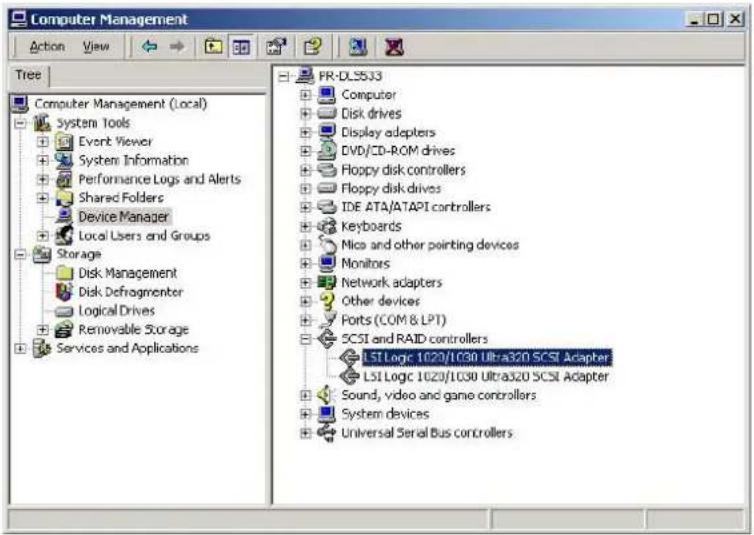
text_image
Computer Management Action View Tree Computer Management (Local) System Tools Event Viewer System Information Performance Logs and Alerts Shared Folders Device Manager Local Users and Groups Storage Disk Management Disk Defragmenter Logical Drives Removable Storage Services and Applications PR-DLS33 Computer Disk drives Display adapters DVD/CD-ROM drives Floppy disk controllers Floppy disk drives IDE ATA/ATAPI controllers Keyboards Mica and other pointing devices Monitors Network adapters Other devices Ports (COM & LPT) SCSI and RAID controllers LSI Logic 1020/1030 Ultra320 SCSI Adapter LSI Logic 1020/1030 Ultra320 SCSI Adapter Sound, video and game controllers System devices Universal Serial Bus controllers- Highlight the LSI Logic 1020/1030 Ultra320 SCSI Adapter, click the right mouse button, and select Properties to display the following.
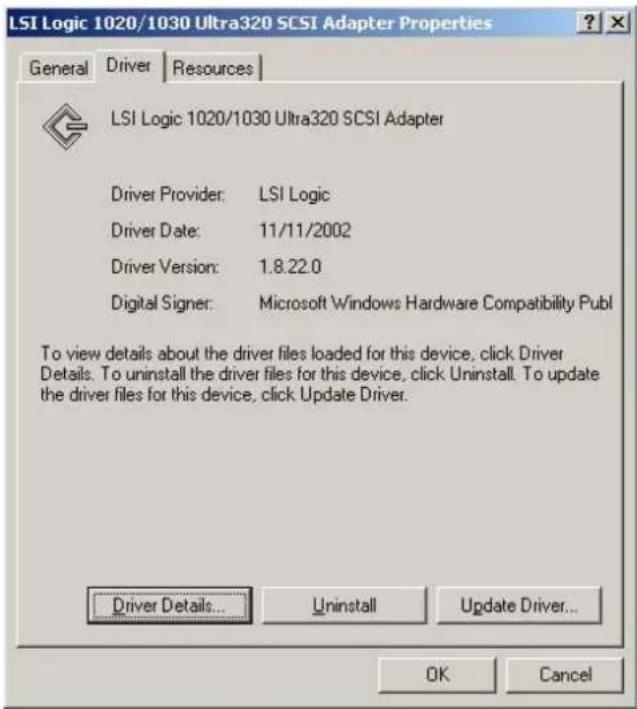
text_image
LSI Logic 1020/1030 Ultra320 SCSI Adapter Properties General Driver Resources LSI Logic 1020/1030 Ultra320 SCSI Adapter Driver Provider: LSI Logic Driver Date: 11/11/2002 Driver Version: 1.8.22.0 Digital Signer: Microsoft Windows Hardware Compatibility Publ To view details about the driver files loaded for this device, click Driver Details. To uninstall the driver files for this device, click Uninstall. To update the driver files for this device, click Update Driver. Driver Details... Uninstall Update Driver... OK Cancel- Click Driver Details to display a list of files related to the SCSI driver.
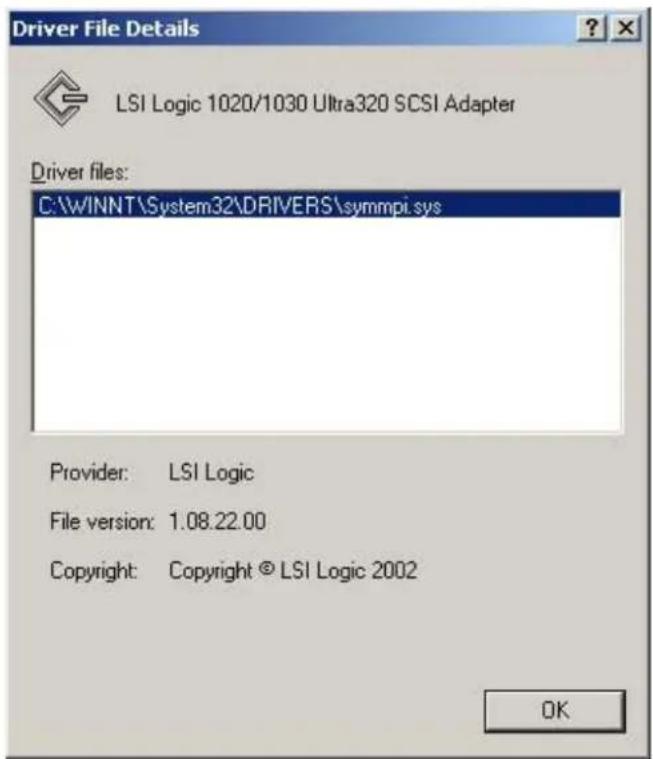
text_image
Driver File Details LSI Logic 1020/1030 Ultra320 SCSI Adapter Driver files: C:\WINNT\System32\DRIVERS\symmpi.sys Provider: LSI Logic File version: 1.08.22.00 Copyright: Copyright © LSI Logic 2002 OK5.3.2 Intel ^® LAN Driver Installation
You may install the Intel 82551QM/82540EM/82544GC LAN drivers directly from the support CD. Proceed to the section "B. Update LAN Driver on an Existing System Installation."
If you wish to create a LAN driver disk, proceed to the section "A. Preparing the Intel LAN Driver Disk."
A. Preparing the Intel LAN Driver Disk

Prepare one blank formatted high density floppy disk before proceeding.
- Insert the support CD into the CD-ROM drive.
- Run the utility from the following path:
\Drivers\LAN\MAKEDISK\dcreate.exe
- In the following screen, click on Make Driver Disk.

text_image
Intel® PRO Network Connections Intel® PRO Network Connections Intel PRO/100 and PRO/1000 Adapters Install Software Install Base Driver Install SNMP Make Driver Disk View User Guides View Release Notes Intel® PRO NETWORK CONNECTIONS Exit- The next screen allows you to select an operating system to install the driver. Select Windows 2000 (Gigabit). Refer to the next page.
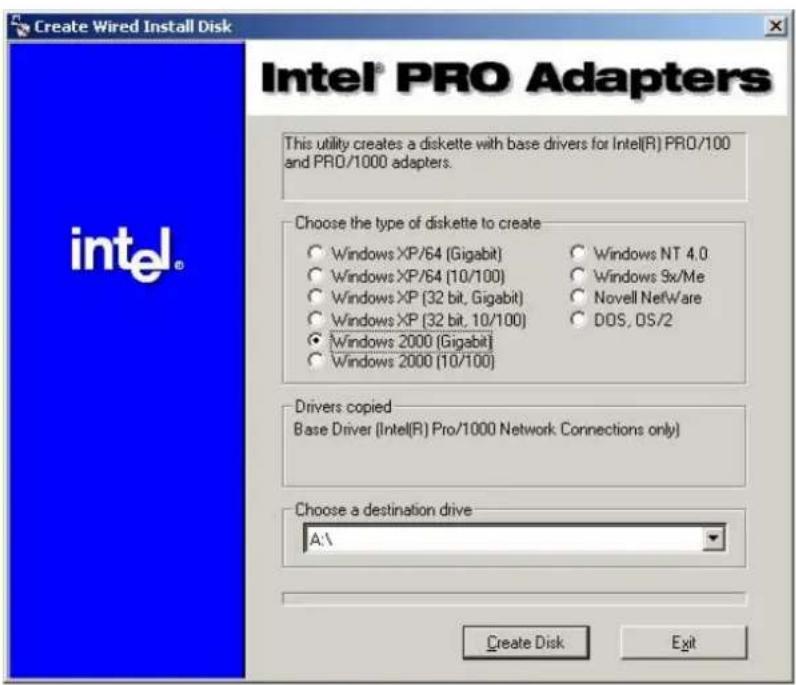
text_image
Create Wired Install Disk Intel® PRO Adapters This utility creates a diskette with base drivers for Intel(R) PRO/100 and PRO/1000 adapters. Choose the type of diskette to create Windows XP/64 (Gigabit) Windows XP/64 (10/100) Windows XP (32 bit, Gigabit) Windows XP (32 bit, 10/100) Windows 2000 (Gigabit) Windows 2000 (10/100) Windows NT 4.0 Windows 9x/Me Novell NetWare DOS, OS/2 Drivers copied Base Driver (Intel(R) Pro/1000 Network Connections only) Choose a destination drive A:\ Create Disk Exit- Insert the floppy disk into the floppy disk drive when prompted.
- Follow the screen instructions to complete the process.
B. Update Driver on an Existing System Installation
You may update the LAN driver directly from the support CD.
- Insert the support CD into the CD-ROM drive. On the screen that appears, click on Intel PRO/100 LAN Driver, then on the item Install Base Driver.
- Follow the screen instructions to complete the driver update.
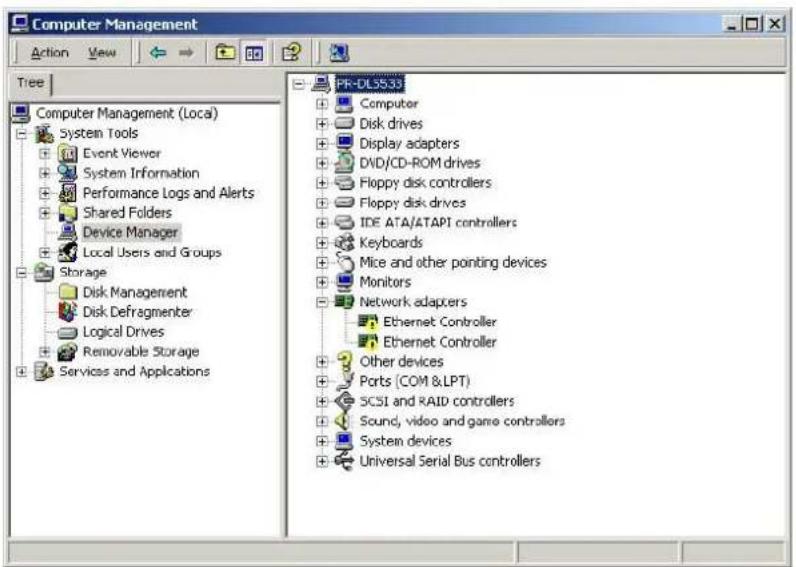
text_image
Computer Management Action View Tree Computer Management (Local) System Tools Event Viewer System Information Performance Logs and Alerts Shared Folders Device Manager Local Users and Groups Storage Disk Management Disk Defragmenter Logical Drives Removable Storage Services and Applications PF-DL5533 Computer Disk drives Display adapters DVD/CD-ROM drives Floppy disk controllers Floppy disk drives IDE ATA/ATAPI controllers Keyboards Mice and other pointing devices Monitors Network adapters Ethernet Controller Ethernet Controller Other devices Ports (COM &LPT) SCSI and RAID controllers Sound, video and game controllers System devices Universal Serial Bus controllersWhen done, your Computer Management window shows the installed LAN adapters.

text_image
Computer Management Action View Tree Computer Management (Local) System Tools Event Viewer System Information Performance Logs and Alerts Shared Folders Device Manager Local Users and Groups Storage Disk Management Disk Defragmenter Logical Drives Removable Storage Services and Applications PR-DLSS33 Computer Disk drives Display adapters DVD/CD-ROM drives Floppy disk controllers Floppy disk drives IDE ATA/ATAPI controllers Keyboards Mice and other pointing devices Monitors Network adapters Intel(R) 82540EM Based Network Connection Intel(R) 82544GC based network connection Other devices Ports (COM & LFT) 5CSI and RAID controllers Sound, video and game controllers System devices Universal Serial Bus controllers- Highlight the Intel(R) 82540EM-based Network Connection, click the right mouse button, and select Properties to display the following.
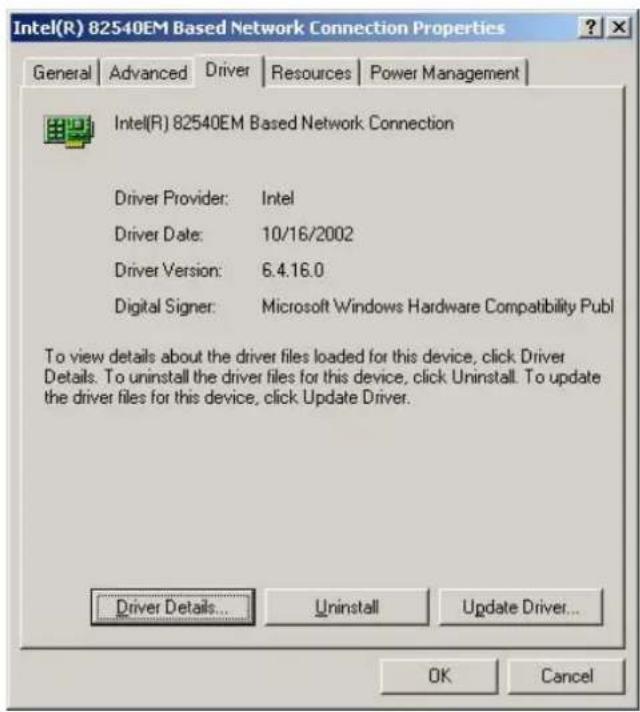
text_image
Intel(R) 82540EM Based Network Connection Properties General | Advanced | Driver | Resources | Power Management | Intel(R) 82540EM Based Network Connection Driver Provider: Intel Driver Date: 10/16/2002 Driver Version: 6.4.16.0 Digital Signer: Microsoft Windows Hardware Compatibility Publ To view details about the driver files loaded for this device, click Driver Details. To uninstall the driver files for this device, click Uninstall. To update the driver files for this device, click Update Driver. Driver Details... Uninstall Update Driver... OK Cancel- Click Driver Details to display a list of the files related to the Intel 82540EM LAN driver.
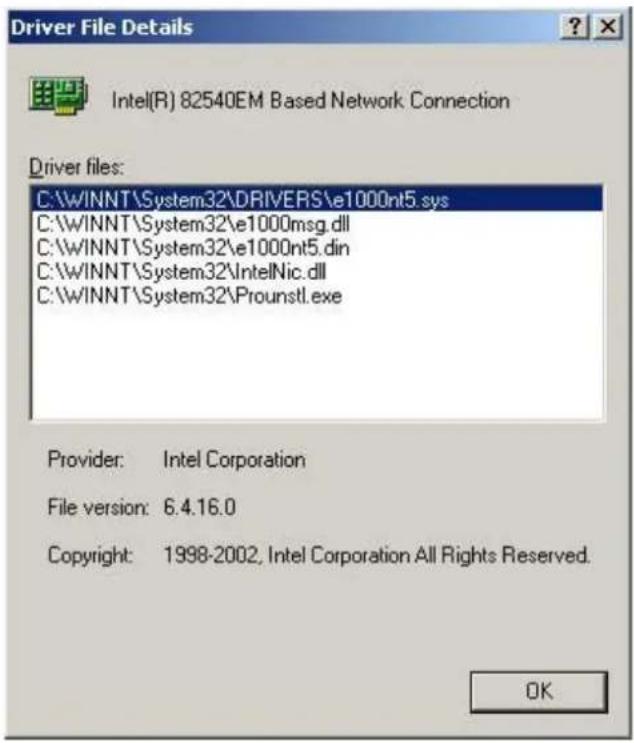
text_image
Driver File Details Intel(R) 82540EM Based Network Connection Driver files: C:\WINNT\System32\DRIVERS\e1000nt5.sys C:\WINNT\System32\e1000msg.dll C:\WINNT\System32\e1000nt5.din C:\WINNT\System32\IntelNic.dll C:\WINNT\System32\Prounstl.exe Provider: Intel Corporation File version: 6.4.16.0 Copyright: 1998-2002, Intel Corporation All Rights Reserved. OK- Highlight the Intel(R) 82544GC-based Network Connection, click the right mouse button, and select Properties to display the following.
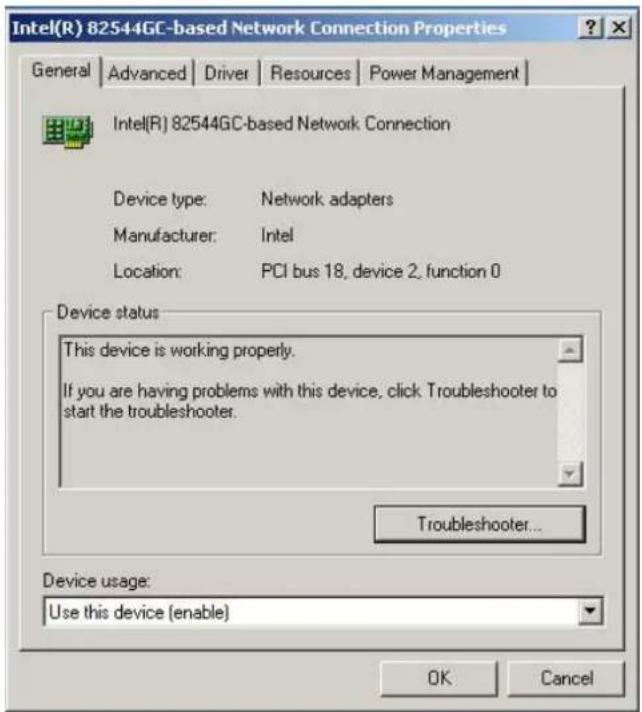
text_image
Intel(R) 82544GC-based Network Connection Properties General | Advanced | Driver | Resources | Power Management | Intel(R) 82544GC-based Network Connection Device type: Network adapters Manufacturer: Intel Location: PCI bus 18, device 2, function 0 Device status This device is working properly. If you are having problems with this device, click Troubleshooter to start the troubleshooter. Troubleshooter... Device usage: Use this device (enable) OK Cancel- Click Driver Details to display a list of the files related to the Intel 82544GC LAN driver.
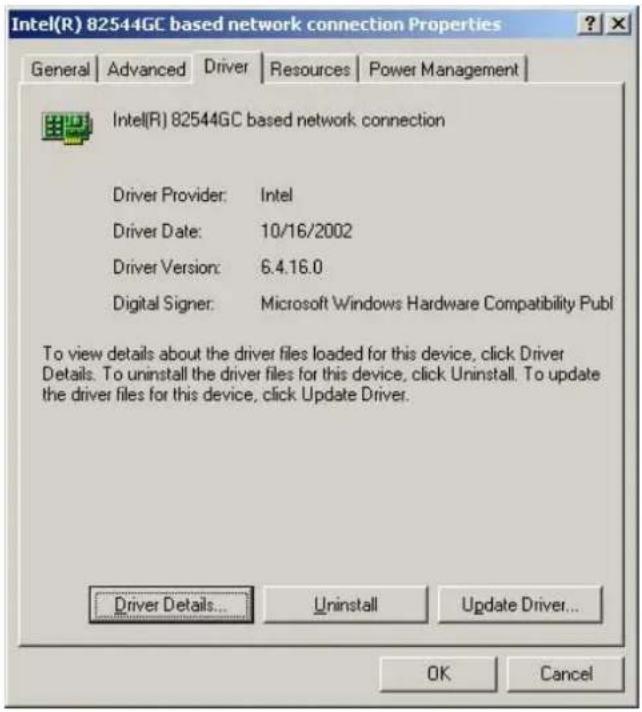
text_image
Intel(R) 82544GC based network connection Properties General | Advanced | Driver | Resources | Power Management | Intel(R) 82544GC based network connection Driver Provider: Intel Driver Date: 10/16/2002 Driver Version: 6.4.16.0 Digital Signer: Microsoft Windows Hardware Compatibility Publ To view details about the driver files loaded for this device, click Driver Details. To uninstall the driver files for this device, click Uninstall. To update the driver files for this device, click Update Driver. Driver Details... Uninstall Update Driver... OK CancelYou may also update the LAN drivers from the LAN Driver Disk if you created one.
Follow these steps to update from the LAN driver disk.
- Boot Windows 2000 system and log on as Administrator.
- Click on the Start button. Select Settings, then Control Panel.
- Double-click the System icon in the Control Panel. Select the Hardware tab to display the following screen.
- Click on Device Manager, then on Other Devices.
- Highlight Ethernet Controller, then click the right mouse button and select Properties.
- Select the Driver tab and click on Update Drivers.
- Click Next. Select Display a list of the known drivers for this device ...
- Select Network adapters under Hardware Type, and click Next.
- Click Have Disk..., then insert the LAN driver disk.
- Follow the succeeding instructions to complete the installation.
5.3.3 ATI ^® Rage XL Display Driver Installation
Windows 2000 system can automatically recognize the ATI RAGE XL PCI driver during system installation. You do not need to load any driver for supporting the onboard ATI RAGE XL graphics controller chipset.

text_image
ATI Technologies Inc. RAGE XL PCI Properties General Driver Resources ATI Technologies Inc. RAGE XL PCI Device type: Display adapters Manufacturer: ATI Technologies Inc. Location: PCI bus 0, device 3, function 0 Device status This device is working properly. If you are having problems with this device, click Troubleshooter to start the troubleshooter. Troubleshooter... Device usage: OK Cancel5.3.4 Enabling ATA100 Feature in Windows ^® 2000
To enable the ATA100 feature under Windows 2000, you need to upgrade to Windows 2000 Service Pack 2 or later.
5.4 Microsoft® Windows® XP Professional
5.4.1 LSI ^® SCSI Driver Installation
Windows XP Professional does not have drivers for the new SCSI controllers. You must load the driver manually prior to Windows XP installation.
A. Preparing an LSI Driver Disk
From the support CD, locate the LSI drivers in the following path:
\Drivers\SCSI\FUSION-MPT\Windows\1.08.22\WinXP
This procedure installs the SYMMPI.SYS driver onto a new or existing Windows XP system. Depending upon the media used to distribute LSI Logic drivers (web or CD-ROM), you will create a driver disk.
Copy the files listed in this section to the root directory of a clean diskette as shown below. Label this diskette "Windows XPDriver Diskette."
You will use this diskette during the installation process.
\txtsetup.oem
\symmpi.tag
\32_bit\oemsetup.inf
\32_bit\symmpi.sys
\64_bit\oemsetup.inf
\64_bit\symmpi.sys
Locate the onboard LSI U320 SCSI executable driver in the following path:
\Drivers\SCSI\FUSION-MPT\Windows\1.08.22\WinXP.exe
B. New System Installation
This procedure installs the SYMMPI.SYS driver onto a Windows XP system. Use this procedure when installing Windows XP onto an unused drive. Windows XP automatically adds the driver to the registry and copies the driver to the appropriate directory.
The method for installing Windows XP on a new system involves using a CD-ROM. Installation using boot floppy diskettes is not supported by Windows XP.
B1. CD-ROM Installation
- Start the Windows XP installation by booting from the Windows XP CD-ROM.
The system BIOS must support booting from a CD-ROM. BIOS settings may need to be changed to allow CD-ROM booting.
- Press the F6 key to install the SYMMPI.SYS driver when the screen displays "Windows Setup."
This must be done or else the new driver will not be recognized.
NOTE: Be sure to press the F6 key as any driver loaded later in the installation process is not recognized by Windows XP Setup. If F6 is not pressed, all devices controlled by the drivers are not available during Windows XP setup.
- Choose S to specify an additional device when the screen displays "Setup was unable to load support for the mass storage device you specified...".
NOTE: If this screen is not displayed as the first user input, then pressing the F6 key was not seen by the setup program. Reboot the system and try again.
The system prompts for the manufacturer-supplied hardware support disk.
-
Insert the appropriate driver diskette containing the Windows XP driver required to support your LSI Logic adapter(s) and press Enter.
-
The screen will display a list of two drivers to select from:
"LSI Logic PCI SCSI/FC MPI Driver (XP 32-bit)"
"LSI Logic PCI SCSI/FC MPI Driver (XP 64-bit)"
Select the driver that matches the processor architecture of the system (32-bit or 64-bit). Press Enter to proceed. Return to the Windows XP Setup screen.
-
Press Enter to proceed. The message about setup loading files appears.
-
Follow the Microsoft Windows XP installation procedure at this point.
C. Existing System Installation
This procedure installs or upgrades the SYMMPI.SYS drivers onto an existing Windows XP system.
NOTE: When a LSI Logic SCSI or Fibre Channel adapter is added to an existing system installation, the new adapter is automatically detected at the next reboot. When the Device Driver Wizard appears at boot, click on the Next button and continue at step 8 below.
- Boot Windows XP and logon as a user that has Administrator privileges.
- Click on the Start button, then right-click on the My Computer entry in the menu.
- Click on the Properties selection.
- Click on the Hardware tab, and then the Device Manager button.
- Click the "+" to the left of the SCSI and RAID controllers line. Find the adapter desired for the driver upgrade and double-click the entry. Click on the Driver tab.
- Information on the currently installed driver is displayed, and additional driver details can be viewed by clicking the "Driver Details" button.
- Click on the "Update Driver" button to update the existing driver. The Hardware Update Wizard begins.
- Click on the "Install from a list or specific location..." button to select it, then click on the Next button.
- Click on the "Don't search, I will choose the driver to install." button to select it, then click on the Next button.
- Click on the "Have Disk" button and type the path to the driver, or click on the Browse button. Drivers for 32-bit systems will be in the "32_bit" directory and drivers for 64-bit systems will be in the 64-bit directory. After the path to the driver has been established, click the OK button.
- Select the driver from the list and click on the Next button.
-
Click on the Next button again to start the driver update. In some cases, a message will display saying that this driver has not passed logo testing. This message informs you that a nonsigned driver is being installed.
-
Click STOP Installation to cancel the installation if a nonsigned driver is not desired.
- or -
Click Continue Anyway to continue the installation.
The system will load the driver from the Windows XP driver diskette. A message box may display indicating that the target (existing) driver is newer than the source (upgrade) driver.
- Click No to cancel the driver upgrade at this point.
- or -
Click Yes to continue the installation.
The system copies the driver to the system disk. For any adapter other than the boot adapter, the updated driver will become active immediately.
For the boot adapter, a message box displays indicating that you must reboot your system for the new driver to take effect.
- Click on the Finish button to complete the driver upgrade.
D. Performance Tuning for Windows XP
Windows XP has registry entries that can be used to tune the performance of SCSI I/O for certain configurations. The tunable parameters are large transfer block size support and a guaranteed number of concurrent I/Os for a particular SCSI bus.
5.4.2 Intel ^® LAN Driver Installation

For Windows XP Professional users, we recommended that you use the Intel 82551QM/82540EM/82544GC driver from the support CD.
A. Preparing the Intel LAN Driver Disk
- Insert the support CD into the CD-ROM drive.
- Run the utility from the following path:
\Drivers\LAN\MAKEDISK\dcreate.exe - In the following screen, click on Make Driver Disk.

text_image
Intel® PRO Network Connections Intel® PRO Network Connections Intel PRO/100 and PRO/1000 Adapters Install Software Install Base Driver Install SNMP Make Driver Disk View User Guides View Release Notes Intel® PRO Network Connections Exit- The next screen allows you to select an operating system to install the driver. Select Windows XP/64 (Gigabit). Refer to the next page.

text_image
Create Wired Install Disk Intel® PRO Adapters This utility creates a diskette with base drivers for Intel(R) PRO/100 and PRO/1000 adapters. Choose the type of diskette to create ● Windows XP/64 (Gigabit) ○ Windows XP/64 (10/100) ○ Windows XP (32 bit, Gigabit) ○ Windows XP (32 bit, 10/100) ○ Windows 2000 (Gigabit) ○ Windows 2000 (10/100) ○ Windows NT 4.0 ○ Windows 9x/Me ○ Novell NetWare ○ DOS, OS/2 Drivers copied Base Driver (Intel(R) Pro/1000 Network Connections only) Choose a destination drive A:\ Create Disk Exit- Follow the succeeding installation instructions.
- When done, the following screen appears. Click Finish to complete the installation.
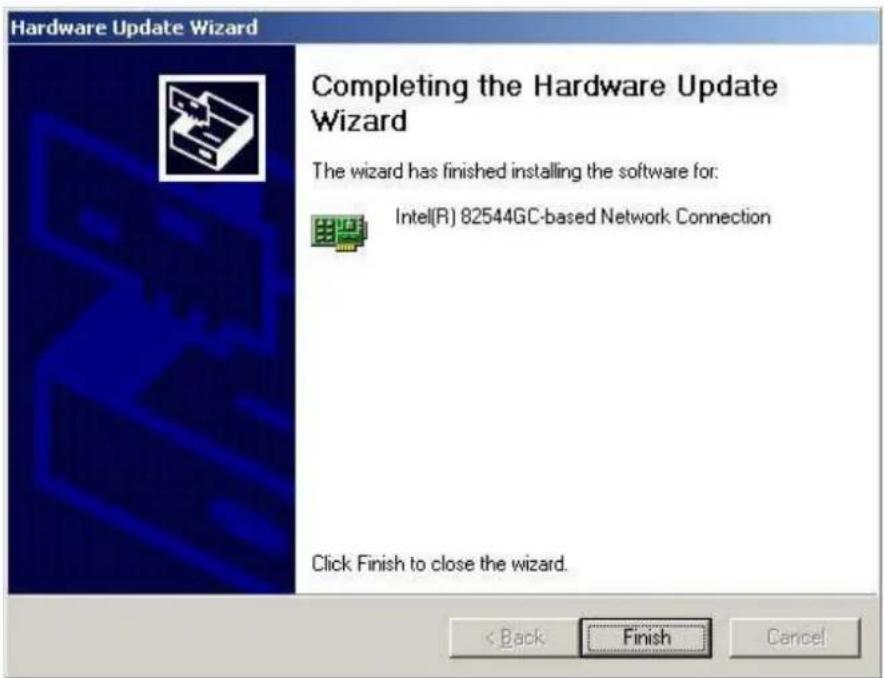
text_image
Hardware Update Wizard Completing the Hardware Update Wizard The wizard has finished installing the software for: Intel(R) 82544GC-based Network Connection Click Finish to close the wizard. < Back Finish Cancel5.5 Novell ® NetWare® Server
5.5.1 LSI ^® SCSI Driver Installation
A single driver (*HAM) is provided for the Novell NetWare 5.1/6.0 environments. This document explains how to install and use the SDMS NWPA SCSI Host Adapter Module (HAM) driver for NetWare.
A. Preparing an LSI Driver Disk
From the support CD, locate the LSI drivers in the following path:
Copy all the drivers into a diskette and it will be used for the NetWare system installation. Label it "LSI driver for NetWare."
B. New System Installation
- Begin the file server installation according to the instructions in the file server installation chapter in the Novell NetWare Installation Manual.
- When the NetWare installation procedure prompts you for a Disk Driver, insert the LSI Logic device driver diskette into drive A: or B:. Then use the INS key to select an unlisted driver. A dialog box appears. If the driver diskette is in the A: drive, press Enter to continue. If the driver diskette is in the B: drive, press F3 (to specify the path to search for the driver), and enter the drive letter B:\ and press Enter. The LSIMPTNW.HAM driver will appear as a selection. NOTE: If the INS key option does not appear during the installation, choose Server Drivers to go to the Summary page. Highlight Disk and CD-ROM Drivers (e.g., IDEATA). Press Enter and load an additional driver.
Then press the INS key. The system defaults to the A: path. Highlight the LSI Logic NWPA driver and press Enter. Select Yes to save and move the driver into the operating system. Press Enter to copy the files.
- Next the system prompts the user with the available command line options to load the driver. A description of each option appears in the box at the bottom of the installation screen. A more detailed description is given in the section titled Command Line Options. Modify any option values as needed.
- Load a separate instance of the driver for every LSI Logic controller SCSI channel or host adapter present in the system.
- When prompted for a slot number, accept the slot numbers displayed. Make sure to write these slot numbers down for later use.
- When asked to edit the STARTUP.NCF file, make sure the LSIMPTNW.HAM is loaded once per LSI Logic controller SCSI channel. Add the statement SLOT=
to each load line in the STARTUP.NCF, specifying the slot numbers written down in Step 5 above, with only one slot number per load instance. The HAM driver(s) are loaded for each LSI Logic controller SCSI channel from the first LOAD statement to the last LOAD statement.
5.5.2 Intel ^® LAN Driver Installation
You may install the Intel 82551QM/82540EM/82544GC LAN drivers directly from the support CD. Proceed to the section "B. Update LAN Driver on an Existing System Installation."
If you wish to create a LAN driver disk, proceed to the section "A. Preparing the Intel LAN Driver Disk."
A. Preparing the Intel LAN Driver Disk

Prepare one blank formatted high density floppy disk before proceeding.
- Insert the support CD into the CD-ROM drive.
- Run the utility from the following path:
\Drivers\LAN\MAKEDISK\dcreate.exe
- In the following screen, click on Make Driver Disk.
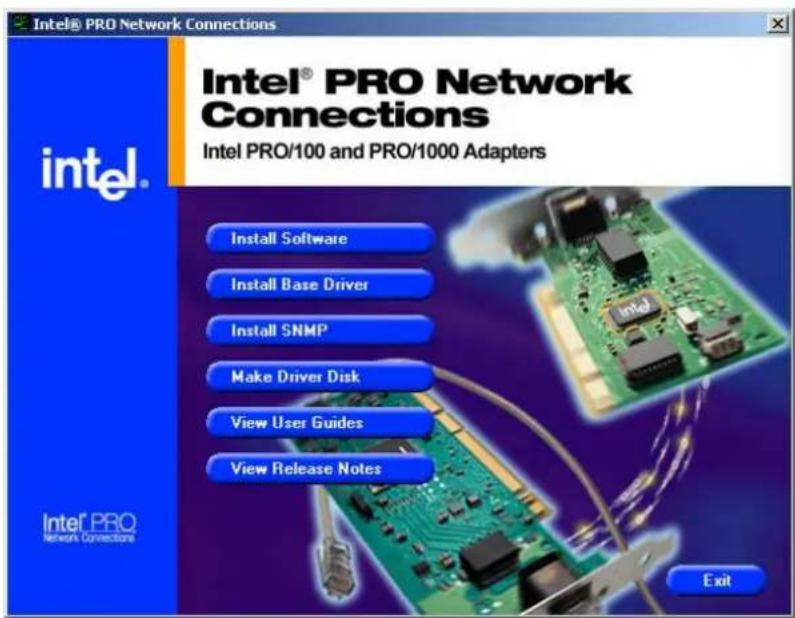
text_image
Intel® PRO Network Connections Intel® PRO Network Connections Intel PRO/100 and PRO/1000 Adapters Install Software Install Base Driver Install SNMP Make Driver Disk View User Guides View Release Notes Intel® PRO Network Connections Exit- The next screen allows you to select an operating system to install the driver. Select Novell Netware. Refer to the next page.

text_image
Create Wired Install Disk Intel® PRO Adapters This utility creates a diskette with base drivers for Intel(R) PRO/100 and PRO/1000 adapters. Choose the type of diskette to create Windows XP/64 (Gigabit) Windows XP/64 (10/100) Windows XP (32 bit, Gigabit) Windows XP (32 bit, 10/100) Windows 2000 (Gigabit) Windows 2000 (10/100) Windows NT 4.0 Windows 9x/Me Novell NetWare DOS, OS/2 Drivers copied Base Driver (Intel(R) Pro/1000 Network Connections only) Choose a destination drive A:\ Create Disk Exit- Insert the floppy disk into the floppy disk drive when prompted.
- Follow the screen instructions to complete the process.
B. NetWare 5.1/6.0 Installations
- From the NetWare console, type NWCONFIG or Load Install and press
. - From the Configuration Options screen, choose Driver options and press
. - Choose Configure network drivers and press
. If any drivers are already loaded, a list of them appears. - Choose Load an additional driver and press
. A list of drivers appears. - Insert the Intel CD or floppy disk you've created and choose Install an unlisted driver by pressing
. -
If you're using a floppy disk, insert the disk in drive A and press
. If you've mounted the CD as a NetWare volume, press and enter the source path (CD volume). -
The driver name is displayed: Intel(R) PRO PCI adapter. Press
to select it. - A prompt appears asking if you want to copy the driver. Select Yes and press
. - The next screen asks for parameters for loading the driver. To modify any driver parameters or protocols, highlight Select/Modify driver parameters and protocols and press
. If you have multiple adapters, enter the slot number for the adapter you are currently configuring. When finished configuring the driver, select Save parameters and load driver to continue. - To complete the driver installation process, go back to the Configuration Options screen by pressing
until you see the Configuration Options screen. - Choose Exit to return to the server console prompt.
5.5.3 ATI ® Rage XL Display Driver Installation
You can select the “Super VGA” for the X Server on NetWare 5 server system. The other NetWare system didn’t support X Server and you didn’t need the VGA driver support.
5.6 SCO OpenServer 5.0.6a
5.6.1 LSI ^® SCSI Driver Installation
A. Building the SCO OpenServer BTLD Diskette
To create a BTLD diskette for SCO OpenServer system, copy the raw dd image file onto a 1.44MB floppy disk. This process is dependent upon the operating system that you are using to create this diskette. See the instructions below for UNIX System and DOS System Users.
Locate the SCSI files in the following path in the support CD:
\Drivers\SCSI\Fusion-MPT\SCO\1.03.17
For UNIX System Users:
Follow these steps to create the BTLD diskette:
- Insert a 3.5" diskette into the floppy disk drive.
- At the UNIX prompt, type:
$$ \text { dd if } = / < \text { path } > / \text { sco10317 of } = / \text { dev / fd0 } $$
The
For DOS System Users:
- Use a utility that will copy the raw dd image onto a 1.44 Mbyte diskette. RAWRITE3.COM, which is a public domain utility, is available. Instructions for using this utility are included in its accompanying RAWRITE3.COM file.
- The dd image is located in the zipped file you downloaded from the LSI Logic web site.
- RAWRITE3.COM is included within the zipped file. After the image has been copied to a 3.5-inch diskette, use this BTLD diskette for SCO OpenServer installations as instructed.
B. New System Installation
This procedure installs SCO UNIX onto a hard disk drive. This installation is necessary to build a new UNIX kernel that includes your SDMS driver. During installation, you are given the option of retaining current partitions on the root hard disk. For instance, you could have a DOS partition or a user UNIX partition already established on the drive. For more details on UNIX installation, refer to the SCO OpenServer Handbook.
- Link the Isil BTLD into the UNIX kernel during installation.
-
Insert the SCO UNIX installation diskette and reboot the system. For SCO OpenServer 5.0.6a, this diskette is labeled Boot Disk.
-
At the boot prompt, type
Boot : link
Press Enter.
- At the next prompt, type:
lsil
Do not remove the boot diskette. Press Enter.
- When prompted during the installation, insert either the proper installation diskette or the SDMS BTLD diskette, and press Enter. The system may prompt you to enter a routine number:
“Please enter which routine (0-40) to replace ‘?’ to list, ‘a’ to add “Isilinit” at the end [default], ‘n’ to do nothing, or ‘q’ to quit”
Enter the indicated routine number that precedes this message. Then the system may prompt with another inquiry:
“Please enter which routine (0-2) to replace ‘?’ to list, ‘a’ to add “lsilpoll” at the end [default], ‘n’ to do nothing, or ‘q’ to quit”
Enter the indicated routine number that precedes this message.
- Continue the installation according to the SCO UNIX documentation.
- The SCO OpenServer 5.0.6a system automatically creates a file, unix.safe, during installation. To access this UNIX kernel, type after the "boot:" prompt:
unix.safe
- Install SCSI device support by continuing from "C. Existing System Installation," Step 3.
C. Existing System Installation
This procedure assumes SCO UNIX is already installed on a hard disk drive. This installation is necessary to build a new UNIX kernel that includes the proper LSI host adapter driver. The basic steps for accomplishing this are outlined below. For more details on UNIX installation, refer to the SCO UNIX System Administrator's Reference Manual.
The SCO OpenServer 5 system automatically creates a file unix.safe during installation. To access this UNIX kernel, type after the "boot:" prompt:
unix.safe
Press Enter.
C1. Installing the Isil driver
- Insert the SDMS BTLD diskette in the floppy drive and type:
# installpkg
Press Enter to continue.
-
A prompt appears to insert the requested diskette. Since the BTLD diskette is already inserted, press Enter.
-
A prompt asks for the name of the package. Type:
lsil
Press Enter to continue.
-
If a driver is already present from a previous installation, a prompt inquires about replacing it. Reply y for yes.
-
Once the install package (installpkg) has completed, relink the kernel by typing:
# /etc/conf/cf.d/link_unix
- The system executes the command then prompts for a series of responses:
a. "Do you want this kernel to boot by default (y/n)?"
Type: y and press Enter. The system backs up the old kernel.
b. "Do you want the kernel environment rebuilt (y/n)?"
Type: y and press Enter.
- To activate the new kernel, you must reboot the system. At the command prompt, type:
reboot
Press Enter.
C2. Adding a SCSI Disk Drive
NOTE: If you are not adding a SCSI or Fibre Channel disk drive to this system, go to step 4.
- At the command prompt, type:
mkdev hd
Press Enter.
- The system prompts for the identifier of the host adapter that supports this device. If the default is correct, press Enter. If the default is not correct, type:
lsil
Press Enter.
- The system prompts for the host adapter that supports the disk drive. Type the correct host adapter number and press Enter.
If an additional LSI Logic host adapter is being added to the SCO UNIX kernel, the system may prompt if you want to update the link-kit (add another host adapter). Type y and press Enter. If you entered the host adapter number incorrectly, type n, and press Enter. The system then prompts for the host adapter identifier of the preceding step.
-
With SCO OpenServer 5.0.6a, the system prompts for the bus number of the disk drive. Since LSI Logic host adapters support one bus per adapter, press Enter to get the default of zero, or type 0 (zero) and press Enter.
-
The system prompts for the target ID of the disk drive. Type the ID number of the disk drive and press Enter.
-
The system prompts for the Logical Unit Number (LUN) of the disk drive. Type the desired LUN and press Enter, or press Enter for the default value of zero.
-
The system prompts you to update the Configuration file. Type y and press Enter if the displayed values are correct. Type n if the values are incorrect, and retry from step 3d.
-
A prompt appears to create a new kernel. Type y if this is the last device to be added, or type n if additional devices are to be added. Go to step 6, "Rebuilding the Kernel," if you replied y; return to step 3 if you replied n.
C3. Adding a Tape Drive
NOTE: If you are not adding a tape drive to this system, go to step 5.
- At the command prompt, type:
mkdev tape
Press Enter.
-
The Tape Drive Configuration Program menu appears. Select option 1 to install a tape drive, and press Enter.
-
The Tape Drive Installation Menu appears. Select option 4 to install a tape drive, and press Enter. From the next list, select the type of tape drive to install, and press Enter.
-
The system prompts to configure the tape drive. Type y and press Enter.
-
The system prompts for the identifier of the host adapter that supports this device. If the default is correct, press Enter. If the default is not correct, type:
lsil
Press Enter.
- The system prompts for the host adapter that supports the tape drive. Type the correct host adapter number, and press Enter.
If an additional LSI Logic host adapter is being added to the SCO UNIX kernel, the system may prompt if you want to update the link-kit (add another host adapter). Type y and press Enter. If you entered the host adapter number incorrectly, type n, and press Enter. The system then prompts for the host adapter identifier of the preceding step.
- With SCO OpenServer 5.0.6a, the system prompts for the bus number of the tape drive. Since LSI Logic host adapters support only one bus per adapter, press Enter to get the default of zero, or type 0 (zero) and press Enter.
- The system prompts for the ID of the tape drive. Type the ID number of the tape drive and press Enter.
- The system prompts for the LUN of the tape drive. Type 0 (zero) and press Enter. The system then prompts to update the Configuration file. Type y and press Enter.
- A list appears that shows the special devices created. Press Enter, and another list appears that shows the links to the installed tape drive. When prompted for a boot string, type q and press Enter to return to the Tape Drive Configuration Program menu. Type q and press Enter to terminate the Tape Drive Configuration Program menu.
- A prompt appears to create a new kernel. Type y if this is the last device to be added, or type n if additional devices are to be added. Go to step 6, "Rebuilding the Kernel," if you replied y; return to step 3 if you replied n.
C4. Adding a CD-ROM Drive
NOTE: If you are not adding a CD-ROM drive to this system, go to Step 6.
- At the command prompt, type:
mkdev cdrom
Press Enter.
- The CD-ROM Configuration Program menu appears. Select option 1 to install a CD-ROM drive and press Enter.
- The system prompts to configure the CD-ROM Drive. Type y and press Enter.
- The system prompts for the identifier of the host adapter that supports this device. If the default is correct, press Enter. If the default is not correct, type:
lsil
Press Enter.
- The system prompts for the host adapter that supports the CD-ROM drive. Type the correct host adapter number and press Enter.
If an additional LSI Logic host adapter is being added to the SCO UNIX kernel, the system may prompt if you want to update the link-kit (add another host adapter). Type y and press Enter. If you entered the host adapter number incorrectly, type n, and press Enter. The system then prompts for the host adapter identifier of the preceding step. - With SCO OpenServer 5.0.6a, the system prompts for the bus number of the CD-ROM. Since LSI Logic host adapters support only one bus per adapter, press Enter to get the default of zero, or type 0 (zero) and press Enter.
- The system prompts for the ID of the CD-ROM Drive. Type the ID number and press Enter.
- The system prompts for the LUN of the CD-ROM drive. Type the desired LUN and press Enter, or press Enter for the default value of zero.
- The system prompts to update the Configuration file. Type y and press Enter. A prompt appears to configure a CD-ROM/TAPE installation device. Unless this is desired, type n and press Enter.
A prompt appears to add a High-Sierra file system. Type y and press Enter. The system displays the High Sierra/ISO9600 file system Configuration Program menu. Select option 1 to add High-Sierra and press Enter. The system updates the configuration file and returns to the CD-ROM Configuration Program menu. Type q and press Enter to terminate the CD-ROM Configuration Program menu. - A prompt appears to create a new kernel. Type y if this is the last device to be added, or type n if additional devices are to be added. Go to step 6, "Rebuilding the Kernel," if you replied y; return to step 3 if you replied n.
C5. Rebuilding the Kernel
-
To rebuild the kernel, type: /etc/conf/cf.d/link_unix
-
The system displays will prompt for responses to these messages:
a. Do you want this kernel to boot by default (y/n)?
Type: y
Press Enter.
The system backs up the old kernel.
b. Do you want the kernel environment rebuilt (y/n)?
Type: y
Press Enter.
- To activate the new kernel, you must reboot the system. Type the command:
reboot
Press Enter.
-
After the system reboots and the "boot:" prompt appears, press Enter to load the new kernel.
-
Log in as usual.
5.7 SCO UnixWare Server
5.7.1 LSI ^® SCSI Driver Installation
A. Building the LSI Logic Fusion-MPT™ mpt Driver HBA Diskette
This is the guide to create an HBA driver diskette for the Caldera UnixWare 7 and Open Unix 8 Operating Systems. Both of these operating systems will hereafter be referred to as “UnixWare.”
To create an mpt HBA diskette for use with UnixWare, you must copy the raw dd image file onto a 1.44 Mbyte diskette. The process for doing this depends upon what operating system you are using to create the diskette.
Locate the SCSI files in the following path in the support CD:
\Drivers\SCSI\Fusion-MPT\Unixware\1.03.17
For UNIX System Users
Follow these steps to create the HBA diskette:
- Insert a 3.5-inch blank diskette into the diskette drive.
At the UNIX prompt, type:
dd if=/
The
- The dd image file is found in the zipped file that you downloaded from the LSI Logic web site.
This command will dd the image to the blank diskette to create an HBA diskette.
After the image has been copied to a 3.5 diskette, use this HBA diskette for UnixWare installations as instructed.
For DOS System Users
-
Use a utility that will copy the raw dd image onto a 1.44 Mbyte diskette. RAWRITE3.COM, which is a public domain utility, is available. Instructions for using this utility are included in its accompanying RAWRITE3.DOC file.
-
The dd image is located in the zipped file you downloaded from the LSI Logic web site.
- RAWRITE3.COM is included within the zipped file you downloaded from the LSI Logic web site.
After the image has been copied to a 3.5 diskette, use this HBA diskette for UnixWare installations as instructed.
B. New System Installation
- Boot the computer using the installation diskettes or the installation CDROMs delivered in the UnixWare Operating System media kit.
- Follow the instructions on the screen.
- Insert the mpt driver diskette when prompted to insert a host adapter diskette.
The system loads the required drivers, such as mpt, and indicates when they are loaded. At the end of the installation, you will see a prompt to reinsert the HBA driver diskette.
- Insert the mpt driver diskette and press Enter.
The kernel builds and the installation terminates.
- Remove the driver diskette when prompted to do so and reboot the system.
C. Existing System Installation
Before you install the mpt driver, make a backup copy of the existing kernel. The backup and installation procedures follow.
- Log on as root.
- At the shell prompt type:
cp /stand/unix /stand/unix.safe
Use this copy of the old kernel to reboot the system if the driver installation fails. Refer to the section titled Troubleshooting for more information.
- Once the old kernel is saved, insert the mpt UnixWare driver diskette.
- Load the driver using the pkgadd command by typing:
pkgadd -d diskette1
- Select the mpt package.
The mpt driver on this diskette is then loaded onto the system.
The system will again prompt you to load a driver even if loading was successful.
-
Type q (quit) and press Enter.
-
Verify that the driver is now loaded successfully by typing:
pkginfo mpt
- The package information should read:
system mpt LSI Logic IHV HBA
After the mpt package is loaded, a message may appear that indicates a system reboot is necessary.
- To reboot, type this command:
init 6
During the boot process, the operating system scans the system and lists the devices found. If the kernel panics during boot, reboot the system with the saved copy of the old kernel. Booting from the saved copy of the kernel is described in the next section titled
Troubleshooting. If the reboot is successful, the system is ready to use.
5.7.2 Intel ^® LAN Driver Installation
SCO UnixWare 7.1.1 system can correctly recognize Intel 82551QM/82540EM/82544GC network controller during installation. You don't need to load or modify the network driver for the onboard LAN device.
Locate the Intel 82551QM/82540EM/82544GC network driver from the following path in the support CD:
\Drivers\Lan\PRO100\OPENUNIX \Drivers\Lan\PRO1000\OPENUNIX
It is not necessary, nor recommended, to remove previous versions of this package from the system before installing this updated version. To install this package, you may use the scoadmin Application Installer from the desktop, or as a root login with pkgadd command.
- Copy the eeE8.pkg file into any directory on the UnixWare system, such as in the /tmp directory.
- Make sure no other users are logged on and all user applications are closed.
- If there is an older version of the eeE driver on the system, first run 'netcfg' and remove any configured NICs. Exit 'netcfg'. Remove the old driver by typing 'pkgrm eeE'. (You can find the driver version by typing 'pkginfo -I eeE').
- Install the new driver using 'pkgadd'. For example:
# pkgadd -d /tmp/eeE8.pkg
-
Run 'netcfg' to add and configure the NICs.
-
Reboot the system.
5.7.3 ATI ^® Rage XL Display Driver Installation
SCO UnixWare 7.1.1 system can correctly recognize ATI Rage XL graphic controller (ATI MACH64) during installation. User doesn't need to load or modify the video driver for the onboard VGA device.
5.8 Linux RedHat 7.3/8.0
5.8.1 LSI ^® SCSI Driver Installation
The The Fusion-MPT driver is a bundled boot controller for RedHat 7.3/8.0. You may install to a disk attached to the controller with no additional media.
For more information on the LSI 53C1030 SCSI controller, refer to the following path in the support CD:
\Drivers\SCSI\FUSION-MPT/Linux\2.03.00\mptlinux.txt
5.8.2 Intel ^® LAN Driver Installation
Linux RedHat 7.3/8.0 system can automatically recognize Intel 82551QM/82540EM/82544GC network controller during installation. You don't need to load or modify the network driver for the onboard LAN device.
5.8.3 ATI ^® Rage XL Display Driver Installation
The RedHat 7.3/8.0 system can automatically recognize ATI Rage XL graphic controller (ATI MACH64) during installation. You don't need to load or modify the video driver for the onboard VGA device.