
CS-1194H - Calculator SHARP - Free user manual and instructions
Find the device manual for free CS-1194H SHARP in PDF.


| Product Type | Electronic Calculator |
| Brand | SHARP |
| Model | CS-1194H |
| Power Supply | AC 120V, 60Hz |
| Working Capacity | 10 digits |
| Printing Speed | Approx. 4.3 lines/sec |
| Paper Width | 57 mm ~ 58 mm |
| Max Roll Diameter | 80 mm |
| Operating Temperature | 0°C to 40°C |
| Power Consumption | 126 mA |
| Printing Type | Mechanical Printer |
| Main Functions | Four operations, constant multiplication/division, power calculation, markup/discount calculation, increase calculation, successive addition/subtraction, inverse calculation, memory calculation, item count, non-add printing, grand total calculation |
| Care and Cleaning | Clean with a soft, dry cloth, do not use solvents |
| Safety | Do not expose to moisture, unplug if not used for a long time, use only the specified voltage |
| Spare Parts | Replaceable ink ribbon, paper roll |
| Repairability | Entrust to an authorized Sharp distributor |
Frequently Asked Questions - CS-1194H SHARP
User questions about CS-1194H SHARP
0 question about this device. Answer the ones you know or ask your own.
Ask a new question about this device
Download the instructions for your Calculator in PDF format for free! Find your manual CS-1194H - SHARP and take your electronic device back in hand. On this page are published all the documents necessary for the use of your device. CS-1194H by SHARP.
USER MANUAL CS-1194H SHARP
This device complies with Part 15 of the FCC Rules. Operation is subject to the following two conditions: (1) This device may not cause harmful interference, and (2) this device must accept any interference received, including interference that may cause undesired operation.
WARNING - FCC Regulations state that any unauthorized changes or modifications to this equipment not expressly approved by the manufacturer could void the user's authority to operate this equipment.
Note: This equipment has been tested and found to comply with the limits for a Class B digital device, pursuant to Part 15 of the FCC Rules.
These limits are designed to provide reasonable protection against harmful interference in a residential installation. This equipment generates, uses, and can radiate radio frequency energy and, if not installed and used in accordance with the instructions, may cause harmful interference to radio communications. However, there is no guarantee that interference will not occur in a particular installation. If this equipment does cause harmful interference to radio or television reception, which can be determined by turning the equipment off and on, the user is encouraged to try to correct the interference by one or more of the following measures:
- Reorient or relocate the receiving antenna.
- Increase the separation between the equipment and receiver.
- Connect the equipment into an outlet on a circuit different from that to which the receiver is connected.
- Consult the dealer or an experienced radio/TV technician for help.
Caution!
The socket outlet shall be installed near the equipment and shall be easily accessible.
Attention!
Thank you for your purchase of the SHARP electronic calculator, model CS-1194H/2194H. Your SHARP calculator is specially designed to save work and increase efficiency in all business applications and general office calculations. Careful reading of this manual will enable you to use your new SHARP calculator to its fullest capability.
Note: One of the models described in this manual may not be available in some countries.
OPERATIONAL NOTES
To insure trouble-free operation of your SHARP calculator, we recommend the following:
- The calculator should be kept in areas free from extreme temperature changes, moisture, and dust.
- A soft, dry cloth should be used to clean the calculator. Do not use solvents or a wet cloth.
- Since this product is not waterproof, do not use it or store it where fluids, for example water, can splash onto it. Raindrops, water spray, juice, coffee, steam, perspiration, etc. will also cause malfunction.
- If you are not going to use the calculator for a time period, please pull out the power cord to cut electricity completely. In this case, the presently stored tax/ discount rate will be cleared.
- If service should be required on this equipment, use only a SHARP servicing dealer, a SHARP approved service facility or SHARP repair service where available.
- Do not wind the AC cord around the body or otherwise forcibly bend or twist it.
WARNING
THE VOLTAGE USED MUST BE THE SAME AS SPECIFIED ON THIS CALCULATOR. USING THIS CALCULATOR WITH A VOLTAGE HIGHER THAN THAT SPECIFIED IS DANGEROUS AND MAY RESULT IN A FIRE OR OTHER TYPE OF ACCIDENT CAUSING DAMAGE. SHARP WILL NOT BE HELD RESPONSIBLE FOR ANY DAMAGE RESULTING FROM USE OF THIS CALCULATOR WITH OTHER THAN THE SPECIFIED VOLTAGE.
CONTENTS
Page
OPERATING CONTROLS 3 - INK RIBBON REPLACEMENT 7 PAPER ROLL REPLACEMENT 8 - ERRORS 9 SPECIFICATIONS 9 CALCULATION EXAMPLES 26 TAX RATE CALCULATIONS 39 - DISCOUNT RATE CALCULATION 41
OPERATING CONTROLS
①
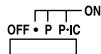
POWER SWITCH; PRINT / ITEM COUNT MODE SELECTOR:
"OFF": Power OFF.
"·": Power ON. Set to the non-print mode. ("······-P" will be printed.)
"P": Power ON. Set to the print mode. ("········+P" will be printed.)
"P·IC": Power ON. Set to the print and item count mode.
The counter will count the number of times that ± has been pressed in addition.
Notes: Each time - is used in subtraction, 1 will be subtracted from the count. - The count is printed when the calculated result is obtained. - Pressing of * , × or ÷ clears the counter. - The counter has a maximum capacity of 3 digits (up to ± 999 ). If the count exceeds the maximum, the counter will recount from zero.
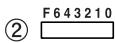
DECIMAL SELECTOR:
Presets the number of decimal places in the answer.
In the "F" position, the answer is displayed in the floating decimal system.
③ 5/4ROUNDING SELECTOR:
Example: Set decimal selector to "2".
4 ÷ 9 = 0. 4 4 4 ... , 5 ÷ 9 = 0. 5 5 5 ...
| 4÷9÷ | 5÷9÷ | |
| ↑ | 0.45 | 0.56 |
| 5/4 | 0.44 | 0.56 |
| ↓ | 0.44 | 0.55 |
Note: The decimal point floats during successive calculation by the use of × or .
If the decimal selector is set to "F" then the answer is always rounded down (↓).
K·A CONSTANT/ADD MODE SELECTOR:
"K": The following constant functions will be performed:
Multiplication: The calculator will automatically remember the first number entered (the multiplicand) and the × instruction.
Division: The calculator will automatically remember the second number entered (the divisor) and the ÷ instruction.
Neutral
"A": Use of the Add mode permits addition and subtraction of numbers without entry of the decimal point. When the Add mode is activated, the decimal point is automatically positioned according to the decimal selector setting.
Use of the decimal point key, ×, and ÷ will automatically override the Add mode and decimally correct answers will be printed at the preset decimal position.
GT· GRAND TOTAL MODE SELECTOR:
"GT": This selector will accumulate the following:
(The * and + will be printed.)
- Addition and subtraction totals obtained with the * key.
- Product and quotient totals obtained with the + or - key.
- Answers obtained with the % or MU key.
"": Neutral
6 PAPER FEED KEY
LAST DIGIT CORRECTION KEY
GRAND TOTAL KEY: Prints and clears the "GT" memory contents.
9
NON-ADD / SUBTOTAL KEY:
Non-Add - When this key is pressed right after entry of a number in the Print mode, the entry is printed on the left-hand side with "#". This key is used to print out numbers not subject to calculations such as codes, dates, etc.
Subtotal - Used to get subtotal(s) of additions and/or subtractions. When pressed following ± or -≡, the subtotal is printed with "◇" and the calculation may be continued.
By pressing this key even in the Non-print mode, the displayed number is printed with "P".
10 * TOTAL KEY:
Prints the total of addition and subtraction with *
This key also serves as a clear key for the calculation register and resets an error condition.
⑪ CE CLEAR ENTRY KEY:
Clearly numbers entered prior to use of a function key.
Also used to clear an overflow error caused by an entry.
12 M FIRST RECALL MEMORY KEY
13 *M FIRST RECALL AND CLEAR MEMORY KEY
14 MU MULTIPLE USE KEY:
Performs mark-ups, percent change and automatic add-on/discount.
15 +/- CHANGE SIGN KEY:
Changes the algebraic sign of a number (i.e. positive to negative or negative to positive).
16 TAX+ TAX-INCLUDING KEY:
This key is used for calculations with the tax/discount rate.
17 STR STORE KEY:
This key is used to store the tax/discount rate.
- A maximum of 4 digits can be stored (decimal point is not counted as a digit). To store a discount rate, press +/- first.
- Only one rate can be stored. If you enter a new rate, the previous rate will be cleared.
18 1 SECOND RECALL MEMORY KEY 19 SECOND RECALL AND CLEAR MEMORY KEY
Display format:
1,234567890 MI (CS-1194H)
1234567890.12M
Symbols:
M : First memory symbol
Appears when a number has been stored in First memory.
I: Second memory symbol
Appears when a number has been stored in Second memory.
- : Minus symbol
Appears when a number is negative.
E: Error symbol
Appears when an overflow or other error is detected.
Grand total memory symbol
Appears when a number is in the grand total memory.
INK RIBBON REPLACEMENT
- Remove the paper roll from the calculator. (Tear the paper and remove it from the print mechanism by using the paper feed key.)
- Set the power switch to OFF.
Make sure that the print wheel has stopped.
- Remove the printer cover by sliding it towards the back of the calculator. (Fig. 1)
- Remove the used ribbon.
- Install the new ribbon.
- With the black side of the ribbon facing upwards, place one of the reels on the reel shaft on the right. (Fig. 2) Make sure that the reel is securely in place.
- Thread the ribbon around the outside of the metal guides. (Fig. 3)
- Take up any slack by manually turning one of the reels.
- Replace the printer cover.
- Replace the paper roll.
Fig. 1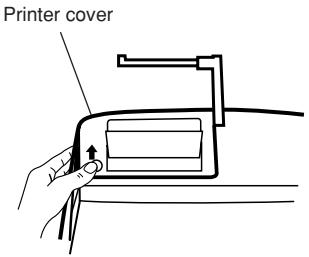
Fig. 2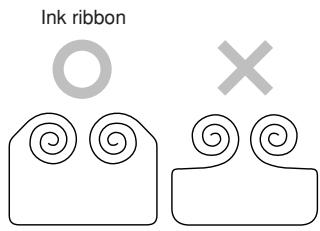
Fig. 3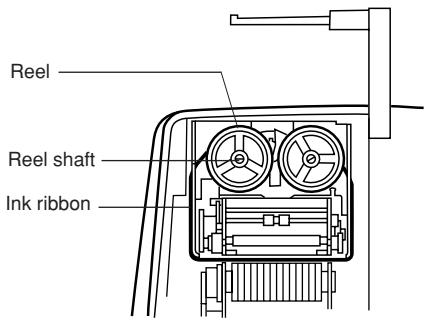
PAPER ROLL REPLACEMENT
- Lift the paper holder up. (Fig. 1)
- Fold the leading edge of the paper roll 3 to 5 cm. (Do not fold it slantwise.) (Fig. 2)
- Insert the paper roll from the left side of the paper holder and make sure the paper roll is set in the proper direction (with the paper feeding from the bottom). (Fig. 3)
- Insert the leading edge of the paper into the opening directly behind the print mechanism. (Fig. 4)
- Press the paper feed key and feed the paper under the edge of the paper cutter. (Fig. 5)
Fig. 1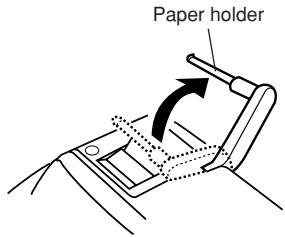
Fig. 2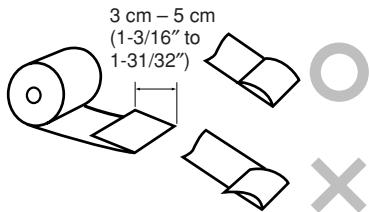
Fig. 3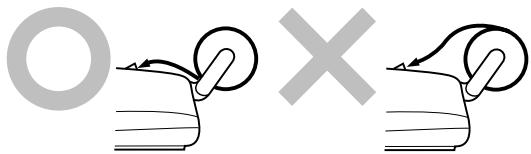
Fig. 4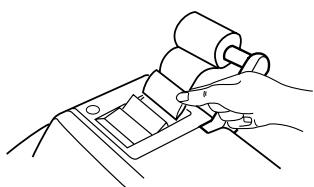
Fig. 5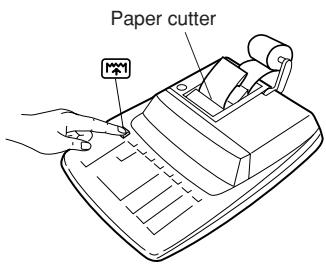
DO NOT PULL THE PAPER BACKWARDS AS THIS MAY DAMAGE THE PRINTER MECHANISM.
ERRORS
There are several situations which will cause an overflow or an error condition. When this occurs, the error symbol "E" will be displayed and all keys will electronically lock.
The contents of the memory at the time of the error are retained.
If an "0-E" is displayed at the time of the error, * must be used to clear the calculator. If an "E" with any numerals except zero is displayed, the error may be cleared with CE or → and the calculation can still be continued.
Error conditions:
- Entry of more than 10 digits or 9 decimals. (CS-1194H)
Entry of more than 12 digits or 11 decimals. (CS-2194H)
This error can be cleared with CE or →
- When the integer portion of an answer exceeds 10 digits. (CS-1194H)
When the integer portion of an answer exceeds 12 digits. (CS-2194H)
- When the integer portion of the contents of the memory exceeds 10 digits.
(CS-1194H)
(Ex. +M 99999999999 M+ 1 M+)
When the integer portion of the contents of the memory exceeds 12 digits.
(CS-2194H)
(Ex. 9999999999999 + 1 + )
- When any number is divided by zero. (Ex. 5 ±0± )
SPECIFICATIONS
Operating capacity:
10 digits (CS-1194H)
12 digits (CS-2194H)
Power source:
AC:120V,60Hz
Calculations:
Four arithmetic calculations, constant multiplication and division, power calculation, add-on/discount calculation, repeat addition and subtraction, reciprocal calculation, grand total calculation, item count calculation, markup calculation, memory calculation, etc.
PRINTING SECTION
Printer:
Mechanical printer
Printing speed:
Approx. 4.3 lines/sec.
Printing paper:
57 mm (2-1/4") ~ 58 mm (2-9/32") wide
80 mm (3-5/32") in diameter (max.)
Operation temperature: 0°C ~ 40°C (32°F ~ 104°F)
Power consumption:
126 mA
Dimensions:
250 mm W × 345 mm D × 78 mm H
9-27/32" (W) × 13-19/32" (D) × 3-1/16" (H)
Weight: Approx. 2.0 kg (4.41 lb.)
Accessories:
1 paper roll, 1 ink ribbon and operation manual
INTRODUCTION
"": Neutral, GT OFF (off)
⑥ PAPER FEED KEY
LAST DIGIT CORRECTION KEY
Dimensions: 250 mm (W) × 345 mm (D) × 78 mm (H) Weight: Approx. 2.0 kg
MULTIPLE USE KEY:
- Set the decimal selector as specified in each example.
Note: All totals and sub-totals may be used for further calculations. RE-ENTER the number into the calculator by using the FUNCTION key and continue the problem.
B. 11.11 ÷ 77.77 = ①
2 2. 2 2 ÷ 7 7. 7 7 = 2
| (1) | (2) | (3) | (4) |
| F643210 | 11.11 ± 77.77 | 11.11 | 11·11÷ 77·77=K 0·143* ① |
| K·A | 22.22 ± | 0.143 | 22·22=K 0·286* ② |
| 0.286 |
B. 123 ÷ 1368 = (%)
| (1) | (2) | (3) | (4) |
| F643210 | 123 ÷ 1368 % | 123. | 123÷ |
| 1·368·% | |||
| 8·99* | |||
| 8.99 |
RECIPROCAL / INVERSES / RECIPROCOS
1/7 =
| (1) | (2) | (3) | (4) |
| ↑5/4↓ | 7 ± | 7. | 7·÷ |
| ± | 1. | 7·÷ | |
| ± | 7·= | ||
| F643210 | 0·14285714285* | ||
| 0.14285714285 | |||
| (0.142857142 | 0·142857142* CS-1194H) |
ADD-ON AND DISCOUNT / MAJORATION ET RABAIS / RECARGOS Y DESCUENTOS
A. 5% add-on to 100. / Majoration de 5% de 100. / Un 5% de recargo sobre 100.
| (1) | (2) | (3) | (4) |
| F643210 | 100 × 5 MU | 100. | 100·× 5-% |
| 5·00 { Increased amount Majoration Incremento} | |||
| 105.00 | 105·00 * { New amount Total majoré Nueva cantidad} |
B. 10% discount on 100. / Rabais de 10% sur 100. / Un 10% de descuento sobre 100.
| (1) | (2) | (3) | (4) |
| F643210 | 100 × | 100. | 100·× |
| 10 +/- MU | - 10-% | ||
| - 10·00 | |||
| 90·00 * | |||
| Net amount | |||
| Montant net | |||
| Cantidad neta |
MARKUP AND MARGIN / HAUSSE ET MARGE BÉNÉFICIAIRE / INCREMENTO PORCENTUAL Y MARGEN
Markup and Profit Margin are both ways of calculating percent profit.
Profit margin is percent profit vs. selling price. - Markup is percent profit vs. cost.
Cost is the cost. - Sell is the selling price. - GP is the gross profit. - Mkup is the percent profit based on cost. - Mrgn is the percent profit based on selling price.
| Cost | Sell | GP | Mkup | Mrgn |
| 200 | 250 | $50 | 25% | 20% |
| (1) | (2) | (3) | (4) |
| F643210 | 200 ÷ 20 MU | 200. | 200·÷ Cost 20·%M Mrgn 250·00* Sell 50·00 GP GP |
| 50.00 |
PERCENT CHANGE / VARIATION EN POUR CENT / CAMBIO PERCENTUAL
100 + 200 + 300 = ① + 300 + 400 + 500 = ② + 500 - 600 + 700 = ③
- 72 × 8 = ③
Total/Total/Total ④
| (1) | (2) | (3) | (4) |
| F643210 | *M *3 | ||
| 46 × | 46. | 46·× | |
| 78 M+ | 78·= | ||
| 3,588.M | 3·588·+M ① | ||
| 125 ÷ | 125.M | 125÷ | |
| 5 M+ | 5·= | ||
| 25.M | 25·+M ② | ||
| 72 × | 72.M | 72·× | |
| 8 M- | 8·= | ||
| 576.M | 576·-M ③ | ||
| ◇M | 3·037·◇M ④ | ||
| 3,037.M |
B. (123 + 45) × (456 - 89) =
| (1) | (2) | (3) | (4) |
| F643210 | *M *3 | ||
| 123 M+ | 123.M | 123·+M | |
| 45 M+ | 45.M | 45·+M | |
| GT· | 456 ± | 456.M | 456·+ |
| 89 -= | 367.M | 89- | |
| × | 367◇ | ||
| 367.M | 367·× | ||
| ◇M | 168◇M | ||
| 168.M | |||
| ± | 168= | ||
| 61·656·* | |||
| 61,656.M |
3: Press +M to clear the memory before starting a memory calculation. 3: Effacer le contenu de la mémoire ( M) avant de procéder à un calcul avec mémoire. 3: Apretar para cancelar la memoria antes de empezar a efectuar un calculo con memoria.
C. (874 + 557) × (7 + 8)/(1,746 + 876) ÷ (12 + 23) =
| (1) | (2) | (3) | (4) |
| F643210 | *M *I *4 | ||
| 12 M+ | 12.M | 12·+M | |
| 23 M+ | 23.M | 23·+M | |
| 1746 ± | 1,746.M | 1,746·+ | |
| 876 ± | 2,622.M | 876·+ | |
| 2,622·◇ | |||
| 2,622.M | 2,622·÷ | ||
| *M | 35. | 35·*M | |
| M+ | 35·= | ||
| 75.M | 75·+M | ||
| 874 +I | 874.MI | 874·+I | |
| 557 +I | 557.MI | 557·+I | |
| 7 ± | 7.MI | 7·+ | |
| 8 ± | 15.MI | 8·+ | |
| × | 15·◇ | ||
| 15.MI | 15·× | ||
| ◇I | 1,431·◇I | ||
| 1,431.MI | |||
| + | 21,465.MI | 1,431·÷ | |
| ◇M | 75·◇M | ||
| ± | 75.MI | ||
| 75·= | |||
| 286·* | |||
| *M | 286.MI | ||
| 75.I | 75·*M | ||
| *I | 1,431·*I | ||
| 1,431. |
4: Press M then I to clear the contents of the First and Second memories before starting the operation. 4: Avant de commencer les opérations, appuyer sur M, puis sur I pour effacer le contenu de la première et deuxième mémoires. 4: Antes de comenzar la operación, apriete M y luego *I para borrar el contenido de la primera y de la segunda memoria.
TAX RATE CALCULATIONS
CALCULS DE TAXE
CALCULOS CON EL TIPO DE IMPUESTO
EXAMPLE 1: Set a (5%) tax rate. Calculate the total amount for adding a (5%) tax to 800. Example 1: Choose a 5% tax rate. Calculate the amount of an item at800 with this tax. EXAMPLE 1: Set the tax rate to 5%. Calculate the total amount resulting from adding the 5% tax to $800.
| (1) | (2) | (3) | (4) |
| F643210 | 5 STR | 5. | TX |
| TAX+ | 5·000 % | ||
| 5.000 | |||
| 800 | TAX+ | 800· | |
| 40-TX | |||
| 840· | |||
| 840. |
EXAMPLE 2: Calculate the total amount for adding a 5% tax to the sum of 500 and460.
DISCOUNT RATE CALCULATION CALCUL D'UNE REMISE CALCULO CON EL TIPO DE DESCUENTO
EXAMPLE: Set an 8% discount rate. Calculate the final amount for an 8% discount on 800. Example: Choose an 8% discount. Calculate the amount of an item at800 after this discount. EXAMPLE: Set the discount rate to 8%. Calculate the amount obtained by making an 8% discount on $800.
| (1) | (2) | (3) | (4) |
| F643210 | 8 +/- STR | 8. - | TX |
| TAX+ | - | 8·000 % | |
| 8.000 - | |||
| 800 TAX+ | 800· | ||
| - | 64·TX | ||
| 736· | |||
| 736. |
www.sharp-usa.com
For your convenience, Genuine Sharp Supplies, Accessories, and additional Sharp Products can be purchased from the Authorized Sharp Reseller where you purchased your product or on-line at:
www.sharplace.com
MEMO / BLOC-NOTES / NOTAS
SHARP
SHARP CORPORATION
- CAUTION
- ATTENTION
- OPERATIONAL NOTES
- WARNING
- CONTENTS
- OPERATING CONTROLS
- POWER SWITCH; PRINT / ITEM COUNT MODE SELECTOR
- DECIMAL SELECTOR
- ③ 5/4ROUNDING SELECTOR
- K·A CONSTANT/ADD MODE SELECTOR
- GT· GRAND TOTAL MODE SELECTOR
- PAPER FEED KEY
- LAST DIGIT CORRECTION KEY
- GRAND TOTAL KEY: PRINTS AND CLEARS THE "GT" MEMORY CONTENTS
- NON-ADD / SUBTOTAL KEY
- SYMBOLS
- INK RIBBON REPLACEMENT
- PAPER ROLL REPLACEMENT
- ERRORS
- ERROR CONDITIONS
- SPECIFICATIONS
- PRINTING SECTION
- INTRODUCTION
- ⑥ PAPER FEED KEY
- MULTIPLE USE KEY
- RECIPROCAL / INVERSES / RECIPROCOS
- ADD-ON AND DISCOUNT / MAJORATION ET RABAIS / RECARGOS Y DESCUENTOS
- MARKUP AND MARGIN / HAUSSE ET MARGE BÉNÉFICIAIRE / INCREMENTO PORCENTUAL Y MARGEN
- PERCENT CHANGE / VARIATION EN POUR CENT / CAMBIO PERCENTUAL
- TAX RATE CALCULATIONS
- CALCULS DE TAXE
- CALCULOS CON EL TIPO DE IMPUESTO
- DISCOUNT RATE CALCULATION CALCUL D'UNE REMISE CALCULO CON EL TIPO DE DESCUENTO
- WWW.SHARP-USA.COM
- MEMO / BLOC-NOTES / NOTAS
- SHARP
- SHARP CORPORATION
Brand : SHARP
Model : CS-1194H
Category : Calculator