Vivotek

IP8151P - Security Camera Vivotek - Free user manual and instructions

Find the device manual for free IP8151P Vivotek in PDF.

📄 11 pages English EN Download 💬 AI Question
Notice Vivotek IP8151P - page 8
Pick your language and provide your email: we'll send you a specifically translated version.

User questions about IP8151P Vivotek

0 question about this device. Answer the ones you know or ask your own.

Ask a new question about this device

The email remains private: it is only used to notify you if someone responds to your question.

No questions yet. Be the first to ask one.

Download the instructions for your Security Camera in PDF format for free! Find your manual IP8151P - Vivotek and take your electronic device back in hand. On this page are published all the documents necessary for the use of your device. IP8151P by Vivotek.

USER MANUAL IP8151P Vivotek

Quick Installation Guide

English | 集中 | 集中 | 日本語 | Français | Españo | Deutsch | Português | Italiane | Tirikçe | Polski | Pycoseli | Česay | Svenska | 24 y 3

IP8151(P)

Network Camera

Supreme Night Visibility · Full Frame Rate · 1.3MP
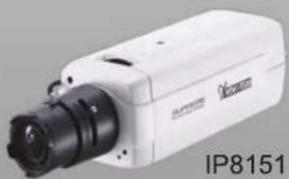
Vivotek IP8151P - Quick Installation Guide - 1

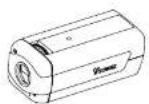
natural_image White industrial camera with black lens and label 'IP8151' (no other text or symbols visible)
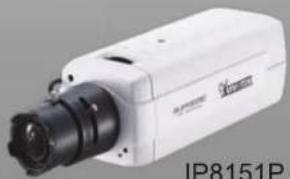
Vivotek IP8151P - Quick Installation Guide - 2

natural_image White industrial camera with black lens and control lens, labeled IP8151P (no other text or symbols visible)

IP8151P

P-iris WDR Enhanced

SUPREME

A NEW DEFINITION OF AD

Vivotek IP8151P - Quick Installation Guide - 3

VIVOTEK

Vivotek IP8151P - Quick Installation Guide - 4

Warning Before Installation

Power off the Network Camera as soon as smoke or unusual odors are detected.

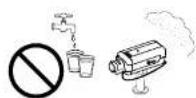
Keep the Network Camera away from water. If the Network Camera becomes wet, power off immediately.

Vivotek IP8151P - Warning Before Installation - 1

Contact your distributor in the event of occurrence.

Vivotek IP8151P - Warning Before Installation - 2

Contact your distributor in the event of occurrence.

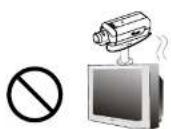
Do not place the Network Camera around heat sources, such as a television or oven.

Refer to your user's manual for the operating temperature.
Vivotek IP8151P - Warning Before Installation - 3

Vivotek IP8151P - Warning Before Installation - 4

- Keep the Network Camera away from direct sunlight.

Do not place the Network Camera in high humidity environments.

Vivotek IP8151P - Warning Before Installation - 5

Vivotek IP8151P - Warning Before Installation - 6

English

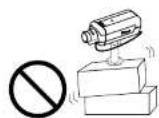
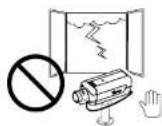
Do not place the Network Camera on unsteady surfaces. Do not touch the Network Camera during a lightning storm.
Vivotek IP8151P - Warning Before Installation - 7

Vivotek IP8151P - Warning Before Installation - 8

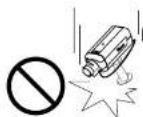
Do not disassemble the Network Camera. Do not drop the Network Camera.

Vivotek IP8151P - Warning Before Installation - 9

Vivotek IP8151P - Warning Before Installation - 10

Do not insert sharp or tiny objects into the Network Camera.

Vivotek IP8151P - Warning Before Installation - 11

Vivotek IP8151P - Warning Before Installation - 12

Package Contents

IP8151 / IP8151P

Vivotek IP8151P - Package Contents - 1

Power Adapter

Vivotek IP8151P - Package Contents - 2

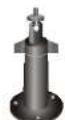
Camera Stand

Vivotek IP8151P - Package Contents - 3

CS-mount Lens

Vivotek IP8151P - Package Contents - 4

Quick Installation Guide

Vivotek IP8151P - Package Contents - 5

Software CD

Vivotek IP8151P - Package Contents - 6

Warranty Card

Vivotek IP8151P - Package Contents - 7

L-type Hex Key Wrench

Vivotek IP8151P - Package Contents - 8

Vivotek IP8151P - Package Contents - 9

Vivotek IP8151P - Package Contents - 10

Physical Description

Front Panel
Vivotek IP8151P - Physical Description - 1

text_image Light Sensor Lens Built-in Microphone

Back Panel
Vivotek IP8151P - Physical Description - 2

text_image Audio Out Status LED Microphone In External/Internal MIC Switch Ethernet 10/100 RJ45 Socket Recessed Reset Button BNC Video Out SD/SDHC Card Slot NTSC/PAL Switch Power Cord Socket General I/O Terminal Block Focus Assist Button (IP8151P only) DC-iris Control Cable Socket (IP8151) P-iris Control Cable Socket (IP8151P)

Lens

Vivotek IP8151P - Physical Description - 3
EN-4

Vivotek IP8151P - Physical Description - 4

Mounting the Lens to the Camera

  1. Mount the lens by turning it clockwise onto the camera mount until it stops. If necessary, turn the lens counterclockwise slowly until it gets the best attitude.
  2. Connect the DC-iris control cable to the socket. (IP8151) Connect the P-iris control cable to the socket. (IP8151P)

Vivotek IP8151P - Mounting the Lens to the Camera - 1

Vivotek IP8151P - Mounting the Lens to the Camera - 2

For further setup, please refer to the lens' instruction manual inside the lens package.

Vivotek IP8151P - Mounting the Lens to the Camera - 3

Network Deployment

General Connection (without PoE)

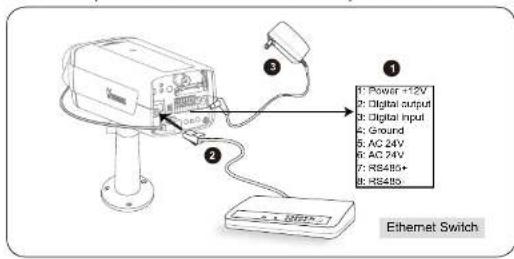
  1. If you have external devices such as sensors and alarms, connect them to the general I/O terminal block.
  2. Connect the camera to a switch via Ethernet cable.
  3. Connect the power cable from the Network Camera to a power outlet.
Vivotek IP8151P - General Connection (without PoE) - 1

text_image 1 2 3 4 5 6 7 8 9 Power +12V Digital output Digital input Ground AC 24V AC 24V RS485+ RS485- Ethernet Switch

EN - 5

Vivotek IP8151P - General Connection (without PoE) - 2

Power over Ethernet (PoE)

When using a PoE-enabled switch

The Network Camera is PoE-compliant, allowing transmission of power and data via a single Ethernet cable. Follow the below illustration to connect the Network Camera to a PoE-enabled switch via Ethernet cable.

Vivotek IP8151P - When using a PoE-enabled switch - 1

text_image PoE Switch

When using a non-PoE switch

Use a PoE power injector (optional) to connect between the Network Camera and a non-PoE switch.
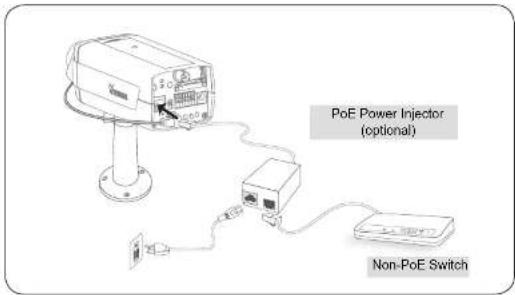
Vivotek IP8151P - When using a non-PoE switch - 1

text_image PoE Power Injector (optional) Non-PoE Switch

EN-6

Vivotek IP8151P - When using a non-PoE switch - 2

Assigning an IP Address

  1. Install "Installation Wizard 2" from the Software Utility directory on the software CD.
  2. The program will conduct an analysis of your network environment. After your network is analyzed, please click on the "Next" button to continue the program.
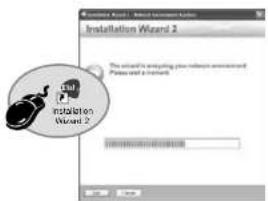
Vivotek IP8151P - Assigning an IP Address - 1

text_image Installation Wizard 2 This email is requesting your submission announcement Parks and a trainbox.
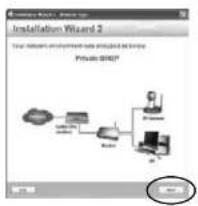
Vivotek IP8151P - Assigning an IP Address - 2

text_image Installation Wizard 2 Your network environment will be installed by this Private ORDER? OK
  1. The program will search for VIVOTEK Video Receivers, Video Servers, and Network Cameras on the same LAN.
  2. After searching, the main installer window will pop up. Click on the MAC that matches the one labeled on the bottom of your device to connect to the Network Camera via Internet Explorer.
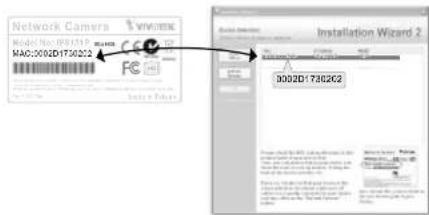
Vivotek IP8151P - Assigning an IP Address - 3

text_image Network Camera MAC:002D17302C2 File Path Installation Wizard 2 3002D17302C2

EN-7

Vivotek IP8151P - Assigning an IP Address - 4

Vivotek IP8151P - Assigning an IP Address - 5

Ready to Use

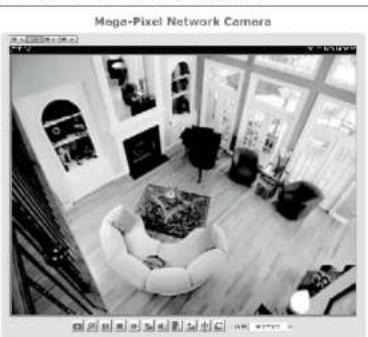
  1. Access the Network Camera from the LAN.
  2. Retrieve live video through a web browser or recording software.

Vivotek IP8151P - Ready to Use - 1

Vivotek IP8151P - Ready to Use - 2

natural_image Interior view of a Mega-Pixel Network Camera showing living room with sofa, armrests, and large windows (no visible text or symbols)
  1. Unscrew the zoom controller to adjust the zoom factor. Upon completion, tighten the zoom controller.
  2. Unscrew the focus controller to adjust the focus range. Upon completion, tighten the focus controller.

Vivotek IP8151P - Ready to Use - 3
For further setup, please refer to the user's manual on the software CD.

Vivotek IP8151P - Ready to Use - 4

Fine-tune the Camera Focus

Please follow the steps below to fine-tune the camera focus:

  1. Use the supplied L-type hex key wrench to loosen the ring screw; the adjustment ring will become rotatable.
  2. Rotate the adjustment ring to fine-tune the distance between the sensor and the lens; the IR-cut filter and image sensor will move forwards or backwards as the illustration shown below.
  3. When finished, tighten the ring screw to fix the adjustment ring.

Vivotek IP8151P - Fine-tune the Camera Focus - 1

text_image C 2 CS 1 for C-mount lens for CS-mount lens IR-cut filter and image sensor

Vivotek IP8151P - Fine-tune the Camera Focus - 2

Vivotek IP8151P - Fine-tune the Camera Focus - 3

text_image VIVOTEK WWW.VIVOTEK.COM P/N: 62501701G Ver.1.1 Copyright ©2011 VIVOTEK INC. All rights reserved. ©F. No.192, Lien-Cheng Rs., Chung-Hs, Taipei County, Taiwan | T: +886 2 82455282 | F: +886 2 82455532 | E: sales@vivotek.com

Vivotek IP8151P - Fine-tune the Camera Focus - 4

VIVOTEK

www.vivatel.com

Vivotek IP8151P - Fine-tune the Camera Focus - 5

Vivotek IP8151P - Fine-tune the Camera Focus - 6

Vivotek IP8151P - Fine-tune the Camera Focus - 7

Vivotek IP8151P - Fine-tune the Camera Focus - 8

Vivotek IP8151P - Fine-tune the Camera Focus - 9

Vivotek IP8151P - Fine-tune the Camera Focus - 10

Vivotek IP8151P - Fine-tune the Camera Focus - 11

Vivotek IP8151P - Fine-tune the Camera Focus - 12

Vivotek IP8151P - Fine-tune the Camera Focus - 13

Vivotek IP8151P - Fine-tune the Camera Focus - 14

Vivotek IP8151P - Fine-tune the Camera Focus - 15

Vivotek IP8151P - Fine-tune the Camera Focus - 16

Vivotek IP8151P - Fine-tune the Camera Focus - 17

Vivotek IP8151P - Fine-tune the Camera Focus - 18

Vivotek IP8151P - Fine-tune the Camera Focus - 19

Vivotek IP8151P - Fine-tune the Camera Focus - 20

Vivotek IP8151P - Fine-tune the Camera Focus - 21

Vivotek IP8151P - Fine-tune the Camera Focus - 22

Vivotek IP8151P - Fine-tune the Camera Focus - 23

Vivotek IP8151P - Fine-tune the Camera Focus - 24

Vivotek IP8151P - Fine-tune the Camera Focus - 25

Vivotek IP8151P - Fine-tune the Camera Focus - 26

Vivotek IP8151P - Fine-tune the Camera Focus - 27

Vivotek IP8151P - Fine-tune the Camera Focus - 28

Vivotek IP8151P - Fine-tune the Camera Focus - 29

Vivotek IP8151P - Fine-tune the Camera Focus - 30

Vivotek IP8151P - Fine-tune the Camera Focus - 31

Vivotek IP8151P - Fine-tune the Camera Focus - 32

Vivotek IP8151P - Fine-tune the Camera Focus - 33

Vivotek IP8151P - Fine-tune the Camera Focus - 34

Vivotek IP8151P - Fine-tune the Camera Focus - 35

Vivotek IP8151P - Fine-tune the Camera Focus - 36

Vivotek IP8151P - Fine-tune the Camera Focus - 37

Vivotek IP8151P - Fine-tune the Camera Focus - 38

Vivotek IP8151P - Fine-tune the Camera Focus - 39

Vivotek IP8151P - Fine-tune the Camera Focus - 40

Vivotek IP8151P - Fine-tune the Camera Focus - 41

Vivotek IP8151P - Fine-tune the Camera Focus - 42

Vivotek IP8151P - Fine-tune the Camera Focus - 43

Vivotek IP8151P - Fine-tune the Camera Focus - 44

Vivotek IP8151P - Fine-tune the Camera Focus - 45

Vivotek IP8151P - Fine-tune the Camera Focus - 46

Vivotek IP8151P - Fine-tune the Camera Focus - 47

Vivotek IP8151P - Fine-tune the Camera Focus - 48

Vivotek IP8151P - Fine-tune the Camera Focus - 49

Vivotek IP8151P - Fine-tune the Camera Focus - 50

Vivotek IP8151P - Fine-tune the Camera Focus - 51

Vivotek IP8151P - Fine-tune the Camera Focus - 52

Vivotek IP8151P - Fine-tune the Camera Focus - 53

Vivotek IP8151P - Fine-tune the Camera Focus - 54

Vivotek IP8151P - Fine-tune the Camera Focus - 55

Vivotek IP8151P - Fine-tune the Camera Focus - 56

Vivotek IP8151P - Fine-tune the Camera Focus - 57

Vivotek IP8151P - Fine-tune the Camera Focus - 58

Vivotek IP8151P - Fine-tune the Camera Focus - 59

Vivotek IP8151P - Fine-tune the Camera Focus - 60

Vivotek IP8151P - Fine-tune the Camera Focus - 61

Vivotek IP8151P - Fine-tune the Camera Focus - 62

Vivotek IP8151P - Fine-tune the Camera Focus - 63

Vivotek IP8151P - Fine-tune the Camera Focus - 64

Vivotek IP8151P - Fine-tune the Camera Focus - 65

Vivotek IP8151P - Fine-tune the Camera Focus - 66

Vivotek IP8151P - Fine-tune the Camera Focus - 67

Vivotek IP8151P - Fine-tune the Camera Focus - 68

Vivotek IP8151P - Fine-tune the Camera Focus - 69

Vivotek IP8151P - Fine-tune the Camera Focus - 70

Vivotek IP8151P - Fine-tune the Camera Focus - 71

Vivotek IP8151P - Fine-tune the Camera Focus - 72

Vivotek IP8151P - Fine-tune the Camera Focus - 73

Vivotek IP8151P - Fine-tune the Camera Focus - 74

Vivotek IP8151P - Fine-tune the Camera Focus - 75

Vivotek IP8151P - Fine-tune the Camera Focus - 76

Vivotek IP8151P - Fine-tune the Camera Focus - 77

Vivotek IP8151P - Fine-tune the Camera Focus - 78

Vivotek IP8151P - Fine-tune the Camera Focus - 79

Vivotek IP8151P - Fine-tune the Camera Focus - 80

Vivotek IP8151P - Fine-tune the Camera Focus - 81

Vivotek IP8151P - Fine-tune the Camera Focus - 82

Vivotek IP8151P - Fine-tune the Camera Focus - 83

Vivotek IP8151P - Fine-tune the Camera Focus - 84

Vivotek IP8151P - Fine-tune the Camera Focus - 85

Vivotek IP8151P - Fine-tune the Camera Focus - 86

Vivotek IP8151P - Fine-tune the Camera Focus - 87

Vivotek IP8151P - Fine-tune the Camera Focus - 88

Vivotek IP8151P - Fine-tune the Camera Focus - 89

Vivotek IP8151P - Fine-tune the Camera Focus - 90

Vivotek IP8151P - Fine-tune the Camera Focus - 91

Vivotek IP8151P - Fine-tune the Camera Focus - 92

Vivotek IP8151P - Fine-tune the Camera Focus - 93

Vivotek IP8151P - Fine-tune the Camera Focus - 94

Vivotek IP8151P - Fine-tune the Camera Focus - 95

Vivotek IP8151P - Fine-tune the Camera Focus - 96

Vivotek IP8151P - Fine-tune the Camera Focus - 97

6F, No.192, Lion-Chang Rd., Chung-Ho, Taipei County, Taiwan | T: +885 2 82455282 | F: +885 2 82455532 | E: sales@vivotek.com

Manual assistant
Powered by Anthropic
Waiting for your message
Product information

Brand : Vivotek

Model : IP8151P

Category : Security Camera