
IB-DK4029-CPD - Computer accessory Raidsonic - Free user manual and instructions
Find the device manual for free IB-DK4029-CPD Raidsonic in PDF.


| Product Type | USB-C Docking Station |
| Model | IB-DK4029-CPD |
| Host Interface | USB Type-C (supports DP Alt Mode and Power Delivery) |
| USB Ports | 1x USB 2.0 Type-A (480 Mbit/s), 1x USB 3.1 Gen 2 Type-A (10 Gbit/s), 1x USB PD Type-C (85W, 10 Gbit/s) |
| Video Output | 2x HDMI (up to 3840x2160@60 Hz with DP 1.4, DSC required) |
| Ethernet | RJ45 Gigabit |
| Power Delivery | Up to 85W via USB Type-C (external power supply not included) |
| Compatibility | Windows / macOS with USB Type-C supporting DP Alt Mode and Power Delivery; Thunderbolt 3 compatible |
| Dimensions (approx.) | 150 x 80 x 25 mm |
| Weight (approx.) | 200 g |
| Safety Warnings | Risk of electric shock; keep away from moisture; use only with specified power unit |
| Assembly Hazards | Sharp components; avoid contact; use suitable tools |
| Heat Hazards | Ensure ventilation; do not cover; avoid direct sunlight |
| Small Parts Hazard | Keep away from children; suffocation risk |
| Data Loss Prevention | Backup data before use and when connecting new hardware |
| Cleaning | Use dry, anti-static cloth; disconnect before cleaning; avoid harsh cleaners |
| Disposal | Do not dispose with household waste; follow WEEE directives |
| Package Contents | Docking station, user manual (other accessories not specified) |
| Warranty | Refer to manufacturer |
Frequently Asked Questions - IB-DK4029-CPD Raidsonic
User questions about IB-DK4029-CPD Raidsonic
0 question about this device. Answer the ones you know or ask your own.
Ask a new question about this device
Download the instructions for your Computer accessory in PDF format for free! Find your manual IB-DK4029-CPD - Raidsonic and take your electronic device back in hand. On this page are published all the documents necessary for the use of your device. IB-DK4029-CPD by Raidsonic.
USER MANUAL IB-DK4029-CPD Raidsonic
USB Type-C® DockingStation with dual video output
Handbuch IB-DK4029-CPD
natural_image
Black hard drive with attached USB port and ports, no visible text or symbolsPlease read carefully the following information to prevent injuries, damage to material and device as well as data loss:
Warning levels
Signal words and safety codes indicate the warning level and provide immediate information in terms of the probability of occurrence as well as the type and severity of the consequences if the measures to prevent hazards are not complied with.

DANGER
Warns of a directly hazardous situation causing death or serious injury.

WARNING
Warns of a potentially hazardous situation that may cause death or serious injury.

CAUTION
Warns of a potentially hazardous situation that may cause minor injury.
IMPORTANT
Warns of a potential situation that may cause material or environmental damage and disrupt operative processes.
1. Risk of electrical shock

WARNING
Contact with parts conducting electricity Risk of death by electrical shock
- Read the operating instructions prior to use
• Make sure the device has been de-energised prior to working on it - Do not remove contact protection panels
- Avoid contact with conducting parts
- Do not bring plug contacts in contact with pointed and metal objects
• Use in intended environments only - Operate the device using a power unit meeting the specifications of the type plate only!
- Keep the device/power unit away from humidity, liquid, vapour and dust
- Do not modify the device
• Do not connect the device during thunderstorms - Approach specialist retailers if you require repairs
2. Hazards during assembly (if intended)
Sharp components

CAUTION
Potential injuries to fingers or hands during assembly (if intended)
- Read the operating instructions prior to assembly
- Avoid coming into contact with sharp edges or pointed components
• Do not force components together - Use suitable tools
• Use potentially enclosed accessories and tools only
Safety information IB-DK4029-CPD
3. Hazards caused by a development of heat
IMPORTANT
Insufficient device/power unit ventilation
Overheating and failure of the device/power unit
- Prevent externally heating up components and ensure an exchange of air
- Do not cover the fan outlet and passive cooling elements
- Avoid direct sunlight on the device/power unit
• Guarantee sufficient ambient air for the device/power unit - Do not place objects on the device/power unit
4. Hazards caused by very small parts and packaging

WARNING
Risk of suffocation
Risk of death by suffocation or swallowing
- Keep small parts and accessories away from children
- Store/dispose of plastic bags and packaging in an area that is inaccessible to children
- Do not hand over small parts and packaging to children
5. Potential data loss
IMPORTANT
Data lost during commissioning
Potentially irreversible data loss
• Always comply with the information in the operating instructions/quick installation guide
• Exclusively use the product once the specifications have been met
• Back up data prior to commissioning
• Back up data prior to connecting new hardware
• Use accessories enclosed with the product
6. Cleaning the device
IMPORTANT
Harmful cleaning agents
Scratches, discolouration, damage caused by moisture or short circuit in the device
- Disconnect the device prior to cleaning
- Aggressive or intense cleaning agents and solvents are unsuitable
• Make sure there is no residual moisture after cleaning
• We recommend cleaning devices using a dry, anti-static cloth
7. Disposing of the device
Environmental pollution, unsuitable for recycling
IMPORTANT
Potential environmental pollution caused by components, recycling circle interrupted

This icon on product and packaging indicates that this product must not be disposed of as part of domestic waste. In compliance with the Waste Electrical and Electronic Equipment Directive (WEEE) this electrical device and potentially included batteries must not be disposed of in conventional, domestic waste or recycling waste. If you would like to dispose of this product and potentially included batteries, please return it to the retailer or your local waste disposal and recycling point.
If you have any questions, please do not hesitate to contact our support at support@raidsonic.de or visit our website at www.raidsonic.de.
Manual IB-DK4029-CPD
Package content
- USB Type-C ^® host interface
- USB 2.0 Type-A data interface with up to 480 Mbit/s
- USB PD Type-C ^® interface with up to 85 W and data interface with up to 10 Gbit/s
- HDMI ^® 1 interface (single resolution up to 3840x2160@30/60 Hz)
- HDMI ^® 2 interface (single resolution up to 3840x2160@30/60 Hz)
- RJ45 Ethernet interface / Gigabit
- USB 3.1 (Gen 2) Type-A data interface with up to 10 Gbit/s
Manual IB-DK4029-CPD
Requirements
- USB Type-C® enabled Windows® / macOS® computer
- Power Delivery and DP Alt Mode support
- No power supply included (only necessary for Power Delivery)
- The device is also compatible with Thunderbolt® 3 equipped computers
USB Type-C®
Not all USB Type-C® ports support the full functionality of the USB Type-C® standard. Some ports might only provide data transfer without supporting Power Delivery or DP Alt Mode over USB.

USB Type-C ^™ ≠ USB Type-C ^™
Important!
This ICY BOX product requires the usage of DisplayPort™ Alt Mode technology over the USB Type-C™ connector. Not all computers, notebooks or tablets with a USB Type-C™ interface support the
DisplayPort™ Alt Mode.
Please check the specifications of your computer system as well as its USB Type-C™ interface or use the ICY BOX product with a Thunderbolt™ 3 connector
To use this dock to its full potential, ensure that the host USB Type-® port on your computer supports USB Power Delivery and DP Alt Mode or Thunderbolt® 3. Please consult your host PC documentation or contact the PC manufacturer to confirm compatibility with these technologies. For safety, check whether the host PC Bios Version is the latest and confirm compatibility with USB Type-® Power Delivery and/or DP Alt Mode before application.
Starting up
- Connect the USB Type-C ^® connector of the DockingStation with your powered computer

flowchart
graph LR
    A["Laptop"] --> B["USB"]
    B --> C["Battery"]
    C --> D["Monitor"]
    D --> E["USB"]
    E --> F["Global"]
- Connect your devices to the appropriate interfaces of the dock
Attention! When plugging and unplugging a Power Delivery power supply via the Type-C®interface of the IB-DK4029-CPD, the other interfaces used may be shortly disconnected and immediately reconnected. To avoid data loss during data transfer, stream interruptions or similar, DO NOT connect or disconnect the Power Delivery power supply while any data transfer is in progress.
Manual IB-DK4029-CPD
Displays
Please set up your display settings according to your operating system and requirements. For detailed information refer to the corresponding operation manual and description of your operating system.
Supported video resolutions
| Video matrix design (USB Type- C^ DP Alt Mode, 2Lane, DP 1.2 HBR2), maximum resolutions | ||||
| Inputs (plug-in) Outputs | ||||
| Number of displays | HDMI ^* 1 HDMI | ^* 2 HDMI | ^* 1 HDMI | ^* 2 |
| Dual video output HDMI | ^* 1 HDMI | ^* 2 1920x1080 | @60 Hz 1920x1080@60 Hz | |
| Single video output | HDMI ^* 1 3840x2160@30 Hz | |||
| HDMI ^* 2 3840x2160@30 Hz | ||||
| Video matrix design (USB Type- C^ DP Alt Mode, 2Lane, DP 1.4 HBR3), maximum resolutions* | ||||
| Dual video output HDMI | ^* 1 HDMI | ^* 2 3840x2160@60 Hz 3840x2160@60 Hz | ||
| Single video output | HDMI ^ 1 3840x2160@60 Hz | |||
| HDMI ^* 2 3840x2160@60 Hz | ||||
| NoteDP 1.2 bandwidth/lane is 4.32 (5.4) Gbit/s = (net (gross))DP 1.4 bandwidth/lane is 6.48 (8.1) Gbit/s = (net (gross))HBR2: 5.4 Gbit/s per laneHBR3: 8.1 Gbit/s per lane | 1920x1080@60 Hz bandwidth is 3.31 Gbit/s2560x1440@60 Hz bandwidth is 5.8 Gbit/s3840x2160@30 Hz bandwidth is 7.13 Gbit/s3840x2160@60 Hz bandwidth is 12.8 Gbit/s* DSC (Display Stream Compression) support necessary | |||
Manual IB-DK4029-CPD
Windows® display configuration
Note: The screenshots might vary slightly with the operating system.
Arrange your displays
Once the extra monitors are connected, they can be configured to either mirror mode, extended mode or to the setting of the primary display.
e.g.: extending your monitors
- Position the mouse anywhere on the Windows ^® desktop
- Right-click and select Display settings to bring up the configuration window.

- Refer to the Display configuration section
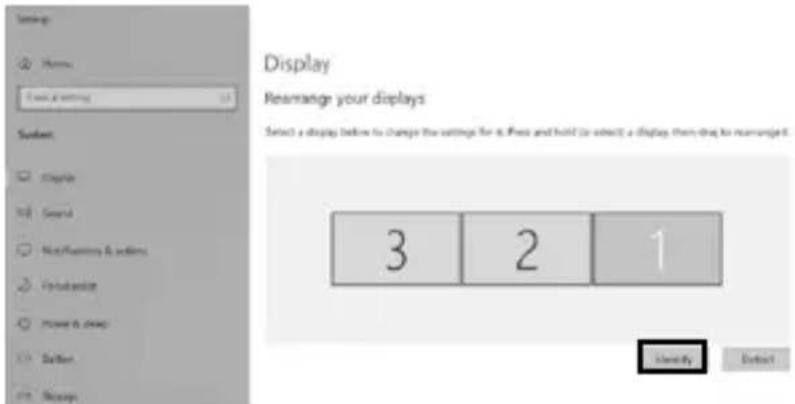
- Identify your monitors by clicking the Identify button.
- Select the relevant monitor for the following settings by clicking the identified monitor symbol
- Select Multiple displays > Extend desktop to this display if you wish to extend a monitor.
Manual IB-DK4029-CPD
Multiple displays


Make this my main display
Display resolution
1920 × 1080
Display orientation
Landscape
2.
Duplicate desktop on 1 and 3
Duplicate desktop on 2 and 3
Extend desktop to this display
Disconnect this display
- Click Keep changes to confirm and exit.

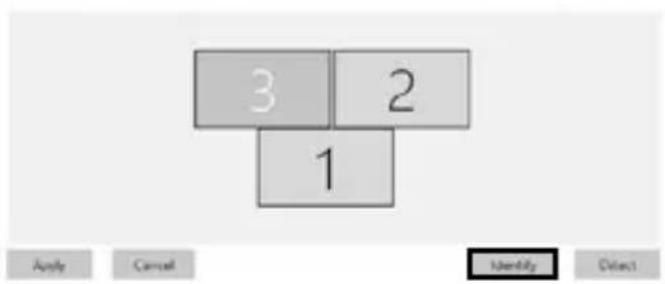
- Once the setting is completed, simply drag and drop the application icons to arrange your monitors.
(However, some applications may not support the display on the extended desktop).

Display
Select a display below to change the settings for it. Press and hold for select a display, then drag to rearrange it.
Manual IB-DK4029-CPD
Setting the right resolution and frequency of your displays
There are two possibilities to choose the resolution of the selected monitor:
1. Standard
- Identify your monitors by clicking the Identify button.
- Select the relevant monitor by clicking the identified monitor symbol.
- Click on Display resolution

1.
- Choose the right resolution from the drop-down menu. Refer to the video matrix table!
2.

- Click Keep changes to confirm and exit.

Manual IB-DK4029-CPD
2. Advanced display settings
- Identify your monitors by clicking the Identify button.
- Click on Advanced display settings
Multiple displays
Multiple displays
Extend desktop to this display

Make this my main display
1.
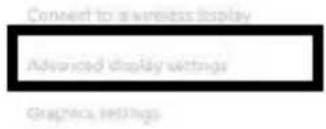
A new page opens up
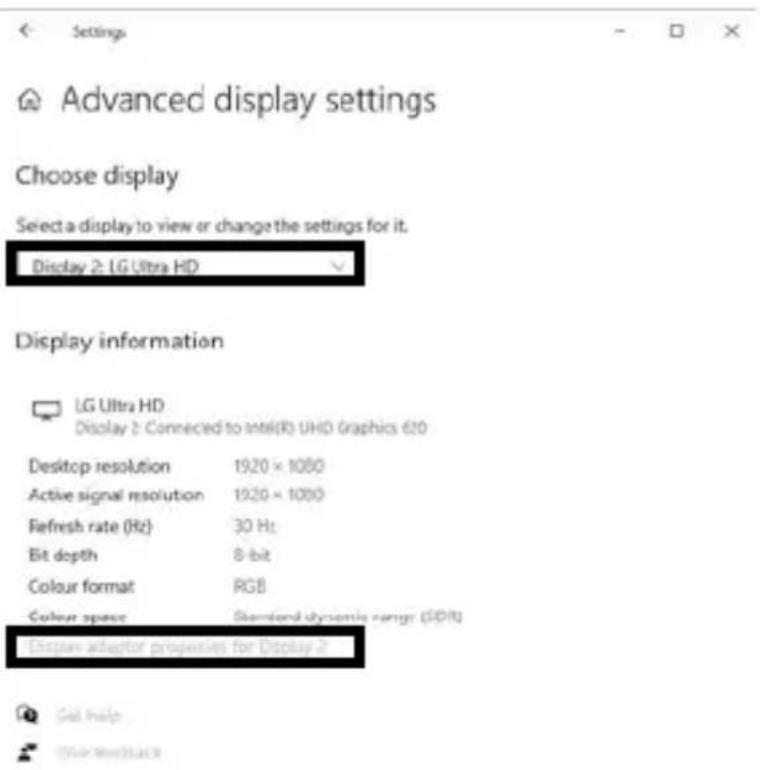
- Select the relevant monitor by clicking Choose display
- Click on Display adaptor properties for Display X

2.
Manual IB-DK4029-CPD
A new window opens up
- Click on List All Modes
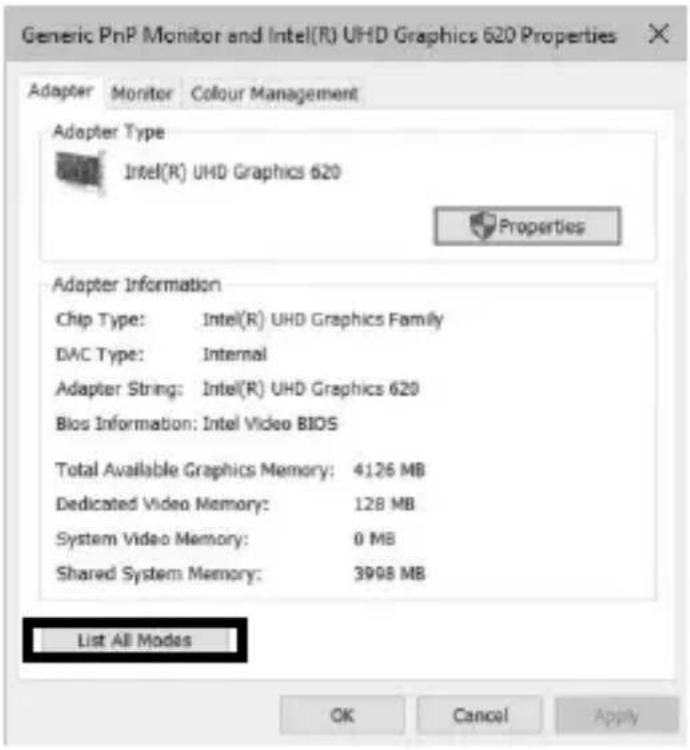
4.
A new window opens up
- Click on a valid mode according to your demands.

Repeat for each attached monitor if necessary.
Manual IB-DK4029-CPD
macOS® Display configuration
Once the extra monitors are connected, they can be configured to mirror mode or extend mode (only one additional monitor, a second monitor will only be mirrored).
- Click on System Preferences

- Click on Displays

A new window opens up
- Click Arrangement

Manual IB-DK4029-CPD
- Select the corresponding monitor symbol by clicking and holding the symbol of the monitor that shall be placed in order to do the positioning.

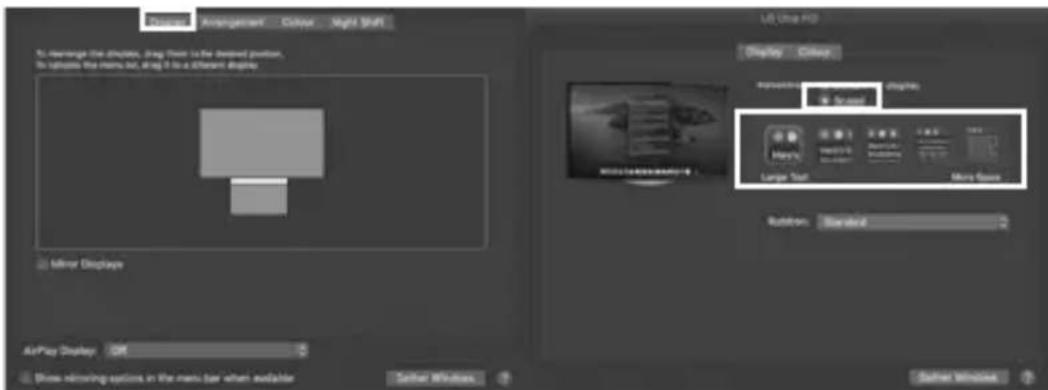
To set up scaled resolutions of the monitor displays, click the Display tab. In the window that now opens for the respective display, you can set your desired resolutions separately. Select the option Scaled and then select the appropriate size in the field below.
Manual IB-DK4029-CPD
Advanced display settings
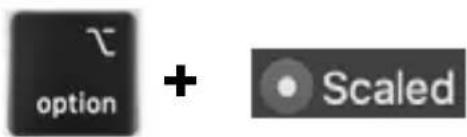
Hold down the option key and click on Scaled again and an advanced menu for setting resolution and repetition frequency opens.
Please select your preferred settings here.

Repeat for each attached monitor if necessary.
Handbuch IB-DK4029-CPD
Verpackungsinhalt
Handbuch IB-DK4029-CPD
natural_image
Abstract geometric icon of a cube with white lines, no text or symbols presentICY BOX®

© Copyright 2021 by RaidSonic Technology GmbH. All Rights Reserved.
The information contained in this manual is believed to be accurate and reliable. RaidSonic Technology GmbH assumes no responsibility for any errors contained in this manual. RaidSonic Technology GmbH reserves the right to make changes in the specifications and/or design of the above-mentioned product without prior notice. The diagrams contained in this manual may also not fully represent the product that you are using and are there for illustration purposes only. RaidSonic Technology GmbH assumes no responsibility for any differences between the product mentioned in this manual and the product you may have. DisplayPort ^™ and the DisplayPort ^™ logo are trademarks owned by the Video Electronics Standards Association (VESA ^® ) in the United States and other countries. The terms HDMI ^® and HDMI ^® High-Definition Multimedia Interface, and the HDMI ^® logo are trademarks or registered trademarks of HDMI ^® LA, Inc. in the United States and other countries. Apple and macOS are registered trademarks of Apple Computer Inc. Microsoft, Windows and the Windows logo are registered trademarks of Microsoft Corporation.


- Handbuch IB-DK4029-CPD
- Warning levels
- DANGER
- WARNING
- CAUTION
- IMPORTANT
- Risk of electrical shock
- Hazards during assembly (if intended)
- Sharp components
- Safety information IB-DK4029-CPD
- Hazards caused by a development of heat
- Insufficient device/power unit ventilation
- Hazards caused by very small parts and packaging
- Risk of suffocation
- Potential data loss
- Data lost during commissioning
- Cleaning the device
- Harmful cleaning agents
- Disposing of the device
- Environmental pollution, unsuitable for recycling
- Manual IB-DK4029-CPD
- Package content
- Requirements
- USB Type-C®
- Starting up
- Displays
- Windows® display configuration
- Arrange your displays
- 2.
- Display
- Setting the right resolution and frequency of your displays
- Standard
- 1.
- Advanced display settings
- 4.
- macOS® Display configuration
- Advanced display settings
- Verpackungsinhalt
- ICY BOX®
- © Copyright 2021 by RaidSonic Technology GmbH. All Rights Reserved.
Brand : Raidsonic
Model : IB-DK4029-CPD
Category : Computer accessory