BEB-600T - Tablet BRIGMTON - Free user manual and instructions
Find the device manual for free BEB-600T BRIGMTON in PDF.


User questions about BEB-600T BRIGMTON
0 question about this device. Answer the ones you know or ask your own.
Ask a new question about this device
Download the instructions for your Tablet in PDF format for free! Find your manual BEB-600T - BRIGMTON and take your electronic device back in hand. On this page are published all the documents necessary for the use of your device. BEB-600T by BRIGMTON.
USER MANUAL BEB-600T BRIGMTON
http://www.adobe.com/products/digitaleditions/faq/ http://www.adobe.com/products/digitaleditions/help/
natural_image
Illustration of a hand pointing at a screen with a finger, no text or symbols presentnatural_image
Hand pointing at a screen displaying a diagram with arrows, no visible text or symbols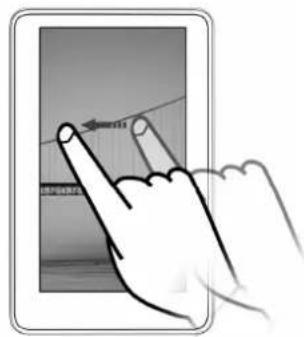
natural_image
Simple line drawing of a trash bin with two crossed lines and a solid black rectangle below (no text or symbols)Table of Contents ....
Getting started ....
Parts and Controls ....
Turning on/off the Reader ....
Power Management of the Reader ....
Suspend and Wake up Mode......
Charging the Reader ....
To check the battery status ....
How to Use the Touch Screen (optional)....
How to Use the Keyboard......
How to Use Icons....
How to Use the Main Menu ....
How to use the on-screen keyboard....
Inserting a memory card....
Removing a memory card ....
Reading Books....
Reading Books......
Using the Option menu of the book list ....
Switching the list display format....
Searching for a book with a keyword ....
Operations on the book page....
Turning a page ....
Going back to the book list ....
Using the Option menu of the book page......
Highlighting text ....
Managing bookmarks....
Viewing bookmarks ....
Using the Option menu of the bookmark list......
Searching keyword......
Using table of contents ....
Internal link ....
Jumping to pages ("Go to Page")......
Adjusting the font ....
Magnifying book page (Zoom in/out), PDF Only ....
Adjusting the font size ....
Adjusting the line spacing ....
Return to List ....
Delete
Info ....
Orientation......
Close....
How to use Adobe DRM......
Viewing Pictures....
Viewing Pictures ....
Option menu of the "Pictures" list....
Switching the list display format....
Browsing pictures......
Operations on the Picture viewer......
Comics viewer ....
Comics viewer ....
Option menu of the "Comics" list ....
Switching the list display format....
Browsing comics ....
Operations on the Comics viewer......
Playing Audio Files......
Playing audio files ....
Option menu of the "Audio" list ....
Operations on the Audio player ....
Further features of the audio player....
Settings....
Changing Settings....
Settings menu items ....
Other Information ....
Notes on Reader Disposal......
Precautions....
On Safety
On heat build-up....
On the headphones ....
Note on use ....
Notes on memory cards ....
On Cleaning ....
Specifications ....
Getting started
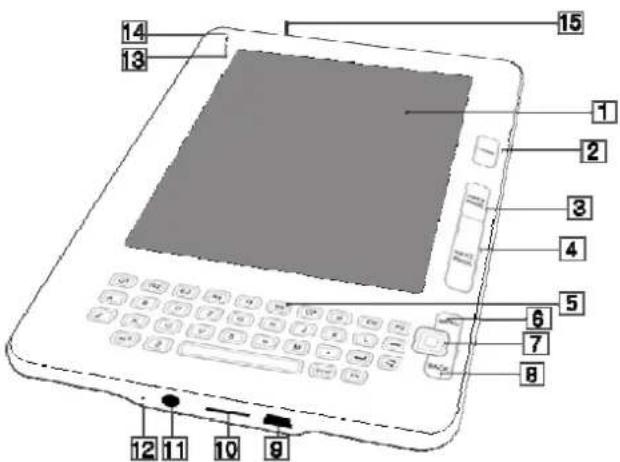
2.1 Parts and Controls
-
EINK panel with a touch screen (optional) The touch screen gives you simple access to the various functions on the Reader.
-
Home button
-
Previous page button
-
Next page button
-
Keyboard
-
Menu button
-
5-way controller
-
Back button
You can leave the current window or menu by clicking "Back button".
- USB connector
Used to connect the USB cable (supplied).
- Micro SD (TF) Memory Card slot
Used to insert a Micro SD (TF) Memory Card (optional).
- (Headphones) jack
Used to connect headphones (optional).
- Microphone input
Reserved for the future. Not in use now.
- Green LED
Indicates that the Reader is in operation. It goes off when the Reader is switched off or the Reader is in power saving mode. The user interface is shown on the screen when the Reader is in power saving mode. The screen is blank when the Reader is switched off. Use any key to reactivate the Reader. Tapping on the touch screen does not reactive the Reader.
- Red LED
Indicated that the Reader is connected to an AC outlet or to a computer via USB.
The battery is being charged. It goes off when charging is complete.
-
Power on switch and key lock
-
Reset button
Resets the Reader if no operation is possible. The Reset button is located on the backside of the Reader.
2.2 Turning on/off the Reader
Slide and hold the Power switch for 2 seconds to turn on the Reader. Make sure to turn on the Reader before connecting to your computer.
Slide and hold the Power switch again to turn off the Reader.
Notes
- When turning on the Reading the Reader starts to scan all books in the Reader. Depending on the total number of books stored on the internal flash memory and external Micro SD (TF) card, the scanning process can take several minutes. The scanning process is necessary for the sorting operations and displaying the book cover in the book list.
● The scanning operation starts automatically in the following cases:
- After switching on the device;
- An external Micro SD (TF) card has been removed or inserted;
- A book of supported formats has been downloaded and you exit the browse.
- After disconnecting the Reader from the USB port of a computer.
2.3 Power Management of the Reader
The Reader has a Power Management feature to avoid unnecessary battery consumption. At purchase, the Power Management is activated. The Power Management operates as follows:
After 15 minutes of inactivity, the Reader switches off itself automatically. You can activate/deactivate the Power Management from the "Power Management" option in the "Settings" menu.
2.4 Suspend and Wake up Mode
In order to save energy, the Reader goes to the "sleep" (suspend mode) after 3 seconds inactivity of keyboard or touch screen. Press any key to reactivate (wake up) the Reader again.
Hint:
Tapping on the touch screen does not reactive the Reader.
2.5 Charging the Reader
You need to charge the Reader when using it for the first time, or when the remaining battery power is low. Charge the Reader in one of the following ways.
- Connect to an AC outlet using the AC Adapter with 5V 1.5A or 5V 2A for the Reader. It will take approximately 5 hours to fully charge the battery.
- Connect to a computer via USB. The charging through USB takes significantly more time than through an AC outlet.
2.6 To check the battery status
You can verify the remaining battery power by checking the battery indicator in the bottom left of the screen. Charge the battery when remaining power is low (the fewer black segments indicated, the lower the remaining power).

Notes
- While you use the delivered charger and USB cable to charge the Reader, you can operate the Reader.
● While connected to your computer via USB, you cannot operate the Reader. - Do not leave the Reader connected to a notebook computer which is not connected to an AC outlet for an extended period. It will consume the battery of the notebook computer.
- Connection via an extension cable or USB hub is not guaranteed. Connect the USB cable directly to the computer.
- While the Reader is connected to your computer, do not turn on, restart, wake up from sleep mode, or shut down the computer. These operations may cause the Reader to malfunction. Disconnect the Reader from the computer before performing these operations.
2.7 How to Use the Touch Screen (optional)
Using the optional touch screen, you can perform various operations with a finger or with a stylus.
Note
- When you use the stylus, make sure to use the pointed end of it for tapping, dragging, or drawing on the touch screen.
Tapping
By tapping on the touch screen, you can select an item on the menu or option list, etc.
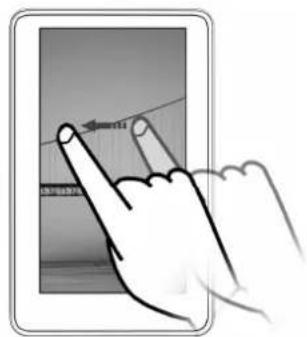
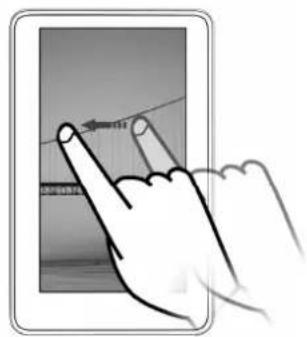
Dragging
By dragging on the touch screen, you can turn a page or (de)select a text to highlight.
Dictionary (Optional)
When reading a book activate the built-in dictionary by double clicking on a letter of a word princely.
Hint
The touch screen is optional.
2.8 How to Use the Keyboard
Use the keyboard to enter text. There are some special functions keys:
| Icons Descriptions | |
| FN Switches the screen | orientation (vertical/horizontal). |
| Refresh the screen. | |
| Home Click it to go to the main menu. | |
| PREV PAGE Click it to go to the previous book page or list page. | |
| NEXT PAGE Click it to go to the next book page or list page. | |
| MENU Click it to open the option of each window. | |
| BACK Click it to go leave the current window. | |
| Space Click it to open the font size and zoom menu when reading a book. | |
2.9 How to Use Icons
| Icons Descriptions | |
 | Options, located almost in all windows. Tap it to open the option of each window. |
| Turn page, located in Book/Picture/Comics/Music/All Notes list; Book/Picture/Comics/Music/All Notes viewer or player | |
 | Go back, same function as Button 2. Tap it to leave the current window, menu or dialog. |
| Search keyword, appears when searching a book for keywords ("Search").Left arrow (Previous Search): To go to the previous page containing your input word(s)Right arrow (Next Search): Tap it to skip to the next page that contains the input word(s).Cross: Tap it to close the "Search" function.Appears only in book page. | |
 | Tap them to move the content in a book page in four directions when the zoom function is activated.Appears only in book page. |
 | Tape them turn book pages.Appears only in book page. |
 | Indicates that a bookmark is created on a page.Appears only in book page. |
 | Tap it to open the font size and zoom menu when reading a book.Appears only in book page. |
 | Tape it to open the on-screen keyboard.Appears whenever an input is required. |
2.10 How to Use the Main Menu
The main menu is the starting point to read/play/view content, go online and configure settings. You can select menu items by tapping them.
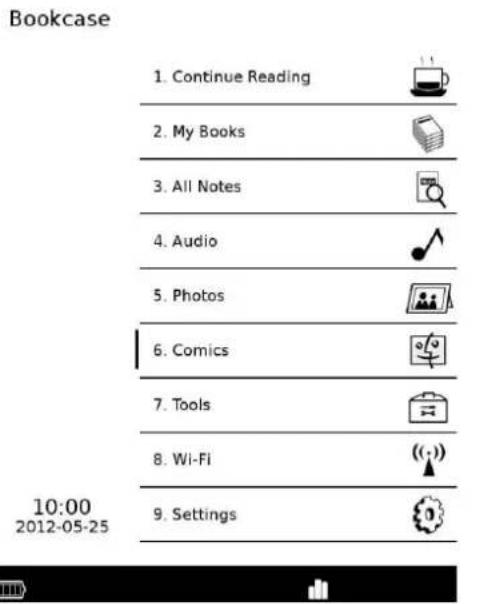
The main menu contains the following functions:
- Continue Reading
Tap "Continue Reading" to continue reading from the last displayed page. The last displayed page appears.
- My Books
Tap "My Books" to open the book list. Tap a book of your choice. You can view EPUB, PDF, TXT, HTML, and FB2 files on the Reader.
- Pictures
Tap "Pictures" to open the picture list. Tap a picture of your choice. You can view JPG, JPEG, GIF, PNG, BMP, TIF and SVG files on the Reader.
- Audio
Tap "Audio" to open the song list. Tap a song of your choice. You can play back MP3 files on the Reader. You can also read books and view pictures or comics while listening to audio files. Audio files can be played back through the built-in speaker or you can connect the optional headphones to the headphone jack.
- Comics
Tap "Comics" to open the comics list. Tap a comic of your choice. You can view CBR and CBZ files on the Reader.
● Wi-Fi & Internet
Tap "Wi-Fi" to connect your Wi-Fi enabled Reader to your Wi-Fi access points and go online.
Please pay attention that your Reader is a mobile device with limited computing power. Its CPU and internal memory (RAM) are not as powerful and large as your desktop computer does. Your Reader supports the latest generation of the Wi-Fi standard 802.11b/g/n. However, the download speed is in some cases limited, especially when the web sites are built with complicated structures and containing a lot of links. The main purpose of the Wi-Fi in your Reader is to download ebook files from the dedicated web sites.
- Settings
Tap "Settings" to open the setting items you want to change. You can configure
various settings in the "Settings" menu.
2.11 How to use the on-screen keyboard
Use the on-screen keyboard of the Reader to enter words.
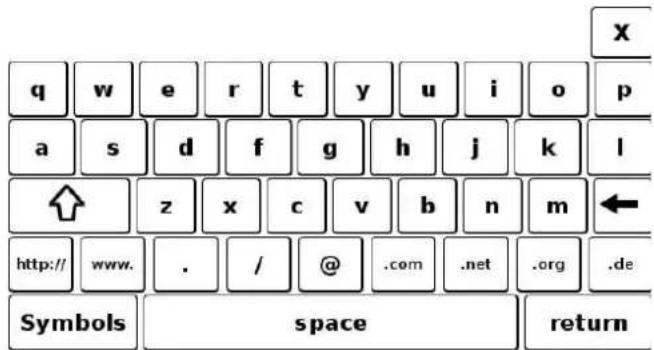
Hints
Tap the "SYM" key to display symbols and numeric keys.
Tap the "CLR" key to delete your words in the input box.
The design of the on-screen keyboards may vary depending on the function.
2.12 Inserting a memory card
The Reader supports Micro SD (TF) memory card.
Notes
- Do not remove a memory card from the memory card slot while the data on the memory card is being edited. Otherwise, edited data will not be saved.
- SD Memory Card of up to 16 GB has been tested to work with the Reader; however, not all SD Memory Cards are guaranteed to work.
- When inserting the memory card into the Reader, it may take time for the Reader to recognize the content files in the memory card if the number of the content files stored on the memory card is large.
- Be sure to insert the memory card in the correct direction. Forced insertion may damage the slot.
- Do not insert an incompatible memory card, as it may cause malfunction.
- Do not use a deformed memory card or adapter.
- If your Reader does not recognize the memory card please switch off the Reader and insert the memory card. Switch on the Reader again.
2.13 Removing a memory card
Gently push in the memory card. You will hear a click, and the memory card should pop out. Remove the memory card squarely from the slot.
Notes
- Do not remove a memory card or turn off the Reader while reading or writing data as data may be damaged.
Reading Books
2.14 Reading Books
Follow the steps below to find books.
- In the main menu, tap "My Books".
Hints
- If you want to continue reading from the last displayed page, tap "Continue Reading" in the main menu. The last displayed page appears.
- Tap the desired book on the list.
| My Books | ||
| 1 | pg1342.epub 2011-06-27 | |
| 2 | По ту сторону 2011-06-27 | |
| 3 | The Adventures of Huckleberry Finn 2011-06-27 | |
| 4 | Антарктида: Четвертый рейх 2011-06-27 | |
| 5 | War and Peace 2011-06-27 | |
| 6 | О Pioneers! 2011-06-27 | |
| 7 | The Beautiful and Damned 2011-06-27 | |
| 8 | Le Rouge et le Noir 2011-06-27 | |
| 9 | Kærlighedens Komedie 2011-06-27 | |
Hints
- "SD" means that books are stored on the external Micro SD (TF) card.
- The number of the list pages is displayed at the bottom of the screen. If more than 9 books are stored, the total number of list pages becomes more one, e.g. 1 of 2, indicating that the book list contains totally two pages and the first page is displayed.
- The books are listed in various ways. If your desired book is not displayed in the current list page, go to the next page or use the sort or search option to find the book. You turn the list page by tapping the left and right arrows at the bottom of the screen.
- If you have read the book before, the last displayed page of the book appears when you open the book.
2.15 Using the Option menu of the book list
In the book list, click the Options button to open the Option menu.
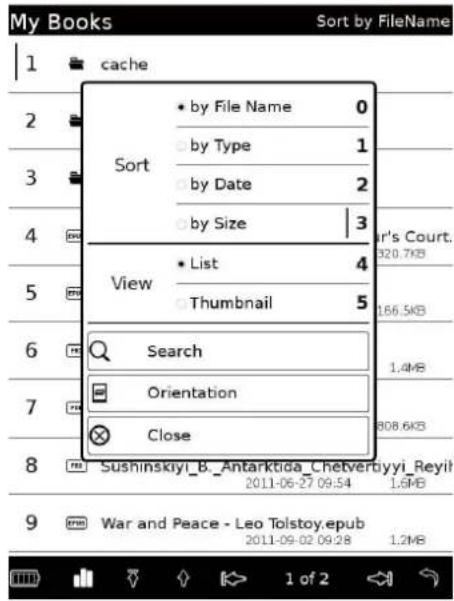
| Option item | Description |
| Sort Sorts | the “My Books” list by file name, type, date or size. |
| View Switches | the list display format to list or thumbnail. |
| Search Searches | a desired book title by keyword |
| Orientation | Switches the screen orientation (vertical/horizontal). |
| Close Closes the menu. | |
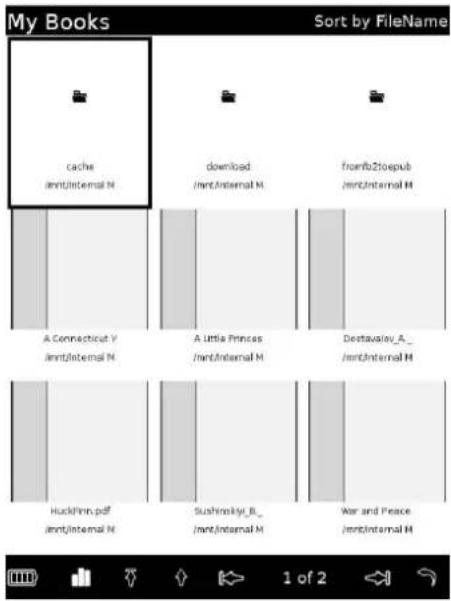
Switching the list display format
You can choose to display the list format in either "List" or Thumbnail" view. In the Option menu, tap "Thumbnail" of "View" to switch the list display format.
Searching for a book with a keyword
Using the on-screen keyboard, you can search for a desired book, note or word from the Option menus.
Here the instruction to search the "My Books" list for a book is given as an example. You can search for a book by entering the book title or author.
- In the Option menu, tap "Search" to display the keyboard.
The on-screen keyboard appears.
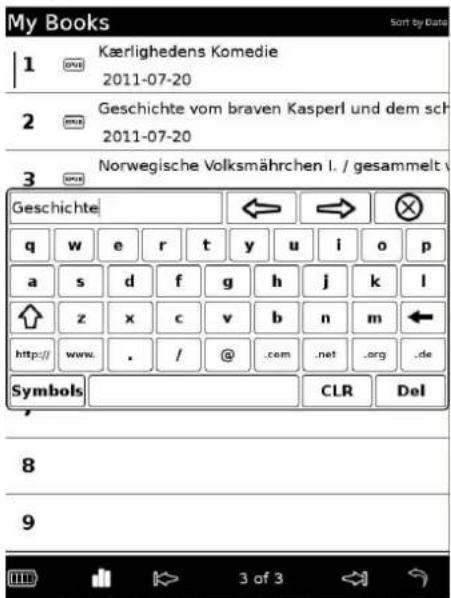
- Enter a word in the input area of the keyboard.
The word appears in the input area.
- Tap one of the "arrows" in the on-screen keyboard.
The search results list appears.
Books including the input word in their titles/authors are displayed.
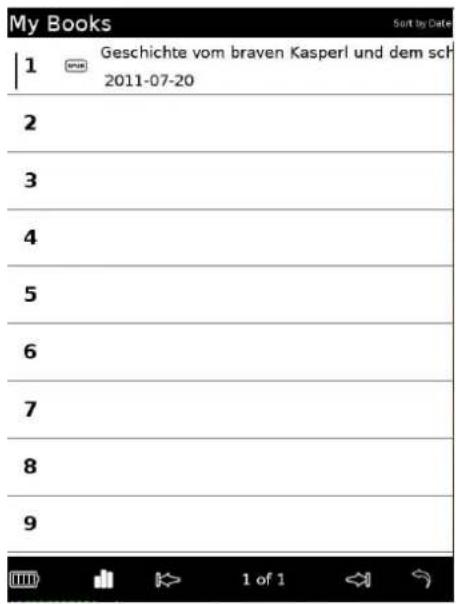
- If there are more results in the results list you can repeat the "Search" function.
- Tap the desired book.
The book page appears.
Hints
You can perform other search operations in the same manner as above after selecting "Search" in each Option menu.
2.16 Operations on the book page
On the book page screen, you can perform the following operations:
- Turning a page
- Jumping to pages ("Go to Page")
● Magnifying book page (Zoom in/out), PDF only - PDF reflow
● Changing font (not for PDF) - Adjusting the font size, line space (not for PDF)
- Going back to the book list
- Creating and managing book marks
- Search keywords
- Highlighting text
- Viewing the table of contents (ToC)
- Viewing the book information
● Switching the screen orientation (vertical/horizontal)
Turning a page
There are various ways to turn a page.
-
Using the buttons 11 and 12 located on the top right side of the Reader.
-
Dragging on the upper half of the screen.
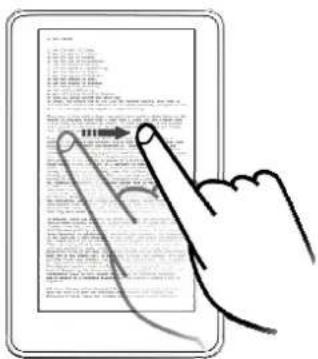
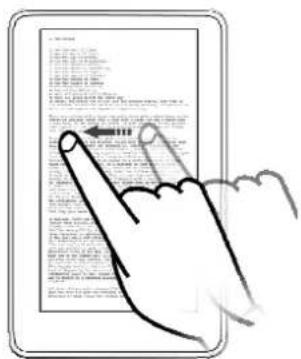
Going back to the book list
Tap the "Go back" arrow at the bottom of the screen to go back to the book list.
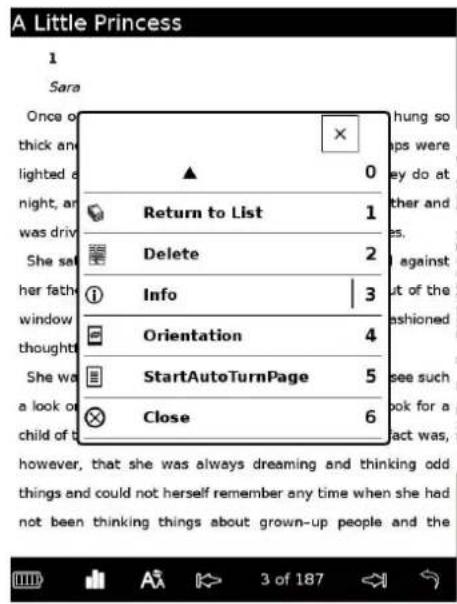
2.17 Using the Option menu of the book page
Tap the Option icon to open the Option menu of the book page.
The Option menu consists of 2 pages and includes various useful features.
The Option menu for PDF books:
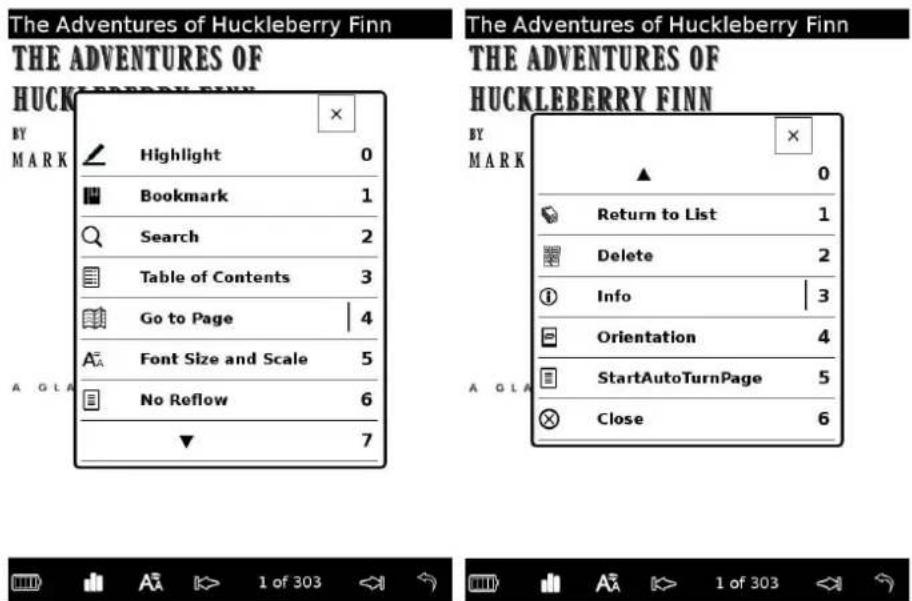
The Option menu for non-PDF books:
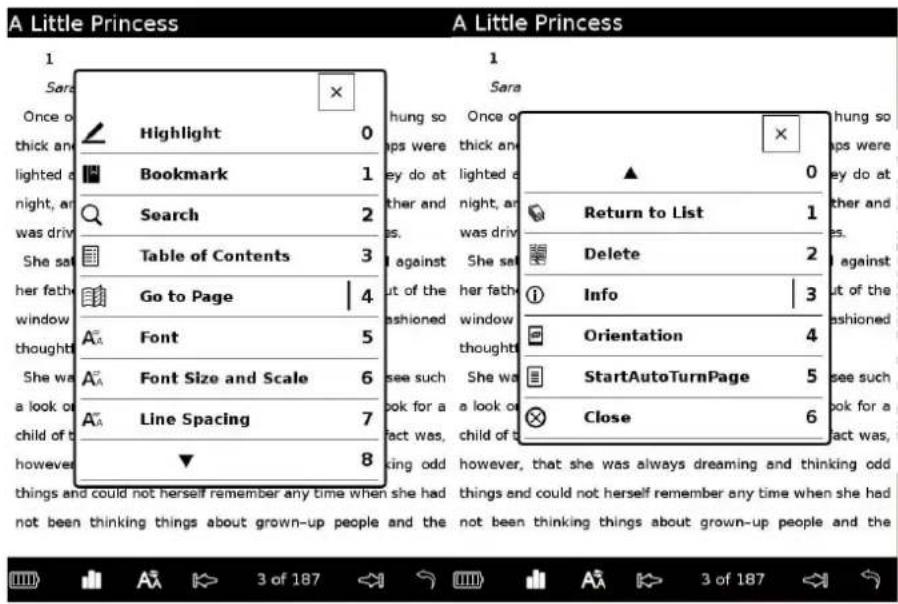
Hint
Non-PDF books are e.g. books in epub, txt, html formats, etc.
Options in the 1st page
| Option item Description | |
| Highlight Highlights text, hides and displays highlighted text. | |
| Bookmark Create and manages bookmarks. | |
| Search Searches words in the book. | |
| Table of contents | Displays the table of contents. |
| Go to Page Displays the Page Jump panel. | |
| Font Changes the font, not for PDF. | |
| Font Size and Scale | Changes the font size or scale the page. |
| Line Spacing Changes the line spacing | |
| Reflow Reflow PDF text. This feature is only available for PDF files. | |
| Go to Option page 2 | Go to the Option page 2. |
Options in the 2nd page
| Option item Description | |
| Go to Option page 1 | Go to the Option page 1. |
| Delete | Deletes the current book |
| Info | Displays the book information. |
| Orientation | Switches the screen orientation (vertical/horizontal). |
| Close | Closes the menu. |
Highlighting text
You can highlight a word(s) on a book page.
- In the book page, press the Option button, then tap "Highlight".
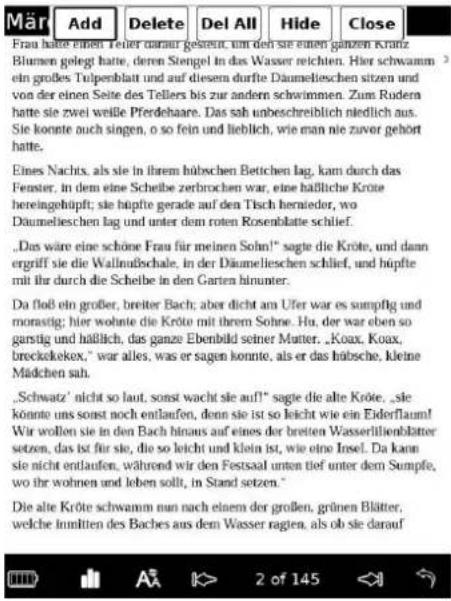
| Option item | Description |
| Add Tap it to highlight text. Drag across the text on the book page. The text is highlighted. | |
| Delete Tap it to delete the highlight. Tap a part of the highlighted text. | |
| Del All Tap it to delete all highlighted parts in the book. | |
| Hide/Display | Tap it to hide and display the highlight. |
| Close Closes the menu. | |
Note
- While the "Highlight" menu is active, you cannot turn the page by dragging on the screen. The two big arrows for turning page disappear either. Use the arrows at the bottom of the screen to turn page.
Managing bookmarks
You can create a bookmark on a book page for your future reference. In the book page, press the Option button, and then tap "Bookmark".
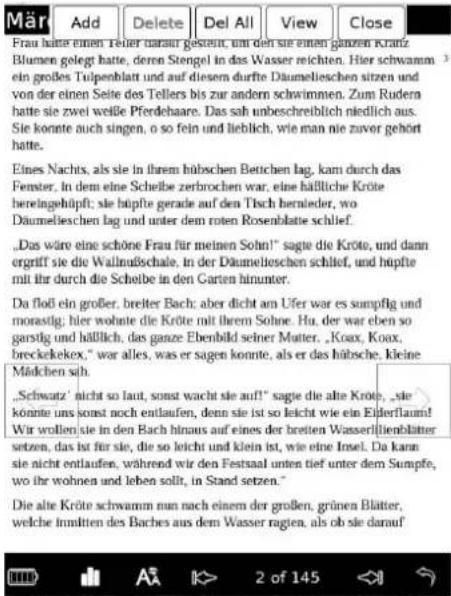
| Option item | Description |
| Add Tap it to create a bookmark. A bookmark icon appears at the upper right corner of the page. | |
| Delete Tap it to delete the bookmark on the page. | |
| Del All Tap it to delete all bookmarks in the book. | |
| View Tap it to open the list of all bookmarks. The list displays bookmarks of all the books stored on the Reader. | |
| Close Closes the menu. | |
Viewing bookmarks
Tap "View" in the bookmark menu to open the bookmark list.
| All Notes | Sort by Date | |
| 1 | # | Frau hatte einen Teller darauf gestellt, um de 2011-09-01/Märchen für Kinder/Page 3 of 14 |
| 2 | # | vector<Widget> vw; class SpecialWidget: p 2011-09-01/Containers/Page 15 of 198 |
| 3 | # | Le Rouge et le Noir Stendhal Publication: 2011-09-01/Le Rouge et le Noir/Page 1 of 53 |
| 4 | # | War and Peace BOOK ONE: 1805 2 of 2882 2011-09-01/War and Peace/Page 2 of 2882 |
| 5 | # | Frau hatte einen Teller darauf gestellt, um de 2011-09-01/Märchen für Kinder/Page 2 of 14 |
| 6 | # | Contents Foreword Dear Sir or Madam : Tha 2011-09-01/Microsoft Word - 电子书英文.doc/ |
| 7 | # | 2011-09-01/misery-depot.pdf/Page 9 of 26 |
| 8 | # | Item 3. Make copying cheap and correct for 2011-09-01/Containers/Page 14 of 198 |
| 9 | ||
Hint
Notes include bookmarks, hand notes, and text memo. Hand notes and text memo will be available in the future.
Using the Option menu of the bookmark list
Tap the Option icon to open the Option menu of the bookmark list.
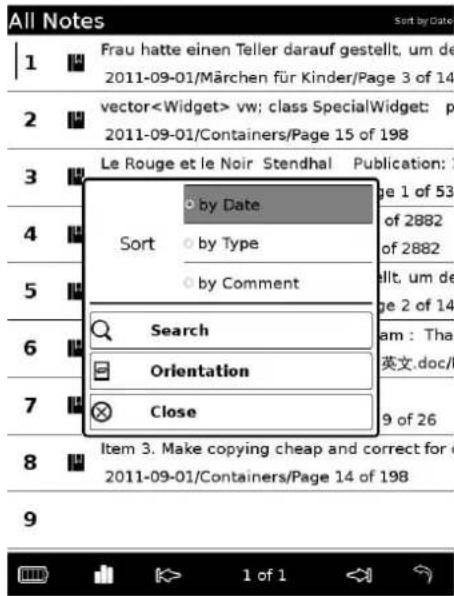
| Option item | Description |
| Sort Sorts | the notes list by file date, type and comments. |
| Search Searches | arches a desired note by keyword. |
| Orientation | Switches the screen orientation (vertical/horizontal). |
Searching keyword
Using the "Search" option, you can search a keyword in a book. Here the instruction to search a keyword in a book is given as an example.
In the Option menu, tap "Search" to display the keyboard.
The on-screen keyboard appears.
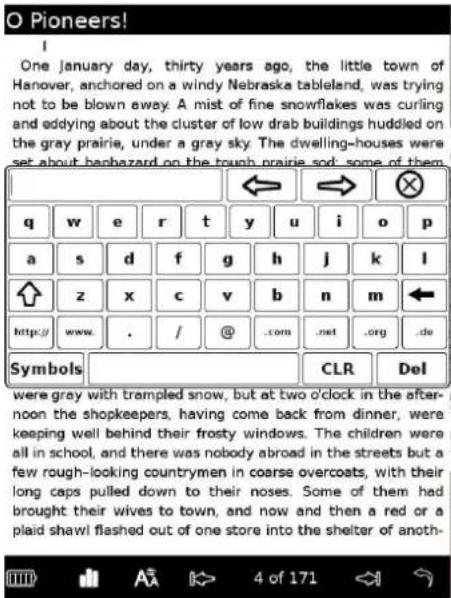
- Enter a word in the input area of the keyboard.
The word appears in the input area.
- Tap one of the "arrows" in the on-screen keyboard.
The search results are shown on the page.
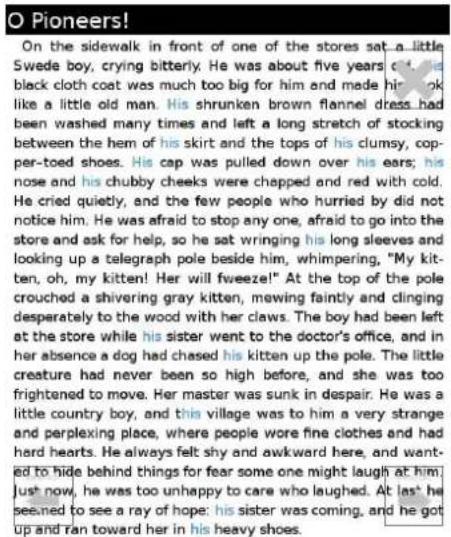

Hint
Tap the big arrows to continue searching.
Tap the big cross to close the search operation.
Using table of contents
- Tap "Table of contents" in the options to open the table of contents list.
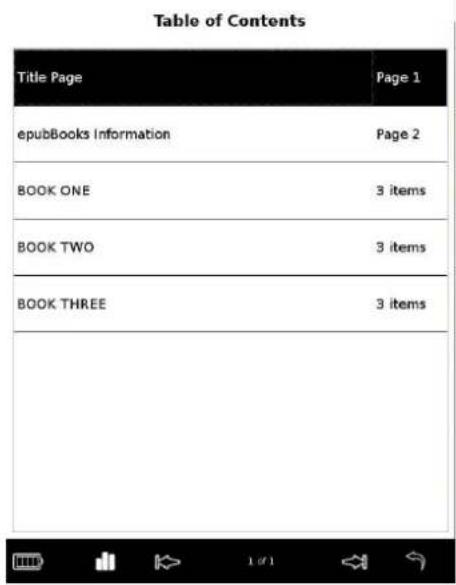
- Tap the desired chapter to open the page.
Hints
- "Items" means that the chapter has subchapters.
- You can only open a (sub)chapter when it's page number appears in the list.
Internal link
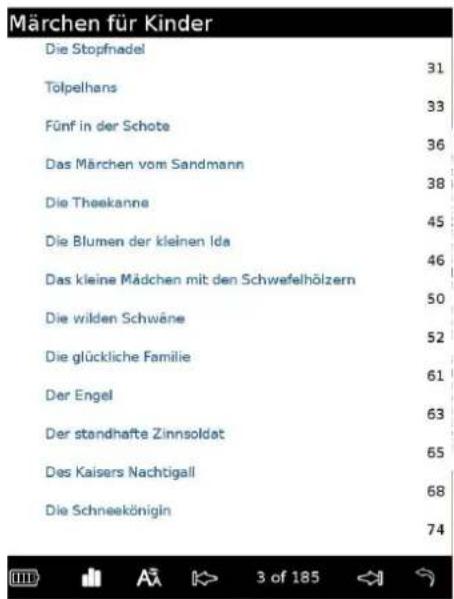
The Reader supports "internal links". Tap the internal link to jump to the linked page. You can open the table of contents list as described above. Alternatively, you can tap the table of contents in the regular book page to jump to the desired page. (Table of contents is a kind of internal link from the technical point of view.)
Jumping to pages ("Go to Page")
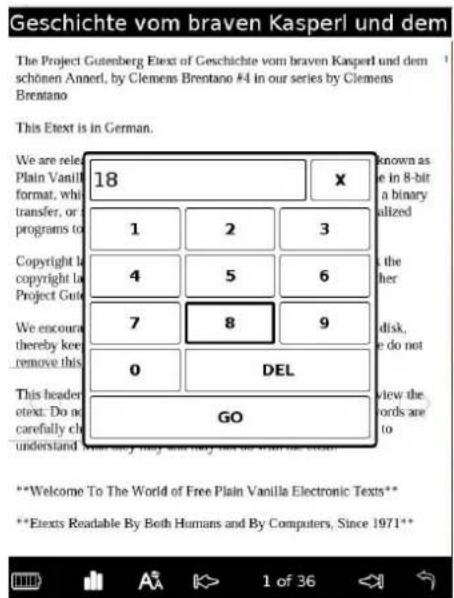
You can jump to pages using the numeric keyboard.
- Tap the page number at the bottom of the screen. The numeric keyboard appears.
-
Tap the number key to input the page number. The input number is displayed in the input area. To delete the number, tap the "DEL" key.
-
Tap "GO"
The desired page appears.
Adjusting the font
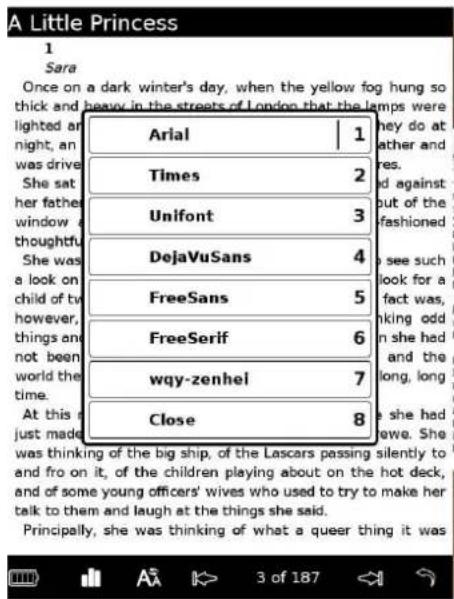
You can change font of any non-PDF books such as epub, txt, html using the "Font" menu. Select from different font.
Hint
This option is not available for PDF files and PDF in reflow mode.
Magnifying book page (Zoom in/out), PDF Only
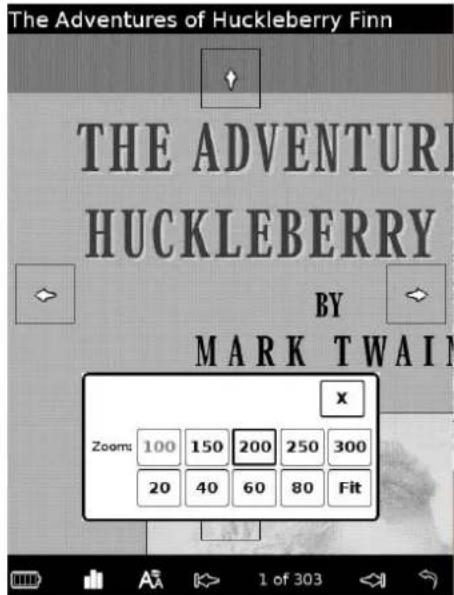
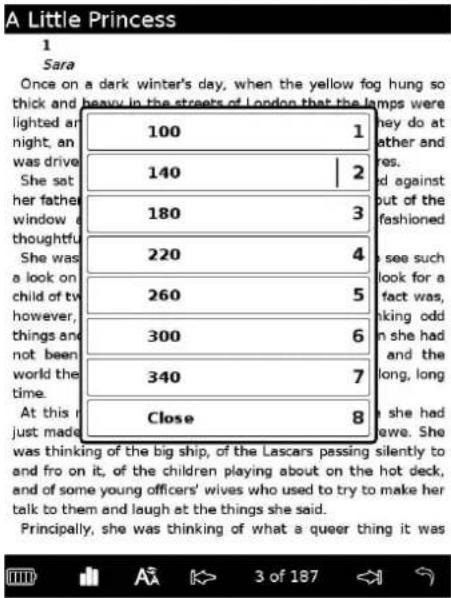
You can magnify the PDF book page using the "Font Size and Scale" menu. Select from 10 different levels, from 20% to 300%. Select "Fit" to adjust the page to the screen size automatically. "100" is set by default.
Fours arrows are shown on the screen. Tap on them to move the page in different directions.
Hint
The four arrows don't appear when "Fit" is selected.
You can also press the "space" key to active the Magnify function.
Adjusting the font size
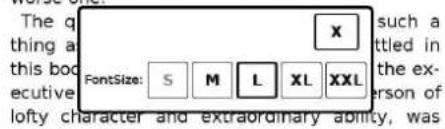
You can change font size of any non-PDF books such as epub, txt, html using the "Font Size and Scale" menu. Select from 5 different text sizes (S, M, L, XL or XXL). "S" (original size) is set by default.
A Connecticut Yankee in King Arthur's Cou
Preface
PREFACE
The ungentle laws and customs touched upon in this tale are historical, and the episodes which are used to illustrate them are also historical. It is not pretended that these laws and customs existed in England in the sixth century; no, it is only pretended that inasmuch as they existed in the English and other civilizations of far later times, it is safe to consider that it is no libel up-on the sixth century to suppose them to have been in practice in that day also. One is quite justified in inferring that whatever one of these laws or customs was lacking in that remote time, its place was competently filled by a worse one.

Hint
This option is not available for PDF files.
This option is also applicable to PDF in reflow mode.
Adjusting the line spacing
You can change the line spacing of any non-PDF books such as epub, txt, html using the "Line Spacing" menu. Select from options.
Hint
This option is not available for PDF files and PDF in reflow mode.
Return to List
Tap "Return to List" to go to the book list.
Delete
Tap "Delete" to delete the current book.
Info
Tap "Info" to display the meta data of the book.
Orientation
Tap "Orientation" to switch the screen orientation (vertical/horizontal).
Close
Tap "Close" to close the menu.
How to use Adobe DRM
Your Reader supports Adobe-DRM protected PDF and ePUB files. When you download Adobe DRM-protected files for the first time, you need to authorize your Reader. If you do not have an Adobe ID, create it by following the on-screen instructions:
- Create an account at Adobe.com
- Download and install Adobe Digital Editions for free: http://www.adobe.com/products/digitaleditions/
- Use your account and password to log into your Adobe Digital Editions. Authorize your computer with an Adobe ID
- Buy a DRM-protected book.
- Open the book with your Adobe Digital Editions
- If everything OK so far, connect your Reader to USB.
- Your Adobe Digital Editions will ask you if you want to authorize your Reader with your Adobe ID.
- Say Yes.
- Copy your newly bought book to your Reader.
- You should be able to write it now.
- If Point 9 does not work, disconnect your Reader from USB and close Adobe Digital Editions. Connect your Reader to USB restart Adobe Digital Editions.
Hints:
The following online information may help you to understand the Adobe DRM: http://www.adobe.com/products/digitaleditions/faq/ http://www.adobe.com/products/digitaleditions/help/
Viewing Pictures
2.18 Viewing Pictures
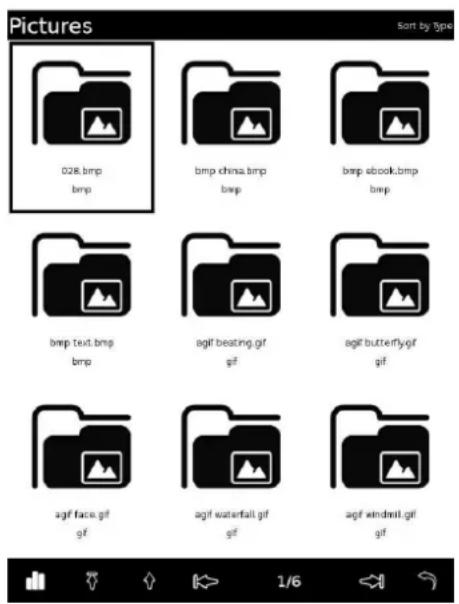
You can view JPG, JPEG, GIF, PNG, BMP, TIF and SVG files on the Reader.
- Tap "Pictures" in the main menu to open the picture list.
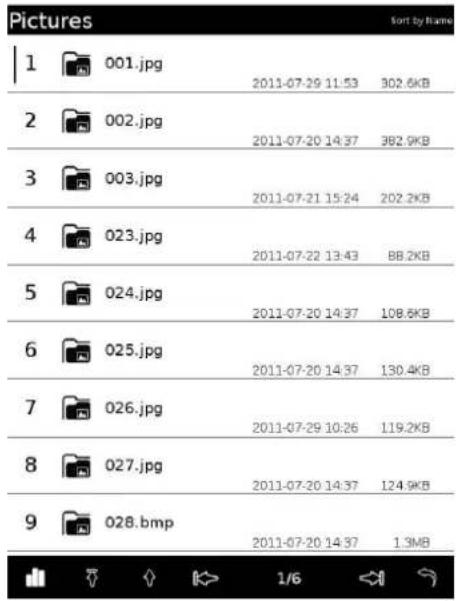
- Tap a picture of your choice.
Option menu of the "Pictures" list
Tap the Option icon to open the Option menu.
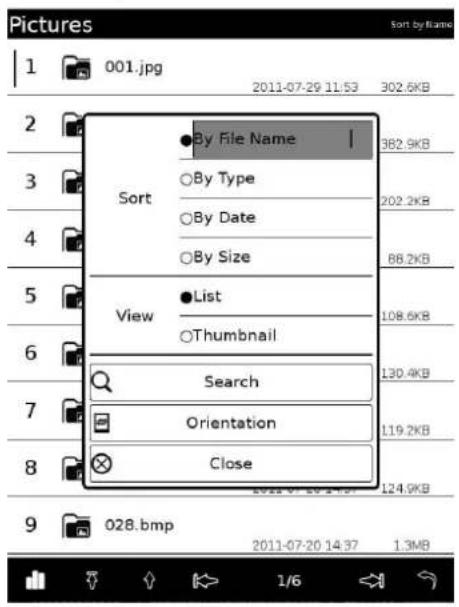
| Option item | Description |
| Sort Sorts | the "Pictures" list by file name, type, date, size. |
| View Switches | the list display format to list or thumbnail. |
| Search Searches | a desired picture by keyword. |
| Orientation | Switches the screen orientation (vertical/horizontal). |
| Close Closes the menu. | |
Switching the list display format
You can choose to display the list format in either "List" or Thumbnail" view. In the Option menu, tap "Thumbnail" of "View" to switch the list display format.
Note
● Pictures up to 1GB file size have been tested to show on the Reader. However, not all pictures are guaranteed to work.
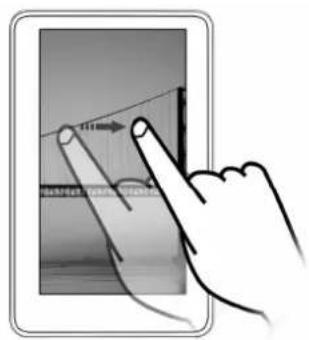
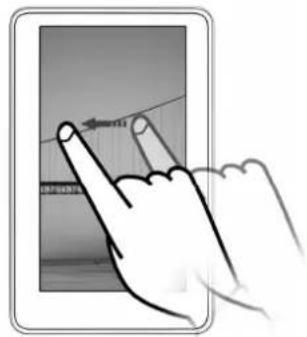
Browsing pictures
There are various ways to browse the pictures.
- Using the buttons 11 and 12 located on the top right side of the Reader.
- Use the left and right arrows at the bottom of the screen.
- Start the slide show in the options
- Dragging on the screen.
natural_image
Illustration of a hand pointing at a screen with a finger, showing a hand holding a device (no text or symbols visible)Operations on the Picture viewer
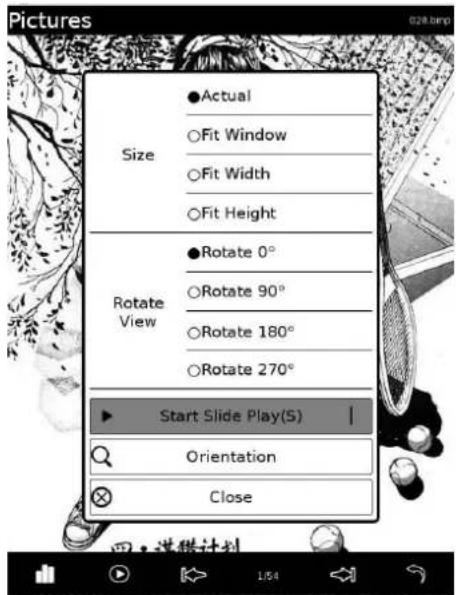
On the Picture viewer, you can perform the following operations.
| Option item Description | |
| Size Change the picture size to different criteria:Actual: Display the original picture size.Fit windows: Scales the picture size to the screen.Fit Width: Scales the picture size to the width of the screen.Fit Height: Scales the picture size to the height of the screen. | |
| Rotate View Rotate the picture to 0°, 90°, 180° and 270°. | |
| Start slide play | Plays pictures in the pictures list automatically (slide show). |
| Orientation Switches the screen orientation (vertical/horizontal). | |
| Close Closes the menu. | |
Comics viewer
2.19 Comics viewer
You can view CBR and CBZ files on the Reader.
- Tap "Comics" to open the comics list.
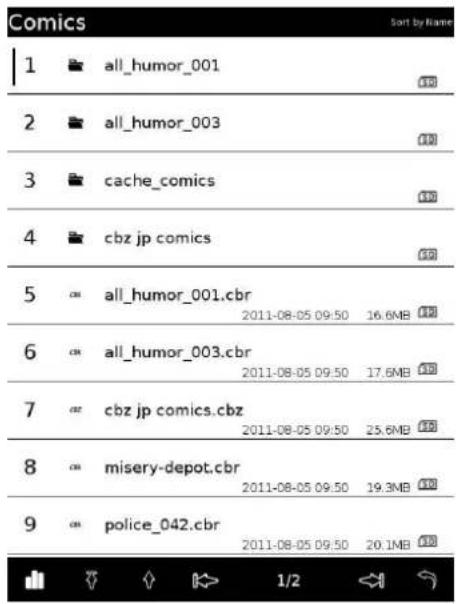
- Tap a comic of your choice.
Option menu of the "Comics" list
Tap the OPTIONS icon to open the Option menu.
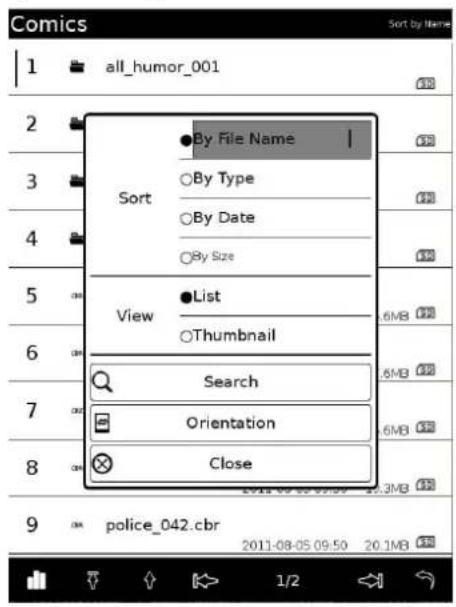
| Option item Description |
| Sort Sorts the “Comics” list by file name, type, date, size. |
| View Switches the list display format to list or thumbnail. |
| Search Searches a desired picture by keyword. |
| Orientation Switches the screen orientation (vertical/horizontal). |
| Close Closes the menu. |
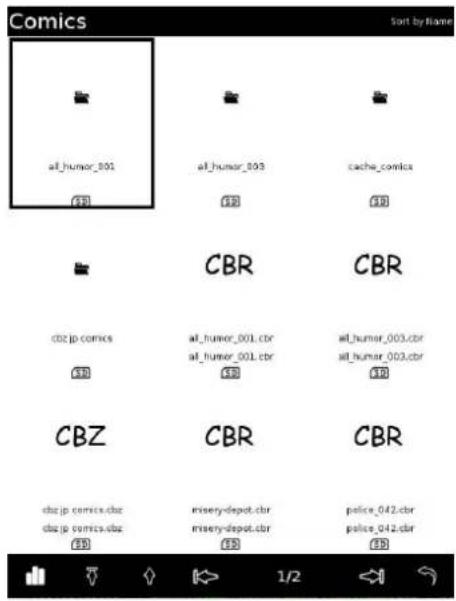
Switching the list display format
You can choose to display the list format in either "List" or Thumbnail" view. In the Option menu, tap "Thumbnail" of "View" to switch the list display format.
Browsing comics
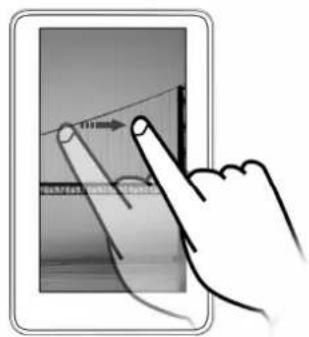
There are various ways to browser the comics.
- Using the buttons 11 and 12 located on the top right side of the Reader.
- Use the left and right arrows at the bottom of the screen.
- Start the slide show in the options
- Dragging on the screen.
Operations on the Comics viewer
On the Comics viewer, you can perform the following operations.
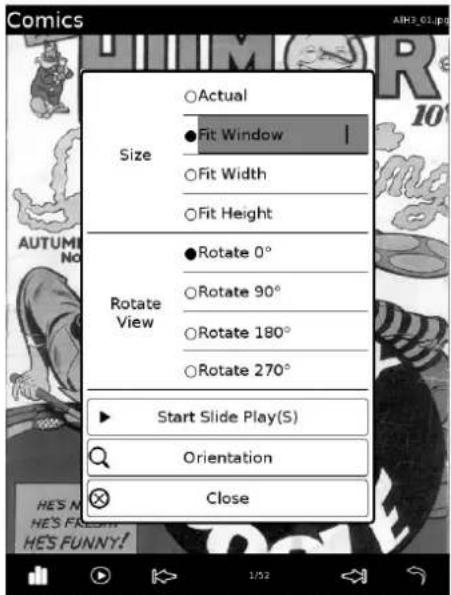
| Option item | Description |
| Size Change | the picture size to different criteria:Actual: Display the original picture size.Fit windows: Scales the picture size to the screen.Fit Width: Scales the picture size to the width of the screen.Fit Height: Scales the picture size to the height of the screen. |
| Rotate View | Rotate the picture to 0°, 90°, 180° and 270°. |
| Start slide play | Plays pictures in the pictures list automatically (slide show). |
| Orientation | Switches the screen orientation (vertical/horizontal). |
| Close Closes | the menu. |
Playing Audio Files
2.20 Playing audio files
You can play back MP3 files on the Reader. You can also read books and view pictures while listening to audio files. Audio files can be played back through the built-in speaker or you can connect the optional headphones to the headphone jack.
- Tap "Audio" to open the song list. Tap a song of your choice.
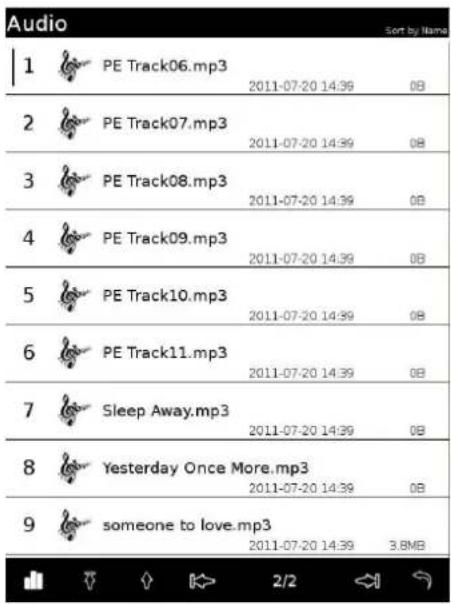
Thumbnails of pictures (if contained on music files) are displayed in the list.
- In the "Audio" list, tap the desired track.
Note
The Reader only supports MP3 files with ID3 tags embedded. ID3 allows information such as the title, artist, album, track number, and other information about the MP3 file to be stored in the file itself. The playback of MP3 files without ID3 will be supported in the future release.
You may use some tools to add ID3 tags to your MP3 files manually so that the Reader can play them.
Option menu of the "Audio" list
Tap the Option icon to open the Option menu.
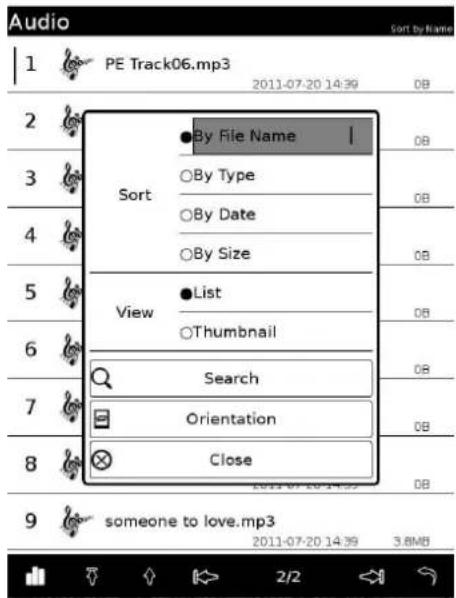
| Option item Description |
| Sort Sorts the audio files by file name, type, date, size. |
| View Switches the list display format to list or thumbnail. |
| Search Searches a desired picture by keyword. |
| Orientation Switches the screen orientation (vertical/horizontal). |
| Close Closes the menu. |
Operations on the Audio player
On the Playback screen, you can perform the following operations.
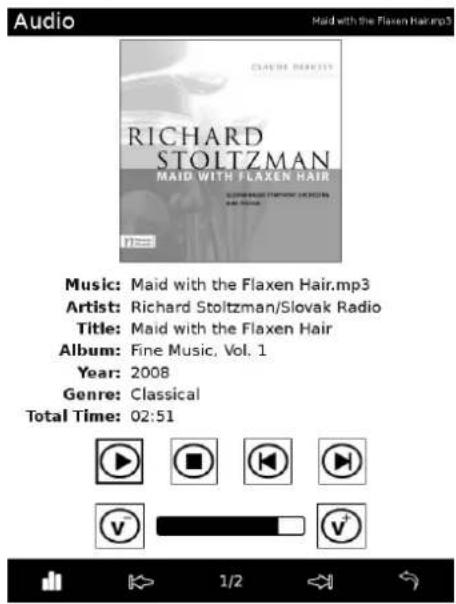
The audio player displays the following information:
● The file name of the audio file.
● The total time of the music file.
The audio player displays the following information (if contained on music files):
● The picture of the album.
• The artist name.
• The track name.
● The album name.
● The year of publishing.
● The genre of the music.
| Icons Description | |
 | Plays the music. |
 | Stops the music. |
 | Skips to the previous song. |
 v+ v- v+ v- | Skips to the next song.Adjust the volume: Volume up and volume down |
Further features of the audio player
Tap the Option icon to open the Option menu.
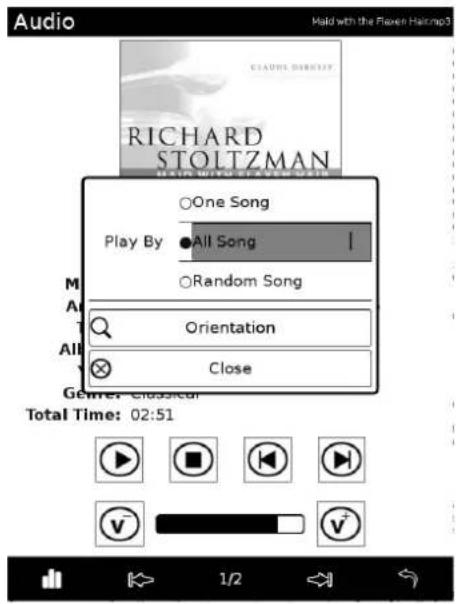
| Option item | Description |
| Play By One Song: Plays the current track repeatedly.All Songs: Plays all tracks repeatedly.Random songs: Plays all tracks in random order. | |
| Orientation | Switches the screen orientation (vertical/horizontal). |
| Close Closes the menu. | |
Settings
2.21 Changing Settings
You can configure various settings in the "Settings" menu.
- In the main windows, tap the "Settings" icon.
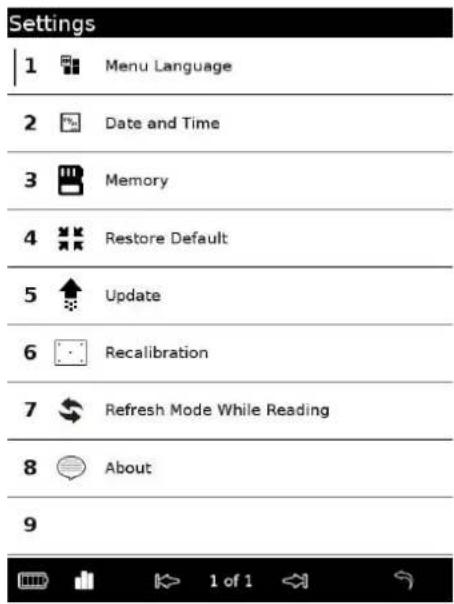
- In the "Settings" menu, select the setting item you want to change.
- Illustrations below show the "Date and Time" setting.
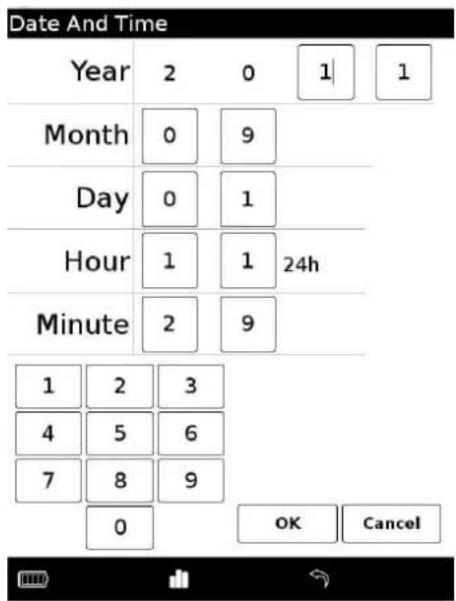
- Tap the desired part or field to change the setting. To input a number, tap the numeric key.
- Tap "OK" to confirm the setting, or tap "Cancel" to cancel the setting.
2.22 Settings menu items
In the "Settings" menu, you can configure the following settings.
| Setting item | Description | |
| MenuLanguage | 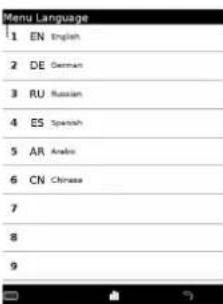 | Sets the language of the displayed menu or messages. |
| Date andTime | 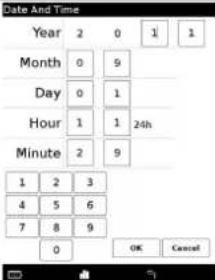 | Sets date and time displayed on the Reader. To inputthe value, tap the numeric key. |
| Memory | Shows Information on the internal memory and theMicro SD card. | |
| RestoreDefault | Restore all the default settings of the Reader. | |
| Update Update the firmware. | Copy the update file to the rootdirectory of the internal memory or a memory card.Tap the Update icon and follow the on-screeninstructions. The name of the update files has thefollowing format: *.ebr2 | |
| Recalibrate | Lets you calibrate | the touch screen by following theon-screen instructions. |
| RefreshMode whileReading | 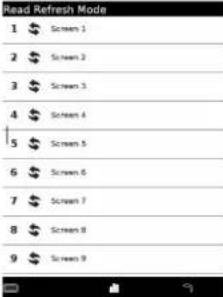 | Lets you set after how many pages the Readercompletely refreshes the screen during reading. Thedefault value is 1. |
| About | Displays the firm | mware version of the Reader, theproduct name, license information, etc. |
Other Information
2.23 Notes on Reader Disposal
The built-in rechargeable battery of the Reader is recyclable. Do not remove the battery yourself, consult your local dealer.
2.24 Precautions
Disposal of Old Electrical & Electronic Equipment (Applicable in the European Union and other European countries with separate collection systems)
This symbol on the product or on its packaging indicates that this product shall not be treated as household waste. Instead it shall be handed over to the applicable collection point for the recycling of electrical and electronic equipment. By ensuring this product is disposed of correctly, you will help prevent potential negative consequences for the environment and human health, which could otherwise be caused by inappropriate waste handling of this product. The recycling of materials will help to conserve natural resources. For more detailed information about recycling of this product, please contact your local Civic Office, your household waste disposal service or the shop where you purchased the product. Applicable accessories: Headphones
For Customers in the USA and Canada RECYCLING LITHIUM-ION BATTERIES
Lithium-ion batteries are recyclable.
You can help preserve our environment by returning your used rechargeable batteries to the collection and recycling location nearest you.
For more information regarding recycling of rechargeable batteries, call toll free 1-800-822-8837, or visit http://www.rbrc.org/.
Caution: Do not handle damaged or leaking Lithium-ion batteries.
On Safety
- Do not insert any foreign objects in the DC IN jack of the Reader.
- Be sure not to short-circuit the terminals of the Reader with metallic objects.
On heat build-up
Heat may build up in the Reader while charging, or if it is used for an extended period of time.
On the headphones
Road safety
Do not use headphones while driving, cycling, or operating any motorized vehicle. It may create a traffic hazard and is illegal in many areas. It can also be potentially dangerous to play at a high volume while walking, especially at pedestrian crossings. You should exercise extreme caution or discontinue use in potentially hazardous situations.
Preventing hearing damage
Avoid using the headphones at a high volume. Hearing experts advise against continuous, loud and extended play. If you experience a ringing in your ears, reduce the volume or discontinue use.
Caring for others
Keep the volume at a moderate level. This will allow you to hear outside sounds and to be considerate to the people around you.
Warning
If lightning occurs while you are using the Reader, take off the headphones immediately.
Note on use
- Replacement or repair of the touch screen if broken or scratched during use is not covered by the warranty.
- Do not drop or submit the Reader to excessive shock.
● Never subject the Reader to extremes of light, temperature, moisture or vibration. - Never wrap the Reader in anything when it is being used with the AC adapter. Heat build-up in the Reader may cause malfunction or damage.
- Do not put any heavy object on top of the Reader or apply a strong shock to the Reader. It may cause a malfunction or damage.
- Do not leave the Reader on an unstable surface.
- Do not expose the Reader to water. The Reader is not waterproof.
-
Remember to follow the precautions below.
-
Be careful not to drop the Reader into a sink or other container filled with water.
- Do not use the Reader in humid locations or bad weather, such as in the rain or snow.
- Do not get the Reader wet.
If you touch the Reader with wet hands, or put the Reader in a damp article of clothing, the Reader may get wet and this may cause a malfunction.
- The touch screen is delicate and subject to cracking. Handle the Reader with due care.
- Do not poke people using the supplied stylus.
- Do not treat or use the supplied stylus roughly, such as bending it, or scratching the touch screen with it.
- Use the supplied stylus only for touch screen operations.
- Do not use the stylus if it is damaged or deformed.
- Depending on the types of the text and characters, the text shown on the Reader may not be displayed properly on device. This is due to:
- The capacity of the Reader.
- The Reader is not functioning normally.
- Content information is written in the language or the character that is not supported by the Reader.
Notes on memory cards
- About Micro SD (TF) Memory Card
Micro SD (TF) Card complies with compact memory card standard and is commonly used as a storage media for digital still cameras.
- Notes on handling memory cards
The Reader does not comply with the following:
- MagicGate standard.
– Copyright protection of Micro SD (TF) Memory Cards.
- Keep a memory card in its case when you carry or store it.
- Do not touch the connector of a memory card with bear hands or metallic objects.
- Do not bend, drop, or subject a memory card to excessive shock.
- Do not disassemble or modify a memory card.
- Do not allow a memory card to get wet.
- Avoid the following to prevent data damage. Your dealer does not provide any guarantee for damaged data.
- Remove a memory card or turn off the Reader while reading or writing data.
- Operate the Reader in the location where static charge or electrical noise is present.
- Do not use a label other than the dedicated one in the label area.
- Do not use or store the Reader in a location subject:
- Extreme high temperature, such as in a sun-heated car.
- Direct sunlight.
– High humidity or places with corrosive substances.
On Cleaning
- Clean the case of the Reader with a soft cloth, such as a cleaning cloth for eyeglasses.
- If the case of the Reader becomes very dirty, clean it with a soft cloth slightly moistened with water or a mild detergent solution.
- Do not use any type of abrasive pad, scouring powder, or solvent, such as alcohol or benzene, as it may mar the finish of the case.
- Be careful not to let water get into the Reader.
- Clean the headphone plug periodically.
- Tapping or dragging on the touch screen using a dirty stylus may damage the surface. Wipe the stylus with a dry cloth when it gets dirty.
Specifications
BTB-600-T
Built-in rechargeable battery: DC 3.7V AC adapter: DC 5V 2A USB
User available capacity
Approx. 3GB in case that a 4GB flash is built-in.
Available memory capacity of the Reader may vary.
"Features can change without notice"
Imported: I.R.P., S.L.
natural_image
Simple line drawing of a trash bin with two crossed lines above and below, no text or symbols present.DECLARATION OF CONFORMITY
I.R.P., SL declare under our responsibility that the equipment meets the requirements indicated in the following directives:
EMC DIRECTIVES
EN55022:2006+A1:2007+A2:2006
EN55024:1998+A1:2001+A2:2003
EN61000-3-2:2006
EN61000-3-3:2008
Description of apparatus:
BRIGMTON Model BEB-600-T
Text files reader
Importer: I.R.P., SL
Address: Avenida Santa Clara de Cuba 5, 41007, Sevilla.