BTPC-911DC - Tablet BRIGMTON - Free user manual and instructions
Find the device manual for free BTPC-911DC BRIGMTON in PDF.


| Product Type | Tablet |
| Brand | Brigmton |
| Model | BTPC-911DC |
| Display Size | 9 inches |
| Display Resolution | 1024 x 600 pixels |
| Processor | Quad-core 1.3 GHz |
| RAM | 1 GB |
| Internal Storage | 16 GB |
| Expandable Storage | MicroSD up to 32 GB |
| Operating System | Android 8.1 (Go edition) |
| Battery Capacity | 4000 mAh |
| Dimensions (W x H x D) | 241 x 151 x 9.8 mm |
| Weight | 460 g |
| Rear Camera | 2 MP |
| Front Camera | 0.3 MP |
| Connectivity | Wi-Fi 802.11 b/g/n, Bluetooth 4.0 |
| Ports | Micro USB, 3.5 mm headphone jack |
| Power Supply | DC 5V 2A via Micro USB |
| Battery Life | Up to 6 hours of mixed use |
Frequently Asked Questions - BTPC-911DC BRIGMTON
User questions about BTPC-911DC BRIGMTON
0 question about this device. Answer the ones you know or ask your own.
Ask a new question about this device
Download the instructions for your Tablet in PDF format for free! Find your manual BTPC-911DC - BRIGMTON and take your electronic device back in hand. On this page are published all the documents necessary for the use of your device. BTPC-911DC by BRIGMTON.
USER MANUAL BTPC-911DC BRIGMTON
IDIOMA Y ENTRADA
Automatic date & time Use network-provided time
Automatic time zone Use network-provided time zone
Zona automática
Set date 5/9/2012
Select time zone GMT+00:00, GMT+00:00
Establecer la zona
REPRODUCTOR DE VÍDEO
natural_image
Collage of eight video thumbnails showing different scenes including a frog, water, and people (no text or symbols visible)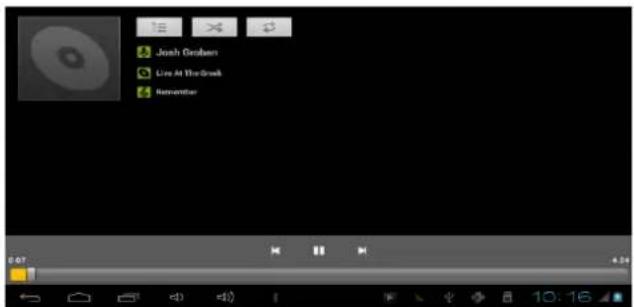
CÁMARA
Seleccione el icono
natural_image
Potted plant with green leaves and a red flower, displayed in a photo editing interface (no text or symbols on the plant itself)- INTRODUCTION
- LIST OF APPLICATIONS
CONFIGURATION
- WIRELESS & NETWORKS
- SCREEN AND SOUND
- APPLICATIONS
- LANGUAGE AND ENTRY
- BACKUP AND RESET
- DATE AND TIME
- ON THE DEVICE
VIDEO PLAYER
MUSIC
CAMERA
BROWSER
OPERATION INSTRUCTIONS
INTRODUCTION
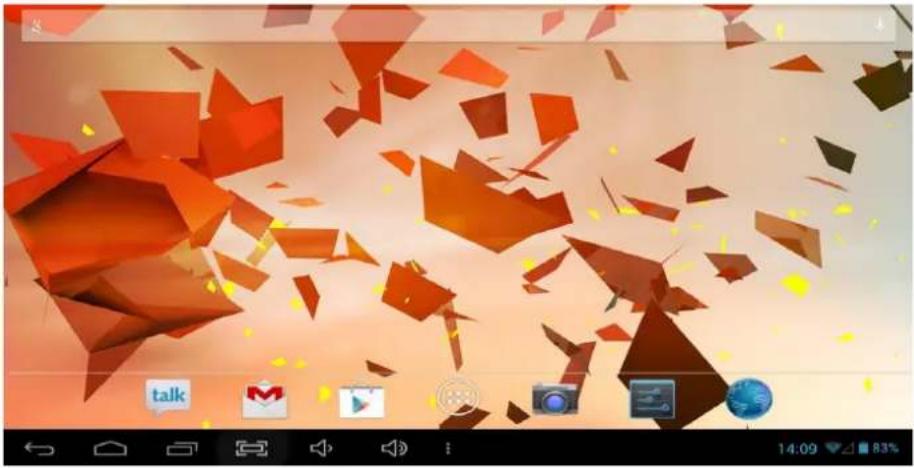
natural_image
Digital photo of a fragmented orange geometric object with floating fragments, displayed in a mobile app interface (no readable text or symbols on the objects themselves)
Return
Home

Running Program under background
Screenshot

Voice -

+

Fast enter system settings and Manage apps

Application Menu
USB Connected

Voice input

Time / WIFI / External 3G dongle signal / Battery

natural_image
Abstract gradient background with orange and brown geometric shapes (no text or symbols)Google search
APPLICATION LIST
Click icon into applications menu:
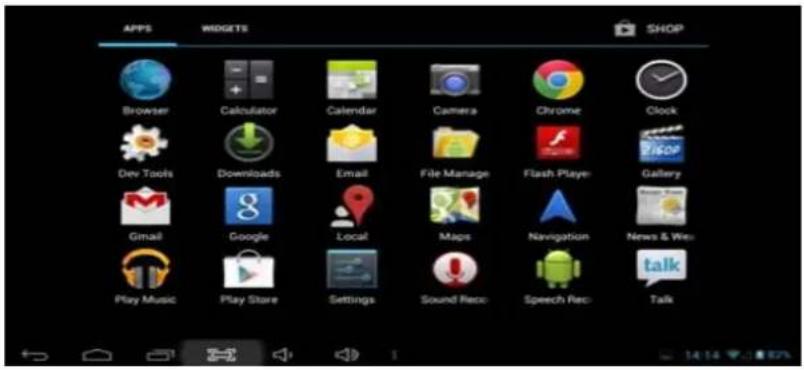
Note: Long pressing an application icon can add shortcut to the desktop automatically
Click WIDGETS view widgets:
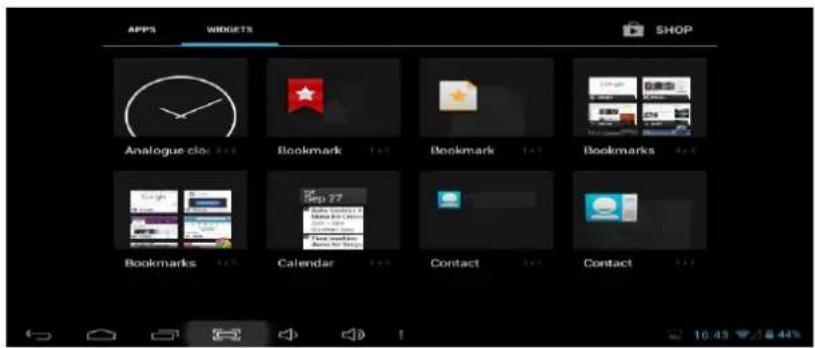
Note: Long pressing any widgets; you can create a shortcut on the desktop
SETTINGS
WIRELESS & NETWORKS
Click icoWi-F when select wireless & network:

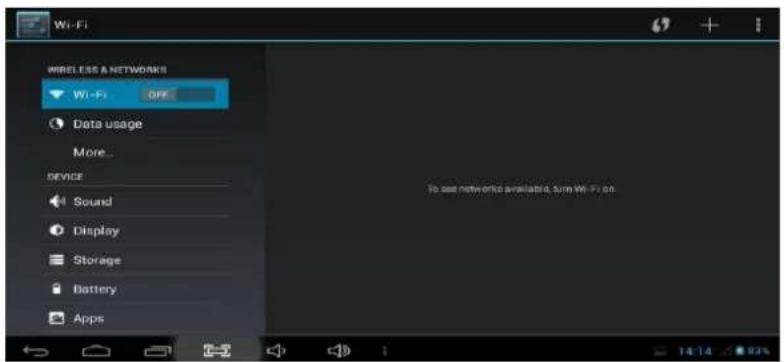
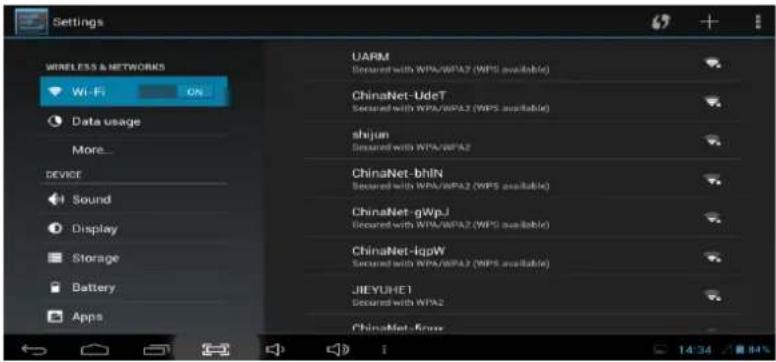
Wi-Fi settings
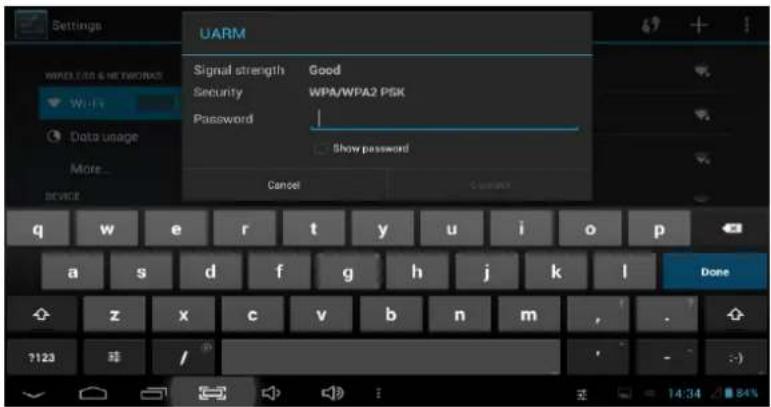
Turn on Wi-Fi, tablet can search for nearby Wi-Fi networks automatically and display related information. Choose WIFI router.
If it displays locked as, you need type password before connection:
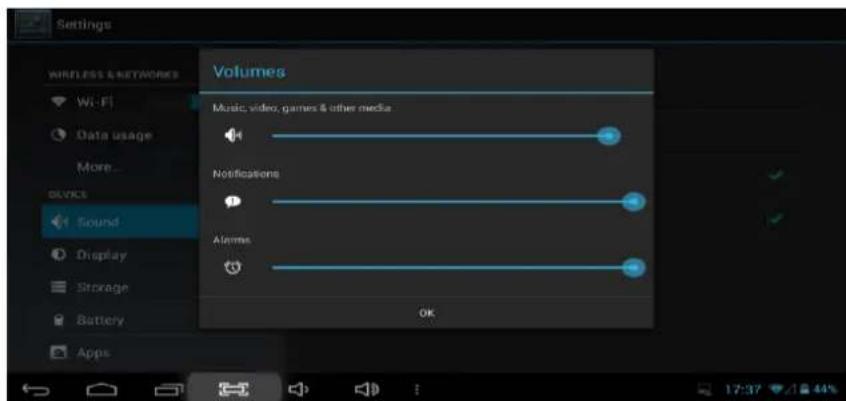
SOUND AND DISPLAY
Click Sound lume
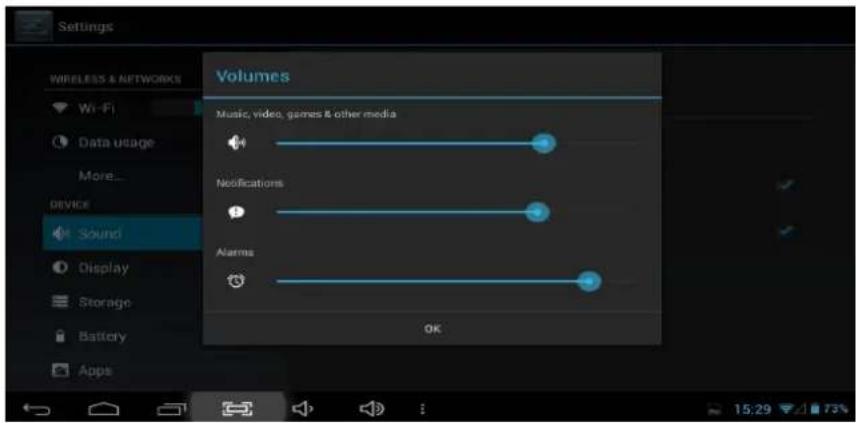
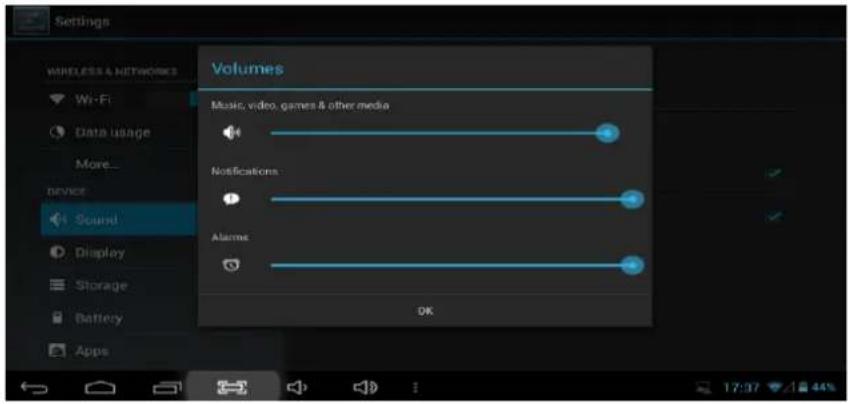
Click Icon to adjust the volume
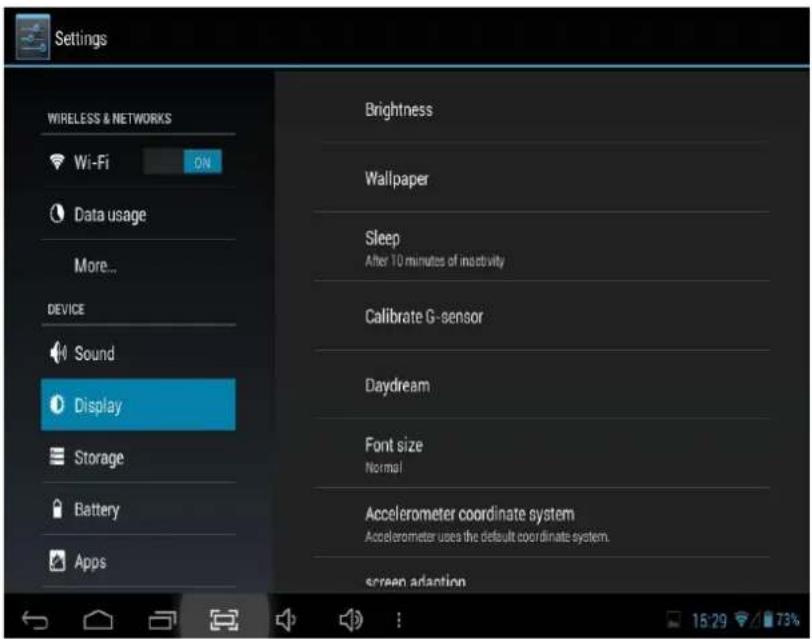
Brightness
Wallpaper
Sleep
After 10 minutes of inactivity
Calibrate G-sensor
Daydream
Font size
Normal
Accelerometer coordinate system
Accelerometer uses the default coordinate system
screen adaption
Used to adjust size of some games display screen
LCD Brightness setting
Set wallpaper
Set sleep interval
Calibrate
Set screen protect
Adjust font size
Select an accelerometer coordinate system Adjust screen adaption
APPS
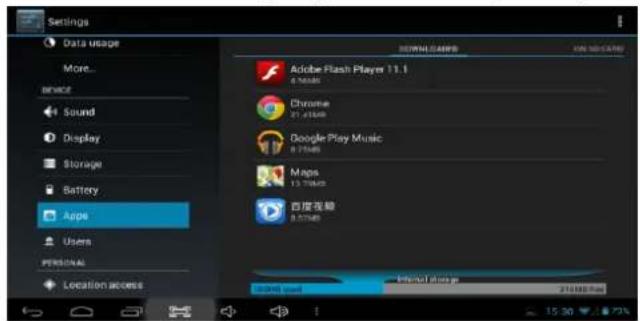
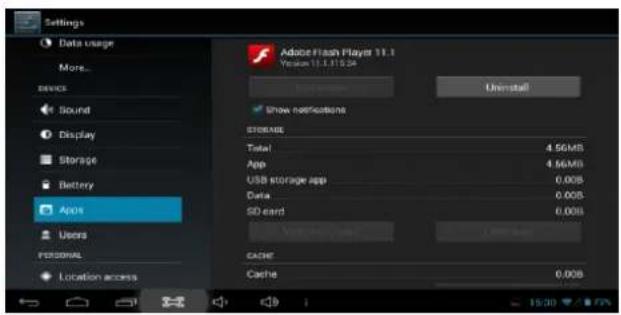
Click Apps application settings interface. You can see all application details and uninstall programs completely.
LANGUAGE & INPUT
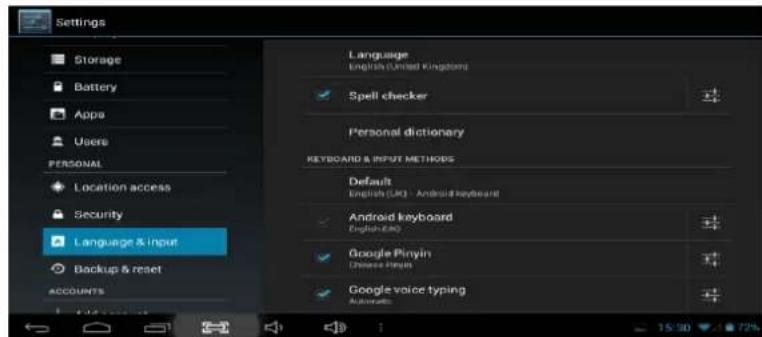
Click to set native language.
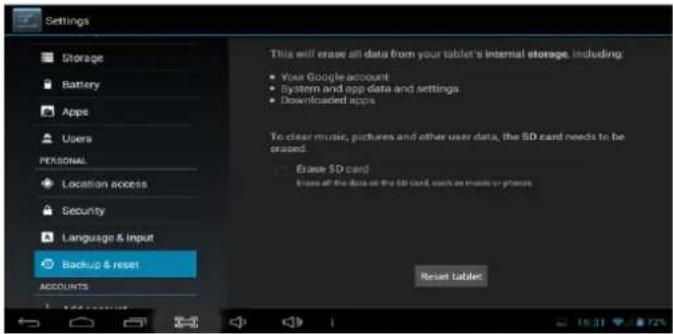
BACKUP & RESET
Click
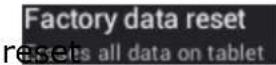
tablet:
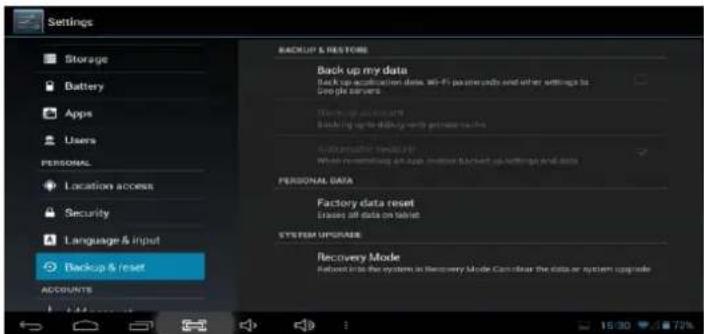
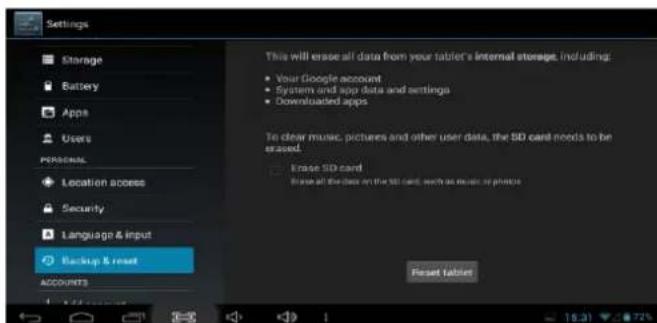
Note: All applications are installed by user will be disappeared.
DATE & TIME
Click Date & time to set date and time:
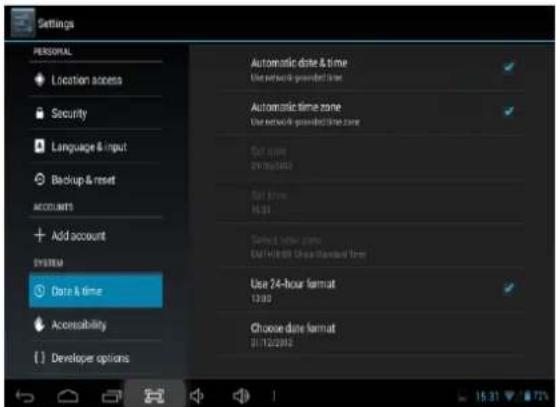
Automatic date & time Use network-provided time
Automatic time zone Use network-provided time zone
Set date 5/9/2012
Set time 06:24
Select time zone GMT+00:00, GMT+00:00
Obtain the time automatically
Obtain the time zone automatically
Set current date
Set current time
Select time zone for your location
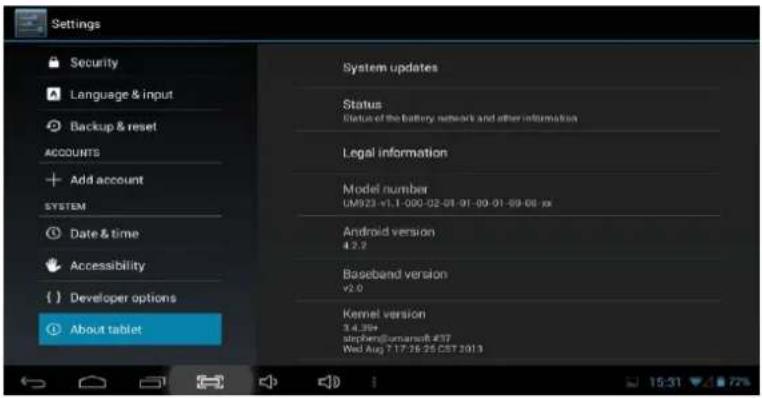
About tablet
You can check the Tablet detail information:
VIDEO PLAYER
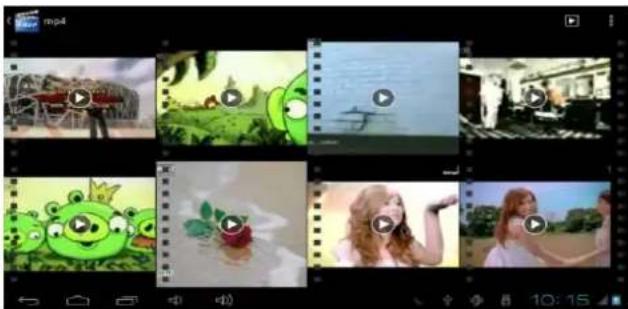
Click [Image 2.609] to browse picture and video:
natural_image
Collage of nine video thumbnails showing different scenes and content, including animals, a frog, and people in various settings (no text or symbols visible)Note: It needs some time to load all files at first time. Press one file 2S for more advanced operation.
If you want to browse the file from TF card, please make sure

Storage
Enable media scanning on extsd

MUSIC
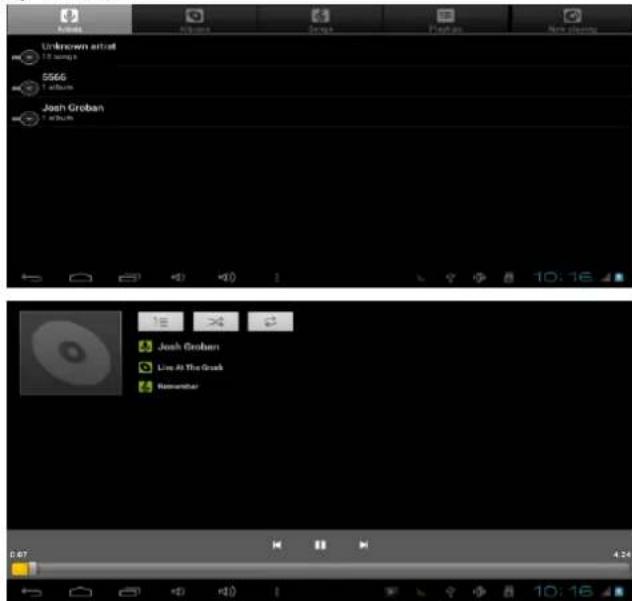
Click

n to play music:
CAMERAS
Click
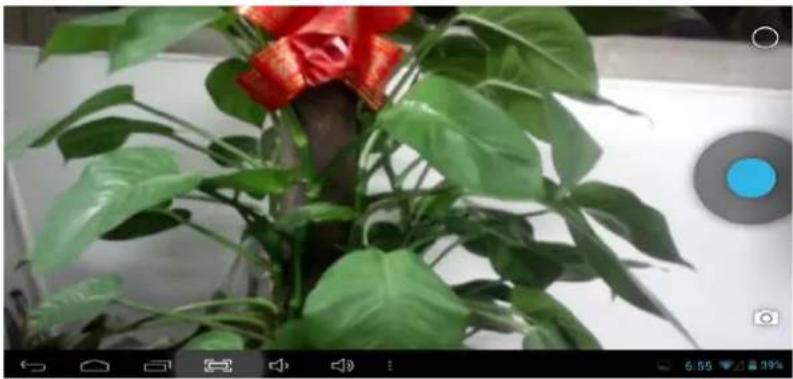
hto camera interface:
natural_image
Potted plant with green leaves and red decorative elements, displayed on a white surface with a blue circular button (no text or symbols visible)
Take photo

Click this icon you would find

all window
Switch camera/video recorder

Click this icon you would find

Switch front and rear
camera

Exposure

Camera setting

Different mode
BROWSER
Click to browse web page:
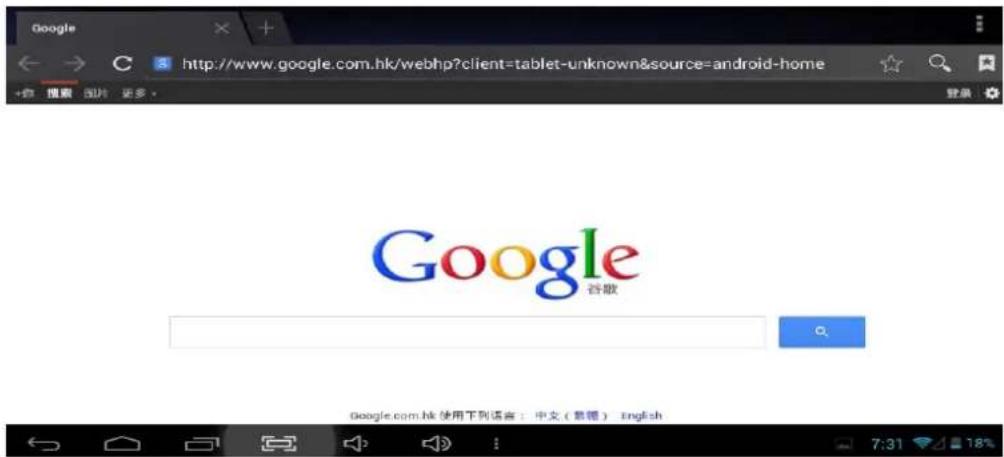
Make sure the internet is connected.
"Features can change without notice"
BRIGMTON
surfing technology
IMPORTED
FERSON ELECTRÓNICA, S.A.
CIF: A-41111881
SANTA CLARA DE CUBA 12
SEVILLA
ESPAÑA
DECLARATION OF CONFORMITY
Ferson Electrónica, S.A. declares under our responsibility that the equipment meets the requirements indicated in the following directives:
EMC DIRECTIVES
EN60950-1:2006/A11:2009/A1:2010
EN 62311: 2088
EN 301 489-1 V1.9.2:2011-09
EN 301 489-17 V2.1.1:2009-05
EN 300 328 V1.7.1: 2006-10
ETSI EN 301 489-1 V1.9.2(2011-09)
ETSI EN 301 489-17 V2.1.1(2009-05)
Description of apparatus:
BRIGMTON Model BTPC-911QC
Mobile Internet Device