BTPC-1026QC4G-N - Tablet BRIGMTON - Free user manual and instructions
Find the device manual for free BTPC-1026QC4G-N BRIGMTON in PDF.


User questions about BTPC-1026QC4G-N BRIGMTON
0 question about this device. Answer the ones you know or ask your own.
Ask a new question about this device
Download the instructions for your Tablet in PDF format for free! Find your manual BTPC-1026QC4G-N - BRIGMTON and take your electronic device back in hand. On this page are published all the documents necessary for the use of your device. BTPC-1026QC4G-N by BRIGMTON.
USER MANUAL BTPC-1026QC4G-N BRIGMTON
natural_image
Abstract curved shape with smooth gradient, no text or symbols presentBRIGMTON
surfing technology
MODO DE ESPERA
CONEXIONES INALÁMBRICAS Y REDES
PANTALLA
MEMORIA
APLICACIONES
LOCALIZACIÓN
IDIOMA Y ENTRADA
RESTABLECER-RESET
AÑADIR CUENTA
CÓMO INSTALAR APLICACONES
Método 1
natural_image
Abstract curved white shape on white background, no text or symbols presentBRIGMTON
surfing technology
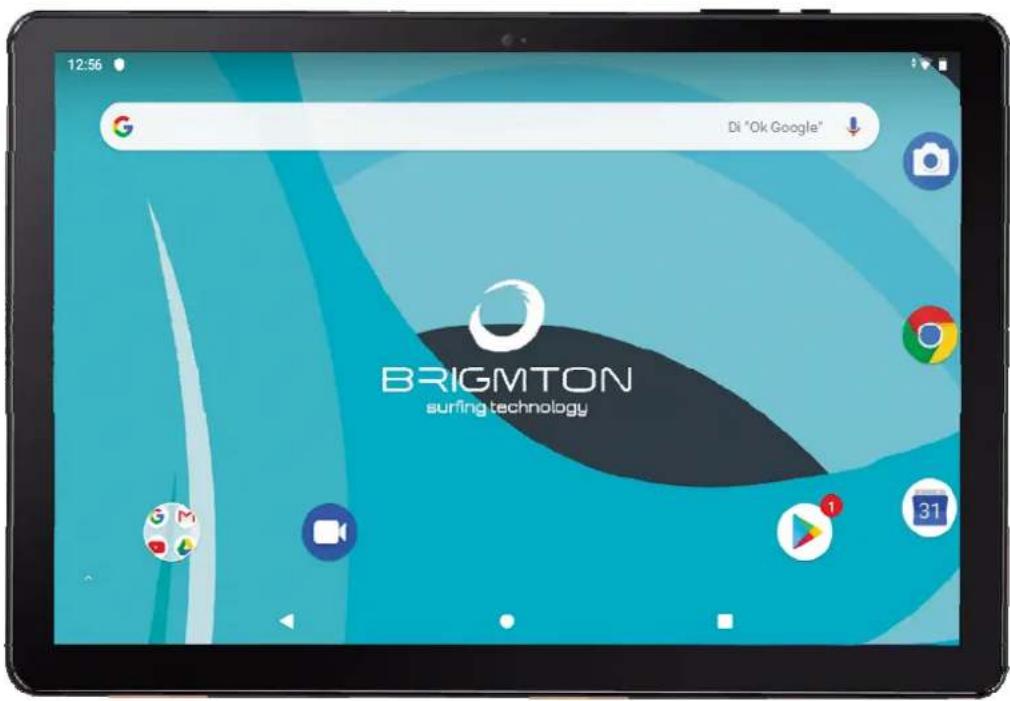
INSTRUCTION MANUAL
TABLET PC 10"- IPS 1280x800 - 4G - QUAD
CORE - WIFI - BLUETOOTH - 3GB RAM
BTPC-1026QC4G-B-N
CONTENTS
CONTENT
SECURITY MEASURES
PRECAUTIONS
ON OFF
DESK
STANDBY MODE
- Wireless & networks
- More
- Sound
- Screen
- Memory
- Battery
- Applications
- Location
- Security
- Language and entry
- Reset-Reset
- Add Account
- Date and Time
- Accessibility
- Development options
- The device
Connection from the PC
INSTALLING APPLICATIONS
HOW TO CREATE icons on the desktop
SECURITY
Read these safety instructions before using the device and save them for possible future reference. Always follow these basic safety precautions.
Battery, charger and other accessories
If the charger cable is damaged do not use the charger, to avoid any danger.
The outlet should be installed near the equipment and shall be easily accessible.
Use by children should be supervised to ensure they do not play with the charger.
The charger should always be easily accessible.
The device should not be exposed to dripping or splashing water.
No objects filled with liquid near the device.
Always leave a minimum distance of 10 cm around the unit to ensure adequate ventilation.
Do not place heat sources on top of the device.
The device is designed for use only in a temperate climate.
CAUTION: Danger of explosion if battery is incorrectly replaced or substituted by the same or equivalent type.
The battery must not be exposed to excessive heat such as sunshine, fire or the like.
The use of the device at full volume can damage the user's hearing and cause hearing problems.
SWITCH OFF IN RESTRICTED AREAS
Turn the device on when wireless device use is not allowed or when there is a risk of causing interference or danger, for example, at or near medical equipment, fuel, chemicals or blasting sites on board an aircraft.
ROAD SAFETY
Check the laws and regulations on the use of mobile devices in the areas where you drive.
- Do not handle the mobile when driving.
• Concentrate fully on driving - Radio signals may affect some electronic systems in the vehicle, such as stereos and alarm.
INTERFERENCE
All wireless devices are susceptible to interference, which could affect performance.
Authorized personnel
Only qualified persons are authorized to install or repair this product.
ACCESSORIES
Use only batteries, chargers and other accessories that are compatible with this equipment. Do not connect incompatible products.
KEEP DRY EQUIPMENT
This equipment is not waterproof. Keep dry.
CHILDREN
Keep your mobile device in a safe place, out of reach of young children. The mobile device contains small parts that may present a choking hazard.
PRECAUTIONS
This mobile device meets guidelines for exposure to radio waves.
Your mobile device is a radio transmitter and receiver. It was designed to meet the international standards recommended limits to limit exposure to radio waves.
Radio frequency output of electronic devices can interfere with other electronic equipment and cause malfunctions. Although this mobile device is designed in accordance with EU standards on radio frequency emissions, wireless transmitters of mobile devices and electrical circuitry may cause interference with other
electronic equipment. We therefore recommend the following precautions:
Aircraft: can cause interference in aircraft.
- Turn off your mobile before boarding the plane
- Do not use until allowed to do so by the flight crew.
Vehicles Radio frequency emissions from wireless devices may affect electronic systems in motor vehicles. In reference to your vehicle, check with the manufacturer or distributor.
Medical implants:
Medical equipment manufacturers recommend a minimum distance of 15 centimeters between a wireless device and an implanted medical device, such as a pacemaker or defibrillator to avoid any interference with the medical device. It is recommended that people equipped with these devices:
Always keep the mobile phone more than 15 cm away from the medical device.
-Follow the instructions provided by the manufacturer of medical implant.
- If it is equipped with a medical implant and have questions about using your mobile / wireless equipment, you should consult your doctor
Warning: When using a headset runs the risk of not hearing outside sounds properly. Do not use headset where it can endanger your safety. Some wireless devices may interfere with the proper functioning of hearing aids.
Other medical devices: mobile devices can interfere with the proper functioning of inadequately protected medical equipment. Consult a physician or the medical equipment manufacturer to see if the equipment is sufficiently protected against external wave signals radio.
Health services: hospitals and health care facilities may use equipment that is particularly sensitive to external radio frequency emissions. Turn off your mobile device when the staff required.
Hazardous Locations:
Turn off the device in potentially explosive areas. Follow all official instructions. Sparks in such areas could cause an explosion or fire resulting in serious injury or death. You turn off the power at the pump, especially when you are near gas pumps. Strictly follow the usage restrictions in fuel depots, chemical plants or in areas with explosives.
ON/OFF
Hold the button to turn on / off the device.
Press to turn on / off the screen.
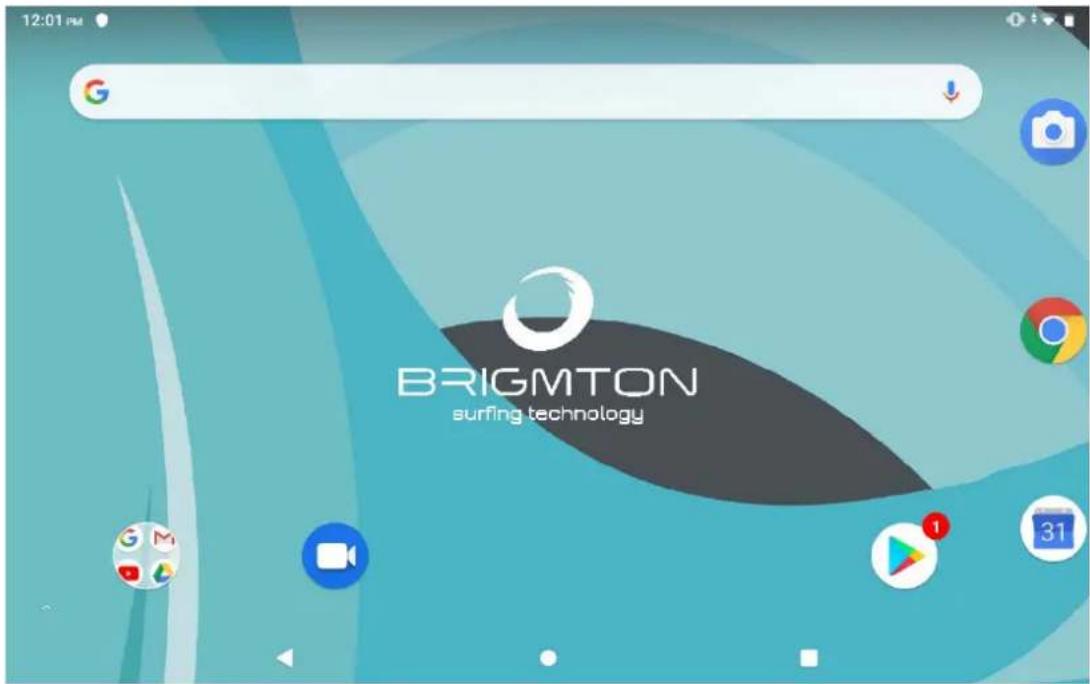
DESK
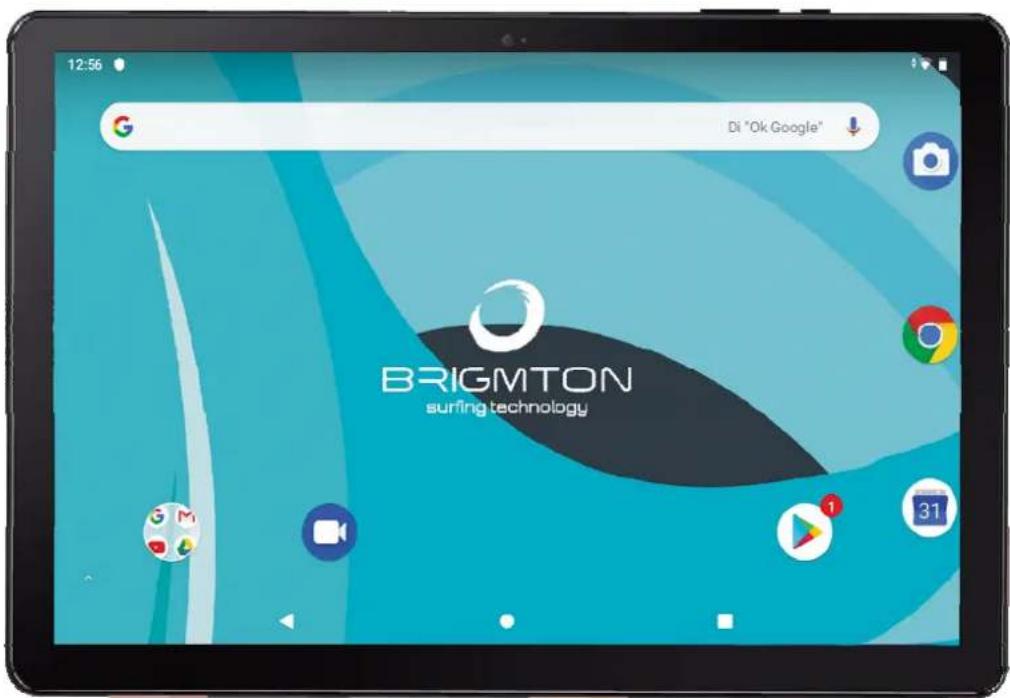
Once the device displays on the desktop:
STANDBY MODE
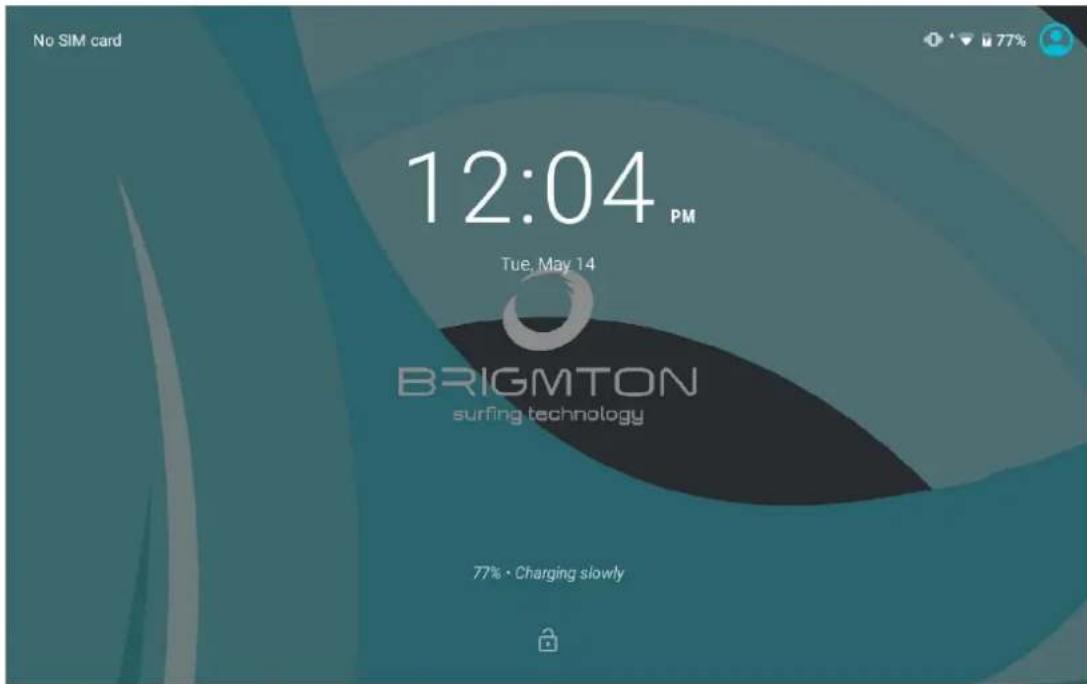
Briefly press the power button to turn on / off the screen (standby mode on / off) After standby, slide the lock icon to unlock the screen.
On the desktop configuration press:
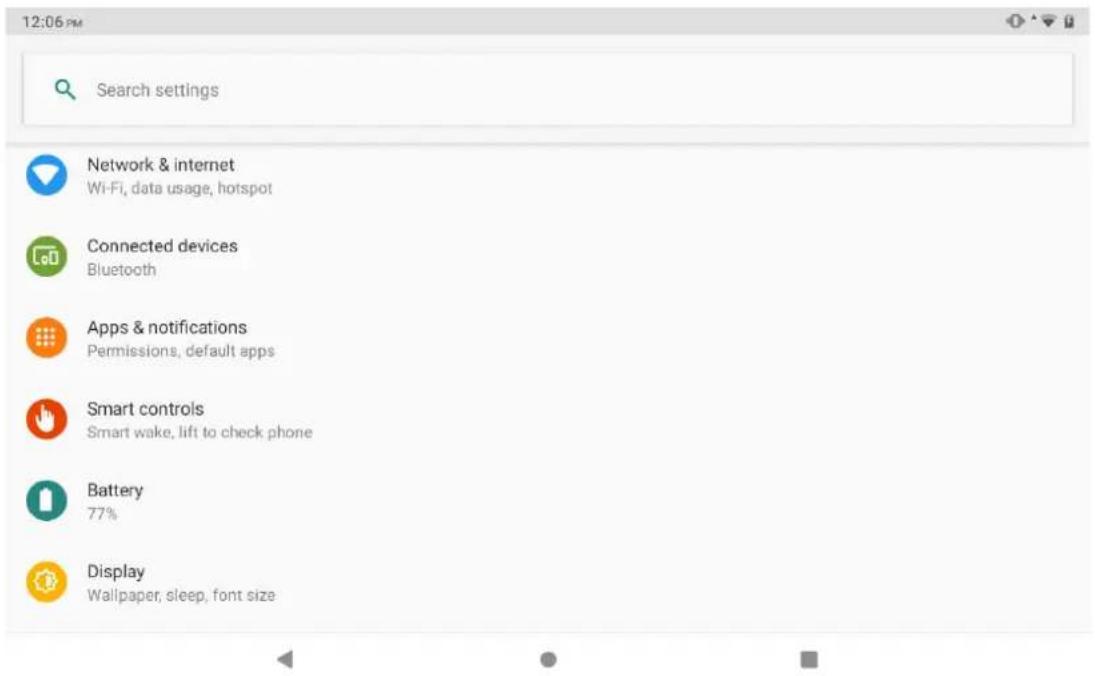
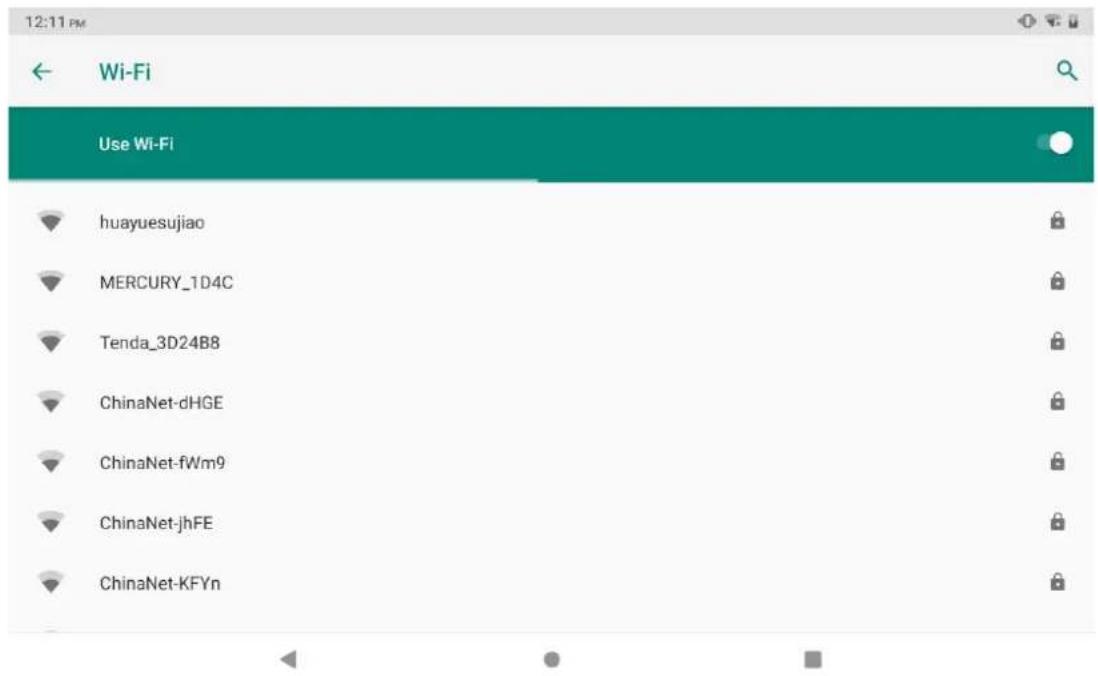
WIRELESS & NETWORKS
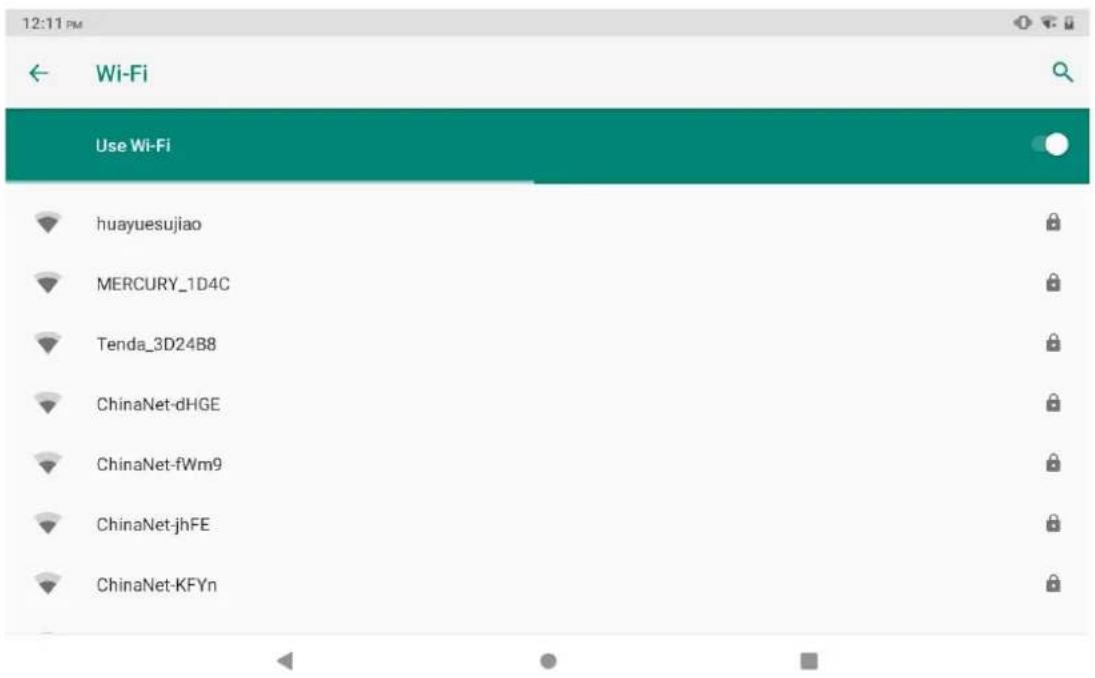
Click Wi-Fi on / off Wi-Fi: Configure each setting. Once turned on Wi-Fi connection will appear available networks.
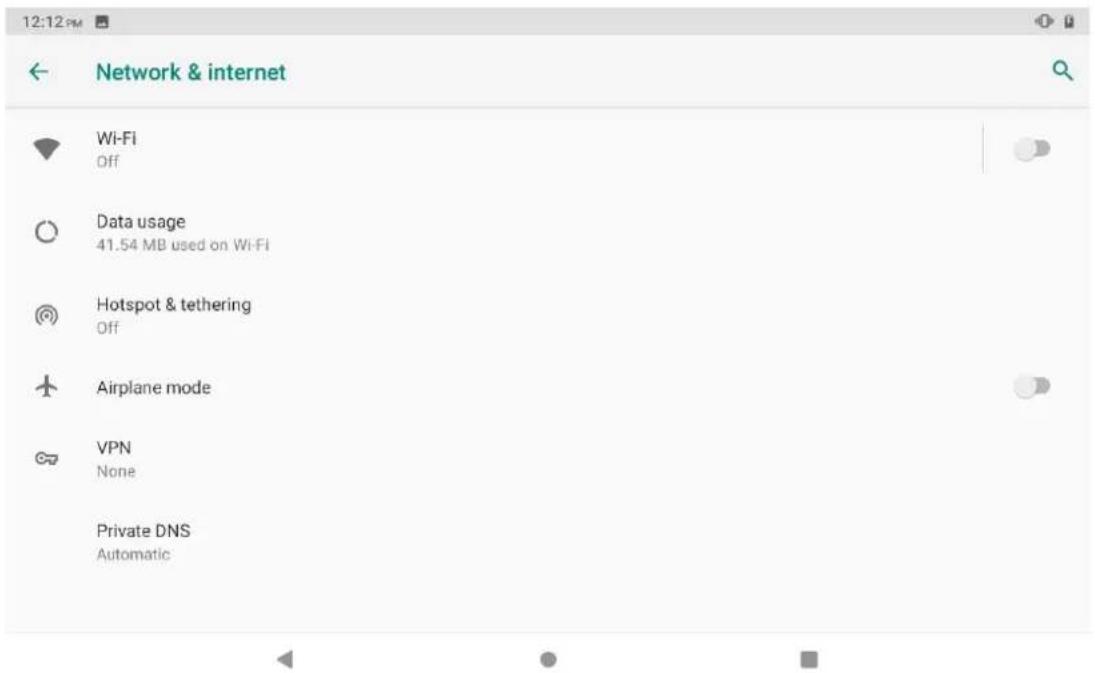
MORE
For more information on mobile data and Ethernet, VPN, Airplane mode and mobile networks.
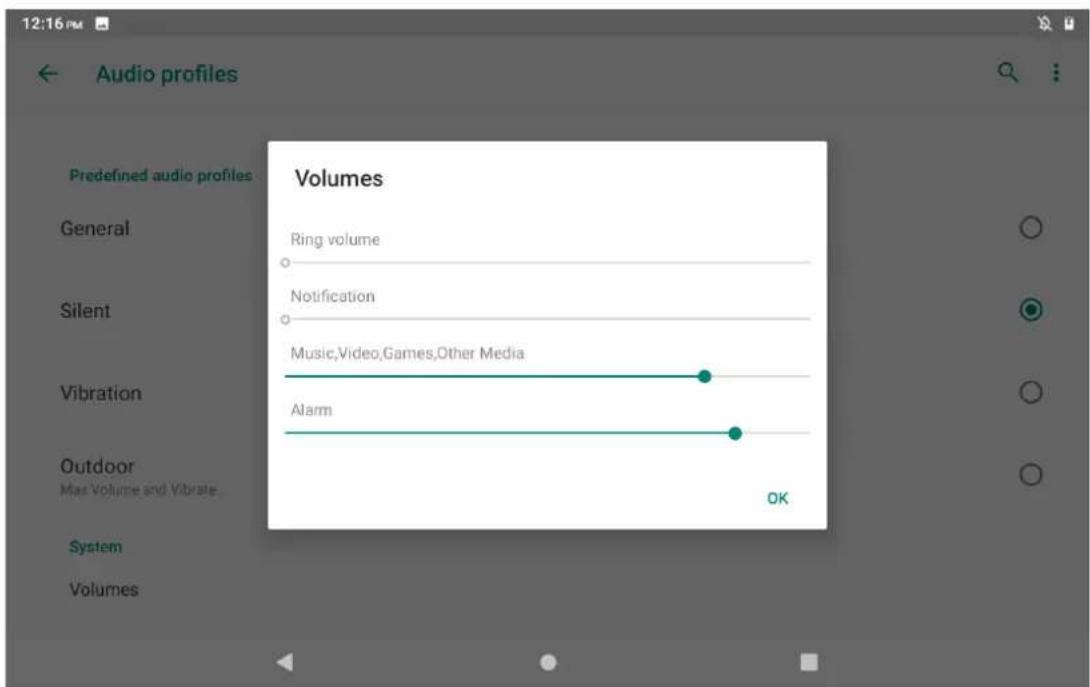
SOUND
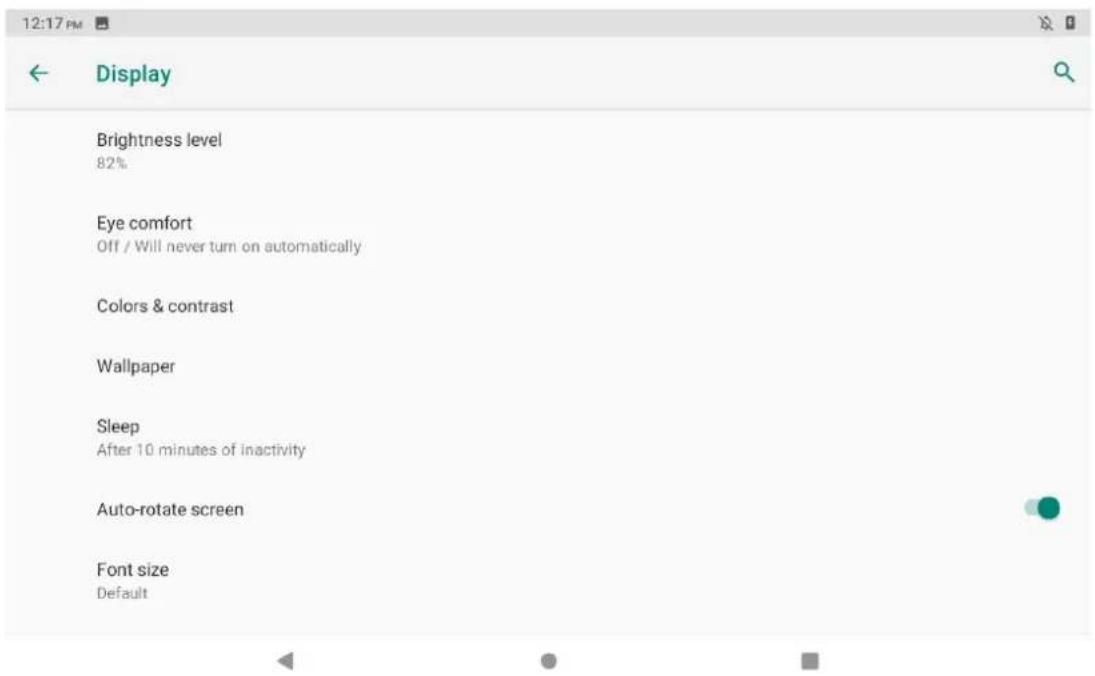
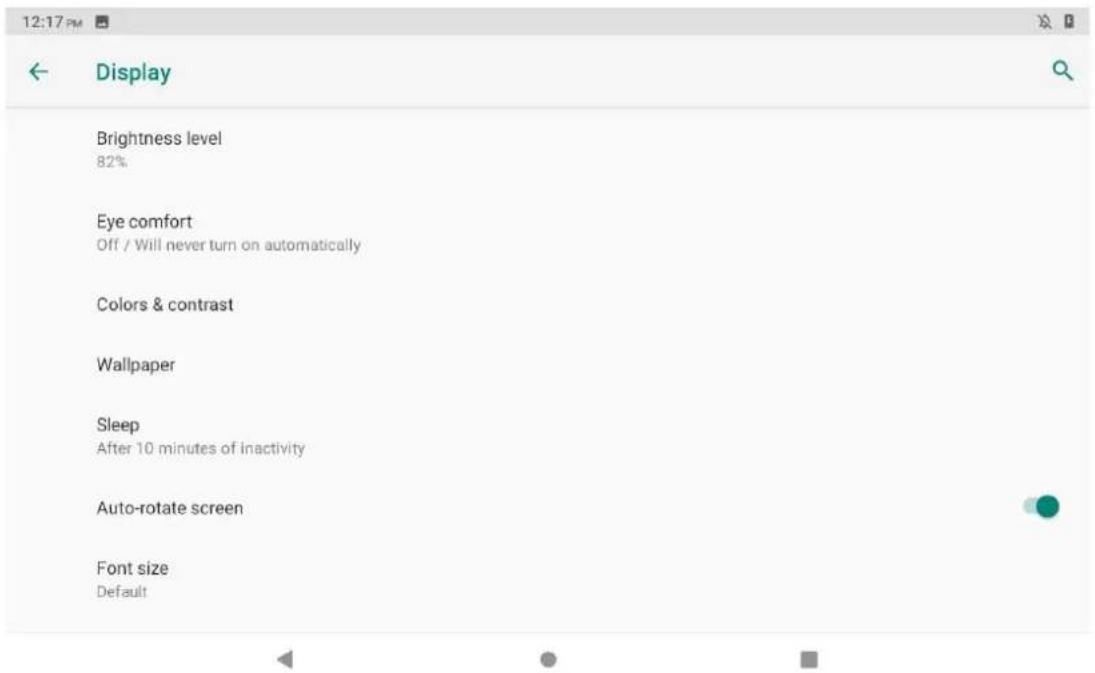
SCREEN
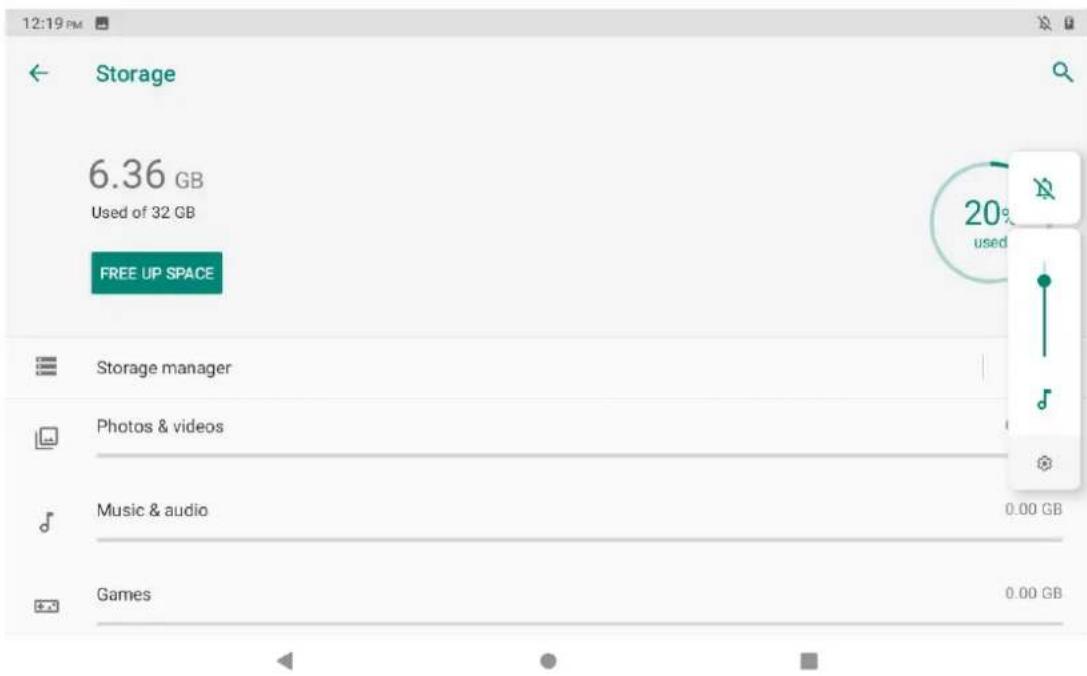
MEMORY
Check device memory and microSD card status.
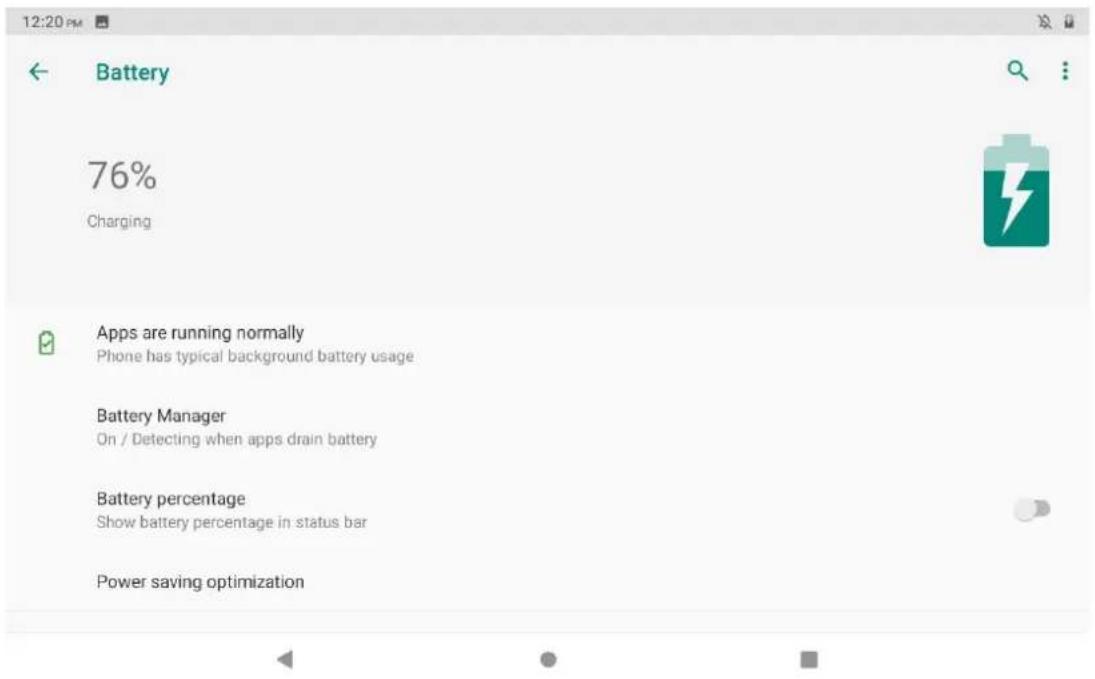
BATTERY
Check the battery status and options.
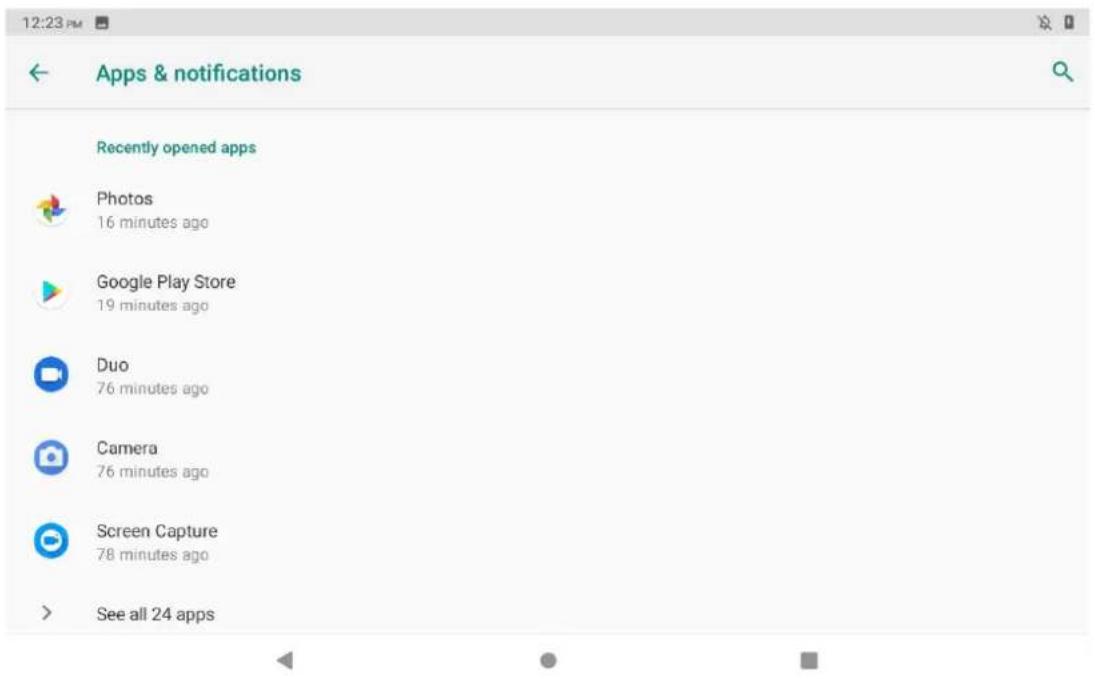
APPLICATIONS
Manage applications on your device.
LOCATION
You can turn the Google™ location service. Applications use data from sources such as WiFi and mobile networks to determine your approximate location.
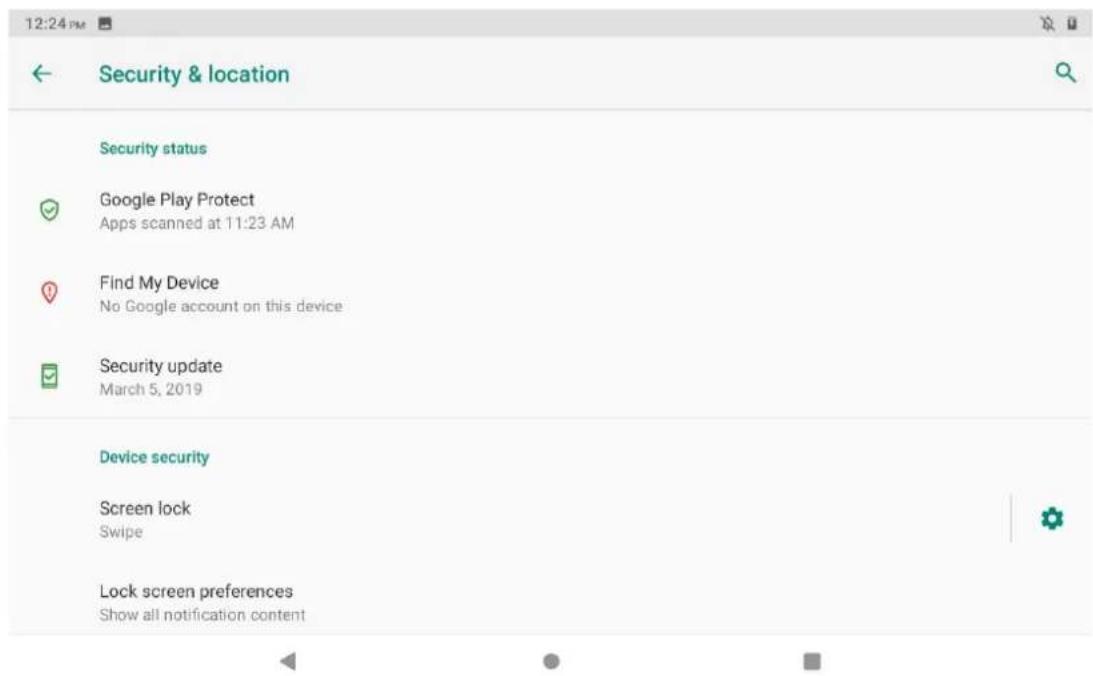
SECURITY
Screen Lock: Protect your device against unauthorized creating an unlock pattern
screen personal use.
Make passwords visible: Displays the password as you type.
Unknown sources: To allow the installation of applications not from Google Play.
Install from SD card: Install encrypted certificates from SD card.
LANGUAGE AND ENTRY
Language: Select the desired language.
Keyboard and input method: Adjusting input methods.
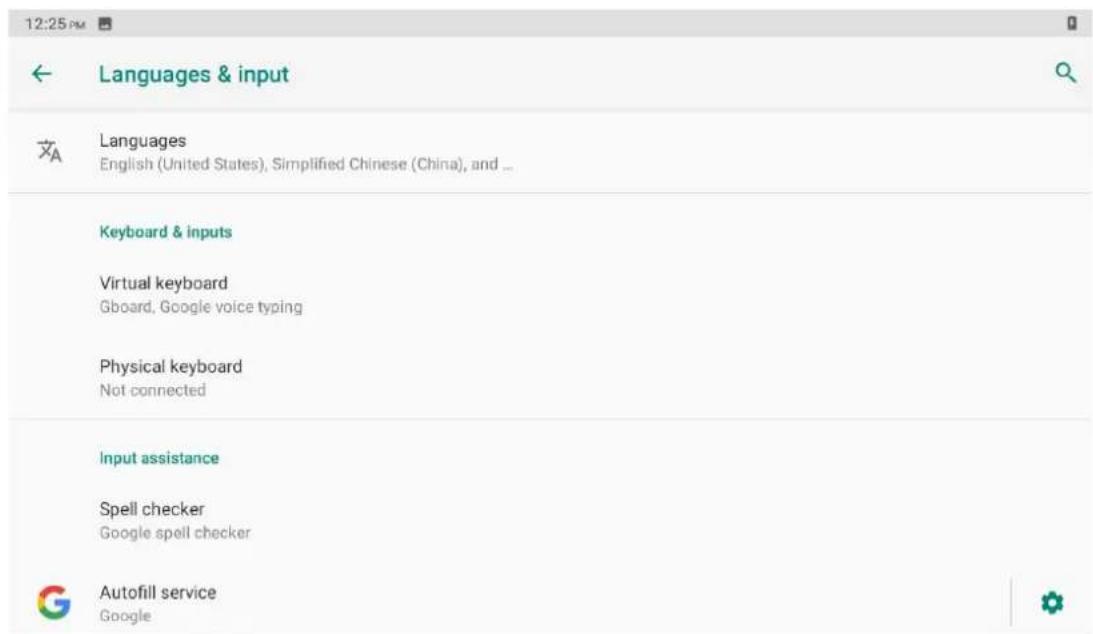
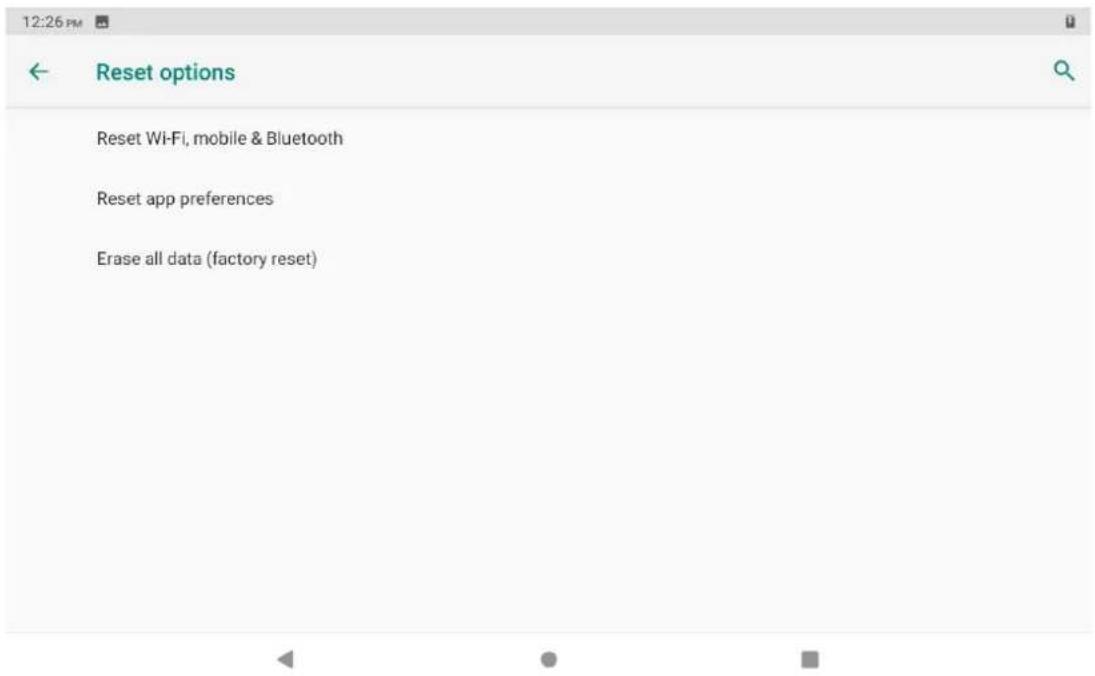
RESET
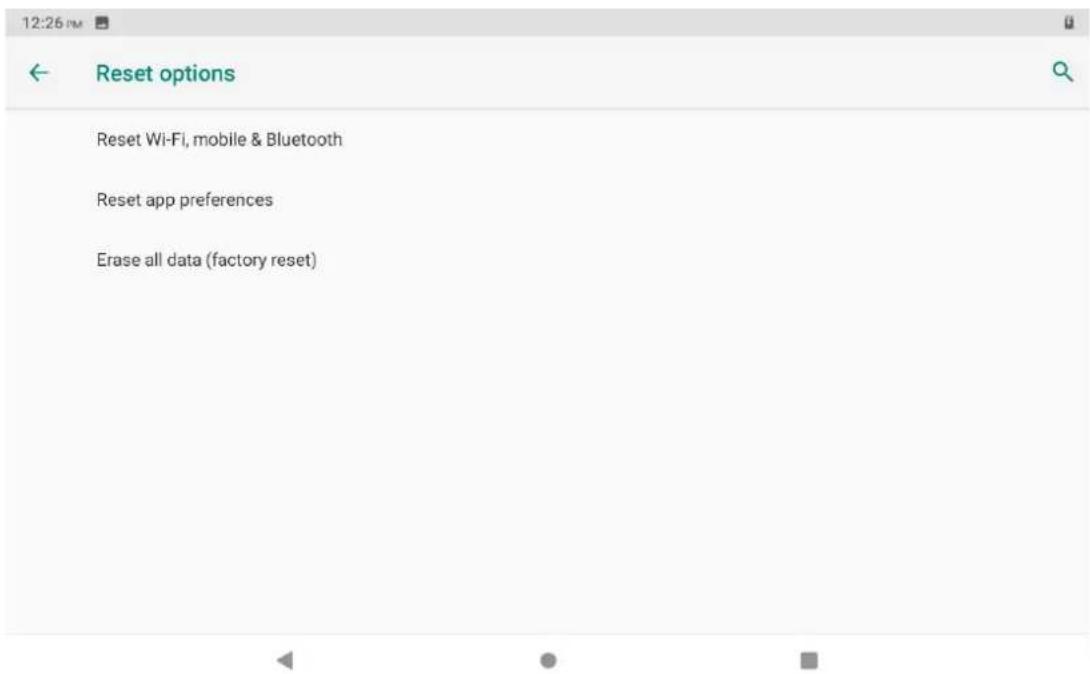
ADD ACCOUNT
Create a Google account. You must have Internet access. E-mails are automatically downloaded to the device.
DATE AND TIME
Set the date, time and format.
ACCESSIBILITY
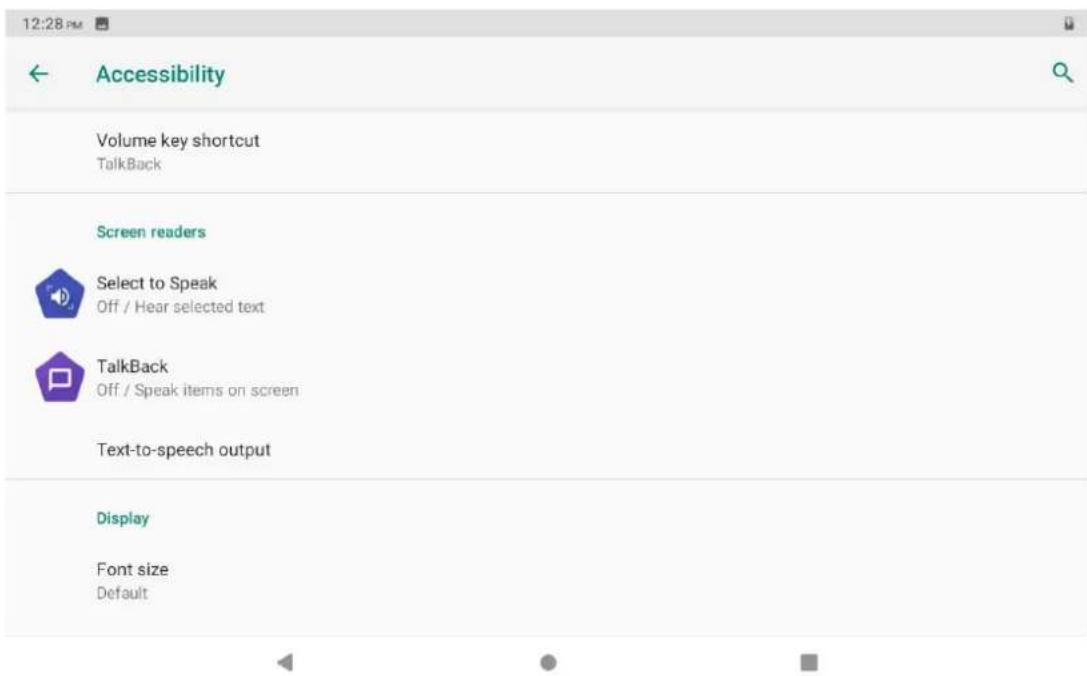
DEVELOPMENT OPTIONS
Set options for application development
ON THE DEVICE
View status, legal information, etc.
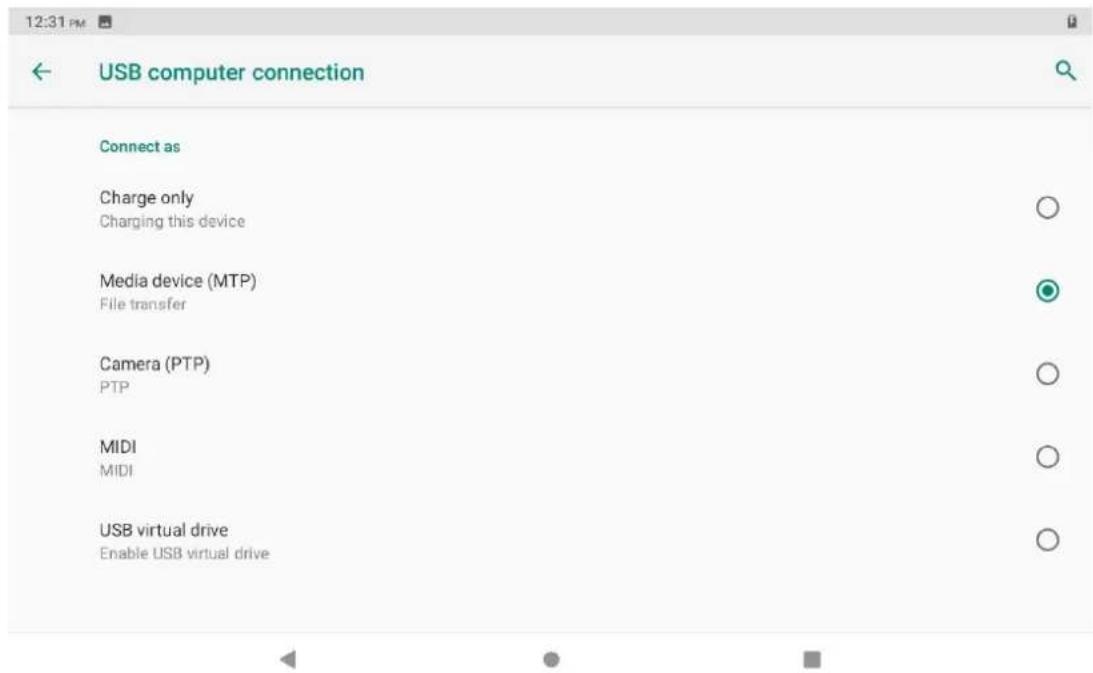
Connection from the PC
In the main desktop, connect the device to the PC, touch left side of the status bar on the desktop:
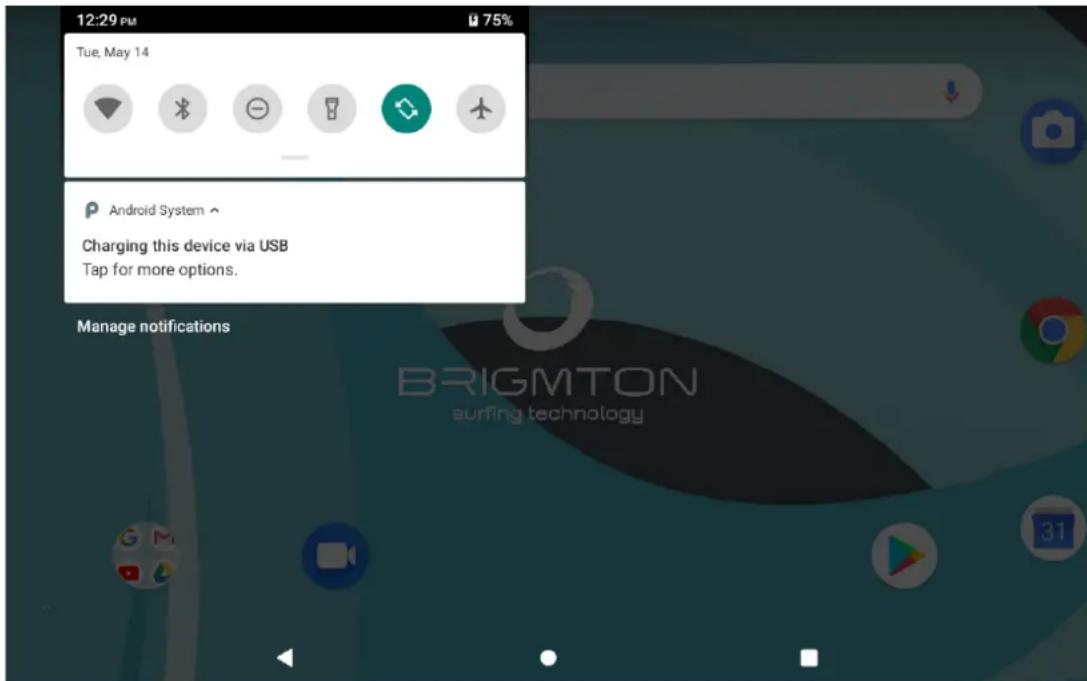
Press "USB connected" button, select "Turn on USB storage". The device will be recognized by your PC. Now you can use it as external storage.
INSTALLING APK
Method 1
- Connect the device with internet.
- Run "Google Play" and search the applications you want to install.
- Follow the onscreen instructions for installation.
Method 2
- Connect the device with the PC and copy the applications to install on the device (.apk)
- Run "File Explorer" and find the apk.
- Press the file to install and follow the instructions on the screen.
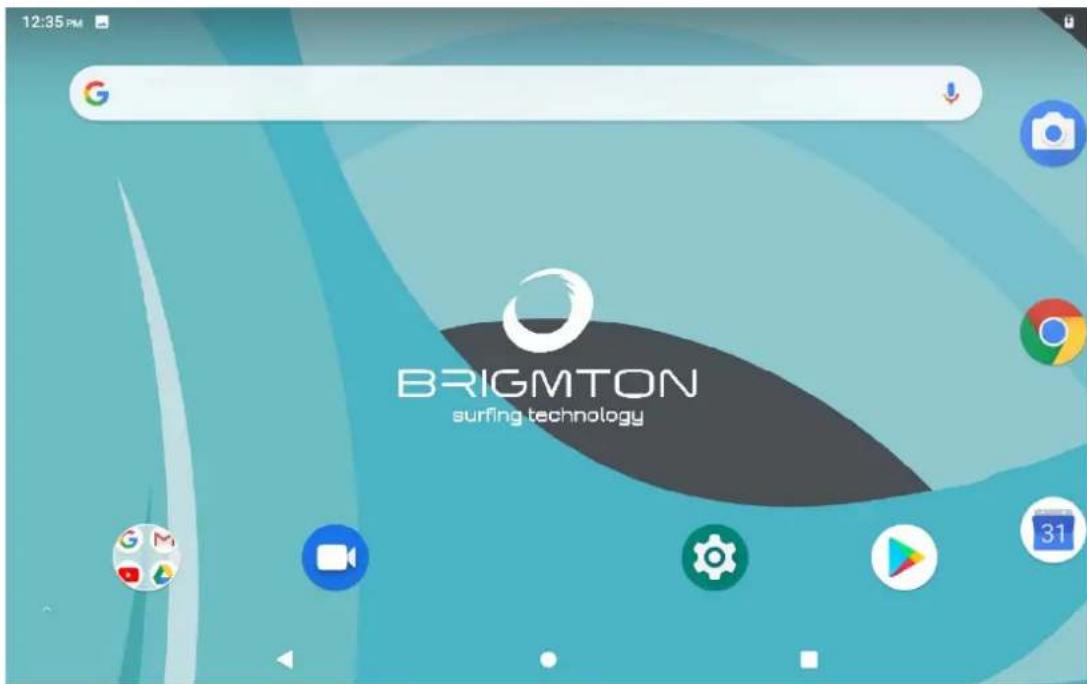
CREATING icons on the desktop
Click on the desktop and follow the instructions on the popup.
PASTE ICONS
Hold an icon and follow the pop-up menu "Features can change without notice"
"Features can change without notice"
BRIGMTON
surfing technology
IMPORTED
FERSON ELECTRÓNICA, S.A.
CIF: A-41111881
SANTA CLARA DE CUBA 12
SEVILLA
ESPAÑA
DECLARATION OF CONFORMITY
Ferson Electrónica, S.A. declares under our responsibility that the equipment meets the requirements indicated in the following directives:
EMC DIRECTIVES
EN60950-1:2006/A11:2009/A1:2010
EN 62311: 2088
EN 301 489-1 V1.9.2:2011-09
EN 301 489-17 V2.1.1:2009-05
EN 300 328 V1.7.1: 2006-10
ETSI EN 301 489-1 V1.9.2(2011-09)
ETSI EN 301 489-17 V2.1.1(2009-05)
Description of apparatus:
BRIGMTON Model BTPC-1026QC4G
Mobile Internet Device

BRIGMTON
surfing technology
Google, Android, Google Play and other marks are trademarks of Google LLC.