LCM-205N - Monitor Ikegami - Free user manual and instructions
Find the device manual for free LCM-205N Ikegami in PDF.


User questions about LCM-205N Ikegami
0 question about this device. Answer the ones you know or ask your own.
Ask a new question about this device
Download the instructions for your Monitor in PDF format for free! Find your manual LCM-205N - Ikegami and take your electronic device back in hand. On this page are published all the documents necessary for the use of your device. LCM-205N by Ikegami.
USER MANUAL LCM-205N Ikegami
Please read this manual thoroughly before use, and keep it handy for future reference.
CONTENTS
SAFETY INSTRUCTION....2 - 3
CAUTIONS 4
FCC RF INTERFERENCE STATEMENT ....5
CONNECTING WITH EXTERNAL EQUIPMENT....6
REMOTE FUNCTIONS 7
CONTROLS AND FUNCTIONS....8 - 18
D-SUB CONNECTOR PIN ASSIGNMENTS 19
POWER MANAGEMENT....20
SPECIFICATIONS....21 - 25
VESA MOUNT AND CEILING MOUNT HOLE....26
TROUBLE SHOOTING GUIDE. 27
This Monitor was
Manufactured by ISO 9001
Certified Factory
SAFETY INSTRUCTION
- Read all of these instructions.
- Save these instructions for later use.
- Follow all warnings and instructions marked on the product.
- Unplug this product from the wall outlet before cleaning.
Do not use liquid cleaners or aerosol cleaners. Use a damp cloth for cleaning. - Do not use this product near water.
- Do not place this product on an unstable cart, stand or table.
The product may fall, causing serious damage to the product. - Slots and openings in the cabinet and the back are provided for ventilation: to ensure reliable operation of the product, these openings must not be blocked by placing the product on a bed, sofa, rug or other similar surface.
This product should never be placed near or over a heat register.
This product should not be placed in a built-in installation unless proper ventilation is provided. - This product should be operated from the type of power source indicated on the marking label. If you are not sure of the type of power available, consult your dealer or local power company.
- This product is equipped with a 3 wire grounding type plug having a third (grounding) pin.
This is a safety feature. If you are unable to insert the plug into the outlet, contact your electrician to replace your obsolete outlet. Do not defeat the purpose of the grounding-type plug. - Do not allow anything to rest on the power cord.
Do not locate this product where persons will walk on the cord. - If an extension cord is used with this product, make sure that the total of the ampere ratings on the products plugged into the extension cord do not exceed the extension cord ampere rating. Also, make sure that the total of all products plugged into the wall outlet does not exceed 10 amperes.
- Never push objects of any kind into this product through cabinet slots as they may touch dangerous voltage points or short out parts that could result in a risk of fire or electric shock. Never spill any kind of liquid on the product.
- Do not attempt to service this product yourself, as opening or removing covers may expose you to dangerous voltage points or other risks.
SAFETY INSTRUCTION
Refer all servicing to service personnel.
- Unplug this product from the wall outlet and refer servicing to qualified service personnel under the following conditions.
A. When the power cord or plug is damaged or frayed.
B. If liquid has been spilled into the product.
C. If the product has been exposed to rain or water.
D. If the Product does not operate normally when the operating instructions are followed. Adjust only those controls that are covered by the operating instructions since improper adjustment of other controls may result in damage and will often require extensive work by a qualified technician to restore normal operation.
E. If the product has been dropped or the cabinet has been damaged.
F. If the product exhibits a distinct change in performance, indicating a need for service.
CAUTION
The power supply cord is used as the main disconnect device, ensure that the Socket-outlet is located / installed near the equipment and is easily accessible.
ATTENTION
POWER SUPPLY CORD IS USED AS MAIN POWER DISCONNECT DEVICE IN THIS PRODUCT UNPLUG THIS PRODUCT FROM THE WALL OUTLET BEFORE REMOVING THE BACK COVER AND SERVICING
EMISSION CHARACTERISTICS TESTED BY SEMKO
THIS PRODUCT HAS BEEN TESTED AND HAS SHOWN COMPLIANCE WITH THE NATIONAL SPECIFICATIONS SUCH AS SWEDISH MPR 1990. 10.(MPRII)
CAUTION
▶ NEVER REMOVE THE BACK COVER
Removal of the back cover should be carried out only by qualified personnel.
▶ DO NOT USE IN HOSTILE ENVIRONMENTS
To prevent shock or fire hazard, do not expose the unit to rain or moisture.
This unit is designed to be used in the office or home. Do not subject the unit to vibrations, dust of corrosive gases.
▶ KEEP IN A WELL VENTILATED PLACE
Ventilation holes are provided on the cabinet to prevent the temperature from rising.
Do not cover the unit or place anything on the top of unit.
▶ AVOID HEAT
Avoid placing the unit in direct sunshine or near a heating appliance.
▶ TO ELIMINATE EYE FATIGUE
Do not use the unit against a bright back ground and where sunlight or other light sources will shine directly on the monitor.
▶ BE CAREFUL OF HEAVY OBJECT
Neither the monitor itself nor any other heavy object should rest on the power cord. Damage to a power cord can cause fire or electrical shock.
FCC RF
INTERFERENCE STATEMENT
NOTE
This equipment has been tested and found to comply with the limits for a Class B digital device, pursuant to Part 15 of the FCC Rules. These limits are designed to provide reasonable protection against harmful interference in a residential installation.
This equipment generates uses and can radiate radio frequency energy and, if not installed and used in accordance with the instructions, may cause harmful interference to radio communications. However, there is no guarantee that interference will not occur in a particular installation.
If this equipment does cause harmful interference to radio or television reception which can be determined by turning the equipment off and on, the user is encouraged to try to correct the interference by one or more of the following measures.
- Reorient or relocate the receiving antenna.
- Increase the separation between the equipment and receiver.
- Consult the dealer or an experienced radio, TV technician for help.
- Only shielded interface cable should be used.
- Connect the equipment into an outlet on a circuit different from that to which the receiver is connected.
Finally, any changes or modifications to the equipment by the user not expressly approved by the grantee or manufacturer could void the user's authority to operate such equipment.
▶ DOC COMPLIANCE NOTICE
This digital apparatus does not exceed the Class B limits for radio noise emissions from digital apparatus set out in the radio interference regulation of Canadian Department of communications.
- BACK PANEL CONTROL

natural_image
Pure electrical circuit lines without any symbolsCONTROLS AND FUNCTIONS

text_image
SENSOR CAMERA H I F G SOURCE MENU DOWN UP VOL VOL D E IR LED &I C B AA. POWER ON/OFF ( )
Turns the power ON or OFF. There will be a few seconds delay before the display appears. The power LED (next to the power switch) lights with green when the power is turned ON. The power is turned off by pressing the power switch again and the power LED goes Red.
B. POWER LED
Power ON: GREEN
Stand-by: AMBER
Power OFF: RED
C. IR Sensor
Remote controller sensor.
D. SOURCE
Change input Source one by one (PC, AV1, AV2, S-VIDEO, C-R)
E. MENU
Activates and exits the On Screen Display.
This button can also be used to move previous menu or status.
OSD MENU (MAIN): Input Source, Screen, Audio, OSD, Color, Utility, Exit.
F. DOWN / UP
This button allows user to enter the sub-menu of the activated function when down key is pressed on the main menu.
CONTROLS AND FUNCTIONS
G. VOLUME ( ◀ ▶ )
Adjust the volume / Adjust menu settings.
H. SENSOR
Passive infrared sensor detects zone when someone passes
I. CAMERA
Camera view when someone passes through the detection zone.
(Display is always AV1 Mode)
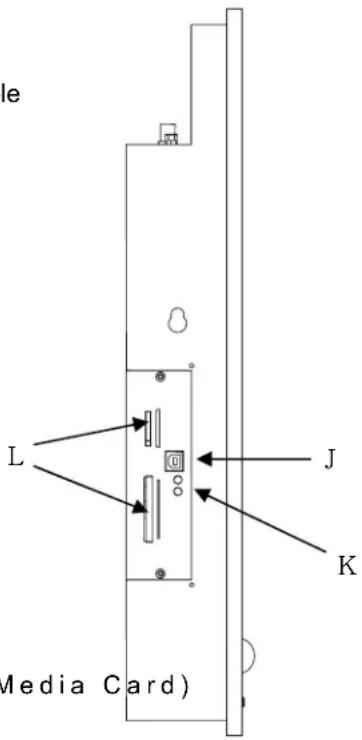
J. USB PORT (Option)
Connect the USB port to your computer using the USB 2.0 high speed cable
(The green LED will light up and your unit is ready to use)
K. LED (Card reader) (Option)
LED indicators: The Green LED will light up when the unit is ready.
| Green LED Red LED | ||
| Power ON, Status Ready | ON OFF | |
| Data Access, Status | Working | ON ON |
| Power OFF, Status OFF | OFF OFF | |
L. Memory Connector (Option)
Insert Memory card,
(Connector type: CF, SD/MMC 2 in 1 connector push Type)
Supports memory card: CF (Compact Flash), IBM Micro Driver,
SD (Secure Digital), MMC (Multi Media Card)
text_image
le L J K Media Card)\*JPG files upgrade Method (From PC files to Memory card)
- Remove Memory card from PVM
- Connector the USB cable between PC & PVM (USB PORT:J)
- Insert Memory card
- Copy JPG file from PC to PVM
- Remove USB cable.
CONTROLS AND FUNCTIONS
1. SELF-TEST DISPLAY
When there is no connection at PC, the On Screen Display will show for 3 seconds.
Check input Singal


2. OSD MENU DESCRIPTION

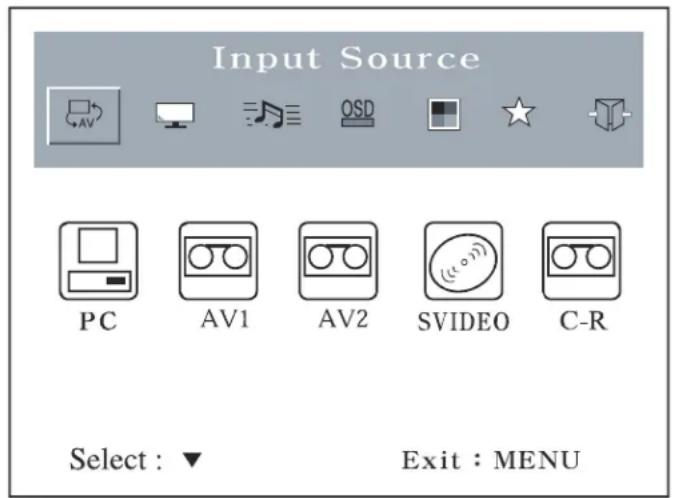
: Input Source
Select PC or AV1, AV2, SVIDEO.C-R(Optional)
- If there is no ^(*note) video when you select C-R(card reader) input,
Please move to another Input source
*Note) Card reader is not built in.
text_image
Input Source PC AV1 AV2 SVIDEO C-R Select : ▼ Exit : MENUCONTROLS AND FUNCTIONS

: Screen
text_image
Screen Brightness Contrast H. Position V. Position Clock Phase 90%
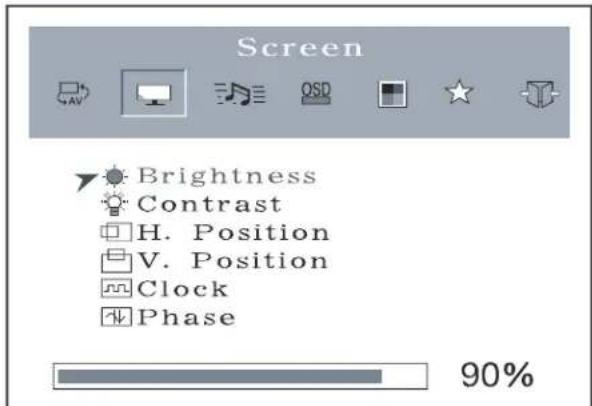
: Brightness
Increase or decrease the intensity of the image.

: Contrast
Increase or decrease the intensity (lightness or dimness) of the image.

: H. position (PC Mode Only)
Move image horizontally on screen right or left.

: V. position (PC Mode Only)
Move image vertically on screen up or down.

: Clock (PC Mode Only)
Adjust the vertical noise of screen image.

: Phase (PC Mode Only)
Adjust the number of horizontal picture elements.

: Saturation (AV Mode Only)
Adjust the intensity of color level.

: Hue (AV Mode Only)
Adjust the tone of color.

: Sharpness (AV Only)
Adjust the sharpness of video images.
CONTROLS AND FUNCTIONS
Audio
text_image
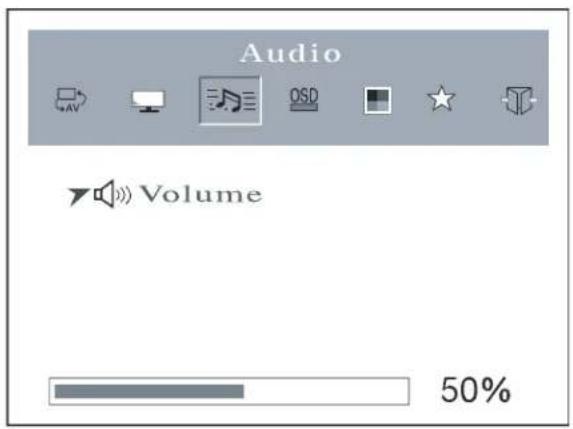
Audio Volume 50%Volume
Adjust audio volume.
OSD : OSD

text_image
50%CONTROLS AND FUNCTIONS

text_image
Utility Recall LOCK Auto Switch CH Default CH Switch CH Switchtime Motion Detect Timer OFF: Auto Switch CH: Select "Motion Detect", "Timer" or "OFF" (Default Mode: OFF)
"Motion Detect": Change from Default CH to Switch CH with PIR sensing Return from Switch CH to Default CH without PIR sensing (Switch time after)
| Display CH | Default CH | Switch CH | Default CH |
| Motion Detect | ON (Switch time) | ||
※ The built – in camera is activated at AV1 Mode only
"Timer": Swap between Default CH and Switch CH with selected input source during set "Switch time".
| Display CH | Default CH | Switch CH | Default CH |
| Switch time | (Switch time) | (Switch time) | (Switch time) |
※ The built – in camera is activated at AV1 Mode only
"OFF": Disable "Motion Detect" and "Timer".
CONTROLS AND FUNCTIONS

text_image
Utility Recall LOCK Auto Switch CH Default CH Switch CH Switchtime PC AV1 AV2 S-V C-RCONTROLS AND FUNCTIONS

text_image
Utility Recall LOCK Auto Switch CH Default CH Switch CH Switchtime 90S
: Switching Time ( Default time : 60 sec )
Select display time when motion detects and Timer(default CH& Switch CH)
- In "Motion Detect" and "Timer" you can control Switchtime
- If Motion Detects are continuing within Switchtime at select mode.

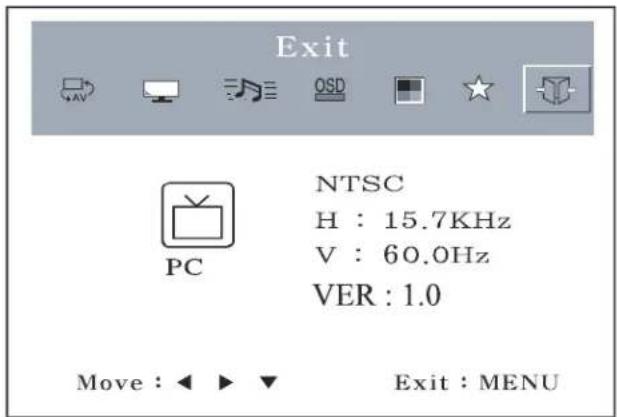
: Exit
text_image
Exit NTSC H : 15.7KHz V : 60.0Hz VER : 1.0 PC Move : ← ▶ ▼ Exit : MENU
: Exit
Turn off OSD Menu.
D-SUB CONNECTOR PIN ASSIGNMENTS
▶ PIN ASSIGNMENTS
- POWER CORD
- USER'S MANUAL( With Warranty card )
- PC cable
- Remote Control
- Batteries
POWER MANAGEMENT
This monitor features a power management system to “power down” upon receipt of the VESA DPMS (The display power management signaling) from a VESA DPMS video card.
The VESA DPMS-compliant video card performs this signaling system through not sending horizontal, vertical, or sync signal.
This monitor enters an appropriate mode through identifying each of the three modes of the signaling system.
POWER CONSUMPTION
| MODE POWER CONSUMPTION | ||
| ON | < | 50W |
| STANDBY | < | 3W |
| SUSPEND | < | 3W |
| ACTIVE OFF < 3W | ||
LED INDICATOR
The power management feature of the monitor is comprised of four stages: On (Green), Standby, Suspend, and Active off (Amber) and Unsupported mode (Green).
| MODE LED COLOR MONITOR | OPERATION | |
| ON | GREEN | Normal Operation |
| STANDBY | AMBER | Screen blanks after preset idle time and some electronic circuits or all Circuitry in the monitor shutdown. |
| SUSPEND | ||
| ACTIVE OFF | ||
| UNSUPPORTED MODE | GREEN | Normal operation but the on screen display will shown error massage. |
| POWER OFF | RED | Not operation |
SPECIFICATIONS
- Monitor Specification.
| Specification | PANEL | |
| LCD Type | Pixel Type | Active Matrix TFT |
| Max Resolution | 640X480 @ 60Hz | |
| Viewing Angle | 89/89/89/89(R/L/T/B) | |
| Pixel Pitch(H/V) | 0.64mm x 0.64mm | |
| Brightness | 500 cd/ m2 | |
| Contrast Ratio | 700 : 1 | |
| Response Time | 12ms (Tr) ~ 13ms (Tf) Typical | |
| Frequency | 31.5 KHz | |
| 60 Hz | ||
| Video System | NTSC | |
| Input Signal | Video | Analog 0.7Vp-p / 75Ω |
| SYNC | Separate TTL Level | |
| S-Video, AV | Composite, Sound L/R | |
| Sound | PC Stereo Sound | |
| Dimension | Active Display Area(W X H ) | 408 X 306mm (16.06" X 12.05") |
| Dimensions(W X D X H) | 500 X 76 X 465 mm (19.7" X 3.0" X 18.3") | |
| Weight | Net Weight | 11.6 Kg (25.57 lbs) |
| Gross Weight | 15.4 Kg (33.95 lbs) | |
| Power Type | Electrical Ratings | AC100 - 240V,50/60Hz (Auto Switching) |
NOTE : Technical specifications are subject to change without notice.
SPECIFICATIONS
2. Camera Specification.
| Specification High | Performance Camera |
| Image Sensor | 1/3 -inch CCD |
| Resolution | 520 TVL |
| S/N Ratio | 48 dB |
| Sensitivity | 0.25 Lux at F1.0 30IRE |
| Back Light | ON / OFF |
| ACK | ON / OFF |
| Lens | Auto Iris Varifocal Lens |
| 2.8~8.0mm(F0.95~) |
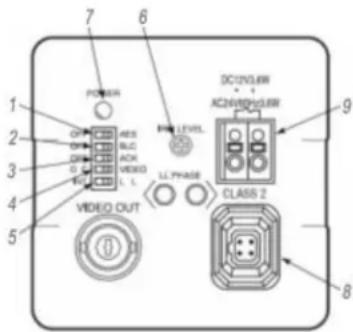
1. AES selector switch
The switch turns on and off the AES function. When an auto Iris lens is used, be sure to keep this switch at OFF position.
2. Backlight compensation selector switch
The switch turns on and off the backlight compensation function.
3. ACK selector switch
The switch turns on and off the ACK function)
ACK (Automatic : chroma killer) function in which it can charge to monochrome image automatically at the low-light condition.
4. Lens selector switch
The switch has tow positions, for a video iris lens and a DC iris lens. Be sure to keep this switch at left position.
5.Sync system selector switch
Be sure to keep this switch at left position.
6. Iris level control (IRIS LEVEL)
This control adjusts the sensitivity with a DC iris lens
text_image
POWER 1 2 3 4 5 VIDEO OUT RES BLC ACH VIDEO L. 7 6 LEVEL LL PHASE DC12V3JW AC24V8V3JW CLASS 2 9 8
text_image
10 12 13 11▶▶ NOTE: Technical specifications are subject to change without notice.
SPECIFICATIONS
7. Power indicator (POWER)
The LED indicator stays on in green while the camera power is on.
8. Auto Iris lens connector.
9. AC 24V/DC12V power input terminal.
- Focus Ring : Adjust the focus by operating the focus ring.
Loosen the focus tightening knob.
Rotate the focus ring to adjust the focus.
Tighten the focus tightening knob.
11. Zoom Ring
Adjust the appropriate field angle by operating the zoom ring.
Loosen the zoom tightening knob.
Rotate the zoom ring to select the appropriate field angle.
Tighten the zoom tightening knob.
After a zoom operation, you will need to focus.
12. Focus Tightening Knob.
13. Zoom Tightening Knob.

NOTE: Technical specifications are subject to change without notice.
SPECIFICATIONS
3. Card Reader Specification
The card reader is convenient and easy way to share your images with your friends.
| Card reader function | |
| Output interface | - BNC composite Video |
| Supporting Memory Card | - CF (Compact Flash) |
| Memory Connector type | - SD (Secure Digital) |
| - IBM micro Drive | |
| - MMC (Multi Media Card) | |
| - CF | |
| Support file format - JP | - SD/MMC 2 in 1 connector push type |
| EG : Display speed(4.5sec for 3 Mbytes JPEG) | |
| Video Resolution | - Motion JPEG (15fps)- Support AVI format |
| - 320 X 240 | |
| Transmitter | - IR remote receiver ready |
| Signal System | NTSC / PAL |
| Aspect ratio | 4:3 / 16:9 (Selectable) |
| Other functions | - Can rotate or enlarge the JPEG Picture |
| - Slide Show function | |
| - Multi Language option | |
NOTE: Technical specifications are subject to change without notice.
PIR SENSOR SPECIFICATION
1. Motion Detection Area
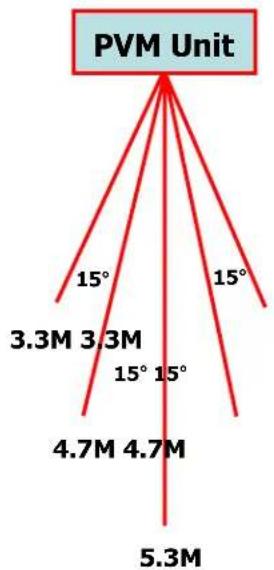
flowchart
graph TD
    A["PVM Unit"] --> B["15°"]
    A --> C["15°"]
    A --> D["3.3M 3.3M"]
    A --> E["15° 15°"]
    A --> F["4.7M 4.7M"]
    A --> G["5.3M"]
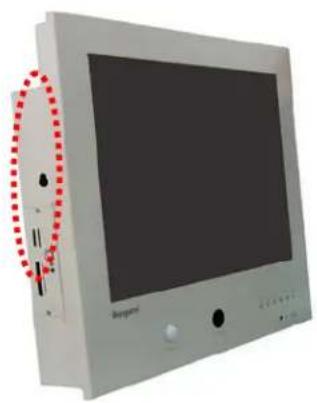
VESA MOUNT AND CEILING MOUNT HOLE
natural_image
Front view of a beige computer monitor with a black screen and control buttons, no visible text or symbols on the device itself.
natural_image
Exterior view of a silver TV with a black screen and red dotted circular annotation on the right side (no text or symbols visible)VESA 100X100mm

text_image
Diagram of a device rear panel with red arrows and dotted circles highlighting structural features, including Chinese text labels.Use the 4 screw
TROUBLESHOOTING GUIDE
| TROUBLE TROUBLE | SHOOTING TIP |
| No image on display screen | 1. Check that power cord of the Monitor have been connected securely into wall outlet or grounded extension cable or strip2.Power switch should be in the ON position and LED is lit.3. Check that the Brightness and/or the Contrast adjustments of the Display have not been turned down to minimums levels. |
| “Check Input Signal”message on screen | 1.The signal cable should be completely Connected to the video card/computer.2.The video card should be completely seated in Its slot and the computer is switched ON. |
| Display image is not centered, too small or too large in PC mode | Push the down key in front side or Auto key in remocon |
| Vertical or Horizontal noise Is present in the picture | Adjust Clock and Phase in the OSD |


