SHR-5160 - Security Camera Hanwha - Free user manual and instructions
Find the device manual for free SHR-5160 Hanwha in PDF.


User questions about SHR-5160 Hanwha
0 question about this device. Answer the ones you know or ask your own.
Ask a new question about this device
Download the instructions for your Security Camera in PDF format for free! Find your manual SHR-5160 - Hanwha and take your electronic device back in hand. On this page are published all the documents necessary for the use of your device. SHR-5160 by Hanwha.
USER MANUAL SHR-5160 Hanwha
Correct Disposal of This Product (Waste Electrical & Electronic Equipment)
(Aplicable in the European Union and other European countries with separate collection systems)
This marking shown on the product or its literature, indicates that it should not be disposed with other household wastes at the end of its working life. To prevent possible harm to the environment or human health from uncontrolled waste disposal, please separate this from other types of wastes and recycle it responsibility to promote the sustainable reuse of material resources.
Household users should contact either the retailer where they purchased this product, or their local government office, for details of where and how they can take this item for environmentally safe recycling.
Business users should contact their supplier and check the terms and conditions of the purchase contract. This product should not be mixed with other commercial wastes for disposal.
Code No. AB68-00686B-03
8/16 Channel DVR user manual
text_image
SHR-5080/5082 SHR-5160/5162 8/16 Channel DVR user manualSAMSUNG
imagine the possibilities
Thank you for purchasing a Samsung product. To receive a more complete service, please register your product at
www.samsung.com/global/register
SAMSUNG
key features of your DVR
The Digital Video Recorder (DVR) compresses the acquired images of 8/16 video channels from cameras using MPEG-4 technologies, and compresses the 4 channel audio inputs into ADPCM audio file to record them on the hard disk or retrieve them from the hard disk simultaneously.
In addition, it transfers the video and audio data through a network and allows you to remotely monitor them using your PC.
• 8/16 channel Composite Input connectors
• NTSC/PAL video source compatible
- With Dual Codec, can change the FPS (frames per second) according to the bandwidth and send live pictures regardless of the recording condition
• Picture quality improvement by adopting the De-interlace chip
- Can display HDD information and status using the HDD SMART function
- Can convert the CIF (NTSC: 352*240, PAL: 352*288) images to 120 IPS images for NTSC or 100 IPS images for PAL
• 8/16 channel loop through video connectors
- Hard disk overwrite mode
• USB 2.0 hard disk backup capability for large quantities of data
- Backup function using USB 2.0 memory and external CD/DVD writer (SHR-5162 and SHR-5082 include built-in DVD writer)
- Can record, play, and transmit audio/video data to Windows Network Viewer (Smart Viewer/Web Viewer) simultaneously
- Can record or play 8/16 channel video data
- Various search modes (time/date, event, schedule)
- Various recording modes (time lapse, event, schedule)
- Extended hard disk connection (USB 2.0)
• Alarm interface function (Input: 8/16, Output: 4, Reset: 1)
- Remote monitoring function using Windows Network Viewer (Smart Viewer/Web Viewer)
WHAT'S INCLUDED WITH YOUR DVR
Upon delivery of this product, you shall unwrap and put it on the even floor or where you want to use it. Then you must check if the following items are in it.
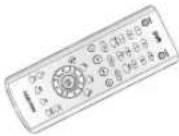 |  | 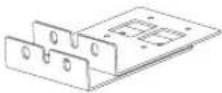 | 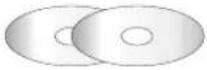 |
| Remote control unit (RCU) | One power cord Smart Viewer brackets | Net I Software CD(PDF manual included) | |
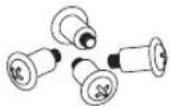 |  |  |  |
| Special screws SHR-5162/5082: 4 ea SHR-5160/5080: 12 ea | 2 EA of RS-485/ Alarm terminal block | 2 EA of AAA batteries | User manual, POS manual, Quick Guide |
* POS manual supported only in SHR-5082N, 5162N/GVI.
IMPORTANT SAFETY INSTRUCTIONS
Read these operating instructions carefully before using the unit.
Follow all the safety instructions listed below.
Keep these operating instructions handy for future reference.
1) Read these instructions.
2) Keep these instructions.
3) Heed all warnings.
4) Follow all instructions.
5) Do not use this apparatus near water.
6) Clean only with dry cloth.
7) Do not block any ventilation openings, Install in accordance with the manufacturer's instructions.
8) Do not install near any heat sources such as radiators, heat registers, stoves, or other apparatus (including amplifiers) that produce heat.
9) Do not defeat the safety purpose of the polarized or grounding- type plug. A polarized plug has two blades with one wider than the other. A grounding type plug has two blades and a third grounding prong. The wide blade or the third prong are provided for your safety. if the provided plug does not fit into your outlet, consult an electrician for replacement of the obsolete outlet.
10) Protect the power cord from being walked on or pinched particularly at plugs, convenience receptacles, and the point where they exit from the apparatus.
11) Only use attachments/accessories specified by the manufacturer.
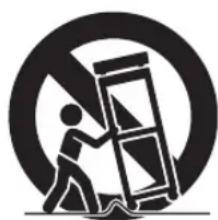
12) Use only with the cart, stand, tripod, bracket, or table specified by the manufacturer, or sold with the apparatus. When a cart is used, use caution when moving the cart/apparatus combination to avoid injury from tip-over.
13) Unplug this apparatus during lightning storms or when unused for long periods of time.
natural_image
Symbolic icon of a person pushing a ladder, enclosed in a circle (no text or symbols)14) Refer all servicing to qualified service personnel. Servicing is required when the apparatus has been damaged in any way, such as power-supply cord or plug is damaged, liquid has been spilled or objects have fallen into the apparatus, the apparatus has been exposed to rain or moisture, does not operate normally, or has been dropped.
This user's manual provides Information for using DVR such as brief introduction, part names, functions, connection to other equipment, menu setup, and the like.
You have to keep in mind the following notices:
• SEC retains the copyright on this manual.
- This manual cannot be copied without SEC's prior written approval.
- We are not liable for any or all losses to the product incurred by your use of non-standard product or violation of instructions mentioned in this manual.
- If you want to open the case of your system for checking problems, please consult the expert from the shop where you bought the product.
- You may download open source codes from the following website: www.samsungsecurity.com.
- Before installing any external device such as external memory or HDD, please check the compatibility of the device with Samsung DVR. The list of the compatible devices with Samsung DVR can be obtained from your vendor.
- Apparatus shall not be exposed to dripping or splashing and no objects filled with liquids, such as vases, shall be placed on the apparatus.
- The Mains plug is used as a disconnect device and shall stay readily operable at any time.
WARNING
Battery
Exchanging a wrong battery in your product may cause an explosion. Therefore you must use the same type of battery as the one being used in the product.
The following are the specifications of the battery you are using now.
- Normal voltage: 3V
• Normal capacity: 170mAh
• Continuous standard load: 0.2mA - Operating temperature: -20^ +85^ (-4^ +185^)
CALIFORNIA USA ONLY
This Perchlorate warning applies only to primary CR (Manganese Dioxide) Lithium coin cells in the product sold or distributed ONLY in California USA. "Perchlorate Material - special handling may apply, See www.dtsc.ca.gov/hazardouswaste/perchlorate."
System Shutdown
Turning off the power while the product is in operation, or taking not permitted actions may cause damage to the hard drive or the product. Also it can cause a dysfunction to the hard disk while using the product. Please turn off the power using the Power button on the front of your DVR. After selecting OK in the pop-up menu, you can pull off the power cord.
You may want to install a UPS system for safe operation in order to prevent damage caused by an unexpected power stoppage. (Any questions concerning UPS, consult your USP retailer.)
Operating Temperature
The guaranteed operating temperature range of this product is 0^ C \~ 40^ C ( 32^ F \~ 104^ F).
This product may not work properly if you run right after a long period of storage at a temperature below the guaranteed one.
When using the device after a long period of storage at low temperature, place the product at room temperature for a while and run it.
Especially for the built-in HDD in the product, its guaranteed temperature range is 5^ C \~ 55^ C ( 41^ F \~ 131^ F). Likewise, the hard drive may not work at a temperature below the guaranteed one.
STANDARDS APPROVALS
FC CE

This equipment has been tested and found to comply with the limits for a Class A digital device, pursuant to part 15 of the FCC Rules. These limits are designed to provide reasonable protection against harmful interference when the equipment is operated in a commercial environment.
This equipment generates, uses, and can radiate radio frequency energy and, if not installed and used in accordance with the instruction manual, may cause harmful interference to radio communications. Operation of this equipment in a residential area is likely to cause harmful interference in which case the user will be required to correct the interference at his own expense.
INTRODUCING YOUR 8/16 CHANNEL DVR

03 Controls on the DVR
05 Rear panel jacks
06 Remote control
INSTALLATION

08 Checking installation environment
08 Hdd addition
CONNECTING WITH OTHER DEVICES

14 Connecting video, audio, and monitor
14 Connecting the network
15 Connecting the USB
15 Connecting the alarm input/output
16 Connecting the RS-485 device
LIVE

17 Operating the system
17 Live screen mode
19 Setting audio on/off
20 Freezing and zooming
20 Event monitoring
21 Spot-out monitoring
MENU SETUP

22 Before use
22 System
27 Camera
28 Monitoring
29 Record mode
31 Event record mode
32 Schedule
33 Network
36 Configuring network
BACKUP
37 Backup
PTZ CAMERA CONTROL

38 PTZ camera control mode
38 Basic PTZ operations
39 Preset setup
39 Camera menu setup
40 Preset view
40 Other view
RECORDING

41 Rec (normal recording)
41 Record schedule
SEARCH AND PLAY
42
42 Before use
42 Calendar search
42 Event search
43 Date time search
43 Go to first search
44 Go to last search
44 Backup search
44 Playback
SMART VIEWER
46
46 Introduction
46 Main features
46 PC specification (recommended)
46 Smart Viewer installation
47 Smart Viewer program execution
48 Smart Viewer initial screen
48 Setup mode
59 Monitoring mode
66 Search mode
WEB VIEWER
70
70 Introducing Web Viewer
71 Connecting Web Viewer
72 Using Live Viewer
77 Using Search Viewer
81 About
APPENDIX
82
82 Product specification
85 Outline drawings
89 Factory default
92 Troubleshooting (FAQ)
95 Open source license report on the product
Introducing your 8/16 Channel DV
CONTROLS ON THE DVR
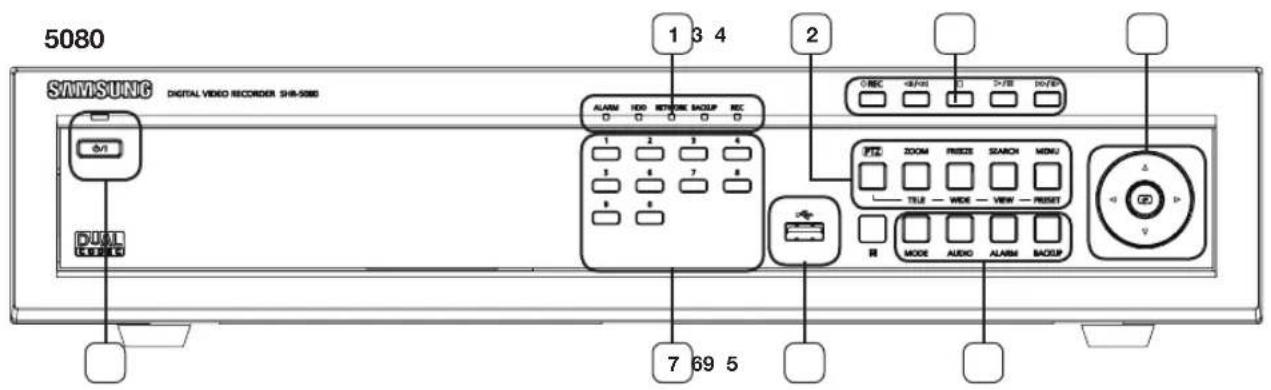
text_image
5080 SAMSUNG DIGITAL VIDEO RECORDER SHI-5080 1 3 4 2 C:REC /FE DO/ED ALARM HDD ROUTE BACKUP REC 1 2 3 4 1 6 7 8 R MODE AUDIO ALARM BACKUP PTC ZOOM FREEZ SEARCH MENU TITLE WIDE VIEW RESET 7 69 5
text_image
5082 SAMSUNG DIGITAL VIDEO RECORDER SHR-5082 1 2 43 ALAM HOD NETWORK ADDUP INC CRC -USB+1 D+USB DOWN+ 1 2 3 4 5 6 7 8 9 0 79 8 6 MODE AUDIO ALAM ADDUP 5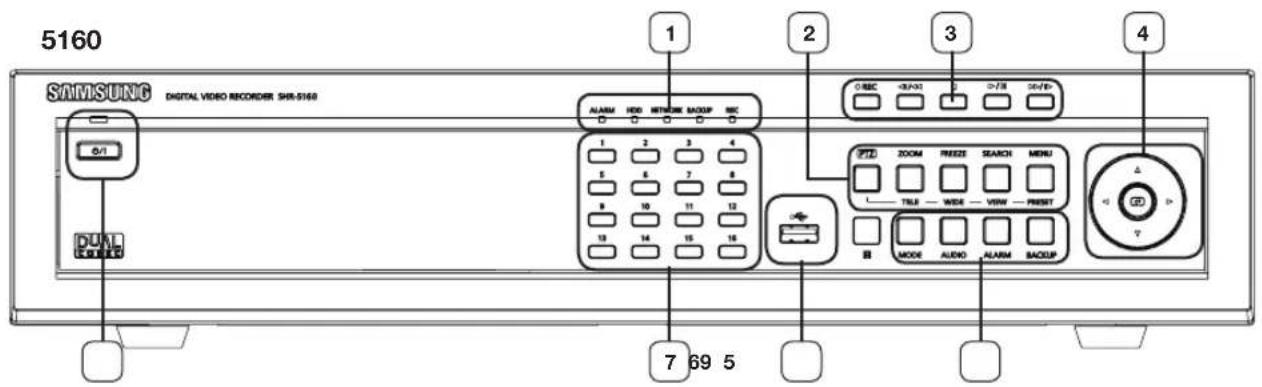
text_image
5160 SAMSUNG DIGITAL VIDEO RECORDER SHR-5160 1 2 3 4 ALARM HDD NETWORK SAGUP REC O/REC 0/0/01 1 2/28 3/0/01 1 2 3 4 5 6 7 8 9 10 11 12 13 14 15 16 7 69 5 B MODE AUDIO ALARM SAGUP TILE - WIDE - VIEW - PRET Δ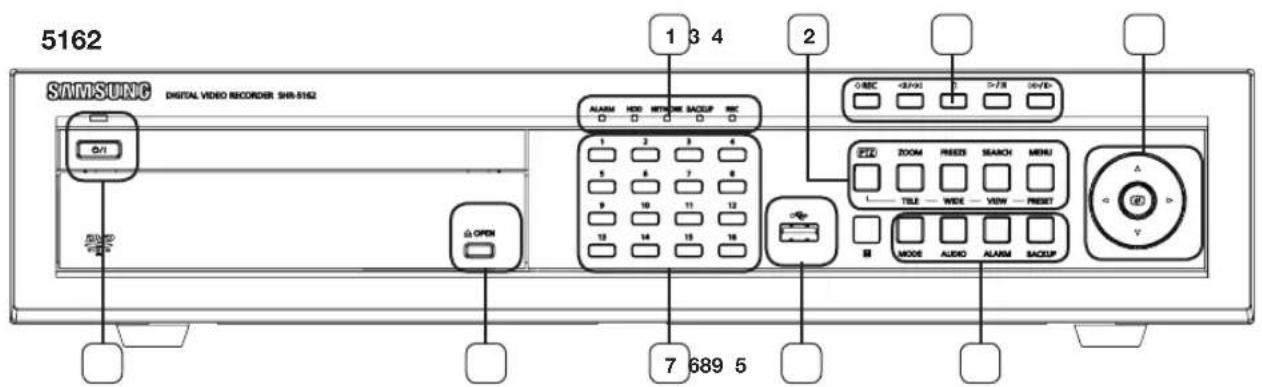
text_image
5162 SAMSUNG DIGITAL VIDEO RECORDER SHR-5162 1 3 4 2 ABC 1 7 78 100/0 1 2 3 4 5 6 7 8 9 10 11 12 13 14 15 16 OPEN 7 689 51. ALARM LED
Lights when an event occurs.
HDD LED
Lights when the hard disk is operating. When the HDD is accessed, LED repeatedly blinks.
NETWORK LED
Lights when the data is transferred through the network.
BACKUP LED
Lights when a backup is in progress.
REC LED
Lights when a recording is in progress.
2. PTZ Button
Toggles PTZ mode On and Off.
ZOOM(TELE) Button
Implements the digital zoom (x2). Performs the TELE function in PTZ mode.
FREEZE(WIDE) Button
Performs the FREEZE function in live mode. Performs the WIDE function in PTZ mode.
SEARCH(VIEW) Button
Goes to the Search function window. Performs the Preset View function in PTZ mode.
MENU(PRESET) Button
Goes to the system menu screen or moves to the upper menu. Performs the Preset Setup function in PTZ mode.
3. REC Button
Starts or ends the recording
◀/◀◀ (Step Rewind/Fast) Button
- Step Rewind: Used for backward scene-by-scene search while at pause.
- Fast Rewind: Used for quick backward search while in play. (-x2, -x4, -x8, -x16, -x32, -x64)
■ (STOP) Button
Ends search while in play.
▶/II (PLAY/PAUSE) Button
Pauses and resumes the screen play.
▶/▶ (Fast/Step Forward) Button
- Fast Forward: Used for quick forward search while in play. (x2, x4, x8, x16, x32, x64)
- Step Forward: Used for forward scene-by-scene search while at pause.
4. Direction Buttons
Used for changing settings or for moving the cursor up/down/left/right.
5. MODE Button
When pressed in live mode, it sequentially display 16-split, 9-split, 4-split, 6-split, 7-split, 8-split, Picture in Picture (PIP), and single sequence.
When pressed in playback mode for playback-exclusive channels (16, 9, 4), it sequentially displays single channel, 1 playback channel with 1 live channel, 1 playback channel with 8 live channels, 1 playback channel with 12 live channels, and 1 playback channel with 15 live channels.
AUDIO Button
Toggles Audio On and Off.
ALARM Button
Turns off the alarm LED and stops the sound when an alarm is issued.
Alarm icon disappears when the alarm button is used.
BACKUP Button
Press it for backup operation.
6. USB Port
Use it to connect USB type devices.
7. Channel Button
Select a single channel (1 to 16) while in live mode.
8. OPEN Button
Opens the DVD-RW tray (SHR-5162/5082 only).
9. Power LED
Displays power On/Off state.
Power Button
Press to turn on the power or shut down your DVR in live mode.

CAUTION
Do not install DVR on the carpet or other soft material to prevent clogging of the air ventilator.
To install DVR on the cabinet or rack, be sure to check the ventilation condition.
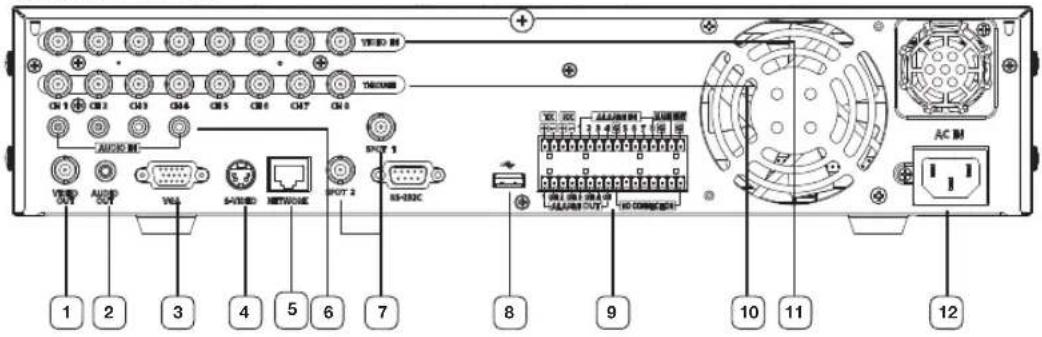
5080/5082 REAR
text_image
1 2 3 4 5 6 7 8 9 10 11 12 AC M VDD 1 VDD 2 VDD 3 VDD 4 VDD 5 VDD 6 VDD 7 VDD 8 VDD 9 VDD 10 VDD 11 VDD 12 VDD 13 VDD 14 VDD 15 VDD 16 VDD 17 VDD 18 VDD 19 VDD 20 VDD 21 VDD 22 VDD 23 VDD 24 VDD 25 VDD 26 VDD 27 VDD 28 VDD 29 VDD 30 VDD 31 VDD 32 VDD 33 VDD 34 VDD 35 VDD 36 VDD 37 VDD 38 VDD 39 VDD 40 VDD 41 VDD 42 VDD 43 VDD 44 VDD 45 VDD 46 VDD 47 VDD 48 VDD 49 VDD 50 VDD 51 VDD 52 VDD 53 VDD 54 VDD 55 VDD 56 VDD 57 VDD 58 VDD 59 VDD 60 VDD 61 VDD 62 VDD 63 VDD 64 VDD 65 VDD 66 VDD 67 VDD 68 VDD 69 VDD 70 VDD 71 VDD 72 VDD 73 VDD 74 VDD 75 VDD 76 VDD 77 VDD 78 VDD 79 VDD 805160/5162 REAR
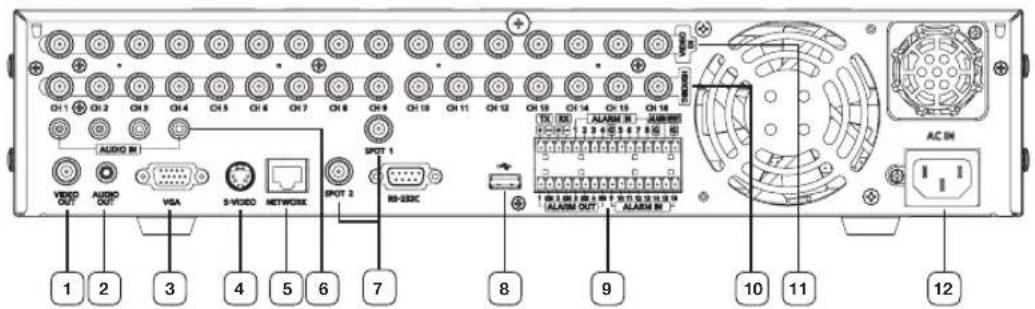
text_image
1 2 3 4 5 6 7 8 9 10 11 12 AUDIO M VIDEO OUT AUDIO OUT VISA S-VIDEO NETWORK SPOT 2 RIO-SSRC SPOT 1 AUDIO M AUDIO OUT AUDIO OUT AUDIO OUT AUDIO OUT AUDIO OUT AUDIO OUT AUDIO OUT AUDIO OUT AUDIO OUT AUDIO OUT AUDIO OUT AUDIO OUT AUDIO OUT AUDIO OUT AUDIO OUT AUDIO OUT AUDIO OUT AUDIO OUT AUDIO OUT AUDIO OUT AUDIO OUT AUDIO OUT| 1 | VIDEO OUT Composite video output port (BNC type connector) |
| 2 | AUDIO OUT Audio output port (RCA jack) |
| 3 | VGA VGA video output port |
| 4 | S-VIDEO S-VIDEO video output port |
| 5 | NETWORK Network connection port |
| 6 | AUDIO IN Audio input port (RCA jack) |
| 7 | SPOT SPOT1: 1 channel exclusive SPOT outputSPOT2: The same output as the Main VIDEO OUT (OSG is not displayed) |
| 8 | USB USB connection port |
| 9 | ALARM - ALARM IN 1~16(SHR-5160/5162): Alarm input port- ALARM IN 1~8(SHR-5080/5082): Alarm input port- ALARM RESET IN: Alarm reset port- ALARM OUT 1~4: Alarm output port- TX+, TX-, RX+, RX-: RS~485 communication |
| 10 | THROUGH You may use THROUGH port to transmit a video signal to the other video equipment. |
| 11 | VIDEO IN Composite video input port (BNC type connector) |
| 12 | AC-IN AC 100 ~ 230V (PAL)AC 110 ~ 220V (NTSC) |
Using the NUMERIC Buttons
CHANNEL 1-9 Press the 1 to 9 button respectively.
Press the 0(10+) button, release, and press the 0 button again within 3 seconds. Or press the 0(10+) button, release, and wait 3 seconds.
CHANNEL 10
Press the 0(10+) button, release, and press the 1 (or 2, 3, 4, 5, 6) button again within 3 seconds.
CHANNEL 11-16
text_image
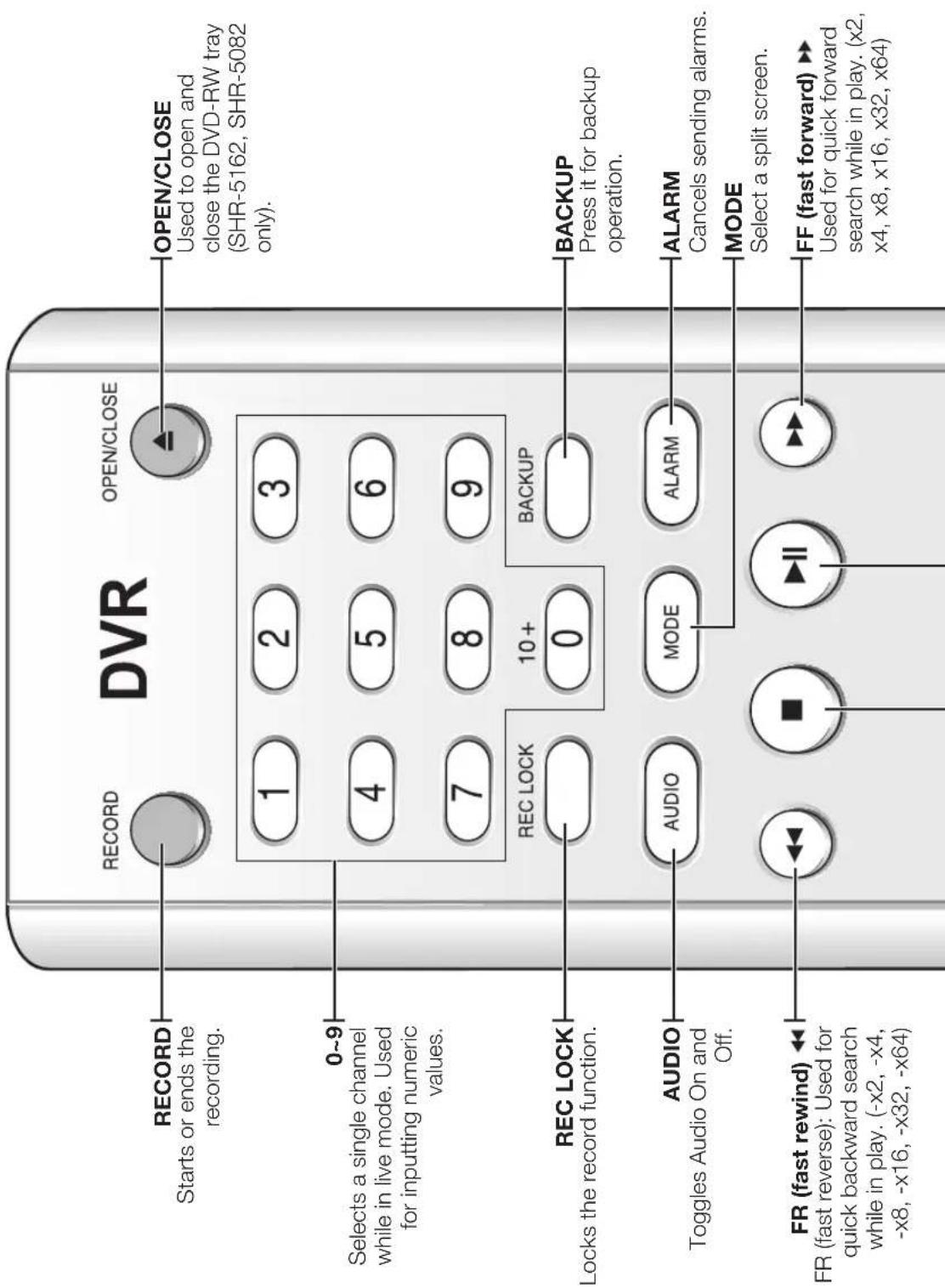
DVR RECORD Starts or ends the recording. 1 2 3 4 5 6 7 8 9 REC LOCK 10+ 0 BACKUP REC CLOSE Selects a single channel while in live mode. Used for inputting numeric values. BACKUP Press it for backup operation. AUDIO Toggles Audio On and Off. AUDIO MODE ALARM MODE Select a split screen. FR (fast rewind) FR (fast reverse): Used for quick backward search while in play. (-x2, -x4, -x8, -x16, -x32, -x64) FF (fast forward) ▶ Used for quick forward search while in play. (x2, x4, x8, x16, x32, x64)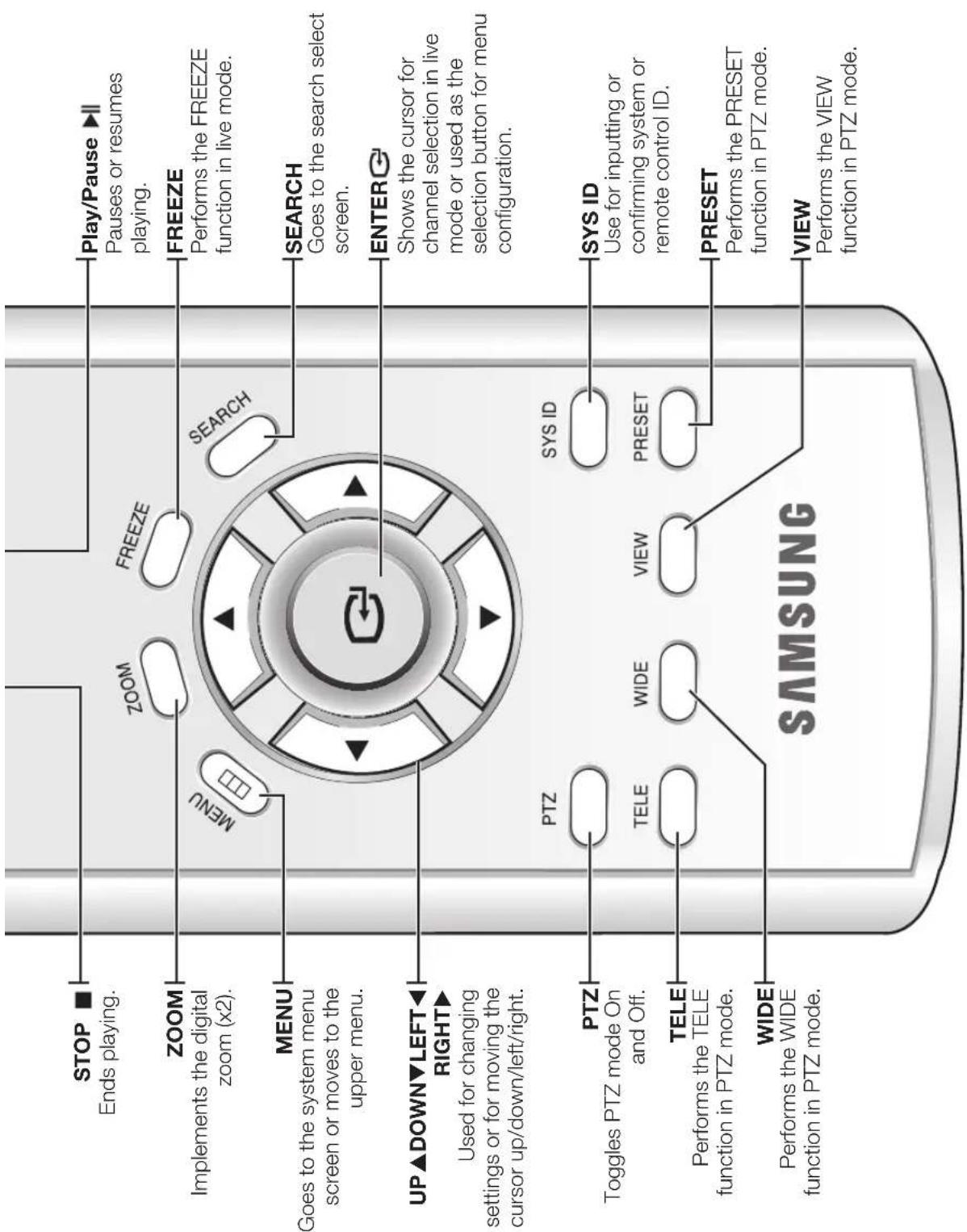
text_image
STOP Ends playing. ZOOM Implements the digital zoom (x2). MENU Goes to the system menu screen or moves to the upper menu. UP▲DOWN▼LEFT▼ RIGHT► Used for changing settings or for moving the cursor up/down/left/right. PTZ Toggles PTZ mode On and Off. TELE Performs the TELE function in PTZ mode. WIDE Performs the WIDE function in PTZ mode. SAMSUNG ZOOM FREEZE MENU MENU SEARCH SEARCH GOES TO THE SEARCH SELECT SCREEN. ENTER○ Shows the cursor for channel selection in live mode or used as the selection button for menu configuration. SYS ID SYS ID Use for inputting or confirming system or remote control ID. PRESET PRESET Performs the PRESET function in PTZ mode. VIEW Performs the VIEW function in PTZ mode.Changing the Remote Control ID
As you press the SYS ID button, input the desired 2-digit ID in order (Remote control default ID: 00). For instance, to change the remote control ID to 08, press the SYS ID button, and then input 0 and 8 buttons in order. After the input completes, press the SYS ID button again in order to confirm the setting.
installation
You should pay attention to the following before you use the product.
- Do not use it outdoor.
- Do not place water or liquid near the connection part or the product.
- Do not impose excessive shock or force.
- Do not pull out the power cord unreasonably.
- Do not disassemble the product on your own.
- Do not exceed the rated input or output voltage range.
- Use the certified power cord only.
- For the product with an input ground, use a power plug with a ground pin.
CHECKING INSTALLATION ENVIRONMENT
Samsung Digital Video Recorder (hereinafter referred to "DVR") is a high-tech security equipment that contains a high-capacity HDD and top-notch circuits. High temperature inside or outside of the product may reduce the product life, deteriorate performance (see the graph below; it explains the correlation between temperature and product life), and lead to a malfunction.
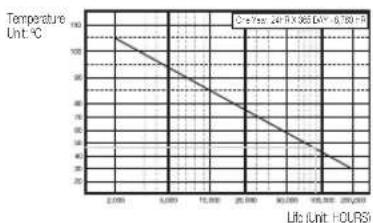
Figure 1
natural_image
Illustration of a server rack with multiple units and two top-mounted fans, showing heat arrows (no text or symbols)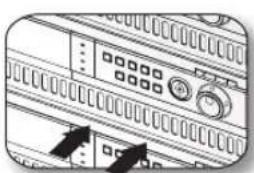
natural_image
Diagram of a server rack with indicator lights and control buttons (no text or symbols)Figure 2
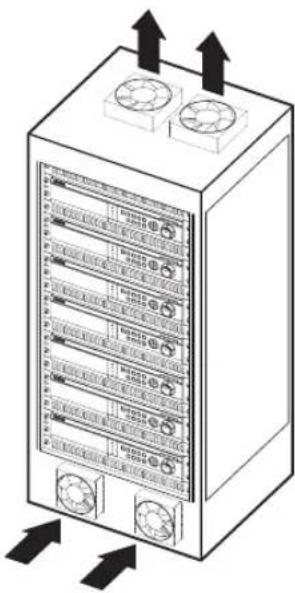
Please keep the following instructions for rack-mounting the Samsung DVRs to proceed with the installation.
- The rack on which the DVR is mounted should not be sealed off.
- And it also can allow air circulation through the vent.
- As shown in the Figure 2, we recommend you to heap the product with other DVRs or use rack-mount devices at a certain space, or install a vent system to accommodate airflow.
- For forming a natural convection, the air intake hole should be positioned at the bottom and the emission at the top.
- We recommend you to install each of the air intake and emission holes with fan motors for sufficient airflow. (The air intake fan should be equipped with a filter to prevent possible inflow of dust and other impurities.
- As shown in the Figure 1, the temperature inside the rack and around the DVR should maintain between 0^ C \~ 40^ C ( 32^ F \~ 104^ F).
HDD ADDITION
The user can add hard disks to this product.
(SHR-5162/5082: up to 2 hard disks,
SHR-5160/5080: up to 3 hard disks).
However, there are many factors that can cause electric shock, accidents, and malfunctioning of the device inside of the product.
When the user does not correctly install or apply the proper settings, the device may not recognize the hard disks or the device will not properly run. Therefore, before adding any hard disks, it is recommended that you consult the specialist from the site where you purchased the product.

[Checking HDD Data] Please, pay attention to Following information to minimize the chance of losing HDD data.
- Remember that you should protect HDD from any impact or misuse as this may cause damaged.
- The Manufacturer is not responsible for missing data or defects caused by the user's mishandling.
Note: Adding Extra HDD. Check in advance that the HDD is compatible with the manufacturer's DVR.
Examples that can cause loss of data or damage HDD.
- Any outside Impact on the case which could happen whilst disassembling or setting up the DVR.
• Power cut or incorrect shutdown whilst the DVR is operating. - Moving or causing any impact on the DVR during operation. Please, back up events as soon as possible to minimize disappointment should HDD data be lost.
Things to consider when adding a hard disk
- When adding a hard disk, pay attention so that the cable doesn't get caught between unsuitable places or the cable's insulation is not damaged. (This may cause a malfunction or fire.)
- When adding a hard disk, be careful not to have any injury by the pointed edges inside the product.
- Pay attention not to lose screws or accessories.

If the screws or accessories are not put together, the product may malfunction or not properly operate.
- If you contact the RTC battery while adding hard disks, the battery failure may happen. In this case, you will encounter failures when setting the time and operating DVR.
- If you don't connect fan power cables after adding hard disks, the fan failure message appears on the screen. This can cause operation failures because it raises the temperature inside your DVR.
- Check the compatibility list of HDDs before installing additional HDDs. The list of the compatible devices with Samsung DVR can be obtained from your vendor.
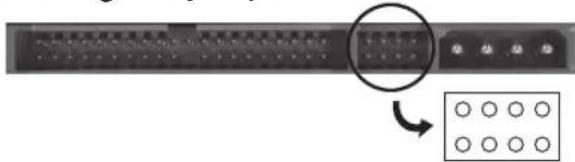
Setting the jumper
natural_image
Close-up of a server rack with a circular button and a grid of six circles below (no text or symbols visible)The jumper setting method is illustrated on the surface of the purchased HDD.
Using SAMSUNG hard disk, the jumper setting method is as follows:
- HDD jumper for Primary Master and Primary Slave.
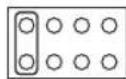
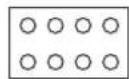
- Jumper setting for Secondary Master (DVD-RW) and Secondary Slave.
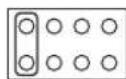
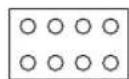
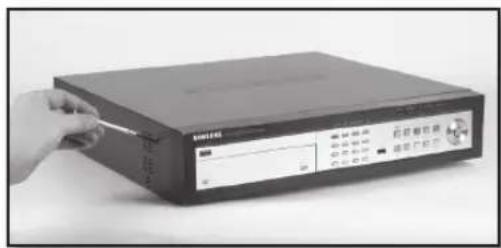
How to add hard disks SHR-5082, SHR-5162
Before starting this work, remove the power cord from the outlet.
- Take out the screws on the left and right sides (5 spots for each side) and on the rear (1 spot).
text_image
Black-and-white photo of a portable electronic device with visible control panel and Chinese text labels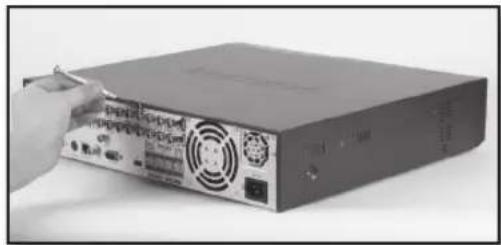
natural_image
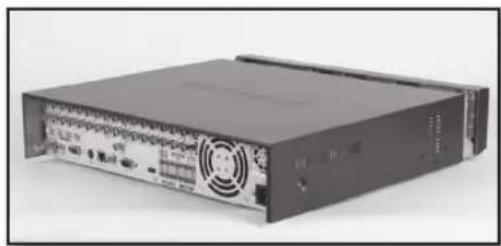
Close-up of a black server unit with indicator lights and ports, no visible text or symbols on the device itself.- Remove the cover from the product. (Slide the cover slightly backward, lift it upward and remove it.)
natural_image
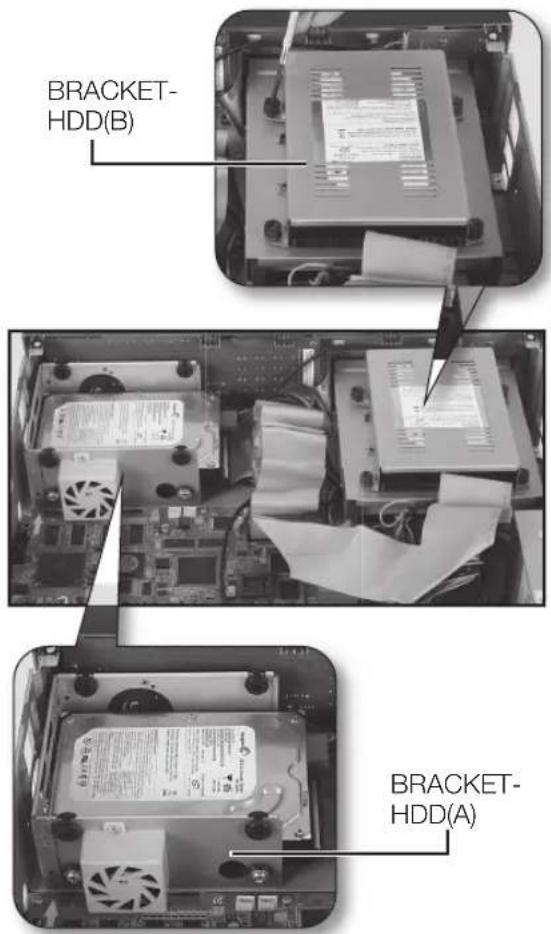
Front view of a black electronic device with ventilation slots and ports (no visible text or labels)- There are brackets (Bracket-HDD) mounted on the right and left sides where you can mount HDDs. Remove the screws holding each bracket to mount an HDD onto.
text_image
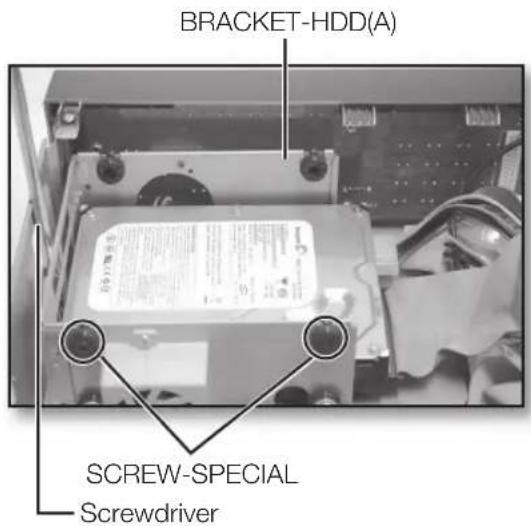
BRACKET-HDD(B) BRACKET-HDD(A)- If you want to add a hard disk, remove Bracket-HDD(A), power supply cable, signal transmission cable (IDE Cable), and fan cable.
text_image
BRACKET-HDD(A) SCREW-SPECIAL Screwdriver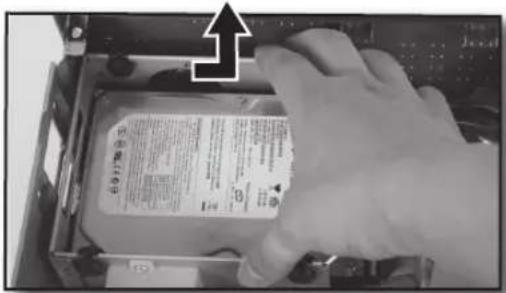
text_image
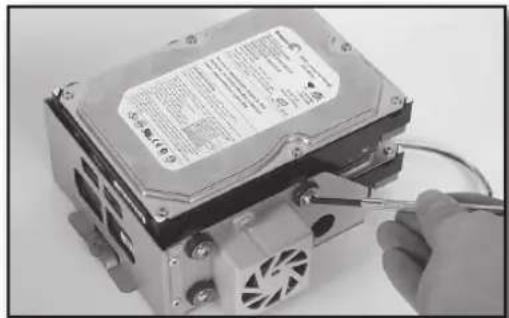
Black-and-white photo showing a hand inserting a card into a computer case, with an arrow pointing to the card's top view.- To add a hard disk, the built-in HDD (Primary Master) should have been installed. Basically a built-in HDD has been installed as the Primary Master and a DVD-RW driver as the Secondary Master. Before adding a hard disk, set the jumper for master and slave. The jumper setting method is illustrated on the surface of the purchased hard disk. Fix the hard disk to the Bracket using the (A)SCREW-SPECIAL (BWH, 6-32UNC, L10. 5). Align the 5 spots on the bottom and mounting holes of the Bracket, insert the HDD, and then fix it using the screws.
natural_image
Close-up of a computer CPU socket with a screwdriver inserted, showing fan blades and heatsink (no visible text or symbols)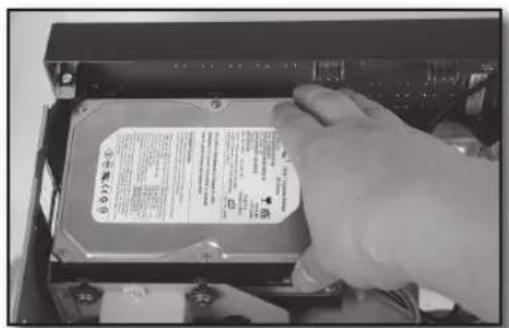
text_image
Hand inserting a CD into an drive, showing a label with Chinese text and specifications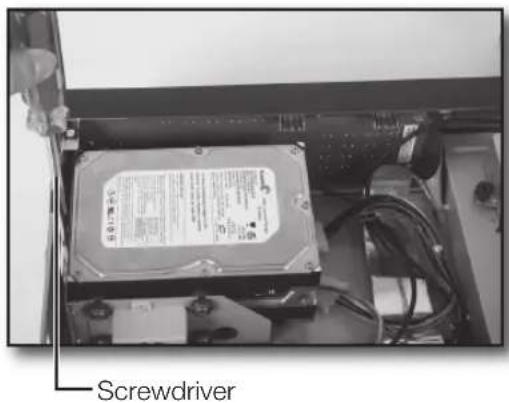
text_image
Screwdriver- To add another hard disk after adding a hard disk completes, remove the Bracket-HDD(B) on the DVD-RW driver.
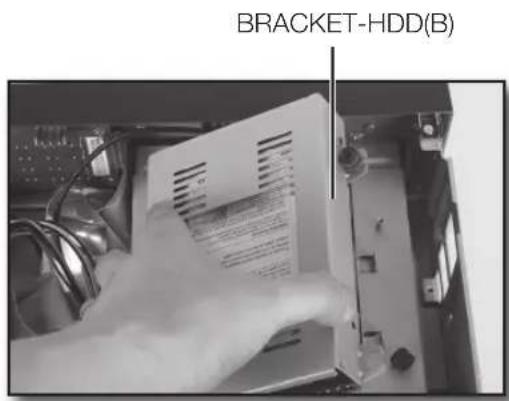
text_image
BRACKET-HDD(B)- Fix the hard disk to the Bracket using 4 (B)SCREW-MACHINE (6-32UNC, L4.2) provided when purchasing the HDD. The screws should be fastened not to come loose. Fix the Bracket-HDD(B) using screws after aligning 4 spots on the bottom and mounting holes.
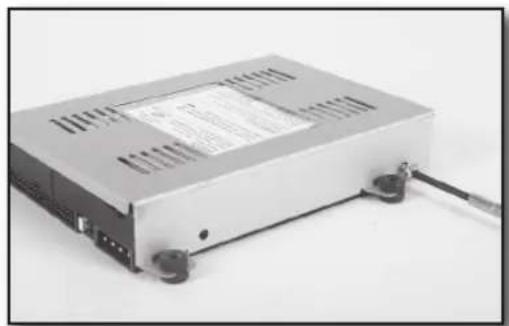
natural_image
Exterior view of a silver electronic device with ventilation slots and a cable (no visible text or symbols)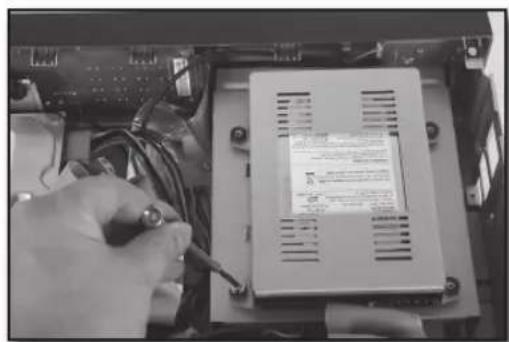
natural_image
Close-up of hands using a screwdriver to switch an electronic device on a rack (no visible text or symbols)- When adding hard disks completes, connect the power supply cable, signal transmission cable (IDE Cable), and fan cable to the hard disks.
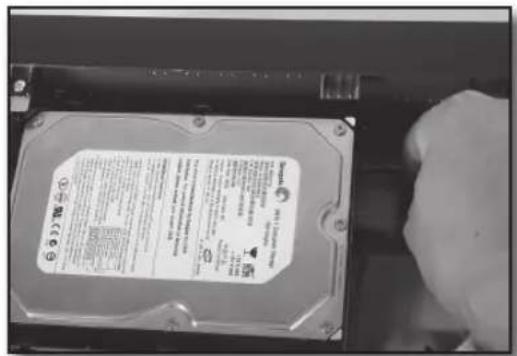
text_image
Close-up of a hard disk drive with visible label and printed specifications, partially held by a hand.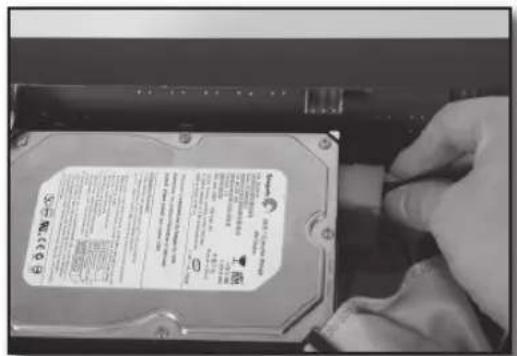
text_image
Close-up of a hand inserting a hard disk into a computer case, showing label and warning text in Chinese.
natural_image
Interior view of an electronic device showing a computer tower with visible circuitry and wiring (no readable text or symbols)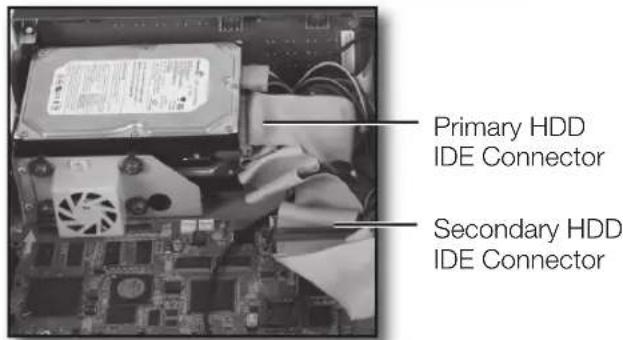
text_image
Primary HDD IDE Connector Secondary HDD IDE Connector-
After checking whether or not the connections have no problem, close the cover.
-
Fix the cover using screws. (Each of left and right sides has 5 spots and the back side has 1 spot.)
SHR-5080, SHR-5160
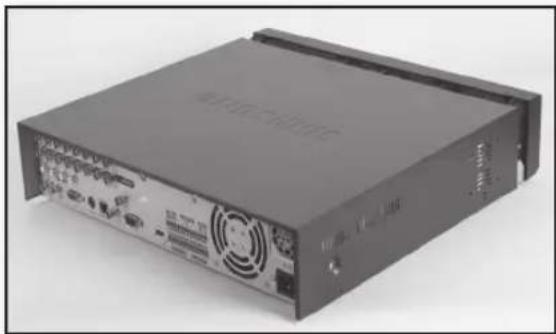
Before starting this work, remove the power cord from the outlet.
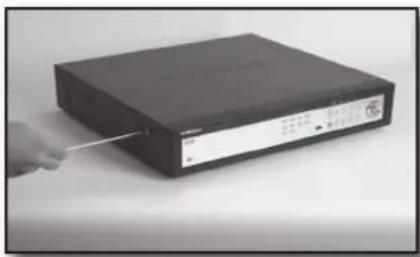
- Take out the screws on the left and right sides (5 spots for each side) and on the rear (1 spot).
natural_image
Hand holding a cable inserted into a black electronic device (no visible text or symbols)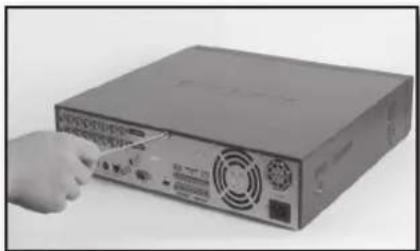
natural_image
Hand pointing at a computer drive unit (no visible text or labels)- Remove the cover from the product. (Slide the cover slightly backward, lift it upward and remove it.)
natural_image
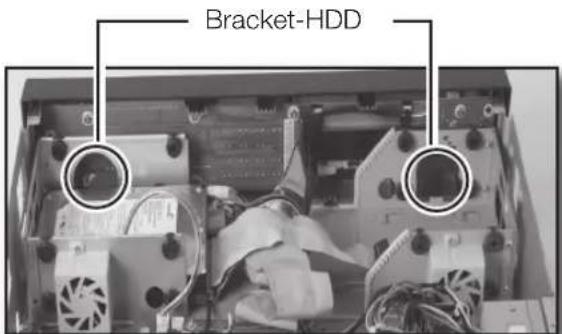
Front view of a black computer drive chassis with ventilation slots and ports (no visible text or labels)- There are brackets (Bracket-HDD) mounted on the right and left sides where you can mount HDDs. Remove the screws holding each bracket to mount an HDD onto.
text_image
Bracket-HDD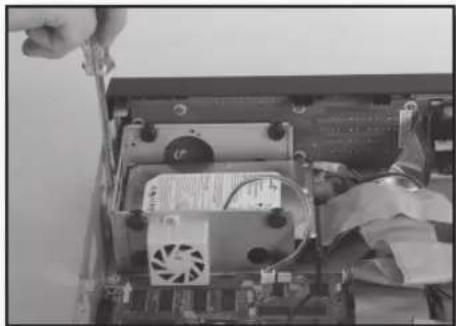
natural_image
Close-up of a computer motherboard showing CPU socket, fan, and drive mechanism (no visible text or symbols)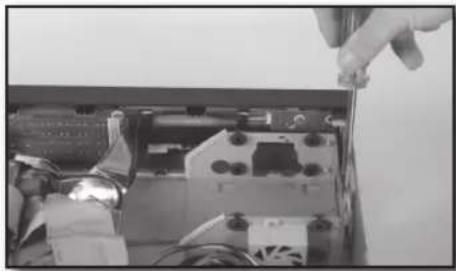
natural_image
Close-up of a hand inserting a component into an open electronic device casing (no visible text or symbols)- If you want to add a hard disk, remove Bracket-HDD, power supply cable, signal transmission cable (IDE Cable), and fan cable.
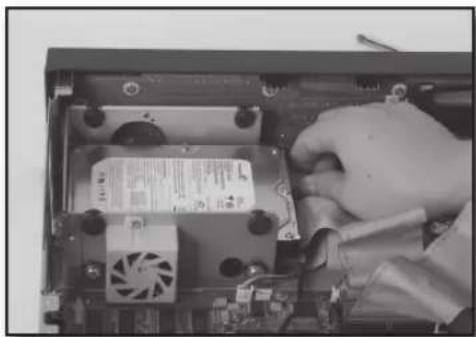
natural_image
Close-up of a hand inserting a CPU into an open motherboard, showing internal components and wiring (no visible text or symbols)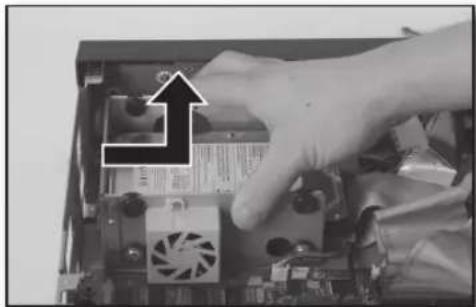
natural_image
Close-up of a hand inserting a fan into a computer motherboard with visible CPU socket and drive slots (no text or symbols)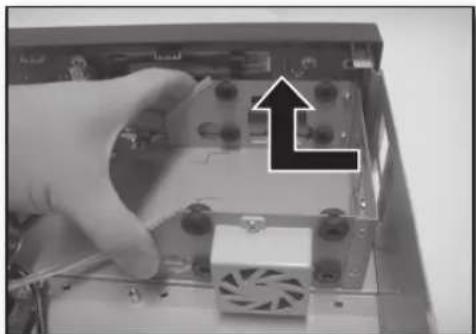
natural_image
Close-up of a hand inserting a component into an electronic device with a fan and power supply (no visible text or symbols)- To add a hard disk, the built-in HDD (Primary Master) should have been installed. Basically a built-in HDD has been installed as the Primary Master. Before adding a hard disk, set the jumper for master and slave. The jumper setting method is illustrated on the surface of the purchased hard disk. Fix the hard disk to the Bracket using the (A)SCREW-SPECIAL (BWH, 6-32UNC, L10. 5).
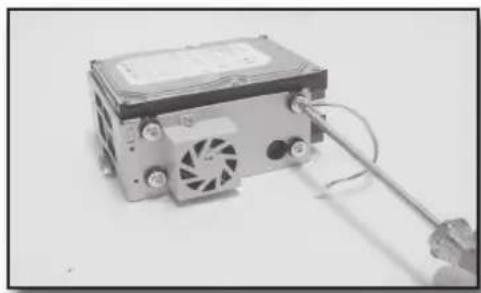
natural_image
Close-up of a computer power supply unit with a coiled cable and fan, no visible text or symbols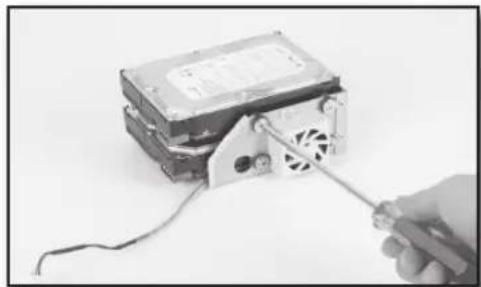
natural_image
Hand holding a screwdriver inserted into a computer drive module (no visible text or symbols)- Re-mount the bracket-HDD mounted with the HDD's to the place where it was separated from. Place the bracket-HDD so that all five mounting spots on the bottom and the bracket-HDD's mounting holes are perfectly aligned, then slide it toward the outside of the product and tighten the screws.
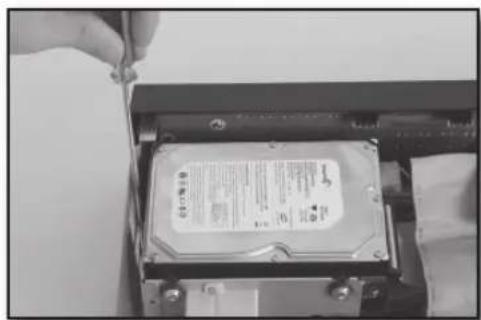
natural_image
Close-up of a hand inserting a CD into a drive compartment (no visible text or symbols)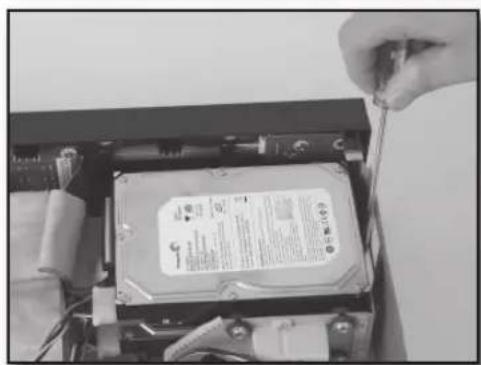
natural_image
Close-up of a hand inserting a hard disk into a computer case (no visible text or symbols)- When adding hard disks completes, connect the power supply cable, signal transmission cable (IDE Cable), and fan cable to the hard disks.
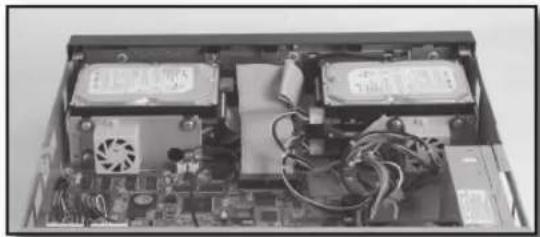
natural_image
Interior view of an electronic device showing two main modules with cooling fans and connected cables (no visible text or symbols)-
After checking whether or not the connections have no problem, close the cover.
-
Fix the cover using screws. (Each of left and right sides has 5 spots and the back side has 1 spot.)
connecting with other devices
The illustrations are described based on SHR-5162.
CONNECTING VIDEO, AUDIO, AND MONITOR
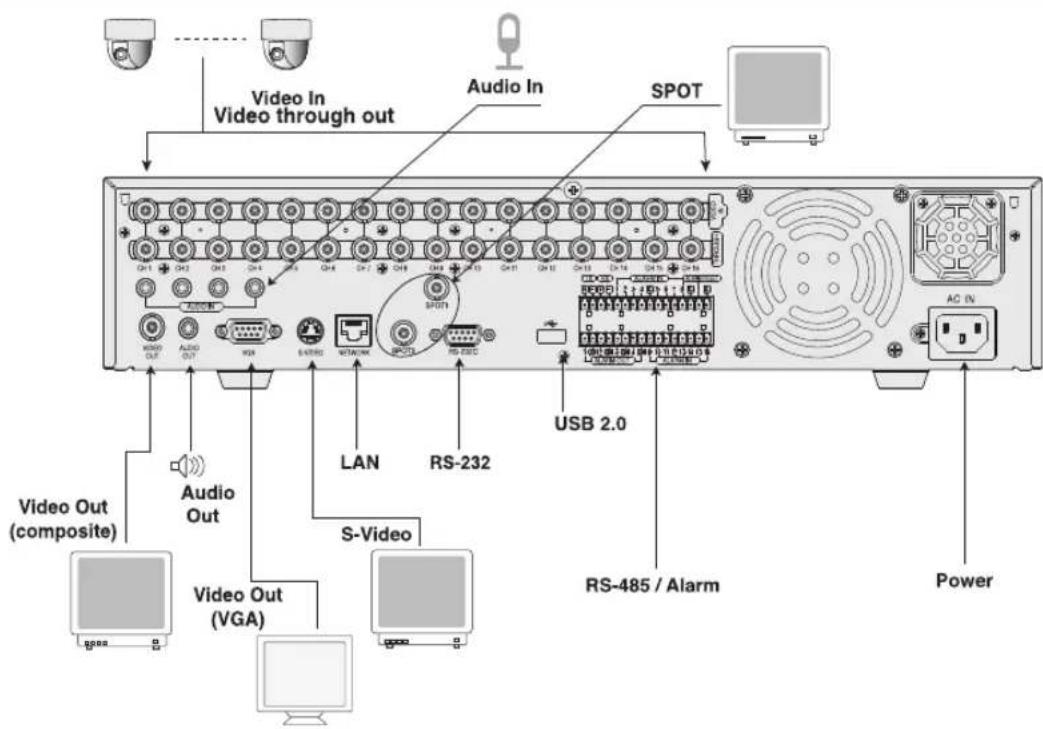
text_image
Video In Video through out Audio In SPOT USB 2.0 RS-232 S-Video Video Out (composite) Audio Out Video Out (VGA) Power RS-485 / Alarm AC INCONNECTING THE NETWORK
Connecting to Internet through Ethernet (10/100BaseT)
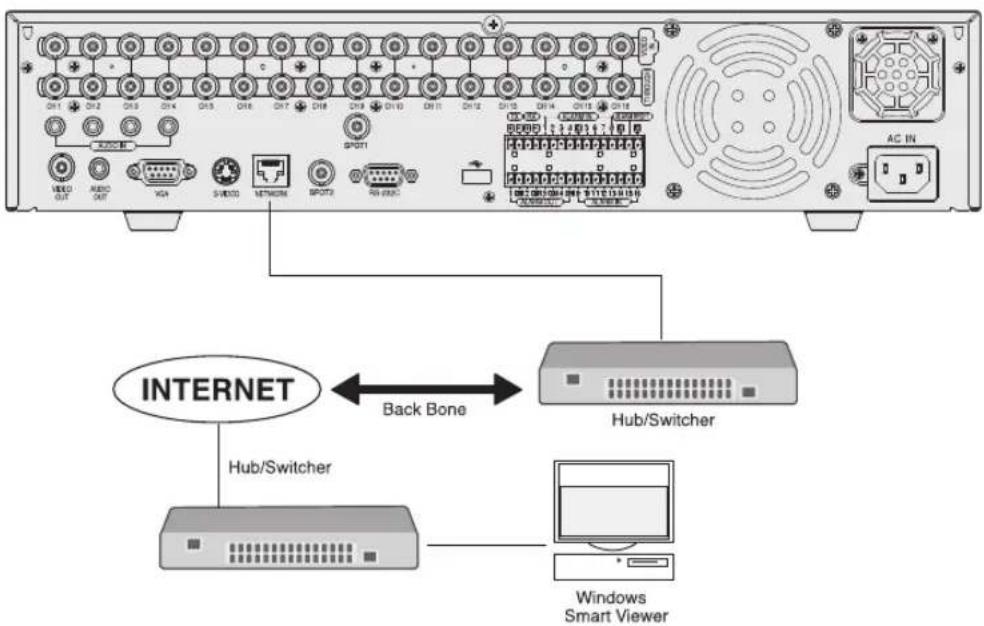
text_image
ON1 ON2 ON3 ON4 ON5 ON6 ON7 ON8 ON9 ON10 ON11 ON12 ON13 ON14 ON15 ON16 SPOT1 HUB/Switcher Internet Back Bone Hub/Switcher Windows Smart ViewerConnecting to Internet through ADSL
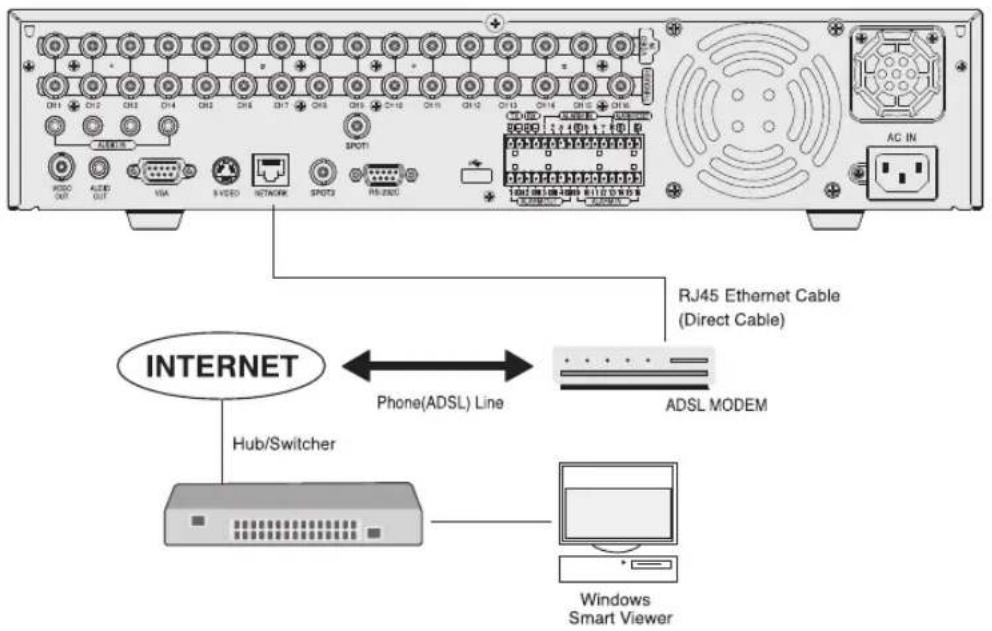
text_image
CH1 CH2 CH3 CH4 CH5 CH6 CH7 CH8 CH9 CH10 CH11 CH12 CH13 CH14 CH15 CH16 AC IN RJ45 Ethernet Cable (Direct Cable) INTERNET Phone(ADSL) Line ADSL MODEM Hub/Switcher Windows Smart ViewerCONNECTING THE USB
- There are two USB connecting ports on the front and rear panels of the product.
- USB Hard Disk, USB CD/DVD, and USB Memory can be connected through any of those ports.
- If the USB HDD is connected to the system, it should be detected and set through Menu > System > Storage Setup before operation.
- The product provides the HOT PLUG feature that allows the connection/removal of USB devices during system operation.

CAUTION
- The USB type of hard disk should be set to Master.
- If the backup USB device cannot be formatted in the DVR, format it as FAT32 using your PC.

For more details, refer to the System section in Chapter 5 Menu Setup.
CONNECTING THE ALARM INPUT/OUTPUT
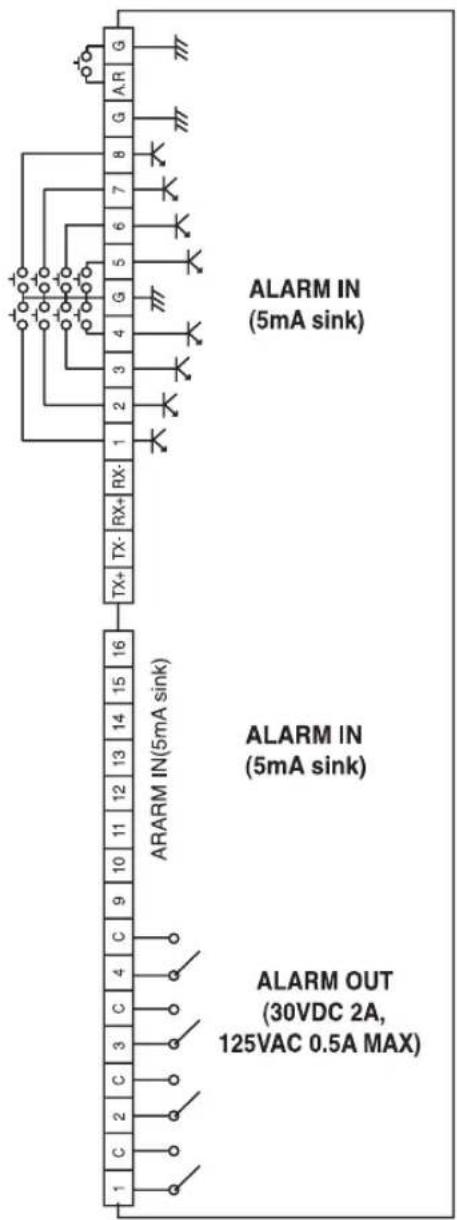
The Alarm IN/OUT ports on the rear of the product have the following elements:
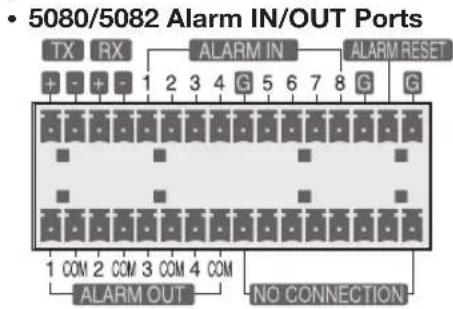
text_image
• 5080/5082 Alarm IN/OUT Ports TX RX ALARM IN ALARM RESET + - + 1 2 3 4 G 5 6 7 8 G G 1 COM 2 COM 3 COM 4 COM ALARM OUT NO CONNECTION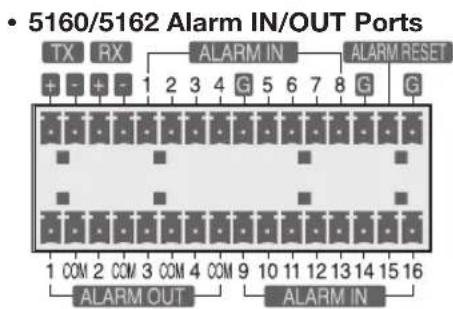
text_image
• 5160/5162 Alarm IN/OUT Ports TX RX ALARM IN ALARM RESET + - + 1 2 3 4 G 5 6 7 8 G G 1 COM 2 COM 3 COM 4 COM 9 10 11 12 13 14 15 16 ALARM OUT ALARM IN• ALARM IN 1 to 8 (SHR-5080/5082): Alarm input port
• ALARM IN 1 to 16 (SHR-5160/5162): Alarm input Port
- ALARM RESET: When receiving an ALARM RESET signal, the system clears the current ALARM input or output signal and resumes alarm sensing.
• ALARM OUT 1 to 4: Alarm output ports
text_image
ALARM IN (5mA sink) ALARM IN (5mA sink) ALARM OUT (30VDC 2A, 125VAC 0.5A MAX)CONNECTING THE RS-485
DEVICE
text_image
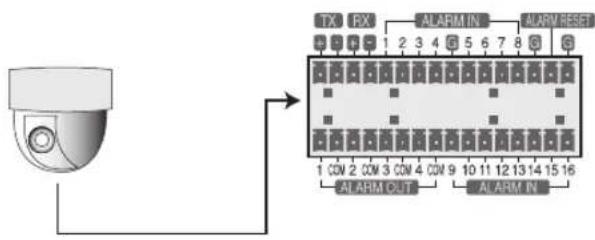
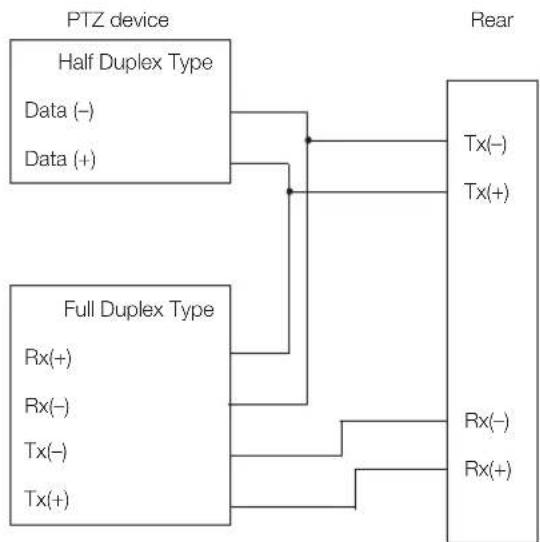
TX RX ALARM IN ALARM RESET 1 2 3 4 5 6 7 8 9 1 CON 2 CON 3 CON 4 CON 9 10 11 12 13 14 15 16 ALARM OUT ALARM INYou can connect an RS-485 device through a rear port of the product. For example, you can connect and control PTZ cameras supporting the RS-485 communication. You can also adopt either Half Duplex or Full Duplex method for exchanging data.
flowchart
graph TD
    A["PTZ device"] --> B["Half Duplex Type"]
    A --> C["Full Duplex Type"]
    B --> D["Tx(-)"]
    B --> E["Tx(+)"]
    C --> F["Rx(-)"]
    C --> G["Rx(+)"]
    D --> H["Rear"]
    E --> H
    F --> H
    G --> H
Supportable baud rates are 600, 1200, 2400, 4800, 9600, 19200, and 38400.

- Check if the RS-485 device is compatible with the product first.
- Then pay attention not to change the polarity (+/-) of RS-485 when connecting it.
Turn on the power and the following Samsung logo appears.

text_image
SAMSUNG DIGITAL everyone's invited_Upon completion of initializing procedure, the live screen appears with a beep sound. (It takes about one minute until a live screen comes up.)

- If a new HDD is installed, the initialization may take much more time because it includes a new HDD initialization.
- If the live screen does not appear or the LEDs on the front panel repeat flickering, please check the connections. If the system does not operate normally, contact the expert from the shop where you bought the product.
The live screen does not affect the earlier MENU settings. If you reboot the system when a recording is in progress, the recording will start again.
LIVE SCREEN MODE
Live screen icons
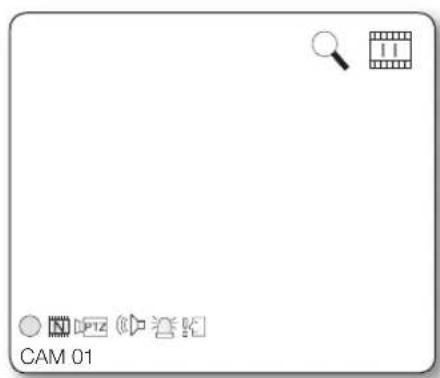
The live screen icons display the status of current setup or function.
text_image
CAM 01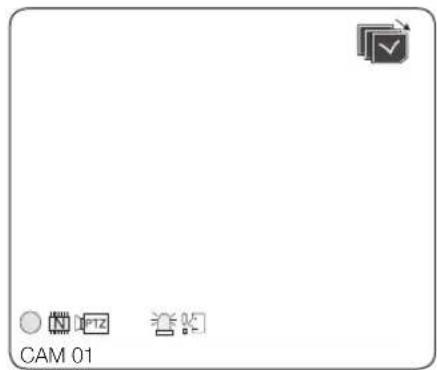
text_image
CAM 01○/®/S : Recording icon
Each icon represents Normal/Event (Alarm+Motion)/Schedule Recording.
N/C: Recording Video Size icon
Each icon represents the recording size of Normal or CIF.
- Normal: Half D1—(NTSC) 720x240, (PAL) 720x288
• CIF: CIF—(NTSC) 352x240, (PAL) 352x288
- Half D1 is an MPEG-4 video encoding mode in which half the horizontal resolution is sampled.
: Record Lock icon
It indicates that the record lock is activated. This icon appears when you are recording video images while the record lock is set. To cancel the recording, enter the preset password.
PTZ / PTZ : PTZ icon
This icon appears when setting the PTZ device and it changes to yellow when operating the PTZ.
Audio icon
This icon represents the ON/OFF status of audio and it changes to yellow when the audio is set to ON. It does not appear in Video mode or when the audio is disabled.
: Sensor Active icon
This icon appears in the channel linked with the external sensor signal when the sensor is active.
: Motion Event icon
This icon appears in the Motion Event channel when the motion detection is set to ON.
: Zoom icon
This icon appears while the Zoom operation is active and disappears by canceling the operation.
: Freeze icon
This icon appears in Freeze mode and disappears by canceling the freeze operation.
FULL: Recording Hard Disk Full icon
This icon appears when the hard disk space is not sufficient when recording.
: Auto Sequence icon
This icon appears in Auto Sequence mode.
Backup Play icon
This icon appears when the backup data is now played.
: Fan Error icon
This icon appears when the fan does not work properly.
: No HDD icon
This icon appears when there is a dysfunctional hard disk.
When the Fan Error icon or No HDD icon appears, please contact the service center.
V.Loss/V.Off: Video input status
When there is no video data input while the video is active, V.Loss appears in the channel. When you set the Video On/Off to OFF, V.Off appears.
Live screen modes
The SHR-5162/5160 models receive 16 live images and displays them in the following 9 modes as shown in the picture. To see each mode in order, repeatedly press the MODE button on the front panel or remote control. But the SHR-5082/5080 models have no 16-split mode.
| CAN_01 | CAN_OP | CAN_02 | CAN_03 | CAN_04 | CAN_OP | CAN_05 | CAN_06 | CAN_07 | CAN_08 | CAN_09 | CAN_10 | CAN_11 | CAN_12 | CAN_13 |
| CAN_04 | CAN_OP | CAN_05 | ||||||||||||
| CAN_05 | CAN_OP | CAN_06 | ||||||||||||
| CAN_07 | CAN_OP | CAN_08 | ||||||||||||
| CAN_08 | CAN_09 | CAN_10 | ||||||||||||
| CAN_09 | CAN_10 | CAN_11 | ||||||||||||
| CAN_10 | CAN_11 | CAN_12 | ||||||||||||
| CAN_11 | CAN_12 | CAN_13 |
16 Split Mode → 9 Split Mode 6 Split Mode4 Split Mode 7 Split Mode

text_image
CAM_01 CAM_02 CAM_03 CAM_04 CAM_05 CAM_06 CAM_07 CAM_08 CAM_09 CAM_01 CAM_02 CAM_03 CAM_04 CAM_05- Full Screen (Single) mode: Displays the selected channel in full screen.
- 4, 6, 7, 8, and 9 Split mode: Displays 4, 6, 7, 8, 9 channels in each split screen. You can select channel numbers on your own using the MODE button on the front panel or remote control. In 4-channel and 9-channel split modes, the screen page is changed using the Direction buttons.
- 16 Split mode: Displays 16 live channels on a 16-split screen. The Auto Sequence is not available.
- PIP (Picture in picture) mode: Displays a small screen on a full screen. You can change the channel number on a full screen or small screen by pressing the ENTER button and inputting the NUMERIC button. To switch between main and sub screens, press the ENTER button and press the LEFT or RIGHT direction button. You can move the sub screen to 5 different stages using the UP/DOWN direction buttons.
- Auto Sequence mode: Sequentially displays all the channels at an interval of auto sequence time. The auto sequence time is set in Camera Configuration on the menu.
Selecting live screen mode
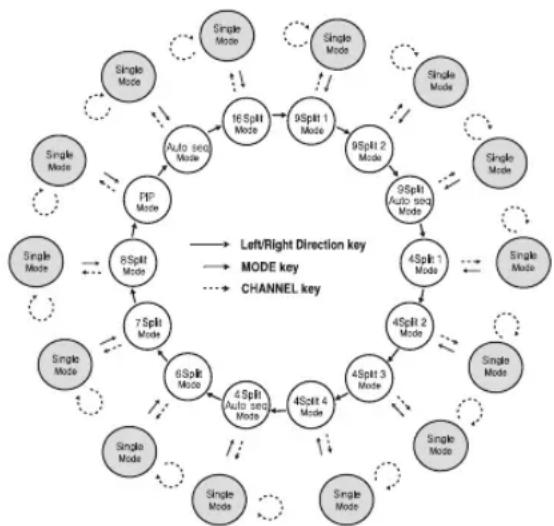
Available modes are switched using the MODE button and the NUMERIC buttons on the front panel or remote control. The following figure is the live modes transition diagram in the SHR-5162/5160 models.
flowchart
graph TD
    A["Single Mode"] --> B["8 Split Mode"]
    B --> C["7 Split Mode"]
    C --> D["6 Split Mode"]
    D --> E["4 Split Auto sec Mode"]
    E --> F["4 Split 4 Mode"]
    F --> G["4 Split 3 Mode"]
    G --> H["4 Split 2 Mode"]
    H --> I["4 Split 1 Mode"]
    I --> J["9 Split Auto sec Mode"]
    J --> K["9 Split 2 Mode"]
    K --> L["9 Split 1 Mode"]
    L --> M["16 Split Mode"]
    M --> N["Auto sec Mode"]
    N --> O["FIP Mode"]
    O --> P["Single Mode"]
    style A fill:#f9f,stroke:#333
    style B fill:#ccf,stroke:#333
    style C fill:#cfc,stroke:#333
    style D fill:#fcc,stroke:#333
    style E fill:#cff,stroke:#333
    style F fill:#ffc,stroke:#333
    style G fill:#cfc,stroke:#333
    style H fill:#fcc,stroke:#333
    style I fill:#cfc,stroke:#333
    style J fill:#fcc,stroke:#333
    style K fill:#cfc,stroke:#333
    style L fill:#fcc,stroke:#333
    style M fill:#cfc,stroke:#333
    style N fill:#fcc,stroke:#333
    style O fill:#cfc,stroke:#333
    style P fill:#fcc,stroke:#333
- The initial live screen shows the 16-split screen mode at first. The SHR-5082/5080 models start from the 9-split mode.
- In the 9-split screen mode, the first screen shows 9 channels (CH 1 to CH 9) and the second screen shows the rest 7 channels (CH 10 to CH 16) after pressing the RIGHT direction button. If you press the RIGHT direction button again, it changes to the Auto Sequence mode.
- Likewise, in the 4-split screen mode, the first screen shows 4 channels (CH 1 to CH 4), the second screen shows CH 5 to CH 8, the third screen shows CH 9 to CH 12, the fourth screen shows CH 13 to CH 16. If you press the RIGHT direction button again, it changes to the Auto Sequence mode.
- Every time you press the MODE button, the modes change in the following sequence: 16-split mode 9-split mode 4-split mode 6-split mode 7-split mode 8-split mode PIP mode Auto Sequence mode 16-split mode.
- Press the CH 1 to CH 16 button to see a full screen of each channel after pressing the ENTER button.
- Press the MODE button after entering a full screen channel in a split screen mode to return to the previous split mode screen.
SETTING AUDIO ON/OFF
In other split modes except full screen mode, 16-split mode, and auto sequence mode, you can choose a channel to be displayed by pressing the ENTER and NUMERIC buttons. If you set the selected channel to Audio On, you can turn the Audio On and Off in live mode.
Audio On/Off setting in full screen mode
In full screen mode, the audio of the selected channel automatically turns on. You can turn the audio On and Off by toggling the AUDIO button. Depending on the audio On/Off setting condition, the Audio icon of the channel changes to yellow and white.
Audio On/Off setting in 16-split mode
When pressing the ENTER button in the 16-split mode, the selection cursor appears for you to select a channel. When you select a channel and press the AUDIO button on the front panel or remote control, the audio of the selected channel is changed to On or Off. Depending on the audio On/Off setting condition, the Audio icon of the selected channel changes to yellow and white. You can have audio settings on channel 1 to 4 in 16-split mode.
Audio On/Off setting in 4, 6, 7, 8, and 9-split modes and PIP mode
As in 16-split mode, when pressing the ENTER button in 4, 6, 7, 8, and 9-split modes and PIP mode, the selection cursor appears for you to select a channel.
After selecting a channel, you can set the Audio to On or Off using the AUDIO button. According to the audio On/Off setting condition, the Audio icon of the selected channel changes to yellow and white.
FREEZING AND ZOOMING
Freeze function
The freeze function pauses the video image on the live screen and it is only available in the live mode.
You can set this function to On or Off using the FREEZE button on the front panel or remote control.
Zoom function
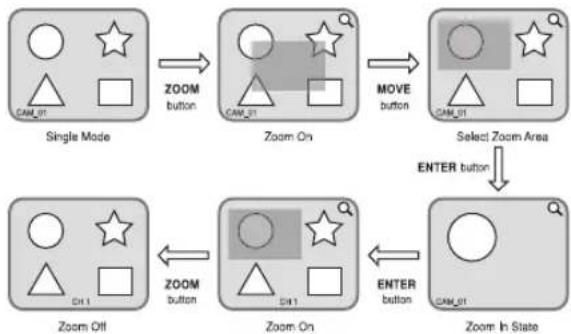
The zoom function enlarges the selected area to double size, and it is only available in the single screen mode.
When you press the ZOOM button on the front panel or remote control, the zooming area appears. Use the UP/DOWN/LEFT/RIGHT direction buttons to adjust the position for zooming. After selecting the Zoom area, press the ENTER button to enlarge the selected area in double size. To cancel the zooming function, press the ZOOM button again.
flowchart
graph TD
    A["Single Mode"] --> B["ZOOM Button"]
    B --> C["Zoom On"]
    C --> D["MOVE Button"]
    D --> E["Select Zoom Area"]
    E --> F["ENTER Button"]
    F --> G["Zoom Off"]
    G --> H["ZOOM Button"]
    H --> I["Zoom On"]
    I --> J["ENTER Button"]
    J --> K["Zoom In State"]
EVENT MONITORING
The event monitoring is used to display the channel that is synchronized with an event on the screen when a special event (Sensor/Motion/Video Loss) occurs. The settings for event monitoring activation and event duration setup are done in the Monitoring on the menu. If you set the event monitoring interval to 5 seconds and an event occurs at CH 2 as shown in the picture, the system will display CH 2 in full screen for 5 seconds. If another event occurs within 5 seconds, it is also displayed together with the existing event.
As shown in the picture, if we assume that both CH 1 and CH 3 events occur within 5 seconds (for example, after 4 seconds), after CH 2 event, these three events are displayed with split into 4 screens.
If a new event does not occur during the event duration, the system will return to the previous live mode. Pressing the ALARM button during the event duration makes the event monitoring stop. When an event occurs, the ALARM LED is turned on. Press the ALARM button again to turn ALARM LED Off. At this time, the alarm setup is initialized, the event icon disappears, and the event monitoring is cancelled while in event monitoring. After alarming, the event recording resumes.
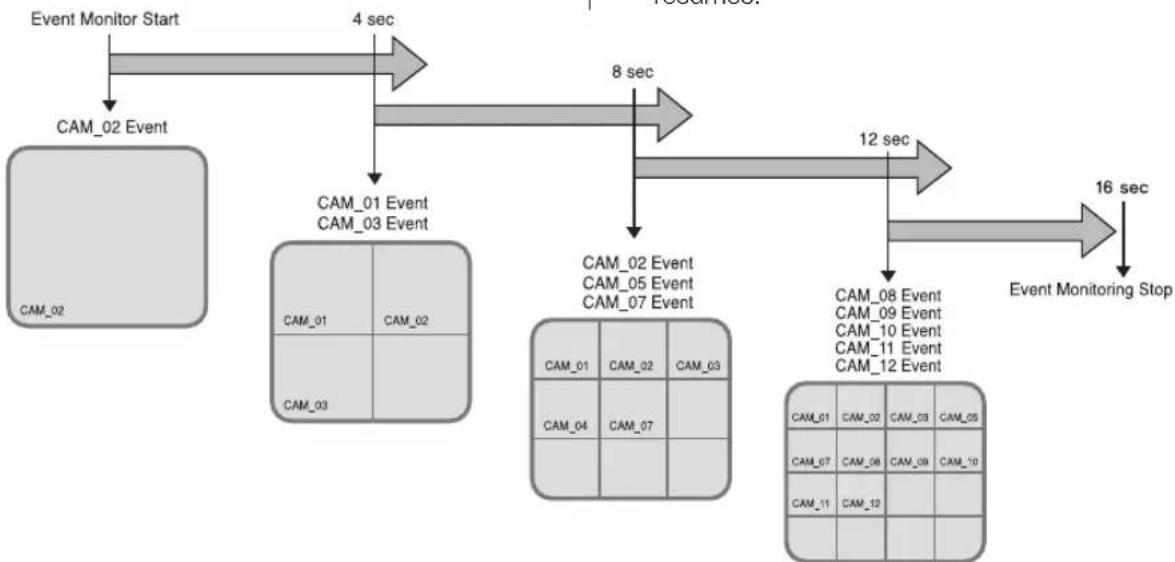
flowchart
graph TD
    A["Event Monitor Start"] --> B["CAM_02 Event"]
    B --> C["CAM_01 Event CAM_03 Event"]
    C --> D["CAM_02 Event CAM_05 Event CAM_07 Event"]
    D --> E["Event Monitoring Stop"]
    E --> F["16 sec"]
    B --> G["4 sec"]
    C --> H["8 sec"]
    D --> I["12 sec"]
    E --> J["16 sec"]
[ Event-driven screen changes in Event Monitoring ]
SPOT-OUT MONITORING
Spot-out monitoring has nothing to do with the live screen output. It monitors a specific channel in full screen. After selecting
Monitoring on the MENU, you can select a channel for monitoring in Spot Out Channel.
You can also monitor all the channels at an interval of auto sequence time.
In case of spot-out monitoring, the live screen icons do not appear.
If the Spot Out Event Monitor is set to On, you can see the event channels.
When the events occur sequentially, the channel of the camera that the last event has been issued is displayed. (In case of alarms, multiple channels are enabled.)
When multiple cameras are connected, the camera with the smallest number is output on Spot-out channel.

In the live screen, you can select a spot-out channel when using SPOT1 output as described below:
- Press the STOP button on the front panel or remote control and press a button out of 16 channels. The selected channel is set to a spot-out channel.
- When you press the STOP button and then the MODE button within 2 seconds, the spot-out channel mode is changed to the change screen mode.
SPOT2 output is the same output as the main video out. (OSG is not displayed).

- If the built-in HDD is not connected or it is out of order, the system displays an error (if saying "built-in HDD error" at the top-left corner. In this case, you cannot perform recording, playback, and backup. So please contact the service personnel.
- If the fans in the product do not properly operate or have some problem, the fan error message appears on the live screen as shown in the following picture. In this case, check whether the fans normally run or not. When the fans are recovered, the Failure icon is that is displayed at the top-left corner disappears. In case of a fan failure, it can shorten the life of the product so please contact the service personnel.
Fan Information

A error occurs in the fan. Refer to the manual.
BEFORE USE
- The menu structure is as follows:
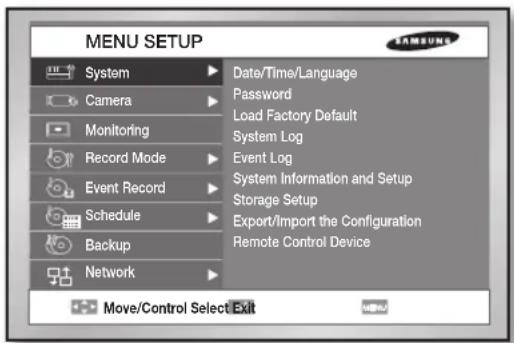
text_image
MENU SETUP System Camera Monitoring Record Mode Event Record Schedule Backup Network Date/Time/Language Password Load Factory Default System Log Event Log System Information and Setup Storage Setup Export/import the Configuration Remote Control Device Move/Control Select Exit- Selection
The yellow cursor is the selection bar. Use the Direction buttons on the front panel or remote control to move the cursor to a desired menu. If you press the ENTER button when the cursor is located in a desired menu, the screen displays the sub window.
To select an item from the menu, press the ENTER button. On a drop-down menu, use the UP/DOWN direction buttons to move the cursor on your desired item.
- OK and Cancel in each Setup window Once any changes are made in a setup window, they can be applied by selecting OK. When Cancel is selected, the changed settings are not applied and it returns to the upper menu.
- MENU button
When the MENU button is pressed in any of the Setup menus, it changes to the upper menu. If you press the MENU button in Live mode, the password window appears for user validation.
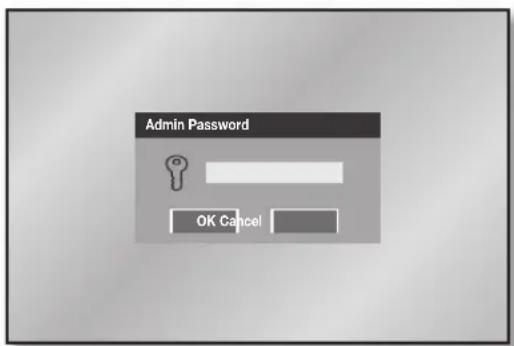
text_image
Admin Password OK Cancel- SEARCH, BACKUP, PTZ, POWER buttons in Live mode
To perform the search, backup, PTZ controls, or shutdown function, press the following button in Live mode. Then the window asking for an ID and password appears for user validation.
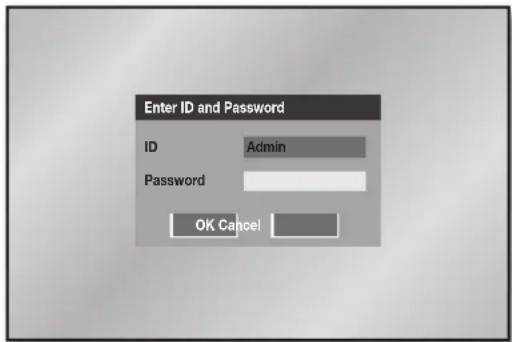
text_image
Enter ID and Password ID Admin Password OK Cancel- The direction sign (▶ or ▼) right next to the title of menu or item leads you to press the displayed button on the front panel or remote control to go for sub item.
SYSTEM
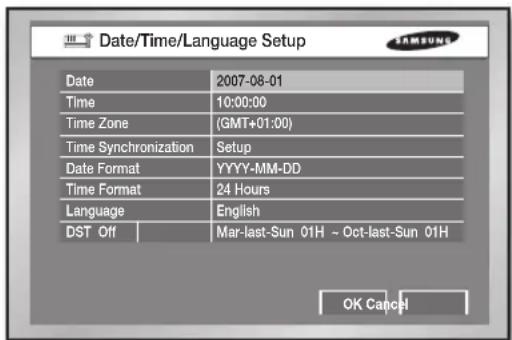
Date/Time/Language Setup
text_image
Date/Time/Language Setup Date 2007-08-01 Time 10:00:00 Time Zone (GMT+01:00) Time Synchronization Setup Date Format YYYY-MM-DD Time Format 24 Hours Language English DST Off Mar-last-Sun 01H ~ Oct-last-Sun 01H OK Cancel- Date
Press the ENTER button and use the LEFT or RIGHT direction button to move to year, month, and day. To change the value, use the UP or DOWN button. Press the ENTER button to confirm the setting.
• Time
Press the ENTER button and use the LEFT or RIGHT direction button to move to hour, minute, and second. To change the value, use the UP or DOWN button. Press the ENTER button to confirm the setting.

[Date/Time Change] After the date and time has been changed, the data recorded before the change can be removed. For example, if the current time is changed from 8 to 7, all the data recorded between 7 and 8 will be deleted.
- Time Zone
Set the local time zone based on the Greenwich Mean Time (GMT).
• Time Synchronization
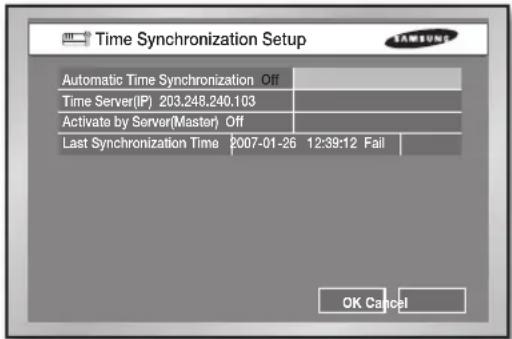
The time of your DVR can be synchronized by a specified server. For this purpose, enter the IP address of the time server and determine the initiator of this activity.
- Automatic Time Synchronization Synchronizes while gathering time information from the Time Server (IP)
- Activate by Server(Master) Time Synchronization is executed while more than two DVR devices are connected, and the operating DVR device connected to the server is set as standard.
text_image
Time Synchronization Setup Automatic Time Synchronization Off Time Server(IP) 203.248.240.103 Activate by Server(Master) Off Last Synchronization Time 2007-01-26 12:39:12 Fail OK Cancel- Date Format
The system supports 3 types of formats: YYYY-MM-DD, DD-MM-YYYY, and MM-DD-YYYY.
- Time Format
The system supports 2 type of formats: 24 Hours and 12 Hours(AM/PM).
- Language
After selecting a language, on-screen display (OSD) menus are displayed in the selected language.
• DST (Daylight Saving Time)
DST sets the clock one hour ahead the local standard time. This setting enables the system to display the time adjusted for DST. If the DST is set to Off, it does not apply. To set the DST, enter the start time and end time on the right. It allows you to set month, week (e.g. 1st, 2nd, 3rd, 4th, last), date, and time only.
Password
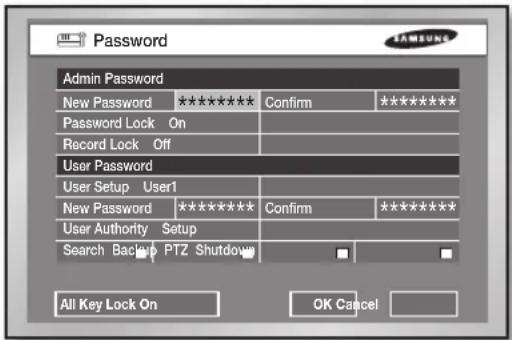
The factory default password for Admin and user privileges is "4321." The Menu Setup window cannot be accessed by user privileges but by the Admin privilege. The Admin user can give users (User1 to User5) access rights to the selected functions. If you press Setup in User Authority, all the access rights are selected.
text_image
Password Admin Password New Password ***** Password Lock On Record Lock Off User Password User Setup User1 New Password ***** User Authority Setup Search Backp PTZ Shutdown All Key Lock On OK Cancel- New Password
You can change the password by entering a new password value in this field. The input password is allowed up to 8 digits. Press the ENTER button and enter numbers using the NUMERIC buttons on the front panel or remote control. Press the ENTER button again for confirmation. Then the cursor moves to the New Password Confirm field.
- Confirm
It confirms that the newly input password is correct. Enter the new password again in the field.
- Password Lock
If it is set to On, a pop-up window for asking the password appears every time you select a menu. If it is set to Off, you can enter menus without entering the password.
- Record Lock
If the Record Lock is set to On, a pop-up window, asking for the password appears while disabling the recording.
- User Authority
You can select any of Search, Backup, PTZ, and Shutdown. If the user has no access right for Search, the user cannot enter the Search menu.
- All Key Lock On
If you select this, the system will enter the live mode immediately. If you press any button on the front panel or remote control, the password input window appears. If the correct password is input, the lock function is deactivated.

[All Key Lock On]
If you select this, the system immediately switches to the live mode and all buttons are locked.
If the user enters the selected function, he or she has to input the password first.
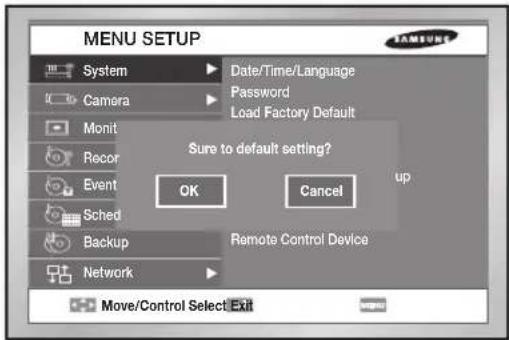
Load Factory Default
It is used to initialize all the settings to the factory default values. The recorded video data will not be removed. Select OK to start initialization.
text_image
MENU SETUP System Camera Monit Recor Event Sched Backup Network Date/Time/Language Password Load Factory Default Sure to default setting? OK Cancel Up Remote Control Device Move/Control Select ExitSystem Log
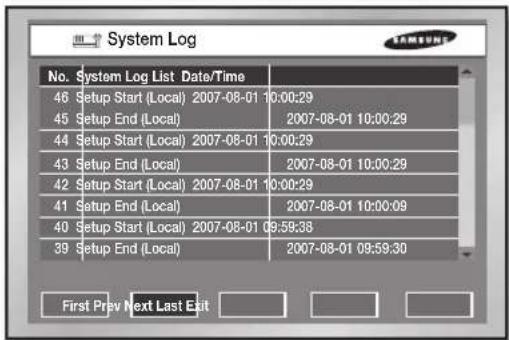
The System Log is used to check the important history records by an administrator. The log data includes the system-related logs such as system start, system termination, menu setup change, and the like.
text_image
System Log No. System Log List Date/Time 46 Setup Start (Local) 2007-08-01 10:00:29 45 Setup End (Local) 2007-08-01 10:00:29 44 Setup Start (Local) 2007-08-01 10:00:29 43 Setup End (Local) 2007-08-01 10:00:29 42 Setup Start (Local) 2007-08-01 10:00:29 41 Setup End (Local) 2007-08-01 10:00:09 40 Setup Start (Local) 2007-08-01 09:59:38 39 Setup End (Local) 2007-08-01 09:59:30 First Prev Next Last ExitAvailable action buttons are:
- First: Moves to the first log page.
- Prev: Moves to the previous log page.
- Next: Moves to the next log page.
- Last: Moves to the recent log page.
The system logs are as follows:
| System Start | Starts the system. |
| Login(Admin) | Viewer Login (Admin) |
| Logout(Admin) | Viewer Logout (Admin) |
| Login(User) | Viewer Login (User) |
| Logout(User) Viewer Logout (User) | |
| Setup Start (Local) | Enters into the menu. |
| Setup End (Local) | Comes out of menu. |
| Setup (Remote): Viewer | Sets the menu. |
| Play Back Start | Starts the playback. |
| Play Back End | Ends the playback. |
| Power Failure Recovery | Returns the system after power interruption. |
| Time Change | Changes the Date/Time. |
| Load Factory Default | Initializes the system. |
| System Upgrade Changes the system S/W. | |
| Disk Full | No Space in the HDD |
| Backup Start Starts the backup. | |
| Backup End | Ends the backup. |
| Backup Stop Stops the backup. | |
| Backup Fail | Backup Failure |
| ATA HDD Erase | Erases the ATA Data. |
| USB HDD Erase | Erases the USB HDD data. |
| USB MEMORY Erase | Erases the USB MEMORY data. |
| Overwrite Playback Stop | Stops the playback by overwrite. |
| Backup Stop(Overwrite) | Stops the backup by overwrite. |
Event Log
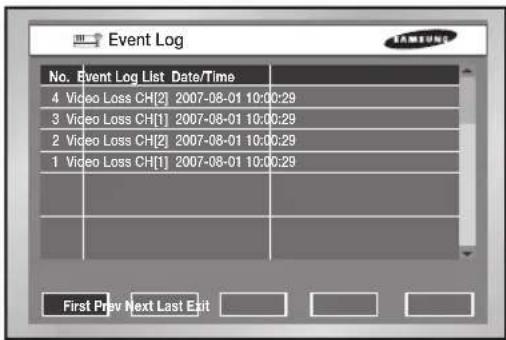
It is used to check the recorded events like alarm, motion, video loss, and such.
text_image
Event Log No. Event Log List Date/Time 4 Video Loss CH[2] 2007-08-01 10:00:29 3 Video Loss CH[1] 2007-08-01 10:00:29 2 Video Loss CH[2] 2007-08-01 10:00:29 1 Video Loss CH[1] 2007-08-01 10:00:29 First Prev Next Last ExitThe log data contains the event execution data and time.
- First: Moves to the first log page.
- Prev: Moves to the previous log page.
- Next: Moves to the next log page.
- Last: Moves to the recent log page.
The event logs are as follows:
| Video Loss CH[N] | Means the occurrence of Channel [N] Video Loss. |
| Alarm Detection CH[N] | Means the occurrence of Channel [N] alarm. |
| Motion Detection CH[N] | Means the occurrence of Channel [N] Motion. |
System Information and Setup
text_image
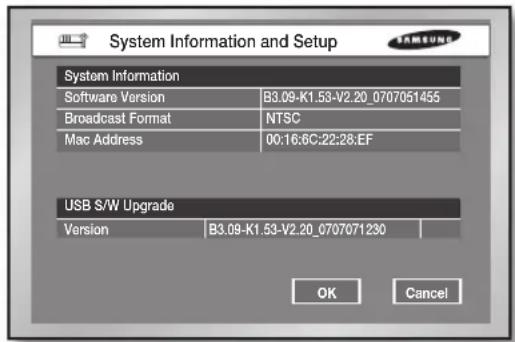
System Information and Setup System Information Software Version B3.09-K1.53-V2.20_0707051455 Broadcast Format NTSC Mac Address 00:16:6C:22:28:EF USB S/W Upgrade Version B3.09-K1.53-V2.20_0707071230 OK CancelThis setup window provides the following setting items:
- Software Version: Displays the current software version. The value cannot be changed.
- Broadcast Format: Displays the current broadcast format (NTSC/PAL). The value cannot be changed.
- Mac Address: 6-Byte hardware address. The value cannot be changed.
- USB S/W Upgrade
You can update the software using a USB device. If there is no device, None is displayed. If the USB memory has an upgrade software, its version is displayed.
To upgrade the software stored in the USB device, select the check box on the right and press OK.
Storage Setup
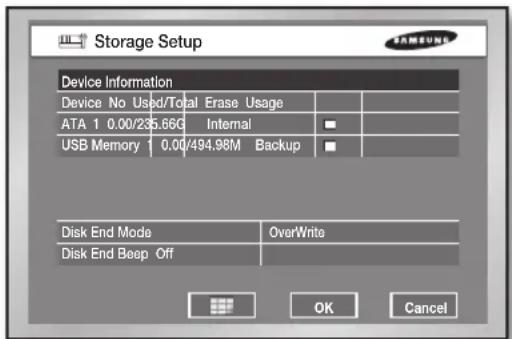
You can configure the storage device related settings.
text_image
Storage Setup Device Information Device No Used/Total Erase Usage ATA 1 0.00/235.66G Internal USB Memory 1 0.00/494.98M Backup Disk End Mode OverWrite Disk End Beep Off OK Cancel• Device Information
Displays the number, capacity, and usage of ATA and USB devices. (The total capacity displayed may be lower than the actual capacity because the DVR uses some portion of it for internal purpose.) After selecting Erase for each device, you can remove the data on it. In case of USB device, you can set the usage for extension or backup. If you change the usage of the device, the stored data will be removed.
- Disk End Mode
- Stop: Stops recording when the disk is full while recording is still in progress.
- Overwrite: Deletes the previously recorded data to store new data when the disk is full during recording.
- Disk End Beep
- On: Beeps when the disk is full while recording.
- Off: Although the disk is full while recording, it doesn't make beep sound.
• HDD Installation Information
When you click 📄, the HDD Installation Information displays on the screen. Then you can see the model name, the capacity, and the status of the HDD in your DVR. The status displays Good, Not good, and Check. In the status of Not good, you should replace the HDD. In the status of Check, you should replace the HDD or check periodically. After clicking the Alarm Setup, you can set the alarm and the duration while the status is Not good or Check. If you click the HDD location map, it displays the information about the HDD installation. When a problem occurs, you can see which HDD has a problem.

The capacity of the HDD may differently appear in the Storage Setup menu and HDD Installation Information menu.
• In case of SHR-5160/5080, the model name of HDD appears instead of DVD RW.
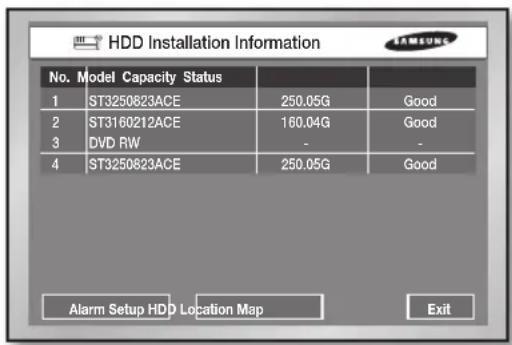
text_image
HDD Installation Information No. Model Capacity Status 1 ST3250823ACE 250.05G Good 2 ST3160212ACE 160.04G Good 3 DVD RW - - 4 ST3250823ACE 250.05G Good Alarm Setup HDD Location Map Exit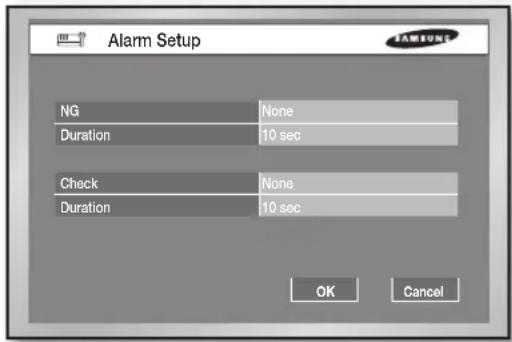
text_image
Alarm Setup NG None Duration 10 sec Check None Duration 10 sec OK Cancel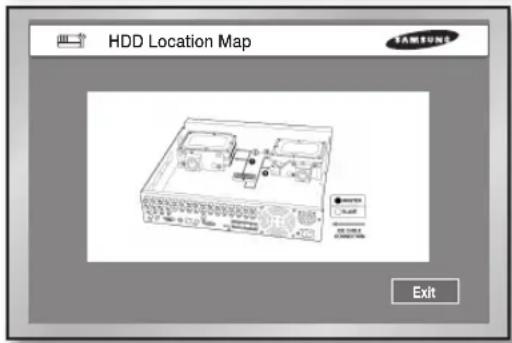
text_image
HDD Location Map Exit
When the Disk end mode is set to Overwrite and the HDD overwrites the data that was previously backed up, the backup start time may be changed or the backup process may be cancelled.
[Disk Overwrite]
When Overwrite is selected, the previous event data is to be deleted and the mode is also changed.

[Built-in HDD]
This is a physical hard disk connected to the IDE cable inside the main body, and it stores data.
[External HDD]
This is a physical hard disk connected to the port and jack on the rear of the main body, and it also stores data. This can be used as an extended hard disk or backup hard disk.
- Extended HDD: Supplements the built-in HDD. It is located on the top of the built-in HDD.
- Backup HDD: Used for backup of the data recorded on the HDD.
![Hanwha SHR-5160 - [External HDD] - 1](/content/2026/06/1203571/images/63cc22239f419f8aca113b80fa18c37d0085377c54b49bb5a546564deaef9a43.jpg)
[ATA]: Built-in HDD
This is a disk drive implementation that integrates the controller on the HDD itself. It is a physical hard disk connected to the IDE cable inside the main body.
[USB]: External HDD
(Extension HDD or backup HDD)
This is used for external HDD connection. The external HDD is connected through this USB port on the front or rear panel.
Export/Import the Configuration
This menu is used to export or import the DVR-related settings to/from the USB memory.
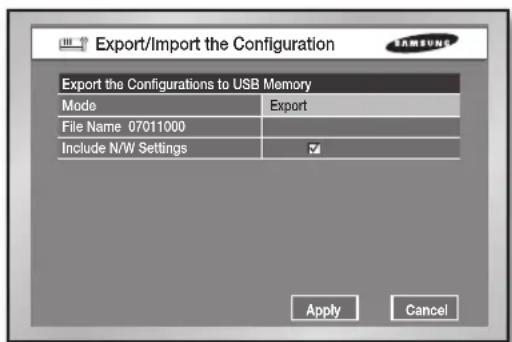
text_image
Export/Import the Configuration Export the Configurations to USB Memory Mode Export File Name 07011000 Include N/W Settings Apply CancelThe related settings are as the following:
- Mode: You can select any of Import and Export.
- File Name: In case of Export, the file name is displayed. The file naming convention is YYMMDD00. "00" is the serial number so it increases by 1. To change the file name, press the ENTER button. You can change the name using the virtual keyboard.
- File Open: In case of Import, you can select the file that you want to import from the USB memory after pressing the ENTER button. When the importing completes, your DVR automatically reboots.
- Include N/W Settings: In case of Export, this flag is selected by default. But with Import, you can decide whether or not to copy the network settings. Be careful when you select this because it will remove the previous network settings.
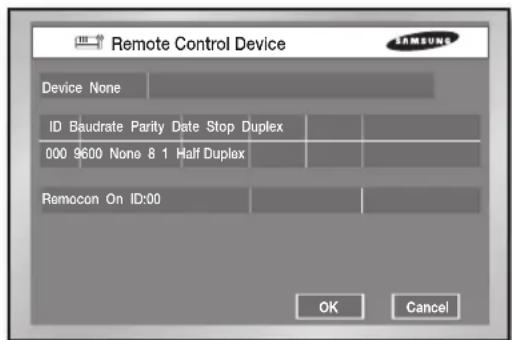
Remote Control Device
text_image
Remote Control Device Device None ID Baudrate Parity Date Stop Duplex 000 9600 None 8 1 Half Duplex Remocon On ID:00 OK CancelThis menu enables you to use the Samsung system keyboard or remote control.
- Device
It indicates a remote control device that is connected to the RS485 port.
• ID
This is a unique ID of the device. This ID is necessary to control multiple DVRs.
- Baudrate
Baud rate for communicating with cameras. It should be the same as the baud rate of cameras for communication.
- Parity
Select one of None, Even, and Odd.
- Data
Select one of 7 and 8.
- Stop
Select 1 or 2 for stop bit.
- Duplex
Select one of Half Duplex and Full Duplex. (Data exchanging method)
- Remocon
Set the remote control to On or Off. You can set the ID of remote control to any of 0 to 99.

You cannot use the PTZ device and remote control device together at the same time due to communication problem. In PTZ control mode, the PTZ mode of DVR is canceled when the remote control is connected. On the contrary, the remote control is disconnected when the DVR switches to PTZ mode.
Refer to the user manual of remote control to learn how to handle the PTZ device using the remote control.
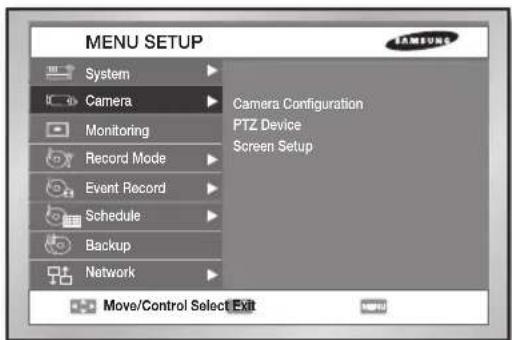
CAMERA
The detailed items for camera menu are as shown in the picture:
text_image
MENU SETUP System Camera Monitoring Record Mode Event Record Schedule Backup Network Camera Configuration PTZ Device Screen Setup Move/Control Select ExitCamera Configuration
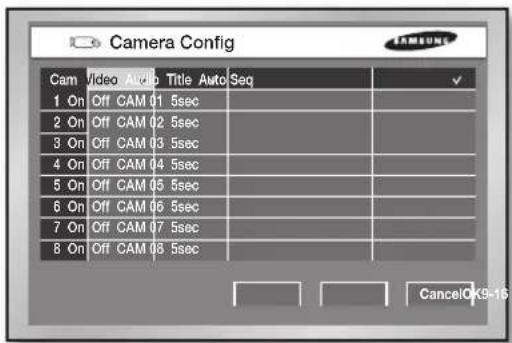
text_image
Camera Config Cam Video Audio Title Auto Seq 1 On Off CAM 01 5sec 2 On Off CAM 02 5sec 3 On Off CAM 03 5sec 4 On Off CAM 04 5sec 5 On Off CAM 05 5sec 6 On Off CAM 06 5sec 7 On Off CAM 07 5sec 8 On Off CAM 08 5sec CancelOK9-16- Video
- On: The camera image from the selected channel appears.
- Off: The camera image from the selected channel disappears.
- Covert1: Displays the information except for the video information on the selected channel.
- Covert2: Does not display any information.

The settings for audio, camera name, and auto sequence are not allowed for the channel whose video is set to Off.

In case of SHR-5082/5080, only 8 channels are displayed.
- Audio
- On: You can hear the sound in the selected channel.
- Off: You cannot hear the sound in the selected channel.

You can select only the number 1 to 4 channels to hear sound.
- Title
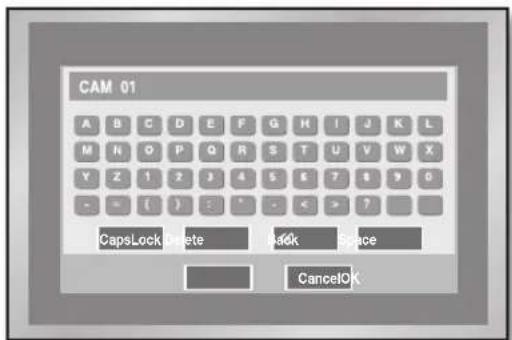
You can name the camera of the selected channel. If you press the ENTER button, the virtual keyboard appears.
▶ Virtual keyboard
Use the Direction buttons to select a character and use the ENTER button to type the selected character. You can type up to 15 characters. No space is allowed for input. If you select CapsLock, the virtual keyboard switches between upper case mode and lower case mode.
text_image
CAM 01 A B C D E F G H I J K L M N O P Q R S T U V W X Y Z 1 2 3 4 5 6 7 8 9 0 - - ( ) : - < > ? CapsLock, delete Back Space Cancel OK- Auto Seq
You can set the auto sequencing interval for each channel. The setting applies in the live mode. When the value of a channel is set to Off, the channel is not displayed in the auto sequence mode.
PTZ Device
You can configure the PTZ device related settings.
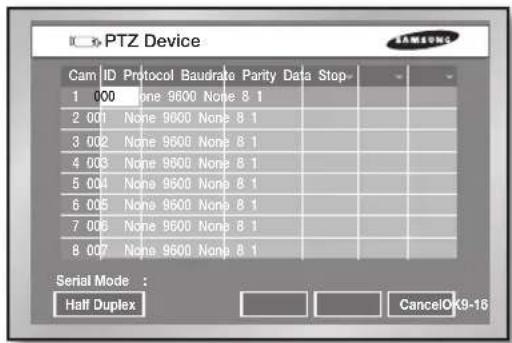
text_image
PTZ Device Cam ID Protocol Baudrate Parity Data Stop 1 000 None 9600 None 8 1 2 001 None 9600 None 8 1 3 002 None 9600 None 8 1 4 003 None 9600 None 8 1 5 004 None 9600 None 8 1 6 005 None 9600 None 8 1 7 006 None 9600 None 8 1 8 007 None 9600 None 8 1 Serial Mode : Half Duplex CancelOK9-16• ID
ID for PTZ camera. It can have any number among 0 to 255.
- Protocol
Protocol that is supported by the PTZ device. Available protocols are Samsung, Vic., Pan., AD, Phi., Ern., Pel-D, Pel-P, Vcl., Dia., Kal., and Tech.
- Baudrate
Available baud rates are 600, 1200, 2400, 4800, 9600, 19200, and 38400.
- Parity
Select one of None, Even, and Odd.
- Data
Select 7 or 8 for data bit.
- Stop
Select 1 or 2 for stop bit.
- Serial Mode
Select Half Duplex or Full Duplex for data exchanging method.

In case of SHR-5082/5080, only 8 channels are displayed.

The above setting values must be the same as the ones of the PTZ device. For more details, please refer to the user manual for the PTZ device.
Screen Setup
It is used to set the brightness, contrast, and color for the camera image of each channel.
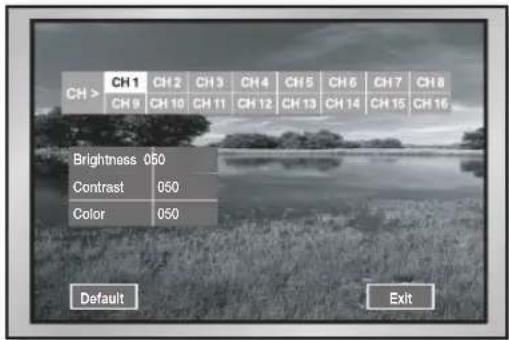
text_image
CH > CH1 CH2 CH3 CH4 CH5 CH6 CH7 CH8 CH9 CH10 CH11 CH12 CH13 CH14 CH15 CH16 Brightness 050 Contrast 050 Color 050 Default ExitPlace the cursor on the channel that you want to set the values for brightness, contrast, and color. When a channel is selected, its image appears on the right. For selection, press the ENTER button. Use the UP/DOWN direction buttons to change the value from 0 to 100.
When Default is selected, the value 50 is to be assigned for each item of the selected channel.

In case of SHR-5082/5080, only 8 channels are displayed.
MONITORING
You can configure the monitoring-related settings.
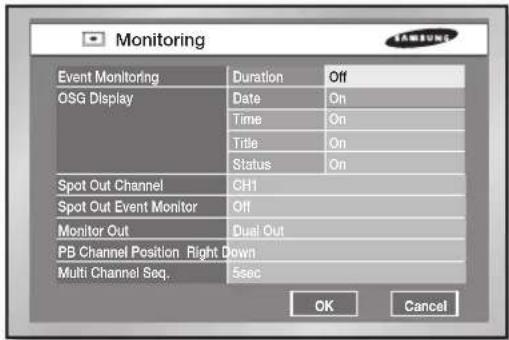
text_image
Monitoring Event Monitoring Duration Off OSG Display totals On Time On Title On Status On Spot Out Channel CHI Spot Out Event Monitor Off Monitor Out Dual Out PB Channel Position Right Down Multi Channel Seq. 5sec OK Cancel• Event Monitoring
You can select any of Off, 3sec, 5sec, 10sec, 20sec, 30sec, and Continuous.
- Off: Event monitoring does not work.
- 3sec, 5sec, 10sec, 20sec, and 30sec: Sets the screen duration period in the Auto Sequence (or auto sequence) mode.
- Continuous: The event monitoring screen remains alive until you press the ALARM button.
- OSG Display
- Date: The date is displayed on the screen when it is set to On.
- Time: The time is displayed on the screen when it is set to On.
- Title: The camera name is displayed on the screen when it is set to On.
- Status: Recording and event information, Audio sign, and PTZ sign are displayed on the screen when it is set to On.
- Spot Out Channel
This is used to monitor a specific channel by connecting a monitor to the SPOT jack on the rear of the product. When you are using two monitors, one monitor can be set for spot out monitoring. This provides two kinds of functions: Displaying the spot out channel only and auto sequencing of all channels.
- Auto sequence setup ranges from Ch 1 to Ch 16.
- In the auto sequence mode, channels are changed in turn.
- Duration period for auto sequence is the same as the one set in Camera Setup.
- Spot Out Event Monitor
This is set for monitoring events from multiple channels.
- Off: The event monitoring does not operate in the Spot Out channel.
- 3sec, 5sec, 10sec, 20sec, and 30sec: Sets the screen duration period in the Auto Sequence mode.
- Continuous: Once the event monitoring starts, the screen remains alive until you press the ALARM button.
- Monitor Out
Video output methods can be selected from Composite, VGA, and Dual output modes. System restarts after changing the Video output methods.
- Composite video output: transfers the composite output signal.
- VGA video output: transfers VGA output signal.
- Dual video output: both the Composite and VGA video outputs are available to use.
• PB Channel Position
You can designate the playback (PB) channel location in 9-split mode.
Right Down: The playback channel is displayed at the lower right side of the screen. Center: The playback channel is displayed in the center of the screen.
- Multi Channel Seq.
You can set the Auto Sequence interval for split screens. Available intervals are 3, 5, 10, 20, and 30 seconds.

[Video Out]
You may experience low display quality while the dual video output is in use. In this case, please switch it to the composite or VGA video output. VGA video output port is not available while the composite video output is set to use and vice versa.
If the MODE and ZOOM buttons are pressed and hold for 5 seconds, the system restarts while alarming beep sound. The LED blinks while restarting and the video output mode is changed. (Composite output VGA output).
• VGA output: 640x480 (60Hz)
RECORD MODE
The detailed list for record mode settings is as follows:
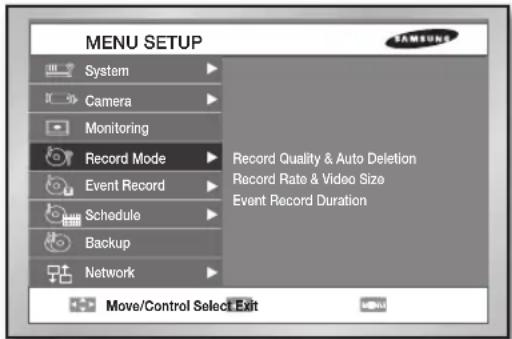
text_image
MENU SETUP System Camera Monitoring Record Mode Event Record Schedule Backup Network Record Quality & Auto Deletion Record Rate & Video Size Event Record Duration Move/Control Select ExitRecord Quality & Auto Deletion
text_image
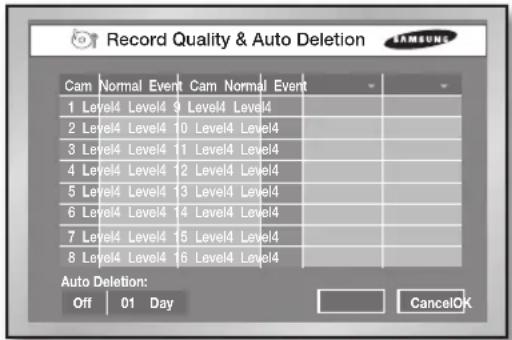
Record Quality & Auto Deletion Cam Normal Event Cam Normal Event 1 Level4 Level4 9 Level4 Level4 2 Level4 Level4 10 Level4 Level4 3 Level4 Level4 11 Level4 Level4 4 Level4 Level4 12 Level4 Level4 5 Level4 Level4 13 Level4 Level4 6 Level4 Level4 14 Level4 Level4 7 Level4 Level4 15 Level4 Level4 8 Level4 Level4 16 Level4 Level4 Auto Deletion: Off 01 Day CancelOK- Record Quality
You can set the recording picture quality selecting of Level8(High) \~ Level1(Low).
- Auto Deletion
If you select On, you can set the number of days for access restriction. If it is set to 3, you cannot search the data recorded at the time less than 3 days before.

In case of SHR-5082/5080, only 8 channels are displayed.
Record Rate & Video Size
NTSC
text_image
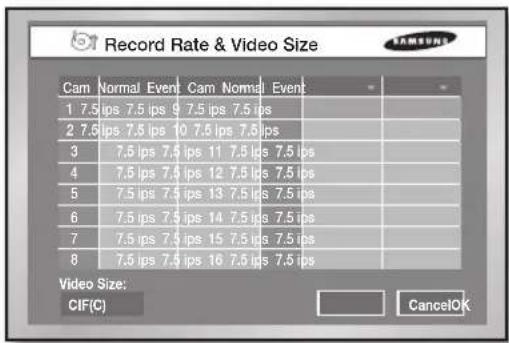
Record Rate & Video Size Cam Normal Event Cam Normal Event 1 7.5 ips 7.5 ips 9 7.5 ips 7.5 ips 2 7.5 ips 7.5 ips 10 7.5 ips 7.5 ips 3 7.5 ips 7.5 ips 11 7.5 ips 7.5 ips 4 7.5 ips 7.5 ips 12 7.5 ips 7.5 ips 5 7.5 ips 7.5 ips 13 7.5 ips 7.5 ips 6 7.5 ips 7.5 ips 14 7.5 ips 7.5 ips 7 7.5 ips 7.5 ips 15 7.5 ips 7.5 ips 8 7.5 ips 7.5 ips 16 7.5 ips 7.5 ips Video Size: CIF(C) CancelOKPAL
text_image
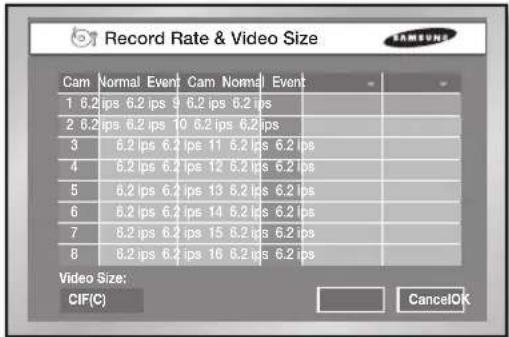
Record Rate & Video Size Cam Normal Event Cam Normal Event 1 6.2 ips 6.2 ips 9 6.2 ips 6.2 ips 2 6.2 ips 6.2 ips 10 6.2 ips 6.2 ips 3 6.2 ips 6.2 ips 11 6.2 ips 6.2 ips 4 6.2 ips 6.2 ips 12 6.2 ips 6.2 ips 5 6.2 ips 6.2 ips 13 6.2 ips 6.2 ips 6 6.2 ips 6.2 ips 14 6.2 ips 6.2 ips 7 8.2 ips 6.2 ips 15 8.2 ips 6.2 ips 8 8.2 ips 6.2 ips 16 8.2 ips 6.2 ips Video Size: CIF(C) CancelOKWhen you press the RECORD button, the record-related settings are applied.
• IPS (Images per second)
You can set the image recording speed using this unit. This rate indicates how many images are recorded per second.
With NTSC, you can select any of 30, 15, 7.5, 3.7, 1.8, 0.9 ips, and Off. In case of PAL, you can select any of 25, 12.5, 6.2, 3.1, 1.5, 0.7 ips, and Off.
• Available IPS limits vary depending on the number of Video On cameras. Video On/Off settings are enabled in Camera Configuration.
- If the resolution is set to CIF (Common Intermediate Format) and the number of Video On cameras is 9 to 16, the IPS limit is 7.5 ips for NTSC and 6.2 ips for PAL.
-
If the resolution is set to CIF and the number of Video On cameras is 5 to 8, the IPS limit is 15 ips for NTSC and 12.5 ips for PAL.
-
If the resolution is set to CIF and the number of Video On cameras is 1 to 4, the IPS limit is 30 ips for NTSC and 25 ips for PAL.
- If the resolution is set to Half D1 and the number of Video On cameras is 9 to 16, the IPS limit is 3.7 ips for NTSC and 3.1 ips for PAL.
- If the resolution is set to Half D1 and the number of Video On cameras is 5 to 8, the IPS limit is 7.5 ips for NTSC) and 6.2 ips for PAL.
- If the resolution is set to Half D1 and the number of Video On cameras is 1 to 4, the IPS limit is 15 ips for NTSC and 12.5 ips for PAL.
- Video Size
Select any of CIF and Half D1 (Half the horizontal resolution is sampled).

In case of SHR-5082/5080, only 8 channels are displayed.
Event Record Duration
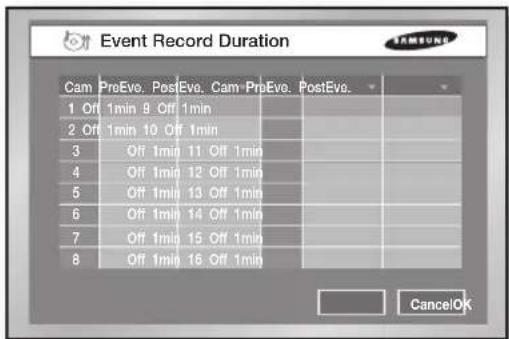
You can set the duration for event recording.
text_image
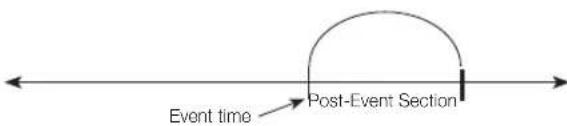
Pre-Event Section Event timeIf the time is set in this field, it records the image from the time before an alarm to the event time. Available values are Off, 5, 10, 20, and 30sec.
- PostEve.
text_image
Event time Post-Event SectionIf the time is set in this field, it records the image from the event time to the time after an alarm. Available values are Off, 5, 10, 20, 30sec, 1min, 3min, 10min, and 20min.
EVENT RECORD MODE
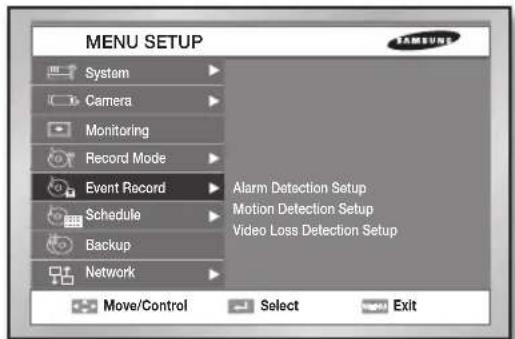
The detailed list for event mode settings is as follows:
text_image
MENU SETUP System Camera Monitoring Record Mode Event Record Schedule Backup Network Alarm Detection Setup Motion Detection Setup Video Loss Detection Setup Move/Control Select ExitAlarm Detection Setup
text_image
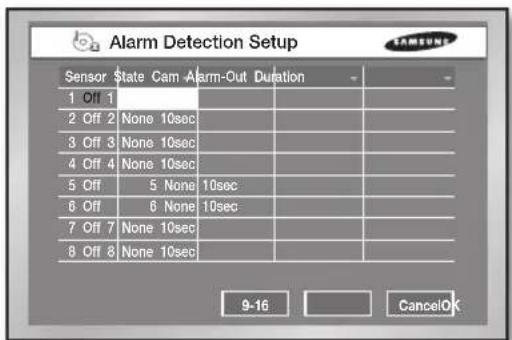
Alarm Detection Setup Sensor State Cam Alarm-Out Duration 1 Off 1 2 Off 2 None 10sec 3 Off 3 None 10sec 4 Off 4 None 10sec 5 Off 5 None 10sec 6 Off 6 None 10sec 7 Off 7 None 10sec 8 Off 8 None 10sec 9-16 CancelOK- Sensor State
- Off: Sensor does not operate.
- N.O (Normal Open): Sensor remains open all the time. But if it gets closed, an alarm is issued. (A Contact)
- N.C (Normal Close): Sensor remains closed all the time. But if it gets open, an alarm is issued. (B Contact)
• Cam
It is used to set a camera that synchronizes with the current sensor. The default setting follows the sensor number. A sensor can synchronize with multiple cameras so multiple values can be selected.
You can set a preset for each camera to synchronize sensors with cameras. If a sensor triggers the corresponding camera, the camera can show you the preset location.
- Alarm-Out
It is used to set the Alarm-Out location when any alarm occurs. Currently 5 Alarm Outs are available. Select an alarm-out to synchronize with the current sensor. But multiple values can be selected.
- Duration
It is used to set the Alarm-Out duration. When an alarm occurs, the alarm is output for the preset time. You can select any of Off, 3sec, 5sec, 10sec, 20sec, 30sec, and Continuous.

In case of SHR-5082/5080, only 8 channels are displayed.
Motion Detection Setup
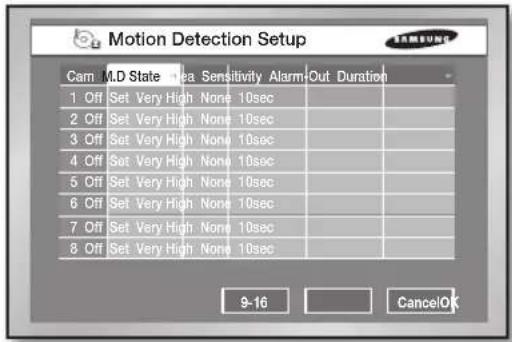
You can configure the motion detection related settings. When the detection area is set, the system detects any motion in that area.
text_image
Motion Detection Setup Cam M.D State Area Sensitivity Alarm Out Duration 1 Off Set Very High None 10sec 2 Off Set Very High None 10sec 3 Off Set Very High None 10sec 4 Off Set Very High None 10sec 5 Off Set Very High None 10sec 6 Off Set Very High None 10sec 7 Off Set Very High None 10sec 8 Off Set Very High None 10sec 9-16 CancelOK• M.D State
- Off: Motion detection does not operate.
- On: Motion detection is active.
- Area
This is used to set the motion detection area. It is not allowed to set 4 extreme rows (Up, Down, Left, Right) because the display boundary regions can vary according to the monitor specification.
- Select All: Selects the whole area.
- Select One: Selects a block unit for each time.
- Select Quarter: Selects a quarter unit of the screen for each time.
- Clear All: Clears the whole selection.
- Save & Exit: Saves the setting and exits.
- Exit: Exits without saving.
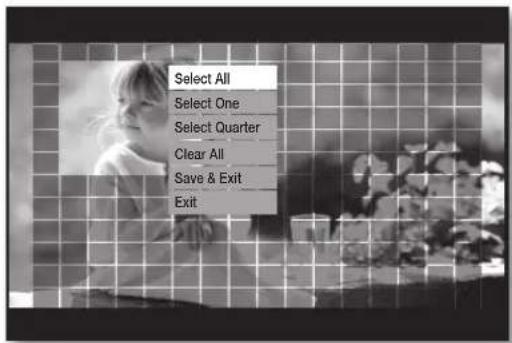
text_image
Select All Select One Select Quarter Clear All Save & Exit Exit- Sensitivity
This is used to set the sensitivity for motion detection. Available values are Low, Medium, and Very High.
- Alarm-Out
It is used to set the Alarm-Out location when any alarm occurs. Currently 4 Alarm Outs are available. Select an alarm-out to synchronize with the current sensor. But multiple values can be selected.
- Duration
It is used to set the Alarm-Out duration. When an alarm occurs, the alarm is output for the preset time. You can select any of Off, 3sec, 5sec, 10sec, 20sec, 30sec, and Continuous.

In case of SHR-5082/5080, only 8 channels are displayed.
Video Loss Detection Setup
You can configure the video loss related settings. If any video loss is detected, the corresponding alarm will be issued.
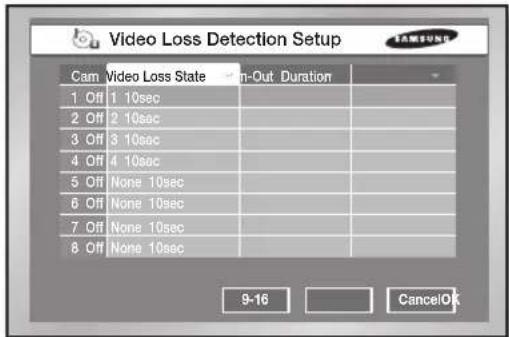
text_image
Video Loss Detection Setup Cam Video Loss State Cam-Out Duration 1 Off 1 10sec 2 Off 2 10sec 3 Off 3 10sec 4 Off 4 10sec 5 Off None 10sec 6 Off None 10sec 7 Off None 10sec 8 Off None 10sec 9-16 CancelOk• Video Loss State
- Off: Video loss detection does not operate. - On: Video loss detection is active.
- Alarm-Out
It is used to set the Alarm-Out location when any video loss is detected. Currently 4 Alarm Outs are available.
- Duration
It is used to set the Alarm-Out duration. When an alarm occurs, the alarm is output for the preset time. You can select any of Off, 3sec, 5sec, 10sec, 20sec, 30sec, and Continuous.

In case of SHR-5082/5080, only 8 channels are displayed.
SCHEDULE
You can configure the scheduling-related settings here.
Record Schedule
The scheduling is enabled by selecting days and time blocks. The default setting is Event Recording. Recording automatically starts according to the schedule.
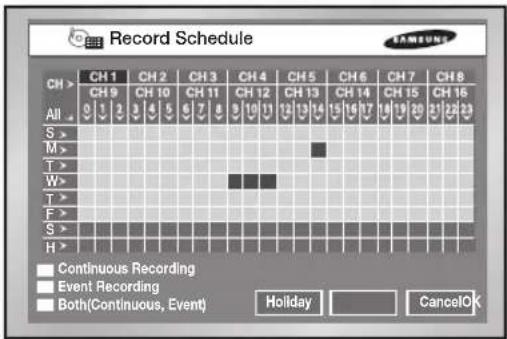
text_image
Record Schedule CH > CH 1 CH 2 CH 3 CH 4 CH 5 CH 6 CH 7 CH 8 CH 9 CH 10 CH 11 CH 12 CH 13 CH 14 CH 15 CH 16 All 0 1 2 3 4 5 6 7 8 9 10 11 12 13 14 15 16 17 18 19 20 21 22 23 S > M > T > W > T > F > S > H > Continuous Recording Event Recording Both(Continuous, Event) Holiday CancelOK- CH >: Copies the value of Channel 1 to all the channels after this is pressed.
• 0 to 23: Time values for horizontal row.
• S to H: Days (Sunday to Saturday) and Holiday (H).
- ALL: Press this and it changes the overall settings in the current window to Continuous, Event Record, and Both in order.
• Continuous Recording
Recording follows the settings configured in Record Mode. For furthermore information, see "Schedule Recording" in Chapter 7. It is displayed in yellow, while the event recording is displayed in blue and both recording in red. When nothing is assigned, it is displayed in gray.
• Event Recording
Recording automatically starts when an event (alarm, motion detection, and video loss) occurs within a setup time. Recording follows the settings configured in Event Record. For more information, see "Event Recording" in Chapter 7.
• Both(Continuous, Event)
Both recordings are applied at the same time.
- Holiday
If you press Holiday, a calendar window appears for you to designate holidays. Place the cursor to a date and press the ENTER button, then you can set the date or Nth day of the month as a holiday. (You can also set both options as holidays
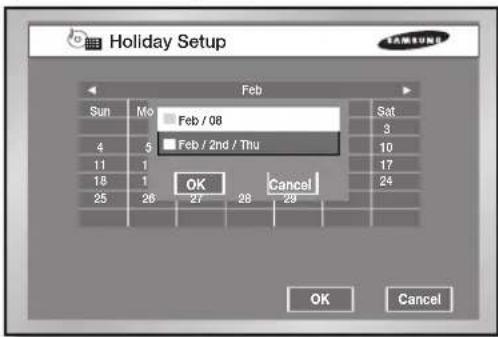
text_image
Holiday Setup Sun Mo Feb / 08 Sat 4 5 Feb / 2nd / Thu 3 11 1 17 18 1 OK Cancel 24 25 26 27 28 29 OK Cancel
In case of SHR-5082/5080, only 8 channels are displayed.
Alarm Out Schedule
You can schedule the automatic output for alarms.
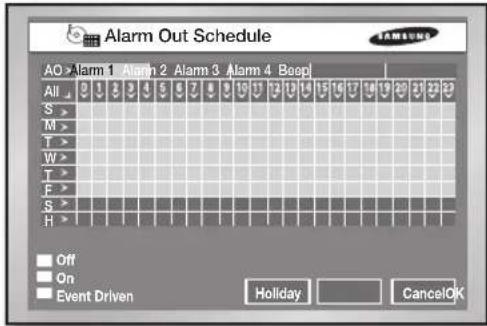
text_image
Alarm Out Schedule AO > Alarm 1 Alarm 2 Alarm 3 Alarm 4 Beep All S > M > T > W > T > F > S > H > Off On Event Driven Holiday CancelOKThe scheduling is enabled by selecting alarms, days and time blocks. The default setting is Event Driven. For each alarm or beep, you can activate or deactivate alarming. In case of Event Driven, the alarm can be sent only when an event is issued.
- AO >: It indicates Alarm Out. All alarms are changed according to Alarm1 when it pressed.
• 0 to 23: Time values for horizontal row.
• S to H: Days (Sunday to Saturday) and Holiday (H). - ALL: Press this and it changes the overall settings in the current window to Off, On, and Event Driven.
- Off: Sets not to issue an alarm during the setting time.
- On: Sets to issue an alarm during the setting time.
- Event Driven: Sets to issue an alarm when an event occurs during the setting time.
- Holiday
If you press Holiday, a calendar window appears for you to designate holidays. Place the cursor to a date and press the ENTER button to complete designation. (When pressing the ENTER button again, the setting is cancelled.)
NETWORK
You can configure the network related settings for network connection.
IP Settings
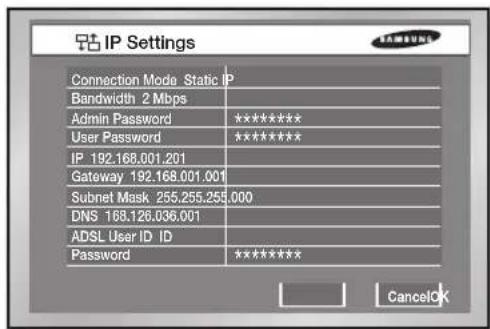
text_image
IP Settings Connection Mode Static IP Bandwidth 2 Mbps Admin Password ***** User Password ***** IP 192.168.001.201 Gateway 192.168.001.001 Subnet Mask 255.255.255.000 DNS 168.126.036.001 ADSL User ID ID Password ***** Cancel OK- Connection Mode
Select a network type that is connected to the main body of the product.
- Static IP: When the main body is connected to the network using the static IPs.
- Dynamic IP: When the main body is connected to the network using the dynamic IPs supplied by DHCP.
- ADSL(PPPoE): When the main body is connected to the ADSL network using Point-to-Point Protocol over Ethernet (PPPoE).
- Bandwidth
Select a network speed among Unlimited, 2 Mbps, 1.5 Mbps, 1 Mbps, 800 Kbps, 600 Kbps, 500 Kbps, 400 Kbps, 300 Kbps, and 128 Kbps. If the connection is made via ADSL, you can only select the bandwidth of 600 kbps or less.
- Admin Password
It is used for connection between Smart Viewer and this product using the Admin privilege. The password can be input up to 8 digits. Press the ENTER button and type the numbers you want using the NUMERIC buttons. The default Admin password is "4321."
- User Password
It is used for connection between Smart Viewer and this product using the user privilege. The password can be input up to 8 digits. Press the ENTER button and type the numbers you want using the NUMERIC buttons. The default user password is "4321."
With the user privilege, you cannot access to both Menu Setup window in DVR and DVR Setup screen in Smart Viewer.

-
If the main body of the product is connected to a high-speed network like LAN, it is recommended to set the higher bandwidth than 1 Mbps.
-
If the device is connected to a network using ADSL or low bandwidth, set the bandwidth not to exceed 600Kbps, and set the recording mode not to exceed CIF (standard). Setting up to a higher bandwidth or higher recording mode for the network environment supporting a low bandwidth may cause a network overload, therefore the connection to Smart Viewer or image monitoring may not operate properly.
-
When the connection mode is set to ADSL, the bandwidth is fixed to 300Kbps.
• IP
Set the IP address for the main body of the product for connecting to the network. If the connection mode is set to Static IP, type the IP address. If the connection mode is Dynamic IP or ADSL(PPPoE), the IP address allocated by the DHCP server or ADSL company automatically appears. In case of DHCP or ADSL connection failure, the value "000.000.000.000" is displayed. Then, press OK to retry connection for getting the IP address. If the connection failure continues, turn off the power for a while and reboot the system for retry.
- Gateway
In case of Static IP, set the gateway address assigned. With Dynamic IP or ADSL, the address is automatically allocated.
- Subnet Mask
Set the subnet mask address assigned.
• DNS
Set the DNS address. The default value is "168.126.63.1." If you have hard time to connect to the network when you are using DHCP or ADSL, contact the network manager or ADSL company personnel to set up a new DNS address.
- ADSL User ID
If the product is connected to the ADSL network, input the user ID subscribed to the ADSL company. You can input the user ID using the virtual keyboard up to 40 letters irrespective of alphabets, numbers, and symbols.
- Password
If the product is connected to the ADSL network, input the user password subscribed to the ADSL company. You can input the password using the virtual keyboard up to 40 letters irrespective of alphabets, numbers, and symbols.

CAUTION
In case of ADSL, the audio is not played on Smart Viewer. Be sure to set the IP, port, Subnet mask, gateway, and DNS to make Smart Viewer connected to the product. Wrong settings may result in not being connected to the product. Please contact the network manager or ADSL company personnel to get the correct setting values.
Transfer Protocol Settings
You have to configure the data transfer protocol related settings to use network for transferring data.
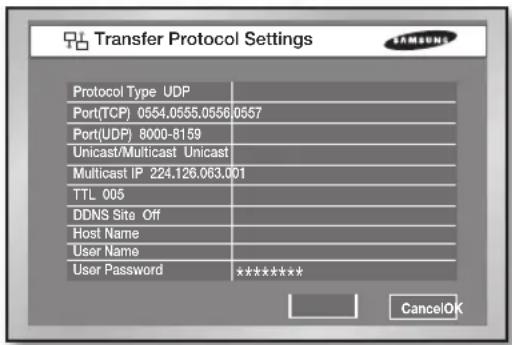
text_image
Transfer Protocol Settings Protocol Type UDP Port(TCP) 0554.0555.0556 0557 Port(UDP) 8000-8159 Unicast/Multicast Unicast Multicast IP 224.126.063.001 TTL 005 DDNS Site Off Host Name User Name User Password ***** CancelOK- Protocol type.
Select any of TCP and UDP. If you have selected ADSL in IP Setup, only TCP is available. In this case, audio transmission is not available.
- Port(TCP)
Select a number ranging from 554 to 2046 using the UP/DOWN direction buttons and the port number will change by 4. Once the first port number is determined, the following 3 numbers will change.
- Port(UDP)
Select a number ranging from 8000 to 9760 using the UP/DOWN direction buttons and the port number will change by 160. Once the first number is determined, the following number will change.
- Unicast/Multicast
Select any of Unicast and Multicast. Unicast is set by default. When you select Multicast, the multicast IP is activated and you can input the address ranging from 224.0.0.0 to 239.255.255.255 using the UP/DOWN direction buttons.
• TTL
Enter a number ranging from 0 to 255. You can input it only when Multicast is selected. The default value is "5."
- DDNS Site
Select a DDNS site. This DDNS setup is necessary to see the monitoring screens from the remote computer that is running Smart Viewer. Available values are Off, Samsung DDNS, dyndns.com, no-ip.com, and changeip.com. If you select Off, the IP will not be registered in DDNS.
- If you select Samsung DDNS, register the TCP IP in DDNS that is operated by Samsung. To configure the DDNS-related settings in Smart Viewer, select Setup >
Site Setup > DVR Registration and set the address type with MAC Address, and then register the MAC address that is displayed in the System Information and Setup menu. (or you can get the Ethernet address on the side label attached on the product.) - Using the free public DDNS web sites such as dyndns.com, no-ip.com, and changeip.com, you can acquire an URL by registering a dynamic IP. After this action completes, enter the host name, user name, and password in this window.

- If you set up the public DDNS (dyndns.com, no-ip.com, or changeip.com), it will take approximately 30 to 60 seconds to get the IP address for the host name (URL) to be updated in the DNS.
- To connect this product to an IP router, you have to designate a port for this product in the setup menu of the router. This product has 4 ports for TCP communication. To use the DHCP function provided by the IP router to allocate the dynamic IP to the product, designate a port for the IP that has been allocated by the IP router setup menu. When using the IP router, it is recommended to use the fixed IP. For that purpose, set the IP address and port number to be allocated to the product, select Static IP in the connection mode and enter the IP address assigned to the IP router. For more information about using the IP router, see the user manual of the IP router or contact the manufacturer.
Callback Settings
This configuration is used to forward the callback messages to the IP where Smart Viewer is running. When any alarm, motion, or video loss events occur, the system automatically connects to the corresponding DVR to show the callback messages.
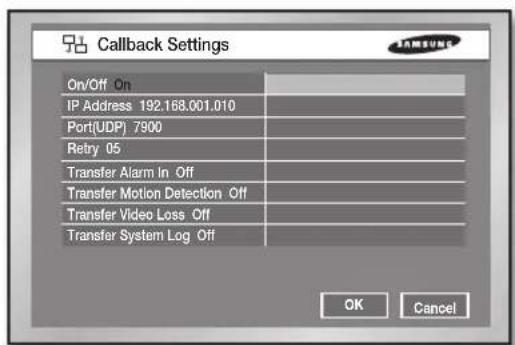
text_image
Callback Settings On/Off On IP Address 192.168.001.010 Port(UDP) 7900 Retry 05 Transfer Alarm In Off Transfer Motion Detection Off Transfer Video Loss Off Transfer System Log Off OK Cancel- On/Off: Off is default. To use the callback function, choose On.
- IP Address: Use the UP/DOWN direction buttons to set the TCP IP address of the PC where Smart Viewer is running.
- Port(UDP): Use the UP/DOWN direction buttons to set a port number ranging from 7900 to 7999. The number changes by 1. You have to also set the port value in the Callback Connection menu for Smart Viewer setup.
- Retry: Select a number ranging from 1 to 20. The number changes by 1.
- Transfer Alarm In: Set it to On to display alarms on Smart Viewer.
-
Transfer Motion Detection: Set it to On to display motion detection events on Smart Viewer.
-
Transfer Video Loss: Set it to On to display video loss events on Smart Viewer.
- Transfer System Log: Set it to On to display system logs such as critical system failures.

Even if this function is set to On, any callback message will not be created unless the settings for alarm, motion detection, and video loss are set in Event Record.
To get the callback messages from Smart Viewer, click Callback.
Transfer Picture Settings
You can configure the video size and quality for transferring pictures.
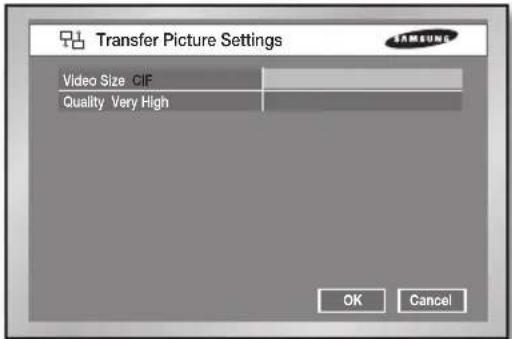
text_image
Transfer Picture Settings Video Size: GIF Quality: Very High OK Cancel• Video Size: Select any of CIF and Half D1.
• Quality: Select any of Very High, High, Standard, and Low.
Web Viewer Port Setting
You can configure the port number for Web Viewer.
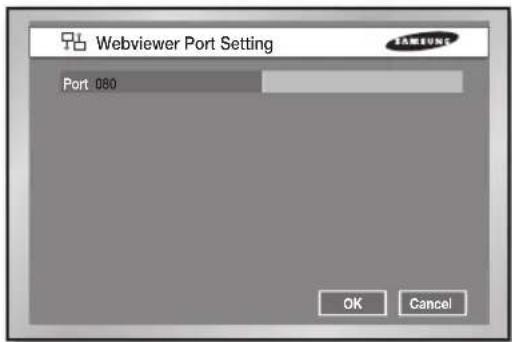
text_image
Webviewer Port Setting Port: 080 OK Cancel• The available ports are those from 80 through 60080.
- If you set the port number instead of 80(default), it is needed to type the port number into the address bar of the Web browser. (e.g. http://218.209.27.130:500)
CONFIGURING NETWORK
Port configuration for connecting Smart Viewer
- To set the TCP port for DVR registration into Smart Viewer, the value should be the same as that of this product.
- To use the IP router, you must forward the activated ports.
- For TCP, set the assigned 4 ports in the IP Router.
- For UDP, set the assigned 4 TCP ports and 160 UDP ports that is set in the IP Router.
In case of TCP transfer protocol
The ports allocated to the TCP will be used for connection control and stream transfer of Smart Viewer.
In case of UDP transfer protocol
- The TCP ports will be used for Smart Viewer connection and the UDP ports will be used for stream transfer.
- When Multicast is set
- Both MultiCast IP and TTL fields are activated.
- MultiCast IP is the group address (D-Class IP Address: 224.0.0.0 to 239.255.255.255) for multicast transfer.
- TTL(Time To Live) indicates how many routers will pass for multicast transfer.
- When you are not allowed to use multicast through the Network (LAN or ADSL) as both Set and Smart Viewer are installed, the message, "Not Connected" will be displayed on the Smart Viewer screen. Please change it to the setting for TCP or UDP.
- Poor image problem in Smart Viewer
- When the bandwidth of the network is smaller than the quantity of transfer stream packets, the displayed image is sometimes poor. Set the bandwidth in IP Settings to the value lower than the current setting. (In case of ADSL, it is recommended to set 300Kbps or 600Kbps for the bandwidth.)
- If this effort is of no use, change the protocol type to TCP.
If there is a predefined device connected, the window displays the device information like the free space and such. You can also use the BACKUP button on the front of your DVR.
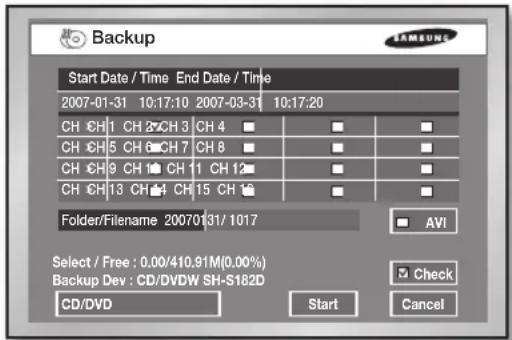
text_image
Backup Start Date / Time End Date / Time 2007-01-31 10:17:10 2007-03-31 10:17:20 CH CH 1 CH 2 CH 3 CH 4 □ □ □ CH CH 5 CH 6 CH 7 CH 8 □ □ □ CH CH 9 CH 10 CH 11 CH 12 □ □ □ CH CH 13 CH 14 CH 15 CH 16 □ □ □ Folder/Filename 20070/31/1017 Select / Free : 0.00/410.91M(0.00%) Backup Dev : CD/DVDW SH-S162D CD/DVD Start CancelTo configure the related settings
- Set the start date and time using the Direction buttons and the ENTER button.
-
Set the end date and time using the Direction buttons and the ENTER button.
-
Select a channel for backup using the Direction buttons and the ENTER button.
-
Optional: If you want to change the current file name, use the virtual keyboard. The file name format is HHMM (maximum 4 digits) and the format of folder is YYYYMMDD.
-
When multiple devices are connected, press USB Memory at the bottom-left corner to select a backup device. If you select the built-in CD or USB CD/DVD, the recording format is fixed to AVI. When Check is selected, the file size of the selected time and channel, and residual memory size of the device are displayed.
-
When all settings are complete, press Start to begin the backup process. When the backup starts, the backup progress is displayed. If you select Stop on the progress window, the backup stops. If you select Exit, the screen changes to the upper menu without stopping the backup.

In case of SHR-5160 and SHR-5080, they do not include the built-in DVD writer so that backup function is not available for built-in CD/DVD.

[In Backup Process] If you press Exit while the backup is in progress, the screen goes to the upper menu but it does not affect the backup process. The running speed of the product may be lowered while the backup is in progress. When performing backup on USB CD/DVD or memory, you cannot use the actual capacity of the device because a part of the capacity is used for the system. This device doesn't support the backup for memory cards, flash cards, and memory sticks such as SD, CF, MMC, etc. The virtual keyboard does not support the input of special characters or space. When the CD or DVD is malfunctioning, its tray frequently opens and closes, and then the backup fails. In this case, retry the backup after exchanging the media.

The backup data could be damaged by the surface state of the disk when using CD or DVD. The DVR may restart if you attempt to eject the backup device while the backup is in progress.

The file name is created with the start time of backup data. (YYYYMMDD)/(HHMM+ four digits of the serial number)
The backup file can be separated in the following conditions:
- Different units in file size (1GB for DVD, 2GB for others)
- Change in recording conditions
- Discontinuous recording data
Codec is required to play an AVI backup file, which is also copied along with the installation file in the AVI backup process. Run a codec setup file, "MP4Codec.exe", to install the codec on the PC. "INDEX.xml" is included in the AVI backup file, which enables you to check and enjoy a desired file at your convenient time. In case of USB external HDD and USB Flash Memory, the backup is available only with formatting FAT32 partition. To format FAT32, Format the device as FAT32 in the PC or erase the device in the Storage Setup menu, which enable to backup files.
In case of back-up devices, please check the compatibility list of the storage devices. The list of the compatible devices with Samsung DVR can be obtained from your vendor.
The backup of the AVI format may take longer depend on a number of the channel and the DVR operation environment (e.g. recording, network)

In case of SHR-5082/5080, only 8 channels are displayed.
PTZ camera control
PTZ CAMERA CONTROL MODE
You have to check that proper PTZ camera settings are allocated for PTZ device setup in the Camera menu.
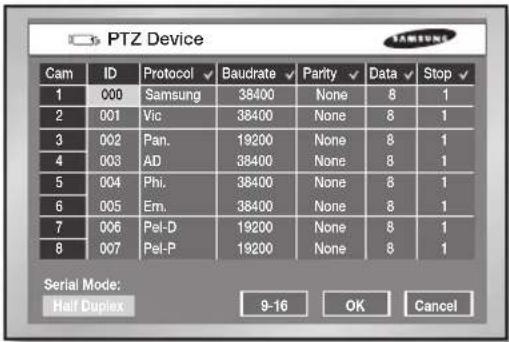
text_image
PTZ Device Cam ID Protocol ✓ Baudrate ✓ Parity ✓ Data ✓ Stop ✓ 1 000 Samsung 38400 None 8 1 2 001 Vic 38400 None 8 1 3 002 Pan. 19200 None 8 1 4 003 AD 38400 None 8 1 5 004 Phi. 38400 None 8 1 6 005 Em. 38400 None 8 1 7 006 Pel-D 19200 None 8 1 8 007 Pel-P 19200 None 8 1 Serial Mode: Half Duplex 9-16 OK Cancel
In case of SHR-5082/5080, only 8 channels are displayed.
When the PTZ configuration is complete, the PTZ sign (PTZ) appears on the live screen.
- If you press the ENTER button in the split screen, a blue bar appears for selection handling. Use the Direction buttons to move this bar until you reach the channel having the PTZ sign, and press the PTZ button on the front panel or remote control to enter the PTZ Camera Control Mode. In PTZ Camera Control Mode, the color of the PTZ sign changes to yellow from white. In this mode, you can pan and tilt the camera, and zoom in the screen.
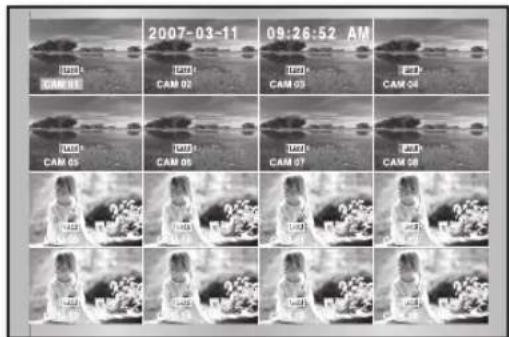
text_image
2007-03-11 09:26:52 AM CAM 01 CAM 02 CAM 03 CAM 04 CAM 05 CAM 06 CAM 07 CAM 08
- Another PTZ camera control is executed in a single screen. Press the channel number button on the front panel or remote control to select the PTZ-enabled channel and press
the PTZ button. In Single Screen PTZ Camera Control Mode, the PTZ sign changes to yellow from white. You can pan and tilt the camera, and zoom in the screen. It also supports the miscellaneous functions like Preset, Camera Menu, and etc.
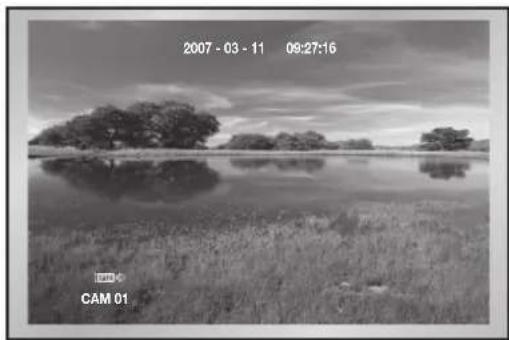
natural_image
Black-and-white landscape photo showing a calm lake with scattered trees and grass, no visible text or symbols.- Press the PTZ button in the live mode to cancel the PTZ camera control function. After cancellation, the PTZ sign on the Auto Sequences to white from yellow.

- You cannot use the PTZ device and remote control device at the same time due to communication problems.
- In PTZ control mode, the PTZ mode of DVR is canceled when the remote control is connected. When the remote control is disconnected, it changes to PTZ mode. Refer to the user manual for the remote control to control the PTZ device using the remote control.
- When using the remote control that is run by Samsung protocol, the direct camera control is enabled.
- If there is no PTZ control activity within maximum 5 minutes, the PTZ mode is automatically cancelled. Then it is controlled by the Smart Viewer.
BASIC PTZ OPERATIONS
When using a remote control, it is possible to control the camera with the remote control run by Samsung protocol. If there is no PTZ control for 5 minutes from the DVR, this mode is automatically cancelled. Then it is controlled by the Smart Viewer.

• PAN
Use the LEFT/RIGHT buttons on the front panel or remote control in PTZ Camera Control Mode to control the camera horizontally.
• TILT
Use the UP/DOWN buttons on the front panel or remote control in PTZ Camera Control Mode to control the camera vertically.
• ZOOM
Press the TELE/WIDE buttons on the front panel or remote control in PTZ Camera Control Mode to zoom in or out the image displayed.
PRESET SETUP
A preset is a specific position of the PTZ camera and you can store the positions up to 20.

For AD Protocol PTZ camera, you can store up to 7 presets only.
To set a preset
- Press the PRESET button on the front panel or remote control in Single Screen PTZ Camera Control Mode ad select Preset.

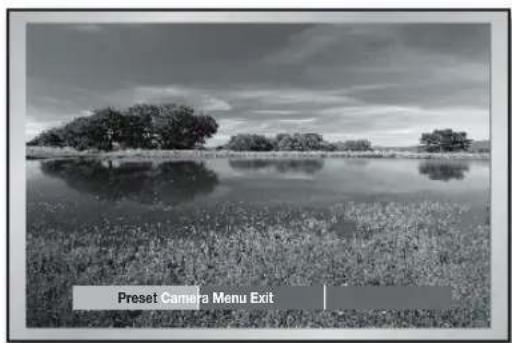
text_image
Preset Camera Menu Exit- Press the ENTER button.
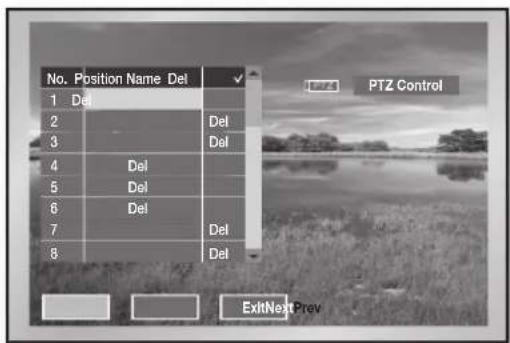
text_image
No. Position Name Del 1 Del 2 Del 3 Del 4 Del 5 Del 6 Del 7 Del 8 Del PTZ Control ExitNext Prev-
Press the RIGHT direction button to move the cursor rightward and press the ENTER button. Now perform the PTZ operations to get the wanted position screen and press the ENTER button again to exit from the PTZ motion mode.
-
Press the ENTER button in the Position Name field to open the virtual keyboard. Now enter the position name using the virtual keyboard and press OK to confirm the input.

If you want to delete both position and position name, select Del that is located in the same row. If you press Del√, all positions and position names are removed.
CAMERA MENU SETUP
The PTZ camera provides its own menu. This menu enables you to define several conditions for PTZ control.

Only the Pan. and Samsung protocol cameras are authorized for this setup.
To move to the menu screen, press the PRESET button on the front panel or remote control in Single Screen PTZ Camera Control Mode.

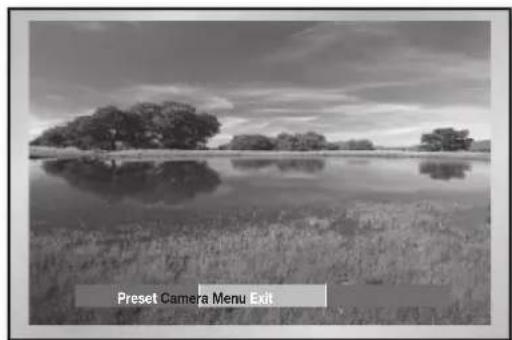
natural_image
Black-and-white landscape photo showing a calm lake with scattered trees and a foreground reflection, labeled 'Preset Camera Menu Exit' at the bottom (no other text or symbols)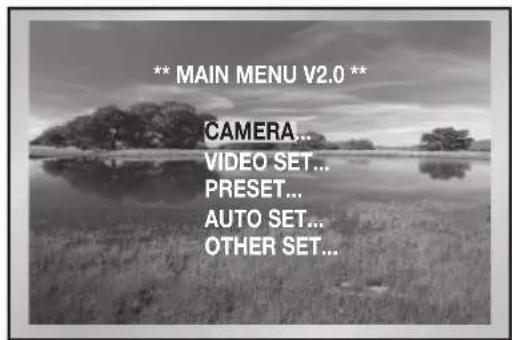
text_image
** MAIN MENU V2.0 ** CAMERA... VIDEO SET... PRESET... AUTO SET... OTHER SET...To return to the upper menu, press the PRESET button.
PRESET VIEW
The preset setup allows you to move to a preset position using the PTZ camera. Press the VIEW button on the front panel or remote control in Single Screen PTZ Camera Control Mode to select Preset.
PTZ
TELE WIDE
VIEW
PRESET
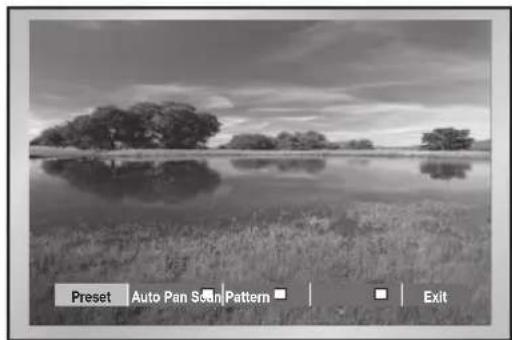
natural_image
Black-and-white landscape photo showing a calm lake reflecting trees, with no visible text or symbols in the main scene.(Example: Samsung Protocol)
Scroll down the cursor until it reaches the preset position that you want and you can check it from the screen to the right.
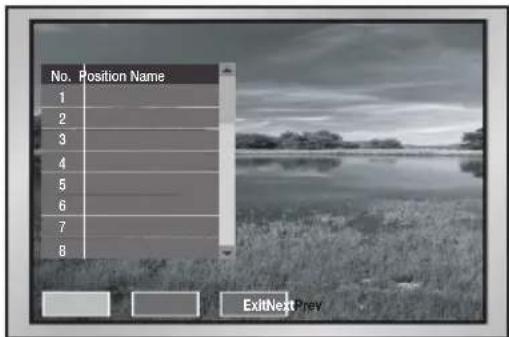
text_image
No. Position Name 1 2 3 4 5 6 7 8 ExitNext PrevOTHER VIEW
Press the VIEW button on the front panel or remote control in Single Screen PTZ Camera Control Mode to use other viewing controls.

Samsung, Pan., Pel.-P, and Pel.-D protocol PTZ cameras support the following operations:
• Samsung: Auto Pan/Scan/Pattern
• Pan.: Auto Pan/Sequence/Sort
- Pel.(P,D): Auto Scan/Frame Scan/Pattern
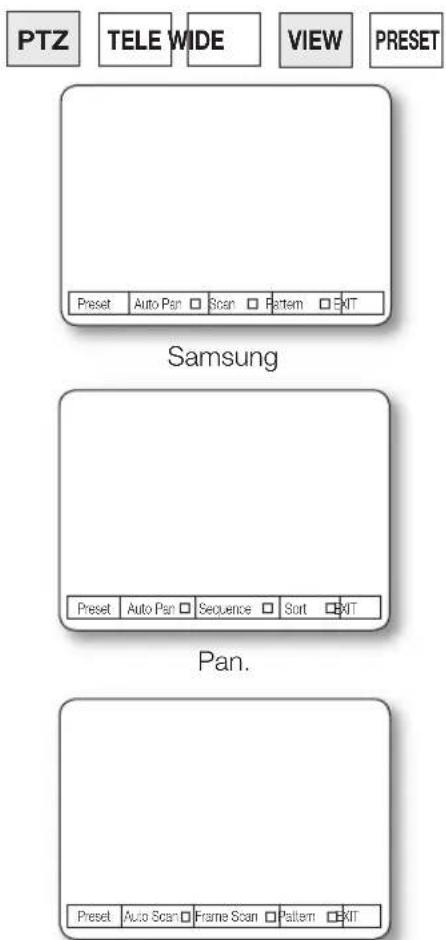
text_image
PTZ TELE WIDE VIEW PRESET Preset Auto Pan Scan Pattern Exit Samsung Preset Auto Pan Sequence Sort Exit Pan. Preset Auto Scan Frame Scan Pattern ExitPel.
After you select an operation, press the ENTER button. Then the selected operation is marked and starts moving. If you select the other operation during operation, the previous operation is unchecked and the selected operation is marked.
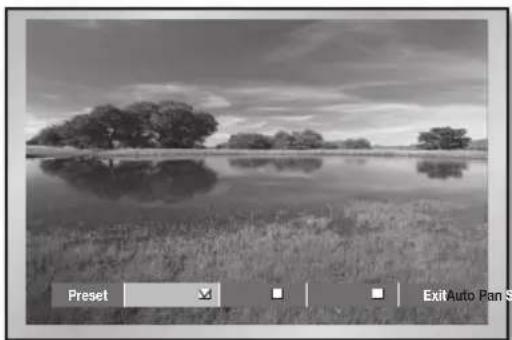
natural_image
Black-and-white landscape photo showing a calm lake reflecting trees, with no visible text or symbols.(For example, Samsung Protocol)
If you perform PTZ operations while an operation is in progress, or enter the Preset Setup or Camera Menu Setup mode, the current operation is stopped and unchecked.
Even though the system is restarted during operation, the set operation starts and remains marked.
REC (NORMAL RECORDING)
Pressing the RECORD button starts recording as set in the Record Mode. Then the REC LED lights and the Recording icon appears on the screen. While recording on HDD is in progress, the HDD LED blinks.
During recording, you can stop it by pressing the RECORD button again. If the recording stops, the REC LED goes out.

If the work that needs to stop the recording (time change, file deletion, HDD connection/disconnection, etc.) is executed during recording, the current recording process stops.
RECORD SCHEDULE
While the Schedule Recording or Schedule/Event Recording is active, the schedule recording automatically starts. When a schedule recording is in progress, the Recording icon appears on the screen.
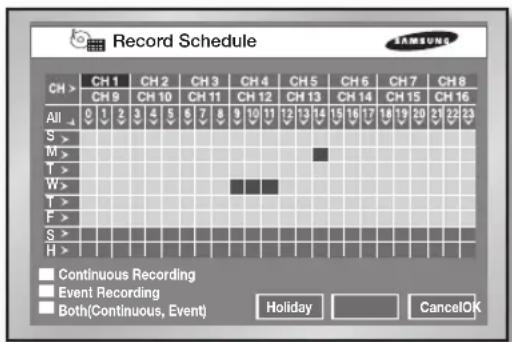
text_image
Record Schedule CH > CH 1 CH 2 CH 3 CH 4 CH 5 CH 6 CH 7 CH 8 CH 9 CH 10 CH 11 CH 12 CH 13 CH 14 CH 15 CH 16 All 0 1 2 3 4 5 6 7 8 9 10 11 12 13 14 15 16 17 18 19 20 21 22 23 S > M > T > W > T > F > S > H > Continuous Recording Event Recording Both(Continuous, Event) Holiday CancelOKIf Event Recording is active, the recording starts at each event. In this case, the recording is executed according to the settings (video size, recording quality, frame rate, pre-alarm, and post-alarm).

Even in case of an event, the event recording does not start when the event recording or schedule/event recording is set together with the schedule recording.

In case of SHR-5082/5080, only 8 channels are displayed.
EVENT RECORDING
The followings are event recording cases:
- Alarm Detection
Recording starts when the sensor state is set to N.O or N.C (MENU SETUP > Event Record > Alarm Detection Setup).
- Motion Detection
Recording starts when the motion detection state is set to On (MENU SETUP > Event Record > Motion Detection Setup).
• Video Loss Detection
Recording starts when the video loss state is set to On (MENU SETUP > Event Record > Video Loss Detection Setup).
• Event Recording Mode
When an event occurs, this configures the recording pattern. When the Pre event is set to On, the system records images before any event. Likewise, when the Post-event is set to On, images are recorded after any event. For more information, refer to page 30, "Event Record Duration"
BEFORE USE
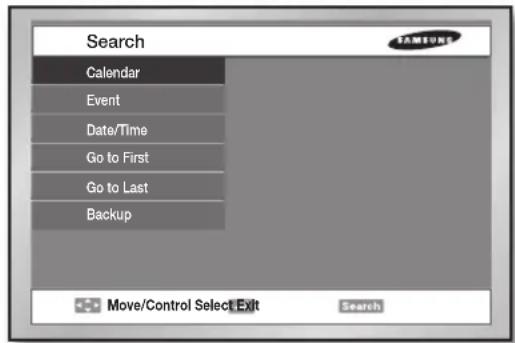
text_image
Search Calendar Event Date/Time Go to First Go to Last Backup Move/Control Select Exit SearchWhen you press the SEARCH button, the Search window appears after user validation checkup. Available menus are like the following:
- Calendar: Searches the recorded video images using the calendar to select the wanted time.
- Event: Searches the recorded video images using events.
- Date/Time: Searches the recorded video images using the input date and time.
- Go To First: Searches the first recorded video image.
- Go To Last: Searches the latest video image.
- Backup: Searches the backup video images. It searches the images recorded on the USB HDD or USB memory. The AVI format backup files recorded on USB CD/DVD or built-in CD can be played on PC.
CALENDAR SEARCH
You can search the recorded video images using the calendar as shown in the picture.
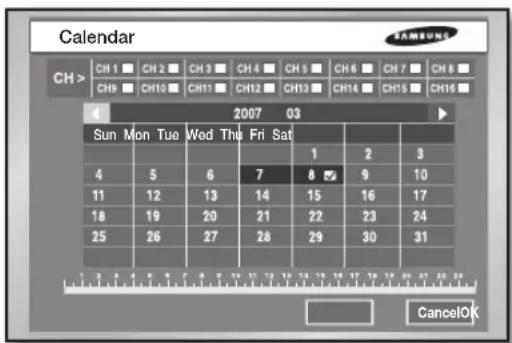
text_image
Calendar CH> CH1 CH2 CH3 CH4 CH5 CH6 CH7 CH8 CH9 CH10 CH11 CH12 CH13 CH14 CH15 CH16 2007 03 Sun Mon Tue Wed Thu Fri Sat 1 2 3 4 5 6 7 8 9 10 11 12 13 14 15 16 17 18 19 20 21 22 23 24 25 26 27 28 29 30 31 CancelOK
In case of SHR-5082/5080, only 8 channels are displayed.
To perform a calendar search
- Use the Direction buttons to select each channel, then press the ENTER button.

If you press CH >, all channels are selected.
- Use the Direction buttons and ENTER button to select the wanted year and month. If any recordings are stored for the selected month, the corresponding dates are highlighted in the calendar.

If you press ◀or ▶, the year value changes.
- Use the Direction buttons and ENTER button to mark the wanted dates.
- Use the DOWN direction button to move to the time bar, and use the LEFT and RIGHT direction buttons to place the cursor to the wanted time block. Then press the ENTER button for selection.

The scales of time bar are displayed at 30 minutes each.
- Press OK to search the wanted image data.

If the selected time block has no images, the system displays no picture.
EVENT SEARCH
This function searches recorded results such as normal recording, schedule recording, alarm recording, motion recording, and video loss recording on the channel and time basis.
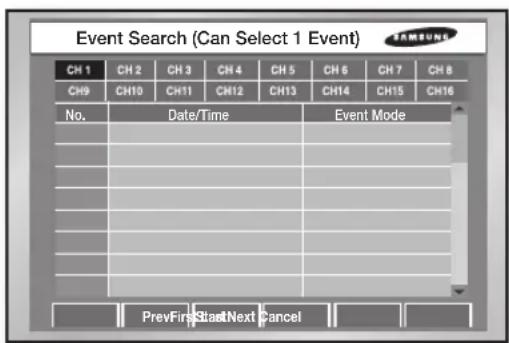
text_image
Event Search (Can Select 1 Event) CH 1 CH 2 CH 3 CH 4 CH 5 CH 6 CH 7 CH 8 CH9 CH10 CH11 CH12 CH13 CH14 CH15 CH16 No. Date/Time Event Mode PrevFirstStartNext Cancel
In case of SHR-5082/5080, only 8 channels are displayed.
To perform an event search
- Use the UP/DOWN direction buttons to place the cursor to the wanted channel and press the ENTER button. Then the recorded events are displayed below. Each event contains the date/time and event mode (normal recording, schedule recording, etc.).

Only one channel can be selected.
- Use the DOWN direction button to move to the event table and press the ENTER button to select an event. The selected event is marked. Selection of multiple items is not allowed.
- Use the Direction buttons to select Start then press the ENTER button. Then the recorded images are played on the screen.

- To cancel the search, select Cancel and press the ENTER button. If events are listed in multiple pages, select First, Prev, Next, and Last to move to the corresponding page.
- If you press the SEARCH button while an event recording is played. It returns to the Event Search menu. This lets you search other events easier and faster.
DATE TIME SEARCH
This function is used to search the video images for the specific time you want. Up to 16 channels can be searched at once.
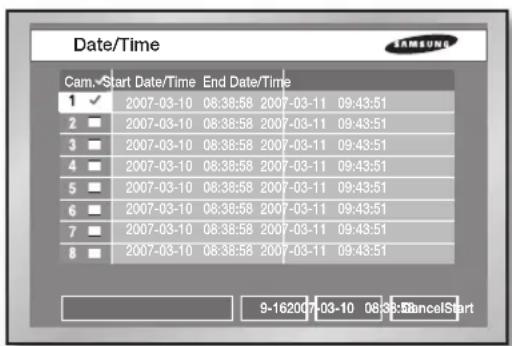
text_image
Date/Time Cam. Start Date/Time End Date/Time 1 ✓ 2007-03-10 08:38:58 2007-03-11 09:43:51 2 ■ 2007-03-10 08:38:58 2007-03-11 09:43:51 3 ■ 2007-03-10 08:38:58 2007-03-11 09:43:51 4 ■ 2007-03-10 08:38:58 2007-03-11 09:43:51 5 ■ 2007-03-10 08:38:58 2007-03-11 09:43:51 6 ■ 2007-03-10 08:38:58 2007-03-11 09:43:51 7 ■ 2007-03-10 08:38:58 2007-03-11 09:43:51 8 ■ 2007-03-10 08:38:58 2007-03-11 09:43:51 9-1620 07-03-10 08:38:58 CancelStart
In case of SHR-5082/5080, only 8 channels are displayed.
To perform a date/time search
-
Use the UP/DOWN direction buttons to place the cursor to the wanted camera and press the ENTER button. The selected camera is marked. Selection of multiple items is possible.
-
Use the DOWN direction button to move to the time box. To set the time you want, press the ENTER button. Then the year value is highlighted for change. To change the value, use the UP/DOWN direction buttons. You can also change values for month, date, hour, minute, and second using the UP/DOWN direction buttons. To move between items, use the LEFT/RIGHT buttons.
- Now use the RIGHT direction button to move to Start and press the ENTER button. If the designated time has any recorded images, they are played on the screen. If multiple cameras are selected, they are played on 4, 9, or 16-split screen.
If you want to cancel the search, select Cancel and press the ENTER button.
GO TO FIRST SEARCH
This function is used to search the oldest recorded files for cameras. Up to 16 channels can be searched at once.
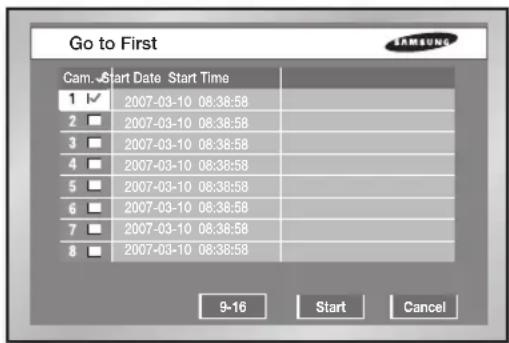
text_image
Go to First Cam. 6 Start Date Start Time 1 ✓ 2007-03-10 08:38:58 2 □ 2007-03-10 08:38:58 3 □ 2007-03-10 08:38:58 4 □ 2007-03-10 08:38:58 5 □ 2007-03-10 08:38:58 6 □ 2007-03-10 08:38:58 7 □ 2007-03-10 08:38:58 8 □ 2007-03-10 08:38:58 9-16 Start Cancel
In case of SHR-5082/5080, only 8 channels are displayed.
To perform this function
- Use the UP/DOWN direction buttons to place the cursor to the wanted camera and press the ENTER button. The selected camera is marked. Selection of multiple items is possible. If you want to move to the next page for selecting the other cameras, press 9-16.
- Now press Start to play the oldest images. If multiple cameras are selected, they are played on 4, 9, or 16-split screen.

If you want to cancel the search, select Cancel and press the ENTER button.
GO TO LAST SEARCH
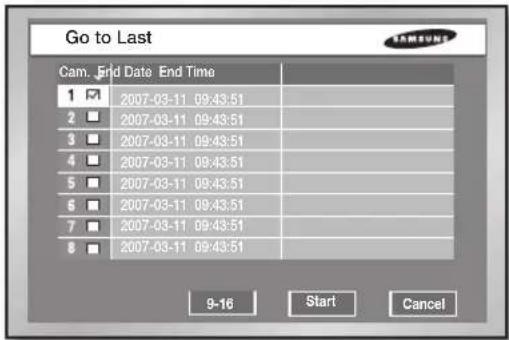
text_image
Go to Last Cam. End Date End Time 1 ✓ 2007-03-11 09:43:51 2 □ 2007-03-11 09:43:51 3 □ 2007-03-11 09:43:51 4 □ 2007-03-11 09:43:51 5 □ 2007-03-11 09:43:51 6 □ 2007-03-11 09:43:51 7 □ 2007-03-11 09:43:51 8 □ 2007-03-11 09:43:51 9-16 Start Cancel
In case of SHR-5082/5080, only 8 channels are displayed.
To perform this function
-
Use the UP/DOWN direction buttons to place the cursor to the wanted camera and press the ENTER button. The selected camera is marked. Selection of multiple items is possible. If you want to move to the next page for selecting the other cameras, press 9-16.
-
Now press Start to play the latest images. If multiple cameras are selected, they are played on 4, 9, or 16-split screen.

If you want to cancel the search, select Cancel and press the ENTER button.
BACKUP SEARCH
This function is used to search the backup files on the backup devices. First of all, you have to select a back device from the pop-up menu.
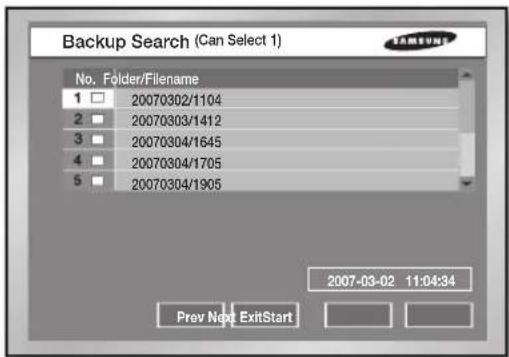
text_image
Backup Search (Can Select 1) No. Folder/Filename 1 □ 20070302/1104 2 □ 20070303/1412 3 □ 20070304/1645 4 □ 20070304/1705 5 □ 20070304/1905 2007-03-02 11:04:34 Prev Next ExitStartTo perform this function
-
Use the UP/DOWN direction buttons to place the cursor to the wanted backup file and press the ENTER button. The selected backup file is marked. Selection of multiple items is possible.
-
After selections are made, use the DOWN direction button to select Start.

- If multiple pages are available, select Prev or Next to move to the corresponding page.
- In case of SHR-5160 and SHR-5080, they do not include the built-in DVD writer so that backup function is not available for built-in CD/DVD.

AVI-format backup files cannot be played back on this DVR but only the PC Media Player can play the files.
PLAYBACK
In order to play the recorded file stored on the HDD, press the PLAY/PAUSE button. If you have played back a file by using the SEARCH button just before, the system would keep the playback information. Press the PLAY/PAUSE button again, the channel kept in memory is played.
If you press the PLAY/PAUSE button when no playback is tried, the Search menu appears.

When the MENU SETUP window is displayed, pressing the PLAY/PAUSE button does not bring any operation. For playback operation, exit from the MENU first.
To stop playing a recorded file, press the STOP button. If you press the PLAY/PAUSE button again, the playback will resume from the point where the previous playback has stopped. When the data position reaches the end of HDD during playback, the playback will pause.
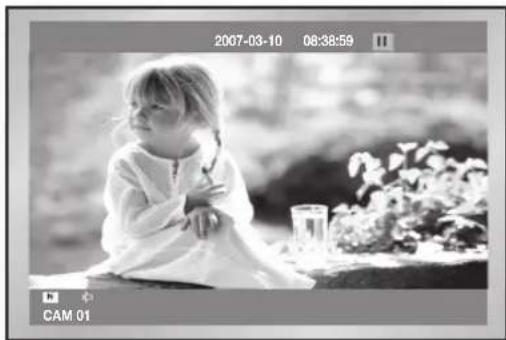
natural_image
Black-and-white photo of a young girl sitting outdoors near plants, no visible text or symbols- Playback mode
You can change the screen display method using the MODE button and NUMERIC buttons as shown in the figure. The 16-split, 12+1 split, and 15+1 split screens are shown only in SHR-5162/5160.
- Single screen: Comes up when you select and play only 1 channel using the Search menu.
- 4-split screen: Comes up when you select and play 2 to 4 channels using the Search menu.
- 9-split screen: Comes up when you select and play 5 to 9 channels using the Search menu.
- 16-split screen: Comes up when you select and play 16 channels using the Search menu.
- PIP screen: Comes up when you press the MODE button while playing on a single screen. (The main screen displays the playback channel, and the sub screen displays the live channel.) You can move the sub screen up or down using the UP/DOWN direction buttons. When you press the ENTER button, a blue bar appears on the live screen. To change the channel in the sub screen, press the desired channel number using the NUMERIC buttons on the front panel or remote control.
- N+1 split screen: Shows x number of (N) live channels and 1 play channel on the screen. In the case of 9+1 split screen, you
can set the location of the play channel from the menu.
- Speed play
To play the recorded images at a faster speed, press the Fast Forward (▶) or Fast Rewind (◀) button during playback to see the screen at x2, x4, x8, x16, x32, and x64 speed forwardly or reversely.
- Viewing still images
If you press the Fast Forward (▶) or Fast Rewind (◀) button while the screen is paused, you can see still images forwardly or reversely. During reverse search, the interval between cuts may vary depending on the recording specification.
- Audio playback
Audio data can be played or recorded only in 4 channels (CH1, CH2, CH3, and CH4). So to hear the sound of the recorded file, change the channel to any of CH1, CH2, CH3, and CH4. In a split screen (5, 9, or 16-split screen), to select an audio channel, press the ENTER button and move the displayed blue bar to any of four channels.
Using the AUDIO button, you can activate or deactivate the audio playback. When the audio function is active, the audio sign on the screen turns yellow. When the audio function is disabled, the audio sign on the screen turns white.
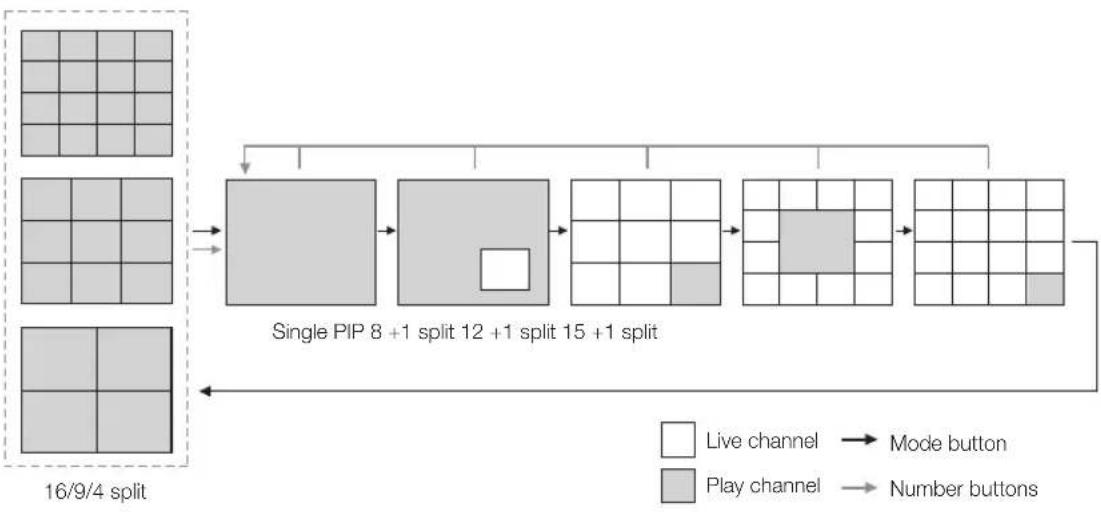
flowchart
graph LR
    A["16/9/4 split"] --> B["Single PIP 8 +1 split 12 +1 split 15 +1 split"]
    B --> C["Live channel"]
    B --> D["Play channel"]
    C --> E["Mode button"]
    D --> F["Number buttons"]
INTRODUCTION
Smart Viewer is a program to be installed on your PC. Using this program, you can monitor the video and audio data through the network environment without accessing the site where the product is installed.
MAIN FEATURES
- MPEG-4 Video Compression: It provides good video quality.
• G.711 Voice Compression: It provides good audio quality and use of directional MIC can improve the quality of remote voice. - Transmission of video/audio streams through RTP (Real-Time Transport Protocol): The video playback feature is excellent and the transmission speed is not lowered abruptly even in multi-user connection.
- Commands & controls by RTSP (Real-Time Streaming Protocol): It enables safety control through the network.
- Multiple transport protocols are supported (TCP/IP and UDP (Unicast, Multicast)).
- Access to video and audio data by entering IP address only.
- Local recording (*.dvr format) on PC and recorded video data conversion into frame unit (JPEG format).
- Up to 3 users can connect to the DVR simultaneously. (If the multicast is used, up to 6 users can connect.)
- A Smart Viewer can connect to 16 DVRs simultaneously.
- The Smart Viewer is optimized for the resolution of 1024x768.
PC SPECIFICATION (RECOMMENDED)
• OS: Win2000 and WinXP
- Recommendation
- CPU Pentium 3, 1GHz or higher
- RAM 256 MB or higher
- VGA RAM 32Mb or higher
- DirectX 8.1 or higher

The number of playback frames may vary depending on the recording rate, video size, and PC specification. For the detailed specification, refer to Appendix 5.
Smart Viewer INSTALLATION
- Insert the Smart Viewer program CD into the CD ROM drive.
- Open the Smart Viewer folder.
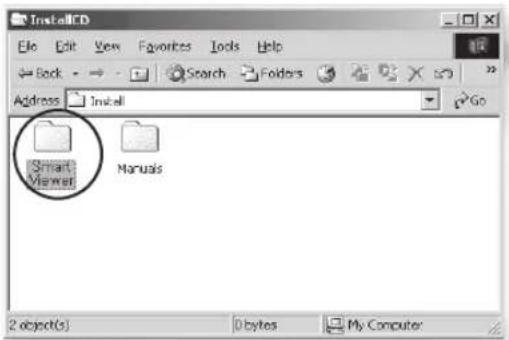
text_image
InstallCD File Edit View Favorites Tools Help Back Search Folders Address Install Go Smart Viewer Manuals 2 objects() 0 bytes My Computer- Execute the "Setup.exe" file.
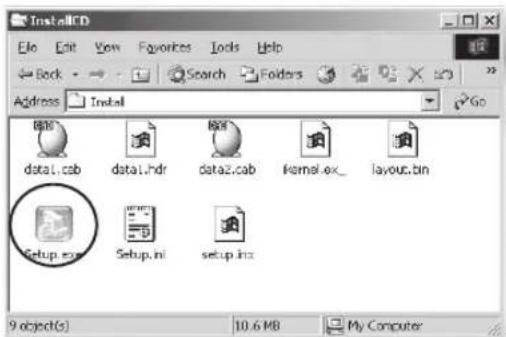
text_image
InstallCD File Edit View Favorites Tools Help Back Search Folders Address Install Go data1.cab data1.hdr data2.cab kernel.ex_ layout.bin Setup.exe Setup.ini setup.ini 9 object(s) 10.6 MB My Computer- Click Next >.
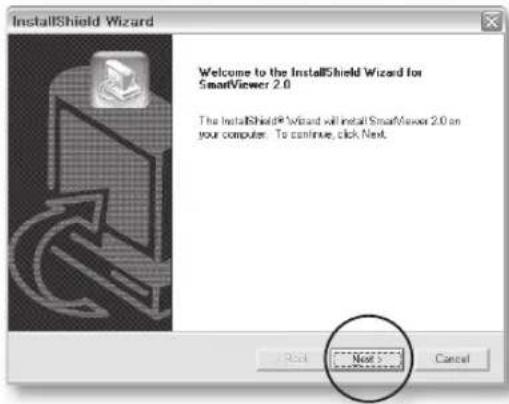
text_image
InstallShield Wizard Welcome to the InstallShield Wizard for SmartViewer 2.0 The InstallShield® Wizard will install SmartViewer 2.0 on your computer. To continue, click Next. OK Cancel- After reading the license agreement, click Yes to proceed to next step.
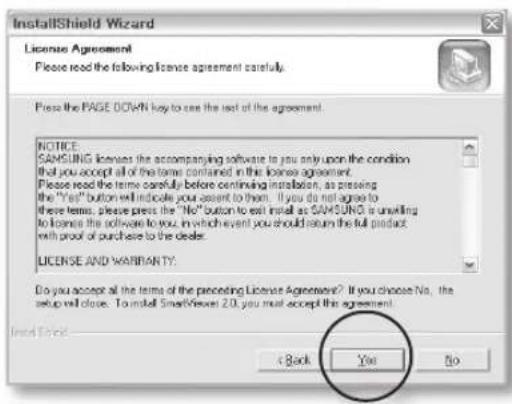
text_image
InstallShield Wizard License Agreement Please read the following license agreement carefully. Press the PAGE DOWN key to see the text of the agreement. NOTICE: SAMSUNG licenses the accompanying software to you only upon the condition that you accept all of the terms contained in the license agreement. Please read the term carefully before continuing installation, as pressing the "Yes" button will indicate your assent to them. If you do not agree to these items, please press the "No" button to exit install as SAMSUNG is unwilling to license the software to you, in which event you should return the full product with proof of purchase to the dealer. LICENSE AND WARRANTY. Do you accept all the terms of the preceding License Agreement? If you choose No, the setup will close. To install SmartView 2.0, you must accept the agreement. Back Yes No- Set the destination folder to install the Smart Viewer program and click Next.
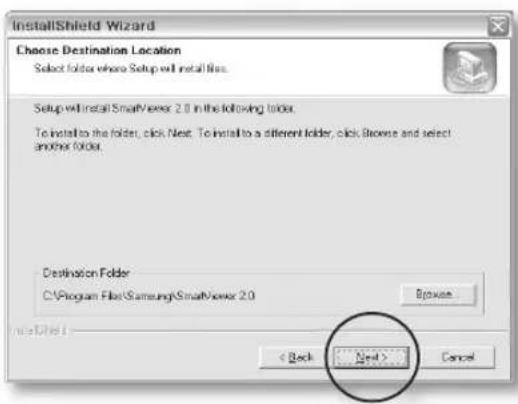
text_image
InstallShield Wizard Choose Destination Location Select folder where Setup will install files. Setup will install SmartViewer 2.0 in the following folder. To install to the folder, click Next. To install to a different folder, click Browse and select another folder. Destination Folder C:\Program Files\Samsung\SmartViewer 2.0 Browse < Back Next > Cancel- The installation process proceeds with setup file installation and system setup.
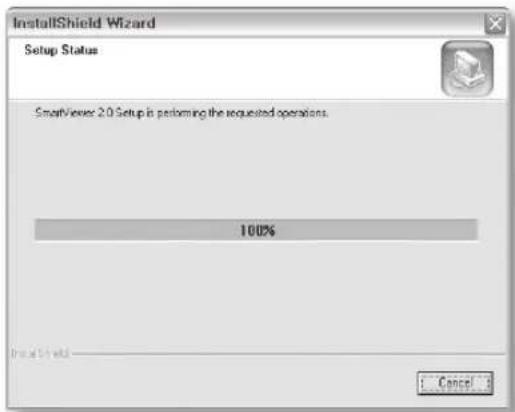
text_image
InstallShield Wizard Setup Status SmartViewer 2.0 Setup in performing the requested operations. 100% InstallShield Cancel- When installation is complete, click Finish to exit from the process.
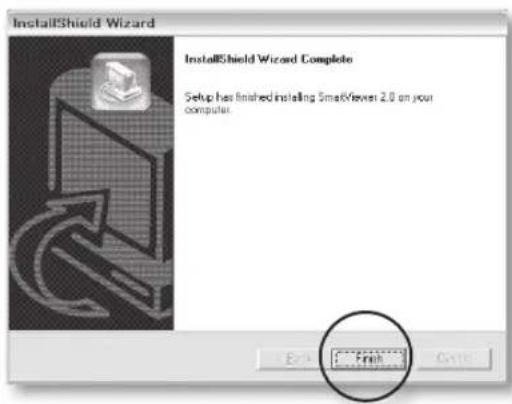
text_image
InstallShield Wizard InstallShield Wizard Complete Setup has finished installing SmartViewer 2.0 on your computer. FinishSmart Viewer PROGRAM EXECUTION
Double-click the Smart Viewer icon on the Desktop to execute the program.
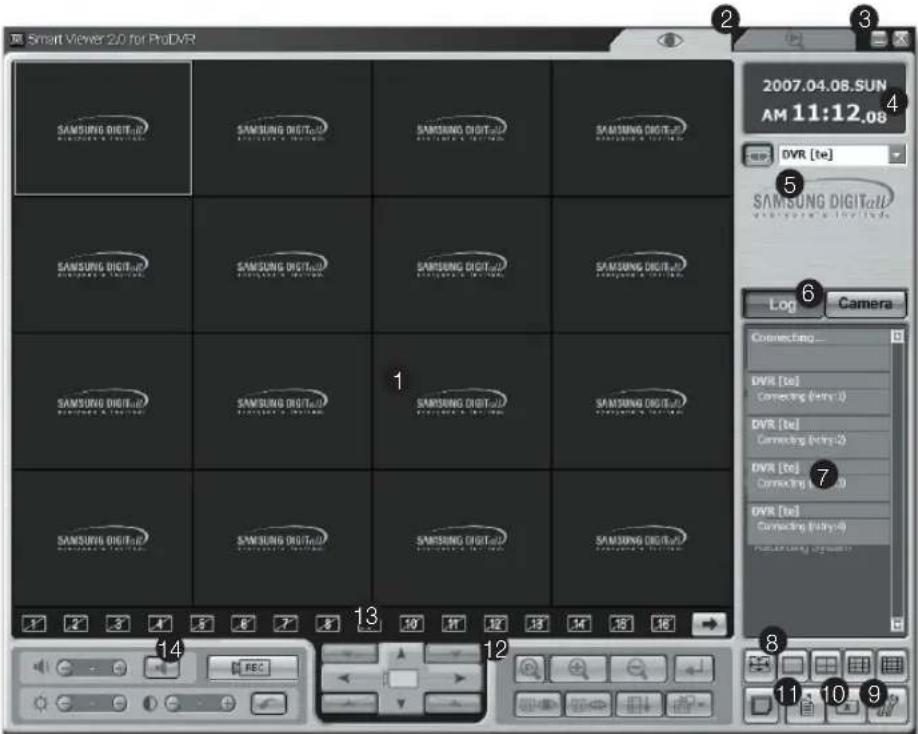
text_image
Smart Viewer 2.0 for ProDVR 2007.04.08.SUN AM 11:12.08 SAMSUNG DIGITall SAMSUNG DIGITall SAMSUNG DIGITall SAMSUNG DIGITall SAMSUNG DIGITall SAMSUNG DIGITall SAMSUNG DIGITall SAMSUNG DIGITall SAMSUNG DIGITall SAMSUNG DIGITall SAMSUNG DIGITall SAMSUNG DIGITall SAMSUNG DIGITall SAMSUNG DIGITall SAMSUNG DIGITall Log Camera Connecting... DVR [te] Connecting (Entry 1) DVR [te] Connecting (Entry 2) DVR [te] Connecting (Entry 3) DVR [te] Connecting (Entry 4) SAMSUNG DIGITall SAMSUNG DIGITall SAMSUNG DIGITall SAMSUNG DIGITall SAMSUNG DIGITall SAMSUNG DIGITall SAMSUNG DIGITall SAMSUNG DIGITall SAMSUNG DIGITall SAMSUNG DIGITall SAMSUNG DIGITall SAMSUNG DIGITall SAMSUNG DIGITall SAMSUNG DIGITall SANSUNG DIGITall SANSUNG DIGITall SANSUNG DIGITall SANSUNG DIGITall SANSUNG DIGITall SANSUNG DIGITall SANSUNG DIGITall SANSUNG DIGITall SANSUNG DIGITall SANSUNG DIGITall SANSUNG DIGITall SANSUNG DIGITall SANSUNG DIGITall SANSUNG DIGITall SANSUNG DUTR REC- This screen shows the monitoring sites.
- Using these buttons, you can enter the Search mode in which you can search and play the remote video file that has been recorded on your DVR and enter the Monitoring mode for monitoring.
- These buttons minimize and exit the program.
- It displays the current date, day, and time.
- This button is used for connection to the preset DVR or site.
- These buttons let you select the event message display window and camera connection state display window.
- This window displays the event messages from the DVR.
- These buttons let you select the wanted split screen or auto sequencing screen.
- This button opens the Setup Mode window to change the Smart Viewer settings. (Refer to "Setup Mode.")
- This button lets you choose a favorite function when connecting to a site.
-
This button is used for connecting to Callback.
-
These buttons enable you to perform the PTZ-related operations.
- These buttons display the status of the current channels.
- These buttons let you adjust the audio volume and video brightness/contrast, and save the video images.
SETUP MODE
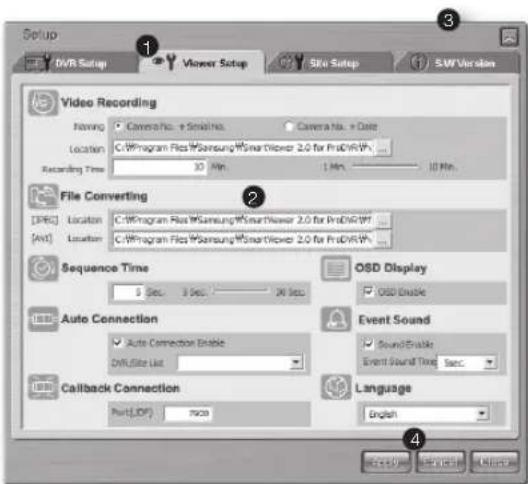
text_image
Setup DVR Setup Viewer Setup Site Setup SW Version Video Recording Naming Camera No. + Small No. Camera No. + Data Location C:\Program Files\Samsung\Wise\Driver 2.0 for Prs\DWV# Recording Time 10 Min. 1 Min. 10 Min. File Converting [SPG] Location C:\Program Files\Samsung\Wise\Driver 2.0 for Prs\DWV# [Alt] Location C:\Program Files\Samsung\Wise\Driver 2.0 for Prs\DWV# Sequence Time 5 Sec. 9 Sec. 30 Sec. OISD Display OSD Enable Auto Connection Auto Connection Enable DiffSize List Event Sound Sound Enable Event Sound Time Sec. Callback Connection Port(LOF) 7600 Language English- These buttons enable you to select setup items for DVR Setup, Viewer Setup, Site Setup, and S/W Version.
- In this box, you can set the details on each setup item.
- Using this button, you can exit from the current window.
- You can use buttons for saving the modified data, returning the previous settings, and exiting from the setup window.
- Setup Item Selection buttons

- DVR Setup: Allows you to modify the settings of the DVR.
- Viewer Setup: Allows you to configure the settings of Smart Viewer.
- Site Setup: Allows you to set the DVR information which includes the name, IP address, ID, and password for connection. It can also allow you to register DVRs into a site.
- S/W Version: Shows the software information such as Smart Viewer version, system requirement, and the DVR system S/W version. You can remotely upgrade the system software.
• Save/Cancellation of Revised Information
Click Apply to save the revised information and click Cancel to return the previous settings.
- Closing the setup window
- Click X or Close to exit from the setup window.
- If any setting is revised, the following message box appears. If you press OK, the revised information is saved and the setup window exits. If you press CANCEL, the revised information is lost and the setup window exits.
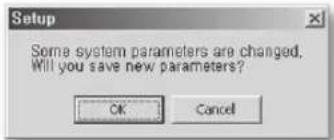
text_image
Setup Some system parameters are changed. Will you save new parameters? OK CancelDVR Setup
Click DVR Setup for configuring DVR-related settings. It means that you can remotely configure the settings of DVR using Smart Viewer. The DVR setup items are System, Camera/Audio, Monitoring, Recording, and Network.
You can access to DVR Setup with the Admin privilege. The button will not be activated when you are connected to the DVR with a user privilege.
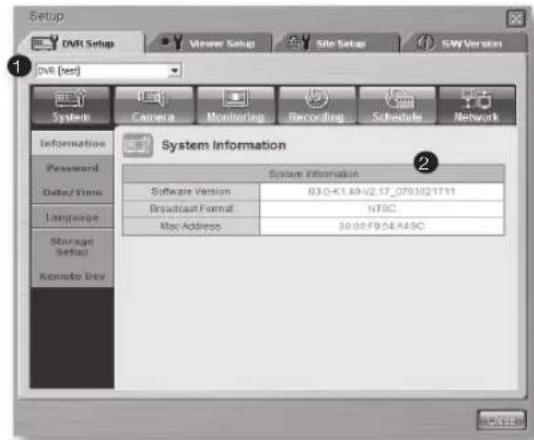
text_image
Setup DVR Setup Vineer Setup Site Setup SW Version DVR [dev] System Camera Monitoring Recording Schedule Network Information Password Data/Trains Language Storage Setup Remote Dev System Information Software Version B3.0-K1.49-V2.17_0751021711 Broadcast Format NTBC Mac Address S0.00/F9.0E4A8C- The DVR names connected with the Admin privilege will be listed here. When connected to a DVR, the DVR name is displayed. When connected to a site, the names of DVRs with the Admin privilege are displayed. You can select a DVR to configure the settings of it.
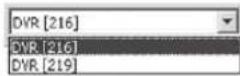
- It displays the setup menu for the selected DVR.
- System
You can configure the system-related settings. For more details, see Chapter 5, "Menu Setup."
- System Information It shows the information of the selected DVR.
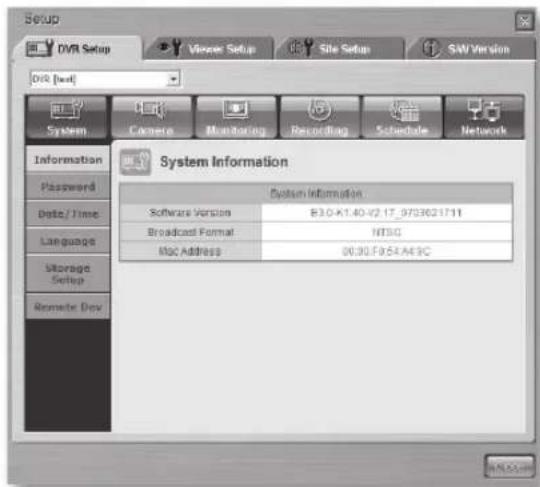
text_image
Setup DVR Setup Viseer Setup Site Setup SW Version Disk [set] System Camera Monitoring Recording Schedule Network Information Password Data/ Time Language Storage Setup Remote Data System Information Software Version B3.0-A1.40-V2.17_9753621711 Broadcast Format NTSG Mac Address 00:30.F9:54.A4:9C
For more details, see Chapter 5, "Menu Setup."
- Admin Password You can change the Admin password related settings for control of DVR.
- User Password You can change the user password related settings for control of DVR.
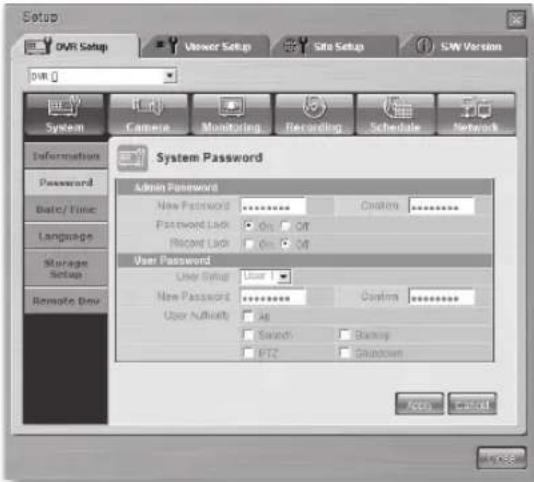
text_image
Setup DWR Setup Viewer Setup Site Setup SW Version System Camera Monitoring Recording Schedule Network Information Password Date/ Time Language Storage Setup Remote Data System Password Admin Password New Password ******** Custom ******** Password Lock On Off Record Lock On Off User Password User Setup User New Password ******** Custom ******** User Authority At Sound Backup PT2 Shutdown Access CancelCAUTION
For the system password, you can input numeric values only up to 8 digits.

- The Delete key and key combinations like CTRL+C and CTRL+V in the keyboard are not supported for input of system password.
- For deletion of any input value, use the BACKSPACE key.
- The default system password is "4321."
- Date/Time Setup
Date/Time is used to set the information of DVR such as date, time, format, and DST.

text_image
Setup DVR Setup Viewer Setup Site Setup SW Version System Camera Monitoring Recording Schedule Network Information Password Date/Time Language Storage Sets Remote Data Date/Time Setup Current System Date 2007-3-5 Current System Time 11:30:22 Year Month Date Hour Time Text Time Synchrotron Setup Time Date: GPT 4.0.10 Time Synchrotron Setup: Setup Display Format Date: YYYY-MM-DD Three: 24 Hours PST Show to Start or Stop... Apply Cancel
- If you change the values for date and time, the DVR automatically disconnects the communication with Smart Viewer to apply the settings.
- When updating the date and time for the DVR completes, you can connect Smart Viewer.
- But, the values for display format and DST can be set without disconnection.
- System Language
You can set the display language for the DVR.
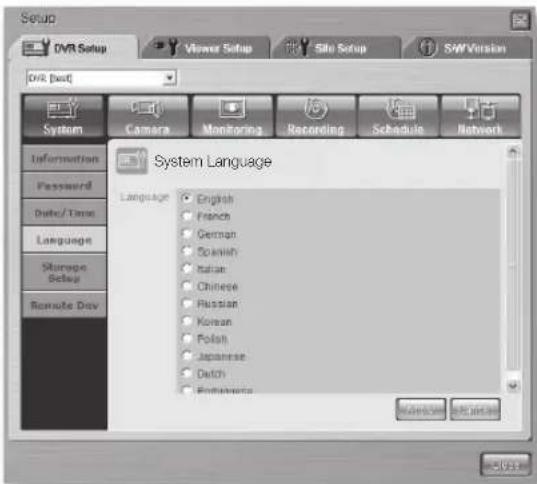
text_image
Setup DVR Setup Viewer Setup Site Setup SW Version DVR [set] System Camera Monitoring Recording Schedule Network Information Password Date/Time Language Storage Setup Remote Day System Language Language English French German Spanish Italian Chinese Russian Korean Polish Japanese Dutch English
- This change results in modification of display language on the DVR. The language of Smart Viewer is not changed.
• Language specification is subject to change.
- Storage Setup It displays the information of the HDD that is contained in your DVR. Also you can determine whether or not to repeat recording and make a beep sound when any disk failure happens.
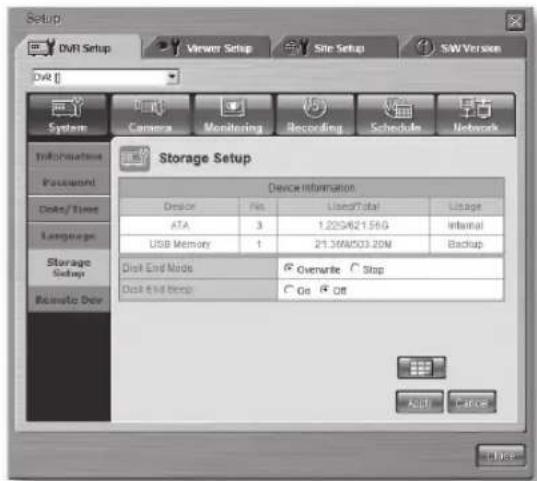
text_image
Setup DVR Setup Viewer Setup Site Setup SW Version DVR System Camera Monitoring Recording Schedules Network Information Password Disk/ Time Language Storage Setup Remote Dev Storage Setup Device information Device File Used/Total Usage ATA 3 1.22G/621.56G Internal USB Memory 1 21.36M/503.20M Backup Disk End Mode Overwrite Stop Disk End Drop Go Off ADD CHANGE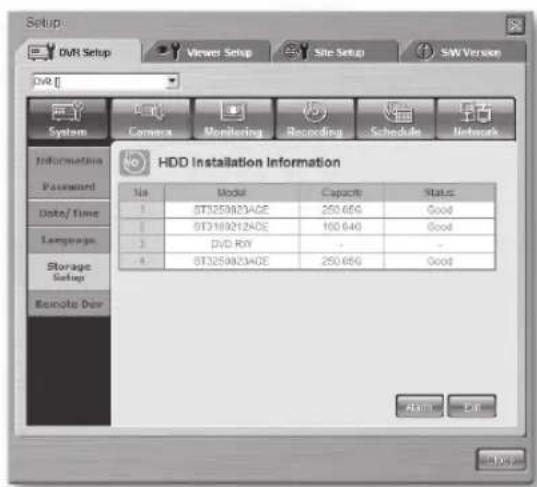
text_image
Setup DVR Setup Viewer Setup Site Setup SW Version DVR System Camera Monitoring Recording Schedule Network Information Password Date/ Time Language Storage Setup Remote Data HDD Installation Information No Model Capacity Status 1 0T3259823ADE 250.65G Good 2 0T3169212ADE 100.64G Good 3 3DVD RX - - 4 0T3259823ADE 250.65G Good Address Help
In case of SHR-5160/5080, the model name of HDD appears instead of DVD RW.
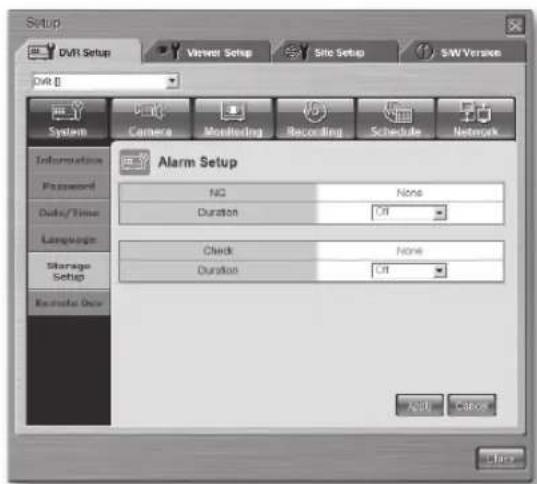
text_image
Setup DVR Setup Viewer Setup Site Setup S&W Version DVR E System Camera Monitoring Recording Schedule Network Information Password Data/Time Language Storage Setup Exonic Data Alarm Setup NO None Duration Ctrl Check None Duration Ctrl Add Cancel- Remote Control Device You can configure the settings for the remote control that is installed in the DVR system. You can toggle between On and Off. The remote control ID can be set among 0 to 99.
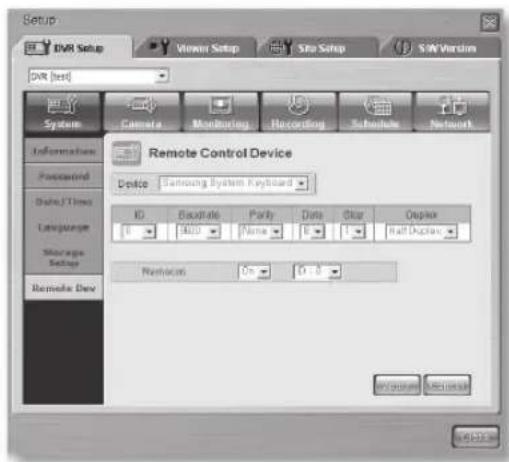
text_image
Setup DVR Setup Viewer Setup Site Setup SW Version DVR [test] System Camera Monitoring Recording Schedule Network Information Password Data FTTime Language Storage Setup Remote Dev Remote Control Device Device Samsung System Keyboard ID Buckfile Parib Date Star Cuplex 0 400 None 0 1 Half Options Random On 0.0 OK OK
If you have directly installed the remote control in the DVR system and activated the setup, PTZ controls are not enabled using Smart Viewer.
- Camera
You can configure the camera-related settings. For more details, see Chapter 5, "Menu Setup."
- Camera Configuration. This configures the camera-related settings such as video/audio availability, camera title, and auto sequencing interval for the DVR.
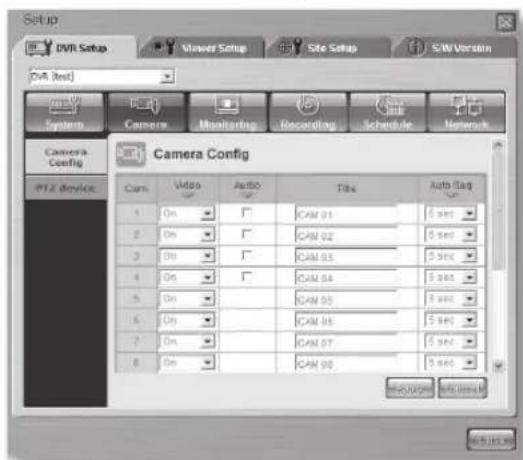
text_image
Setup DVR Setup Viewer Setup Site Setup S/W Version DVR (inst) System Camera Camera01 Camera02 Camera03 Camera04 Camera05 Camera06 Camera07 Camera08 Camera Config PTZ device Cam Video Audio Tiles Auto Flag 1 On 2 On 3 On 4 On 5 On 6 On 7 On 8 On CAM 01 CAM 02 CAM 03 CAM 04 CAM 05 CAM 06 CAM 07 CAM 08CAUTION
- Only English is available for the title. If you enter the title in your local language and apply it, a warning message appears to ask you to retype it.
- You can input the title up to 15 digits.
- If you leave the title blank, a warning message appears to ask you to retype it.

- The Delete key and key combinations like CTRL+C and CTRL+V in the keyboard are not supported for input of camera title.
- For deletion of any input value, use the BACKSPACE key.
- PTZ Device
You can configure the settings for PTZ cameras, which include camera ID, protocol, baud rate, parity, data bit, and stop bit.
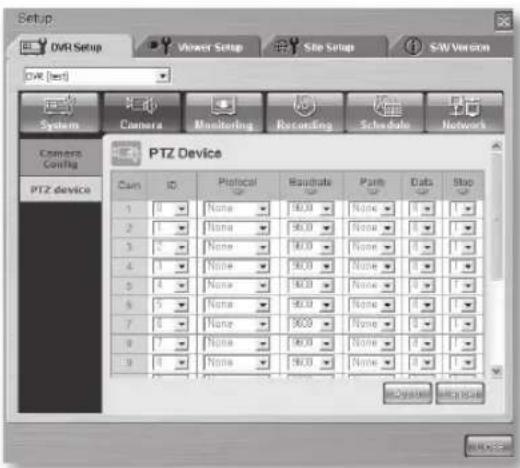
text_image
Setup CAT Setup Viewer Setup Site Setup SAY Version CAT [test] System Camera Monitoring Recording Schedule Network Camera Config PTZ Device PTZ Device Cam ID Protocol Baserate Pair Data Stop 1 0 None 90.0 None 0 1 2 1 None 90.0 None 0 1 3 5 None 90.0 None 0 1 4 1 None 90.0 None 0 1 5 4 None 90.0 None 0 1 6 5 None 90.0 None 0 1 7 6 None 90.0 None 0 1 8 7 None 90.0 None 0 1 9 8 None 90.0 None 0 1- Monitoring Setup
You can configure the monitoring-related settings. For more details, see Chapter 5, "Menu Setup."
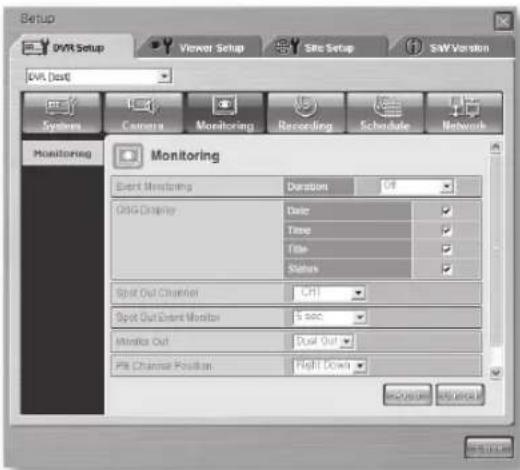
text_image
Setup DVR Setup Viewer Setup Site Setup S&W Version DVR (test) Systems Camera Monitoring Recording Schedule Network Monitoring Monitoring Event Monitoring Duration Off OGG Display Date Time Title Status Spot Out Channel Off Spot Out Event Monitor sec Motion Out Push Out Pit Channel Position Right Down OK/Cancel OK/Cancel- Recording
You can configure the recording-related settings. For more details, see Chapter 5, "Menu Setup."
- Record Quality and Auto Deletion You can configure the settings for recording quality and auto deletion.
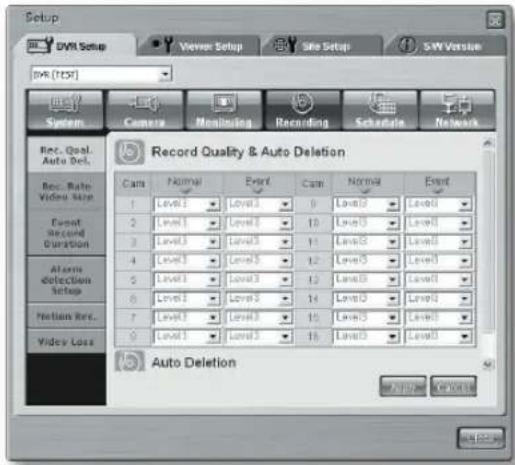
text_image
Setup DVR Setup Viewer Setup Site Setup SW Version DVR [TDS] System Camera Monitoring Recording Schedule Network Rec. Qual. Auto Del. Record Quality & Auto Deletion Rec. Rate Video Size 1 Level 1 Level 2 0 Level 3 Level 4 2 Level 1 Level 2 10 Level 3 Level 4 3 Level 1 Level 2 11 Level 3 Level 4 4 Level 1 Level 2 12 Level 3 Level 4 5 Level 1 Level 2 13 Level 3 Level 4 6 Level 1 Level 2 14 Level 3 Level 4 7 Level 1 Level 2 15 Level 3 Level 4 9 Level 1 Level 2 16 Level 3 Level 4 Auto Deletion Auto Setup- Record Rate & Video Size
You can configure the settings for record rate (recording speed) and video size (resolution).
NTSC
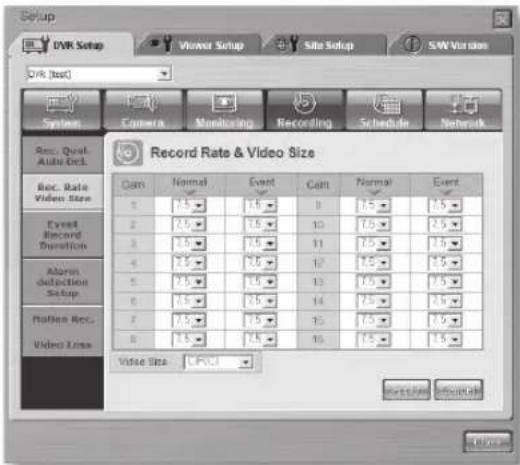
text_image
Setup DVR Setup Viewer Setup Site Setup SAR Version DVR [test] System Camera Monitoring Recording Schedule Network Rec. Qual. Auto Det. Record Rate & Video Size Rec. Rate Video Size 1 2 3 4 5 6 7 8 Event Record Transition Alarm detecction Setup Ration Rec. Video Loss Can Normal Event Can Normal Event 1 2 3 4 5 6 7 8 Event Record Rate & Video Size 10 11 12 13 14 15 16 17 18 19 20 21 22 23 24 25 26 27 28 29 30 31 32 33 34 35 36 37 38 39 40 41 42 43 44 45 46 47 48 49 50 51 52 53 54 55 56 57 58 59 60 61 62 63 64 65 66 67 68 69 70 71 72 73 74 75 76 77 78 79 80 81 82 83 84 85 86 87 88 89 90PAL
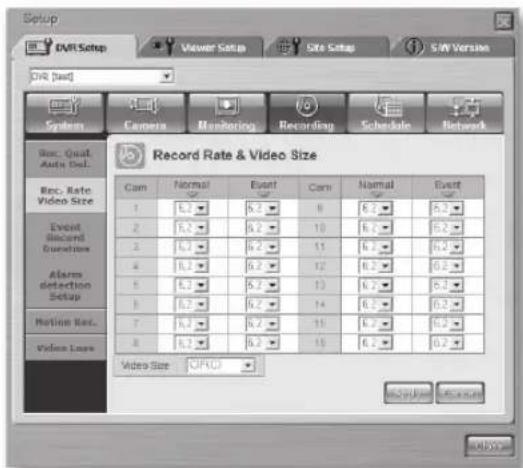
- Event Record Duration
You can configure the pre-event and post-event settings for event recording.
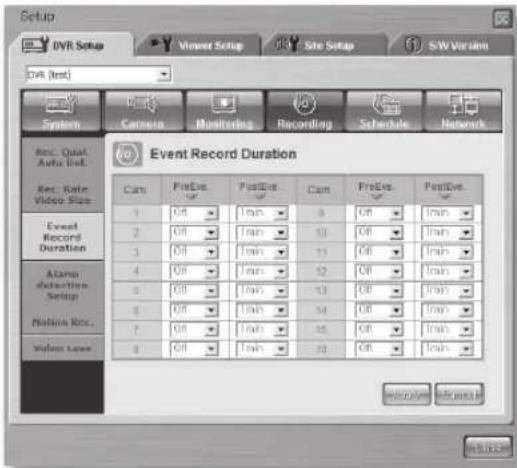
text_image
Setup DVR Setup Viewer Setup Site Setup SW Version DVR (test) System Camera Monitoring Recording Schedule Network Rec. Quart Audio Inf. Rec. Rate Video Slots Event Record Duration 1 2 3 4 5 6 7 8 Event Record Duration Event Record Duration 1 2 3 4 5 6 7 8 Event Record Duration 10 11 12 13 14 15 16 17 18 19 20 21 22 23 24 25 26 27 28 29 30 Event Record Duration- Alarm Detection Setup It configures the settings for alarm recording.
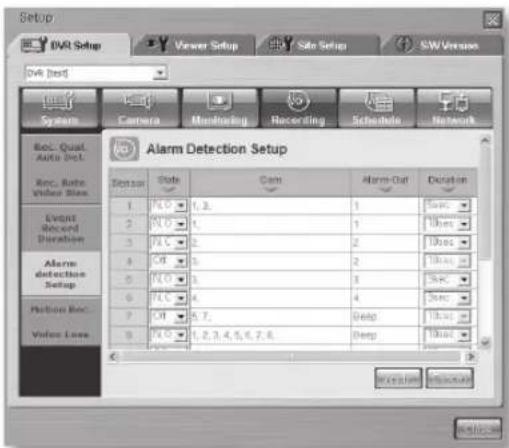
text_image
Setup DVR Setup Viewer Setup Site Setup SW Version DVR [set] System Camera Monitoring Recording Schedule Network Rec. Qual. Auto Incl. Rec. Rate Video Bits Sensor Rate Cam Alarm-Out Duration 1 2 3 4 5 6 7 8 9 Alarm Detection Setup Event Record Duration Alarm Detection Setup Function Rec. Video Loss Alarm Detection Setup 1, 2, 3, 4, 5, 6, 7, 8, 9, 10, 11, 12, 13, 14, 15, 16, 17, 18, 19, 20, 21, 22, 23, 24, 25, 26, 27, 28, 29, 30, 31, 32, 33, 34, 35, 36, 37, 38, 39, 40, 41, 42, 43, 44, 45, 46, 47, 48, 49, 50, 51, 52, 53, 54, 55, 56, 57, 58, 59, 60, 61, 62, 63, 64, 65, 66, 67, 68, 69, 70, 71, 72, 73, 74, 75, 76, 77, 78, 79, 80, 81, 82, 83, 84, 85, 86, 87, 88, 89, 90, 91, 92, 93, 94, 95, 96, 97, 98, 99, 100
More than one camera should be selected to apply the alarm.
- Motion Detection Setup It configures the settings for recording through motion detection.
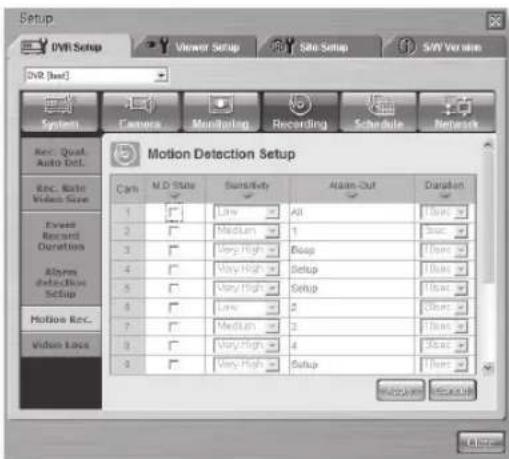
text_image
Setup IPVI Setup Viewer Setup Site Setup S/IV Version Unit [set] System Camera Monitoring Recording Schedule Network Rec. Qual. Auto Det. Motion Detection Setup Rec. Start Video Size 1 2 3 4 5 6 7 8 9 10 11 12 13 14 15 16 17 18 19 20 21 22 23 24 25 26 27 28 29 30 31 32 33 34 35 36 37 38 39 40 41 42 43 44 45 46 47 48 49 50 51 52 53 54 55 56 57 58 59 60 61 62 63 64 65 66 67 68 69 70 71 72 73 74 75 76 77 78 79 80 81 82 83 84 85 86 87 88 89 90 91 92 93 94 95 96 97 98 99 100- Video Loss Setup It configures the video loss related settings.
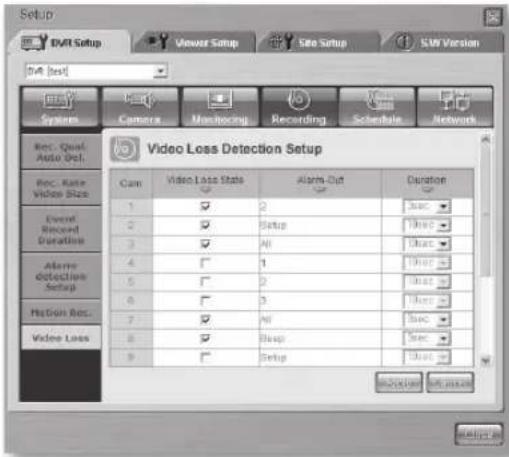
text_image
Setup DVI Setup Viewer Setup Site Setup EMV Version DVI [test] Systems Camera Marketing Recording Schedule Network Rec. Quick Audio Out. Video Loss Detection Setup Rec. Rate Video Size 1 2 3 4 5 6 7 8 9 Video Loss State Alarm Out Duration Event Record Duration Alarm Detection Setup Motion Rec. Video Loss OK OK OK OK OK OK OK OK- Schedule
You can configure schedule-related settings. For more details, see Chapter 5, "Menu Setup."
- Record Schedule You can change the schedule recording-related settings.
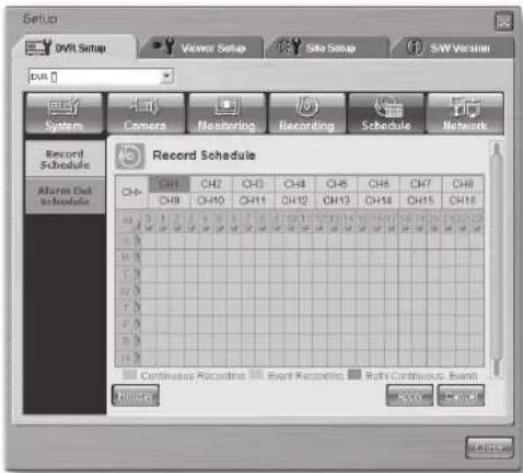
text_image
Setup DVR Setup Viewer Setup Site Setup SWV Version DVR System Camera Monitoring Recording Schedule Network Record Schedule Alarm Out Schedules Record Schedule CH1 CH2 CH3 CH4 CH5 CH6 CH7 CH8 CH9 CH10 CH11 CH12 CH13 CH14 CH15 CH16 Continuous Recording Event Recording Right Continuous Event Status OK Cancel Help- Alarm Out Schedule You can change the alarming schedule-related settings.
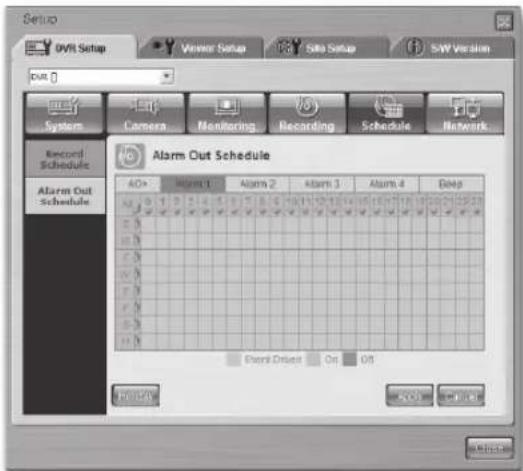
text_image
Setup OVR Setup Viewer Setup Site Setup SWV Version out 0 System Camera Monitoring Recording Schedule Network Record Schedule Alarm Out Schedule 40+ Alarm 1 Alarm 2 Alarm 3 Alarm 4 Deep Front Driven On Off OK Cancel Help- Network
You can configure the network-related settings. For more details, see Chapter 5, "Menu Setup."
- Network Password
You can set both Admin password and user password for connecting to the DVR system through the network using Smart Viewer.
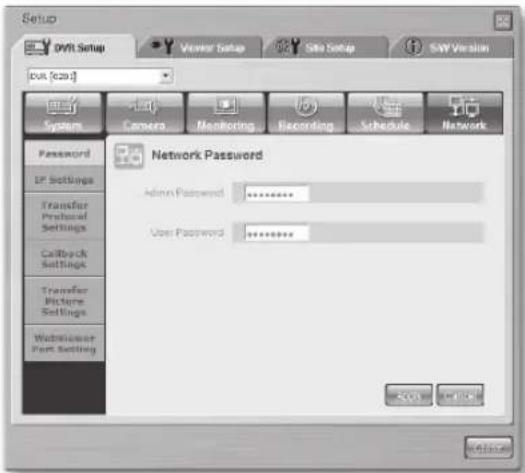
text_image
Setup DVR Setup Viewer Setup Site Setup SW Version bus [c20s] System Camera Monitoring Recording Schedule Network Password IP Settings Transfer Protocol Settings Callback Settings Transfer Picture Settings Webmaster Port Setting Network Password Admin Password: ********** User Password: ********** OK Cancel OKCAUTION
- For the network password, you can input numeric values only up to 8 digits.
- If you leave the password blank and apply it, a warning message appears to ask you to retype it.

- The Delete key and key combinations like CTRL+C and CTRL+V in the keyboard are not supported for input of password.
- For deletion of any input value, use the BACKSPACE key.
- The default Admin password is "4321."
- The default user password is also "4321."
- IP Settings
It configures the network IP settings for the DVR.
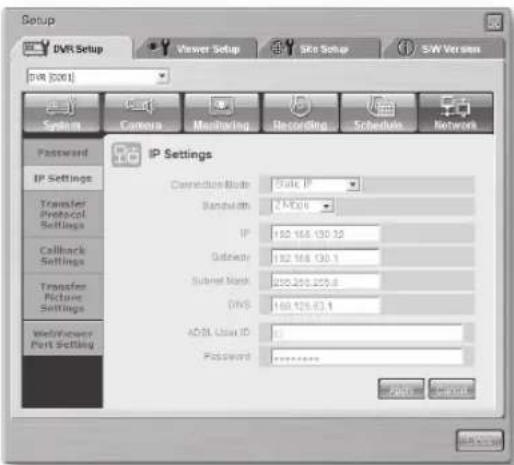
text_image
Setup DVR Setup Viewer Setup Site Setup SW Version [001] System Camera Meshing Recording Schedule Network Password IP Settings IP Settings Transfer Protocol Settings Transfer Picture Settings Multi-Viewer Port Setting IP Settings Correction Block: Static IP Bandwidth: 247.3% IP: 192.165.130.12 Gateway: 192.165.130.1 Subset Mask: 200.200.200.8 DNS: 169.126.63.1 ADSL User ID: 0 Password: ******** OK CancelCAUTION
- Be sure to inquire of the network manager about the settings.
- Both ADSL ID and password can be input up to 40 letters including alphabets, numbers, and special characters.
- Transfer Protocol Settings
You can change the transfer protocol-related settings
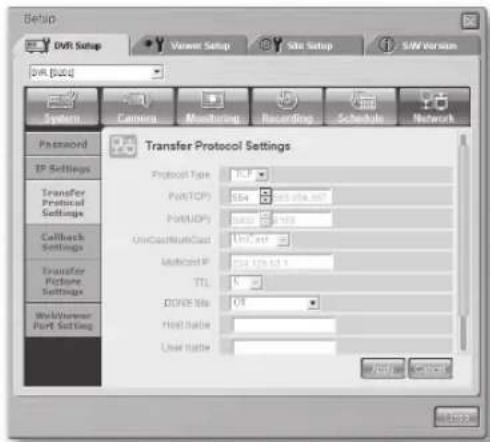
text_image
Setup DVR Setup Viewer Setup Site Setup S/W Version DVR [023] System Camera Monitoring Recording Schedule Network Password IP Settings Transfer Protocol Settings Transfer Procedure Settings Callback Settings Transfer Picture Settings Web/Viewer Port Setting Transfer Protocol Settings Protocol Type: TCP PortTCP: 164 port info. com PortMCP: 588 port info. com OneCastMultiCast: 197 port MultiCast IP: 755 port info. com TTL: 0 DOOR Mode: 0/1 Host Rate: User Rate: 应用 确定 取消- Callback Settings
You can configure the callback-related settings for DVR.
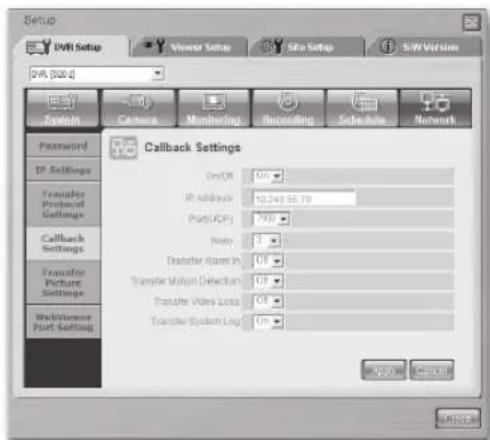
text_image
Setup DVR Setup Viewer Setup Site Setup SW Version DVR [300.4] System Camera Monitoring Recording Schedule Network Password IP Settings Transfer Protocol Settings Callback Settings Transfer Picture Settings Web/Venner Port Settings Callback Settings On/Off IP Address 10.248 SE 70 Port (UOP) 700 Ready 1 Transfer Room In Off Transfer Motion DIRECTION Off Transfer Video Loss Off Transfer System Log On OK Cancel- Picture Settings
This configuration is used to set the video size and quality for transferring pictures.
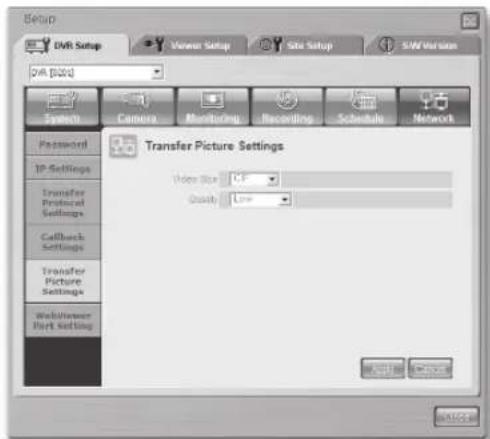
text_image
Setup DVR Setup Viewer Setup Site Setup SW Version DVR [024] System Camera Monitoring Recording Schedule Network Password IP Settings Transfer Protocol Settings Feedback Settings Transfer Picture Settings WebViewer Part Setting Transfer Picture Settings Video Size: 1.0 Quality: Low Add Cancel OK/Cancel- Web Viewer Port Setting You can configure the port number for Web Viewer.
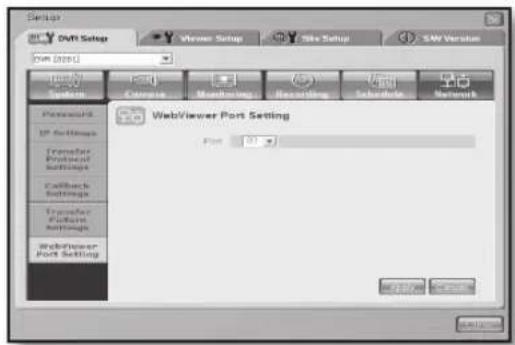
text_image
Setup OVR Setup Viewer Setup Site Setup SW Version COM (2019) System Camera Monitoring Recording Subscribe Network WebViewer Port Setting Plan: 30 WebViewer Port Setting OK CancelViewer Setup
Click Viewer Setup for configuring the Smart Viewer related settings. This Viewer Setup consists of 5 different items: Video Recording, File Converting, Sequence Time, OSD Display, and Auto Connection.
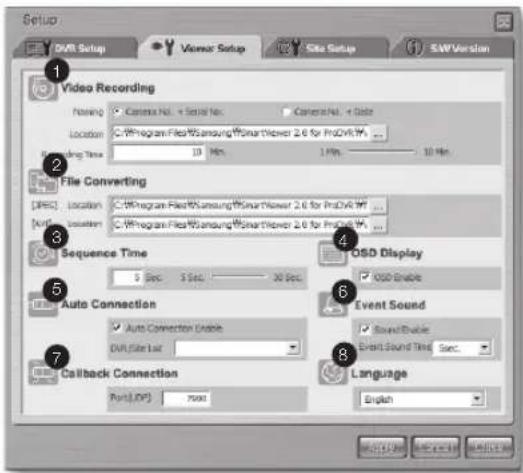
text_image
Setup DVI Setup Viseur Setup Site Setup S&P Version 1 Video Recording Name: Camera No. + Serial No. Camera No. + Color Location: C:\Program Files\Samsung\SmartTower 2.6 for ProDVI MF... Drawing Time: 10 Min 1 Min 10 Min 2 File Converting [DEC] Location: C:\Program Files\Samsung\SmartTower 2.6 for ProDVI MF... [AUT] Location: C:\Program Files\Samsung\SmartTower 2.6 for ProDVI MF... 3 Sequence Time 9 Sec 5 Sec 30 Sec 4 OISD Display OSD Enable 5 Auto Connection Auto Connection Enable DVI Site List Event Sound Sound Enable Event Sound Time: Sec. 7 Callback Connection Port(.DP) 7000 8 Language English- The currently displayed video data can be saved in a DVR format (*.dvr) file. The related settings are made here.
- A DVR file can be converted into a JPEG or AVI file. The destination folders are determined here.
- You can set the sequence time (or screen change time) interval for the auto sequence mode.
- The OSD display on Smart Viewer can be decided here.
- You can decide whether Smart Viewer automatically connects to the designated DVR or site when it starts running.
- You can enable/disable alarming and set the alarming duration.
- You can set the port for callback connection.
- You can set the language for display.
- Video Recording
- Naming convention

When recording the currently displayed video data into DVR files, you can assign the file naming rule to DVR files.
- Location

Set the directory for saving the DVR files.
- Recording Time

You can set the maximum recording time when saving the video data. You can set the time ranging from 1 to 10 minutes. If the recording time exceeds the preset value, the program stops recording.
- File Converting

You can convert a DVR file saved on your PC into JPEG or AVI. The default destination folder for file conversion is
- Sequence Time

In monitoring mode, when the screen change (auto sequence) mode is active, the camera channels change at an interval of this time. You can set the time ranging from 5 to 30 seconds.
- OSD Display
You can set if OSD shall be displayed on each channel of Smart Viewer. However, Audio icon will not be affected by the OSD condition.
- Callback Connection
Set the port for callback connection.
- Auto Connection
You can set if Smart Viewer is automatically connected to the selected DVR or site when starting the program. If you check Auto Connection Enable, available DVRs and sites are displayed in the pull-down list. After selecting one from the list, Smart Viewer connects to the selected DVR or site whenever it is started.
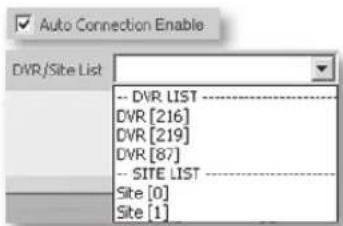
text_image
Auto Connection Enable DVR/Site List -- DVR. LIST ---- DVR [216] DVR [219] DVR [87] -- SITE LIST ---- Site [0] Site [1]- Language
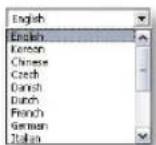
You can set the language to be displayed on Smart Viewer.
Site Setup
Click Site Setup for configuring the site-related settings. Smart Viewer connects to the DVR or site that has been registered here. A site can have multiple DVRs.
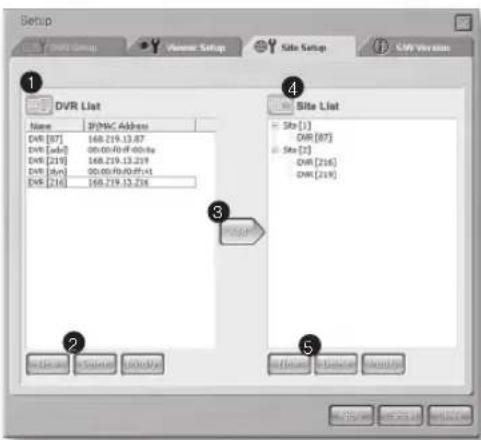
text_image
Setup DVR Setup Vaccine Setup Site Setup UVP Version 1 DVR List Name IP(MHC Address) DVR [87] 168.219.13.87 DVR [add] 00:00:40:40:00:00 DVR [219] 168.219.13.219 DVR [dev] 00:00:40:40:41 DVR [216] 168.219.13.216 Site List Site [1] DVR [87] Site [2] DVR [216] DVR [219] ② ③ ④ ⑤ View View View View- The registered DVRs are displayed.
- You can use the buttons for adding/deleting/editing DVRs.
- Use the button to move the selected DVR to the selected site. But, if the selected DVR is set to ADSL Network, it cannot be moved to the site.
- The registered sites are displayed.
- You can use the buttons for adding/deleting/editing sites.
• DVR List
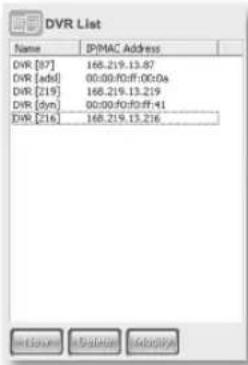
text_image
DVR List Name IP/MAC Address DVR [87] 168.219.13.87 DVR [add] 00:00:fd:ff:00:0a DVR [219] 168.219.13.219 DVR [dyn] 00:00:fd:ff:41 DVR [216] 168.219.13.216The DVRs that you want to connect using Smart Viewer are listed in DVR List. You can register a new DVR, or delete/edit the selected DVR. The name and IP/MAC address of the registered DVR are displayed. If the DVR uses a static IP, select Static IP in Address Type, enter the name of DVR in Name, and the IP address in IP Address.
Set the port number in Port No. so that it matches the port number that you've set in the network menu of DVR. For connecting to the DVR, you need to set both Admin password and user password.
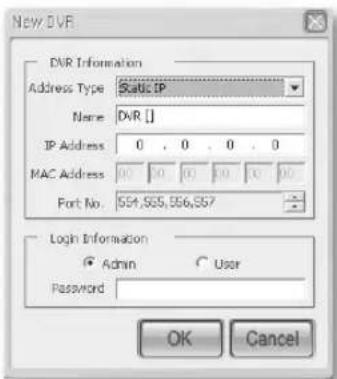
text_image
New.DVR DVR Information Address Type Static IP Name DVR [] IP Address 0 . 0 . 0 . 0 MAC Address 00 00 00 00 00 Port No. SS4,SS5,SS6,SS7 Login Information Admin User Password OK CancelIf your DVR uses a dynamic IP such as in a cable modem, VDSL, and PPPoE for ADSL, set the address in MAC Address. Set the port number in Port No. so that it matches the port number that you've set in the network menu of DVR.
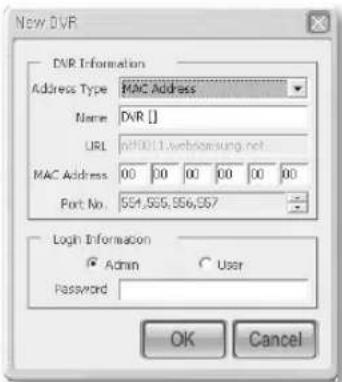
text_image
New DVR DVR Information Address Type MAC Address Name DVR [] URL pH0011.webbomsung.net MAC Address 00 00 00 00 00 00 Port No. SS4.SGS,SS6.SS7 Login Information Admin User Password OK CancelIf you have selected Use DDNS in the
Network Settings menu of DVR or used an IP splitter to register a URL using DDNS, you can connect through the designated URL. If you want to connect through the URL, select URL in Address Type and enter the URL set in URL.
Set the port number in Port No. so that it matches the port number that you've set in the network menu of DVR.

- The MAC address of DVR is written on the side label of the product. It is also found in the system information on the DVR setup menu.
- If the DVR is connected to ADSL, a low network bandwidth is available. Accordingly, the transfer rate becomes low and Smart Viewer limitedly operates.
- Smart Viewer can monitor up to 16 channels at the same time.
- Smart Viewer can search or play one channel only.
• The audio does not play. - The playback frame speed is 0.5 ips in average and it may vary depending on the number of channels and video size.
To delete an existing DVR, click Delete.

To delete a DVR from the list, click Delete. Then the following message appears. Click OK to confirm it.
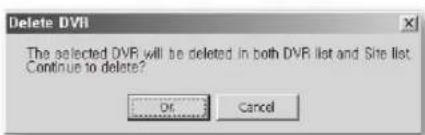
text_image
Delete DVII The selected DVR will be deleted in both DVR list and Site list. Continue to delete? OK CancelWhen the DVR to be deleted is connected to Smart Viewer, the following message also appears. If you really want to delete the DVR, disconnect the DVR and retry to delete it.
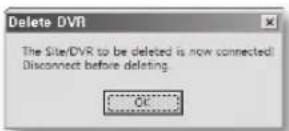
To edit the existing DVR, click Modify.

After modifying the settings, click OK.
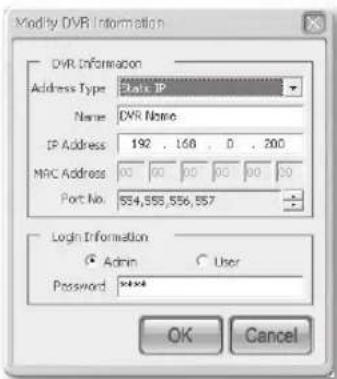
text_image
Modify DVR Information DVR Information Address Type: Static IP Name: DVR Name IP Address: 192 . 168 . 0 . 200 MRC Address: 00 00 00 00 00 30 Port No.: 554,555,556,557 Login Information Admin User Password : **** OK CancelWhen the DVR to be modified is connected to Smart Viewer, the following message appears. If you really want to modify the DVR, disconnect the DVR and retry to modify it.
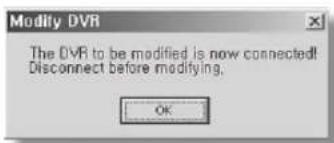
text_image
Modify DVR The DVR to be modified is now connected! Disconnect before modifying. OK- Site List
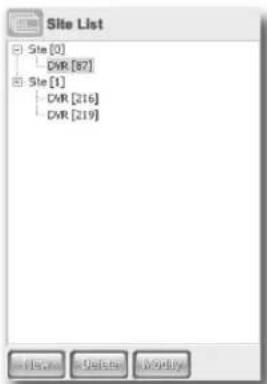
text_image
Site List Site [0] DVR [87] Site [1] DVR [216] DVR [219]You can assign multiple DVRs (up to 16) to a site for control. You can register a new site and delete or edit the selected site in the registered list. After sites are correctly constructed, you can add or delete DVRs for the selected site.
To add a new site, click New.

After pressing New, the following window appears. You can enter the name of site and click OK.
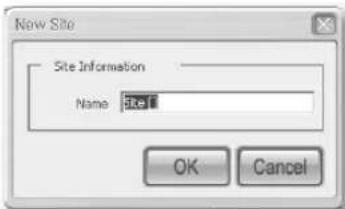
text_image
New Site Site Information Name: Ref OK Cancel
The site name can be input up to 15 characters in English or number and 7 characters in Korean.
To delete an existing site or DVR, use Delete.

After selecting a site or DVR and click Delete, the following message appears. Click OK to confirm it. After this action, the DVR name is deleted but the information of DVR is not removed.
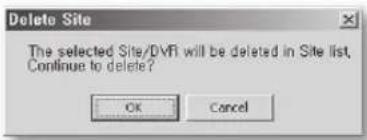
text_image
Delete Site The selected Site/DVR will be deleted in Site list, Continue to delete?When the site to be deleted is connected to Smart Viewer, the following message appears. If you really want to delete the site, disconnect the site and retry to delete it.
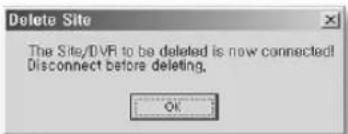
text_image
Delete Site The Site/DVR to be deleted is now connected! Disconnect before deleting. OKTo edit an existing site, click Modify.

Change the site name.
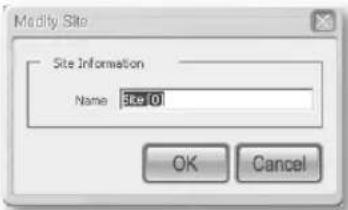
text_image
Modify Site Site Information Name: Site 0 OK CancelWhen the site is connected to Smart Viewer, the following message appears. If you really want to modify the name of site, disconnect the site and retry to modify it.
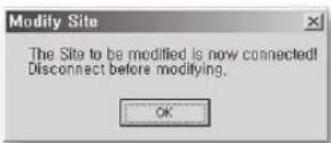
text_image
Modify Site The Site to be modified is now connected! Disconnect before modifying. OKWhen you select a DVR in the site list and click Modify, the following message appears. To edit the DVR, go to the DVR list.
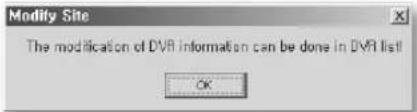
text_image
Modify Site The modification of DVRI information can be done in DVRI list! OKTo add a DVR to the site, select a DVR and click Add.

If you click Add, the selected DVR is added to the selected site. But the ADSL-enabled DVR cannot be added to the site. If you click Add to add a DVR while any site is not selected, a new site named "Site [0]" is created by default and the selected DVR is added in it. When you select the connected DVR and click Add, the following message appears. If you really want to add the DVR, disconnect the DVR and retry to add it.
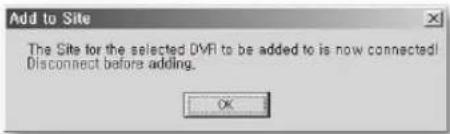
text_image
Add to Site The Site for the selected DVR to be added to is now connected! Disconnect before adding. OKS/W Version

When you click S/W Version, the program displays the software-related information such as Smart Viewer version, system requirements, and the version information on the connected DVRs.
You can also upgrade the DVR system software remotely, and import and export the DVR-related settings. Only the Admin user can perform these functions.
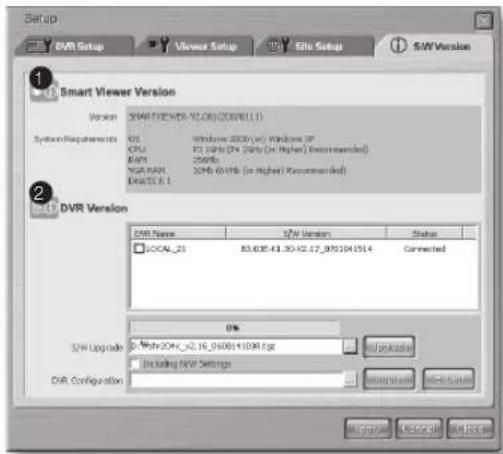
text_image
Setup DVR Setup Viewer Setup Site Setup S/N Version 1 Smart Viewer Version Version: SMARTVIEW-10.08(2000.1) System Requirements: OS Windows 2000 (or Windows XP) CPU F3.16% (N4.25%) (or Higher) Recommended RMP 250Gb YOG/MAN 32Mb (4VHz) (or Higher) Recommended DECTUE 1 2 DVR Version DSM Name S/N Version Status LOCAL_21 83.635.43.30.42.17_8951041514 Connected 0% S/N Upgrade: Wash304X_x2.16_250061+1094.csg Upgraded Including NVR Settings DSR Configuration OK/Cancel Cancel-
Displays the version and system requirements of Smart Viewer. Depending on the software version, screen images shown here may be different from the actual product.
-
Displays the version and name of DVR if any DRV is connected to Smart Viewer. This area can also provide functions for remotely upgrading the DVR software, extracting, and recovering the DVR settings.

- If a DVR is not connected to Smart Viewer, it is displayed in gray and "Not Connected" appears in the Status column.
| DVR Name | 5/W Version | Status |
| ☐ DVR [216] | B3.03E-K1.30-V2.17_0701041514 | Connected |
| DVR [219] | Unknown | Not Connected |
For software upgrade, click the following button to open the DVR firmware file.

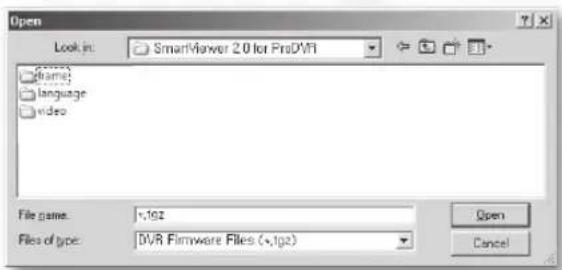
text_image
Open Look in: SmartViewer 2.0 for ProDVR [phone] language video File name: x192 Files of type: DVR Firmware Files (*.192) Open CancelAfter selecting a firmware file, click Open and select Upgrade.

The progress of the upgrade is displayed at the bottom of the screen.

Smart Viewer enables you to extract the menu settings for the connected DVR. After selecting a DVR, click Export.

The DVR settings are stored into a data file (*.dat).
By clicking Import, the stored data file can be copied to your DVR to recover the settings.

If you want to recover the network settings also, check the following check box.

Including N/W Settings

- Be sure to stop all the DVR operations such as recording, Menu setup, backup, and playback before upgrading the DVR software.
- During the software upgrade, don't turn off the power of DVR. The software upgrade takes about 5 minutes.
- If the software upgrade is accidentally suspended, the previous software is left intact.

You can download the upgraded DVR firmware from the CCTV part at www.samsung.com.
MONITORING MODE
To connect a DVR or site, select a DVR or site from the list and click the connection button as shown in the picture.
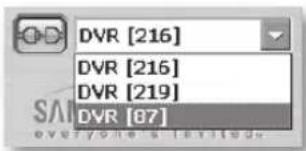
text_image
DVR [216] DVR [216] DVR [219] DVR [87]
For this connection, you should have set the DVR information such as name, IP, and password in the Setup Mode. If you select a site, it enables connection to multiple DVRs contained in the site.
Connection Failure Cases
- Password certification failure
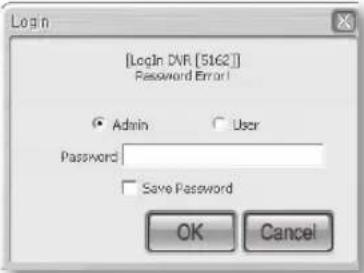
text_image
[Login DNR [5162]] Password Error! ○ Admin □ User Password □ Save Password OK CancelIf the network password of a DVR differs from the connection password set in Smart Viewer, a login message appears to let you input the correct password manually.
2. Duplicate Admin user connection
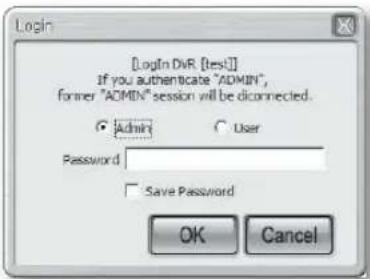
text_image
[LogIn DVR [test]] If you authenticate "ADMIN", former "ADMIN" session will be disconnected. ● Admin ○ User Password □ Save Password OK CancelWhen the DVR that you want to connect to has been already occupied by an Admin user but you retry connection with the Admin privilege, the previously connected session is automatically disconnected.

The system allows simultaneous access to DVR by up to 3 users, which include one Admin privilege user and 2 user privilege users. (But in case of Multicast, up to 5 users are allowed.)

Once occupied by 3 users, the DVR does not permit more connection.
Connection Screen
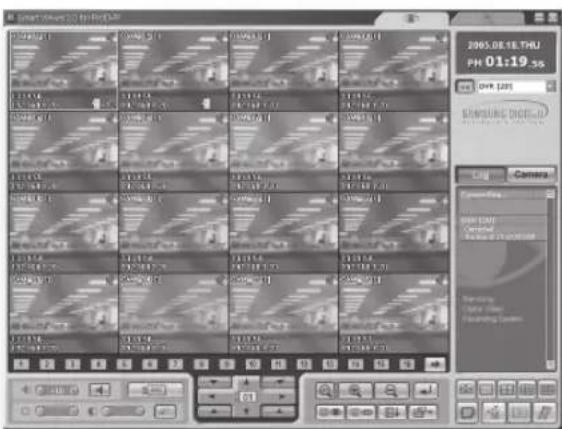
text_image
2005.08.19, THU PH 01:19 SS DVR 1231 SAMSUNG DIGITAL Camera HUA CHAI Control HUA CHAI Timeline Time Window Timeline Window
If you change the settings such as video size and color quality while Smart Viewer is running, Smart Viewer may fall into an unexpected state. In this case, you must terminate Smart Viewer.
Mode Conversion Button

These buttons enables you to switch between Monitoring mode and Search mode.
Time Information
When Smart Viewer is connected to a DVR, the current date, day, and time of the DVR are displayed. Otherwise, the current date, day, and time of your PC are displayed.
Connection Information
When Smart Viewer is connected to DVR, the connection button will display the connection status.
If you click the connection button again, the DVR is disconnected.
OSD Information Display
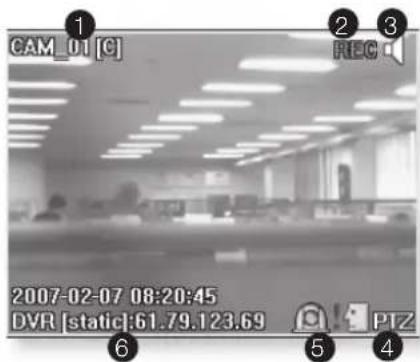
text_image
CAM_01 [C] 2007-02-07 08:20:45 DVR [static]:61.79.123.69 REC PTZ-
The channel number, camera name, and video size are displayed. Available video sizes are (C)CIF, (N)Normal, and (L)Large.
-
If the video data of the current channel is being recorded on your PC, REC appears on the screen.
-
When audio signal is available, the audio mark appears.
-
It displays whether the PTZ controls are active.
-
The current channel alarm status is displayed.
-
The name and IP address of the connected DVR are displayed.

- Clicking the speaker icon changes the audio On and Off.
- When the audio function is disabled, the following icon is displayed.
: Audio Disabled
- When the alarm or motion is detected, its status is displayed on the screen in real time with the corresponding icon.
! : Motion Detection 📄 Alarm Event
- If you have set PTZ cameras for the DVR, the PTZ icon is displayed on the screen. Select a PTZ camera channel and use the PTZ buttons for control. (For more information, refer to Chapter 5, "PTZ Camera Control.")
Event Log Display Window
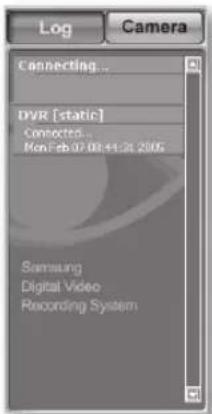
text_image
Log Camera Connecting... DVR [static] Connected... Mon Feb 07 08:41:36 2005 Samsung Digital Video Recording SystemClick Log to activate the log display window. It displays the events such as alarms, connection events, and setup change events in real time.

The displayed events are:
- Connecting...: When trying to connect to a DVR is in progress.
- Connected...: When connection is made to a DVR.
- Connection Failed: When connection to a DVR fails.
- Disconnected.: When the DVR is disconnected.
- Setup (Remote): When any DVR settings are changed by Smart Viewer.
- Setup Start/End (Local): When the Menu Setup window for the DVR is started or ended.
• Video Loss CH[N]: When a video loss in a channel is detected.
• Time Change: When the date and time of the DVR are changed.
- Load Factory Default: When the DVR system is initialized.
• Network Change: When the DVR network setup is changed.
- System Shutdown: When the DVR system is terminated.
- HDD Format: When the HDD formatting is initialized.
- Disk Full: When there is no more space in the HDD of DVR.
• Power Failure Recovery: When the DVR resumes after power failure.
- Backup Start/End/Fail/Stop: Backup for the DVR is started, finished, failed, or stopped.
• Network Traffic Busy: Data transport through the network is not smoothly going.
- Access Denied (Limit Over): No more access is allowed because the connection limit is over.

When specific events such as time change, load factory default, network change, system shutdown, or HDD format are detected, Smart Viewer automatically terminates the connection.
Camera Connection Indication Window
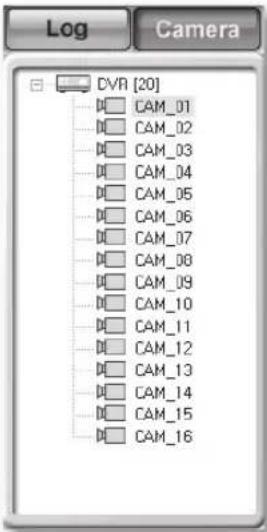
text_image
Log Camera DVR [20] CAM_01 CAM_02 CAM_03 CAM_04 CAM_05 CAM_06 CAM_07 CAM_08 CAM_09 CAM_10 CAM_11 CAM_12 CAM_13 CAM_14 CAM_15 CAM_16The window displays the connection state of DVR and the connected cameras.

- Yellow: When Smart Viewer is successfully connected to a DVR. When the camera is connected for monitoring.
- Black: When Smart Viewer cannot be connected to a DVR.
- Blue: When Smart Viewer can connect to a DVR but it is disconnected now.
Screen Split Selection Buttons
The buttons present modes like full screen, single, 4-split, 9-split, and 16-split modes. You can change to any of them under monitoring.
Sequence Mode Button

When this button is selected, screens are switched at a preset interval. The interval can be set in Monitoring of Setup Menu. In Single Mode, the channel numbers are sequentially switched from 1 to 16. In Quad (4-split) Mode, the screens are changed like 1st 4 channels (1,2,3,4) --> 2nd 4 channels (5,6,7,8) --> 3rd 4 channels (9,10,11,12) --> 4th 4 channels (13,14,15,16). In 9-split Mode, the screens are changed from 9 channels (1,2,3,4,5,6,7,8,9) to 7 channels (10,11,12,13,14,15,16). In 16-split Mode, the screen refreshes at the preset interval.
Monitoring State Display
The screen split status and playing status are displayed on the screen.
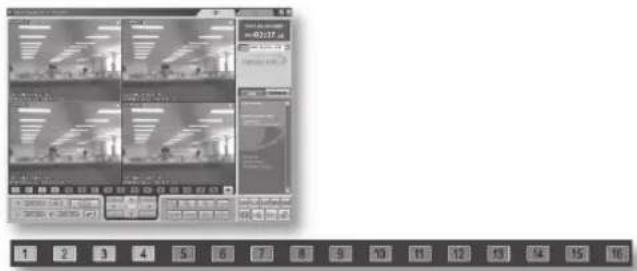
text_image
Screenshot of a digital interface with multiple video thumbnails and a numeric keypad below, likely for video or audio processing.: When monitoring in Quad Mode
text_image
Screenshot of a software interface with a grayscale photo of an office interior and a control panel showing numeric values.: When monitoring in Single Mode
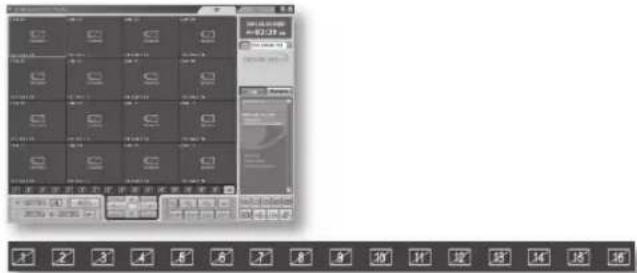
text_image
Screenshot of a software interface with Chinese text labels and a grid of icons, likely representing a system or application panel.: Cameras are turned Off

The numbers in the screen icons indicate the screen positions in Smart Viewer.

The orange icon indicates that the current channel is connected to a specific camera.

The gray icon indicates that the current channel is connected to a camera but not displayed in the screen.

The black icon with a slash indicates that the current channel is not connected to any camera.
NEXT Button

When this button is clicked, next screen follows. In Single Mode, the channel numbers are sequentially switched from 1 to 16. In Quad (4-split) Mode, the screens are changed like 1st 4 channels (1,2,3,4) --> 2nd 4 channels (5,6,7,8) --> 3rd 4 channels (9,10,11,12) --> 4th 4 channels (13,14,15,16). In 9-split Mode, the screens are changed from 9 channels (1,2,3,4,5,6,7,8,9) to 7 channels (10,11,12,13,14,15,16). In 16-split Mode, the screen is refreshed.
CALLBACK Button

If you press this button, the callback window is activated to receive event messages. When receiving a message, Smart Viewer automatically connects to the corresponding DVR. The messages are video loss events, alarm events, and motion detection events. You can decide whether the received event will bring up alarming sound or not.
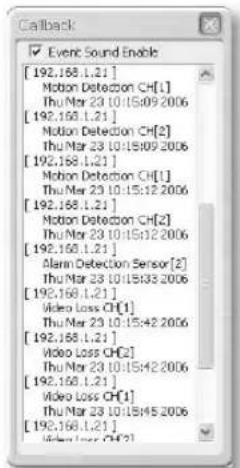
text_image
Event Sound Enable [192.168.1.21] Motion Detection CH[1] Thu Mar 23 10:15:09 2006 [192.168.1.21] Motion Detection CH[2] Thu Mar 23 10:15:09 2006 [192.168.1.21] Motion Detection CH[1] Thu Mar 23 10:15:12 2006 [192.168.1.21] Motion Detection CH[2] Thu Mar 23 10:15:12 2006 [192.168.1.21] Alarm Detection Sensor [2] Thu Mar 23 10:15:35 2006 [192.168.1.21] Video Loss CH[1] Thu Mar 23 10:15:42 2006 [192.168.1.21] Video Loss CH[2] Thu Mar 23 10:15:42 2006 [192.168.1.21] Video Loss CH[1] Thu Mar 23 10:15:45 2006 [192.168.1.21]FAVORITE Button

If you press this button, the favorite window is activated.
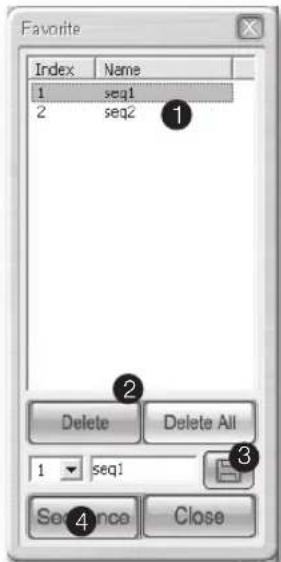
text_image
Favorite Index Name 1 seq1 2 seq2 ① ② Delete Delete All ③ 1 seq1 Sequence Close- The cameras set for Favorite are displayed on the screen.
- Clicking Delete removes a favorite setting. Clicking Delete All removes all the favorite settings.
- Click this button to save the new favorite number and name.
- Change favorites at the preset interval.

- The FAVORITE button is available only when you connect to a site.
- The FAVORITE settings are saved in the Config file even after you disconnect the site.
- When you change the DVR list that makes the site in Setup, the FAVORITE settings are initialized.
Video Recording Button
If you select a channel and click REC, the video data will be saved in a DVR file on your PC. The directory, file naming convention, and recording time can be configured in Viewer Setup for Setup Mode. The saved video file can be played in Search mode. To stop recording, click this button again. But this action is possible in 10 seconds after the recording starts.
Audio Volume Control Button
You can adjust the audio volume level (0 to 10) of a channel or mute it.
Video Brightness/Contrast Control Button

After selecting a channel, you can adjust the brightness and contrast levels (0 to 10) of video image using the control buttons (+,-). The default value is 5. To return the default settings, press the button on the right.

- The adjusted audio volume, brightness, and contrast values are saved on your PC and remain unchanged even if Smart Viewer restarts.
- The brightness and contrast adjustment may not work depending on the model.
PTZ Camera Control Buttons

You can handle the following PTZ operations after selecting a PTZ-enabled channel.
- Panning Left/Right
- Tilting Up/Down
- Diagonal controls
The channel number is displayed at the center of PTZ control buttons.
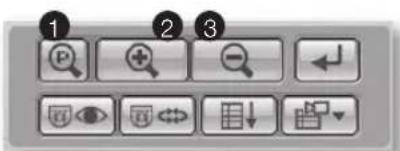
text_image
Screenshot of a software toolbar with numbered UI icons for zoom, search, and view controlsPower Zoom After the Power Zoom button is clicked, you can use the Zoom In and Out functions.
②③ Zoom In/Out

The PTZ (Pan/Tilt/Zoom) controls are available in all cameras. But, this Power Zoom controls are supported by Samsung smart dome cameras only, and they support the tilting operation below 45°.
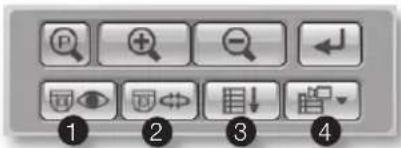
text_image
Screenshot of a software toolbar with numbered icons for menu, function, and view controls① PRESET
If you press this button, the Preset setup window appears.
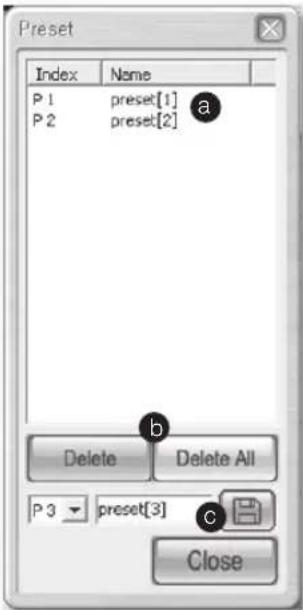
text_image
Preset Index Name P 1 preset[1] P 2 preset[2] Delete Delete All P 3 preset[3] Closea. If you select a preset, the camera moves to the preset position.
b. You can delete the selected preset or all presets.
c. You can save the new preset number and name.
② AUTOPAN: The camera moves between starting and ending points.
③ SCAN: The camera moves circulating the preset positions.
4 PATTERN: The camera moves following the route that you have defined.

The preset function is supported by all cameras. You can set up to 20 presets. But an active directory (AD) protocol camera can have 7 presets.
The names of ②, ③, and ④ may vary depending on the camera vendor. And those functions may not be supported by some product.
• Samsung cameras support those functions.
• In case of Panasonic cameras, the names of AUTOPAN, SCAN, and PATTERN are as following:
② SEQUENCE ③ AUTOPAN ④ SORT.
• In case of PELCO cameras, the names of AUTOPAN, SCAN, and PATTERN are as following:
② FRAME SCAN ③ AUTO SCAN ④ PATTERN.
• The other cameras do not support those functions.
Self Menu Setup of PTZ device
text_image
Screenshot of a software toolbar with icons for zoom, search, delete, and view controls- You can configure the camera-related settings using the PTZ camera menu.
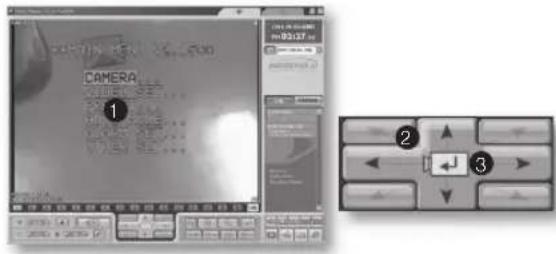
text_image
CAMERA 1 2 3- This is the camera self menu screen. The screen can be shown on Smart Viewer.
- Use the Direction buttons for movement between menus.
- The button operates the same as the ENTER button.

The Camera Menu Setup function is supported for Samsung and Panasonic cameras only.

When a DVR is using the PTZ camera controls, Smart Viewer cannot control the PTZ camera. The PTZ camera controls can be used by the Admin user.
The Search mode has two separate modes such as Remote mode to search/play the DVR video data, and Local mode to play the DVR files that have been saved in the designated directory on your PC.
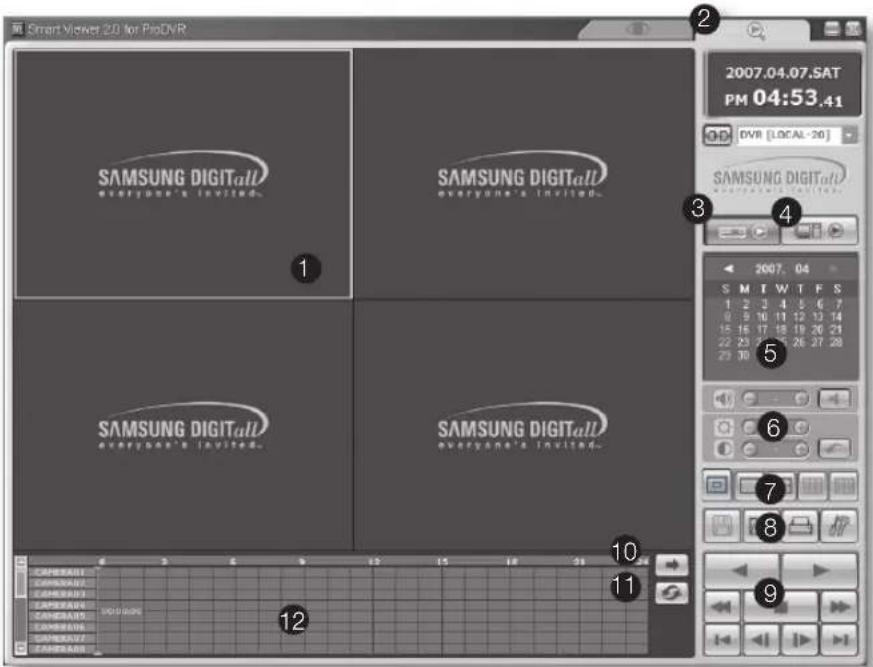
text_image
Smart Video 2.0 for PioDVR SAMSUNG DIGITall everyone's invited. SAMSUNG DIGITall everyone's invited. SAMSUNG DIGITall everyone's invited. SAMSUNG DIGITall everyone's invited. 2007.04.07.SAT PM 04:53.41 OP DV8 [LOCAL-20] SAMSUNG DIGITall everyone's invited. 2007.04 S M I W T F S 1 2 3 4 5 6 7 9 10 11 12 13 14 15 16 17 18 19 20 21 22 23 24 25 26 27 28 29 30 10 11 9 12-
The screen shows the playback channels.
-
Click this to move to the Search mode for searching and playing the video files recorded.
-
Click this to move to the Remote mode for playing back the recorded DVR video images remotely.
-
Click this to move to the Local mode for playing back the DVR files recorded on your PC.
-
Use this calendar to select year, month, and date for search.
-
Use buttons for adjusting the audio volume and video brightness/contrast.
-
Click any of screen display modes.
-
Use buttons for recording, converting, printing, and setup.
-
Use buttons for playback of searched video file.
-
Use the button to display the next screens in order.
-
Use this button to renew the information about changing to channel/DVR, calendar, and time line.
-
It shows the time line for displaying the time information for search of the recorded video data.

- When connecting to a site, select a DVR for search.
- With a user privilege, you cannot access the Search mode.
Select a site or DVR first and click the connection button.
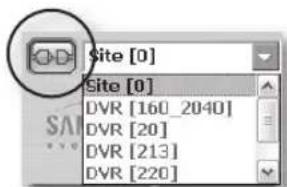
text_image
Site [0] Site [0] DVR [160_2040] DVR [20] DVR [213] DVR [220]You can also select a DVR.
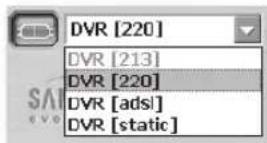
Remote Mode
This mode transfers the video data recorded on DVR through the network for playback. Up to 4 channels are allowed for simultaneous search and playback. The video data is played at the position where the time bar is located.
When clicking this button, it changes to the Remote mode.
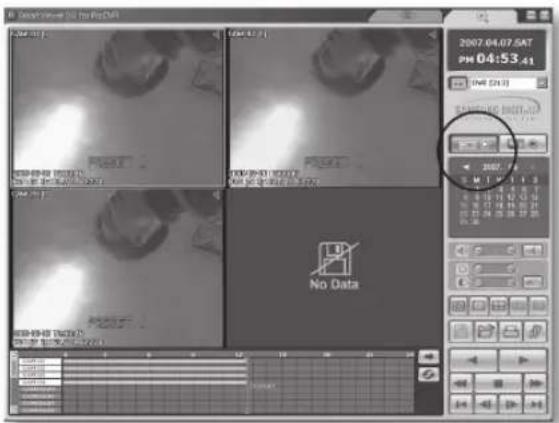
text_image
2007.04.07.SAT PM 04:53.41 (NM 2013) 2007.04.07.SAT PM 04:53.41 (NM 2013) No DataCalendar Window
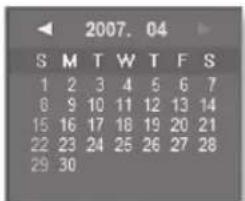
text_image
2007. 04 S M T W T F S 1 2 3 4 5 6 7 6 9 10 11 12 13 14 15 16 17 18 19 20 21 22 23 24 25 26 27 28 29 30If the video data has been recorded on a date, the date is distinguished in red. If you click the date, the recorded video information is displayed in the time line. If you select a date, it turns in red. Clicking ▶ changes to the previous month and clicking ▶ changes to the next month.
Audio Volume, Video Brightness/Contrast Buttons
Those buttons operate the same as the controls in Monitoring Mode. The brightness and contrast adjustment may not work depending on the model.
Screen Split Selection Buttons
You can use any of full screen, single, quad (4-split), 9-split, and 16-split modes.
In the Remote mode, 9-split mode is not available while in the Local mode, quad and 9-split modes are not available.
Video Save (Backup)/Video Conversion/Print/Setup
1. Video Save button
During playback (play/reverse play/fast forward/fast backward), if you select a channel and click this button, the video data is saved in a DVR file. (It is saved in the designated folder on your PC.) The directory, file naming convention, and recording time can be configured in Viewer Setup for Setup Mode. You can set the recording duration ranging from one minute to 10 minutes. To stop recording, click this button again. But this action is possible in 10 seconds after the recording starts. If the video file is not playing, this button enables you to perform backup, which brings up the following window.
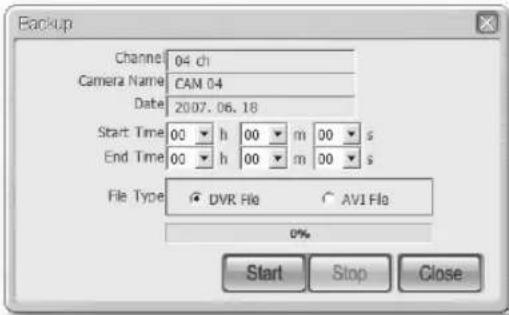
text_image
Backup Channel 04 ch Camera Name CAN 04 Date 2007.06.18 Start Time 00 h 00 m 00 s End Time 00 h 00 m 00 s File Type DVR Flo AV1 Fla 0% Start Stop CloseYou can set the starting and ending times for backup and select a file format for saving. Clicking Start begins the backup process. The backup file is saved in the folder which was defined by Setup > Viewer Setup > Video Recording > Video Location. To stop the backup process, click Stop.
This function is enabled only when the playback actions are in progress.
2. File Conversion button
When this button is clicked, the system converts a DVR file into JPEG or AVI format.
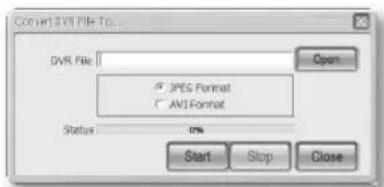
text_image
C:\VIR\DVD FILE\TO... DVR File JPEG Format AVI Format Status: 0% Start Stop CloseTo perform this function
a. Click Open to select a DVR file to be converted.
b. Select JPEG Frame or AVI Video.
c. Click Start to convert the file. To stop conversion, click Stop.

- If JPEG Frame is selected, the file is converted to “*.jpg” file after clicking Start. The converted JPG file is saved according to the preset route: Setup > Viewer Setup > File Converting > Jpeg Location.
- If AVI Video is selected, the file is converted to the "*.avi" file after clicking Start. The converted AVI file is saved according to the preset route: Setup > Viewer Setup > File Converting > AVI Location.
- In case of AVI backup, you need the divX codec for playing saved files. The divX codec can be found at www.divx.com.
3. Print button
This button prints the playback screen that is now being displayed.
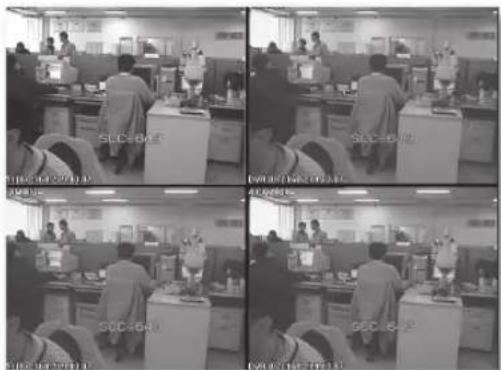
text_image
Black-and-white surveillance photo of office workers at desks with overlaid Chinese text labels indicating locations and equipment.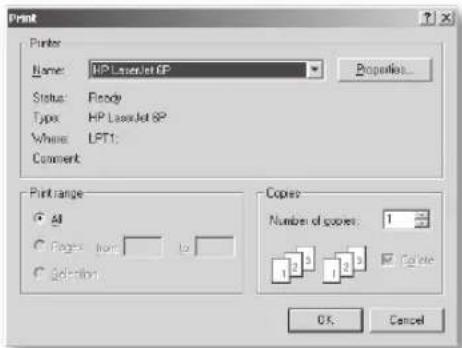
text_image
Print Printer Name: HP LaserJet 6P Status: Fbody Type: HP LaserJet 6P Where: LPT1: Convert Print range All Pages: none to Selection Copies Number of scores: 1 1 2 3 4 5 Cancel OK Cancel4. Setup Mode button
This button brings up the Setup Mode window.
5. Play buttons
text_image
Grid of nine numbered UI icons arranged in a 3x3 grid, each containing a play button and directional arrow.- Reverse Play: Performs Reverse Play
- Play: Performs playback
- Fast Backward: Reverse-plays faster
- Stop: Stops playing
- Fast Forward: Plays faster
- Go to Last: Plays the latest (last) image in the time line
- Step Backward: Performs one step reverse-play by one second
- Step Forward: Performs one step forward by one second
- Go to First: Plays the first image in the time line

During play (Play/RevPlay/FF/FB), disconnection or change to both Monitoring and Local modes is not permitted. Click Stop first before any change.
6. Time Line
It displays the recorded video data status on DVR after a date is selected. The normal mode displays the time ranging from 0 to 24 O'clock while the extension mode displays the time every 2 hours.

text_image
LAM 01 LAM 02 LAM 03 LAM 04 LAM 05 LAM 06 LAM 07 LAM 08 LAM 09 LAM 10 LAM 11 LAM 12 LAM 13 LAM 14 LAM 15 LAM 16 LAM 17 LAM 18 LAM 19 LAM 20 LAM 21 LAM 22 LAM 23 LAM 24 LAM 25 LAM 26 LAM 27 LAM 28 LAM 29 LAM 30 LAM 31 LAM 32 LAM 33 LAM 34 LAM 35 LAM 36 LAM 37 LAM 38 LAM 39 LAM 40 LAM 41 LAM 42 LAM 43 LAM 44 LAM 45 LAM 46 LAM 47 LAM 48 LAM 49 LAM 50 LAM 51 LAM 52 LAM 53 LAM 54 LAM 55 LAM 56 LAM 57 LAM 58 LAM 59 LAM 60 LAM 61 LAM 62 LAM 63 LAM 64 LAM 65 LAM 66 LAM 67 LAM 68 LAM 69 LAM 70 LAM 71 LAM 72 LAM 73 LAM 74 LAM 75 LAM 76 LAM 77 LAM 78 LAM 79 LAM 80 LAM 81 LAM 82 LAM 83 LAM 84 LAM 85 LAM 86 LAM 87 LAM 88 LAM 89 LAM 90 LAM 91 LAM 92 LAM 93 LAM 94 LAM 95 LAM 96 LAM 97 LAM 98 LAM 99 LAM 100[Normal mode]
① The channels that are being displayed on the playback screen are distinguished on white background.
② The highlighted time bar displays the time range of the video image.
③ The time lines display the time division.
![Hanwha SHR-5160 - [Normal mode] - 1](/content/2026/06/1203571/images/f104f13bd7ca13217ec74886fac00d98785ca9c06b7702ba422cae41962b6a0e.jpg)
- If you double-click an area of a time bar, it changes to the extension mode.
- One column of time line represents one hour.
- The colors of time lines change depending on the recording state: Green (normal), Red (Panic), Orange (Alarm), Blue (Motion), Yellow (Schedule), and Purple (Video Loss).
![Hanwha SHR-5160 - [Normal mode] - 2](/content/2026/06/1203571/images/9bd47a24eff75c3aafb4f8d6b581856dac7667c9cc35ee14830c41d27628a1c4.jpg)
text_image
Screenshot of a digital audio workstation interface showing track controls and grid layout with labeled frames 1 and 2.[Extension Mode]
① Displays the time line of one hour before
② Displays the time line of one hour after
![Hanwha SHR-5160 - [Extension Mode] - 1](/content/2026/06/1203571/images/9eef0ffeb2500cd27b5cb2aa566a27d93769ccea4e07ab8a01deaa457fc15b0f.jpg)
- If you double-click an area of a time bar, it changes to the normal mode.
• Each time line represents 5 minutes. - The colors of time line change depending on the recording state: Green (normal), Red (Panic), Orange (Alarm), Blue (Motion), Yellow (Schedule), and Purple (Video Loss).
7. Next button

It operates the same as the Next button in the Monitoring mode.

You cannot change the channel while playing an image (Play/Reverse Play/Fast Forward/Fast Backward).
8. Reload button

It renews the recording time information in both the calendar and time line.
9. Local Mode
This mode is used to play the DVR file recorded in the directory on your PC. You can search and play only one channel. You can access the recorded files regardless of connection to DVR. Other functions than Calendar are the same as those of the Remote mode. The time information of local files is displayed at the first channel position in the time line together with the file name.
: Click this button to change to the Local mode.
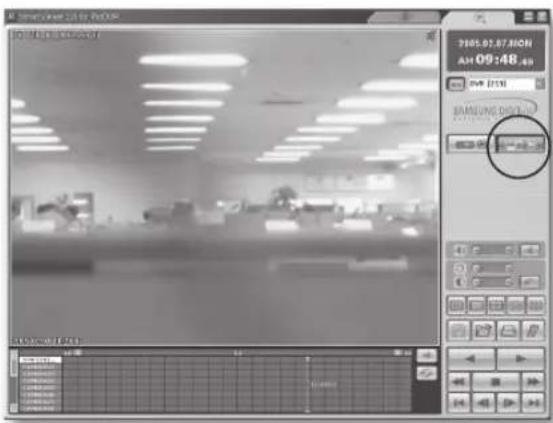
text_image
SmartIcon 2013 by 6000 2005.02.87/MON AM 09:48:49 OFF (15) SAMSUNG DUT 10:00:00:00 10:00:00:00 10:00:00:00 10:00:00:00 10:00:00:00 10:00:00:00 10:00:00:00 10:00:00:00 10:00:00:00 10.00:00:00 10.00:00:00 10.00:00:00 10.00:00:00 10.00:00:00 10.00:00:00 10.00:00:00 10.00:00:00 12.34.23.23
Only the DVR files saved with the audio being activated can be played with audio sound in the Local mode.
INTRODUCING Web Viewer
WHAT IS Web Viewer?
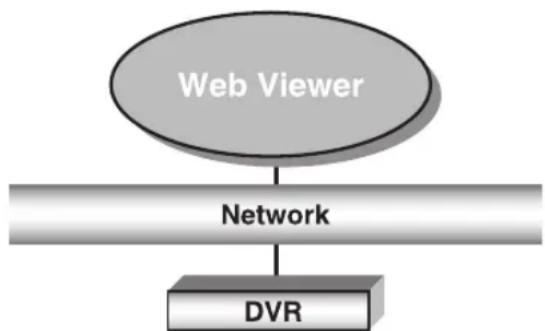
flowchart
graph TD
    A["Web Viewer"] --> B["Network"]
    B --> C["DVR"]
Web Viewer allows remote access to your DVRs. You have access to live video, archived video, PTZ control (if configured), etc.
PRODUCT FEATURES
- Remote access from a standard browser
• Supports PTZ camera controls - Supports 1, 4, 8, 16 camera viewing formats (maximum of 16 cameras in the list).
- Gets JPEG format images to print and save to "Print or Save JPEG format images".
- Record video in AVI format—compatible with popular media players. (needed the Divx codec)
SYSTEM REQUIREMENTS
The following lists the minimum suggested hardware and operating system requirements needed to run the Web Viewer.
| OS | Windows XP Professional Windows 2000 Windows Vista Home Basic / Premium |
| Web Browser | Internet Explorer 6.0.2900.2180 or higher |
| CPU | Intel Pentium 4 with 2 GHz processor |
| MEMORY | 512 MB |
| Monitor | High Color 16-bit 1024 x 768 |
| HDD | 50 MB(Installation space required) * Additional HDD space required for recording. Recorded file size will vary depending on recording quality settings. |
CONNECTING Web Viewer
- Open your web browser and type the IP address or URL of DVR into the URL address box.

The basic URL of the DVR is as following in case of MAC address :
• 00-00-F0-ab-cd-ef : nabcdef.websamsung.net
• 00-16-6c-ab-cd-ef : mabcdef.websamsung.net
- 00-68-36-ab-cd-ef :
pabcdef.websamsung.net
You can also use registered URL which setups up in the Setup menu of your DVR.
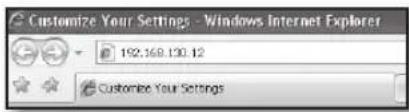
text_image
Customize Your Settings - Windows Internet Explorer 192.168.130.12 Customize Your Settings- For Administrator, type "ADMIN", and then type the password that DVR is set up to. Non-admin users type "USER" and password.

- The DVR allows simultaneous access to DVR by up to 3 users, which include one Admin privilege user and 2 user privilege users.
- The factory default password for Administrator privileges is "4321."
- Non-admin user can not access to SEARCH and SETUP menu.
- You can change the password for Administrator and user privileges in IP Settings menu of the DVR.
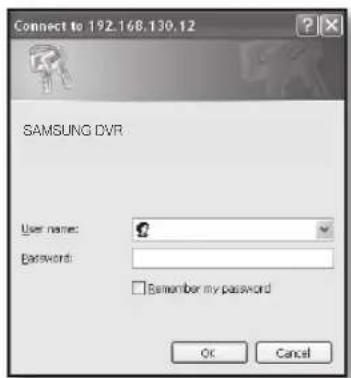
text_image
Connect to 192.168.130.12 SAMSUNG DVR User name: Password: Remember my password OK Cancel- Click "Install ActiveX Control..."
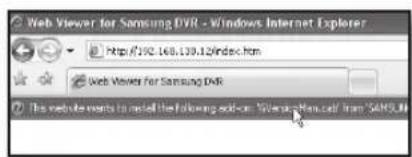
text_image
Web Viewer for Samsung DVR - Windows Internet Explorer http://192.168.139.12/index.htm Web Viewer for Samsung DVR This website wants to install the following add-on: "Windows after .call" from "SAMSUI"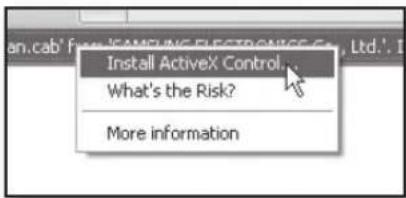
text_image
Install ActiveX Control. What's the Risk? More information- Click "Install".
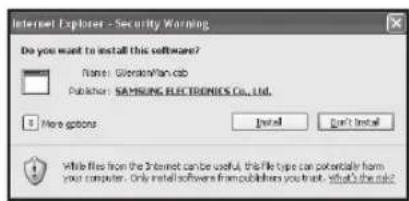
text_image
Internet Explorer - Security Warning Do you want to install this software? Name: Givenskplan.cib Publisher: SAMSUNG ELECTRONICS Co., Ltd. More options Install Don't Install While files from the Internet can be useful, this file type can potentially form your computer. Only install softwares from publishers you trust what's the info?- Click "Install".
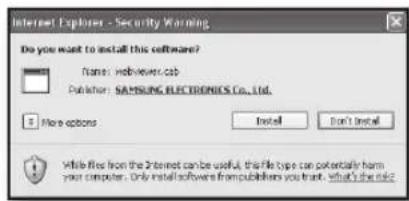
text_image
Do you want to install this software? Name: webview.cab Publisher: SAMSUNG ELECTRONICS Co., Ltd. More options Install Don't Install While Red from the Internet can be useful, this file type can potentially harm your computer. Only install software from publishers you thank, what's the info- You may have "Windows Security Alert" that attempts to block this with the Windows Firewall. In that case, click "Unblock" to start Web Viewer.
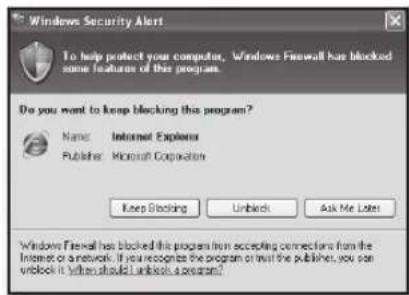
text_image
Windows Security Alert To help protect your computer, Windows Firewall has blocked some features of this program. Do you want to keep blocking this program? Name Internet Explorer Publisher Microsoft Corporation Keep Blocking Unlock Ask Me Later Windows Firewall has blocked this program from accepting connections from the Internet or network. If you recognize the program or trust the publisher, you can unlock it when should I unlock a program?- Installation is complete. Now you can see the main screen of Live Viewer.
text_image
Screenshot of a software interface displaying a grid of black square panels with Chinese labels, likely representing a UI or settings panel.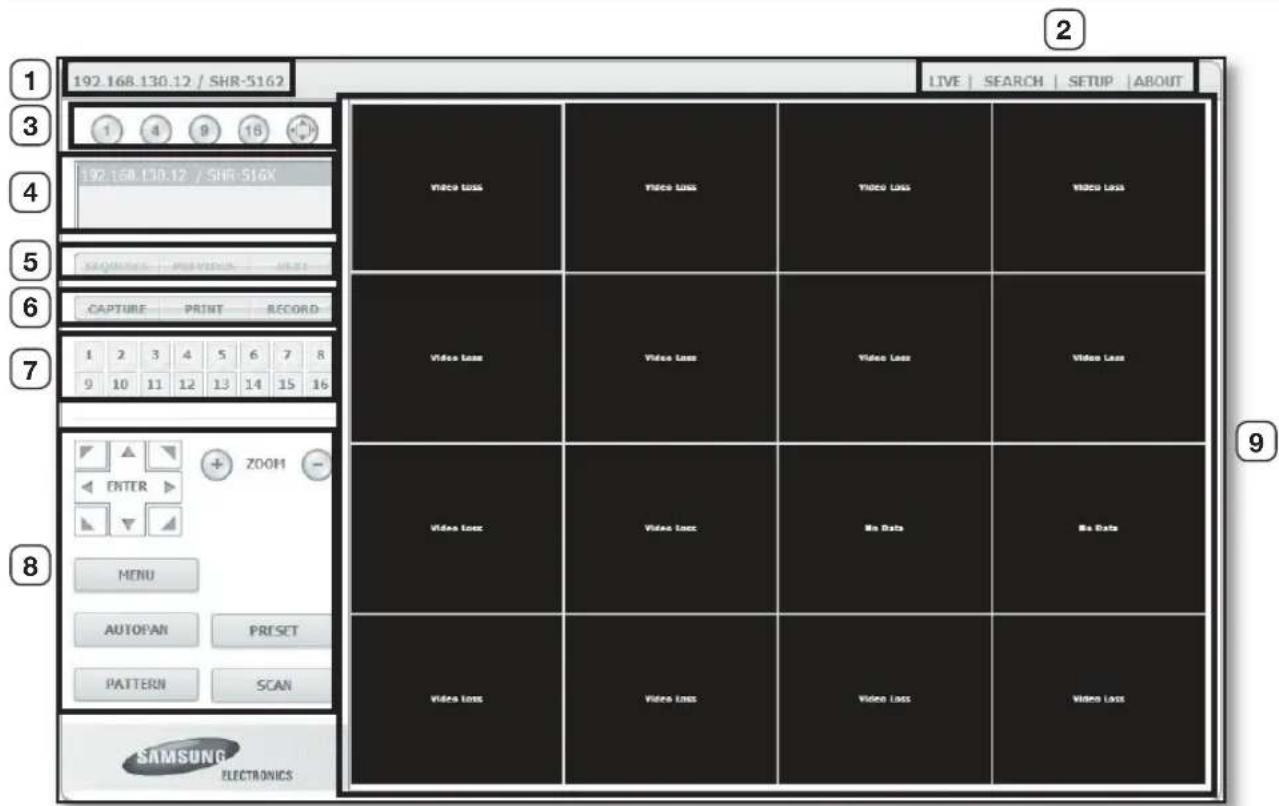
text_image
192.168.130.12 / SHR-5162 1 4 9 16 192.168.130.12 / SHR-516X Vicco Loss Video Loss Video Loss Video Loss Vicco Loss Vicco Loss Vicco Loss Vicco Loss Vicco Loss Vicco Loss Vicco Loss Vicco Loss Vicco Loss Vicco Loss Vicco Loss Vicco Loss Vicco Loss Vicco Loss Vicco Loss Vicco Loss Vicco Loss Vicco Loss Vicco Loss Vicco Loss Vicoo Data Vicoo Data Vicoo Data Vicoo Data Vicoo Data Vicoo Data Vicoo Data Vicoo Data Vicoo Data Vicoo Data Vicoo Data Vicoo Data Vicoo Data Vicoo Data Vicoo Data Vicoo Data Vicoo Data Vicoo Data Vicoo Data Vicoo Data Vicoo Dats Vicoo Dats Vicoo Dats Vicoo Dats Vicoo Dats Vicoo Dats Vicoo Dats Vicoo Dats Vicoo Dats Vicoo Dats Vicoo Dats Vicoo Dats Vicoo Dats Vicoo Dats Vicoo Dats Vicoo Dats Vicoo Dats Vicooo Data Vicooo Data Vicooo Data Vicooo Data Vicooo Data Vicooo Data Vicooo Data Vicooo Data Vicooo Data Vicooo Data Vicooo Data Vicooo Data Vicooo Data Vicooo Data Vicooo Data Vicooo Data Vicooo Data Vicooo Data Vicooo Data Vicooo Data Vicooo Dats Vicooo Dats Vicooo Dats Vicooo Dats Vicooo Dats Vicooo Dats Vicooo Dats Vicooo Dats Vicooo Dats Vicooo Dats Vicooo Dats Vicooo Dats Vicooo Dats Vicooo Dats Vicooo Dats Vicooo Dats Vicooo Dats Vicuno Data Vicuno Data Vicuno Data Vicuno Data Vicuno Data Vicuno Data Vicuno Data Vicuno Data Vicuno Data SAMSUNG ELECTRONICSThe Live Viewer screen consists of following :
① This displays the IP address and the model name of the connected DVR.
② These menus consist of LIVE, SEARCH, SETUP, ABOUT.
③ These buttons are used for the screen split and full screen mode.
④ This displays the IP address and the status of the connecting DVR.
⑤ These buttons are used for sequence and changing the screen channel.
⑥ These buttons are used for capture, print, and save the image.
⑦ These buttons display the current channel.
⑧ These buttons are used for PTZ related functions.
⑨ This displays the screen for connected camera with DVR.

• The resolution is at 1024 x 768 pixels.
- The initial screen split mode is according to the channel numbers of the connected DVR. You can change the screen split mode by clicking buttons for splitting screen.
• Non-admin users do not have access to SEARCH and SETUP menu.
OSD INFORMATION DISPLAY
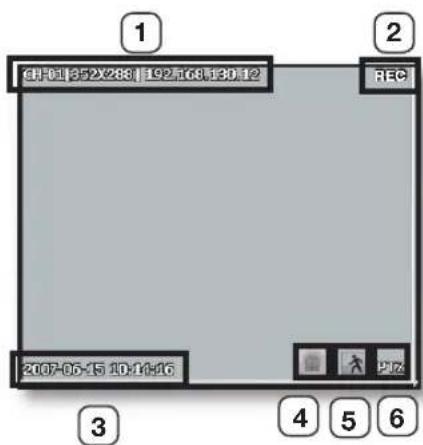
text_image
GH-01 352X288 | 192F08F30F12 REC 2007-06-15 10:14:06 ① ② ③ ④ ⑤ ⑥① The channel number, video size, and IP address of the connected DVR are displayed.
② If the video data of the current channel is being recorded on your PC, "REC" appears on the screen.
③ The current date and time of the DVR are displayed.
④ Alarm icon appears when alarm is issued. It disappears when pressed the ALRAM button of the DVR.
⑤ Motion icon appears when motion is detected. It disappears when pressed the ALRAM button of the DVR.
⑥ It displays whether the PTZ controls are active.

If you have set PTZ cameras for the DVR, "PTZ" is displayed on the screen. Select a PTZ camera channel and use the PTZ button for camera control.
SPLIT-SCREEN
You can change the split mode by clicking each number icon.
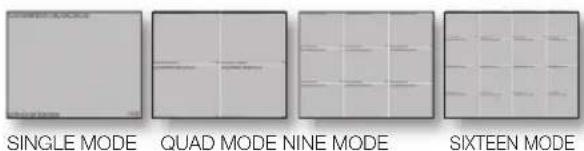
text_image
SINGLE MODE QUAD MODE NINE MODE SIXTEEN MODE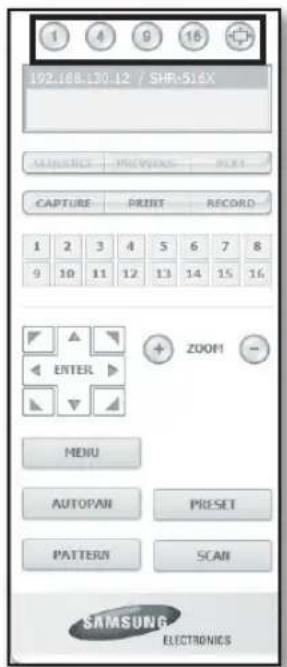
text_image
192.168.130.12 / SHR-516X MANUANCE PRECIVIANCE PRINT CAPTURE PRINT RECORD 1 2 3 4 5 6 7 8 9 10 11 12 13 14 15 16 ZOOM1 ENTER MENU AUTOPAN PRESET PATTERN SCAN SAMSUNG ELECTRONICS- Click button.
The screen displays the selected camera connected to the DVR in "SINGLE MODE".
- Click button.
The screen displays the selected camera connected to the DVR in "QUAD MODE".
- Click button.
The screen displays the selected camera connected to the DVR in "NINE MODE".
- Click button.
The screen displays the selected camera connected to the DVR in "SIXTEEN MODE".
FULL SCREEN MODE
- Click button.
The screen displays the selected camera connected to the DVR in "FULL SCREEN MODE". To back to the previous mode, press the ESC key.
CONNECTED DVR
This displays the IP address and the status of the connecting DVR.
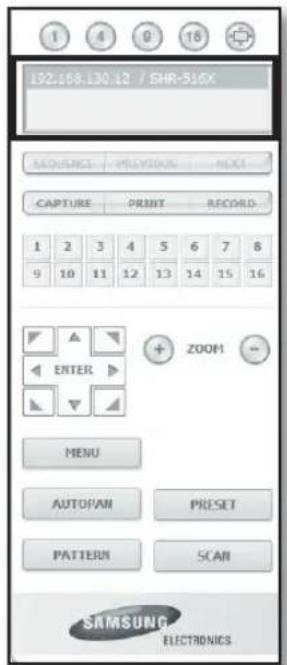
text_image
192.168.130.12 / SHR-510X SEQUENCE PREVIOUS NEXT CAPTURE PRINT RECORD 1 2 3 4 5 6 7 8 9 10 11 12 13 14 15 16 ENTER ZOOM MENU AUTOFAN PRESET PATTERN SCAN SAMSUNG ELECTRONICS
- Connection failure message
No Response : Appears when the DVR does not respond.
Wrong ID : Appears when the input ID is wrong.
Wrong Password : Appears when the input password is wrong.
Wrong Port Number: Appears when the port number is wrong.
Collision : Appears when Admin mode is already in use or simultaneous access to the same DVR from the PC.
User Full : Appears when the maximum number of users is exceeded.
- The numbers of simultaneous connection are 3 which includes the users for SmartViewer.
CHANGING THE LIVE SCREEN MODE
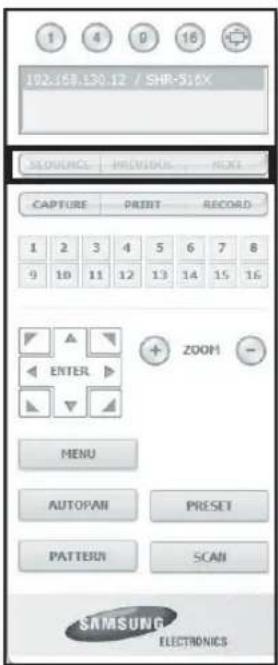
text_image
1 4 9 16 102-158.130.12 / SHR-516X SEQUENCE PREVIOUS NEXT CAPTURE PRINT RECORD 1 2 3 4 5 6 7 8 9 10 11 12 13 14 15 16 ENTER ZOOM MENU AUTOPAN PRESET PATTERN SCAN SAMSUNG ELECTRONICS- SEQUENCE: When this button is clicked, screens are switched at a preset interval. In SINGLE MODE, the channel numbers are sequentially switched from 1 to 16. In QUAD MODE, the screens are changed like 1st 4 channels (1\~4) → 2nd 4 channels(5\~8) → 3rd 4 channels(9\~12) → 4th 4 channels (13\~16). In NINE MODE, the screens are changed from 9 channels (1\~9) to 7 channels (10\~16). In SIXTEEN MODE, the screen refreshes at the preset interval

Preset interval (10 seconds)
- PREVIOUS: When this button is clicked, previous screen follows. In SINGLE MODE, the channel numbers are switched in reverse order. In QUAD MODE, the screens are changed like 1st 4 channels (1\~4) → 2nd 4 channels (13\~16) → 3rd 4 channels (9\~12) → 4th 4 channels (5\~8). In NINE MODE, the screens are changed from 9 channels (1\~9) to 7 channels (10\~16). In SIXTEEN MODE, the screen is refreshed.
- NEXT: When this button is clicked, next screen follows. In SINGLE MODE, the channel numbers are sequentially switched from 1 to 16. In QUAD MODE, the screens are changed like 1st 4 channels (1\~4) → 2nd 4 channels (5\~8) → 3rd 4 channels (9\~12) → 4th 4 channels (13\~16). In NINE MODE, the screens are changed from 9 channels (1\~9) to 7 channels (10\~16). In SIXTEEN MODE, the screen is refreshed.

- If 16-channel DVR is connected, clicking "NEXT" in QUAD MODE is to change the screen as shown in the picture.
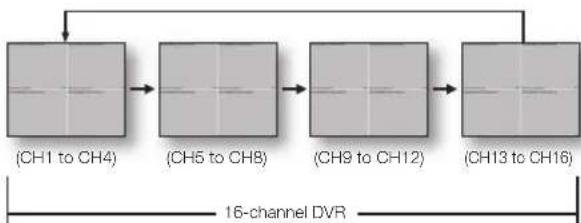
flowchart
graph LR
    A["(CH1 to CH4)"] --> B["(CH5 to CH8)"]
    B --> C["(CH9 to CH12)"]
    C --> D["(CH13 to CH16)"]
    D --> A
    style A fill:#f9f,stroke:#333
    style B fill:#f9f,stroke:#333
    style C fill:#f9f,stroke:#333
    style D fill:#f9f,stroke:#333
- CAPTURE: Captures the current picture on the screen and saves it as a jpg or bmp image file.
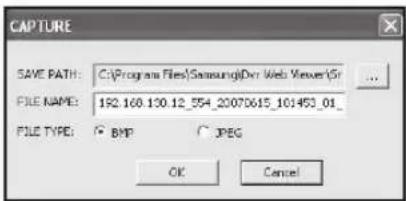
text_image
CAPTURE SAVE PATH: C:\Program Files\Samsung\Dev Web Views\Sr FILE NAME: 192.168.130.12_554_20070615_101453_01_ FILE TYPE: BMP JPEG OK Cancel
- The default saving path is "C:\Program Files\Samsung\Dvr Web Viewer\SnapShot\Live". To change the saving path, click "SAVE PATH" button( ). and then select the path you want. For Windows Vista, the saving path is "C:\users\user ID)\AppData\LocalLow\Samsung\DVR Web Viewer\Snapshot\" and it cannot be modified. - The file is automatically named as following: "IP address_Port number_YYMMDD_camera number_index" Ex) 192.168.130.12_554_20070615_101530_01_00
- PRINT: Prints the live screen that is now being displayed. It also prints IP address, time, camera number, and current event state.
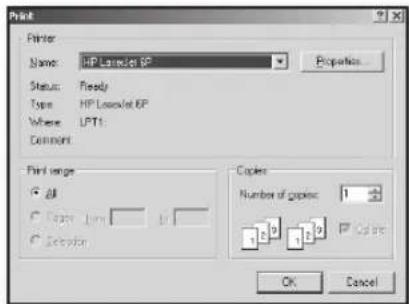
text_image
Print Name: HP Laserjet SP Status: Ready Type: HP Laserjet EP Where: LPT1: Comment: Print range ● All ○ Copy 100 ○ Selection Copies Number of copies: 1 1 2 3 4 5 OK Cancel- RECORD: Saves the current image on the screen and saves it as a avi video file.
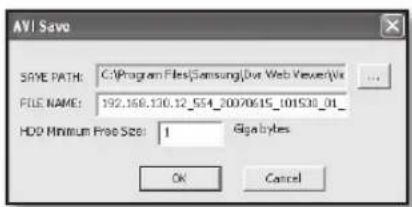
text_image
AVI Save SAVE PATH: C:\Program Files\Samsung\Dwt Web Viewer\Wt FILE NAME: 192.168.130.12_554_20070615_101530_01_ HDD Minimum Free Size: 1 Egalytes OK Cancel
- To record it, it is required at least 1GB of available space.
- The default saving path is "C:\Program Files\Samsung\Dvr Web Viewer\VideoClip\Live". To change the saving path, click "SAVE PATH" button( ), and then select the path you want. For Windows Vista, the saving path is "C:\users\user ID\AppData\Local-Low\Samsung\DVR Web Viewer\VideoClip\" and it cannot be modified.
- The file is automatically named as following: "IP address_Port number_YYMMDD_camera number_index" Ex) 192.168.130.12_554_20070615_101530_01_00
- For AVI Save, you need the DivX codec for playing saved files. You can download the free version of the Divx codec at http://sourceforge.net/projects/ffdshow/.
CHANGING THE LIVE SCREEN CHANNEL
Each number indicates the screen positions in Web Viewer.
- Blue numbers : Indicates that the current channel is connected to a camera.
- Gray numbers: Indicates that the current channel is not connected to any camera.
| 1 | 2 | 3 | 4 | 5 | 6 | 7 | 8 |
| 9 | 10 | 11 | 12 | 13 | 14 | 15 | 16 |
USING PTZ CAMERA
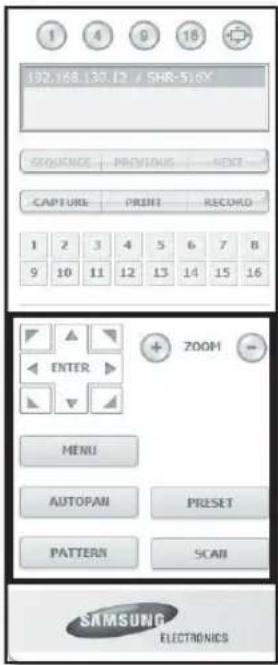
text_image
1 4 9 16 102.168.130.12 / SHR-5.16Y SEQUENCE PREVIOUS NEXT CAPTURE PRINT RECORD 1 2 3 4 5 6 7 8 9 10 11 12 13 14 15 16 ZOOM ENTER MENU AUTOPAN PRESET PATTERN SCAN SAMSUNG ELECTRONICS
Click the direction buttons to control the camera.

ZOOM

Click the + or - buttons to zoom in or out the image displayed.
MENU: Appears the camera menu screen.
text_image
MENU Up Left
text_image
Down RightPRESET: Moves the lens direction to a preset direction.
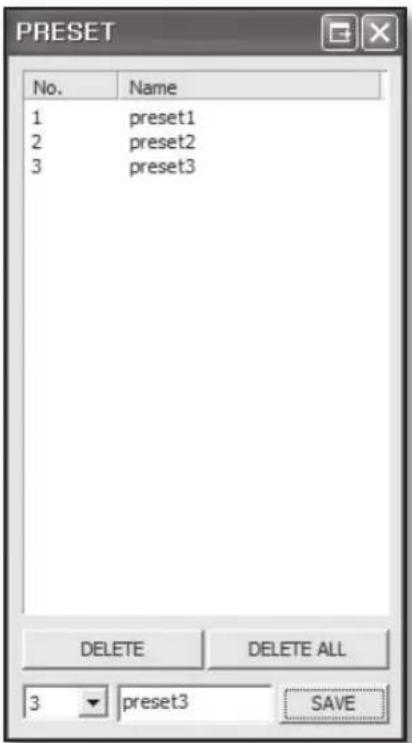
text_image
PRESET No. Name 1 preset1 2 preset2 3 preset3 DELETE DELETE ALL 3 preset3 SAVE- If you click PRESET, the camera moves to the preset position.
- You can delete the selected preset or all presets.
- You can save the new preset number and name.

You can save the preset up to 20.
AUTOPAN: Moves the camera lens direction between 2 points set for the camera.
SCAN: Moves the camera lens direction between 2 preset points of the camera.
PATTERN: You can set camera various movement patterns such as zoom, move, etc. so that a camera automatically moves according to the pattern.

- When a DVR is using the PTZ camera controls, Web Viewer cannot control the PTZ camera.
- The PTZ camera controls can be used by the admin user.
- The Camera Menu Setup function is available only supported cameras.
- All function of PTZ is same as one of DVR.
- Power pan/tilt function operates only with supported cameras. (Example: Samsung SCC-6475)
- Drag down to zoom in or drag up to zoom out by power pan/tilt function.
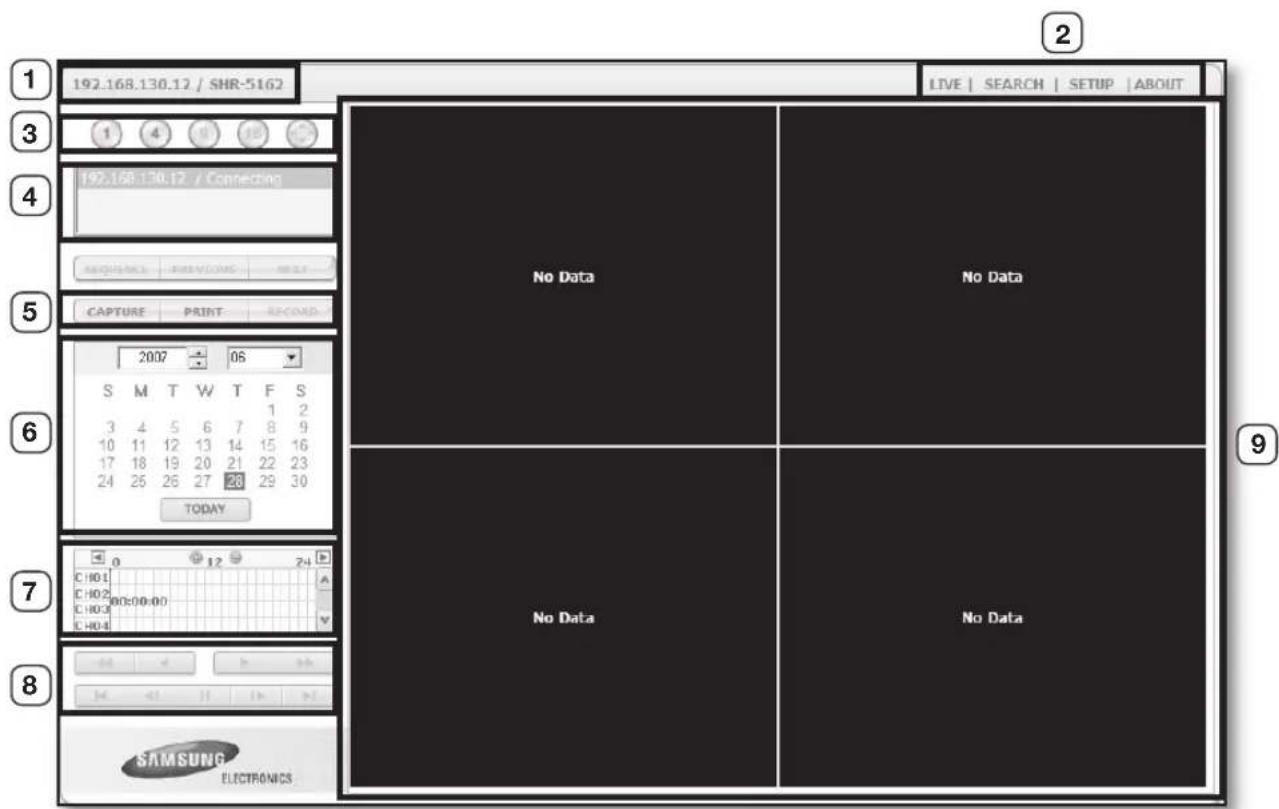
text_image
192.168.130.12 / SHR-5162 LIVE | SEARCH | SETUP | ABOUT 1 2 3 4 5 6 7 8 9 4 192.168.130.12 / Connecting REQUENCY PRINT MULT CAPTURE PRINT RECORD 2007 06 S M T W T F S 1 2 3 4 5 6 7 8 9 10 11 12 13 14 15 16 17 18 19 20 21 22 23 24 25 26 27 28 29 30 TODAY No Data No Data No Data No Data SAMSUNG ELECTRONICSThe Search Viewer screen consists of following:
① This displays the IP address and the model name of the connected DVR.
② These menus consist of LIVE, SEARCH, SETUP, ABOUT.
③ These buttons are used for the screen split and full screen mode.
④ This displays the IP address and the status of the connected DVR.
⑤ These buttons are used for capture, print, and save the image.
⑥ This displays a calendar at which you can search the recorded video.
⑦ This displays a timeline at which you can search the recorded video by the time.
⑧ These buttons are used for controlling playback.
⑨ This displays the screen for playback of recorded video.
• SEQUENCE, PREVIOUS, NEXT buttons are not available in SEARCH menu.
- Non-admin users do not have access to SEARCH and SETUP menu.
SPLIT-SCREEN
You can change the split mode by clicking each number icon.
text_image
Scanned document with two columns of text, likely a form or report sectionQUAD MODESINGLE MODE
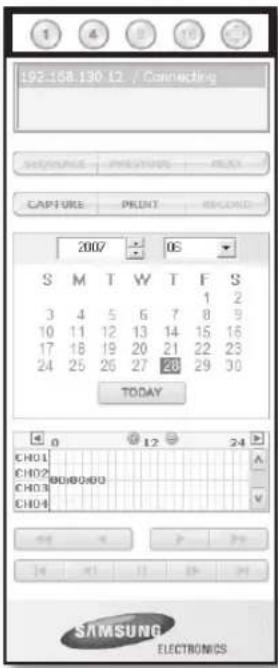
text_image
192.158.130 12 / Connecting CHANGE PRECIPIT PRINT CAPTURE PRINT RECORD 2007 OS S M T W T F S 3 4 5 6 7 8 9 10 11 12 13 14 15 16 17 18 19 20 21 22 23 24 25 26 27 28 29 30 TODAY 0 12 24 CH01 CH02 CH03 CH04 A V SAMSUNG ELECTRONICS- Click button.
The screen displays the selected camera connected to the DVR in "SINGLE MODE".
- Click button.
The screen displays the selected camera connected to the DVR in "QUAD MODE".

- Only SINGLE and QUAD MODE are available in SEARCH menu.
This displays the IP address and the status of the connecting DVR.
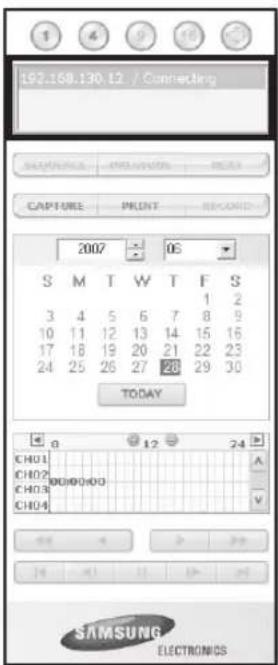
text_image
192.158.130.12 / Connecting CAPTURE PRINT RECORDS 2007 06 S M T W T F S 3 4 5 6 7 8 9 10 11 12 13 14 15 16 17 18 19 20 21 22 23 24 25 26 27 28 29 30 TODAY CH01 CH02 CH03 CH04 0 12 24 A V SAMSUNG ELECTRONICS
- Connection failure message No Response : Appears when the DVR does not respond.
Wrong ID : Appears when the input ID is wrong.
Wrong Password : Appears when the input password is wrong.
Wrong Port Number : Appears when the port number is wrong.
Collision : Appears when Admin mode is already in use or simultaneous access to the same DVR from the PC.
User Full : Appears when the maximum number of users is exceeded.
- The numbers of simultaneous connection are 3 which includes the users for SmartViewer.
- CAPTURE: Captures the current picture on the screen and saves it as a jpg or bmp image file.
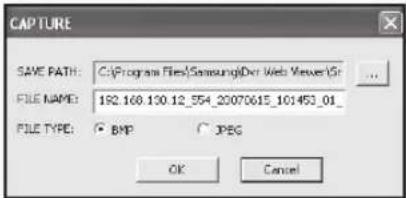
text_image
CAPTURE SAVE PATH: C:\Program Files\Samsung\Doc Web Viewer\Sir FILE NAME: 192.168.130.12_554_20070615_101450_01_ FILE TYPE: BMP JPEG OK Cancel
- The default saving path is "C:\Program Files\Samsung\Dvr Web Viewer\SnapShot\ Search". To change the saving path, click "SAVE PATH" button( ) and then select the path you want. For Windows Vista, the saving path is "C:\users\user ID\AppData\LocalLow\Samsung\DVR Web Viewer\Snap-shot\" and it cannot be modified.
- The file is automatically named as following: "IP address_Port number_YYMMDD_camera number_index" Ex) 192.168.130.12_554_20070615_101453_01_00
- PRINT: Prints the playback screen that is now being displayed. It also prints IP address, time, camera number, and current event state.
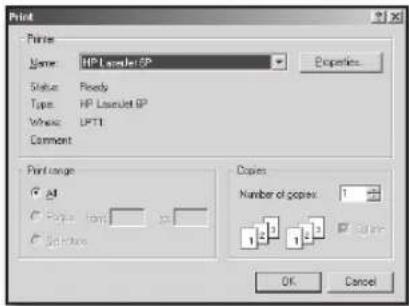
text_image
Print Name: HP Laserel SP Status: Plesdy Type: HP Laserel SP Width: LPT1 Comment Print range All Pages: 1000000000000000000000000000000000000000000000000000000000000000000000000000000000 Copies: Number of copies: 1 OK Cancel- RECORD: If you select a channel and click this button during playback (only play), the video data is saved in a DVR file. (It is saved in the designated folder on your PC.) To stop recording, click this button again.
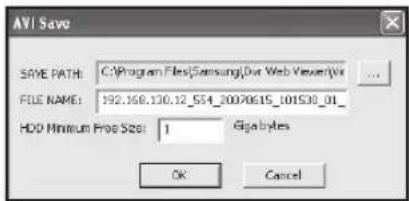
text_image
AVI Save SAVE PATH: C:\Program Files\Samsung\Dut Web Viewer\Wit FILE NAME: 192.168.130.12_554_20070615_101530_01_ HDD Minimum Proo Size: 1 Gigabytes OK Cancel
- To record it, it is required at least 1GB of available space.
- The default saving path is "C:\Program Files\Samsung\Dvr Web Viewer\VideoClip\Search". To change the saving path, click "SAVE PATH" button( ) and then select the path you want. For Windows Vista, the saving path is "C:\users\user ID\AppData\LocalLow\Samsung\DVR Web Viewer\VideoClip\" and it cannot be modified.
- The file is automatically named as following: "IP address_Port number_YYMMDD_camera number_index" Ex) 192.168.130.12_554_20070615_101530_01_00
- For AVI save, you need the DivX codec for playing saved files. You can download the free version of the Divx codec at http://sourceforge.net/projects/ffdshow/.
SEARCHING THE RECORDED VIDEO IN THE CALENDAR
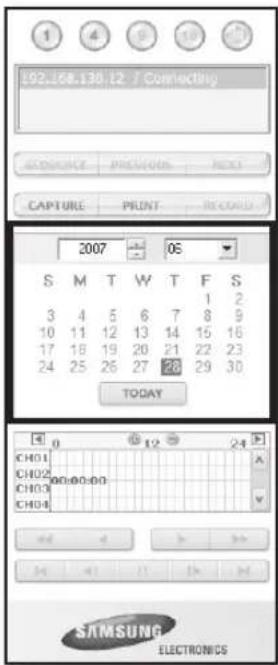
text_image
193.168.130.12 / Connecting ACCESSURE PRECISION NEXT CAPTURE PRINT RECORD 2007 05 S M T W T F S 3 4 5 6 7 8 9 10 11 12 13 14 15 16 17 18 19 20 21 22 23 24 25 26 27 28 29 30 TODAY CH01 CH02 CH03 CH04 0 12 24 A V SAMSUNG ELECTRONICS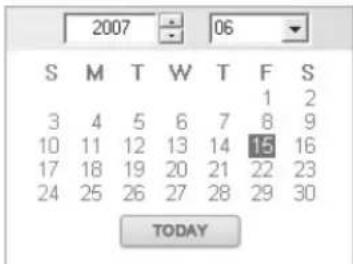
text_image
2007 06 S M T W T F S 1 2 3 4 5 6 7 8 9 10 11 12 13 14 15 16 17 18 19 20 21 22 23 24 25 26 27 28 29 30 TODAYIf the video data has been recorded on a date, the date is distinguished in green. If you click the date, the recorded video information is displayed in the time line.
When you click "TODAY", it is changed to today's date.
SEARCHING THE RECORDED VIDEO IN THE TIMELINE
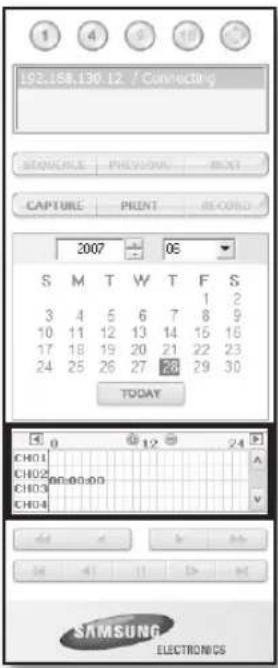
text_image
192.158,130.12 / Connecting SEQUENCE PREVIOUS PRINT CAPTURE PRINT RECORD 2007 06 S M T W T F S 3 4 5 6 7 8 9 10 11 12 13 14 15 16 17 18 19 20 21 22 23 24 25 26 27 28 29 30 TODAY CH01 CH02 CH03 CH04 0 12 24 A V SAMSUNG ELECTRONICSIt displays the recorded video data status on the DVR after a date is selected. The normal mode displays the time ranging from 0 to 24 Hours while the extension mode displays the time every 2 hours.
[Normal Mode]
- If you click + button, it changes to the extension mode.
• Each time line represents 1 hour.
[Extension Mode]
- If you click button, it changes to the normal mode.
• Each time line represents 5 minutes.
![Hanwha SHR-5160 - [Extension Mode] - 1](/content/2026/06/1203571/images/838a575b4ec5bf0efe615e4494612b30bf1f5f7394c2a31ce4409c65a72765a0.jpg)
- The channels are ranging from CH01 to CH16.
![Hanwha SHR-5160 - [Extension Mode] - 2](/content/2026/06/1203571/images/c126747cd0eb0143c0ee5ff472dc49ff5520101e2d01ecde803080dee922e0f5.jpg)
text_image
CH01 CH02 CH03 CH04 12 11:58:23 11 12 13 CH01 CH02 CH03 CH04 11:58:23① Fast Backward: Reverse-plays faster(2x).
② Reverse Play: Performs Reverse Play.
③ Play: Performs playback.
④ Fast Forward: Plays faster(2x).
⑤ Go to First: Moves the beginning time of recorded video in the time line.
⑥ Step Backward: Performs one step reverse-play by one frame.
⑦ Stop: Stops playing.
⑧ Step Forward: Performs one step forward by one frame.
⑨ Go to Last: Moves the last time of recorded video in the time line.
ABOUT
Click "ABOUT".
Displays the model name of connected DVR and the version of Web Viewer.
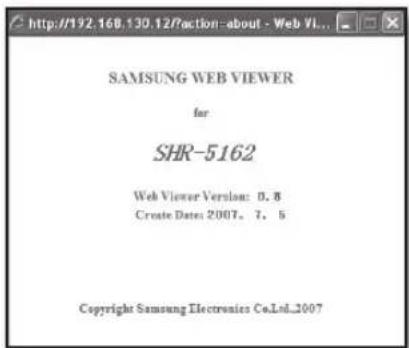
text_image
http://192.168.130.12/action-about - Web VI... SAMSUNG WEB VIEWER for SHR-5162 Web Viewer Version: 0, 8 Create Dates: 2007, 7, 5 Copyright Samsung Electronics Co.Ltd_2007PRODUCT SPECIFICATION
| Specs Details Notes | |||||
| Operating System | Embedded OS | ||||
| Broadcasting | NTSC / PAL System | ||||
| Input Voltage | AC 100 ~ 230V (PAL)AC 110 ~ 220V (NTSC) | ||||
| Power Usage | 60W | ||||
| Video Video Input | Composite 16(8) Channel- 1.0Vp-p- 75Ω Hi Z TerminationBNC TypeLoop Through Out 16(8) Channel-Auto Termination | ||||
| Video Output | Composite 3 Channel- Normal Video Output 1 Channel- Spot Output 2 Channel- BNC TypeS-Video 1 Channel- 1.0Vp-pVGA 1 Channel | ||||
| Audio Audio Input | Mono 4 Channel- -5dBm, 600ΩRCA Type | ||||
| Audio Output | Mono 1 Channel- -6dBmRCA Type | ||||
| Live Screen Resolution & Frame Speed | NTSC PAL | ||||
| Resolution 720X4 | 80 720X576 | ||||
| Frame Rate | 480ips(16Ch)/240ips(8Ch) | 400ips(16Ch)/200ips(8Ch) | |||
| Display Mode | SingleScreen Split Mode:SHR-5160/5162 : 4, 6, 7, 8, 9, 16 splitSHR-5080/5082 : 4, 6, 7, 8, 9 splitMode sequenceFreeze2 X Zoom | ||||
| Recording | Compression Method | Video: MPEG4Audio: ADPCM | |||
| Resolution & Recording Specs | Resolution | Recording Specs(Picture quality) | Highest Image Recording Speed | ||
| CIF(C)352X240(NTSC)/352X288(PAL) | Level8(High)~ Level1(Low) | 30ips(NTSC)/25ips(PAL) | |||
| Half D1(N)720X240(NTSC)/720X288(PAL) | Level8(High)~ Level1(Low) | 30ips(NTSC)/25ips(PAL) | |||
| Recording Mode | Normal Record → REC KeyProgrammed Recording → Schedule TableEvent Recording-Alarm Detection-Motion Detection-Video Loss-Pre & Post Recording | ||||
| Recording ips | NTSC: 0.9 / 1.8 / 3.7 / 7.5 / 15 / 30ips(True Recording ips: 0.938/1.875/3.75/7.5/15/30ips)PAL: 0.7 / 1.5 / 3.1 / 6.2 / 12.5 / 25ips(True Recording ips: 0.781/1.563/3.125/6.25/12.5/25ips) | ||||
| Save Internal | SHR-5162/5082: ATA HDD x 3(MAX)MAX HDD Size: 500GB x 3 = 1.5TBSHR-5160/5080: ATA HDD x 4(MAX)MAX HDD Size: 500GB x 4 = 2TB | ||||
| External | USB HDD-MAX 1 (Not support USB hub)-MAX HDD Size: 500GB | ||||
| Play Back | Search Mode | Calendar searchEvent search- Alarm, Motion, Video LossDate/time searchInitial searchLatest searchBackup search | |||
| Resolution & Recording Specs | Resolution | Recording Specs | Total120/100ips(CIF)60/50ips(Half D1) | ||
| 8Ch 16Ch | |||||
| CIF | 15ips(NTSC)/12.5ips(PAL) | 7.5ips(NTSC)/6.2ips(PAL) | |||
| Half D1(N) | 7.5ips(NTSC)/6.2ips(PAL) | 3.7ips(NTSC)/3.1ips(PAL) | |||
| Specs Details Notes | |||
| Display Mode | Single → 1Channel Decoding16 split (played cameras10-16)9 split (played cameras 5-9)4 split (played cameras 2-4)PIP → 1 Channel Decoding + 1Channel LiveTriplex 9 split → 8 Channel Live + 1Channel PBTriplex 16 split → 15 Channel Live +1Channel PB | ||
| Play Back Play Mode | Play, Pause, Stop, 2x Digital ZoomFast Forward/Fast Reverse- 2x, 4x, 8x, 16x, 32x, 64x | ||
| Backup | USB External HDDUSB CD/DVD Writer, Internal DVD(SHR-5162/5082 only)USB memoryUSB HDD-MAX 1 (Not support USB hub) | ||
| Network | Ethernet : 10/100 Base T, ADSL(PPPoE), DHCP | ||
| Serial Communication | RS-485 → PTZ Device Control,Remote Control Device | ||
| Alarm | Input : SHR-5160/5162 : 16 ChannelSHR-5080/5082 : 8 ChannelOutput : 4 ChannelSupport external alarm reset | ||
| Remote Viewer | PC Detailed Specs | CPU : Pentium III, 1GHz or higherRAM : SDRAM 256MB or higherGraphic Accelerator : Graphic Memory32MB or higher DirectX : 8.1 or higher | |
| Supported Operating Systems | Win2000, WinXP | ||
| Function | Live Image Monitoring ModeLocal File Search & Play Back ModeRemote File Search & Play Back Mode | ||
| Operating Temperature | 0°C ~ 40°C (32°F ~ 104°F) | ||
| Storage Temperature | -20°C ~ +60°C (-4°F ~ +140°F) | ||
| Operating Humidity | 20% to 85% RH | ||
| Storage Humidity | 20% to 85% RH | ||
| Size (W x H x D) | 430 x 88 x 400mm (16.93 x 3.46 x 15.75 inch) | ||
| Weight | SHR-5162/5082 : ~ 7.6kg(16.75 lb)SHR-5080 : ~6.7kg(14.77 lb)SHR-5160 : ~6.8kg(14.99 lb) | ||

It needs extra software to support ATM/POS function. So please contact your vendor to obtain software.
• 5080 Outline Drawings
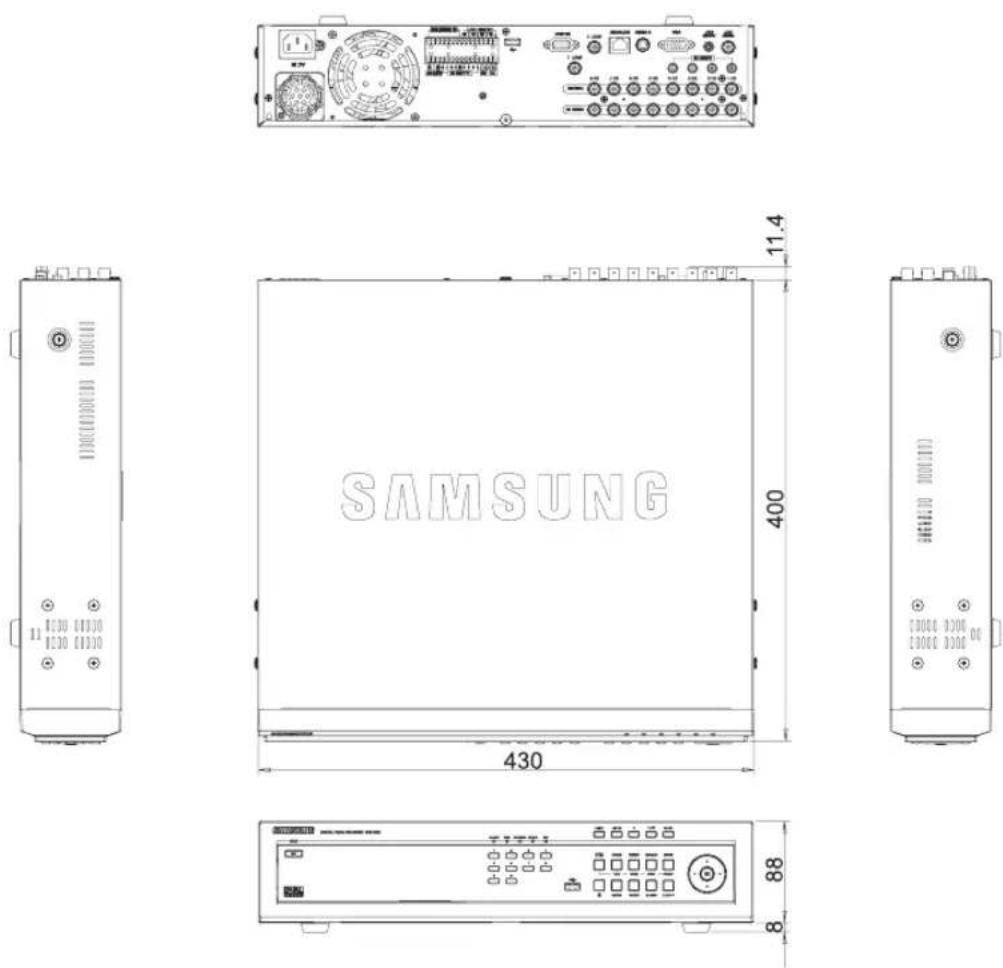
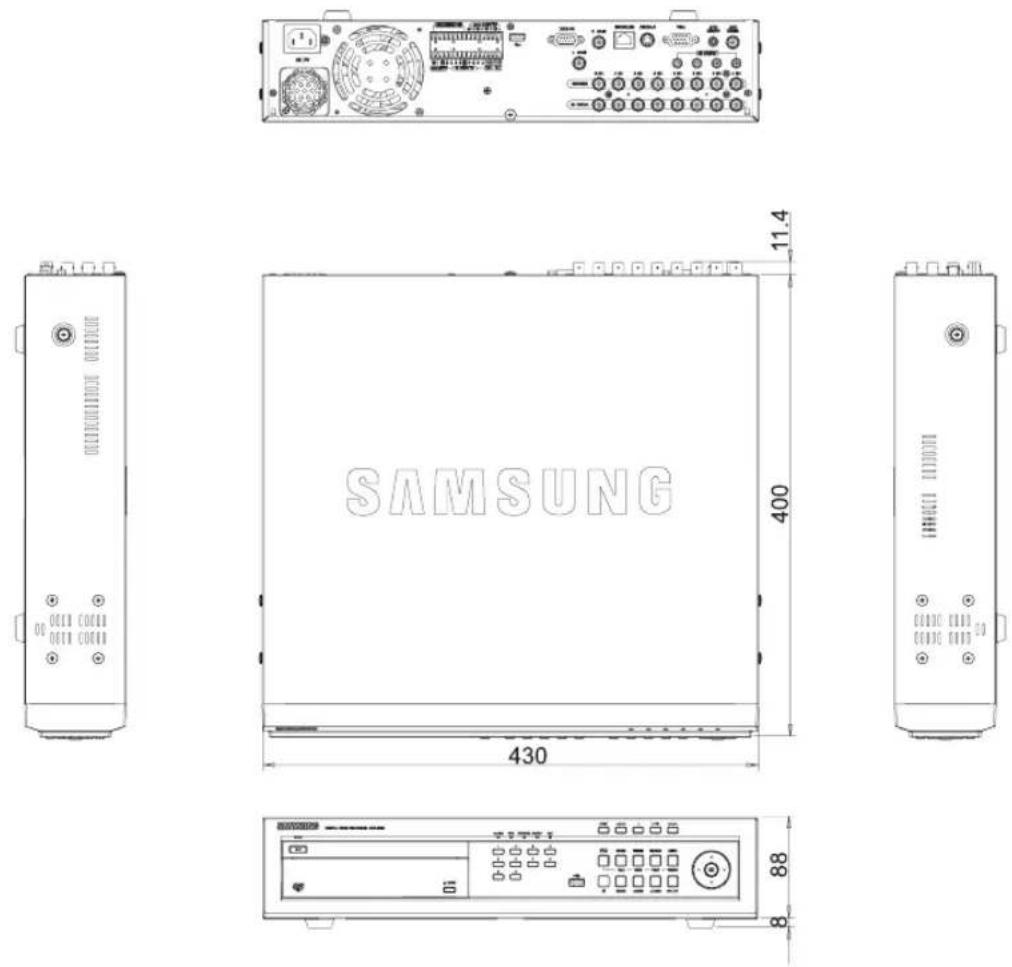
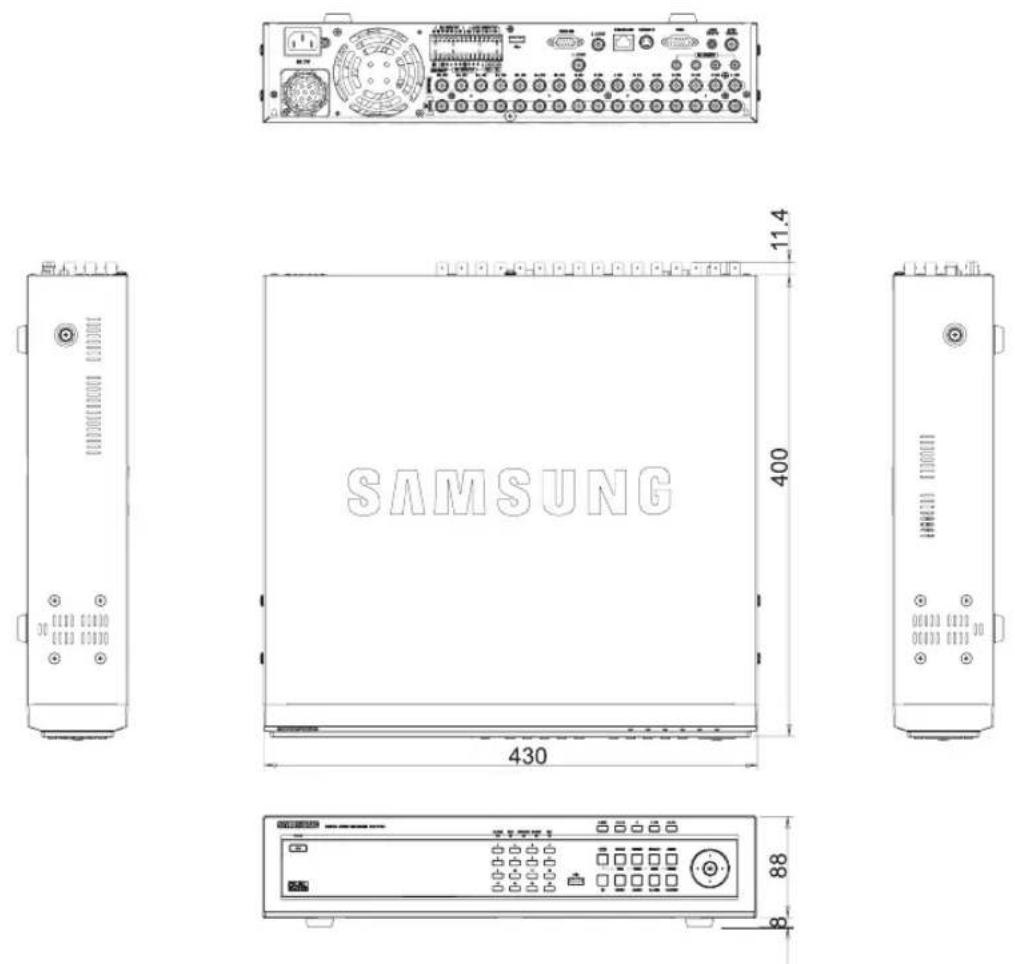
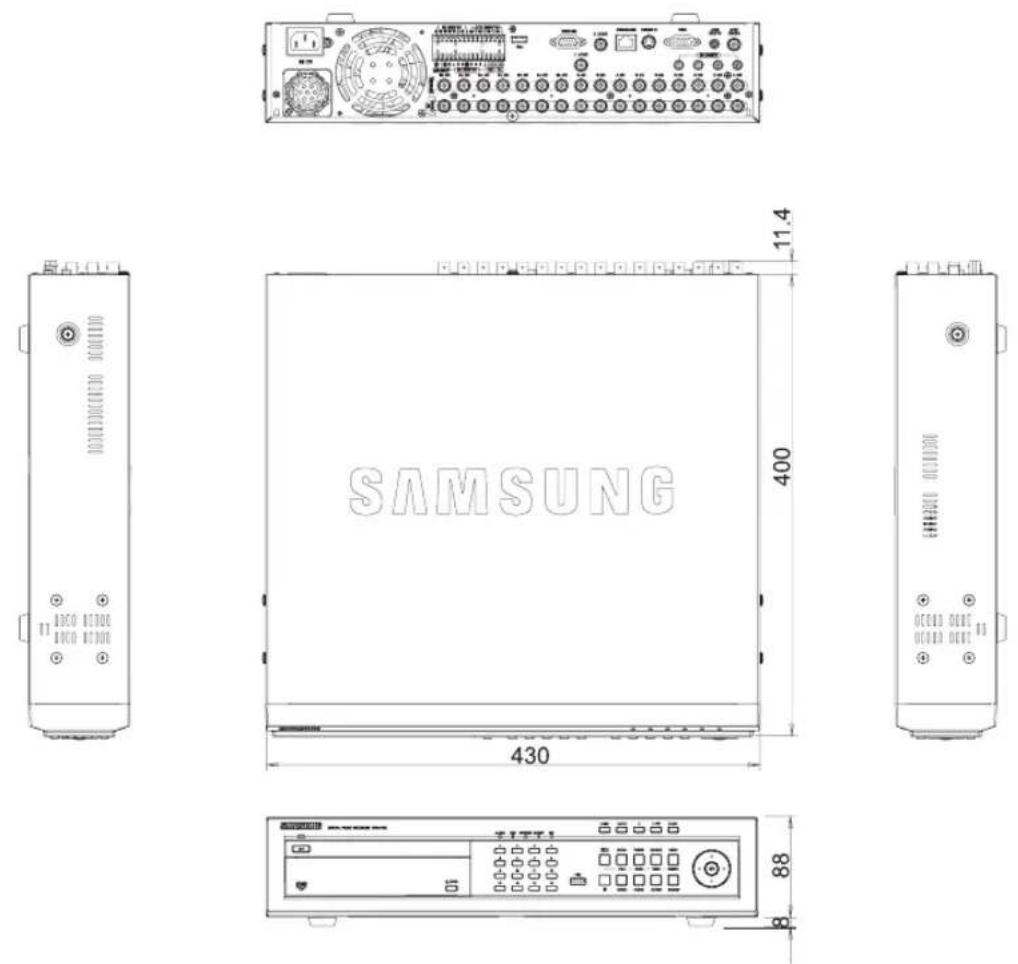
This returns the factory default settings.
The settings are made as follows;
- Use System/Load Factory Default in MENU
- In Live mode, press and hold down MODE and then PTZ on the front panel for 6 seconds to reset the settings.
| Classification | Detailed Items Factory Setup | ||
| System Setup | Time/Date/Language Date | Format YYYY-MM-DD | |
| Time Format 24 Hours | |||
| Language English | |||
| DST Off | |||
| Password Password 4321 | |||
| Password Lock On | |||
| Record Lock Off | |||
| HDD Mode HDD repeat record Overwrite | |||
| Camera Setup | Camera Config Video On | ||
| Audio Off | |||
| Title | CAM_01 to CAM_16 (SHR-5082/5080:8) | ||
| Auto Seq. 5 sec | |||
| PTZ Device | ID | Camera No. | |
| Protocol | None | ||
| Baudrate | 9600 | ||
| Parity None | |||
| Data | 8 | ||
| Stop | 1 | ||
| Serial Mode | Half Duplex | ||
| Screen Setup | Brightness | 50 | |
| Contrast | 50 | ||
| Color | 50 | ||
| Monitoring | Event Monitoring Duration Off | ||
| OSD Display | Date On | ||
| Time On | |||
| Title On | |||
| Status On | |||
| Spot Out Channel CH1 | |||
| Spot Out Event Monitor Off | |||
| Monitor Out Dual Out | |||
| Play channel location Lower right-hand corner | |||
| Multi-channel change 5 seconds | |||
| Record Mode Setup | Record Quality & Auto Deletion | Normal Quality Level4 | |
| Event Quality Level4 | |||
| Auto Deletion Off | |||
| Record Rate & Video Size | Normal Rate | 7.5ips(NTSC)/6.2ips(PAL) | |
| Event Rate | 7.5ips(NTSC)/6.2ips(PAL) | ||
| Video Size | CIF | ||
| Event Record Duration | PreEvent | Off | |
| PostEvent | 1 min. | ||
| Record Schedule | Continuous Recording | Off | |
| Event Recording | On | ||
| Event Record Setup | Alarm Detection Setup | Sensor State | Off |
| Camera | Camera No. | ||
| Alarm-Out | None | ||
| Duration 10 sec | |||
| Motion Detection Setup | M.D State | Off | |
| Area | All Area | ||
| Sensitivity | Very High | ||
| Alarm-Out | None | ||
| Duration 10 sec | |||
| Video Loss Detection Setup | Video Loss Detection Setup | Off | |
| Alarm-Out | None | ||
| Duration 10 sec | |||
| Network | IP Settings | Connection Mode Static | IP |
| Bandwidth 2Mbps | |||
| Admin Password 4321 | |||
| User Password 4321 | |||
| IP 192.168.001.200 | |||
| Gateway 192.168.001.001 | |||
| Subnet Mask 255.255.255.000 | |||
| DNS 168.126.063.001 | |||
| ADSL User ID ID | |||
| Password - | |||
| Transfer Protocol Settings | Protocol type UDP | ||
| Port(TCP) 0554.0555.0556.0557 | |||
| Port(UDP) 8000-8159 | |||
| Unicast / Multicast Unicast | |||
| Multicast IP 224.126.063.001 | |||
| TTL 005 | |||
| DDNS Site Off | |||
| Host Name | - | ||
| User Name | - | ||
| User Password | - | ||
| Callback Settings | On / Off | Off | |
| IP Address 192.168.001.010 | |||
| Port(UDP) | 7900 | ||
| Retry | 05 | ||
| Transfer Alarm In | Off | ||
| Transfer Motion Detection | Off | ||
| Transfer Video Loss | Off | ||
| Transfer System Log | Off | ||
| Transfer Picture Settings | Video Size | CIF | |
| Quality | Low | ||
| Web Viewer Port Setting | Port | 80 | |
| PROBLEM SOLUTION | |
| The system power is dead and LEDs on the front of the set do not operate at all. | ·Please check the power connection.·Check the power voltage.·If all your efforts as above end up with nothing, check or exchange the power supply. |
| Video data remains in the system but some channels display no video data but turns all blue. | ·Check the image of the camera connected to the system. Improper input of camera may cause this symptom.·Check the camera power supply.·Sometimes, you see this symptom when the video data is connected with multisystems and the video signal from the video data distributor in use is weak. If it's the case, you shall connect the camera images with your DVR directly to check or correct the symptom. |
| The RECORD button is pressed but the REC LED does not light and recording is not active. | ·Please check the HDD space.·Please check the Record Mode setup in MENU. It should be On. |
| Although all the LED operate on the front panel, the screen is blink or the display quality is low. | ·Please make sure the cable is connected. Video out may come out differently with the connected monitor. In short, Video Out is set to Composite Output but connected to VGA Input Monitor or vice versa. Then, keep pressing both the MODE button and the ZOOM button for 5 seconds to change the Video Out mode.You may experience low display quality while the dual video output is in use. In this case, please switch it to the composite or VGA video output. |
| The LEDs blink and the logo screen repeatedly appears. | ·This symptom may be resulted from the failure of HDD connection inside the DVR. Take off the cover and check HDD connection status. If HDD connection has no problem, please consult with the dealer. |
| You cannot enter MENU by forgotten password. | ·If you forget the password, you shall reset the DVR to the values set at the factory. Keep pressing both the MODE button and the PTZ button for 5 seconds. The default password is "4321." |
| The channel button does not operate in Live mode. | ·If the current screen is in Event Monitoring, the channel button does not operate. Then, press the ALARM button to terminate the current screen and select a channel. |
| The cursor cannot reach the starting point during Calendar Search. | ·Please check both the channel and date are left checked. Both shall be checked for play with Start. The cursor cannot reach the unrecorded date. |
| Alarms keep continuously issued so you cannot cancel using the ALARM button. | Press theMENUbutton and do the following:1) To cancel Event Monitoring:Monitoring > Event Monitoring Duration Off2) To cancel Buzzer:Event Record > Alarm (Motion Detection/Video Loss) > Alarm-Out.3) To cancel Event:Event Record > Alarm (Motion Detection/Video Loss) > State Off. |
| Pressing the PTZ button in Live mode receives no response. | Check the Protocol and other setup values through Menu > Camera > PTZ Device match with the PTZ camera. |
| When you connect several IEEE1394 armored HDDs to the DVR through Menu, the DVR cannot recognize all the HDDs. | It requires time to recognize several armored HDDs. Please try again in a few minutes. If retrial makes no improvement, HDD could be abnormal. Please exchange the HDD. |
| “CLOCK BATTERY HAS FAILED” is displayed on the screen. | This message is displayed if the internal clock in DVR has problem. DVR will not work in order to protect recorded data in HDDs. Please consult with an expert who works for the shop where you bought the product. |
| You cannot connect to the DVR through Smart Viewer. | Check if 3 Smart Viewer users are in connection with your DVR. The DVR allows no more than 3 users' connection with Smart Viewer at a time.Check the Network setup of your DVR.Check Network cable connection.When you use DHCP/ADSL(PPPoE) for connection, please check if you get the right DVR MAC Address.If your DVR is connected to the ADSL network, please check if the bandwidth is set below 600 Kbps. If the Bandwidth for ADSL is set to high, the connection with Smart Viewer may be instable due to the heavy network load because the ADSL speed is low. |
| Smart Viewer in operation is disconnected. | If you change information such as time, network setup, HDD format, Default Setup, or HDD attachment or detachment for your DVR, the current Smart Viewer will be automatically disconnected.Check the network connection. Smart Viewer, if disconnected from the network, will try reconnection up to 5 times. If it remains unconnected after 5 time trials, it will automatically give up connection.As far as your DVR is connected to the ADSL network, you may be disconnected from Smart Viewer when the network conditions go worse. |
| The Audio icon of Smart Viewer is left deactivated in Live mode. Setting Audio to On in the Camera menu of your DVR will make no difference. | ·If your PC has no Audio driver or has some problem with Audio play by an Audio driver, the Audio icon will be deactivated. Please check Audio driver installation status. |
| When selecting the channel which PTZ Camera is connected to in the Live mode of Smart Viewer, click the “Menu Control” button among PTZ setup buttons to enter the Function Menu mode in PTZ Camera, and return from the other channel, the PTZ related buttons have been initialized. | ·PTZ control is available in both Smart Viewer and your DVR. Other user might control the PTZ for your DVR to terminate the PTZ Camera Menu or Auto Pan/Scan/Pattern motions while you select the other channel. This may cause the initialization. |
| No Time Bar in the Search | ·Time Line can be converted into 2 modes, General (24 Hour Display) and Extension (2 Hour Display). In Extension mode, Time Bar may not be seen in the current time. Please enter General mode or click the LEFT or RIGHT button to search Time Bar. |
| “NO HDD” icon and error message pops up. | ·Please check the HDD connection status. If this problem persist without connection failure, contact the technical support for checking hard disk. |
| DVR device does not show what has been upgraded after adding a hard disk. | ·Make sure that the additional external HDD installed is one of the devices listed on the compatibility list of HDDs. The list of the compatible devices with Samsung DVR can be obtained from your vendor. |
| The connection status is not shown after connecting the external storage device, USB memory, USB HDD and such. | ·Make sure that the external storage device installed is one of the storage devices listed on the compatibility list of storage devices. The list of the compatible devices with Samsung DVR can be obtained from your vendor. |
| Pressing the ESC key in “FULL SCREEN MODE” of WebViewer does not work to change into normal split mode. | ·Press the ALT+TAB key to select ‘ACTIVE MOVIE’, and then press ESC key again. It will be changed into normal split mode. |
This product uses software provided under the name of GPL and LGPL. You can receive the following GPL and LGPL source codes by email request to www.sec.co.kr.
- GPL Software
Kernel, Busybox, Sysvinit, dvd+rw-tools, cdrtools, dosfstools
• LGPL Software gLibc, Inetutils
GNU GENERAL PUBLIC LICENSE
Version 2, June 1991
Copyright (C) 1989, 1991 Free Software Foundation, Inc.
51 Franklin Street, Fifth Floor, Boston, MA 02110-1301, USA
Everyone is permitted to copy and distribute verbatim copies of this license document, but changing it is not allowed.
Preamble
The licenses for most software are designed to take away your freedom to share and change it. By contrast, the GNU General Public License is intended to guarantee your freedom to share and change free software to make sure the software is free for all its users. This General Public License applies to most of the Free Software Foundation's software and to any other program whose authors commit to using it. (Some other Free Software Foundation software is covered by the GNU Lesser General Public License instead.) You can apply it to your programs, too.
When we speak of free software, we are referring to freedom, not price. Our General Public Licenses are designed to make sure that you have the freedom to distribute copies of free software (and charge for this service if you wish), that you receive source code or can get it if you want it, that you can change the software or use pieces of it in new free programs; and that you know you can do these things.
To protect your rights, we need to make restrictions that forbid anyone to deny you these rights or to ask you to surrender the rights. These restrictions translate to certain responsibilities for you if you distribute copies of the software, or if you modify it.
For example, if you distribute copies of such a program, whether gratis or for a fee, you must give the recipients all the rights that you have. You must make sure that they, too, receive or can get the source code. And you must show them these terms so they know their rights.
We protect your rights with two steps:
(1) copyright the software, and (2) offer you this license which gives you legal permission to copy, distribute and/or modify the software.
Also, for each author's protection and ours, we want to make certain that everyone understands that there is no warranty for this free software. If the software is modified by someone else and passed on, we want its recipients to know that what they have is not the original, so that any problems introduced by others will not reflect on the original authors' reputations.
Finally, any free program is threatened constantly by software patents. We wish to avoid the danger that redistributors of a free program will individually obtain patent licenses, in effect making the program proprietary. To prevent this, we have made it clear that any patent must be licensed for everyone's free use or not licensed at all.
The precise terms and conditions for copying, distribution and modification follow.
TERMS AND CONDITIONS FOR COPYING, DISTRIBUTION AND MODIFICATION
Version 2, June 1991
Copyright (C) 1989, 1991 Free Software Foundation, Inc.
51 Franklin S
- This License applies to any program or other work which contains a notice placed by the copyright holder saying it may be distributed under the terms of this General Public License. The “Program”, below, refers to any such program or work, and a “work based on the Program” means either the Program or any derivative work under copyright law: that is to say, a work containing the Program or a portion of it, either verbatim or with modifications and/or translated into another language. (Hereinafter, translation is included without limitation in the term “modification”). Each licensee is addressed as “you”.
Activities other than copying, distribution and modification are not covered by this License; they are outside its scope. The act of running the Program is not restricted, and the output from the Program is covered only if its contents
constitute a work based on the Program (independent of having been made by running the Program). Whether that is true depends on what the Program does.
-
You may copy and distribute verbatim copies of the Program's source code as you receive it, in any medium, provided that you conspicuously and appropriately publish on each copy an appropriate copyright notice and disclaimer of warranty; keep intact all the notices that refer to this License and to the absence of any warranty; and give any other recipients of the Program a copy of this License along with the Program. You may charge a fee for the physical act of transferring a copy, and you may at your option offer warranty protection in exchange for a fee.
-
You may modify your copy or copies of the Program or any portion of it, thus forming a work based on the Program, and copy and distribute such modifications or work under the terms of Section 1 above, provided that you also meet all of these conditions:
a) You must cause the modified files to carry prominent notices stating that you changed the files and the date of any change.
b) You must cause any work that you distribute or publish, that in whole or in part contains or is derived from the Program or any part thereof, to be licensed as a whole at no charge to all third parties under the terms of this License.
c) If the modified program normally reads commands interactively when run, you must cause it, when started running for such interactive use in the most ordinary way, to print or display an announcement including an appropriate copyright notice and a notice that there is no warranty (or else, saying that you provide a warranty) and that users may redistribute the program under these conditions, and telling the user how to view a copy of this License. (Exception: if the Program itself is interactive but does not normally print such an announcement, your work based on the Program is not required to print an announcement.)
These requirements apply to the modified work as a whole. If identifiable sections of that work are not derived from the Program, and can be reasonably considered independent and separate works in themselves, then this License, and its terms, do not apply to those sections when you distribute them as separate works. But when you distribute the same sections as part of a whole which is a work based on the Program, the distribution of the whole must be on the terms of this License, whose permissions for other licensees extend to the entire whole, and thus to each and every part regardless of who wrote it.
Thus, it is not the intent of this section to claim
rights or contest your rights to work written entirely by you; rather, the intent is to exercise the right to control the distribution of derivative or collective works based on the Program.
In addition, mere aggregation of another work not based on the Program with the Program (or with a work based on the Program) on a volume of a storage or distribution medium does not bring the other work under the scope of this License.
- You may copy and distribute the Program (or a work based on it, under Section 2) in object code or executable form under the terms of Sections 1 and 2 above provided that you also do one of the following:
a) Accompany it with the complete corresponding machine-readable source code, which must be distributed under the terms of Sections 1 and 2 above on a medium customarily used for software interchange; or,
b) Accompany it with a written offer, valid for at least three years, to give any third party, for a charge no more than your cost of physically performing source distribution, a complete machine-readable copy of the corresponding source code, to be distributed under the terms of Sections 1 and 2 above on a medium customarily used for software interchange; or,
c) Accompany it with the information you received as to the offer to distribute corresponding source code. (This alternative is allowed only for noncommercial distribution and only if you received the program in object code or executable form with such an offer, in accord with Subsection b above.)
The source code for a work means the preferred form of the work for making modifications to it. For an executable work, complete source code means all the source code for all modules it contains, plus any associated interface definition files, plus the scripts used to control compilation and installation of the executable. However, as a special exception, the source code distributed need not include anything that is normally distributed (in either source or binary form) with the major components (compiler, kernel, and so on) of the operating system on which the executable runs, unless that component itself accompanies the executable.
If distribution of executable or object code is made by offering access to copy from a designated place, then offering equivalent access to copy the source code from the same place counts as distribution of the source code, even though third parties are not compelled to copy the source along with the object code.
- You may not copy, modify, sublicense, or distribute the Program except as expressly provided under this License. Any attempt
otherwise to copy, modify, sublicense or distribute the Program is void, and will automatically terminate your rights under this License. However, parties who have received copies, or rights, from you under this License will not have their licenses terminated so long as such parties remain in full compliance.
-
You are not required to accept this License, since you have not signed it. However, nothing else grants you permission to modify or distribute the Program or its derivative works. These actions are prohibited by law if you do not accept this License. Therefore, by modifying or distributing the Program (or any work based on the Program), you indicate your acceptance of this License to do so, and all its terms and conditions for copying, distributing or modifying the Program or works based on it.
-
Each time you redistribute the Program (or any work based on the Program), the recipient automatically receives a license from the original licensor to copy, distribute or modify the Program subject to these terms and conditions. You may not impose any further restrictions on the recipients' exercise of the rights granted herein. You are not responsible for enforcing compliance by third parties to this License.
-
If, as a consequence of a court judgment or allegation of patent infringement or for any other reason (not limited to patent issues), conditions are imposed on you (whether by court order, agreement or otherwise) that contradict the conditions of this License, they do not excuse you from the conditions of this License. If you cannot distribute so as to satisfy simultaneously your obligations under this License and any other pertinent obligations, then as a consequence you may not distribute the Program at all. For example, if a patent license would not permit royalty-free redistribution of the Program by all those who receive copies directly or indirectly through you, then the only way you could satisfy both it and this License would be to refrain entirely from distribution of the Program.
If any portion of this section is held invalid or unenforceable under any particular circumstance, the balance of the section is intended to apply and the section as a whole is intended to apply in other circumstances.
It is not the purpose of this section to induce you to infringe any patents or other property right claims or to contest validity of any such claims; this section has the sole purpose of protecting the integrity of the free software distribution system, which is implemented by public license practices. Many people have made generous contributions to the wide range of software distributed through that system in reliance on consistent application of that system; it is up to the author/donor to decide if he or she is willing to distribute software through any other system
and a licensee cannot impose that choice.
This section is intended to make thoroughly clear what is believed to be a consequence of the rest of this License.
-
If the distribution and/or use of the Program is restricted in certain countries either by patents or by copyrighted interfaces, the original copyright holder who places the Program under this License may add an explicit geographical distribution limitation excluding those countries, so that distribution is permitted only in or among countries not thus excluded. In such case, this License incorporates the limitation as if written in the body of this License.
-
The Free Software Foundation may publish revised and/or new versions of the General Public License from time to time. Such new versions will be similar in spirit to the present version, but may differ in detail to address new problems or concerns.
Each version is given a distinguishing version number. If the Program specifies a version number of this License which applies to it and "any later version", you have the option of following the terms and conditions either of that version or of any later version published by the Free Software Foundation. If the Program does not specify a version number of this License, you may choose any version ever published by the Free Software Foundation.
- If you wish to incorporate parts of the Program into other free programs whose distribution conditions are different, write to the author to ask for permission. For software which is copyrighted by the Free Software Foundation, write to the Free Software Foundation; we sometimes make exceptions for this. Our decision will be guided by the two goals of preserving the free status of all derivatives of our free software and of promoting the sharing and reuse of software generally.
NO WARRANTY
- BECAUSE THE PROGRAM IS LICENSED FREE OF CHARGE, THERE IS NO WARRANTY FOR THE PROGRAM, TO THE EXTENT PERMITTED BY APPLICABLE LAW. EXCEPT WHEN OTHERWISE STATED IN WRITING THE COPYRIGHT HOLDERS AND/OR OTHER PARTIES PROVIDE THE PROGRAM "AS IS" WITHOUT WARRANTY OF ANY KIND, EITHER EXPRESSED OR IMPLIED, INCLUDING, BUT NOT LIMITED TO, THE IMPLIED WARRANTIES OF MERCHANTABILITY AND FITNESS FOR A PARTICULAR PURPOSE. THE ENTIRE RISK AS TO THE QUALITY AND PERFORMANCE OF THE PROGRAM IS WITH YOU. SHOULD THE PROGRAM PROVE DEFECTIVE, YOU ASSUME THE COST OF ALL NECESSARY SERVICING,
REPAIR OR CORRECTION.
- IN NO EVENT UNLESS REQUIRED BY APPLICABLE LAW OR AGREED TO IN WRITING WILL ANY COPYRIGHT HOLDER, OR ANY OTHER PARTY WHO MAY MODIFY AND/OR REDISTRIBUTE THE PROGRAM AS PERMITTED ABOVE, BE LIABLE TO YOU FOR DAMAGES, INCLUDING ANY GENERAL, SPECIAL, INCIDENTAL OR CONSEQUENTIAL DAMAGES ARISING OUT OF THE USE OR INABILITY TO USE THE PROGRAM (INCLUDING BUT NOT LIMITED TO LOSS OF DATA OR DATA BEING RENDERED INACCURATE OR LOSSES SUSTAINED BY YOU OR THIRD PARTIES OR A FAILURE OF THE PROGRAM TO OPERATE WITH ANY OTHER PROGRAMS), EVEN IF SUCH HOLDER OR OTHER PARTY HAS BEEN ADVISED OF THE POSSIBILITY OF SUCH DAMAGES.
END OF TERMS AND CONDITIONS
How to Apply These Terms to Your New Programs
If you develop a new program, and you want it to be of the greatest possible use to the public, the best way to achieve this is to make it free software which everyone can redistribute and change under these terms.
To do so, attach the following notices to the program. It is safest to attach them to the start of each source file to most effectively convey the exclusion of warranty; and each file should have at least the “copyright” line and a pointer to where the full notice is found. one line to give the program’s name and an idea of what it does.
Copyright (C) yyyy name of author
This program is free software; you can redistribute it and/or modify it under the terms of the GNU General Public License as published by the Free Software Foundation; either version 2 of the License, or (at your option) any later version.
This program is distributed in the hope that it will be useful, but WITHOUT ANY WARRANTY; without even the implied warranty of MERCHANTABILITY or FITNESS FOR A PARTICULAR PURPOSE. See the GNU General Public License for more details.
You should have received a copy of the GNU General Public License along with this program; if not, write to the Free Software Foundation, Inc., 51 Franklin Street, Fifth Floor, Boston, MA 02110-1301, USA.
Also add information on how to contact you by electronic and paper mail.
If the program is interactive, make it output a short notice like this when it starts in an interactive mode:
Gnomovision version 69, Copyright (C) year name of author Gnomovision comes with ABSOLUTELY NO WARRANTY; for details type 'show w'. This is free software, and you are welcome to redistribute it under certain conditions; type 'show c' for details.
The hypothetical commands ‘show w’ and ‘show c’ should show the appropriate parts of the General Public License. Of course, the commands you use may be called something other than ‘show w’ and ‘show c’; they could even be mouse-clicks or menu items--whatever suits your program.
You should also get your employer (if you work as a programmer) or your school, if any, to sign a “copyright disclaimer” for the program, if necessary. Here is a sample; alter the names:
Yoyodyne, Inc., hereby disclaims all copyright interest in the program 'Gnomovision' (which makes passes at compilers) written by James Hacker.
signature of Ty Coon, 1 April 1989
Ty Coon, President of Vice
This General Public License does not permit incorporating your program into proprietary programs. If your program is a subroutine library, you may consider it more useful to permit linking proprietary applications with the library. If this is what you want to do, use the GNU Lesser General Public License instead of this License.
GNU LESSER GENERAL PUBLIC LICENSE
Version 2.1, February 1999
Copyright (C) 1991, 1999 Free Software Foundation, Inc.
51 Franklin Street, Fifth Floor, Boston, MA 02110-1301 USA
Everyone is permitted to copy and distribute verbatim copies
of this license document, but changing it is not allowed.
[This is the first released version of the Lesser GPL. It also counts
as the successor of the GNU Library Public License, version 2, hence the version number 2.1.]
Preamble
The licenses for most software are designed to take away your freedom to share and change it. By contrast, the GNU General Public Licenses are intended to guarantee your freedom to share
and change free software to make sure the software is free for all its users.
This license, the Lesser General Public License, applies to some specially designated software packages--typically libraries--of the Free Software Foundation and other authors who decide to use it. You can use it too, but we suggest you first think carefully about whether this license or the ordinary General Public License is the better strategy to use in any particular case, based on the explanations below.
When we speak of free software, we are referring to freedom of use, not price. Our General Public Licenses are designed to make sure that you have the freedom to distribute copies of free software (and charge for this service if you wish); that you receive source code or can get it if you want it; that you can change the software and use pieces of it in new free programs; and that you are informed that you can do these things.
To protect your rights, we need to make restrictions that forbid distributors to deny you these rights or to ask you to surrender these rights. These restrictions translate to certain responsibilities for you if you distribute copies of the library or if you modify it.
For example, if you distribute copies of the library, whether gratis or for a fee, you must give the recipients all the rights that we gave you. You must make sure that they, too, receive or can get the source code. If you link other code with the library, you must provide complete object files to the recipients, so that they can relink them with the library after making changes to the library and recompiling it. And you must show them these terms so they know their rights.
We protect your rights with a two-step method: (1) we copyright the library, and (2) we offer you this license, which gives you legal permission to copy, distribute and/or modify the library.
To protect each distributor, we want to make it very clear that there is no warranty for the free library. Also, if the library is modified by someone else and passed on, the recipients should know that what they have is not the original version, so that the original author's reputation will not be affected by problems that might be introduced by others.
Finally, software patents pose a constant threat to the existence of any free program. We wish to make sure that a company cannot effectively restrict the users of a free program by obtaining a restrictive license from a patent holder. Therefore, we insist that any patent license obtained for a version of the library must be consistent with the full freedom of use specified in this license.
Most GNU software, including some libraries, is covered by the ordinary GNU General Public License. This license, the GNU Lesser General Public License, applies to certain designated libraries, and is quite different from the ordinary
General Public License. We use this license for certain libraries in order to permit linking those libraries into non-free programs.
When a program is linked with a library, whether statically or using a shared library, the combination of the two is legally speaking a combined work, a derivative of the original library. The ordinary General Public License therefore permits such linking only if the entire combination fits its criteria of freedom. The Lesser General Public License permits more lax criteria for linking other code with the library.
We call this license the “Lesser” General Public License because it does Less to protect the user’s freedom than the ordinary General Public License. It also provides other free software developers Less of an advantage over competing non-free programs. These disadvantages are the reason we use the ordinary General Public License for many libraries. However, the Lesser license provides advantages in certain special circumstances.
For example, on rare occasions, there may be a special need to encourage the widest possible use of a certain library, so that it becomes a de-facto standard. To achieve this, non-free programs must be allowed to use the library. A more frequent case is that a free library does the same job as widely used non-free libraries. In this case, there is little to gain by limiting the free library to free software only, so we use the Lesser General Public License.
In other cases, permission to use a particular library in non-free programs enables a greater number of people to use a large body of free software. For example, permission to use the GNU C Library in non-free programs enables many more people to use the whole GNU operating system, as well as its variant, the GNU/Linux operating system.
Although the Lesser General Public License is Less protective of the users' freedom, it does ensure that the user of a program that is linked with the Library has the freedom and the wherewithal to run that program using a modified version of the Library.
The precise terms and conditions for copying, distribution and modification follow. Pay close attention to the difference between a “work based on the library” and a “work that uses the library”. The former contains code derived from the library, whereas the latter must be combined with the library in order to run.
TERMS AND CONDITIONS FOR COPYING, DISTRIBUTION AND MODIFICATION
- This License Agreement applies to any software library or other program which contains
a notice placed by the copyright holder or other authorized party saying it may be distributed under the terms of this Lesser General Public License (also called “this License”). Each licensee is addressed as “you”.
A “library” means a collection of software functions and/or data prepared so as to be conveniently linked with application programs (which use some of those functions and data) to form executables.
The “Library”, below, refers to any such software library or work which has been distributed under these terms. A “work based on the Library” means either the Library or any derivative work under copyright law: that is to say, a work containing the Library or a portion of it, either verbatim or with modifications and/or translated straightforwardly into another language. (Hereinafter, translation is included without limitation in the term “modification”.)
“Source code” for a work means the preferred form of the work for making modifications to it. For a library, complete source code means all the source code for all modules it contains, plus any associated interface definition files, plus the scripts used to control compilation and installation of the library.
Activities other than copying, distribution and modification are not covered by this License; they are outside its scope. The act of running a program using the Library is not restricted, and output from such a program is covered only if its contents constitute a work based on the Library (independent of the use of the Library in a tool for writing it). Whether that is true depends on what the Library does and what the program that uses the Library does.
- You may copy and distribute verbatim copies of the Library's complete source code as you receive it, in any medium, provided that you conspicuously and appropriately publish on each copy an appropriate copyright notice and disclaimer of warranty; keep intact all the notices that refer to this License and to the absence of any warranty; and distribute a copy of this License along with the Library.
You may charge a fee for the physical act of transferring a copy, and you may at your option offer warranty protection in exchange for a fee.
- You may modify your copy or copies of the Library or any portion of it, thus forming a work based on the Library, and copy and distribute such modifications or work under the terms of Section 1 above, provided that you also meet all of these conditions:
a) The modified work must itself be a software library.
b) You must cause the files modified to carry prominent notices stating that you changed the files and the date of any change.
c) You must cause the whole of the work to
be licensed at no charge to all third parties under the terms of this License.
d) If a facility in the modified Library refers to a function or a table of data to be supplied by an application program that uses the facility, other than as an argument passed when the facility is invoked, then you must make a good faith effort to ensure that, in the event an application does not supply such function or table, the facility still operates, and performs whatever part of its purpose remains meaningful.
(For example, a function in a library to compute square roots has a purpose that is entirely well-defined independent of the application. Therefore, Subsection 2d requires that any application-supplied function or table used by this function must be optional: if the application does not supply it, the square root function must still compute square roots.)
These requirements apply to the modified work as a whole. If identifiable sections of that work are not derived from the Library, and can be reasonably considered independent and separate works in themselves, then this License, and its terms, do not apply to those sections when you distribute them as separate works. But when you distribute the same sections as part of a whole which is a work based on the Library, the distribution of the whole must be on the terms of this License, whose permissions for other licensees extend to the entire whole, and thus to each and every part regardless of who wrote it.
Thus, it is not the intent of this section to claim rights or contest your rights to work written entirely by you; rather, the intent is to exercise the right to control the distribution of derivative or collective works based on the Library.
In addition, mere aggregation of another work not based on the Library with the Library (or with a work based on the Library) on a volume of a storage or distribution medium does not bring the other work under the scope of this License.
- You may opt to apply the terms of the ordinary GNU General Public License instead of this License to a given copy of the Library. To do this, you must alter all the notices that refer to this License, so that they refer to the ordinary GNU General Public License, version 2, instead of to this License. (If a newer version than version 2 of the ordinary GNU General Public License has appeared, then you can specify that version instead if you wish.) Do not make any other change in these notices.
Once this change is made in a given copy, it is irreversible for that copy, so the ordinary GNU General Public License applies to all subsequent copies and derivative works made from that copy.
This option is useful when you wish to copy part
of the code of the Library into a program that is not a library.
- You may copy and distribute the Library (or a portion or derivative of it, under Section 2) in object code or executable form under the terms of Sections 1 and 2 above provided that you accompany it with the complete corresponding machine-readable source code, which must be distributed under the terms of Sections 1 and 2 above on a medium customarily used for software interchange.
If distribution of object code is made by offering access to copy from a designated place, then offering equivalent access to copy the source code from the same place satisfies the requirement to distribute the source code, even though third parties are not compelled to copy the source along with the object code.
- A program that contains no derivative of any portion of the Library, but is designed to work with the Library by being compiled or linked with it, is called a "work that uses the Library". Such a work, in isolation, is not a derivative work of the Library, and therefore falls outside the scope of this License.
However, linking a “work that uses the Library” with the Library creates an executable that is a derivative of the Library (because it contains portions of the Library), rather than a “work that uses the library”. The executable is therefore covered by this License. Section 6 states terms for distribution of such executables.
When a “work that uses the Library” uses material from a header file that is part of the Library, the object code for the work may be a derivative work of the Library even though the source code is not. Whether this is true is especially significant if the work can be linked without the Library, or if the work is itself a library. The threshold for this to be true is not precisely defined by law.
If such an object file uses only numerical parameters, data structure layouts and accessors, and small macros and small inline functions (ten lines or less in length), then the use of the object file is unrestricted, regardless of whether it is legally a derivative work. (Executables containing this object code plus portions of the Library will still fall under Section 6.)
Otherwise, if the work is a derivative of the Library, you may distribute the object code for the work under the terms of Section 6. Any executables containing that work also fall under Section 6, whether or not they are linked directly with the Library itself.
- As an exception to the Sections above, you may also combine or link a "work that uses the Library" with the Library to produce a work
containing portions of the Library, and distribute that work under terms of your choice, provided that the terms permit modification of the work for the customer's own use and reverse engineering for debugging such modifications.
You must give prominent notice with each copy of the work that the Library is used in it and that the Library and its use are covered by this License. You must supply a copy of this License. If the work during execution displays copyright notices, you must include the copyright notice for the Library among them, as well as a reference directing the user to the copy of this License.
Also, you must do one of these things:
a) Accompany the work with the complete corresponding machine-readable source code for the Library including whatever changes were used in the work (which must be distributed under Sections 1 and 2 above); and, if the work is an executable linked with the Library, with the complete machine readable “work that uses the Library”, as object code and/or source code, so that the user can modify the Library and then relink to produce a modified executable containing the modified Library. (It is understood that the user who changes the contents of definitions files in the Library will not necessarily be able to recompile the application to use the modified definitions.)
b) Use a suitable shared library mechanism for linking with the Library. A suitable mechanism is one that (1) uses at run time a copy of the library already present on the user's computer system, rather than copying library functions into the executable, and (2) will operate properly with a modified version of the library, if the user installs one, as long as the modified version is interface-compatible with the version that the work was made with.
c) Accompany the work with a written offer, valid for at least three years, to give the same user the materials specified in Subsection 6a, above, for a charge no more than the cost of performing this distribution.
d) If distribution of the work is made by offering access to copy from a designated place, offer equivalent access to copy the above specified materials from the same place.
e) Verify that the user has already received a copy of these materials or that you have already sent this user a copy.
For an executable, the required form of the “work that uses the Library” must include any data and utility programs needed for reproducing the executable from it. However, as a special exception, the materials to be distributed need not include anything that is normally distributed (in either source or binary form) with the major components (compiler, kernel, and so on) of the operating system on which the executable runs, unless that component itself accompanies the
executable.
It may happen that this requirement contradicts the license restrictions of other proprietary libraries that do not normally accompany the operating system. Such a contradiction means you cannot use both them and the Library together in an executable that you distribute.
- You may place library facilities that are a work based on the Library side-by-side in a single library together with other library facilities not covered by this License, and distribute such a combined library, provided that the separate distribution of the work based on the Library and of the other library facilities is otherwise permitted, and provided that you do these two things:
a) Accompany the combined library with a copy of the same work based on the Library, uncombined with any other library facilities. This must be distributed under the terms of the Sections above.
b) Give prominent notice with the combined library of the fact that part of it is a work based on the Library, and explaining where to find the accompanying uncombined form of the same work.
- You may not copy, modify, sublicense, link with, or distribute the Library except as expressly provided under this License. Any attempt otherwise to copy, modify, sublicense, link with, or distribute the Library is void, and will automatically terminate your rights under this License. However, parties who have received copies, or rights, from you under this License will not have their licenses terminated so long as such parties remain in full compliance.
- You are not required to accept this License, since you have not signed it. However, nothing else grants you permission to modify or distribute the Library or its derivative works. These actions are prohibited by law if you do not accept this License. Therefore, by modifying or distributing the Library (or any work based on the Library), you indicate your acceptance of this License to do so, and all its terms and conditions for copying, distributing or modifying the Library or works based on it.
- Each time you redistribute the Library (or any work based on the Library), the recipient automatically receives a license from the original licensor to copy, distribute, link with or modify the Library subject to these terms and conditions. You may not impose any further restrictions on the recipients' exercise of the rights granted herein. You are not responsible for enforcing compliance by third parties with this License.
- If, as a consequence of a court judgment or allegation of patent infringement or for any other
reason (not limited to patent issues), conditions are imposed on you (whether by court order, agreement or otherwise) that contradict the conditions of this License, they do not excuse you from the conditions of this License. If you cannot distribute so as to satisfy simultaneously your obligations under this License and any other pertinent obligations, then as a consequence you may not distribute the Library at all. For example, if a patent license would not permit royalty free redistribution of the Library by all those who receive copies directly or indirectly through you, then the only way you could satisfy both it and this License would be to refrain entirely from distribution of the Library.
If any portion of this section is held invalid or unenforceable under any particular circumstance, the balance of the section is intended to apply, and the section as a whole is intended to apply in other circumstances.
It is not the purpose of this section to induce you to infringe any patents or other property right claims or to contest validity of any such claims; this section has the sole purpose of protecting the integrity of the free software distribution system which is implemented by public license practices. Many people have made generous contributions to the wide range of software distributed through that system in reliance on consistent application of that system; it is up to the author/donor to decide if he or she is willing to distribute software through any other system and a licensee cannot impose that choice.
This section is intended to make thoroughly clear what is believed to be a consequence of the rest of this License.
-
If the distribution and/or use of the Library is restricted in certain countries either by patents or by copyrighted interfaces, the original copyright holder who places the Library under this License may add an explicit geographical distribution limitation excluding those countries, so that distribution is permitted only in or among countries not thus excluded. In such case, this License incorporates the limitation as if written in the body of this License.
-
The Free Software Foundation may publish revised and/or new versions of the Lesser General Public License from time to time. Such new versions will be similar in spirit to the present version, but may differ in detail to address new problems or concerns.
Each version is given a distinguishing version number. If the Library specifies a version number of this License which applies to it and “any later version”, you have the option of following the terms and conditions either of that version or of any later version published by the Free Software Foundation. If the Library does not specify a license version number, you may choose any version ever published by the Free Software
Foundation.
- If you wish to incorporate parts of the Library into other free programs whose distribution conditions are incompatible with these, write to the author to ask for permission. For software which is copyrighted by the Free Software Foundation, write to the Free Software Foundation; we sometimes make exceptions for this. Our decision will be guided by the two goals of preserving the free status of all derivatives of our free software and of promoting the sharing and reuse of software generally.
NO WARRANTY
-
BECAUSE THE LIBRARY IS LICENSED FREE OF CHARGE, THERE IS NO WARRANTY FOR THE LIBRARY, TO THE EXTENT PERMITTED BY APPLICABLE LAW. EXCEPT WHEN OTHERWISE STATED IN WRITING THE COPYRIGHT HOLDERS AND/OR OTHER PARTIES PROVIDE THE LIBRARY "AS IS" WITHOUT WARRANTY OF ANY KIND, EITHER EXPRESSED OR IMPLIED, INCLUDING, BUT NOT LIMITED TO, THE IMPLIED WARRANTIES OF MERCHANTABILITY AND FITNESS FOR A PARTICULAR PURPOSE. THE ENTIRE RISK AS TO THE QUALITY AND PERFORMANCE OF THE LIBRARY IS WITH YOU. SHOULD THE LIBRARY PROVE DEFECTIVE, YOU ASSUME THE COST OF ALL NECESSARY SERVICING, REPAIR OR CORRECTION.
-
IN NO EVENT UNLESS REQUIRED BY APPLICABLE LAW OR AGREED TO IN WRITING WILL ANY COPYRIGHT HOLDER, OR ANY OTHER PARTY WHO MAY MODIFY AND/OR REDISTRIBUTE THE LIBRARY AS PERMITTED ABOVE, BE LIABLE TO YOU FOR DAMAGES, INCLUDING ANY GENERAL, SPECIAL, INCIDENTAL OR CONSEQUENTIAL DAMAGES ARISING OUT OF THE USE OR INABILITY TO USE THE LIBRARY (INCLUDING BUT NOT LIMITED TO LOSS OF DATA OR DATA BEING RENDERED INACCURATE OR LOSSES SUSTAINED BY YOU OR THIRD PARTIES OR A FAILURE OF THE LIBRARY TO OPERATE WITH ANY OTHER SOFTWARE), EVEN IF SUCH HOLDER OR OTHER PARTY HAS BEEN ADVISED OF THE POSSIBILITY OF SUCH DAMAGES.
END OF TERMS AND CONDITIONS
How to Apply These Terms to Your New Libraries
If you develop a new library, and you want it to
be of the greatest possible use to the public, we recommend making it free software that everyone can redistribute and change. You can do so by permitting redistribution under these terms (or, alternatively, under the terms of the ordinary General Public License).
To apply these terms, attach the following notices to the library. It is safest to attach them to the start of each source file to most effectively convey the exclusion of warranty; and each file should have at least the “copyright” line and a pointer to where the full notice is found. one line to give the library’s name and an idea of what it does.
Copyright (C) year name of author
This library is free software; you can redistribute it and/or modify it under the terms of the GNU Lesser General Public License as published by the Free Software Foundation; either version 2.1 of the License, or (at your option) any later version.
This library is distributed in the hope that it will be useful, but WITHOUT ANY WARRANTY; without even the implied warranty of MERCHANTABILITY or FITNESS FOR A PARTICULAR PURPOSE. See the GNU Lesser General Public License for more details.
You should have received a copy of the GNU Lesser General Public License along with this library; if not, write to the Free Software Foundation, Inc., 51 Franklin Street, Fifth Floor, Boston, MA 02110-1301 USA Also add information on how to contact you by electronic and paper mail.
You should also get your employer (if you work as a programmer) or your school, if any, to sign a "copyright disclaimer" for the library, if necessary. Here is a sample; alter the names: Yoyodyne, Inc., hereby disclaims all copyright interest in the library 'Frob' (a library for tweaking knobs) written by James Random Hacker.
signature of Ty Coon, 1 April 1990 Ty Coon, President of Vice.
OpenSSL LICENSE
* Copyright (c) 1998-2006 The OpenSSL Project. All rights reserved.
* Redistribution and use in source and binary forms, with or without
* modification, are permitted provided that the following conditions
* are met:
* 1. Redistributions of source code must retain the above copyright
* notice, this list of conditions and the following disclaimer.
* 2. Redistributions in binary form must reproduce the above copyright
* notice, this list of conditions and the following disclaimer in
* the documentation and/or other materials provided with the
* distribution.
* 3. All advertising materials mentioning features or use of this
* software must display the following acknowledgment:
* "This product includes software developed by the OpenSSL Project
* for use in the OpenSSL Toolkit. (http://www.openssl.org/)
* 4. The names "OpenSSL Toolkit" and "OpenSSL Project" must not be used to
* endorse or promote products derived from this software without
* prior written permission. For written permission, please contact
* openssl-core@openssl.org.
* 5. Products derived from this software may not be called "OpenSSL"
* nor may "OpenSSL" appear in their names without prior written
* permission of the OpenSSL Project.
* 6. Redistributions of any form whatsoever must retain the following
* acknowledgment:
* "This product includes software developed by the OpenSSL Project
* for use in the OpenSSL Toolkit (http://www.openssl.org/)
* THIS SOFTWARE IS PROVIDED BY THE OpenSSL PROJECT “AS IS” AND ANY
* EXPRESSED OR IMPLIED WARRANTIES, INCLUDING, BUT NOT LIMITED TO, THE
* IMPLIED WARRANTIES OF MERCHANTABILITY AND FITNESS FOR A PARTICULAR
* PURPOSE ARE DISCLAIMED. IN NO EVENT SHALL THE OpenSSL PROJECT OR
* ITS CONTRIBUTORS BE LIABLE FOR ANY DIRECT, INDIRECT, INCIDENTAL,
* SPECIAL, EXEMPLARY, OR CONSEQUENTIAL DAMAGES (INCLUDING, BUT
* NOT LIMITED TO, PROCUREMENT OF SUBSTITUTE GOODS OR SERVICES;
* LOSS OF USE, DATA, OR PROFITS; OR BUSINESS INTERRUPTION)
* HOWEVER CAUSED AND ON ANY THEORY OF LIABILITY, WHETHER IN CONTRACT,
* STRICT LIABILITY, OR TORT (INCLUDING NEGLIGENCE OR OTHERWISE)
* ARISING IN ANY WAY OUT OF THE USE OF THIS SOFTWARE, EVEN IF ADVISED
* OF THE POSSIBILITY OF SUCH DAMAGE.
* This product includes cryptographic software written by Eric Young
* (eay@cryptsoft.com). This product includes software written by Tim
* Hudson (tjh@cryptsoft.com).
*/
Original SSLeay License
/* Copyright (C) 1995-1998 Eric Young (eay@cryptsoft.com)
* All rights reserved.
* This package is an SSL implementation written
* by Eric Young (eay@cryptsoft.com).
* The implementation was written so as to conform with Netscapes SSL.
* This library is free for commercial and non-commercial use as long as
* the following conditions are aheared to. The following conditions
* apply to all code found in this distribution, be it the RC4, RSA,
* lhash, DES, etc., code; not just the SSL code. The SSL documentation
* included with this distribution is covered by the same copyright terms
* except that the holder is Tim Hudson (tjh@cryptsoft.com).
* Copyright remains Eric Young's, and as such any Copyright notices in
* the code are not to be removed.
* If this package is used in a product, Eric Young should be given attribution
* as the author of the parts of the library used.
* This can be in the form of a textual message at program startup or
* in documentation (online or textual) provided with the package.
* Redistribution and use in source and binary forms, with or without
* modification, are permitted provided that the following conditions
* are met:
* 1. Redistributions of source code must retain the copyright
* notice, this list of conditions and the following disclaimer.
* 2. Redistributions in binary form must reproduce the above copyright
* notice, this list of conditions and the following disclaimer in the
* documentation and/or other materials provided with the distribution.
* 3. All advertising materials mentioning features or use of this software
* must display the following acknowledgement:
* “This product includes cryptographic software written by
* Eric Young (eay@cryptsoft.com)"
* The word ‘cryptographic’ can be left out if the rouines from the library
* being used are not cryptographic related :-).
* 4. If you include any Windows specific code (or a derivative thereof) from
* the apps directory (application code) you must include an acknowledgement:
* “This product includes software written by Tim Hudson (tjh@cryptsoft.com)”
* THIS SOFTWARE IS PROVIDED BY ERIC YOUNG "AS IS" AND
* ANY EXPRESS OR IMPLIED WARRANTIES, INCLUDING, BUT NOT LIMITED TO, THE
* IMPLIED WARRANTIES OF MERCHANTABILITY AND FITNESS FOR A PARTICULAR PURPOSE
* ARE DISCLAIMED. IN NO EVENT SHALL THE AUTHOR OR CONTRIBUTORS BE LIABLE
* FOR ANY DIRECT, INDIRECT, INCIDENTAL, SPECIAL, EXEMPLARY, OR CONSEQUENTIAL
* DAMAGES (INCLUDING, BUT NOT LIMITED TO, PROCUREMENT OF SUBSTITUTE GOODS
* OR SERVICES; LOSS OF USE, DATA, OR PROFITS; OR BUSINESS INTERRUPTION)
* HOWEVER CAUSED AND ON ANY THEORY OF LIABILITY, WHETHER IN CONTRACT, STRICT
* LIABILITY, OR TORT (INCLUDING NEGLIGENCE OR OTHERWISE) ARISING IN ANY WAY
* OUT OF THE USE OF THIS SOFTWARE, EVEN IF ADVISED OF THE POSSIBILITY OF