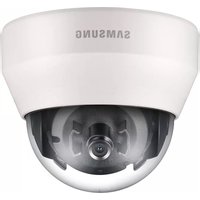
SCD-6021 - Security Camera Hanwha - Free user manual and instructions
Find the device manual for free SCD-6021 Hanwha in PDF.


| Product Type | Security Camera with HD-SDI |
| Image Sensor | 1/3" Progressive Scan CMOS, 2.1M effective pixels |
| Video Output | HD-SDI (SMPTE292M), CVBS for test |
| Lens | Fixed 3.8mm, F2.0, angle 84.5° (H) |
| Minimum Illumination | Color: 0.5 Lux (F2.0), 0.008 Lux (Sens-up x60) |
| Day & Night | Auto (ICR), Color, B/W, External |
| Wide Dynamic Range | SSDR, BLC, HLC, WDR |
| Noise Reduction | SSNR III (3D noise reduction) |
| Intelligent Video | Motion detection, tracking, tampering, fixed/moved |
| Privacy Masking | 16 rectangular or 4 polygonal zones |
| On-Screen Display | Multi-language (16 languages) |
| Communication | RS-485 with multiple protocols (Pelco-D, Samsung-T, etc.) |
| Pan / Tilt / Rotation | 354° / 67° / 355° |
| Power Supply | DC 12V, 0.3A |
| Dimensions (ØxH) | 120.0 x 102.0 mm (4.72" x 4.02") |
| Weight | 435 g (0.96 lbs) |
| HD-SDI Transmission Distance | 5C2V: 100-140 m, L-6CHD: 200 m |
| Operating Temperature | -10°C to +55°C (14°F to 131°F) |
| Cleaning Instructions | Clean only with dry cloth |
| Safety Class | Class I construction (protective earthing) |
| Warranty | 3 years (excluding misuse, natural wear) |
Frequently Asked Questions - SCD-6021 Hanwha
User questions about SCD-6021 Hanwha
0 question about this device. Answer the ones you know or ask your own.
Ask a new question about this device
Download the instructions for your Security Camera in PDF format for free! Find your manual SCD-6021 - Hanwha and take your electronic device back in hand. On this page are published all the documents necessary for the use of your device. SCD-6021 by Hanwha.
USER MANUAL SCD-6021 Hanwha
©2013 Samsung Techwin Co., Ltd. All rights reserved.
Trademark

SAMSUNG TECHWIN is the registered logo of Samsung Techwin Co., Ltd.
The name of this product is the registered trademark of Samsung Techwin Co., Ltd.
Other trademarks mentioned in this manual are the registered trademark of their respective company.
Restriction
Samsung Techwin Co., Ltd shall reserve the copyright of this document. Under no circumstances, this document shall be reproduced, distributed or changed, partially or wholly, without formal authorization of Samsung Techwin.
Disclaimer
Samsung Techwin makes the best to verify the integrity and correctness of the contents in this document, but no formal guarantee shall be provided. Use of this document and the subsequent results shall be entirely on the user's own responsibility. Samsung Techwin reserves the right to change the contents of this document without prior notice.
Warranty
If the product does not operate properly in normal conditions, please let us know. Samsung Techwin will resolve the problem for free of charge. The warranty period is 3 years. However, the followings are excluded:
- If the system behaves abnormally because you run a program irrelevant to the system operation.
• Deteriorated performance or natural worn-out in process of time
- Design and specifications are subject to change without prior notice.
Important Safety InStructionS
- Read these instructions.
- Keep these instructions.
- Heed all warnings.
-
Follow all instructions.
-
Do not use this apparatus near water.
-
Clean only with dry cloth.
-
Do not block any ventilation openings, Install in accordance with the manufacturer's instructions.
-
Do not install near any heat sources such as radiators, heat registers, stoves, or other apparatus (including amplifiers) that produce heat.
-
Do not defeat the safety purpose of the polarized or grounding-type plug. A polarized plug has two blades with one wider than the other. A grounding type plug has two blades and a third grounding prong. The wide blade or the third prong are provided for your safety. If the provided plug does not fit into your outlet, consult an electrician for replacement of the obsolete outlet.
-
Protect the power cord from being walked on or pinched particularly at plugs, convenience receptacles, and the point where they exit from the apparatus.
-
Only use attachments/ accessories specified by the manufacturer.
-
Use only with the cart, stand, tripod, bracket, or table specified by the manufacturer, or sold with the apparatus. When a cart is used, use caution when moving the cart/apparatus combination to avoid injury from tip-over.
-
Unplug this apparatus during lighting storms or when unused for long periods of time.
natural_image
Symbolic icon of a person pushing a ladder inside a circle (no text or symbols)- Refer all servicing to qualified service personnel. Servicing is required when the apparatus has been damaged in any way, such as power-supply cord or plug is damaged, liquid has been spilled or objects have fallen into the apparatus, the apparatus has been exposed to rain or moisture, does not operate normally, or has been dropped.
WarnInG
TO REDUCE THE RISK OF FIRE OR ELECTRIC SHOCK, DO NOT EXPOSE THIS PRODUCT TO RAIN OR MOISTURE. DO NOT INSERT ANY METALLIC OBJECT THROUGH THE VENTILATION GRILLS OR OTHER OPENINGS ON THE EQUIPMENT.
Apparatus shall not be exposed to dripping or splashing and that no objects filled with liquids, such as vases, shall be placed on the apparatus.
cautlon
cautlon
rISK of eLectrlc SHocK. Do not open

CAUTION: TO REDUCE THE RISK OF ELECTRIC SHOCK. DO NOT REMOVE COVER (OR BACK). NO USER SERVICEABLE PARTS INSIDE. REFER SERVICING TO QUALIFIED SERVICE PERSONNEL.
eXpLanation of GrapHIcaL SymBoLS
The lightning flash with arrowhead symbol, within an equilateral triangle, is intended to alert the user to the presence of “dangerous voltage” within the product’s enclosure that may be of sufficient magnitude to constitute a risk of electric shock to persons.

The exclamation point within an equilateral triangle is intended to alert the user to the presence of important operating and maintenance (servicing) instructions in the literature accompanying the product.
Class I construction
An apparatus with CLASS I construction shall be connected to a MAINS socket outlet with a protective earthing connection.
Battery
Batteries(battery pack or batteries installed) shall not be exposed to excessive heat such as sunshine, fire or the like.
Disconnection Device
Disconnect the main plug from the apparatus, if it's defected. And please call a repair man in your location.
When used outside of the U.S., it may be used HAR code with fittings of an approved agency is employed.
CAUTION
These servicing instructions are for use by qualified service personnel only. To reduce the risk of electric shock do not perform any servicing other than that contained in the operating instructions unless you are qualified to do so.
Please use the input power with just one camera and other devices must not be connected.
Please read the following recommend safety precautions carefully.
- Do not place this apparatus on an uneven surface.
- Do not install on a surface where it is exposed to direct sunlight, near heating equipment or heavy cold area.
- Do not place this apparatus near conductive material.
- Do not attempt to service this apparatus yourself.
- Do not place a glass of water on the product.
- Do not install near any magnetic sources.
- Do not block any ventilation openings.
- Do not place heavy items on the product.
- Do not expose the camera to radioactivity.
User's Manual is a guidance book for how to use the products.
The meaning of the symbols are shown below.
- Reference : In case of providing information for helping of product's usages
- Notice: If there's any possibility to occur any damages for the goods and human caused by not following the instruction
※ Please read this manual for the safety before using of goods and keep it in the safe place.
oveRvleW
3
3 Important Safety Instructions
8 Product Features
9 What's Included
10 At a Glance
InSTALLATION & ConneCTion
13
13 Installation
16 Connecting with other Device
opeRATIng YouR CAmeRA
20
20 Menu Configuration
21 Menu Setup
AppendIX
36
36 Specification
38 Product Overview
39 Troubleshooting
PRODUCT FEATURES
• Supports Full HD-SDI Video
By adopting a diagonal 6mm (1/3") 2M pixel CMOS, the camera produces clear picture quality.
• Excellent low-illumination image quality
By adopting high-sensitive colour CMOS, the camera provides clear image quality under a severe low illumination condition of 0.008 Lux.
• SSNR3 (Samsung Super Noise Reduction) Function
The high-performance WN2 DSP chip effectively removes low-light gain noise and afterimage to provide clear images even in dark environments.
• Electrical Day&Night
This camera has a function that automatically selects the mode that is appropriate for daytime or night-time conditions. The COLOR mode operates in daytime conditions to provide optimum colors, and B/W mode operates in night-time conditions to enhance the definition of the image.
• INTELLIGENCE
Without assistance from an external sensor, this camera independently detects and traces objects while examining stillness and movement to activate the alarm.
• SSDR (Samsung Super Dynamic Range)
For images with high contrast between bright and dark areas from difficult lighting conditions such as backlighting, this camera selectively illuminates darker areas while retaining the same light level for brighter areas to even out the overall brightness.
• Miscellaneous Functions
HLC(High Light Compensation), SENS-UP, FLIP (H/V-REV), D-ZOOM and PRIVACY functions are provided.
- OSD
By providing multi-lingual user-friendly OSD (On-screen Display) menu, the camera provides easy handling of the camera.
WHAT'S IncLuDeD
Check if the main unit and all the following accessories are included in the product package.
| Appearance Item | Name Quantity Description | ||
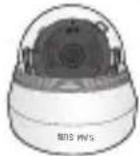 | Camera 1 | ||
 | Quick Guide 1 | ||
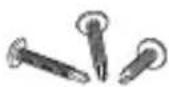 | Iron Screw 2 Used for fixing to an iron plate | ||
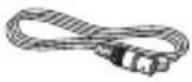 | Cable for the testingmonitor 1 | Used to test the camera connection to a portable display device | |
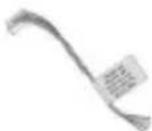 | Function cable 1 | ||
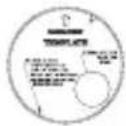 | Template 1 Product installation guide |
AT A GLANCE
Appearance
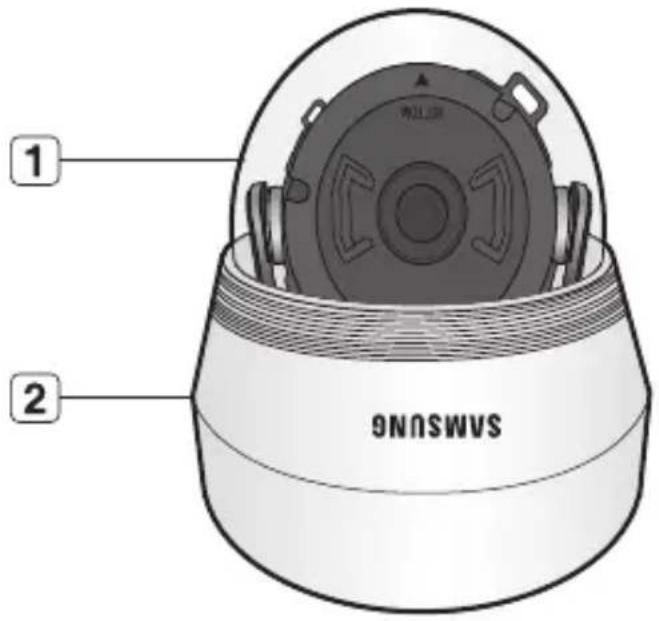
| Item Description | |
| 1 Top cover | Case cover used to protect the lens and the main unit. |
| 2 Camera Case | Covers the lens and camera body. |
Inside
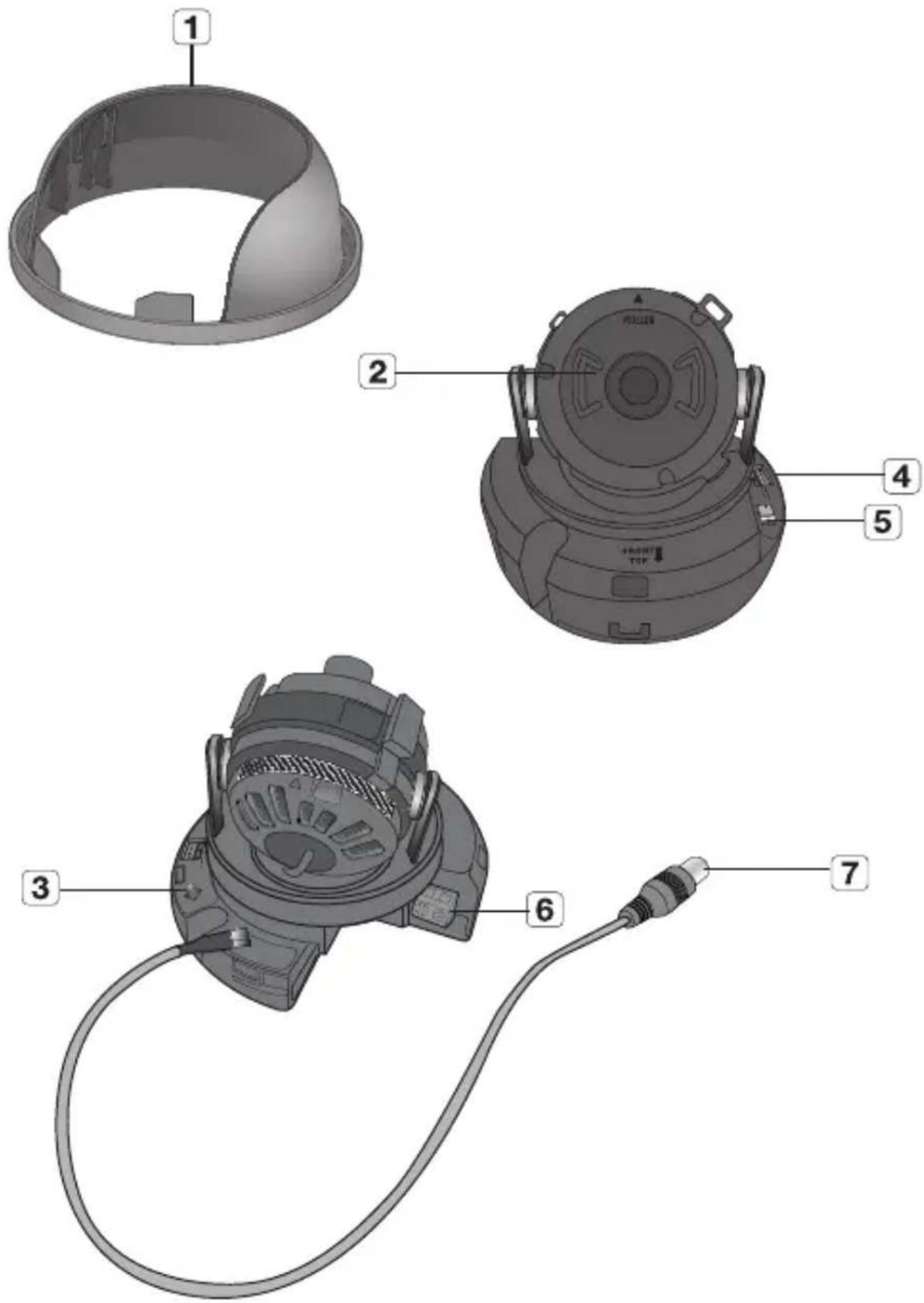
| Item Description | |||
| 1 Internal Cover | It is a cover to protect the main body. | ||
| 2 Lens | Lens for the camera. | ||
| 3 SETUP Switch | The switch is used for setting and adjusting the camera's functions and properties. | ||
| ◄/► | Move this switch left or right to move the cursor or change the value in the menu. | ||
| ▲/▼ | Move this switch up or down to move the cursor in the menu. | ||
| ■ | Press the switch to set the function in menu. To move to a sub-menu item in the menu, press this switch. | ||
| 4 I/O Port | GREEN(485-) Signal port for RS-485 - communication. | ||
| YELLOW(485+) Signal port for RS-485+ communication. | |||
| BLUE(MD_OUT) Output port that signals when a motion is detected. | |||
| GRAY(EXT_D/N) External signal input port for Day/Night mode setup. | |||
| BLACK(GND) Earth-grounding port for external signal. | |||
| 5 VIDEO | Analogue video output terminal of Video.Use a monitor cable for testing the camera with a portable display.(for installation) | ||
| 6 Power Port | Used to plug the power cable. | ||
| 7 HD-SDI Video Out terminal | BNC terminal for HD-SDI video signal output. | ||
INSTALLATION
Precautions before installation
Ensure you read out the following instructions before installing the camera:
- It must be installed on the area (ceiling or wall) that can withstand 5 times the weight of the camera including the installation bracket.
- Stuck-in or peeled-off cables can cause damage to the product or a fire.
- For safety purposes, keep anyone else away from the installation site. And put aside personal belongings from the site, just in case.
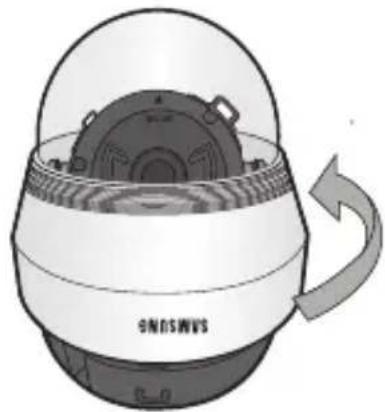
Disassembling
- Use one hand to hold the camera's bottom part and turn the cover counterclockwise with another hand to separate it.
natural_image
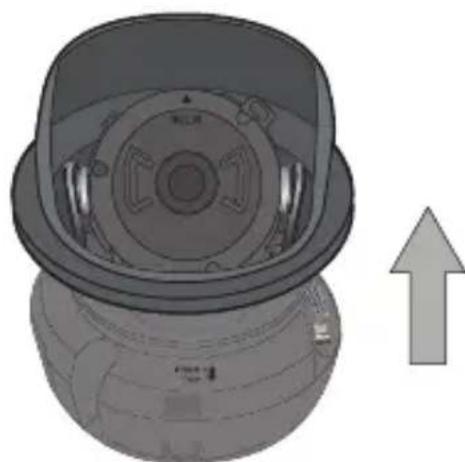
Diagram of a sensor device with a rotating arrow indicating rotation (no text or symbols)- Lift up the inner cover to separate it.
natural_image
3D rendering of a mechanical component with a circular housing and an upward arrow indicator (no text or symbols)Installation
- Attach the installation template to the selected area and punch 2 holes as shown in the figure.
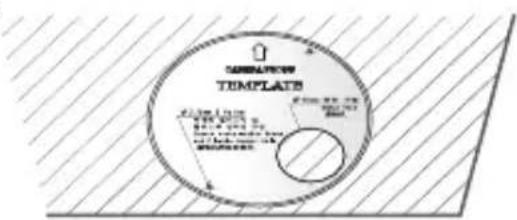
- Use the 2 supplied screws to fix the camera to the 2 punched holes.
- Set the
-
Connect the camera internal terminal with the corresponding cable.
-
Adjust the lens in a desired direction by referring to the "Adjusting the monitoring direction for the camera" section. (page 15)
-
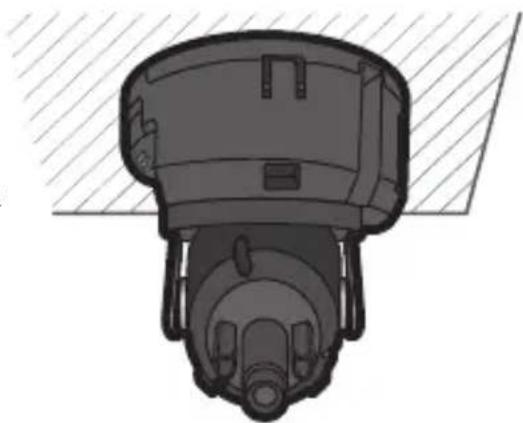
Fasten the dome case (dome cover +camera case) to the main body as shown in the figure.
natural_image
Technical illustration of a mechanical component with no visible text or symbols
■ Pay attention to the direction for assembly.
Adjusting the monitoring direction for the camera
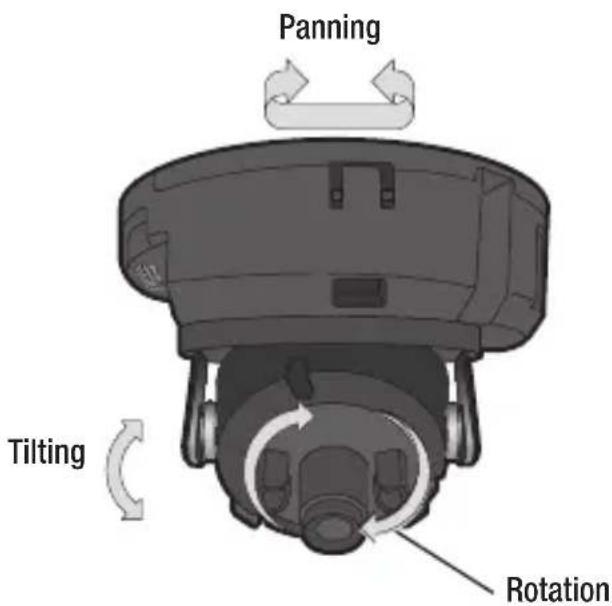
◆ Adjusting the monitoring direction
You can adjust the camera direction only when the camera is fixed on the ceiling. Where, rotating the camera unit to the left or right is called Pan, adjusting the tilt is called Tilt, and turning the lens on its axis is called Rotation.
- The effective range of pan is a total of 354 degrees.
- The effective range of rotation is a total of 355 degrees.
- The effective range of tilt is a total of 67 degrees.

In some angles, the top cover may cause cutting some part of the monitoring object.
- Do not rotate the focus/zoom lens by force after removing the cover front. Otherwise, it may cause an incorrect focus due to a motor failure.
◆ Methods of adjustment
- After installing the camera, adjust the panning angle in consideration of the monitoring direction.
- Set the horizontal angle so that the image is not reversed.
- Adjust the tilt angle so that the camera faces toward the monitoring object.
CONNECTING WITH OTHER DEVICE
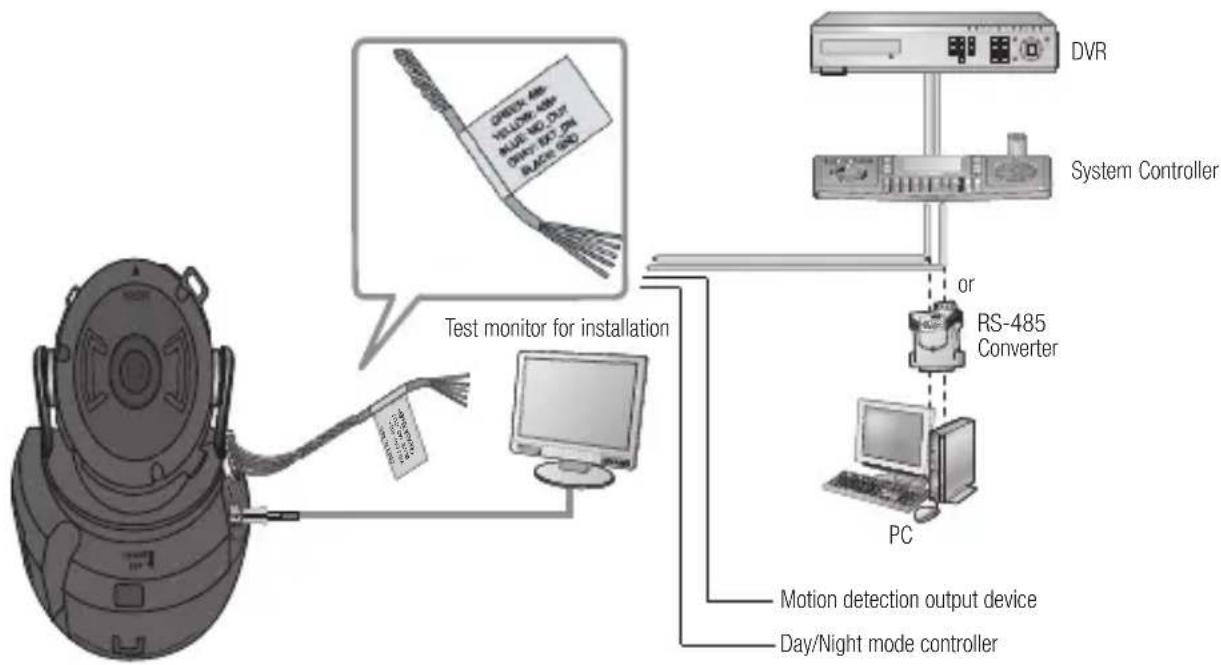
flowchart
graph TD
    A["Test monitor for installation"] --> B["PC"]
    B --> C["RS-485 Converter"]
    C --> D["System Controller"]
    D --> E["DVR"]
    E --> F["or"]
    F --> C
    C --> G["Day/Night mode controller"]
    G --> H["Motion detection output device"]
    style A fill:#f9f,stroke:#333
    style B fill:#ccf,stroke:#333
    style C fill:#cfc,stroke:#333
    style D fill:#fcc,stroke:#333
    style E fill:#cff,stroke:#333
    style F fill:#ffc,stroke:#333
    style G fill:#cfc,stroke:#333
    style H fill:#fcc,stroke:#333
Connecting to the monitor
Connect the video out port of the camera to the video input port of the monitor.

- To check the display screen after installing the camera for the first time, you can use the C-Video port to check the video screen.
■ You can set the video output type to either NTSC or PAL. (page31)
The C-Video source (4:3) will be displayed with either side truncated in comparison with the HD-SDI video.
The video source from the HD-SDI port can be displayed on the dedicated monitor. To display the source on a commercial monitor, you need a converter to convert the video signal as appropriate.
Video Cable
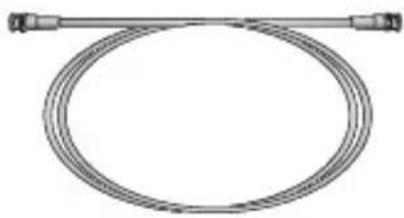
The cable connecting the camera's video output and a monitor is a BNC coaxial cable as shown below.
If the distance between the camera and the monitor exceeds the recommended maximum, please use an auxiliary video amp.
| Maximum video transfer distance | Recommended cable specification |
| 100~140m 5C2V(75ohm) | |
| 200m | L-6CHD(75ohm)(SDI-specific Cable) |
natural_image
Pure diagram of a coiled cable with two connectors (no text or symbols)RS-485 Communications
Using RS-485 communication, the camera menu can be accessed using Samsung Techwin's System Controller or the DVR.
• For accessing the camera from a computer
Use a RS-485 converter to connect the camera's control port with the computer's serial cable.
Ex) Serial port (COM1) of computer→ Serial Cable → RS-485 Converter → Camera's RS-485 control port
- For accessing the camera from a DVR or the System Controller
Connect the camera's RS-485+ and RS-485− terminals to the RS-485 control board's terminals of desired device with a RS-485 cable (TRX+ and TRX−).
| Control ports of RS-485 Controller RS-485 | ports of the camera |
| (+) CONNECTION TERMINAL (TRX+) 485+ | |
| (-) CONNECTION TERMINAL (TRX-) 485- |
Default RS-485 communication settings
| Item Camera | Number Transfer Rate | Communication Mode | Return Data | |
| Default 1 9600 | 8-NONE-1 Not used |

- When constructing a proprietary controller for direct camera control, apply Pelco-D or Samsung-Techwin protocol.
■ Use only a DVR model that supports HD-SDI saving.
External Day/Night Switching Input
Day/Night mode of the camera can be switched by signal from an external device.

To use this function,
Motion Detection Signal Out
Upon a motion detection, the port outputs signal for an external device for display or operation. When a motion is detected, the port outputs 3.3V signal.

To use this function,
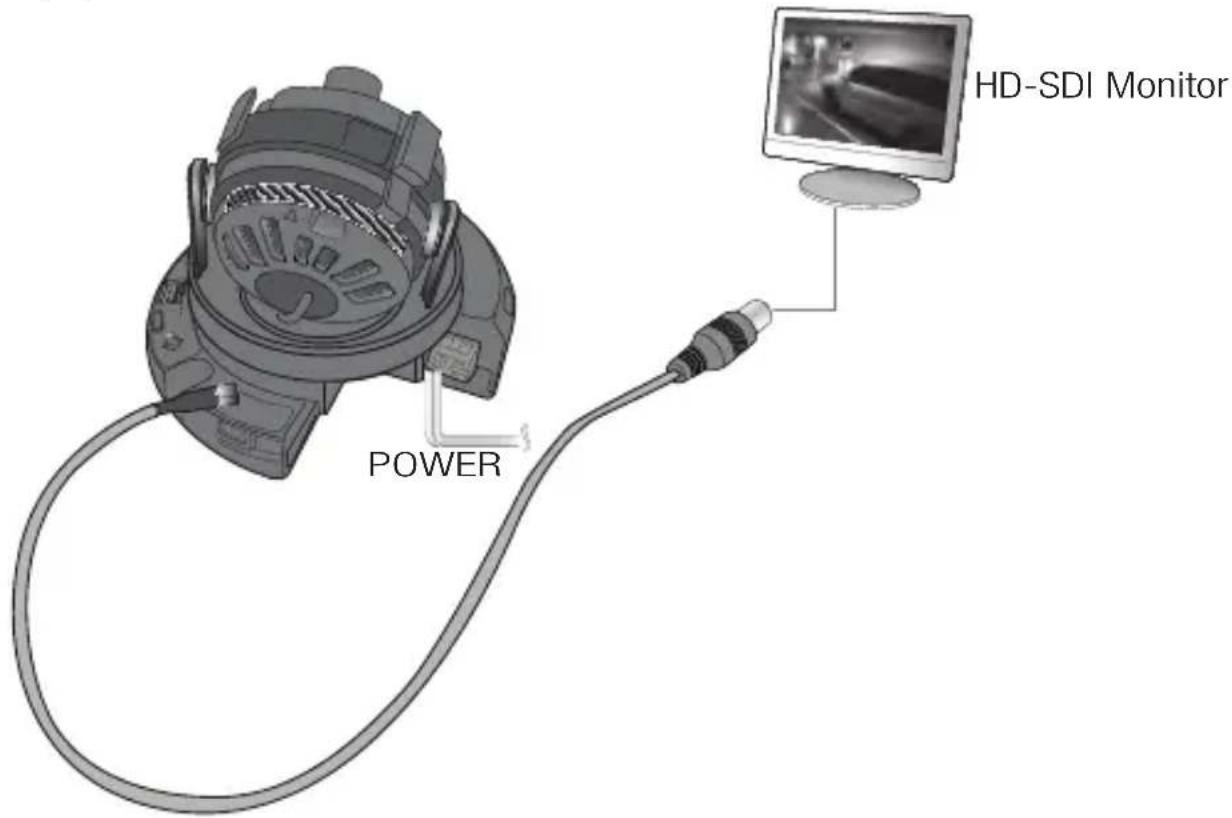
Power Supply
Use the screwdriver to connect each line (+, -) of the power cable to the corresponding power port of the camera.

- Be careful not to reverse the polarity when you connect the power cable.
- Be sure to turn the power off the device to be connected.
For DC Power Supply
You can use either one of DC 12V/2A\~4A adaptor.
Resistance of copper wire [at 20°C (68°F)]
| Wire specification (AWG) # | 24(0.22mm ^2 ) | #22(0.33mm ^2 ) | #20(0.52mm ^2 ) | #18(0.83mm ^2 ) |
| Resistance ( /m) | 0.078 0.050 | 0.030 0.018 | ||
| Voltage Drop (V/m) | 0.028 0.018 | 0.011 0.006 | ||
| Recommended Distance (m) | Less than 20 Less than 30 Less than | 30 Less than 30 | ||
- As shown in the table above, you may encounter a voltage-sag depending on the wire length. If you use an excessively long wire for camera connection, the camera may not work properly.
■ Voltage for proper camera operation: DC 12V±10%
■ Voltage drop shown in the table above may show difference from the actual depending on the manufacturer and cable type.
operating your camera
menu conflGuration
| MAIN SETUP | |||
| EXPOSURE | BRIGHTNESSSENS-UP | SHUTTERDEFOG | AGCRETURN |
| WHITE BAL | ATWMANUAL • AWC | OUTDOOR→ SET | INDOOR |
| SSDR • OFF • ON | |||
| BACKLIGHT | OFFWDR | BLC • HLC | |
| SSNR3 • ON • OFF | |||
| DAY/NIGHT | AUTOB/W | EXTERN | COLOR |
| PROFILE | BASICITSBANK | DAY/NIGHTINDOOR | BACKLIGHTUSER |
| SPECIAL | CAM TITLEPRIVACYRESET | IMAGE ADJCOMM ADJRETURN | INTELLIGENCELANGUAGE |
| EXIT | EXIT | ||
To configure the camera's function settings, use the button on the inside of the product.
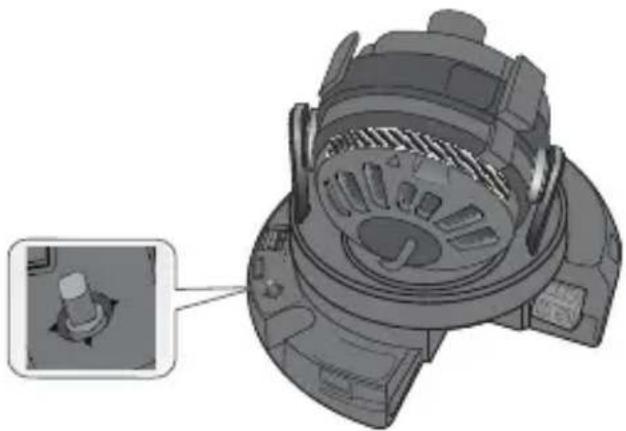
natural_image
Technical illustration of a mechanical component with a close-up inset showing a small circular feature (no text or symbols)- ▲▼: Moves up/down in menu.
- ◀▶: Moves right/left in menu.
-
■ : Press the switch to set the function in camera menu. To move to a sub-menu item in the menu, press this switch.
-
Press the SET button.
- Enters the function menu.
The selected function's menu appears on the monitor.
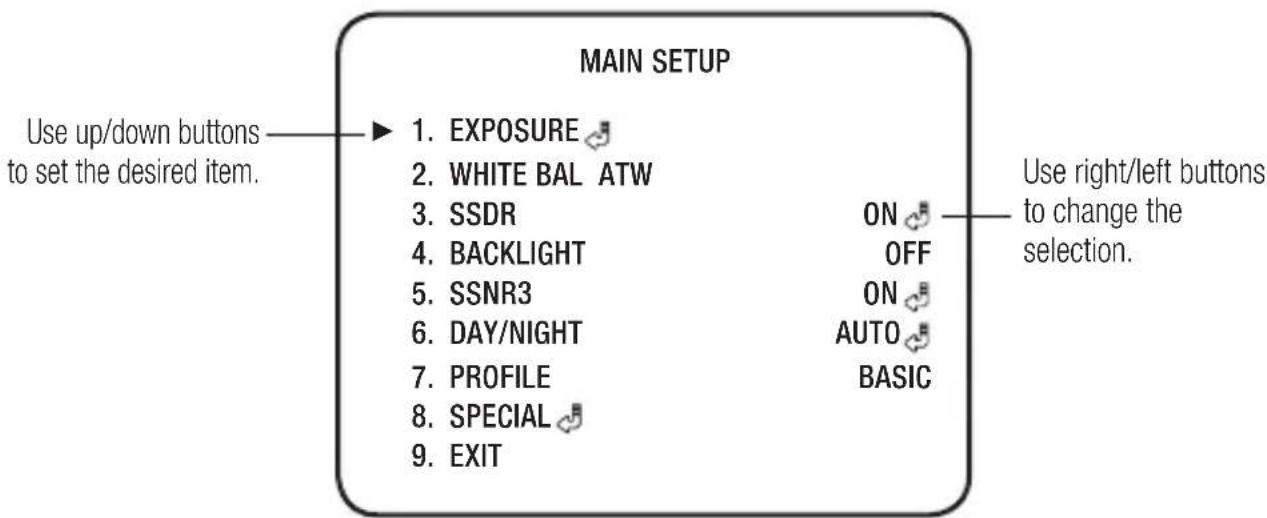
- Use the Up/Down buttons to select a desired function.
- Move the button up or down to move the arrow up or down. Set the arrow to indicate the desired item.
- Use the Right/Left buttons to select a desired function.
- Move the button right or left to display available values or settings. Set the desired setting value using the button.
- To finish, select
and press the SET button.

An item with the 🔔 icon also has sub menus. To select a sub menu, select an item with the icon and press the Function Setup switch.
■ An item with the --- icon is unavailable due to function settings.
eXpoSure
-
When the SETUP menu screen is displayed, select
by using the Function Setup switch so that the arrow indicates . -
Select a desired mode using the Function Setup switch.
- BrIGHtneSS : Adjust the screen brightness.
- SHutter: You can select the shutter.
- ESC : Select this to control the shutter speed automatically. If ESC is selected, the shutter speed is automatically controlled depending on the ambient illumination of the subject.
- MANUAL : You can control shutter speed manually((1/30\~1/16,000 ,x2\~x60))
- A.FLK : Select this when you experience picture flicker, this happen when there is a clash with the installed lighting frequency.
| MAIN SETUP | |
| 1. EXPOSURE | |
| 2. WHITE BAL ATW | |
| 3. SSDR | ON |
| 4. BACKLIGHT | OFF |
| 5. SSNR3 | ON |
| 6. DAY/NIGHT | AUTO |
| 7. PROFILE | BASIC |
| 8. SPECIAL | |
| 9. EXIT | |
| EXPOSURE SETUP | ||
| ▶ 1. BRIGHTNESS .... .... * .... .... | 50 | |
| 2. SHUTTER | ||
| 3. AGC HIGH | ||
| 4. SENS-UP | AUTO | |
| 5. DEFOG | --- | |
| 6. RETURN | ||

- When the SHUTTER is set to MANUAL or A.FLK mode, SENS-UP will be disabled.
Carefully position the camera when installing, since produced image quality might be poor if framing a bright light source while the shutter mode of EXPOSURE is set to AUTO.
- aGc(auto Galn controL) : The higher the gain level, the brighter the screen - but the greater the noise.
- OFF : Not being used
- Low : Allows automatic gain control from 5.3dB to 20dB.
- Medium : Allows automatic gain control from 5.3dB to 26dB.
- High : Allows automatic gain control from 5.3dB to 32dB.
- SenS-up : When it is night or dark, the camera automatically detects the light level and maintains a clear picture if this mode is activated.
- OFF : Deactivates the SENS-UP function.
- AUTO : Activates the SENS-UP function.
- DefoG : Through the defogging function, camera can automatically recognize fog concentration of the image, defog, self correct in hazy, rainy, flue gas and other inclement weather to get a clear image.
- AUTO : The camera will automatically correct image according to the defogging level (low, middle, high) set by the user.
- MANUAL : The camera will adjust the definition of the image according to user's preferences through the defogging level (low, middle, high).
- OFF : Turn off defogging function.
- return : Select this to save the changes in the EXPOSURE menu and return to the SETUP menu.

- Press the SET button while in AUTO mode to adjust the automatic scene accumulation multiplier for low-illumination operation. (x2 \~ x60)
The greater the video accumulation factor is, the brighter the screen is, but the afterimage of a moving object grows accordingly.
Although noise, spots, and whitish symptoms may occur in higher accumulation, this is normal.
If the gain control (AGC) of EXPOSURE mode is set to OFF, SENS-UP mode is accordingly set to ‘- - -’.
WHIte BaL (WHIte BaLance)
Use the White Balance function to adjust the screen color.
- When the SETUP menu screen is displayed, select
by using the Function Setup switch so that the arrow indicates . - Select a desired mode using the Function Setup switch.
Select one of the following 5 modes, as appropriate for your purpose.
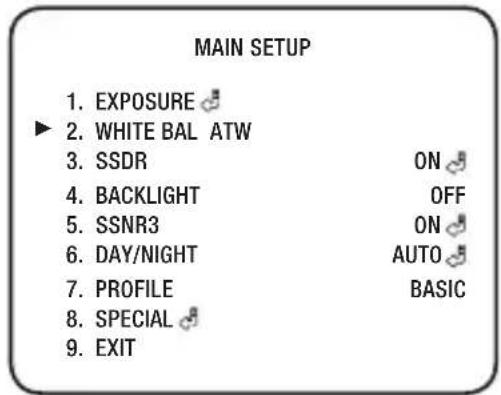
- atW : Select this when the color temperature is between 2,400°K and 11,000°K.
-
outDoor : Select this when the color temperature is between 1,700°K and 11,000°K. (sodium light inclusion)
-
InDoor : Select this when the color temperature is between 4,500°K and 8,500°K.
- manual: Select this to fine-tune White Balance manually. Set White Balance first by using the ATW or AWC mode. After that switch to MANUAL mode, fine-tune the White Balance and the Function Setup switch.
- aWe Set: To find the optimal luminance level for the current environment, point the
camera towards a sheet of white paper and press the Function Setup switch. If the environment changes, readjust it.
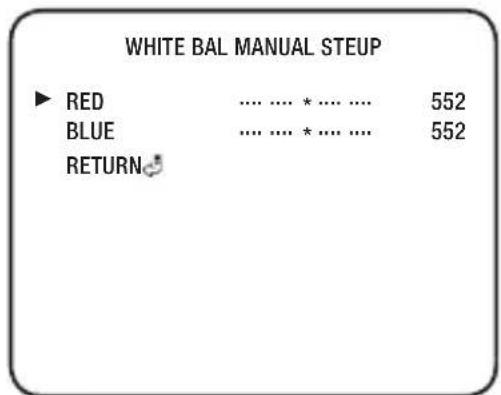
White Balance may not work properly under the following conditions. In this case select the AWC mode.
- When the ambient illumination of the subject is dim.
- If the camera is directed towards a fluorescent light or is installed in a place where illumination changes dramatically, the White Balance operation may become unstable.
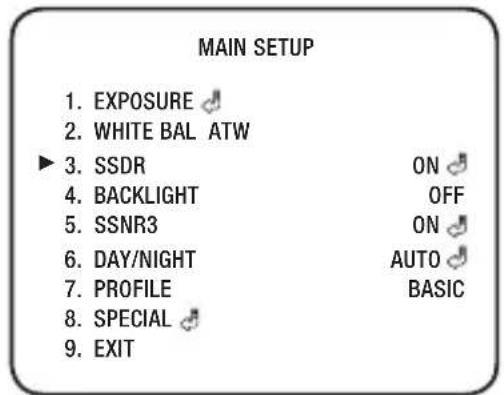
SSDr (SamSunG Super Dynamicc ranGe)
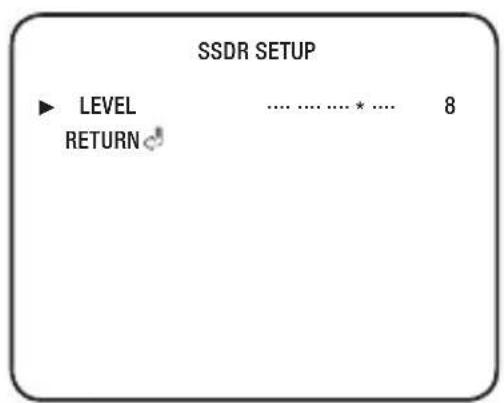
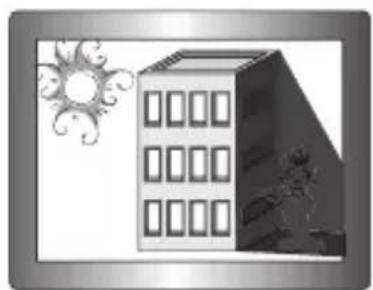
SSDR illuminates darker areas of an image while retaining the same light level for brighter areas to even out the overall brightness of images with high contrast between bright and dark areas.
- When the SETUP menu screen is displayed, select
by using the Function Setup switch so that the arrow indicates . - Use the Function Setup switch to change the SSDR level in the sub menu according to the contrast between bright and dark areas.
• SSDr : Adjust the dynamic range level.
natural_image
Illustration of a multi-story building with sun and cloud motifs, next to a cartoon character (no text or symbols)SSDR ON SSDR OFF
natural_image
Illustration of a building with a sun and a figure climbing it, no text or symbols presentBACKLIGHT
This camera is designed so that it delivers a distinctive subject and background at the same time, even when the subject is in backlight, by adopting a function of the proprietary WN2 DSP chip.
- When the SETUP menu screen is displayed, select
by using the Function Setup switch so that the arrow indicates . - Select a desired mode using the Function Setup switch depending on the camera purpose.
- BLC : Enables a user to select a desired area on a picture and view that area more clearly.
- LEVEL : Adjust level of the BLC function.
- TOP/BOTTOM/LEFT/RIGHT : Adjust the area to be enhanced.
- HLC (High Light Compensation): If the scene contains extremely bright light areas such as: from car headlight, the light can mask out much of the on-screen detail.
- LEVEL : Adjust level of the HLC function.
- MASK COLOR : Change the color of the masking area.
- MASK TONE : Change the brightness of the masking area.
- TOP/BOTTOM/LEFT/RIGHT : Adjust the area to be enhanced.
- WDR (wide Dynamic range) : It displays a sharp image of the objects in a scene where both bright and dark areas exist.
- LEVEL : Select a sensitivity level of WDR.
• OFF : Not being used
- Select a desired mode using the Function Setup switch.
| MAIN SETUP | |
| 1. EXPOSURE | |
| 2. WHITE BAL ATW | |
| 3. SSDR | ON |
| 4. BACKLIGHT | OFF |
| 5. SSNR3 | ON |
| 6. DAY/NIGHT | AUTO |
| 7. PROFILE | BASIC |
| 8. SPECIAL | |
| 9. EXIT | |
| BLC SETUP | |
| 1. LEVEL | MIDDLE |
| 2. TOP | 30 |
| 3. BOTTOM | 75 |
| 4. LEFT | 30 |
| 5. RIGHT | 75 |
| 6. RETURN | |
| HLC SETUP | ||
| 1. LEVEL | BLACK | MIDDLE |
| 2. MASK COLOR | 5 | |
| 3. MASK TONE | 30 | |
| 4. TOP | 75 | |
| 5. BOTTOM | 30 | |
| 6. LEFT | 70 | |
| 7. RIGHT | ||
| 8. RETURN | ||
| WDR SETUP MODE | |
| LEVEL | MIDDLE |
| RETURN | |
!
Because there can be a difference in the effectiveness of HLC according to the amount of light area in the screen, optimize the installation angle for the best HLC performance.
■ When dark, the HLC is only activated when a bright light exceeding a specific size.
■ The HLC is not activated in day light or when bright light is not present at night.
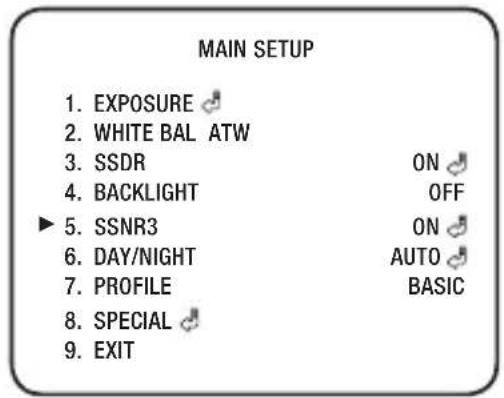
SSnr3
This function reduces the background noise in a low luminance environment.
- When the SETUP menu screen is displayed, select
by using the Function Setup switch so that the arrow indicates . - Select a desired mode using the Function Setup switch.
• on : Activates SSNR3 so that noise is reduced.
- off: Deactivates SSNR3. Noise is not reduced.
- Set the SSNR3 mode to
and press the Function Setup switch. Then you can adjust the noise reduction level.
!
- You cannot set the SSNR3 to 'ON' or 'OFF' when the AGC mode of the 'EXPOSURE' menu is 'OFF'.
- When adjusting the noise reduction level in the SSNR3 mode, remember that the higher the level set, the more the noise level will be reduced, as will the brightness of the image.
Day/nIGHt
You can display pictures in color or in black and white.
-
When the SETUP menu screen is displayed, select
by using the Function Setup switch so that the arrow indicates . -
Select a desired mode using the Function Setup switch according to the picture display you want.
- coLor : The picture is always displayed in color.
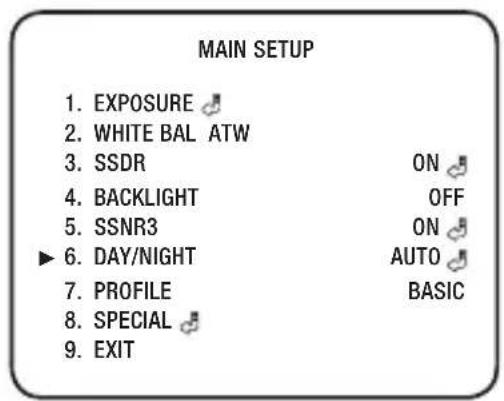
- B/W : The picture is always displayed in black and white.
- auto : The mode is switched to
in a normal environment, but switches to mode when ambient illumination is low. To set up the switching time for AUTO mode, press the Function Setup switch.
- DWELL TIME : You can select day/night switching delay time from.
→5s, 7s, 10s, 15s, 20s, 30s, 40s, 60s
DAY/NIGHT AUTO SETUP
▶ 1. COLOR → B/W
DWELL TIME 5 SEC
DURATION
SLOW
- B/W → COLOR
DWELL TIME 10 SEC
DURATION
SLOW
- RETURN
- DURATION : Adjust the brightness of the lighting where the mode switch occurs.
- eXtern : Control the image modes of Color and B/W when an external controller is synchronized via the Alarm In port.

- When AGC in the EXPOSURE menu is 'OFF', '---' mode operates as selecting 'AUTO' mode cannot be selected.
profilLe
-
When the SETUP menu screen is displayed, select
by using the Function Setup switch so that the arrow indicates . -
Select a desired mode using the Function Setup switch.
- BaSlc : The most common environment is set to meet.
- Day/nIGHt : It will be set automatically so it optimizes to the day or night conditions, respectively.
- BacKLIGHT : It will be set automatically so you can distinguish the object from the background in a severe backlighting scene.
- ItS : It will be set automatically so you can easily check the traffic conditions.
- InDoor : It will be set automatically to help you take a picture in a regular indoor lighting condition.
- uSer : Automatically configures the camera to your custom settings.
1) Select Custom for Simple Setup mode.
2) Configure the menu options to your custom settings.
3) The settings are automatically saved as Custom mode.
4) Profile user mode don't initialize when menu resets.
MAIN SETUP
-
EXPOSURE
-
WHITE BAL ATW
-
SSDR
ON
- BACKLIGHT
OFF
- SSNR3
ON
- DAY/NIGHT
AUTO
- PROFILE
BASIC
-
SPECIAL
-
EXIT
- BanK : The system will automatically set if dark and bright area are all exist at same time, so that you can recognize the object in bank easily. *In the PROFILE menu, you can configure the following camera settings at once.
| BaSlc Day/nIGHt BackLIGHT ItS InDoor uSer BanK | |||||||
| SHUTTER ESC ESC ESC ESC --- | |||||||
| AGC | HIGH | HIGH | HIGH | HIGH | HIGH | HIGH | HIGH |
| WHITE BAL | ATW | ATW | ATW | OUTDOOR | INDOOR | ATW | ATW |
| BACKLIGHT | OFF | OFF | BLC | OFF | OFF | OFF | WDR |
| SSNR3 | ON | ON | ON | ON | ON | ON | ON |
| DAY/NIGHT | AUTO | AUTO | AUTO | AUTO | AUTO | AUTO | AUTO |
SpeclaL
- When the SETUP menu screen is displayed, select
by using the Function Setup switch so that the arrow indicates .
| MAIN SETUP | |
| 1. EXPOSURE | |
| 2. WHITE BAL | ATW |
| 3. SSDR | ON |
| 4. BACKLIGHT | OFF |
| 5. SSNR3 | ON |
| 6. DAY/NIGHT | AUTO |
| 7. PROFILE | BASIC |
| 8. SPECIAL | |
| 9. EXIT | |
- Select a desired mode using the Function Setup switch.
| SPECIAL SETUP | |
| ▶ 1. CAM TITLE OFF | |
| 2. IMAGE ADJ 🌐 | |
| 3. INTELLIGENCE OFF | |
| 4. PRIVACY 🌐 | |
| 5. COMM ADJ 🌐 | |
| 6. LANGUAGE ENGLISH | |
| 7. RESET | |
| 8. RETURN 🌐 |
- CAM TITLE : If you enter a title, the title will appear on the monitor.
1) If the SPECIAL menu screen is displayed, use the Function Setup switch so that the arrow indicates
2) Set it to
3) Press the Function Setup switch.
4) Use the Function Setup switch to move to a desired letter and select the letter by pressing the Function Setup switch. Repeat this to enter multiple letters. You can enter up to 15 letters.
5) Enter a title, move the cursor to
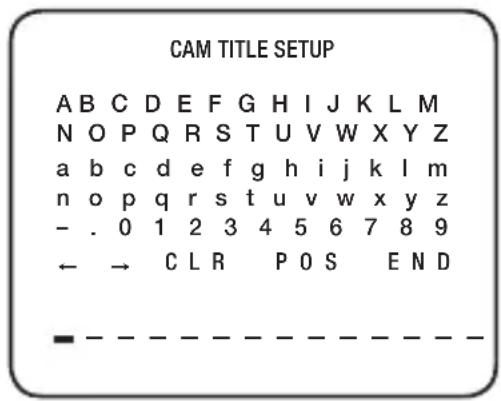
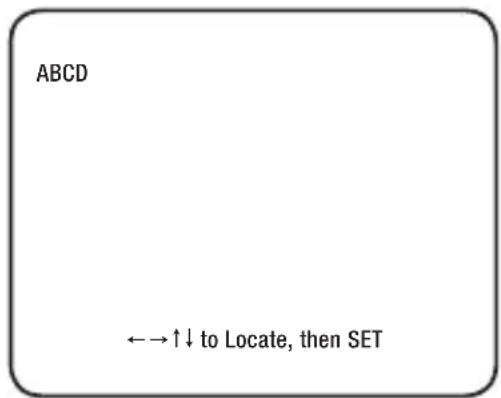

- When the CAM TITLE menu is ‘OFF’, no title will be displayed on the monitor screen even if you enter one.
■ Only English is available in this mode.
If you move the cursor to CLR and press the Function Setup switch, all the letters are deleted. To edit a letter, change the cursor to the bottom left arrow and press the Function Setup switch. Move the cursor over the letter to be edited, move the cursor to the letter to be inserted and then press the Function Setup switch.
- ImaGe aDJ :
1) When the SPECIAL menu screen is displayed, select
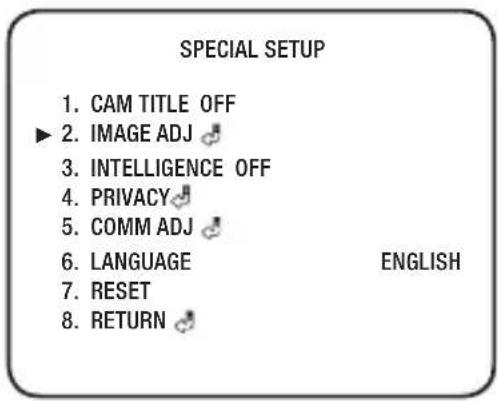
2) Select a desired mode using the Function Setup switch.
- MONITOR : Please change the settings value of video appropriate to your monitor.
- LCD : Please select this menu item when using a LCD monitor.
- USER : Please use this menu item when using a monitor other than standard ones. You can change the gamma, color level and reset in the sub menus.
- H-REV : You can flip the picture horizontally on the screen.
- V-REV : You can flip the picture vertically on the screen.
- D-ZOOM : You can use a digital zoom of x2 \~ x16.
DIS : Compensates the image automatically when it is seen to shake for stable image output.
- SHARPNESS : As you increase this value, the picture outline becomes stronger and clearer. Adjust this value appropriately depending on the sharpness of the picture.
- FONT COLOR :You can change the OSD font color. (White, Yellow, Green, Red, Blue)
-
VIDEO OUT FORMAT: Sets the video size and video fmt.
-
VIDEO SIZESets the image resolution of the HD-SDI output of the camera. Select the desired setting and press the SET button. (NTSC : 1080i 60, 1080p 30, 720p 60 ; PAL : 1080i 50, 1080p 25, 720p 50)
- VIDEO FM\$ets the video output format of the Video port on the camera provided for test and installation.(NTSC, PAL)
- RETURN : Select this to save the settings for the IMAGE ADJ menu and to return to the SPECIAL menu.

If you increase the sharpness level excessively, the image may be displayed abnormally or it can cause a noise.
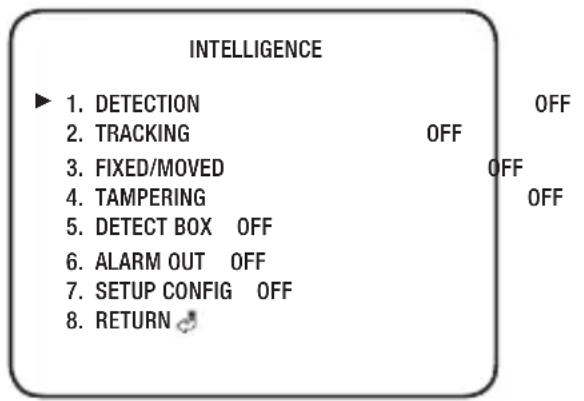
- InteLLIGence : Commands the camera to motion-detect and trace an object.
- DETECTION: Since the camera detects motion without any additional external sensor, you can monitor activity more efficient.
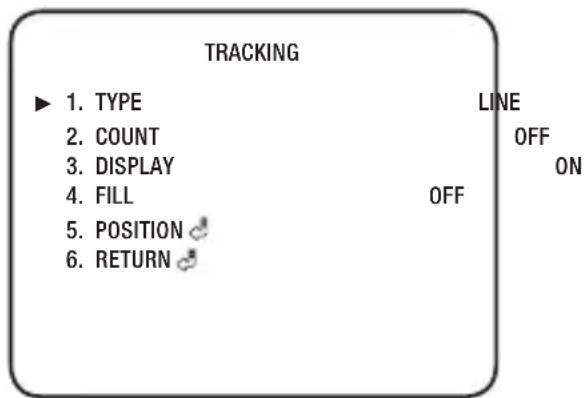
- TRACKING : Commands the camera to detect and trace a moving object.
▶ TYPE : Two types, line and area, of fences are available.
▶ COUNT : Displays the number of times that an object enters or leaves a fenced area.
▶ DISPLAY : Determines whether to use the fence selected in the FENCE.
▶ FILL : Fill or remove color from the FENCE.
▶ POSITION : Defines the position and detection direction of a line or fenced area
1) LINE FENCE
- SEL POS : Selects a position from POS1,POS2.
- X POS / Y POS : Adjust the size and position of the selected line fence.
-
DIRECTION
-
DIR1: Detects objects moving right to left on the fence line.
- DIR2: Detects objects moving left to right on the fence line.
- DIR1/2 : Detects all objects moving crosswise on the fence line.
- RETURN : Select this to save the POSITION menu settings and return to the TRACKING menu.
2) AREA FENCE
- SEL POS : Selects a position from POS1 \~ POS4.
- X POS / Y POS : Adjust the size and position of the selected area fence.
- DIRECTION
• IN : Detects objects entering the fenced area.
• OUT : Detects objects exiting the fenced area.
- IN/OUT : Detects all objects entering and exiting the fenced area.
- RETURN : Select this to save the POSITION menu settings and return to the TRACKING menu.
▶ RETURN : Select this to save the TRACKING menu settings and return to the INTELLIGENCE menu.
| TRACKING | ||
| SEL POS | POS1 | |
| X POS | ... ... ... * ... ... | 106 |
| Y POS | * ... ... ... ... ... | 1 2 |
| DIRECTION | DIR1 | |
| RETURN | ||
| TRACKING | ||
| SEL POS | POS1 | |
| X POS | .... ... .... *.... ... | 70 |
| Y POS | *.... ... .... ... ... | 30 |
| DIRECTION | IN | |
| RETURN 📋 | ||
- FIXED/MOVED : Detects an object that emerges or disappears from the screen, or stays onscreen without movement.

■ A detection (FIXED/MOVED) error may occur if :
- multiple motions occur continuously in random directions
• a fixed object moves in one position continuously
• a second object screens the first moving o bjec t
- TAMPERING You can set to detect tampering attempts and trigger events, such as blocked lens.
- DETECT BOX : Outlines an object on the screen in a box when its movement matches a custom Motion Type.
- ALARM OUT: Releases a signal from the MD Output Terminal of the camera when an object's movement matches a custom Motion Type.
- SETUP CONFIG :
▶ DETECT AREA : Defines the Motion Detection area.
• AREA SEL: You can select up to 4 areas.
- MODE : Determines whether to use the area selected in the AREA.
• DETECT ALARM: Determines whether to use the detect alarm selected in the AREA.
- TOP / BOTTOM / LEFT / RIGHT : Adjust the size and position of the selected area.
- RETURN : Select this to save the DETECT AREA menu settings and return to the SETUP CONFIG menu.
▶ SENSITIVITY : Set the sensitivity of the motion detection. When adjusting the sensitivity, note that the lower the level means the higher sensitivity.
SETUP CONFIG
▶ 1. DETECT AREA
2. SENSITIVITY 3
3. DET.SIZE
4. RETURN
DETECT AREA
operating your camera
▶ DET. SIZE : Selects an object size to detect on the screen. When adjusting the detection size, note that the higher the level means the bigger detection size.
▶ RETURN : Select this to save the SETUP CONFIG menu settings and return to the INTELLIGENCE menu.
- RETURN: Select this to save the INTELLIGENCE menu settings and return to the SPECIAL menu.
- prlVacy : Mask an area you want to hide on the screen.
1) When the SPECIAL menu screen is displayed, press the Function Setup switch so that the arrow indicates
2) Set up the mode using the Function Setup switch.
- TYPE 1 (In this type, the shape of selected area is rectangular)
▶ AREA SEL: You can select up to 16 PRIVACY areas.
▶ AREA MODE : Determines whether to use the area selected in the AREA SEL.
▶ MASK COLOR : Determine area color. You can select Green, Red, Blue, Black, White, Gray.
▶ TOP / BOTTOM / LEFT / RIGHT : Adjust the size and position of the selected area.
▶RETURN : Select this to save the TYPE 1 menu settings and return to the PRIVACY menu.
- TYPE 2 (In this type, the shape of selected area is polygonal)
▶ AREA SEL: You can select up to 4 PRIVACY areas.
▶ AREA MODE : Determines whether to use the area selected in the AREA SEL.
▶ MASK COLOR : Determine area color. You can select Green, Red, Blue, Black, White, Gray.
▶ SEL POS/XPOS/YPOS : Adjust the size and position of the selected area.
PRIVACY
▶ 1. TYPE 1 OFF
- TYPE 2 OFF
- RETURN
TYPE 1
▶ 1. AREA SEL AREA1
- AREA MODE OFF
- MASK COLOR GRAY
- TOP * …… 23
- BOTTOM 59
- LEFT * .... 35
- RIGHT 67
- RETURN
TYPE 2
▶ 1. AREA SEL AREA1
- AREA MODE OFF
- MASK COLOR GRAY
- SEL POS L_TOP
- X POS ....*.... 30
- Y POS * …… 10
- RETURN

▶ RETURN : Select this to save the TYPE 2 menu settings and return to the PRIVACYmenu.
- RETURN: Select this to save the PRIVACY menu settings and return to the SPECIAL menu.
• COMM ADJ (Communication Adjustment) :
This function sets up the camera communication status when controlling the camera through an external control device.
1) When the SPECIAL menu screen is displayed, press the Function Setup switch so that the arrow indicates
2) Set up the mode using the Function Setup switch.
- PROTOCOL : Select the communication PROTOCOL. (SAMSUNG-T, SAMSUNG-E, Pelco-D, Pelco-P, Bosch, Honeywell, Vicon, Panasonic, GE, AD)
- CAM ID : Determines the camera's identification number (between 0 and 255).
- BAUD RATE : You can select 2400/4800/9600/19200/38400/57600 bps.
- UART MODE : You can select NONE, EVEN or ODD for the parity bits.
- DISP ID : Display camera title on top left corner of the screen.
- RET PKT : Specify whether to return the same command to the controlling device when a control command is delivered to the camera.
- RETURN Select this to save the COMM ADJ menu settings and return to the SPECIAL menu.
- LANGUAGE : You can select the menu language according to your requirements.
- RESET : Resets the camera settings to the factory defaults. Communication, Language, Video Format and Monitor settings are not initialized.
- RETURN : Select this to save the SPECIAL menu settings and return to the MAIN SETUP menu.
EXIT
Save the current settings and exit the MAIN SETUP menu.
COMMUNICATION SETUP
▶ 1. PROTOCOL SAMSUNG-T
2. CAM ID * .... .... .... 1
3. BAUD RATE 9600
4. UART MODE 8-N-1
5. DISP ID OFF
6. RET PKT ENABLE
7. RETURN
Specification
| Items Description | ||
| Video | Video 1/3" Progressive Scan CMOS | |
| Total Pixels 2,010(H) x 1.108(V), 2.2M Pixels | ||
| Effective Pixels 1,944(H) x 1,092(V), 2.1M Pixels | ||
| Scanning System Progressive Scan | ||
| Min. Illumination Color : 0.5Lux (F2.0, 50IRE), 0.008Lux (F2.0 Sen-up x60, 50IRE) | ||
| Video Output SMPTE292M ( HD-SDI ) | ||
| Lens Type | Lens Type Board-in type | |
| Mount Type - | ||
| Max. Aperture Ratio F2.0 | ||
| Focal Length 3.8mm Fixed | ||
| Focus Control Fixed | ||
| Angular Field of View H: 84.5°, V: 45.8°, D: 98.8° | ||
| pan / Tilt / Rotate | Pan Range 0° ~ 354° | |
| Tilt Range 0° ~ 67° | ||
| Rotate Range 0° ~ 355° | ||
| Operational | On Screen Display | Multi-language SupportEnglish, Korean, Japanese, Spanish, French, Portuguese, Chinese,German, Italian, Russian, Czech, Polish, Rumanian, Serbian, Swedish,Denish, Turkish |
| Camera Title | Off / On (Displayed 15 characters) | |
| Day &Night Auto (ICR), Color, B/W , External | ||
| Backlight Compensation | Off / BLC / HLC / WDR | |
| Contrast Enhancement | SSDR ( Off / On ) | |
| Digital Noise Reduction | SSNR III ( Off / On ) | |
| Operational | Privacy Masking Off / On (16 Rect-angle zones) | |
| Sens-up (Frame Integration) | Auto/Off (2x ~ 60x) | |
| Gain Control Off / Low / Middle / High | ||
| White Balance | ATW / Outdoor / Indoor / Manual / AWC (1,700K° ~ 11,000K°) | |
| Electronic Shutter Speed | Esc / A.FLK / Manual | |
| Digital Zoom Off / On (x2 ~ x16) | ||
| Reverse Off / H-Rev / V-Rev / HV-Rev | ||
| Intelligent Video Tampering, Detection,Tracking,Fixed/Moved | ||
| Communication RS-485 | ||
| Protocol | RS-485 : SAMSUNG-T, SAMSUNG-E, Pelco-D, Pelco-P, Bosch, Honeywell, Vicon, Panasonic, GE, AD | |
| Environmental | Operating Temperature / Humidity | -10°C~ +55°C (14°F~131°F) / ~90% RH |
| Electrical | Input Voltage 12VDC | |
| Current 0.3A | ||
| Mechanical | Color / Material Body : Ivory / Plastic | |
| Dimension (∅xH) ∅120.0 x H102.0mm (∅4.72" X H4.02") | ||
| Weight | 435g | |
| HD-SDI Transmission Distance | 5C2V (75ohm) Max. 100~140m | |
| L-6CHD (75 ohm) Max. 200m | ||
The maximum transferrable distance of HD-SDI video signal depends on the cable manufacturer or installation conditions.
- When a BNC cable adaptor is used to combine two or more BNC cables for distributed HD-SDI video transfer, make sure the impedance of the adaptor is 75Ω. Otherwise, the adaptor may cause shorter transfer distance or broken video transfer due to loss of transferred signal.
※ For enhanced performance, the product specification is subject to change without prior notice.
proDuct oVerVleW
Unit : mm (inch)
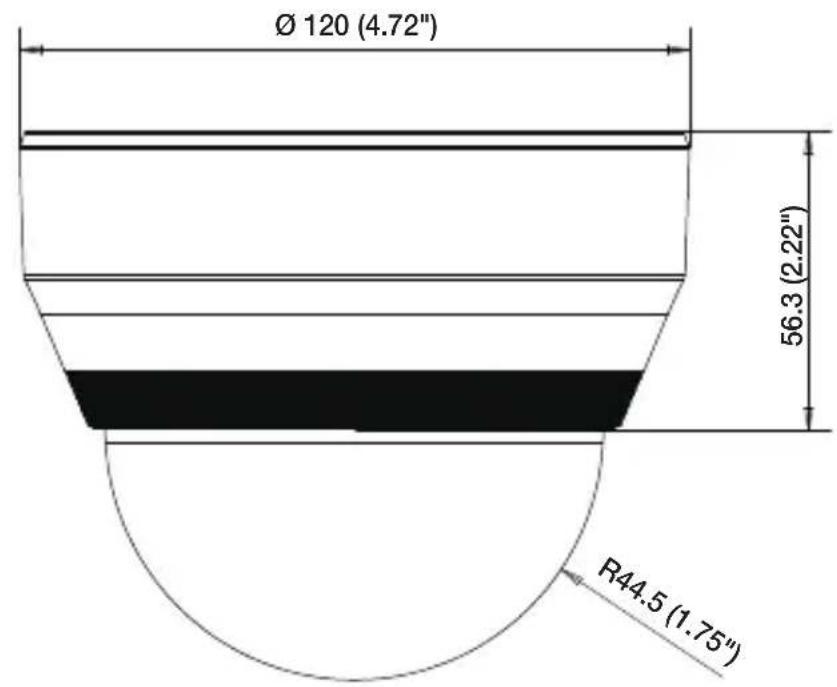
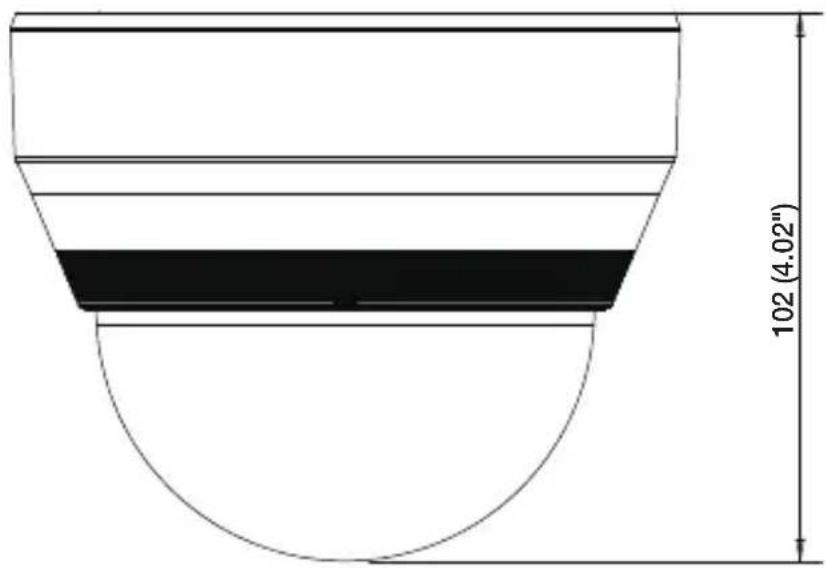
trouBLeSHootInG
| PROBLEM SOLUTION | |
| Nothing appears on the screen. | Check that the power cord and line connection between the camera and monitor are properly connected.When the camera's HD-SDI BNC output is directly connected to the monitor's BNC terminal:Make sure the monitor supports HD-SDI signal input.When the camera's HD-SDI BNC output is connected to the DVR: Make sure the DVR supports HD-SDI signal input.HD-SDI output is converted into other format such as DVI and VGA by using video converter: Make sure the converter's HD-SDI input format supports the product's output video format. |
| The image on the screen is dim. | Is lens stained with dirt? Clean your lens with soft, clean cloth.Set the monitor to the proper condition.If the camera is exposed to very strong light, change the camera position. |
| The image on the screen is dark. | Adjust the contrast feature of the monitor. |
| The camera is not working properly, and the surface of the camera is hot. | Check that you have properly connected the camera to an appropriate power source. |
| The SENS-UP function does not work. | Check that AGC of EXPOSURE SETUP menu is 'OFF'. |
| Color is not correct. | Check the setting of WHITE BAL SETUP menu . |
| The screen flickers continually. | Ensure the camera is not pointing towards the sun.Is the camera framing the sun or other bright light source?HD-SDI video may not appear to be normal if distance exceeds the maximum transferrable distance.When a BNC cable adaptor is used to combine two or more BNC cables for distributed HD-SDI video transfer, make sure the impedance of the adaptor is 75Ω. Otherwise, it may cause shorter transfer distance or broken video transfer. |
| RS-485 communication is not available. | Check RS-485 communication settings. |

This equipment has been tested and found to comply with the limits for a Class A digital device, pursuant to part 15 of the FCC Rules. These limits are designed to provide reasonable protection against harmful interference when the equipment is operated in a commercial environment.
This equipment generates, uses, and can radiate radio frequency energy and, if not installed and used in accordance with the instruction manual, may cause harmful interference to radio communications. Operation of this equipment in a residential area is likely to cause harmful interference in which case the user will be required to correct the interference at his own expense.
Samsung Techwin cares for the environment at all product manufacturing stages, and is taking measures to provide customers with more environmentally friendly products.
The Eco mark represents Samsung Techwin's devotion to creating environmentally friendly products, and indicates that the product satisfies the EU RoHS Directive.
natural_image
Simple line drawing of a bin with crossed lines and a battery symbol, no text or labels present.Correct Disposal of This Product (Waste Electrical & Electronic Equipment)
(Applicable in the European Union and other European countries with separate collection systems)
This marking on the product, accessories or literature indicates that the product and its electronic accessories (e.g. charger, headset, USB cable) should not be disposed of with other household waste at the end of their working life. To prevent possible harm to the environment or human health from uncontrolled waste disposal, please separate these items from other types of waste and recycle them responsibly to promote the sustainable reuse of material resources.
Household users should contact either the retailer where they purchased this product, or their local government office, for details of where and how they can take these items for environmentally safe recycling.
Business users should contact their supplier and check the terms and conditions of the purchase contract. This product and its electronic accessories should not be mixed with other commercial wastes for disposal.

Correct disposal of batteries in this product
(Applicable in the European Union and other European countries with separate battery return systems.)
This marking on the battery, manual or packaging indicates that the batteries in this product should not be disposed of with other household waste at the end of their working life. Where marked, the chemical symbols Hg, Cd or Pb indicate that the battery contains mercury, cadmium or lead above the reference levels in EC Directive 2006/66. If batteries are not properly disposed of, these substances can cause harm to human health or the environment.
To protect natural resources and to promote material reuse, please separate batteries from other types of waste and recycle them through your local, free battery return system.
SALES NETWORK
SAMSUNG TECHWIN CO., LTD.
Samsung Techwin R&D Center, 6, Pangyo-ro 319beon-gil, Bundang-gu, Songnam-si, Gyeonggi-do 463-400, Korea
TEL: +82-70-7147-8740\~60 FAX: +82-31-8018-3745
100 Challenger Rd. Suite 700 Ridgefield Park, NJ 07660
Toll Free : +1-877-213-1222 Direct : +1-201-325-6920
Fax: +1-201-373-0124
www.samsungcctvusa.com
SAMSUNG TECHWIN EUROPE LTD.
Samsung House, 1000 Hillswood Drive, Hillswood Business
Park Chertsey, Surrey, UNITED KINGDOM KT16 OPS
TEL: +44-1932-45-5300 FAX: +44-1932-45-5325
- Trademark
- Restriction
- Disclaimer
- Warranty
- Important Safety InStructionS
- WarnInG
- cautlon
- eXpLanation of GrapHIcaL SymBoLS
- Class I construction
- Battery
- Disconnection Device
- CAUTION
- oveRvleW
- InSTALLATION & ConneCTion
- opeRATIng YouR CAmeRA
- AppendIX
- PRODUCT FEATURES
- • Supports Full HD-SDI Video
- • Excellent low-illumination image quality
- • SSNR3 (Samsung Super Noise Reduction) Function
- • Electrical Day&Night
- • INTELLIGENCE
- • SSDR (Samsung Super Dynamic Range)
- • Miscellaneous Functions
- - OSD
- WHAT'S IncLuDeD
- AT A GLANCE
- INSTALLATION
- Precautions before installation
- Disassembling
- Adjusting the monitoring direction for the camera
- ◆ Adjusting the monitoring direction
- ◆ Methods of adjustment
- CONNECTING WITH OTHER DEVICE
- Connecting to the monitor
- Video Cable
- RS-485 Communications
- • For accessing the camera from a computer
- - For accessing the camera from a DVR or the System Controller
- Default RS-485 communication settings
- External Day/Night Switching Input
- Motion Detection Signal Out
- Power Supply
- For DC Power Supply
- eXpoSure
- WHIte BaL (WHIte BaLance)
- SSDr (SamSunG Super Dynamicc ranGe)
- BACKLIGHT
- !
- SSnr3
- Day/nIGHt
- DAY/NIGHT AUTO SETUP
- profilLe
- MAIN SETUP
- SpeclaL
- - ImaGe aDJ :
- 1) LINE FENCE
- 2) AREA FENCE
- SETUP CONFIG
- PRIVACY
- TYPE 1
- TYPE 2
- EXIT
- COMMUNICATION SETUP
- proDuct oVerVleW
- trouBLeSHootInG
- Correct Disposal of This Product (Waste Electrical & Electronic Equipment)
- Correct disposal of batteries in this product
- SALES NETWORK
Brand : Hanwha
Model : SCD-6021
Category : Security Camera