
MY DU@L RADIO 700 - Mobile Phone SAGEM - Free user manual and instructions
Find the device manual for free MY DU@L RADIO 700 SAGEM in PDF.


User questions about MY DU@L RADIO 700 SAGEM
0 question about this device. Answer the ones you know or ask your own.
Ask a new question about this device
Download the instructions for your Mobile Phone in PDF format for free! Find your manual MY DU@L RADIO 700 - SAGEM and take your electronic device back in hand. On this page are published all the documents necessary for the use of your device. MY DU@L RADIO 700 by SAGEM.
USER MANUAL MY DU@L RADIO 700 SAGEM
Thank you for purchasing a SAGEM Wi-Fi IP Radio; we appreciate your trust in us.
This product was manufactured with the upmost care, should you encounter any difficulties during its use, we recommend that you refer to this user guide. You can also find information on the following site:
For your comfort and safety, we ask that you read the following paragraph carefully:
Recommendations and safety instructions

Do not install your Wi-Fi IP Radio in a humid room (bathroom, laundry, kitchen, etc.), or within 1.50 m of a tap or water source, or outside. Your Wi-Fi IP Radio should be used at an ambient temperature of between 15^ and 35^ for optimum sound results.
Do not set up your Wi-Fi IP Radio in a dusty environment as dust deposits might adversely affect the sound quality.
Avoid objects or liquids getting into the unit.
Unplug the power lead if the unit will not be used for a long period.

Do not handle your AC cord with wet hands. If liquid spills on your amplifier, unplug immediately and contact your dealer for cleaning instructions.

Only the power supply provided with the Wi-Fi IP Radio should be used. Connect this to the mains in accordance with the installation instructions in this user guide and the information on the identification label affixed to the power supply (voltage, current, mains frequency). As a precaution, in case of danger, the mains adapters act as a disconnecting mechanism for the 230V power supply. They should be placed near the device and should be easily accessible.

At the end of their useful life, batteries must be disposed of according to the recycling instructions presented in this booklet.

Do not attempt to remove any screws or open the unit. No user serviceable parts are inside.

Some sensitive medical equipment and safety equipment may be affected by the radio-frequency transmissions of your telephone. In all cases, we ask that you respect the safety recommendations.

The CE marking certifies that the product meets the essential requirements of Directive 1999/5/CE of the European Parliament and of the Council pertaining to microwave radio equipment and telecommunication terminal equipment, for the safety and health of users, for electromagnetic interference. Furthermore, it efficiently uses the frequency spectrum attributed to ground and spatial communication to prevent damaging interference.
The declaration of compliance may be looked up on the www.sagem.com site, section "support" or can be obtained from the following address:
Sagem Communication - Customer relations department
Wi-Fi IP Radio set-up 10
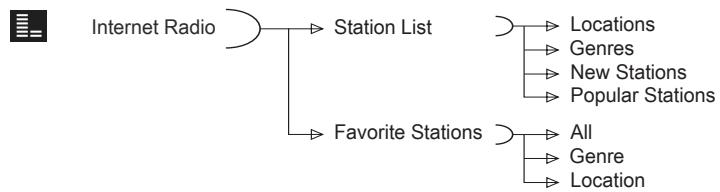
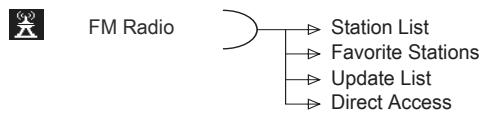
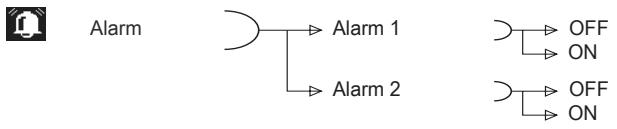
Menu structure 14
2. Installation 15
Network Setup 15
Basic Requirements 15
Configuration as a Wireless Client 16
Configuration as a Wired Client 20
Configuration as a Wireless Access Point (AP) 23
Windows Media Player 11: Installation and connection 25
Installation & Connection to Windows Media Connect V2.0 34
3. Listening to Music 37
Listening to Internet Radio 37
Listening to FM Radio 40
Listening to the music in your computer 42
Listening to the Music on your USB drive 45
ThePlaybackScreen 47
4. Alarm 48
Clock 48
Setting the Clock Manually 48
Setting the Clock Automatically 49
Alarm settings 49
Snoopze 52
5. Miscellaneous Setup Functions 53
Backlight Settings 53
Language Choice 53
Equalizer Settings 54
Reset to Factory Default Settings 54
Clear Favorites 54
Check Firmware Version 55
Software Updation 55
6. Appendix 57
Care and Maintenance 57
Problems 57
7. Specifications 60
8.Environment 62
Packaging 62
Batteries 62
The product 62
9. Guarantee terms and conditions 63
1. Your Wi-Fi IP Radio
This product is a wifi IP radio which may also be used as an alarm clock. This product is a Wi-Fi IP Radio. Connected to an Internet residential gateway, it enables users to browse/play/ store worldwide IP radio stations via the V-Tuner web server. It is mainly dedicated to Internet network access. The device may also be used to play the user's own digital music, and to listen to music on local FM broadcast services.
1.1. MAIN FEATURES
- IEEE 802.11b/g wireless connection and IEEE 802.3 Ethernet connection to access the network resource.
- Subscription vTuner services for listening to Internet radio stations directly. No PC server is required to listen to the Internet radio.
- Built-in FM Radio tuner for listening to local FM broadcast services.
- Compliant with the UPnP A/V protocol and popular UPnP-based streaming servers, such as Microsoft Windows Media Player 11 and the MusicMatch Jukebox. Users benefit from the network audio streams delivered from UPnP-based audio servers.
- Direct access/playback of music from external USB storage devices (including Flash, MP3 player, 2.5" HDD-based storage, single/first partition supported).
- Supported audio formats: .mp3, .wma, .wav (including IMA-AMPCM)
- A management function for storing the user's favorite radio stations in the memory for quick access.
- Playback controls: Play, Pause, Stop, Fast Forward, Fast Backward, Next, and Prev.
- Selectable play modes: Sequential, Single, Random, repeat all, repeat single, and non-repeat.
- Predefined equalizer and volume controls.
- Simple means of upgrading the device with new firmware.
- Dual alarm and snooze function to wake you up with any available music source.
1.2. UNPACKING
The product package includes the following items:
- 1 x IP radio device,
- 1 x 2dBi WiFi antenna,
- 1 x FM antenna (cable with 2.5mm plug),
- 1 x power adapter (DC 5V / 3A),
- 1 x remote controller,
- 2 × AAA batteries,
- 1 x CD / User Manual,
- 1 x Quick Guide.
1.3. FRONT PANEL
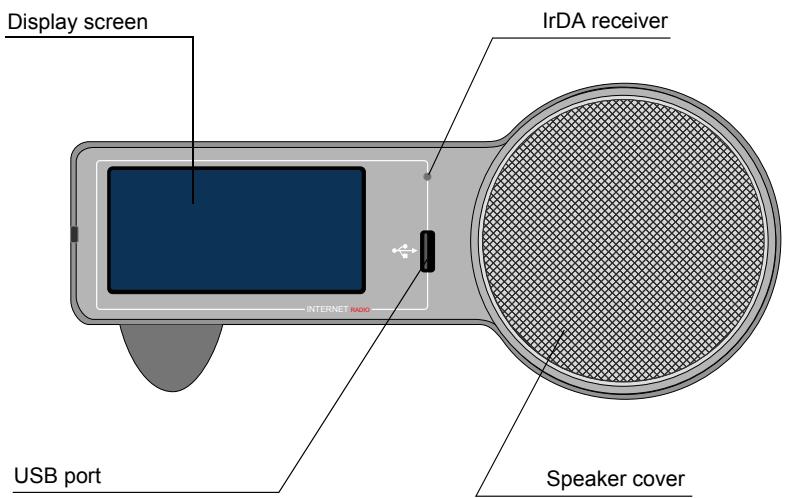
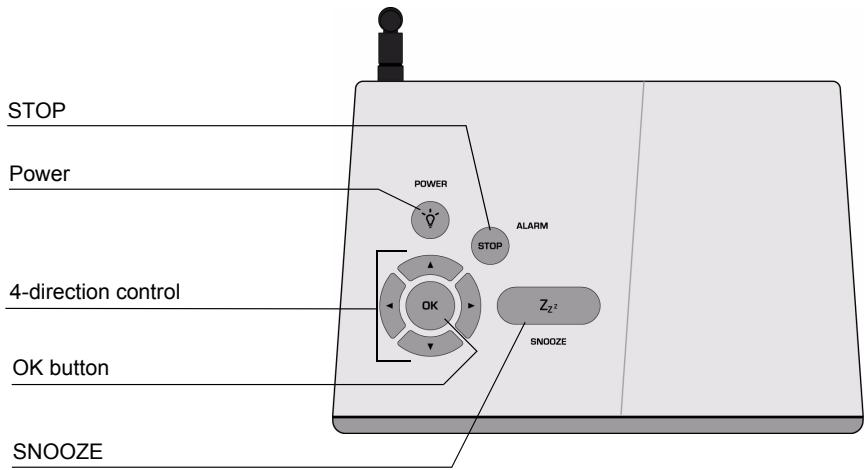
1.4. KEYPAD AREA
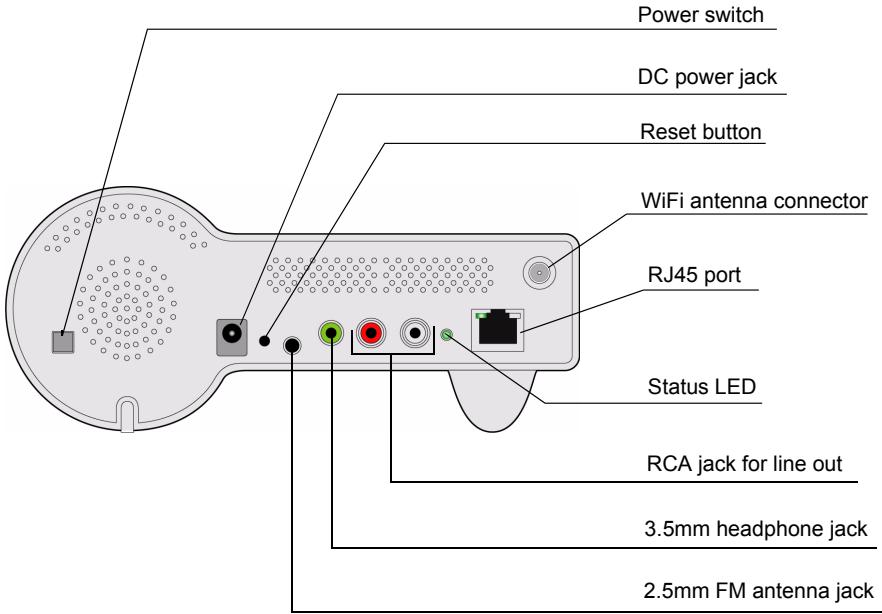
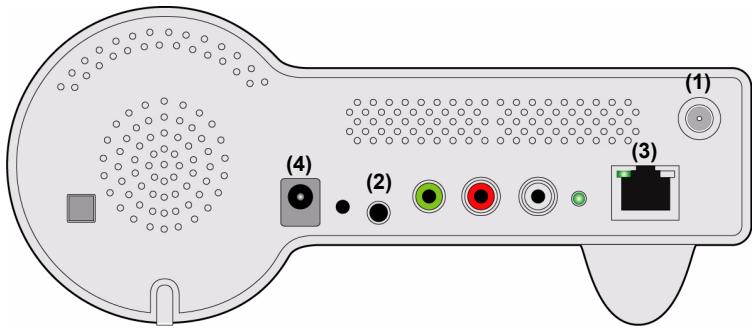
1.5. REAR PANEL
1.6. KEYPAD FUNCTIONS
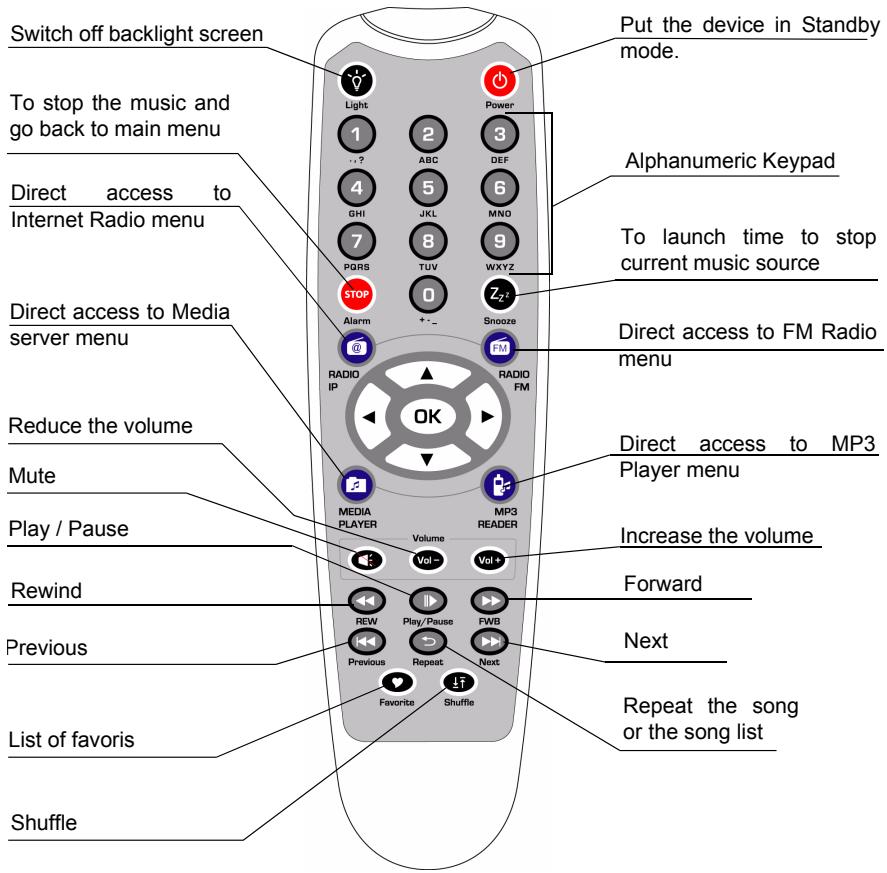
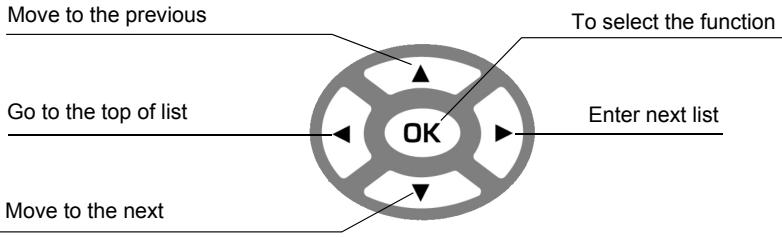
The navigator of the remote control, a rapid selection tool.
1.6.1. Installing the batteries
Take the remote control and turn it around so that the battery compartment is accessible.
Insert the batteries one after the other in compliance with the battery polarity, as shown on the battery slot.
Refit the battery compartment cover, first by the bottom, then lowering the top until full closure.
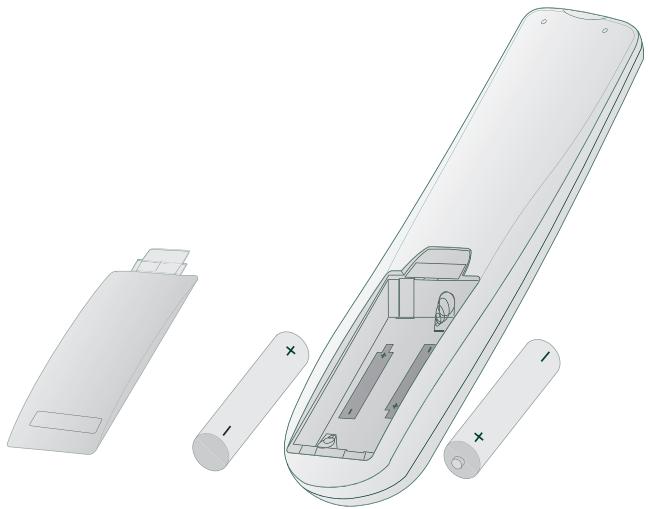

At the end of their useful life, batteries must be disposed of according to the recycling instructions presented in this booklet.
1.7. WI-FI IP RADIO SET-UP
Connect the WiFi Antenna (1) and the FM Antenna (2) to the appropriate antenna connectors on the rear panel. If you prefer to use Ethernet for wired network connection, plug your Ethernet cable into the RJ45 port (3).
Once you have made these connections, carefully plug the DC power adapter (4) to the outlet and connect the DC power jack carefully to power the device.
To operate the device, you can use either the remote controller supplied, or the keypad buttons.
You need to set up the network and your PC server before being able to use the radio and music playback functions on the device.
The following tables describe the keypad functions available when the IP Radio device is in operation.
(A) For the Selection Screen & Playback screen
| Select Screen (Screen with menu list) | Playback Screen (Screen with name of station / song) | ||
| SNOOZE | No function | Launches the timer for 15, 30, 45, or 60 min (stops the current music source after time selected) - Information screen displayed for 3s. - Goes back to standby screen with timer icon ON. | |
| STOP | 1. STOP MUSIC. 2. Go back to main menu. | Identical. | |
| POWER | Put the device in Standby mode. | Identical. | |
| OK | Select the function. | Goes to option screen. | |
| UP | Move to previous item. | 1. Volume up. 2. After 2s goes back to playback screen. | |
| DOWN | Move to next item. | 1. Volume down. 2. After 2s goes back to playback screen. | |
| LEFT | Radio IP | Goes back to the previous menu. | Goes back to radio list. |
| Radio FM | If radio FM (direct access): Goes back to the menu list. Otherwise: Goes back to radio list. | ||
| Media Server | Goes back to the song list. | ||
| MP3 Player | Goes back to song list. | ||
| RIGHT | Radio IP | Goes back to the next menu. | Goes back to radio list. |
| Radio FM | If radio FM (direct access) : Goes back to the menu list. Otherwise: Goes back to radio list. | ||
| Media Server | Goes back to the song list. | ||
| MP3 Player | Goes back to song list. | ||
(B) For the Idle screen (clock screen)
| Standby screen & Music Playing | Standby Screen & Alarm Music | Standby Screen & No Music | ||
| SNOOZE | Launches 15, 30, 45, or 60 min timer to stop current music source (Goes back to clock screen with timer icon ON). | STOPPS the music (Goes back to clock screen & reactivates alarm after 10 min.). | No function | |
| STOP | STOPPS MUSIC& Goes back to main menu. | STOPPS the music & Goes back to standby screen (No reactivation of alarm). | Alarm menu displayed. | |
| POWER | Put the device in Standby mode. | Identical. | Identical. | |
| OK | Displays playback screen. | Identical. | Main menu displayed. | |
| UP | Volume up (after 2s goes back to playback screen). | Identical. | Main menu displayed. | |
| DOWN | Volume down (after 2s goes back to playback Screen). | Identical. | Main menu displayed. | |
| LEFT | Radio IP | First press: Goes back to Station radio screen. Second press: Goes back to radio list. | Identical. | Main menu displayed. |
| Radio FM | First press: Goes back to Station radio screen. Second press: ·If radio FM (direct access): Goes back to the menu list. ·Otherwise: Goes back to radio list. | Goes back to radio list. | ||
| Media Server | First press: Goes back to song playing screnn. Second press: Goes back to songs list. | Identical | ||
| MP3 Player | ||||
| RIGHT | Radio IP | Goes back to Station radio screen. | Identical. | Main menu displayed. |
| Radio FM | First press: Goes back to Station radio screen. Second press: ·If radio FM (direct access): Goes back to the menu list. ·Otherwise: Goes back to radio list. | Goes back to radio list. | ||
| Media Server | First press: Goes back to song playing screnn. Second press: Goes back to songs list. | Identical. | ||
| MP3 Player | ||||

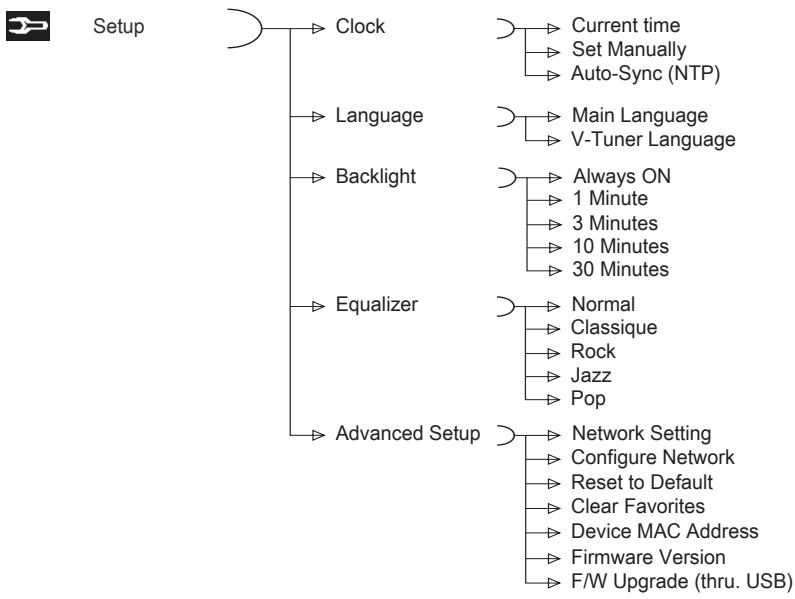
2. INSTALLATION
2.1. NETWORK SETUP
2.1.1. Basic Requirements
For the IP Radio device to work properly under your existing network environment, your network must feature the following:
You must have a router device with an enabled DHCP server function, so that it can automatically assign the IP address to your computer or another network device.
If you already have a router device in your home, it will be easy to setup the IP Radio device with your existing network environment. If you don't know what you have on your home network, the following FAQ will help you to troubleshoot before operating your IP Radio device.
The minimum streams to receive Radio IP are :
- 192 KPS for a normal quality,
- 640 KPS for an upper quality.
How does your computer or Notebook PC access the Internet?
The answer might be one of the following:
Case I
I have to plug an Ethernet cable to the computer, and
- I have to execute a dial-up program from my computer to link to the ISP service, and I can then access the Internet.
You need to purchase a (wireless) broadband router.
- No extra dial-up program is executed in my computer, but I set a fixed IP address in my computer.
- No extra dial-up program is executed in my computer, and I set a dynamic IP address in my computer.
There is a router device in your home. You can configure the IP Radio device in wired client mode to operate it with your home network.
Case II
I use wireless connection, and
- I have to execute a dial-up program from my computer to link to the ISP service, and I can then access the Internet.
There is no router device in your home. You need to purchase a new router device to upgrade your home network.
- No extra dial-up program is executed in my computer, but I set a fixed IP address in my computer.
If the IP address is provided by your ISP supplier, there is probably no DHCP service in your home network. You need to buy a new router device.
If the IP address is a virtual IP, such as 192.168.xxx.xxx, you should have a router device. Therefore, the IP Radio device will function with your home network.
- No extra dial-up program is executed in my computer, and I set the dynamic IP address in my computer.
There is a wireless router device in your home, the IP Radio device will be able to operate with your home network.
Moreover, the IP radio allows to play the music loaded in your PC, this one being connected to the same router.
2.1.2. Configuration as a Wireless Client
There are three network configuration modes available for the IP Radio device: simple wireless client, wired client, or wireless access point (AP).
The factory default mode is the client mode. If an Ethernet cable is available, the device will automatically select a suitable client mode to operate. Users can also manually change the network configuration settings via the Setup menu "Setup/Advanced Setup/Configure Network".
If you have a 802.11b/g wireless network in your home, this mode is the most straightforward means of connecting the IP Radio device to the existing network.
Simply power the device, without connecting an Ethernet cable, and the device will automatically switch to the wireless client mode and detect all available wireless APs (Access Points). The first time the device is set to the wireless client mode, you need to determine which AP to connect to and enter the encryption key. Once the settings have been established, the device will remember the settings and attempt to connect to the designated AP when it is switched on. However, if you encounter any difficulty in connecting to the designated AP, the device will display the AP list for you to configure the device once again.
(A) Using the device for the first time, without an Ethernet cable connection:
| Screen on the right | Screen shot | Next screen | Comment | |
| 1 | SAGEM | Initial screen | ||
| 2 | SAGEM Run as Wireless Client | Device run as a Wireless Client. | ||
| 3 | Main Language • English • Français | "OK" button | Select the MMI language. | |
| 4 | V-Tuner Language 1/5 • English • Français | "OK" button | Select the Internet radio menu language. | |
| 5 | Scanning □■□ | Scanning for available APs. | ||
| 6 | "←" button (Once) | APs List 2/19 B. rome A. James-318 AP Storage | "▶" button or "OK" button | Select the AP that you can connect to your router device. |
| 7 | Numeric key pads | WEP HEX 64Bit 1234567890 | "OK" button | Enter the encryption key if the AP is encrypted. |
| Using the device for the first time, without an Ethernet cable connection (continued) | ||||
| 8 | Apply Setting? 1/2 YES NO | "OK" button | Confirm the settings above. | |
| 9 | Activating New Settings oooo | Apply new settings. | ||
| 10 | Run as Wireless Client | The device is now in wireless client mode. | ||
| 11 | Main Menu 1/6 Internet Radio | The device is already connected to your network. | ||
(B) Manually set to the Wireless Client Mode:
| Screen on the right | Screen shot | Next screen | Comment | |
| 1 | Main Menu 6/6 Setup | "OK" button | Initial screen | |
| 2 | "▼" button (4 times) | Setup 5/5 Backlight Equalizer Advanced Setup | "▶" button or "OK" button | |
| 3 | "▼" button (Once) | Advanced Setup 2/7 Network Setting Configure Network Reset to Default | "▶" button or "OK" button | |
| 4 | Network Config 1/3 Wireless Client Mode Wired Client Mode AP Mode | "▶" button or "OK" button | Manually select the wireless client mode. | |
| 5 | Scanning ☐ ☐ | Scanning for available APs. | ||
| 6 | "▼" button (Once) | APs List 2/19 Rome James-318 AP Storage | "▶" button or "OK" button | Select the AP that you can connect to your router device. |
| 7 | Numeric key pad | WEP HEX 64Bit 1234567890 | "OK" button | Enter the encryption key if the AP is encrypted. |
| Manually set to the Wireless Client Mode (continued) | ||||
| 8 | Apply Setting? 1/2 YES NO | "OK" button | Confirm the settings above. | |
| 9 | Activating New Settings 0000 | Apply new settings. | ||
| 10 | Run as Wireless Client | The device is now in wireless client mode. | ||
| 11 | Main Menu 1/6 Internet Radio | The device is already connected to your network. | ||
2.1.3. Configuration as a Wired Client
If there is no 802.11b/g wireless network in your home, and only a wired 802.3 network is available, the IP Radio device can connect to the wired network via an Ethernet cable.
In this case, before powering the device, you need to plug the Ethernet cable into the RJ45 connector. The device will automatically switch to the wired client mode when it detects a link status via the Ethernet connection.
(A) Using the device for the first time, without an Ethernet cable connection:
| Screen on the right | Screen shot | Next screen | Comment | |
| 1 | SAGEM | Initial screen | ||
| 2 | Run as Wired Client | Device run as a Wired Client. | ||
| 3 | Main Language | "▶" button or "OK" button | Select the MMI language. | |
| English | ||||
| Français | ||||
| 4 | V-Tuner Language 1/5 | "▶" button or "OK" button | Select the Internet radio menu language. | |
| English | ||||
| Français | ||||
| 5 | Main Menu 1/6 | The device is now in wired client mode. It is already connected to your network. | ||
| Internet Radio |
(B) Manually set to the Wired Client Mode:
| Screen on the right | Screen shot | Next screen | Comment | |
| 1 | Main Menu 6/6 Setup | "OK" button | Initial screen | |
| 2 | "▼" button (4 times) | Setup 5/5 Backlight Equalizer Advanced Setup | "▶" button or "OK" button | |
| 3 | "▼" button (Once) | Advanced Setup 2/7 Network Setting Configure Network Reset to Default | "▶" button or "OK" button | |
| 4 | "▼" button (Once) | Network Config 2/3 Wireless Client Mode Wired Client Mode AP Mode | "▶" button or "OK" button | Manually select the wired client mode. |
| 5 | "▼" button (Once) | IP Address Scheme 2/2 Static IP DHCP | "▶" button or "OK" button | Select the DHCP for auto configured IP address. |
| 6 | Apply Setting? 1/2 YES NO | "OK" button | Confirm the settings above. | |
| 7 | Activating New Settings 000 | Apply new settings. | ||
| Manually set to the Wired Client Mode (continued) | ||||
| 8 | Run as Wired Client | The device is now in wired client mode. | ||
| 9 | Main Menu 1/6Internet Radio | The device is already connected to your network | ||
2.1.4. Configuration as a Wireless Access Point (AP)
If you wish to extend your wireless network coverage range, you need to add new access points to specific locations in your home. This will enable other wireless notebook PCs and network devices to access the extended wireless network. The IP Radio device can also be configured as a wireless AP. With this feature, you can easily extend your wireless coverage without having to purchase another AP.
To configure the IP Radio device as an AP, you need to setup the device manually via the MMI menu "Setup/Advanced Setup/Configure Network/AP mode". You then need to enter the IP address, the SSID, the channel number and the AP encryption. Once these settings have been established, the device will automatically reboot and function as an AP.
Manually set to the Wireless AP Mode:
| Screen on the right | Screen shot | Next screen | Comment | |
| 1 | Main Menu 6/6 Setup | "OK" button | Initial screen | |
| 2 | "←" button (4 times) | Setup 5/5 Backlight Equalizer Advanced Setup | "▶" button or "OK" button | |
| Manually set to the Wireless AP Mode (continued) | ||||
| 3 | "▼" button(Once) | Advanced Setup 2/7Network SettingConfigure NetworkReset to Default | "▶" buttonor "OK" button | |
| 4 | "▼" button(2 times) | Network Config 3/3Wireless Client ModeWired Client ModeAP Mode | "▶" buttonor "OK" button | Manually select the AP mode. |
| 5 | "▼" button(Once) | IP Address Scheme 2/2Static IPDHCP | "▶" buttonor "OK" button | Select the DHCPfor auto configuredIP address. |
| 6 | Numeric keypad | SSID 1/64default | "OK" button | Enter the Identifier(name) for this AP. |
| 7 | Numeric keypad | Channel 01~1411 | "OK" button | Select the wireless channel to beallocated to this AP. |
| 8 | "▼" button(Once) | Security 2/5DisableOWEPOWPA-PSK | "OK" button | Select one of thesecurity functions. |
| 9 | Numeric keypad | WEP HEX 64Bit1234567890 | "OK" button | Enter theencryption key ifthe AP isencrypted. |
| 10 | Apply Setting? 1/2 YES NO | "OK" button | Confirm the settings above. | |
| 11 | Activating New Settings 0000 | Apply new settings. | ||
| 12 | Run as Wireless AP | The device is in wireless AP mode now. | ||
| 13 | Main Menu 1/6 Internet Radio | The device is already connected to your network and can now operate. | ||
2.1.5. Windows Media Player 11: Installation and connection
Please follow the instructions below:
Step 1: Download the WMP11.
Download the Windows Media Player 11 (WMP11) installation file, e.g., wmp11-windowsxp-x86-enu.exe, from the Microsoft web site.
Install the wmp11-windowsxp-x86-ENU.exe without making any modifications. Click on 'next' to complete the installation.
Step 2: Activate the Media Player.
Find the "Windows Media Player" icon in the Program list,

Windows Media Player

and click on this program to activate it.
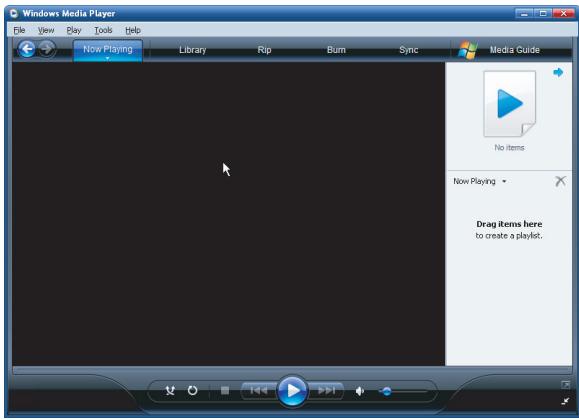
Step 3: Switch from "Now Playing" to "Library" by clicking on the Library Tab to manage the content and share your media. The following screen will be displayed:
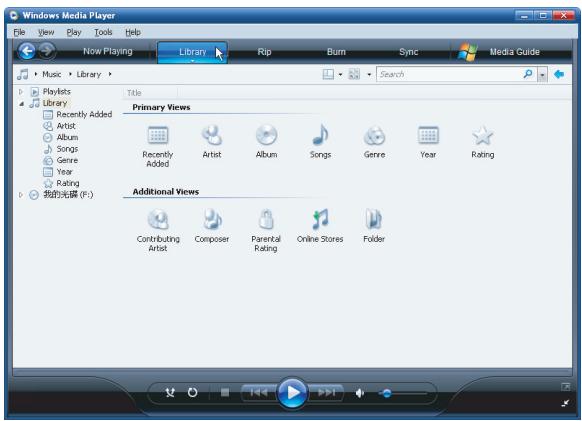
Step 4:
Add your Media content to the WMP11 media library.
Click on the "Library" tab again to access the pull-down menu. To add your media files to the WMP11 media library, click on "Add to Library..."

The following screen will be displayed:
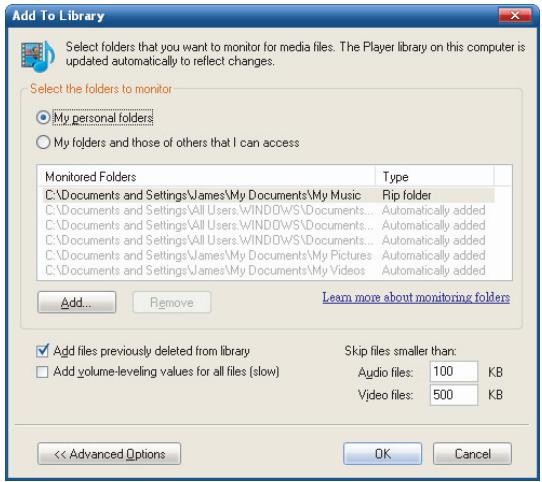
Click on the Add button, select the media folder in your computer, and then click on the OK button.
You can put all of the music files in the D:\Music directory to be able to add the folder to the share list.
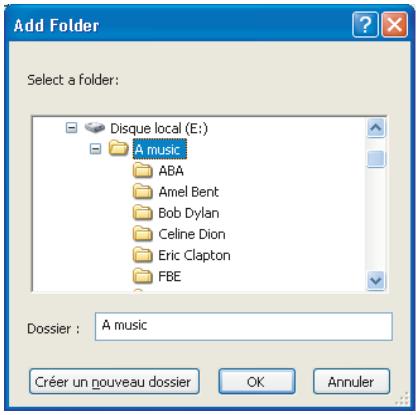
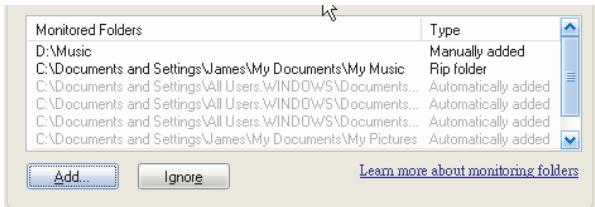
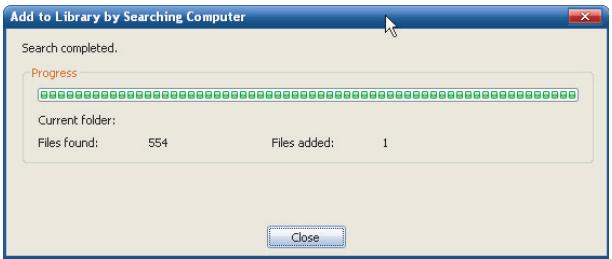
You will see that the specified folder will have been added to the WMP11 monitor folder list. Click on the OK button. A pop-up window will be displayed, showing you that the WMP11 is searching for the media files. Once completed, click on the "Close" button.
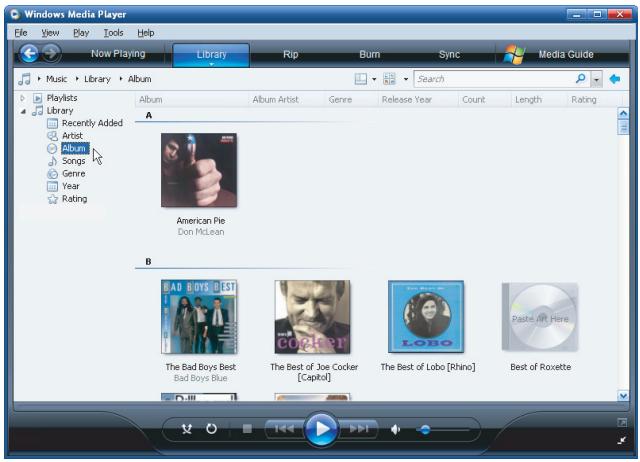
You can now browse and manage your media content using the WMP11 Library manager.
Step 5: Share the WMP11 media library.
As in to Step 4, click on "Media Sharing" to activate the media sharing function.
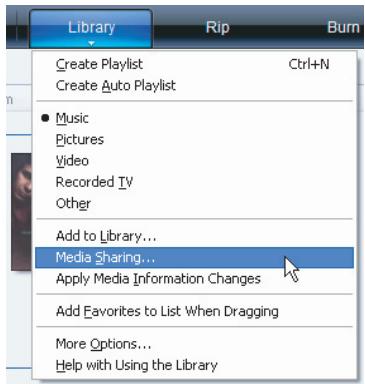
The following dialog windows will be displayed.
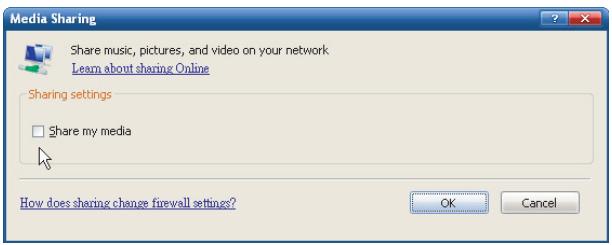
Select the "Share my media" box and click on the "OK" button.
The WMP11 will detect the available network devices in your LAN. The following window shows that no devices have been detected.
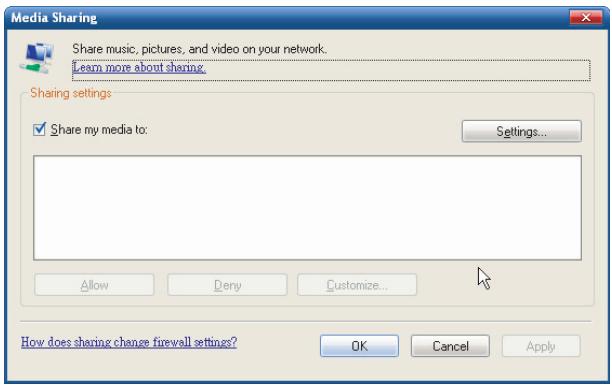
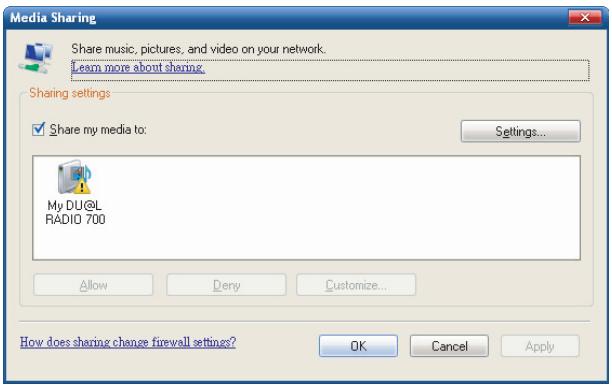
If the IP Radio device is already connected to your home network, a screen similar to the following may be displayed, showing you that the WMP11has detected a network device named "My DU@L RADIO 700".
Step 6:
Manage the media sharing settings.
Click on the "Settings" button, and specify the name of the WMP11 server to be displayed on your IP Radio device.
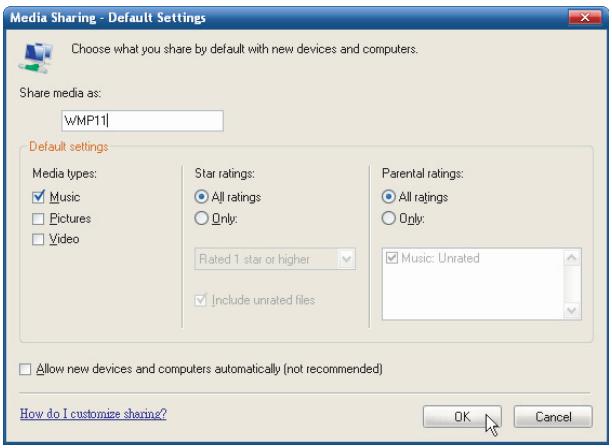
Next, press OK to exit.
Step 7:
Authorize access from your IP Radio device.
The WMP11 access control settings are simple. When the WMP11 detects a new network device (as shown on the final screen in Step 5), you need to decide whether you want to allow or deny the requests from that device.
Select the device icon and then click on the "Allow" button to allow further streaming requests from that device.
The device state icon will change accordingly.
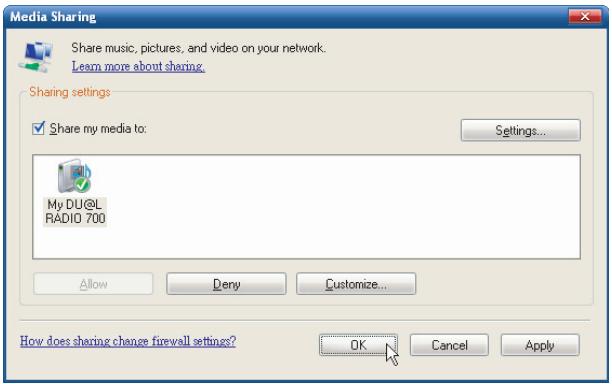
Next, press the OK button to activate the settings.
There is an alternative means of access management for your network devices.
A small icon will be added to the Windows XP status bar to inform you that the WMP11 has detected network devices.
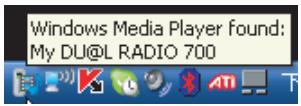
Double-click on it to manage the access for the devices.
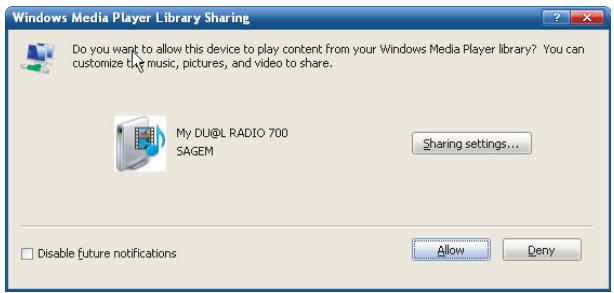
Click on the "Allow" button.
Step 8: Establish the connection between the IP Radio device and the WMP11 server. On the IP Radio device, select the "Media Server" function in the main menu (or press the "Media Player" hot key on the remote controller). The IP Radio device will then initiate the server detection process. After a few seconds, it will detect a server and display "PC_Hostname: Server Name"
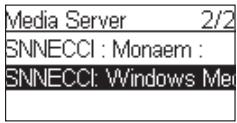
This is the WPM11 server that you installed.
Press the 'OK' button to try to connect to the server.
The IP Radio screen will read "Connecting..." and will then display the following list:
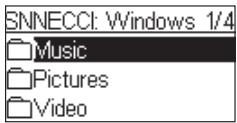
You can browse the "Music" list and play the music of your choice.
For further details, please refer to Section 3.3, Listening to the music in your computer.
2.1.6. Installation & Connection to Windows Media Connect V2.0
This software will allow you to broadcast musical files from your PC to the wifi network.
Please follow the instructions below:
Step 1: Download the WMC server.
Download the Windows Media Connect (WMC) installation file, wmcsetup.exe, from the Microsoft web site.
Install the wmcsetup.exe without making any modifications. Click on 'Next' to complete the installation.
Step 2: Activate the WMC.
A new file icon "Windows Media Connect" will be added to the Windows XP Program list.
and click on this program to activate the WMC.
Step 3: A pop-up window will be displayed, asking you to "select the device you want to allow access to your computer".
Skip it by pressing the 'Next' button.
Step 4: You will then be asked to select the folders you want to share with your devices
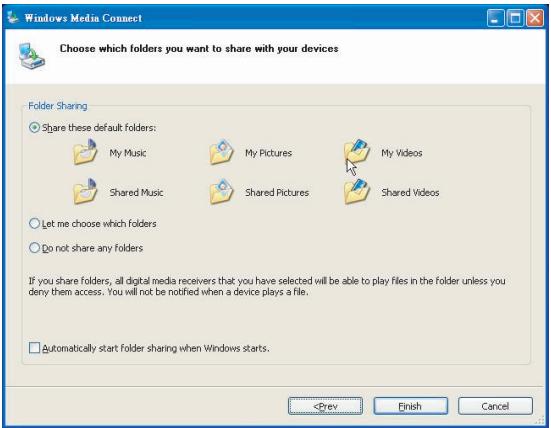
Select the appropriate one for your computer. You may wish to put all of the music files in the directory D:\Music, in which case you can select "Let me choose which folders" to add the folder to the share list.
Press 'Finish' to complete the Windows media connect setup process.
A small icon will be added to the lower right corner of the startup bar.

Step 5:
Establish the connection between the IP Radio and the WMC server.
On the IP Radio device, select the "Media Server" function in the main menu (or press the "Media Player" hot key on the remote controller). The IP Radio device will initiate the server detection process. After a few seconds, it will detect a server and display:
PC_Hostname: 1: Windows Media Connect"
This is the WMC server that you installed.
Click on the 'OK' button to try to connect to the server.
The IP Radio screen will read "Connecting...".
At the same time, you will see the following prompt message on your PC screen:
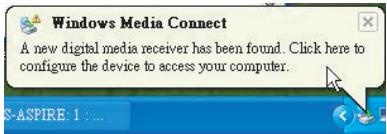
It means that the WMC has detected an unauthorized device attempting to access the content of the WMC server.
Double click on the WMC icon to authorize access from the device.
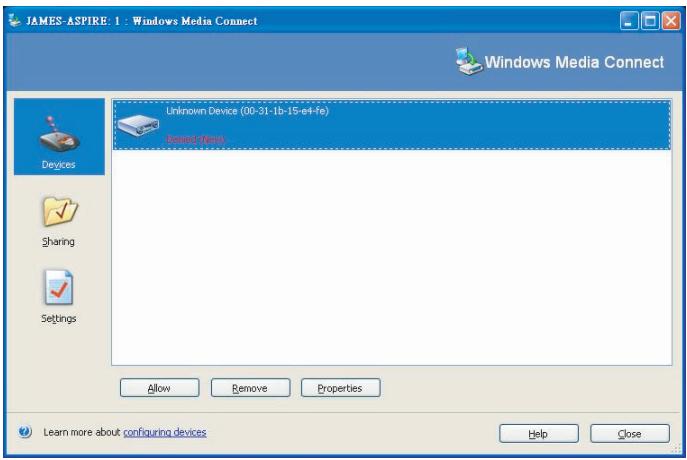
Select the device and then click on the 'Allow' button
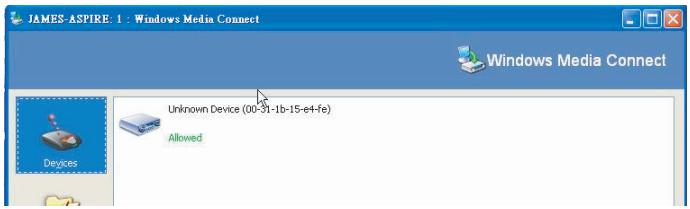
Then, press the 'Close' button to finish the authorization process.
The IP Radio will then be able to retrieve the contents or service from the WMC server.
You can browse the list and play the music of your choice. For further details, please refer to Section 3.3, Listening to the music in your computer.
3. LISTENING TO MUSIC
The IP Radio device is a high-performance audio player that can play music from various types of source. You can use it to listen to Internet radios all over the world, local FM broadcasting services, music files in your computer, and even music files in portable MP3 players.
The following part of this manual explains how to listen to the music using the IP Radio device.
3.1. LISTENING TO INTERNET RADIO
Command from the remote control:
| « » | Go to preview/next station. |
| II ▶ | Back to station list. |
| Vol -, ▼ | Decrease the hearing level. |
| Vol +, ▲ | Increase the hearing level. |
| ♥ | Add (or cancel) the song from (to the) list of favourites. |
To listen to music or programs on Internet radio stations, select the "Internet Radio" function in the main menu and then press the "OK" button to activate the Internet Radio function.
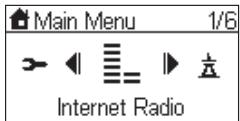
The first screen of the Internet Radio function displays a choice of 2 items:
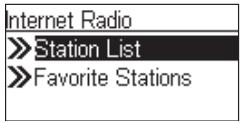
"Station List":Retrieves the Internet radio station lists from the Internet server.
"Favorite Stations": Retrieves the favorite station lists stored in the device.
Press the "OK" button or the "▶" button to retrieve the Station List.
The device will then try to connect to the Internet radio server to retrieve the Internet radio stations. The following screen should be displayed:
Connecting Please Wait

It takes few seconds to get the list from the Internet. The next screen is as follows.
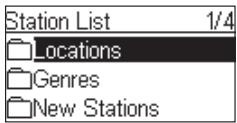
It means the IP Radio has successfully connected to the Internet server and has retrieved information from the server.
However, if the following screen is displayed, it means that the device has encountered a problem in retrieving the list from the Internet server.
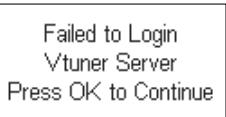
Please refer to the troubleshooting chapter to identify the problem and solve it step by step.
The following screen shots illustrate the sequence used to browse the radio station "4U Classic Rock" in France and play back music from it.
| Screen on the right | Screen shot | Next screen | Comment | |
| 1 | Station List 1/4LocationsGenresNew Stations | Initial screen | ||
| 2 | "←" button(4 times) | Locations 5/10CaribbeanCentral AmericaEurope | "▶" buttonor "OK" button | |
| 3 | "←" button(15 times) | Europe 16/50Faroe IslandsFinlandFrance | "▶" buttonor "OK" button | |
| 4 | France 1/37 All Stations Adult Contemporary Alternative | "▶" button or "OK" button | ||
| 5 | "▼" button | All Stations 79/100 Florival FM FM PLUS Fonkmasters | "▶" button or "OK" button | Press the "♥" button to add the current station to the list of favorites for quick access in future. |
| 6 | FM PLUS | Try to connect to the radio station. | ||
| 7 | FM PLUS FM PLUS / TV-RADIO Y all « | Buffering the music from the radio station. | ||
| 8 | FM PLUS FM PLUS / TV-RADIO Y all « | Music playing... When the complete list of available radios is selected, an alphabetical research may be used by selecting on the remote control the first letter of the radio to be chosen, and the first radio starting with this letter is then displayed. | ||
3.2. LISTENING TO FM RADIO
To listen to music or programs on local FM radio stations, select the "FM Radio" function in the main menu and then press the "OK" button to activate the FM Radio function.
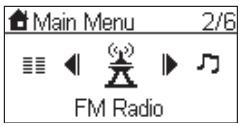
The first screen of the FM Radio function displays a choice of 4 items:
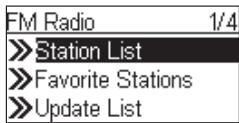
"Station List": Retrieves the tuned radio station lists stored in the device.
"Favorite Stations": Retrieves the favorite station lists stored in the device.
"Update List": Activates the auto scan procedure to detect all available FM stations, and stores the tuned stations in the memory.
"Direct Access": Enables you to fine-tune the station frequency or switch to the previous / next FM station manually.
Command from the remote control:
Frequency choice mode:
| « » | Forward/backward in frequency range (step of 0.05Mhz). |
| « » | Auto scanning to previous/next. |
| II » | Back to menu. |
| Vol -, ↓ | Decrease the volume. |
| Vol +, ↑ | Increase the volume. |
| ♥ | Add (or suppress) the station (to the) from favourites. |
Mode normal (station list, favourites):
| «» | Previous/nest in station list. |
| II » | Back to station list. |
| Vol -, ▼ | Decrease the volume. |
| Vol +, ▲ | Increase the volume. |
| ♥ | Add (or suppress) the station (to the) from favourites. |
When using the FM Radio function for the first time, remember to plug the FM antenna plug into the FM antenna connector on the rear panel. Stretch out the antenna cable as far as you can.
Once the antenna cable is properly connected, activate the "Update List" function to scan the available FM stations. It takes few seconds to perform the scan operation. After that, you can tune into the stations.
The following screen shots illustrate the sequence used to pre-set the FM stations and tune into a radio station 98.70 MHz and listen to a program broadcast from it.
| Screen on the right | Screen shot | Next screen | Comment | |
| 1 | Main Menu 2/6 FM Radio | "▶" button or "OK" button | Initial screen | |
| 2 | FM Radio 1/4 Station List Favorite Stations Update List | |||
| 3 | "▼" button (2 times) | FM Radio 3/4 Station List Favorite Stations Update List | "▶" button or "OK" button | |
| 4 | Scanning ☐ ☐ | Pre-setting the FM station list according to the signal reception quality. | ||
| 5 | Station List 1/15 910 9150 9270 | There are 15 stations tuned. | ||
| 6 | "▼" button | Station List 9/13 $96.90 $97.10 $98.70 | "▶" button or "OK" button | Press the "♥" button to add the current station to the list of favorites for quick access in future. |
| 7 | FM 98.7 114114 | Tuned to station and music playing... |
3.3. LISTENING TO THE MUSIC IN YOUR COMPUTER
To listen to the music stored in your own computer, you need to install and activate the media server utility for the computer in which your digital music is stored. Please refer to the section describing installation of the Media Server.
Once you have installed and activated the media server, you can enjoy listening to the music via the IP Radio device.
Command from the remote control:
| « » | Fast forward/backward in the file (10 S step). |
| « » | Previous/Next file. |
| II » | Pause / Play. |
| Vol -, ▼ | Decrease the volume. |
| Vol +, ▲ | Increase the volume. |
| ♥ | Add (or cancel) the song from (to the) list of favourites. |
| ↓↑ | Shuffle ON / OFF: Random research. |
| ← | repeat: OFF / ALL / SINGLE. |
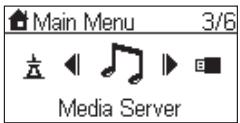
Select the "Media Server" function in the main menu and then press the "OK" button to activate the stream from the Media Server function.
The following message will be displayed while the device is detecting all available media servers on your network. It takes a few seconds to complete.
Searching Server

The screen will then list all of the available media servers that you are able to select.
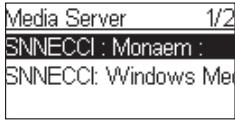

If you stay locked on one of the intermediates windows, you may have to activate the service "network sharing" of windows media player.
If no server is detected, the list will be empty.
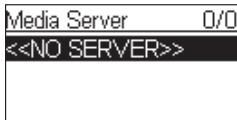
Please check to ensure you have activated the media server on your computer. If, after that, there are still no media servers on the list, please refer to the troubleshooting chapter to identify the problem and solve it step by step.
The following screen shots illustrate the sequence used to connect to a media server "JAMES-NB: James:", the service of which is provided by Windows Media Player 11, browsing to the music album "Best of Roxette" to play the songs on this album.
| Screen on the right | Screen shot | Next screen | Comment | |
| 1 | Main Menu 3/6 Media Server | "▶" button or "OK" button | Initial screen | |
| 2 | Media Server 1/2SNNECCI : Monaem :SNNECCI: Windows Me | |||
| 3 | "▼" button(Once) | Media Server 2/2SNNECCI : Monaem :SNNECCI: Windows Me | "▶" buttonor "OK" button | |
| 4 | SNNECCI: Windows 1/4☐Music☐Pictures☐Video | "▶" buttonor "OK" button | ||
| 5 | "▼" button(6 times) | Music 3/5☐Album☐All Music☐Artist | "▶" buttonor "OK" button | |
| 6 | "▼" button(4 times) | Artist 7/23☐Baden Powell☐Caina☐Chimène Badi | "▶" buttonor "OK" button | |
| 7 | Chimène Badi 1/15☐100 ans si tu m'airés☐au juste milieu☐avec ou sans lui | "▶" buttonor "OK" button | Press the "♥" button to add the current station to the list of favorites for quick access in future. | |
| 8 | 100 ans si tu m'airésChimène Badi / Le miroir ☐0:37/3:50\( \text{↑} \) \( \leftarrow \) ☐\( \leftarrow \) | Wait until end of song,or press "▶"for next song. | Music playing. |
| 9 | au juste milieu Chimène Badi / Le miroir 0:13/3:50 Y.à l'iguë | Next song playing. |
Once the music starts, you can use the playback buttons, as you would with a traditional stereo or CD player.
To listen to the music on your USB drive or portable MP3 player, connect the USB drive to the USB connector on the IP Radio device. Next, select the "MP3 Player" function in the main menu and press the "OK" button to activate the MP3 player function.
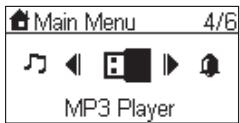
The first screen of the MP3 Player function shows the root folder content of the attached USB drive.
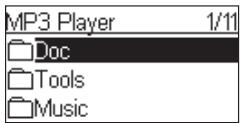
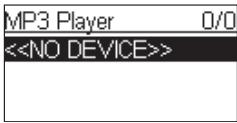
If the following "NO DEVICE" screen is displayed, there may be a problem in accessing the USB device. Unplug the USB device and then plug it in again.
To play back songs stored in the USB drive, simply browse the folder of the music album of your choice and then press "Play".
Command from the remote control:
| « » | Fast forward/backward in the file (10 S step). |
| « » | Previous/Next file. |
| II » | Pause / Play. |
| Vol -, ▼ | Decrease the volume. |
| Vol +, ▲ | Increase the volume. |
| ♥ | Add (or cancel) the song from (to the) list of favourites. |
| ↓↑ | Shuffle ON / OFF: Random research. |
| ← | repeat: OFF / ALL / SINGLE. |
The following screen shots illustrate the sequence used to listen to the music in the folder "Diamonds Love Song" in the attached USB drive.
| Screen on the right | Screen shot | Next screen | Comment | |
| 1 | Main Menu 4/6 MP3 Player | "▶" button or "OK" button | Initial screen | |
| 2 | MP3 Player 1/11 Doc Tools Music | |||
| 3 | "▶" button (2 times) | MP3 Player 3/11 Doc Tools Music | "▶" button or "OK" button | Select the music folder to browse and play back. |
| 4 | "▶" button (Once) | Music 2/3 Madonna - The Immac Diamonds Love Song 80s Best disco | "▶" button or "OK" button | Select the music folder to browse and play back. |
| 5 | Diamonds Love Song 1/4 $104-elton john - candle $101-bryan adams - hay $102-sting - shape of n | "▶" button or "OK" button | ||
| 6 | Candle In The Wind Elton John / Diamonds 0:22/3:50 Ψ,←→ |
Warning! : The interface of MP3 reader must be USB2. USB1 is not guaranteed.
Warning! : Before disconnecting the MP3 player, go to the setup menu and choose "Remove MP3 player". Select "Yes" to confirm.
3.5. THE PLAYBACK SCREEN
When the music starts, the screen will display playback information. This includes the title of the song / station, the album & artist, and the music progression. There is also a status line at the bottom of the screen. This shows the current state of the wireless signal, the connection quality, the connection status, and the playback status. This information can help with troubleshooting if you encounter problems while listening to the music.
4. ALARM
In addition to the music playback function, the IP Radio Device also provides a simple alarm function. There are two different alarms, one to wake you up in the morning, and another used to remind you of important times of day, or dates.
4.1. CLOCK
Before setting the alarm, you need to set the clock on the IP Radio device.
First, select the Setup function in the Main Menu.
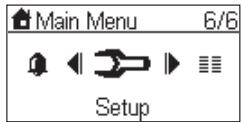
In the setup menu, the first item, "Clock", is used to set the date and time. Press the "OK" or "▶" button to set the clock.
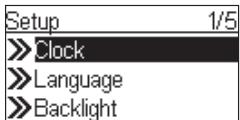
There are 3 items in the clock menu. The first displays the current date and time; the second is used to set the date and time, and the third is the auto-Sync function (to automatically synchronize with the network server time). If you select the "Auto-sync" function, the device will periodically synchronize with the server to maintain the exact time. This is recommended.
There is also a battery in the device, so even when you switch the device OFF, the clock will keep ticking. This means you only need to set the clock once.
4.1.1. Setting the Clock Manually
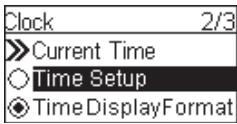
If you decide to set the clock manually, press the "OK" or the "▶" button to access the date and time screen. You can use the four directional buttons and the OK button to set the time.
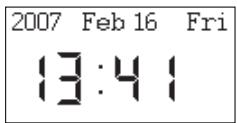
a. Use the " " and " " buttons to switch between the items to be altered. The selected item will flash.
b. Use the "▲" and "▼" buttons to alter the value selected.
c. Press the "OK" button to confirm.
4.1.2. Setting the Clock Automatically
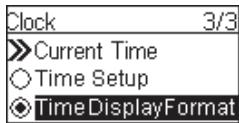
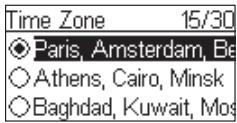
If you choose to set the clock automatically, access the "Auto-Sync (NTP)" menu, and select your time zone. The device will then alter the date and time automatically. The following screen shows an example of the Time Zone screen.
4.2. ALARM SETTINGS
To enable an alarm setting, you need to set the time and alarm music. The following table illustrates a typical alarm setting procedure. It sets Alarm 1 to generate an alarm (play music) at 7:00 AM, and to use the Internet radio station "4U Classical Rock" as the source of alarm music.
| Screen on the right | Screen shot | Next screen | Comment | |
| 1 | Main Menu 5/6Alarm | "OK" button | Initial screen | |
| 2 | Alarm 1/2Alarm 1Alarm 2 | "OK" button | ||
| 3 | "▼" button(Once) | Switch 2/2OFFON | "OK" button | Enable alarm 1. |
| 4 | Time07:00 | "OK" button | Use the 4 directional buttons to set the time; | |
| 5 | Source 1/5Internet RadioFM RadioMedia Server | "▶" button or "OK" button | Set Internet radio as alarm source. | |
| 6 | All 3/521 CenturyDreamCast4U Classic Rock | "OK" button | Select the station from your Favorites.(Refer to Sec. 3.1) | |
| 7 | Alarm 1: ON Time: 07:00:00 Source: Internet Radio 4U Classic Rock | Alarm information, displayed for 3~5 seconds | ||
| 8 | Alarm 1/2 Alarm 1 (07:00) Alarm 2 | The alarm is set. |
Once you have set and activated the alarm, a bell icon will be added to the clock screen.
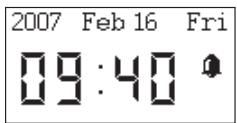
When it is time for the alarm, the device will activate the alarm and play back the specified music. As with traditional clock alarms, the IP Radio device also provides a SNOOZE function for you to stop the alarm, and request it to be activated 10 minutes later. You can press the "STOP" button to switch the alarm and music off completely.

In rest position, there is no icon displayed to indicate that alarm is on.
4.3. SNOOZE
This function is used to stop the radio after a preprogrammed time.
This function is available from the following menus: Radio Internet, FM, media serve rand MP3 reader.
You are listening to a radio station (IP radio / FM) or a file (on PC /MP3 reader):
| Screen on the right | Screen shot | Next screen | Comment | |
| 1 | Options 1/6Go to FavoriteAdd to FavoriteSleep Function | "OK" button | Initial screen | |
| 2 | "B" Boutton | Options 3/6Go to FavoriteAdd to FavoriteSleep Function | "▶ " "OK" button | |
| 3 | "B" Boutton | Sleep Function 2/5Off15 Minutes30 Minutes | "▶ " "OK" button | Countdown |
| 4 | Sleep Function: 15 Minute | "▶ " "OK" button |
You can also use the remote control by using " snooze " key up to the choosen time.
5. MISCELLANEOUS SETUP FUNCTIONS
There are other useful setup functions to ensure optimum use of the device.
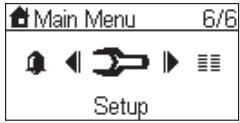
5.1. BACKLIGHT SETTINGS
You can adjust the backlight ON / OFF settings.
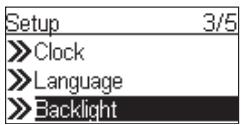

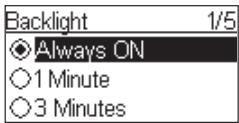
The default setting is always ON. You can set the backlight to be turned OFF when the device is idle (no keys pressed) after a specified amount of time.
You may also activate/deactivate the screen brightness by using the key of the remote control.
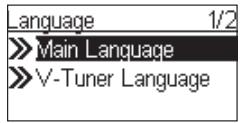
5.2. LANGUAGE CHOICE
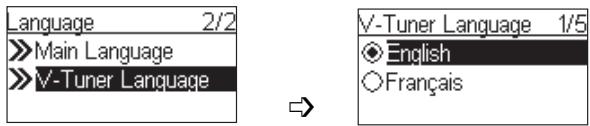
V-Tuner is a base recording the radio stations on Internet.
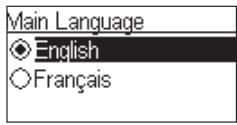
You may choose the IP radio and V-tuner languages.
Choice of main language (IP radio):

Choice of V-Tuner language:
5.3. EQUALIZER SETTINGS
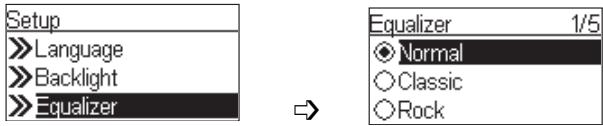
You can adjust the equalization from Radio, media server and MP3 menus. Once on the selected station screen, or file, key OK.
5.4. RESET TO FACTORY DEFAULT SETTINGS
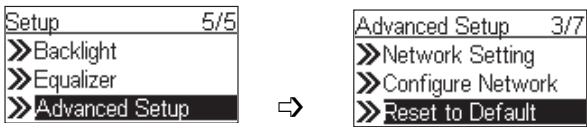
When you reset the device to its factory default settings, your Internet radio and FM radio favorites settings will be stored in the device.
5.5. CLEAR FAVORITES
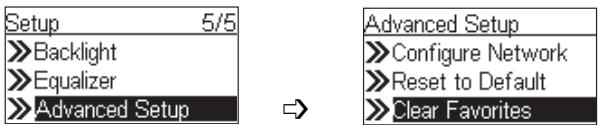
Caution! This is not recommended.
5.6. CHECK FIRMWARE VERSION
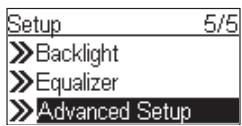

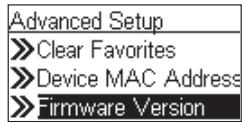
5.7. SOFTWARE UPDATION
This function will allow you to proceed the software updating by mean of an USB2 key containing the programm file.
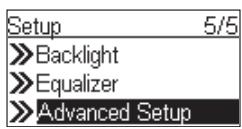

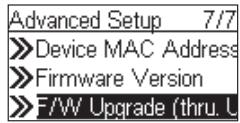
You can visit the supplier's website to check whether there is any new firmware for this device to upgrade it. If any new firmware has been released, download it and follow the upgrade procedure below to upgrade the firmware on your device.
Upgrading the Firmware on your Device:
Step 1: Uncompress the new F/W file (e.g. the file "20070315_ShrekW_R102C7.zip") and copy the uncompressed file "ShrekW.BIN" to the ROOT folder of a USB key or USB MP3 player.
(Note: DO NOT rename it!, Otherwise the IP Radio will not be able to find the new F/W)
Step 2: Turn on the IP Radio and then plug the USB key into the front USB port of the IP Radio.
Step 3: Operate the IP Radio to access the F/W upgrade menu ("Setup\Advanced Setup\ F/W Upgrade (thru. USB)"), then press the "OK" button to activate the F/W upgrade function.
The messages "F/W Upgrading", and "Don't Power Off!!" messages should be displayed. After few seconds, once the upgrade procedure has been completed, the device will reboot automatically.
Step 4:
You can check whether the IP Radio upgrade has been has been successful by checking the F/W version in the menu "Setup\Advanced Setup\Firmware Version". In this case, the version should be R1.02C7. If a different version number is shown, there may have been a problem during the upgrade.
Check to ensure the file "ShrekW.bin" in the USB key is the correct one.
6. Appendix
6.1. Care and Maintenance
Switch off your Radio IP. Use a smooth and dry cloth to wipe it. Do not use a rough cloth, powerful liquid cleaners, thinner painting, alcohol nor other solvents to clean it. These products can damage your IP Radio.
6.2. Problems
Refer to the table presented below in case of an operational malfunction:
| Problems | Remedies |
| The remote control does not function. | Check that the batteries are correctly introduced. Check that you too are not far from the Radio (7 meters are the maximum recommended) and that the infra-red sensor is not blocked. Make sure that the remote control is well pointed towards the sensor, when manipulating the Radio. |
| The screen is switched off. | Make sure that: • the power adapter is properly connected to a power socket. • the power connector is properly plugged into the Radio. • your fuse and circuit-breaker are in working order and that the power socket is powered. |
| Choosen station can not be heared. | To hear the station, you must confirm your selection by pressing OK button. Make sure that your Radio is not set to MUTE mode. Check the volume level. Check the network configuration. |
| Audio parasites or cleanness less. | The frequency FM is disturbed by parasites. Deploy the FM antenna jack until obtaining a high signal. If you use ear-phones, check that they function well. |
| Access denied to the Internet Radio. | Check the Wi-Fi router, Livebox or the line. |
| Access denied to the Radio from a personal computer as an access point (Media Server). | Check that your Radio is not encoded. else you must have the encoding key to access. |
| The alarm does not ring. | Check that the alarm source is configured well (sample: the mp3 player is disconnected,...). |
| Problem of the connexion to the router. | • No DHCP server enabled. Please check the setting of your router. • Wrong WiFi encryption key is entered. Please double confirm the key and re-enter via the remote controller. • Trouble in the RJ45 port or WiFi module. |
| Not able to get IP Address. | • DNS no response. Please ping the IP address of the DNS to check if it is the case. • DNS doesn't have the record of the vTuner server or radio station that you are trying to connect. |
| The connection between the radio and the vTuner is not OK. | • Traffic jam for the internet access. Please try later. • vTuner server is out of service or heavy loaded to reply in time. • The authorization process is failed. VTuner server reject the access request. • The streaming service of the radio station is unavailable or heavy loaded. • The IP Radio doesn't support the service type of the radio station. • There is some buffering trouble on the internet. The available bandwidth is not good enough to have the stable streams from the radio station. |
| The IP Radio is booted normally but it doesn't get an IP address. | • No DHCP server enabled. Please check the setting of your router. • Wrong WiFi encryption key is entered. Please double confirm the key and re-enter via the remote controller. • The network interface has trouble. |
In case of non receiving on Internet, refer to the table here under.
| What has been done with success | What could be the trouble? |
| The IP Radio is booted normally. BUT NO BAR IN THE RADIO STATION LOGO* (the logo with 5 bars between a radio and a computer). | The IP Radio doesn't get an IP address. 1. No DHCP server enabled. Please check the setting of your router. 2. Wrong WiFi encryption key is entered. Please double confirm the key and re-enter via the remote controller. 3. The network interface has trouble. |
| 1. The network interface of the IP radio is good. 2. The connection between IP Radio and router was OK. 3. The IP Radio already got an IP address. BUT ONLY ONE BAR IN THE RADIO STATION LOGO | 1. Can't access to the vTuner server. 2. The DNS lookup for the IP address of the radio station failed. 3. Can't access to the router or internet. |
| Connection between IP Radio and vTuner server is OK. BUT ONLY TWO BARS IN THE RADIO STATION LOGO | 1. Can't access to the radio station. 2. The radio station rejected the connection request. |
| Connection between IP Radio and radio station is OK. BUT ONLY THREE BARS IN THE RADIO STATION LOGO | 1. The streaming service of the radio station is unavalable or heavy loaded. 2. The IP Radio doesn't support the service type of the radio station. |
| The connection between IP radio and the radio station was OK. BUT ONLY FOUR BARS IN THE RADIO STATION LOGO | There is some buffering trouble on the internet. The available bandwidth is not good enough to have the stable streams from the radio station. |
7. SPECIFICATIONS
| Hardware and Port Characteristic | |
| CPU | AMRISC 10020 |
| Memory | Flash 1MB, SDRAM 2MB |
| Front Panel Display | 128x64 Graphic-based & Back-lighted LCD |
| Front Panel Keypad | 1 x Power button (Standby/Operation mode) 5 x push buttons for elementary operation 1 x push button for main menu 1 x push button for Snooze function |
| Remote Control | 1 x IrDA Receiver on front panel |
| L/R Speaker | 1W + 8W speaker pair, (internal PA spec.: 2W per channel) |
| Audio Port | 1 x 3.5mm phone-jack for stereo out 2 x RCA connectors for stereo out |
| Ether Port | 1 x RJ45, 10/100 Mbps with Auto-MDI/MDIX |
| Antenna | WiFi antenna: external 2dBi antenna FM antenna: external cable antenna with 3.5mm plug |
| USB Port | 1 x USB Jack (type A) on front panel, USB 2.0 Compliant |
| LED Indicator | 1 x LED for status indicator (at rear panel) |
| Input Power | DC 5V / 3A |
| Device Management Characteristic | |
| Management Method | MMI |
| Upgrade Method | Through USB Port |
| Device Management Characteristic | |
| Management Method | MMI |
| Upgrade Method | Through USB Port |
| Environment, Certification and Reliability | |
| Operating Temperature | Temperature: 0~40°C, Humidity 10%~90% non-condensing |
| Storage Temperature | Temperature: -20~70°C, Humidity: 0~95% non-condensing |
| EMC/Safety | CE, CB |
| Reliability | Refer to AMIT's reliability test items;Vibration Test; Drop Test |
| Main Audio Characteristic | ||
| Audio Source | PC-based audio server (streaming out the music per audio adapter's request) | |
| Attached USB-based storage or MP3/WMA player | ||
| FM Radio | ||
| vTuner Internet radio stations (streaming MP3 & WMA). | ||
| Supported Audio Format | 1. Thru vTuner: .mp3, .wma (w/o DRM) 2. Thru Audio Server: .mp3, .wma (w/o DRM), .wav (including IMA-ADPCM @48kbps) 3. Thru USB connector: .mp3, .wma (w/o DRM), .wav (including IMA-ADPCM @ 48kbps) | |
| Supported Audio Server | Popular UPnP compliant media servers (eg. Microsoft Media Player 11, Microsoft Media Connect, and MusicMatch JukeBox) | |
| User Operation | MMI | Support multi-language MMI |
| Music Navigation | Browse by Album, Artist, Genre, and Playlist, Folder (depends on the server connected) | |
| Playback Control | Play, Pause, Stop, Fast Forward, Fast Backward, Next, and Prev | |
| Playback Mode | Sequential, Single, Random, Repeat All, Repeat Single, Non-Repeat | |
| Pre-defined EQ | Normal, Classic, Rock, Jazz, Pop | |
| Sound Effect | Volume | |
| USB extension | Support direct access and playback for the music stored in attached USB 2.0 compliant MP3 player or USB storage. | |
| Alarm Clock | 24 hours / Dual alarm, snooze | |
| Music source: USB, WiFi, Internet radio, FM Radio, Buzzer | ||
| Supported Network Configuration | 1. Client mode (both wired and wireless, auto detection) 2. AP mode | |
8. ENVIRONMENT
Preservation of the environment is an essential concern of Sagem Communication. The desire of Sagem Communication is to operate systems observing the environment and consequently it has decided to integrate environmental performances in the life cycle of its products, from manufacturing to commissioning, use and elimination.
8.1. Packaging

The presence of the logo (green dot) means that a contribution is paid to an approved national organisation to improve packaging recovery and recycling infrastructures.
To facilitate recycling, please respect the sorting rules set up locally for this kind of waste.
8.2. Batteries
If your product contains batteries, they must be disposed of at appropriate collection points.
8.3. The product
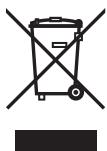
The crossed-out waste bin stuck on the product or its accessories means that the product belongs to the family of electrical and electronic equipments.
In this respect, the European regulations ask you to dispose of it selectively:
- "At sales points in the event of the purchase of similar equipment.
- "At the collection points made available to you locally (drop-off centre, selective collection, etc.).
In this way you can participate in the re-use and upgrading of Electrical and Electronic Equipment Waste, which can have an effect on the environment and human health.
9. GUARANTEE TERMS AND CONDITIONS
Dear Customer,
You have just purchased a Sagem My du@l player 700 and we thank you for your custom. This equipment was manufactured with the greatest care and we hope that it gives you complete satisfaction.
Our helpline is at your disposal to provide you with any technical assistance you may need to operate your Sagem My du@l player 700 at 0207 536 54 00 (national call rate).
If the helpline advisor diagnoses a technical problem that cannot be fixed over the phone, we undertake to remedy by repair, free of charge for labour and replacement parts, subject to the terms and conditions below, any defects in the Sagem My du@l player 700 during a period of twelve (12) months from the date of purchase of the telephone, where those defects are a result of faultly workmanship. Proof of purchase will be required; so, please keep the receipt in a safe place.
An on-site exchange service will be performed the next working day after your call at the helpline (if call registered by 16.00). It is strongly recommended to save all the details in your phone directory and other personal data.
No coverage shall be given under this warranty if the following conditions are applicable :
- the required documents have been modified or altered in order to take advantage of the warranty.
- the manufacturing numbers, product brands or labels have been altered or made illegible.
- interventions on the product have been made by an unauthorized person.
- the product has been subjected to abnormal or improper use.
- the product has been damaged from external causes such as lightning, overvoltage, moisture, accidental deteriorations, improper care as well as all Acts of God.
This present warranty does not affect the consumer rights that you may have under the laws in effect in your country.
User Manual
Data subject to change without notice