
MYZ5 - Mobile Phone SAGEM - Free user manual and instructions
Find the device manual for free MYZ5 SAGEM in PDF.


| Product type | Mobile phone |
| Brand | SAGEM |
| Model | MYZ5 |
| Dimensions (L x W x H) | 102 x 45 x 20 mm |
| Weight | 85 g |
| Screen type | Monochrome LCD |
| Screen resolution | 128 x 128 pixels |
| Battery | Lithium-Ion 700 mAh |
| Standby time | Up to 250 hours |
| Talk time | Up to 5 hours |
| Network | GSM 900/1800 MHz |
| Main functions | Calls, SMS, phonebook, alarm, calculator, games |
| Memory | 100 contacts, 50 SMS |
| Connectivity | Infrared (IrDA) |
| Power supply | Mains charger 5 V, 500 mA |
| Maintenance and cleaning | Wipe with a soft, dry cloth. Do not use abrasive products. |
| Security | PIN code and PUK code for the SIM card |
| Spare parts and repairability | Battery and charger available on the market. Repair by authorized center. |
| General information | Manufactured by Sagem Communication, France. CE declaration of conformity. |
Frequently Asked Questions - MYZ5 SAGEM
User questions about MYZ5 SAGEM
0 question about this device. Answer the ones you know or ask your own.
Ask a new question about this device
Download the instructions for your Mobile Phone in PDF format for free! Find your manual MYZ5 - SAGEM and take your electronic device back in hand. On this page are published all the documents necessary for the use of your device. MYZ5 by SAGEM.
USER MANUAL MYZ5 SAGEM
You have just purchased a SAGEM phone, we congratulate you; it is recommended that you read this handbook carefully in order to use your phone efficiently and in the best conditions.
Your phone can be used internationally in the various networks (GSM 900 MHz and DCS 1800 MHz or PCS 1900 MHz, depending on model) depending on the roaming arrangements with your operator.
We remind you that this phone is approved to meet European standards.
WARNING
Depending on the model, network configuration and associated subscription cards, certain functions may not be available. Ensure that your SIM card is a 3 V SIM type that is compatible with your phone. Inserting an incompatible card will be indicated by a message when your phone is switched on. Contact your operator.
Your phone is identified by its IMEI number. Write this number down, and do not keep it with your phone, because you may be asked for it if your phone is stolen, in order to prevent it from being used, even with a different SIM card. In order to display the IMEI on your phone's screen, type: *#06#.
SAGEM ^™ is a trademark of SAFRAN.
AT® is a registered trademark of Hayes Microcomputer Products Inc.
Hayes is a registered trademark of Hayes Microcomputer Products Inc.
T9 is protected by one or more of the following US patents: 5,818,437,
5,953,541, 5,187,480, 5,945,928, 6,011,554 and other patents are being applied for worldwide.
Java ^™ and all Java ^™ based trademarks and logos are trademarks or registered trademarks of Sun Microsystems, Inc. in the U.S. and other countries.
The WAP navigator and some message softwares (i-mode) are under licence Openwave.
The WAP navigator and the softwares included are the exclusive property of Openwave. For this reason, you may not modify, translate, disassemble or even decompile all or part of these softwares.
© 2003 GAMELOFT® - All rights reserved - GAMELOFT® is a registered trademark of GAMELOFT S.A. - All rights reserved.
Wellphone™ and SmartCom™ are registered trademarks owned by SmartCom SARL France.
Contents
Menus....7
Your phone package - Accessories 8
Activating your phone 9
Information on the SIM card....9
Installing the SIM card and the battery 10
Getting started 10
PIN number....11
Setting time and date....11
Network 12
First call....12
Receiving a call....13
Switching off....13
Description 14
Initial screen 16
Navigation principles.... 17
Using your phone.... 18
Increase the efficiency of your phone 18
Charging the battery 18
Games 20
WAP 21
The WAP Menu....21
Configuring WAP parameters 22
WAP Logging on 23
Downloading objects....23
WAP Logging off 23
GPRS 23
Contents
Applications....24
Services 24
Calculator....24
Converter 25
Audio player 25
Alarm 26
Timer 26
ToDo 26
Sending a vCal 27
Receiving a vCal 27
Exchange of data with a PC 27
Messages 28
Compose SMS....28
Compose MMS 30
Receiving messages....31
Inbox 31
Outbox 31
Sentbox....32
Drafts 32
Sending options 32
Memory 33
Local information 33
Calling voicemail 33
Mailing list 34
Photo - Video 35
Take and send a photo 35
Take a video 37
Multimedia 38
My Videos 38
My Pictures 39
My Sounds....39
Memory 40
Organizer 41
Calendar menu 41
Sending a vCal....42
Receiving a vCal 42
Phonebook 43
Using the phonebook 43
Storing a new contact 44
Phonebook options 44
Options from a contact saved 45
Sending a vCard 46
Receiving a vCard....46
Settings 47
Sounds......47
Display 48
Camera 49
Languages 49
Phonebook....50
Contacts list 50
Calls 50
Security 53
Networks 55
Shortcuts....56
Date / Time 56
Active slide....57
WAP settings 57
Help....57
Connectivity 58
Technical features....59
Conformance Document 60
Care and safety information....61
SAR 61
Advice for limiting exposure to radiofrequency (RF) fields 61
Safety....62
Environment....63
Warranty 64
End User Licence Agreement (EULA), for the software 67
Java™ 71
Troubleshooting 75
Customer care 79
Index 80

Games

WAP

Applications
ToDo
Calculator
Converter
Audio player
Alarm
Timer

Messages
Compose
Inbox
Outbox
Sentbox
Drafts
Options
Memory
Local info.
Call Voice Mail
Mailing list

Camera
Video
Photo

Multimedia
My Videos
My Pictures
My Sounds
Memory
Help

Organizer
See month
See week
See today
See date
Calendar menu
Help

Phonebook

Settings
Sounds
Display
Camera
Languages
Phonebook
Contacts list
Calls
Security
Networks
Shortcuts
Date / Time
Active slide
Wap settings
Help
Connectivity
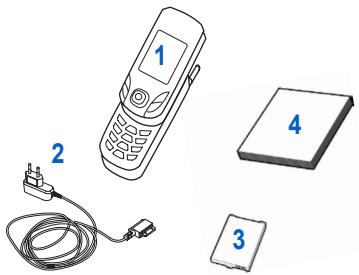
When you open the box, check that all items are present (some items may vary from the pictures shown below):
1 - Phone
2 - Charger
3 - Battery
4 - User guide
natural_image
Illustration of a mobile phone with four labeled components: a power plug, cable, and two electronic devices (no text or symbols present)Accessories
We advise you the use of SAGEM brand accessories for an optimal operating of your phone and of your accessories. You can also find (as an option) or order the following accessories:
- Pedestrian kit
- Additional battery
- Additional charger
- Data cable (with associated drivers) to connect your phone to a PC
- Cigar lighter charger
Information on the SIM card

natural_image
Pure diagram of a symmetrical mechanical or electrical component with no text, numbers, or symbolsTo use your phone, you need a card called SIM card. It contains personal information that you can modify:
Secret codes (PIN(s): Personal Identification Numbers), these codes allow you to protect access to your SIM card and phone.
Phonebook,
Messages,
How special services work.
Your phone is compatible with the SIM 3V cards.
WARNING
This card must be handled and stored with care in order not to be damaged. If you should lose your SIM card, contact your network provider or your SMC (Services Marketing Company) immediately. Please keep your SIM card out of reach of young children.
Installing the SIM card and the battery
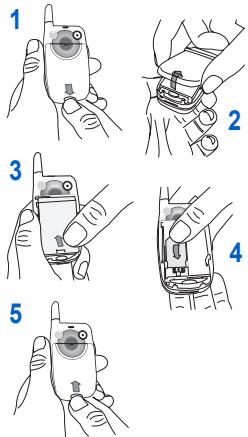
The SIM card is inserted under the phone's battery. Ensure that the phone is switched off and the charger disconnected.
1 Turn the phone back and press lock button to unblock cover.
2 Remove the back cover.
3 Take out battery if already installed.
4 Slide the SIM card, with cut corner as shown on the phone, into the card holder with fold face down.
5 Place the battery by positioning first the top of it, as shown on the battery.
Replace the back cover by sliding it then push the lower part into the lock position.
Getting started
You are now ready to use your phone for the first time.
Switch on the phone by pressing the Ⓤ key. A short display appears.
When you switch on your phone for the first time, you must configure it with various settings that will remain by default until you choose to modify them (depending on model).
After entering your PIN code and the date and time, make your choice for the following settings: time zone, daylight savings, wallpaper, screensaver, ring tone, volume, vibrate and voicemail number.
If there are contacts saved in your SIM card, you are invited, if you wish, to copy them in the phone contacts memory.
PIN number
This is your SIM's secret code.
If access to the SIM card is protected, the device prompts you to enter the PIN number:
Enter the code between 4 and 8 digits given to you when the SIM card was issued. These digits do not appear on the screen for security reasons.
Press the OK key or the \ key to validate.
If your phone indicates that the SIM is missing, press the 🔔 key to switch off your phone and check that the SIM card is correctly installed.
Warning
If a wrong PIN number is entered three times in succession, your SIM card is blocked. You must then:
- Enter « **05* ».
- Enter the PUK (Personal Unblocking Key) code provided by your operator, and validate.
- Enter your PIN number and validate.
- Enter your PIN number again and validate.
After 5 or 10 failed attempts (depending on the type of SIM card), the SIM card is definitely locked. You must then contact your operator or your SMC to obtain a new card.
Setting time and date
When you use your phone for the first time, you need to set the date and time.
In due course, when the battery is completely discharged, or if it has been removed, you will be prompted systematically to confirm date and time.
Setting the date:
Set the date by entering it directly in numerical form or by using the ▼▲ keys to increase or decrease the default values.
Use the ▶ key (or ◀ key) to access the next (or last) data input field.
Once the date is correct, press the \ key to validate.
Setting the time:
Same procedure as for setting the date.
Network
From now on the phone hunts for a network on which it can make calls. If it finds one, it displays the name of the network on the screen. You are then ready to send or receive a call.
If the network icon appears, calls are possible on your operator's network.
If the letter R and a network name are displayed, calls are possible on the network of a different operator.
If the letter R is displayed without any network name, only the emergency services are accessible (ambulance, police, fire brigade).
If the network icon flashes, the phone is in permanent search mode. There is no network available. The signal strength indicator received allows you to display the quality of reception. If it indicates less than three bars, search for better reception in order to call in good conditions.
First call
Dial the number of your correspondent.
Press the ↗ key.
During the call, the call in progress icon flashes on screen and tones may indicate the establishment of the call.
Once communication has been established, the call icon stops flashing.
You can adjust the sound level (volume) using the ▼▲ keys.
At the end of the conversation press the 🔔 key to hang up.
International call
Press 0 (hold down) to display « + », then dial the country code without waiting for the dial tone, then the number of the called party.
Emergency services
Depending on the operators you can obtain the emergency service with or without SIM card or when the keypad is locked. It is enough to be in an area served by a network.
To obtain the international emergency service, dial 112 then press the key.
Receiving a call
When you receive a call, the number of your correspondent is displayed when it is presented by the network.
Press the key or the key to answer, and speak.
To refuse the call, press the Ⓤ key or the √ key.
To stop the ring tone or the vibrate, without refusing the call, press the # ^4 key.
Hands-free mode
During a call, press twice the \ key or the OK key to switch into hands-free mode.
WARNING: in this mode do not bring the phone up to your ear.
All the numbers corresponding to incoming and outgoing calls are logged in the list of recent calls.
When a call is on hand, pressing [Options] allows you to have access to different functions: switching to hands-free mode, holding a call, switching to mute mode, ending the call, displaying menus.
Pressing [Mute ON] allows you to switch off the sound temporarily when you do not want that your correspondent listens when you want to speak to other people.
Switching off
Press the Ⓤ key for one second.
The end message is displayed. The phone switches off.
Programmable keys and Short cut keys
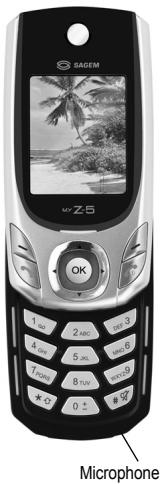

Hold down: Switch on/off In a call context: Reject a call - hang up
In menus: Return to initial screen

Hold down: hands-free mode
WARNING: do not use the phone in hands-free mode near to your ear, or you may suffer hearing loss
In call context: Call - receiving a call
In idle screen: Fast access to the list of calls

Right programmable key: (Function available depending on model)
In initial screen: Access to certain functions (shortcuts)
In menus: Access to the selection shown on screen in the tab
Long press: when the slide is closed this key deactivates auto keylock

Left programmable key: (Function available depending on model)
In initial screen: Access to certain functions (shortcuts)
In menus: Access to the selection shown on screen in the tab

Previous choice/increase value/up
During call: Increase volume

Next choice/reduce value/down
During call: Reduce volume

Previous input field/move left

Next input field/move right

In initial screen: Access to main menu
In the menus: Context-sensitive access to different functions
During a call: Take a call

When composing a message:
Short press: Switches from one input mode to another (T9, ABC, 123)
Long press: Upper case/lower case
Programmable keys and Short cut keys

Hold down: In initial screen: Silent mode
Short press: When composing a message, access to the symbol table
Zoom mode (see Messages and WAP menus)
In call reception mode: Short press stops ring tone
In ring tone setting mode: Activate/deactivate ring tone
The initial screen contains the following information:
1 - The title bar icons:
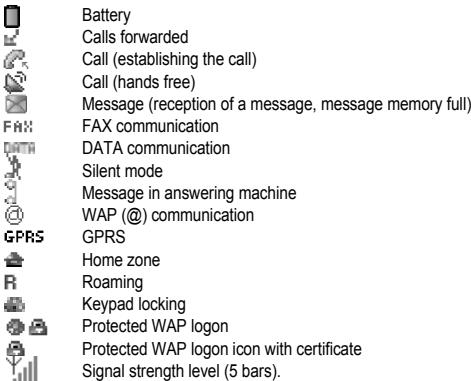
2 - Date and time, in digital or analog mode
3 - Network provider
4 - Thumbnail centred on bottom line:
The main menu can be accessed by pressing on OK
The following information may also be displayed:
They can be deleted by pressing 🔒 key briefly.
These basic principles bring a great intuitiveness to your phone.
Validate by pressing the \ key or the OK key.
Cancel by pressing the √ key.
The thumbnails at the bottom of the screen refer to the ✗ keys.
In the menus, a title bar reminds you of the previous level.
The ▼ ▲ navigation keys are used to navigate from one menu to another within the same menu structure.
From the home page, pressing the OK key displays the icons of the main menus.
The \ key is used to go from a menu to a sub-menu.
The √ key is used to go from a sub-menu to a menu.
The Ⓞ key (press briefly) is used to go back to the initial screen (current function is abandoned).
In some menus there is a Help menu ( ? icon) which informs you on the various functions of the sub-menus.
Increase the efficiency of your phone
- Don't press the keys when not necessary: each keypress activates the backlight, and uses much power.
- Don't obstruct the antenna with your fingers.
Charging the battery

natural_image
Line drawing of a handheld mobile phone with a finger inserted (no text or symbols)Your phone is powered by a rechargeable battery. A new battery must be charged for 4 hours at least before being used for the first time. It reaches its optimum capacity after a few cycles of use.
When your battery has been discharged, the phone displays the state (empty battery icon flashes). In this case recharge your battery for at least 15 minutes before making any calls in order not to be cut off in the middle of a call.
To recharge the battery
Connect the charger to a socket.
Plug the end of the cable into the bottom connector of the phone.
The phone is then charging up. The battery icon is scrolling up and down to indicate that it is charging. When the battery is fully charged, the charging stops on its own. Disconnect the cable.
When charging, the battery may warm up, this phenomenon is normal.
WARNING
There is danger of explosion if the battery is placed in an incorrectly way or if it is exposed to fire.
Do not short circuit it.
The battery does not have any part that you can change.
Do not try to open the battery casing.
Use only the appropriate chargers and batteries as shown in the phone manufacturer's catalogue.
The use of other types of chargers or batteries may be dangerous or invalidate the warranty.
Used batteries must be disposed of in the appropriate places.
We advise you to take the battery out if you plan not to use the phone for extended periods.
You are strongly advised not to connect your phone to the charger if it doesn't contain a battery.
The charger is a safety step-down transformer, it is forbidden to modify, alter or replace it by another component (power supply plug, etc.).
The games being designed by Java ^™ , many compatible games can be downloaded in your phone.

The More games function allows you to download games connecting on a remote server.
Depending on the operator, the connection URL may not be present. To add a new URL, select a game, press [Options] and go to General Settings/Connection.
Delete all menu: deletes all the games you have downloaded.
gameloft
WAP (Wireless Application Protocol): a protocol that translates the Internet language into WML and HTML languages that can be read by a phone. The WAP function allows you to log onto certain Internet sites. You can log onto sites that allow you to download ringtones, icons, animated screensavers, JavaTM applications to your phone.
The WAP Menu
The WAP navigator is under licence:

OPENWAVE
© 1995-2001
RSA Data Security

The WAP navigator and the softwares included are the exclusive property of Openwave. For this reason, it is forbidden to modify, translate, disassemble or even decompile all or part of these softwares.
You can activate the magnifying glass to increase the size of the characters by holding down the # key.
The Services menu, a dropdown menu, can be accessed at all times when navigating through WAP pages pressing the key.
It contains the following sub menus:
Welcome: logs onto the home page, (carries the name of your access provider)
Bookmarks: is used to save in a phonebook the names and addresses of Internet sites in order to make the access easy.
You can receive bookmarks from messages and add them to this list (see chapter on SMS). You can also send messages by SMS: select a bookmark, press [Options], then select Send by message.
Go to URL: this menu allows you to input an Internet address directly.
Inbox: this menu allows you to check the messages sent by the Internet site.
Save Objects: is used to save a WAP site items.
Snapshots: takes a snapshot of the currently displayed page.
History: backward and forward navigation of the pages displayed are kept in memory.
Reload: refreshes the current page.
Reset cache: clears the stored information on previous connections.
Advanced....: choose one of the following advanced settings
- Settings
- Show URL
- Disconnect
- Circuit prompt (if user wants to confirm each logon)
- Security (is used to access information on making WAP connections secure).
- Delete Cookies
- View title
About...: information on the browser.
Exit: returns to the phone's home page.
Configuring WAP parameters
Select the Advanced... menu, then the Settings menu.
Profiles is used to select or modify your access provider's logon parameters or configure the parameters of other access providers.
The active profile is preceded with a star.
The Menu is used to add a new profile or to display the memory size available.
Configuration of GSM and GPRS parameters:
All information to be entered in the parameters are provided by your operator or access provider.
On a profile in the list, press [Options], select Modify. The different parameters are: Provider title, Home page, Preferred connections (see next page), GSM parameters and GPRS parameters (see next page).
Preferred connections:
- GSM if not GPRS (by default): the logon to WAP services uses the GPRS as a priority. However, in the event of unavailability of the GPRS network, the GSM network is used to establish the link.
- GPRS: the logon to WAP services uses the GPRS network exclusively.
- GSM: the logon to WAP services uses the GSM network exclusively.
GSM parameters:
- Login
- Password
- IP address of WAP gateway
- Port type (secure or insecure)
- Dial-up number
- Mode (digital, analog or automatic)
GPRS parameters:
- Login
- Password
- IP address of WAP gateway
- Port type (secure or insecure)
- APN: if no APN has been defined, press [Options] then the APN menu. Select or add an APN.
Once all the settings have been entered, you can activate the chosen access provider. Select him from the list. Validate your choice.
Linger timer is used to choose the time after which the call is automatically disconnected if you have forgotten to log off from a service.
WAP Logging on
The connection to a WAP service on the GPRS network is not cut if an incoming call is received. You can answer the call.
Using the Welcome menu, you can log onto your access provider's WAP site by pressing the \ key.
If you are logging onto the GSM or GPRS network, the @ symbol flashes, the metering of the cost of the call starts as soon as it stops flashing.
Downloading objects
Some WAP sites allow you to download ringtones, icons, animated screensavers, games or JAVA™ applications. Once downloaded, they are stored in your phone's memory. You can then save them in your phone (same operation as used for downloading using messages).
WAP Logging off
To log off, press the Ⓤ key. The logoff happens automatically after a few seconds of inactivity if you forget to log off. This period is defined by the linger time setting.
GPRS
A flashing icon indicates that the phone is logging onto a GPRS network.
A non-flashing icon indicates that the GPRS network is available; if the icon is dark, it indicates that the phone is logged onto the GPRS network: see page 22 for the attachment options.
This icon is not displayed if the GPRS network is not available or if the SIM card inserted in your phone does not include the GPRS service. It may also disappear when accessing WAP services if the connection uses the GSM network instead of the GPRS network.
The Java ^™ function allows you to download applications and utilities in your phone.
Downloading is done through the WAP function.
Please go to the Applications menu to use the applications already installed or install others.
Services
This item may not be present on your phone's menu, as it depends on your SIM.
Calculator
This menu allows you to use your phone as a calculator.
On the Applications menu, please select the Calculator menu and [OK].
You can use the calculator thanks to the following keys:
▲ Up key: Add
▼ Down key: Subtract
▶ Right key: Multiply
Left key: Divide
\ Left programmable key: Equals or convert
/ Right programmable key: Delete
* # * key or #: Decimal point.
If no calculations are being run, pressing [Convert] allows you to use the value in the converter directly.
Converter
This menu allows you to convert one currency to another.
On the Applications menu, please select the Converter menu and [OK].
Enter a value and press the ▲ key to convert from one currency to another, or the ▼ key to convert back.
Pressing [Options] allows you to use the following options:
Go to Calculator
This option allows you to use immediately the value converted in the calculator.
Rapid exchange
If the Rapid exchange is activated, the converter will work in the initial screen by entering the desired numbers and pressing the ▲▼ keys to convert.
Exchange rate
Enter the exchange rate corresponding to the chosen currency.
Currency
Enter the two types of currency to be converted.
Audio player
In the Multimedia/My Sounds menu, select the musics you want to insert in Audio player.
Select each music, press [Options] and select Add to playlist.
Once your selection completed, in the Applications/Audio player menu, press [Options] and select Play list.
Note: to play only one music, select it and press OK.
- Remove from list: deletes a music from the Audio player list.
- Clear list: deletes all the musics from the Audio player list.
Note: both options delete the musics from the Audio player list but do not delete them from Multimedia/My Sounds.
Alarm
This menu allows you to set and activate the alarm.
On the Applications menu, please select the Alarm menu and [OK].
Activate or Deactivate the alarm and validate.
Set the wake-up time by entering the numbers directly or using the ▼▲ keys and validate.

The alarm icon appears on the initial screen.
The alarm works even when the phone is switched off.
Timer
This menu is used to set and activate the timer.
On the Applications menu, please select the Timer menu and [OK].
Activate or Deactivate the alarm and validate.
Set the duration (hours/minutes) by entering the numbers directly or using the ▼▲ keys and validate.

The alarm icon appears on the initial screen.
ToDo
This menu allows you to add ToDo's, access category-based Todo management and delete all the ToDo's.
On the Applications menu, please select ToDo and press [Options].
Select one of the actions in the list with the ▼▲ keys and validate.
- Add Written/Vocal ToDo: allows you to add ToDo of the text or voice type. Fill in the different items. Save the ToDo.
- Categories: allows you to see the different ToDo categories, assign a specific ring tone to each individual ToDo, know the number of ToDo's in each category and see them.
- Delete all: allows you to delete all the ToDo's from your ToDo.
- Memory: allows you to view the memory used by the different functions of your ToDo.
ToDo actions menu
This menu allows you to do all the actions possible on any ToDo.
On the Applications menu, please select ToDo.
To display a ToDo, select it in the list and press the OK key.
To display the different options, press [Options].
- Delete: allows you to delete the ToDo.
- Modify ToDo: allows you to modify the ToDo properties.
- Send by MMS: allows you to send the Vcalendar corresponding to the task by MMS.
Sending a vCal
You can send a vCal from each Todo task. Yet, this function is available only on certain models of phone.
You can send vCals to another phone using MMS depending on your phone and the recipient's phone.
On the task list (Todo main menu), please select a task and in the Todo task actions menu list select Send.
Then select your contact information (phone number or Email address) before confirming.
If you receive a call while you are sending a vCal, the call will have precedence.
Receiving a vCal
By MMS, you receive a message you have to open to extract the vCal. You cannot add the event to your diary until you have saved it.
You can assign a different beep to each Todo task.
You can also assign a different ring tone to each Todo task category.
Exchange of data with a PC
Working from a PC, you can save/edit contacts, events and tasks stored in your phone.
To do this, you will need to connect your phone to the PC by means of a suitable data cable (USB).
Working from a PC, you can save/edit photos and ring tones not copyrighted stored in your phone.
To do this, you will need to connect your phone to the PC by means of a suitable data cable (USB).
Next, you will have to install the "My Pictures and Sounds" software (available from www.planetsagem.com site).
Remark: If a call comes in during an exchange of data with your PC, the link will be interrupted and will have to be manually re-started.
From this menu, you are able to send SMS and MMS. MMS is a Multimedia Message Service, which allows you to enclose audio files, images and others rich contents to your messages; these messages can even be composed of several slides. MMS are differently invoiced than SMS are. Please contact your network provider to get more information on their cost.
This menu has been compiled in collaboration with magic4 ^TM .
magic4
Compose SMS
On the Messages menu, please select the Compose menu and validate. Choose the SMS option.
The language used is the one selected on the display of the phone (if the language selected is not compatible with the Easy Message T9 ^™ , the English language will be automatically selected).
When typing a text, a counter showing the number of characters deducted is displayed at the top of the screen (depending on model). This counter is not displayed if an icon or sound is inserted into the SMS.
When the text has been entered, [Options] is used to access the functions offered:
- Send is used to send the message by entering the correspondent's number or selecting it in the phonebook.
- ABC Mode, 123 Mode (see page 29).
- T9 options (see page 29).
- Save is used to save a draft in memory.
- Cancel is used to delete all text entered and quit.
- Activate/Deactivate Zoom is used to modify size of characters.
- Activate/De-activate Silent is used to activate or not the keypad beep when typing the text.
- Formatting is used to enrich a text.
- Insert to insert various objects (symbols, sounds, etc.) into your message (see page 30).
The Easy Message T9 ^™ mode helps you to easily write your short messages.
Using T9 Mode

Press once the key corresponding to the letter chosen and compose the word by continuing to press the keys corresponding to the various letters without paying attention to the display: the word is highlighted. If you agree on the word proposed on the screen, press the 0 key to validate it (the 0 key inserts a space), and go on writing the next word.
However, the same sequence of keys pressed can correspond to several words, existing on the dictionary. If the word that appears is not the word you expected, press the ▼▲ keys to scroll through the words corresponding to this key sequence. Once you agree on the word proposed on the screen, press the 0 key to validate it (the 0 key inserts a space), and go on writing the next word.
If the word you are expected is not proposed, please add characters until you get the message Add the word? Press [Yes] and validate if the word displayed suits you or modify this word before adding it in the dictionary.
Input modes
When composing a message:
The navigation keys assume the following functions:
- ◀ key:
Last word
- ▶ key:
Next word
- ▲ key:
Previous line
- ▼ key:
Next line
- / key:
Deletes last letter
- \key:
Message options
- # % key (long press):
Zoom mode (changes size of characters)
- # % key (short press):
Access to symbol table
In the input screen, the key is used to access other input options.
The mode in which you type the text is displayed at the right top of the screen. A short press of the _ key switches from one mode to another.
The ABC Mode is used to write words that do not exist in the dictionary. To get a particular character, please press the corresponding key several times: the characters will scroll down on your screen.
123 Mode is used to add numbers.
Insert mode is used to add symbols, animations, call group icons and tunes. Images and sounds can be of two types: pre-defined or customized. Pre-defined images and sounds are smaller, especially suited to exchanging messages.
Upper/Down case
A long press of the _ key will display the next letter in upper case.
Two long presses on the _ key allow you to switch to upper case editing mode for the whole message. Two short presses again, switches back to lower case.
Punctuation characters
Punctuation characters are obtained thanks to key 1 (except in 123 Mode), or with the help of Insert mode (fast access by briefly pressing the # ^A key).
Accented characters
Accented characters are generated automatically in T9 mode.
In ABC mode accented characters are available by pressing the key supporting the non-accented character in succession.
Compose MMS
On the Messages menu, please choose the Compose menu and validate. Select the MMS option.
When the text has been entered, [Options] is used to access the functions offered:
- ABC Mode, 123 Mode (see page 29).
- T9 Mode (see page 29).
- Slide... to compose a slideshow of the multimedia objects.
- Preview to see a presentation of the multimedia objects.
- Cancel is used to delete all text entered and quit.
- Insert to insert various objects (symbols, sounds, etc.) into your message.
Saving the message
Select Save. It is saved in the Drafts menu.
Sending the message
- Once the text entered, press the OK key or press [Options] and select Send.
- Enter the receiver's number (or take it in your phonebook pressing [Options]/Contacts) and press the OK key. You can enter an e-mail address.
Note: It is possible that the voice message format (.amr) is not supported by some PC. See your PC provider.
Warning: some message sendings may fail if the message content is too big.
Pressing [Options] before sending the message gives access to different options:
- Send Options: can be used to indicate the period of validity, activate/deactivate a request delivery report, a priority, a delivery time, a sender visibility or to defer the sending of the message.
- Add Recipient: this option allows you to add another recipient.
Editor: this option allows you to modify the text before sending the message. - Add Subject: this option allows you to add a subject to the message.
Receiving messages
When you receive a message, the phone plays the ring tone that you selected, and the message icon 📋 comes on the screen of your phone.
If you do not read the messages, this icon remains displayed on the screen. When it flashes, the memory is full.
Receiving icons, backgrounds or tunes can take several seconds. An icon is blinking when the download of your message is in progress.
Note that you have two different possibilities for receiving MMS: automatically or manually; if « manual mode » is activated, then you will receive only a notification in your Inbox, meaning that a MMS is available on the MMS Server; select Retrieve in the options when you want to retrieve the MMS from the server.
For more details about automatic and retrieval modes, see « Sending options » on page 32.
Please contact your network provider to get more information on icons, backgrounds or tunes downloading.
Received messages are stored in the SIM card or in the phone until you choose to delete them.
Inbox
On the Messages menu, please choose the Inbox menu and [Select].
Each message shows the presence of any attachments, the time and date the message was received and its size.
Messages are listed in chronological order, the latest one being displayed first.
The quantity of Not Read and Not Retrieved messages is shown. Not Retrieved and Not Read messages are shown in bold.
Select a message and press the OK key. Choose one of the options given.
Enclosures (pictures or sounds), which you receive, can be extracted in order to be used later on (stored...).
You can consult them in the corresponding menus (WAP bookmarks in WAP, ring tones in Sounds, wallpapers in Display).
Outbox
On the Messages menu, please choose the Outbox menu and [Select].
This menu displays the messages that have not been sent. You can therefore send them again.
Sentbox
The Sentbox menu is used to store all your sent messages if you activated the option Store sent msgs in the Options menu (see page 32).
Too many messages saved will quickly fill up the available memory and no further messages will be received.
For each message, its characteristics (shown with an icon) and the time (or date) of sending are displayed on the screen.
Select a message and press the OK key.
Choose one of the options given: Read, Modify, Forward, Delete, Delete all.
Drafts
When you store a composed message, it is stored among the drafts.
On the Messages menu, please choose the Drafts menu and press the OK key.
Select a message and press [Options]. The options are: Delete, Read, Modify, Details.
If you select a message and press the OK key, you can modify it.
If you want to send it, select Modify then press [Options] and select Send.
Sending options
Several sending options are offered.
On the Messages menu, please choose Options and [Select].
Choose one of the options given: SMS or MMS.
The SMS sending options are: message centre number, store sent message, acknowledgment, reply given, period of validity (during that period, the network provider will try to send the message), message format.
The MMS options are:
- Store sent msgs: it is highly recommended that you keep this function deactivated, in order to avoid a full memory.
- Retrieval mode: if you are in a poor coverage area, it may be more convenient to choose the manual retrieval mode which gives you the retrieve later option.
- Priority: selection of a priority to send a message.
- Request delivery report: request of a delivery report when sending a message.
- Period of vailidty: during that period, the network provider will try to send the message.
Advanced settings:
- Maximal Size: if you want to activate/deactivate the option of maximum size supported for the MMS.
- Send delivery rep.: sending a delivery report when receiving a message.
- MMS ignore: if you want to deactivate the reception of any MMS in your phone.
- MMS server: to select another MMS provider, or set the parameters of a new MMS provider.
- Display Bcc: if you want to activate/deactivate this display.
- Sender visibility: you choose to display or not your phone number on the receiver's phone screen, with that message.
Memory
You may know the memory available for saving messages.
On the Messages menu, please select the Memory option and [Select].
Choose one of the options given: SMS or MMS.
The SMS screen displays the memory available either on the SIM card or on the phone.
The MMS screen displays how much memory is used in Kbytes.
Local information
This menu is used to activate reception of local information broadcast by the network.
You can choose whether you want to receive this information or not (please contact your network provider).
On the Messages menu, please select the Local info. menu and [Select].
Calling voicemail
This function allows you to call your voicemail.
On the Messages menu, please select the Call Voice Mail option and [Select].
Note: if your voicemail number has not been entered yet, you must enter it in the menu Settings/Calls/Voicemail.
Mailing list
This menu displays the mailing lists created in the phonebook.
To display the different options, press [Options].
- Add mailing list: allows you to create a new mailing list.
- Modify name: allows you to modify the mailing list name.
- Add contact: allows you to add a contact to the mailing list.
- Properties: allows you to see the type of mailing list and the number of contacts.
- Delete: allows you to delete the mailing list.
- Delete all: allows you to delete all the mailing lists.
This menu allows you to take photos or videos and use them for different purposes. For instance, you can send them to another phone or an Internet address, store them, use them as wallpapers or screen savers...
Take and send a photo
You can set the timer, the click sound, the photo quality and the photo format in the Settings/Camera menu.
Select the Camera menu. Select Photo camera and validate
The camera is now on.
Before taking a picture, there are various adjustment settings:
- To activate one of the two available zoom levels, use the ▼▲ keys.
- You can set the photo layout (landscape or portrait) using the ▶ key.
- You can set the luminosity using the ◀ key:
: to avoid backlighting, ◊: low luminosity. - To take a picture with a 5, 10 or 15 second time delay, press [Timer].
Taking and/or sending a picture
- Press OK, the photo is taken and stays on the phone display.
Warning: if you press [Back], you will go back to the previous screen and lose the photo you have just taken.
- Press OK if you want to send the photo immediately.
- Press [Save] to save your photo and display the different options (see next page).
If there is not enough memory to save the photo, a warning message appears, prompting you to confirm whether you want to go on.
Once taken, the photo appears on the phone display. The name is made up with a number.
Note: using the camera during a call may disturb the call quality.
The options are:
- Add to contact: allows you to assign a picture to a contact saved in the phonebook.
- Send by MMS: allows you to send the photo by MMS (see the Message menu).
-
New...: allows you to take a new photo.
Editor: various options to modify a photo: -
Sepia: allows you to change colors into sepia.
- Zoom: allows you to magnify certain parts of your photo.
- Adjustment: allows you to improve contrast.
- Emboss: allows you to modify a photo with an embossed grey tint.
- Negative: allows you to change a photo into negative.
- Grey Scale: allows you to change color into black and white.
- Add mark: allows you to add special characters or drawings to your photo.
- Add frame: allows you to surround your photo with a frame.
- Contrast: allows you to increase or decrease the contrast of your photo.
• Sharpen: allows you to sharpen a photo.
• Blur: allows you to add blur to a photo.
• Shape: allows you to shape a photo. - Brightness: allows you to increase or decrease the brightness of a photo.
- Solarize: allows you to increase or decrease the solarize of a photo.
- Saturation: allows you to increase or decrease the color saturation.
- Rename: allows you to modify the name of a photo.
Select one of the options with the ▼▲ keys and validate.
Take a video
Before taking a video, you can set the sound and the video size in the Settings/Camera menu
Select the Camera menu. Choose the Video option and press OK.
Press the left key [Record] to record then press again the left key [Stop] when you want to stop recording.
Note: the phone automatically stops recording when the maximum size available is reached.
Press [Options]:
- Play: you can display the video.
- Save: then you can save it. Modify the name if you want and press OK.
- Save and Send: you can save and send the video by MMS.
Warning: A message informs you that the storing and the compression of the video are in progress. It will take a few seconds.
During this time, you have two choices:
- either you select [Cancel], the compression is interrupted and when you display the video later, the phone will resume the compression.
- or you select [Hide], the compression is not interrupted and you can use your phone but some functions are not available (taking a video or photo, sending a MMS).
See chapter Multimedia/My Videos for the options on a video saved.
Note: the videos are saved in the phone with a 3gp format.
This menu gives you easy access to your favourite photos, videos, pictures and sounds.
My Videos
This menu gives you access to your videos
From the Multimedia menu, please select the My Videos menu and the Select label (left key).
The names of the videos stored in memory are displayed on the screen. Please use the ▼▲ keys to select one of them.
Once you have selected a video, press OK.
The video is now displayed. After a few seconds an Options menu button appears at the bottom of the screen. Press the [Options] button.
Select one of the options in the list with the ▼▲ keys and press OK.
- Send by MMS: to send the video by MMS (see Messages chapter).
Thanks to My Pictures And Sounds (MPAS) software available from www.planetsagem.com, you can import videos (3gp format) or export videos (MPAS converts 3gp format into mpeg4 format readable on PC). - Properties: properties of the video selected.
- Delete: to delete the video.
- Delete all: to delete all the videos.
- Rename: to modify the name of the video.
- New video: allows you to take a new video
My Pictures
This menu gives you access to your pictures.
On the Multimedia menu, please select the My Pictures menu and [Select].
The pictures stored are displayed on the screen. Please, use the ▼▲ keys to select one of them.
Once you have selected a picture, press [Options].
Select one of the options in the list with the ▼▲ keys and validate.
- New photo: allows you to take a new photo.
- Send by MMS: makes it possible to transmit a picture (NB: you may not send any copyrighted picture).
Editor (see chapter Photo - Video). - Use as: allows you to use the picture as a wallpaper or screen saver.
- Rename: allows you to rename a picture.
- Properties: properties of the picture selected.
- Delete: allows you to delete a picture.
- Delete all: allows you to delete all pictures.
You can import or export pictures to or from a computer using My Pictures And Sounds (MPAS), available from www.planetsagem.com.
My Sounds
This menu gives you access to your sounds.
On the Multimedia menu, please select the My Sounds menu and [Select].
The names of the sounds are displayed on the screen. Please use the ▼▲ keys to select one of them.
To display the different options, press [Options].
- New sound: allows you to record a new sound.
- Send by MMS: allows you to send a sound.
You can import or export sounds to or from a computer using My Pictures And Sounds (MPAS), available from www.planetsagem.com. - Use as: allows you to add a sound to the ring tones list.
- Rename: allows you to rename a sound.
- Add to playlist: allows you to add a sound to the music list of the Audio player function.
- Properties: properties of the sound selected.
- Delete: allows you to delete a sound.
- Delete all: allows you to delete all the sounds.
Memory
This menu indicates the memory size used by the different features of your phone.
On the Multimedia menu, please select the Memory menu and [Select].
Use the ▼▲ keys to select the different features using memory. You can see the memory capacity used by each individual feature.
This menu gives you access to your diary and get to a day, week, month or specific date. It lets you add events, access the global actions for all the events and manage them by event category.
Calendar menu
This menu lets you add events, manage events by category, see the available memory and delete all the events.
From the Organizer menu, select the Calendar menu.
- Add Written Event/Vocal event: allows you to add events of the text or voice type. Fill in the different items. Save the event.
- Delete: allows you to schedule the deletion of events that took place more than one day, week or month ago.
- Memory: allows you to view the memory capacity used by the different functions of your diary.
- Delete all: allows you to delete all the events from your diary.
- Categories: allows you to see the different event categories, assign a specific ring tone to each individual category, know the number of events in each category and see them.
The other menus are:
- See month: allows you to access events on a month-by-month basis.
- See week: allows you to access events on a week-by-week basis.
- See today: allows you to access the events for the current day and the actions possible on any event (see, modify, delete and send).
- See date: allows you to access events at a specific date.
Sending a vCal
You can send a vCal from each diary event. Yet, this function is available only on certain models of phone.
You can send vCals to another phone using MMS depending on your phone and the recipient's phone.
On the See today list, please select an event and in the Todo event actions menu list, select Send.
Then you should in addition select your contact information (phone number or Email address) before confirming.
If you receive a call while you are sending a vCal, the call will have precedence.
Receiving a vCal
By MMS, you receive a message you have to open to extract the vCal. You cannot add the event to your diary until you have saved it.
You can assign a different beep to each diary event.
You can also assign a different ring tone to each diary event category.
The phonebook allows you to store numbers that you call regularly. These numbers can be stored in the SIM card or in the phone.
To store a contact in the phone memory, the following fields can be filled: last name, first name, numbers, email, URL, address, company, comments, ringtone, photo.
The fields coloured with red are mandatory.
To store a contact in the SIM card, only the last name and number fields must be filled.
The storage capacity will depend on the SIM card. Please contact your network provider to get that information.
Using the phonebook
Display the Phonebook menu.
The list of your contacts appears. By default, the cursor is positioned on the first name in alphabetical order.
If you are using your phone and SIM card for the first time, the phonebook list may be empty, only the Add phone contact function will be available.
If you are using your phone and SIM card for the first time, the phonebook list will be empty (see Storing a new contact, on page 44).
Different icons inform you of the location where the contact is stored:

contact stored in the SIM card

contact stored in the phone

if the Fixed dialling option is activated, only those contacts may be called. See PIN2 number and Fixed dialling in Security menu for more details about this activation.
Storing a new contact
In the list of options, first select the location where you want to store a new contact (Go to SIM list or Go to Phone list).
Adding a contact in the SIM card memory
- From the contact list, select [Options].
- Select Add SIM contact and press the OK key.
- Select SIM card or Fixed directory and press the OK key.
- Enter the last name and press the OK key.
- Enter the number and press the OK key.
- Press [Save] to store it.
Adding a contact in the phone memory
- From the contact list, select [Options].
- Select Add phone contact and press the OK key.
- Enter the last name and press the OK key.
- Enter the number and press the OK key.
- Fill in other fields if you want.
- Press [Save] to store it.
Phonebook options
Mailing lists
A mailing list allows you to send a same message to several recipients at the same time.
- From the contact list, select [Options].
- Select Mailing list and press the OK key. The phone asks you to confirm the creation of a new list.
- Select the list type (SMS or MMS) and press the OK key.
- Enter a name and press the OK key.
- Then, on a list press [Options]. Select Add contact each time you want to add a contact in the list.
Memory
Select Memory and validate. Select SIM or Phone and validate.
Phone: the screen displays the amount of memory used. The memory capacity is shared between the phonebook and various other features. If you lack memory, check if you can free some space from another feature.
SIM: available memory only for contacts.
My numbers
You can create the entries corresponding to your own numbers in order to consult them when necessary.
Select My numbers and validate. Enter the different details and validate.
Options from a contact saved
Displaying a contact
Select a contact from the list using the ▼▲ keys and press the OK key. The name and the number are displayed.
Note: By directly pressing one character, the phone will display the first contact saved in the phonebook, starting with it.
To display the different options, select a contact from the list using the ▼▲ keys and press [Options].
Modify contact
Modify what you want and validate then select Save once the modifications completed.
Copy to SIM/Copy to phone
This allows you to copy your phonebook entries from one memory to the other. Only the name and the first phone number will be copied.
Delete
Validate deletion of entry.
Send message
To send a SMS or a MMS to a contact (see chapter Messages).
Send By
To send a contact details by SMS or MMS (see chapter Messages).
Calling a contact
Several ways:
- Select a contact. Press the ↗ key to start the call.
- Select a contact, press the OK key, his number is displayed, press [Call] to start the call.
- Direct call from the initial screen (only for the contacts stored in the SIM card memory): type the number with which the contact was saved then _心 (example: 21 _心 ) or the number then # , the number is displayed, confirm.
Sending a vCard
It is possible to send a vCard from each contact stored in the phonebook.
vCards can be sent to another phone supporting vCard.
On a contact in the phonebook, please select the Send by option menu item (SMS or MMS).
If the vCard is sent successfully, an information message is displayed.
vCards can be sent as an attachment to an SMS or MMS message. See Compose MMS on page 30.
Receiving a vCard
When a vCard is received enclosed to an SMS or MMS message, the message « You have received 1 message » is displayed.
Open the MMS from the inbox. Press [Options] and select Extract; select the vCard among the list of objects attached to this MMS, and add this contact to the phonebook by pressing the OK key. A message is displayed to confirm the action.
This menu allows you to set your phone.
Sounds
This menu allows you to customize the ring tones on your phone and to activate beep and vibrate modes.
Volume and ring tone
This menu allows you to allocate a ring tone to different functions.
On the Sounds menu, please select the Ring tones menu and [Select].
Select the function on which you want to choose a ring tone.
Select the ring tone from the proposed list and validate.
Adjust the volume using the ▼▲ keys and validate.
You can deactivate the sound by pressing the # key.
Vibrate
This menu allows you to activate the vibrate mode for calls.
On the Sounds menu, please select the Vibrate menu and [Select].
Select the vibrate mode from the proposed choices and validate.
Silent mode
This menu allows you to switch to Silent mode.
On the Sounds menu, please select Silent mode and [Select].
Activate or deactivate Silent mode and validate.
Silent mode can also be accessed via the initial screen by holding down the # key.

When the phone is in silent mode, the relevant icon appears on the initial screen.
In this mode, the ring tone will not function, except for the alarm clock.
Note: if you have activated the silent mode, it does not remain after switching off your phone.
Beeps
This menu allows you to activate a beep for the battery, the keypad or the network.
On the Sounds menu, please select the Beeps menu and [Select].
Select the type of beep you want to allocate from the proposed choices (Slide beep, Keypad beeps, Network beep, Battery beep or Slide beep) and validate. Activate or deactivate the beep and validate.
If you select key beeps, different options are given.
Recorder
These menu allows you to record you own melody.
On the Sounds menu, please select the Recorder menu and [Select].
Pressing [Start] record your melody or your voice by means of the microphone then save it.
Give it a name and validate. The new tone is saved in the list of ringtones and in Multimedia/My Sounds.
If you select the recorder by means of a programmable key, the sound is saved in the Applications/ToDo menu.
Display
Wallpaper
This menu allows you to display the background picture you want on your phone.
On the Display menu, please select the Wallpaper menu and [Select].
Select the wallpaper and [View]. The picture appears in the background of the screen.
Press [OK] to validate this choice, or [Back] to go back to choice.
Note: the Random option allows you to display a wallpaper scrolling different pictures in a random way.
Screensaver
This menu allows you to display an animation when the phone is in standby mode.
On the Display menu, please select the Screensaver menu and [Select].
Select one of the screensavers given and [View].
The chosen screensaver appears on the screen, validate it.
Operator logo
This menu allows you to display your operator's logo on the initial screen.
On the Display menu, please select the Operator logo menu and [Select].
Select Activate or Deactivate and press OK.
Energy saving
This function is used to deactivate the screen and the keypad backlight and consequently increase the battery life of your phone.
On the Display menu, please select the Energy saving menu and [Select].
Two options are available to choose from for the backlight:
- Screen only: only the screen is lit up.
- Full backlight: both the screen and the keypad are lit up.
Note: in any case, after a certain time of inactivity, the backlight will be automatically turned off to save battery life.
Camera
This menu allows you to set the camera features of your phone.
On the Settings menu, please select the Camera menu and [Select].
- Timer: this menu enables you to take a photo with a 5, 10 or 15 second time delay. During preview of the photo, activate the delayed exposure by pressing [Timer]. (NB: if you want to take the photo immediately, then press OK).
- Click sound: This menu allows you to select the sound you will hear when taking a photo.
- Photo format: This menu allows you to choose the format in which your photo will be saved.
- Photo quality: This menu allows you to select the photo quality.
- Video size restr.: This menu allows you to choose a video size.
- Video sound: This menu allows you to select or not the sound when recording a video.
Languages
This menu allows you to choose your phone's display language.
On the Settings menu, please select the Languages menu and [Select].
Select your language and validate.
If you select Automatic, the language used will be the one relative to your SIM card.
Phonebook
From the Settings menu, please select the Phonebook menu and [Select].
This menu allows you to select the way to sort contacts in the phonebook (by name or first name).
Contacts list
From the Settings menu, please select the Contacts list menu and [Select].
This menu allows you to display the list of your contacts recorder either on the SIM card, or the phone, or on the SIM card and on the phone.
Calls
The Calls menu allows you to manage all the calls functions (call forward, displaying numbers, call waiting, voicemail number, etc.).
Call forward
Depending on your subscription, this service allows you to forward incoming calls to a different number or to the voice mailbox.
On the Calls menu, please select the Call forward menu and [Select].
Choose the type of forwarding you want from the options available.
View last calls
This menu allows you to access the list of last numbers used.
On the Calls menu, please select the View last calls menu and [Select].
For every phone call are displayed on the screen:
- its characteristics (shown with an icon),
- the time (or date),
- its duration.
Select a call from the list and validate.
Select one of the options given: Call, Store in your phonebook, Send a message, Delete, Delete all.
You can also make the call by pressing the ↗ key.
Fast access to the list of calls from the initial screen: press the key.
Counters
This menu allows you to consult the duration of the up calls.
It can also be used to check the volume of data exchanged in GPRS.
On the Calls menu, please select the Counters menu and [Select].
Select one of the options given.
Display number
This menu allows you to modify the status of the display number function.
On the Calls menu, please select the Display number menu and [Select].
Select one of the options given: Anonymous mode, My number, Callers' number.
Anonymous mode
You have the facility to mask your number on the phone of the person you are calling.
- Preset: network default mode.
- No: you choose not to activate anonymous mode and then to display your number.
- Yes: you choose to active anonymous mode and then not to display your number.
Call waiting
During a call, you may be informed that a caller is trying to reach you: you hear a special tone. The caller's identity is displayed on the screen (name or number).
(Operator-dependent service)
On the Calls menu, please select the Call waiting menu and [Select].
You can activate, deactivate, or consult the status of the call waiting service in order to check if it is active or not.
During a call, if a second caller tries to contact you, the screen displays the call warning.
Automatic redial
This menu allows you to call back a caller you have not managed to reach.
On the Calls menu, please select the Auto redial menu and [Select].
You can set the redial function to inactive, on request or systematic.
If you choose On request, your phone will offer to redial your caller automatically if his number is busy.
Blacklist
The blacklist is used to limit failures on automatic calls (calls generated by the automatic redial function or by applications: data, fax for example).
On the Calls menu, please select the Blacklist menu and [Select].
When several automatic calls failed with a number (number busy or unknown), this number is put in the blacklist and no automatic call will be done with this number any more until you delete it from the blacklist.
Note: this function does not apply to the calls performed manually.
Voicemail
This function is used to record your answer phone number.
This number will be used during a call to the voice mailbox using the programmable keys.
On the Calls menu, please select the Voicemail menu and [Select].
Enter your answer phone number and validate.
ALS
The ALS (Alternate Line Service) function allows you, depending on your subscription, to have two phone lines. The number of the line selected (1 or 2) for the calls appears on the initial screen.
Security
This menu allows you to configure your phone's security settings.
Keypad locking
This menu allows you to lock the keypad to avoid unwanted key presses.
On the Security menu, please select the Keypad locking menu and [Select].
There are two options to lock the keypad:
- either immediate locking:
from the initial screen, press ▶ (long press); (to unlock the keypad, press again ▶). - either from Security/Keypad locking menu:
to lock the keypad, select Activate. Select the time (in seconds) from which the keypad is locked.
to unlock the keypad temporarily, press again ▶ (long press) or select Deactivate to unlock it permanently.
Note: Keypad locking is taken into account only when the slide is closed.

The lock icon appears on the initial screen.
Note: to unlock keypad, long press / and OK.
PIN number
This menu allows you to activate and modify your phone's PIN.
On the Security menu, please select the PIN number menu and [Select].
To modify the PIN, select Modify and [Select].
Enter old PIN and validate.
Enter new PIN twice and validate.
To activate or deactivate the PIN, select the Check PIN menu and [Select].
Enter PIN and validate.
Select Activate or Deactivate and validate.
See page 76 to unblock the SIM card in case of wrong PIN number typed three times in succession.
PIN2 number
You have a second PIN number to allow you to access certain functions*.
* These functions may or may not be available depending on your SIM card.
Proceed as above in order to activate, deactivate or modify PIN number 2 of your phone.
Phone code
The Phone code menu allows you to activate the phone code so that it is requested and checked whenever the phone is switched on if a different SIM card is used. This code is automatically linked to the SIM card installed when the phone is activated, for example to protect the phone if stolen.
To activate or deactivate the phone code, select the Phone code menu and validate.
Enter 0000 (the factory code, by default) and validate.
Select Activate or Deactivate and validate.
To modify the phone code, select Modify and validate.
Enter old phone code and validate.
Enter new phone code and validate.
Enter phone code again to confirm it and validate.
Confidentiality
The Confidentiality function is used to delete numbers stored in View last calls and the SMS stored in the memory when a new SIM card is inserted into the phone.
This menu allows the activation of automatic deletion, after power off/on, for messages and/or calls stored in the phone.
On the Security menu, please select the Confidentiality menu and [Select].
Choose Organizer, Calls or Messages.
Select Activate or Deactivate and validate.
Operator
This menu allows you to modify the call barring.
On the Security menu, please select the Operator menu and [Select].
Access to this service depends on your type of subscription.
Call barring
Call barring can be applied to ALL calls (incoming and outgoing), to all incoming calls when you are away from your home country (if roaming available).
This menu allows you to block the sending or reception of certain calls.
Before you can use this service, a password will be provided by your operator when you take out your subscription.
On the Security menu, please select the Call barring menu and [Select].
Select Activate or Deactivate and validate.
Access to this service depends on your subscription type.
Fixed dialling
This menu allows you to restrict the outgoing calls.
The availability of this menu depends on your SIM.
On the Security menu, please select the Fixed dialling menu and [Select].
Enter PIN2 number and validate.
Select Activate or Deactivate and validate.
Proceed as for any other phonebook.
When activating this function, only the numbers stored in the fixed dialling can be called.
This phonebook is linked to the SIM card, and its size depends on the card's capacity.
Cost
This menu allows you to control the cost of your calls (*).
On the Security menu, please select the Cost menu and validate.
The Cost menu (*) lets you check the cost of the last call you made and of all the calls you made since you last deleted them.
The Delete costs menu (*) lets you delete the cost of your last call and reset the cost counter after entering your PIN 2 code.
(*) WARNING
Depending on how the networks and associated subscription cards are configured, some functions may be unavailable (these are marked out with *).
Networks
This menu allows you to configure network preferences.
On the Settings menu, please select the Networks menu and [Select].
Choose Preferred to view all the pre-registered networks.
Choose Selection to activate (automatically or manually) one of the networks accessible in the area in which your are located.
Choose Network type to select your network: GSM-DCS or PCS (depending on model).
Choose GPRS to select the way you want to be attached on the GPRS network: always, or only when needed (when launching a data connection).
Shortcuts
This menu allows you to allocate functions to the programmable keys.
(Function available depending on model)
This menu allows you to customize the settings of your phone to make it as convenient as possible for you to use.
On the Settings menu, please select the Shortcuts menu and [Select].
Select the key that you wish to modify and validate.
Choose the function that you want to allocate to this key and validate.
Date / Time
Set Date/Time
This menu allows you to set the date and time of your phone.
On the Date / Time menu, please select Set Date/Time and [Select].
Date: set the date by entering it directly in digital form or by using the ▼▲ keys.
Use the ▶ (or ◀) key to access the next (or previous) entry field.
Once the date is correct, validate it.
Time: same procedure as for setting the date.
Automatic update
This menu allows you to choose manual or automatic updating of date and time (after switch off of your phone or when going abroad for instance) (service depending on the operator).
From the Date / Time menu, please select Automatic upd. and [Select].
Please select Automatic, Manual or On demand and press OK.
Display
This menu allows you to select the date and time display type.
On the Date / Time menu, please select Display and [Select].
In the list that appears, select the desired display type between:
Analog, Digital, None, by using the ▼▲ keys and validate.
Time zone
This menu allows you to change time in relation to the GMT time.
On the Date / Time menu, please select Time zone and [Select].
Choose the time of the country desired by calculating the time from the GMT time.
Summer time
This menu allows you to set your phone to the summer/winter time.
On the Date / Time menu, please select Daylight savings and [Select]. Select 1 h, 2 h Summer time or Winter time depending on the season, and validate.
Active slide
By default, calls are answered by opening the slide and you will just need to close it to hang up.
On the Settings menu, please select the Active slide menu and [Select].
This menu allows you to modify these settings:
- On Opening: this menu enables you to activate or not the option of taking the call by opening the slide.
- On Closing: this menu enables you to activate or not the option of hanging up by closing the slide.
WAP settings
This menu allows you to set various parameters needed for WAP connection.
On the Settings menu, please select WAP settings and [Select].
You can add or modify URL addresses.
Help
This menu allows you to activate or deactivate the display of the help in the phone.
Connectivity
You can also connect it to your computer in order to receive data or fax through GSM or GPRS network (depending on subscription): configure the connection parameters of your computer using the Wellphone CD supplied as an accessory.
Serial Speed
On the Connectivity menu, please select the Serial Speed parameters menu and validate.
The Speed menu enables you to select the speed to be used for data exchanges via your phone's serial port. Except for specific requirements, it is advisable to stick to the default setting: Automatic.
Car kit
This menu allows you to configure your phone with a car kit.
On the Connectivity menu, please select the Car kit menu and [Select].
Choose one of the options given: Automatic response, Switch off, Kit volume.
Headset
This menu allows you to configure your phone with a car kit.
From the Connectivity menu, please select the Headset menu and OK.
Choose one of the options given: Auto response, Kit volume.
SyncML
You can synchronize your phonebook, your organizer or your To Dos with your archives stored in your computer.
Weight: 85 g
Size: 85 x 42 x 23 mm
Original battery: Lithium ion 700 mAh
Battery life calls/standby: up to 200 mn/240 h (see page 18 how to increase the efficiency of your phone)
Multimedia objects supported:
- Audio formats: iMelody, Midi, wave, amr, c-Midi, MP3, AAC
- Graphic formats: wbmp, bmp, png, gif, animated gif, jpeg
- Video format: 3gp
Functions integrated : Modem/Data/Fax
Size of memory available for messages:
- 100 SMS/EMS
- 300 kB for MMS (inbox, outbox and drafts together; MMS depending on option)
Size of memory available for the phonenook and the multimedia objects: ≈ 3 MB
Maximum size of each message:
- SMS < 160 characters
- MMS < 100 kB for outgoing, 100 kB for incoming messages (depends on the phone configuration and on the operator reservations)
Using temperature: from - 10°C to + 55°C
Declares under our sole responsibility that our product
Nom du produit
Product Name
Triple-band GSM/DCS/PCS EC2005+ (myZ-5)
conforms to the requirements of the following EEC directives:
EEC Directive 1999/5/CE
Sécurité (Safety)
CEM (EMC)
EN 60950
EN 301 489-1
EN 301 489-7
Basse tension
(Low voltage directive)
73/23/CEE
Réseau (Network)
Exigences GT01 V 4.7.0
(Requirements GT01 V 4.7.0)
TBR 19 Edition 5
TBR 20 Edition 3
TBR 31 Edition 2
TBR 32 Edition 2
GCF-CC V3.17.0
EN 301 511 V9.0.2
Santé (Health)
EN 50360, EN 50361
Lieu et date
(Place and date of issue)
Signature
SAR
THIS MODEL MEETS INTERNATIONAL GUIDELINES FOR EXPOSURE TO RADIO WAVES
Your mobile device is a radio transmitter and receiver. It is designed not to exceed the limits for exposure to radio waves recommended by international guidelines. These guidelines were developed by the independent scientific organization ICNIRP and include safety margins designed to assure the protection of all persons, regardless of age and health.
The guidelines use a unit of measurement known as the Specific Absorption Rate, or SAR. The SAR limit for mobile devices is 2 W/kg and the highest SAR value for this device when tested at the ear was 1.44 W/kg (*). As mobile devices offer a range of functions, they can be used in other positions, such as on the body as described in this user guide (**).
As SAR is measured utilizing the devices highest transmitting power the actual SAR of this device while operating is typically below that indicated above. This is due to automatic changes to the power level of the device to ensure it only uses the minimum level required to reach the network.
The World Health Organization has stated that present scientific information does not indicate the need for any special precautions for the use of mobile devices. They note that if you want to reduce your exposure then you can do so by limiting the length of calls or using a 'hands-free' device to keep the mobile phone away from the head and body. Additional Information can be found on the websites of the World Health Organization (http://www.who.int/emf).
Advice for limiting exposure to radiofrequency (RF) fields
For individuals concerned about limiting their exposure to RF fields, the World Health Organization (WHO) provides the following advice:
Precautionary measures: Present scientific information does not indicate the need for any special precautions for the use of mobile phones. If individuals are concerned, they might choose to limit their own or their children's' RF exposure by limiting the length of calls, or using "hands-free" devices to keep mobile phones away from the head and body.
Further information on this subject can be obtained from the WHO home page http://www.who.int/peh-emf WHO Fact sheet 193: June 2000.
(*) The tests are carried out in accordance with international guidelines for testing.
(**) Please see the Safety section about body worn operation.
Safety
Never attempt to disassemble your phone. You alone are responsible for how you use your phone and any consequences of its use.
As a general rule, always switch off your phone wherever the use of a phone is prohibited.
Use of your phone is subject to safety measures designed to protect users and their environment.
Do not use your phone in damp areas (bathroom, swimming pool...). Protect it from liquids and other moisture.
Do not expose your phone to extreme temperatures lower than - 10°C and higher than + 55°C.
The physicochemical processes created by chargers impose temperature limits when charging the battery. Your phone automatically protects the batteries in extreme temperatures.
Do not leave your phone within the reach of small children (certain removable parts may be accidentally ingested).
Electrical safety
Only use the chargers listed in the manufacturer's catalogue. Using any other charger may be dangerous; it would also invalidate your warranty. Line voltage must be exactly the one indicated on the charger's serial plate.
Aircraft safety
When travelling by plane, you will need to switch your phone off when so instructed by the cabin crew or the warning signs.
Using a mobile phone may be dangerous to the operation of the aircraft and may disrupt the phone network.
Its use is illegal and you could be prosecuted or banned from using cellular networks in the future if you do not abide by these regulations.
Explosive materials
Please comply with warning signs at petrol station asking you to switch your phone off. You will need to comply with radio equipment usage restrictions in places such as chemical plants, fuel depots and at any location where blasting operations are under way.
Electronic equipment
To avoid the risk of demagnetisation, do not let electronic devices close to your phone for a long time.
Electronic medical equipment
Your phone is a radio transmitter which may interfere with electronic medical equipment or implants, such as hearing aids, pacemakers, insulin pumps, etc. It is recommended that a minimum separation of 15 cm be maintained between the phone and an implant. Your doctor or the manufacturers of such equipment will be able to give you any advice you may need in this area.
Hospitals
Always make sure that your phone is switched off in hospitals when so instructed by warning signs or by medical staff.
Road safety
Do not use your phone when driving. In order to give your full attention to driving, stop and park safely before making a call. You must comply with any current legislation.
Body worn operation
For body worn operation, this phone has been tested and meets RF exposure guidelines when used with an accessory that contains no metal and that positions the handset a minimum of 1.5 cm from the body. Use of other accessories may not ensure compliance with RF exposure guidelines.
Environment
Packaging
To facilitate the recycling of packaging materials, please obey the sorting rules instituted locally for this type of waste.
Batteries
Spent batteries must be deposited at the designated collection points.
The product

The crossed-out waste bin mark affixed to the product means that it belongs to the family of electrical and electronic equipment.
To promote the recycling and recovery of waste electrical and electronic equipment (WEEE) and at the same time safeguard the environment, European regulations require you to obey the sorting rules instituted locally for this type of waste.
You must always use your phone for the purpose for which it was designed, under normal operating conditions. Sagem Communication declines all responsibility for any use outside of the scope of its designed purpose and for any consequences of this use.
The software program developed by SAGEM remains the exclusive property of Sagem Communication. It is therefore highly prohibited to modify, translate, de-compile or disassemble this software program or any part thereof.
Use precautions
Your phone allows you to download ring tones, icons and animated screensavers. Some of these items may contain data that may cause malfunctions of your phone or data losses (virus for example).
For this reason, Sagem Communication rejects all responsibility concerning (1) the reception of downloaded data or losses of the said data, (2) the impact on the operation of the phone and (3) damages resulting from receiving the said downloaded data or loss of said data. In addition, Sagem Communication states that a failure caused by receiving downloaded data that do not comply with the specifications set by Sagem Communication is excluded from the warranty. Consequently, the diagnosis and repair of a phone infected by the said downloaded data will be at the expense of the customer.
Any content that you download to your phone may be protected by copyright belonging to third parties and consequently you may not have the right to use this content or its use may be restricted. Consequently it is up to you to ensure that you have permission, such as under the terms of a license agreement, to use any content that you download. Furthermore, Sagem Communication does not guarantee the accuracy nor the quality of any content that you download. You alone are responsible for the content that you download to your mobile phone and how you use it. Sagem Communication cannot be held responsible for this content nor for its use.
It is your responsibility to ensure compliance, at your own expense, with the laws and regulations applicable in the country where you use your phone.
Warranty conditions
Whenever you wish to make use of the warranty, please contact your vendor and present him with the purchasing paperwork that he gave you.
If a fault occurs, he will advise you.
1.
The new phone (excluding consumables), including new accessories bundled with the phone, are guaranteed by Sagem Communication, parts and labour (apart from travel) against any manufacturing fault for a period of twelve (12) months with effect from the sale of the phone to the customer, on presentation of the paperwork stating the purchase date of the phone. Phones that have been repaired or replaced as standard during the warranty period stated above are guaranteed (parts and labour) until the later of these two dates:
Expiry of the guarantee period of twelve (12) months stated above or three (3) months with effect from the date of support provided by Sagem Communication.
Your legal rights under the terms of applicable national law as well as your rights in relation to your retailer, as set out in the sales contract, remain applicable and are not in any way affected by this guarantee.
In any disputes, the phone is covered by the legal warranty against the consequences of faults or hidden defects in compliance with articles 1641 and subsequent of the French civil code.
2.
All faulty phones under warranty will be replaced or repaired free of charge at Sagem Communication's option (with the exclusion of repair of any other damage), once it has been specified that the work required for the application of the warranty will be done in a workshop and that the return costs (transport and insurance) of the phone to the address to be indicated to it by the Sagem Communication after-sales service, whose phone number will appear on the delivery note, will be charged to the customer.
Subject to essential legal provisions, Sagem Communication does not accept any warranty, explicit or implicit, other than the warranty provided expressly in this chapter, nor shall Sagem Communication accept responsibility for any immaterial and/or indirect damages (such as loss of orders, loss of profit or any other financial or commercial damage) under the warranty or not.
3.
The acceptance of a phone under warranty demands that a purchase document that is legible and without modification, stating vendor's name and address, date and place of purchase, type of phone and IMEI, are attached to the warranty, and that the information on the phone identification label is legible and that this label or any other seal has not been tampered with. The warranty applies in normal conditions of use.
Prior to sending the phone for repair, it is the customer's responsibility to backup at his expense the customized data stored in the phone (phonebook, settings, wallpapers). A list of backup facilities can be provided by Sagem Communication on request. The responsibility of Sagem Communication cannot be invoked if damage occurs to customer files, programs or data. The information or operating elements and the contents of files will not be re-installed in any case in the event of loss. Sagem Communication may decide, at its option, to repair the phone with new or reconditioned parts, replace the phone with a new phone or, in any dispute, a phone in good working condition. During its work Sagem Communication reserves the facility to make, where necessary, any technical modifications to the phone where these modifications do not adversely affect its initial purpose.
Faulty parts to be replaced during a repair under warranty will become the property of Sagem Communication.
The phone repair and standstill time during the warranty period may not lead to an extension of the warranty period as stated in article 1 above, provided no other vital provisions have been agreed.
The application of the warranty is subject to the full payment of the sums due for the phone when the request for support is made.
4.
The following are excluded from the warranty:
Breakdowns or malfunctions due to non-compliance with the installation and use instructions, to an external cause of the phone (shock, lightning, fire, vandalism, malice, water damage of any type, contact with various liquids or any harmful agent, unsuitable electric current...), to modifications of the phone made without the written consent of Sagem Communication, to a servicing fault, as described in the documentation supplied with the phone, to lack of supervision or care, to poor environmental conditions of the phone (especially temperature and hygrometry, effects of variations in electric voltage, interference from the mains network or earth) or even due to a repair, a call-out (opening or trying to open the phone) or to servicing done by personnel not approved by Sagem Communication.
Damage resulting from inadequate packaging and/or poor packing of the phone sent back to Sagem Communication.
Normal wear and tear of the phone and accessories.
Communication problems linked with a poor environment, especially:
Problems accessing and/or logging onto the Internet, such as breakdowns of the access network, the failure of the subscriber's or his correspondent's line, transmission fault (poor geographic coverage by radio transmitters, interference, disturbance, fai-lure or poor quality of phone lines...), a fault inherent to the local network (cabling, file server, user phone) and/or transmission network fault (interference, disturbance, failure or poor quality of the network...).
Change of parameters of the cellular network made after the phone was sold.
Supply of new software versions.
Current servicing work: delivery of consumables, installation or replacement of these consumables...
Call-outs for phone or software modified or added without the written consent of Sagem Communication.
Faults or disruptions resulting from the use of products or accessories not compatible with the phone.
Phones returned to Sagem Communication without having complied with the return procedure specific to the phone cove-red by this warranty.
The opening or closing of a SIM operator key and call-outs resulting in the non-operation of the phone resulting from the opening or closing of SIM operator key done without the agreement of the original operator.
5.
In the cases of warranty exclusion and of expiry of the warranty period, Sagem Communication shall draw up an estimate to be given to the customer for acceptance before any call-out. The repair and carriage costs (there and back) given in the accepted estimate will be charged to the customer.
These provisions are valid unless a special written agreement has been made with the customer. If one of the provisions turns out to infringe a legally essential rule that consumers could have the benefit of under the national legislation, this provision will not be applied, but all other provisions will remain valid.
End User Licence Agreement (EULA), for the software
CONTEXT AND ACCEPTATION OF THE AGREEMENT
You have acquired a Mobile Phone device ("DEVICE"), manufactured by Sagem Communication (SAGEM), that includes software either developed by SAGEM itself or licensed third party Software suppliers ("SOFTWARE COMPANIES") to SAGEM with the rights to sub-license it to the purchaser of the device. Those installed software products whatever their company of origin, and wherever the name of the company of origin is indicated of not in the DEVICE documentation, as well as associated media, printed materials, and "online" or electronic documentation ("SOFTWARE") are protected by international intellectual property laws and treaties. The SOFTWARE is licensed, not sold. All rights reserved.
IF YOU DO NOT AGREE TO THIS END USER LICENSE AGREEMENT ("EULA"), DO NOT USE THE DEVICE OR COPY THE SOFTWARE. INSTEAD, PROMPTLY CONTACT SAGEM FOR INSTRUCTIONS ON RETURN OF THE UNUSED DEVICE(S) FOR A REFUND. ANY USE OF THE SOFTWARE, INCLUDING BUT NOT LIMITED TO USE ON THE DEVICE, WILL CONSTITUTE YOUR AGREEMENT TO THIS EULA (OR RATIFICATION OF ANY PREVIOUS CONSENT).
SOFTWARE includes software already installed on the DEVICE ("DEVICE Software") and Software contained on the CD-ROM disk ("Companion CD"), if any is supplied with the product.
GRANT OF SOFTWARE LICENCE
This EULA grants you the following licence:
DEVICE Software. You may use the DEVICE Software as installed on the DEVICE. All or certain portions of the DEVICE Software may be inoperable if you do not have and maintain a service account with an appropriate Mobile Operator, or if the Mobile Operator's network facilities are not operating or configured to operate with the DEVICE software.
COMPANION CD. If any is supplied, additional software for your personal computer is included with your DEVICE. You may install and use the software component(s) contained in the Companion CD only in accordance with the terms of the printed or online end user license agreement(s) provided with such component(s). In the absence of an end user license agreement for particular component(s) of the Companion CD, you may install and use only one (1) copy of such component(s) on the DEVICE or a single computer with which you use the DEVICE.
Security Updates. The SOFTWARE may include digital rights management technology. If SOFTWARE does contain digital rights management technology, content providers are using the digital rights management technology ("DRM") contained in the SOFTWARE to protect the integrity of their content ("Secure Content") so that their intellectual property, including copyright, in such content is not misappropriated. Owners of such Secure Content ("Secure Content Owners") may, from time to time, request manufacturers or SOFTWARE SUPPLIERS to provide security related updates to the DRM components of the SOFTWARE ("Security Updates") that may affect your ability to copy, display and/or play Secure Content through the SOFTWARE or third party applications that utilise the DRM. You therefore agree that, if you elect to download a licence from the Internet which enables your use of Secure Content, Suppliers may, in conjunction with such licence, also download onto your DEVICE such Security Updates that a Secure Content Owner has requested that SOFTWARE SUPPLIERS distribute. SAGEM and SOFTWARE SUPPLIERS will not retrieve any personally identifiable information, or any other information, from your DEVICE by downloading such Security Updates.
DESCRIPTION OF OTHER RIGHTS AND LIMITATIONS
COPYRIGHT. All title and intellectual property rights in and to the SOFTWARE (including but not limited to any images, photographs, animations, video, audio, music, text and "applets," incorporated into the SOFTWARE), the accompanying printed materials, and any copies of the SOFTWARE, are owned by SAGEM or the SOFTWARE SUPPLIERS. You may not copy the printed materials accompanying the SOFTWARE. All title and intellectual property rights in and to the content which may be accessed through use of the SOFTWARE is the property of the respective content owner and may be protected by applicable copyright or other intellectual property laws and treaties. This EULA grants you no rights to use such content. All rights not specifically granted under this EULA are reserved by SAGEM and the SOFTWARE SUPPLIERS
Limitations on Reverse Engineering, Decompilation and Disassembly. You may not reverse engineer, decompile, or disassemble the SOFTWARE, except and only to the extent that such activity is expressly permitted by applicable law notwithstanding this limitation.
Single DEVICE. The DEVICE Software is licensed with the DEVICE as a single integrated product. The DEVICE Software installed in the memory of the DEVICE may only be used as part of the DEVICE.
Single EULA. The package for the DEVICE may contain multiple versions of this EULA, such as multiple translations and/or multiple media versions (e.g., in the user documentation and in the software). Even if you receive multiple versions of the EULA, you are licensed to use only one (1) copy of the DEVICE Software.
Software Transfer. You may not permanently transfer any of your rights under this EULA with regard to the DEVICE Software or Companion CD, except as permitted by the applicable Mobile Operator. In the event that the Mobile Operator permits such transfer, you may permanently transfer all of your rights under this EULA only as part of a sale or transfer of the DEVICE, provided you retain no copies, you transfer all of the SOFTWARE (including all component parts, the media and printed materials, any upgrades, this EULA and, if applicable, the Certificate(s) of Authenticity), and the recipient agrees to the terms of this EULA. If the SOFTWARE is an upgrade, any transfer must include all prior versions of the SOFTWARE.
Software Rental. You may not rent or lease the SOFTWARE.
Speech/Handwriting Recognition. If the SOFTWARE includes speech and/or handwriting recognition component(s), you should understand that speech and handwriting recognition are inherently statistical processes; that recognition errors are inherent in the processes; and that errors can occur in the component's recognition of your handwriting or speech, and the final conversion into text.. Neither SAGEM nor its suppliers shall be liable for any damages arising out of errors in the speech and handwriting recognition processes.
NOTICE REGARDING THE MPEG-4 VISUAL STANDARD. The SOFTWARE may include MPEG-4 visual decoding technology. MPEG LA, L.L.C. requires the following notice:
USE OF THIS SOFTWARE IN ANY MANNER THAT COMPLIES WITH THE MPEG-4 VISUAL STANDARD IS PROHIBITED, EXCEPT FOR USE DIRECTLY RELATED TO (A) DATA OR INFORMATION (i) GENERATED BY AND OBTAINED WITHOUT CHARGE FROM A CONSUMER NOT THEREBY ENGAGED IN A BUSINESS ENTERPRISE, AND (ii) FOR PERSONAL USE ONLY; AND (B) OTHER USES SPECIFICALLY AND SEPARATELY LICENSED BY MPEG LA, L.L.C.
If you have questions regarding this Notice, please contact MPEG LA, L.L.C., 250 Steele Street, Suite 300, Denver, Colorado 80206; Telephone 303 331.1880; FAX 303 331.1879
Termination. Without prejudice to any other rights, SAGEM may terminate this EULA if you fail to comply with the terms and conditions of this EULA. In such event, you must destroy all copies of the SOFTWARE and all of its component parts.
Consent to Use of Data. You agree that SOFTWARE SUPPLIERS may collect and use technical information gathered in any manner as part of product support services related to the SOFTWARE. SOFTWARE SUPPLIERS may use this information solely to improve their products or to provide customised services or technologies to you. SOFTWARE SUPPLIERS may disclose this information to others, but not in a form that personally identifies you.
Internet Gaming/Update Features. If the SOFTWARE provides, and you choose to utilise, the Internet gaming or update features within the SOFTWARE, it is necessary to use certain computer system, hardware, and software information to implement the features. By using these features, you explicitly authorise SOFTWARE SUPPLIERS to use this information solely to improve their products or to provide customised services or technologies to you. SOFTWARE SUPPLIERS may disclose this information to others, but not in a form that personally identifies you.
Internet-Based Services Components. The SOFTWARE may contain components that enable and facilitate the use of certain Internet-based services. You acknowledge and agree that SOFTWARE SUPPLIERS may automatically check the version of the SOFTWARE and/or its components that you are utilising and may provide upgrades or supplements to the SOFTWARE that may be automatically downloaded to your Device.
Links to Third Party Sites. The SOFTWARE may provide you with the ability to link to third party sites through the use of the SOFTWARE. The third party sites are not under the control of SAGEM. Neither SAGEM nor its affiliates are responsible for (i) the contents of any third party sites, any links contained in third party sites, or any changes or updates to third party sites, or (ii) webcasting or any other form of transmission received from any third party sites. If the SOFTWARE provides links to third party sites, those links are provided to you only as a convenience, and the inclusion of any link does not imply an endorsement of the third party site by SAGEM or its affiliates.
Additional Software/Services. The SOFTWARE may permit SAGEM to provide or make available to you SOFTWARE updates, supplements, add-on components, or Internet-based services components of the SOFTWARE after the date you obtain your initial copy of the SOFTWARE ("Supplemental Components").
If SAGEM provides or makes available to you Supplemental Components and no other EULA terms are provided along with the Supplemental Components, then the terms of this EULA shall apply.
SAGEM reserves the right to discontinue any Internet-based services provided to you or made available to you through the use of the SOFTWARE.
EXPORT RESTRICTIONS. You acknowledge that SOFTWARE is subject to U.S. export jurisdiction. You agree to comply with all applicable international and national laws that apply to the SOFTWARE, including the U.S. Export Administration Regulations, as well as end-user, end-use and destination restrictions issued by U.S. and other governments.
UPGRADES AND RECOVERY MEDIA
- DEVICE Software. If the DEVICE Software is provided by SAGEM separate from the DEVICE on media such as a ROM chip, CD ROM disk(s) or via web download or other means, and is labelled "For Upgrade Purposes Only", you may install one copy of such DEVICE Software onto the DEVICE as a replacement copy for the existing DEVICE Software and use it in accordance with this EULA, including any additional EULA terms accompanying the upgrade DEVICE Software.
COMPANION CD. If any Companion CD component(s) is provided by SAGEM separate from the DEVICE on CD ROM disk(s) or via web download or other means, and labelled "For Upgrade Purposes Only", you may (i) install and use one copy of such component(s) on the computer(s) you use to exchange data with the DEVICE as a replacement copy for the existing Companion CD component(s).
RESPONSIBILITIES
SUPPORT AND INFORMATION Should you have any questions concerning this EULA, or if you desire to contact SAGEM [for any other reason, please refer to the address provided in the documentation for the DEVICE.
NO LIABILITY FOR CERTAIN DAMAGES. EXCEPT AS PROHIBITED BY LAW, SAGEM SHALL HAVE NO LIABILITY FOR ANY INDIRECT, SPECIAL, CONSEQUENTIAL OR INCIDENTAL DAMAGES ARISING FROM OR IN CONNECTION WITH THE USE OR PERFORMANCE OF THE SOFTWARE. THIS LIMITATION SHALL APPLY EVEN IF ANY REMEDY FAILS OF ITS ESSENTIAL PURPOSE. FOR APPLICABLE LIMITED WARRANTIES AND SPECIAL PROVISIONS PERTAINING TO YOUR PARTICULAR JURISDICTION, PLEASE REFER TO YOUR WARRANTY BOOKLET INCLUDED WITH THIS PACKAGE OR PROVIDED WITH THE SOFTWARE PRINTED MATERIALS.
You are the owner of a SAGEM mobile phone which gives you the ability to download applications and games to be executed on your phone thanks to the built-in Java™ engine.
However, receiving applications from everywhere implies some basic knowledge of the possible effects of such download.
Thank you for spending a few minutes reading these pages: this will prevent you from performing action without measuring the consequences.
WARNING: When running a Java™ application, you may be prompted to grant access to protected features. These features are protected because using them could incur you cost, or involve your personal data. Read the security popup message carefully, to understand what feature is requested, and decide whether it is legitimate for the application to perform it. In case of doubt, don't hesitate to refuse access by selecting the "No" button!
The security configuration menu is an expert feature! You must know exactly what you are doing before attempting to change security parameters of a MIDlet. Misunderstanding changes may render MIDlet non functional and/or lead to higher risks for your private data or impact your airtime consumption. Any changes in the security configuration are done under your responsibility. In no case shall Sagem Communication and/or your network provider be liable for any damages deriving from or arising out of such changes in the security configuration.
You must be aware that applications downloaded to your phone could cause the phone to perform actions for which you will be billed, like making calls and sending SMS. Depending on your operator's billing policy, you may also be charged to download the application because of airtime consumption.
Security considerations
Java™ MIDP technology is an efficient way to provide powerful applications in mobile phones. It allows use, by "over the air" downloaded applications or games, of the great features built-in in a mobile phone (SMS sending and receiving, multimedia playback and recording, network access...).
All these MIDP 2.0 features cannot be simply exposed to any MIDlet installed in the handset: a careful access control system is implemented in the device to protect your private data and airtime consumption.
Access controls are gathered in 9 security groups:
- Network access (GPRS/GSM data airtime consumption, HTTP/web connections...)
- Auto invocation (MIDlet can wake up at a given time or when receiving a SMS)
- Phone call (ability to initiate a phone call)
- Local connectivity (IrDA or serial interfaces use by the MIDlet)
- Messaging receive (SMS,SMS-CB interception by a MIDlet)
-
Messaging sending (SMS sending by a MIDlet)
-
Read User data (Subscriber identity, Phonebook, Agenda read access from a MIDlet)
- Write User data (New phonebook or agenda entry)
- Multimedia recording (ability to control camera or microphone from a MIDlet)
According to the security status of an installed MIDlet (see below), each of these security groups has one among 5 possible authorizations levels (listed from the more restrictive to the more permissive):
- Never
The security group completely prevents access to the protected features.
- Per use
Each time MIDlet tries to use protected feature, user is prompted to grant access.
- Per session
First time a MIDlet uses a protected function, user is prompted to grant access like in "Per use" authorization but access is granted until the MIDlet terminates.
- Single confirmation
The first time in the whole MIDlet life a MIDlet uses a protected feature, user is prompted to grant access. It remains valid until the MIDlet is removed from the handset.
- Always
The security group unconditionally grants access to protected features.
A MIDlet has a security status which is either "uncertified", or else "certified".
An "uncertified" status means that the source of the MIDlet could not be verified by the mobile phone at installation time. As far as the phone knows, the MIDlet could have been written by anyone.
A "certified" status means that the MIDlet was digitally signed by a known party, whose name is displayed by the mobile phone. This means that the mobile phone successfully authenticated the named party as the source of the MIDlet.
Security permissions are different for "uncertified" or "certified" MIDlets, and may be different for different sorts of named parties. Usually "uncertified" security permissions are more restrictive than "certified" ones.
Security configuration menu
When a MIDlet is installed in the mobile phone, default security authorizations are applied.
This default security configuration may be altered through the "Settings/Security" menu of an installed MIDlet.
Once in the "Security" menu, the security status of the MIDlet is displayed (see "Security considerations" paragraph above). If you do not want to enter the security menu, simply select "Back" button.
You can proceed by selecting "Ok" button.
The menu displayed allows you to increase or decrease permissions currently applied to the current MIDlet for each of the security groups.
When you set a more permissive authorization to a security group than the current value, mobile phone asks you to confirm your increased risk exposure.
The maximum risk exposure increase is limited by the security status. Depending of the manufacturing configuration, it means, for example, that "Net Access" security group authorization cannot be set to a permissive value higher than "Session"
for an "uncertified" MIDlet ("Single confirmation" and "Always" are unavailable in the security configuration menu) but an operator "certified" MIDlet may have all permission values available without any limitations.

natural_image
Stylized black-and-white icon of a steaming cup (no text or symbols)
What is Java™?
Java ^™ is a new technology enabling use of powerful applications in the mobile phone area. Business applications and games are easily downloadable by the end-user on a Java ^™ featured handset.
Your mobile phone is a MIDP 2.0 compliant Java™ platform which implements WMA (SMS support) and MMAPI (Multimedia support) options, providing an exciting environment to run highly graphical, networked and intuitive MIDP applications.
Such applications may be, for example, a wide range of games and appealing applications like action and logic games, agenda, e-Mail reader, Web browser...
What is a MIDlet?
A Java™ application or a game designed to run in a mobile phone is named a MIDlet (MIDP applet). A MIDlet is usually made of 2 files:
- The JAD file
- The JAR file
JAD file stands for Java™ Application Descriptor. It is a small file describing the content of a JAR file (version, vendor name, size...) and displayed by the mobile phone. JAD file size is usually less than 2 kilo-bytes large.
JAR file stands for Java™ Archive. It refers to the application data themselves (program, images, sound). A JAR file may be up to 200 kilo-bytes large.
NOTE: In rare circumstances, MIDlet vendors may provide no JAD file and the MIDlet is the JAR file alone. In such a case it is your only responsibility to evaluate the risk to download the JAR file without possibility of consulting the JAD file.
Downloading a MIDlet (Java™ game or application)
MIDlets are easily downloaded in the mobile phone through the Games or Applications menus or through the WAP browser. In almost all cases, you will first receive a JAD file which will be displayed on the screen.
Much care must be given in examining the content of the file as explained further.
When you select a JAD file, your mobile phone downloads it, displays data contained and prompts you to acknowledge the JAR file download.
The popup displays information below:
- Name of the MIDlet
- Version
- Size (JAR file size)
- Vendor name
- Security status (IMPORTANT: see "Security considerations" paragraph below)
- JAR file URL.
If you do not want to download the main data (JAR file), you shall refuse to acknowledge further airtime consumption by selecting "Cancel" (JAR file is not downloaded).
If you agree on the MIDlet installation, just select "Ok". The MIDlet is installed with security levels set to default values associated with its security status.
Before downloading an application, such a message may appear: "Your handset cannot identify the application, please be sure of the source of the application before installing the application".
You shall read carefully the next two paragraphs to fully understand Java™ MIDP security concerns.
Trademarks
Java™ and all other Java-based marks are trademarks or registered trademarks of Sun Microsystems, Inc. in the U.S. and other countries.
Disclaimer
As explained hereabove, some downloaded items may contain data or may induce actions which may cause malfunctioning of your mobile phone or loss or corruption of data or abnormal increase of your airtime consumption.
YOU EXPRESSLY ACKNOWLEDGE THAT THE DOWNLOAD OF ANY APPLICATIONS INCLUDING JAVA APPLICATIONS OR GAMES IS DONE UNDER YOUR EXCLUSIVE RESPONSIBILITY. IN NO EVENT SHALL SAGEM COMMUNICATION, YOUR NETWORK SERVICE PROVIDER OR THEIR AFFILIATES BE LIABLE FOR ANY LOST PROFITS OR COSTS OF PROCUREMENT OF SUBSTITUTE GOODS OR SERVICES, LOSS OF PROFITS, INTERRUPTION OF BUSINESS, LOSS OF DATA OR FOR ANY SPECIAL, INDIRECT, INCIDENTAL, ECONOMIC, OR CONSEQUENTIAL DAMAGES ARISING UNDER CONTRACT, TORT, NEGLIGENCE, OR OTHER THEORY OF LIABILITY RELATING TO THE DOWNLOAD OF ANY APPLICATION BY ANY MEANS, INCLUDING JAVA APPLICATIONS OR GAMES IN SAGEM DEVICES. YOU EXPRESSLY ACKNOWLEDGE THAT ANY APPLICATIONS INCLUDING JAVA APPLICATIONS OR GAMES ARE PROVIDED STRICTLY "AS IS". SAGEM COMMUNICATION AND/OR YOUR NETWORK SERVICE PROVIDER EXTEND NO WARRANTY WHATSOEVER THERETO, SAGEM COMMUNICATION AND/OR YOUR NETWORK SERVICE PROVIDER DISCLAIM ANY EXPRESS, IMPLIED OR STATUTORY WARRANTY OF MERCHANTABILITY, FITNESS OF ANY APPLICATIONS INCLUDING JAVA APPLICATIONS OR GAMES FOR A SPECIFIC PURPOSE, SATISFACTORY QUALITY, SECURITY OR OTHERWISE.
Troubleshooting
PROBLEM - SITUATION
It is impossible to switch the phone on
Battery status unknown
LOW BATTERY
SIM not present
Incorrect PIN code
ACTIONS
Remove and replace the battery.
If you still cannot switch the phone on, charge the battery:
- Put it on charge for at least 15 minutes before switching it back on again.
- Check if the battery icon is scrolling up and down.
- If so, the phone is charging.
- If not, please take the charger out and put it back on again. Please check that the charging icon is scrolling up and down.
- If you still cannot switch the phone on, please disconnect the charger, put it back on again and please repeat that manipulation several times.
- If the charging icon is still not scrolling up and down, please contact your after-sales services.
- When the charging icon has stopped scrolling up and down, the battery is charged.
The phone does not recognize the battery. Please check the position of the battery.
This message is displayed when the battery becomes too weak. The phone switches itself off automatically. Put the phone on charge.
Check if the SIM card is present and properly positioned / inserted.
Check the condition of the SIM card. If damaged, please go back to the operator's shop for advice. Contact your after-sales service if the message persists.
An incorrect PIN code has been entered. Be careful! Three incorrect PIN codes will block the SIM Card.
PROBLEM - SITUATION
SIM BLOCKED
SIM LOCKED
No call connection
No receiving calls
ACTIONS
If a wrong PIN number is entered three times in succession, your SIM card is blocked. You must then:
- Enter « **05* ».
- Enter the PUK (Personal Unblocking Key) code provided by your operator, and validate.
- Enter your PIN number and validate.
- Enter your PIN number again and validate.
After 5 or 10 failed attempts (depending on the type of SIM card), the SIM card is definitely locked. You must then contact your operator or your SMC to obtain a new card.
On network providers' request, the handset can only be used with some types of SIM cards. This message means that the SIM card you are using does not fit with the phone. Take the SIM card out, and switch it back on. If the message SIM not present appears on the screen, you will need to check its compatibility next to the place where you bought it. If not, please contact your after-sales service.
Check that the number you have dialled is correct.
If the letter R is displayed on the top right corner of the screen, without any network name displayed, only emergency services can be called.
Check the status of your credit.
Check that the SIM Card you are using offers the service you are requesting; check if its validity has not expired.
Check and deactivate the outgoing calls restriction when necessary.
The network could be saturated. Try later.
If the problem persists, please contact your Technical Helpdesk.
Try to make a call in order to check that the phone and the networks are operational.
Check and deactivate the permanent call forwarding (permanent call forwarding icon displayed on the screen).
Check and deactivate the incoming calls restriction when necessary.
If the problem persists, please contact your Technical Helpdesk.
PROBLEM - SITUATION
Quality reception when calling
Impossible to send message
No answer phonebox
If answer phone icon flashing
In WAP context: SERVER NOT ANSWERING message
Logon to home page impossible
Operator name does not appear on screen
How do I switch to silent mode?
How do I activate zoom?
How do I delete the envelop that appears on the screen?
How do I delete the answer phone that appears on the screen?
ACTIONS
Avoid placing your fingers on the top of the phone, where the aerial is integrated: the phone will have to use full strength to establish a quality transmission.
Check that the message centre number is correctly entered.
To do so, please select the menu Messages, select Options, select MSG centre n° and check the number entered. Please contact your network provider to get this number.
Check that the SIM card does offer this service.
Program the call to be forwarded to answer phone using the information provided by the operator.
Check that the SIM card used offers this service. Try to make a call to check that phone and network are operational.
Check if the answer phone number is properly configured. To do so, go to the Calls menu, select Voicemail and check the number. Otherwise, enter your operator's answer phone centre number.
Call the answer phone and listen to the new messages to make it disappear.
Switch off and then switch phone back on.
In the WAP menu, Clear the cache.
Go into the Settings menu, select Networks, then [Select]. Wait until the operator appears, select it and validate.
If the Operator logo is present (depending on model), activate the display (Settings/Display/Operator logo).
Hold the # ^X key down unless ring tone sounds, when a short touch is enough.
Can be activated only in SMS, MMS and WAP screens; hold down the # key.
If you have received a voice mail, please call your voice mailbox and follow the instructions given.
This answer phone means that you have received a voice mail: please call your voice mailbox and listen to it. Please follow the instructions given.
PROBLEM - SITUATION
How do I remove the written message at the bottom of the home page (1 call)
How do I download ring tones?
How do I free up memory to download my objects (sounds, images)
How do I free up memory to receive new messages?
How do I free up memory to store new contacts in my Phonebook?
How can I increase the efficiency of my phone?
ACTIONS
Press the Ⓤ key to go back to the initial page without messages.
Logon to one of the following site via your computer: www.planetsagem.com. These site offer to send ring tones to your phone in the form of an SMS. You can also logon to your operator's site. Once the SMS has been received, all you have to do is save it: validate the option « Save messages », the tune will then be added to your list. In addition, you can logon to some sites by phone.
Go into the Multimedia menu, select My Pictures or My Sounds then delete some objects.
Manage your Outbox carefully. It is recommended not saving them automatically: too many messages saved will quickly fill up the available memory and no further messages will be received. To delete them, please go into the Messages menu, select Outbox then delete some messages. Manage your Inbox carefully also.
It is highly recommended to manage your Phonebook carefully.
If you have received pictures enclosed to a Vcard, please save or delete them.
The most efficient actions are as follows:
Please keep your phone safely in order to avoid pressing the keys unnecessarily: every time a key is pressed the screen lights up.
You can deactivate the screensaver or select the activation time to be more than every 300 s (the screensaver uses processing power).
Make sure that you don't obstruct the antenna with your fingers when using the phone (see page 18).
Customer care
| France | 0 892 701 799 (0,34 €/mn) |
| United Kingdom | 0870 24 05 613 |
| Germany | 01805 843 850 |
| Spain | 91 375 3376 |
| Italy | 800 800 485 |
| Poland | 0801 801 101 |
| Netherlands | 020 65 45 724 |
| Belgium | 02 62 77 016 |
| Austria | 01 36 02 77 16 64 |
| Switzerland | 02 25 67 53 99 |
| Ireland | 0 160 58 355 |
| Portugal | 21 316 41 35 |
| Sweden | 08 519 923 21 |
| Denmark | 0 82 33 28 52 |
| Czech Republic | 855 555 600 |
| Brazil | 0 800 891 6247 |
| Slovakia | (421) 02 68 629 355 |
| Hungary | 06 1 7774 839 |
| Russia | 095 258 54 33 |
Customer Care e-mail address: support.mobiles@sagem.com
Activating your phone 9
Alarm 26
Anonymous mode 51
Audio player 25
Audioplayer 39
B
Backlight 49
Battery Charging the battery 18
Installing the battery 10
Beeps 48
C
Calculator 24
Calendar 41
Call barring 54
Calls (menu) Automatic redial 51
Call forward 50
Call waiting 51
Counters 51
Display number 51
View last calls 50
Camera 35,49
Car kit 58
Charger 19,62
Confidentiality 54
Contact 10,36,44
Call 46
Delete 45
Display contact 45
Mailing list 44
Modify 45
Contacts list 50
Converter 24, 25
Cost 55
Currencies 25
Customer care 79
D
Date / Time 11,56
Description 8
Display 48
E
Energy saving 49
F
Fax 58
Fixed dialling 43,55
G
Games 20
Garantie 71
GPRS 22, 23, 55
GSM 22, 23, 55
H
Help 17,57
|
Icon 16
Initial screen 16
Input modes 29
IP address 22
J
Java ^TM 71
K
Keypad locking 53
L
Languages 49
Local information 33
M
Memory 33,40
Menus 7
Messages
Compose MMS 30
Compose SMS 28
Drafts 32
Inbox 31
Outbox 31
Receiving messages 31
Sending options 32
MMS 45,46
N
Navigation principles 17
Networks 55
0
Operator 54
Operator logo 49
P
Phone code 54
Phonebook 50
Memory 45
New contact 44
Phonebook options 44
Using the phonebook 43
Photo 35, 36, 49
Picture 39
PIN number 53
PIN2 number 53
Programmable keys 14, 15, 56
R
Recorder 48
Ring tones 47,77
S
Safety information 61
Screensaver 48
Security 53
Sending options 32
Sentbox 32
Serial Speed 58
Short cut keys 14, 15, 56
| Silent mode | 47 |
| SIM card | 9, 10, 33, 43, 54, 55 |
| SMS | 28, 45, 46 |
| Sounds | 31, 47 |
T
| T9 | 29 |
| Timer | 26 |
| ToDo | 26 |
| Troubleshooting | 75, 76, 77, 78 |
V
| vCal | 27, 42 |
| vCard | 46 |
| Vibrate | 47 |
| Video | 35, 37 |
| Voicemail | 52 |
| Volume | 47 |
W
| Wallpaper | 48 |
| WAP | 21, 22, 23 |
| Configuring WAP parameters | 22 |
| Downloading objects | 23 |
| Services menu | 21 |
| WAP logging off | 23 |
| WAP logging on | 23 |
| WAP settings | 57 |
| Warranty | 64 |
Y
Your phone package 8


Sagem Communication
SAFRAN Group
Mobile Communication Business Group
- WARNING
- Contents
- Menus....7
- Your phone package - Accessories 8
- Activating your phone 9
- Description 14
- Initial screen 16
- Navigation principles.... 17
- Using your phone.... 18
- Games 20
- WAP 21
- Applications....24
- Messages 28
- Photo - Video 35
- Multimedia 38
- Organizer 41
- Phonebook 43
- Settings 47
- Technical features....59
- Conformance Document 60
- Care and safety information....61
- Warranty 64
- End User Licence Agreement (EULA), for the software 67
- Java™ 71
- Troubleshooting 75
- Customer care 79
- Index 80
- Games
- WAP
- Applications
- Messages
- Camera
- Multimedia
- Organizer
- Phonebook
- Settings
- Accessories
- Information on the SIM card
- Installing the SIM card and the battery
- Getting started
- PIN number
- Setting time and date
- Setting the date:
- Setting the time:
- Network
- First call
- International call
- Emergency services
- Receiving a call
- Hands-free mode
- Switching off
- Programmable keys and Short cut keys
- - The title bar icons:
- Increase the efficiency of your phone
- Charging the battery
- To recharge the battery
- gameloft
- The WAP Menu
- Configuring WAP parameters
- Configuration of GSM and GPRS parameters:
- Preferred connections:
- GSM parameters:
- GPRS parameters:
- WAP Logging on
- Downloading objects
- WAP Logging off
- GPRS
- Services
- Calculator
- Converter
- Go to Calculator
- Rapid exchange
- Exchange rate
- Currency
- Audio player
- Alarm
- Timer
- ToDo
- ToDo actions menu
- Sending a vCal
- Receiving a vCal
- Exchange of data with a PC
- Compose SMS
- Using T9 Mode
- Input modes
- Upper/Down case
- Punctuation characters
- Accented characters
- Compose MMS
- Saving the message
- Sending the message
- Receiving messages
- Inbox
- Outbox
- Sentbox
- Drafts
- Sending options
- Advanced settings:
- Memory
- Local information
- Calling voicemail
- Mailing list
- Take and send a photo
- Taking and/or sending a picture
- The options are:
- Take a video
- Press [Options]:
- My Videos
- My Pictures
- My Sounds
- Calendar menu
- Using the phonebook
- Storing a new contact
- Adding a contact in the SIM card memory
- Adding a contact in the phone memory
- Phonebook options
- Mailing lists
- My numbers
- Options from a contact saved
- Displaying a contact
- Modify contact
- Copy to SIM/Copy to phone
- Delete
- Send message
- Send By
- Calling a contact
- Several ways:
- Sending a vCard
- Receiving a vCard
- Sounds
- Volume and ring tone
- Vibrate
- Silent mode
- Beeps
- Recorder
- Display
- Wallpaper
- Screensaver
- Operator logo
- Energy saving
- Languages
- Contacts list
- Calls
- Call forward
- View last calls
- Counters
- Display number
- Anonymous mode
- Call waiting
- Automatic redial
- Blacklist
- Voicemail
- ALS
- Security
- Keypad locking
- PIN2 number
- Phone code
- Confidentiality
- Operator
- Call barring
- Fixed dialling
- Cost
- Networks
- Shortcuts
- Date / Time
- Set Date/Time
- Automatic update
- Time zone
- Summer time
- Active slide
- WAP settings
- Help
- Connectivity
- Serial Speed
- Car kit
- Headset
- SyncML
- Nom du produit
- Triple-band GSM/DCS/PCS EC2005+ (myZ-5)
- EEC Directive 1999/5/CE
- Sécurité (Safety)
- CEM (EMC)
- EN 60950
- EN 301 489-1
- Basse tension
- 73/23/CEE
- Réseau (Network)
- Santé (Health)
- EN 50360, EN 50361
- Lieu et date
- SAR
- THIS MODEL MEETS INTERNATIONAL GUIDELINES FOR EXPOSURE TO RADIO WAVES
- Advice for limiting exposure to radiofrequency (RF) fields
- Safety
- Electrical safety
- Aircraft safety
- Explosive materials
- Electronic equipment
- Electronic medical equipment
- Hospitals
- Road safety
- Body worn operation
- Environment
- Packaging
- Batteries
- The product
- Use precautions
- Warranty conditions
- 1.
- 2.
- 3.
- End User Licence Agreement (EULA), for the software
- CONTEXT AND ACCEPTATION OF THE AGREEMENT
- DESCRIPTION OF OTHER RIGHTS AND LIMITATIONS
- UPGRADES AND RECOVERY MEDIA
- RESPONSIBILITIES
- Security considerations
- Security configuration menu
- What is Java™?
- What is a MIDlet?
- Downloading a MIDlet (Java™ game or application)
- Trademarks
- Disclaimer
- Troubleshooting
- PROBLEM - SITUATION
- ACTIONS
- SIM BLOCKED
- SIM LOCKED
- No call connection
- No receiving calls
- Customer care
- B
- C
- D
- E
- F
- G
- H
- |
- J
- K
- L
- M
- N
- 0
- P
- R
- S
- T
- V
- W
- Y
- Sagem Communication
- Mobile Communication Business Group
Brand : SAGEM
Model : MYZ5
Category : Mobile Phone