MYC3B - Téléphone mobile SAGEM - Free user manual and instructions
Find the device manual for free MYC3B SAGEM in PDF.
Download the instructions for your Téléphone mobile in PDF format for free! Find your manual MYC3B - SAGEM and take your electronic device back in hand. On this page are published all the documents necessary for the use of your device. MYC3B by SAGEM.
USER MANUAL MYC3B SAGEM
e À mc rs fm Page 1 Lundi, 26. janvier 2004 9:31 09 _4] Éd
> $ You have just purchased a SAGEM phone, we congratulate you: i is recommended that you read this handbook carefuly in order to use your phone efficientiy and in the best conditions.
Your phone can be used intemationally in the various networks (GSM 900 MHz and DCS 1800 MHz) depending on the roaming arrangements with your operator.
We remind you that this phone is approved to meet European standards.
WARNING Depending on the model, network configuration and associated subscription cards, certain functions may not be available.
Ensure that your SIM card is a 3 V SIM type that is compatible with your phone. Insertng an incompatible card will be indicated by a message when your phone is switched on. Contact your operator.
Your phone is identified by its IMEÏ number. Write this number doun, and do not keep it with your phone, because you may be asked foritin the event of your phone being stolen, in order to prevent it from being used, even with a different SIM card. In order to display the IMEÏ on your phone's screen, type: “4064.
SAGEM is a trademark of SAGEM SA. AT is a registered trademark of Hayes Microcomputer Products Inc. Hayes is a registered trademark of Hayes Microcomputer Products Inc. ‘T9 is protected by one or more of the following US patents: 5,818,437, 5953541, 5.187.480, 5,945,928, 6,011,554 and other patents are being applied for worldwide
The WAP navigator is the exclusive property of Openwave. For this reason, it is forbidden to modify, translate, disassemble or even decompile all or part of the software that makes up the navigator. Wellphone" and SmarCom" are registered trademarks owned by SmartCom SARL France.
e À mc rs fm Page 2 Lundi, 26. janvier 2004 9:31 09 _4] œ
Weight: 83 g Size: 84 x 51 x 22.5 mm Original battery: Lithium ion 550 mAh Battery life calls/standby: up to 4 h/240 h (see page 14 how to increase the efficiency of your myC-3b) Multimedia objects supported Audio formats: iMelody, Midi, wave Graphic formats: wbmp, bmp, png, gif, animated gif, jpeg Size of memory available for messages: 100 SMS/EMS 300 Kb for MMS {inbox, outbox and drafts together; MMS depending on option) Size of memory available for the phonenook and the multimedia objects:
Maximum size of each message: SMS < 140 characters
EMS < 16 SMS MMS < 100 Kb for outgoing, 100 Kb for incoming messages Using temperature: from - 10°C to + 55°C
CE Conformance Document
SAGEM SA declares under its sole responsibility that the product GSM/DCS Type DC2003 confomms to the requirements of the following EEC directives:
EEC Directive 1999/5/CE Safety EN 60950: 2000 EMC EN 301 489-1 EN 301 489.7 Low voltage directive TAI2AICEE Network AGPP TS 51.010-1 with GCF-CC v3.12 included
Requirements GTO1 v 4.7.0 TBR 19 Edition 5
& Voicemail Security
Kg Time zone @ Dayight saving Active flip
g A e 7351433924 myC-3b_lu_enbook Page 3 Jeudi, 22. janvier 2004 4:32 16
SA PS LA Contents F Page 2 MENUS Page 8 YOUR PHONE PACKAGE - ACCESSORIES Page 9 DESCRIPTION Programmable keys and Shortcut keys Page 10 NAVIGATION PRINCIPLES Page 11 INITIAL SCREEN Page 12 ACTIVATING YOUR PHONE Information on the SIM card Installing the SIM card and the battery Page 14 USING YOUR PHONE N Increase the efficiency of your phone 7 Charging the battery Page 15 MY PHONE IN 5 MINUTES Getting started PIN number Setting time and date Network First call Receiving a call Switching off
Page 19 FIRST SETTING: RING TONE Volume and ring tone
g A e 7351433924 myC-3b_lu_enbook Page 4 Jeudi, 22. janvier 2004 4:32 16
Options from a contact saved Sending a vCard
MESSAGES Compose SMS Compose MMS Receiving messages Inbox
Downloading sounds and images WAP Logging off
ToDo actions menu Exchange of data with a PC Calculator Converter Alarm Timer Bio features
& F Contents Page 75 CARE AND SAFETY INFORMATION Safety SAR Advice for limiting exposure to radiofrequency (RF) fields Page 77 WARRANTY Page 80 TROUBLESHOOTING Page 84 INDEX 7 7 2 k & @ 7 &
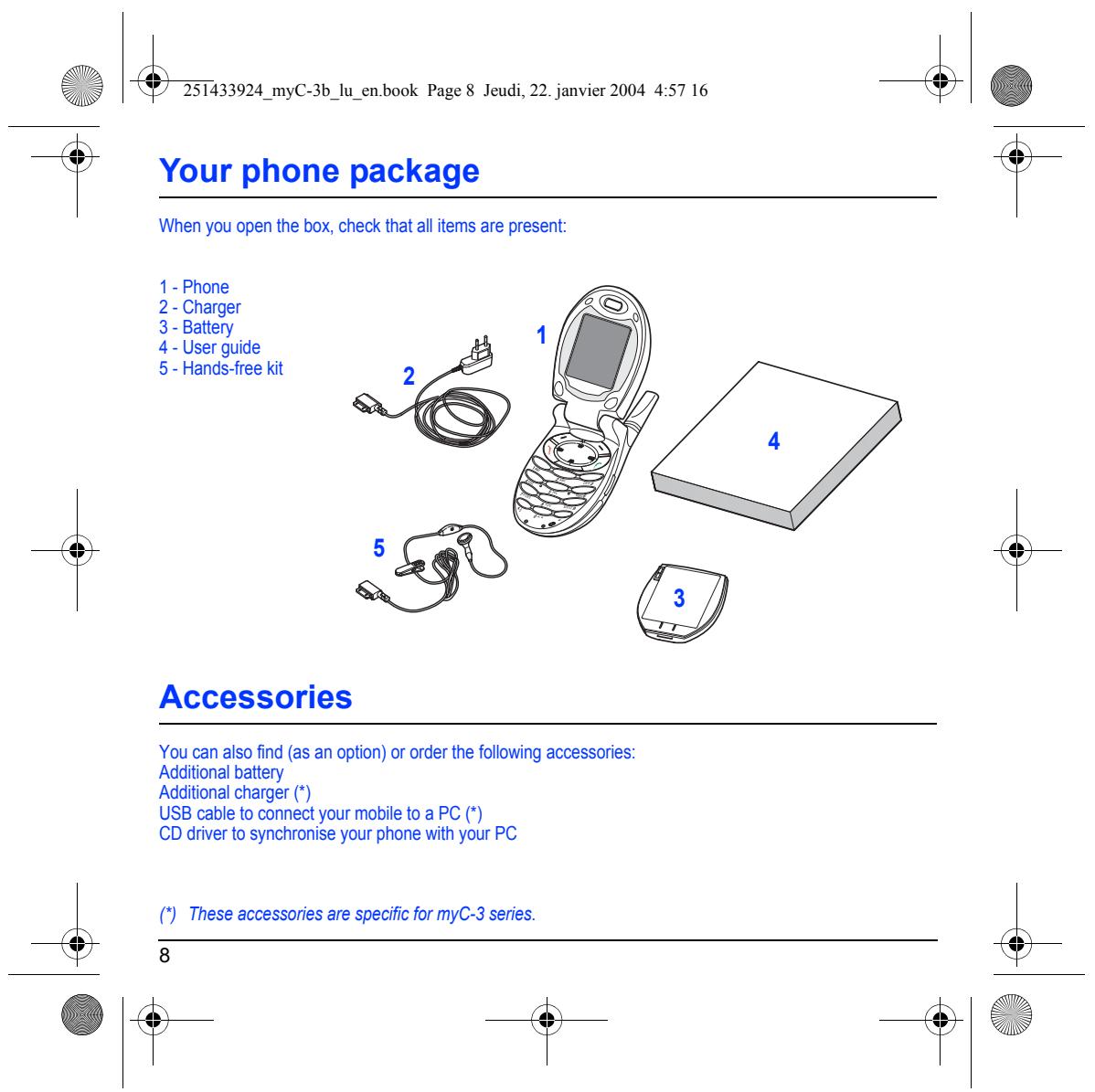
& Enr book Page 8 Jeudi, 22. janvier 2004 4:57 16 _4| ES Your phone package
When you open the box, check that al items are present:
You can also find (as an option) or order the following accessories: Additional battery
Additional charger (*)
USB cable to connect your mobile to a PC (*)
CD driver to synchronise your phone with your PC
() These accessories are specific for myC-3 series.
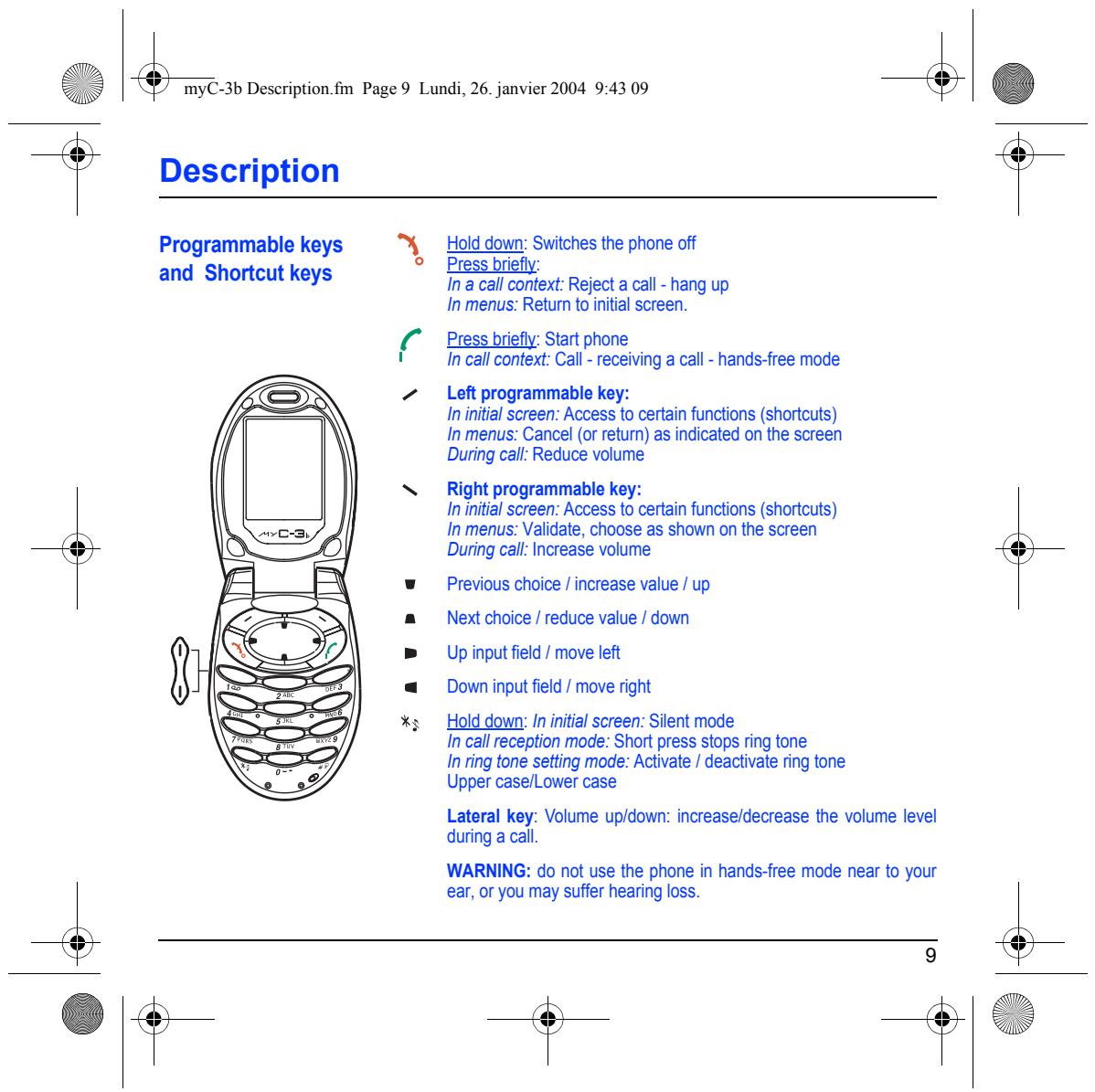
à Description Programmable keys “Hold down: Switches the phone off and Shortcut keys 9 Press briefñy:
In a call context: Reject a call - hang up In menus: Retum to initial screen.
Press brief: Start phone Ÿ In call context: Call- receiving a call - hands-free mode
2 Left programmable key: In initial screen: Access to certain functions (shortcuts) In menus: Cancel (or return) as indicated on the screen During call: Reduce volume
S Right programmable key: In initial screen: Access to certain functions (shortcuts) In menus: Validate, choose as shown on the screen During cal: Increase volume
vw Previous choice / increase value / up = Nextchoice / reduce value / down Up input field / move left Down input field / move right
%5 Hold down: In initial screen: Silent mode In call reception mode: Short press stops ring tone In ring tone setting mode: Activate | deactivate ring tone Upper case/Lower case
Lateral key: Volume up/doun: increase/decrease the volume level during a call
WARNING: do not use the phone in hands-free mode near to your ear, or you may suffer hearing loss.
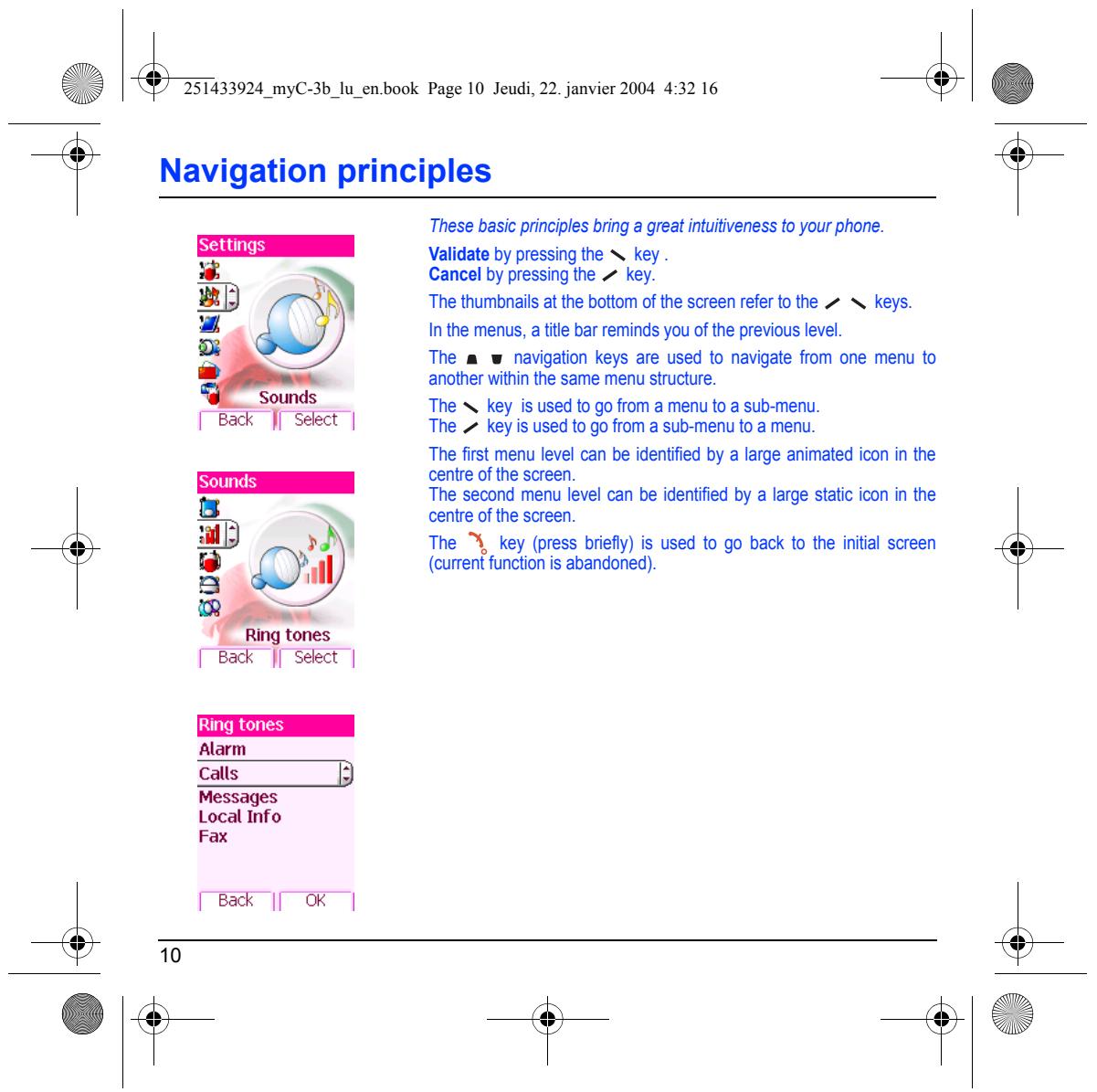
Navigation principles
These basic principles bring a great intuitiveness to your phone.
Validate by pressing the N key Cancel by pressing he > key.
The thumbnails at the bottom of the screen refer to the > N keys. Inthe menus, a title bar reminds you of the previous level.
The a w navigation keys are used to navigate from one menu to another within the same menu structure.
The N key is used to go from a menu to a sub-menu The 7 keys used to go from a sub-menu to a menu.
‘The first menu level can be identified by a large animated icon in the centre of the screen. The second menu level can be identified by a large static icon in the centre of the screen.
The“, key (press brieñy) is used to go back to the initial screen {current function is abandoned)
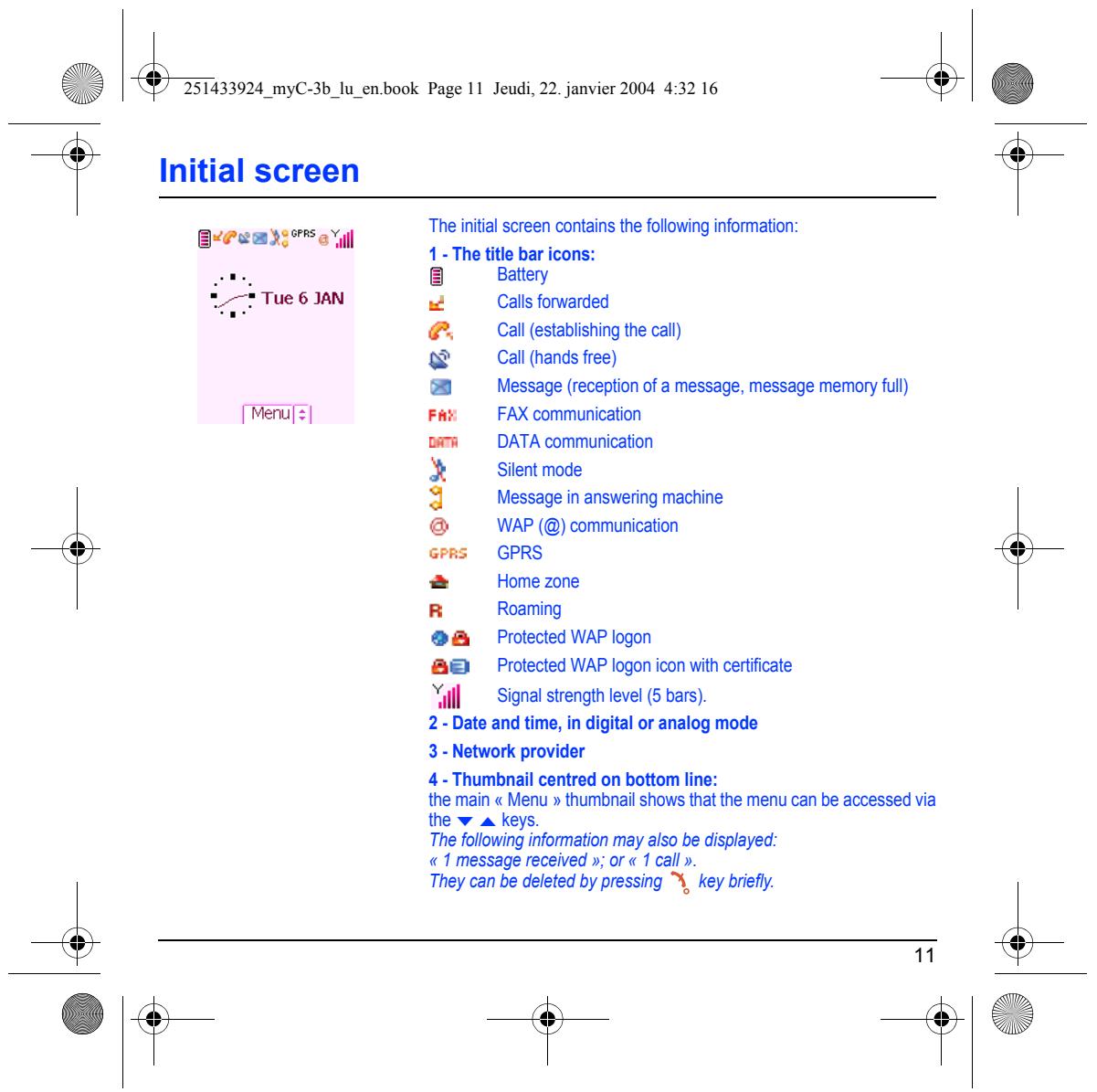
‘The initial screen contains the following information:
@, Call(establishingthe call) @ Call(hands free)
æ Message (reception of a message, message memory ful) Fax FAX communication
wrm DATA communication
1 Message in answering machine
@ WAP (@) communication
&& Protected WAP logon
&E Protected WAP logon icon with certificate Xl Signal strength level (5 bars).
2- Date and time, in digital or analog mode
4 - Thumbnail centred on bottom line:
The following information may also be displayed:
«1 message received »; or « 1 call».
They can be deleted by pressing %, key brief.
® Activating your phone
D Information on the SIM card
To use your phone, you need a card called SIM card. It contains personal infomation that you cannot modify:
Secret codes (PIN(S): Personal Identification Numbers), these codes
allow you to protect access to your SIM card and phone.
Phonebook, Messages,
How special services work Your phone is compatible with the SIM 3V cards.
‘This card must be handled and stored with care in order not to be damaged. If you should lose your SIM card, contact your network provider or your SC (Services Marketing Company) immediately.
Please keep your SIM card out of reach of young children.
È Activating your phone
Installing the SIM card and the battery
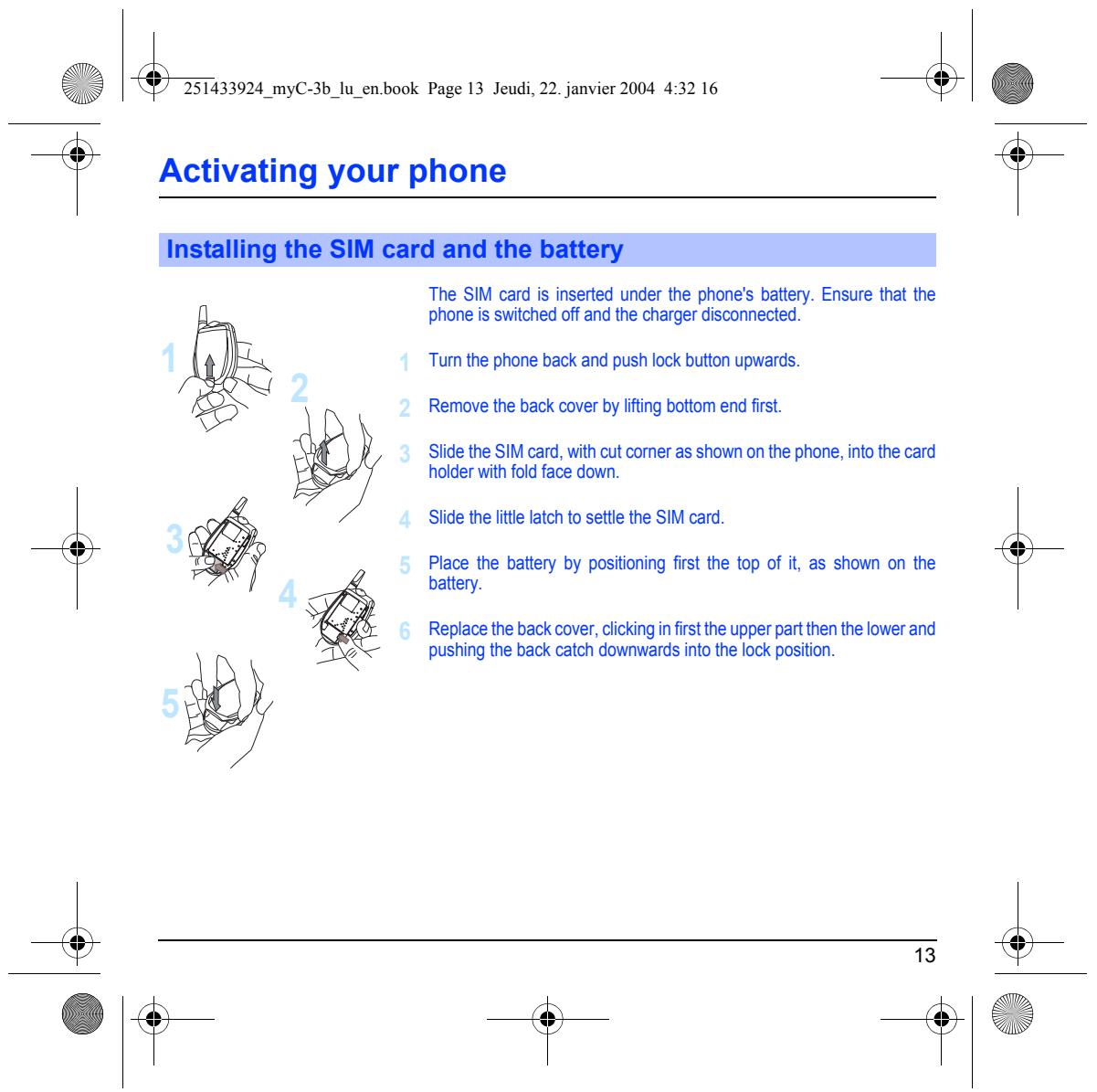
The SIM card is inserted under the phone's battery. Ensure that the phone is switched off and the charger disconnected.
Turn the phone back and push lock button upwrards Remove the back cover by lifting bottom end fist.
Slide the SIM card, with cut comer as shown on the phone, into the card holder with fold face down.
Slide the lite latch to settle the SIM card.
Place the battery by posiioning first the top of it, as shown on the battery.
Replace the back cover, clickingin firstthe upper partthen the lower and pushing the back catch dounwards into the lock position.
Increase the efficiency of your phone
= Dont press the keys when not necessary: each keypress activates the backight, and uses much power.
= Dont activate too often the screensaver: a starting time too high increases the power consumption.
= Dont obstructthe antenna with your fingers.
Charging the battery
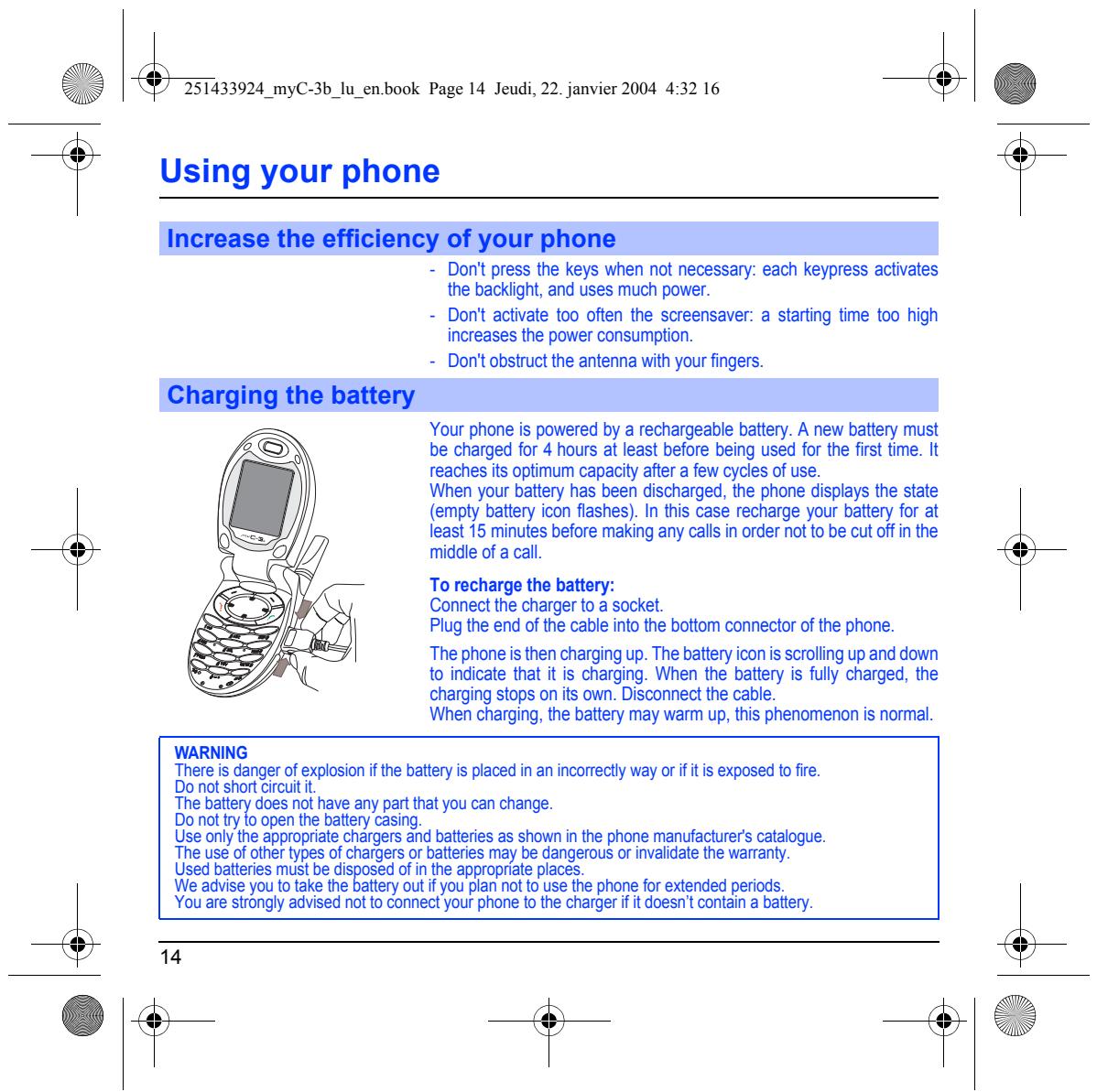
Your phone is powered by a rechargeable battery. À new battery must be charged for 4 hours at least before being used for the first time. 1 reaches ts optimum capacity after a few cycles of use.
When your battery has been discharged, the phone displays the state {empty battery icon flashes). In this case recharge your battery for at least 15 minutes before making any call in order not to be cut off in the middle of a call
To recharge the battery: Connect the charger to a socket.
Plug the end of the cable into the bottom connector of the phone
‘The phone is then charging up. The battery icon is scrolling up and doun to indicate that it is charging. When the battery is fully charged, the charging stops on its own. Disconnect the cable.
When charging, the battery may warm up, this phenomenon is normal.
WARNING There is danger of explosion if the battery is placed in an incorrectly way or ifitis exposed 1o fie. Do not short circuit
fe bay does not have any art that you can change.
Do no ty Îo open the battery casing,
Use only the appropriate chargers and batteries as shown in the phone manufacturers catalogue. The usé of other types of chargers or batteries may be dangerous or invalidate the warranty. Used batteries must be disposed of in the appropriate places.
We advise you lo take the battery out i you plan no to use the phone for extended periods.
You are strongly advised not to connect your phone lo the charger fit doesn't contain a baitery.
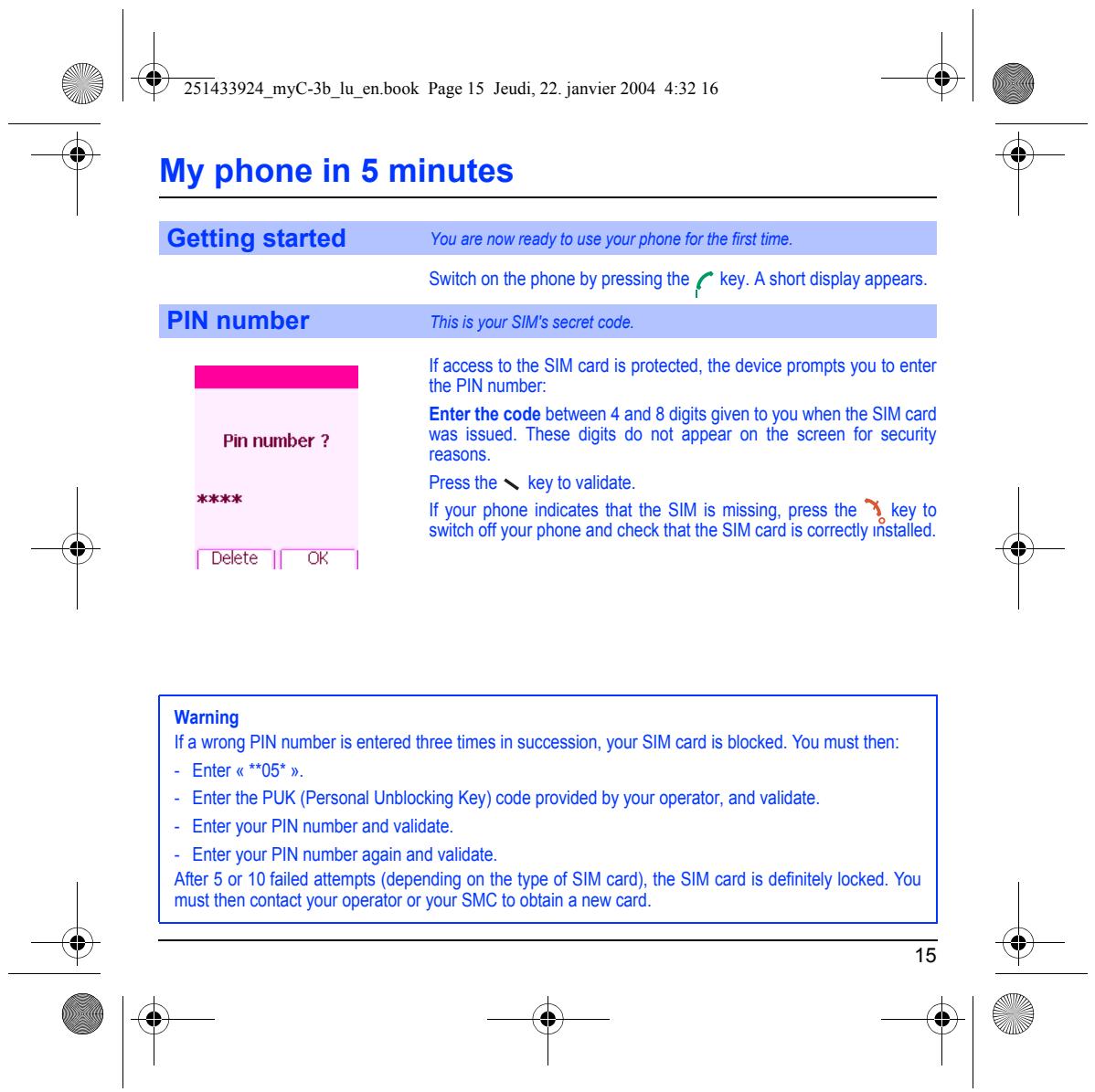
È My phone in 5 minutes Getting started You are now ready to use your phone for the first time. Switch on the phone by pressing the key. À short display appears. PIN number This is your SIM's secret code. RE If access to the SIM card is protected, the device prompts you to enter the PIN number: Enter the code between 4 and 8 digits given to you en the SIM card pin number 2 wes issued. These digits do not appear on the screen for security reasons.
Press the N. key to validate.
ES If your phone indicates that the SIM is missing, press the, key to switch off your phone and check that the SIM card is correcty iftalle. OtE | K | Warning
Ia wrong PIN number is entered three times in succession, your SIM card is blocked. You must then: Enter «#05».
= Enter the PUK (Personal Unblocking Key) code provided by your operator, and validate.
-_ Enter your PIN number and validate
Enter your PIN number again and validate
After 5 or 10 failed attempts (depending on the type of SIM card), the SIM card is definitely locked. You must then contact your operator or your SMC to obtain a new card.
È My phone in 5 minutes
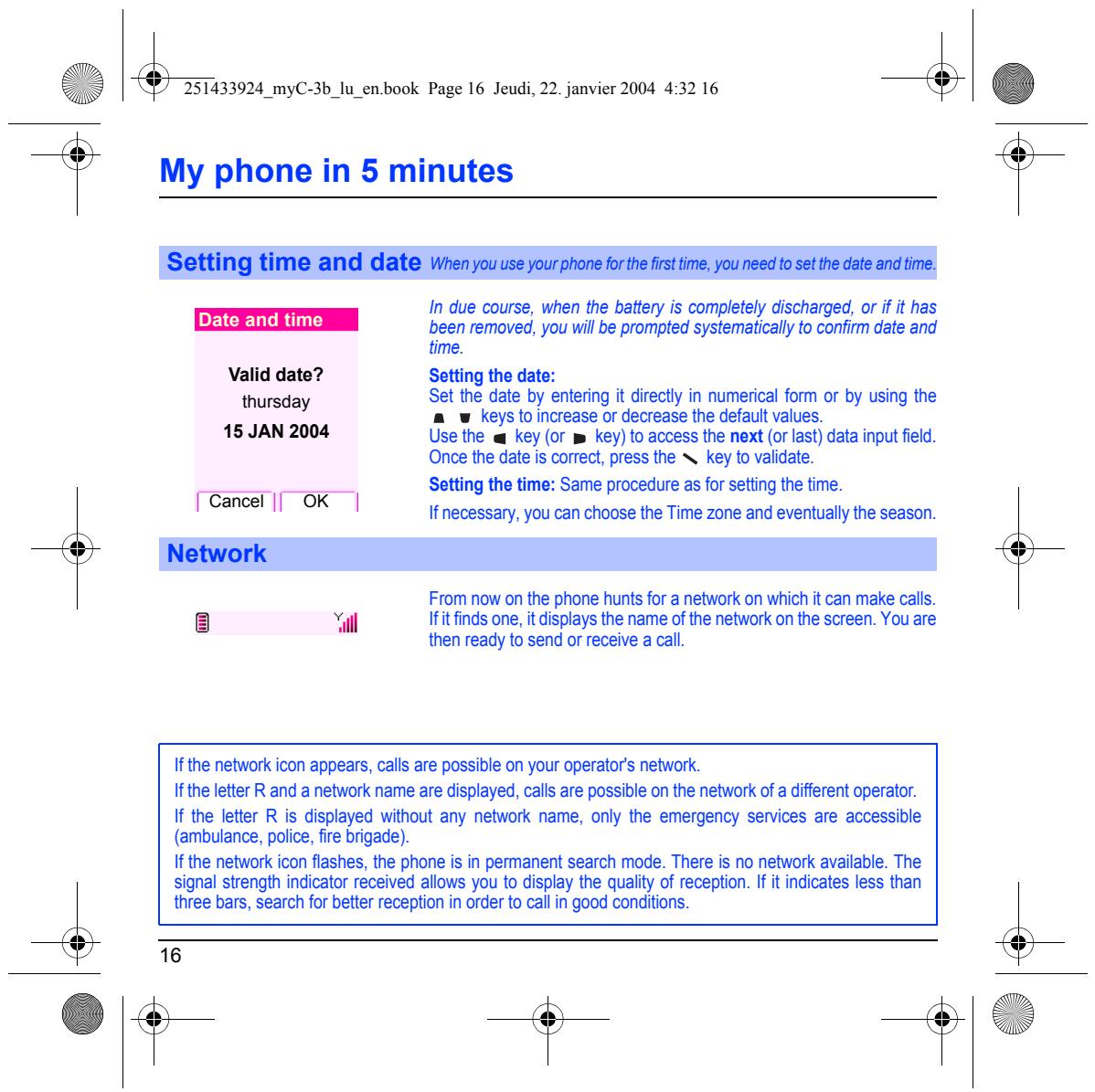
Setting time and date Wen you use your phone for the frsttime, you need to set the date and time.
In due course, when the battery is completely discharged, or if i has
been removed, you will be prompted systematicall to confimm date and time. Valid date? Setting the date: thursday Set the date by entering it direct in numerical form or by using the
a _w_ keys to increase or decrease the default values. 15 JAN 2004 Use the « key (or m key) to access the next (or last) data input field. Once the date is correct, press the N key to validate. Setting the time: Same procedure as for setting the time. Cancel |[ OK | Ifnecessary, you can choose the Time zone and eventually the season.
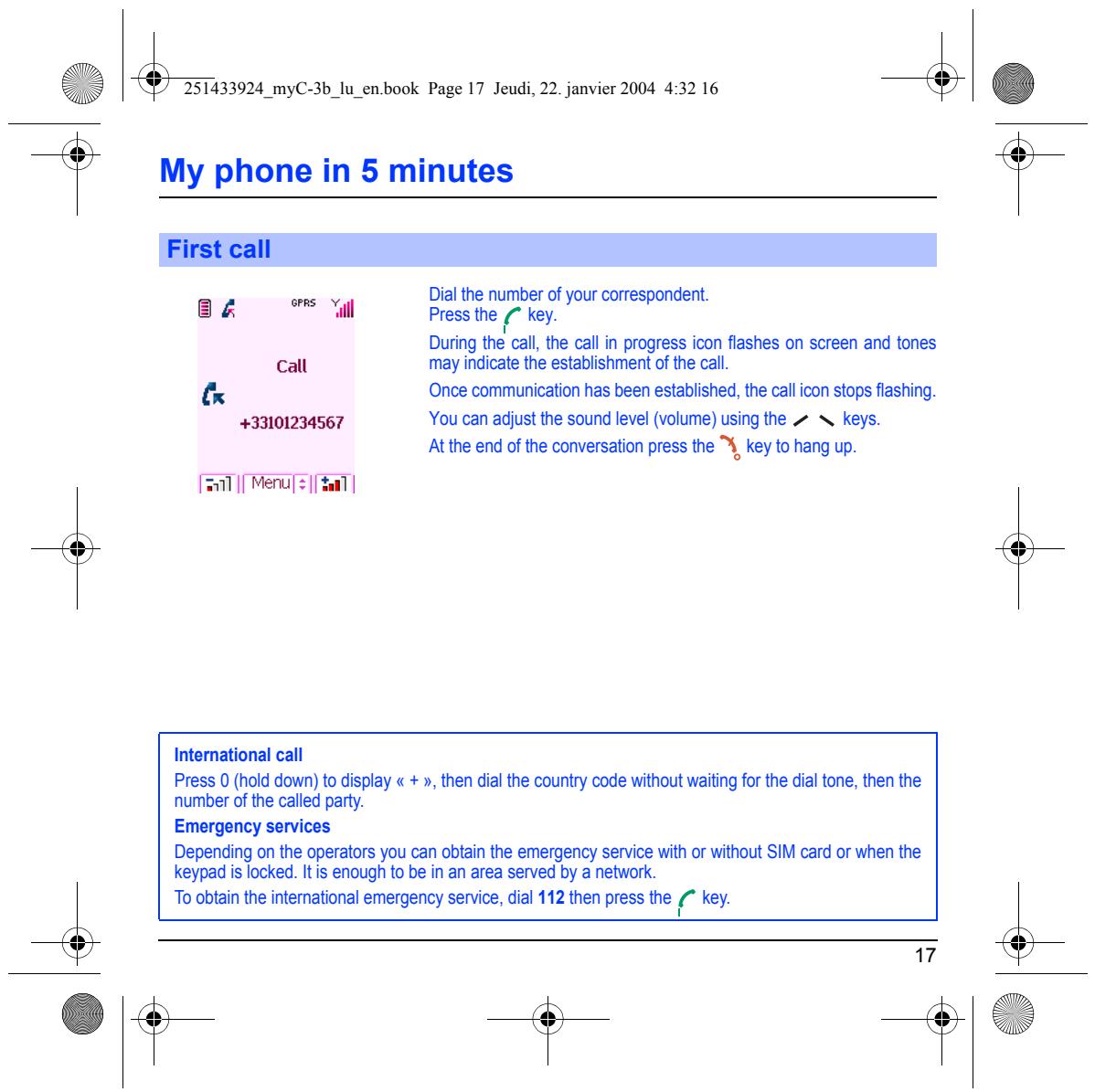
From now on the phone hunts for a network on which it can make call. “il Hfitfinds one, displays the name of the network on the screen. You are then ready to send or receive a call
Hfthe network icon appears, calls are possible on your operators network. Hfthe letter R and a network name are displayed, calls are possible on the network of a different operator. If the letter R is displayed without any nehwork name, only the emergency services are accessible (ambulance, police, fe brigade)
Hfthe network icon flashes, the phone is in permanent search mode. There is no network available. The Signal strength indicator received allows you to display the quality of reception. fi indicates less than three bars, search for better reception in order to call in good conditions.
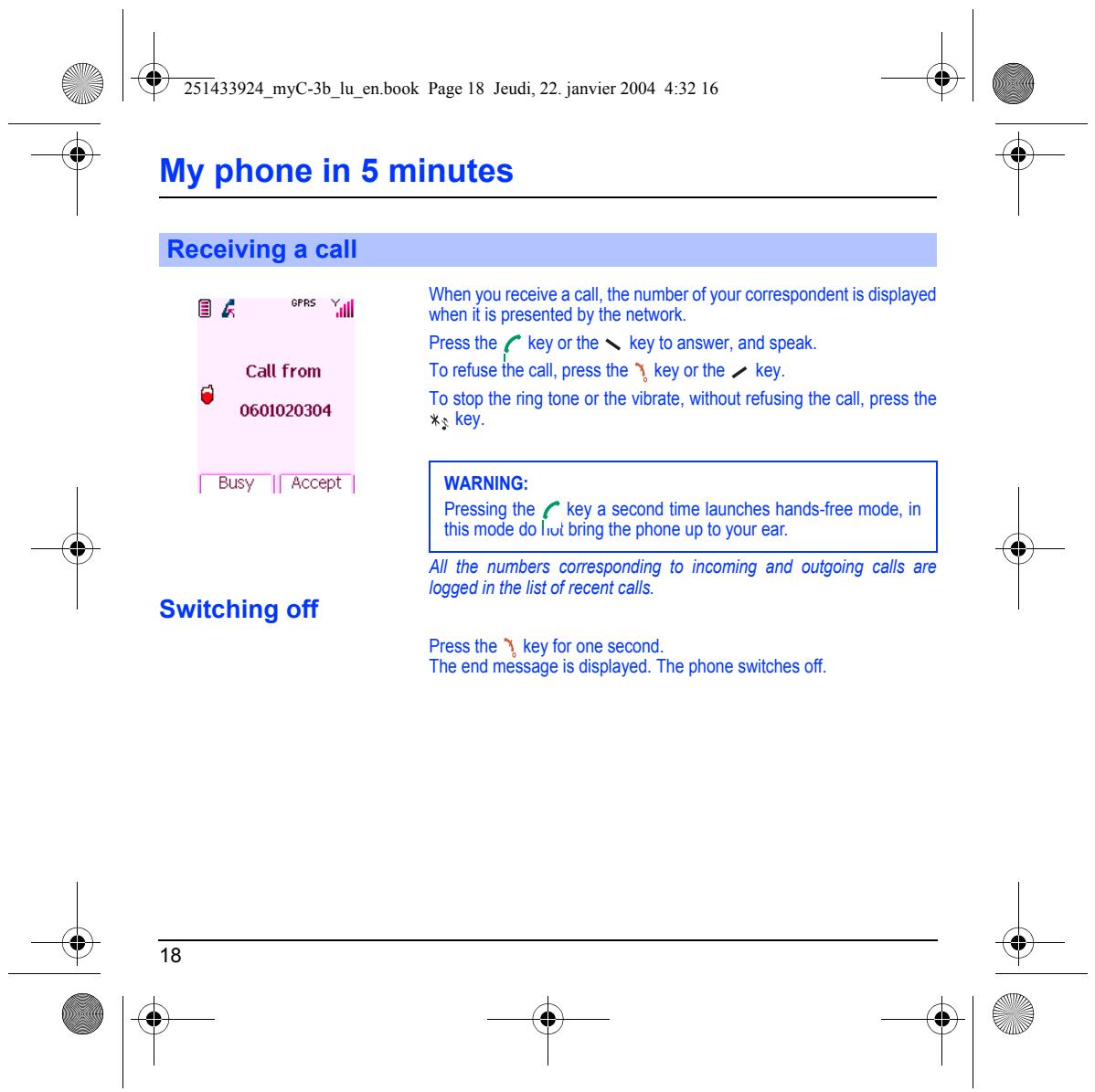
> È My phone in 5 minutes First call em + Dial the number of your correspondent. B& il Press the /” key. During the call, the call in progress icon flashes on screen and tones call may indicate the establishment of the cal. ln Once communication has been established, the call icon stops flashing. 433101234567 You can adjust the sound level (volume) using the > keys. Atthe end of the conversation press the %, key to hang up. sn {Menu Han |
Press 0 (hold down) to display « + », then dial the country code without waiting for the dial tone, then the number of the called party.
Depending on the operators you can obtain the emergency service with or without SIM card or when the keypad is locked. Itis enough to be in an area served by a network.
‘To obtain the intemational emergency service, dial 112 then press the 4” key.
+ + —+S S & 4 e 7251433924 myC-3b_lu_en.book Page 18 Jeudi, 22. janvier 2004 4:32 16 n
LA My phone in 5 minutes
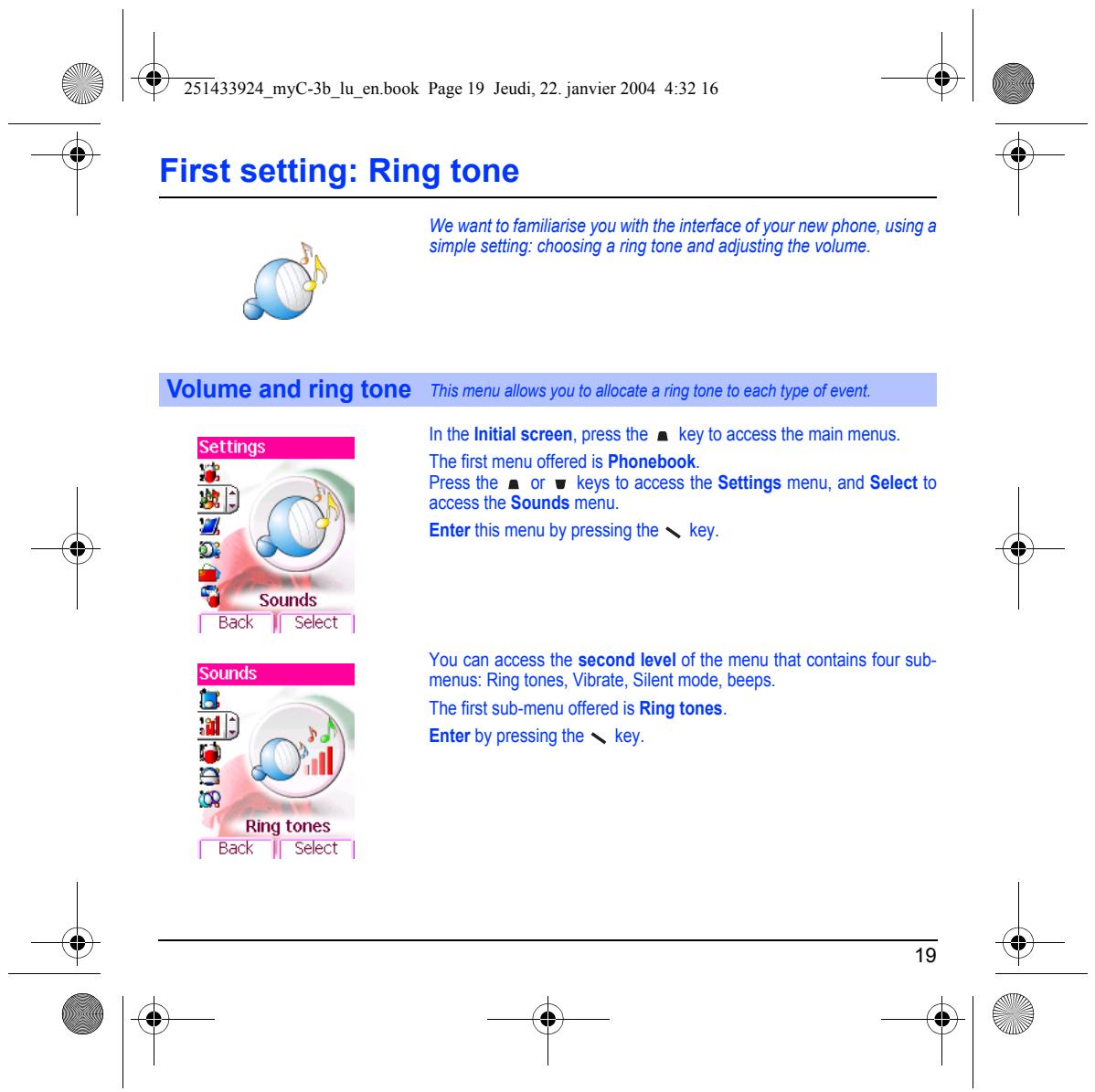
Call from ‘0601020304
When you receive a call, the number of your correspondent is displayed when itis presented by the network.
Press the ” key orthe N. key lo answer, and speak To refuse Îhe call, press the %, key or the > key.
To stop the ring tone or the vibrate, without refusing the call, press the 3 key.
Pressing the f” key a second time launches hands-free mode, in this mode do lt bring the phone up to your ear.
Al the numbers corresponding fo incoming and outgoing calls are logged in the list of recent calls.
Press the %, key for one second. The end message is displayed. The phone switches off.
È First setting: Ring tone
We want to familarise you with the interface of your new phone, using a simple setting: choosing & ring tone and adjusting the volume.
Volume and ring tone This menu allows you to allocate a ring tone to each type of event.
In the Initial screen, press the a key to access the main menus.
‘The first menu offered is Phonebook. Press the & or w keys to access the Settings menu, and Select to access the Sounds menu.
Enter this menu by pressing the N key.
Back | Select | You can access the second level of the menu that contains four sub-
menus: Ring tones, Vibrate, Silent mode, beeps.
‘The first sub-menu offered is Ring tones. Enter by pressing the N key.
First setting: Ring tone
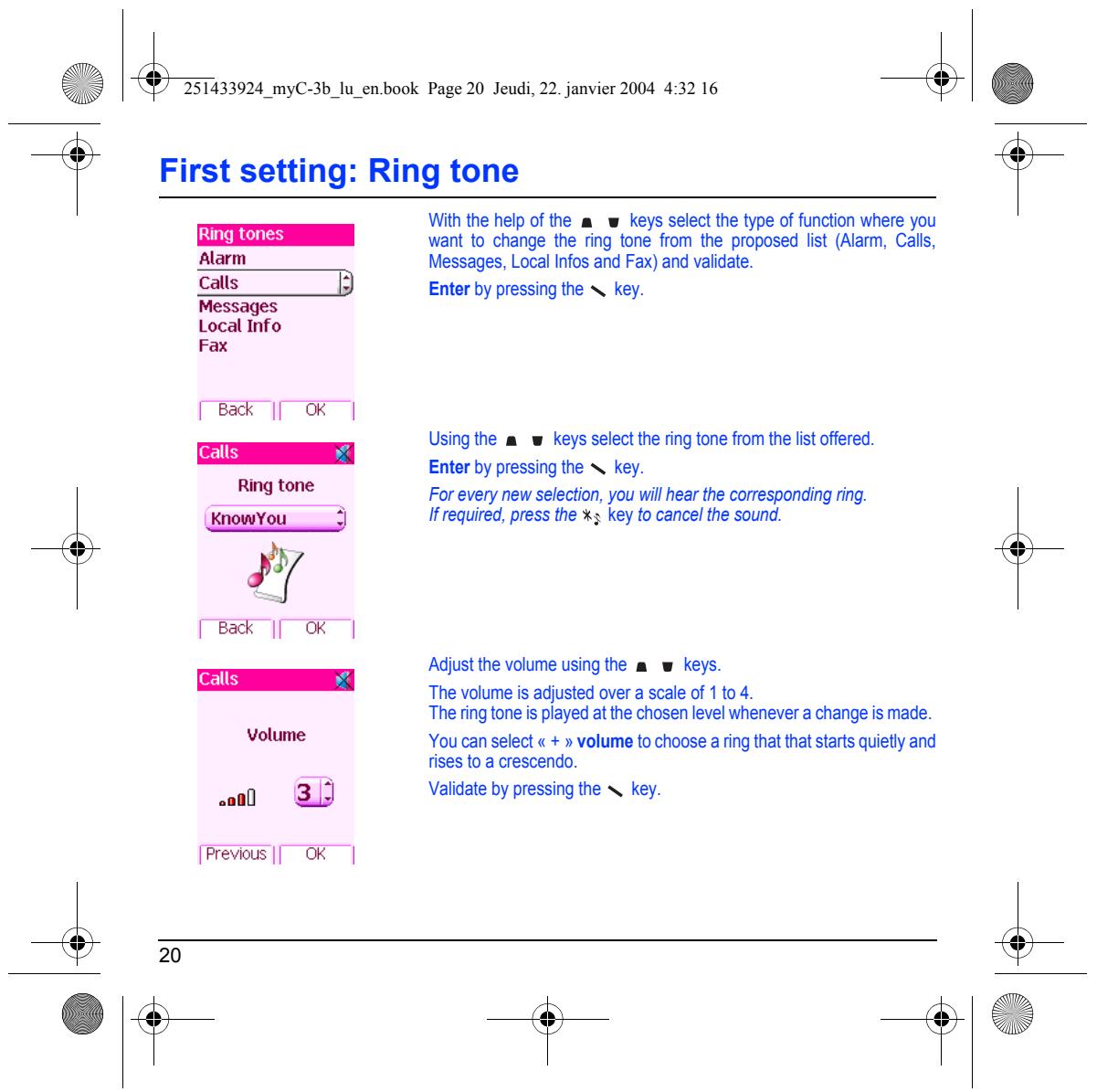
With the help ofthe ae keys select the type of function were you
want to change the ring tone from the proposed list (Alarm, Calls, Alarm Messages, Local Infos and Fax) and validate. Calls ) Enter by pressing the N key. Messages Local Info Fax Bak || OK | _ Usingthe a w keys select the ring tone from the list offered. Cats __” LS Enter by pressingthe key. Ring tone For every new selection, you will hear the corresponding ring. Te Irequired, press the xs key to cancel the sound. Bak || OK | Adjust the volume using the a w keys. The volume is adjusted over a scale of 1 to 4. The ring tone is played at the chosen level wenever a change is made. Volume You can select « + » volume to choose a ring that that starts quietiy and rises to a crescendo. 8j Validate by pressing the key.
The phonebook allows you to store numbers that you call regular. These numbers can be stored in the SIM card or in the phone. Your phone has a vCard phonebook, and the following fields can be stored in the phone memory exclusively for each contact: last name, first
name, number 1, email, number 2, number 3, call group, company, comment, photo.
The fields preceded with a star are mandatory. The storage capacity will depend on the SIM card. Please contact your network provider to get that information.
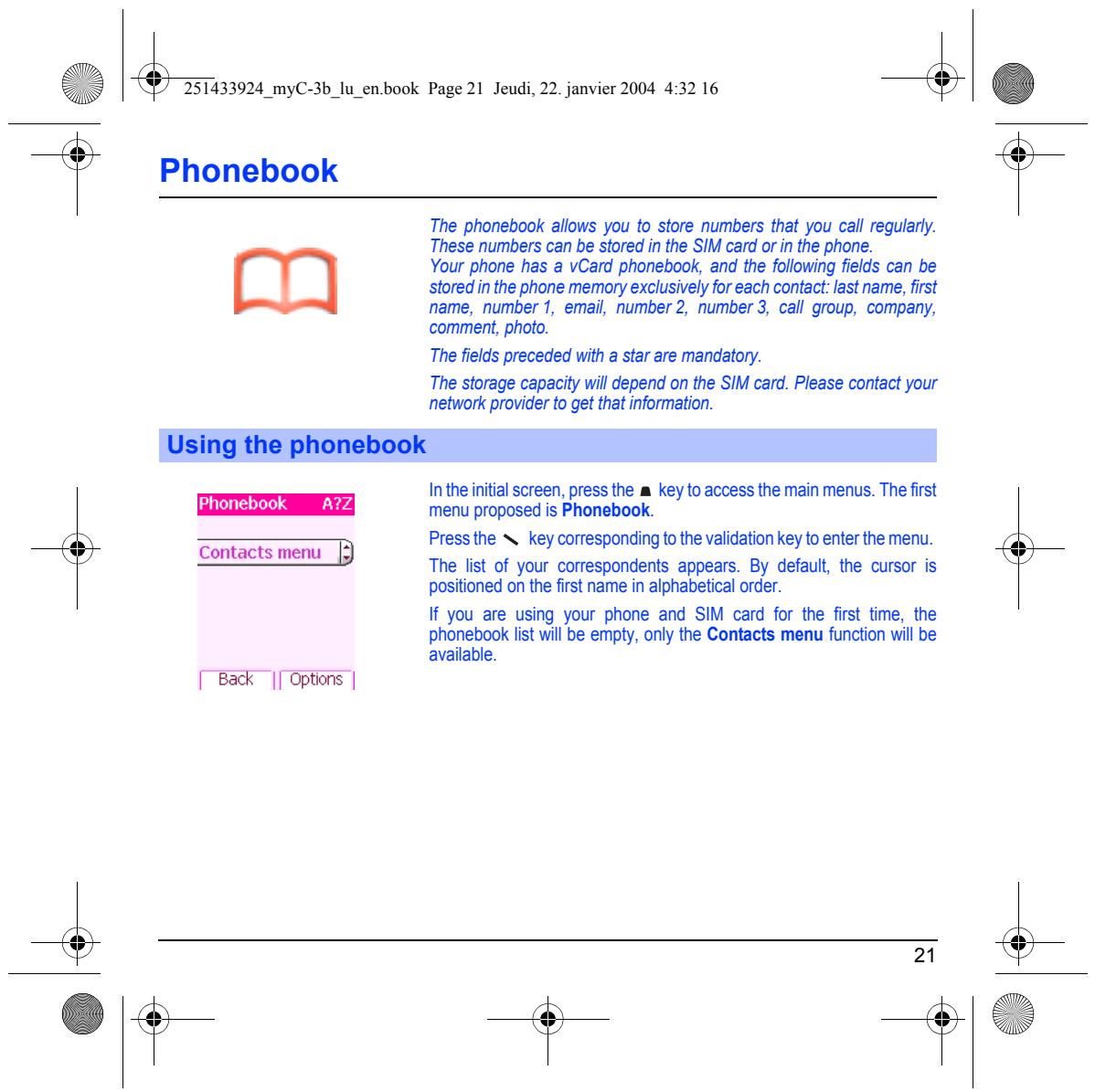
In the initial screen, press the a key to access the main menus. The first
[Phoneboc Z menu proposed is Phonebook. Pressthe N. key corresponding to the validation key to enter the menu. Contacts menu
‘The list of your correspondents appears. By default, the cursor is positioned on the fist name in alphabetical order.
If you are using your phone and SIM card for the first time, the phonebook list will be empty, only the Contacts menu function will be available.
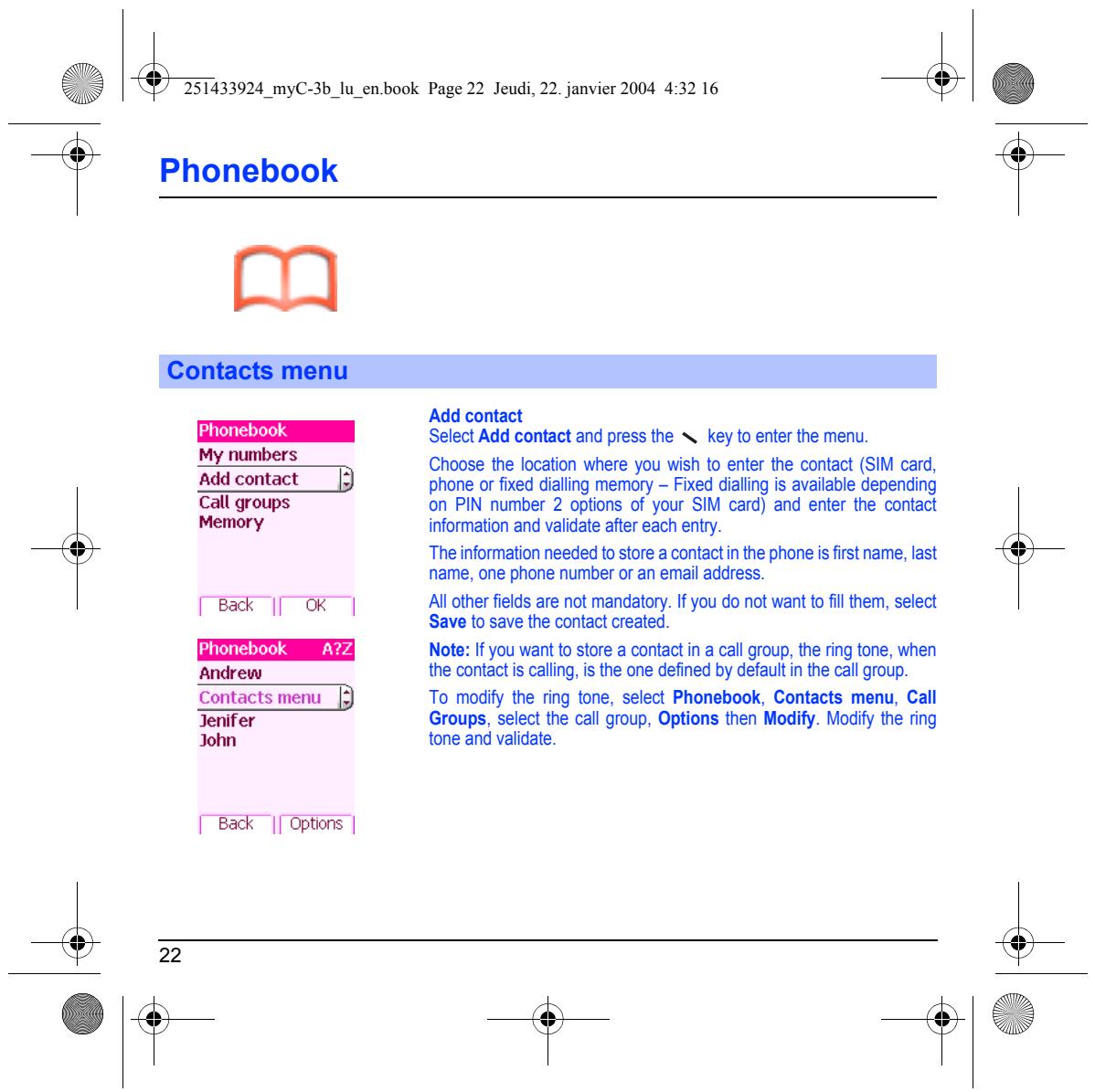
Add contact Select Add contact and press the N key to enter the menu. Myers Choose the location where you wish to enter the contact (SIM card, Add contact |) phone or fixed dialing memory - Fixed dialing is available depending Call groups on PIN number 2 options of your SIM card) and enter the contact Memory information and validate after each entry.
‘The information needed to store a contact in the phone is first name, last name, one phone number or an email address.
FER ITR | All other fields are not mandatory. If you do not want to fill tnem, select Save to save the contact created.
I you want to store a contact in a call group, the ring tone, when
Andrew the contact is callng, is the one defined by default in the call group. Contacts menu _|} To modify the ring tone, select Phonebook, Contacts menu, Call Jenifer Groups, select the call group, Options then Modify. Modify the ring John tone and validate.
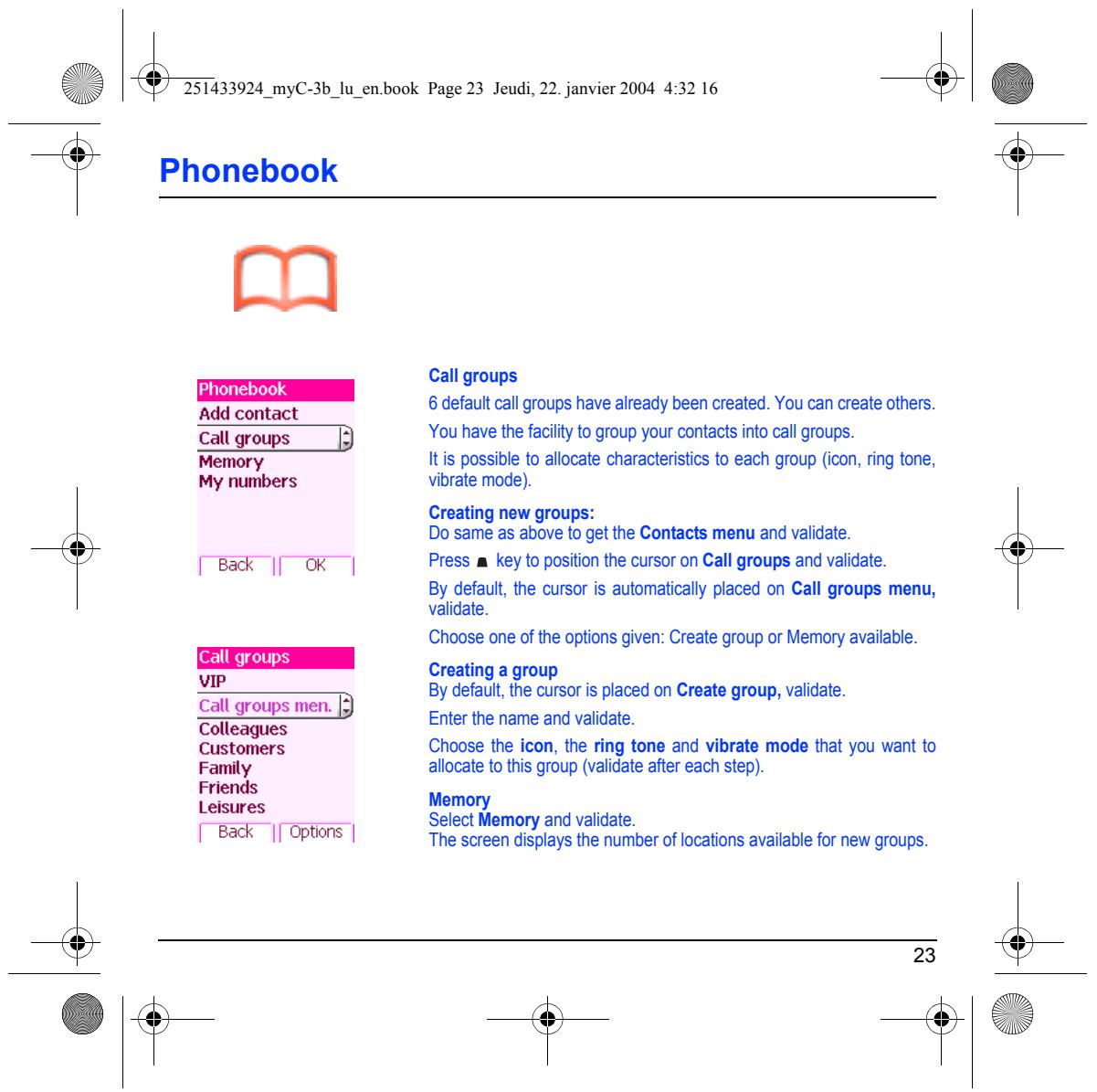
Call groups 6 defaut call have already bk ted. te ot TE fault call groups have already been created. You can create others. ‘Call groups f) You have the facility to group your contacts into call groups. Memory is possible to allocate characteristics to each group (icon, ring tone, My numbers vibrate mode).
Creating new groups:
Do same as above to get the Contacts menu and validate. FRE ITR | Press a key to position the cursor on Call groups and validate
By default, the cursor is automatically placed on Call groups menu,
Choose one of the options given: Create group or Memory available. Creating a grou = g a group
By default, the cursor is placed on Create group, validate.
ES Enter the name and validate.
Colleagues Customers Choose the icon, the ring tone and vibrate mode that you want to Family allocate to this group (validate after each step). Friends pers Sale Bemory and validate. Back |[ Options | The screen displays the number of locations available for new groups.
[Memory EU 43 Phonebook
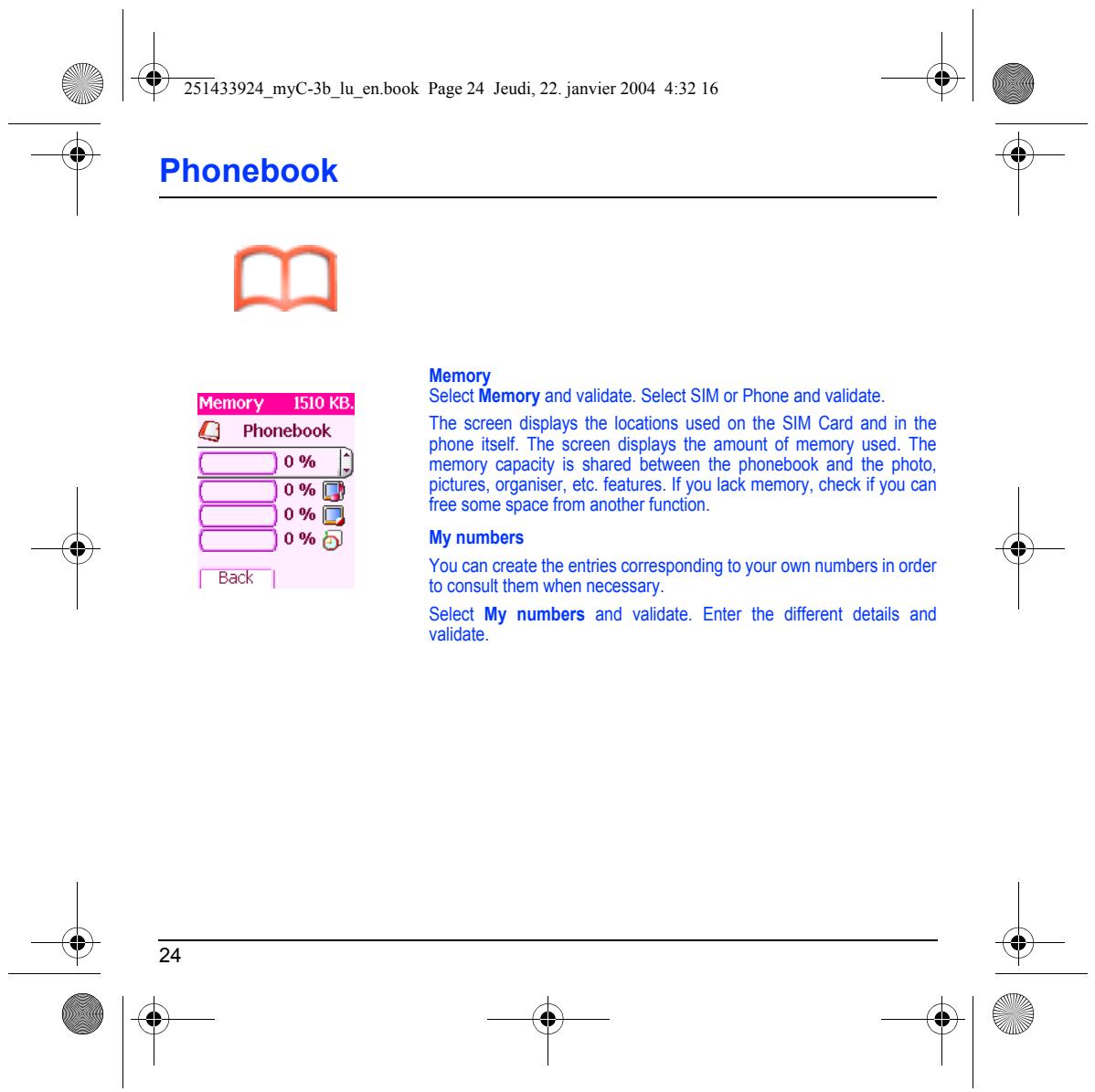
Memory Select Memory and validate. Select SIM or Phone and validate.
The screen displays the locations used on the SIM Card and in the phone itself, The screen displays the amount of memory used. The memory capacity is shared between the phonebook and the photo, Pictures, organiser, etc. features. If you lack memory, check if you can free some space from another function.
My numbers You can create the entries corresponding to your oun numbers in order to consult them when necessary.
Select My numbers and validate. Enter the different details and validate.
Options from a contact saved See contact
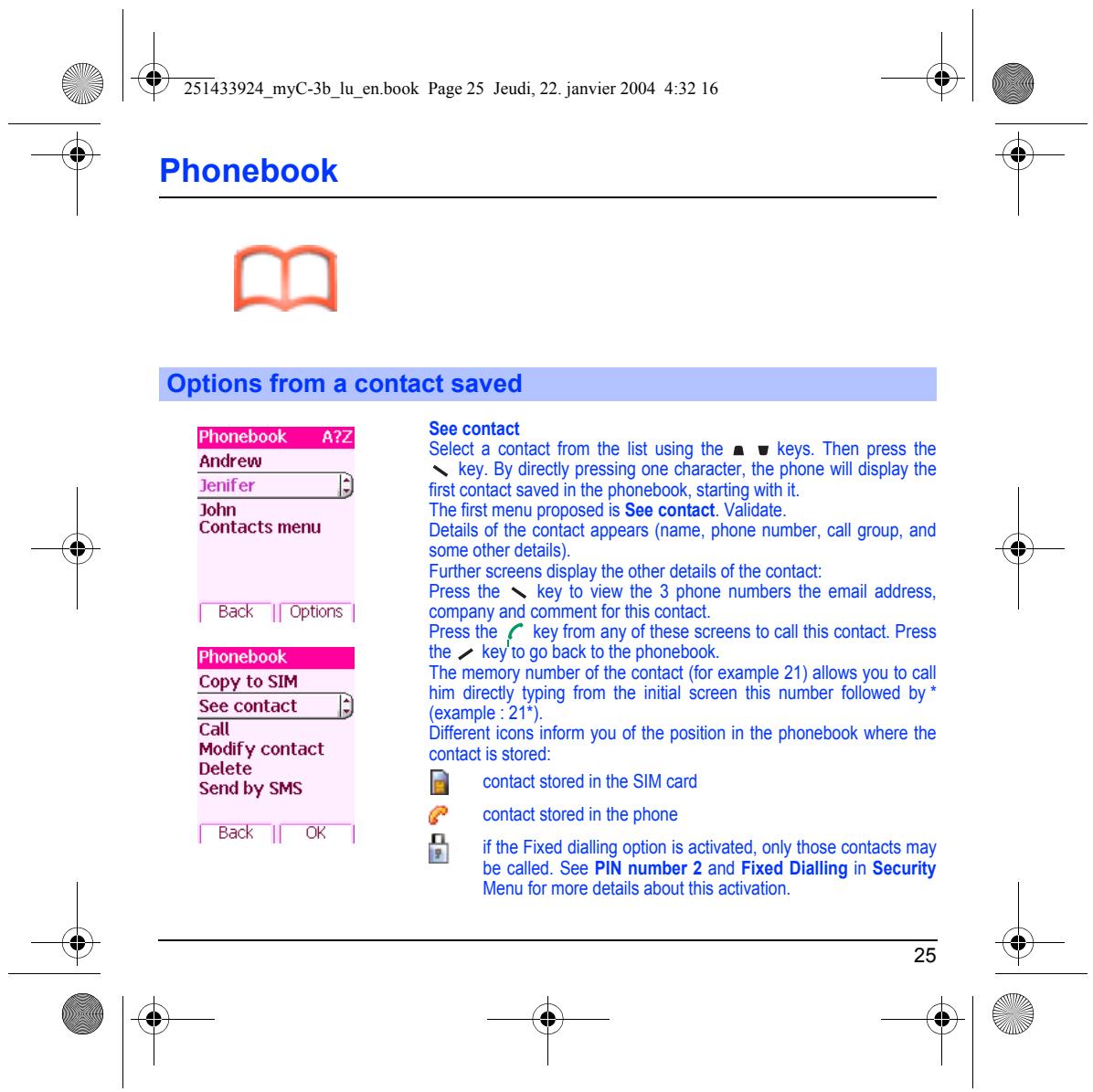
Select a contact from the list using the a w keys. Then press the
Andrew key. By directly pressing one character, the phone will display the Jenifer À first contact saved in the phonebook, starting with it. John The first menu proposed is See contact. Validate. Contacts menu Details of the contact appears (name, phone number, call group, and some other details). Further screens display the other details of the contact: Press the N key to view the 3 phone numbers the email address, [Back |[ Options | company and comment for this contact Press the key from any of these screens to cal this contact. Press the > key'1o go back to the phonebook. The memory number of he contact (for example 21) allows you to call à bim directiy typing from the initial screen this number followed by * See contact Ë] (example : 21*). Call Different icons inform you of the position in the phonebook where the Modify contact contact is stored: es contact stored in the SIM card @ contact storedin the phone Bak || OK |
ifthe Fixed dialing option is actvated, only those contacts may be called. See PIN number 2 and Fixed Dialling in Security Menu for more details about this activation.
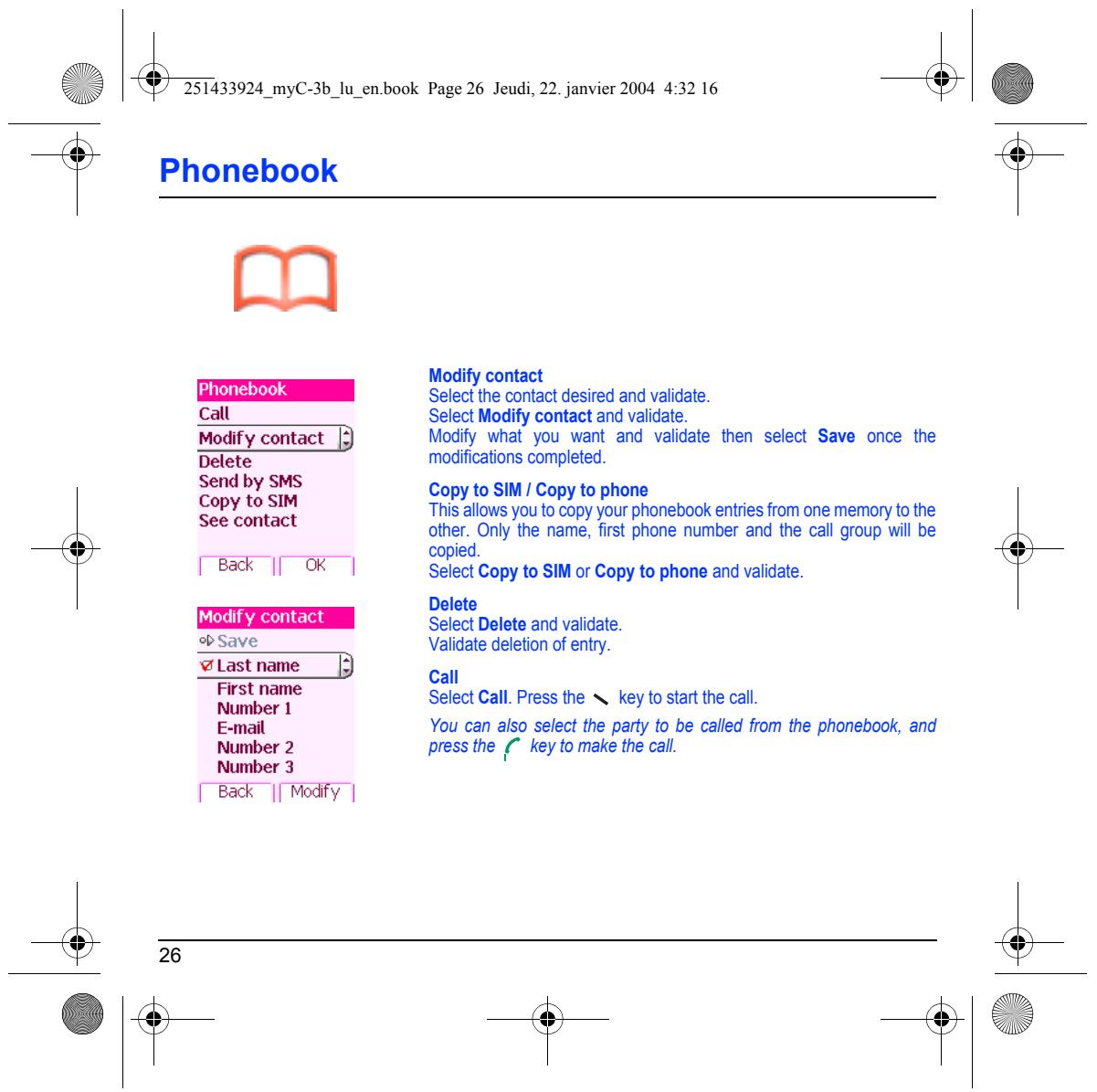
Modify contact Select ine contact desired and validate Call Select Modify contact and validate ModiFy contact |) Modify what you want and validate then select Save once the Delete modifications completed. Send by SMS Copy to SIM / Copy to phone ET to su This allows you to copy your phonebook entries from one memory to the ETES other. Only the name, fist phone number and the call group will be copied. Bak |[ OK | Select Copy to SIM or Copy to phone and validate. Delete Select Delete and validate. Save Validate deletion of entry. Ylastname |) Call REED Select Call. Press the N_ key to start he call. E-mal You can also select the party to be called from the phonsbook, and Number 2 press the [key to make the call. Number 3 ‘ Back || Modfy |
Sending a vCard lis possible to send a vCard from each contact stored in the phonebook.
vCards can be sent to another phone supporting vCard. On a contact in the phonebook, please select the Send by option menu item (EMS or MS)
Ifthe vCard is sent successfully, an information message is displayed.
vCards can be sent as an attachment to an EMS or MMS message. See Compose MMS on page 31.
When a vCard is received enclosed to an EMS or MMS message, the message « You have received 1 message » is displayed.
Open the MMS from the inbox. Go to Options by pressingthe N key, and select Extract select the vCard among the list of objects attached to this MMS, and add this contact to the phonebook by pressing the N key. À message is displayed to confirm the action.
From this menu, you are able to send SMS, EMS and MMS. EMS is an extended message, longer than an SMS and which allows you to insert images and sounds to your text messages. MMS is a Multimedia Message Service, which allows you to enclose audio files, images and ofher rich content to your messages; these messages can even be composed of several slides. MMS are differently invoiced than SMS are. Please contact your network provider to get more information on their cost.
This menu has been compiled in collaboration with magic".
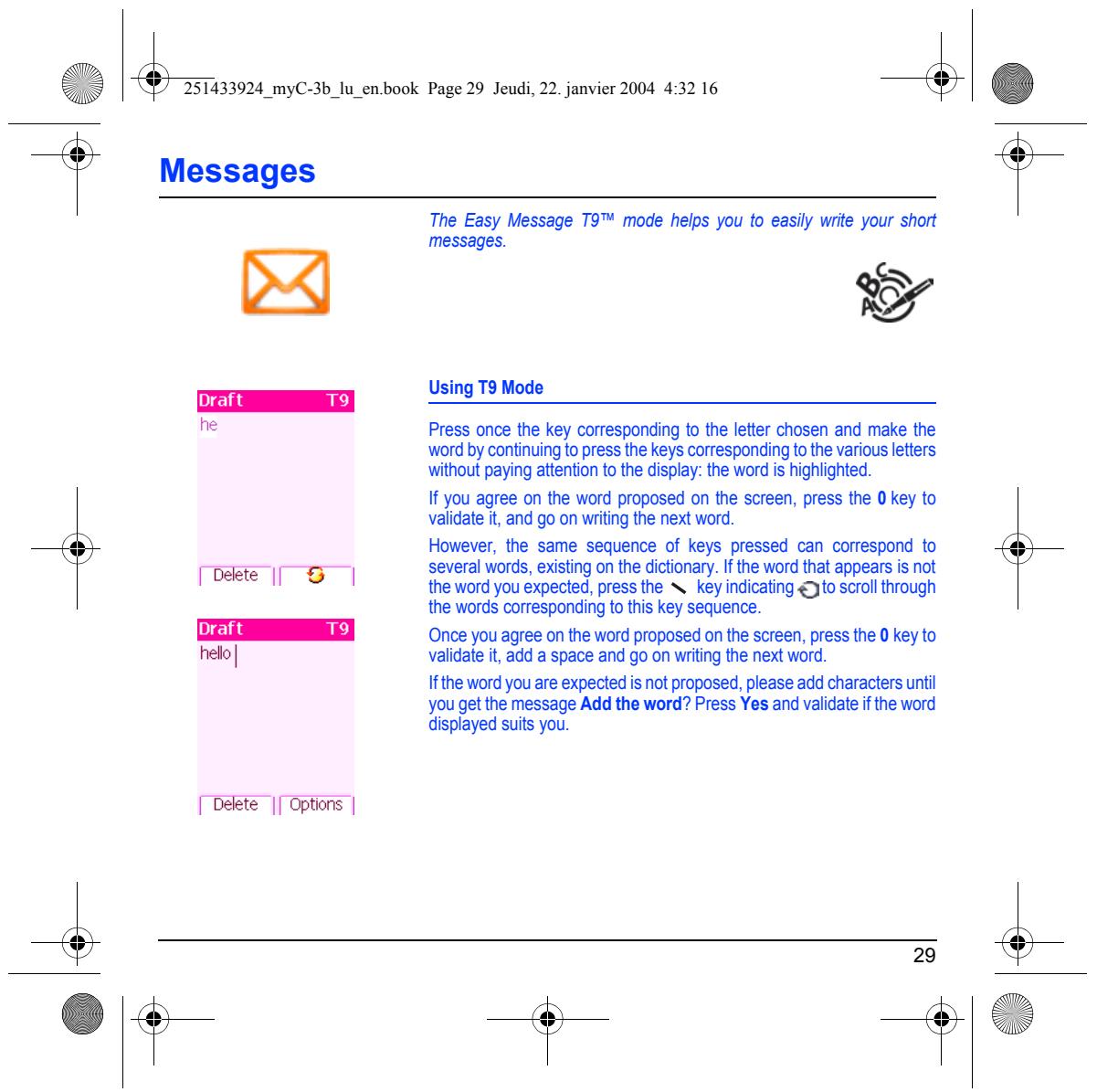
Compose SMS On the Messages menu, please select the Compose menu and validate.
Choose the SMS option.
The language used is the one selected on the display of the phone (if the language selected is not compatible with the Easy Message T9", the English language wil be automatically selected)
When the text has been entered, the N._key (options) can also be used to access the functions offered:
Compose [Ba || Sect | Save is used to save a draît in memory L ! Send is used to send the message by entering the correspondent number ‘T9 options (see page 29) Editor mode (see page 30)
Send options is used to indicate the message format, the period of valiity, or to actvate/deactivate a reply
Cancel is used to delete al text entered
Activate/deactivate zoom is used to modify size of characters Formatting is used to enrich a text
Insert to insert an image or sound into your message
e À mc book Page 29 Jeudi, 22. janvier 2004 4:32 16 k | œ
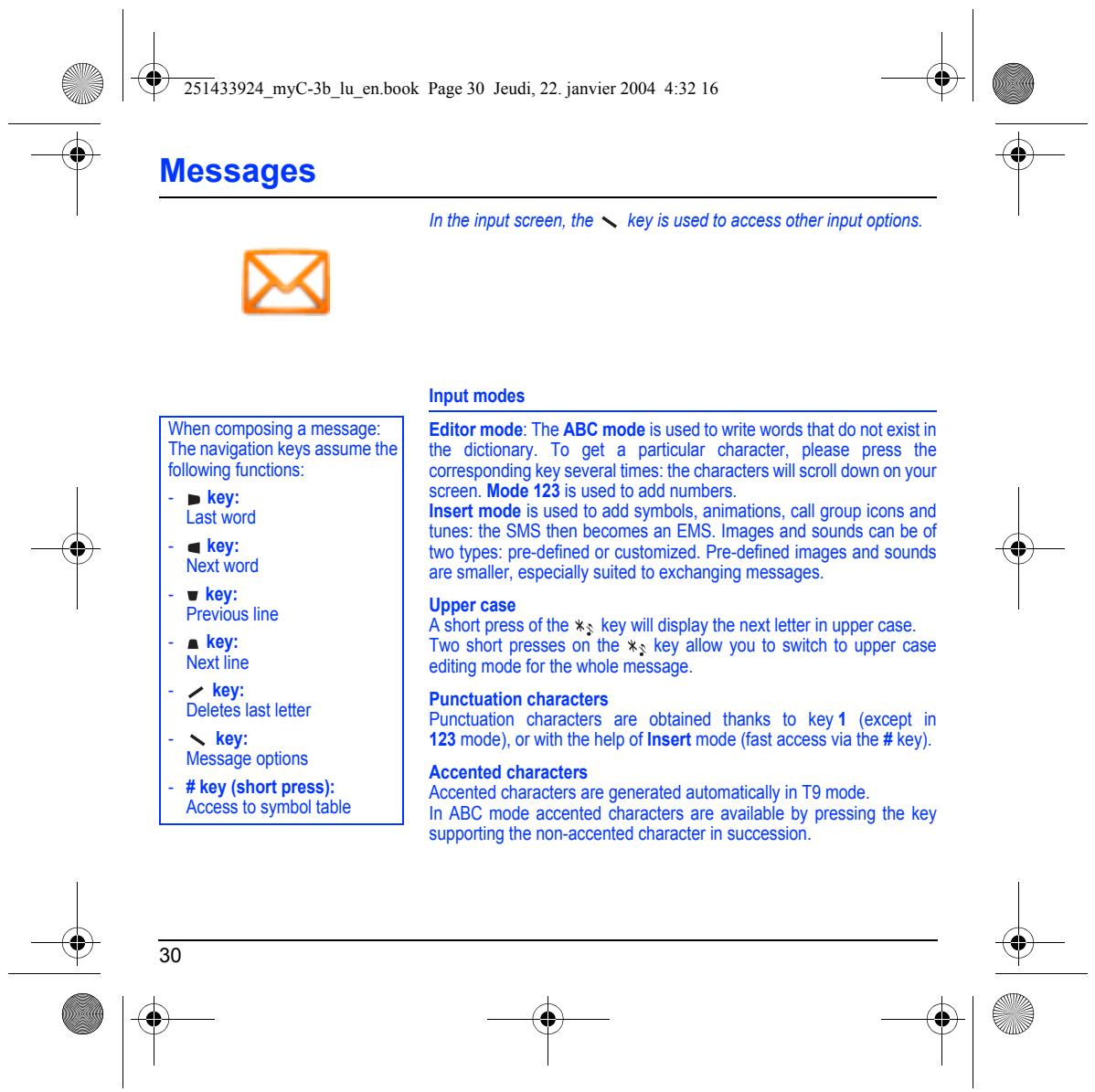
> È Messages The Easy Message T9" mode helps you to easily write your short messages. LA > O4 ea Pere he Press once the key corresponding to the letter chosen and make the
word by continuingÎo press {he keys corresponding to the various letters without paying attention to the display: {ne word is highlightec If you agree on the word proposed on the screen, press the 0 key to validate i, and go on writing the next word. However, he same sequence of keys pressed can correspond to several words, existing on the dictionary. the word that appears is not
Dekte || S | the word you expected, press the N key indicating €Jto scroll through
the words corresponding to this key sequence
Draft E Once you agree on the word proposed on the screen, press the 0 key to
he validale i, add a space and go on writing the next word.
Ifthe word you are expected is not proposed, please add characters until you getthe message Add the word? Press Yes and validate ifthe word displayed suits you.
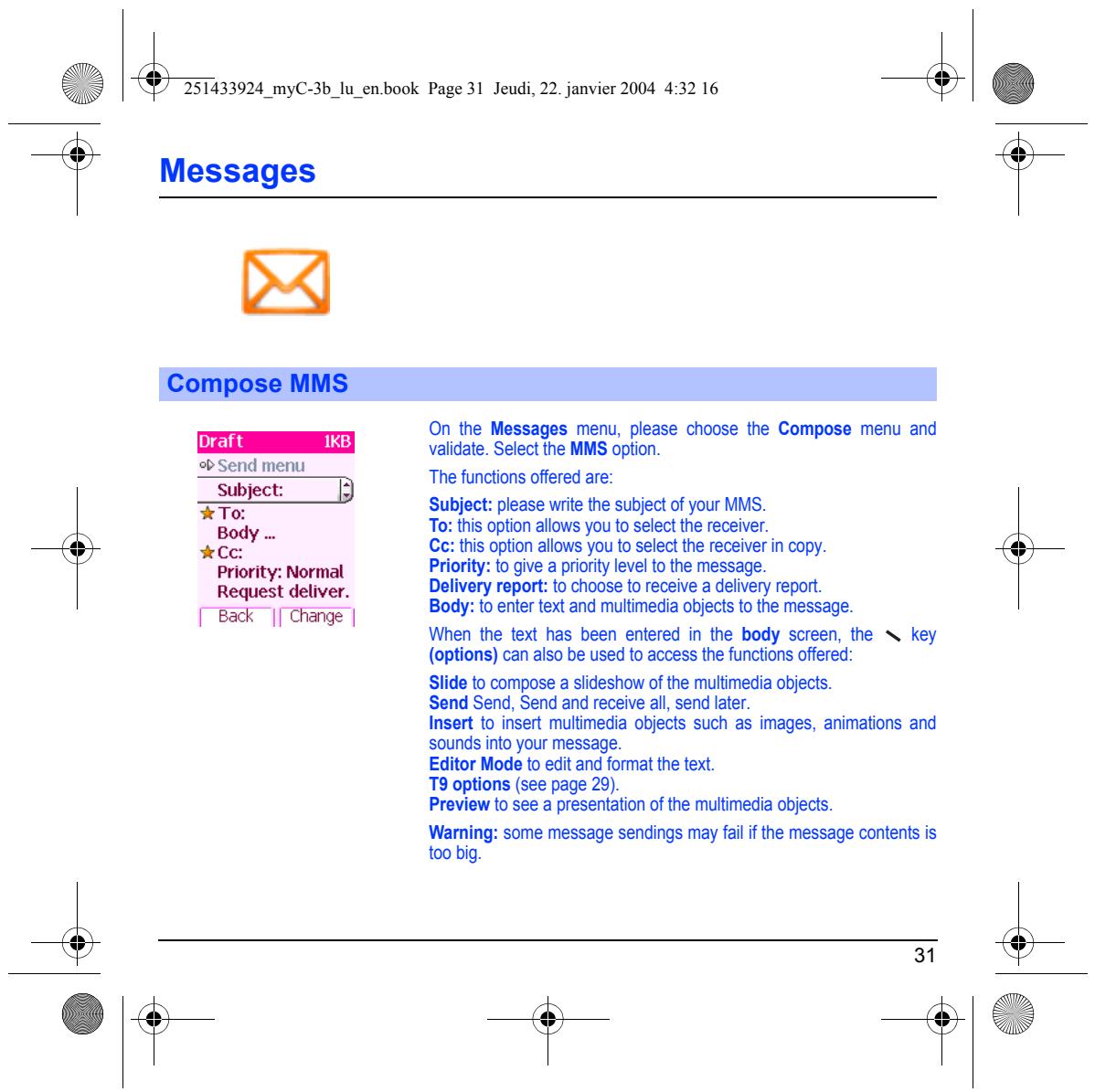
È Messages In the input screen, the N. key is used to access other input oplions. Input modes When composing a message: | … Editor mode: The ABC mode is used to write words that do not exist in The navigation keys assumethe| the dictionary. To get a particular character, please press the following functions: corresponding key several times: the characters wil! Scroll down on your = » key: screen. Mode 123 is used to add numbers. Last word Insert mode is used to add symbols, animations, call group icons and |. tunes: the SMS then becomes an EMS. Images and sounds can be of - ækey: two types: pre-defined or customized. Pre-defined images and sounds Next word are smaller, especially suited to exchanging messages. w ke u Previous line pper case
A short press of the xs key will display the next letter in upper case. To short presses on the x; key allow you to switch to upper case editing mode for the whole message.
RM etiet Punctuation characters ENS last alter Punctuation characters are obtained thanks to key (except in = N key: 123 mode), or with the help of Insert mode (fast access via the # key).
Message oplions Accented characters
= #key (short press): Accented characters are generated automatically in T9 mode. Access to symbol table In ABC mode accented characters are available by pressing the key supporling the non-accented character in succession.
DA Compose MMS On the Messages menu, please choose the Compose menu and validate. Select fe MMS option
‘The functions offered are:
Subject: please rite the subject of your MMS To: ihis option allows you to select he receiver. this optio allows you to select he receiver in copy. Priority: t give a priori level to the message Delivery report: 10 choose to receive a delivery report. BTS Body: to enter text and multimedia objects to the message. FEack || Chande | When the text has been entered in the body screen, the N key (options) can also be used to access the functions offered: Slide to compose a slideshow ofthe multimedia objects Send Send, Send and receive all, send later. Insert {o insert mulimedia objects such as images, animations and sounds into your message. Editor Mode to edit and format the text. T9 options (see page 29) Preview to see a presentation of the multimedia objects. Warning: some message sendings may fai ithe message contents is too big.
Draft 1KB <>Send menu
You can save your message as a draft by selecting « Save » from the options, vien editing the Subject or the Body. You will be able to edit it later from the Draft menu.
Sending MMS messages
Once the MMS are sent, you have the option to save them in your Outbox.
Itis recommended not saving them automatically: too many messages saved will quickly fil up the available memory and no further messages will be received
Note: it is possible that the voice message format (amr) is not supported by some PC. See your PC provider.
Receiving MMS messages
Three options are offered to retreve your MMS: automatic, semi- automatic and manual options.
The « automatic retrieval » is automatically programmed in the phone. If you are using the network of another network provider, you wil get a message informing you that an MMS has been received.
The «semi-automaic retrieval » gives you different options to retrieve the message.
DA Receiving messages
When you receive a message, the phone will play the ring tone that you have selected, and the message icon Slwill come on the screen of your phone.
If you do not read the messages, this icon remains displayed on the screen. When it flashes, the memory is full.
Receiving icons, backgrounds or tunes can take several seconds. An icon is blinking when the download of your message is in progress. Note that you have three different possibiiies for receiving MMS: automatically, semi-automatically or manual, if « manual mode » is activated, then you wil receive only a notification in your Inbox, meaning that a MMS is available on the MMS Server, select is notification, and read it when you want to retreve the MMS from the server.
For more delails about automatic and retrieval modes, see « Sending Options » on page 36.
Please contact your network provider to get more information on icons, backgrounds or tunes downloading.
DA Received messages are stored in the SIM card or in the phone until your choose to delete them.
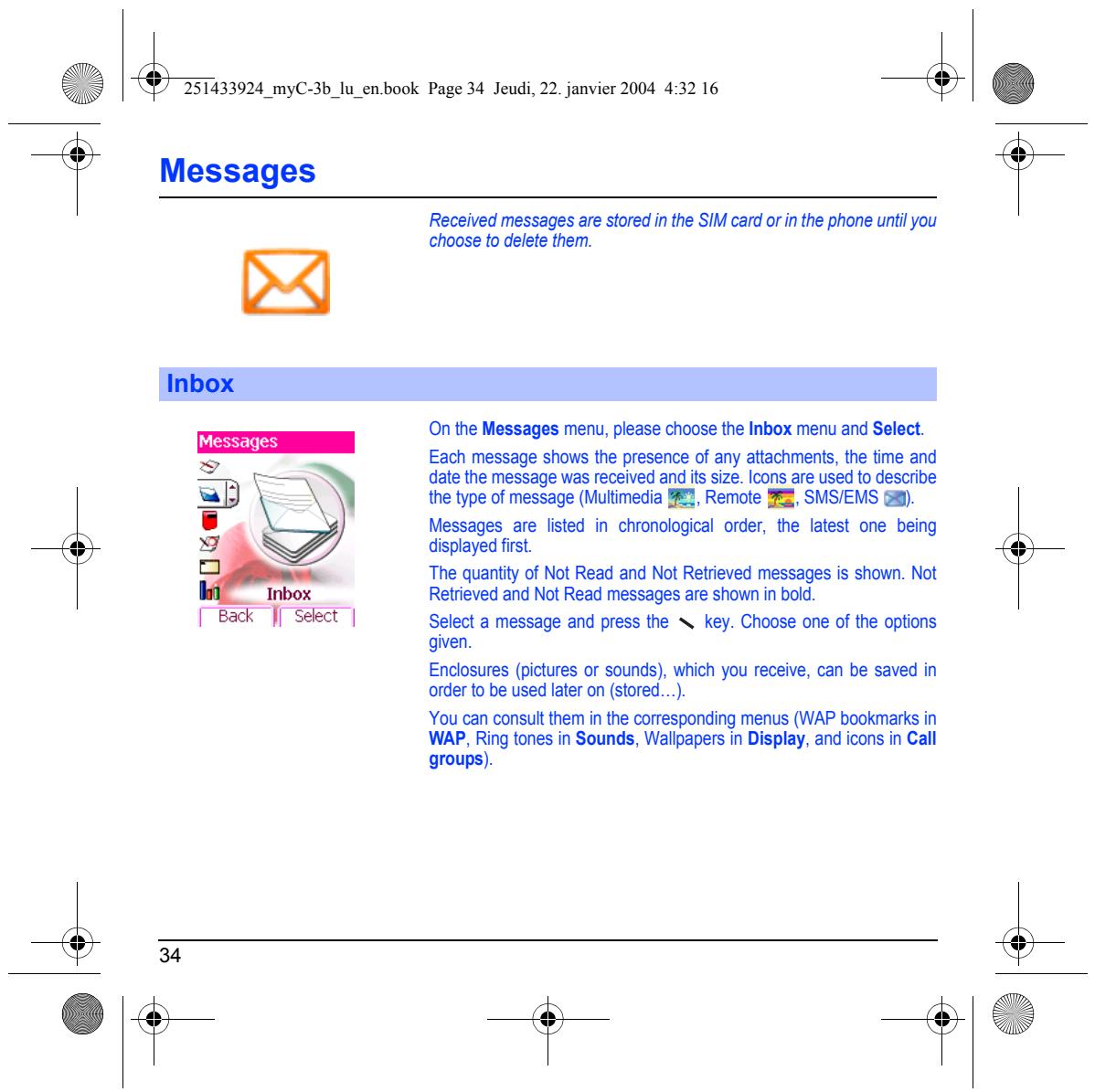
On the Messages menu, please choose the Inbox menu and Select.
Each message shows the presence of any attachments, the time and date the message was received and its size. Icons are used to describe the type of message (Multimedia BÆ!, Remote a, SUS/EMS GR). Messages are listed in chronological order, the latest one being displayed first.
The quantiy of Not Read and Not Retrieved messages is shown. Not Retrieved and Not Read messages are shown in bold.
Select a message and press the N key. Choose one of the options given.
Enclosures (pictures or sounds), which you receive, can be saved in order to be used later on (stored...).
You can consul them in the corresponding menus (WAP bookmarks in WAP, Ring tones in Sounds, Wallpapers in Display, and icons in Call groups).
e À mc book Page 35 Jeudi, 22. janvier 2004 4:32 16 k | Éd
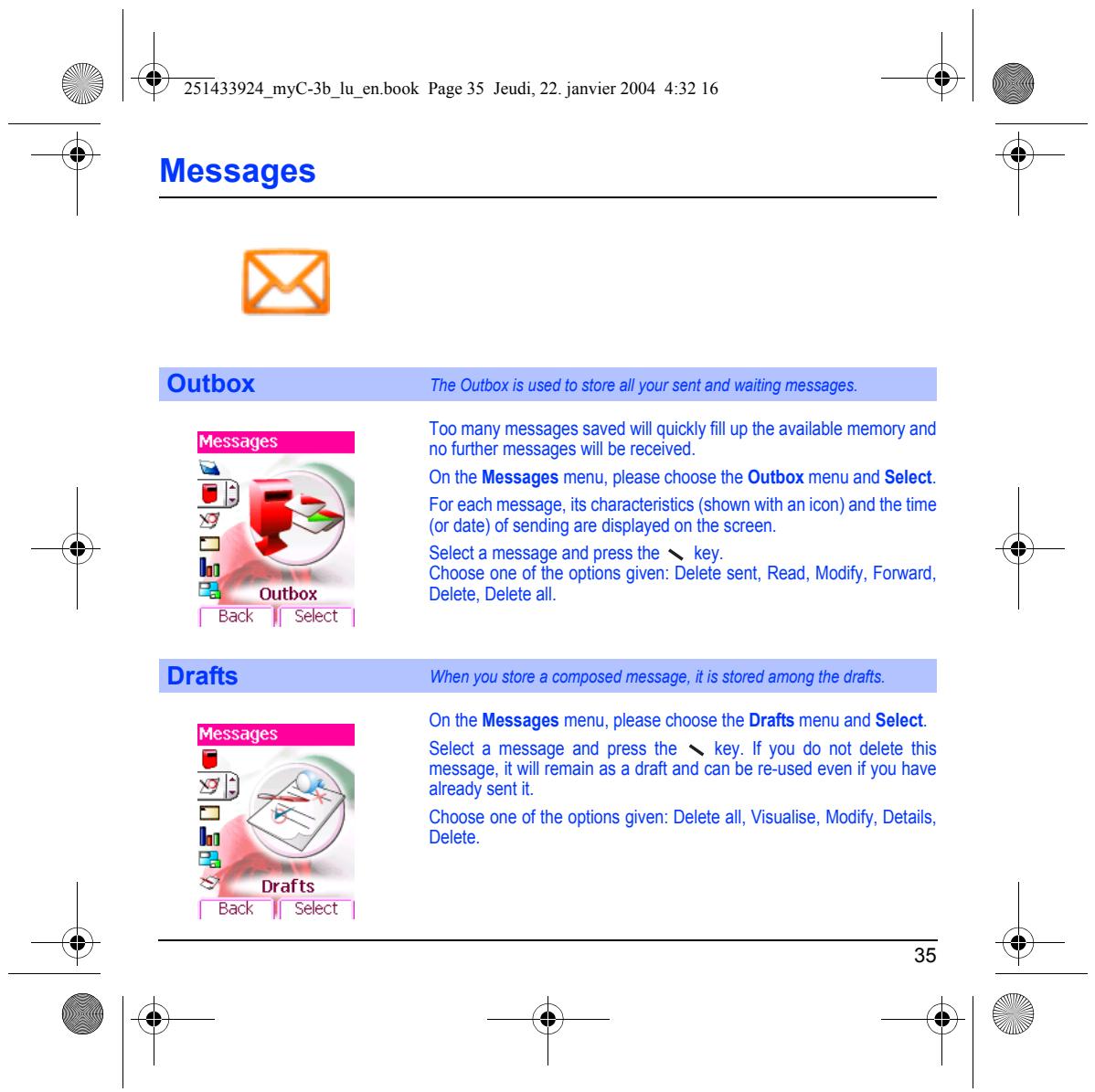
È Messages Outbox The Outbox is used to store al your sent and waiting messages. _ ‘Too many messages saved will quickly fil up the available memory and no further messages wil be received. à — NN On the Messages menu, please choose the Outbox menu and Select. or each message, its characteristics (shown with an icon) and the time O For each ts characteristics (shown with 1d the ti NI « (or date) of sending are displayed on the screen. = Select a message and press the N key. 1 Choose one of the options given: Delete sent, Read, Modify, Forward, Outbox Delete, Delete al. Back | Select | Drafts When you store a composed message, it is stored among the drafs. On the Messages menu, please choose the Drafts menu and Select. Ü Select a message and press the A key. If you do not delete this = message, it wil remain as a draft and can be re-used even if you have à wi draft and can b d even if you h xl < already sent it. RES Choose one of the options given: Delete al, Visualise, Modify, Details, LA] Delete. A Drafts Back | Select |
Sending options Several sending options are offered.
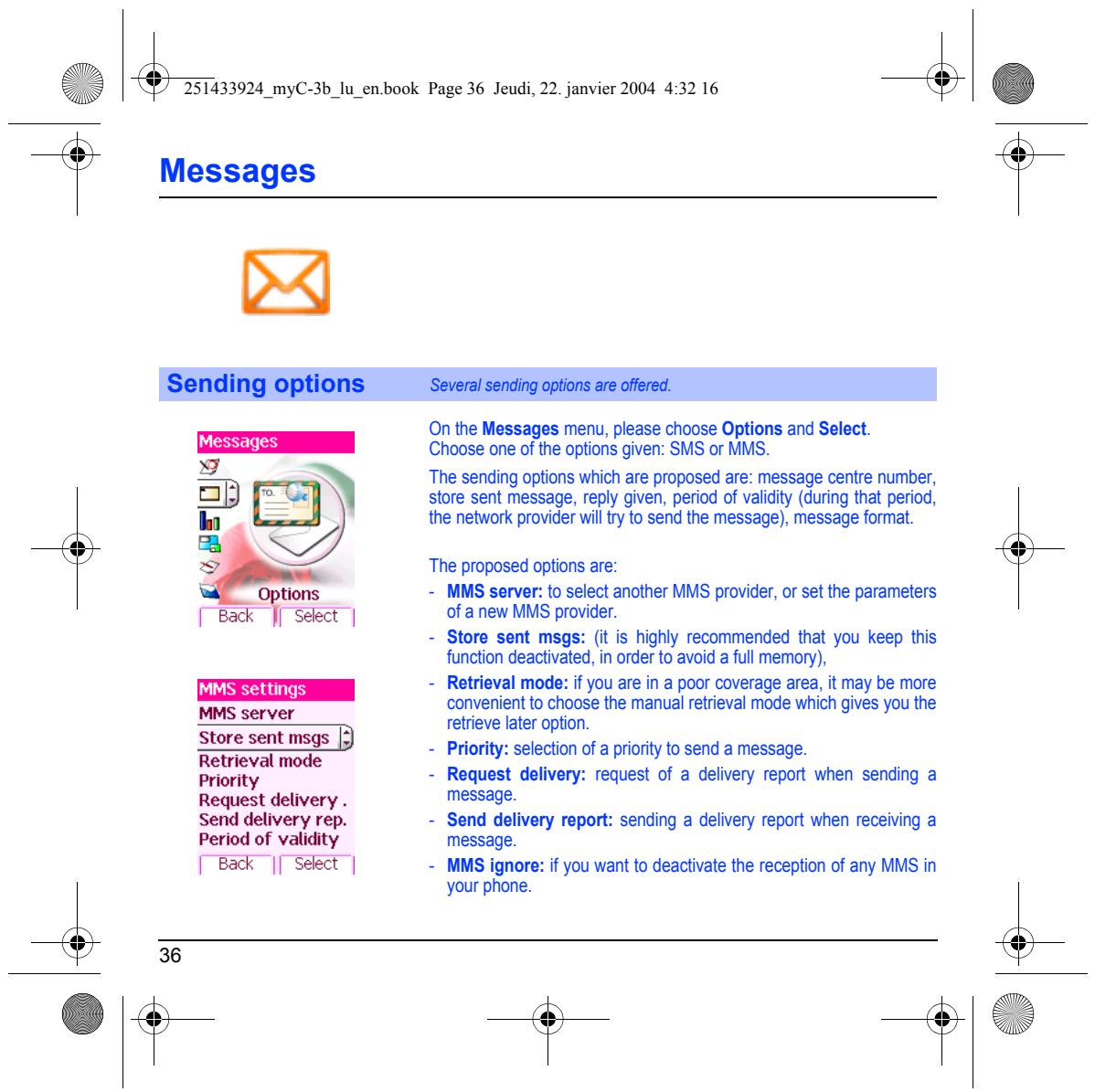
On the Messages menu, please choose Options and Select.
Choose one ofthe options given: SMS or MMS.
‘The sending options which are proposed are: message centre number, store sent message, reply given, period of validity (during that period, the network provider will try to send the message), message format.
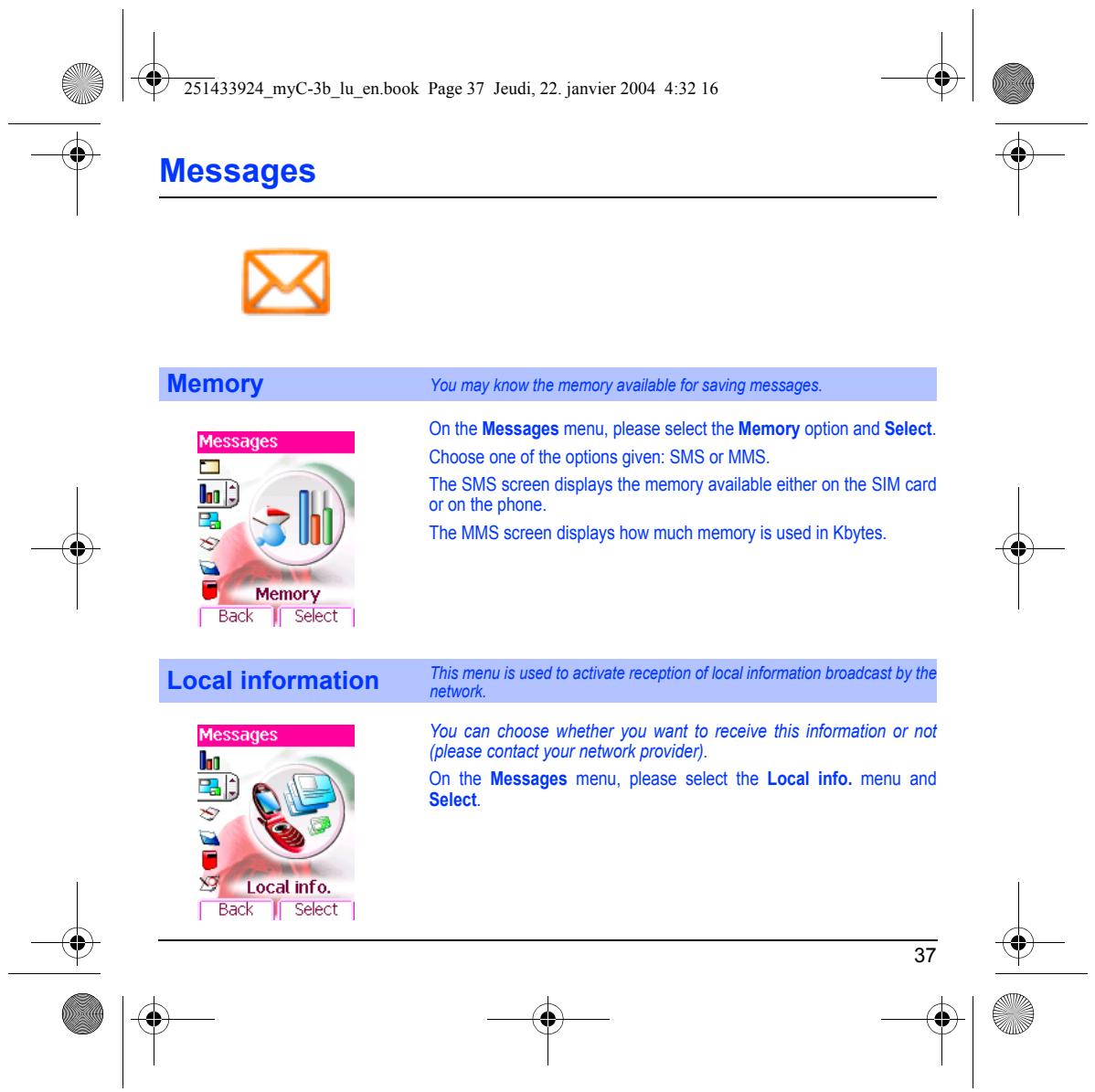
‘The proposed options are:
= MMS server: to select another MMS provider, or set the parameters of a new MMS provider.
= Store sent msgs: (it is highly recommended that you keep this function deactivated, in order to avoid a full memory),
= Retrieval mode: if you are in a poor coverage area, it may be more convenient to choose the manual retrieval mode which gives you the
Sennse D rekreve later option
BRU = Priority: selection of a priority to send a message.
Priority + Request delivery: request of a delivery report when sending a
Request delivery . message
Send delivery rep. = Send delivery report: sending a delivery report when receiving a
Period of validity message
FBak 1[ Select | MMS ignore: if you want to deactivate {he reception of any MMS in your phone.
You may know the memory available for saving messages.
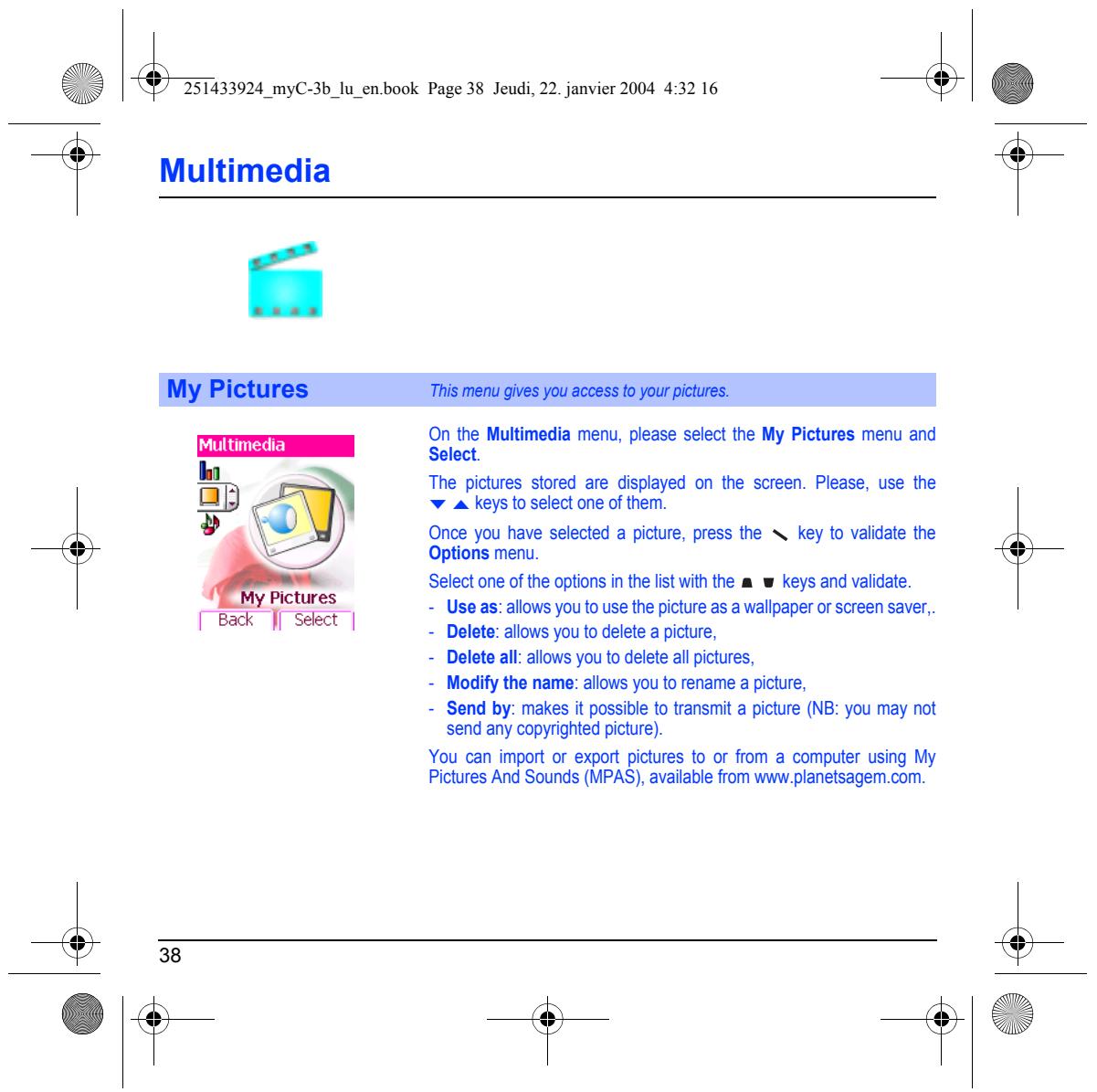
On the Messages menu, please select the Memory option and Select. Choose one of the options given: SMS or MMS.
The SMS screen displays the memory available either on the SIM card or on the phone.
‘The MMS screen displays how much memory is used in Kbytes.
This menu is used to activate reception of local information broadcast by the network.
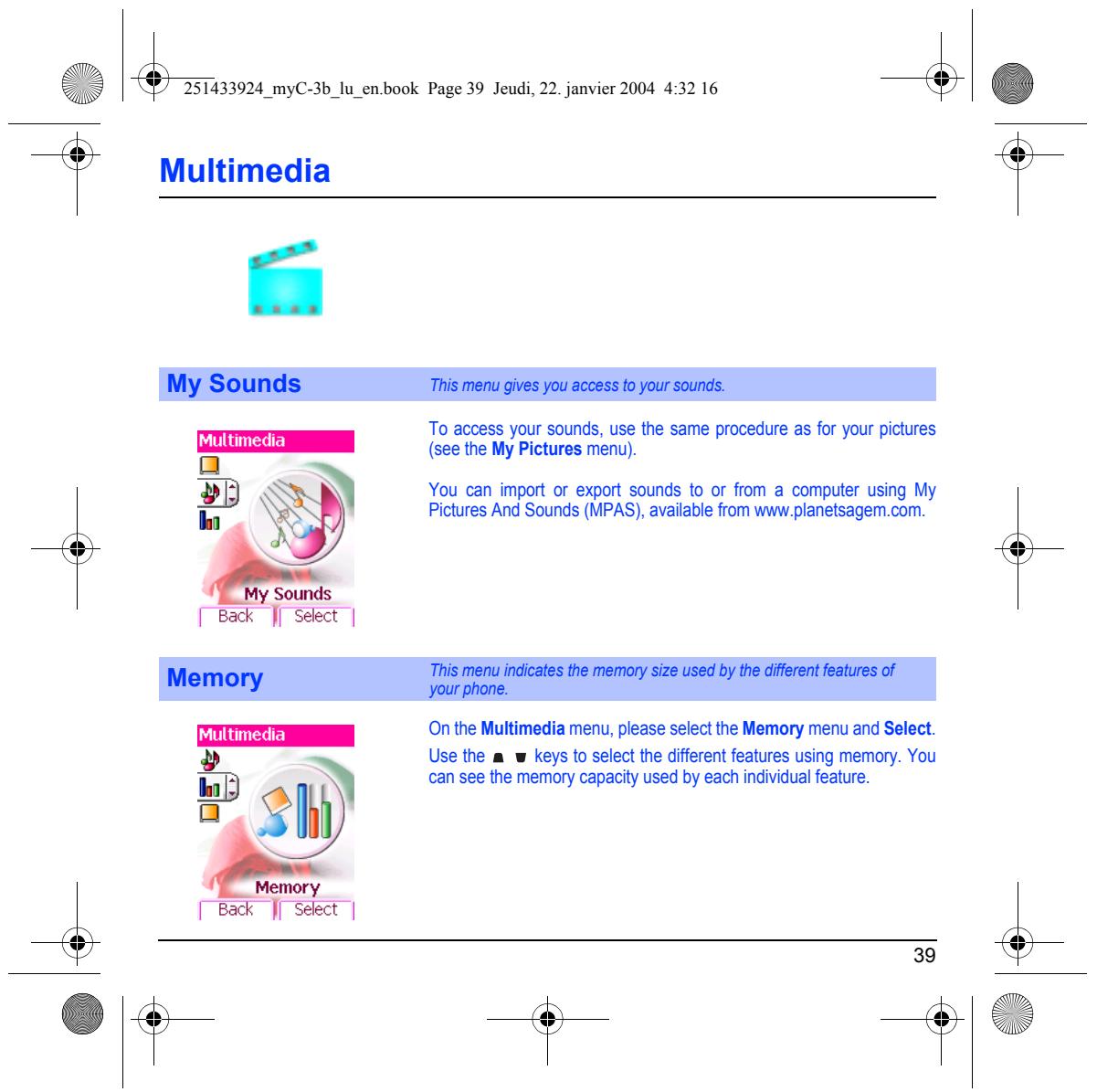
You can choose whether you want o receive this information or not (please contact your network provider).
On the Messages menu, please select the Local info. menu and Select.
Local info. Back | Select |
> È Multimedia My Pictures This menu gives you access lo your pictures. On the Multimedia menu, please select the My Pictures menu and Select
The pictures stored are displayed on the screen. Please, use the + A keys to select one of them.
Once you have selected a picture, press the N key to validate the
Select one ofthe options in the list with the a w keys and validate.
= Use as: allows you to use the picture as a wallpaper or screen saver,
= Delete: allows you to delete a picture,
= Delete all: allows you to delete all pictures,
= Modify the name: allows you to rename a picture,
= Send by: makes it possible to transit a picture (NB: you may not send any copyrighted picture).
You can import or export pictures to or from a computer using My Pictures And Sounds (MPAS), available from www.planetsagem.com.
My Sounds This menu gives you access lo your sounds.
To access your sounds, use the same procedure as for your pictures (see the My Pictures menu)
You can import or export sounds to or from a computer using My Pictures And Sounds (MPAS), available from www.planetsagem.com.
This menu indicates the memory size used by the different features of your phone. On the Multimedia menu, please select the Memory menu and Select.
Use the a keys to select the different features using memory. You can see the memory capacity used by each individual feature.
The WAP navigator is under licence:
RSA Data Security crea
The WAP navigator is the exusive property of Openwave. For this reason, i is forbidden to modify, translate, disassemble or even decompile al or part of the software hat makes up the navigator.
WAP (Wireless Application Protocol): a protocol that translates the Intemet language into WML language that can be read by a phone. The WAP function allows you to log onto certain Intemet sites. You can log onto sites that allow you to domnload tunes, icons or animated screensavers to your phone.
The Services menu, a dropdoun menu, can be accessed at al times when navigating through WAP pages.
Selectthe top lef icon using the key.
Consult the Services Menu using the N. key: these Services Menus can also be consulted from any WAP page, using the green key: these Services menus contain all the following Sub menus;
Welcome: logs onto the home page.
(caries the name of your access provider)
Bookmarks: is used to save in a phonebook the names and addresses of Intemet sites in order to make the access easy.
You can receive bookmarks from messages and add them to this list {see chapter on SMS).
You can also send messages by SMS: select a bookmark, press the X key (Options), then select Send by message
Go to URL: this menu allows you to input an Intemet address direct
Inbox: this menu allows you to check the messages sent by the Internet site.
Save items: is used to save a WAP site items. Reload: refreshes the current page. Reset cache: clears he stored information on previous connections.
È WAP Advanced..… choose one ofthe following advanced settings - Settings
= Circuit prompt (if user wants to confirm each logon)
= Security (is used to access information on making WAP connections secure).
About... information on the browser. Exit: returns to the phone's home page.
Connection settings is used to select or modify your access providers iogon parameters or configure the parameters of other access provides.
The active access service is preceded with a star.
Configuration of WAP and GPRS parameters: Al information to be entered in the parameters are provided by your operator or access provider. = Choose the access service, then press Options. = Enter the title and validate. Enter Internet address of home page and validate. Enter parameters of preferred connections: GSM if not GPRS (by default: the logon to WAP services uses the GPRS as a priority. However, in the event of unavalability of the GPRS network, the GSM network is used to establish the link GPRS: the logon to WAP services uses the GPRS network exdlusively. GSM: the logon to WAP services uses the GSM network exclusively.
-_ IP address of WAP gateway
= Porttype (secure or insecure)
= Mode (digital, analog or automatic)
In automatic mode access can be gained to the operator nebwork by a
digital link and an analog link to a different network (in roaming).
The GPRS parameters to be entered are:
-_ IP address of WAP gateway
= Porttype (secure or insecure)
= APN: ifno APN has been defined, press the N key (Options) then the APN menu. Select or add an APN.
Once al the settings have been entered, you can activate the chosen
access provider. Select him from the list. Validate your choice.
Linger timer is used to choose the time after which the cal is automafically disconnected if you have forgotten to log off from a service.
È WAP WAP Logging on
The connection to a WAP service Using the Welcome menu, you can log onto your access providers on the GPRS network is not cut it WAP site by pressing the N key.
an incoming call is received. You 1f you are logging onto the GSM network, the @ symbol flashes, the can answer the cal. metering of the cost of the call starts as soon as if stops flashing.
Downloading sounds and images
Some WAP sites allow you to dounload tunes, icons or animated screensavers. Once downloaded, they are stored in your phone’s memory. You can then save them in your phone (same operation as used for downloading using messages).
WAP Logging off To log off, press the %, key. The logoff happens automatically after a
few seconds of inactivnÿ i you forget to log of. This period is defined by the linger time setting.
D GPRS Aflashing icon indicates thatthe phone is logging onto a GPRS network. A non-flashing icon indicates that the GPRS nebwork is available: the icon is dark, it indicates that the phone is logged onto the GPRS network: see page 41 for the attachment options. “This icon is not displayed if the GPRS network is not available or if the A SIM card inserted in your phone does not include the GPRS service. it \ / may also disappear when accessing WAP services if the connection 4 uses the GSM network instead of the GPRS network. A 7 SA 4 &7
Your phone embeds two games.
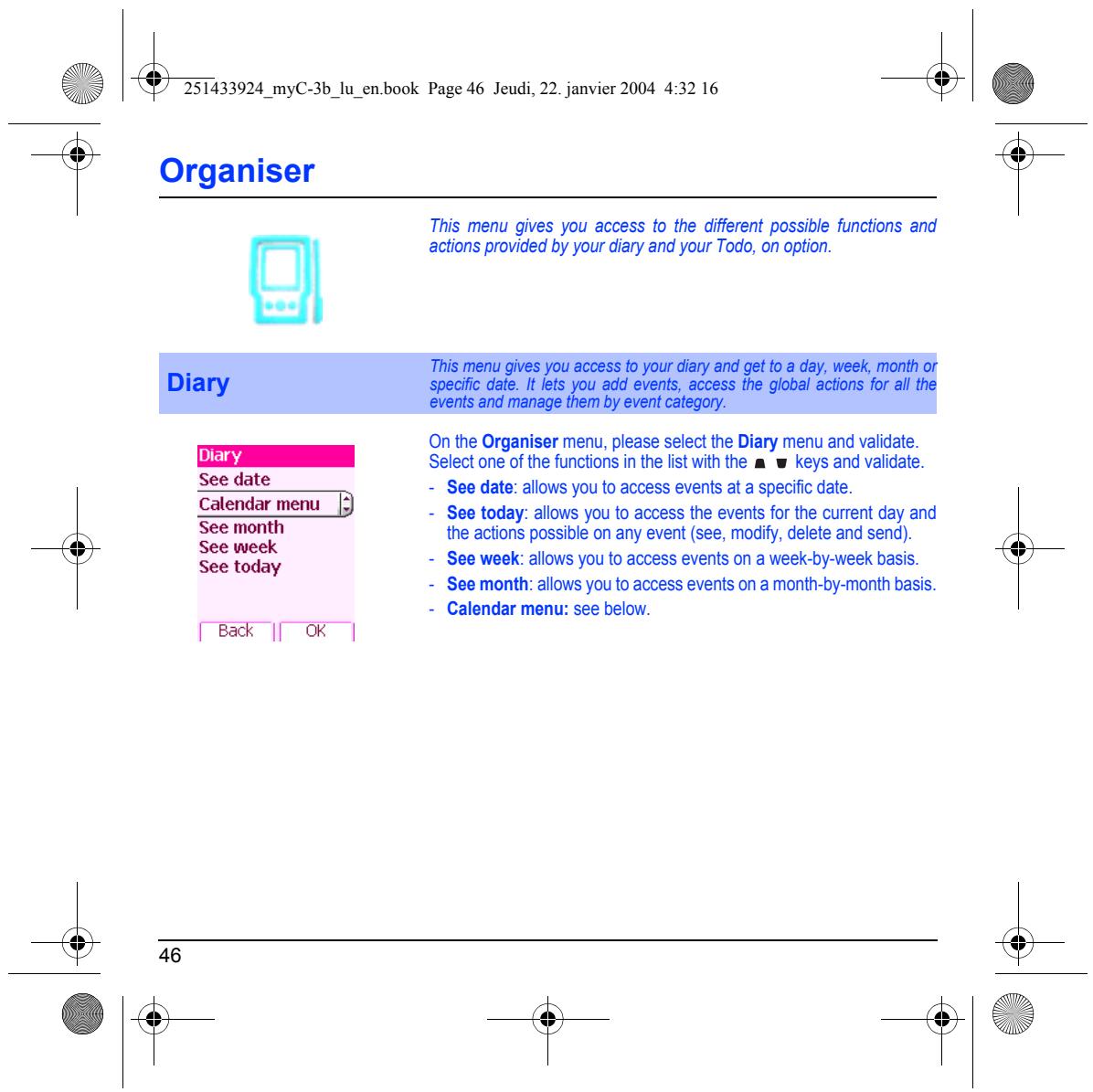
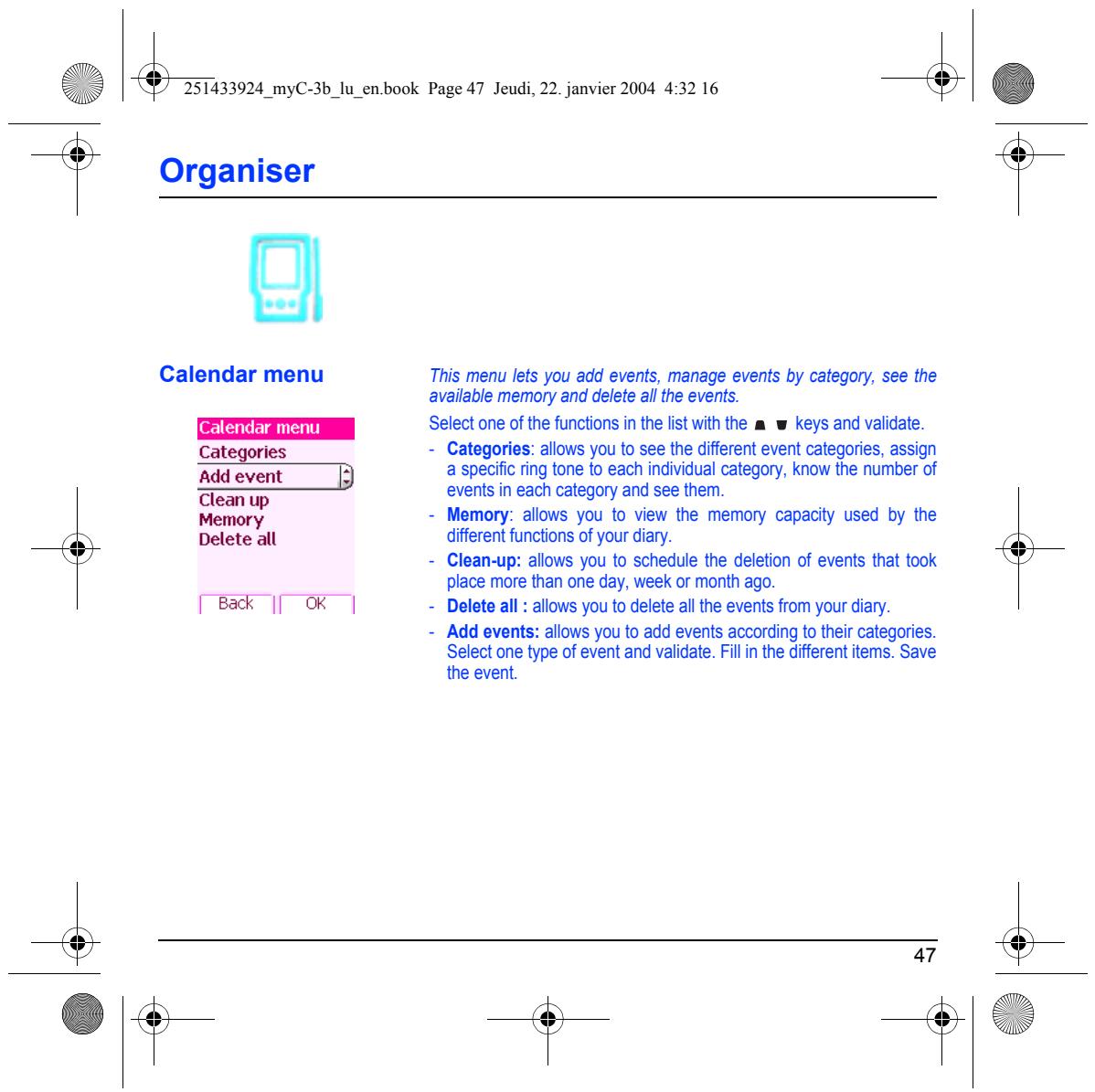
È Organiser This menu gives you access to the diflrent possible functions and a actions provided by your diary and your Todo, on option. : This menu gs ou acces 1 your ca and gt a y, eck, mon or Diary speciale. lis You ad events, access ie gobal écions fr al te events and manage fhem by event category. On the Organiser menu, please select the Diary menu and validate. Select one of the functions in the list with the à w keys and validate. See date + See date: allows you to access events at a specific date. Calendar menu_|) = See today: allows you to access the events for the current day and ses month the actions possible on any event (see, modify, delete and send). ce weel = See week: allows you to access events on a week-by-week basis. See today = See month: allows you to access events on a month-by-month basis. Calendar menu: see below. Bak || OK | 46
ds s Organiser Calendar menu This menu lets you add events, manage events by category, see the available memory and delete all the events. Select one ofthe functions in the list with the a w keys and validate. Categories = Categories: allows you to see the different event categories, assign Raven FE a specific ring tone to each individual category, know the number of CTeanup) “ events in each category and see them. Memory = Memory: allows you to view the memory capacity used by the A Delete all different functions of your diary. 4 = Clean-up: allows you to schedule the deletion of events that took 4 place more than one day, week or month ago. Back [[ OK | - Delete all : allows you to delete all the events from your diary. = Add events: allows you to add events according to their categories. Select one type of event and validate. Fil in the different items. Save Ps S4 47
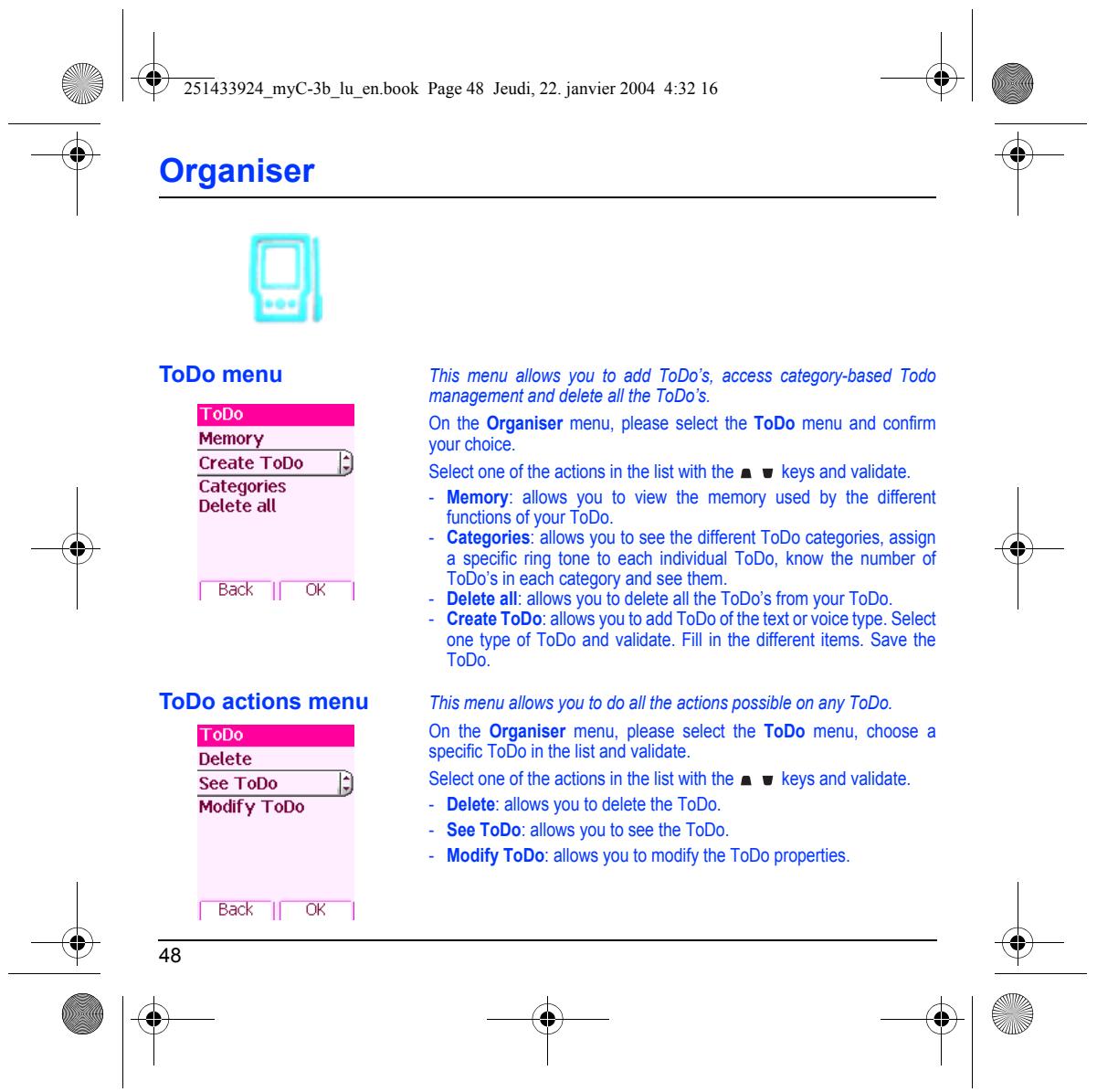
È Organiser ToDo menu This menu allows you to add ToDo's, access category-based Todo management and delete allthe ToDo's. On the Organiser menu, please select the ToDo menu and confim Memory your choice. Create ToDo |} Select one of the actions in the list with the a w keys and validate. CRE = Memory: allows you to view the memory used by he different functions of your ToDo.
+ Categories: allows you to see the diferent ToDo categories, assign a specific ring tone to each individual ToDo, know the number of ToDo's in each category and see them Back I OK | = Delete all: allows you to delete all the ToDo's from your ToDo. 2 Greate ToDo: los you to add ToDo ofthe text or voice type. Select one type of ToDo and valdate. Fil in the diferent iems. Save the
ToDo actions menu This menu allows you to do all the actions possible on any ToDo. On the Organiser menu, please select the ToDo menu, choose a Delete specific ToDo in the list and validate. See ToDo Ë] Select one ofthe actions in the list with the a w keys and validate. Modify ToDo = Delete: allows you to delete the ToDo:
= See ToDo: allows you to see the ToDo. = Modify ToDo: allows you to modify the ToDo properties.
ha PC Exchange of data
Working from a PC, you can save/edit contacts, events and tasks stored in your phone.
To do this, you will need either to connect your phone to the PC by means of a suitable data cable.
Next, you will have to install the Welphone software available from http:{wwwwellphone.com. This software will also enable you to save your contacts, events and tasks by means of copy/paste.
If a call comes in during an exchange of data with your PC, the link will be interrupted and wil have to be manually re-staried.
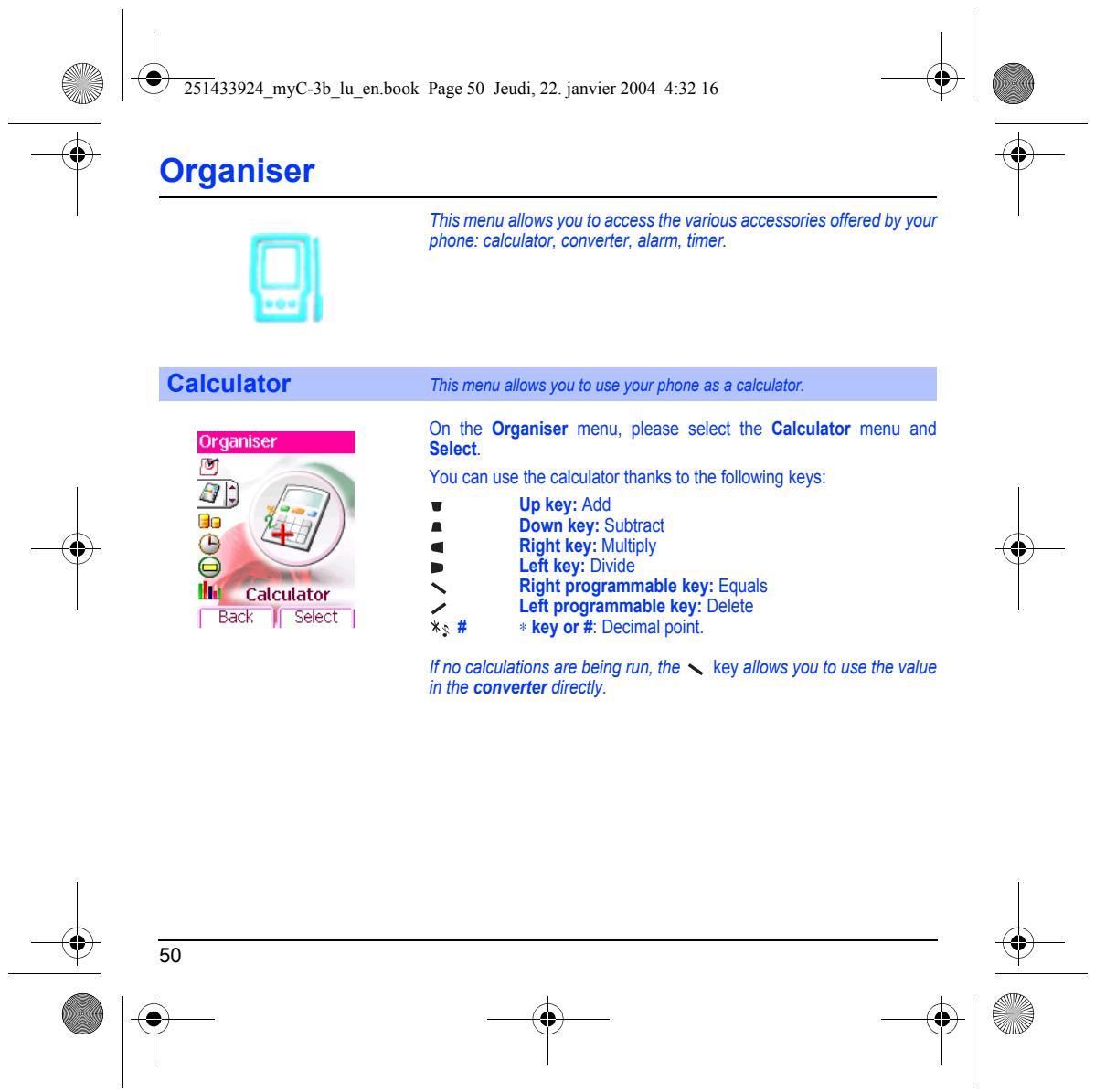
È Organiser This menu allows you to access the various accessories offered by your a phone: calculator, converter, alarm, timer. Calculator This menu allows you to use your phone as a calculator. On the Organiser menu, please select the Calculator menu and Select. À =N You can use the calculator thanks to the following keys: 4) {2 , Up key: Add Go ÿ Down key: Subtract « Right key: Muitiply » Left key: Divide CC Eak || Sekct | x # xkey or # Decimal point. no calculations are being run, the key allows you to use the value in the converter directly. 50
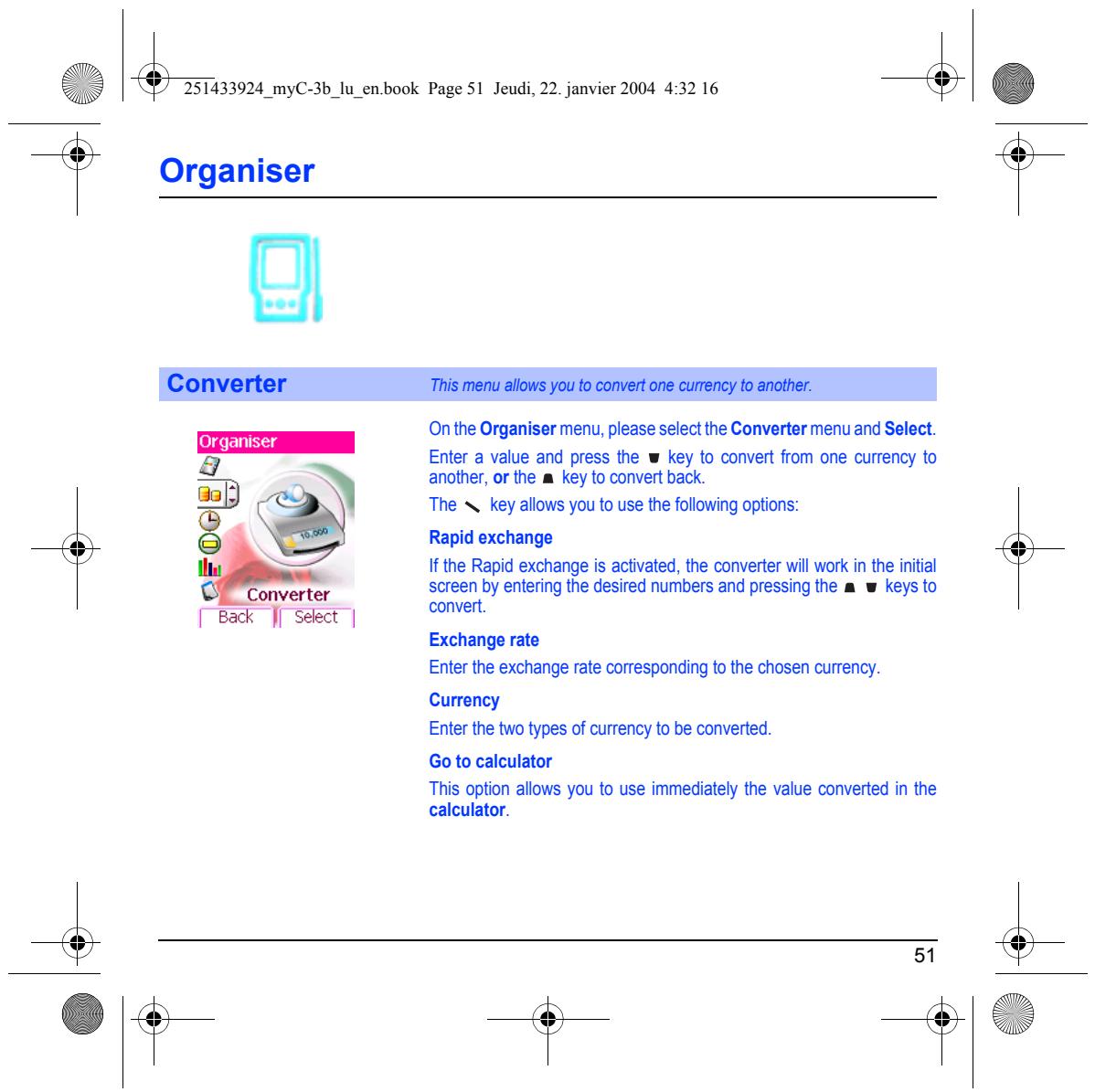
On the Organiser menu, please selectthe Converter menu and Select.
Enter a value and press the w key to convert from one currency to another, or the a key to convert back.
The N. key allows you to use the following options:
Rapid exchange Ifthe Rapid exchange is activated, the converter will work in the initial screen by entering the desired numbers and pressing the a w keys to convert
Enter the exchange rate corresponding to the chosen currency. Currency
Enter the two types of currency to be converted.
This option allows you to use immediately the value converted in the calculator.
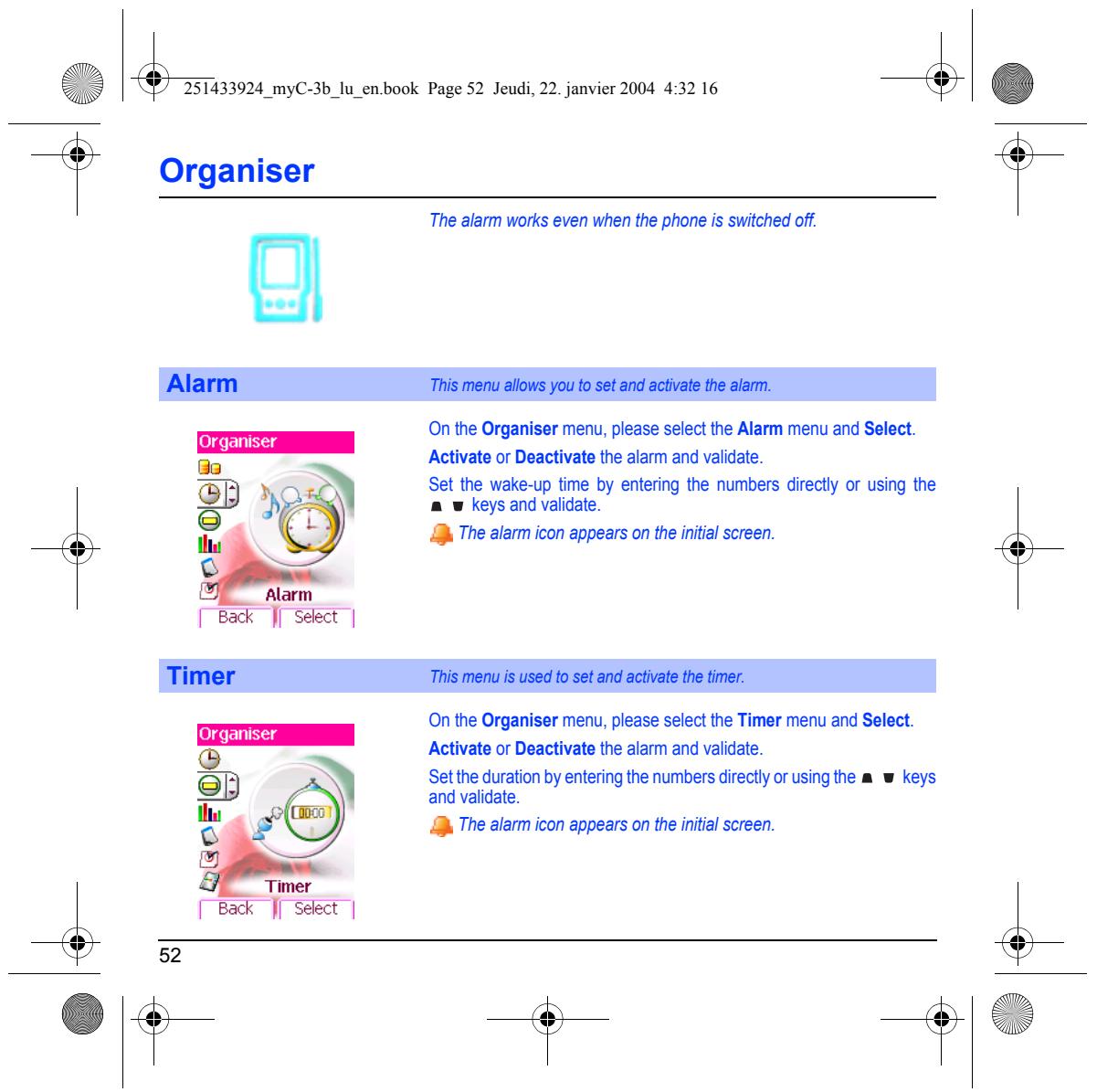
È Organiser The alarm works even when the phone is switched off. Alarm This menu allows you to set and activate the alarm.
On the Organiser menu, please select the Alarm menu and Select. Activate or Deactivate the alarm and validate.
Set the wake-up time by entering the numbers directly or using the a w keys and validate.
@ The alarm icon appears on the initial screen.
Alarm Back | Select |
Timer This menu is used to set and activate the timer.
On the Organiser menu, please select the Timer menu and Select. Activate or Deactivate the alarm and validate.
Setthe duration by entering the numbers directly orusingthe & w keys and validate.
@ The alarm icon appears on the initial screen.
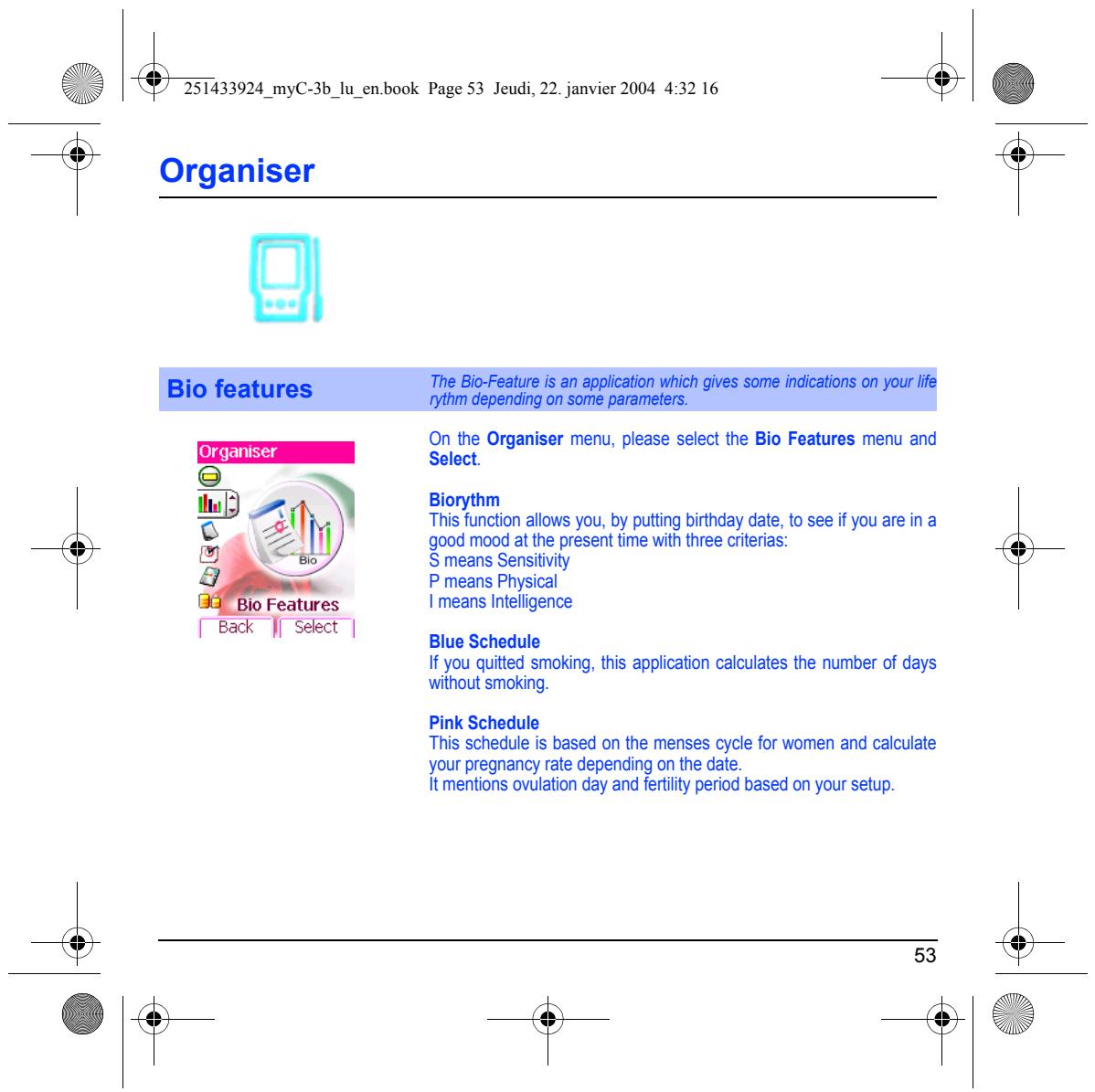
Bio features a CEE SEE ECTS On the Organiser menu, please select the Bio Features menu and
This function allows you, by puting birthday date, to see if you are in a
CA] good mood at the present time with three criterias: < $ means Sensitivity
Eack || Select acer Ssct Blue Schedule
If you quitted smoking, this application calculates the number of days without smoking.
Pink Schedule This schedule is based on the menses cycle for women and calculate your pregnancy rate depending on the date
it mentions ovulation day and fertiity period based on your setup.
Volume and ring tone
1. Ringtones [Back J| Seect | Vibrate
Vibrate FBack J| Select |
This menu allows you to set your phone.
This menu allows you to customize the ring tones on your phone and to activate beep and vibrate modes. This menu allows you to allocate a ring tone to each type of event.
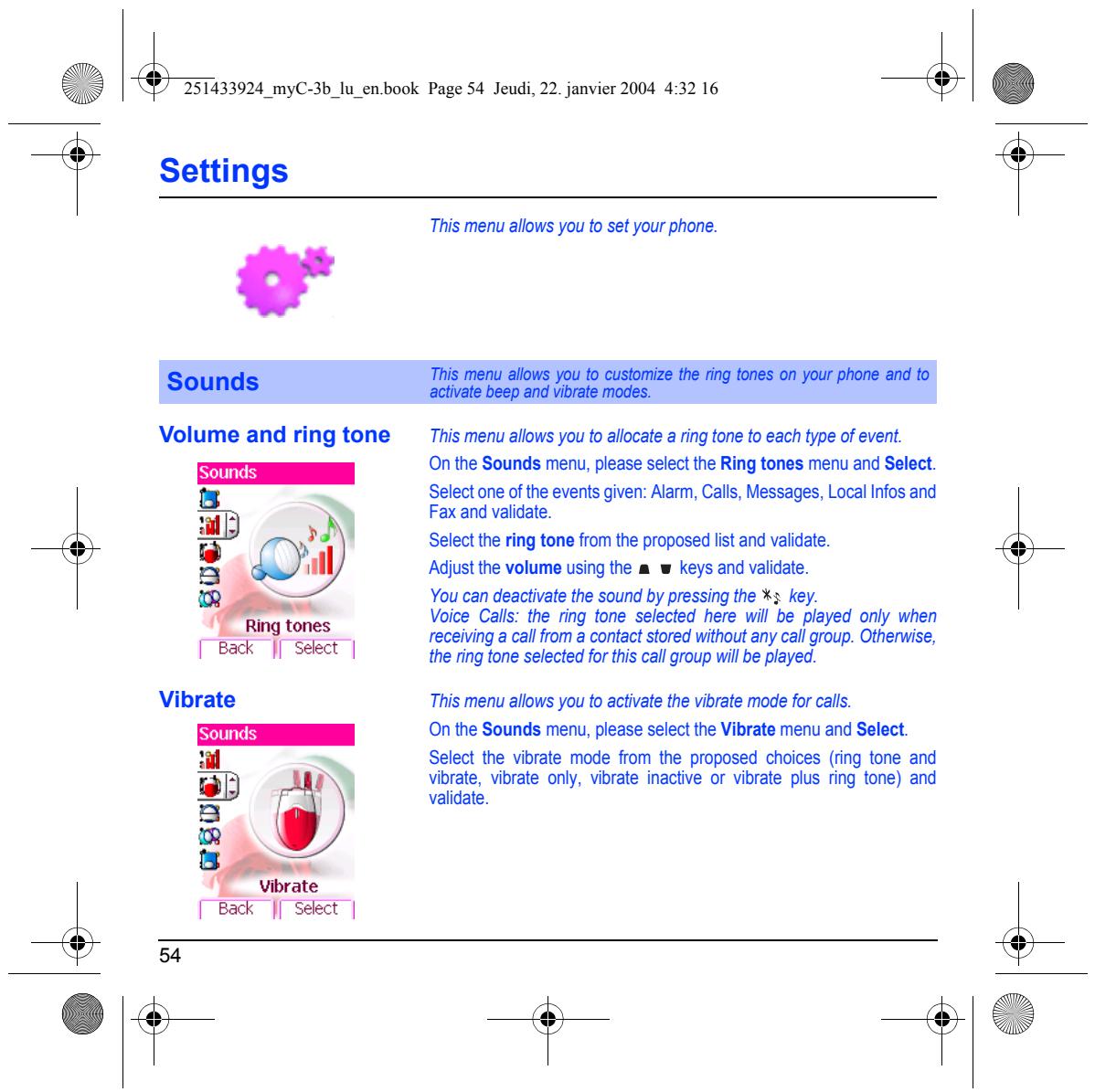
On the Sounds menu, please select the Ring tones menu and Select.
Select one ofthe events given: Alarm, Calls, Messages, Local Infos and Fax and validate.
Select the ring tone from the proposed list and validate. Adjust the volume using the a w keys and validate.
You can deactivate the sound by pressing the *s key. Voice Calls: the ring tone selected here will be played only when receiving a call from a contact stored without any call group. Otherwise, the ring one selected for this call group will be played.
This menu allows you to activate the vibrate mode for calls. On the Sounds menu, please select the Vibrate menu and Select.
Select the vibrate mode from the proposed choices (ring tone and vibrate, vibrate only, vibrate inactive or vibrate plus ring tone) and validate.
‘ Beeps [Back J| Select |
Waming: vibrate mode is not a priority regarding the ring tone selected on the call group. To make vibrate mode apply in general, switch to Silent mode.
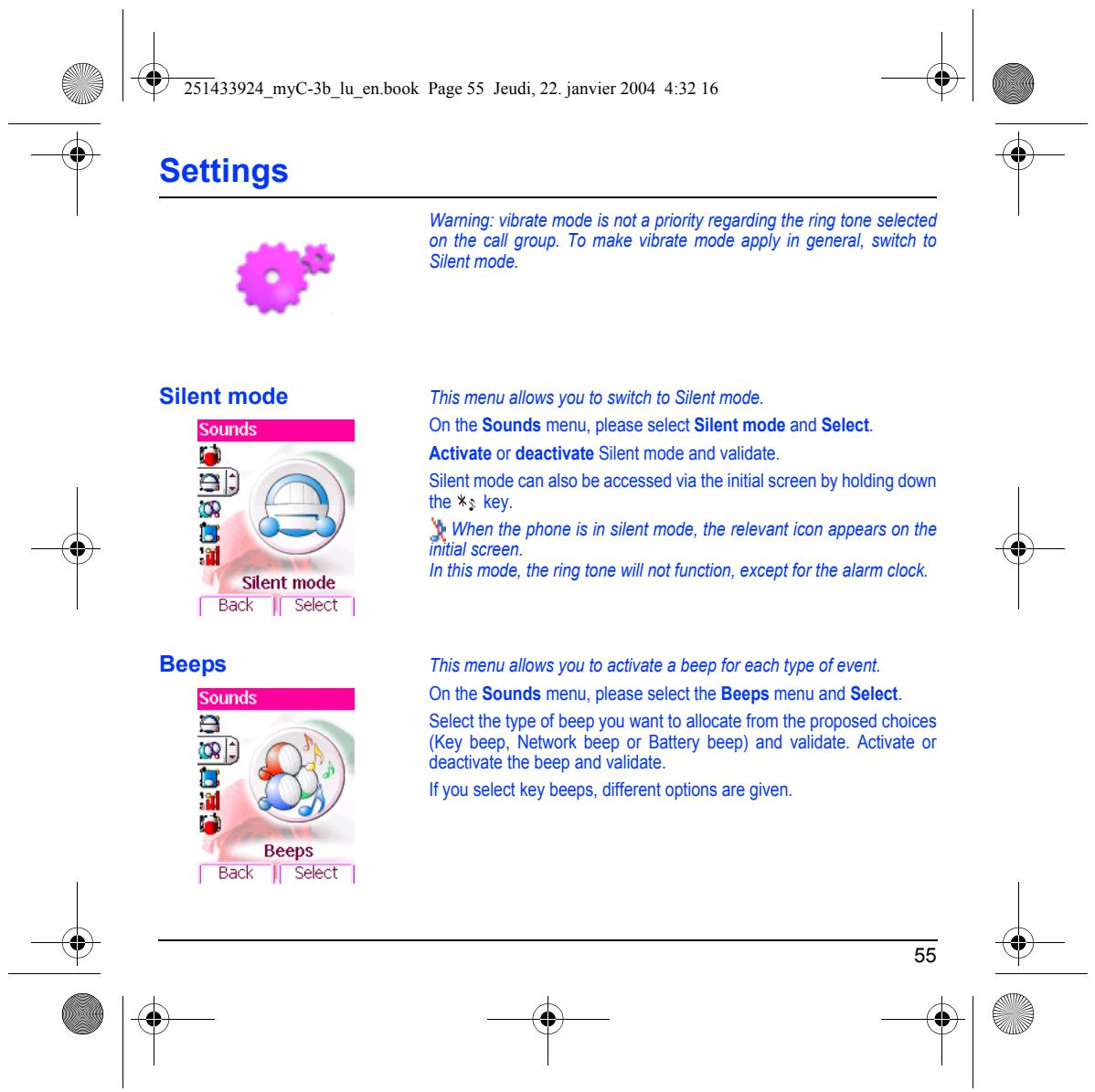
This menu allows you to switch to Silent mode. On the Sounds menu, please select Silent mode and Select. Activate or deactivate Silent mode and validate.
Silent mode can also be accessed via the initial screen by holding doun the k3 key.
When the phone is in silent mode, the relevant icon appears on the initial screen. In this mode, the ring tone will not function, except for the alarm clock.
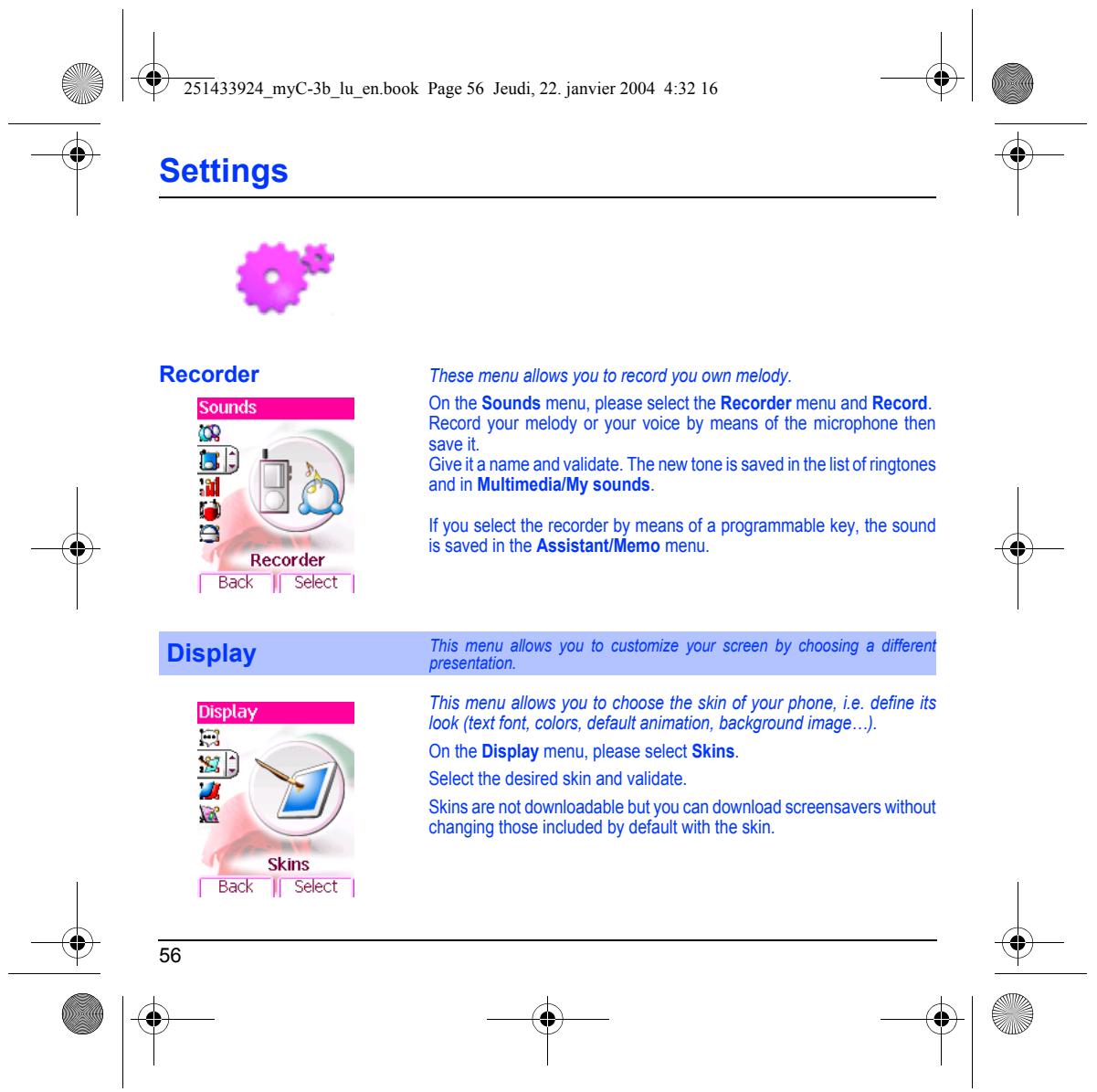
This menu allows you to activate a beep for each type of event. On the Sounds menu, please select the Beeps menu and Select.
Select the type of beep you want to allocate from the proposed choices (Key beep, Network beep or Battery beep) and validate. Activate or deactivate the beep and validate.
If you select key beeps, different options are given.
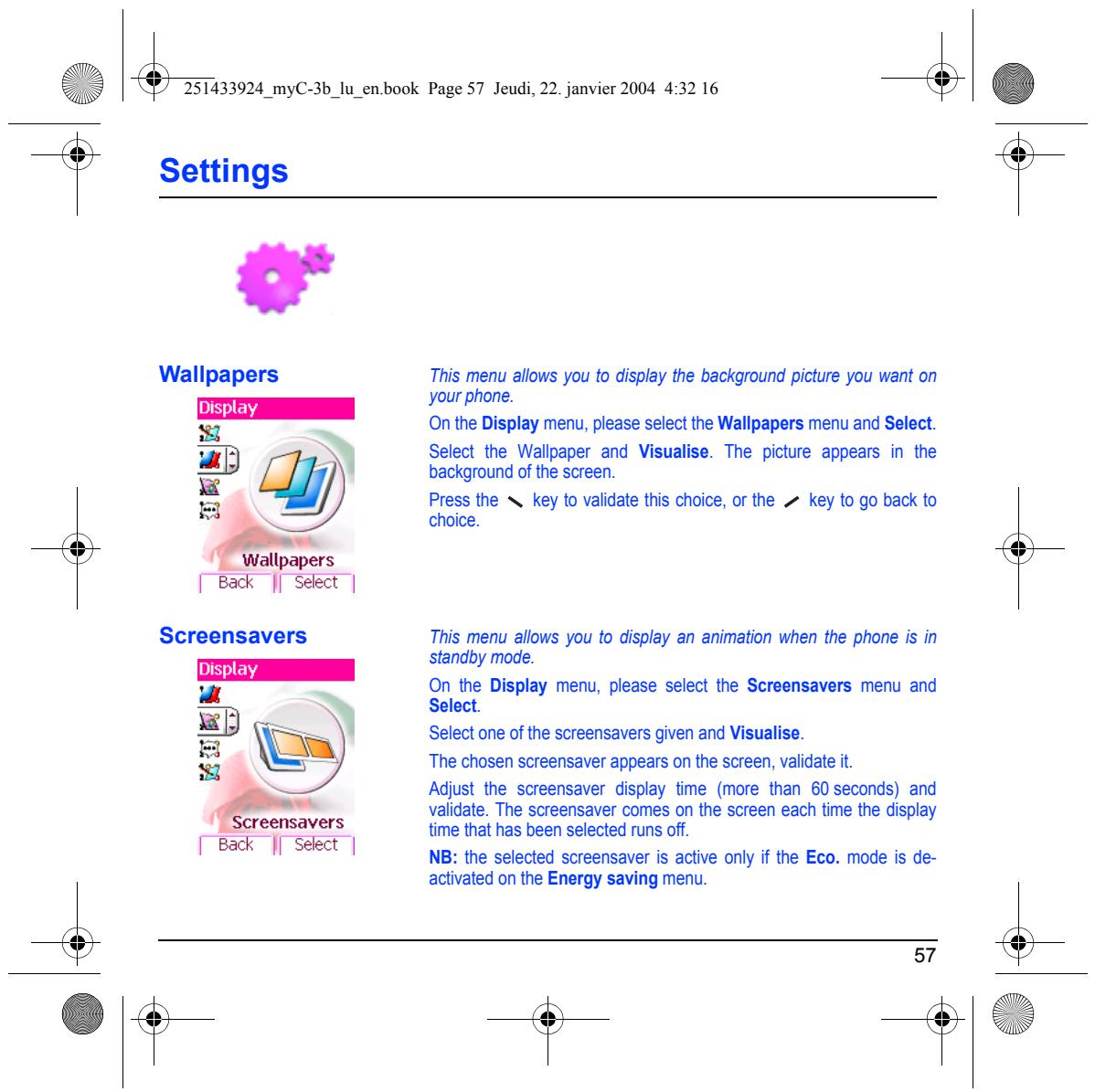
These menu allows you fo record you oun melody.
On the Sounds menu, please select the Recorder menu and Record. Record your melody or your voice by means of the microphone then save
Give ita name and validate. The new tone is saved in the lis of ringtones and in Multimedia/My sounds.
If you select the recorder by means of a programmable key, the sound is saved in the Assistant/Memo menu.
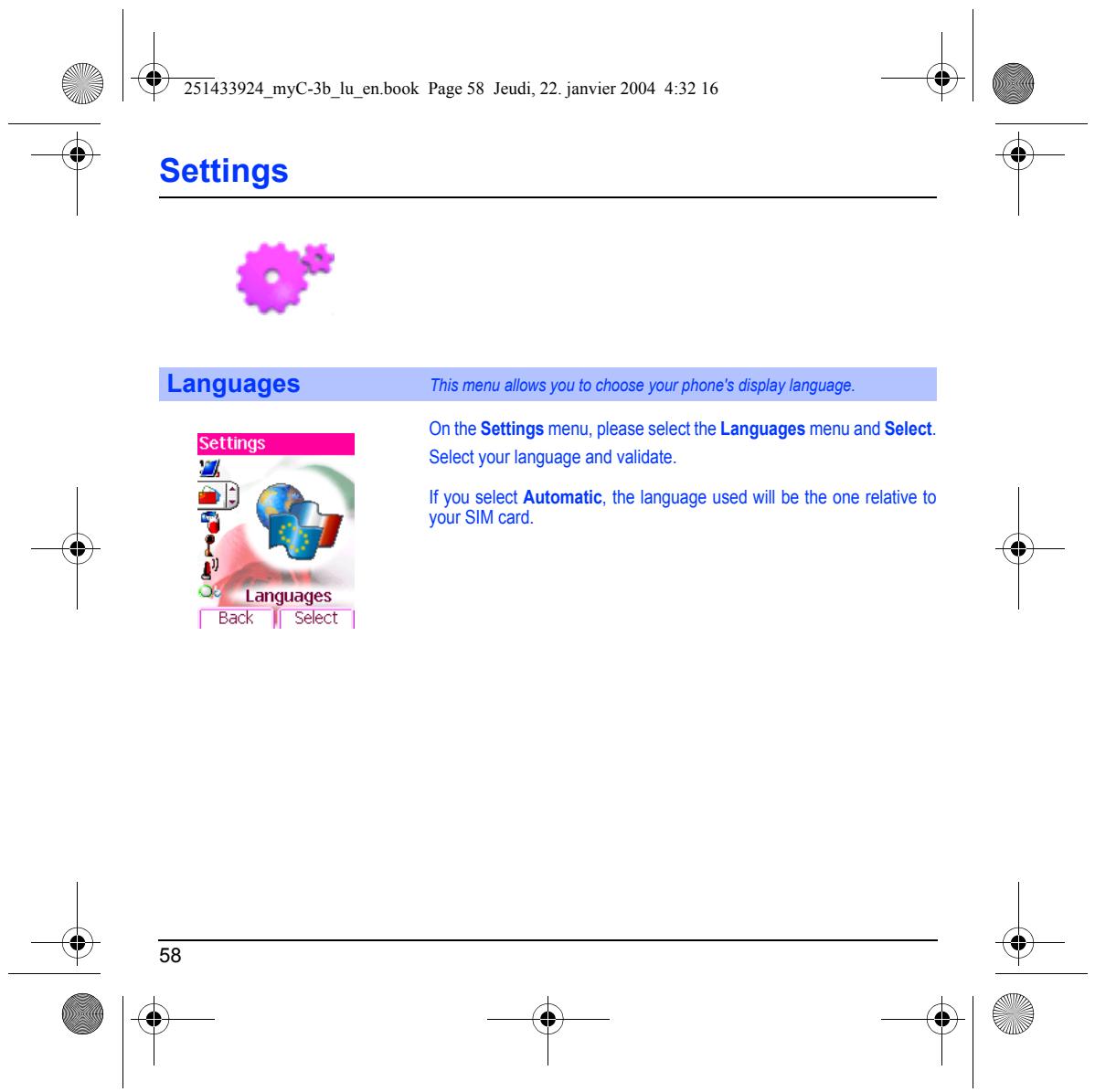
This menu allows you to customize your screen by choosing a différent presentation.
This menu allows you to choose the skin of your phone, ie. define its Look (text font, colors, default animation, background image...
On the Display menu, please select Skins. Selectthe desired skin and validate.
Skins are not downloadable but you can download screensavers without changing those included by defauit with the skin.
This menu allows you to display the background picture you want on your phone.
On the Display menu, please select the Wallpapers menu and Select.
Select the Walpaper and Visualise. The picture appears in the background of the screen.
Press the A. key to validate this choice, or the > key to go back to choice.
This menu allows you to display an animation when the phone is in standby mode.
On the Display menu, please select the Screensavers menu and ect.
Select one of the screensavers given and Visualise. ‘The chosen screensaver appears on the screen, validate it.
Adjust the screensaver display time (more than 60 seconds) and validate. The screensaver comes on the screen each time the display time that has been selected runs of.
NB: the selected screensaver is active only if the Eco. mode is de- activated on the Energy saving menu.
Languages This menu allows you to choose your phone's display language.
On the Settings menu, please select the Languages menu and Select. Select your language and validate
If you select Automatic, the language used wil be the one relative to your SIM card.
The Calls menu allows you to manage and check all the calls made or received (outgoing and incoming).
Calls Call forward Depending on your subscription, this service allows you to forward incoming call fo a different number or to the voice mailbox.
On the Calls menu, please select the Call forward menu and Select. Choose the type of forwarding you want from the options available.
Fa cat 1 Call forward
Back || Select | View last calls This menu allows you to access the list of last numbers used. On the Calls menu, please select the View last calls menu and Select. “ For every phone call are displayed on the screen: tp = its characteristics (shown with an icon), =” the time (or date), & = its duration. ÿ Select a call from the list and validate. ee last calls Select one of the options given: Call, Store in your phonebook, Send a FEack | Sekct | message, Delete, Delete all.
You can also make the call by pressing the (° key.
Counters This menu allows you to consult the duration of the up call.
It can also be used to check the volume of data exchanged in GPRS. On the Calls menu, please select the Counters menu and Select Select one ofthe options given.
Fast access fo the list of call from the initial screen: press the {° key.
Display number This menu allows you to modify the status of the display number ce te Onthe Calls menu, please select the Display number menu and Select.
Select one ofthe options given: Anonymous mode, My number, Calers’
Æ Anonymous mode 02 You have the facility to mask your number on the phone of the person É — you are callng Ft | Preset: network default mode.
No: you choose not to activate anonymous mode and then to display your number.
Yes: you choose to active anonymous mode and then not t display your number.
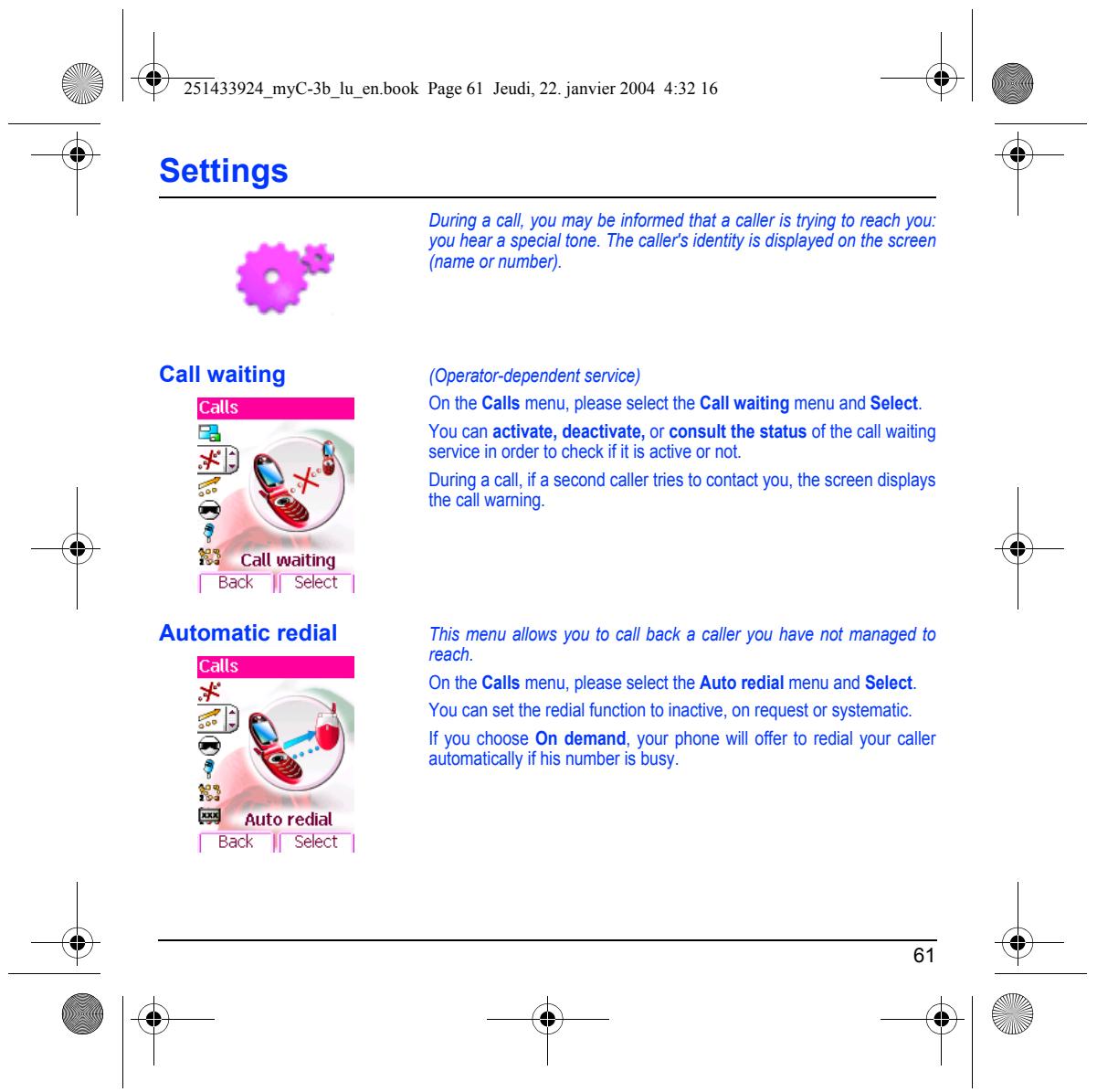
During a call, you may be informed that a caler is trying to reach you: you hear a special tone. The callers identity is displayed on the screen {name or number).
(Operator-dependent service) On the Calls menu, please select the Call waiting menu and Select.
You can activate, deactivate, or consult the status of the call waiting service in order to check if itis active or not.
During a cal, i a second caler tries to contact you, the screen displays the call warning.
This menu allows you to call back a caler you have not managed to reach.
On the Calls menu, please select the Auto redial menu and Select You can set the redial function to inactive, on request or systematic.
If you choose On demand, your phone will offer to redial your caller automatically f his number is busy.
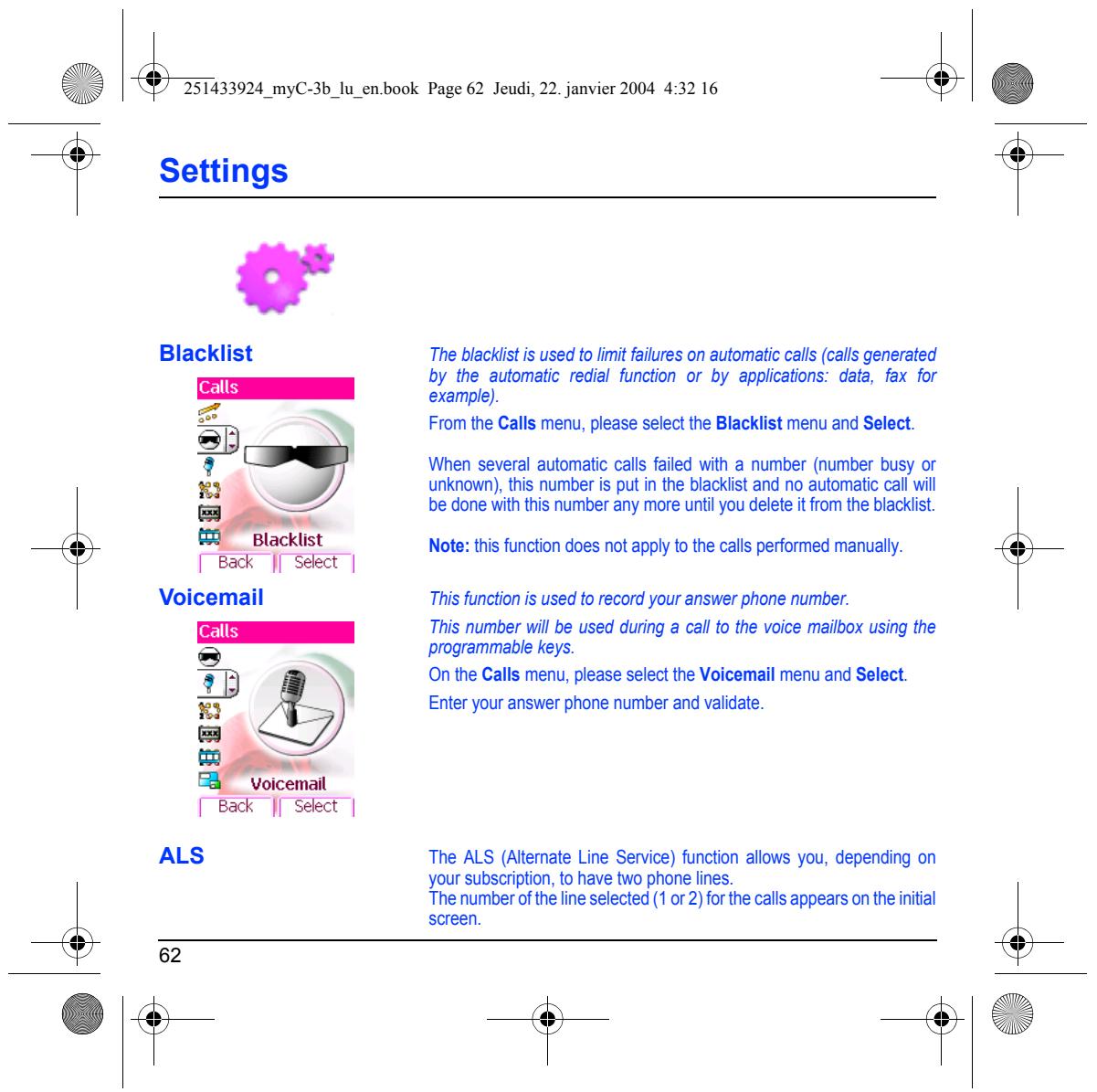
Blacklist The blacklist is used to limit failures on automatic call (calls generated by the automatic redial function or by applications: data, fax for example).
From the Calls menu, please select the Blacklist menu and Select.
When several automatic calls failed with a number (number busy or unknown), this number is put in the blacklist and no automatic call will be done with this number any more until you delete it from the blacklist.
Note: this function does not apply t the calls performed manually.
This function is used to record your answer phone number.
This number wil be used during a call to the voice maibox using the programmable keys.
On the Calls menu, please select the Voicemail menu and Select. Enter your answer phone number and validate.
ALS The ALS (Altemate Line Service) function allows you, depending on your subscription, to have to phone lines. The number ofthe line selected {1 or 2) forthe calls appears on the initial screen.
2 PIN2 Ares F Ba | I Seect |
This menu allows you o configure your phone's security settings.
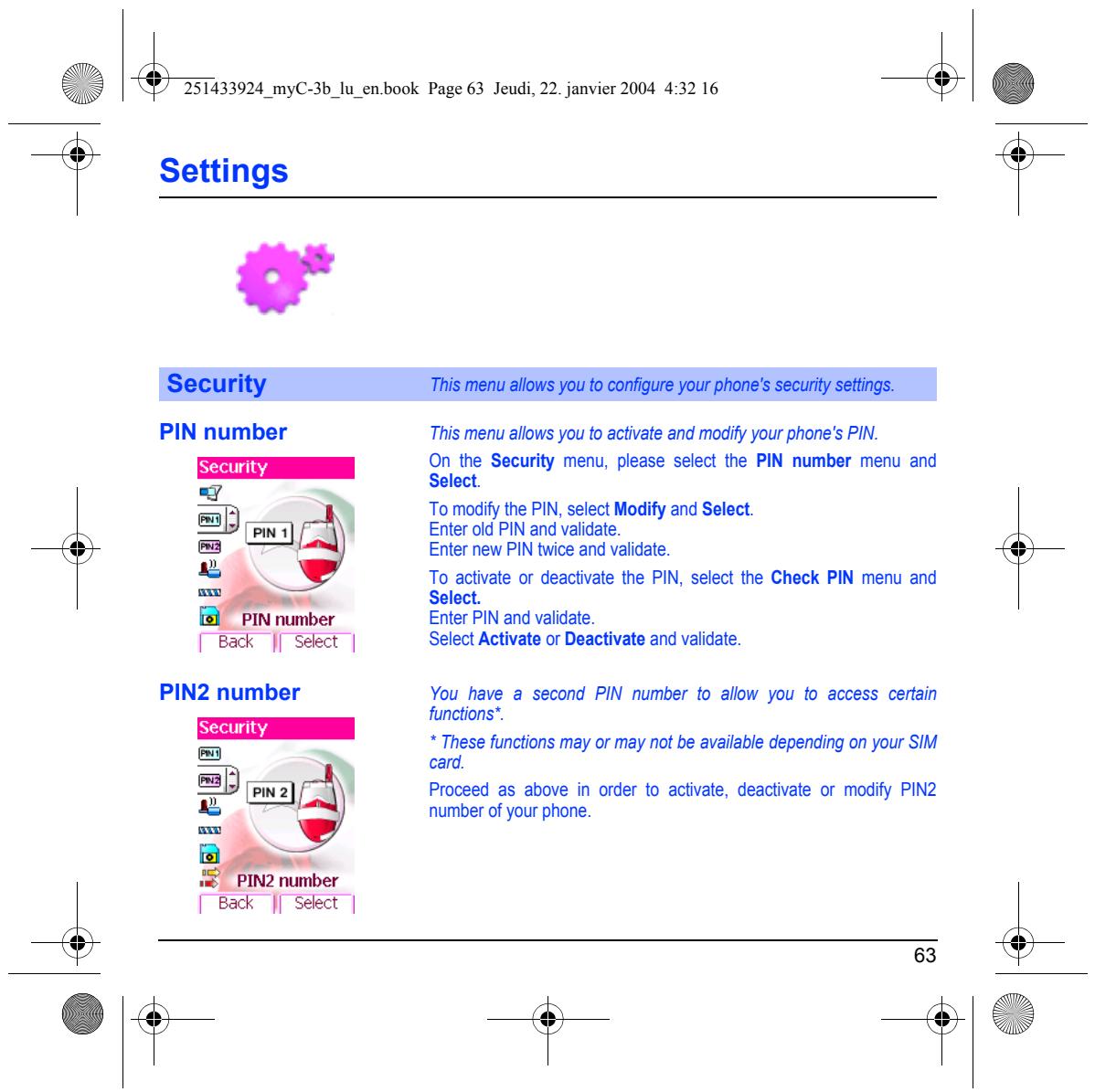
This menu allows you to activate and modify your phone's PIN.
On the Security menu, please select the PIN number menu and Select.
‘To modify the PIN, select Modify and Select.
Enter old PIN and validate.
Enter new PIN twice and validate
To activate or deactivate the PIN, select the Check PIN menu and Select.
Enter PIN and validate
Select Activate or Deactivate and validate.
You have a second PIN number to allow you fo access certain functions”.
* These functions may or may not be available depending on your SIM card.
Procæed as above in order to activate, deactivate or modify PIN2 number of your phone
The Confidentialty function is used to delete numbers stored in View last calls and the SMS stored in the memory when a new SIM card is inserted into the phone.
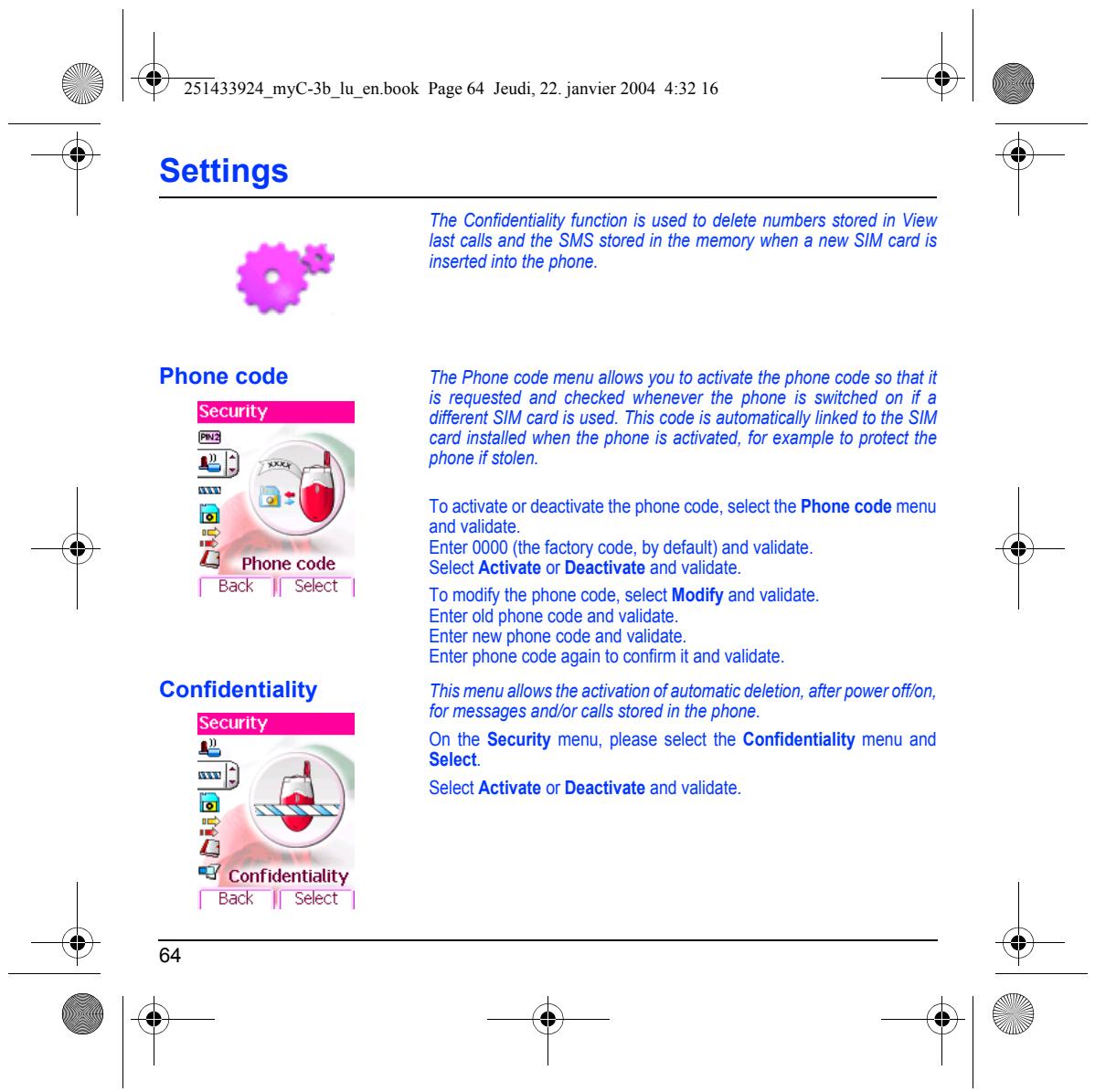
The Phone code menu allows you to activate the phone code so that it is requested and checked whenever the phone is switched on if a diferent SIM card is used. This code is automatically linked to the SIM card installed when the phone is activated, for example to protect the phone if stolen.
To activate or deactivate the phone code, select the Phone code menu and validate.
Enter 0000 (the factory code, by default) and validate.
Select Activate or Deactivate and validate.
‘To modify the phone code, select Modify and validate. Enter old phone code and validate.
Enter new phone code and validate.
Enter phone code again to confimm it and validate.
This menu allows the activation of automatic deletion, after power offon, for messages and/or calls stored in the phone.
On the Security menu, please select the Confidentiality menu and Select.
Select Activate or Deactivate and validate.
Call barring can be applied to ALL call (incoming and outgoing), to all
incoming call when you are away from your home country (if roaming o available)
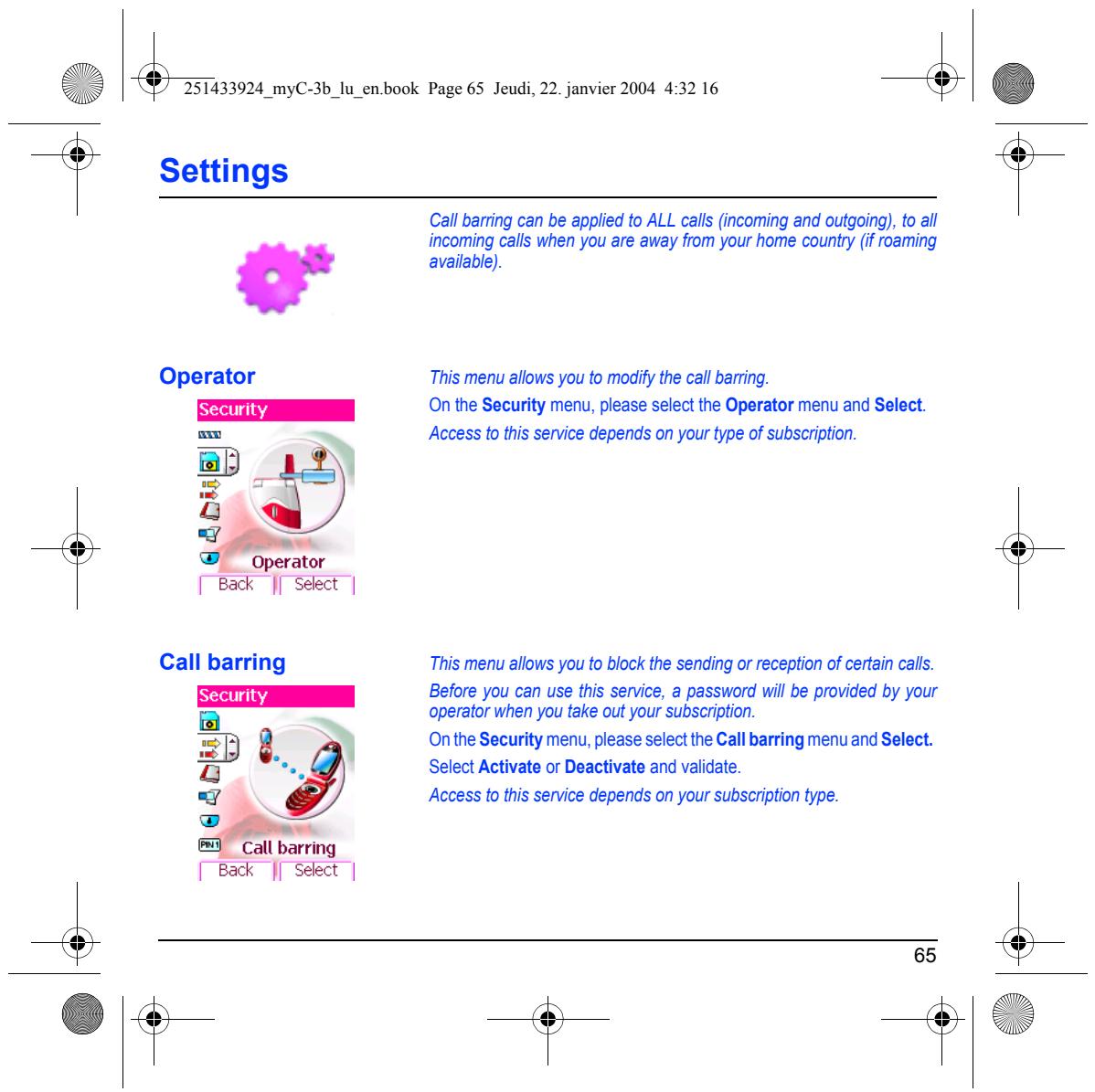
Operator This menu allows you to modify the call barring. Security On the Security menu, please select the Operator menu and Select. sw Access to this service depends on your type of subscription.
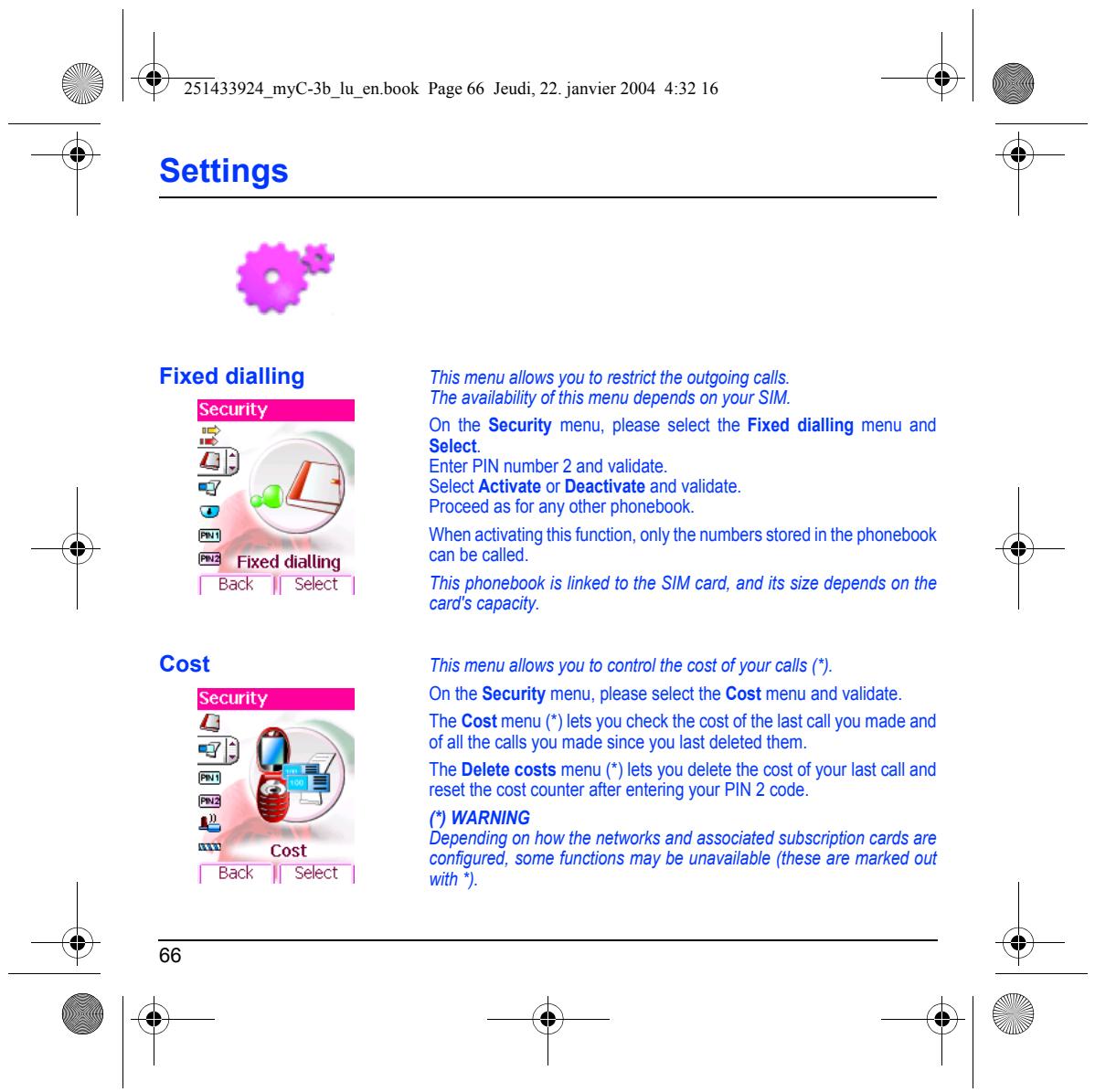
Call barring This menu allows you to block the sending or reception of certain calls. Before you can use this service, a password will be provided by your s operator when you take out your subscription.
Onthe Security menu, please selectthe Call barring menu and Select. Select Activate or Deactivate and validate. Access to this service depends on your subscription type.
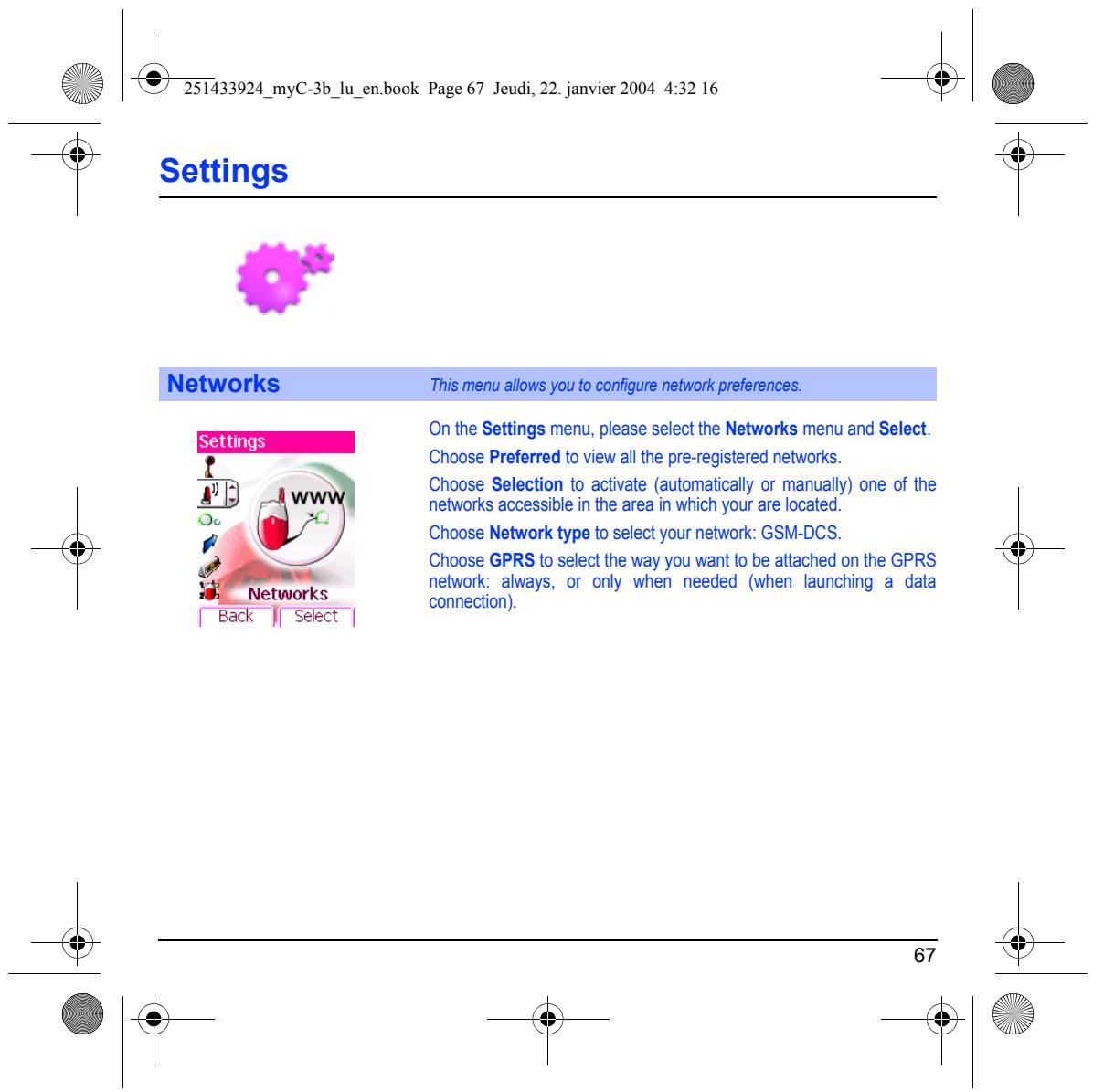
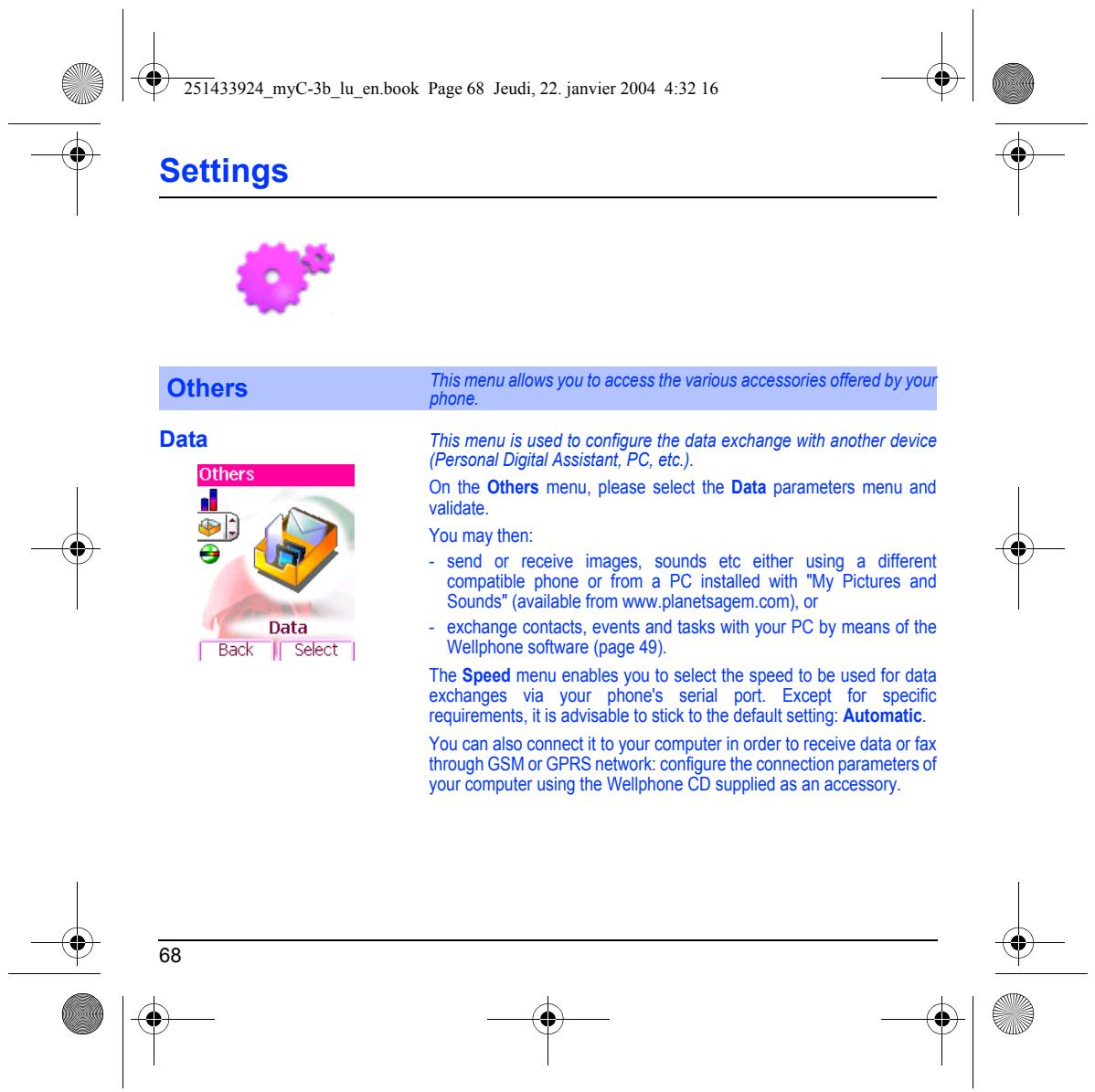
Fixed dialling This menu allows you to restrict the outgoing calls. The availabilty of his menu depends on your SIM. ” On the Security menu, please select the Fixed dialling menu and à s Select. Ë Enter PIN number 2 and validate. Ÿ ..Q Select Activate or Deactivate and validate. œù Proceed as for any other phonebook em ù) — When activating this function, only the numbers stored in the phonebook Fixed dialling can be called. [Back J| Select | This phonebook is linked to the SIM card, and its size depends on the card's capacity. Cost This menu allows you to control the cost of your call () On the Security menu, please select the Cost menu and validate.
The Cost menu () lets you check the cost ofthe last call you made and of all the calls you made since you last deleted them:
= The Delete costs menu (‘) lets you delete the cost of your last call and
ea reset the cost counter after entering your PIN 2 code. $
4, () WARNING es Depending on how the networks and associated subscription cards are confgured, some functions may be unavailable (these are marked out
Cost FBack J| Select | with)
Networks This menu allows you to configure network preferences.
On the Settings menu, please select the Networks menu and Select Choose Preferred to view all the pre-registered networks.
Choose Selection to activate (automatically or manualy) one of the networks accessible in the area in which your are located.
Choose Network type to select your network: GSM-DCS.
Choose GPRS to select the way you want to be attached on the GPRS network: always, or only when needed (when launching à data connection)
This menu is used to configure the data exchange with another device (Personal Digital Assistant, PC, et.).
On the Others menu, please select the Data parameters menu and validate.
= send or receive images, sounds etc either using à different compatible phone or from a PC installed with "My Pictures and Sounds” (available from www.planetsagem.com), or
= exchange contacts, events and tasks with your PC by means of the Weliphone software (page 49).
The Speed menu enables you to select the speed to be used for data
exchanges via your phones serial port Except for specific
requirements, itis advisable to stick to the default setting: Automatic.
You can also connect it to your computer in order to receive data or fax
through GSM or GPRS network: configure the connection parameters of your computer using the Wellphone CD supplied as an accessory.
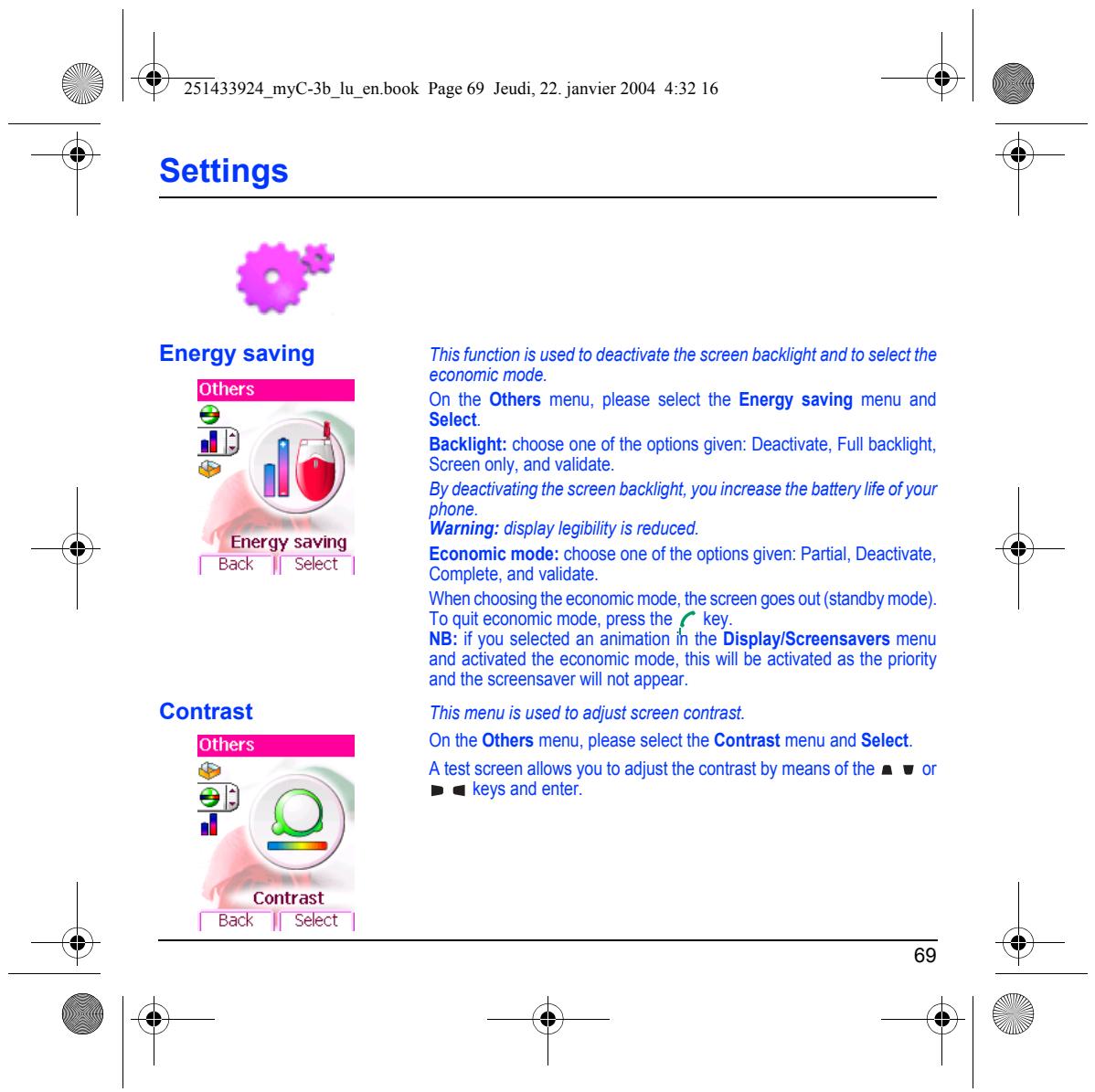
Energy saving This function is used to deactivate the screen backlight and to select the economic mode.
On he Others menu, please select the Energy saving menu and
9 Select. D f Backlight: choose one of the options given: Deactivate, Full backlight,
æ Screen oniy, and validate.
\ l By deactivating the screen backlight, you increase the battery life of your
{ Waming: display legibilty is reduced. nergy saving Le mode: Economie mode: choose one of the options given: Partil, Deactivate, Back || Sekct | Complete, and validate.
(When chocsing the economic mode, the screen goes out (standby mode). To quit economic mode, press the key. NB: if you selected an animation ih the Display/Screensavers menu and aclivated the economic mode, this wi be activated as the priority and the Screensaver wi not appear.
Contrast This menu is used to adjust screen contrast. On the Others menu, please select the Contrast menu and Select. A test screen allows you to adjustthe contrast by means ofthe a w or ER à » a keys and enter. # O
à LP Contrast F Back J| Select | 69
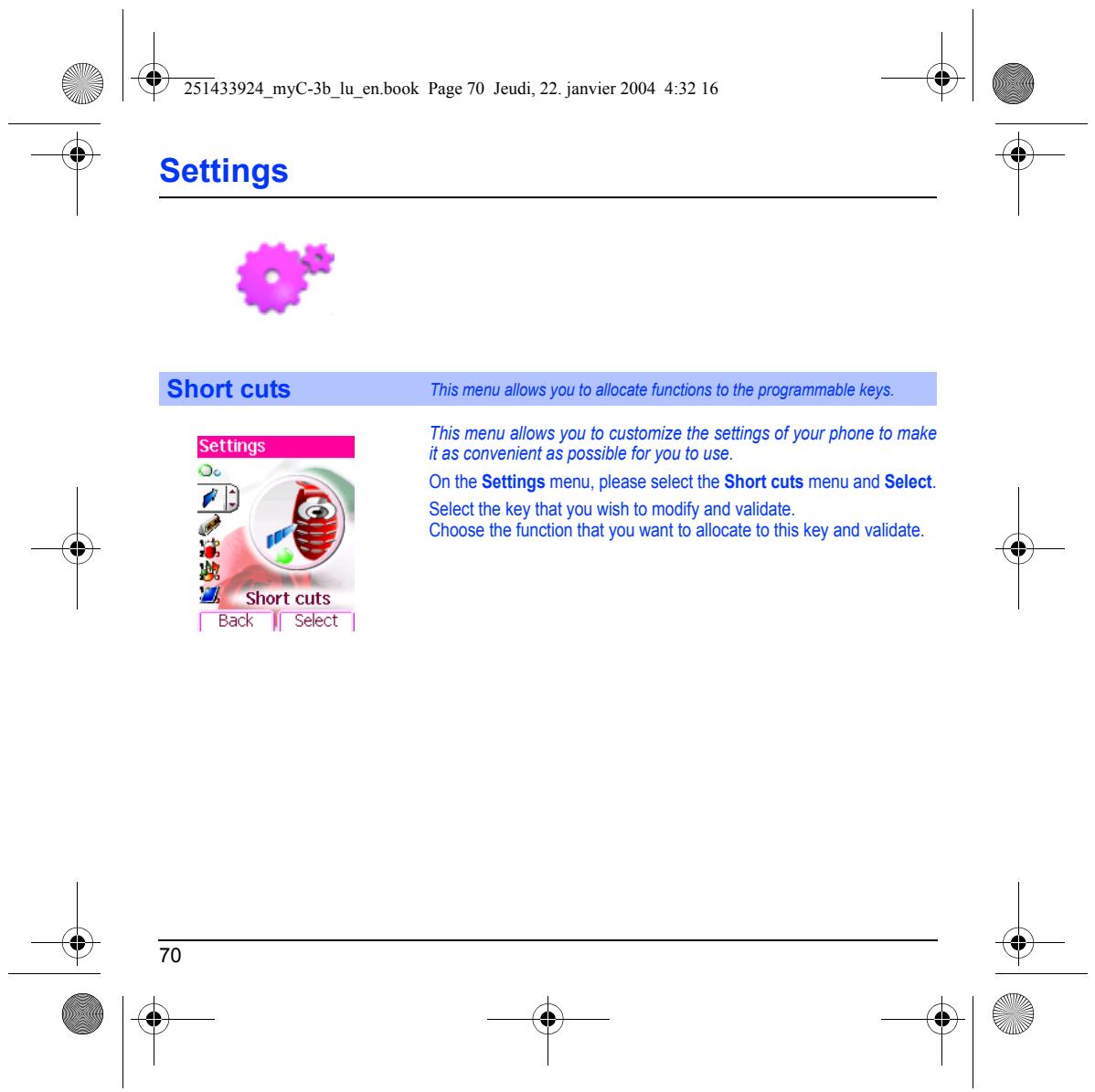
Short cuts This menu allows you to allocate functions to the programmable Keys.
This menu allows you to customize the settings of your phone to make its convenient as possible for you to use. On the Settings menu, please select the Short cuts menu and Select.
Selectthe key that you wish to modify and validate. Choose the function that you want to allocate to this key and validate.
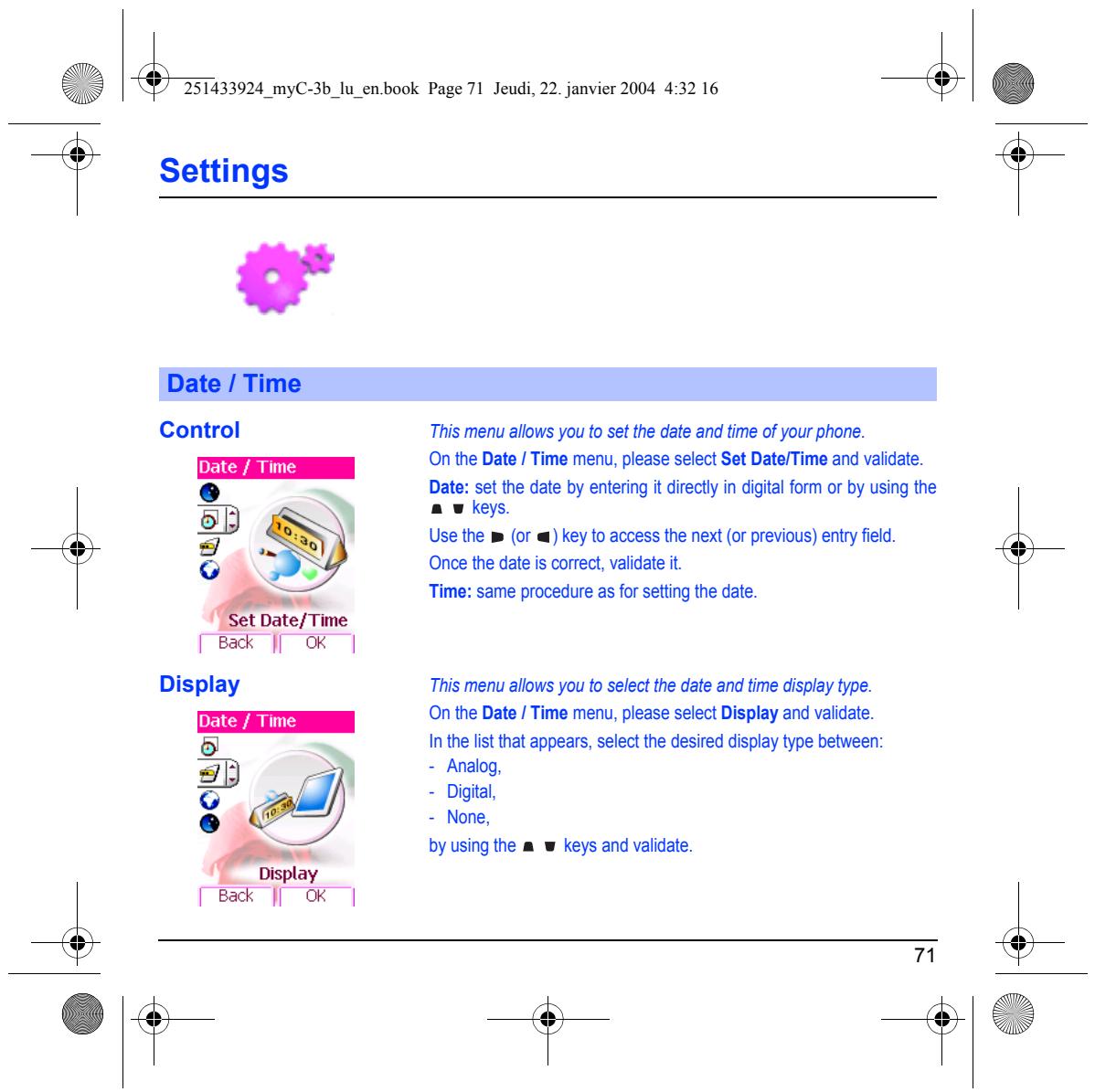
Date / Time Control This menu allows you to set the date and time of your phone. On the Date / Time menu, please select Set Date/Time and validate.
Date: set the date by entering it direct in digital form or by using the
ob | aukeys. 3 Use the » (or @) key to access the next (or previous) entry field FM à Once the date is correct, validate it.
Time: same procedure as for setting the date.
FEak J © | Display This menu allows you to select the date and time display type. On the Date / Time menu, please select Display and validate. 5 In the list that appears, select the desired display type between: d > = Analog, = Digital = None,
byusingthe a w keys and validate.
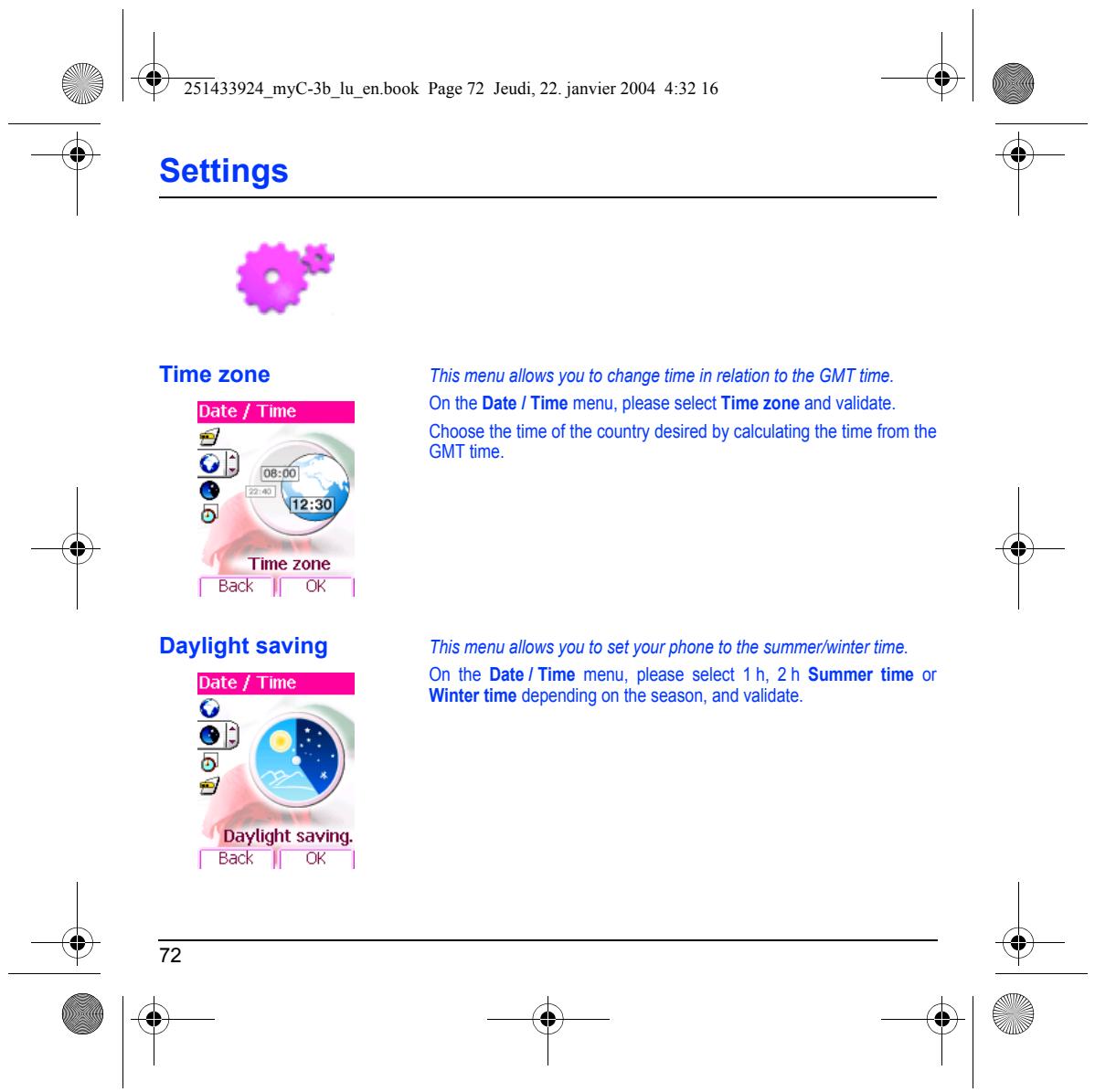
Time zone This menu allows you to change time in relation to the GMT time. On the Date / Time menu, please select Time zone and validate. F] Choose the time of the country desired by calculating the time from the D N GMT time. Cr |, 5 Th. Time zone Bak || OK | Daylight saving This menu allows you to set your phone to the summer/winter time. On the Date / Time menu, please select 1 h, 2h Summer time or o Winter time depending on the season, and validate. © ERA ÉEiont savng. Bak || OK |
On the Settings menu, please select Active flip and Select.
By defaut, call are answered by opening the fip and you wil just need
to close it to hang up. That faciity can be deactivated.
This menu allows you to modify these settings:
= On opening this menu enables you to activate or not the option of taking the call by opening the flip.
= On closing; this menu enables you to activate or not the option of
Active flip hanging up by closing the ip.
7 À F Services F This menu allows you to access numerous services offered by your operator. The list of these services will appear in the menu depending on your subscription. Services This menu allows you to access your operators basic services. On the Services menu, please choose from the list offered. This list depends on your SIM. 4 ù 2 4 k PS SA 74 K@>
Use of your phone is subject t safety measures designed to protect users and their environment. Do not use your phone in damp areas (bathroom, suimming pool... Protect it from liquids and other moisture. Do not expose your phone to extreme temperatures from - 10°C to + 55°C.
‘The physicochemical processes created by chargers. impose temperature limits when charging the battery. Your phone automatically protects the batteries in extreme temperatures.
Do not leave your phone within the reach of small children (certain removable parts may be accidentlly ingested) Electrical safety
Onÿy use the chargers listed in the manufacturers catalogue. Using any other charger may be dangerous; it would also invalidate your warranty. Line voltage must be exacty the one indicated on the charger serial plate
Aircraft safety Wen traveling by plane, you will need to switch your phone off when 50 instructed by the cabin crewr or the waming signs. Using a mobile phone may be dangerous to the operation of the aircraft and may disrupt the phone network.
Is use is illegal and you could be prosecuted or banned from using cellular networks in the future if you do not abide by these regulations.
Please comply with waming signs at petrol station asking you to switch your phone of. You will need to comply with radio equipment usage restrictions in places such as chemical plants, fuel depots and at any location where blastng operations are under way.
Electronic medical equipment
Your phone is a radio transmiter which may interfere with electronic medical equipment or implants, such as hearing aicés, pacemakers,insuln pumps, etc. is recommended that a minimum separation of 15 cm be maintained between the phone and an implant. Vour doclor or the manufacturers of such equipment wil be able to give you any advice you may need in this area.
Hospitals Ahrays make sure that your phone is switched of in hospitals when so instructed by waming signs or by medical staff. Road safety
Except in emergencies, do notuse your phone when driing unless you have a hands-free kit enabling you to manoeuvre free. In order to give your ful attention to driing, stop and park safely before making a call. You must comply with any current legislation:
Ensure that no part of your body is permanent close to the æerial unless there is a metal screen (eg: a vehicle roof..).
È Care and safety information SAR
‘This phone complies with European requirements governing exposure to radio waves. Your phone is a transmiterireceiver. lt M been designed and manufacture to comp th ralorequenc energy exposure mt recommended by ne Couno of the European Union and the ICNIRP for the entire population, These limits were established by independent scientfic agences on the basis ofin-depth and reguiar evaluations of scientific studies. The limits include a large safety margin that is intended to guarantee the safety of al, irespective of age or state of health
‘The exposure standard for phones uses a unit of measure called the SAR, or Specific Absorption Ratio. The SAR limit recommended y the Cour! oftne European Union and tre ICNIRP is 2 Wkg (1 ess were conducgd on a sendardised usage position basis, with the phone transmiting at is maximum level certfied in al its frequency bands. Although the standardised measurement is done at maximum power, the real SAR of the phone in use is generally very far below the maximum value.
‘The phone was designed to operate atthe power level strict neces-sary to ensure communication with the network. In general, the closer you are t a base station, the lower the power at which the phone will transit.
Validation of confommity with European directive 1999/5 (directive R&TTE) is a pre-requisite for introducing any model of phone onto the market. Protection of health and he safety of the public and the user are a vital requirement of this directive. This models maximum SAR value measured atthe compliance test for use atthe ear was 0.99 Wkg. Although differences may exist from one phone to he other and depending on postion, al comply with European regulations.
Advice for limiting exposure to radiofrequency (RF) fields
Farindhduls concemed about img teirexposure to RF lle Woré Health Organization (VO) provides te olouing advice
Precautionary measures: Present scientific information does not indicate the need for any special precautions for the use of mob phones. idiual are conoemed| hey might chocs other ou or their chiens RF exposure by ing te length of cal, or using “hands-free” devices to keep moblle phones away from the head and body.
Further information on this subject can be obtained from the \WHO home page htp:lww ho intipeh-emf WHO Fact sheet 193: June 2000.
The SAR limit or phones used by the general publi is 2 watts/kilogram (2 Wkg) on average for 10 g of tissue. This value includes à large safety margin to increase profection and to take account of the variations in measurements. The SAR information may vary in diferent parts of the world, depending on declared national requirements and the frequency bands used by the network.
‘The software program developed by SAGEM remains the exclusive property of SAGEM SA. ti therefore highly prohibited to modify, translate, de-compll or disassemble this sofware program or any part thereol.
Usage precautions Your phone allows you to download ring tones, icons and animated screensavers. Some of these items may contain data that may cause malfunctions of your phone or data losses {virus for example),
For his reason, SAGEM SA rejects al responsibility conceming [{)the reception of dounloaded data or losses ofthe said data, eme on he pesant ie pole a (3 damages Ing RON recebng re aid dourioaden Gt 0000 sat data, In addion, SAGEM SA sates Hat a flure caused Dj recebng dounloaded date a do not comp with te speciications set by SAGEM SA is excluded from the warranty. Consequent, the diagnosis and repair of a phone ifected by the said downloaded data will be at the expense of he customer.
Whenever you wish to make use of the warranty, please contact your vendor and present him with the purchasing paperwork that he gave you
Ha fault occurs, he wi adise you
1. ‘The new phone (excluding consumables), including new accessories bundied with the phone, are quaranteed by SAGEM SA, parts and labour (apart from travel) against any manufacturing fau fr a period of twelve (12) months with effect from the sale ofthe phone by SAGEM SA to the customer, on presentation of the paperwork stating the purchase date of the phone. Phones that have been repaired or replaced as standard during the warranty period stated above are guaranteed (parts and Tbour) until the later of these two dates:
Ep of tre guarantee period fuel (12) months stat above ortree (3) monts it ft from te Support ronde by
In any disputes, he phone is covered by he legal warranty against the consequences of fault or hidden defects in compliance with articles 1641 and subsequent of the French civil code.
2. Al uty phones under aan il be replace ar repared ee of charge at SAGEM SAS op (he exuson of repair of any other damage), once i has been specied that the work required for he application of the warranty wil be done in à workshop and that the retum costs (ranspor and insurance) ofthe phone t the address to be indicated toi by the SAGEM SA after-sales service, whose phone number will appear on the delivery note, will be charged t the customer.
Subject t essential legal provisions, SAGEM SA does not accept any warranty, explcit or implcit, other than the warranty provided expressiy in this chapter, nor shall SAGEM SA accept responsibility for any immateral and/or indirect damages (such É ss of orders, los of prof or any ter nano or commercial damage} under ne amant or no.
3. ‘The acceptance of a phone under warranty demands that a purchase document hat legible and without modi-cation, stating vendo”s name and address, date and place of purchase, type of phone and IMEI, are aftached to the warranty, and that the information on the phone identification label legible and that this label or any other seal has not been tampered with
‘The warranty apples in normal conditions of use.
Prior to sending the phone for repair, ii the customers responsibility to backup at his expense the customized data stored in the phone (phonebook, settings, wallpapers). À ist of backup faclties can be provided by SAGEM SA on request. The responsibiiy of SAGEM SA cannot be nvoked if damage occurs to customer îles, programs or data, The information or operating elements and the contents offles wil not be re-instlled in any case in the event of loss.
SAGEM SA may decide at option, repart phone vi eur or recandtoned arts reglace phone it ne phone or, in any dispute, a phone in good working condition. During its work SAGEM SA reserves the facility to make, where necessary, any technical modifications to the phone where these modifications doe not adversely affect is initial purpose:
Fauly parts to be replaced during a repair under warranty wil become the property of SAGEM SA
‘The phone repair and standstil time during the warranty period may not lead to an extension of the warranty period as stated in are 1 above, provided no other vital provisions have been agreed.
‘The application ofthe warrantyis subject to the ful payment ofthe sums due for the phone when the request for support is made.
4. The following are excluded from the warranty:
Breakdowns or malfunctions due to non-compliance with the installation and use instuctons, to an extemal cause of the phone {ho lightning fre, vancalism, malice, water damage of any type, contact with various iquis or any harmful agent, unsuitable Seti uen. t modifications he phone made uitiouttne vite consent SAGEM SA 1 seriong fut as described in the documentation supplied with the phone, to lack of supervision or care, to poor environmental conditions of the phone {especialy temperature and hygrometry, effects of variations in electic voltage, interference from the mains network or earth) or
even due to arépair a cal-out (opening or trying to open the phone) or to sericing done by personnel not approved by SAGEM Damage resuïing from inadequate packaging andior poor packing of the phone sent back to SAGEM SA. Normal wear and tear ofthe phone and accessories. Communication problems linked with a poor environment, especially
Problems accessing andlor logging onto the Internet, such as breakdowns of the access network, the failure of the subscribers or hi correspondent line, transmission fault (poor geographic coverage by radio transrmiters, iterference, disturbance, fai- lure or poor quality of phone lines... faut inherent to the local network (cablng, fie server, user phone) andior transmission network fau (interference, disturbance, failure or poor quality of the network...
Change of parameters of the cellular network made after the phone was sold Supply of new software versions.
Current servicing work: delivery of consumables, installation or replacement of these consumables. Calkouts for phone or software modified or added without the written consent of SAGEM SA.
Faut or isrupions resuting from the use of products or accessories not compatible with the phone. Phones retumed to SAGEM SA without having complied with the retum procedure specii to the phone cove-red by this warranty.
‘The opening or iosing of a SIM operator key and cal-outs resulting in the non-operation ofthe phone resuling from the opening or losing of SIM operator key done without the agreement of the original operator.
5. Inthe cases of warranty exclusion and of expiry ofthe warranty period, SAGEM SA shall draw up an estimate to be given to the customer for acceptance before any cal-out. The repair and camiage costs (there and back) given in ne accepted estimate will be changed to the customer.
‘These provisions are valid unless a special written agreement has been made with the customer. one of the provisions tums out t infinge a legally essential rule that consumers could have the benefit of under the national legislation, this provision wall not be applied, but all other provisions vil remain valid
PROBLEM - SITUATION ACTIONS Itis impossible to switch Remove and replace the battery: the phone on If you still cannot switch the phone on, charge the battery: = Put the phone on charge for at least 15 minutes before switching it back on again.
= Check ifthe battery icon is scroling up and down.
=_ Iso, the phone is charging.
= Hfnot, please take the charger out and put it back on again. Please check that the charging icon is scrolling up and down.
= Hfyou st cannot switch the phone on, please disconnect the charger, put it back on again and please repeat that manipulation several times.
= Hfthe charging icon is stil not scroling up and down, please contact your after-sales services.
= When the charging icon has stopped scroling up and down, the battery is charged.
Battery status unknown The phone does not recognize the battery. Please check the position of the battery.
LOW BATTERY This message is displayed when the battery becomes too weak. The phone switches itself off automatically. Put the phone on charge.
SIM not present Check if the SIM card is present and property positioned / inserted. Check the condition of the SIM card. I damaged, please go back to the operators shop for advice. Contact your after-sales service if the message persists.
incorrect PIN code An incorrect PIN code has been entered. Be careful! Three incorrect PIN codes will block the SIM Card.
È Troubleshooting PROBLEM - SITUATION ACTIONS SIM BLOCKED You have entered three incorrect PIN codes.
Enter your PUK code to unblock your SIM Card. You must enter: **05*PUK'PIN*PIN#
You must enter the PUK code (Personal Unblocking Key) given by your network provider.
40 errors wil| permanentiy block your SIM Card. You must then contact your network provider to get a new one.
SIM LOCKED On network providers’ request, the handset can only be used with some types of SIM cards. This message means that the SIM card you are using does not ft with the phone. Take the SIM card out, and switch itback on. Ifthe message SIM not present appears on the screen, you wil! need to check its compatbilty next to the place where you bought it. Ifnot, please contact your after-sales service.
No call connection Check that the number you have dialled is correct. Ithe letter R is displayed on the top right comer of the screen, without any network name displayed, only emergency services can be called. Check the status of your credit.
Check that the SIM Card you are using offers the service you are requesting ; check ifits validity has not expired.
Check and deactivate the outgoing cals restriction when necessary. The network could be saturated. Try later. Ithe problem persists, please contact your Technical Helpdesk
No receiving calls Try to make a call in order to check that the phone and the networks are operational.
Check and deactivate the permanent call fonwarding (permanent call forwarding icon displayed on the screen)
Check and deactivate the incoming calls restriction when necessary. Ithe problem persists, please contact your Technical Helpdesk
If answer phone icon flashing Wrong ring tone is played on call reception
Backlight does not work
In WAP context: SERVER NOT ANSWERING message
Logon to home page impossible
Operator name does not appear on screen
How do l un)lock the keypad? How do | switch to silent mode?
How do ! activate zoom?
ACTIONS Avoid placing your fingers on the top of the phone, where the aerial is integrated: the phone wil have to use ful strength to establish a quality transmission.
Check that the message centre number is correctly entered.
To do so, please select the menu Messages, select Options, select Msg centre n° and check the number entered. Please contact your network provider to get this number.
Check that the SIM card does offer this service.
Program the call to be forwarded to answer phoneusing the information provided by the operator.
Check that the SIM card used offers this service. Try to make a call to check that phone and network are operational.
Check if the answer phone number is properiy configured. To do so, go to the Settings / Calls menu, select Voicemail and check the number. Otherwise, enter your operators answer phone centre number.
Call the answer phone to make it disappear.
Check the call group of the contact who has called: check the ring tone selected for this group.
Go into the Settings / Others menu, select the Energy saving menu and activate backlight.
Switch off and then switch phone back on.
In the WAP menu, Clear the cache. Go into the Settings menu, select Networks, then Selection. Wait until the operator appears, select it and validate.
Press the X3 key, then the N. key (validate)
Hold the Xx key doun unless ring tone sounds, when a short touch is enough
Can be activated only in SMS and WAP screens; hold down the # key.
PROBLEM - SITUATION ACTIONS How do I delete the envelop that If you have received a voice mail, please call your voice mailbox and appears on the screen? Gi follow the instructions given. How do | delete the answer This answer phone means that you have received a voice mail: please phone that appears on the call your voice mailbox and listen to it. Please follow the instructions screen? given. How do I remove the written Press the % key to go back to the initial page without messages.
message at the bottom of the
How do l download ringtones? Logon to one of the following sites via your computer wwplanetsagem.com, These sites offer to send ring tones to your phone in the form of an SMS. You can also logon to your operators Site. Once the SMS has been received, all you have to do is save it validate the option « Save messages », the tune wil then be added to your ist. In addition, you can logon to some sites by phone.
How do l free up memoryto Go into the Multimedia menu, select My pictures or My sounds then download my objects (sounds, … delete some objects.
How do l free up memoryto Manage your Outbox carefull. It is recommended not saving them receive new messages ? automatically: too many messages saved will quickly fil. up the
available memory and no further messages will be received. To delete them, please go into the Messages menu, select Outbox then delete some messages. Manage your Inbox carefull also.
How do | free up memory to store itis highly recommended to manage your Phonebook carefull.
new contacts in my Phonebook? Jf you have received pictures enclosed to a Vcard, please save or
delete them. How can lincrease the efficiency The most efficient actions are as follows: of my phone? You can adjust the control of the backlight of your phone.
ManualGo.com