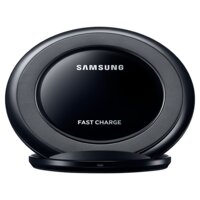
EP-NG930 - Wireless Charger SAMSUNG - Free user manual and instructions
Find the device manual for free EP-NG930 SAMSUNG in PDF.



| Product type | Wireless charger |
| Brand | SAMSUNG |
| Model | EP-NG930 |
| Power supply | 5 V / 2 A, 5.3 V / 2 A or 9 V / 1.67 A (certified Samsung charger required) |
| Main functions | Standard and fast wireless charging, foreign object detection, LED status indicator |
| Compatibility | Devices certified by the Wireless Power Consortium (WPC) |
| Indicator light | Multi-color LED (blue, green, orange) indicating connection, charging, errors |
| Safety | Built-in cooling fan; do not cover ventilation areas; avoid metal objects between the device and the charging pad |
| Box contents | Wireless charging pad, quick start guide (power adapter not included) |
Frequently Asked Questions - EP-NG930 SAMSUNG
User questions about EP-NG930 SAMSUNG
0 question about this device. Answer the ones you know or ask your own.
Ask a new question about this device
Download the instructions for your Wireless Charger in PDF format for free! Find your manual EP-NG930 - SAMSUNG and take your electronic device back in hand. On this page are published all the documents necessary for the use of your device. EP-NG930 by SAMSUNG.
USER MANUAL EP-NG930 SAMSUNG
Please read this manual before using the device to ensure safe and proper use.
- Images may differ in appearance from the actual product. Content is subject to change without prior notice.
- Before using the wireless charger, make sure it is compatible with your device.
Instructional icons

Warning: situations that could cause injury to yourself or others

Caution: situations that could cause damage to your device or other equipment

Notice: notes, usage tips, or additional information
Getting started
Package contents
Check the product box for the following items:
- Wireless charger
- Quick start guide

- Wireless charging covers and chargers are sold separately.
- The items supplied with the device and any available accessories may vary depending on the region or service provider.
- The supplied items are designed only for this device and may not be compatible with other devices.
- Appearances and specifications are subject to change without prior notice.
- You can purchase additional accessories from your local Samsung retailer. Make sure they are compatible with the device before purchase.
- Use only Samsung-approved accessories. Using unapproved accessories may cause the performance problems and malfunctions that are not covered by the warranty.
- Availability of all accessories is subject to change depending entirely on manufacturing companies. For more information about available accessories, refer to the Samsung website.
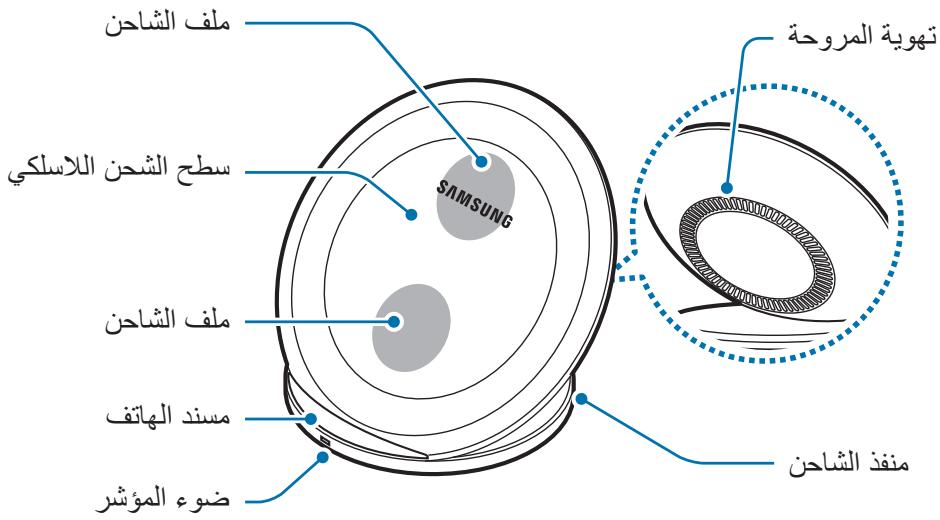
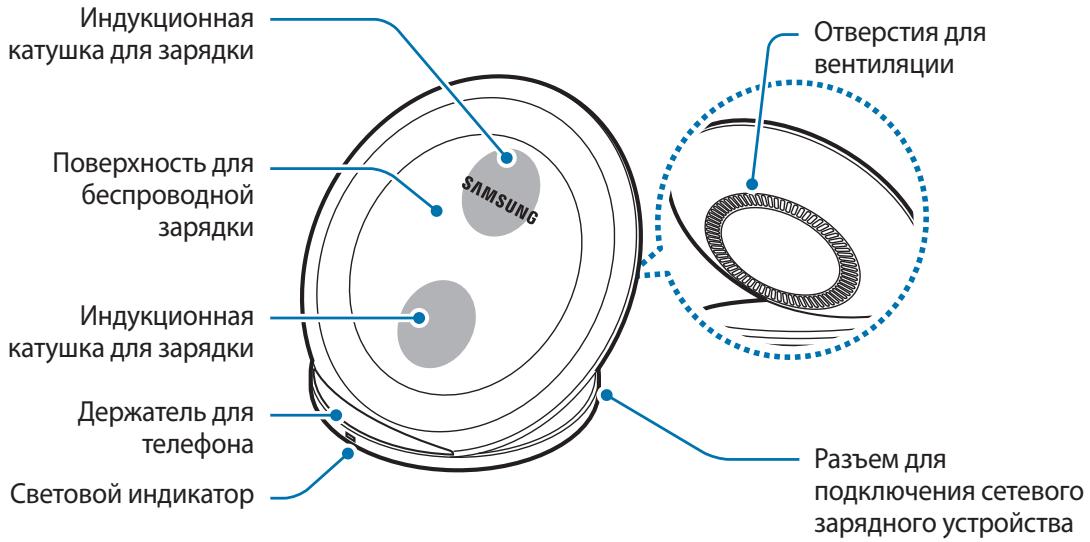
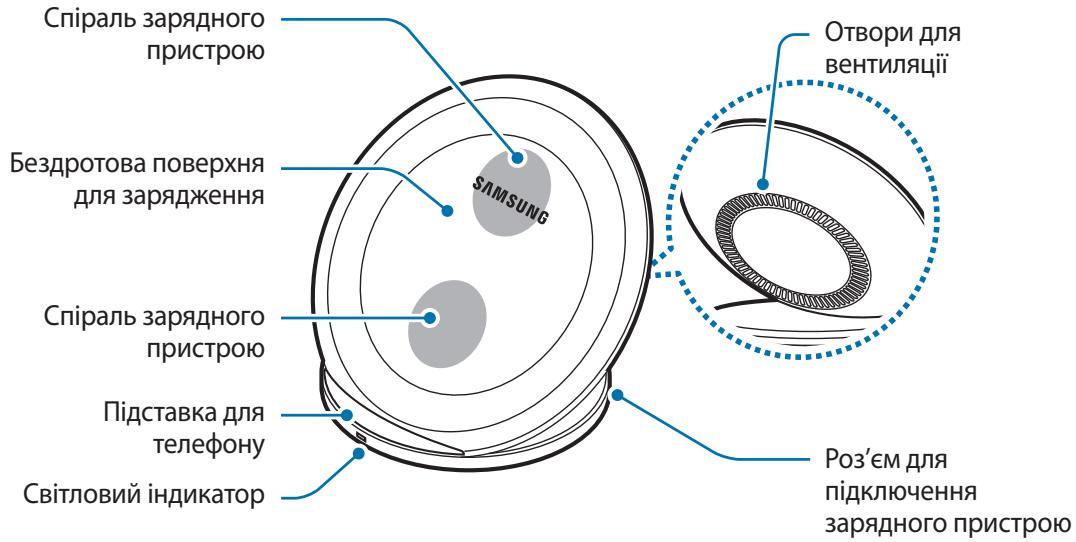
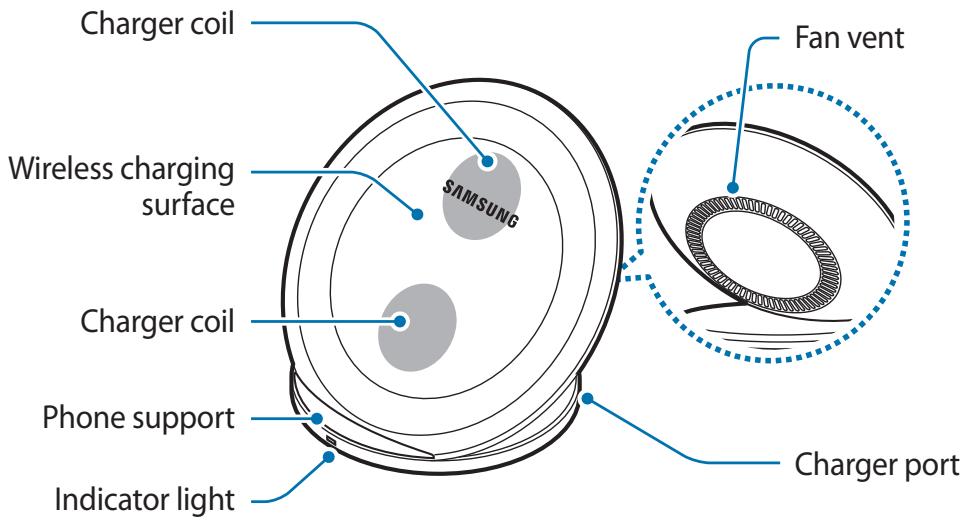
Device layout
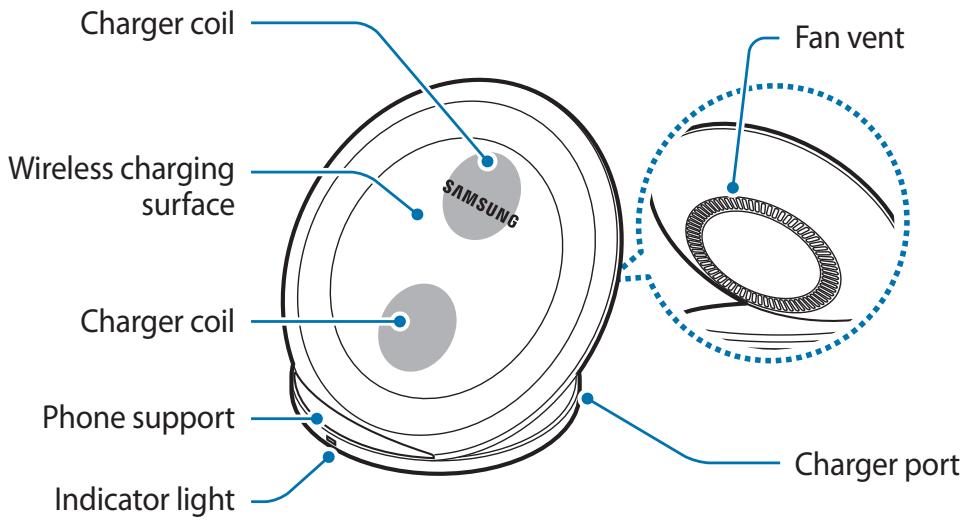
Using the wireless charger
Charging your mobile device
Wireless charging
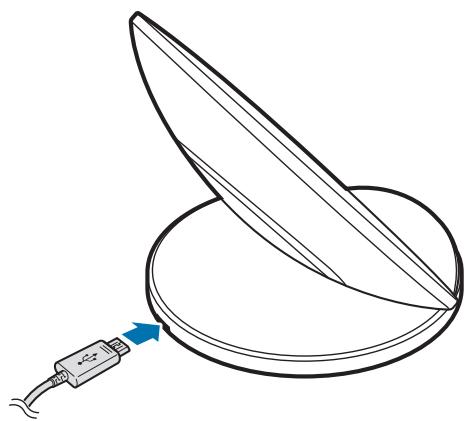
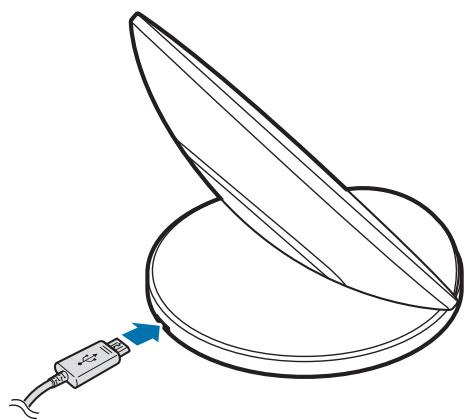
1 Connect a charger to the wireless charger.
When the charger is correctly connected to the wireless charger, the indicator light flashes blue, green, and cyan, and then turns off.
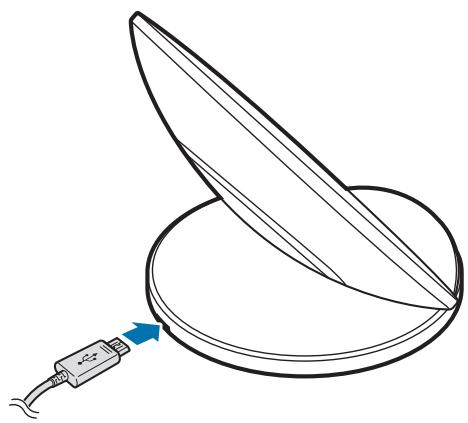

Use only Samsung-approved chargers (5 V/2 A, 5.3 V/2 A, and 9 V/1.67 A).
Unauthorized chargers may cause damage or the wireless charger may malfunction.
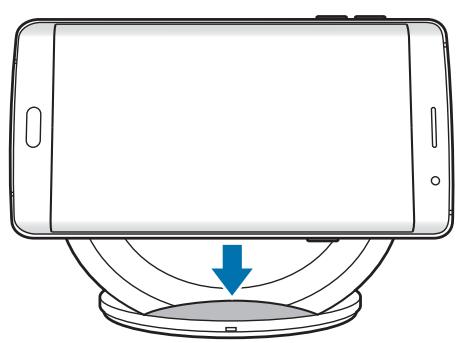
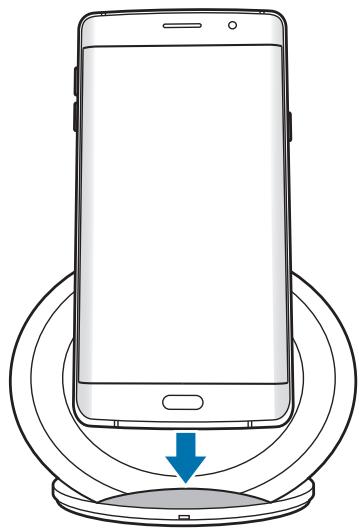
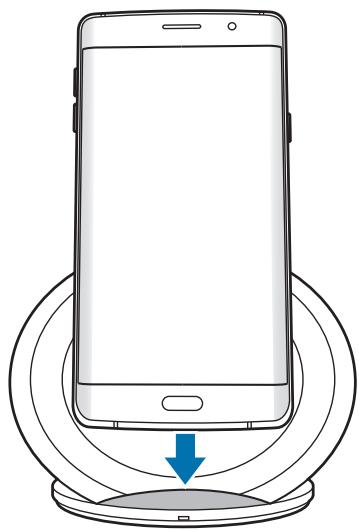
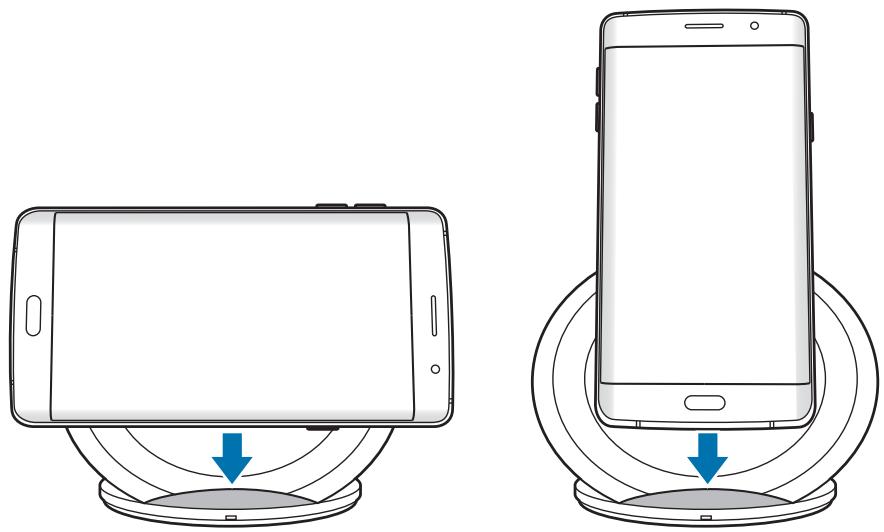
2 Place a supported mobile device on the phone support.
Check the charging icon displayed on the mobile device's screen for the charging status.

- Do not place the wireless charging cover solely on the wireless charger. Doing so may overheat the wireless charger and cause a fire. It may also result in serious burn or device malfunction.
- If you place a mobile device on the wireless charger for an extended period, the wireless charger may overheat and the fan inside it may turn on.
- Do not cover or block the wireless charger's fan vent.

To charge a mobile device that does not have a built-in wireless charging coil, attach a wireless charging cover to the mobile device. Then, place the mobile device on the wireless charger.
3 When the mobile device is fully charged, remove it from the wireless charger.

Do not place foreign materials, such as metal objects, magnets, and magnetic stripe cards, between the mobile device and the wireless charger. The mobile device may not charge properly or may be damaged due to overheating.

- You may need to purchase a charger separately depending on the wireless charger you bought.
- When the mobile device is not placed on the charging surface properly, or depending on the location of the mobile device's wireless charging coil, your mobile device may not charge properly.
Depending on the location of the mobile device's wireless charging coil, your mobile device may not charge properly. - Wireless charging may not work properly if you have attached a thick case to your mobile device. If your case is thick, remove it before placing your mobile device on the wireless charger.
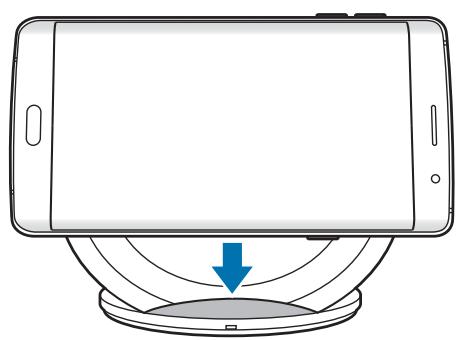
- When a headset is connected to your mobile device, place the mobile device in a landscape position on the wireless charger. If you place the mobile device in a portrait position, it may not charge.
- If you use the wireless charger in areas with weak network signals, you may lose network reception.
- If you connect a charger to the mobile device during wireless charging, the wireless charging feature will be unavailable.
- The wireless charger is compatible with Wireless Power Consortium (WPC) certified devices.
- To save energy, unplug the charger when not in use. The charger does not have a power switch, so you must unplug the charger from the electric socket when not in use to avoid wasting power. The charger should remain close to the electric socket and be easily accessible while charging.
- The socket-outlet shall be installed near the equipment and shall be easily accessible.
Fast wireless charging
The wireless charger supports fast wireless charging. To begin fast wireless charging, place a mobile device that supports fast wireless charging on the wireless charger.

Use only Samsung-approved chargers that support fast charging (EP-TA20 series 9 V/1.67 A).

The fan inside the wireless charger operates during fast wireless charging. The fan will not operate when this feature is deactivated on your mobile device.
Activating or deactivating the fast wireless charging feature
The fast wireless charging option will be added in your mobile device's settings menu when you place it on the wireless charger for the first time.
Place the mobile device on the wireless charger. On the Home screen of the mobile device, tap Apps → Settings → Accessories, and then tap the Fast wireless charging switch to activate or deactivate it. Deactivating this feature will switch the charging mode to normal wireless charging and result in slower charging times.
Indicator light identification
The indicator light alerts you to the wireless charger's status.
| Colour | Status |
| Blue → Green → Cyan | When connected to a power outlet |
| Blue | When charging |
| Green | When fully charged |
| Cyan | When charging at low power (less than 5 V/2 A) |
| Flashing blue | When not charging properly due to a general error |
| Off | When the mobile device is removed from the wireless charger or when the wireless charger is not connected to a power outlet |

- If the indicator light does not work as described, disconnect the charger from the wireless charger and reconnect it.
- The indicator light may work differently depending on the mobile device or the wireless charging cover.
Copyright
Copyright © 2016 Samsung Electronics
This manual is protected under international copyright laws.
No part of this manual may be reproduced, distributed, translated, or transmitted in any form or by any means, electronic or mechanical, including photocopying, recording, or storing in any information storage and retrieval system, without the prior written permission of Samsung Electronics.
Trademarks
- SAMSUNG and the SAMSUNG logo are registered trademarks of Samsung Electronics.
- All other trademarks and copyrights are the property of their respective owners.
Copyright © 2016 Samsung Electronics
Copyright © 2016 Samsung Electronics
Ricarica velocity wireless
Copyright © 2016 Samsung Electronics
Copyright © 2016 Samsung Electronics
Copyright © 2016 Samsung Electronics
Copyright © 2016 Samsung Electronics
Copyright © 2016 Samsung Electronics
ToBa pIbKOBOdCTBO e 3aIuNTeHO OT MeXdUHaOpDHi 3aKOHn 3a aBTOpCKn npaba.
Hikor acr ot pboKOoCTBOTo He moke da 6bde Bb3npOn3BexKaHa, pa3npocTpaHyaHa, npeBexdaHa
IIN npexBbPnHa IOD KaKbATO I da e oopMa IINI PO KaKbTO I da e HauHH, eJeKTPOHeH IINI
MexaHueH, B TOBa YncIoo oToKoOpnPaHe, 3aInc IINI CbXpaHHeN E KaKbATO I da e CnCTema 3a
IHOPMaunHO CbXpaHHe N I3BnUaHe, 6e3 npedBapntelHoTo pa3peSeHne Ha Samsung
Electronics.
TbproBcN MapKn
SAMSUNG n Ioroto Ha SAMSUNG ca pernctpupaHn TbproBckn MapKn Ha Samsung Electronics.
- BcuiKn npuRn TbproBCKn MapKn n aBtOpCKn npaba ca co6CTBeHOCT Ha cBOTBeTHnte IM co6CTBeHnCi.
Najprije pročitajte
Pije uporabe uredaja pažljivo pročitajte ovaj prisučnik kako biste osigurali sigurnu i pravilnu uporabu.
Copyright © 2016 Samsung Electronics
Ovaj je prisćnik za实施细则 medunarodnim zakonima o zašiti autorskih prava.
Niti jegan dio ovog prisučnika ne smije se reproducirati, distribuirati, prevoditi ili prenositi u bilokojem obliku, ni na koji način, elektronici ili mehanički, uključujuci fotokopiranje, snimanje ili pohranjivanje na bilo kojem mediju za pohranu informacije i sustavu dohvata podataka, bez prethodnog pisanog dopuštenja Samsung Electronicsa.
Zašitni znakovi
SAMSUNG i SAMSUNG logotip su registrarani zašitni znakovi tvrtke Samsung Electronics.
Svi su ostali zašitni znakovi i autorska prava vlasnistvo svojih odgovarajućih vlasnika.
Prvo pročitajte
Copyright © 2016 Samsung Electronics
Ovaj prisucnik je zasticen medunarodnim zakonima o autorskim pravima.
Nijedan deo ovog prisučnika se ne sme reprodukovati, distribuirati, prevoditi niti prenositi ni u Jednom obliku niti bilo kojim putem, elektronskim niti mehaničkim, što podrazumeva fotokopiranje, snimanje i skladištenje u okviru bilo kog skladišta informacija iSYSTEMA za preuzimanje, bez prethodne dozvole kompanije Samsung Electronics u pisanom obliku.
Trgovačke marke
SAMSUNG i SAMSUNG logotip su registrovane trgovačke marke kompanije Samsung Electronics.
- Sve ostale trgovačke marke i autorska prava su vlasništro njihovih vlasnika.
Leia primeiro
Copyright © 2016 Samsung Electronics
Copyright © 2016 Samsung Electronics
Copyright © 2016 Samsung Electronics
Copyright © 2016 Samsung Electronics
Copyright © 2016 Samsung Electronics
Copyright © 2016 Samsung Electronics
Identification of indicatorlys
Copyright © 2016 Samsung Electronics
Copyright © 2016 Samsung Electronics
| Renk | Durum | |
| Mavi → Yeşil → Açık Mavi | Elektrik prizine®,®,®,®,®,®,®,®,®,®,®,®,®,®,®,®,®,®,®,®,®,®,®,®,®,®,®,®,®,®,®,®,®,®,®,®,®,®,®,®,®,®,®,®,®,®,®,®,®,®,®,®,®,®,®,®,®,®,®,®,®,®,®,®,®,®,®,®,®,®,®,®,®,®,®,®,®,®,®,®,®,®,®,®,®,®,®,®,®,®,®,®,®,®,®,®,®,®,®,®,® | |
| Mavi | Şarj olurken | |
| Yeşil | Şarj tam doluyken | |
| Açık mavi | Düşük®,®,®,®,®,®,®,®,®,®,®,®,®,®,®,®,®,®,®,®,®,®,®,®,®,®,®,®,®,®,®,®,®,®,®,®,®,®,®,®,®,®,®,®,®,®,®,®,®,®,®,®,®,®,®,®,®,®,®,®,®,®,®,®,®,®,®,®,®,®,®,®,®,®,®,®,®,®,®,®,®,®,®,®,®,®,®,®,®,®,®,®,®,®,®,®,®,®,®,%,®,®,®,®,®,®,®,®,®,®,®,®,®,®,®,®,®,®,®,®,®,®,®,®,®,®,®,®,®,®,®,®,®,®,®,®,®,®,®,®,®,®,®,®,®,®,®,®,®,®,®,®,®,®,®,®,®,®,®,®,®,®,®,®,®,®,®,®,®,®,®,®,®,®,®,®,®,®,®,®,®,®,®,®,®,®,®,®,®,®,®,®,®,®,®,®,®,®,®,-,®,®,®,®,®,®,®,®,®,®,®,®,®,®,®,®,®,®,®,®,®,®,®,®,®,®,®,®,®,®,®,®,®,®,®,®,®,®,®,®,®,®,®,®,®,®,®,®,®,®,®,®,®,®,®,®,®,®,®,®,®,®,®,®,®,®,®,®,®,®,®,®,®,®,®,®,®,®,®,®,®,®,®,®,®,®,®,®,®,®,®,®,®,®,®,®,®,®,®,☐☐☐☐☐☐☐☐☐☐☐☐☐☐☐☐☐☐☐☐☐☐☐☐☐☐☐☐☐☐☐☐☐☐☐☐☐☐☐☐☐☐☐☐☐☐☐☐☐☐☐☐☐☐☐☐☐☐☐☐☐☐☐☐☐☐☐☐☐☐☐☐☐☐☐☐☐☐☐☐☐☐☐☐☐☐☐☐☐☐☐☐☐☐☐☐☐☐☐☐ ☐☐☐☐☐☐☐☐☐☐☐☐☐☐☐☐☐☐☐☐☐☐☐☐☐☐☐☐☐☐☐☐☐☐☐☐☐☐☐☐☐☐☐☐☐☐☐☐☐☐☐☐☐☐☐☐☐☐☐☐☐☐☐☐☐☐☐☐☐☐☐☐☐☐☐☐☐☐☐☐☐☐☐☐☐☐☐☐☐☐☐☐☐☐☐☐☐☐☐☐☒☐☐☐☐☐☐☐☐☐☐☐☐☐☐☐☐☐☐☐☐☐☐☐☐☐☐☐☐☐☐☐☐☐☐☐☐☐☐☐☐☐☐☐☐☐☐☐☐☐☐☐☐☐☐☐☐☐☐☐☐☐☐☐☐☐☐☐☐☐☐☐☐☐☐☐☐☐☐☐☐☐☐☐☐☐☐☐☐☐☐☐☐☐☐☐☐☐☐☐☑☐☐☐☐☐☐☐☐☐☐☐☐☐☐☐☐☐☐☐☐☐☐☐☐☐☐☐☐☐☐☐☐☐☐☐☐☐☐☐☐☐☐☐☐☐☐☐☐☐☐☐☐☐☐☐☐☐☐☐☐☐☐☐☐☐☐☐☐☐☐☐☐☐☐☐☐☐☐☐☐☐☐☐☐☐☐☐☐☐☐☐☐☐☐☐☐☐☐☐. Kapalı | Mobil cihaz, kablosuz Şarj cihazınanalyzerıldı�能anda veya kablosuz Şarj cihazıbir gucçlcılcınsa®,®,®,®,®,®,®,®,®,®,®,®,®,®,®,®,®,®,®,®,®,®,®,®,®,®,®,®,®,®,®,®,®,®,®,®,®,®,®,®,®,®,®,®,®,®,®,®,®,®,®,®,®,®,®,®,®,®,®,®,®,®,®,®,®,®,®,®,®,®,®,®,®,®,®,®,®,®,®,®,®,®,®,®,®,®,®,®,®,®,®,®,®,®,®,®,®,®,®, ®değilken |

Telif hakki © 2016 Samsung Electronics
aI 1 aIg20 gJ gJ J I J

#
i 1
sLwJnJ
J
J 1
.
.
. Juaaia 1 aai jie baei y Jbcj g sly
Jg 1
1 1

jglal
slll jalil
Jgall jglj
sL
1
1 1
i 1
1/11 1/11 1/11 0, 1/11 1/11 0) b2g wulw n jdo aieeall jn jn jn jn jn jn jn jn jn jn jn jn jn jn jn jn jn jn jn jn jn jn jn jn jn jn jn jn jn jn jn jn jn jn jn jn jn jn

i 1
. jlll lglal jieeai iiei ie e grrnllnnn n nn nnnn
J 1

J 1 J 1 J 1 J 1 J 1 J 1 J 1 J 1 J 1 J 1 J 1 J 1 J 1 J 1 J 1 J 1 J 1 J 1 J 1 J 1 J 1 J 1 J 1 J 1 J 1 J 1 J 1 J 1 J 1 J 1 J 1 J 1 J 1 J 1 J
J 1 J 1 J 1 J 1 J 1 J 1 J 1 J 1 J 1 J 1
- Jgaoa 3 jge aaiy aiai y i y
L 1
J 1
.
J 1
sLwLl jzjg jzjg sLwLl jzjg JgJg JgJg JgJg JgJg
.(WPC)
Jn Jn Jn Jn Jn Jn Jn Jn Jn Jn Jn Jn Jn Jn Jn Jn Jn Jn Jn Jn Jn Jn Jn Jn Jn Jn Jn Jn Jn Jn Jn Jn Jn Jn Jn
J 1
J 1
sLwLJnLwLg
EP-TA20 1
( 12,13,14,0)
Jie aegg jn Jn Jn Jn Jn Jn Jn Jn Jn Jn Jn Jn Jn Jn Jn Jn Jn Jn Jn
Jgall jie jiaolil 1


y
J 1 J 1 J 1 J 1 J 1 J 1 J 1 J 1 J 1 J 1 J 1 J 1 J 1 J 1 J 1 J 1 J 1 J 1 J 1 J 1 J 1 J 1 J 1 J 1 J 1 J 1 J 1 J 1 J 1 J 1 J 1 J 1 J 1 J 1 J
jagai gao zao
LwLJnLWlALIe 1
jz jz jz jz jz jz jz jz jz jz jz jz jz jz jz jz jz jz
J. dki Joc 4y jn nn nnnn nn nnnn nn nnnnnnnnnnnnnnnnnnnnnnnnnnnnnnnnnnnnnnnnnnnnnnnnnnnnnnnnnnnnnnnnnnnnnnnnnnnnnnnnnnnnnnnnnnnnnnnnnnnnnnnnnnnnnnnnnnnnnnnnnnnnnnnnnnnnnnnnnnnnnnnn nn
i 1
J 1
m 1 1 1 1 1 1 1 1 1 1 1 1 1 1 1 1 1 1 1
Jzjz Jz jz jz jz jz jz jz jz jz jz jz jz jz jz jz jz jz jz jz jz jz jz jz jz jz
J 1
反l 求
1
| الصاعيل | العربية |
| العربية بPgير بPg圓 | العربية←العربية |
| العربية | العربية |
| العربية بPgير بPg圓 | العربية |
| (العربية/العربية/الPg圓)Pg圓 | العربية |
| العربية بPgير بPg圓 | العربية |
| (العربية/العربية/الPg圓)Pg圓 | العربية |
| (العربية/العربية/الPg圓)Pg圓 | العربية |
| (العربية/العربية/الPg圓)Pg圓 | العربية |
| (العربية/العربية/الPg圓)Pg圓 | العربية |
| (العربية/العربية/الPg圓)Pg圓 | العربية |
| (الulg钡/العربية/الPg圓)Pg圓 | العربية |
| (الulg钡/العربية/الPg圓)Pg圓 | العربية |
| (الulg钡/العربية/الPg圓)Pg圓 | العربية |
| (الulg钡/العربية/الPg圓)Pg圓 | العربية |
| (الulg钡/العربية/الPg圓)Pg圓 |
Jg 1 Jg j 1 1 1 1 1 1 1 1 1 1 1

m = 1
i 1
.
G
Copyright © 2016 Samsung Electronics
.
Samsung Electronics jj k o jai jai jai jai jai jai jai jai jai jai jai jai jai jai jai jai jai jai jai jai jai jai jai jai jai jai jai jai jai jai jai jai jai jai jai jai jai jai jai jai jai jai jai jai jai jai jai jai jai jai jali jali jali jali jali jali jali jali jali jali jali
J 1
s
Samsung Electronics
.
ПрочиTe перед ИспOLTБОВан能在
Ioxayncta, B ceJx npabnHoro n 6e3oNaCHO r cnoNb3OBAHn yCTpoiCTBa, npexJe Yem npicTynatb K pa6Ote c Hm, n3yUHTe pyKOBOdCTBO.
BHeuHn BnD yCTPOcTBa MoXeT OTnUaTbCra OT n3O6paXeHn B DaHOM pyKOBOdCTBe.
CoepKmOe MoXeT n3MeHЯTbCra 6e3 PpeBaPntbHOro yBeOMJeHn.
- Перацьовимбсправорно зардого устюг STBa yбдNTecb,чTo OHO COBMeCTUMOC BaшIM uSTpoiCTBOM.
06o3haueHn, nCnoIb3yeMbIe B daHHOM pyKOBOdCTBe

IpeoctepexeHne — CnTyaun, KOTOpbIE MOyT npNBcETN K NOJUyeHIO TpaBMbl Bamn nnKem-ll60 n3 OkpykaIoX

BHMaHne — cntyaun, KOtOpbIe MOrT npuBecTN K NOBpeJdeHNIO yCTpOJCTBa NIN dpyrOro 6obopyoBaHnI

PpimMeaHne - PpIMeuaHnA, COBeTbI IJN DOnOJIHnTeJIbHbIe CBeDeHnA
Hauaio pa60tbi
KoMnJIeKT NOcTaBKn
B KOMПЛeКТ NOCTaВКИ BXODЯT CLEdYIOUJIe KOMПОHENTbl:
- BeçncpɒBOJHoe 3aρaɪdHoe yCtpoɪcTBo
KpaTkoepykoBOOCTBO

CpeunalbIe KpbIshKn IyexIbI dIy 6ecnpoBODHOJ 3apAdkn I cTeBOe 3apAHOE yCTPOICTBO He NOCTaBIAIOTCB KOMPJIeKTe.
KOMnIeKT NOCTaBKn I Na6Op DoCTyINbIX akCECCyapOB MOryT pa3JIuHaTbcR B pa3HbIX perNoHax I ONpeDeJIaOTcR NOCTaBUnKOM ycIyr.
- Пocтавлияемble akceccyapbl npedHa3NaueHbI NCKJIouHTeJbHO dJa daHHoro yCTpoiCTBa mMOryt 6bITb HecOBMeCTIMbl CdpYrIMN yCTPOICTBAMn.
BheuHn BnD n3deNn N TexHnueckne xapaKTePncTnK MoYr 6bITb N3MeHehbl 6e3 npedBaPntbHOro yBeOmIeHn.
- Дорони teьпье akceccуapbl можно пиоб畴у y MeCThblx Дилеров KOMпани Samsung. Пера покунков убенитсь, чTO OHI COBmecTIMbl C BaшIM yCTpoiCTBOM.
- Пименяп Te Tolyko akceccyapbl, pekomehdoBaHbIe kompaHnei Samsung. Испльзоване HepekomehdoBaHHbIX akceccyapOB может пивецк К прбilemamВ pa6Ote n c6oM, Ha KOTOpble He paCnpocTpaHЯETcra rapaHTnI.
- Доступностов лобьх akceccуаров цelenkom и палностю за висот от понибовеля.
- Доступностовные с来不及 о доступностовakceccуapax см. на Be6-caite Samsung.
BheuHn BnD yCTpoiCTBa
ИспOLSb3OBaHne
6ecnpobODHOrO 3apraHOrO yctpoiCTBa
He nomeu Te KaKne-Jn6o NoCTOpOHnE npedMeTbI, TaKne KaK MeTaJIInueckne o6BeKTbI, MaHHTbI N KapTbI C MaHHTHOJ NOLOCO MExdY Mo6NtBbIM yCTPOINCTBOM I 6ecnpOBODhIM 3apAINbIM ycTPOINCTBOM. Mo6NtBHOe ycTPOINCTBO MOKeT He 3apAaTbcraDOnkHbIM O6pa3OM NII MoKET NOBpeINTBcRA BcJeDcTBVe nepepeBa.

B 3aBnCmOCTn OT npNo6peTeHHoro 6ecnpoBOJHO rApAHO rYCTPOIcTBA BO3MOXHO nOTpe6yeTc DOONHHTeJIbHO npNo6peCTn 3apAHO eYCTPOIcTBO.
- Mo6nIbHoe yCTpoiCTBO MOKET He 3apJxKaTbcra DOJIxHbIM o6pa3OM npn HeIpaBnIbHOM paCnoIooJeHn Ha NOBepXHOCTn DЯ 3apJdkn NJI B 3aBNCIMOCTN OT IOLOJKeHn KaTyIckn DЯ 6ecnpoBOJHOJ 3apJdkn Mo6nIbHOrO yCTpoiCTBa.
Mo6nIbHoe yCTpoiCTBO MOxet 3apJxTaBcH He npabNtBHO B 3aBncMocTn NOJoxeHn KaTyuKn 6ecnpoBOJHO 3apJHOrO 3apJHOrO yCTpoiCTBa B Mo6nIbHOM yCTpoiCTBe.
- Φункця 6ecnpobODHоЗapdKN moKET pa6oTaTb HeKOppeKTHO, ecn MO6nIbHoe yCTpoICTBO HaxOHTcB B pIoTHOM qExJe. EcIn qExON pIoTHbI, cHmMtE erO, npexKe chM Pa3MeCTITb MO6nIbHoe yCTpoICTBO Ha 6ecnpobODHom 3apdHOM yCTpoICTBe.
- Пи подкюецни hayшнков KMобильсу устpoистby pa3mecтITE erOВ Гориэntаьногни положецни hab ecspobodHom 3apяднom ystpoистbe.Есп niMo6иьhoe yстpoистBO pa3meшени ВертукальнО,Оно мочет He 3apяжатьсЯ.
- Пи ИспOLTьовани 6eСпрОвODHOrO 3aРаHOrO yCtpoIcTbA B MeCTax CO Cla6bIM CnRHaIOM cTeN ппем OT Hee MoKet 6bITb yTeprH.
Bcnyae noKIOUeHn 3apdHOrO yCTPOIcTbA KMObHOMy yCTPOIcTBy BO BpeM 6ecnpoBOHOJ 3apdKn fYHKuJia 6ecnpoBOHOJ 3apdKn HeIOCTynHa.
- BeçnpoBODHoe 3apJHoe yCTpO'CTBO COBmecTnMo C yCTpO'CTBaMn, cepTnΦnIpuOBaHHbIMKohcopZnymom Wireless Power Consortium (WPC).
B ceIax 3koHOMn 3JeKtpo3Heprn OTKluoyaTe CeTbeO 3apJdHoe yCTpoiCTBO, cIIN OHO He nCpOJIb3yETc. CTeBoe 3apJdHoe yCTpoiCTBO He OChaIeHO nepeKJIuoyaTeIem PNTAHN, PO3Tomy erO HxHNO OTKlUoyaTb OT 3JeKtpnueCKoI po3ETKn, UTO6bl IpePBAtb IpoIeCC 3apJdKn I C3KOHOMtB 3JeKtpo3HeprnIO. Ppi NcPOnb3OBAHnn, 3apJdHoe yCTpoiCTBO DOJXHO PIIOTHO PPInleRaTb K 3JeKtpnueCKoI po3ETKe I 6bITb IerKoIoocTyNHbIM.
© Samsung Electronics, 2016.
3OBHiShiBnIaD npncToIO
© Samsung Electronics, 2016
Lcien noci6nK KopncTyBaaya 3axnueHo 3rIINO 3 MIXknapoHmN 3aKOHAMN 0do aBTOpcbKnx npaB.
3a6bOpOHeNo BiD TBOPIOBArN, p03nOBcIouJyBaTn, nepeKlaIaTn a6o nepeJaBaTn B 6yb-jaKiΦopMi a6o 6yb-ЯКIMn 3ac06aMn, eIeKTPoHNmMn a6o MexaHicHMn, BKJIuOHy i3 KcepOKoPiOBaHHaM, 3aIncSyBaHnM a6o 36epirAHnMn Ha 6yb-яKOMy npIcTpoI dIra 36epirAHn DaHnx YI B iHΦopMaciIHO- nOswykoBiy cIstemI, JxOHy yactInHy cIbOrO noci6Hnka 6e3 nonepedHbOrO nucbMOBOrO do3BOJy KOMNaHii Samsung Electronics.
Tobaphi 3HaKn
SAMSUNG i Iorotn SAMSUNG e 3apeectroBaHIMn TOBAPHMn 3HaKaMn KOMpaHii Samsung Electronics.
- Yci iHsi TObApHi 3HaKn i ABTopcbKi npaBa HaJIeXaTb BiIDNoBiDnHM BlaChnKaM.
KymbICTbl 6actamac 6ypblH OKblHbl3
Kayinci3 api dypbc nai daaHy ysiH KypblfblHbI naJaIaHa6ac 6ypbIH OCBI HcKaylbIKTbI OKbln WblfbIHbI3.
CypeTepdiH cbiptkbl typi HaKTbI eHimHeH epeKweJeHyi MymKiH. Ma3Myn aIdbH aIaecekpTyci3 03reptinyi MymKiH.
- CbIMcbI3 3apraTafbltbl naJaalahydbIH aIdbIHda, OHbIH KypbIrfbIHbI36eH yJleCIMdi eKeHiTEKcepIHi3.
Hycayl6eIriwelep

EckepTy: 3iHizH HeMece 6aKaIapDbH JapaKaT anyBaHa eKeJyIMMKiH KaFdaJnap

A6aIaHbI3: KypblfblHbI HeMece 6aca Xa6dbIKtbl 3akblMdaybl MymKih XaFdaJnap

Eckepim: eckepTuJIep, naДaJIaHy TpyaJIbI KeHecTeP HeMece KocbIMsa aKnapaT
KymbICTbi 6actay
Opama Kypambl
Mo6nIbdi KypblfblHbI3dbI 3apdTay
CbIMcbl3 3apay
1 3apraTafblTbI CbIMCbI3 3apraTafblKa KOCblHbI3.
3apraTafblcIMcbI3 3apraTafblw dypbic KocblfHaHHaH KeiH, INHdkaTOP WAmbl Kek, JAcbl JxHe Keriip TycneH XaHaDbI, codan KeiH cOHeDi.

Samsung TapaNBiHaH 6eKiTiIreH 3aprTaBbIITapDbI FaHa KOJaHaNbIHbI3 (5 V/2 A, 5,3 V/2 A xHe 9 V/1,67 A). ABToplaactbIpblMaFaH 3aprTaBbIITap, cbIMCbI3 3aprTaBbIITbI 6y3ybI Hemece iTeH 5bIFapByI MymKiH.
2 Koiay Kepeetin MObIbI KpyIbIbIbI TelefoH TiperHe KoIbIbI3.
Mo6nJIbdi KpypbIbIHbIH, 3KpaHbIHda 3aprTay Kyi TypaIbI xa6apJaTbIH 3aprTay 6eJIiWeciH, 6ap Ma eKeHIn TeKcepiH3.

CbIMcbl3 3apraTafblI KAKnaTbfIH TeK cbIMcbl3 3apraTafblIka KOImaHbI3. Bylaia ctey cbIMcbl3 3apraTafblIHTbIH, KbIbIN KeTyiHe JxHe optKe aKeJyIMMKiH. CoHda-ak, 6yJI aybip KyiIKke HeMece Kypblfbla KaaylbIFbHa aKeJyIMMKiH.
- Erep Mo6nIbDi KypblfblHbI CbIMCbI3 3apraTafblTbI y3aK yaKbITKa KaIdbipCaHbI3, CbIMCbI3 3apraTafblTbI Kbl3bn KeTIn, iwiK jeJeTkiu KocblbIn KeTyi MymKiH.
CbIMcbl3 3apraTafblIeH JeIeTeKlTIH caHbIaYbIH 6ypKeMeH3 XHe KylblTAmHaB13.

CbIMcbI3 3apTay ywiH KpiKtiipIreH 1nBipBikNeH Ja6dbkTaImaHaH MObIbI KypblfbiHbI 3apTay ywiH, CbIMcbI3 3apTay KaKaTbIH Mo6NbDi KypblfbiFa JaiFaHbI3.
Coan H KeiH MO6NbDi KypblfBiHbI CbIMcI3 3apTafbiWka KOyblHbI3.
3 Mo6nJIbdi Kypblfbl TOIbIfbImeH 3apraTalfaH 6oJca, cbIMcbl3 3apraTafblTah axkbipaTbIHbI3.

MetaJIH hIcaHdap, MaHHTep JxHe MaHHT XOJaFbI 6ap KapTaIap CnAKTbI 6eTdE 3aTTapDbI 3aprTaJalTbIH MObIbI KypblfBi MEH CbIMCbI3 3aprTaFbIuTbIH apacbHa caImaHbI3. MoBInbI KypblfBi Tnicti Typde 3aprTaJalMaybIMyMKiH HeMece KbIbIN KeTyi caJIaPbIHah 6y3blvbl MyMKiH.

- CaTbIaJIbIHFaH CbIMCbI3 3aprAITaFbIuKa 6aJlaHaHbICTbI TaFbI Da 6ip 3aprAITaFbIuTbI CaTbIaIy KaJcET 6OlybI MymKiH.
Mo6nIbdi Kypblfbl, 3apraTafbltbiH, 6eTKi Ka6aTbIHda Dypbc opHaJacnaFaH Ke3de Hemece Mo6nIbdi KypblfblHbI CbIMCbI3 3apraTay ywiH opayblTbIH, KyiHe 6aJhaHbICTbl, Tniicti Typde 3apraTalMaybl MymKiH.
Mo6nIbdi Kypblfbl CbIMCbI3 3apraTafbltbiH opayblbHbIH MO6nIbdi Kypblfblaftbl JaaIacblbHa 6aJIaHbICTbl dypbc 3apraTalMaybl MymKiH. - Erep Mo6nIbI Kypblfblda KaIbIH TBIC 6ekitireh 6oJca, CbIMCbI3 3apraTafblI dypbic Kymbic icTeMeyi MyMKiH. Erep Tbc KaIbIH 6oJca, Mo6nIbI KypblfblHbI CbIMCbI3 3apraTafblIka KOp aIbIHda, OHbl aJIbTIaCTaHbI3.
- Erep raphntypa MO6nIbdi KypblfblHbI3fa Kocblfah 6oJca, MO6nIbdi KypblfblHbI cbIMcbI3 apaItafbIiKa aIb6omdbIk peKmde opHaTbIHbI3. Erep KypblfblHbI nopTppeTTik peKmde caJaHbI3, oJ 3apIaJImaybl MymKiH.
3apraTaBbIi JeJI cHrHaIbI ToMeH 6OlaTbIH JepJIepDe KOJaHaBIfaH Ke3Je, JeJI KocblbIMbl aXbIPaybl MymKiH. - CbIMcbl3 3apjTay keiHne 3apjTaftbIMo6nIbdi KypblfbiFa XaJIfacaHbl3, CbIMCbI3 3apjTay fynKznaCbl KOJ JeTImdi 60lmaiDbI.
- CbIMcbl3 3apraTafbl, Wireless Power Consortium (WPC) KOHcopuymbl TapaBlnHaN ceptnnKkattalfahn KypblflbIapMeH yIleCIMdi.
KyaattbI yHemdey ywiH naJaIaHaHbIMaFaH Ke3De 3apraTafbltBxJeiJeH aXbipTaBHbI3. 3apraTafbltBIn KyaT KOckblbXoK, COHbIKTaH KyaATbI bICbpAITaydbI 6OJIbIPMay ywiH naJaIaHa6aFah Ke3De 3apraTafbltBxJleKtp PO3eTKa YacbIHn aXbipaty Kepek. 3apraTay Ke3iHne 3apraTafbls JleKtp PO3eTKa YacbIHx JaKaBHx XaHe OHaN KoJI XeTimdi 6OlybI Kepek.
CbIMcbl3 XblДam 3apdTay
CbIMCbI3 3apraTafbls CbIMCbI3 Xblldam 3apraTay MymKiHdiirH KOJaIdbI. CbIMCbI3 3apraTaydbI
6actay ywiH, CbIMCbI3 XbldAm 3apraTayfa KOJaay KepceTeTiH MObnI dy I KypbIfblHbI CbIMCbI3
3apraTafblka calbIHbI3.

Samsung tapanbihanh 6ekitilreH, Te3 3apayfa Kojday KepceTeiH 3apadTaftaftapdbfaha KojdaHbIbI3 (EP-TA20 cepra8cbl 9 V/1,67 A).

CbIMcbI3 3apraTafblH iHderi XeJIeTkiUcblMcbl3 XblIaM 3aprTay yaKbITbIHda
XyMbIC icTei. Mo6nIbdi KypblfblDa ocbl MymkIHik eWipyli 6oIHaN Ke3de, XeJIeTkiU
XyMbIC icTeMeiTin 6oJaBl.
CbIMcbI3 XkbIaM 3apAdTay MymKiHdiRiH Kocy Hemece cHdipy.
CbIMcbI3 XblIaM 3apAITay npametpi, cbIMcbI3 3apAITaftbIi6ipihwi pet KOBblfah M06nIbdi KypblfHbIH M3ipHe KOCbIaTbIH 6OlaDbI.
Mo6nJIbI Kypblfblc bIMCbI 3apraTafblka KoBbHbI3. Mo6nJIbI KypblfblbIH 6aCTaIKbI
3KpaHbIHda K0lan6anap Inapametplep Kypalnap TaMaftbIH TaHaHbI3, cOaN KeiH
Tnicti MymKIndIKTI Kocy Hemece cHdpy ywiH CbIMCbI Xbllam 3aprTay KockblbIH TaHaHbI3.
Ocbl MymKIndIKTI cHdpren Ke3de 3aprTay pexmi aDeTTerl cbIMCbI 3aprTayfa 03repTiledi
XeHe 3aprTay yaKblbl y3apTbIaDbI.
Copyright © 2016 Samsung Electronics
bny Hcyckaylbik xaIbIKapaIbIK aBTOPbIK KyKbIKTapTypaIbI 3aHdapMeH KopfaIHaH.
Samsung Electronics KOMnHaHnCbIHbIH, aIdbIH aJa Xa36a7a pyKcTbIHcbI3 6yJ HYCKaylbIKTBiH eW6ip 6eJIirIH Ke3 KeIReH Tpyde HeMece Ke3 KeIReH aDiC, 3JeKTPoHDbIK HeMece MexAHnKaJIbIK, COhblH iWiHde, fOToKeShipy, Xa3y HeMece Ke3 KeIReH aKnapaTTbIK KOImaJa XaHe IblFapbln aLy JxuNeciHde caTay apKbIbI KΘwipyre, TaPaTyfA, aydapyfA HeMece TaCbIMaJIdayfA 6OImaIdbI.
Cayda 6eIriJIepi
SAMSUNG JxHe SAMSUNG Iorotnpi — Samsung Electronics KOMpaHnAcbHbIn, TipKeJIreHcayda 6eIrilepi.
- Baplbyk 6aKa cayda 6eIrilepi XaHe aBTOpIbK KykbIcTap caikec nelepiH, MeHsiiri 6oIbIraIaI.
Read me first
Please read this manual before using the device to ensure safe and proper use.
- Images may differ in appearance from the actual product. Content is subject to change without prior notice.
- Before using the wireless charger, make sure it is compatible with your device.
Instructional icons

Warning: situations that could cause injury to yourself or others

Caution: situations that could cause damage to your device or other equipment

Notice: notes, usage tips, or additional information
Getting started
Package contents
Check the product box for the following items:
- Wireless charger
- Quick start guide

- Wireless charging covers and chargers are sold separately.
- The items supplied with the device and any available accessories may vary depending on the region or service provider.
- The supplied items are designed only for this device and may not be compatible with other devices.
- Appearances and specifications are subject to change without prior notice.
- You can purchase additional accessories from your local Samsung retailer. Make sure they are compatible with the device before purchase.
- Use only Samsung-approved accessories. Using unapproved accessories may cause the performance problems and malfunctions that are not covered by the warranty.
- Availability of all accessories is subject to change depending entirely on manufacturing companies. For more information about available accessories, refer to the Samsung website.
Device layout
Using the wireless charger
Charging your mobile device
Wireless charging
1 Connect a charger to the wireless charger.
When the charger is correctly connected to the wireless charger, the indicator light flashes blue, green, and cyan, and then turns off.


Use only Samsung-approved chargers (5 V/2 A, 5.3 V/2 A, and 9 V/1.67 A).
Unauthorized chargers may cause damage or the wireless charger may malfunction.
2 Place a supported mobile device on the phone support.
Check the charging icon displayed on the mobile device's screen for the charging status.
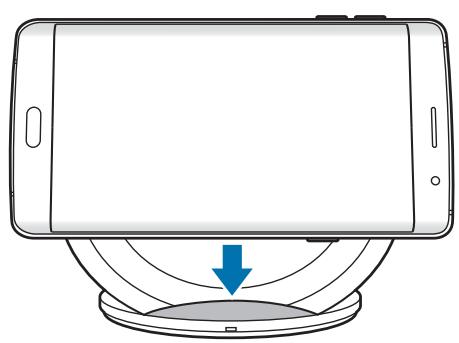
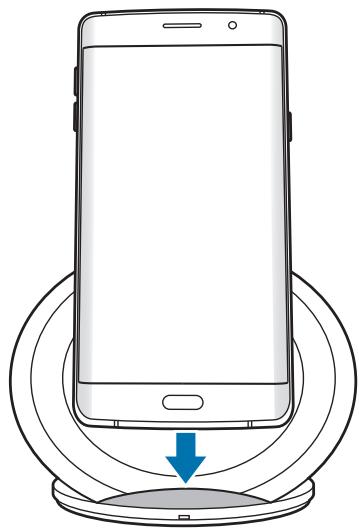

- Do not place the wireless charging cover solely on the wireless charger. Doing so may overheat the wireless charger and cause a fire. It may also result in serious burn or device malfunction.
- If you place a mobile device on the wireless charger for an extended period, the wireless charger may overheat and the fan inside it may turn on.
- Do not cover or block the wireless charger's fan vent.

To charge a mobile device that does not have a built-in wireless charging coil, attach a wireless charging cover to the mobile device. Then, place the mobile device on the wireless charger.
3 When the mobile device is fully charged, remove it from the wireless charger.

Do not place foreign materials, such as metal objects, magnets, and magnetic stripe cards, between the mobile device and the wireless charger. The mobile device may not charge properly or may be damaged due to overheating.

- You may need to purchase a charger separately depending on the wireless charger you bought.
- When the mobile device is not placed on the charging surface properly, or depending on the location of the mobile device's wireless charging coil, your mobile device may not charge properly.
- Depending on the location of the mobile device's wireless charging coil, your mobile device may not charge properly.
- Wireless charging may not work properly if you have attached a thick case to your mobile device. If your case is thick, remove it before placing your mobile device on the wireless charger.
- When a headset is connected to your mobile device, place the mobile device in a landscape position on the wireless charger. If you place the mobile device in a portrait position, it may not charge.
- If you use the wireless charger in areas with weak network signals, you may lose network reception.
- If you connect a charger to the mobile device during wireless charging, the wireless charging feature will be unavailable.
- The wireless charger is compatible with Wireless Power Consortium (WPC) certified devices.
- To save energy, unplug the charger when not in use. The charger does not have a power switch, so you must unplug the charger from the electric socket when not in use to avoid wasting power. The charger should remain close to the electric socket and be easily accessible while charging.
Fast wireless charging
The wireless charger supports fast wireless charging. To begin fast wireless charging, place a mobile device that supports fast wireless charging on the wireless charger.

Use only Samsung-approved chargers that support fast charging (EP-TA20 series 9 V/1.67 A).

The fan inside the wireless charger operates during fast wireless charging. The fan will not operate when this feature is deactivated on your mobile device.
Activating or deactivating the fast wireless charging feature
The fast wireless charging option will be added in your mobile device's settings menu when you place it on the wireless charger for the first time.
Place the mobile device on the wireless charger. On the Home screen of the mobile device, tap Apps → Settings → Accessories, and then tap the Fast wireless charging switch to activate or deactivate it. Deactivating this feature will switch the charging mode to normal wireless charging and result in slower charging times.
Indicator light identification
The indicator light alerts you to the wireless charger's status.
| Color | Status |
| Blue → Green → Cyan | When connected to a power outlet |
| Blue | When charging |
| Green | When fully charged |
| Cyan | When charging at low power (less than 5 V/2 A) |
| Flashing blue | When not charging properly due to a general error |
| Off | When the mobile device is removed from the wireless charger or when the wireless charger is not connected to a power outlet |

- If the indicator light does not work as described, disconnect the charger from the wireless charger and reconnect it.
- The indicator light may work differently depending on the mobile device or the wireless charging cover.
Copyright
Copyright © 2016 Samsung Electronics
This manual is protected under international copyright laws.
No part of this manual may be reproduced, distributed, translated, or transmitted in any form or by any means, electronic or mechanical, including photocopying, recording, or storing in any information storage and retrieval system, without the prior written permission of Samsung Electronics.
Trademarks
- SAMSUNG and the SAMSUNG logo are registered trademarks of Samsung Electronics.
- All other trademarks and copyrights are the property of their respective owners.
Copyright © 2016 Samsung Electronics
Copyright © 2016 Samsung Electronics
本手册受國際版權法保護。
© Samsung Electronics, 2016.
上部 五形同的,乐高乐乐乐乐乐乐乐乐乐乐乐乐乐乐乐乐乐乐乐乐乐乐乐乐乐乐乐乐乐乐乐乐乐乐乐乐乐乐乐乐乐乐乐乐乐乐乐乐乐乐乐乐乐乐乐乐乐乐乐乐乐乐乐乐乐乐乐乐乐乐乐乐乐乐乐
- Instructional icons
- Getting started
- Package contents
- Device layout
- Using the wireless charger
- Charging your mobile device
- Wireless charging
- Place a supported mobile device on the phone support.
- When the mobile device is fully charged, remove it from the wireless charger.
- Fast wireless charging
- Activating or deactivating the fast wireless charging feature
- Indicator light identification
- Copyright
- Trademarks
- Ricarica velocity wireless
- TbproBcN MapKn
- Najprije pročitajte
- Zašitni znakovi
- Prvo pročitajte
- Trgovačke marke
- Leia primeiro
- Identification of indicatorlys
- #
- slll jalil
- y
- jagai gao zao
- 反l 求
- ПрочиTe перед ИспOLTБОВан能在
- 06o3haueHn, nCnoIb3yeMbIe B daHHOM pyKOBOdCTBe
- Hauaio pa60tbi
- KoMnJIeKT NOcTaBKn
- BheuHn BnD yCTpoiCTBa
- ИспOLSb3OBaHne
- 6ecnpobODHOrO 3apraHOrO yctpoiCTBa
- 3OBHiShiBnIaD npncToIO
- Tobaphi 3HaKn
- KymbICTbl 6actamac 6ypblH OKblHbl3
- Hycayl6eIriwelep
- KymbICTbi 6actay
- Opama Kypambl
- CbIMcbl3 3apay
- CbIMcbl3 XblДam 3apdTay
- CbIMcbI3 XkbIaM 3apAdTay MymKiHdiRiH Kocy Hemece cHdipy.
- Cayda 6eIriJIepi
- Read me first
Brand : SAMSUNG
Model : EP-NG930
Category : Wireless Charger