X327 - Smartphone Micromax - Free user manual and instructions
Find the device manual for free X327 Micromax in PDF.


User questions about X327 Micromax
0 question about this device. Answer the ones you know or ask your own.
Ask a new question about this device
Download the instructions for your Smartphone in PDF format for free! Find your manual X327 - Micromax and take your electronic device back in hand. On this page are published all the documents necessary for the use of your device. X327 by Micromax.
USER MANUAL X327 Micromax
Dual SIM
Camera
Music Player
√ Memory card support
Video Recorder
FM Radio
Torch
PHONE LAYOUT
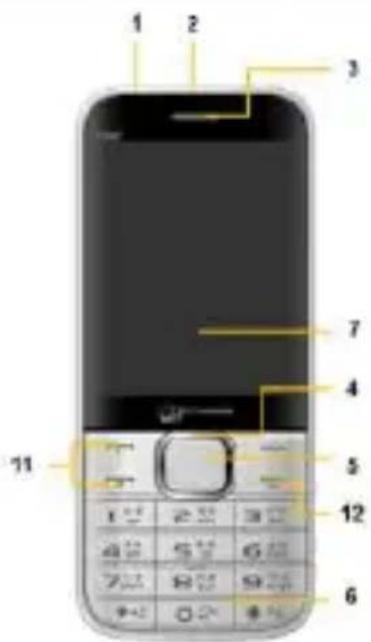
text_image
1 2 3 7 4 5 12 6 11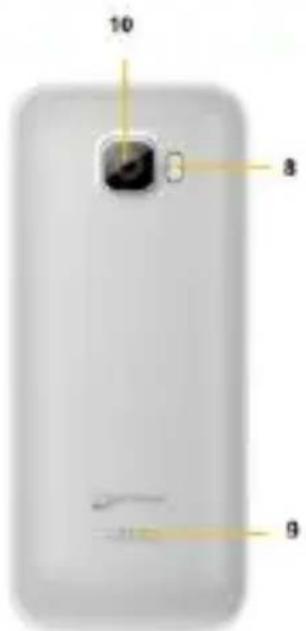
text_image
10 8 9| 1 | Headphone Jack | 8 | Torch |
| 2 | USB Jack | 9 | Speaker |
| 3 | Receiver | 10 | Camera |
Model X327
| 4 | Navigation Key | 11 | Call Key 1/2 |
| 5 | Ok Key | 12 | END/Power Key |
| 6 | Keypad | ||
| 7 | Screen |
INSERT SIM AND MEMORY CARD
① Open the back cover and remove the battery.
② Insert the SIM card(s) correctly in the card slot(s) as shown below.
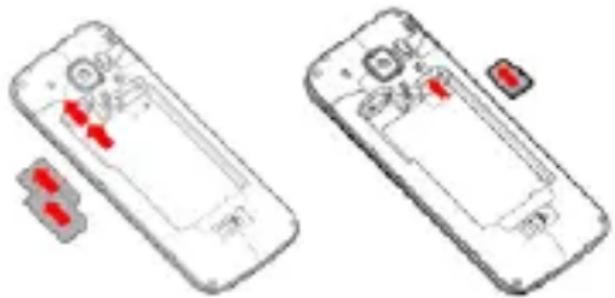
text_image
Diagram showing two smartphone modules with red arrows indicating internal components, likely illustrating a device or control mechanism.③ Insert the memory card into the slot with the gold colored contacts facing down (as shown above).
SWITCH PHONE ON/OFF
■ To switch ON your phone, press and hold the End key for a few seconds.
■ To turn OFF your phone, press
Model X327
and hold down the End key for a few seconds.
MAKE A CALL

■ Enter the desired number in standby mode and press the Call key 1/2.
- Go to Menu> Phonebook and select and dial the desired number.
■ Just press the Call Key 1 (connects via SIM1) or Call Key 2 key (connects via SIM2) in standby mode to dial the contacts listed in Call logs.
- You can also dial a contact from the messages.
ANSWER A CALL
Press the Call Key 1/2 to answer a call.
START A CALL CONFERENCE
①While on a call, you can make or accept a new call. Once the new call gets connected, the first call will be put on hold.
②After this, press Options and then choose Conference.
AUTO REDIAL
Menu>Settings>Call
Settings>Advanced Settings>Auto Redial
Once activated, the phone will automatically redial if there is no answer from the dialed number
CALL TIME REMINDER
Menu>Settings>Call
Settings>Advanced Settings>Call Time Remainder
If activated, the phone beeps at the interval time you set during a call.
THEFT TRACKER
Menu > Settings > Security
Settings> Theft Tracker
Track your phone in case of loss or
thefts by configuring an alternate number for receiving messages from the unauthorized user.
SEND AND VIEW MESSAGES
Menu > Messages
You can compose, send, receive, forward, delete or save selected messages.
USE THE TORCH
In standby screen, long press Ok key to turn on/off the torch.
MULTIMEDIA
Menu > Multimedia
You can use features like Video recorder, Video player, Sound Recorder, Image viewer and FM Radio.
FM RADIO
Menu> FM Radio
Your phone comes with FM Radio which lets you listen to various FM channels. Press OK key to play/pause. Press * and # keys to
adjust volume.
CONNECT WITH BLUETOOTH DEVICES
Menu > Connectivity>Bluetooth
Your phone enables you to connect the phone wirelessly to other Bluetooth devices and exchange data with them.
SECURE YOUR PHONE
Menu > Settings> Security settings > Phone Security>Phone Lock
Lets you lock your phone via a security password which you can change anytime.
The default security code to unlock the phone is 0000.
PRIVACY FOR MESSAGES, PHONEBOOK, CALL LOGS...
Menu > Settings> Security settings > Privacy Protection
a. Enter the default password 0000 to set the privacy lock.
b. Go to Protected Objects
Model X327
c. Select and enable the desired objects to protect and save the choice.
Each time you access the protected feature such as messages, you will be asked for the password.
BLACKLIST NUMBERS
Menu> Settings > Call Settings > Advanced Settings> Blacklist
This feature blocks calls from a list of contacts as per your choice.
HEALTH & SAFETY INFORMATION
Please read the following guidelines regarding the use of your phone. Not following them may be dangerous or illegal.
In Hospitals

■ Always keep your phone at least 15.3 centimeters (6 inches) from the medical device.
■ Turn off the phone if there is any reason to suspect that interference is taking place.
■ Follow the manufacturer directions for the implanted medical device.
Unsafe Areas

Please turn off your phone when you are close to a gas station or in the vicinity of any place where fuel and chemical preparations, or any other dangerous goods are stored.
TAKING CARE OF YOUR DEVICE
- Keep the device dry. If your device gets wet, remove the battery without turning on the device, wipe it with a dry cloth and take it the service center.
■Do not store the device in high or cold temperature. High temperatures can shorten the life of electronic devices and damage batteries.
■Do not use or store the device in dusty, dirty areas.
■Do not attempt to open the device other than as instructed in this guide. Repairing the phone by you goes against the warranty rules.
■Do not drop, knock, or shake the device. Rough handling can break internal circuit boards and fine mechanics.
■Do not use harsh chemicals, cleaning solvents, or strong detergents to clean the device.
■Do not store your device near magnetic fields or allow your device to come in contact with magnetic fields for extended period of time.
Battery Recommendations

■Please put the battery in a cool and well-ventilated place out of direct sunlight..
■If the time that the battery powers equipment becomes much shorter than usual, the battery life is at an end. Replace the battery with a new battery of the same make and specification.
- Use manufacturer approved batteries, chargers, accessories and supplies. Micromax will not be held responsible for user's safety when using unapproved accessories or supplies.
Recycle Your Phone
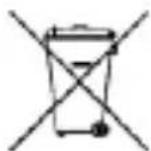
The WEEE logo (shown at the left) appears on the product (battery, handset, and charger) to indicate that this product must not be disposed off or dumped with your other household wastes. You are liable to
dispose of all your electronic or electrical waste equipment by relocating over to the specified collection point for recycling. of such hazardous waste.
Collection and proper recovery of your electronic waste equipments at the time of disposal will allow us to help preserve the environment. Recycling of the electronic waste equipment will ensure safety of human health and environment. For more information on best practices for disposal of electronic and electrical waste, please visit to our web site:
www.micromaxinfo.com/weee.php
Disclaimers
■The colors and specifications
shown/mentioned in the user manual may differ from the actual product. Images shown are for representation purpose only. Micromax keeps the right to make modifications to the content in this user guide without any prior notice.
■The functions explained or listed in this manual may differ from the actual functions appearing in the mobile phone. In such a case, the latter shall govern.
Copyrights
All rights reserved. Reproduction, transfer, distribution or storage of part or all of the contents in this document without the prior written permission of Micromax is strictly prohibited..