C210 - Smartphone Micromax - Free user manual and instructions
Find the device manual for free C210 Micromax in PDF.


User questions about C210 Micromax
0 question about this device. Answer the ones you know or ask your own.
Ask a new question about this device
Download the instructions for your Smartphone in PDF format for free! Find your manual C210 - Micromax and take your electronic device back in hand. On this page are published all the documents necessary for the use of your device. C210 by Micromax.
USER MANUAL C210 Micromax
GET TO KNOW YOUR PHONE....3
INSERT SIM AND MEMORY CARD 3
CHARGE THE BATTERY VIA POWER SOCKET OR USB....5
HELPFUL KEYS AND SHORTCUTS 6
SWITCH PHONE ON/OFF 7
LOCK/UNLOCK THE PHONE 7
MAKE A CALL 8
MAKE AN INTERNATIONAL CALL....8
ANSWER A CALL 9
SEND AND VIEW MESSAGES....9
CALL RESTRICT 9
CALL FORWARD....9
APPLICATION LOCK....10
AUTO POWER ON/OFF ..... 10
RESTORE FACTORY SETTINGS .... 10
MULTIMEDIA....10
BLUETOOTH....10
USE THE TORCH....11
HEALTH & SAFETY INFORMATION......II
TAKING CARE OF YOUR DEVICE 12
BATTERY RECOMMENDATIONS....13
RECYCLE YOUR PHONE....14
DISCLAIMERS....14
COPYRIGHTS......15
Welcome
Thank you for purchasing the Micromax C210 mobile phone. You are now the proud owner of the C210 which oers you these excing features:
■ Torch
CDMA SIM support
VGA Camera
Music Player
Sound Recorder
■ Video Recorder/Player
■ Memory Card support
FM Radio
Bluetooth
Notes:
- Please read the contents of this manual to fully ulize the features of this phone.
- Please read the health & safety informaon provided in this guide.
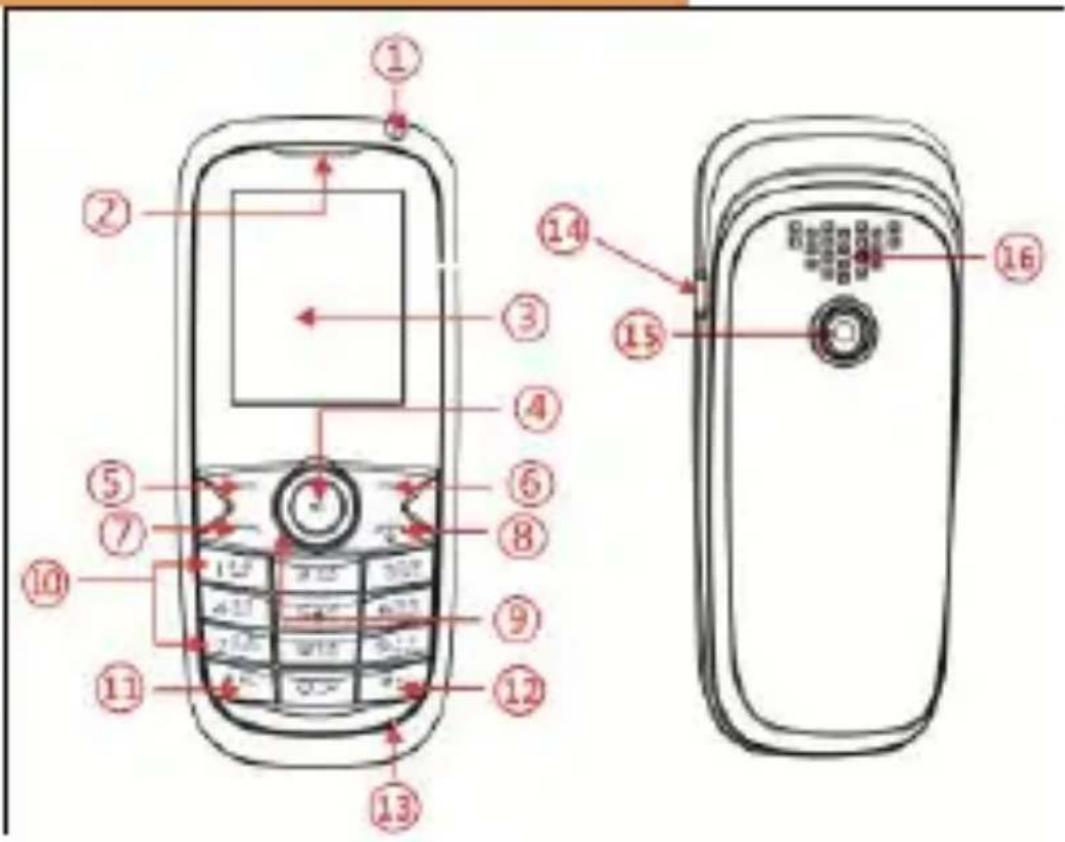
Get to Know Your Phone
text_image
Diagram of a mobile phone with numbered parts for identification and labeling- LED Light
- Earpiece
- LCD
- OK Key
- Funcon Keys
- Funcon Keys
- Call Key
- End Key
- Navigaon
10.Number key
11.* Key
12.# Key - Receiver
- USB
- Camera
- Loud Speaker
Insert SIM and Memory Card
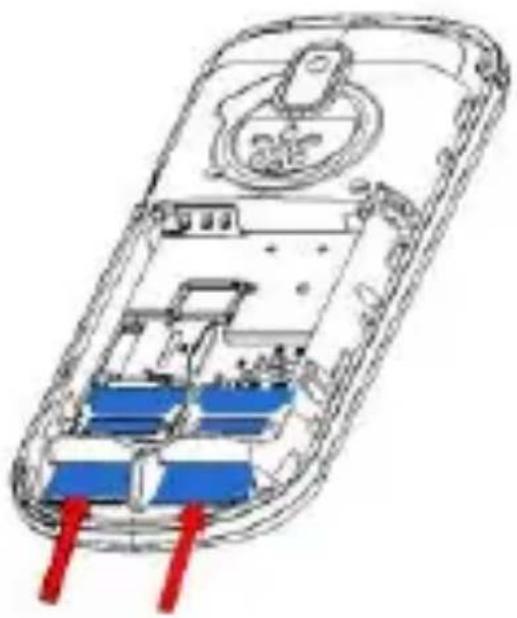
① Open the back cover and remove the baery.
② Insert the SIM card correctly in the card slot as shown below.
natural_image
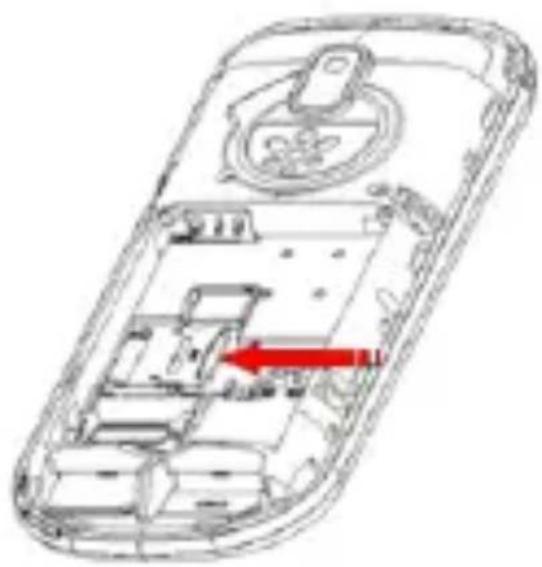
Cross-sectional diagram of a mobile phone showing internal components and wiring (no text or labels)Insert the memory card into the memory card slot with the gold colored contacts facing down (as shown in gure).
natural_image
Cross-sectional diagram of a mobile phone showing internal compartments and a red arrow indicating a specific area (no text or symbols present)
The Memory Card gives you extra storage capacity for content such as pictures, music and video clips.

Do not remove the memory card while reading or wring to the card. Doing so may cause data corrupon on the card or on the phone.

Use only compatible memory cards approved by Micromax. Incompatible cards may damage the slot or corrupt the data stored in the card.
Charge the Battery via Power Socket or USB
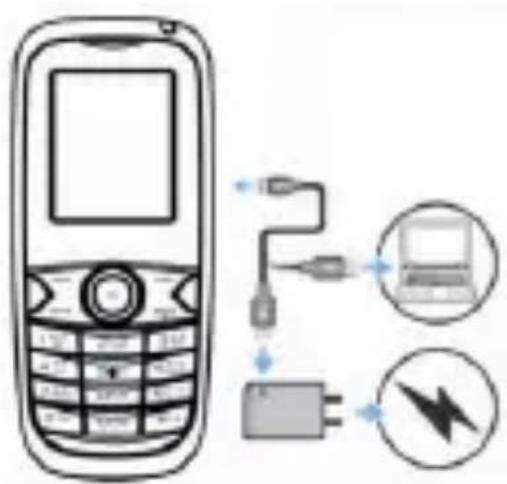
1 Connect the charger to the charger jack on the phone as shown below.
text_image
Diagram showing a mobile phone connected to a laptop via USB and a battery, with icons for device connection.② When charging is nished, unplug the USB adaptor.

While connecng your phone to a PC its SD card inserted, you must follow your computer's instrucons for connecng and disconnecng USB devices, to avoid damaging or corrupng the les on your SD card.

Please charge the baery before you use the newly purchased phone. We suggest you to charge the baery for at least 4 hours connuously for the rst me.
Helpful Keys and Shortcuts
| Keys | Effect |
| # | Long press to acvate silent mode; in eding mode, short press to switch input method. |
| * | Press along with Le key to lock/unlock the keypad. |
| Le key | Press from Home Screen to enter Messaging. Performs funcons in the lower le display. |
| Right key | Enter Contacts menu from Home Screen. Acts as right funcon key in all interfaces |
| End key | Hang up a call; reject an incoming call; go back to standby screen; long press to switch on/o the phone. |
| Number | In standby screen, long press 2-9 key to speed |
keys
dial (need seng). In radio mode, press 1-9 to access the exisng channels.
Switch Phone ON/OFF
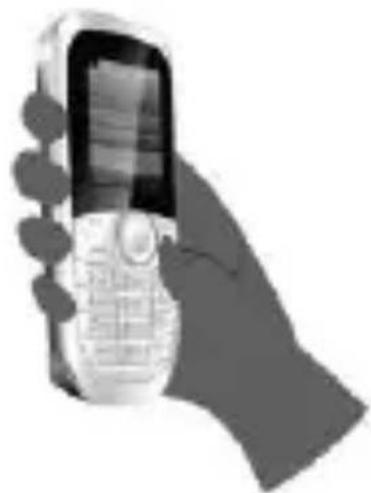
■ To switch ON your phone, press and hold the End key for a few seconds.
■ To turn OFF your phone, press and hold down the End key for a few seconds.
natural_image
Hand holding a portable mobile phone with a screen (no visible text or symbols)If the phone lock has been acvated in the phone's security sengs, you need to enter the 4-digit password to unlock the phone. Go to Sengs>Security>Phone Lock (The preset unlock code is 0000).
Lock/Unlock the Phone
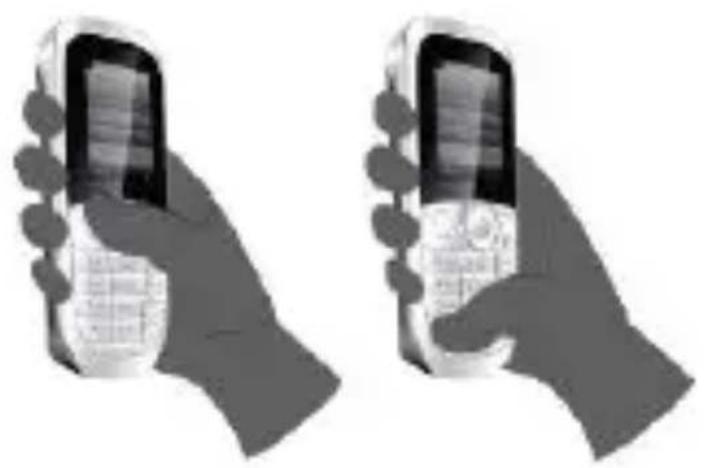
To unlock the phone, press the Le key and then the * key. Follow the same method to lock the phone as shown in the
following gure.
natural_image
Two grayscale images of a hand holding two flip phone phones, no text or symbols visibleMake a call
You can make a call in the following ways:
■ Enter the desired number from Home screen and press the Call Key.
■ Menu> Phonebook and then select and dial the desired number.
■ Just press the Call key from Home screen to dial the contacts listed in Call logs.
■ You can also dial a contact from the messages.
Make an International Call
1 Press and hold ‘*’ Key ll ‘+’ appears on the screen.
② Enter the country code, area code and phone number, and press the dial key.
For example, to dial a number in France, press and hold the “*” key (unl the “+” sign appears), input 33 (French code) and
then enter the complete phone number.
Answera Call
Press the Call Key to answer a call.
natural_image
Hand holding a flip phone with a keypad (no visible text or symbols)Send and View Messages
You can read messages and compose/send messages. You can forward, delete, back up or delete selected messages and so on. You can read messages in the inbox, dras folders and so on.
Call Restrict
Settings ▶ Call Settings ▶ Call Restrict
You can restrict dialed and received calls using this option. The default password is 0000.
Call Forward
Settings ▶ Call Settings ▶ Call Forward
This feature is network dependent. You may forward incoming
calls to another mobile phone number.
Application Lock
Settings ▶ Security ▶ Application Lock
You can password lock features like Messages, Contacts, Recent Calls and Calendar.
Auto Power ON/OFF
Settings Auto Power On/Off
You can set me to automacally switch ON/OFF your phone.
Lets you restore your phone sengs to the original seng when you purchased the phone:
The default password to use this feature is 0000.
Multimedia
Menu Multi media
You can use Music Player, Camera, FM Radio, Sound Recorder, Video Player and Video recorder in mulmedia.
Bluetooth
Menu ▶ Organizer ▶ Blueto oth
Your phone enables you to connect the phone wirelessly to other Bluetooth devices and exchange data with them.
Uset the Torch
Long Press '0' key to switch ON/OFF the Torch.
Health & Safety Information
Please read the following guidelines regarding the use of your phone. Not following them may be dangerous or illegal.
Safe Driving
- Do not use the phone while driving. When you have to use the phone, please use the personal hands-free kit.
- Please do not put the phone onto any passenger seat or any place from which it may fall down in case of vehicular collision or emergency braking.
During Flight
Flight is inuenced by interference caused by the phone. It is illegal to use a phone on the airplane. Please turn o your phone or switch to ight mode during a ight.
hHospitals
- Your Phone’s radio waves may interfere with the funconing medical devices. Consult a physician or the manufacturer of the medical device to determine
whether they are adequately shielded from external Radio Frequency. Switch o your device when regulaons posted instruct you to do so.
- To avoid potential interference with implanted medical devices such as a pacemaker or cardioverter debrillator:
- Always keep your phone at least 15.3 cenmeters (6 inches) from the medical device.
- Do not carry the wireless device in a breast pocket.
- Turn o the phone if there is any reason to suspect that interference is taking place.
- Follow the manufacturer direcons for the implanted medical device.
- If you have any quesons about using your wireless device with an implanted medical device, consult your health care provider.
Unsafe Areas
Please turn o your phone when you are close to a gas staon or in the vicinity of any place where fuel and chemical preparations, or any other dangerous goods are stored.
Taking Care of Your Device
- Your device is a product of superior design and crasmanship and should be handled with care: The following suggestions will help you protect your phone:
- Keep the device dry. If your device gets wet, remove the battery without turning on the device, wipe it with a dry cloth and take it the service center.
- Do not store the device in high or cold temperature. High temperatures can shorten the life of electronic devices and damage baeries.
- Do not use or store the device in dusty, dirty areas. Its moving parts and
electronic components can be damaged.
- Do not aempt to open the device other than as instructed in this guide. Repairing the phone by yourself other than our authorized service agents/centers goes against the warranty rules.
- Do not drop, knock, or shake the device. Rough handling can break internal circuit boards and ne mechanics.
- Do not use harsh chemicals, cleaning solvents, or strong detergents to clean the device. Only use a so, clean, dry cloth to clean the surface of the device.
- Do not store your device near magnec elds or allow your device to come in contact with magnec elds for extended period of me.
- Locaon: The socket-outlet shall be installed near the equipment and shall be easily accessible.
Battery Recommendations
- Please put the baery in a cool and well-ventilated place out of direct sunlight. We recommend you to charge the baery at room temperature range.
- Baeries have life cycles. If the me that the baery powers equipment becomes much shorter than usual, the baery life is at an end. Replace the baery with a new baery of the same make and specicaon.
- Use manufacturer approved baeries, chargers, accessories and supplies. Micromax will not be held responsible for user's safety when using unapproved accessories or supplies.
- Do not discard the battery with household trash. Please dispose of used baery according to your local environmental laws and guidelines.
- Warnings on Baery:
- Please use appointed baery in case of explosion risk.
- Please dispose of lifeless baery under guidance.
Recycle Your Phone
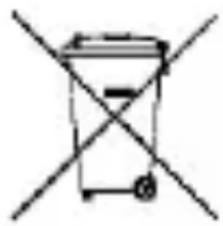
The W E E I go ( shown at the left) appears the product (battery, hand set, and chager) to indicate that this product must not be disposed off or dumped with your other household wastes. You are liable to dispose of all
natural_image
Simple line drawing of a trash bin with two crossed lines indicating no text or symbolsyour electronic or electrical waste equipment by relocating over to the specified collection point for recycling of such hazardous waste.
Collection and proper recovery of your electronic waste equipments at the time of disposal will allow us to help preserve the environment. Recycling of the electronic waste equipment will ensure safety of human health and environment. For more information on best practices for disposal of electronic and electrical waste, please visit to our web site: www.micoma xinfo.com/we.e.php.
Disaimers
- The colors, images and speciaons shown/mentioned in the user manual may dier from the actual product. Images shown are for representaon purpose only. Other product logos and company names menoned herein may be trademarks or trade names of their respective owners.
- Micromax keeps the right to make modicaons to the content in this user guide without any prior noce.
- The funcons explained or listed in this manual may dier from the actual funcons appearing in the mobile phone. In such a case, the laer shall govern.
Copyrights
All rights reserved. Reproducon, transfer, distribuon or storage of part or all of the contents in this document in any form without the prior written permission of Micromax is strictly prohibited.