X2820 - Smartphone Micromax - Free user manual and instructions
Find the device manual for free X2820 Micromax in PDF.


User questions about X2820 Micromax
0 question about this device. Answer the ones you know or ask your own.
Ask a new question about this device
Download the instructions for your Smartphone in PDF format for free! Find your manual X2820 - Micromax and take your electronic device back in hand. On this page are published all the documents necessary for the use of your device. X2820 by Micromax.
USER MANUAL X2820 Micromax
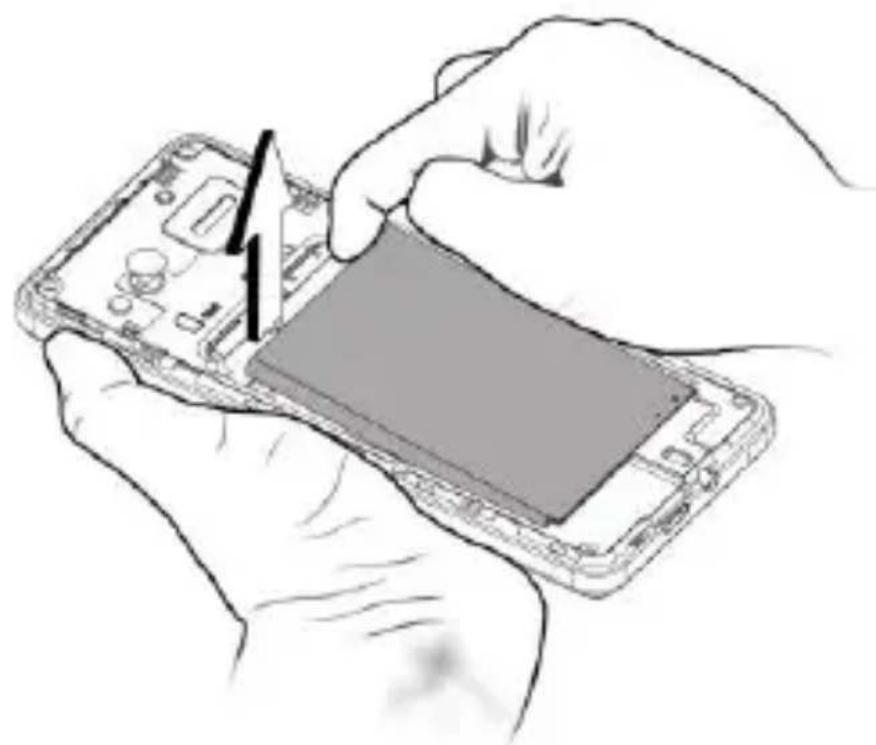
- Switch off the mobile phone and remove the rear cover and battery, as shown:
natural_image
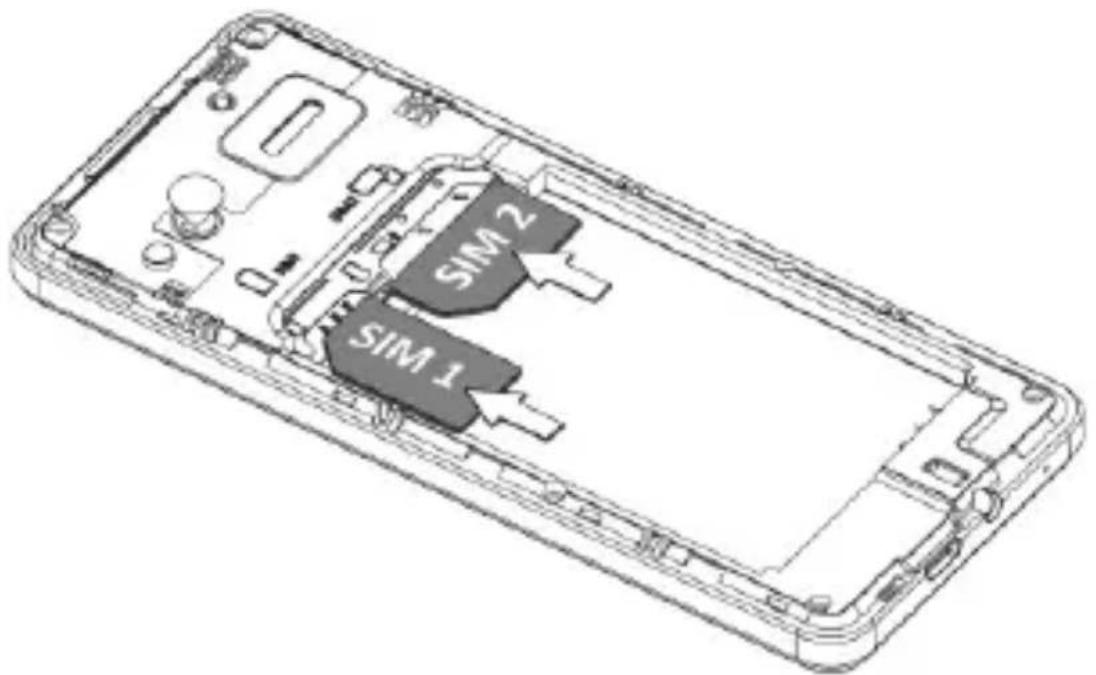
Illustration of hands installing or adjusting a smartphone into a circuit board (no text or symbols visible)- Insert the SIM card(s) correctly in the card slot(s), as shown:
text_image
SIM 2 SIM 1- Finally, insert the battery and place the rear cover of the mobile phone.
| ! | Please keep the SIM card out of the reach of children. |
| ! | Be careful when inserting or removing the SIM card, as it is vulnerable to damage due to scratching or bending. |
Insert Memory Card
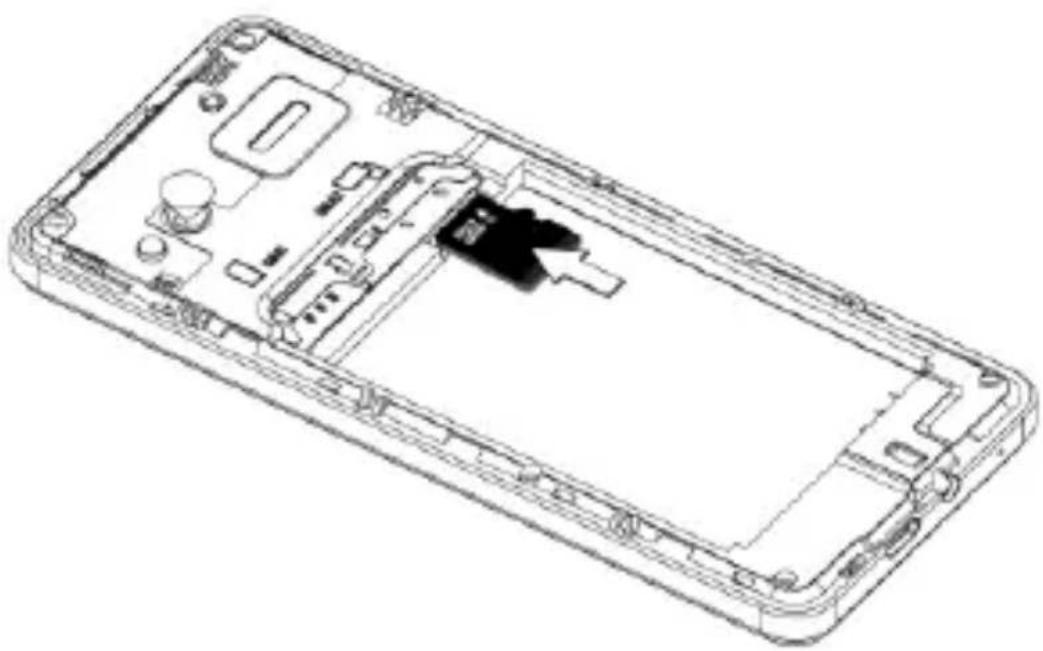
- Switch off the phone, remove the rear cover and battery.
- Insert the memory card in the slot, as shown:
natural_image
Exploded view diagram of a smartphone showing internal components and casing (no text or labels)- Place back the battery and the rear cover of the mobile phone.

Use only compatible memory cards. Incompatible memory cards may damage the device and corrupt the data stored in the card.
Turn Your Phone On/Off
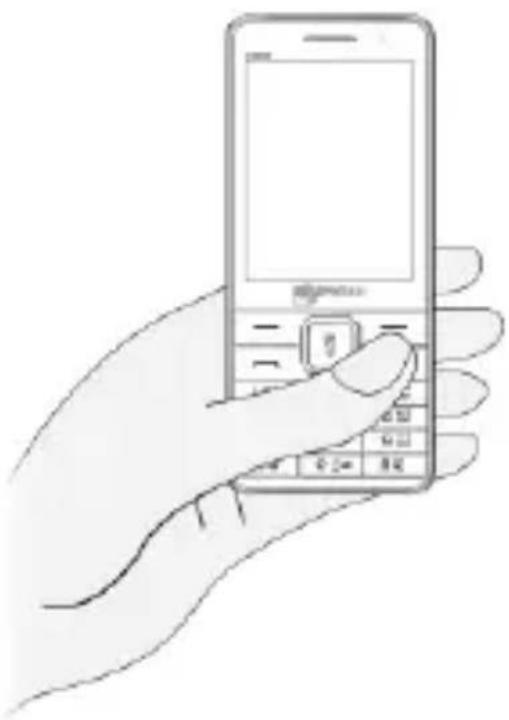
Long press the End/Power key to switch on and off your phone.
natural_image
Line drawing of a hand holding a mobile phone with a keyboard and keypad (no text or symbols visible)Charge the Battery
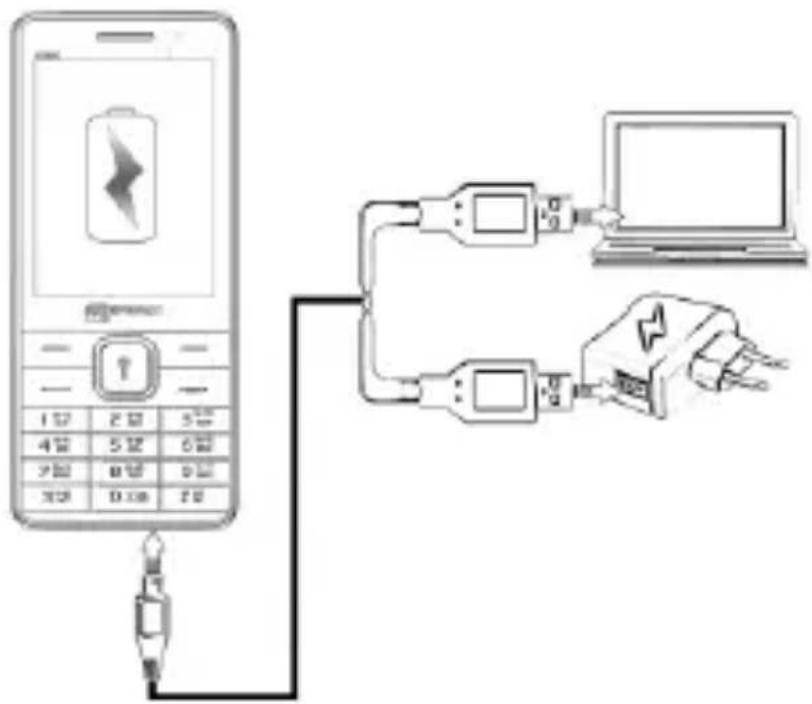
Before using the device for the first time, we recommend you to charge the battery for a minimum of 4 hours.
text_image
Diagram showing a mobile phone connected to a network of connected devices, including battery, USB, and laptop interface.
You can charge the device with a travel adapter or connecting the device to a PC via a USB cable.

Use only Micromax approved chargers and cables.
Unapproved chargers or cables can cause the battery to explode or damage your device.
Using Your Phone
Lock/Unlock the phone
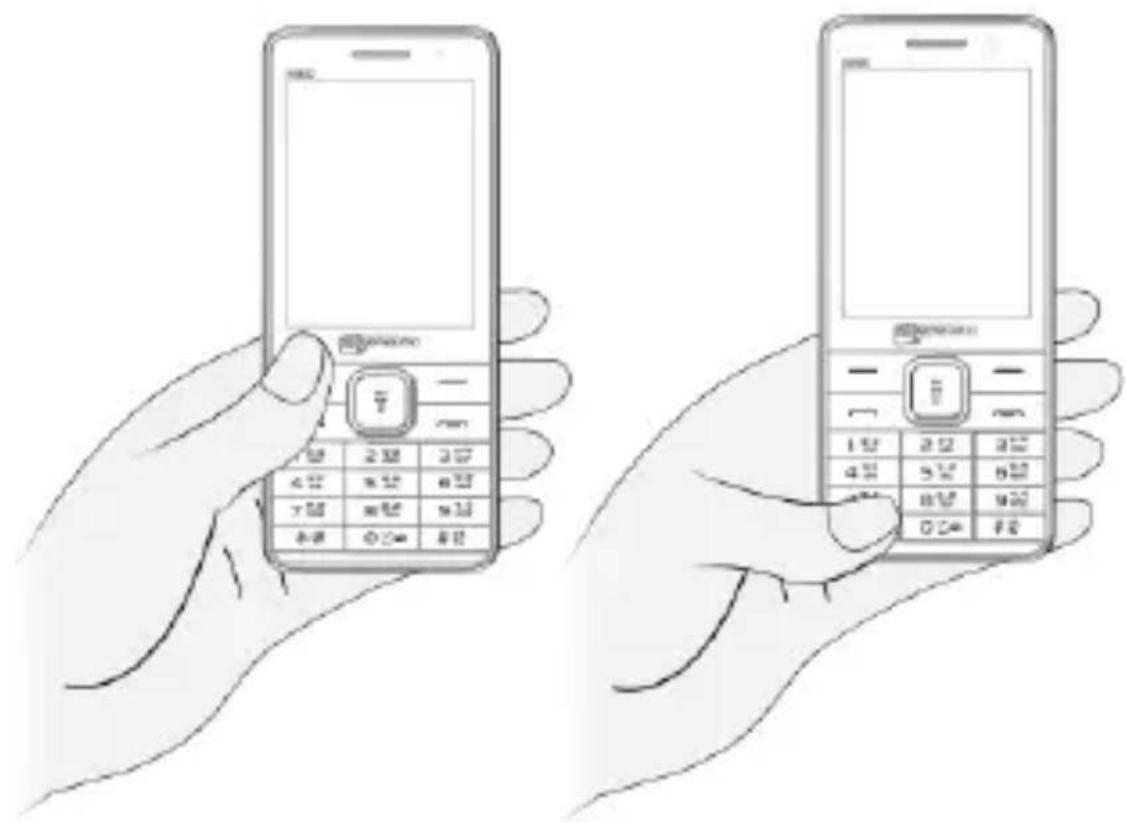
From the home screen, press Left key and then press * to lock/unlock the phone, as shown:
text_image
Illustration of two hands holding old mobile phones with Korean text labels on the keypadMake a Call
- Dial a number and press the call key to make a call.
- You can also call a number from the phonebook or call log in the same way.
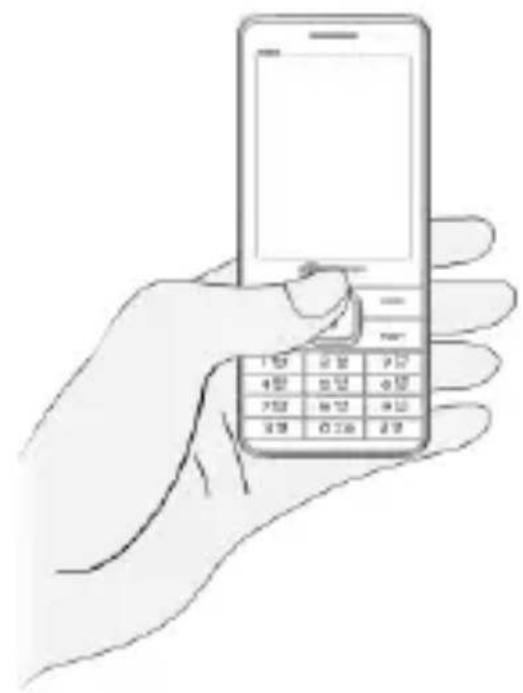
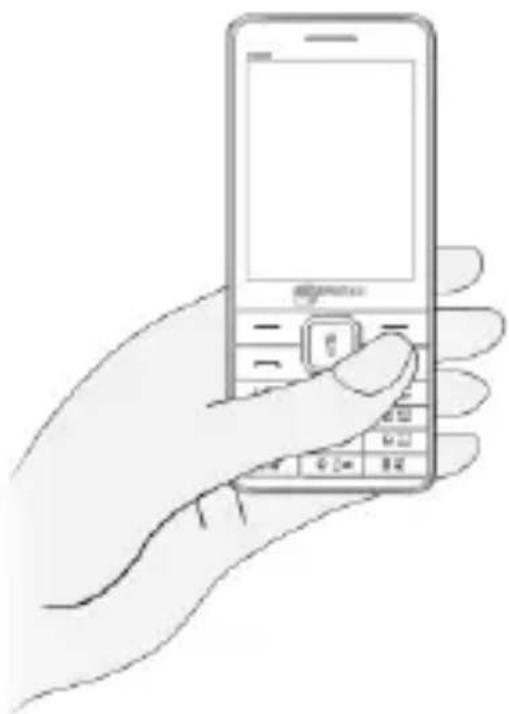
- To change the in-call volume, press the up and down navigation key, as shown:
natural_image
Line drawing of a hand holding a mobile phone with keypad (no text or symbols visible)Answer/Reject a call
natural_image
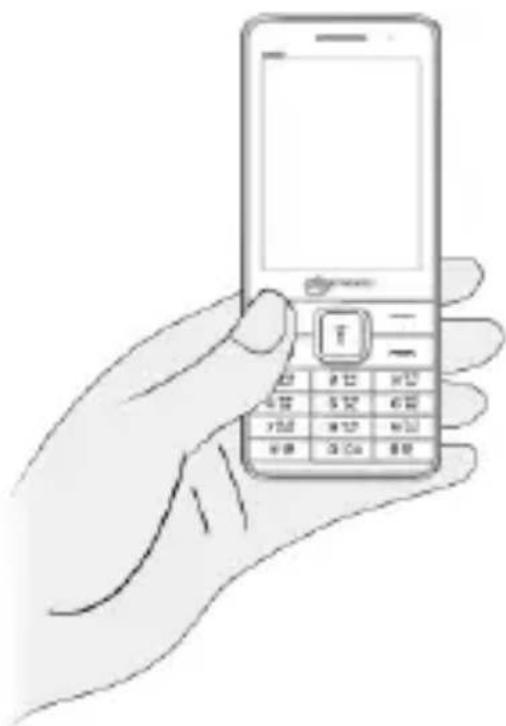
Line drawing of a hand holding a mobile phone with keypad (no text or symbols visible)To answer a call, press the call key.
natural_image
Line drawing of a hand holding a mobile phone with a keypad (no text or symbols visible)To reject a call, press End/Power key
Make an International call
From the home screen, press the * key till + displays on screen. Enter the desired international code and the phone number and then press the call key to make the call.
Send Messages
Menu > Messages
You can compose a new message or reply to existing messages in the list.
Phonebook
Menu > Phonebook
You can use and manage your contacts from here. To add a new contact, dial a number from the home screen, press the left key and select Save to Phonebook to save it. You can also open the Phonebook, and select Add new contact to add the contact.
Camera
Menu > Camera
Press the left key in camera mode to choose from the various camera options. Press the OK key to take photos.
File Manager
Menu > File manager
Allows you to view and manage files available in your phone or memory card.

All existing files in the memory card will be deleted after you format the memory card.
Menu > Multimedia
You can use Video recorder, Music Player, Movie, Video player, Image Viewer, FM radio and Sound Recorder.
FM Radio
Menu > Multimedia > FM radio
You can listen to your favorite FM channels using the inbuilt FM receiver of your phone.
Sound Recorder
Record any sound from the sound recorder with ease.
- Open sound recorder, press the left key, and select New record to start a new recording.
- Pause or resume the recording by pressing the left key and stop the recording by pressing the right key during the recording.
- View the list of other options available for the sound recorder by pressing the left key.
Music Player
Menu > Multimedia > Music Player
The phone comes with an inbuilt music player that plays all your favorite songs stored in the memory card.
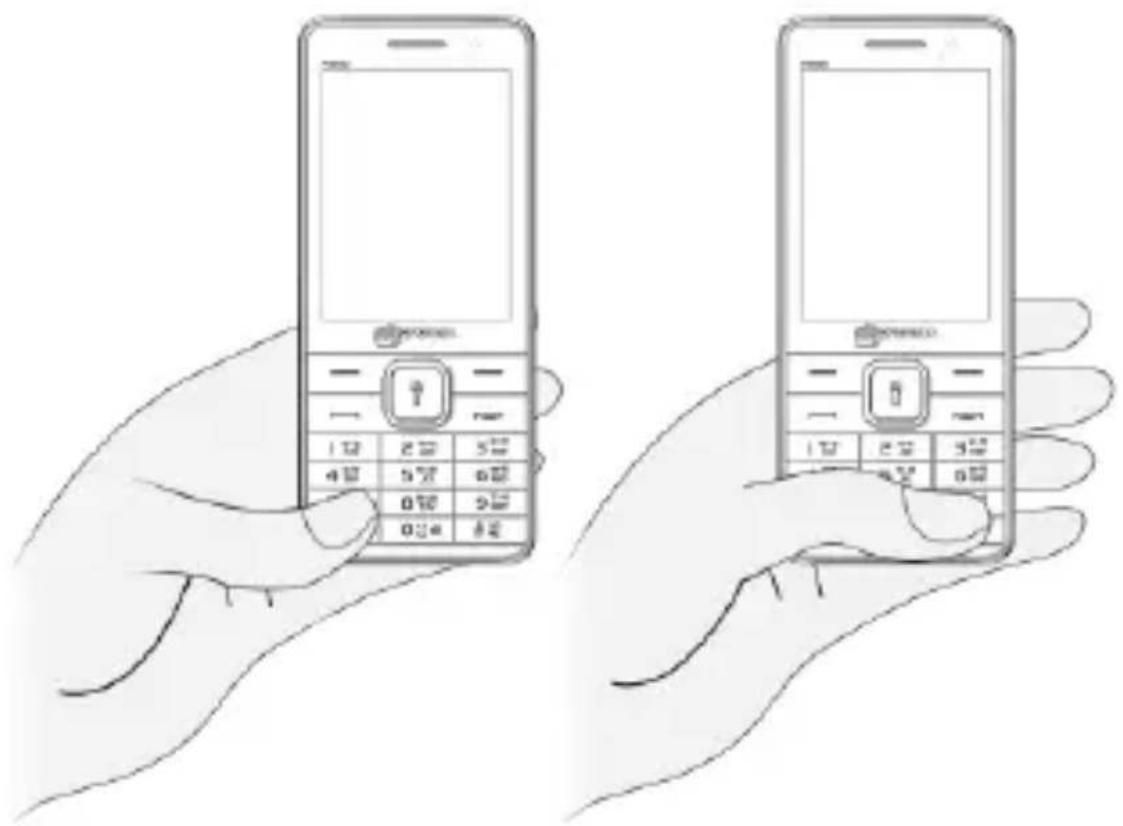
- Press the Left key to view your playlist(s).
- Play/Stop: Press OK Key.
- Shift Music: Press left and right navigation keys.
- Adjust Volume: Press * and # keys.
natural_image
Illustration of two hands holding a Korean flip phone, no text or symbols presentBrowse the Net
You can browse the Internet if you have a data account for using the GPRS connection.
- Go to Settings > Dual SIM Settings and choose the SIM for data connection.
- Go to Settings > Connectivity > Data accounts and choose the data account.
By default, your network provider sends the data account and WAP settings via SMS, or it comes with your SIM card. You can thus choose from the listed data accounts. If the Data accounts are not listed by default, please contact your network provider for the same.
After this, go to Services > Wap and choose the options available in the list, to browse the web pages.
Note: You can also choose the active data account from the Settings under Wap.
Notable Features
Torch Light
Long press the Torch/OK key to turn the torch on/off or you can go to Menu > Organizer > Torch to turn the torch on/off.
Phone Language
Menu > Settings > Phone settings > Language
You can change the phone language according to your preference. Your phone supports Hindi and English language.
Phone Lock
Menu > Settings > Security settings > Phone security > Phone lock
You can turn on or off phone lock and set your desired password to lock the phone. Default password is 0000.
Privacy Protection
Menu > Settings > Security settings > Privacy Protection
You can set the privacy lock for desired objects to protect them. Each time you access any protected feature, you will be asked for a password. Default password is 0000.
Mobile Tracker
Menu > Settings > Security settings > Mobile Tracker
You can track your phone in case of loss or theft by activating the Mobile Tracker mode and configuring an alternate number and message to be received from the unauthorized user. The default password to use this feature is 0000.
Blacklist
Menu > Call logs > Call settings > Advanced settings > Blacklist
This feature allows you to stop receiving calls from the blacklisted numbers.
Auto Call Record
Menu > Call logs > Call settings > Advanced settings > Auto call Record
This feature allows you to automatically record incoming and outgoing calls.

You may configure other settings from the respective setting sections.
Useful Tips
| Tips | Description |
| IMEI Number | You can find the IMEI Number of your phone by pressing *#06#. |
| SAR Value | You can find the SAR values by pressing *#07# (applicable to India users only). |

Switch off your device in any area with potential explosive atmosphere. Sparks arising out of radio frequency may cause fire or explosion. Therefore switch off your device at refueling stations, fuel depots, chemical plants or places where blasting operation is in progress. Remember to comply with legal requirements and local restrictions when using the phone.

Your Phone's radio waves may interfere with inadequately shielded medical devices. Consult a physician or manufacturer of the medical device to know whether they are adequately shielded from external Radio Frequency. Switch off your device when regulations require you to do so.

Always keep the phone and accessories out of reach of small children. Small parts such as the SIM card or micro SD card can be dismantled and swallowed by small children.
Do not place the phone near electromagnetic data carriers such as credit/Debit cards. Information stored on them could be lost.

Permanent damage to hearing may occur if you use earphones at high volume for prolonged periods. Set your volume to a safe level. If you experience discomfort in your ears, reduce the volume or discontinue the use of your earphones.

Manufacturers of medical devices recommend a minimum distance of 15.3 cm (6 inches) between a wireless device and an implanted medical device such as pacemaker or cardiverter defibrillator to avoid issues arising out of radio frequency interference.
The mains voltage (V) specified on the power supply unit must not be exceeded to prevent damage to the charging device. The power supply must be plugged into an easily accessible AC power socket when charging the battery.
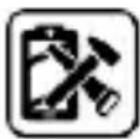
You may only open the phone to replace the battery (if not inbuilt), SIM card and micro SD card. You must not open the battery under any circumstances. All other changes to this device are strictly prohibited and will invalidate the warranty.
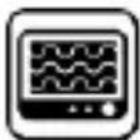
The phone may cause interference in the vicinity of TV sets, radios and PCs.
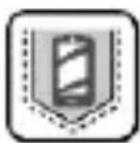
Only use Micromax specified batteries and charging devices. The battery may cause damage, injury or burns if a conductive material closes the circuit of the terminals. Exercise care in handling any charged battery, particularly when placing it inside your pocket, purse or other container with metal objects. Do not dispose of batteries in fire as they may explode.

Do not use the phone while driving. When you have to use the phone, please use the earpiece.
Please put the phone safely in the phone stand. Do not put it
onto any passenger seat or any place from which it may fall down during collision or emergency braking.

Flight is influenced by interference caused by the phone. It is illegal to use a phone on the airplane. Please turn off your phone during a flight.

The phone must be repaired by Micromax authorized personnel only. Repairing this phone by yourself other than our authorized service agents/centers goes against the warranty rules.
Taking Care of Your Device
Your device is a product of superior design and craftsmanship and should be handled with care. The following suggestions will help you protect your phone:
- Keep the device dry. Precipitation, humidity, and all types of liquids or moisture can rust the electronic circuits. If your device gets wet, remove the battery, wipe it with a dry cloth and take it to an authorized service center.
- Do not store the device in high or cold temperature. Extreme temperatures can shorten the life of electronic devices and damage batteries.
- Do not use or store the device in dusty, dirty areas. Its moving parts and electronic components can get damaged.
- Do not attempt to open the device other than as instructed in this guide.
- Do not drop, knock, or shake the device. Rough handling can break internal circuit boards and fine mechanics.
- Do not use harsh chemicals, cleaning solvents, or strong detergents to clean the device. Only use a soft, clean, dry cloth to clean the surface of the device.
- Do not store your device near magnetic fields or allow your device to come in contact with magnetic fields for extended period of time.
Battery Recommendations
- Please put the battery in a cool and well-ventilated place out of direct sunlight. We recommend you to charge the battery at room temperature range.
- Batteries have life cycles. After a full charge, if the power reserve of the battery tend to deplete inordinately faster than usual, the battery life is at an end. Replace the battery with a new battery of the same make and specification.
- Use manufacturer approved batteries, chargers, accessories and supplies. Micromax will not be held responsible for user's safety when using unapproved accessories or supplies.
- Do not discard the battery with household trash. Please dispose of used battery according to your local environmental laws and guidelines.
Recycle Your Phone
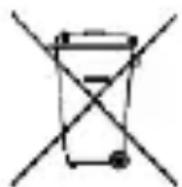
The WEEE logo (shown at the left) appears on the product (battery, handset, and charger) to indicate that this product must not be disposed off or dumped with your other household wastes. You are liable to dispose of all your electronic or electrical waste equipment by relocating over to the specified collection point for recycling of such hazardous waste.
Collection and proper recovery of your electronic waste equipment at the time of disposal will allow us to help preserve the environment. Recycling of the electronic waste equipment will ensure safety of human health and environment. For more information on best practices for disposal of electronic and electrical waste, please visit to our web site:
www.micromaxinfo.com/weee.php.
Note: Micromax will not bear any responsibility for any incompliance with
the above mentioned guidelines or improper usage of the mobile phone.
Disclaimer
- The colors, specifications, functions and graphics shown/mentioned in the user manual may differ from the actual product. In such a case, the latter shall govern. Images shown are for representation purpose only. Specifications are subject to change without prior notice. Micromax keeps the right to modify the content in this user guide without prior notice.
- Upon first use of your device, your device will send information related to your mobile, IMEI numbers, location details and other software details through SMS* automatically. This information may be used as further specified in Micromax privacy policy**.
- Talk and standby times are affected by network preferences, type of SIM cards, connected accessories and individual usage patterns. Services and some features may be dependent on the network, service/content providers, SIM cards, compatibility of the devices used and the content formats supported.
- Other product logos and company names mentioned herein may be trademarks or trade names of their respective owners.
*Operator tariff shall be applicable for SMS.
**Micromax privacy policy is available at www.micromaxinfo.com.
Copyright
All rights reserved. Reproduction, transfer, distribution or storage of part or all of the contents in this document in any form without the prior written permission of Micromax is strictly prohibited.