NTV-KIT391 - Dash cam NAV-TV - Free user manual and instructions
Find the device manual for free NTV-KIT391 NAV-TV in PDF.


User questions about NTV-KIT391 NAV-TV
0 question about this device. Answer the ones you know or ask your own.
Ask a new question about this device
Download the instructions for your Dash cam in PDF format for free! Find your manual NTV-KIT391 - NAV-TV and take your electronic device back in hand. On this page are published all the documents necessary for the use of your device. NTV-KIT391 by NAV-TV.
USER MANUAL NTV-KIT391 NAV-TV
Ford Rear-Camera integration kit for 8.4" My-Touch Radios
NTV-KIT391/392/446/456
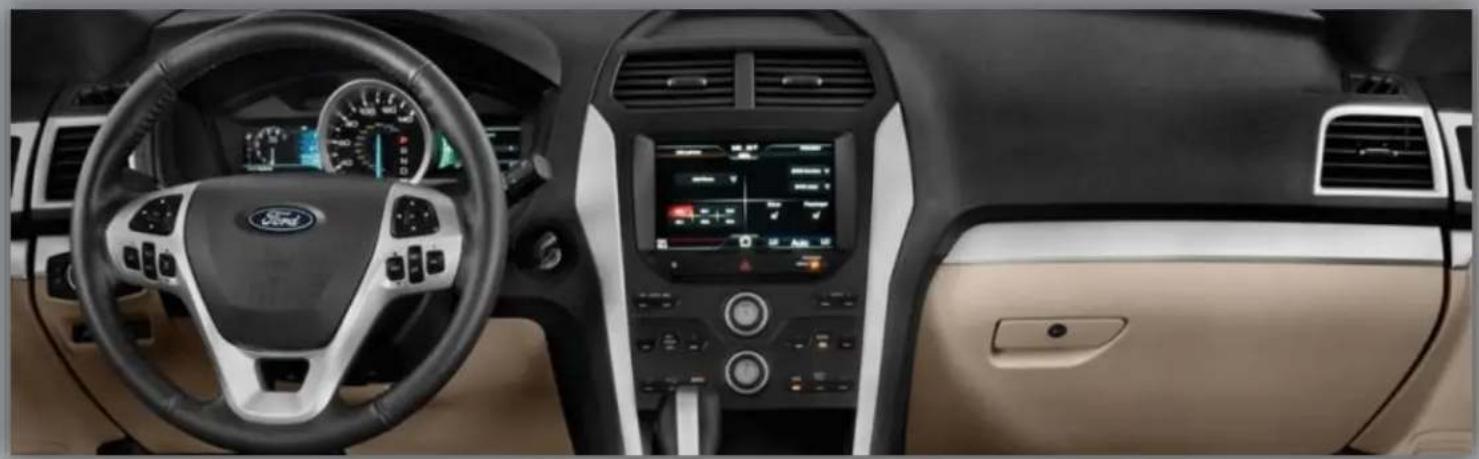
natural_image
Interior view of a Ford car dashboard and infotainment system (no visible text or symbols)
natural_image
Exterior view of a silver Ford SUV (no visible text or symbols)BHM
11/10/14
NTV-DOC103
Overview
The My Touch CAM Kit programs the My Ford Touch radio for rear view camera, includes differential video converter for aftermarket (composite) back-up cameras.
Following installation, the programmer module w/ harness MUST remain in the vehicle (glove box, etc)!
| Compatibility (8.4” Radios) | |||
| 2011 | 2012 | 2013+ | |
| NTV-KIT391 | Edge, MKX, MKS, MKT | Ford Focus & 2013 Ford Taurus, Fusion, Flex, F-Series Trucks (not 450/550), Escape, C-MAX | --Same as 2012-- |
| NTV-KIT392 | Explorer | Explorer | Explorer |
| NTV-KIT446* | F-Series, Flex | F-Series, Flex | F-Series, Flex |
| NTV-KIT456 | --- | --- | Fusion, Fiesta, MKZ, F-450, F-550 Trucks |
*NTV-KIT446 includes NTV-CAM051 with corresponding My Touch CAM kit.
Kit Contents
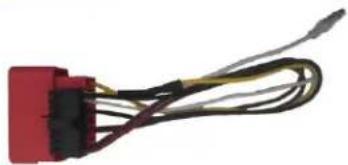
natural_image
Coiled black cable with yellow wires and a red connector (no text or symbols visible)OBD2 Program Cable NTV-HAR205
(KIT391/392 only)
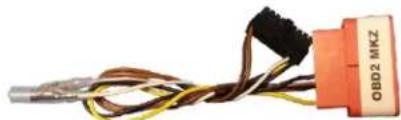
natural_image
Close-up of a red OBD2 MKZ connector with black wires and metallic connectors (no visible text or symbols)OBD2 Program Cable NTV-HAR247
(NTV-KIT456 only)
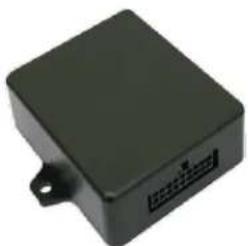
natural_image
Black rectangular electronic device with a small mounting bracket and ventilation slots (no visible text or symbols)My Touch CAM OBD2 Programmer
NTV-ASY166

USB Cable NTV-CAB009

DIFF-CAM II board NTV-ASY221

text_image
NTV-ASY166 Plug & Play DIFF CamHarness NTV-HAR242
NTV-KIT446 ONLY (F Series/Flex Logo cam)
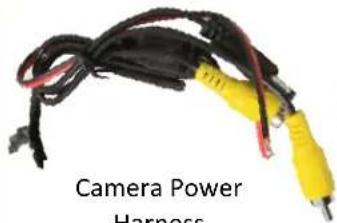
natural_image
Close-up of black and yellow cables with red wires, labeled 'Camera Power Harness' below (no other text or symbols)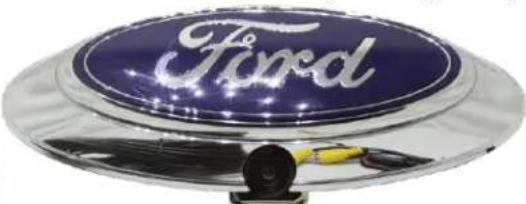
natural_image
Close-up of a Ford logo on a glossy blue circular object, mounted on a black stand with yellow tools (no text or symbols visible)OEM Ford Camera NTV-CAM051
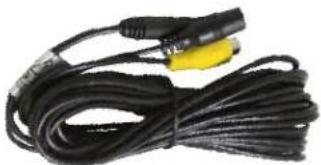
natural_image
Coiled black cable with a yellow connector, no visible text or symbolsCamera Extension Harness
Agreement: End user agrees to use this product in compliance with all State and Federal laws. NAV-TV Corp. would not be held liable for misuse of its product. If you do not agree, please discontinue use immediately and return product to place of purchase. This product is intended for off-road use and passenger entertainment only.
Installation
- Using plastic panel tools, remove the dash trim pieces surrounding the LCD to expose the screws securing the My Ford Touch LCD panel in place.
- Remove the screen from the dash, disconnect all the connectors & set the screen to the side.
- Gather the Plug & Play DIFF Cam harness from the My Touch Cam kit. Connect the main Ford LCD harness (male end) into the female end of the Plug n' Play harness.
Note: If installing this kit in conjunction with the VIM13 kit, this harness must be closest to the monitor.
- Connect the DIFF-CAM II board to the 14-pin connector (may be already connected).
- Ground your camera negative wire to a solid bare metal chassis ground at the back of the vehicle and run the RCA and power connection from your rear view camera to the video interface. Plug the RCA from your rear view camera into the female RCA connection at the video adapter. The RED wire of the video interface will output 12 Volt + Accessory to power your camera. The output is limited to 1 AMP. If your camera requires more than 1 AMP to function, make sure to use a relay.
- Plug the factory 54 pin connector back into the monitor.
- Leave all connections accessible and skip to the programming section (page 4).
OBD2 Programmer pin outs
| Pin | Description | Color |
| 1 | Constant 12v (+) IN | Yellow |
| 2 | De-Program wire | White/Blue |
| 9 | CAN HI | Brown/Black |
| 10 | Ground (-) | Black |
| 18 | CAN LO | Brown |
Wire Side

natural_image
Black rectangular electronic device with a small connector and mounting bracket (no visible text or symbols)KIT391/392 OBD
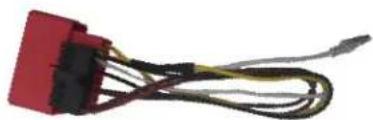
natural_image
Coiled electrical component with red and black connectors (no visible text or symbols)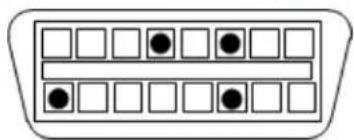
natural_image
Pure electrical circuit lines without any symbolsNTV-HAR205 Pin Side
KIT456 OBD

natural_image
Close-up of a red OBD2 MKZ connector with coiled wires and connectors (no visible text or symbols)
natural_image
Pure electrical connector pinout diagram without any text or symbolsNTV-HAR247 Pin Side
Agreement: End user agrees to use this product in compliance with all State and Federal laws. NAV-TV Corp. would not be held liable for misuse of its product. If you do not agree, please discontinue use immediately and return product to place of purchase. This product is intended for off-road use and passenger entertainment only.
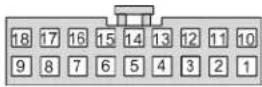
DIFF-CAM II pin outs
| Pin | Description | Color |
| 1 | 12v (output) | Red |
| 3 | GROUND (-) (output) | Black |
| 6 | Manual Activation | Blue (not used for FORD) |
| 7 | CAN HI | Yellow/Black |
| 8 | Constant (+) IN | Yellow |
| 9 | CAM RCA shield | Black |
| 10 | CAM RCA positive | Yellow |
| 12 | DIFF VIDEO (-) | White |
| 13 | DIFF VIDEO (+) | Gray/Black |
| 14 | CAN LO | Orange/White |

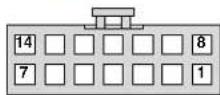
Wire Side
Programming:
NOTE 1: The MYFORD TOUCH CAM PROGRAMMER MUST BE ORDERED WITH THE PROPER FILE. There are 2 different files; one for the Ford Explorer (NTV-KIT392), and another for all other My Ford Touch equipped vehicles (NTV-KIT391). The files are not interchangeable!
NOTE 2: THE MYFORD TOUCH PROGRAMMER CAN ONLY BE USED TO ACTIVATE THE REAR VIEW CAMERA ON ONE VEHICLE AND MUST REMAIN WITH THAT VEHICLE. FACTORY FORD MYFORD TOUCH UPDATES MAY DELETE THE REAR VIEW CAMERA OPTION AND PUT THE VEHICLE BACK TO AN "AS BUILT" STATE. IF THIS HAPPENS THE UNIT WILL NEED TO BE REACTIVATED BY COMPLETING THE PROGRAMMING STEPS AGAIN. NAV-TV RECOMMENDS THAT THE MYFORD TOUCH PROGRAMMER BE KEPT WITH THE VEHICLE IN THE GLOVE BOX OR OTHER COMPARTMENT AT ALL TIMES.
- BE SURE THE WHITE/BLUE WIRES ARE NOT CONNECTED.
- Turn the key to the RUN position and keep it in the RUN position until the radio is completely booted and settled to a source screen (ie: FM, CD).
- With the ignition and radio ON, Plug the MyTouch CAM module harness into the factory Ford OBD plug.
- Leave the module connected to the OBD until the programming sequence is complete (see below for a description).
- The radio will program and restart in approximately 20 seconds. Once restarted, the radio will go into a self-diagnostics screen. It will take approximately 1-2 minutes to boot into the radio screen.
- Once the radio restarts, place the vehicle into reverse and verify the radio displays the rear view camera image or goes to a blank screen if a camera is not installed yet. NOTE: IF THE REAR VIEW CAMERA IS NOT ALREADY CONNECTED TO THE RADIO THE SCREEN MAY TAKE AS LONG AS 15 SECONDS TO GO TO A BLACK SCREEN AND MAY GIVE YOU A WARNING THAT SAYS "CAMERA FAULT".
-
Disconnect the MyTouch CAM programmer module from the factory OBD2 plug.
-
Verify that the screen displays a rear view camera image once the vehicle is placed into reverse. If the image is displayed correctly, reassemble the vehicle and place the MYFORD TOUCH PROGRAMMER INTO THE GLOVE BOX OF THE VEHICLE.
-
Reassemble the vehicle.
De-Programming:
NOTE: BEFORE THE MYFORD TOUCH PROGRAMMER CAN BE USED ON ANOTHER VEHICLE, THE ORIGINAL VEHICLE MUST BE UN-PROGRAMMED.
- The MYFORD TOUCH CAM PROGRAMMER WILL NOT UN-PROGRAM ANY VEHICLE IF THE VEHICLE WAS ORIGINALLY PROGRAMMED WITH ANOTHER PROGRAMMER, INCLUDING FACTORY PROGRAMMING, OR A DIFFERENT MYFORD TOUCH CAM PROGRAMMER.
- Connect the white/blue wires TOGETHER.
- Repeat steps 2-5 under the Programming section, above.
*Note: The programmer will not un-program the factory installed rear view camera option.
FAQ
Q. The radio went through the programming sequence but I have a blank screen or distorted view of the camera image when I place the vehicle into reverse.
A. Verify that the video adapter and the rear view camera have sufficient power and ground. If using the reverse lamps to power the camera, a relay is required. The lamp output has a low current rating and will not drive a camera. The red wire on the video adapter provides a 1 AMP accessory output for your convenience.
Q. The rear view camera image is distorted and lacks color.
A. Check that the video adapter violet and white/violet wires are populated in the proper pin locations, and that the camera has sufficient voltage and a proper ground.
Q. The system went through the programming sequence, but the screen doesn't go into rearview camera mode.
A. Verify that the white/blue wires weren't connected when programming.
Q. I plugged in the unit, verified the white/blue wires were disconnected and cycled the key on, but the radio didn't change status or program rear view camera.
A. The programmer can only be used to program one vehicle and locks to the VIN number of that vehicle. You must purchase a separate MYFORD TOUCH PROGRAMMER for each vehicle.
Q. I programmed the wrong vehicle or the customer backed out of the sale. What steps do I need to take to ensure that I can still use this MYFORD TOUCH PROGRAMMER on a different vehicle?
A. The vehicle must first be un-programmed before the MYFORD TOUCH PROGRAMMER will work on another vehicle. Follow the un-programming steps on this page before attempting to use the programmer on a different vehicle.
If, and ONLY if, after checking all the connections and rereading this instruction manual you still experience issues, please call our technical support department
Agreement: End user agrees to use this product in compliance with all State and Federal laws. NAV-TV Corp. would not be held liable for misuse of its product. If you do not agree, please discontinue use immediately and return product to place of purchase. This product is intended for off-road use and passenger entertainment only.
Notes
- THIS MODULE LOCKS TO THE VEHICLE'S VIN NUMBER AND CAN ONLY BE USED TO PROGRAM A REVERSE CAMERA ON ONE VEHICLE.
- AFTER PROGRAMMING THE MODULE SHOULD REMAIN WITH THE VEHICLE IN THE GLOVE BOX OR OTHER COMPARTMENT.
- IF A MISTAKE IS MADE THE MODULE MUST BE UNPROGRAMMED BEFORE IT CAN BE USED ON A SEPARATE VEHICLE. (SEE PAGE 4)
NAV-TV
INTERFACING THE FUTURE

text_image
MADE IN U.S.A. PRODUCT
text_image
REGISTERED COMPANY ISO 9001 SGSAgreement: End user agrees to use this product in compliance with all State and Federal laws. NAV-TV Corp. would not be held liable for misuse of its product. If you do not agree, please discontinue use immediately and return product to place of purchase. This product is intended for off-road use and passenger entertainment only.