
NVR-TAB97 S3 - Tablet NEVIR - Free user manual and instructions
Find the device manual for free NVR-TAB97 S3 NEVIR in PDF.


| Product Type | Tablet |
| Brand | Nevir |
| Model | NVR-TAB97 S3 |
| Display Size | 9.7 inches |
| Display Resolution | 1024 x 768 pixels |
| Processor | Quad-core 1.3 GHz |
| RAM | 2 GB |
| Storage | 16 GB |
| Operating System | Android |
| Battery Capacity | 6000 mAh |
| Charging | Micro USB, 5V/2A |
| Weight | 510 g |
| Dimensions | 242 x 172 x 9.5 mm |
| WiFi | 802.11 b/g/n |
| Bluetooth | 4.0 |
| Rear Camera | 5 MP |
| Front Camera | 2 MP |
| Connectivity | 3.5 mm audio, Micro USB |
| Cleaning | Wipe with soft dry cloth |
| Safety | Avoid exposure to water and extreme temperatures |
| Spare Parts | Contact manufacturer for authorized service |
Frequently Asked Questions - NVR-TAB97 S3 NEVIR
User questions about NVR-TAB97 S3 NEVIR
0 question about this device. Answer the ones you know or ask your own.
Ask a new question about this device
Download the instructions for your Tablet in PDF format for free! Find your manual NVR-TAB97 S3 - NEVIR and take your electronic device back in hand. On this page are published all the documents necessary for the use of your device. NVR-TAB97 S3 by NEVIR.
USER MANUAL NVR-TAB97 S3 NEVIR
natural_image
Close-up of a lion's face showing its open mouth and teeth, no text or symbols visible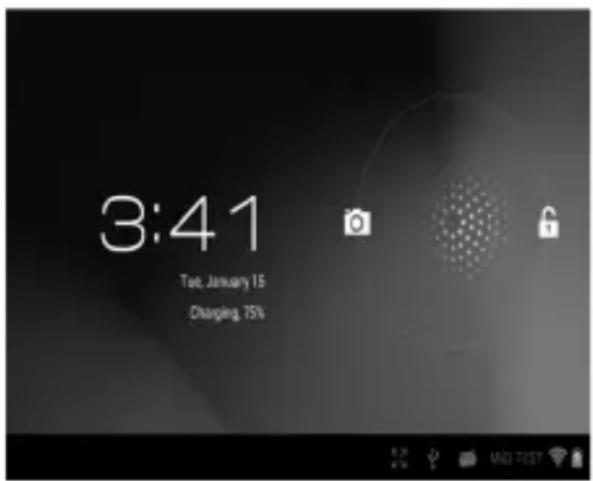
3. Escritorio
natural_image
Desktop screen with six icons (Camera, Image, Video, Audio, Camera, Display) arranged on a striped background, no readable text or symbols.4. Aplicación
ES-7

5. Música
6. Ajustes
6. Ajustes de pantalla
6.2 Fecha y hora
6.4 Conexión Wi-Fi

Especificaciones
nevir®
NVR-TAB97 S3 (8GB)
natural_image
Close-up of a lion's face showing its open mouth and intense teeth (no text or symbols visible)MANUAL DE INSTRUÇÕES
Índice

3. Menu inicial
natural_image
Desktop screen with five icons on a patterned background (no readable text or symbols)4. Aplicação
PT-7

5. Música
6. Definições
6.2 Data e hora
6.4 Ligação Wi-Fi

Especificações
| SO | Android 4.1 |
| CPU AM8726MXS | Dual-Core ARM Cortex A9 familyCPU@1.5GHz |
| Memória | 1G DDR3 |
| Armazenamento | 8GB |
| Visor Painel digital de 9.7 polegadas (24.63 cm) | |
| Resolução | 1024x768 |
| Painel de toque Capacitivo (G+G) | |
| WI-FI | 802.11b/g/n |
| USB 1 x USB 2.0 | OTG |
| Cartão TF Até 32GB | |
| Câmara 0.3M pixéis frontal 2.0M pixéis traseira | |
| Auricular | 3,5mm, estéreo |
| Adaptador da DC 5V 2.5A | |
| Pilha 5600mAh, Li Polímero | |
| Altifalante | 8Ω/1W x 2 |
| Tamanho | 238x182x10mm |
natural_image
Close-up of a lion's face showing its open mouth and tongue, with no visible text or symbols.USER MANUAL
Please read this User Manual carefully to ensure proper use of this product and keep this manual for future reference.
Table of Contents
Important Safety Instructions....2
Connectors....4
User Operations....5
- Boot and shutdown.... 5
- Screen of opening and closing....5
- Home.menu....5
- Application 6
- Music....7
- Settings....7
Specification....10
Important Safety Instructions
- Warning: To reduce the risk of electricshock, do not remove the cover or back. There are no user-serviceable parts inside. Refer servicing to qualified personnel.
- Warning: To prevent fire or electric shock hazard, do not expose the unit to rain or moisture.
- Do not expose the Adaptor and MID to water (dripping or splashing) and no objects filled with liquids, such as vases, should be placed on the unit.
- Keep the MID away from direct sunlight and heatsource such as radiators or stoves.
- Do not block the ventilation openings. Slots and openings on the unit are provided for ventilation. The openings should never be blocked by placing your MID on a cushion, sofa or other similar surface.
- Do not place the MID on unstable cart, stand, tripod, bracket ortable. The unit may fall, resulting in possible damage or injury.
- Never place heavy or sharp objects on the LCD panel or frame.
- Only use the AC adapterincluded with MID. Using any other adapter will void your warranty.
- Unplug the power from the outlet when the unit is not in use.
- Attention should be drawn to the environmental aspects of battery disposal.
- WARNING: The battery (battery or batteries or battery pack) shall not be exposed to excessive heatsuch as sunshine, fire or the like.
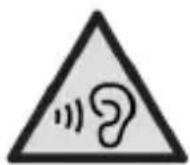
- WARNING: Excessive sound pressure from earphones or headphones can cause hearing loss.
- WARNING: Only use attachments/accessories specified provided by the manufacturer, the MID is supplied by AC adapter, the AC adapter is used as disconnect device, the disconnect device shall remain readily operable.
- WARNING: The excessive sound pressure from earphones and headphones can cause hearing loss.
Caution: Danger of explosion if battery is incorrectly replaced, replaced only with the same or equivalent type(Lithium battery)
• To prevent possible hearing damage, do not listen at high volume levels of long periods.

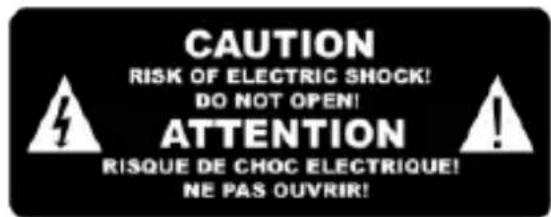

The symbol indicates that dangerous voltages constituting a risk of electric shock are present within this unit.

The symbol indicates that there are important operating and maintenance instructions in the literature accompanying this unit.

CAUTION:
When the apparatus was in electrostaticcircumstance, it may be malfunction and need to reset by user.
The USB memorystick should be plug in the unit directly. USB extension cables should not be used to avoid failing of data transferring and interference caused.
Connectors
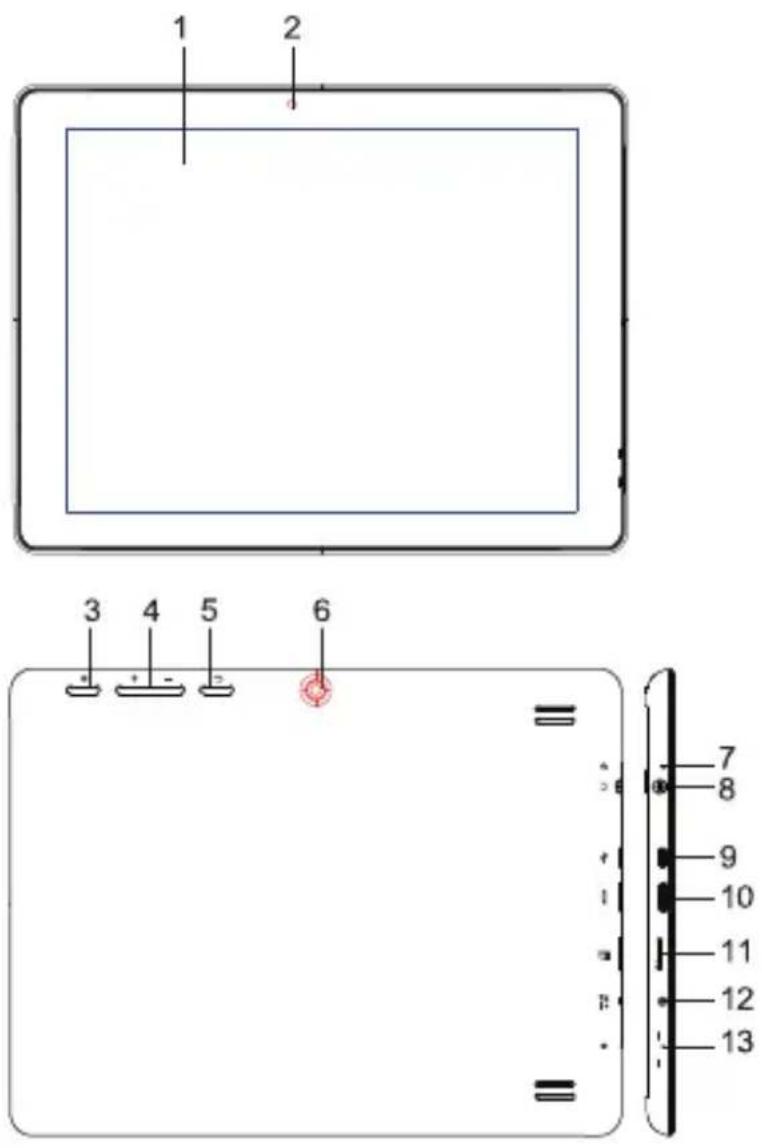
- LCD Display+Touch Panel
- Front Camera
- Power
- Vol+ / Vol-
5 Back - Back Camera
- Reset
- Earphone
- USB
- HDMI
- TF-Card
- DC in
- Mic


User Operations
1. Boot and shutdown
Boot
After long pressing 4 seconds for the power button, you can see the boot logo. Thesystem is access into screen locking status after opening.
Shutdown
- Long press the power button, then will popup the "Power off" options.
- Click "OK" button to shutdown.
2. Screen of opening and closing
It will be closed during the screen idling.
- After idling period of time, screen will be automatically closed to save the battery
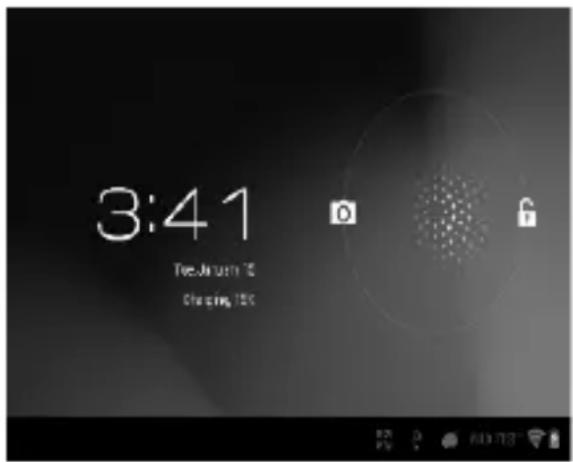
- In the screen opening condition, press the power button, the screen can immediately shutdown. Opening in screen closed condition. If screen is in the closed position, you can long press power button to activate the screen. Enter locked condition after opening it, press "lock" icon and slide right for unlocking.

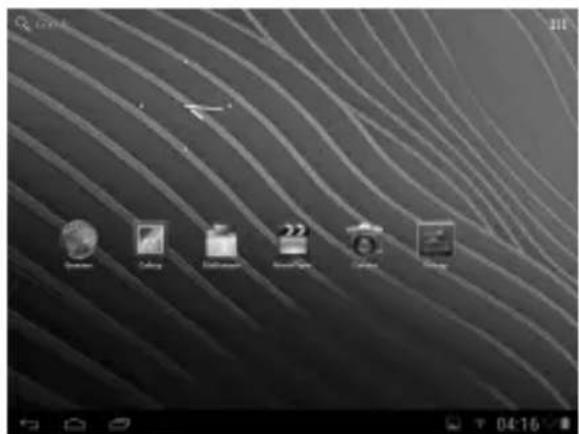
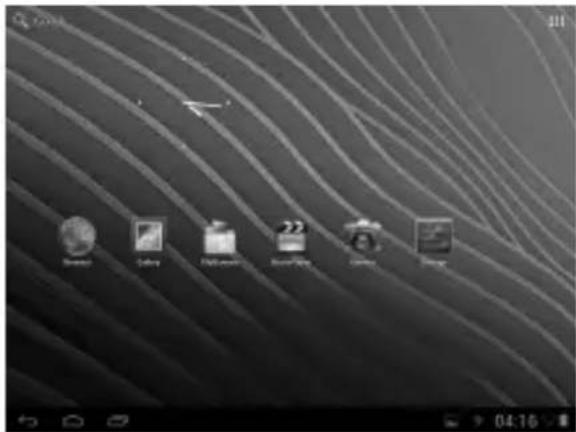
3. Home menu
The home menu screen will show the common application. You can use the application short cut and customize your home menu interface. and press the application icon can directly run the application.
4. Application
- Choose to visit the application.
- If you want to quit the application menu , press the return icon to a page or press home icon to directly returns home menu.
4.1 Install Applications
(1) Install the apk file in external mass storage device byAppInstaller.
(2) Download and install various applications in Android market or local app market.

4.2 Uninstall Applications
Enter Settings application, select Apps->All, then select theapplication which you want to uninstall thenpress Disable button.


EN-6
5. Music
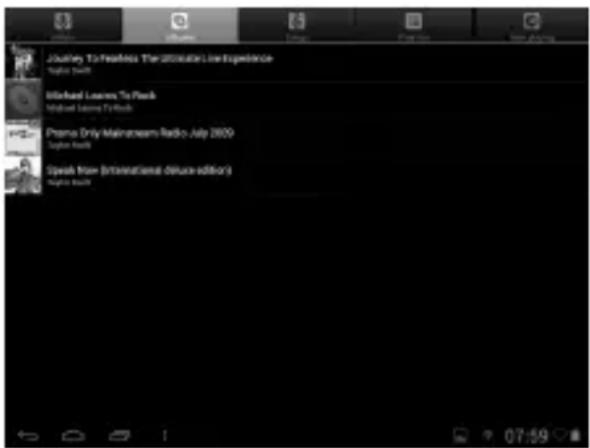
Press the Music item to enter music player, choose the musicfiles, then start to playback the file.
Your music is divided into five categories: artists, albums, songs, playlists and .Now playing.Choose a
classification to check list contents. If you enter a classification, always choose until you
have to play songs. For example, if you choose the artist category, you will see A to Z
sequence of a list of namesof art. If you choose a artist, the list will be presented artist
album songs and lists.
6.Settings
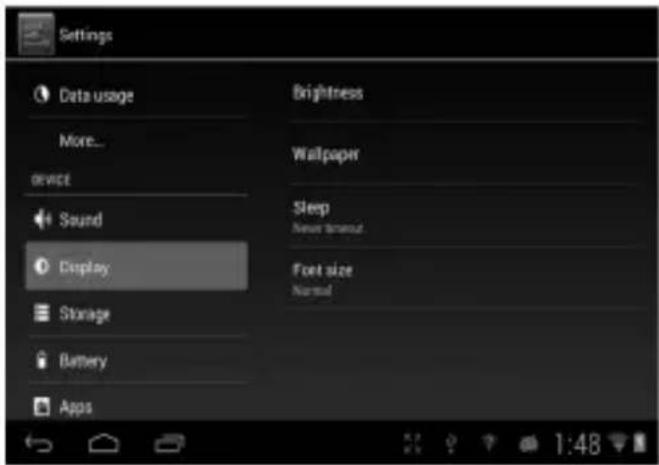
6.1 Display Settings
Adjust screen brightness
- On the application interface, press the menu button to popup setting menu.
- Click Settings.
- Click Display.
- Click the brightness.
- Popup Brightness Settings panel, drag to bright slideradjust bright degree.
- Click sure.
Adjust screen sleep time
- On the application interface, press the menu button to popup setting menu.
- Click Settings.
- Click Display.
- Scroll down the screen, thenclick screen overtime.
- Popup Screen sleep Time Settings, choose standby time you want the standby time.

6.2 Date and time
According to preset, the system will automatically use date, time zone and time provided
by network. If you automatically usetime provided by the internet, you cannot manually adjust
the date, time and time zone.
- On the application interface, press the menu button to popup setting menu.
- Click Settings.
- Scroll downthe screen, then click the date and time setting.

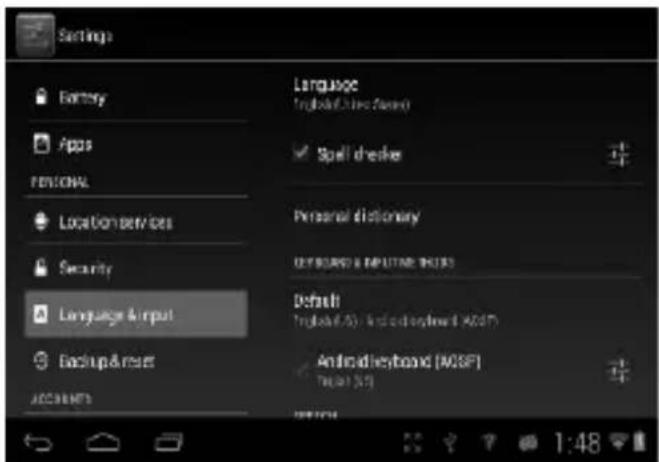
6.3 Set the language
- On the application interface, pressthe menu button to popup setting menu.
- Click Settings.
- Click on language and keyboard.
- Click to select language area, then choose words of your need.
Scroll down the list to
see more of the language.

6.4 WIFI connection
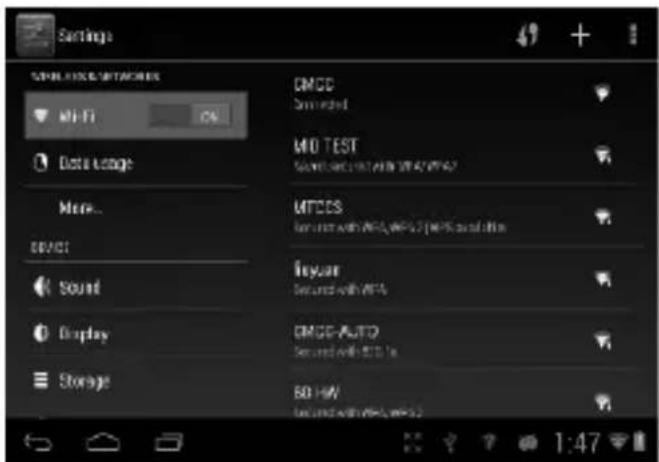
You can connect MID to Wi-Fi network, operation for connection:
- In the application interface, click the menu button, then popup settings menu.
- Click settings.
- Click wireless andnetwork.
- Click Wi-Fi, thenstart Wi-Fi
- Click Wi - Fi SettingsMID will automatically scan available Wi - Fiwireless networks.
- Choose the Fi network which you want to connect. If it has add password, it will popup a input password window, then input relevant password.
- Click on the link
Specification
| OS | Android 4.1 |
| CPU | AM8726MXS Dual-CoreARM Cortex A9 family CPU@1.5GHz |
| Memory | 1G DDR3 |
| Storage | 8GB |
| Display | 9.7 inches digital panel (24.63 cm) |
| Resolution | 1024x768 |
| Touch Panel | Capacitive (G+G) |
| WIFI | 802.11b/g/n |
| USB | 1 x USB 2.0 OTG |
| TF Card | Up to 32GB |
| Camera | Double Camera (Front:0.3M/Back:2.0M) |
| Earphone | 3.5mm, Stereo |
| Power adapter | DC5V 2.5A |
| Battery | 5600mAh,Li Polymer |
| Speaker | 8 Ω /1W x 2 |
| Size | 238x182x10(mm) |
Specifications are subject to change without notice.
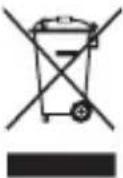
This symbol indicates that when the end-user wishes to discard this product, it must be sent to separate collection facilities for recovery and recycling. By separating this product from other household-type waste, the volume of waste sent to incinerators or land-fills will be reduced and natural resources will thus be conserved.
In order to fulfill ruling UNE EN-60065, we indicate that if the flexible wire is damaged, it can only be substituted by a technical service recognized by NEVIR, S.A., As per special tooling is required.


- Escritorio
- Aplicación
- Música
- Ajustes
- Ajustes de pantalla
- Fecha y hora
- Conexión Wi-Fi
- Especificaciones
- nevir®
- Índice
- Menu inicial
- Aplicação
- Definições
- Data e hora
- Ligação Wi-Fi
- Especificações
- Table of Contents
- Important Safety Instructions
- CAUTION:
- Connectors
- User Operations
- Boot and shutdown
- Boot
- Shutdown
- Screen of opening and closing
- Home menu
- Application
- Install Applications
- Uninstall Applications
- Music
- 6.Settings
- Display Settings
- Date and time
- Set the language
- WIFI connection
Brand : NEVIR
Model : NVR-TAB97 S3
Category : Tablet