
PT-D5500UL - Video projector PANASONIC - Free user manual and instructions
Find the device manual for free PT-D5500UL PANASONIC in PDF.


| Brand | Panasonic |
| Model | PT-D5500UL |
| Product type | Video projector |
| Display technology | DLP (estimated) |
| Light source | High-pressure mercury lamp |
| Lamp power (standard) | 300 W (ET-LAD55 / ET-LAD55W lamp unit) |
| Lamp power (long life) | 160 W (ET-LAD55L / ET-LAD55LW lamp unit) |
| Lamp life (standard) | 1,500 hours (HIGH, DUAL mode) |
| Lamp life (long life) | 4,000 hours |
| Power supply | 100-240 V AC (estimated) |
| Main functions | Dual lamp projection, mountain mode (>1,400 m), fan adjustment, HIGH/WARM lamp output |
| Exterior maintenance | Soft dry cloth; mild detergent for stubborn stains |
| Lens maintenance | Soft dry cloth; do not touch with fingers |
| Interior maintenance | Annual cleaning by authorized service center (recommended before humid season) |
| Safety | Mandatory grounding; do not look into the lens; do not open the casing; replace lamp only by qualified technician |
| Spare parts - Lamp | ET-LAD55 (300 W, 1 lamp), ET-LAD55W (300 W, 2 lamps), ET-LAD55L (160 W, 1 lamp), ET-LAD55LW (160 W, 2 lamps) |
| Spare parts - Suspension kit | ET-PKD55 (high ceiling), ET-PKD55S (low ceiling) |
| Included accessories | Lens cap, remote control with battery |
| Installation conditions | Avoid vibrations, humidity, dust; max altitude 2,700 m; mountain mode above 1,400 m |
| Disposal | Contact dealer or authorized recycling center |
Frequently Asked Questions - PT-D5500UL PANASONIC
User questions about PT-D5500UL PANASONIC
0 question about this device. Answer the ones you know or ask your own.
Ask a new question about this device
Download the instructions for your Video projector in PDF format for free! Find your manual PT-D5500UL - PANASONIC and take your electronic device back in hand. On this page are published all the documents necessary for the use of your device. PT-D5500UL by PANASONIC.
USER MANUAL PT-D5500UL PANASONIC
Operating Instructions
DLP™ Based Projector Commercial Use
Model No. PT-D5500U PT-D5500UL
natural_image
Line drawing of a projector with front panel and control buttons (no text or symbols)Read these instructions completely before operating this unit.
Dear Panasonic Customer:
This instruction booklet provides all the necessary operating information that you might require. We hope it will help you to get the most performance out of your new product, and that you will be pleased with your Panasonic DLP ^™ based projector.
The serial number of your product may be found on its back. You should note it in the space provided below and retain this booklet in case service is required.
Model number: PT-D5500U/PT-D5500UL
Serial number:
IMPORTANT SAFETY NOTICE
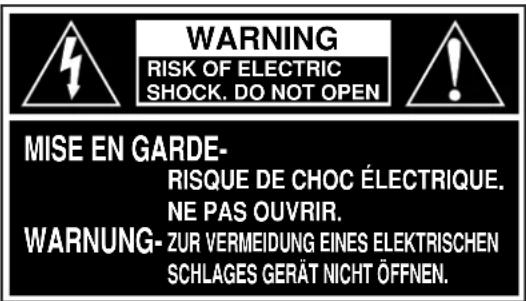
WARNING: TO REDUCE THE RISK OF FIRE OR ELECTRIC SHOCK, DO NOT EXPOSE THIS PRODUCT TO RAIN OR MOISTURE.
The lightning flash with arrowhead symbol, within an equilateral triangle, is intended to alert the user to the presence of uninsulated “dangerous voltage” within the Product’s enclosure that may be of sufficient magnitude to constitute a risk of electric shock to persons.

The exclamation point within an equilateral triangle is intended to alert the user to the presence of important operating and maintenance (servicing) instructions in the literature accompanying the product.
CAUTION: This equipment is equipped with a three-pin grounding-type power plug. Do not remove the grounding pin on the power plug. This plug will only fit a grounding-type power outlet. This is a safety feature. If you are unable to insert the plug into the outlet, contact an electrician. Do not defeat the purpose of the grounding plug.
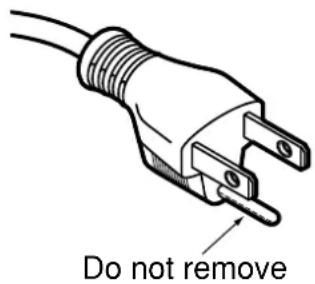
WARNING: This equipment has been tested and found to comply with the limits for a Class B digital device, pursuant to part 15 of the FCC Rules. These limits are designed to provide reasonable protection against harmful interference in a residential installation. This equipment generates, uses and can radiate radio frequency energy and, if not installed and used in accordance with the instructions, may cause harmful interference to radio communications. However, there is no guarantee that interference will not occur in a particular installation. If this equipment does cause harmful interference to radio or television reception, which can be determined by turning the equipment off and on, the user is encouraged to try to correct the interference by one or more of the following measures:
– Reorient or relocate the receiving antenna.
– Increase the separation between the equipment and receiver.
- Connect the equipment into an outlet on a circuit different from that to which the receiver is connected.
- Consult the dealer or an experienced radio/TV technician for help.
FCC CAUTION: To assure continued compliance, use only shielded interface cables when connecting to computer or peripheral devices. Any unauthorized changes or modifications to this equipment could void the user's authority to operate.
WARNING:
Not for use in a computer room as defined in the Standard for the Protection of Electronic Computer/Data Processing Equipment, ANSI/NFPA 75.
Declaration of Conformity
Model Number: PT-D5500U/PT-D5500UL
Trade Name: Panasonic
Responsible Party: Matsushita Electric Corporation of America
One Panasonic Way, Secaucus, NJ 07094
Telephone Number: 1-800-524-1448 or 1-800-526-6610
Email: pbtsservice@panasonic.com
This device complies with Part 15 of the FCC Rules. Operation is subject to the
following two conditions: (1) This device may not cause harmful interference, and (2)
this device must accept any interference receiver, including interference that may cause undesired operation.
NOTICE: This product has a High Intensity Discharge (HID) lamp that contains a small amount of mercury. It also contains lead in some components. Disposal of these materials may be regulated in your community due to environmental considerations. For disposal or recycling information please contact your local authorities, or the Electronics Industries Alliance: http://www.eiae.org.
Contents
IMPORTANT SAFETY NOTICE 2
Precautions with regard to safety ....5
Accessories 7
Precautions on handling 8
Name and function of parts....9
Remote control 9
Front and side of the projector 11
Rear view of the main unit/Controls on rear panel .....12
Side-mounted connection terminals 13
Using the remote control unit ....14
Loading dry cells 14
Effective range of remote control operation ....14
Setting projector ID number to remote control .....15
Using the remote control as a PC mouse....15
Using a wired remote control....16
Installation ....17
Projection schemes ......17
Installation geometry ......17
Projection distances 17
Connection ....18
Setup precautions ....18
Example of connecting with AV products .....19
Example of connecting with PCs....20
How to install and remove the projection lens
(optional)......21
How to install the projection lens....21
How to remove the projection lens 21
Projection....22
Powering up the projector ....22
Making adjustment and selection 22
Powering off the projector 23
Direct power off function....23
How to adjust the lens ....24
How to adjust the lens focus, lens zoom and lens
up/down position movement(optical shift) 24
How to adjust the lens position to the left or right.....24
Automatic adjustment (AUTO SETUP)......25
Using the FREEZE function .....25
Using the SHUTTER function....25
Using the digital zoom (− D.ZOOM +) function.....26
On-screen menus....27
Structure of menu screens 27
Basic menu operations....28
Returning to the previous page 28
Menu items shown in transparent characters....28
Menu items setting 28
Resetting to the factory default....28
Adjusting the picture 29
PICTURE MODE....29
BRIGHT....29
CONTRAST....29
COLOR....29
TINT 29
COLOR TEMP....29
SHARPNESS 30
NR 30
Al 30
TV-SYSTEM....30
SYSTEM....30
Adjusting the position ....31
POSITION 31
ASPECT 31
ZOOM....31
CLOCK PHASE....31
KEYSTONE....31
FRAME LOCK 31
How to use ADVANCED MENU 32
INPUT RESOLUTION 32
CLAMP POS. 32
RASTER POSITION....32
SXGA MODE....32
Changing the display language ....32
OPTION 1 settings....33
COLOR CORRECTION 33
CONTRAST MODE....33
AUTO SIGNAL 33
MEMORY LOAD 33
MEMORY SAVE....33
OPTION 2 settings....34
ID....34
FRONT/REAR 34
DESK/CEILING 34
LAMP SELECT....34
LAMP POWER 34
RS232C....35
SYSTEM INFORMATION ....35
FAN CONTROL1....35
FAN CONTROL2....35
FUNC 1 35
AUTO POW.OFF 35
PASSWORD 35
Displaying the internal test pattern ....36
Cycle of displayed internal test patterns....36
Setting the security....36
Setting the password....36
Changing the password....36
Setting the text 36
Changing the text 36
Setting the network....37
Connecting the PC ....37
System requirements ......37
Connection example....37
Using the serial terminals ....38
Examples of connection 38
Pin assignments and signal names....38
Communication conditions (Factory setting) ....38
Basic format ....38
Control commands ....39
Cable specifications ....39
Using the Remote 2 terminal....40
Indication of lamp monitor ....41
Cleaning and replacement of air filter....42
Procedure of cleaning 42
Replacing of lamp unit....43
Timing of lamp unit replacement 43
Lamp unit replacement steps 44
Using Web Browser Control ....46
Access procedure....46
Basic control page....46
Detail control page 47
Status information page 47
Error information page....48
E-mail setup page 49
Network config page....50
DNS server setup page 50
POP server setup page 51
Adjust clock page 51
Network status page....52
Password change page....52
Before asking for service ....53
Specifications....54
Compatible Signal List ....56
Projection distances by projection lens ....57
Dimensions....58
Trademark acknowledgments....59
Français Information....59
WARNING
If a problem occurs (such as no image) or if you notice smoke or a strange smell coming from the projector, turn off the power and disconnect the power cord from the wall outlet.
- Do not continue to use the projector in such cases, otherwise fire or electric shocks could result.
- Check that no more smoke is coming out, and then contact an Authorized Service Center for repairs.
- Do not attempt to repair the projector yourself, as this can be dangerous.
Do not install this projector in a place which is not strong enough to take the full weight of the projector.
- If the installation location is not strong enough, it may fall down or tip over, and severe injury or damage could result.
- Installation work (such as ceiling suspension) should only be carried out by a qualified technician.
- If installation is not carried out correctly, there is the danger that injury or electric shocks may occur.
If foreign objects or water get inside the projector, or if the projector is dropped or the cabinet is broken, turn off the power and disconnect the power cord from the wall outlet.
- Continued use of the projector in this condition may result in fire or electric shocks.
- Contact an Authorized Service Center for repairs.
Do not cover the air filter, the air inlet and exhaust vents.
- Doing so may cause the projector to overheat, which can cause fire or damage to the projector.
Do not overload the wall outlet.
- If the power supply is overloaded (for example, by using too many adapters), overheating may occur and fire may result.
Do not remove the cover or modify it in any way.
- High voltages which can cause fire or electric shocks are present inside the projector.
- For any inspection, adjustment and repair work, please contact an Authorized Service Center.
Clean the power cord plug regularly to prevent it from becoming covered in dust.
- If dust builds up on the power cord plug, the resulting humidity can damage the insulation, which could result in fire. Pull the power cord out from the wall outlet and wipe it with a dry cloth.
- If not using the projector for an extended period of time, pull the power cord plug out from the wall outlet.
Do not do anything that might damage the power cord or the power cord plug.
- Do not damage the power cord, make any modifications to it, place it near any hot objects, bend it excessively, twist it, pull it, place heavy objects on top of it or wrap it into a bundle.
- If the power cord is used while damaged, electric shocks, short-circuits or fire may result.
- Ask an Authorized Service Center to carry out any repairs to the power cord that might be necessary.
Do not handle the power cord plug with wet hands.
- Failure to observe this may result in electric shocks.
Insert the power cord plug securely into the wall outlet.
- If the plug is not inserted correctly, electric shocks or overheating could result.
- Do not use plugs which are damaged or wall outlets which are coming loose from the wall.
Do not place the projector on top of surfaces which are unstable.
- If the projector is placed on top of a surface which is sloped or unstable, it may fall down or tip over, and injury or damage could result.
Do not place the projector into water or let it become wet.
- Failure to observe this may result in fire or electric shocks.
Do not disassemble the lamp unit.
- If the lamp section breaks, it may cause injury.
Do not place liquid containers on top of the projector.
- If water spills onto the projector or gets inside it, fire or electric shocks could result.
- If any water gets inside the projector, contact an Authorized Service Center.
Do not insert any foreign objects into the projector.
- Do not insert any metal objects or flammable objects into the projector or drop them onto the projector, as doing so can result in fire or electric shocks.
After removing the battery from remote control unit, keep it away from the reach of children.
- The battery can cause death by suffocation if swallowed.
- If the battery is swallowed, seek medical advice immediately.
Do not allow the + and - terminals of the battery to come into contact with metallic objects such as necklaces or hairpins.
- Failure to observe this may cause the battery to leak, overheat, explode or catch fire.
- Store the battery in a plastic bag and keep it away from metallic objects.
Insulate the battery using tape or similar before disposal.
- If the battery comes into contact with metallic objects or other batteries, it may catch fire or explode.
Replacement of the lamp unit should only be carried out by a qualified technician.
- The lamp unit has high internal pressure. If improperly handled, explosion might result.
- The lamp unit can easily become damaged if struck against hard objects or dropped, and injury or malfunctions may result.
When replacing the lamp, allow it to cool for at least one hour before handling it.
Do not bring your hands or other objects close to the air outlet port.
- Heated air comes out of the air outlet port. Do not bring your hands or face, or objects which cannot withstand heat.
Do not suspend the projector using only the hole used for the anti-theft clasp.
- The projector may fall or sustain damage, and possibly result in injury.
Caution
Do not set up the projector in humid or dusty places or in places where the projector may come into contact with smoke or steam.
- Using the projector under such conditions may result in fire or electric shocks.
When disconnecting the power cord, hold the plug, not the cord.
- If the power cord itself is pulled, the cord will become damaged, and fire, short-circuits or serious electric shocks may result.
Always disconnect all cables before moving the projector.
- Moving the projector with cables still attached can damage the cables, which could cause fire or electric shocks to occur.
Do not place any heavy objects on top of the projector.
- Failure to observe this may cause the projector to become unbalanced and fall, which could result in damage or injury.
Do not short-circuit, heat or disassemble the battery or place it into water or fire.
- Failure to observe this may cause the battery to overheat, leak, explode or catch fire, and burns or other injury may result.
When inserting the battery, make sure the polarities (+ and -) are correct.
- If the battery is inserted incorrectly, it may explode or leak, and fire, injury or contamination of the battery compartment and surrounding area may result.
Use only the Specified battery.
- If an incorrect battery is used, it may explode or leak, and fire, injury or contamination of the battery compartment and surrounding area may result close to this port, otherwise burns or damage could result.
Do not look into the lens while the projector is being used.
- Strong light is emitted from the projector's lens. If you look directly into this light, it can hurt and damage your eyes.
Do not use the old lamp unit.
• The lamp section may break.
Disconnect the power cord plug from the wall outlet as a safety precaution before carrying out any cleaning.
• Electric shocks can result if this is not done.
Ask an Authorized Service Center to clean inside the projector at least once a year.
- If dust is left to build up inside the projector without being cleaned out, it can result in fire or problems with operation.
- It is a good idea to clean the inside of the projector before the season for humid weather arrives. Ask your nearest Authorized Service Center to clean the projector when required. Please discuss with the Authorized Service Center regarding cleaning costs.
Do not reach for the openings beside the optical lens, during horizontal or vertical movements of the lens there is a injury hazard.
An effort to keep our environment clean, Please bring the non repairable unit your Dealer or a Recycling Company.
Accessories
Check that all of the accessories shown below have been included with your projector.
| Remote control unit[N2QAEA000023 x 1] | Power cord[K2CF3EH00001 x 1] | Wired cable for remote control[15m (49'3"),K1EA03NA0001 x 1] | Battery for remote control unit[R03NW/2ST x 1] |
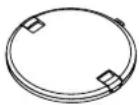
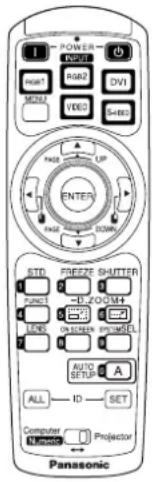 | 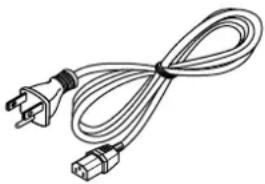 | 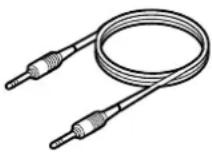 | [Lens cover[TKKL5244-1 x 1] |
 |
■Precautions on transport
Make absolutely sure that the lens cap is in place when transporting the projector or carrying it around. Both the projector and the projection lens are precision-made and, as such, are susceptible to vibration and impacts. When transporting the projector and lens or carrying them around, place them in the boxes in which they were housed at the time of purchase, and take care to keep them away from vibration and impacts.
■ Precautions on installation
Be sure to observe the following precautions when installing the product.
- Avoid installing the product in a place exposed to vibrations or impacts.
If the projector is installed in a place where vibrations are transmitted from a source of driving power and others or mounted in a car or a vessel, vibrations or impacts may be transmitted to the product to damage the internal parts, causing failure. Install the product in a place free from vibrations and impacts.
- Do not move the projector while it is operating or subject it to vibration or impact.
The service life of its internal motors may be shortened.
- Do not install the projector near high-voltage power lines or power sources.
The product may be exposed to interference if it is installed in the vicinity of high-voltage electrical power lines or power sources.
- Do not place the projector on a vinyl sheet or carpet.
If a vinyl sheet sucked up and blocks the air filter intake port, the internal temperature of the projector may increase, which triggers the protection circuit, turning off the power.
- Be sure to ask a specialized technician when to install the product to a ceiling.
If the product is to be installed hanging from the ceiling, purchase an optional hanging attachment (for high ceiling: Model No. ET-PKD55) (for low ceiling: Model No. ET-PKD55S) and call a specialized technician for installation.
- Do not place the projector over 2 700 m (8 881.5') above sea level. When using it over 1 400 m (4 605.3') above sea level, set the "Fan Control1", described on page 35, to "HIGHLAND".
Otherwise the life of the product may be shortened.
■ Disposal
To discard the product, call the dealer or a specialized dealer.
■Precautions on use
- To view clear images:
- The audience cannot enjoy high-contrast and clear images if outside light or the illumination interferes the screen surface. Draw window curtains or blinds, turn off the lightings near the screen or take other proper measures. - In rare cases, wafture can occur on the screen affected by the warm air from the exhaust port depending on the environment.
- Do not touch the surface of the projection lens with bare hand.
If fingerprints or stains are left on the projection lens surface, they are magnified and projected on the screen. Keep your hands away from the lens. Cover the lens with the supplied lens cap when the projector is not used.
- Lamp
A mercury lamp with high internal pressure is used for the light source of this product. A high-pressure mercury lamp has the following characteristics:
- It may burst with a loud sound or end its life cycle by not illuminating because of given impacts, flaws, or deterioration due to used hours.
- The life cycle of a mercury lamp varies according to the individual difference or conditions of use. In particular, turning the power on and off frequently and/or repeatedly will greatly affect the life cycle.
- In rare cases, it may burst shortly after the first lighting.
- The possibility of burst increases when the lamp is used beyond the replacement time.
Cleaning and maintenance
Be sure to remove the power cord plug from the receptacle before cleaning.
Use soft and dry cloth to clean the cabinet
If stains are hard to remove, use a cloth dampened with a kitchen detergent solution (neutral) and squeezed to wipe the cabinet and finish with a dry cloth. If a chemical wipe is used, follow its instructions.
Do not clean the lens surface with fuzzy or dusty cloth.
If dust adheres to the lens, it will be magnified and projected on the screen.
Use a soft and clean cloth to wipe off dust.
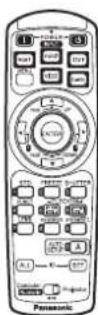
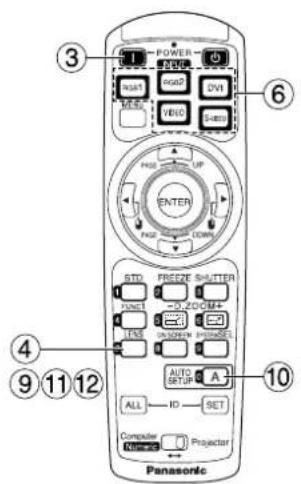
Remote control
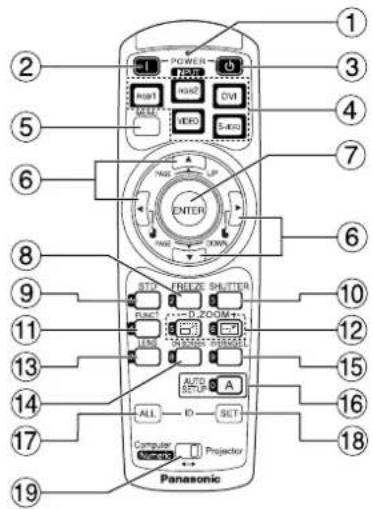
< When the operation mode selector is set to Projector >
① Remote control operation indicator lamp
The lamp flashes when any remote control button is pressed.
② POWER ON button (page 22)
Turns on the power if the MAIN POWER has been put to the "I" position.
③ POWER OFF button (page 23)
Turns off the power if the MAIN POWER has been put to the "I" position.
④ Input selector (RGB1, RGB2, DVI, VIDEO, S-VIDEO) button
Use to toggle through the RGB1, RGB2, DVI-D, VIDEO and S-VIDEO input ports.
⑤ MENU button (page 28)
Displays and clears the Main Menu. It can also return to the previous screen when the menu is displayed.
⑥ Arrow Buttons(page 28)
Use these buttons to select an item on the menu screen, change setting and adjust the level.
Also use them to enter the "SECURITY" password.
⑦ ENTER button (page 28)
Press this button to enter your menu selection or to run function.
⑧ FREEZE button (page 25)
Press this button to freeze the image temporarily.
⑨ Standard (STD) button (page 28)
Press this button to restore the default factory setting.
⑩ SHUTTER button (page 25)
Press this button to black out the image temporarily.
⑪ Function 1 (FUNC1) button (page 35)
This button can control the functions set in "FUNC1" of the "OPTION2" screen from Main Menu.
⑫ Digital Zoom (- D.ZOOM +) buttons (page 26)
Any portion of the picture can be zoomed in.
⑬ LENS button (page 24)
Switches to the mode of projection lens adjustment.
⑭ ON SCREEN button
This button turns on and off the on-screen indication function.
⑮ SYSTEM SELECTOR button
System switching can be done.
16 AUTO SET UP button (page 25)
Pressing this button while projecting an image automatically corrects the picture positioning on the screen. While the auto setup feature is active, a message "PROGRESS..." appears on the screen.
⑰ ID ALL button (page 15)
When two or more main units are used in the system, this button switches to the mode to control them simultaneously with a single remote control.
⑱ ID SET button (page 15)
When two or more main units are used in the system, this button specifies the ID of the remote control.
⑲ Operation mode selector (Computer/Numeric, Projector) switch (page 15)
Put this selector to the right position to control the projector and to the left position to control the PC or use numeric buttons.
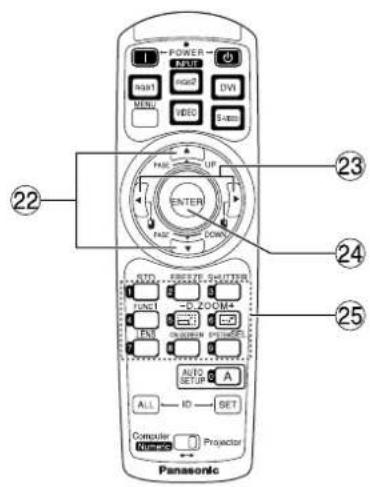

⑳ Remote control wired terminal (page 16)
To use the wired output terminal, connect the remote control and the main unit with the supplied cable.
②1 Remote control transmitter window
Operate the remote control aiming at the remote control receiver window on the main unit.
⑳ PAGE UP/PAGE DOWN buttons
These buttons correspond to the PAGE UP/PAGE DOWN buttons on PC's keyboard.
②3 (×buttons
These buttons correspond to the left and right mouse buttons.
⑳ ENTER button
Moves the mouse cursor.
25 Numeric (0-9) buttons
In a system that uses a multiple number of projectors, these buttons serve to specify a particular projector.
They are also used to enter the password when the password for service personnel needs to be entered.
⑳ Click button (page 15)
This button corresponds to the left mouse button when the operation mode is switched to the Computer position.
Note
• To use the remote control as a mouse, please purchase an optional wireless mouse receiver (model No.: ET-RMRC2).
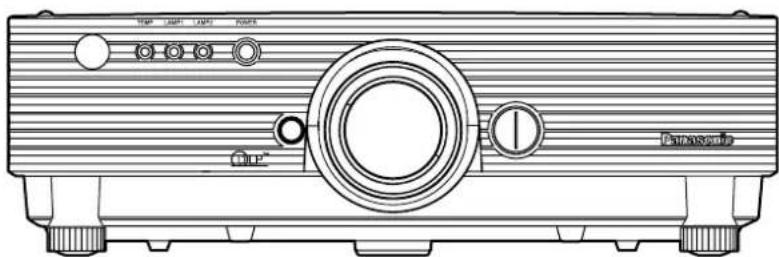
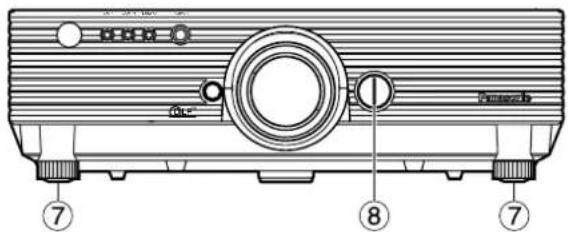
Front and side of the projector
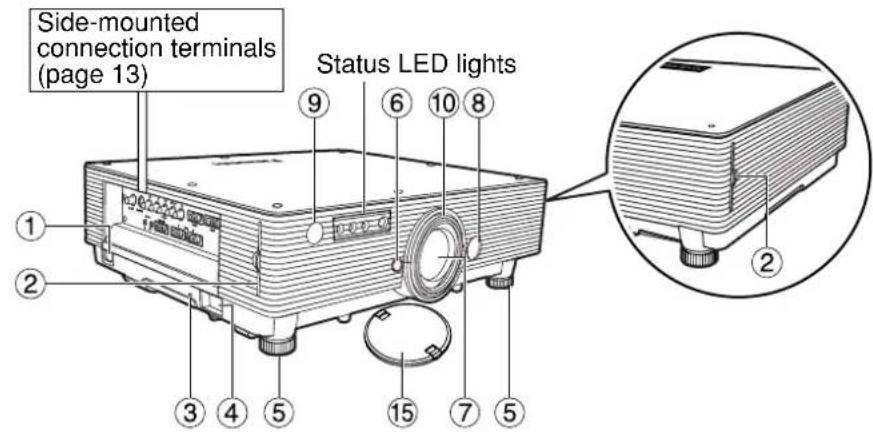
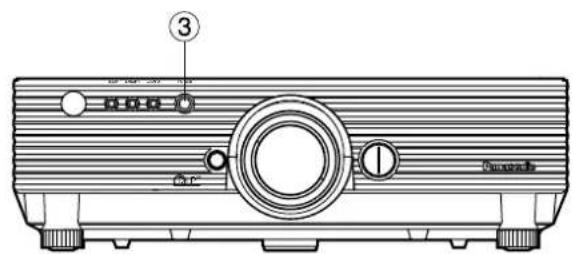
Status LED lights
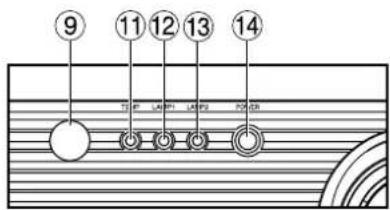
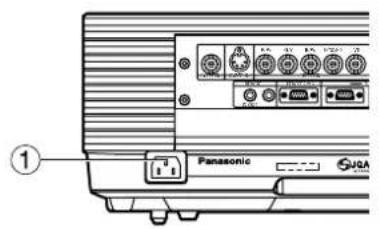
① AC IN terminal (page 22)
Connect the supplied line power cord into this receptacle.
Do not connect any other cable to this socket.
② Air filter (page 42)
③ Burglar lock
Attach a commercial burglar prevention cable (e.g., from Kensington) to this lock port. It is compatible with the Micro Save Security System from Kensington. This security lock is compatible with the Microsaver Security System from Kensington.
Contact details for this company are given below. Kensington Technology Group ACCO Brands Inc. 2885 Campus Drive San Mateo, CA94403
Tel (650)572-2700
Fax (650)572-9675
http://www.kensington.com/
http://www.gravis.com/
④ Clasp for attaching anti-theft chain
Attach a chain or other fastening device available from a hardware store through this clamp.
⑤ Level-adjusting feet (page 22)
Use these feet to adjust the tilt of the projector. The leveling feet at the front left and right can be adjusted.
⑥ Lens lock button (page 21)
Press this to remove the projection lens.
⑦ Projection lens
Lens for projecting images on the screen.
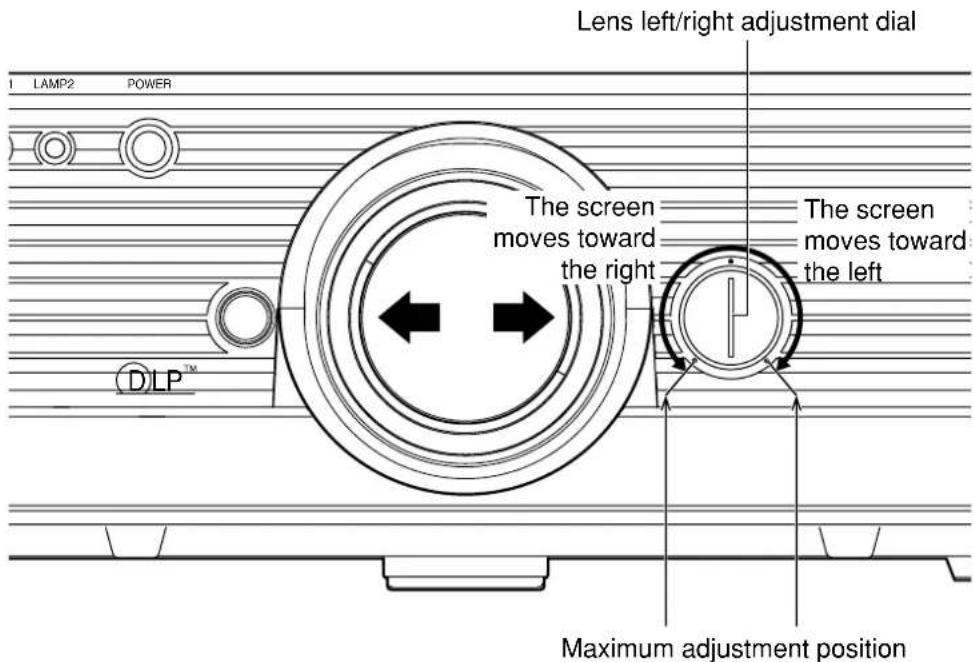
⑧ Lens left/right adjusting dial (page 24)
Turn this clockwise to move the screen to the left; conversely, turn it counterclockwise to move it to the right.
⑨ Remote control receiver window (front) (page 14)
This window receives the signal beam emitted from the remote control.
⑩ Focus ring (page 24)
For focus adjustment.
Powered focus adjustment is also available.
⑪ Temperature monitor (TEMP) (page 41)
Lighting or blinking of this lamp indicates an abnormal condition of the internal temperature.
⑫ LAMP1 monitor (page 41)
This lamp lights up when the time to replace lamp unit 1 is reached. It also blinks if something unusual occurs in the lamp circuit.
⑬ LAMP2 monitor (page 41)
This lamp lights up when the time to replace lamp unit 2 is reached. It also blinks if something unusual occurs in the lamp circuit.
⑭ Power indicator (page 22)
The lamp lights in red when the MAIN POWER switch is turned to "I" (on). It turns to green when the POWER ON button of the remote control or the main unit is pressed.
⑮ Lens cap
Cap the lens whenever the projector is left unused.
Attention • Do not remove the upper cover (white top panel).
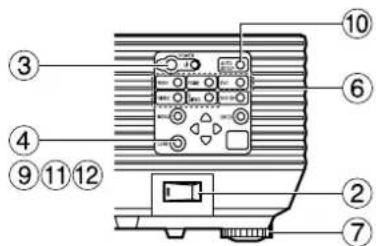
Rear view of the main unit Controls on rear panel
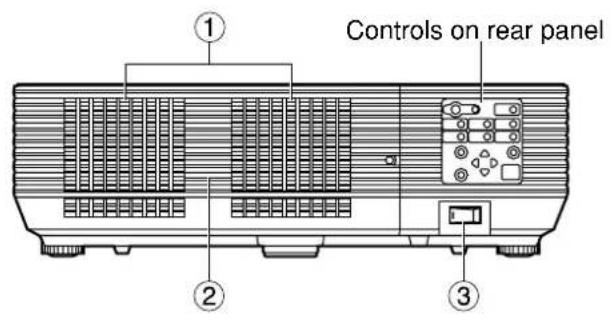
① Ventilation holes
② Lamp unit cover
The lamp unit is housed.
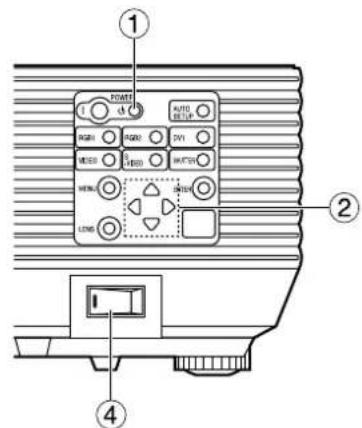
③ MAIN POWER switch (page 22)
Use this switch to turn on "I" and off "O" the commercial line power applied to the projector.
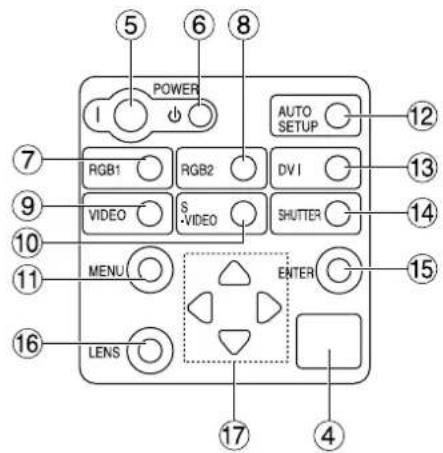
④ Remote control receiver window (rear) (page 14)
This also receives the signal beam coming from the remote control.
⑤ POWER ON (I) button (page 22)
Turns on the power.
Turns off the power.
⑦ RGB1 button (page 22)
Switches to RGB1 input.
⑧ RGB2 button (page 22)
Switches to RGB2 input.
⑨ VIDEO button (page 22)
Switches to video input.
⑩ S-VIDEO button (page 22)
Switches to S-VIDEO input.
⑪ MENU button (page 28)
Displays and clears the Main Menu. It can also return to the previous screen when the menu is displayed.
The on-screen display (OSD) selection menu can be displayed by holding down the menu key for at least three seconds.
⑫ AUTO SETUP button (page 25)
Pressing this button while projecting an image automatically corrects the picture positioning on the screen.
⑬ DVI button (page 22)
Switches to DVI-D input.
⑭ SHUTTER button (page 25)
Press this button to black out the image temporarily.
⑮ ENTER button (page 28)
Press this button to enter your menu selection or to run function.
⑯ LENS button (page 24)
Switches to the adjustment mode for lens focus, zoom and shift (position).
⑰ Arrow ( ) buttons ( page 28)
Use to select an item on the menu screen, change setting and adjust the level.
Also use them to enter the "SECURITY" password.
Side-mounted connection terminals
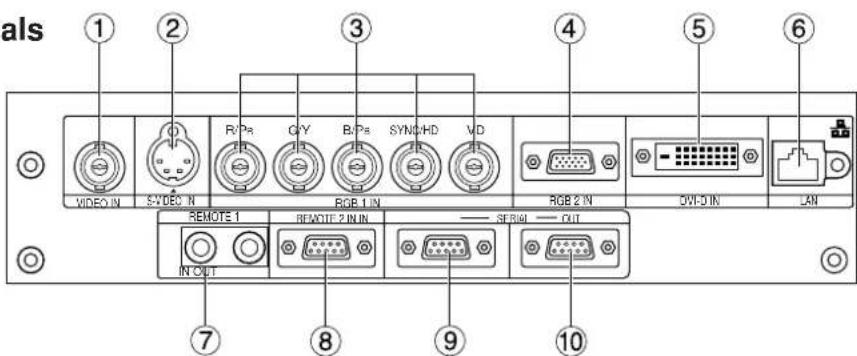
① VIDEO IN terminal (page 19)
An input terminal for video signals. (BNC)
② S-VIDEO IN terminal (page 19)
An input terminal for S-video signals (MIN4-pin DIN).
This terminal complies with S1 signals and automatically toggles between 16:9 and 4:3 according to the size of input signals.
③ RGB (YP B PR)1 input terminal (pages 19, 20)
A terminal to input RGB or YPBPR signals (BNC).
④ RGB (YP B PR) _2 input terminal (page 20)
A terminal to input RGB or YPBPR signals (D-SUB 15-pin female).
⑤ DVI-D IN terminal (page 20)
DVI-D signals are applied to this terminal. (24-pin DVI connector)
⑥ LAN terminal (page 37)
This terminal is used to control the projector from the PC. (10Base-T/100Base-TX compliant)
⑦ REMOTE1 IN/OUT terminal (page 16)
When two or more main units are used in the system, they can be connected and controlled with a wired remote control cable (M3 jack).
⑧ REMOTE2 IN terminal
The user can remotely control the main unit by using an external control circuit to this terminal (D-SUB 9-pin female).
⑨ SERIAL IN terminal (pages 20, 38)
Use the RS232C serial terminal as an alternative interface for controlling the projector from your PC (D-SUB 9-pin female).
⑩ SERIAL OUT terminal (page 20, 38)
The signal applied to the serial input port appears at this terminal (D-SUB 9-pin male).
Using the remote control unit
■ Loading dry cells
When loading batteries into the battery compartment of the remote control, make sure that their polarities are correct.
1.Open battery compartment lid.
Open the lid in the order of steps and. ②
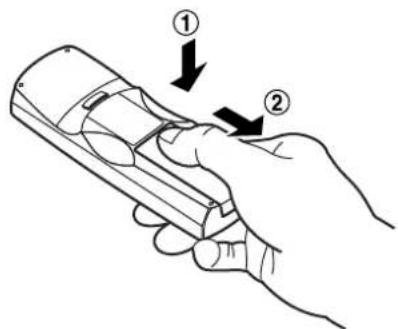
2. Insert the dry cells.
Into battery compartment, with their polarities orientated as indicated (⊕) in the compartment.
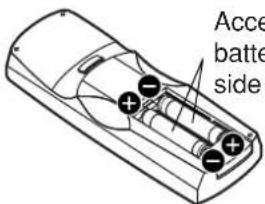
Accessory type-AAA dry batteries (insert the negative side first).
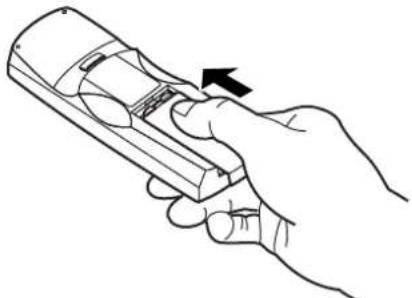
3. Close the battery compartment lid.
Replace the battery compartment lid over the compartment and slide until it clicks.
natural_image
Line drawing of a hand holding a handheld device with an arrow indicating left-hand rule (no text or symbols present)Attention
- Do not drop the remote control unit.
- Do not expose remote control unit to any liquid.
- Do not use NiCd batteries.
■Effective range of remote control operation
The remote control should normally be aimed at either the front or rear remote control receiver window on the projector (figure 1). Otherwise, it may also be aimed at the screen, which will reflect commands back to the projector's front receiver window as illustrated in figure 2.
The effective control range is approx. 7 meters from the beam receiver on the front or rear.
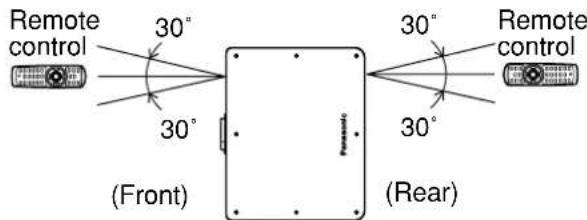
[Top view]
![Remote control 15° 15° [Side view] 15° 15° Remote control](/content/2026/06/1190497/images/95b77c821d12c0a9d336623caf0648c8d061643a3252f08b33182474ea284f05.jpg)
Figure 1
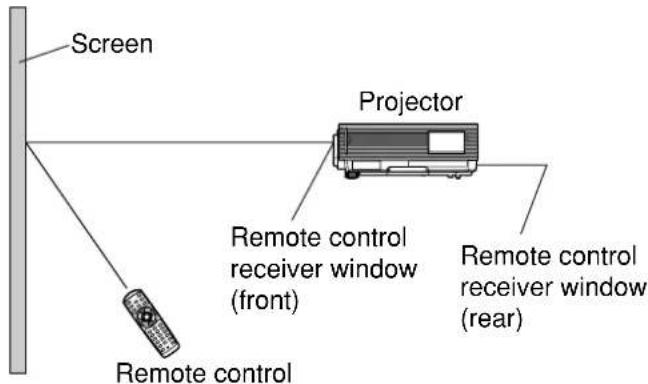
Figure 2
Note
- When the remote control is aimed at the screen, the effective control range may be reduced due to the optical loss by screen reflection.
- The remote control may not function properly if an object is in the light path.
- The remote control receiver may not function properly in intense ambient light such as fluorescent lamps. Carefully site the projector so its remote control receiver windows will not be directly exposed to intense light.
■Setting projector ID number to remote control
Every projector has its ID number and the ID number of the controlling projector must be set to the remote control in advance so that the user can operate the remote control. The ID number of the projector is set to "ALL" on shipping, and use the ID ALL button of the remote control when using only a single projector.
Procedure of ID setting
① Change the position of the operation mode selector switch to "Computer".
② Press the ID SET button, and within five seconds use the number (0 to 9) buttons to enter the 2-digit ID number set by the projector.
③ Change the position of the operation mode selector switch to "Projector".
However, if the ID ALL button is pressed, the projector can be controlled regardless of the ID number of the projector (simultaneous control mode).
Attention
- Do not press the ID SET button accidentally or carelessly because the ID number on the remote control can be set even when no projector is around.
If the ID SET button is pressed, the ID number goes back to the one set before pressing the ID SET button unless a numeric button is pressed within five seconds after the ID SET button is pressed. - Your specified ID number is stored in the remote control unit unless another one is specified later. However, the stored ID will be erased if the batteries of the remote control are left exhausted. When the dry cells are replaced, set the same ID number again.
■Using the remote control as a PC mouse
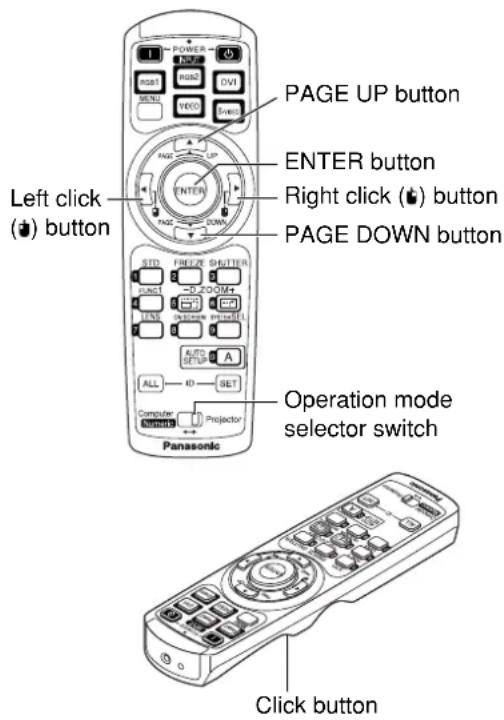
Operation mode selector switch
Put the knob to the Computer position.
- ENTER button
Pressing the front, rear, left and right edges of the button moves the mouse cursor up, down, left and right.
This button can be used as the right mouse button.
This button can be used as the left mouse button.
- PAGE UP button
This button can be used as the Page Up button on the PC keyboard.
• PAGE DOWN button
This button can be used as the Page Down button on the PC keyboard.
- Click button
This button can be used as the left mouse button.
Note
- To use the remote control as a mouse, please purchase an optional wireless mouse receiver (model No.: ET-RMRC2).
■ Using a wired remote control
When multiple main units are connected in the system, connect the units with the supplied remote control cable to simultaneously control the multiple main units with a single remote control unit through the REMOTE1 IN/OUT terminal. It is effective to use the wired remote control in the environment in which an obstacle stands in the light path or where devices are susceptible to outside light.
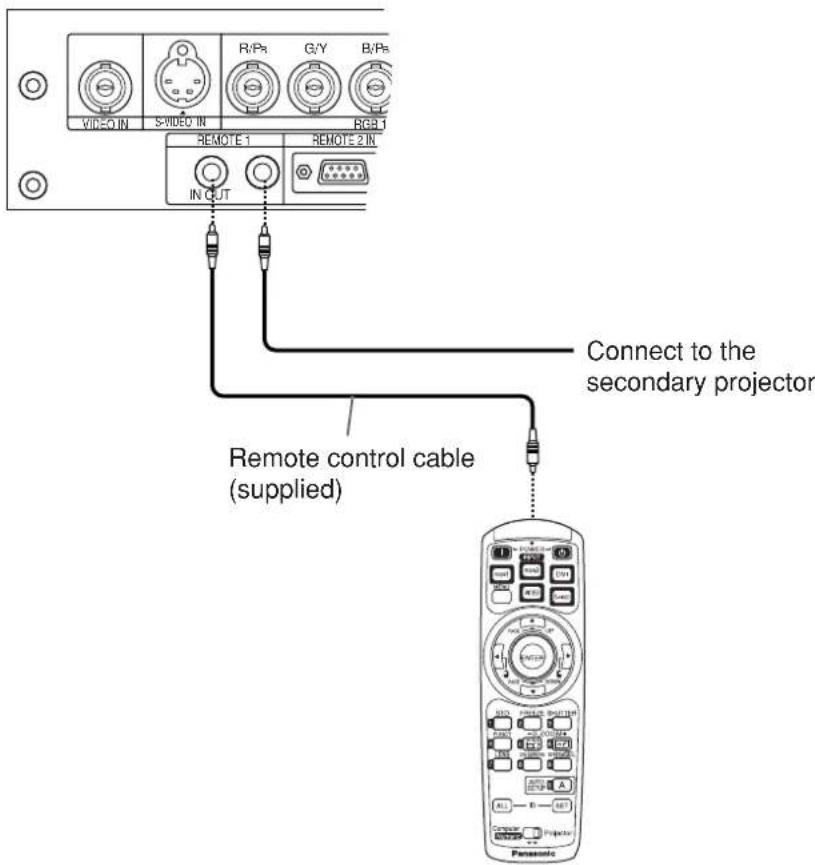
■ Projection schemes
Any of the following four projection schemes can be used with the PT-D5500U/D5500UL projector depending on user's needs or viewing conditions. Use "OPTION 2" menu (chosen from the MAIN MENU) to choose the appropriate projection scheme (see page 34).
| Projection Scheme 2 | |||
| Table standing | Ceiling mount | ||
| Projection Scheme 1 | Front projection | 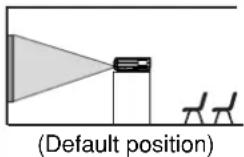 | 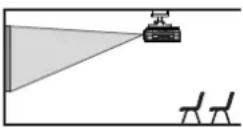 |
| Rear projection | 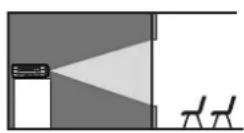 | 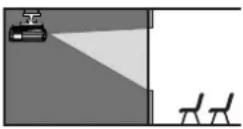 | |
■Installation geometry
After the projector is roughly positioned, picture size and vertical picture positioning can be finely adjusted with the powered zoom lens and lens tilt mechanism.
Side view
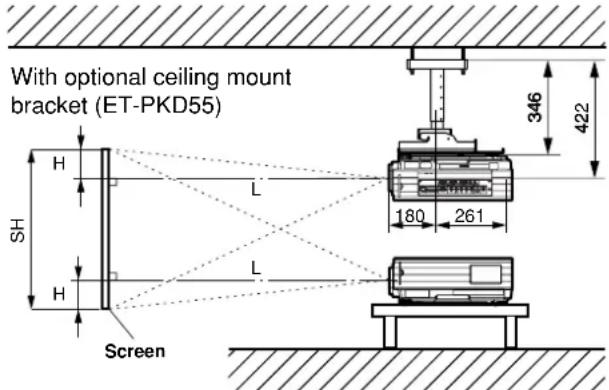
L : Projection distance
SH : Image height
SW : Image width
H : Distance from center of lens to bottom edge of projected image.
Top view
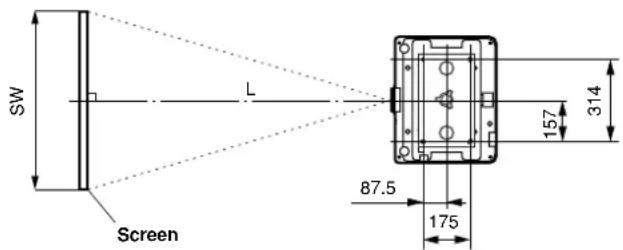
■ Projection distances
Listed in the table below are the projection distances of the standard lens provided with the PT-D5500U (with lens).
Refer to page 57 for the projection distances of the projection lenses available as optional accessories.
Unit : m ( ) : inch [ ] : foot
| Screen Size (4 : 3) | Projection distance: L | Height position: H | |||
| Diagonal length (SD) | Height (SH) | Width (SW) | Minimum (LW) | Maximum (LT) | |
| 1.27(50") | 0.76[2'5"] | 1.02[3'4"] | 1.79[5'10"] | 2.38[7'9"] | 0 to 0.38(0 to 14 ^61/64 ) |
| 1.52(60") | 0.91[2'11"] | 1.22[4'] | 2.16[7'1"] | 2.87[9'4"] | 0 to 0.46(0 to 18 ^7/64 ) |
| 1.78(70") | 1.07[3'6"] | 1.42[4'7"] | 2.53[8'3"] | 3.35[10'11"] | 0 to 0.53(0 to 20 ^55/64 ) |
| 2.03(80") | 1.22[4'] | 1.63[5'4"] | 2.90[9'6"] | 3.84[12'7"] | 0 to 0.61(0 to 24 ^1/64 ) |
| 2.29(90") | 1.37[4'5"] | 1.83[6'] | 3.27[10'8"] | 4.33[14'2"] | 0 to 0.69(0 to 27 ^11/64 ) |
| 2.54(100") | 1.52[4'11"] | 2.03[6'7"] | 3.64[11'11"] | 4.82[15'9"] | 0 to 0.76(0 to 29 ^59/64 ) |
| 3.05(120") | 1.83[6'] | 2.44[8'] | 4.38[14'4"] | 5.80[19'] | 0 to 0.91(0 to 35 ^53/64 ) |
| 3.81(150") | 2.29[7'6"] | 3.05[10'] | 5.49[18'] | 7.26[23'9"] | 0 to 1.14(0 to 44 ^7/8 ) |
| 5.08(200") | 3.05[10'] | 4.06[13'3"] | 7.34[24'] | 9.70[31'9"] | 0 to 1.52(0 to 59 ^27/32 ) |
| 6.35(250") | 3.81[12'6"] | 5.08[16'8"] | 9.20[30'2"] | 12.14[39'9"] | 0 to 1.91(0 to 75 ^13/64 ) |
| 7.62(300") | 4.57[14'11"] | 6.10[20'] | 11.05[36'3"] | 14.59[47'10"] | 0 to 2.29(0 to 90 ^5/32 ) |
| 8.89(350") | 5.33[17'5"] | 7.11[23'3"] | 12.90[42'3"] | 17.03[55'10"] | 0 to 2.67(0 to 105 ^1/8 ) |
| 10.16(400") | 6.10[20'] | 8.13[26'8"] | 14.75[48'4"] | 19.47[63'10"] | 0 to 3.05(0 to 120 ^5/64 ) |
| 12.70(500") | 7.62[25'] | 10.16[33'4"] | 18.46[60'6"] | 24.35[79'10"] | 0 to 3.81(0 to 150) |
| 15.24(600") | 9.14[29'11"] | 12.19[39'11"] | 22.16[72'8"] | 29.24[95'11"] | 0 to 4.57(0 to 179 ^59/64 ) |
Setting-up dimensions which are not given in the above table can be calculated using the formulas below.
$$ \mathrm{LW} = 0. 0 3 7 0 \times \mathrm{SD} - 0. 0 6 5 0 $$
$$ \mathrm{LT} = 0. 0 4 8 8 \times \mathrm{SD} - 0. 0 6 3 8 $$
$$ (L W, L T: m \quad S D: i n c h) $$
For 16 : 9 aspect rations, the following formal can be used to calculate the screen width (SW).
$$ \mathrm{SW} = (\mathrm{SD} \times 0. 0 2 5 4) \times 1 6 \div 3 3 7 $$
The value for SW obtained above can then be used with the following function to calculate the projection distance for the wide lens position (LW) and the projection distance for the telephoto lens position (LT).
$$ \mathrm{LW} = 1. 8 2 3 \times \mathrm{SW} - 0. 0 6 5 0 $$
$$ \mathrm{LT} = 2. 4 0 3 \times \mathrm{SW} - 0. 0 6 3 8 $$
Note
- The dimensions in the table above and the values obtained from the above formulas may contain slight errors.
- It is recommended that you use the projection distance for the wide lens position.
- The above dimensions are the case when the aspect ratio is 4:3. When an SXGA signal is input and projected, the right and left ends of the picture will be blanked the aspect ratio will be 5:4.
■ Setup precautions
- Before connecting any of your video/audio equipment to the projector, carefully read the owners manual supplied with the equipment once again.
- All cable connections should be made with the entire system devices, including the projector, first turned off.
- Obtain commercial interconnecting cables for devices supplied with no accessory or optional interconnect cables.
- Video signals containing too much jitter may cause the images on the screen to randomly wobble or shake. Inserting a time base corrector (TBC) in the projector's video line will relieve this problem.
- The projector only accepts composite-video, S-video, analog-RGB (with TTL sync. level), and digital signal from PC.
- Some PC models are not compatible with the PT-D5500U/D5500UL projector.
- The pin assignments on the S-VIDEO IN port are as follows:
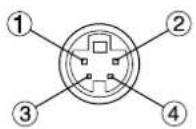
Viewed from mating side
| Pin No. | Signal |
| 1 | Ground (luminance) |
| 2 | Ground (color) |
| 3 | Luminance signal |
| 4 | Color signal |
- The pin assignments on the RGB2 input port are as follows:
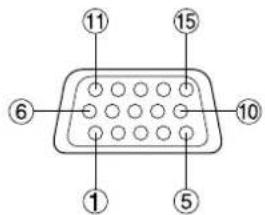
Viewed from mating side
| Pin No. | Signal |
| 1 | R/PR |
| 2 | G/G · SYNC/Y |
| 3 | B/PB |
| 12 | SDA |
| 13 | HD/SYNC |
| 14 | VD |
| 15 | SCL |
Pin ⑨Not used.
Pins ④-⑧,⑩, and : Ground.
Pins and : Valid if the PC has the corresponding function.
- The pin assignments on the DVI-D input port are as follows (interface with TMDS port on PC):
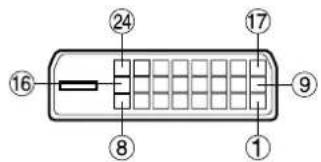
Viewed from mating side
| Pin No. | Signal | Pin No. | Signal |
| 1 | T. M. D. S data 2- | 13 | T. M. D. S data 3+ |
| 2 | T. M. D. S data 2+ | 14 | +5 V |
| 3 | T. M. D. S data 2/4 shield | 15 | Ground |
| 16 | Hot plug sense | ||
| 4 | T. M. D. S data 4- | 17 | T. M. D. S data 0- |
| 5 | T. M. D. S data 4+ | 18 | T. M. D. S data 0+ |
| 6 | DDC clock | 19 | T. M. D. S data 0/5 shield |
| 7 | DDC data | ||
| 8 | — | 20 | T. M. D. S data 5- |
| 9 | T. M. D. S data 1- | 21 | T. M. D. S data 5+ |
| 10 | T. M. D. S data 1+ | 22 | T. M. D. S clock shield |
| 11 | T. M. D. S data 1/3 shield | ||
| 23 | T. M. D. S clock+ | ||
| 12 | T. M. D. S data 3- | 24 | T. M. D. S clock- |
■Example of connecting with AV products
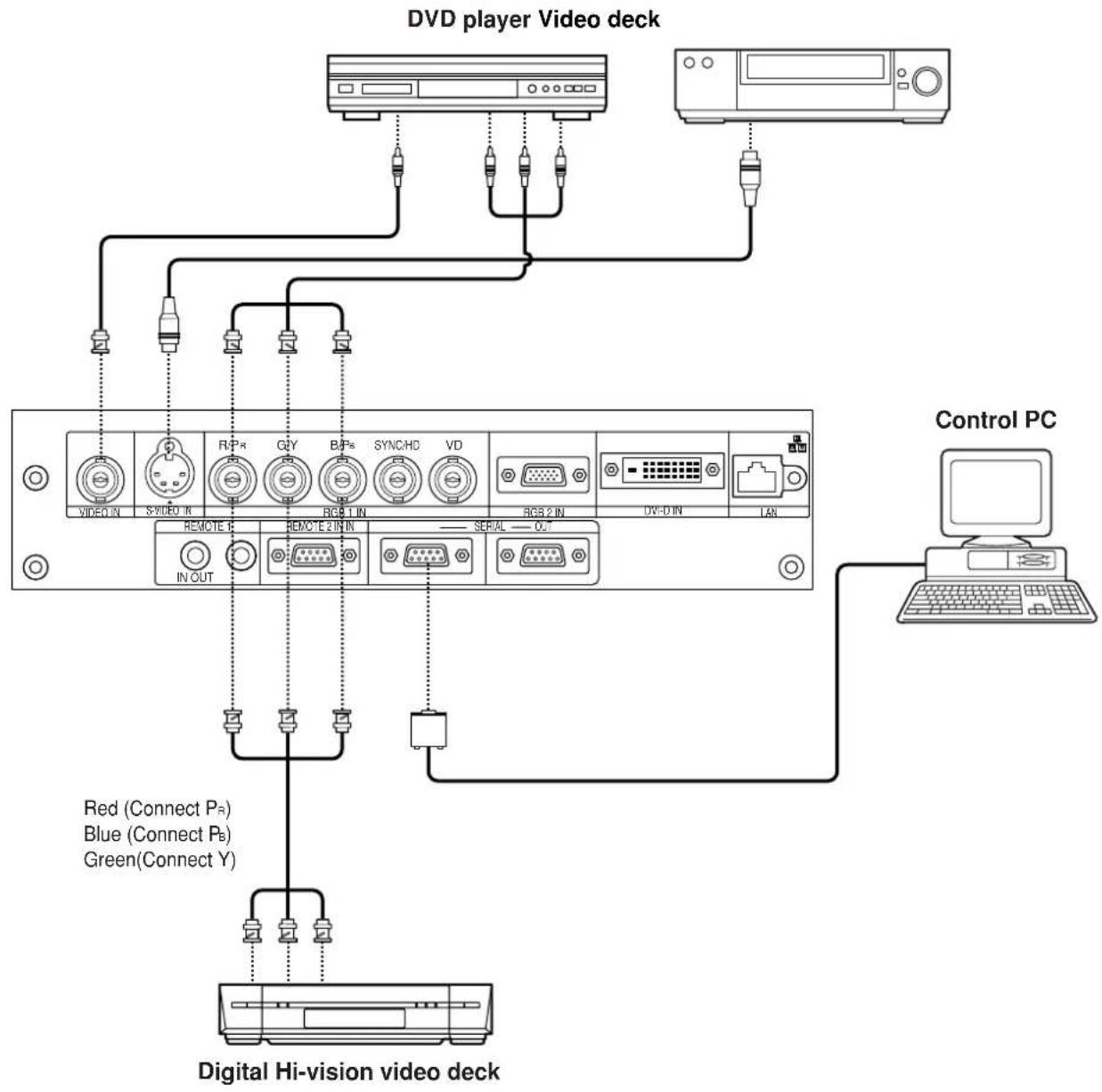
flowchart
graph TD
    A["DVD player Video deck"] --> B["Control PC"]
    A --> C["Digital Hi-vision video deck"]
    C --> D["Red (Connect Pₜ)"]
    C --> E["Blue (Connect Pₑ)"]
    C --> F["Green (Connect Y)"]
Attention
- When connecting with a video deck, be sure to use the one with a built-in time base corrector (TBC) or use a TBC between the projector and the video deck.
- If nonstandard burst signals are connected, the image may be distorted. If this is the case, connect a TBC between the projector and the video deck.
■Example of connecting with PCs
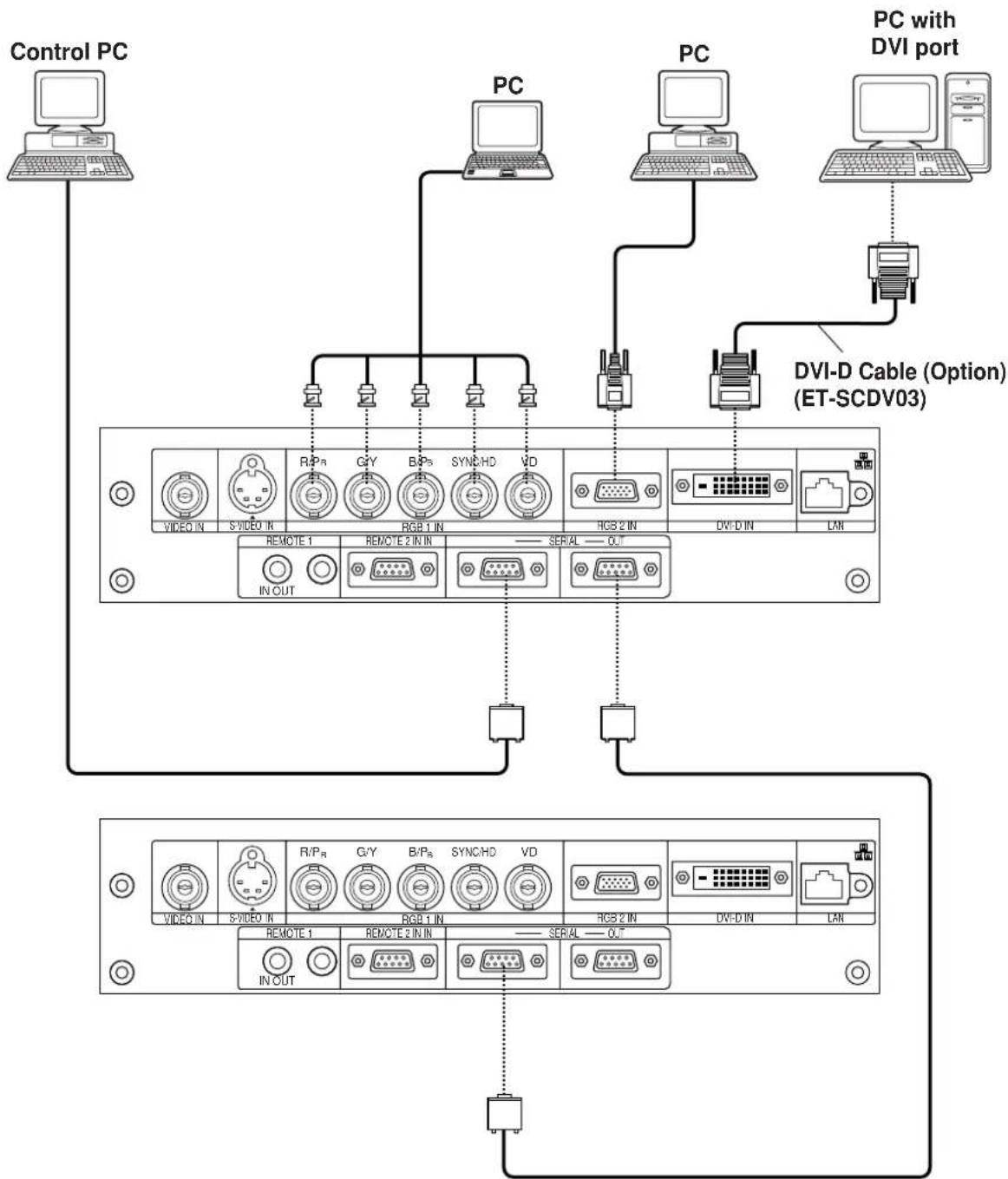
flowchart
graph TD
    A["Control PC"] --> B["PC"]
    B --> C["PC with DVI port"]
    C --> D["DVI-D Cable (Option) (ET-SCDV03)"]
    D --> E["Remote 1"]
    D --> F["Remote 2 IN IN"]
    D --> G["Serial OUT"]
    E --> H["IN OUT"]
    F --> I["IN OUT"]
    G --> J["IN OUT"]
    H --> K["Video IN"]
    I --> L["Video IN"]
    J --> M["Video IN"]
    K --> N["Video IN"]
    L --> O["Video IN"]
    M --> P["Video IN"]
    N --> Q["Video IN"]
    O --> R["Video IN"]
    P --> S["Video IN"]
    Q --> T["Video IN"]
    R --> U["Video IN"]
    S --> V["Video IN"]
    T --> W["Video IN"]
    U --> X["Video IN"]
    V --> Y["Video IN"]
    W --> Z["Video IN"]
    X --> AA["Video IN"]
    Y --> AB["Video IN"]
Note
- For the specifications of the RGB signals that can be applied from the PC, see the data sheet on page 56.
- If your PC has the resume feature (last memory), the computer may not function properly until the resume capability is disabled.
- When the SYNC ON GREEN signal is input, do not input sync signals to the SYNC/HD and VD terminals. Doing so may disrupt the images since, rather than using synchronization initiated by the GREEN signal, the sync signals of the SYNC/HD and VD terminals will be used instead. Even if the images are not disrupted, the white balance may be lost. If this is the case, select "USER" as the "COLOR TEMP" setting (see page 29), and adjust "W-BAL LOW".
- The white balance may be lost when the SYNC ON RGB signal is input. If this is the case, select "USER" as the "COLOR TEMP" setting (see page 29), and adjust "W-BAL LOW".
How to install and remove the projection lens (optional)
■How to install the projection lens
① Align the guide of the projection lens with the guide groove in the main unit.
② Turn the lens clockwise until it clicks into place.
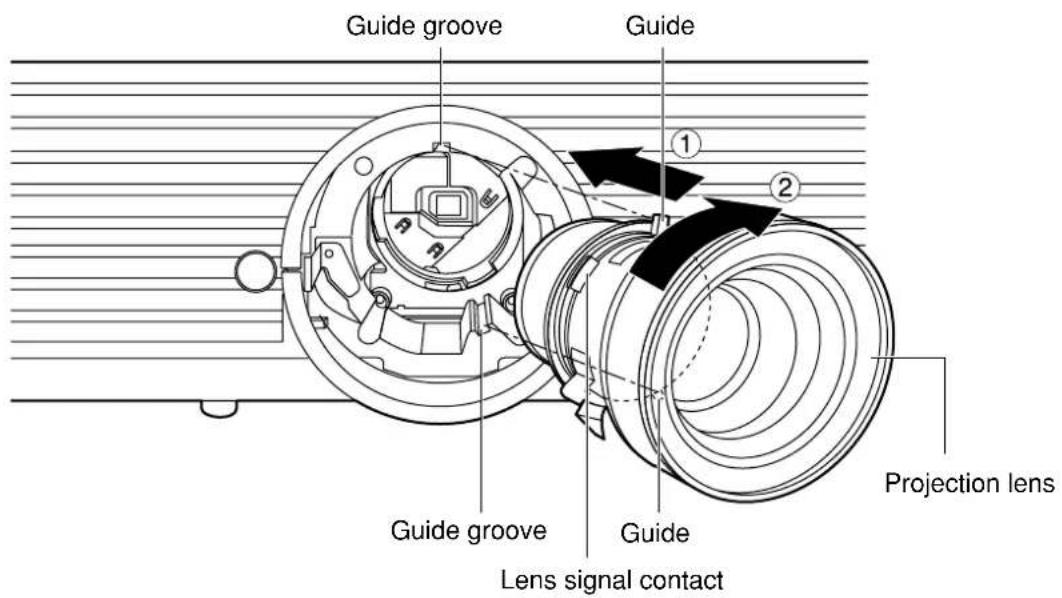
■How to remove the projection lens
① Turn the lens counterclockwise as far as it will go.
② While holding down the lens lock button, turn the lens further counterclockwise.
③ Remove the lens.
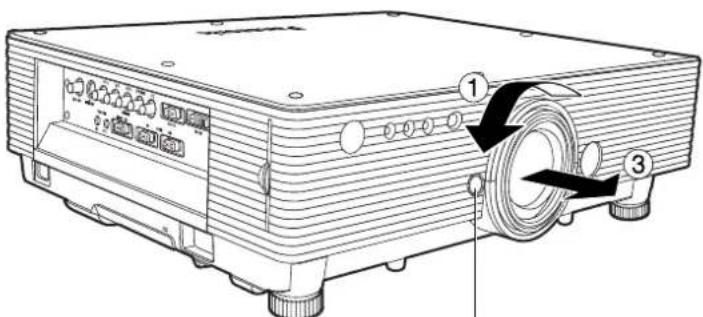
② Lens lock button
Note
- Before replacing the lens, turn off the projector's power.
- Do not touch the lens signal contact. Dust or dirt may cause defective contact.
- Do not touch the surface of the projection lens with your bare hands.
- Store the replaced lens where it will be free from vibration and impact.
■ Powering up the projector
Remove the lens cover.
① Connect the supplied power cable. (120 V AC, 50 Hz/60 Hz)
② Press the "I" marked side of the MAIN POWER switch to turn on the power.
The power indicator lights up red, and the projector is placed in the standby mode.
③ Press the "I" button. [on the main unit or the remote control]
The power indicator illuminates in green and soon the image is projected on the screen.
■ Making adjustment and selection
④ Roughly adjust the focus of the lens. (Refer to page 24.)
Press the LENS button on the main unit or the remote control unit to display a focus adjustment screen. Pressing buttons to adjust the image into focus.
⑤ Select and set the projection scheme. (Refer to page 34.)
⑥ Select the input signal by pressing the input selector button to toggle through RGB1, RGB2, VIDEO, S-VIDEO and DVI. [on the main unit or the remote control]
⑦ Turn the feet, and adjust the tilt of the main unit in the front and rear or left and right.
⑧ Use the lens left/right adjustment dial to adjust the direction of the lens. (page 24)
⑨ Press the LENS button three times to adjust the lens shift. (Refer to page 24.)
⑩ Press the AUTO SETUP button if the input signal is RGB signal. [on the main unit or the remote control]
⑪ Fit the image size to the screen size.
Press the LENS button twice and adjust the zoom of the lens on the lens zoom adjustment menu.
⑫ Press the LENS button and adjust the focus of the lens on the lens focus adjustment menu.
⑬ Display the zoom adjustment menu again and adjust the zoom of the lens to fit the image size to the screen size. (Refer to page 24.)
Note
- If the projector is powered up at about 0^ , a warm-up period of approximately five minutes may be necessary to start projection.
The temperature monitor (TEMP) lights during the warm-up period.
When the warm-up is completed, the temperature monitor (TEMP) turns off and the image is projected on the screen.
- If the surrounding temperature is very low and the warm-up period exceeds five minutes, the control determines it as an abnormal condition and turns off the power automatically. If this happens, raise the surrounding temperature to 0°C or higher and then turn the main power “on” and turn the power “on” (I).

■ Powering off the projector
① Press the POWER OFF “⏻” button.
② Select "Execute" with ▶ button and press the ENTER button. (or press the POWER OFF "⏻" button again.)
The projection of the image stops, and the power indicator of the main unit lights up orange. (The cooling fan keeps running.)
③ Wait until the power indicator of the main unit turns to red (i.e., until the cooling fan stops).
④ Press the “○” marked side of the MAIN POWER switch to remove all power from the projector.
Attention • Do not turn the power supply off and then immediately back on again.
Turning on the power supply will not light up the light source lamp if the lamp is in the process of cooling down after turning off the power supply. To light up the lamp, turn on the power supply again when the lamp has been cooled sufficiently.
Turning on the power supply with the lamp in the hot condition may shorten the lamp life.
Note
- The projector consumes approximately 10 watts of power even in standby mode after the cooling fan stops. (Power indicator lit in red)
- If you re-power the projector after shutting off the main power inadvertently, the projection lamp may remain unlit. Please turn the power on again after a while.
■Direct power off function
The power supplied internally causes the cooling fan to continue operating and cool off the lamp when the power has failed or even after the power cord is disconnected immediately after the power has been turned off.
Note
- When the lamp has been cooled by the direct power OFF function, it sometimes takes longer than usual for the lamp to light up again.
- While the cooling fan is operating, do not place the projector inside a box or bag.
- The operation time of the cooling fan will be less if fewer than 2 minutes have elapsed since the power was turned on.
■How to adjust the lens focus, lens zoom and lens up/down position movement (optical shift)
The focus, zoom and up/down position of the images projected on the screen can be adjusted while the projector is positioned appropriately in relation to the screen.
① Press the LENS button on the remote control or on the control panel of the main unit.
Pressing the button changes the setup screen in the order of "Lens focus", "Lens zoom" and "Lens shift".
② Choose an item and adjust it using
▲▼ buttons.
Caution
Be careful not to catch your fingers between the lens and shroud when shifting the lens.
Note
- When a lens without zoom functions is used, the lens zoom adjustment menu will still displayed, but no operations can be performed using the items on this menu.
- By shifting the lens up/down position, it is possible to make adjustments upward or downward from the standard position in the direction of the upper 50% of the projected screen height.
- Operations can be performed faster by holding down the ▲▼ buttons for about 3 or more seconds.
■How to adjust the lens position to the left or right
When the lens left/right adjustment dial is turned clockwise, the screen moves toward the left; conversely, when it is turned counterclockwise, it moves toward the right. The maximum travel distance toward the left or right is 10% of the projection screen width.
Attention
- Move the lens left/right adjustment dial to any position up to the maximum adjustment position to make the adjustment. Turning the dial with undue force may cause malfunctioning.
Automatic adjustment (AUTO SETUP)
Automatic adjustment function adjust the resolution, clock phase and image position automatically when dots-structured analog RGB signals such as computer signal are supplied. (Automatic adjustment is not available if signals other than analog RGB signals, moving picture input signals or signals having a dot clock frequency of more than 100 MHz are supplied.) It is recommended to supply images with a bright white frame at the outermost periphery containing characters etc. that are clear in white and black contrast when the system is in automatic adjustment mode. Avoid supplying images that involve halftones or gradation such as photographs and computer graphics.
Note
- “CLOCK PHASE” may have been shifted even when the adjustment ended normally. In this case, manually adjust the “CLOCK PHASE”.
- Automatic adjustments cannot be performed when images with blurred edges or dark images are input. With C-SYNC and G-SYNC sync signals and some types of PCs, it may not be possible to perform these automatic adjustments.
In this case, manually adjust the items of "INPUT RESOLUTION", "CLOCK PHASE" and "POSITION".
- Image may be disturbed for about 4 seconds during automatic adjustment, which is not an abnormal error.
Using the FREEZE function
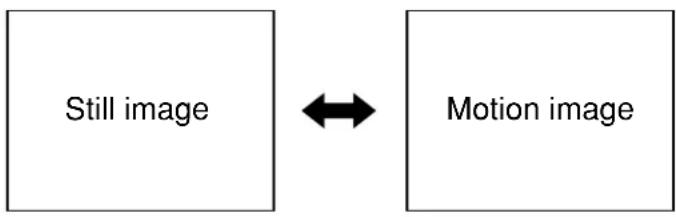
The image on the screen can be frozen by pressing the FREEZE button on the remote control.
flowchart
graph LR
    A["Still image"] <--> B["Motion image"]
Using the SHUTTER function
If the projector is not used for a certain period of time during the meeting intermission, for example, a shutter mode is available that allows the user to hide images temporarily.
① Press the "SHUTTER" button of the remote control or the main unit.
The image is turned off.
② Press the "SHUTTER" button again.
The image comes back.
Using the digital zoom (− D.ZOOM +) function
A portion of the picture on the screen can be zoomed in with “- D.ZOOM +” buttons of the remote control. It is useful for highlighting a specific object during the presentation.
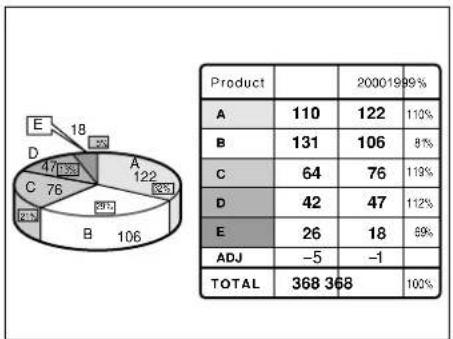
pie
| Product | Value | Percentage (%) | | :--- | :--- | :--- | | A | 110 | 110 | | B | 131 | 81 | | C | 64 | 119 | | D | 42 | 112 | | E | 26 | 69 | | ADJ | -5 | -1 | | TOTAL | 368 | 100 |
other
| Category | Value | |---|---| | A | 11 | | B | 13 | | C | 6 | | D | 4 | | E | 2 |① Press the “- D.ZOOM +” button of the remote control.
The image is zoomed in.
② Change the magnification with the “-D.ZOOM +” button.
The magnification can be adjusted from 1.0 to 3.0 times.
③ Use buttons to move the magnified image.
④To restore the original image, press the "MENU" button.
Attention
• The digital zoomed state cannot be stored in memory.
- If the input signal format is changed while in digital zoom mode, the projector will exit digital zoom function.
■Structure of menu screens
Menus are extensively used for configuring, adjusting or reconfiguring the projector.
The menus structure is as follows:
MENU
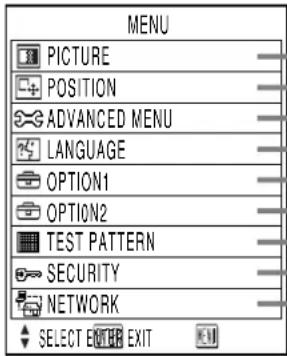
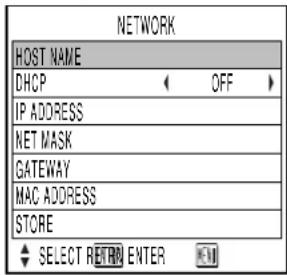
NETWORK
(page 37)
SECURITY
(page 36)
TEST PATTERN
(page 36)
OPTION2 (page 34)
OPTION1 (page 33)
PICTURE (page 29)
For RGB/DVI signals only
For S-Video/Video/YP _B PR signals only
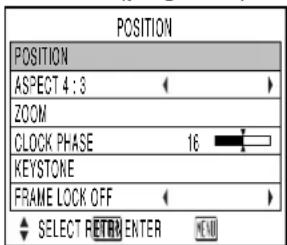
POSITION (page 31)
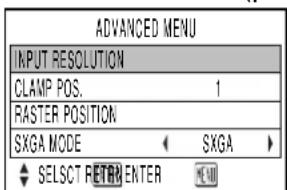
ADVANCED MENU (page 32)
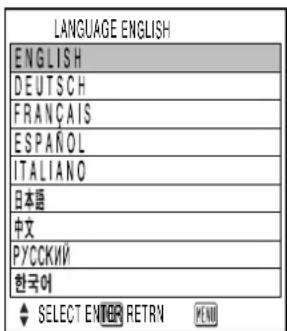
LANGUAGE (page 32)
■ Basic menu operations
① Press the "MENU" button.
The MAIN MENU appears on the screen.
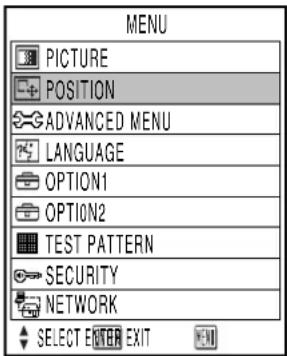
② Select (highlight) the desired item with the ▲ or ▼ buttons.
Selected items are displayed in blue.
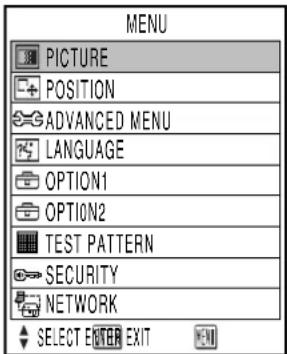
③ Press the "ENTER" button to enter your selection.
The submenu for the selected option will now open. (e.g.: PICTURE Menu)
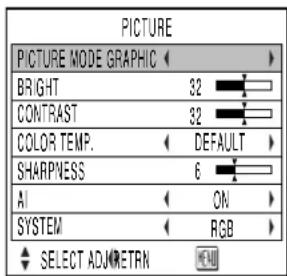
④ Highlight the desired adjustment item with the ▲r buttons, then change the parameter value with the ◀r ▶ buttons.
(Example of separate adjustment screen)

- If no button is operated for approx. 5 seconds while a bar graph is displayed, the screen will return to the previous page.
■ Returning to the previous page
- Pressing the "MENU" button returns the screen to the previous menu page.
- When the MAIN MENU is on the screen, pressing the "MENU" button clears all menus from the screen.
■Menu items shown in transparent characters
- Some menu items may not be valid for certain signal formats applied to the projector. The menu items that cannot be adjusted or used are shown in transparent characters, and they cannot be selected even by pressing the ENTER button.
■Menu items setting
- The bottom prompt line differs on each menu depending on the selected menu option:
- A prompt “◀ ▶ ADJ” appears when changing the setting.
- A prompt “ENTER ENTER” appears for a separate bar graph.
- When and buttons are displayed above or under the items in the "OPTION" screen, they indicate that there are more adjustment (items).
■ Resetting to the factory default
STD (standard) button is used to reset all of the projector adjustment values to the default levels which were set at the time of shipment from the factory.
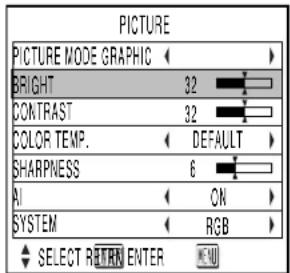
- If the parameter value on a bar graph is reset to the factory default, the bar turns to white.
Note
- The upper and lower triangular markings on a bar graph indicate the default setting for the parameter. If no such triangular markings are shown on the bar graph, the parameter cannot be reset to the factory default.

- For RGB/DVI signals only
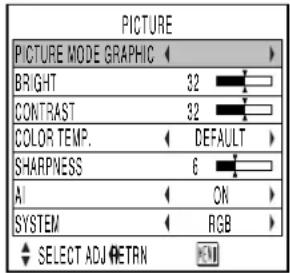
- For S-Video/Video/YPBPR signals only
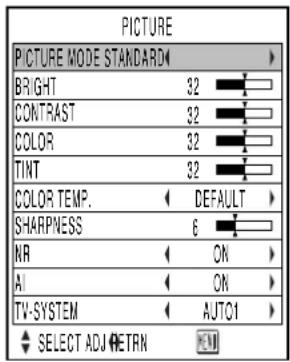
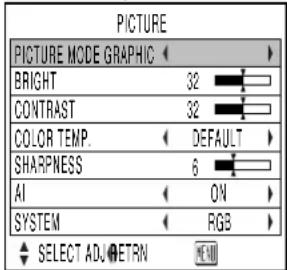
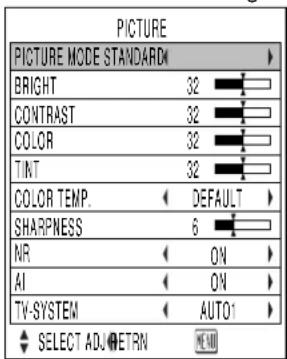
■PICTURE MODE
The picture mode can be selected from the following depending on viewing conditions and the video signal source in use:
DYNAMIC : Picture brightness/contrast ratio is increased to suit brighter viewing environments.
GRAPHIC : The picture becomes suitable for input from to the personal computer.
STANDARD : The picture becomes suitable for moving images in general.
CINEMA : The picture becomes suitable for movie sources.
NATURAL : The picture becomes suitable for use in a dark room.
■ BRIGHT
"BRIGHT" is used to adjust the black level (brightness).
▶ : Raises the picture brightness.
◀ : Lowers the picture brightness.
■CONTRAST
"CONTRAST" is used to adjust the contrast ratio.
▶ : Raises the contrast ratio.
◀ : Lowers the contrast ratio.
■COLOR
(For S-Video/Video/YPBPR signals only)
▶ : Deepens colors.
◀ : Weakens colors.
■ TINT
(For S-Video/Video/YPBPR signals only)
"TINT" is used to adjust human skin.
▶ : Adjusts skin tone toward greenish color.
◀ : Adjusts skin tone toward reddish-purple.
■COLOR TEMP.
The color temperature is adjusted when the white areas of images take on a reddish or bluish hue.
DEFAULT: Standard setting
HIGH : The white areas take on a more bluish-white hue.
MIDDLE : The white areas take on a slightly reddish hue.
USER : The RGB values of the white balance are set separately.
Press the ENTER button, select "W-BAL HIGH" or "W-BAL LOW", and proceed with the detailed settings.
▶ : The colors of the selected item are darkened.
◀: The colors of the selected item are lightened.
■SHARPNESS
“SHARPNESS” is used to adjust the crispness of the image.
▶ : Sharpens the edge of the image.
◀ : Softens the edge of the image.
■NR (For S-Video/Video/YP B P R signals only)
In this mode, the video noise is reduced.
ON : Standard setting
OFF : Noise reduction is set to OFF.
AI
Gray scale control is exercised to suit the images, and optimal images with a clear contrast are projected.
ON : Standard setting
OFF : The AI mode is set to OFF.
■ TV-SYSTEM
(For S-Video/Video signals only)
The setting that corresponds to the TV system is selected here.
AUTO1 : Standard setting
Automatically selects the TV standard that matches the input video signal, out of NTSC, PAL, NTSC4.43, SECAM and PAL60.
AUTO2 : Automatically selects the TV standard that matches the input video signal, out of NTSC, PAL-M, and PAL-N.
- Normally "AUTO1" or "AUTO2" should be chosen for this option.
- If the video signals are not displayed properly due to signal deterioration, choose the TV system that matches the input video signals.
Automatically selected by detecting the horizontal/vertical scan frequencies and color subcarrier listed in the table below:
| Signal System | H. Scan Frequency (kHz) | V. Scan Frequency (Hz) | Color Subcarrier (MHz) |
| NTSC | 15.75 | 60.00 | 3.58 |
| NTSC4.43 | 15.75 | 60.00 | 4.43 |
| PAL | 15.63 | 50.00 | |
| PAL-M | 15.75 | 60.00 | 3.58 |
| PAL-N | 15.63 | 50.00 | |
| SECAM | 15.63 | 50.00 | 4.25 or 4.41 |
| PLA60 | 15.75 | 60.00 | 4.43 |
■ SYSTEM (For RGB signals only)
This enables the RGB system or YPBPR system to be selected.
For the signals which are supported, refer to page 56.
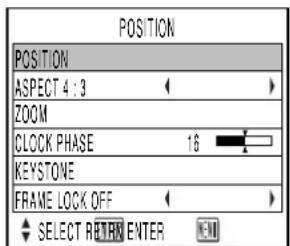
■ POSITION
The position where the images are displayed can be moved here.
◀ ▶: The position is moved horizontally.
▲ ▼ : The position is moved vertically.
■ASPECT
AUTO : (For S-Video/Video signals only) If an S1 video signal is applied to the S-VIDEO port, the picture is automatically switched to the 16:9 aspect ratio. When video signals with a video ID (VID) are applied to the video port, the picture is automatically switched to the 16:9 aspect ratio.
16:9 : The image is vertically compressed into a 16:9 ratio.
4:3 : The aspect ratio inherent to the input video signal is left intact when projected onto the screen.
S4:3 : Picture size is compressed to 75% of the original picture size when projected. (This mode is useful when viewing pictures with the standard 4:3 aspect ratio on a wide screen with the 16:9 aspect ratio.)
What Is S1 Video?
- The S1 video is the wide-aspect-ready S-video format containing an aspect sense signal for squeezed videos fed from video equipment.
- If "AUTO" is chosen, the projector automatically compresses the squeezed input video into the 16:9 aspect ratio if it detects the aspect sense signal.
Attention
If you choose an aspect ratio that does not match the source video's aspect ratio, you will see a picture with an aspect ratio not the same as that of the original picture. Choose the appropriate aspect ratio carefully to match that of the original picture.
Note
- If the picture size is compressed or enlarged by using the 16:9 aspect ratio when the projector is used for profitable purpose or in the presence of an audience (for example, in a coffee shop or at a hotel etc.), it may infringe the rights of the copyright owner of the original picture.
- If a picture with the standard (4:3) aspect ratio is projected at a wide aspect ratio, parts of the picture may run over the screen bounds or the overall picture may be distorted. To view the picture at its original aspect ratio, choose the standard 4:3 aspect ratio.
■ZOOM
This enables the enlargement ratio to be changed and the resulting enlarged image displayed.
◀ ▶: The enlargement ratio in the horizontal direction is changed.
▲ ▼ : The enlargement ratio in the vertical direction is changed.
■CLOCK PHASE
(For RGB/YPBPR signals only)
Clock phase adjustment allows the user to minimize visible noise with the or button.
Note
- When projecting signals whose dot clock frequency is 100 MHz or higher, the noise may not be disappear even when the clock phase is adjusted.
- Clock phase adjustment is not available for digital RGB signals.
■KEYSTONE
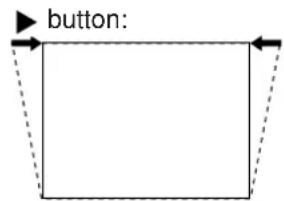
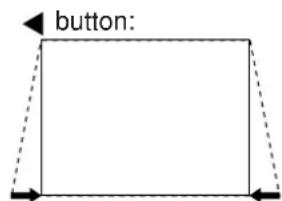
KEYSTONE : Keystone distortion can be corrected only along either horizontal bound of the picture.
Note
- Keystone distortion can be corrected to ± 30^ of the angle of tilt for the projector. However, the greater the correction amount, the more the picture quality will deteriorate, and the harder it will become to achieve a good level of focus. To obtain the best picture quality, set up the projector and screen in such a way that the amount of keystone correction required is as minimal as possible.
- The picture size will also change when correction of keystone distortion is carried out.
LINEARITY : After you are finished with keystone adjustment, adjust vertical linearity with the or button.
Vertical linearity is not adjustable if no correction was made to keystone distortion.
■FRAME LOCK
This mode is used when the images are disrupted while playing some moving images with RGB signals. For the signals which are supported, refer to page 56.
ON : Standard setting
OFF : Frame lock is set to OFF.

■ INPUT RESOLUTION
Input resolution adjustment achieves the best image when the screen flickers or halo is observed around the contour.
▲ ▼: These select the items listed below.
◀ ▶: These select the value.
"TOTAL DOTS", "DISPLAY DOTS", "TOTAL LINES" and "DISPLAY LINES"
Each item automatically displays a value in response to the type of the input signal. If vertical stripes appear on the screen or the image is partly missing, increase or decrease the displayed value while observing the screen to achieve the optimal value.
Note
- The abovementioned vertical stripes will not appear on the screen when all signals are input.
- The picture may be distorted during the adjusting operation, but this is not a fault.
- The input resolution can be adjusted only when RGB signal input is applied with RGB1 and RGB2 IN.
■ CLAMP POS. (For RGB signals only)
Use the clamp position adjustment to achieve the optimal value when dark areas of the image are crushed or displayed in green.
Adjust with the buttons.
The value changes from 1 to 255.
The optimal value for the clamp position adjustment
- If dark areas are crushed:
→ The optimal value is the point where the dark area is best improved. - If the dark areas are displayed in green:
→ The optimal value is the point where the green area becomes dark and clear.
Note
- The clamp position can be adjusted only when the RGB signal input is applied with RGB1 and RGB2 IN.
■ RASTER POSITION
When the whole area where the input picture can be displayed is not used, the picture can be moved to any position inside the display area.
◀ ▶: These adjust the value in the horizontal direction.
▲ ▼ : These adjust the value in the vertical direction.
■SXGA MODE
This mode takes effect only when SXGA (RGB) signals are input.
SXGA : Standard setting
SXGA+: Select this when the screen is cut off.
Changing the display language
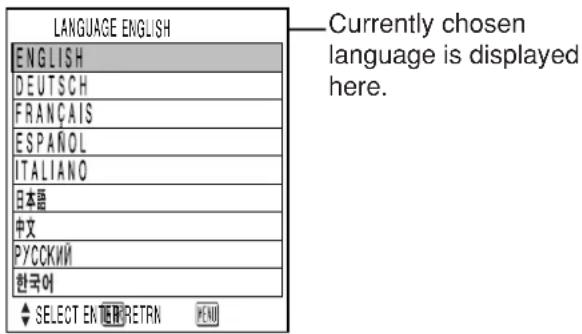
Menus, setting items, adjustment screens, and control button names will be displayed in the language the user chooses.
The available languages are:
ENGLISH, DEUTSCH, FRANÇAIS, ESPAÑOL,
- The projector's on-screen display is set to the English language by default.
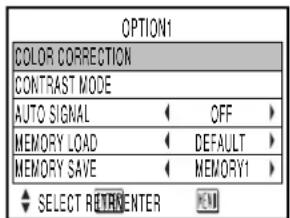
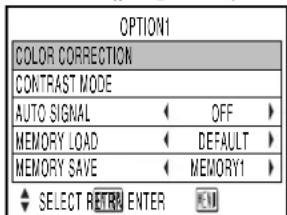
■COLOR CORRECTION
OFF : Standard setting
USER : The six colors of red, green, blue, cyan, magenta and yellow can be adjusted and registered for each of four signal systems: Video, S-Video, RGB and YPBPR. Press the "ENTER" button to make the detailed settings.
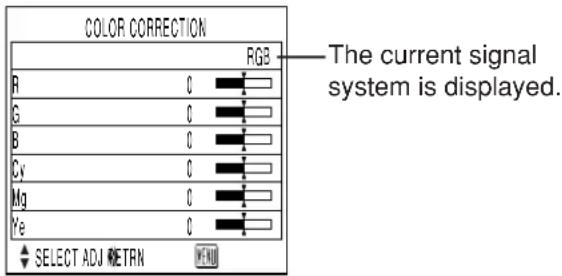
■CONTRAST MODE
There are two modes for adjusting to the operating environment.
NORMAL : The contrast is set to normal and the brightness to maximum.
HIGH : The contrast is set to maximum and the brightness to normal.
■ AUTO SIGNAL
The position where the screen is displayed can be adjusted automatically without pressing the AUTO SETUP button on the remote control each time signals are input when signals are input frequently such as when the projector is used at a conference.
ON : Auto setup is performed automatically when the video signals of the images being projected have changed.
OFF : The input auto setup function is set to OFF.
■MEMORY LOAD
The adjustment data stored in the memory can be loaded.
DEFAULT : The standard settings are loaded.
MEMORY1, 2, 3: The pre-registered adjustment data (MEMORY1, 2, 3) is loaded.
■MEMORY SAVE
Once adjustment settings are registered with MEMORY, they are automatically loaded each time the projector is powered up. It is not necessary to readjust settings at every power on.
(e.g. Registering positioning data with "MEMORY1")
① Apply an input signal you want to register, and then adjust the picture position, size, and others.
② Choose "MEMORY SAVE" on "OPTION1".
③ Choose "MEMORY1" using the 🔊 buttons and press the "ENTER" button.
Note • The memory has "MEMORY1" to "MEMORY3".
④ After recognizing the flashing of the "MEMORY1" display, press the "ENTER" button again.
⑤ The above adjusted settings has been registered with "MEMORY1". Similarly you can also register settings with "MEMORY2" or "MEMORY3".
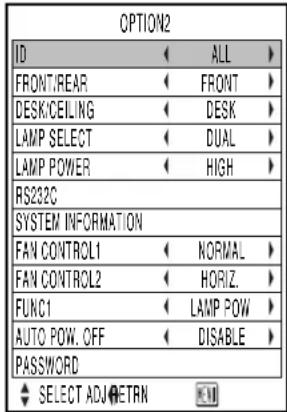
| OPTION2 | ||
| ID | ALL | |
| FRONT/REAR | FRONT | |
| DESK/CEILING | DESK | |
| LAMP SELECT | DUAL | |
| LAMP POWER | HIGH | |
| RS232C | ||
| SYSTEM INFORMATION | ||
| FAN CONTROL1 | NORMAL | |
| FAN CONTROL2 | HORIZ. | |
| FUNC1 | LAMP POW | |
| AUTO POW. OFF | DISABLE | |
| PASSWORD | ||
| SELECT ADJ RETRN | ||
ID
The projector has an ID number setting function that helps the user to control two or more projectors either simultaneously or separately with a single remote control. The ID number is set to “ALL” by default. Hence the ID number need not be set when only one projector is used.
1–64 : The ID number is set in this range.
Note
- The ID number can be set to "ALL", or selected from "1" to "64".
- If the projectors are given ID numbers, their remote controls must be assigned the same ID numbers, respectively.
- If the ID number of a projector is set to "ALL", it can be controlled by the remote control or the PC with any ID number.
If multiple projectors are used and some of them have their IDs set to "ALL", they cannot be controlled separately from the projectors with other ID numbers.
For details on remote control ID setting, see page 15.
■ FRONT/REAR
"FRONT/REAR" is used to choose the appropriate projection scheme from Front and Rear:
FRONT : Choose this option if pictures are projected from the front of a reflective screen.
REAR : Choose this if pictures are projected from the back of a translucent screen.
■ DESK/CEILING
DESK/CEILING is used to choose the appropriate projection scheme from Desk and Ceiling:
DESK : Choose this option if the projector is installed on a floor-standing base.
CEILING : Choose if the projector is installed on the ceiling using the optional ceiling mount bracket.
■LAMP SELECT
"LAMP SELECT" is used to choose from Single Lamp and Dual Lamp modes depending on user's needs or viewing conditions. In Single Lamp mode, the projector may automatically select either lamp from the 2 lamps, or the particular lamp can be specified.
DUAL : Two lamps are used simultaneously.
SINGLE : One of either lamps is used (lamp with shorter operating hours is automatically selected).
LAMP1 : Lamp Unit 1 is always used.
LAMP2 : Lamp Unit 2 is always used.
When one of the above settings is selected, it will take effect after ENTER is pressed.
Note
- If, in the “SINGLE”, “LAMP1” or “LAMP2” mode, one lamp remains off or the currently active lamp exceeds 1 500 hours of cumulative operating time (when “HIGH” is selected as the lamp power setting), the other lamp will light. If, in the “DUAL” mode, one lamp remains off or the currently active lamp exceeds 1 500 hours of cumulative operating time (when “HIGH” is selected as the lamp power setting), the other lamp alone will light. However, if both lamps remain off or the 1 500 hours of cumulative operating time are exceeded, the projector will enter the standby mode.
- If only one lamp is installed in the projector, set lamp mode to either "LAMP1" or "LAMP2". "LAMP1" or "LAMP2" is selected. If the corresponding lamp is not installed, the other lamp will turn on. The same holds for "LAMP2" mode.
- The colors of the items indicate the status.
Green Current setting Cyan New changing from one status to another Red Lamp that has failed to light White Any other status
※ This time period is 4 000 hours when long life lamp units (page 43) are used.
■LAMP POWER
The luminance of the projection lamp can be changed depending on user's needs or the viewing conditions.
HIGH : Set when high brightness is necessary.
LOW : Set when high brightness is not necessary.
Note
- When set to "LOW", it is possible to reduce power consumption, reduce operating noise and extend lamp service life.
- "LOW" is set automatically when long life lamp units are used.
■RS232C
This sets the communication parameters at the serial terminals.
For details on the serial terminals, refer to "Using the serial terminals" (page 38).
IN BAUDRATE : 9 600, 19 200 or 38 400 is selected.
IN PARITY : NONE, EVEN or ODD is selected.
OUT BAUDRATE: 9 600, 19 200 or 38 400 is selected.
OUT PARITY : NONE, EVEN or ODD is selected.
VPS SYSTEM : MASTER or SLAVE is selected.
GROUP : A to Z is selected. MASTER or SLAVE is also selected.
The projector's system information can be viewed.
| SYSTEM INFORMATION | |
| ROM VERSION | 1.00.00 |
| SET RUNTIME | 300h |
| LAMP1 LOW | 100h |
| HIGH | 200h |
| TOTAL | 300h |
| LAMP2 LOW | 100h |
| HIGH | 200h |
| TOTAL | 300h |
| LAMP1 ON | 20 |
| LAMP2 ON | 20 |
| LAMP1 TYPE | LAD55 |
| LAMP1 TYPE | LAD55 |
■FAN CONTROL1
The fan can be controlled in accordance with the operating conditions.
NORMAL : Standard setting
HIGHLAND : This is selected when using the projector at an altitude of over 1 400 meters.
■FAN CONTROL2
The fan can be controlled in accordance with the direction in which the images are to be projected.
HORIZ.: Standard setting
VERTICAL : This is selected when projecting images at a significant angle toward the vertical (more than 30 degrees from the horizontal).
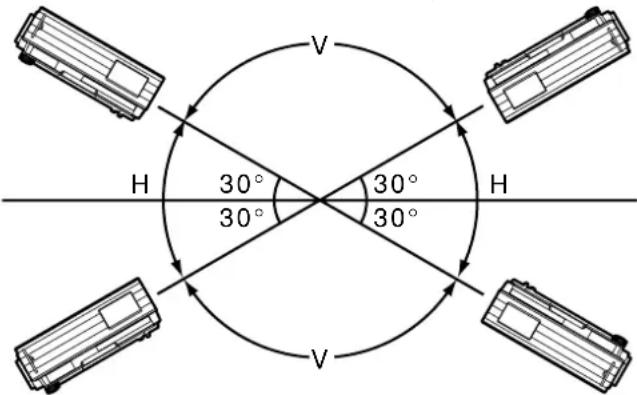
H: HORIZ.
V: VERTICAL
Attention
- Select the correct FAN CONTROL2 setting in accordance with the direction in which the images are to be projected. Using the projector at the wrong FAN CONTROL2 setting will shorten the service life of the lamps.
■FUNC 1
The user can set the function for the remote control's FUNC1 button.
LAMP POW : The button functions in the same way as "LAMP POWER" of "OPTION2".
ASPECT : The button functions in the same way as "ASPECT" of "POSITION".
■ AUTO POW.OFF
The projector can be automatically set to the standby mode if no signals are input for the set duration.
DISABLE : Standard setting. This function is set to OFF.
15MIN.-60MIN.: The duration can be set in 5-minute increments from 15 to 60 minutes.
Note
- The auto power OFF function does not work while the freeze function is used.
■PASSWORD
This function is used when a service person.
Input the password with the numeric buttons (0 to
9) of the remote control and press ENTER button to confirm the entry.
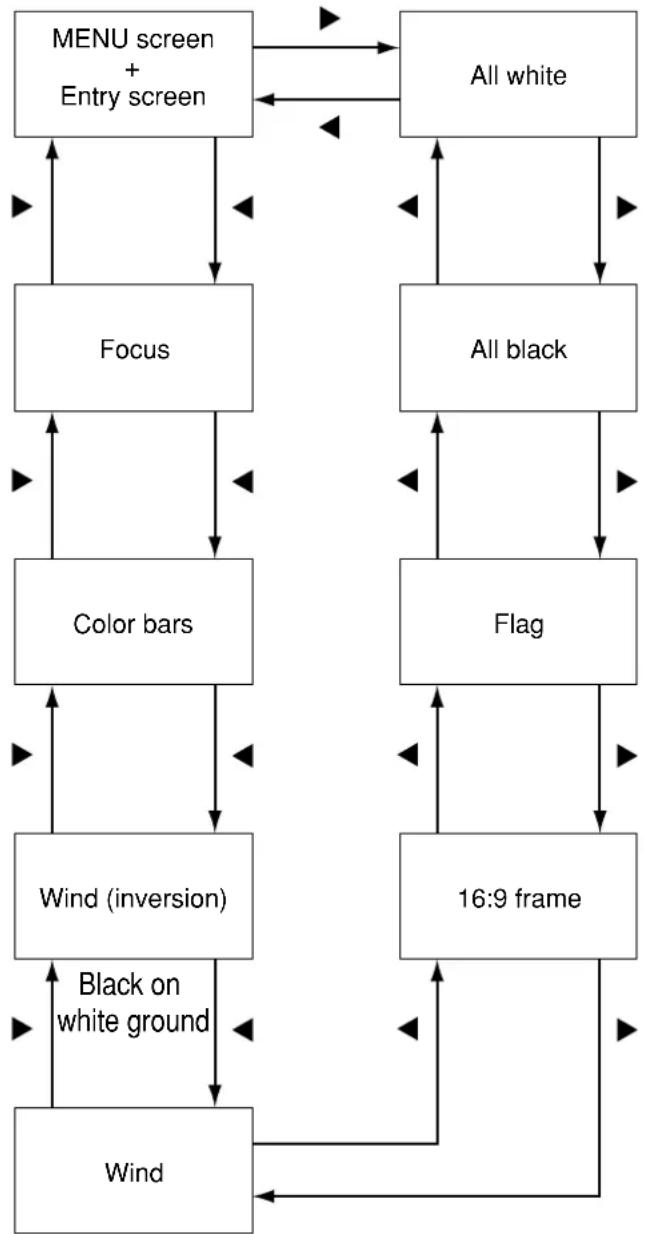
The projector has eight types of internal test patterns to check the condition of the set.
To display test patterns, follow the steps below.
Note
Results of adjustment on the image, picture quality, position, size and other factors will not be reflected in test patterns. Be sure to display the input signal before performing various kinds of setting.
◀ ▶ : Search through the various types of test patterns
■ Cycle of displayed internal test patterns
flowchart
graph TD
    A["MENU screen + Entry screen"] --> B["Focus"]
    B --> C["Color bars"]
    C --> D["Wind (inversion)"]
    D --> E["Wind"]
    E --> F["Black on white ground"]
    F --> D
    G["All white"] --> H["All black"]
    H --> I["Flag"]
    I --> J["16:9 frame"]
    J --> K["Black on white ground"]
    K --> D
    L["Black on white ground"] --> D
    M["Black on white ground"] --> D
White on black ground
The projector's security function enables the password input screen to be displayed or a company's URL address to be set and displayed underneath the projected images.
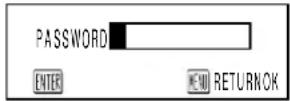
(When using the projector for the first time)
(When the password has been changed)
Input the new password, and press the ENTER button.
■Setting the password
It is possible to display the password input screen each time the power is turned on. If this option is used, no operations except for the POWER button can be performed without inputting the correct password.
ON : Password input is enabled.
OFF : Password input is disabled.
■Changing the password
The password can be changed. Press the ENTER button.
① Set the password using the ▲, ▶ ▼ ◀ buttons (up to 8 buttons can be set).
② Press the ENTER button.
③ Confirm the password by inputting it again.
④ Press the ENTER button.
(This completes the settings.)
Note
- Asterisks ( *will appear on the screen in the place of the actual password when the password is input.
- If the wrong password is input, the letters for "Password", "New", etc. appear in red. Input the correct password.
■Setting the text
The text which has been set can be displayed underneath the projected images all the time.
ON : The text display is enabled.
OFF : The text display is disabled.
■Changing the text
The text which is to be displayed when ON has been selected for the text setting can be changed. Press the ENTER button.
① Select the text using the ▲, ▶ ▼ ◀ buttons, and press the ENTER button. (Up to 22 alphanumerics can be input in succession.)
② Select "OK" using the ▲, ▶, ▼, ◀ buttons, and press the ENTER button.
- To cancel the change at any time, select CANCEL.
Setting the network
The settings required for the network must be established in order to use the web browser (page 46) functions that the PC uses to control the projector.
| NETWORK | |
| HOST NAME | |
| DHCP | OFF |
| IP ADDRESS | |
| NET MASK | |
| GATEWAY | |
| MAC ADDRESS | |
| STORE | |
| SELECT RETRENTER | |
HOST NAME : Make alteration if necessary when to use the DHCP server.
DHCP : Set the DHCP item to ON when to acquire an IP address automatically using the DHCP server. Set to OFF if DHCP server is not used.
IP ADDRESS : Enter the IP address if DHCP server is not used.
NET MASK : Enter the net mask if DHCP server is not used.
GATEWAY : Enter the gateway address if DHCP server is not used.
MAC ADDRESS : Displays the MAC address (Media Access Control Address), which is proper to the network device. This function may be needed when to use the DHCP server.
STORE : The settings are stored in the memory.
Attention
- Before using the DHCP server, make sure the DHCP server is already functioning.
- For details of IP address, net mask, and gateway, ask the network administrator.
Connecting a PC
■System requirements
The following system specifications are required in order to use the networking functions.
• PC
OS : Windows XP/2000/Me (Millennium Edition)/98SE (Second Edition)
CPU : Pentium processor or faster
RAM : 64 MB or more (128 MB or more for Windows XP/2000)
Web browser: Internet Explorer 6.0 or newer, Netscape Communicator 7.0 or newer
• LAN cable
Type : Category 5 compatible straight cable Length: 100 meters or less
Attention
- If you want to use the e-mail function, make sure the system can handle e-mail.
Operation is not guaranteed for all computers that meet the above conditions.
■Connection example
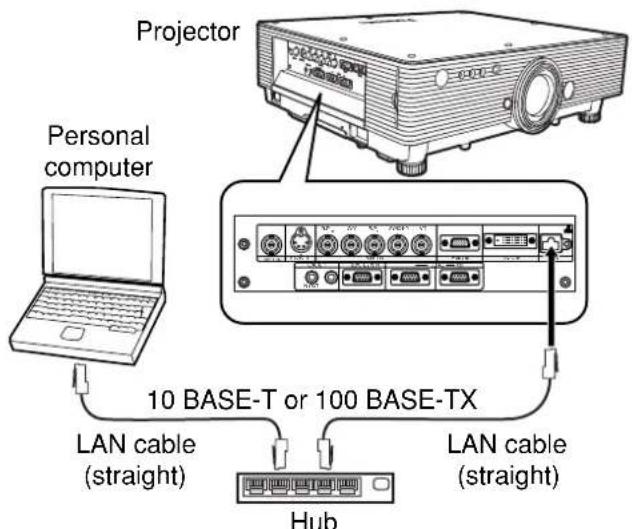
Attention
- Touching the LAN port with your hand (or body) when you are carrying a static charge may damage the equipment due to a discharge of static electricity. Therefore, be careful not to touch the LAN port or metal parts of the LAN cable.
The main unit is equipped with SERIAL terminals located in its terminal section on the side, and this terminal is compliant with RS232C. Also a serial output terminal is provided to enable plural projector control.
■Examples of connection
- Single projector Plural projectors
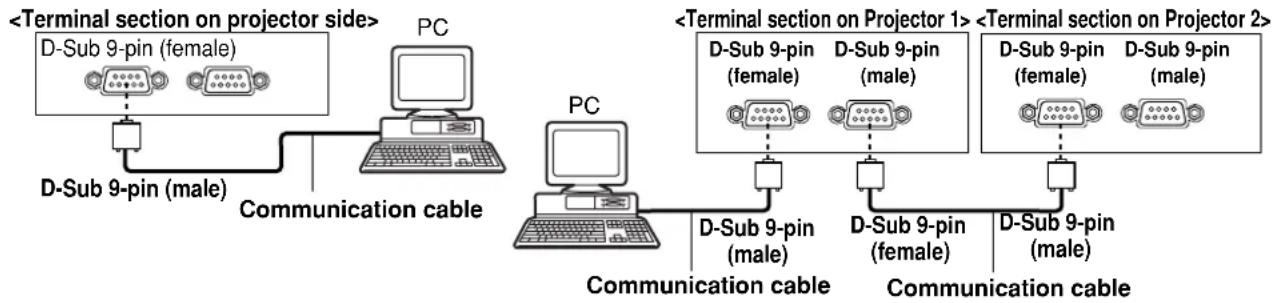
■ Pin assignments and signal names
D-Sub 9-pin (female), external appearance
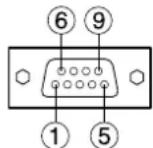
Serial input terminal
| Pin No. | Signal name | Description |
| 1 | NC | |
| 2 | TXD | Send data |
| 3 | RXD | Receive data |
| 4 | Connected internally | |
| 5 | GND | Ground |
| 6 | NC | |
| 7 | CTS | Connected internally |
| 8 | RTS | |
| 9 | NC |
D-Sub 9-pin (male), external appearance
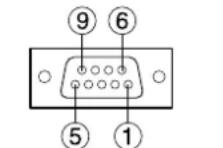
Serial output terminal
| Pin No. | Signal name | Description |
| 1 | NC | |
| 2 | RXD | Receive data |
| 3 | TXD | Send data |
| 4 | NC | |
| 5 | GND | Ground |
| 6 | NC | |
| 7 | RTS | Connected internally |
| 8 | CTS | |
| 9 | NC |
■ Communication conditions (Factory setting)
| Signal level | RS232C compliant |
| Synchronization method | Start-stop synchronization |
| Baud rate | 9 600bps |
| Parity | None |
| Character length | 8 bits |
| Stop bit | 1 bit |
| X parameter | None |
| S parameter | None |
■ Basic format
Transmission from the computer begins with STX, then the ID, command, parameter, and ETX are sent in this order. Add parameters according to the details of control.
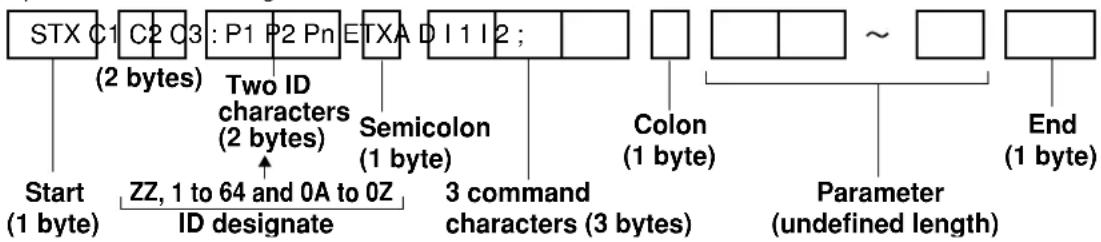
flowchart
graph TD
    A["STX C1 (2 bytes)"] --> B["C2 C3"]
    B --> C["P1 P2 Pn"]
    C --> D["TXA D I 1 I 2;"]
    D --> E["Colon (1 byte)"]
    E --> F["Parameter (undefined length)"]
    F --> G["End (1 byte)"]

    subgraph Start
        H["Start (1 byte)"]
        I["ZZ, 1 to 64 and 0A to 0Z"]
        J["ID designate"]
    end

    subgraph Two ID characters
        K["Two ID characters (2 bytes)"]
        L["Semicolon (1 byte)"]
    end

    subgraph Semicolon
        M["3 command characters (3 bytes)"]
    end

    subgraph Colon
        N["Colon (1 byte)"]
        O["Parameter (undefined length)"]
    end

    style Start fill:#f9f,stroke:#333
    style End fill:#f9f,stroke:#333
Attention
- No command can be sent or received for 10 to 60 seconds after the lamp starts lighting. Try sending any command after that period has elapsed.
- When sending several commands, be sure to wait for a response from the projector before sending the next command. When sending commands without parameters, a colon (:) is not necessary.
- If a wrong command is received, the projector will send an "ER401" command to the computer.
- Projector ID supported on the RS232C interface is ZZ (ALL) and a group of 1 to 64 and 0A to 0Z.
- If a command is sent with a projector ID specified, the projector will return answer back only in the following cases:
If it coincides with the projector ID,
ID specification is ALL and VPS-SYSTEM is the master, or
ID specification is group and Group is the master.
■Control commands
When controlling the projector from a computer, the following commands are available:
| Command | Function of command | Remarks |
| PON | Power “ON” | In standby mode, commands other than “PON” are invalid.• While the lamp is ON and being controlled, a “PON” command will not be accepted. |
| POF | Power “OFF” | |
| IIS | Switch input modes | ParameterVID = VIDEO SVD = S-VIDEORG1 = RGB1 RG2 = RGB2 DVI=DVI |
| QSL | Query for active lamp mode | Parameter※ “SINGLE” will use the0 = DUAL lamp (LAMP 1 or LAMP 2) with1 = SINGLE shorter operating hours2 = LAMP 13 = LAMP 2 |
| LPM | Active lamp mode | Parameter0 = DUAL1 = SINGLE2 = Only LAMP 1 is on3 = Only LAMP 2 is on |
| OLP | Lamp power setting | Parameter0 = HIGH, 1= LOW |
Note
- If you need a detailed command list, please contact your dealer.
■ Cable specifications
| Projector | Computer(DTE specifications) | |
| 1 | NC | NC 1 |
| 2 | 2 | |
| 3 | 3 | |
| 4 | NC | NC 4 |
| 5 | 5 | |
| 6 | NC | NC 6 |
| 7 | 7 | |
| 8 | 8 | |
| 9 | NC | NC 9 |
Attention
- To connect the computer to the SERIAL terminal, prepare an adequate communication cable that fits to your personal computer.
Using the REMOTE 2 terminal
Using the REMOTE 2 terminal provided on the side of the main unit, it is possible to operate the projector from a control panel etc. furnished in a distant location where infrared remote control signal cannot be received.
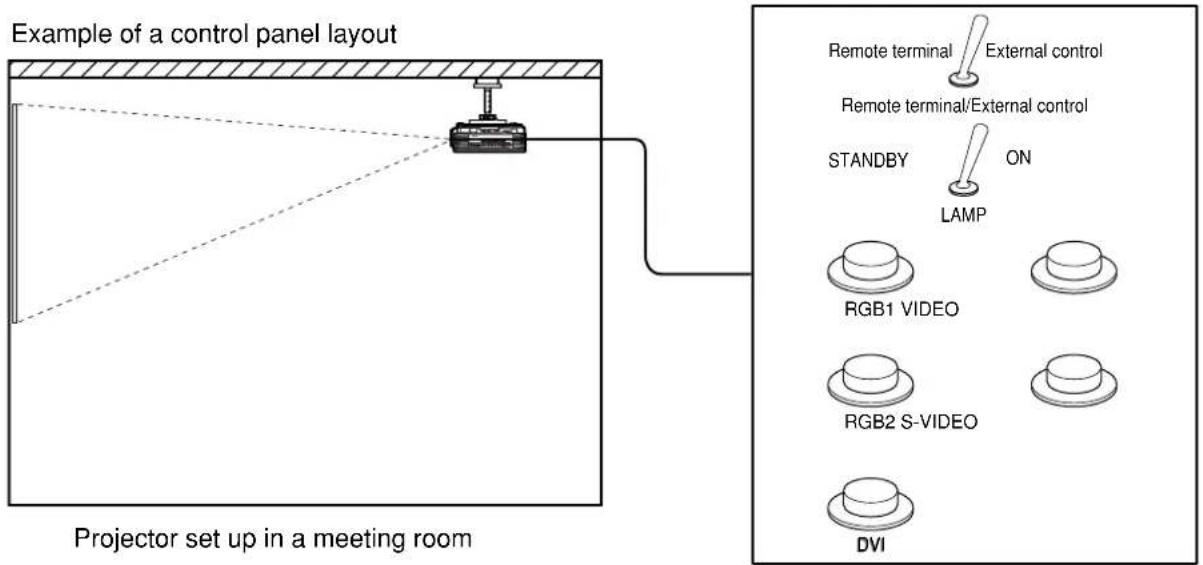
Control panel located in a different room
Pin assignments and control
Be sure to short-circuit Pins and when controlling.
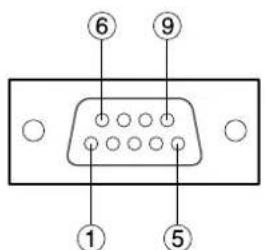
D-Sub 9-pin (female) external appearance
| Names of terminals | Open (H) | Short (L) | |
| 1 | GND | —— | GND |
| 2 | POWER | OFF | ON |
| 3 | RGB1 | Other | RGB1 |
| 4 | RGB2 | Other | RGB2 |
| 5 | VIDEO | Other | VIDEO |
| 6 | S-VIDEO | Other | S-VIDEO |
| 7 | DVI | Other | DVI |
| 8 | SHUTTER | OFF | ON |
| 9 | RST / SET | Controlled by remote control | Controlled by external contact |
Note
- The following buttons on the remote control and the operation area of the projector can no longer be operated when pins and are shorted: POWER button, RGB1 button, RGB2 button, VIDEO button, S-VIDEO button, DVI button and SHUTTER button.
Neither will it be possible to use the RS232C commands or Web browser controls corresponding to these functions.
Indication of lamp monitor
This projector is equipped with 3 indicators to show when a lamp needs replacement or there is an abnormal internal temperature. These lamps flash or light up to indicate a problem.
Turn the power off and follow the steps below.
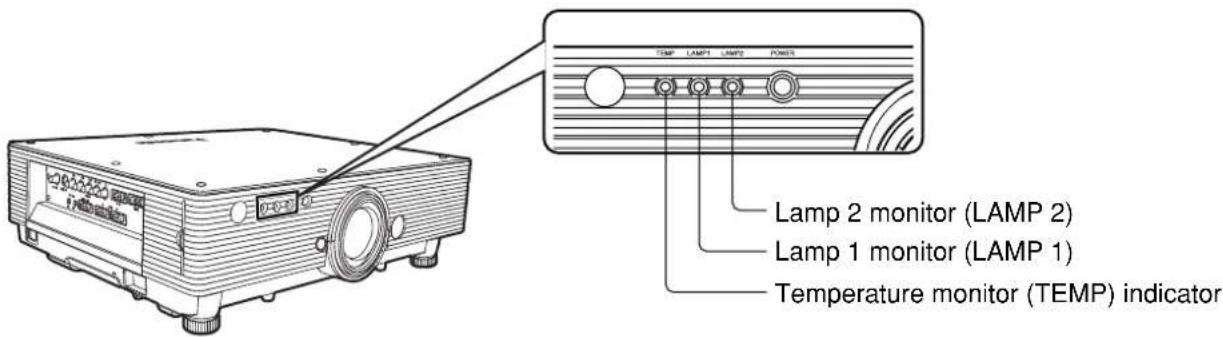
| Name of monitor lamp | Lamp indication | Information | Checkpoint | Remedial measure |
| Temperature monitorTEMP | Warm-up status | Did you turn on the power when the ambient temperature was low (approx. 0 °C)? | Wait about five minutes in the current status.Install the unit in a location having an ambient temperature from 0 to 40 °C. | |
| High temperature inside. (WARNING) | Check if the ventilation port is blocked.Is the room air temperature too high?Check the air filter for clogging. | Remove the object that is blocking the ventilation port.Move the projector to a temperature of 0 to 40 °C and the humidity of 20 to 80% (no condensation).Turn off the MAIN POWER switch using the procedure on page 23 and clean the air filter (refer to page 42). | ||
| Blinking in red (2 times) | High temperature inside (Standby condition) | |||
| Blinking in red (3 times) | Cooling fan has been stopped. | —— | Turn off the main power supply (MAIN POWER) switch in the procedure shown on page 23 and consult the distributor. | |
| Lamp monitorLAMP1 LAMP2 | Lighting in red | Indicates the time for replacing the lamp unit. | Did you notice a “REPLACE THE LAMP” message on the screen when turning on the projector power supply. | This lamp monitor lights up when the lamp unit used hours have reached 1 300 hours (3 800 hours when long life lamp units are used). Request the dealer to replace the lamp unit. |
| Blinking in red (3 times) | Error is detected in the lamp circuit. | Did you turn the power back on immediately after turning it off? | Wait until the lamp has cooled off, and then turn on the power. | |
| Some error has arisen in the lamp circuit.Check for fluctuation (or drop) in the source voltage. | Turn off the MAIN POWER switch using the procedure on page 23 and consult the dealer. |

- To solve any problems that the TEMP and LAMP monitor show, first turn the power off by following the steps on pages 22, 23.
- If the main power turns off after the TEMP monitor flashes, the projector has malfunctioned. Please consult your dealer.
Cleaning and replacement of air filter
If too much dust is deposited in the air filter, temperature inside the main unit will rise and the temperature monitor (TEMP) blinks, eventually turning off the power supply.
Clean the air filter section once every 100 hours or so as a guideline depending on the location of projector operation.
■ Procedure of cleaning
① Turn off the main power and remove the power plug from the receptacle.
Turn off the power supply observing the procedure (How to turn "OFF" the power supply) on page 23 and then remove the power plug.
② Dismantle the air filter.
There are two air filters, one at the left and one at the right.
Use your finger to pull the air filter tab toward you, and remove it from the main unit.
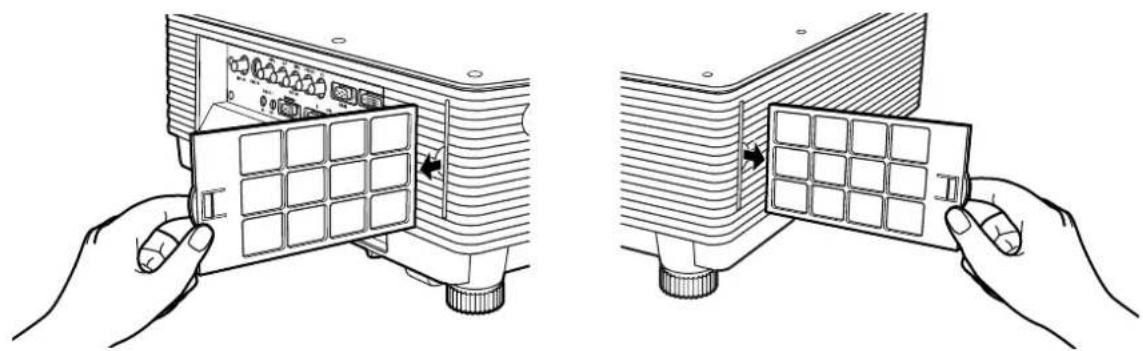
natural_image
Two-step diagram showing hands installing or adjusting a device panel with grid patterns (no text or symbols)③ Clean the air filter.
Suck off deposited dust with a vacuum cleaner.
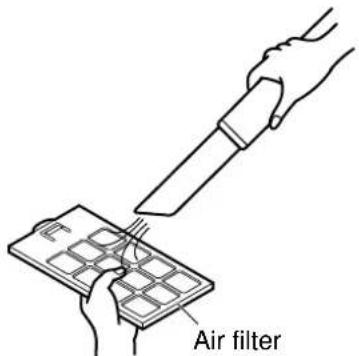
Attention
- Be careful not to suck in the air filter itself.
④ Set the air filter.
Set the air filter in the reverse order to step ②

- Fit the air filters into place with the filter material (which looks like a sponge) facing the back. (The left and right filters have the same shape.)
- The air filter must be fitted in place when using the projector.
Using the projector without the air filter fitted inside, dirt and dust are sucked into the projector, causing failure.
Note
- If cleaning cannot remove the dust completely, then it is a sign to replace the air filter. Consult the dealer. In addition, when the lamp unit is replaced, also replace the air filter.
WARNING!
Replacement of the lamp unit should only be carried out by a qualified technician.
WARNING!
When replacing the lamp, allow it to cool for at least one hour before handling it.
Precautions on lamp unit replacement
Remove the power plug and confirm that the surroundings of the lamp unit have cooled off.
- Be careful when handling a light source lamp. The lamp unit has high internal pressure. If improperly handled, explosion might result.
● A used lamp unit may burst if it is handled violently.
For disposition of used lamps, request an industrial waste disposal contractor. - Do not reset the cumulative time, except when the lamp unit has been replaced with a new unit.
- If you continue to use a lamp after the replacement time, the lamp may break.
● Philips screwdriver is necessary when replacing a lamp unit.
Take care not to slip your hand when using a screwdriver.
Attention
- A lamp unit is an optional part. Contact the dealer.
Replacement lamp unit model No.: ET-LAD55 (single bulb), ET-LAD55W (double bulbs) Rating: 300W
Long life lamp unit model No.: ET-LAD55L (single bulb), ET-LAD55LW (double bulbs) Rating: 160W - Other lamps than specified above cannot be used. Be sure to use the specified lamp.
■Timing of lamp unit replacement
The lamp used for the light source has its due life. The life of light source lamp used in the main unit is 1 500 hours ^※1 (when lamp output is HIGH and lamp selection is DUAL). However, it may happen that the lamp becomes dead (will not light) by the time of 1 500 hours ^※1 depending on the characteristics of individual lamps and working conditions (lamps may reduce their life affected by the times of lighting and the intervals between previous lighting and next lighting). Therefore, it is strongly recommended for the user to keep a spare bulb. If your lamp unit is not replaced after 1 300 hours ^※2 (with the lamp output set at “HIGH”), power supply will be turned off automatically at the time of 1 500 hours ^※1 , entering a standby state. After 1 500 hours ^※1 of initial lighting, power supply is turned off automatically about 10 minutes later, entering a standby state even if it is turned on again.
- Indication after 1 300 hours※2 (with the lamp output set at “HIGH”)
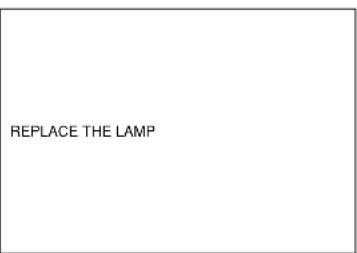
When lamp unit used hours have reached 1 300 hours ^※2 , lamp monitor (LAMP1 or LAMP2) light up including standby state.
Further, an on-screen indication will appear for about 30 seconds as shown in the diagram on the left, recommending replacement of lamp unit. (The indication on the left diagram will disappear after about 30 seconds or when either control button on the rear of main unit or remote control button is operated.)
After the time of 1 500 hours ^※1 , the on-screen indication will not disappear unless the menu (MENU) button is operated.
■ Lamp unit replacement steps
Attention
- After 1 500 hours (4 000 hours when long life lamp units are used) of operating the same lamp, it is only possible to operate the unit for approximately 10 minutes. Steps ⑩ must be completed within 10 minutes.
① Turn the power off by following the steps on page 23, remove the power plug and confirm that the surroundings of the lamp unit have cooled off.
Check that the fan has stopped running.

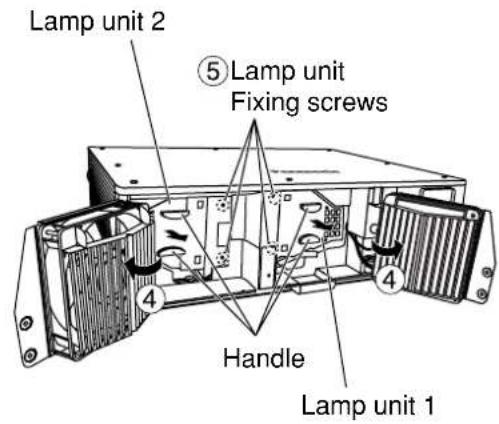
Caution
The lamp unit will be hot after it has been used.
You might get burned if you touch it while it is still hot.
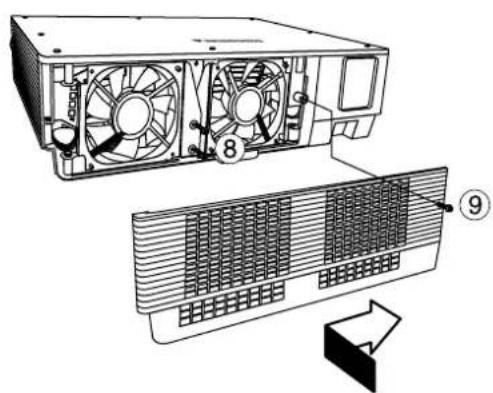
Have a Phillips screwdriver ready ahead of time.
② Remove the screw securing the lamp unit cover, and then slide the lamp unit cover a little toward the left, and remove it.
③ Remove the two screws securing the fan unit.
Note
- The lamp units are constructed in such a way that the screws in steps and
③ will not fall through completely.
④ Open the fan unit as shown in the figure.
⑤ Remove the screws securing the lamp units (two for each unit), take hold of the grips, and remove the lamp units.
⑥ Install the new lamp unit.
⑦ Use a Phillips screwdriver to securely tighten the 2 lamp unit fixing screws (two for each unit).
⑧ Secure the two screws for securing the fan unit tightly.
⑨ Slide the cover a little toward the right, and secure it using the screw for securing the lamp unit cover tightly.
Attention
- Firmly install the lamp unit and lamp unit cover. If not installed firmly, a protection circuit will function and the power will not be turned on.
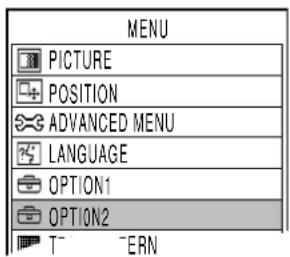
| SYSTEM INFORMATION | |
| ROM VERSION | 1.00.00 |
| SET RUNTIME | 300h |
| LAMP LOW | 100h |
| HIGH | 200h |
| TOTAL | 300h |
| LAMP * | 100h |
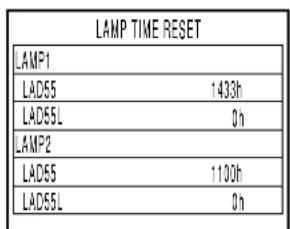
⑩ Insert the power cord plug into the wall outlet and then press the MAIN POWER switch.
Attention
- If the power does not turn on even after turning the MAIN POWER switch "I", turn the MAIN POWER "O", confirm that the lamp unit and door are installed correctly, and turn on again.
⑪ Press the “POWER” button so that a picture is projected onto the screen.
⑫ Press the “MENU” button to display the MAIN MENU screen, and then press the and buttons to move the cursor to select “OPTION2”.
⑬ Press the “ENTER” button to display the “OPTION2” screen, and select “SYSTEM INFORMATION” with the ▲ and ▼ buttons.
⑭ Press the "ENTER" button.
The SYSTEM INFORMATION screen will be displayed.
⑮ Press and hold the “ENTER” button on the projector or the remote control for approximately 3 seconds.
An item "LAMP TIME RESET" will be added.
⑯ Select the lamp which has been replaced with the and ▼ buttons.
LAMP1: Replace the LAMP UNIT 1
LAMP2: Replace the LAMP UNIT 2
⑰ Press the ENTER button, and when the “LAMP TIME RESET” display flashes, press the ENTER button again.
The used hours of the specified lamp unit will be reset to zero. When more than one lamp has been replaced, repeat the procedure from step 16.
Note
- When the "LAMP TIME RESET" display flashes, the lamp time reset can be canceled by pressing the MENU button.
Using Web Browser Control
This projector has networking functions which allow it to be controlled through a web browser on a PC. The controlled items are:
- Projector's settings and adjustment
- Projector's status display
• Transmission of a E-mail message when the projector has a problem
■ Access procedure
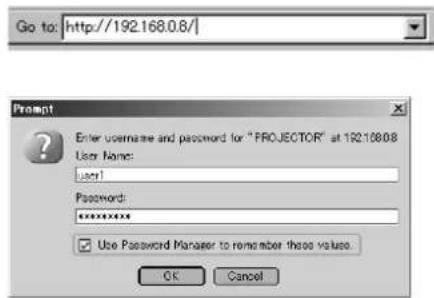
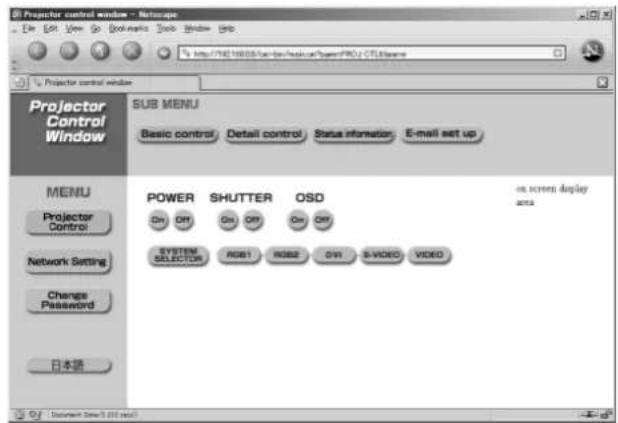
① Start the web browser on your PC, then enter the IP address which was set in the projector.
② Enter "user1" in the user name field, then enter the password in the password field.
The default setting is "panasonic" (all lower case). If you have changed the password, enter the new password here.
The host name set in the projector is displayed in the "Realm" field.
③ Click [OK].
The Basic Control page is displayed.
Note
- Do not enter settings or perform controls with multiple web browser windows open at the same time.
■ Basic control page
This page is the first page displayed when the projector is accessed through a web browser. To move from another page, click [Projector Control], then [Basic control].
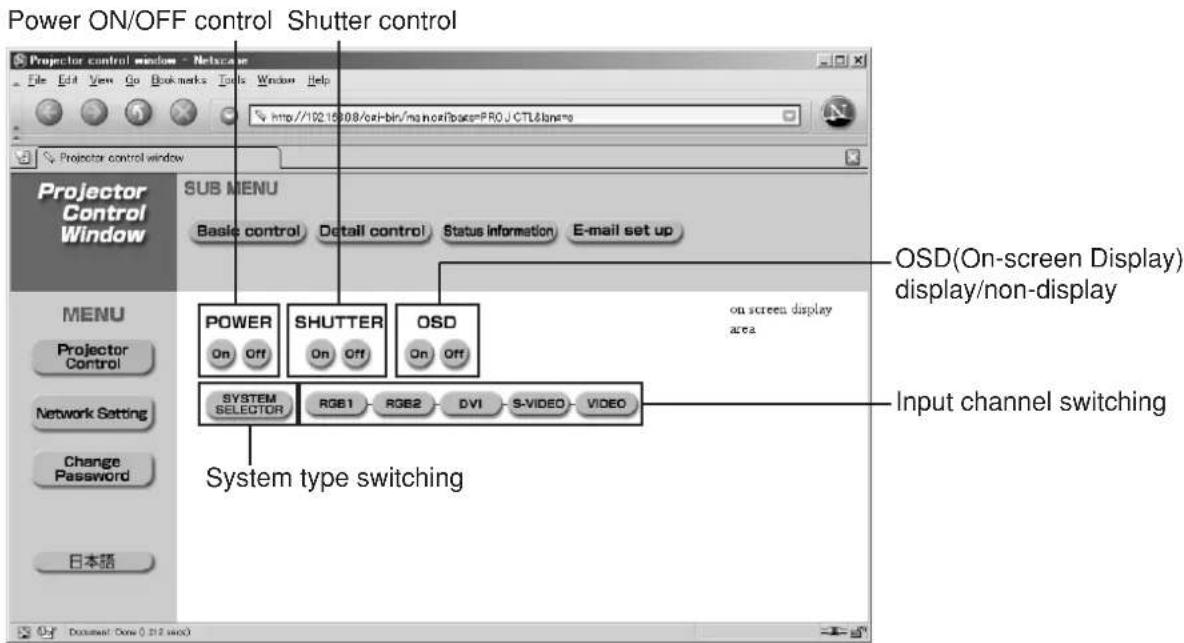
■Detail control page
Click [Projector Control], then [Detail control] to display the Detail control page.
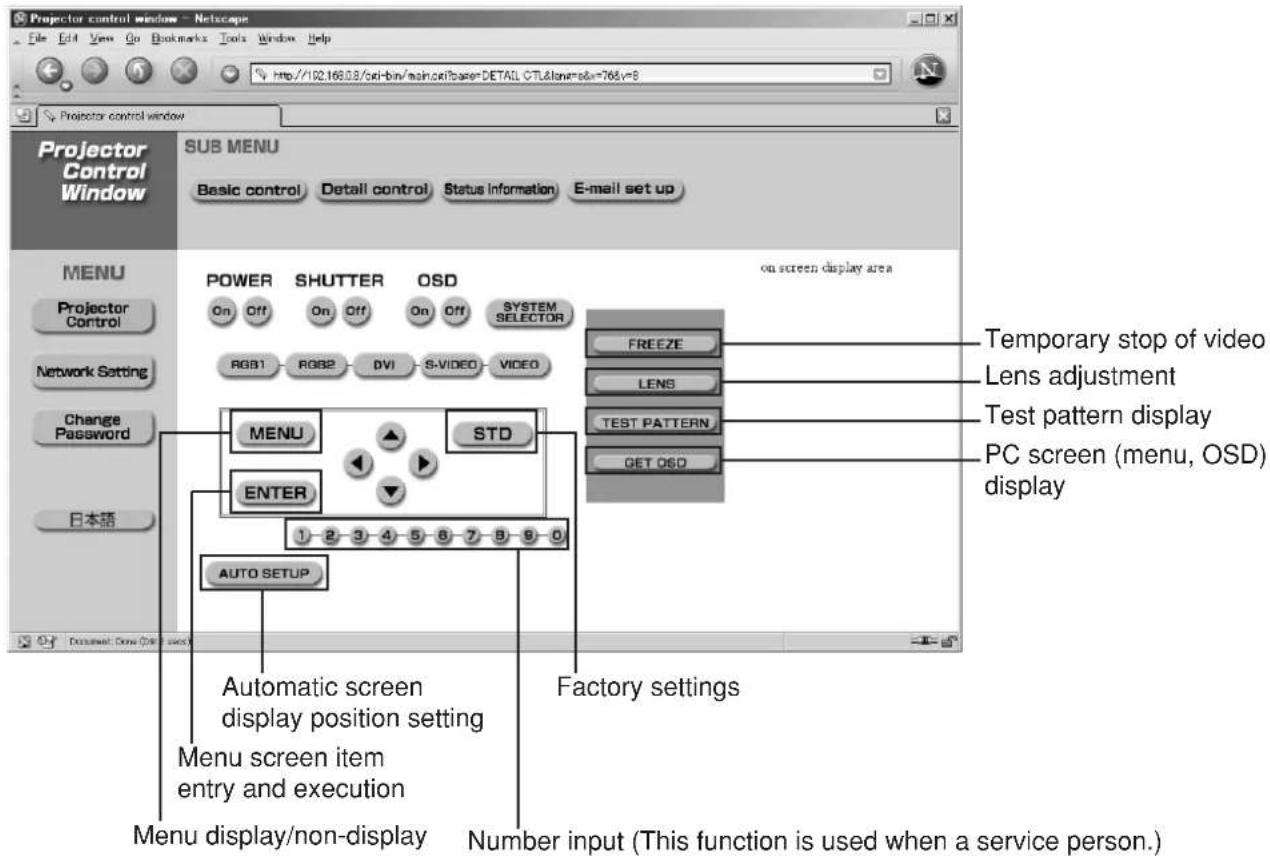
■Status information page
Click [Projector Control], then [Status information] to display the Status information page. This displays the status of the unit in the following items.
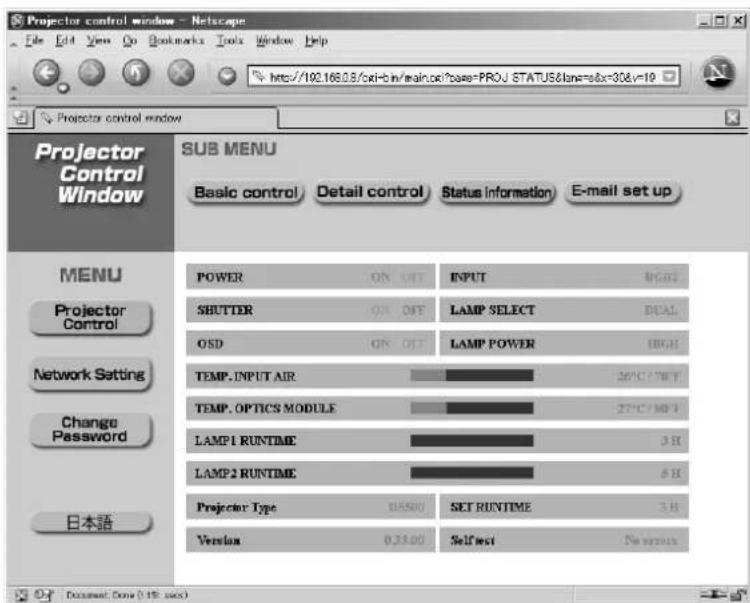
■ Error information page
When is displayed on the status information screen, click it to display the error details.
![Projector control window - Netscape File Edit View Go Bookmarks Tools Window Help http://78016888/cur-bin/specior/ProoJ STATUS(lanned=ctf6) Projector control window Sub MENU Basic control Detail control Status information E-mail set up MENU Panasonic projector check system ---- check system ...... MAIN CPU BUS [OK] FAN [OK] OPTICS MODULE TEMPERATURE [OK] INPUT AIR TEMPERATURE [OK] LAMP2 REMAIN TIME [OK] LAMP1 REMAIN TIME [OK] LAMP2 STATUS [FAILED] LAMP1 STATUS [OK] OPTICS MODULE TEMP.SENSOR [OK] INPUT AIR TEMP.SENSOR [OK] BATTERY [OK] COLOR.WHEEL [OK] 日本語 (Error code 00 80 00 00)](/content/2026/06/1190497/images/db2d5f78b11f6ba6e203f2ecdb6db69921dddacc149cf7ac3ad29d62b8b29164.jpg)
OK: Normal operation
FAILED: Occurrence of trouble
Note
- Depending on the nature of the error, the projector may be placed in the standby mode for its own protection.
When [FAILED] has appeared for an item
| Parameter | Description |
| MAIN CPU BUS Trouble | has occurred in the microcomputer circuitry. Consult your dealer. |
| FAN | Trouble has occurred in the fan or its drive circuit.Consult your dealer. |
| OPTICS MODULE TEMPERATURE | The temperature inside the projector is high. |
| INPUT AIR TEMPERATURE | The input air temperature is too high. It may be that the projector is being used where the ambient temperature is high such as near a heating appliance. |
| LAMP REMAIN TIME | The lamp runtime has exceeded the prescribed cumulative time, and it is now time to replace the lamp. |
| LAMP STATUS | The lamp has failed to light. |
| OPTICS MODULE TEMP. SENSOR | Trouble has occurred in the temperature detection sensor inside the projector.Consult your dealer. |
| INPUT AIR TEMP. SENSOR | Trouble has occurred in the sensor used to detect the input air temperature.Consult your dealer. |
| BATTERY | The backup battery has been run out.Consult your dealer. |
| COLOR WHEEL | Trouble has occurred in the color wheel or the color wheel drive circuit.Consult your dealer. |
If requesting service, ask your nearest Authorized Service Centre.
■E-mail setup page
With this projector, if a problem occurs or if the lamp usage time reaches a set value, an e-mail message can be sent to one or more preset e-mail addresses (maximum two addresses). Click [Projector Control], then [E-mail set up] to display the E-mail setup page.
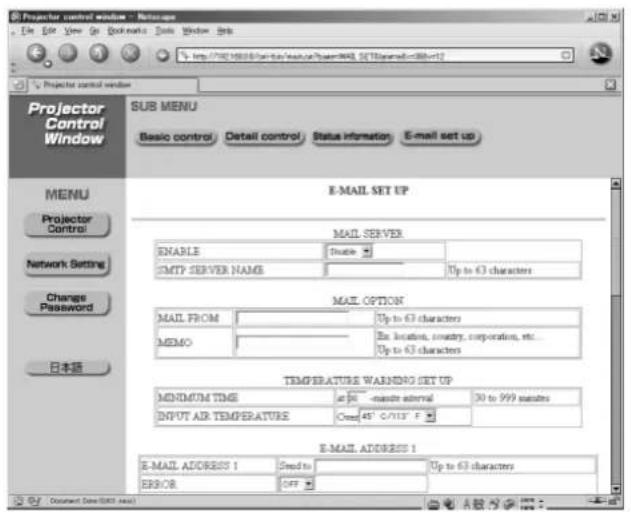
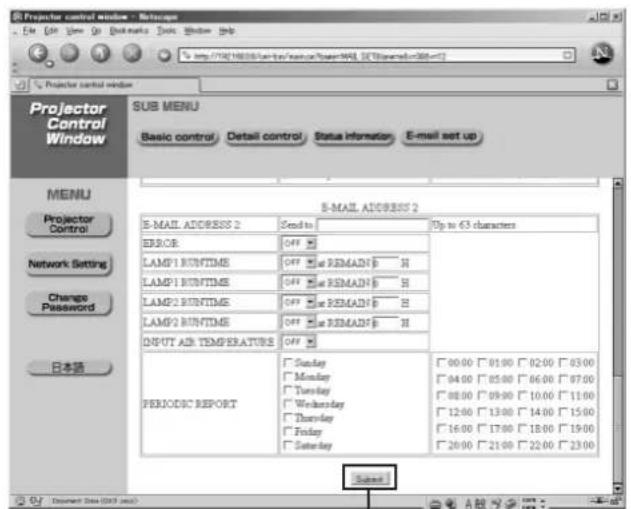
Button to update settings
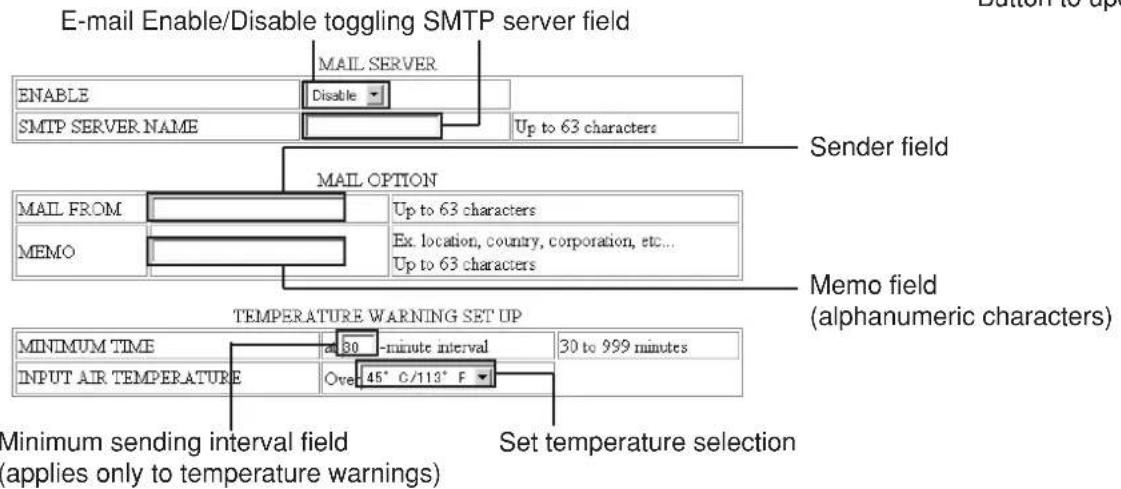
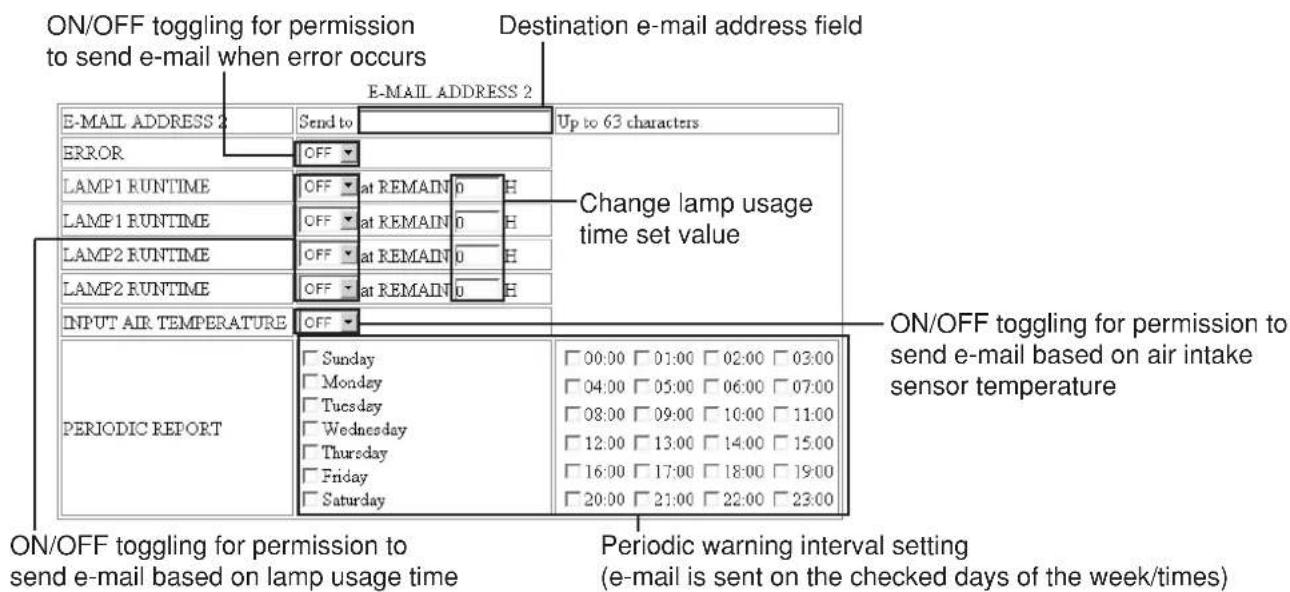
※The settings for e-mail address 1 are the same.
■ Network config page
Click [Network Setting], then [Network config] to display the Network config page.
Toggling between Enabling/Disabling DHCP
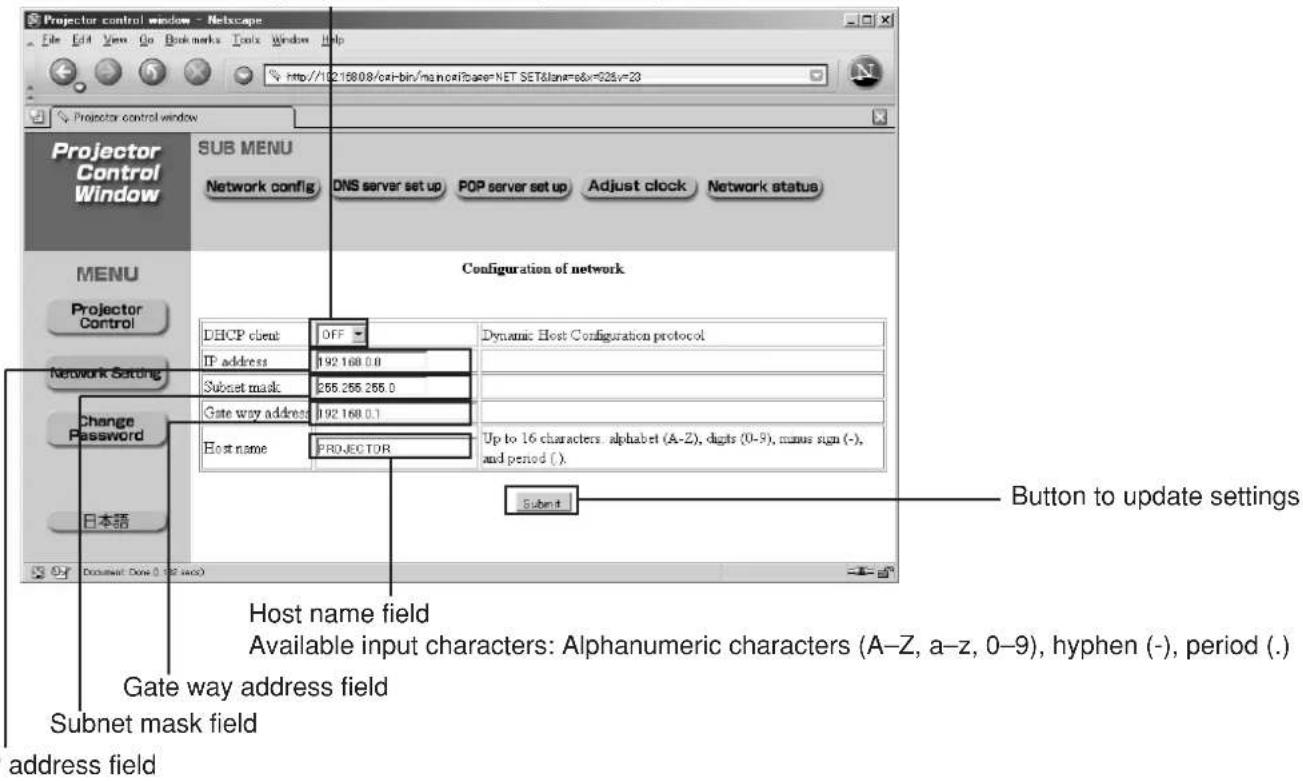
■DNS server setup page
Click [Network Setting], then [DNS Server set up] to display the DNS server setup page.
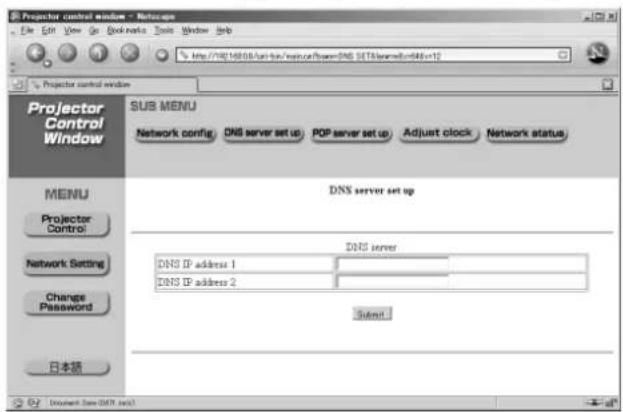
Primary DNS server address
Available input characters:
Numbers (0 - 9), period (.)
(ex. 192.168.0.253)
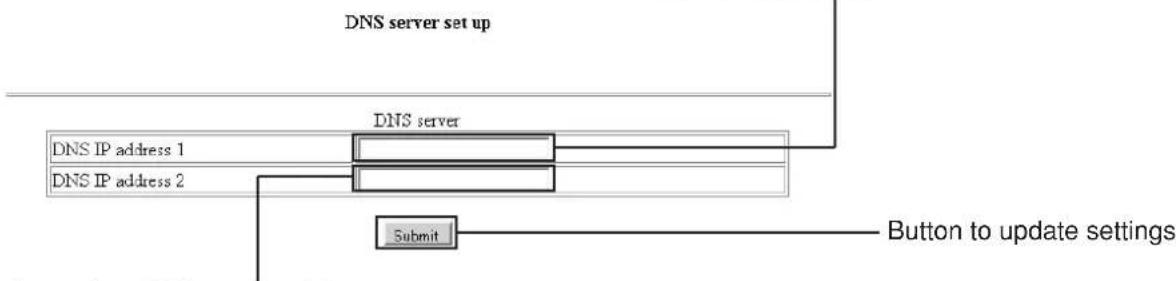
flowchart
graph TD
    A["DNS server set up"] --> B["DNS server"]
    B --> C["Submit"]
    C --> D["Button to update settings"]
    E["DNS IP address 1"] --> F["Submit"]
    G["DNS IP address 2"] --> H["Submit"]
Secondary DNS server address
Available input characters: Numbers (0 - 9), period (.)
(ex. 192.168.0.254)
■POP server setup page
Click [Network Setting], then [POP server set up] to display the POP server setup page.
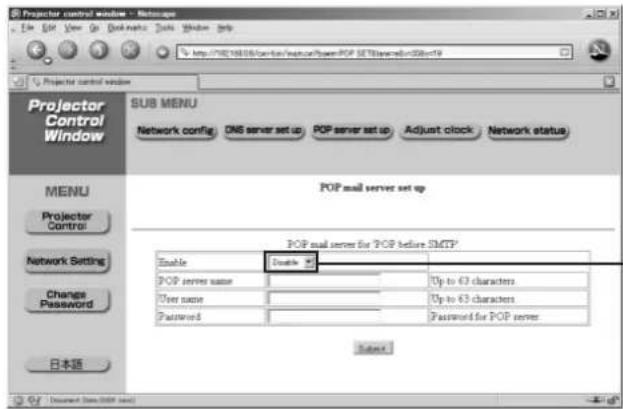
Select "Enable" for this setting only when authentication is required for sending mail.
Toggling between Enabling/Disabling POP before SMTP
POP server name field
Available input characters:
Alphanumeric characters (A–Z, a–z, 0–9), hyphen (-), period (.)
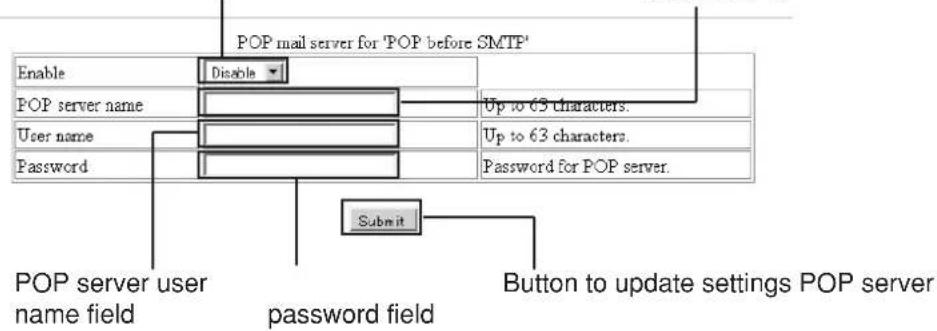
■Adjust clock page
Click [Network Setting], then [Adjust clock] to display the Adjust clock page.
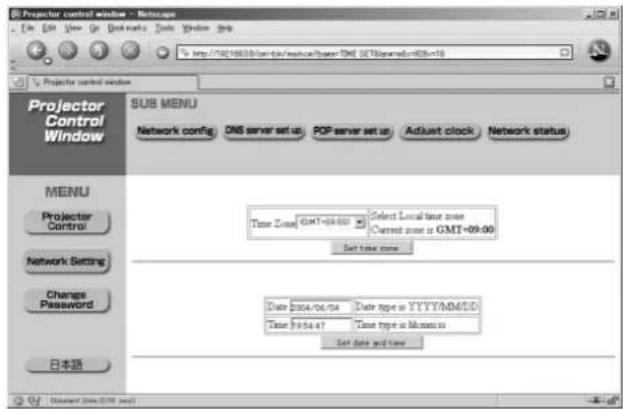
Note
If the time becomes incorrect immediately after setting the correct time, then the battery needs to be changed. Contact the dealer where you bought the projector to have the battery changed.
Time zone selection Button to update time zone setting
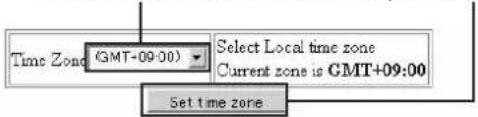

flowchart
graph TD
    A["Date 2004/06/04"] --> B["Time 19:54:47"]
    B --> C["Set date and time"]
    C --> D["Button to update time and date settings"]
    E["New date field New time field"] --> A
    E --> C
■ Network status page
Click [Network Setting], then [Network status] to display the Network status page.
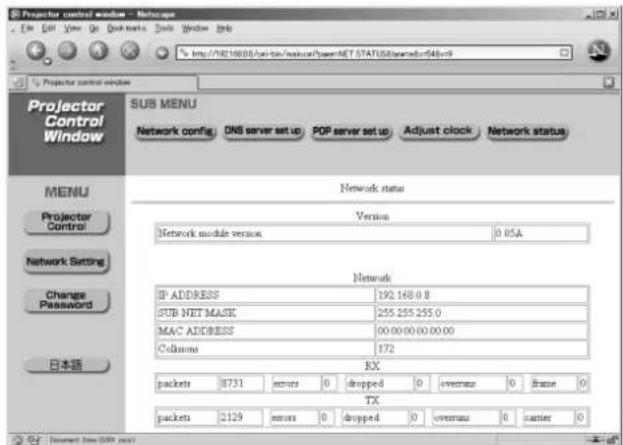
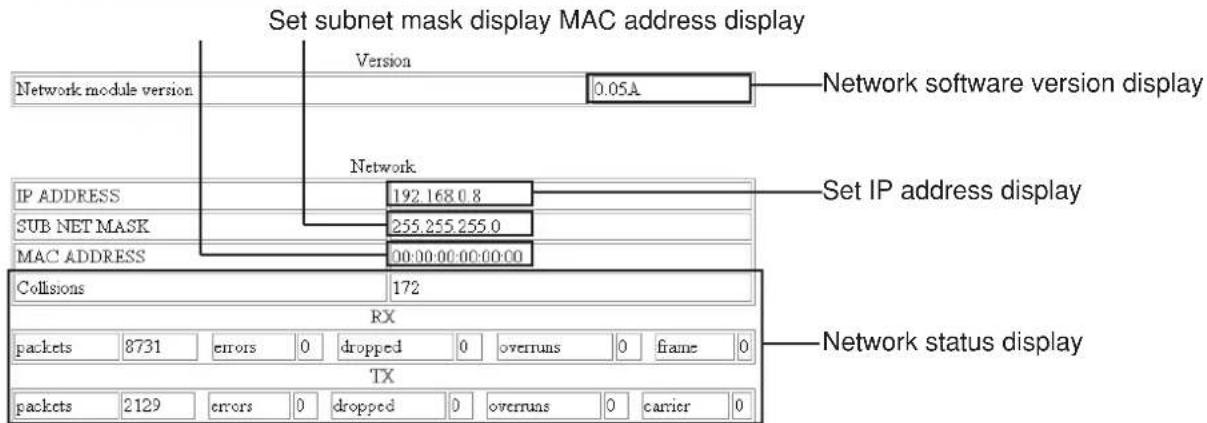
■ Password change page
Click [Change Password].
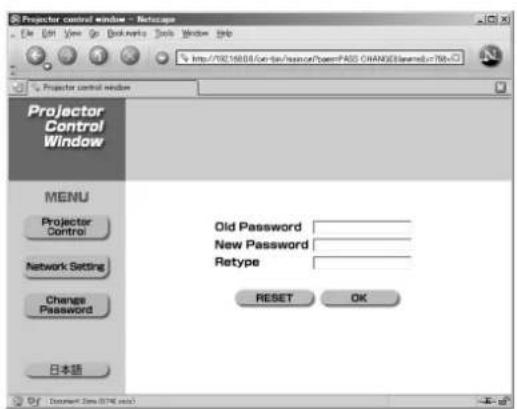
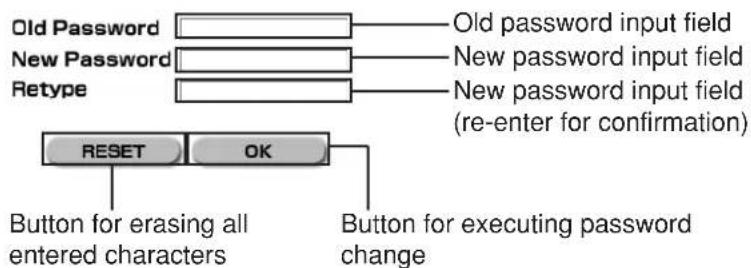
flowchart
graph TD
    A["Old Password"] --> B["Old password input field"]
    C["New Password"] --> D["New password input field"]
    E["Retype"] --> F["New password input field (re-enter for confirmation)"]
    G["RESET"] --> H["OK"]
    I["Button for erasing all entered characters"] --> J["Button for executing password change"]
| Symptoms Checks | |
| Power does not turn on | • Is the power cord plug correctly plugged in?• Is the MAIN POWER turned on?• Is electricity running to the power outlet?• Is the temperature monitor (TEMP) indicator on the front of the unit flashing or turned on? (See page 41)• Is the lamp monitor (LAMP) indicator on the front of the unit flashing or turned on? (See page 41)• Is the lamp unit door installed correctly?• A wrong ID is set. (See pages 15 and 34) |
| No image | • Is the lens cap still on the lens?• Is the image input correctly connected?• Is the input mode set correctly? (See page 22)• Is the black level adjustment set at the minimum level? (See page 29)• Is the equipment connected to the projector operating correctly?• Is the shutter function turned on? (See page 25) |
| Image is blurred | • Is the lens focused properly? (See page 24)• Is the projection distance correct? (See page 17)• Is the lens dirty?• Is the projector positioned directly in front of the screen? (See page 17) |
| Light color/bad color tone | • Is the color density and color tone setting correct? (See page 29)• Is the equipment connected to the projector correctly adjusted? |
| Remote control does not operate | • Are the batteries exhausted?• Are the battery polarities set correctly? (See page 14)• Are their any obstacles between the remote control and the remote control sensor? (See page 14)• Are you trying to operate the remote control beyond its operable range? (See page 14)• Are you controlling from external equipment using the REMOTE2 terminal? (See page 40)• Is their any external light interfering with remote control operation?• A wrong ID is set. (See pages 15 and 34)• Is the on-screen display function at “OFF”? (See page 9) |
| Abnormal image | • Is the input mode properly set? (See page 22)• Is the correct signal system (TV system) selected? (See page 30)• Are their any malfunctions on the source side, such as bad video tapes?• Are you inputting a signal that is not compatible with this projector? (See page 56) |
| Does not display images from PCs | • Is the cable too long?• Is the video output signal setting of the computer correctly set? (Read the operating instructions of the your PC.) |
Specifications
| Model No. | PT-D5500U PT-D5500UL | |
| Power supply AC 120 V, 50 Hz/60 Hz | ||
| Power consumption 770 W (about 10 W in standby without fan running) | ||
| DLP ^TM panelPanel sizeDisplay systemNumber of pixels | 0.7 inch (aspect ratio 4:3)DMD ^TM element, DLP type786 432 pixels (1 024 x 768 dots) | |
| LensPowered zoomPowered focus control | 1 to 1.36F=1.7 to 2.0 f=25.6 to 33.8 | Option |
| Projection lamp 2 bulbs x 300 W UHM lamp | ||
| Optical output | 5 000 lm ^※1 | |
| Applicable scanning frequencyFor video signal (S-video included)For RGB signalFor DVI-D signalFor YPBPR signal | Horizontally 15.73 kHz/15.63 kHz, vertically 59.94 Hz/50 HzHorizontally 15 kHz–91 kHz, vertically 50 kHz–85 kHz,Panasonic Intelligent Auto Scanning (PIAS) systemDot clock frequency Less than 108 MHzVGA-SXGA Dot clock frequency 108 MHz or less[480i], horizontally 15.73 kHz, vertically 59.94 Hz[480p], horizontally 31.5 kHz, vertically 59.94 Hz[576i], horizontally 15.63 kHz, vertically 50 Hz[576p], horizontally 31.25 kHz, vertically 50 Hz[720/60p], horizontally 45 kHz, vertically 60 Hz[1035/60i], horizontally 33.75 kHz, vertically 60 Hz[1080/60i], horizontally 33.75 kHz, vertically 60 Hz[1080/50i], horizontally 28.13 kHz, vertically 50 Hz• HD/SYNC, VD terminals are not compliant with 3 value composite SYNC. | |
| Color system 7 standards (NTSC/NTSC4.43/PAL/PAN-N/PAL-M/SECAM/PAL60) | ||
| Screen size 50 inch–600 inch | ||
| Screen aspect ratio 4:3 | ||
| Projection scheme Menu-selectable from front/rear/ceiling mount, and floor standing | ||
| Contrast ratio | 1 600:1 (when “HIGH” is selected as the “CONTRAST MODE” setting) | |
| Interface portsRGB1 input terminal 1 set, BNC x 5 | [For YPBPR input]Y: 1.0 V[p-p] synchronization signal included,PBPR: 0.7 V[p-p] 75 Ω For G-SYNC: 1.0 V[p-p] 75 ΩHD/SYNC: TTL, high-impedance, positive/negative polarity automatically adjustedVD: TTL, high-impedance, positive/negative polarity automatically adjusted• However, HD/SYNC, and VD terminals are not compliant with 3-value direct SYNC. | |
^*1 These values are for the lens provided with the PT-D5500U. Note that these values change according to the lens used.
| Model No. | PT-D5500U PT-D5500UL | |
| Interface portsRGB2 input terminal | 1 set of high-density, D-sub 15p (female)[For YPbPr input]Y: 1.0 V [p-p] synchronization signal included,PbPr: 0.7 V[p-p] 75 Ω[For RGB input] 0.7 V[p-p] 75 ΩFor G-SYNC: 1.0 V[p-p] 75 ΩHD/SYNC: TTL, high-impedance, positive/negative polarity automatically adjustedVD: TTL, high-impedance, positive/negative polarity automatically adjusted• However, HD/SYNC, and VD terminals are not compliant with 3-valuedirect SYNC. | |
| Video input/output terminal | 1 set BNC1.0 V[p-p] 75 Ω | |
| S-video input terminal | 1 set Mini DIN 4pY 1.0 V[p-p] C 0.286 V[p-p] 75 ΩCompliant with S1 signals | |
| Serial input/output terminal | D-sub 9-pin (male/female), RS232C compliantUsed for personal computer control | |
| Remote1 input/output terminal | 1 set each for M3 pin jackWired remote control, used for link control | |
| Remote2 terminal | D-sub 9-pin (female)Used for external control | |
| DVI-D terminal | DVI-D 24-pin | |
| LAN terminal | RJ-45 | |
| Length of power supply cord 2.5 m (8.2') | ||
| Cabinet Molded resin | ||
| Outside dimensions | Width: 530 mm (20.8"); Height : 167 mm (6.6"); Depth: 425 mm (16.7") | |
| Mass | 13.7 kg(30.2 lb) | 12.9 kg(28.4 lb) |
| Working environment condition | *2 Ambient temperature: 0 to 40°CAmbient humidity: 20 to 80% (no condensation) | |
| Remote controlPower sourceOperation rangeMassOutside dimensions | 3 V DC (two AAA dry cells)approx. 7 m/23' (in front of beam receiver)95 g0.21 lb) (including dry cells)Width: 45 mm (1.8"), Thickness: 23 mm (0.9"), Depth: 145 mm (5.7") | |
| OptionHanging attachment (For high ceiling) : ET-PKD55Hanging attachment (For low ceiling) : ET-PKD55SProjection lens : ET-DLE100, ET-DLE200, ET-DLE300, ET-DLE400, ET-DLE050Wireless mouse receiver : ET-RMRC2Replacement lamp unit : ET-LAD55 (single bulb), ET-LAD55W (double bulbs)Long life lamp unit : ET-LAD55L (single bulb), ET-LAD55LW (double bulbs) | ||
- The outside dimensions do not include the lens and other protruding parts. See page 58 for further details.
※2 When using the projector at high altitudes (1 400 to 2 700 m), the upper limit for the ambient temperature drops by 5 °C.
| Display mode | Resolution(as a number of dots)※1 | Scanning frequency | Dot clockfrequency(MHz) | ※2Imagequality | Format | ||
| Horizontal(kHz) | Vertical(Hz) | ||||||
| NTSC/NTSC4.43/PAL-M/PAL60 | 720 X 480i | 15.7 | 59.9 | A | Video/S-Video | ||
| PAL/PAL-N/SECAM | 720 X 576i | 15.6 | 50.0 | A | Video/S-Video | ||
| 480i | 720 X 480i | 15.7 | 59.9 | 13.5 | A | YPBPR/RGB | |
| 576i | 720 X 576i | 15.6 | 50.0 | 13.5 | A | YPBPR/RGB | |
| 480p | 720 X 483 | 31.5 | 59.9 | 27.0 | A | YPBPR/RGB | |
| 576p | 720 X 576 | 31.3 | 50.0 | 27.0 | A | YPBPR/RGB | |
| 1080/60i | 1 920 X 1 080i | 33.8 | 60.0 | 74.3 | A | YPBPR/RGB | |
| 1080/50i | 1 920 X 1 080i | 28.1 | 50.0 | 74.3 | A | YPBPR/RGB | |
| 720/60p | 1 280 X 720 | 45.0 | 60.0 | 74.3 | A | YPBPR/RGB | |
| VGA400 | 640 X 400 | 31.5 | 70.1 | 25.2 | A | RGB | |
| 640 X 400 | 37.9 | 85.1 | 31.5 | A | RGB | ||
| VGA480 | ※3 | 640 X 480 | 31.5 | 59.9 | 25.2 | A | RGB/DVI |
| 640 X 480 | 35.0 | 66.7 | 30.2 | A | RGB | ||
| 640 X 480 | 37.9 | 72.8 | 31.5 | A | RGB | ||
| 640 X 480 | 37.5 | 75.0 | 31.5 | A | RGB | ||
| 640 X 480 | 43.3 | 85.0 | 36.0 | A | RGB | ||
| SVGA | 800 X 600 | 35.2 | 56.3 | 36.0 | A | RGB | |
| 800 X 600 | 37.9 | 60.3 | 40.0 | A | RGB/DVI | ||
| 800 X 600 | 48.1 | 72.1 | 50.0 | A | RGB | ||
| 800 X 600 | 46.9 | 75.0 | 49.5 | A | RGB | ||
| 800 X 600 | 53.7 | 85.1 | 56.3 | A | RGB | ||
| MAC16 | 832 X 624 | 49.7 | 74.6 | 57.3 | A | RGB | |
| XGA | ※3 | 1 024 X 768 | 48.4 | 60.0 | 65.0 | AA | RGB/DVI |
| 1 024 X 768 | 56.5 | 70.1 | 75.0 | AA | RGB/DVI | ||
| 1 024 X 768 | 60.0 | 75.0 | 78.8 | AA | RGB/DVI | ||
| 1 024 X 768 | 68.7 | 85.0 | 94.5 | AA | RGB/DVI | ||
| 1 024 X 768i | 35.5 | 87.0 | 44.9 | AA | RGB | ||
| MXGA | 1 152 X 864 | 64.0 | 71.2 | 94.2 | A | RGB | |
| 1 152 X 864 | 67.5 | 74.9 | 108.0 | A | RGB | ||
| 1 152 X 864 | 76.7 | 85.0 | 121.5 | B | RGB | ||
| MAC21 | 1 152 X 870 | 68.7 | 75.1 | 100.0 | A | RGB | |
| MSXGA | ※3 | 1 280 X 960 | 60.0 | 60.0 | 108.0 | A | RGB |
| SXGA | ※3 | 1 280 X 1 024 | 64.0 | 60.0 | 108.0 | A | RGB/DVI |
| 1 280 X 1 024 | 80.0 | 75.0 | 135.0 | B | RGB | ||
| 1 280 X 1 024 | 91.1 | 85.0 | 157.5 | B | RGB | ||
| ※3 | 1 400 X 1 050 | 64.0 | 60.0 | 108.0 | A | RGB/DVI | |
| UXGA | ※3 | 1 600 X 1 280 | 75.0 | 60.0 | 162.0 | B | RGB |
^1 Character “i” that follows the number of displayed dots stands for interlace signal.
^2 The symbols used to denote the image quality have the following significance:
AA = the images are projected at the highest quality; A = the images are converted by the image processing circuit and projected; B = the amount of data is scaled down and simplified images are projected.
※3 These signals support the frame lock function.
Note
- The number of display dots of the PT-D5500U (PT-D5500UL) is 1 024 x 768. If signals with a number of display dots differing from the data listed above are supplied, they will be converted into signals with 1 024 x 768 dots and displayed.
Projection distances by projection lens
The table below shows the projection distances of optional projection lenses.
For the projection distance of the standard lens provided with the PT-D5500U (equipped with lens), refer to page 17.
For instructions on how to install the lenses, refer to page 21.
(SH, SW, L, LW, LT, H : m SD : inch)
| Wide-angle fixed-focus lens | Wide-angle zoom lens | Intermediate-focus zoom lens | Long-focus zoom lens | Ultra-long-focus zoom lens | |||||||
| Projected screen size (4:3 aspect ratio) | Model No.: ET-DLE050 | Model No.: ET-DLE100 | Model No.: ET-DLE200 | Model No.: ET-DLE300 | Model No.: ET-DLE400 | ||||||
| Diagonal length (SD) | Height (SH) | Width (SW) | (0.8) (L) | (1.33-1.78) (2.$-4.0) (3.7-5.7) | (5.7-8.0) | ||||||
| Minimum (LW) | Maximum (LT) | Minimum (LW) | Maximum (LT) | Minimum (LW) | Maximum (LT) | Minimum (LW) | Maximum (LT) | ||||
| 1.27 (50") | 0.76 [2'5"] | 1.02 [3'4"] | 0.79 [2'7"] | 1.34 [4'4"] | 1.81 [5'11"] | 2.46 [8'] | 4.05 [13'3"] | 3.84 [12'7"] | 6.03 [19'9"] | 5.94 [19'5"] | 8.31 [27'3"] |
| 1.52 (60") | 0.91 [2'11"] | 1.22 [4'] | 0.96 [3'1"] | 1.61 [5'3"] | 2.19 [7'2"] | 2.96 [9'8"] | 4.87 [15'11"] | 4.63 [15'2"] | 7.26 [23'9"] | 7.11 [23'3"] | 9.95 [32'7"] |
| 1.78 (70") | 1.07 [3'6"] | 1.42 [4'7"] | 1.12 [3'8"] | 1.89 [6'2"] | 2.56 [8'4"] | 3.46 [11'4"] | 5.69 [18'8"] | 5.43 [17'9"] | 8.49 [27'10"] | 8.28 [27'1"] | 11.60 [38'] |
| 2.03 (80") | 1.22 [4'] | 1.63 [5'4"] | 1.29 [4'2"] | 2.17 [7'1"] | 2.93 [9'7"] | 3.97 [13'] | 6.52 [21'4"] | 6.22 [20'4"] | 9.72 [31'10"] | 9.45 [31'] | 13.24 [43'5"] |
| 2.29 (90") | 1.37 [4'5"] | 1.83 [6'] | 1.45 [4'9"] | 2.44 [8'] | 3.30 [10'9"] | 4.47 [14'7"] | 7.34 [24'] | 7.02 [23'] | 10.96 [35'11"] | 10.62 [34'10"] | 14.89 [48'10"] |
| 2.54 (100") | 1.52 [4'11"] | 2.03 [6'7"] | 1.62 [5'3"] | 2.72 [8'11"] | 3.68 [12'] | 4.98 [16'4"] | 8.17 [26'9"] | 7.81 [25'7"] | 12.19 [39'11"] | 11.79 [38'8"] | 16.53 [54'2"] |
| 3.05 (120") | 1.83 [6'] | 2.44 [8'] | 1.95 [6'4"] | 3.27 [10'8"] | 4.42 [14'6"] | 5.99 [19'7"] | 9.82 [32'2"] | 9.40 [30'10"] | 14.65 [48'] | 14.14 [46'4"] | 19.82 [65'] |
| 3.81 (150") | 2.29 [7'6"] | 3.05 [10'] | 2.45 [8'] | 4.10 [13'5"] | 5.54 [18'2"] | 7.50 [24'7"] | 12.29 [40'3"] | 11.79 [38'8"] | 18.35 [60'2"] | 17.65 [57'10"] | 24.75 [81'2"] |
| 5.08 (200") | 3.05 [10'] | 4.06 [13'3"] | 3.28 [10'9"] | 5.48 [17'11"] | 7.40 [24'3"] | 10.02 [32'10"] | 16.41 [53'10"] | 15.76 [51'8"] | 24.51 [80'4"] | 23.52 [77'1"] | 32.98 [108'2"] |
| 6.35 (250") | 3.81 [12'6"] | 5.08 [16'8"] | - | 6.87 [22'6"] | 9.26 [30'4"] | 12.54 [41'1"] | 20.53 [67'4"] | 19.74 [64'9"] | 30.67 [100'7"] | 29.39 [96'5"] | 41.20 [135'2"] |
| 7.62 (300") | 4.57 [14'11"] | 6.10 [20'] | - | 8.25 [27'] | 11.12 [36'5"] | 15.06 [49'4"] | 24.65 [80'10"] | 23.71 [77'9"] | 36.83 [120'10"] | 35.27 [115'8"] | 49.43 [162'2"] |
| 8.89 (350") | 5.33 [17'5"] | 7.11 [23'3"] | - | 9.63 [31'7"] | 12.98 [42'7"] | 17.58 [57'8"] | 28.77 [94'4"] | 27.69 [90'10"] | 42.99 [141'] | 41.15 [135'] | 57.66 [189'2"] |
| 10.16 (400") | 6.10 [20'] | 8.13 [26'8"] | - | 11.02 [36'1"] | 14.84 [48'8"] | 20.11 [65'11"] | 32.90 [107'11"] | 31.66 [103'10"] | 49.15 [161'3"] | 47.04 [154'3"] | 65.90 [216'2"] |
| 12.70 (500") | 7.62 [25'] | 10.16 [33'4"] | - | 13.78 [45'2"] | 18.56 [60'10"] | 25.15 [82'6"] | 41.14 [134'11"] | 39.61 [129'11"] | 61.47 [201'8"] | 58.85 [193'] | 82.38 [270'3"] |
| 15.24 (600") | 9.14 [29'11"] | 12.19 [39'11"] | - | 16.55 [54'3"] | 22.28 [73'1"] | 30.19 [99'] | 49.38 [162'] | 47.56 [156'] | 73.80 [242'1"] | 70.67 [231'10"] | 98.87 [324'4"] |
Calculation formulas for projection distance by lens types
L, LW, LT : m SD : inch
| Wide-angle fixed-focus lens | Model No. : ET-DLE050 | L=0.0166 x SD - 0.0361 | |
| Wide-angle zoom lens | Model No. : ET-DLE100 | Minimum (LW) | LW=0.0276 x SD - 0.0452 |
| Maximum (LT) | LT=0.0372 x SD - 0.0478 | ||
| Intermediate-focus zoom lens | Model No. : ET-DLE200 | Minimum (LW) | LW=0.0504 x SD - 0.0657 |
| Maximum (LT) | LT=0.0824 x SD - 0.0758 | ||
| Long-focus zoom lens | Model No. : ET-DLE300 | Minimum (LW) | LW=0.0795 x SD - 0.1380 |
| Maximum (LT) | LT=0.1232 x SD - 0.1310 | ||
| Ultra-long-focus zoom lens | Model No. : ET-DLE400 | Minimum (LW) | LW=0.1176 x SD + 0.0244 |
| Maximum (LT) | LT=0.1646 x SD + 0.0651 |
Purchase of this equipment includes the rights to use this software (the built-in microcomputer and information recorded on ROMs) but does not grant copyrights. Do not reverse engineer, change or modify the software. The guarantee will not be valid for any malfunctions caused by such actions.
Trademark Acknowledgement
- Digital Light Processing, DLP, and Digital Micromirror Device, DMD are registered trademarks of the Texas Instruments.
• VGA and XGA are trademarks of International Business Machines Corporation. - S-VGA is a registered trademark of the Video Electronics Standards Association.
- “Microsoft Windows” is a registered trademark of the Microsoft Corporation (U.S.A.) in the U.S. and other countries.
- “Netscape” and “Netscape Navigator” are registered trademarks of the Netscape Communications Corporation in the U.S. and other countries.
All other trademarks are the property of the various trademark owners.
AVERTISSEMENT: POUR RÉDUIRE LES RISQUES DE FEU OU DE CHOC ÉLECTRIQUE, NE PAS EXPOSER CE PRODUIT À L'EAU OU À L'HUMIDITÉ

natural_image
Line drawing of a U-shaped electrical plug with leads and wires (no text or symbols)Ne pas retirer
AVERTISSEMENT:
Professional/Industrial Video
Panasonic Broadcast & Television Systems Company
Division of Matsushita Electric Corporation of America
One Panasonic Way 4E-7 Secaucus, NJ 07094 (201) 392-4443
3330 Cahuenga Blvd West Los Angels, CA 90068 (323) 436-3500
Technical Support:
(800) 524-1448
(800) 526-6610
FAX: (201) 392-6514
E-Mail: pbtssupport@panasonic.com
Panasonic Canada Inc.
5770 Ambler Drive, Mississauga, Ontario L4W 2T3 (905) 624-5010
©Matsushita Electric Industrial Co., Ltd. 2004
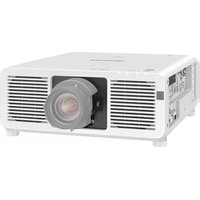
- Operating Instructions
- Dear Panasonic Customer:
- IMPORTANT SAFETY NOTICE
- WARNING:
- Declaration of Conformity
- Contents
- WARNING
- Do not place liquid containers on top of the projector.
- Do not insert any foreign objects into the projector.
- After removing the battery from remote control unit, keep it away from the reach of children.
- Do not allow the + and - terminals of the battery to come into contact with metallic objects such as necklaces or hairpins.
- Insulate the battery using tape or similar before disposal.
- Replacement of the lamp unit should only be carried out by a qualified technician.
- When replacing the lamp, allow it to cool for at least one hour before handling it.
- Do not bring your hands or other objects close to the air outlet port.
- Do not suspend the projector using only the hole used for the anti-theft clasp.
- Caution
- Do not set up the projector in humid or dusty places or in places where the projector may come into contact with smoke or steam.
- When disconnecting the power cord, hold the plug, not the cord.
- Always disconnect all cables before moving the projector.
- Do not place any heavy objects on top of the projector.
- Do not short-circuit, heat or disassemble the battery or place it into water or fire.
- When inserting the battery, make sure the polarities (+ and -) are correct.
- Use only the Specified battery.
- Do not look into the lens while the projector is being used.
- Do not use the old lamp unit.
- Disconnect the power cord plug from the wall outlet as a safety precaution before carrying out any cleaning.
- Ask an Authorized Service Center to clean inside the projector at least once a year.
- Do not reach for the openings beside the optical lens, during horizontal or vertical movements of the lens there is a injury hazard.
- Accessories
- ■Precautions on transport
- ■ Precautions on installation
- ■ Disposal
- ■Precautions on use
- Cleaning and maintenance
- Use soft and dry cloth to clean the cabinet
- Do not clean the lens surface with fuzzy or dusty cloth.
- Remote control
- < When the operation mode selector is set to Projector >
- Note
- Side-mounted connection terminals
- Using the remote control unit
- ■ Loading dry cells
- 1.Open battery compartment lid.
- Insert the dry cells.
- Close the battery compartment lid.
- Attention
- ■Effective range of remote control operation
- ■Setting projector ID number to remote control
- Procedure of ID setting
- ■Using the remote control as a PC mouse
- Operation mode selector switch
- ■ Using a wired remote control
- ■ Projection schemes
- ■Installation geometry
- ■ Projection distances
- ■ Setup precautions
- ■Example of connecting with AV products
- ■Example of connecting with PCs
- How to install and remove the projection lens (optional)
- ■How to install the projection lens
- ■How to remove the projection lens
- ■ Powering up the projector
- ■ Making adjustment and selection
- ■ Powering off the projector
- Attention • Do not turn the power supply off and then immediately back on again.
- ■Direct power off function
- ■How to adjust the lens focus, lens zoom and lens up/down position movement (optical shift)
- ■How to adjust the lens position to the left or right
- Automatic adjustment (AUTO SETUP)
- Using the FREEZE function
- Using the SHUTTER function
- Using the digital zoom (− D.ZOOM +) function
- ■Structure of menu screens
- ■ Basic menu operations
- ① Press the "MENU" button.
- ② Select (highlight) the desired item with the ▲ or ▼ buttons.
- ③ Press the "ENTER" button to enter your selection.
- ④ Highlight the desired adjustment item with the ▲r buttons, then change the parameter value with the ◀r ▶ buttons.
- ■ Returning to the previous page
- ■Menu items shown in transparent characters
- ■Menu items setting
- ■ Resetting to the factory default
- ■PICTURE MODE
- ■ BRIGHT
- ■CONTRAST
- ■COLOR
- ■ TINT
- ■COLOR TEMP.
- ■SHARPNESS
- AI
- ■ TV-SYSTEM
- ■ SYSTEM (For RGB signals only)
- ■ POSITION
- ■ASPECT
- ■ZOOM
- ■CLOCK PHASE
- ■KEYSTONE
- ■FRAME LOCK
- ■ INPUT RESOLUTION
- ■ CLAMP POS. (For RGB signals only)
- ■ RASTER POSITION
- ■SXGA MODE
- Changing the display language
- ■COLOR CORRECTION
- ■CONTRAST MODE
- ■ AUTO SIGNAL
- ■MEMORY LOAD
- ■MEMORY SAVE
- ID
- ■ FRONT/REAR
- ■ DESK/CEILING
- ■LAMP SELECT
- ■LAMP POWER
- ■RS232C
- ■FAN CONTROL1
- ■FAN CONTROL2
- ■FUNC 1
- ■ AUTO POW.OFF
- ■PASSWORD
- ■ Cycle of displayed internal test patterns
- ■Setting the password
- ■Changing the password
- ■Setting the text
- ■Changing the text
- Setting the network
- Connecting a PC
- ■System requirements
- ■Examples of connection
- - Single projector Plural projectors
- ■ Pin assignments and signal names
- ■ Communication conditions (Factory setting)
- ■ Basic format
- ■Control commands
- ■ Cable specifications
- Using the REMOTE 2 terminal
- Pin assignments and control
- Indication of lamp monitor
- Cleaning and replacement of air filter
- ■ Procedure of cleaning
- WARNING!
- Precautions on lamp unit replacement
- ■Timing of lamp unit replacement
- - Indication after 1 300 hours※2 (with the lamp output set at “HIGH”)
- ■ Lamp unit replacement steps
- Using Web Browser Control
- ■ Access procedure
- ■ Basic control page
- ■Detail control page
- ■Status information page
- ■ Error information page
- ■E-mail setup page
- ■ Network config page
- ■DNS server setup page
- ■POP server setup page
- ■Adjust clock page
- ■ Network status page
- ■ Password change page
- Projection distances by projection lens
- Trademark Acknowledgement
- AVERTISSEMENT:
Brand : PANASONIC
Model : PT-D5500UL
Category : Video projector