
PT-D7600U - Video projector PANASONIC - Free user manual and instructions
Find the device manual for free PT-D7600U PANASONIC in PDF.


| Product type | DLP video projector |
| Brand | Panasonic |
| Model | PT-D7600U |
| Light source | High-pressure mercury vapor lamp |
| Lamp power | 300 W, 65 V |
| Lamp model | ET-LAD7500 (single lamp) / ET-LAD7500W (dual lamp) |
| Lamp life | 1,500 hours (high/dual mode) |
| Dual lamp | Yes, selectable (single/dual) |
| Lamp power adjustment | High / Low (via menu) |
| Cabinet maintenance | Soft dry cloth, mild detergent if necessary |
| Lens maintenance | Soft dry cloth, do not touch with fingers |
| Lamp replacement | Detailed procedure: Phillips screwdriver, resetting the counter |
| Air filter replacement | Refer to the instruction manual |
| Safety: grounding | Three-pin grounded plug, do not remove the grounding pin |
| Safety: ventilation | Do not cover the vents, do not block the hot air exhaust |
| Safety: viewing | Do not look directly into the lens during operation |
| Safety: transport | Protect the lens from vibration and impact |
| Disposal | Take to a dealer or recycling center |
| Installation environment | Avoid humidity, dust, smoke, and fumes |
| Optional accessories | Ceiling suspension bracket ET-PKD75 (high) / ET-PKD75S (low) |
Frequently Asked Questions - PT-D7600U PANASONIC
User questions about PT-D7600U PANASONIC
0 question about this device. Answer the ones you know or ask your own.
Ask a new question about this device
Download the instructions for your Video projector in PDF format for free! Find your manual PT-D7600U - PANASONIC and take your electronic device back in hand. On this page are published all the documents necessary for the use of your device. PT-D7600U by PANASONIC.
USER MANUAL PT-D7600U PANASONIC
DLP™ Based Projector Commercial Use
Operating Instructions
Model No. PT-D7500U PT-D7600U

natural_image
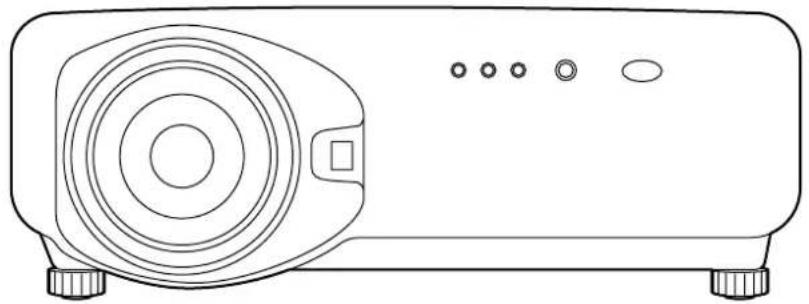
Line drawing of a projector with front panel and base legs (no text or symbols)Read these instructions completely before operating this unit.
Dear Panasonic Customer:
This instruction booklet provides all the necessary operating information that you might require. We hope it will help you to get the most performance out of your new product, and that you will be pleased with your Panasonic DLP ^™ based projector.
The serial number of your product may be found on its back. You should note it in the space provided below and retain this booklet in case service is required.
Model number: PT-D7500U / PT-D7600U
Serial number:
IMPORTANT SAFETY NOTICE
WARNING: TO REDUCE THE RISK OF FIRE OR ELECTRIC SHOCK, DO NOT EXPOSE THIS PRODUCT TO RAIN OR MOISTURE.
The lightning flash with arrowhead symbol, within an equilateral triangle, is intended to alert the user to the presence of uninsulated “dangerous voltage” within the Product's enclosure that may be of sufficient magnitude to constitute a risk of electric shock to persons.

The exclamation point within an equilateral triangle is intended to alert the user to the presence of important operating and maintenance (servicing) instructions in the literature accompanying the product.
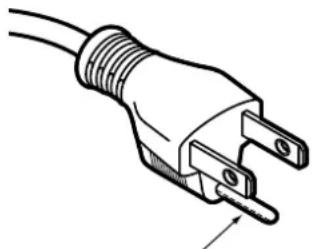
CAUTION: This equipment is equipped with a three-pin grounding-type power plug. Do not remove the grounding pin on the power plug. This plug will only fit a grounding-type power outlet. This is a safety feature. If you are unable to insert the plug into the outlet, contact an electrician. Do not defeat the purpose of the grounding plug.
natural_image
Line drawing of a U-shaped electrical plug with leads (no text or symbols)Do not remove
WARNING: This equipment has been tested and found to comply with the limits for a Class B digital device, pursuant to part 15 of the FCC Rules. These limits are designed to provide reasonable protection against harmful interference in a residential installation. This equipment generates, uses and can radiate radio frequency energy and, if not installed and used in accordance with the instructions, may cause harmful interference to radio communications. However, there is no guarantee that interference will not occur in a particular installation. If this equipment does cause harmful interference to radio or television reception, which can be determined by turning the equipment off and on, the user is encouraged to try to correct the interference by one or more of the following measures: - Reorient or relocate the receiving antenna. - Increase the separation between the equipment and receiver. - Connect the equipment into an outlet on a circuit different from that to which the receiver is connected. - Consult the dealer or an experienced radio/TV technician for help.
CAUTION: Any unauthorized changes or modifications to this equipment will void the user's authority to operate.
Declaration of Conformity
Model Number: PT-D7500U/PT-D7600U
Trade Name: Panasonic
Responsible Party: Matsushita Electric Corporation of America
One Panasonic Way, Secaucus, NJ 07094
Telephone Number: 1-800-524-1448 or 1-800-526-6610
Email: pbtsservice@panasonic.com
This device complies with Part 15 of the FCC Rules. Operation is subject to the
following two conditions: (1) This device may not cause harmful interference, and (2)
this device must accept any interference receiver, including interference that may cause undesired operation.
NOTICE: This product has a High Intensity Discharge (HID) lamp that contains a small amount of mercury. It also contains lead in some components. Disposal of these materials may be regulated in your community due to environmental considerations. For disposal or recycling information please contact your local authorities, or the Electronics Industries Alliance: http://www.eiae.org.>
Contents
IMPORTANT SAFETY NOTICE 2
Precautions with regard to safety ....5
Caution......6
Accessories 7
Precautions on handling 8
Examples of system expansion....9
Name and function of parts....10
Remote control 10
Front and side of the projector 12
Rear view of the main unit....13
Controls on rear panel....13
Side-mounted connection terminals 14
Using the remote control unit .....15
Loading dry cells 15
Effective range of remote control operation ....15
Setting projector ID number to remote control .....16
Using the remote control as a PC mouse....17
Using a wired remote control....17
Installation ....18
Adjusting the leveling feet 18
Projection scheme....18
Installation geometry ....18
Projection distances by the type of projection lenses
(optional) 19
Connection 24
Before starting connection....24
Example of connecting with VIDEO devices .....25
Example of connecting with personal computers .....26
Example of connecting with the signal selector.....27
Installation of input module (optional)......28
Installing the input module....28
Connecting signals to the input module ....30
Connecting the signal to the analog RGB signal input
module....31
Connecting the signals to the video signal input module 32
Connecting the signal to the serial digital signal input module..34
Connecting signals to the DVI signal input module .....37
How to install and remove the projection lens
(optional)....38
How to install the projection lens....38
How to remove the projection lens ....38
Projection....39
Powering up the projector ....39
Making adjustment and selection 39
Powering off the projector ....40
How to adjust the lens ....41
How to adjust the lens focus, lens zoom and lens shift
(optical shift) 41
Adjustment range after lens position (optical shift)....41
How to adjust the lens for addressing unevenness of focusing .....42
Automatic adjustment (AUTO SETUP)......43
Registration of input signal data ....44
Registration of new data....44
If new registration is not available because of full memory.....45
Sub memory 46
Using the FREEZE function ....48
Using the SHUTTER function....48
Using the digital zoom (− D.ZOOM +) function .....48
On-screen menus....49
Structure of menu screens 49
Basic operations on menu screen 50
Returning to the previous screen ....50
Menu items shown in gray characters....50
Menu items setting 50
Resetting to the factory default....50
Adjusting the picture ....51
Switching the picture mode ....51
Switching the AI control....51
Adjusting Contrast / Bright / Color / Tint 52
Adjusting the color temperature ....53
Adjusting color matching ....54
Sharpness / Gamma / Noise reduction /
Pulldown mode....55
To set the sRGB compliant picture....56
To input BETACAM with YCbCr 480i....56
Adjusting the position ....57
Shift adjustment....57
Size adjustment....58
Blanking adjustment 60
Clock phase adjustment 61
Adjusting the input resolution 62
Adjusting the clamp position....63
Keystone distortion correction 64
Changing the display language ....66
How to change the system format....67
How to change the signal for the
ET-MD95VM2 (optional) 68
How to use RGB REALITY mode ......69
Optional settings....70
ID number setting 70
Installation Setting 71
Lamp select 72
Lamp power....72
Lamp cooling time 72
RGB2 select 72
Position of on-screen indicators 72
System information....73
Video setting....73
Fan control 73
Automatic adjustment....73
P IN P 74
Setting FUNC1 75
Password....75
Setting the contrast mode....76
How to switch the input impedance (signal
level) of the synchronization signal .....77
Using the serial terminals 78
Examples of connection 78
Pin assignments and signal names....78
Communication conditions (Factory setting) .....78
Basic format ....78
Procedure of setting communication conditions....79
Control commands ....80
Cable specifications ....80
Using the REMOTE 2 terminal ....81
Displaying the internal test pattern .....82
Cycle of displayed internal test patterns....82
RS-422 control functions....82
How to use network module (optional) .....83
Initial setting of network module ....84
Accessing from the Web browser....86
Returning the network module setting back to the factory setting....93
Indication of monitor lamp 94
Cleaning and replacement of air filter....95
Procedure of cleaning 95
Replacement of lamp unit 96
Timing of lamp unit replacement 96
Procedure of lamp unit replacement 97
Before asking for service 99
Specifications....100
Appendix....102
Outside dimensions....103
Français Information....104
WARNING
If a problem occurs (such as no image) or if you notice smoke or a strange smell coming from the projector, turn off the power and disconnect the power cord from the wall outlet.
- Do not continue to use the projector in such cases, otherwise fire or electric shocks could result.
- Check that no more smoke is coming out, and then contact an Authorized Service Center for repairs.
- Do not attempt to repair the projector yourself, as this can be dangerous.
Do not install this projector in a place which is not strong enough to take the full weight of the projector.
- If the installation location is not strong enough, it may fall down or tip over, and severe injury or damage could result.
- Installation work (such as ceiling suspension) should only be carried out by a qualified technician.
- If installation is not carried out correctly, there is the danger that injury or electric shocks may occur.
If foreign objects or water get inside the projector, or if the projector is dropped or the cabinet is broken, turn off the power and disconnect the power cord from the wall outlet.
- Continued use of the projector in this condition may result in fire or electric shocks.
- Contact an Authorized Service Center for repairs.
Do not cover the air filter, the air inlet and exhaust vents.
- Doing so may cause the projector to overheat, which can cause fire or damage to the projector.
Do not overload the wall outlet.
- If the power supply is overloaded (for example, by using too many adapters), overheating may occur and fire may result.
Do not remove the cover or modify it in any way.
- High voltages which can cause fire or electric shocks are present inside the projector.
- For any inspection, adjustment and repair work, please contact an Authorized Service Center.
Clean the power cord plug regularly to prevent it from becoming covered in dust.
- If dust builds up on the power cord plug, the resulting humidity can damage the insulation, which could result in fire. Pull the power cord out from the wall outlet and wipe it with a dry cloth.
- If not using the projector for an extended period of time, pull the power cord plug out from the wall outlet.
Do not do anything that might damage the power cord or the power cord plug.
- Do not damage the power cord, make any modifications to it, place it near any hot objects, bend it excessively, twist it, pull it, place heavy objects on top of it or wrap it into a bundle.
- If the power cord is used while damaged, electric Shocks, short-circuits or fire may result.
- Ask an Authorized Service Center to carry out any repairs to the power cord that might be necessary.
Do not handle the power cord plug with wet hands.
- Failure to observe this may result in electric shocks.
Insert the power cord plug securely into the wall outlet.
- If the plug is not inserted correctly, electric shocks or overheating could result.
- Do not use plugs which are damaged or wall outlets which are coming loose from the wall.
Do not place the projector on top of surfaces which are unstable.
- If the projector is placed on top of a surface which is sloped or unstable, it may fall down or tip over, and injury or damage could result.
Do not place the projector into water or let it become wet.
- Failure to observe this may result in fire or electric shocks.
Do not disassemble the lamp unit.
- If the lamp section breaks, it may cause injury.
Do not place liquid containers on top of the projector.
- If water spills onto the projector or gets inside it, fire or electric shocks could result.
- If any water gets inside the projector, contact an Authorized Service Center.
Do not insert any foreign objects into the projector.
- Do not insert any metal objects or flammable objects into the projector or drop them onto the projector, as doing so can result in fire or electric shocks.
After removing the battery from remote control unit, keep it away from the reach of children.
- The battery can cause death by suffocation if swallowed.
- If the battery is swallowed, seek medical advice immediately.
Do not allow the + and - terminals of the battery to come into contact with metallic objects such as necklaces or hairpins.
- Failure to observe this may cause the battery to leak, overheat, explode or catch fire.
- Store the battery in a plastic bag and keep it away from metallic objects.
Insulate the battery using tape or similar before disposal.
- If the battery comes into contact with metallic objects or other batteries, it may catch fire or explode.
Caution
Do not set up the projector in humid or dusty places or in places where the projector may come into contact with smoke or steam.
- Using the projector under such conditions may result in fire or electric shocks.
When disconnecting the power cord, hold the plug, not the cord.
- If the power cord itself is pulled, the cord will become damaged, and fire, short-circuits or serious electric shocks may result.
Always disconnect all cables before moving the projector.
- Moving the projector with cables still attached can damage the cables, which could cause fire or electric shocks to occur.
Do not place any heavy objects on top of the projector.
- Failure to observe this may cause the projector to become unbalanced and fall, which could result in damage or injury.
Do not short-circuit, heat or disassemble the battery or place it into water or fire.
- Failure to observe this may cause the battery to overheat, leak, explode or catch fire, and burns or other injury may result.
When inserting the battery, make sure the polarities (+ and -) are correct.
- If the battery is inserted incorrectly, it may explode or leak, and fire, injury or contamination of the battery compartment and surrounding area may result.
Use only the Specified battery.
- If an incorrect battery is used, it may explode or leak, and fire, injury or contamination of the battery compartment and surrounding area may result close to this port, otherwise burns or damage could result.
Do not look into the lens while the projector is being used.
- Strong light is emitted from the projector's lens. If you look directly into this light, it can hurt and damage your eyes.
Do not bring your hands or other objects close to the air outlet port.
- Heated air comes out of the air outlet port. Do not bring your hands or face, or objects which cannot withstand heat.
Replacement of the lamp unit should only be carried out by a qualified technician.
- The lamp unit has high internal pressure. It can easily become damaged if struck against hard objects or dropped, and injury or malfunctions may result.
Do not use the old lamp unit.
• The lamp section may break.
Replacement of the lamp unit should only be carried out after it has completely cooled off, otherwise burns may result.
Disconnect the power cord plug from the wall outlet as a safety precaution before carrying out any cleaning.
• Electric shocks can result if this is not done.
Ask an Authorized Service Center to clean inside the projector at least once a year.
- If dust is left to build up inside the projector without being cleaned out, it can result in fire or problems with operation.
- It is a good idea to clean the inside of the projector before the season for humid weather arrives. Ask your nearest Authorized Service Center to clean the projector when required. Please discuss with the Authorized Service Center regarding cleaning costs.
Do not reach for the openings beside the optical lens, during horizontal or vertical movements of the lens there is a injury hazard.
An effort to keep our environment clean, Please bring the non repairable unit your Dealer or a Recycling Company.
Accessories
Check that all of the accessories shown below have been included with your projector.
| Remote control unit[N2QAGB000024 x 1] | Power cord[K2CF3EH00001 x 1] | wired cable for remote control[15m (49'3"),K1EA03NA0001 x 1] | Battery for remote control unit[R03NPA/2ST x 1] |
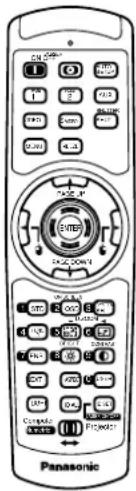 | 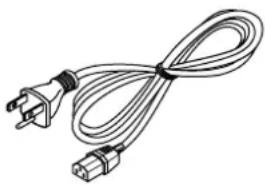 | 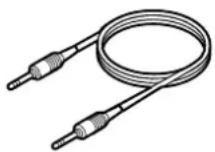 |  |
■ Precautions on transport
The projection lens is susceptible to vibrations and impacts. Care should be taken to protect the lens from vibrations and impacts when transporting.
■ Precautions on installation
Be sure to observe the following precautions when installing the product.
- Avoid installing the product in a place exposed to vibrations or impacts.
If the projector is installed in a place where vibrations are transmitted from a source of driving power and others or mounted in a car or a vessel, vibrations or impacts may be transmitted to the product to damage the internal parts, causing failure. Install the product in a place free from vibrations and impacts.
- Do not install the projector near high-voltage power lines or power sources.
The product may be exposed to interference if it is installed in the vicinity of high-voltage electrical power lines or power sources.
- Do not place the projector on a vinyl sheet or carpet.
If a vinyl sheet sucked up and blocks the air filter intake port, the internal temperature of the projector may increase, which triggers the protection circuit, turning off the power.
- Be sure to ask a specialized technician when to install the product to a ceiling.
If the product is to be installed hanging from the ceiling, purchase an optional hanging attachment (for high ceiling: Model No. ET-PKD75) (for low ceiling: Model No. ET-PKD75S) and call a specialized technician for installation.
- Do not place the projector over 2 700 m (8881.5') above sea level. When using it over 1 400 m (4605.3') above sea level, set the "Fan Control", described on page 73, to "HIGH".
Otherwise the life of the product may be shortened.
■ Precautions on use
- To view clear images:
- The audience cannot enjoy high-contrast and clear images if outside light or the illumination interferes the screen surface. Draw window curtains or blinds, turn off the lightings near the screen or take other proper measures.
- In rare cases, wafture can occur on the screen affected by the warm air from the exhaust port depending on the environment.
- Do not touch the surface of the projection lens with bare hand.
If fingerprints or stains are left on the projection lens surface, they are magnified and projected on the screen. Keep your hands away from the lens. Cover the lens with the supplied lens cap when the projector is not used.
- Screen
If the screen has stains, flaws or discoloration, clear images cannot be viewed. When handling the screen, be careful not to apply volatile substances or leave flaws or stains on the screen.
- Lamp
A mercury lamp with high internal pressure is used for the light source of this product. A high-pressure mercury lamp has the following characteristics:
- It may burst with a loud sound or end its life cycle by not illuminating because of given impacts, flaws, or deterioration due to used hours.
- The life cycle of a mercury lamp varies according to the individual difference or conditions of use.
- In rare cases, it may burst shortly after the first lighting.
- The possibility of burst increases when the lamp is used beyond the replacement time.
■ Disposal
To discard the product, call the dealer or a specialized dealer
Cleaning and maintenance
Be sure to remove the power cord plug from the receptacle before cleaning.
Use soft and dry cloth to clean the cabinet
If stains are hard to remove, use a cloth dampened with a kitchen detergent solution (neutral) and squeezed to wipe the cabinet and finish with a dry cloth. If a chemical wipe is used, follow its instructions.
Do not clean the lens surface with fuzzy or dusty cloth.
If dust adheres to the lens, it will be magnified and projected on the screen.
Use a soft and clean cloth to wipe off dust.
Examples of system expansion
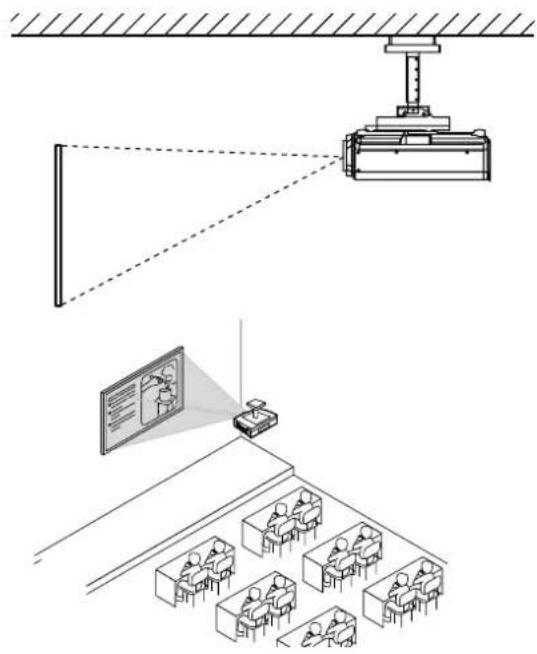
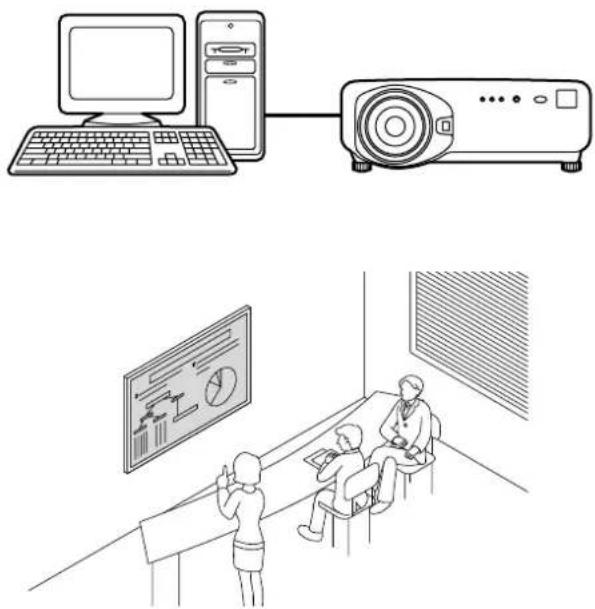
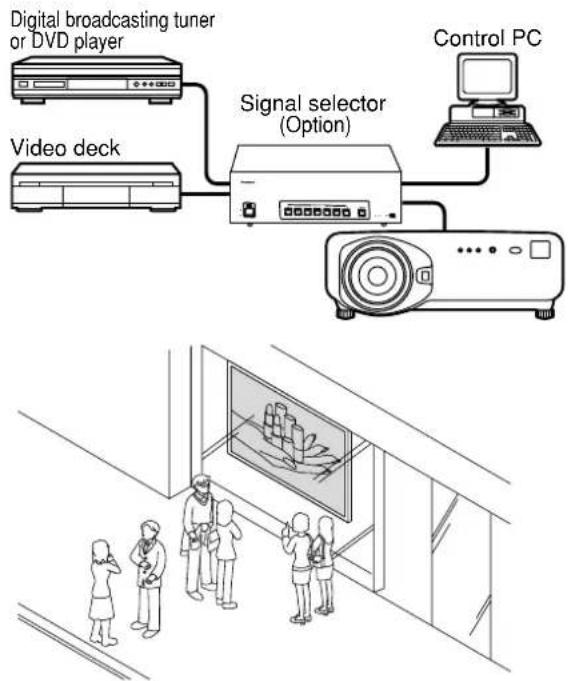
The projector is provided with a number of terminals and optional accessories to enable various system expansions. Both input and output are provided to all terminals on the main unit. The following are some examples of system expansion:
System 1
Stacking two projectors with the stacking brackets can double the picture brightness.
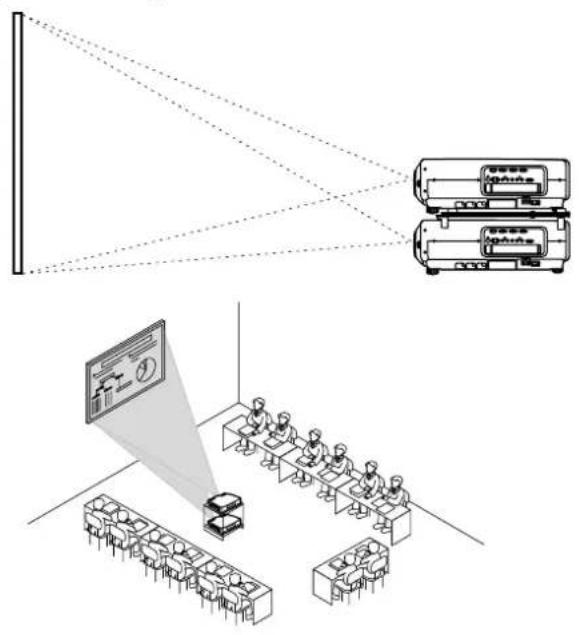
System 2
The optional high- or low-ceiling mount bracket flexibly fits the projector in individual site conditions.
natural_image
Diagram of a classroom lecture setup with a projector, projection screen, and audience (no text or symbols)System 3
PC equipped with a DVI-D input module (an optional item) can be attached to the projector for computer image viewing (Realization of high-resolution picture.)
natural_image
Illustration of a computer setup with monitor, tower, and projector connected to two people in a classroom setting (no text or symbols present)System 4
Connection of a signal selector enables to feed a variety of video sources to the projector.
flowchart
graph TD
    A["Digital broadcasting tuner or DVD player"] --> B["Signal selector (Option)"]
    C["Video deck"] --> B
    D["Control PC"] --> B
    B --> E["Indoor Screen"]
    style A fill:#f9f,stroke:#333
    style C fill:#f9f,stroke:#333
    style D fill:#f9f,stroke:#333
    style E fill:#ccf,stroke:#333
Name and function of parts
Remote control
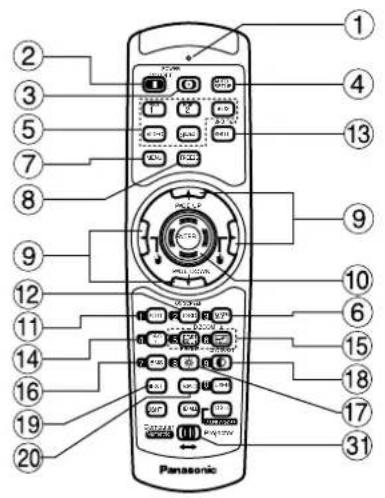
< When the operation mode selector is set to Projector >
① Remote control operation indicator lamp
The lamp flashes when any remote control button is pressed.
② POWER ON button (page 39)
Turns on the power if the MAIN POWER has been put to the "I" position.
③ POWER OFF button (page 40)
Turns off the power if the MAIN POWER has been put to the "I" position.
④ AUTO SET UP button (page 43)
Pressing this button while projecting an image automatically corrects the picture positioning on the screen. While the auto setup feature is active, a message "AUTO SETUP" appears on the screen.
⑤ Input selector (RGB1, RGB2, AUX, VIDEO, S-VIDEO) button
Use to toggle through the RGB1, RGB2, AUX (module input), VIDEO and S-VIDEO input ports.
⑥ SYSTEM SELECTOR button (page 67)
System switching can be done.
⑦ MENU button (page 50)
Displays and clears the Main Menu. It can also return to the previous screen when the menu is displayed.
⑧ FREEZE button (page 48)
Press this button to freeze the image temporarily.
⑨ Arrow Buttons(page 50)
Use these buttons to select an item on the menu screen, change setting and adjust the level.
⑩ ENTER button (page 50)
Press this button to enter your menu selection or to run function.
⑪ Standard (STD) button (page 50)
Press this button to restore the default factory setting.
⑫ ON SCREEN button (page 49)
This button turns on and off the on-screen indication function.
⑬ SHUTTER button (page 48)
Press this button to black out the image temporarily.
14 Function 1 (FUNC1) button (page 75)
This button can control the functions set in "FUNC1" of the "Option" screen from Main Menu.
⑮ Digital Zoom (- D.ZOOM +) buttons (page 48)
Any portion of the picture can be zoomed in.
⑯ LENS button (page 41)
Switches to the mode of projection lens adjustment.
⑰ BRIGHT button (page 52)
Switches to the mode of black level adjustment.
18 CONTRAST button (page 52)
Switches to the mode of image contrast adjustment.
⑲⑲ NEXT button
When multiple signal selectors are connected to the main unit in the system, this button specifies the second signal selector or beyond. With the ID set button pressed, every press on the button will change the value in the ten's place.
⑳ ASPECT button
Switches the image aspect ratio to 4:3, 16:9.
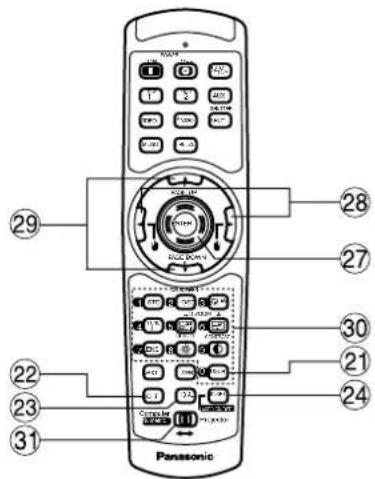
②1 USER button
Displays the sub-memory screen of the signal registration.
② LIGHT button ( Click button)
When this button is pressed, the remote control button light is turned on. The light goes off about 30 seconds after you stop remote control operation.
②3 ID ALL button (page 16,70)
When two or more main units are used in the system, this button switches to the mode to control them simultaneously with a single remote control.
⑳ ID SET button (page 16,70)
When two or more main units are used in the system, this button specifies the ID of the remote control.
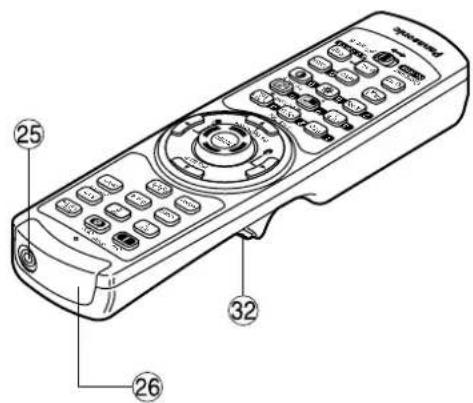
25 Remote control wired terminal (page 17)
To use the wired output terminal, connect the remote control and the main unit with the supplied cable.
26 Remote control transmitter window
Operate the remote control aiming at the remote control receiver window on the main unit.
⑳ ENTER button
Moves the mouse cursor.
⑳ ( ) buttons
These buttons correspond to the left and right mouse buttons.
29 PAGE UP/PAGE DOWN buttons
These buttons correspond to the PAGE UP/PAGE DOWN buttons on PC's keyboard.
③0 Numeric (0-9) button
In a system that uses two or more units of this projector or in a system that connects to an optional signal selector, these buttons specify a particular projector unit or the input of the signal selector. They are also used to enter ID numbers when selecting the ID or to enter specific numbers when entering a password.
③1 Operation mode selector (Computer/Numeric, Projector) switch (page 17)
Put this selector to the right position to control the projector and to the left position to control the PC or use numeric buttons.
③2 Click button (page 17)
This button corresponds to the left mouse button when the operation mode is switched to the Computer position.
Note
• To use the remote control as a mouse, please purchase an optional wireless mouse receiver (model No.: ET-RMRC1).
- The AUX button to switch the input is disabled when an optional input module is not connected.
Front and side of the projector
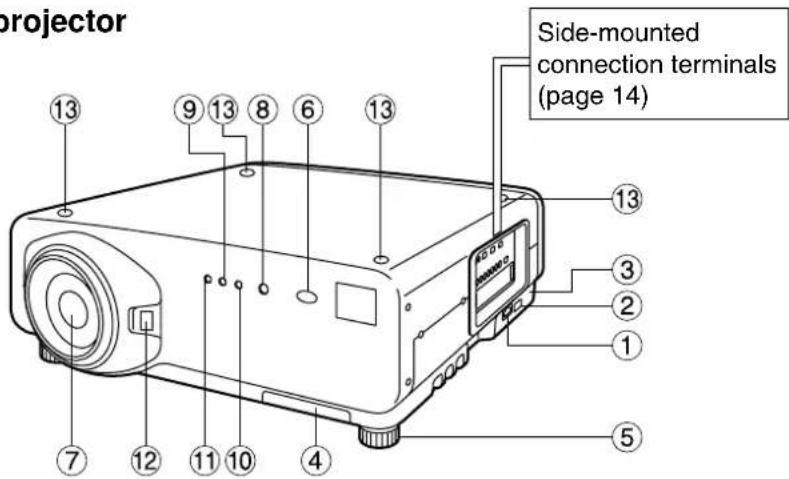
① AC IN terminal (page 39)
Connect the supplied line power cord into this receptacle.
Do not connect any other cable to this socket.
② MAIN POWER switch (page 39)
Use this switch to turn on "I" and off "O" the commercial line power applied to the projector.
③ Burglar lock
Attach a commercial burglar prevention cable (e.g., from Kensington) to this lock port. It is compatible with the Micro Save Security System from Kensington. This security lock is compatible with the Microsaver Security System from Kensington.
Contact details for this company are given below.
Kensington Technology Group ACCO Brands Inc.
2885 Campus Drive San Mateo, CA94403
Tel (650)572-2700
Fax (650)572-9675
http://www.kensington.com/
http://www.gravis.com/
④ Air filter (page 95)
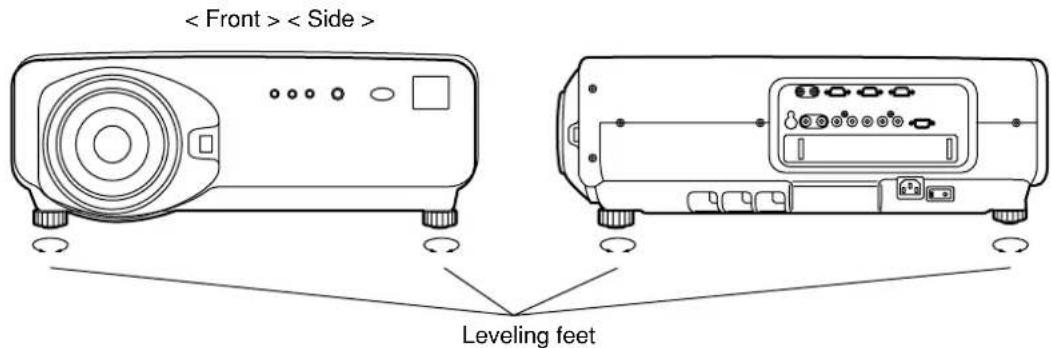
⑤ Level-adjusting feet (page 18)
Use these feet to adjust the tilt of the projector. (Leveling feet are provided at the front and rear, right and left.)
⑥ Remote control receiver window (front) (page 15)
This window receives the signal beam emitted from the remote control.
⑦ Projection lens (optional)
Lens for projecting images on the screen.
⑧ Power indicator lamp (page 39)
The lamp lights in red when the MAIN POWER switch is turned to "I" (on). It turns to green when the POWER ON button of the remote control or the main unit is pressed.
⑨ LAMP1 monitor (page 94)
This lamp lights up when the time to replace lamp unit 1 is reached. It also blinks if something unusual occurs in the lamp circuit.
⑩ LAMP2 monitor (page 94)
This lamp lights up when the time to replace lamp unit 2 is reached. It also blinks if something unusual occurs in the lamp circuit.
⑪ Temperature monitor (TEMP) (page 94)
Lighting or blinking of this lamp indicates an abnormal condition of the internal temperature.
⑫ Projection lens cover lock button
This button toggles between lock and unlock of the detachable cover for the projection lens (optional).
⑬ Use this for locating the projectors when stacking two units.
Rear view of the main unit Controls on rear panel
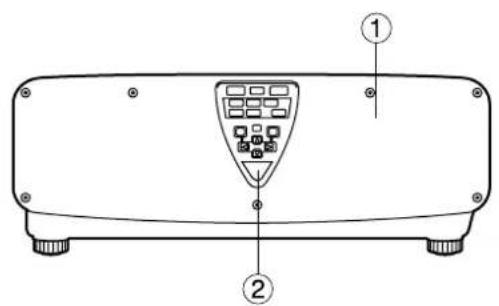
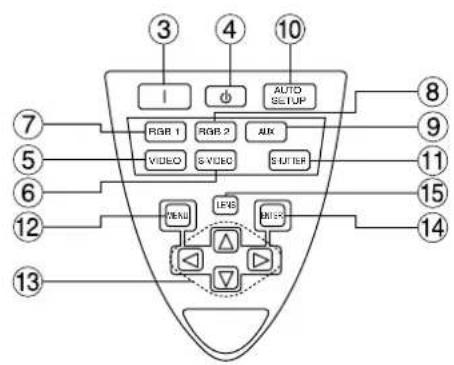
① Lamp unit housing door
The lamp unit is housed.
② Remote control receiver window (rear) (page 15)
This also receives the signal beam coming from the remote control.
③ POWER ON (I) button (page 39)
Turns on the power.
④ POWER OFF (button (page 40)
Turns off the power.
⑤ VIDEO button (page 39)
Switches to video input.
⑥ S-VIDEO button (page 39)
Switches to S-VIDEO input.
⑦ RGB1 button (page 39)
Switches to RGB1 input.
⑧ RGB2 button (page 39)
Switches to RGB2 input.
⑨ AUX button (page 39)
Switches to optional input module input.
⑩ AUTO SETUP button (page 43)
Pressing this button while projecting an image automatically corrects the picture positioning on the screen. While the auto setup feature is active, a message "EXECUTING..." appears on the screen.
⑪ SHUTTER button (page 48)
Press this button to black out the image temporarily.
⑫ MENU button (pages 49 and 50)
Displays and clears the Main Menu. It can also return to the previous screen when the menu is displayed.
⑬ Arrow ( )buttons(page 50)
Use to select an item on the menu screen, change setting and adjust the level.
⑭ ENTER button (page 50)
Press this button to enter your menu selection or to run function.
⑮ LENS button (page 41)
Switches to the adjustment mode for lens focus, zoom and shift (position).
Side-mounted connection terminals
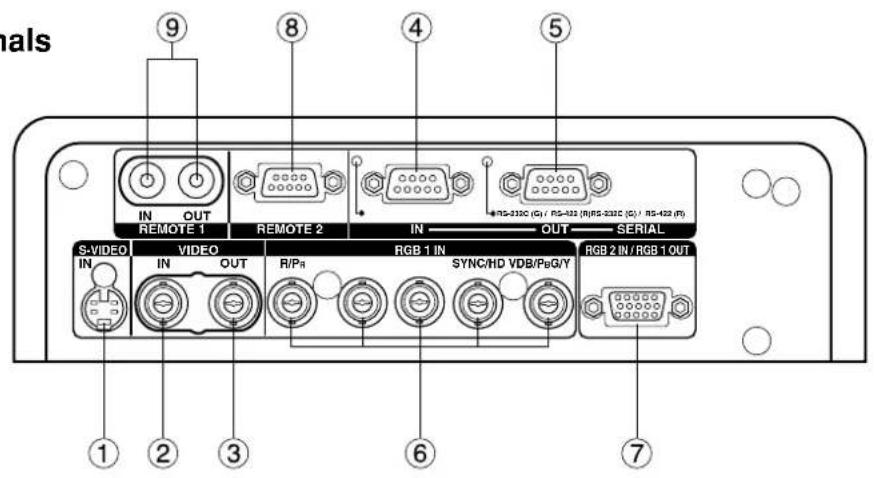
① S-VIDEO IN terminal (pages 24 and 25)
An input terminal for S-video signals (MIN4-pin DIN).
This terminal complies with S1 signals and automatically toggles between 16:9 and 4:3 according to the size of input signals.
② VIDEO IN terminal (page 25)
An input terminal for video signals. (BNC)
③ VIDEO OUT terminal (page 25)
An output terminal (active through) for video signals. (BNC)
④ SERIAL IN terminal (pages 25–27, 78–80)
This terminal is an RS-232C/RS-422 compliant input terminal (switching necessary) to connect a PC and to externally control the main unit (D-SUB 9-pin female).
⑤ SERIAL OUT terminal (pages 26, 27, 78–80)
This terminal is an RS-232C/RS-422 compliant output terminal (switching necessary) to supply signals given to the serial input terminal (D-SUB 9-pin male).
⑥ RGB (YPBPR)1 input terminal (pages 26, 27)
A terminal to input RGB or YPBPR signals (BNC).
⑦ RGB (YPBPR)2 input/RGB (YPBPR)1 output terminal (pages 26, 27)
This terminal (active through) receives RGB or YPBPR signals or supplies signals given to the RGB1 input terminal (D-SUB 15-pin female).
⑧ REMOTE2 terminal (page 81)
The user can remotely control the main unit by using an external control circuit to this terminal (D-SUB 9-pin female).
⑨ REMOTE1 IN/OUT terminal (page 17)
When two or more main units are used in the system, they can be connected and controlled with a wired remote control cable (M3 jack).
Using the remote control unit
■ Loading dry cells
When loading supplied AA dry cells into the battery compartment of the remote control, make sure that their polarities are correct.
1. Open battery compartment lid.
Open the lid in the order of steps ① and . ②
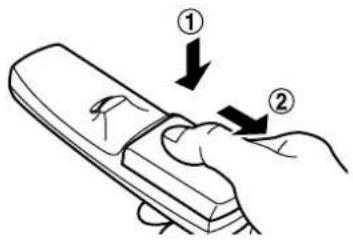
2. Insert the dry cells.
Into battery compartment, with their polarities orientated as indicated (⊕)inthe compartment.
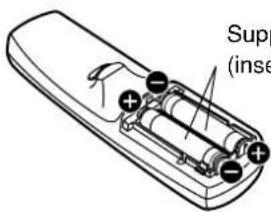
Supplied AA dry cells (insert the side first).
3. Close the battery compartment lid.
Replace the battery compartment lid over the compartment and slide until it clicks.
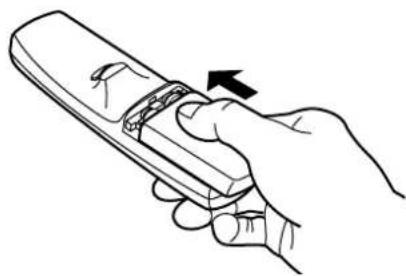
natural_image
Line drawing of a hand holding a remote control device with a black arrow indicating rotation (no text or symbols)Attention
- Do not drop the remote control unit.
- Do not expose remote control unit to any liquid.
- Do not use NiCd batteries.
■ Effective range of remote control operation
The remote control should normally be aimed at either the front or rear remote control receiver window on the projector (fig. 1). Otherwise, it may also be aimed at the screen, which will reflect commands back to the projector's front receiver window as illustrated in figure 2.
The effective control range is approx. 7 meters from the beam receiver on the front or rear.
![(Front) (Rear) Remote control 30° 30° [Top view] 30° 30° Remote control Remote control 15° 15° [Side view] 15° 15° Remote control](/content/2026/06/1190496/images/00419763ca98cb82cf523d89911dc23e408d49315038755cb9b6380729a44d43.jpg)
Figure 1
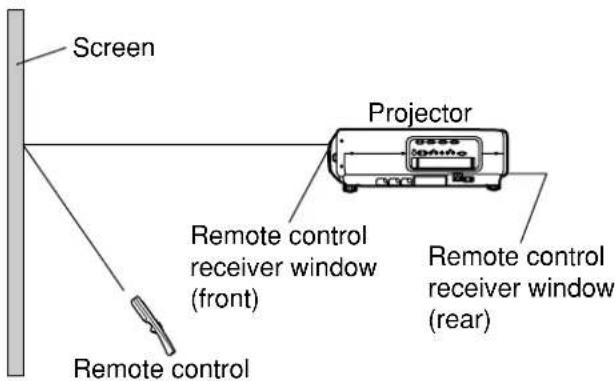
Figure 2
Note
- When the remote control is aimed at the screen, the effective control range may be reduced due to the optical loss by screen reflection.
- The remote control may not function properly if an object is in the light path.
- The remote control receiver may not function properly in intense ambient light such as fluorescent lamps.
Carefully site the projector so its remote control receiver windows will not be directly exposed to intense light.
■ Setting projector ID number to remote control
Every projector has its ID number and the ID number of the controlling projector must be set to the remote control in advance so that the user can operate the remote control. The ID number of the projector is set to "ALL" on shipping, and use the ID ALL button of the remote control when using only a single projector.
Procedure of ID setting
Press the ID SET button, and within five seconds, use the NEXT button to set the number of the tens digit in the ID number, which is already set in the projector, and then use one of the numeric (0-9) buttons to set the number of the units digit.
However, if the ID ALL button is pressed, the projector can be controlled regardless of the ID number of the projector (simultaneous control mode).
- If the ID SET button is pressed, the ID number goes back to the one set before pressing the ID SET
button unless the NEXT button and a numeric button are pressed within five seconds after the ID SET button is pressed.
- Do not press the ID SET button accidentally or carelessly because the ID number on the remote control can be set even when no projector is around.
- Your specified ID number is stored in the remote control unit unless another one is specified later. However, the stored ID will be erased if the batteries of the remote control are left exhausted. When the dry cells are replaced, set the same ID number again.
■ Using the remote control as a PC mouse

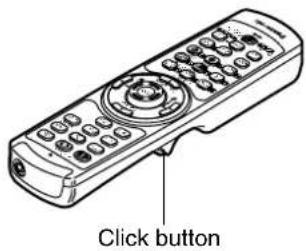
Operation mode selector switch
Put the knob to the Computer position.
- ENTER button
Pressing the front, rear, left and right edges of the button moves the mouse cursor up, down, left and right.
- Right click (button)
This button can be used as the right mouse button.
This button can be used as the left mouse button.
- PAGE UP button
This button can be used as the Page Up button on the PC keyboard.
• PAGE DOWN button
This button can be used as the Page Down button on the PC keyboard.
- Click button
This button can be used as the left mouse button.
Note
• To use the remote control as a mouse, please purchase an optional wireless mouse receiver (model No.: ET-RMRC1).
■ Using a wired remote control
When multiple main units are connected in the system, connect the units with the supplied remote control cable to simultaneously control the multiple main units with a single remote control unit through the
REMOTE1 IN/OUT terminal. It is effective to use the wired remote control in the environment in which an obstacle stands in the light path or where devices are susceptible to outside light.

■ Adjusting the leveling feet
The four leveling feet mounted at the bottom of the projector are level-adjustable (0 mm–33 mm) which can be used when the floor surface is not horizontal.
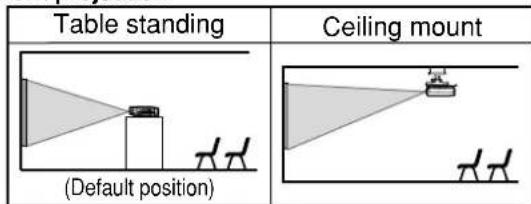
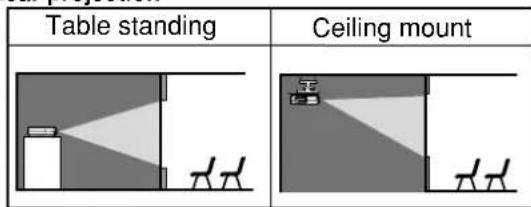
■ Projection scheme
This projector is applicable to any of the following four projection schemes. Select the most suitable scheme to the situation of your location. Use the OPTION menu on the menu screen to choose the desired projection scheme. (Refer to page 71)
Front projection
Rear projection
■ Installation geometry
When planning the projector and screen geometry, refer to the figures below and the information on the next page for reference. After the projector is roughly positioned, picture size and vertical picture positioning can be finely adjusted with the powered zoom lens and lens shifting mechanism.
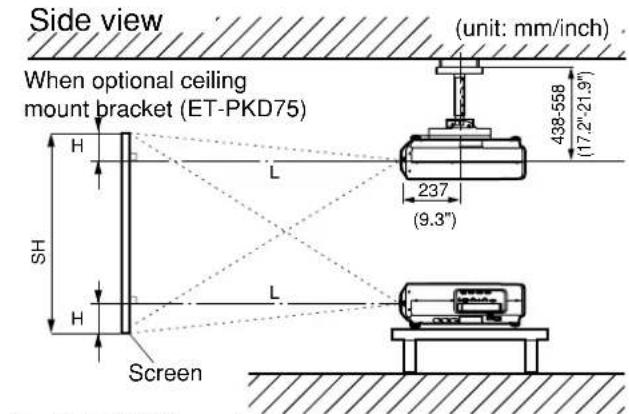
*For PT-D7500U,
H=-0.2×SH to
1.2 x SH
For PT-D7600U,
H=0 to SH
L : Projection distance
SH : Height of the image
SW: Image width
H : Vertical distance between the lens center level and the bottom edge of the projected image
Top view
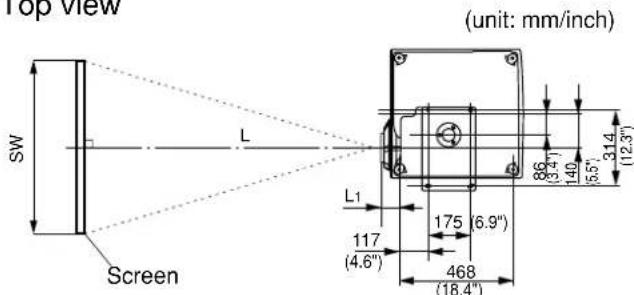
| Lens | Dimension of L1 (Approx.) |
| ET-D75LE1/ET-D75LE1SC 1 | 02 (4") |
| ET-D75LE2/ET-D75LE2SC 8 | 6.5 (3.4") |
| ET-D75LE3/ET-D75LE3SC 9 | 0 (3.5") |
| ET-D75LE4/ET-D75LE4SC 1 | 13.9 (4.5") |
| ET-D75LE5 190 (7.5") |
■ Projection distances by the type of projection lenses (optional)
Every type of optional projection lenses has a different projection distance to achieve the same screen size. Select and purchase a projection lens most suitable to the size of your location referring to the following tables and the projection distances by the type of projection lenses on the pages 19-22.
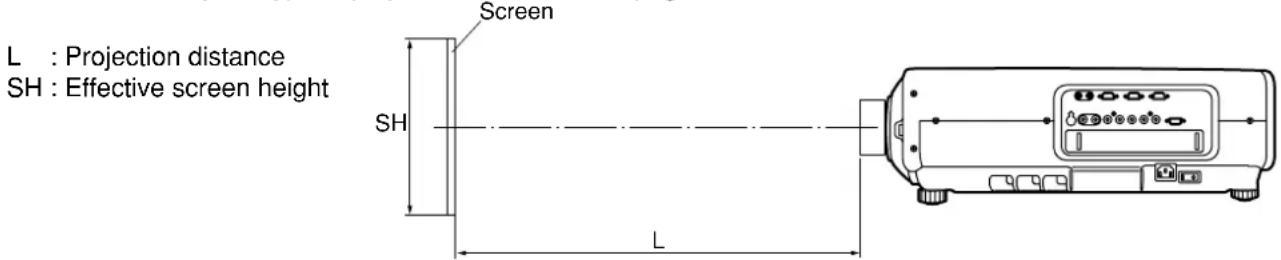
Projection distances by the type of projection lenses (for PT-D7500U)
- For the screen aspect ratio of 4:3 Units: m (feet/inches)
| Screen size (inch) | Screen dimensions | Projection distance (L) | |||||||||
| Zoom lens | Fixed-focus lens | ||||||||||
| Effective height (SH) | Effective width(SW) | ET-D75LE1/SC (1.87-2.5:1) | ET-D75LE2/SC(2.5-3.75:1) | ET-D75LE3/SC(3.75-6.25:1) | ET-D75LE4/SC (6.25-10.0:1) | ET-D75LE5 (1.0:1) | |||||
| Minimum | Maximum | Minimum | Maximum | Minimum | Maximum | Minimum | Maximum | ||||
| 70 | 1.066(3'6") | 1.422(4'8") | 2.81(9'3") | 3.74(12'3") | 3.78(12'5") | 5.68(18'8") | 5.73(18'10") | 9.47(31'2") | 9.48(31'2") | 15.45(50'10") | 1.40(4'7") |
| 80 | 1.219(4'0") | 1.625(5'4") | 3.22(10'7") | 4.29(14'1") | 4.34(14'3") | 6.50(21'4") | 6.57(21'7") | 10.84(35'8") | 10.85(35'8") | 17.67(58'1") | 1.61(5'3") |
| 90 | 1.371(4'6") | 1.828(6'0") | 3.63(11'11") | 4.84(15'11") | 4.89(16'1") | 7.33(24'11") | 7.40(24'4") | 12.21(40'2") | 12.22(40'2") | 19.90(65'5") | 1.82(6'0") |
| 100 | 1.524(5'0") | 2.032(6'8") | 4.04(13'3") | 5.39(17'9") | 5.44(17'11") | 8.15(26'10") | 8.23(24'1") | 13.58(44'8") | 13.59(44'8") | 22.12(72'9") | 2.04(6'8") |
| 120 | 1.828(6'0") | 2.438(8'0") | 4.87(16'0") | 6.49(21'4") | 6.54(21'6") | 9.81(32'3") | 9.90(32'7") | 16.32(53'8") | 16.33(53'9") | 26.56(87'4") | 2.46(8'1") |
| 150 | 2.286(7'6") | 3.048(10'0") | 6.10(20'0") | 8.13(26'9") | 8.20(27'0") | 12.28(40'5") | 12.40(40'9") | 20.43(67'2") | 20.44(67'3") | 33.23(109'3") | 3.10(3'6") |
| 200 | 3.048(10'0") | 4.064(13'4") | 8.16(26'10") | 10.88(35'9") | 10.96(36'0") | 16.41(54'0") | 16.56(54'6") | 27.28(89'9") | 27.29(89'9") | 44.34(145'10") | 4.16(10'2") |
| 250 | 3.810(12'6") | 5.080(16'8") | 10.22(33'7") | 13.62(44'10") | 13.72(45'1") | 20.54(67'7") | 20.73(68'2") | 34.13(112'3") | 34.14(112'3") | 55.45(182'5") | 5.22(17'2") |
| 300 | 4.572(15'0") | 6.096(20'0") | 12.28(40'5") | 16.37(53'16") | 16.48(54'2") | 24.67(81'2") | 24.89(81'11") | 40.98(134'10") | 40.99(134'10") | 66.56(218'11") | 6.28(20'8") |
| 350 | 5.334(17'6") | 7.112(23'4") | 14.34(47'2") | 19.11(62'10") | 19.24(63'3") | 28.80(94'9") | 29.06(95'7") | 47.83(157'4") | 47.84(157'4") | 77.67(255'6") | ---- |
| 400 | 6.096(20'0") | 8.129(26'8") | 16.40(53'11") | 21.86(71'11") | 22.00(72'4") | 32.93(108'4") | 33.22(109'3") | 54.68(179'11") | 54.69(179'11") | 88.78(292'0") | ---- |
| 500 | 7.620(25'0") | 10.160(33'4") | 20.52(67'6") | 27.35(90'1") | 27.52(90'6") | 41.19(135'6") | 41.55(136'8") | 68.38(224'11") | 68.39(224'11") | 111.00(365'1") | ---- |
| 600 | 9.144(30'0") | 12.192(40'0") | 24.64(81'0") | 32.84(108'1") | 33.04(108'8") | 49.45(162'8") | 49.88(164'1") | 82.08(270'0") | 82.09(270'0") | 133.22(437'6") | ---- |
Note
- The projection distances listed here involve an error of ± 5% .
- Keystone distortions are corrected in the way the screen size becomes smaller than the original one.
Projection distances by the type of projection lenses (for PT-D7500U)
- For the screen aspect ratio of 16:9 Units: m (feet/inches)
| Screen size (inch) | Screen dimensions | Projection distance (L) | |||||||||
| Zoom lens | Fixed-focus lens | ||||||||||
| Effective height (SH) | Effective width(SW) | ET-D75LE1/SC(1.87-2.5:1) | ET-D75LE2/SC(2.5-3.75:1) | ET-D75LE3/SC(3.75-6.25:1) | ET-D75LE4/SC(6.25-10.0:1) | ET-D75LE5(1.0:1) | |||||
| Minimum | Maximum | Minimum | Maximum | Minimum | Maximum | Minimum | Maximum | ||||
| 70 | 0.871(2'10") | 1.549(5'1") | 3.062(10'1") | 4.090(13'5") | 4.133(13'7") | 6.196(20'4") | 6.258(20'7") | 10.326(34'0") | 10.332(34'0") | 16.845(55'5") | 1.535(5'1") |
| 80 | 0.996(3'3") | 1.771(5'10") | 3.510(11'6") | 4.688(15'5") | 4.735(15'7") | 7.097(23'4") | 7.166(23'7") | 11.819(38'11") | 11.824(38'11") | 19.266(63'4") | 1.766(5'10") |
| 90 | 1.120(3'8") | 1.992(6'7") | 3.959(13'0") | 5.287(17'4") | 5.337(17'7") | 7.997(26'3") | 8.074(26'7") | 13.311(43'9") | 13.317(43'10") | 21.687(71'4") | 1.998(6'7") |
| 100 | 1.245(4'1") | 2.214(7'3") | 4.407(14'6") | 5.885(19'4") | 5.939(19'6") | 8.897(29'6") | 8.982(29'6") | 14.804(48'8") | 14.809(48'9") | 24.108(79'3") | 2.229(7'4") |
| 120 | 1.494(4'11") | 2.657(8'9") | 5.304(17'5") | 7.083(23'3") | 7.143(23'6") | 10.698(35'2") | 10.798(35'6") | 17.788(58'6") | 17.794(58'6") | 28.950(95'2") | 2.692(8'10") |
| 150 | 1.868(6'2") | 3.321(10'11") | 6.649(21'10") | 8.878(29'2") | 8.949(29'5") | 13.399(44'1") | 13.522(44'6") | 22.266(73'3") | 22.271(73'3") | 36.213(119'1") | 3.386(11'2") |
| 200 | 2.491(8'2") | 4.428(14'6") | 8.890(29'37") | 11.871(39'0") | 11.958(39'4") | 17.901(58'11") | 18.081(59'6") | 29.728(97'10") | 29.734(97'10") | 48.318(158'11") | 4.542(14'11") |
| 250 | 3.113(10'3") | 5.535(18'2") | 11.132(36'7") | 14.865(48'11") | 14.968(49'3") | 22.403(73'8") | 22.601(74'4") | 37.190(122'4") | 37.196(122'4") | 60.424(198'9") | 5.699(18'19") |
| 300 | 3.736(12'3") | 6.641(21'70") | 13.374(44'0") | 17.858(58'9") | 17.979(59'11") | 26.905(88'6") | 27.140(89'3") | 44.652(146'11") | 44.658(146'11") | 72.529(238'7") | 6.855(22'7") |
| 350 | 4.358(14'4") | 7.748(25'5") | 15.616(51'4") | 20.851(68'7") | 20.987(69'0") | 31.407(103'4") | 31.680(104'2") | 52.114(171'5") | 52.120(171'5") | 84.634(278'5") | ---- |
| 400 | 4.981(16'4") | 8.855(29'0") | 17.857(58'9") | 23.844(78'5") | 23.997(78'11") | 35.909(118'11") | 36.219(119'1") | 59.577(196'0") | 59.582(196'0") | 96.740(318'2") | ---- |
| 500 | 6.226(20'5") | 11.069(36'4") | 22.341(73'6") | 29.830(98'0") | 30.018(98'9") | 44.913(147'11") | 45.298(149'0") | 74.501(245'1") | 74.507(245'1") | 120.950(397'10") | ---- |
| 600 | 7.472(24'7") | 13.282(43'8") | 26.824(88'3") | 35.816(117'10") | 36.035(118'6") | 53.917(177'4") | 54.377(178'11") | 89.425(294'2") | 89.431(294'2") | 145.161(477'16") | ---- |
Note
- The projection distances listed here involve an error of ± 5% .
- Keystone distortions are corrected in the way the screen size becomes smaller than the original one.
Projection distances by the type of projection lenses (for PT-D7600U)
- For the screen aspect ratio of 5:4 Units: m (feet/inches)
| Screen size (inch) | Screen dimensions | Projection distance (L) | |||||||||
| Zoom lens | Fixed-focus lens | ||||||||||
| Effective height (SH) | Effective width(SW) | ET-D75LE1/SC (1.5-2.0 :1) | ET-D75LE2/SC (2.0-3.0 :1) | ET-D75LE3/SC (3.0-5.0 :1) | ET-D75LE4/SC(5.0-8.0 :1) | ET-D75LE5(0.8 : 1) | |||||
| Minimum | Maximum | Minimum | Maximum | Minimum | Maximum | Minimum | Maximum | ||||
| 70 | 1.111(3'8") | 1.389(4'7") | 2.17(7'2") | 2.89(9'6") | 2.92(9'7") | 4.41(14'6") | 4.42(14'6") | 7.40(24'4") | 7.41(24'5") | 11.97(39'4") | 1.13(3'9") |
| 80 | 1.270(4'2") | 1.587(5'3") | 2.49(8'2") | 3.32(10'11") | 3.35(11'0") | 5.05(16'7") | 5.06(16'7") | 8.48(27'11") | 8.48(27'11") | 13.69(45'0") | 1.29(4'3") |
| 90 | 1.428(4'4") | 1.785(5'11") | 2.81(9'3") | 3.74(12'4") | 3.78(12'5") | 5.70(18'9") | 5.71(18'9") | 9.55(31'5") | 9.56(31'5") | 15.41(50'7") | 1.45(4'9") |
| 100 | 1.587(5'3") | 1.984(6'6") | 3.13(10'4") | 4.17(13'9") | 4.21(13'10") | 6.34(20'10") | 6.35(20'10") | 10.63(35'0") | 10.63(35'0") | 17.14(56'5") | 1.62(5'4") |
| 120 | 1.905(6'3") | 2.381(7'10") | 3.78(11'1") | 5.02(16'6") | 5.07(16'8") | 7.63(25'1") | 7.64(25'2") | 12.78(42'0") | 12.78(42'0") | 20.59(67'9") | 1.94(6'5") |
| 150 | 2.381(7'10") | 2.976(9'10") | 4.74(15'7") | 6.30(20'9") | 6.36(20'11") | 9.57(31'6") | 9.58(31'6") | 16.00(52'8") | 16.01(52'8") | 25.70(84'7") | 2.43(8'0") |
| 200 | 3.175(10'5") | 3.968(13'1") | 6.34(20'10") | 8.44(27'9") | 8.50(28'0") | 12.79(42'1") | 12.80(42'1") | 21.38(70'4") | 21.38(70'4") | 34.38(113'1") | 3.24(10'8") |
| 250 | 3.968(13'1") | 4.960(16'4") | 7.95(26'2") | 10.57(34'9") | 10.65(35'0") | 16.02(52'8") | 16.03(52'8") | 26.75(88'0") | 26.76(88'0") | 43.00(141'5") | 4.05(13'4") |
| 300 | 4.762(15'8") | 5.953(19'7") | 9.55(31'5") | 12.71(41'10") | 12.79(42'1") | 19.24(63'3") | 19.25(63'4") | 32.13(105'8") | 32.13(105'8") | 51.62(169'10") | 4.86(16'0") |
| 350 | 5.556(18'3") | 6.945(22'10") | 11.16(36'9") | 14.84(48'10") | 14.94(49'2") | 22.47(73'11") | 22.48(74'0") | 37.50(123'4") | 37.51(123'4") | 60.24(198'2") | ---- |
| 400 | 6.350(20'11") | 7.937(26'1") | 12.76(42'0") | 16.98(55'10") | 17.08(56'2") | 25.69(84'6") | 25.70(84'7") | 42.88(141'1") | 42.88(141'1") | 68.86(226'6") | ---- |
| 500 | 7.937(26'1") | 9.921(32'8") | 15.97(52'7") | 21.25(69'11") | 21.37(70'4") | 32.14(105'9") | 32.15(105'10") | 53.63(176'5") | 53.63(176'5") | 86.10(283'3") | ---- |
| 600 | 9.520(31'4") | 11.906(39'2") | 19.18(63'1") | 25.52(83'11") | 25.66(84'5") | 38.59(126'11") | 38.60(127'0") | 64.38(211'10") | 64.38(211'10") | 103.34(339'11") | ---- |
Note
- The projection distances listed here involve an error of ± 5% .
- Keystone distortions are corrected in the way the screen size becomes smaller than the original one.
Projection distances by the type of projection lenses (for PT-D7600U)
- For the screen aspect ratio of 16:9 Units: m (feet/inches)
| Screen size (inch) | Screen dimensions | Projection distance (L) | |||||||||
| Zoom lens | Fixed-focus lens | ||||||||||
| Effective height (SH) | Effective width(SW) | ET-D75LE1/SC (1.5-2.0:1) | ET-D75LE2/SC (2.0-3.0:1) | ET-D75LE3 /SC(3.0-5.0:1) | ET-D75LE4/SC (5.0-8.0:1) | ET-D75LE5 (0.8:1) | |||||
| Minimum | Maximum | Minimum | Maximum | Minimum | Maximum | Minimum | Maximum | ||||
| 70 | 0.871(2'10") | 1.549(5'1") | 2.428(8'0") | 3.238(10'8") | 3.273(10'9") | 4.934(16'3") | 4.944(16'3") | 8.279(27'3") | 8.285(27'3") | 13.368(44'0") | 1.263(4'2") |
| 80 | 0.996(3'3") | 1.771(5'10") | 2.785(9'2") | 3.715(12'3") | 3.752(12'4") | 5.654(18'7") | 5.664(18'8") | 9.479(31'2") | 9.485(31'3") | 15.293(50'4") | 1.444(4'9") |
| 90 | 1.120(3'8") | 1.992(6'7") | 3.143(10'4") | 4.192(13'10") | 4.231(14'0") | 6.374(21'0") | 6.386(21'0") | 10.680(35'2") | 10.685(35'2") | 17.217(56'8") | 1.624(5'7") |
| 100 | 1.245(4'1") | 2.214(7'3") | 3.501(11'6") | 4.669(15'4") | 4.711(15'6") | 7.094(23'4") | 7.105(23'5") | 11.880(39'1") | 11.886(39'1") | 19.142(63'0") | 1.805(5'11") |
| 120 | 1.494(4'11") | 2.657(8'4") | 4.216(13'11") | 5.623(18'6") | 5.669(18'8") | 8.534(28'1") | 8.545(28'1") | 14.280(47'0") | 14.286(47'0") | 22.990(75'8") | 2.167(7'1") |
| 150 | 1.868(6'2") | 3.321(10'11") | 5.290(17'5") | 7.054(23'2") | 7.106(23'4") | 10.695(35'2") | 10.705(35'1") | 17.881(58'10") | 17.886(58'10") | 28.764(94'8") | 2.710(8'11") |
| 200 | 2.491(8'2") | 4.428(14'6") | 7.078(23'3") | 9.439(31'1") | 9.501(31'3") | 14.295(47'0") | 14.306(47'1") | 23.882(78'7") | 23.887(78'7") | 38.386(126'3") | 3.614(11'11") |
| 250 | 3.113(10'3") | 5.535(18'2") | 8.867(29'2") | 11.824(38'11") | 11.896(39'2") | 17.896(58'10") | 17.906(58'11") | 29.882(98'4") | 29.888(98'4") | 48.009(157'11") | 4.519(14'11") |
| 300 | 3.736(12'3") | 6.641(21'10") | 10.656(35'1") | 14.209(46'9") | 14.291(47'1") | 21.496(70'9") | 21.507(70'9") | 35.883(118'0") | 35.889(118'1") | 57.630(189'7") | 5.423(17'10") |
| 350 | 4.358(14'4") | 7.748(25'5") | 12.444(41'0") | 16.594(54'7") | 16.686(54'11") | 25.097(82'7") | 25.107(82'7") | 41.884(137'10") | 41.890(137'10") | 67.252(221'3") | ---- |
| 400 | 4.981(16'4") | 8.855(29'0") | 14.233(46'10") | 18.979(62'5") | 19.082(62'9") | 28.697(94'5") | 28.708(94'5") | 47.885(157'6") | 47.891(157'7") | 76.874(252'11") | ---- |
| 500 | 6.226(20'5") | 11.069(36'4") | 17.811(58'7") | 23.749(78'1") | 23.872(78'6") | 35.898(118'1") | 35.909(118'2") | 59.893(197'0") | 59.893(197'0") | 96.118(316'2") | ---- |
| 600 | 7.472(24'7") | 13.282(43'8") | 21.388(70'4") | 28.519(93'10") | 28.662(94'3") | 43.099(141'10") | 43.110(191'10") | 71.894(236'6") | 71.894(236'6") | 115.362(379'6") | ---- |
Note
- The projection distances listed here involve an error of ± 5% .
- Keystone distortions are corrected in the way the screen size becomes smaller than the original one.
If the projector is used with a screen size not listed in this manual, check the diagonal dimension (inch) of your screen and calculate the projection distance using the following formulas.
Calculation formulas for projection distance by lens types (for PT-D7500U)
| Model number of projection lens | Aspect ratio | Projection distance (L) formula Units: m | |
| Zoom lens | ET-D75LE1ET-D75LE1SC(1.87–2.5 :1) | 4:3 | Minimal distance: L=0.0412 x Screen diagonal (inch) – 0.0760Maximal distance: L=0.0549 x Screen diagonal (inch) – 0.1003 |
| 16:9 | Minimal distance: L=0.0443 x Screen diagonal (inch) – 0.0759Maximal distance: L=0.0598 x Screen diagonal (inch) – 0.1002 | ||
| ET-D75LE2ET-D75LE2SC(2.5–3.75 :1) | 4:3 | Minimal distance: L=0.0552 x Screen diagonal (inch) – 0.0795Maximal distance: L=0.0826 x Screen diagonal (inch) – 0.1061 | |
| 16:9 | Minimal distance: L=0.0601 x Screen diagonal (inch) – 0.0794Maximal distance: L=0.0899 x Screen diagonal (inch) – 0.1060 | ||
| ET-D75LE3ET-D75LE3SC(3.75–6.25 :1) | 4:3 | Minimal distance: L=0.0833 x Screen diagonal (inch) – 0.0963Maximal distance: L=0.137 x Screen diagonal (inch) – 0.1203 | |
| 16:9 | Minimal distance: L=0.090 x Screen diagonal (inch) – 0.0963Maximal distance: L=0.0149 x Screen diagonal (inch) – 0.1023 | ||
| ET-D75LE4ET-D75LE4SC(6.25–10.0 :1) | 4:3 | Minimal distance: L=0.137 x Screen diagonal (inch) – 0.1146Maximal distance: L=0.2222 x Screen diagonal (inch) – 0.1023 | |
| 16:9 | Minimal distance: L=0.1491 x Screen diagonal (inch) – 0.1145Maximal distance: L=0.2418 x Screen diagonal (inch) – 0.1022 | ||
| Fixed-focus lens | ET-D75LE5(1.0 :1) | 4:3 | L= 0.0212 x Screen diagonal (inch) – 0.0836 |
| 16:9 | L= 0.0231 x Screen diagonal (inch) – 0.0836 | ||
Calculation formulas for projection distance by lens types (for PT-D7600U)
| Model number of projection lens | Aspect ratio | Projection distance (L) formula Units: m | |
| Zoom lens | ET-D75LE1ET-D75LE1SC(1.5–2.0 : 1) | 5:4 | Minimal distance: L=0.0321 x Screen diagonal (inch) – 0.0761Maximal distance: L=0.0427 x Screen diagonal (inch) – 0.1003 |
| 16:9 | Minimal distance: L=0.0352 x Screen diagonal (inch) – 0.0761Maximal distance: L=0.0469 x Screen diagonal (inch) – 0.1002 | ||
| ET-D75LE2ET-D75LE2SC(2.0–3.0: 1) | 5:4 | Minimal distance: L=0.0429 x Screen diagonal (inch) – 0.0794Maximal distance: L=0.0645 x Screen diagonal (inch) – 0.1065 | |
| 16:9 | Minimal distance: L=0.0472 x Screen diagonal (inch) – 0.0793Maximal distance: L=0.0709 x Screen diagonal (inch) – 0.1065 | ||
| ET-D75LE3ET-D75LE3SC(3.0–5.0: 1) | 5:4 | Minimal distance: L=0.0645 x Screen diagonal (inch) – 0.0959Maximal distance: L=0.1075 x Screen diagonal (inch) – 0.1214 | |
| 16:9 | Minimal distance: L=0.7095 x Screen diagonal (inch) – 0.0958Maximal distance: L=0.1075 x Screen diagonal (inch) – 0.1214 | ||
| ET-D75LE4ET-D75LE4SC(5.0–8.0: 1) | 5:4 | Minimal distance: L=0.1177 x Screen diagonal (inch) – 0.1156Maximal distance: L=0.1724 x Screen diagonal (inch) – 0.102 | |
| 16:9 | Minimal distance: L=0.1182 x Screen diagonal (inch) – 0.115Maximal distance: L=0.1892 x Screen diagonal (inch) – 0.102 | ||
| Fixed-focus lens | ET-D75LE5(0.8 : 1) | 5:4 | L= 0.0162 x Screen diagonal (inch) – 0.0032 |
| 16:9 | L= 0.0212 x Screen diagonal (inch) – 0.0318 | ||
■ Before starting connection
- Before connection, read carefully the instruction manual for the device to be connected.
- Turning off the power switch of the devices before connecting cables.
- If any connection cable is not supplied with the device, or if no optional cable is available for connection of the device, prepare a necessary system connection cable to suit the device.
- Video signals containing too much jitter may cause the images on the screen to randomly wobble or wafture. In this case, a time base corrector (TBC) must be connected.
- The projector accepts the following signals: video, S-Video, analog RGB and digital signals from the PC.
- Some PC models cannot be connected to the projector.
- The pin-out and signal names of the S-VIDEO IN terminal are shown in the diagram below.
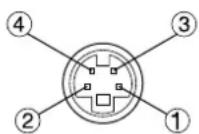
Outside view
| Pin No. | Signal |
| 1 | Ground(luminance signal) |
| 2 | Ground (color signal) |
| 3 | Luminance signal |
| 4 | Color signal |
- The pin-out and signal names of the RGB2 input terminal are shown in the diagram below.
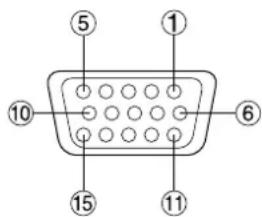
Outside view
| Pin No. | Signal |
| 1 | R/P_R |
| 2 | G/G · SYNC/Y |
| 3 | P_B |
| 12 | SDA |
| 13 | HD/SYNC |
| 14 | VD |
| 15 | SCL |
④ and ② are not assigned.
⑤\~⑧, and are1GND terminals.
⑫ and ⑬ are effective if the PC has the corresponding functions.
■ Example of connecting with VIDEO devices
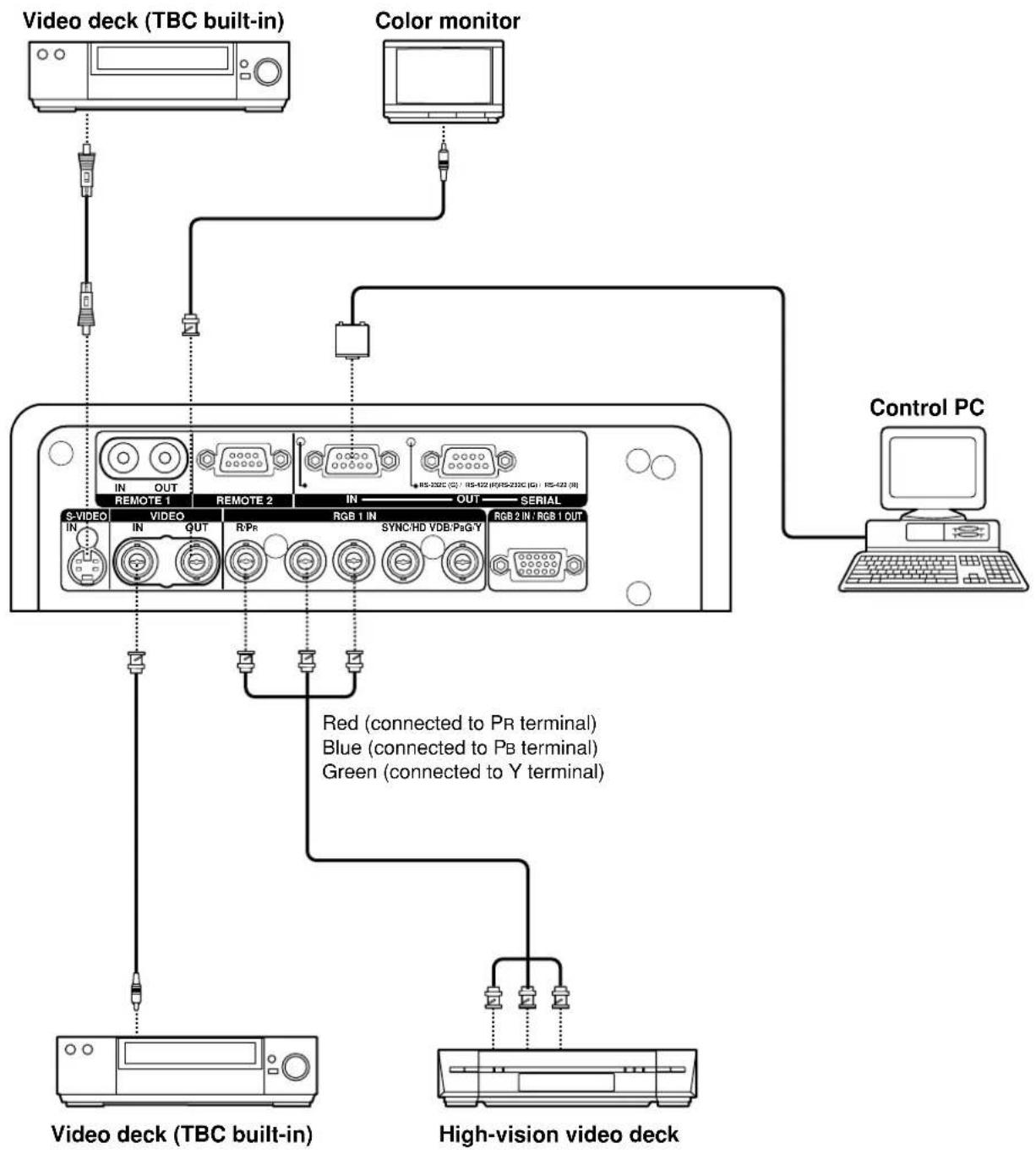
flowchart
graph TD
    A["Video deck (TBC built-in)"] --> B["Color monitor"]
    B --> C["Red (connected to PR terminal)"]
    B --> D["Blue (connected to Pb terminal)"]
    B --> E["Green (connected to Y terminal)"]
    F["Video deck (TBC built-in)"] --> G["High-vision video deck"]
    H["Control PC"] --> I["Computer"]
Attention
- When connecting with a video deck, be sure to use the one with a built-in time base corrector (TBC) or use a TBC between the projector and the video deck.
- If nonstandard burst signals are connected, the image may be distorted. If this is the case, connect a TBC between the projector and the video deck.
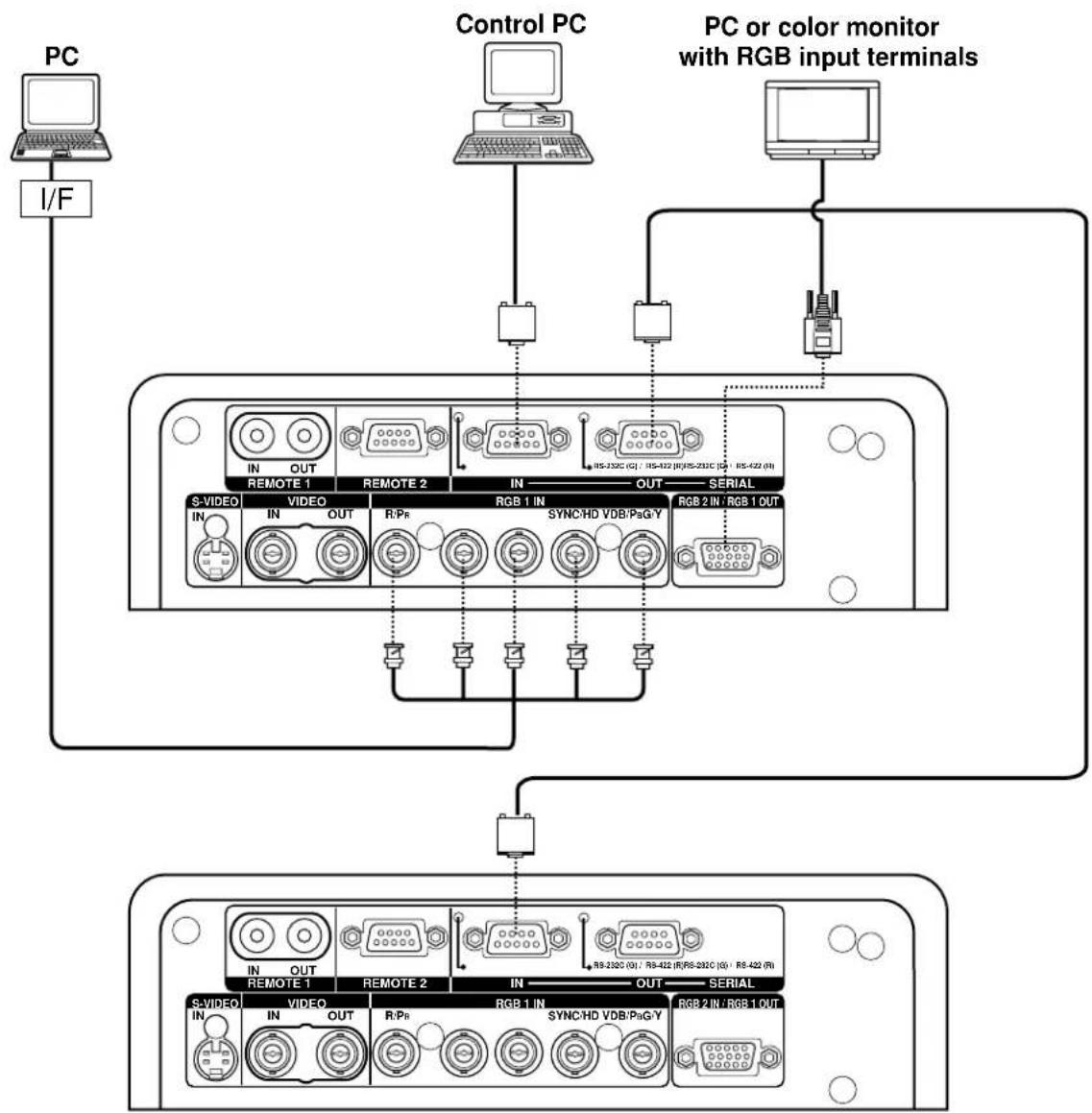
■ Example of connecting with personal computers
flowchart
graph TD
    A["PC"] -->|I/F| B["Control PC"]
    B --> C["PC or color monitor with RGB input terminals"]
    C --> D["RGB 1 IN / RGB 1 OUT"]
    D --> E["RGB 2 IN / RGB 1 OUT"]
    E --> F["RGB 1 IN / SYNC HD VDB/PaG-Y"]
    F --> G["RGB 2 IN / SYNC HD VDB/PaG-Y"]
    G --> H["RGB 1 IN / SYNC HD VDB/PaG-Y"]
    H --> I["RGB 2 IN / SYNC HD VDB/PaG-Y"]
    I --> J["RGB 1 IN / SYNC HD VDB/PaG-Y"]
    J --> K["RGB 2 IN / SYNC HD VDB/PaG-Y"]
    K --> L["RGB 1 IN / SYNC HD VDB/PaG-Y"]
    L --> M["RGB 2 IN / SYNC HD VDB/PaG-Y"]
    M --> N["RGB 1 IN / SYNC HD VDB/PaG-Y"]
    N --> O["RGB 2 IN / SYNC HD VDB/PaG-Y"]
    O --> P["RGB 1 IN / SYNC HD VDB/PaG-Y"]
    P --> Q["RGB 2 IN / SYNC HD VDB/PaG-Y"]
    Q --> R["RGB 1 IN / SYNC HD VDB/PaG-Y"]
    R --> S["RGB 2 IN / SYNC HD VDB/PaG-Y"]
    S --> T["RGB 1 IN / SYNC HD VDB/PaG-Y"]
    T --> U["RGB 2 IN / SYNC HD VDB/PaG-Y"]
    U --> V["RGB 1 IN / SYNC HD VDB/PaG-Y"]
    V --> W["RGB 2 IN / SYNC HD VDB/PaG-Y"]
    W --> X["RGB 1 IN / SYNC HD VDB/PaG-Y"]
    X --> Y["RGB 2 IN / SYNC HD VDB/PaG-Y"]
Attention
- When the main power of the main unit is turned off, also turn off the power of the PC.
- When stacking projectors using RGB/YPBPR/YCBCR signals, divide the signals at the signal source and use RGB1 input for both projectors. When the RGB1 OUT is connected to the external RGB monitor, the image quality will be almost the same as that of checking monitors.
Note
- For the specifications of the RGB signals that can be applied from the PC, see the data sheet on page 102.
- If your PC has the resume feature (last memory), the computer may not function properly until the resume capability is disabled.
- The RGB 1 OUT (RGB 2) terminal will issue the signal that is connected to the input terminal of RGB1.
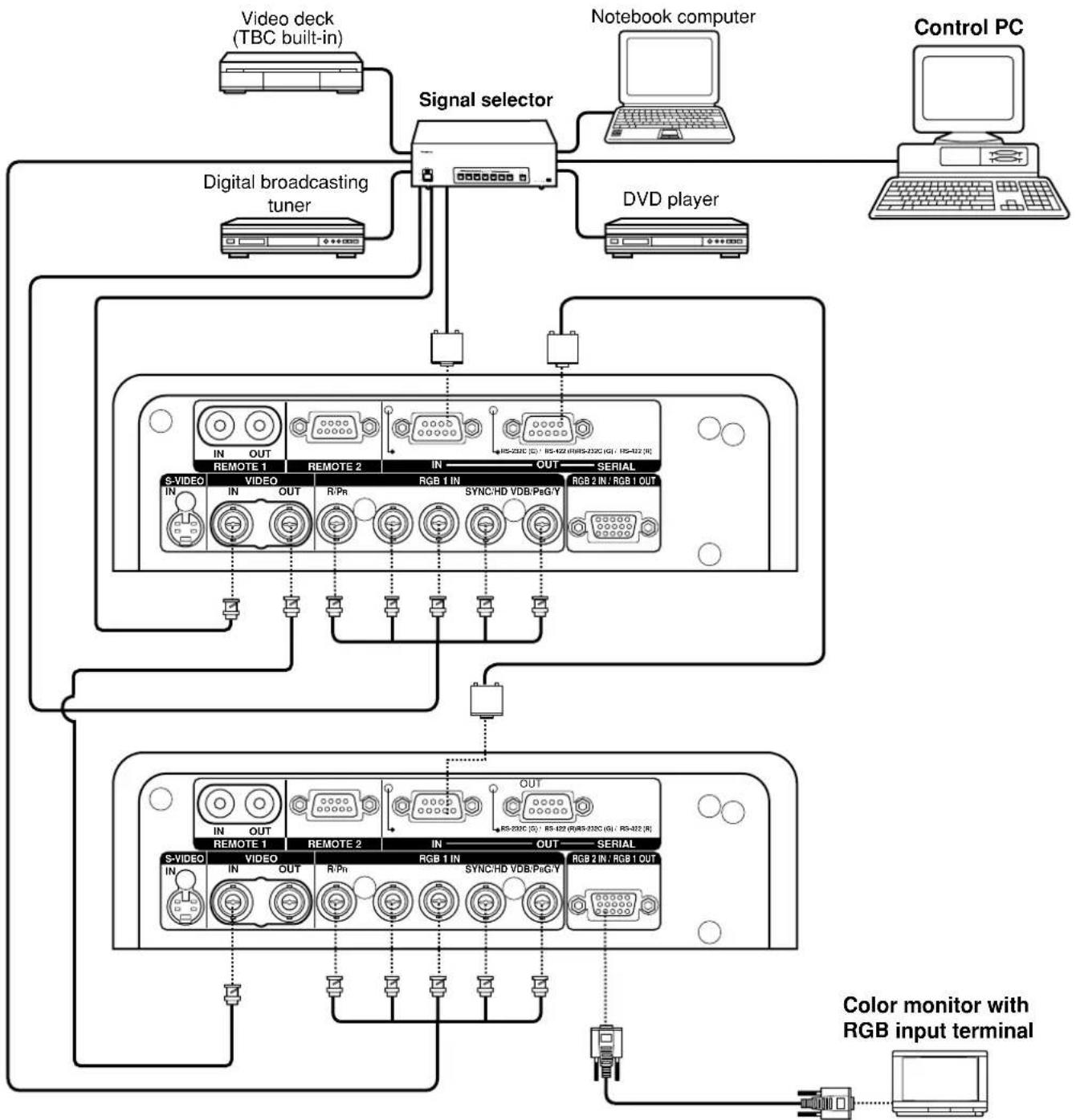
■ Example of connecting with the signal selector
flowchart
graph TD
    A["Video deck (TBC built-in)"] --> B["Signal selector"]
    C["Notebook computer"] --> B
    D["Control PC"] --> B
    E["Digital broadcasting tuner"] --> B
    B --> F["DVD player"]
    F --> G["RGB 1 IN SYNC/HD VDB/PigY"]
    G --> H["S-VIDEO OUT REMOTE 1"]
    G --> I["S-VIDEO OUT REMOTE 2"]
    G --> J["S-VIDEO OUT REMOTE 3"]
    G --> K["S-VIDEO OUT REMOTE 4"]
    G --> L["S-VIDEO OUT REMOTE 5"]
    G --> M["Color monitor with RGB input terminal"]
    N["IN OUT"] --> O["IN OUT"]
    P["IN OUT"] --> Q["IN OUT"]
    R["IN OUT"] --> S["IN OUT"]
    T["IN OUT"] --> U["IN OUT"]
    V["IN OUT"] --> W["IN OUT"]
    X["IN OUT"] --> Y["IN OUT"]
    Z["IN OUT"] --> AA["IN OUT"]
    AB["IN OUT"] --> AC["IN OUT"]
    AD["IN OUT"] --> AE["IN OUT"]
    AF["IN OUT"] --> AG["IN OUT"]
    AH["IN OUT"] --> AI["IN OUT"]
    AJ["IN OUT"] --> AK["IN OUT"]
    AL["IN OUT"] --> AM["IN OUT"]
    AN["IN OUT"] --> AO["IN OUT"]
    AP["IN OUT"] --> AQ["IN OUT"]
    AR["IN OUT"] --> AS["IN OUT"]
    AT["IN OUT"] --> AU["IN OUT"]
    AV["IN OUT"] --> AW["IN OUT"]
    AX["IN OUT"] --> AY["IN OUT"]
Attention
- When stacking projectors using RGB/YPBPR/YCbCr signals, divide the signals at the signal source and use RGB1 input for both projectors. When the RGB1 OUT is connected to the external RGB monitor, the image quality will be almost the same as that of checking monitors.
Note
- Carefully read also the instruction manual for the signal selector.
■ Installing the input module
Types of the input modules (optional)
Prepare beforehand an input module (optional) compatible with the input signals of the system.
| Input signal | Module model No. | Input signal level |
| Analog RGB signal | ET-MD95RGB | Image signal input: impedance of 75 ΩSynchronizing signal input: impedance of 75 Ω /1 kΩR/PR/Cr: 0.7 V [p-p]: 1.0 V [p-p] forBETACAM input.G/Y: 0.7 V [p-p]: 1.0 V [p-p] for SYNC ON G/YSignal input.B/PB/Cb: 0.7 V [p-p]:1.0 V [p-p] forBETACAM input.0.6 V [p-p]-4.0 V [p-p] forcomposite SYNC 75 ΩFor 1 kΩ: TTL levelThree value compositeSYNC not supportedFor separate SYNC 75 Ω: 0.6 V [p-p] - 4.0 V [p-p]For 1 kΩ: TTL levelSignals supporting analog RGB input modulesfH: 15kHz-100kHz,fV: 24Hz -120Hz,Dot clock frequency: 20 MHz -162 MHzSignals supporting color-difference inputTypes Supported: 480i, 576i, 480p,720/60p, 1080/60i(1035/60i),1080/50i,1080/30p,1080/25p,1080/24p, 1080/24sF |
| Video signal | ET-MD95VM2 | Video/Y 1.0 V [p-p]C: 0.286 V [p-p]Cr / Cb: 0.7 V [p-p]Impedance: 75 Ω |
| Serial digital signal | ET-MD95SD1 | SMPTE259M compliant |
| Serial digital signal | ET-MD95SD2 | SMPTE259M/294M compliant |
| HD serial digital signal | ET-MD95SD3 | SMPTE292M compliant |
| VGA, SVGA, XGA, SXGA | ET-MD75DV | DVI1.0 compliantDisplayable resolution: VGA - SXGADot clock frequency: 25 MHz -112 MHz |
| Image file | ET-MD75NT | Format: BMP, JPEG, PNGNumber of pixels: 1 024 x 768 dotsDisplay colors: 65 536 colorsSeparate software is necessary to display image files. Please contact the dealer. |
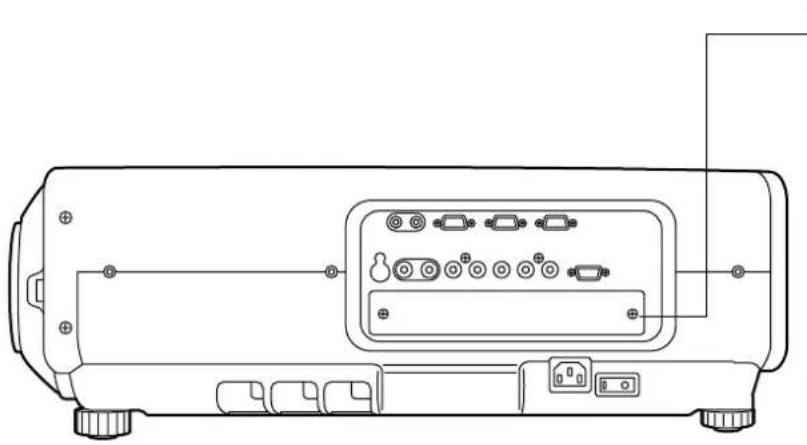
Procedure of installation
Disconnect the power before installing the input module.
natural_image
Line drawing of a device rear panel with labeled ports and connectors (no text or symbols)① Remove the slot cover.
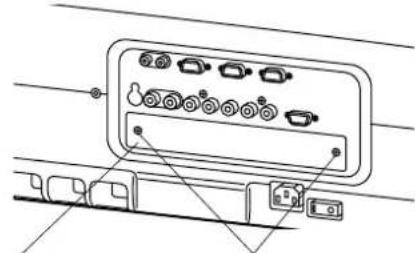
Slot cover Remove 2 screws.
② Insert the input module.
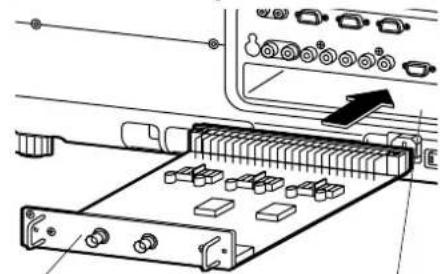
natural_image
Diagram of a server rack with connectors and a directional arrow indicating data transfer (no text or symbols present)Input module
Slot
③ Fix the input module.
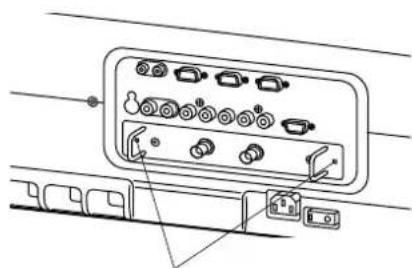
Tighten the two screws.
④ Register the input signal.
- This projector needs to register the type of input signal after the installation of the input module.
(For details on the registration of the input signals, refer to pages 44 and 47.)
■ Connecting signals to the input module
When installing the projector, it is necessary to connect signals to the input module in accordance with the connecting equipment.
Refer to the following diagram to establish proper signal connection.

flowchart
graph TD
    A["PC"] --> B["I/F"]
    B --> C["RGB signal"]
    C --> D["RS-232C Output"]
    D --> E["Projector"]
    E --> F["RGB signal input module ET-MD95RGB"]
    G["High-vision video deck"] --> H["Component signal"]
    I["DVD player / BS digital HD tuner"] --> J["Component signal"]
    K["Video deck (TBC built-in)"] --> L["SD signal"]
    M["Business digital VCR"] --> N["SD signal"]
    O["PC"] --> P["SD signal"]
    Q["DVI signal"] --> R["DVI input module ET-MD75DV"]
    S["Network module ET-MD75NT"] --> T["LAN"]
    U["Video signal input module ET-MD95VM2"] --> V["Serial digital input module ET-MD95SD1"]
    W["Serial digital input module ET-MD95SD2"] --> X["Serial digital input module ET-MD95SD1"]
    Y["HD serial digital input module ET-MD95SD3"] --> Z["Serial digital input module ET-MD95SD1"]
    AA["Video player / BS digital HD tuner"] --> AB["Component signal"]
    AC["PC"] --> AD["Network module ET-MD75NT"]
    AE["Video deck (TBC built-in)"] --> AF["SD signal"]
    AG["Business digital VCR"] --> AH["SD signal"]
    AI["Video player / BS digital HD tuner"] --> AJ["Component signal"]
    AK["PC"] --> AL["Network module ET-MD75NT"]
    AM["Video player / BS digital HD tuner"] --> AN["Component signal"]
    AO["PC"] --> AP["Network module ET-MD75NT"]
    AQ["Video player / BS digital HD tuner"] --> AR["Component signal"]
    AS["PC"] --> AT["Network module ET-MD75NT"]
    AU["Video player / BS digital HD tuner"] --> AV["Component signal"]
    AW["PC"] --> AX["Network module ET-MD75NT"]
    AY["PC"] --> AZ["Network module ET-MD75NT"]
    BA["Video deck (TBC built-in)"] --> BB["SD signal"]
    BC["Business digital VCR"] --> BD["SD signal"]
    BE["Video player / BS digital HD tuner"] --> BF["Component signal"]
    BG["PC"] --> BH["Network module ET-MD75NT"]
    BI["Video player / BS digital HD tuner"] --> BJ["Component signal"]
    BK["PC"] --> BL["Network module ET-MD75NT"]
    BM["Video player / BS digital HD tuner"] --> BN["Component signal"]
    BO["PC"] --> BP["Network module ET-MD75NT"]
    BQ["PC"] --> BR["Network module ET-MD75NT"]
    CA["Video player / BS digital HD tuner"] --> CB["Component signal"]
    CC["PC"] --> CD["Network module ET-MD75NT"]
    CE["Video player / BS digital HD tuner"] --> CF["Component signal"]
    BGX["PC"] --> CY["Network module ET-MD75NT"]
    CZ["Video player / BS digital HD tuner"] --> DA["Component signal"]
    DBX["PC"] --> DC["Network module ET-MD75NT"]
    DD["Video player / BS digital HD tuner"] --> DE["Component signal"]
    DF["X"] --> DG["Output"]
    DG --> E
    E --> E
■ Connecting the signal to the analog RGB signal input module
An interface (D-SUB-BNC) is necessary to connect the projector with a PC using an analog RGB signal input module.
1. Connecting analog RGB signals
RGB signal input module (optional)
ET-MD95RGB
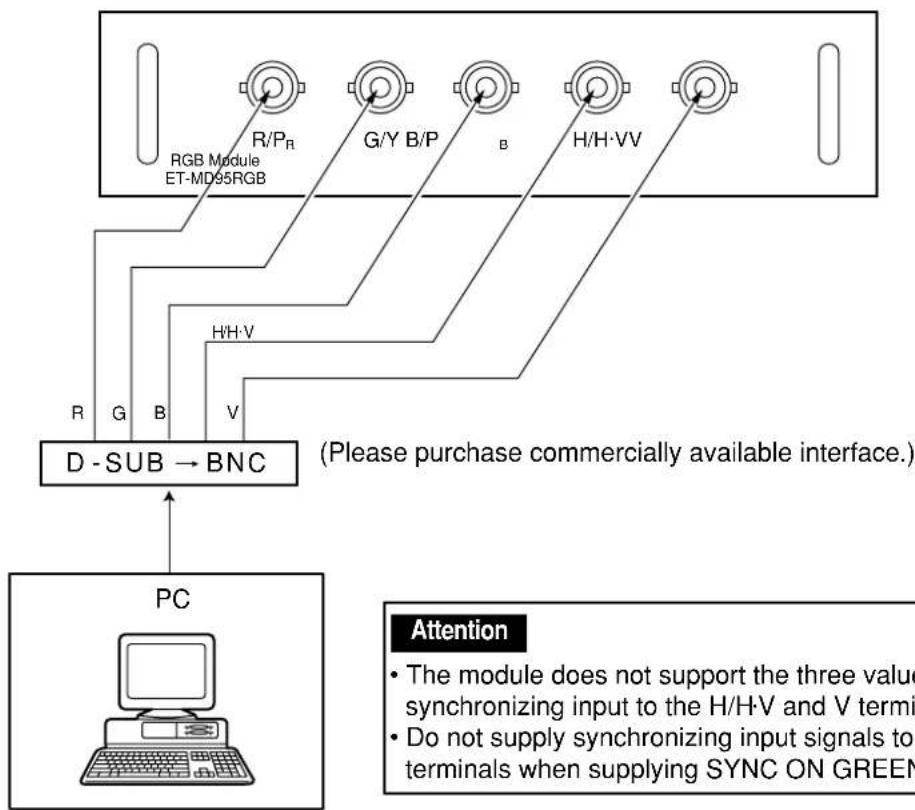
flowchart
graph TD
    A["RGB Module ET-MD95RGB"] -->|R/PR| B["D - SUB → BNC"]
    A -->|G/Y B/P| B
    A -->|B| B
    A -->|H/H-VV| B
    B --> C["PC"]
    C --> D["Attention"]
    D --> E["The module does not support the three value synchronizing input to the H/H·V and V terminals"]
    D --> F["Do not supply synchronizing input signals to terminals when supplying SYNC ON GREEN"]
2. Connecting the component signals
RGB signal input module (optional)
ET-MD95RGB
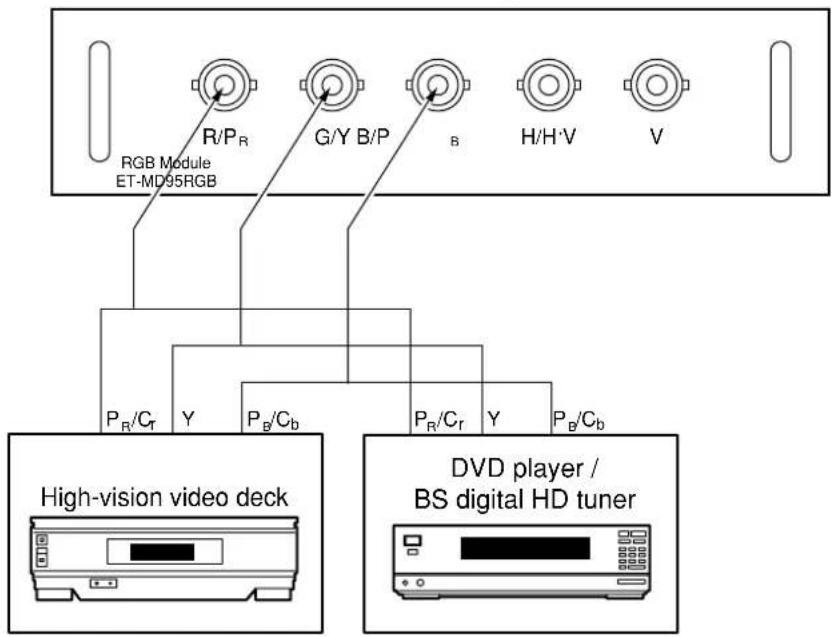
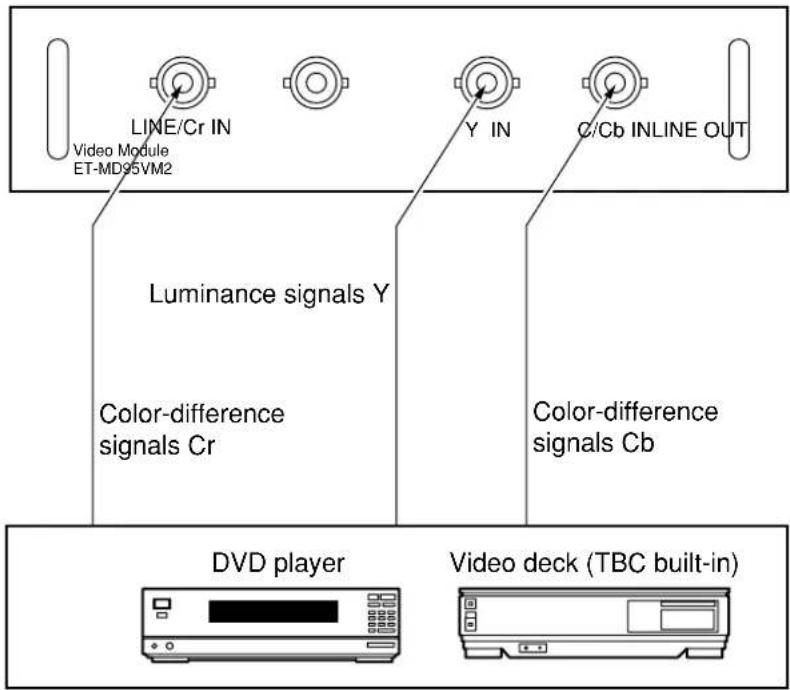
■ Connecting the signal to the video signal input module
1. Connecting the video signals
Video signal input module (optional)
ET-MD95VM2
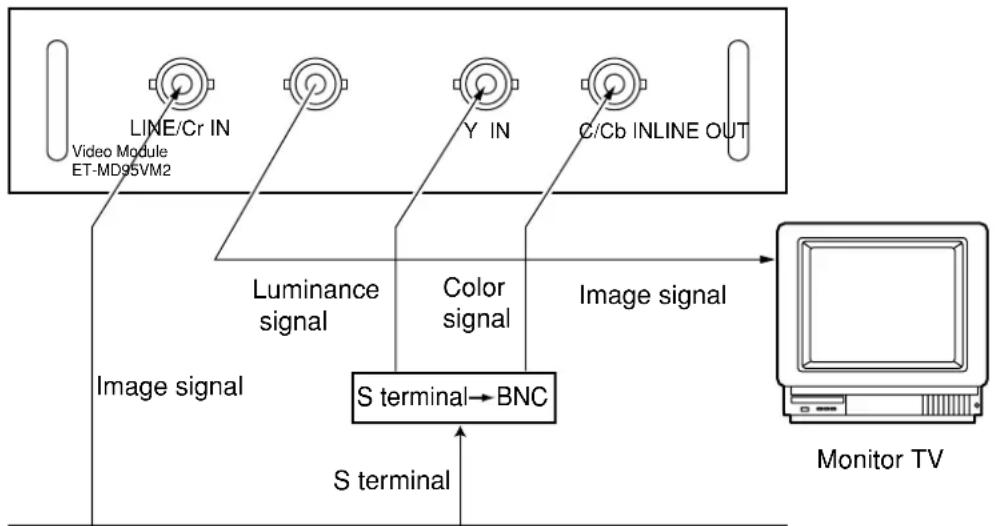
flowchart
graph TD
    A["Video Module ET-MD95VM2"] --> B["Luminance signal"]
    B --> C["Image signal"]
    D["Y IN"] --> E["Color signal"]
    E --> F["Image signal"]
    G["C/Cb INLINE OUT"] --> H["Monitor TV"]
    I["S terminal"] --> J["BNC"]
    K["S terminal"] --> J
    style A fill:#f9f,stroke:#333
    style D fill:#f9f,stroke:#333
    style G fill:#f9f,stroke:#333
    style I fill:#ccf,stroke:#333
    style K fill:#ccf,stroke:#333
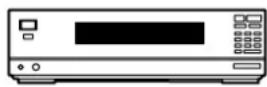
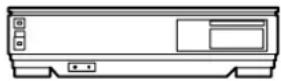
DVD player Video deck (TBC built-in)
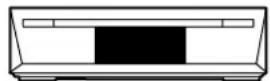
BS digital HD tuner
- An optional slot selector (AUX) button toggles between the LINE and Y/C input.
(Example) Each time AUX button is pressed,
LINE input Y/C input
The above cycle is repeated.
- When connecting with a video deck, be sure to use the one with built in TBC (time base corrector) or use the time base corrector between the projector and the video deck.
- If burst signals are connected to the nonstandard signals, the image may be distorted. If this is the case, connect the time base corrector between the projector and the video deck.
2. Connecting the component signals
Video signal input module (optional)
ET-MD95VM2
- For details on switching between the video signals connection and the component signals connection, refer to the section for switching the signals of ET-MD95VM2 (optional) on page 68.
■ Connecting the signal to the serial digital signal input module
Serial digital input module (optional)
ET-MD95SD1 (for 480i/576i)
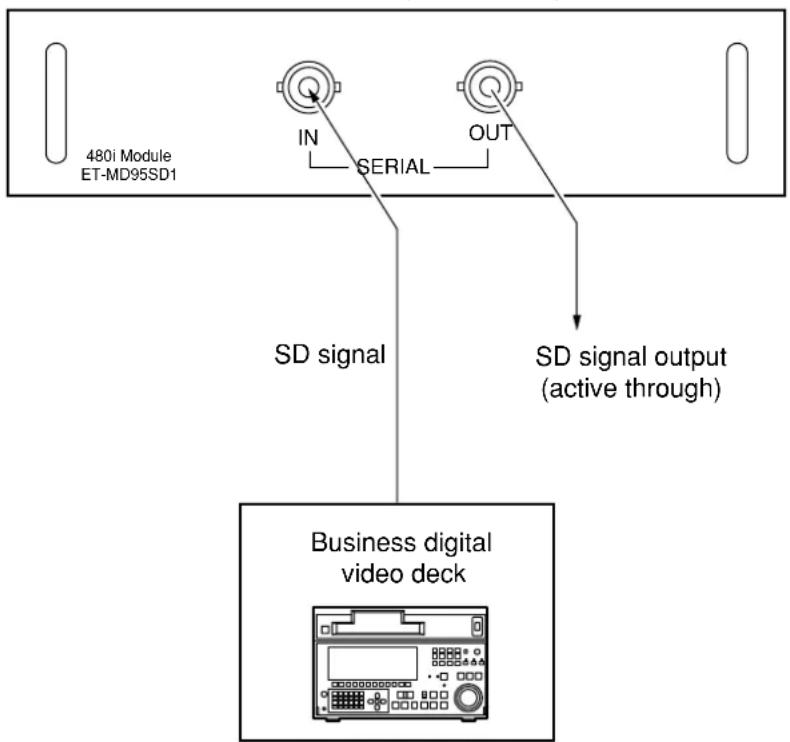
- Insert the input module suitable for the input signal specifications.
- Use the SYSTEM SELECTOR button to toggle the systems of the input module that supports two types of signal specifications. Upon toggling, the input signals are displayed on the screen and cleared automatically.
1. For 480p dual link (4:2:2p) SMPTE294M-compliant, 720x483 active line 59.94 Hz progressive scan 270 Mbps
Serial digital input module (optional)
ET-MD95SD2 (for 480p/480i/576i)
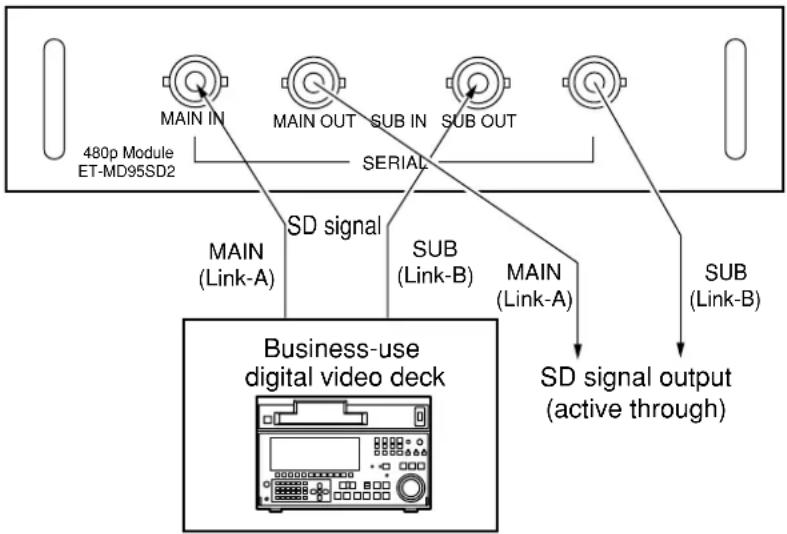
flowchart
graph TD
    A["480p Module ET-MD95SD2"] --> B["MAIN IN"]
    A --> C["MAIN OUT"]
    A --> D["SUB IN"]
    A --> E["SUB OUT"]
    A --> F["SERIAL"]
    G["Business-use digital video deck"] --> H["MAIN (Link-A)"]
    G --> I["SUB (Link-B)"]
    G --> J["MAIN (Link-A)"]
    G --> K["SUB (Link-B)"]
    L["SD signal"] --> M["SD signal output (active through)"]
- 1) For 480p single link (4:2:0p) SMPTE294M-compliant, 720x483 active line 59.94 Hz progressive scan 360 Mbps
2) For 480i (4:2:2): SMPTE259M-compliant, 59.94 Hz 525 Line 270 Mbps
3) For 576i (4:2:2): SMPTE259M-compliant, 50 Hz 625 Line 270 Mbps
Serial digital input module (optional)
ET-MD95SD2 (for 480p/480i/576i)
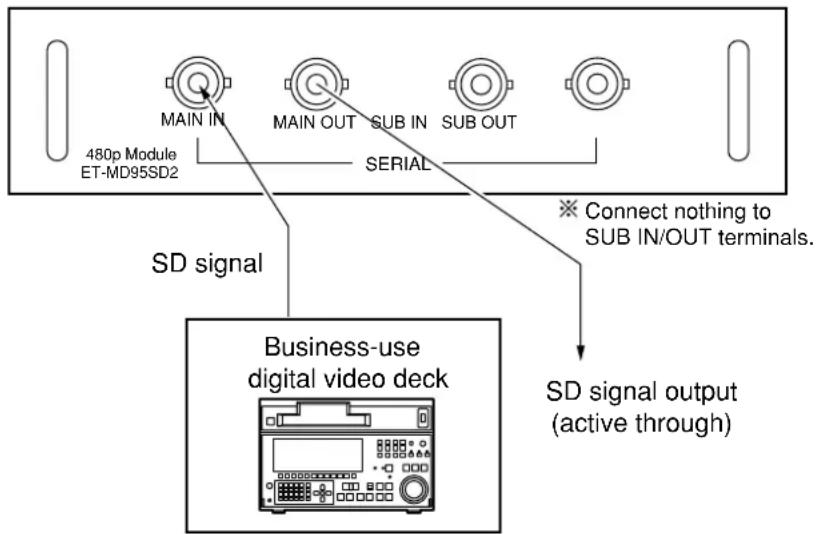
- Insert the input module that meets the input signal specifications.
- Use the SYSTEM SELECTOR button to select the input module that meets desired one of the above four types of signal specifications. While toggling through those four types, input signal and other information are displayed and cleared on the screen automatically.
- Normally, use SYSTEM SELECTOR in "AUTO".
- Automatic detection may malfunction if connection is made in any other way than listed above or if any unstable signal is connected. If this happens, switch to a system that is compatible with the signal format using the SYSTEM SELECTOR button.
- Use a 3C2W or superior cable for connection to transmit the image information without error. (Example: 3C2W, 3CFB, 4CFB, 5C2W, 5CFB, 5CFTX, 7CFB etc.)
Serial digital input module (optional)
ET-MD95SD3 (for HD SDI)
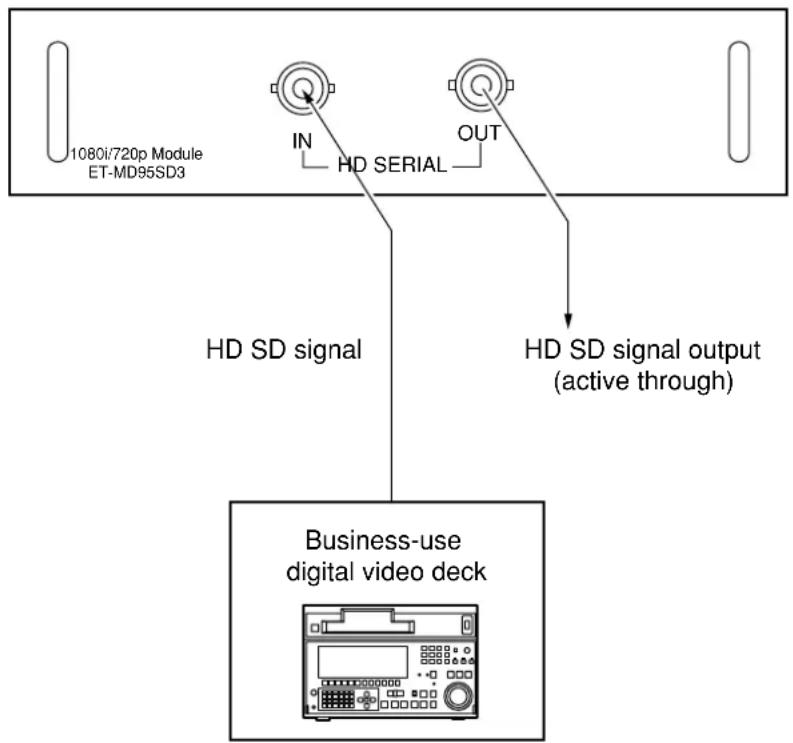
flowchart
graph TD
    A["1080i/720p Module ET-MD95SD3"] --> B["IN"]
    B --> C["HD SERIAL"]
    C --> D["OUT"]
    D --> E["HD SD signal output (active through)"]
    F["Business-use digital video deck"] --> G["Signal"]
- Insert the input module that meets the input signal specifications.
- Use the SYSTEM SELECTOR button to select the input module that meets desired one of the eight types (14 formats) of signal specifications (SMPTE292M).
While toggling through those eight types, input signal and other information are displayed and cleared on the screen automatically.

flowchart
graph TD
    A[" "] --> B["1080/60iAUTO"]
    B --> C["1035/60i 720/60p"]
    C --> D["1080/24p"]
    D --> E["1080/24sF"]
    E --> F["1080/25p"]
    F --> G["1080/30p"]
    G --> H["1080/50i"]
    H --> I[" "]
- Normally, use SYSTEM SELECTOR in "AUTO".
- Automatic detection may malfunction if connection is made in any other way than listed above or if any unstable signal is connected. If this happens, switch to a system that is compatible with the signal format using the SYSTEM SELECTOR button.
- Use a 5CFB or superior cable for connection to transmit the image information without error.
(Example: 5CFB, 5CFTX, 7CFB etc.)
■ Connecting signals to the DVI signal input module
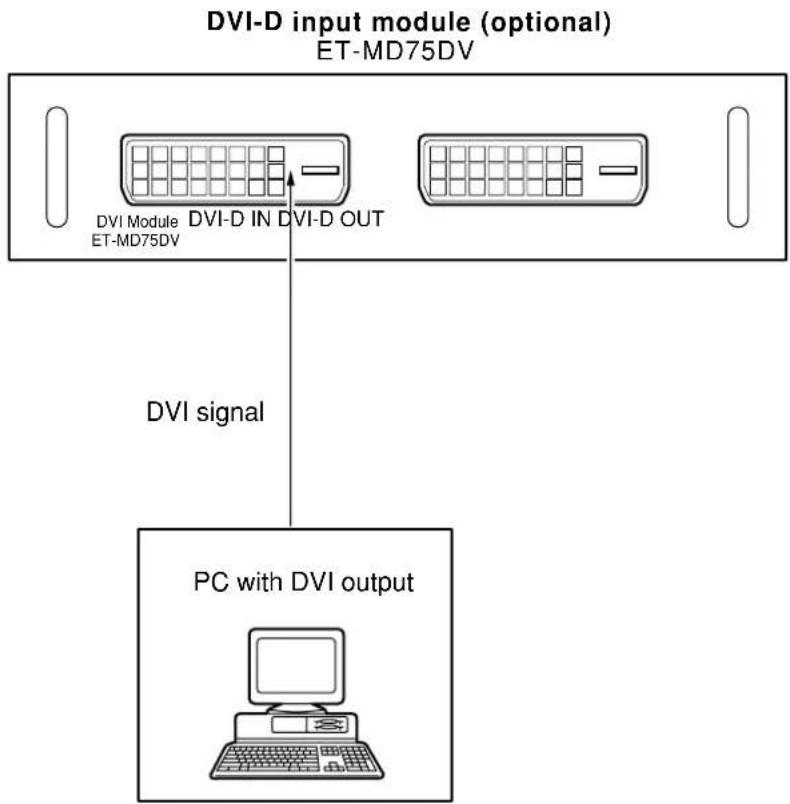
flowchart
graph TD
    A["DVI Module ET-MD75DV"] --> B["DVI-D IN DVI-D OUT"]
    C["PC with DVI output"] --> B
    B --> D["DVI signal"]
- Pin assignments and signal names of DIV-D input terminal are listed in the table at right (terminal for TMDS-equipped PC).
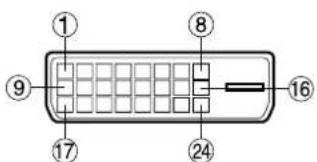
External view
| Pin No. | Pin Signal | Signal | |
| 1 | TMDS data 2- | 13 | T.M.D.S data 3+ |
| 2 | TMDS data 2+ | 14 | +5V |
| 3 | TMDS data 2 / 4 shield | 15 | Ground |
| 16 | Hot plug detection | ||
| 4 | T.M.D.S data 4- | 17 | T.M.D.S data 0- |
| 5 | T.M.D.S data 4+ | 18 | T.M.D.S data 0+ |
| 6 | DDC clock | 19 | T.M.D.S data 0/5 shield |
| 7 | DDC data | ||
| 8 | — | 20 | T.M.D.S data 5- |
| 9 | T.M.D.S data 1- | 21 | T.M.D.S data 5+ |
| 10 | T.M.D.S data 1+ | 22 | T.M.D.S clock shield |
| 11 | T.M.D.S data 1/3 shield | ||
| 23 | T.M.D.S clock+ | ||
| 12 | T.M.D.S data 3- | 24 | T.M.D.S clock- |
How to install and remove the projection lens (optional)
■ How to install the projection lens
① While pressing the lock button on the projection lens cover, pull the cover forward to remove it. (Figure 1)
② Pull and remove the dustproof sheet on the back of the projection lens cover.
③ Insert while aligning the projection lens side mark (orange) with the set side mark. (Figure 2)
④ Turn the lens clockwise until it clicks.
⑤ Insert the tab at the left of the projection lens cover into the projector and while pressing the lock button, mount the projection lens cover. (Figure 3)
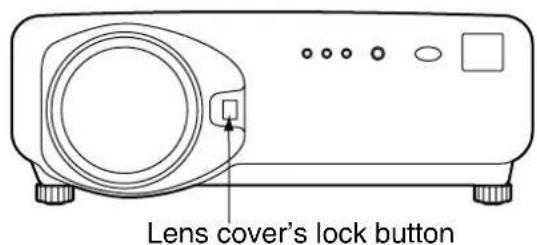
(Figure 1)
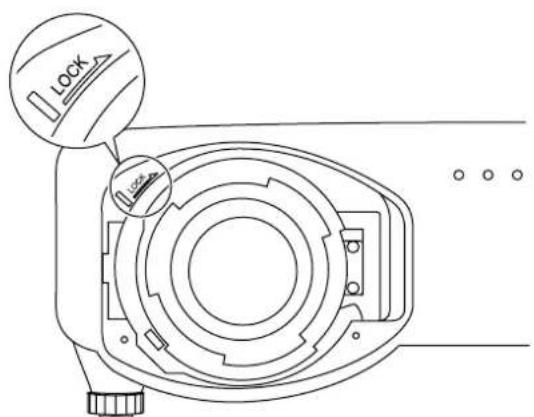
(Figure 2)
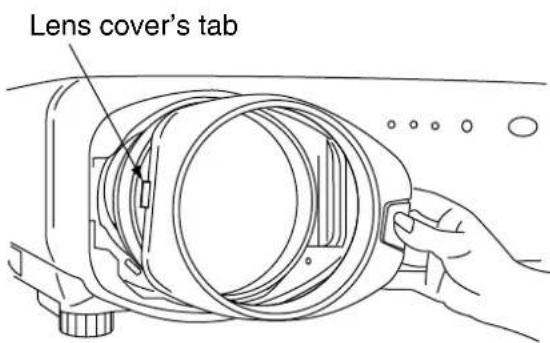
(Figure 3)
■ How to remove the projection lens
① While pressing the lock button on the projection lens cover, pull the cover forward to remove it. (Take care not to break the tab) (Figure 4)
② While pressing the lock button, turn the projection lens anticlockwise. (Figure 5)
③ Pull the projection lens.

natural_image
Line drawing of a hand holding a camera lens assembly (no text or symbols)(Figure 4)
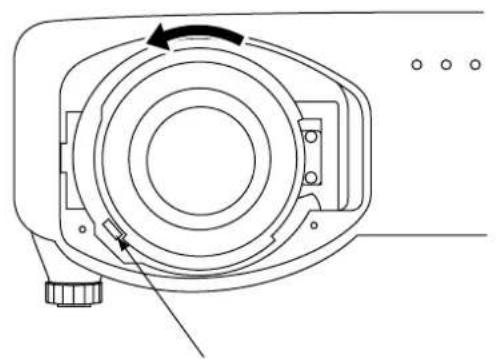
natural_image
Technical line drawing of a mechanical component with rotational arrow and mounting holes (no text or symbols)Projection lens lock button (Figure 5)
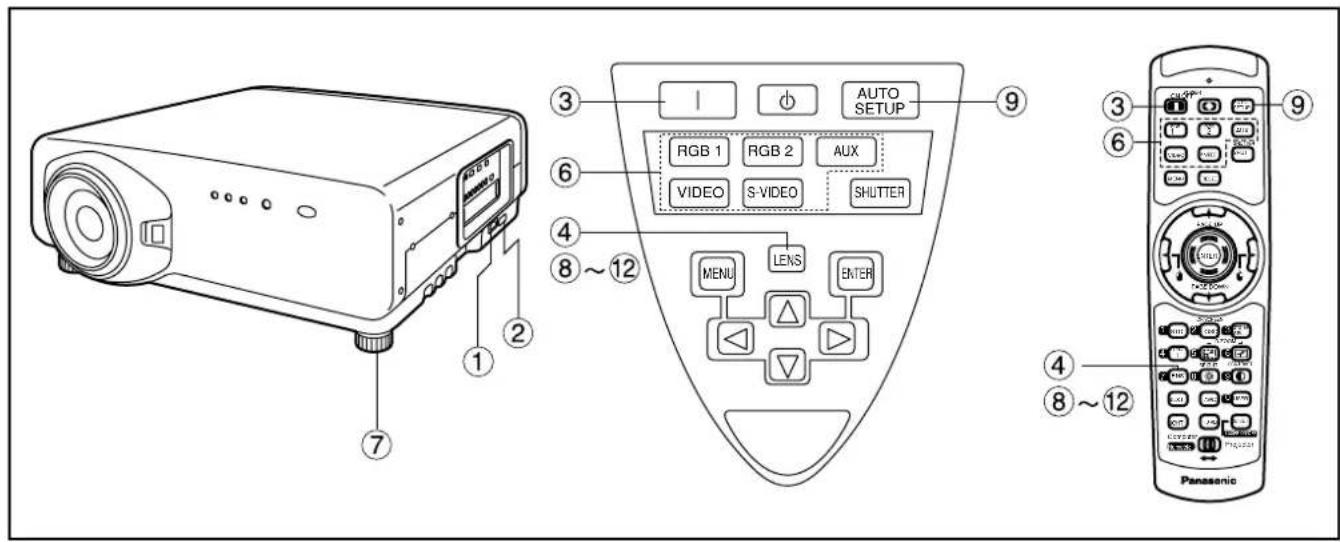
■ Powering up the projector
① Connect the supplied power cable. (120 V AC, 50 Hz/60 Hz)
② Press the "I" marked side of the MAIN POWER switch to turn on the power.
The power indicator lamp on the projector will flash in red. After a short period, the indicator will illuminate and the projector will enter standby mode.
③ Press the "I" button. [on the main unit or the remote control]
The power indicator lamp illuminates in green and soon the image is projected on the screen.
■ Making adjustment and selection
④ Roughly adjust the focus of the lens. (Refer to page 41.)
Press the LENS button on the main unit or the remote control unit to display a focus adjustment screen. Pressing buttons to adjust the image into focus.
⑤ Select and set the projection scheme. (Refer to page 71.)
⑥ Select the input signal by pressing the input selector button to toggle through RGB1, RGB2, VIDEO, S-VIDEO and AUX. [on the main unit or the remote control]
⑦ Adjust the tilt of the main unit in front and rear or right and left.
(Refer to page 18.)
⑧ Press the LENS button two or three times to adjust the lens shift. (Refer to page 41.)
⑨ Press the AUTO SETUP button if the input signal is RGB signal. [on the main unit or the remote control]
⑩ Fit the image size to the screen size. (Refer to page 41.)
Press the LENS button twice and adjust the zoom of the lens on the lens zoom adjustment menu.
⑪ Press the LENS button and adjust the focus of the lens on the lens focus adjustment menu.
⑫ Display the zoom adjustment menu again and adjust the zoom of the lens to fit the image size to the screen size. (Refer to page 41.)
Note
- If the projector is powered up at about 0^ , a warm-up period of approximately five minutes may be necessary to start projection.
The temperature monitor (TEMP) lamp flashes during the warm-up period.
When the warm-up is completed, the temperature monitor (TEMP) lamp turns off and the image is projected on the screen. - If the surrounding temperature is very low and the warm-up period exceeds five minutes, the control determines it as an abnormal condition and turns off the power automatically. If this happens, raise the surrounding temperature to 0°C or higher and then turn the main power “on” and turn the power “on” (I).
- The AUX button is disabled when an optional input module is not connected.
- When the lamp illuminates, the lamp power mode is set to "HIGH" for about two minutes to bring the lamp into a stable condition in a short time.
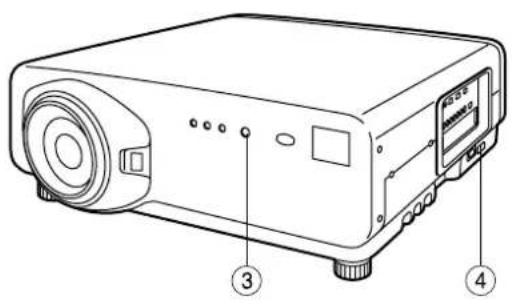
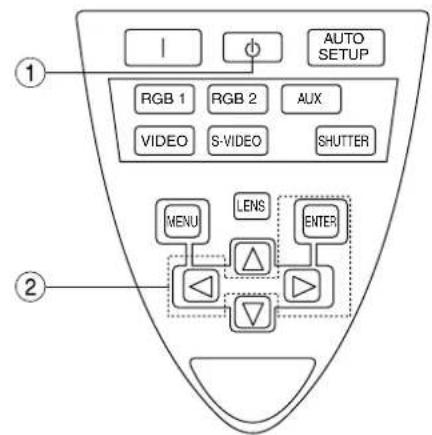
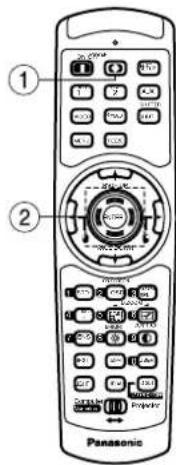
■ Powering off the projector
① Press the POWER OFF “⏻” button.
② Select "EXECUTE" with ◀ or ▶ button and press the ENTER button.
(or press the POWER OFF “💡” button again.)
A message "UNDER SHUTDOWN 20 SECONDS" appears and the projection of the image stops when the count turns to zero.
(The power indicator lamp of the main unit turns to orange. The cooling fan keeps running still after the projection stopped.)
③ Wait until the power indicator lamp of the main unit turns to red (i.e., until the cooling fan stops).
While the cooling fan is still running, never turn off the MAIN POWER switch, nor unplug the projector from the outlet.
④ Press the "O" marked side of the MAIN POWER switch to remove all power from the projector.
Note
- Turning on the power supply will not light up the light source lamp if the lamp is in the process of cooling down after turning off the power supply. To light up the lamp, turn on the power supply again when the lamp has been cooled sufficiently.
- The projector consumes approximately 12 watts of power even in standby mode after the cooling fan stops. (Power indicator lamp lit in red)
- If you re-power the projector after shutting off the main power inadvertently, the projection lamp may remain unlit. Please turn the power on again after a while.
■ How to adjust the lens focus, lens zoom and lens shift (optical shift)
If the focusing, zooming or positioning of the image projected on the screen is not successful, even though the projector is properly positioned against the screen, you can adjust the focus, the zoom, or the vertical or horizontal position of the image.
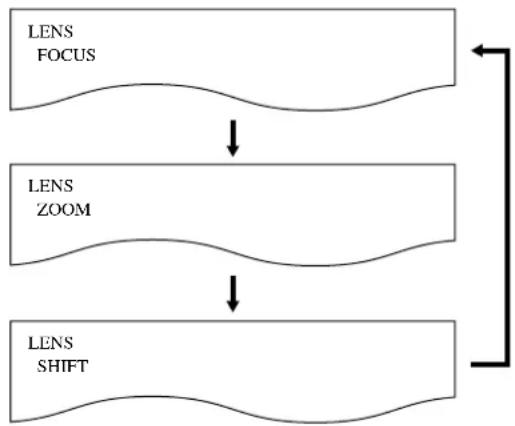
flowchart
graph TD
    A["LENS FOCUS"] --> B["LENS ZOOM"]
    B --> C["LENS SHIFT"]
    C --> A
① Press the LENS button on the remote control or on the control panel of the main unit.
Pressing the button changes the setup screen in the order of "LENS FOCUS", "LENS ZOOM" and "LENS SHIFT".
② Choose an item and adjust it using ▲ ▼ ◀ ▶ buttons.
Caution Be careful not to catch your fingers between the lens and shroud when shifting the lens.
Note
- The lens zoom adjustment menu will be displayed only when a lens with zoom function is being used.
■ Adjustment range after lens position (optical shift)
Do not move the lens beyond the bounds of the shift range as this may cause a change in the focus. This limitation is to protect the parts of the projector.
PT-D7500U
Floor projection
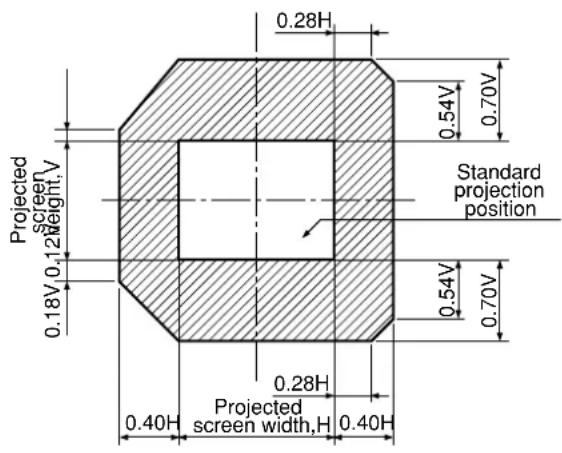
Ceiling projection
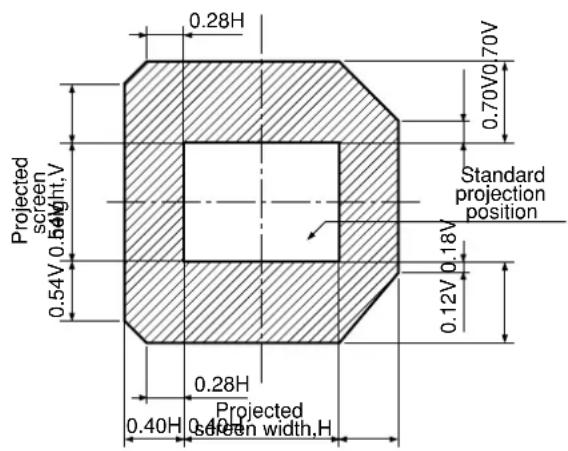
PT-D7600U
Floor projection
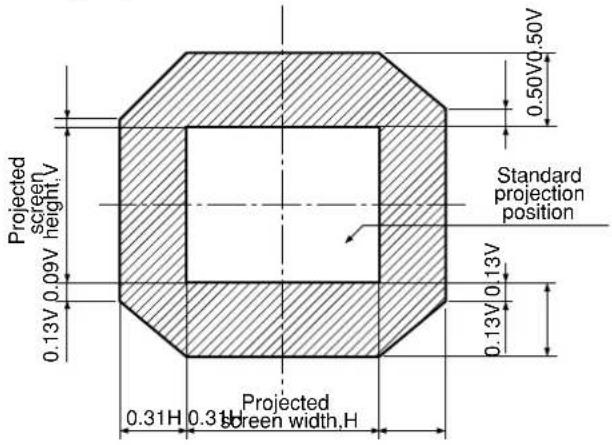
Ceiling projection
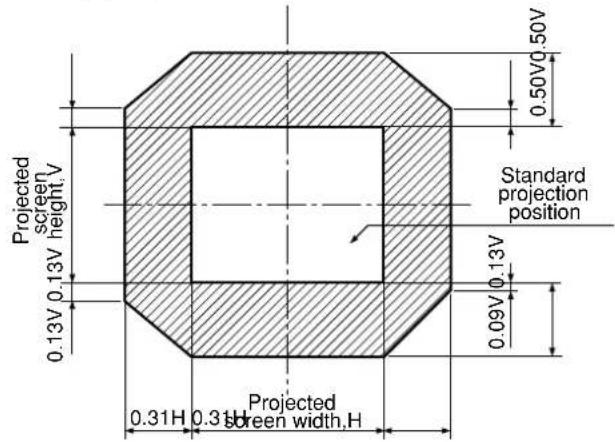
■ How to adjust the lens for addressing unevenness of focusing
If the image is out of focus in any portion of the screen, adjust the lens by turning the adjustment screws to obtain evenness of focusing.
① Remove the lens cover and lens (Refer to page 38).
② Loosen the three fixing screws that secure the lens bracket about two turns.
- Tool to be used : Allen hex socket driver or Allen wrench (2.5-mm diagonal hexagon)
③ Install the lens removed in step ①
④ Adjust the lens by turning the adjustment screws ⓐ, ⓑ, and counterclockwise.
- Tool to be used : Allen hex socket driver or Allen wrench (2.5-mm diagonal hexagon)
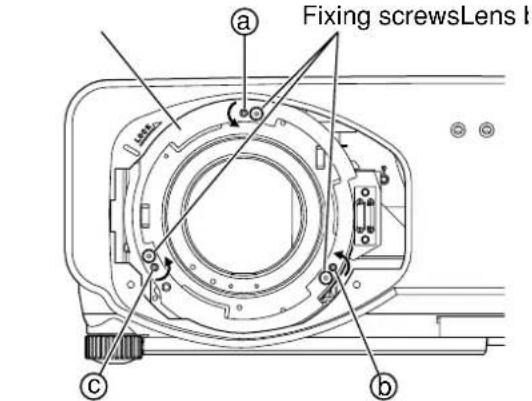
Adjust the screws ⓐ, and after ⓒ installing the lens.
The instructions within parentheses apply to ceiling mount installation.
| V up is out of focus | V bottom is out of focus | H right is out of focus | H left is out of focus | |
| a | ——(Turn counterclockwise) | Turn counterclockwise(——) | ——(——) | ——(——) |
| b | Turn counterclockwise(——) | ——(Turn counterclockwise) | Turn counterclockwise(——) | ——(Turn counterclockwise) |
| c | Turn counterclockwise(——) | ——(Turn counterclockwise) | ——(Turn counterclockwise) | Turn counterclockwise(——) |
(For example)
When the image is out of focus in the upper portion of the screen (V up):
Turn the adjustment screws and little by little counterclockwise while checking evenness of focusing in the upper and lower portions.
Note
- Be sure to tighten the fixing screws before transportation.
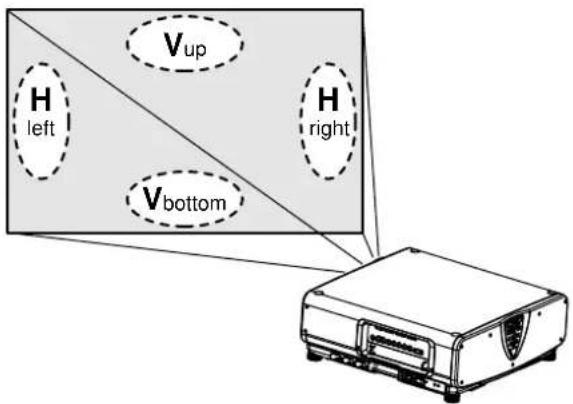
Automatic adjustment (AUTO SETUP)
Automatic adjustment function adjust the resolution, clock phase and image position automatically when dots-structured analog RGB signals such as computer signal are supplied. (Automatic adjustment is not available if signals or moving images other than analog RGB signals are supplied.) It is recommended to supply images with a bright white frame at the outermost periphery containing characters etc. that are clear in white and black contrast when the system is in automatic adjustment mode. Avoid supplying images that involve halftones or gradation such as photographs and computer graphics.
Note
- A message "COMPLETE" appears if adjustment is ended normally.
- "CLOCK PHASE" may have been shifted even when the adjustment ended normally. In this case, manually adjust the "CLOCK PHASE".
- If an image with blurred edges or a dark image is supplied, a message “INCOMPLETE” appears, indicating the automatic adjustment was unsuccessful. In this case, manually adjust the items of “INPUT RESOLUTION”, “CLOCK PHASE” and “SHIFT”
- For specific signals and long-sideways (or landscape) signals such as 16:9, adjustment should be made according to “AUTO SETUP” in the option menu.
• Automatic adjustment may not be available depending on the machine type of the personal computer. - Automatic adjustment may not available for synchronization signal of C-SYNC and G-SYNC.
- Image may be disturbed for about 4 seconds during automatic adjustment, which is not an abnormal error.
- For every supplied signal, adjustment is required.
- Automatic adjustment can be cancelled by pressing the MENU button during the course of automatic adjustment.
Registration of input signal data
The input signal data must be registered because it is not registered on shipment of the projector.
Note • Up to 96 input signals can be registered.
- Registration is performed by supplying the signal that corresponds to the mounted input module.
Registration of new data
When a new signal is supplied, press the MENU button on the remote control or operating section of the main unit, and a "NEW SIGNAL INPUTS" screen appears.
NEW SIGNAL INPUTS.
REGISTER?
NAME
MEMORY NO: --
S.S.NO: ---
INPUT NO: VIDEO
fH: 15.73kHz
fV: 59.94Hz
FORMAT: NTSC
ENTER: EXECUTE MENU: ESC
RENAME
NAME: AC16-
MEMORY NO: A1
S.S.NO: --
INPUT NO: RGB1
fH: 15.73kHz
fV: 59.94Hz
SYNC. STATE: H(POS)
V(POS)
◀▶:NEXT FIGURE ▲▼:FONT SELECT ENTER:SET MENU:ESC
① Press the "MENU" button.
The "NEW SIGNAL INPUT" screen will be displayed.
② Press the ENTER button.
The "RENAME" screen will be displayed.
Note
- The name of input signal, memory No., signal selector input No., input terminal, frequency, synchronization signal and other data are automatically identified and displayed.
- For memory numbers, 12 pages are available (eight pieces of data can be registered on each page, from A to L) and the lowest unused number in the memory will be shown automatically. If the memory has no vacancy, use the overwriting registration procedure described on the next page. (Refer to page 45)
- The registration name (NAME) will be automatically shown by the signal name and memory number.
③ When using the registration name automatically shown,
press the ENTER button.
This completes the registration and returns to the "MAIN MENU" screen.
To change the registration name,
select characters one by one with the
◀ and buttons and press the and
▼ buttons to fix the characters or numbers (to delete the automatically shown name, press the STD button) and press the ENTER button when the name is changed successfully.
This completes the registration and returns to the MENU screen.
Note
- If you press the MENU button instead of the ENTER button, the new name to which you tried to change will not be registered but the signal name automatically shown will be registered.
■ If new registration is not available because of full memory:
If the number of already registered signals is 96, or the memory is full when you entered a new signal, then press the MENU button of the remote control or the operating section of the main unit, and a "Confirm overwriting registration" screen appears. This means to erase registered signal and to register a new signal by overwriting. In this case, erase the registered signal and register a new signal by overwriting using the following Steps 10: 4
MEMORY FULL
OVERWRITE?
NAME:
MEMORY NO: --
S.S.NO: ---
INPUT NO: VIDEO
fH: 15.73kHz
fV: 59.94Hz
FORMAT: NTSC
ENTER:EXECUTE MENU:ESC
SELECT OVERWRITE SIGNAL.
| A1:SVGA72-A1 RGB1 --- |
| A2:SVGA72-A2 RGB1 --- |
| A3:SVGA72-A3 RGB1 --- |
| A4:SVGA72-A4 RGB1 --- |
| A5:SVGA72-A5 RGB1 --- |
| A6:SVGA72-A6 RGB1 --- |
| A7:SVGA72-A7 RGB1 --- |
| A8:SVGA72-A8 RGB1 --- |
▲▼◀▶:SELECT ENTER:SET
OVERWRITE THIS SIGNAL.
NAME: SVGA72-A3
MEMORY NO: A3(3-2)
S.S.NO: ---
INPUT NO: RGB1
fH: 48.08kHz
fV: 72.17Hz
SYNC. STATE: H(POS)
V(POS)
ENTER: EXECUTE MENU: ESC
① Press the "MENU" button.
The “Confirm overwriting registration” screen will be displayed.
② Press the ENTER button.
The SIGNAL LIST screen will be displayed. The memory list contains 96 data items on its 12 pages (8 each on A to L pages).
③ Select the signal to erase with the ▲, ▼, ◀ and ▶ buttons.
④ Press the ENTER button.
The SIGNAL STATUS screen will be displayed. If you do not want to erase, press the MENU button to return to the "SIGNAL LIST" screen.
⑤ Press the ENTER button.
This erases the signal selected in Step and the "SIGNAL STATUS" screen for the overwritten signal appears. In each item, automatically identified content of the new signal is displayed. Further Steps are the same as Step on page 44.
■ Sub memory
The projector is provided with a sub memory function to register plural pieces of image adjustment data even they are determined to be the same signal by the frequency and form of the synchronization signal source.
Use this function when the user needs adjustment of picture quality such as aspect switching and white balance using the same signal source.
Sub-memory contains all data that can be adjusted by signals such as screen aspect ratio and image adjustment data (BRIGHT, CONTRAST etc.).
How to register into sub memory
A new signal cannot be registered into sub memory. A new signal must undergo signal registration.
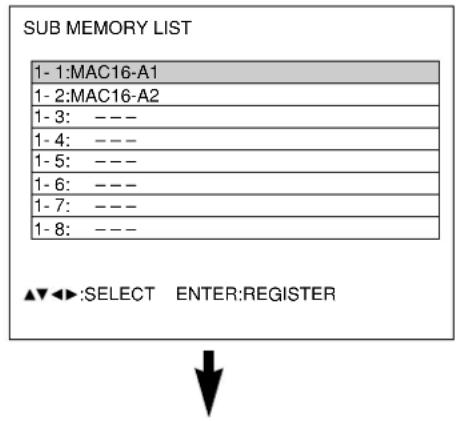
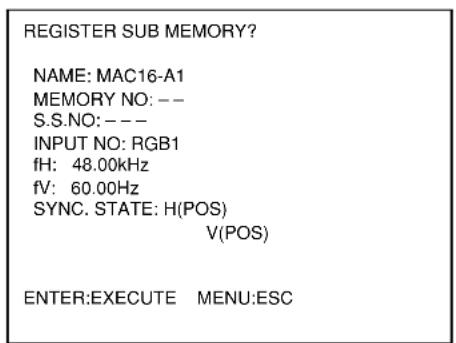
① Press the USER button or the and buttons on normal screen (menu is not displayed).
(A "Check sub-memory registration" screen will appear if sub-memory has not been registered.) The screen will show a list of the sub-memory registered for the currently entered signal.
② Select the SUB MEMORY number stored with the ▼, and ▶ buttons in the "Signal List".
③ Press the ENTER button.
A "Change registered signals" screen will appear.
④ If the user wants to use the name automatically displayed without change, do the same as in Step ③
Procedure to switch to sub memory
① Press the USER button or the and buttons on normal screen (menu is not displayed).
The screen will show a list of the sub-memory registered for the currently entered signal.
② In the "Signal List", select the sub-memory signal to be switched using the ▼, ▲, ◀ and ▶ buttons.
③ Press the ENTER button.
Signal will be switched to the one that was selected in Step ②
How to erase sub memory
The currently selected SUB MEMORY is deleted by pressing the standard button (STD) at the "REGISTERED SIGNAL LIST" or the "SUB MEMORY LIST".
On-screen indications
① Input switching / signal switching
This shows the registered signal name on the status screen for signal switching.
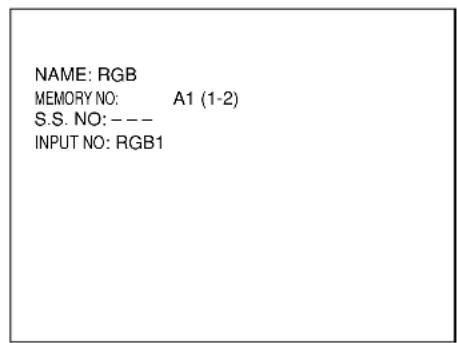
② Details of registered signal
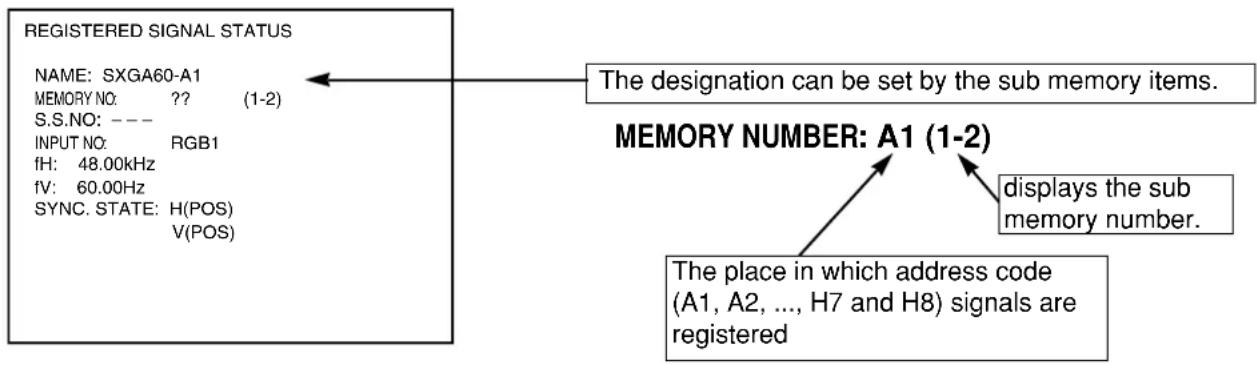
Note
Restrictions
The maximum sub memory items that can be registered for the projector are 96 including the basic signal.
Using the FREEZE function
Pressing the "FREEZE" button of the remote control switches between a still image and a motion image.
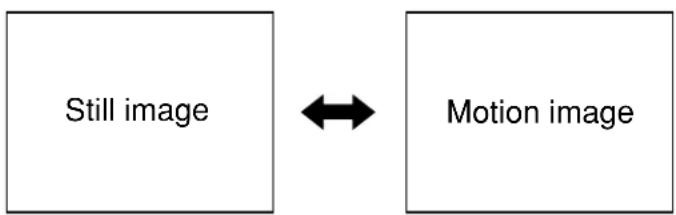
flowchart
graph LR
    A["Still image"] <--> B["Motion image"]
Using the SHUTTER function
If the projector is not used for a certain period of time during the meeting intermission, for example, a shutter mode is available that allows the user to hide images temporarily.
① Press the SHUTTER button of the remote control or the main unit.
The image is turned off.
② Press the SHUTTER button again.
The image comes back.
Using the digital zoom (− D.ZOOM +) function
A portion of the picture on the screen can be zoomed in on with “- D.ZOOM +” buttons of the remote control. It is useful for highlighting a specific object during the presentation.
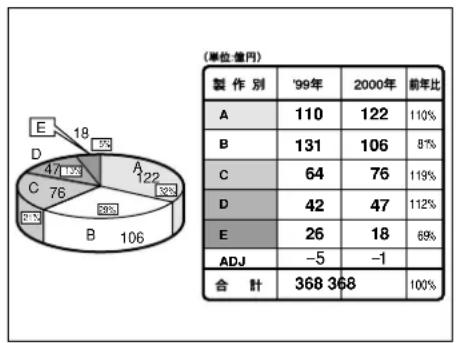
pie
| Category | Value | |---|---| | A | 11 | | B | 13 | | C | 6 | | D | 4 | | E | 2 | The image contains a partial diagram of a pie chart with three segments labeled 'A', 'B', and 'C' alongside the numerical labels 'A', 'B', 'C', 'D', and 'E'. The percentage value '32%' is shown below the chart.① Press the “- D.ZOOM +” button of the remote control.
The image is zoomed in.
② Change the magnification with the “-D.ZOOM +” button.
The magnification can be adjusted in 0.1 steps over the range of 1.0 to 3.0 times.
③ Use buttons to move the magnified image.
④ To restore the original image, press the MENU button.
Attention
- The digital zoomed state cannot be stored in memory.
- If the input signal format is changed while in digital zoom mode, the projector will exit digital zoom function.
■ Structure of menu screens
Menus are extensively used for configuring, adjusting or reconfiguring the projector. The menus structure is as follows:
MAIN MENU
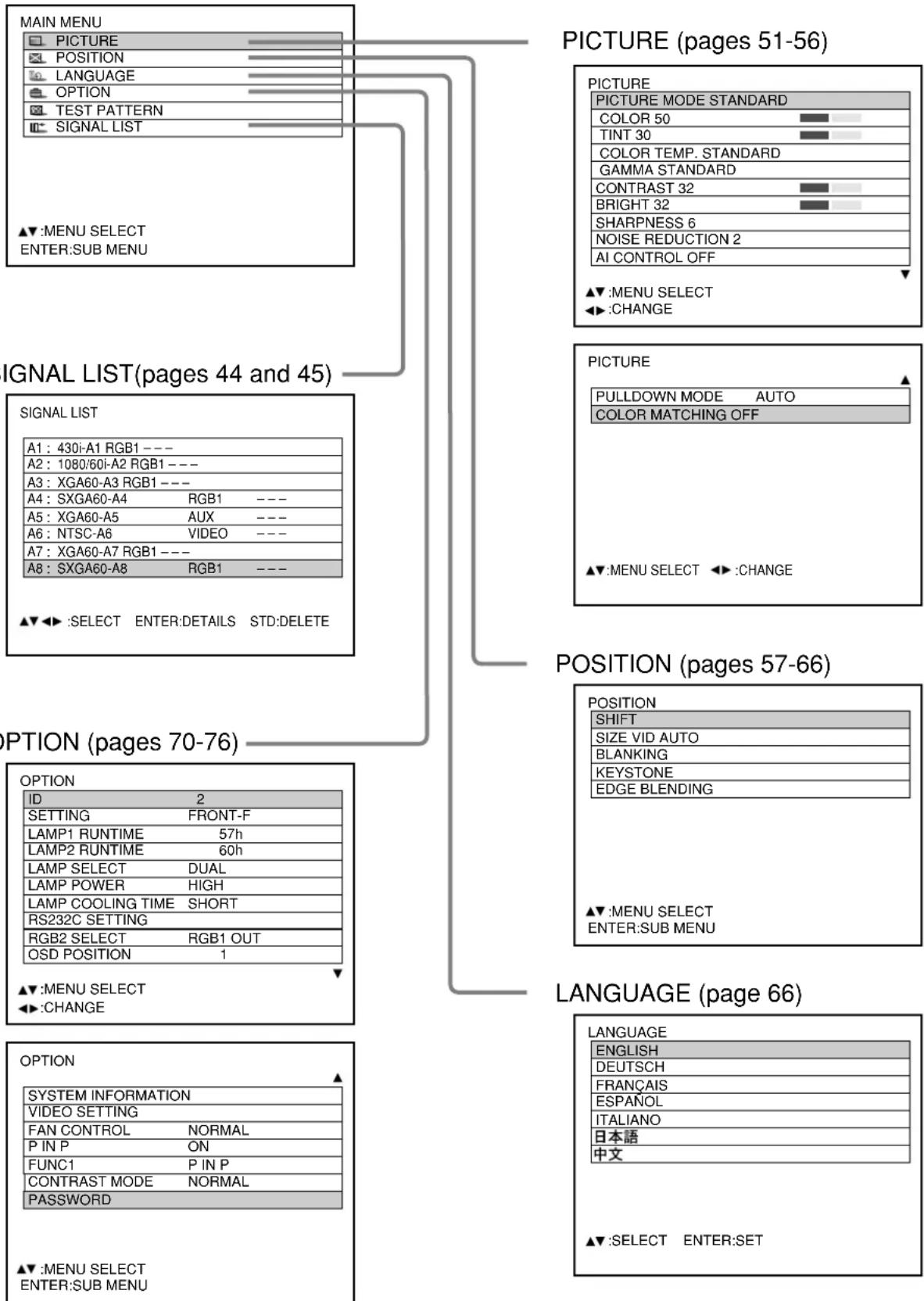
■ Basic operations on menu screen
① Press the "MENU" button.
The MAIN MENU appears on the screen.
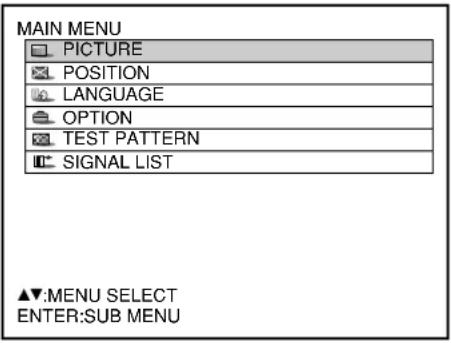
② Select the desired item with the ▶ button.
Selected items are displayed in blue.
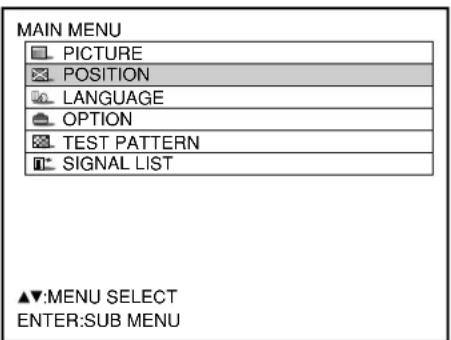
③ Press the “ENTER” button to establish your selection.
The submenu for the selected option will now open. (Example: PICTURE Menu)
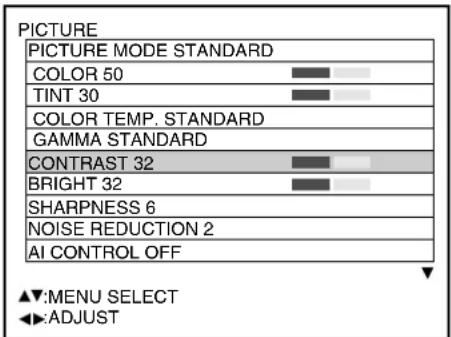
④ Highlight the desired adjustment item with the or button, then change or adjust the parameter value with the ◀ or ▶ buttons.
For the items such as "COLOR", "TINT", "CONTRAST" and "BRIGHT", an individual adjustment screen with an individual bar graph as shown below is displayed by pressing the ENTER button.
CONTRAST 32
- If no button is operated for approx. 5 seconds while the individual adjustment screen is displayed, the screen will return to the previous page.
■ Returning to the previous screen
- When the "MENU" is on the screen, pressing the "MENU" button returns to the previous page.
- When the MAIN MENU is on the screen, pressing the "MENU" button clears all menus from the screen.
■ Menu items shown in gray characters
- Some menu items may not be valid for certain signal formats applied to the projector.
The menu items that cannot be adjusted or used are shown in gray characters, and they cannot be selected.
■ Menu items setting
The bottom prompt line differs on each menu depending on the selected menu option:
- A prompt “◀ ▶ CHANGE” appears when changing the setting.
- A prompt “◀ ▶ ADJUST” appears for a separate bar graph.
- When and buttons are displayed above or under the items in the "PICTURE" or "OPTION" screen, they indicate that there are more adjustment (items).
■ Resetting to the factory default
STD (standard) button is used to reset all of the projector adjustment values to the default levels which were set at the time of shipment from the factory. It is pressed after the respective adjustment mode screen has been displayed.
- When the Menu screen is displayed A"STD" indicator appears on the upper right corner of the menu.
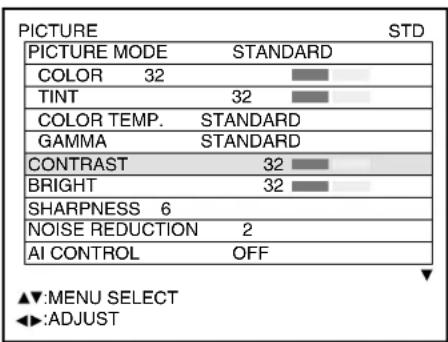
■ Switching the picture mode
The user can switch to the desired picture mode suitable for the image source and the environment in which this projector is used.
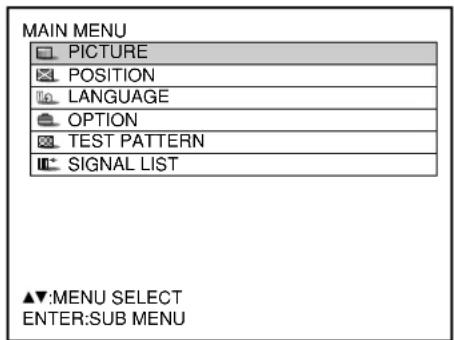
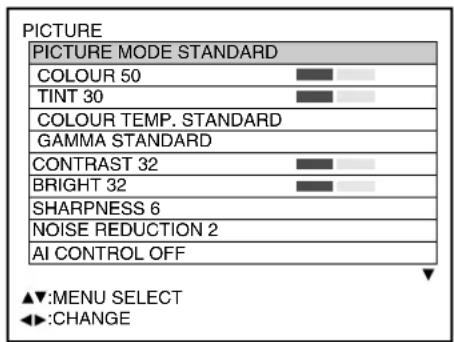
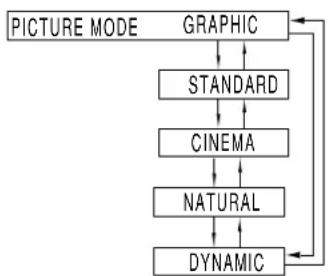
flowchart
graph TD
    A["PICTURE MODE"] --> B["GRAPHIC"]
    B --> C["STANDARD"]
    C --> D["CINEMA"]
    D --> E["NATURAL"]
    E --> F["DYNAMIC"]
    F --> A
① Press the "MENU" button.
The MAIN MENU screen will be displayed.
② Select "PICTURE" with the ▲▼ buttons.
③ Press the "ENTER" button. The PICTURE screen will be displayed.
④ Select "PICTURE MODE" with the ▲▼ buttons.
⑤ Select "PICTURE MODE" with the ◀▶ buttons.
GRAPHIC: The picture becomes suitable for input from to the personal computer.
STANDARD: The picture becomes suitable for moving images in general.
CINEMA: The picture becomes suitable for movie sources.
NATURAL: The picture complies with sRGB.
DYNAMIC: The picture becomes suitable for the use in well-lighted areas.
- Factory defaults are "GRAPHIC" for RGB system and "STANDARD" for moving images.
■ Switching the AI control
By setting the AI control to "ON", the picture is automatically adjusted for the optimal contrast in response to the changes in brightness.
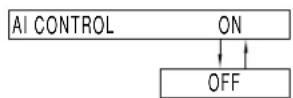
① Press the buttons on the "PICTURE" screen and select "AI CONTROL".
② Switch the AI control to "ON" with the ◀ ▶ buttons.
The desired picture can be obtained by following the procedure below.
■ Adjusting Contrast / Bright / Color / Tint
Adjustment procedure - to adjust picture (color intensity)
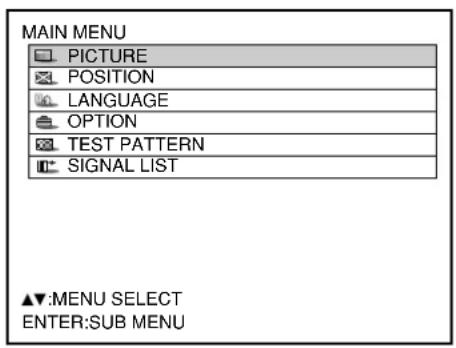
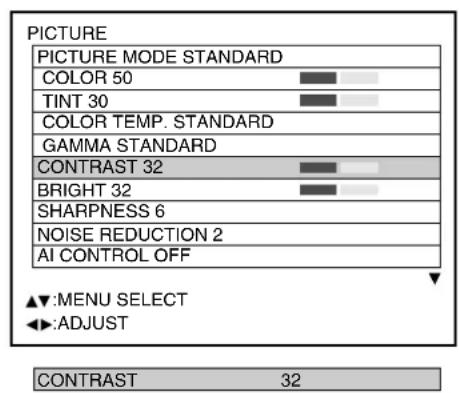
① Press the “MENU” button.
The MAIN MENU screen will be displayed.
② Select "PICTURE" with the ▲▼ buttons.
③ Press the "ENTER" button. The PICTURE screen will be displayed.
④ Select "CONTRAST" with the ▲▼ buttons.
⑤ Press the “ENTER” button.
The CONTRAST individual adjustment screen will be displayed.
⑥ Adjust the level with the buttons.
Thu function of the button changes according to the item as shown in the following table:
⑦ Repeat Steps ⑤, and to adjust the "BRIGHT", "COLOR" or "TINT". The individual adjustment screen can be displayed for "CONTRAST" and BRIGHT by the remote control. Refer to the following table:
| Item Adjustment | Adjustment range | Remarks | ||
| CONTRAST | Press ▶ button | Raises the picture brightness and the picture becomes clearer. | Maximum value 63 | Use the CONTRAST button on the remote control. |
| Press ◀ button | Lowers the picture brightness and weakens the picture. | Minimum value 0 | ||
| BRIGHT | Press ▶ button | Raises the picture brightness. | Maximum value 63 | Use the BRIGHT button on the remote control. |
| Press ◀ button | Lowers the picture brightness. | Minimum value 0 | ||
| COLOR | Press ▶ button | Deepens colors. | Maximum value 100 | |
| Press ◀ button | Weakens colors. | Minimum value 0 | ||
| TINT | Press ▶ button | Adjusts skin tone toward greenish color. | Maximum value 60 | |
| Press ◀ button | Adjusts skin tone toward reddish-purple | Minimum value 0 | ||
Note • If no button is operated for approx. 5 seconds while the individual adjustment screen is displayed, the screen will return to the "PICTURE" screen.
■ Adjusting the color temperature
Adjustment procedure (to be performed while projecting the signals to be adjusted)
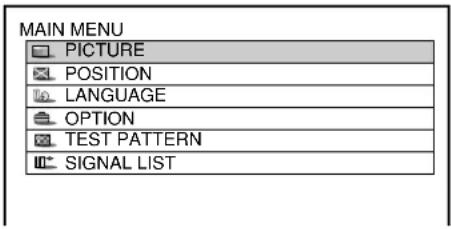
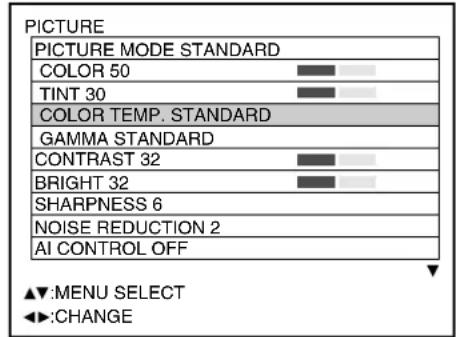

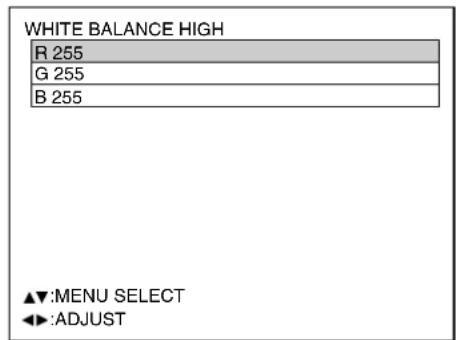
① Press the “MENU” button.
The MAIN MENU screen will be displayed
② Select "PICTURE" with the ▲▼ buttons.
③ Press the “ENTER” button.
The PICTURE screen will be displayed.
④ Select "COLOR TEMP." with the ▲▼ buttons.
⑤ Select the desired setting from below with the Buttons.
"LOW", "MIDDLE", "HIGH", "DYNAMIC" and "USER", "STANDARD", "NATURAL", "CINEMA", "GRAPHIC"
⑥ Select "USER" in Step ⑤
⑦ Press the "ENTER" button.
⑧ Select "WHITE BALANCE HIGH" or "WHITE BALANCE LOW" with the ▲▼ buttons.
⑨ Press “ENTER” button.
The WHITE BALANCE HIGH (LOW) screen will be displayed.
⑩ Select “R”, “G” or “B” with the ▲▼ buttons.
⑪ Adjust the level with the buttons.
| Item | Operation | Adjustment | Remarks |
| R (Red) | Press ▶ button | Deepens red. | Maximum value 255Minimum value 0 |
| Press ◀ button | Weakens red. | ||
| G (Green) | Press ▶ button | Deepens green. | |
| Press ◀ button | Weakens green. | ||
| B (Blue) | Press ▶ button | Deepens blue. | |
| Press ◀ button | Weakens blue. |
Note
- All colors will not be displayed properly unless adequate adjustment is made. If the adjustment is not successful, press "STD" (standard) button when the individual adjustment screen is displayed to restore the factory default setting only for the displayed item.
- The color temperature cannot be adjusted for the internal test pattern (refer to page 82). Be sure to project the input signal when adjusting the color temperature.
- If the color matching is set to "USER", the color temperature will be fixed to "USER".
■ Adjusting color matching
When multiple sets are used simultaneously, this projector allows the user to correct the difference of colors among the sets.
Procedure of adjustment
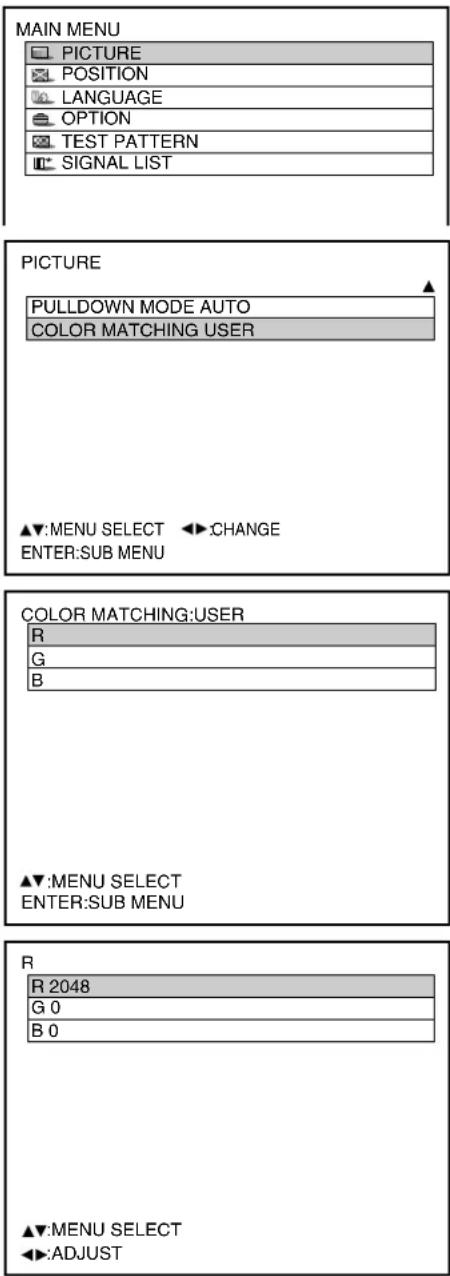
① Press the “MENU” button.
The MAIN MENU screen will be displayed.
② Select "PICTURE" with the ▲▼ buttons.
③ Press "ENTER" button. The PICTURE screen will be displayed.
④ Select "COLOR MATCHING" with the ▲▼ buttons.
⑤ Switch to "USER" with the ◀▶ buttons.
⑥ Press the "ENTER" button.
The COLOR MATCHING screen will be displayed.
⑦ Select the desired color for adjustment with the buttons.
⑧ Press the ENTER button.
⑨ Select the color to be corrected with the ▲▼ buttons.
⑩ Adjust with the Buttons.
Note
Adjustment
• The effects of correcting the adjustment color
When tuning the correction color that is the same as the adjustment color: the brightness of the adjustment color changes.
When tuning the correction color RED: RED is added to or reduced from the adjustment color.
When tuning the correction color GREEN: GREEN is added to or reduced from the adjustment color.
When tuning the correction color BLUE: BLUE is added to or reduced from the adjustment color.
- This adjustment should be carried out by a person who is familiar with the projector or by a service person because a high level of skill is required to make successful adjustment.
- Pressing the "STD" (standard) button will restore the factory defaults for all items.
- If the color matching is set to "USER", the color temperature will be fixed to "USER".
■ Sharpness / Gamma / Noise reduction / Pulldown mode
Procedure of adjustment
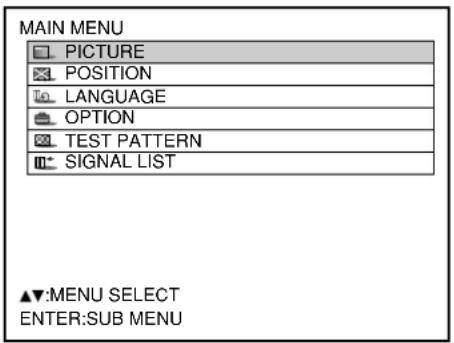
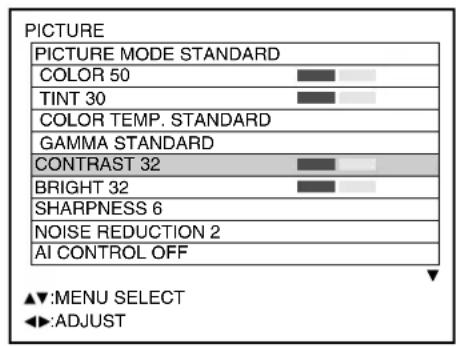
① Press the "MENU" button.
The MAIN MENU screen will be displayed.
② Select "PICTURE" with the
▲▼ buttons.
③ Press the "ENTER" button.
The PICTURE screen will be displayed.
④ Select desired one of the items in the following table with the buttons.
Note
- When and buttons are displayed above or under the items in the "PICTURE" or "OPTION" screen, they indicate that there are more adjustment (items).
⑤ Switch the setting with the ◀▶ buttons.
Refer to the following table for the items and the details.
| Adjustment items Adjustment Operation | ||
| Sharpness | Sharpens the outline of the image. | 0 to 7 for the RGB system and the HD system (factory setting is 2) 0 to 15 for the SD system (factory setting is 6) |
| Gamma selection | Switches the gamma modes | 10 types including: Standard 1,Standard 2, Cinema, User 1, User 2, 2.2, 2.5, Natural, Graphic 1, Graphic 2 (Factory setting :RGB system : Graphic 1 for PT-D7600, Graphic 2 for PT-D7500. SD and HD systems : Standard 1) |
| Noise reduction | Switches the noise reduction effect mode. | Four types: OFF (no correction), 1 (low), 2 (middle), 3 (high) (factory default: 2) |
| Pulldown mode | Increase the vertical resolution when the PAL (or SECAM) 576i signal input or the NTSC 480i signal input is applied. | OFF: Unforced cinema processing AUTO: Performs automatic detection and cinema processing. (factory default) 2:2 FORCED-ON: Forced cinema processing |
Note
- Noise reduction cannot be adjusted with analog RGB input, DVI input or network input.
- In pull-down mode, the image quality will be deteriorated (lowered vertical resolution) if "2:2 Forced On" is selected for setting of others than a signal that has been pulled-down by 2:2.
■ To set the sRGB compliant picture
sRGB is the international color reproduction standard (IEC61966-2-1) established by IEC (International Electrotechnical Commission). Perform the following setting procedure to reproduce the higher-fidelity picture in compliance with sRGB.
- Set color matching adjustment to "OFF".
- Press the ▲▼ buttons on the "PICTURE" menu and select the "PICTURE MODE". Set to "NATURAL" with the ◀▶ buttons.
- Select the "COLOR" with the ▲▼ buttons. Press the STD (standard) button on the remote control to restore the factory default. Follow the same procedure to restore the factory default for "TINT", "COLOR TEMP." and "GAMMA".
Note • sRGB is only enable when RGB signals are being input.
To input BETACAM with YCbCr 480i
When receiving a picture of 480i with analog component signal YCbCr input, the input level of Cb and Cr can be switched.
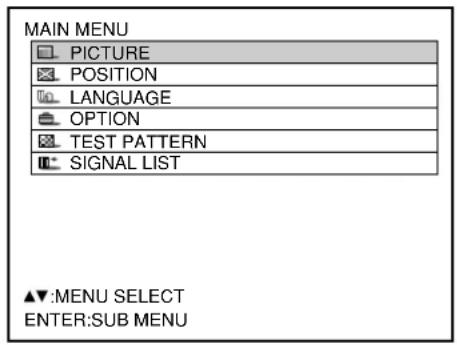
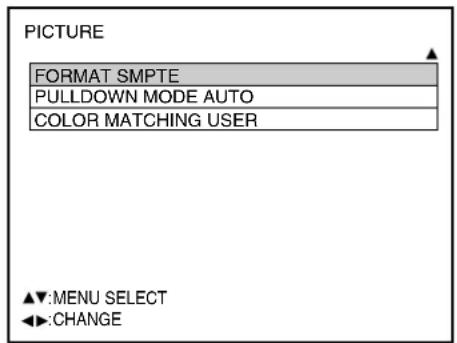
① Press the "MENU" button.
The MAIN MENU screen will be displayed.
② Select "PICTURE" with the ▲▼ buttons.
③ Press "ENTER" button. The PICTURE screen will be displayed.
④ Select "FORMAT" with the ▲▼ buttons.
⑤ Switch the signal format with the ◀▶ buttons.
- This toggles between SMPTE and BETACAM.
| Format | Y | Synchronous part | C_b , C_r |
| SMPTE | 700 mV | 300 mV | ±350 mV |
| BETACAM | 714 mV | 286 mV | ±504 mV |
Note
- This function is available only when input signals are supplied through the analog RGB input module (ET-MD95RGB). RGB1, RGB2 inputs do not support BETACAM signals.
- This function can be switched only when receiving the picture of 480i in the YCbCr mode. It cannot be switched when receiving the picture of signals other than RGB-REALITY mode, RGB mode and 480i.
- SMPTE is the factory default.
Desired position can be achieved by following the procedure below.
■ Shift adjustment
This function allows the user to adjust the picture position vertically or horizontally if the position of the image projected on the screen is displaced when the projector is properly positioned against the screen.
Procedure of adjustment
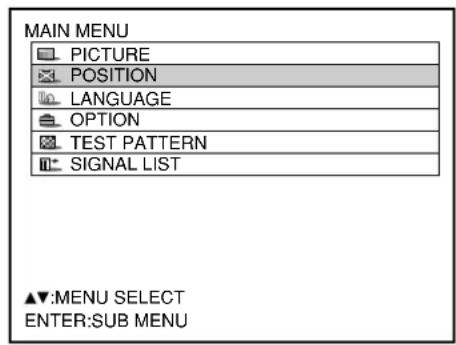
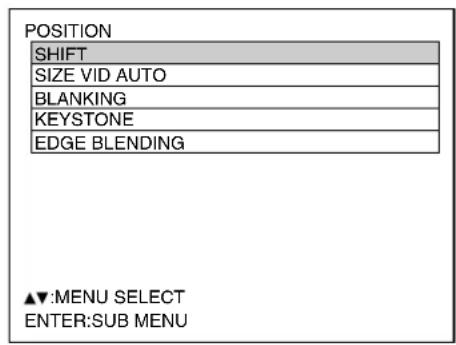
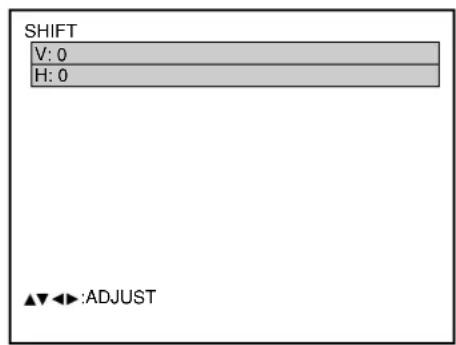
① Press the “MENU” button.
The MAIN MENU screen will be displayed
② Select the "POSITION" with the ▲▼ buttons.
③ Press the "ENTER" button.
The POSITION screen will be displayed.
④ Select "SHIFT" with the Buttons.
⑤ Press the "ENTER" button. The SHIFT screen will be displayed.
⑥ Adjust the position with the ▲ ▼ ◀ ▶ buttons.
⑦ Press the “MENU” button three times. The on-screen indications disappear and the normal screen appears again.
Pressing ▶ button will move the image to the right.
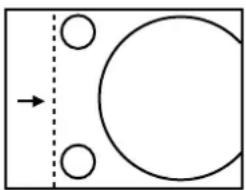
natural_image
Simple diagram with a dashed arrow and two circles inside a rectangle (no text or symbols)Pressing ◀ button will move the image to the left.
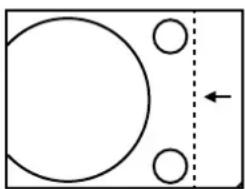
natural_image
Simple geometric diagram with a circle and two smaller circles inside a rectangle, separated by a dashed line (no text or symbols)Pressing ▲ button will move the image upward.
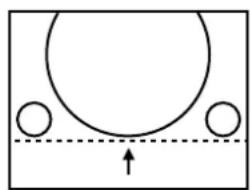
natural_image
Simple diagram of a basketball court with two circles and an upward arrow (no text or symbols)Pressing▼ button will move the image downward.
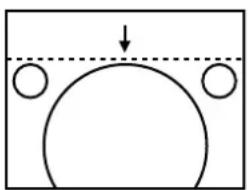
natural_image
Simple diagram of a basketball court with two circles and an arrow indicating direction (no text or labels)■ Size adjustment
Procedure of adjustment
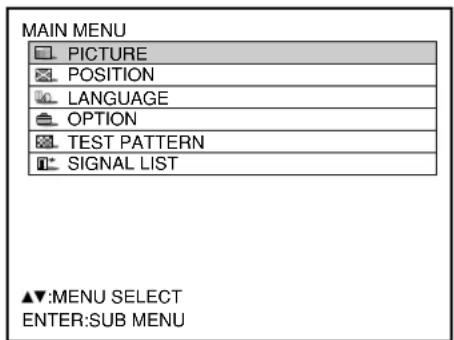
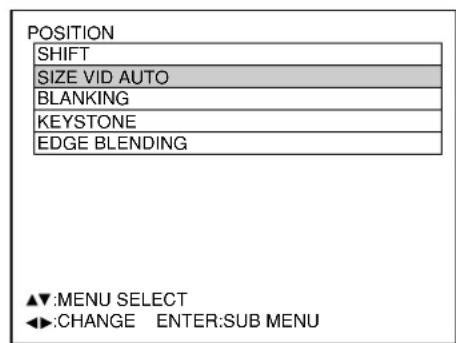
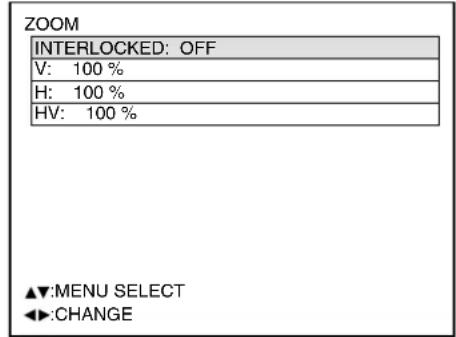
① Press the “MENU” button.
The MAIN MENU screen will be displayed.
② Select the "POSITION" with the ▲▼ buttons.
③ Press the "ENTER" button.
The POSITION screen will be displayed.
④ Select "SIZE" with the buttons.
⑤ Using the Buttons, select a size mode from the following:
"DEFAULT", "THROUGH", "ZOOM", "4:3", "16:9", "S 4:3", "HV FIT", "VID AUTO", "S1 AUTO", and "VID AUTO (PRIORITY)"
⑤ Press the “ENTER” button.
The SIZE adjustment screen will be displayed.
⑥ Select the desired item with the ▲▼ buttons.
⑦ Adjust with the Buttons.
Note
- For details on the size mode, refer to the next page.
- If "THROUGH" is selected in the size mode, the individual adjustment screen is not displayed.
Size modes
- DEFAULT: Pictures are displayed without changing the aspect ratio of the input signals.
- THROUGH: Pictures are displayed without changing the resolution of the input signals.
- ZOOM: Pictures can be displayed in various magnifications. The user can magnify the pictures with the magnification ranging from 50% to 999% , and the fiducial point is set on the top left of the screen.
• 4:3: Pictures are displayed in the aspect ratio of 4:3.
• 16:9: Pictures are displayed in the aspect ratio of 16:9. - S4:3: Pictures are scaled down to 75% of the original size without changing the aspect ratio of the input signals. This mode is used when projecting the 4:3 pictures on the 16:9 screen.
- HV FIT: Pictures are displayed on the whole panel pixels. If the aspect ratio of the input signals is different from that of the panel, the pictures are displayed by converting it into the panels aspect ratio (4:3 for PT-D7500U and 5:4 for PT-D7600U).
- VID AUTO: The projector identifies the video ID (VID) embedded in the picture signals and displays the picture by automatically switching the screen sizes between 4:3 and 16:9. This function is effective for the video and S-video input.
- S1 AUTO: The projector identifies the S1 signal and displays the picture by automatically switching the screen sizes between 4:3 and 16:9. This function is effective for the S-video input.
- VID AUTO (PRIORITY): The projector identifies the abovementioned VID or S1 signals and displays the picture by automatically choosing the screen sizes of 4:3 or 16:9 according to the VID if it is detected or S1 signals if a VID is not detected. This function is effective for the S-video input.
Note Some size modes are not available for certain types of input signals.
- For RGB1 and RGB2 input signals: VID AUTO, S1 AUTO or VID AUTO (PRIORITY) cannot be selected.
- For VIDEO input signals: DEFAULT, S1 AUTO or VID AUTO (PRIORITY) cannot be selected.
- For an NTSC signal with VIDEO or S-VIDEO input: DEFAULT cannot be selected.
■ Blanking adjustment
Blanking adjustment fine-tunes the images projected by the video deck or other devices when the noise appears on the edges of the screen or if a part of the image lies slightly offscreen.
Procedure of adjustment
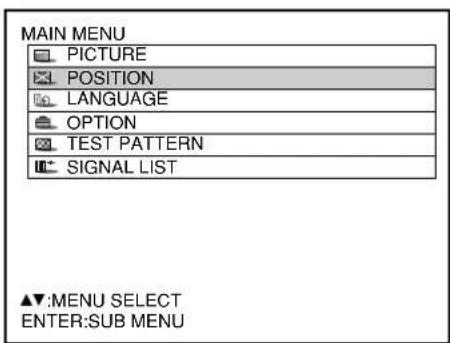
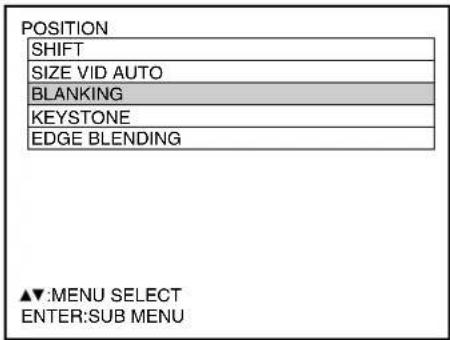
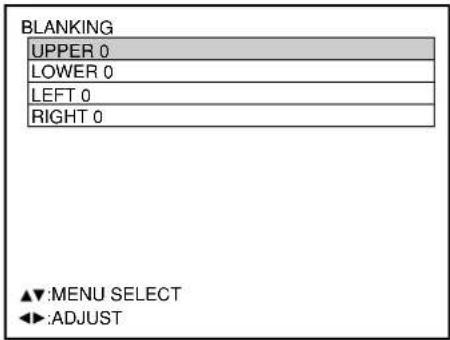
Press ◀ button to move the blanking zone upward; ▶ button to downward.
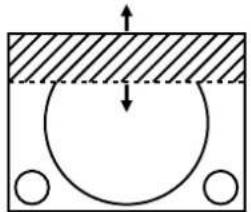
natural_image
Simple line drawing of a mechanical component with a circular base and two circular holes, no text or symbols present.Press ▶ button to move the blanking zone to the right; ◀ button to the left.
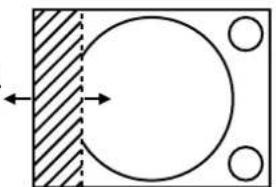
natural_image
Pure geometric diagram showing a circle inside a square with a diagonal hatched section and two circles at the corners (no text or symbols)① Press the “MENU” button.
The MAIN MENU screen will be displayed.
② Select the "POSITION" with the ▲▼ buttons.
③ Press the "ENTER" button. The POSITION screen will be displayed.
④ Select "BLANKING" with the ▲▼ buttons.
⑤ Press the “ENTER” button.
The BLANKING adjustment screen will be displayed.
⑥ Select the desired item for adjustment with the buttons.
⑦ Adjust blanking with the Buttons.
The value changes from 0 to 511.
Press ▶ button to move the blanking zone upward; ◀ button to downward.
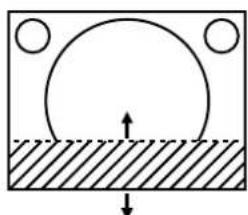
natural_image
Simple diagram showing a semicircular shape above a hatched base with two circles, no text or symbols present.Press ◀ button to move the blanking zone to the right; ▶ button to the left.
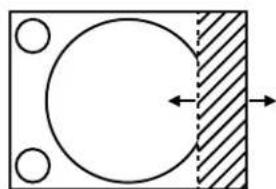
natural_image
Simple diagram showing a circle inside a rectangle with a diagonal hatched section and directional arrows (no text or symbols)■ Clock phase adjustment
Clock phase adjustment achieves the best image when the screen flickers or halo is observed around the contour.
Procedure of adjustment
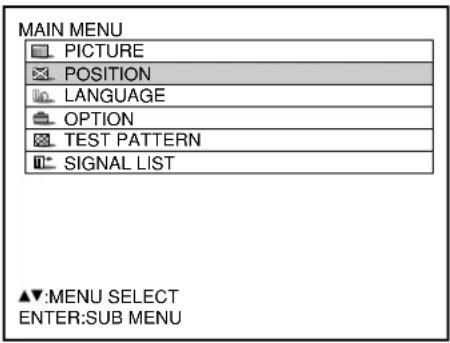
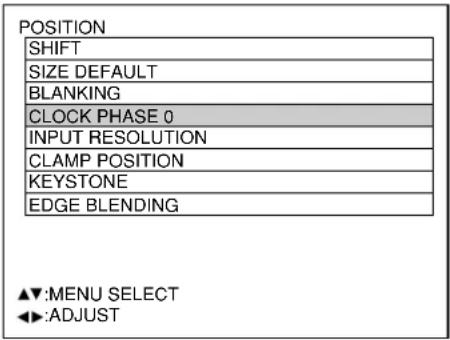
① Press the "MENU" button.
The MAIN MENU screen will be displayed
② Select the "POSITION" with the ▲▼ buttons.
③ Press the "ENTER" button.
The POSITION screen will be displayed
④ Select "CLOCK PHASE" with the ▲▼ buttons.
⑤ Adjust the clock phase with the ◀▶ buttons.
The value changes from 0 to 31.
Note
- No optimal value may be obtained if the output of the PC to which the signal input is applied is unstable.
- No optimal value may be obtained if the total number of dots is not correct.
- The clock phase can be adjusted only when RGB signal input is applied with RGB1, RGB2 IN, and the analog input module (optional: ET-MD95RGB).
■ Adjusting the input resolution
Input resolution adjustment achieves the best image when the screen flickers or halo is observed around the contour.
Procedure of adjustment
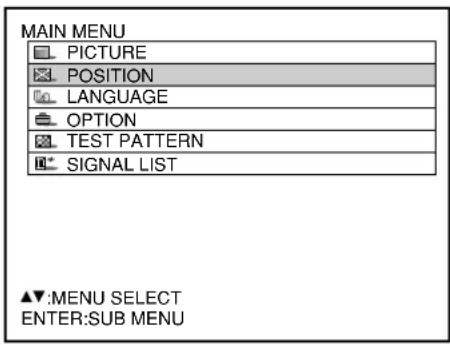
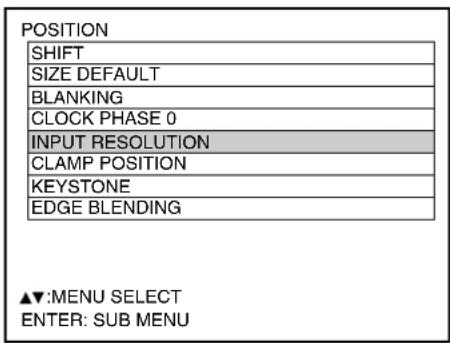
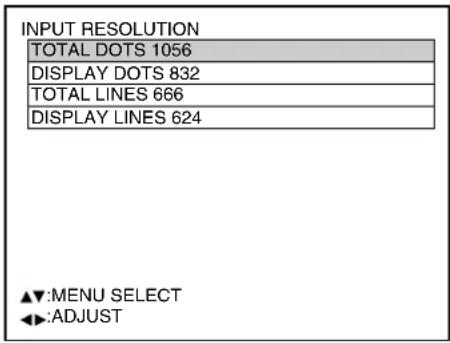
① Press the “MENU” button.
The MAIN MENU screen will be displayed.
② Select the "POSITION" with the ▲▼ buttons.
③ Press the “ENTER” button. The POSITION screen will be displayed.
④ Select "INPUT RESOLUTION" with the ▲▼ buttons.
⑤ Press the “ENTER” button. The INPUT RESOLUTION screen will be displayed.
⑥ Select one of the following items with the buttons and adjust it with the ▶▶ buttons.
"TOTAL DOTS", "DISPLAYED DOTS", "TOTAL LINES" and "DISPLAYED LINES" Each item automatically displays a value in response to the type of the input signal. If vertical stripes appear on the screen or the image is partly missing, increase or decrease the displayed value while observing the screen to achieve the optimal value.
Note
- The abovementioned vertical stripes will not appear on the screen when all signals are input.
- The picture may be distorted during the adjusting operation, but this is not a fault.
- The input resolution can be adjusted only when RGB signal input is applied with RGB1, RGB2 IN, and the analog RGB input module (optional: ET-MD95RGB).
■ Adjusting the clamp position
Use the clamp position adjustment to achieve the optimal value when dark areas of the image are crushed or displayed in green.
Procedure of adjustment
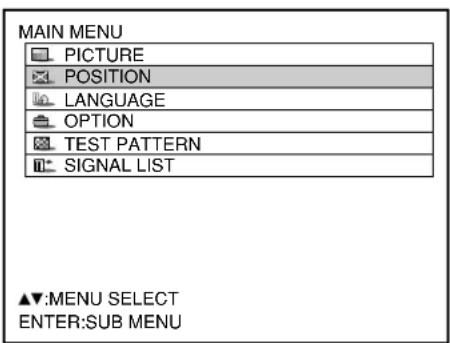
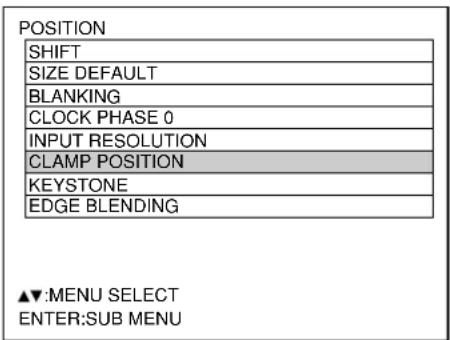
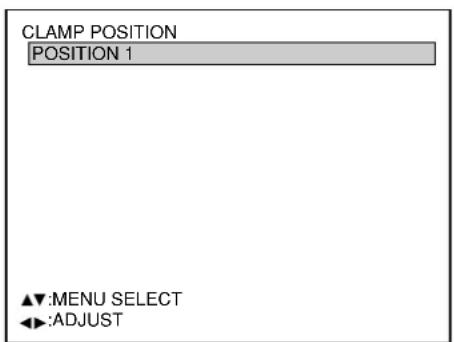
① Press the “MENU” button.
The MAIN MENU screen will be displayed.
② Select "POSITION" with the ▲▼ buttons.
③ Press the "ENTER" button. The POSITION screen will be displayed.
④ Select “CLAMP POSITION” with the ▲▼ buttons.
⑤ Press the "ENTER" button.
The CLAMP POSITION screen will be displayed.
⑥ Adjust with the Buttons.
The value changes from 1 to 255.
The optimal value for the clamp position adjustment
- If dark areas are crushed: The optimal value is the point where the dark area is best improved.
- If the dark areas are displayed in green: The optimal value is the point where the green area becomes dark and clear.
Note
- The clamp position can be adjusted only when the RGB signal input is applied with RGB1, RGB2 IN, and the analog RGB input module (optional: ET-MD95RGB).
■ Keystone distortion correction
Keystone distortion can be corrected only along either horizontal bound of the picture.
Procedure of adjustment

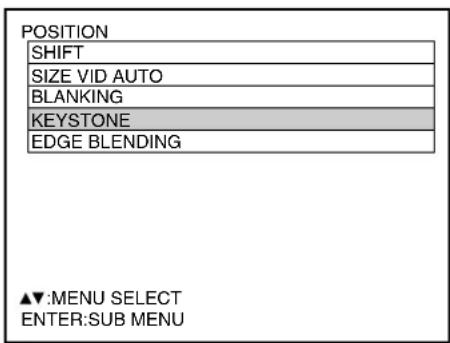
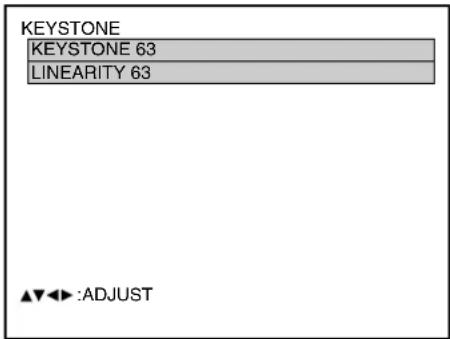
① Press the "MENU" button.
The MAIN MENU screen will be displayed.
② Select the "POSITION" with the ▲▼ buttons.
③ Press the "ENTER" button.
The POSITION screen will be displayed.
④ Select "KEYSTONE" with the ▲▼ buttons.
⑤ Press the “ENTER” button. The KEYSTONE screen will be displayed.
⑥ Adjust the "KEYSTONE" horizontally with the buttons.
The value changes from 0 to 127.
⑦ Adjust the vertical “LINEARITY” with the ▲▼ buttons.
The value changes from 0 to 127.
Note
- Adjust the "LINEARITY" after adjusting the "KEYSTONE".
- The variable range of the "LINEARITY" changes in response to the adjusted value of the "KEYSTONE".
- Pressing STD (standard) button of the remote control will restore the factory default ("KEYSTONE": 63, "LINEARITY": 63).
- The adjusted value is reflected in other input signals.
- Keystone distortion can be corrected to ± 40^ of the angle of tilt for the projector against the screen. (If fixed-focus lens is used, the angle will be within ± 27^ for PT-D7500U and within ± 22^ for PT-D7600U.)
This projector has the function to hide the seams for multi-screens.
Procedure of adjustment
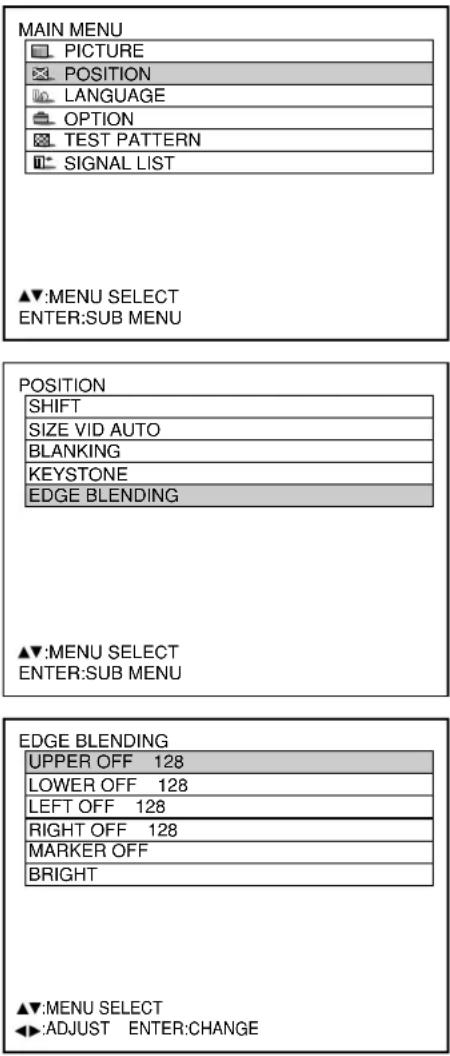
① Press the "MENU" button.
The MAIN MENU screen will be displayed.
② Select the "POSITION" with the ▲▼ buttons.
③ Press the "ENTER" button.
The POSITION screen will be displayed.
④ Select "EDGE BLENDING" with the ▲▼ buttons.
MAIN MENU
| PICTURE |
| POSITION |
| LANGUAGE |
| OPTION |
| TEST PATTERN |
| SIGNAL LIST |
▲▼:MENU SELECT ENTER:SUB MENU
| POSITION |
| SHIFT |
| SIZE VID AUTO |
| BLANKING |
| KEYSTONE |
| EDGE BLENDING |
▲▼:MENU SELECT ENTER:SUB MENU
⑤ Press the "ENTER" button.
The EDGE BLENDING screen will be displayed.
⑥ Specify the area to be adjusted with the ▲▼ buttons.
To joint the top: set "UPPER" to "ON".
To joint the bottom: set "LOWER" to "ON".
To joint the left: set "LEFT" to "ON".
To joint the right: set "RIGHT" to "ON".
⑦ Press the "ENTER" button to toggle "ON" and "OFF".
⑧ Adjust the correction width with the ◀ ▶ buttons.
⑨ Select “MARKER” with the ▲▼ buttons.
⑩ Select "ON" with the ENTER buttons.
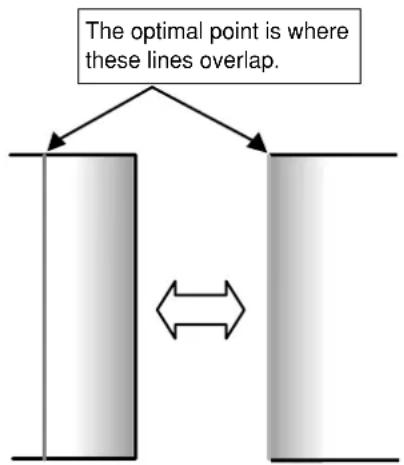
flowchart
graph TD
    A["The optimal point is where these lines overlap."] --> B["Left Bar"]
    A --> C["Right Bar"]
    B <--> C
Note
Adjustment marker
When the "MARKER" is set to "ON", the image position adjustment marker is displayed.
Green lines are shown on the top and the left of the displayed picture frame and red lines are displayed on the right and the bottom.
The optimal point is the position where the red line of one frame overlaps the green line of the other frame.
Notice:
The correction widths of the jointed frames must be the same value all the time.
The optimal joint cannot be achieved if the jointed frames have different correction widths.
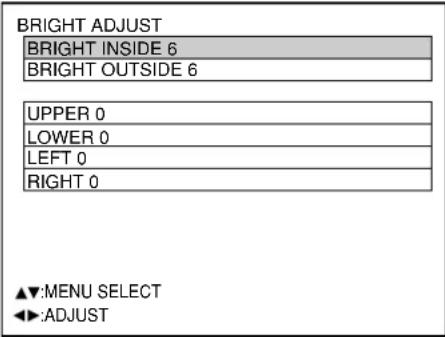
⑪ Select the "BRIGHT" with the buttons.
⑫ Press the ENTER button.
The BRIGHT ADJUST screen will be displayed.
⑬ Select the “BRIGHT INSIDE” with the ▲▼ buttons.
⑭ Adjust the compensation value (0-255) with the buttons.
⑮ Select the part of Upper, Lower, Right or Left with buttons.
⑯ Adjust the width which do not compensate with buttons (0-255).
⑰ Select the "BRIGHT OUTSIDE" with the ▲▼ buttons.
⑱ Adjust the compensation value (0-255) with the buttons.

Note
- BRIGHT adjustment is used to avoid the conspicuous BRIGHT of the part in which picture images are superimposed on each other when multi-screens are displayed using the edge blending system.
The optimal point will be achieved when correction is made so that BRIGHT will be the same in the part in which images are superimposed and in the part in which images are not superimposed by adjusting the BRIGHT inside.
Adjust the widths of the top, bottom, left and right if the image looks brighter only in the vicinity of the borders between the overlapping and non-overlapping parts after making BRIGHT adjustment.
If the image becomes darker only in the vicinity of the borders after width adjustments, also adjust the BRIGHT outside.
Changing the display language
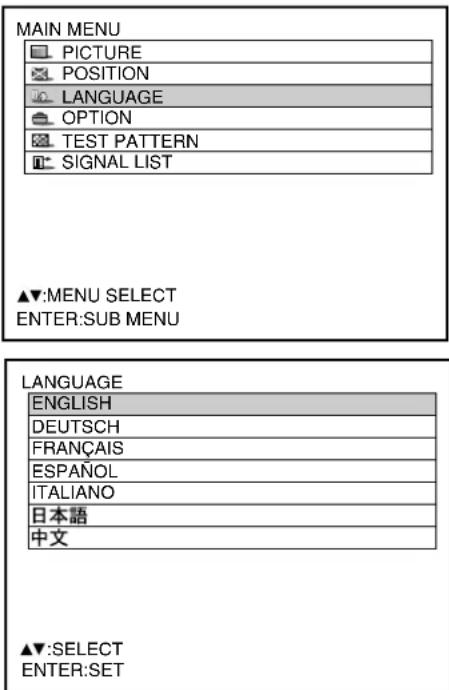
① Press the "MENU" button.
The MAIN MENU screen will be displayed.
② Select the “LANGUAGE” with the
▲▼ buttons.
③ Press the "ENTER" button.
The LANGUAGE screen will be displayed.
④ Select the desired language with the ▲▼ buttons.
⑤ Press the "ENTER" button to establish your selection.
Menus, setting items, adjustment screens, and control button names will be displayed in the language the user chooses.
The available languages are: English, German (DEUTSCH), French (FRANÇAIS), Italian (ITALIANO), Spanish (ESPAÑOL), Japanese
(由本和 Chinese (). 中文
Note
- The on-screen display of the projector is set to the English language on shipping.
How to change the system format
Pressing the SYSTEM SELECTOR button on the remote control or the control panel of the main unit allows the user to make the following changes depending on the currently selected input module.
The name of the selected system such as RGB, YPBPR and AUTO is displayed on the top left of the screen and disappears automatically.
S video / Video terminal input signal
: AUTO1 For the setting of AUTO1 NTSC

flowchart
graph TD
    A["PAL"] --> B["SECAM"]
    B --> C[" "]
    C --> D[" "]
    D --> E[" "]
    E --> F["PAL60"]
    F --> G["NTSC4.43"]
    G --> D
For the setting of AUTO2
AUTO2
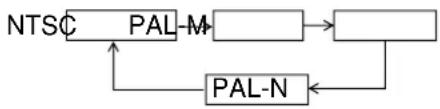
flowchart
graph TD
    A["NTSC"] --> B["PAL-M"]
    B --> C[" "]
    C --> D["PAL-N"]
    D --> A
RGB signal input module ET-MD95RGB

flowchart
graph LR
    A["RGB"] --> B["RGB REALITY"]
    B --> C["YP_B P_R"]
    C --> A
    style A fill:#f9f,stroke:#333
    style B fill:#f9f,stroke:#333
    style C fill:#f9f,stroke:#333

* For 480i,576i,480P input The SYSTEM SELECTOR button is ineffective with other types of signals.
Video signal input module
ET-MD95VM2
For the setting of AUTO1
ET-MD95VM2
For the setting of AUTO2
For the setting of ET-MD95VM2 YCbCr
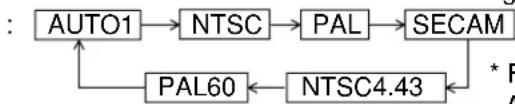
flowchart
graph TD
    A["AUTO1"] --> B["NTSC"]
    B --> C["PAL"]
    C --> D["SECAM"]
    D --> E["NTSC4.43"]
    E --> F["PAL60"]
    F --> A
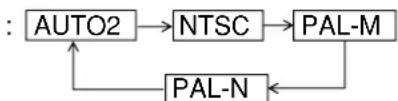
flowchart
graph TD
    A["AUTO2"] --> B["NTSC"]
    B --> C["PAL-M"]
    C --> D["PAL-N"]
    D --> A

* For the details on the setting for AUTO1, AUTO2 or YCbCr, refer to page 68.
* When the STD (standard) button is pressed while changing the system mode (with the SYSTEM SELECTOR), the projector automatically returns to AUTO1, AUTO2, or AUTO.
Serial digital input module
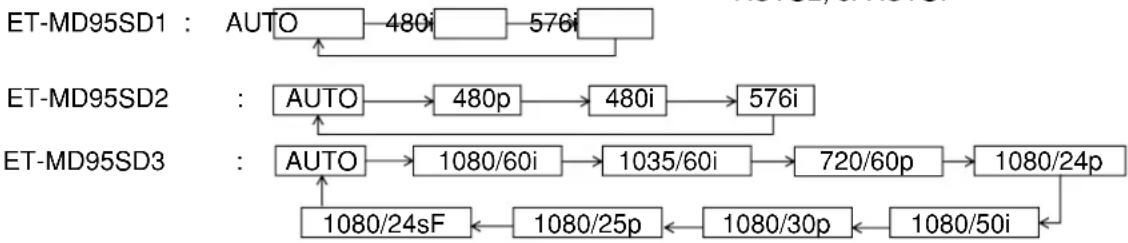
flowchart
graph TD
    A["ET-MD95SD1"] --> B["AUTO"]
    B --> C["480i"]
    C --> D["576i"]
    D --> E["ET-MD95SD2"]
    E --> F["AUTO"]
    F --> G["480p"]
    G --> H["480i"]
    H --> I["576i"]
    I --> J["ET-MD95SD3"]
    J --> K["AUTO"]
    K --> L["1080/60i"]
    L --> M["1035/60i"]
    M --> N["720/60p"]
    N --> O["1080/24p"]
    O --> P["1080/24sF"]
    P --> Q["1080/25p"]
    Q --> R["1080/30p"]
    R --> S["1080/50i"]
* "AUTO 1": Selection is automatically made out of NTSC, PAL, SECAM, NTSC4.43 and PAL60.
"AUTO 2": Selection is automatically made out of NTSC, PAL-M and PAL-N.
RGB1/RGB2 terminal input signals
For 720p, 1080i input: RGB YP BPR
For 480i, 576i, 480p input: RGB YGbCr
For the signals other than those above, SYSTEM SELECTOR button is invalid.
How to change the signal for the ET-MD95VM2 (optional)
When ET-MD95VM2 (optional) is installed with the projector, select the signaling system according to the connected device.
Procedure of setting
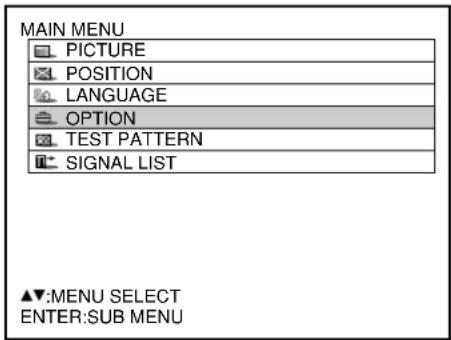
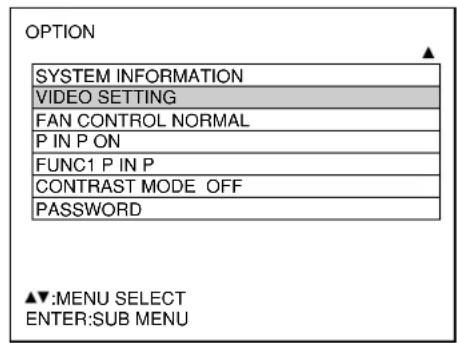
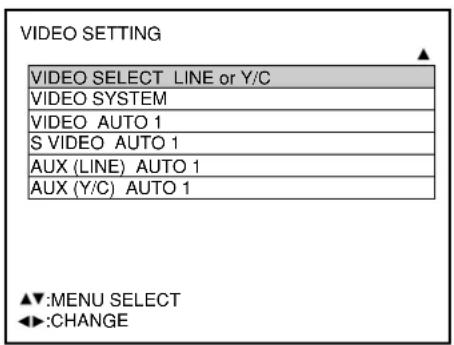
① Press the "MENU" button.
The MAIN MENU screen will be displayed.
② Select "OPTION" with the
buttons.

③ Press the "ENTER" button.
The OPTION screen will be displayed.
④ Select "VIDEO SETTING" with the buttons.

Note
- When buttons are displayed above or under the items in the "PICTURE" or "OPTION" screen, they indicate that there are more adjustment (items).
⑤ Press the "ENTER" button.
The VIDEO SETTING screen will be displayed.
⑥ Choose an input signaling system with the buttons and switch to "LINE or Y/C" or "YCbCr" with the ◀▶ buttons.
The selected signaling system appears.
(The picture may be distorted during the switching operation.)
⑦ If "LINE or Y/C" is selected, choose a video system with the buttons and switch to "AUTO1" or "AUTO2" with the buttons.
The selected signaling system appears.
(The picture may be distorted during the switching operation.)
⑧ Press the "MENU" button three times.
The on-screen indications disappear and the set screen appears.
RGB REALITY mode converts RGB (primary colors) input signals into component signals and achieves the high-quality playback by motion-image-specific picture conversion process.
This mode is effective only when the signal input is applied to the RGB input signal module (ET-MD95RGB).
The appropriate mode can be selected according to the signal. (Refer to page 67)
RGB mode: For RGB signals input from a PC etc. (mostly still images)
RGB REALITY mode: For RGB signals input from a scan converter etc. (mostly motion images)
The following are the signals that can be converted into RGB REALITY mode:
| Signal name | fH(kHz)/fV(Hz) | RGB mode RGB REALITY mode Remarks | ||
| 480i | 15.73/60 | ◎ | ||
| 576i 15.63/50 | ◎ | |||
| 480p 31.47/60 | ○ | ◎ | ||
| 720/60p 45.00/60 | ○ | ◎ | ||
| 1035/60i 33.75/60 | ○ | ◎ | ||
| 1080/60i 33.75/60 | ○ | ◎ | ||
| 1080/24p 27.00/24 | ○ | ◎ | ||
| 1080/50i 28.12/50 | ○ | ◎ | ||
| 1080/30p 33.75/30 | ○ | ◎ | ||
| 1080/25p 28.12/25 | ○ | ◎ | ||
| 1080/24sF 27.00/48 | ○ | ◎ | ||
| Others RGB mode only | ◎ | × | ||
◎ : Supported (Factory default)
○ : Supported (To use the signal in the mode with ☐select the signal with the SYSTEM SELECTOR button and register it.)
△ : Use the signal in the RGB REALITY mode because the signal may not be supported depending on the state of the signal.
× : Not supported
Note
- The automatic picture adjustment (page 43) and the adjustment of the input resolution (page 62) cannot be performed because the optimal adjustment value is preset in the RGB REALITY mode.
- The projector's adjustment functions in the RGB REALITY mode are the same as those for the YP_BPR (or YCbCr) input.
■ ID number setting
The projector has an ID number setting function that helps the user to control two or more projectors either simultaneously or separately with a single remote control. The ID number is set to "ALL" by default. Hence the ID number need not be set when only one projector is used.
Procedure of setting
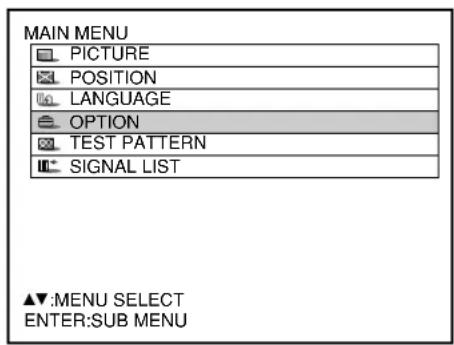
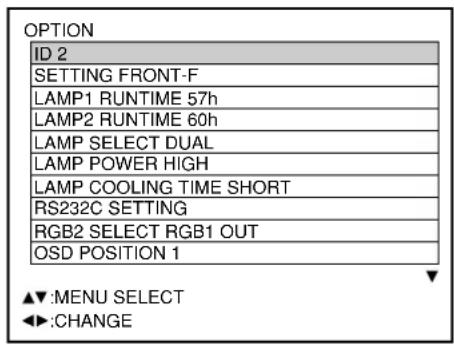
① Press the “MENU” button.
The MAIN MENU screen will be displayed.
② Select "OPTION" with the ▲▼ buttons.
③ Press the "ENTER" button. The OPTION screen will be displayed.
④ Select "ID" with buttons and change the value with buttons (ALL, 1, 2, ...64).
⑤ Press the “MENU” button twice. This concludes the setting procedure and the on-screen indications disappear and the normal screen appears again.
Note
- The ID number can be set to "ALL", or selected from "1" to "64".
- If the projectors are given ID numbers, their remote controls must be assigned the same ID numbers, respectively.
- If the ID number of a projector is set to "ALL", it can be controlled by the remote control or the PC with any ID number.
If multiple projectors are used and some of them have their IDs set to "ALL", they cannot be controlled separately from the projectors with other ID numbers.
For details on remote control ID setting, see page 16.
■ Installation Setting
A projection scheme can be chosen depending on the installation of the projector. If the picture is shown upside down or in reverse, change the projection scheme using the following figures A to D.
| A: Floor mount front projection (Front – Floor mount) | B: Ceiling mount front projection (Front – Ceiling mount) |
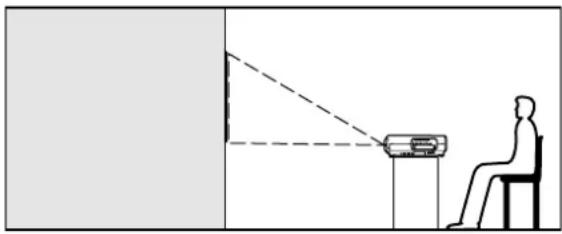 | 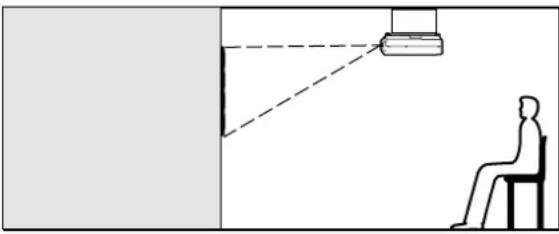 |
| C: Floor mount rear projection (Rear – Floor mount) | D: Ceiling mount rear projection (Rear – Ceiling mount) |
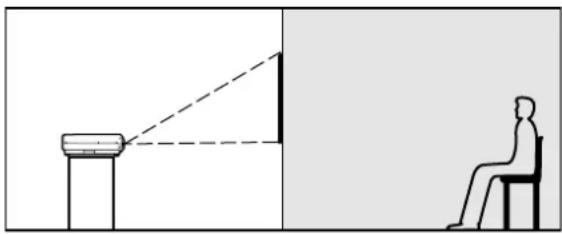 | 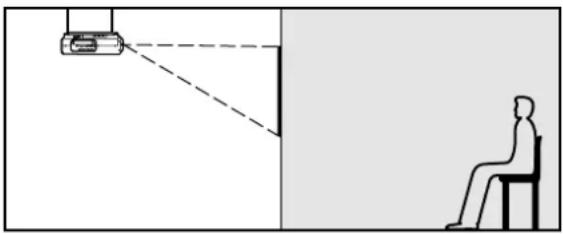 |
Select the setting by displaying the on-screen indications using buttons of the remote control or the control panel on the main unit.
Procedure of setting
| MAIN MENU |
| PICTURE |
| POSITION |
| LANGUAGE |
| OPTION |
| TEST PATTERN |
| SIGNAL LIST |
| OPTION |
| ID 2 |
| SETTING FRONT-F |
| LAMP1 RUNTIME 57h |
| LAMP2 RUNTIME 60h |
| LAMP SELECT DUAL |
| LAMP POWER HIGH |
| LAMP COOLING TIME SHORT |
| RS232C SETTING |
| RGB2 SELECT RGB1 OUT |
| OSD POSITION 1 |
① Press the “MENU” button.
The MAIN MENU screen will be displayed.
② Select "OPTION" with the ▲▼ buttons.
③ Press the "ENTER" button. The OPTION screen will be displayed.
④ Select "SETTING" with the ▲▼ buttons and choose a projection scheme with the Buttons.
Each time or button is pressed, the types of projection scheme, together with its indications, are toggled through a cycle as follows:
FRONT-F FRONT-C
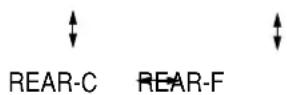
⑤ Press the “MENU” button twice. The on-screen indications disappear and the normal screen appears again.
■ Lamp select
Two internal lamps in the projector can be used either in "DUAL" or "SINGLE" mode depending on user's needs or viewing conditions.
In the “SINGLE” mode, the projector may automatically switches between one lamp and the other, or one of the lamps can be specified.
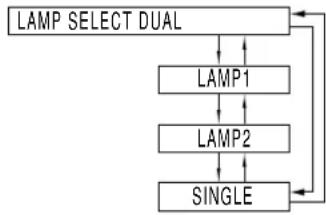
flowchart
graph TD
    A["LAMP SELECT DUAL"] --> B["LAMP1"]
    B --> C["LAMP2"]
    C --> D["SINGLE"]
    D --> A
"DUAL": Two lamps illuminate.
"LAMP 1": One lamp illuminates.
(Lamp Unit 1 is always used)
"LAMP 2": One lamp illuminates.
(Lamp Unit 2 is always used)
"SINGLE": One of the lamps illuminates.
(The lamp with shorter operating hours is automatically selected)
Note
- If any of "LAMP 1", "LAMP 2" and "SINGLE" has been selected, when a currently lit lamp expires, or is turned off due to the elapsed time of lamp lighting exceeding 1500 hours, the other lamp will be turned on.
If "DUAL" has been selected, when either of the two lamps expires, or is turned off due to the elapsed time of lamp lighting exceeding 1500 hours, the other lamp with elapsed time not exceeding 1500 hours continues lighting.
Further, if the elapsed time exceeds 1500 hours for both lamps, the projector will enter a standby state.
- If only one lamp is mounted, select "LAMP 1" or "LAMP 2" according to the relevant lamp unit. In "LAMP 1" or "LAMP 2" mode, if the corresponding lamp is not installed, the other lamp will turn on.
- If the lamp selection is changed, picture is muted during lamp switching execution. (7-25sec.)
■ Lamp power
The luminance of the projection lamp can be changed depending on user's needs or the viewing conditions.
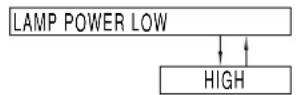
"HIGH": Set when high brightness is necessary.
"LOW": Set when high brightness is not necessary.
Note
- When set to "LOW", it is possible to reduce power consumption, reduce operating noise and extend lamp service life.
■ Lamp cooling time
The user can change the length of time for cooling down lamps after the power off.
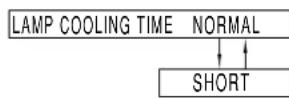
(Approx. 240 secs.)
(Approx. 160 secs.)
Note
- When set to "SHORT", operating noise increases a little.
■ RGB2 select
The RGB2 terminal can be used either for RGB2 IN or RGB1 OUT function.
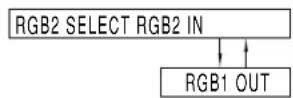
■ Position of on-screen indications
The user can specify the position of the on-screen indications
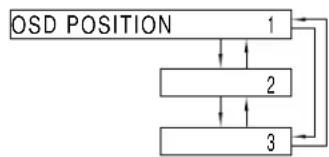
flowchart
graph TD
    A["OSD POSITION"] --> B["1"]
    B --> C["2"]
    C --> D["3"]
    D --> A
"1": Top of the screen
"2": Middle of the screen
"3": Bottom of the screen
■ System information
Displays the system information of the projector.
| SYSTEM INFORMATION |
| ROM VERSION: 1.00 |
| SET RUNTIME: 14h |
| LAMP1 RUNTIME: 13h |
| LAMP2 RUNTIME: 13h |
| INPUT BOARD: NOT YET |
| NUMBER OF ENTRY SIGNAL: 4/96 |
- Pressing the "ENTER" button will move on to the next page.
| SYSTEM INFORMATION |
| ROM VERSION: 1.00 |
| ON COUNTPOWER ON TIMES: 55LAMP 1 ON: 57( 0)LAMP 2 ON: 59( 0) |
| AUX: NOT YET |
| NUMBER OFENTRY SIGNAL: 4/96 |
■ Video setting
This feature allows the user to select the signaling system according to the connected device.
① Select “VIDEO SETTING” from the “OPTION” screen and press the ENTER button.
The "VIDEO SYSTEM" screen will be displayed.
② Use the Buttons to select "AUTO 1" or "AUTO 2".
Note
- When ET-MD95VM2 (optional) is mounted, an item of "VIDEO SELECT" will appear on the "VIDEO SETTING" screen allowing the used to select either "LINE or Y/C" or "YCbCr".
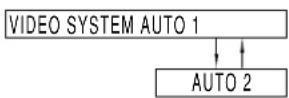
"AUTO1": The system is automatically selected from among NTSC, PAL, SECAM, NTSC4.43 and PAL60.
"AUTO2": The system is automatically selected from among NTSC, PAL-M and PAL-N.
■ Fan control
When using the projector over 1 400 m (4605.3') above sea level, set to "High".
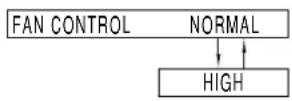
■ Automatic adjustment
(Only for RGB input)
Use this setting when adjusting a specific or oblong (16:9, etc.) signal.
① Press the MENU button. The MAIN MENU screen will be displayed.
② Select "OPTION" with the ▲▼ buttons.
③ Press the ENTER button. The OPTION screen will be displayed.
④ Using the buttons, select "AUTO SETUP".
⑤ Press the buttons. The AUTO SETUP screen will be displayed.
⑥ Using the Buttons, switch to the desired mode.
"STANDARD": to receive signals of which image aspect is 4:3 or 5:4 "WIDE": to receive signals of which image aspect is 16:9 (oblong) "USER": to receive signals of specific horizontal resolution (number of horizontally displayed dots)
| MODE | Applicable resolution |
| STANDARD | 640 x 400, 640 x 480, 800 x 600, 832 x 624, 960 x 720, 1 024 x 768, 1 152 x 864, 1 152 x 870, 1 280 x 960, 1 280 x 1 024, 1 600 x 1 200 |
| WIDE | 720 x 400, 848 x 480, 1 280 x 720, 1 120 x 750, 1 376 x 768, 1 600 x 1 024 |
⑦ If “USER” is selected, enter the horizontal resolution of signal source into “number of horizontally displayed dots” using buttons.
⑧ Press the ENTER button.
Execute automatic adjustment. A message “EXECUTING...” appears during automatic adjustment. When the adjustment is complete, the system returns to the input screen.
■ P IN P
This item is used to set the condition of the Picture-In-Picture.
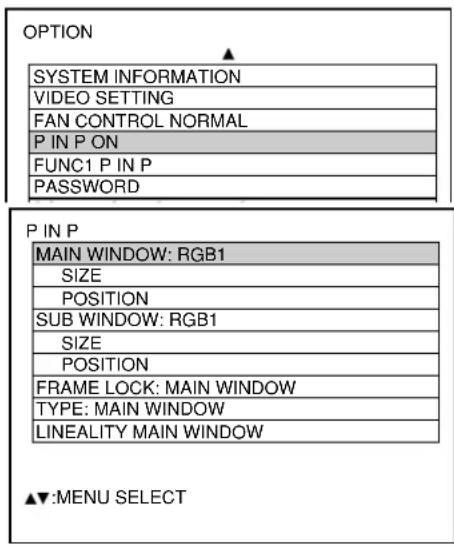
Select "ON" or "OFF" with the ◀▶ buttons. The submenu can be displayed with the "ENTER" button only when "ON" is selected.
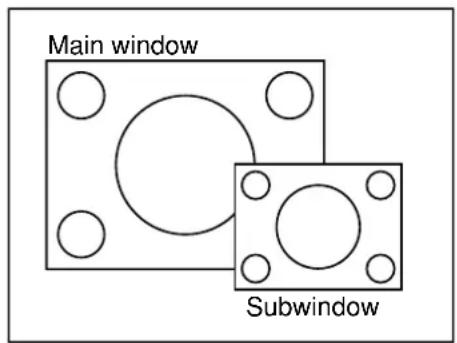
- Main window:
The terminal selected for input is displayed.
Size: The user can specify the display size of the main window between 10% and 100%.
Position: The user can specify the display position of the main window on the screen.
- Subwindow:
The input terminal for the subwindow is displayed.
If more than one input terminal is available for P IN P, one of them can be selected with the buttons.
Size: The user can specify the display size of the subwindow between 10% and 100%.
Position: The user can specify the display position of the subwindow on the screen.
- Frame lock:
The user can select the window to apply frame lock.
"MAIN WINDOW": Frame lock is set for the input signals specified for the main window.
"SUBWINDOW": Frame lock is set for the input signals specified for the subwindow.
- Type:
The user can select the window that is displayed by priority when two windows overlap.
"MAIN WINDOW": The main window is displayed by priority.
"SUBWINDOW": The subwindow is displayed by priority.
• Linearity:
The user can select the window to apply the linearity correction when the P IN P function and the keystone distortion correction function are both used simultaneously.
"MAIN WINDOW": The linearity correction is applied to the main window.
"SUBWINDOW": The linearity correction is applied to the subwindow.
Note
- The P IN P function is not available depending on the input signals and the selected input terminals.
- The main window's picture adjustment values such as the picture mode, gamma selection and color temperature setting for the main window will be applied.
List of P IN P
| SubwindowMain window | RGB2RGB1 | VIDEO input | S-VIDEO input | AUX | ||||||||||||||||||
| RGB input | YCbCr input | YPbPr input | RGB input | YCbCr input | YPbPr | ET-MD95RGB | ET-MD95VM2 | ET-MD95SD1 | ET-MD95SD2 | ET-MD95SD3 | ET-MD75DV | ET-MD75NT | ||||||||||
| RGB input | RGBrealiry input | YCbCr input | YPbPr input | LINE input | Y/C input | YCbCr input | ||||||||||||||||
| RGB1 | RGB input | × | × | × | × | × | × | ○ | ○ | × | ○ | ○ | × | ○ | ○ | ○ | ○ | ○ | × | × | × | |
| YCbCr input | × | × | × | × | × | × | × | × | ○ | × | × | × | × | × | × | × | × | × | ○ | ○ | ||
| YPbPr input | × | × | × | × | × | × | × | × | × | × | × | × | × | × | × | × | × | × | × | × | ||
| RGB2 | RGB input | × | × | × | × | × | × | ○ | ○ | × | ○ | ○ | × | ○ | ○ | ○ | ○ | ○ | × | × | × | |
| YCbCr input | × | × | × | × | × | × | × | × | ○ | × | × | × | × | × | × | × | × | × | ○ | ○ | ||
| YPbPrr input | × | × | × | × | × | × | × | × | × | × | × | × | × | × | × | × | × | × | × | × | ||
| VIDEO input | ○ | × | × | ○ | × | × | × | × | ○ | × | × | × | × | × | × | × | × | × | ○ | ○ | ||
| S-VIDEO input | ○ | × | × | ○ | × | × | × | × | ○ | × | × | × | × | × | × | × | × | × | ○ | ○ | ||
| AUX | ET-MD96RGB | RGB input | × | ○ | × | × | ○ | × | ○ | ○ | × | × | × | × | × | × | × | × | × | × | × | × |
| RGBrealiry input | ○ | × | × | ○ | × | × | × | × | × | × | × | × | × | × | × | × | × | × | × | × | ||
| YCbCr input | ○ | × | × | ○ | × | × | × | × | × | × | × | × | × | × | × | × | × | × | × | × | ||
| YPbPr input | × | × | × | × | × | × | × | × | × | × | × | × | × | × | × | × | × | × | × | × | ||
| ET-MD95VM2 | LINE input | ○ | × | × | ○ | × | × | × | × | × | × | × | × | × | × | × | × | × | × | × | × | |
| Y / C input | ○ | × | × | ○ | × | × | × | × | × | × | × | × | × | × | × | × | × | × | × | × | ||
| YCbCr input | ○ | × | × | ○ | × | × | × | × | × | × | × | × | × | × | × | × | × | × | × | × | ||
| ET-MD95SD1 | ○ | × | × | ○ | × | × | × | × | × | × | × | × | × | × | × | × | × | × | × | × | ||
| ET-MD95SD2 | ○ | × | × | ○ | × | × | × | × | × | × | × | × | × | × | × | × | × | × | × | × | ||
| ET-MD95SD3 | × | × | × | × | × | × | × | × | × | × | × | × | × | × | × | × | × | × | × | × | ||
| ET-MD75DV | × | ○ | × | × | ○ | × | ○ | ○ | × | × | × | × | × | × | × | × | × | × | × | × | ||
| ET-MD75NT | × | ○ | × | × | ○ | × | ○ | ○ | × | × | × | × | × | × | × | × | × | × | × | × | ||
○ : P in P (Picture in Picture) combinations are enabled
×: P in P (Picture in Picture) combinations are disabled
■ Setting FUNC1
The user can specify the function of the "FUNC 1" button on the remote control.
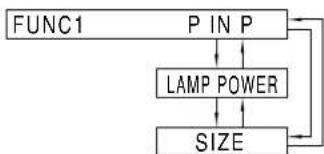
flowchart
graph TD
    A["FUNC1"] --> B["P IN P"]
    B --> C["LAMP POWER"]
    C --> D["SIZE"]
    D --> E["Output"]
"P IN P": Displays the P IN P function.
"LAMP POWER": Allows the user to set the lamp power.
"SIZE": Allows the user to set the picture size.
■ Password
This function is used when a service person.
Input the password with the numeric buttons (0 to 9) of the remote control and press ENTER button to confirm the entry.
Setting the contrast mode
This equipment has 2 mode types for adjusting to the use environment.
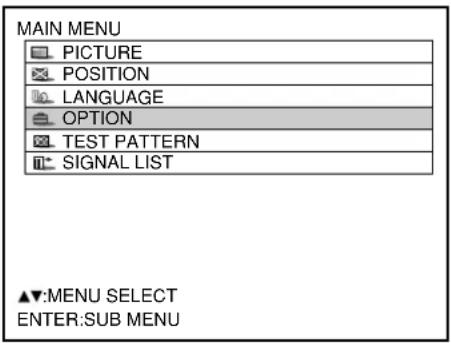
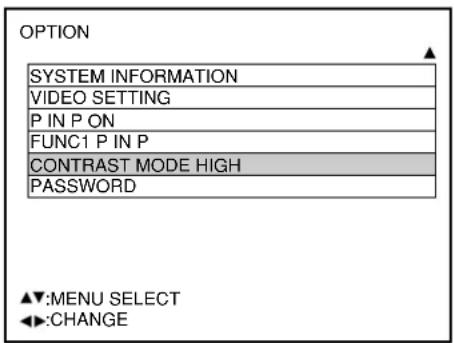
① Press the “MENU” button.
The MAIN MENU screen will be displayed.
② Select "OPTION" with the ▲▼ buttons.
③ Press "ENTER" button. The OPTION screen will be displayed.
④ Select "CONTRAST MODE" with the ▲▼ buttons.
⑤ Switch to "HIGH" or "NORMAL" with the ◀▶ buttons.
| Mode | NORMAL HIGH |
| Contrast Normal Maximum | |
| Brightness Maximum Normal |
Note
- It is recommended that the contrast mode be set to "HIGH" when watching pictures such as movies.
How to switch the input impedance (signal level) of the synchronization signal
When the ET-MD95RGB input module (sold separately) is mounted, the user can switch the input impedance (signal level) of the synchronization signal with the analog RGB input.
Choose 75 Ω when connecting with the equipment whose synchronization output impedance is 75 Ω such as a signal selector, or switch to HI-Z (TTL) when connecting with the equipment whose synchronization output is TTL such as a video card of a PC.
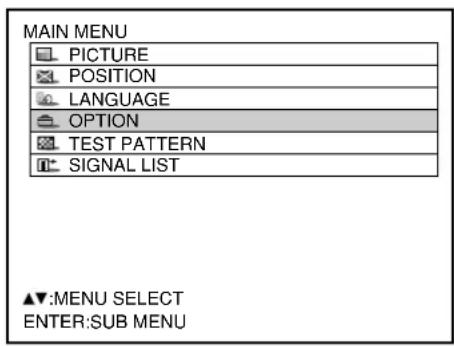
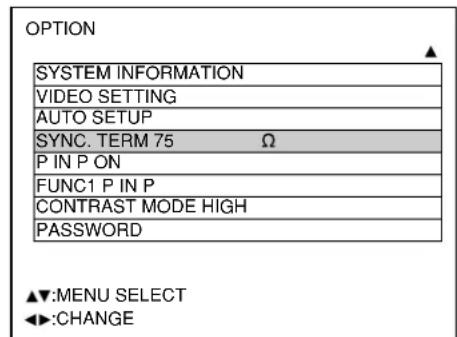
① Press the "MENU" button.
The MAIN MENU screen will be displayed.
② Select "OPTION" with the ▲▼ buttons.
③ Press the "ENTER" button.
The OPTION screen will be displayed.
④ Select "SYNC. TERM" with the ▲▼ buttons.
⑤ Switch the input impedance (signal level) of the synchronization signal with the buttons.
• These buttons toggle between 75 Ω and HI-Z (TTL).
| SYNC. TERM | Input impedanceSig | |
| 75 Ω | Amplitude: 0.6V[p-p] to 4.0V[p-p] | 75 Ω |
| HI-Z (TTL) | High level: 2.0 V or overLow level: 0.8 V or lower | 1 kΩ |
gnal level
Note
- Switch the input impedance according to the input signal.
• The factory default is 75 Ω. - The clock phase and image position may become out of balance during this switching operation. Please make readjustment accordingly.
Using the serial terminals
The main unit is equipped with SERIAL terminals located in its terminal section on the side, and this terminal is compliant with RS-232C. Also a serial output terminal is provided to enable plural projector control.
■ Examples of connection
- Single projector Plural projectors
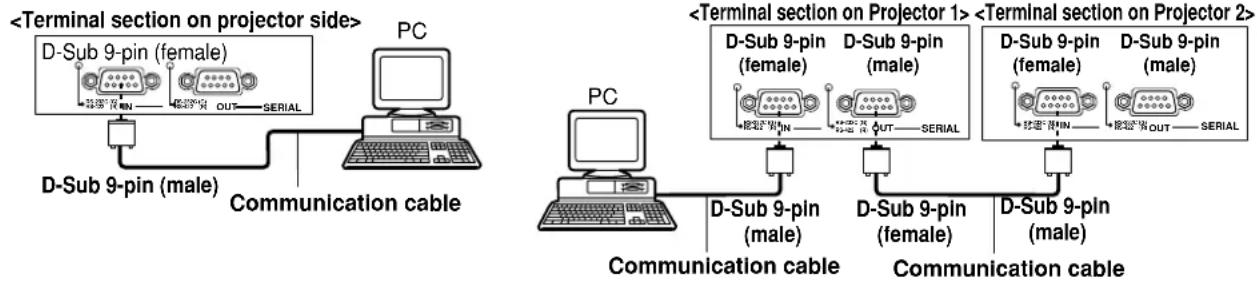
flowchart
graph TD
    A["<Terminal section on projector side>"] --> B["D-Sub 9-pin (female)"]
    A --> C["D-Sub 9-pin (male)"]
    B --> D["Communication cable"]
    C --> D
    E["PC"] --> F["<Terminal section on Projector 1>"]
    E --> G["<Terminal section on Projector 2>"]
    H["PC"] --> I["Communication cable"]
    H --> J["Communication cable"]
    style A fill:#f9f,stroke:#333
    style E fill:#f9f,stroke:#333
■ Pin assignments and signal names
D-Sub 9-pin (female), external appearance
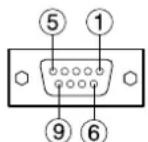
Serial input terminal
| Pin No. | Signal name | Description |
| ① | NC | |
| ② | TXD | Send data |
| ③ | RXD | Receive data |
| ④ | Connected internally | |
| ⑤ | GND | Ground |
| ⑥ | NC | |
| ⑦ | CTS | Connected internally |
| ⑧ | RTS | |
| ⑨ | NC |
D-Sub 9-pin (male), external appearance
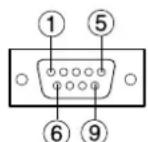
Serial output terminal
| Pin No. | Signal name | Description |
| ① | NC | |
| ② | RXD | Receive data |
| ③ | TXD | Send data |
| ④ | NC | |
| ⑤ | GND | Ground |
| ⑥ | NC | |
| ⑦ | RTS | Connected internally |
| ⑧ | CTS | |
| ⑨ | NC |
■ Communication conditions (Factory setting)
| Signal level | RS-232C-compliant |
| Synchronization method | Start-stop synchronization |
| Baud rate | 9 600bps |
| Parity | None |
| Character length | 8 bits |
| Stop bit | 1 bit |
| X parameter | None |
| S parameter | None |
■ Basic format
Transmission from the computer begins with STX, then the ID, command, parameter, and ETX are sent in this order. Add parameters according to the details of control.

flowchart
graph LR
    A["Start"] --> B["STX C1"]
    B --> C["C2 C3 : P1 P2 Pn ETXA D1112;"]
    C --> D["Semicolon"]
    D --> E["ZZ, 1 to 64 and 0A to 0Z ID designate"]
    E --> F["Colon"]
    F --> G["Parameter (undefined length)"]
    G --> H["End"]
Attention
- No command can be sent or received for 10 to 60 seconds after the lamp starts lighting. Try sending any command after that period has elapsed.
- When sending several commands, be sure to wait for a response from the projector before sending the next command. When sending commands without parameters, a colon (:) is not necessary.
Note
- If a wrong command is received, the projector will send an "ER401" command to the computer.
- Projector ID supported on the RS-232C interface is ZZ (ALL) and a group of 1 to 64 and 0A to 0Z.
- If a command is sent with a projector ID specified, the projector will return answer back only in the following cases:
If it coincides with the projector ID,
ID specification is ALL and VPS-SYSTEM is the master, or
ID specification is group and Group is the master.
■ Procedure of setting communication conditions
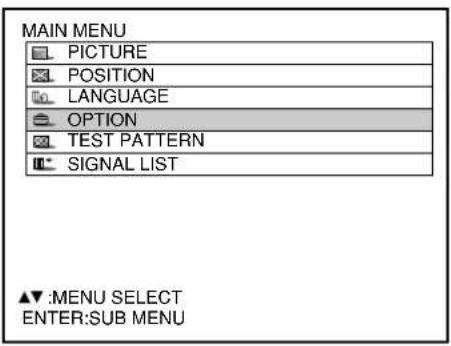
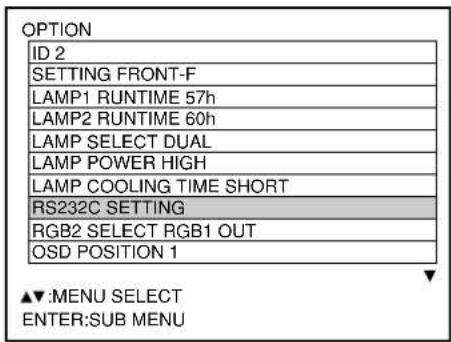
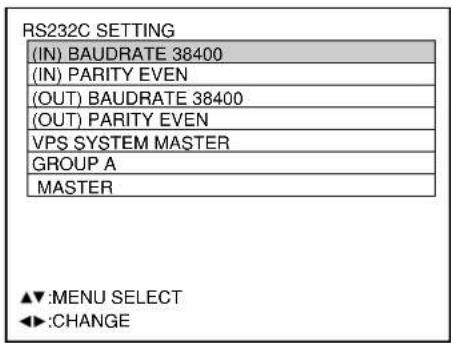
① Press the “MENU” button.
The MAIN MENU screen will be displayed.
② Press and buttons to select "OPTION".
③ Press the "ENTER" button. The OPTION screen will be displayed.
④ Press and buttons to select "RS232C SETTING".
⑤ Press the "ENTER" button.
The RS232C SETTING screen will be displayed.
⑥ Press and buttons to select communication conditions
⑦ Press and buttons to confirm the setting.
⑧ Press the "MENU" button three times. The on-screen indications disappear, and the system returns to the normal screen.
■ Control commands
When controlling the projector from a computer, the following commands are available:
| Command | Function of command | Remarks |
| PON | Power “ON” | In standby mode, commands other than “PON” are invalid.· While the lamp is ON and being controlled, a “PON” command will not be accepted. |
| POF | Power “OFF” | |
| IIS | Switch input modes | ParameterVID = VIDEO : SVD = S-VIDEORG1 = RGB1 : RG2 = RGB2 AUX=AUX |
| QSL | Query for active lamp mode | Parameter0 = DUAL * “SINGLE” will use thelamp (LAMP 1 or LAMP 2) with shorter operating hours.1 = SINGLE2 = LAMP 13 = LAMP 2 |
| LPM | Active lamp mode | Parameter0 = DUAL1 = SINGLE2 = Only LAMP 1 is on3 = Only LAMP 2 is on |
| OLP | Lamp power setting | Parameter0 = STANDARD, 1= HIGH |
■ Cable specifications
| Projector | NC | NC | Computer(DTE specifications) |
| 1 | 1 | ||
| 2 | 2 | ||
| 3 | 3 | ||
| 4 | NC | NC | 4 |
| 5 | 5 | ||
| 6 | NC | NC | 6 |
| 7 | 7 | ||
| 8 | 8 | ||
| 9 | NC | NC | 9 |
Attention • To connect the computer to the SERIAL terminal, prepare an adequate communication cable that fits to your personal computer.
Using the REMOTE 2 terminal
Using the REMOTE 2 terminal provided on the side of the main unit, it is possible to operate the projector from a control panel etc. furnished in a distant location where infrared remote control signal cannot be received.
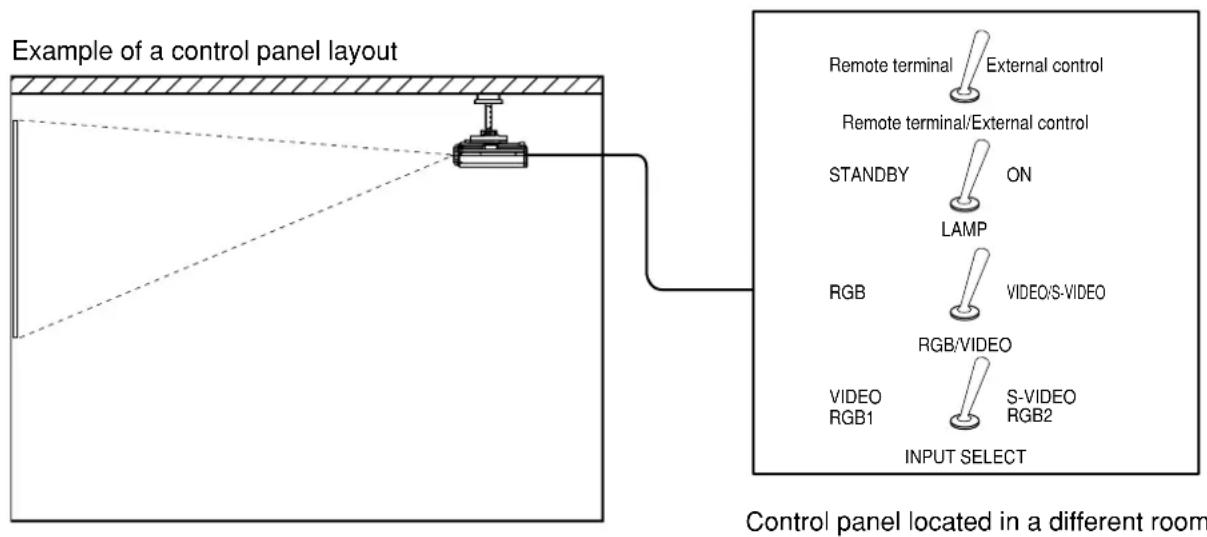
flowchart
graph TD
    A["Example of a control panel layout"] --> B["Control panel located in a different room"]
    B --> C["Remote terminal External control"]
    B --> D["Remote terminal/External control"]
    B --> E["STANDBY ON LAMP"]
    B --> F["RGB VIDEO/S-VIDEO RGB/VIDEO"]
    B --> G["VIDEO S-VIDEO RGB1 RGB2 INPUT SELECT"]
Projector set up in a meeting room
Pin assignments and control
Be sure to short-circuit Pins and when controlling.
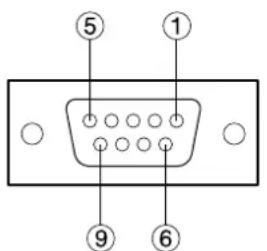
D-Sub 9-pin (female) external appearance
| Names of terminals | Open (H) | Short (L) | |
| 1 | GND | —— | GND |
| 2 | POWER | OFF | ON |
| 3 | RGB1 | Other | RGB1 |
| 4 | RGB2 | Other | RGB2 |
| 5 | VIDEO | Other | VIDEO |
| 6 | S-VIDEO | Other | S-VIDEO |
| 7 | AUX | Other | AUX |
| 8 | SHUTTER | OFF | ON |
| 9 | RST / SET | Controlled by remote control | Controlled by external contact |
Note
- The "POWER", "RGB" and "VIDEO" buttons on the remote control and projector will not operate when pins and are shorted. In addition, it disables the main unit operation sections that correspond to those functions, remote control buttons and RS-232C commands.
Displaying the internal test pattern
The projector has seven types of internal test patterns to check the condition of the set.
To display test patterns, follow the steps below.
Note
- Results of adjustment on the image, picture quality, position, size and other factors will not be reflected in test patterns. Be sure to display the input signal before performing various kinds of setting.
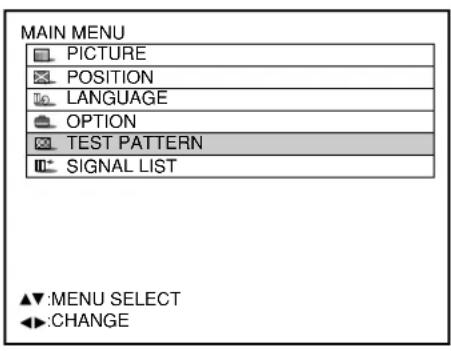
① Press the MENU button.
The MAIN MENU screen will be displayed.
② Select "TEST PATTERN" with the ▲▼ buttons.
③ Search through the various types of test patterns with the buttons.
■ Cycle of displayed internal test patterns
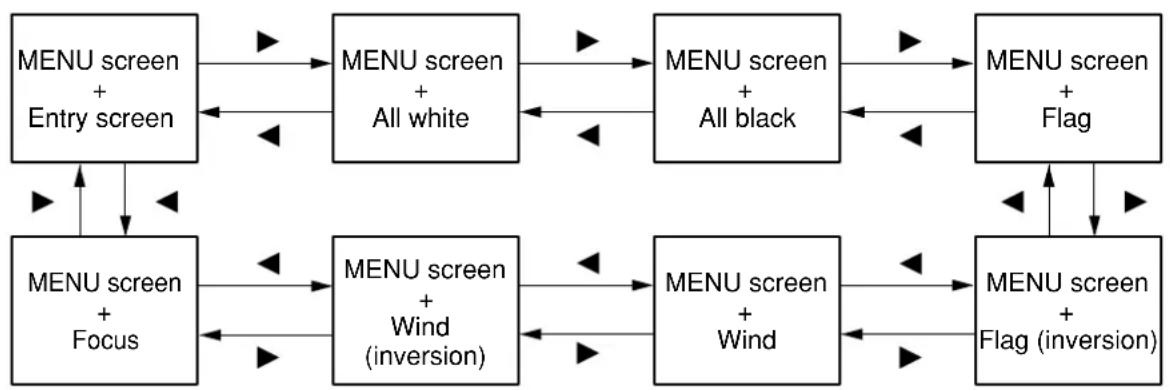
flowchart
graph TD
    A["MENU screen + Entry screen"] --> B["MENU screen + All white"]
    B --> C["MENU screen + All black"]
    C --> D["MENU screen + Flag"]
    D --> E["MENU screen + Flag (inversion)"]
    E --> F["MENU screen + Wind (inversion)"]
    F --> G["MENU screen + Wind"]
    G --> H["MENU screen + Wind (inversion)"]
    H --> I["MENU screen + Focus"]
    I --> J["MENU screen + Focus"]
    J --> K["MENU screen + All white"]
    K --> L["MENU screen + All black"]
    L --> M["MENU screen + Flag"]
    M --> N["MENU screen + Flag (inversion)"]
    N --> O["MENU screen + Wind (inversion)"]
    O --> P["MENU screen + Wind"]
    P --> Q["MENU screen + Wind (inversion)"]
    Q --> R["MENU screen + Focus"]
    R --> S["MENU screen + Focus"]
RS-422 control functions
The RS-232C terminal of the projector is available as a RS-422 control terminal. RS-232C control terminal is selected on shipping.

CAUTION

Consult a service technician to convert RS-422 control functions.
How to use network module (optional)
The network module of the projector (ET-MD75NT) is provided with a LAN interface to enable projector control from the Web browser of personal computer.
In addition, the network module also fulfills automatic E-mail transmission function. It can send mail to a predefined E-mail address when the system malfunctions or when the lamp used hours reaches the set value.
Example of connection
A LAN cable is required to use the network module.
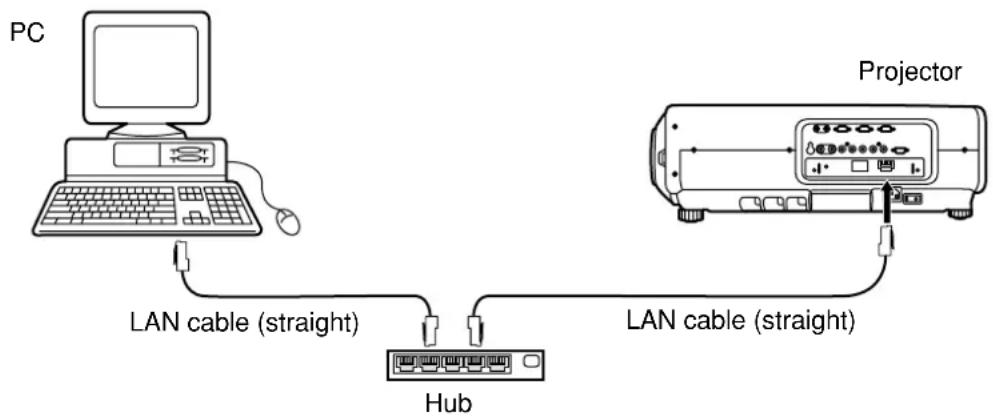
flowchart
graph TD
    PC["PC"] -->|LAN cable (straight)| Hub["Hub"]
    Hub -->|LAN cable (straight)| Projector["Projector"]
    Projector -->|LAN cable (straight)| Hub
- A Web browser is required to use this function. Make sure that a Web browser is available in the system.
- Use Microsoft Windows 95/98/Me or Windows NT4.0/Windows 2000/XP for the OS of your personal computer.
- The Web browser should be Internet Explorer 5.01 or later or Netscape Navigator/Communicator 4.75 or later.
- To use the E-mail function, communication with E-mail server must be established. Make sure that E-mail feature is available in your system.
- Use a LAN cable of straight connection and compatible to Category 5.
- The length of LAN cable must be 100 m or shorter.
Name and function of network module parts
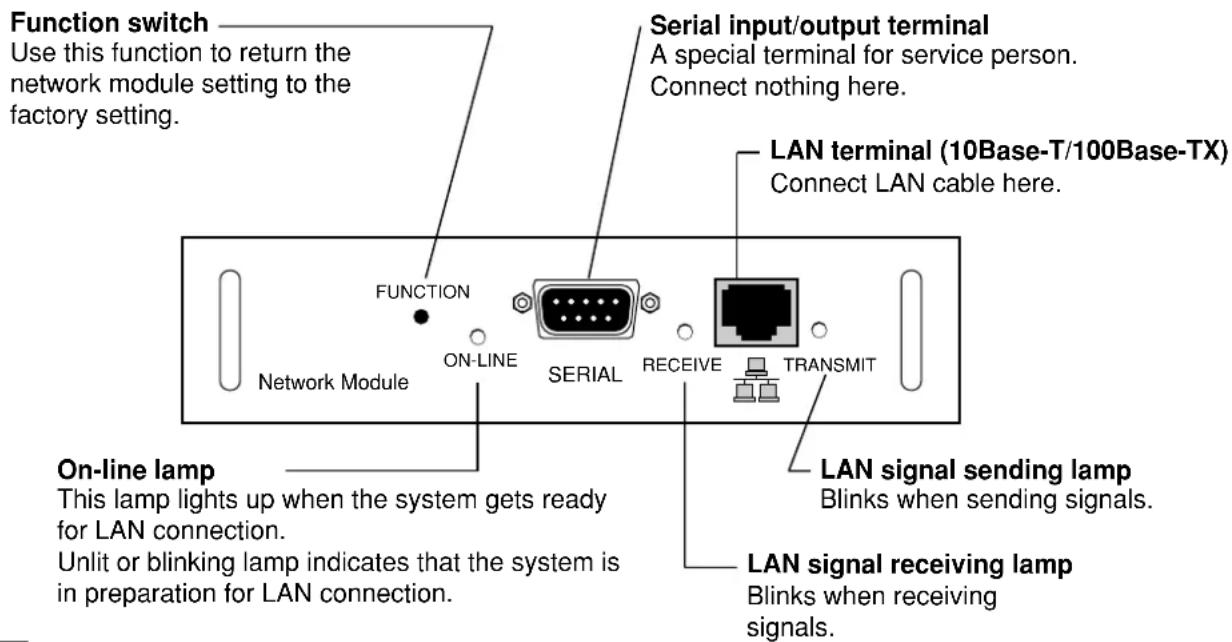
Attention
- If the LAN terminal is touched by electrostatically charged hands (or body), failure may be caused by the discharge of static electricity.
Be careful not to touch metallic part of LAN terminal or LAN cable.
■ Initial setting of network module
Procedure of setting
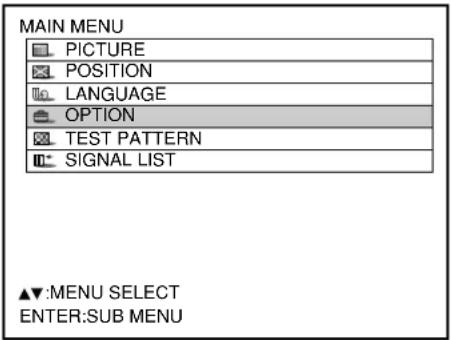

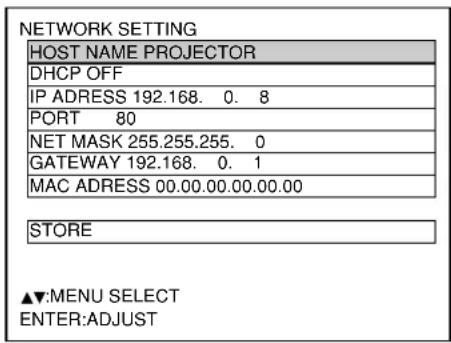
① Press the "MENU" button.
The MENU screen will be displayed.
② Select "OPTION" with the ▲▼ buttons.
③ Press the "ENTER" button.
The OPTION screen will be displayed.
④ Select "NETWORK SETTING" with the ▲▼ buttons.
⑤ Press the "ENTER" button.
The NETWORK SETTING screen will be displayed.
⑥ Select items with the buttons and press the "ENTER" button to change the setting.
⑦ Select the “STORE” with the ▲▼ buttons and press the “ENTER” button twice.
The on-line lamp of network module turns off and then turns on.
Note
- It takes about two minutes for the setting to be reflected in the system.
- Do not turn off the main power supply until the online lamp of network module turns on again.
| Items Function | Description |
| HOSTNAME | Display of host name and settingMake alteration if necessary when to use the DHCP server. |
| DHCP | DHCP client functionSet the DHCP item to ON when to acquire an IP address automatically using the DHCP server.Set to OFF if DHCP server is not used. |
| IP ADDR | Display of IP address and settingEnter the IP address if DHCP server is not used. |
| PORT No. | Display and setting of the port number for connection with the Web browser. |
| NET MASK | Display of net mask and settingEnter the net mask if DHCP server is not used. |
| GATEWAY | Display of gateway address and settingEnter the gateway address if DHCP server is not used. |
| MAC ADDR | Display of MAC addressDisplays the MAC address (Media Access Control Address), which is proper to the network device.This function may be needed when to use the DHCP server. |
- Before using the DHCP server, make sure the DHCP server is already functioning.
- For details of IP address, net mask, and gateway, ask the network administrator.
■ Accessing from the Web browser
① Activate the Web browser in the personal computer.

② Enter the IP address set by the projector into the URL input field of the Web browser.
③ Enter “user1” in the user name field and enter “panasonic” (lower case) in the password field.
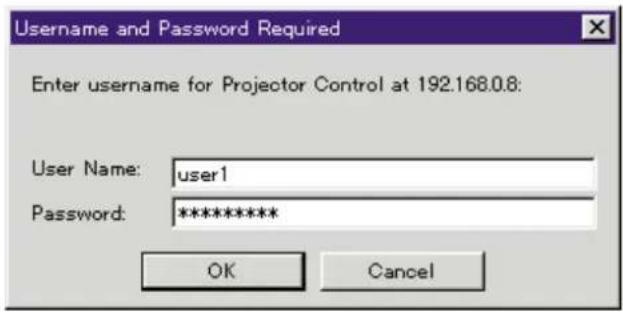
④ Press OK and the top page will appear.
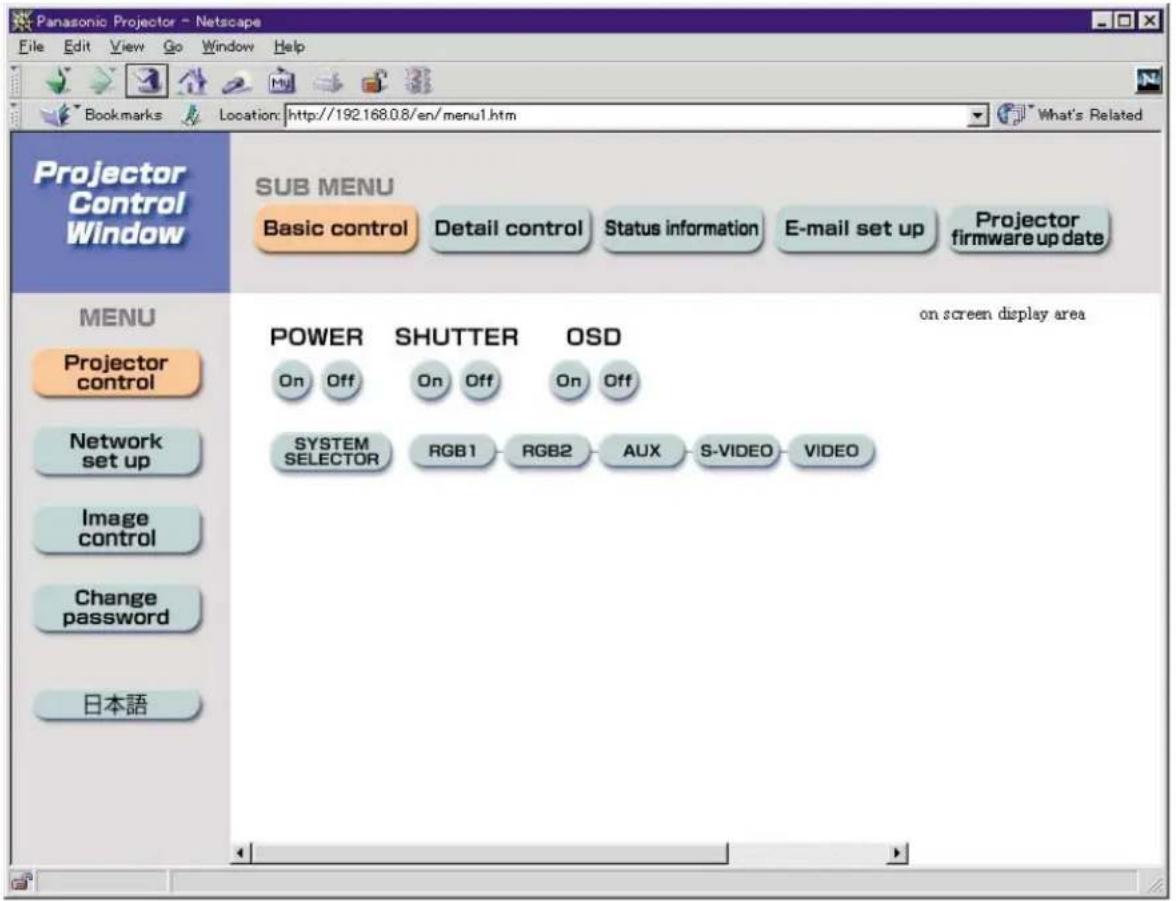
Note
- Avoid activating two or more Web browser simultaneously to work out setting or control actions.
- This feature is effective when the on-line lamp of network module is lighting.
- Change the password first of all.
Top page
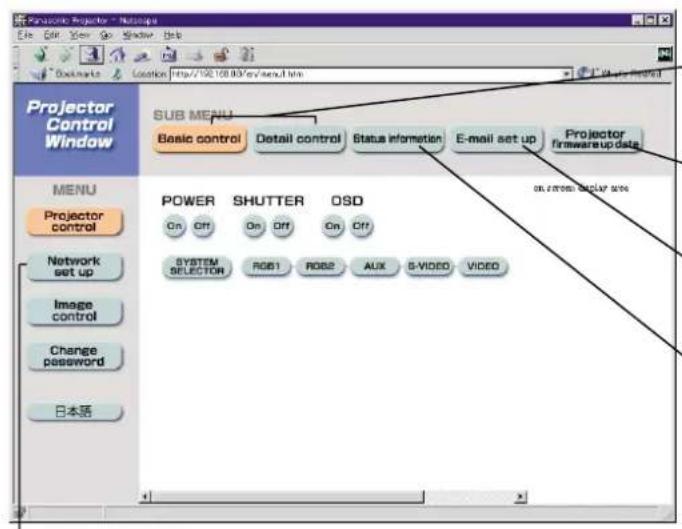
.Network setting button
Click this item, and a network setting page for IP address and other items appear.
Control button
Click this item, and a projector control page appears.
Update button
Click this item, and a projector firmware update page appears.
E-mail setting button
Click this item, and an E-mail setting page appears.
Monitor information button
Click this item, and the status of the projector is displayed.
Network setting page
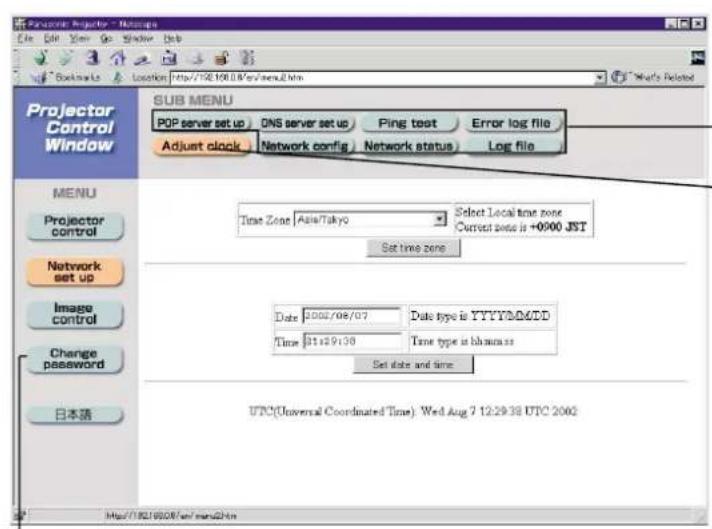
-Link button to password changing
Link button to network setting
Link button to time setting
If time setting goes wrong immediately after setting time, the battery must be replaced.
Network setting page
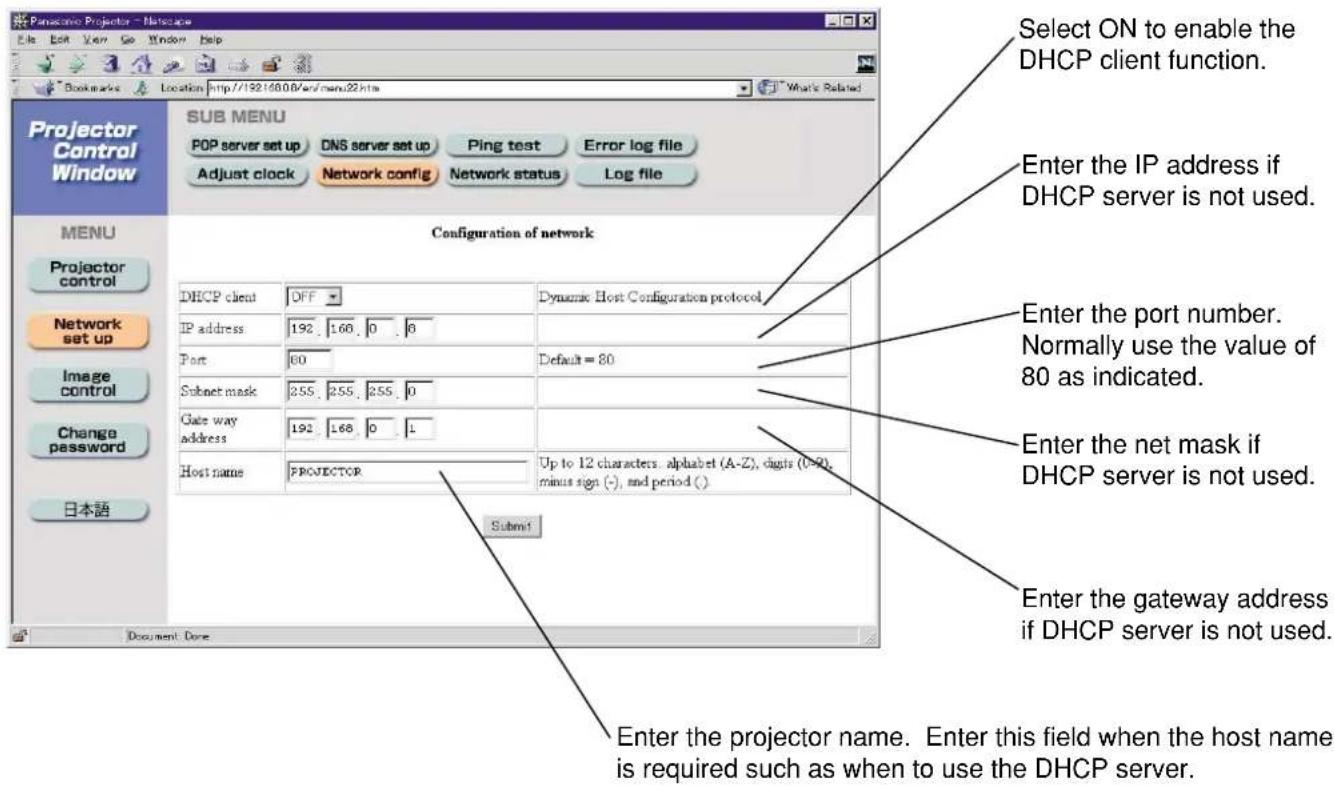
Projector control page
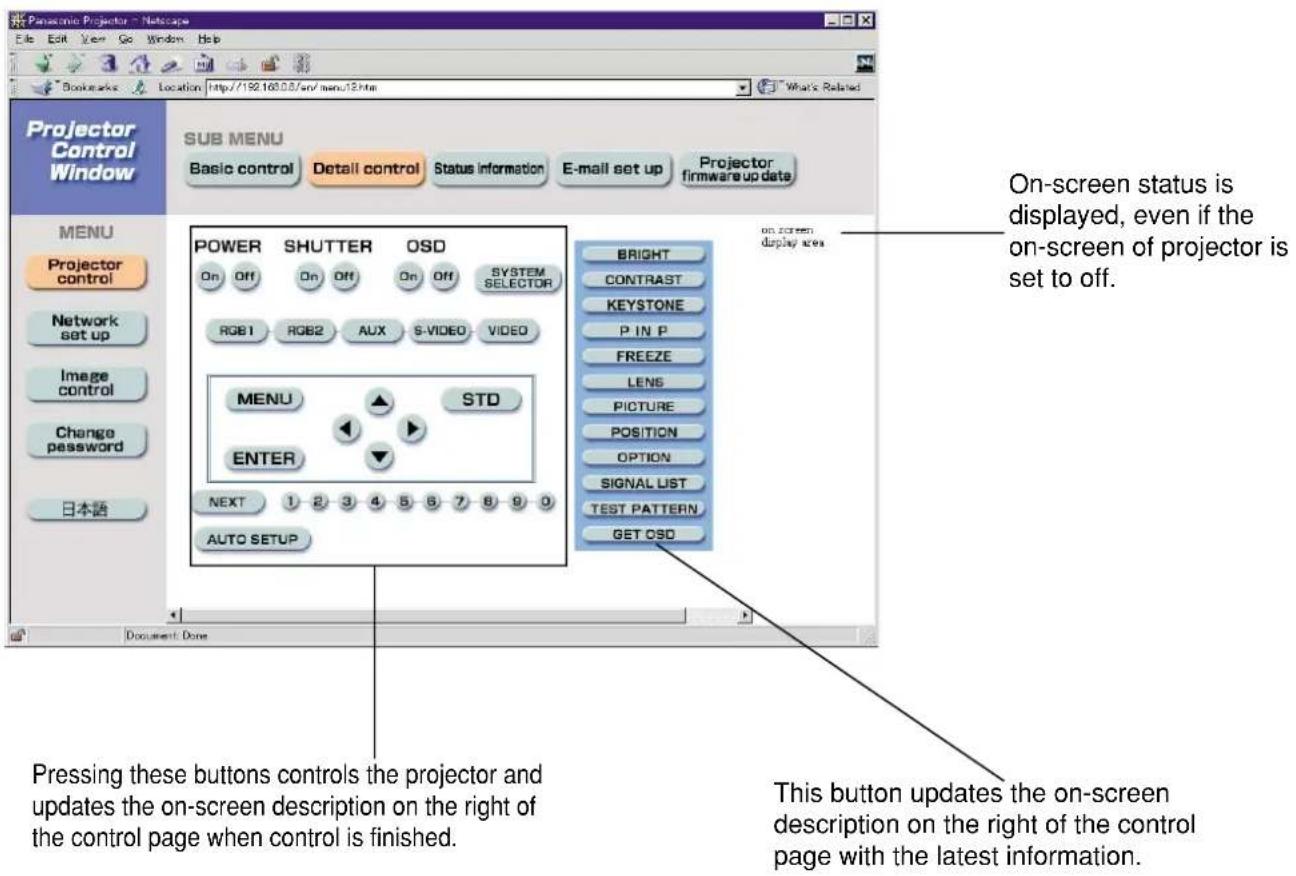
Status indication page
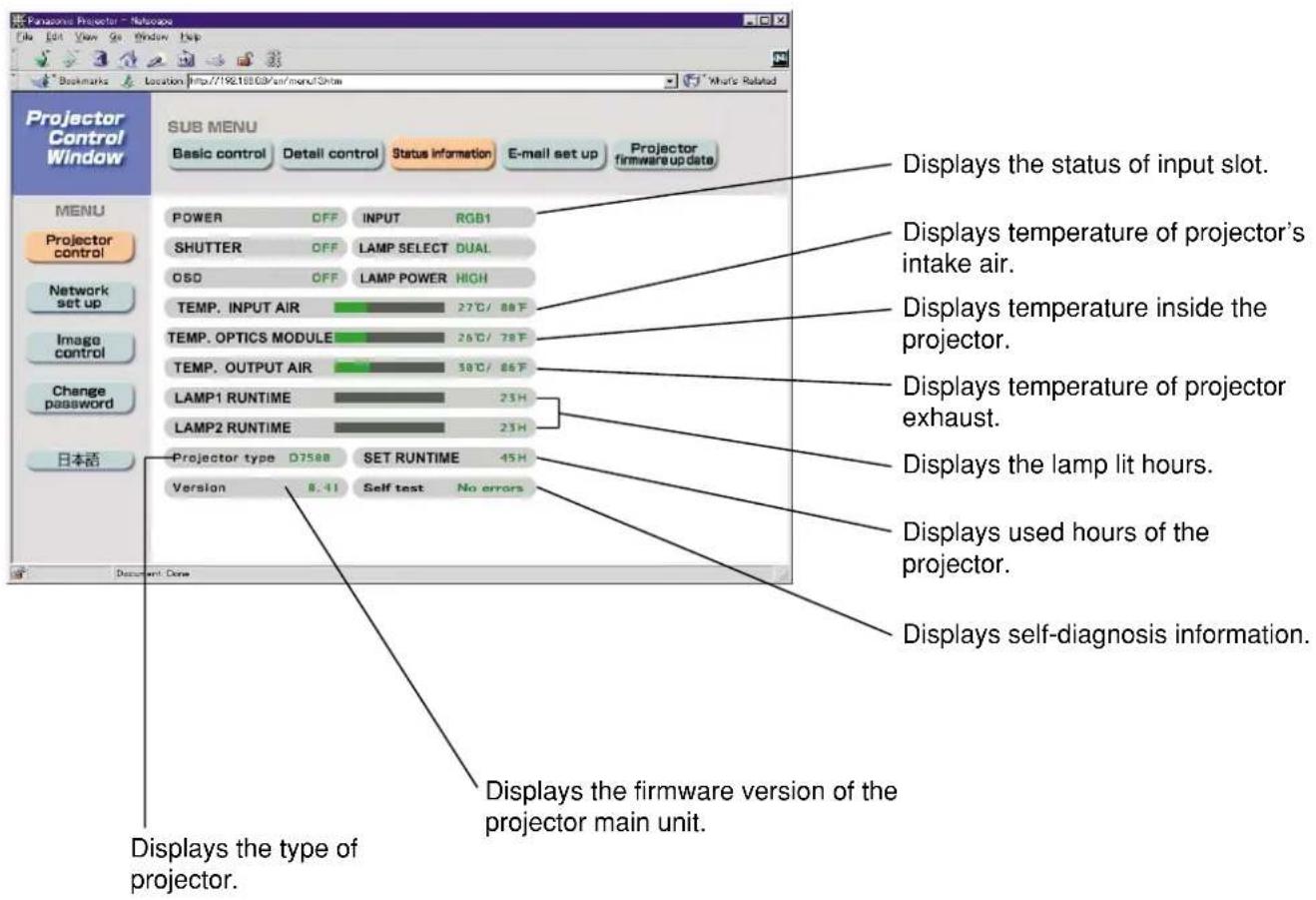
E-mail setting page
- This page allows the user to send mail to up to two mail addresses automatically.
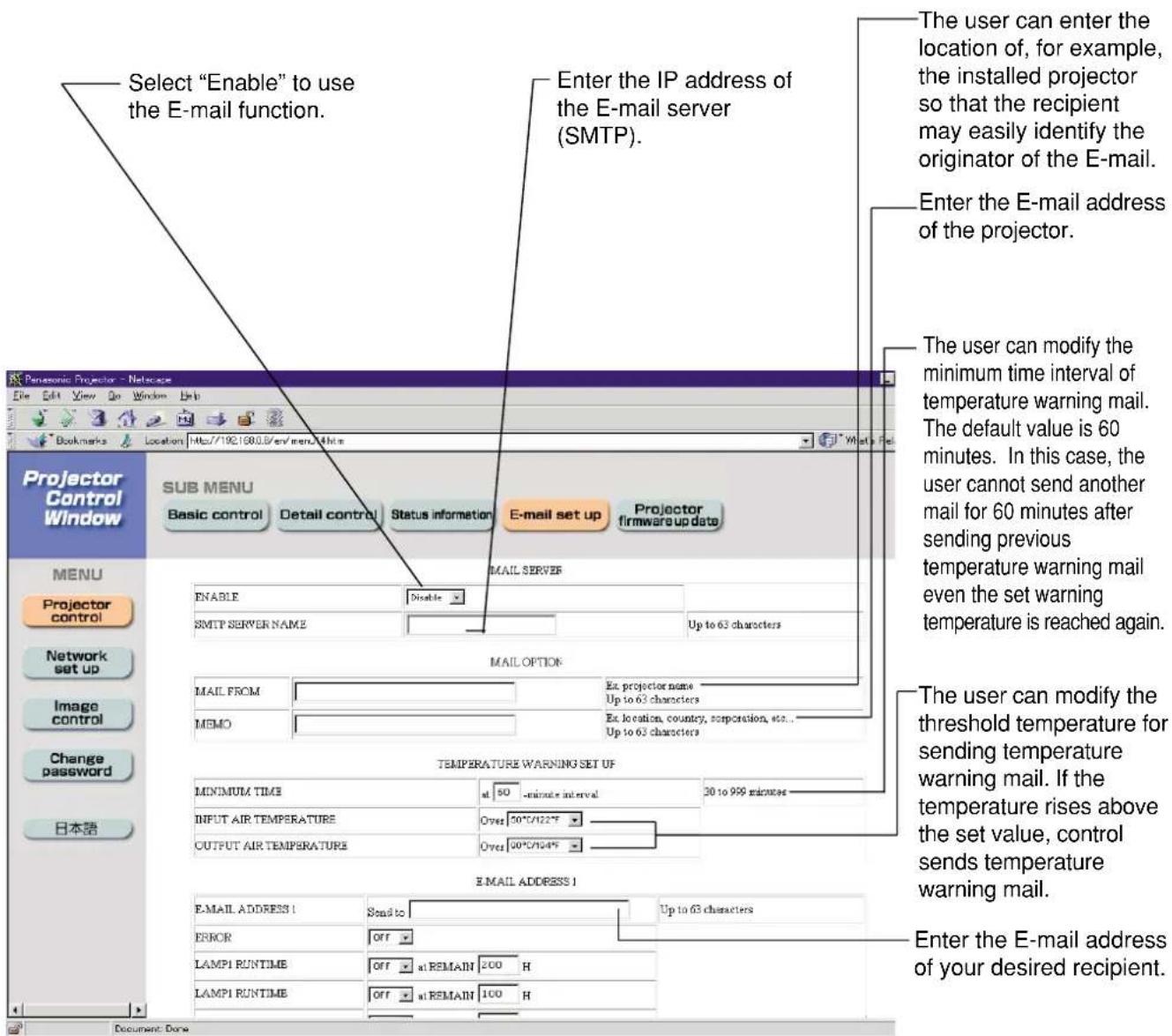
E-mail setting page (continuing)
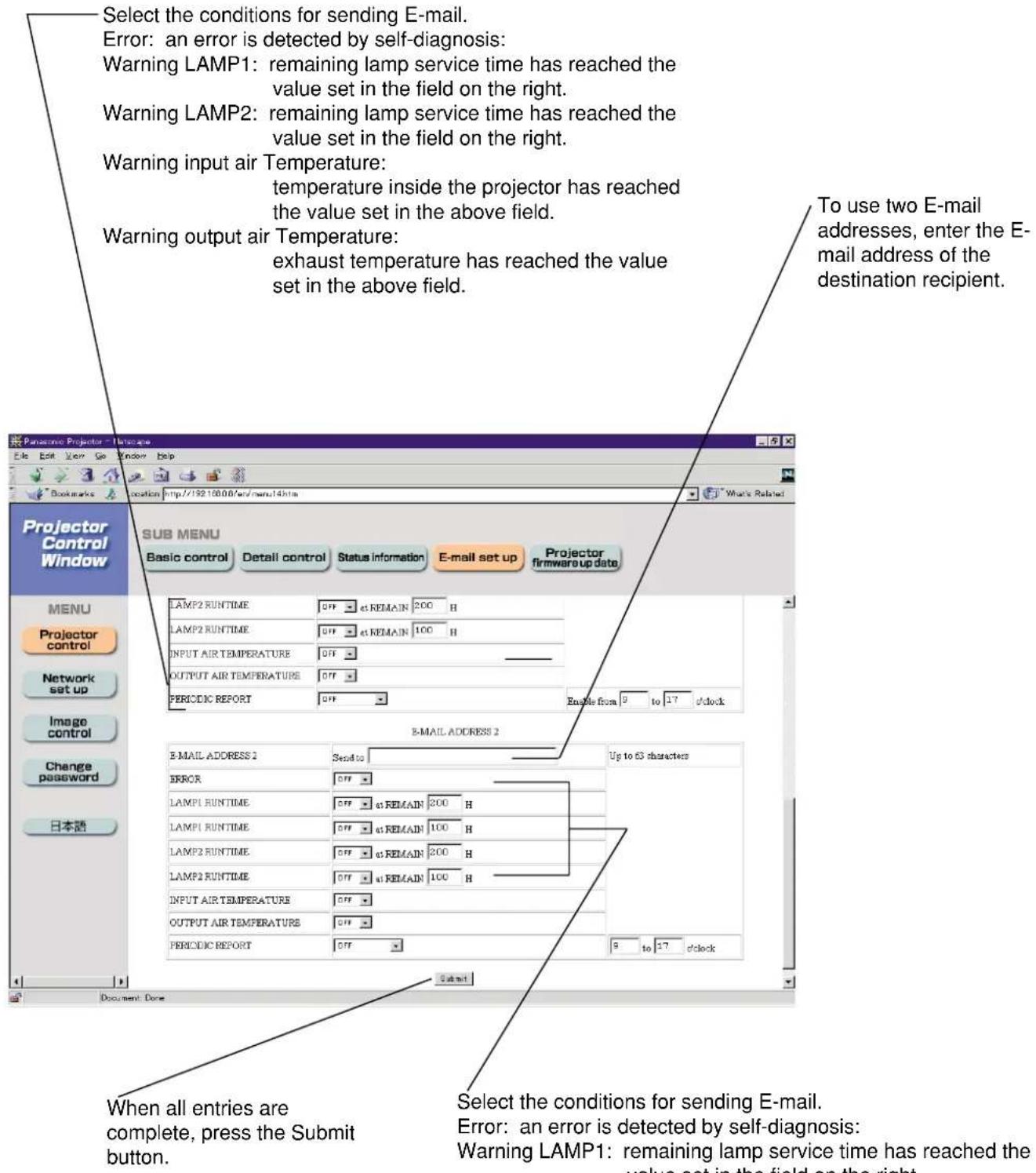
Select the conditions for sending E-mail.
Error: an error is detected by self-diagnosis:
Warning LAMP1: remaining lamp service time has reached the value set in the field on the right.
Warning LAMP2: remaining lamp service time has reached the value set in the field on the right.
Warning input air Temperature:
temperature inside the projector has reached the value set in the above field.
Warning output air Temperature:
exhaust temperature has reached the value set in the above field.
Firmware update page
(Only those personnel with expertise must execute firmware update.)
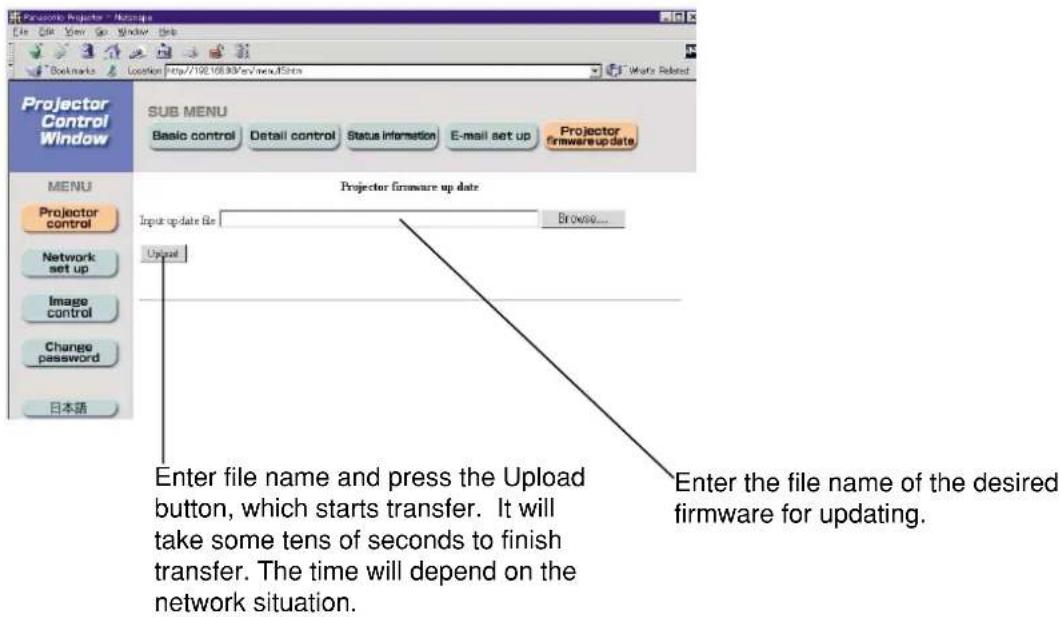
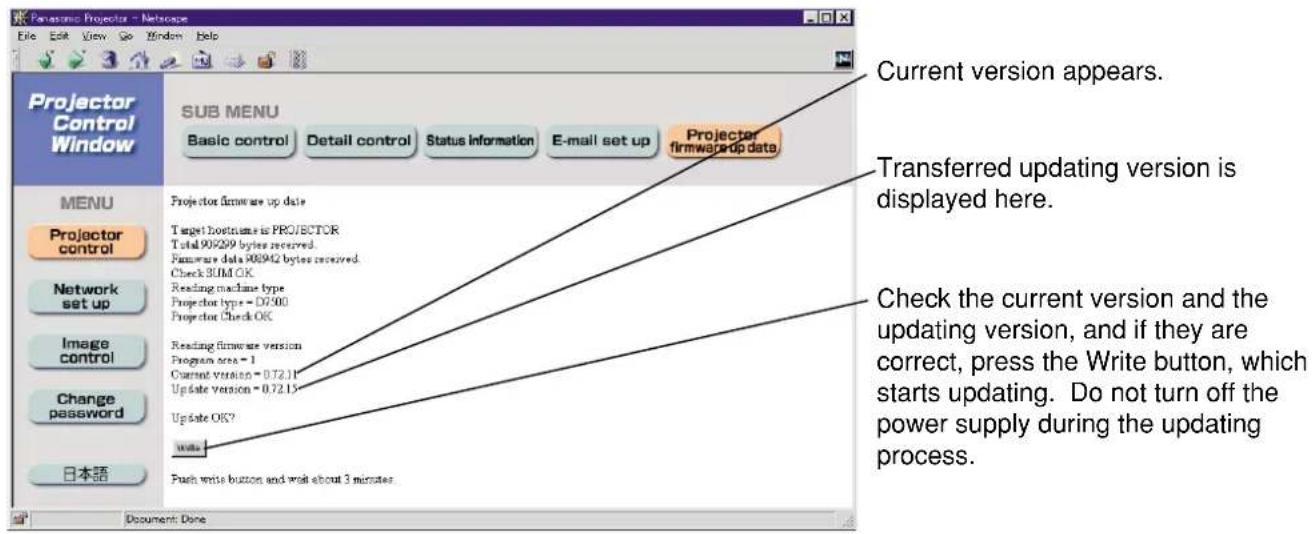
- When updating is complete, this message appears.
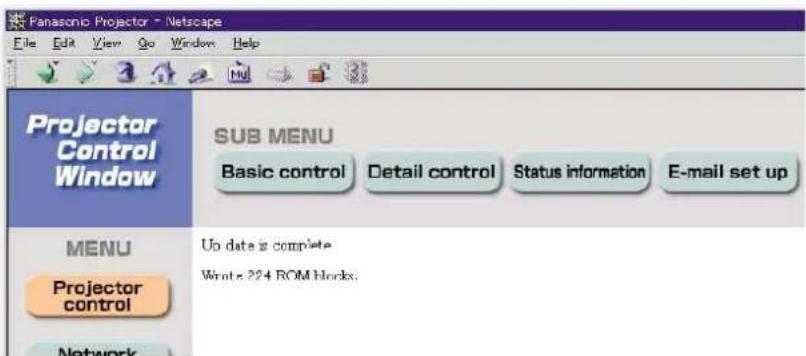
Page for control of image files
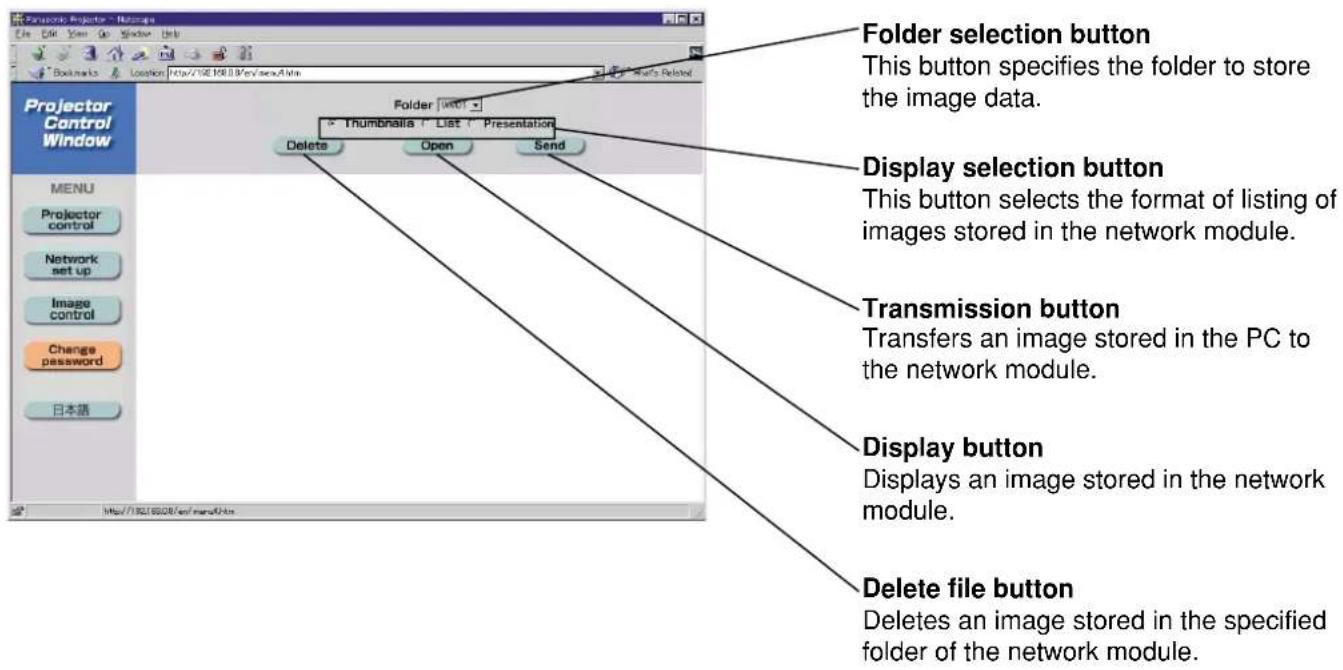
Note
- The format of images is compatible with BMP, JPEG and PNG.
However, some images may not be displayed because of more than one format existing in JPEG and PNG images. - Pixels of an image correspond to horizontal 1 024 dots times vertical 768 dots.
• The system can display 65 536 colors.
■ Returning the network module setting back to the factory setting
Using the following procedure, the user can return all settings of network module such as IP address, password and Email setting to the factory setting.
Procedure of setting
① Using the remote control “POWER” button, switch the power supply of the projector to standby state.
② Using something with a thin tip, press and hold the FUNCTION switch for three seconds. The ON-LINE lamp blinks and turns off after 30 seconds or so.
③ Turn off MAIN POWER.
④ Turn on MAIN POWER while holding the FUNCTION switch pressed using something with a thin tip.
⑤ When the ON-LINE lamp lights up, the operation is complete.
Note
- Do not use a pencil or other fragile thing to depress the function switch.
Indication of monitor lamp
Three monitor lamps are provided at the top of main unit front to inform the user of the lamp replacement time and unusual internal temperature. These lamps indicate the degree of abnormality by combination of blinking and/or lighting lamps. Turn off the power and take the proper measure according to the table below.
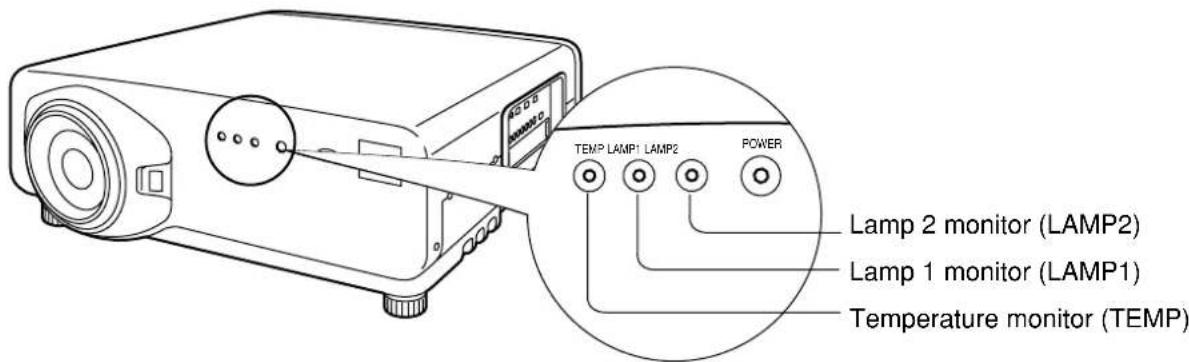
| Name of monitor lamp | Lamp indication | Information | Checkpoint | Remedial measure |
| Temperature monitorTEMP | Lighting in red (lamp unit ON) | High temperature inside. | ·Check if the ventilation port is blocked.·Is the room air temperature too high?·Check the air filter for clogging. | |
| Blinking in red (2 times) | High temperature inside (Standby condition) | |||
| Blinking in red (3 times) | Cooling fan has been stopped. | —— | ||
| Lamp monitorLAMP1 LAMP2 | Lighting in red | Indicates the time for replacing the lamp unit. | ·Did you notice a “REPLACE THE LAMP” message on the screen when turning on the projector power supply. | |
| Blinking in red (3 times) | Error is detected in the lamp circuit. | ·Some error has arisen in the lamp circuit.·Check for fluctuation (or drop) in the source voltage. |

- Be sure to observe the procedure (How to turn "ON" and "OFF" the power supply) on page 39–40 when performing power supply operation to take a measure to the indication of temperature monitor (TEMP) lamp and lamp monitor (LAMP) lamp.
Cleaning and replacement of air filter
If too much dust is deposited in the air filter, temperature inside the main unit will rise and the temperature monitor (TEMP) lamp blinks, eventually turning off the power supply.
Clean the air filter section once every 100 hours or so as a guideline depending on the location of projector operation.
■ Procedure of cleaning
① Turn off the main power and remove the power plug from the receptacle.
Turn off the power supply observing the procedure (How to turn “OFF” the power supply) on page 40 and then remove the power plug.
② Dismantle the air filter.
Put a hand in the bottom of the air filter, take out the filter from the main unit while pulling toward yourself.
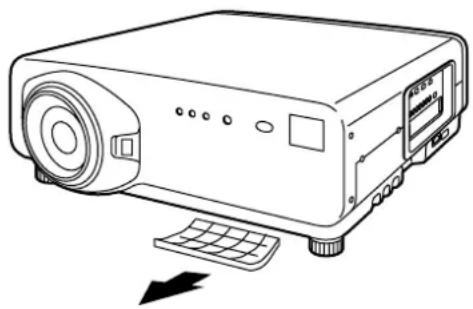
natural_image
Line drawing of a projector with control panel and keyboard, no text or symbols present③ Clean the air filter.
Suck off deposited dust with a vacuum cleaner.
Attention
- Be careful not to suck in the air filter itself.
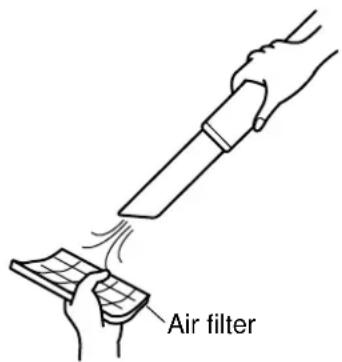
④ Mount the air filter.
Set the air filter and then mount the filter in the reverse order to step ②
Attention
- The air filter must be fitted in place when using the projector. Using the projector without the air filter fitted inside, dirt and dust are sucked into the projector, causing failure.
Note
- If cleaning cannot remove the dust completely, then it is a sign to replace the air filter. Consult the dealer. In addition, when the lamp unit is replaced, also replace the air filter.
CAUTION
- Wait until the lamp is cooled sufficiently before replacing the lamp unit.
Precautions on lamp unit replacement
- Be careful when handling a light source lamp. The lamp may burst if it is hit by solid objects or if it is dropped because of high air pressure inside the bulb.
- A used lamp unit may burst if it is handled violently.
For disposition of used lamps, request an industrial waste disposal contractor.
- Do not reset the cumulative time, except when the lamp unit has been replaced with a new unit.
- If you continue to use a lamp after the replacement time, the lamp may break.
- Philips screwdriver is necessary when replacing a lamp unit.
Take care not to slip your hand when using a screwdriver.
Attention
- A lamp unit is an optional part. Contact the dealer.
Lamp unit model No.: ET-LAD7500 (single bulb), ET-LAD7500W (double bulbs) Rating: 300W 65V - Other lamps than specified above cannot be used. Be sure to use the specified lamp.
■ Timing of lamp unit replacement
The lamp used for the light source has its due life. The life of light source lamp used in the main unit is 1 500 hours (when lamp output is HIGH and lamp selection is DUAL). However, it may happen that the lamp becomes dead (will not light) by the time of 1 500 hours depending on the characteristics of individual lamps and working conditions (lamps may reduce their life affected by the times of lighting and the intervals between previous lighting and next lighting). Therefore, it is strongly recommended for the user to keep a spare bulb. If your lamp unit is not replaced after 1 300 hours, power supply will be turned off automatically at the time of 1 500 hours, entering a standby state. After 1 500 hours of initial lighting, power supply is turned off automatically about 10 minutes later, entering a standby state even if it is turned on again.
- Indication after 1 300 hours
When lamp unit used hours have reached 1 300 hours, lamp monitor (LAMP1 or LAMP2) light up including standby state.
Further, an on-screen indication will appear for about 30 seconds as shown in the diagram on the right, recommending replacement of lamp unit. (The indication on the below diagram will disappear after about 30 seconds or when either control button on the rear of main unit or remote control button is operated.)
After the time of 1 500 hours, the on-screen indication will not disappear unless the menu (MENU) button is operated.
REPLACE THE LAMP
■ Procedure of lamp unit replacement
Caution
- After 1 500 hours of operating the same lamp, it is only possible to operate the unit for approximately 10 minutes. Steps 8 to 14 must be completed within ten minutes.
- Turn the power off by following the steps on pages 39 \~ 40, remove the power plug and confirm that the surroundings of the lamp unit have cooled off.
- Using a Philips screwdriver, remove the 7 screws on the lamp unit cover located on the rear of the projector.
- Remove the lamp unit housing door from the main unit.
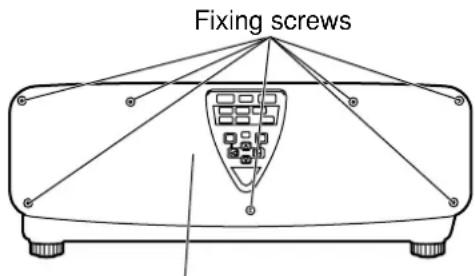
Lamp unit cover
- Use a Phillips screwdriver to loosen the two lamp unit fixing screws until the screws turn freely. Then hold the handle of the lamp unit and gently pull it out from the projector.
Caution
The lamp unit will be hot after it has been used.
You might get burned if you touch it while it is still hot.
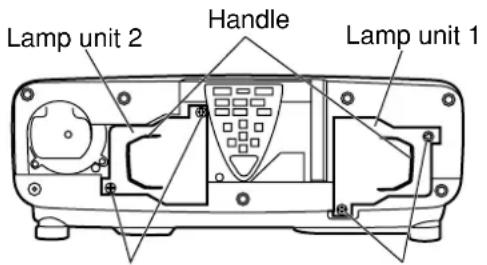
Lamp unit
Fixing screws
Lamp unit
Fixing screws
- Install the new lamp unit.
- Use a Phillips screwdriver to securely tighten the lamp unit fixing 2 screws.
- Install the lamp unit cover, and then use a Phillips screwdriver to securely tighten the lamp unit cover fixing 7 screws.
Caution
Firmly install the lamp unit and lamp unit cover. If not installed firmly, a protection circuit will function and the power will not be turned on.
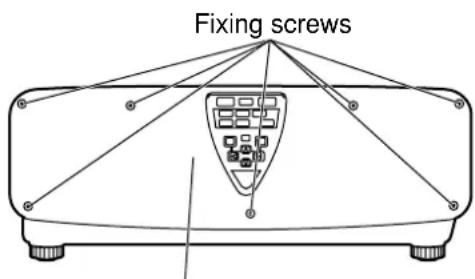
Lamp unit cover
- Insert the power cord plug into the wall outlet and then press the MAIN POWER switch.
Caution
If the power does not turn on (power indicator lamp (red) does not turn on) even after turning the MAIN POWER switch "I", turn the MAIN POWER "O", confirm that the lamp unit and door are installed correctly, and turn on again.
-
Press the "I" (POWER) button so that a picture is projected onto the screen.
-
Press the "MENU" button to display the MAIN MENU screen, and then press the ▲ and buttons to move the cursor to select "OPTION".
| MAIN MENU |
| PICTURE |
| POSITION |
| LANGUAGE |
| OPTION |
| TEST PATTERN |
| SIGNAL LIST |
▲▼:MENU SELECT ENTER:SUB MENU
-
Press the "ENTER" button to display the "OPTION" screen, and then use the ▲ and ▼ buttons to select "LAMP1 RUNTIME" or "LAMP2 RUNTIME".
-
Press and hold the "ENTER" button on the projector or the remote control for approximately 3 seconds.
An item "LAMP RESET" will be added.
| OPTION |
| ID 2 |
| SETTING FRONT-F |
| LAMP1 RUNTIME 1310h |
| LAMP2 RUNTIME 1310h |
| LAMP SELECT DUAL |
| LAMP POWER HIGH |
| LAMP COOLING TIME SHORT |
| RS232C SETTING |
| RGB2 SELECT RGB1 OUT |
| OSD POSITION 1 |
▲▼:MENU SELECT ENTER:INITIALIZE
Note
- When you press the "MENU" button, the lamp reset display disappears.
- Press the and buttons to select for replacement lamp setting.
LAMP1: Replace the LAMP UNIT 1
LAMP2: Replace the LAMP UNIT 2
DUAL: Replace the LAMP UNIT 1 & LAMP UNIT 2
| OPTION |
| ID 2 |
| SETTING FRONT-F |
| LAMP1 RUNTIME 1310h |
| LAMP2 RUNTIME 1310h |
| LAMP RESET DUAL |
| LAMP SELECT DUAL |
| LAMP POWER HIGH |
| LAMP COOLING TIME SHORT |
| RS232C SETTING |
| RGB2 SELECT RGB1 OUT |
▲▼:NENU SELECT
CHANGE ENTER:EXECUTE
- Press the "ENTER" button. When "OK?" is displayed, press the "ENTER" button.
The used hours of the specified lamp unit will be reset to zero.
| OPTION OK? |
| ID 2 |
| SETTING FRONT-F |
| LAMP1 RUNTIME 1310h |
| LAMP2 RUNTIME 1310h |
| LAMP RESET DUAL |
| LAMP SELECT DUAL |
| LAMP POWER HIGH |
| LAMP COOLING TIME SHORT |
| RS232C SETTING |
| RGB2 SELECT RGB1 OUT |
ENTER:EXECUTE MENU:ESC
| Symptoms Checkpoint | |
| Power does not turn on | • Is the power cord securely plugged in the receptacle?• Is the MAIN POWER switch put to the “O” position?• Is power supply live at the receptacle?• Is the temperature monitor (TEMP) lamp on the projector front lighting or blinking? (Refer to page 94.)• Is the lamp monitor (LAMP) lamp on the projector front lighting or blinking? (Refer to page 94.)• Is the lamp unit housing door completely attached?• Was operation of ID setting made in a correctly way? (Refer to pages 16 and 70.) |
| No image appears on screen | • Is the lens covered with the cap?• Is the screen image input connected in a correct manner?• Is the device(s) connected to the projector working normally?• Is the shutter function used? (Refer to page 48.) |
| Screen image is blurred | • Is the lens in focus? (Refer to page 41.)• Is the projection distance adequate? (Refer to page 18-22.)• Is the lens dirty?• Is the projector placed vertical to the screen? (Refer to page 19.) |
| Pale color / bad color tint | • Are color strength and color tint correctly adjusted? (Refer to page 52.)• Is the device(s) connected to the projector adjusted correctly? |
| Remote control does not function | • Are dry batteries consumed?• Is polarity correct in battery setting? (Refer to page 15.)• Are there any obstacle between the remote control and the beam receiving window? (Refer to page 15.)• Are you trying to operate the remote control beyond the effective range? (Refer to page 15.)• Is the remote 2 (REMOTE2) terminal used for external control? (Refer to page 81.)• Is any external light interfering with the remote control operation?• Was operation of ID setting made in a correctly way? (Refer to pages 16 and 70.) |
| Abnormal image on the screen | • Is the input selector set to correct position? (Refer to page 67.)• Is the correct signaling system selected? (Refer to page 67-68.)• Are there any malfunctions on the source side, such as bad video tape?• Are you supplying a signal that is not compatible with the projector? (Refer to page 102.) |
| Images from PC are not projected | • Is the cable too long?• Is the correct signal destination set for notebook computer screen image?Use and key for setting. (For details, refer to the instruction manual of the computer.) |
Specifications
| Model No. | PT-D7500U | PT-D7600U |
| Power supply AC 120 V, 50 Hz/60 Hz | ||
| Power consumption 800 W (about 12 W in standby without fan running) | ||
| DLPTM panelPanel sizeDisplay systemNumber of pixels | 0.7 inch (aspect ratio 4:3)Three-unit DMDTM element, DLP type3 x 786 432 pixels (1 024 x 768 dots) | 0.9 inch (aspect ratio 5:4)Three-unit DMDTM element, DLP type3 x 1 310 720 pixels (1 280 x 1 024 dots) |
| LensPowered zoomPowered focus control | Option | |
| Projection lamp 2 bulbs x 300 W UHM lamp | ||
| Optical output 5 000 lm (ANSI) 6 000 lm (ANSI) | ||
| Applicable scanning frequencyFor video signal (S-video included)For RGB signalFor DVI-D signalFor YPBPR signal | Horizontally 15.73 kHz/15.63 kHz, vertically 59.94 Hz/50 HzHorizontally 15 kHz-100 kHz, vertically 24 kHz-120 kHz,Panasonic Intelligent Auto Scanning (PIAS) systemDot clock frequency 20 MHz-162 MHz(When DVI module (optional item) is mounted)VGA-S-XGA Dot clock frequency 25 MHz-112 MHz[480i], horizontally 15.73 kHz, vertically 59.94 Hz[480p], horizontally 31.5 kHz, vertically 59.94 Hz[576i], horizontally 15.63 kHz, vertically 50 Hz[720/60p], horizontally 45 kHz, vertically 60 Hz[1035/60i], horizontally 33.75 kHz, vertically 60 Hz[1080/60i], horizontally 33.75 kHz, vertically 60 Hz[1080/50i], horizontally 28.13 kHz, vertically 50 Hz[1080/24p], horizontally 27 kHz, vertically 24 Hz[1080/30p], horizontally 33.75 kHz, vertically 30 Hz[1080/25p], horizontally 28.13 kHz, vertically 25 Hz[1080/24sF], horizontally 27 kHz, vertically 48 Hz* HD/SYNC, VD terminals are not compliant with 3 value composite SYNC. | |
| Colour system 7 standards (NTSC/NTSC4.43/PAL/PAN-N/PAL-M/SECAM/PAL60) | ||
| Screen size 70 inch-600 inch | ||
| Screen aspect ratio | 4:3 | 5:4 |
| Projection scheme Menu-selectable | from front/rear/ceiling mount, and floor standing | |
| Contrast ratio | 600:1 | |
| Interface portsInput module connection slotRGB1 input terminal | One system of input module connection slot1 set, BNC x 5[For YPBPR input]Y: 1.0 V[p-p] synchronization signal included,PBPR: 0,7 V[p-p] 75 Ω For G-SYNC: 1.0 V[p-p] 75 ΩHD/SYNC: 75 Ω, 1.4-5 Vp-p, positive/negative polarity automatically adjustedVD: 75 Ω, 1.4-5 Vp-p, positive/negative polarity automatically adjusted[For RGB input] 0.7 V[p-p] 75 Ω | |
| Interface portsRGB2 input/RGB1 output terminal | 1 set of high-density, D-sub 15p (female)[For YPBPR input]Y: 1.0 V [p-p] synchronization signal included,PbPR: 0.7 V[p-p] 75 Ω[For RGB input] 0.7 V[p-p] 75 Ω For G-SYNC: 1.0 V[p-p] 75 ΩHD/SYNC: TTL, high-impedance, positive/negative polarity automatically adjustedVD: TTL, high-impedance, positive/negative polarity automatically adjusted• However, HD/SYNC, and VD terminals are not compliant with 3-valuedirect SYNC.(Active through for RGB1 output) | |
| Video input/output terminal | 1 set BNCY 1.0 V[p-p] C 0.286 V[p-p] 75 Ω; Compliant with S1 signals | |
| S-video input terminal | 1 set Mini DIN 4pY 1.0 V[p-p] C 0.286 V[p-p] 75 Ω | |
| Serial input/output terminal | D-sub 9-pin (female), RS-232C compliantUsed for personal computer control | |
| Remote1 input/output terminal | 1 set each for M3 pin jackWired remote control, used for link control | |
| Remote2 terminal | D-sub 9p (female)Used for external control | |
| Length of power supply cord 2.5 m (8.2") | ||
| Cabinet Molded resin | ||
| Outside dimensions | Width: 530 mm (20.8"); Height: 200 mm (7.9"); Depth: 569 mm (22.4") | |
| Mass 19.8 kg (44 lb) (without lens) | ||
| Working environment condition *1. | Ambient temperature: 0 to 40°C for setting of lamp output at [LOW] and lamp selection at [DUAL, LAMP 1, LAMP 2 or SINGLE]0 to 35°C for setting of lamp output at [HIGH] and lamp selection at [DUAL]Ambient humidity: 20 to 80% (no condensation) | |
| Remote controlPower sourceOperation rangeMassOutside dimensions | 3 V DC (two AA dry cells)approx. 7 m/23' (in front of beam receiver)110 g (0.24 lb) (including dry cells)Width: 50 mm (1.9"), Thickness: 31 mm (1.2"), Depth: 181 mm (7.1") | |
| OptionHanging attachment (For high ceiling): ET-PKD75Hanging attachment (For low ceiling): ET-PKD75SDual attachment: ET-DFD75Carrying handle: ET-HAD75Projection lens: ET-D75LE1, ET-D75LE2, ET-D75LE3, ET-D75LE4, ET-D75LE5,ET-D75LE1SC, ET-D75LE2SC, ET-D75LE3SC, ET-D75LE4SCDVI-D input module: ET-MD75DVNetwork module: ET-MD75NTVideo signal input module: ET-MD95VM2RGB signal input module: ET-MD95RGBSerial digital input module (SD): ET-MD95SD1Serial digital input module (480p): ET-MD95SD2Serial digital input module (HD): ET-MD95SD3Lamp unit: ET-LAD7500 (single bulb), ET-LAD7500W (double bulbs)Wireless mouse receiver: ET-RMRC1 | ||
*1. If the projector is used at high altitude (1 400 to 2 700 m), the value for allowable ambient temperature should be lowered by 5^ .
The following table specifies the types of RGB/ YP B P R signals compatible with the projector.
RGB signals can also be input within the range of fH=15 kHz–100 kHz, fV=24 Hz–120 Hz, dot clock=20 MHz–162 MHz.
| Display mode | Applicable input signal data | ||
| Number of displayed dots | Horizontal scanning frequency (kHz) | Vertical scanning frequency (Hz) | |
| VGA400 | 640 x 400 | 24.8 | 56.4 |
| 640 x 400 | 31.5 | 70.1 | |
| VGA480 | 640 x 480 | 31.5 | 59.9 |
| 640 x 480 | 35.0 | 66.7 | |
| 640 x 480 | 37.9 | 72.8 | |
| 640 x 480 | 37.5 | 75.0 | |
| 640 x 480 | 43.3 | 85.0 | |
| SVGA | 800 x 600 | 32.1 | 51.0 |
| 800 x 600 | 35.2 | 56.3 | |
| 800 x 600 | 37.9 | 60.3 | |
| 800 x 600 | 48.1 | 72.1 | |
| 800 x 600 | 46.9 | 75.0 | |
| 800 x 600 | 53.7 | 85.1 | |
| XGA | 1 024 x 768 | 48.4 | 60.0 |
| 1 024 x 768 | 56.5 | 70.1 | |
| 1 024 x 768 | 60.0 | 75.0 | |
| 1 024 x 768 | 65.5 | 81.6 | |
| 1 024 x 768 | 68.7 | 85.0 | |
| 1 024 x 768i | 35.5 | 86.8 | |
| 1 024 x 768 | 80.7 | 100.8 | |
| 1 024 x 768 | 94.0 | 120.0 | |
| MXGA | 1 152 x 864 | 63.9 | 70.0 |
| 1 152 x 864 | 67.5 | 75.0 | |
| 1 152 x 864 | 77.1 | 85.0 | |
| 1 120 x 750 | 50.1 | 60.1 | |
| 1 120 x 750i | 32.6 | 80.0 | |
| SXGA | 1 280 x 1 024 | 52.4 | 50.0 |
| 1 280 x 1 024 | 64.0 | 60.0 | |
| 1 280 x 1 024 | 72.4 | 66.3 | |
| 1 280 x 1 024 | 78.2 | 71.7 | |
| 1 280 x 1 024 | 80.0 | 75.0 | |
| 1 280 x 1 024 | 91.2 | 85.0 | |
| 1 280 x 1 024i | 46.2 | 86.0 | |
| 1 280 x 1 024i | 47.6 | 88.9 | |
| UXGA | 1 600 x 1 200 | 75.0 | 60.0 |
| MAC16 | 832 x 624 | 49.7 | 74.6 |
| MAC21 | 1 152 x 870 | 68.6 | 75.0 |
| HDTV | 1 920 x 1 035i | 33.8 | 60.0 |
| 720p | 1 280 x 720 | 45.0 | 60.0 |
| NTSC | 768 x 480i | 15.7 | 59.9 |
| PAL | 768 x 576i | 15.6 | 50.0 |
| 480p | 720 x 483 | 31.5 | 59.9 |
Note
- The number of displayed dots of PT-D7600U is 1280 × 1024 . Those combinations listed in the above table that exceed these limits will be converted into 1280 × 1024 for display.
- The number of displayed dots of PT-D7500U is 1024 x 768. Those combinations listed in the above table that exceed these limits will be converted into 1024 x 768 for display.
- Character "i" that follows the number of displayed dots stands for interlace signal.
- Flicker (line flicker) will be caused in images if interlace signals are connected.
Outside dimensions
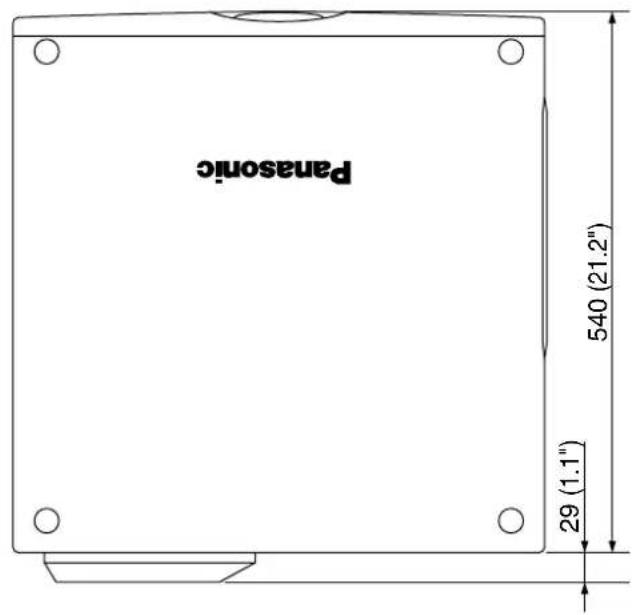
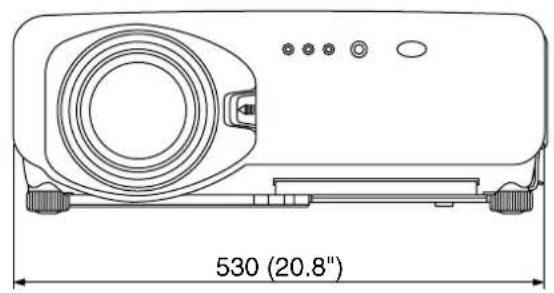
natural_image
Technical line drawing of a projector with labeled dimensions (530 mm x 20.8 inches), no other text or symbols present.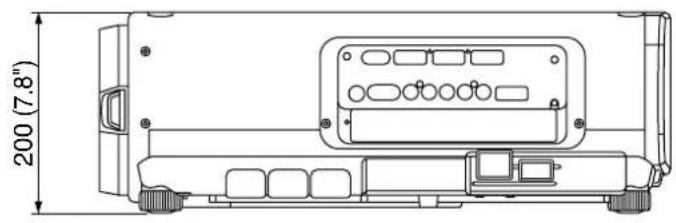
Note:
Purchase of this equipment includes the rights to use this software (the built-in microcomputer and information recorded on ROMs) but does not grant copyrights. Do not reverse engineer, change or modify the software. The guarantee will not be valid for any malfunctions caused by such actions.
Trademark Acknowledgement
- Digital Light Processing, DLP, and Digital Micromirror Device, DMD are registered trademarks of the Texas Instruments.
• VGA and XGA are trademarks of International Business Machines Corporation.
• S-VGA is a registered trademark of the Video Electronics Standards Association.
- "Microsoft Windows" is a registered trademark of the Microsoft Corporation (U.S.A.) in the U.S. and other countries.
- "Netscape" and "Netscape Navigator" are registered trademarks of the Netscape Communications Corporation in the U.S. and other countries.
• Patent No. 5,717,422
All other trademarks are the property of the various trademark owners.
NOTES IMPORTANTES
CONCERNANT LA SÉCURITÉ
AVERTISSEMENT: POUR RÉDUIRE LES RISQUES DE FEU OU DE CHOC ÉLECTRIQUE, NE PAS EXPOSER CE PRODUIT À L'EAU OU À L'HUMIDITÉ
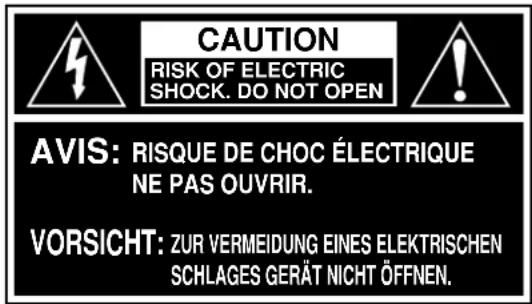
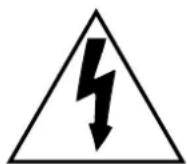
natural_image
Line drawing of a U-shaped electrical plug with leads and wires (no text or symbols)Ne pas retirer
AVERTISSEMENT
:CHANGEMENT ENTER:EXÉCUTER
OPTION OUI?
ID 2
REGLAGES FACADE-SOL
L. 1 TEMPS DE MARCHE 1310h
L. 2 TEMPS DE MARCHE 1310h
Professional/Industrial Video
Panasonic Broadcast & Television Systems Company
Division of Matsushita Electric Corporation of America
One Panasonic Way 4E-7 Secaucus, NJ 07094 (201) 392-4443
3330 Cahuenga Blvd West Los Angels, CA 90068 (323) 436-3500
Technical Support:
(800) 524-1448
(800) 526-6610
FAX: (201) 392-6514
E-Mail: pbtssupport@panasonic.com
Panasonic Canada Inc.
5770 Ambler Drive, Mississauga, Ontario L4W 2T3 (905) 624-5010
©Matsushita Electric Industrial Co., Ltd. 2002
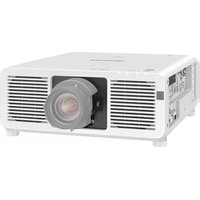
- DLP™ Based Projector Commercial Use
- Operating Instructions
- Dear Panasonic Customer:
- IMPORTANT SAFETY NOTICE
- Declaration of Conformity
- Contents
- WARNING
- Do not place liquid containers on top of the projector.
- Do not insert any foreign objects into the projector.
- After removing the battery from remote control unit, keep it away from the reach of children.
- Do not allow the + and - terminals of the battery to come into contact with metallic objects such as necklaces or hairpins.
- Insulate the battery using tape or similar before disposal.
- Caution
- Do not set up the projector in humid or dusty places or in places where the projector may come into contact with smoke or steam.
- When disconnecting the power cord, hold the plug, not the cord.
- Always disconnect all cables before moving the projector.
- Do not place any heavy objects on top of the projector.
- Do not short-circuit, heat or disassemble the battery or place it into water or fire.
- When inserting the battery, make sure the polarities (+ and -) are correct.
- Use only the Specified battery.
- Do not look into the lens while the projector is being used.
- Do not bring your hands or other objects close to the air outlet port.
- Replacement of the lamp unit should only be carried out by a qualified technician.
- Do not use the old lamp unit.
- Replacement of the lamp unit should only be carried out after it has completely cooled off, otherwise burns may result.
- Disconnect the power cord plug from the wall outlet as a safety precaution before carrying out any cleaning.
- Ask an Authorized Service Center to clean inside the projector at least once a year.
- Do not reach for the openings beside the optical lens, during horizontal or vertical movements of the lens there is a injury hazard.
- Accessories
- ■ Precautions on transport
- ■ Precautions on installation
- ■ Precautions on use
- ■ Disposal
- Cleaning and maintenance
- Examples of system expansion
- System 1
- System 2
- System 3
- System 4
- Name and function of parts
- Remote control
- < When the operation mode selector is set to Projector >
- Note
- Rear view of the main unit Controls on rear panel
- Using the remote control unit
- ■ Loading dry cells
- Open battery compartment lid.
- Insert the dry cells.
- Close the battery compartment lid.
- Attention
- ■ Effective range of remote control operation
- ■ Setting projector ID number to remote control
- Procedure of ID setting
- ■ Using the remote control as a PC mouse
- Operation mode selector switch
- - ENTER button
- - Right click (button)
- - PAGE UP button
- • PAGE DOWN button
- - Click button
- ■ Using a wired remote control
- ■ Adjusting the leveling feet
- ■ Projection scheme
- ■ Installation geometry
- ■ Projection distances by the type of projection lenses (optional)
- Projection distances by the type of projection lenses (for PT-D7500U)
- Projection distances by the type of projection lenses (for PT-D7600U)
- ■ Before starting connection
- ■ Example of connecting with VIDEO devices
- ■ Example of connecting with personal computers
- ■ Installing the input module
- Types of the input modules (optional)
- Procedure of installation
- ④ Register the input signal.
- ■ Connecting signals to the input module
- ■ Connecting the signal to the analog RGB signal input module
- Connecting analog RGB signals
- Connecting the component signals
- ■ Connecting the signal to the video signal input module
- Connecting the video signals
- ■ Connecting the signal to the serial digital signal input module
- For 480p dual link (4:2:2p) SMPTE294M-compliant, 720x483 active line 59.94 Hz progressive scan 270 Mbps
- ■ Connecting signals to the DVI signal input module
- How to install and remove the projection lens (optional)
- ■ How to install the projection lens
- ■ How to remove the projection lens
- ■ Powering up the projector
- ■ Making adjustment and selection
- ■ Powering off the projector
- ■ How to adjust the lens focus, lens zoom and lens shift (optical shift)
- ■ Adjustment range after lens position (optical shift)
- PT-D7500U
- PT-D7600U
- ■ How to adjust the lens for addressing unevenness of focusing
- Automatic adjustment (AUTO SETUP)
- Registration of input signal data
- Registration of new data
- press the ENTER button.
- ■ If new registration is not available because of full memory:
- ■ Sub memory
- How to register into sub memory
- Procedure to switch to sub memory
- How to erase sub memory
- On-screen indications
- Restrictions
- Using the FREEZE function
- Using the SHUTTER function
- Using the digital zoom (− D.ZOOM +) function
- ■ Structure of menu screens
- ■ Basic operations on menu screen
- ① Press the "MENU" button.
- ② Select the desired item with the ▶ button.
- ③ Press the “ENTER” button to establish your selection.
- ④ Highlight the desired adjustment item with the or button, then change or adjust the parameter value with the ◀ or ▶ buttons.
- ■ Returning to the previous screen
- ■ Menu items shown in gray characters
- ■ Menu items setting
- ■ Resetting to the factory default
- ■ Switching the picture mode
- ■ Switching the AI control
- ■ Adjusting Contrast / Bright / Color / Tint
- Adjustment procedure - to adjust picture (color intensity)
- ■ Adjusting the color temperature
- Adjustment procedure (to be performed while projecting the signals to be adjusted)
- ■ Adjusting color matching
- Procedure of adjustment
- Adjustment
- ■ Sharpness / Gamma / Noise reduction / Pulldown mode
- ■ To set the sRGB compliant picture
- To input BETACAM with YCbCr 480i
- ■ Shift adjustment
- ■ Size adjustment
- Size modes
- Note Some size modes are not available for certain types of input signals.
- ■ Blanking adjustment
- ■ Clock phase adjustment
- ■ Adjusting the input resolution
- ■ Adjusting the clamp position
- ■ Keystone distortion correction
- Adjustment marker
- Notice:
- Changing the display language
- How to change the system format
- How to change the signal for the ET-MD95VM2 (optional)
- Procedure of setting
- ■ ID number setting
- ■ Installation Setting
- ■ Lamp select
- ■ Lamp power
- ■ Lamp cooling time
- ■ RGB2 select
- ■ Position of on-screen indications
- ■ System information
- ■ Video setting
- ■ Fan control
- ■ Automatic adjustment
- ■ P IN P
- - Main window:
- - Subwindow:
- - Frame lock:
- - Type:
- • Linearity:
- ■ Setting FUNC1
- ■ Password
- Setting the contrast mode
- How to switch the input impedance (signal level) of the synchronization signal
- Using the serial terminals
- ■ Examples of connection
- ■ Pin assignments and signal names
- ■ Communication conditions (Factory setting)
- ■ Basic format
- ■ Procedure of setting communication conditions
- ■ Control commands
- ■ Cable specifications
- Using the REMOTE 2 terminal
- Pin assignments and control
- Displaying the internal test pattern
- ■ Cycle of displayed internal test patterns
- RS-422 control functions
- How to use network module (optional)
- Example of connection
- ■ Initial setting of network module
- ■ Accessing from the Web browser
- Top page
- .Network setting button
- Control button
- Update button
- E-mail setting button
- Monitor information button
- Network setting page
- Link button to network setting
- Link button to time setting
- Projector control page
- Status indication page
- E-mail setting page
- E-mail setting page (continuing)
- Firmware update page
- ■ Returning the network module setting back to the factory setting
- Indication of monitor lamp
- Cleaning and replacement of air filter
- ■ Procedure of cleaning
- Precautions on lamp unit replacement
- ■ Timing of lamp unit replacement
- - Indication after 1 300 hours
- ■ Procedure of lamp unit replacement
- Outside dimensions
- Note:
- Trademark Acknowledgement
- NOTES IMPORTANTES
- CONCERNANT LA SÉCURITÉ
- AVERTISSEMENT
- OPTION OUI?
- Panasonic Broadcast & Television Systems Company
- Technical Support:
- Panasonic Canada Inc.
Brand : PANASONIC
Model : PT-D7600U
Category : Video projector