WAP-500N - Access Point Planet - Free user manual and instructions
Find the device manual for free WAP-500N Planet in PDF.


User questions about WAP-500N Planet
0 question about this device. Answer the ones you know or ask your own.
Ask a new question about this device
Download the instructions for your Access Point in PDF format for free! Find your manual WAP-500N - Planet and take your electronic device back in hand. On this page are published all the documents necessary for the use of your device. WAP-500N by Planet.
USER MANUAL WAP-500N Planet
300Mbps 802.11n Outdoor Wireless AP/CPE
WAP-500N/WBS-500N

natural_image
Woman in business attire using a laptop on stairs (no visible text or symbols)
natural_image
Two white PLANET wireless devices on a blue background, no visible text or symbols on the devices themselves.Copyright
Copyright © 2017 by PLANET Technology Corp. All rights reserved. No part of this publication may be reproduced, transmitted, transcribed, stored in a retrieval system, or translated into any language or computer language, in any form or by any means, electronic, mechanical, magnetic, optical, chemical, manual or otherwise, without the prior written permission of PLANET.
PLANET makes no representations or warranties, either expressed or implied, with respect to the contents hereof and specifically disclaims any warranties, merchantability or fitness for any particular purpose. Any software described in this manual is sold or licensed "as is". Should the programs prove defective following their purchase, the buyer (and not this company, its distributor, or its dealer) assumes the entire cost of all necessary servicing, repair, and any incidental or consequential damages resulting from any defect in the software. Further, this company reserves the right to revise this publication and to make changes from time to time in the contents hereof without obligation to notify any person of such revision or changes.
All brand and product names mentioned in this manual are trademarks and/or registered trademarks of their respective holders.
Federal Communication Commission (FCC) Interference Statement
This equipment has been tested and found to comply with the limits for a Class B digital device,
FCC pursuant to Part 15 of FCC Rules. These limits are designed to provide reasonable protection against harmful interference in a residential installation. This equipment generates, uses, and can radiate radio frequency energy and, if not installed and used in accordance with the instructions, may cause harmful interference to radio communications. However, there is no guarantee that interference will not occur in a particular installation. If this equipment does cause harmful interference to radio or television reception, which can be determined by turning the equipment off and on, the user is encouraged to try to correct the interference by one or more of the following measures:
- Reorient or relocate the receiving antenna.
- Increase the separation between the equipment and receiver.
- Connect the equipment into an outlet on a circuit different from that to which the receiver is connected.
- Consult the dealer or an experienced radio/TV technician for help.
FCC Caution:
Any changes or modifications not expressly approved by the party responsible for compliance could void the user's authority to operate the equipment. To assure continued compliance, for example, use only shielded interface cables when connecting to computer or peripheral devices.
This device complies with Part 15 of the FCC Rules. Operation is subject to the following two conditions:
(1) This device may not cause harmful interference
(2) This device must accept any interference received, including interference that may cause undesired operation.
This transmitter must not be co-located or operating in conjunction with any other antenna or transmitter. Operations in the 5.15-5.25GHz band are restricted to indoor usage only.
FCC Radiation Exposure Statement
This equipment complies with FCC radiation exposure limits set forth for an uncontrolled environment. This equipment should be installed and operated with the minimum distance of 20cm between the radiator and your body.
CE Compliance Statement
This device meets the RED 2014/53/EU requirements on the limitation of exposure of the general public to electromagnetic fields by way of health protection. The device complies with RF specifications when it is used at a safe distance of 20 cm from your body.
Safety
This equipment is designed with the utmost care for the safety of those who install and use it. However, special attention must be paid to the dangers of electric shock and static electricity when working with electrical equipment. All the guidelines must be followed at all times to ensure the safe use of the equipment.
WEEE regulation
To avoid the potential effects on the environment and human health as a result of the presence of hazardous substances in electrical and electronic equipment, end users of electrical and electronic equipment should understand the meaning of the crossed-out wheeled bin symbol. Do not dispose of WEEE as unsorted municipal waste; WEEE should be collected separately.
Revision
User Manual of PLANET 5GHz 300Mbps 802.11n Outdoor Wireless AP/CPE
Model: WAP-500N/WBS-500N
Rev: 1.0 (August, 2017)
Part No. EM-WAP-500N_WBS-500N_v1.0
CONTENTS
Chapter 1.Product Introduction....7
1.1 Package Contents....7
1.2 Product Description....8
1.3 Product Features....10
1.4 Product Specifications .... 11
Chapter 2. Hardware Installation .... 14
2.1 Hardware Description....14
2.1.1 The Bottom Panel – Port 16
Chapter 3. Connecting to the AP....18
3.1 Preparation before Installation 18
3.1.1 Professional Installation Required 18
3.1.2 Safety Precautions....18
3.2 Installation Precautions....18
3.3 Installing the AP 20
Chapter 4. Quick Installation Guide ...... 22
4.1 Manual Network Setup -- TCP/IP Configuration....22
4.1.1 Configuring the IP Address Manually 22
4.2 Starting Setup in the Web UI....25
Chapter 5.Configuring the AP....27
5.1 Operation Mode....27
5.1.1 Access Point (AP)....29
5.1.2 Client Bridge (CB)....30
5.1.3 WDS Access Point (WDS AP) 31
5.1.4 WDS Station (WDS STA)....32
5.1.5 WDS Bridge (WDS PtP/WDS PtMP) 33
5.1.6 Client Router (CR/WISP) 39
5.1.7 Repeater 45
5.2 Status....49
5.2.1 Main 49
5.2.2 Save/Reload 51
5.2.3 Wireless Client List....52
5.2.4 WDS Link List 53
5.2.5 DHCP Client Table....53
5.2.6 Connection Status....54
5.2.7 System Log....55
5.3 System....56
5.3.1 IP Settings....56
5.3.2 Spanning Tree Settings....57
5.4 Router (WISP Mode Only)....58
5.4.1 DHCP Server Settings....58
5.4.2 WAN Settings....59
5.4.2.1. DHCP....60
5.4.2.2. Static IP 61
5.4.2.3. PPPoE 63
5.4.2.4. PPTP 65
5.4.3 VPN Passthrough 66
5.4.4 Port Forwarding....67
5.4.5 DMZ Settings....68
5.5 Wireless....70
5.5.1 Wireless Network....70
5.5.2 WDS Link Settings....73
5.5.3 Security Settings....74
5.5.4 Wireless MAC Filter 84
5.5.5 Wireless Advanced Settings 85
5.6 Management 87
5.6.1 Administration (Password Settings)......87
5.6.2 Management VLAN 87
5.6.3 SNMP Settings 88
5.6.4 Backup/Restore Settings 89
5.6.5 Auto Reboot Settings....90
5.6.6 Firmware Upgrade....90
5.6.7 Time Settings....92
5.6.8 Wi-Fi Schedule 93
5.6.9 CLI Settings 94
5.6.10 Log....95
5.6.11 Diagnostics 95
5.6.12 Logout....97
Appendix A: Troubleshooting....98
Appendix B: Use Planet Smart Discovery to find AP 100
Appendix C: FAQ....101
Q1: How to set up the AP Client Connection....101
Q2: How to set up the WDS Connection....110
FIGURES
FIGURE 2-1 THREE-WAY VIEW (WAP-500N)....14
FIGURE 2-2 THREE-WAY VIEW (WBS-500N)....14
FIGURE 2-3 REAR PANEL (WAP-500N)....15
FIGURE 2-4 REAR PANEL (WBS-500N)....15
FIGURE 2-5 BOTTOM PANEL (WAP-500N/WBS-500N)....17
FIGURE 2-6 POE WARNING LABEL ....17
FIGURE 3-1 POE AND LAN PORT CONNECTION....20
FIGURE 3-2 FINISH INSTALLATION AND CONNECT TO ANTENNAS (WAP-500N ONLY)....20
FIGURE 3-3 POLE MOUNTING....21
FIGURE 3-4 WALL MOUNTING....21
FIGURE 4-1 TCP/IP SETTING....23
FIGURE 4-2 WINDOWS START MENU ....24
FIGURE 4-3 SUCCESSFUL RESULT OF PING COMMAND 24
FIGURE 4-4 FAILED RESULT OF PING COMMAND ....25
FIGURE 4-5 LOGIN BY DEFAULT IP ADDRESS....25
FIGURE 4-6 LOGIN WINDOW ....25
FIGURE 4-7 WEB UI SCREENSHOT....26
FIGURE 5-1 OPERATION MODE - ALL....28
FIGURE 5-2 OPERATION MODE - AP....29
FIGURE 5-3 OPERATION MODE - CLIENT BRIDGE....30
FIGURE 5-4 OPERATION MODE – WDS AP ...... 31
FIGURE 5-5 OPERATION MODE – WDS STATION....32
FIGURE 5-6 OPERATION MODE – WDS BRIDGE....33
FIGURE 5-7 OPERATION MODE - CLIENT ROUTER (WISP)....39
FIGURE 5-8 OPERATION MODE – REPEATER ....45
FIGURE 5-9 SYSTEM MENU - RESET 49
FIGURE 5-10 SYSTEM MENU – LANGUAGE OPTION ...... 49
FIGURE 5-11 MAIN STATUS....50
FIGURE 5-12 SAVE/RELOAD .... 51
FIGURE 5-13 SAVE/RELOAD - DEFAULT ....52
FIGURE 5-14 WIRELESS CLIENT LIST ....52
FIGURE 5-15 KICK THE CLIENT....52
FIGURE 5-16 WDS LINK STATUS....53
FIGURE 5-17 DHCP CLIENT LIST ....53
FIGURE 5-18 CONNECTION STATUS ....54
FIGURE 5-19 SYSTEM LOG ....55
FIGURE 5-20 LAN IP SETTINGS....56
FIGURE 5-21 SPANNING TREE SETTINGS....57
FIGURE 5-22 DHCP SERVER SETTINGS ....58
FIGURE 5-23 WAN SETTINGS – ALL....59
FIGURE 5-24 WAN SETTINGS – DHCP....61
FIGURE 5-25 WAN SETTINGS – STATIC IP ...... 62
FIGURE 5-26 WAN SETTINGS – PPPOE....63
FIGURE 5-27 WAN SETTINGS – PPTP 65
FIGURE 5-28 VPN PASSTHROUGH 66
FIGURE 5-29 PORT FORWARDING....67
FIGURE 5-30 PORT FORWARDING....68
FIGURE 5-31 DMZ 69
FIGURE 5-32 WIRELESS NETWORK – AP/WDS AP MODE ....70
FIGURE 5-33 WIRELESS NETWORK – SSID PROFILE....71
FIGURE 5-34 WIRELESS NETWORK – CB/WDS STA/CR/REPEATER MODE ....72
FIGURE 5-35 WDS LINK SETTINGS – WDS BRIDGE MODE 73
FIGURE 5-36 SECURITY SETTINGS – AP/WDS AP MODE ....74
FIGURE 5-37 SECURITY SETTINGS – CB/WDS STA/CR/REPEATER MODE....75
FIGURE 5-38 SECURITY SETTINGS – WDS BRIDGE MODE....75
FIGURE 5-39 SECURITY SETTINGS – WEP 76
FIGURE 5-40 SECURITY SETTINGS – WPA-PSK....77
FIGURE 5-41 SECURITY SETTINGS – WPA2-PSK....78
FIGURE 5-42 SECURITY SETTINGS – WPA-PSK MIXED....78
FIGURE 5-43 SECURITY SETTINGS – WPA (WPA ENTERPRISE)....79
FIGURE 5-44 SECURITY SETTINGS – WPA2 (WPA2 ENTERPRISE) 80
FIGURE 5-45 SECURITY SETTINGS – WPA MIXED (WPA MIXED ENTERPRISE)....82
FIGURE 5-46 WIRELESS MAC FILTER 84
FIGURE 5-47 WIRELESS ADVANCED SETTINGS ....85
FIGURE 5-48 ADMINISTRATION (PASSWORD SETTINGS)....87
FIGURE 5-49 MANAGEMENT VLAN....87
FIGURE 5-50 SNMP SETTINGS ....88
FIGURE 5-51 BACKUP/RESTORE SETTINGS....89
FIGURE 5-52 AUTO REBOOT SETTINGS....90
FIGURE 5-53 FIRMWARE UPGRADE....91
FIGURE 5-54 TIME SETTINGS....92
FIGURE 5-55 WI-FI SCHEDULE....93
FIGURE 5-56 CLI SETTINGS....94
FIGURE 5-57 LOG....95
FIGURE 5-58 DIAGNOSTICS....96
FIGURE 5-59 LOGOUT....97
Chapter 1. Product Introduction
1.1 Package Contents
Thank you for choosing PLANET WAP-500N/WBS-500N series. Before installing the AP/CPE, please verify the contents inside the package box.
WBS-500N/WAP-500N
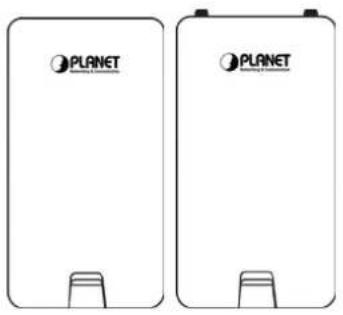
text_image
PLANET PLANETQuick Installation Guide
text_image
PLANET Quiet Insulation Guide 30714 Outdoor Wireless 20 ETHETAN METHA Outdoor Wireless 20 Package Contents There is the necessary PLNET 30714 Outdoor Wireless 20. The device has been installed in a device with a range of 50% to 80% coverage. The device has been installed in a device with a range of 50% to 80% coverage. The device has been installed in a device with a range of 50% to 80% coverage. The device has been installed in a device with a range of 50% to 80% coverage. The device has been installed in a device with a range of 50% to 80% coverage. The device has been installed in an outdoor area (no visible text or symbols). The device has been installed in an outdoor area (no visible text or symbols). The device has been installed in an outdoor area (no visible text or symbols). The device has been installed in an outdoor area (no visible text or symbols). The device has been installed in an outdoor area (no visible text or symbols). The device has been installed in an outdoor area (no visible text or symbols). The device has been installed in an outdoor area (no visible text or symbols). The device has not been installed in any other environment. The device has been installed in any other environment (including outside the main body of the device). The device has been installed in any other environment (including outside the main body of the device). The device has been installed in any other environment (including outside the main body of the device). The device has been installed in any other environment (including outside the main body of the device). The device has been installed in any other environment (including outside the main body of the device). The device has been installed in any other environment (including outside the main body of the device). The device has been registered in all three locations. The device has been installed in all three locations. The device has been installed in all three locations. The device has been installed in all three locations. The device has been installed in all three locations. The device has been installed in all three locations. The device has been installed in all three locations. The device has been installed in all three locations. The device has been installed in all three locations. The device has been installed in all three locations. The device has been installed in all three locations. The device has been registered in all four locations. The device has been installed in all four locations. The device has been installed in all four locations. The device has been installed in all four locations. The device has been installed in all four locations. The device has been installed in all four locations. The device has been installed in all four locations. The device has been installed in all four locations. The device has been installed in all four locations. The device has been installed in all four locations. The device has been installed in all four locations. The device has been registered in all five locations. The device has been installed in all five locations. The device has been installed in all five locations. The device has been installed in all five locations. The device has been installed in all five locations. The device has been installed in all five locations. The device has been installed in all five locations. The device has been installed in all five locations. The device has been installed in all five locations. The device has been installed in all five locations. The device has been installed in all five locations. The device has been registered in all six locations. The device has been installed in all six locations. The device has been installed in all six locations. The device has been installed in all six locations. The device has been installed in all six locations. The device has been installed in all six locations. The device has been installed in all six locations. The device has been installed in all six locations. The device has been installed in all six locations. The device has been installed in all six locations. The device has been installed in all six locations. The device has been registered in all seven locations. The device has been installed in all seven locations. The device has been installed in all seven locations. The device has been installed in all seven locations. The device has been installed in all seven locations. The device has been installed in all seven locations. The device has been installed in all seven locations. The device has been installed in all seven locations. The device has been installed in all seven locations. The device has been registered in all eight locations. The device has been installed in all eight locations. The device has been installed in all eight locations. The device has been installed in all eight locations. The device has been installed in all eight locations. The device has been installed in all eight locations. The device has been installed in all eight locations. The device has been registered in all nine locations. The device has been installed in all nine locations. The device has been installed in all nine locations. The device has been installed in all nine locations. The device has been installed in all nine locations. The device has been installed in all nine locations. The device has been registered in all ten locations. The device has been installed in all ten locations. The device has been installed in all ten locations. The device has been installed in all ten locations. The device has been installed in all ten locations. The device has been registered in all ten locations. The device has been installed in all ten locations. The device has been installed in all ten locations. The device has been installed in all ten locations. The device has been registered in all ten locations. The device has been installed in all ten locations. The device has been installed in all ten locations. The device has been registered in all ten locations. The device has been installed in all ten locations.Mounting Strap x 2

natural_image
Simple circular diagram with two black arrows pointing inward, no text or symbols present.Screw Set x 1

PoE Injector & Power Cord
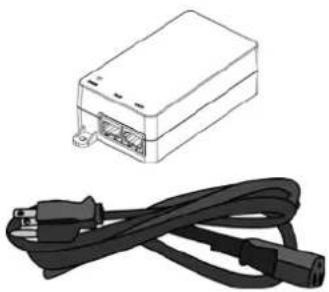
natural_image
Illustration of a rectangular device with internal ports and a black cable with two connectors (no text or symbols)Antenna x 2 (WAP-500N only)


If there is any item missing or damaged, please contact the seller immediately.
1.2 Product Description
Cost-effective Wireless Solution with Superior Performance
PLANET WAP-500N/WBS-500N 300Mbps 802.11n Outdoor Wireless AP/CPE offers a better range and excellent throughput. Via the WAP-500N's RP-SMA antenna connectors and the WBS-500N's embedded 10dBi dual-polarity directional antenna, it is easy to build different point to multi-point applications with good diversity coverage and better noise immunity effect, thus heightening the performance and stability of a long-distance connectivity.

text_image
The Invisible Bridge That Will Take You Far Away WAP-500N IPv4/ IPv6 802.1Q VLAN 4 SSIDs 6 Operation modes 7 Languages WBS-500NDesigned for Various Requirements
The WAP-500N/WBS-500N is dedicatedly designed for WISP solution that provides CPE users with Internet access via the WISP provider in rural areas. Besides, it caters to various wireless communication connectivities (AP, Client, WDS, Repeater and WISP), thus meeting users' application requirements.

flowchart
graph TD
    A["WBS-500N"] --> B["Branch"]
    B --> C["Switch"]
    D["WAP-500N+ANT-OM10A"] --> E["Headquarters"]
    E --> F["Switch"]
    G["PoE Injector"] --> H["City Center"]
    I["Wi-Fi"] --> J["City Center"]
    K["Wi-Fi"] --> L["City Center"]
    M["Wi-Fi"] --> N["City Center"]
    O["Wi-Fi"] --> P["City Center"]
    Q["Wi-Fi"] --> R["City Center"]
    S["Wi-Fi"] --> T["City Center"]
    U["Wi-Fi"] --> V["City Center"]
    W["Wi-Fi"] --> X["City Center"]
    Y["Wi-Fi"] --> Z["City Center"]
    AA["Wi-Fi"] --> AB["City Center"]
    AC["Wi-Fi"] --> AD["City Center"]
    AE["Wi-Fi"] --> AF["City Center"]
    AG["Wi-Fi"] --> AH["City Center"]
    AI["Wi-Fi"] --> AJ["City Center"]
    AK["Wi-Fi"] --> AL["City Center"]
    AM["Wi-Fi"] --> AN["City Center"]
    AO["Wi-Fi"] --> AP["City Center"]
    AQ["Wi-Fi"] --> AR["City Center"]
    AS["Wi-Fi"] --> AT["City Center"]
    AU["Wi-Fi"] --> AV["City Center"]
    AW["Wi-Fi"] --> AX["City Center"]
    AY["WBS-500N"] --> AZ["Branch"]
    BA["WAP-500N+ANT-OM10A"] --> BB["Headquarters"]
Multiple SSIDs with VLAN Tagging
Multiple SSIDs can broadcast up to four wireless networks with different names. For management purposes, the IEEE 802.1Q VLAN supported allows multiple VLAN tags to be mapped to multiple SSIDs to distinguish the wireless access. This makes it possible for the WAP-500N/WBS-500N to work with managed Ethernet switches to have VLANs assigned for a different access level and authority.
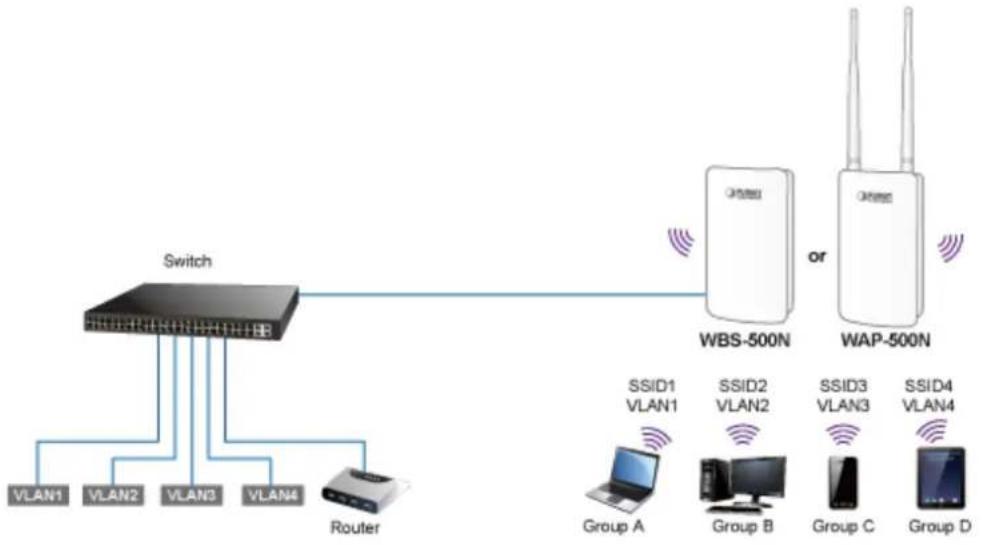
flowchart
graph TD
    A["Switch"] --> B["WBS-500N"]
    A --> C["WAP-500N"]
    B --> D["Router"]
    C --> E["Group A"]
    C --> F["Group B"]
    C --> G["Group C"]
    C --> H["Group D"]
    style A fill:#f9f,stroke:#333
    style B fill:#ccf,stroke:#333
    style C fill:#ccf,stroke:#333
    style D fill:#fff,stroke:#333
    style E fill:#fff,stroke:#333
    style F fill:#fff,stroke:#333
    style G fill:#fff,stroke:#333
    style H fill:#fff,stroke:#333
Flexible and Reliable Outdoor Characteristics
The WAP-500N/WBS-500N is definitely suitable for wireless IP surveillance, and bridge link of building to building and backbone of public service. Additionally, the self-healing capability keeps connection alive all the time. With the IP55-rated outdoor UV-resistant enclosure, the WAP-500N/WBS-500N can perform normally under rigorous weather conditions, meaning it can be installed in any harsh, outdoor environments. With the proprietary Power over Ethernet (PoE) design, the WAP-500N/WBS-500N can be easily installed in the areas where power outlets are not available.
Advanced Security and Rigorous Authentication
The WAP-500N/WBS-500N supports 152-bit WEP, WPA/WPA2, WPA-PSK and WPA2-PSK wireless encryptions, the advanced WPA2-AES mechanism and 802.1X RADIUS authentication, which can effectively prevent eavesdropping by unauthorized users or bandwidth occupied by unauthenticated wireless access. Furthermore, any users are granted or denied access to the wireless LAN network based on the ACL (Access Control List) that the administrator pre-established.
Easy Deployment and Management
With user-friendly Web UI and comprehensive management features including client limit control and wireless traffic shaping, the WAP-500N/WBS-500N is easy to limit the client access and inbound/outbound bandwidth control, even for users who have no experience in setting up a wireless network. Furthermore, with the Planet Smart Discovery Utility, SNMP and diagnostics tools, the WAP-500N/WBS-500N is convenient to be managed remotely.
1.3 Product Features
Industrial Compliant Wireless LAN and LAN
■ Compliant with the IEEE 802.11a/n wireless technology
■ 2T2R architecture with data rate of up to 300Mbps
■ Equipped with two 10/100Mbps RJ45 ports, with auto MDI/MDI-X supported
Fixed Network Broadband Router
■ Supported WAN connection types in WISP mode: DHCP, Static IP, PPPoE, PPTP
■ Supports Port Forwarding and DMZ for various networking applications
■ Supports DHCP server in WISP mode
RF Interface Characteristics
■ Built-in 5dBi detachable antennas with RP-SMA connectors (WAP-500N)
■ Built-in 10dBi dual-polarization antenna (WBS-500N)
■ High output power with multiply-adjustable transmit power control
Outdoor Environmental Characteristics
■ IP55 rating
■ Passive Power over Ethernet design
■ Operating temperature: -20\~70°C
Multiple Operation Modes and Wireless Features
■ Multiple operation modes: AP, Client Bridge, Client Router (WISP), WDS, Repeater
■ WMM (Wi-Fi multimedia) provides higher priority to multimedia transmitting over wireless
■ Wireless Traffic Shaping to control the upload/download bandwidth
■ Wi-Fi scheduler allows to enable or disable based on predefined schedule
▶ Secure Network Connection
■ Full encryption supported: 64-/128-/152-bit WEP, WPA/WPA2, WPA-PSK/WPA2-PSK and 802.1X RADIUS authentication
■ Supports 802.1Q VLAN pass-through over WDS and SSID-to-VLAN mapping
■ Supports up to 50 entries of MAC address filtering
Easy Installation and Management
■ IPv4/IPv6 dual-stack management networks
■ Multilingual Web User Interface: English, Spanish, French, German, Portuguese, Russian, Simplified Chinese
■ CLI command and SNMP-based management interface
■ Self-healing mechanism through system auto reboot setting
■ System status monitoring through remote Syslog Server and Device Discovery
■ Diagnostic tools include Ping, Traceroute and Speed
■ Planet Smart Discovery Utility allows administrator to discover and locate each AP
1.4 Product Specifications
| Product | WAP-500N | WBS-500N |
| 5GHz 300Mbps 802.11n Outdoor Wireless AP/CPE | ||
| Hardware Features | ||
| Standard Support | IEEE802.11a/nIEEE 802.3IEEE 802.3uIEEE 802.3x | |
| Memory | 64 Mbytes DDR SDRAM16 Mbytes Flash | |
| PoE | Passive PoE | |
| Interface | Wireless IEEE 802.11a/n, 2T2RPoE LAN (LAN 1): 1 x 10/100BASE-TX, auto-MDI/MDIX, 24V passive PoE In LAN 2: 1 x 10/100BASE-TX, auto-MDI/MDIX | |
| Button | Reset button | |
| LED | PWR, LAN, WLAN, Signal Strength | |
| Dimension (W x D x H) | 100 x 29 x 186mm (without antennas)100 x 29 x 380mm (with antennas) | 100 x 29 x 186mm |
| Weight | 300g (without antennas)332g (with antennas) | 300g |
| Power Consumption | Maximum 7.2W | |
| Power Requirements | LAN1■ 24V DC, 0.6A/ Passive PoE■ Pin 4, 5 V DC+■ Pin 7, 8 V DC- | |
| Mounting Type | Mast, wall mount | |
| Wireless Interface Specification | ||
| Antenna | Built-in 5dBi detachable omnidirectional antennas with RP-SMA connectorsHPBW Horizontal: 360 degreesHPBW Vertical: 30 degrees | Built-in 10dBi directional antenna with dual polarization[Port1]HPBW Horizontal: 43 degreesHPBW Vertical: 71 degrees[Port2]HPBW Horizontal: 39 degreesHPBW Vertical: 61 degrees |
| Data Rate | IEEE 802.11a: up to 54MbpsIEEE 802.11n (20MHz): up to 150MbpsIEEE 802.11n (40MHz): up to 300Mbps | |
| Media Access Control | CSMA/CA | |
| Modulation | Transmission/Emission type: OFDMData modulation type: OFDM with BPSK, QPSK, 16-QAM, 64-QAM | |
| Frequency Band | FCC: 5.180~5.580GHz, 5.660~5.825GHzETSI: 5.180~5.240GHz | |
| Operating Channel | United States -- FCC:36, 40, 44, 48, 52, 56, 60, 64, 100, 104, 108, 112, 116, 132, 136, 140, 149, 153, 157, 161, 165 (21 channels)Europe -- ETSI: 36, 40, 44, 48 (4 channels)5GHz channel list will vary in different countries according to their regulations. | |
| RF Output Power (dBm) | FCC: IEEE 802.11a/n: up to 26 ± 2dBmETSI: IEEE 802.11a/n: < 20dBm (EIRP) | |
| Receiver Sensitivity (dBm) | IEEE 802.11a:-95/-92/-89/-85/-81/-79/-76/-75dBm (6/9/12/18/24/36/48/54Mbps)IEEE 802.11n:MCS0/MCS8: -95dBmMCS1/MCS9: -93dBmMCS2/MCS10: -90dBmMCS3/MCS11: -87dBmMCS4/MCS12: -84dBmMCS5/MCS13: -79dBmMCS6/MCS14: -75dBmMCS7/MCS15: -73dBm | |
| Environment & Certification | ||
| Operating Temperature | -20~70 degrees C | |
| Operating Humidity | 10~90% (non-condensing) | |
| IP Level | IP55 | |
| Regulatory | CE, FCC, RoHS | |
| Software Features | ||
| LAN | ■ Static IP■ Dynamic IP■ DHCP server in WISP mode | |
| Support 802.1d STP (Spanning Tree) | ||
| WAN Connection Type (WISP Mode only) | ■ Static IP■ Dynamic IP■ PPPoE■ PPTP | |
| Wireless Modes | ■ Access Point | |
| ■ Client Bridge■ WDS (AP/Bridge/Station)■ Client Router (WISP)/Client AP Router (WISP+AP)■ Repeater | ||
| Firewall | Offers DoS protection to guard user's content network against DoS attacks | |
| Built-in DMZ and Port Forwarding | ||
| VPN Pass-through:■ PPTP Pass-through■ L2TP Pass-through■ IPSec Pass-through | ||
| Channel Width | 20MHz/40MHz | |
| Encryption Type | 64-/128-/152-bit WEP, WPA, WPA-PSK, WPA2, WPA2-PSK, 802.1X | |
| Wireless Security | Enable/Disable SSID Broadcast | |
| Wireless MAC address filtering up to 50 entries | ||
| VAP Separation, Station Separation | ||
| Max. Wireless Clients | Max. 64 (Suggested 32, depending on usage) | |
| Max. SSIDs | Up to 4 | |
| Max. WDS Peers | Up to 4 | |
| Wireless QoS | Supports Wi-Fi Multimedia (WMM) | |
| Supports Wireless Traffic Shaping per Radio | ||
| Wireless Advanced Control | Auto Channel Selection | |
| Auto Transmit Power by Regular Domains | ||
| Client Limit Control | ||
| Distance Control (Auto Ack Timeout) | ||
| Wi-Fi Schedule | ||
| Status Monitoring | Connection Status | |
| Device Discovery, PLANET Smart Discovery | ||
| Wireless Client List/WDS Link List | ||
| DHCP Client Table | ||
| System Log supports remote syslog server | ||
| Signal Strength LEDs in Client Bridge and WDS Station modes | ||
| VLAN | VLAN pass-through over WDS | |
| SSID-to-VLAN mapping | ||
| Management VLAN (VID: 1~4094) | ||
| Self-healing | Supports auto reboot settings | |
| NTP | Network Time Management | |
| Management | Web-based UI, CLI (Command Line Interface) supported | |
| Configuration backup and restore | ||
| SNMP v1/v2c/v3 support, MIB I/II, Private MIB | ||
| Diagnostic Tools | Built-in Ping, Trace Route, Speed Test Tools | |
Chapter 2. Hardware Installation
2.1 Hardware Description
■ Dimensions (W x D x H): 100 x 29 x 186mm (without antennas)/100 x 29 x 380mm (with 5dBi antennas)
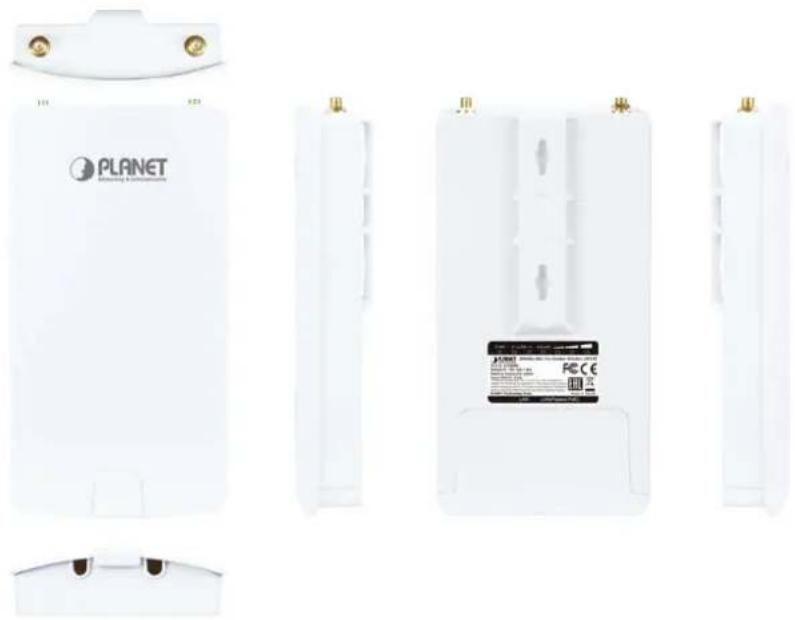
natural_image
Exterior view of a white Planet Wireless device with multiple side panels showing front, top, and back views (no text or symbols on main body)Figure 2-1 Three-way View (WAP-500N)
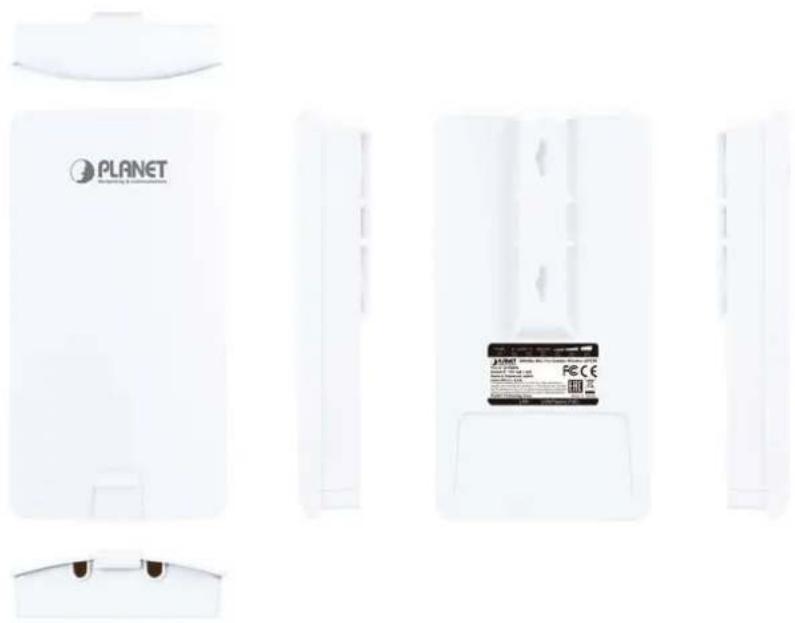
natural_image
Exterior view of a white Planet air purifier unit with visible branding and a small card (no text or symbols on main body)Figure 2-2 Three-way View (WBS-500N)
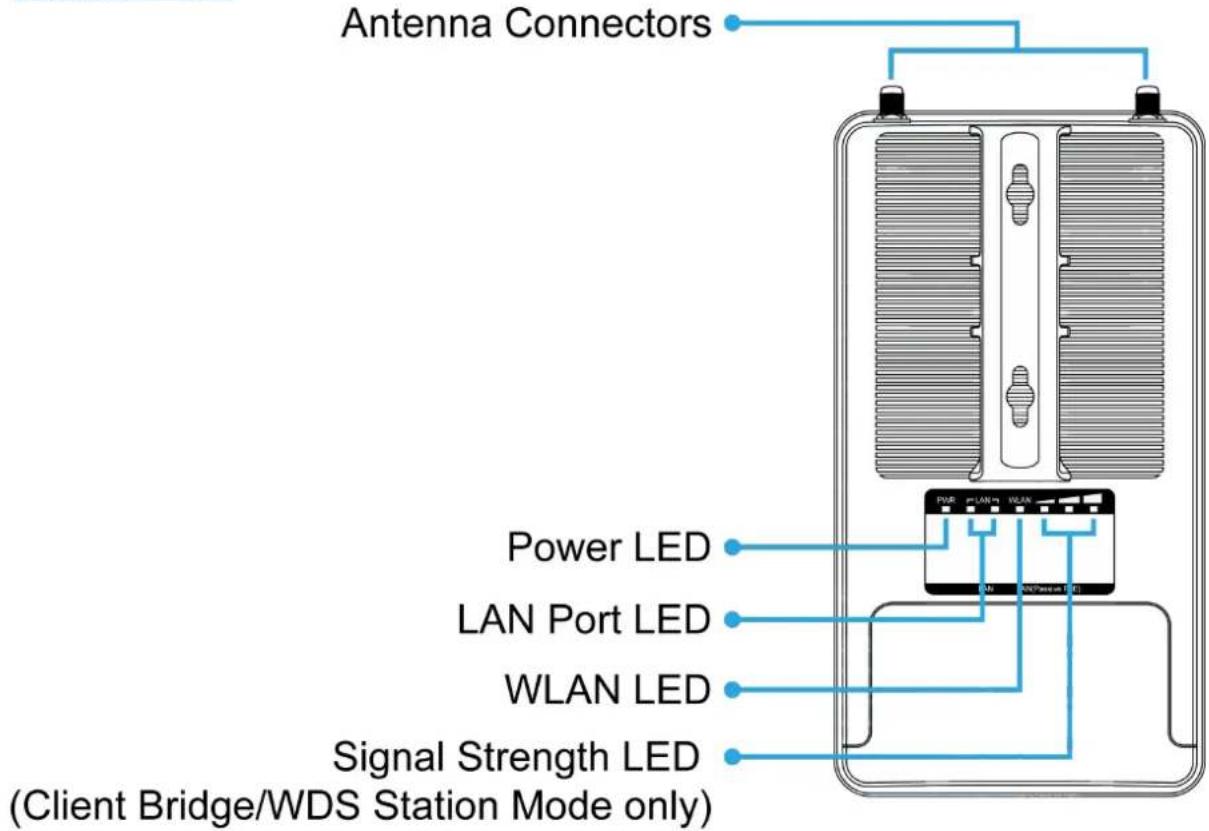
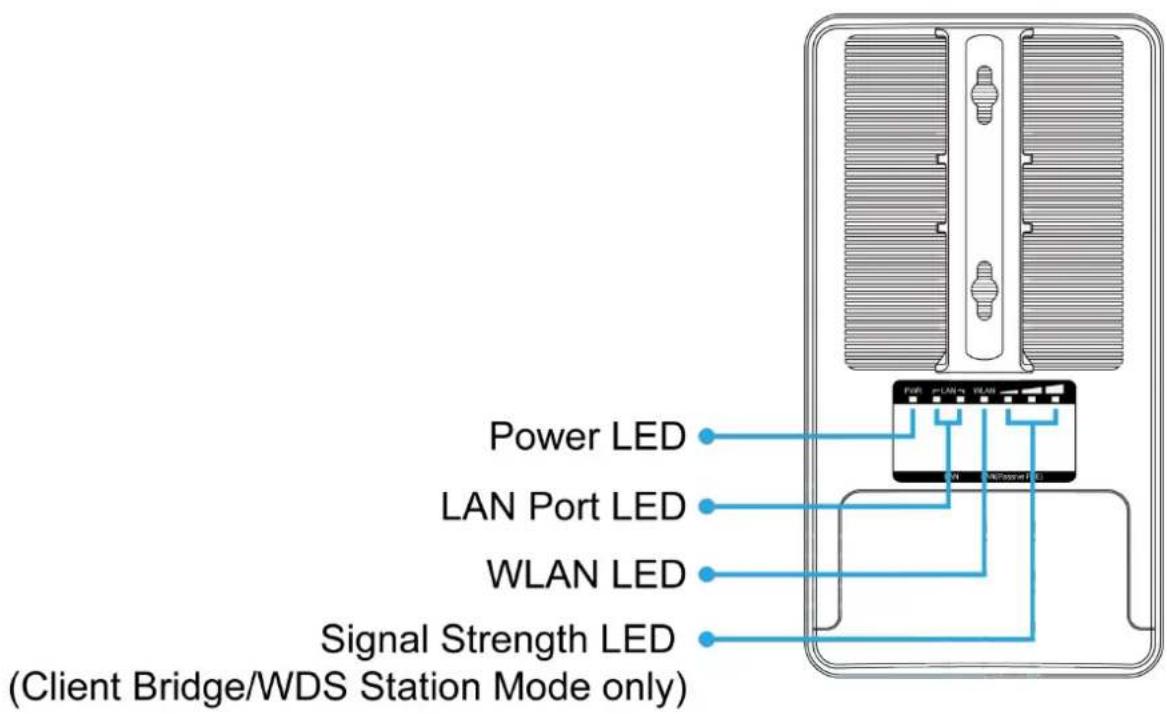
Rear Panel – LED
text_image
Antenna Connectors Power LED LAN Port LED WLAN LED Signal Strength LED (Client Bridge/WDS Station Mode only)Figure 2-3 Rear Panel (WAP-500N)
text_image
Power LED LAN Port LED WLAN LED Signal Strength LED (Client Bridge/WDS Station Mode only)Figure 2-4 Rear Panel (WBS-500N)
LED Definition
| LED State Meaning | ||
| Power | On | The device is powered on |
| Off | The device is powered off | |
| LAN Ports | On Port linked | |
| Blinking | Data is transmitting or receiving data | |
| Off No link | ||
| WLAN | On | The wireless radio is on |
| Blinking | Data is transmitting or receiving over wireless | |
| Off | The wireless radio is off | |
| Signal Strength(Client Bridge/WDS Station/Client Router mode only) | Green LED on | Signal is good |
| Orange LED on | Signal is normal | |
| Red LED on | Signal is poor |
Table 2-1 The LED indication
2.1.1 The Bottom Panel – Port
The Bottom panel provides the physical connectors connected to the power adapter and any other network device. Figure 2-5 shows the bottom panel of the WAP-500N/WBS-500N.
Bottom Panel

text_image
Reset Button LAN Port Passive PoE LAN PortFigure 2-5 Bottom Panel (WAP-500N/WBS-500N)
PoE Warning Label

text_image
LAN PoE Powered by 24VDC Passive PoE only (included). CAUTIONFigure 2-6 PoE Warning Label
Hardware Interface Definition
| Object Description | |
| Antenna Connectors (WAP-500N only) | 2 RP-SMA (Female) antenna connectors |
| Passive PoE LAN Port | 10/100Mbps RJ45 port, auto MDI/MDI-XPassive PoE/PD supported, 24VDC InPin assignment:Pin 4, 5 (+)Pin 7, 8 (-)NOTE: Please use the 24VDC Passive PoE only (included). |
| LAN Port | 10/100Mbps RJ45 port, auto MDI/MDI-X |
| Reset Button | Press and hold the Reset button on the device for over 10 seconds to return to the factory default setting. |
Table 2-2 Hardware Interface Definition
Chapter 3. Connecting to the AP
3.1 Preparation before Installation
3.1.1 Professional Installation Required
Please seek assistance from a professional installer who is well trained in the RF installation and knowledgeable in the local regulations.
3.1.2 Safety Precautions
- To keep you safe and install the hardware properly, please read and follow these safety precautions.
- If you are installing the WBS-500N or WAP-500N for the first time, for your safety as well as others', please seek assistance from a professional installer who has received safety training on the hazards involved.
- Keep safety as well as performance in mind when selecting your installation site, especially where there are electric power and phone lines.
-
When installing the WBS-500N or WAP-500N, please note the following things:
♦ Do not use a metal ladder;
Do not work on a wet or windy day;
♦ Wear shoes with rubber soles and heels, rubber gloves, and a long-sleeved shirt or jacket. -
When the system is operational, avoid standing directly in front of it. Strong RF fields are present when the transmitter is on.
3.2 Installation Precautions
■ Users MUST use a proper and well-installed surge arrestor and grounding kit with the WBS-500N or WAP-500N; otherwise, a random lightning could easily cause fatal damage to the WBS-500N or WAP-500N. EMD (Lightning) DAMAGE IS NOT COVERED UNDER WARRANTY.
- Users MUST use the “Power cord and PoE Injector” shipped in the box with the WBS-500N or WAP-500N. Use of other options will cause damage to the WBS-500N or WAP-500N.

OUTDOOR INSTALLATION WARNING
IMPORTANT SAFETY PRECAUTIONS:
LIVES MAY BE AT RISK! Carefully observe these instructions and any special instructions that are included with the equipment you are installing.
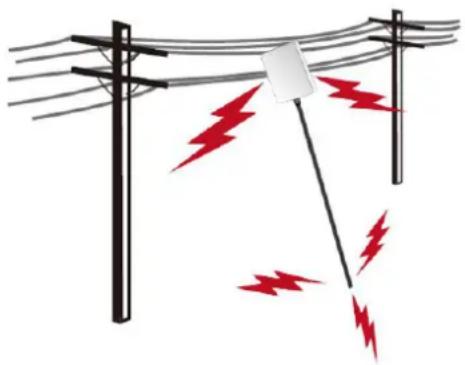
CONTACTING POWER LINES CAN BE LETHAL. Make sure no power lines are anywhere where possible contact can be made. Antennas, masts, towers, guy wires or cables may lean or fall and contact these lines. People may be injured or killed if they are touching or holding any part of equipment when it contacts electric lines. Make sure that equipment or personnel do not come in contact directly or indirectly with power lines.
The horizontal distance from a tower, mast or antenna to the nearest power line should be at least twice the total length of the mast/antenna combination.
natural_image
Illustration of a utility pole with red lightning bolts indicating electrical hazard (no text or symbols)This will ensure that the mast will not contact power if it falls either during installation or later.
TO AVOID FALLING, USE SAFE PROCEDURES WHEN WORKING AT HEIGHTS ABOVE GROUND.
- Select equipment locations that will allow safe, simple equipment installation.
- Don't work alone. A friend or co-worker can save your life if an accident happens.
- Use approved non-conducting lasers and other safety equipment. Make sure all equipment is in good repair.
- If a tower or mast begins falling, don't attempt to catch it. Stand back and let it fall.
- If anything such as a wire or mast does come in contact with a power line, DON'T TOUCH IT OR ATTEMPT TO MOVE IT. Instead, save your life by calling the power company.
- Don't attempt to erect antennas or towers on windy days.
MAKE SURE ALL TOWERS AND MASTS ARE SECURELY GROUNDED, AND ELECTRICAL CABLES CONNECTED TO ANTENNAS HAVE LIGHTNING ARRESTORS. This will help prevent fire damage or human injury in case of lightning, static build-up, or short circuit within equipment connected to the antenna.
- The base of the antenna mast or tower must be connected directly to the building protective ground or to one or more approved grounding rods, using 1 OAWG ground wire and corrosion-resistant connectors.
- Refer to the National Electrical Code for grounding details.
IF A PERSON COMES IN CONTACT WITH ELECTRICAL POWER, AND CANNOT MOVE:
- DON'T TOUCH THAT PERSON, OR YOU MAY BE ELECTROCUTED.
- Use a non-conductive dry board, stick or rope to push or drag them so they no longer are in contact with electrical power.
Once they are no longer contacting electrical power, administer CPR if you are certified, and make sure that emergency medical aid has been requested.
3.3 Installing the AP
Please install the AP according to the following Steps. Don't forget to pull out the power plug and keep your hands dry.
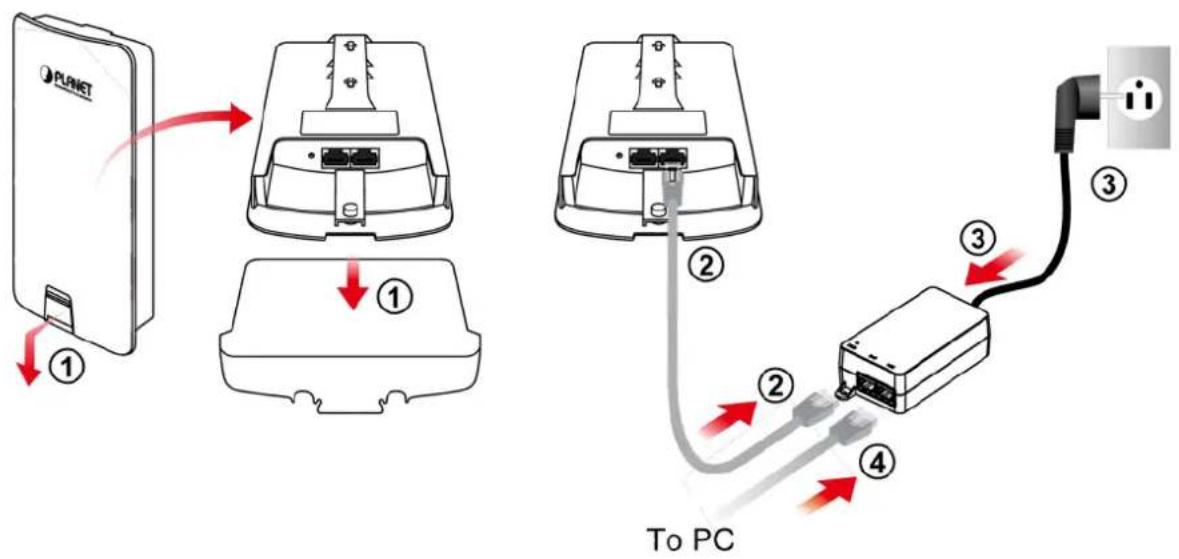
Step 1. PoE and LAN port connection:
(1) Remove the bottom cover.
(2) Connect one end of the Ethernet cable into the LAN (Passive PoE) port of the device and the other end to the PoE port on the PoE Injector.
(3) Connect the power cord with the PoE Injector and plug the other end into an electrical outlet.
(4) Connect the second Ethernet cable into the LAN port of the PoE Injector and the other end to the Ethernet port on the computer.
text_image
PLUNT ① ① ② ③ To PC ④Figure 3-1 PoE and LAN port connection
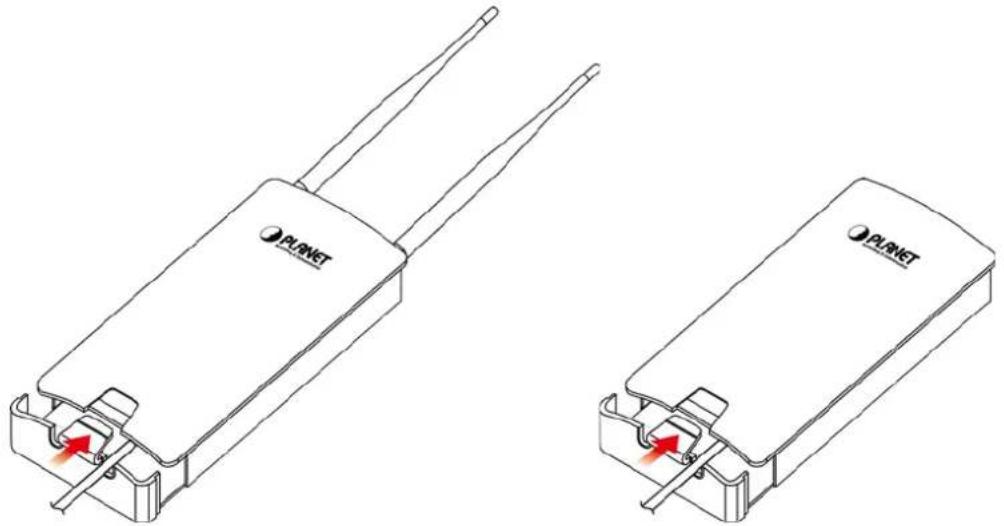
Step 2. Attach the antennas onto the antenna connectors of the device and place the bottom cover back into the device to finish the installation.
natural_image
Two identical PLNET device packages with red arrows indicating ports or connections (no text or symbols on the devices themselves)Figure 3-2 Finish installation and connect to antennas (WAP-500N only)
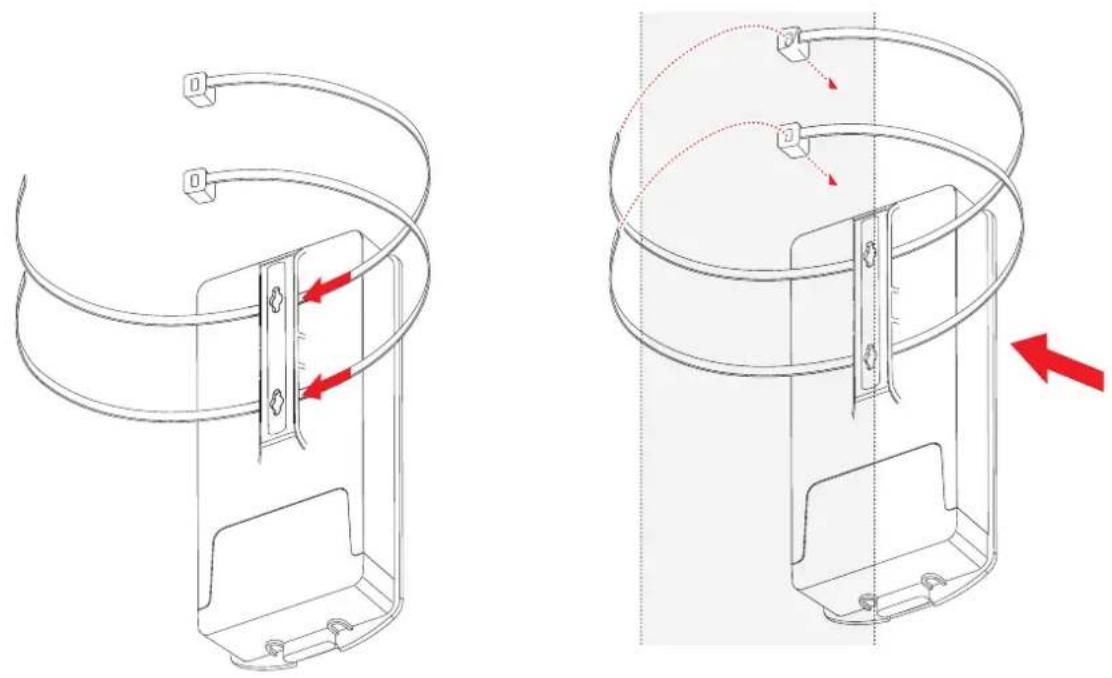
Step 3. Pole Mounting:
(1) Thread two mounting straps through the mounting bracket on the back of the device.
(2) Position the device on a pole and secure both mounting straps to finish the installation.
natural_image
Technical line drawing of a mechanical component with red arrows indicating motion or assembly (no text or symbols)Figure 3-3 Pole Mounting
Step 4. Wall Mounting:
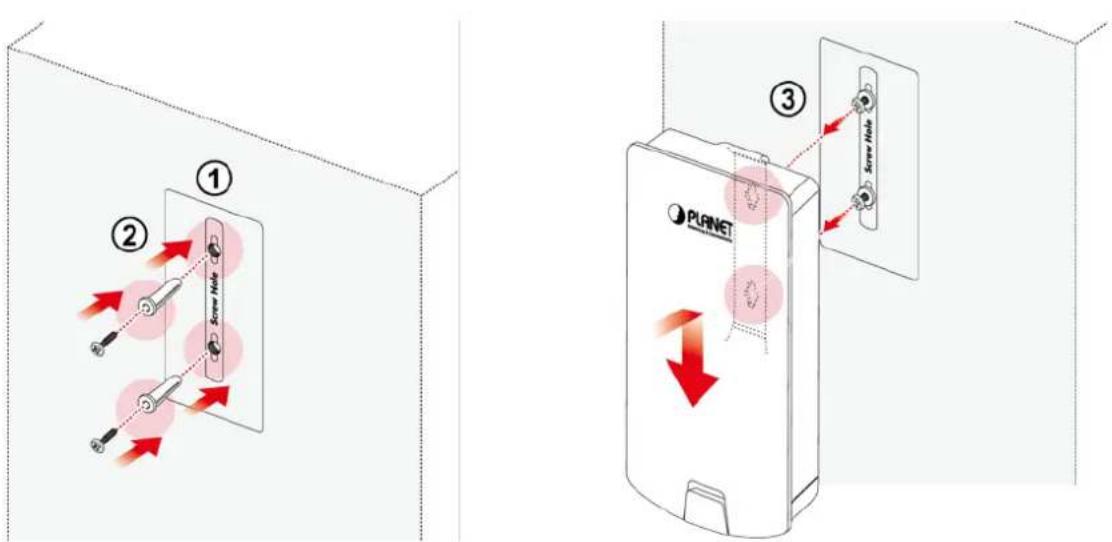
(1) Secure the adhesive label to a position on the wall where you would like to install the device.
(2) Follow the plotting sticker to drill two holes and secure the plastic anchors.
(3) Align the screw holes on the mounting bracket with the screws and then install the device on the wall to finish the installation.
text_image
① ② Screw Hole ③ PLANETFigure 3-4 Wall Mounting
Chapter 4. Quick Installation Guide
This chapter will show you how to configure the basic functions of your AP within minutes.

A computer with wired Ethernet connection to the Wireless AP is required for the first-time configuration.
4.1 Manual Network Setup -- TCP/IP Configuration
The default IP address of the WBS-500N and WAP-500N is 192.168.1.253. And the default Subnet Mask is 255.255.255.0. These values can be changed as you desire. In this guide, we use all the default values for description.
Connect the WBS-500N or WAP-500N with your PC via an Ethernet cable which is then plugged into a LAN port of the PoE injector with one end and into a LAN port of the PC with the other end. Then power on the WBS-500N and WAP-500N via PoE injector or PoE switch.
In the following sections, we'll introduce how to install and configure the TCP/IP correctly in Windows 7. And the procedures in other operating systems are similar. First, make sure your Ethernet adapter is working, and refer to the Ethernet adapter's manual if needed.
4.1.1 Configuring the IP Address Manually
Summary:
■ Set up the TCP/IP Protocol for your PC.
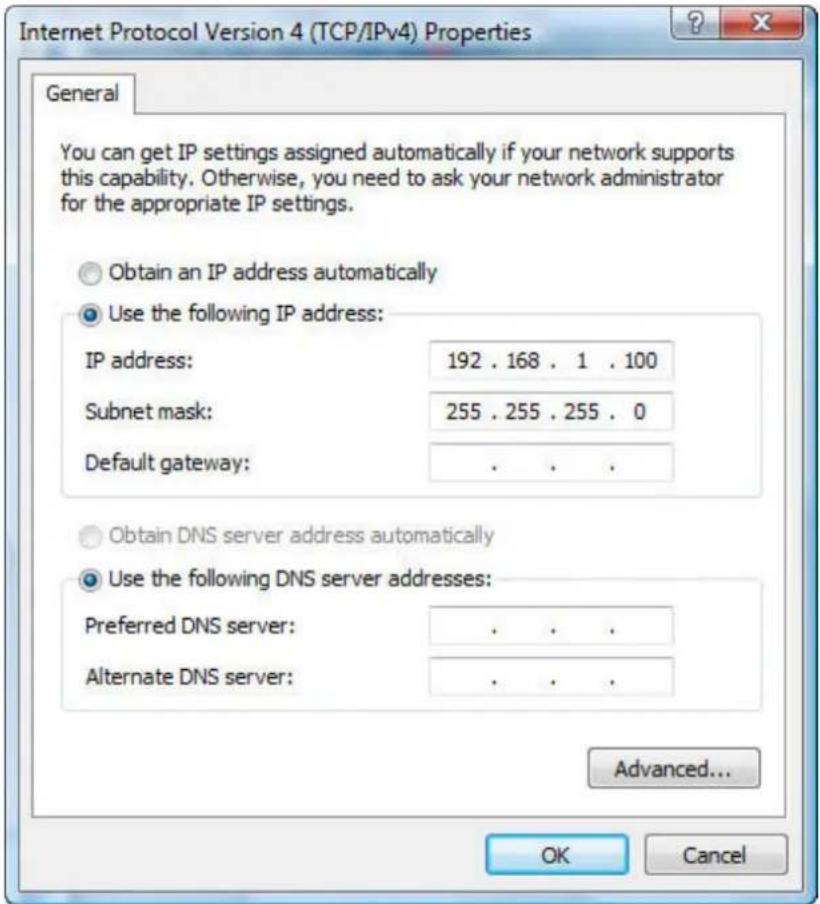
- Configure the network parameters. The IP address is 192.168.1.xxx ("xxx" is any number from 2 to 252); subnet mask is 255.255.255.0.
1 Select Use the following IP address radio button.
2 If the AP's LAN IP address is 192.168.1.253, enter IP address 192.168.1.x (x is from 2 to 254 except 192.168.1.253), and subnet mask 255.255.255.0.
3 Select Use the following DNS server addresses radio button. In the Preferred DNS Server field, you can enter the DNS server IP address which has been provided by your ISP
text_image
Internet Protocol Version 4 (TCP/IPv4) Properties General You can get IP settings assigned automatically if your network supports this capability. Otherwise, you need to ask your network administrator for the appropriate IP settings. Obtain an IP address automatically Use the following IP address: IP address: 192 . 168 . 1 . 100 Subnet mask: 255 . 255 . 255 . 0 Default gateway: . Obtain DNS server address automatically Use the following DNS server addresses: Preferred DNS server: . Alternate DNS server: . Advanced... OK CancelFigure 4-1 TCP/IP Setting
Now click OK to save your settings.
Now, you can run the ping command in the command prompt to verify the network connection between your PC and the AP. The following example is in Windows 7 OS. Please follow the Steps below:
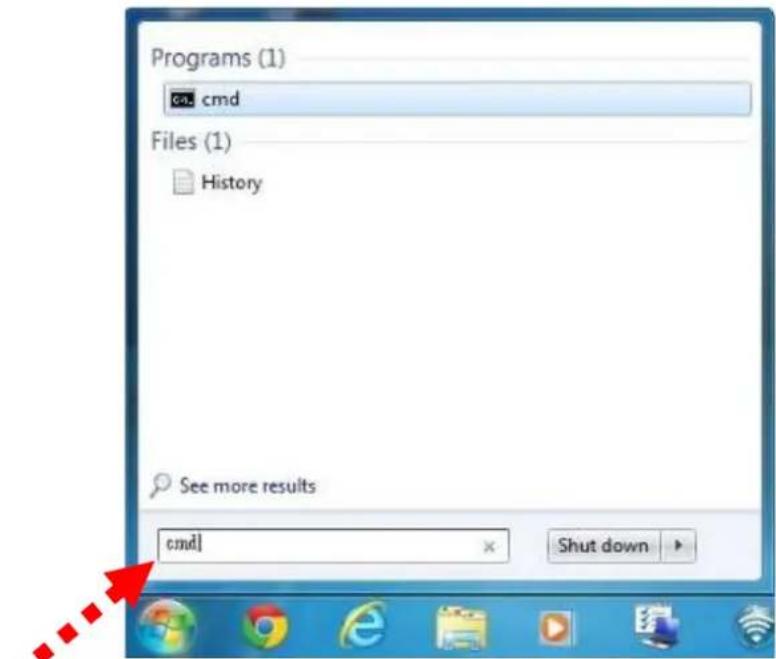
- Click on Start > Run.
- Type "cmd" in the Search box.
text_image
Programs (1) cmd Files (1) History See more results cmd Shut downFigure 4-2 Windows Start Menu
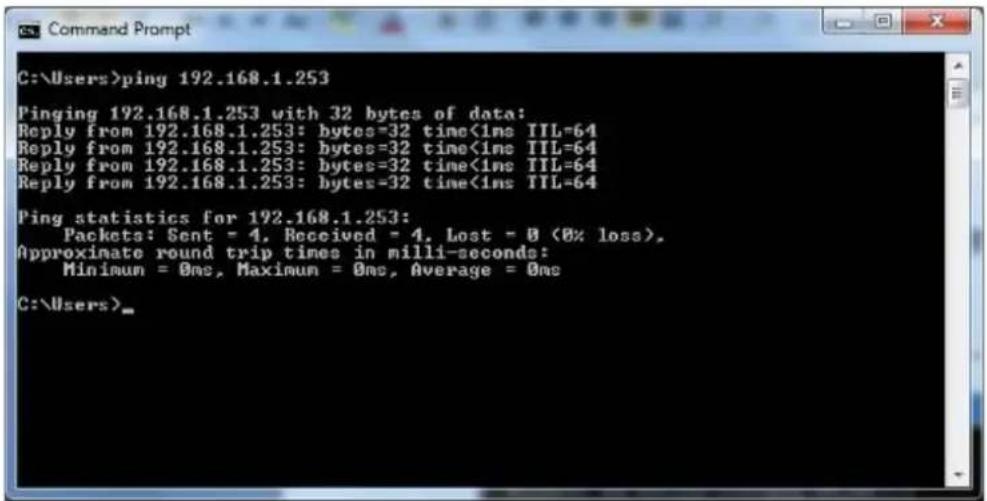
- Open a command prompt and type ping 192.168.1.253, and then press Enter.
If the result displayed is similar to Figure 4-3, it means the connection between your PC and the AP has been established well.
text_image
C:\Users>ping 192.168.1.253 Pinging 192.168.1.253 with 32 bytes of data: Reply from 192.168.1.253: bytes=32 time<1ms TTL=64 Reply from 192.168.1.253: bytes=32 time<1ms TTL=64 Reply from 192.168.1.253: bytes=32 time<1ms TTL=64 Reply from 192.168.1.253: bytes=32 time<1ms TTL=64 Ping statistics for 192.168.1.253: Packets: Sent = 4, Received = 4, Lost = 0 (0% loss), Approximate round trip times in milli-seconds: Minimum = 0ms, Maximum = 0ms, Average = 0ms C:\Users>Figure 4-3 Successful result of Ping command
If the result displayed is similar to Figure 4-4, it means the connection between your PC and the AP has failed.

text_image
C:\Users>ping 192.168.1.253 Pinging 192.168.1.253 with 32 bytes of data: Request timed out. Request timed out. Request timed out. Request timed out. Ping statistics for 192.168.1.253: Packets: Sent = 4, Received = 0, Lost = 4 (100% loss), C:\Users>Figure 4-4 Failed result of Ping command
If the address is 0.0.0.0, check your adapter installation, security settings, and the settings on your AP. Some firewall software programs may block a DHCP request on newly installed adapters.
4.2 Starting Setup in the Web UI
It is easy to configure and manage the WBS-500N or WAP-500N with the web browser.
Step 1. To access the configuration page, open a web browser and enter the default IP address http://192.168.1.253 in the web address field of the browser.

text_image
http://192.168.1.253/ LOGIN File Edit View Favorites Tools HelpFigure 4-5 Login by default IP address
After a moment, a login window will appear. Enter admin for the User Name and Password, both in lower case letters. Then click the OK button or press the Enter key.

text_image
PLANET Networking & Communication Username: Password: Login ResetFigure 4-6 Login Window
Default IP Address: 192.168.1.253
Default User Name: admin
Default Password: admin

If the above screen does not pop up, it may mean that your web browser has been set to a proxy. Go to Tools menu> Internet Options> Connections> LAN Settings in the screen that appears, cancel the Using Proxy checkbox, and click OK to finish it.
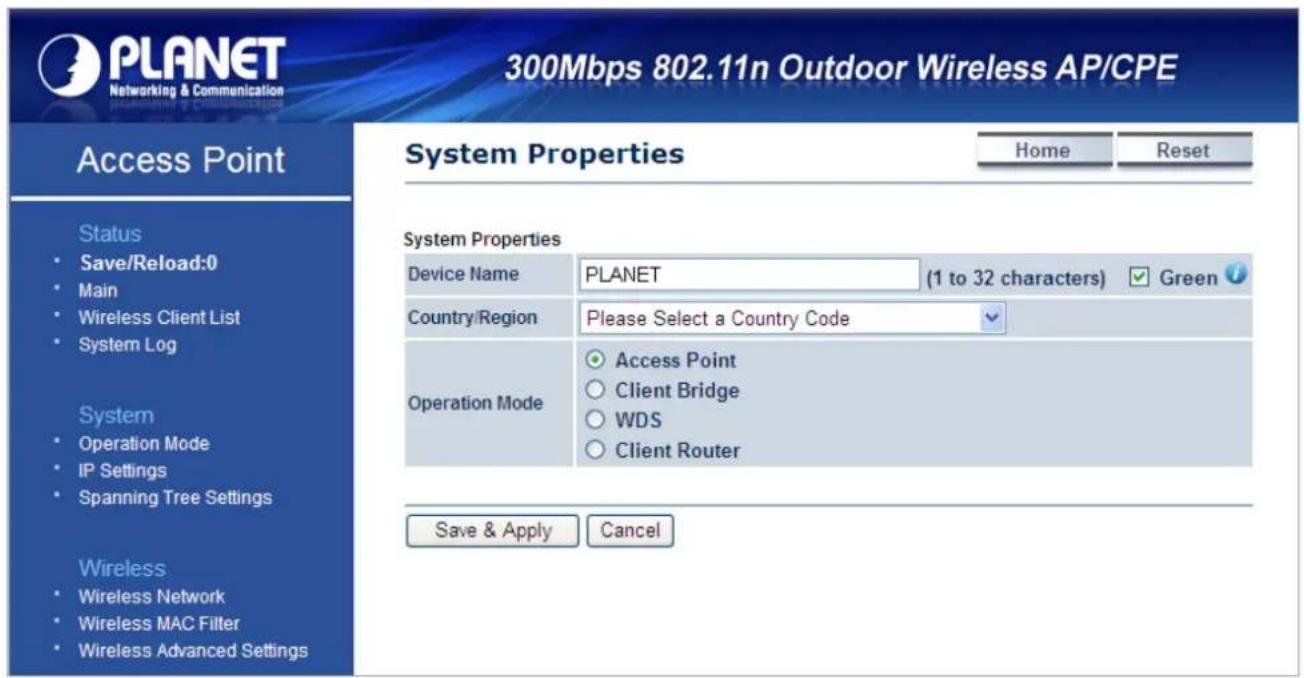
After you enter into the Web User Interface, click Operation Mode on the left hand side of the screen to configure the wireless connection. Once the basic configuration of the device is done, go to the Save/Reload page to save and apply the changes.
text_image
PLANET Networking & Communication 300Mbps 802.11n Outdoor Wireless AP/CPE Access Point Status Save/Reload:0 Main Wireless Client List System Log System Operation Mode IP Settings Spanning Tree Settings Wireless Wireless Network Wireless MAC Filter Wireless Advanced Settings System Properties Home Reset Device Name PLANET (1 to 32 characters) Green Country/Region Please Select a Country Code Operation Mode Access Point Client Bridge WDS Client Router Save & Apply CancelFigure 4-7 Web UI Screenshot
You can choose an Operation Mode according to your application. Please refer to the instructions in the next chapter for configuring different Operation Modes.
Chapter 5. Configuring the AP
This chapter instructs you how to quickly configure the AP/CPE in different operation modes.
5.1 Operation Mode
On this page, you can select the following different operation modes of the AP depending on your application:
| Operation Modes | Description |
| ■ Access Point | Access Point mode is used to provide wireless connectivity to wireless clients. This mode is compatible with general wireless clients. |
| ■ Client Bridge | Client Bridge mode allows the Access Point to become a wireless client to be able to be associated with another AP, thus enabling the wireless capability of wired clients. |
| ■ WDS Access Point | In WDS Access Point mode, the device functions as a WDS bridge in the Access Point mode. For WDS Access Point, it can be connected by the same series of devices in the WDS station mode. In this mode, the setting is the same as the Access Point mode. |
| ■ WDS Bridge | In the WDS Bridge mode, the device can bridge with remote LAN networks through MAC address. This application can create two individual networks for two groups of users sharing one Internet. The advantage of WDS is the Layer 2 transparent bridging and broadcasting across wireless connections so that all connected network devices form one common broadcast domain.NOTE: The WDS mode is a non-standard extension to the IEEE 802.11 standard, which is implemented differently in wireless driver and firmware making them incompatible with each other. In order to use WDS, the same model of devices should be used. |
| ■ WDS Station | In the WDS Station mode, the device functions as a wireless client which can bridge the remote WDS Access Point with SSID. In this mode, the setting is the same as the Client Bridge mode. |
| ■ Client Router | In the Client Router (Wireless ISP) mode, the device can connect to a wireless network and share the Internet connection to the WISP subscribers. On the LAN side, the device acts like a wired router for IP sharing function. In this mode, the wireless interface acts as WAN side. |
| ■ Repeater | Repeater mode is used to extend the wireless coverage with the same SSID and security. |
Go to the "System → Operation Mode" page to configure the device in the operation mode which is suitable to your application. Then go to "Wireless → Wireless Network" to configure the related wireless settings of each mode.

text_image
System Properties Home Reset System Properties Device Name PLANET (1 to 32 characters) Green Country/Region Please Select a Country Code Operation Mode Access Point Client Bridge WDS Access Point Bridge Station Client Router Repeater Save & Apply CancelFigure 5-1 Operation Mode – All
The page includes the following settings:
| Object Description | |
| • Device Name | Enter a name for the device (1-32 characters). The name you type appears in SNMP management. This name is not the SSID and is not broadcast to other devices. |
| • Green | Disable the green option to enable transmit power to be configured manually. Keep it as default setting to prevent from violating regional regulations unless your configuration meets the regulations. |
| • Country/Region | Select a Country/Region to conform to local regulations. |
| • Operation Mode | Use the radio button to select an operation mode. |
| • Save & Apply | Click Save & Apply to save changes. |
| • Cancel | Click Cancel to cancel the unsaved changes and revert to the previous settings. |
5.1.1 Access Point (AP)
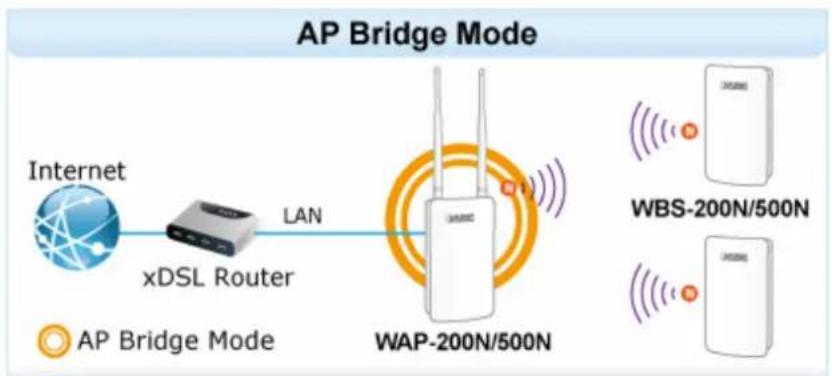
This section allows you to configure the AP Bridge mode to provide wireless connectivity for wireless clients.
flowchart
graph LR
    A["Internet"] -->|LAN| B["xDSL Router"]
    B --> C["WAP-200N/500N"]
    D["AP Bridge Mode"] --> E["WBS-200N/500N"]
    D --> F["HUSB"]
Go to the "System → Operation Mode" page to configure the device as "Access Point" and then go to "Wireless → Wireless Network" to configure the related wireless settings.

text_image
System Properties Home Reset System Properties Device Name PLANET (1 to 32 characters) Green Country/Region Please Select a Country Code Operation Mode Access Point Client Bridge WDS Client Router Repeater Save & Apply CancelFigure 5-2 Operation Mode – AP
For the configuration example, please refer to the section "Appendix C: FAQ, Q1".
5.1.2 Client Bridge (CB)
This section allows you to configure the Client Bridge mode. In this mode, the device enables the wired client to connect to the central site through wireless interface.

flowchart
graph LR
    A["Internet"] --> B["Wireless AP"]
    B --> C["WBS-200N/500N"]
    C --> D["LAN"]
    D --> E["IP Camera"]
    style A fill:#f9f,stroke:#333
    style B fill:#ccf,stroke:#333
    style C fill:#cfc,stroke:#333
    style D fill:#fcc,stroke:#333
    style E fill:#cff,stroke:#333
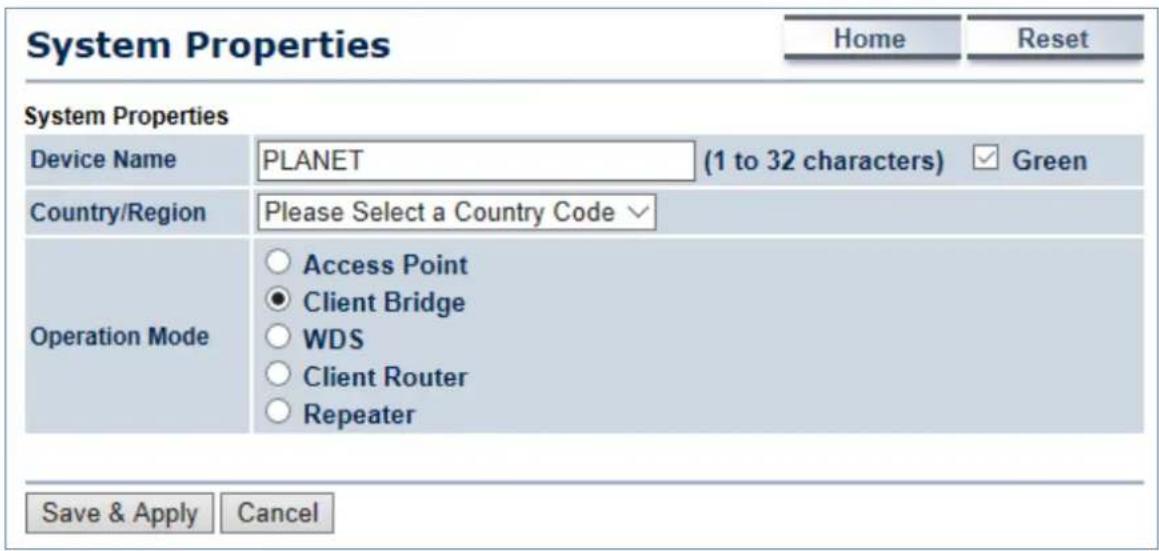
Go to the "System → Operation Mode" page to configure the device as "Client Bridge" and then go to "Wireless → Wireless Network" to configure the related wireless settings.
text_image
System Properties Home Reset System Properties Device Name PLANET (1 to 32 characters) Green Country/Region Please Select a Country Code Operation Mode Access Point Client Bridge WDS Client Router Repeater Save & Apply CancelFigure 5-3 Operation Mode – Client Bridge
For the configuration example, please refer to the section "Appendix C: FAQ, Q1".
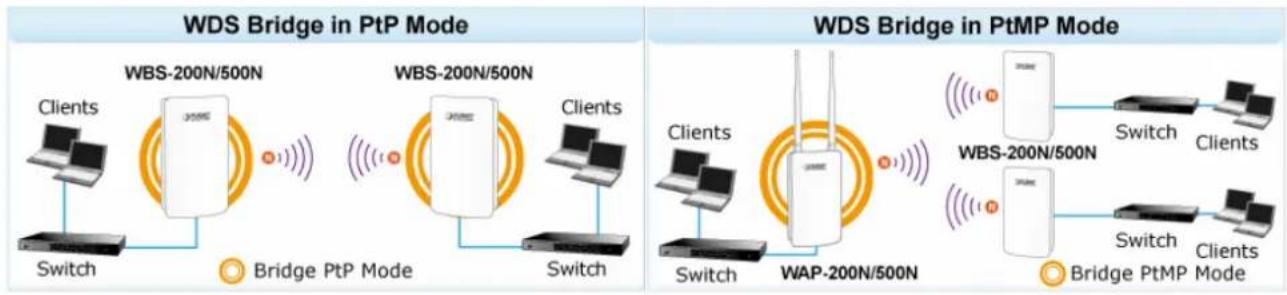
5.1.3 WDS Access Point (WDS AP)
This section allows you to configure the WDS AP mode. In this mode, the device is acting as master AP in the WDS connection.
flowchart
graph LR
    subgraph_PtP_Bridge_WDS_Bridge["WDS Bridge in PtP Mode"]
        A1["Clients"] --> B1["Switch"]
        B1 --> C1["Bridge PtP Mode"]
        C1 --> D1["Client"]
        D1 --> E1["Switch"]
        E1 --> F1["Bridge PtP Mode"]
        F1 --> G1["Client"]
        G1 --> H1["Switch"]
        H1 --> I1["Bridge PtP Mode"]
        I1 --> J1["Client"]
        J1 --> K1["Switch"]
        K1 --> L1["Bridge PtP Mode"]
        L1 --> M1["Client"]
        M1 --> N1["Switch"]
        N1 --> O1["Bridge PtP Mode"]
        O1 --> P1["Client"]
        P1 --> Q1["Switch"]
        Q1 --> R1["Bridge PtP Mode"]
        R1 --> S1["Client"]
        S1 --> T1["Switch"]
        T1 --> U1["Bridge PtP Mode"]
        U1 --> V1["Client"]
        V1 --> W1["Switch"]
        W1 --> X1["Bridge PtP Mode"]
        X1 --> Y1["Client"]
        Y1 --> Z1["Switch"]
        Z1 --> AA1["Bridge PtP Mode"]
        AA1 --> AB1["Client"]
        AB1 --> AC1["Switch"]
        AC1 --> AD1["Bridge PtP Mode"]
        AD1 --> AE1["Client"]
        AE1 --> AF["Switch"]
        AF --> AG1["Bridge PtP Mode"]
        AG1 --> AH1["Client"]
        AH1 --> AI1["Switch"]
        AI1 --> AJ1["Bridge PtP Mode"]
        AJ1 --> AK1["Client"]
        AK1 --> AL1["Switch"]
        AL1 --> AM1["Bridge PtP Mode"]
        AM1 --> AN1["Client"]
        AN1 --> AO1["Switch"]
        AO1 --> AP1["Bridge PtP Mode"]
        AP1 --> AQ1["Client"]
        AQ1 --> AR1["Switch"]
        AR1 --> AS1["Bridge PtP Mode"]
        AS1 --> AT1["Client"]
        AT1 --> AU["Switch"]
        AU --> AV1["Bridge PtP Mode"]
        AV1 --> AW1["Client"]
        AW1 --> AX["Switch"]
        AX --> AY1["Bridge PtP Mode"]
        AY1 --> AZ1["Client"]
        AZ1 --> BA1["Switch"]
        BA1 --> BB1["Bridge PtP Mode"]
        BB1 --> BC1["Client"]
        BC1 --> BD1["Switch"]
        BD1 --> BE1["Bridge PtP Mode"]
        BE1 --> BF1["Client"]
        BF1 --> BG1["Switch"]
        BG1 --> BH1["Bridge PtP Mode"]
        BH1 --> BI1["Client"]
        BI1 --> BJ1["Switch"]
        BJ1 --> BK1["Bridge PtP Mode"]
        BK1 --> BL1["Client"]
        BL1 --> BM1["Switch"]
        BM1 --> BN1["Bridge PtP Mode"]
        BN1 --> BO1["Client"]
        BO1 --> BP1["Switch"]
        BP1 --> BQ1["Bridge PtP Mode"]
        BQ1 --> BR1["Client"]
        BR1 --> BS1["Switch"]
        BS1 --> BT1["Bridge PtP Mode"]
        BT1 --> BU["Client"]
        BU --> BV1["Switch"]
        BV1 --> BW1["Bridge PtP Mode"]
        BW1 --> BX1["Client"]
        BX1 --> BYB["BWAP-200N/500N Node"]
    end
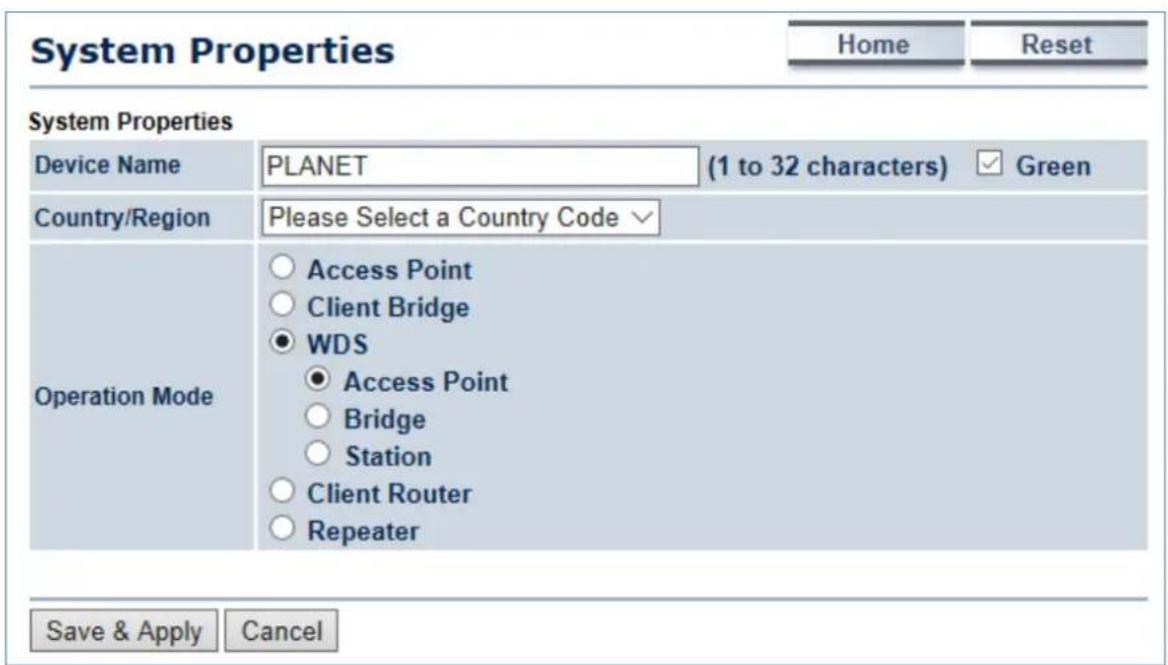
Go to the "System → Operation Mode" page to configure the device as "WDS Access Point" and then go to "Wireless → Wireless Network" to configure the related wireless settings.
text_image
System Properties Home Reset System Properties Device Name PLANET (1 to 32 characters) Green Country/Region Please Select a Country Code Operation Mode Access Point Client Bridge WDS Access Point Bridge Station Client Router Repeater Save & Apply CancelFigure 5-4 Operation Mode – WDS AP
For the configuration example, please refer to the section "Appendix C: FAQ, Q2".
5.1.4 WDS Station (WDS STA)
This section allows you to configure the WDS Station mode. In this mode, the device is acting as slave AP in the WDS connection.
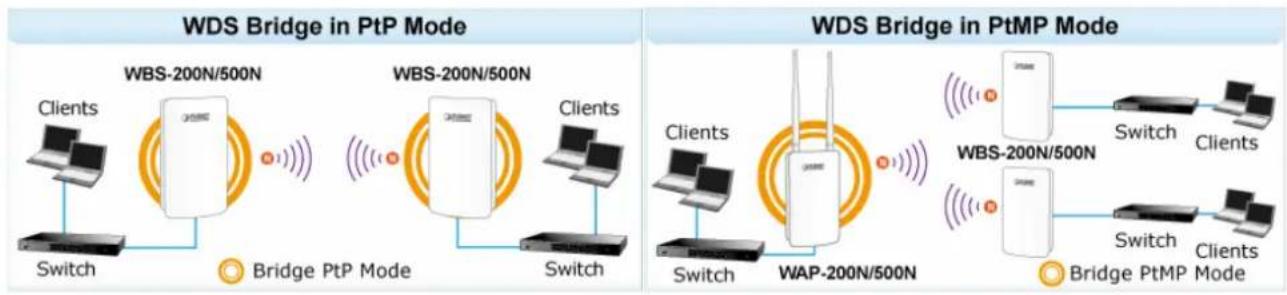
flowchart
graph LR
    subgraph_PtP_Bridge_WDS_Bridge[" WDS Bridge in PtP Mode "]
        A1["Clients"] --> B1["Switch"]
        B1 --> C1["Bridge PtP Mode"]
        C1 --> D1["Client"]
        D1 --> E1["Switch"]
        E1 --> F1["Bridge PtP Mode"]
        F1 --> G1["Client"]
        G1 --> H1["Switch"]
        H1 --> I1["Bridge PtP Mode"]
        I1 --> J1["Client"]
        J1 --> K1["Switch"]
        K1 --> L1["Bridge PtP Mode"]
        L1 --> M1["Client"]
        M1 --> N1["Switch"]
        N1 --> O1["Bridge PtP Mode"]
        O1 --> P1["Client"]
        P1 --> Q1["Switch"]
        Q1 --> R1["Bridge PtP Mode"]
        R1 --> S1["Client"]
        S1 --> T1["Switch"]
        T1 --> U1["Bridge PtP Mode"]
        U1 --> V1["Client"]
        V1 --> W1["Switch"]
        W1 --> X1["Bridge PtP Mode"]
        X1 --> Y1["Client"]
        Y1 --> Z1["Switch"]
        Z1 --> AA1["Bridge PtP Mode"]
        AA1 --> AB1["Client"]
        AB1 --> AC1["Switch"]
        AC1 --> AD1["Bridge PtP Mode"]
        AD1 --> AE1["Client"]
        AE1 --> AF["Switch"]
        AF --> AG1["Bridge PtP Mode"]
        AG1 --> AH1["Client"]
        AH1 --> AI1["Switch"]
        AI1 --> AJ1["Bridge PtP Mode"]
        AJ1 --> AK1["Client"]
        AK1 --> AL1["Switch"]
        AL1 --> AM1["Bridge PtP Mode"]
        AM1 --> AN1["Client"]
        AN1 --> AO1["Switch"]
        AO1 --> AP1["Bridge PtP Mode"]
        AP1 --> AQ1["Client"]
        AQ1 --> AR1["Switch"]
        AR1 --> AS1["Bridge PtP Mode"]
        AS1 --> AT1["Client"]
        AT1 --> AU["Switch"]
        AU --> AV1["Bridge PtP Mode"]
        AV1 --> AW1["Client"]
        AW1 --> AX["Switch"]
        AX --> AY["Bridge PtP Mode"]
        AY --> AZ["Client"]
        AZ --> BA["Switch"]
        BA --> BB1["Bridge PtP Mode"]
        BB1 --> BC["Client"]
        BC --> BD["Switch"]
        BD --> BE1["Bridge PtP Mode"]
        BE1 --> BF["Client"]
        BF --> BG["Switch"]
        BG --> BH1["Bridge PtP Mode"]
        BH1 --> BI["Client"]
        BI --> BJ["Switch"]
        BJ --> BK1["Bridge PtP Mode"]
        BK1 --> BL["Client"]
        BL --> BM["Switch"]
        BM --> BN1["Bridge PtP Mode"]
        BN1 --> BO["Client"]
        BO --> BP["Switch"]
        BP --> BQ["Bridge PtP Mode"]
        BQ --> BR["Client"]
        BR --> BS["Switch"]
        BS --> BT1["Bridge PtP Mode"]
        BT1 --> BU["Client"]
        BU --> BV["Switch"]
        BV --> BW["Bridge PtP Mode"]
    end
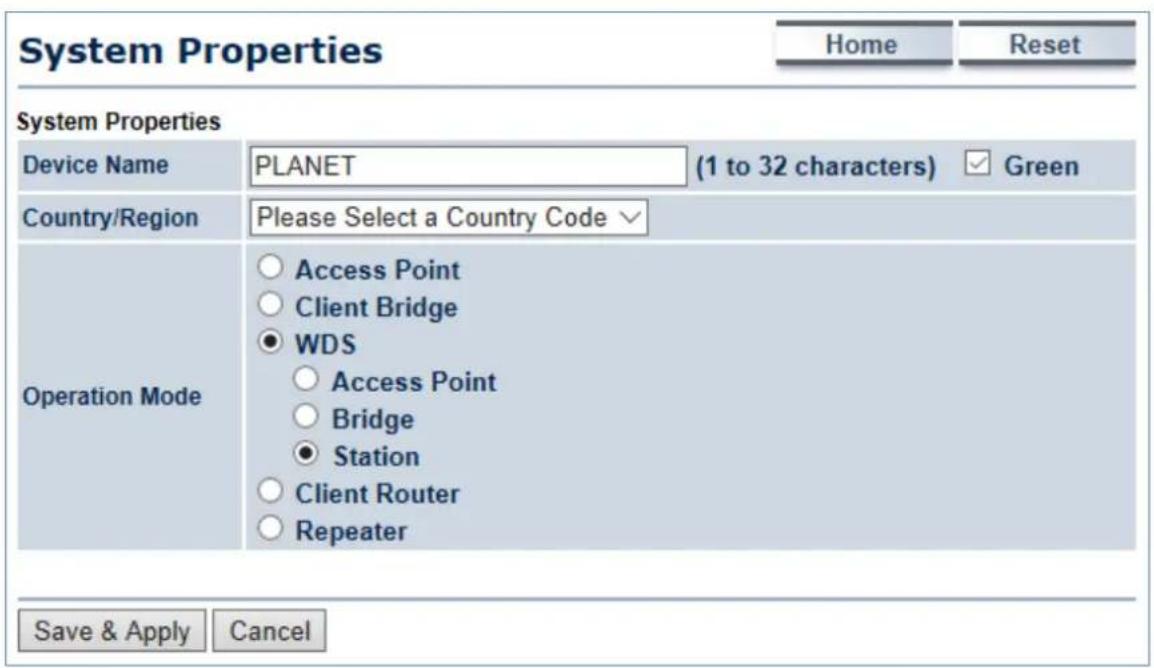
Go to the "System → Operation Mode" page to configure the device as "WDS Station" and then go to "Wireless → Wireless Network" to configure the related wireless settings.
text_image
System Properties Home Reset System Properties Device Name PLANET (1 to 32 characters) ✓ Green Country/Region Please Select a Country Code ✓ Operation Mode ○ Access Point ○ Client Bridge ● WDS ○ Access Point ○ Bridge ● Station ○ Client Router ○ Repeater Save & Apply CancelFigure 5-5 Operation Mode – WDS Station
For the configuration example, please refer to the section "Appendix C: FAQ, Q2".
5.1.5 WDS Bridge (WDS PtP/WDS PtMP)
This section allows you to configure the WDS Bridge mode. In this mode, the device is bridging to remote node through wireless MAC address. When suppressed SSID broadcast is checked, unknown wireless clients are not allowed to connect to the AP.
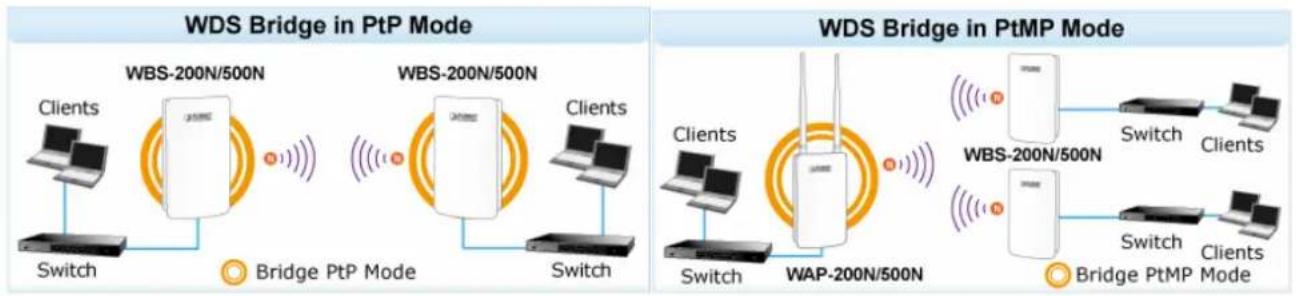
flowchart
graph LR
    subgraph_PtP_Bridge_WDS_Bridge["WDS Bridge in PtP Mode"]
        A1["Clients"] --> B1["Switch"]
        B1 --> C1["Bridge PtP Mode"]
        C1 --> D1["Client"]
        D1 --> E1["Switch"]
        E1 --> F1["Bridge PtP Mode"]
        F1 --> G1["Client"]
        G1 --> H1["Switch"]
        H1 --> I1["Bridge PtP Mode"]
        I1 --> J1["Client"]
        J1 --> K1["Switch"]
        K1 --> L1["Bridge PtP Mode"]
        L1 --> M1["Client"]
        M1 --> N1["Switch"]
        N1 --> O1["Bridge PtP Mode"]
        O1 --> P1["Client"]
        P1 --> Q1["Switch"]
        Q1 --> R1["Bridge PtP Mode"]
        R1 --> S1["Client"]
        S1 --> T1["Switch"]
        T1 --> U1["Bridge PtP Mode"]
        U1 --> V1["Client"]
        V1 --> W1["Switch"]
        W1 --> X1["Bridge PtP Mode"]
        X1 --> Y1["Client"]
        Y1 --> Z1["Switch"]
        Z1 --> AA1["Bridge PtP Mode"]
        AA1 --> AB1["Client"]
        AB1 --> AC1["Switch"]
        AC1 --> AD1["Bridge PtP Mode"]
        AD1 --> AE1["Client"]
        AE1 --> AF["Switch"]
        AF --> AG1["Bridge PtP Mode"]
        AG1 --> AH1["Client"]
        AH1 --> AI1["Switch"]
        AI1 --> AJ1["Bridge PtP Mode"]
        AJ1 --> AK1["Client"]
        AK1 --> AL1["Switch"]
        AL1 --> AM1["Bridge PtP Mode"]
        AM1 --> AN1["Client"]
        AN1 --> AO1["Switch"]
        AO1 --> AP1["Bridge PtP Mode"]
        AP1 --> AQ1["Client"]
        AQ1 --> AR1["Switch"]
        AR1 --> AS1["Bridge PtP Mode"]
        AS1 --> AT1["Client"]
        AT1 --> AU["Switch"]
        AU --> AV1["Bridge PtP Mode"]
        AV1 --> AW1["Client"]
        AW1 --> AX["Switch"]
        AX --> AY["Bridge PtP Mode"]
        AY --> AZ["Client"]
        AZ --> BA["Switch"]
        BA --> BB1["Bridge PtP Mode"]
        BB1 --> BC["Client"]
        BC --> BD["Switch"]
        BD --> BE1["Bridge PtP Mode"]
        BE1 --> BF["Client"]
        BF --> BG["Switch"]
        BG --> BH1["Bridge PtP Mode"]
        BH1 --> BI["Client"]
        BI --> BJ["Switch"]
        BJ --> BK1["Bridge PtP Mode"]
        BK1 --> BL["Client"]
        BL --> BM["Switch"]
        BM --> BN1["Bridge PtP Mode"]
        BN1 --> BO["Client"]
        BO --> BP["Switch"]
        BP --> BQ["Bridge PtP Mode"]
        BQ --> BR["Client"]
        BR --> BS["Switch"]
        BS --> BT1["Bridge PtP Mode"]
        BT1 --> BU["Client"]
        BU --> BV["Switch"]
        BV --> BW["Bridge PtP Mode"]
        BW --> BX["Client"]
        BX --> BY["Switch"]
        BY --> BZ["BRIDGE PtP Mode"]
    end
Go to the "System → Operation Mode" page to configure the device as "WDS Bridge" and then go to "Wireless → WDS Link Settings" to configure the WDS bridge mode in PtP (Point to Point) or PtMP (Point to Multiple Points) applications.

text_image
System Properties Home Reset System Properties Device Name PLANET (1 to 32 characters) ✓ Green Country/Region Please Select a Country Code ✓ Operation Mode ○ Access Point ○ Client Bridge ● WDS ○ Access Point ● Bridge ○ Station ○ Client Router ○ Repeater Save & Apply CancelFigure 5-6 Operation Mode – WDS Bridge
Configuration Example
The following procedure will guide you to how to establish WDS connection.
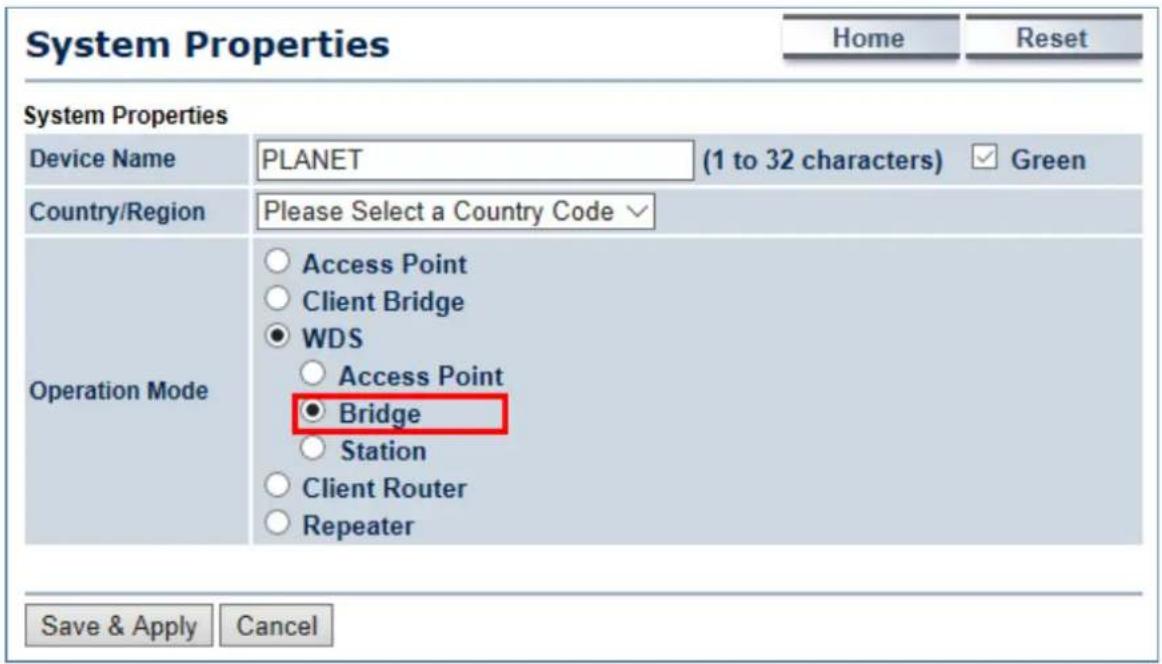
Step 1. Go to the "Operation Mode" page to configure the device as "WDS Bridge".
text_image
System Properties Home Reset System Properties Device Name PLANET (1 to 32 characters) ✓ Green Country/Region Please Select a Country Code ✓ Operation Mode ○ Access Point ○ Client Bridge ● WDS ○ Access Point ● Bridge ○ Station ○ Client Router ○ Repeater Save & Apply CancelStep 2. Go to the "System → IP Settings" page to configure LAN IP of central site and remote site. The LAN IP must be different at both sites. In this example, the master AP at central site is configured to 192.168.1.252 and the slave AP at remote site is configured to 192.168.1.253.

text_image
IP Settings Home Reset System Information IP Network Setting Obtain an IP address automatically (DHCP) Specify an IP address IP Address 192 . 168 . 1 . 253 IP Subnet Mask 255 . 255 . 255 . 0 Default Gateway 192 . 168 . 1 . 253 Primary DNS 0 . 0 . 0 . 0 Secondary DNS 0 . 0 . 0 . 0 Use Link-Local Address ✓ IPv6 IP Address IPv6 Subnet Prefix Length IPv6 Default Gateway IPv6 Primary DNS IPv6 Secondary DNS Accept CancelStep 3. Go to the "Wireless Wireless Network" page to configure the wireless parameters of the WDS link. In this example, we fixed the channel to 36 and channel width to 40MHz .
(1) Channel HT Mode: Set to 40MHz for wider bandwidth to optimize performance
(2) Channel/Frequency: Set to a fixed channel for the WDS link.

text_image
Wireless Network Home Reset Wireless Mode 802.11 A/N Mixed ▼ Channel HT Mode 40MHz ▼ Extension Channel Upper Channel ▼ Channel / Frequency Ch36-5.18GHz ▼ Accept CancelStep 4. Go to the "Wireless WDS Link Settings" page to enter the wireless MAC of the remote node and add encryption to protect the WDS link. Click Accept to save the changes.
(1) In PtMP of the master node: Enter the wireless MAC of each remote slave node (up to 4 entries).
(2) In PtMP: The distance at each slave node must be configured to the actual distance from each slave node to the master node. The master node should be configured to the value of the farthest node. In PtMP application, the distance from each node to master node should not have too much deviation to ensure the connection stability.
WDS Link Settings
Home
Reset

text_image
Security AES WEP Key 40/64-bit(10 hex digits) AES Passphrase 12345678 (8-63 ASCII characters or 64 hexadecimal digits)AES is strongly recommended
PtP application: enable ID1 and enter the wireless MAC of remote node
CAUTION: WDS was enabled, you need to assign Wifi Channel manually later.
PtMP application: up to 4 remote peers can be configured in the master AP
Accept
Cancel
Step 5. If the connection range is exceeding 1km, go to the "Wireless → Wireless Advanced Settings" page to configure the distance parameter between two sites.
(3) In PtP: The distance must be configured to the same at both sites.
(4) In PtMP: The distance at each slave node must be configured to the actual distance from each slave node to the master node. The master node should be configured to the value of the farthest node. In PtMP application, the distance from each node to master node should not have too much deviation to ensure the connection stability.

text_image
Wireless Advanced Settings Home Reset Data Rate Auto Transmit Power Auto RTS/CTS Threshold (1 - 2346) 2346 Bytes Distance (1-30km) 1 km (0.6 miles) Aggregation: Enable Disable 32 Frames 50000 Bytes(Max) Wireless Traffic Shaping Enable Traffic Shaping Enable Disable Upload Limit 1000 kbit/s (512-99999999) Download Limit 180000 kbit/s (512-99999999) Total Percentage 0 % WDS1 : (OFF) 5 % WDS2 : (OFF) 5 % WDS3 : (OFF) 5 % WDS4 : (OFF) 5 % Accept CancelStep 6. Go to the "Status -> Save/Reload" page to save & apply settings.

text_image
WDS Bridge Save/Reload Home Reset Status • Save/Reload:5 • Main • WDS Link List • System Log System • Operation Mode • IP Settings • Spanning Tree Settings Unsaved changes list wireless.cfg0b8c04.WLANWDSAESKey=12345678 -wireless.cfg0b8c04.WLANWDSWEPKey wireless.cfg0b8c04.encryption=aes wireless.cfg0b8c04.WLANEnable=1 wireless.cfg0b8c04.WLANWDSPeer=A8F7E0581A94v Save & Apply RevertStep 7. Repeat Steps1 to 6 for each node.
Step 8. Go to the "Status -> WDS Link List" page to check the connection status.
| WDS Link Status | Home | Reset | |
| WDS Link ID | MAC Address | Link Status | RSSI (dBm) |
| 1 | a8:f7:e0:58:1a:94 | UP | -35 |
| Refresh | |||
5.1.6 Client Router (CR/WISP)
This section allows you to configure the Client Router (Wireless ISP) mode to enable clients to access Internet through remote wireless AP provided by ISP. In this mode, the DHCP server is enabled and able to assign IP address to local clients after the device is connected to remote wireless AP provided by ISP.
Client Router Mode (WISP)

flowchart
graph LR
    A["Internet"] --> B["Wireless Internet Service Provider"]
    B --> C["WAP-200N/500N"]
    C --> D["Client"]
    D --> E["LAN"]
    E --> C
    C --> F["WISP Mode"]
    style A fill:#cce5ff,stroke:#333
    style B fill:#d4f1f9,stroke:#333
    style C fill:#ffcccc,stroke:#333
    style D fill:#e6f7ff,stroke:#333
    style E fill:#ffffff,stroke:#333
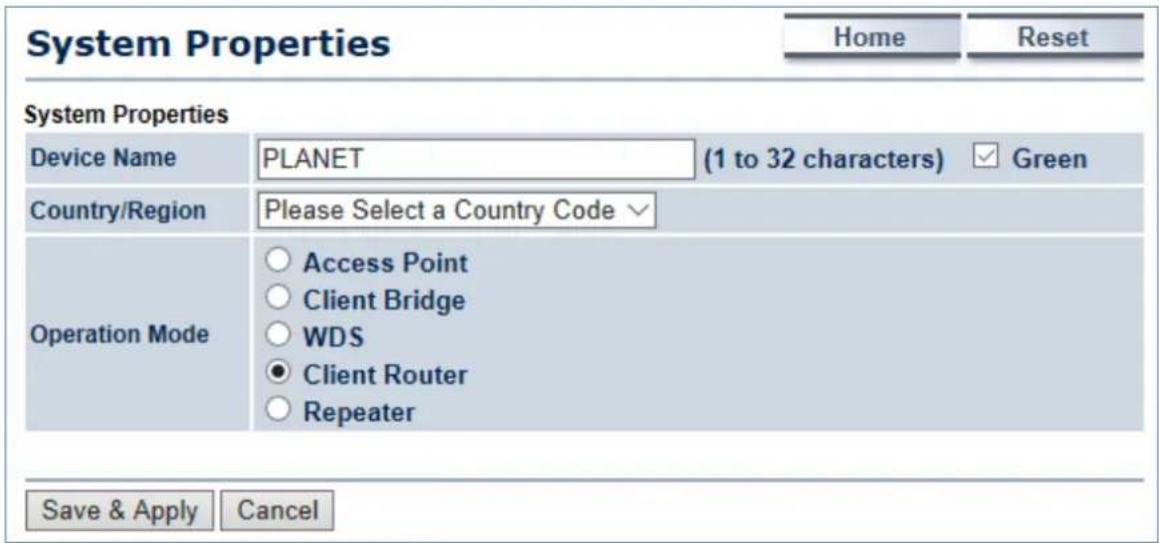
Go to the "System → Operation Mode" page to configure the device as "Client Router" and then go to "Wireless → Wireless Network" to configure the related wireless settings.
text_image
System Properties Home Reset System Properties Device Name PLANET (1 to 32 characters) Green Country/Region Please Select a Country Code Operation Mode Access Point Client Bridge WDS Client Router Repeater Save & Apply CancelFigure 5-7 Operation Mode – Client Router (WISP)
Configuration Example
The following procedure will guide you to how to establish WISP connection.
Step 1. Go to the "Operation Mode" page to configure the device as "Client Router".

text_image
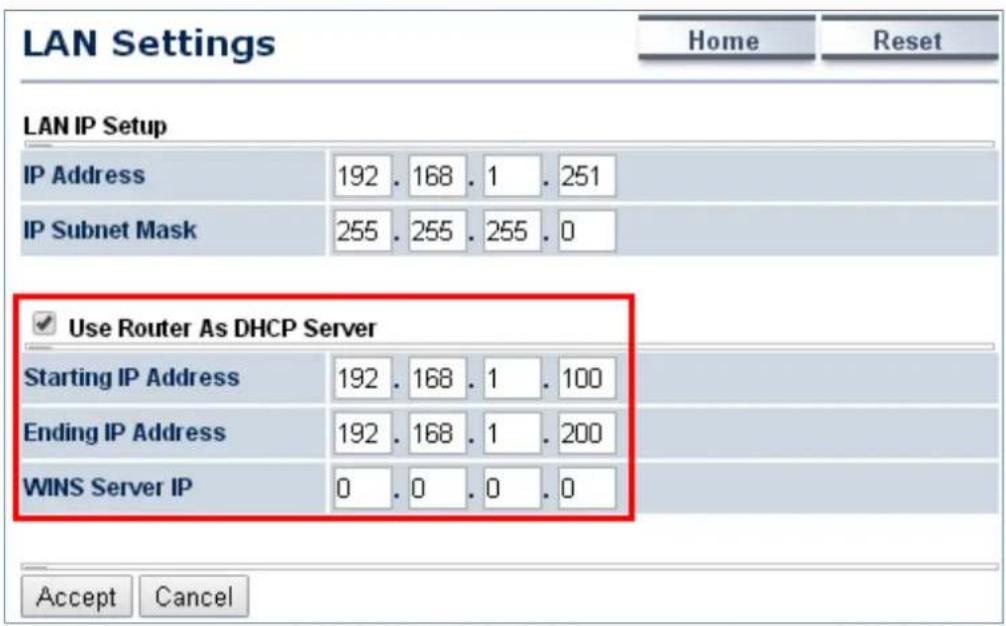
System Properties Home Reset System Properties Device Name PLANET (1 to 32 characters) ✓ Green Country/Region Please Select a Country Code ✓ Operation Mode ○ Access Point ○ Client Bridge ○ WDS ● Client Router ○ Repeater Save & Apply CancelStep 2. Go to the "Router → LAN Settings" page to configure LAN IP and enable the DHCP server. The LAN IP must be a different subnet from the remote wireless AP provided by ISP.
text_image
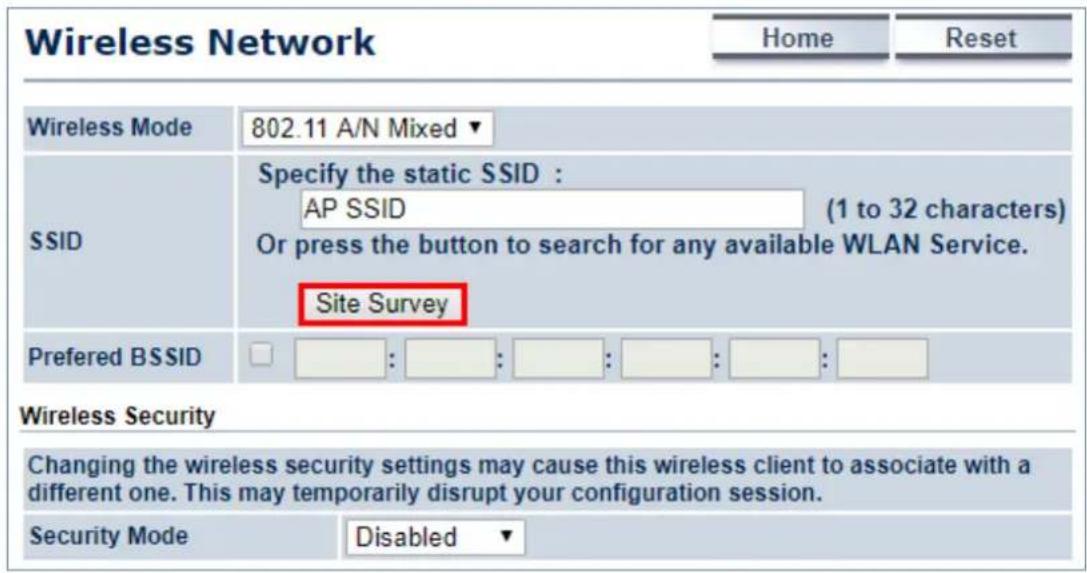
LAN Settings Home Reset LAN IP Setup IP Address 192 . 168 . 1 . 251 IP Subnet Mask 255 . 255 . 255 . 0 ✓ Use Router As DHCP Server Starting IP Address 192 . 168 . 1 . 100 Ending IP Address 192 . 168 . 1 . 200 WINS Server IP 0 . 0 . 0 . 0 Accept CancelStep 3. Go to the "Wireless → Wireless Network" page and click the Site Survey button to discover the root AP.
text_image
Wireless Network Home Reset Wireless Mode 802.11 A/N Mixed ▼ SSID Specify the static SSID : AP SSID (1 to 32 characters) Or press the button to search for any available WLAN Service. Site Survey Preferred BSSID : : : : : : : : Wireless Security Changing the wireless security settings may cause this wireless client to associate with a different one. This may temporarily disrupt your configuration session. Security Mode Disabled ▼Step 4. Click the root AP as shown below and it will go back to the previous wireless network page.

text_image
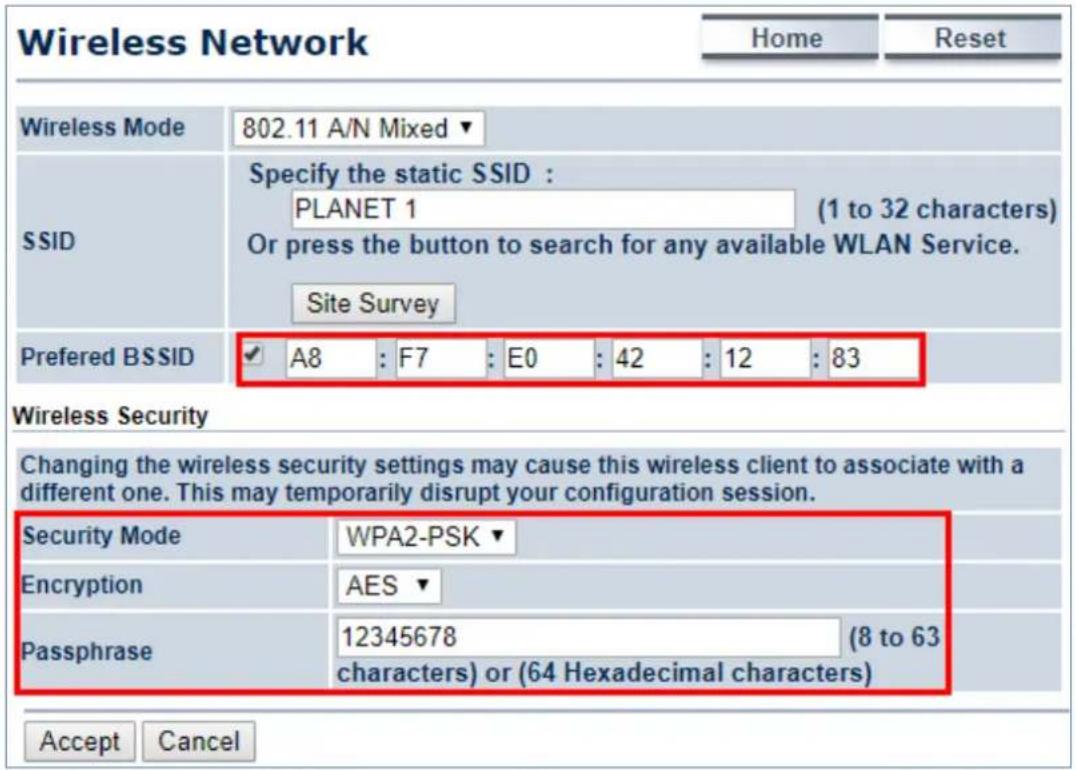
Site Survey 5GHz Site Survey :Infrastructure :Ad_hoc BSSID SSID Channel Signal Level Type Security Mode A8:F7:E0:42:12:83 PLANET1 36 -57 dBm 11a/n WPA2-PSK 00:30:4F:CE:94:63 CHT Wi-Fi Auto 44 -80 dBm 11a/n WPA/WPA2 00:30:4F:B3:47:C6 11F_Demo_Room 40 -83 dBm 11a/n WPA2-PSK RefreshStep 5. Click the check box of the preferred BSSID and configure the encryption similar to the root AP. The Repeater SSID can be modified to an easy-to-recognize name to wireless clients. Then, click "Accept" to save the configurations.
text_image
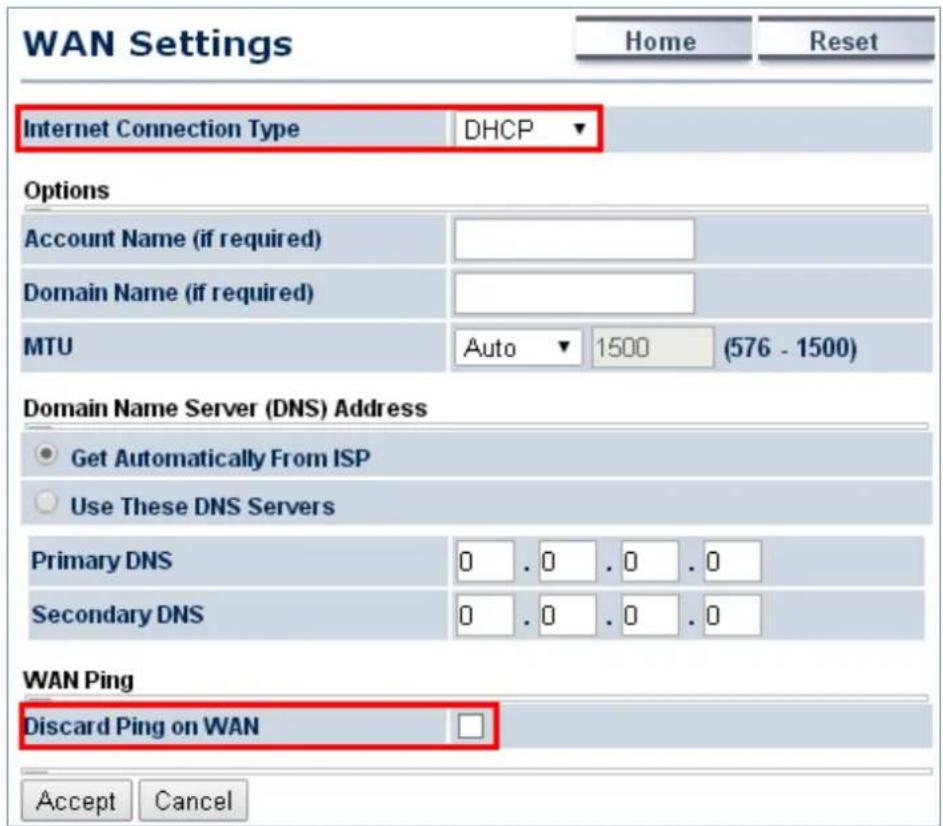
Wireless Network Home Reset Wireless Mode 802.11 A/N Mixed ▼ SSID Specify the static SSID : PLANET 1 (1 to 32 characters) Or press the button to search for any available WLAN Service. Site Survey Preferred BSSID ✓ A8 : F7 : E0 : 42 : 12 : 83 Wireless Security Changing the wireless security settings may cause this wireless client to associate with a different one. This may temporarily disrupt your configuration session. Security Mode WPA2-PSK ▼ Encryption AES ▼ Passphrase 12345678 (8 to 63 characters) or (64 Hexadecimal characters) Accept CancelStep 6. Go to the "Router -> WAN Settings" page to configure WAN settings. The Internet connection type is provided by your ISP and should be configured properly. Disable "Discard Ping on WAN" and then you'll be able to use ping test tool of Diagnostics page to ping DNS to ensure the WAN connection is established properly in WISP mode.
text_image
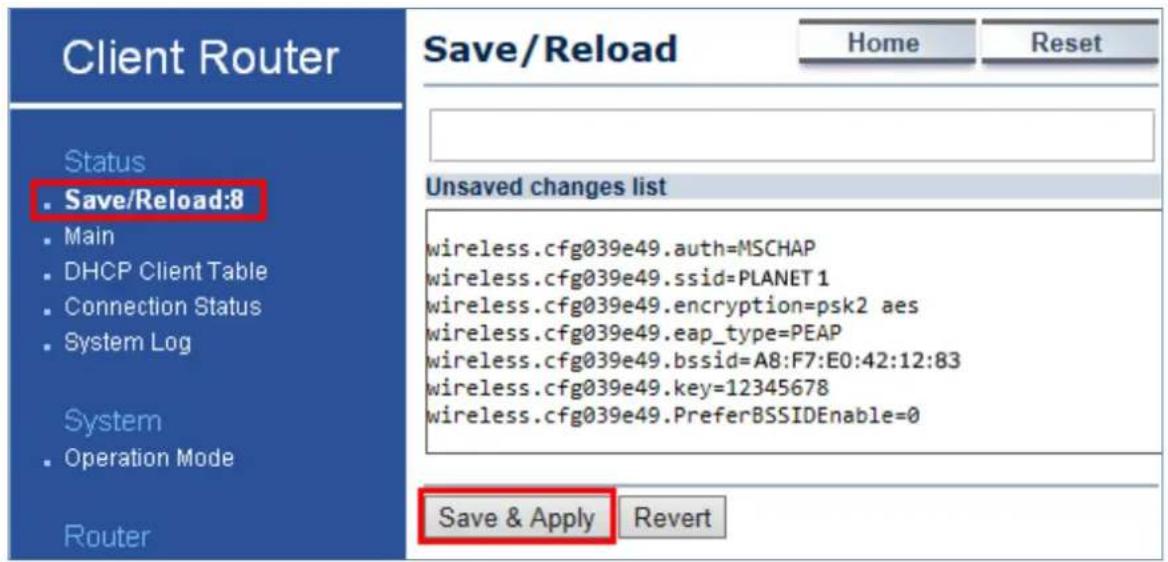
WAN Settings Home Reset Internet Connection Type DHCP Options Account Name (if required) Domain Name (if required) MTU Auto 1500 (576 - 1500) Domain Name Server (DNS) Address Get Automatically From ISP Use These DNS Servers Primary DNS 0 . 0 . 0 . 0 Secondary DNS 0 . 0 . 0 . 0 WAN Ping Discard Ping on WAN Accept CancelStep 7. Go to the "Status -> Save/Reload" page to save & apply settings.
text_image
Client Router Status Save/Reload:8 Main DHCP Client Table Connection Status System Log System Operation Mode Router Save/Reload Home Reset Unsaved changes list wireless.cfg039e49.auth=MSCHAP wireless.cfg039e49.ssid=PLANET1 wireless.cfg039e49.encryption=psk2 aes wireless.cfg039e49.eap_type=PEAP wireless.cfg039e49.bssid=A8:F7:E0:42:12:83 wireless.cfg039e49.key=12345678 wireless.cfg039e49.PreferBSSIDEnable=0 Save & Apply RevertStep 8. Modify your PC/laptop connected to the LAN port of this client router to "Obtain an IP address automatically".

text_image
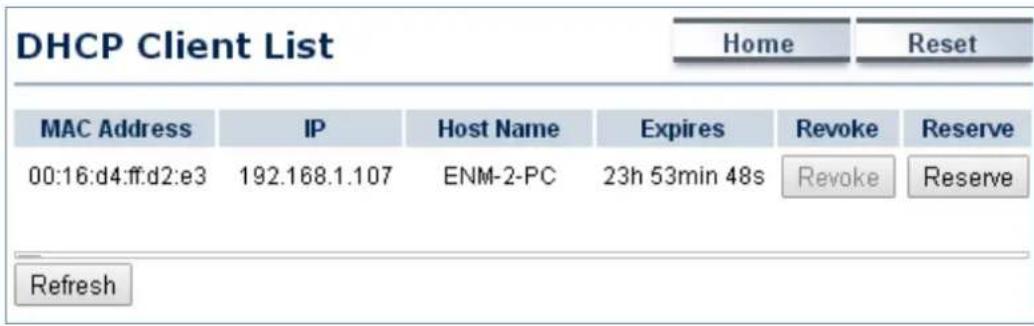
Internet Protocol Version 4 (TCP/IPv4) Properties General Alternate Configuration You can get IP settings assigned automatically if your network supports this capability. Otherwise, you need to ask your network administrator for the appropriate IP settings. Obtain an IP address automatically Use the following IP address: IP address: . Subnet mask: . Default gateway: . Obtain DNS server address automatically Use the following DNS server addresses: Preferred DNS server: . Alternate DNS server: . Validate settings upon exit Advanced... OK CancelStep 9. Go to "Status -> DHCP Client Table" to ensure your PC/laptop received the IP automatically.
text_image
DHCP Client List Home Reset MAC Address IP Host Name Expires Revoke Reserve 00:16:d4:ff:d2:e3 192.168.1.107 ENM-2-PC 23h 53min 48s Revoke Reserve RefreshStep 10. Go to "Status -> Connection Status" to check whether the connection is established successfully.

text_image
Connection Status Home Reset Wireless Network Type Client Router SSID PLANET1 BSSID A8:F7:E0:42:12:83 Connection Status Associated Wireless Mode IEEE 802.11n/a Mixed Current Channel 5.18 GHz(Channel 36) Security WPA2-PSK AES Tx Data Rates(Mbps) 135 Mbps Current noise level -95 dBm Signal strength -40 dBm WAN MAC Address A8:F7:E0:2F:83:57 Connection Type DHCP Renew Release Connection Status Up IP Address 192.168.100.131 IP Subnet Mask 255.255.255.0 Primary DNS 192.168.100.1 Secondary DNS Refresh5.1.7 Repeater
This section allows you to configure the Repeater mode to extend the root AP's signal coverage.

flowchart
graph LR
    A["Internet"] --> B["WBS-200N/500N"]
    B --> C["Client"]
    D["WAP-200N/500N"] --> E["Switch"]
    E --> F["Clients"]
    style A fill:#f9f,stroke:#333
    style D fill:#f9f,stroke:#333
    style B fill:#ccf,stroke:#333
    style E fill:#ccf,stroke:#333
    style F fill:#ccf,stroke:#333
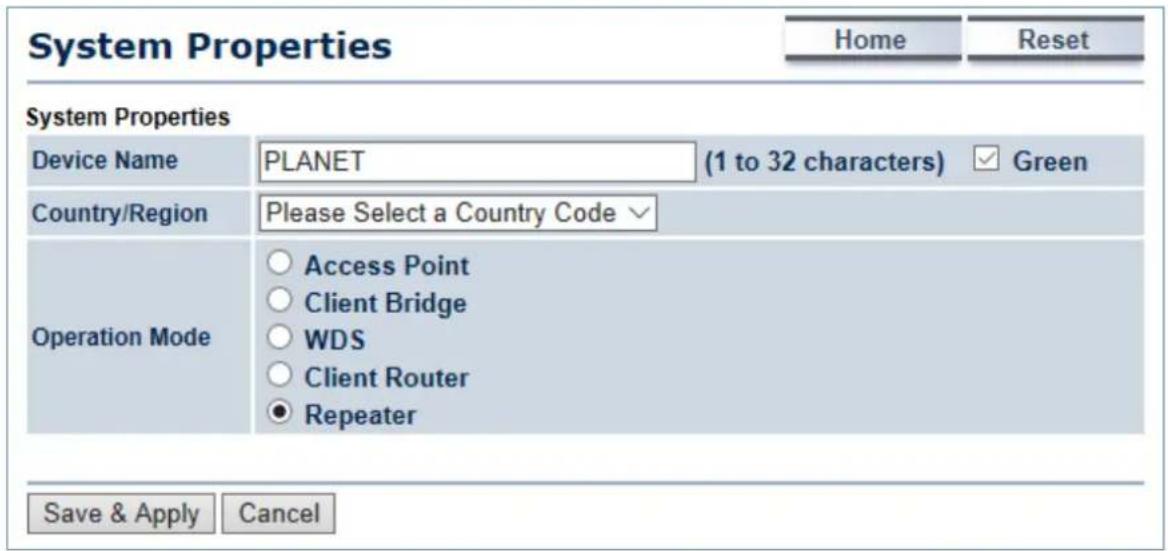
Go to the "System → Operation Mode" page to configure the device as "Repeater" and then go to "Wireless → Wireless Network" to configure the related wireless settings.
text_image
System Properties Home Reset System Properties Device Name PLANET (1 to 32 characters) Green Country/Region Please Select a Country Code Operation Mode Access Point Client Bridge WDS Client Router Repeater Save & Apply CancelFigure 5-8 Operation Mode – Repeater
Configuration Example
The following procedure will guide you to how to establish repeater connection.
Step 1. Go to the "Operation Mode" page to configure the device as "Repeater".
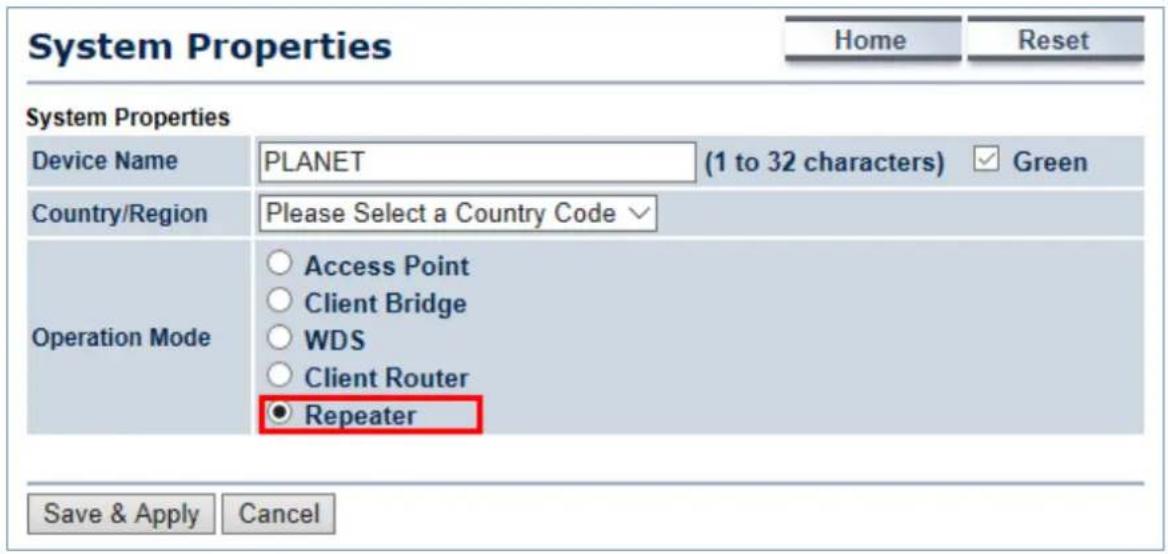
text_image
System Properties Home Reset System Properties Device Name PLANET (1 to 32 characters) Green Country/Region Please Select a Country Code Operation Mode Access Point Client Bridge WDS Client Router ● Repeater Save & Apply CancelStep 2. Go to the "Wireless → Wireless Network" page to click the Site Survey button to discover the root AP.
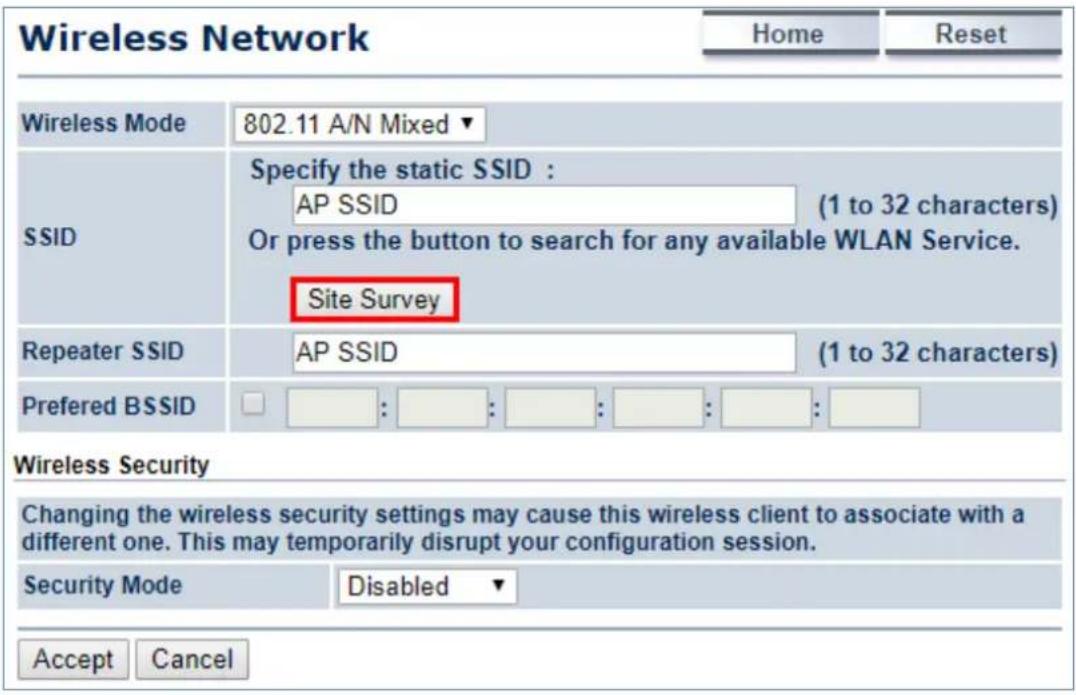
text_image
Wireless Network Home Reset Wireless Mode 802.11 A/N Mixed ▼ SSID Specify the static SSID : AP SSID (1 to 32 characters) Or press the button to search for any available WLAN Service. Site Survey Repeater SSID AP SSID (1 to 32 characters) Preferred BSSID : : : : : : : : Wireless Security Changing the wireless security settings may cause this wireless client to associate with a different one. This may temporarily disrupt your configuration session. Security Mode Disabled ▼ Accept CancelStep 3. Click the root AP as shown below and it will go back to the previous wireless network page.
Site Survey
5GHz Site Survey
| BSSID | SSID | Channel | Signal Level | Type | Security | Mode |
| A8:F7:E0:42:12:83 | PLANET1 | 36 | -57 dBm | 11a/n | WPA2-PSK | |
| 00:30:4F:CE:94:63 | CHT Wi-Fi Auto | 44 | -80 dBm | 11a/n | WPA/WPA2 | |
| 00:30:4F:B3:47:C6 | 11F_Demo_Room | 40 | -83 dBm | 11a/n | WPA2-PSK |
Step 4. Click the check box of the preferred BSSID and configure the encryption similar to the root AP. The Repeater SSID can be modified to an easy-to-recognize name to wireless clients. Then, click "Accept" to save the configurations.

text_image
Wireless Network Home Reset Wireless Mode 802.11 A/N Mixed ▼ SSID Specify the static SSID : Planet 1 (1 to 32 characters) Or press the button to search for any available WLAN Service. Site Survey Repeater SSID Repeater (1 to 32 characters) Preferred BSSID ✓ A8 : F7 : E0 : 42 : 12 : 83 Wireless Security Changing the wireless security settings may cause this wireless client to associate with a different one. This may temporarily disrupt your configuration session. Security Mode WPA2-PSK ▼ Encryption AES ▼ Passphrase 12345678 (8 to 63 characters) or (64 Hexadecimal characters) Accept CancelStep 5. Go to the "Status-> Save/Reload" page to save & apply settings.
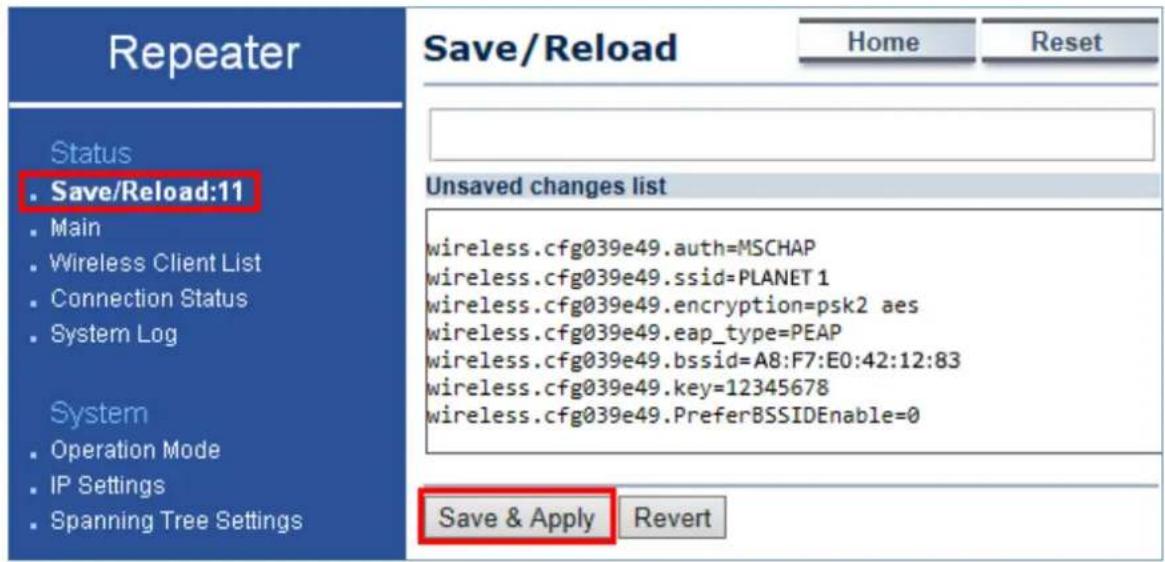
text_image
Repeater Home Reset Status . Save/Reload:11 . Main . Wireless Client List . Connection Status . System Log System . Operation Mode . IP Settings . Spanning Tree Settings Save/Reload Unsaved changes list wireless.cfg039e49.auth=MSCHAP wireless.cfg039e49.ssid=PLANET 1 wireless.cfg039e49.encryption=psk2 aes wireless.cfg039e49.eap_type=PEAP wireless.cfg039e49.bssid=A8:F7:E0:42:12:83 wireless.cfg039e49.key=12345678 wireless.cfg039e49.PreferBSSIDEnable=0 Save & Apply RevertStep 6. Use a wireless client to connect to the repeater AP and ensure it was able to receive IP address from the root AP's network.
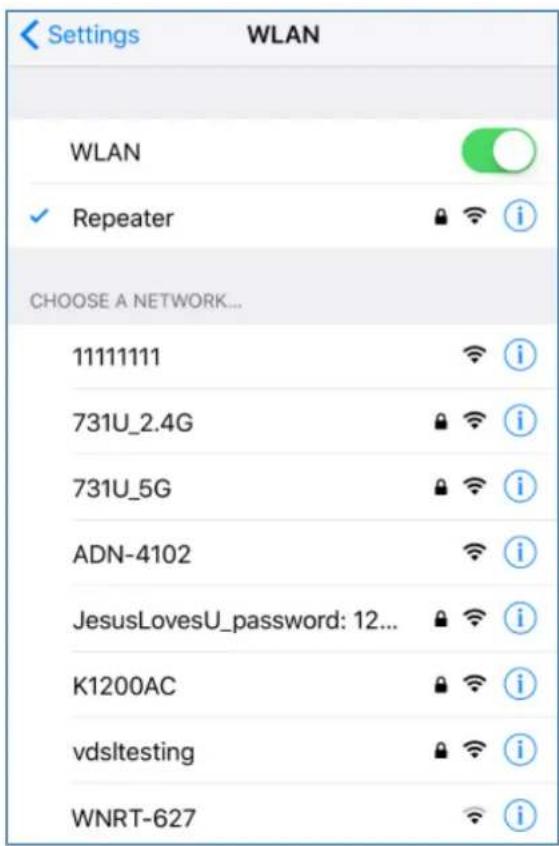
text_image
Settings WLAN WLAN ✓ Repeater i CHOOSE A NETWORK... 11111111 731U_2.4G 731U_5G ADN-4102 JesusLovesU_password: 12... K1200AC vdsItesting WNRT-627
text_image
WLAN Repeater Forget This Network IP ADDRESS DHCP BootP Static IP Address 192.168.100.102 Subnet Mask 255.255.255.0 Router 192.168.100.1 DNS 192.168.100.1 Search Domains sitecom.router Client ID Renew Lease5.2 Status
This section provides the current system summary, system log and connection status including Wireless Client List, WDS Link List, DHCP Client Table and Connection Status to assist the administrator in viewing the network status.
In the upper-right corner of each function page, you can click "Home" to go back to the Main page to view the current system status and click "Reset" to force the system reboot or reset the device to factory defaults.
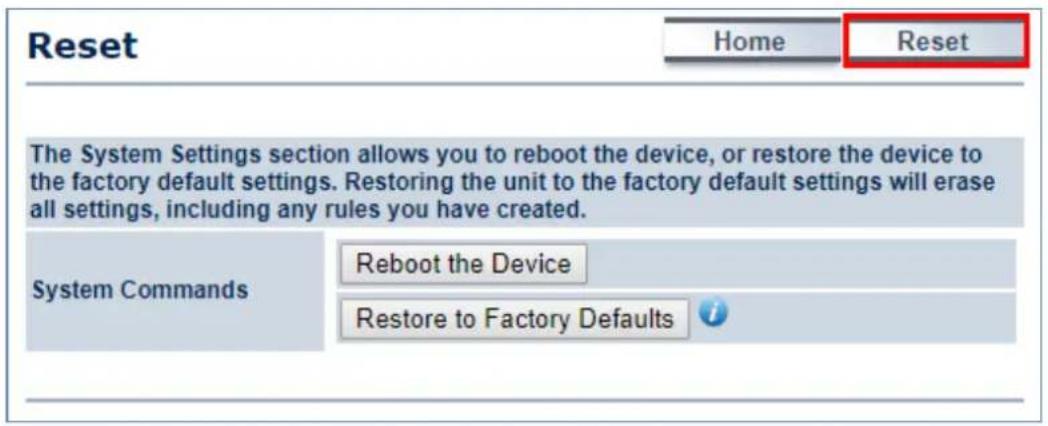
text_image
Reset Home Reset The System Settings section allows you to reboot the device, or restore the device to the factory default settings. Restoring the unit to the factory default settings will erase all settings, including any rules you have created. System Commands Reboot the Device Restore to Factory DefaultsFigure 5-9 System Menu - Reset
In the upper-right corner of each function page, you can choose the Language supported in the system from the drop-down list for better user experience. Once a language is chosen, the whole web page will be translated into the language that you preferred.
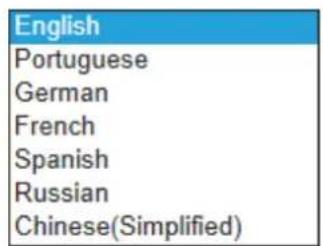
text_image
English Portuguese German French Spanish Russian Chinese(Simplified)Figure 5-10 System Menu – Language option
5.2.1 Main
Click "Status → Main" to view the current system summary.
| Main | Home | Reset | |
| System Information | |||
| Device Name | WBS-500N | ||
| Ethernet Main MAC Address | A8:F7:E0:58:E9:73 | ||
| Ethernet Secondary MAC Address | A8:F7:E0:58:E9:73 | ||
| Wireless MAC Address | A8:F7:E0:58:E9:72 | ||
| Country | N/A | ||
| Current Time | Wed Apr 26 18:09:46 UTC 2017 | ||
| Firmware Version | 1.0.0 | ||
| LAN Settings | |||
| IP Address | 192.168.1.251 | ||
| Subnet Mask | 255.255.255.0 | ||
| DHCP Server | Enabled | ||
| RX(Packets) | 184.158 KB (2072 PKts.) | ||
| TX(Packets) | 2.94403 MB (2918 PKts.) | ||
| WAN Settings | |||
| MAC Address | A8:F7:E0:58:E9:72 | ||
| Connection Type | DHCP | ||
| Connection Status | Up | ||
| IP Address | 192.168.100.131 | ||
| IP Subnet Mask | 255.255.255.0 | ||
| Primary DNS | 192.168.100.1 | ||
| Secondary DNS | |||
| RX(Packets) | 9.13184 KB (54 PKts.) | ||
| TX(Packets) | 7.24023 KB (123 PKts.) | ||
| Current Wireless Settings | |||
| Operation Mode | Client Router | ||
| Wireless Mode | IEEE 802.11 A/N Mixed | ||
| Channel Bandwidth | 20/40 MHz | ||
| Frequency/Channel | 5.18 GHz(Channel 36 ) | ||
| Wireless Network Name (SSID) | PLANET 1 | ||
| Security | WPA2-PSK AES | ||
| Distance | 1 km | ||
| RX(Packets) | 9.13184 KB (54 PKts.) | ||
| TX(Packets) | 7.24023 KB (123 PKts.) | ||
| Refresh | |||
Figure 5-11 Main Status
The page includes the following settings:
| Object Description | |
| • System Information | Shows the general system information such as device name, MAC address, country, current time, and firmware version. |
| • LAN Settings | Shows Local Area Network settings such as the LAN IP address, subnet mask, DHCP server, and Rx/Tx packets. |
| • WAN Settings | Shows Wide Area Network settings such as the MAC address, connection type, connection status, IP address, subnet mask, primary and secondary DNS, and Rx/Tx packets. |
| • Current Wireless Settings | Shows wireless information such as operation mode, wireless mode, channel bandwidth, frequency, channel, information about each SSID, security settings, and Rx/Tx packets. |
5.2.2 Save/Reload
Click "Status → Save/Reload" and the following page will be displayed.

text_image
Access Point Status • Save/Reload:16 • Main • Wireless Client List • System Log System • Operation Mode • IP Settings • Spanning Tree Settings Wireless • Wireless Network • Wireless MAC Filter • Wireless Advanced Settings Management Save/Reload Home Reset Unsaved changes list -network.1.ifname -network.3.ifname network.lan.ifname=eth0 -network.4.ifname -network.2.ifname network.sys.ManagementVLANID=4096 wireless.cfg039f7e.wps configured=1 wireless.cfg039f7e.key=12345678 wireless.cfg039f7e.encryption=psk2 aes wireless.cfg039f7e.WLANWpaRadiusAccSrvIP=... wireless.cfg039f7e.hidden=0 wireless.cfg039f7e.server=... wireless.wifi0.WLANHTMode=40 wireless.wifi0.WLANExtChannel=0 wireless.wifi0.channel=36 wireless.cfg09feac.WLANVLANEnable=0 Save & Apply RevertFigure 5-12 Save/Reload
Click Save & Apply to save and apply all configurations.
Click Revert to cancel the unsaved changes and revert to the previous settings that have been saved.
It's not necessary to save and apply the settings if unsaved changes list is empty.
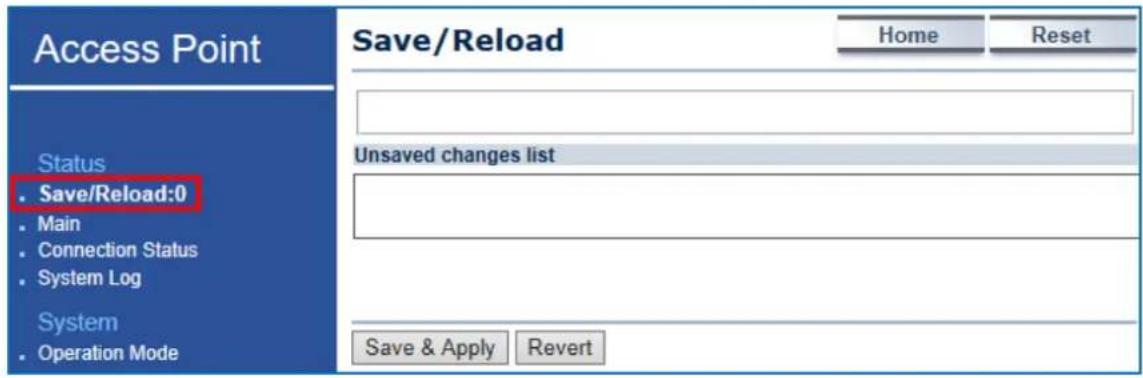
text_image
Access Point Save/Reload Home Reset Status Save/Reload:0 Main Connection Status System Log System Operation Mode Unsaved changes list Save & Apply RevertFigure 5-13 Save/Reload - Default
5.2.3 Wireless Client List
Click "Status → Wireless Client List" to view the current associated client.
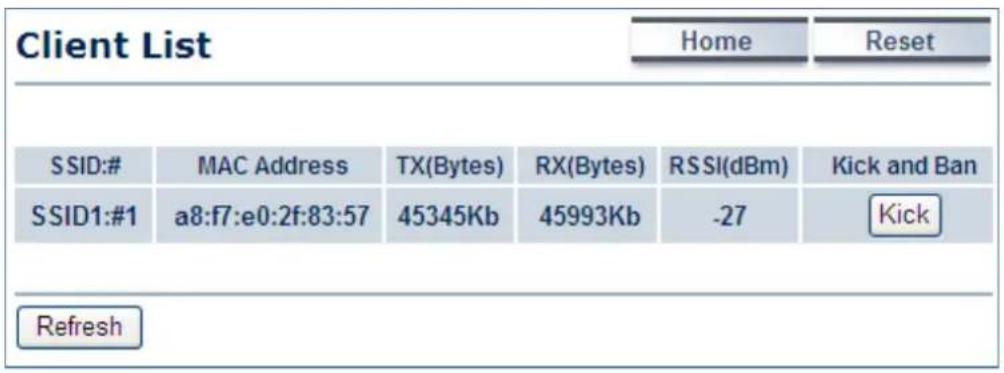
text_image
Client List Home Reset SSID:# MAC Address TX(Bytes) RX(Bytes) RSSI(dBm) Kick and Ban SSID1:#1 a8:f7:e0:2f:83:57 45345Kb 45993Kb -27 Kick RefreshFigure 5-14 Wireless Client List

text_image
192.168.1.253 says: MAC filter deny mode will be enabled. This MAC 00:30:4f:a8:ff:ff will be added to the deny list. OK CancelFigure 5-15 Kick the client
The page includes the following settings:
| Object Description | |
| • SSID:# | The SSID number that the client is associated with. |
| • MAC Address | The MAC address of the associated client. |
| • Tx (Bytes) | The current transmit packet of the associated client. |
| • Rx (Bytes) | The current received packet of the associated client. |
| • RSSI (dBm) | The current signal strength of the associated client. |
| • Kick and Ban | Click Kick to add the client to the wireless mac filtering deny list. |
5.2.4 WDS Link List
Click "Status → WDS Link List" to view the current WDS link client.
The WDS Link List is only available in WDS Bridge mode.
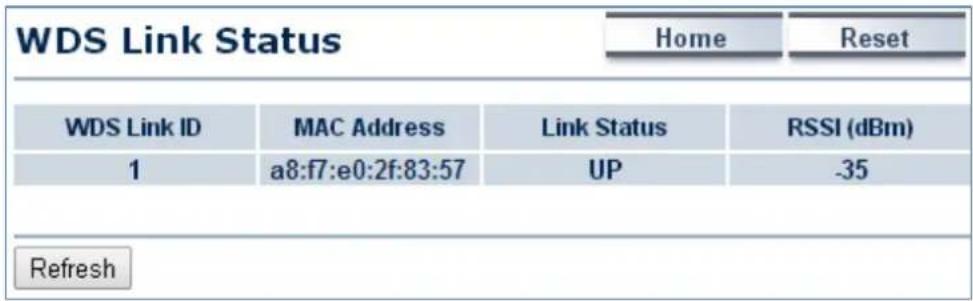
text_image
WDS Link Status Home Reset WDS Link ID MAC Address Link Status RSSI (dBm) 1 a8:f7:e0:2f:83:57 UP -35 RefreshFigure 5-16 WDS Link Status
The page includes the following settings:
| Object Description | |
| WDS Link ID | The sequence number of the WDS link. |
| MAC Address | The MAC Address of the associated remote node. |
| Link Status | The current link status. |
| RSSI (dBm) | The current signal strength of the associated remote node. |
| Refresh | Click Refresh to update the current list. |
5.2.5 DHCP Client Table
Click "Status → DHCP Client Table" to view the current DHCP client.
The DHCP Client Table is only available in Client Router (WISP) mode.
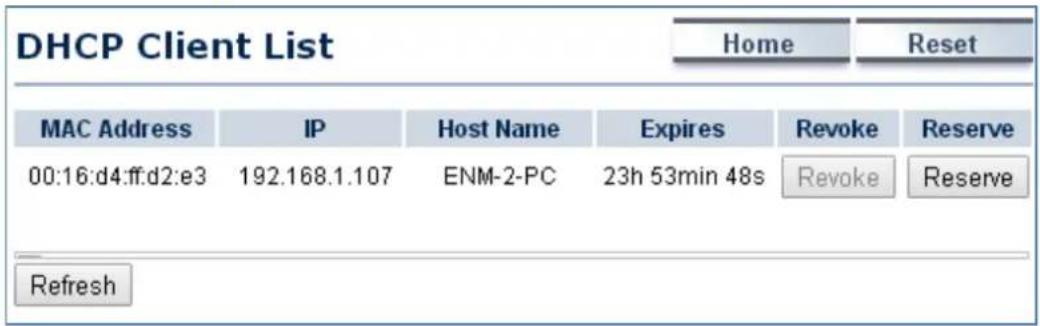
text_image
DHCP Client List Home Reset MAC Address IP Host Name Expires Revoke Reserve 00:16:d4:ff:d2:e3 192.168.1.107 ENM-2-PC 23h 53min 48s Revoke Reserve RefreshFigure 5-17 DHCP Client List
The page includes the following settings:
| Object Description | |
| • MAC Address | The MAC Address of the DHCP client. |
| • IP | The IP assigned to the DHCP client. |
| • Host Name | The Host Name of the DHCP client. |
| • Expires | The Expired time of the DHCP client. |
| • Revoke | ClickRevoketo revoke the DHCP lease of the client. |
| • Reserve | ClickReserveto reserve the IP to the client. |
| • Refresh | ClickRefreshto update the client list. |
5.2.6 Connection Status
Click "Status → Connection Status" to view the current DHCP client.
The Connection Status is only available in the following operation modes:
(1) Client Bridge
(2) Client Router
(3) WDS Station
(4) Repeater
| Connection Status | Home | Reset | |
| Network Type | Client Bridge | ||
| SSID | PLANET1 | ||
| BSSID | A8:F7:E0:26:6C:0D | ||
| Connection Status | Associated | ||
| Wireless Mode | IEEE 802.11n/a Mixed | ||
| Current Channel | 5.18 GHz(Channel 36) | ||
| Security | WPA2-PSK AES | ||
| Tx Data Rates(Mbps) | 78 Mbps | ||
| Current noise level | -95 dBm | ||
| Signal strength | -51 dBm | ||
| Refresh | |||
Figure 5-18 Connection Status
The page includes the following settings:
| Object Description | |
| Network Type | The current operation mode of the device. |
| SSID | The SSID of the connected AP. |
| BSSID | The MAC Address of the connected AP. |
| Connection Status | The status of the connection. |
| Wireless Mode | The current wireless mode of the AP. |
| Current Channel | The current channel used of this connection. |
| Security | The encryption method of the AP. |
| Tx Data Rates (Mbps) | The current data rates of the connection. |
| Current Noise Level | The current noise level of the connection |
| Signal Strength | The current signal strength of the connected AP. |
| Refresh | Click Refresh to update the current data. |
5.2.7 System Log
Click "Status → System Log" to view the system log.

text_image
System Log Home Reset Show log type All All Debug Information Notice Warning Error Critical Alert Emergency user.notice root: starting ntpd cron.info crond[1666]: crond: USER root pid 23 user.notice root: starting ntpd cron.info crond[1666]: crond: USER root pid 21 user.notice root: starting ntpd cron.info crond[1666]: crond: USER root pid 19 user.warn kernel: enet1 port0 up 100Mbps Full user.warn kernel: WASP ----> S27 PHY MDIO user.warn kernel: Setting Drop CRC Errors, Pa user.warn kernel: ATHR_GMAC: done cfg2 0x7215 user.warn kernel: ATHR_GMAC: Enet Unit:1 PHY:0 user.warn kernel: enet1 port0 down user.warn kernel: ATHR_GMAC:unit 1: phy 0 not user.notice root: starting ntpd cron.info crond[1666]: crond: USER root pid 18 user.notice root: starting ntpd cron.info crond[1666]: crond: USER root pid 16 user.notice root: starting ntpd cron.info crond[1666]: crond: USER root pid 14 user.notice root: starting ntpd cron.info crond[1666]: crond: USER root pid 13 user.notice root: starting ntpd Save Refresh ClearFigure 5-19 System Log
The page includes the following settings:
| Object Description | |
| • Show log type | Select log type to filter the records. |
| • Save | Click Save to save the records. |
| • Refresh | Click Refresh to update the current data. |
| • Clear | Click Clear to erase the records. |
5.3 System
5.3.1 IP Settings
Click "System → IP Settings" to configure the LAN IP address.
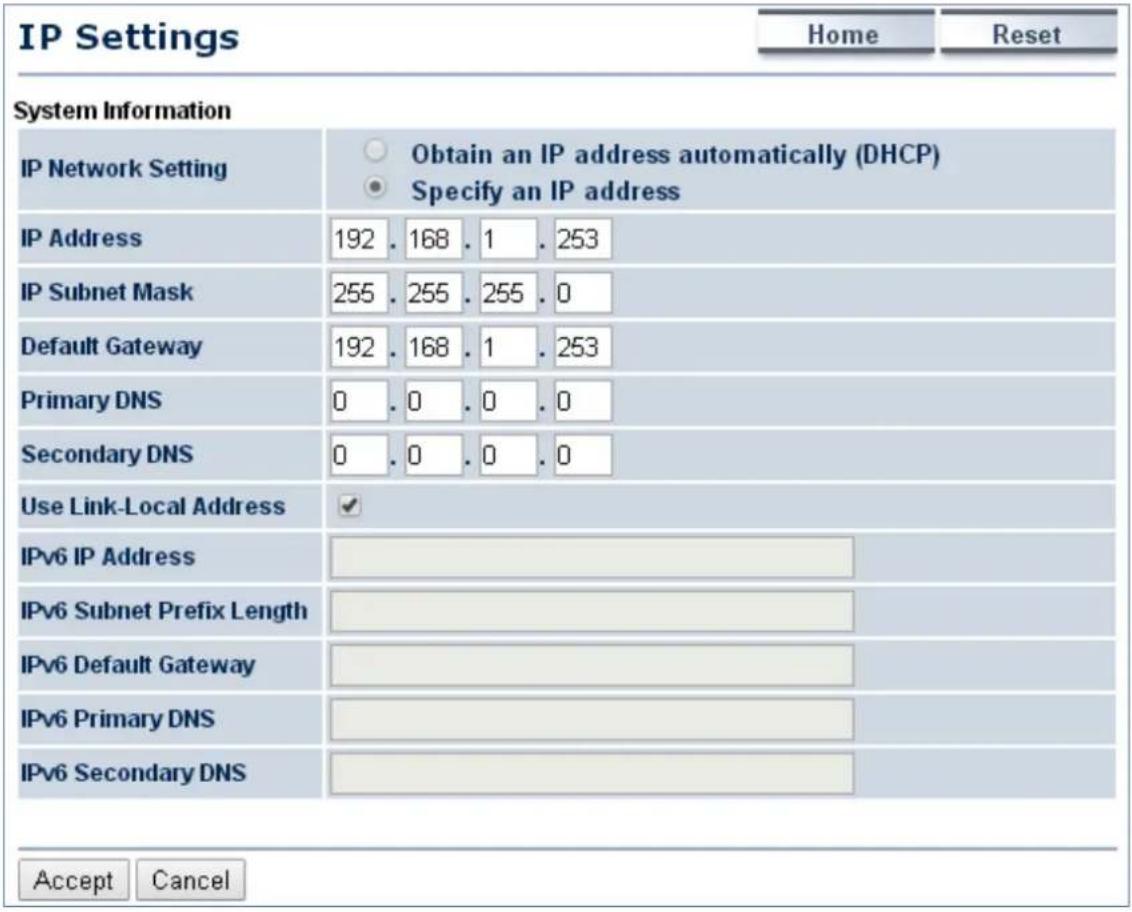
text_image
IP Settings Home Reset System Information IP Network Setting Obtain an IP address automatically (DHCP) Specify an IP address IP Address 192 . 168 . 1 . 253 IP Subnet Mask 255 . 255 . 255 . 0 Default Gateway 192 . 168 . 1 . 253 Primary DNS 0 . 0 . 0 . 0 Secondary DNS 0 . 0 . 0 . 0 Use Link-Local Address ✓ IPv6 IP Address IPv6 Subnet Prefix Length IPv6 Default Gateway IPv6 Primary DNS IPv6 Secondary DNS Accept CancelFigure 5-20 LAN IP Settings
The page includes the following settings:
| Object Description | |
| • IP Network Setting | Select Obtain an IP address automatically (DHCP) to receive the IP from DHCP server.Select Specify an IP address to configure the AP to use static IP. |
| IP Address | The LAN IP of the AP.The default is 192.168.1.253. You can change it according to your needs. |
| IP Subnet Mask | The LAN subnet mask of the AP. |
| Default Gateway | Enter the Gateway IP address of the AP. |
| Primary DNS | Enter the primary DNS server of the AP. |
| Secondary DNS | Enter the secondary DNS server of the AP. |
| Use Link-Local Address | Click to enable a link-local address for the AP. |
| IPv6 IP Address | Enter the IPv6 LAN IP of the AP. |
| IPv6 Subnet Prefix Length | Enter the secondary DNS server of the AP. |
| IPv6 Default Gateway | Enter the IPv6 Gateway IP address of the AP. |
| IPv6 Primary DNS | Enter the IPv6 primary DNS server of the AP. |
| IPv6 Secondary DNS | Enter the IPv6 secondary DNS server of the AP. |
| Accept | Click Accept to apply the new settings. |
| Cancel | Click Cancel to cancel the unsaved changes and revert to the previous settings. |
5.3.2 Spanning Tree Settings
The Spanning Tree Protocol (STP) allows network to provide a redundant link in the event of a link failure. It is advised to turn on this option for multi-point bridge network to avoid network loop.
Click "System → Spanning Tree Settings" to enable/disable Spanning Tree Settings.
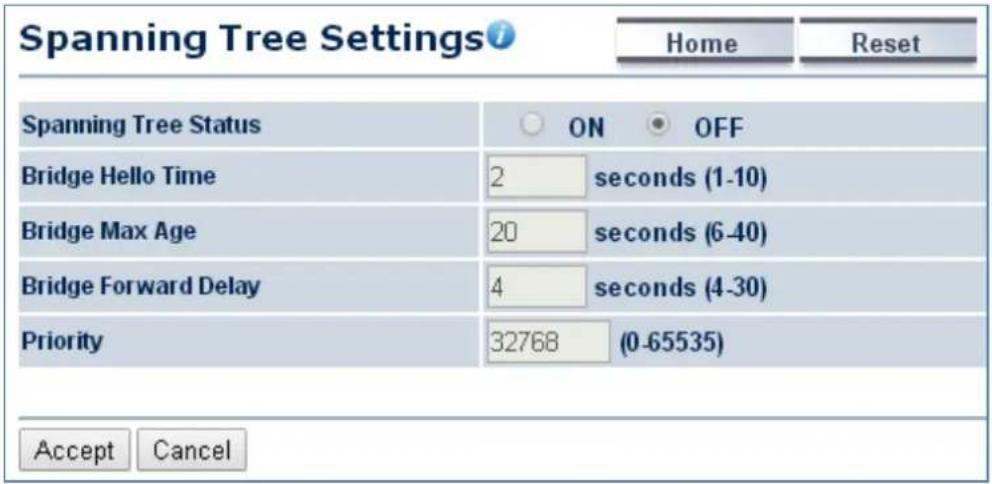
text_image
Spanning Tree Settings Home Reset Spanning Tree Status ON OFF Bridge Hello Time 2 seconds (1-10) Bridge Max Age 20 seconds (6-40) Bridge Forward Delay 4 seconds (4-30) Priority 32768 (0-65535) Accept CancelFigure 5-21 Spanning Tree Settings
The page includes the following settings:
| Object Description | |
| • Spanning Tree Status | Click ON to enable or click OFF to disable the option. |
| • Bridge Hello Time | Specify Bridge Hello Time in seconds. This value determines how often the AP sends hello packets to communicate information about the topology throughout the entire Bridged Local Area Network. |
| • Bridge Max Age | Specify Bridge Max Age in seconds. If another bridge in the spanning tree does not send a hello packet for a long period of time, it is assumed to be dead. |
| • Bridge Forward Delay | Specify Bridge Forward Delay in seconds. Forwarding delay time is the time spent in each of the Listening and Learning states before the Forwarding state is entered. This delay is provided so that when a new bridge comes onto a busy network, it looks at some traffic before participating. |
| • Priority | Specify the Priority number. Smaller numbers have greater priority. |
| • Accept | Click Accept to apply the setting. |
| • Cancel | Click Cancel to cancel the setting. |
5.4 Router (WISP Mode Only)
5.4.1 DHCP Server Settings
Go to the "Operation Mode" page to configure the device as "Client Router" and then go to "Router → LAN Settings" to configure the device's LAN IP settings in client router mode.
On this page, enable the DHCP server to assign IP address to local wired/wireless clients after the device is connected to the remote AP supplied by wireless ISP.

text_image
LAN Settings Home Reset LAN IP Setup IP Address 192 . 168 . 1 . 253 IP Subnet Mask 255 . 255 . 255 . 0 ✓ Use Router As DHCP Server Starting IP Address 192 . 168 . 1 . 100 Ending IP Address 192 . 168 . 1 . 200 WINS Server IP 0 . 0 . 0 . 0 Accept CancelFigure 5-22 DHCP Server Settings
The page includes the following settings:
| Object Description | |
| • IP Address | The LAN IP of the AP. |
| • IP Subnet Mask | The LAN subnet mask of the AP. |
| • Use Router As DHCP Server | Select it to enable DHCP server. In here the device is acting as a router. |
| • Starting IP Address | Specify the starting IP address for the DHCP range. |
| • Ending IP Address | Specify the ending IP address for the DHCP range. |
| • WINS Server IP | Enter the IP address of the WINS server. |
| • Accept | Click Accept to apply the setting. |
| • Cancel | Click Cancel to cancel the setting. |
5.4.2 WAN Settings
Go to the "Operation Mode" page to configure the device as "Client Router" and then go to "Router → WAN Settings" to configure the device's WAN settings in client router mode. The WAN settings should be provided by the ISP.

text_image
WAN Settings Home Reset Internet Connection Type DHCP DHCP Static IP PPPoE PPTP Options Account Name (if required) Domain Name (if required) MTU Auto 1500 (576 - 1500) Domain Name Server (DNS) Address Get Automatically From ISP Use These DNS Servers Primary DNS 0 . 0 . 0 . 0 Secondary DNS 0 . 0 . 0 . 0 WAN Ping Discard Ping on WAN ✓ Accept CancelFigure 5-23 WAN Settings – All
The page includes the following common settings in each Internet Connection Type:
| Object Description | |
| Internet Connection Type | DHCP: Dynamic IP addressing assigns a different IP address each time a device connects to an ISP service provider.Static IP: Setting a static IP address allows an administrator to set a specific IP address for the router and guarantees that it cannot be assigned a different address.PPPoE: Point-to-Point Protocol over Ethernet (PPPoE) is used mainly by ISPs that provide DSL modems to connect to the Internet.PPTP: The Point-to-Point Tunneling Protocol (PPTP) is used in association with virtual private networks (VPNs). |
| Option: This section may vary depending on the Internet Connection Type.Refer to settings of each corresponding section from 5.4.2.1 to 5.4.2.4 | |
| Domain Name Server (DNS) Address | |
| Get Automatically From ISP | Select it to obtain the DNS automatically from the DHCP server. |
| Use These DNS Servers | Select it to set up the Primary DNS and Secondary DNS servers manually. |
| Primary DNS | Enter the primary DNS server address. |
| Secondary DNS | Enter the secondary DNS server address. |
| WAN Ping | |
| Discard Ping on WAN | Check it to enable pings on the WAN interface or disable to block pings on the WAN interface. |
| Accept | Click Accept to apply the setting. |
| Cancel | Click Cancel to cancel the setting. |
5.4.2.1. DHCP
Select DHCP and the device will automatically obtain IP addresses, subnet masks and gateway addresses from the ISP.

text_image
WAN Settings Home Reset Internet Connection Type DHCP Options Account Name (if required) Domain Name (if required) MTU Auto 1500 (576 - 1500) Domain Name Server (DNS) Address Get Automatically From ISP Use These DNS Servers Primary DNS 0 . 0 . 0 . 0 Secondary DNS 0 . 0 . 0 . 0 WAN Ping Discard Ping on WAN ✓ Accept CancelFigure 5-24 WAN Settings – DHCP
The page includes the following specific settings in DHCP type:
| Object Description | |
| • Account Name (if required) | Enter the account name provided by your ISP. |
| • Domain Name (if required) | Enter the domain name provided by your ISP. |
| • MTU | The maximum transmission unit (MTU) specifies the largest packet size permitted for an internet transmission. The factory default MTU size for DHCP is 1500. The MTU size can be set between 576 and 1500. |
| • Accept | Click Accept to apply the setting. |
| • Cancel | Click Cancel to cancel the setting. |
5.4.2.2. Static IP
If your ISP offers you static IP Internet connection type, select Static IP and then enter IP address, subnet mask, primary DNS and secondary DNS information provided by ISP in the corresponding fields.

text_image
WAN Settings Home Reset Internet Connection Type Static IP ▼ Options Account Name (if required) Domain Name (if required) MTU Auto 1500 (576 - 1500 ) Internet IP Address IP Address 192 . 168 . 10 . 1 IP Subnet Mask 255 . 255 . 255 . 0 Gateway IP Address 0 . 0 . 0 . 0 Domain Name Server (DNS) Address Primary DNS 0 . 0 . 0 . 0 Secondary DNS 0 . 0 . 0 . 0 WAN Ping Discard Ping on WAN ✓ Accept CancelFigure 5-25 WAN Settings – Static IP
The page includes the following specific settings in Static IP type:
| Object Description | |
| • Account Name (if required) | Enter the account name provided by your ISP. |
| • Domain Name (if required) | Enter the domain name provided by your ISP. |
| • MTU | The maximum transmission unit (MTU) specifies the largest packet size permitted for an internet transmission. The factory default MTU size for static IP is 1500. The MTU size can be set between 576 and 1500. |
| • IP Address | Enter the device's WAN IP address provided by ISP. |
| • IP Subnet Mask | Enter the device's WAN IP subnet mask provided by ISP. |
| • Gateway IP Address | Enter the device's WAN Gateway IP provided by ISP. |
| • Accept | Click Accept to apply the setting. |
| • Cancel | Click Cancel to cancel the setting. |
5.4.2.3. PPPoE
Select PPPOE if ISP is using a PPPoE connection and provide you with PPPoE user name and password.

text_image
WAN Settings Home Reset Internet Connection Type PPPoE ▼ Options MTU Auto 1492 (576 - 1492) PPPoE Options Login admin Password ••••• Service Name (if required) Connect on Demand: Max idle Time 1 Minutes Keep Alive: Redial Period 30 Seconds Domain Name Server (DNS) Address Get Automatically From ISP Use These DNS Servers Primary DNS 0 . 0 . 0 . 0 Secondary DNS 0 . 0 . 0 . 0 WAN Ping Discard Ping on WAN ✓ Accept CancelFigure 5-26 WAN Settings – PPPOE
The page includes the following specific settings in PPPoE type:
| Object Description | |
| • MTU | The maximum transmission unit (MTU) specifies the largest packet size permitted for an internet transmission. The factory default MTU size for PPPoE is 1492. The MTU size can be set between 576 and 1492. |
| • Login | Enter the username provided by ISP. |
| • Password | Enter the password provided by ISP. |
| • Service Name (if required) | Enter the service name of an ISP (optional). |
| Connect on Demand | Select it to specify the maximum idle time. Internet connection will disconnect when it reaches the maximum idle time, but it will automatically connect when user tries to access the network. |
| Keep Alive | Select whether to keep the Internet connection always on, or enter a redial period once the internet loses connection. |
| Accept | Click Accept to apply the setting. |
| Cancel | Click Cancel to cancel the setting. |
5.4.2.4. PPTP
Select PPTP if ISP is using a PPTP connection.
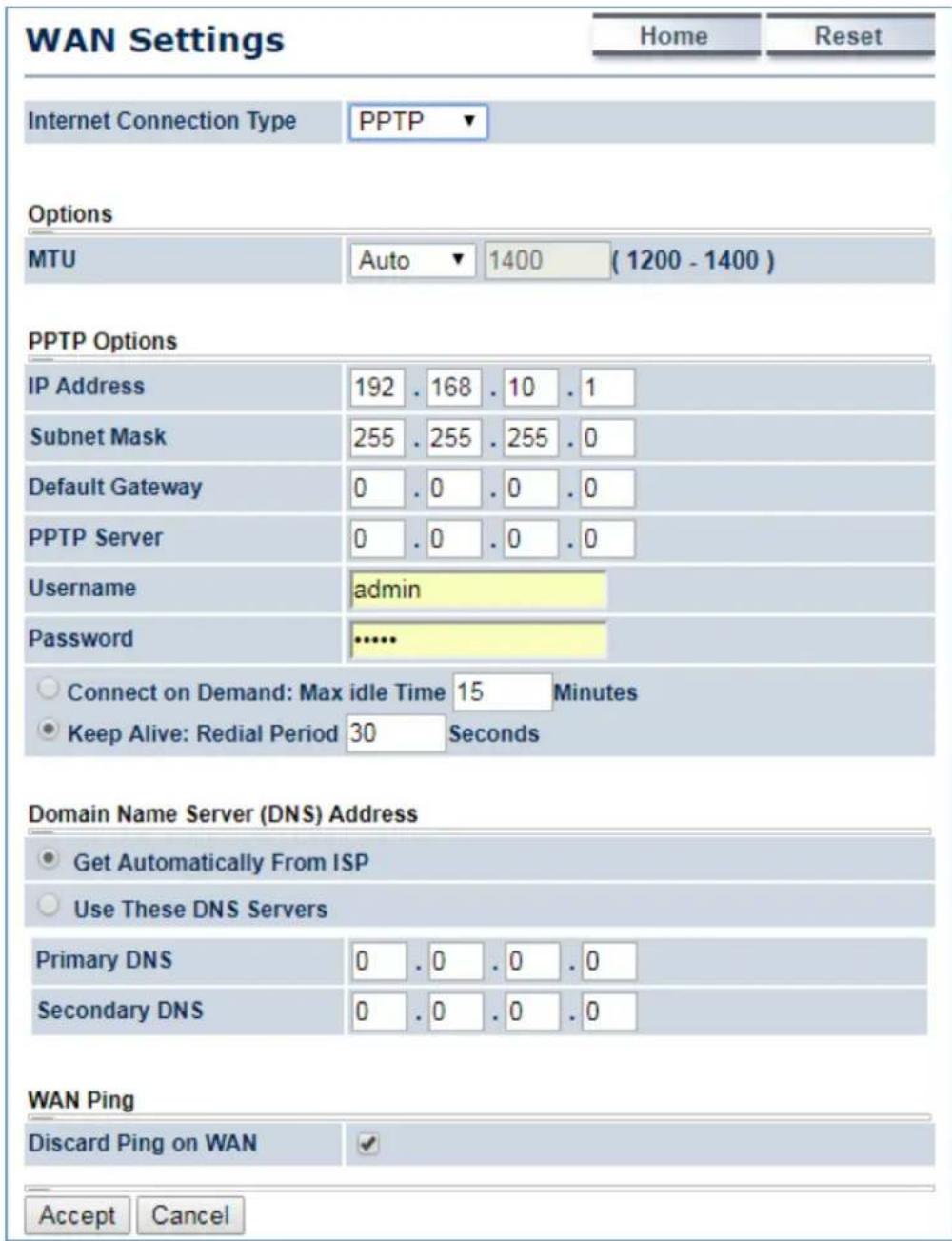
text_image
WAN Settings Home Reset Internet Connection Type PPTP ▼ Options MTU Auto 1400 (1200 - 1400) PPTP Options IP Address 192 . 168 . 10 . 1 Subnet Mask 255 . 255 . 255 . 0 Default Gateway 0 . 0 . 0 . 0 PPTP Server 0 . 0 . 0 . 0 Username admin Password ...... ○ Connect on Demand: Max idle Time 15 Minutes ● Keep Alive: Redial Period 30 Seconds Domain Name Server (DNS) Address ● Get Automatically From ISP ○ Use These DNS Servers Primary DNS 0 . 0 . 0 . 0 Secondary DNS 0 . 0 . 0 . 0 WAN Ping Discard Ping on WAN ✓ Accept CancelFigure 5-27 WAN Settings – PPTP
The page includes the following specific settings in PPTP type:
| Object Description | |
| • MTU | The maximum transmission unit (MTU) specifies the largest packet size permitted for an internet transmission. The factory default MTU size for PPTP is 1400. The MTU size can be set between 1200 and 1400. |
| • IP Address | Enter the device's WAN IP address provided by ISP. |
| Subnet Mask | Enter the device's WAN IP subnet mask provided by ISP. |
| Default Gateway | Enter the device's WAN Gateway IP provided by ISP. |
| PPTP Server | Enter the IP address of the PPTP server. |
| Username | Enter the username provided by ISP. |
| Password | Enter the password provided by ISP. |
| Connect on Demand | Select it to specify the maximum idle time. Internet connection will disconnect when it reaches the maximum idle time, but it will automatically connect when user tries to access the network. |
| Keep Alive | Select whether to keep the Internet connection always on, or enter a redial period once the internet loses connection. |
| Accept | Click Accept to apply the setting. |
| Cancel | Click Cancel to cancel the setting. |
5.4.3 VPN Passthrough
VPN Passthrough allows a secure virtual private network (VPN) connection between two sites. Enabling the options on this page opens a VPN port and enables connections to pass through the AP without interruption.
Go to the "Operation Mode" page to configure the device as "Client Router" and then go to "Router → VPN Pass Through" to enable VPN passthrough you required in client router mode.
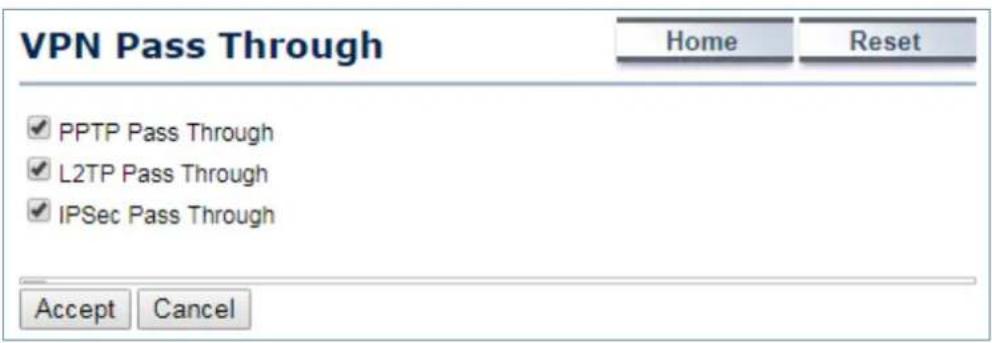
text_image
VPN Pass Through Home Reset ✓ PPTP Pass Through ✓ L2TP Pass Through ✓ IPSec Pass Through Accept CancelFigure 5-28 VPN Passthrough
The page includes the following settings:
| Object Description | |
| PPTP Passthrough | Check this option to enable PPTP pass-through mode. |
| L2TP Passthrough | Check this option to enable L2TP pass-through mode. |
| IPSec Passthrough | Check this option to enable IPSec pass-through mode. |
| Accept | Click Accept to apply the setting. |
| Cancel | Click Cancel to cancel the setting. |
5.4.4 Port Forwarding
Go to the "Operation Mode" page to configure the device as "Client Router" and then go to "Router → Port Forwarding" to enable VPN passthrough you required in client router mode.

text_image
Port Forwarding Home ResetName Protocol Start Port End Port Server IP Address Enable Modify Delete
Add Entry AcceptFigure 5-29 Port Forwarding
The page includes the following settings:
| Object Description | |
| # | Displays the sequence number of the forwarded port. |
| Name | Displays the name of the forwarded port. |
| Protocol | Displays the protocol to use for mapping from the following: TCP, UDP or Both. |
| Start Port | Displays the LAN port number that WAN client packets will be forward to. |
| End Port | Displays the port number that the WAN client packets are received. |
| Server IP Address | Displays the IP address of the server for the forwarded port. |
| Enable | Click to enable or disable the forwarded port profile. |
| Modify | Click to modify the forwarded port profile. |
| Delete | Click to delete the forwarded port profile. |
| Add Entry | Click Add Entry to add the new forwarding rule. |
| Accept | Click Accept to apply the setting. |
When clicking Add Entry, the following window pops up and fill in the fields required to add a new forwarding rule.
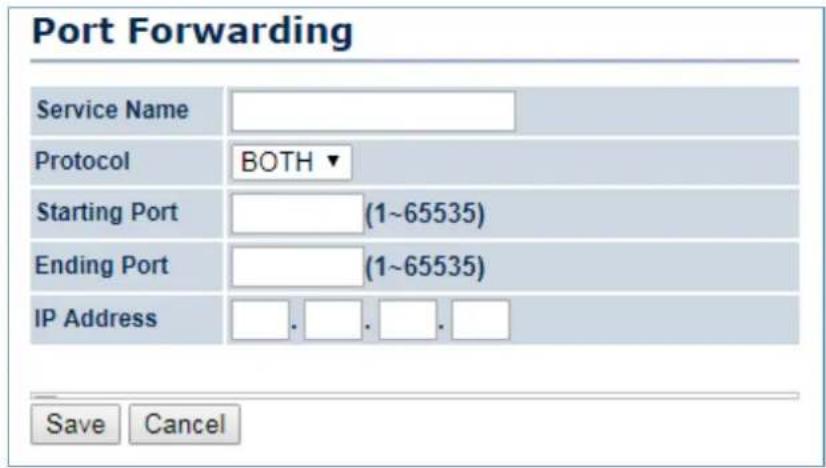
text_image
Port Forwarding Service Name Protocol BOTH ▼ Starting Port (1~65535) Ending Port (1~65535) IP Address Save CancelFigure 5-30 Port Forwarding
The page includes the following settings:
| Object Description | |
| • Service Name | Enter a name for the port forwarding rule. |
| • Protocol | Select a protocol for the application: Choices are TCP or UDP, or both. |
| • Starting Port (1~65535) | Enter a starting port number. |
| • Ending Port (1~65535) | Enter an ending port number.All ports numbers between the starting and ending ports will forward users to the IP address specified in the IP Address field. |
| • IP Address | Enter the IP address of the server computer on the LAN network where users will be redirected. |
| • Save | Click Save to save the new forwarding rule. |
| • Cancel | Click Cancel to cancel the setting. |
5.4.5 DMZ Settings
The DMZ function allows the device to redirect all packets going to the WAN port IP address to a particular IP address on the LAN. The difference between the virtual server and the DMZ function is that a virtual server redirects a particular service or Internet application, such as FTP, to a particular LAN client or server, whereas a DMZ redirects all packets, regardless of the service, going to the WAN IP address to a particular LAN client or server.
Go to the "Operation Mode" page to configure the device as "Client Router" and then go to "Router → DMZ Settings" to enable/configure DMZ in client router mode.
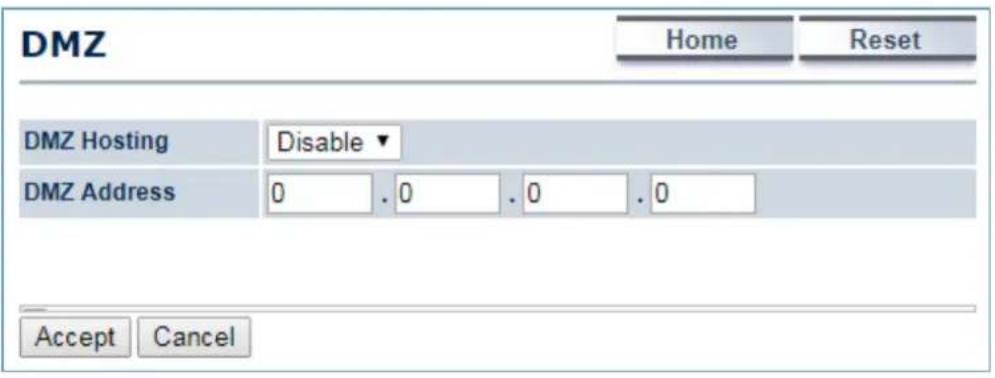
text_image
DMZ Home Reset DMZ Hosting Disable ▼ DMZ Address 0 . 0 . 0 . 0 Accept CancelFigure 5-31 DMZ
The page includes the following settings:
| Object Description | |
| • DMZ Hosting | Select Enable DMZ to activate DMZ functionality. |
| • DMZ Address | Enter an IP address of a device on the LAN. |
| • Accept | Click Accept to apply the setting. |
| • Cancel | Click Cancel to cancel the setting. |
5.5 Wireless
In this section, wireless related settings in different operation modes are provided.
5.5.1 Wireless Network
Click "Wireless → Wireless Network" to configure the wireless basic settings. The wireless settings on this page may vary according to the selected operation mode.
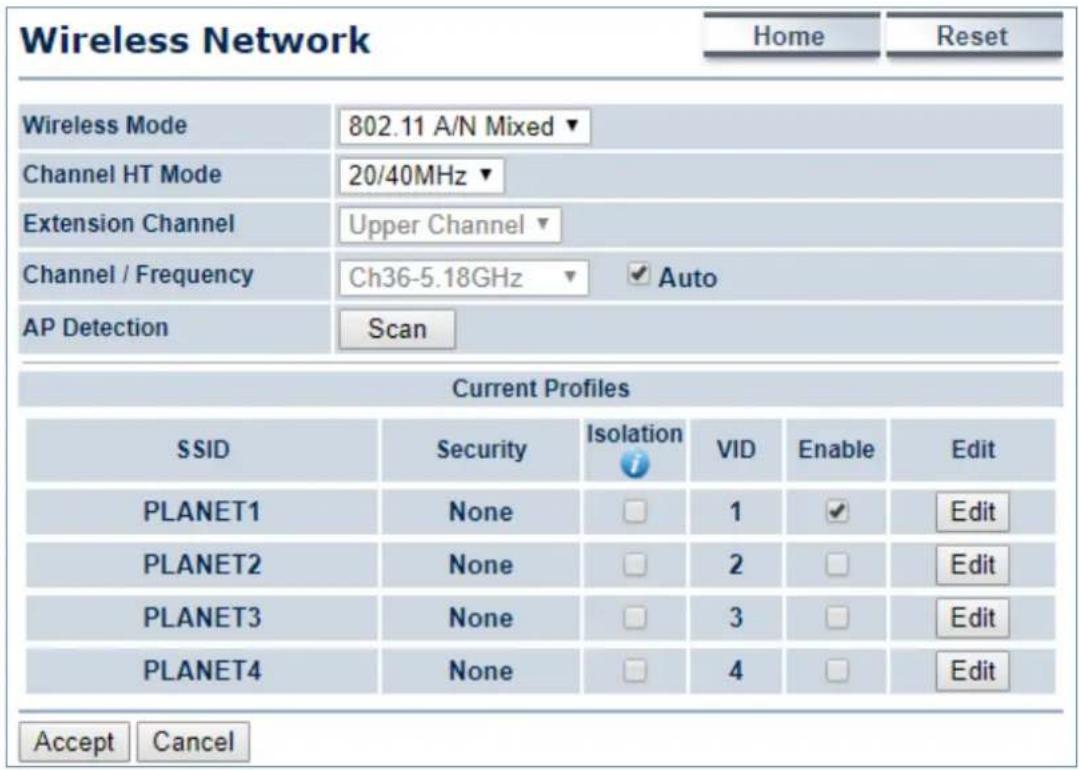
text_image
Wireless Network Home Reset Wireless Mode 802.11 A/N Mixed ▼ Channel HT Mode 20/40MHz ▼ Extension Channel Upper Channel ▼ Channel / Frequency Ch36-5.18GHz ▼ Auto AP Detection Scan Current Profiles SSID Security Isolation VID Enable Edit PLANET1 None □ 1 ✓ Edit PLANET2 None □ 2 □ Edit PLANET3 None □ 3 □ Edit PLANET4 None □ 4 □ Edit Accept CancelFigure 5-32 Wireless Network – AP/WDS AP Mode
In the AP/WDS AP mode, click the Edit button on the "Wireless Network" page to enter the "SSID Profile" page to configure the SSID profile for the wireless network.
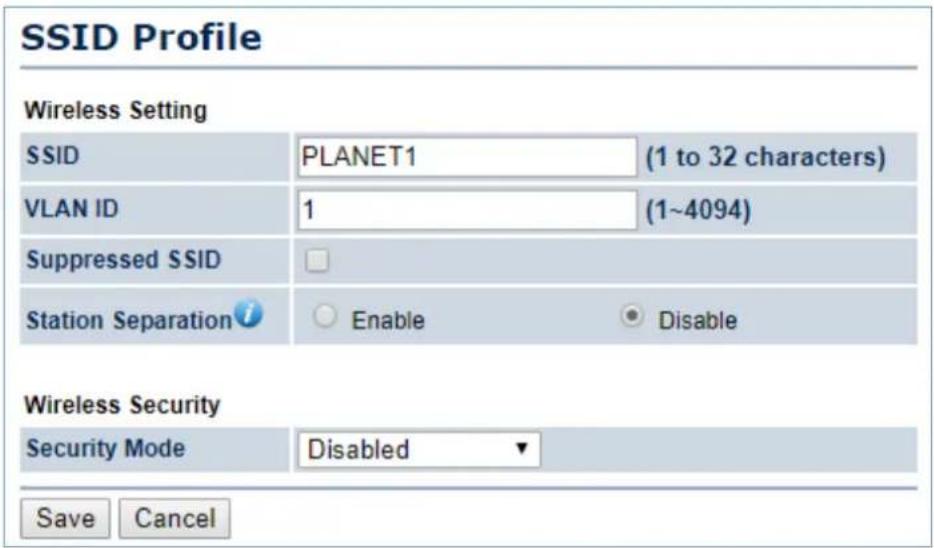
text_image
SSID Profile Wireless Setting SSID PLANET1 (1 to 32 characters) VLAN ID 1 (1~4094) Suppressed SSID Station Separation i Enable Disable Wireless Security Security Mode Disabled ▼ Save CancelFigure 5-33 Wireless Network – SSID Profile
The page includes the following settings:
| Object Description | |
| • Wireless Mode | Wireless mode supports 802.11a/n mixed modes. |
| • Channel HT Mode | The default channel bandwidth is 20/40MHz. The larger the channel, the better the transmission quality and speed. |
| • Extension Channel | Select upper or lower channel. Your selection may affect the Auto channel function. |
| • Channel / Frequency | Select the channel and frequency that apply to your country's regulations. |
| • Auto | Check this option to enable auto-channel selection. |
| • AP Detection | AP Detection can select the best channel to use by scanning nearby areas for Access Points. |
| • Current Profile | Configure up to four different SSIDs. If many client devices will be accessing the network, you can arrange the devices into SSID groups. Click Edit to configure the profile and check whether you want to enable extra SSIDs. |
| SSID Profile | |
| • SSID | Specify the SSID for the current profile. |
| • VLAN ID | Specify the VLAN tag for the current profile. |
| • Suppressed SSID | Check this option to hide the SSID from clients. If checked, the SSID will not appear in the site survey. |
| • Station Separation | Click the appropriate radio button to allow or prevent communication between client devices. |
| • Wireless Security | Refer to section5.5.3 Security Setting. |
| • Save | ClickSaveto save changes. |
| Cancel | Click Cancel to cancel the unsaved changes and revert to the previous settings. |
In the CB/WDS STA/CR/Repeater mode, select Security Mode on the "Wireless Network" page to configure the wireless security similar to the root AP's security settings.

text_image
Wireless Network Home Reset Wireless Mode 802.11 A/N Mixed ▼ SSID Specify the static SSID : AP SSID (1 to 32 characters) Or press the button to search for any available WLAN Service. Site Survey Preferred BSSID : : : : : : : : Wireless Security Changing the wireless security settings may cause this wireless client to associate with a different one. This may temporarily disrupt your configuration session. Security Mode Disabled ▼ Accept CancelFigure 5-34 Wireless Network – CB/WDS STA/CR/Repeater Mode
The page includes the following settings:
| Object Description | |
| • Wireless Mode | Wireless mode supports 802.11a/n mixed modes. |
| • SSID | Specify the SSID if known. This field is completed automatically if you select an Access Point in the Site Survey. |
| • Site Survey | Scans nearby locations for Access Points. You can select a discovered Access Point to establish a connection. |
| • Prefer BSSID | Enter the MAC address if known. If you select an Access Point in the Site Survey, this field is completed automatically. |
| • Wireless Security | Refer to section5.5.3 Security Setting. |
| • Accept | Click Accept to apply the setting. |
| • Cancel | Click Cancel to cancel the unsaved changes and revert to the previous settings. |
5.5.2 WDS Link Settings
Go to the "Operation Mode" page to configure the device as "WDS Bridge" and then go to "Wireless → WDS Link Settings" to configure the WDS link settings including PtP (Point to Point) or PtMP (Point to Multiple Points) applications.

Figure 5-35 WDS Link Settings – WDS Bridge Mode
The page includes the following settings:
| Object Description | |
| • Security | Select the type of WDS security: None, WEP, or AES. |
| • WEP Key | Enter the WEP key if security is selected as WEP. |
| • AES Passphrase | Enter the AES passphrase if security is selected as AES. |
| • MAC Address | Enter the wireless MAC address of the AP to which you want to extend wireless connectivity. |
| • Mode | Select Disable or Enable to disable or enable WDS. |
| • Accept | Click Accept to save the settings. |
| • Cancel | Click Cancel to cancel the unsaved changes and revert to the previous settings. |

NOTE:
- The WDS link settings is only available in WDS Bridge mode and is communicating through wireless MAC address each other by using non-standard protocol which may not be compatible with other brands or models. Use the same model for full compatibility as required.
- The security setting in each site of WDS link must be the same.
- The wireless channel must be fixed and must be the same in each site of WDS link.
5.5.3 Security Settings
Go to the "Wireless → Wireless Network" page to configure the security settings.
In the AP/WDS AP mode, click the Edit button on the "Wireless Network" page to enter the "SSID Profile" page and configure the wireless security for the wireless network.
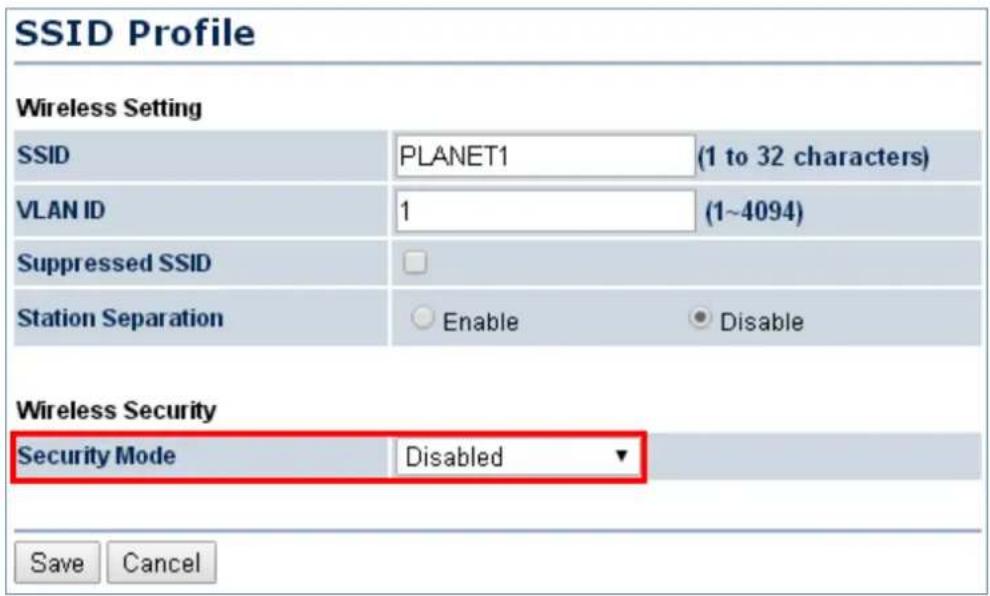
text_image
SSID Profile Wireless Setting SSID PLANET1 (1 to 32 characters) VLAN ID 1 (1~4094) Suppressed SSID Station Separation Enable Disable Wireless Security Security Mode Disabled Save CancelFigure 5-36 Security Settings – AP/WDS AP Mode
In the CB/WDS STA/CR/Repeater mode, select Security Mode on the "Wireless Network" page to configure the wireless security similar to the root AP's security settings.

text_image
Wireless Network Home Reset Wireless Mode 802.11 A/N Mixed ▼ SSID Specify the static SSID : AP SSID (1 to 32 characters) Or press the button to search for any available WLAN Service. Site Survey Preferred BSSID : : : : : : : : Wireless Security Changing the wireless security settings may cause this wireless client to associate with a different one. This may temporarily disrupt your configuration session. Security Mode Disabled ▼ Accept CancelFigure 5-37 Security Settings – CB/WDS STA/CR/Repeater Mode
In the WDS Bridge mode, select Security Mode on the "WDS Link Settings" page to configure the wireless security settings. The security settings in each site of the WDS link must be configured to the same.

text_image
WDS Link Settings Home Reset Security AES WEP Key 40/64-bit(10 hex digits) AES Passphrase 12345678 (8-63 ASCII characters or 64 hexadecimal digits)Figure 5-38 Security Settings – WDS Bridge Mode
The option includes the following settings:
| Object Description | |
| • Security Mode | Select the suitable security mode from the drop-down list to encrypt the wireless network. The options include Disabled, WEP, WPA-PSK, WPA2-PSK, WPA-PSK Mixed, WPA, WPA2, and WPA Mixed. The latest WPA2-PSK mode is strongly recommended. |

- The WEP and WPA/WPA2 with TKIP does not support in the 802.11n mode and these options are not available in the 802.11n mode.
- In the 802.11a/n mixed mode, if the security is configured to WEP and WPA/WPA2 with TKIP, the connection mode/speed will be changed from 802.11n to 802.11a.
■ Disabled
Authentication is disabled and no password/key is required to connect to the access point.
■ WEP
WEP (Wired Equivalent Privacy) is a basic encryption. For a higher level of security consider using the WPA encryption.
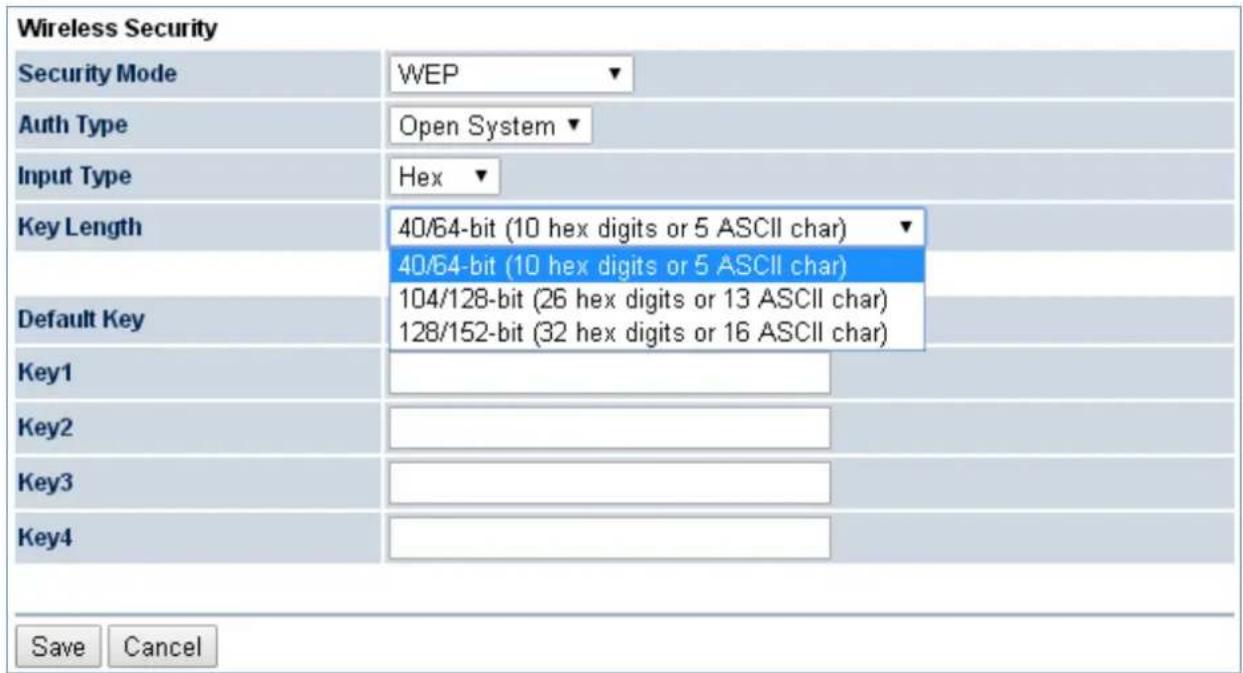
text_image
Wireless Security Security Mode WEP Auth Type Open System Input Type Hex Key Length 40/64-bit (10 hex digits or 5 ASCII char) 40/64-bit (10 hex digits or 5 ASCII char) Default Key 104/128-bit (26 hex digits or 13 ASCII char) 128/152-bit (32 hex digits or 16 ASCII char) Key1 Key2 Key3 Key4 Save CancelFigure 5-39 Security Settings – WEP
The security mode includes the following settings:
| Object Description | |
| • Security Mode | Select WEP from the drop-down list to configure the wireless network using WEP encryption method. |
| • Auth Type | Select Open System or Shared. |
| • Input Type | Select an input type of Hex or ASCII. |
| • Key Length | Level of WEP encryption is applied to all WEP keys.Select a 64-/128-/152-bit password length.■ 40/64-bit: enter 10 hexadecimal digits (any combination of 0-9, a-f, A-F and null key is not permitted) or 5 ASCII characters.■ 104/128-bit: enter 26 hexadecimal digits (any combination of 0-9, a-f, A-F and null key is not permitted) or 13 ASCII characters.■ 128/152-bit: enter 32 hexadecimal digits (any combination of 0-9, a-f, A-F and null key is not permitted) or 16 ASCII characters. |
| • Default Key | Select 1 – 4 to specify which of the four WEP keys the device uses as its default. |
| • Key1 – Key4 | Specify a password for the security key index. For security, each typed character is masked by a dot. |
| • Save | Click Save to save the settings. |
| • Cancel | Click Cancel to cancel the unsaved changes and revert to the previous settings. |
WPA-PSK

text_image
Wireless Security Security Mode WPA-PSK Encryption Both(TKIP+AES) Passphrase 12345678 (8 to 63 characters) or (64 Hexadecimal characters) Group Key Update Interval 3600 seconds(30~3600, 0: disabled) Save CancelFigure 5-40 Security Settings – WPA-PSK
The security mode includes the following settings:
| Object Description | |
| • Security Mode | Select WPA-PSK from the drop-down list to configure the wireless network using WPA-PSK encryption method. |
| • Encryption | Select TKIP or AES, or both as the encryption type.■ Both: uses TKIP and AES.■ TKIP: automatic encryption with WPA-PSK; requires passphrase.■ AES: automatic encryption with WPA2-PSK; requires passphrase. |
| • Passphrase | Specify the security password. For security, each typed character is masked by a dot. |
| • Group Key Update Interval | Specify how often, in seconds, the group key changes. |
| • Save | Click Save to save the settings. |
| • Cancel | Click Cancel to cancel the unsaved changes and revert to the previous settings. |
WPA2-PSK
The latest WPA2 protocol features compliance with the full IEEE 802.11i standard and uses Advanced Encryption Standard (AES) in addition to TKIP encryption protocol to guarantee better security than that provided by WEP or WPA.
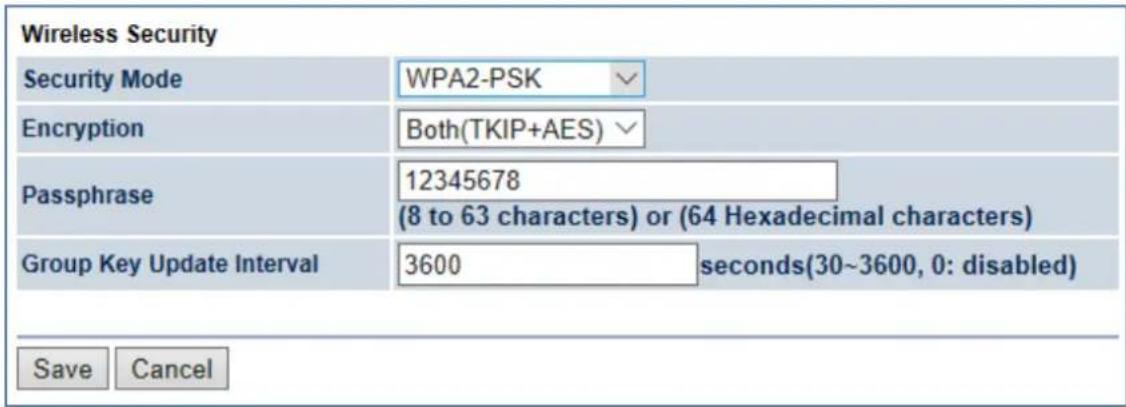
text_image
Wireless Security Security Mode WPA2-PSK Encryption Both(TKIP+AES) Passphrase 12345678 (8 to 63 characters) or (64 Hexadecimal characters) Group Key Update Interval 3600 seconds(30~3600, 0: disabled) Save CancelFigure 5-41 Security Settings – WPA2-PSK
The security mode includes the following settings:
| Object Description | |
| • Security Mode | Select WPA2-PSK from the drop-down list to configure the wireless network using WPA2-PSK encryption method. |
| • Encryption | Select TKIP or AES, or both as the encryption type.■ Both: uses TKIP and AES.■ TKIP: automatic encryption with WPA-PSK; requires passphrase.■ AES: automatic encryption with WPA2-PSK; requires passphrase. |
| • Passphrase | Specify the security password. For security, each typed character is masked by a dot. |
| • Group Key Update Interval | Specify how often, in seconds, the group key changes. |
| • Save | Click Save to save the settings. |
| • Cancel | Click Cancel to cancel the unsaved changes and revert to the previous settings. |
■ WPA-PSK Mixed
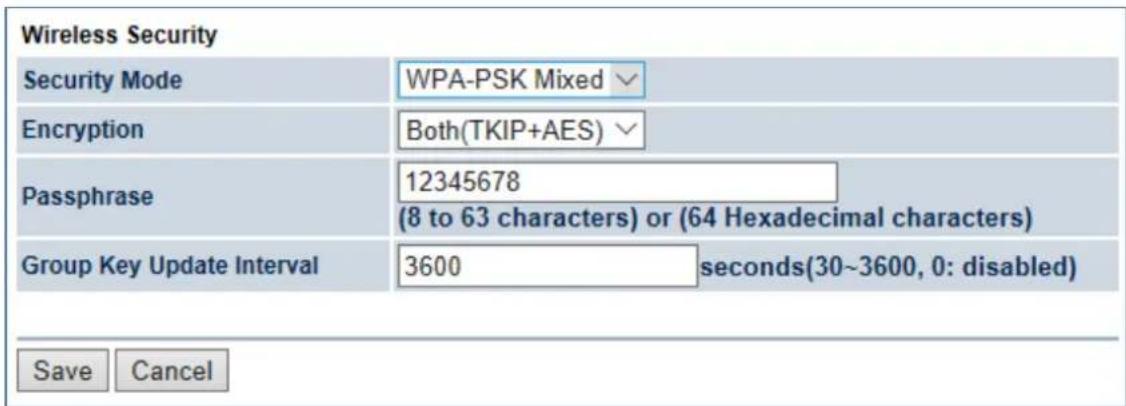
text_image
Wireless Security Security Mode WPA-PSK Mixed Encryption Both(TKIP+AES) Passphrase 12345678 (8 to 63 characters) or (64 Hexadecimal characters) Group Key Update Interval 3600 seconds(30~3600, 0: disabled) Save CancelFigure 5-42 Security Settings – WPA-PSK Mixed
The security mode includes the following settings:
| Object Description | |
| • Security Mode | Select WPA-PSK Mixed from the drop-down list to configure the wireless network using WPA-PSK Mixed encryption method. |
| • Encryption | Select TKIP or AES, or both as the encryption type.■ Both: uses TKIP and AES.■ TKIP: automatic encryption with WPA-PSK; requires passphrase.■ AES: automatic encryption with WPA2-PSK; requires passphrase. |
| • Passphrase | Specify the security password. For security, each typed character is masked by a dot. |
| • Group Key Update Interval | Specify how often, in seconds, the group key changes. |
| • Save | Click Save to save the settings. |
| • Cancel | Click Cancel to cancel the unsaved changes and revert to the previous settings. |
■ WPA (WPA Enterprise)
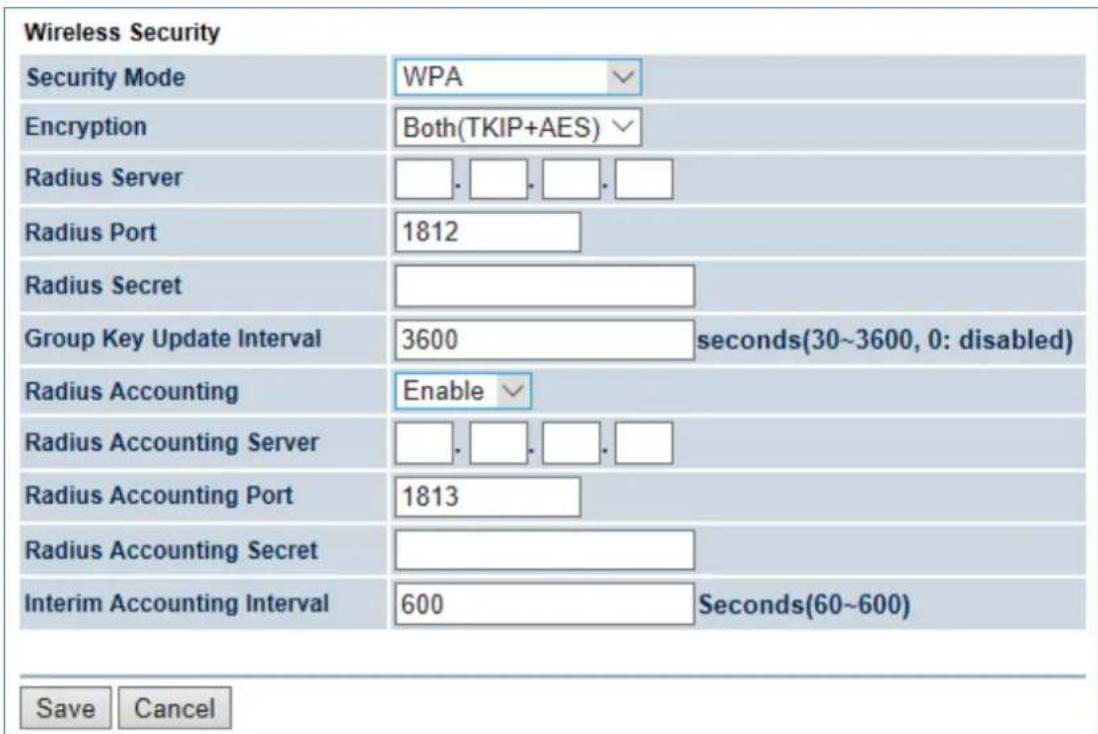
text_image
Wireless Security Security Mode WPA Encryption Both(TKIP+AES) Radius Server . . . . Radius Port 1812 Radius Secret Group Key Update Interval 3600 seconds(30~3600, 0: disabled) Radius Accounting Enable Radius Accounting Server . . . . Radius Accounting Port 1813 Radius Accounting Secret Interim Accounting Interval 600 Seconds(60~600) Save CancelFigure 5-43 Security Settings – WPA (WPA Enterprise)
The security mode includes the following settings:
| Object Description | |
| • Security Mode | Select WPA from the drop-down list to configure the wireless network using WPA encryption method. |
| • Encryption | Select TKIP or AES, or both as the encryption type.■ Both: uses TKIP and AES.■ TKIP: automatic encryption with WPA-PSK; requires passphrase. ■ AES: automatic encryption with WPA2-PSK; requires passphrase. |
| • Radius Server | Specify the IP address of the RADIUS server. |
| • Radius Port | Specify the port number that your RADIUS server uses for authentication. Default port is 1812. |
| • Radius Secret | Specify RADIUS secret furnished by the RADIUS server. |
| • Group Key Update Interval | Specify how often, in seconds, the group key changes. |
| • Radius Accounting | Select to enable or disable RADIUS accounting. |
| • Radius Accounting Server | Specify the IP address of the RADIUS accounting server. |
| • Radius Accounting Port | Specify the port number that your RADIUS accounting server uses for authentication. Default port is 1813. |
| • Radius Accounting Secret | Specify RADIUS accounting secret furnished by the RADIUS server. |
| • Interim Accounting Interval | Specify the interim accounting interval (60 - 600 seconds). |
| • Save | Click Save to save the settings. |
| • Cancel | Click Cancel to cancel the unsaved changes and revert to the previous settings. |
■ WPA2 (WPA2 Enterprise)
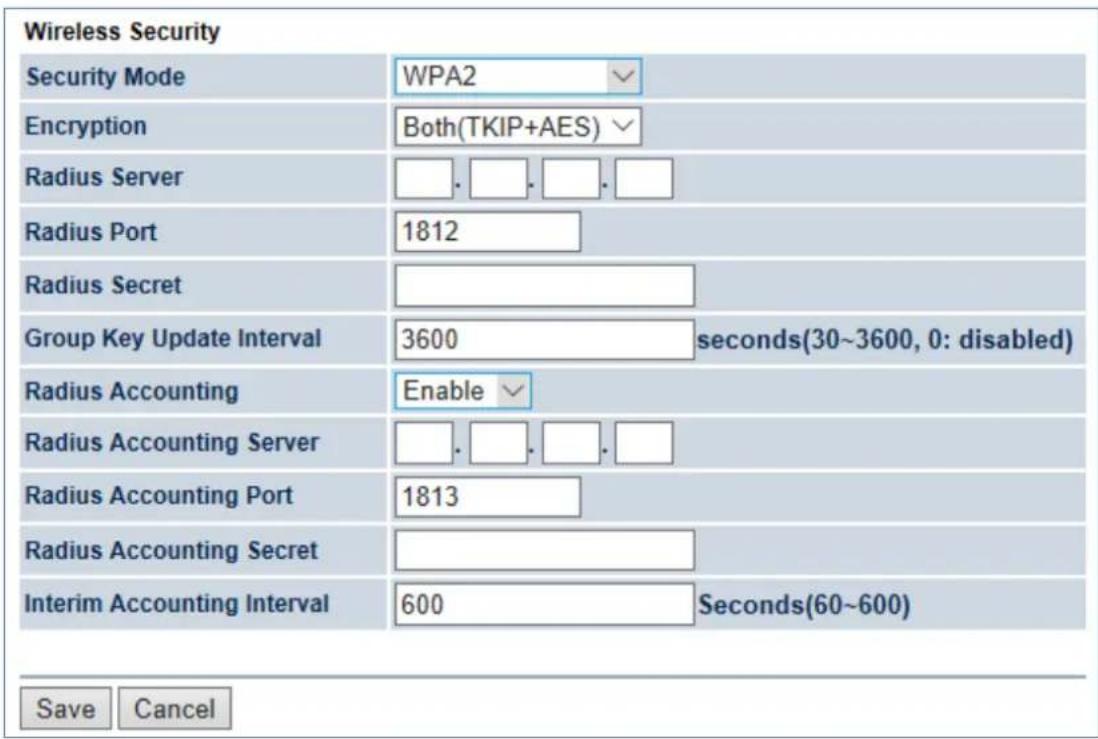
text_image
Wireless Security Security Mode WPA2 Encryption Both(TKIP+AES) Radius Server . . . . Radius Port 1812 Radius Secret Group Key Update Interval 3600 seconds(30~3600, 0: disabled) Radius Accounting Enable Radius Accounting Server . . . . Radius Accounting Port 1813 Radius Accounting Secret Interim Accounting Interval 600 Seconds(60~600) Save CancelFigure 5-44 Security Settings – WPA2 (WPA2 Enterprise)
The security mode includes the following settings:
| Object Description | |
| • Security Mode | Select WPA2 from the drop-down list to configure the wireless network using WPA2 encryption method. |
| • Encryption | Select TKIP or AES, or both as the encryption type.■ Both: uses TKIP and AES.■ TKIP: automatic encryption with WPA-PSK; requires passphrase.■ AES: automatic encryption with WPA2-PSK; requires passphrase. |
| • Radius Server | Specify the IP address of the RADIUS server. |
| • Radius Port | Specify the port number that your RADIUS server uses for authentication. Default port is 1812. |
| • Radius Secret | Specify RADIUS secret furnished by the RADIUS server. |
| • Group Key Update Interval | Specify how often, in seconds, the group key changes. |
| • Radius Accounting | Select to enable or disable RADIUS accounting. |
| • Radius Accounting Server | Specify the IP address of the RADIUS accounting server. |
| • Radius Accounting Port | Specify the port number that your RADIUS accounting server uses for authentication. Default port is 1813. |
| • Radius Accounting Secret | Specify RADIUS accounting secret furnished by the RADIUS server. |
| • Interim Accounting Interval | Specify the interim accounting interval (60 - 600 seconds). |
| • Save | Click Save to save the settings. |
| • Cancel | Click Cancel to cancel the unsaved changes and revert to the previous settings. |
WPA Mixed (WPA Mixed Enterprise)
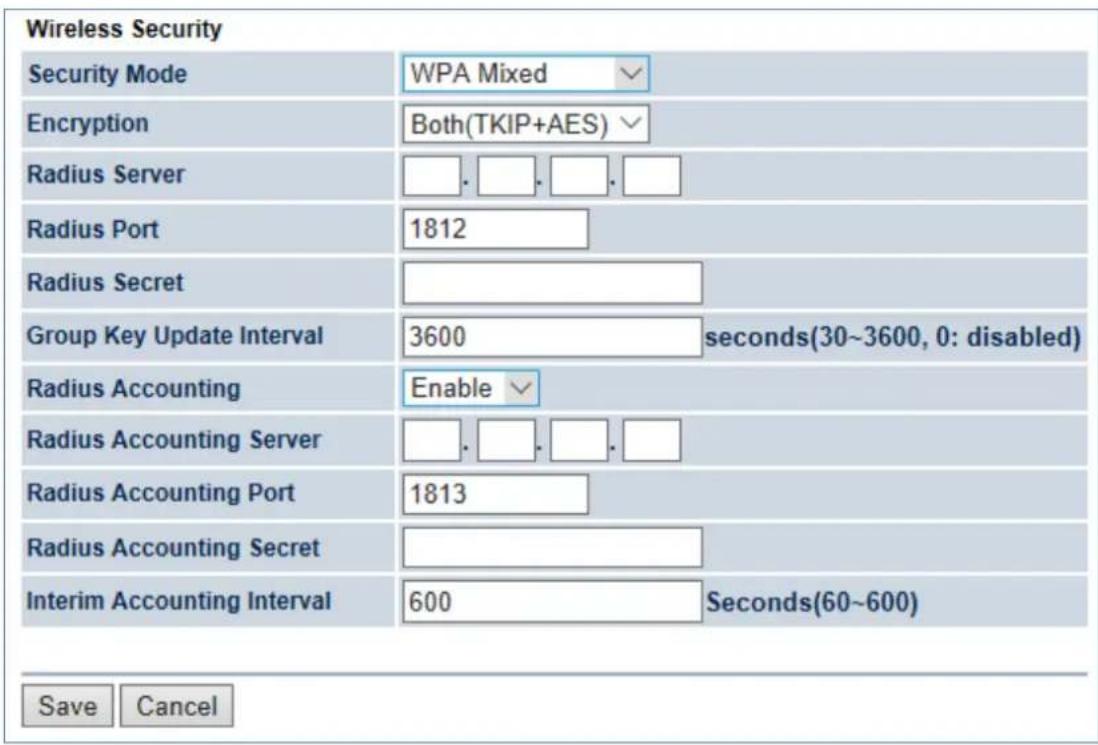
text_image
Wireless Security Security Mode WPA Mixed Encryption Both(TKIP+AES) Radius Server . . . . Radius Port 1812 Radius Secret Group Key Update Interval 3600 seconds(30~3600, 0: disabled) Radius Accounting Enable Radius Accounting Server . . . . Radius Accounting Port 1813 Radius Accounting Secret Interim Accounting Interval 600 Seconds(60~600) Save CancelFigure 5-45 Security Settings – WPA Mixed (WPA Mixed Enterprise)
The security mode includes the following settings:
| Object Description | |
| • Security Mode | Select WPA Mixed from the drop-down list to configure the wireless network using WPA Mixed encryption method. |
| • Encryption | Select TKIP or AES, or both as the encryption type.■ Both: uses TKIP and AES.■ TKIP: automatic encryption with WPA-PSK; requires passphrase.■ AES: automatic encryption with WPA2-PSK; requires passphrase. |
| • Radius Server | Specify the IP address of the RADIUS server. |
| • Radius Port | Specify the port number that your RADIUS server uses for authentication. Default port is 1812. |
| • Radius Secret | Specify RADIUS secret furnished by the RADIUS server. |
| • Group Key Update Interval | Specify how often, in seconds, the group key changes. |
| • Radius Accounting | Select to enable or disable RADIUS accounting. |
| • Radius Accounting Server | Specify the IP address of the RADIUS accounting server. |
| • Radius Accounting Port | Specify the port number that your RADIUS accounting server uses for authentication. Default port is 1813. |
| • Radius Accounting Secret | Specify RADIUS accounting secret furnished by the RADIUS server. |
| • Interim Accounting Interval | Specify the interim accounting interval (60 - 600 seconds). |
| • Save | Click Save to save the settings. |
| • Cancel | Click Cancel to cancel the unsaved changes and revert to the previous settings. |
5.5.4 Wireless MAC Filter
Wireless MAC Filters are used to allow or deny network access to wireless clients according to their MAC addresses. You can manually add a MAC address to restrict the permission to access the device or refer to section 5.2.3 to kick the associated client from the wireless client list.
Click "Wireless → Wireless MAC Filter" to configure the wireless access control settings.
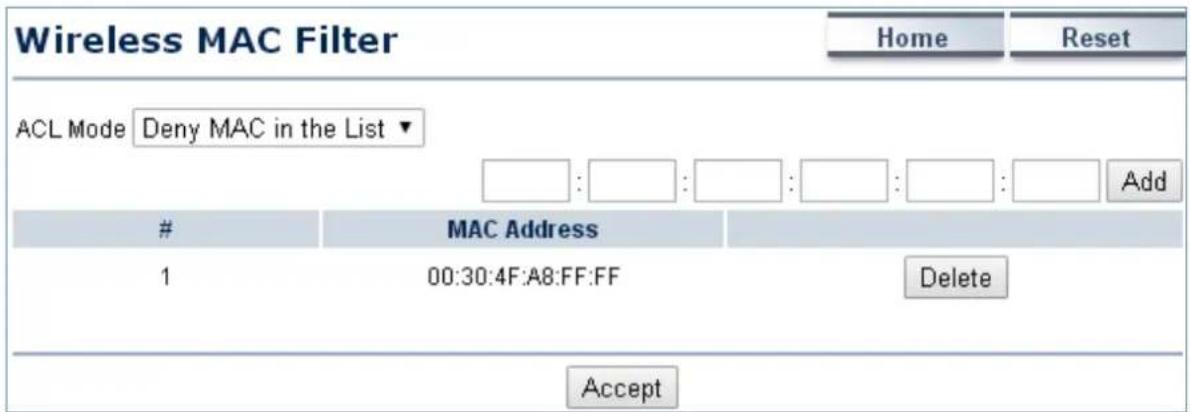
text_image
Wireless MAC Filter Home Reset ACL Mode Deny MAC in the List ▼ Add # MAC Address 1 00:30:4F:A8:FF:FF Delete AcceptFigure 5-46 Wireless MAC Filter
The page includes the following settings:
| Object Description | |
| • ACL Mode | Determines whether network access is granted or denied to clients whose MAC addresses appear in the MAC Address table on this page. The option includes Disable, Deny MAC in the list, or Allow MAC in the list. |
| • Add | Enter the wireless MAC address of the client in front of the Add button and then click Add to add the new entry to the MAC filtering list. |
| • # | Displays the sequence number of the entries. |
| • MAC Address | Displays the MAC Address that will be denied/allowed access to this device. |
| • Delete | Click Delete to remove the entry from the list. |
| • Accept | Click Accept to apply the setting. |
5.5.5 Wireless Advanced Settings
Click "Wireless → Wireless Advanced Settings" to configure the wireless advanced settings.
This section allows you to configure the wireless related settings to optimize the wireless network.
| Wireless Advanced Settings | Home | Reset | ||
| Data Rate | Auto ▼ | |||
| Transmit Power | Auto ▼ | |||
| RTS/CTS Threshold (1 - 2346) | 2346 | Bytes | ||
| Distance (1-30km) | 1 km (0.6 miles) | |||
| Aggregation: | Enable Disable 32 Frames 50000 Bytes(Max) | |||
| Wireless Traffic Shaping | ||||
| Enable Traffic Shaping | Enable Disable | |||
| Upload Limit | 1000 kbit/s (512-99999999) | |||
| Download Limit | 180000 kbit/s (512-99999999) | |||
| Client Limit | ||||
| Frequency | Enable | Max Client | ||
| 2.4G | ✓ | 64 | ||
| Accept Cancel | ||||
Figure 5-47 Wireless Advanced Settings
The page includes the following settings:
| Object Description | |
| Data Rate | Select a data rate from the drop-down list. The data rate affects throughput. If you select a low data rate value, for example, the throughput is reduced but the transmission distance increases. The default is “Auto”. |
| Transmit Power | Configure the output transmission power of the device (Range: 11~29dBm). The PtP range of less than 1km should be kept as default and distance of more than 5km is suggested to be the highest value.The option is only allowed to be configured after disabling the Green option on the “Operation Mode” page. Keep “Auto” as default “Auto” to prevent from violating regional regulations unless your configurationmeets the regulations. |
| • RTS/CTS Threshold | When the length of a data packet exceeds this value, the device will send an RTS frame to the destination wireless node, and the latter will reply with a CTS frame, and thus they are ready to communicate. The default value is 2346. A small number causes RTS/CTS packets to be sent more often and consumes more bandwidth. |
| • Distance | Specify the distance between the master AP and slave AP. Longer distances may drop high-speed connections. |
| • Aggregation | A part of the 802.11n standard that allows sending multiple frames per single access to the medium by combining frames together into one larger frame. It creates the larger frame by combining smaller frames with the same physical source, destination end points, and traffic class (QoS) into one large frame with a common MAC header. This option reduces the number of packets, but increases packet sizes. |
| Wireless Traffic Shaping | |
| Enable Traffic Shaping | Enable or disable the regulation of packet flow leaving an interface for improved QoS. |
| Incoming Traffic Limit | Specify the wireless transmission speed used for downloading. |
| Outgoing Traffic Limit | Specify the wireless transmission speed used for uploading. |
| Total Percentage | Specify the total percentage of the wireless traffic that is shaped. |
| SSID1 to SSID4 | Specify the percentage of the wireless traffic that is shaped for a specific SSID. |
| Client Limit: This option is only available in AP and WDS AP modes. | |
| Frequency | Display the frequency of the device's radio interface. |
| Enable | Click to enable the client limit function. |
| Max Client | Specify the maximum clients allowed to connect to the radio interface. |
| Accept | Click Accept to apply all changes. |
| Cancel | Click Cancel to cancel the settings. |
5.6 Management
On this page, you can configure the system settings for management purpose, including Management VLAN settings, Time settings, Password settings, SNMP settings, CLI settings, Wi-Fi schedule, Firmware upgrade, Configuration backup and restore, Factory default, and Auto reboot.
5.6.1 Administration (Password Settings)
Click "Management → Administration" to configure username and password of the login account.
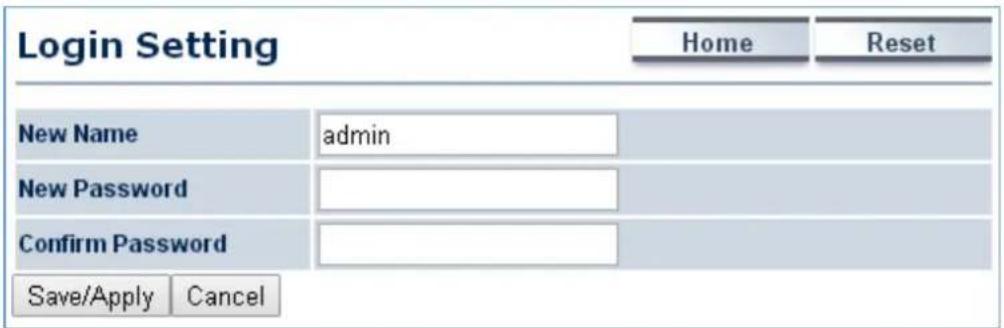
text_image
Login Setting Home Reset New Name admin New Password Confirm Password Save/Apply CancelFigure 5-48 Administration (Password Settings)
The page includes the following settings:
| Object Description | |
| New Name | Enter a new username for logging in to the Web page. |
| New Password | Enter a new password for logging in to the Web page. |
| Confirm Password | Re-enter the new password for confirmation. |
| Save/Apply | Click Save/Apply to apply all changes. |
| Cancel | Click Cancel to cancel the settings. |
5.6.2 Management VLAN
Click "Management → Management VLAN" to configure the management VLAN settings.
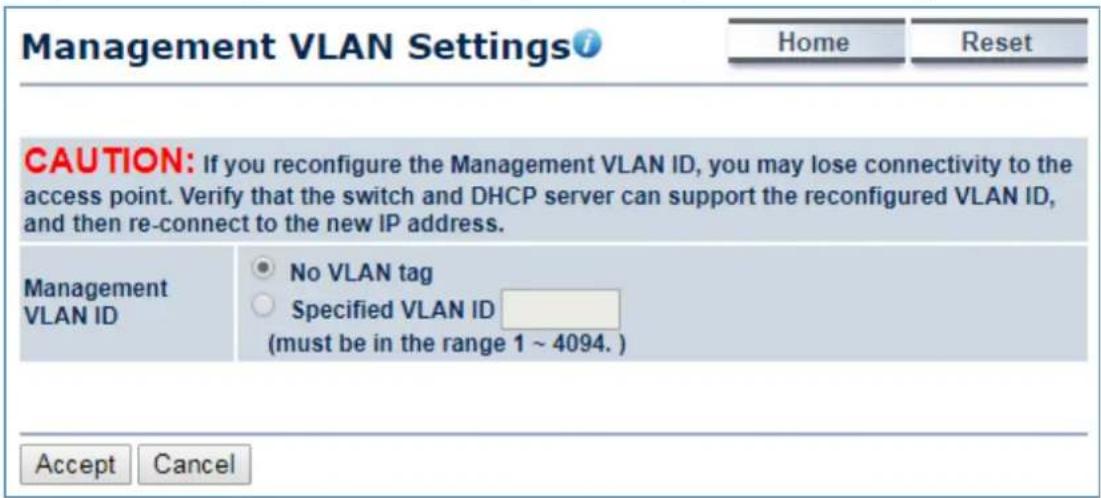
text_image
Management VLAN Settings Home Reset CAUTION: If you reconfigure the Management VLAN ID, you may lose connectivity to the access point. Verify that the switch and DHCP server can support the reconfigured VLAN ID, and then re-connect to the new IP address. Management VLAN ID No VLAN tag Specified VLAN ID (must be in the range 1 ~ 4094. ) Accept CancelFigure 5-49 Management VLAN
The page includes the following settings:
| Object Description | |
| Management VLAN ID | If your network includes VLANs and if tagged packets need to pass through the Access Point, enter the VLAN ID. Otherwise, select No VLAN tag. |
| Accept | Click Accept to apply the changes. |
| Cancel | Click Cancel to cancel the settings. |
5.6.3 SNMP Settings
SNMP is used in network management systems to monitor network-attached devices for conditions that warrant administrative attention.
Click "Management → SNMP Settings" to configure SNMP settings.
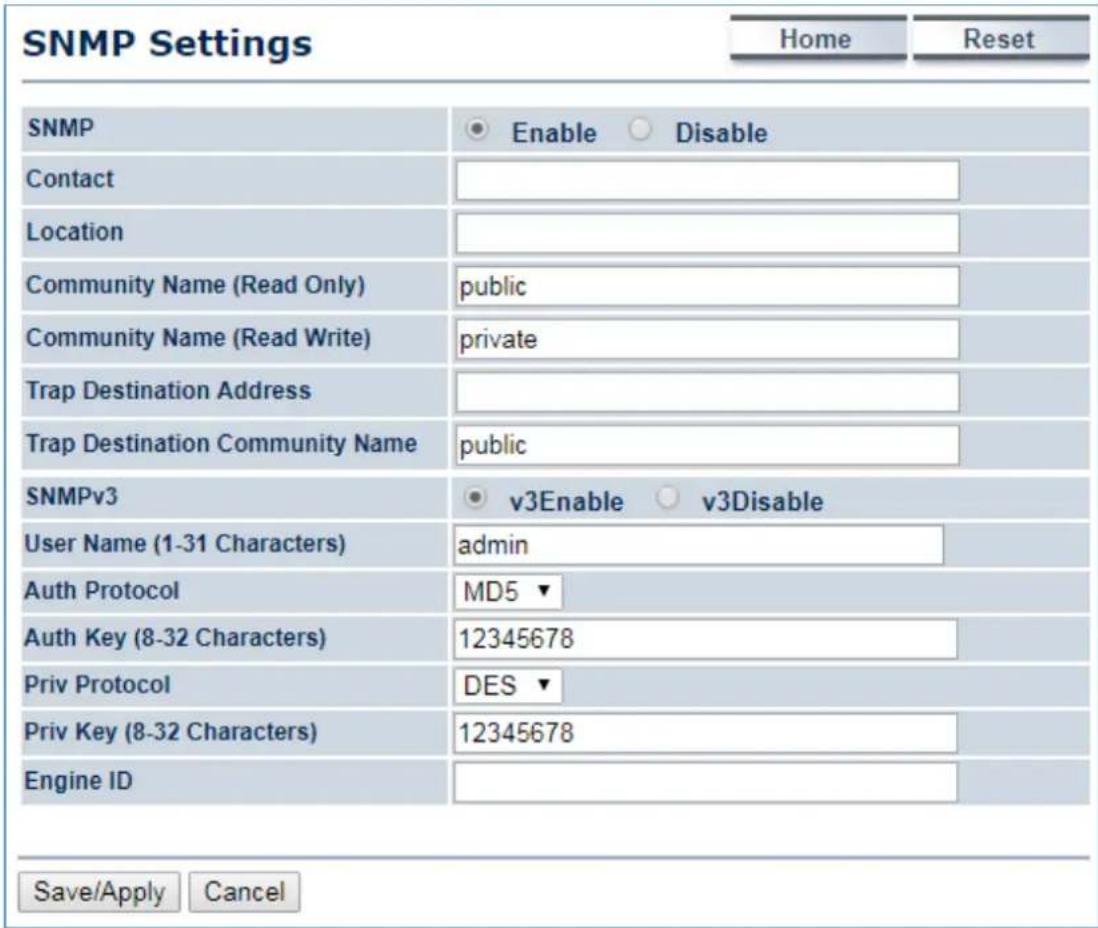
text_image
SNMP Settings Home Reset SNMP Enable Disable Contact Location Community Name (Read Only) public Community Name (Read Write) private Trap Destination Address Trap Destination Community Name public SNMPv3 v3Enable v3Disable User Name (1-31 Characters) admin Auth Protocol MD5 Auth Key (8-32 Characters) 12345678 Priv Protocol DES Priv Key (8-32 Characters) 12345678 Engine ID Save/Apply CancelFigure 5-50 SNMP Settings
The page includes the following settings:
| Object Description | |
| • SNMP | Enable or disable the SNMP service. |
| • Contact | Enter the contact details of the device. |
| • Location | Enter the location of the device. |
| • Community Name (Read Only) | Enter the password for accessing the SNMP community for read-only access. |
| • Community Name (Read/Write) | Enter the password for accessing the SNMP community for read and write access. |
| • Trap Destination Address | Enter the IP address where SNMP traps are to be sent. |
| • Trap Destination Community Name | Enter the password of the SNMP trap community. |
| • SNMPv3 | Enable or Disable the SNMPv3 feature. |
| • User Name | Specify the username for SNMPv3. |
| • Auth Protocol | Select the authentication protocol type: MD5 or SHA. |
| • Auth Key (8-32 Characters) | Specify the authentication key for authentication. |
| • Priv Protocol | Select the privacy protocol type: DES. |
| • Priv Key (8-32 Characters) | Specify the privacy key for privacy. |
| • Engine ID | Specify the engine ID for SNMPv3. |
| • Save/Apply | Click Save/Apply to apply all changes. |
| • Cancel | Click Cancel to cancel the settings. |
5.6.4 Backup/Restore Settings
Click "Management → Backup/Restore Settings" and the following page will be displayed.
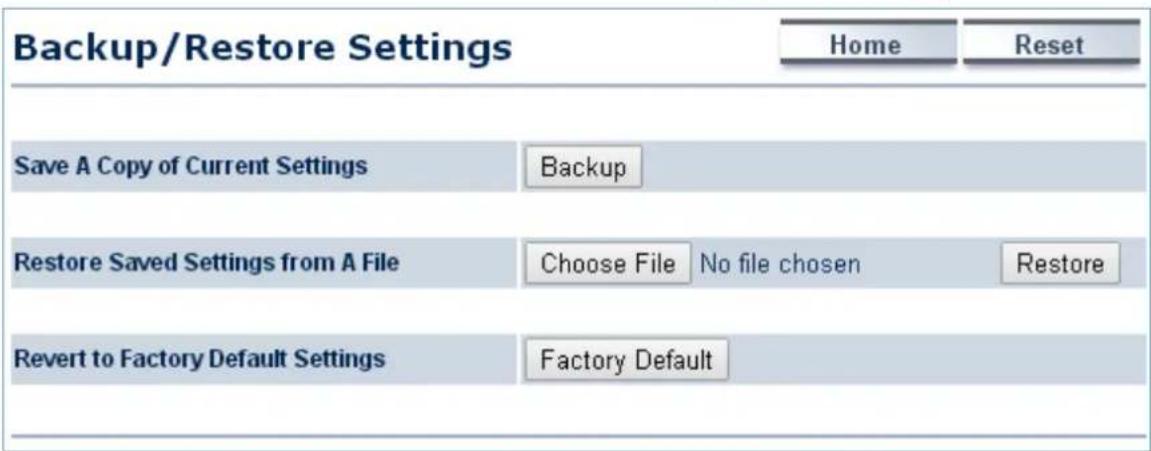
text_image
Backup/Restore Settings Home Reset Save A Copy of Current Settings Backup Restore Saved Settings from A File Choose File No file chosen Restore Revert to Factory Default Settings Factory DefaultFigure 5-51 Backup/Restore Settings
The page includes the following settings:
| Object Description | |
| Save A Copy of Current Settings | Click Backup to save the current configured settings. |
| Restore Saved Settings from A File | To restore settings that have been previously backed up, click Choose File to select the file, and click Restore. |
| Revert to Factory Default Settings | Click Factory Default to restore the device to its factory default settings. |
5.6.5 Auto Reboot Settings
Click "Management → Auto Reboot Settings" and the following page will be displayed.
This page allows you to enable and configure system auto reboot interval. The device can regularly reboot according to the frequency in different time formats of interval.
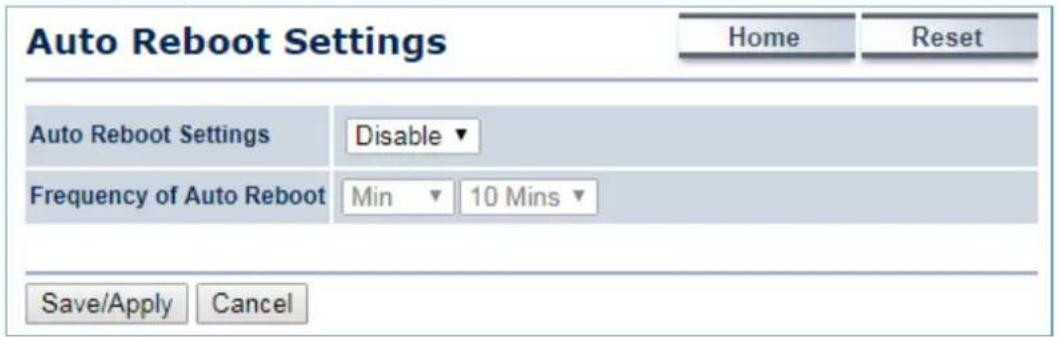
text_image
Auto Reboot Settings Home Reset Auto Reboot Settings Disable Frequency of Auto Reboot Min 10 Mins Save/Apply CancelFigure 5-52 Auto Reboot Settings
The page includes the following settings:
| Object Description | |
| • Auto Reboot Settings | Select Enable from the drop-down menu to set up this function. |
| • Frequency of Auto Reboot | Select the frequency interval using the drop-down menu. The interval supported is in different time formats:Min: 10/20/30/40/50/60 minsHour: 1~24 hoursDay: 1~31 daysWeek: 1~5 weeks |
| • Save/Apply | Click Save/Apply to apply all changes. |
| • Cancel | Click Cancel to cancel the settings. |
5.6.6 Firmware Upgrade
Click "Management → Firmware Upgrade" to upgrade the device's firmware.
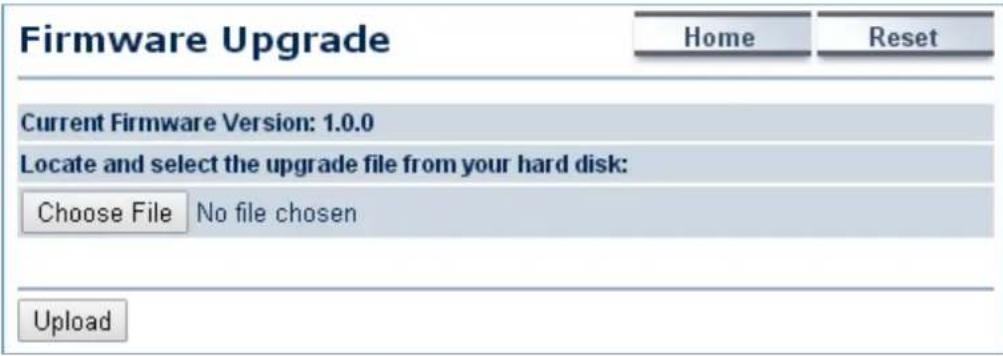
text_image
Firmware Upgrade Home Reset Current Firmware Version: 1.0.0 Locate and select the upgrade file from your hard disk: Choose File No file chosen UploadFigure 5-53 Firmware Upgrade
The page includes the following settings:
| Object Description | |
| • Current Firmware Version | Click ON to enable or click OFF to disable the option. |
| • Choose File | Click Choose File to locate and select the upgrade file from your local hard disk. |
| • Upload | Click Upload to upgrade the firmware. |
Firmware Upgrade Procedure
The following procedure will guide you to how to upgrade the firmware.
Step 1. Click the Choose File button to locate the firmware file path. Then, click the Upload button.
Step 2. The firmware checksum information appears to help you confirm whether the file is correct. Once confirmed, click the Upgrade button to begin the upgrade process.
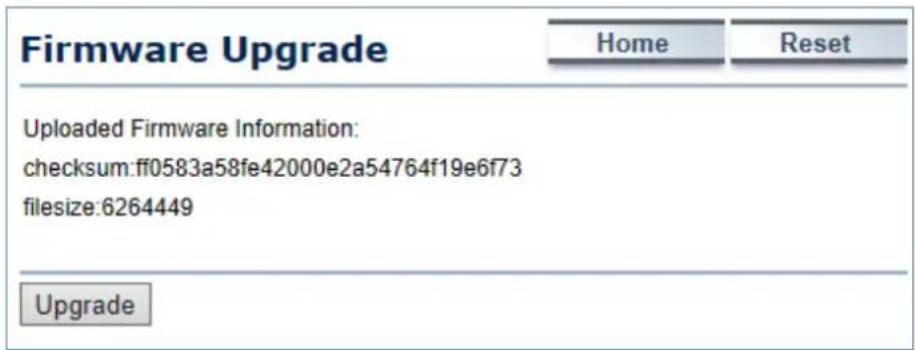
text_image
Firmware Upgrade Home Reset Uploaded Firmware Information: checksum:ff0583a58fe42000e2a54764f19e6f73 filesize:6264449 UpgradeStep 3. Wait for the process until it is finished.
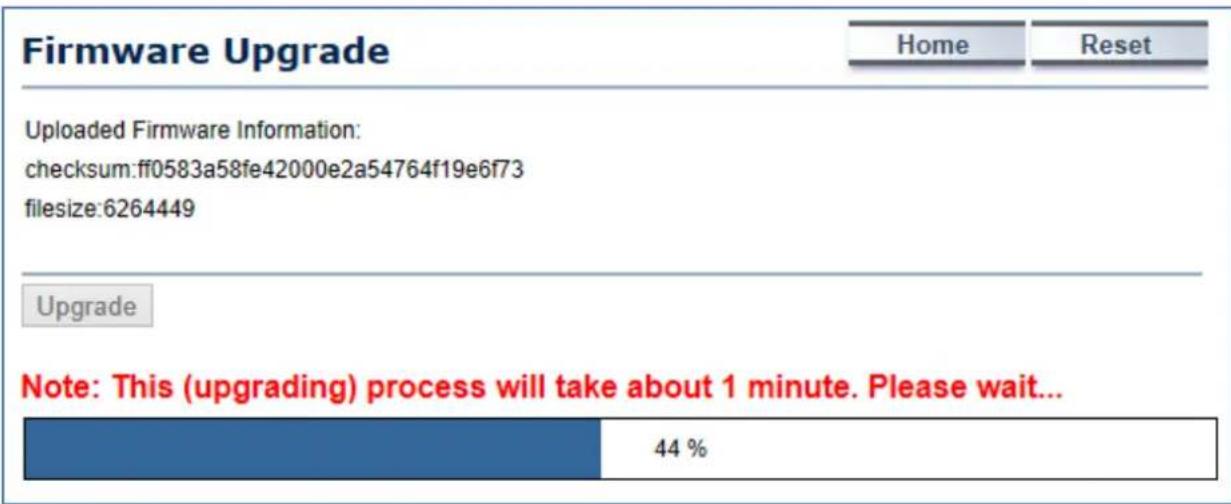
text_image
Firmware Upgrade Home Reset Uploaded Firmware Information: checksum:ff0583a58fe42000e2a54764f19e6f73 filesize:6264449 Upgrade Note: This (upgrading) process will take about 1 minute. Please wait... 44 %Step 4. When the upgrade is finished, the system will auto reboot and you can click the hyperlink "Click here when AP is ready" after the system restarts.

text_image
Firmware Upgrade Firmware is upgraded successfully. The system is restarting, please wait...94 Click here when AP is ready5.6.7 Time Settings
Click "Management → Time Settings" to configure time zone and NTP server settings to be in sync with the device's time.
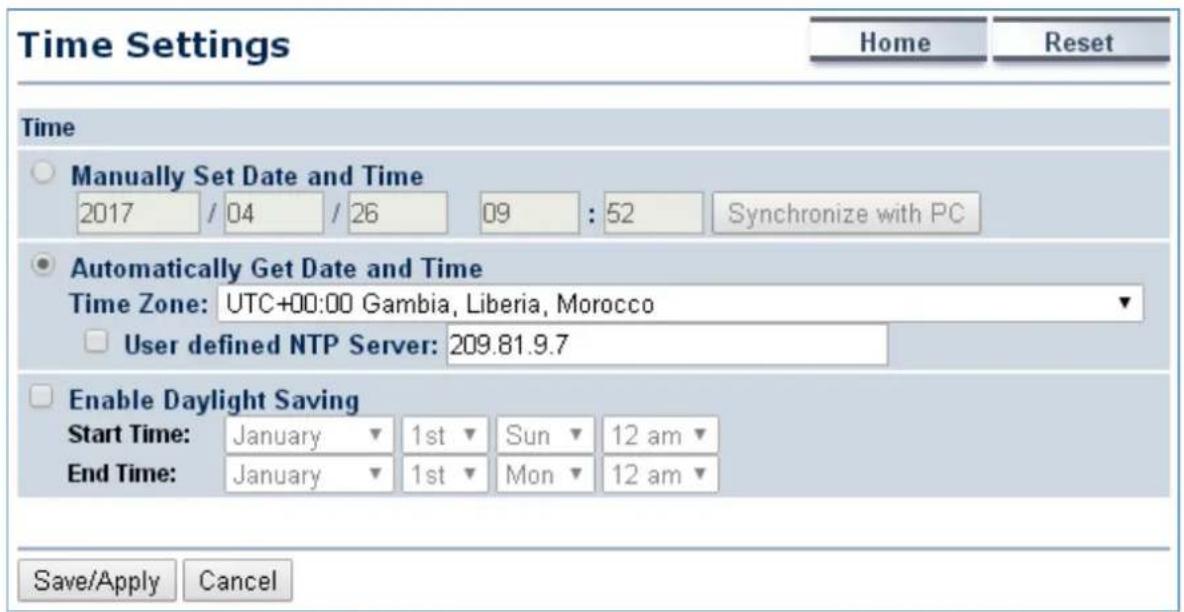
text_image
Time Settings Home Reset Time Manually Set Date and Time 2017 / 04 / 26 09 : 52 Synchronize with PC Automatically Get Date and Time Time Zone: UTC+00:00 Gambia, Liberia, Morocco User defined NTP Server: 209.81.9.7 Enable Daylight Saving Start Time: January 1st Sun 12 am End Time: January 1st Mon 12 am Save/Apply CancelFigure 5-54 Time Settings
The page includes the following settings:
| Object Description | |
| • Manually Set Date and Time | Enter the date and time values in the date and time fields or click the Synchronize with PC to get the date and time values from the administrator's PC. |
| • Automatically Get Date and Time | Select a time zone from the drop-down list and check whether you want to enter the IP address of an NTP server or use the default NTP server. |
| • Enable Daylight Saving | Click to enable or disable daylight savings time. Select the start and stop times from the Start Time and Stop Time drop-down lists. |
| • Save/Apply | Click Save/Apply to apply all changes. |
| • Cancel | Click Cancel to cancel the settings. |
5.6.8 Wi-Fi Schedule
This page allows you to configure wireless schedule. The device can regularly enable/disable Wi-Fi function according to the pre-defined schedule rules.
Click "Management → Auto Reboot Settings" and the following page will be displayed.
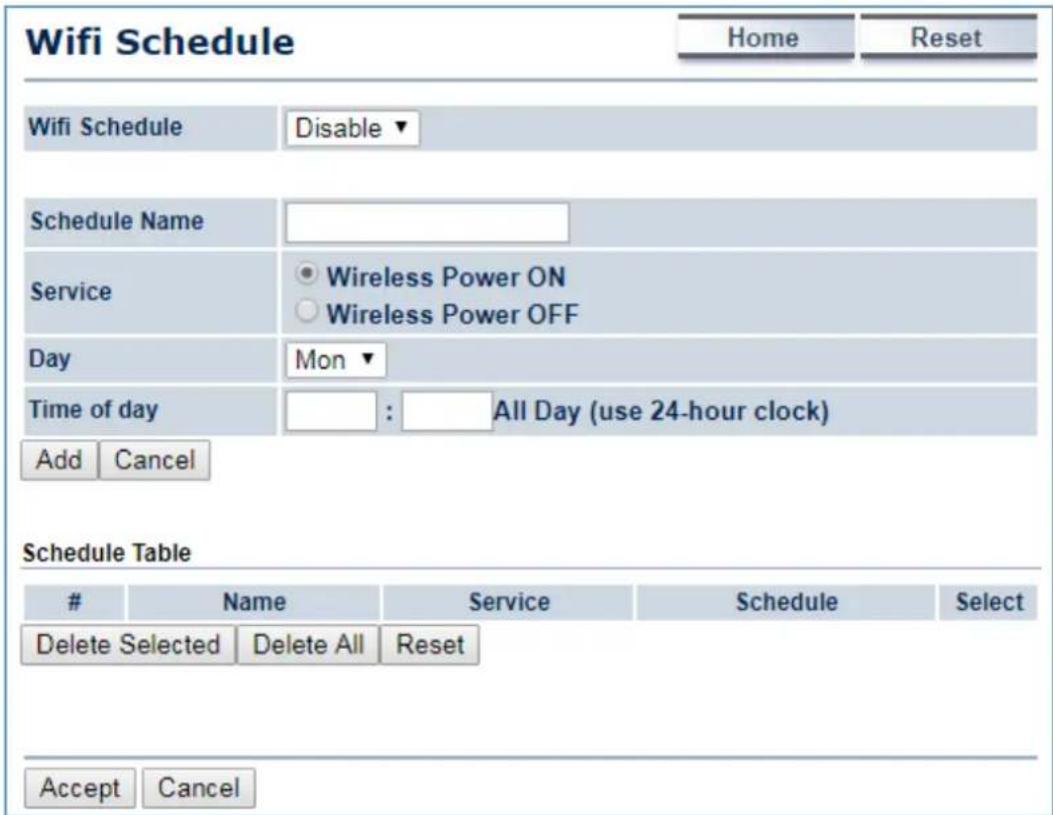
text_image
Wifi Schedule Home Reset Wifi Schedule Disable ▼ Schedule Name Service Wireless Power ON Wireless Power OFF Day Mon ▼ Time of day : All Day (use 24-hour clock) Add Cancel Schedule TableName Service Schedule Select
Delete Selected Delete All Reset Accept CancelFigure 5-55 Wi-Fi Schedule
The page includes the following settings:
| Object Description | |
| Schedule Name | Enter the description of the schedule service. |
| Service | Select the type of schedule service, either Wireless Power ON or Wireless Power OFF. |
| Day | Select the days of the week to enable the schedule service. |
| Time of Day | Set the start time that the service is active. |
| Add | Click Add to append the schedule service to the schedule service table |
| Cancel | Click Cancel to discard changes. |
5.6.9 CLI Settings
The command line interface (CLI) allows user to access the device through a command console, modem or Telnet connection for configuration.
Click "Management → CLI Settings" to enable/disable CLI.

text_image
CLI Settings Home Reset CLI ON OFF Save/Apply CancelFigure 5-56 CLI Settings
The page includes the following settings:
| Object Description | |
| • CLI | Select ON/OFF to enable or disable the ability to modify the device via a command line interface. |
| • Save/Apply | Click Save/Apply to apply all changes. |
| • Cancel | Click Cancel to cancel the settings. |
5.6.10 Log
Click "Management → Log" to enable/disable system log.
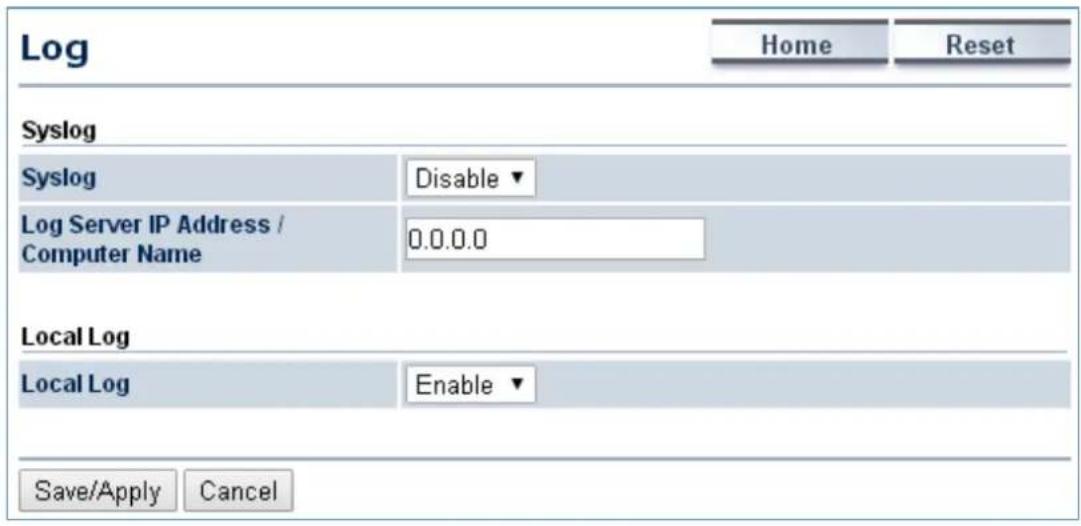
text_image
Log Home Reset Syslog Syslog Disable ▼ Log Server IP Address / Computer Name 0.0.0.0 Local Log Local Log Enable ▼ Save/Apply CancelFigure 5-57 Log
The page includes the following settings:
| Object Description | |
| • Syslog | Enable or disable the syslog function. |
| • Log Server IP Address | Enter the IP address of the log server. |
| • Local Log | Enable or disable the local log service. |
| • Save/Apply | Click Save/Apply to apply all changes. |
| • Cancel | Click Cancel to cancel the settings. |
5.6.11 Diagnostics
Click "Management → Diagnostics" to test the connection and performance through the built-in diagnostics utilities.

text_image
Diagnostics Home Reset Ping Test Parameters Target IP / Domain Name Ping Packet Size 64 Bytes Number of Pings 4 Start Ping Traceroute Test Parameters i Traceroute target Start Traceroute Speed Test Target Address Time Period 20 Sec Check Interval 5 Sec IPv4 Port 5001 IPv6 Port 5002 Start Speed TestFigure 5-58 Diagnostics
The page includes the following settings:
| Object Description | |
| • Target IP / Domain Name | Enter the IP address you would like to search. |
| • Ping Packet Size | Enter the packet size of each ping. |
| • Number of Pings | Enter the number of times you want to ping. |
| • Start Ping | Click Start Ping to begin pinging. |
| • Trace route target | Enter an IP address or domain name you want to trace. |
| • Start Traceroute | Click Start Traceroute to begin the traceroute operation. |
| • Target Address | Enter the IP address of the target PC. |
| • Time period | Enter time period for the speed test. |
| • Check Interval | Enter the interval for the speed test. |
| • Start Speed Test | Click Start Speed Test to begin the speed test operation. |
| • IPv4 Port | Displays the IPv4 port number of the device. |
| • IPv6 Port | Displays the IPv6 port number of the device. |
5.6.12 Logout
Click "Management → Logout" to log out the system.
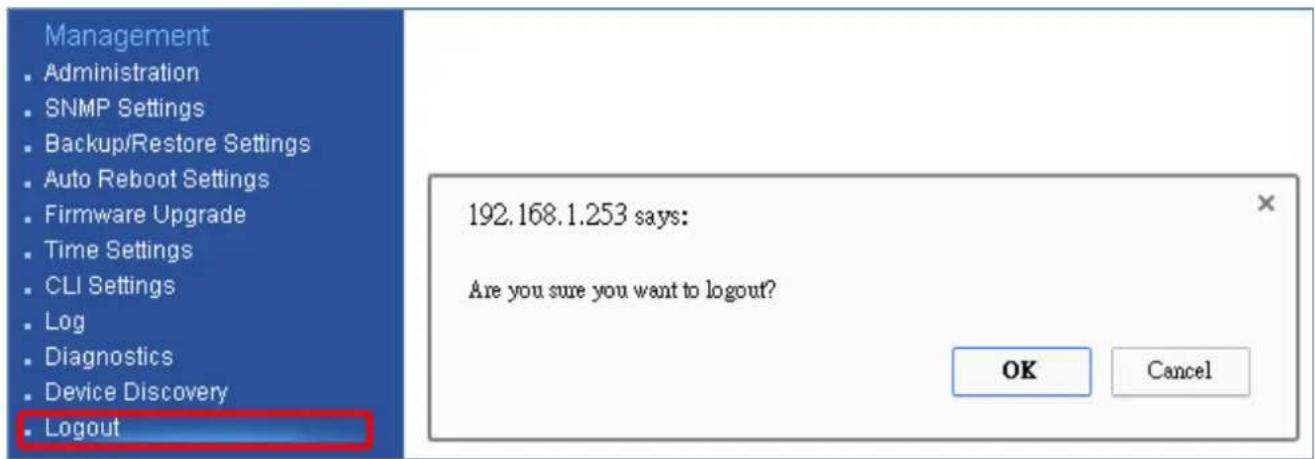
text_image
Management • Administration • SNMP Settings • Backup/Restore Settings • Auto Reboot Settings • Firmware Upgrade • Time Settings • CLI Settings • Log • Diagnostics • Device Discovery • Logout 192.168.1.253 says: Are you sure you want to logout? OK CancelFigure 5-59 Logout
The page includes the following settings:
| Object Description | |
| • OK | Click OK to log out the system. |
| • Cancel | Click Cancel to cancel the operation. |
Appendix A: Troubleshooting
If you find the AP is working improperly or stop responding to you, please read this troubleshooting first before contacting the Planet Tech Support for help. Some problems can be solved by yourself within a very short time.
| Scenario Solution | |
| The AP is not responding to me when I want to access it by web browser. | a. Please check the connection of the power cord and the Ethernet cable of this AP. All cords and cables should be correctly and firmly inserted to the AP.b. If all LEDs on this AP are off, please check the status of power adapter, and make sure it is correctly powered.c. You must use the same IP address section that AP uses.d. Are you using MAC or IP address filter? Try to connect the AP by another computer and see if it works; if not, please reset the AP to the factory default settings (Press the ‘reset’ button for over 10 seconds).e. Set your computer to static IP address, and see if the Planet Smart Discovery can find the AP or not.f. If you did a firmware upgrade and this happens, contact the Planet Tech Support for help.g. If all the solutions above don’t work, contact the Planet Tech Support for help. |
| I can’t get connected to the Internet. | a. Check the Internet connection status from the router that is connected with the AP.b. Please be patient. Sometimes Internet is just that slow.c. If you have connected a computer to Internet directly before, try to do that again, and check if you can get connected to Internet with your computer directly attached to the device provided by your Internet service provider.d. Check PPPoE / L2TP / PPTP user ID and password in your router again.e. Call your Internet service provider and check if there’s something wrong with their service.f. If you just can’t connect to one or more website, but you can still use other internet services, please check URL/Keyword filter.g. Try to reset the AP and try again later.h. Reset the device provided by your Internet service provider.i. Try to use IP address instead of hostname. If you can use IP address to communicate with a remote server, but can’t use hostname, please check DNS setting. |
| I can’t locate my AP by my wireless device. | a. ‘Broadcast ESSID’ set to off?b. The antenna is properly secured.c. Are you too far from your AP? Try to get closer.d. Please remember that you have to input ESSID on your wireless client manually, if ESSID broadcast is disabled. |
| File downloading is very slow or breaks frequently. | a. Are you using QoS function? Try to disable it and try again.b. Internet is slow sometimes; try to be patient.c. Try to reset the AP and see if it's better after that.d. Try to know what computers do on your local network. If someone's transferring big files, other people will think Internet is really slow.e. If this never happens before, call you Internet service provider to know if there is something wrong with their network. |
| I can't log into the web management interface; the password is wrong. | a. Make sure you're connecting to the correct IP address of the AP.b. Password is case-sensitive. Make sure the 'Caps Lock' light is not illuminated.c. If you really forget the password, do a hard reset. |
| The AP becomes hot. | a. This is not a malfunction if you can keep your hand on the AP's case.b. If you smell something wrong or see the smoke coming out from AP or A/C power adapter, please disconnect the AP and A/C power adapter from utility power (make sure it's safe before you're doing this!), and call your dealer for help. |
Appendix B: Use Planet Smart Discovery to find AP
To easily discover the WAP-500N/WBS-500N in your Ethernet environment, the Planet Smart Discovery Utility is an ideal solution. The utility is available at: http://www.planet.com.tw/en/product/images/48590/Planet_Utility.zip
The following instructions will guide you to how to use the Planet Smart Discovery Utility.
Step 1. Deposit the Planet Smart Discovery Utility in administrator PC.
Step 2. Execute this utility.

Planet_Utility.exe PLANET Corp.
Step 3. Click the "Refresh" button as shown below to update the list of the currently connected devices.
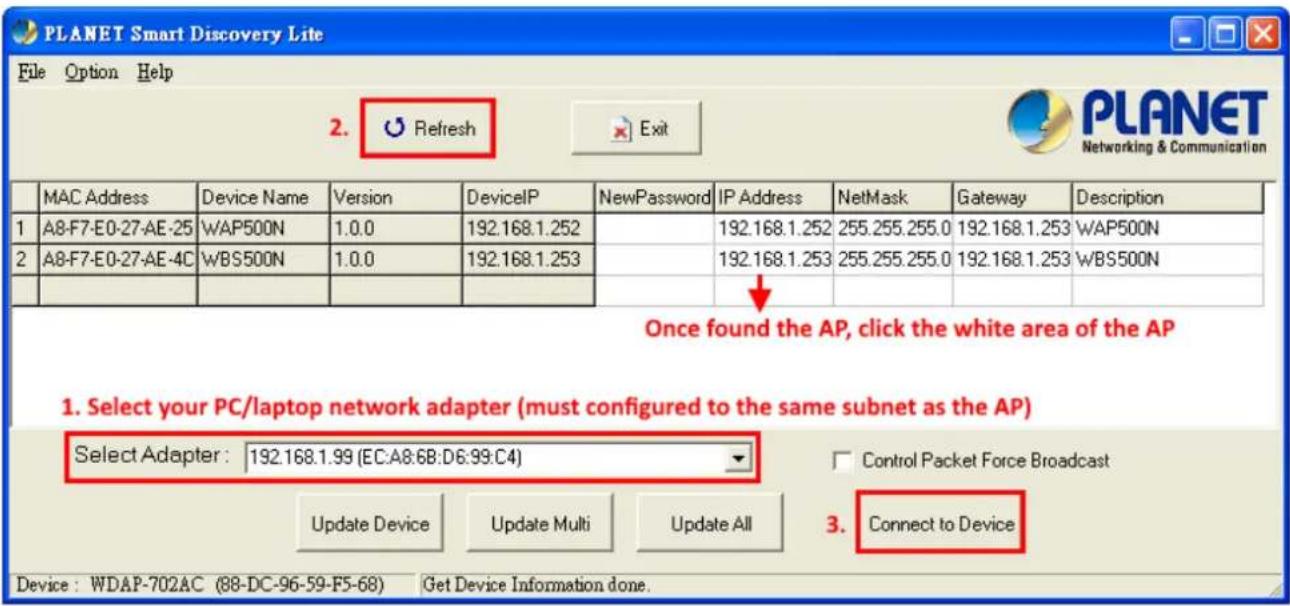
text_image
PLANET Smart Discovery Lite File Option Help 2. Refresh Exit MAC Address Device Name Version DeviceIP NewPassword IP Address NetMask Gateway Description 1 A8-F7-E0-27-AE-25 WAP500N 1.0.0 192.168.1.252 192.168.1.252 255.255.255.0 192.168.1.253 WAP500N 2 A8-F7-E0-27-AE-4C WBS500N 1.0.0 192.168.1.253 192.168.1.253 255.255.255.0 192.168.1.253 WBS500N Once found the AP, click the white area of the AP 1. Select your PC/laptop network adapter (must configured to the same subnet as the AP) Select Adapter: 192.168.1.99 (EC:A8:6B:D6:99:C4) Control Packet Force Broadcast Update Device Update Multi Update All 3. Connect to Device Device: WDAP-702AC (88-DC-96-59-F5-68) Get Device Information done.Figure B-1 PLANET Smart Discovery
Step 4. Select the AP from the list and then click the “Connect to Device” button to link to the Web Management Configuration Page.

The fields in white background can be modified directly, and then you can apply the new setting by clicking the "Update Device" button.
Appendix C: FAQ
Q1: How to set up the AP Client Connection
Topology:
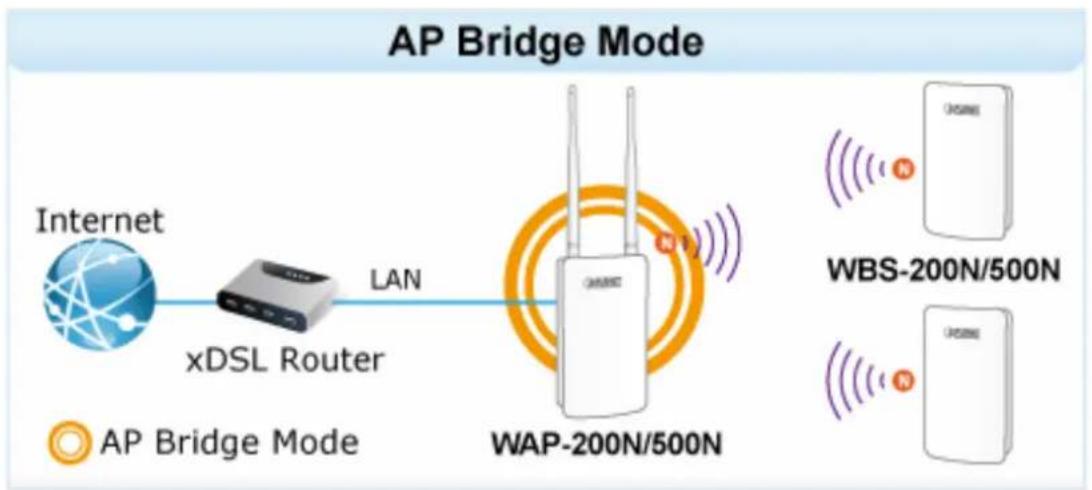
flowchart
graph LR
    A["Internet"] -->|LAN| B["xDSL Router"]
    B --> C["WAP-200N/500N"]
    D["AP Bridge Mode"] --> E["WBS-200N/500N"]
    F["Wireless Device"] --> G["Wireless Device"]
- Use static IP in the PCs that are connected with AP-1 (Site-1) and AP-2 (Site-2). In this case, Site-1 is "192.168.1.100", and Site-2 is "192.168.1.200".

text_image
Local Area Connection Properties Networking Connect using: Realtek PCIe FE Family Controller Configure... This connection uses the following items: Client for Microsoft Networks AVG network filter driver QoS Packet Scheduler File and Printer Sharing for Microsoft Networks Internet Protocol Version 6 (TCP/IPv6) Internet Protocol Version 4 (TCP/IPv4) Link-Layer Topology Discovery Mapper I/O Driver Link-Layer Topology Discovery Responder Install... Uninstall Properties Description Transmission Control Protocol/Internet Protocol. The default wide area network protocol that provides communication across diverse interconnected networks. Internet Protocol Version 4 (TCP/IPv4) Properties General You can get IP settings assigned automatically if your network supports this capability. Otherwise, you need to ask your network administrator for the appropriate IP settings. Obtain an IP address automatically Use the following IP address: IP address: 192 . 168 . 1 . 100 Subnet mask: 255 . 255 . 255 . 0 | Default gateway: . Obtain DNS server address automatically Use the following DNS server addresses: Preferred DNS server: . Alternate DNS server: . Validate settings upon exit Advanced... OK Cancel OK Cancel- In the AP-1, go to "System->IP Settings" to configure the IP address to static and different from the CPE.

text_image
IP Settings Home Reset System Information IP Network Setting Obtain an IP address automatically (DHCP) Specify an IP address IP Address 192 . 168 . 1 . 252 IP Subnet Mask 255 . 255 . 255 . 0 Default Gateway 192 . 168 . 1 . 253 Primary DNS 0 . 0 . 0 . 0 Secondary DNS 0 . 0 . 0 . 0 Use Link-Local Address ✓ IPv6 IP Address IPv6 Subnet Prefix Length IPv6 Default Gateway IPv6 Primary DNS IPv6 Secondary DNS Accept Cancel- In the AP-1, go to "System->Operation Mode" and set it to use "Access Point" mode. Then, click "Save & Apply".
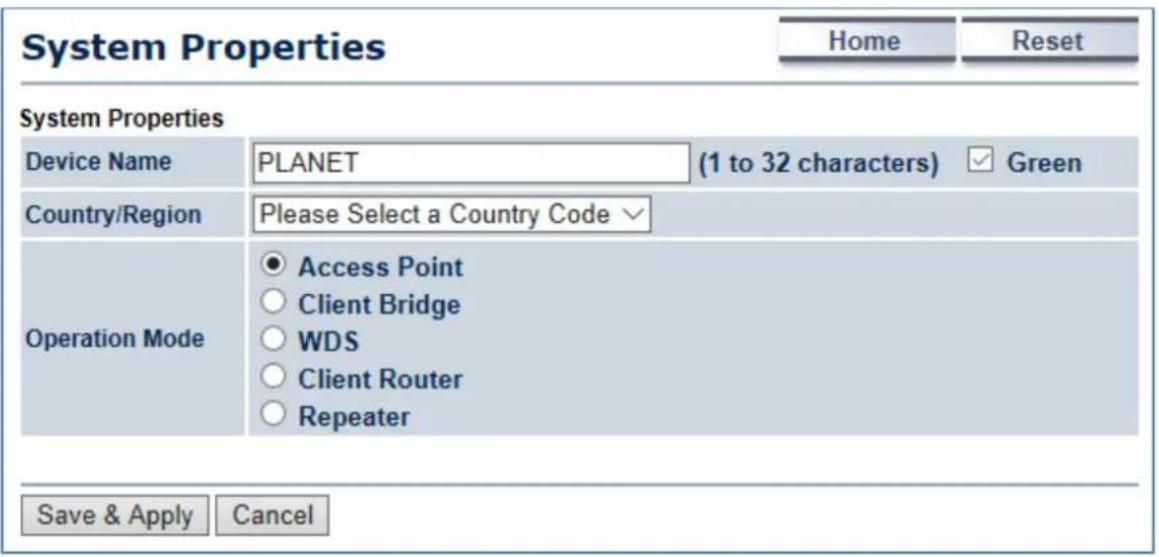
text_image
System Properties Home Reset System Properties Device Name PLANET (1 to 32 characters) ✓ Green Country/Region Please Select a Country Code ✓ Operation Mode ● Access Point ○ Client Bridge ○ WDS ○ Client Router ○ Repeater Save & Apply Cancel- In the AP-1, go to "Wireless-> Wireless Network" to configure channel and click "Edit" for security setting.
(1) Channel HT Mode: Set to "40MHz" for wider bandwidth
(2) Channel/Frequency: Uncheck "Auto" and set to a fixed channel

text_image
Wireless Network Home Reset Wireless Mode 802.11 A/N Mixed ▼ Channel HT Mode 40MHz ▼ Extension Channel Upper Channel ▼ Channel / Frequency Ch36-5.18GHz ▼ Auto AP Detection Scan Current Profiles SSID Security Isolation VID Enable Edit PLANET1 None □ 1 ✓ Edit PLANET2 None □ 2 □ Edit PLANET3 None □ 3 □ Edit PLANET4 None □ 4 □ Edit Accept Cancel- In the SSID Profile, you can configure your own SSID and Passphrase. Then, click "Save" to go back to the main page.
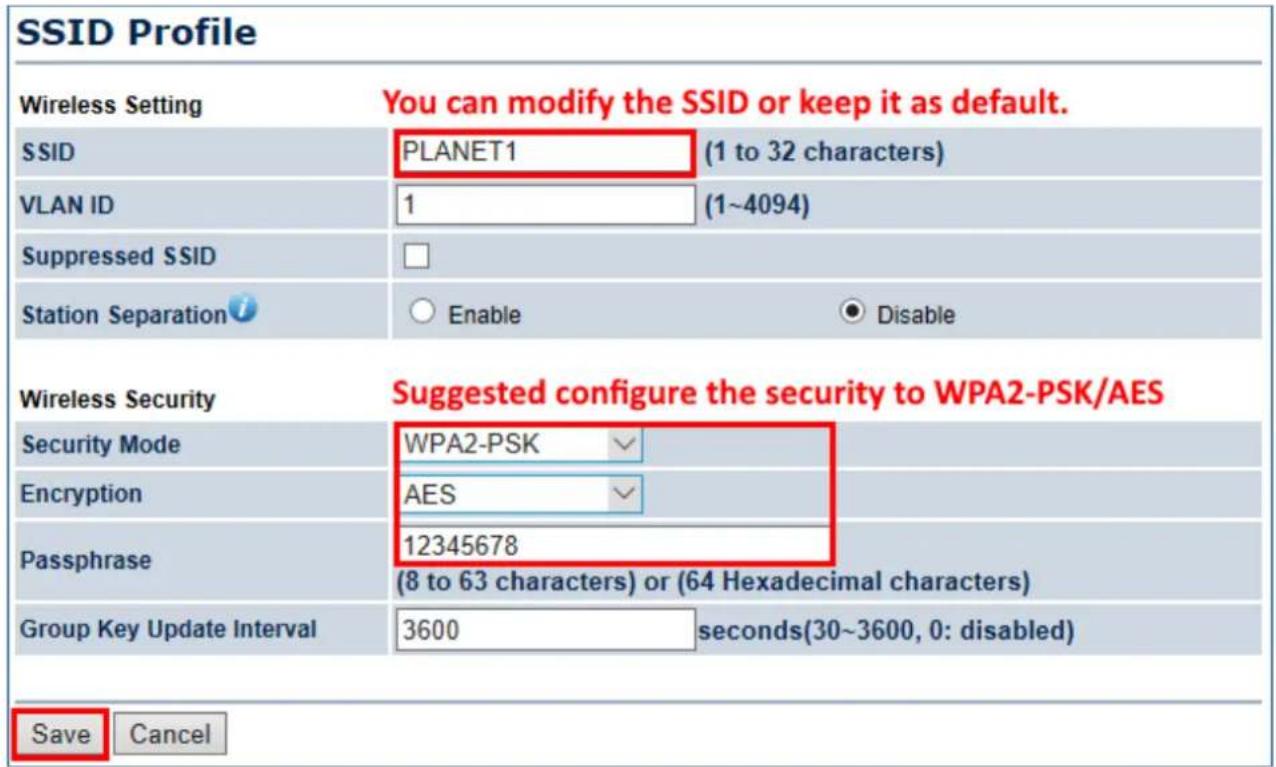
text_image
SSID Profile Wireless Setting You can modify the SSID or keep it as default. SSID PLANET1 (1 to 32 characters) VLAN ID 1 (1~4094) Suppressed SSID Station Separation i Enable Disable Wireless Security Suggested configure the security to WPA2-PSK/AES Security Mode WPA2-PSK Encryption AES Passphrase 12345678 (8 to 63 characters) or (64 Hexadecimal characters) Group Key Update Interval 3600 seconds(30~3600, 0: disabled) Save Cancel- Click "Accept" to save the configurations.

text_image
Wireless Network Home Reset Wireless Mode 802.11 A/N Mixed ▼ Channel HT Mode 40MHz ▼ Extension Channel Upper Channel ▼ Channel / Frequency Ch36-5.18GHz □ Auto AP Detection Scan Current Profiles SSID Security Isolation VID Enable Edit PLANET1 WPA2-PSK AES 1 Edit PLANET2 None 2 Edit PLANET3 None 3 Edit PLANET4 None 4 Edit Accept Cancel- Go to the "Status->Save/Reload" page to click the "Save & Apply" to enable the AP to reboot so that it can apply all configurations and take effect.
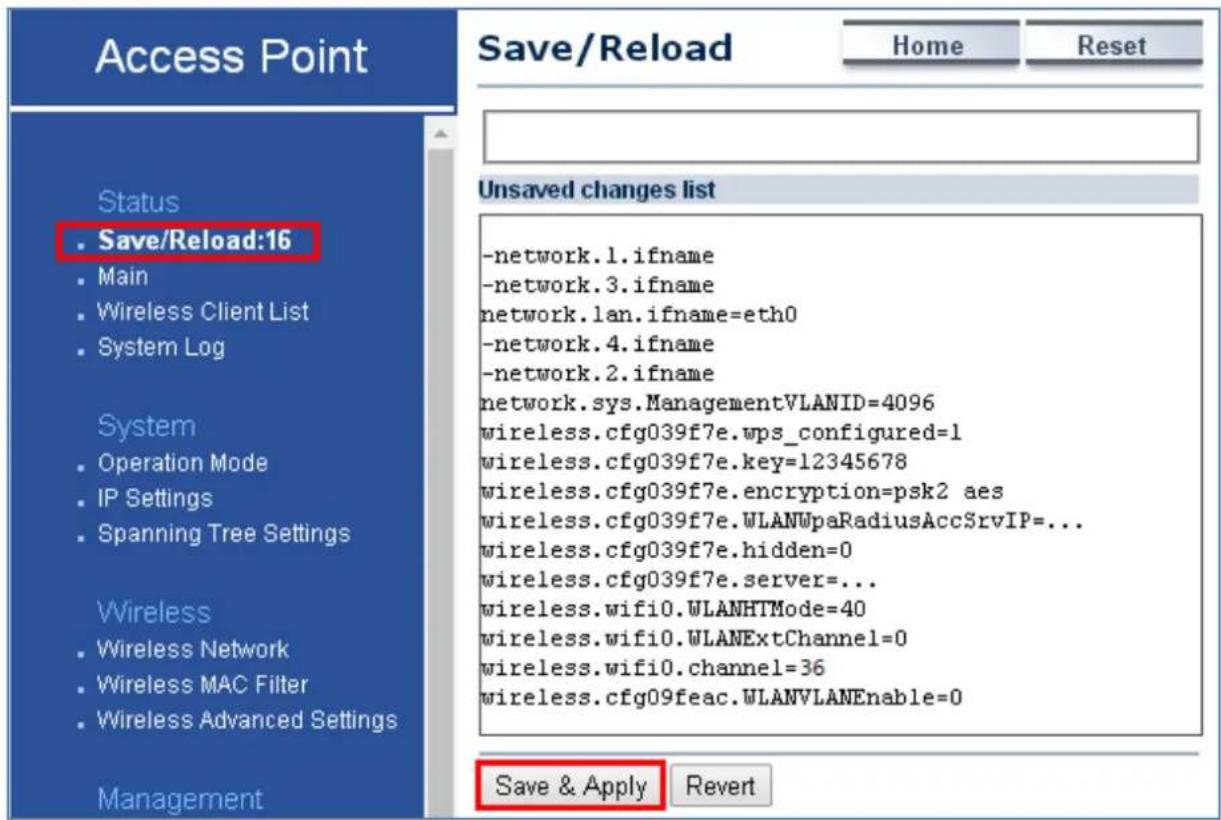
text_image
Access Point Save/Reload Home Reset Status • Save/Reload:16 • Main • Wireless Client List • System Log System • Operation Mode • IP Settings • Spanning Tree Settings Wireless • Wireless Network • Wireless MAC Filter • Wireless Advanced Settings Management Unsaved changes list -network.1.ifname -network.3.ifname network.lan.ifname=eth0 -network.4.ifname -network.2.ifname network.sys.ManagementVLANID=4096 wireless.cfg039f7e.wps configured=1 wireless.cfg039f7e.key=12345678 wireless.cfg039f7e.encryption=psk2 aes wireless.cfg039f7e.WLANWpaRadiusAccSrvIP=... wireless.cfg039f7e.hidden=0 wireless.cfg039f7e.server=... wireless.wifi0.WLANHTMode=40 wireless.wifi0.WLANExtChannel=0 wireless.wifi0.channel=36 wireless.cfg09feac.WLANVLANEnable=0 Save & Apply Revert- In the AP-2, go to "System->IP Settings" to configure the IP address to static and different from the CPE.

text_image
IP Settings Home Reset System Information IP Network Setting Obtain an IP address automatically (DHCP) Specify an IP address IP Address 192 . 168 . 1 . 253 IP Subnet Mask 255 . 255 . 255 . 0 Default Gateway 192 . 168 . 1 . 253 Primary DNS 0 . 0 . 0 . 0 Secondary DNS 0 . 0 . 0 . 0 Use Link-Local Address ✓ IPv6 IP Address IPv6 Subnet Prefix Length IPv6 Default Gateway IPv6 Primary DNS IPv6 Secondary DNS Accept Cancel- In the AP-2, go to "System->Operation Mode" and set it to use "Client Bridge" mode. Then, click "Save & Apply".

text_image
System Properties Home Reset System Properties Device Name PLANET (1 to 32 characters) ✓ Green Country/Region Please Select a Country Code ✓ Operation Mode ○ Access Point ● Client Bridge ○ WDS ○ Client Router ○ Repeater Save & Apply Cancel- In the AP-2, go to "Wireless-> Wireless Network". Click "Site Survey" to discover the AP-1.
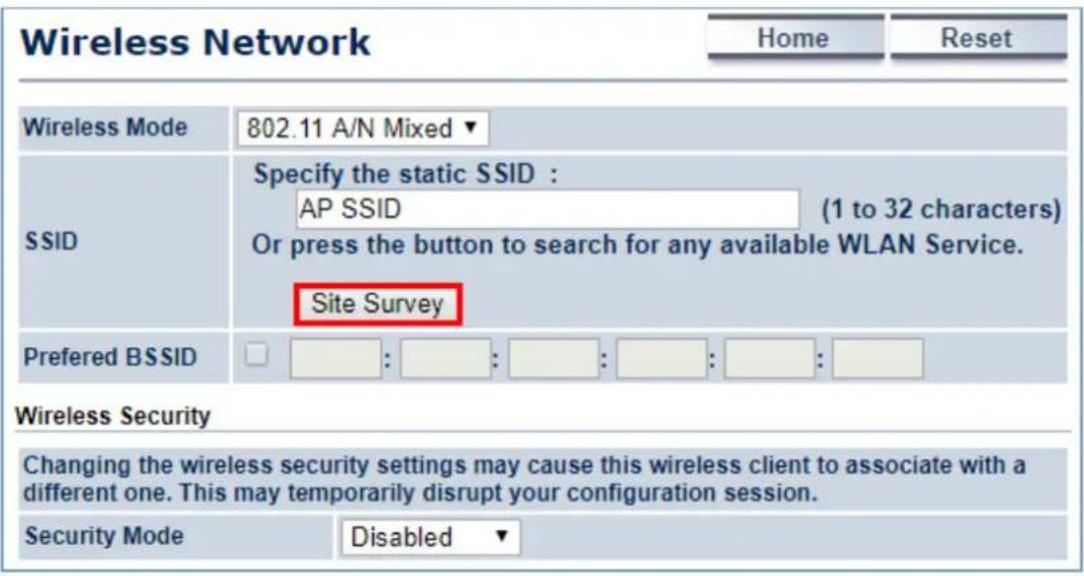
text_image
Wireless Network Home Reset Wireless Mode 802.11 A/N Mixed ▼ SSID Specify the static SSID : AP SSID (1 to 32 characters) Or press the button to search for any available WLAN Service. Site Survey Preferred BSSID : : : : : : : : Wireless Security Changing the wireless security settings may cause this wireless client to associate with a different one. This may temporarily disrupt your configuration session. Security Mode Disabled ▼- Click the AP-1 to let the AP-2 to connect it. Then, it will go back to the main page.

text_image
Site Survey 5GHz Site Survey :Infrastructure :Ad_hoc BSSID SSID Channel Signal Level Type Security Mode A8:F7:E0:42:12:83 PLANET1 36 -57 dBm 11a/n WPA2-PSK 00:30:4F:CE:94:63 CHT Wi-Fi Auto 44 -80 dBm 11a/n WPA/WPA2 00:30:4F:B3:47:C6 11F_Demo_Room 40 -83 dBm 11a/n WPA2-PSK Refresh- Click the check box of the preferred BSSID and configure the encryption similar to the AP-1. Then, click "Accept" to save the configurations.
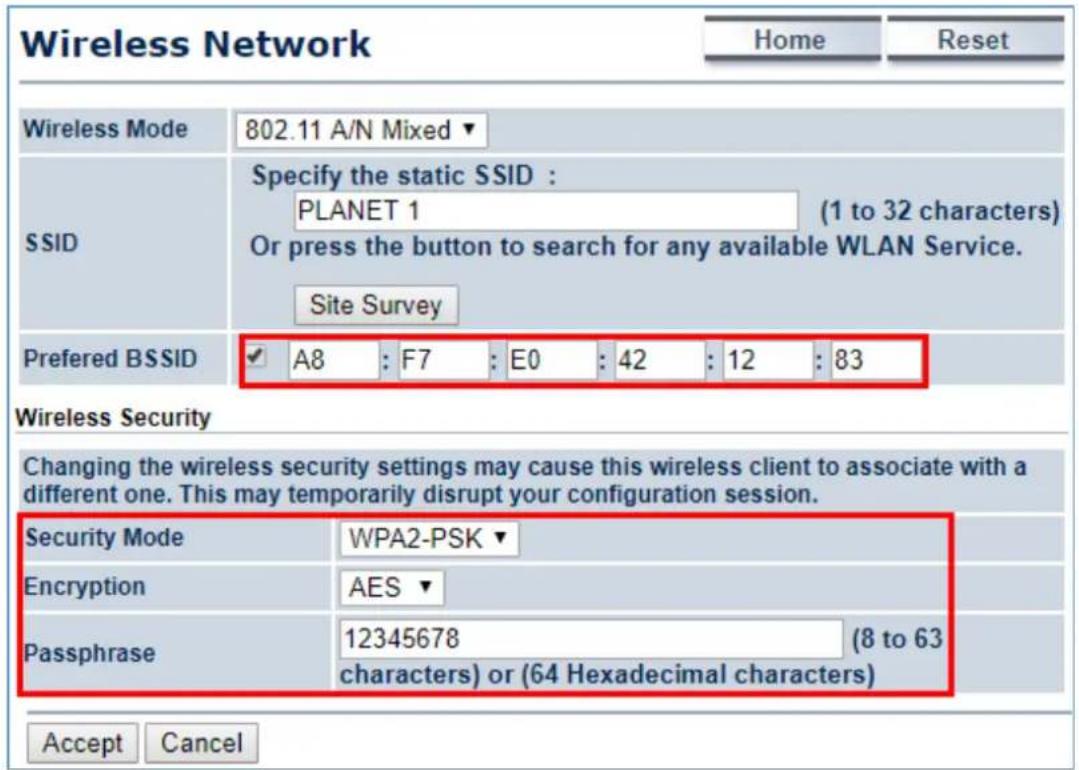
text_image
Wireless Network Home Reset Wireless Mode 802.11 A/N Mixed ▼ SSID Specify the static SSID : PLANET 1 (1 to 32 characters) Or press the button to search for any available WLAN Service. Site Survey Preferred BSSID ✓ A8 : F7 : E0 : 42 : 12 : 83 Wireless Security Changing the wireless security settings may cause this wireless client to associate with a different one. This may temporarily disrupt your configuration session. Security Mode WPA2-PSK ▼ Encryption AES ▼ Passphrase 12345678 (8 to 63 characters) or (64 Hexadecimal characters) Accept Cancel- Go to the "Status-> Save/Reload" page to click the "Save & Apply" to enable the AP to reboot so that it can apply all configurations and take effect.

text_image
Client Bridge Status • Save/Reload:7 • Main • Connection Status • System Log System • Operation Mode • IP Settings • Spanning Tree Settings Wireless Save/Reload Home Reset Unsaved changes list wireless.cfg039e49.auth=MSCHAP wireless.cfg039e49.ssid=PLANET1 wireless.cfg039e49.encryption=psk2 aes wireless.cfg039e49.eap_type=PEAP wireless.cfg039e49.bssid=A8:F7:E0:42:12:83 wireless.cfg039e49.key=12345678 wireless.cfg039e49.PreferBSSIDEnable=0 Save & Apply Revert- In the AP-2, go to the "Status->Connection Status" page to check whether the AP-2 is associated with the AP-1 successfully.
| Connection Status | Home | Reset | |
| Network Type | Client Bridge | ||
| SSID | PLANET1 | ||
| BSSID | A8:F7:E0:42:12:83 | ||
| Connection Status | Associated | ||
| Wireless Mode | IEEE 802.11n/a Mixed | ||
| Current Channel | 5.18 GHz(Channel 36) | ||
| Security | WPA2-PSK AES | ||
| Tx Data Rates(Mbps) | 78 Mbps | ||
| Current noise level | -95 dBm | ||
| Signal strength | -51 dBm | ||
| Refresh | |||
- In the AP-1, go to the "Status-> Wireless Client List" page to check the client's signal strength.
| Client List | Home | Reset | |||
| SSID:# | MAC Address | TX(Bytes) | RX(Bytes) | RSSI(dBm) | Kick and Ban |
| SSID1:#1 | a8:f7:e0:2f:83:57 | 45345Kb | 45993Kb | -27 | Kick |
| Refresh | |||||
- Use command line tool to ping each other to ensure the link is successfully established.
E.g. from Site-1, ping 192.168.1.200; and at Site-2, ping 192.168.1.100.

text_image
C:\WINDOWS\system32\CMD.exe - ping 192.168.1.100 -t Destination host unreachable. Destination host unreachable. Destination host unreachable. Destination host unreachable. Destination host unreachable. Ping statistics for 192.168.0.100: Packets: Sent = 25, Received = 0, Lost = 25 (100% loss), Control-C ^C C:\Documents and Settings\Administrator>ping 192.168.1.100 -t Pinging 192.168.1.100 with 32 bytes of data: Request timed out. Reply from 192.168.1.100: bytes=32 time=7ns TTL=128 Reply from 192.168.1.100: bytes=32 time=1ns TTL=128 Reply from 192.168.1.100: bytes=32 time=2ns TTL=128 Reply from 192.168.1.100: bytes=32 time=1ns TTL=128 Reply from 192.168.1.100: bytes=32 time=2ns TTL=128 Reply from 192.168.1.100: bytes=32 time=2ns TTL=128 Reply from 192.168.1.100: bytes=32 time=1ns TTL=128 Reply from 192.168.1.100: bytes=32 time=1ns TTL=128
The following should be noted:
1) The encryption method must be the same at both sites if configured.
2) Both sites should be Line-of-Sight.
3) 5dBi antennas are included in the package for the WAP-500N; for long distance of over 1km, connect to the 5GHz antennas with higher gain.
4) For PtP connection over 1km, please adjust "Distance" setting to the actual distance between both sites on the' both sites' setting page.
5) To adjust "Transmit Power", please:
(a) Go to the "Operation Mode" page to disable the "Green" option.
(b) Go to "Wireless Advanced Settings-> Transmit Power" to manually adjust the transmit power.
Q2: How to set up the WDS Connection
Topology:
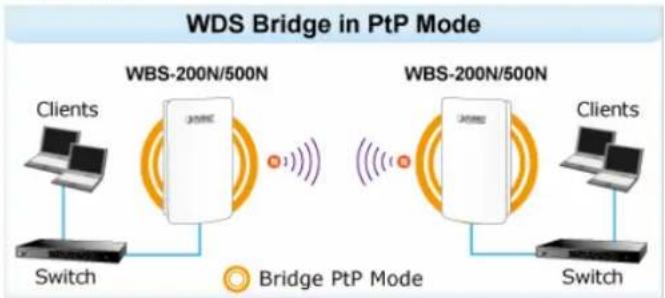
flowchart
graph LR
    A["Clients"] --> B["Switch"]
    B --> C["WBS-200N/500N"]
    C --> D["Bridge PtP Mode"]
    D --> E["Clients"]
    E --> F["Switch"]
    F --> G["WBS-200N/500N"]
    G --> H["Bridge PtP Mode"]
    H --> I["Clients"]
    I --> J["Switch"]
    J --> K["WBS-200N/500N"]
    K --> L["Bridge PtP Mode"]
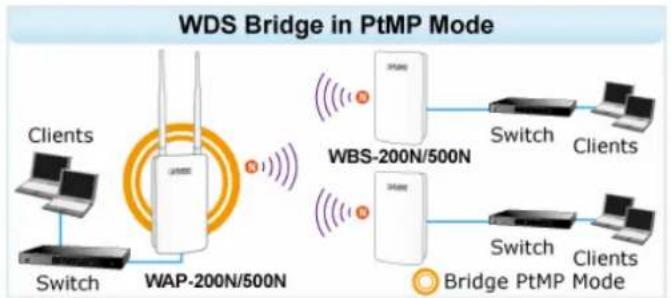
flowchart
graph LR
    A["Clients"] --> B["Switch"]
    B --> C["WAP-200N/500N"]
    C --> D["Wireless Link"]
    D --> E["WBS-200N/500N"]
    E --> F["Switch"]
    F --> G["Clients"]
    E --> H["Switch"]
    H --> I["Clients"]
    J["Bridge PtMP Mode"] --> K["Wireless Link"]
    K --> L["Wireless Link"]
    L --> M["Wireless Link"]
    M --> N["Wireless Link"]
- Use static IP in the PCs that are connected with WBS-500N-1 (Site-1) and WBS-500N-2 (Site-2). In this case, Site-1 is "192.168.1.100", and Site-2 is "192.168.1.200".
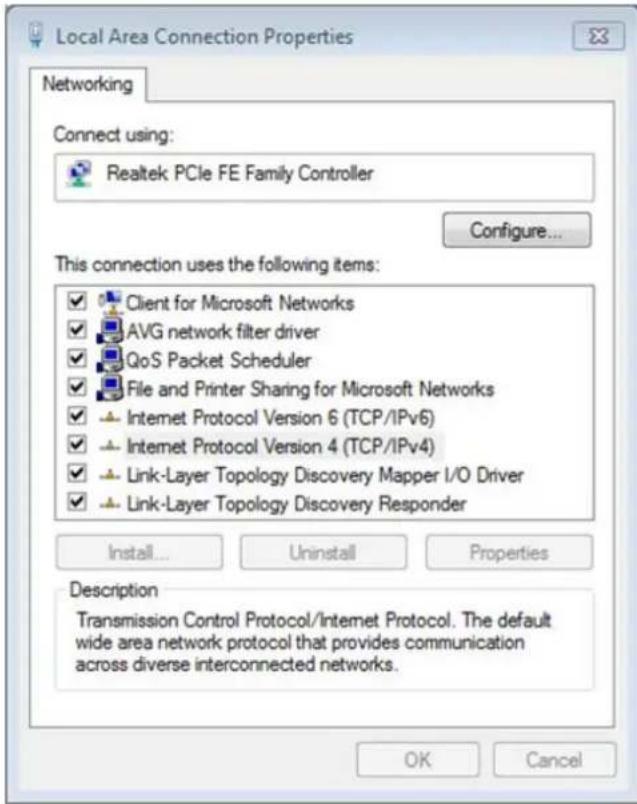
text_image
Local Area Connection Properties Networking Connect using: Realtek PCIe FE Family Controller Configure... This connection uses the following items: ✓ Client for Microsoft Networks ✓ AVG network filter driver ✓ QoS Packet Scheduler ✓ File and Printer Sharing for Microsoft Networks ✓ Internet Protocol Version 6 (TCP/IPv6) ✓ Internet Protocol Version 4 (TCP/IPv4) ✓ Link-Layer Topology Discovery Mapper I/O Driver ✓ Link-Layer Topology Discovery Responder Install... Uninstall Properties Description Transmission Control Protocol/Internet Protocol. The default wide area network protocol that provides communication across diverse interconnected networks. OK Cancel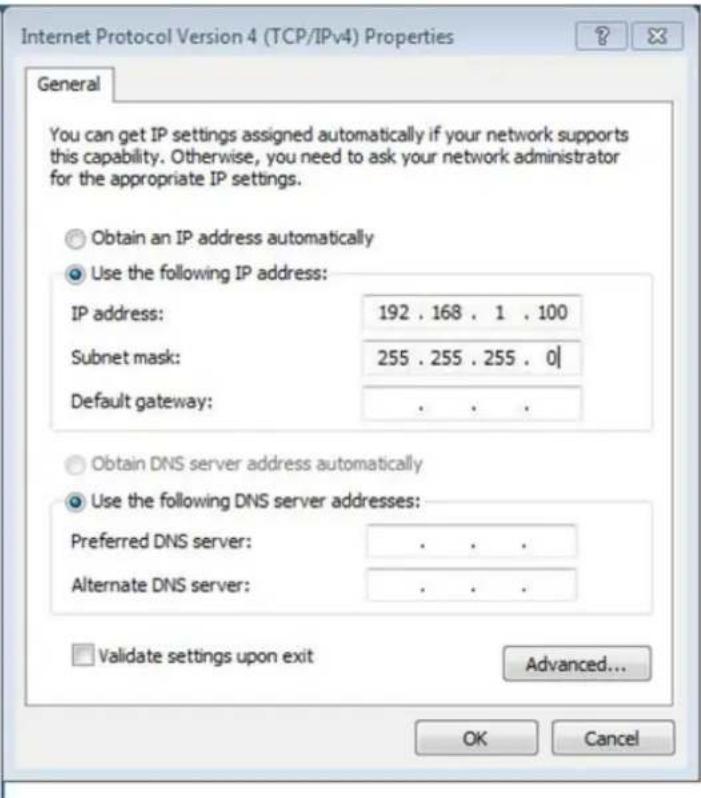
text_image
Internet Protocol Version 4 (TCP/IPv4) Properties General You can get IP settings assigned automatically if your network supports this capability. Otherwise, you need to ask your network administrator for the appropriate IP settings. Obtain an IP address automatically Use the following IP address: IP address: 192 . 168 . 1 . 100 Subnet mask: 255 . 255 . 255 . 0 | Default gateway: . Obtain DNS server address automatically Use the following DNS server addresses: Preferred DNS server: . Alternate DNS server: . Validate settings upon exit Advanced... OK Cancel- In the AP-1, go to "System->IP Settings" to configure the IP address to static and different from the CPE.
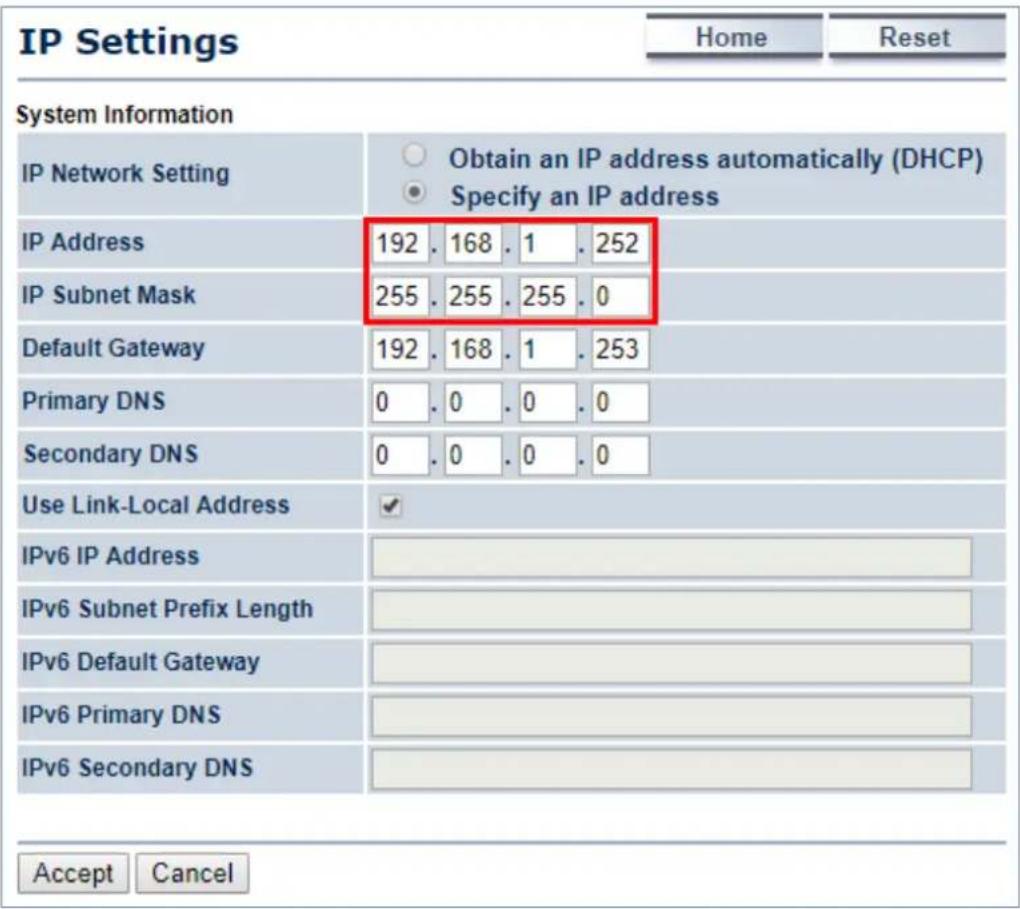
text_image
IP Settings Home Reset System Information IP Network Setting Obtain an IP address automatically (DHCP) Specify an IP address IP Address 192 . 168 . 1 . 252 IP Subnet Mask 255 . 255 . 255 . 0 Default Gateway 192 . 168 . 1 . 253 Primary DNS 0 . 0 . 0 . 0 Secondary DNS 0 . 0 . 0 . 0 Use Link-Local Address ✓ IPv6 IP Address IPv6 Subnet Prefix Length IPv6 Default Gateway IPv6 Primary DNS IPv6 Secondary DNS Accept Cancel- In the AP-1, go to "System->Operation Mode" and set it to use "WDS Access Point" mode. Then, click "Save & Apply".

text_image
System Properties Home Reset System Properties Device Name PLANET (1 to 32 characters) Green Country/Region Please Select a Country Code Operation Mode Access Point Client Bridge WDS Access Point Bridge Station Client Router Repeater Save & Apply Cancel- In the AP-1, go to "Wireless-> Wireless Network" to configure channel and click "Edit" for security setting.
(1) Channel HT Mode: Set to "40MHz" for wider bandwidth
(2) Channel/Frequency: Uncheck "Auto" and set to a fixed channel

text_image
Wireless Network Home Reset Wireless Mode 802.11 A/N Mixed ▼ Channel HT Mode 40MHz ▼ Extension Channel Upper Channel ▼ Channel / Frequency Ch36-5.18GHz □ Auto AP Detection Scan Current Profiles SSID Security Isolation VID Enable Edit PLANET1 None □ 1 ✓ Edit PLANET2 None □ 2 □ Edit PLANET3 None □ 3 □ Edit PLANET4 None □ 4 □ Edit Accept Cancel- In the SSID Profile, you can configure your own SSID and passphrase. Then, click "Save" to go back to the main page.
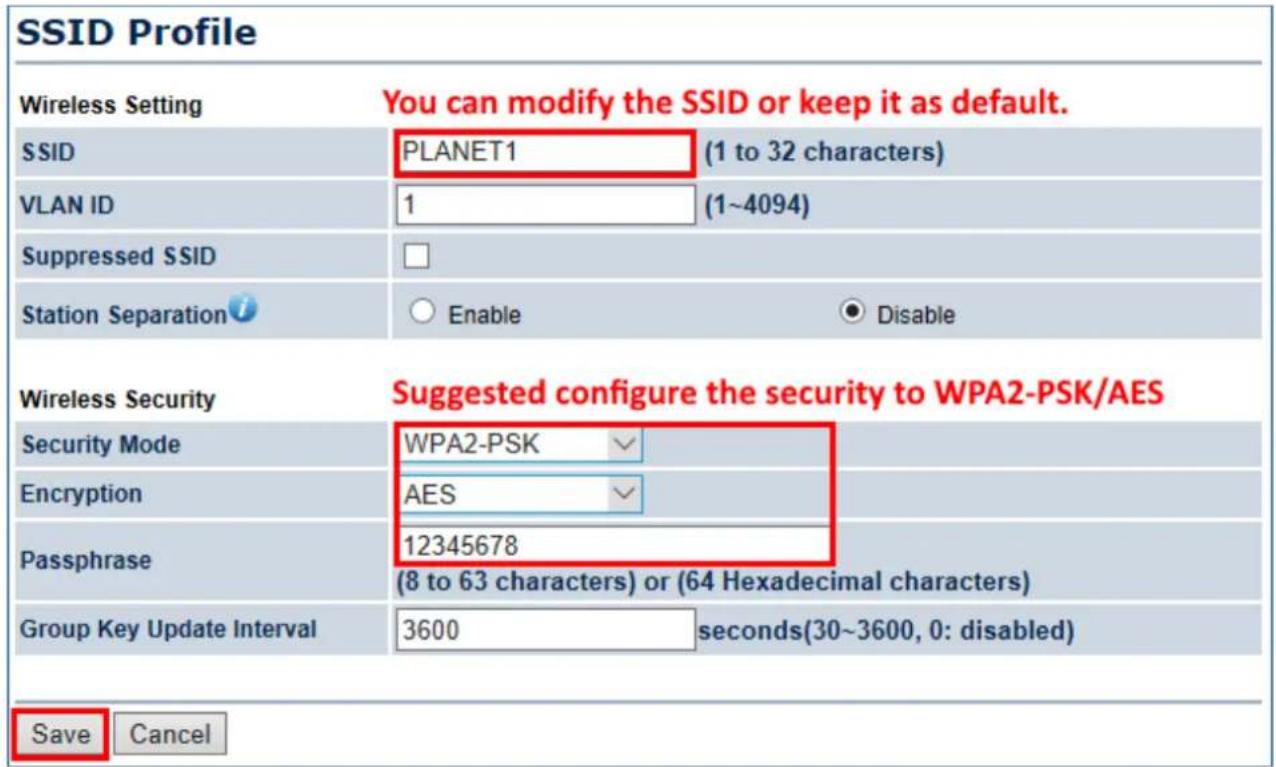
text_image
SSID Profile Wireless Setting You can modify the SSID or keep it as default. SSID PLANET1 (1 to 32 characters) VLAN ID 1 (1~4094) Suppressed SSID Station Separation ○ Enable ● Disable Wireless Security Suggested configure the security to WPA2-PSK/AES Security Mode WPA2-PSK Encryption AES Passphrase 12345678 (8 to 63 characters) or (64 Hexadecimal characters) Group Key Update Interval 3600 seconds(30~3600, 0: disabled) Save Cancel- Click "Accept" to save the configurations.
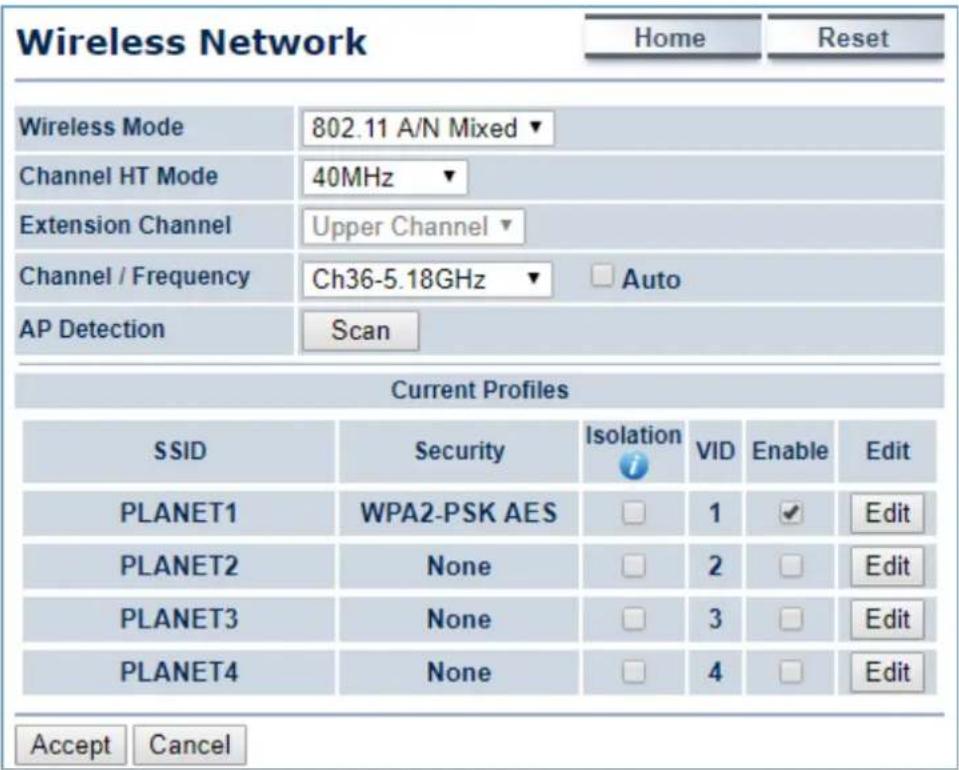
text_image
Wireless Network Home Reset Wireless Mode 802.11 A/N Mixed ▼ Channel HT Mode 40MHz ▼ Extension Channel Upper Channel ▼ Channel / Frequency Ch36-5.18GHz □ Auto AP Detection Scan Current Profiles SSID Security Isolation VID Enable Edit PLANET1 WPA2-PSK AES □ 1 ✓ Edit PLANET2 None □ 2 □ Edit PLANET3 None □ 3 □ Edit PLANET4 None □ 4 □ Edit Accept Cancel- Go to the "Status->Save/Reload" page to click the "Save & Apply" to enable the AP to reboot so that it can apply all configurations and take effect.
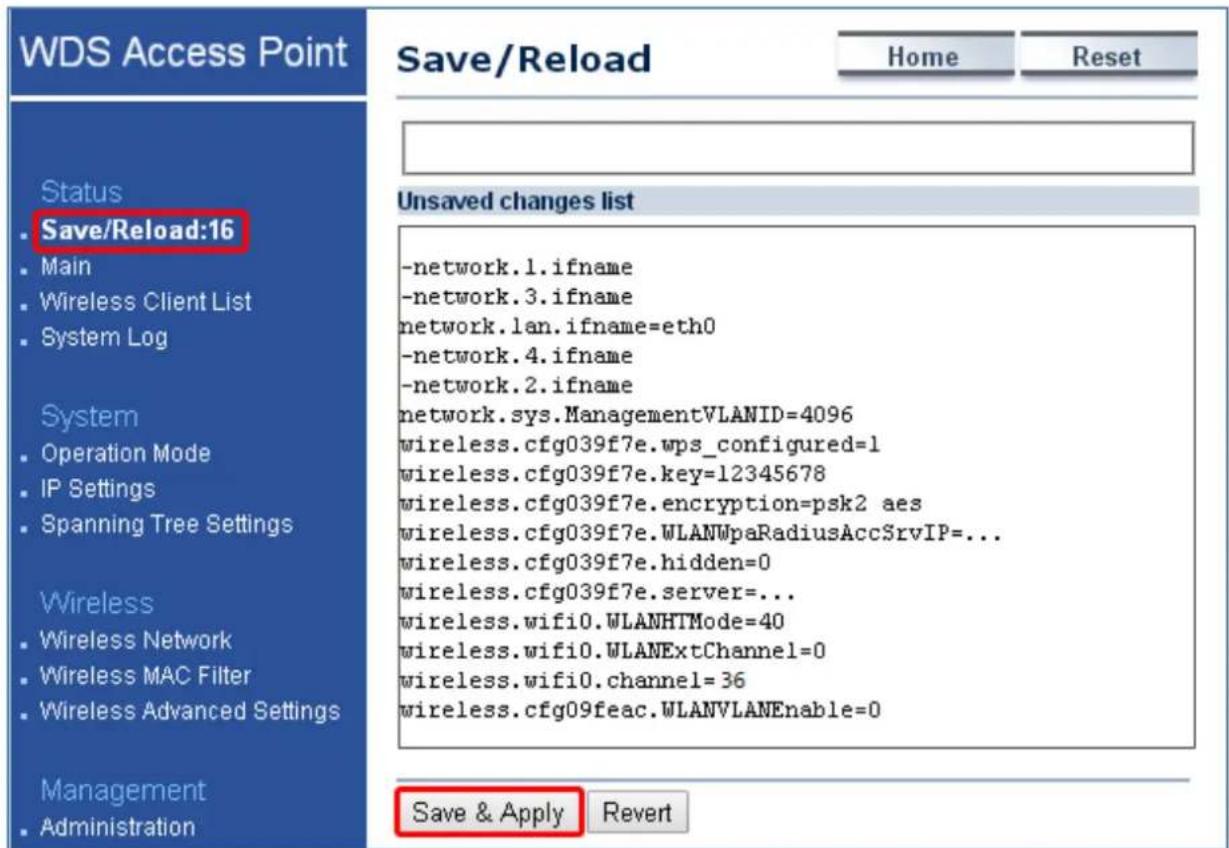
text_image
WDS Access Point Save/Reload Home Reset Status • Save/Reload:16 • Main • Wireless Client List • System Log System • Operation Mode • IP Settings • Spanning Tree Settings Wireless • Wireless Network • Wireless MAC Filter • Wireless Advanced Settings Management • Administration Unsaved changes list -network.1.ifname -network.3.ifname network.lan.ifname=eth0 -network.4.ifname -network.2.ifname network.sys.ManagementVLANID=4096 wireless.cfg039f7e.wps_configured=1 wireless.cfg039f7e.key=12345678 wireless.cfg039f7e.encryption=psk2 aes wireless.cfg039f7e.WLANWpaRadiusAccSrvIP=... wireless.cfg039f7e.hidden=0 wireless.cfg039f7e.server=... wireless.wifi0.WLANHTMode=40 wireless.wifi0.WLANExtChannel=0 wireless.wifi0.channel=36 wireless.cfg09feac.WLANVLANEnable=0 Save & Apply Revert- In the AP-2, go to "System->IP Settings" to configure the IP address to static and different from the CPE.

text_image
IP Settings Home Reset System Information IP Network Setting Obtain an IP address automatically (DHCP) Specify an IP address IP Address 192 . 168 . 1 . 253 IP Subnet Mask 255 . 255 . 255 . 0 Default Gateway 192 . 168 . 1 . 253 Primary DNS 0 . 0 . 0 . 0 Secondary DNS 0 . 0 . 0 . 0 Use Link-Local Address ✓ IPv6 IP Address IPv6 Subnet Prefix Length IPv6 Default Gateway IPv6 Primary DNS IPv6 Secondary DNS Accept Cancel- In the AP-2, go to "System->Operation Mode" and set it to use "WDS Station" mode. Then, click "Save & Apply".

text_image
System Properties Home Reset System Properties Device Name PLANET (1 to 32 characters) Green Country/Region Please Select a Country Code Operation Mode Access Point Client Bridge WDS Access Point Bridge Station Client Router Repeater Save & Apply Cancel- In the AP-2, go to "Wireless-> Wireless Network". Click "Site Survey" to discover the AP-1.
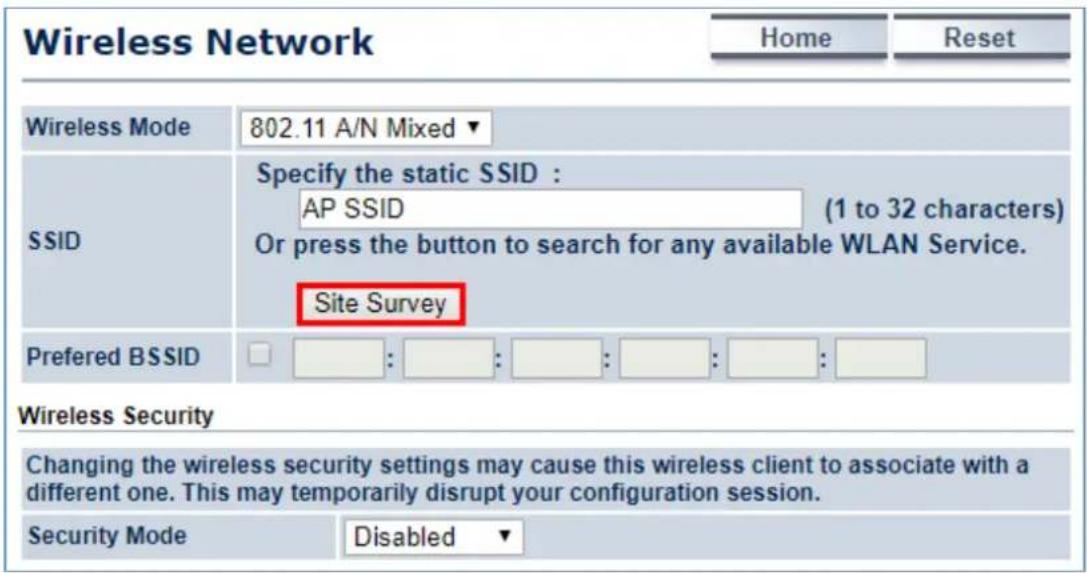
text_image
Wireless Network Home Reset Wireless Mode 802.11 A/N Mixed ▼ SSID Specify the static SSID : AP SSID (1 to 32 characters) Or press the button to search for any available WLAN Service. Site Survey Preferred BSSID : : : : : : : : Wireless Security Changing the wireless security settings may cause this wireless client to associate with a different one. This may temporarily disrupt your configuration session. Security Mode Disabled ▼- Click the AP-1 to let the AP-2 to connect it. Then, it will go back to the main page.
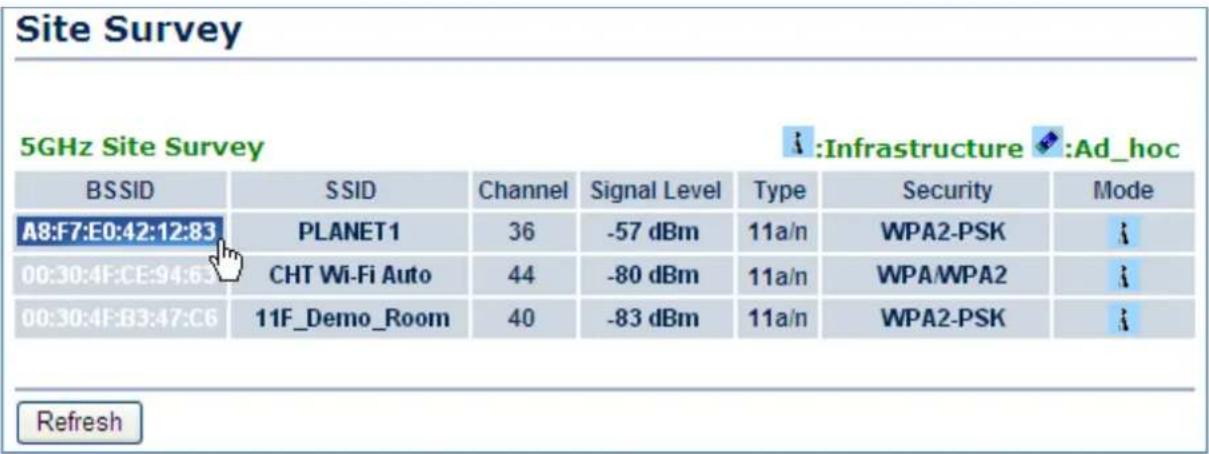
text_image
Site Survey 5GHz Site Survey :Infrastructure :Ad_hoc BSSID SSID Channel Signal Level Type Security Mode A8:F7:E0:42:12:83 PLANET1 36 -57 dBm 11a/n WPA2-PSK 00:30:4F:CE:94:63 CHT Wi-Fi Auto 44 -80 dBm 11a/n WPA/WPA2 00:30:4F:B3:47:C6 11F_Demo_Room 40 -83 dBm 11a/n WPA2-PSK Refresh- Click the check box of the preferred BSSID and configure the encryption similar to the AP-1. Then, click "Accept" to save the configurations.

text_image
Wireless Network Home Reset Wireless Mode 802.11 A/N Mixed ▼ SSID Specify the static SSID : PLANET 1 (1 to 32 characters) Or press the button to search for any available WLAN Service. Site Survey Preferred BSSID ✓ A8 : F7 : E0 : 42 : 12 : 83 Wireless Security Changing the wireless security settings may cause this wireless client to associate with a different one. This may temporarily disrupt your configuration session. Security Mode WPA2-PSK ▼ Encryption AES ▼ Passphrase 12345678 (8 to 63 characters) or (64 Hexadecimal characters) Accept Cancel- Go to the "Status->Save/Reload" page to click the "Save & Apply" to enable the AP to reboot so that it can apply all configurations and take effect.
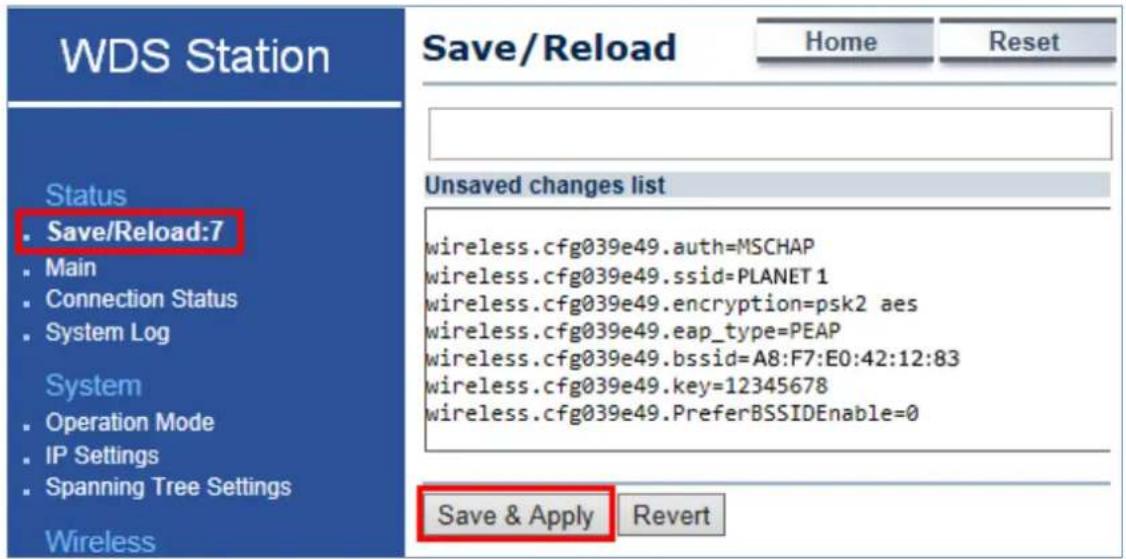
text_image
WDS Station Save/Reload Home Reset Status • Save/Reload:7 • Main • Connection Status • System Log System • Operation Mode • IP Settings • Spanning Tree Settings Wireless Unsaved changes list wireless.cfg039e49.auth=MSCHAP wireless.cfg039e49.ssid=PLANET 1 wireless.cfg039e49.encryption=psk2 aes wireless.cfg039e49.eap_type=PEAP wireless.cfg039e49.bssid=A8:F7:E0:42:12:83 wireless.cfg039e49.key=12345678 wireless.cfg039e49.PreferBSSIDEnable=0 Save & Apply Revert- In the AP-2, go to the "Status->Connection Status" page to check whether the AP-2 is associated with the AP-1 successfully.
| Connection Status | Home | Reset | |
| Network Type | WDS Station | ||
| SSID | PLANET1 | ||
| BSSID | A8:F7:E0:42:12:83 | ||
| Connection Status | Associated | ||
| Wireless Mode | IEEE 802.11n/a Mixed | ||
| Current Channel | 5.18 GHz(Channel 36) | ||
| Security | WPA2-PSK AES | ||
| Tx Data Rates(Mbps) | 300 Mbps | ||
| Current noise level | -95 dBm | ||
| Signal strength | -60 dBm | ||
| Refresh | |||
- In the AP-1, go to the "Status-> Wireless Client List" page to check the client's signal strength.
| Client List | Home | Reset | |||
| SSID:# | MAC Address | TX(Bytes) | RX(Bytes) | RSSI(dBm) | Kick and Ban |
| SSID1:#1 | a8:f7:e0:2f:83:57 | 45345Kb | 45993Kb | -27 | Kick |
| Refresh | |||||
- Use command line tool to ping each other to ensure the link is successfully established.
E.g. from Site-1, ping 192.168.1.200; and at Site-2, ping 192.168.1.100.
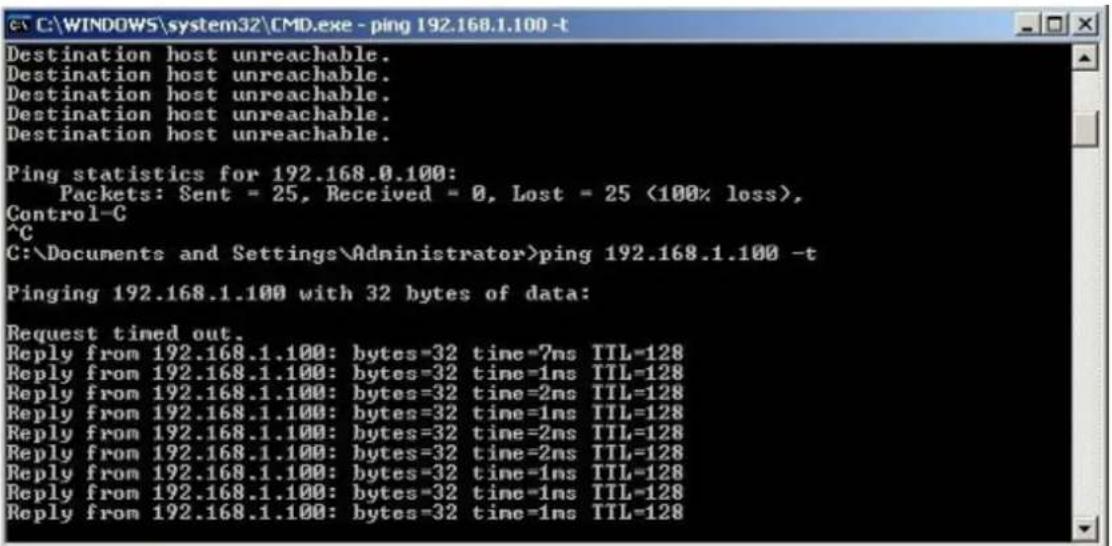
text_image
C:\WINDOWS\system32\CMD.exe - ping 192.168.1.100 -t Destination host unreachable. Destination host unreachable. Destination host unreachable. Destination host unreachable. Destination host unreachable. Ping statistics for 192.168.0.100: Packets: Sent = 25, Received = 0, Lost = 25 (100% loss), Control-C ^C C:\Documents and Settings\Administrator>ping 192.168.1.100 -t Pinging 192.168.1.100 with 32 bytes of data: Request timed out. Reply from 192.168.1.100: bytes=32 time=7ns TTL=128 Reply from 192.168.1.100: bytes=32 time=1ns TTL=128 Reply from 192.168.1.100: bytes=32 time=2ns TTL=128 Reply from 192.168.1.100: bytes=32 time=1ns TTL=128 Reply from 192.168.1.100: bytes=32 time=2ns TTL=128 Reply from 192.168.1.100: bytes=32 time=2ns TTL=128 Reply from 192.168.1.100: bytes=32 time=1ns TTL=128 Reply from 192.168.1.100: bytes=32 time=1ns TTL=128
The following should be noted:
1) The encryption method must be the same at both sites if configured.
2) Both sites should be Line-of-Sight.
3) 5dBi antennas are included in the package for the WAP-500N; for long distance of over 1km, connect to the 5GHz antennas with higher gain.
4) For PtP connection over 1km, please adjust "Distance" setting to the actual distance between both sites on the' both sites' setting page. To adjust "Transmit Power", please:
(a) Go to the "Operation Mode" page to disable the "Green" option.
(b) Go to "Wireless Advanced Settings-> Transmit Power" to manually adjust the transmit power.
EC Declaration of Conformity
| English | Hereby, PLANET Technology Corporation, declares that this 300Mbps 802.11n Wireless Outdoor AP/CPE is in compliance with the essential requirements and other relevant provisions of Directive 1999/5/EC. | Lietuviškai | Šiuo PLANET Technology Corporation,, skelbia, kad 300Mbps 802.11n Wireless Outdoor AP/CPE tenkina visus svarbiąusius 1999/5/EC direktyvos reikalavimus ir kitas svarbias nuostatas. |
| Česky | Společnost PLANET Technology Corporation, tímto prohlašuje, že tato 300Mbps 802.11n Wireless Outdoor AP/CPE splňuje základní požadavky a další příslušná ustanovení směrnice 1999/5/EC. | Magyar | A gyártó PLANET Technology Corporation, kijelenti, hogy ez a 300Mbps 802.11n Wireless Outdoor AP/CPE megfelel az 1999/5/EK irányel valapkövetelményeinek és a kapcsolódó rendelkezéseknek. |
| Dansk | PLANET Technology Corporation, erklærer herved, at følgende udstyr 300Mbps 802.11n Wireless Outdoor AP/CPE overholder de væsentlige krav og øvrige relevante krav i direktiv 1999/5/EF | Malti | Hawnhekk, PLANET Technology Corporation, jiddikjara li dan 300Mbps 802.11n Wireless Outdoor AP/CPE jikkonforma mal-htigijiet essenzjali u ma provvedimenti ohrajn relevanti li hemm fid-Dirrettiva 1999/5/EC |
| Deutsch | Hiermit erklärt PLANET Technology Corporation, dass sich dieses Gerät 300Mbps 802.11n Wireless Outdoor AP/CPE in Übereinstimmung mit den grundlegenden Anforderungen und den anderen relevanten Vorschriften der Richtlinie 1999/5/EG befindet". (BMWi) | Nederlands | Hierbij verklaart , PLANET Technology orporation, dat 300Mbps 802.11n Wireless Outdoor AP/CPE in overeenstemming is met de essentiële eisen en de andere relevante bepalingen van richtlijn 1999/5/EG |
| Eestikeeles | Käesolevaga kinnitab PLANET Technology Corporation, et see 300Mbps 802.11n Wireless Outdoor AP/CPE vastab Euroopa Nõukogu direktiivi 1999/5/EC põhinõuetele ja muudele olulistele tingimustele. | Polski | Niniejszym firma PLANET Technology Corporation, oświadcza, že 300Mbps 802.11n Wireless Outdoor AP/CPE spełnia wszystkie istotne wymogi i klauzule zawarte w dokumencie „Directive 1999/5/EC”. |
| Ελληνικά | ME THN ΠΑΡΟΥΣΑ , PLANET Technology Corporation, ΔΗΛΩΝΕΙ ΟΤΙΑΥΤΟ 300Mbps 802.11n Wireless Outdoor AP/CPEΣΥΜΜΟΡΦΩΝΕΤΑΙ ΠΡΟΣ ΤΙΣ ΟΥΣΙΩΔΕΙΣ ΑΠΑΙΤΗΣΕΙΣ ΚΑΙ ΤΙΣ ΛΟΙΠΕΣ ΣΧΕΤΙΚΕΣ ΔΙΑΤΑΞΕΙΣ ΤΗΣ ΟΔΗΓΙΑΣ 1999/5/ΕΚ | Português | PLANET Technology Corporation, declara que este 300Mbps 802.11n Wireless Outdoor AP/CPE está conforme com os requisitos essenciais e outras disposições da Directiva 1999/5/CE. |
| Español | Por medio de la presente, PLANET Technology Corporation, declara que 300Mbps 802.11n Wireless Outdoor AP/CPE cumple con los requisitos esenciales y cualesquiera otras disposiciones aplicables o exigibles de la Directiva 1999/5/CE | Slovensky | Výrobca PLANET Technology Corporation, týmto deklaruje, že táto 300Mbps 802.11n Wireless Outdoor AP/CPE je v súlade so základnymi požiadavkami a d'alšími relevantnými predpismi smernice 1999/5/EC. |
| Français | Par la présente, PLANET Technology Corporation, déclare que les appareils du 300Mbps 802.11n Wireless Outdoor AP/CPE sont conformes aux exigences essentielles et aux autres dispositions pertinentes de la directive 1999/5/CE | Slovensko | PLANET Technology Corporation, s tem potrjuje, da je ta 300Mbps 802.11n Wireless Outdoor AP/CPE skladen/a z osnovnimi zahtevami in ustreznimi določili Direktive 1999/5/EC. |
| Italiano | Con la presente , PLANET Technology Corporation, dichiara che questo 300Mbps 802.11n Wireless Outdoor AP/CPE è conforme ai requisiti essenziali ed alle altre disposizioni pertinenti stabilite dalla direttiva 1999/5/CE. | Suomi | PLANET Technology Corporation, vakuuttaa täten että 300Mbps 802.11n Wireless Outdoor AP/CPE typpinen laite on direktiivin 1999/5/EY oleellisten vaatimusten ja sită koskevien direktiivin muiden ehtojen mukainen. |
| Latviski | Ar šo PLANET Technology Corporation, apliecina, ka šī 300Mbps 802.11n Wireless Outdoor AP/CPE atbilst Direktivas 1999/5/EK pamatprasībām un citiem atbilstošiem noteikumiem. | Svenska | Härmed intygar, PLANET Technology Corporation, att denna 300Mbps 802.11n Wireless Outdoor AP/CPE stár i överensstämmelse med de väsentliga egenskapskrav och övriga relevanta bestämmelser som framgår av direktiv 1999/5/EG. |