
NVR-TAB9 S5 - Tablet NEVIR - Free user manual and instructions
Find the device manual for free NVR-TAB9 S5 NEVIR in PDF.


| Product Type | Tablet |
| Brand | Nevir |
| Model | NVR-TAB9 S5 |
| Operating System | Android 4.2 Jelly Bean |
| Processor | A20 Dual Core Cortex A7 @ 1.0 GHz |
| Memory (RAM) | DDR3 1 GB |
| Internal Storage | 8 GB |
| Expandable Storage | microSD up to 32 GB |
| Display Size | 9 inches |
| Display Resolution | 800 x 480 pixels |
| Touch Screen | 5-point capacitive |
| Wireless Connectivity | Wi-Fi 802.11 b/g/n, Bluetooth |
| Camera | Front 0.3 megapixel |
| Audio Jack | 3.5 mm headphone |
| Speaker | 8 Ohm, 1W |
| USB Port | 1 x USB 2.0 |
| Battery | 3.7V, 3000 mAh Lithium-ion |
| Power Adapter | 5V, 2A |
| Dimensions | 238 x 149 x 11.4 mm |
| Safety Warning | Read manual; avoid heat, moisture, and dropping |
| Maintenance | Keep device clean and dry; use provided charger |
| General Information | User manual available for download; specifications subject to change |
Frequently Asked Questions - NVR-TAB9 S5 NEVIR
User questions about NVR-TAB9 S5 NEVIR
0 question about this device. Answer the ones you know or ask your own.
Ask a new question about this device
Download the instructions for your Tablet in PDF format for free! Find your manual NVR-TAB9 S5 - NEVIR and take your electronic device back in hand. On this page are published all the documents necessary for the use of your device. NVR-TAB9 S5 by NEVIR.
USER MANUAL NVR-TAB9 S5 NEVIR
natural_image
Close-up of a lion's face showing its open mouth and tongue, with no visible text or symbols.natural_image
Green-themed computer desktop with application icons at bottom (no readable text or symbols)


1. RedesInalámbricas&networks

Configure cada ajuste como desee.
En uso


CE


14.FechayHora
Fijarfecha, horayformato
15. Accesibilidad

natural_image
Green-tinted digital interface with application icons at bottom (no readable text or symbols)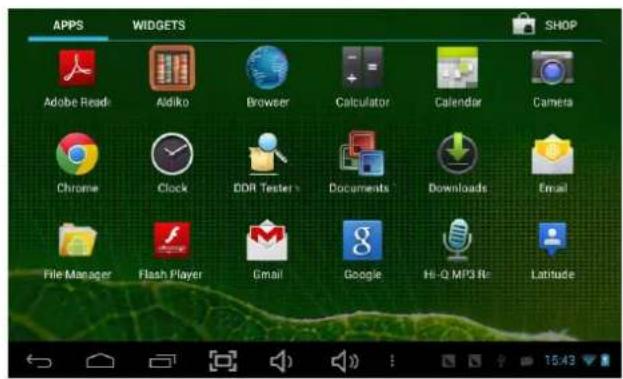

AccesosDirectos
natural_image
Close-up of a lion's face showing its open mouth and tongue, with no visible text or symbols.USERMANUAL

Thismanualcontainsimportantsafetyprecautionsandinformationofcorrectuse. Pleasebesuretoreadthismanualcarefullybeforeusesoastoavoidanyaccidents.
Do not place the product in hot, wet or dusty environment, especially in summer, do not leave the product inside acar with all windows closed.
Avoiddropping, impacting or shaking the product violently, otherwise it may cause damage or malfunctions. Select a proper volume to avoid ear problem when using earphones.
Do not cross the road or drive vehicles, using headphones to avoid traffic accidents.
Besuretousetheprovidedchargersandaccessoriesinthepackage.
Besuretochargetheproductwhenthefollowingsitu ationstakeplace,
-Thebatteryiconshowslowerorempty.
- System automatically shut down and it turns off soon after restart.
-Operationkeysdonotrespondproperly.
-Thedeviceshowson@toprightcorner.

- WARNING: The excessive sound pressure from earphones and headphones can cause hearingloss.
Caution: Danger of explosion if battery is incorrectly replaced, replaced only with thesame or equivalent type (Lithium battery)
• To prevent possible hearing damage, do not listen at high volume levels of long periods.



The symbol indicates that dangerous voltages constituting a risk of electric shock are present within this unit.

The symbol indicates that there are important operating and maintenance instructions in the literature accompanying this unit.

CAUTION:
When the apparatus was in electrostatic circumstance, it may be malfunction and need to reset by user.
The USB memory stick should be plug in the unit directly. USB extension cable should not be used to avoid failing of data transferring and interference caused.

1.PowerOn/Off
Long press power button to turn on/off the device. It may take a minute to boot the device. Short press power button to turn on/off the screen.(Standby mode. Refer to 3. below)
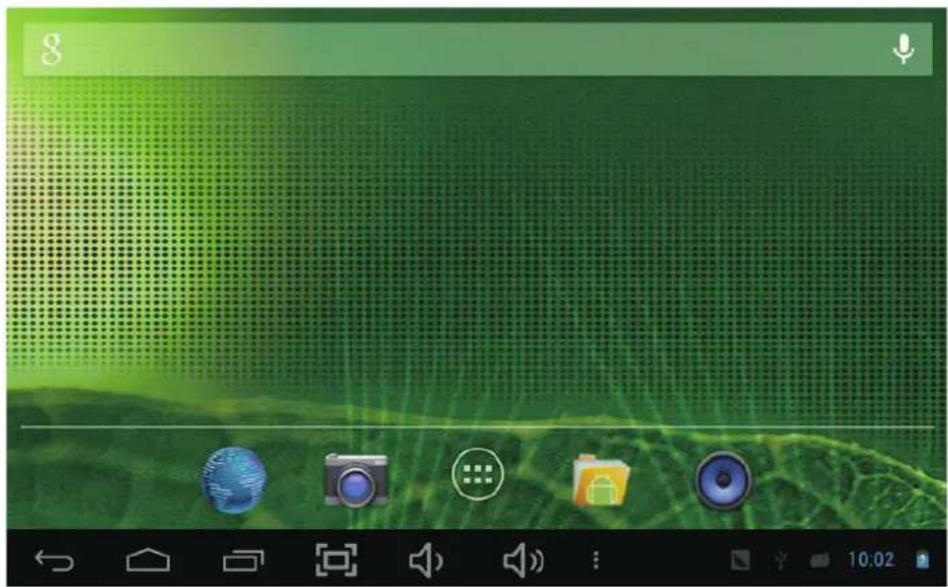
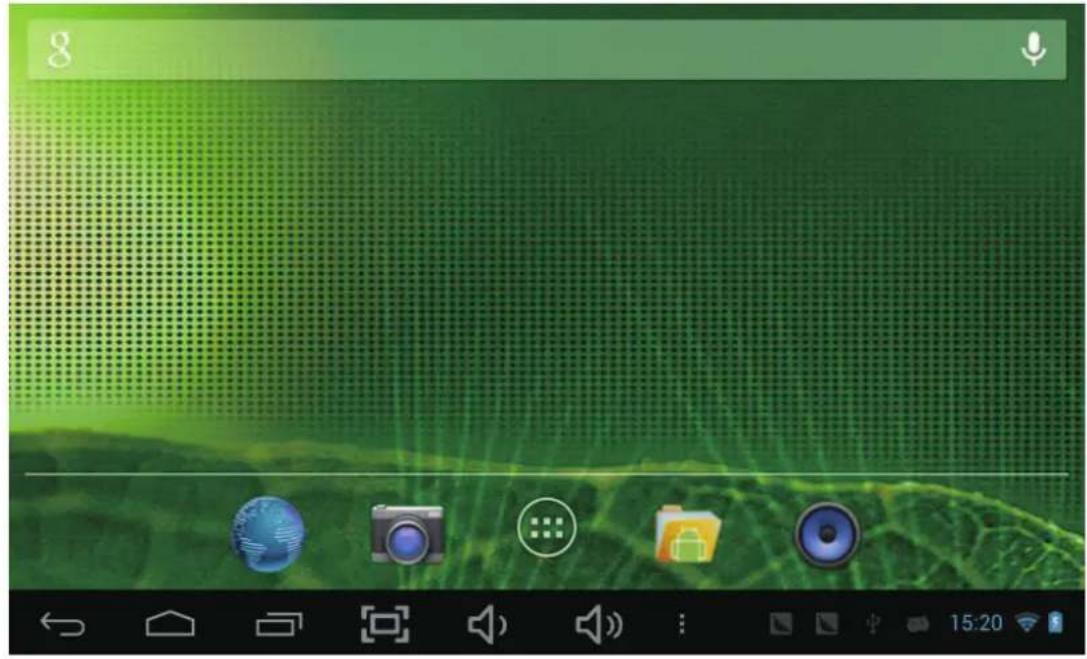
2. Desktop
Afterturningonthedevice,desktopdisplayswithshortcuticonsandarrowpanelattherightside

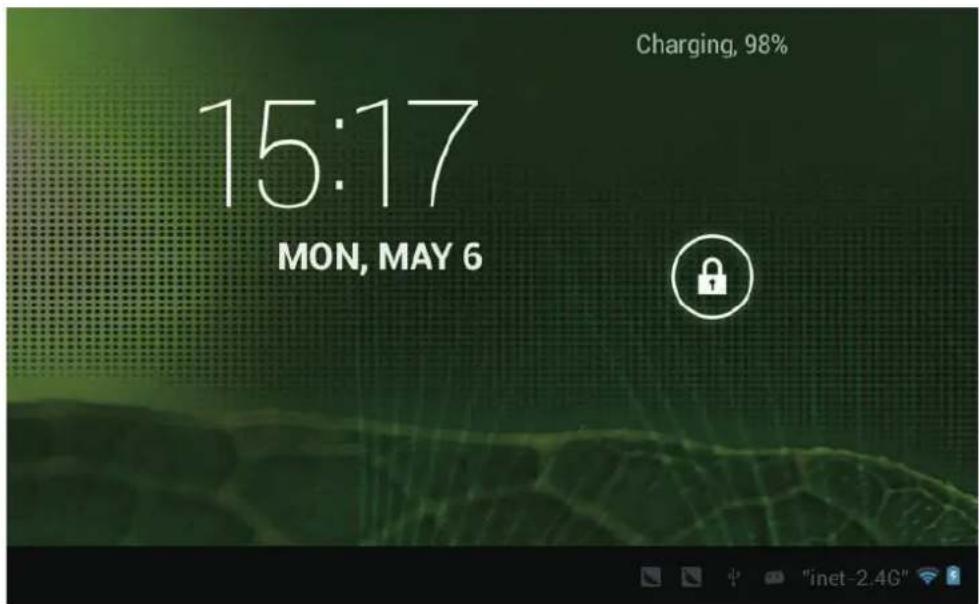
3. Standbymode(Screenoffmode)/Unlockthescreen
Short press the power button to turn on/off the screen (standby mode on/off). After standby mode o, slide the lock icon in order to unlock the screen.

4. Systemsettings
Onthedesktop, pressmenubutton and selectsystemsettings.
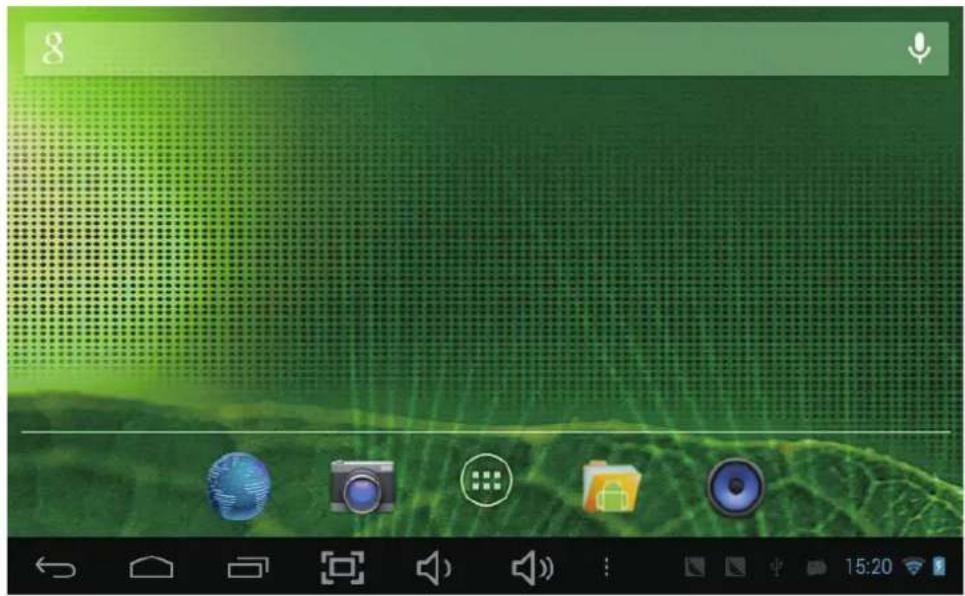

PressSystemSettings
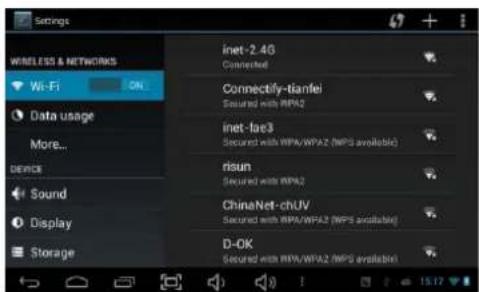
1. Wireless&networks
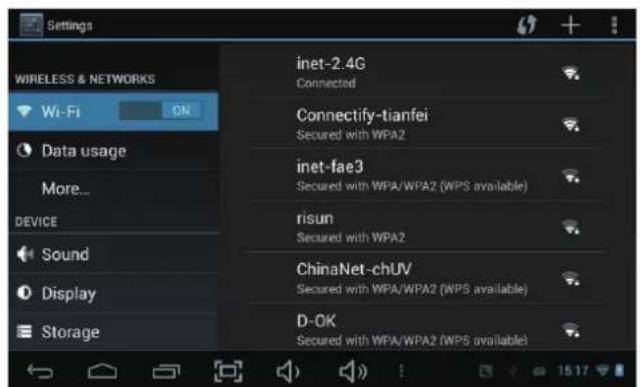
Wi-Fi – Press Wi-Fi to turn on/off Setupeachsettingasyoulike.Wi-Fisettings-PressWi-Fi settings,thenthedevice
willautomaticallysearchtheavailableWi-Fisignals.Selectthenetwork youwanttoconnectwith.

2.Datausage3.More...
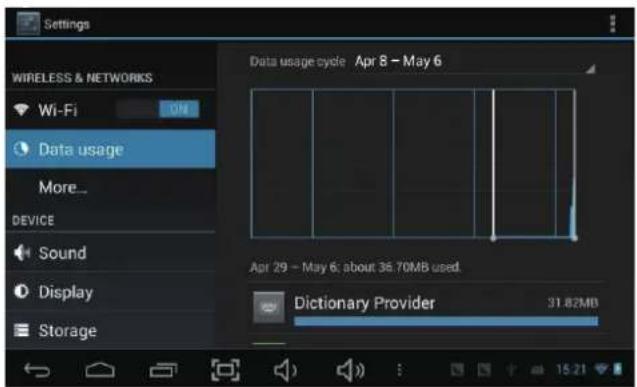
Slidemobiledataswitchtoselectopenorclose theflowusage.
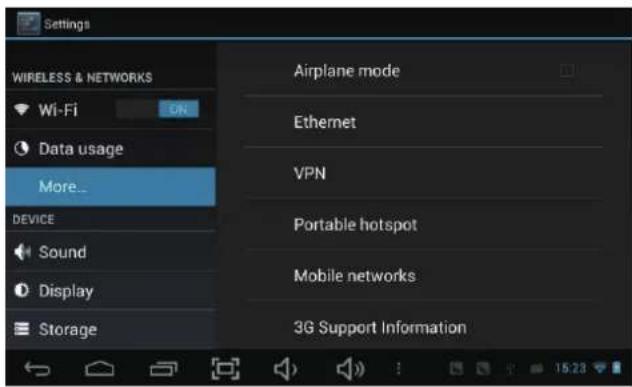
Formoreinformationonmobiledataand Bluetoothoptions, Flightmode, Bluetoothsharing, 3Gsupportinformation

4.Sound
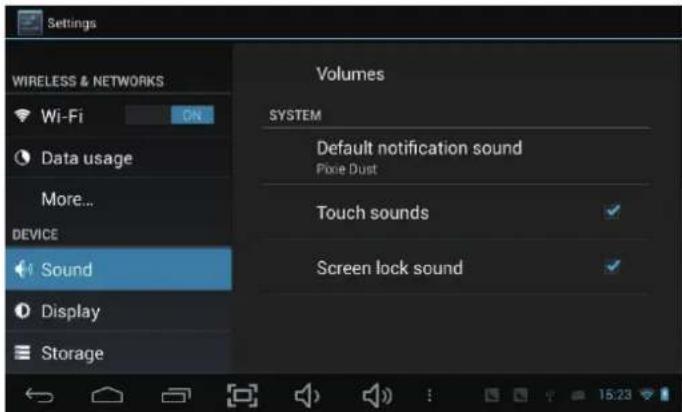

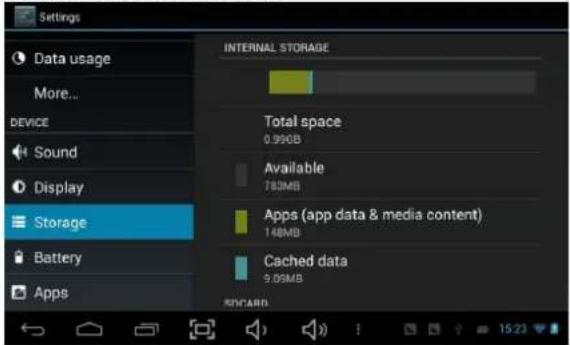
5. Display6. Storage
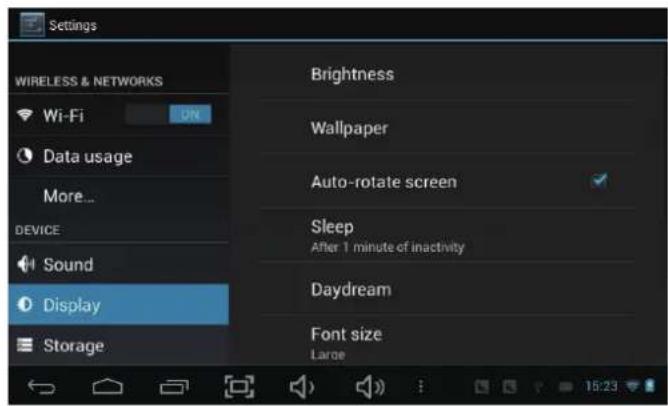
Setupeachsettingasyoulike.
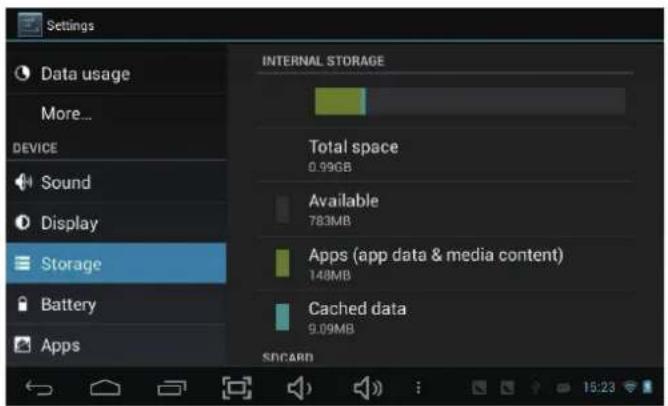
CheckdevicememoryandmicroSDcardstatus. UnmountSDcard–UnmounttheSDcardfor saferemoval.

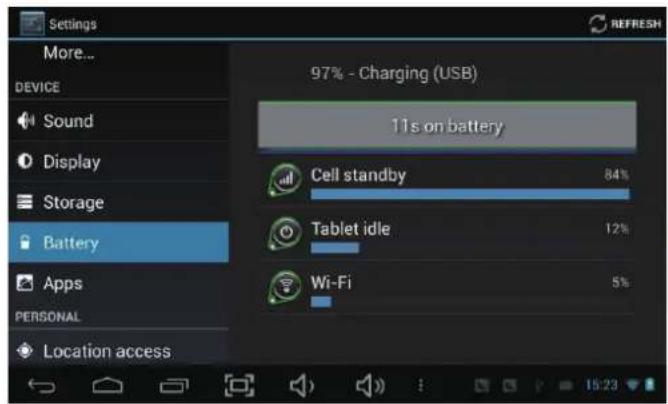
7.Battery8Apps
Check battery usage status.
Manage downloaded or running applications.
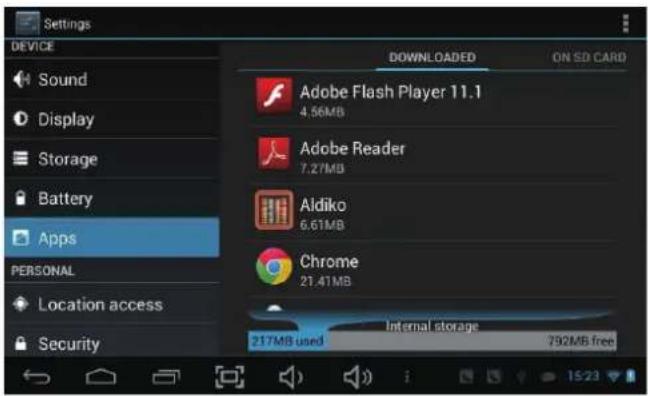
Downloaded
Allinstalledapplicationarelisting.

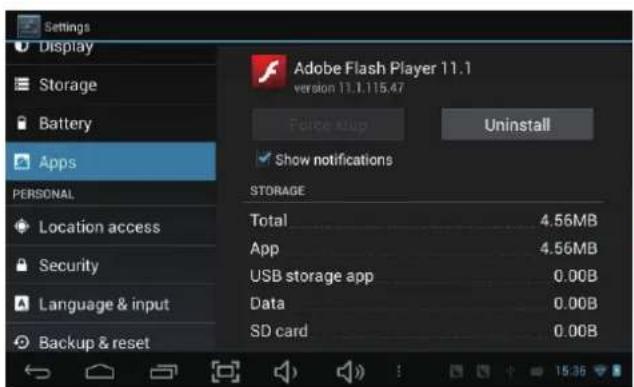
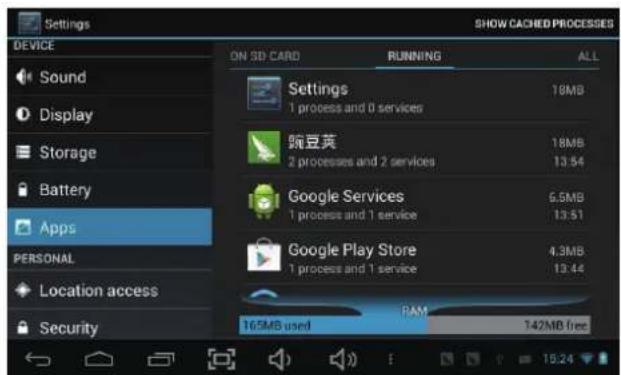
Keeppressinganapplicationtomanage.Runningservices
Press Uninstall to uninstall the selected application. View and control currently running services.


9.Account&sync
Create your account. After connecting Wi-Fi network, the e-mailing system synchronizes your account with the device. Emails are automatically downloaded into the device.
10. Locationservices
Google's locationservice-LetappsusedatafromsourcessuchasWiFiandmobilenetworks todetermineyourapproximatelocation

11.Security
Screenlock—Protectyourdevicefromunauthorizedusebycreatingapersonalscreen unlockpattern.Makepasswordsvisible—Showpasswordasyoutype.
Unknown sources - If you want to allow installation of non-Market
Applications, PressUnknownsourcesandpressesOK.
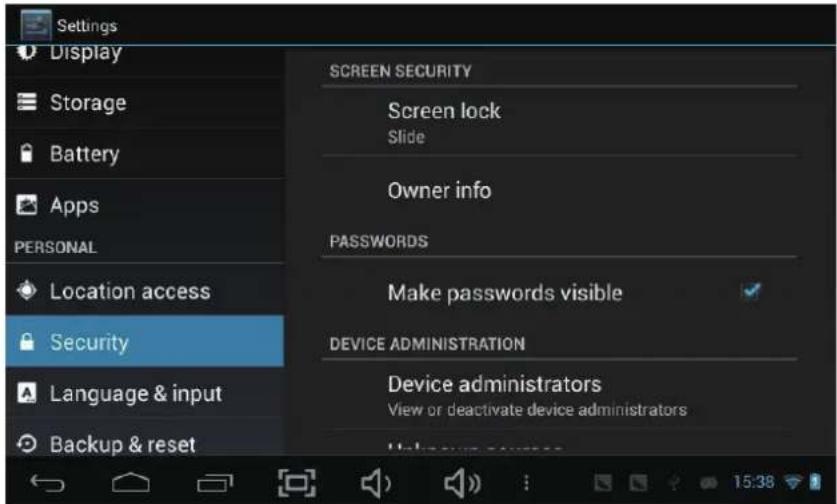
InstallfromSDcard—InstallencryptedcertificatesfromSDcard.

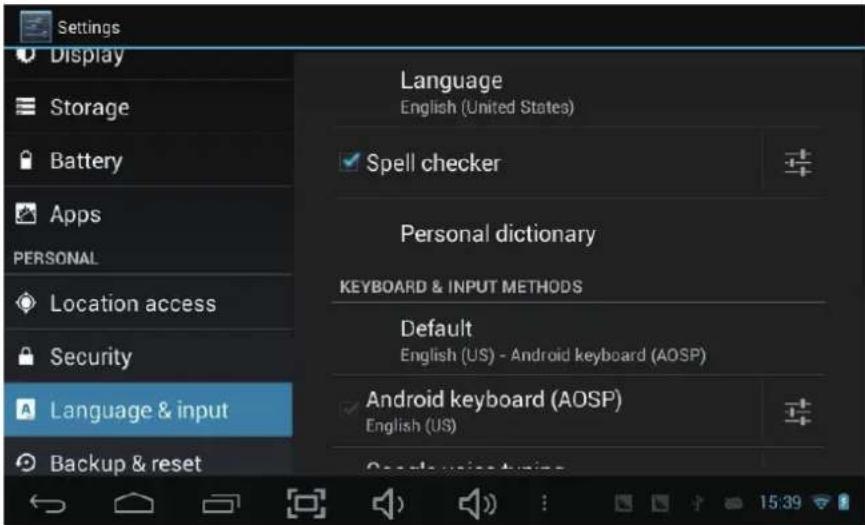
12.Language&input
Language—Chooseyourpreferablelanguage.
Keyboard & input method – Change keyboard & keyboard settings.
OnLanguage&inputsettings, if you need other languages besides Englishon keyboard, press the relevant keyboard and enter the chosen Keyboard settings, select Keyboards, pressthelanguageyouneed.

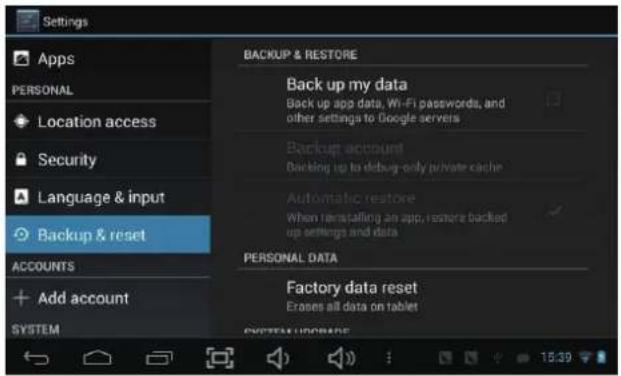
13.Backup&Reset
14. Date&time
Setdate&timeandformat
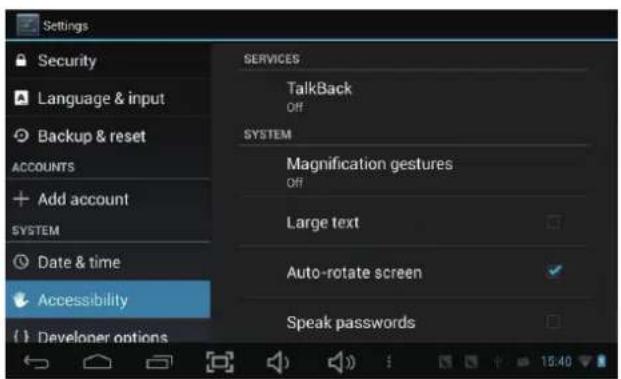
15. Accessibility
Setdate&timeandformat
16. Developer options
Setoptionsforapplicationdevelopment
17.Abouttablet
Seestatus,legalinformation,ETC

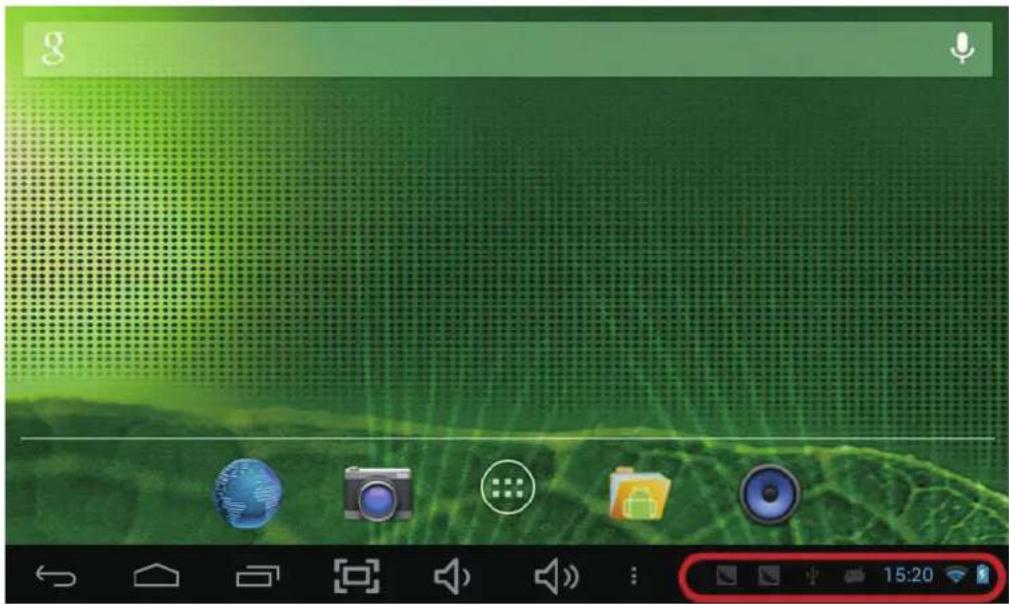
Howtoconnect/disconnectthedevice with/fromthecomputer
Onmaindesktop, connect the device with the PC, touch right side of the status bar on the bottom of desktop

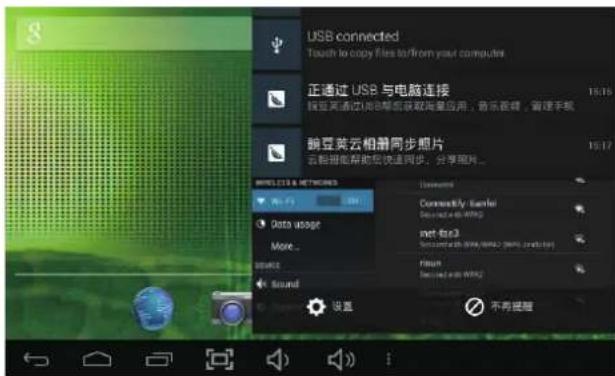
Press "USBconnected", select "TurnonUSBstorage". The device is recognized at Explorer of the computer. Now you can use it as an external storage.
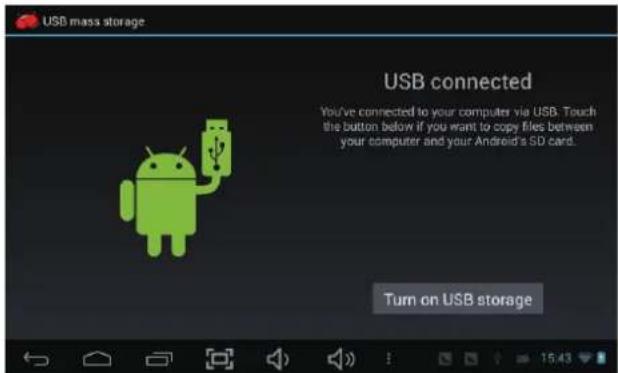
Afterfinishingyourwork, Press "TurnonUSBstorage" tounmountit.

HowtoinstallApplications(.apkfile)intothedevice
Method1.
- Connect the device with internet. See above [1.Wireless & networks] in order to connect internet.
- Search the applications you want to install in the different application's markets available
- Follow the instruction on the screen for installation.
Method2.
- With your computer, search application file(.apk) that you want to install into the device.
- Download the file(.apk) into your computer.
- Connect the device with your computer.
Seeabove[Howtoconnect/disconnectthedevicewith/fromthecomputer.] - Copy and paste .apk file into the device and disconnect it from your computer.
5.Run"Filebrowser"andnd.apklethatwascopiedintothedevice. - Press the file to install and follow the instruction on the screen.

Howtomakedesktopicons
Presstheupperrightsideiconofdesktop, thepop-updisplays.

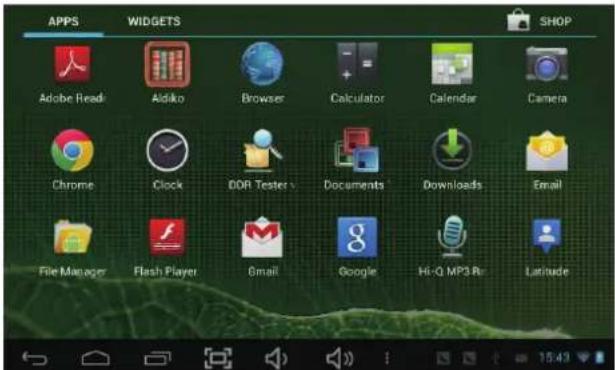
Shortcuts
LongpressyourdesiredAPKiconand putitonthedesktop.
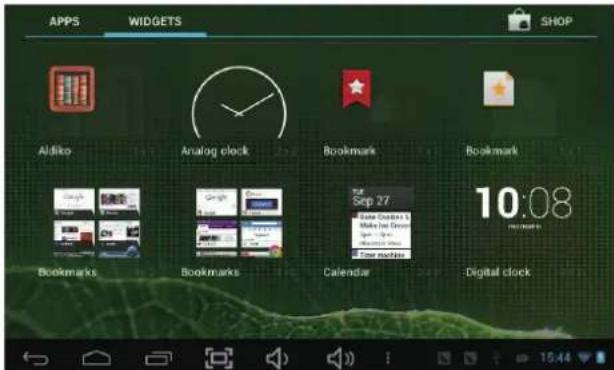
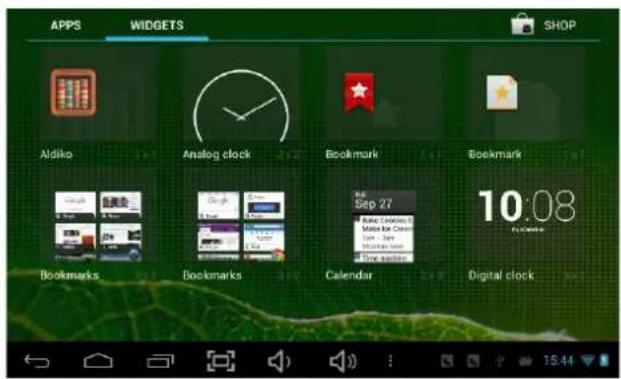
Widgets
PressWidgetsandpressyourdesirediconto putitonthedesktop.
Wallpaper
Longpressthedesktop, pressWallpapers and selectoneofcategoriesofwallpaper.
SelectoneyoudesireandpressSetwallpaper.

Specification
| OS Android 4.2 | |
| CPU | A20 Dual Core Cortex A7@ 1.0Ghz |
| Memory | DDR3 1GB |
| Storage | 8GB |
| Display | 9” |
| Resolution | 800*480 |
| Touch Panel | 5 Points Capacitive Touch Screen(G+P) |
| WIFI | 802.11 b/g/n |
| USB | 1XUSB2.0 |
| TF Card | Up to 32GB |
| Camera | Front 0.3 Mega Pixel |
| Earphone | Support 3.5mm headphone jack |
| Power adapter | 5V 2A |
| Battery | 3.7V 3000MAH |
| Speaker | 8 OHM,1W |
| Size | 238*149*11.4MM |
Specifications are subject to change without notice.

- RedesInalámbricas&networks
- 14.FechayHora
- Accesibilidad
- AccesosDirectos
- Thismanualcontainsimportantsafetyprecautionsandinformationofcorrectuse. Pleasebesuretoreadthismanualcarefullybeforeusesoastoavoidanyaccidents.
- CAUTION:
- 1.PowerOn/Off
- Desktop
- Standbymode(Screenoffmode)/Unlockthescreen
- Systemsettings
- PressSystemSettings
- Wireless&networks
- 2.Datausage3.More...
- 4.Sound
- Display6. Storage
- 7.Battery8Apps
- 9.Account&sync
- Locationservices
- 11.Security
- 12.Language&input
- 13.Backup&Reset
- Date&time
- Accessibility
- Developer options
- 17.Abouttablet
- Howtoconnect/disconnectthedevice with/fromthecomputer
- HowtoinstallApplications(.apkfile)intothedevice
- Method1.
- Method2.
- Howtomakedesktopicons
- Shortcuts
- Widgets
- Wallpaper
Brand : NEVIR
Model : NVR-TAB9 S5
Category : Tablet