Canvas Nitro 2 E311 - Smartphone Micromax - Free user manual and instructions
Find the device manual for free Canvas Nitro 2 E311 Micromax in PDF.


User questions about Canvas Nitro 2 E311 Micromax
0 question about this device. Answer the ones you know or ask your own.
Ask a new question about this device
Download the instructions for your Smartphone in PDF format for free! Find your manual Canvas Nitro 2 E311 - Micromax and take your electronic device back in hand. On this page are published all the documents necessary for the use of your device. Canvas Nitro 2 E311 by Micromax.
USER MANUAL Canvas Nitro 2 E311 Micromax
BASIC PHONE FEATURES....12
SIGNING IN WITH YOUR GOOGLE ACCOUNT....12
DESKTOP SCREEN....13
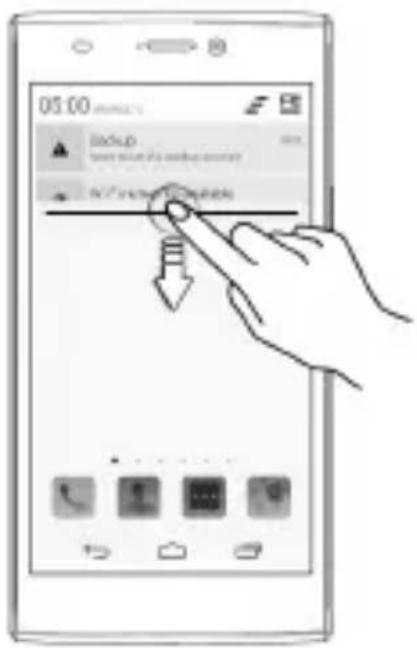
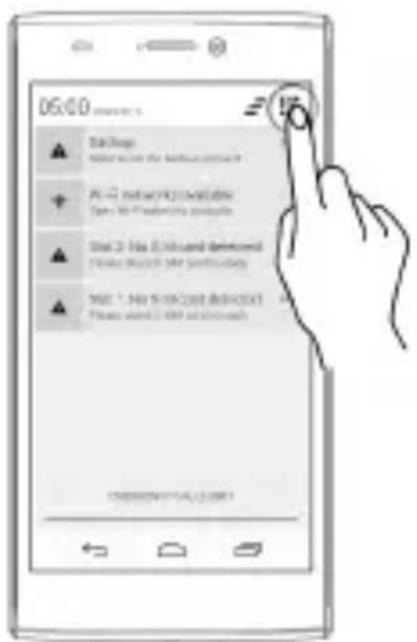
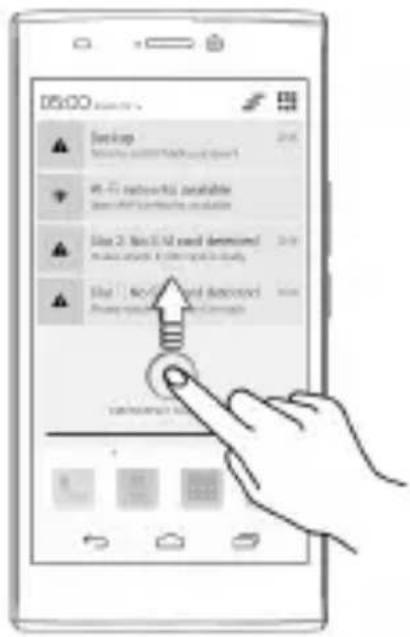
NOTIFICATIONS....14
GRAVITY SENSOR....15
PHONE LOCKING AND UNLOCKING TECHNIQUES....16
USE GOOGLE SEARCH....19
USING THE TOUCH SCREEN....20
USING THE ONSCREEN KEYBOARD....23
RECENT APPS....24
CALLING AND MESSAGING....25
MAKE A CALL....25
CONTACTS....25
AIRPLANE MODE 26
SEND MESSAGE....27
MULTIMEDIA 28
CAMERA....28
GALLERY 28
MUSIC PLAYER....29
FM RADIO....30
VIDEO PLAYER 31
31
SETTINGS, NETWORKS, AND APPS 32
CONNECT TO THE INTERNET....32
TETHERING & PORTABILITY 33
PAIR WITH BLUETOOTH DEVICES....34
CONFIGURING E-MAIL....34
GOOGLE MAPS....35
DRIVE....36
MANAGE APPS....36
SAFETY PRECAUTIONS....37
TAKING CARE OF YOUR DEVICE....38
BATTERY RECOMMENDATIONS....39
RECYCLE YOUR PHONE 40
COPYRIGHT 40
The Android Advantage
Micromax E311 comes with KitKat 4.4.2 that offers optimized system performance resulting in a faster, simpler and smoother Android experience. At the Google Play Store, you can download from millions of apps, games, movies, and books and can be sure that they will run fast. E311 also has the best of Google built-in, including your favorite apps like Google Search, Maps, Drive, and YouTube, as well as exciting new apps like Google Now, Voice Search, and Google Translate.
Read Me First
- Please read all safety precautions and this guide carefully before using your device to ensure safe and proper use.
- The descriptions in this user guide are based on the default settings of your device.
- Available features and additional services may vary by device, software, or service provider.
- Apps and their functions may vary based on the country, region, software or hardware specifications. Micromax is not liable for performance issues resulting from third-party apps.
Disclaimer
- The colors, specifications, functions and graphics shown/mentioned in the user manual may differ from the actual product. In such a case, the latter shall govern. Images shown are for representation purpose only. Specifications are subject to change without prior notice. Micromax keeps the right to modify the content in this user guide without prior notice.
- Upon first use of your device, your device will send information related to your mobile, IMEI numbers, location details and other software details through SMS* automatically. This information may be used as further specified in Micromax privacy policy**.
- Talk and standby times are affected by network preferences, type of SIM cards, connected accessories and individual usage patterns. Services and some features may be dependent on the network, service/content providers, SIM cards, compatibility of the devices used and the content formats supported.
- Other product logos and company names mentioned herein may be trademarks or trade names of their respective owners.
* Operator tariff shall be applicable for SMS.
** Micromax privacy policy is available at www.micromaxinfo.com.
Understand Your Phone
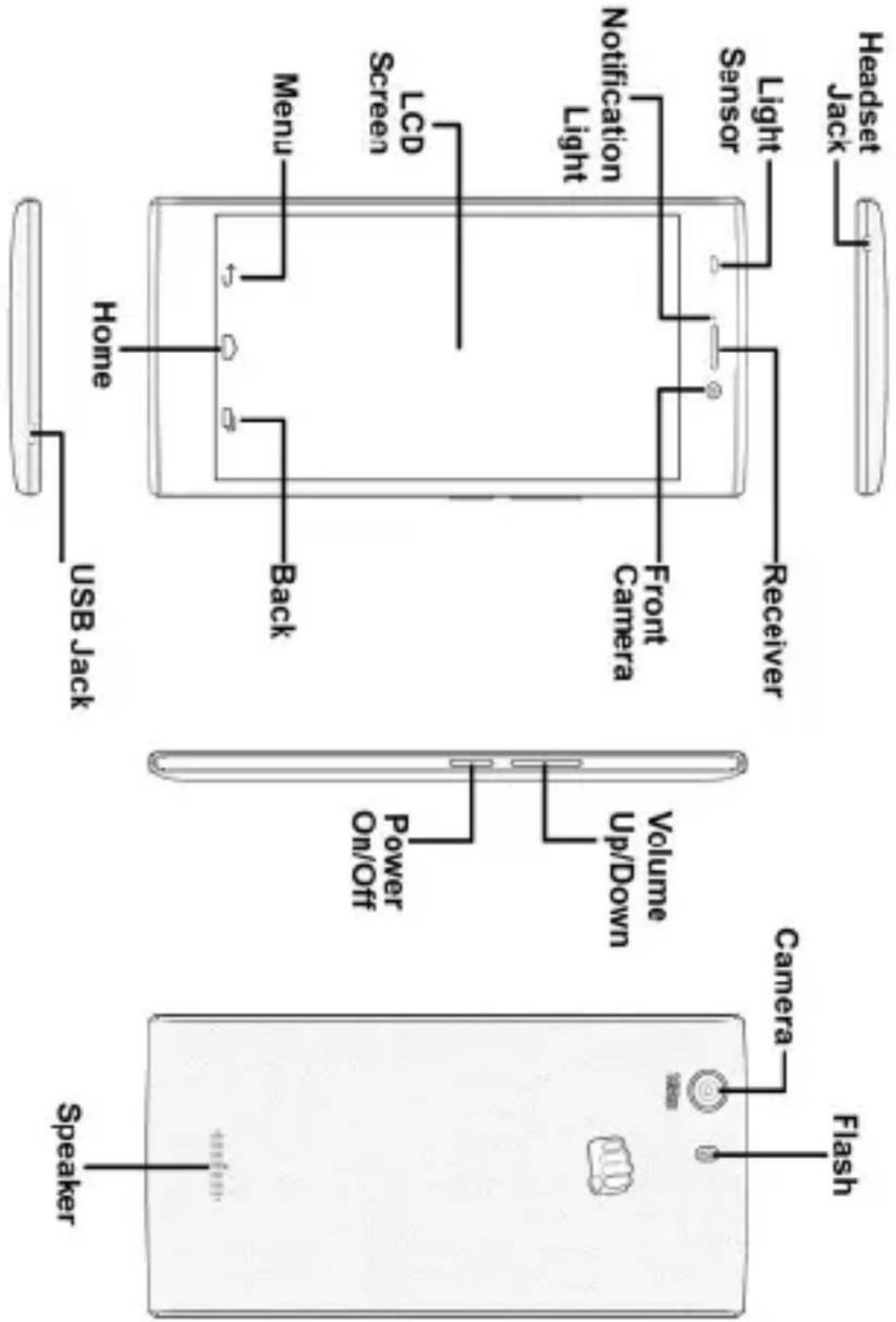
Getting Started
SIM Card Insertion
Your E311 is a dual-SIM phone that supports two micro SIM cards.
To insert the SIM card:
- Switch off your phone and remove the back cover as shown in the following image:
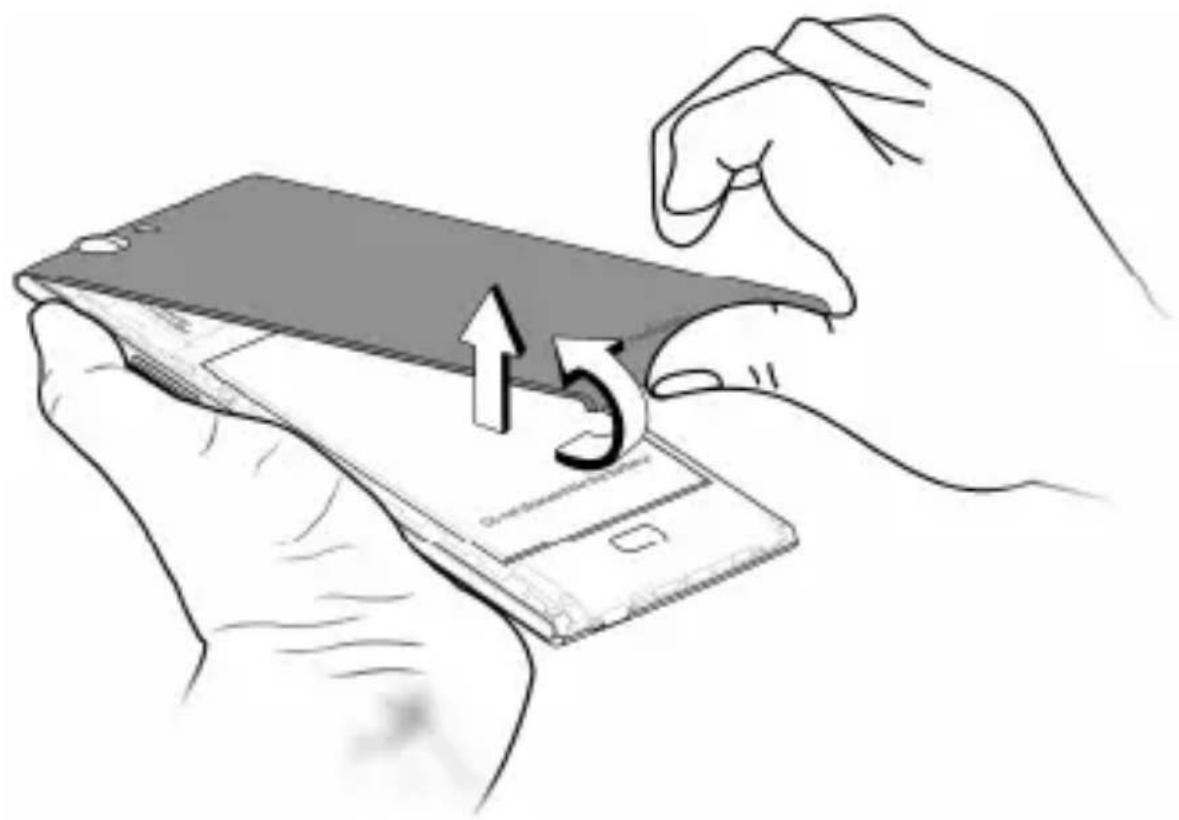
natural_image
Illustration of a hand holding a smartphone with an upward arrow and number 5, no text or symbols present- Open the metal latch and insert the micro SIM 2 in the Micro SIM 2 slot. Close the metal latch to lock the slot:
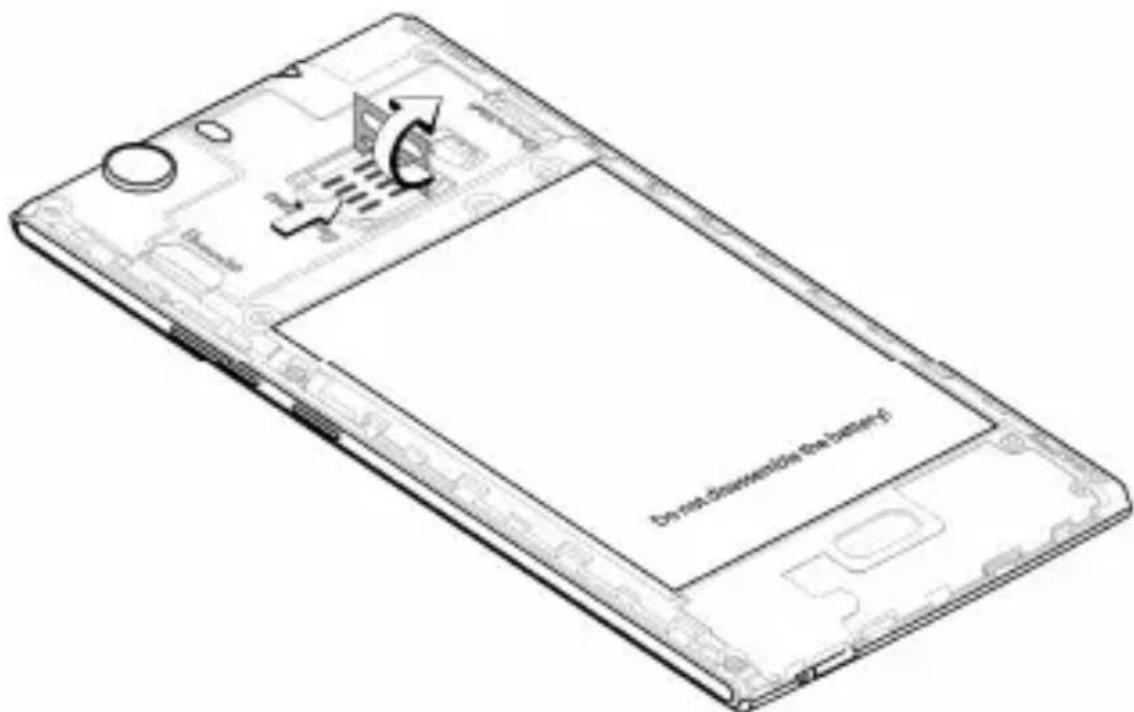
- Insert the micro SIM 1 in the Micro SIM 1 slot as shown in the following image:
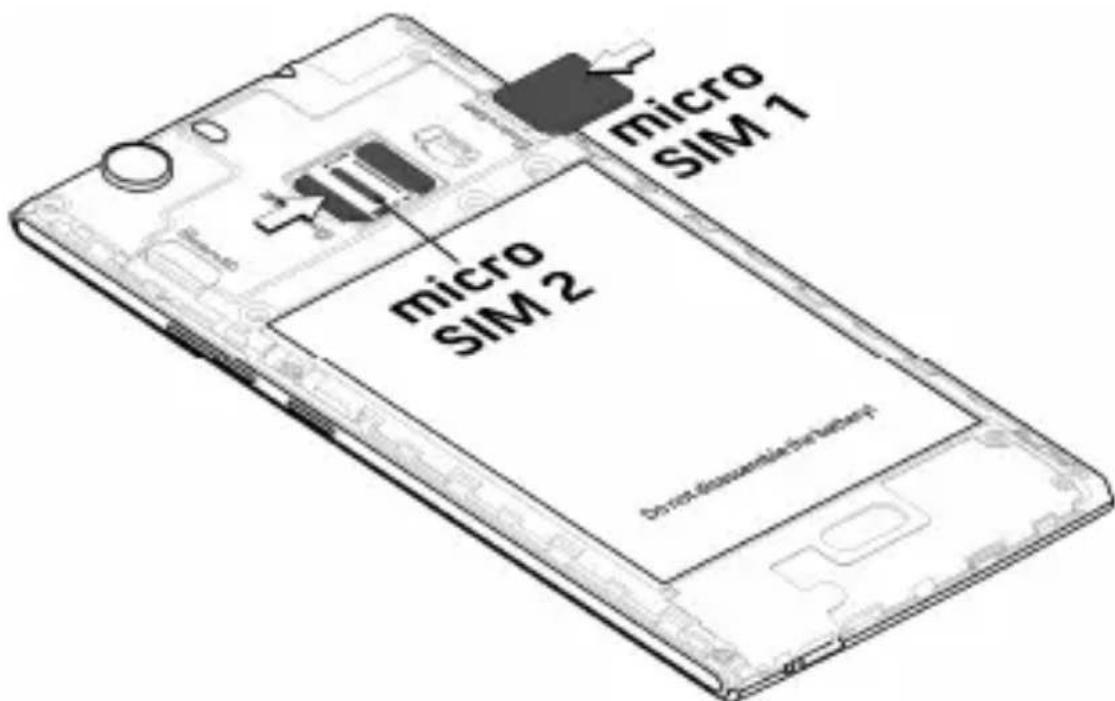
- After inserting the SIM card(s), place the back cover of the mobile phone.

Please keep the SIM card out of the reach of children.

The card and the contacts are vulnerable to damage due to scratching or bending. Therefore, be careful when using, inserting or removing the cards.
Memory Card Insertion
To store additional multimedia files, you must insert a memory card.
To insert a memory card:
-
Switch off the mobile phone and remove the back cover.
-
Insert the memory card in the memory card slot as shown in the following image:
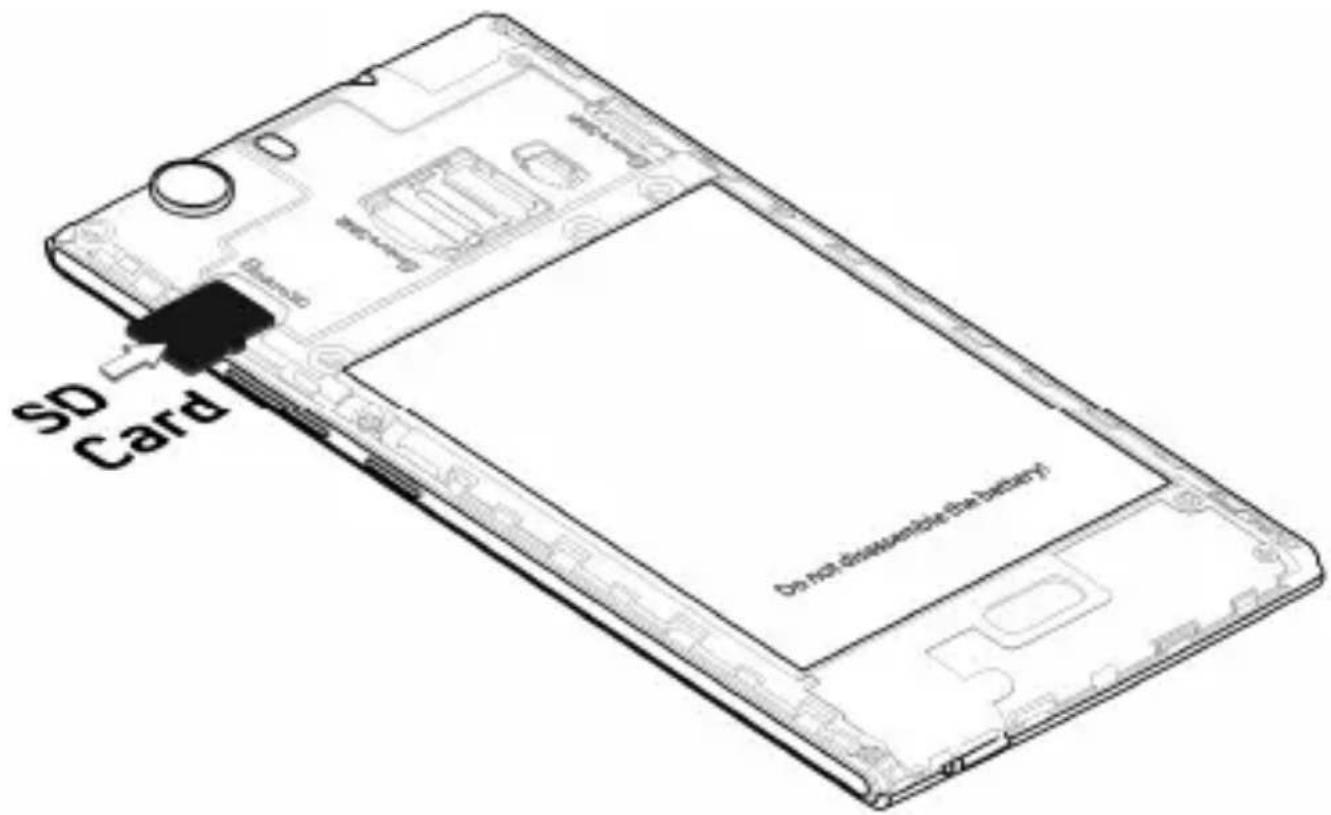
- After inserting the memory card, place the back cover of the mobile phone.
Handset Keys
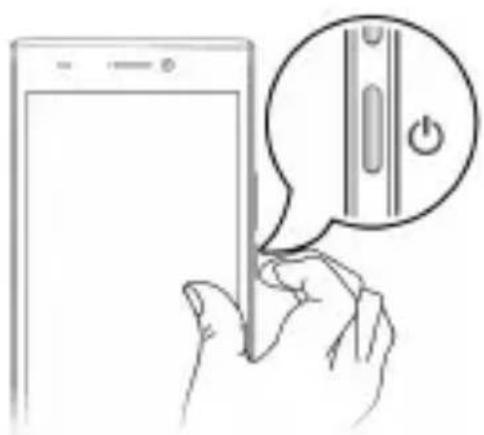
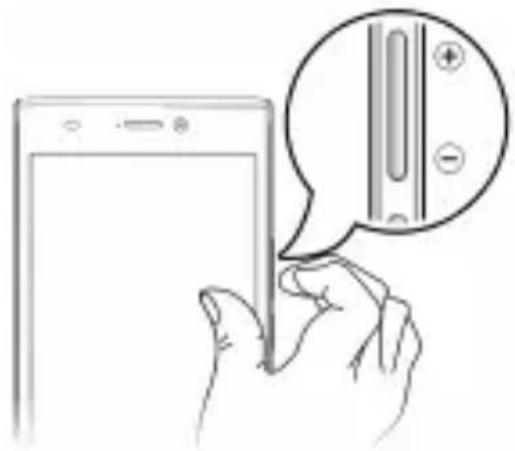
Keys Functions
natural_image
Illustration of a hand holding a tablet with a speech bubble showing a button (no text or symbols present)- Long press to switch on or switch off the phone.
- Press once to turn off the screen or to wake up the screen.
- Press for 2 seconds to view quick options to turn off the phone, reboot the device, switch to airplane mode, or adjust the sound profiles.
natural_image
Illustration of a hand holding a tablet with a speech bubble showing a screen interface (no text or symbols)- Adjust the phone volume from the volume keys available on the right side of the device.
On-Screen Keys
| Keys Functions | |
 | • Opens the most recently used apps. |
 | • Opens the desktop screen.• On long tap, displays the option to open Google Now. |
 | • Opens the previous screen you were working on. |
Charging the Battery
Before using the device for the first time, you must charge the battery. You can charge the device with a travel adapter or connecting the device to a PC with a USB cable.
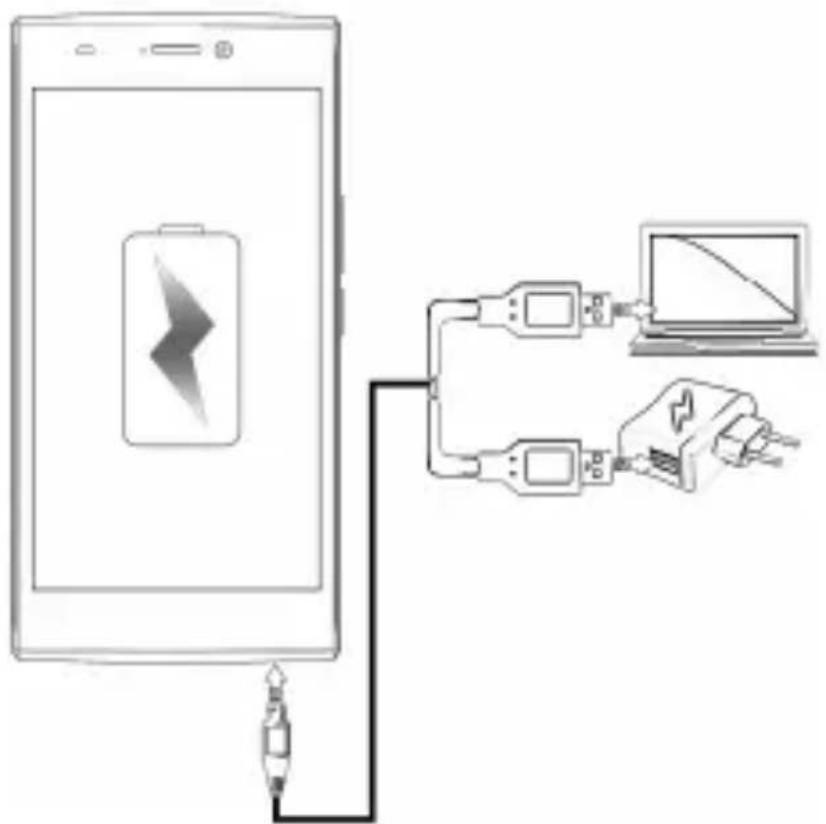

You can also use a compatible USB charger to charge your battery.

We suggest you charge the battery for 4 hours continuously for the first time.
Basic Phone Features
Signing in with your Google Account
Your Google Account lets you take full advantage of apps and services offered by Google Android market. Configure your Google account on this handset to get access to your Gmail, Google Play Store, Google Maps, and much more.
The phone will prompt you to sign in to your Google Account when you turn on your handset for the first time.

Network connection will be required for the Google account setup step to appear.
To sign in to your Google Account at a later time, go to → Add account → Google. Follow the registration steps to successfully configure your mail account on the device.

If you do not have a Google Account, you can easily create one.

You may also add other accounts associated with
Desktop Screen
You can personalize your desktop with shortcuts, widgets, wallpapers and other items.
- Long tap on the home screen to view quick options to change wallpaper or add widgets.
- You can add extensions to the screen by placing widgets or app shortcuts on the extended desktop screen.
- Your E311 will show only those extended screens which have some shortcut/widget placed on them. Swipe left or right on the desktop screen to view the next extended screen.
- In the bottom pane, there are four launcher icons for you to open different apps in the phone. Tap and hold to select a launcher icon and then you can rearrange or replace them with ease.
Widgets
Widgets gives fast access to a set of apps in your phone.
Widgets allow you to place app shortcuts on your home screen and access them directly. Many of these apps provide live content such as news and clock.
Long tap on the desktop screen and tap on Widgets to view all available widgets.
Notifications
Your phone has a notification LED which notifies you with missed calls, text messages, charging on/off, and various other notifications and events as and when they appear in the device.
Open Notification Panel
Open the Toolkit
Close Notification Panel
Clear all Notifications
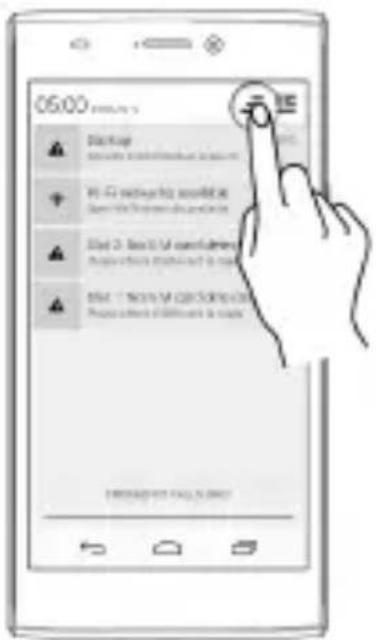
Open Quick Settings
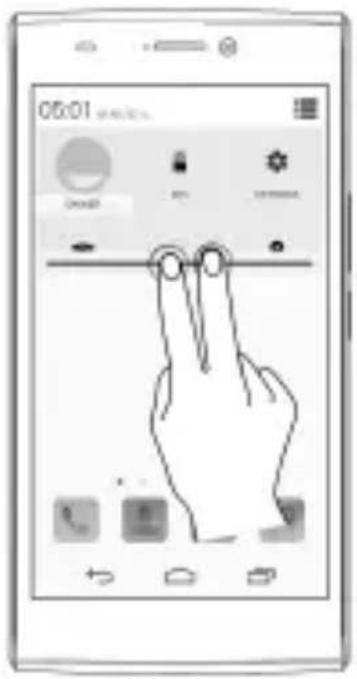
When you receive a notification, its icon appears in the status bar, along with a brief summary. You may clear each notification separately by swiping it towards left or right.
Toolkit provides you shortcuts to manage basic phone features, such as Airplane Mode, Wi-Fi, Display Brightness, and many more.
Gravity Sensor
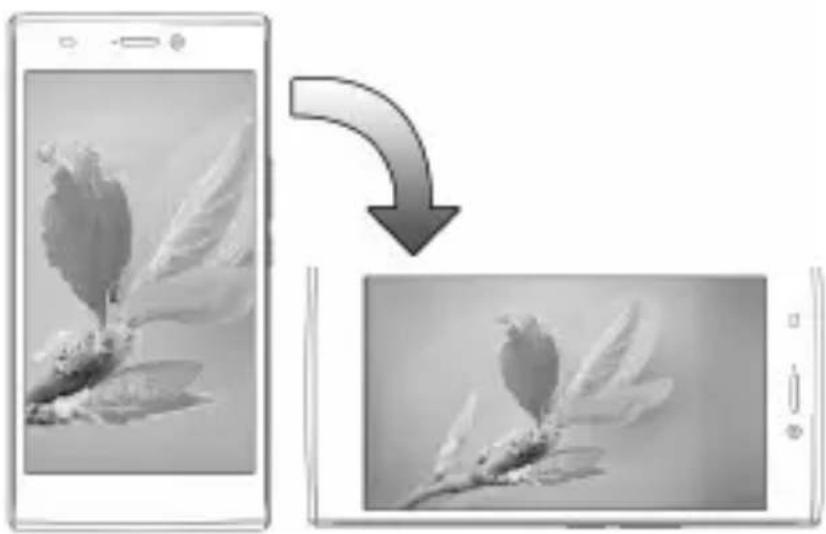
Your phone has gravity sensor to detect orientation and accordingly orient your phone based on its direction.
You can enable/disable the auto-rotate feature by dragging down the notification panel, tapping , and then select AUTO ROTATION.
Or
You can enable/disable the auto-rotate feature from
→ Auto-rotate screen.
natural_image
Two grayscale images showing a flower on a branch, one with wings and the other with flowers, both displayed on a smartphone screen (no text or symbols visible)Phone Locking and Unlocking Techniques
You may need to provide PIN, password, draw a pattern, take your face in front of the phone screen, speak something for voice recognition, or simply slide to unlock your phone.
Slide unlock will be the default unlocking method in the phone. To unlock the screen:
- Press the power key to wake up the phone.
- Hold and drag the lock icon towards the unlock icon.
Face Recognition
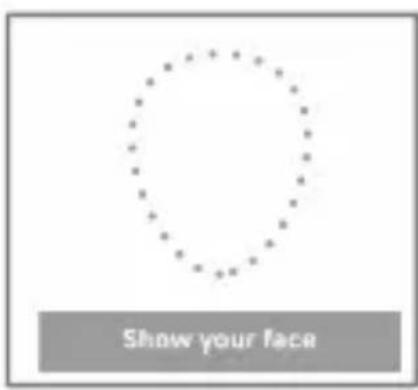
Look at your phone to unlock it!
Allows you to keep your face as screen unlocking password. You just need to look at your phone to unlock it.
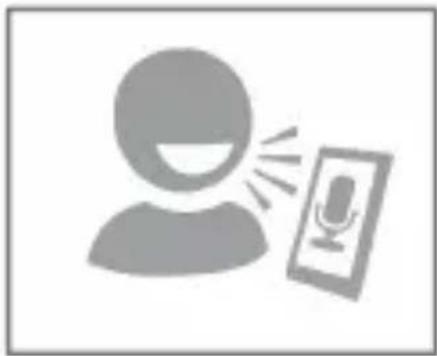
Voice Recognition
natural_image
Icon of a person with sound waves next to a microphone (no text or symbols)Speak your password to unlock!
Allows you to provide your voice as the screen unlocking password.
PIN
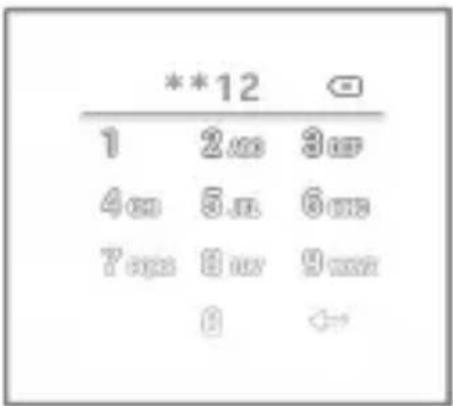
Enter your PIN to unlock your phone!
You may enter a PIN and set it as your screen unlocking password.
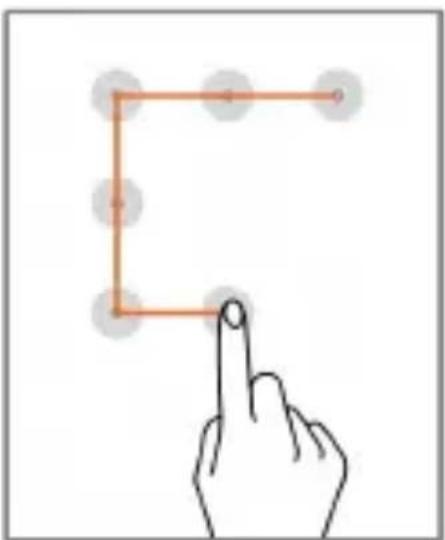
Pattern
natural_image
Hand pointing at a geometric shape with circular nodes and an orange line (no text or symbols)Set and draw your desired pattern!
You can set your own pattern by connecting the dots to prevent your phone from unauthorized access.
Password
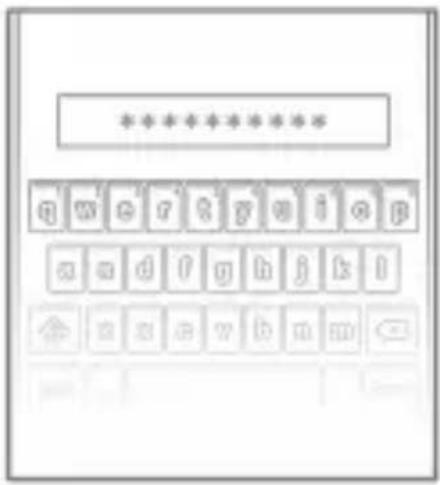
You may enter any desired password and set it as your screen unlocking password.
Enter your password to unlock!
Slide
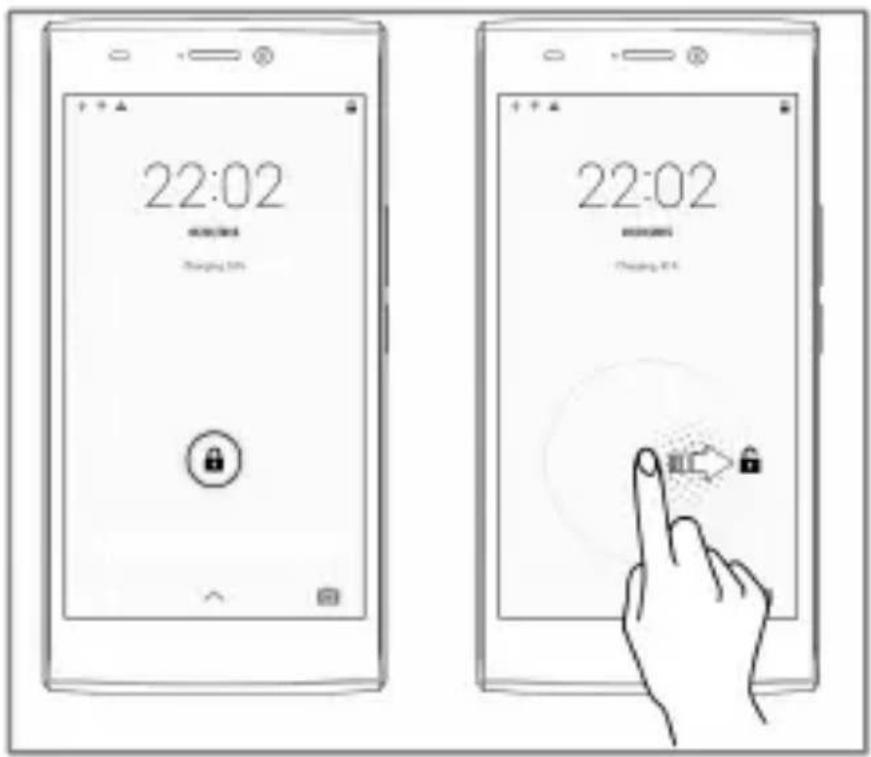
Just wake up the screen and slide the lock icon towards the unlock icon to unlock your phone.
Slide from lock icon to unlock icon!

You may set any desired locking technique from

Security → Screen lock.

It is important to remember your screen lock password/pattern/PIN.
You can disable all unlocking methods from your handset by selecting the None option.
Use Google Search
Search for anything on your phone or on the Internet using the Google search bar at the top of your desktop.
- Type your search words into the box or press the microphone icon and speak your search query.
- Use voice commands to perform various actions on your phone.
In addition to the search box on your desktop screen, Google Search is also available in the apps menu.
Using the Touch Screen
Tap and Hold
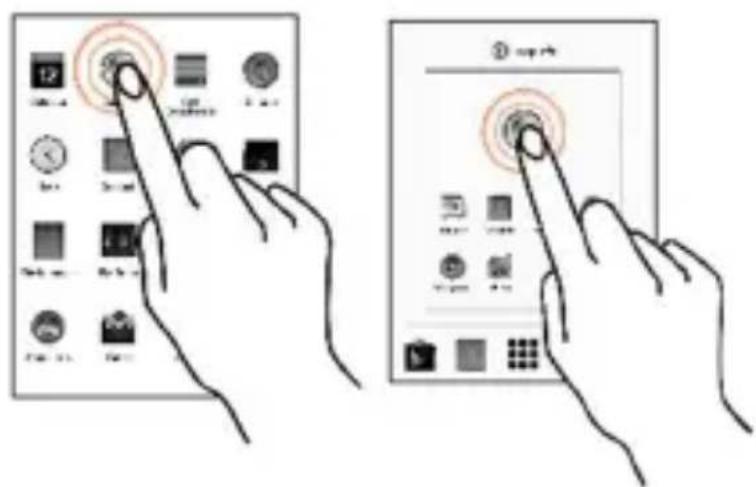
Tap and hold an item to view the list of actions based on the selected item and condition. Also, you can move items on the screen using this method.
Drag an Item
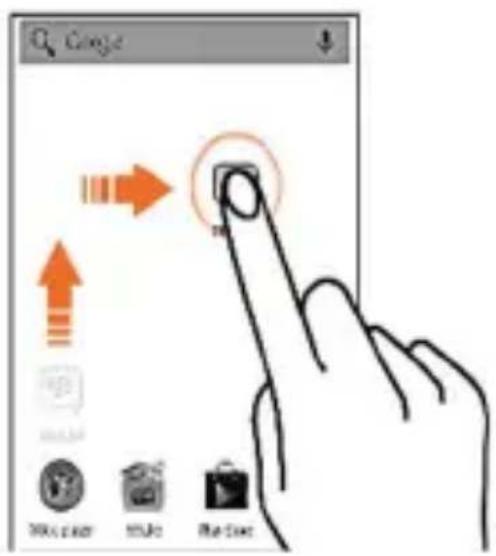
Tap and hold an item and move your finger on the screen until you reach the target position. The item follows your finger.
You can generally drag items from one location to another on the screen.
Scroll
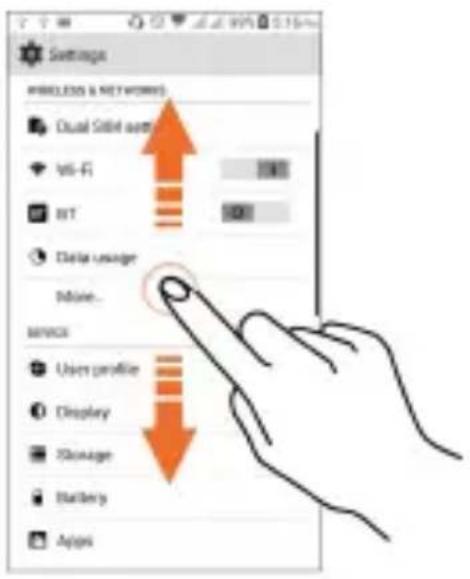
To scroll a list, slide your finger across the surface of the screen upwards or downwards (without dragging an item).
Swipe
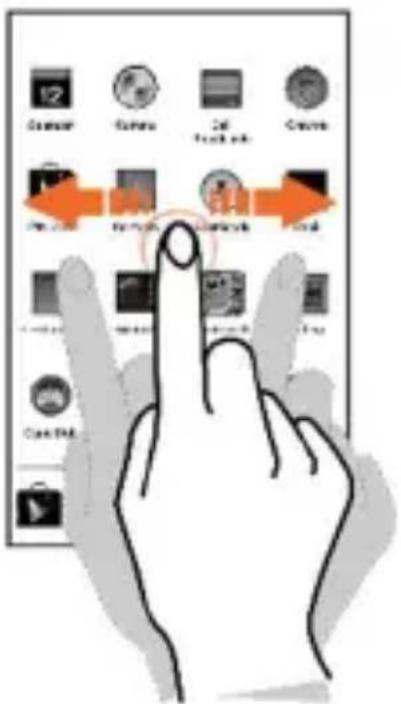
Place a finger on the screen and steadily slide your finger in the desired direction.
For example, when you are viewing a picture, to view the next picture, swipe left.
Using the Pinch Zoom
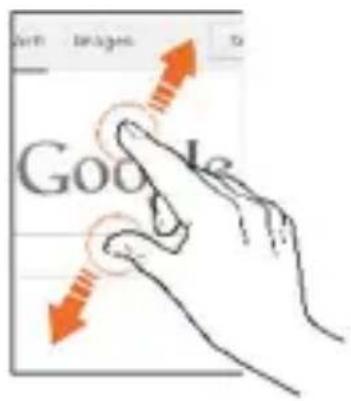
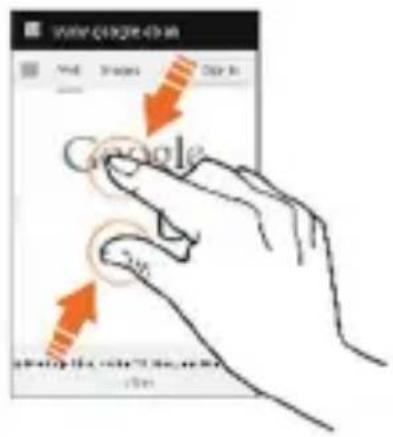
You can open any image or web page and then use your thumb and index finger to zoom the display through the pinch gesture.
Double tap
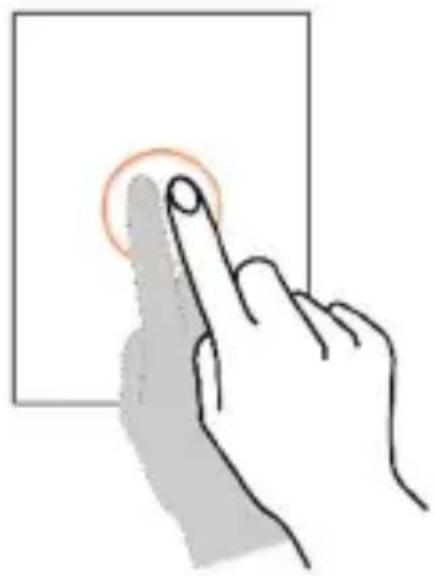
natural_image
Hand pressing a button on a rectangular screen (no text or symbols visible)Tap quickly twice on a webpage, map, or other screen to zoom. For example, double-tap a section of a webpage in the browser to zoom that section.
Using the Onscreen Keyboard
Some apps display the keyboard by default. In others, you will be required to tap a text field, where you want to enter text, to open the keyboard.
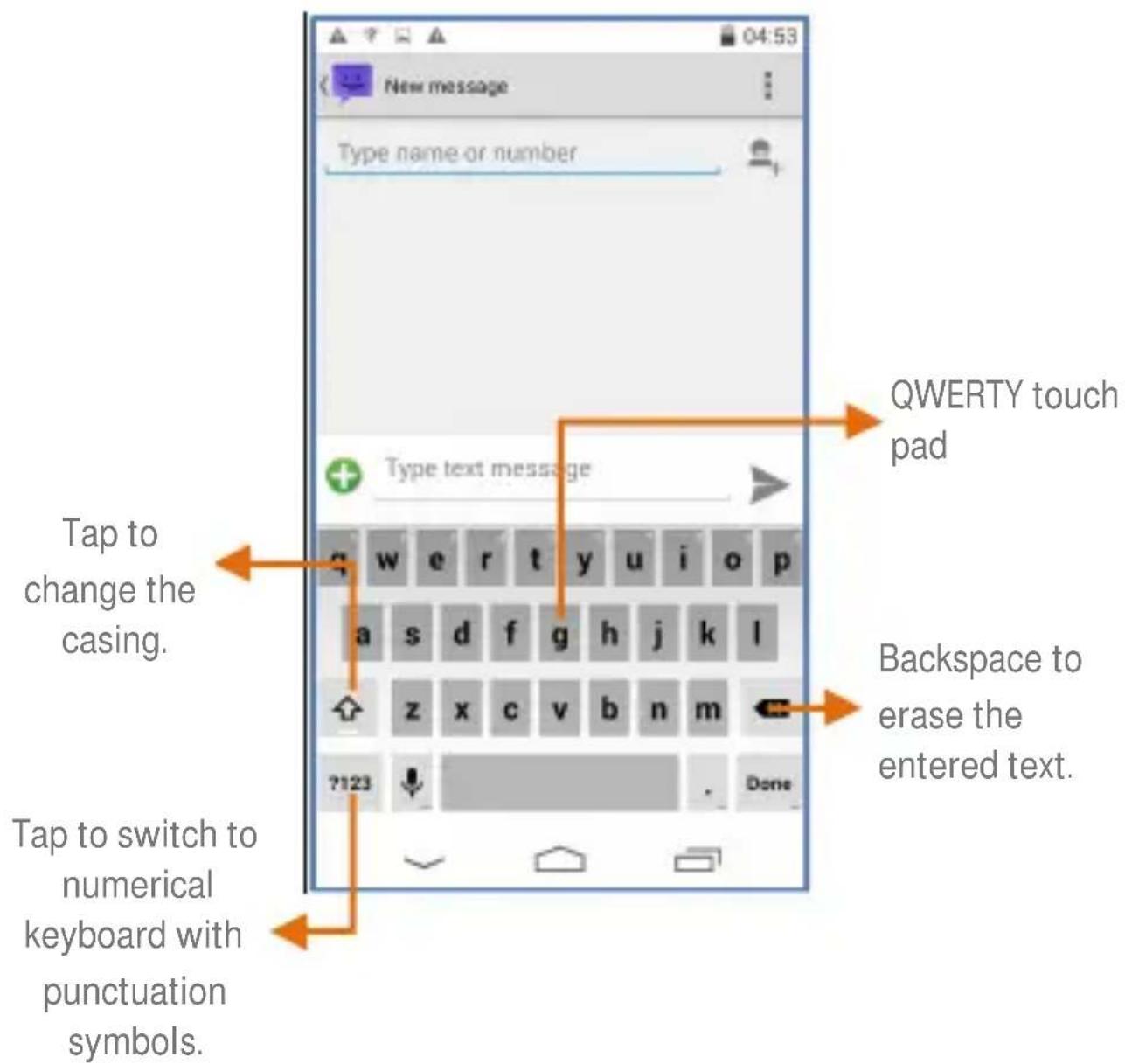

After typing, tap key to close the keyboard.

Tap and hold the text field to open a menu and to cut/ copy/paste text.
Recent Apps
Tap and hold the key on the desktop screen to view the list of recent apps. You can easily remove items from the list to free some memory and make your phone work faster.
There are two ways to remove items from the list;
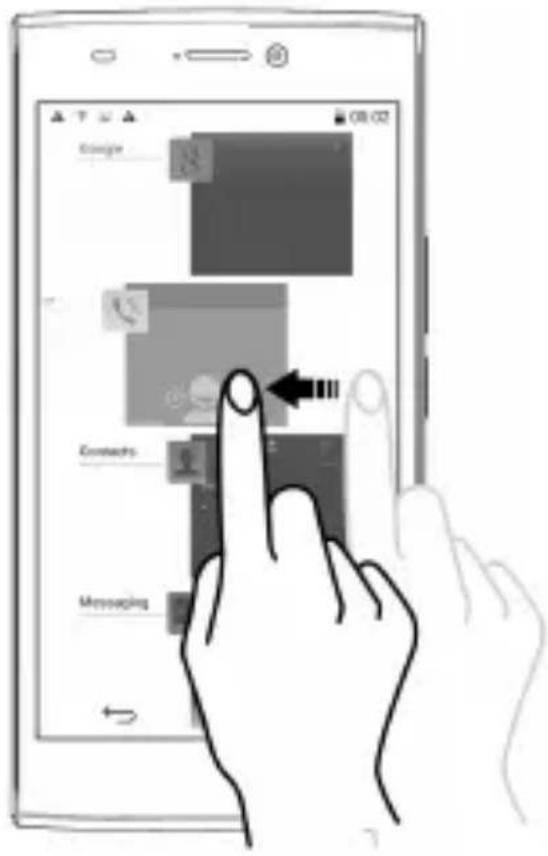
Drag an item towards left or right.
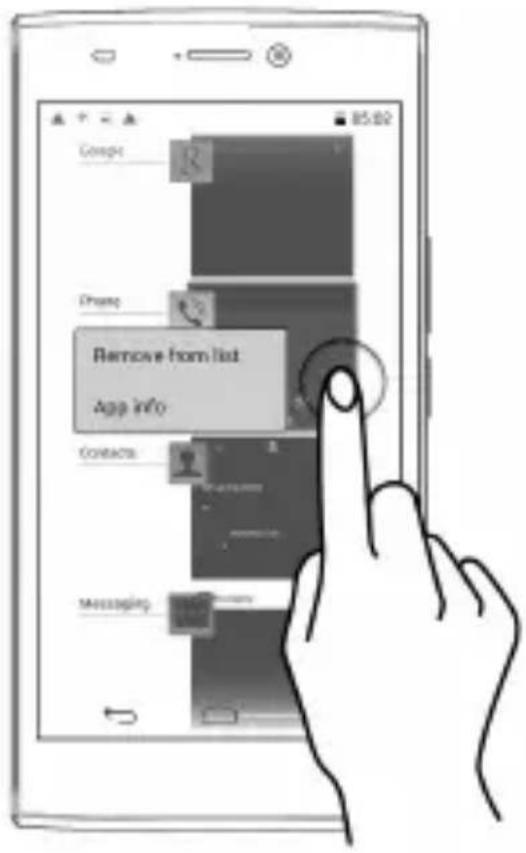
Tap and hold an item and then select "Remove from list".
Calling and Messaging
Make a Call
To make a call:
Tap on the menu screen or the desktop screen to open the dial pad for making calls.
By default, the dialer will display a list of contacts on which calls have been made very often and the contacts which have been marked as favorites.
You can show/hide the dialer by tapping or view the call history by tapping
Contacts
Go to

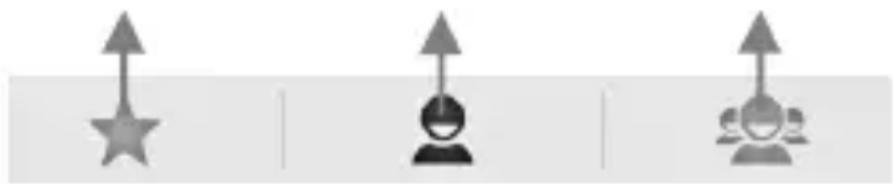
Store, use, and synchronize contact details in your contact list. You can now create contact groups or mark contacts as favorites in your phonebook. Use tabs or swipe through to view the list of contact groups, contacts, and favorite contacts list.
View list of favorite contacts
natural_image
Three gray icons: star, person with keyhole, and group of people with arrows (no text or symbols)
Search for your desired contacts under any of the three tabs by tapping icon.

Add a new contact in the contacts list by tapping

You can synchronize your contacts list with any of your accounts configured on this device.
To synchronize your contacts list:
- Tap the icon from the contacts screen and then tap Accounts.
- Select the account(s) with which contacts list is to be synchronized. You can auto-sync contacts by selecting the Auto-sync app data option.
Your contacts synchronization will be complete in a few seconds.

To synchronize contacts, you need to have Internet connectivity via your SIM or Wi-Fi. If your Sync does not proceed as expected, check whether data option is set to ON.
Airplane Mode
Some locations may require you to disable all the wireless features of your mobile. The Airplane Mode disables all incoming and outgoing calls, Wi-Fi, and Bluetooth connections.
To activate the airplane mode:
Press and hold the Power button and then select Airplane mode.
Or
Drag notification panel down, tap, and then select AIRPLANE MODE.
Send Message
To send a message:
- Tap on the menu screen or the desktop screen to
go to the messaging section and then tap to+ compose a message.
-
Tap the icon to view the types of files that can be attached and select the desired type of multimedia file.
-
Tap to select the composition text box and enter your message body in it.
-
Enter the contact name (if it exists) or enter the phone number. You can also tap the icon to view and select contact(s) from the contact list.
-
Tap to send the multimedia message.
Multimedia
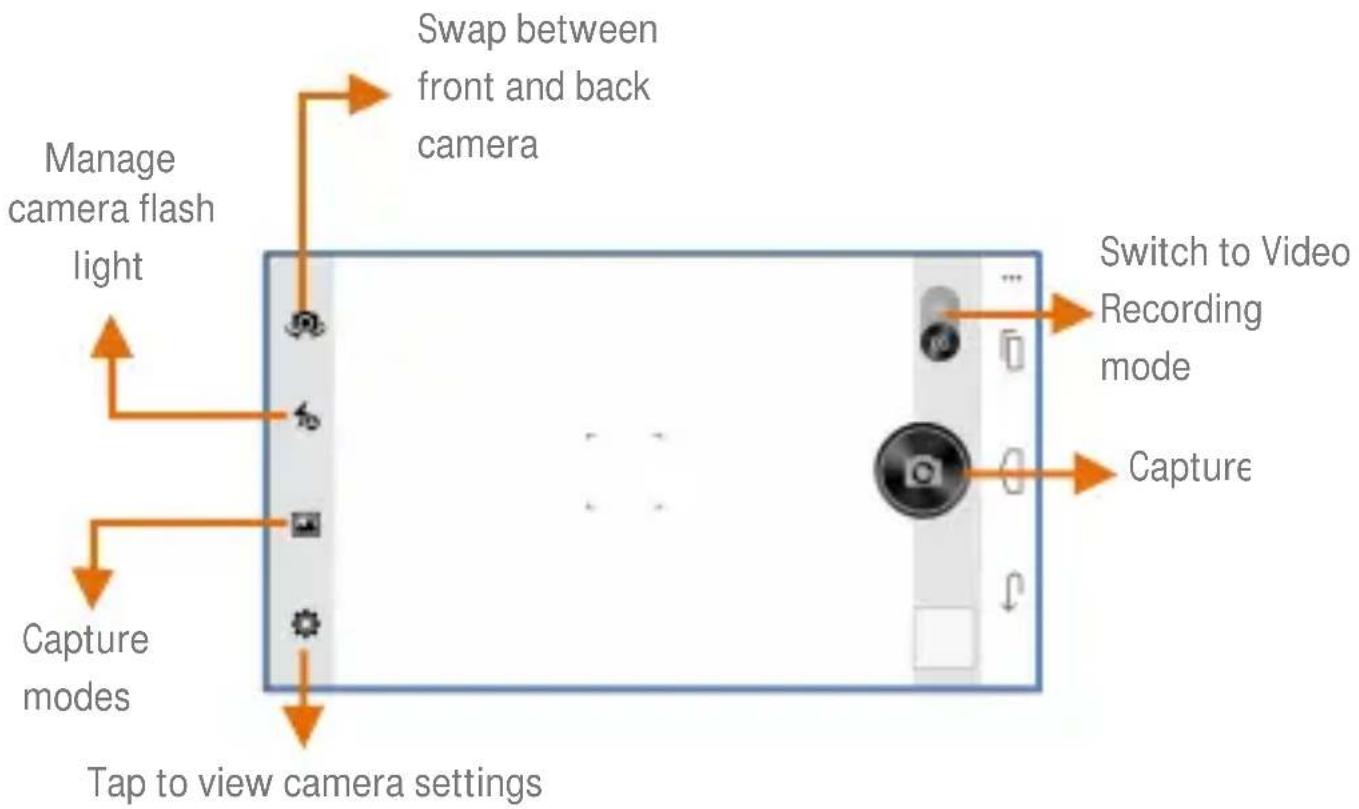
Camera
Go to

Gallery
Go to

You can use the Gallery to view pictures and share files. Tap an album to open and view its contents.
Music Player
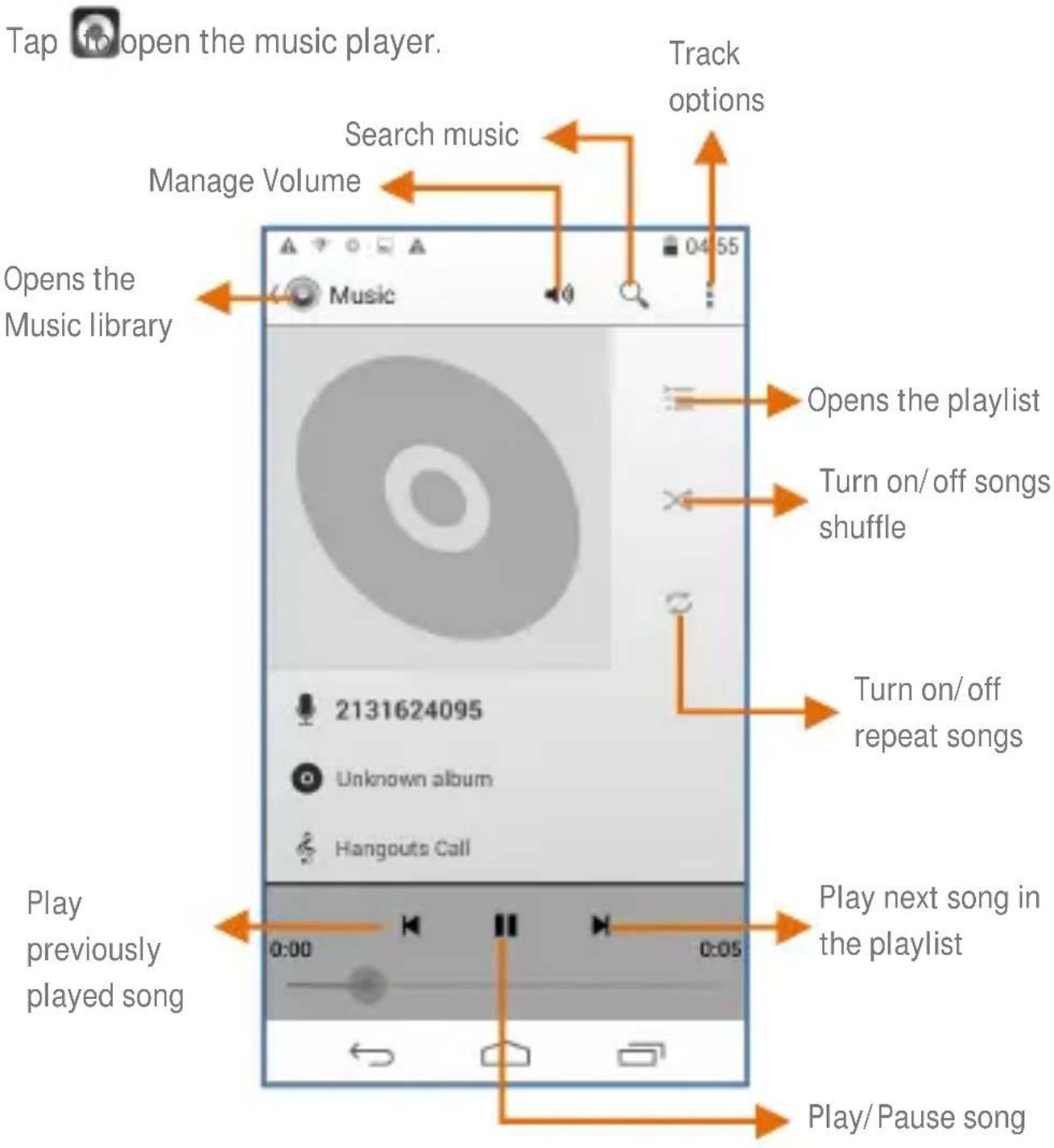

Press the phone's volume up/down keys on the right side of the mobile phone to adjust the volume.

You can use an SD card to enhance the storage capacity for your multimedia files such as music, photos, emails,
FM Radio
Go to

You can listen to your favorite FM channels using the inbuilt FM receiver of your phone. Before starting the FM, you need to plug-in the headset as it works as antenna for the FM radio. Use the intuitive buttons and icons on the phone in the radio interface to enjoy the features of your inbuilt FM radio.
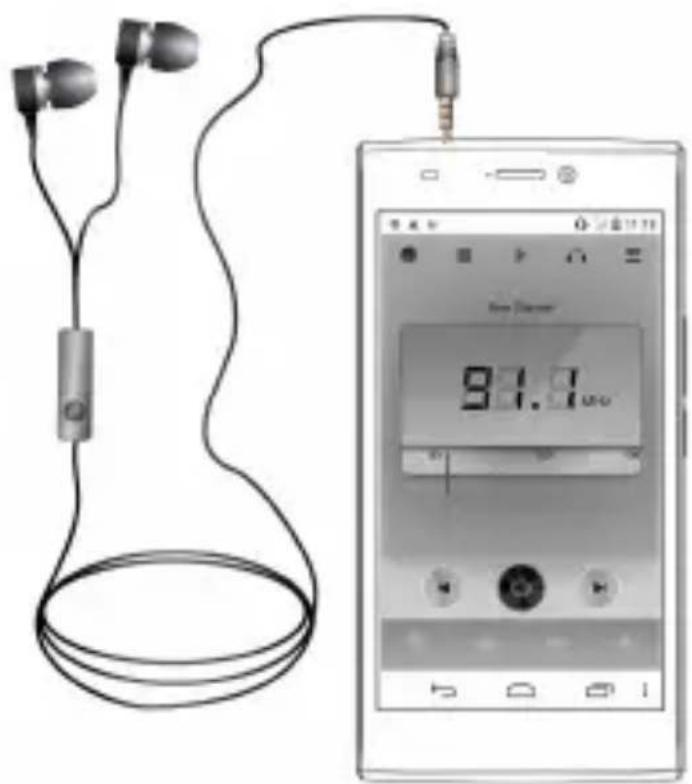

Press the phone's volume up/down keys on the right side of the mobile phone to adjust the volume.
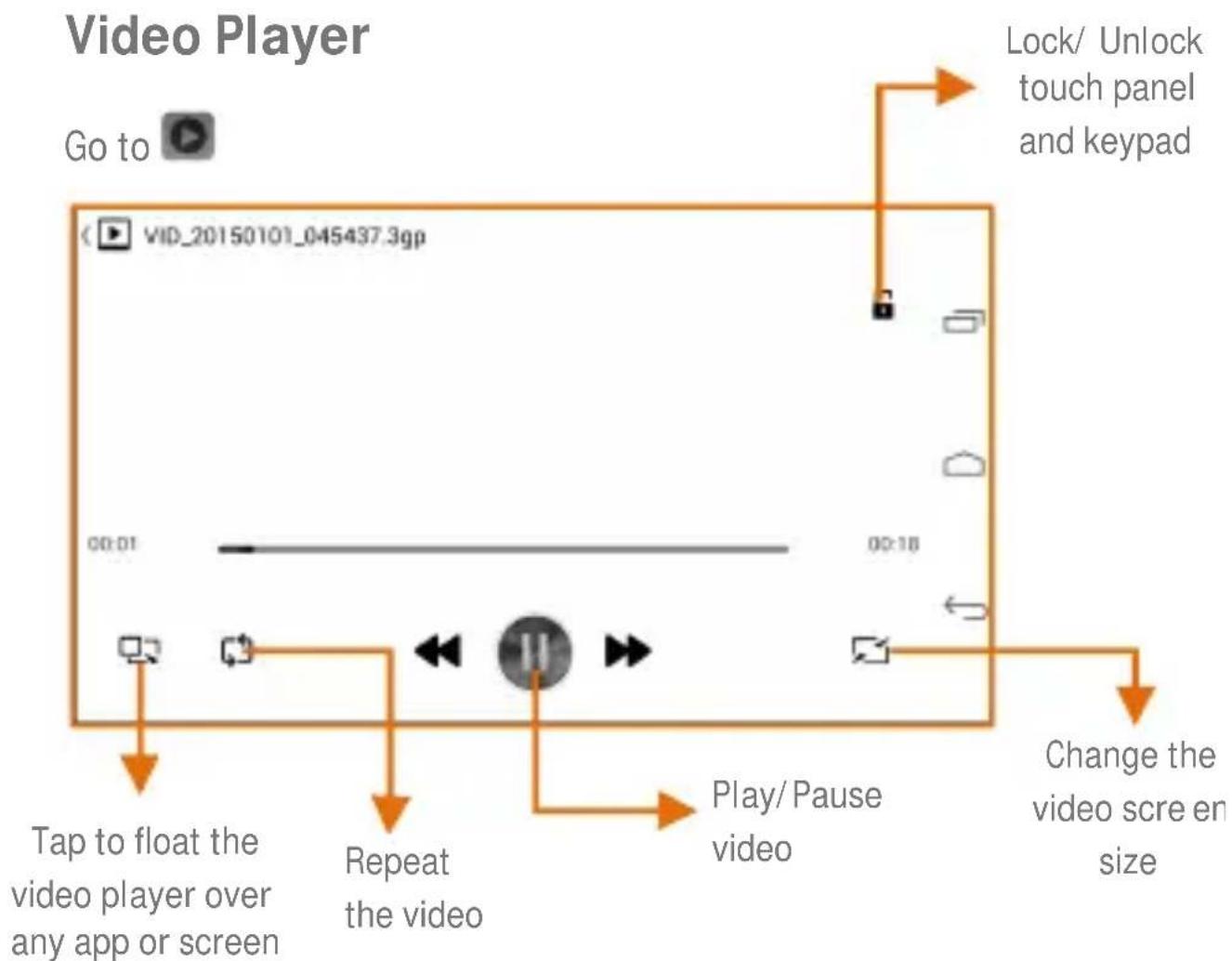
flowchart
graph TD
    A["Go to"] --> B["Tap to float the video player over any app or screen"]
    B --> C["Repeat the video"]
    C --> D["Play/Pause video"]
    D --> E["Change the video screen size"]
    E --> F["Lock/ Unlock touch panel and keypad"]
    F --> G["Video Player Box"]
Settings, Networks, and Apps
Your phone can connect to a variety of networks and devices, including Internet, Wi-Fi, GPRS, Bluetooth, devices, such as headsets. You can also transfer files to/from your PC through the data cable.
Connect to the Internet
To configure Internet:
- Go to
→ More → Mobile networks → Access
Point Names and select the SIM for which access point name is to be configured. Select the access point name from the list. - Go to
→ More → Mobile networks → Data on and select the SIM on which data connection enabled. - You may also need to configure the access point name to enable data connection.


By default, the access point name gets configured once you insert the SIM, Or, your network provider sends the access point name settings via SMS. You may need to install these settings. If the access point names are not listed by default, please contact your network provider for the same.
Tethering & Portability
You can use your E311 as a modem and connect your PC or laptop to the Internet, when required. Start using your SIM data pack on your PC or Laptop now!
Go to → More → Tethering & portable hotspot.
USB Tethering
- Connect your phone with your PC/Laptop via USB cable.
- Select the USB tethering option.
- Select your phone network as the network connection in your PC/laptop and get access to the Internet.
Bluetooth Tethering
- Pair your phone with the Bluetooth enabled PC/laptop via Bluetooth pairing option.
- Select the Bluetooth tethering option in your phone.
- On the paired PC/laptop, select the Bluetooth device (your phone) and choose to connect to the Internet.
Wi-Fi hotspot
- Turn on the Wi-Fi hotspot option in your phone.
- On the other Wi-Fi enabled PC/laptop/handset, choose your phone as a Wi-Fi network to connect with it.
- View and configure Wi-Fi hotspot settings by tapping the Set up Wi-Fi hotspot option.

Your mobile operator will charge you based on your GPRS data usage.
Pair With Bluetooth Devices
Go to

Bluetooth.
To pair your E311 with some other Bluetooth device:
- If Bluetooth is off, turn it on and then tap Bluetooth. Your phone scans and displays the Bluetooth devices in range.
- Tap the ID of the other device in the list to pair with it.
- You will be prompted to confirm passkey on both devices. Tap Pair to confirm the passkey and pair the devices. On successful pairing, your phone connects to the device.

If the device you want to pair with is not in the list, make it discoverable and then search. If your phone stops scanning before you make the other device discoverable, tap SEARCH FOR DEVICES.

Tap Micromax E311 at the top of the scanned device list to make your E311 visible on other devices.
Configuring E-Mail
You can check and reply to your emails from your E311 from anywhere and anytime. Apart from the Gmail account, you can configure other accounts too on this device.
To set up an email account:
- Go to Add account → Corporate.
-
Type the email address and password in the respective fields and tap Next.
-
Set account settings, as required and tap Next.
- Provide your account name and your name and then tap Next to successfully finish account configuration.
The server will check for online settings automatically and your account will be set up. If not, please check your Internet settings before proceeding.
Google Maps
Google Maps is an app from Google that gives you access to various map-related services. You can view your location on a map, search for different landmarks, find directions to locations, and even view Street View photos from around the world. The built-in navigation works with your GPS to give step-by-step route guidance while driving or walking. And you can even download maps to use offline, when you don't have an Internet connection. For the best experience with Google Maps, configure the following settings:
- Enable location access from → Location.
Tap on to start using Google Maps.

Internet connection is required for using Google Maps.
When you use the map, you use your Internet connection to transfer data to and from your phone.

The Google Maps app may not be available in every street, country or region.

Micromax does not guarantee the accuracy of any directional services.
Drive
Back up all your files like videos, images, PDFs, etc. using Google Drive™ so that you don't lose them. You can view your documents from any smartphone or computer and share them with others.
Tap on to start using Drive.
Manage Apps
Your phone comes with a host of apps to make your life easier and more convenient. The Android phones offer users access to unlimited entertainment sources. You can download apps, games, movies, and books from the ever increasing Android market. New items get added almost daily to the market to give users a never ending fun experience.
To view and manage the list of all inbuilt, downloaded, and running apps, go to 📄 Apps.
To download apps, games, movies, and books from the Google Play Store, tap on to access the Google Play Store. View the details and download items, as desired.

Not all items are free of cost in the Google Play Store.

You need to have an Internet connection and be signed in to your Google Account to use the Google Play Store.
Safety Precautions

Switch off your device in any area with potential explosive atmosphere. Sparks arising out of radio frequency may cause fire or explosion. Therefore switch off your device at refueling stations, fuel depots, chemical plants or places where blasting operation is in progress. Remember to comply with legal requirements and local restrictions when using the phone.

Your Phone's radio waves may interfere with inadequately shielded medical devices. Consult a physician or manufacturer of the medical device to know whether they are adequately shielded from external Radio Frequency. Switch off your device when regulations require you to do so.

Always keep the phone and accessories out of reach of small children. Small parts such as the SIM card or micro SD card can be dismantled and swallowed by small children.
Do not place the phone near electromagnetic data carriers such as credit/Debit cards. Information stored on them could be lost.
Permanent damage to hearing may occur if you use earphones at high volume for prolonged periods. Set your volume to a safe level. If you experience discomfort in your ears, reduce the volume or discontinue the use of your earphones.

Manufacturers of medical devices recommend a minimum distance of 15.3 cm (6 inches) between a wireless device and an implanted medical device such as pacemaker or cardioverter defibrillator to avoid issues arising out of radio frequency interference.
The mains voltage (V) specified on the power supply unit must not be exceeded to prevent damage to the charging device. The power supply must be plugged into an easily accessible AC power
socket when charging the battery.
You may only open the phone to replace the battery (if not inbuilt), SIM card and micro SD card. You must not open the battery under any circumstances. All other changes to this device are strictly prohibited and will invalidate the warranty.
The phone may cause interference in the vicinity of TV sets, radios and PCs.
Only use Micromax specified batteries and charging devices. The battery may cause damage, injury or burns if a conductive material closes the circuit of the terminals. Exercise care in handling any charged battery, particularly when placing it inside your pocket, purse or other container with metal objects. Do not dispose of batteries in fire as they may explode.

Do not use the phone while driving. When you have to use the phone, please use the earpiece.
Please put the phone safely in the phone stand. Do not put it onto any passenger seat or any place from which it may fall down during collision or emergency braking.

Flight is influenced by interference caused by the phone. It is illegal to use a phone on the airplane. Please turn off your phone during a flight.

The phone must be repaired by Micromax authorized personnel only. Repairing this phone by yourself other than our authorized service agents/centers goes against the warranty rules.
Taking Care of your device
Your device is a product of superior design and craftsmanship and should be handled with care. The following suggestions will help you protect your phone.
- Keep the device dry. Precipitation, humidity, and all types of liquids or
moisture can rust the electronic circuits. If your device gets wet, remove the battery, wipe it with a dry cloth and take it to an authorized service center.
- Do not store the device in high or cold temperature. Extreme temperatures can shorten the life of electronic devices and damage batteries.
- Do not use or store the device in dusty, dirty areas. Its moving parts and electronic components can get damaged.
• Do not attempt to open the device other than as instructed in this guide. - Do not drop, knock, or shake the device. Rough handling can break internal circuit boards and fine mechanics.
- Do not use harsh chemicals, cleaning solvents, or strong detergents to clean the device. Only use a soft, clean, dry cloth to clean the surface of the device.
- Do not store your device near magnetic fields or allow your device to come in contact with magnetic fields for extended period of time.
Battery Recommendations
- Please put the battery in a cool and well-ventilated place out of direct sunlight. We recommend you to charge the battery at room temperature range.
- Batteries have life cycles. After a full charge, if the power reserve of the battery tend to deplete inordinately faster than usual, the battery life is at an end. Replace the battery with a new battery of the same make and specification.
- Use compatible batteries, chargers, accessories and supplies. Micromax will not be held responsible for user's safety when using incompatible accessories or supplies.
- Do not discard the battery with household trash. Please dispose of used battery according to your local environmental laws and guidelines.
Recycle your Phone
natural_image
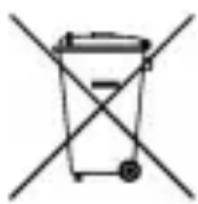
Symbol of a trash bin crossed out by two crossed lines (no text or labels)The WEEE logo (shown at the left) appears on the product (battery, handset, and charger) to indicate that this product must not be disposed off or dumped with your other household wastes. You are liable to dispose of all your electronic or electrical waste equipment by relocating over to the specified collection point for
recycling of such hazardous waste.
Collection and proper recovery of your electronic waste equipments at the time of disposal will allow us to help preserve the environment. Recycling of the electronic waste equipment will ensure safety of human health and environment. For more information on best practices for disposal of electronic and electrical waste, please visit to our web site: www.micromaxinfo.com/weee.php.
Note: Micromax will not bear any responsibility for any incompliance with the above mentioned guidelines or improper usage of the mobile phone.
Copyright
All rights reserved. Reproduction, transfer, distribution or storage of part or all of the contents in this document in any form without the prior written permission of Micromax is strictly prohibited.