P2 Alldro - Cellphone Allview - Free user manual and instructions
Find the device manual for free P2 Alldro Allview in PDF.


User questions about P2 Alldro Allview
0 question about this device. Answer the ones you know or ask your own.
Ask a new question about this device
Download the instructions for your Cellphone in PDF format for free! Find your manual P2 Alldro - Allview and take your electronic device back in hand. On this page are published all the documents necessary for the use of your device. P2 Alldro by Allview.
USER MANUAL P2 Alldro Allview
natural_image
Front view of a black smartphone with a keypad (no visible text or symbols)1
Contents
I. Cautions
1 Safety Information....4
1.4 Traffic Safety First....4
1.1 Traffic Safety First....4
1.2 Turn Off in Hospital....4
1.3 Turn Off in Airplane....4
1.4 Turn Off When Refueling....4
1.5 Turn Off Rear Blasting Sites....4
2 Cautions on Mobile Phone Use....4
2.1 Interference 4
2.2Reasonable Use....4
2.3 Qualified Maintenance Service....4
2.4 Water-Resistance....4
3.5 Emergency Calls....4
3. Precautions for use of Battery 5
4 Cautions for Children....5
II. Keys and Parts....6
III. Start to Use....7
1 Battery....7
1.1 Remove/Insert the Battery: 7
1.1 Remover-inset the Battery....7
1.2 Changes the Battery: 0
1.2 Charge the Battery....8
2 Connecting to Network 8
2.1 SIM Card....8
2.2 Insert and Remove the SIM Card....9
2.3 Insert/Remove the Memory Card....9
2.4 SWITCH ON/OFF....10
3.5 Unlock SIM Card....10
2.5.3.1.0.0.0.0.0.0.0.0.0.0.0.0.0.0.0.0.0.0.0.0.0.0.0.0.0.0.0.0.0.0.0.0.0.0.0.0.0.0.0.0.0.0.0.0.0.0.0.0.0.0.1
IV. Basic Functions....11
1 Make calls....11
1.1 Make Domestic Calls....11
1.2 Call Extension Phone....11
1.3 Make International Calls....1
1.4 Make Listed Calls....12
2 Emergency Calls....13
2 Emergency Calls....12
3 Answer Calls....12
4 Call History 12
5 Connection Option....12
V. Function Menu Instruction....13
1. Browser....13
2. Calculator....13
3. Calendar....13
4. Call Log....13
Engieh
- Camera....14
6.1 New Alarm....14
- Contacts....14
-
Downloads....15
-
Email....15
-
File Explorer....15
-
Gallery....16
-
Messaging....16
13.1 Compose new message....16 10.2 Message Setting....19
-
Music 16
-
Notes....17
-
Phone....17
-
Process Manager....17
-
Search....17
-
Settings 17
-
SIM Toolkit....19
-
Sound recorder....20
-
Videos....20 23 Wireless Keyboard 20
VI. Input....20
VII. Quick Start Guide....21
I. Cautions
Please read the concise rules. The breach of the rules may result in danger or violation of law.
1 Safety Information
1.1 Traffic Safety First
Please use the mobile phone carefully when you drive a car. Park your car at roadside and then use the mobile phone if the driving condition is bad.
1.2 Turn Off in Hospital
Please abide by relevant provisions or regulations. Please turn off your mobile phone near medical equipment.
1.3 Turn Off in Airplane
Wireless equipment has disturbance in the airplane, so the use of the mobile phone in airplane is dangerous and illegal.
1.4 Turn Off When Refueling
Please don't use the mobile phone in gas station or near fuels or chemicals.
1.5 Turn Off near Blasting Sites
Don't use the mobile phone in blasting sites. Please observe relevant restrictions and carry out rules or regulations.
2 Cautions on Mobile Phone Use
2.1 Interference
All phones may be interfered, which affect phone calls.
2.2 Reasonable Use
Use only in the normal position. Do not touch the antenna area unnecessarily.
2.3 Qualified Maintenance Service
Only qualified personnel may install or repair this product.
2.4 Water-Resistance
Your device is not water resistant. Keep it dry.
2.5 Emergency Calls
Ensure the phone is switched on and in service. Enter the emergency number
and press the Dial icon.
3 Precautions for use of Battery
3.1 Do not dispose of batteries near or in a fire to avoid dangers.
3.2 Do not dispose of batteries in the garbage. Dispose of batteries to assigned battery recycling center.
4 Cautions for Children
Keep your device out the reach of children in case of accidental injury caused by incorrect use of the device as toys.
II. Keys and Parts
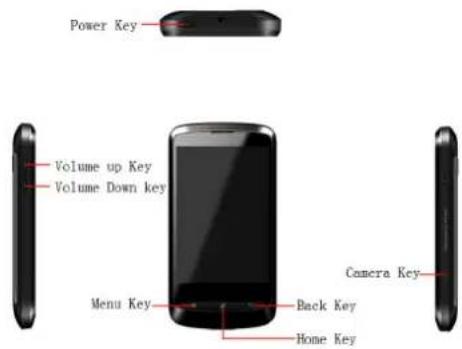
Home Key
Press Home key at a non- standby screen to go back to standby screen
Camera Key
Press Capture key to take a picture at a preview screen.
Volume Up/Down Key
Press Volume Up/Down key to change the volume.
Menu Key
Press Menu key to add/manage applications, wall papers, searches, notices
and menu settings
Back Key
Press Back key to go back to previous menu.
Power Key
Short press of the Power key shall lock the screen and a long press on the
Power key shall switch on/off the device.
The "press" related to the screen in this manual means using your finger to
touch the screen.
III. Start to Use
1 Battery
The battery which is initially 50% charged can be used immediately. Please fully charge/discharge the battery for the first three times to get maximum capacity.
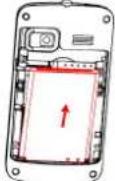
1.1 Remove/Insert the Battery
Follow the following steps to remove:
A Opening the back cover by the gap at its upper left side.
B Lilt up the battery bottom at its upper side in the direction of the arrow.
C Close the back cover.
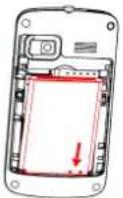
Follow the following steps to install:
A Align the metal contacts of the battery with the metal contacts in the battery compartment as per the direction of the arrow, press the battery bottom into the compartment.
B Put on the battery cover in a parallel way until it is completely matched.
1.2 Charge the Battery
During charging, the battery indicator on the phone is a thunder icon. If the device is switched off during the charge, there will still be a charge indication on the screen that shows the phone is still being charged. If the device is overused when the battery is low, it might take some time to appear the charging icon.
When the battery indicator on the screen says 'fully charged', then thunder icon will disappear, which means the completion of charging. If the phone is switched off during charging, the screen will have a 'fully charged' scene. It generally takes 4 hours to charge the battery. During charging, the battery, the device and the charger will get hot. This is normal.
Unplug the charger from the AC electrical out let and disc onnect the wiring bet we en t he ph one a nd th e charger after charging.
Attention: Charge the phone in a well ventilated place in which the temperature is from -10^ C to -55^ C. Use the charger provided by the manufacturer only. The use of unconfirmed charger may lead to dangers and violate the manufacturer's warranty clause. If the temperature is too high or too low during the charge, the device will automatically send a warning and stop charging to avoid damage to the battery or any danger.
2 Connecting to Network
2.1 SIM Card
Insert valid SIM card (subscriber identity module) before using the device.
All information related to the reach of the network are recorded in the chip of SIM card, including the name, phone number and messages stored in the SIM card contacts. In case of losing or damaging SIM card information, users should avoid touching the metal touching side and keep SIM card away from electrical and magnetic field.
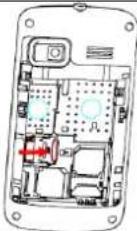
2.2 Insert and Remove the SIM Card
■ Switch off the device, and remove the battery and other external power supply.
■ Insert the SIM card into the card slot as the picture indicated.
■ Please switch off the phone and remove the battery before removing the SIM card.
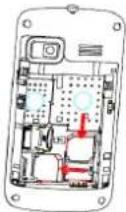
Warning: Damages could happen to your SIM card if the device is not switched off when taking out of the SIM card.
Attention: SIM1 (left side in the picture) supports WCDMA network while SIM2 (right side in the picture) supports GSM network. This device is a dual SIM cards dual standby mode cell.
2.3 Insert/Remove the Memory Card.
- Insert the memory card into the slot and lock the slot as indicated in the picture. - Attention: This handset doesn't support the hot-swap of T card. When you need to take out the inserted card, please switch off the device before taking out the memory card.
2.4 Switch ON/OFF
Do a long press the Switch on/off key to switch on/off the phone. If the device is switched on but the SIM card isn't inserted, the lock screen will show "please insert SIM card"
After inserting the SIM card, the screen will show the notes in the following order when the phone is switched on:
Type in PIN— if you have already set the SIM code. Search—The handset will be searching for proper network
connection.
2.5 Unlock SIM Card
To avoid illegal use, the SIM card is enciphered with PIN (personal identification number) as a protection. When this function is ON and you have already set a PIN code, you need to type in PIN code every time the handset is switched on in order to unlock SIM card and use the handset.
You can turn off the SIM PIN code. Yet in this situation, the SIM card can't prevent illegal use.
■ Input PIN code press arrowhead icon to erase typing error and press OK to end typing. For example, if the PIN code is set as 1234, then type "1234" then press OK.
The SIM card will be locked if you type in wrong code for three times continuously. The handset will inform you to type in PUK code.
Attention: Your network provider will set a standard PIN code (four to eight numbers) for your SIM card. It is recommended that you change the code into a personal code as soon as possible.
2.6 Connection to Network
When the SIM card is successfully unlocked, the handset will automatically
Engieh
search for available network (the lock screen shows searching). The handset will show the information of the network provider, the status bar will show the signal strength and the network condition once the handset is successfully connected to a network.
Attention: If the lock screens shows "Emergency", it means that you're out of network coverage (service coverage) or your card is not valid, yet you can still have emergency calls based on signal strength.
IV. Basic Functions
1 Make calls
When the network provider icon appears on the standby screen, you can call out or answer calls. The indicator on the upper right part shall show the signal strength.
Quality of connection will be greatly influenced by obstructions. So
movement in a small range may effectively improve the quality of connection.
1.1 Make Domestic Calls
Use virtual keyboard to enter phone numbers and then press Dial icon to call. If you need to change the phone number, please press the delete key on the touch screen to delete. When the call is answered, the screen shall show the connection status.
1.2 Call Extension Phone
Some of the extension phones can't be directly connected to. Use the virtual keyboard, enter switchboard number, open the option menu and choose "Add 2-sec pause", and then dial the extension phone number.
Type in as follows to call extension phone:
Zone description, switchboard number, Add 2-sec pause, extension
phone number · call
1.3 Make International Calls
If you need to make an international call, do a long press on the 0 key on the virtual keyboard until there appears the sign "+" for international call prefix, which helps you call from any country (For example, in China that is 86) even if you don't know the international call prefix of that country.
You can make an international call according to the following typing order: + > country code > complete phone number > dialing icon (type in the prefix code, and then continue to enter the country code and complete phone number). Country code usually follows conventional practice: German is 49, Britain 44, Sweden 46 and so on.
When making international phone calls, the "0" in the city code should be emitted.
For example, if you want to make a call to Shanghai from other countries, you should dial: +86 21 114.
1.4 Make Listed Calls
Every dialed and received phone number is recorded in the call history list. Recently dialed, answered and missed phone numbers are chronologically (newest to oldest) listed in the "all" log. You can also choose and check missed, answered and dialed list according to your need.
■ Listed phone numbers can be called out by pressing the respective log.
■ Press the small icon on the right side to enter the details interface of the log. In the call history interface, users can do a long press to save or delete the number. In the details interface, the phone number save function is preset.
2 Emergency Calls
You can call for emergency service as long as you are in the network coverage (check the signal strength indication bar on the upper right side of the handset screen). If your network provider doesn't provide roaming service in this area, there will be "Emergency Calls" on the lock screen. If you are in the network coverage, you can have emergency calls even without a SIM card.
3 Answer Calls
Directly press "answer" key to answer an incoming call. If your headphone is connected to the handset, you can use the headphone key on the headphone answer calls.
Attention: A short press of the headphone key will answer the call while a long one will refuse to answer the phone.
4 Call History
This handset not only can list all calls in reverse chronological order, but also list a floating menu with all, answered, dialed, missed calls for checking call history of different kinds.
5 Connection Option
This option can only be seen during a call. The waiting call, hold call, multi-party call functions require the support of the network. Please contact with the network provider.
In the connection option, you can do the following operations:
■ Speak
Switching hands-free and handheld
■ Hold
Temporarily hold the current one-line call.
■ End
End the current call.
■ Add Call
Enter the dialing screen for a new call.
■ Contacts
Enter the Contacts menu.
■ Dialpad Enter the dialing screen of the current call.
■ Mute Turn on/off Mute. When the mute is ON, the other neman can't bear this
handset's sound.
■ Start recording
Record the current call.
■ Conference
In Conference call mode, you answer the incoming call and add it to the conference in accordance with the Instructions; Hold multiparty conference: Have a private conversation with one party and hold other parties' call; Connect one party to the other and end the conference call; Put one party on hold; End current call and all hold on calls.
Attention: Menu items market by * happen only under certain situations. Users need to apply for opening the conference call functions to relevant service provider.
V. Function Menu Instruction
1. Browser
Select the browser icon to enter the Google Interface and you can search for websites.
2. Calculator
The handset is provided with a calculator with basic functions. You can carry out the operation for plus, minus, multiply, and divide by pressing the screen. You can use some functions in the advanced panel.
Attention: the accuracy is limited and round-off error may occur.
3. Calendar
Enter the calendar menu and there shall appear a calendar on the screen with the current date market out by background frame with a special color. Press the touch screen to browse date and the calendar information on the screen shall be correspondingly updated.
4. Call Log
Enter Call history interface, press and change the tagged pages on the upper side of the screen, choose call history, contacts and contact groups.
Use finger to scroll from down to up to select phone numbers. Short press of the log can call the contact directly while long press will present functions like dialing number, video call, send text, edit number before calling, add to contact, delete from call history and so on.
- Camera
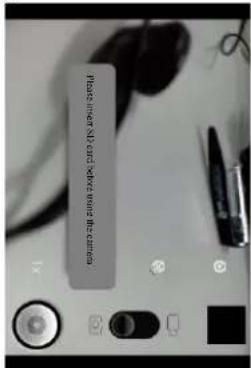
Under viewing condition, press the bottom icons to do the following operations. Press the left icon to capture a picture or film a video, scroll the middle icon to switch between camera mode and video mode. The right icon shows the currently captured picture or video.
6. Clock
6.1 New Alarm
Enter the clock menu and press alarm icon to add a new alarm. Scroll the scrollbar to set alarm time. Press alarm of list to edit the activation. Time, Ringtone, vibrate and label, choose "done" to finish the setting. If you need to reset the settings, choose "Revert". If you want to delete the alarm, choose "Delete".
Attention: Enter the clock menu and set your position for weather forecast to get weather information.
7. Contacts
Entering the Contacts, you can check all the contacts, search for contacts or add new contact. New contact means a newly added phone number that is recorded in the SIM card or the handset.
English
When adding a new contact, you can type in the name, address, phone number, other phone number, work place, other email address and so on. You can also check call history and contact group.
- Downloads
You can check the downloaded or being-downloaded contents.
First you need to set the Email account. Step 1: enter email address and password. Step 2: select account type, choose OK to connect.
- File Explorer
You can manage file, including Download, Music, and Received File. Press menu key to create a new folder or select folders to copy, move and delete.
- FM Radio
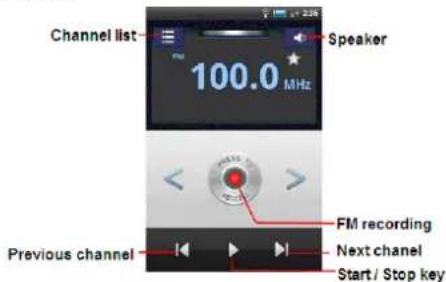
Attention: this handset doesn't have a built-in antenna. If you want to listen to the radio, please insert the headphone first. Pressing the side key can adjust the volume.
- Channel list: check all the channels and select.
- FM recording: choose recording after playing the FM radio.
- Start/stop: start/stop FM.
- Previous/Next: press this key to change FM channel
- Loudspeaker : Switching headphones and speakers.
15
Loudspeaker
12. Gallery
In the gallery interface, there are different folders. Select a folder and press to enter it. Press image or video to view pictures or videos.
When viewing the picture, if you press the screen or press the menu key, a menu with "share, delete, more" will pop out. Choose "share" to send the file through Bluetooth or via a message; choose "more" for further functions like detailed information, set as, edit, print, and rotate left or right.
If you press the capture icon at the upper right corner, you can directly get a capture or record a video.
13. Messaging
13.1 Compose new message
Press edit new message to get a new text message:
-
Click the edit frame, type in after a virtual keyboard pops out.
-
Press the number frame and enter number, or press add contact icon and select stored contact number from Contacts, call history and contact group.
-
Input contents into the typing frame on the touch screen. After editing, press send icon to send the text.
-
Press menu key to call, add subject, Attach, Delete message, Insert quick text and more operations.
13.2 Message Setting
Include storage settings, SMS settings, MMS settings notice settings, service information settings and so on.
14. Music
Use the Music player to play music files. The songs saved in your SD Card can be played using the Music Player of the device.
■ Tap Application Tab to enter Main Menu
■ Select Music
The songs are categorized by Artist, Albums and Songs. You can make your favorite playlist by long pressing on a song and selecting Add to Playlist. While listening to the music, you can choose among the various sound effects.
In the playback mode, press menu key, select Sound Effects and choose among the various sound effects, such as Bass, Classical, Hip Hop, Jazz, Pop, Rock etc.
English
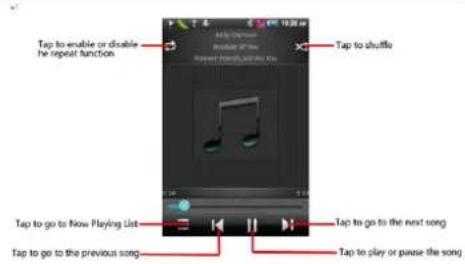
Tap to shuffle
Tap to enable or disable he repeat function
Tap to go to the next song
Tap to go to the previous song
I ap to play or pause the song
- Notes
Press the "i" icon at the upper right side of the screen to add notes. Press the menu key to select 'add note', 'remind me', 'delete' and 'get more' items. In the 'remind me' menu, you can set the reminding time for the note.
- Phone
Press the keyboard. enter the phone number, and press Dial icon.
17.Process Manager
Into the process manager, you can view all current mobile processes, you can end a particular process, you can also choose to end or withdraw from all processes.
- Search
Input key words to search in the network, messages, applications, contacts, call history, music, etc.
- Settings
19.1 SIM management
The contents in this menu will differ according to different network providers. For detailed information, please look at the phone.
19.2 Wireless & networks
Change settings for wireless connection and network such as
Airplane mode, Wi-Fi, Wi-Fi settings, Bluetooth, Bluetooth settings, Tethering & portable hotspot, VPN settings and Mobile networks.
19.2.1 Bluetooth
To activate Bluetooth, you need to select Bluetooth option.
Bluetooth settings:
-
Bluetooth: Activate/Inactivate Bluetooth.
-
Device name: check and change Device name.
-
Discoverable: others can find your Device if you activate this function
function.
- Advanced settings: you can transfer files, select visit authority.
-
Pass for delivery: Pass and passh. Davis
-
Scan for device: Scan and search Device
19.3 Call settings
Change settings of voice call, video call and Internet call, and other settings.
19.4 Audio profiles
Include General, Silent, Meeting and Outdoor. You can also add custom profiles.
19.5 Display
Change settings of brightness, auto-rotate screen, animation and Screen timeout.
19.6 Location
Locate your position through tools like wireless network and GPS satellite.
19.7 Security
Change the settings of screen unlock, SIM card lock, passwords, device administration and Credential storage.
Screen lock settings:
-
Pattern: unlock the screen through designed pattern. Draw a private pattern to unlock the screen so as to avoid unauthorized use of the handset.
-
PIN: type in PIN numbers to unlock the screen.
-
password: type in code to unlock the screen.
19.8 Applications
Include the management of applications, the condition and development of the currently used service and storage space.
19.9 Accounts & Sync
Include general synchronisation settings and account management. The general synchronization settings include background data and automatic
Engieh
synchronization. You can also choose to add new account. After adding new account, you can do operations like synchronizing the calendar and contacts.
19.10 Privacy
Restore original settings—in this menu, related settings will be restored to original status if you press "Factory data reset". You can also format the SD card. If you select this option, all of the DATA in the SD card will be erased.
19.11 Storage
Include the SD card storage, available storage, insert SD card (If a SD card has already been inserted, then this option will become " Unmount SD card"), format SD card and all available storage in the internal storage space.
19.12 Language & keyboard
Include language settings, keyboard settings, input method and so on.
19.13 Voice Input & output
Include text to voice settings. You can use the default setting, engine, and install linguistic data.
19.14 Accessibility
Power button: press power button to end calls.
19.15 Date & time
Include automation, set date, select time zone, set time, use 24 hour
format and select date format.
19.16 Schedule power on/off
You can set the time for ON/OFF, which include setting time and repeated date.
19.17 About phone
Include status information, battery use information. Legal information, android version, baseband version, Kernel version and Build number.
20. SIM Toolkit
The contents in this menu will differ according to different network providers. For detailed information, please look at the phone.
- Sound recorder
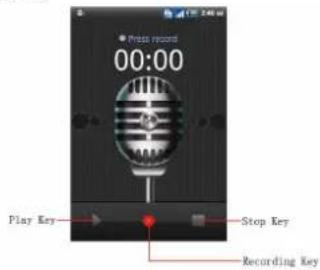
Press Recording Key to start recording. In the middle of the screen is a timer. Press Stop Key to stop recording and select "Save" in the popped out "Save/Cancel" option to save the record. You can press play key to listen to the record before selecting "Save/Cancel".
22.Videos
Play video. Enter the video list, scroll the screen to browse and choose the file you want to play.
23.Wireless Keyboard
You need to add new equipment. Wireless keyboard must be connected via Bluetooth.
VI. Input
- Click the editing frame and a input option menu will pop out which include smart pinyin, upper-case letters, lower-case letters and number mode.
- Press When the light in the upper-left corner is on, you can enter symbols.

- Press to insert facial expressions.
VII. Quick Start Guide
Featured Function
Besides basic mobile phone functions, your handset also has various practical and fast featured functions. They are briefly introduced as follows:
Contacts: Support of quick search for qualified phone number records; the contact storage volume of SIM card/USIM card depends on the card itself; support texting through Contacts, copying a single record to SIM card/USIM card/handset and support copies among the handset, SIM car and SD card; support deleting the contact records in the SIM/USIM card and the handset.
■ Call log: Your handset will automatically store information related to call history for checking; support dialing all of the phone numbers listed in the call history; support storing the listed phone numbers in call history; support deleting single call record and all call records.
■ Messaging: Support storing the messages on the handset; support inserting text templates when editing a text; support copying phone number in the message.
■ Music: Support playing audio files, including mp3 formats. ■ Recorder: Support of call recording and non-call recording. During a call, you can select the open recorder in the option menu to record the call conveniently. You can check the generated recording file in the T card.
■ Camera: Support of picture-taking. You can change the camera settings to your preference.
■ Settings: You can change the phone settings to your preference, including SIM card management, wireless connection and network, call settings, profiles and so on. You can change the functions of each item according to your own taste, such as date & time, schedule ON/OFF and so on.
This model of mobile phone meets international and national standard relating to radio electromagnetic wave radiation. Please feel free to use it.
This mobile phone is a radio transmitter and receiver. Its design and manufacturing standard does not exceed RF limits suggested in the International Commission on Non-ionizing Radiation Protection (ICNIRP). Such limits are component parts of the overall regulation, which also stipulates permitted energy levels suitable for the general public. Such regulation contains certain safety factors so as to ensure safety of people of all age levels and health conditions.
SAR (Specific Absorption Rate) is a measurement of electromagnetic wave absorption ratio. According to international regulations, absorption ratio of mobile phone suitable for the general public is 2.0 W/kg for each 10g of human tissues". In order to provide the public with more protection and with consideration of measurement error, such limits contain certain safety allowance.
SAR value test is to test various frequencies of the phone with max output power according to standard test procedure. Since test results are confirmed in max power level, the SAR value of your mobile phone in actual use is far lower than the max power level in the test. This is because the mobile phone we design for you can work in various output power levels, and only the power level for network connection is needed in actual work. In general situation, the closer you are from the base station, the lower radiation power of your mobile phone and thus the lower absorption ratio that is generated at this time.
* Absorption ratio may differ depending on country or region, testing environment, network band and testing unit. Accessories or attachments used may also lead to different absorption ratio.
Medical Equipment
Any radio transition equipment (including this equipment) may interrupt medical equipment improperly protected. If you have any question or if you are not sure if the medical equipment can screen external RF energy, please consult medical staff or manufacturers. Please observe relevant regulations in places where electronic device or wireless transmission function of mobile phone is prohibited.
Heart pacemakers
➢ Please refer to following suggestions for people relying on heart pacemaker when using this product:
➢ Always keep the mobile phone at least 15.3cm (about 6 inches) away from the heart pacemaker;
Do not put the mobile phone in chest pocket;
➢ Use the ear at the different side of the heart peacemaker to answer the call to reduce potential factors of interruption.
➢ Hearing aid implanted cochlea
For users with hearing aid implanted cochlea, please consult authorized medical staff and refer to instructions from medical equipment providers.
➢ If any interruption is suspected, please turn off the mobile phone or move it to a more distant location.
DECLARATION OF CONFORMITY
Nr.
We, SC VISUAL FAN SRL, importer located in Brasov, 16 Liliacului STR., registered at the Commerce Chamber Brasov no. J08/818/2002, CUI 14724950, assures, guarantee and declare on our own responsibility, in accordance with art.5 from HG nr. 1.022/2002 regarding the statute of the products and services that can jeopardize life, health, work security and environmental protection, that:
The product P2 ALLDRO– mobile phone ALLVIEW brand- and the accessories that came with the product: 220V charger, headphones and battery don't jeopardize life, health, work security and environmental protection and they are according to:
- The Stipulations of HG nr.982/2007 witch transpose the essential requirements specified in Direction 2004/108/CE, regarding electromagnetically compatibility;
- The Direction regarding the low voltage equipment users assurance 73/32/CEE, modified by Direction 93/68/CEE (HG 457/2003) and tests EN 55013:2001+A1:2003+A2:2006, EN 55020:2007, EN 610000-3-2:2006, EN 61000-3-3:1995+A1:2001+A2:2005;
The Direction regarding the radio and telecommunication equipments R&TTE 1999/5/CE (HG 88/303).
The Product described upstairs in this Declaration and all the accessories are according to the next standards: - Health EN 50360, EN 50361;
- Safety EN 6095-1
- EMC EN 301 489-1-7/17:
- Radio spectrum EN 301511 EN 300328;
After the performed tests emerge that the samples comply with the upstairs specification, as the test results show. Documentation is stored on VISUAL FAN LTD - Brasov, 61 Brazilor STR.
Also available on web:"http://allview.ro"
CE 0700
SAR value: 0,956 W/kg
Brasov
□
COTUNA