S4 Steel - Cellphone Allview - Free user manual and instructions
Find the device manual for free S4 Steel Allview in PDF.


User questions about S4 Steel Allview
0 question about this device. Answer the ones you know or ask your own.
Ask a new question about this device
Download the instructions for your Cellphone in PDF format for free! Find your manual S4 Steel - Allview and take your electronic device back in hand. On this page are published all the documents necessary for the use of your device. S4 Steel by Allview.
USER MANUAL S4 Steel Allview
User Manual GSM Mobile Phone Model S4 STEEL
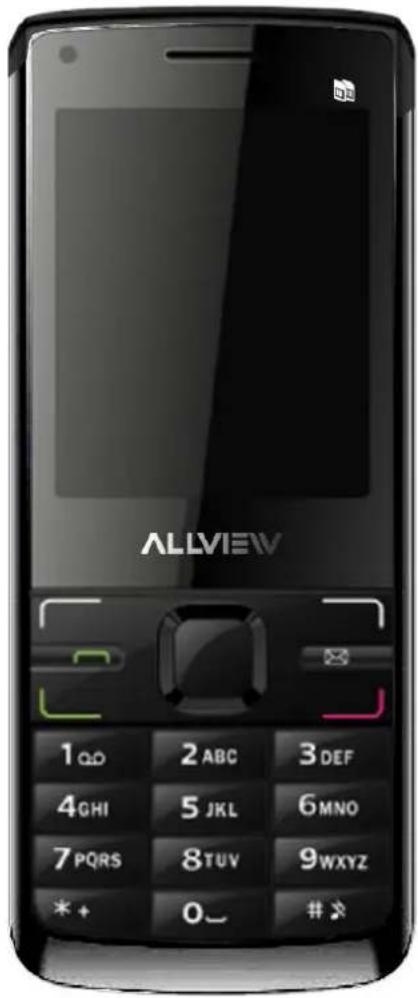
TABLE OF CONTENTS
1 SAFETY AND GENERAL INFORMATION......1
1.1 BRIEF INTRODUCTION.... 1
1.2 IMPORTANT SAFETY PRECAUTIONS.... 1
1.3 GENERAL PRECAUTIONS....1
2 KEYS SPECIFICATION 3
2.1 KEYS SPECIFICATION....3
3 USER GUIDE 4
3.1 INSTALLING/ REMOVING THE BATTERY....4
3.2 CHARGING THE BATTERY 4
3.3 INSERTING/REMOVING THE SIM CARD 4
3.4 MEMORY CARD USE....4
3.4.1 INSTALLING/REMOVING MEMORY CARD.... 4
3.5 POWER ON OR OFF....5
4 CALL FUNCTIONS....5
4.1 MAKING A CALL 5
4.2 EMERGENCY CALLS 5
4.3 DIALING AN INTERNATIONAL NUMBER 5
4.4 REJECTING A CALL 5
4.5 MISSED CALLS 5
4.6 CALL WAITING 5
4.7 CALL OPTIONS....6
5 MESSAGING....6
5.1 WRITE MESSAGE....6
5.2 INBOX....6
5.3 DRAFTS....7
5.4 OUTBOX....7
5.5 MMS 8
5.6 BROADCASTMESSAGE....8
5.7 TEMPLATES....8
5.8 SMS SETTINGS....8
6 PHONEBOOK......8
7 USER PROFILES....9
8 CALL CENTER....9
8.1 CALL HISTORY 9
8.2 CALL SETTINGS....10
8.2.1 SIM1/SIM2 CALL SETTINGS.... 10
8.2.2 ADVANCE SETTINGS.... 10
9 CAMERA....11
9.1 CAMERA SHORTCUT KEYS....11
10 MULTIMEDIA....11
10.1 FILE MANAGER.... 11
10.2 IMAGE VIEWER.... 11
10.3 VIDEO RECORDER 11
10.4 VIDEO PLAYER 12
10.5 AUDIO PLAYER 12
10.6 SOUND RECORDER 12
10.7 FM RADIO 13
11 ORGANIZER.... 13
11.1 CALENDAR 13
11.2 TASKS 13
11.3 ALARM 13
11.4 WORLD CLOCK 14
12 FUN AND GAMES 14
13 SETTINGS 14
13.1 DUAL SIM SETTINGS.... 14
13.2 PHONE SETTINGS.... 14
13.3 NETWORK SETTINGS.... 14
13.4 SECURITY SETTINGS.... 14
13.4.1 SIM SECURITY SETTINGS.... 14
13.4.2 PHONE LOCK 15
13.4.3 AUTO KEYPAD LOCK 15
13.4.4 DATA SECURITY.... 15
13.4.5 CHANGE PASSWORD 15
13.5 CONNECTIVITY 15
13.5.1 BLUETOOTH.... 15
13.5.2 DATA ACCOUNT.... 15
13.6 RESTORE FACTORY SETTINGS: 15
14 EXTRA.... 15
14.1 CALCULATOR 15
14.2 UNIT CONVERTER.... 16
14.3 CURRENCY CONVERTER.... 16
14.4 STOPWATCH 16
14.5 EBOOK READER.... 16
15 SERVICES.... 16
15.1 STK.... 16
15.2 INTERNET SERVICE.... 16
16 ALLVIEW STORE....FOUT! BLADWIJZER NIET GEDEFINIEERD.
17 FAQ....FOUT! BLADWIJZER NIET GEDEFINIEERD.
1 Safety and General Information
1.1 Brief Introduction
Thank you for choosing Allview S4 GSM Dual-SIM Mobile Phone. After reading this guide you will be able to fully understand the use of your S4 and enjoy all its functions.
Allview S4 is a slim design and designed for the GSM/GPRS Network. The Allview S4 mobile phone does not only provide you with basic calling functions, but also has features such as Phonebook, MP3 Player, Video Player, Digital Camera, FM Radio, etc. to satisfy all your needs.
Allview S4 meets the GSM/GPRS technical criteria, and was certificated by both domestic and foreign authorities and institutions.
Allview reserves the right to modify any content in this User's Manual without any notice.
1.2 Important Safety Precautions
Read these guidelines before using your wireless phone. Failure to comply with them may be dangerous or illegal.
1.3 General Precautions
- Use only approved accessories and batteries by the manufacturer. The use of unapproved batteries and accessories may cause battery leaking, overheating, rupture or fire.
- Do not put the battery, phone and charger into a microwave or high-pressure container, or it may result in accidents like circuit damaged or fire.
- Do not use the mobile phone near inflammable and explosive materials; otherwise it may create an exposition or fire.
- Do not place the phone at a high-temperature; they can cause extensive damage to the phone.
- Keep the phone out of the reach of children.
1) Phone
- Please turn off your mobile phone inside the aircraft, hospital and other locations where your mobile phone is restricted. Use of mobile phones in restricted areas may cause the abnormal operation of electrical and medical equipments.
- Do not disassemble or remodel your phone. Doing this may damage your mobile phone or void the warranty.
- Do not press keys with sharp things like needles. Doing so may cause damage to your phone.
- Do not use the mobile phone if it has a damaged antenna, as it may cause injury to the user.
- Keep your mobile phone away from moisture. If water or other liquids get into the mobile phone, it will cause the phone to overheat or malfunction.
2) Battery
- Please put the battery in a cool and well-ventilated place out of direct sunlight.
- Batteries have life cycles. If the time that the battery power life cycle becomes much shorter than usual, the battery life is at an end. Replace the battery with a new battery.
- Do not discard the battery any where Please dispose of used battery according to your local environmental laws and guidelines.
- The mobile phone is provided by the reusable rechargeable battery.
- The new battery only can be fully charge two or three times and discharge to achieve
optimum performance.
- Battery can be recharged many times for repeated use, but it will eventually be exhausted. When the talk and standby time is significantly shorter than usual, then you need to replace the battery.
- Use only approved Allviewbatteries and accessories.
- Remove the charger when the charger is not in use.
- Do not charge the battery for more than one week or else it will affect the battery life.
- Unused battery can discharge fast.
- Do not use a damaged battery or charger.
- Never expose batteries to temperatures below -10^ (14°F) or above 45^ (113°F).
• Always take your phone with you when you leave your vehicle.
- It is normal for batteries to gradually wear down and require longer charging times. If you notice a change in your battery life, it is probably time to purchase a new battery.
- Do not let the batteries short-circuit. When metal objects (such as: coins, etc.) directly connected to the battery anode and the cathode (with the metal side), a short-circuit will occur. Be careful in carrying a spare battery on your pocket or your handbag to avoid short circuit. Short-circuit will damage the battery.
- Please deal with the waste batteries according to the relevant provisions.
- Never dispose of batteries in a fire because they may explode.
- Charge your battery for at least 4 hours at the first time for its best performance and long cycle life.
- While the mobile phone is being charged, keep it out of the reach of children.
- If the power cord is damaged, please do not use the charger, or it may cause fire or electric shock.
- If the charger comes into contact with water or any other liquids, immediately unplug the charger from the outlet to reduce the risk of overheating, fire, electric shock or charger malfunction.
- Do not use charger in a high moisture environment like bathrooms, or it may cause electric shock, fire and damage to the charger.
3) Clean and Maintenance
- The Battery and charger are not water resistant. Please do not use them in the bathroom or other excessively moist areas and likewise avoid allowing them to get wet.
- Use a soft, dry cloth to clean the mobile phone, battery and charger.
- Please do not use alcohol, thinner, benzene or other solvents to wipe the mobile phone.
- A dirty outlet will cause poor electrical contact, lose of power and even inability to recharge. Please clean regularly.
2 Keys Specification
2.1 Keys specification
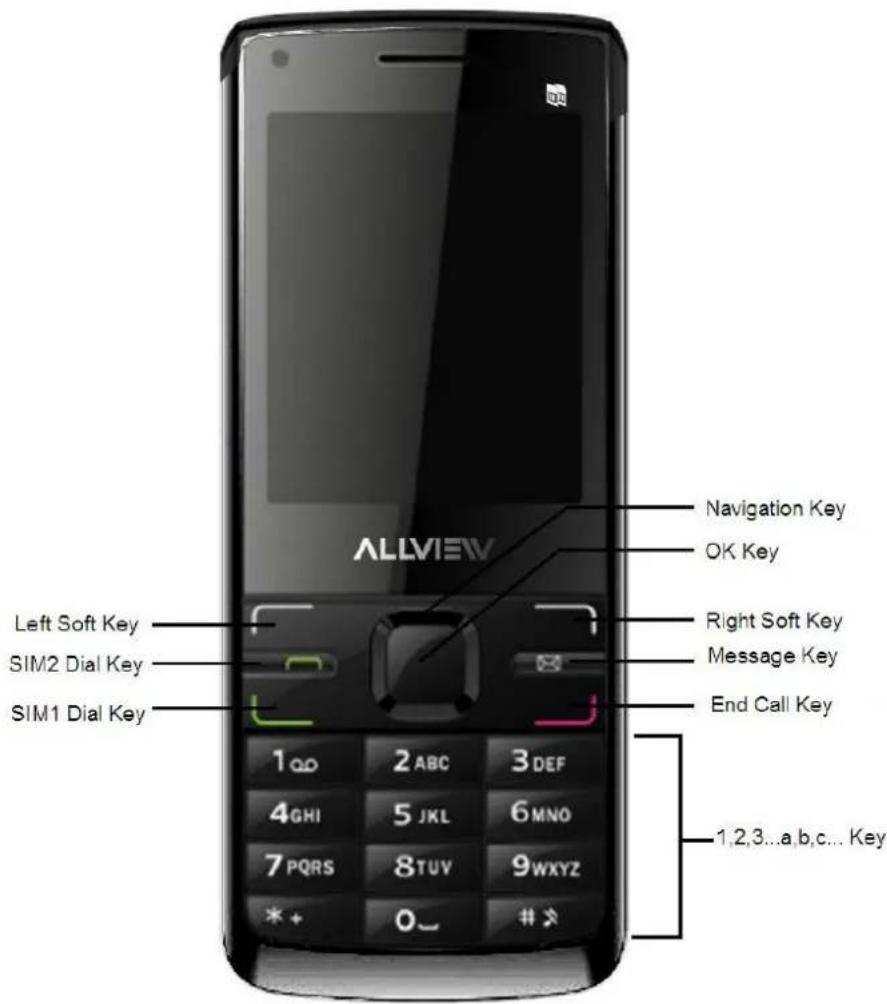
General keypad definitions:
| Left soft key indicates Confirmation | |
| Right soft key To delete or clear a letter or number. | |
| Navigation key To move the cursor. | |
| #key Switch between different input methods. | |
| *key Show the Symbols interface. | |
| Call key To call the number. | |
| End key To end a call. | |
| Message key Go to message interface. | |
| 1 key .,-?!'@:#$/_1 | |
| 2 key ABC,abc,2 | |
| 3 key DEF, def.3 | |
| 4 key GHI, ghi, 4 | |
| 5 key JKL, jkl, 5 | |
| 6 key MNO, mno, 6 | |
| 7 key PQSR, pqsr, 7 | |
| 8 key TUV, tuv, 8 | |
| 9 keyWXYZ, wxyz, 9 | |
| 0 key 0, space | |
3 User Guide
3.1 Installing/ Removing the battery
Battery Installation Notice
Before you install or remove the battery, please make sure to turn off the mobile phone.
1) Installing the battery
- Remove the battery cover.
- Aim the metal terminals of the battery and then push down the battery until it's placed properly.
- Place the battery back cover on.
2) Removing the battery
- Remove the battery cover.
- Remove the battery from the battery slot properly.
3.2 Charging the battery
- Plug the charger into the electrical outlet.
- Plug the charger connector into the mobile phone
- The Battery indicator icon starts to flash until charging is finished.
- When charging is complete, disconnect the charger connector from the mobile phone and unplug the charger from electrical outlet.
\* Attention:
During charging, the phone can operate as usual. But the charging time increases.
When you're charging the mobile phone in power off state, a charging indication will appear on the screen.
3.3 Inserting/Removing the SIM card
Note: Before you install or Remove the SIM card, please make sure to turn off the mobile phone.
- Remove the battery cover.
- Remove the battery.
- Insert/Remove the SIM card.
- Insert battery
- Place the battery cover on.
Note:
(a) SIM card contains your phonebook, PIN (personal identification number), PIN2, PUK (PIN Unlock Code), PUK2 (PIN2 Unlock Code), network information; call history, SMS (Short Message) data and etc. So be careful when handling, inserting or removing the SIM card, bending it may damage the SIM card.
(b) Keep the SIM card out of the reach of small children.
(c) Keep the SIM card away from static, dust and water.
3.4 Memory card use
3.4.1 Installing/Removing memory card
a) Inserting:
- Remove the battery cover and the battery.
-
Remove the SIM card (if any).
-
Insert the memory card.
- Put back the battery and the battery cover,
b) Removing:
- Remove the battery cover and the battery.
- Remove the SIM card (if any).
- Remove the memory card.
- Put back the battery and the battery cover.
3.5 Power On or Off
Make sure the battery is already inserted:
- Power on/off: Long Press the End key to Switch on/off the mobile phone.
Note:
PIN is provided by your local network service provider. If the PIN is entered incorrectly three times, the SIM Lock will occur. (For more details please contact your local network service provider).
If the phone asks for an unlock code when switched on, enter the default unlock code 0000 and press Left soft key or the middle key.
4 Call Functions
4.1 Making a Call
- On idle state, input the phone number directly
- Press the Call key to make a call.
- You can input number in this order:
(Area code, phone number, and press the Call key)
Note: During a call, the mobile phone will display the call status information.
4.2 Emergency Calls
You can make emergency calls as long as your current location is covered by the network area. You can check the signal strength bar on the top left corner of the screen.
Note: Emergency numbers vary by country. The emergency number(s) in your mobile phone may not work in all locations, and sometimes an emergency call cannot be placed due to network, environmental, or interference issues.
4.3 Dialing an International Number
Making International calls:
For international calls, press the “**” key until the “+” sign is shown in the screen, and then enter the number in the following order:
("+", Country code, complete number then press the Call key)
4.4 Rejecting a Call
Press the End key to Reject or cancel an incoming call.
4.5 Missed Calls
The unanswered incoming calls appear on the display screen. Press Middle key or the left soft key to check the details of the missed calls or press Call key to call the number.
4.6 Call Waiting
In this menu, you can activate the call waiting function to be notified of incoming calls while you have a call in progress.
4.7 Call Options
Press the left soft key or the middle key to perform the following options:
- Hold/Retrieve single call: Put a call on hold or retrieve a call.
• End single call: Disconnect or end a call. - New call: input a new phone number,.
- Phonebook: enter phonebook menu.
- Messaging: enter message menu.
• Sound recorder: record the call conversation. - Mute: turn on/off microphone.
- DTMF: activate the sending of the DTMF signal, or clean the sending.
5 Messaging
This menu allows you to read, compose, send and receive text messages. Screen icon that displays in standby mode refers to any new message just received and unviewed.
5.1 Write message
In this menu you can create a text message and send it to your desired contact.
Press the Left soft key to perform the following options:
- Sent to: add a recipient(s) to send a message.
- Input method: select an input method.
- Insert template: select the template message from the template list.
-
Advanced:
-
Insert number: insert the number from the contact list saved in the phonebook
- Insert name: insert the name from the contact list saved in the phonebook.
- Insert bookmark: insert URL saved in the phone.
- Save to drafts: save the messages to drafts.
After editing the message, select "sent to" from options or press the middle key, add a recipient(s) and press the left soft key "options" to perform the following options:
- Send: send the message from SIM1/SIM2.
- Edit recipient: edit the recipient number before sending.
- Remove recipient: remove the recipient number from the sending list.
- Remove all recipients: remove all the recipients in the sending list.
- Save to drafts: save the messages to drafts.
5.2 Inbox
Through this menu you can read or receive a message. After entering the inbox menu, you can view the SIM1/SIM2 message inbox list.
Inbox options:
• View: view the message content.
- Reply: reply a message to the sender.
- Call sender: call the sender's contact number.
- Forward: send this message to somebody else.
- Delete: delete the current message
- Delete Same Number: delete all the messages of the selected number.
- Delete all: delete the entire messages from the inbox folder.
- Save to phonebook: save the unsaved number in the phonebook.
- Mark several: mark the message(s) so you can perform the functions: (delete, copy to phone/SIM, move to phone/SIM, unmark, mark all and unmark all).
- Mark as unread: mark the viewed messages as unread.
Inbox message options: (options when viewing a message in inbox)
- Reply: reply a message to the sender
- Call sender: call the sender's contact number.
- Forward: send this message to somebody else.
- Delete: delete the current message
- Delete Same Number: delete all the messages of the selected number.
- Advanced:
- Use number: use the numbers inside the message.
- Use URL: use the URL inside the message.
- Use USSD: use the USSD inside the message.
- Copy to SIM/phone: copy the message from the SIM to the phone or vise versa.
- Move to SIM/phone: move the message from the SIM to the phone or vise versa.
- Copy all: copy all the message to SIM or phone.
- Move all: move the entire message to SIM or phone.
5.3 Drafts
The Drafts stores any messages that you have saved.
You can view the messages in the Drafts list.
Drafts options:
• View: view the message content.
- Send: send the message from SIM1/SIM2.
- Edit: edit the selected draft message.
- Delete: delete the current message
- Delete all: delete the entire messages of the drafts folder.
- Mark several: mark the message(s) so you can perform the functions: (delete, copy to phone/SIM, move to phone/SIM, unmark, mark all and unmark all).
Drafts messages options:
- Send: send the message.
- Edit: edit the current message.
- Delete: delete the current message.
- Delete Same Number: delete all the messages of the selected number.
- Advanced:
- Use number: use the numbers inside the message.
- Use URL: use the URL inside the message.
- Use USSD: use the USSD inside the message.
- Copy to SIM/phone: copy the message from the SIM to the phone or vise versa.
- Move to SIM/phone: move the message from the SIM to the phone or vise versa.
- Copy all: copy the entire message to SIM or phone.
- Move all: move the entire message to SIM or phone.
5.4 Outbox
The sent function stores any messages that you have failed to send.
You can view the SiM1/SIM2 message Outbox list.
Outbox options:
• View: view the message content.
- Resend: resend the message that has not been sent.
- Edit: edit the current message.
- Forward: forward the message to somebody else (only displays when the message has been sent).
- Delete: delete the current message.
- Delete Same Number: delete all the messages of the selected number.
- Mark several: mark the message(s) so you can perform the functions: (delete, copy to phone/SIM, move to phone/SIM, select to export, unmark, mark all and unmark all).
View the message then press the left soft key "options" to access the following:
- Resend: resend the message(s) that have not been sent.
-
Edit: edit the current message.
-
Forward: forward the message to somebody else (only displays when the message has been sent).
- Delete: delete the current message.
- Delete Same Number: delete all the messages of the selected number.
- Advanced:
- Use number: use the numbers inside the message.
- Use URL: use the URL inside the message.
- Use USSD: use the USSD inside the message.
- Copy to SIM/phone: copy the message from the SIM to the phone or vise versa.
- Move to SIM/phone: move the message from the SIM to the phone or vise versa.
- Copy all: copy the entire message to SIM or phone.
- Move all: move the entire message to SIM or phone.
5.5 MMS
This function supports sending and receiving of MMS (Multimedia Messaging Service). The message can contains text, image, audio, memo, vCard or video clips. If the length of MMS is too long, the phone may not receive it.
- Write a Message: create a new multimedia message.
- Inbox: view and read the inbox of the multimedia messages.
- Outbox: unsuccessfully sent MMS are saved in the "Outbox" folder.
- Drafts: the messages that are not ready to be send is saved in this folder.
- Templates: saved frequent used sentences/animation.
- MMS Setting: set the parameters of sending and receiving the multimedia messages.
Note: MMS setting needs to be set according to your local network service provider standard. For details please contact your local network service provider.
5.6 Broadcast message
Broadcast messages refer to public messages sent by your local network service provider. If you use the broadcast message service, you can receive messages on all different subjects from your local service network provider such as: the Weather, Taxis, Hospitals, etc. For details please contact your local network service provider.
5.7 Templates
This mobile phone provides you with 10 message templates for you to Use, Edit and Remove
5.8 SMS settings
• SIM1/SIM2 message settings:
You can set your SMS through this menu options:
- Profile Setting: active and edit Profile name, SMSC address, Validity Period and message type.
- Voice mail server: This function will automatically forward an incoming call(s) to the voice mailbox.
- Common Setting: set delivery report, reply path and save sent message.
- Memory Status: check the capacity of message storage
- Preferred Storage: set the default message storage location, including phone storage and SIM card.
- Message reply select SIM: select always ask or close. This function is for the inbox reply option on sending (By SIM1, By SIM2), if you choose "close" there will be no more asking if you'll send it to SIM1 or SIM2.
6 Phonebook
This feature allows you to store the phone numbers and their corresponding names in the Phonebook (Phone or SIM memory) or the memory card phonebook.
- Quick Search: access the browse mode of the phonebook; you can enter corresponding information in the search column below to sort the entries out.
- Add new contact: add a new contact to SIM or phone.
Select a contact on the phonebook list and press the Middle key to view the details of the contact(s) or press the left soft key “options” to access the following:
• View: view the contact details
- Send text message: send a text message to the selected contact.
- Send multimedia message: send a multimedia message to the selected contact.
- Call: call the selected contact.
- Call handsfree: call the selected contact and the call is defaulted on handsfree or Loudspeaker function.
- Edit: edit the contact details.
- Delete: delete the contact details.
- Copy: copy the contact to phone, SIM1/SIM2 or to file.
- Move: move the contact to SIM to phone or SIM to SIM or vise versa.
- Send contact: send the contact details via text message, MMS, Bluetooth.
- Add to Blacklist: add the contact number to the blacklist.
- Caller groups: this set provides 5 caller groups for you. You can change the group for personal requirement.
- Phonebook settings:
- Preferred storage: select the default storage location.
- Speed dial: set the number corresponding to the numeric keys from 2 to 9, when this function is activated, long press the numeric keys to automatically call the specific contact (only in idle state).
- My number: edit owner's name card and send it.
- vCard version: to show the vCard version.
- Extra number: contains owner number.
- Memory Status: the memory status of SIM card and phone.
- Copy contacts: copy the contact details from SIM to phone, SIM to SIM or phone to SIM
- Move contacts: move the contact details from SIM to phone, SIM to SIM or phone to SIM
- Delete all contacts: delete all the contacts in SIM or Phone.
7 User profiles
Use this menu to customize various call tones for incoming call.
Profiles options: General, Meeting, Outdoor, Indoor, Headset and Bluetooth.
These profiles are already preset. User can customize the settings through personal settings.
Select and enter personal settings menu, profile modification are as follows:
- Tone settings: lets you specify the ring tone for incoming calls.
• Volume: set the volume of the Ring tone and Key tone. - Alert type: set the ring tone type.
- Ring type: set the ring tone mode.
- Extra tone: set warning tone on or off at different condition, include: Warning, Error, Camp on, Connect.
- Answer mode: set answer mode, any key.
8 Call center
In this menu, you can view the missed, dialed and received calls, as well as the length of your calls.
8.1 Call history
You can select SIM1 call history, or SIM2 call history. The menus are as follows:
- Missed Calls: lists the records of missed calls.
- Dialed Calls: lists the records of dialed calls.
• Received Calls: lists the records of received calls.
- Delete SIM/SIM2 call logs: delete the call logs from SIM1/SIM2.
- Call Timers: four sub-menus are provided in Call Duration: Last Call, Dialed Calls, Received Calls and Reset all time.
- Call Cost: the Call Meters can keep the record of your total call charge.
- Last call cost: check the last call charge.
- Total Cost: check the total call charge.
- Reset Cost: enter PIN2 code to reset the call meter.
- Max. Cost: enter into this sub-menu and key in the PIN2 code to browse, edit or deactivate the function.
- Price per Unit: enter into this sub-menu to browse, edit or deactivate the function, the latter two functions need the input of PIN2 code.
- SIM1/SIM2 text msg. counter: Records of all sent and received text messages.
- SIM1/SIM2 GPRS counter: Records of all GPRS sent and received data.
8.2 Call settings
8.2.1 SIM1/SIM2 call settings
- Caller ID
Select from the options:
- Set by network: Send the owner's number or during a call.
- Hide ID: The recipient can not see the calling number (need the support of local network provider).
- Send ID: The recipient can see the calling number.
- Call waiting: You can activate it to be notified of incoming calls while you have a call in progress.
- Call divert: The call diversion network service permits you to divert an incoming call to another number (designated by you). Select from the options (Divert all voice calls, Divert if unreachable, Divert if no answer, Divert if busy, Divert all data calls and Cancel all divert.)
- Divert all voice calls: divert incoming calls to another number.
- Divert if unreachable: divert incoming calls to another number if you cannot be reached.
- Divert if no answer: divert incoming calls to another number after you phone rings for a specified time without answering.
- Divert if busy: divert incoming calls to another number when your mobile phone network is busy.
- Divert all data calls: divert data calls.
- Cancel all diverts: cancel all the active divert call function.
- Call Barring: to restrict calls.
- Outgoing Calls: restrict outgoing calls.
- Incoming Calls: restrict the Incoming of calls.
- Cancel all: cancel all the active barred function.
- Change Barring Password: change the password.
• Line Switching: Switch between line 1 and line 2.
- Closed user groups: add and activate the closed user group function.
8.2.2 Advance settings
- Black list: rejects the incoming call in the blacklist number list.
- Auto redial: when this function is activated, the mobile phone will automatically redial a busy or unreachable number.
- Call time display: switch on/off this function to display or not the call time.
- Call time reminder: allow the user to limit the duration of a call.
• Auto quick end: restrict the call time. - Reject by SMS: turn on the Reject by SMS function. While an incoming call is occurring press the left soft key and use reject by SMS, and a message will automatically be send to the caller stating "Call you later"(defaulted").
- Call SIM card select settings: select always ask or close. This function is for the Calling option (SIM1 voice call, SIM2 voice call); if you choose “close” there will be no more asking if you’ll call the dialed or contact number in SIM1 or SIM2.
9 Camera
This mobile phone has a Digital camera that you can take photos whenever and wherever you like. After taking photos, store them in the phone memory or memory card (if any).
Press left soft in viewfinder display and make detail settings:
- Photos: enters the image viewer interface.
- Camera Settings: Flash, Shutter sound, EV, Contrast, Banding, Delay timer and Cont-shot.
- Image settings: Adjust the photo's size and quality.
- White balance: Select from Auto, Daylight, Tungsten, Fluorescent, Cloudy, and Incandescent.
- Scene mode: Select Auto or Night mode.
• Effect settings: Select several effects you can use.
• Storage: Set the default storage location. - Restore default: Restore the camera's default settings.
In the camera viewfinder state, press the Middle key to take a photo.
After taking the photo, press the Right soft key "back" to let you go back to the viewfinder state or press the left soft key "options" to let you choose whether send or delete the captured photo.
9.1 Camera Shortcut keys
• 1 key: change Image size.
• 2 key: change Image quality.
• 4 key: change the white balance.
- 5 key: turn on/off the flash.
- 6 key: change the delay timer.
- 7 key: change the cont. shot settings.
10 Multimedia
10.1 File Manager
You can use File manager to organize your files in folders in the memory card. You can also explore the storage device and view the capacity of the total space and free space of the phone memory or the memory card.
10.2 Image viewer
This mobile phone function lets you display the list of photos save or captured.
Image Viewer options:
• View: view the photo.
- Send: send the image file via multimedia message or Bluetooth.
- Use as: set the photo as wallpaper, screen saver, power on/off display and caller picture.
- Rename: rename the image file name.
- Delete: delete current image file.
- Sort by: arrange the folders or files by name, type, time, size or none.
- Delete all files: delete all the image files.
• Storage: set the default storage location.
10.3 Video recorder
This mobile phone supports video recorder function for you to use.
Note: Press up or down navigation keys to adjust the focus distance of the camera. Press the left
or right navigation keys to adjust the brightness of the camera.
Press the left soft key "Options" to perform the following operations:
- Camcorder settings: include EV, Night mode and Banding.
• Video settings: set the video quality, size limit, time limit and record audio. - White balance: select from Auto, Daylight, Tungsten, Fluorescent, Cloudy and Incandescent.
• Effect settings: select several effects you can use. - Storage: set the default storage location.
- Restore default: reset the parameter of camera to its default settings.
10.4 Video player
Choose Video Player from the multimedia to open and view all the video files.
Press the left soft key "Option" to perform the following options:
- Play: play the current video files.
- Send: send file as MMS or via Bluetooth.
- Rename: rename the file.
- Delete: delete the selected file.
- Delete all files: delete all video files.
- Sort by: sort the file by name, type, time, size or none.
• Storage: set the default storage location.
10.5 Audio player
This mobile phone has an audio player which you can play your music files.
Press left soft key to view the music list.
Audio player options:
- Play: play the music file.
• Details: show the file details. - Add to ringtones: set the current audio as ring tone.
- Refresh list: refresh the music file list.
- Settings: set the audio player parameter from different settings: (Pre playlist, list auto gen, repeat, shuffle, background play, Bluetooth settings, and lyrics display).
Audio player keys:
- Press left/right navigation key to next/ previews the music file.
- Press down navigation key to stop the music play.
- Press up navigation to play play/pause the music file.
- Press the volume key (located at the right side of the phone) to adjust the volume of the music file.
10.6 Sound recorder
Your mobile phone supports a sound recorder function which has two types of recording formats: AMR and WAV.
Press left soft "options" to access the following:
- New Record: begin a new recording.
- List: list of all the recorder files.
- Settings: set the storage media and saving format.
Select "New Record" to begin recording. During recording, the display shows record time. Press left key or the middle key to pause the recording and then press again to restore. Press right soft key to stop the recording, then select whether to save it or not. The recorded file is saved as .amr format. After recording, press the left soft key to access the following:
- New Record: begin a new recording.
- Play: play the record.
- Append: add a new recording to a saved recorded file.
- Rename: rename the recorded file.
-
Delete: delete the recorded file.
-
List: list of all the recorder files.
- Settings: set the storage media and saving format.
- Use as: use the sound recorder as user profiles.
- Send: send the file via MMS or Bluetooth.
10.7 FM radio
This mobile phone supports a FM radio function which you can listen to any FM radio channels.
Note: earphones must be plugged in first before you can use the FM radio function.
FM radio function:
- Press left/right navigation keys to change the channel frequency.
- Press the volume key (located at the right side of the phone) to adjust the volume of the music file.
- Press right soft key to exit,
-
Press the left soft key "Options" to perform the following operation:
-
Channel list: list of radio channels.
- Manual Input: manually input the Fm channel frequency.
- Auto Search: automatically search and save the Fm channel frequency.
- Settings: set the background play, loudspeaker, record format, audio quality and record storage.
- Record: record the current radio channel
- Append: add a new recording to a saved recorded file.
- File list: view the list of radio recorded files.
1 1 Organizer
11.1 Calendar
The Calendar function can let you keep track the current date/month and add important notes of your desire. Press the 4-way navigation key up, down, left or right to move to different date or select Jump to date from options to go to specific date you want or add an event to the calendar to remind you of your schedule for the day or days to come.
11.2 Tasks
In this function, you can schedule and organize events such as Date, Call and Anniversary. Add a task, after adding a memo press the left soft key “options” to access the following:
• View: show the task list.
- Add: add new task.
- Edit: edit the task content.
- Delete: delete selected task.
- Delete overdue: delete the overdue tasks.
- Delete all: delete all tasks.
- Jump to date: go to a specific date you want.
• View uncompleted: view uncompleted memos.
- Save as file: save in the phone or card.
- Send vCalendar: select sending vCalendar mod: Send by SMS, Send by MMS, Send by Bluetooth,
11.3 Alarm
This mobile phone has an alarm clock with 5 separate alarms that you can set to alert you at the time(s) you specify. To set an alarm clock, select one alarm and press left soft key to edit its on/off, time, period, ring and reminding mode.
11.4 World Clock
Enter World Clock from the Organizer and you can see a picture of the world time zone. Move the Left and right navigation key to view the current time in any city. Press the left soft key options and turn on or off the Daylight Saving Time for Foreign City.
1 2 Fun and Games
This mobile phone has Games and Java function that you can use for your enjoyment.
1 3 Settings
Many different features of your phone can be customized to suit your preferences.
13.1 Dual SIM settings
Switch between four modes: Dual SIM open Only SIM1 open, Only SIM2 open and Flight mode.
13.2 Phone settings
- Time and Date: set your current time zone (home city), time/date and format.
- Schedule Power on/off: you can edit four time points to automatically turn on/off the mobile phone.
- Language: set your phone's display language.
- Pref. input methods: set the default input methods.
- Display:
- Wallpaper: set the standby image.
- Screen saver: set to switch on/off the screen saver function.
- Power On display: select the animation or image for Power On display.
- Power Off display: select the animation or image for Power Off display.
- Show date and time: switch on/off the date and time display on idle state.
- Show SIM1 Operator name: show the SIM1 network name in the idle state.
- Show SIM2 Operator name: show the SIM2 network name in the idle state.
• Dedicated key: set the function of navigation keys in idle screen.
- Auto update of date and time: automatically Updates the Date and Time of the mobile phone
- UART settings: set SIM1 or SIM2.
- Misc. settings: set the LCD backlight brightness and time.
13.3 Network settings
Set the network selection mode. Select "SIM1 network settings" or "SIM2 network settings".
• Network selection
- New search: search new network.
- Select network: search new network, and show the network list.
- Selection Mode: set "Automatic" or "Manual".
- Preferences: set the preferred network during searching.
13.4 Security settings
13.4.1 SIM Security settings
This menu contains SIM1/SIM2 security settings and security function for your mobile phone.
- SIM Lock: this function prevents an illegal use of your SIM card.
- Fixed dial: if your SIM card supports this function, the outgoing calls will be restricted to certain numbers. When this function is activated, you may only dial the numbers that are in the fixed dialling list, or numbers that have the same initial numbers as those on the fixed
dialling list.
- Barred dial: set the barred dial number
- Change password: set a new password.
13.4.2 Phone lock
This function prevents the illegal use of your phone.
Note: The default value of Phone Lock is 0000; please change it as soon as possible.
13.4.3 Auto keypad lock
Activate the auto keypad lock function and set the time in which the keypad should be lock.
13.4.4 Data security
The S4 has a function of securing some of the phone functions. Turn on the privacy of the Phonebook, Inbox, Write SMS, MMS, Call history, File manager, Image viewer, Sound recorder and video.
Note: the default password is "0000", please change it as soon as possible.
13.4.5 Change password
Change the phone password.
Note: The default value of Phone Lock is 0000; please change it as soon as possible.
13.5 Connectivity
13.5.1 Bluetooth
This mobile phone support Bluetooth communication mode.
• Power: switch on/off the Bluetooth function.
- Visibility: turn on/ off the visibility of the phone's Bluetooth.
- My device: this menu will list all the Bluetooth Device that you've inquired and you can bond with other mobile phone.
- Search audio device: search the Bluetooth audio Device within the scope automatically. Please make sure that the function of the Bluetooth Device need to be searched is turned on before searching.
- My name: change and save the Bluetooth name of the phone.
• Active device: displays the connecting device(s) and its services,
- Advanced: set the Bluetooth Device's audio path, storage, Sharing permission and my address.
13.5.2 Data account
In this menu, you can add, edit and delete the GPRS data: (Account name, APN, User name, Password, Auth type, Primary DNS and Secondary DNS).
13.6 Restore Factory settings:
This function lets you restore the initialized settings.
Note: The default value of Restore Factory Settings password is: 0000.
1 4 Extra
14.1 Calculator
Your mobile phone provides a calculator with 4 basic functions to facilitate simple calculations.
Calculator functions:
1) Press numerical key to input the desired numbers.
2) Press navigation keys to operative symbol “+、-、×、÷”.
3) Press the left soft key or the middle key to get the result.
4) Press right soft key to clean screen information. When all the character is cleaned, you press right soft key to exit the function.
"M+": Add the input number to saved number.
"M-": The saved number subtracts input number.
"MR": Show the saved number.
"MC": Clean the saved number.
14.2 Unit converter
This mobile phone provides you a unit converter function for the weight and length, you can convert kilogram into pound or ounce, kilometer into mile, meter or yard.
14.3 Currency Converter
Your mobile phone provides a currency converter which you can convert the local currency rate to a foreign currency rate.
14.4 Stopwatch
Open stopwatch, then choose Typical Stopwatch and nWay Stopwatch according to your preference.
- Typical Stopwatch: there are two ways for you to time, that is Split Timing and Lap Timing. Enter View record to check previous timing records.
- nWay Stopwatch: press start and press the 4-way navigation key up, down, left and right for you to time a 4 way courses.
14.5 Ebook reader
In this function, you can read and view Electronic books and documents.
- Clean up bookshelf: clean the bookshelf of the Ebook reader.
-
Global settings: set the reading parameter.
-
Font size: set the font size.
- Scroll by: select scroll mode: Page, Line.
- Auto scroll: if set auto scroll, the reader can automatically scroll page/line.
- Scroll speed: set scroll speed.
- Full screen: set the reader with full screen display.
- Encoding: select encoding mode.
- Alignment: set the alignment of the text.
- Select storage: set default the storage parameter.
1 5 Services
15.1 STK
STK features are provided by your service provider. If your SIM card supports STK feature, you will see the STK menu. Different STK has different STK main menu. Please contact your service provider if the STK does not work.
15.2 Internet service
This mobile phone supports wireless application protocol (WAP) service. You can connect to the Internet or run web-based applications by using a web browser. For details please contact your local network service provider on how to activate your WAP service
- Homepage: browse the homepage.
-
Bookmarks: enter the network address set advanced.
-
Recent pages: enter the network address history list.
- Input address: input a new address.
• Service inbox: receive the network service information. -
Settings: set the WAP browser connection mode.
-
Select SIM: select SIM1/2.
- Profiles: edit the network configuration file you need for your network provider.
- Browser options: set the timeout, show images, cache and cookies.
- Service message settings: turn on/off the recipition of the service news.
- Clear cache: use to clear the phone cache.
- Clear cookies: use to clear WAP browser cookies.
- Trusted certificates: view the WAP browser certificates.
1 6 Allview store
This function lets you connect easily to our website and also has Games for you to enjoy.
17FAQ
These lists just for reference, if your problems can NOT be resolved according them, please contact with the local distributor.
| Question Reason and Solution | |
| Can NOT power on | Must long press the key at least 3 seconds.Check the battery is installed correctly.Whether the battery runs out, charge it and wait a few minutes |
| Can NOT connect the network | The strength of signal is weak, please move to other place where the signal is stronger.Maybe you are out of the service area of your network operator.Check whether your SIM card is valid. |
| There are some popup messages | Check whether the SIM Card is inserted correctly.The mobile phone is locked, you must input the password.The PIN code is needed if your SIM card is locked by you or some others.The PUK code is needed when you input wrong PIN code 3 times continuously, input the correct PUK code or contact with your network operator. |
| The voice quality is NOT good during call | Check whether the volume is suitable.Check the signal strength in signal indicator. If the level is low, you should move to another place where the level is high.The time is the call rush hour, the network can not carry so many calls. |
| The standby time of battery becomes short | The low signal strength will shorten your battery standby time.The battery runs out its life, please change the battery. |
| SIM card error | SIM card connect point is dirty, please clean it with soft and dry cloth or something.SIM card is NOT inserted correctly.SIM card is broken, please contact with your network operator. |
| Can NOT make a call | Make sure you press after dialing numbers.Make sure you have enough money associated with your SIM card.Make sure your SIM card is valid.Check whether the dialing out function is barred in call settings.Check whether the FDN is set in call settings. |
| Can NOT be called by others | Make sure your mobile phone is ON, and the network is connected.Make sure there is enough money associated with your SIM card.Make sure your SIM card is valid.Check whether the incoming call is barred in Call Settings.Check whether the caller number is in black list. |
English
| Can NOT charge the battery | ☑ Check the connector connects well.☑ Check the temperature is suitable.☑ Battery or charger is damaged, please change a new one. |
| Some functions do NOT work | ☑ Check the operation is correct☑ Make sure the operation is support by your network operator or your SIM card.☑ Make sure the condition needed by this function is meted. |
DECLARATION OF CONFORMITY
Nr. .....
We, SC VISUAL FAN SRL, importer located in Brasov, 16 Liliacului STR., registered at the Commerce Chamber Brasov no. J08/818/2002, CUI 14724950, assures, guarantee and declare on our own responsibility, in accordance with art.5 from HG nr. 1.022/2002 regarding the statute of the products and services that can jeopardize life, health, work security and environmental protection, that:
The product S4 STEEL – mobile phone ALLVIEW brand- and the accessories that came with the product: 220V charger, headphones and battery don't jeopardize life, health, work security and environmental protection and they are according to:
- The Stipulations of HG nr.982/2007 witch transpose the essential requirements specified in Direction 2004/108/CE, regarding electromagnetically compatibility;
- The Direction regarding the low voltage equipment users assurance 73/32/CEE, modified by Direction 93/68/CEE (HG 457/2003) and tests EN 55013:2001+A1:2003+A2:2006, EN 55020:2007, EN 610000-3-2:2006, EN 61000-3-3:1995+A1:2001+A2:2005;
- The Direction regarding the radio and telecommunication equipments R&TTE 1999/5/CE (HG 88/303).
The Product described upstairs in this Declaration and all the accessories are according to the next standards:
- Health EN 50360, EN 50361;
- Safety EN 6095-1;
- EMC EN 301 489-1-7/17;
- Radio spectrum EN 301511 EN 300328;
After the performed tests emerge that the samples comply with the upstairs specification, as the test results show. Documentation is stored on VISUAL FAN LTD - Brasov, 61 Brazilor STR.
Also available on web:"http://allview.ro"
CE 2200
SAR value: 0.229 W/kg
Brasov
COTUNA GHEORGHE
Director