Alldro Speed - Cellphone Allview - Free user manual and instructions
Find the device manual for free Alldro Speed Allview in PDF.


User questions about Alldro Speed Allview
0 question about this device. Answer the ones you know or ask your own.
Ask a new question about this device
Download the instructions for your Cellphone in PDF format for free! Find your manual Alldro Speed - Allview and take your electronic device back in hand. On this page are published all the documents necessary for the use of your device. Alldro Speed by Allview.
USER MANUAL Alldro Speed Allview
natural_image
Exterior view of a modern tablet device with front, back, and side views (no visible text or symbols)English
Content
1 Foreword 04
1.1 Acknowledgements ....04
1.2 Announcements ....04
1.3 Safety tips 04
1.4 Abbreviations/terms ....05
2 MID Brief Description 06
2.1 MID Graph 06
2.2 MID Parts introduction 07
2.3 MID Use and preparation 07
2.4 MID State and inform....07
3 Quick tart....09
3.1 Button function 09
3.2 Boot and shutdown 09
3.3 Screen of opening and closing....09
3.4 The use of touch screen....10
3.5 Page interface 11
3.6 Access to the application....12
3.7 USB connection 13
3.8 Storage card....14
3.9 Input text 15
3.10 Use skills....16
4 Establish connections....17
4.1 WIFI connection ....17
5 Communication....17
5.1 E-MAIL....17
6 Multimedia....19
6.1 Support the file format....19
English
6.2 Music....20
6.3 Video....21
6.4 HDMI....21
6.5 Photo gallery 22
7 Internet....23
7.1 Browser....23
8 Other applications....26
8.1 Alarm clock 26
8.2Calculator 26
8.3 File Manager 27
9 Basic Setup....28
9.1 Sound and Display 28
9.2 Safety and Position....29
9.3 SD Card and Storage 30
9.4 Date and time ....31
9.5 Set the language ....31
9.6 About the equipment ....32
10 Theinstallationofprogram....32
10.1 Installation 32
10.2 Uninstallation....32
10.3 Renew Default Factory Settings....33
10.4 Specifications....33
English
1 Foreword
1.1 Acknowledgements
Thank you for choosing our products. Products for MID(Mobile Internet Device),This is a kind of mobile Internet equipment, delicate and cabinet, easy to carry. Equipped with a high resolution 800x480 LCD touch screen, can see high-definition video and images.Support to install multiple office, entertainment etc applications. The dazzle cruel interface can let you have new user experience.
This manual introduces the various functions, using skills and announcements.
Please read the manual carefully before using MID.
1.2 Announcements
Maintenances
Please keep MID dry. Do not let equipment, battery charger contact water and vapour or use wet hand to operate equipment or charger. Lest cause short-circuit, corrosion caused by equipment failure, and personnel.
Don't make equipment, battery and charger strongly impact or vibration. Lest cause equipment, battery and charger fault, fire or explosion.
Don't put this equipment, battery and charger in the too high or too low temperature region. Otherwise you may cause equipment, battery and charger fault, fire or explosion.
Do not hit, throw, acupuncture the MID, and avoid drop, extrusion, bending MID.
Do not unauthorized equipment and accessories otherwise the equipment and accessories will not in the company's warranty scope.
1.3 Safety Tips
Before you use the MID, please read this section information .and let your child know these information. For detailed information, please refer to the safety guidelines and note.
- Do not use MID in driving, in order to prevent the safe driving.
•In medical sites, please comply with relevant provisions or regulations. Please close MID near the medical equipment
English
area.
- Please close MID or open planes mode when you are boarding, to avoid wireless signals jamming aircraft control signal.
- Please close MID near the use of high precision electronic equipment, otherwise it may lead to electronic equipment disabled.
- Do not unauthorized to remove MID and accessories. Only authorized institutions can repair this MID.
- Please put MID away from magnetic equipment. The radiation of MID will erase information which is on magnetic storage device.
- Please don't use MID in the high temperature and flammable areas (such as near gas station).
- Please don't put MID and accessories in this place which children can touch it, please do not let the child use MID in unsupervised.
- Please abide by the relevant laws and regulations when you use the MID, and respect others lawful rights and privacy.
- Please strictly abide by relevant specification of this manual when you use USB cable. Otherwise it might damage your MID or personal computer.
- Please don't use MID in the damp environment such as bathroom etc. And avoid the MID soaked or flushed by the liquid.
1.4 Acronym/terms
| Acronym/terms Full name Instruction | ||
| MID | Mobile Internet Device | Mobile Internet terminals |
| WIFI | Wireless Fidelity | Based on the IEEE 802.11B standard wireless LAN |
| TF | TransFlash | Also call : Micro SD |
| HDMI | High Definition Multimedia Interface | High-resolution multimedia interface |
English
2 MID Brief Description
2.1 MID Graph
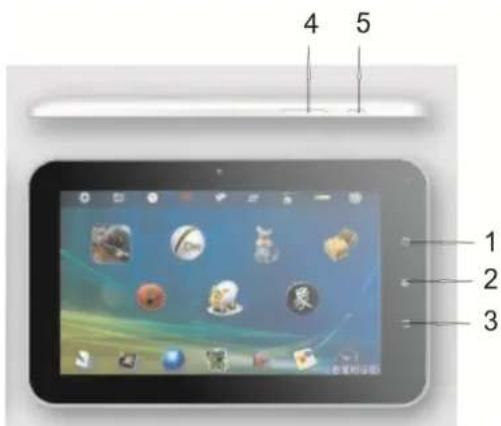
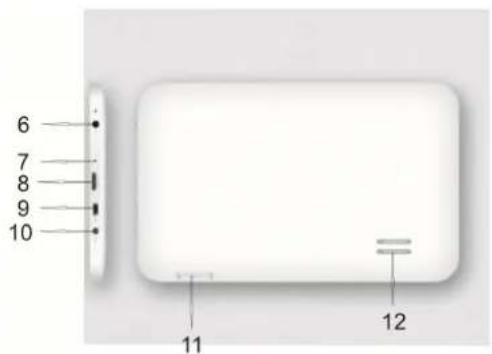
English
| 1 Back Button 2 Home Button | ||
| 3 Menu Button 4 Volume Button | ||
| 5 Turn on/off button, standby button 6 Earphone jack | ||
| 7 Reset 8 | HDMI | |
| 9 Mini USB jack 10 Power jack | ||
| 11 SD card slot 12 | Speaker |
2.2 MID Accessories Introduction
•MID complete machine
•Power adapter
- USB cable
•Earphone
-User manual
- OTG cable
2.3 MID Use and preparation
Battery charging
Before using MID firstly, please charge for battery.
- Use the ac adapter to charge for MID.
- Check the power indicator. Red light means recharging, the green light means full of electricity.
2.4 MID State and Information
Notice Icon
Please click column frame and slide on screen by touching finghers to open notice list when the message appears
English
notice panel. Click to requisite view options, check the detailed information. Later you can click information box and
slide to shut up information window. The icon illustration for status bar as follows:
| [K500] | New email |  | Mute |
 | New instant messaging |  | Uploading/downloading |
 | Pending event |  | Download is completed |
| [AZ6C] | Alarm opening | [2328] | Data synchronization |
 | Music playing |  | Use USB line to connect computer with MID |
 | Insufficient SD card space | [YK4B] | More |
| [60HO] | WIFI service already connected ,network available | [40ZA] | Battery changing sign |
| [30DC] | Flight mode |  | Charging |
 | General notice (such as: synchronization error) |  | No SD card |
Notice panel
Notice icon will display the new message, the setted alarm clock, schedule, and SD card inserting etc. You can open inform panel to check specific information.
Open notice panel
When notice bar appears new notice icon here, please hold notice bar, then slide down fingers, then you can open
English
notice panel.
3. Quick start
3.1 Button function
Key functions illustration:
| Powerkey | ● Long press this button for booting● In booting condition.long press this button pop-up shutdown options.● In booting condition, press this button to turn off the screen |
| Menu button ● Press this button to open the interface menu● Press this button to unlock in the lock screen condition | |
| Back button Press this button to back a previous operation procedure or previous operation interface. | |
| Page key ● Press this button to return the function interface from arbitrary interface.● Long press this button to open recently application window. | |
3.2 Boot and shutdown
Boot
After long pressing 2 seconds for the power button, you can see the boot logo.
The system is access into screen locking status after opening, please press the menu button to unlock.
Shutdown
-
Long press the power button, then popup "shutdown" options.
-
Equipment options have silent mode, flight mode and shutdown.
-
Click the shutdown.
3.3 Screen of opening and closing
It will be closed during the screen idling.
After idling period of time, screen will be automatically closed to save the battery.
In the screen opening condition, press the power button, the screen can immediately shut down.
English
Tip: if you need to find out how to configure screen closing time please refer to chapter 9.1.
Opening in screen closed condition.
If screen is in the closed position, you can long press boot key to open screen. Enter locked condition after opening it press "lock "icon and slide up for unlocking, and holding up" voice "icon and slide down for mute condition with finger."
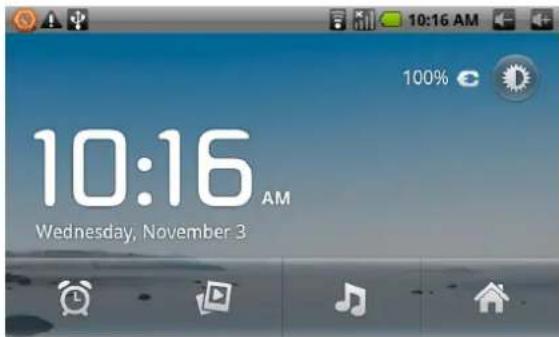
3.4. The use of touch screen
MID operation mode
There are several ways you can browse screen, menu and application, etc on the MID.
Click
When you want to use the screen keyboard to input and choose applications etc on the home page, as long as you click a project with finger.
Press
If you want to open a available options (such as the text box or web link) or move shortcut and main program menu on the homepage as long as you press the items.
Fast sliding or sliding
Fast sliding or sliding said in his fingers making rapid vertical or horizontal drag action.
Drag
Before you start to drag, you must use a finger to press and put some pressure on, until touch to the position which you
English
want, finger can loosen.
Rotating
For most picture, you can only turn to MID then screen will translate from lateral direction to straight. Such as in the input text, watch movies, etc.
3.5 Page interface
The main menu screen will show all application. You can use the application, shortcut and customize your homepage interface wallpaper, etc.
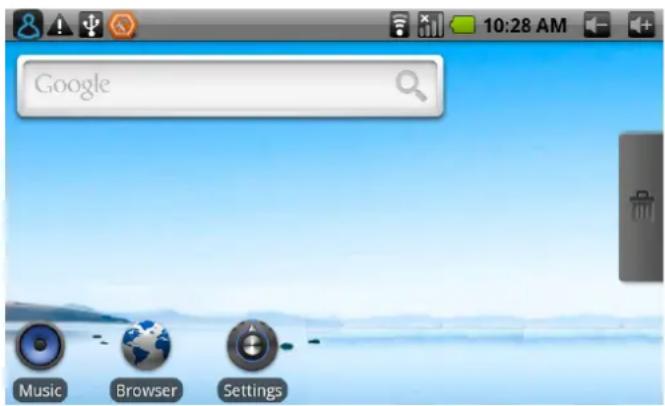
Tips: in any applications homepage key can be pressed returns to the home page.
The homepage Interface may extend
Homepage interface can be extended to screen width, to provide more space, let you can put new shortcut, small tools etc. Press blankplace of homenpage interface , then use touching fingher to rapidly vertical slide which can skip to extend to the left or right of screen. Homepage have above 2 extended interface.
English
Customize homepage Interface
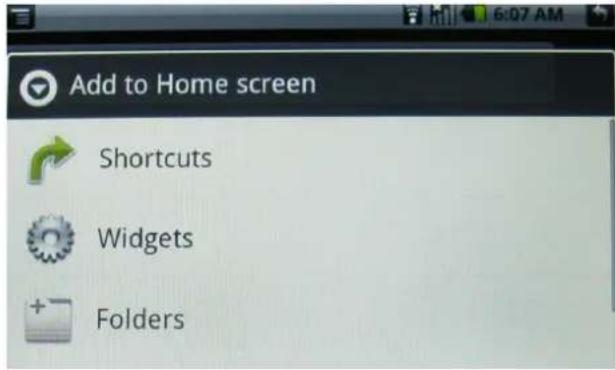
New homepage project
1 press on the popup menu in the blank area of the interface of the homepage.
2 During the popup menu, select the wanted project to add to a new homepage interface.
Change desktop wallpaper
1 In the homepage interface, according to the menu button to popup menu, then click the wallpaper.
2. Click the picture or wallpaper to select pictures.
Establish folder
- In the homepage interface, according to the menu button and click addition.
- Click the folder, and new folder.
- Click new folder of homepage interface to open it.
- Click and hold the folder list of headlines to rename it.
- Open the folder, click the application of marking, holding the application to drag folders, then may put in the folder.
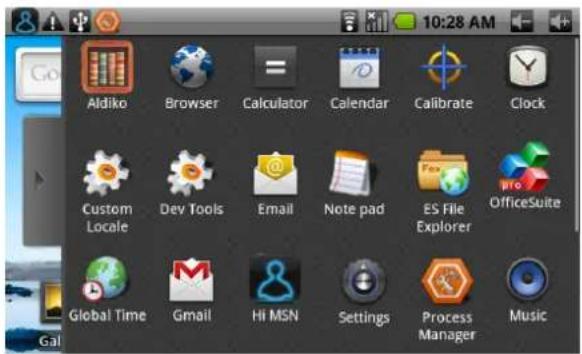
3.6 Access to the application
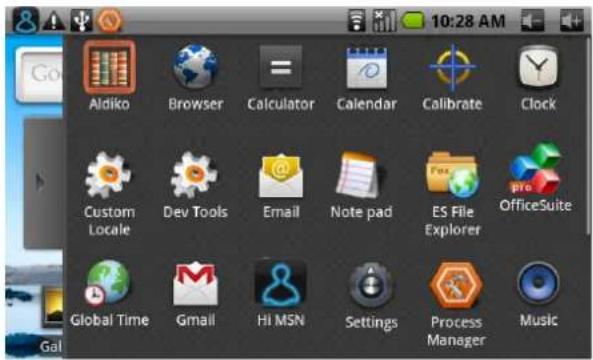
How to access to MID application.
1 Please click program volume label. As shown in figure 3-4.
2. Choose to visit the application.
English
3 If you want to quit program interface, press the return key to a page or press homepage key to directly returns home
interface.
3.7 USB connection
The storage setup of MID.
Before transporting documents, firstly you must set store mode for your MID.
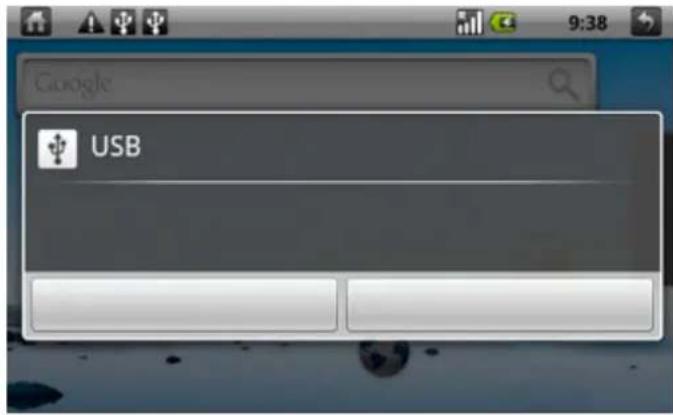
- Use USB cable to connect MID with computer. Notice bar will appear notice cue.
- Open notify panel. How to open panel please check MID status and notice with 2.4 chapter.
-
In the notification panel, click on the USB connection, then click loading.
-
Then the USB connection has been successfully.
English
Copy files to memory cards.
- Use a USB cable to connect MID with computer.
- After setting the store setting, then connect with computer successfully.
- Open My Computer of your computer, then see "portable disk (x)" content.
-
Find intended copy files to duplicate to the "portable disk (x)".
-
After the completion of the copy, click on "safe deletion hardware" of your computer task bar to unload.
Note: when you connect the USB cable to MID, if you enable USB storage device, you will not access to memory card;
if you want to access to memory, as long as disconnect the USB cable.
3.8 Storage card
Copy files to storage card
You can transfer file between MID and computer such as music and pictures, etc. Want to see the file, provided that you click file browser, then you can browse to the contents of the SD card.
Delete the file on the MID memory card.
- Find the file you want to delete.
2.Hold the file which you need to delete, then it will popup the file menu. - Click "delete"
Remove memory card in the MID opening condition.
If you need to remove memory card in the MID opening condition, you must firstly unload memory card, lest memory card faultor damaged.
- In the homepage interface, press the menu button and then click Settings.
- Drag down setting menu, and then click the SD card and equipment memory.
- Click the "Unload SD card"
English
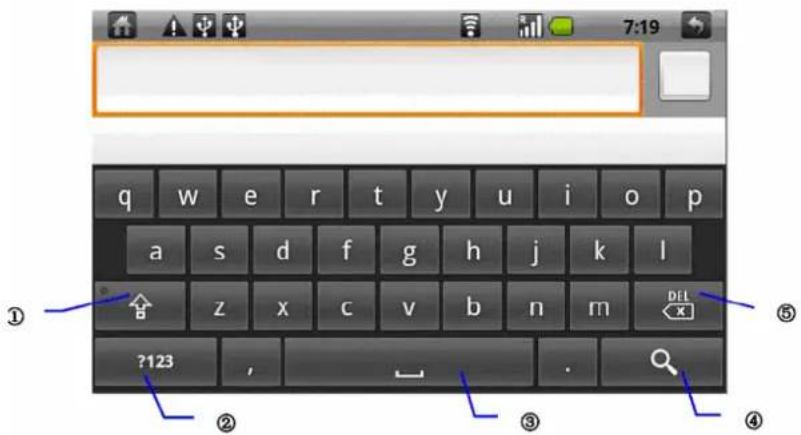
3.9.Input text
Use the screen keyboard
When you start programs or select text edit box which need to input text or number, it can appear screen keyboard.
Keyboard have optional input way below:
-
Android keyboard
-
Google pinyin input method
Select the input method which you want to use.
According to preinstall ,MID will display Android keyboard when you want to input word.
- On the homepage interface, press menu button and then click "Settings".
- Click the language and keyboard.
- List all installed input method of MID in the text setup area.
- Tick after the input method which you want.
Use and switch input method
- On the text input interface, hold text edit box area until it popups "edit text menu". then click the input method.
- Select the input method which you want to use.
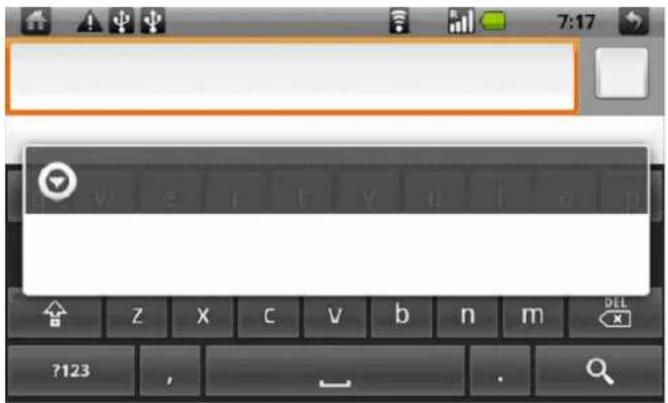
Use Android keyboard panel
English
| 1 Switch input case-sensitive |
| 2 Switch text input mode and coincidence /digital input mode |
| 3 "Click "can insert spaces |
| 4 "Click "can perform "enter" |
| 5 Delete the characters of the left cursor. Click and hold can delete all the characters of the left cursor. |
3.10. Use skills
Open recently used applications
In any programming interface you can hold homepage keys, the screen will popup program window, window displays recently used application.
Add small tools on the table
In the homepage interface, hold the blank area. popup menu, click the plugin, listing will list attached plugin of applications, such as music, picture frame, clock, search, etc.
Quick close the program
Press the back button back to superior interface, or press homepage button back to the homepage interface.
English
4 Establish connections
4.1 WIFI connection
You can connect MID to Wi-Fi network, operation for connection:
-
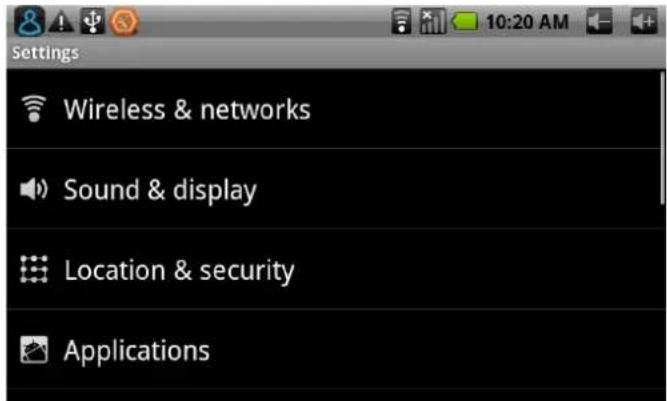
In the homepage interface, click the menu button, then popup settings menu.
-
Click settings.
-
Click wireless and network.
-
Click Wi-Fi, then start Wi-Fi
-
Click Wi - Fi Settings, MID will automatically scan available Wi - Fi wireless networks.
-
Choose the Fi network which you want to connect if it has add password, it will popup a input password window, then input relevant password.
5 Communication
5.1 E-MAIL
E-mail Settings
E-mail applications accompany with email settings guide, it can add the common Web email service providers(e.g. Gmail, Yahoo, Hotmail and 163 etc manufacturers) external POP3 or IMAP email account.
English
Note: before the mail will be settled guide, please ensure that you already link the network.
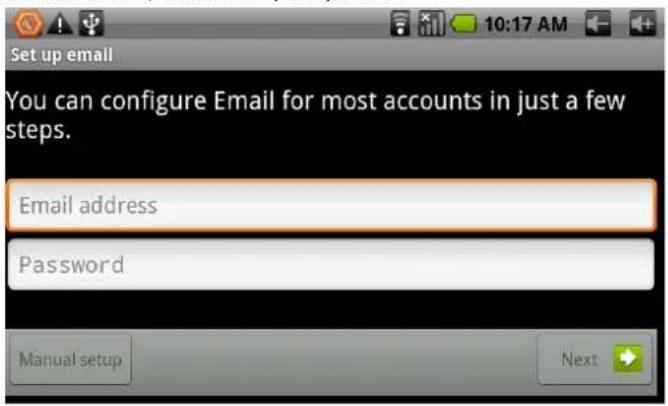
Mailbox setting guide
- Click the email icon, then it will appear mailbox setup guide to help you to set.
- Click the next step button.
- Enter your email account address and password.
- Click the next button, and select your mailbox type: POP3 or IMAP.
- Then click next button to check whether email server is available.
- Input account name and to display the name, then click completion.
- If the mail is available, it will automatically enter your inbox.
English
Delete email accounts
You can delete setted POP3 or IMAP email account from your mobile phone
- Click E-mail
- Enter to your inbox
- Press menu key
- Click account
- Hold account which you want to delete.
- Popup menu listing, and click" delete account"
- Click the" sure "can remove it.
Send E-mail messages
- Click the E-mail, display your inbox.
- Click the inbox to enter in, automatically refresh email, click to read.
- Press the menu button, and popup menu.
- Click "compose", enter to write a new mail interface
- Input your E-mail address of the recipient in the recipient column.
- Input theme and information content.
- If you want to add attachments, press the menu button, and then popup menu options.
- Click "add attachments"
- Select attachments which you want to send (such as video, images, etc.)
- Click "send E-mail" and then sent email out.
Note: If you have more than one account, and hope to send an email in one account, click that account title in advance
before you click main mune key and write email.
6 Multimedia
6.1 Support the file format
Your MID can play the following formats.
Music file format
Your music is divided into four categories: artist, album, songs and playlist. Choose a classification to check list contents. If you enter a classification, always choose until you have to play songs. For example, if you choose the artist category, you will see A to Z sequence of a list of names of art. If you choose a artist, the list will be presented artist album songs and lists.
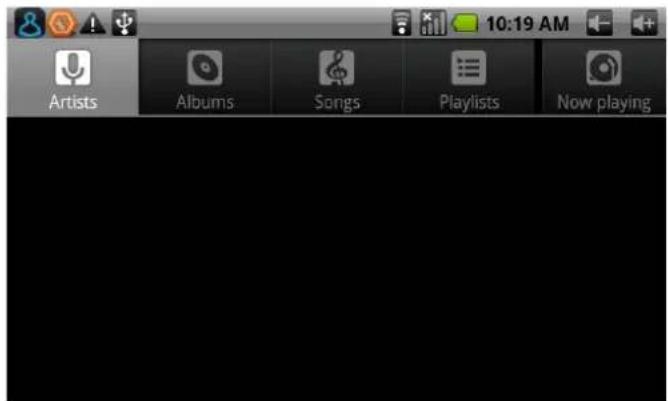
Visit and broadcast music
- Click the music.
English
- Click songs, also can click artist, album or song list.
- Choose one song to play.
Add song to the new playlists
- Click the music.
- Click the songs.
- Hold the song which you want to add to playlists.
- Popup music setting menu, click to add music to play lists.
- Click the New.
6 Input name of playlist. - Click to save.
- Click on a song, add this song as bell.
Delete the playlist
- Click the music.
- Click the songs.
- Hold the song which you want to delete to playlists.
- Popup music setting menu, click "delete".
6.3 Video
Visit and play video file
- Click on Video Player.
- Enter into video files list in memory card.
- Click the file you want to play.
- (such as many players) Choose corresponding players to play.
- Enter into video images, began to play.
6.4 HDMI
HDMI high-definition video interface
Use a standard HDMI cable to connect MID with high definition television. This interface can support the highest quality
English
1080P resolution, and but plug.
1 MID is on boot state.
2. Use a standard HDMI cable to connect MID with high definition television.
3. Click Settings.
4. Click sound and display.
5. Click Output Select.
6. Choose HDMI, then the video in MID will be simultaneous with high definition television pictures.
7. Click HDMI Setting to set HDTV display resolution.
6.5 Photo gallery
Photo applications can be automatically search photos and video files on the SD card. And the images gallery will classify these phones and vedio documents. You can use a gallery applications to view and edit photos, put photos as desktop and watch video.
Check pictures
- Click the folder you want to see to check included pictures.
- Click pictures you want to see, the system will automatically check in full screen mode.
- Touch screen, it will appear around the picture, please click the arrow to see superior or next picture.
- Touch screen, zoom-panel will appear in pictures below, you can magnify and narrow the pictures.
Skills: image browsing support automatically rotating function. When you spin MID, the picture will automatically adjust direction of rotation.
Edit and set images
Press menu button to display option of menu in full screen mode, you can select the option to edit and setting up the picture according to your needs.
Slide presentation
Press the menu button to show menu options. Then click slide presentation. All the pictures will be to slide folder broadcast to display.
English
Sharing
- Press the menu button to display menu option, and then click "share".
- The picture will share with your friends via email attachment.
Rotating
- Press the menu button to display menu option, and then click "rotating".
- Click the left or right rotation.
Cutting
- Press the menu button to display menu option, and then click "cutting"
- Click on drag related region to adjust cutting device.
- Click on cutting device to drag out from centre, to adjust cutting size.
- Adjust the size you want, click save.
- If you want to abandon cutting, click "give up" back to browse pictures.
7. Internet
7.1 Browser
Enter into homepage
The browser always habitually open the last web users have browsed the web, the homepage will appear when it enters into the browser on boot.
Change your Home Page
- Click on the browser.
- Press the main menu, popup settings menu of browser.
- Click more.
- Click Settings.
- Click Settings homepage.
- Input website, and click "ensure".
English
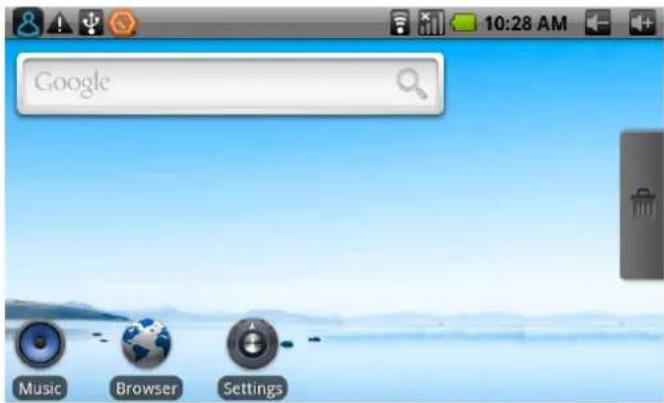
Visit website
- Click on the browser.
- Press the main menu, popup settings menu of browser.
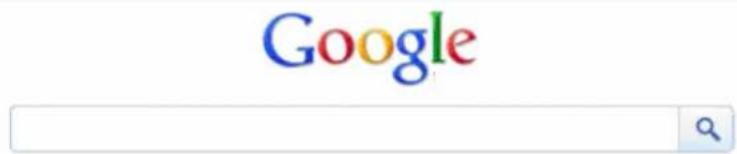
- Click "start", popup the address bar, input url.
- Click start in the soft keyboard.

English
Browse website
You can slide finger on screen to browse and check other part of webpage.
Enlarge or shrink pages
After opening webpage when you drag webpage, the browser below will appear enlarge and zoom-out button. you can
click "enlarge" or "reduce" to browse webpage.
Find the words in webpage
1 when browsing the web ,press menu button, popup menu options.
2. Click more.
3. Click on a page to check.
4. Enter your search projects.
5. When you input characters, words can change from white to green.
6. Click arrow on search column to move last or next one consistent supremacy.
Management bookmarks
Settings webpage bookmarks
- Go to a web page in the browsing interface.
- Press menu button and click the bookmarks, then click addition bookmarks.
- Edit bookmarks and click the sure.
Openning bookmarks
- Press the menu button and click the bookmarks in the browser interface.
- Click the bookmarks which you want to use to open the webpage.
Editing bookmarks
- Press the menu button and click the bookmarks in the browser interface.
- Click and hold bookmarks to open the menu options.
- Click the edit bookmarks to edit it, then click sure.
Use the browser window
English
Open a new browser window
- Open the browser window, click the menu button and a new window.
- Click the new window to open a new browser window.
Switch browser window
1 In the browser window, press the menu button and click on the window.
2. Click window you want to open it.
Set browser
In the browser interface, press the menu button and click more, then click Settings to set the browser.
8. Other applications
8.1 Alarm clock
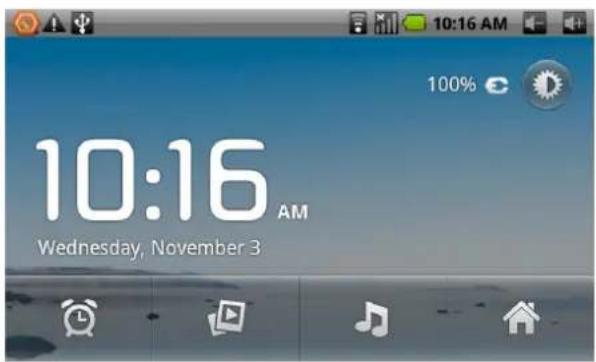
- Click the clock program.
- Enter into programming interface such as figure 8-1.
- There were pictures, music, alarm clock and page buttons.
- Press the menu button, pop-up alarm setting menu.
8.2 Calculator
- Click the calculator.
- Enter into the basic calculator panel.
English
-
Press the menu button, then click the advanced panel.
-
Touch panel digital or operators on the counter to calculate.
Skills: you can slide to switch basic panel and senior panel.
8.3 File Manager
Browse the file
Sliding desktop, and find the file browser.
You can use the file browser management to edit and delete files and folders.
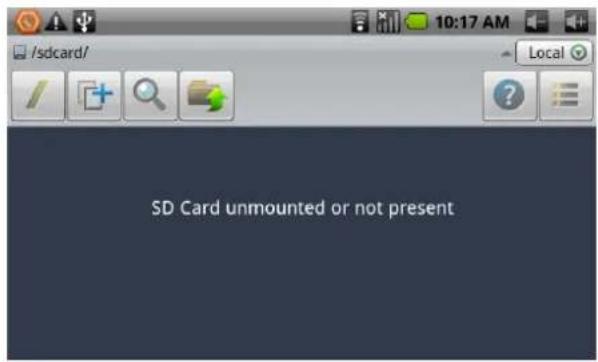
Cut and copy files
- On the file browser, press operation documents with finger.
- Popup operation menu, including copying, cutting, deleting, rename, new, setting of content and attributes.
- Click "cut" or "copy" to cut and copy folders.
- Click the folder you want to paste into, press the menu button to popup menu.
- Click "operation", then click "paste".
Delete the file
- Use fingers to hold the file you want to delete in the file browser.
- Click "delete".
- Click "sure" to delete files.
English
Establish folder
1 On the file browser, press the menu button to popup menu.
2. Click "new".
3. Click the folder.
4. Popup window, input new folder name in the text box.
5. Click "sure" to establish the folder.
Quick search
- On the file browser, press the menu button to popup menu.
- Click "new".
- Click "search".
- Popup search panel, input your search keywords.
- Click on "sure", notice bar will display search progress bar.
- After the completion of the search , popup dialogue box to confirm whether need to show results.
- Click "sure" to display search results.
9. Basic Setup
9.1 Sound and Display
Media volume Settings
- On the homepage interface, press the menu button to popup setting menu.
- Click Settings.
- Click Sound and Display.
- Click on Media Volume to control the volume of music and video.
- Popup Volume Settings panel, then drag the progress bar to control.
Ring Settings
- On the homepage interface, press the menu button to popup setting menu.
- Click Settings.
- Click Sound and Display.
English
- Click the Ring Notice.
- Popup ring menu, and select the bell ring you want to notice.
- Also can click the ring volume to control the volume of bell ring.
Screen button sound
You can set MID to release sound when you use the soft keyboards or tickle screen.
- On the homepage interface, press the menu button to popup setting menu.
- Click Settings.
- Click Sound and Display.
- Click screen button sound cooperate sound to choose.
Display Settings
Adjust screen brightness
- On the homepage interface, press the menu button to popup setting menu.
- Click Settings.
- Click Sound and Display.
- Scroll down the screen, click the brightness.
- Popup Brightness Settings panel, drag to bright slider adjust bright degree.
- Click.
Adjust screen standby time
- On the homepage interface, press the menu button to popup setting menu.
- Click Settings.
- Click Sound and Display.
- Scroll down the screen, then click screen standby.
- Popup Screen Standby Time Settings, choose standby time you want the standby time.
9.2 Safety and Position
Set to unlock pattern
You can set up their unlock pattern (equivalent to password) to protect your MID privacy.
English
- On the homepage interface, press the menu button to popup setting menu.
- Click Settings.
- Click on safety and position.
-
Click "Settings to unlock pattern".
-
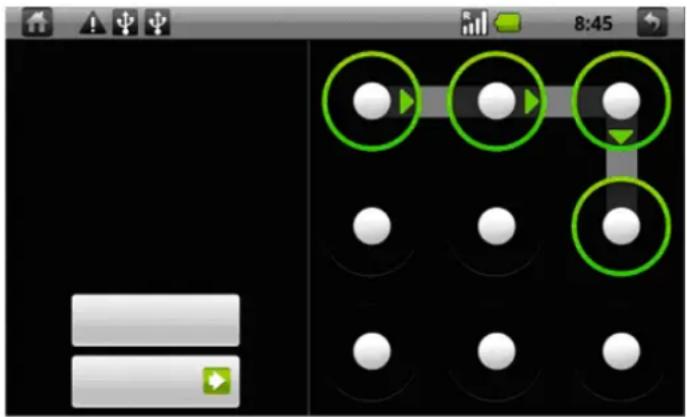
Popup unlock pattern plate, pattern has nine contacts. With vertical and horizontal, or diagonal directions to connect four points at least. Fingers left screen after completing. The system will record your setting pattern.
-
Click "Continue".
-
See hints, draw a screen unlock pattern, and click confirm.
Skills: if you don't want unlocked pattern to display on the screen in unlock, please remove using visible pattern checkbox.
9.3 TF Card and storage
Check TF card and MID available storage space
- On the homepage interface, press the menu button to popup setting menu.
- Click Settings.
- Click the TF card and MID storage.
- Check the space available of TF card.
- Check MID inner storage space.
English
Safely remove TF card
Safe removal can effectively protect TF card, increase service life of the TF card.
- Click Settings.
- Click the TF card and memory of equipment.
- Click the uninstall TF card.
-
Popup TF card.
-
On the homepage interface, press the menu button to popup setting menu.
9.4 Date and time
According to preset, the system will automatically use date, time zone and time provided by network.
Note: if you automatically use time provided by the internet, you cannot set the date, time and time. and manually adjust the date, time zone and time.
- On the homepage interface, press the menu button to popup setting menu.
- Click Settings.
- Scroll down the screen, then click the date and time setting.
- Remove automatically checkbox.
- Click the choice, then select time zone of the list. Scroll down the list to see more time zone.
- Click date-setting, then click upward or downward button to adjust the date and year, month, click Settings when completed.
- Click time-setting, then click upward or downward button to adjust the hour and minute, click AM or PM to change morning or afternoon .then click Settings when completed.
- Select checkboxes which is using 24 hours format to switch system between 12-hour and 24-hour. The selected format will also applied to the time format of the clock.
- Click to select date format, and then choose to display the date format on the MID.
9.5 Set the language
- On the homepage interface, press the menu button to popup setting menu.
- Click Settings.
- Click on language and keyboard.
English
- Click to select language area, then choose words of your need. Scroll down the list to see more of the language.
9.6 About the equipment
Check MID status
- On the homepage interface, press the menu button to popup setting menu.
- Click Settings.
- Click on the equipment.
- Click the state. You can see the battery state, the network state, network types and accumulative used time etc.
10. The installation of program
10.1 Installation
Install the third-party applications
You can get the third party on the Internet for Android system, and install in MID automatically. Copy applications into
SD card, then insert into MID.
- Click the professional edition of eoeApp installer, program automatically scan all applications in TF card.
- hold the application you needed to install.
- popup install option, click install the apk.
- according to the installation guide to complete, and then operate.
Note: search files with the apk suffix for these third party programs which based on system in the Interne
10.2 Uninstallation
Uninstall applications
- On the homepage interface, press the menu button to popup setting menu.
- Click Settings.
- Click "application".
- Click "management applications", list all installed application list in the system.
- Click "unloading".
- Click "sure" to finish unloading.
Skills: program manager that systems installed can realize unloading easily. Open the program manager and click the
English
uninstall option .it will list application list which system has been installed.
10.3 Restore manufactured settings
When your MID appear gross mistake or to forget unlocked password etc, you can restore to original status by restoring
factory Settings. Recovery factory setting will cause all data to lost includes delete downloaded applications and user
setting, so remember to backup your data.
10.4.Specifications
Product parameters
| Category Content Description | ||
| Basic parameters | MID model ALLVIEW | ALLDRO SPEED |
| CPU model | Cortex A8 | |
| CPU frequency | 1,2 GHz | |
| DDR-RAM | 512MB DDR3 | |
| NAND FLASH 4 GB | ||
| Operating system Google Android 2.3 | ||
| Internet access WiFi wireless networks IEEE802.11b/g | ||
| USB interface Mini USB 2.0 OTG high speed interface | ||
| HDMI interface 1080P high-definition video output | ||
| miniSD card Maximum support 32G | ||
| Product appearance | Appearance style Straight | |
| Main screen 7.0 inch capacitive fulltouch TFT LCD, 800x480 resolution | ||
| Applications | Video playing | Support AVI, RMVB,MKV and FLV etc format ,support 1080P high-definition format |
| Music playing | Built-in music player, support MP3, MIDI and WAV format | |
| Game | Support third-party programs | |
| Image browsing | Support the images of BMP, JPG, TIF, PNG, GIF format | |
| OFFICE | Support office (word, excel to read), support PDF browsing | |
We, SC VISUAL FAN SRL, importer located in Brasov, 16 Liliacului STR., J08/818/2002, CUI 14724950, assure, guarantee and declare on our own responsibility, in accordance with art. 5 from HG nr. 1.022/2002 regarding the statute of the products and services that can jeopardize life, health, work security and environmental protection, that:
The product ALLDRO SPEED- ALLVIEW brand MID - and the accessories that came with the product: 220V charger, headphones, USB cable and battery don't jeopardize life, health, work security and environmental protection and they are according to:
- The Stipulations of HG nr.982/2007 witch transpose the essential requirements specified in Direction 2004/108/CE, regarding electromagnetical compatibility;
- The Direction regarding the low voltage equipment users assurance 73/32/CEE, modified by Direction 93/68/CEE (HG 457/2003) si tests EN 55013:2001+A1:2003+A2:2006, EN 55020:2007, EN 610000-3-2:2006, EN 61000-3-3:1995+A1:2001+A2:2005;
- The Direction regarding the radio and telecommunication equipments R&TTE 1999/5/CE(HG 88/303).
The Product described upstairs in this Declaration and all the accessories are according to the next standards:
- Health EN 50360, EN 50361;
- Safety EN 6095-1;
- EMC EN 301 489-1-7/17;
- Radio spectrum EN 301511 EN 300328;
After the performed tests emerge that the samples comply with the upstairs specification, as the test results show. Documentation is stored on VISUAL FAN LTD - Brasov, 61 Brazilor STR.
Also available on web:"http://allview.ro"
Brasov
DIRECTOR
COTUNA GHEORGH

E