F2 Crony - Cellphone Allview - Free user manual and instructions
Find the device manual for free F2 Crony Allview in PDF.


User questions about F2 Crony Allview
0 question about this device. Answer the ones you know or ask your own.
Ask a new question about this device
Download the instructions for your Cellphone in PDF format for free! Find your manual F2 Crony - Allview and take your electronic device back in hand. On this page are published all the documents necessary for the use of your device. F2 Crony by Allview.
USER MANUAL F2 Crony Allview
4.2 VOLUME ADJUSTMENT 14
4.3 ANSWERING A CALL 14
4.4 OPTIONS IN A CALL 14
5 MENU FUNCTION 16
5.1 MESSAGING....16
5.2 PHONEBOOK 18
5.3 CALENDAR 18
5.4 FM RADIO 18
5.5 MEDIA PLAYER 18
5.6 JAVA....19
5.7 MULTIMEDIA....20
5.8 GAMES....23
5.9 CALL CENTER....23
5.10 SETTINGS....26
5.11 FILE MANAGER 28
5.12 SERVICES 28
5.13 ORGANIZER 32
5.14 EXTRA: 33
5.15 USER PROFILES 33
5.16 CONNECTIVITY 35
5.17 ALARM 35
6 INPUT METHOD EXPLANATION 36
1 Points of attention on safety

IMPORTANT! Please read these instructions carefully and follow them
implicitly in case of any dangerous or illicit situations.

Note driving safety
It is strongly recommended that you do not use a mobile phone when driving. Please use the personal hand free package when a call is inevitable.
Please put your mobile phone in the mobile phone holder safely, and don't put it at a passenger's seat or any other place that may risk a drop of your mobile phone in the case of collision or emergency brake.

Switch off your mobile phone on the airplane
Interference caused by mobile phones affects aviation safety, and thus it is illegal to use it on the airplane. Please make sure your mobile phone is switched off when you are on a plane.

Switch off your mobile phone in blasting operation area
You should strictly obey relevant laws and regulations and switch off your mobile phone in or near blasting operation area.

Switch off your mobile phone near dangerous area
Your cell phone is not allowed to switch on when the refueling and chemical substance area is nearby.

In a hospital
When using it in a hospital, you should be subject to the relevant rules specified by the hospital. Make sure your mobile phone is switched off when medical equipment is nearby. Any wireless transmission equipment, mobile
phones included, will affect its performance. Other electronic equipment may be affected as well. If you have any question in this regard, please consult relevant doctor or equipment supplier directly.

Interference
Any interference caused by wireless equipment can do damage to its performance.

Qualified services
Only qualified services are allowed to install or repair mobile phones. If you install or repair it by yourself, you may break the guarantee rules.

Accessories and batteries
Only manufacturer recognized accessories and batteries can be used.

Reasonable use
It should be used normally. It is absolutely forbidden to put it on the condition that with an extremely high temperature (over 60 Celsius degrees), for example, do not put it under the window where it can be exposed to the sunshine directly. Remember to use wet or antistatic cloth, instead of using any cloth with static electricity to clean it.

Emergency call
Make sure your mobile phone is powered on and is in the service, if you would like to make an emergency call number such as 911, pressing the dial key and confirm your location, simply explain what has happened, and don't terminate the call without any permission.
Note: Like any mobile phone, it may not be supported due to the network coverage and wireless signal transmission. What's more, some networks even don't support the 112 emergency call services. Therefore, the communication under emergent situations (such as first aid) should not be
completely depended on mobile phones. You can consult and check with you local network suppliers.
2 Your Mobile Phone
2.1 Parts Definition
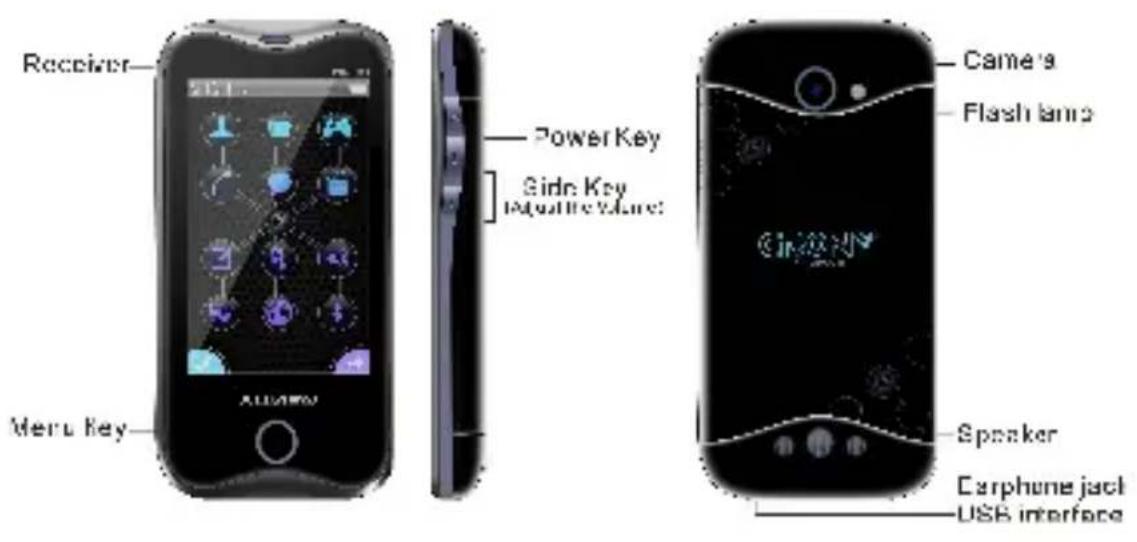
2.2 Open the back cover
Push the back cover upwards.
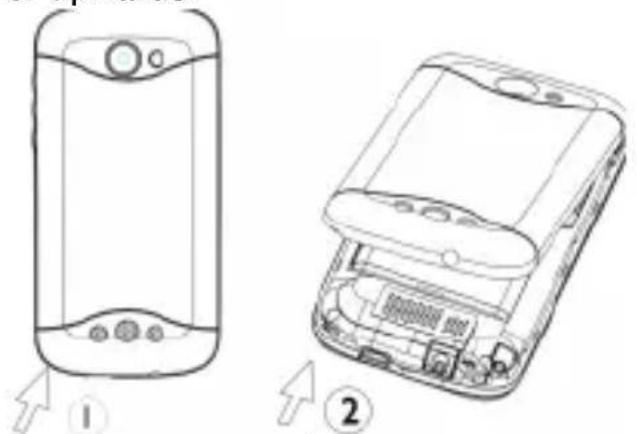
6
2.3 Descriptions of icons on the status bar
| Icons | Descriptions | Icons | Descriptions |
 | SIM1 Signal Strength (GSM) |  | Earphone activated |
 | SIM2 Signal Strength (GSM) |  | Key lock |
 | SIM 1 New Message/Message full |  | SIM 2 NewMessage/ Message full |
 |  | ||
 | Unread MMS |  | SIM 1 Off |
 | Battery Level |  | Ringing |
 | PUSH Message |  | Vibrate |
 | Connect to GPRS |  | Vibrate and ring |
 |  | ||
 | Call Divert |  | Vibrate then ring |
 | Missed call |  | Unread FAX_L1 |
 | Alarm on |  | CSD_SIM1 |
 | Unread Email_L1 |  | Audio Play |
 | EDGEC_SIM1 |  | |
 | BGSND |  | Unread_Net_L1 |
 | Stopwatch |
3 Start to Use
3.1 Insert SIM Card
PIN (personal identification number), PIN2, PUK (personal unlock key), IMSI (international mobile subscriber identification) number, network information, phone book and SMS (short message service) and other data are stored in your SIM card.
Steps:
1> Hold the power key to turn off your mobile phone, and remove the battery cover and then the battery.
2> Note: don't pull out the extractor when inserting the SIM card.
Firstly, inserting the side with the unfilled corner.
Secondly, pushing the SIM card carefully with the card surface upwards and move it into the groove of the SIM card holder.
3> Put the battery into the battery holder again, and close the battery cover.
3.2 Insert T-Flash (Storage) Card
1> Hold the power key to turn off your mobile phone, and removing the battery cover and then the battery.
2> Pushing the T-Flash card carefully with the card surface upwards and move it into the groove of the T-Flash card holder.
3> Put the battery into the battery holder again, and close the battery cover.
3.3 Battery & Charge
Indication of battery power:
Your mobile phone can monitor and display relevant information on the battery.
1> Normally, you can check the remaining power of the battery from the battery power icon on the top right corner of the screen.
2> The screen will display “Battery Low” when the battery power is inadequate. If you have selected the prompt tone of any mode out of the scene modes, the mobile phone will also give out a warning prompt tone.
3> When the battery is charged, the power indicator of the battery icon will be constantly changing until the battery is full.
Note: The actual standby time and calling duration are related to the use of the mobile phone, the local network environment, the SIM card and actual settings.
Warm reminders about battery:
Please don't store your mobile phone battery at an extremely high or low temperature, for it will affect the service life of the battery, and shorten the standby time. The service life of the mobile phone battery is subject to a certain limit. It is recommended that you would better change a battery from the original supplier if the performance of the battery has declined after using it for a period of time.
Use two-in-one charger (charger + signal cable):
The two-in-one charger can charge the battery via the mobile phone.
1> Connect the signal cable and the charger.
2> Connect the plug at the signal cable end of the two -in-one charger with the input/output groove of the mobile phone.
3> Insert the plug at the charger end of the two-in-one charger into an appropriate main power supply socket.
4> When the battery is charged, the power indicator of the battery icon will be changing until the battery is full.
5> When the battery is full, the power icon will stop changing, and then you can pull out the plug of the two-in-one charger.
Points of attention on use of battery:
1> Be sure to switch off the mobile phone before you remove the battery.
2> Please use it carefully. A short circuit will occur if the positive pole (+) and the negative pole (−) of the battery is connected with a metal object (for example, a coin or clip), it may do damage to both the battery and the metal object. Make sure that no metal object will be connected simultaneously with the positive pole and the negative pole of the battery after it is removed and put in a bag.
3> Don't throw the battery into the fire, or use it under an extremely high
temperature condition.
4> Don't dismantle or modify the battery.
5> Don't put battery in an occasion with strong mechanical impact, or use a hard object to penetrate the battery.
6> Battery should be put in a cool and dry place to avoid direct sunlight. It should not be placed with a high temperature (over 60 Celsius d eGREES) environment.
7> If battery gives out any peculiar smell or getting overheated, you should stop using it.
8> If the battery is found to have any crack, deformation, damage of other type, or electrolyte leakage, it should be stopped using immediately.
9> Please clean your skin or clothes immediately with soap and clear water if they contact leaking electrolyte, and wash your eyes completely with clear water if any electrolyte splashes into.
10> In case of any injury caused by incorrect charge, only original battery is allowed to be charged.
11> Don't use the li-ion battery when the temperature is extremely low, for the maximum standby/call time is not available at a low temperature.
12> Don't clean the battery with water or organic solvent, or immerse the battery in water.
13> Make sure the battery is fully charged if it has been out of use for a long period.
14> It is recommended that the rejected battery be returned to the mobile phone manufacturer or placed in a designated public area for rejected battery recycling. Don't mix it with other garbage or throw it freely.
3.4 Switch on or Switch off
1> Holding the power key to switch on the mobile phone. The screen will display the start cartoon.
2> If you are required to enter the mobile phone password, enter the password then press the menu key. The default password of the mobile
phone is 1122.
3> If you are required to enter the PIN code, entering the PIN code and pressing the menu key. As to a newly subscribed SIM card, the PIN code is provided by the network operator.
4> Entering the standby interface.
5> Holding the power to switch off the mobile phone.
3.5 Use Passwords
A series of passwords have been set in your mobile phone and SIM card, for they can prevent any unauthorized use of your mobile phone and SIM card. When you are required to enter any password below, entering the correct password (displayed in “*”), and then press the OK soft key. If you enter an incorrect password, first press the clear soft key to delete the wrong information, and then provide a correct password. You may follow the instruction “Settings->Security setup>Change password” or “Settings->Security setup>SIM1/SIM2 security setup->Change password” to change the PIN code, the PIN2 code as well as the mobile phone lock password.
Mobile phone password:
The mobile phone password is the same as the mobile phone lock password, which could prevent unauthorized use of your mobile phone as well. The mobile phone password preset by the manufacturer is 1122. If your mobile phone is locked, the mobile phone password will be required to start the mobile phone.
Note: The mobile phone password may include 4\~8 digits. Please change the password in time, and remember what you have set. The password used by the theft proof trace function is the mobile phone password.
PIN code:
The PIN code (personal identification number, 4\~8 digits) is used to prevent unauthorized use of your SIM card. If the PIN verification function is activated, the PIN code will be required to start the mobile phone each time. If you have entered the PIN code incorrectly for three times, the SIM card will be locked. The following instructions indicate you how to unlock
the card:
1> Enter the correct PUK code in line with the prompt on the screen to unlock the SIM card.
2> Then enter a new PIN code and press the OK soft key.
3> When you are prompted to reenter the new PIN code, reenter the new PIN code and press the menu key.
4> If the PUK code is correct, the SIM card will be unlocked, and the PIN code is reset.
Warning: If you have entered the PIN code incorrectly for three times, the SIM card will be locked automatically, in that case you need to use the PUK code to unlock the card. The PUK code is generally kept by the network operator.
PUK code:
The PUK code (the PIN unlocking password, 8 digits) is used to unlock the locked PIN code. The PUK code is provided by the manufacturer together with the SIM card. If you have entered the PUK code incorrectly for ten times, the SIM card will be invalidated. You need to ask your network supplier for a new card.
PIN2 code:
The PIN2 code (4\~8 digits) is provided together with the SIM card, which is used to set the fixed dial and other functions. Please contact your network operator to check if your SIM card supports such functions. If you have entered the PIN2 code incorrectly for three times, the PIN2 code will be locked. The PIN2 code will be unlocked only by entering the correct PUK2 code. The operation are as follows:
1> Enter the correct PUK2 code in line with the prompt on the screen to unlock the PIN2 code.
2> Then enter a new PIN2 code and press the OK soft key.
3> When you are prompted to reenter the new PIN2 code, reenter the new PIN2 code and press the OK soft key.
PUK2 code:
The PUK2 code (the PIN2 unlocking password, 8 digits) is used to unlock
the locked PIN2 code. The PUK2 code is provided by the manufacturer together with the SIM card. If the PUK2 code has not been provided, please contact your network operator. If you have entered the PUK2 code incorrectly for ten times, you will be unable to use the functions of the PUK2 code. If you want to use these functions, please contact your network operator to change a new card.
Prohibition password:
When you operate the call restriction function, the prohibition password is needed. The function can be operated after you get this password from your network operator.
3.6 Use personal hands-free package:
You can make or answer a call without holding your mobile phone by using personal hands-free package. When you insert the personal hands-free package into the earphone hole, it will be functioned as a receiver and microp
4 Common Functions
4.1 Make a call
1> Enter the area code and phone number under the standby mode, and press the dial key 1 or dial key 2 to dial the number you have entered.
2> Press the power key to end the call.
Correct wrong input
Pressing the right soft key or the delete key to delete the wrong information and hold the right soft key.
Redial a previous number:
Press the dial key to enter the dialed record list, and press it directly to make calls.
4.2 Volume adjustment
You can adjust the call volume simply by pressing the side key during a call.
4.3 Answering a call
1> Press the menu key or answer key to answer an incoming call if the keyboard doesn't locked; press answer key to answer an incoming call if the keyboard locked.
2> Press the end key or menu key can end the call.
3> Touch the screen reject an incoming call.
4.4 Options in a call
A big number of control functions are available for you during a call.
Call waiting:
If this function is available and you have already activated it, you can hear the call waiting tone if there is an incoming call during the call. If you choose" answer the incoming call", press the dial key or left soft key, the first call will be automatically held while you are answering the incoming call. See the Hold/Switch section.
Hold/Switch:
When an incoming call is held on during another ingoing call, you can press the left soft key to switch between them. With this operation, the
ongoing call can be switched into the held status while the kept call, vice versa, thereby enabling you to speak to the other caller. This function is in Options, the interface is conference, only appears during the call.
Call hold:
If this function is supported by the network, you can answer another call during an ongoing call.
Mute:
This function can activate or deactivate the microphone and other connected microphone of the mobile phone. It can prevent your voice heard by others.
Other options in a call:
With this function is available, you can access to the phone book, short message, recording and so on.
Please browse the Menu Guide section in detail.
5 Menu Function
Here we have listed the available functions, after browsing you will have a good understanding of how to operate your mobile phone.
5.1 Messaging
4 Message function is a network service. You may need to subscribe to the service from your network operator prior to sending and receiving short messages.
Write Message
5 You can create a new short message here.
1> Sent to: You can send a message to a contact which is in the telephone directory or input a new contact number.
2> Input method: You can choose the input method which you need.
3> Add picture: You can insert a picture to the current short message.
4> Add sound: You can insert a sound to the current short message.
5> Add video: You can insert a video to the current short message.
6> Add subject: You can add a subject to the current short message.
7> Slide options:
Add slide behind: Inserted as the front page.
Add slide before: Inserted as the next page.
8> Switch to MMS: Switch the SMS to MMS.
Save to Drafts: Save the message to draft box.
Save as template: Save the message as template.
Switch to SMS: Switch the MMS to SMS.
Note: The other basic operations are equal with the SMS operations.
9> Advanced: You can choose insert template、or attachment、or contact number、or contact name、or bookmark to the message which you are writing.
10> Save: Save the out sending message to outbox.
11> Details: You can see the detailed message information.
Note: When you add picture, sound and subject into SMS, it will be automatically switched to MMS.
Inbox
1> View: Enter to view and edit received messages (SIM 1 & SIM 2).
2> Reply: Directly reply short messages.
3> Call sender: Call the sender who sent the short message.
4> Forward: Directly forward this short message to others.
5> Delete: Delete the short message.
6> Delete all: Delete all messages in inbox.
7> Save to phonebook: Add the sender's telephone number into the phonebook.
8> Sort by: Sort by sender, or subject, or unread/read, or message type, or message size.
9> Mark several: Mark the current short message which you choose.
10> Mark as read: Mark the current short message as read status.
11> Advanced:
Copy to phone: Copy this short message to phone.
Move to phone: Move this short message to phone.
Copy All: Copy all the short messages in inbox to phone.
Move All: Move all the short messages in inbox to phone.
Drafts: Enter to view and edit the unsent Messages.
Outbox: Read or process the failed short messages.
Sent messages: Read or process the out short messages
Archive: Preserved information
Delete messages: Empty the Inbox, Outbox, Sent messages, Archive, or all of them
Send and receive
Send and receive the mail.
SMS backup
Message settings
1> Test message: Set some relevant parameters of short message.
2> Multimedia message: Set some relevant parameters of multimedia message.
5.2 Phonebook
Telephone number can be saved in both SIM card and phone. The storage capacity of the phone is 2000. The storage capacity of SIM card depends on the type of SIM card.
After select Phonebook, by pressing "Options" you can select View / Edit / Delete / Copy / Send contact / Mark several / Phonebook settings.
5.3 Calendar
When you enter the options, you can select View / View all / Add event / Delete event / Jump to date / Go to weekly view (or can choose Go to monthly view / Go to weekly view) / Print.
5.4 FM Radio
Press Left soft to enter "Options":
1> Channel list: list or edit all users saved or predefined channels.
2> Manual input: enter the numbers of one channel and play it directly.
3> Auto search: Auto search for the channels and settings.
4> Settings: user can set on or off to background play and loud speaker, and set the record format, audio quality and record storage here.
5> Record: Start recording your radio
6> Append: Add the new record of radio to the list
7> File list: The radio has been recorded
5.5 Media Player
Select “Now playing” enter player interface for start or stop to play audio and choose the next track or previous track by touch the screen. The music left direction press the list soft key of the music player to enter the play list, and press the option soft key to providing the following functions:
Now playing:
1 > Now Playing: Playing a designated song.
2> Details: Listing the detailed information of a song.
3> Add to rings: With it, you can choose an MP3 song and set it as your
incoming call ring tone.
4> Refresh list: Updating the music file list under the root directory of the U disk. When the automatic play list generation is set at ON, it is available.
5> Settings: Player settings:
A: Pre. Playlist: The list for Memory card or Phone.
B: List auto gen.: Two statuses ON and OFF are available. When the status is ON, press the option soft key in the play list, it will provide the newly add, remove and remove all functions in addition to the play, detail, add to ring tone pool and setting functions.
C: Repeat: You can choose All/Off/One.
D: Shuffle: You can choose the ON/OFF status of the random playing.
E: Background play: You can choose On/Off.
Display settings:
A: Spectrum display: Set the Spectrum display Off/ Style1 /Style2.
B: Lyrics display: Set the Lyrics display On/Off.
Sound effects:
A: Audio effect: Set the Audio effect Off/Equalizer/Reverb effect/3D surround
B: Bass enhancement: Set the Bass enhancement On/Off.
C: Play speed: Set the Play speed Fast/Fastest/Slowest/Slow/Normal.
Bluetooth settings:
A: BT stereo output: when it's on, you can use Bluetooth to listen music (note: the Bluetooth must connect with your phone).
B: BT stereo headset: this function can choose Bluetooth which you connect. My playlist: You have to add new playlist to play the audio.
1>Options>New>Done,
2>Select the new playlist you just added, Options>Add, choose Phone or T card, then select the audio you want to play..
5.6 Java
Get Access to Java games and applications.
1> Connect PC with the mobile phone through data cable and select
"Mass storage".
2> Copy the setup program into the memory card.
3> Select the application to install.
4> Select "Launch" after the installation.
5> Enter Amusement JAVA menu to select the game.
5.7 Multimedia
Camera
Press left soft key to enter camera preview, and press left soft key again, you can see the following items:
Photos:
1> View: Browsing a selected photo file.
2> Browse style: You can check photos either with the list mode or the matrix mode.
3> Send: Send the phone as multimedia message or as Email or via Bluetooth.
4> Use as: Use the phone as wallpaper, or screen saver, or caller picture.
5> Rename: Rename a selected photo file.
6> Delete: Delete a selected photo file.
7> Sort by: Arrange the sequence of all photo files by name, type, time, size and none.
8> Delete all files: Delete all the photo files.
9> Storage: The storage card or phone can be selected.
Camera settings:
1> Flash: Available options including: ON and OFF.
2> Shutter sound: A number of sound effects can be selected.
3> EV: Touch the screen under the shoot preview status for fast adjustment of the exposure. Available selections include compensation -2, compensation -1.5, compensation -1, compensation -0.5, compensation 0, compensation +0.5, compensation +1, compensation +1.5, and +2. You may adjust the exposure value for higher photo quality in line with the actual situation of the ambient light source.
4> Contrast: Set the contrast high/medium/low.
5> Anti-flicker: Set the Anti-flicker 50HZ/60HZ.
6> Delay timer: Set the Delay timer 15 sec/10 sec/5 sec/off.
7> Cont. shot: Set the Cont. shot 1 shot/3 shot/5 shot/off.
Image settings:
1> Image size: Touch the screen can enlarge or reduce the image. The larger the photo is, the more storage space will be taken up.
White balance: Available options including: auto, daylight, tungsten, fluorescent, cloud and incandescence. Please select this parameter in line with the actual environment.
Scene mode: Set under the shoot preview status by selecting or closing the night shot mode.
Effect settings: You can select from a number of special effects.
Storage: The storage card or phone can be selected.
Restore default: Select this operation to resume the factory parameters of the camera.
Image viewer: You can check images in phone.
Video recorder:
Under the video shooting preview status, touch the screen variation multiple, the left and right keys to adjusting the exposure compensation, and the central key to start shooting. After you entering the digi tal video function, press the select soft key to use the following operations:
Camcorder settings:
1> EV: Touch the screen under the shoot preview status for fast adjustment of the exposure from compensation -2 to +2 (9 levels).
Selections include compensation -2, compensation -1.5,
Compensation -1, compensation -0.5, compensation 0,
Compensation +0.5, compensation +1, compensation +1.5, and you may adjust the exposure value for higher photo quality in line with the actual situation of the ambient light source.
3> Night mode: Touch the screen under the video shooting preview status by selecting or closing this function.
4> Anti-flicker: Set the Anti-flicker 50HZ/60HZ.
Video settings:
1> Video quality: Set the Video quality Normal/Good/Fine/Low.
2> Size limit reached: Set the Size limit reached 95K/195K/295K/No limit.
3> Time limit reached: Set the Time limit reached 15sec/30sec/60sec/No limit.
4> Record audio: Set the Record audio on/off.
White balance: Available options including: auto, daylight, tungsten, fluorescent, cloud and incandescence. Please select this parameter in line with the actual environment.
Effect settings: You can select from a number of special effects.
Storage: The storage card or phone can be selected.
Restore default: Select this operation to resume the factory parameters of the camera.
Media player:
You can enjoy the unique video effect cartoon provided by the mobile phone. After accessing to the video play function, you can carry out the following operations:
Play: Play a designated video file.
Forward: Transmitting the video file to the multimedia message as well as the Bluetooth equipment.
Rename: Rename a selected video file.
Delete: Delete a selected video file.
Delete all files: Delete all the video files.
Sort by: Arranging the sequence of all video files by name, type, time, size and none.
Storage: The storage card or phone can be selected.
Note: This player supports the AVI, 3GP, MP4 video formats.
This player only puts the video files stored in the [Video] folder into the play list. Therefore, the user needs to store the video file into the U disk of the mobile phone or the [Video] folder of the storage card.
Sound Recorder:
Three recording formats are supported: WAV, AMR and AWB. Users can select a format with the setting function of the option to record. Recording is stored in the [Audio] directory under the file management directory. The sound recording can only be stored in memory card.
FM radio
5.8 Games
Java Game: it should be download the supported program and file to support. Games support Jar format, download from the internet to the phone and install.
Java: This function is the same as the "JAVA" in the menu
Games: The phone provides 4 preset games. For specific operations please refer to the description in the game.
Games settings: Choose to BGM or sound effect or vibration and volume in the game.
5.9 Call center
Call history:
There are SIM1 call history and SIM2 call his tory menus. They have the same submenus.
All calls: All telephone records
Dialed calls: With it, you can check the record of the recent dialed calls.
Entering this interface and then selecting a dialed number.
Received calls:
With it, you can check the record of the recent answered calls in SIM1 or SIM2.
Entering this interface and then selecting an answered number.
Missed calls:
With it, you can check the record of recent missed calls in SIM1 or SIM2.
Call settings:
SIM1 call settings:
Caller ID:
You may choose out from the system preset number provided by your
network operator, the hidden number and the sent number. The ex-factory default status of the mobile phone is the system preset number.
Call waiting:
1> Activate: If it is being operated, you can receive the alarm from the network the moment you have got an incoming call during an ongoing call, and the number of the new call will appear on the screen.
2> Deactivate: If it is switched off, no alarm can be received from the network the moment you have got an incoming call during an ongoing call.
3> Query status: It is used to inquire the current status with the network. Call diverts:
1> Divert all voice calls: When this function is on, all the incoming calls will be forwarded to a designated number.
2> Divert if unreachable: When this function is on, the incoming calls will be forwarded to a designated number when such calls fail to arrive at the dialed number.
3> Divert if no answer: When this function is on, an incoming call will be forwarded to a designated number if it is not answered after the specified no-answer time.
4> Divert if busy: When this function is on, the incoming calls will be forwarded to a designated number when the local mobile phone is busy.
5> Divert all data calls: Forwarding of all incoming calls needs the support of the network operator.
6> Cancel all divert: This function is used to cancel various forward functions, i.e. to set a forward function at OFF.
Call barring:
1>Outgoing calls:
All calls: When this function is on, no calls can be made.
International calls: When this function is on, no international calls can be made.
International calls except to home PLMN: When this restriction is on and
the user stays abroad, the user can only call the local numbers of the foreign country or the numbers in the host country (that is the country of the network operator).
2> Incoming calls
All calls: When this function is on, no incoming calls can be answered.
When roaming: When this restriction is on, you are unable to answer calls when you use the mobile phone out of the attributive service area.
3> Cancel all:
Cancel the barring on the calls, and this will require the network restriction password provided by the network operator.
4> Change barring password
It is used to change the barring password. Entering the original restriction password requires changing of the password.
Line switching:
It is used to switch between Line 1 and Line 2. The default line is Line 1.
Note: If Line 2 is selected, whether you can dial out calls or not is related to the local network.
Close user group:
Internal groups are divided by the network operator. A member of a certain group can only call other members of the same group to restrict the telephone bill.
Note: This function needs the support from the network operator that has provided the SIM card.
SIM2 Call settings:
The same as SIM1 call settings.
Advance settings:
1> Black list: It allows you to reject calls from phonebook list by caller names, or you just enter the numbers to create a black list to reject calls.
Auto Redial: It can dial the same phone number automatically after a failing dial with this function.
IP dial: You can set the prefix IP number with this function.
Background sound: Set the Background sound with this function.
Call Time Display: The function of call time display of the switch settings Call Time Reminder: In this menu can be a certain length of time for the call.
Auto Quick End: When you open automatically limit the call at the time you set a time, the call will automatically end.
Reject by SMS: When you refused to answer the phone, you can informed the caller by messages.
5.10 Settings
Dual SIM settings:
Dual SIM open: When you select this mode, two SIM cards can access to the net at the same time.
Only SIM 1 open: When you are in this status, only SIM 1 is available to surf the net.
Only SIM 2 open: When you are in this status, only SIM 2 can be online.
Flight mode: When the flight mode is launched, you can not receive or transmit network signals, which is different from that under the no rmal mode.
Pen calibration: please click anywhere on the screen to start calibration Phone settings
Time and date:
1> Set home city: select a city.
2> Set time/date: set time and the date.
3> Set format: set time and date format.
4> Update with time zone.
Schedule power on/off:
Set the automatic start/shutdown time for the mobile phone.
Note: When the mobile phone is connected with a computer and used as a U disk, the function of “switched on” automatically will be invalid.
Language: When you enter the menu “Language” interface, after selection, the menu and prompt information will be changed correspondingly.
Pref. input methods: You can choose the input methods.
Display:
1> Wallpaper: Users can use either the photos provided by the mobile phone or those downloaded themselves as the wallpaper.
2> Screen saver: Set the screen saver photo and the time. Firstly setting the screen saver status at ON, then setting the time, lastly selecting a screen saver photo or 3D cartoon. Users can use either the photos provided by the mobile phone or the photos or 3D cartoons downloaded themselves as the screen saver.
3> Interactive screen: You can choose the Main menu style.
4> Show date and time: When this function is set at ON, the date and the time will appear in the standby mode.
5> Show owner number: When this function is set at ON, and user set the owner number at the owner number menu, the owner number will appear in the standby mode. You can set the SIM1 or SIM2 owner number.
6> Clock type: You can choose the clock type analog or digital.
Greeting text: After editing the welcome message and choosing "ON", the welcoming message will be displayed on the start-up screen.
Network settings: This feature is available to operate network settings when you are roaming or travel outside. Access the menu; you can select the network manually or automatically.
Before using the network, you must contact your local service provider or the roaming area.
Security settings:
SIM 1& SIM 2 Security setting:
1 > SIM lock: Enable or disable SIM card lock.
2> Fixed dial: If this function is set (PIN2 code is required), you can only dial the numbers stored in the fixed dialing list, and normal phonebook will no longer be effective.
3> Barred dial: Bar user dialing. Network support is required.
4> Change password: Set new passwords, which include PIN and PIN2 password. Please remember your new passwords well after they are
changed.
Phone lock: Enable or disable phone lock. Note: The phone's default password of factory setting is "1122".
Auto keypad lock: Set time limit for auto keypad lock.
Change password: Set new phone passwords.
Factory default settings of the phone will be restored after this function is selected. Phone lock password is required, which is "1122" by default.
Sound effects:
1> Audio effect: Set the Audio effect Off/Equalizer/Reverb effect/3D surround
2> Bass enhancement: Set the Bass enhancement On/Off.
5.11 File manager
It provides you the functions such as browsing media files, checking storage space and formatting function.
When browsing the media files, you can operate the selected files such as view, rename coping, deleting etc.
5.12 Services
Internet Service
1> Homage: Default web address of the Internet.
2> Bookmark: Storing the frequently web addresses.
3> Recent pages: Recent web page
4>Stored pages: Any pages containing matches are stored offline for later review and use.
5> Input address: Input the web address which you need.
6> Service inbox: Service information will be stored in the service inbox
7> Setting: Setting the editing mode, the browse options, the service information, the cache clearing, the clearing of personal information and the certificate. Please contact your network operator for details on how to configure the network setting.
Write Email
When writing email, you can select the receiver, the copy, the carbon copy, the subject and edited contents.
To: The receiver should be an email address.
CC: Copy the email to an email address.
BCC: Copy the email as a blind copy to an email address.
Subject: Set the subject of the email.
Priority: Set the priority of the email.
Attachment: Set the attachment.
Content: Edit the content of an email, and the user can add characters and select the email template.
Inbox
Select an email, and press the left soft key "Read" to read the mail.
And in the mail screen, press the left soft key to choose from the following options:
Reply: you can reply email with content to the sender.
Reply without content: you can reply email without content to the sender.
Reply all: you can reply email with content to the sender and all email address display in CC and BCC bar.
Reply all without content: you can reply email without content to the sender and all email address display in CC and BCC line.
Forward: Forward this email to other destination.
Mark as unread: mark the email as unread; remind you read the mail next time.
Mark as deleted: mark the email as deleted.
Delete: Delete this mail.
Sent
Save the mails you have sent. Select an email, and press the left soft key "Read" to read the mail.
And in the mail screen, press the left soft key to choose from the following options:
Edit: edit this mail.
Mark as deleted: mark the email as deleted, remind you have read the mail and can delete.
Delete: Delete this mail.
Drafts
Save the mails you save to the drafts. Select an email, and press the left soft key “Read” to read the mail.
And in the mail screen, press the left soft key to choose from the following options:
Edit: edit this mail.
Mark as deleted: mark the email as deleted, remind you have read the mail and can delete.
Delete: Delete this mail.
Delete all Emails: delete all mails in inbox, outbox, sent box, drafts.
Delete all marks: delete all mails you have set deleting mark.
Email account: It is used to set the network setting required by email.
Please contact your network operator for details on how to configure the network setting. There are three accounts in this menu, you must select one and edit. This is a simple example for the email account setting:
1) Account settings
(1) Account name: edit the account name you want to display. For example: My account one.
(2) Protocol: you can select POP3 or IMAP4; this is depending on your email server protocol.
(3) Check interval: to set auto receive mail on or off.
(4) Download size: to set max size of the receive mail.
(5) Reply to address: to set reply to address.
2) Outgoing server
(1) Outgoing server: to set outgoing server SMTP address. For example: smtp.yahoo.com.
(2) Outgoing port: to set the outgoing port, the default value is 25.
(3) Display name: to set your name which you want the mail receiver to see. For example: Eric.
(4) Email address: to set your email address. For example: Eric@yahoo.com
(5) Authentication: to set authentication ON or OFF.
3) Incoming server
(1) Incoming server: to set incoming server pop3 address. For example: pop.yahoo.com.
(2) Incoming port: to set the incoming port, the default value is 110.
(3) User name: to set your email address. For example: Eric@yahoo.com
(4) Password: to enter your email password.
(5) Download options: the default value is: Download all.
(6) Copy on server: to set backup your email on server or not.
(7) Del server Email: to set when you download the email will delete the mail in server or no. This function is disabled when the "Copy on server" is OFF.
Templates: The mobile phone stores a number of common phrases. The user can edit or delete these phrases.
Voice mail server:
In “Message” menu, you can choose “Voice mail server” to enter this function. The SIM1 and SIM2 have the same menus.
Edit: edit voice mail number.
Connect to voice: By this function you can listen to the voice mail.
Broadcast message: Broadcast message is an information service to all GSM users in a specific location sent by network operator, such as weather forecast, transportation conditions, etc(SIM 1&SIM 2).
1>Receive mode: Choose whether to enable or disable cell broadcast.
2> Read message: Read the received cell broadcast.
3> Languages: Choose the display language of cell broadcast.
4> Channel settings: Set the channel of cell broadcast.
Templates: Enter into preset text message or multimedia message templates to edit them.
Facebook Web
Enable you directly log onto facebook webpage.
Yahoo Messenger
Enable you directly log onto yahoo messenger.
Twitter Web
Enable you directly log onto twitter webpage.
Gmali
Enable you directly log onto gmail webpage.
Licence manager
Data account
How to access website with GPRS:
1> make sure there is a data account in the "Data account" menu in "service/data account", if not, add one
2> make sure there is a profile account in the "service/internet service/settings/profile", if not, add one (can offer an example to show the settings)
3> active the desired profile account
4> select a SIM working for it in the
"service/internet service/settings/select sim"
5> now can browser website
5.13 Organizer
Calendar:
You can use this feature to view the year, date and solar term easily. Navigating other date by touch the screen.
Tasks:Add to-dos as required.
Alarm:Please refer to 5.16
World clock: You can check the current local time in different regions throughout the world.
Notes: You can add notes press Add button.
Phone sync:
You can share the information in phonebook with other mobile phones.
Applications to sync>Select "Phonebook" on>Sync>Search new device(Bluetooth of other mobile phones should be opened, then you can share the information in Phonebook with other mobile phones.)
5.14 Extra:
Calculator:
You can use it to perform adding, deducting, multiplying and dividing calculations. Press the left soft key under the standby status to enter the main menu, and then select the mobile assistant and calculator in turn to access the calculator application interface. You can enter numbers by pressing the number keys from 0 to 9 and press the up, down, left and right direction keys to select the desired calculation. Use the touch kit to clear the latest input or result, press the left soft key or menu key to calculate, and touch the return key to exit the calculator.
Currency converter: Used for currency conversion.
Health: You can calculator you weight and height in BMI.
Stopwatch
Ebook reader: It supports the .txt-format text, and the default value is the txt files under the [EBook] directory.
Answer machine: Leaving messages
Settings
Electronic torch
Set On or Off to activate or deactivate Electronic torch.
5.15 User profiles
General:
1 > Activate
2> Customize:
Tone setup:
Ring tone setting including: the ring tone for incoming calls, power on, power off, messages and keystroke. Users may choose either the ring tones preset in the mobile phone or edited by users themselves or downloaded.
Volume: Including the volume setting of the ringing tone and key tone.
Alert type:
a>Ring: Ring only and no vibration in case of an incoming call.
b>Vib. Only: Vibration only and no ring in case of an incoming call.
c>Vib. and ring: Both ring and vibration in case of an incoming call.
d>Vib. then ring: Ring after vibration in case of an incoming call.
Ring types:
a>Single: Ring only once in the case of an incoming call.
b>Repeat: The ring tone will continuously play in the case of an incoming call.
c>Ascending: The ring tone will continuously play with a rising volume in the case of an incoming call.
Extra tone:
a>Warning: A prompt tone for an operating need.
b>Error: A prompt tone given in the case of an operating error.
c>Camp on: A prompt tone produced in the case of a successful network search.
d>Connect: A prompt tone generated after a calling connection.
Answer mode:
a>Any key: It is used to answering an incoming call by pressing any key, except the right soft key and the hang-up key.
Meeting/Outdoor/Indoor:
See the "General" section for details.
Outdoor:
See the "general" section in details.
Indoor
See the "general" section for details.
Headset:
Insert the earphone automatically to enter the headset mode. The start option is not available in this condition, but key and automatic answering modes are offered for selection. See the "general" section in details.
Note: Hold the # key(in dial clock) to activate or deactivate the mute mode. Incoming calls, short messages and the alarm adopt the vibration, and other settings are muted in this condition.
Bluetooth:
After the mobile phone is connected with the Bluetooth earphone, it will automatically enter the Bluetooth mode. The start option is not severed. See the "General" section in details.
5.16 Connectivity
Bluetooth
Activate/Deactivate Bluetooth equipment:
To activate the Bluetooth equipment: Organizer -> Bluetooth -> Power. If the Bluetooth equipment is power on, the mobile phone will automatically connect the hand free equipment previously used. You may activate or deactivate the corresponding equipment according to your need.
When the Bluetooth earphone is matched with your mobile phone, you can use the earphone to dial and answer calls. If your mobile phone supports voice dial, the Bluetooth earphone can also be used for voice dial.
Conn. management
Checking network traffic. (Must input T card, then you can use this function)
5.17 Alarm
Use the touch kit or press the left soft key to select the alarm clock entering the alarm clock interface. Five alarm clocks in total, and the default value of each alarm clock is off. Select an alarm clock, edit the alarm clock by using the touch kit or pressing the left soft key, and carry out relevant settings.
6 Input method explanation
The version of this mobile phone support English. All the languages can be used not only in the main screen and menus, but also in the Text message, phonebook, etc. by appropriate input methods.
Appendix | Trouble Shooting
| Trouble | Possible reasons |
| The phone cannot be switched on | 1. Any power in the battery?2. Is the battery installed properly? |
| Battery cannot be charged | 1. Check if the charger is connected with the phone correctly.2. Is the battery usable? The performance of the battery will be degraded after used for several years.3. Is the battery over discharged? The phone needs to be connected to the charger for a while before it can be charged. |
| Fail to register to the network | 1. The signal is too weak, or there may be some radio interference round. Check the signal strength meter on the screen to see whether vertical lines are not displayed.2. Is the SIM card installed properly, poorly contacted or damaged? If the SIM card is damaged, please ask your network operator for replacement. |
| Can not call out | 1. Is the SIM card registered in the network? Check if the screen displays the name of the network operator.2. Is call barring enabled?3. Calling prohibited due to call charges not paid?4. Have you enabled the function of FDN?5. Have you selected line 2? But your network operator doesn't provide this service. |
| Cannot call in | 1. Is the SIM card registered in the network?2. Incoming call prohibited due to call charges not paid?3. Is call diverting enabled?4. Is the "Bar incoming call" function in call barring enabled? |
| Unable to set functions | The network operator doesn't support, or requires registration. Please contact the network operator. |
| PIN locked | Input the PUK code supplied with the SIM card to unlock or contact the network operator. |
| PIN2 locked | Input the PUK2 code supplied with the SIM card to unlock or contact the network operator. |
| Call charge meter invalid | No metering pulse is transmitted. Please contact your network operator. |
| SIM error | 1. SIM card is dirty. Clean it.2. Reinstall the SIM card.3. SIM card is damaged. Replace it. |
| Photo taken is too dark | 1. Brightness setting is low.2. Ambient environmental light is too dark. |
| Photo taken is too blurred | 1. The object taken is moving.2. The phone is slightly shaken at the moment of shutter pressing. |
| Photo taken is distorted | The main object taken might be too close. |
DECLARATION OF CONFORMITY
No .....
We, SC VISUAL FAN SRL, importer located in Brasov, 16 Liliacului STR., registered at the Commerce Chamber Brasov no. J08/818/2002, CUI 14724950, assures, guarantee and declare on our own responsibility, in accordance with art.5 from HG nr. 1.022/2002 regarding the statute of the products and services that can jeopardize life, health, work security and environmental protection, that:
The product F2 CRONY – mobile phone ALLVIEW brand- and the accessories that came with the product: 220V charger, headphones and battery don't jeopardize life, health, work security and environmental protection and they are according to:
- The Stipulations of HG nr.982/2007 witch transpose the essential requirements specified in Direction 2004/108/CE, regarding electromagnetically compatibility;
- The Direction regarding the low voltage equipment users assurance 73/32/CEE, modified by Direction 93/68/CEE (HG 457/2003) and tests EN 55013:2001+A1:2003+A2:2006, EN 55020:2007, EN 610000 -3-2:2006, EN 61000-3-3:1995+A1:2001+A2:2005;
- The Direction regarding the radio and telecommunication equipments R&TTE 1999/5/CE (HG 88/303).
The Product described upstairs in this Declaration and all the accessories are according to the next standards:
- Health EN 50360, EN 50361;
- Safety EN 6095-1;
- EMC EN 301 489-1-7/17;
- Radio spectrum EN 301511 EN 300328;
After the performed tests emerge that the samples comply with the upstairs specification, as the test results show.
Documentation is stored on VISUAL FAN LTD - Brasov, 61 Brazilor STR.
Also available on web:"http://allview.ro"
CE 0678
Brasov Director
20.08.2010 COTUNA GHEORGHE