
MAGIC MOUSE - Wireless Mouse APPLE - Free user manual and instructions
Find the device manual for free MAGIC MOUSE APPLE in PDF.




| Brand | Apple |
| Model | Magic Mouse |
| Product type | Wireless mouse |
| Connection technology | Bluetooth |
| Control surface | Multi-Touch (glass) |
| Power supply | 2 AA batteries (alkaline, lithium or rechargeable) |
| Dimensions (H x W x D) | 2.1 x 5.7 x 11.4 cm |
| Weight (without batteries) | 100 g |
| Main functions | Left click, right click, scrolling, swiping, customizable gestures |
| Light indicator | Status light (solid when operating, flashing in discovery mode) |
| System requirements | Mac OS X 10.5.8 or later (with Wireless Mouse Update) / Mac OS X 10.6.2 or later |
| Maintenance and cleaning | Soft, lint-free cloth slightly dampened; avoid sprays, solvents, abrasives |
| Safety and precautions | Replace both batteries at the same time; do not open, puncture, reverse, expose to fire or water; keep out of reach of children |
| Disposal | Do not dispose of with household waste; take to an approved recycling center |
| Ergonomics | Visit www.apple.com/fr/about/ergonomics |
| Support | www.apple.com/fr/support |
Frequently Asked Questions - MAGIC MOUSE APPLE
User questions about MAGIC MOUSE APPLE
0 question about this device. Answer the ones you know or ask your own.
Ask a new question about this device
Download the instructions for your Wireless Mouse in PDF format for free! Find your manual MAGIC MOUSE - APPLE and take your electronic device back in hand. On this page are published all the documents necessary for the use of your device. MAGIC MOUSE by APPLE.
USER MANUAL MAGIC MOUSE APPLE
Your wireless Apple Magic Mouse comes with two AA batteries installed and uses Bluetooth technology to connect to your Mac.
Read these instructions to set up your mouse with a new Mac, replace your USB mouse, pair your mouse with a different Mac, and replace the batteries.
Updating Your Software
To use your Apple Magic Mouse and its full range of features, update your Mac to Mac OS X version 10.5.8 or later and install the Wireless Mouse Software Update 1.0; or update to Mac OS X version 10.6.2 or later.
To update to the latest version of Mac OS X, choose Apple ( ) > Software Update from the menu bar, and follow the onscreen instructions.
When installation is complete and you restart your Mac, use Software Update again to make sure all of the available updates are installed.
About the Indicator Light
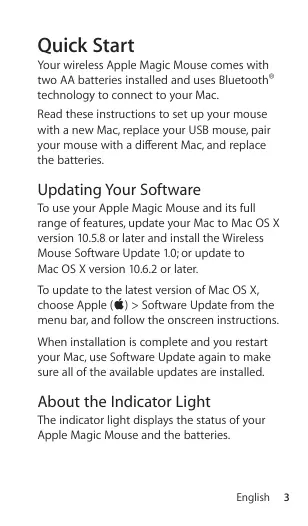
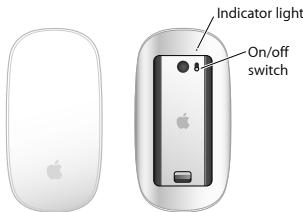
The indicator light displays the status of your Apple Magic Mouse and the batteries.
- When you first turn your mouse on, the indicator light glows steadily for 5 seconds, indicating the batteries are good.
- If your mouse isn't paired with a Mac, the light blinks, indicating your mouse is in discovery mode and ready to pair (pairing means your mouse and Mac are wirelessly connected to each other and ready to communicate).
- If you don't pair your mouse with your Mac within 3 minutes, the light and mouse turn off to preserve battery life. Slide the On/off switch on the bottom of your mouse to turn it on again, allowing you to pair it with your Mac.
- When your mouse is on and paired, with the batteries charged, the light glows steadily.
Pairing with a New Mac
Follow the instructions in the user guide that came with your Mac to set it up. Skip the instructions for connecting a USB mouse.
The first time you start up your Mac, Setup Assistant guides you in pairing your Apple Magic Mouse with your Mac.
To pair your mouse with a new Mac:
1. Slide the On/off switch on the bottom of your mouse to turn it on (see page 4). 2. Turn on your Mac and follow the onscreen instructions in Setup Assistant. 3. Once your mouse is paired with your Mac, use Software Update again to make sure you have the latest software installed (see page 3).
Replacing a USB Mouse
Use your existing USB mouse to pair your Apple Magic Mouse with your Mac.
You can also use this information to pair your mouse with a portable Mac.
To replace a USB mouse:
1. Slide the On/off switch on the bottom of your Apple Magic Mouse to turn it on (see page 4).
2. Choose Apple menu > System Preferences, and then click Mouse. 3. Click "Set Up Bluetooth Mouse..." in the lower-right corner. 4. Select your mouse, and then follow the onscreen instructions to pair it with your Mac. 5. Disconnect the USB mouse from the USB port.
Pairing with a Different Mac
After you pair your Apple Magic Mouse with a Mac, you can pair again with a different Mac. To do this, remove the existing pairing, and then pair the mouse again.
To pair with a different Mac:
1. Choose Apple menu > System Preferences, and then click Bluetooth. 2. Select your mouse in the Bluetooth preferences pane. 3. Click the Delete button in the lower left corner.
To pair your mouse again, see "Replacing a USB Mouse" on page 5.
Using Your Apple Magic Mouse
Your Apple Magic Mouse has a seamless Multi-Touch surface you can use to right-click, left-click, scroll, and swipe. To set up Multi-Touch gestures and customize the way your mouse works, choose Apple menu > System Preferences, and then click Mouse.
Replacing the Batteries
Your Apple Magic Mouse comes with two AA batteries installed. You can use alkaline, lithium, or rechargeable AA batteries in your mouse.
Dispose of batteries according to your local environmental laws and guidelines.
To replace the batteries:
1 Slide the latch down and remove the battery cover. 2 Insert the batteries with the positive (+) end facing up, as shown in the illustration. 3 Replace the battery cover.
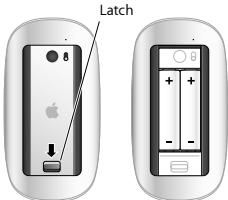
You may have to click your Apple Magic Mouse once to reconnect it with your Mac.
WARNING: Replace both batteries at the same time. Don't mix old batteries with new batteries or mix battery types (for example, alkaline and lithium batteries). Don't open or puncture the batteries, install them backwards, or expose them to fire, high temperatures, or water. Don't charge the nonrechargeable AA batteries that came with your mouse. Keep batteries out of the reach of children.
Battery Level Indicator
To check the battery level, choose Apple () > System Preferences, and then click Mouse. The battery level indicator is in the lower-left corner.
Note: When you aren't using your mouse, it goes to sleep to conserve battery power. If you won't be using your mouse for an extended period, turn it off.
Cleaning
To clean the outside of your mouse, use a lint-free cloth that's been lightly moistened with water. Don't get moisture in any openings or use aerosol sprays, solvents, or abrasives.
Ergonomics
For information about ergonomics, health, and safety, visit the ergonomics website at www.apple.com/about/ergonomics.
More Information
For more information about using your mouse, open Mac Help and search for "mouse."
For support and troubleshooting information, user discussion boards, and the latest Apple software downloads, go to: www.apple.com/support
Quick Start
Regulatory Compliance Information
Compliance Statement
This device complies with part 15 of the FCC rules. Operation is subject to the following two conditions:
(1) This device may not cause harmful interference, and (2) this device must accept any interference received, including interference that may cause undesired operation. (3) The functions if interference to radio or television reception is suspected.
Radio and Television Interference
This computer equipment generates, uses, and can radiate radio-frequency energy. If it is not installed and used properly—that is, in strict accordance with Apple's instructions—it may cause interference with radio and television reception.
This equipment has been tested and found to comply with the limits for a Class B digital device in accordance with the specifications in Part 15 of FCC rules. These specifications are designed to provide reasonable protection against such interference in a residential installation. However, there is no guarantee that interference will not occur in a particular installation.
You can determine whether your computer system is causing interference by turning it off. If the interference stops, it was probably caused by the computer or one of the peripheral devices.
If your computer system does cause interference to radio or broadband, you may be subject to interference by using one or more of the following measures:
- Turn the television or radio antenna until the interference stops.
- Move the computer to one side or the other of the television or radio.
- Move the computer farther away from the television or radio.
- Plug the computer into an outlet that is on a different circuit from the television or radio. (That is, make certain the computer and the television or radio are on circuits controlled by different circuit breakers or fuses.)
If necessary, consult an Apple Authorized Service Provider or Apple. See the service and support information that came with your Apple product. Or, consult an experienced radio/television technician for additional suggestions.
Important: Changes or modifications to this product not authorized by Apple Inc. could void the EMC compliance and negate your authority to operate the product.
This product has demonstrated EMC compliance under conditions that included the use of compliant peripheral devices and shielded cables between system components. It is important that you use compliant peripheral devices and shielded cables (including Ethernet network cables) between system components to reduce the possibility of causing interference to radios, television sets, and other electronic devices. Turn the television or radio antenna until the interference stops.
Responsible party (contact for FCC matters only):
Apple Inc. Corporate Compliance
1 Infinite Loop, MS 26-A
Cupertino, CA 95014
Industry Canada Statements
Europe-EU Declaration of Conformity
For more information, see www.apple.com/euro/compliance.
Apple Magic Mouse Class 1 Laser Information
The Apple Magic Mouse is a Class 1 laser product in accordance with IEC 60825-1 A1 A2 and 21 CFR 1040.10 and 1040.11 except for deviations pursuant to Laser Notice No. 50, dated July 26, 2001.
Caution: Modification of this device may result in hazardous radiation exposure. For your safety, have this equipment serviced only by an Apple Authorized Service Provider.
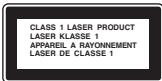
A Class 1 laser is safe under reasonably foreseeable conditions per the requirements in IEC 60825-1 AND 21 CFR 1040. However, it is recommended that you do not direct the laser beam at anyone's eyes.
Apple and the Environment
Apple Inc. recognizes its responsibility to minimize the environmental impacts of its operations and products. More information is available on the web at www.apple.com/environment.
Korea KCC Statement

Certification: Apple Magic Mouse/A1296
Model: APL-A1296
Manufacturer: Apple Inc.
Made in China
Manufacturer/Country: Apple Inc./China
Singapore Wireless Certification
Complies with IDA Standards DB00063
Korea Statements
Taiwan Wireless Statement
Warning Statement for Wireless Equipment
VCCI Class B Statement
Based on the Voluntary Control Council for Interference by Information Technology Equipment (VCCI)
Disposal and Recycling Information
When this product reaches its end of life, please dispose of it according to your local environmental laws and guidelines.
For information about Apple's recycling programs, visit: www.apple.com/environment/recycling
Battery Disposal Information
Dispose of batteries according to your local environmental laws and guidelines.
European Union—Disposal Information
The symbol above means that according to local laws and regulations your product should be disposed of separately from household waste. When this product reaches its end of life, take it to a collection point designated by local authorities. Some collection points accept products for free. The separate collection point will help recycling of your product at the time of disposal, which will help conserve natural resources and ensure that it is recycled in a manner that protects human health and the environment.
© 2009 Apple Inc. All rights reserved.
Apple, the Apple logo, Mac, and Mac OS are trademarks of Apple Inc., registered in the U.S. and other countries. Multi-Touch is a trademark of Apple Inc.
The Bluetooth® word mark and logos are registered trademarks owned by Bluetooth SIG, Inc. and any use of such marks by Apple is under license.

- UPDATING YOUR SOFTWARE
- ABOUT THE INDICATOR LIGHT
- PAIRING WITH A NEW MAC
- REPLACING A USB MOUSE
- TO REPLACE A USB MOUSE
- PAIRING WITH A DIFFERENT MAC
- TO PAIR WITH A DIFFERENT MAC
- USING YOUR APPLE MAGIC MOUSE
- REPLACING THE BATTERIES
- TO REPLACE THE BATTERIES
- BATTERY LEVEL INDICATOR
- CLEANING
- ERGONOMICS
- MORE INFORMATION
- QUICK START
- REGULATORY COMPLIANCE INFORMATION
- COMPLIANCE STATEMENT
- RADIO AND TELEVISION INTERFERENCE
- INDUSTRY CANADA STATEMENTS
- EUROPE-EU DECLARATION OF CONFORMITY
- APPLE MAGIC MOUSE CLASS 1 LASER INFORMATION
- APPLE AND THE ENVIRONMENT
- KOREA KCC STATEMENT
- SINGAPORE WIRELESS CERTIFICATION
- KOREA STATEMENTS
- TAIWAN WIRELESS STATEMENT
- WARNING STATEMENT FOR WIRELESS EQUIPMENT
- VCCI CLASS B STATEMENT
- DISPOSAL AND RECYCLING INFORMATION
- BATTERY DISPOSAL INFORMATION
- EUROPEAN UNION—DISPOSAL INFORMATION
Brand : APPLE
Model : MAGIC MOUSE
Category : Wireless Mouse