
MACBOOK - Laptop APPLE - Free user manual and instructions
Find the device manual for free MACBOOK APPLE in PDF.


| Product type | Laptop |
| Brand | Apple |
| Model | MacBook |
| Dimensions | 30.41 x 21.24 x 1.56 cm |
| Weight | Approximately 1.3 kg |
| Screen size | 13.3 inches (Retina) |
| Processor | Intel Core i5 (or Apple M1) |
| Memory | 8 GB |
| Storage | SSD 256 GB |
| Operating system | macOS |
| Power supply | 61W USB-C power adapter |
| Battery | Lithium-polymer, up to 10 hours battery life |
| Connectivity | Wi-Fi 6, Bluetooth 5.0 |
| Ports | 2 Thunderbolt 3 (USB-C) ports, headphone jack |
| Main functions | Web browsing, office work, multimedia |
| Maintenance and cleaning | Use a soft, lint-free cloth; avoid liquids |
| Security | Touch ID, FileVault encryption |
| Spare parts and repairability | Repair by Apple or authorized service provider; soldered components |
| General information | One-year limited warranty, online technical support |
Frequently Asked Questions - MACBOOK APPLE
User questions about MACBOOK APPLE
0 question about this device. Answer the ones you know or ask your own.
Ask a new question about this device
Download the instructions for your Laptop in PDF format for free! Find your manual MACBOOK - APPLE and take your electronic device back in hand. On this page are published all the documents necessary for the use of your device. MACBOOK by APPLE.
USER MANUAL MACBOOK APPLE
Congratulations, you and your MacBook were made for each other.
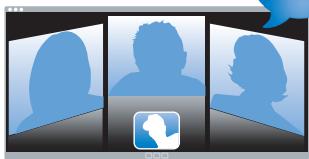
Built-in iSight camera
Video chat with up to three friends anywhere in the world at the same time.
www.apple.com/macbook
Mac Help iSight


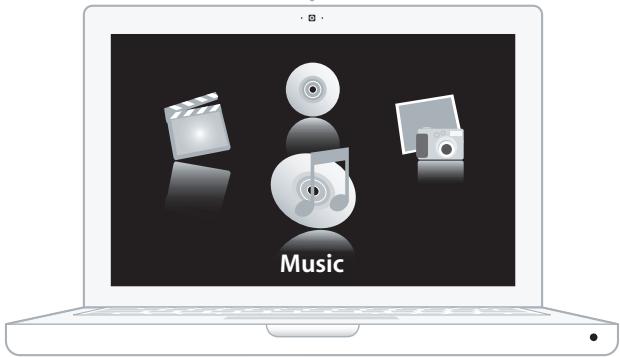
Spotlight
Find anything on your system as fast as you type.
www.apple.com/macosx
Mac Help Q Spotlight
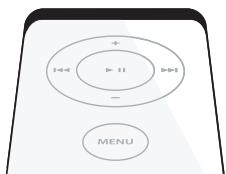
Front Row with
Apple Remote
Enjoy movies, music, and photos from the comfort of your sofa.
www.apple.com/macbook
MacHelpQFrontRow
www.
Podcasts
Record a professional-sounding podcast using sound effects and jingles.
www.apple.com/illife/garageband
GarageBand Help podcast
Publish
One-click websites
Easily create websites and blogs complete with video, podcasts, and photos.
www.apple.com.ilife/iweb
iWebHelpQwebsite
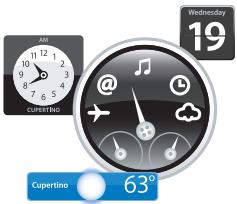
Dashboard widgets
Get up-to-date information instantly. View stocks, check the weather, track flights, and much more.
www.apple.com/macosx
Mac Help Q Dashboard
Fun with photos
Import, organize, and share up to 250,000 photos. Then transform them into beautiful photo books.
www.apple.com.ilife/ipphoto
iPhoto Help photo
Contents
Chapter 1: Ready, Set Up, Go
9 What's in the Box
9 Setting Up Your MacBook
15 Putting Your MacBook to Sleep or Shutting It Down
Chapter 2: Life with Your MacBook
20 Basic Features of Your MacBook
22 Keyboard Features of Your MacBook
24 Ports on Your MacBook
26 Using the MacBook Battery
28 Getting Answers
Chapter 3: Boost Your Memory
33 Installing Additional Memory
40 Making Sure Your MacBook Recognizes the New Memory
Chapter 4: Problem, Meet Solution
42 Problems That Prevent You from Using Your MacBook
46 Using Apple Hardware Test
47 Problems with Your Internet Connection
49 Problems with AirPort Extreme Wireless Communication
50 Keeping Your Software Up to Date
51 Reinstalling the Software That Came with Your MacBook
52 Learning More, Service, and Support
54 Locating Your Product Serial Number
Chapter 5: Last, but Not Least
56 Important Safety Information
59 Important Handling Information
61 Understanding Ergonomics
63 Learning About Apple and the Environment
65 Regulatory Compliance Information
Looking for Something?
70 Index
1
Ready, Set Up, Go
Your MacBook is designed so that you can set it up quickly and start using it right away. If you have never used a MacBook or are new to Macintosh computers, read this chapter for help getting started.
Important: Read all the installation instructions (and the safety information starting on page 55) carefully before you first use your computer.
If you are an experienced user, you may already know enough to get started. Make sure you look over the information in Chapter 2, "Life with Your MacBook," to find out about the new features of this MacBook.
Many answers to questions can be found on your computer in Mac Help. For information about getting Mac Help, see "Getting Answers" on page 28. Apple frequently releases new versions and updates to its system software, so the images shown in this book may be slightly different from what you see onscreen.
Important: Remove the protective film around the 60W MagSafe Power Adapter before setting up your MacBook.
What's in the Box
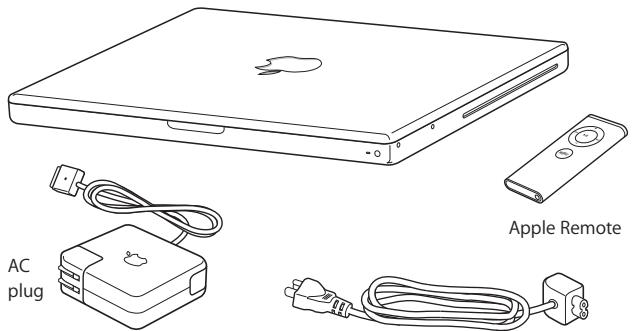
60W MagSafe Power Adapter
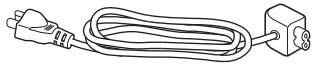
AC power cord
Setting Up Your MacBook
Your MacBook is designed so that you can set it up quickly and start using it right away. The following pages take you through the setup process, including these tasks:
- Plugging in the 60W MagSafe Power Adapter
- Connecting cables and accessing a network
- Turning on your MacBook and using the trackpad
- Configuring a user account and other settings using Setup Assistant
- Setting up the Mac OS X desktop and preferences
Step 1: Plug In the 60W MagSafe Power Adapter to provide power to the MacBook and charge the battery.
Make sure the AC plug is fully inserted into the power adapter and the electrical prongs on your AC plug are in their completely extended position. Insert the AC plug of your power adapter into a power outlet and the MagSafe connector into the MagSafe power port. As the MagSafe connector gets close to the port, you'll feel a magnetic pull drawing it in.
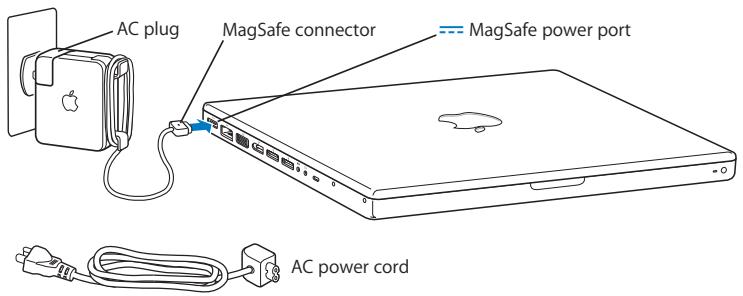
To extend the reach of your power adapter, first pull the AC plug up to remove it from the adapter. Attach the included AC power cord to the adapter, making sure it is seated firmly. Plug the other end into a power outlet. The AC power cord provides a grounded connection.
When disconnecting the power adapter from an outlet or from the computer, pull the plug, not the cord.
Note: When you first connect the power adapter to your MacBook, an indicator light on the MagSafe connector starts to glow. An amber light indicates that power is going to the battery. A green light indicates that no power is going to the battery, which can mean the battery is fully charged or is not installed. If you don't see a light, make sure the connector is seated properly.
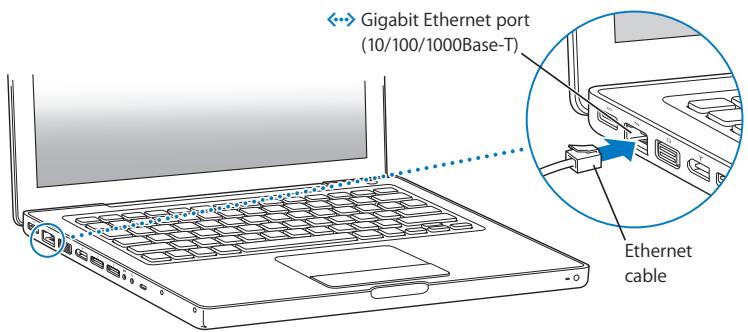
Step 2: To access the Internet or a network, connect one end of an Ethernet cable to your MacBook and the other end to a cable modem, DSL modem, or network.
To use a dial-up connection, you need the external Apple USB Modem, available for purchase from the online Apple Store at www.apple.com/store or from an Apple Authorized Reseller. Plug the Apple USB Modem into a USB port on your MacBook, and then connect a phone cord (not included) from the modem into a phone wall jack.
Note: Your MacBook also comes with AirPort Extreme technology for wireless networking. For information about setting up a wireless connection, in the menu bar, choose Help > Mac Help, and then choose Library > AirPort Help. See "Getting Answers" on page 28.
Step 3: Press the power (U) button briefly to turn on your MacBook.
You hear a tone when you turn on the computer.
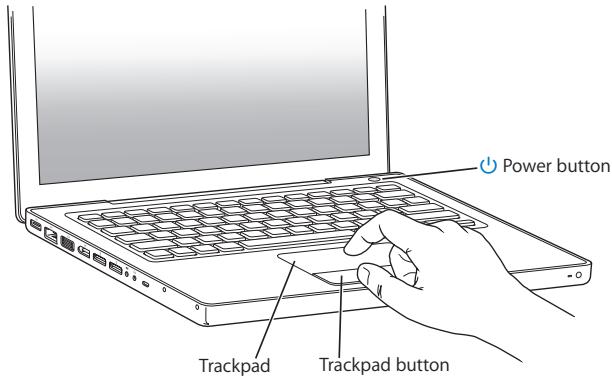
It takes the computer a few moments to start up. After it starts up, Setup Assistant opens automatically.
If your computer doesn't turn on, see "If your MacBook doesn't turn on or start up" on page 44.
Use the MacBook trackpad to select and move items on the screen, just as you use a mouse with a desktop computer.
- To move the arrow pointer on the screen, slide one finger across the trackpad. Press the trackpad button to select, click, or double-click items.
- Drag two fingers on the trackpad to scroll.
For more information, choose Help > Mac Help and search for "trackpad."
Step 4: Configure your MacBook with Setup Assistant.
The first time you turn on your MacBook, Setup Assistant starts. Setup Assistant helps you enter your Internet and email information and set up a user account on your MacBook. If you already have a Mac, Setup Assistant can help you automatically transfer files, applications, and other information from your previous Mac.
If you don't intend to keep or use your other Mac, it's best to deauthorize it from playing music, videos, or audiobooks that you've purchased from the iTunes Store. Deauthorizeing a computer prevents any songs, videos, or audiobooks you've purchased from being played by someone else and frees up another authorization for use. For information about deauthorizeing, in iTunes, open Help > iTunes Help.
If you don't use Setup Assistant to transfer information when you first start up, you can do it later using Migration Assistant. Go to the Applications folder, open Utilities, and double-click Migration Assistant.
Step 5: Customize the Mac OS X desktop and set preferences.
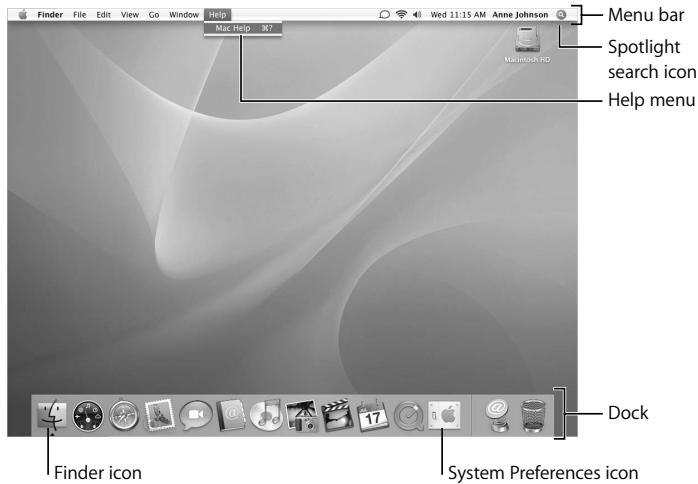
You can quickly make the desktop look the way you want using System Preferences. Choose Apple () > System Preferences from the menu bar. As you get to know your computer, explore System Preferences, your command center for most settings on your MacBook. For more information, open Mac Help and search for "System Preferences" or for the specific preference you want to change.
Putting Your MacBook to Sleep or Shutting It Down
When you finish working with your MacBook, you can put it to sleep or shut it down.
Putting Your MacBook to Sleep
If you'll be away from your MacBook for only a short time, put it to sleep. When the computer is in sleep, you can quickly wake it and bypass the startup process.
To put your MacBook to sleep, do one of the following:
- Close the display.
- Choose Apple () > Sleep from the menu bar.
- Press the power (U) button and click Sleep in the dialog that appears.
- Choose Apple () > System Preferences, click Energy Saver, and set a sleep timer.
- Press and hold the Play/Pause (▶) button on the Apple Remote for 3 seconds.
NOTICE: Wait a few seconds until the sleep indicator light starts pulsing (indicating that the computer is in sleep and the hard disk has stopped spinning) before you move your MacBook. Moving your computer while the hard disk is spinning can damage it, causing loss of data or the inability to start up from the hard disk.
To wake your MacBook:
- If the display is closed, simply open it to wake your MacBook.
- If the display is already open, press the power (O) button or any key on the keyboard, or any button on the Apple Remote.
When your MacBook wakes from sleep, your applications, documents, and computer settings are exactly as you left them.
Shutting Down Your MacBook
If you aren't going to use your MacBook for a day or two, it's best to shut it down. The sleep indicator light goes on briefly during the shutdown process.
To shut down your MacBook, do one of the following:
- Choose Apple () > Shut Down from the menu bar.
- Press the power (U) button and click Shut Down in the dialog that appears.
If you plan to store your MacBook for an extended period of time, see "Important Handling Information" on page 59 for information about how to prevent your battery from draining completely.
2
Life with Your MacBook
Read on for an overview of the different parts and features of your MacBook.
The Apple website at www.apple.com links you to the latest Apple news, free downloads, and online catalogs of software and hardware for your MacBook.
You can also find the manuals for many Apple products and technical support for all of Apple's products on the Apple Support website at www.apple.com/support.
Basic Features of Your MacBook
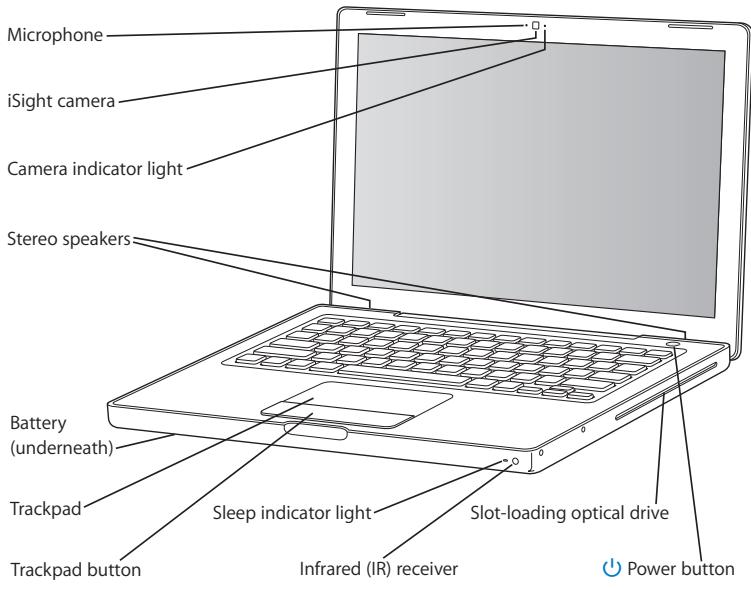
| Built-in microphone Capture sounds directly with the microphone (located to the left of the iSight camera) or talk with friends live over broadband using the included iChat AV application. | |
| Built-in iSight camera and camera indicator light Videoconference with others using iChat AV, snap pictures with Photo Booth, or capture video with iMovie HD. The indicator light glows when the iSight camera is operating. | |
| Built-in stereo speakers Listen to music, movies, games, and multimedia files. | |
| Battery Run the MacBook using battery power when you are away from a power outlet. Removing the battery also gives you access to the memory in your MacBook. | |
| Trackpad and trackpad button Move the pointer with one finger on the trackpad, or scroll with two fingers. Tap the trackpad to click or double-click a selection. | |
| Sleep indicator light A white light pulses when the MacBook is in sleep. | |
| Infrared (IR) receiver Use your Apple Remote and the built-in IR receiver to control Front Row and Keynote on your MacBook from up to 30 feet away. | |
| Slot-loading optical drive Your optical drive can read CD and DVD discs and write to CDs. If you have a SuperDrive, you can also write to DVD discs. | |
| Power button Turn your MacBook on or off, or put it to sleep. Press and hold to restart your MacBook during troubleshooting. | |
Keyboard Features of Your MacBook
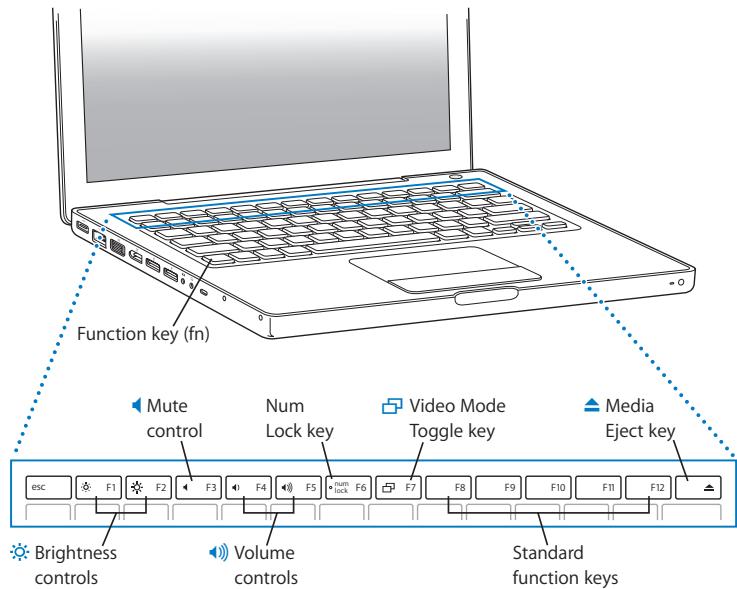
| Function (Fn) key Press and hold this key to activate customized actions assigned to the function keys (F1 to F12). To learn how to customize function keys, choose Help > Mac Help from the menu bar and search for “function keys.” | |
| Brightness controls Increase (◇) or decrease (◇) the brightness of your MacBook display. | |
| Mute control Mute the sound coming from the built-in speakers and headphone port. | |
| Volume controls Increase (▲) or decrease (▲) the volume of the sound coming from the built-in speakers and headphone port. | |
| Num Lock key Activate the numeric keypad integrated into the MacBook keyboard. When the numeric keypad is activated, a green light glows on the Num Lock key. | |
| Video Mode Toggle key Switch between dual-display mode (extending the desktop across the built-in display and an external display) and video-mirroring mode (presenting the same information on both displays). | |
| F11, F12 By default, F11 opens Exposé and F12 opens Dashboard. | |
| Media Eject key Press and hold this key to eject a disc. You can also eject a disc by dragging its desktop icon to theTrash. | |
Ports on Your MacBook
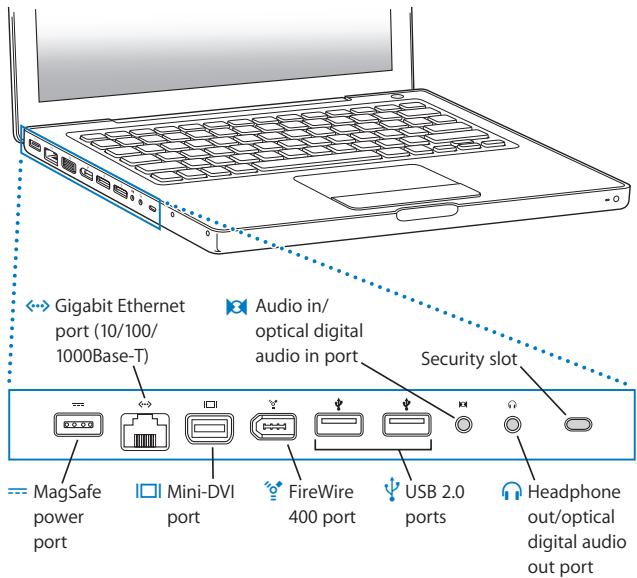
| --- | MagSafe power port Plug in the included 60W MagSafe Power Adapter to recharge the MacBook battery. |
| ←→ | Gigabit Ethernet port (10/100/1000Base-T) Connect to a high-speed Ethernet network, a DSL or cable modem, or another computer. The Ethernet port automatically detects Ethernet devices and doesn't require an Ethernet crossover cable. |
| □□ | Mini-DVI (video out) port Connect to an external display, projection device, or TV that uses a DVI, VGA, composite, or S-video connector. Depending on the type of external device you're connecting to, you can use a Mini-DVI to DVI adapter, a Mini-DVI to VGA adapter, or a Mini-DVI to Video adapter, all sold separately at www.apple.com/store. |
| ○○ | FireWire 400 port Connect high-speed external devices, such as digital video cameras and storage devices. |
| ψ | Two USB (Universal Serial Bus) 2.0 ports Connect a modem, iPod, mouse, keyboard, printer, disk drive, digital camera, joystick, and more to your MacBook. You can also connect USB 1.1 devices. |
| □□ | Audio in/optical digital audio in port Connect your MacBook to a line-level microphone or digital audio equipment. |
| □□ | Headphone out/optical digital audio out port Connect external speakers, headphones, or digital audio equipment. |
| Security slot Attach a lock and cable (available at www.apple.com/store) to prevent theft. |
Using the MacBook Battery
When the MagSafe power adapter is not connected, your MacBook draws power from its battery. The length of time that you can run your MacBook varies, depending on the applications you use and the external devices connected to your MacBook. Turning off features such as AirPort Extreme or Bluetooth® wireless technology can help conserve battery charge.
If the battery runs low while you are working, attach your power adapter and let the battery recharge. To replace a low battery with a charged one when your computer isn't connected to a power adapter, shut down your computer.
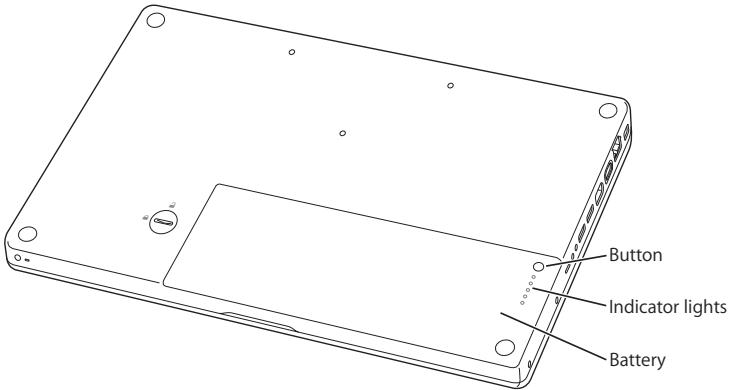
You can determine the charge left in the battery by looking at the battery level indicator lights on the battery itself. Press the button next to the lights, and the lights glow briefly to show how much charge is left in the battery. You can check the charge with the battery in or out of the MacBook.
Important: If only one indicator light is on, very little charge is left. If no lights are on, the battery is completely drained and the MacBook won't start up unless the power adapter is connected. Plug in the power adapter to let the battery recharge, or replace the drained battery with a fully charged battery (see "Removing the Battery" on page 33).
The amount of battery charge left can also be checked by viewing the Battery (+) status icon in the menu bar. The battery charge level displayed is based on the amount of power left in the battery with the applications, peripheral devices, and system settings you are currently using. To conserve battery power, close applications and disconnect peripheral devices not in use, and adjust your Energy Saver settings. For more information about battery conservation and performance tips, go to www.apple.com/batteries/notebooks.html.
Charging the Battery
When the power adapter that came with your MacBook is connected, the battery recharges whether the computer is on, off, or in sleep. The battery recharges more quickly, however, when the computer is off or in sleep.
Getting Answers
Much more information about using your MacBook is available in Mac Help and on the Internet at www.apple.com/support.
To get Mac Help:
1 Click the Finder icon in the Dock (the bar of icons along the edge of the screen).

2 Choose Help > Mac Help (click the Help menu in the menu bar and choose Mac Help).
Help
MacHelp ?
3 Click in the search field, type a question, and press Return on the keyboard.
More Information
For more information about using your MacBook, see the following:
| To learn about | See |
| Installing memory | Chapter 3, “Boost Your Memory,” on page 31. |
| Troubleshooting your MacBook if you have a problem | Chapter 4, “Problem, Meet Solution,” on page 41. |
| Finding service and support for your MacBook | “Learning More, Service, and Support” on page 52. Or see the Apple Support website at www.apple.com/support. |
| Using Mac OS X | The Mac OS X website at www.apple.com/macosx/overview. Or see “Welcome to Tiger” in the /Library/Documentation/User Guides And Information folder on your hard disk. Or search for “Mac OS X” in Mac Help. |
| Moving from a PC to a Mac | How To Move To Mac at www.apple.com/macosx/switch. Or click “Switching from Windows” under Top Customer Issues on the Mac Help home page. |
| Using iLife applications | The iLife website at www.apple.com/ilibrium. Or open an iLife application and then open Help for the application and type a question in the search field. |
| Changing System Preferences | Open System Preferences by choosing Apple (●) > System Preferences. Or search for “system preferences” in Mac Help. |
| Using your trackpad | Search for “trackpad” in Mac Help. Or open System Preferences and click Keyboard & Mouse and then click Trackpad. |
| Using the iSight camera | Search for “iSight” in Mac Help. |
| Using AirPort Extreme wireless technology | The AirPort Support page at www.apple.com/support/airport. Or open AirPort Help by clicking and holding the Home button at the top of a Mac Help page, and then select AirPort Help from the list. |
| Using Bluetooth wireless technology | The Bluetooth Support page at www.apple.com/support/ bluetooth. Or open the Bluetooth File Exchange application, located in the Utilities folder within the Applications folder, and choose Help > Bluetooth Help. |
| Caring for the battery | Search for "battery" in Mac Help. |
| Connecting a printer | Search for "printing" in Mac Help. |
| FireWire and USB connections | Search for "USB" or "FireWire" in Mac Help. |
| Connecting to the Internet | Search for "Internet" in Mac Help. |
| Connecting an external display | Search for "display port" in Mac Help. |
| Apple Remote | Search for "remote" in Mac Help. |
| Front Row | Search for "Front Row" in Mac Help. |
| Burning a CD or DVD | Search for "burn disc" in Mac Help. |
| Specifications | The Specifications page at www.apple.com/support/specs. Or open System Profiler by choosing Apple (●) > About This Mac from the menu bar, and then click More Info. |
3
Boost Your Memory
www.apple.com/store
Mac Help RAM
Your computer has two memory slots that you access by removing the computer's battery. Your MacBook comes with a minimum of 512 megabytes (MB) of 667 MHz Double Data Rate (DDR2) Synchronous Dynamic Random-Access Memory (SDRAM) installed. Both memory slots can accept an SDRAM module that meets the following specifications:
- Double Data Rate Small Outline Dual Inline Memory Module (DDR2 SO-DIMM) format
1.25 inch or smaller
256 MB, 512 MB, or 1 GB
200-pin
PC2-5300 DDR2 667 MHz Type RAM
For best performance, fill both memory slots and install an identical memory module in each slot.
WARNING: Apple recommends that you have an Apple-certified technician install memory. Consult the service and support information that came with your computer for information about how to contact Apple for service. If you attempt to install memory and damage your equipment, such damage is not covered by the limited warranty on your computer.
Installing Additional Memory
Installing memory involves removing and replacing the battery. The following procedure includes instructions for removing the battery, adding memory, and replacing the battery.
Step 1: Removing the Battery
1 Shut down your MacBook. Disconnect the power adapter, Ethernet cable, and any other cords connected to the MacBook to prevent damaging the computer.
WARNING: Use care when handling the battery. See the battery safety information on page 58.
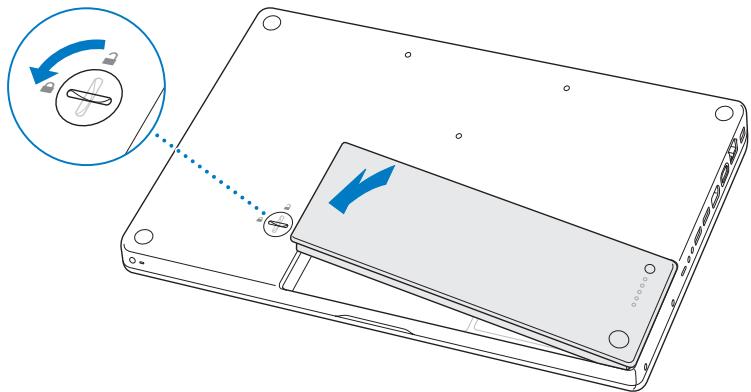
2 Turn over the MacBook and locate the battery latch. Use a coin to turn the latch a quarter turn clockwise to unlock the battery, and gently remove it.
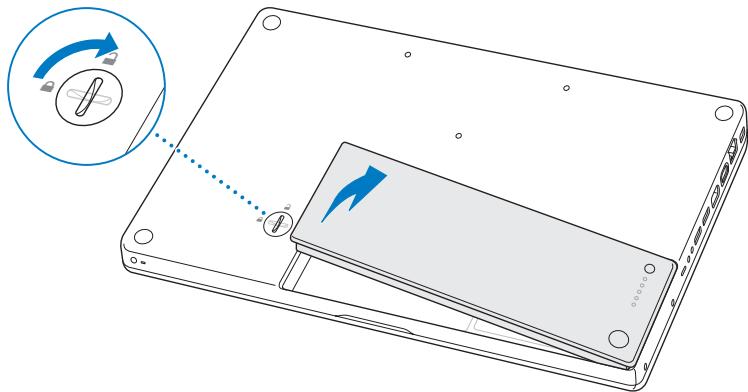
WARNING: The internal components of your MacBook can be hot. If you have been using your MacBook, wait 10 minutes after shutting down to let the internal components cool before continuing.
Step 2: Installing Memory
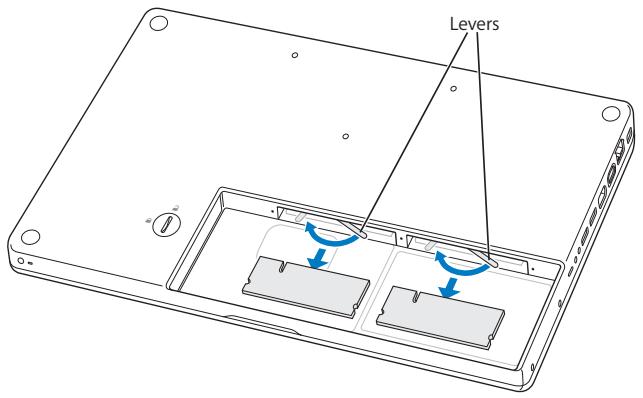
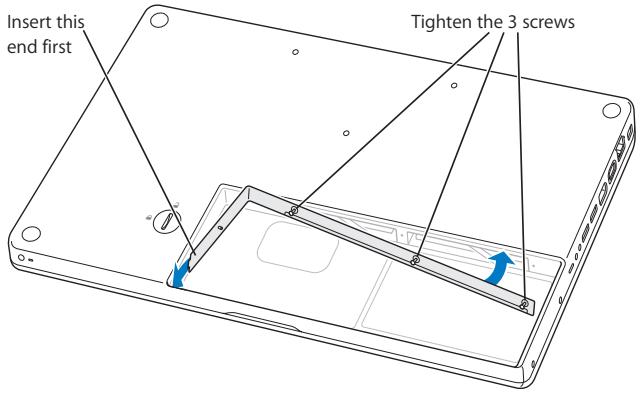
1 Loosen the three captive screws that secure the L-bracket, pull out the long end first to remove the bracket, and place it to the side.
Levers on the memory slots spring out when you remove the bracket.
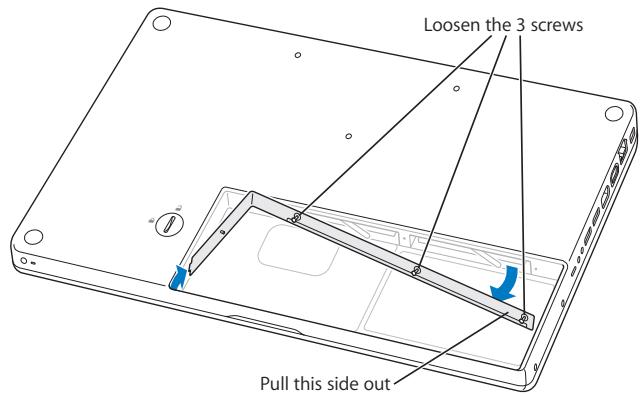
2 Touch a metal surface inside the computer to discharge any static electricity from your body.
3 To remove a memory module installed in a slot, move the lever all the way to the left in one swift motion until the edge of the memory module pops out. Pull out the memory module. Repeat to remove the other memory module.
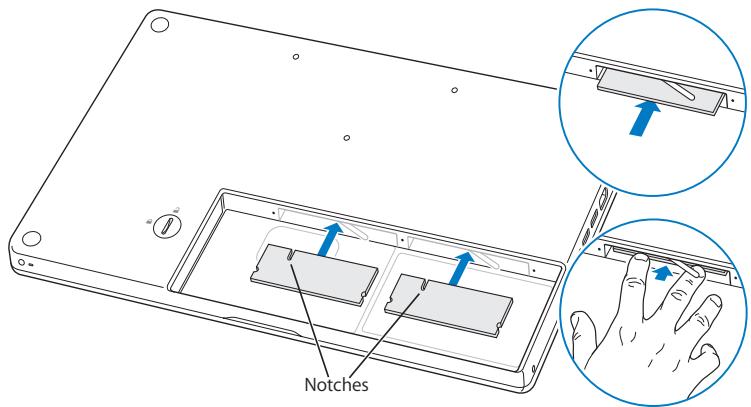
4 Insert the new memory modules in the slots:
a Insert the gold edge first, with the notch on the left side.
b Use two fingers with firm, even pressure to push in the memory modules. You should hear a click when the memory is inserted correctly.
Note: The new memory module may have some residue on it from a lubricant that makes the memory easier to install. The residue is normal and should not be wiped off.
c If the levers don't return to the closed position, move them to the right to close them.
5 Replace the L-bracket by inserting the short end first and tightening the screws.
Step 3: Replacing the Battery
1 Place the right side of the battery into the battery compartment. Gently press the left side of the battery down. Use a coin to turn the latch a quarter turn counterclockwise to lock the battery into place.
2 Reconnect the power adapter and any other cables that were attached.
Making Sure Your MacBook Recognizes the New Memory
After installing additional memory in your MacBook, check whether the computer recognizes the new memory.
To check the computer's memory:
1 Start up your MacBook.
2 When you see the Mac OS X desktop, choose Apple (3) > About This Mac.
For a detailed breakdown of the memory installed in your computer, open System Profiler by clicking More Info and then Memory.
If your MacBook doesn't recognize the memory or doesn't start up correctly, confirm that the memory you installed is compatible with your MacBook and that it is installed correctly.
4
Problem, Meet Solution
www.apple.com/support
Mac Help Q help
Occasionally you may have problems while working with your MacBook. Read on to find some solutions to try when you have a problem. You can also find more troubleshooting information in Mac Help and on the MacBook Support website at www.apple.com/support/macbook.
If you experience a problem with your MacBook, there is usually a simple and quick solution. Think about the conditions that led up to the problem. Making a note of things you did before the problem occurred will help you narrow down possible causes and find the answers you need. Things to note include:
- The applications you were using when the problem occurred. Problems that occur only with a specific application might indicate that the application is not compatible with the version of the Mac OS installed on your computer.
- Any new software that you installed, especially software that added items to the System folder.
- Any hardware that you installed, such as additional memory or a peripheral.
Problems That Prevent You from Using Your MacBook
If your MacBook doesn't respond or the pointer doesn't move
On rare occasions, an application might "freeze" on the screen. Mac OS X provides a way to quit a frozen application without restarting your computer. Quitting a frozen application might allow you to save your work in other open applications.
To force an application to quit:
1 Press Command (K)-Option-Esc or choose Apple () > Force Quit from the menu bar. The Force Quit Applications dialog appears with the application selected.
2 Click Force Quit.
The application quits, leaving all other applications open.
If you need to, you can also restart the Finder from this dialog.
Next, save your work in any open applications and restart the computer to make sure the problem is entirely cleared up.
If you are unable to force the application to quit, press and hold the power (U) button for a few seconds to shut down the computer. Wait 10 seconds and then turn on the computer.
If the problem occurs frequently, choose Help > Mac Help from the menu bar at the top of the screen. Search for the word "freeze" to get help for instances when the computer freezes or doesn't respond.
If the problem occurs only when you use a particular application, check with the application's manufacturer to see if it is compatible with your computer. To get support and contact information for the software that came with your MacBook, go to www.apple.com/guide.
If you know an application is compatible, you might need to reinstall your computer's system software. See "Reinstalling the Software That Came with Your MacBook" on page 51.
If your MacBook freezes during startup, or you see a flashing question mark, or the display is dark and the sleep indicator light is glowing steadily (not in sleep) The flashing question mark usually means that the computer can't find the system software on the hard disk or any disks attached to the computer.
-
Wait a few seconds. If the computer doesn't soon start up, shut it down by pressing and holding the power (U) button for about 8 to 10 seconds. Disconnect all external peripherals and try restarting by pressing the power (U) button while holding down the Option key. When your computer starts up, click the hard disk icon, and then click the right arrow. After the computer starts up, open System Preferences and click Startup Disk. Select a local Mac OS X System folder.
-
If that doesn't work, try using Disk Utility to repair the disk:
-
Insert the Mac OS X Install Disc 1 into your computer.
- Restart your computer and hold down the C key as it starts up.
- Choose Installer > Open Disk Utility. When Disk Utility opens, follow the instructions in the First Aid pane to see if Disk Utility can repair the disk.
If using Disk Utility doesn't help, you might need to reinstall your computer's system software. See "Reinstalling the Software That Came with Your MacBook" on page 51.
If your MacBook doesn't turn on or start up
Try the following suggestions in order until your computer turns on:
- Make sure the power adapter is plugged into the computer and into a functioning power outlet. Be sure to use the 60W MagSafe Power Adapter that came with your MacBook. If the power adapter stops charging and you don't see the indicator light on the power adapter turn on when you plug in the power cord, try unplugging and replugging the power cord to reseat it.
-
Check whether the battery needs to be recharged. Press the small button on the battery. You should see one to four lights indicating the battery's level of charge. If a single indicator light is flashing, allow the power adapter to charge the battery at least until that indicator light is glowing continuously.
-
If the problem persists, return the computer to its factory settings by disconnecting the power adapter, removing the battery, and holding down the power (U) button for at least 5 seconds.
- If you recently installed additional memory, make sure that it is correctly installed and that it is compatible with your computer. See whether removing it and reinstalling the old memory allows the computer to start up (see "Installing Memory" on page 35).
- Press the power (U) button and immediately hold down the Command (M), Option, P, and R keys simultaneously until you hear the startup sound a second time to reset the parameter RAM (PRAM).
- If you still can't start up your MacBook, see "Learning More, Service, and Support" on page 52 for information about contacting Apple for service.
If the display suddenly goes black or your MacBook freezes
Try restarting your MacBook.
1 Unplug any devices that are connected to your MacBook, except the power adapter.
2 Press the power (O) button to restart the system.
3 Let the battery charge to at least 10 percent before plugging in any external devices and resuming your work.
To see how much the battery has charged, look at the Battery (一) status icon in the menu bar.
The display might also darken if you have energy saver features set for the battery.
If you forgot your password
You can reset your administrator password and passwords for all other accounts.
1 Insert the Mac OS X Install Disc 1. Then restart your computer and hold down the C key as it starts up.
2 Choose Utilities > Reset Password from the menu bar. Follow the onscreen instructions.
If you have trouble ejecting a disc
- Quit any applications that might be using the disc and try again.
- If this doesn't work, restart the computer while holding down the trackpad button.
Using Apple Hardware Test
If you suspect a problem with the MacBook hardware, you can use the Apple Hardware Test application to help determine if there is a problem with one of the computer's components, such as the memory or processor.
To use Apple Hardware Test:
1 Disconnect all external devices from your computer except the power adapter. If you have an Ethernet cable connected, disconnect it.
2 Insert the Mac OS X Install Disc 1 that came with your computer.
3 Restart your computer and hold down the D key as it starts up.
4 When the Apple Hardware Test main screen appears, follow the onscreen instructions.
5 If Apple Hardware Test detects a problem, it displays an error code. Make a note of the error code before pursuing support options. If Apple Hardware Test doesn't detect a hardware failure, the problem may be software related.
For more information about Apple Hardware Test, see the Apple Hardware Test Read Me file on the Mac OS X Install Disc 1.
Problems with Your Internet Connection
Your MacBook has the Setup Assistant application to help walk you through setting up an Internet connection. Open System Preferences and click Network. Click the "Assist me" button to open Network Setup Assistant.
If you have trouble with your Internet connection, you can try the steps in this section starting with Network Diagnostics.
To use Network Diagnostics:
1 Choose Apple () > System Preferences.
2 Click Network and then click"Assist me."
3 Click Diagnostics to open Network Diagnostics.
4 Follow the onscreen instructions.
If Network Diagnostics can't resolve the problem, there may be a problem with the Internet service provider (ISP) you are trying to connect to, with an external device you are using to connect to your ISP, or with the server you are trying to access. You can try the following steps.
Cable Modem, DSL, and LAN Internet Connections
Make sure all modem cables are fully plugged in. Check the modem power cord, the cable from the modem to the computer, and the cable from the modem to the wall jack. Also check the cables and power supplies for Ethernet hubs and routers.
Turn the modem off and on to reset the modem hardware
Turn off your DSL or cable modem for a few minutes, and then turn it back on. Some ISPs recommend that you unplug the modem's power cord. If your modem has a reset button, you can press it either before or after you turn the power off and on.
Important: Instructions that refer to modems do not apply to LAN users. LAN users might have hubs, switches, routers, or connection pods that cable and DSL modem users do not have. LAN users should contact their network administrator rather than an ISP.
PPPoE Connections
If you are unable to connect to your Internet service provider using PPPoE, make sure you have entered the correct information in Network preferences.
To check Network preference settings:
1 Choose Apple () > System Preferences.
2 Click Network.
3 Choose Network Port Configurations from the Show pop-up menu.
4 Drag Built-in Ethernet to the top of the Port Configurations list.
5 Choose Built-in Ethernet from the Show pop-up menu.
6 Click PPPoE.
7 Select "Connect using PPPoE."
8 Check the Account Name field to make sure you've entered the correct information from your ISP.
9 If you chose to save your password, retype it making sure it's correct.
10 Click TCP/IP. Make sure you've entered the correct information from your ISP in this pane.
11 Click Apply Now.
Network Connections
Make sure the Ethernet cable is plugged into your MacBook and into the network. Check the cables and power supplies to your Ethernet hubs and routers.
If you have two or more computers sharing an Internet connection, be sure that your network is set up properly. You need to know if your ISP provides only one IP address or if it provides multiple IP addresses, one for each computer.
If only one IP address is provided, then you must have a router capable of sharing the connection, also known as network address translation (NAT) or "IP masquerading." For setup information, check the documentation provided with your router or ask the person who set up your network. You can use an AirPort Base Station to share one IP address among multiple computers. For information about using an AirPort Base Station, check Mac Help or visit the Apple AirPort website at www.apple.com/support/airport.
If you cannot resolve the issue using these steps, contact your ISP or network administrator.
Problems with AirPort Extreme Wireless Communication
If you have trouble using AirPort Extreme wireless communication:
-
Make sure the computer or network you are trying to connect to is running and has a wireless access point.
-
Make sure you have properly configured the software according to the instructions that came with your base station or access point.
- Make sure you are within antenna range of the other computer or the network's access point. Nearby electronic devices or metal structures can interfere with wireless communication and reduce this range. Repositioning or rotating the computer might improve reception.
- Check the AirPort (≡) status menu in the menu bar. Up to four bars appear, indicating signal strength. If signal strength is low, try moving your location.
- See AirPort Help (choose Help > Mac Help, and then choose Library > AirPort Help from the menu bar). Also see the instructions that came with the wireless device for more information.
Keeping Your Software Up to Date
You can connect to the Internet and automatically download and install the latest free software versions, drivers, and other enhancements from Apple.
When you are connected to the Internet, Software Update checks Apple's Internet servers to see if any updates are available for your computer. You can set your MacBook to check the Apple servers periodically, and download and install updated software.
To check for updated software:
1 Open System Preferences.
2 Click the Software Update icon and follow the instructions on the screen.
- For more information, search for "Software Update" in Mac Help.
- For the latest information about Mac OS X, go to www.apple.com/macosx.
Reinstalling the Software That Came with Your MacBook
You can use the software installation discs that came with your computer to reinstall Mac OS X and any applications that came with your computer.
Important: Apple recommends that you back up the data on your hard disk before restoring software. Apple is not responsible for any lost data.
Installing Mac OS X and Applications
To install Mac OS X and the applications that came with your computer:
1 Back up your essential files.
Because the Erase and Install option erases your hard disk, you should back up your essential files before installing Mac OS X and other applications.
2 Make sure your power adapter is connected and plugged in.
3 Insert the Mac OS X Install Disc 1 that came with your computer.
4 Double-click Install Mac OS X and Bundled Software. To install only the applications that came with your computer, double-click Install Bundled Software Only.
Note: To install iCal, iChat AV, iSync, iTunes, Safari, and the iLife applications, double-click Install Mac OS X and Bundled Software.
5 Follow the onscreen instructions.
6 After selecting the destination volume for installation, continue following the onscreen instructions. Your computer might restart and ask you to insert the next Mac OS X installation disc.
Note: To restore Mac OS X on your computer to the original factory settings, click Options in the Select a Destination pane of the Installer, and then select Erase and Install.
Learning More, Service, and Support
Your MacBook does not have any user-serviceable parts, except the memory. If you need service, contact Apple or take your MacBook to an Apple Authorized Service Provider. You can find more information about the MacBook through online resources, onscreen help, System Profiler, or Apple Hardware Test.
Online Resources
For online service and support information, go to www.apple.com/support. Choose your country from the pop-up menu. You can search the AppleCare Knowledge Base, check for software updates, or get help on Apple's discussion forums.
Onscreen Help
You can often find answers to your questions, as well as instructions and troubleshooting information, in Mac Help. Choose Help > Mac Help.
System Profiler
To get information about your MacBook, use System Profiler. It shows you what hardware and software is installed, the serial number and operating system version, how much memory is installed, and more. To open System Profiler, choose Apple () > About This Mac from the menu bar and then click More Info.
AppleCare Service and Support
Your MacBook comes with 90 days of technical support and one year of hardware repair warranty coverage at an Apple Store retail location or an Apple-authorized repair center, such as Apple Authorized Service Provider (AASP). You can extend your coverage by purchasing the AppleCare Protection Plan. For information, visit www.apple.com/support/products or visit the website address for your country listed below.
If you need assistance, AppleCare telephone support representatives can help you with installing and opening applications, and basic troubleshooting. Call the support center number nearest you (the first 90 days are complimentary). Have the purchase date and your MacBook serial number ready when you call.
Note: Your 90 days of complimentary telephone support begins on the date of purchase and telephone fees may apply.
| Country | Phone | Website |
| United States | 1-800-275-2273 | www.apple.com/support |
| Australia | (61) 133-622 | www.apple.com.au/support |
| Canada (English) (French) | 1-800-263-3394 | www.apple.com/ca/support www.apple.com/ca/fr/support |
| Ireland | (353) 1850 946 191 | www.apple.com/ie/support |
| New Zealand | 00800-7666-7666 | www.apple.com/au/support |
| United Kingdom | (44) 0870 876 0753 | www.apple.com/uk/support |
Telephone numbers are subject to change, and local and national telephone rates may apply. A complete list is available on the web:
www.apple.com/contact/phoneContacts.html
Locating Your Product Serial Number
Use one of these methods to find your computer's serial number:
- Choose Apple () > About This Mac and then click the version number beneath the words "Mac OS X." Clicking cycles between the Mac OS X version number, the build version, and the serial number.
- Open System Profiler (in /Applications/Utilities/) and click Hardware.
- Remove the battery and view the serial number for your MacBook in the battery bay. For information about removing the battery, see page 33.
5
Last, but Not Least
www.apple.com/environment
Mac Help ergonomics
For your safety and that of your equipment, follow these rules for handling and cleaning your MacBook and for working more comfortably. Keep these instructions handy for reference by you and others.
Important Safety Information
WARNING: Failure to follow these safety instructions could result in fire, electric shock, or other injury or damage.
Avoiding water and wet locations Keep your computer away from sources of liquid, such as drinks, washbasins, bathtubs, shower stalls, and so on. Protect your computer from dampness or wet weather, such as rain, snow, and fog.
Handling your MacBook Set up your MacBook on a stable work surface that allows for adequate air circulation under and around the computer. Do not operate your MacBook on a pillow or other soft material, as the material can block the airflow vents. Never place anything over the keyboard when operating your computer. Never push objects into the ventilation openings.
The bottom of your MacBook may become very warm during normal use. If your MacBook is on your lap and gets uncomfortably warm, remove it from your lap and place it on a stable work surface.
Using the 60W MagSafe Power Adapter Make sure the AC plug or AC power cord is fully inserted into the power adapter before plugging the adapter into a power outlet. Use only the power adapter that came with your MacBook, or an Apple-authorized power adapter that is compatible with this product. The power adapter may become very warm during normal use. Always put the power adapter directly into a power outlet, or place it on the floor in a well-ventilated location.
Disconnect the power adapter, remove the battery, and disconnect any other cables if any of the following conditions exists:
- You want to add memory.
- You want to clean the case (use only the recommended procedure described on page 60).
- The power cord or plug becomes frayed or otherwise damaged.
- Your MacBook or power adapter is exposed to rain, excessive moisture, or liquid spilled into the case.
- Your MacBook or power adapter has been dropped, the case has been damaged, or you suspect that service or repair is required.
The MagSafe power port contains a magnet that can erase data on a credit card, iPod, or other device. To preserve your data, do not place these and other magnetically sensitive material or devices within 1 inch (25 mm) of this port.
If debris gets into the MagSafe power port, remove it gently with a dry cotton swab.
Handling the battery Do not drop, disassemble, crush, incinerate, or expose the battery to temperatures above 212^ F (100°C). Stop using the battery if it appears damaged in any way. Replace the battery only with an Apple-authorized battery for this product. Dispose of used batteries promptly according to your local environmental guidelines.
Avoiding hearing damage Permanent hearing loss may occur if earbuds or headphones are used at high volume. You can adapt over time to a higher volume of sound that may sound normal but can be damaging to your hearing. If you experience ringing in your ears or muffled speech, stop listening and have your hearing checked. The louder the volume, the less time is required before your hearing could be affected. Hearing experts suggest that to protect your hearing:
- Limit the amount of time you use earbuds or headphones at high volume.
- Avoid turning up the volume to block out noisy surroundings.
- Turn the volume down if you can't hear people speaking near you.
High-risk activities This computer system is not intended for use in the operation of nuclear facilities, aircraft navigation or communications systems, air traffic control systems, or for any other uses where the failure of the computer system could lead to death, personal injury, or severe environmental damage.
Laser Information for Optical Disc Drives
WARNING: Making adjustments or performing procedures other than those specified in your equipment's manual may result in hazardous radiation exposure.
The optical disc drive in your computer contains a laser that is safe in normal use but that may be harmful to your eyes if disassembled. For your safety, have this equipment serviced only by an Apple Authorized Service Provider.
Important Handling Information
NOTICE: Failure to follow these handling instructions could result in damage to your MacBook or other property.
Turning on your MacBook Never turn on your MacBook unless all of its internal and external parts are in place. Operating the computer when parts are missing may be dangerous and may damage your computer.
Carrying your MacBook If you carry your MacBook in a bag or briefcase, make sure that there are no loose items (such as paper clips or coins) that could accidentally get inside the computer through vent openings or the optical drive slot or get stuck inside a port. Also, keep magnetically sensitive items away from the MagSafe power port.
Using connectors and ports Never force a connector into a port. When connecting a device, make sure the port is free of debris, that the connector matches the port, and that you have positioned the connector correctly in relation to the port.
Storing your MacBook If you are going to store your MacBook for an extended period of time, keep it in a cool location (ideally, 71^ F or 22^ C) and discharge the battery to 50 percent. When storing your computer for longer than five months, discharge the battery to approximately 50 percent and then remove it from the MacBook. To maintain the capacity of the battery, recharge the battery to 50 percent every six months or so.
Cleaning your MacBook When cleaning the outside of your computer and its components, first shut down your MacBook, unplug the power adapter, and remove the battery. Then use a damp, soft, lint-free cloth to clean the computer's exterior. Avoid getting moisture in any openings. Do not spray liquid directly on the computer. Do not use aerosol sprays, solvents, or abrasives that might damage the finish.
Cleaning your MacBook display To clean your MacBook screen, first shut down your MacBook, unplug the power adapter, and remove the battery. Then dampen a clean, soft, lint-free cloth or paper with water only and wipe the screen. Do not spray liquid directly on the screen.
Understanding Ergonomics
Here are some tips for setting up a healthy work environment.
Keyboard and Trackpad
When you use the keyboard and trackpad, your shoulders should be relaxed. Your upper arm and forearm should form an angle that is slightly greater than a right angle, with your wrist and hand in roughly a straight line.
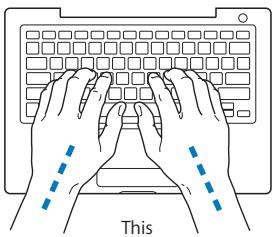
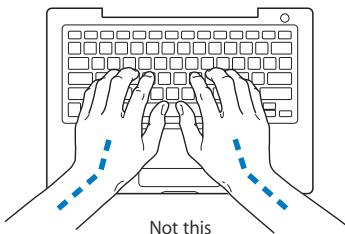
Use a light touch when typing or using the trackpad and keep your hands and fingers relaxed. Avoid rolling your thumbs under your palms.
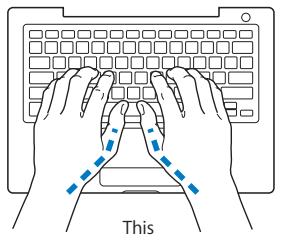
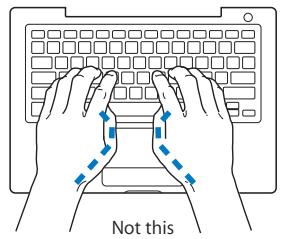
Change hand positions often to avoid fatigue. Some computer users might develop discomfort in their hands, wrists, or arms after intensive work without breaks. If you begin to develop chronic pain or discomfort in your hands, wrists, or arms, consult a qualified health specialist.
External Mouse
If you use an external mouse, position the mouse at the same height as the keyboard and within a comfortable reach.
Chair
An adjustable chair that provides firm, comfortable support is best. Adjust the height of the chair so your thighs are horizontal and your feet are flat on the floor. The back of the chair should support your lower back (lumbar region). Follow the manufacturer's instructions for adjusting the backrest to fit your body properly.
You might have to raise your chair so that your forearms and hands are at the proper angle to the keyboard. If this makes it impossible to rest your feet flat on the floor, you can use a footrest with adjustable height and tilt to make up for any gap between the floor and your feet. Or you can lower the desktop to eliminate the need for a footrest. Another option is to use a desk with a keyboard tray that's lower than the regular work surface.
Built-in Display
Adjust the angle of the display to minimize glare and reflections from overhead lights and windows. Do not force the display if you meet resistance. The display is not meant to open past 130 degrees.
You can adjust the brightness of the screen when you take the computer from one work location to another, or if the lighting in your work area changes.
More information about ergonomics is available on the web:
www.apple.com/about/ergonomics
Learning About Apple and the Environment
Apple Computer, Inc. recognizes its responsibility to minimize the environmental impacts of its operations and products.
More information is available on the web:
www.apple.com/environment
Regulatory Compliance Information
FCC Compliance Statement
This device complies with part 15 of the FCC rules.
Operation is subject to the following two conditions: (1)
This device may not cause harmful interference, and (2) this device must accept any interference received, including interference that may cause undesired operation. See instructions if interference to radio or television reception is suspected.
Radio and Television Interference
This computer equipment generates, uses, and can radiate radio-frequency energy. If it is not installed and used properly—that is, in strict accordance with Apple's instructions—it may cause interference with radio and television reception.
This equipment has been tested and found to comply with the limits for a Class B digital device in accordance with the specifications in Part 15 of FCC rules. These specifications are designed to provide reasonable protection against such interference in a residential installation. However, there is no guarantee that interference will not occur in a particular installation.
You can determine whether your computer system is causing interference by turning it off. If the interference stops, it was probably caused by the computer or one of the peripheral devices.
If your computer system does cause interference to radio or television reception, try to correct the interference by using one or more of the following measures:
- Turn the television or radio antenna until the interference stops.
- Move the computer to one side or the other of the television or radio.
- Move the computer farther away from the television or radio.
- Plug the computer in to an outlet that is on a different circuit from the television or radio. (That is, make certain the computer and the television or radio are on circuits controlled by different circuit breakers or fuses.)
If necessary, consult an Apple-authorized service provider or Apple. See the service and support information that came with your Apple product. Or, consult an experienced radio/television technician for additional suggestions.
Important: Changes or modifications to this product not authorized by Apple Computer, Inc., could void the EMC compliance and negate your authority to operate the product.
This product has demonstrated EMC compliance under conditions that included the use of compliant peripheral devices and shielded cables (including Ethernet network cables) between system components. It is important that you use compliant peripheral devices and shielded cables between system components to reduce the possibility of causing interference to radios, television sets, and other electronic devices.
Responsible party (contact for FCC matters only):
Apple Computer, Inc. Product Compliance
1 Infinite Loop M/S 26-A, Cupertino, CA 95014-2084,
408-974-2000.
Wireless Radio Use
This device is restricted to indoor use due to its operation in the 5.15 to 5.25GHz frequency range to reduce the potential for harmful interference to co-channel Mobile Satellite systems.
Exposure to Radio Frequency Energy
The radiated output power of the AirPort Extreme technology is below the FCC radio frequency exposure limits. Nevertheless, it is advised to use the wireless equipment in such a manner that the potential for human contact during normal operation is minimized.
FCC Bluetooth Wireless Compliance
The antenna used with this transmitter must not be collocated or operated in conjunction with any other antenna or transmitter subject to the conditions of the FCC Grant.
Bluetooth Industry Canada Statement
This Class B device meets all requirements of the Canadian interference-causing equipment regulations.
Industry Canada Statement
Complies with the Canadian ICES-003 Class B specifications. Cet apparéel numérique de la classe B est conforme à la norme NMB-003 du Canada. This device complies with RSS 210 of Industry Canada.
Bluetooth Europe—EU Declaration of
Conformity
This wireless device complies with the specifications EN 300 328, EN 301-489, and EN 60950 following the provisions of the R&TTE Directive.
Europe-EU Declaration of Conformity
The equipment complies with the RF Exposure Requirement 1999/519/EC, Council Recommendation of 12 July 1999 on the limitation of exposure of the general public to electromagnetic fields (0 Hz to 300 GHz). This equipment meets the following conformance standards: EN300 328, EN301 893, EN301 489-17, EN60950
Hereby, Apple Computer, Inc., declares that this 802.11a/b/g Mini-PCIe card is in compliance with the essential requirements and other relevant provisions of Directive 1999/5/EC.
Complies with European Directives
72/23/EEC,89/336/EEC,1999/5/EC
See http://www.apple.com/euro/compliance
Korea Statements
“当海末通电信是运用中进和汇生能
B国机()
Singapore Wireless Certification
Complies with IDA Standards DB00063
Taiwan Wireless Statements
Taiwan Class B Statement
Class B 設備的警告聲明 NIL
VCCI Class B Statement
情報処理裝置等電波障害自主規制にて
When connecting your MacBook to the phone line using an external USB modem, refer to the telecommunications agency information in the documentation that came with your modem.
ENERGY STAR® Compliance
As an ENERGY STAR® partner, Apple has determined that standard configurations of this product meet the ENERGY STAR® guidelines for energy efficiency. The ENERGY STAR® program is a partnership with office product equipment manufacturers to promote energy-efficiency. Reducing energy consumption of office products saves money and reduces pollution by eliminating wasted energy.
Disposal and Recycling Information
The backlight lamp in this product contains mercury. Dispose according to local, state, and federal laws. For information about Apple's recycling program, go to www.apple.com/environment.
Battery Disposal Information
Dispose of batteries according to your local environmental laws and guidelines.
California: The coin cell battery in your product contains perchlorates. Special handling and disposal may apply. Refer to www.dtsc.ca.gov/hazardouswaste/perchlorate.
European Union—Disposal Information:

The symbol above means that according to local laws and regulations your product should be disposed of separately from household waste. When this product reaches its end of life, take it to a collection point designated by local authorities. Some collection points accept products for free. The separate collection and recycling of your product at the time of disposal will help conserve natural resources and ensure that it is recycled in a manner that protects human health and the environment.
Looking for Something?
Index
A
AC plug 10
AC power adapter. See power adapter
AC power cord 10
adapter, power. See power adapter
adjusting your display 23
AirPort Extreme
troubleshooting 49
AppleCare 52
Apple Hardware Test 46
Apple Remote 21, 30
application freeze 42
applications
Front Row 21, 30
iChat AV 21
iLife 29
Keynote 21
audio line in port 25
B
battery
indicator lights 26
location 21
performance 26
removing 33
replacing 39
storing 60
blinking question mark 43
brightness controls 23
built-in speakers 21
button, power 12, 21
C
cable modem 11
camera. See iSight video camera
carrying your computer 59
changing
the desktop 14
password 46
System Preferences 14
checking memory 40
cleaning
the display 60
your computer 60
computer
disposal 68
freezes 43
putting to sleep 15
shutting down 16
turning on 12
won't turn on 44
connecting to a network 11
controls
brightness 23
volume 23
cord, AC power 10
D
Dashboard 23
desktop, customizing 14
discs, software installation 51
display
adjusting settings 23
cleaning 60
external 25
goes black 45
disposing of your computer 68
Dock 28
downloading software 50
drive, optical 21
DSLmodem11
E
ejecting a disc 46
environmental impact 63
ergonomics 61
Ethernet
connecting to 11
port 25
Exposé 23
external display port 25
externalmodem11
F
F11 key 23
F12 key 23
FireWire
connections 30
port 25
flashing question mark 43
Force Quit 42
Front Row application 21, 30
frozen application 42
function key 23
H
hand positions 61
headphone port 25
Help, finding answers 28
1
iChat AV application 21
iLife applications 29
infrared receiver (IR) 21
installation instructions
memory 33, 35
overview 8
Internet, connecting 11
iSight video camera 21
K
keyboard
ergonomics 61
features 22
Keynote application 21
keys
function 23
Media Eject 23
Num Lock 23
L
lights
battery 26
sleep indicator 21
M
Mac Help 28
Mac OS X website 29
MagSafe power adapter. See
poweradapter
MagSafe power port 25
Media Eject key 23
memory
checking 40
installing 32, 33, 35
specifications 32
microphone 21
mini-DVI port 25
modem 11
mouse 25,62
See also trackpad
Mute control 23
N
network connections 49
Network Diagnostics 47
Network Setup Assistant 47
Num Lock key 23
0
online resources 52
optical drive 21
P
password, resetting 46
plug, AC 10
ports on MacBook 25
poweradapter
plugging in 57
port 25
using 10
power button 12, 21
problems
computer freezes 43
computer won't turn on 44
display goes black 45
pointer won't move 42
trouble ejecting a disc 46
trouble using AirPort 49
putting your computer to sleep 15
Q
question mark, flashing 43
R
RAM. See memory
removing the battery 33
replacing the battery 39
resetting your password 46
S
safety
general safety
instructions 56
poweradapter57
scrolling trackpad feature 21
SDRAM specifications 32
security slot 25
serial number, locating 54
service and support 52
Setup Assistant 13
shutting down 16
sleep mode
indicator light 21
putting computer to sleep 15
software
installation discs 51
updating 50
Software Update
preferences 50
speakers 21
specifications 30
stopping
an application 42
the computer 16
storing your computer 60
support 52
System Preferences
customizing the desktop 14
Energy Saver 15
Software Update 50
System Profiler 52
T
trackpad
location 21
scrolling 21
using 13
troubleshooting
See also problems
AirPort 49
AppleCare 53
computer freezes 43
computer won't turn on 44
display goes black 45
ejecting a disc 46
hardware problems 46
pointer won't move 42
service and support 52
using Mac Help 52
turning on your MacBook 12
typing position 61
U
updating software 50
USB
connections 30
ports 25
V
video
camera indicator light 21
mini-DVI port 25
Video Mode Toggle key 23
volume controls 23
W
waking your computer 15
Apple Computer, Inc.
© 2006 Apple Computer, Inc. All rights reserved. Under the copyright laws, this manual may not be copied, in whole or in part, without the written cons of Apple.
Every effort has been made to ensure that the information in this manual is accurate. Apple is not responsible for printing or clerical errors.
Apple
1 Infinite Loop
Cupertino, CA 95014-2084
408-996-1010
www.apple.com
Apple, the Apple logo, AirPort, AirPort Extreme, AppleTalk, Final Cut, FireWire, iCal, iDVD, iLife, iMovie, iPhoto, iPod, iTunes, Mac, Macintosh, Macintosh Products Guide, Mac OS, and QuickTime are trademarks of Apple Computer, Inc., registered in the U.S. and other countries.
AirPort Express, Exposé, FileVault, Finder, the FireWire logo, iSight, MacBook, MagSafe, Safari, Spotlight, SuperDrive, and Tiger are trademarks of Apple Computer, Inc.
AppleCare and Apple Store are service marks of Apple Computer, Inc., registered in the U.S. and other countries.
ENERGY STAR® is a U.S. registered trademark.
Intel and Intel Core are trademarks of Intel Corp. in the U.S. and other countries.
The Bluetooth® word mark and logos are owned by the Bluetooth SIG, Inc. and any use of such marks by Apple Computer, Inc. is under license.
Other company and product names mentioned herein are trademarks of their respective companies. Mention of third-party products is for informational purposes only and constitutes neither an endorsement nor a recommendation. Apple assumes no responsibility with regard to the performance or use of these products.
Manufactured under license from Dolby Laboratories. "Dolby," "Pro Logic," and the double-D symbol are trademarks of Dolby Laboratories. Confidential Unpublished Works, © 1992-1997 Dolby Laboratories, Inc. All rights reserved.
The product described in this manual incorporates copyright protection technology that is protected by method claims of certain U.S. patents and other intellectual property rights owned by Macrovision Corporation and other rights owners. Use of this copyright protection technology must be authorized by Macrovision Corporation and is intended for home and other limited viewing uses only unless otherwise authorized by Macrovision Corporation. Reverse engineering or disassembly is prohibited.
Apparatus Claims of U.S. Patent Nos. 4,631,603, 4,577,216, 4,819,098 and 4,907,093 licensed for limited viewing uses only.
Simultaneously published in the United States and Canada.
- Built-in iSight camera
- Spotlight
- Front Row with
- Apple Remote
- Podcasts
- One-click websites
- Dashboard widgets
- Fun with photos
- Contents
- Chapter 1: Ready, Set Up, Go
- Chapter 2: Life with Your MacBook
- Chapter 3: Boost Your Memory
- Chapter 4: Problem, Meet Solution
- Chapter 5: Last, but Not Least
- Looking for Something?
- 1
- Ready, Set Up, Go
- What's in the Box
- Setting Up Your MacBook
- Step 1: Plug In the 60W MagSafe Power Adapter to provide power to the MacBook and charge the battery.
- Step 3: Press the power (U) button briefly to turn on your MacBook.
- Step 4: Configure your MacBook with Setup Assistant.
- Step 5: Customize the Mac OS X desktop and set preferences.
- Putting Your MacBook to Sleep or Shutting It Down
- Putting Your MacBook to Sleep
- To put your MacBook to sleep, do one of the following:
- To wake your MacBook:
- Shutting Down Your MacBook
- To shut down your MacBook, do one of the following:
- 2
- Life with Your MacBook
- Basic Features of Your MacBook
- Ports on Your MacBook
- Using the MacBook Battery
- Charging the Battery
- Getting Answers
- To get Mac Help:
- More Information
- 3
- Boost Your Memory
- Installing Additional Memory
- Step 1: Removing the Battery
- Step 2: Installing Memory
- Step 3: Replacing the Battery
- Making Sure Your MacBook Recognizes the New Memory
- To check the computer's memory:
- 4
- Problem, Meet Solution
- Problems That Prevent You from Using Your MacBook
- Click Force Quit.
- If your MacBook doesn't turn on or start up
- If the display suddenly goes black or your MacBook freezes
- If you forgot your password
- If you have trouble ejecting a disc
- Using Apple Hardware Test
- To use Apple Hardware Test:
- Problems with Your Internet Connection
- To use Network Diagnostics:
- Cable Modem, DSL, and LAN Internet Connections
- Turn the modem off and on to reset the modem hardware
- PPPoE Connections
- To check Network preference settings:
- Network Connections
- Problems with AirPort Extreme Wireless Communication
- Keeping Your Software Up to Date
- To check for updated software:
- Reinstalling the Software That Came with Your MacBook
- Installing Mac OS X and Applications
- Learning More, Service, and Support
- Online Resources
- Onscreen Help
- System Profiler
- AppleCare Service and Support
- Locating Your Product Serial Number
- 5
- Last, but Not Least
- Important Safety Information
- Laser Information for Optical Disc Drives
- Important Handling Information
- Understanding Ergonomics
- Keyboard and Trackpad
- External Mouse
- Chair
- Built-in Display
- Learning About Apple and the Environment
- Regulatory Compliance Information
- FCC Compliance Statement
- Radio and Television Interference
- Wireless Radio Use
- Exposure to Radio Frequency Energy
- FCC Bluetooth Wireless Compliance
- Bluetooth Industry Canada Statement
- Industry Canada Statement
- Bluetooth Europe—EU Declaration of
- Conformity
- Europe-EU Declaration of Conformity
- Korea Statements
- Singapore Wireless Certification
- Taiwan Wireless Statements
- Taiwan Class B Statement
- VCCI Class B Statement
- ENERGY STAR® Compliance
- Disposal and Recycling Information
- Battery Disposal Information
- Index
- A
- B
- C
- D
- E
- F
- H
- K
- L
- M
- N
- 0
- P
- Q
- R
- S
- T
- U
- V
- W
Brand : APPLE
Model : MACBOOK
Category : Laptop