VRFMB-78A - Uncategorized CRUX - Free user manual and instructions
Find the device manual for free VRFMB-78A CRUX in PDF.


| Product Type | Radio Replacement Interface |
| Brand | CRUX |
| Model | VRFMB-78A |
| Compatible Vehicles | Select Ford models (e.g., Focus, Fusion 2010-2014) |
| Dimensions (L x W x H) | 3.5 x 2.5 x 1.2 inches |
| Weight | 0.5 lbs |
| Input Voltage | 12V DC |
| Current Draw | 1.5A max |
| Main Functions | Retains steering wheel controls, backup camera input, amplifier integration, and SWC programming |
| Installation Type | Plug-and-play with included harnesses |
| Maintenance & Cleaning | Wipe with a dry, soft cloth; do not use liquids |
| Safety Features | In-line fuse holder for overcurrent protection |
| Included Components | Main module, wiring harness, SWC programming cable, manual |
| Warranty | 1 year limited warranty |
| Compatible with Factory Amplifier | Yes, retains integration with Ford premium audio systems |
| Steering Wheel Control Retention | Supports up to 12 buttons (programmable) |
| Backup Camera Input | RCA input, auto-switches when reverse triggered |
| Replacement Parts Availability | Harnesses and modules sold separately via CRUX dealers |
| Country of Origin | China |
| Compliance | CE, FCC |
Frequently Asked Questions - VRFMB-78A CRUX
User questions about VRFMB-78A CRUX
0 question about this device. Answer the ones you know or ask your own.
Ask a new question about this device
Download the instructions for your Uncategorized in PDF format for free! Find your manual VRFMB-78A - CRUX and take your electronic device back in hand. On this page are published all the documents necessary for the use of your device. VRFMB-78A by CRUX.
USER MANUAL VRFMB-78A CRUX
Vehicle Applications
MERCEDES BENZ
2013 - Up B-class (W246)
2012 - Up C-class (W204)
2012 - Up C-class (C204)
Late 2014 CLA 250
2012 - Up CLS (C218)
2012 - Up E-class (W212)
2012 - Up E-class (C207)
2014 - Up GLA (X156)
2011 - Up GLK (W204)
2012 - Up ML (W166)
2012 - Up SLK (R172)
2013 - Up SL (R231)
Product Features
- With OE type parking Dynamic Guide Lines
- On-screen display and setup
- 2 trigger outputs (+12V max. 1A), separately adjustable switching events (CAN, ACC, rear-view camera, reverse gear)
- Rear-view camera input
- Front camera input
- Front camera input can also be used as an Auxiliary Video Input (Crux part# AUX-MB1, OBD2 Audio Aux coding, may be required to create an Auxiliary Audio Input). (Sold separately)
• Automatic switching to rear-view camera input on engagement of reverse gear from all operation modes - Forced rear-view camera option
- Manual return from rear-view and front camera (cancellation of automatic switching)
• Compatible with all factory video accessories (e.g. rear-view camera, DVD-changer, TV-tuner) - Plug & Play installation
Navigation / Radio Compatibility
- 6" / 7" monitor and 4pin HSD LVDS connector
• COMAND Online NTG4.5, Audio20 NTG4.5
Parts Included
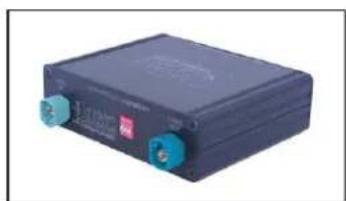
natural_image
Black rectangular electronic device with blue buttons and a small logo on top (no visible text or symbols)Interface Box
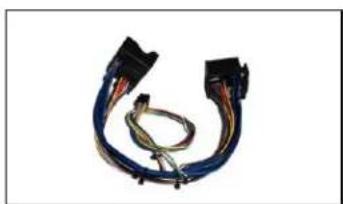
natural_image
Coiled electrical connector with black connectors and multicolored wires (no text or symbols visible)MB-78A Harness
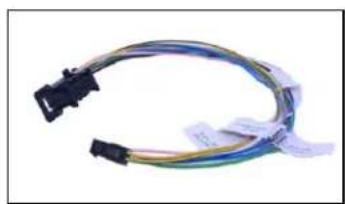
natural_image
Coiled cable with black connectors and colored wires, no visible text or symbolsPower/CAN Harness
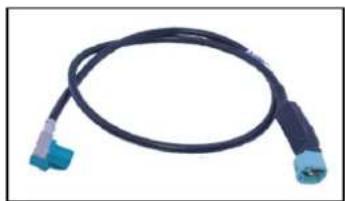
natural_image
Coiled black cable with blue connectors (no text or symbols visible)LVDS1 Cable (24")
natural_image
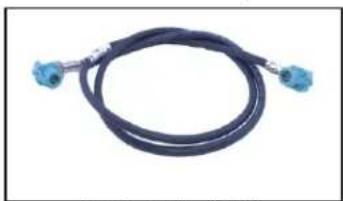
Coiled black cable with two blue connectors (no text or symbols visible)LVDS Cable (32")
1/10
Rev.041116
Crux Interfacing Solutions
6860 Canby Avenue, Suite 116,
Reseda, CA 91335

www.cruxinterfacing.com
tel. #: (818) 609-9299
fax #: (818) 996-8188
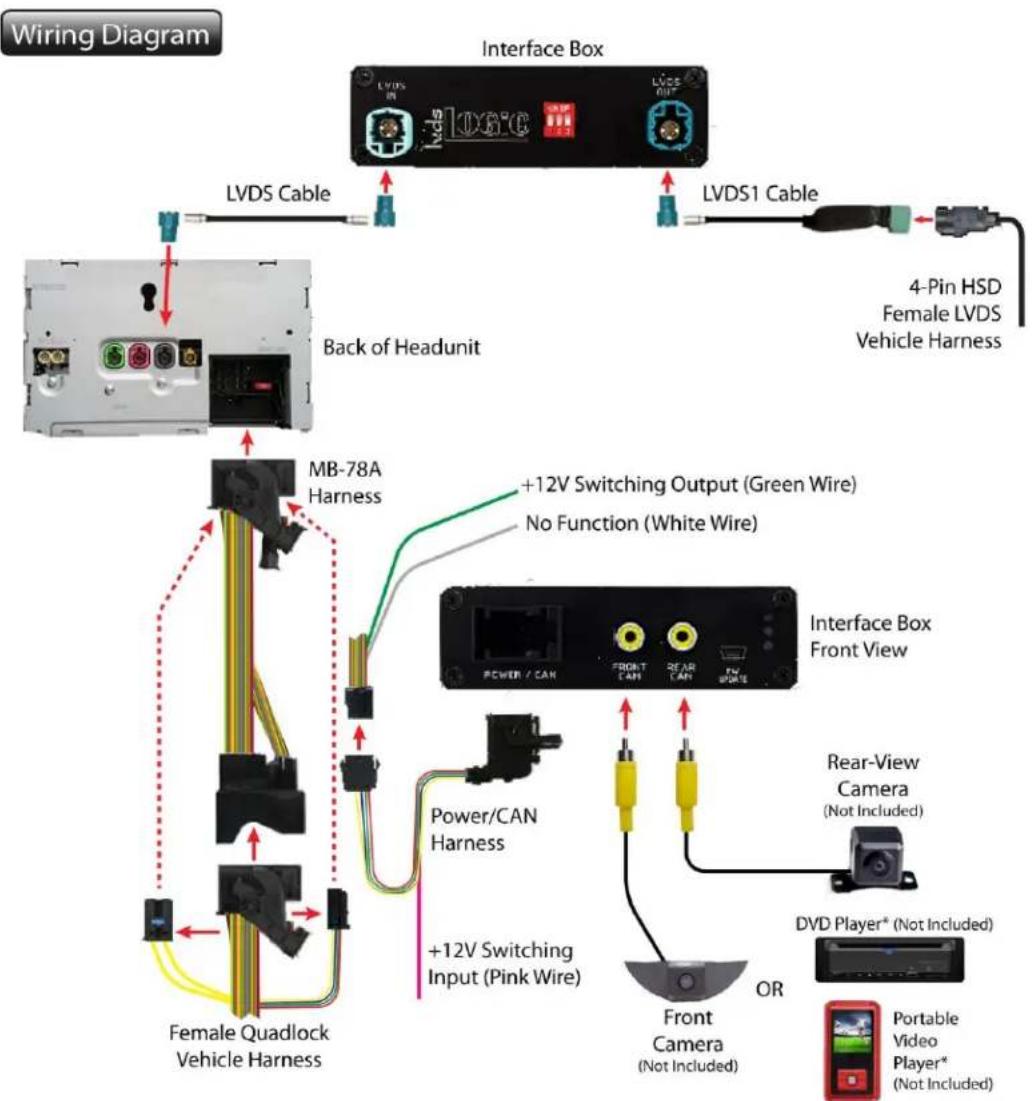
flowchart
graph TD
    A["Back of Headunit"] -->|LVDS Cable| B["Interface Box"]
    B -->|LVDS1 Cable| C["4-Pin HSD Female LVDS Vehicle Harness"]
    C --> D["Power/CAN Harness"]
    D --> E["+12V Switching Input (Pink Wire)"]
    E --> F["Female Quadlock Vehicle Harness"]
    F --> G["+12V Switching Output (Green Wire)"]
    G --> H["Power/CAN"]
    H --> I["Interface Box Front View"]
    I --> J["Rear-View Camera (Not Included)"]
    J --> K["Front Camera (Not Included)"]
    K --> L["OR"]
    L --> M["DVD Player* (Not Included)"]
    M --> N["Portable Video Player* (Not Included)"]
*Crux Part# AUX-MB1 may be required for vehicles without an Auxiliary Audio Input available.
Installation Instructions
Setting the DIP switches of the Interface Box.
DIP 1 on the back of the interface-box is used to set the monitor type. DIP 2 and 3 must be set to OFF.
| Device | DIP 1 | |
| COMAND Online NTG4.5* | ON | 7 inch Display |
| Audio20 NTG4.5 (1CD)* | OFF | 6 inch Display |
*Please see page 11 for radio pictures.
After each change of the DIP switch settings you have to execute a power reset of the interface box!
2 / 10
Rev.041116
Crux Interfacing Solutions 6860 Canby Avenue, Suite 116, Reseda, CA 91335

www.cruxinterfacing.com tel. #: (818) 609-9299 fax #: (818) 996-8188
Connecting Interface box and harnesses
flowchart
graph TD
    A["Female Quadlock Vehicle Harness"] --> B["MB-78A Harness"]
    B --> C["Male Quadlock on Rear Side of Navigation"]
    C --> D["Interface Box Front View"]
    style A fill:#f9f,stroke:#333
    style B fill:#ccf,stroke:#333
    style C fill:#cfc,stroke:#333
    style D fill:#fcc,stroke:#333
1
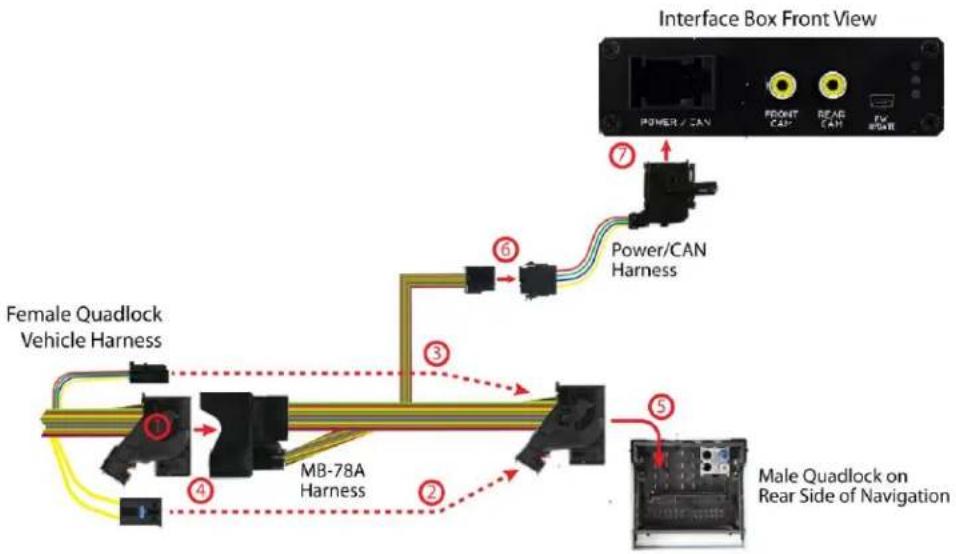
Remove the female Quadlock connector of the vehicle harness from the rear of the radio.
2
Remove optical leads from the female Quadlock connector of the vehicle harness and insert them into the female Quadlock connector of MB-78A harness at the same position.
3
Remove the 12 pin Quadlock plug inserts from the female Quadlock connector of the vehicle harness and insert them into the female Quadlock connector of harness TV-NTG2 at the same position
4
Connect the female Quadlock connector of vehicle harness to the male Quadlock connector of MB-78A harness.
5
Connect the female Quadlock connector of MB-78A harness to the male Quadlock connector of the radio.
6
Connect the female 8 pin molex connector of the MB-78A harness to the male 8 pin molex connector of the Power/CAN harness.
7
Connect the female 12 pin AMP connector of the Power/CAN harness to the front side of the VRFMB-78A interface box.
3 / 10
Rev.041116
Crux Interfacing Solutions
6860 Canby Avenue, Suite 116,
Reseda, CA 91335
www.cruxinterfacing.com
tel. #: (818) 609-9299
fax #: (818) 996-8188
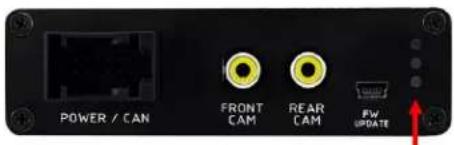
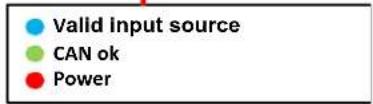
LEDs of the Interface-box
LVDS Connection
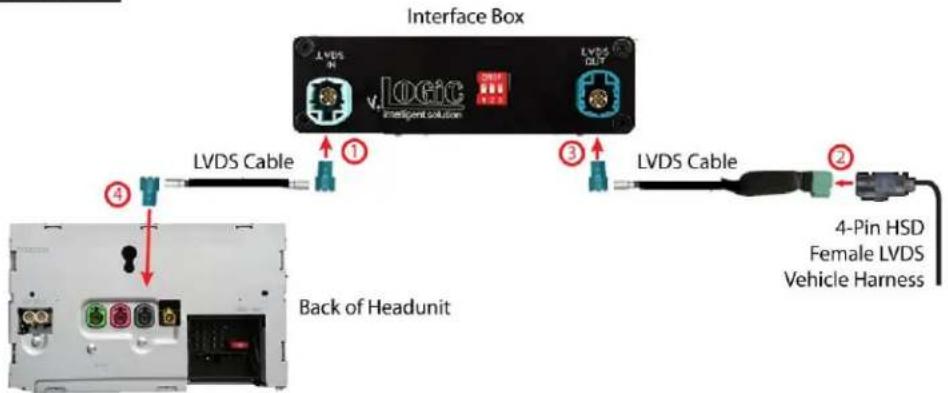
1 Connect the female 4pin HSD LVDS connector of the LVDS cable to the male 4pin HSD LVDS connector (LVDS-IN) on the rear of the VRFMB-78A interface box.
2 Remove the grey female 4pin HSD LVDS connector of the vehicle harness at the back of the head unit and connect it to the male 4pin HSD LVDS of the LVDS cable.
3 Connect the female 4pin HSD LVDS connector of the LVDS cable to the male 4pin HSD LVDS connector (LVDS-OUT) on the rear of the VRFMB-78A interface box.
4 Connect the female 4pin HSD LVDS connector of the LVDS cable to the grey male 4pin HSD LVDS connector on the rear of the head unit.
4 / 10
Rev.041116
Crux Interfacing Solutions 6860 Canby Avenue, Suite 116, Reseda, CA 91335

www.cruxinterfacing.com tel. #: (818) 609-9299 fax #: (818) 996-8188
Connection to the after-market front camera
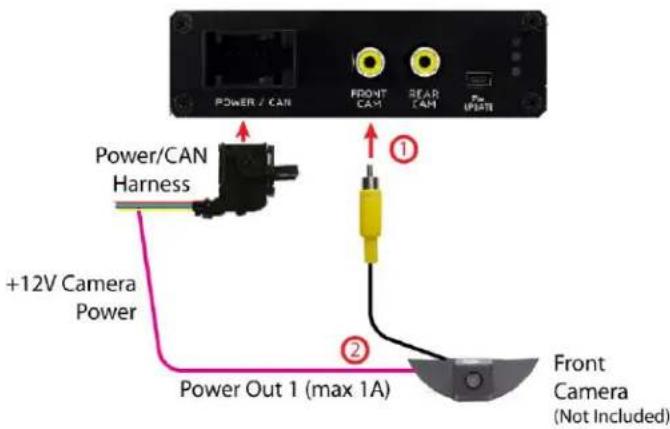

Connect the video RCA of the after-market front camera to the female RCA connector "FRONT CAM" of the interface box.

The pink wire of the Power/CAN harness can be used for +12V electric power supply (max. 1A) of the aftermarket front camera. Configure in the OSD-menu "MISC", Menu item "POWER OUT 1" the designated electric power supply (see chapter "Configurable switching outputs").
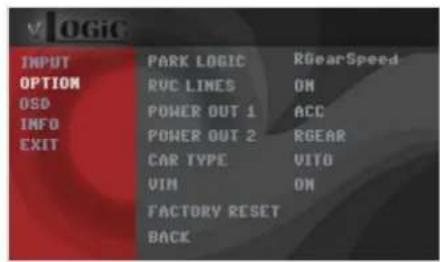
Settings for connecting an aftermarket front camera
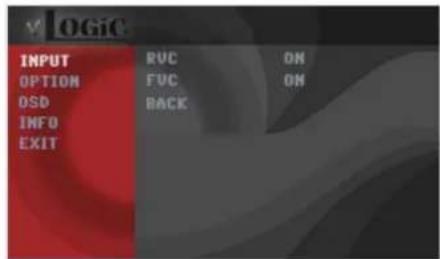
You have to configure some settings in the OSD-menu's INPUTS and MISC if you want to connect an aftermarket front camera (Operation of the OSD: see chapter "OSD-Operation").
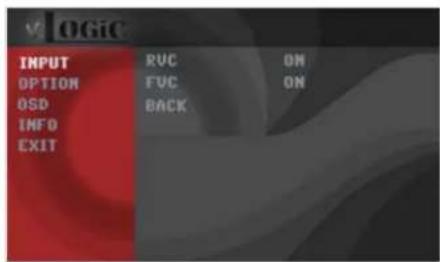
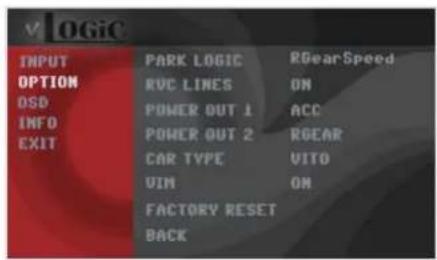
5 / 10
Rev.041116
Crux Interfacing Solutions 6860 Canby Avenue, Suite 116, Reseda, CA 91335
www.cruxinterfacing.com tel. #: (818) 609-9299 fax #: (818) 996-8188
| OSD Menu | Menu item | Setting | Description |
| INPUT | FVC | OFF | No front camera connected |
| ON | Switches to front camera if parking process is enabled and reverse gear is released | ||
| OPTION | PARK LOGIC | RGearOnly | Enabled while parking process |
| RGearSpeed | Enabled while parking process and up to 18 mph | ||
| RGearTime | Enabled while parking process and up to 20 second |
Note: You can deactivate the enabled parking process by pressing the "right arrow" button on steering wheel. After deactivation you cannot enable the parking process again until the vehicle is driving faster than 18 mph or the ignition is switched off.
Connection to the after-market rear-view camera
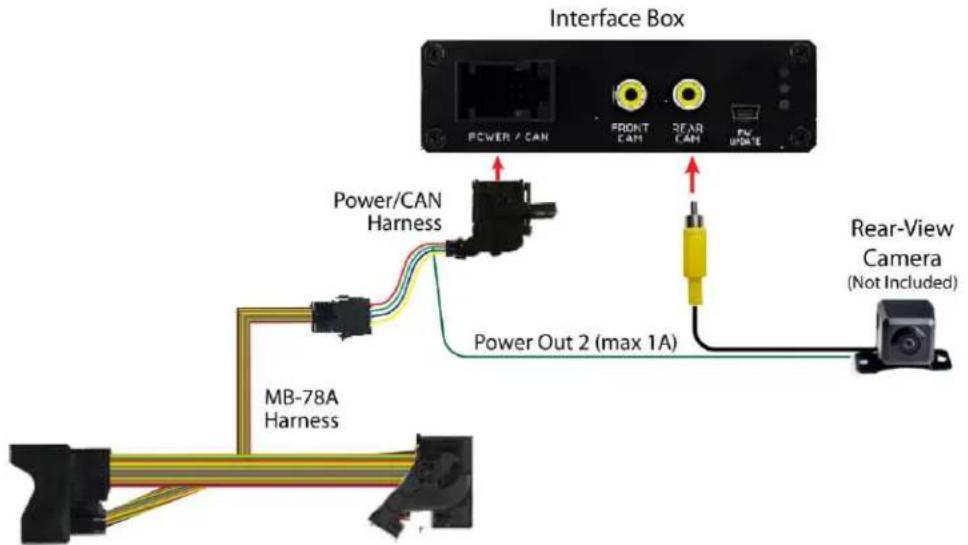

Connect the video RCA of the after-market rear-view camera to the female RCA connector "REAR CAM" of the interface box.

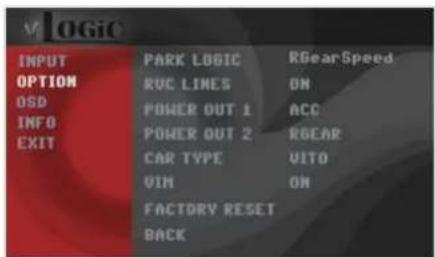
The green wire of harness Power/CAN harness can be used for +12V electric power supply (max. 1A) of the after-market rear-view camera. Configure in the OSD-menu "MISC", menu item "POWER OUT 2" the designated electric power supply (see chapter "Configurable switching outputs").
5 / 10
Rev.041116
Crux Interfacing Solutions 6860 Canby Avenue, Suite 116, Reseda, CA 91335
www.cruxinterfacing.com tel. #: (818) 609-9299 fax #: (818) 996-8188
Settings for connecting an aftermarket rear-view camera
You have to configure some settings in the OSD-menus INPUTS and MISC if you want to connect an after-market rear-view camera (Operation of the OSD: see chapter "OSD-Operation").
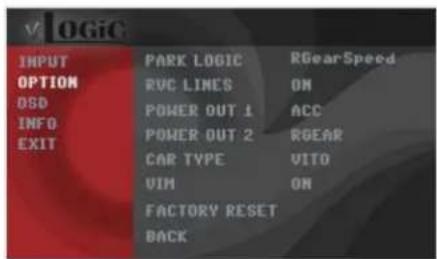
| OSD Menu | Menu item | Setting | Description |
| OFF | No rear-view camera connected | ||
| INPUT | RVC | ON | Switches to rear-view camera if reverse gear is engaged and/or PDC-display is displayed |
| OEM | If a factory rear-view camera is presentThe interface turns off, if reverse gear is enabled and it displays factory rear-view camera | ||
| PARK LOGIC | RGearOnly | Enabled while parking process | |
| OPTION | RGearSpeed | Enabled while parking process and up to 18 mph | |
| RGearTime | Enabled while parking process and up to 20 second | ||
| RVC LINES | OFF | Interactive lane lines deactivated | |
| ON | Interactive lane lines activated |
Note: You can deactivate the enabled parking process by pressing the "right arrow" button on steering wheel. After deactivation you cannot enable the parking process again until the vehicle is driving faster than 18 mph or the ignition is switched off.
Configurable Trigger Outputs
7 / 10
Rev.041116
Crux Interfacing Solutions 6860 Canby Avenue, Suite 116, Reseda, CA 91335

www.cruxinterfacing.com tel. #: (818) 609-9299 fax #: (818) 996-8188

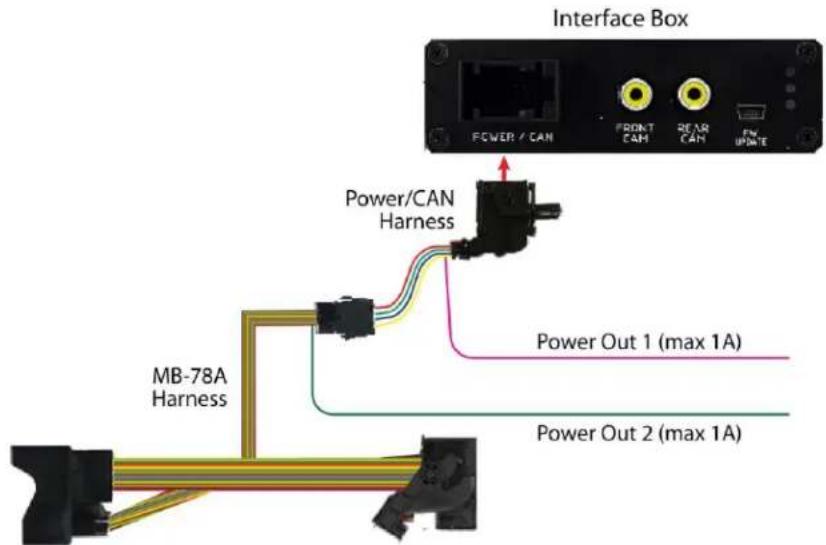
You can configure both +12V trigger outputs separately. The Pink wire is POWER OUT 1 and the Green wire is POWER OUT 2.
Note: You can configure the both trigger outputs in the OSD-Menu MISC separately (Operation of the OSD: see chapter "OSD-Operation").
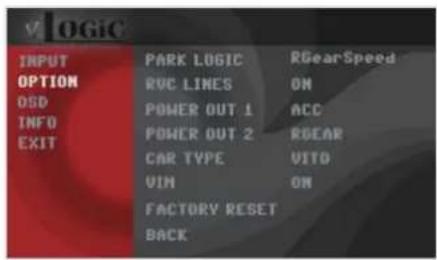
| OSD Menu | Menu item | Setting | Description |
| OPTION | POWER OUT1 (Pink) | CAN | +12V when the interface is on (red LED on) |
| ACC | +12V when ignition is on | ||
| CAM | +12V when the rear-view camera input is activated | ||
| POWER OUT2 (Green) | RGEAR | +12V when reverse gear is engaged | |
| AVS | +12V when interface video-source is active | ||
| OFF | Trigger output deactivated |
Dynamic Guide Lines
You have to configure some settings in the OSD-menu OPTION if you want to activate dynamic guide lines (Operation of the OSD: see chapter "OSD-Operation").
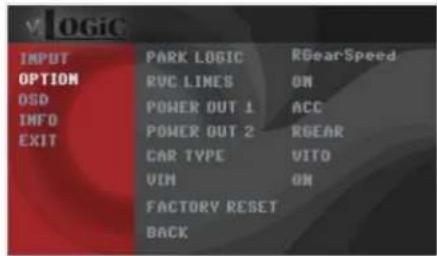
| OSD Menu | Menu item | Setting | Description |
| RVC LINES | OFF | Dynamic Guide lines deactivated | |
| ON | Dynamic Guide lines activated | ||
| OPTION | CAR TYPE | A/B/C/CLA/CLS/E/G/GLA/GLC/GLE/GLS/SL/SLC/V/ | Vehicle type selection |
8/10
Rev.041116
Crux Interfacing Solutions 6860 Canby Avenue, Suite 116, Reseda, CA 91335
www.cruxinterfacing.com tel. #: (818) 609-9299 fax #: (818) 996-8188
Picture settings
You can change the picture settings in the OSD-menu IMAGE (activation only from interface AV level possible).
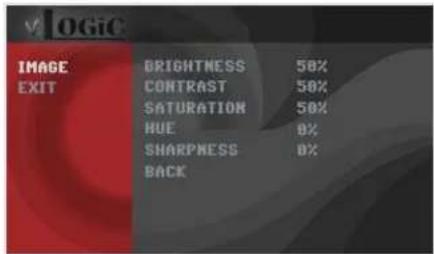
- Brightness
- Contrast
- Saturation
• Hue - Sharpness
Note: The picture settings will be retained for each AV-source separately.
Operation
OSD – On-Screen Display
You can change the basic configurations of the interface in the OSD (on screen display).
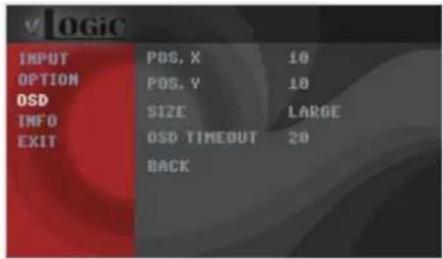
OSD - Operation
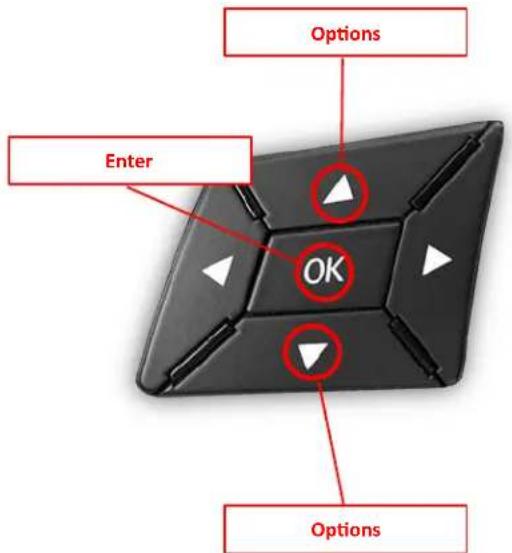
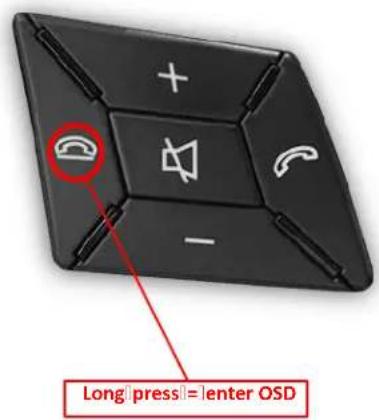
You can control the OSD by the steering wheel buttons. Set the "radio level" in instrument cluster before you start the OSD control.
9 / 10
Rev.041116
Crux Interfacing Solutions
6860 Canby Avenue, Suite 116,
Reseda, CA 91335

www.cruxinterfacing.com
tel. #: (818) 609-9299
fax #: (818) 996-8188
OSD – Additional setting options
The following settings in the OSD-menus OPTION and OSD can be configured over and above the described settings in this manual (Operation of the OSD: see chapter "OSD-Operation"):
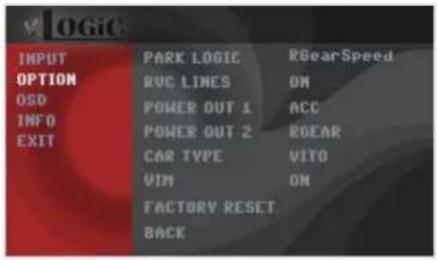
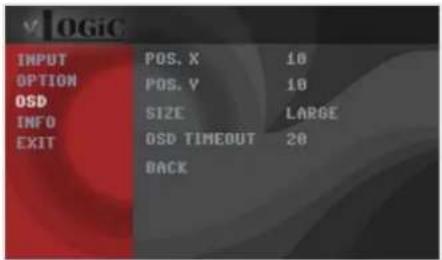
| OSD Menu | Menu item | Setting | Description |
| POS. X | 0-xxx | Horizontal position of the OSD | |
| POS. Y | 0-xxx | Vertical position of the OSD | |
| OSD | SIZE | SMALL | Small OSD menu windows |
| LARGE | Large OSD menu windows | ||
| OSD TIMEOUT | 2-20 | Time setting for automatic OSD shutoff | |
| INFO | VERSION | X.XX.XX | Displays the current SW-version |
| OPTION | FACTORY RESET | Resetting to factory settings | |
Selecting the interface as current AV-source
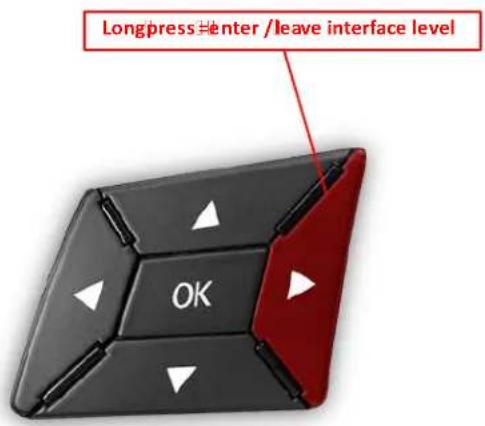
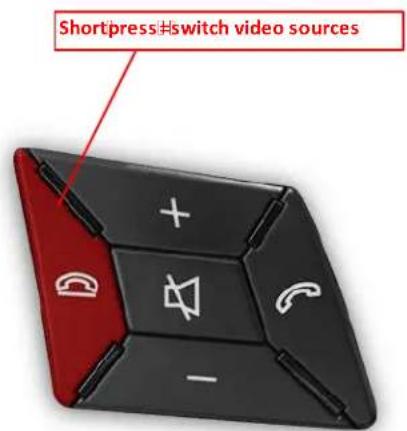
Long press of the "right arrow" button to choose the interface as current video source.
Short press of the "hang-up" button switch the video sources (cameras). Each short press will switch to the next enabled input. If all inputs are enabled the order is:
FRONT CAM → REAR CAM → ...
Inputs which are not enabled are skipped.
10 / 10
Rev.041116
Crux Interfacing Solutions
6860 Canby Avenue, Suite 116,
Reseda, CA 91335

www.cruxinterfacing.com
tel. #: (818) 609-9299
fax #: (818) 996-8188