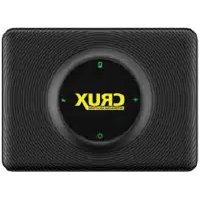
ACP-TSL - Connected car accessory CRUX - Free user manual and instructions
Find the device manual for free ACP-TSL CRUX in PDF.


| Product Type | Vehicle Steering Wheel Control Interface |
| Brand | CRUX |
| Model | ACP-TSL |
| Compatible Vehicles | Select Toyota, Lexus, and Scion models (1990-2020) |
| Compatible Radios | Aftermarket radios with wired remote input (Pioneer, Alpine, Kenwood, Sony, JVC, etc.) |
| Input Voltage | 12V DC (vehicle electrical system) |
| Operating Temperature | -20°C to 70°C |
| Dimensions (L x W x H) | 3.5 x 2.0 x 0.8 inches (approx.) |
| Weight | 2.4 oz (68 g) |
| Wiring Harness | Included T-harness for plug-and-play installation |
| Programmable Buttons | Up to 10 steering wheel button functions |
| Installation Method | Direct connection between vehicle harness and aftermarket radio |
| Learning Capability | Automatic button mapping via included programming button |
| Reset Function | Yes, via reset button on module |
| LED Indicator | Red/Green LED for programming status |
| Certifications | CE, RoHS |
| Warranty | 1 year limited warranty |
| Manual Languages | English, Spanish, French |
Frequently Asked Questions - ACP-TSL CRUX
User questions about ACP-TSL CRUX
0 question about this device. Answer the ones you know or ask your own.
Ask a new question about this device
Download the instructions for your Connected car accessory in PDF format for free! Find your manual ACP-TSL - CRUX and take your electronic device back in hand. On this page are published all the documents necessary for the use of your device. ACP-TSL by CRUX.
USER MANUAL ACP-TSL CRUX
natural_image
Two black USB cable connectors with connectors, shown against white background (no text or symbols)
ACP-TSL module
PRODUCT DESCRIPTION:
The ACP-TSL is a product that seamlessly integrates with Tesla vehicles and enables wireless CarPlay/Android Auto functionality. To use it, all you need to do is plug it into your car's original USB port and follow the provided instructions. Once connected, the ACP-TSL syncs your phone's online map, music, and voice assistant with the OEM touchscreen, providing a convenient and user-friendly driving experience.
PRODUCT FEATURES:
• Intergrates wireless CarPlay and Android Auto to OEM touchscreen.
• Supports voice control, Siri & other Voice Assistant Apps
• Supports GPS Navigation Apps (Apple Maps, Google maps & Waze).
• Supports Online Music Apps (Apple Music, Spotify, Pandora, SoundCloud & Tidal)
• Supports Split Screen Function.
• Completely plug and play.
INSTALLATION DIAGRAM:
- Wireless CarPlay Connection diagram

natural_image
Green play button icon on a smartphone screen (no text or symbols)

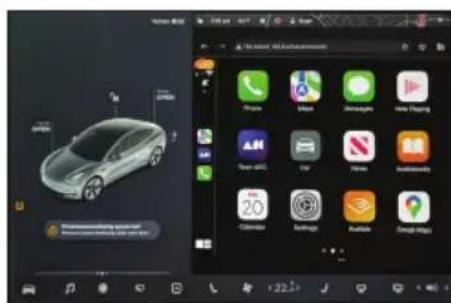
- Wireless Android Auto Connection diagram

natural_image
Smartphone screen displaying a blue upward-pointing arrow icon (no text or symbols)

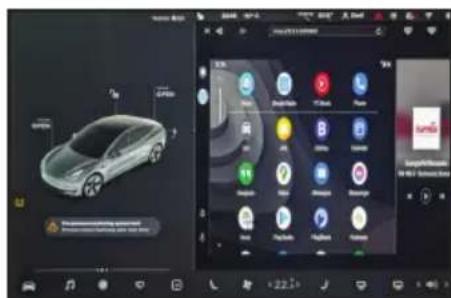
COMPATIBILITY:
2017 and Up Model 3
2012 and Up Model S
2020 and Up Model Y
2015 and Up Model X
CarPlay: iPhone 6 + with iOS 10 +
Android Auto: Android phone with Android 11.0 +
LED INDICATOR DESCRIPTION:

Mobile phone interconnection status: Green led flashes slowly after successful connection.

WIFI connection status: Green led will stay on when connected successfully. Green light represents 5GHz frequency; orange light represents 2.4Ghz

Power status indication: This green led will turn on after the product is powered on.

4G status indication: Greenlight will flash slowly successfully connecting to network. A green & blue led flashing slowly means no cellular network connection. Orange led flashing slowly when connecting to network is connection failure or SIM is not connected
WIRELESS CONNECTION:
Wireless CarPlay Connection Without Cellular Network Instructions
- Plug the product into the car USB port
- Turn on your mobile phone hotspot before connecting
- Search for "Autokit_XXXX" on your phones Bluetooth and select connect to use CarPlay
WIRELESS CONNECTION:
Wireless CarPlay Connection Without Cellular Network Instructions (Continued)
- Click on the WiFi icon in the upper right corner of your car screen. Search for the product's WiFi signal: AutoKit-XXXX & enter the original password: 88888888 (Step 3). After the connection is successful, please make sure to select "Remain connected in Drive" (Step 4).
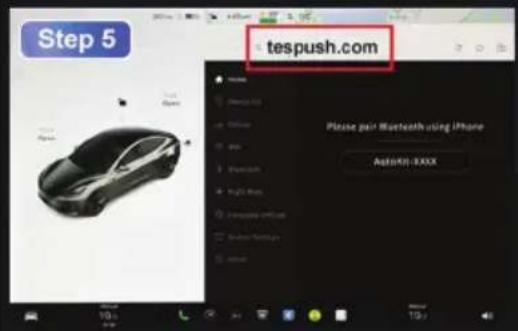
- Go to the browser page of the car screen & enter "tespush.com" or alternate domain name "tescarplay.com" in the address bar to access wireless CarPlay (Step 5).
Wireless CarPlay Connection With Cellular Network Instructions
- Insert the SIM card into the card slot (not inserting the card will result in working improperly)
- Plug the product into the car USB port
- Click on the WiFi icon in the upper right corner of your car screen. Search for the product's WiFi signal: AutoKit-XXXX & enter the original password: 88888888 (Step 3).
- After the connection is successful, please make sure to select "Remain connected in Drive" (Step 4).
- Go to the browser page of the car screen & enter "tespush.com" or alternate domain name "tescarplay.com" in the address bar to access wireless CarPlay (Step 5).
- Turn on the iPhone's Wifi & Bluetooth & pair with the product's signal Autokit-XXXX (Step 6) then click to enter the wireless CarPlay (Step 7)
Wireless Android Auto Connection Without Cellular Network Instructions
- Plug the product into the car USB port
- Turn on your mobile phone hotspot before connecting
- Search for "Autokit_XXXX" on your phones Bluetooth and select connect to use CarPlay
WIRELESS CONNECTION:
Wireless Android Auto Connection Without Cellular Network Instructions (Continued)
- Click on the WiFi icon in the upper right corner of your car screen. Search for the product's WiFi signal: AutoKit-XXXX & enter the original password: 88888888 (Step 3). After the connection is successful, please make sure to select "Remain connected in Drive" (Step 4).
- Go to the browser page of the car screen & enter "tespush.com" or alternate domain name "tescarplay.com" in the address bar to access wireless Android Auto (Step 5).
Wireless Android Auto Connection With Cellular Network Instructions
- Insert the SIM card into the card slot (not inserting the card will result in working improperly)
- Plug the product into the car USB port
- Click on the WiFi icon in the upper right corner of your car screen. Search for the product's WiFi signal: AutoKit-XXXX & enter the original password: 88888888 (Step 3).
- After the connection is successful, please make sure to select "Remain connected in Drive" (Step 4).
- Go to the browser page of the car screen & enter "tespush.com" or alternate domain name "tescarplay.com" in the address bar to access wireless Android Auto (Step 5).
- Turn on the iPhone's Wifi & Bluetooth & pair with the product's signal Autokit-XXXX (Step 6) then click to enter the Android Auto (Step 8)
MULTIMEDIA BLUETOOTH CONNECTION INSTRUCTIONS:
- Keep the phone connected to the car's Bluetooth. Click on the Bluetooth icon at the bottom of the Tesla screen to enter "Connect Phone" interface (Step 5)
-
Find your phone's name & connect (Step 6) Bluetooth audio & Handsfree calling will be using the Tesla's OEM Bluetooth
-
Insert the SIM card into the card slot

2.Plug the product into the car USB port
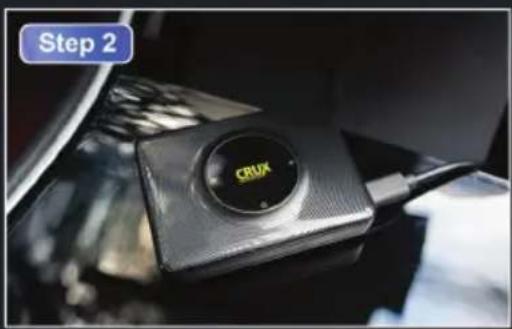
- WiFi: AutoKit-xxxx (Password: 88888888)

- Tick the "Remain connected in Drive"

- Enter link "tespush.com"
- Turn on the Phone's WiFi and Bluetooth
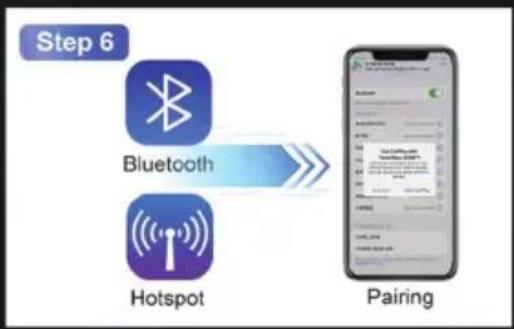
flowchart
graph LR
    A["Step 6"] --> B["Bluetooth"]
    B --> C["Hotspot"]
    C --> D["Pairing"]
- Wireless CarPlay support for iPhone

- Wireless Android Auto support for Android phone

TROUBLESHOOTING & UPDATING DEVICE:
When a connection cannot be established, the following setting can be used for emergency settings such as : Set the WiFi frequency bands, restore factory settings & other operations.
- Connects to the WiFi signal of the product via your phone.
-
- Enter the URL: 192.168.3.1 in the browser with the phone
-
- Enter the website background to set the relevant options
- Click online upgrade to update to the latest version
PRODUCT SPECIFICATION:
Power Input: 5V±0.2V
Wireless Network: 802.11 a/b/g/n/ac, 2.4Ghz+5Ghz
Power Consumption: 3W
Bluetooth Version: 4.2
Resolution: Adaptive (maintain the original protocol resolution)
Languages: Support multiple languages
Working Environment: -20°C - 75°F
Product Size: 79x58x15.8mm
Package Dimensions: 99x99x39mm
Port: LED lightm ZType-C female port, Nano SIM card slot
FAQ:
Q: Can cellular device be manually connected to the ACP-TSL WiFi?
A: To avoid your phone's WiFi network traffic being used by the device, it is important not to manually connect to the device's WiFi when entering wireless CarPlay. In the event that you accidentally connect to the device's WiFi, it is recommended that you click on "Ignore this network" after connecting to CarPlay to prevent any issues.
Q: Which USB port of the vehicle should the ACP-TSL be plugged into?
A: The device can be plugged into the vehicles USB port or Type C port near the center console.
FAQ:
Q: After the vehicle goes to sleep why does the device still power on?
A: The device is forced to power off after 15 minutes after you lock the vehicles.
Q: The cellular device is unable to establish a connection on the device?
A: Please verify if the 4G network is functioning correctly (as indicated), and check for any issues with the SIM card or network connectivity. The product's WiFi will only be enabled in compliance with the car's security policy, which requires a stable connection to the 4G network for both wireless and automotive network connectivity purposes.
Q: When located in an underground parking lot, the product cannot establish a connection?
A: Tesla's security protocol prompts disconnection from a WiFi hotspot if it fails to provide a network connection. It is recommended to switch to a carrier with stronger signal coverage, based on your current network environment.
Q: My Tesla does not support http and needs to support https access?
A: This can be resolved by accessing https://tespush.com (https://tespush.com/)
Q: What is the difference between cellular and non-cellular version?
A: The device with cellular connectivity has its own 4G network connection and does not require a separate mobile phone for connectivity. operates on its own 4G network. On the other hand, a non-cellular device needs to be connected to a mobile network of a phone in order to access the internet or network services.

- PRODUCT DESCRIPTION:
- PRODUCT FEATURES:
- INSTALLATION DIAGRAM:
- COMPATIBILITY:
- LED INDICATOR DESCRIPTION:
- WIRELESS CONNECTION:
- Wireless CarPlay Connection Without Cellular Network Instructions
- Wireless CarPlay Connection Without Cellular Network Instructions (Continued)
- Wireless CarPlay Connection With Cellular Network Instructions
- Wireless Android Auto Connection Without Cellular Network Instructions
- Wireless Android Auto Connection Without Cellular Network Instructions (Continued)
- Wireless Android Auto Connection With Cellular Network Instructions
- MULTIMEDIA BLUETOOTH CONNECTION INSTRUCTIONS:
- TROUBLESHOOTING & UPDATING DEVICE:
- PRODUCT SPECIFICATION:
- FAQ:
Brand : CRUX
Model : ACP-TSL
Category : Connected car accessory