
ACP-WLX - Connected car accessory CRUX - Free user manual and instructions
Find the device manual for free ACP-WLX CRUX in PDF.


| Product Type | Wireless CarPlay/Android Auto Adapter |
| Brand | CRUX |
| Model | ACP-WLX |
| Function | Converts wired CarPlay and Android Auto to wireless |
| Compatibility | Select OEM and aftermarket radios with built-in CarPlay or Android Auto |
| Installation | Plug and play; connects to the USB port of the radio designated for CarPlay/Android Auto |
| Power Source | USB port from car radio (5V) |
| Indicator Lights | Red (power on), Blue (connected to car), Blue flashing (CarPlay/Android Auto connected), Red/Blue flashing (firmware update) |
| Ports | USB Type-C (connect to car), USB-A (for firmware update or wired connection) |
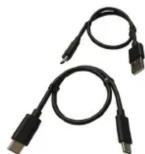
| Included Cables | USB Type-C to Type-A, USB Type-C to Type-C |
| Firmware Update | Via browser at 192.168.1.101; or via USB flash drive on USB-A port |
| WiFi Network | AUTO-xxxx, password: 88888888 |
| Mode Switching | Double-tap to switch between CarPlay and Android Auto |
| Bluetooth Name | AUTO-xxxx |
| Dimensions (Approx.) | 2.5 x 1.5 x 0.5 in (6.4 x 3.8 x 1.3 cm) |
| Weight (Approx.) | 0.7 oz (20 g) |
| Not Compatible With | Sony XAV-3200, XAV-3000, XAV-AX5500, XAV-AX5000, XAV-305DB, XAV-AX1000 |
| Android Auto Requirements | Android 11+ with 5GHz Wi-Fi, specific Google and Samsung devices |
| Cleaning | Wipe with dry cloth; do not use liquids |
Frequently Asked Questions - ACP-WLX CRUX
User questions about ACP-WLX CRUX
0 question about this device. Answer the ones you know or ask your own.
Ask a new question about this device
Download the instructions for your Connected car accessory in PDF format for free! Find your manual ACP-WLX - CRUX and take your electronic device back in hand. On this page are published all the documents necessary for the use of your device. ACP-WLX by CRUX.
USER MANUAL ACP-WLX CRUX
- Enter 192.168.1.101 on smartphone browser, next tap "Switch P2P"
Online Update
Checking for updates...
Switch P2P
- On your phone, go to WiFi >> Advanced settings >> WiFi direct, tap [AUTO-xxxx] and make sure it has connected

Connected

- Enter 192.168.1.101 again on smartphone browser, next tap "Update".
Online Update
New version is available
Update
8 of 8
rev.04082022

Sightline
for Select OEM and Aftermarket Radios with CarPlay or Android Auto
ACP-WLX
Wireless CarPlay and Android Auto Dongle
PRODUCT FEATURES:
- Converts wired CarPlay and Android Auto to wireless.
- Works on selectOEM and Aftermarket radios with built-in CarPlay or Android Auto.
- Completely plug and play.
PARTS INCLUDED:
USB cable Type-C to Type-A
USB cable Type-C to Type-C

ACP-WLX module
INSTALLATION DIAGRAM:
![graph TD A["Device 1"] -->|Wireless Signal| B["Home Screen"] C["Mobile Device"] -->|Signal| B B --> D["App Display"] style A fill:#f9f,stroke:#333 style C fill:#ccf,stroke:#333](/content/2026/05/954107/images/3e62a997fd82e1800ebc381e3a683ec6eeb6b16c0d5ab3705235075a02996ef1.jpg)
INSTALLATION INSTRUCTIONS:
- Plug in the ACP-WLX to the CarPay
- Android Auto USB port of the radio.
- Turn the radio ON and select the USB port that corresponds to the CarPlay or Android Auto input.
- Wait until the ACP-WLX connection shows on the screen.
- Go to the Bluetooth setting on your phone and connect to the BT listed on the radio screen.
- Enjoy your wireless CarPlay or Android Auto!

ACP-WLX Connection Screen
1 of 8
rev.04082022
Crux Interfacing Solutions • Chatsworth, CA 91311
phone: (818) 609-9299 • fax: (818) 996-8188 • www.cruxinterfacing.com
INTERFACES
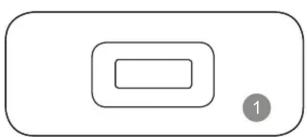

USB Type-C port: connect to car
2 LED indicators
• Power on: red light is always on
- Connected to car successfully: blue light on
• AA/CP connected: blue light flashes slowly
- Updating: red and blue lights flash alternately
3 USB-A port: for USB flash drive firmware update and wired Android Auto/Apple CarPlay connection
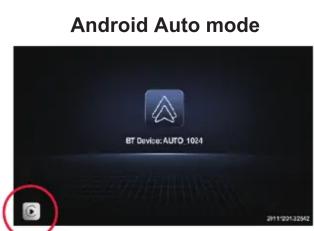

Double-tap to switch mode between CP & AA
2 of 8
rev.04082022
UPDATE ON IPHONE
- If your iPhone is connecting to the wireless CarPlay, enter 192.168.1.101 on iPhone's browser, next tap "Update" if there is an update available
- If your iPhone could not connect to the wireless CarPlay, please join the adapter's WiFi network [AUTO-xxxx] by manual and the password is 88888888. Next enter 192.168.1.101 on iPhone's browser, and tap "Update".
UPDATE ON ANDROID SMARTPHONE
- If you have connected to the Android Auto wirelessly, disable Bluetooth and forget the WiFi network first
- Join the adapter's WiFi network [AUTO-xxxx] again by manual and the password is 88888888
• (Tap YES if there is a pop-up notification of internet access

AUTO-

This network has no internet access. Stay connected?

Don't ask again for this network
No
Yes
7 of 8
rev.04082022
FIRMWARE UPDATE
Firmware updating is NOT recommended when every function works well.
Online Update
New version is available
Update
Update Notes
- fix some bugs
Copyright©2020 - 2021
AA
192.168.1.101

NOTE! The red and blue indicator lights will flash alternately while updating. Wait for more 30s after lights are always on, then disconnect and reconnect the adapter from USB port to finish the whole update.
6 of 8
rev.04082022
CONNECTION DIAGRAM
![graph LR A["Factory USB A port"] --> B["USB - A"] B --> C["Type-C"] C --> D["Smartphone with wireless signal transmission"]](/content/2026/05/954107/images/aa0469c63b7ca410af422ade3bfc927d2ac56041ff287d61a7271208ca9d9416.jpg)
OR
![graph LR A["Factory USB C port"] --> B["Type-C Type-C"] B --> C["CarPlay"]](/content/2026/05/954107/images/59683d906cc443df8e198955f9ccfb523a07c770980c47daa2db9da1bc547b41.jpg)
NOTE! The adapter should be plugged into the USB port that is for wired Apple CarPlay/Android Auto connecting if there are multi USB ports in your car.
3 of 8
rev.04082022
HOW TO USE WIRELESS ANDROID AUTO
Before using Android Auto, please make sure the latest Android Auto app installed on your smartphone.
- Enable "wireless Android Auto" on Android Auto app settings
- Turn on your smartphone's WiFi / Bluetooth and search BT name "AUTO-xxxx" then tap it to pair
- Confirm the BT pair request and other notifications
- It will then connect to Android Auto wirelessly after a few seconds.
NOTE! NOT COMPATIBLE WITH SONY XAV-3200, XAV-3000, XAV-AX5500, XAV-AX5000, XAV-305DB, XAV-AX1000
NOTE! Wireless Android Auto is supported on:
-
smartphone running Android 11 or newer with 5GHz Wi-Fi built-in;
-
Google phones: Pixel /XL, Pixel 2/2 XL, Pixel 3/3 XL/ 3a/3a XL, Pixel 4/4 XL/4a, Pixel 5, Pixel 6/6 Pro, Nexus 5X, Nexus 6P;
-
Samsung Galaxy phones: Galaxy S8/S8+, S9/S9+, S10/S10+, S20/S20+/S20 Ultra, S21/S21+/S21 Ultra, Galaxy Note 8, Note 9, Note 10/10+, Note 20/20 Ultra.
4 of 8
rev.04082022
HOW TO USE WIRELESS CARPLAY
- Turn on your iPhone's WiFi and Bluetooth, then pair to the Bluetooth named "AUTO-xxxx"
- Tap "Pair-Allow-Use CarPlay" on the iPhone popup notifications
- It will connect to CarPlay wirelessly after a few seconds.

NOTE! NOT COMPATIBLE WITH SONY XAV-3200, XAV-3000, XAV-AX5500, XAV-AX5000, XAV-305DB, XAV-AX1000
NOTE! Before pairing to a new iPhone/Android phone, please disconnect the currently connected phone from WiFi and Bluetooth..
5 of 8
rev.04082022
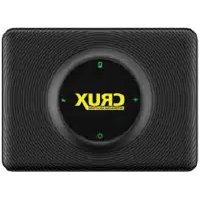
Brand : CRUX
Model : ACP-WLX
Category : Connected car accessory